SUPOIN INFORMATION TECHNOLOGY SK9026 Mobile Intelligent Terminal User Manual

SHENZHEN SUPOIN INFORMATION TECHNOLOGY CO., LTD. Mobile Intelligent Terminal

User manual

Addr:Floor 36th,BlockA,World Trade Plaza,No.9Fuhong Road,FutianDistrict,Shenzhen.China.Tel:0755-82178516   25828560    Fax:0755-82281509Customer Service Hotline:4006-188-126   www.supoin.com    SUPOIN Information Technology(Shenzhen)Co., Ltd.Version: GWB February 24, 20139026   Mobile Intelligent TerminalUser GuideSK
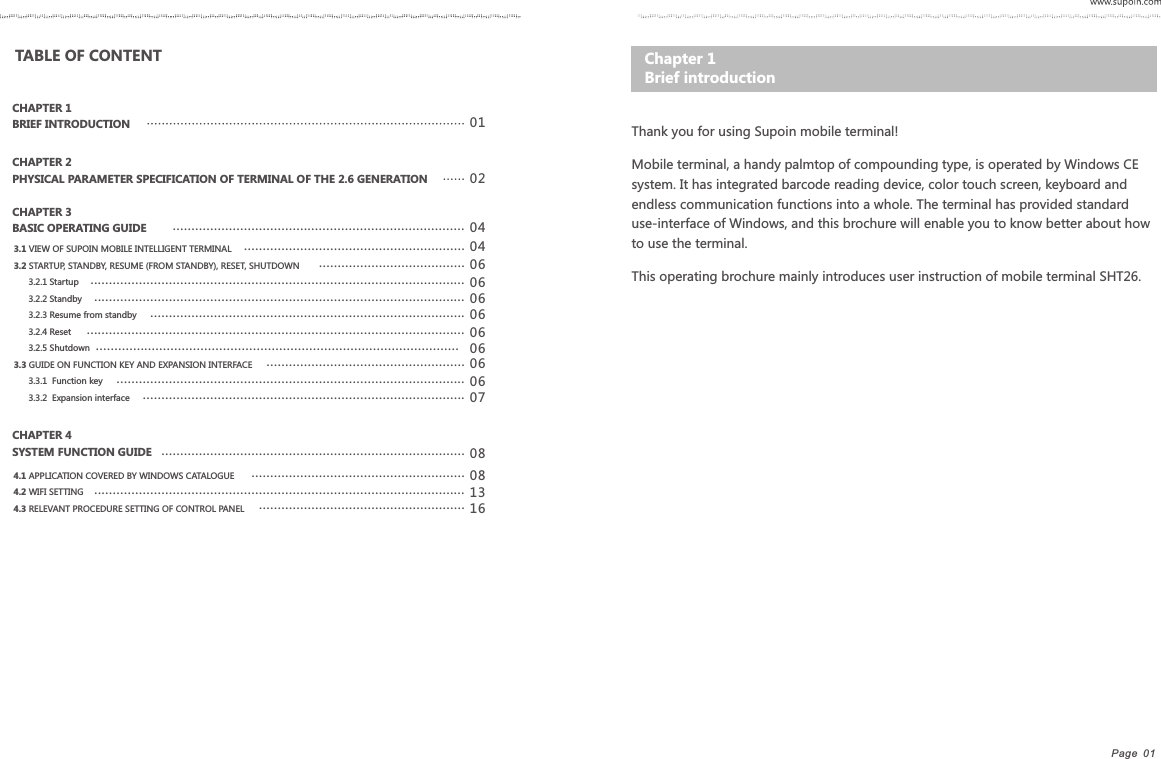
Page  01   Thank you for using Supoin mobile terminal!Mobile terminal, a handy palmtop of compounding type, is operated by Windows CE system. It has integrated barcode reading device, color touch screen, keyboard and endless communication functions into a whole. The terminal has provided standard use-interface of Windows, and this brochure will enable you to know better about how to use the terminal.This operating brochure mainly introduces user instruction of mobile terminal SHT26.Chapter 1    Brief introductionTABLE OF CONTENT CHAPTER 1 BRIEF INTRODUCTIONCHAPTER 2 PHYSICAL PARAMETER SPECIFICATION OF TERMINAL OF THE 2.6 GENERATIONCHAPTER 3 BASIC OPERATING GUIDECHAPTER 4 SYSTEM FUNCTION GUIDE0102 04040606 08081316........................................................................................................................................................................................................................................................................................................................................................................................................................................................................................................................................................................................3.1 VIEW OF SUPOIN MOBILE INTELLIGENT TERMINAL3.2 STARTUP, STANDBY, RESUME (FROM STANDBY), RESET, SHUTDOWN      3.2.1 Startup      3.2.2 Standby         3.2.3 Resume from standby      3.2.4 Reset      3.2.5 Shutdown3.3 GUIDE ON FUNCTION KEY AND EXPANSION INTERFACE      3.3.1  Function key      3.3.2  Expansion interface4.1 APPLICATION COVERED BY WINDOWS CATALOGUE4.2 WIFI SETTING4.3 RELEVANT PROCEDURE SETTING OF CONTROL PANEL06...................................................................................................06....................................................................................06 .....................................................................................................06 .................................................................................................06.....................................................06.............................................................................................07......................................................................................
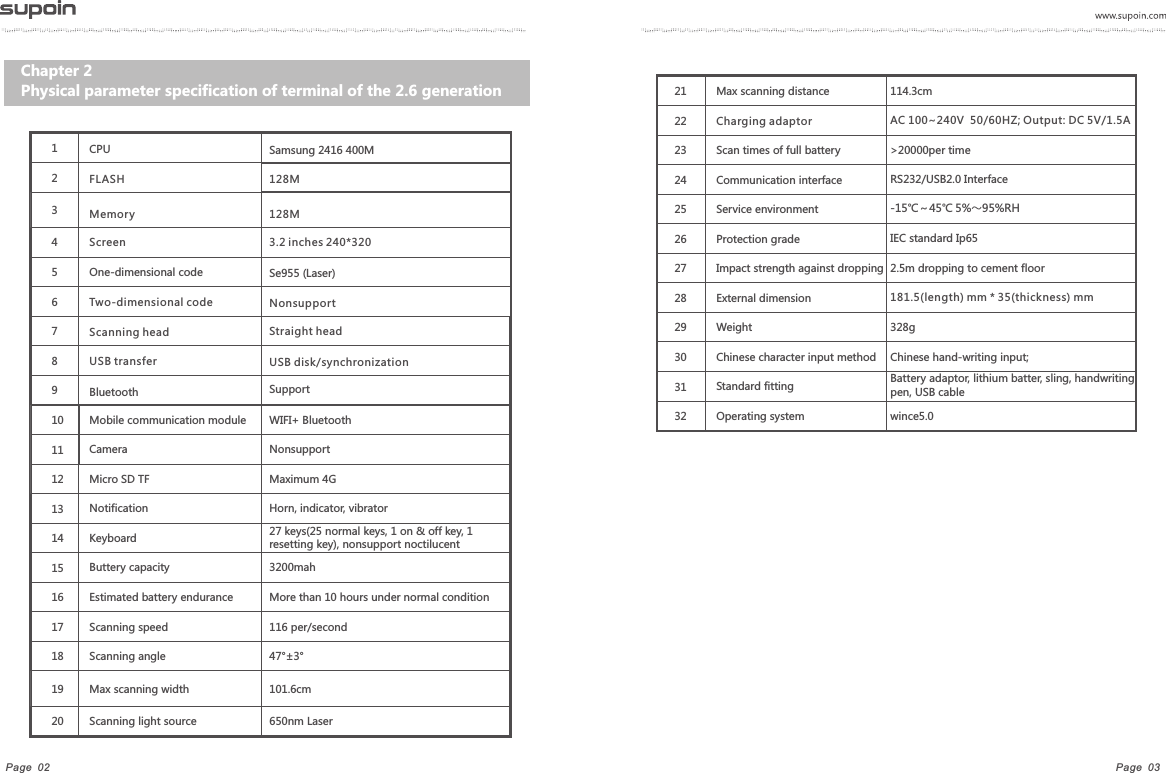
Page  03Page  02Chapter 2 Physical parameter specification of terminal of the 2.6 generation12CPU Samsung 2416 400M35One-dimensional code Se955 (Laser)46FLASH 128MMemory 128MScreen 3.2 inches 240*320Two-dimensional code      Nonsupport7Scanning head Straight head8USB transfer USB disk/synchronization79Bluetooth Support12 Micro SD TF Maximum 4G13 Notification Horn, indicator, vibrator1516 Estimated battery endurance More than 10 hours under normal condition17 Scanning speed 116 per/second18 Scanning angle 47°±3°19 Max scanning width 101.6cm20 Scanning light source     650nm LaserButtery capacity             3200mahKeyboard 27 keys(25 normal keys, 1 on & off key, 1 resetting key), nonsupport noctilucent1411 Camera Nonsupport10 Mobile communication module       WIFI+ Bluetooth21 Max scanning distance         114.3cm2223 Scan times of full battery                     >20000per time2425Communication interface                 RS232/USB2.0 Interface26Service environment    -15℃~45℃  5%~95%RH28Impact strength against dropping               2.5m dropping to cement floor27Protection grade IEC standard Ip65External dimension         29 Weight 328g30 Chinese character input method                       Chinese hand-writing input;32 Operating system wince5.031 Standard fitting         Battery adaptor, lithium batter, sling, handwriting pen, USB cableCharging adaptor AC 100~240V  50/60HZ; Output: DC 5V/1.5A181.5(length) mm * 35(thickness) mm
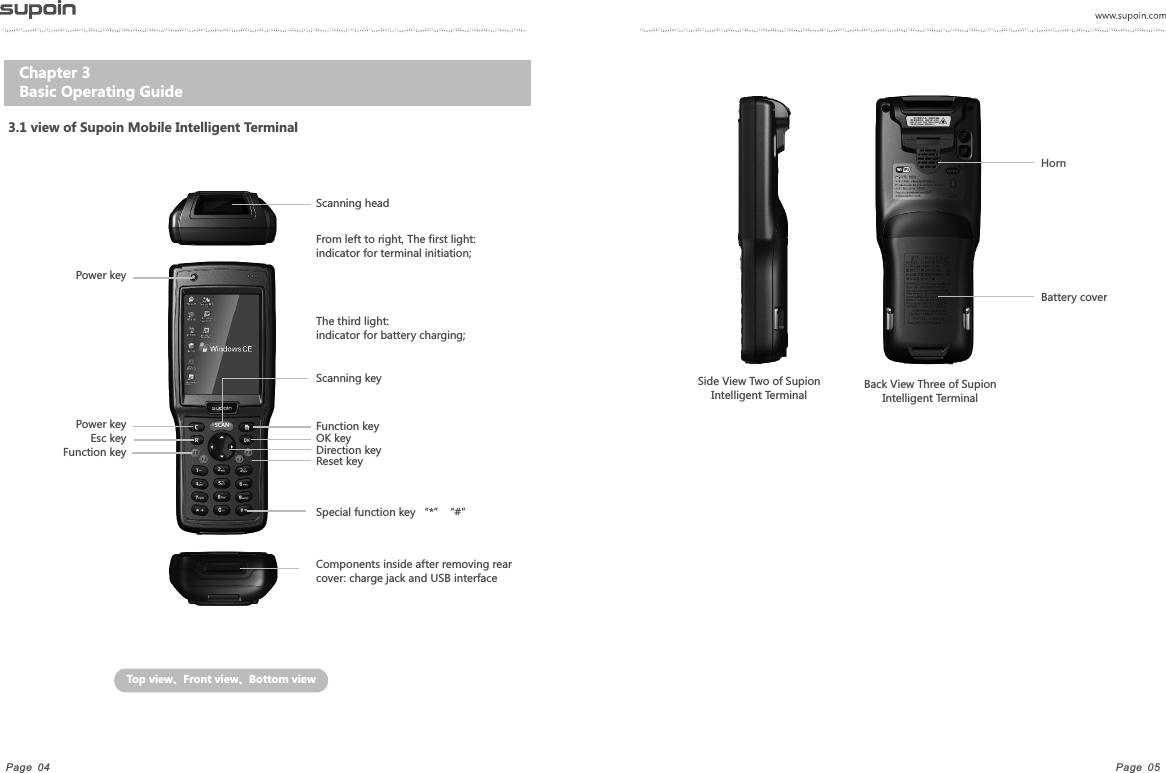
Page  05Page  04Chapter 3 Basic Operating GuideScanning keyDirection keyEsc keyPower keyOK keyFunction keySpecial function key “*”“#”Function keyReset keyComponents inside after removing rear cover: charge jack and USB interfacePower keyFrom left to right, The first light: indicator for terminal initiation;The third light: indicator for battery charging;Scanning headTop view、Front view、Bottom view3.1 view of Supoin Mobile Intelligent TerminalBattery coverHornSide View Two of Supion Intelligent Terminal Back View Three of Supion Intelligent TerminalSCAN
Page  07Page  063.2.1 StartupLong press red “power key” on the top left corner of screen until “Supoin Information Technology” appears on the screen, and release the button, indicating that the terminal is open.3.2.2 StandbyIn case that terminal is not in service for a while and power off is not necessary, shortly press the red “power key” on the top left corner of screen until the whole screen goes black, and the terminal is in the shallow dormancy of standby status.3.2.3 Resume from standbyIf resuming (from standby) is needed, just shortly press the red “power key” on the top left corner of screen until screen resumes as before. 3.2.4 ResetIf procedure and circuit are needed to go back to original status of restarting, just press “small red button” on the right bottom of “direction key” on keyboard to reset.3.2.5 ShutdownFor shutdown, just long press the red “power key” on the top left corner of screen until the whole screen goes black.3.2  Startup, standby, resume (from standby), reset, shutdown  left and right directions are available when pressing it.【C】key: when  inputting code and text, C key can be  used as backspace key (delete pre-completion single value of cursor).【R】key: can be used as return and exit【F1】、【F2】、【F3】、【F4】: the function keys are of specified functions based on each interface.3.3.2 Expansion interface1) How to use TF card correctly: take TF card out: open rear cover of the terminal and take out battery, you can see a TF card slot inside it, slightly push the iron cover (which bottom is made of white rubber) of the slot toward the end of TF card, then the slot is open and TF card is available to take out. Insert TF card: open the iron cover of TF card slot, down the chip of TF card, place the card in the slot, and slightly push the cover up to buckle up.2) How to charge correctly: connect charger in interface direction with charge interface correctly, (the round hole on the right bottom of the terminal is the charge interface), plug it into power supply, meanwhile, indicator (three indicators on the top right corner of the terminal, among them the rear rightmost one is the power indicator) goes red color, representing charging; if the indicator shows no color at all, please check interface and power supply. When battery charge completes, the indicator will change into green color.Note: long-time charging after full battery will decrease the life expectancy of battery.3) How to scan correctly: when scanning codes, please press Scan key and release soon (possible when red light turns out) to make red light cover all code.3.3 Guide on function key and expansion interface3.3.1 Function key【OK】key: the enter key【#】key: to shift input method.【 】key: the pointing direction based on direction key, and the up, down,
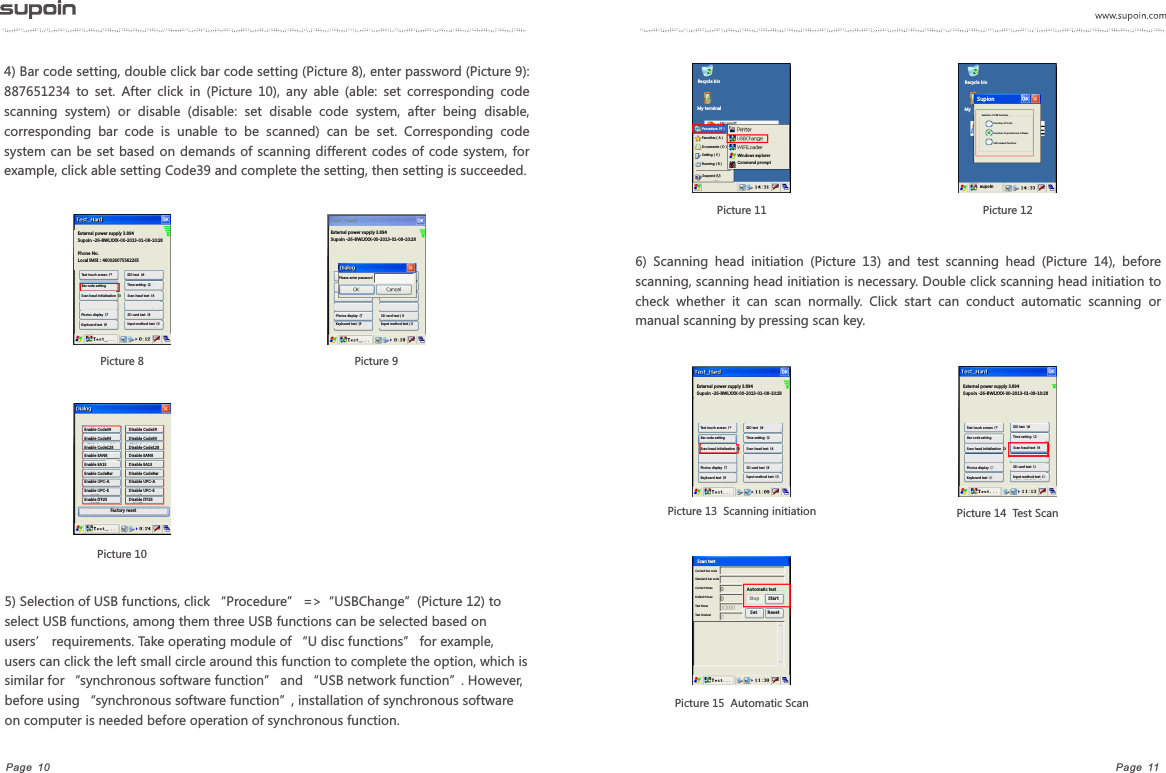
Page  09Page  08Chapter 4   System Function Guide4.1 Application covered by Windows catalogue1) After startup, startup desktop of terminal shall display on the screen, see Picture 1Picture 1  Startup DesktopPicture 2  My Terminal3)  Double  click  document  file  of  Test  hard  (Picture  4)  =>MOTO_Test_Hard  (picture  5) =>Test_hard.exe(Picture  6)  under  Windows  (Picture  3),  then  appear  an  operating interface, where you can see the external power value, version, release time of core and corresponding settings of the terminal(Picture 7).2) Double click Windows file under the catalogue of “My terminal” to perform corresponding system operation.Picture 7Recycle binMy terminalRecycle binMy terminalPicture 3     File(F)   Edit(E)  View(V)  Goto(G)Internet Control panelMy terminalPicture 4File(F)   Edit(E)  View(V)  Goto(G)Procedure Startup Startup FavoriteDesktop Font Lately Picture 5File(F)   Edit(E)  View(V)  Goto(G)OtherPicture 6File(F)   Edit(E)  View(V)  Goto(G)External power supply 3.894Supoin -26-BWLXXX-00-2013-01-08-10:28 Phone No.Local IMSI:460026075562265Test touch screen(*Bar code settingScan head initialization(3Photos display(7Keyboard test(9SIO test(#Time setting(2Scan head test(4SD card test(8Input method test(0
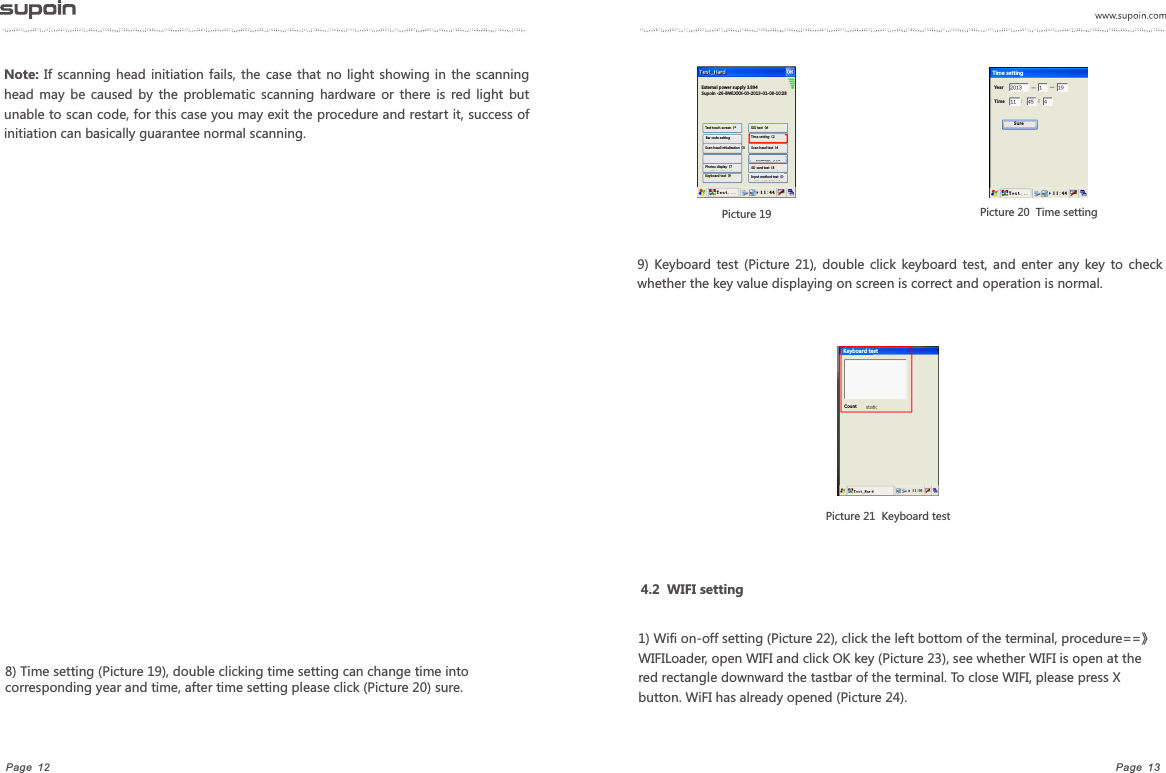
Page  11Page  104) Bar code setting, double click bar code setting (Picture 8), enter password (Picture 9): 887651234  to  set.  After  click  in  (Picture  10),  any  able  (able:  set  corresponding  code scanning  system)  or  disable  (disable:  set  disable  code  system,  after  being  disable, corresponding  bar  code  is  unable  to  be  scanned)  can  be  set.  Corresponding  code system can be set based on  demands of scanning different codes of code system, for example, click able setting Code39 and complete the setting, then setting is succeeded.5) Selection of USB functions, click “Procedure” =>“USBChange”(Picture 12) to select USB functions, among them three USB functions can be selected based on users’ requirements. Take operating module of “U disc functions” for example, users can click the left small circle around this function to complete the option, which is similar for “synchronous software function” and “USB network function”. However, before using “synchronous software function”, installation of synchronous software on computer is needed before operation of synchronous function.Picture 11  Picture 126)  Scanning  head  initiation  (Picture  13)  and  test  scanning  head  (Picture  14),  before scanning, scanning head initiation is necessary. Double click scanning head initiation to check  whether  it  can  scan  normally.  Click  start  can  conduct  automatic  scanning  or manual scanning by pressing scan key. Picture 14  Test Scan Picture 13  Scanning initiation   Picture 15  Automatic ScanPicture 8External power supply 3.894Supoin -26-BWLXXX-00-2013-01-08-10:28 Phone No.Local IMSI:460026075562265Test touch screen(*Bar code settingSIO test(#Time setting(2Scan head test(4SD card test(8Input method test(0Scan head initialization(3Photos display(7Keyboard test(9Picture 9External power supply 3.894Supoin -26-BWLXXX-00-2013-01-08-10:28 Please enter passwordPhotos display  (7Keyboard test  (9SD card test(8Input method test(0Picture 10Enable Code39Enable Code93Enable Code128Enable EAN8Enable EA13Enable CodeBarEnable UPC-AEnable UPC-EEnable ITF25Disable Code39Disable Code93Disable Code128Disable EAN8Disable EA13Disable CodeBarDisable UPC-ADisable UPC-EDisable ITF25Factory resetRecycle binMy terminalProcedure(P)Favorites(A)Documents(D)Setting(S)Running(R)Suspend (U)Windows explorerCommand promptExternal power supply 3.894Supoin -26-BWLXXX-00-2013-01-08-10:28 Test touch screen(*Bar code settingSIO test(#Time setting(2Scan head test(4SD card test(8Input method test(0Scan head initialization(3Photos display(7Keyboard test(9External power supply 3.894Supoin -26-BWLXXX-00-2013-01-08-10:28 Test touch screen(*Bar code settingSIO test(#Time setting(2Scan head test(4SD card test(8Input method test(0Scan head initialization(3Photos display(7Keyboard test(9Current bar codeStandard bar codeCorrect timesDefault timesTest timesTest intervalScan testAutomatic testSto p Sta rt Set R eset Recycle binMy Supion Functions of U discFunctions of synchronous softwareUSB network functionsSelection of USB functionssup oi n
Page  13Page  12Note: If  scanning  head initiation  fails,  the  case that  no  light showing  in  the  scanning head  may  be  caused  by  the  problematic  scanning  hardware or  there is  red  light  but unable to scan code, for this case you may exit the procedure and restart it, success of initiation can basically guarantee normal scanning.8) Time setting (Picture 19), double clicking time setting can change time into corresponding year and time, after time setting please click (Picture 20) sure.  Picture 19    Picture 20  Time setting9)  Keyboard test  (Picture  21),  double  click  keyboard  test,  and  enter  any  key  to  check whether the key value displaying on screen is correct and operation is normal. Picture 21  Keyboard test 4.2  WIFI setting1) Wifi on-off setting (Picture 22), click the left bottom of the terminal, procedure==》WIFILoader, open WIFI and click OK key (Picture 23), see whether WIFI is open at the red rectangle downward the tastbar of the terminal. To close WIFI, please press X button. WiFI has already opened (Picture 24).External power supply 3.894Supoin -26-BWLXXX-00-2013-01-08-10:28 Test touch screen(*Bar code settingSIO test(#Time setting(2Scan head test(4SD card test(8Input method test(0Scan head initialization(3Photos display(7Keyboard test(9YearTim e Time settingSur eKeyboard testCount
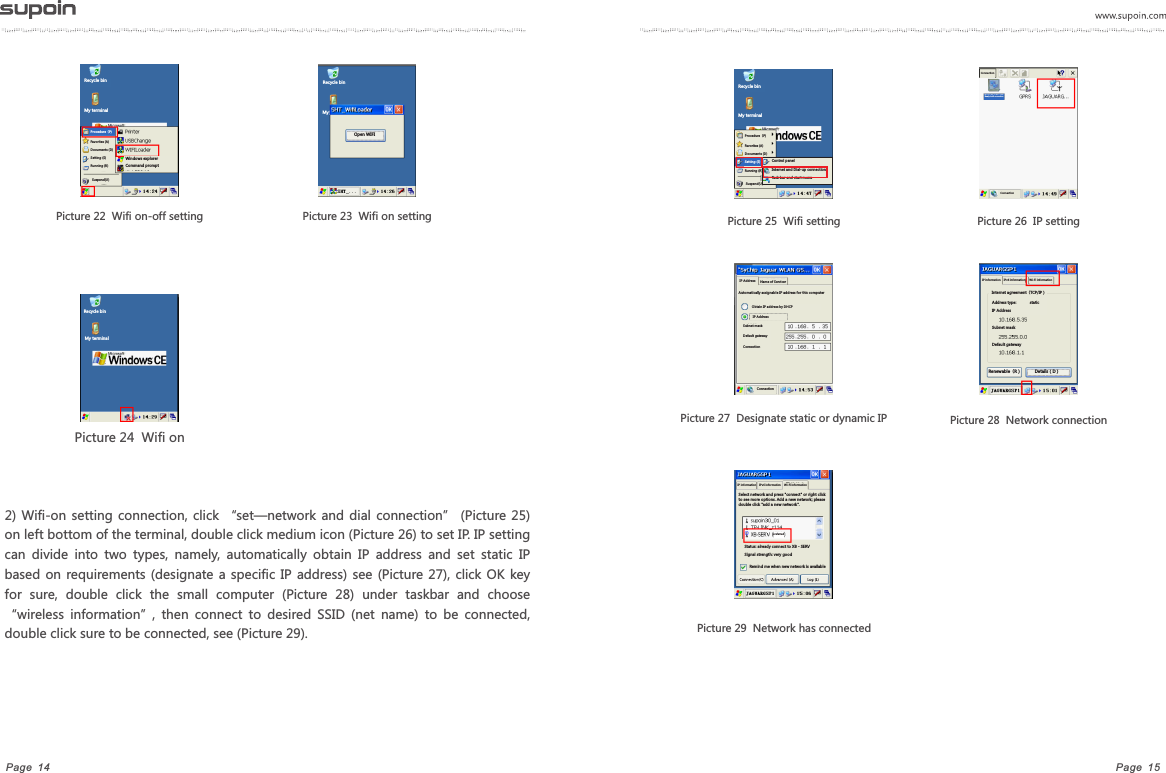
Page  15Page  14Picture 24  Wifi on2)  Wifi-on  setting  connection,  click  “set—network and  dial  connection”  (Picture 25) on left bottom of the terminal, double click medium icon (Picture 26) to set IP. IP setting can  divide  into  two  types,  namely,  automatically  obtain  IP  address  and  set  static  IP based on  requirements (designate a  specific IP address) see (Picture  27), click  OK key for  sure,  double  click  the  small  computer  (Picture  28)  under  taskbar  and  choose “wireless  information”,  then  connect  to  desired  SSID  (net  name)  to  be  connected, double click sure to be connected, see (Picture 29).Picture 26  IP setting           Picture 28  Network connection Picture 25  Wifi setting   Picture 27  Designate static or dynamic IP Picture 22  Wifi on-off setting Picture 23  Wifi on setting Picture 29  Network has connectedRecycle binMy terminalProcedure(P)Favorites (A)Documents (D)Setting (S)Running (R)Suspend(U) Windows explorerCommand promptRecycle binMy Open WIFIRecycle binMy terminalRecycle binMy terminalSuspend(U) Procedure(P)Favorites (A)Documents (D)Running (R)Setting (S) Control panelInternet and Dial-up connectionTask bar and start menuConnection Newly-built connectionConnection IP Address Name of ServicerAutomatically assignable IP address for this computerObtain IP address by DHCPIP AddressSubnet maskDefault gatewayConnectionConnectionIP information    IPv6 information     Wi-Fi informationInternet agreement(TCP/IP)Address type:            staticIP AddressSubnet maskDefault gatewayRenewable(R)           Details(D)IP information    IPv6 information    Wi-Fi informationSelect network and press "connect" or right click to see more options. Add a new network; please double click "add a new network".preferredStatus: already connect to XB - SERVSignal strength: very goodRemind me when new network is available
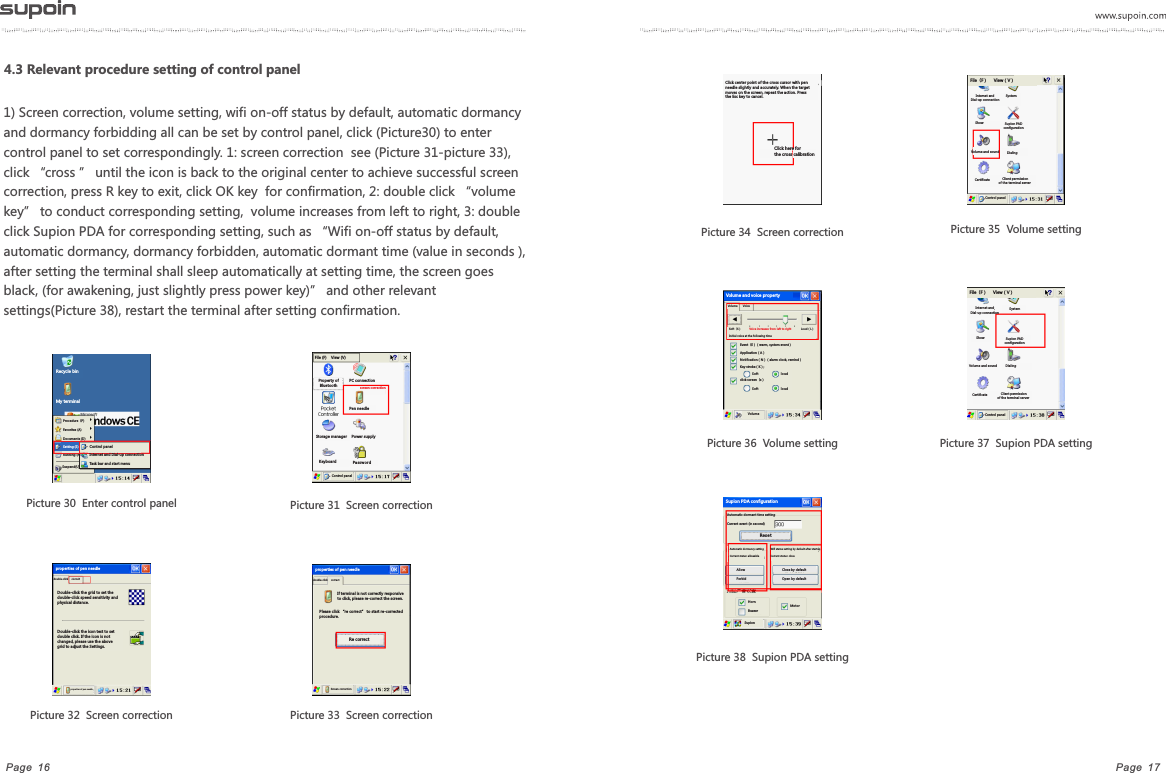
Page  17Page  16            Picture 33  Screen correctionPicture 35  Volume setting       Picture 31  Screen correctionPicture 30  Enter control panel    Picture 32  Screen correctionPicture 34  Screen correctionPicture 36  Volume setting              Picture 37  Supion PDA setting Picture 38  Supion PDA setting1) Screen correction, volume setting, wifi on-off status by default, automatic dormancy and dormancy forbidding all can be set by control panel, click (Picture30) to enter control panel to set correspondingly. 1: screen correction  see (Picture 31-picture 33), click “cross ” until the icon is back to the original center to achieve successful screen correction, press R key to exit, click OK key  for confirmation, 2: double click “volume key” to conduct corresponding setting,  volume increases from left to right, 3: double click Supion PDA for corresponding setting, such as “Wifi on-off status by default, automatic dormancy, dormancy forbidden, automatic dormant time (value in seconds ), after setting the terminal shall sleep automatically at setting time, the screen goes black, (for awakening, just slightly press power key)” and other relevant settings(Picture 38), restart the terminal after setting confirmation.4.3 Relevant procedure setting of control panelRecycle binMy terminalSuspend(U) Procedure(P)Favorites (A)Documents (D)Running (R)Setting (S) Control panelInternet and Dial-up connectionTask bar and start menuFile (F)    View (V)Property of BluetoothStorage managerKeyboard PC connectionPen needlescreen correctionPower supplyPas swo rdControl panel double-click  correctDouble-click the grid to set the double-click speed sensitivity and physical distance.Double-click the icon test to set double click. If the icon is not changed, please use the above grid to adjust the Settings.properties of pen needle properties of pen needle  double-click  correctproperties of pen needle If terminal is not correctly responsive to click, please re-correct the screen.Please click “re correct” to start re-corrected procedure.Re correctScreen correctionClick center point of the cross cursor with pen needle slightly and accurately. When the target moves on the screen, repeat the action. Press the Esc key to cancel.Click here for the cross calibrationFile(F)     View(V)Internet and Dial-up connectionSystem Show Supion PAD configuration Volume and sound  Dialing Certificate   Client permission of the terminal serverControl panel Internet and Dial-up connectionSystem Show Supion PAD configuration Volume and sound  Dialing Certificate   Client permission of the terminal serverControl panel File(F)     View(V)Automatic dormant time settingCurrent event (in second)Res etAutomatic dormancy settingCurrent status: allowableWifi status setting by default after startupCurrent status: closeAllow ForbidClose by defaultOpen by defaultHorn Buzzer Motor  Supion Supion PDA configurationVolume  Voice Soft(S)                      Loud(L)Voice increases from left to right Initial voice at the following timeEvent(E)(warm, system event)Application(A)Notification(N)(alarm clock, remind)Key stroke(K);Sof t lou dSof t lou dclick screen(s)VolumeVolume and voice property
FCC STATEMENT1. This device complies with Part 15 of the FCC Rules. Operation is subject to thefollowing two conditions:(1) This device may not cause harmful interference.(2) This device must accept any interference received, including interference that maycause undesired operation.Changes or modifications not expressly approved by the party responsible for compliancecould void the user's authority to operate the equipment.NOTE: This equipment has been tested and found to comply with the limits for a Class Bdigital device, pursuant to Part 15 of the FCC Rules. These limits are designed to providereasonable protection against harmful interference in a residential installation.This equipment generates uses and can radiate radio frequency energy and, if notinstalled and used in accordance with the instructions, may cause harmful interference toradio communications. However, there is no guarantee that interference will not occur in aparticular installation. If this equipment does cause harmful interference to radio ortelevision reception, which can be determined by turning the equipment off and on, theuser is encouraged to try to correct the interference by one or more of the followingmeasures:  Reorient or relocate the receiving antenna.  Increase the separation between the equipment and receiver.  Connect the equipment into an outlet on a circuit different from that to which thereceiver is connected.  Consult the dealer or an experienced radio/TV technician for help.

Navigation menu