Samsung Electronics Co DVDVR300 DVD Recorder/ Video Cassette Recorder User Manual 2

Samsung Electronics Co Ltd DVD Recorder/ Video Cassette Recorder Users Manual 2

Contents

Users Manual 2

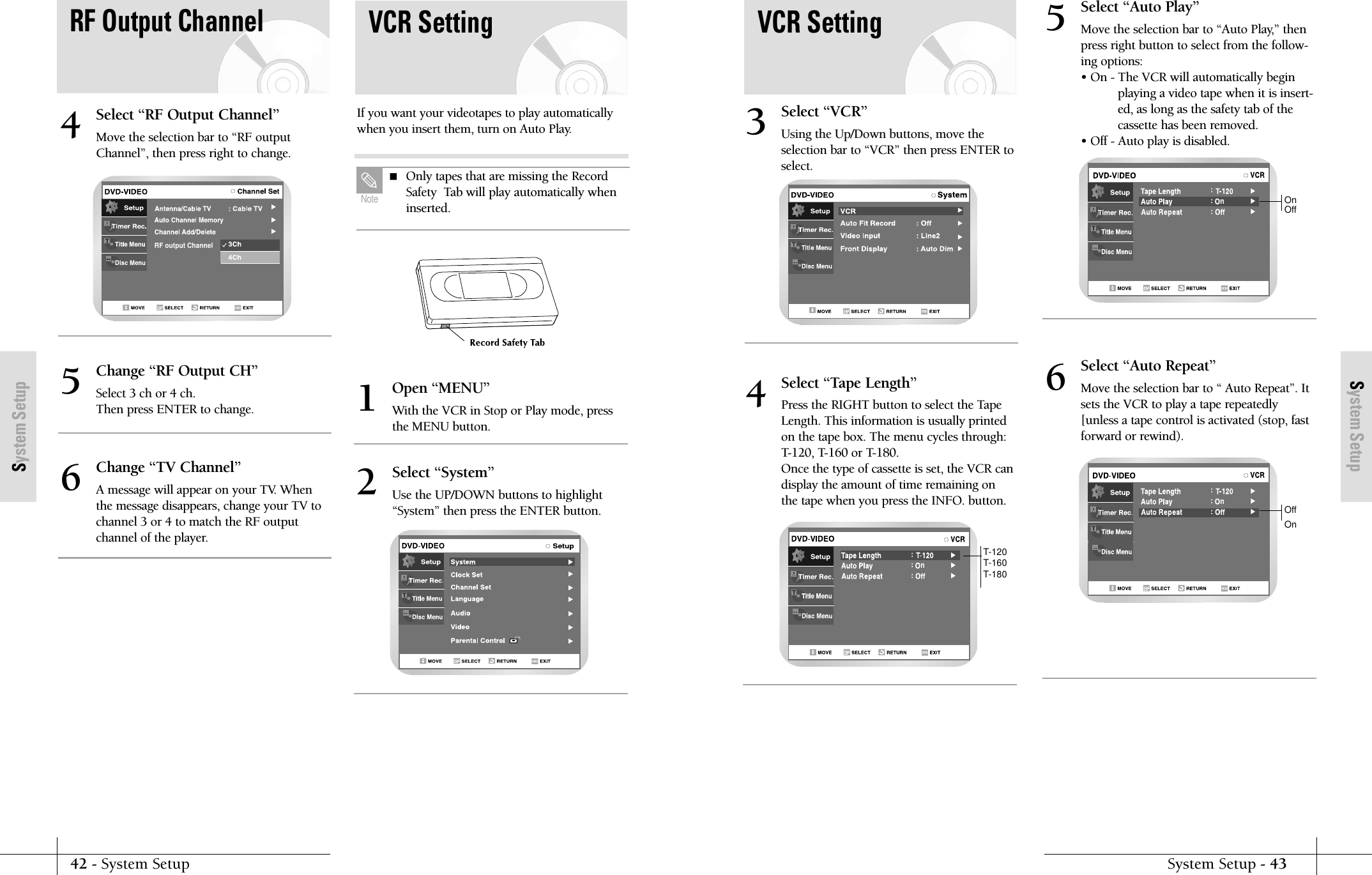
System SetupSystem Setup - 4342 - System SetupSystem Setupn:::Select “Tape Length”Press the RIGHT button to select the TapeLength. This information is usually printedon the tape box. The menu cycles through:T-120, T-160 or T-180. Once the type of cassette is set, the VCR candisplay the amount of time remaining onthe tape when you press the INFO. button.4n:::Select “Auto Play”Move the selection bar to “Auto Play,” thenpress right button to select from the follow-ing options:• On - The VCR will automatically beginplaying a video tape when it is insert-ed, as long as the safety tab of thecassette has been removed.• Off - Auto play is disabled.5n:::Select “Auto Repeat”Move the selection bar to “ Auto Repeat”. Itsets the VCR to play a tape repeatedly[unless a tape control is activated (stop, fastforward or rewind).6VCR SettingT-120T-160T-180Select “VCR”Using the Up/Down buttons, move theselection bar to “VCR” then press ENTER toselect.3OnOffOffOnVCR SettingIf you want your videotapes to play automaticallywhen you insert them, turn on Auto Play.Open “MENU”With the VCR in Stop or Play mode, pressthe MENU button.1Select “System”Use the UP/DOWN buttons to highlight“System” then press the ENTER button.2RF output ChannelSelect “RF Output Channel”Move the selection bar to “RF outputChannel”, then press right to change.4Change “RF Output CH”Select 3 ch or 4 ch.Then press ENTER to change.5Change “TV Channel”A message will appear on your TV. Whenthe message disappears, change your TV tochannel 3 or 4 to match the RF outputchannel of the player.6 Only tapes that are missing the RecordSafety  Tab will play automatically wheninserted.NoteRF Output Channel
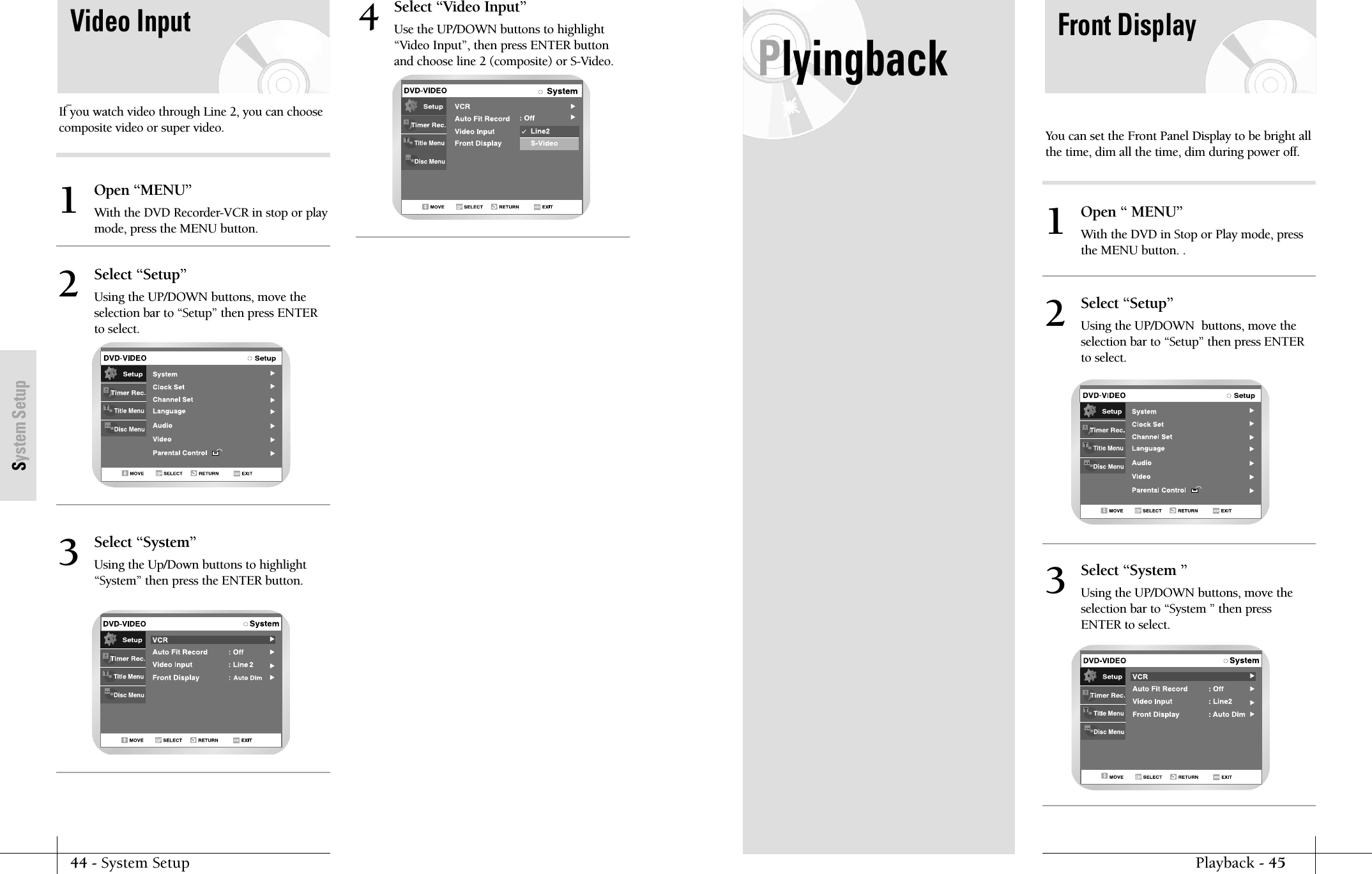
44 - System SetupSystem SetupPlyingbackPlayback - 45Front DisplayYou can set the Front Panel Display to be bright allthe time, dim all the time, dim during power off.Open “ MENU”With the DVD in Stop or Play mode, pressthe MENU button. . 1Select “Setup”Using the UP/DOWN  buttons, move theselection bar to “Setup” then press ENTERto select.2Select “System ”Using the UP/DOWN buttons, move theselection bar to “System ” then pressENTER to select.3Video InputIf you watch video through Line 2, you can choosecomposite video or super video.Open “MENU”With the DVD Recorder-VCR in stop or playmode, press the MENU button.1Select “Setup”Using the UP/DOWN buttons, move theselection bar to “Setup” then press ENTERto select.2Select “System”Using the Up/Down buttons to highlight“System” then press the ENTER button.3Select “Video Input”Use the UP/DOWN buttons to highlight“Video Input”, then press ENTER buttonand choose line 2 (composite) or S-Video.4
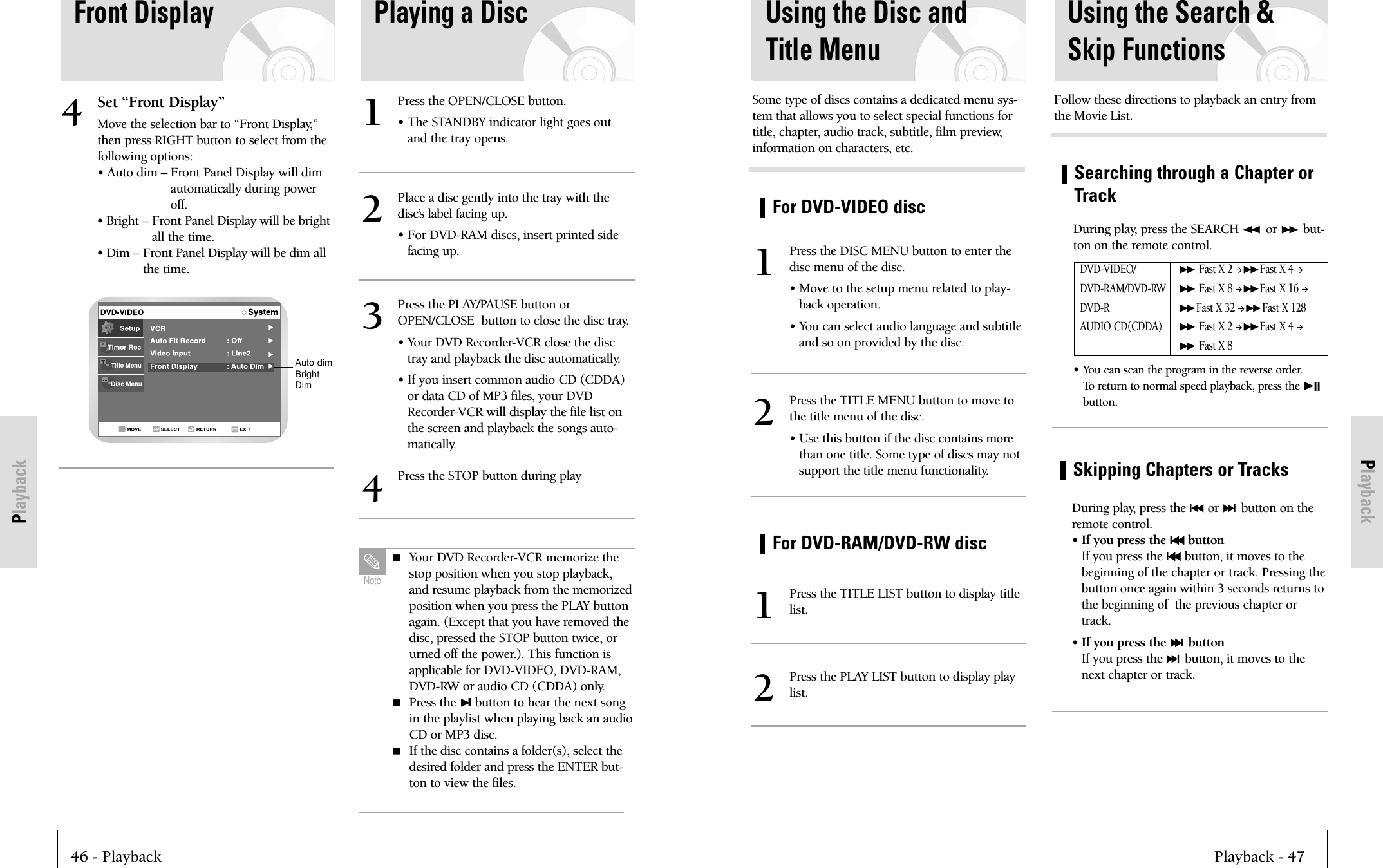
PlaybackPlayback - 47For DVD-VIDEO discFor DVD-RAM/DVD-RW discUsing the Disc andTitle MenuPress the DISC MENU button to enter thedisc menu of the disc.• Move to the setup menu related to play-back operation.• You can select audio language and subtitleand so on provided by the disc.1Press the TITLE LIST button to display titlelist.1Press the PLAY LIST button to display playlist.2Press the TITLE MENU button to move tothe title menu of the disc.• Use this button if the disc contains morethan one title. Some type of discs may notsupport the title menu functionality.2Some type of discs contains a dedicated menu sys-tem that allows you to select special functions fortitle, chapter, audio track, subtitle, film preview,information on characters, etc.Searching through a Chapter orTrackUsing the Search &Skip FunctionsDuring play, press the SEARCH ➛➛ or ❿❿ but-ton on the remote control.  • You can scan the program in the reverse order.To return to normal speed playback, press the ❿IIbutton.DVD-VIDEO/❿❿Fast X 2 ❿❿Fast X 4 DVD-RAM/DVD-RW❿❿Fast X 8 ❿❿Fast X 16 DVD-R❿❿Fast X 32 ❿❿Fast X 128AUDIO CD(CDDA)❿❿Fast X 2 ❿❿Fast X 4 ❿❿Fast X 8Follow these directions to playback an entry fromthe Movie List.Skipping Chapters or TracksDuring play, press the l➛➛or ❿❿lbutton on theremote control.• If you press the l➛➛buttonIf you press the l➛➛button, it moves to thebeginning of the chapter or track. Pressing thebutton once again within 3 seconds returns tothe beginning of  the previous chapter ortrack.• If you press the ❿❿lbuttonIf you press the ❿❿lbutton, it moves to thenext chapter or track.46 - PlaybackPlaybackFront DisplaySet “Front Display”Move the selection bar to “Front Display,”then press RIGHT button to select from thefollowing options:• Auto dim – Front Panel Display will dimautomatically during poweroff.• Bright – Front Panel Display will be brightall the time.• Dim – Front Panel Display will be dim allthe time.4Playing a DiscPress the OPEN/CLOSE button.• The STANDBY indicator light goes outand the tray opens.1Place a disc gently into the tray with thedisc’s label facing up.• For DVD-RAM discs, insert printed sidefacing up.2Press the PLAY/PAUSE button orOPEN/CLOSE  button to close the disc tray.• Your DVD Recorder-VCR close the disctray and playback the disc automatically.• If you insert common audio CD (CDDA)or data CD of MP3 files, your DVDRecorder-VCR will display the file list onthe screen and playback the songs auto-matically.3Press the STOP button during play4Auto dimBrightDim Your DVD Recorder-VCR memorize thestop position when you stop playback,and resume playback from the memorizedposition when you press the PLAY buttonagain. (Except that you have removed thedisc, pressed the STOP button twice, orurned off the power.). This function isapplicable for DVD-VIDEO, DVD-RAM,DVD-RW or audio CD (CDDA) only. Press the ❿❙button to hear the next songin the playlist when playing back an audioCD or MP3 disc. If the disc contains a folder(s), select thedesired folder and press the ENTER but-ton to view the files.Note
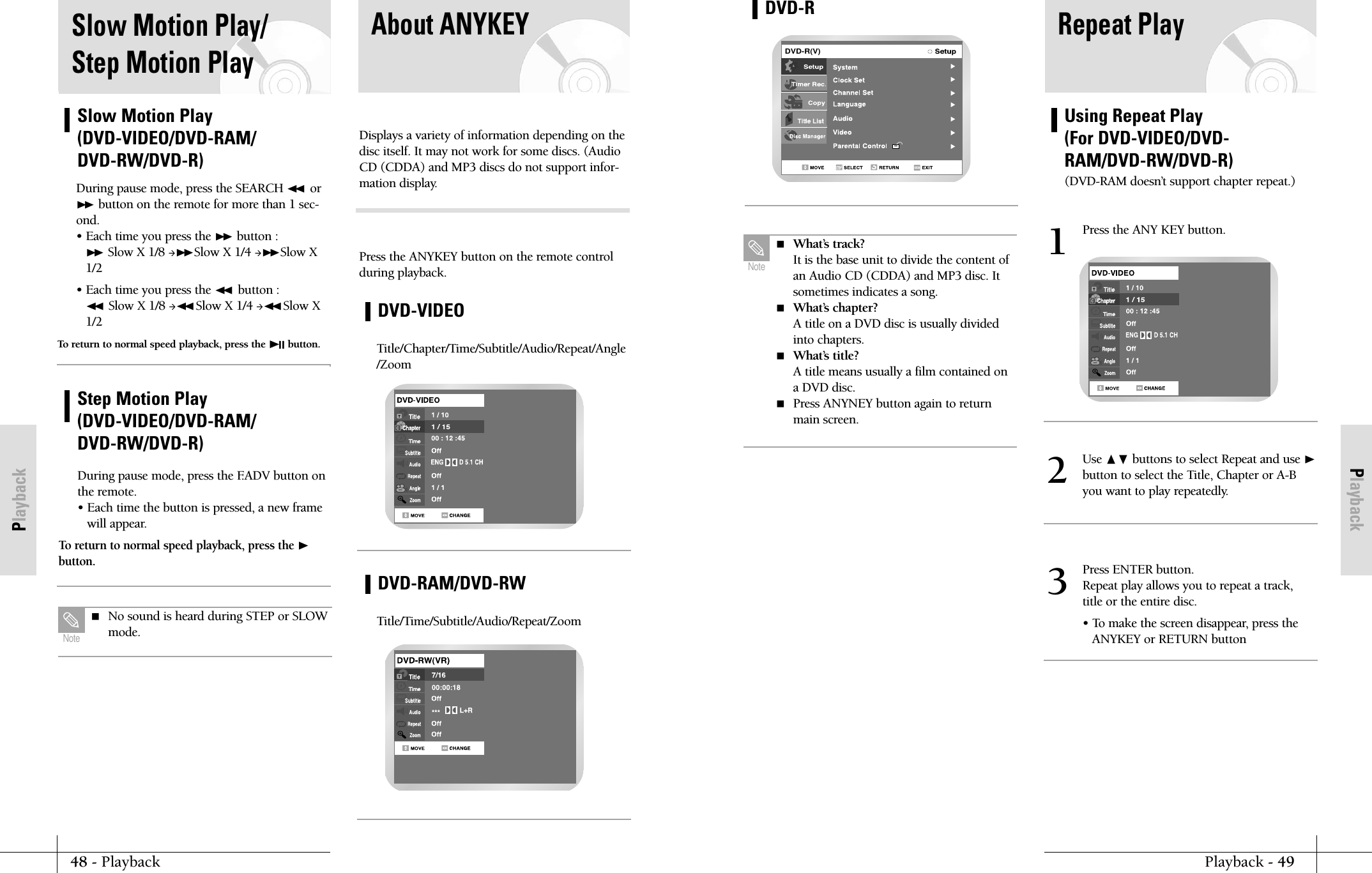
PlaybackPlayback - 4948 - PlaybackPlaybackUsing Repeat Play (For DVD-VIDEO/DVD-RAM/DVD-RW/DVD-R)(DVD-RAM doesn’t support chapter repeat.)Repeat PlayDVD-R(V)DVD-R What’s track?It is the base unit to divide the content ofan Audio CD (CDDA) and MP3 disc. Itsometimes indicates a song. What’s chapter?A title on a DVD disc is usually dividedinto chapters. What’s title?A title means usually a film contained ona DVD disc. Press ANYNEY button again to returnmain screen.NotePress the ANY KEY button.1Use ❷buttons to select Repeat and use ❿button to select the Title, Chapter or A-Byou want to play repeatedly.2Press ENTER button.Repeat play allows you to repeat a track,title or the entire disc.• To make the screen disappear, press theANYKEY or RETURN button3Slow Motion Play/Step Motion PlaySlow Motion Play(DVD-VIDEO/DVD-RAM/DVD-RW/DVD-R)During pause mode, press the SEARCH ➛➛ or❿❿ button on the remote for more than 1 sec-ond.• Each time you press the ❿❿ button :❿❿ Slow X 1/8 ❿❿Slow X 1/4 ❿❿Slow X1/2• Each time you press the ➛➛ button :➛➛ Slow X 1/8 ➛➛ Slow X 1/4 ➛➛ Slow X1/2 To return to normal speed playback, press the ❿❿II button.Step Motion Play(DVD-VIDEO/DVD-RAM/DVD-RW/DVD-R)During pause mode, press the F.ADV button onthe remote.• Each time the button is pressed, a new framewill appear.To return to normal speed playback, press the ❿button.  No sound is heard during STEP or SLOWmode.NoteAbout ANYKEYDisplays a variety of information depending on thedisc itself. It may not work for some discs. (AudioCD (CDDA) and MP3 discs do not support infor-mation display.Press the ANYKEY button on the remote controlduring playback.DVD-VIDEOTitle/Chapter/Time/Subtitle/Audio/Repeat/Angle/ZoomDVD-RAM/DVD-RWTitle/Time/Subtitle/Audio/Repeat/Zoom
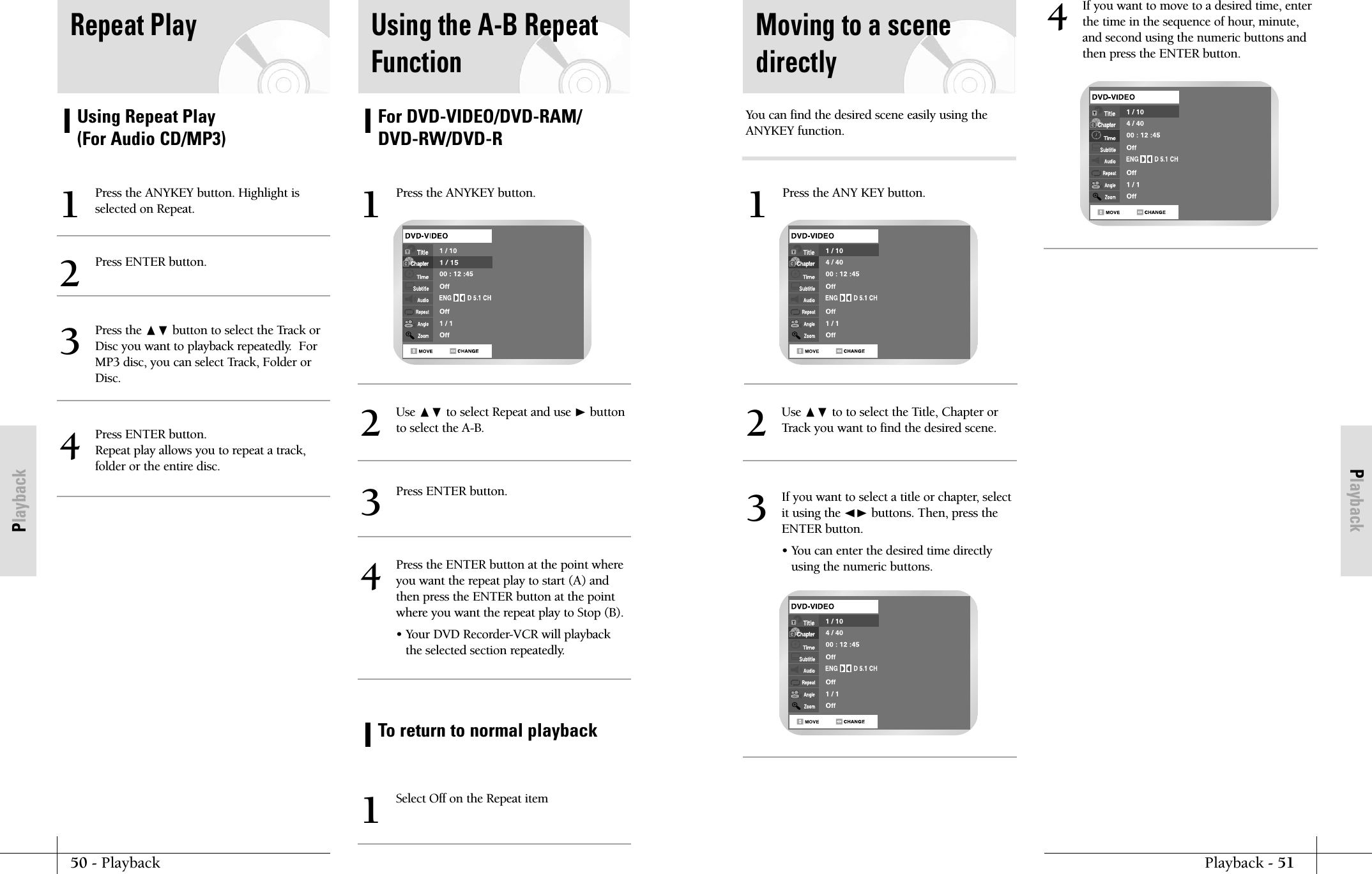
PlaybackPlayback - 5150 - PlaybackPlaybackMoving to a scenedirectlyUse ❷ to to select the Title, Chapter orTrack you want to find the desired scene.2If you want to select a title or chapter, selectit using the ➛❿ buttons. Then, press theENTER button.• You can enter the desired time directlyusing the numeric buttons.3Press the ANY KEY button.1If you want to move to a desired time, enterthe time in the sequence of hour, minute,and second using the numeric buttons andthen press the ENTER button.4You can find the desired scene easily using theANYKEY function.Using Repeat Play (For Audio CD/MP3)Repeat PlayPress the ANYKEY button. Highlight isselected on Repeat.1Press ENTER button.2Press the ❷ button to select the Track orDisc you want to playback repeatedly.  ForMP3 disc, you can select Track, Folder orDisc.3Press ENTER button.Repeat play allows you to repeat a track,folder or the entire disc.4For DVD-VIDEO/DVD-RAM/DVD-RW/DVD-RTo return to normal playbackUsing the A-B RepeatFunctionPress the ANYKEY button.1Use ❷ to select Repeat and use ❿button to select the A-B.2Press ENTER button.3Select Off on the Repeat item1Press the ENTER button at the point whereyou want the repeat play to start (A) andthen press the ENTER button at the pointwhere you want the repeat play to Stop (B).• Your DVD Recorder-VCR will playbackthe selected section repeatedly.4
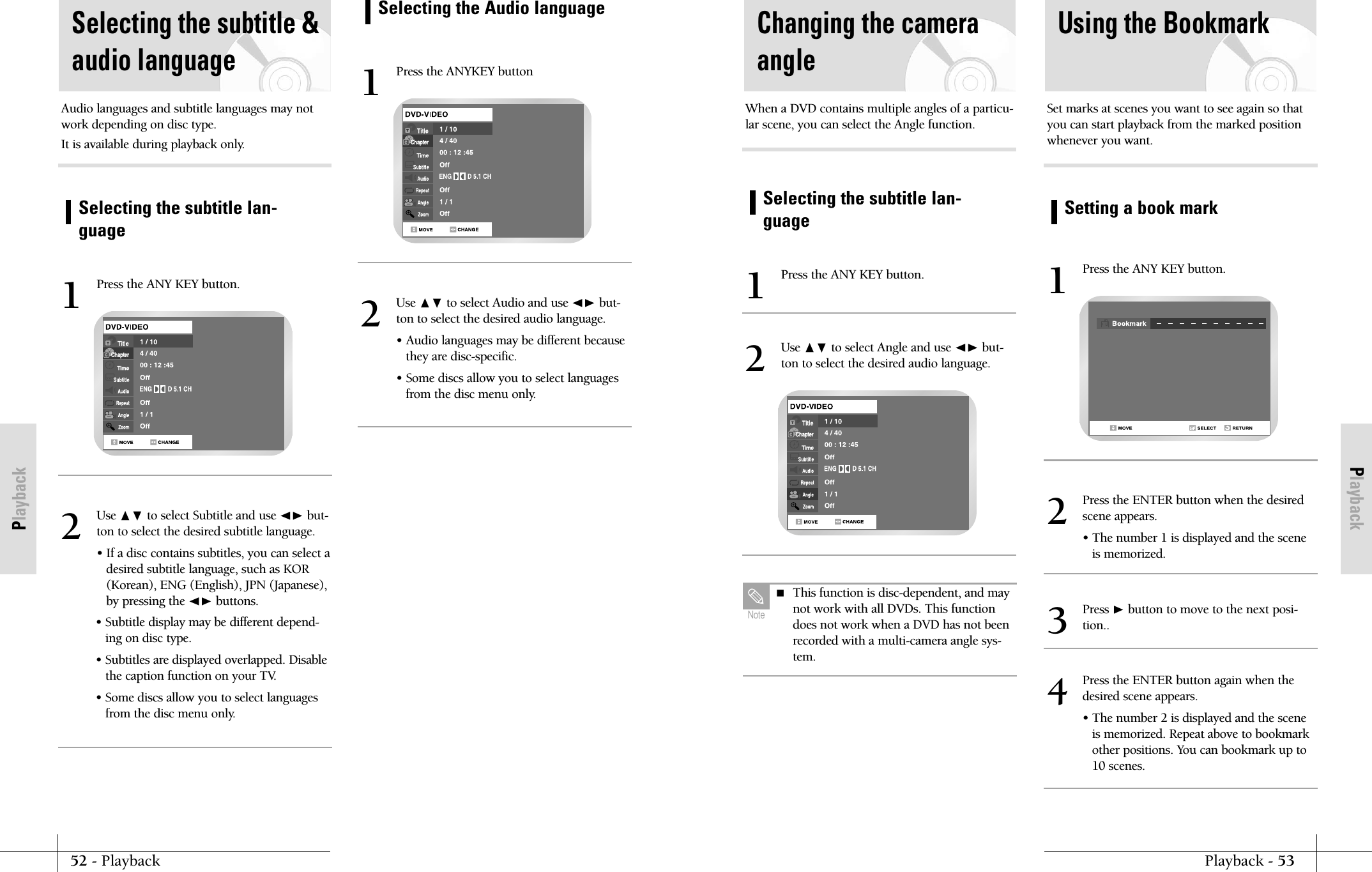
PlaybackPlayback - 5352 - PlaybackPlaybackSelecting the subtitle lan-guagePress the ANY KEY button.1Use ❷ to select Angle and use ➛❿ but-ton to select the desired audio language.2When a DVD contains multiple angles of a particu-lar scene, you can select the Angle function.Changing the cameraangleSetting a book markUsing the BookmarkPress the ANY KEY button.1Set marks at scenes you want to see again so thatyou can start playback from the marked positionwhenever you want.Press the ENTER button when the desiredscene appears.• The number 1 is displayed and the sceneis memorized.2Press the ENTER button again when thedesired scene appears.• The number 2 is displayed and the sceneis memorized. Repeat above to bookmarkother positions. You can bookmark up to10 scenes.4Press ❿button to move to the next posi-tion..3 This function is disc-dependent, and maynot work with all DVDs. This functiondoes not work when a DVD has not beenrecorded with a multi-camera angle sys-tem.NoteSelecting the subtitle lan-guageSelecting the subtitle &audio languagePress the ANY KEY button.1Audio languages and subtitle languages may notwork depending on disc type.It is available during playback only.Use ❷ to select Subtitle and use ➛❿ but-ton to select the desired subtitle language.• If a disc contains subtitles, you can select adesired subtitle language, such as KOR(Korean), ENG (English), JPN (Japanese),by pressing the ➛❿ buttons. • Subtitle display may be different depend-ing on disc type.• Subtitles are displayed overlapped. Disablethe caption function on your TV.• Some discs allow you to select languagesfrom the disc menu only.2Selecting the Audio languagePress the ANYKEY button1Use ❷ to select Audio and use ➛❿ but-ton to select the desired audio language.• Audio languages may be different becausethey are disc-specific.• Some discs allow you to select languagesfrom the disc menu only.2
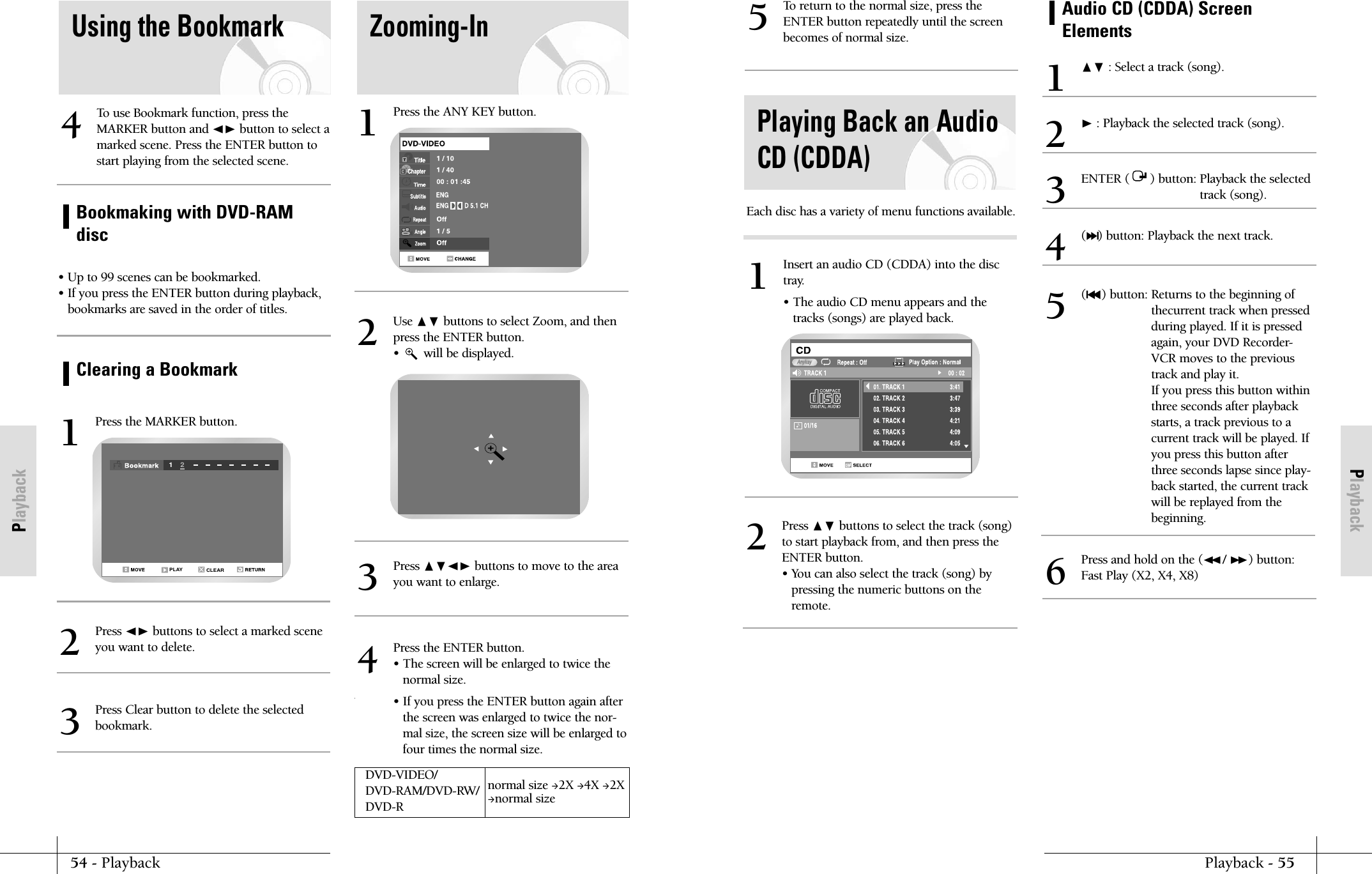
PlaybackPlayback - 5554 - PlaybackPlaybackTo return to the normal size, press theENTER button repeatedly until the screenbecomes of normal size.5Playing Back an AudioCD (CDDA)Press ❷ buttons to select the track (song)to start playback from, and then press theENTER button.• You can also select the track (song) bypressing the numeric buttons on theremote.2Insert an audio CD (CDDA) into the disctray.• The audio CD menu appears and thetracks (songs) are played back.1AnykayEach disc has a variety of menu functions available.Audio CD (CDDA) ScreenElements❷ : Select a track (song).1❿: Playback the selected track (song).2(❿❿l) button: Playback the next track.4Press and hold on the (➛➛/ ❿❿) button:Fast Play (X2, X4, X8)6(l➛➛) button: Returns to the beginning ofthecurrent track when pressedduring played. If it is pressedagain, your DVD Recorder-VCR moves to the previoustrack and play it.If you press this button withinthree seconds after playbackstarts, a track previous to acurrent track will be played. Ifyou press this button afterthree seconds lapse since play-back started, the current trackwill be replayed from thebeginning.5ENTER (      ) button: Playback the selectedtrack (song).3Using the Bookmark Zooming-InTo use Bookmark function, press theMARKER button and ➛❿ button to select amarked scene. Press the ENTER button tostart playing from the selected scene.4• Up to 99 scenes can be bookmarked.• If you press the ENTER button during playback, bookmarks are saved in the order of titles.Bookmaking with DVD-RAMdiscClearing a BookmarkPress the MARKER button.1CLEAR12PLAYPress the ANY KEY button.1Use ❷ buttons to select Zoom, and thenpress the ENTER button.•       will be displayed.2Press ➛❿ buttons to select a marked scene you want to delete.2Press Clear button to delete the selected bookmark.3Press ❷➛❿ buttons to move to the areayou want to enlarge.3Press the ENTER button.• The screen will be enlarged to twice thenormal size.• If you press the ENTER button again afterthe screen was enlarged to twice the nor-mal size, the screen size will be enlarged tofour times the normal size.4DVD-VIDEO/ normal size 2X 4X 2XDVD-RAM/DVD-RW/ normal sizeDVD-R
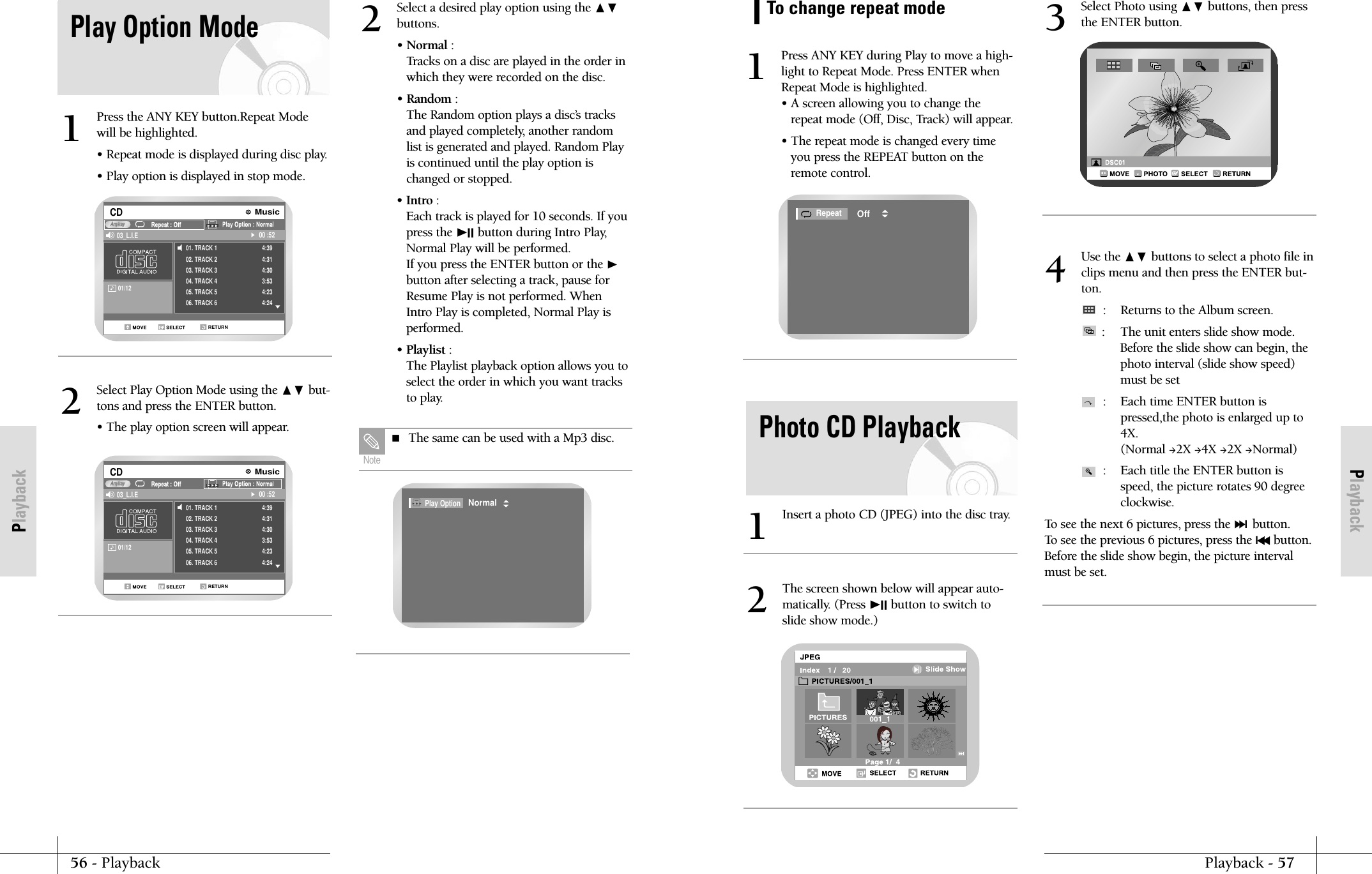
PlaybackPlayback - 5756 - PlaybackPlaybackPress ANY KEY during Play to move a high-light to Repeat Mode. Press ENTER whenRepeat Mode is highlighted.• A screen allowing you to change therepeat mode (Off, Disc, Track) will appear.• The repeat mode is changed every timeyou press the REPEAT button on theremote control.1RepeatOffTo change repeat modePhoto CD PlaybackInsert a photo CD (JPEG) into the disc tray.1The screen shown below will appear auto-matically. (Press ❿II button to switch toslide show mode.)2Select Photo using ❷ buttons, then pressthe ENTER button.3Use the ❷ buttons to select a photo file inclips menu and then press the ENTER but-ton.: Returns to the Album screen.: The unit enters slide show mode.Before the slide show can begin, thephoto interval (slide show speed)must be set:  Each time ENTER button ispressed,the photo is enlarged up to4X.(Normal 2X 4X 2X Normal):  Each title the ENTER button isspeed, the picture rotates 90 degreeclockwise.To see the next 6 pictures, press the ❿❿lbutton. To see the previous 6 pictures, press the l➛➛button.Before the slide show begin, the picture intervalmust be set.4Play Option ModePress the ANY KEY button.Repeat Modewill be highlighted.• Repeat mode is displayed during disc play.• Play option is displayed in stop mode.101/12           RETURNCD 03_L.I.E 00 :52AnykayMusic01. TRACK 102. TRACK 203. TRACK 304. TRACK 405. TRACK 506. TRACK 64:394:314:303:534:234:24Select Play Option Mode using the ❷ but-tons and press the ENTER button.• The play option screen will appear.2Select a desired play option using the ❷buttons.• Normal :Tracks on a disc are played in the order inwhich they were recorded on the disc.• Random :The Random option plays a disc’s tracksand played completely, another randomlist is generated and played. Random Playis continued until the play option ischanged or stopped.• Intro :  Each track is played for 10 seconds. If youpress the ❿II button during Intro Play,Normal Play will be performed.If you press the ENTER button or the ❿button after selecting a track, pause forResume Play is not performed. WhenIntro Play is completed, Normal Play isperformed.• Playlist :The Playlist playback option allows you toselect the order in which you want tracksto play.201/12           RETURNCD 03_L.I.E 00 :52AnykayMusic01. TRACK 102. TRACK 203. TRACK 304. TRACK 405. TRACK 506. TRACK 64:394:314:303:534:234:24Play OptionNormal The same can be used with a Mp3 disc.Note
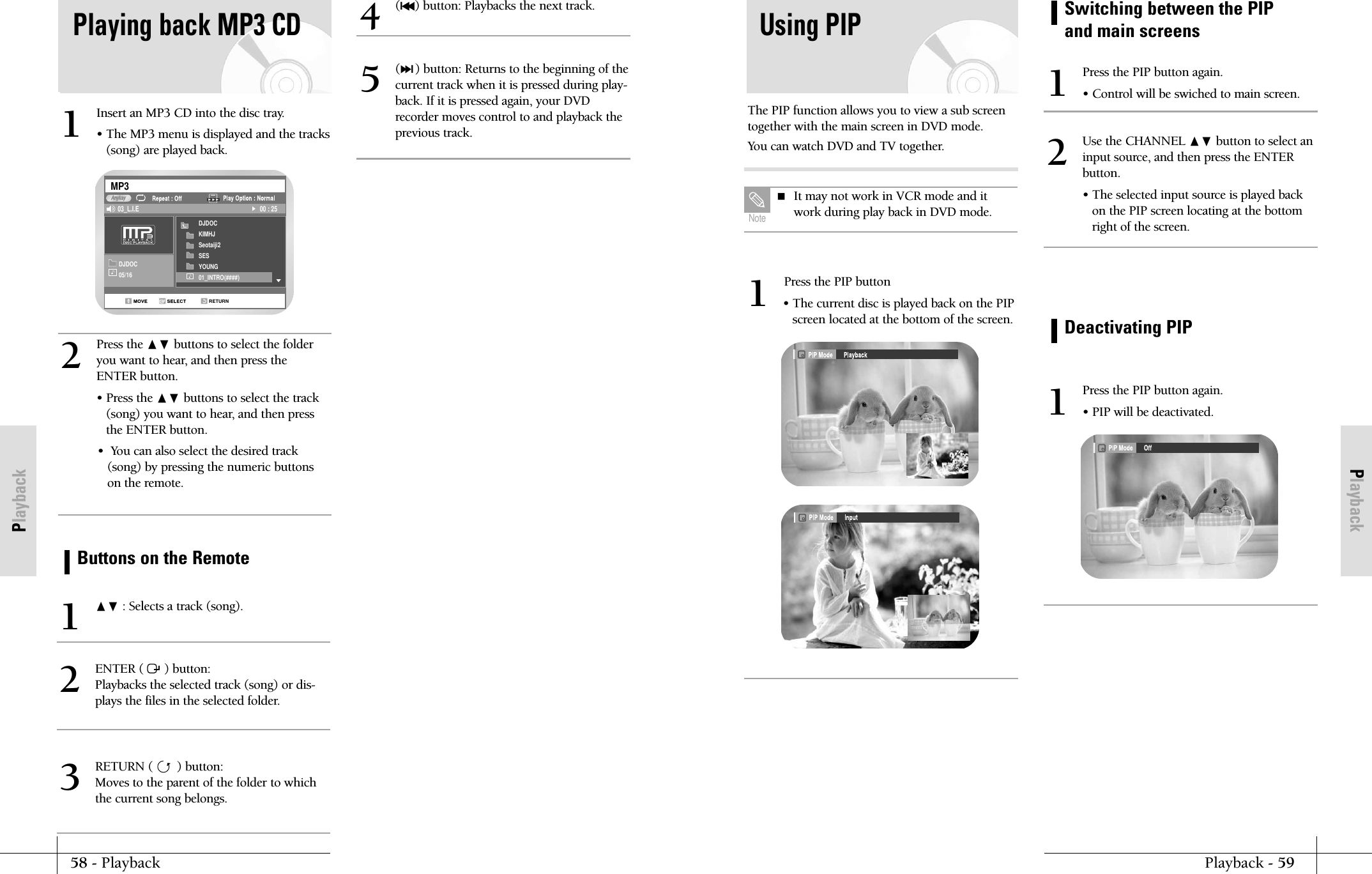
PlaybackPlayback - 5958 - PlaybackPlaybackPress the PIP button• The current disc is played back on the PIPscreen located at the bottom of the screen.1The PIP function allows you to view a sub screentogether with the main screen in DVD mode.You can watch DVD and TV together.Using PIP It may not work in VCR mode and itwork during play back in DVD mode.  NoteSwitching between the PIPand main screensPress the PIP button again.• Control will be swiched to main screen.1Use the CHANNEL ❷ button to select an input source, and then press the ENTERbutton.• The selected input source is played backon the PIP screen locating at the bottomright of the screen.2Deactivating PIPPress the PIP button again.• PIP will be deactivated.1Playing back MP3 CDInsert an MP3 CD into the disc tray.• The MP3 menu is displayed and the tracks(song) are played back. 1Press the ❷ buttons to select the folderyou want to hear, and then press theENTER button.• Press the ❷ buttons to select the track(song) you want to hear, and then pressthe ENTER button.•  You can also select the desired track(song) by pressing the numeric buttonson the remote.2DJDOC05/16DJDOCKIMHJSeotaiji2SESYOUNG01_INTRO(####)RETURNMP303_L.I.E 00 : 25AnykayButtons on the Remote❷ : Selects a track (song).1ENTER (      ) button: Playbacks the selected track (song) or dis-plays the files in the selected folder.2(l➛➛) button: Playbacks the next track.4(❿❿l) button: Returns to the beginning of thecurrent track when it is pressed during play-back. If it is pressed again, your DVDrecorder moves control to and playback theprevious track.5RETURN (       ) button: Moves to the parent of the folder to whichthe current song belongs.3
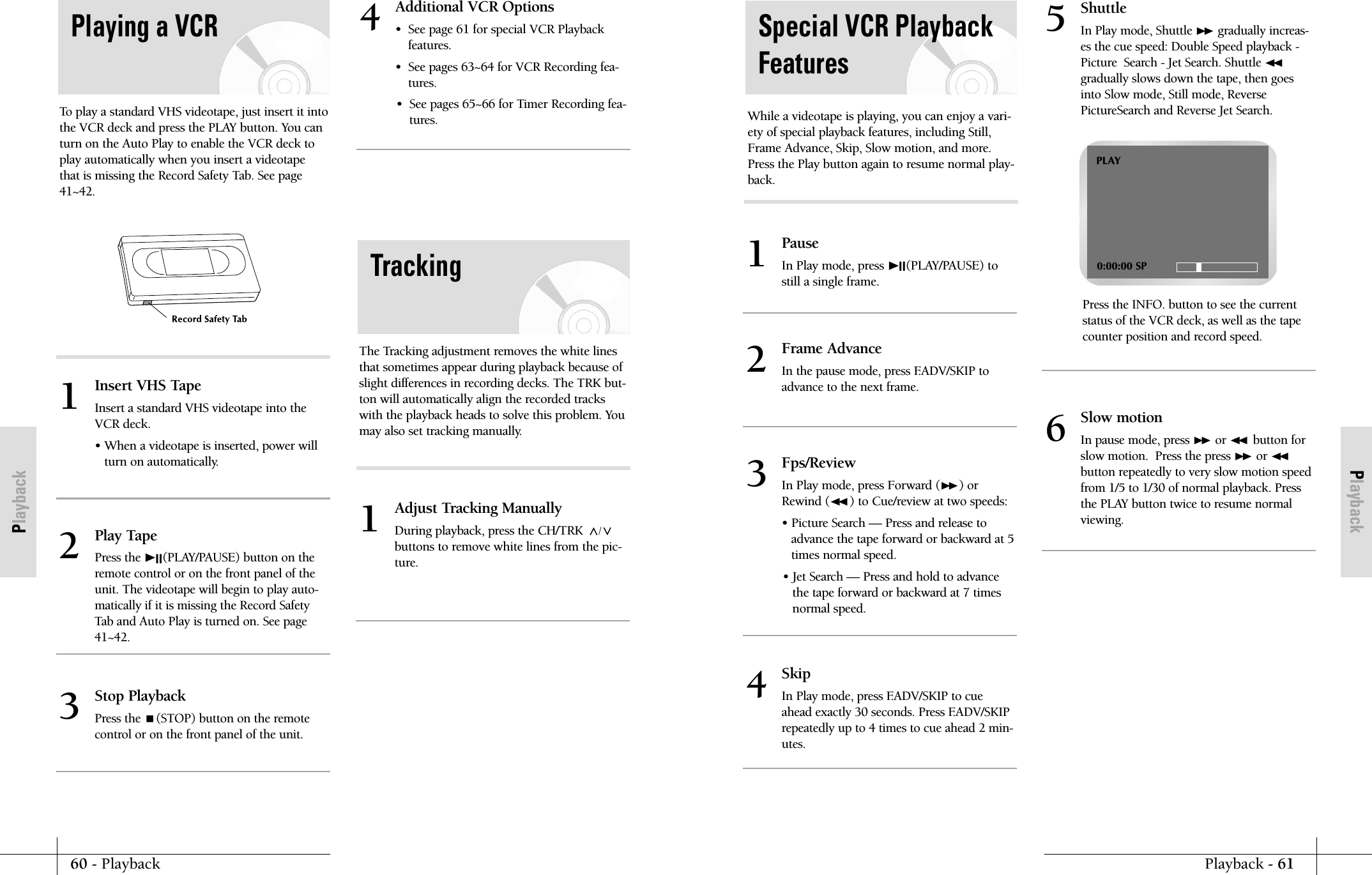
PlaybackPlayback - 6160 - PlaybackPlaybackSpecial VCR PlaybackFeaturesWhile a videotape is playing, you can enjoy a vari-ety of special playback features, including Still,Frame Advance, Skip, Slow motion, and more.Press the Play button again to resume normal play-back.PauseIn Play mode, press ❿II(PLAY/PAUSE) tostill a single frame.1Frame Advance In the pause mode, press F.ADV/SKIP to advance to the next frame. 2Skip In Play mode, press F.ADV/SKIP to cueahead exactly 30 seconds. Press F.ADV/SKIPrepeatedly up to 4 times to cue ahead 2 min-utes.4Slow motion In pause mode, press ❿❿or ➛➛button forslow motion.  Press the press ❿❿or ➛➛button repeatedly to very slow motion speedfrom 1/5 to 1/30 of normal playback. Pressthe PLAY button twice to resume normalviewing.6ShuttleIn Play mode, Shuttle ❿❿gradually increas-es the cue speed: Double Speed playback -Picture  Search - Jet Search. Shuttle ➛➛gradually slows down the tape, then goesinto Slow mode, Still mode, ReversePictureSearch and Reverse Jet Search.Press the INFO. button to see the currentstatus of the VCR deck, as well as the tapecounter position and record speed.5Fps/ReviewIn Play mode, press Forward (❿❿) orRewind (➛➛ ) to Cue/review at two speeds:• Picture Search — Press and release toadvance the tape forward or backward at 5times normal speed.• Jet Search — Press and hold to advancethe tape forward or backward at 7 timesnormal speed.3PLAY0:00:00 SPInsert VHS TapeInsert a standard VHS videotape into theVCR deck.• When a videotape is inserted, power willturn on automatically.1Adjust Tracking ManuallyDuring playback, press the CH/TRK /buttons to remove white lines from the pic-ture.1Additional VCR Options•  See page 61 for special VCR Playback features.•  See pages 63~64 for VCR Recording fea-tures.•  See pages 65~66 for Timer Recording fea-tures.4Play TapePress the ❿II(PLAY/PAUSE) button on theremote control or on the front panel of theunit. The videotape will begin to play auto-matically if it is missing the Record SafetyTab and Auto Play is turned on. See page41~42.2Stop PlaybackPress the (STOP) button on the remotecontrol or on the front panel of the unit.3To play a standard VHS videotape, just insert it intothe VCR deck and press the PLAY button. You canturn on the Auto Play to enable the VCR deck toplay automatically when you insert a videotapethat is missing the Record Safety Tab. See page41~42.Playing a VCRThe Tracking adjustment removes the white linesthat sometimes appear during playback because ofslight differences in recording decks. The TRK but-ton will automatically align the recorded trackswith the playback heads to solve this problem. Youmay also set tracking manually.Tracking
62 - PlaybackPlaybackRecordingRcording - 63Recording the currentchannel you are watchingDVD-RAMDVD-RWDVD-RDVD-RAM/DVD-RW/DVD-R discs should be for-matted in advance before beginning recording.Most new discs are sold unformatted. Make sure toformat your unformatted discs before recording.Enter a DVD-RAM disc into the disc tray.1Press the CHANNEL ❷button to select the channel you want to record.2Press the REC Speed button on remote con-trol, to select the recording speed (quality).• XP(High, approx. 1 hour) SP(Standard,approx. 2 hours) LP(Low, approx. 4hours) EP(Extra Low, approx 6 hours)3RAMS-VHS PlaybackThe DVD Recorder-VCR-VCR allows you to play-back high quality S-VHS tapes.Insert a S-VHS TapeInsert an S-VHS tape into the VCR deck.1Start PlaybackPress ❿II(PLAY/PAUSE) on the remote con-trol to begin playback of the S-VHS tape.2Variable SearchSystemPress the ANYKEY button to display the searchscreen in the stop mode. When a program isrecorded, the starting point is given an Index markfor easy location. However, the VHS Index SearchSystem (VISS) cannot recognize index marks madeby old VCRs. If the VCR has trouble finding amark, it is probably because the cassette wasrecorded on a VCR without VISS. If you want toindex two programs in a row, set your VCR to stop,then start recording each program. Pause has noeffect on index marks.Go to [0:00:00] stopUse this feature when you want to search forthe [0:00:00] counter position on a cassette.Press the CLEAR button at the point on thetape where you want to set the counter to[0:00:00].  While a cassette is stopped, pressthe ANYKEY button. The VCR will rewindor fast forward, searching for the [0:00:00]counter position, and then automaticallystop at that position.1ForwardReverse End searchUse this feature when you want to search fora blank position to record a program on acassette. While a cassette is stopped, pressANYKEY button. The VCR will fast forward,searching for a blank position, and thenautomatically stop at that position. If theVCR reaches the end of the tape during endsearch, the tape will be ejected.2Scan and playUse scan and play when you don’t knowexactly where a program is located on a cas-sette tape. - Forward Intro ScanHighlight “Forward Intro Scan”, then pressthe ENTER button.- Reverse Intro ScanHighlight “Reverse Intro Scan”, then pressthe ENTER button.3
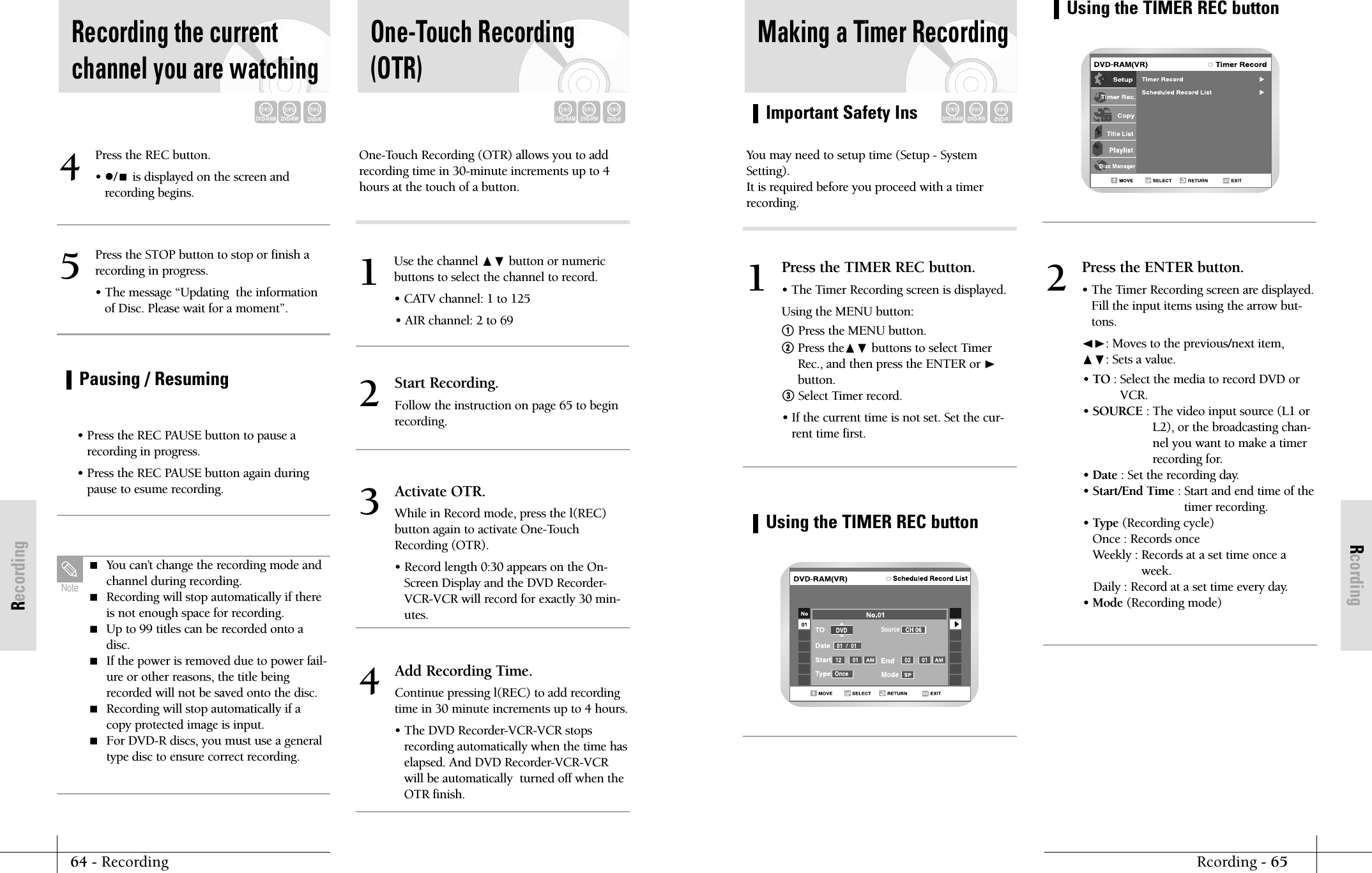
RcordingImportant Safety InsRcording - 6564 - RecordingRecordingMaking a Timer RecordingDVD-RAMDVD-RWDVD-RYou may need to setup time (Setup - SystemSetting). It is required before you proceed with a timerrecording.Press the TIMER REC button.• The Timer Recording screen is displayed.Using the MENU button:! Press the MENU button.@Press the❷ buttons to select TimerRec., and then press the ENTER or ❿button.#Select Timer record.• If the current time is not set. Set the cur-rent time first.1Press the ENTER button.• The Timer Recording screen are displayed.Fill the input items using the arrow but-tons.➛❿: Moves to the previous/next item, ❷: Sets a value.• TO : Select the media to record DVD orVCR.• SOURCE : The video input source (L1 orL2), or the broadcasting chan-nel you want to make a timerrecording for.• Date : Set the recording day.• Start/End Time : Start and end time of thetimer recording.• Type (Recording cycle)Once : Records onceWeekly : Records at a set time once aweek.Daily : Record at a set time every day. • Mode (Recording mode)2Using the TIMER REC buttonSourceUsing the TIMER REC buttonPress the REC button.• /is displayed on the screen andrecording begins.4Press the STOP button to stop or finish arecording in progress.• The message “Updating  the informationof Disc. Please wait for a moment”.5• Press the REC PAUSE button to pause arecording in progress.• Press the REC PAUSE button again duringpause to esume recording.Recording the currentchannel you are watchingUse the channel ❷ button or numeric buttons to select the channel to record.• CATV channel: 1 to 125• AIR channel: 2 to 691One-Touch Recording(OTR)Pausing / Resuming You can’t change the recording mode andchannel during recording. Recording will stop automatically if thereis not enough space for recording. Up to 99 titles can be recorded onto adisc. If the power is removed due to power fail-ure or other reasons, the title beingrecorded will not be saved onto the disc.  Recording will stop automatically if acopy protected image is input. For DVD-R discs, you must use a generaltype disc to ensure correct recording.NoteDVD-RAMDVD-RWDVD-RDVD-RAMDVD-RWDVD-ROne-Touch Recording (OTR) allows you to addrecording time in 30-minute increments up to 4hours at the touch of a button.Start Recording.Follow the instruction on page 65 to beginrecording. 2Activate OTR.While in Record mode, press the l(REC)button again to activate One-TouchRecording (OTR).• Record length 0:30 appears on the On-Screen Display and the DVD Recorder-VCR-VCR will record for exactly 30 min-utes.3Add Recording Time.Continue pressing l(REC) to add recordingtime in 30 minute increments up to 4 hours.• The DVD Recorder-VCR-VCR stopsrecording automatically when the time haselapsed. And DVD Recorder-VCR-VCRwill be automatically  turned off when theOTR finish.4
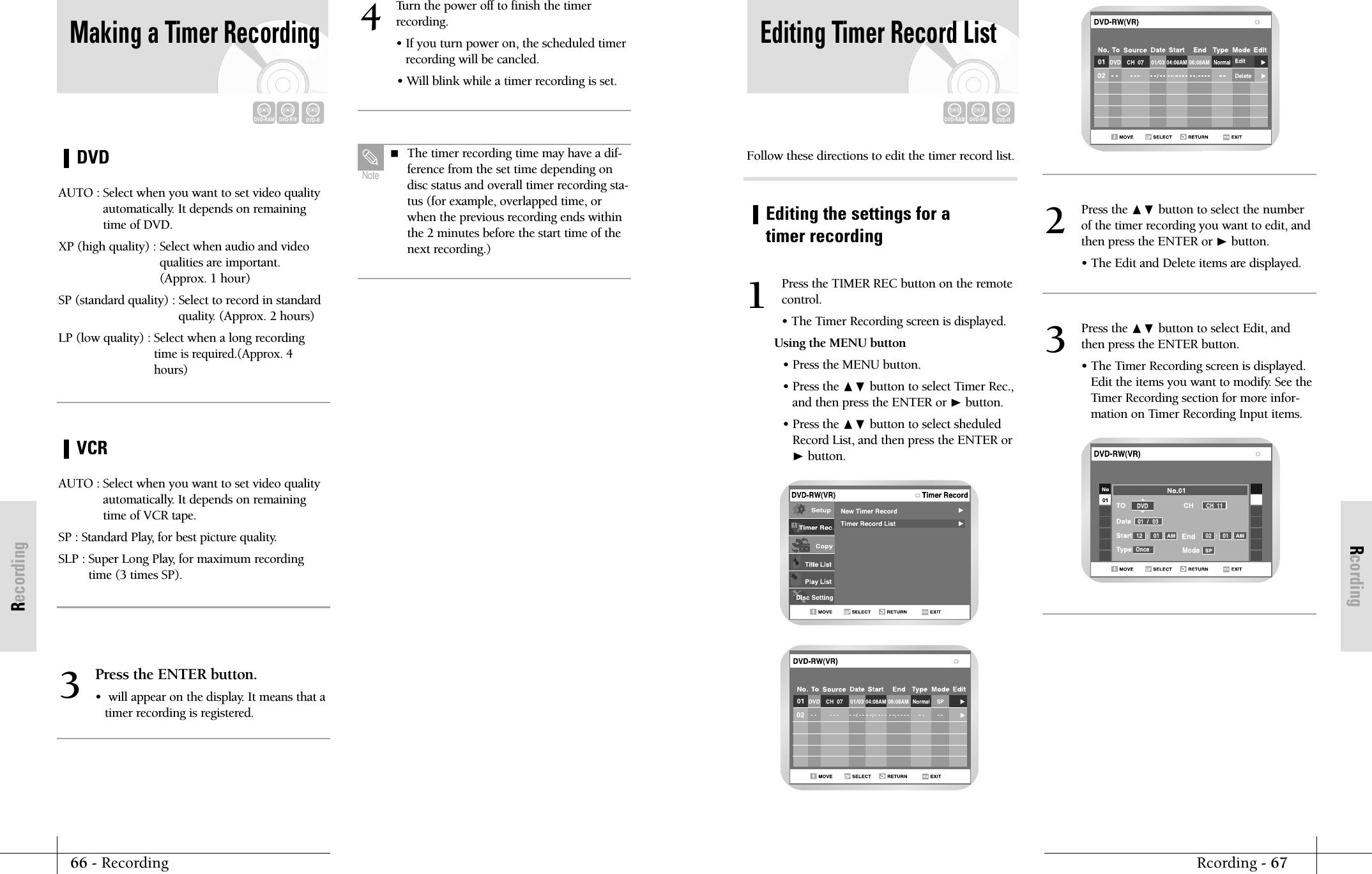
RcordingRcording - 6766 - RecordingRecordingEditing Timer Record ListDVD-RAMDVD-RWDVD-RPress the TIMER REC button on the remotecontrol.• The Timer Recording screen is displayed.Using the MENU button• Press the MENU button.• Press the ❷ button to select Timer Rec.,and then press the ENTER or ❿button.• Press the ❷ button to select sheduledRecord List, and then press the ENTER or❿button.1Press the ❷ button to select the numberof the timer recording you want to edit, andthen press the ENTER or ❿button.• The Edit and Delete items are displayed.2Follow these directions to edit the timer record list.Editing the settings for atimer recordingPress the ❷ button to select Edit, andthen press the ENTER button.• The Timer Recording screen is displayed. Edit the items you want to modify. See theTimer Recording section for more infor-mation on Timer Recording Input items.3DVDMaking a Timer RecordingDVD-RAMDVD-RWDVD-RAUTO : Select when you want to set video qualityautomatically. It depends on remainingtime of DVD.XP (high quality) : Select when audio and video qualities are important.(Approx. 1 hour)SP (standard quality) : Select to record in standardquality. (Approx. 2 hours)LP (low quality) : Select when a long recordingtime is required.(Approx. 4hours) VCRAUTO : Select when you want to set video qualityautomatically. It depends on remainingtime of VCR tape.SP : Standard Play, for best picture quality.SLP : Super Long Play, for maximum recordingtime (3 times SP).Press the ENTER button.•  will appear on the display. It means that a timer recording is registered.3Turn the power off to finish the timerrecording.• If you turn power on, the scheduled timerrecording will be cancled.• Will blink while a timer recording is set.4 The timer recording time may have a dif-ference from the set time depending ondisc status and overall timer recording sta-tus (for example, overlapped time, orwhen the previous recording ends withinthe 2 minutes before the start time of thenext recording.)Note
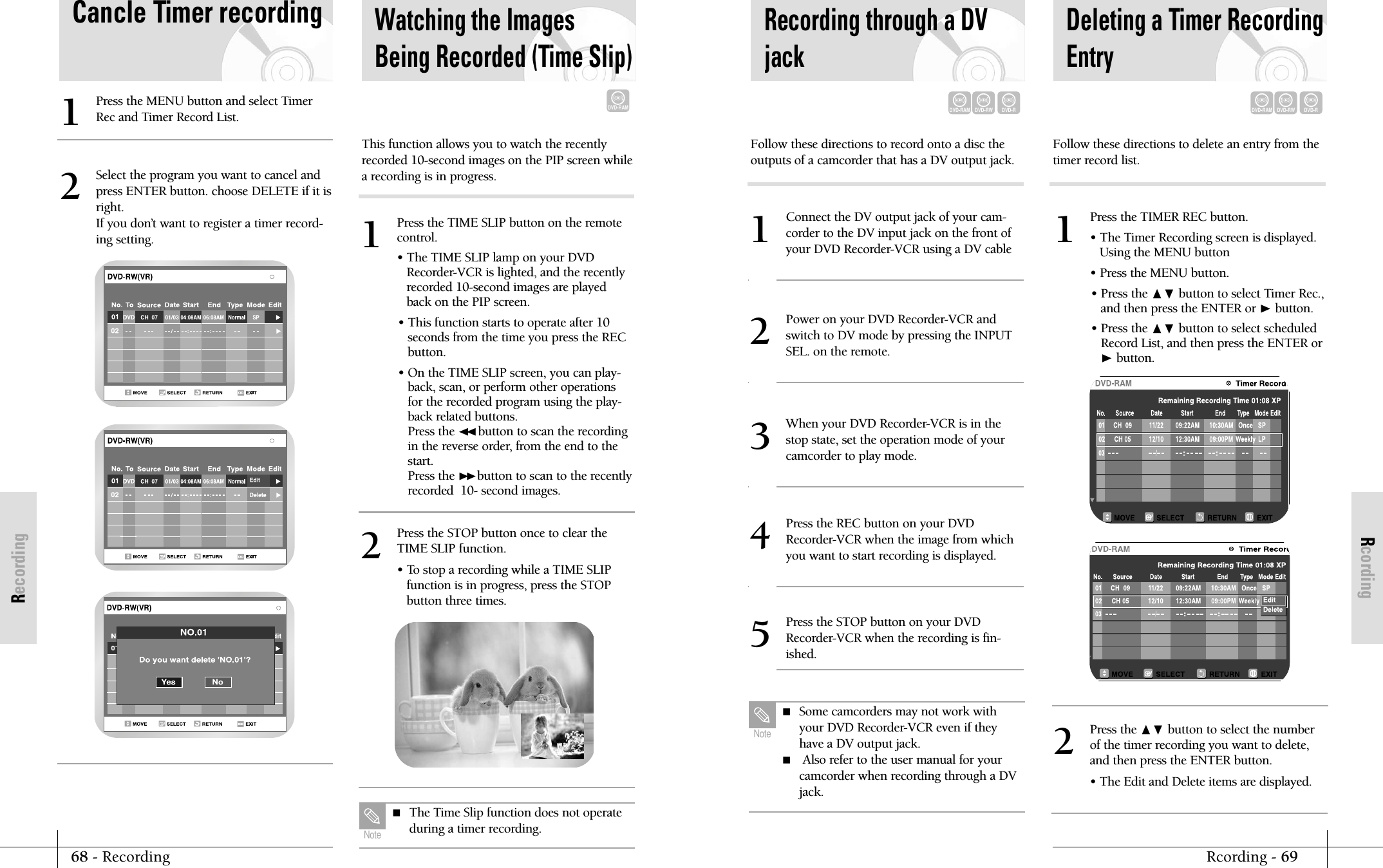
RcordingRcording - 6968 - RecordingRecordingPress the TIMER REC button.• The Timer Recording screen is displayed.Using the MENU button• Press the MENU button.• Press the ❷ button to select Timer Rec.,and then press the ENTER or ❿button.• Press the ❷ button to select scheduledRecord List, and then press the ENTER or❿button.1Recording through a DVjackConnect the DV output jack of your cam-corder to the DV input jack on the front ofyour DVD Recorder-VCR using a DV cable1Power on your DVD Recorder-VCR andswitch to DV mode by pressing the INPUTSEL. on the remote.2When your DVD Recorder-VCR is in thestop state, set the operation mode of yourcamcorder to play mode.3Press the REC button on your DVDRecorder-VCR when the image from whichyou want to start recording is displayed.4Press the STOP button on your DVDRecorder-VCR when the recording is fin-ished.5Follow these directions to record onto a disc theoutputs of a camcorder that has a DV output jack.Deleting a Timer RecordingEntryFollow these directions to delete an entry from thetimer record list.DVD-RAMDVD-RWDVD-RDVD-RAMDVD-RWDVD-R Some camcorders may not work withyour DVD Recorder-VCR even if theyhave a DV output jack.  Also refer to the user manual for your camcorder when recording through a DVjack.Note        Press the ❷ button to select the numberof the timer recording you want to delete,and then press the ENTER button.• The Edit and Delete items are displayed.2Cancle Timer recordingPress the MENU button and select TimerRec and Timer Record List.1Select the program you want to cancel andpress ENTER button. choose DELETE if it isright.If you don’t want to register a timer record-ing setting.2Watching the ImagesBeing Recorded (Time Slip)DVD-RAMPress the TIME SLIP button on the remotecontrol.• The TIME SLIP lamp on your DVDRecorder-VCR is lighted, and the recentlyrecorded 10-second images are playedback on the PIP screen.• This function starts to operate after 10seconds from the time you press the RECbutton.• On the TIME SLIP screen, you can play-back, scan, or perform other operationsfor the recorded program using the play-back related buttons.Press the ➛➛button to scan the recordingin the reverse order, from the end to thestart.Press the ❿❿button to scan to the recentlyrecorded  10- second images.1Press the STOP button once to clear theTIME SLIP function.• To stop a recording while a TIME SLIPfunction is in progress, press the STOPbutton three times.2This function allows you to watch the recentlyrecorded 10-second images on the PIP screen whilea recording is in progress. The Time Slip function does not operateduring a timer recording.Note
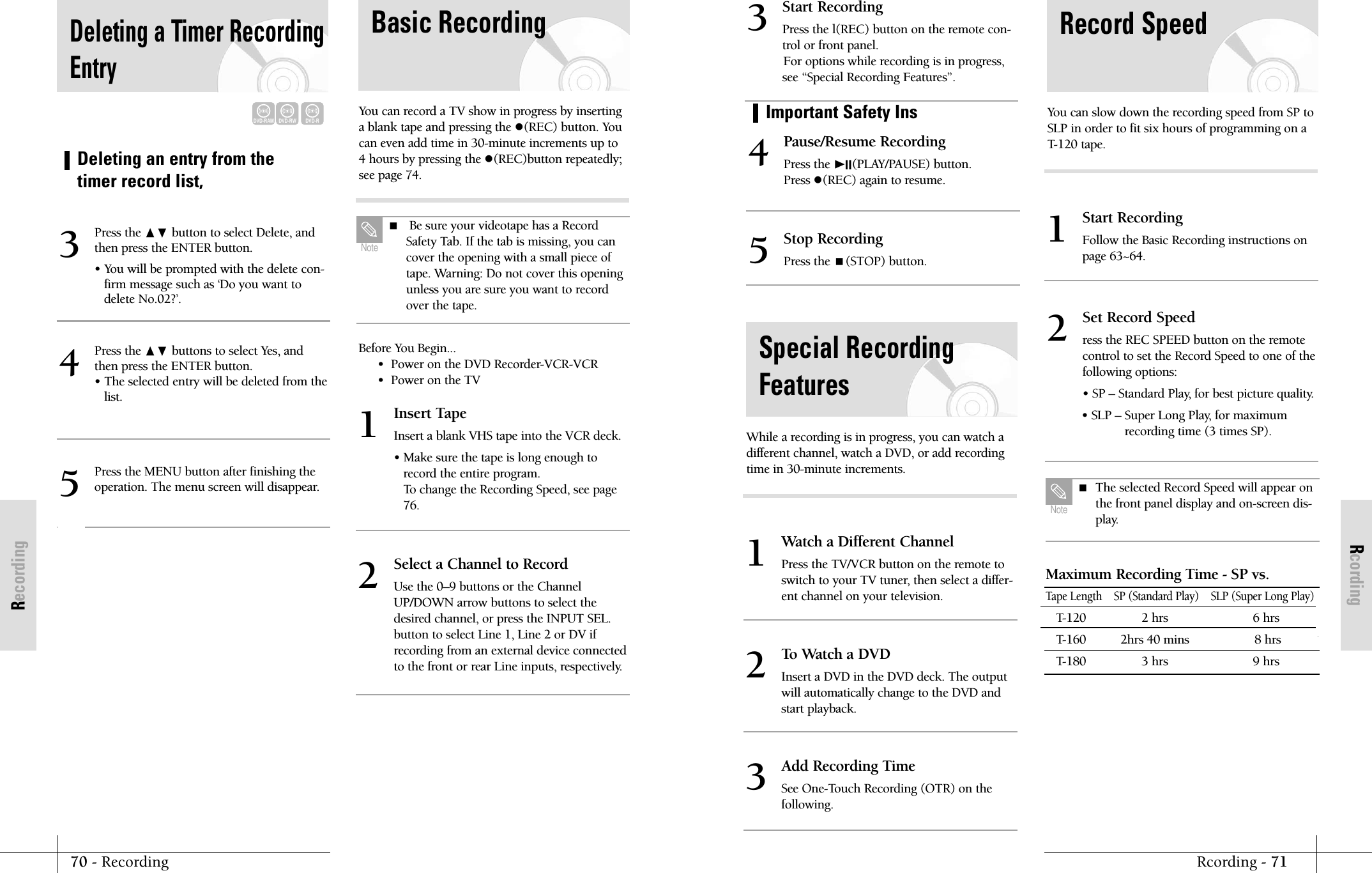
RcordingImportant Safety InsRcording - 7170 - RecordingRecordingPause/Resume RecordingPress the ❿II(PLAY/PAUSE) button.Press (REC) again to resume. 4Stop RecordingPress the (STOP) button.5Watch a Different ChannelPress the TV/VCR button on the remote toswitch to your TV tuner, then select a differ-ent channel on your television.1To Watch a DVDInsert a DVD in the DVD deck. The outputwill automatically change to the DVD andstart playback.2Add Recording TimeSee One-Touch Recording (OTR) on the following. 3Start Recording Press the l(REC) button on the remote con-trol or front panel.For options while recording is in progress,see “Special Recording Features”.3Special RecordingFeaturesWhile a recording is in progress, you can watch adifferent channel, watch a DVD, or add recordingtime in 30-minute increments.Start RecordingFollow the Basic Recording instructions onpage 63~64.1Maximum Recording Time - SP vs. Tape Length    SP (Standard Play)    SLP (Super Long Play)T-120  2 hrs 6 hrsT-160 2hrs 40 mins 8 hrsT-180 3 hrs 9 hrs Record SpeedYou can slow down the recording speed from SP toSLP in order to fit six hours of programming on aT-120 tape.Set Record Speedress the REC SPEED button on the remotecontrol to set the Record Speed to one of thefollowing options:• SP – Standard Play, for best picture quality.• SLP – Super Long Play, for maximumrecording time (3 times SP).  2 The selected Record Speed will appear onthe front panel display and on-screen dis-play.NoteDeleting an entry from thetimer record list,Deleting a Timer RecordingEntryDVD-RAMDVD-RWDVD-RPress the ❷ button to select Delete, andthen press the ENTER button. • You will be prompted with the delete con-firm message such as ‘Do you want todelete No.02?’.3Press the ❷ buttons to select Yes, andthen press the ENTER button.• The selected entry will be deleted from thelist.4Press the MENU button after finishing theoperation. The menu screen will disappear.5Basic RecordingInsert TapeInsert a blank VHS tape into the VCR deck.• Make sure the tape is long enough torecord the entire program.To change the Recording Speed, see page76. 1Select a Channel to RecordUse the 0–9 buttons or the ChannelUP/DOWN arrow buttons to select thedesired channel, or press the INPUT SEL.button to select Line 1, Line 2 or DV ifrecording from an external device connectedto the front or rear Line inputs, respectively.2You can record a TV show in progress by insertinga blank tape and pressing the (REC) button. Youcan even add time in 30-minute increments up to4 hours by pressing the (REC)button repeatedly;see page 74.Before You Begin...•  Power on the DVD Recorder-VCR-VCR•  Power on the TV  Be sure your videotape has a RecordSafety Tab. If the tab is missing, you cancover the opening with a small piece oftape. Warning: Do not cover this openingunless you are sure you want to recordover the tape. Note
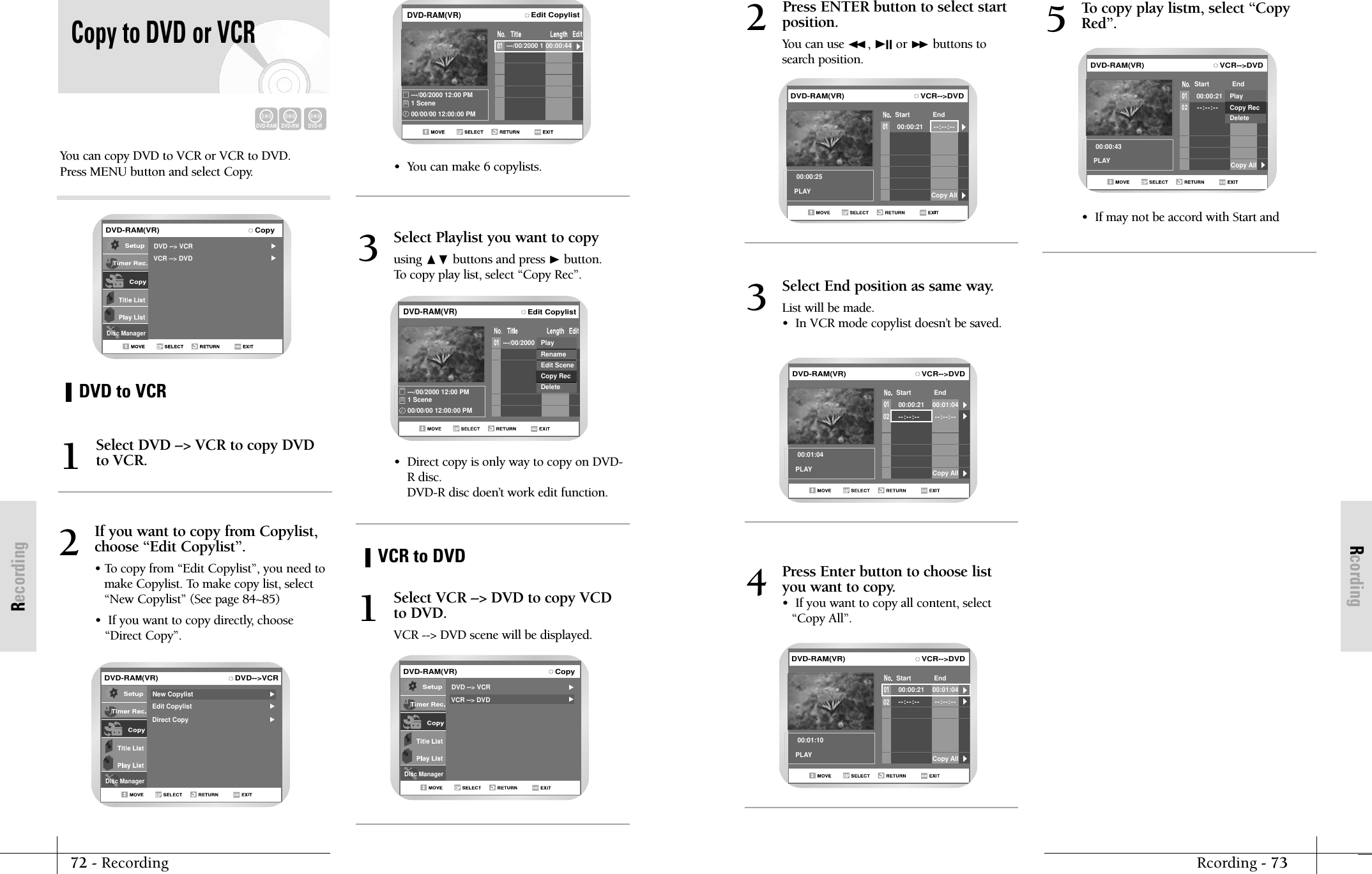
RcordingRcording - 7372 - RecordingRecordingPress ENTER button to select startposition.You can use ➛➛, ❿II or ❿❿ buttons tosearch position.2VCR-->DVD00:00:21Start End--:--:--00:00:25PLAY Copy AllDVD-RAM(VR)Select End position as same way.List will be made.•  In VCR mode copylist doesn’t be saved.3VCR-->DVD00:00:21Start End--:--:-- --:--:--0200:01:04PLAY00:01:04Copy AllDVD-RAM(VR)Press Enter button to choose listyou want to copy.•  If you want to copy all content, select“Copy All”.4VCR-->DVD00:00:21Start End--:--:-- --:--:--0200:01:10PLAY00:01:04Copy AllDVD-RAM(VR)To copy play listm, select “CopyRed”.5VCR-->DVD00:00:21Start End--:--:--0200:00:43PLAY Copy AllPlayCopy RecDeleteDVD-RAM(VR)•  If may not be accord with Start and You can copy DVD to VCR or VCR to DVD.Press MENU button and select Copy.DVD to VCRVCR to DVDCopy to DVD or VCRSelect DVD --> VCR to copy DVDto VCR.1If you want to copy from Copylist,choose “Edit Copylist”.• To copy from “Edit Copylist”, you need tomake Copylist. To make copy list, select“New Copylist” (See page 84~85)•  If you want to copy directly, choose“Direct Copy”.2DVD-RAMDVD-RWDVD-RDVD-RAM(VR) CopyDisc ManagerDVD --> VCRVCR --> DVDDVD-RAM(VR) DVD-->VCRDisc ManagerEdit CopylistDirect CopyNew CopylistSelect Playlist you want to copyusing ❷ buttons and press ❿button.To copy play list, select “Copy Rec”.3Select VCR --> DVD to copy VCDto DVD.VCR --> DVD scene will be displayed.1Edit Copylist---/00/2000 1---/00/2000 12:00 PM1 Scene00/00/00 12:00:00 PM00:00:44PlayRenameEdit SceneCopy RecDeleteDVD-RAM(VR)DVD-RAM(VR) CopyDisc ManagerDVD --> VCRVCR --> DVDEdit CopylistDVD-RAM(VR)---/00/2000 1---/00/2000 12:00 PM1 Scene00/00/00 12:00:00 PM00:00:44•  You can make 6 copylists.•  Direct copy is only way to copy on DVD-R disc. DVD-R disc doen’t work edit function.
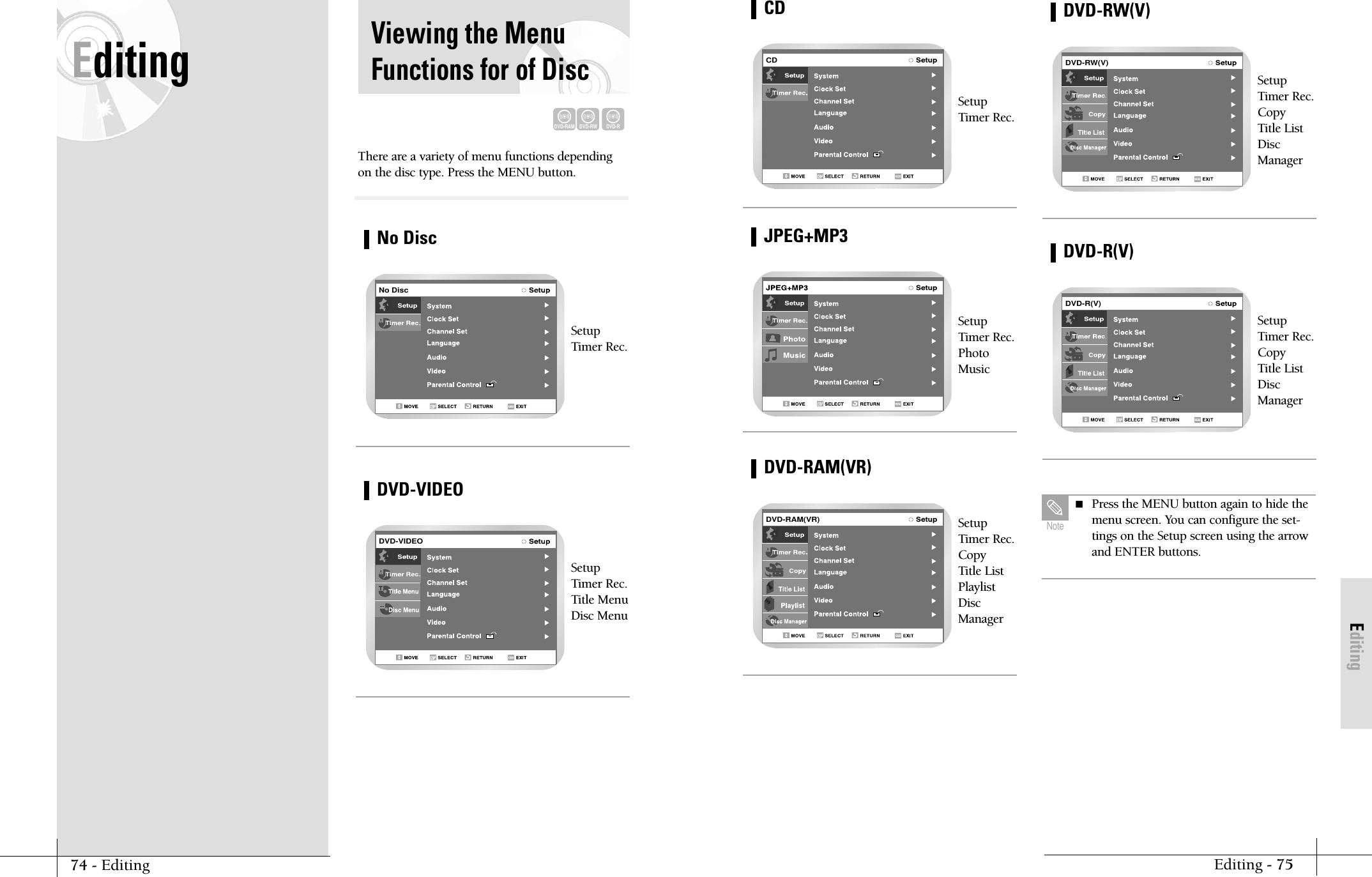
EditingEditing - 75SetupTimer Rec.CDCDSetupTimer Rec.PhotoMusicJPEG+MP3SetupTimer Rec.Copy Title ListPlaylistDiscManagerDVD-RAM(VR)DVD-RAM(VR)SetupTimer Rec.Copy Title ListDiscManagerDVD-RW(V)DVD-RW(V)SetupTimer Rec.Copy Title ListDiscManagerDVD-R(V)DVD-R(V) Press the MENU button again to hide themenu screen. You can configure the set-tings on the Setup screen using the arrowand ENTER buttons.NoteEditing Viewing the MenuFunctions for of DiscThere are a variety of menu functions dependingon the disc type. Press the MENU button.SetupTimer Rec.SetupTimer Rec.Title MenuDisc MenuNo DiscDVD-RAMDVD-RWDVD-RNo DiscDVD-VIDEODVD-VIDEO74 - Editing
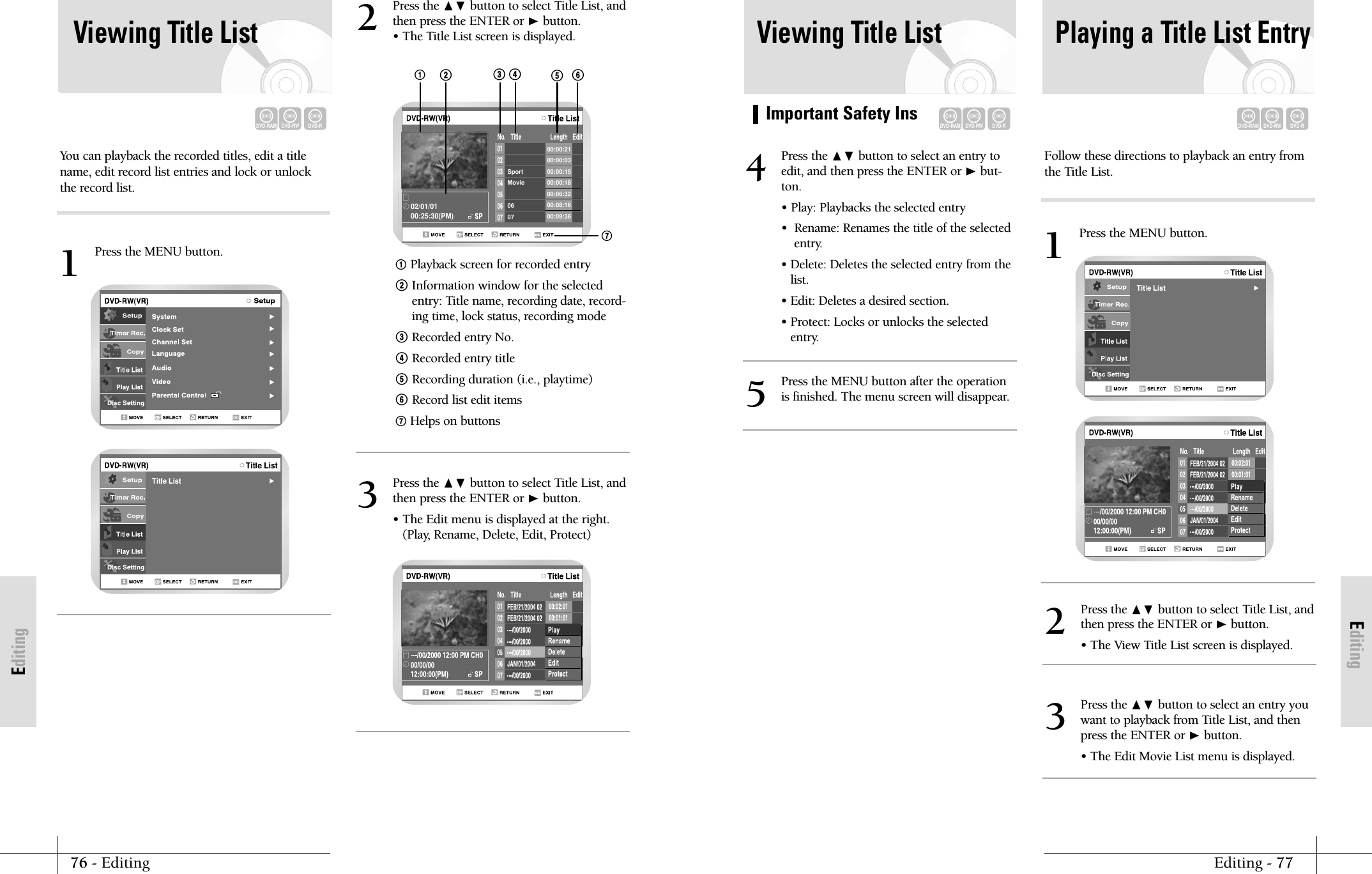
EditingImportant Safety InsEditing - 7776 - EditingEditingViewing Title ListDVD-RAMDVD-RWDVD-RPlaying a Title List EntryDVD-RAMDVD-RWDVD-RPress the ❷ button to select an entry toedit, and then press the ENTER or ❿but-ton.• Play: Playbacks the selected entry•  Rename: Renames the title of the selectedentry.• Delete: Deletes the selected entry from thelist.• Edit: Deletes a desired section.• Protect: Locks or unlocks the selectedentry.4Press the MENU button after the operationis finished. The menu screen will disappear.5Press the ❷ button to select Title List, andthen press the ENTER or ❿button.• The View Title List screen is displayed.2Press the ❷ button to select an entry youwant to playback from Title List, and thenpress the ENTER or ❿button.• The Edit Movie List menu is displayed.3Follow these directions to playback an entry fromthe Title List.Press the MENU button.1Viewing Title ListYou can playback the recorded titles, edit a titlename, edit record list entries and lock or unlockthe record list.DVD-RAMDVD-RWDVD-RPress the ❷ button to select Title List, andthen press the ENTER or ❿button.• The Title List screen is displayed.2Press the ❷ button to select Title List, andthen press the ENTER or ❿button.• The Edit menu is displayed at the right.(Play, Rename, Delete, Edit, Protect)3!Playback screen for recorded entry@ Information window for the selectedentry: Title name, recording date, record-ing time, lock status, recording mode# Recorded entry No.$ Recorded entry title% Recording duration (i.e., playtime)^ Record list edit items& Helps on buttonsPress the MENU button.1Sport00:00:2100:00:0300:00:1500:00:1800:06:3200:08:1600:09:36Movie0602/01/0100:25:30(PM)07!&@#$ %^
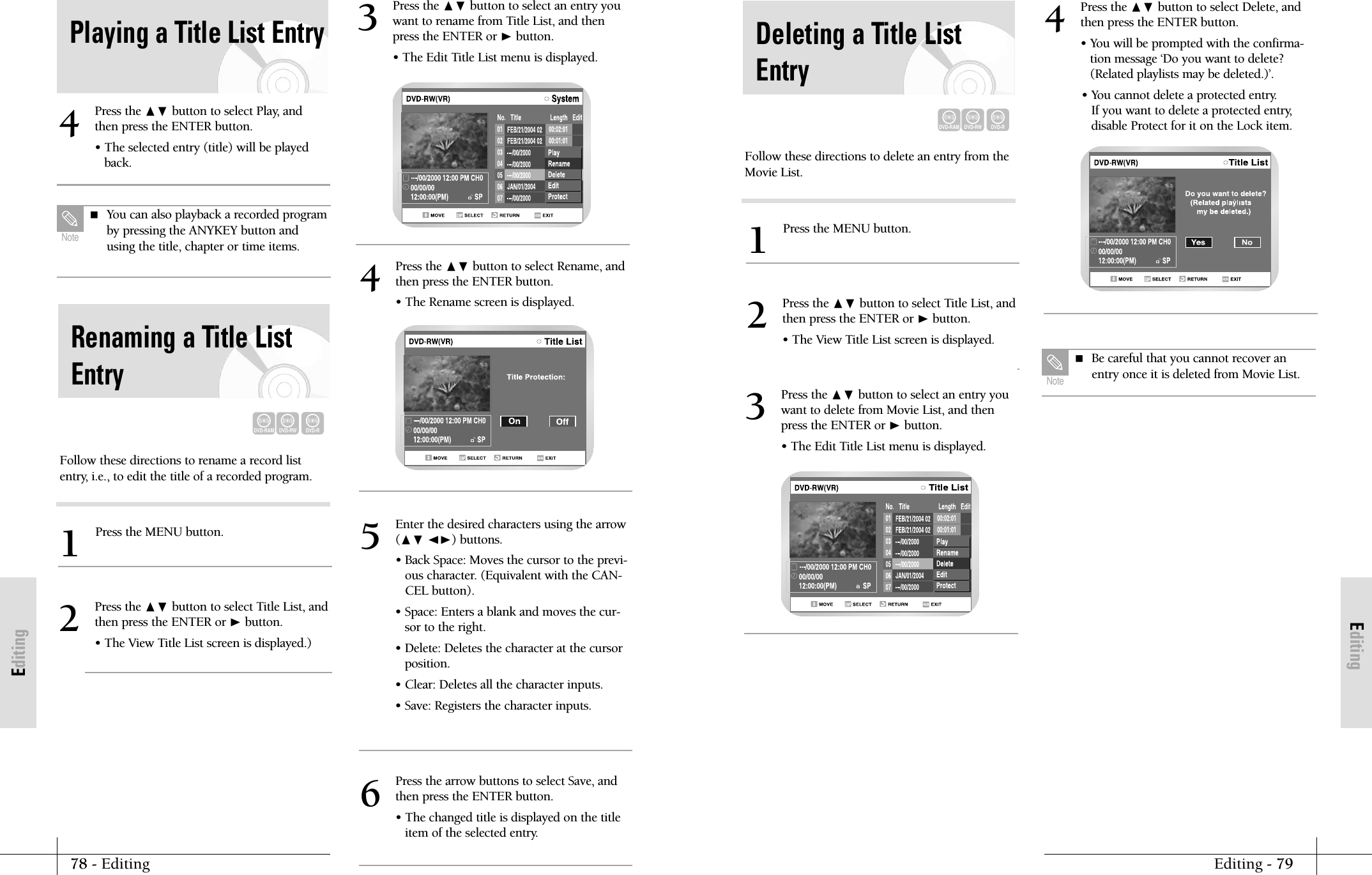
EditingEditing - 7978 - EditingEditingFollow these directions to delete an entry from theMovie List.Press the MENU button.1Press the ❷ button to select Title List, andthen press the ENTER or ❿button.• The View Title List screen is displayed.2Press the ❷ button to select an entry youwant to delete from Movie List, and thenpress the ENTER or ❿button.• The Edit Title List menu is displayed.3Deleting a Title ListEntryDVD-RAMDVD-RWDVD-RPress the ❷ button to select Delete, andthen press the ENTER button.• You will be prompted with the confirma-tion message ‘Do you want to delete?(Related playlists may be deleted.)’.• You cannot delete a protected entry.If you want to delete a protected entry,disable Protect for it on the Lock item.4 Be careful that you cannot recover anentry once it is deleted from Movie List.NotePress the ❷ button to select Play, andthen press the ENTER button.• The selected entry (title) will be playedback.4 You can also playback a recorded programby pressing the ANYKEY button andusing the title, chapter or time items.NoteRenaming a Title ListEntryDVD-RAMDVD-RWDVD-RFollow these directions to rename a record listentry, i.e., to edit the title of a recorded program.Press the MENU button.1Press the ❷ button to select Title List, andthen press the ENTER or ❿button.• The View Title List screen is displayed.)2Press the ❷ button to select an entry youwant to rename from Title List, and thenpress the ENTER or ❿button.• The Edit Title List menu is displayed.3Press the ❷ button to select Rename, andthen press the ENTER button.• The Rename screen is displayed.4Enter the desired characters using the arrow(❷ ➛❿) buttons.• Back Space: Moves the cursor to the previ-ous character. (Equivalent with the CAN-CEL button).• Space: Enters a blank and moves the cur-sor to the right.• Delete: Deletes the character at the cursorposition.• Clear: Deletes all the character inputs.• Save: Registers the character inputs.5Press the arrow buttons to select Save, andthen press the ENTER button.• The changed title is displayed on the titleitem of the selected entry.6Playing a Title List Entry
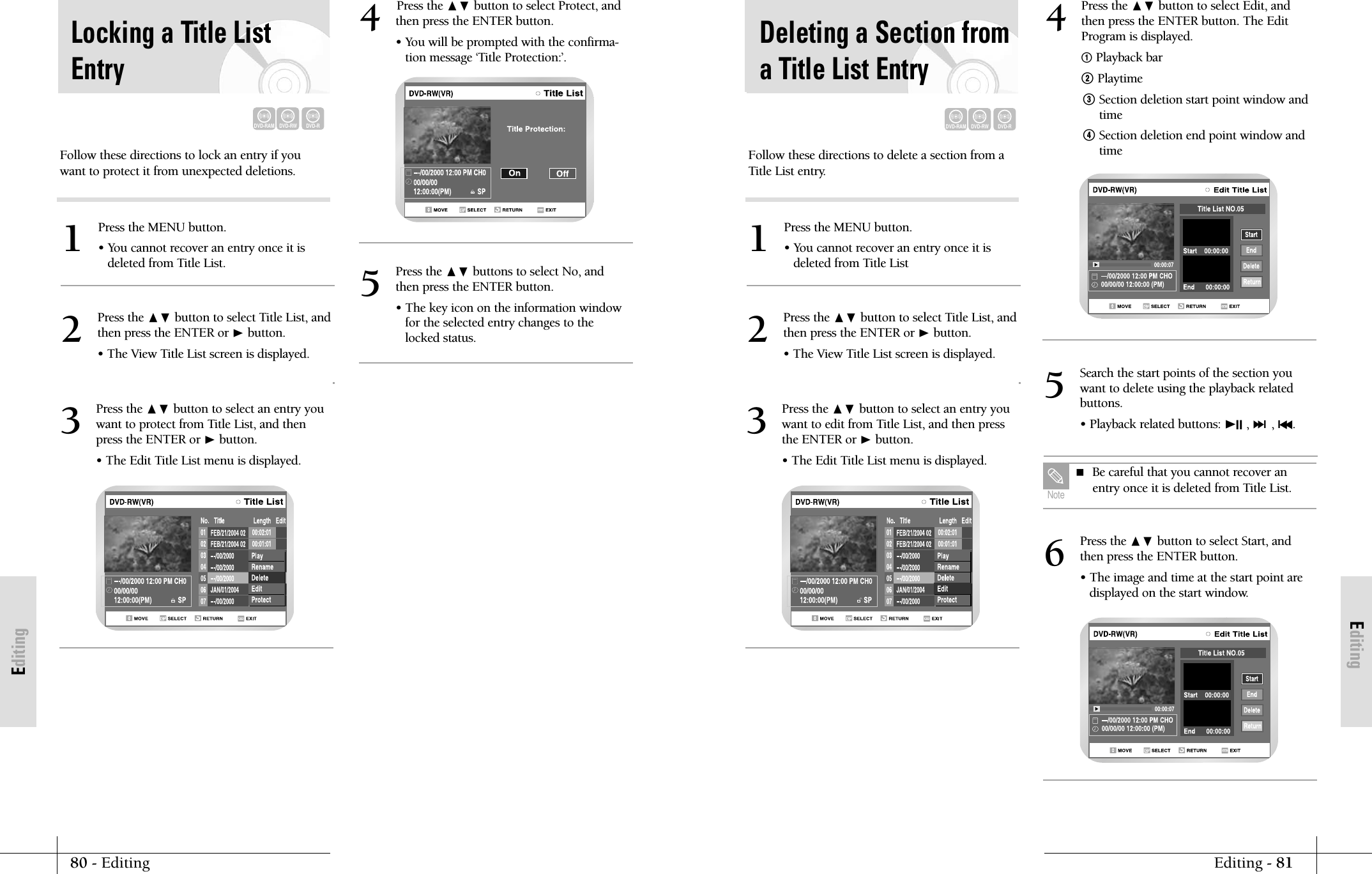
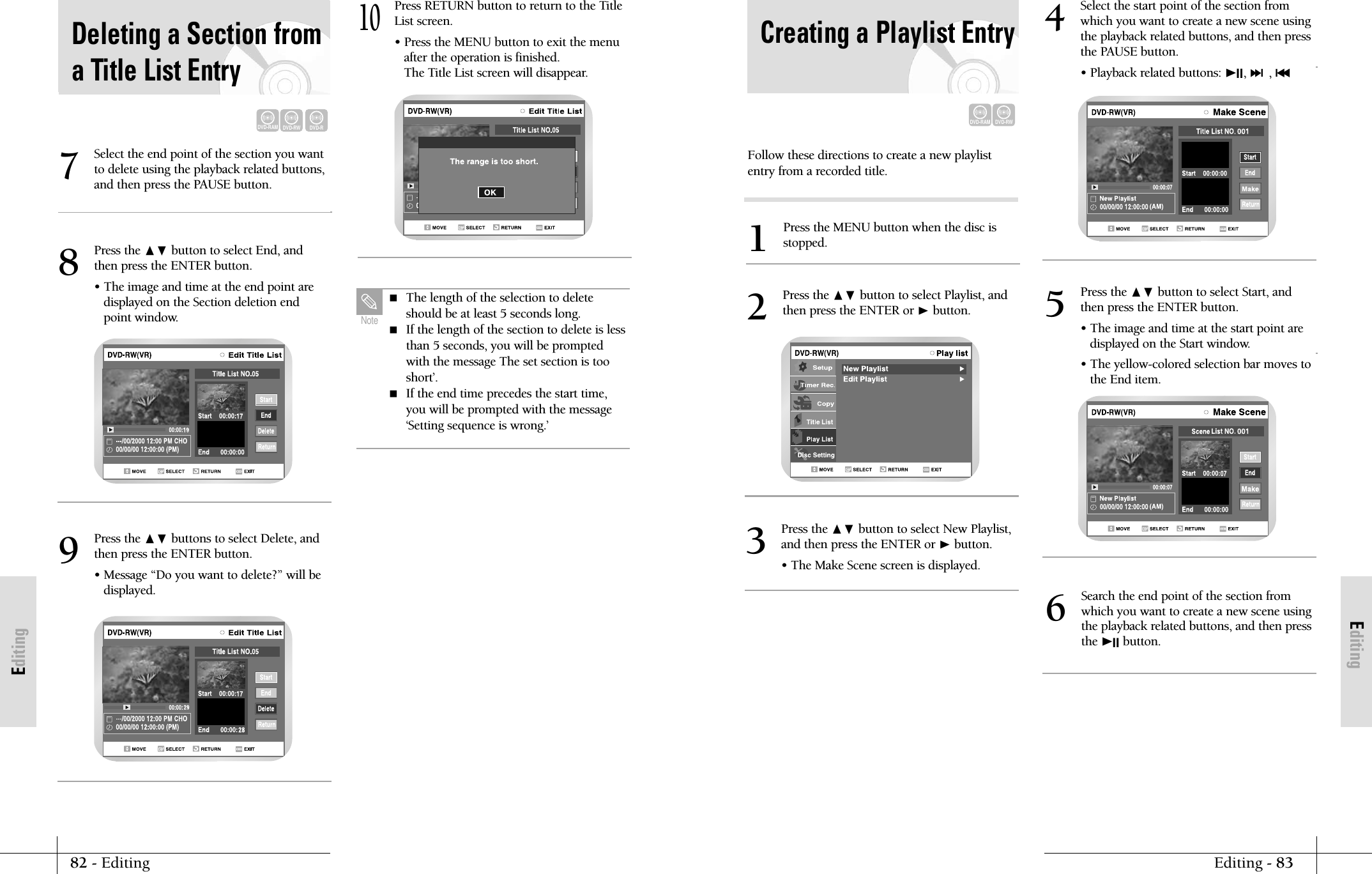
EditingEditing - 8180 - EditingEditingFollow these directions to delete a section from aTitle List entry.Press the MENU button.• You cannot recover an entry once it isdeleted from Title List1Press the ❷ button to select Title List, andthen press the ENTER or ❿button.• The View Title List screen is displayed.2Press the ❷ button to select an entry youwant to edit from Title List, and then pressthe ENTER or ❿button.• The Edit Title List menu is displayed.3Press the ❷ button to select Edit, andthen press the ENTER button. The EditProgram is displayed.!Playback bar@ Playtime# Section deletion start point window andtime$ Section deletion end point window andtime4Press the ❷ button to select Start, andthen press the ENTER button.• The image and time at the start point are displayed on the start window.6Search the start points of the section you want to delete using the playback relatedbuttons.• Playback related buttons: ❿II , ❿❿l, l➛➛.5Deleting a Section froma Title List EntryDVD-RAMDVD-RWDVD-R Be careful that you cannot recover anentry once it is deleted from Title List.NoteFollow these directions to lock an entry if youwant to protect it from unexpected deletions.Press the MENU button.• You cannot recover an entry once it isdeleted from Title List.1Press the ❷ button to select Title List, andthen press the ENTER or ❿button.• The View Title List screen is displayed.2Press the ❷ button to select an entry youwant to protect from Title List, and thenpress the ENTER or ❿button.• The Edit Title List menu is displayed.3Locking a Title ListEntryDVD-RAMDVD-RWDVD-RPress the ❷ button to select Protect, andthen press the ENTER button.• You will be prompted with the confirma-tion message ‘Title Protection:’.4Press the ❷ buttons to select No, andthen press the ENTER button.• The key icon on the information windowfor the selected entry changes to thelocked status.5
EditingEditing - 8382 - EditingEditingFollow these directions to create a new playlistentry from a recorded title.Press the MENU button when the disc isstopped.1Press the ❷ button to select Playlist, andthen press the ENTER or ❿button.2Press the ❷ button to select New Playlist,and then press the ENTER or ❿button.• The Make Scene screen is displayed.3Search the end point of the section fromwhich you want to create a new scene usingthe playback related buttons, and then pressthe ❿II button.6Creating a Playlist EntryDVD-RAMDVD-RWSelect the start point of the section fromwhich you want to create a new scene usingthe playback related buttons, and then pressthe PAUSE button.• Playback related buttons: ❿II, ❿❿l, l➛➛4Press the ❷ button to select Start, andthen press the ENTER button.• The image and time at the start point are displayed on the Start window.• The yellow-colored selection bar moves tothe End item.5Press the ❷ button to select End, andthen press the ENTER button.• The image and time at the end point are displayed on the Section deletion endpoint window.8Press the ❷ buttons to select Delete, andthen press the ENTER button.• Message “Do you want to delete?” will bedisplayed.9Press RETURN button to return to the TitleList screen.• Press the MENU button to exit the menuafter the operation is finished. The Title List screen will disappear.10Select the end point of the section you wantto delete using the playback related buttons,and then press the PAUSE button.7 The length of the selection to deleteshould be at least 5 seconds long. If the length of the section to delete is lessthan 5 seconds, you will be promptedwith the message The set section is tooshort’. If the end time precedes the start time,you will be prompted with the message‘Setting sequence is wrong.’NoteDeleting a Section froma Title List EntryDVD-RAMDVD-RWDVD-R
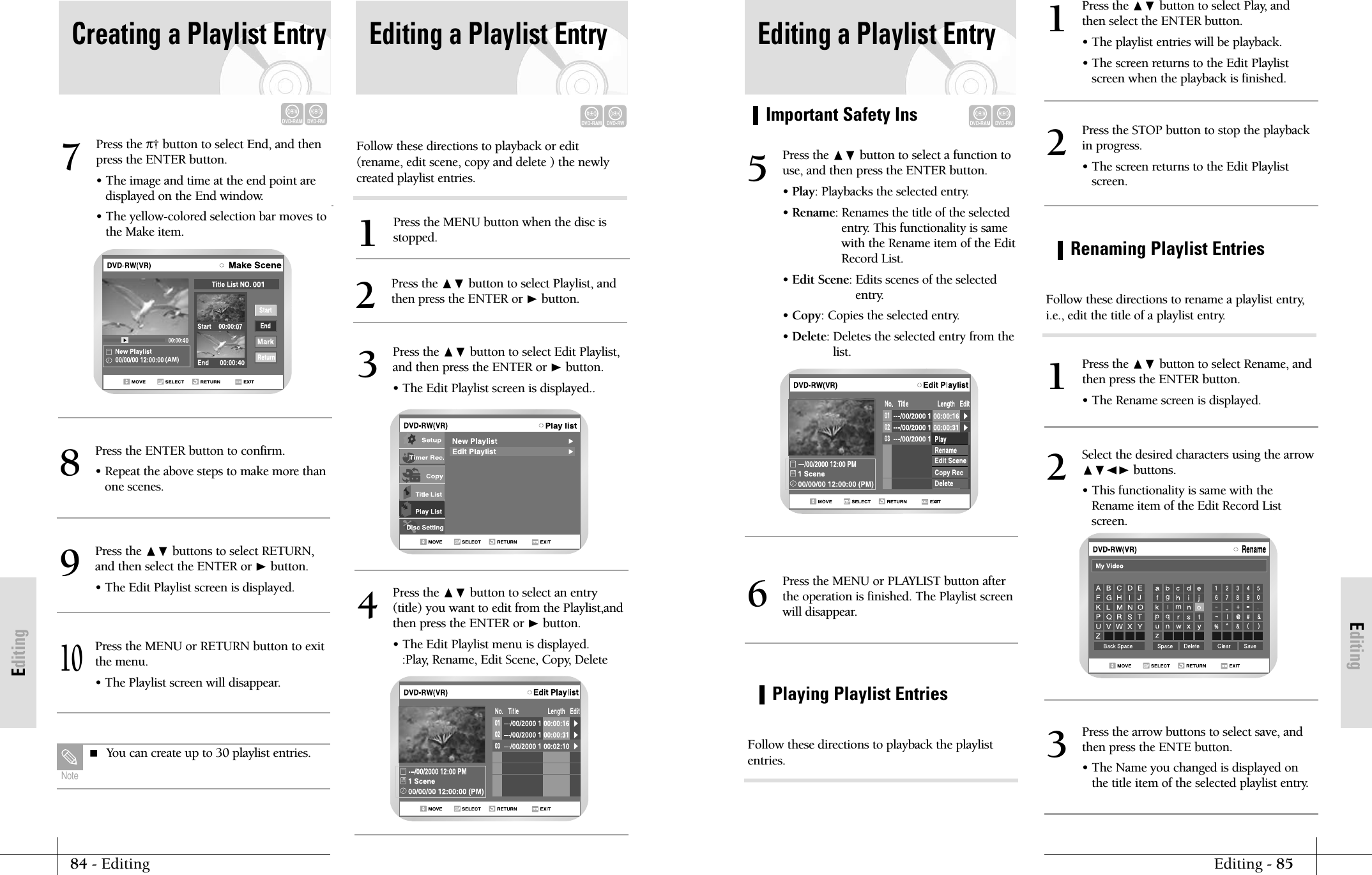
EditingImportant Safety InsEditing - 8584 - EditingEditingPlaying Playlist EntriesEditing a Playlist EntryDVD-RAMDVD-RWPress the ❷ button to select a function touse, and then press the ENTER button.• Play: Playbacks the selected entry.• Rename: Renames the title of the selectedentry. This functionality is samewith the Rename item of the EditRecord List.• Edit Scene: Edits scenes of the selectedentry.• Copy: Copies the selected entry.• Delete: Deletes the selected entry from thelist.5Press the MENU or PLAYLIST button afterthe operation is finished. The Playlist screenwill disappear.6Press the ❷ button to select Play, andthen select the ENTER button.• The playlist entries will be playback.• The screen returns to the Edit Playlistscreen when the playback is finished.1Press the STOP button to stop the playbackin progress.• The screen returns to the Edit Playlistscreen.2Press the arrow buttons to select save, andthen press the ENTE button.• The Name you changed is displayed onthe title item of the selected playlist entry.3Follow these directions to playback the playlistentries.Renaming Playlist EntriesPress the ❷ button to select Rename, and then press the ENTER button.• The Rename screen is displayed.1Select the desired characters using the arrow❷➛❿ buttons.• This functionality is same with theRename item of the Edit Record Listscreen. 2Follow these directions to rename a playlist entry,i.e., edit the title of a playlist entry.Follow these directions to playback or edit(rename, edit scene, copy and delete ) the newlycreated playlist entries.Press the MENU button when the disc isstopped.1Press the ❷ button to select Playlist, andthen press the ENTER or ❿button.2Editing a Playlist EntryDVD-RAMDVD-RWPress the π† button to select End, and thenpress the ENTER button.• The image and time at the end point are displayed on the End window.• The yellow-colored selection bar moves tothe Make item. 7Press the ENTER button to confirm.• Repeat the above steps to make more thanone scenes.8Press the ❷ buttons to select RETURN,and then select the ENTER or ❿button.• The Edit Playlist screen is displayed.9Press the MENU or RETURN button to exitthe menu. • The Playlist screen will disappear.10 You can create up to 30 playlist entries.NotePress the ❷ button to select Edit Playlist,and then press the ENTER or ❿button.• The Edit Playlist screen is displayed.. 3Press the ❷ button to select an entry(title) you want to edit from the Playlist,andthen press the ENTER or ❿button.• The Edit Playlist menu is displayed.:Play, Rename, Edit Scene, Copy, Delete 4Creating a Playlist EntryDVD-RAMDVD-RW
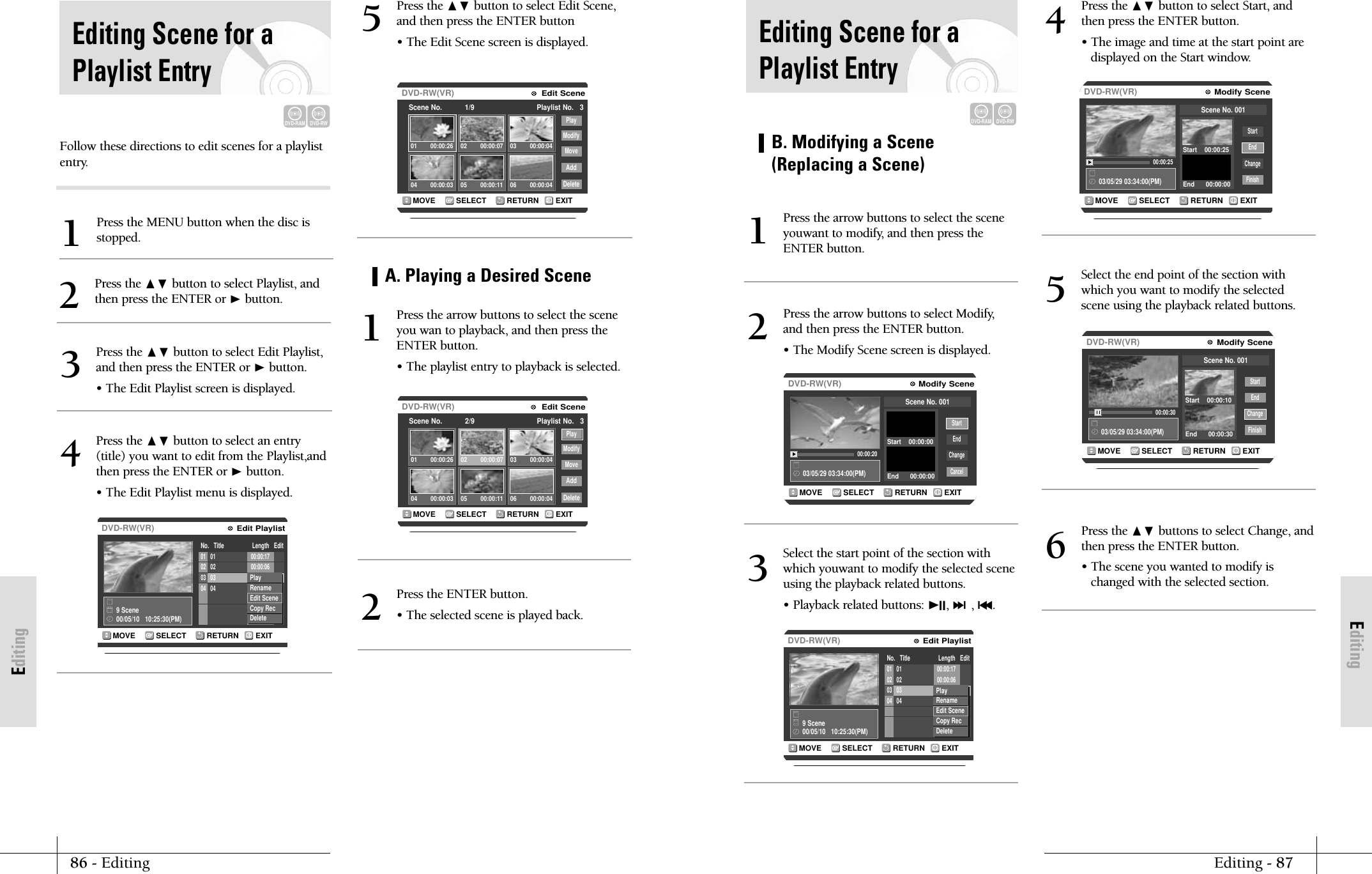
EditingEditing - 8786 - EditingEditingRETURNSELECTMOVE EXITModify SceneDVD-RW(VR)03/05/29 03:34:00(PM)00:00:20StartEndChangeCancelScene No. 001Start    00:00:00End      00:00:00B. Modifying a Scene(Replacing a Scene)Press the arrow buttons to select the sceneyouwant to modify, and then press theENTER button.1Press the arrow buttons to select Modify,and then press the ENTER button.• The Modify Scene screen is displayed.2RETURNSELECTMOVE EXITEdit PlaylistDVD-RW(VR)No.   Title                  Length   Edit9 Scene00/05/10   10:25:30(PM)01 01 00:00:1702 02 00:00:0603 03 00:00:0604 04 00:08:37PlayRenameEdit SceneCopy Rec DeleteSelect the start point of the section withwhich youwant to modify the selected sceneusing the playback related buttons.• Playback related buttons: ❿II, ❿❿l, l➛➛.3RETURNSELECTMOVE EXITModify SceneDVD-RW(VR)03/05/29 03:34:00(PM)00:00:25StartEndChangeFinishScene No. 001Start    00:00:25End      00:00:00Press the ❷ button to select Start, andthen press the ENTER button.• The image and time at the start point are displayed on the Start window.4RETURNSELECTMOVE EXITModify SceneDVD-RW(VR)03/05/29 03:34:00(PM)00:00:30StartEndChangeFinishScene No. 001Start    00:00:10End      00:00:30Select the end point of the section withwhich you want to modify the selectedscene using the playback related buttons.5Press the ❷ buttons to select Change, andthen press the ENTER button.• The scene you wanted to modify ischanged with the selected section.6Editing Scene for aPlaylist EntryDVD-RAMDVD-RWFollow these directions to edit scenes for a playlistentry.Press the MENU button when the disc isstopped.1Press the ❷ button to select Playlist, andthen press the ENTER or ❿button.2Editing Scene for aPlaylist EntryDVD-RAMDVD-RWRETURNSELECTMOVE EXITEdit PlaylistDVD-RW(VR)No.   Title                  Length   Edit9 Scene00/05/10   10:25:30(PM)01 01 00:00:1702 02 00:00:0603 03 00:00:0604 04 00:08:37PlayRenameEdit SceneCopy Rec DeletePress the ❷ button to select Edit Playlist,and then press the ENTER or ❿button.• The Edit Playlist screen is displayed.3Press the ❷ button to select an entry(title) you want to edit from the Playlist,andthen press the ENTER or ❿button.• The Edit Playlist menu is displayed.4RETURNSELECTMOVE EXITEdit SceneDVD-RW(VR)Scene No.           1/9 Playlist No.   3PlayModifyMoveAddDelete01 00:00:26 02 00:00:07 03 00:00:0404 00:00:03 05 00:00:11 06 00:00:04RETURNSELECTMOVE EXITEdit SceneDVD-RW(VR)Scene No.           2/9 Playlist No.   3PlayModifyMoveAddDelete01 00:00:26 02 00:00:07 03 00:00:0404 00:00:03 05 00:00:11 06 00:00:04Press the ❷ button to select Edit Scene,and then press the ENTER button• The Edit Scene screen is displayed.5A. Playing a Desired ScenePress the arrow buttons to select the sceneyou wan to playback, and then press theENTER button.• The playlist entry to playback is selected.1Press the ENTER button.• The selected scene is played back.2
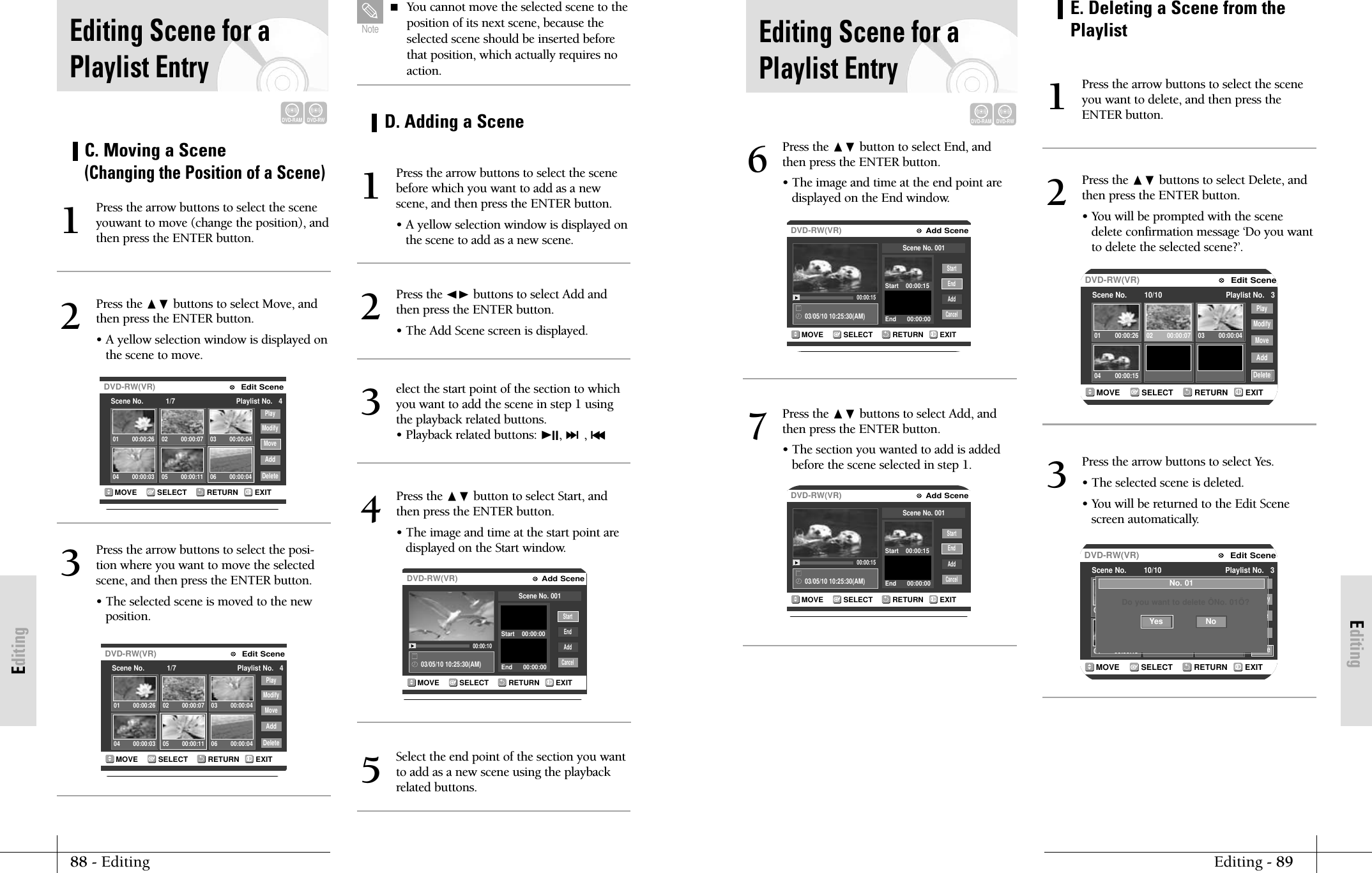
EditingEditing - 8988 - EditingEditingEditing Scene for aPlaylist EntryDVD-RAMDVD-RWRETURNSELECTMOVE EXITAdd SceneDVD-RW(VR)03/05/10 10:25:30(AM)00:00:15EndAddCancelScene No. 001Start    00:00:15End      00:00:00StartPress the ❷ button to select End, andthen press the ENTER button.• The image and time at the end point aredisplayed on the End window.6RETURNSELECTMOVE EXITAdd SceneDVD-RW(VR)03/05/10 10:25:30(AM)00:00:15EndAddCancelScene No. 001Start    00:00:15End      00:00:00StartPress the ❷ buttons to select Add, andthen press the ENTER button.• The section you wanted to add is addedbefore the scene selected in step 1.7RETURNSELECTMOVE EXITEdit SceneDVD-RW(VR)Scene No.        10/10 Playlist No.   3PlayModifyMoveAddDelete01 00:00:26 02 00:00:07 03 00:00:0404 00:00:15E. Deleting a Scene from thePlaylistPress the arrow buttons to select the sceneyou want to delete, and then press theENTER button.1Press the ❷ buttons to select Delete, andthen press the ENTER button.• You will be prompted with the scenedelete confirmation message ‘Do you wantto delete the selected scene?’.2RETURNSELECTMOVE EXITEdit SceneDVD-RW(VR)Scene No.        10/10 Playlist No.   3PlayModifyMoveAddDelete01 00:00:26 02 00:00:07 03 00:00:0404 00:00:15No. 01Do you want to delete ÔNo. 01Õ?NoYesPress the arrow buttons to select Yes.• The selected scene is deleted.• You will be returned to the Edit Scenescreen automatically.3RETURNSELECTMOVE EXITEdit SceneDVD-RW(VR)Scene No.           1/7 Playlist No.   4PlayModifyMoveAddDelete01 00:00:26 02 00:00:07 03 00:00:0404 00:00:03 05 00:00:11 06 00:00:04C. Moving a Scene (Changing the Position of a Scene)Press the arrow buttons to select the sceneyouwant to move (change the position), andthen press the ENTER button.1Press the ❷ buttons to select Move, andthen press the ENTER button.• A yellow selection window is displayed onthe scene to move.2RETURNSELECTMOVE EXITEdit SceneDVD-RW(VR)Scene No.           1/7 Playlist No.   4PlayModifyMoveAddDelete01 00:00:26 02 00:00:07 03 00:00:0404 00:00:03 05 00:00:11 06 00:00:04Press the arrow buttons to select the posi-tion where you want to move the selectedscene, and then press the ENTER button.• The selected scene is moved to the new position.3 You cannot move the selected scene to theposition of its next scene, because theselected scene should be inserted beforethat position, which actually requires noaction.NoteRETURNSELECTMOVE EXITAdd SceneDVD-RW(VR)03/05/10 10:25:30(AM)00:00:10StartEndAddCancelScene No. 001Start    00:00:00End      00:00:00D. Adding a ScenePress the arrow buttons to select the scenebefore which you want to add as a newscene, and then press the ENTER button.• A yellow selection window is displayed onthe scene to add as a new scene.1Press the ➛❿ buttons to select Add andthen press the ENTER button.• The Add Scene screen is displayed.2elect the start point of the section to whichyou want to add the scene in step 1 usingthe playback related buttons.• Playback related buttons: ❿II, ❿❿l, l➛➛3Select the end point of the section you wantto add as a new scene using the playbackrelated buttons.5Press the ❷ button to select Start, andthen press the ENTER button.• The image and time at the start point are displayed on the Start window.4Editing Scene for aPlaylist EntryDVD-RAMDVD-RW
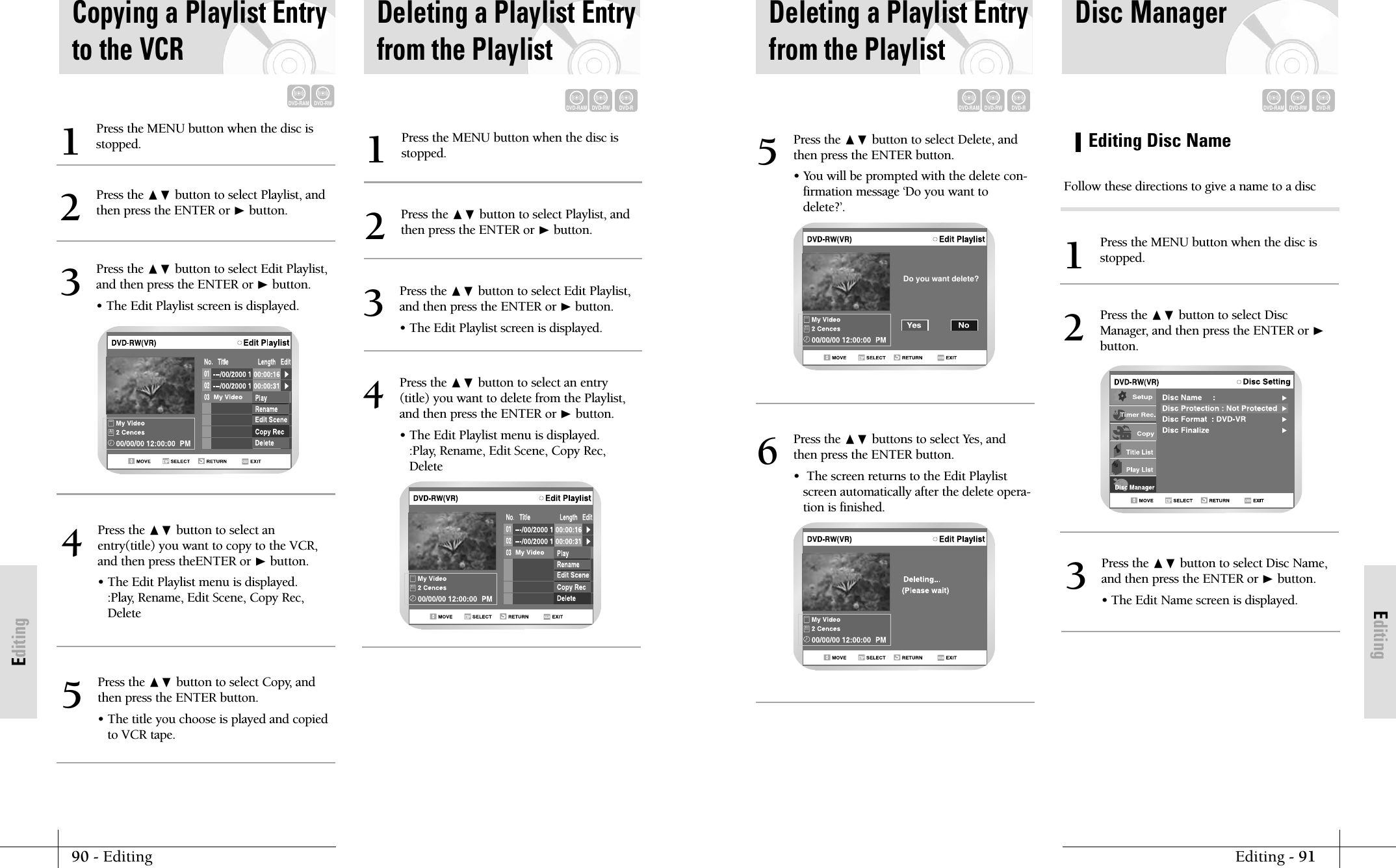
EditingEditing - 9190 - EditingEditingPress the ❷ button to select Delete, andthen press the ENTER button.• You will be prompted with the delete con-firmation message ‘Do you want todelete?’.5  Do you want delete?Press the ❷ buttons to select Yes, andthen press the ENTER button.•  The screen returns to the Edit Playlistscreen automatically after the delete opera-tion is finished.6Deleting a Playlist Entryfrom the PlaylistDVD-RAMDVD-RWDVD-RDVD-RAMDVD-RWDVD-REditing Disc NamePress the MENU button when the disc isstopped.1Press the ❷ button to select Disc Name,and then press the ENTER or ❿button.• The Edit Name screen is displayed. 3Press the ❷ button to select DiscManager, and then press the ENTER or ❿button.2Disc ManagerFollow these directions to give a name to a discCopying a Playlist Entryto the VCRDVD-RAMDVD-RWPress the MENU button when the disc isstopped.1Press the ❷ button to select Playlist, andthen press the ENTER or ❿button.2Press the ❷ button to select Edit Playlist,and then press the ENTER or ❿button.• The Edit Playlist screen is displayed.3Press the ❷ button to select anentry(title) you want to copy to the VCR,and then press theENTER or ❿button.• The Edit Playlist menu is displayed.:Play, Rename, Edit Scene, Copy Rec,Delete4Press the ❷ button to select Copy, andthen press the ENTER button.• The title you choose is played and copiedto VCR tape.5Press the MENU button when the disc isstopped.1Press the ❷ button to select Playlist, andthen press the ENTER or ❿button.2Press the ❷ button to select an entry(title) you want to delete from the Playlist,and then press the ENTER or ❿button.• The Edit Playlist menu is displayed.:Play, Rename, Edit Scene, Copy Rec,Delete4Press the ❷ button to select Edit Playlist,and then press the ENTER or ❿button.• The Edit Playlist screen is displayed.3Deleting a Playlist Entryfrom the PlaylistDVD-RAMDVD-RWDVD-R
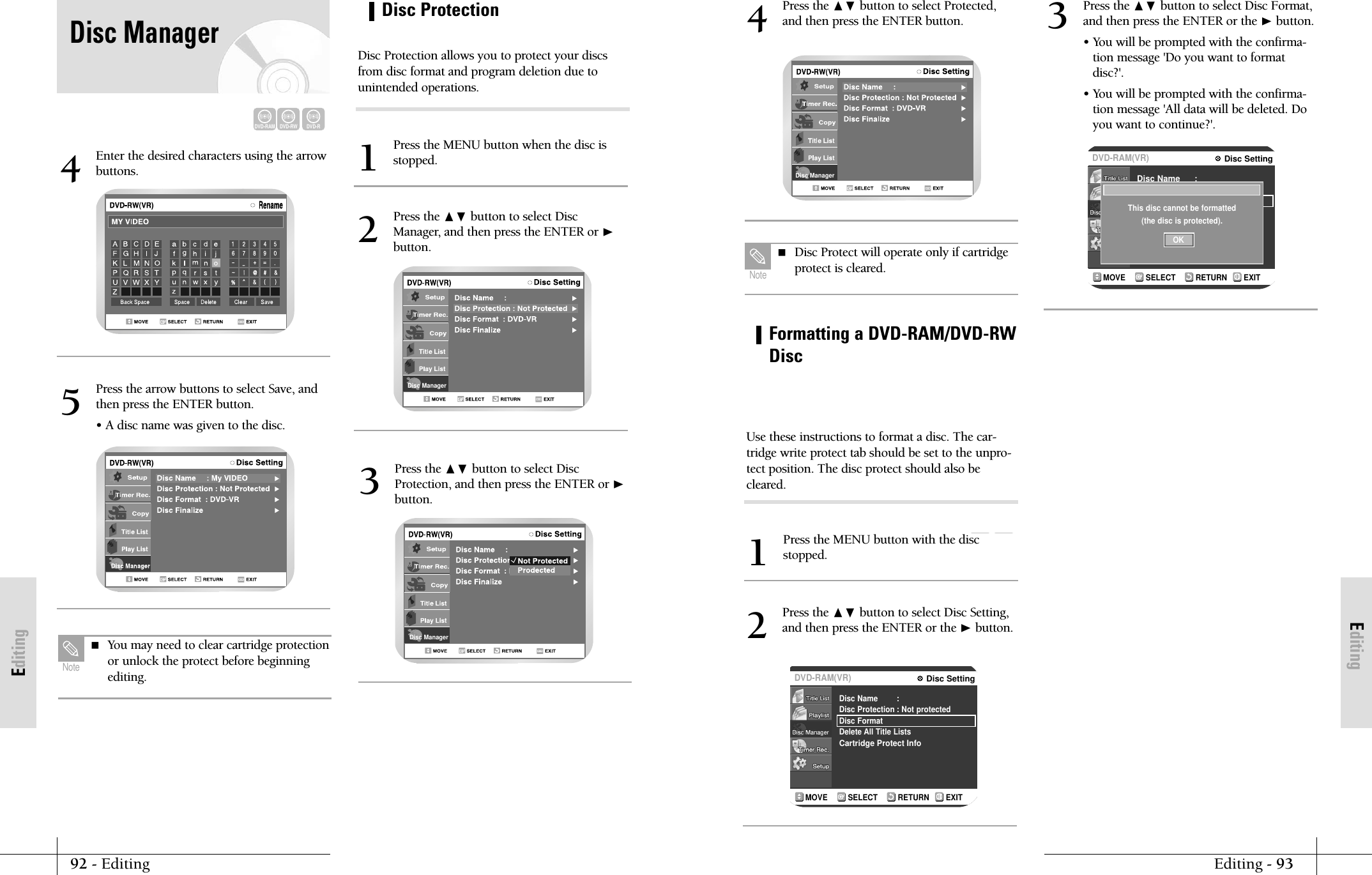
EditingEditing - 9392 - EditingEditingDisc ManagerPress the ❷ button to select Protected,and then press the ENTER button.4 Disc Protect will operate only if cartridgeprotect is cleared.NoteDVD-RAMDVD-RWRETURNSELECTMOVE EXITDisc SettingDVD-RAM(VR)Disc NameDisc ProtectionDisc FormatDelete All Title ListsCartridge Protect Info:: Not protectedRETURNSELECTMOVE EXITDisc SettingDVD-RAM(VR)Disc NameDisc ProtectDisc FormatCartridge Protect Info:: Not protectedThis disc cannot be formatted(the disc is protected).OKFormatting a DVD-RAM/DVD-RWDiscPress the MENU button with the discstopped.1Press the ❷ button to select Disc Setting,and then press the ENTER or the ❿button.2Press the ❷ button to select Disc Format,and then press the ENTER or the ❿button.• You will be prompted with the confirma-tion message 'Do you want to formatdisc?'.• You will be prompted with the confirma-tion message 'All data will be deleted. Doyou want to continue?'.3Use these instructions to format a disc. The car-tridge write protect tab should be set to the unpro-tect position. The disc protect should also becleared.Enter the desired characters using the arrowbuttons.4Press the arrow buttons to select Save, andthen press the ENTER button.• A disc name was given to the disc. 5 You may need to clear cartridge protectionor unlock the protect before beginningediting.NoteDisc ManagerDisc ProtectionPress the MENU button when the disc isstopped.1Press the ❷ button to select DiscManager, and then press the ENTER or ❿button.2Disc ManagerPress the ❷ button to select DiscProtection, and then press the ENTER or ❿button.3Disc Protection allows you to protect your discsfrom disc format and program deletion due tounintended operations.DVD-RAMDVD-RWDVD-RDisc Manager
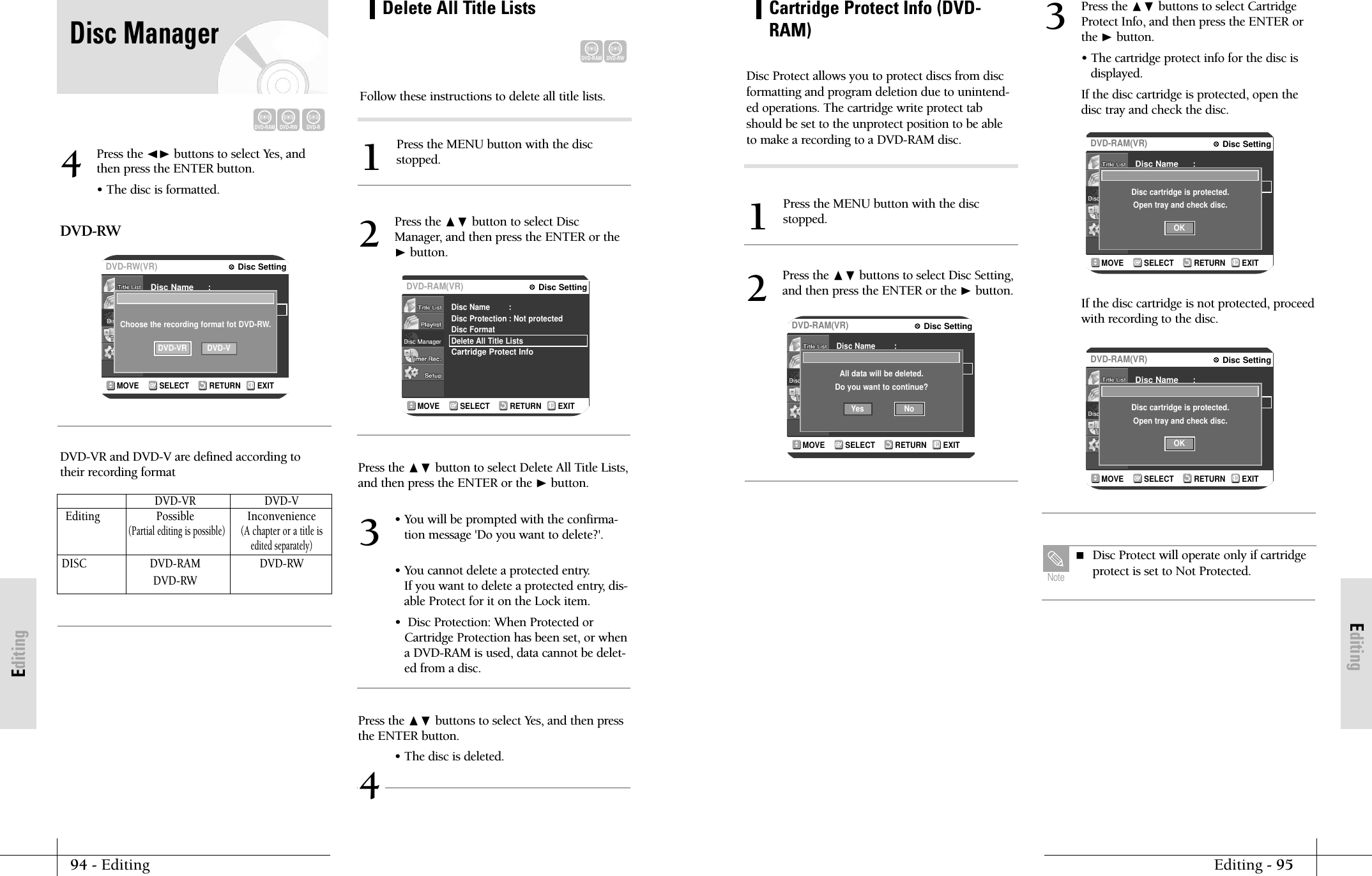
EditingEditing - 9594 - EditingEditingCartridge Protect Info (DVD-RAM)Press the MENU button with the discstopped.1Disc Protect allows you to protect discs from discformatting and program deletion due to unintend-ed operations. The cartridge write protect tabshould be set to the unprotect position to be ableto make a recording to a DVD-RAM disc.RETURNSELECTMOVE EXITDisc SettingDVD-RAM(VR)Disc NameDisc ProtectionDisc FormatDelete All Title ListsCartridge Protect Info:: Not protectedAll data will be deleted.Do you want to continue?NoYesPress the ❷buttons to select Disc Setting,and then press the ENTER or the ❿button.2RETURNSELECTMOVE EXITDisc SettingDVD-RAM(VR)Disc NameDisc ProtectDisc FormatCartridge Protect Info:: Not protectedDisc cartridge is protected.Open tray and check disc.OKRETURNSELECTMOVE EXITDisc SettingDVD-RAM(VR)Disc NameDisc ProtectDisc FormatCartridge Protect Info:: Not protectedDisc cartridge is protected.Open tray and check disc.OKPress the ❷ buttons to select CartridgeProtect Info, and then press the ENTER orthe ❿button.• The cartridge protect info for the disc isdisplayed. If the disc cartridge is protected, open thedisc tray and check the disc.3If the disc cartridge is not protected, proceedwith recording to the disc. Disc Protect will operate only if cartridgeprotect is set to Not Protected.NoteRETURNSELECTMOVE EXITDisc SettingDVD-RAM(VR)Disc NameDisc ProtectionDisc FormatDelete All Title ListsCartridge Protect Info:: Not protectedPress the ❷ button to select DiscManager, and then press the ENTER or the❿button.2RETURNSELECTMOVE EXITDisc SettingDVD-RW(VR)Disc NameDisc ProtectDisc FormatCartridge Protect Info:: Not protectedChoose the recording format fot DVD-RW.DVD-VR DVD-VPress the ➛❿ buttons to select Yes, andthen press the ENTER button.• The disc is formatted.DVD-RWDVD-VR and DVD-V are defined according totheir recording format4Press the ❷ button to select Delete All Title Lists,and then press the ENTER or the ❿button.• You will be prompted with the confirma-tion message 'Do you want to delete?'.• You cannot delete a protected entry.If you want to delete a protected entry, dis-able Protect for it on the Lock item.•  Disc Protection: When Protected orCartridge Protection has been set, or whena DVD-RAM is used, data cannot be delet-ed from a disc.3Press the ❷ buttons to select Yes, and then pressthe ENTER button.• The disc is deleted.4DVD-VR DVD-VEditing Possible Inconvenience(Partial editing is possible)(A chapter or a title isedited separately)DISC DVD-RAM DVD-RWDVD-RWDVD-RAMDVD-RWDelete All Title ListsPress the MENU button with the discstopped.1Follow these instructions to delete all title lists.DVD-RAMDVD-RWDVD-RDisc Manager
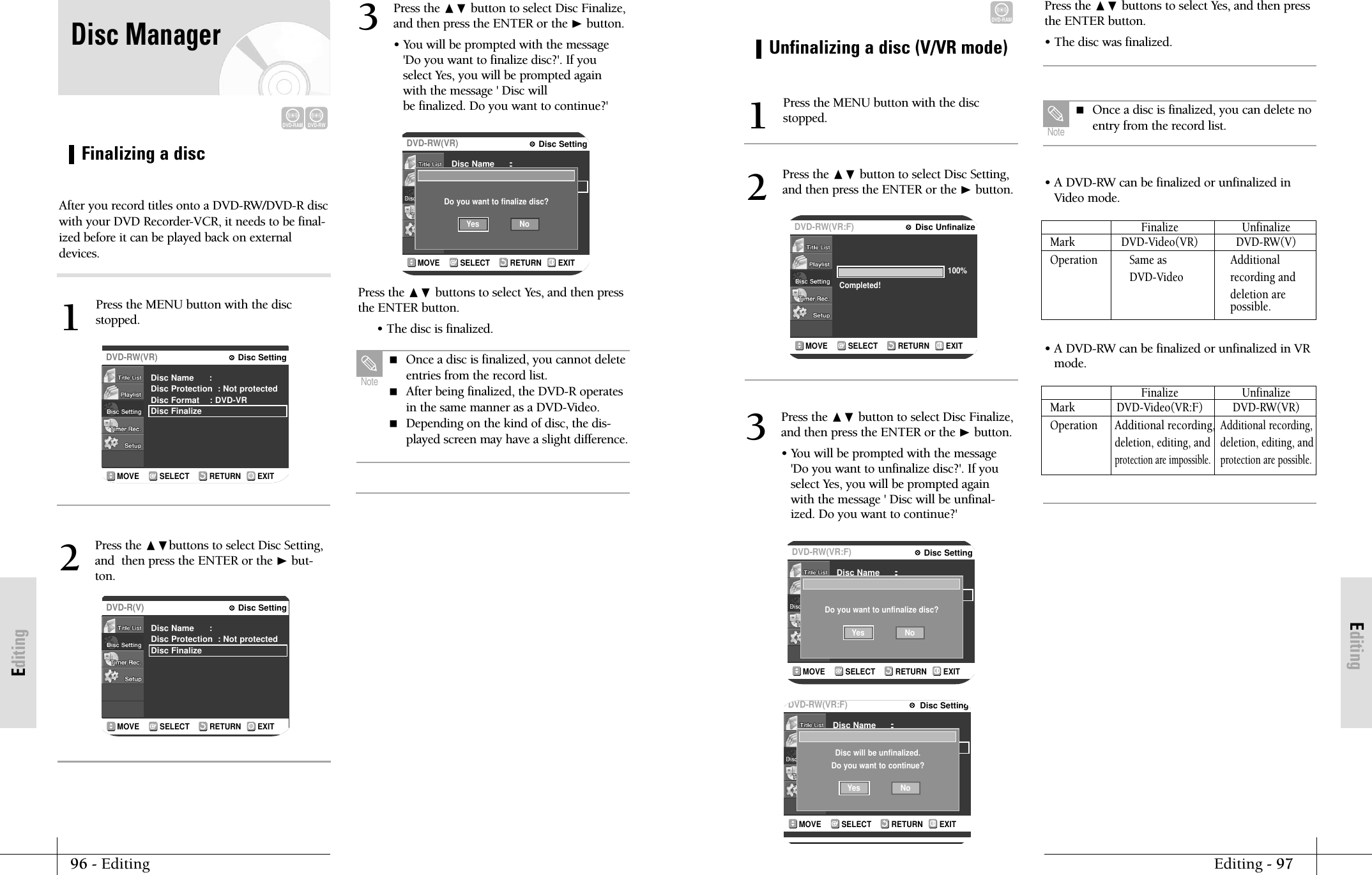
EditingEditing - 9796 - EditingEditingUnfinalizing a disc (V/VR mode)DVD-RAMPress the MENU button with the discstopped.1RETURNSELECTMOVE EXITDisc UnfinalizeDVD-RW(VR:F)100%Completed!Press the ❷ button to select Disc Setting,and then press the ENTER or the ❿button.2RETURNSELECTMOVE EXITDisc SettingDVD-RW(VR:F)Disc Name      :Disc Format    : DVD-VRDisc Unfinalize:: Not protectedDo you want to unfinalize disc?NoYesRETURNSELECTMOVE EXITDisc SettingDVD-RW(VR:F)Disc Name      :Disc Format    : DVD-VRDisc Unfinalize:: Not protectedDisc will be unfinalized.Do you want to continue?NoYesPress the ❷ button to select Disc Finalize,and then press the ENTER or the ❿button.• You will be prompted with the message'Do you want to unfinalize disc?'. If youselect Yes, you will be prompted againwith the message ' Disc will be unfinal-ized. Do you want to continue?'3Press the ❷ buttons to select Yes, and then pressthe ENTER button.• The disc was finalized. Once a disc is finalized, you can delete noentry from the record list.Note• A DVD-RW can be finalized or unfinalized inVideo mode.Finalize UnfinalizeMark DVD-Video(VR) DVD-RW(V)Operation Same as AdditionalDVD-Video recording anddeletion are possible.• A DVD-RW can be finalized or unfinalized in VRmode.Finalize UnfinalizeMark DVD-Video(VR:F) DVD-RW(VR) Operation Additional recording,Additional recording,deletion, editing, anddeletion, editing, andprotection are impossible.protection are possible.Press the ❷ buttons to select Yes, and then pressthe ENTER button.• The disc is finalized.Disc ManagerFinalizing a discPress the MENU button with the discstopped.1After you record titles onto a DVD-RW/DVD-R discwith your DVD Recorder-VCR, it needs to be final-ized before it can be played back on externaldevices.RETURNSELECTMOVE EXITDisc SettingDVD-RW(VR)Disc Name      :Disc Protection  : Not protectedDisc Format    : DVD-VRDisc FinalizePress the ❷buttons to select Disc Setting,and  then press the ENTER or the ❿but-ton.2RETURNSELECTMOVE EXITDisc SettingDVD-R(V)Disc Name      :Disc Protection  : Not protectedDisc FinalizeRETURNSELECTMOVE EXITDisc SettingDVD-RW(VR)Disc Name      :Disc Protection  : Not protectedDisc Format    : DVD-VRDisc Finalize:: Not protectedDo you want to finalize disc?NoYesPress the ❷ button to select Disc Finalize,and then press the ENTER or the ❿button.• You will be prompted with the message'Do you want to finalize disc?'. If youselect Yes, you will be prompted againwith the message ' Disc will be finalized. Do you want to continue?'3DVD-RAMDVD-RW Once a disc is finalized, you cannot deleteentries from the record list. After being finalized, the DVD-R operatesin the same manner as a DVD-Video. Depending on the kind of disc, the dis-played screen may have a slight difference.Note
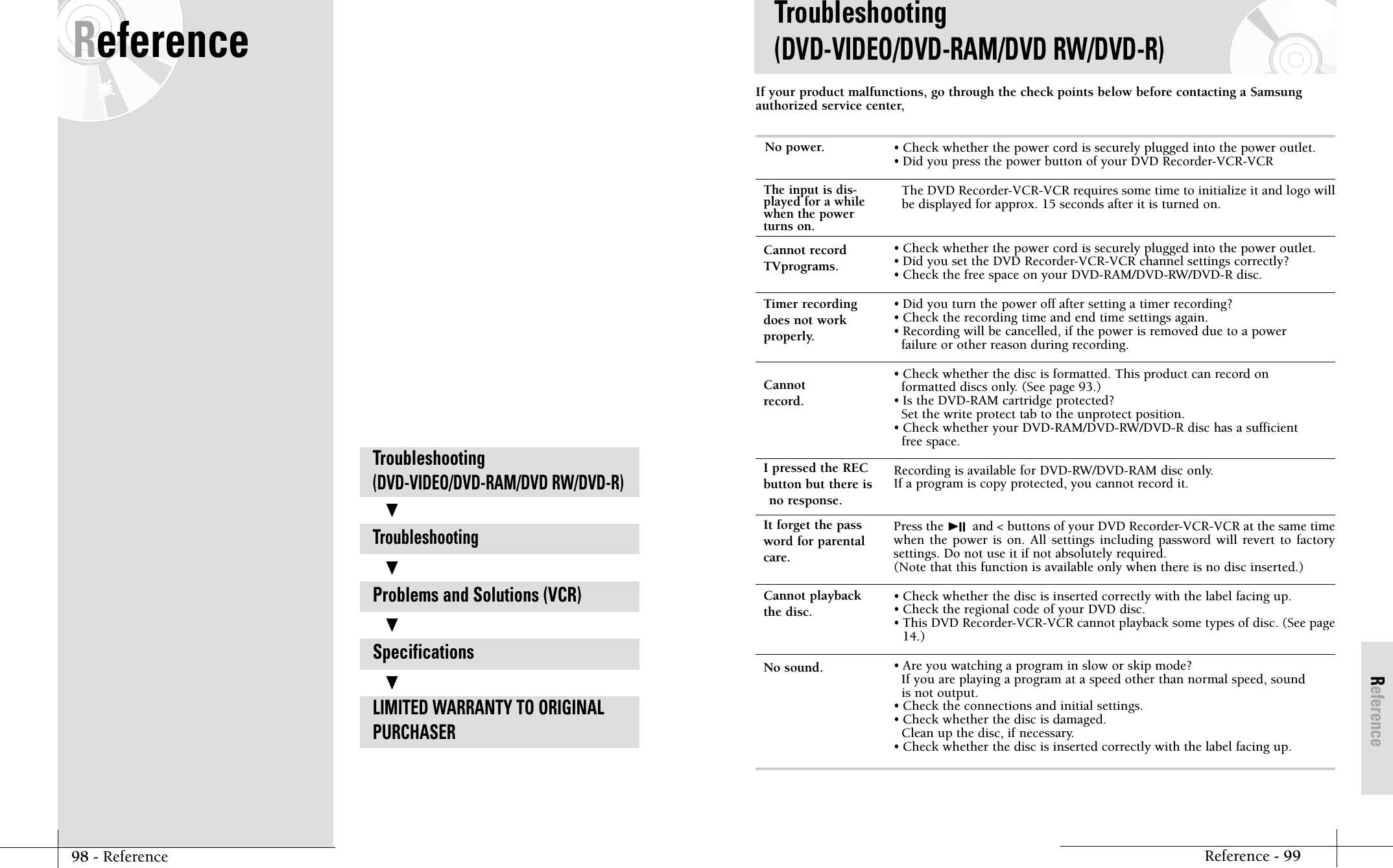
ReferenceImportant Safety InsReference - 99If your product malfunctions, go through the check points below before contacting a Samsungauthorized service center,• Check whether the power cord is securely plugged into the power outlet.• Did you press the power button of your DVD Recorder-VCR-VCRThe DVD Recorder-VCR-VCR requires some time to initialize it and logo willbe displayed for approx. 15 seconds after it is turned on.• Check whether the power cord is securely plugged into the power outlet.• Did you set the DVD Recorder-VCR-VCR channel settings correctly?• Check the free space on your DVD-RAM/DVD-RW/DVD-R disc.• Did you turn the power off after setting a timer recording?• Check the recording time and end time settings again.• Recording will be cancelled, if the power is removed due to a power failure or other reason during recording.• Check whether the disc is formatted. This product can record on formatted discs only. (See page 93.)• Is the DVD-RAM cartridge protected?Set the write protect tab to the unprotect position.• Check whether your DVD-RAM/DVD-RW/DVD-R disc has a sufficient free space.Recording is available for DVD-RW/DVD-RAM disc only.If a program is copy protected, you cannot record it.Press the ❿II and < buttons of your DVD Recorder-VCR-VCR at the same timewhen the power is on. All settings including password will revert to factorysettings. Do not use it if not absolutely required.(Note that this function is available only when there is no disc inserted.)• Check whether the disc is inserted correctly with the label facing up.• Check the regional code of your DVD disc.• This DVD Recorder-VCR-VCR cannot playback some types of disc. (See page14.)• Are you watching a program in slow or skip mode?If you are playing a program at a speed other than normal speed, sound is not output.• Check the connections and initial settings.• Check whether the disc is damaged.Clean up the disc, if necessary.• Check whether the disc is inserted correctly with the label facing up.The input is dis-played for a whilewhen the powerturns on.Cannot recordTVprograms.Timer recordingdoes not work properly.Cannotrecord.I pressed the REC button but there isno response.It forget the password for parental care.Cannot playbackthe disc.No sound.No power.Troubleshooting (DVD-VIDEO/DVD-RAM/DVD RW/DVD-R)ReferenceTroubleshooting (DVD-VIDEO/DVD-RAM/DVD RW/DVD-R)TroubleshootingProblems and Solutions (VCR)SpecificationsLIMITED WARRANTY TO ORIGINALPURCHASER❷❷❷❷98 - Reference
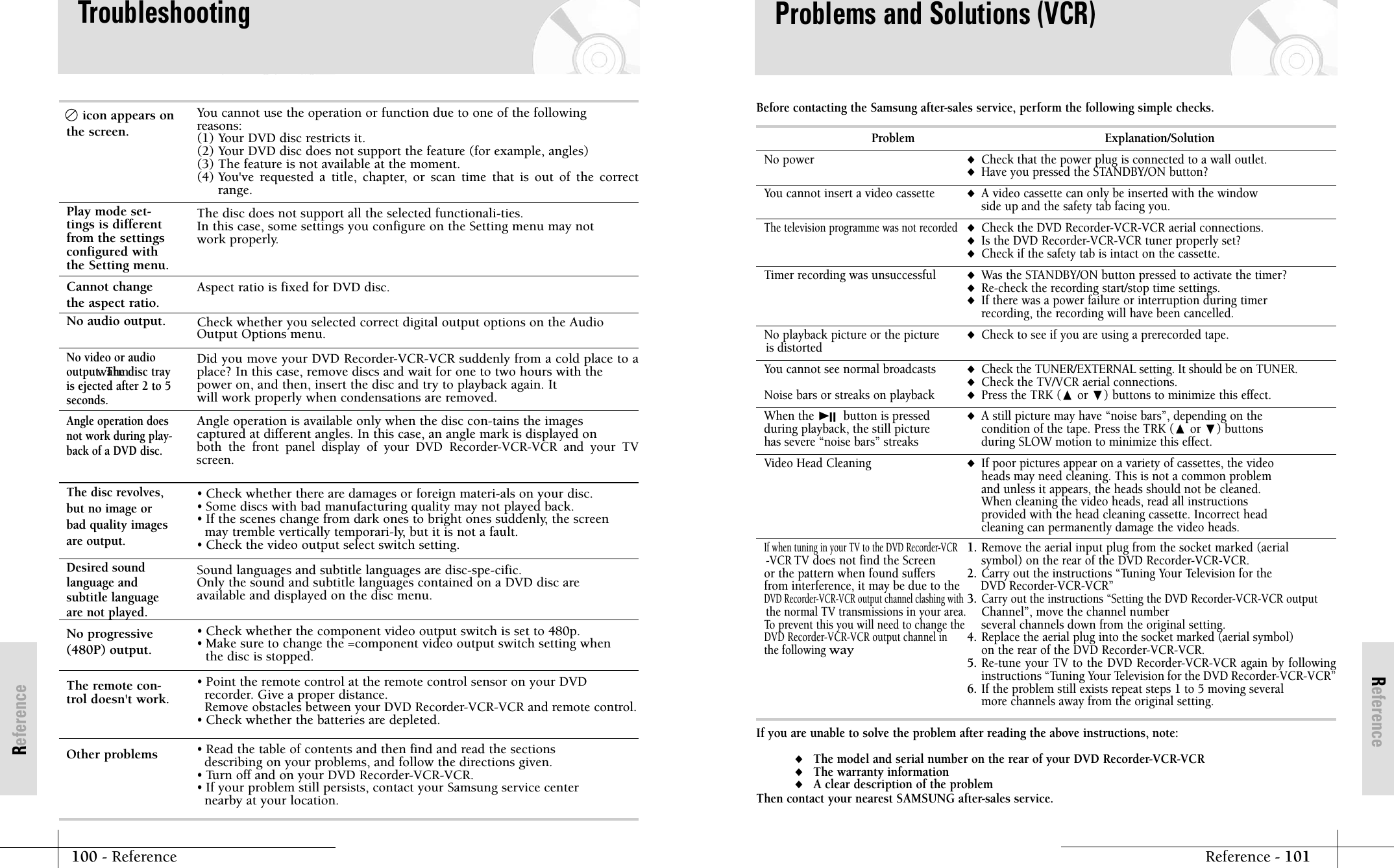
ReferenceReference - 101100 - ReferenceReferenceProblems and Solutions (VCR)Before contacting the Samsung after-sales service, perform the following simple checks.Problem                                                     Explanation/SolutionNo power ◆Check that the power plug is connected to a wall outlet.◆Have you pressed the STANDBY/ON button?You cannot insert a video cassette ◆A video cassette can only be inserted with the window side up and the safety tab facing you.The television programme was not recorded◆Check the DVD Recorder-VCR-VCR aerial connections.◆Is the DVD Recorder-VCR-VCR tuner properly set?◆Check if the safety tab is intact on the cassette.Timer recording was unsuccessful ◆Was the STANDBY/ON button pressed to activate the timer?◆Re-check the recording start/stop time settings.◆If there was a power failure or interruption during timer recording, the recording will have been cancelled.No playback picture or the picture  ◆Check to see if you are using a prerecorded tape. is distortedYou cannot see normal broadcasts ◆Check the TUNER/EXTERNAL setting. It should be on TUNER.◆Check the TV/VCR aerial connections.Noise bars or streaks on playback ◆Press the TRK (or ❷) buttons to minimize this effect.When the ❿IIbutton is pressed ◆A still picture may have “noise bars”, depending on the during playback, the still picture condition of the tape. Press the TRK (or ❷) buttons has severe “noise bars” streaks during SLOW motion to minimize this effect.Video Head Cleaning  ◆If poor pictures appear on a variety of cassettes, the video heads may need cleaning. This is not a common problem and unless it appears, the heads should not be cleaned. When cleaning the video heads, read all instructions provided with the head cleaning cassette. Incorrect head cleaning can permanently damage the video heads.If when tuning in your TV to the DVD Recorder-VCR1. Remove the aerial input plug from the socket marked (aerial  -VCRTV does not find the Screen   symbol) on the rear of the DVD Recorder-VCR-VCR. or the pattern when found suffers   2. Carry out the instructions “Tuning Your Television for the from interference, it may be due to the DVD Recorder-VCR-VCR” DVD Recorder-VCR-VCR output channel clashing with3.Carry out the instructions “Setting the DVD Recorder-VCR-VCR outputthe normal TV transmissions in your area.Channel”, move the channel numberTo prevent this you will need to change theseveral channels down from the original setting.DVD Recorder-VCR-VCR output channel in 4. Replace the aerial plug into the socket marked (aerial symbol)the following wayon the rear of the DVD Recorder-VCR-VCR. 5. Re-tune your TV to the DVD Recorder-VCR-VCR again by followinginstructions “Tuning Your Television for the DVD Recorder-VCR-VCR” 6. If the problem still exists repeat steps 1 to 5 moving several more channels away from the original setting.If you are unable to solve the problem after reading the above instructions, note:◆The model and serial number on the rear of your DVD Recorder-VCR-VCR◆The warranty information◆A clear description of the problemThen contact your nearest SAMSUNG after-sales service.TroubleshootingYou cannot use the operation or function due to one of the following reasons:(1) Your DVD disc restricts it.(2) Your DVD disc does not support the feature (for example, angles)(3) The feature is not available at the moment.(4) You've requested a title, chapter, or scan time that is out of the correctrange.The disc does not support all the selected functionali-ties.In this case, some settings you configure on the Setting menu may not work properly.Aspect ratio is fixed for DVD disc. Check whether you selected correct digital output options on the Audio Output Options menu. Did you move your DVD Recorder-VCR-VCR suddenly from a cold place to awarm  place? In this case, remove discs and wait for one to two hours with the power on, and then, insert the disc and try to playback again. Itwill work properly when condensations are removed.Angle operation is available only when the disc con-tains the images captured at different angles. In this case, an angle mark is displayed on both the front panel display of your DVD Recorder-VCR-VCR and your TVscreen.• Check whether there are damages or foreign materi-als on your disc.• Some discs with bad manufacturing quality may not played back.• If the scenes change from dark ones to bright ones suddenly, the screen may tremble vertically temporari-ly, but it is not a fault.• Check the video output select switch setting.Sound languages and subtitle languages are disc-spe-cific. Only the sound and subtitle languages contained on a DVD disc are available and displayed on the disc menu.• Check whether the component video output switch is set to 480p. • Make sure to change the =component video output switch setting when the disc is stopped.• Point the remote control at the remote control sensor on your DVD recorder. Give a proper distance.Remove obstacles between your DVD Recorder-VCR-VCR and remote control.• Check whether the batteries are depleted.• Read the table of contents and then find and read the sections describing on your problems, and follow the directions given.• Turn off and on your DVD Recorder-VCR-VCR. • If your problem still persists, contact your Samsung service center nearby at your location.Play mode set-tings is differentfrom the settingsconfigured withthe Setting menu.Cannot changethe aspect ratio.No audio output.No video or audiooutput. The disc trayis ejected after 2 to 5seconds.Angle operation doesnot work during play-back of a DVD disc.The disc revolves,but no image orbad quality imagesare output.Desired sound language and subtitle languageare not played.No progressive(480P) output.icon appears onthe screen.The remote con-trol doesn't work.Other problems
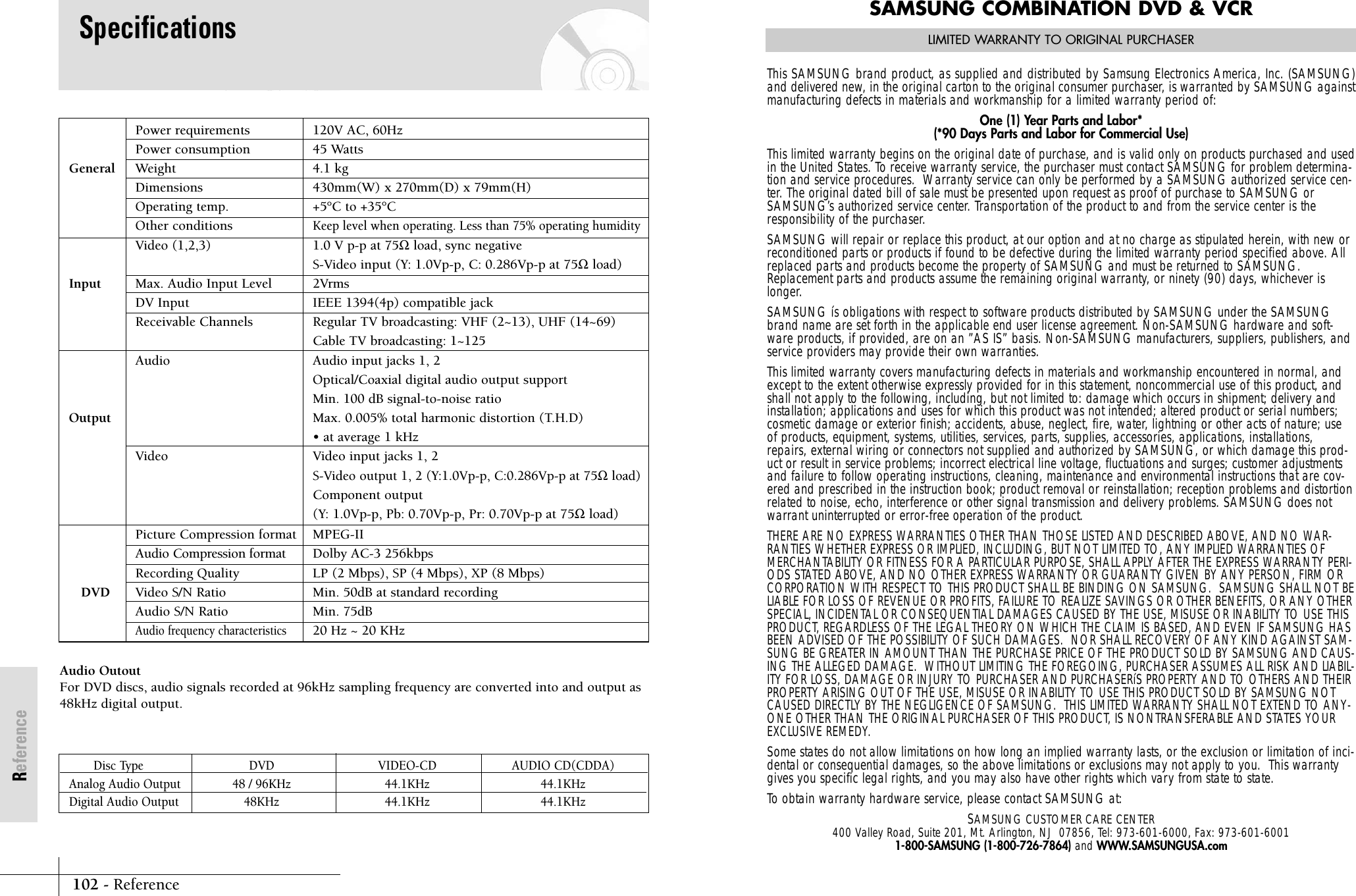
102 - ReferenceReferenceSAMSUNG COMBINATION DVD & VCRLIMITED WARRANTY TO ORIGINAL PURCHASERThis SAMSUNG brand product, as supplied and distributed by Samsung Electronics America, Inc. (SAMSUNG)and delivered new, in the original carton to the original consumer purchaser, is warranted by SAMSUNG againstmanufacturing defects in materials and workmanship for a limited warranty period of:One (1) Year Parts and Labor*(*90 Days Parts and Labor for Commercial Use)This limited warranty begins on the original date of purchase, and is valid only on products purchased and usedin the United States. To receive warranty service, the purchaser must contact SAMSUNG for problem determina-tion and service procedures.  Warranty service can only be performed by a SAMSUNG authorized service cen-ter. The original dated bill of sale must be presented upon request as proof of purchase to SAMSUNG orSAMSUNG’s authorized service center. Transportation of the product to and from the service center is theresponsibility of the purchaser.SAMSUNG will repair or replace this product, at our option and at no charge as stipulated herein, with new orreconditioned parts or products if found to be defective during the limited warranty period specified above. Allreplaced parts and products become the property of SAMSUNG and must be returned to SAMSUNG.Replacement parts and products assume the remaining original warranty, or ninety (90) days, whichever islonger.SAMSUNG ís obligations with respect to software products distributed by SAMSUNG under the SAMSUNGbrand name are set forth in the applicable end user license agreement. Non-SAMSUNG hardware and soft-ware products, if provided, are on an ”AS IS” basis. Non-SAMSUNG manufacturers, suppliers, publishers, andservice providers may provide their own warranties.This limited warranty covers manufacturing defects in materials and workmanship encountered in normal, andexcept to the extent otherwise expressly provided for in this statement, noncommercial use of this product, andshall not apply to the following, including, but not limited to: damage which occurs in shipment; delivery andinstallation; applications and uses for which this product was not intended; altered product or serial numbers;cosmetic damage or exterior finish; accidents, abuse, neglect, fire, water, lightning or other acts of nature; useof products, equipment, systems, utilities, services, parts, supplies, accessories, applications, installations,repairs, external wiring or connectors not supplied and authorized by SAMSUNG, or which damage this prod-uct or result in service problems; incorrect electrical line voltage, fluctuations and surges; customer adjustmentsand failure to follow operating instructions, cleaning, maintenance and environmental instructions that are cov-ered and prescribed in the instruction book; product removal or reinstallation; reception problems and distortionrelated to noise, echo, interference or other signal transmission and delivery problems. SAMSUNG does notwarrant uninterrupted or error-free operation of the product.THERE ARE NO EXPRESS WARRANTIES OTHER THAN THOSE LISTED AND DESCRIBED ABOVE, AND NO WAR-RANTIES WHETHER EXPRESS OR IMPLIED, INCLUDING, BUT NOT LIMITED TO, ANY IMPLIED WARRANTIES OFMERCHANTABILITY OR FITNESS FOR A PARTICULAR PURPOSE, SHALL APPLY AFTER THE EXPRESS WARRANTY PERI-ODS STATED ABOVE, AND NO OTHER EXPRESS WARRANTY OR GUARANTY GIVEN BY ANY PERSON, FIRM ORCORPORATION WITH RESPECT TO THIS PRODUCT SHALL BE BINDING ON SAMSUNG.  SAMSUNG SHALL NOT BELIABLE FOR LOSS OF REVENUE OR PROFITS, FAILURE TO REALIZE SAVINGS OR OTHER BENEFITS, OR ANY OTHERSPECIAL, INCIDENTAL OR CONSEQUENTIAL DAMAGES CAUSED BY THE USE, MISUSE OR INABILITY TO USE THISPRODUCT, REGARDLESS OF THE LEGAL THEORY ON WHICH THE CLAIM IS BASED, AND EVEN IF SAMSUNG HASBEEN ADVISED OF THE POSSIBILITY OF SUCH DAMAGES.  NOR SHALL RECOVERY OF ANY KIND AGAINST SAM-SUNG BE GREATER IN AMOUNT THAN THE PURCHASE PRICE OF THE PRODUCT SOLD BY SAMSUNG AND CAUS-ING THE ALLEGED DAMAGE.  WITHOUT LIMITING THE FOREGOING, PURCHASER ASSUMES ALL RISK AND LIABIL-ITY FOR LOSS, DAMAGE OR INJURY TO PURCHASER AND PURCHASERíS PROPERTY AND TO OTHERS AND THEIRPROPERTY ARISING OUT OF THE USE, MISUSE OR INABILITY TO USE THIS PRODUCT SOLD BY SAMSUNG NOTCAUSED DIRECTLY BY THE NEGLIGENCE OF SAMSUNG.  THIS LIMITED WARRANTY SHALL NOT EXTEND TO ANY-ONE OTHER THAN THE ORIGINAL PURCHASER OF THIS PRODUCT, IS NONTRANSFERABLE AND STATES YOUREXCLUSIVE REMEDY.Some states do not allow limitations on how long an implied warranty lasts, or the exclusion or limitation of inci-dental or consequential damages, so the above limitations or exclusions may not apply to you.  This warrantygives you specific legal rights, and you may also have other rights which vary from state to state.To obtain warranty hardware service, please contact SAMSUNG at:SAMSUNG CUSTOMER CARE CENTER400 Valley Road, Suite 201, Mt. Arlington, NJ  07856, Tel: 973-601-6000, Fax: 973-601-60011-800-SAMSUNG (1-800-726-7864) and WWW.SAMSUNGUSA.comPower requirements 120V AC, 60Hz  Power consumption 45 WattsGeneral Weight 4.1 kgDimensions 430mm(W) x 270mm(D) x 79mm(H)Operating temp. +5°C to +35°COther conditionsKeep level when operating. Less than 75% operating humidityVideo (1,2,3) 1.0 V p-p at 75Ωload, sync negativeS-Video input (Y: 1.0Vp-p, C: 0.286Vp-p at 75Ωload)Input Max. Audio Input Level 2VrmsDV Input IEEE 1394(4p) compatible jackReceivable Channels Regular TV broadcasting: VHF (2~13), UHF (14~69)Cable TV broadcasting: 1~125Audio Audio input jacks 1, 2Optical/Coaxial digital audio output supportMin. 100 dB signal-to-noise ratio Output Max. 0.005% total harmonic distortion (T.H.D)  • at average 1 kHzVideo Video input jacks 1, 2S-Video output 1, 2 (Y:1.0Vp-p, C:0.286Vp-p at 75Ωload)Component output(Y: 1.0Vp-p, Pb: 0.70Vp-p, Pr: 0.70Vp-p at 75Ωload) Picture Compression format MPEG-IIAudio Compression format Dolby AC-3 256kbpsRecording Quality LP (2 Mbps), SP (4 Mbps), XP (8 Mbps)DVD Video S/N Ratio Min. 50dB at standard recordingAudio S/N Ratio Min. 75dBAudio frequency characteristics20 Hz ~ 20 KHzDisc Type DVD VIDEO-CD AUDIO CD(CDDA)Analog Audio Output 48 / 96KHz 44.1KHz 44.1KHzDigital Audio Output 48KHz 44.1KHz 44.1KHzAudio OutoutFor DVD discs, audio signals recorded at 96kHz sampling frequency are converted into and output as48kHz digital output.Specifications
SAMSUNG ELECTRONICS AMERICA, INC.HEADQUARTERS 105 Challenger Road, Ridgefield Park, N.J. 07660-0511TEL: 1-800-SAMSUNGSERVICE DIVISION400 Valley Road, Suite 201, Mount Arlington, NJ 07856 1-800-SAMSUNG (1-800-726-7864)WWW.SAMSUNGUSA.comAK68-00416AELECTRONICS

Navigation menu