Samsung Electronics Co NP-Q1-C Notebook PC User Manual Samsung Q1b v1 0 English

Samsung Electronics Co Ltd Notebook PC Samsung Q1b v1 0 English

Contents

Users Manual 2 of 2

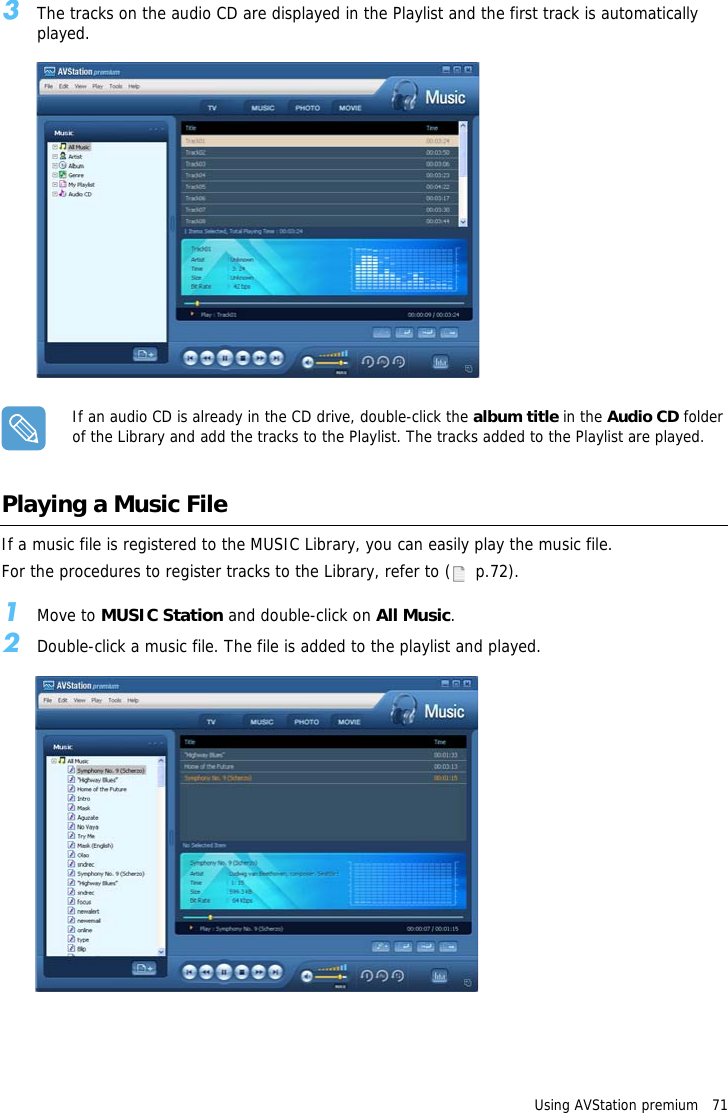
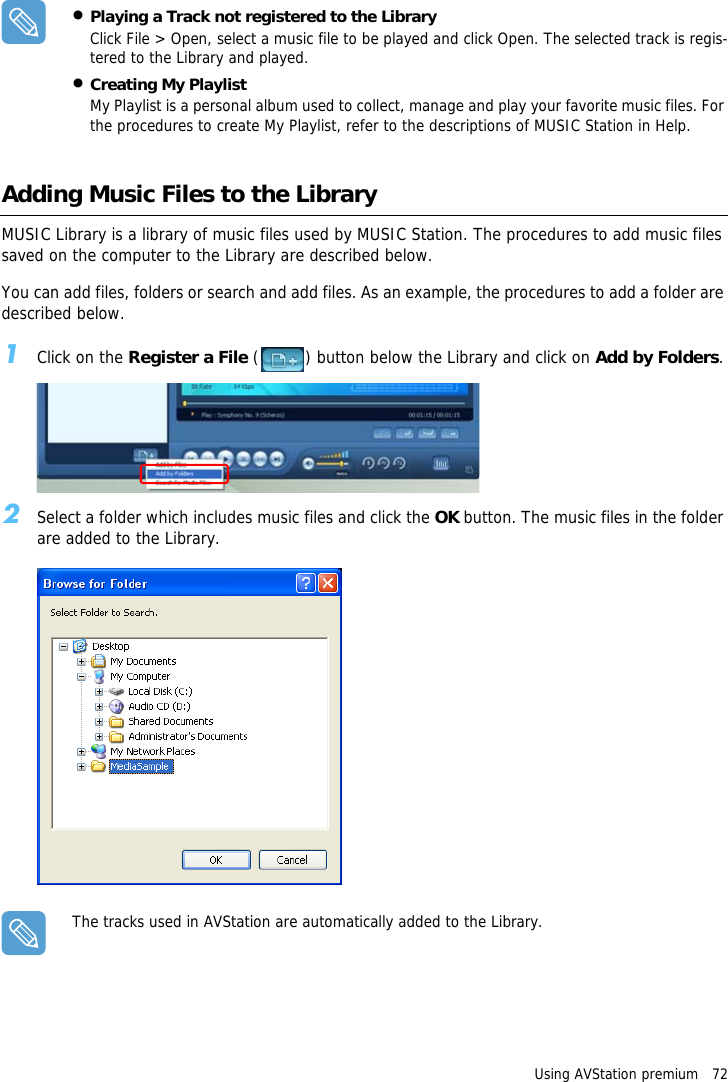
Using AVStation premium   713The tracks on the audio CD are displayed in the Playlist and the first track is automatically played.If an audio CD is already in the CD drive, double-click the album title in the Audio CD folder of the Library and add the tracks to the Playlist. The tracks added to the Playlist are played.Playing a Music FileIf a music file is registered to the MUSIC Library, you can easily play the music file.For the procedures to register tracks to the Library, refer to (   p.72).1Move to MUSIC Station and double-click on All Music.2Double-click a music file. The file is added to the playlist and played.
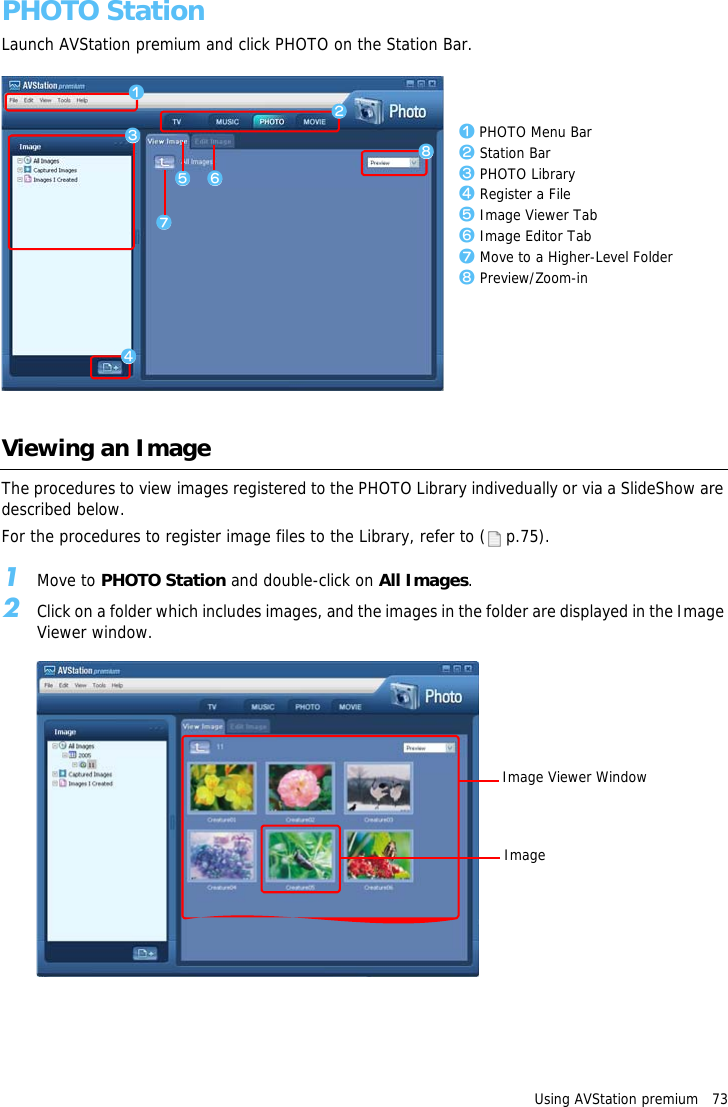
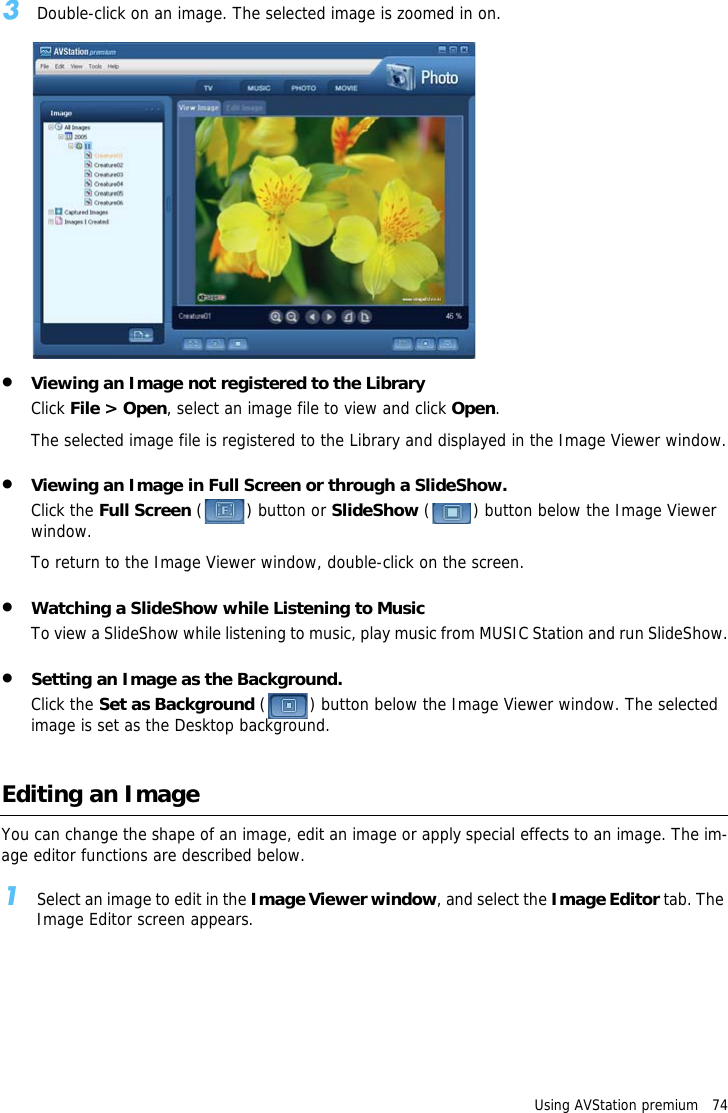
Using AVStation premium   72•Playing a Track not registered to the LibraryClick File > Open, select a music file to be played and click Open. The selected track is regis-tered to the Library and played.•Creating My PlaylistMy Playlist is a personal album used to collect, manage and play your favorite music files. For the procedures to create My Playlist, refer to the descriptions of MUSIC Station in Help.Adding Music Files to the LibraryMUSIC Library is a library of music files used by MUSIC Station. The procedures to add music files saved on the computer to the Library are described below.You can add files, folders or search and add files. As an example, the procedures to add a folder are described below.1Click on the Register a File ( ) button below the Library and click on Add by Folders.2Select a folder which includes music files and click the OK button. The music files in the folder are added to the Library.The tracks used in AVStation are automatically added to the Library.
Using AVStation premium   73PHOTO StationLaunch AVStation premium and click PHOTO on the Station Bar.Viewing an ImageThe procedures to view images registered to the PHOTO Library indivedually or via a SlideShow are described below.For the procedures to register image files to the Library, refer to (  p.75).1Move to PHOTO Station and double-click on All Images.2Click on a folder which includes images, and the images in the folder are displayed in the Image Viewer window.zxcbmvn,z PHOTO Menu Barx Station Barc PHOTO Libraryv Register a Fileb Image Viewer Tabn Image Editor Tabm Move to a Higher-Level Folder, Preview/Zoom-inImage Viewer WindowImage
Using AVStation premium   743Double-click on an image. The selected image is zoomed in on.•Viewing an Image not registered to the LibraryClick File > Open, select an image file to view and click Open.The selected image file is registered to the Library and displayed in the Image Viewer window.•Viewing an Image in Full Screen or through a SlideShow.Click the Full Screen () button or SlideShow ( ) button below the Image Viewer window.To return to the Image Viewer window, double-click on the screen.•Watching a SlideShow while Listening to MusicTo view a SlideShow while listening to music, play music from MUSIC Station and run SlideShow.•Setting an Image as the Background.Click the Set as Background ( ) button below the Image Viewer window. The selected image is set as the Desktop background.Editing an ImageYou can change the shape of an image, edit an image or apply special effects to an image. The im-age editor functions are described below.1Select an image to edit in the Image Viewer window, and select the Image Editor tab. The Image Editor screen appears.
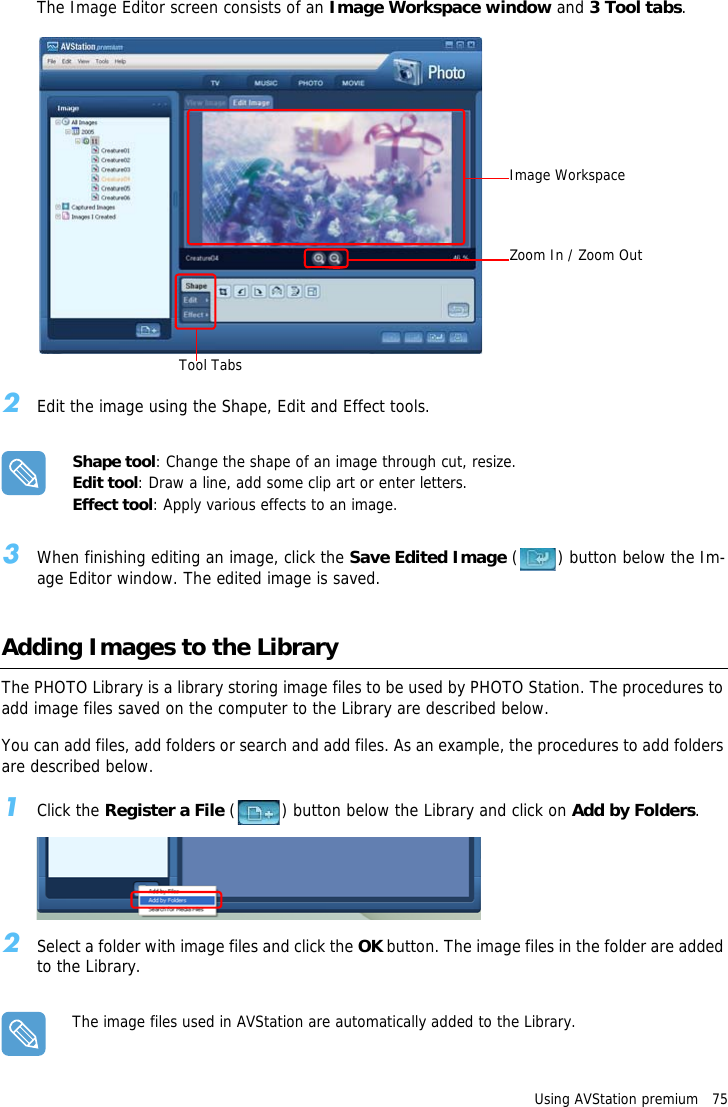
Using AVStation premium   75The Image Editor screen consists of an Image Workspace window and 3 Tool tabs.2Edit the image using the Shape, Edit and Effect tools.Shape tool: Change the shape of an image through cut, resize.Edit tool: Draw a line, add some clip art or enter letters.Effect tool: Apply various effects to an image.3When finishing editing an image, click the Save Edited Image ( ) button below the Im-age Editor window. The edited image is saved.Adding Images to the LibraryThe PHOTO Library is a library storing image files to be used by PHOTO Station. The procedures to add image files saved on the computer to the Library are described below.You can add files, add folders or search and add files. As an example, the procedures to add folders are described below.1Click the Register a File ( ) button below the Library and click on Add by Folders.2Select a folder with image files and click the OK button. The image files in the folder are added to the Library.The image files used in AVStation are automatically added to the Library.Image WorkspaceZoom In / Zoom OutTool Tabs
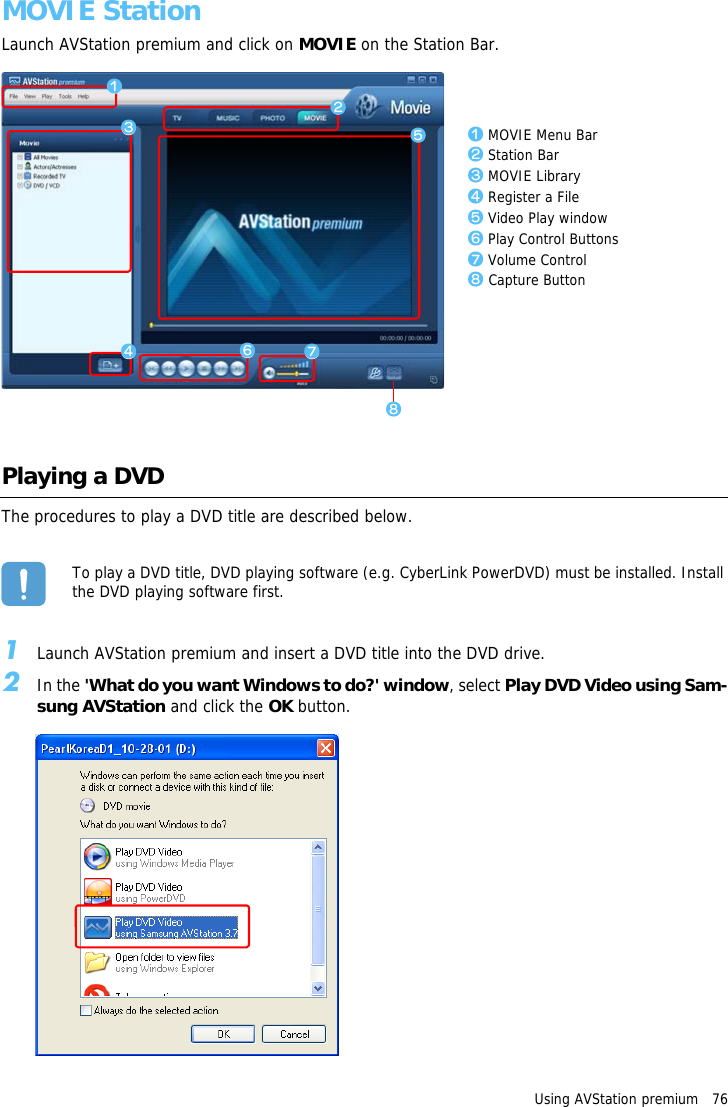
Using AVStation premium   76MOVIE StationLaunch AVStation premium and click on MOVIE on the Station Bar.Playing a DVDThe procedures to play a DVD title are described below.To play a DVD title, DVD playing software (e.g. CyberLink PowerDVD) must be installed. Install the DVD playing software first.1Launch AVStation premium and insert a DVD title into the DVD drive.2In the 'What do you want Windows to do?' window, select Play DVD Video using Sam-sung AVStation and click the OK button.z MOVIE Menu Barx Station Barc MOVIE Libraryv Register a Fileb Video Play windown Play Control Buttonsm Volume Control, Capture Buttonzxcbmv n,
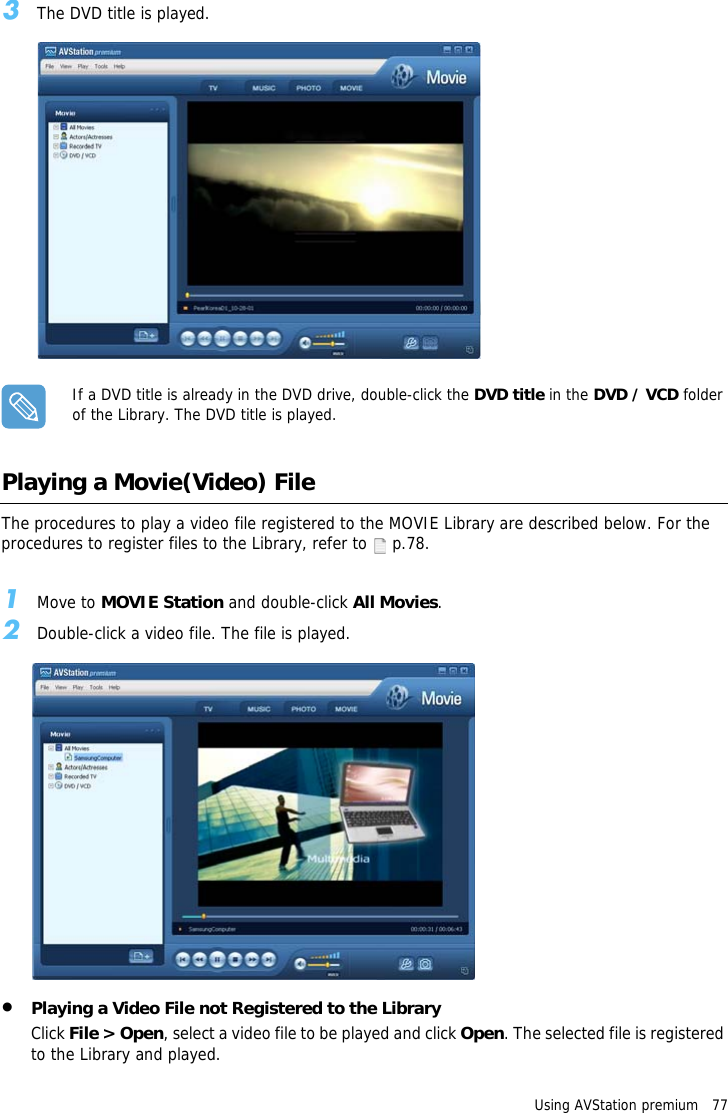
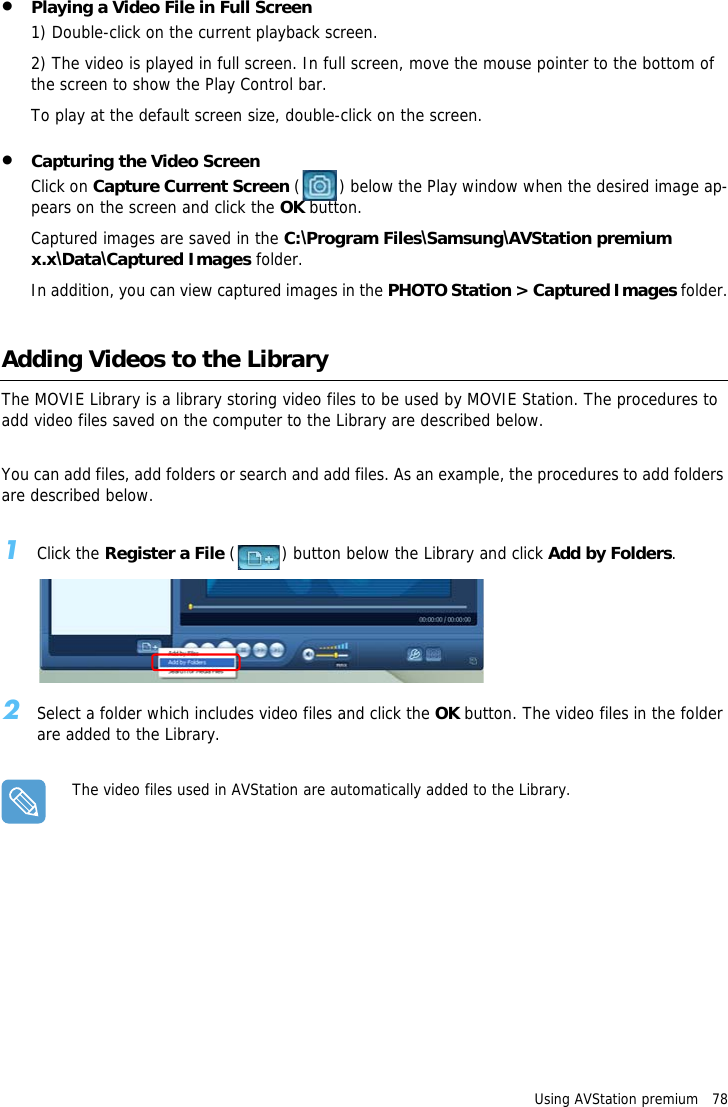
Using AVStation premium   773The DVD title is played.If a DVD title is already in the DVD drive, double-click the DVD title in the DVD / VCD folder of the Library. The DVD title is played. Playing a Movie(Video) FileThe procedures to play a video file registered to the MOVIE Library are described below. For the procedures to register files to the Library, refer to   p.78.1Move to MOVIE Station and double-click All Movies.2Double-click a video file. The file is played.•Playing a Video File not Registered to the LibraryClick File > Open, select a video file to be played and click Open. The selected file is registered to the Library and played.
Using AVStation premium   78•Playing a Video File in Full Screen1) Double-click on the current playback screen. 2) The video is played in full screen. In full screen, move the mouse pointer to the bottom of the screen to show the Play Control bar.To play at the default screen size, double-click on the screen.•Capturing the Video ScreenClick on Capture Current Screen ( ) below the Play window when the desired image ap-pears on the screen and click the OK button.Captured images are saved in the C:\Program Files\Samsung\AVStation premium x.x\Data\Captured Images folder.In addition, you can view captured images in the PHOTO Station > Captured Images folder.Adding Videos to the LibraryThe MOVIE Library is a library storing video files to be used by MOVIE Station. The procedures to add video files saved on the computer to the Library are described below.You can add files, add folders or search and add files. As an example, the procedures to add folders are described below.1Click the Register a File ( ) button below the Library and click Add by Folders.2Select a folder which includes video files and click the OK button. The video files in the folder are added to the Library.The video files used in AVStation are automatically added to the Library.
Using AVStation NOW / AVStation Viewer   79Using AVStation NOW / AVStation ViewerUsing these programs, you can play music, photographs, video and movies in full screen. You can enjoy multimedia files using AVStation NOW when the computer is off and using AVStation Viewer when the com-puter is on.Before Starting!•AVStation NOW and AVStation Viewer are optional and may not be provided depending on the model. •AVStation NOW RestrictionsYou can only use AVStation NOW when the computer is turned off.Using AVStation NOW, you can play files registered to the AVStation premium Library, saved to My Computer, and saved on the multi-card slot. (For the procedures to register files to the Library, refer to  p.72,  p.75 and  p.78.)If a login password for a Windows user account has been defined or if the folder is protected, you cannot play the files in the folder in AVStation NOW.•In AVStation NOW, the Auto Scaler function is not available.•AVStation Viewer RestrictionsUsing AVStation Viewer, you can only play files registered to the AVStation premium Library. (For the procedures to register files to the Library, refer to  p.72,  p.75 and  p.78.)•Since the screen layout and usage of the two programs are similar, the manual describes the functions and screens on the basis of AVStation NOW.•The screenshots figures may differ from actual ones depending on the program version.•TV Station is only available for systems supporting the TV function.Start / Exit AVStation NOW StartingTo turn the computer on, slide the Power switch/AVS NOW switch to the left ( ) and hold it for more than 0.1 seconds. If the HOLD switch on the left side of the computer is slid upwards all buttons of the computer are locked and do not function. If AVStation NOW is not launched, check the position of the HOLD switch.
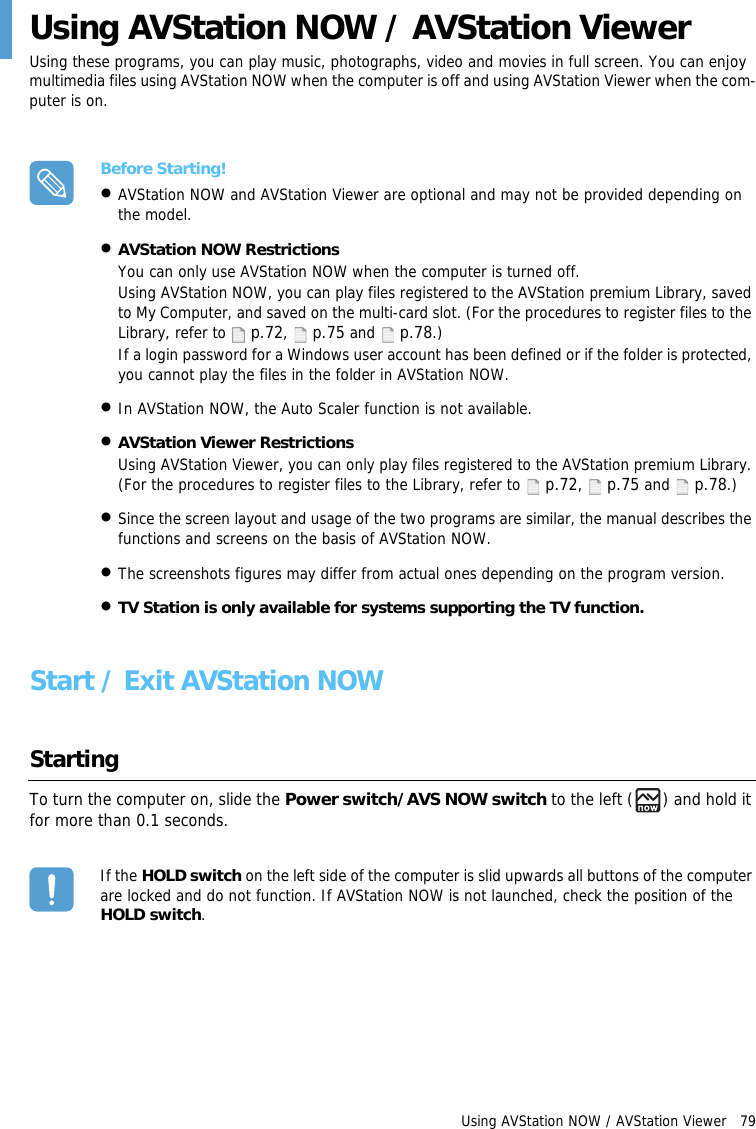
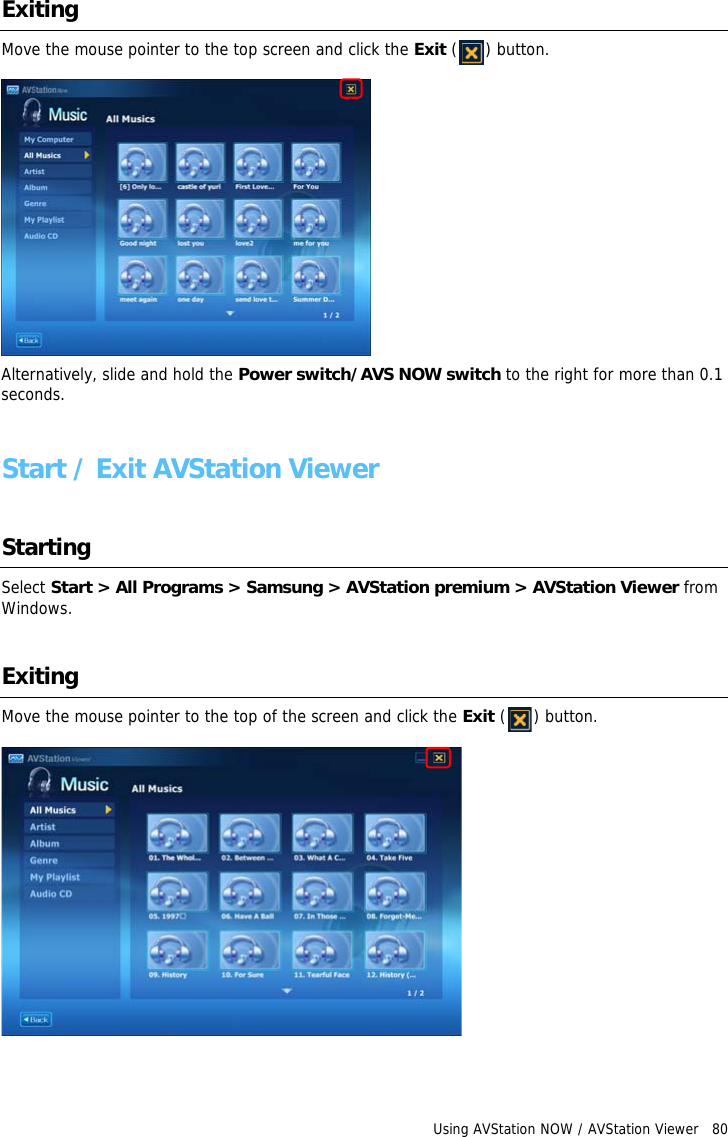
Using AVStation NOW / AVStation Viewer   80ExitingMove the mouse pointer to the top screen and click the Exit () button.Alternatively, slide and hold the Power switch/AVS NOW switch to the right for more than 0.1 seconds.Start / Exit AVStation ViewerStartingSelect Start > All Programs > Samsung > AVStation premium > AVStation Viewer from Windows.ExitingMove the mouse pointer to the top of the screen and click the Exit () button.
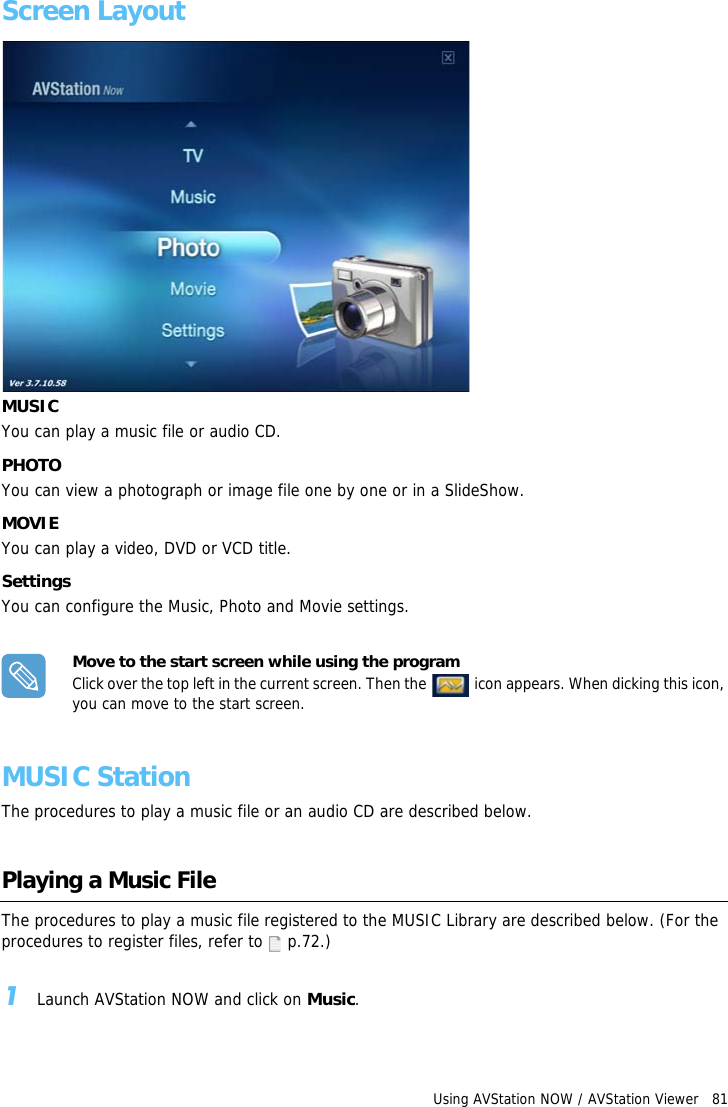
Using AVStation NOW / AVStation Viewer   81Screen LayoutMUSICYou can play a music file or audio CD.PHOTOYou can view a photograph or image file one by one or in a SlideShow.MOVIEYou can play a video, DVD or VCD title.SettingsYou can configure the Music, Photo and Movie settings.Move to the start screen while using the programClick over the top left in the current screen. Then the   icon appears. When dicking this icon, you can move to the start screen.MUSIC StationThe procedures to play a music file or an audio CD are described below.Playing a Music FileThe procedures to play a music file registered to the MUSIC Library are described below. (For the procedures to register files, refer to  p.72.)1Launch AVStation NOW and click on Music.
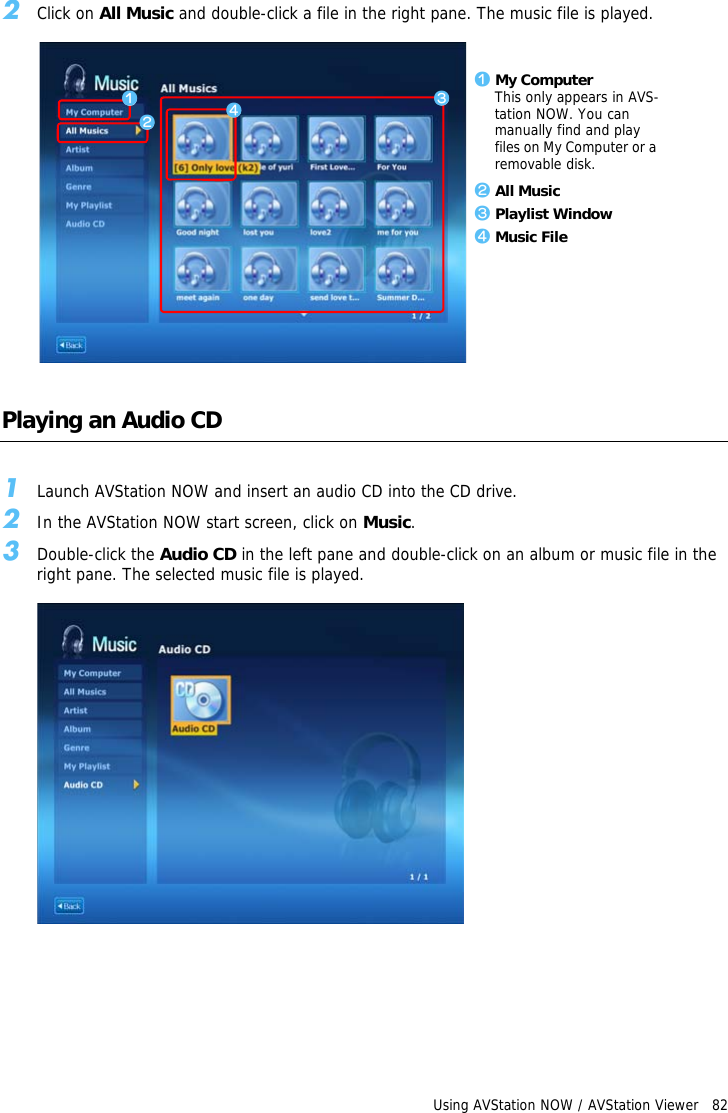
Using AVStation NOW / AVStation Viewer   822Click on All Music and double-click a file in the right pane. The music file is played.Playing an Audio CD1Launch AVStation NOW and insert an audio CD into the CD drive.2In the AVStation NOW start screen, click on Music.3Double-click the Audio CD in the left pane and double-click on an album or music file in the right pane. The selected music file is played.z My ComputerThis only appears in AVS-tation NOW. You can manually find and play files on My Computer or a removable disk.x All Musicc Playlist Windowv Music Filezxcv
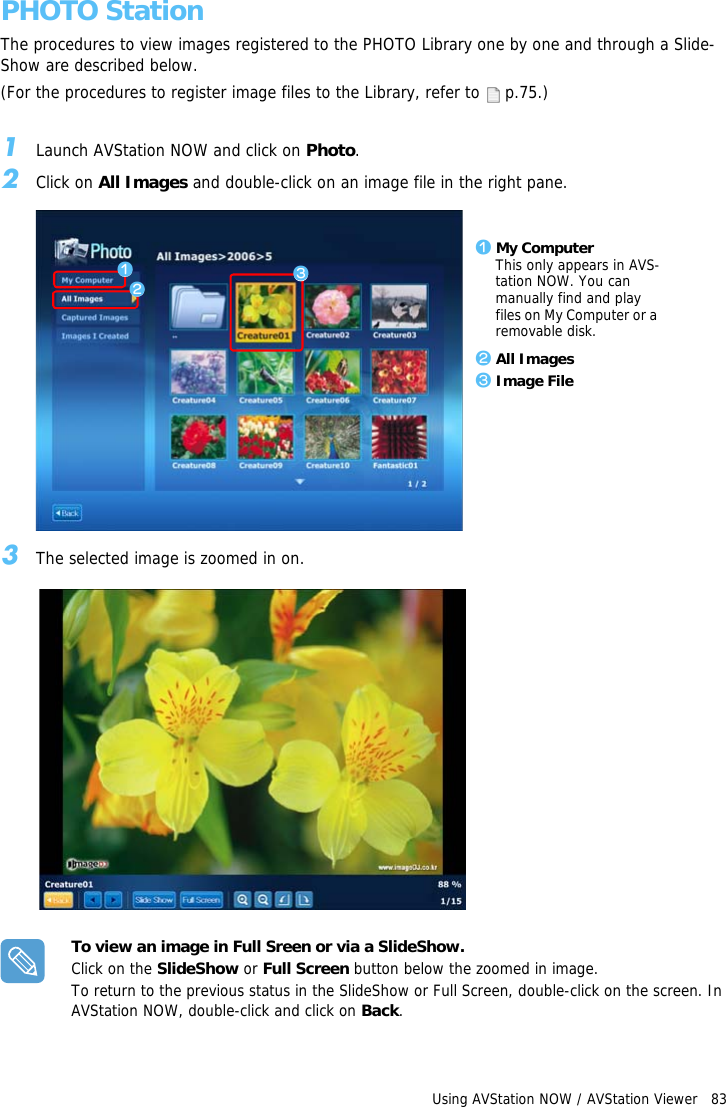
Using AVStation NOW / AVStation Viewer   83PHOTO StationThe procedures to view images registered to the PHOTO Library one by one and through a Slide-Show are described below.(For the procedures to register image files to the Library, refer to   p.75.)1Launch AVStation NOW and click on Photo.2Click on All Images and double-click on an image file in the right pane.3The selected image is zoomed in on.To view an image in Full Sreen or via a SlideShow.Click on the SlideShow or Full Screen button below the zoomed in image.To return to the previous status in the SlideShow or Full Screen, double-click on the screen. In AVStation NOW, double-click and click on Back.z My ComputerThis only appears in AVS-tation NOW. You can manually find and play files on My Computer or a removable disk.x All Imagesc Image Filezxc
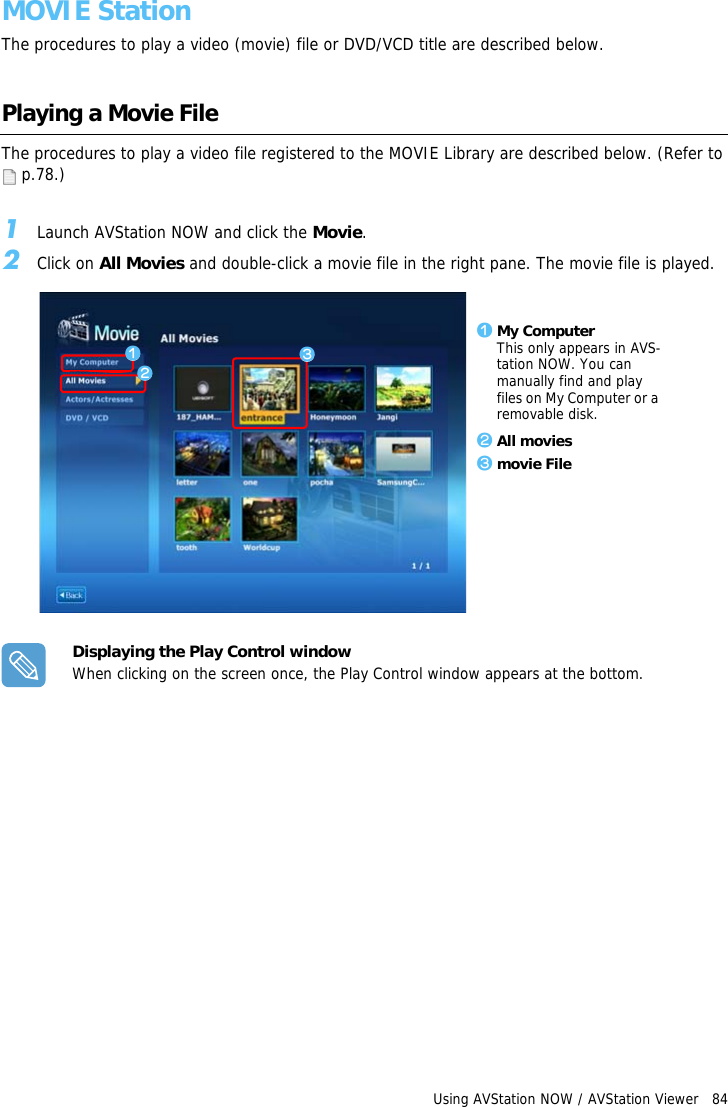
Using AVStation NOW / AVStation Viewer   84MOVIE StationThe procedures to play a video (movie) file or DVD/VCD title are described below.Playing a Movie FileThe procedures to play a video file registered to the MOVIE Library are described below. (Refer to  p.78.)1Launch AVStation NOW and click the Movie.2Click on All Movies and double-click a movie file in the right pane. The movie file is played.Displaying the Play Control windowWhen clicking on the screen once, the Play Control window appears at the bottom.z My ComputerThis only appears in AVS-tation NOW. You can manually find and play files on My Computer or a removable disk.x All moviesc movie Filezxc
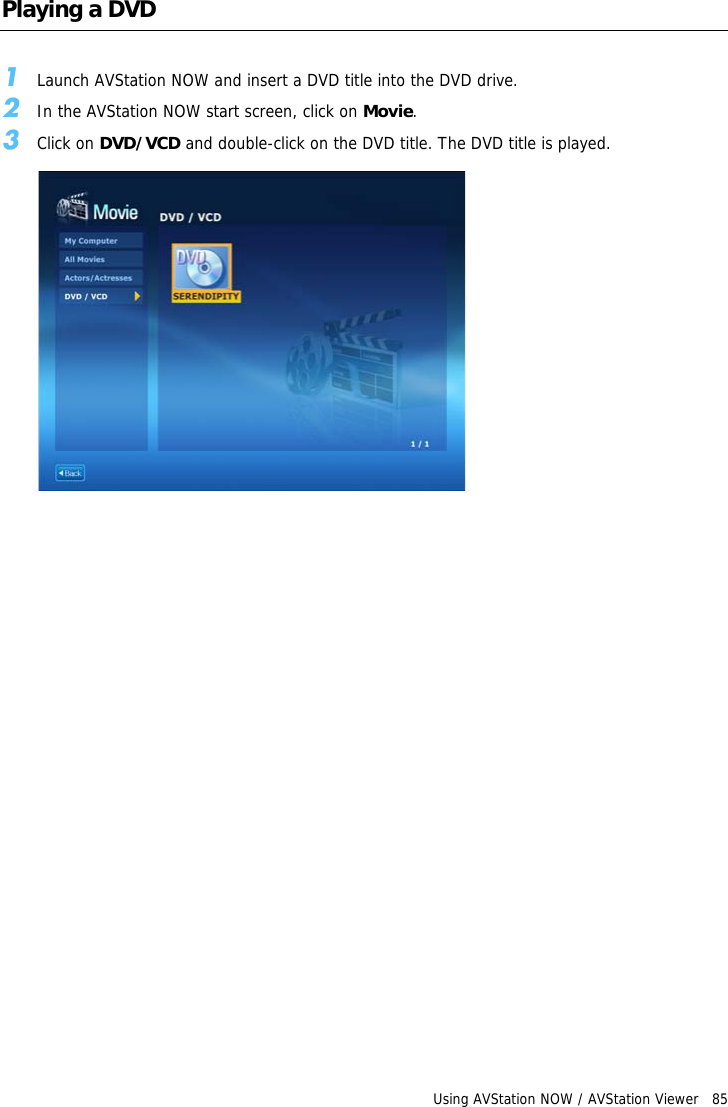
Using AVStation NOW / AVStation Viewer   85Playing a DVD1Launch AVStation NOW and insert a DVD title into the DVD drive.2In the AVStation NOW start screen, click on Movie.3Click on DVD/VCD and double-click on the DVD title. The DVD title is played.
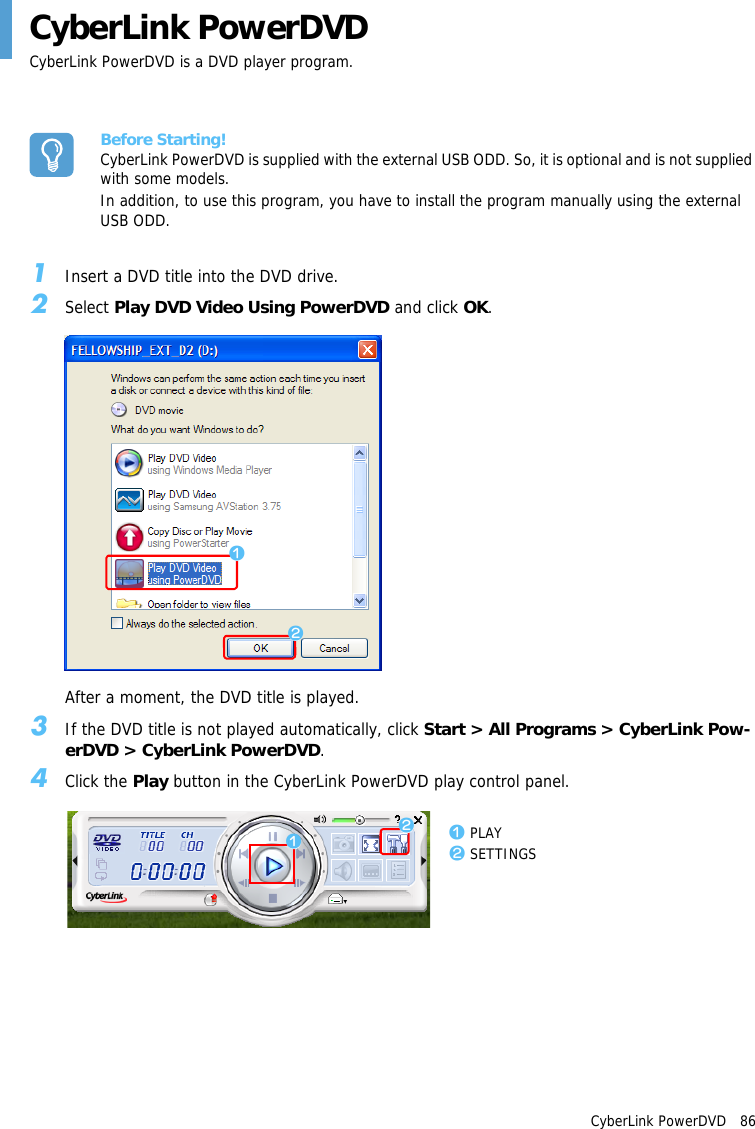
CyberLink PowerDVD   86CyberLink PowerDVDCyberLink PowerDVD is a DVD player program.Before Starting!CyberLink PowerDVD is supplied with the external USB ODD. So, it is optional and is not supplied with some models.In addition, to use this program, you have to install the program manually using the external USB ODD.1Insert a DVD title into the DVD drive.2Select Play DVD Video Using PowerDVD and click OK.After a moment, the DVD title is played.3If the DVD title is not played automatically, click Start > All Programs > CyberLink Pow-erDVD > CyberLink PowerDVD.4Click the Play button in the CyberLink PowerDVD play control panel.zxzxz PLAYx SETTINGS
CyberLink PowerDVD   87For more detailed usageFor more detailed usage, click Start > All Programs > CyberLink PowerDVD > PowerDVD Help.DVD Region CodeA DVD title has a region code according to the international specifications so that it can be played only in that specific region. DVD titles with a region code will only play on DVD drives with the same region code.A DVD drive is sold with an empty region code and the region code is set when the user inserts a DVD title into the drive for the first time. Whenever a DVD title is inserted with a region code that is different from that of the DVD drive, the region code of the DVD drive is automatically changed to the region code of the DVD title. However, changing the region code of a DVD drive is limited to 5 changes. After that, the region code is permanently fixed to the last region code.
Chapter 6.  SettingsUsing System Setup  89Starting System Setup  89The System Setup Screen  90Setting a Booting Password  92Changing the Booting Priority  95Using the Battery  96Removing and Attaching a Battery  96Charging the Battery  97Monitoring the Battery Charge  97Extending the Battery Usage Time  99
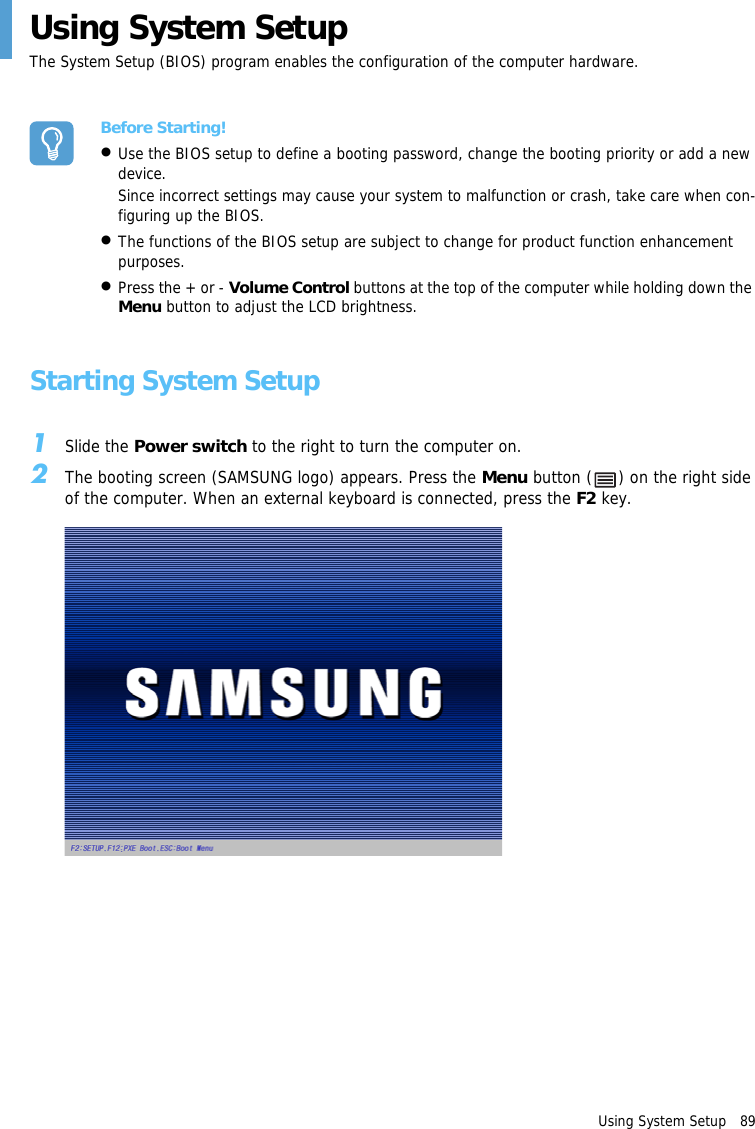
Using System Setup   89Using System SetupThe System Setup (BIOS) program enables the configuration of the computer hardware.Before Starting!•Use the BIOS setup to define a booting password, change the booting priority or add a new device.Since incorrect settings may cause your system to malfunction or crash, take care when con-figuring up the BIOS.•The functions of the BIOS setup are subject to change for product function enhancement purposes.•Press the + or - Volume Control buttons at the top of the computer while holding down the Menu button to adjust the LCD brightness.Starting System Setup1Slide the Power switch to the right to turn the computer on.2The booting screen (SAMSUNG logo) appears. Press the Menu button ( ) on the right side of the computer. When an external keyboard is connected, press the F2 key.
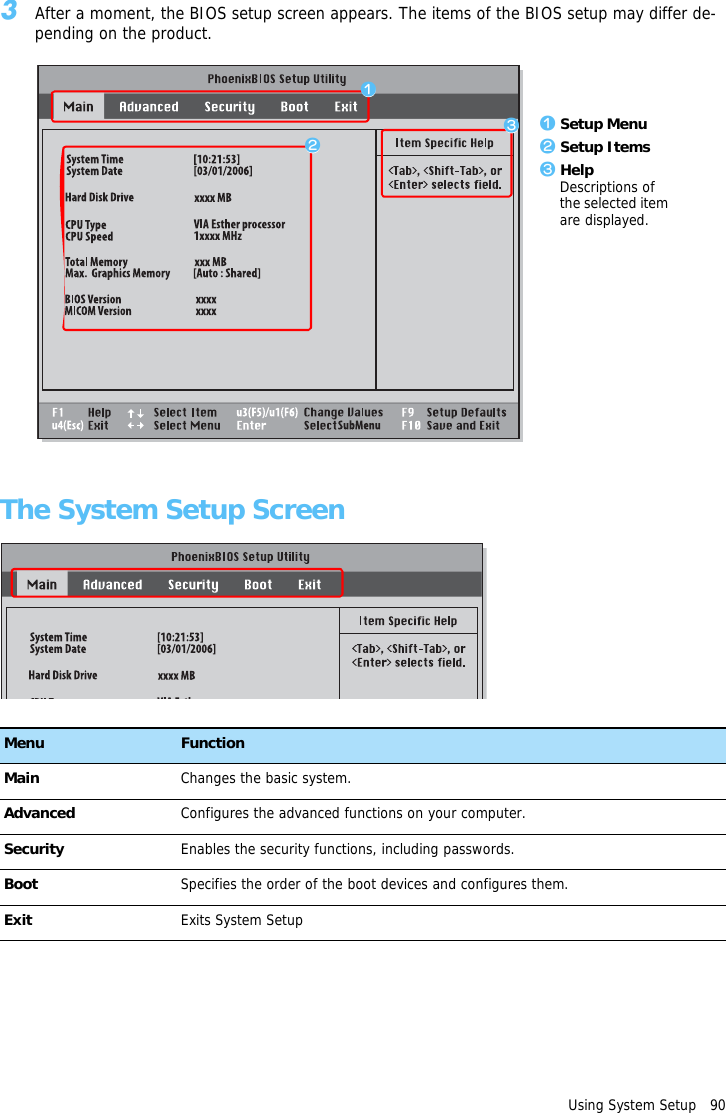
Using System Setup   903After a moment, the BIOS setup screen appears. The items of the BIOS setup may differ de-pending on the product.The System Setup ScreenMenu FunctionMain Changes the basic system.Advanced Configures the advanced functions on your computer.Security Enables the security functions, including passwords.Boot Specifies the order of the boot devices and configures them.Exit Exits System Setupz Setup Menux Setup Itemsc HelpDescriptions of the selected item are displayed.zxc
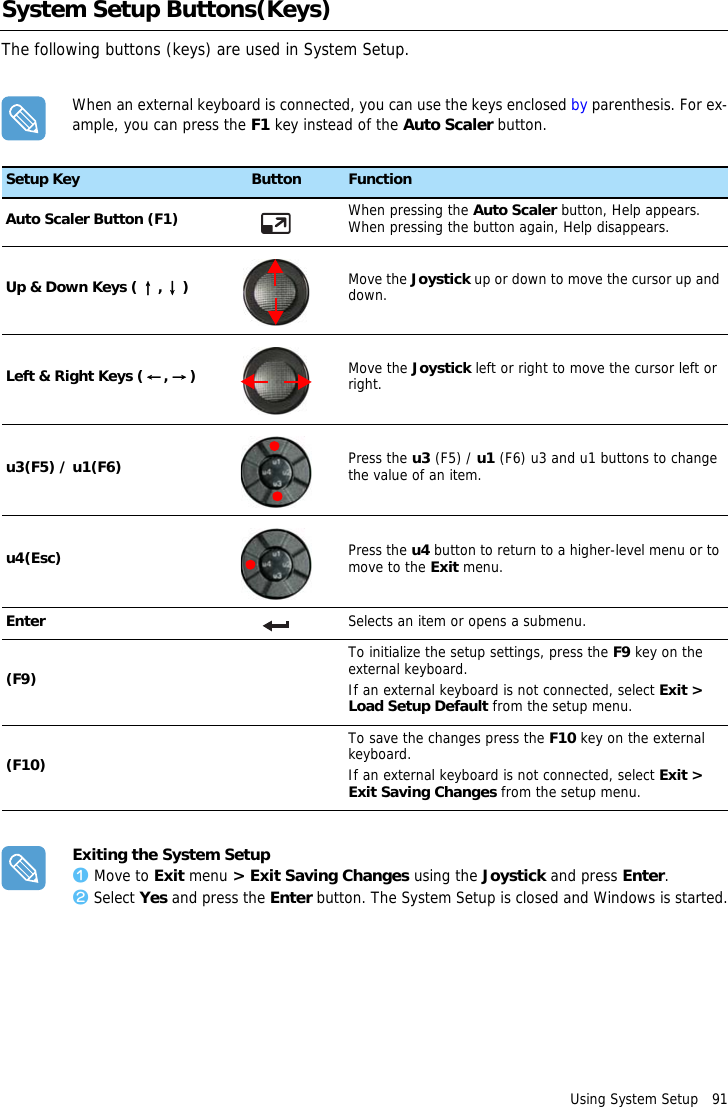
Using System Setup   91System Setup Buttons(Keys)The following buttons (keys) are used in System Setup.When an external keyboard is connected, you can use the keys enclosed by parenthesis. For ex-ample, you can press the F1 key instead of the Auto Scaler button.Exiting the System Setupz Move to Exit menu > Exit Saving Changes using the Joystick and press Enter.x Select Yes and press the Enter button. The System Setup is closed and Windows is started.Setup Key Button FunctionAuto Scaler Button (F1) When pressing the Auto Scaler button, Help appears. When pressing the button again, Help disappears.Up & Down Keys (↑,↓)Move the Joystick up or down to move the cursor up and down.Left & Right Keys (←, →)Move the Joystick left or right to move the cursor left or right.u3(F5) / u1(F6) Press the u3 (F5) / u1 (F6) u3 and u1 buttons to change the value of an item.u4(Esc) Press the u4 button to return to a higher-level menu or to move to the Exit menu.Enter Selects an item or opens a submenu.(F9)To initialize the setup settings, press the F9 key on the external keyboard.If an external keyboard is not connected, select Exit > Load Setup Default from the setup menu.(F10)To save the changes press the F10 key on the external keyboard.If an external keyboard is not connected, select Exit > Exit Saving Changes from the setup menu.
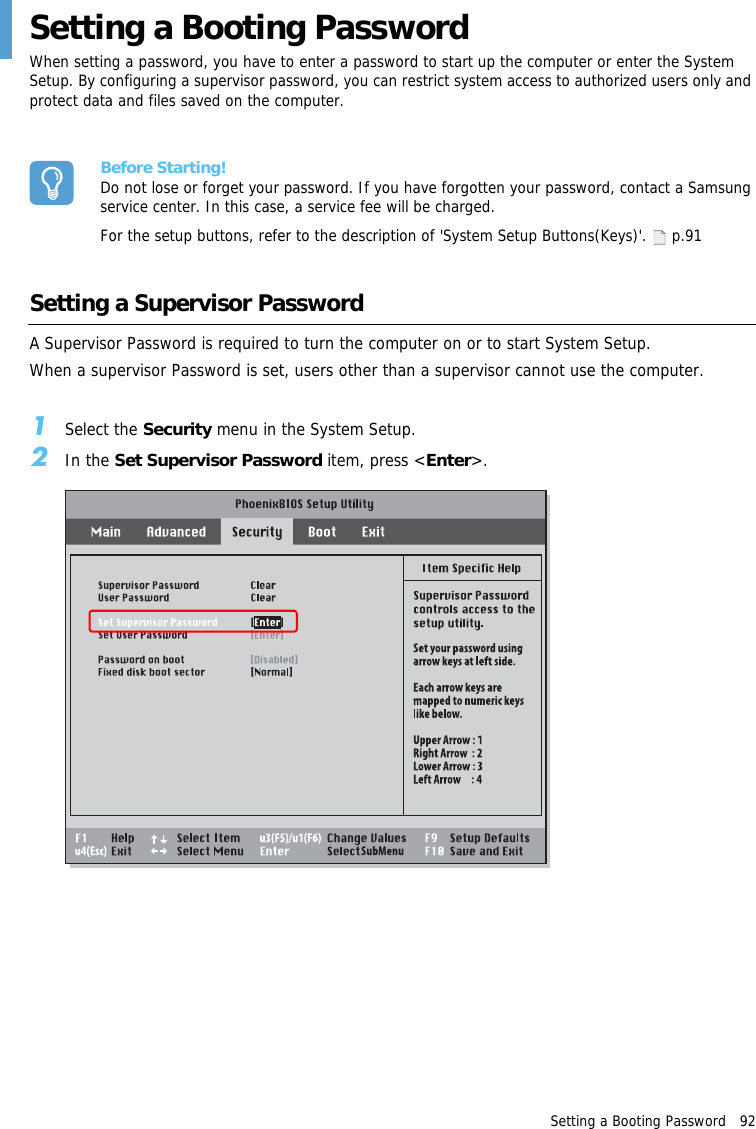
Setting a Booting Password   92Setting a Booting PasswordWhen setting a password, you have to enter a password to start up the computer or enter the System Setup. By configuring a supervisor password, you can restrict system access to authorized users only and protect data and files saved on the computer.Before Starting!Do not lose or forget your password. If you have forgotten your password, contact a Samsung service center. In this case, a service fee will be charged.For the setup buttons, refer to the description of 'System Setup Buttons(Keys)'.   p.91Setting a Supervisor PasswordA Supervisor Password is required to turn the computer on or to start System Setup.When a supervisor Password is set, users other than a supervisor cannot use the computer.1Select the Security menu in the System Setup.2In the Set Supervisor Password item, press <Enter>.
Setting a Booting Password   933On the screen, the password setting buttons are described.You can set a password by entering numbers between 1 and 4 with the Joystick.Since the u2 button is used as the Delete (BackSpace) function and the u4 button is used as the Cancel (Esc) function, enter the password using the Joystick.Enter a password, press <Enter>, re-enter the password for confirmation, and press <Enter> again.4When a message confirming the password configuration appears in the [Setup Notice] win-dow, press <Enter>.The supervisor password has been set. The supervisor password is required to turn the com-puter on or to enter System Setup.Setting a User PasswordUsers can start the system with their user password, but cannot enter the System Setup.Before configuring a user password, a supervisor password must have been configured. Deactivating the supervisor password also deactivates the user password.However, please note that deactivating a user password does not deactivate the supervisor pass-word.In the Set User Password item, press <Enter> and complete the procedures of Step 3 for Setting a Supervisor Password.Activating the Booting PasswordBefore activating the booting password, a supervisor password must be configured.Set the Password on boot option to Enabled. From now on, system booting will not proceed with-out the password.Up: 1Right: 2Next: 3Left: 4
Setting a Booting Password   94Deactivating the Password1On the password to be deactivated, press <Enter>. For example, to deactivate a supervisor password in the Set Supervisor Password item, press<Enter>.2In the Enter Current Password item, enter the currently configured password and press <Enter>.3Leave the Enter New Password item field empty, and press <Enter>.4Leave the Confirm New Password field empty, and press <Enter>.5In the [Setup Notice] window, press <Enter>.The password is deactivated.
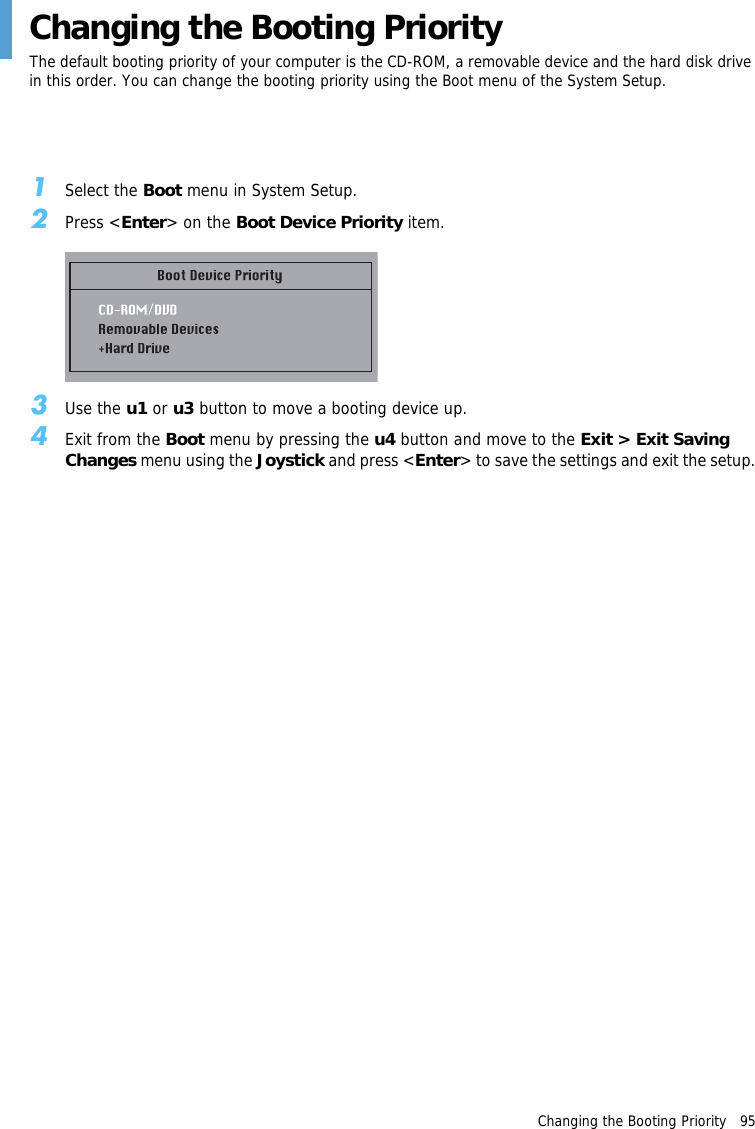
Changing the Booting Priority   95Changing the Booting PriorityThe default booting priority of your computer is the CD-ROM, a removable device and the hard disk drive in this order. You can change the booting priority using the Boot menu of the System Setup.1Select the Boot menu in System Setup.2Press <Enter> on the Boot Device Priority item.3Use the u1 or u3 button to move a booting device up.4Exit from the Boot menu by pressing the u4 button and move to the Exit > Exit Saving Changes menu using the Joystick and press <Enter> to save the settings and exit the setup.
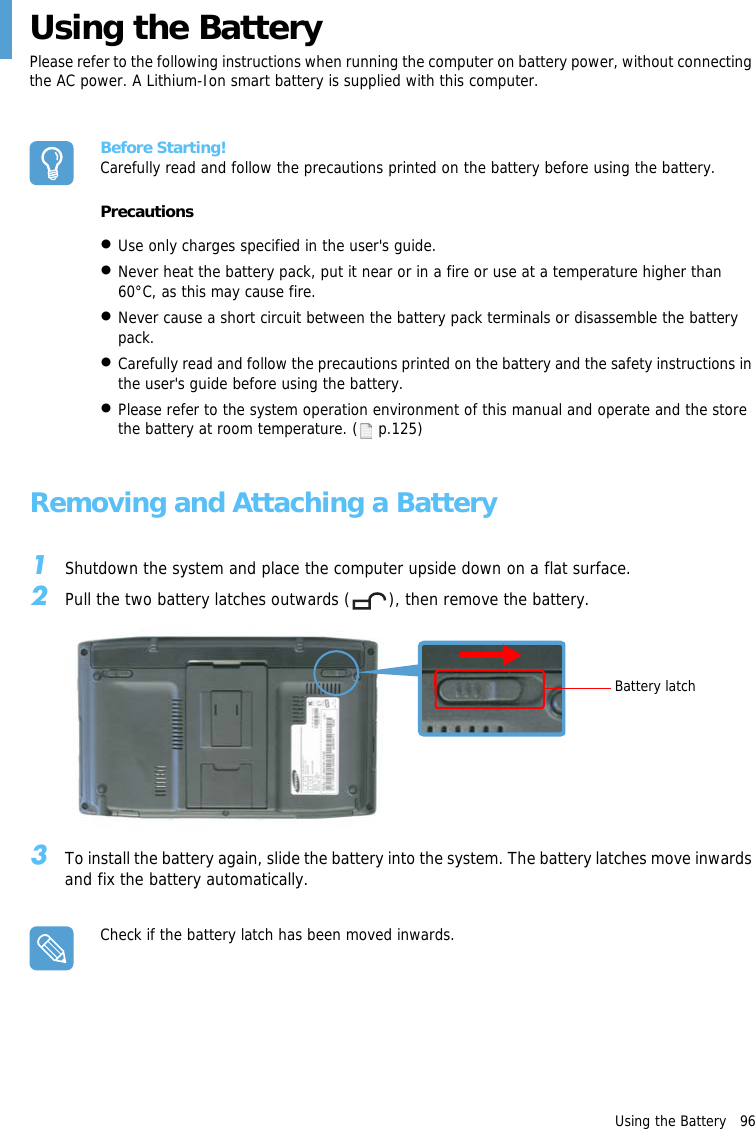
Using the Battery   96Using the BatteryPlease refer to the following instructions when running the computer on battery power, without connecting the AC power. A Lithium-Ion smart battery is supplied with this computer.Before Starting!Carefully read and follow the precautions printed on the battery before using the battery.Precautions•Use only charges specified in the user's guide.•Never heat the battery pack, put it near or in a fire or use at a temperature higher than 60°C, as this may cause fire. •Never cause a short circuit between the battery pack terminals or disassemble the battery pack.•Carefully read and follow the precautions printed on the battery and the safety instructions in the user's guide before using the battery. •Please refer to the system operation environment of this manual and operate and the store the battery at room temperature. (  p.125)Removing and Attaching a Battery1Shutdown the system and place the computer upside down on a flat surface.2Pull the two battery latches outwards ( ), then remove the battery.3To install the battery again, slide the battery into the system. The battery latches move inwards and fix the battery automatically.Check if the battery latch has been moved inwards.Battery latch
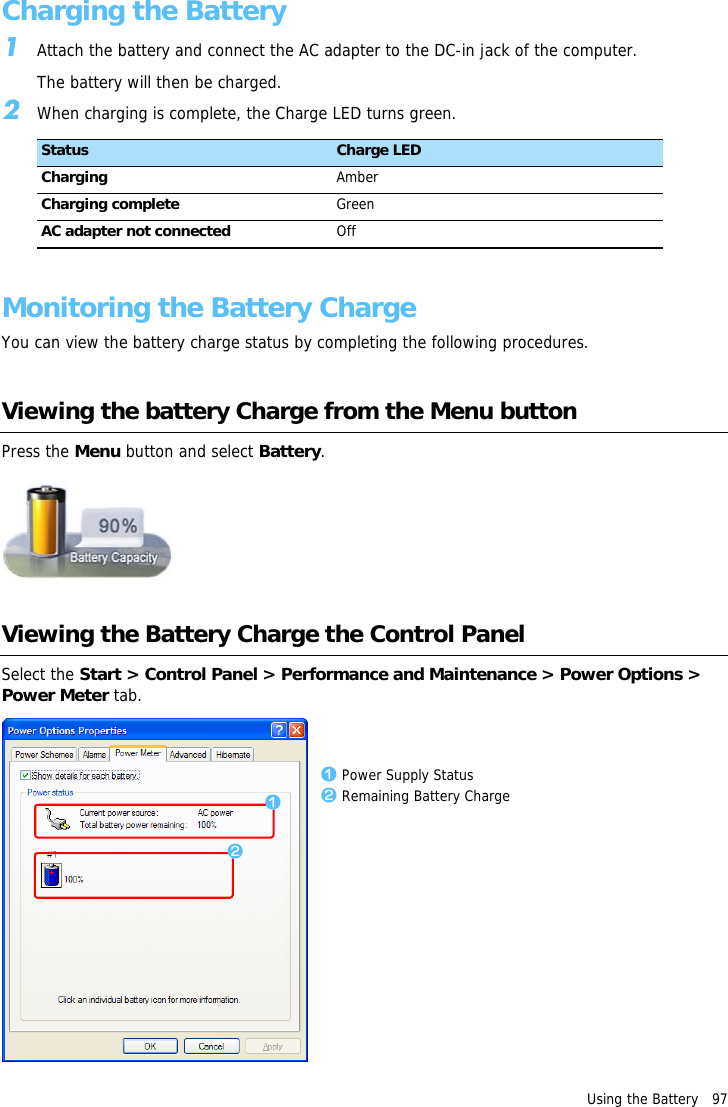
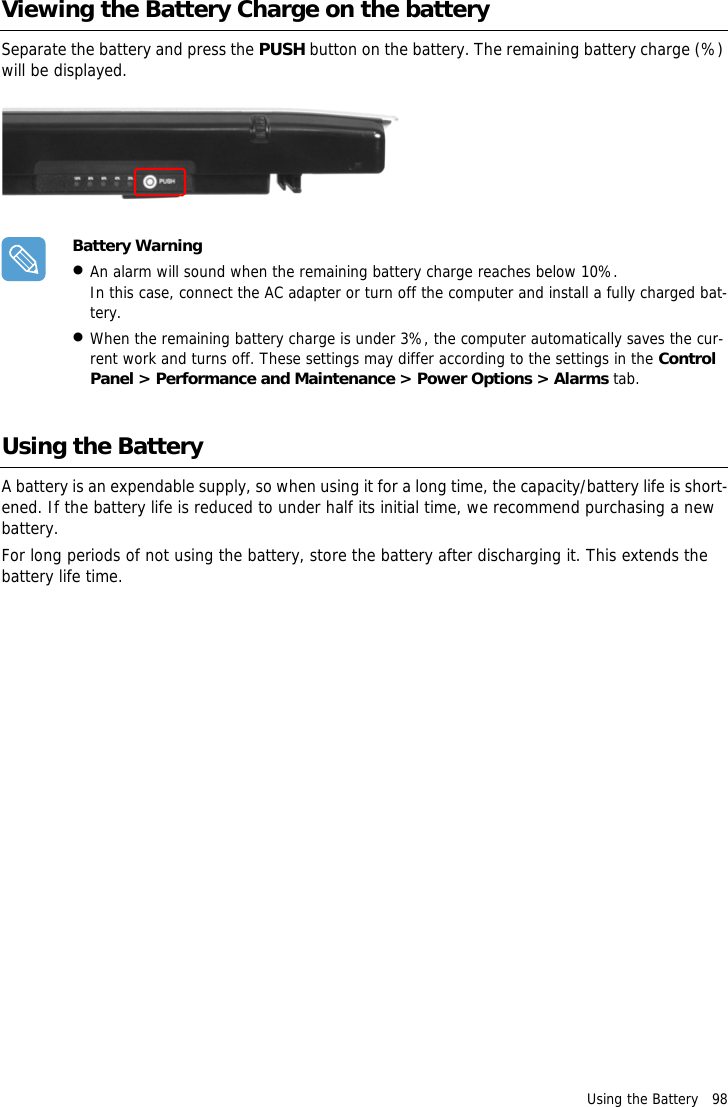
Using the Battery   97Charging the Battery1Attach the battery and connect the AC adapter to the DC-in jack of the computer.The battery will then be charged.2When charging is complete, the Charge LED turns green.Monitoring the Battery ChargeYou can view the battery charge status by completing the following procedures.Viewing the battery Charge from the Menu buttonPress the Menu button and select Battery.Viewing the Battery Charge the Control PanelSelect the Start > Control Panel > Performance and Maintenance > Power Options > Power Meter tab.Status Charge LEDCharging AmberCharging complete GreenAC adapter not connected Offzxz Power Supply Statusx Remaining Battery Charge
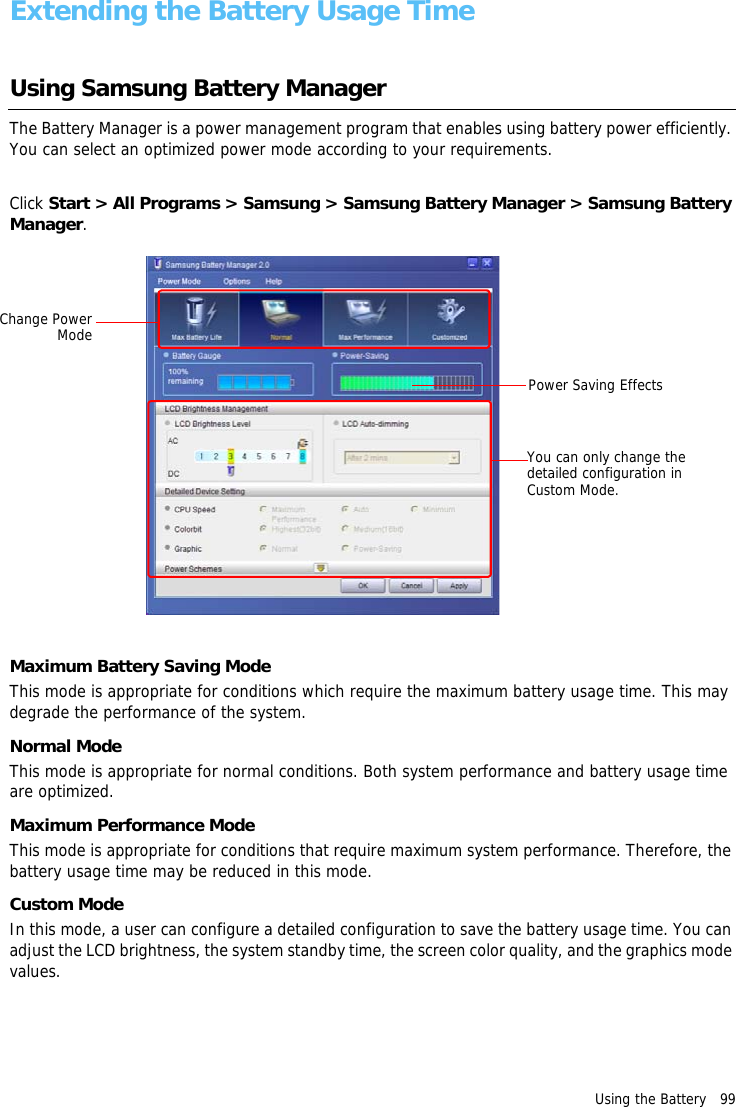
Using the Battery   98Viewing the Battery Charge on the batterySeparate the battery and press the PUSH button on the battery. The remaining battery charge (%) will be displayed.Battery Warning•An alarm will sound when the remaining battery charge reaches below 10%.In this case, connect the AC adapter or turn off the computer and install a fully charged bat-tery.•When the remaining battery charge is under 3%, the computer automatically saves the cur-rent work and turns off. These settings may differ according to the settings in the Control Panel > Performance and Maintenance > Power Options > Alarms tab.Using the BatteryA battery is an expendable supply, so when using it for a long time, the capacity/battery life is short-ened. If the battery life is reduced to under half its initial time, we recommend purchasing a new battery.For long periods of not using the battery, store the battery after discharging it. This extends the battery life time.
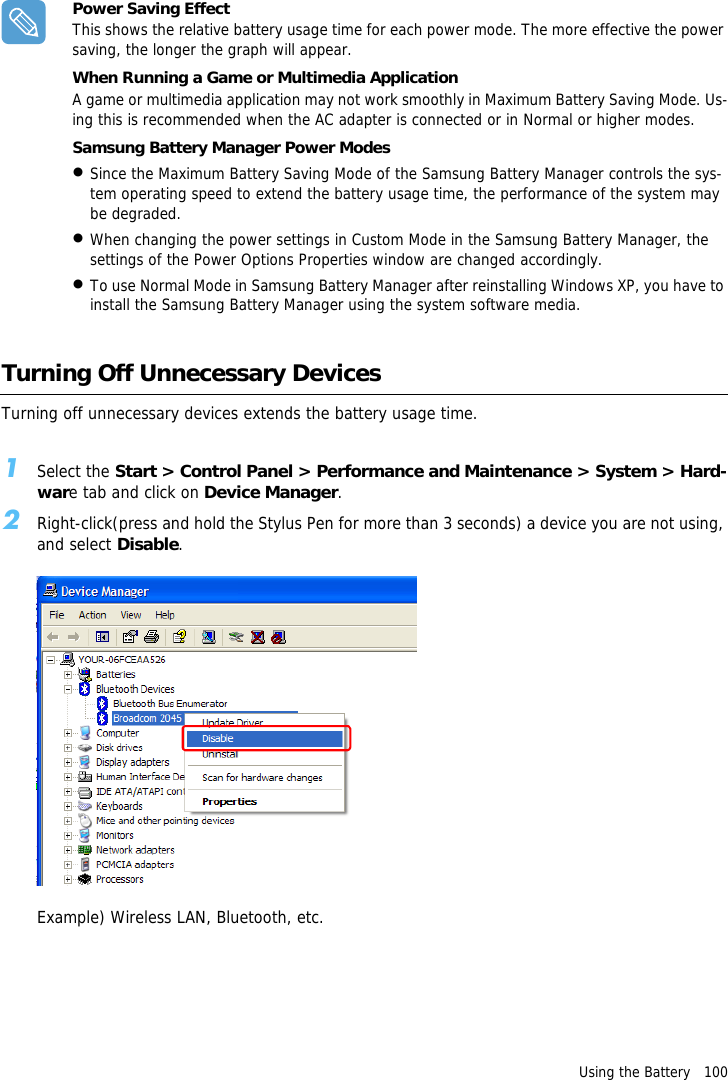
Using the Battery   99Extending the Battery Usage TimeUsing Samsung Battery Manager The Battery Manager is a power management program that enables using battery power efficiently. You can select an optimized power mode according to your requirements.Click Start > All Programs > Samsung > Samsung Battery Manager > Samsung Battery Manager.Maximum Battery Saving ModeThis mode is appropriate for conditions which require the maximum battery usage time. This may degrade the performance of the system.Normal ModeThis mode is appropriate for normal conditions. Both system performance and battery usage time are optimized.Maximum Performance ModeThis mode is appropriate for conditions that require maximum system performance. Therefore, the battery usage time may be reduced in this mode.Custom ModeIn this mode, a user can configure a detailed configuration to save the battery usage time. You can adjust the LCD brightness, the system standby time, the screen color quality, and the graphics mode values.Change PowerModeYou can only change the detailed configuration in Custom Mode.Power Saving Effects
Using the Battery   100Power Saving EffectThis shows the relative battery usage time for each power mode. The more effective the power saving, the longer the graph will appear.When Running a Game or Multimedia ApplicationA game or multimedia application may not work smoothly in Maximum Battery Saving Mode. Us-ing this is recommended when the AC adapter is connected or in Normal or higher modes.Samsung Battery Manager Power Modes •Since the Maximum Battery Saving Mode of the Samsung Battery Manager controls the sys-tem operating speed to extend the battery usage time, the performance of the system may be degraded.•When changing the power settings in Custom Mode in the Samsung Battery Manager, the settings of the Power Options Properties window are changed accordingly.•To use Normal Mode in Samsung Battery Manager after reinstalling Windows XP, you have to install the Samsung Battery Manager using the system software media. Turning Off Unnecessary DevicesTurning off unnecessary devices extends the battery usage time.1Select the Start > Control Panel > Performance and Maintenance > System > Hard-ware tab and click on Device Manager.2Right-click(press and hold the Stylus Pen for more than 3 seconds) a device you are not using, and select Disable.Example) Wireless LAN, Bluetooth, etc.
Using the Battery   101Battery CalibrationWhen charging/discharging the battery repeatedly for only a short time, the battery usage time may be reduced by the difference between the actual battery charge and the remaining charge display. In this case, the actual battery charge and the remaining charge display will be the same by dis-charging the battery completely using the Battery Calibration function, and then recharging it again.1Disconnect the AC power adapter after turning off the system.2Restart your computer and press the Menu button when the SAMSUNG logo appears, to start System Setup.3Using the arrow keys, select Smart Battery Calibration in the Boot menu and press Enter.4Highlight Yes in the [Battery Calibration Confirmation] window and press Enter.The Battery Calibration function is activated and the battery is discharged by force. To stop the operation press the u4 (Esc) button.This operation requires 3~5 hours depending on the battery capacity and the remaining battery charge.
Chapter 7.  Troubleshooting / AppendixUsing Magic Doctor  103Using Norton AntiVirus  104Restoring the System  105Creating a Restore Point  105Returning your computer to an earlier restore point  106Undoing the last restoration  107Reinstalling Software  108Running the system software Media  108Installing drivers and programs  109Reinstalling Windows XP  110Running the System Recovery Media  110Quick Installation  111Standard Installation  112Installing Windows When Windows Fails  113Questions and Answers  114Windows Related  114Display Related  114Sound Related  116Wireless LAN Related  117Games and Programs Related  120Bluetooth 121Security Center  122Other 124Specifications 125Glossary 127Index 130Important Safety Information  131Regulatory Compliance Statements  132WEEE Symbol Information  138Contact SAMSUNG WORLD WIDE  139
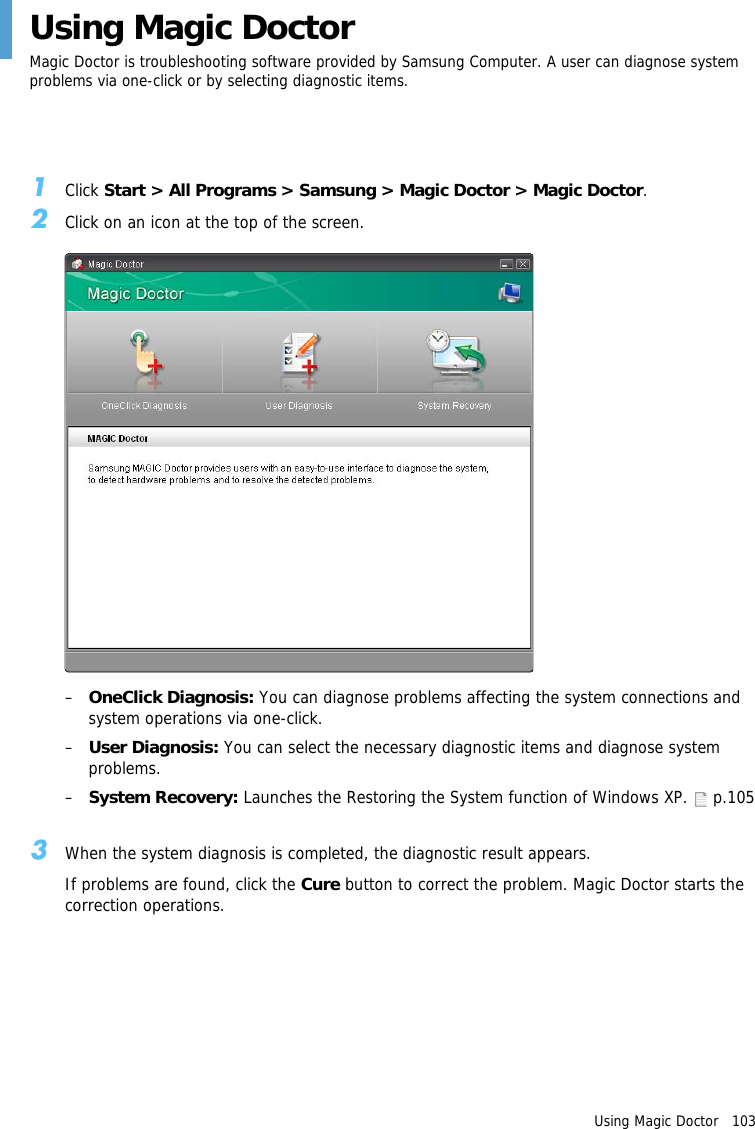
Using Magic Doctor   103Using Magic DoctorMagic Doctor is troubleshooting software provided by Samsung Computer. A user can diagnose system problems via one-click or by selecting diagnostic items.1Click Start > All Programs > Samsung > Magic Doctor > Magic Doctor.2Click on an icon at the top of the screen.–OneClick Diagnosis: You can diagnose problems affecting the system connections and system operations via one-click.–User Diagnosis: You can select the necessary diagnostic items and diagnose system problems.–System Recovery: Launches the Restoring the System function of Windows XP.   p.1053When the system diagnosis is completed, the diagnostic result appears.If problems are found, click the Cure button to correct the problem. Magic Doctor starts the correction operations.
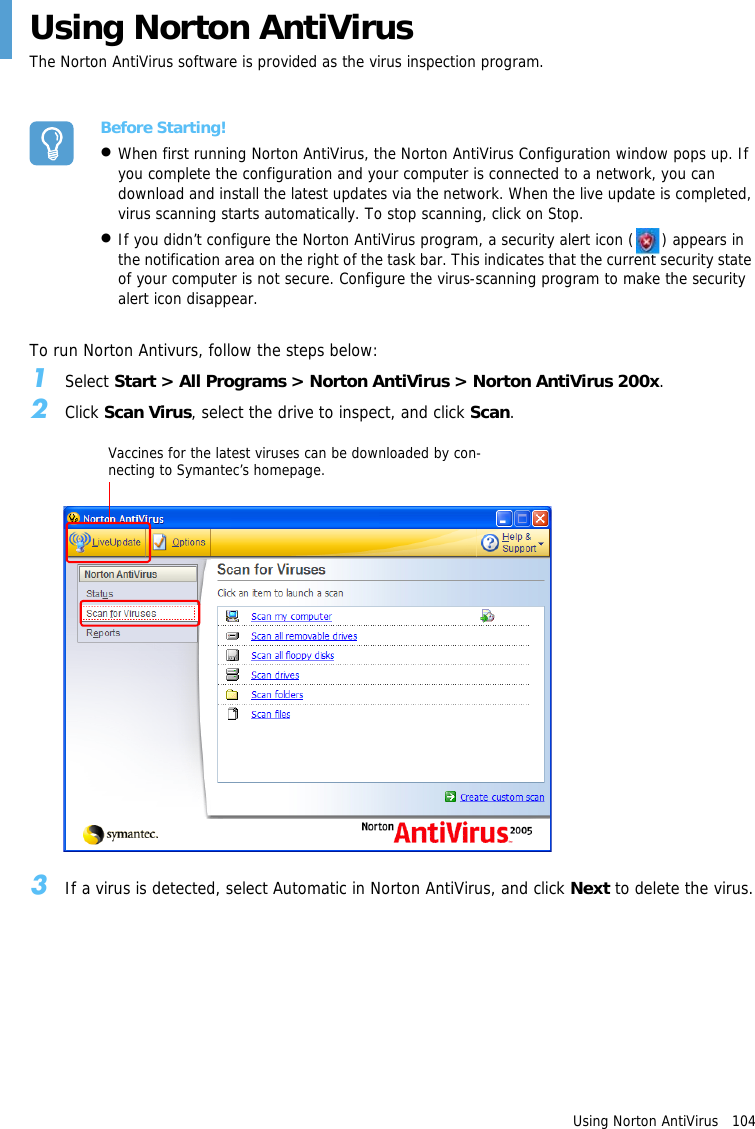
Using Norton AntiVirus   104Using Norton AntiVirusThe Norton AntiVirus software is provided as the virus inspection program.Before Starting!•When first running Norton AntiVirus, the Norton AntiVirus Configuration window pops up. If you complete the configuration and your computer is connected to a network, you can download and install the latest updates via the network. When the live update is completed, virus scanning starts automatically. To stop scanning, click on Stop.•If you didn’t configure the Norton AntiVirus program, a security alert icon ( ) appears in the notification area on the right of the task bar. This indicates that the current security state of your computer is not secure. Configure the virus-scanning program to make the security alert icon disappear.To run Norton Antivurs, follow the steps below:1Select Start > All Programs > Norton AntiVirus > Norton AntiVirus 200x.2Click Scan Virus, select the drive to inspect, and click Scan.3If a virus is detected, select Automatic in Norton AntiVirus, and click Next to delete the virus.Vaccines for the latest viruses can be downloaded by con-necting to Symantec’s homepage.
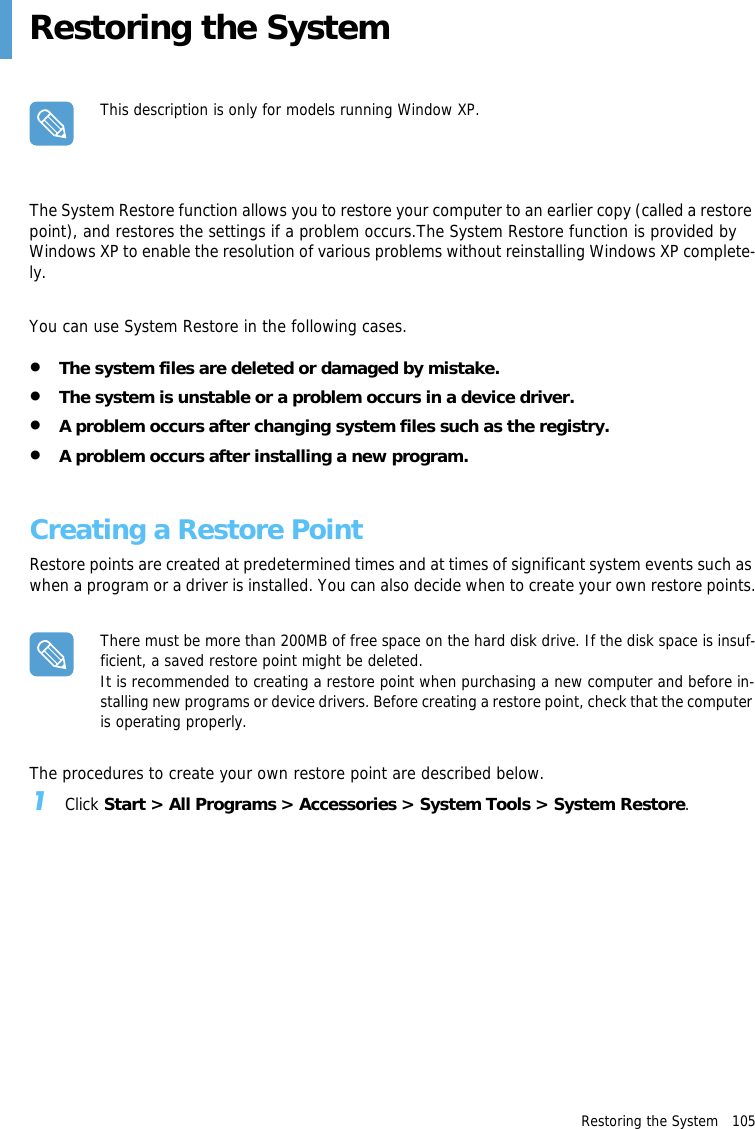
Restoring the System   105Restoring the SystemThis description is only for models running Window XP.The System Restore function allows you to restore your computer to an earlier copy (called a restore point), and restores the settings if a problem occurs.The System Restore function is provided by Windows XP to enable the resolution of various problems without reinstalling Windows XP complete-ly.You can use System Restore in the following cases.•The system files are deleted or damaged by mistake.•The system is unstable or a problem occurs in a device driver.•A problem occurs after changing system files such as the registry.•A problem occurs after installing a new program.Creating a Restore PointRestore points are created at predetermined times and at times of significant system events such as when a program or a driver is installed. You can also decide when to create your own restore points.There must be more than 200MB of free space on the hard disk drive. If the disk space is insuf-ficient, a saved restore point might be deleted.It is recommended to creating a restore point when purchasing a new computer and before in-stalling new programs or device drivers. Before creating a restore point, check that the computer is operating properly.The procedures to create your own restore point are described below.1Click Start > All Programs > Accessories > System Tools > System Restore.
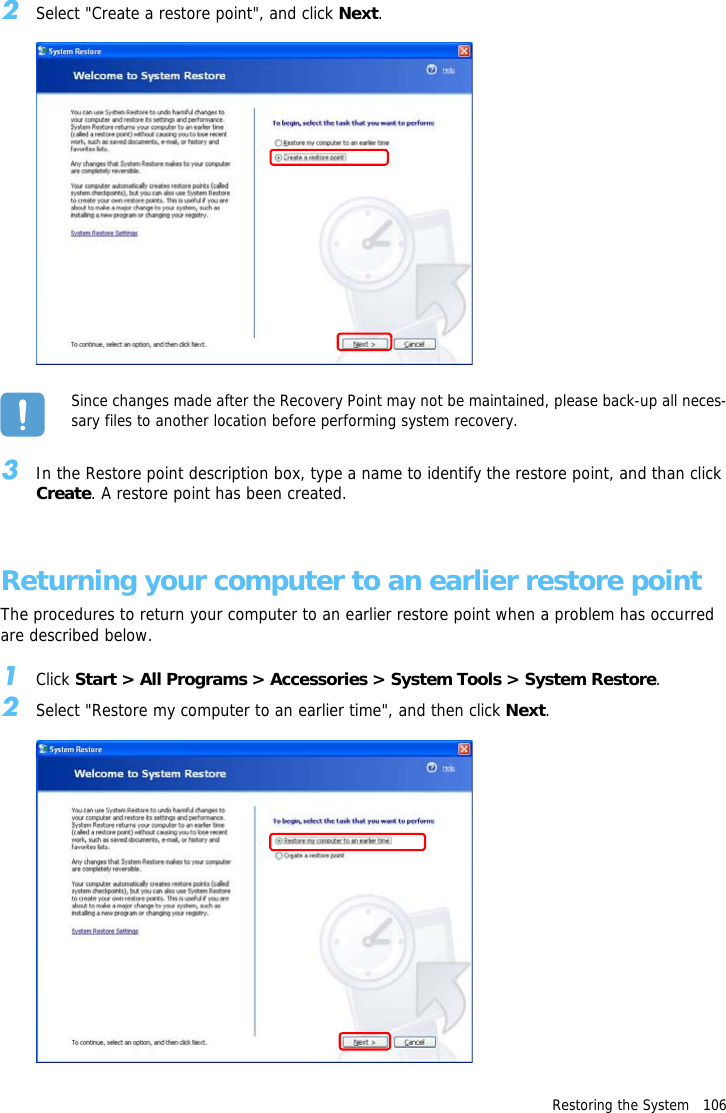
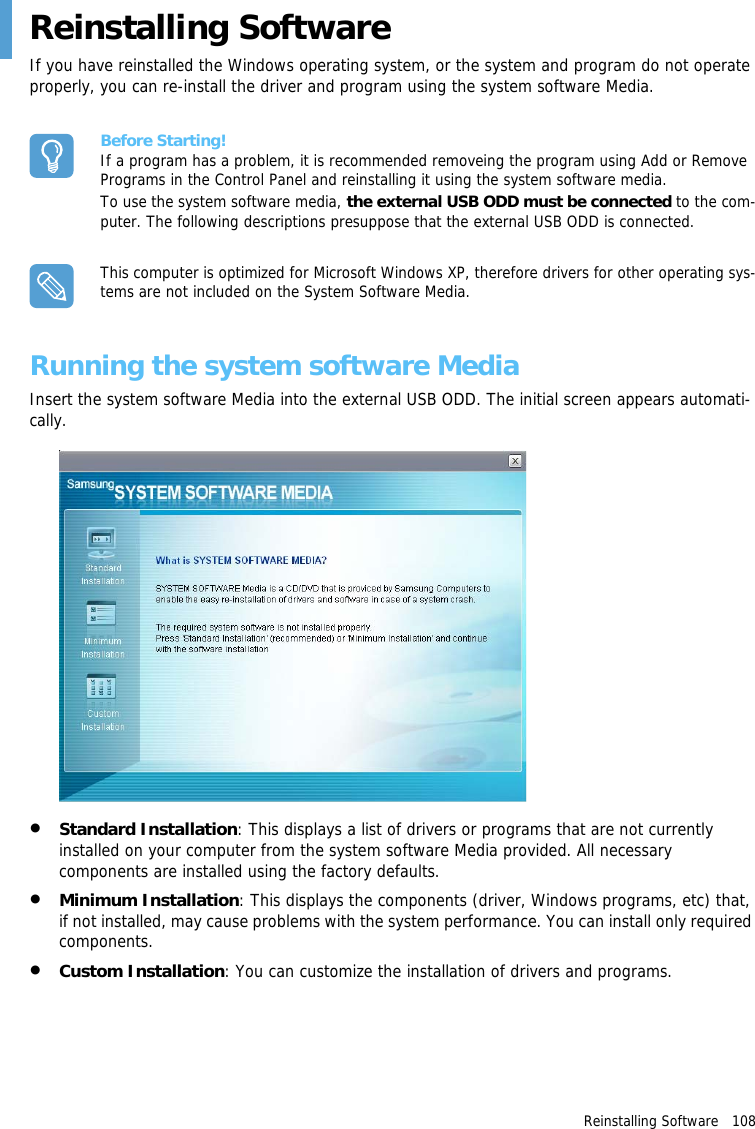
Restoring the System   1062Select "Create a restore point", and click Next.Since changes made after the Recovery Point may not be maintained, please back-up all neces-sary files to another location before performing system recovery.3In the Restore point description box, type a name to identify the restore point, and than click Create. A restore point has been created.Returning your computer to an earlier restore pointThe procedures to return your computer to an earlier restore point when a problem has occurred are described below.1Click Start > All Programs > Accessories > System Tools > System Restore.2Select "Restore my computer to an earlier time", and then click Next.
Restoring the System   1073Select a restore date from the calendar restoration and select  a restore point from the list, and then click Next.The date of the restore point is displayed in bold font.4Confirm the selected restore point and click Next. System Restore shuts down Windows, and starts the restoration processes. 5After the restoration is complete, Windows restarts. In the [System Restore completed] dialog, click OK.Your computer has been restored to the selected restore point.Undoing the last restorationThe procedures to undo a restoration are described below.1Click Start > All Programs > Accessories > System Tools > System Restore.2Select "Undo my last restoration", and then click Next. 3Confirm the restoration information to undo, and than click Next. System Restore shuts down Windows and starts undoing the restoration. 4After the undo restoration is complete, Windows restarts. In the [Undo the last restoration com-pleted] dialog, click OK.Your computer has been restored to the point prior to the last restora-tion.
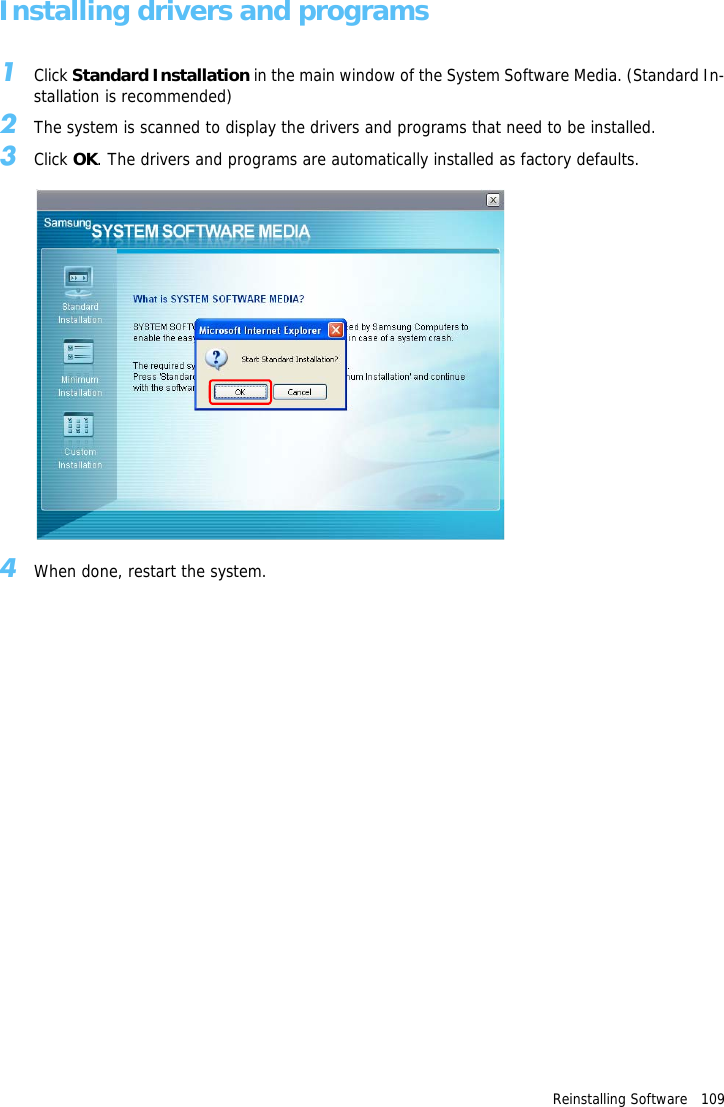
Reinstalling Software   108Reinstalling SoftwareIf you have reinstalled the Windows operating system, or the system and program do not operate properly, you can re-install the driver and program using the system software Media.Before Starting!If a program has a problem, it is recommended removeing the program using Add or Remove Programs in the Control Panel and reinstalling it using the system software media.To use the system software media, the external USB ODD must be connected to the com-puter. The following descriptions presuppose that the external USB ODD is connected.This computer is optimized for Microsoft Windows XP, therefore drivers for other operating sys-tems are not included on the System Software Media.Running the system software MediaInsert the system software Media into the external USB ODD. The initial screen appears automati-cally.•Standard Installation: This displays a list of drivers or programs that are not currently installed on your computer from the system software Media provided. All necessary components are installed using the factory defaults.•Minimum Installation: This displays the components (driver, Windows programs, etc) that, if not installed, may cause problems with the system performance. You can install only required components.•Custom Installation: You can customize the installation of drivers and programs.
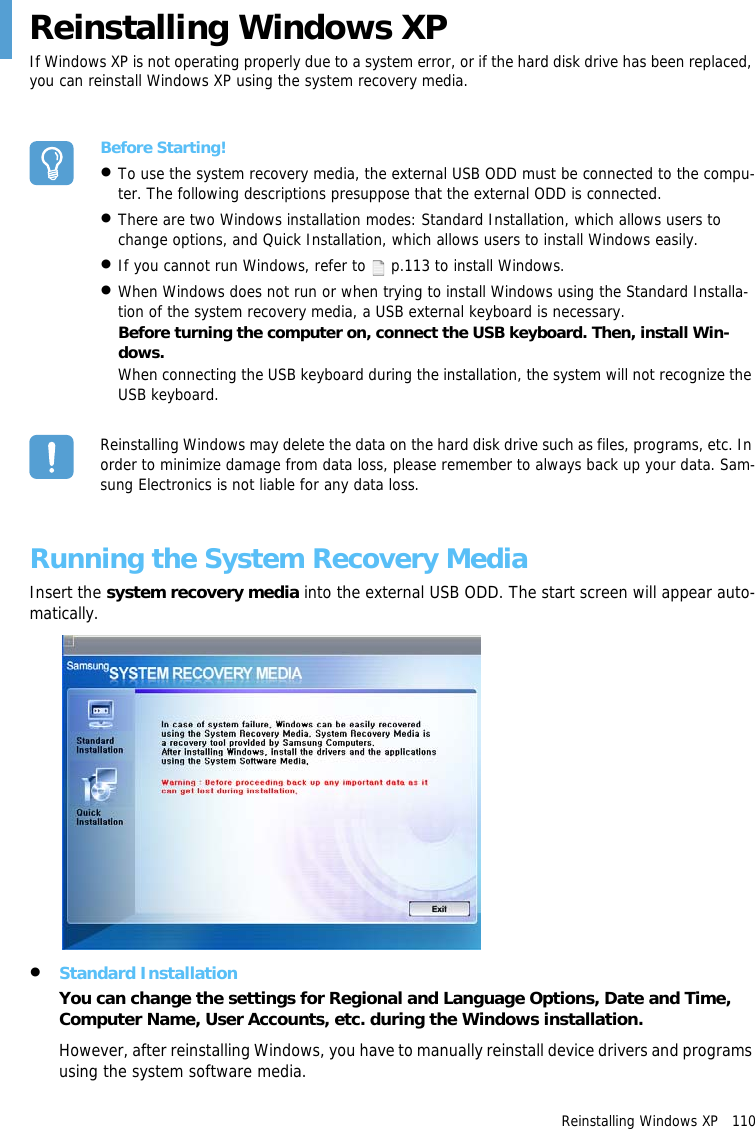
Reinstalling Software   109Installing drivers and programs1Click Standard Installation in the main window of the System Software Media. (Standard In-stallation is recommended)2The system is scanned to display the drivers and programs that need to be installed.3Click OK. The drivers and programs are automatically installed as factory defaults.4When done, restart the system.
Reinstalling Windows XP   110Reinstalling Windows XPIf Windows XP is not operating properly due to a system error, or if the hard disk drive has been replaced, you can reinstall Windows XP using the system recovery media.Before Starting!•To use the system recovery media, the external USB ODD must be connected to the compu-ter. The following descriptions presuppose that the external ODD is connected.•There are two Windows installation modes: Standard Installation, which allows users to change options, and Quick Installation, which allows users to install Windows easily.•If you cannot run Windows, refer to   p.113 to install Windows.•When Windows does not run or when trying to install Windows using the Standard Installa-tion of the system recovery media, a USB external keyboard is necessary.Before turning the computer on, connect the USB keyboard. Then, install Win-dows.When connecting the USB keyboard during the installation, the system will not recognize the USB keyboard.Reinstalling Windows may delete the data on the hard disk drive such as files, programs, etc. In order to minimize damage from data loss, please remember to always back up your data. Sam-sung Electronics is not liable for any data loss.Running the System Recovery MediaInsert the system recovery media into the external USB ODD. The start screen will appear auto-matically.•Standard InstallationYou can change the settings for Regional and Language Options, Date and Time, Computer Name, User Accounts, etc. during the Windows installation.However, after reinstalling Windows, you have to manually reinstall device drivers and programs using the system software media.
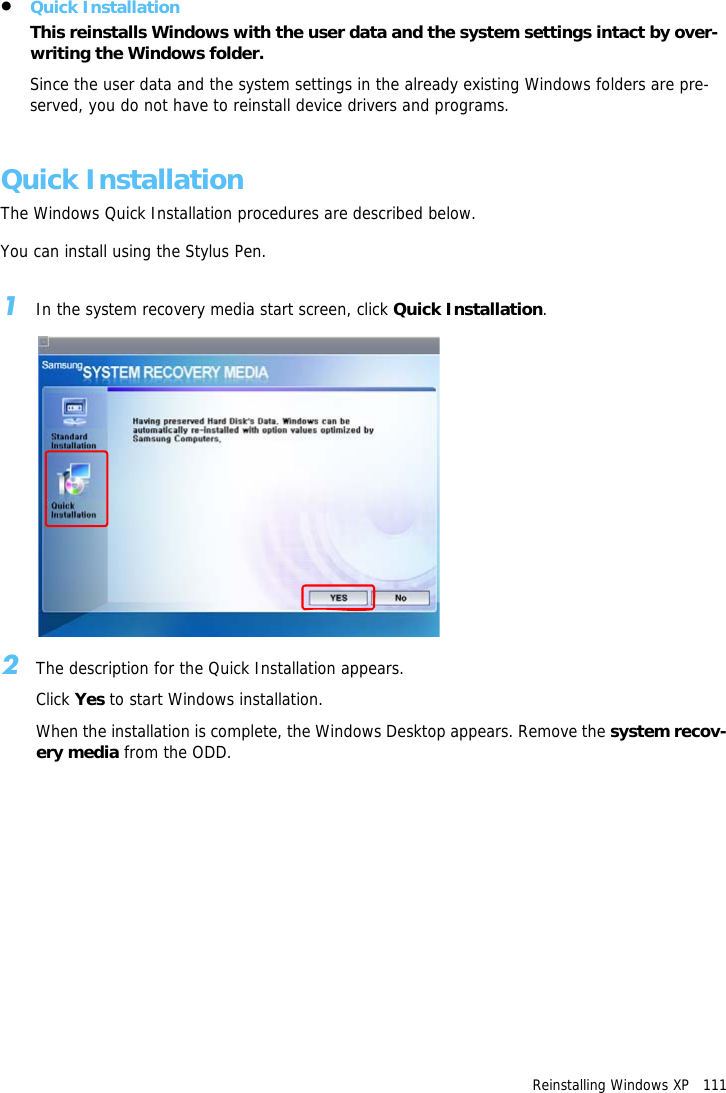
Reinstalling Windows XP   111•Quick InstallationThis reinstalls Windows with the user data and the system settings intact by over-writing the Windows folder. Since the user data and the system settings in the already existing Windows folders are pre-served, you do not have to reinstall device drivers and programs.Quick InstallationThe Windows Quick Installation procedures are described below.You can install using the Stylus Pen.1In the system recovery media start screen, click Quick Installation.2The description for the Quick Installation appears.Click Yes to start Windows installation.When the installation is complete, the Windows Desktop appears. Remove the system recov-ery media from the ODD.
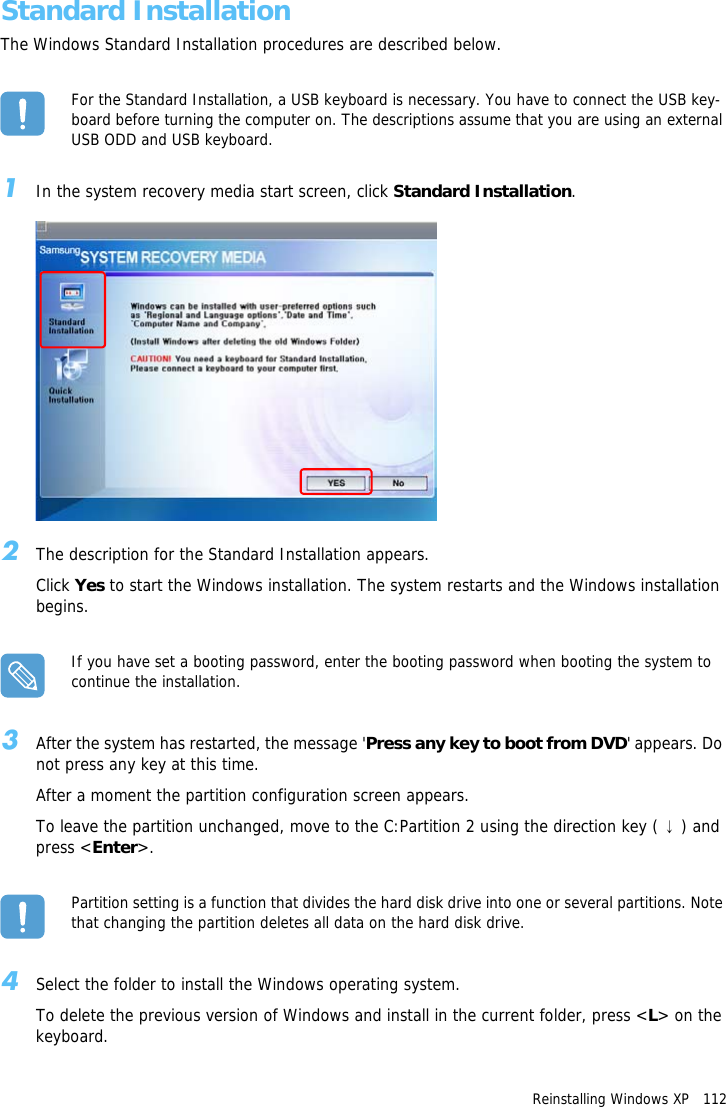
Reinstalling Windows XP   112Standard InstallationThe Windows Standard Installation procedures are described below.For the Standard Installation, a USB keyboard is necessary. You have to connect the USB key-board before turning the computer on. The descriptions assume that you are using an external USB ODD and USB keyboard.1In the system recovery media start screen, click Standard Installation.2The description for the Standard Installation appears.Click Yes to start the Windows installation. The system restarts and the Windows installation begins.If you have set a booting password, enter the booting password when booting the system to continue the installation.3After the system has restarted, the message 'Press any key to boot from DVD' appears. Do not press any key at this time. After a moment the partition configuration screen appears.To leave the partition unchanged, move to the C:Partition 2 using the direction key ( ↓) and press <Enter>.Partition setting is a function that divides the hard disk drive into one or several partitions. Note that changing the partition deletes all data on the hard disk drive.4Select the folder to install the Windows operating system.To delete the previous version of Windows and install in the current folder, press <L> on the keyboard.
Reinstalling Windows XP   113When pressing the ESC key to select another folder for the installation, a new Windows folder is created causing the risk of dual booting.5After the installation process copies the necessary folders for the Windows installation, restart the system, and the message "Press any key to boot from DVD" is displayed. You do not need to enter anything. The Windows XP installation screen will appear shortly to proceed with the installation.6When the Regional and Language Options window appears, click Next.7When a window that requires your name and organization pops up, enter your name and the organization and click Next.A window that requires the computer name and the administrator password appears. Enter the computer name and the administrator password and click Next.8When the Date and Time Settings window appears, click Next. Setup continues and the sys-tem restarts.9When the system restarts, the message "Press any key to boot from DVD" is displayed. You do not need to enter anything. In a moment, the Windows XP Desktop appears. When you see the Windows desktop, this means that the installation process is completed.10 Remove the system recovery media and install the device drivers and applications from the system software media. (  p.108)Installing Windows When Windows FailsIf you cannot run Windows, you have to boot the system with the system recovery media and rein-stall Windows.An external USB ODD and USB keyboard must be connected before starting the installation.You have to connect the USB keyboard before turning the computer on.If you connect the USB keyboard during the installation, the system will not recognize the USB keyboard.1Insert the system recovery media into the external USB ODD and turn the computer on.2When the system restarts, the message "Press any key to boot from DVD" is displayed. You do not need to press anything.3The partition configuration screen will appear. To install Windows in the selected partition with-out change, press <Enter>.4Select a file system (format). To keep the current file system, press <Enter>.5Select the folder to install the Windows operating system.To delete the previous version of Windows and install in the current folder, press <L> on the keyboard.6The subsequent procedures are the same as those after Step 5 of <Standard Installation>. ( p.113)
Questions and Answers   114Questions and AnswersThis section provides information on possible problems, solutions and other references for system use.Windows RelatedQ1 The system does not shutdown properly.AWhen the system does not shutdown normally, press and hold the Power button until the sys-tem shuts down manually. If the Power-Saving Mode is configured into the Power button, press and hold for more than 4 seconds to shut the system off. When the system is turned on after such a manual shutdown, Scandisk will run to check errors in the system.Q2 The system freezes during a program operationA1 There is an error with the program currently being used. Press the <Ctrl>, <Alt>, and <Del> keys (Windows Security Button) simultaneously and select End Task in the [Windows Task Manager] window.A2 There is an error with the Windows OS. Reboot the system by using the Power button.Display RelatedQ1 The LCD screen is too dark or too brightAAdjust the LCD brightness. Press the Menu button and select either Brightness UP or Brightness Down.Alternatively, press the + or - Volume Control buttons at the top of the computer while hold-ing down the Menu button to adjust the LCD brightness.Q2 The screen saver is activated while Media Player is playing a movie or video clip.AUnselect Tools > Options > Player > Allow screen saver during playback in the Media Player.Q3 In the following cases, the screen blinks or displays noise for a short time.Clicking on the Graphics Related tab, Changing the Resolution, Changing the Display Device, Removing the AC Adapter, Restarting the System, Changing the Power Mizer level.AThis may happen while the video driver is examining the connected device. While busy detect-ing, any connected display devices may blink or some noise may occur.In addition, when pressing the Auto Scaler button, the screen may blink or display noise for a short time, while the resolution changes or the Down Scale (resolution zoom out) function op-erates.
Questions and Answers   115Q4 When I connect a projector, and change the settings to display the screen image on both the LCD and the projector by pressing the Menu button, the screen is not displayed properly.APress the Menu button and press the LCD/CRT twice to select LCD+CRT. If the screen image or some part of it is not displayed on the screen, this is because the LCD resolution is low or the current resolution is too wide and cannot be supported by the projector. Press the Auto Scaler button and change the resolution to 800x600 pixels.Q5 I have run a function from the menu program, but the corresponding shortcut icon does not appear on the screen.AThe shortcut icons only appear when both the Magic Keyboard and Samsung Display Manager programs are installed.Q6 When I connect an external monitor and select the monitor, no screen image is dis-played (Clone Mode).AThis may happen when the current resolution is inappropriate or Dual View (Extended Mode) is selected. Try the following methods.z When the current resolution is inappropriateThis computer supports the 800x480 WVGA resolution. Since this resolution is lower than that of the operating system, the above symptom may appear when the external monitor cannot support this resolution. Change the resolution to 800x600 pixels, press the Menu button and press the LCD/CRT twice to select LCD+CRT.x When Dual View (Extended mode) is selectedWhen Dual View is selected, Clone Mode is not supported. In this case, unselect Dual View, and press the Menu button to select the Clone Mode.For the procedures to deactivate Dual View, refer to (p.33).Q7 In the Display Properties window, the resolution starts from 800x600.AEven if the current resolution is 800x480 pixels, it may be represented as 800x600 in the Dis-play Properties. This is because the lowest resolution of the operating system is 800x600 and is unable to show the 800x480 resolution in the Display Properties window.Q8 Pressing [Start] displays a [Some items cannot be shown] message.AThis message appears when all start menu items cannot be displayed in the default resolution (800x480 pixels). In this case, change the screen resolution to 800x600 pixels or press the Auto Scaler button to change the resolution.Q9 When I press the Auto Scaler button, the letters on the screen are blurry.AFor the resolutions provided by Auto Scaler, the letters on the screen may be blurred because these are not the optimal resolutions of the LCD panel.In this case, press the Auto Scaler button again and change the screen resolution to 800x480 pixels which is the default resolution of the LCD panel.
Questions and Answers   116Q10 I've run the Rotation function from the Menu, and the pointer on the screen does not correspond to the pointer position.AIt is recommended using an external USB mouse when the screen is pivoted.If the above problem appears, complete the following steps.z Right-click on the TouchKit ( ) icon from the Taskbar and confirm that the Display Pivot Support function is selected (V). If it is not selected, select it by selecting the Display Pivot Function.If you cannot find the TouchKit icon on the Taskbar, click Start > All Programs > TouchKit > TouchMon.x Click on Start > All Programs > TouchKit > Configure Utility and click on 4-Point Calibration from the Tools tab. If the Stylus Pen Calibration screen appears, proceed accord-ing to the instructions on the screen.Q11 When using the 'Mouse Function' Rotation function using the joystick, the pointer on the screen may move in a different direction from that of the joystick.AWhen using the Rotation function, use the Stylus Pen or external USB mouse.The Mouse Function is a function that enables moving the pointer by moving the joystick while holding down the Menu button.(See Using the Buttons in the 'Getting Started Manual'.)Q12 The rotation function does not work.AIf the Rotation function does not work, run the 'Setup.exe' file in the 'C:\Program Files\samsung\Graphics Driver' folder.If you have reinstalled Windows, reinstall the Graphics Driver using the supplied 'System Software Media'.Sound RelatedQ1 How can I configure the Recording Mixer while I am video or audio chatting?Az Double-click the volume icon from the Taskbar and select Options > Properties from the menu.x In the Mixer device field, select Realtek HD Audio Input.c Unselect 'Mute all' in the Recording control and unselect 'Mute' in the Microphone volume.v Select 'Mute' in the Stereo Mixer.Q2 How can I configure the Recording Mixer while playing music in WinAMP?Az Double-click the Volume icon in the Taskbar and click on Options.x In the Mixer device field, select Realtek HD Audio Input.c Unselect 'Mute all' in the Recording control and unselect 'Mute' in the Microphone volume.v Unselect 'Mute' of the Stereo Mixer.
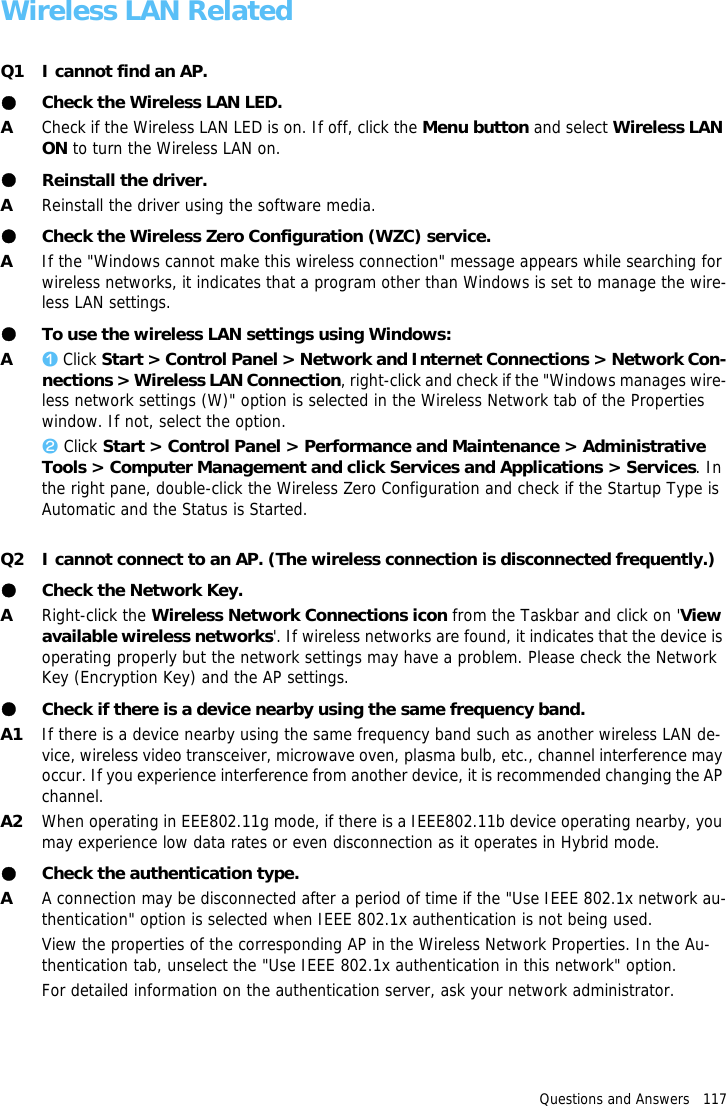
Questions and Answers   117Wireless LAN RelatedQ1 I cannot find an AP.●Check the Wireless LAN LED.ACheck if the Wireless LAN LED is on. If off, click the Menu button and select Wireless LAN ON to turn the Wireless LAN on.●Reinstall the driver.AReinstall the driver using the software media.●Check the Wireless Zero Configuration (WZC) service.AIf the "Windows cannot make this wireless connection" message appears while searching for wireless networks, it indicates that a program other than Windows is set to manage the wire-less LAN settings.●To use the wireless LAN settings using Windows:Az Click Start > Control Panel > Network and Internet Connections > Network Con-nections > Wireless LAN Connection, right-click and check if the "Windows manages wire-less network settings (W)" option is selected in the Wireless Network tab of the Properties window. If not, select the option.x Click Start > Control Panel > Performance and Maintenance > Administrative Tools > Computer Management and click Services and Applications > Services. In the right pane, double-click the Wireless Zero Configuration and check if the Startup Type is Automatic and the Status is Started.Q2 I cannot connect to an AP. (The wireless connection is disconnected frequently.)●Check the Network Key.ARight-click the Wireless Network Connections icon from the Taskbar and click on 'View available wireless networks'. If wireless networks are found, it indicates that the device is operating properly but the network settings may have a problem. Please check the Network Key (Encryption Key) and the AP settings.●Check if there is a device nearby using the same frequency band.A1 If there is a device nearby using the same frequency band such as another wireless LAN de-vice, wireless video transceiver, microwave oven, plasma bulb, etc., channel interference may occur. If you experience interference from another device, it is recommended changing the AP channel.A2 When operating in EEE802.11g mode, if there is a IEEE802.11b device operating nearby, you may experience low data rates or even disconnection as it operates in Hybrid mode.●Check the authentication type.AA connection may be disconnected after a period of time if the "Use IEEE 802.1x network au-thentication" option is selected when IEEE 802.1x authentication is not being used.View the properties of the corresponding AP in the Wireless Network Properties. In the Au-thentication tab, unselect the "Use IEEE 802.1x authentication in this network" option.For detailed information on the authentication server, ask your network administrator.
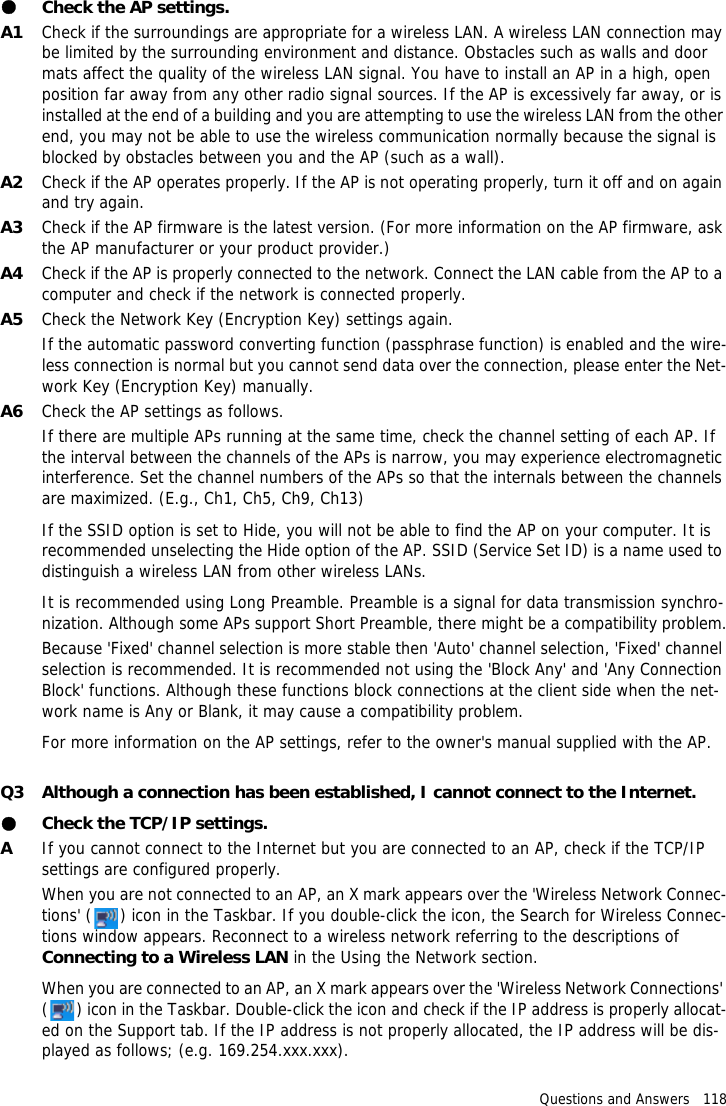
Questions and Answers   118●Check the AP settings.A1 Check if the surroundings are appropriate for a wireless LAN. A wireless LAN connection may be limited by the surrounding environment and distance. Obstacles such as walls and door mats affect the quality of the wireless LAN signal. You have to install an AP in a high, open position far away from any other radio signal sources. If the AP is excessively far away, or is installed at the end of a building and you are attempting to use the wireless LAN from the other end, you may not be able to use the wireless communication normally because the signal is blocked by obstacles between you and the AP (such as a wall).A2 Check if the AP operates properly. If the AP is not operating properly, turn it off and on again and try again.A3 Check if the AP firmware is the latest version. (For more information on the AP firmware, ask the AP manufacturer or your product provider.)A4 Check if the AP is properly connected to the network. Connect the LAN cable from the AP to a computer and check if the network is connected properly.A5 Check the Network Key (Encryption Key) settings again.If the automatic password converting function (passphrase function) is enabled and the wire-less connection is normal but you cannot send data over the connection, please enter the Net-work Key (Encryption Key) manually.A6 Check the AP settings as follows.If there are multiple APs running at the same time, check the channel setting of each AP. If the interval between the channels of the APs is narrow, you may experience electromagnetic interference. Set the channel numbers of the APs so that the internals between the channels are maximized. (E.g., Ch1, Ch5, Ch9, Ch13)If the SSID option is set to Hide, you will not be able to find the AP on your computer. It is recommended unselecting the Hide option of the AP. SSID (Service Set ID) is a name used to distinguish a wireless LAN from other wireless LANs.It is recommended using Long Preamble. Preamble is a signal for data transmission synchro-nization. Although some APs support Short Preamble, there might be a compatibility problem.Because 'Fixed' channel selection is more stable then 'Auto' channel selection, 'Fixed' channel selection is recommended. It is recommended not using the 'Block Any' and 'Any Connection Block' functions. Although these functions block connections at the client side when the net-work name is Any or Blank, it may cause a compatibility problem.For more information on the AP settings, refer to the owner's manual supplied with the AP.Q3 Although a connection has been established, I cannot connect to the Internet.●Check the TCP/IP settings.AIf you cannot connect to the Internet but you are connected to an AP, check if the TCP/IP settings are configured properly.When you are not connected to an AP, an X mark appears over the 'Wireless Network Connec-tions' ( ) icon in the Taskbar. If you double-click the icon, the Search for Wireless Connec-tions window appears. Reconnect to a wireless network referring to the descriptions of Connecting to a Wireless LAN in the Using the Network section.When you are connected to an AP, an X mark appears over the 'Wireless Network Connections' ( ) icon in the Taskbar. Double-click the icon and check if the IP address is properly allocat-ed on the Support tab. If the IP address is not properly allocated, the IP address will be dis-played as follows; (e.g. 169.254.xxx.xxx).
Questions and Answers   119If your network does not support DHCP, you have to manually configure an IP address by ask-ing your network administrator.In addition, even if your network supports DHCP, the Internet connection may not be available if the DHCP server fails to allocate an IP address to your computer.Q4 I have configured both wired and wireless connections with the same IP address, but the network connections do not work properly.AYou cannot use the same IP address for wired and wireless connections. To use only one IP address for both wired and wireless connections, you must disable one of them according to your requirements in Network Connections in the Control Panel.Q5 After installing the Wireless LAN Setting program, the "AEGIS Protocol (IEEE 802.1x)" protocol appears in the [Local Area Connect Properties] window.AThe protocol is a security authentication protocol that is automatically installed when the Wire-less LAN Settings program is installed and does not affect the program operation.Q6 I want to use the Wireless LAN power saving function to extend the system battery use time.AYou can configure this in the Samsung Battery Manager program. Run the Samsung Battery Manager and select Options > Wireless LAN Power Saving > On from the menu.However, this setting may affect the performance of the Wireless LAN.In addition, the wireless LAN connection might be disconnected while configuring this.
Questions and Answers   120Games and Programs RelatedQ1 3D games cannot run, or some functions are not working.AChange the graphics setting of the game to '2D' or 'Software Renderer', then run the program again.Q2 While playing a game, pressing the Menu button or pressing the LCD/CRT item does not work or the screen is not properly displayed.ASome games and 3D application programs may change the display device control. Therefore, pressing the Menu button and clicking the LCD/CRT item may terminate the running program or may display an abnormal screen.Press the Menu button and press the LCD/CRT item before launching a program and do not press these buttons while running the program.Q3 The running speed of a game is too slow or too fast.AChange the setting of the Power Schemes to 'Always On'.(Click the Start > Control Panel > Performance and Maintenance > Power Options > Power Schemes tab, then configure the Power schemes field to 'Always On'.)Q4 Some part of a game image is not displayed or is black.AThis may happen when running a game designed for DirectX 8.1, such as NHL 2003, MVP Baseball 2003, etc.Q5 The picture is not displayed properly for some games.ASome games such as 'Harry Potter and the Sorcerer's Stone', 'Harry Potter and the Chamber of Secrets', etc. may not display the picture properly when the screen resolution is set to 1024x768 and the color quality is set to 32 bit.For these games, set the screen resolution to 1024x768, and the color quality to 16 bit.Q6 Game play is not performed smoothly on the screen.AFor 3D games, the texture data for the 3D screen display is saved to the system memory. If there is insufficient system memory, the data is saved to the hard disk drive and loaded to memory when required. This operation may temporarily stop displaying the picture on the screen.In this case, lower the game resolution or the screen settings. (For Delta Force: Black Hawk Down, Medal of Honor, Battle Field, 1942, etc.)Q7 If I run a program, an error message appears or the program does not launch.AThis may happen when the program does not support the 800x480 pixels resolution.This is caused by a program that is designed for a minimum resolution of 800x600 pixels and fails to support a resolution lower than its minimum resolution.In this case, change the screen resolution to 800x600 pixels or press the Auto Scaler button to change the resolution.
Questions and Answers   121BluetoothQ1 The characters are broken when I receive a business card with Korean or Chinese characters using the Send Business Card function via Bluetooth.A1 If a business card with Korean or Chinese characters is sent by selecting the Select a busi-ness card from files (*.vcf, *.vcd) option in the Send Business Card menu, the characters of the received business card will be broken because the character set of the business card is not set to the Korean or Chinese character set (CHARSET). To resolve this problem, edit the contents of the business card file directly.z Right-click a business card (*.vcf, *.vcd) to be transmitted and select Connect a program > Select a program.x Select Notepad from the program list.c Modify the contents of the file as follows.Example) N:MagicSense => N;CHARSET=KS_C_5601:MagicSenseFor Korean, add "CHARSET=KS_C_5601".For Chinese Simplified (CHS), add "CHARSET=gb2312".For Chinese Traditional (CHT), add "CHARSET=Big5".A2When sending a business card directly from the address book of Microsoft Outlook, or sending it by selecting the Select an Outlook business card option in the Send Business Card menu, you can properly send a business card with Korean or Chinese characters without editing the VCF file.Q2 I cannot locate or connect the headset.A1 If the headset is connected to another device and is being used, you will not be able to locate it on your computer and connect to it even if it is found. To resolve this problem, disconnect the headset from the currently connected device and locate it again.A2 If the headset is connected to the power adapter, it cannot be connected through the Blue-tooth connection. In this case, disconnect the headset from the power adapter and try again.A3 In general, a Bluetooth headset has two operating modes - On/Off mode and Pairing mode. To connect a headset to another Bluetooth device such as a PC or cellphone, it must be in Pairing mode. Switch the headset to Pairing mode and try to locate it again.In general, a headset automatically switches from Pairing mode to On/Off mode after a pre-determined period of time.Q3 I have connected the headset, but sound is heard intermittently or not at all.A1 If a Bluetooth headset is connected to a PC, the Sound playback device in the Control Panel is to be changed to Bluetooth Audio (for a mono headset) or High Quality Blue-tooth Audio (for a stereo headset). If the Sound playback device in the Control Panel is not changed properly, there may be no sound through the headset. Check the audio settings of the Control Panel according to the procedures given below.Configuring the Audio Device in the Control Panelz Click Start > Control Panel and double-click on Sound and Audio Devices.x Select the Audio tab in the Sound and Audio Devices Properties window.c Check if the Sound playback device and the Sound recording device are set to Bluetooth Audio (for a mono headset) or High Quality Bluetooth Audio (for a stereo headset).
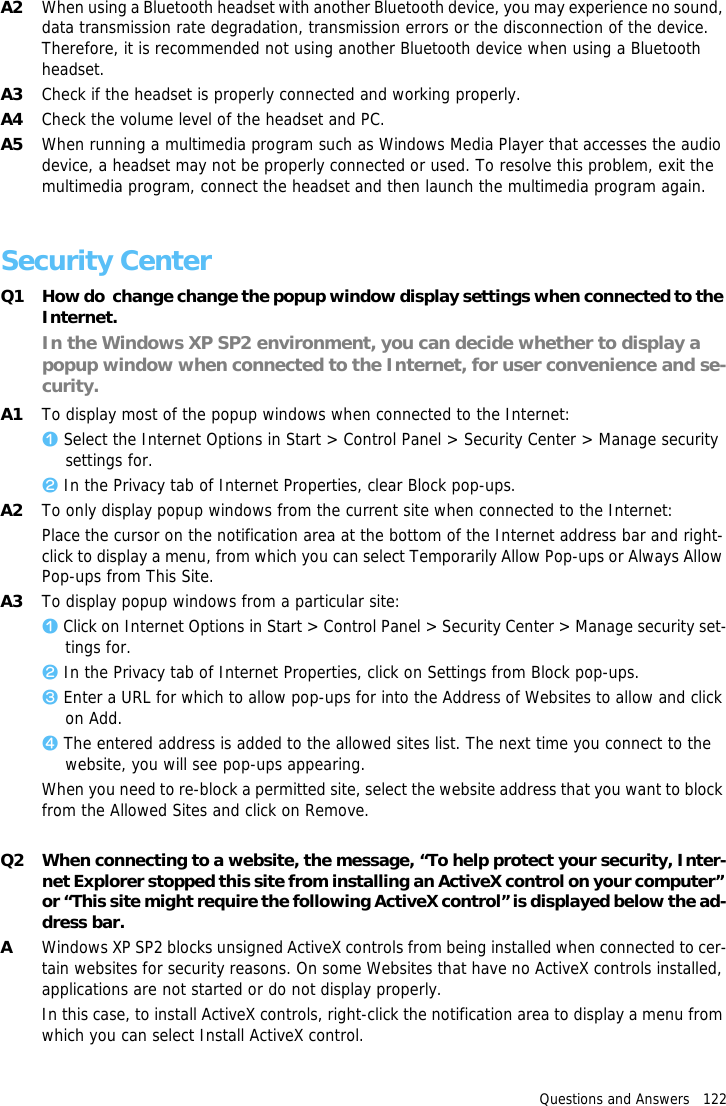
Questions and Answers   122A2 When using a Bluetooth headset with another Bluetooth device, you may experience no sound, data transmission rate degradation, transmission errors or the disconnection of the device. Therefore, it is recommended not using another Bluetooth device when using a Bluetooth headset.A3 Check if the headset is properly connected and working properly.A4 Check the volume level of the headset and PC.A5 When running a multimedia program such as Windows Media Player that accesses the audio device, a headset may not be properly connected or used. To resolve this problem, exit the multimedia program, connect the headset and then launch the multimedia program again.Security CenterQ1 How do  change change the popup window display settings when connected to the Internet.In the Windows XP SP2 environment, you can decide whether to display a popup window when connected to the Internet, for user convenience and se-curity.A1 To display most of the popup windows when connected to the Internet:z Select the Internet Options in Start > Control Panel > Security Center > Manage security settings for.x In the Privacy tab of Internet Properties, clear Block pop-ups.A2 To only display popup windows from the current site when connected to the Internet:Place the cursor on the notification area at the bottom of the Internet address bar and right-click to display a menu, from which you can select Temporarily Allow Pop-ups or Always Allow Pop-ups from This Site.A3 To display popup windows from a particular site:z Click on Internet Options in Start > Control Panel > Security Center > Manage security set-tings for.x In the Privacy tab of Internet Properties, click on Settings from Block pop-ups.c Enter a URL for which to allow pop-ups for into the Address of Websites to allow and click on Add.v The entered address is added to the allowed sites list. The next time you connect to the website, you will see pop-ups appearing.When you need to re-block a permitted site, select the website address that you want to block from the Allowed Sites and click on Remove.Q2 When connecting to a website, the message, “To help protect your security, Inter-net Explorer stopped this site from installing an ActiveX control on your computer” or “This site might require the following ActiveX control” is displayed below the ad-dress bar.AWindows XP SP2 blocks unsigned ActiveX controls from being installed when connected to cer-tain websites for security reasons. On some Websites that have no ActiveX controls installed, applications are not started or do not display properly.In this case, to install ActiveX controls, right-click the notification area to display a menu from which you can select Install ActiveX control.
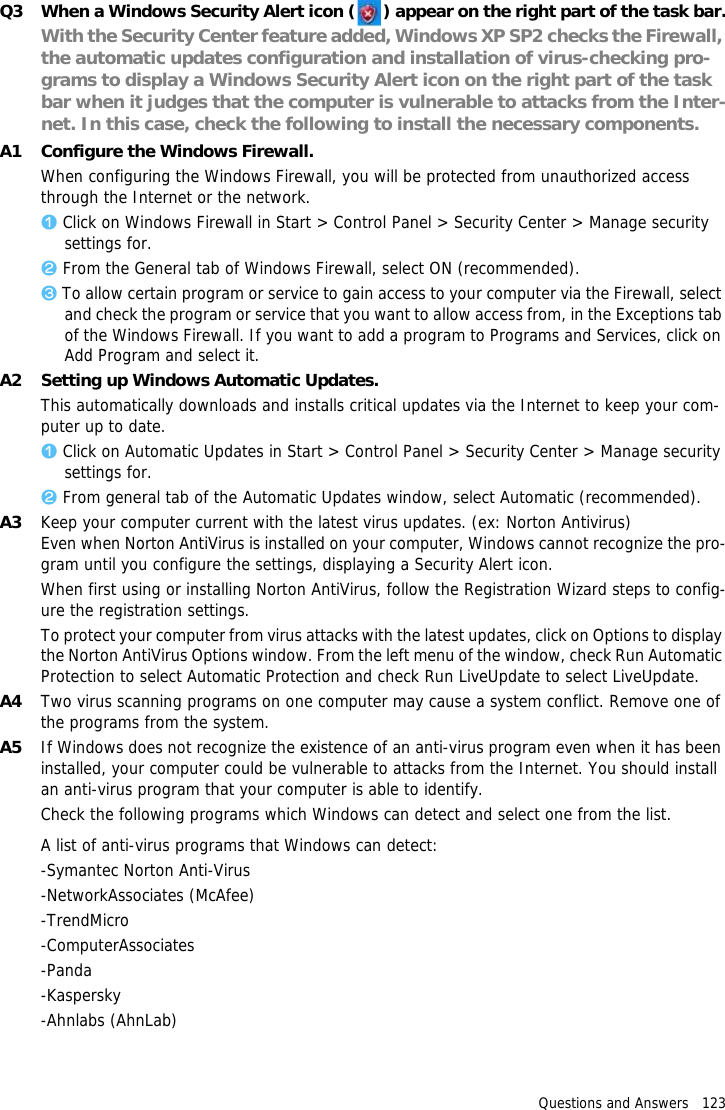
Questions and Answers   123Q3 When a Windows Security Alert icon ( ) appear on the right part of the task bar.With the Security Center feature added, Windows XP SP2 checks the Firewall, the automatic updates configuration and installation of virus-checking pro-grams to display a Windows Security Alert icon on the right part of the task bar when it judges that the computer is vulnerable to attacks from the Inter-net. In this case, check the following to install the necessary components. A1 Configure the Windows Firewall.When configuring the Windows Firewall, you will be protected from unauthorized access through the Internet or the network.z Click on Windows Firewall in Start > Control Panel > Security Center > Manage security settings for.x From the General tab of Windows Firewall, select ON (recommended).c To allow certain program or service to gain access to your computer via the Firewall, select and check the program or service that you want to allow access from, in the Exceptions tab of the Windows Firewall. If you want to add a program to Programs and Services, click on Add Program and select it.A2 Setting up Windows Automatic Updates.This automatically downloads and installs critical updates via the Internet to keep your com-puter up to date. z Click on Automatic Updates in Start > Control Panel > Security Center > Manage security settings for.x From general tab of the Automatic Updates window, select Automatic (recommended).A3 Keep your computer current with the latest virus updates. (ex: Norton Antivirus)Even when Norton AntiVirus is installed on your computer, Windows cannot recognize the pro-gram until you configure the settings, displaying a Security Alert icon.When first using or installing Norton AntiVirus, follow the Registration Wizard steps to config-ure the registration settings. To protect your computer from virus attacks with the latest updates, click on Options to display the Norton AntiVirus Options window. From the left menu of the window, check Run Automatic Protection to select Automatic Protection and check Run LiveUpdate to select LiveUpdate. A4 Two virus scanning programs on one computer may cause a system conflict. Remove one of the programs from the system.A5 If Windows does not recognize the existence of an anti-virus program even when it has been installed, your computer could be vulnerable to attacks from the Internet. You should install an anti-virus program that your computer is able to identify.Check the following programs which Windows can detect and select one from the list.A list of anti-virus programs that Windows can detect:-Symantec Norton Anti-Virus-NetworkAssociates (McAfee)-TrendMicro-ComputerAssociates-Panda-Kaspersky-Ahnlabs (AhnLab)
Questions and Answers   124Visit the Microsoft Web site (www.microsoft.com) regularly to check the latest list.OtherQ1 I cannot run any functions.A1 This may happen when the computer is in the HOLD status. When pressing a button or switch in the HOLD status, the Charge LED () blinks for a moment. Slide the HOLD switch down-wards and try again.A2 If the computer is running on battery power, check the battery charge status.Q2 The [Power Switch] and the [AVStation NOW] switch do not work.A1 This may happen when the computer is in the HOLD status. When pressing a button or switch in the HOLD status, the Charge LED () blinks for a moment. Slide the HOLD switch down-wards and try again.A2 To use the switch, you have to slide and hold the switch for more than 0.1 seconds. Slide and hold the switch for more than 0.1 seconds before releasing it.A3 If the computer is running on battery power, check the battery charge status.Q3 I've hidden the Taskbar, but I cannot display it again.AIf the Taskbar is behind the screen, you cannot display it with the Stylus Pen. In this case, press the Menu button to display the Taskbar again.Q4 How can I install a program onto my computer?ATo install a program to the UMPC, you have to purchase one of the following devices.For more information, refer to the Installing Programs of the 'Getting Started Guide'.● External USB ODD Designed for UMPC or other compatible external USB ODD● External USB HDD● USB Data CableQ5 Precautions for Using a Portable USB KeyboardA●When using a Portable USB Keyboard Designed for UMPC, which is sold separately, if you selected Backlit OFF (Screen Off) by pressing the <Fn>+<F5> keys, you must press the <Fn>+<F5> keys on the USB keyboard to select Backlit ON (Screen On) because if the backlight is off while using the USB keyboard, the backlight does not turn on even if you touch the computer screen. ●The Portable USB Keyboard is equipped with a Pointing Stick that can be used instead of a mouse. Another pointing stick cap is supplied with the USB keyboard. If you need to replace the cap, pull the cap out and install the new cap.
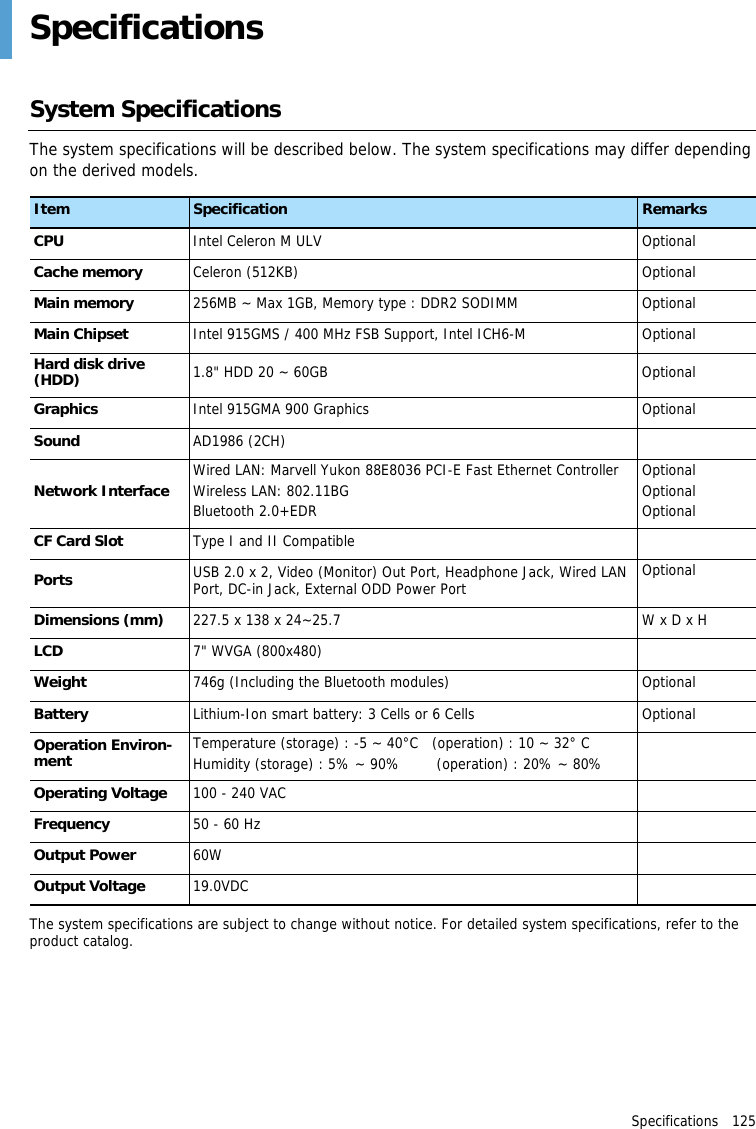
Specifications   125SpecificationsSystem SpecificationsThe system specifications will be described below. The system specifications may differ depending on the derived models.The system specifications are subject to change without notice. For detailed system specifications, refer to the product catalog.Item Specification RemarksCPU Intel Celeron M ULV OptionalCache memory Celeron (512KB) OptionalMain memory 256MB ~ Max 1GB, Memory type : DDR2 SODIMM OptionalMain Chipset Intel 915GMS / 400 MHz FSB Support, Intel ICH6-M OptionalHard disk drive (HDD) 1.8" HDD 20 ~ 60GB OptionalGraphics Intel 915GMA 900 Graphics OptionalSound AD1986 (2CH)Network Interface Wired LAN: Marvell Yukon 88E8036 PCI-E Fast Ethernet ControllerWireless LAN: 802.11BGBluetooth 2.0+EDROptionalOptionalOptionalCF Card Slot Type I and II CompatiblePorts USB 2.0 x 2, Video (Monitor) Out Port, Headphone Jack, Wired LAN Port, DC-in Jack, External ODD Power Port OptionalDimensions (mm) 227.5 x 138 x 24~25.7 W x D x HLCD 7" WVGA (800x480)Weight 746g (Including the Bluetooth modules) OptionalBattery Lithium-Ion smart battery: 3 Cells or 6 Cells OptionalOperation Environ-ment Temperature (storage) : -5 ~ 40°C   (operation) : 10 ~ 32° C Humidity (storage) : 5% ~ 90%        (operation) : 20% ~ 80%Operating Voltage 100 - 240 VACFrequency 50 - 60 HzOutput Power  60W Output Voltage 19.0VDC
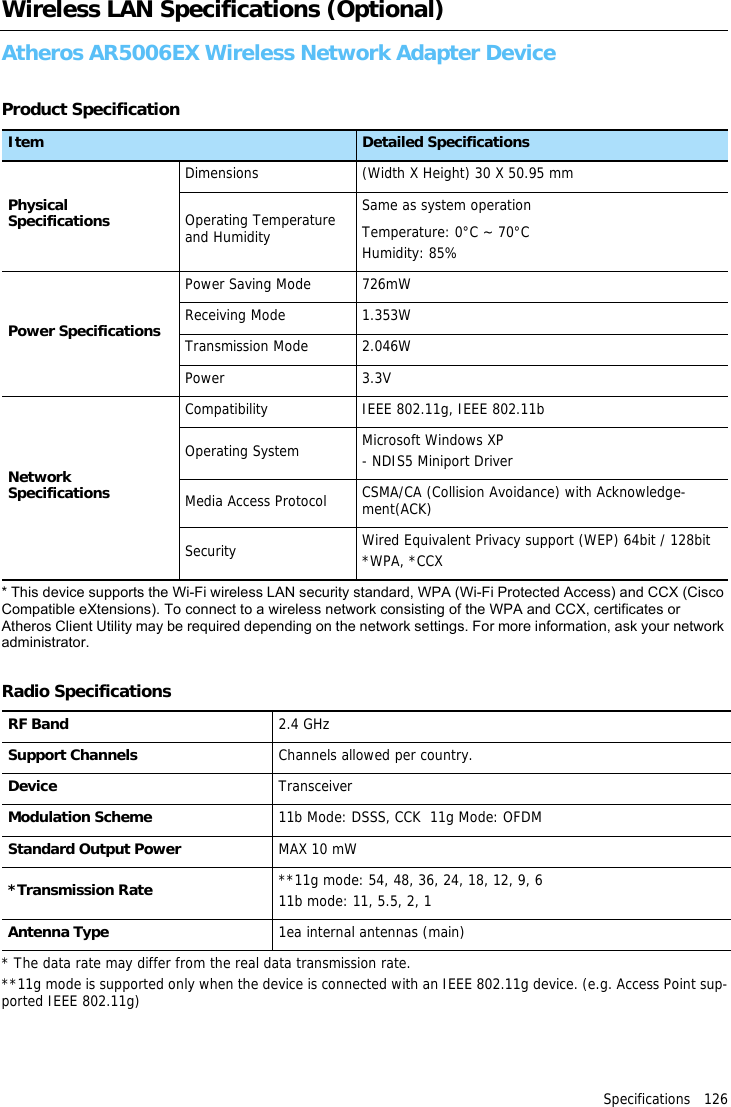
Specifications   126Wireless LAN Specifications (Optional)Atheros AR5006EX Wireless Network Adapter DeviceProduct Specification* This device supports the Wi-Fi wireless LAN security standard, WPA (Wi-Fi Protected Access) and CCX (Cisco Compatible eXtensions). To connect to a wireless network consisting of the WPA and CCX, certificates or Atheros Client Utility may be required depending on the network settings. For more information, ask your network administrator.Radio Specifications* The data rate may differ from the real data transmission rate.**11g mode is supported only when the device is connected with an IEEE 802.11g device. (e.g. Access Point sup-ported IEEE 802.11g)Item Detailed SpecificationsPhysical SpecificationsDimensions (Width X Height) 30 X 50.95 mmOperating Temperature and HumiditySame as system operation Temperature: 0°C ~ 70°CHumidity: 85%Power SpecificationsPower Saving Mode 726mWReceiving Mode 1.353WTransmission Mode 2.046WPower 3.3VNetwork SpecificationsCompatibility IEEE 802.11g, IEEE 802.11bOperating System Microsoft Windows XP- NDIS5 Miniport DriverMedia Access Protocol CSMA/CA (Collision Avoidance) with Acknowledge-ment(ACK)Security Wired Equivalent Privacy support (WEP) 64bit / 128bit*WPA, *CCXRF Band 2.4 GHz Support Channels Channels allowed per country.Device TransceiverModulation Scheme 11b Mode: DSSS, CCK  11g Mode: OFDMStandard Output Power MAX 10 mW*Transmission Rate **11g mode: 54, 48, 36, 24, 18, 12, 9, 611b mode: 11, 5.5, 2, 1Antenna Type 1ea internal antennas (main)
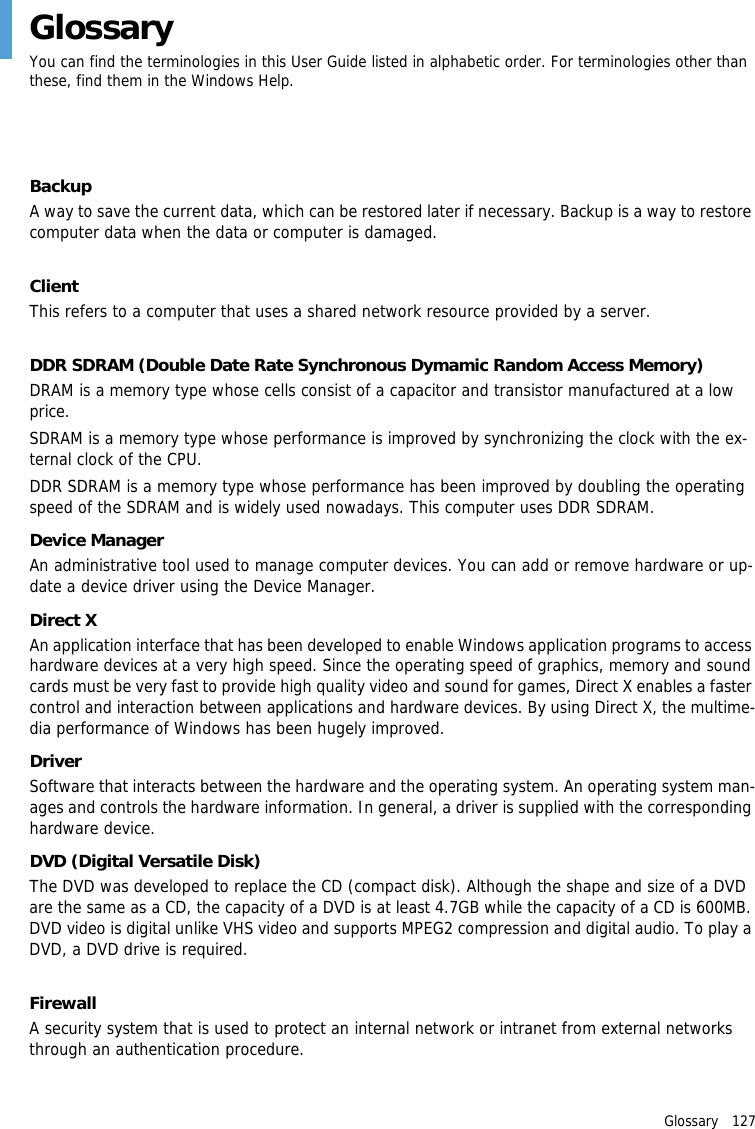
Glossary   127GlossaryYou can find the terminologies in this User Guide listed in alphabetic order. For terminologies other than these, find them in the Windows Help.BackupA way to save the current data, which can be restored later if necessary. Backup is a way to restore computer data when the data or computer is damaged.ClientThis refers to a computer that uses a shared network resource provided by a server.DDR SDRAM (Double Date Rate Synchronous Dymamic Random Access Memory)DRAM is a memory type whose cells consist of a capacitor and transistor manufactured at a low price.SDRAM is a memory type whose performance is improved by synchronizing the clock with the ex-ternal clock of the CPU.DDR SDRAM is a memory type whose performance has been improved by doubling the operating speed of the SDRAM and is widely used nowadays. This computer uses DDR SDRAM.Device ManagerAn administrative tool used to manage computer devices. You can add or remove hardware or up-date a device driver using the Device Manager.Direct XAn application interface that has been developed to enable Windows application programs to access hardware devices at a very high speed. Since the operating speed of graphics, memory and sound cards must be very fast to provide high quality video and sound for games, Direct X enables a faster control and interaction between applications and hardware devices. By using Direct X, the multime-dia performance of Windows has been hugely improved.DriverSoftware that interacts between the hardware and the operating system. An operating system man-ages and controls the hardware information. In general, a driver is supplied with the corresponding hardware device.DVD (Digital Versatile Disk)The DVD was developed to replace the CD (compact disk). Although the shape and size of a DVD are the same as a CD, the capacity of a DVD is at least 4.7GB while the capacity of a CD is 600MB. DVD video is digital unlike VHS video and supports MPEG2 compression and digital audio. To play a DVD, a DVD drive is required.FirewallA security system that is used to protect an internal network or intranet from external networks through an authentication procedure.
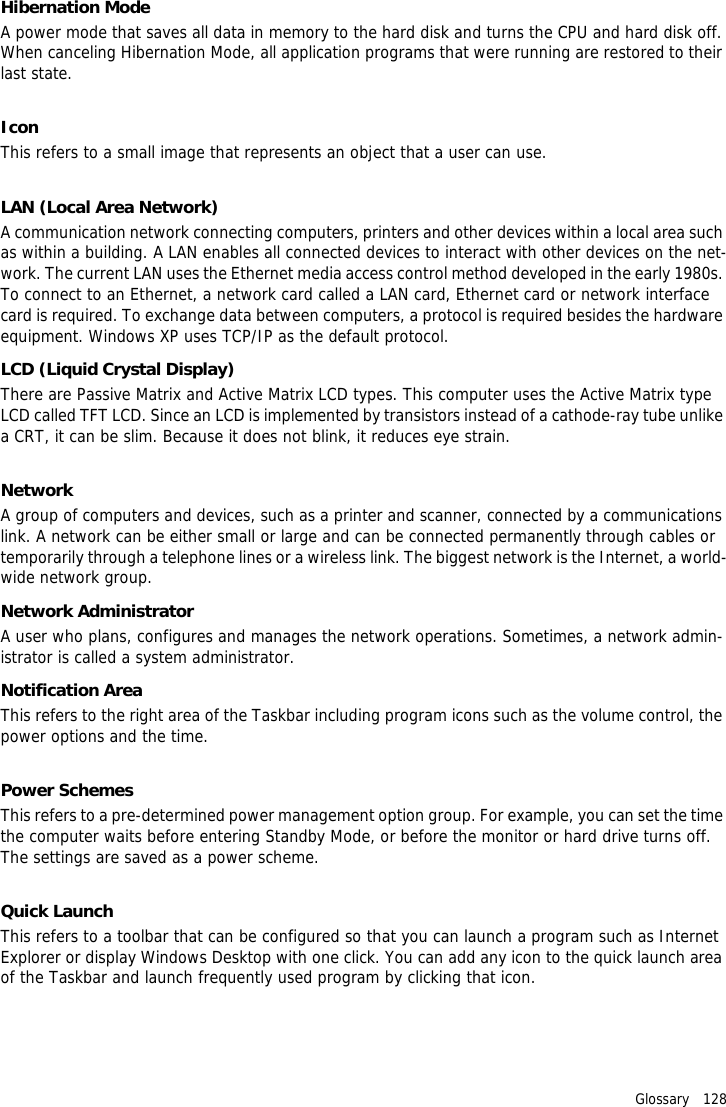
Glossary   128Hibernation ModeA power mode that saves all data in memory to the hard disk and turns the CPU and hard disk off. When canceling Hibernation Mode, all application programs that were running are restored to their last state.IconThis refers to a small image that represents an object that a user can use.LAN (Local Area Network)A communication network connecting computers, printers and other devices within a local area such as within a building. A LAN enables all connected devices to interact with other devices on the net-work. The current LAN uses the Ethernet media access control method developed in the early 1980s. To connect to an Ethernet, a network card called a LAN card, Ethernet card or network interface card is required. To exchange data between computers, a protocol is required besides the hardware equipment. Windows XP uses TCP/IP as the default protocol.LCD (Liquid Crystal Display)There are Passive Matrix and Active Matrix LCD types. This computer uses the Active Matrix type LCD called TFT LCD. Since an LCD is implemented by transistors instead of a cathode-ray tube unlike a CRT, it can be slim. Because it does not blink, it reduces eye strain.NetworkA group of computers and devices, such as a printer and scanner, connected by a communications link. A network can be either small or large and can be connected permanently through cables or temporarily through a telephone lines or a wireless link. The biggest network is the Internet, a world-wide network group.Network AdministratorA user who plans, configures and manages the network operations. Sometimes, a network admin-istrator is called a system administrator.Notification AreaThis refers to the right area of the Taskbar including program icons such as the volume control, the power options and the time.Power SchemesThis refers to a pre-determined power management option group. For example, you can set the time the computer waits before entering Standby Mode, or before the monitor or hard drive turns off. The settings are saved as a power scheme.Quick LaunchThis refers to a toolbar that can be configured so that you can launch a program such as Internet Explorer or display Windows Desktop with one click. You can add any icon to the quick launch area of the Taskbar and launch frequently used program by clicking that icon.
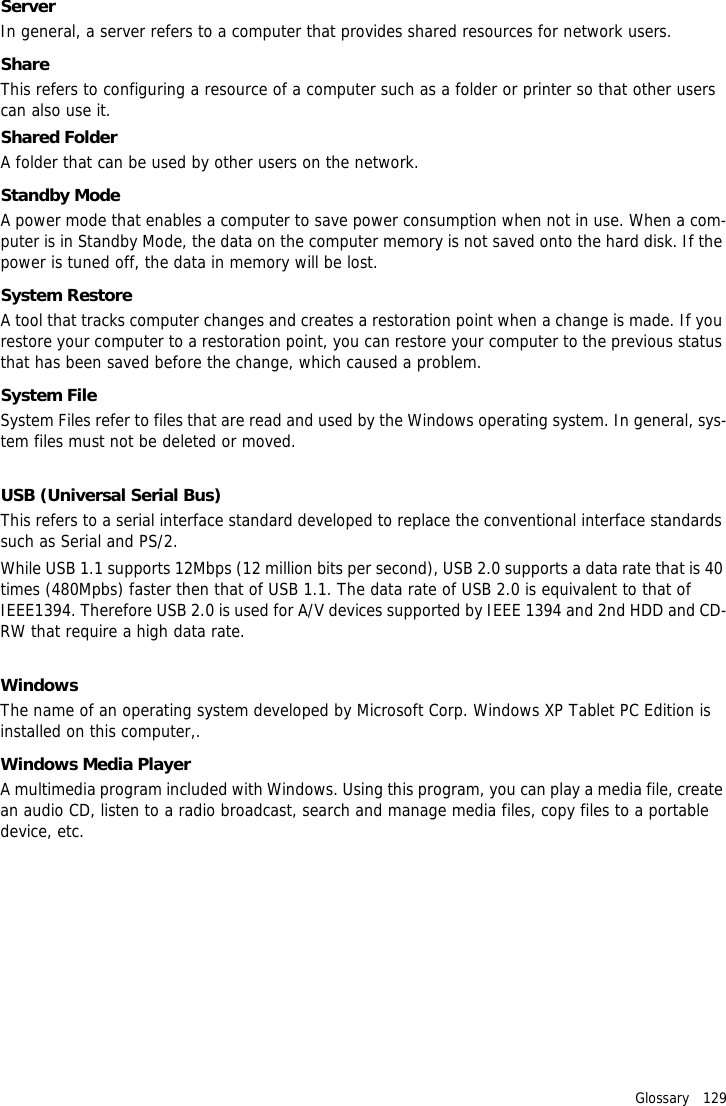
Glossary   129ServerIn general, a server refers to a computer that provides shared resources for network users.ShareThis refers to configuring a resource of a computer such as a folder or printer so that other users can also use it.Shared FolderA folder that can be used by other users on the network.Standby ModeA power mode that enables a computer to save power consumption when not in use. When a com-puter is in Standby Mode, the data on the computer memory is not saved onto the hard disk. If the power is tuned off, the data in memory will be lost.System RestoreA tool that tracks computer changes and creates a restoration point when a change is made. If you restore your computer to a restoration point, you can restore your computer to the previous status that has been saved before the change, which caused a problem.System FileSystem Files refer to files that are read and used by the Windows operating system. In general, sys-tem files must not be deleted or moved.USB (Universal Serial Bus)This refers to a serial interface standard developed to replace the conventional interface standards such as Serial and PS/2.While USB 1.1 supports 12Mbps (12 million bits per second), USB 2.0 supports a data rate that is 40 times (480Mpbs) faster then that of USB 1.1. The data rate of USB 2.0 is equivalent to that of IEEE1394. Therefore USB 2.0 is used for A/V devices supported by IEEE 1394 and 2nd HDD and CD-RW that require a high data rate.WindowsThe name of an operating system developed by Microsoft Corp. Windows XP Tablet PC Edition is installed on this computer,.Windows Media PlayerA multimedia program included with Windows. Using this program, you can play a media file, create an audio CD, listen to a radio broadcast, search and manage media files, copy files to a portable device, etc.
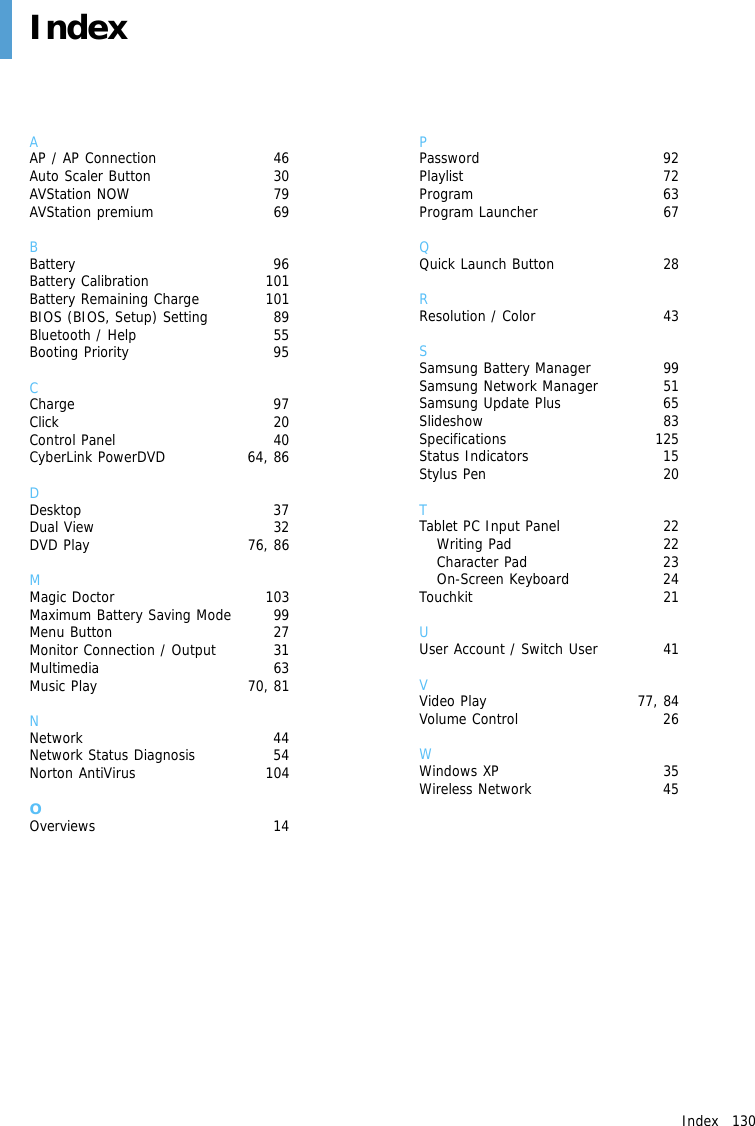
Index   130IndexAAP / AP Connection  46Auto Scaler Button  30AVStation NOW  79AVStation premium  69BBattery 96Battery Calibration  101Battery Remaining Charge  101BIOS (BIOS, Setup) Setting  89Bluetooth / Help  55Booting Priority  95CCharge 97Click 20Control Panel  40CyberLink PowerDVD  64, 86DDesktop 37Dual View  32DVD Play  76, 86MMagic Doctor  103Maximum Battery Saving Mode  99Menu Button  27Monitor Connection / Output  31Multimedia 63Music Play  70, 81NNetwork 44Network Status Diagnosis  54Norton AntiVirus  104OOverviews 14PPassword 92Playlist 72Program 63Program Launcher  67QQuick Launch Button  28RResolution / Color  43SSamsung Battery Manager  99Samsung Network Manager  51Samsung Update Plus  65Slideshow 83Specifications 125Status Indicators  15Stylus Pen  20TTablet PC Input Panel  22Writing Pad  22Character Pad  23On-Screen Keyboard  24Touchkit 21UUser Account / Switch User  41VVideo Play  77, 84Volume Control  26WWindows XP  35Wireless Network  45
Important Safety Information   131Important Safety InformationBattery DisposalDo not place rechargeable batteries or products powered by non-removable rechargeable bat-teries in the garbage.Contact the Samsung Helpline for information on how to dispose of batteries that are no longer re-quired. Follow all local regulations when disposing of old batteries.Laser SafetyAll systems equipped with CD or DVD drives comply with the appropriate safety standards, including IEC 825. The laser devices in these components are classified as “Class 1 Laser Products” under a US Department of Health and Human Services (DHHS) Radiation Performance Standard. Should the unit ever need servicing, contact an authorized service location.Laser Safety NoteUse of controls, or adjustments, or performing procedures other than those specified in this man-ual may result in hazardous radiation exposure. To prevent exposure to laser beams, do not try to open the enclosure of a CD or DVD drive.Power Cord RequirementsThe power cord set (wall plug, cable and AC adapter plug) received with your computer meets the requirements for use in the country where the equipment was purchased.Power cord sets for use in other countries must meet the requirements of the country where the computer is used. For more information on power cord set requirements, contact an authorized deal-er, reseller, or service provider.General RequirementsThe requirements listed below are applicable to all countries:•The length of the power cord set must be at least 6.00 feet (1.8m) and a maximum of 9.75 feet (3.0m).•All power cord sets must be approved by an acceptable accredited agency responsible for evaluation in the country where the power cord set will be used.•The power cord set must have a minimum current capacity of 7 A and a nominal voltage rating of 125 or 250 volts AC, as required by each country’s power system.•The appliance coupler must meet the mechanical configuration of an EN 60 320/IEC 320 Standard Sheet C7 connector, for mating with the appliance inlet on the computer.
Regulatory Compliance Statements   132Regulatory Compliance StatementsWireless GuidanceLow power, Radio LAN type devices (radio frequency (RF) wireless communication devices), oper-ating in the 2.4 GHz Band, may be present (embedded) in your notebook system. The following sec-tion is a general overview of considerations while operating a wireless device.Additional limitations, cautions, and concerns for specific countries are listed in the specific country sections (or country group sections). The wireless devices in your system are only qualified for use in the countries identified by the Radio Approval Marks on the system rating label. If the country you will be using the wireless device in, is not listed, please contact your local Radio Approval agency for the requirements. Wireless devices are closely regulated and using them may be restricted.The power output of the wireless device or devices that may be embedded in your notebook is well below the RF exposure limits as known at this time. Because the wireless devices (which may be embedded in your notebook) emit less energy than permitted by the radio frequency safety stan-dards and recommendations, the manufacturers believe these devices are safe for use. Regardless of the power levels, care should be taken to minimize human contact during normal operation.This transmitter must not be collocated or operate in conjunction with any other antenna or trans-mitter except for the installed Bluetooth transmitter.Some circumstances require restrictions on wireless devices. Examples of common restrictions are listed below:Radio frequency wireless communication can interfere with equipment on commercial aircraft. Current aviation regulations require wireless devices to be turned off while travelling in an air-plane. 802.11B/G (also known as wireless Ethernet or Wifi) and Bluetooth communication devic-es are examples of devices that provide wireless communication.In environments where the risk of interference to other devices or services is harmful or per-ceived as harmful, the option to use a wireless device may be restricted or eliminated. Airports, Hospitals, and Oxygen or flammable gas laden atmospheres are limited examples where use of wireless devices may be restricted or eliminated. When in environments where you are uncertain of whether wireless devices can be used, ask the applicable authority for authorization prior to use or turning on the wireless device.Every country has different restrictions on the use of wireless devices. Since your system is equipped with a wireless device, when travelling between countries with your system, check with the local Radio Approval authorities prior to any move or trip for any restrictions on the use of a wireless device in the destination country.If your system came equipped with an internal embedded wireless device, do not operate the wireless device unless all covers and shields are in place and the system is fully assembled.
Regulatory Compliance Statements   133Wireless devices are not user serviceable. Do not modify them in any way. Modification to a wire-less device will void the authorization to use it. Please contact the respective manufacturer for servicing.Only use drivers approved for the country in which the device will be used. See the manufacturer System Restoration Kit, or contact manufacturer Technical Support for additional information.United States of AmericaUSA and Canada Safety Requirements and NoticesDo not touch or move the antenna while the unit is transmitting or receiving.Do not hold any component containing the radio so that the antenna is very close or touching any exposed parts of the body, especially the face or eyes, while transmitting.Do not operate the radio or attempt to transmit data unless the antenna is connected; if not, the radio may be damaged.Use in specific environments:The use of wireless devices in hazardous locations is limited by the constraints posed by the safety directives of such environments.The use of wireless devices on airplanes is governed by the Federal Aviation Administration (FAA).The use of wireless devices in hospitals is restricted to the limits set forth by each hospital.Explosive Device Proximity WarningDo not operate a portable transmitter (such as a wireless network device) near unshieldedblasting caps or in an explosive environment unless the device has been modified to be qualified for such use.Using On Aircraft WarningRegulations of the FCC and FAA prohibit airborne operation of radio-frequency wireless devices because their signals could interfere with critical aircraft instruments.Other Wireless DevicesSafety Notices for Other Devices in the Wireless Network: Refer to the documentation supplied with wireless Ethernet adapters or other devices in the wireless network.The Part 15 radio device operates on a non-interference basis with other devices operating at this frequency. Any changes or modification to said product not expressly approved by Samsung could void the user's authority to operate this device.
Regulatory Compliance Statements   134Unintentional Emitter per FCC Part 15This device complies with Part 15 of the FCC Rules. Operation are subject to the following two con-ditions:(1) this device may not cause harmful interference, and (2) this device must accept any in-terference received, including interference that may cause undesired operations.This equipment has been tested and found to comply with the limits for a Class B digital device pursuant to Part 15 of the FCC Rules. These limits are designed to provide reasonable protection against harmful interference in a residential installation. This equipment uses and can radiate radio frequency energy and if not installed and used in accordance with the instructions may cause harmful interference. If this equipment does cause harmful interference to radio or tele-vision reception, which can be determined by turning the equipment off and on, the user is en-couraged to try to correct the interference by following one or more of the following measures:•Reorient or relocate the receiving antenna.•Increase the distance between the equipment and receiver.•Connect the equipment into an outlet on a circuit different from that to which the receiver is connected.•Consult the dealer or an experienced radio/TV technician for help.If necessary, users should consult the dealer or an experienced radio/television technician for addi-tional suggestions. Users may find the following booklet helpful: “Something About Interference.” This is available at FCC local regional offices. Our company is not responsible for any radio or tele-vision interference caused by unauthorized modifications of the equipment or the substitution or at-tachment of connecting cables and equipment other than those specified by our company. The correction will be the responsibility of the user. Use only shielded data cables with this system.Intentional emitter per FCC Part 15Low power, Radio LAN type devices (radio frequency (RF) wireless communication devices), oper-ating in the 2.4 GHz Band, may be present (embedded) in your notebook system. This section is only applicable if these devices are present. Refer to the system label to verify the presence of wire-less devices.Wireless devices that may be in your system are only qualified for use in the United States of America if an FCC ID number is on the system label.This transmitter must not be collocated or operate in conjunction with any other antenna or trans-mitter except for the installed Bluetooth transmitter.Operation of this device is subject to the following two conditions: (1) this device may not cause harmful interference, and (2) this device must accept any interference received, including interfer-ence that may cause undesired operations of the device.Wireless devices are not user serviceable. Do not modify them in any way. Modification to a wire-less device will void the authorization to use it. Contact the manufacturer for servicing.
Regulatory Compliance Statements   135European UnionEuropean Union CE Marking and Compliance NoticesProducts intended for sale within the European Union are marked with the Conformité Européene (CE) mark, which indicates compliance with the applicable Directives and European standards and amendments identified below. This equipment also carries the Class 2 identifier.The following information is only applicable to systems labeled with the CE mark  .European DirectivesThis Information Technology device has been tested and found to comply with the following Euro-pean directives:•EMC Directive 89/336/EEC with amending directives 92/31/EEC & 93/68/EEC as per– EN 55022 Class B– EN 61000-3-2– EN 61000-3-3– EN 55024•Low Voltage Directive (Safety) 73/23/EEC as per EN 60950(A1/A2/A3/A4/A11)•Radio and Telecom Terminal Equipment Directive 199/5/EC as per– CTR21 (if fitted with a modem device)– ETS 300 328 (if fitted with a 2.4 GHz band embedded wireless device)– ETS 301 489-1 (if fitted with a 2.4 GHz band embedded wireless device)– ETS 301 489-17 (if fitted with a 2.4 GHz band embedded wireless device)European Radio Approval Information (for products fitted with EU-approved radio devices)This Product is a Notebook computer; low power, Radio LAN type devices (radio frequency (RF) wireless communication devices), operating in the 2.4 GHz band, may be present (embedded) in your notebook system which is intended for home or office use. This section is only applicable if these devices are present. Refer to the system label to verify the presence of wireless devices.Wireless devices that may be in your system are only qualified for use in the European Union or associated areas if the CE mark   with the Alert Symbol is on the system label.The power output of the wireless device or devices that may be embedded your notebook is well below the RF exposure limits as set by the European Commission through the R&TTE directive.See 802.11b and 802.11g restrictions for specific countries or regions within countries under the heading “European Economic Area Restrictions” below.
Regulatory Compliance Statements   136Translated Statements of ComplianceEuropean Economic Area RestrictionsLocal Restriction of 802.11b/802.11g Radio Usage[Note to integrator: The following statements on local restrictions must be published in all end-user documentation provided with the system or product incorporating the Wireless product.]Due to the fact that the frequencies used by 802.11b/802.11g wireless LAN devices may not yet be harmonized in all countries, 802.11b/802.11g products are designed for use in specific coun-tries or regions only, and are not allowed to be operated in countries or regions other than those designated.As a user of these products, you are responsible for ensuring that the products are used only in the countries or regions for which they were intended and for verifying that they are configured with the correct selection of frequencies and channels for the country or region of use. Any de-viation from permissible settings and restrictions in the country or region of use could be an in-fringement of local law and may be punishable as such.
Regulatory Compliance Statements   137The European variant is intended for use throughout the European Economic Area. However, autho-rization for use is further restricted in particular countries or regions within countries, as follows:GeneralEuropean standards dictate a maximum radiated transmit power of 100 mW effective isotropic ra-diated power (EIRP) and the frequency range 2400 – 2483.5 MHz.BelgiumThe product may be used outdoors, but for outdoor transmissions over a distance of 300m or more, a license from the BIPT is required.This restriction should be indicated in the manual as follows:Dans le cas d'une utilisation privée, à l'extérieur d'un bâtiment, au-dessus d'un espace public, aucun enregistrement n'est nécessaire pour une distance de moins de 300m. Pour une distance supérieure à 300m un enregistrement auprès de l'IBPT est requise. Pour une utilisation publique à l'extérieur de bâtiments, une licence de l'IBPT est requise. Pour les enregistrements et licences, veuillez con-tacter l'IBPT.FranceFor Metropolitan departments:2.400 - 2.4835 GHz for indoor use.2.400 -2.454 GHz (channels 1 to 7) for outdoor use.For Guadeloupe, Martinique, St Pierre et Miquelon, Mayotte:2.400 - 2.4835 GHz for indoor and outdoor use.For Reunion, Guyane:2.400 - 2.4835 GHz for indoor use.2.420 - 2.4835 GHz for outdoor use (channels 5 to 13)
WEEE Symbol Information   138WEEE Symbol Information(Applicable in the European Union and other European countries with separate collection systems)The marking shown on the product or in the literature, indicates that it should not be disposed of with other household wastes at the end of its working life. To prevent possible harm to the environ-ment or human health from uncontrolled waste disposal, please separate this from other types of wastes and recycle it responsibly to promote the sustainable reuse of material resources.Household users should contact either the retailer where they purchased this product, or their local government office, for details of where and how they can take this item for environmentally safe recycling.Business users should contact their supplier and check the terms and conditions of the purchase con-tract. This product should not be mixed with other commercial waste for disposal.Correct Disposal of This Product(Waste Electrical & Electronic Equipment)
Contact SAMSUNG WORLD WIDE   139Contact SAMSUNG WORLD WIDE[U.S.A. / U.K. / AUSTRALIA / HONG KONG / INDIA / MALAYSIA / SINGAPORE]Contact SAMSUNG WORLD WIDEIf you have any comments or questions regarding a Samsung product, contact the SAMSUNG Cus-tomer Care Center.[FRANCE] Comment contacter Samsung dans le mondeSi vous avez des suggestions ou des questions concernant les produits Samsung, veuillez contacter le Service Consommateurs Samsung.[GERMANY] Kontakt zu SamsungFalls Sie Fragen oder Anregungen zu Samsung-Produkten haben, wenden Sie sich bitte an den Sam-sung-Kundendienst.[SPAIN] Contacte con SAMSUNG WORLD WIDESi tiene alguna pregunta o comentario referente a nuestros productos, por favor contacte con nues-tro Servicio de Atencion al Cliente.Customer Care Center TEL WebSiteU.S.A. 1 800 SAMSUNG (7267864) www.samsung.comU.K. 0870 242 0303 www.samsung.com/ukAUSTRALIA 1300 362 603 www.samsung.com/auHONG KONG 2862 6001 www.samsung.com/hkINDIA 3030 8282 / 1600 1100 11 www.samsung.com/inMALAYSIA 1800-88-9999 www.samsung.com/mySINGAPORE 1800-SAMSUNG(7267864) www.samsung.com/sgCustomer Care Center TEL WebSiteFRANCE 08 25 08 65 65 www.samsung.frCustomer Care Center TEL WebSiteGERMANY 01805 121213 www.samsung.deCustomer Care Center TEL WebSiteSPAIN 902 10 11 30 www.samsung.com/es
Contact SAMSUNG WORLD WIDE   140[PORTUGAL] Contacte SAMSUNG GLOBALSe tem algumas dúvidas ou comentários sobre os produtos Samsung, contacte por favor a nossa linha de apoio a clientes Samsung.[RUSSIA / UKRAINE] Связывайтесь с SAMSUNG по всему мируЕсли у вас есть предложения или вопросы по продуктам Samsung, связывайтесь с информационным центром Samsung.[CHINA] [THILAND]  Rev.1.1Customer Care Center TEL WebSitePORTUGAL 808 200 128 www.samsung.ptCustomer Care Center TEL WebSiteRUSSIA  8-800-200-0400 www.samsung.ruUKRAINE  8-800-502-0000 www.samsung.com/urCustomer Care Center TEL WebSiteCHINA 800-810-5858 / (010) 64751880 www.samsung.com.cnCustomer Care Center TEL WebSiteTHAILAND 1800-29-3232 / 02-689-3232 www.samsung.com/th

Navigation menu