Samsung Electronics Co SCHI925U Portable Tablet Computer with Multi-band CDMA/LTE, WLAN and Bluetooth User Manual SCH I925

Samsung Electronics Co Ltd Portable Tablet Computer with Multi-band CDMA/LTE, WLAN and Bluetooth SCH I925

Users Manual 2
Connections       115Copying and Pasting a Hyperlink or URL1. From the Home screen, touch  Internet.2. Browse to a webpage.3. Touch and hold on the link or URL, then touch Copy link URL on the pop-up menu.4. To paste the copied link or URL, navigate to the desired field (or to another application), then touch and hold in a text field and touch Paste on the pop-up menu.Using BookmarksWhile browsing, bookmark a site to quickly access it later.Creating a bookmark1. From the Home screen, touch   Internet.2. Browse to a website, then touch   Add bookmark.The Add bookmark options list displays. Confirm the Name and URL Address for the bookmark.3. In the Folder field, touch the drop-down menu, and touch Homescreen, Bookmarks, or Other folder.4. Touch OK to save the bookmark.A gold star   displays on the Bookmarked page.Accessing Bookmarks and HistoryLaunch a bookmarked page or reload recent pages.1. From the Home screen, touch   Internet.2. Touch  Bookmarks, History, and Saved pages.3. On the Bookmarks tab, use these options:•Touch a bookmark to load the page.•Touch and hold on a bookmark for these options:–Open: Open the bookmarked page.–Open in new tab: Open the linked page in a new window.–Edit bookmark: Make changes to the bookmark description.–Add shortcut to home screen: Create a bookmark on the Home screen.–Share link: Use Bluetooth, Email, Gmail, Google+, or Wi-Fi Direct to send the link.–Copy link URL: Save the link’s URL to the clipboard.–Delete bookmark: Remove the bookmark.–Set as homepage: Assign the bookmarked link as the home page.DRAFT FOR INTERNAL USE ONLY
1164. On the History tab, touch Today, Yesterday, Last 7 days, Last month, Older, or Most visited to use these options:•Touch a page to reload it.•Touch the   next to a page to bookmark it. Touch a gold star  next to a page to remove the bookmark.•Touch and hold on a page for these options:–Open: Open the webpage.–Open in new tab: Launch the webpage in a new window.–Add bookmark/Remove from Bookmarks: Bookmark the page or remove the bookmark for this page.–Share link: Use Bluetooth, Email, Gmail, Google+, or Wi-Fi Direct to send the link.–Copy link URL: Save the link’s URL to the clipboard.–Remove from history: Remove the record of this page.–Set as homepage: Assign the bookmarked link as the home page.5. On the Saved pages tab, use these options:•Touch a page to reload it.•Touch and hold on a page and then touch Remove from saved pages to remove the page from Saved pages.Browser MenuWhile viewing a webpage, touch  Menu for the following options:• Home: Display the Home page.• New tab: Open the webpage in a new window, under a new tab.• New incognito tab: Open the webpage in a new window, under a new tab, and the pages you view in the new window will not appear in your browser history or search history. See the on-screen explanation of going incognito.• Add shortcut to home screen: Add the URL for this webpage as a shortcut on the first home screen.• Share page: Use Bluetooth, Email, Gmail, Google+, or Wi-Fi Direct to send the webpage URL.• Find on page: Search for content on the current page.• Desktop view: Your browser displays a website in a modified format that makes it easier to read. Desktop view displays a website the same way it would appear on a PC.• Save for offline reading: Saves the webpage so you can read it later even when offline.• Downloads: View and manage recent downloads.DRAFT FOR INTERNAL USE ONLY
Connections       117• Print: Print the current screen or page to a Samsung printer.• Settings: Configure web settings. For more information, refer to “Browser Settings”  on page 117.Browser SettingsUse the browser settings to customize the browser.1. From the Home screen, touch   Internet.2. While viewing a webpage, touch   Menu ➔ Settings.Customize the Browser by using the following options:General• Set home page: View and set the default first page that displays when you launch the Browser.•Form auto-fill: Enable or disable form auto-fill to complete Web forms with a single click.• Auto-fill text: If Form auto-fill is enabled, set up the following information:–Full name: Enter your name.–Company name: Enter a company name.–Address line 1: Enter your address.–Address line 2: Enter any additional address information.–City/Town: Enter your city and town.–State: Enter your state.–Postcode: Enter your ZIP code.–Country: Enter your country.–Phone: Enter your telephone number.–Email: Enter a valid email address.Privacy and security• Clear cache: Delete content and databases stored on the device.• Clear history: Delete the list of previously-visited pages.• Show security warnings: When enabled, the Browser warns you if there is a problem with a site’s security.• Accept cookies: When enabled, allows Browser to save and read cookie information used by webpages.• Clear all cookie data: Delete cookie information saved to the device.• Remember form data: When enabled, stores information you enter into forms to make future forms easier.• Clear form data: Deletes saved form information.• Enable location: When enabled, sites you visit can request access to your location.• Clear location access: Clear location access for all websites.DRAFT FOR INTERNAL USE ONLY
118• Remember passwords: When enabled, saves user names and passwords for sites you visit, to make future visits easier.•Clear passwords: Clear all saved user names and passwords.• Enable notifications: Set web notifications access information as Always on, On demand, or Off.• Clear notifications: Remove web notification access information.Accessibility• Force zoom: Override the website's request to control zoom.•Text size: Use the Preview field and the following controls to configure text size:–Scale text up and down: Scale the text size up or down using a slider bar.–Zoom amount on double tap: Set how much to zoom when you double-tap the screen, from 175 to 225 percent.–Minimum font size: Set the minimum font size, which can range from 1 point to 24 points.• Inverted screen rendering: Use the Preview screen and the following controls to configure inverted screen rendering:–Inverted rendering: Enable the display of websites with inverted colors – black becomes white and vice versa.–Contrast: If Inverted rendering is enabled, use this slider to set the contrast, which can range from 100 to 300 percent.Advanced• Select search engine: Choose a search engine from Google, Yahoo!, or Bing.• Open in background: When enabled, new windows open behind the current window.• Enable JavaScript: When enabled, the Browser automatically runs JavaScript scripts on pages you visit.• Enable plug-ins: When enabled, the Browser automatically loads and runs plug-ins on pages you visit.•Default storage: Select where Browser stores files.• Website settings: View and manage settings for individual websites.DRAFT FOR INTERNAL USE ONLY
Connections       119•Default zoom: Adjusts the zoom feature. Set to Far, Medium, or Close.• Open pages in overview: When enabled, displays an overview of newly-opened pages.• Auto-fit pages: When enabled, the Browser automatically sizes webpages to fit your device’s display.• Block pop-ups: When enabled, blocks pop-up windows.• Text encoding: Choose a default character set for webpages.• Reset to default: Clear all browser data and reset all settings to the factory defaults.Bandwidth management• Preload search results: Enable the browser to preload high confidence search results in the background to help speed up searches. Options are: Never, Only via Wi-Fi, or Always.•Load images: When enabled, images are automatically loaded when you visit a page. When disabled, images are indicated by a link, which you can touch to download the picture.Labs• Quick controls: When enabled, the Application and URL bars are hidden. To access the hidden controls, swipe inward from the left or right edge of the screen to access Quick Controls. For more information, refer to “Browser Quick Controls”  on page 120.• Google Instant: When enabled, you can use Google Instant when you use Google Search to show results as you type. Enabling this option can increase data use.DRAFT FOR INTERNAL USE ONLY
120Browser Quick ControlsUse Quick Controls to maximize your viewing area while browsing the Internet.1. From the Home screen, touch   Internet.2. While viewing a webpage, touch   Menu ➔ Settings ➔ Labs, and then touch Quick Controls to enable the function.The Application and URL bars are hidden.3. Swipe inward from the left or right edge of the screen to access quick controls.4. Without lifting your finger, move to an option and then lift your finger to initiate the option.5. To cancel, display the Quick controls and touch Menu ➔ Settings ➔ Labs and touch Quick controls to uncheck it.Wi-FiWi-Fi is a wireless networking technology that provides access to local area networks. Use your device’s Wi-Fi feature to:• Access the Internet for browsing or to send and receive email.• Access your corporate network.• Use hotspots provided by hotels or airports while traveling.Wi-Fi communication requires access to an existing Wireless Access Point (WAP). WAPs can be Open (unsecured, as with most hotspots) or Secured (requiring you to provide login credentials). Your device supports the 802.11 b/g/n Wi-Fi protocol.Configuring Wi-Fi SettingsFor information about configuring your device’s Wi-Fi settings, see “Wi-Fi” on page 169. DRAFT FOR INTERNAL USE ONLY
Connections       121Finding Wi-Fi NetworksYou can have your device automatically notify you of available networks. (For more information, refer to “Wi-Fi Settings”  on page 169.) Turning Wi-Fi On or OffTurn your device’s Wi-Fi service on or off. When you turn Wi-Fi service on, your device automatically searches for available, in-range WAPs (Wireless Access Points).Turning Wi-Fi On1. From any screen, touch the Time in the Status Bar.The Status Details displays.2. Touch Wi-Fi to turn Wi-Fi On.Turning Wi-Fi Off1. From any screen, touch the Time in the Status Bar.The Status Details displays.2. Touch Wi-Fi to turn Wi-Fi Off.Scanning and Connecting to a Wi-Fi NetworkWhen you turn on Wi-Fi, your device searches for available Wi-Fi connections, then displays them on screen.1. From any screen, touch the Time in the Status Bar.The Status Details displays.2. Touch Wi-Fi to turn Wi-Fi On. Your device automatically scans for available Wireless Access Points.3. When the scan is complete, touch a Wi-Fi network to connect. If the Wi-Fi network is open, your device automatically connects. If the Wi-Fi network is secured, enter the password at the prompt to connect.Adding a Wi-Fi Network Manually1. From a Home screen, touch   Apps ➔Settings.2. Under Wireless and network, on the Wi-Fi tab, touch the  OFF / ON icon to turn Wi-Fi on.3. Touch Add Wi-Fi network, then enter network information:• Network SSID: Enter the name of the Wi-Fi Wireless Access Point (WAP).•Security: Select the type of security used by the WAP.ONDRAFT FOR INTERNAL USE ONLY
122Note:Depending on the Security protocol used by the WAP, additional network information may be required, such as a Password.• Password: If the WAP is secured, enter the password or hex key.4. Touch Save to save the settings.BluetoothBluetooth is a short-range wireless communications technology for exchanging information over a distance of about 30 feet.You don’t need to line up the devices to send information with Bluetooth. If the devices are in range, you can exchange information between them, even if they are in different rooms.Configuring Bluetooth SettingsConfigure your tablet’s Bluetooth settings. For more information, see “Bluetooth settings” on page 171.Note:Bluetooth profiles are specifications for services supported by individual devices. For a list of profiles your tablet supports, see “Bluetooth profiles” on page 170.DRAFT FOR INTERNAL USE ONLY
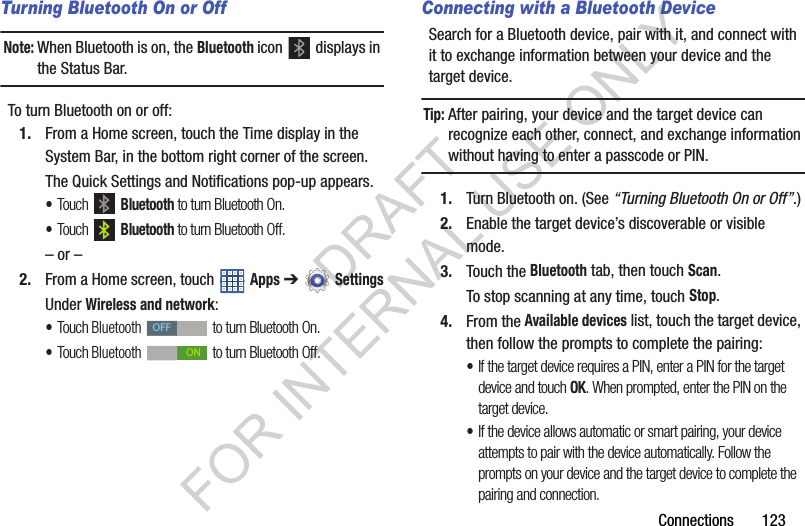
Connections       123Turning Bluetooth On or OffNote:When Bluetooth is on, the Bluetooth icon   displays in the Status Bar. To turn Bluetooth on or off:1. From a Home screen, touch the Time display in the System Bar, in the bottom right corner of the screen. The Quick Settings and Notifications pop-up appears. •Touch  Bluetooth to turn Bluetooth On. •Touch  Bluetooth to turn Bluetooth Off. – or –2. From a Home screen, touch   Apps ➔SettingsUnder Wireless and network: •Touch Bluetooth to turn Bluetooth On. •Touch Bluetooth to turn Bluetooth Off. Connecting with a Bluetooth DeviceSearch for a Bluetooth device, pair with it, and connect with it to exchange information between your device and the target device. Tip:After pairing, your device and the target device can recognize each other, connect, and exchange information without having to enter a passcode or PIN. 1. Turn Bluetooth on. (See “Turning Bluetooth On or Off”.) 2. Enable the target device’s discoverable or visible mode. 3. Touch the Bluetooth tab, then touch Scan. To stop scanning at any time, touch Stop. 4. From the Available devices list, touch the target device, then follow the prompts to complete the pairing:•If the target device requires a PIN, enter a PIN for the target device and touch OK. When prompted, enter the PIN on the target device.•If the device allows automatic or smart pairing, your device attempts to pair with the device automatically. Follow the prompts on your device and the target device to complete the pairing and connection. OFFONDRAFT FOR INTERNAL USE ONLY
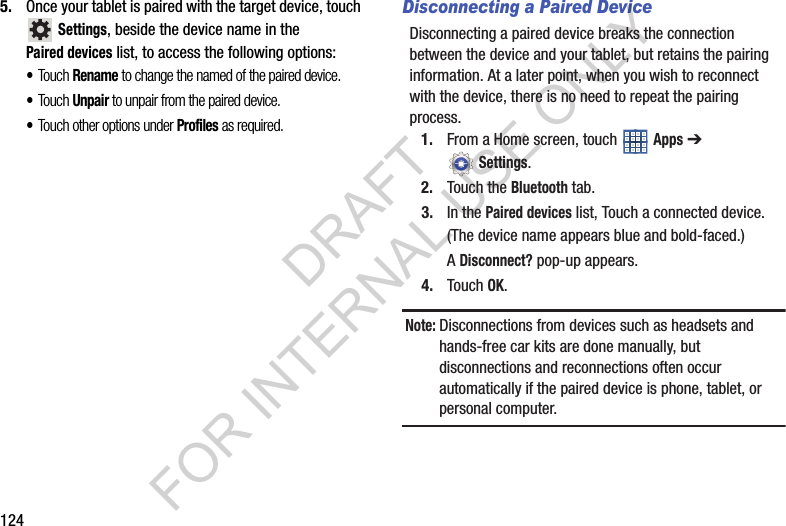
1245. Once your tablet is paired with the target device, touch  Settings, beside the device name in the Paired devices list, to access the following options: •Touch Rename to change the named of the paired device.•Touch Unpair to unpair from the paired device. •Touch other options under Profiles as required. Disconnecting a Paired DeviceDisconnecting a paired device breaks the connection between the device and your tablet, but retains the pairing information. At a later point, when you wish to reconnect with the device, there is no need to repeat the pairing process. 1. From a Home screen, touch   Apps ➔ Settings. 2. Touch the Bluetooth tab. 3. In the Paired devices list, Touch a connected device. (The device name appears blue and bold-faced.) A Disconnect? pop-up appears. 4. Touch OK.Note:Disconnections from devices such as headsets and hands-free car kits are done manually, but disconnections and reconnections often occur automatically if the paired device is phone, tablet, or personal computer. DRAFT FOR INTERNAL USE ONLY
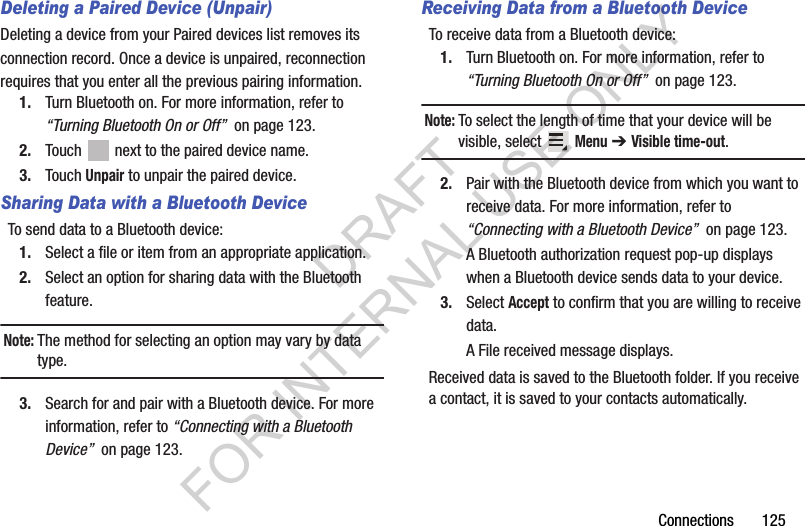
Connections       125Deleting a Paired Device (Unpair)Deleting a device from your Paired devices list removes its connection record. Once a device is unpaired, reconnection requires that you enter all the previous pairing information.1. Turn Bluetooth on. For more information, refer to “Turning Bluetooth On or Off”  on page 123.2. Touch   next to the paired device name.3. Touch Unpair to unpair the paired device.Sharing Data with a Bluetooth DeviceTo send data to a Bluetooth device:1. Select a file or item from an appropriate application.2. Select an option for sharing data with the Bluetooth feature.Note:The method for selecting an option may vary by data type.3. Search for and pair with a Bluetooth device. For more information, refer to “Connecting with a Bluetooth Device”  on page 123.Receiving Data from a Bluetooth DeviceTo receive data from a Bluetooth device:1. Turn Bluetooth on. For more information, refer to “Turning Bluetooth On or Off”  on page 123.Note:To select the length of time that your device will be visible, select   Menu ➔ Visible time-out.2. Pair with the Bluetooth device from which you want to receive data. For more information, refer to “Connecting with a Bluetooth Device”  on page 123.A Bluetooth authorization request pop-up displays when a Bluetooth device sends data to your device.3. Select Accept to confirm that you are willing to receive data.A File received message displays.Received data is saved to the Bluetooth folder. If you receive a contact, it is saved to your contacts automatically.DRAFT FOR INTERNAL USE ONLY
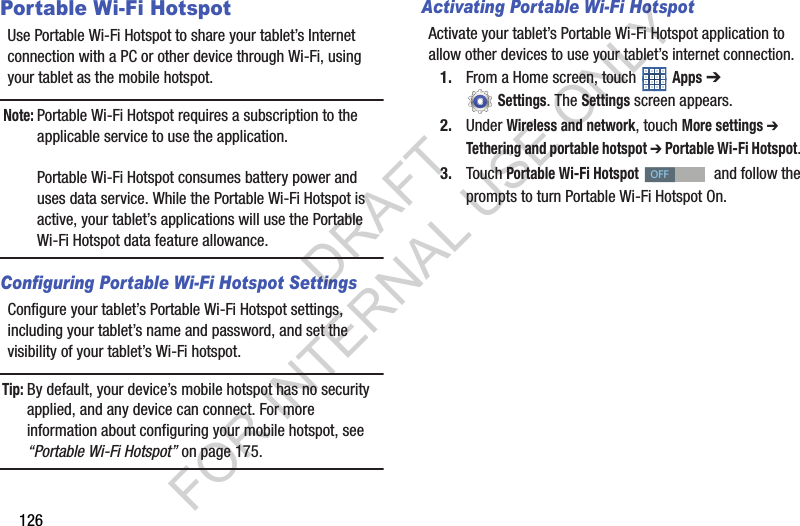
126Portable Wi-Fi HotspotUse Portable Wi-Fi Hotspot to share your tablet’s Internet connection with a PC or other device through Wi-Fi, using your tablet as the mobile hotspot. Note:Portable Wi-Fi Hotspot requires a subscription to the applicable service to use the application.Portable Wi-Fi Hotspot consumes battery power and uses data service. While the Portable Wi-Fi Hotspot is active, your tablet’s applications will use the Portable Wi-Fi Hotspot data feature allowance.Configuring Portable Wi-Fi Hotspot SettingsConfigure your tablet’s Portable Wi-Fi Hotspot settings, including your tablet’s name and password, and set the visibility of your tablet’s Wi-Fi hotspot. Tip: By default, your device’s mobile hotspot has no security applied, and any device can connect. For more information about configuring your mobile hotspot, see “Portable Wi-Fi Hotspot” on page 175. Activating Portable Wi-Fi HotspotActivate your tablet’s Portable Wi-Fi Hotspot application to allow other devices to use your tablet’s internet connection.1. From a Home screen, touch   Apps ➔ Settings. The Settings screen appears. 2. Under Wireless and network, touch More settings ➔ Tethering and portable hotspot ➔ Portable Wi-Fi Hotspot. 3. Touch Portable Wi-Fi Hotspot    and follow the prompts to turn Portable Wi-Fi Hotspot On. OFFDRAFT FOR INTERNAL USE ONLY
Connections       127Connecting a Device via Portable Wi-Fi HotspotUse the other device’s Wi-Fi control to connect to your tablet’s Portable Wi-Fi Hotspot.1. Activate Portable Wi-Fi Hotspot on your tablet. For more information, see “Activating Portable Wi-Fi Hotspot” on page 126.2. Activate Wi-Fi on the other device, using that device’s Wi-Fi control.3. Scan for Wi-Fi hotspots, and select your tablet from the list. To find your tablet’s name, see “Configuring Portable Wi-Fi Hotspot” on page 176. 4. At the prompt, enter your tablet’s Portable Wi-Fi Hotspot password. By default, the password is your tablet’s telephone number. For information on changing your tablet’s Portable Wi-Fi Hotspot password, see “Configuring Portable Wi-Fi Hotspot” on page 176. TetheringUse Tethering to share your tablet’s internet connection with a computer connected to your device using the USB data/charging cable. (For more information about USB tethering, touch Help on the Tethering and portable hotspot screen.) 1. From a Home screen, touch   Apps ➔ Settings. The Settings screen appears. 2. From the Settings screen, under Wireless and network, touch More settings ➔ Tethering and portable hotspot . The Tethering and portable hotspot screen appears. 3. Connect the computer to the phone with the USB data/charging cable. 4. Touch USB Tethering to turn tethering On or Off. When On, a check mark appears in the check box. Note:Using Tethering requires a subscription to your Wireless  Provider’s mobile data service. DRAFT FOR INTERNAL USE ONLY
128VPNYou can use your phone’s VPN (Virtual Private Network) feature to connect to VPNs. Configuring VPN SettingsFor information about configuring your phone’s VPN settings, see “VPN” on page 177. Accessing a VPN1. From a Home screen, touch   Apps ➔ Settings. The Settings screen appears. 2. Under Wireless and network, touch More settings ➔ VPN. The VPN screen appears, listing available VPN connections. 3. Touch a VPN and follow any prompts to access the network. Nearby devicesShare files with nearby DLNA certified devices over Wi-Fi. (For information on configuring Nearby devices, For more information, refer to “Nearby devices”  on page 178..) Note:To use Nearby devices for sharing, you must have set up a connection with another Wi-Fi device that supports DLNA. 1. Connect your phone and another DLNA certified device to the same Wi-Fi network. (For more information, refer to “Wi-Fi”  on page 120..) 2. From a Home screen, touch   Apps ➔ Settings. The Settings screen appears. 3. Under Wireless and network, touch More settings ➔ Nearby devices. The Nearby devices screen appears. 4. Touch File sharing   to turn file sharing via DLNA On, or touch File sharing   to turn file sharing via DLNA Off. DRAFT FOR INTERNAL USE ONLY
Connections       129AllShare CastAllShare Cast lets your phone share the contents of its display with other Digital Living Network Alliance (DLNA) certified devices, such as Smart televisions. Note:To view more information about DLNA certified products visit http://www.dlna.org/home.1. Connect your phone and another DLNA certified device to the same Wi-Fi network. (For more information, refer to “Wi-Fi”  on page 120..) 2. From a Home screen, touch   Apps ➔ Settings. The Settings screen appears. 3. Under Wireless and network, touch More settings . The Wireless and networks screen appears. 4. Touch AllShare Cast. The AllShare Cast screen appears with AllShare Cast already active and begins scanning for available devices. All detected DLNA certified devices are listed under Available devices. 5. Touch the desired device to establish a connection. You can now view the contents of your phone’s display on the connected device. Kies Via Wi-FiSamsung Kies is a software that enables you to update your device firmware, synchronize files, and transfer data to and from your device directly by connecting to the PC.Note:Some features will be supported through the System Updates feature in the future. (For more information, refer to “Software Update”  on page 206.) To learn more about Samsung Kies and Samsung applications, browse featured applications and download Kies at: http://www.samsung.com/us/support/downloads.Note:Samsung Kies works on both PC and Macintosh computers.DRAFT FOR INTERNAL USE ONLY
130Connecting With Samsung Kies1. Install Samsung Kies software on your PC.Warning! Close any running applications before connecting your device to a PC.2. Run Samsung Kies.3. From a Home screen, touch   Apps ➔ Settings. The Settings screen appears. 4. Touch More settings ➔ Kies via Wi-Fi.Select the source of the Wi-Fi connection for Kies air.5. Follow the prompts from Kies to update your device firmware.6. Refer to Samsung Kies Help for more information.Managing DownloadsFiles, apps, and other items you download in Browser, Gmail, Email, or in other ways, are stored on your tablet’s internal storage. You can use the Downloads app to view, reopen, or delete what you have downloaded.To manage the demands on their networks or to help you avoid unexpected charges, some mobile networks place restrictions on the size of the files you can download. When you are connected to such networks, and you try to download an oversized-file, you are asked or required to delay downloading the file until the next time you are connected to a Wi-Fi network. At that time, the download resumes automatically. The Downloads app can also be used to view and manage these queued files.Downloaded files are stored in the Download directory in your tablet’s internal storage. You can view and copy files from this directory when connected to a computer with a USB cable.DRAFT FOR INTERNAL USE ONLY
Connections       131Uninstalling an AppApps come pre-installed on your device and you can download additional apps from Google Play. If you decide to, you can uninstall apps you downloaded from Google Play and other sources.There are several ways to uninstall an app:1. From a Home screen, touch   Apps ➔ Settings ➔Application manager. 2. Touch the Downloaded tab. 3. Touch the app you want to uninstall. 4. Touch the Uninstall button. A pop-up displays the message Application will be uninstalled. 5. Touch OK to confirm you want to uninstall the app. You can also use Google Play to uninstall apps you downloaded from there (see “Play Store” on page 156). Tip:To uninstall updates to pre-installed apps, touch the app and touch Uninstall updates. A pop-up displays the message All updates to this Android system app will be uninstalled. Touch OK to uninstall the updates. To uninstall an app from the Apps screen: 1. From a Home screen, touch   Apps. 2. Touch  Menu ➔Downloaded applications. The Downloaded applications screen displays. 3. Touch  Menu ➔Uninstall. A   appears on Apps that can be uninstalled. 4. Touch an app’s icon and then touch OK to uninstall and remove the app from your tablet. Note:You cannot uninstall the apps that are included with Android. You can only uninstall the apps you have downloaded. DRAFT FOR INTERNAL USE ONLY
132Synchronizing with Windows Media PlayerEnsure that Windows Media Player is installed on your PC.1. Attach your device to the computer with the USB cable.Your computer recognizes the connection and displays the AutoPlay screen.2. Click the option to Sync digital media files to this device to synchronize music files.3. Select and drag the music files you want to the sync list and begin synchronizing.4. When finished, exit Windows Media Player and disconnect the USB cable.Connecting as a Mass Storage DeviceYou can connect your device to a PC as a removable disk and access the file directory. If you insert a memory card in the device, you can also access the files directory from the memory card by using the device as a memory card reader.Note:The file directory of the memory card displays as folder Card, separate from the internal memory, which is folder Tablet.1. Insert a memory card into the device to transfer files from or to the memory card.2. Attach your device to the computer with the USB cable.Your computer recognizes the connection and displays the AutoPlay screen.3. Click the option to Open device to view files.You should see a Card and a Tablet folder.4. Copy files from the PC to the memory card (Card folder).5. When finished, close the PC folder and disconnect the USB cable.DRAFT FOR INTERNAL USE ONLY
Connections       133Memory CardYour device supports removable microSD™ or microSDHC™ memory cards for storing music, photos, videos, and files.Installing and Removing a Memory CardFor more information about installing and removing a memory card, see “Memory Card” on page 15.Important! To prevent damage to information stored on the memory card, always unmount the card before removing it from the device.Formatting a Memory CardFormatting erases all content from the memory card and prepares it for use with your device.Formatting a Memory Card Using Your Device1. From a Home screen, touch   Apps ➔  Settings ➔Storage.2. After mounting the SD card, touch Format SD card.3. Follow the prompts to confirm the formatting of the card.Formatting a Memory Card Using Your ComputerConsult your computer and/or memory card reader documentation for information about formatting memory cards.DRAFT FOR INTERNAL USE ONLY
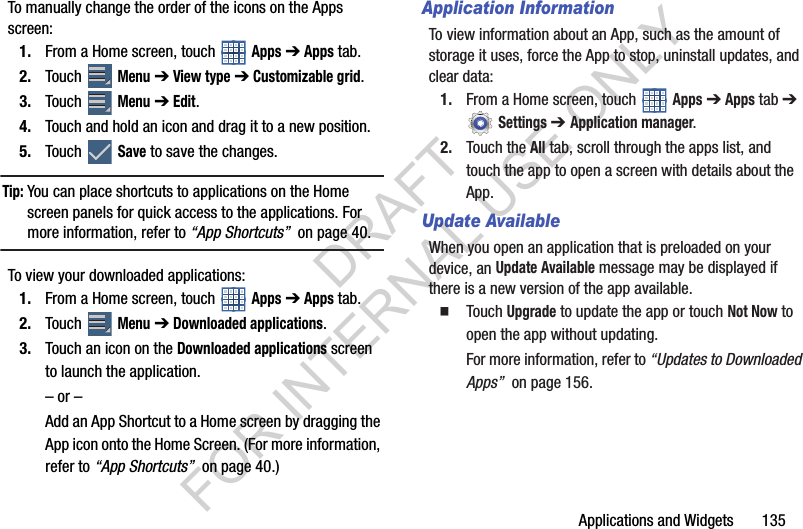
134Section 8: Applications and WidgetsThis section contains a description of the function of each application and widget pre-loaded on your tablet and available on the Apps and Widgets screens and the Mini App Tray, and how to launch the applications. For instructions on how to access the widgets by adding them to a Home screen panel, see “Adding Widgets to a Home screen” on page 41. Tip:To open applications quickly, add their shortcuts to frequently-used applications to one of the Home screens. For details, see “App Shortcuts” on page 40.This section also provides information on how to navigate through Samsung-provided applications. If the application is already described in another section of this user manual, a cross reference to that particular section is provided. Tip:For information on applications and widgets provided by your Wireless Provider or a Third Party, follow the on-screen prompts or contact your Wireless Provider. Apps ScreenThe Apps screen displays all applications installed on your wireless device. Applications that you download and install from Google Play™, from Samsung Apps, or from the web are also added to a Home screen panel.Accessing the Apps Screen1. From a Home screen, touch   Apps ➔ Apps tab (at the top of the Apps screen. Changing the Apps ScreenThe Apps icons are arranged in a Customizable grid. To arrange the Apps icons in alphabetical order:1. From a Home screen, touch   Apps ➔ Apps tab. 2. Touch  Menu ➔ View type.3. Touch Alphabetical grid.DRAFT FOR INTERNAL USE ONLY
Applications and Widgets       135To manually change the order of the icons on the Apps screen: 1. From a Home screen, touch   Apps ➔ Apps tab. 2. Touch  Menu ➔ View type ➔ Customizable grid.3. Touch  Menu ➔ Edit.4. Touch and hold an icon and drag it to a new position.5. Touch  Save to save the changes.Tip:You can place shortcuts to applications on the Home screen panels for quick access to the applications. For more information, refer to “App Shortcuts”  on page 40. To view your downloaded applications: 1. From a Home screen, touch   Apps ➔ Apps tab. 2. Touch  Menu ➔ Downloaded applications.3. Touch an icon on the Downloaded applications screen to launch the application.– or –Add an App Shortcut to a Home screen by dragging the App icon onto the Home Screen. (For more information, refer to “App Shortcuts”  on page 40.) Application InformationTo view information about an App, such as the amount of storage it uses, force the App to stop, uninstall updates, and clear data:1. From a Home screen, touch   Apps ➔ Apps tab ➔ Settings ➔ Application manager.2. Touch the All tab, scroll through the apps list, and touch the app to open a screen with details about the App. Update AvailableWhen you open an application that is preloaded on your device, an Update Available message may be displayed if there is a new version of the app available.   Touch Upgrade to update the app or touch Not Now to open the app without updating.For more information, refer to “Updates to Downloaded Apps”  on page 156. DRAFT FOR INTERNAL USE ONLY
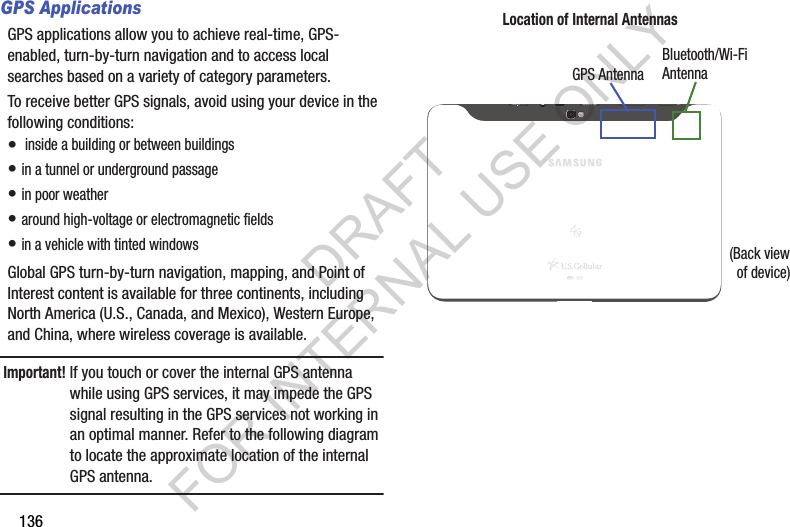
136GPS ApplicationsGPS applications allow you to achieve real-time, GPS-enabled, turn-by-turn navigation and to access local searches based on a variety of category parameters.To receive better GPS signals, avoid using your device in the following conditions: •  inside a building or between buildings• in a tunnel or underground passage• in poor weather• around high-voltage or electromagnetic fields• in a vehicle with tinted windowsGlobal GPS turn-by-turn navigation, mapping, and Point of Interest content is available for three continents, including North America (U.S., Canada, and Mexico), Western Europe, and China, where wireless coverage is available. Important!If you touch or cover the internal GPS antenna while using GPS services, it may impede the GPS signal resulting in the GPS services not working in an optimal manner. Refer to the following diagram to locate the approximate location of the internal GPS antenna.(Back view  of device)Location of Internal AntennasGPS AntennaBluetooth/Wi-FiAntennaDRAFT FOR INTERNAL USE ONLY
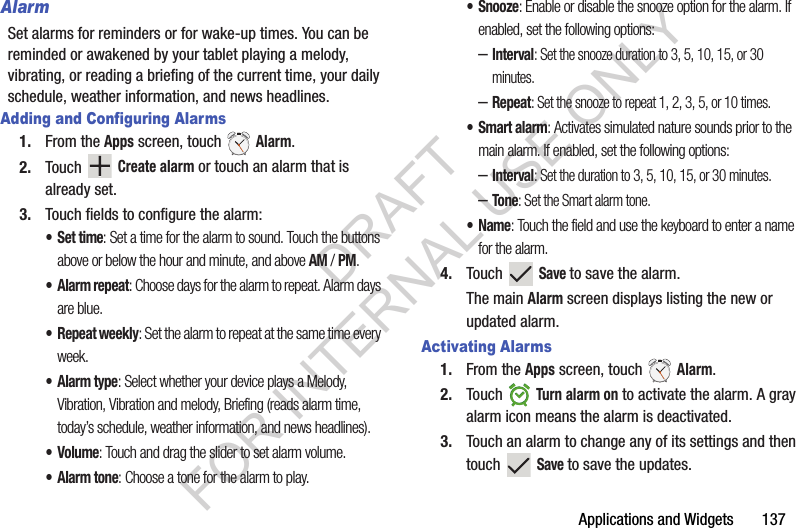
Applications and Widgets       137AlarmSet alarms for reminders or for wake-up times. You can be reminded or awakened by your tablet playing a melody, vibrating, or reading a briefing of the current time, your daily schedule, weather information, and news headlines. Adding and Configuring Alarms1. From the Apps screen, touch  Alarm.2. Touch  Create alarm or touch an alarm that is already set.3. Touch fields to configure the alarm:•Set time: Set a time for the alarm to sound. Touch the buttons above or below the hour and minute, and above AM / PM.•Alarm repeat: Choose days for the alarm to repeat. Alarm days are blue. • Repeat weekly: Set the alarm to repeat at the same time every week.•Alarm type: Select whether your device plays a Melody, Vibration, Vibration and melody, Briefing (reads alarm time, today’s schedule, weather information, and news headlines). •Volume: Touch and drag the slider to set alarm volume. •Alarm tone: Choose a tone for the alarm to play. • Snooze: Enable or disable the snooze option for the alarm. If enabled, set the following options:–Interval: Set the snooze duration to 3, 5, 10, 15, or 30 minutes.–Repeat: Set the snooze to repeat 1, 2, 3, 5, or 10 times.•Smart alarm: Activates simulated nature sounds prior to the main alarm. If enabled, set the following options:–Interval: Set the duration to 3, 5, 10, 15, or 30 minutes.–Tone: Set the Smart alarm tone.•Name: Touch the field and use the keyboard to enter a name for the alarm.4. Touch  Save to save the alarm.The main Alarm screen displays listing the new or updated alarm. Activating Alarms1. From the Apps screen, touch  Alarm.2. Touch  Turn alarm on to activate the alarm. A gray alarm icon means the alarm is deactivated.3. Touch an alarm to change any of its settings and then touch  Save to save the updates.DRAFT FOR INTERNAL USE ONLY
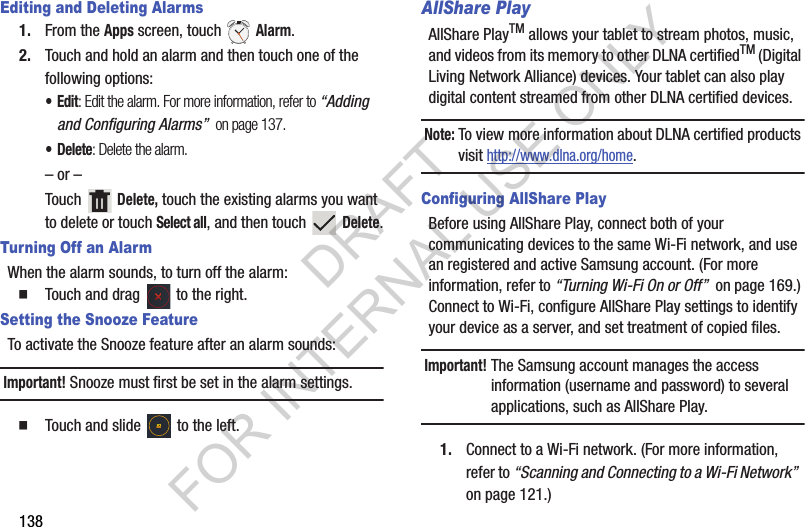
138Editing and Deleting Alarms1. From the Apps screen, touch  Alarm.2. Touch and hold an alarm and then touch one of the following options:•Edit: Edit the alarm. For more information, refer to “Adding and Configuring Alarms”  on page 137.•Delete: Delete the alarm.– or –Touch  Delete, touch the existing alarms you want to delete or touch Select all, and then touch   Delete.Turning Off an AlarmWhen the alarm sounds, to turn off the alarm:  Touch and drag   to the right.Setting the Snooze FeatureTo activate the Snooze feature after an alarm sounds: Important!Snooze must first be set in the alarm settings.  Touch and slide   to the left.AllShare PlayAllShare PlayTM allows your tablet to stream photos, music, and videos from its memory to other DLNA certifiedTM (Digital Living Network Alliance) devices. Your tablet can also play digital content streamed from other DLNA certified devices.Note:To view more information about DLNA certified products visit http://www.dlna.org/home. Configuring AllShare PlayBefore using AllShare Play, connect both of your communicating devices to the same Wi-Fi network, and use an registered and active Samsung account. (For more information, refer to “Turning Wi-Fi On or Off”  on page 169.) Connect to Wi-Fi, configure AllShare Play settings to identify your device as a server, and set treatment of copied files. Important!The Samsung account manages the access information (username and password) to several applications, such as AllShare Play. 1. Connect to a Wi-Fi network. (For more information, refer to “Scanning and Connecting to a Wi-Fi Network”  on page 121.) DRAFT FOR INTERNAL USE ONLY
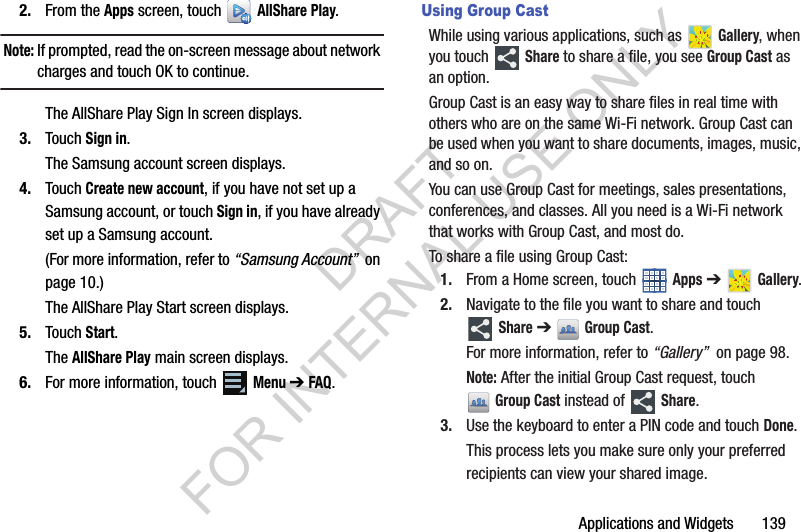
Applications and Widgets       1392. From the Apps screen, touch AllShare Play.Note:If prompted, read the on-screen message about network charges and touch OK to continue.The AllShare Play Sign In screen displays.3. Touch Sign in. The Samsung account screen displays. 4. Touch Create new account, if you have not set up a Samsung account, or touch Sign in, if you have already set up a Samsung account. (For more information, refer to “Samsung Account”  on page 10.) The AllShare Play Start screen displays.5. Touch Start.The AllShare Play main screen displays.6. For more information, touch   Menu ➔ FAQ.Using Group CastWhile using various applications, such as   Gallery, when you touch   Share to share a file, you see Group Cast as an option.Group Cast is an easy way to share files in real time with others who are on the same Wi-Fi network. Group Cast can be used when you want to share documents, images, music, and so on.You can use Group Cast for meetings, sales presentations, conferences, and classes. All you need is a Wi-Fi network that works with Group Cast, and most do.To share a file using Group Cast:1. From a Home screen, touch   Apps ➔  Gallery.2. Navigate to the file you want to share and touch Share ➔ Group Cast.For more information, refer to “Gallery”  on page 98.Note: After the initial Group Cast request, touch Group Cast instead of Share.3. Use the keyboard to enter a PIN code and touch Done.This process lets you make sure only your preferred recipients can view your shared image. DRAFT FOR INTERNAL USE ONLY
140The AllShare Play - Group Cast screen displays and the device waits for other connected recipients to accept the connection and enter the PIN on their screens.4. Touch OK to start the group cast process while other users connect.You can now interact and draw with the on-screen image, and users will instantaneously see the same gestures and also be able to interact.Note:The newly altered image (with markups and comments) can not be saved, but you can take a screen shot of the current image and save it to your Clipboard. For more information, refer to “Screen Capture”  on page 33.CalculatorThe calculator provides the basic arithmetic functions to solve simple arithmetic problems and advanced operators to solve more complex problems.1. From the Apps screen, touch Calculator.2. Enter the first number using the numeric keys.3. Enter the operation for your calculation by touching the +(add), - (subtract), × (multiply), or ÷ (divide) key.4. Enter the next number.5. To view the result, touch the = (equals) key.6. Repeat Steps 3 through 5 as many times as required.7. Touch   to clear the result.8. For more advanced problems, rotate your device to landscape mode and use the advanced operators sin, ln, cos, log, tan, and so on, just as you would on a pocket calculator.9. Touch and hold entries in the Calculator’s display field to copy or cut the contents of the display.Copied to clipboard displays. Paste the copied value in another app.DRAFT FOR INTERNAL USE ONLY
Applications and Widgets       141CalendarYour device includes a powerful Calendar to help you organize your schedules more conveniently and effectively. Learn to create and manage events and tasks, and set alarms to remind yourself of important events and tasks.Tip:A shortcut to Calendar displays on a Home screen by default.1. From the Apps screen, touch  Calendar.2. Touch a tab to choose a calendar view:•Year: Display all twelve months of this year. Sweep across the years at the bottom of the screen to display another year.•Month: Display the current month. Touch a month and year at the bottom of the screen to display another month.• Week: Display the current week. Touch a week at the bottom of the screen to display another week.•Day: Display today’s schedule by hour. Touch day at the bottom of the screen to display another day.•List: Display only event and task names and dates for a selected year. Touch a year at the bottom of the screen to display another year. Touch a date to hide or show the event or task name.•Task: Display your list of tasks. Touch the sort field to change how your tasks are sorted. Tasks can be sorted by due date, priority, date, week, month, or group.3. To view other days or other weeks, swipe left or right across the screen. Swipe up or down the screen to view other events.4. To find an event or task, touch   Search.Use the on-screen keyboard to enter a search term. Possible events display as you type.Touch   on the keyboard to remove it.Touch an event to send, edit, or delete the event.5. Touch  Add event / Add task and then touch Done to add a new event to your calendar. For more information, refer to “Creating an Event or Task”  on page 142.DRAFT FOR INTERNAL USE ONLY
1426. Touch  Menu for these options: •Zoom in: In the Week and Day views, increase the size of the area being viewed.• Zoom out: In the Week and Day views, decrease the size of the area being viewed.•Go to: Use the Set date pop-up to enter a date and then touch Set to display and highlight that date on your calendar. •Delete: Delete events for the year, month, week, day, week, month, before today, or all events, depending on the Calendar view.•Sync: Manually synchronizes the calendar entries among all of your current accounts, for example, Gmail, Exchange, and so on.•Show controls / Hide controls: Show or hide a small month calendar and a list of events in landscape mode.• Settings: Customize the calendar. For more information, refer to “Calendar Settings”  on page 144. • Enable Handwriting mode / Disable Handwriting mode: Lets you add/remove/change handwritten notes or drawn highlights on a Month calendar. 7. Touch Today to return to the current date.8. Touch Calendars to configure which events to display. Touch Add account to add additional accounts from which calendar events can be synced. Creating an Event or TaskTo create an event or task:1. From the Apps screen, touch  Calendar.2. Double-tap the date for which you want to enter an all day event or task.•Touch the Add event or Add task tab.•Touch the My calendar field and touch a calendar to which the even or task should be added.•Use the keyboard to enter the event or task name.– or –Touch the date for which you want to enter an event or task.•Touch .•Touch the Add event or Add task tab.•Enter the event or task information.3. Touch  Save.DRAFT FOR INTERNAL USE ONLY
Applications and Widgets       143Managing EventsYou can delete, send, and edit events on your mobile device:1. From the Apps screen, touch  Calendar.2. Touch an event.A pop-up displays event information. The following options are available: •To forward the event using your primary email account, touch Forward. •To delete the event, touch   Menu ➔  Delete, select Only this event or All repetitive events, then touch OK.•To share the event, touch   Menu ➔  Share via, then touch Bluetooth, ChatON, Dropbox, Email, or Wi-Fi Direct. •To update the event details, touch   Menu ➔  Edit. Add Additional Calendar AccountsTo add additional accounts:1. From the Apps screen, touch  Calendar ➔ Calendars ➔ Add account.– or –From the Apps screen, touch  Settings ➔ under Accounts, then touch Add account.The Add account menu pops-up.2. Touch an account type and enter your account information. (For more information, refer to “Accounts”  on page 198.) DRAFT FOR INTERNAL USE ONLY
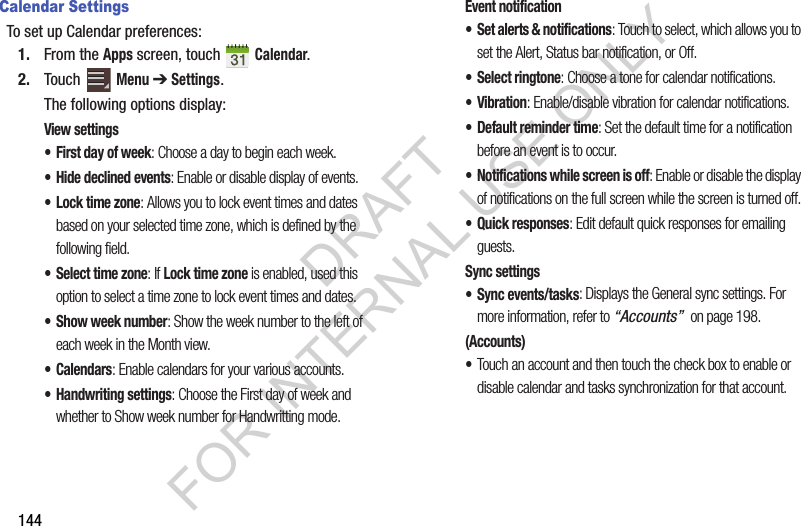
144Calendar SettingsTo set up Calendar preferences:1. From the Apps screen, touch  Calendar.2. Touch  Menu ➔ Settings.The following options display:View settings• First day of week: Choose a day to begin each week.• Hide declined events: Enable or disable display of events.•Lock time zone: Allows you to lock event times and dates based on your selected time zone, which is defined by the following field.• Select time zone: If Lock time zone is enabled, used this option to select a time zone to lock event times and dates.• Show week number: Show the week number to the left of each week in the Month view.•Calendars: Enable calendars for your various accounts. • Handwriting settings: Choose the First day of week and whether to Show week number for Handwritting mode. Event notification• Set alerts & notifications: Touch to select, which allows you to set the Alert, Status bar notification, or Off.• Select ringtone: Choose a tone for calendar notifications.•Vibration: Enable/disable vibration for calendar notifications. • Default reminder time: Set the default time for a notification before an event is to occur.• Notifications while screen is off: Enable or disable the display of notifications on the full screen while the screen is turned off.• Quick responses: Edit default quick responses for emailing guests. Sync settings• Sync events/tasks: Displays the General sync settings. For more information, refer to “Accounts”  on page 198. (Accounts)•Touch an account and then touch the check box to enable or disable calendar and tasks synchronization for that account. DRAFT FOR INTERNAL USE ONLY
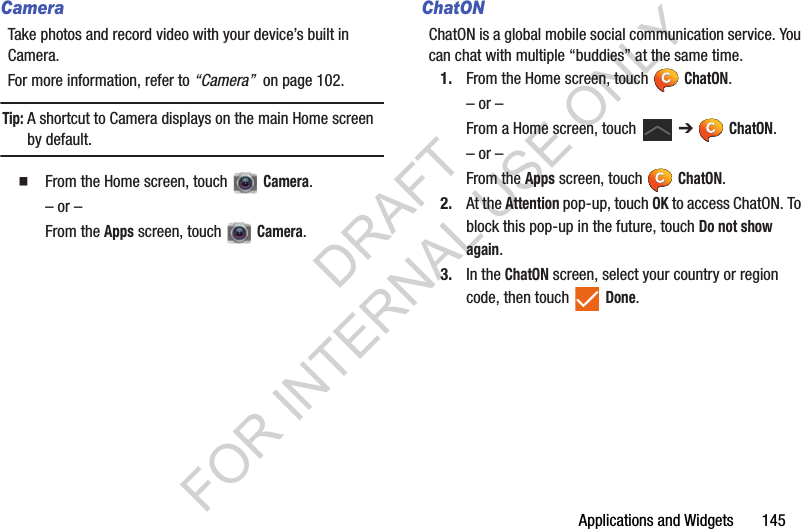
Applications and Widgets       145CameraTake photos and record video with your device’s built in Camera.For more information, refer to “Camera”  on page 102.Tip:A shortcut to Camera displays on the main Home screen by default.  From the Home screen, touch   Camera.– or –From the Apps screen, touch Camera. ChatONChatON is a global mobile social communication service. You can chat with multiple “buddies” at the same time. 1. From the Home screen, touch   ChatON.– or –From a Home screen, touch   ➔  ChatON. – or –From the Apps screen, touch  ChatON. 2. At the Attention pop-up, touch OK to access ChatON. To block this pop-up in the future, touch Do not show again. 3. In the ChatON screen, select your country or region code, then touch   Done. DRAFT FOR INTERNAL USE ONLY
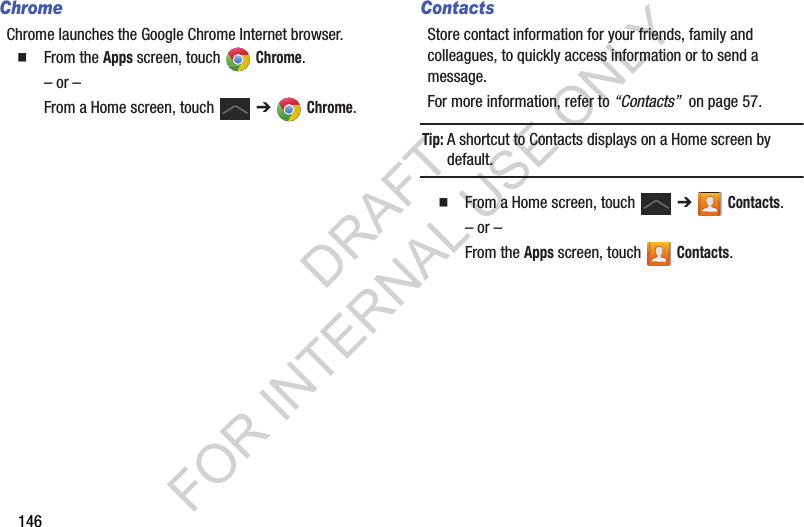
146ChromeChrome launches the Google Chrome Internet browser.   From the Apps screen, touch  Chrome. – or –From a Home screen, touch   ➔  Chrome. ContactsStore contact information for your friends, family and colleagues, to quickly access information or to send a message.For more information, refer to “Contacts”  on page 57.Tip:A shortcut to Contacts displays on a Home screen by default.  From a Home screen, touch   ➔  Contacts.– or –From the Apps screen, touch Contacts.DRAFT FOR INTERNAL USE ONLY
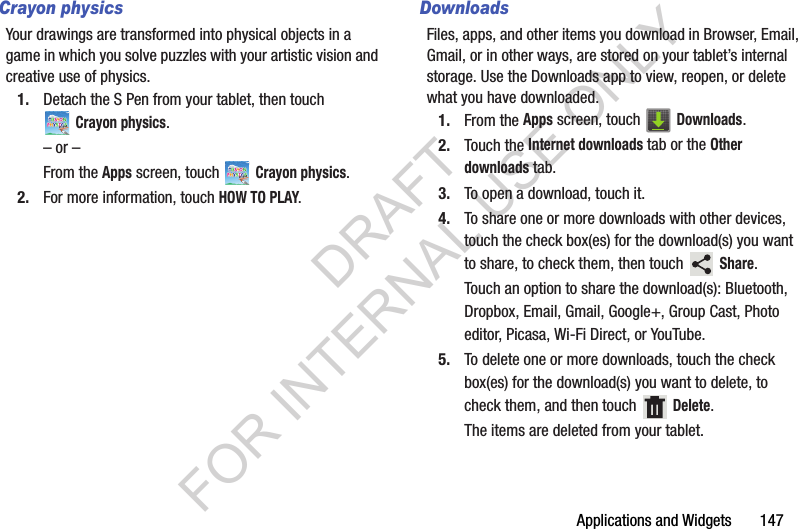
Applications and Widgets       147Crayon physicsYour drawings are transformed into physical objects in a game in which you solve puzzles with your artistic vision and creative use of physics. 1. Detach the S Pen from your tablet, then touch Crayon physics. – or –From the Apps screen, touch Crayon physics. 2. For more information, touch HOW TO PLAY. DownloadsFiles, apps, and other items you download in Browser, Email, Gmail, or in other ways, are stored on your tablet’s internal storage. Use the Downloads app to view, reopen, or delete what you have downloaded.1. From the Apps screen, touch Downloads.2. Touch the Internet downloads tab or the Other downloads tab. 3. To open a download, touch it. 4. To share one or more downloads with other devices, touch the check box(es) for the download(s) you want to share, to check them, then touch   Share. Touch an option to share the download(s): Bluetooth, Dropbox, Email, Gmail, Google+, Group Cast, Photo editor, Picasa, Wi-Fi Direct, or YouTube.5. To delete one or more downloads, touch the check box(es) for the download(s) you want to delete, to check them, and then touch   Delete. The items are deleted from your tablet.DRAFT FOR INTERNAL USE ONLY
1486. To change how the downloads list is sorted, touch Sort by size or Sort by date, at the bottom of the Downloads pop-up. DropboxDropbox is a “cloud” file storage service. The Dropbox app lets you create an account with Dropbox or link with your existing Dropbox account. (For more information, refer to https://www.dropbox.com/.)   From the Apps screen, touch Dropbox. EmailSend and receive email using popular email services.  From the Apps screen, touch  Email.For more information, refer to “Email”  on page 68.GalleryUse Gallery to view, capture, and manage photos and videos.  From the Apps screen, touch  Gallery.– or –From a Home screen, touch   ➔  Gallery. For more information, refer to “Gallery”  on page 98. Game HubSamsung Game Hub is your one stop for the hottest social and premium games. Note:Game Hub service requires a Samsung account and depends on service availability.   From the Apps screen, touch Game Hub. GmailSend and receive email with Gmail, Google’s web-based email. For more information, refer to “Gmail”  on page 76.   From a Home screen, touch   Apps ➔  Gmail.DRAFT FOR INTERNAL USE ONLY
Applications and Widgets       149GoogleSearch the internet using the GoogleTM search engine. 1. From the Lock screen, touch and slide  . – or –From a Home screen panel, touch  . – or –From a Home screen panel, touch   Apps ➔ Google. 2. Use the keyboard to enter search criteria to display matching searches. – or –Touch   and speak the search criteria slowly and clearly. Suggestions display below the text entry area. 3. Touch a suggestion to search for that term or touch  on the keyboard to start the search. A browser window displays the search results. Google+Google+ makes messaging and sharing with your friends a lot easier. You can set up Circles of friends, visit the Stream to get updates from your Circles, use Messenger for fast messaging with everyone in your Circles, or use Instant Upload to automatically upload videos and photos to your own private album on Google+.To get started:1. From a Home screen panel, touch   Apps ➔ Google+. The Google+ home screen displays.2. Follow the prompts to use Google+. DRAFT FOR INTERNAL USE ONLY
150Group CastShare your experiences with friends in real time while you view documents and photos or listen to music. 1. From a Home screen, touch   Apps ➔ Group Cast. 2. Follow the instructions in the Group Cast pop-up. HelpUse Help to read or view brief instructions or videos on how to use the features and settings available with your tablet. 1. From a Home screen, touch   Apps ➔ Help. The Help screen appears. 2. Select a topic from the menu on the left side of the screen. 3. Read or view the selected topic information in the right side of the screen. InternetYour device includes a full HTML Browser, to access the Internet.For more information, refer to “Internet”  on page 112.Tip:A shortcut to Browser displays on the main Home screen by default.  From the Lock screen, touch and swipe  . – or –From the Home screen, touch   Internet.– or –From a Home screen panel, touch   Apps ➔ Internet.DRAFT FOR INTERNAL USE ONLY
Applications and Widgets       151LocalGoogle Local is an application that uses Google Maps and your location to help you find Restaurants, Cafes, Bars, Attractions, and other businesses. You can also add your own locations. The Local application allows you to find the best sources for business information across the web, including business listing details, reviews, photos, nearby public transit, and other related information. Business owners can provide additional details, such as photos, hours of operation, and coupons. 1. From a Home screen, touch   Apps ➔   Local. 2. Follow the prompts to locate businesses and view their information. 3. For more information about Local, touch   Menu ➔ Help. MapsUse Google Maps to find your current location, get directions, and other location-based information. Note:You must enable location services to use Maps. Some features require Standalone or Google location services. (For more information, refer to “Location services”  on page 187.) 1. From the Home screen, touch Maps. – or –From a Home screen, touch   Apps ➔ Maps. 2. For information about using Maps, touch   ➔ Help. DRAFT FOR INTERNAL USE ONLY
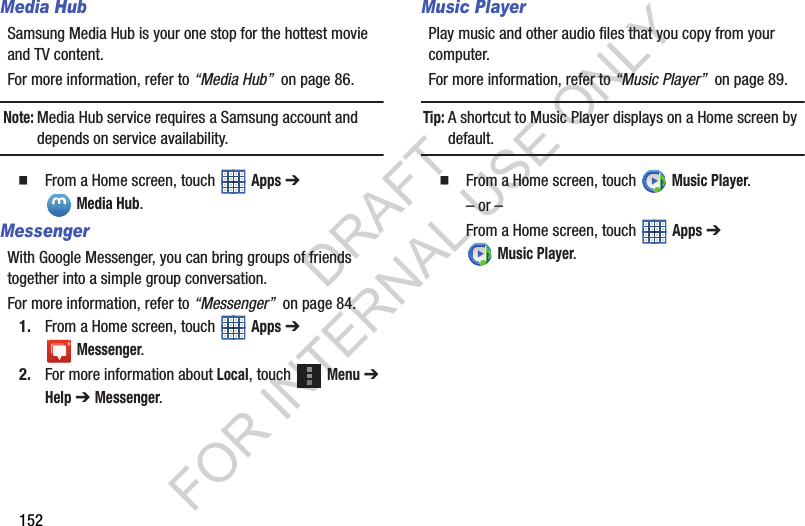
152Media HubSamsung Media Hub is your one stop for the hottest movie and TV content.For more information, refer to “Media Hub”  on page 86.Note:Media Hub service requires a Samsung account and depends on service availability.  From a Home screen, touch   Apps ➔ Media Hub.MessengerWith Google Messenger, you can bring groups of friends together into a simple group conversation.For more information, refer to “Messenger”  on page 84.1. From a Home screen, touch   Apps ➔ Messenger.2. For more information about Local, touch   Menu ➔ Help ➔ Messenger. Music PlayerPlay music and other audio files that you copy from your computer.For more information, refer to “Music Player”  on page 89.Tip:A shortcut to Music Player displays on a Home screen by default.  From a Home screen, touch Music Player.– or –From a Home screen, touch   Apps ➔ Music Player.DRAFT FOR INTERNAL USE ONLY
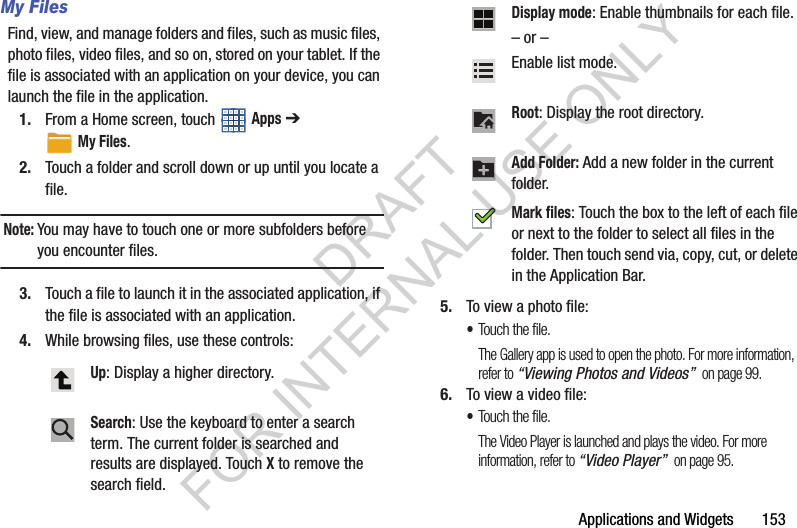
Applications and Widgets       153My FilesFind, view, and manage folders and files, such as music files, photo files, video files, and so on, stored on your tablet. If the file is associated with an application on your device, you can launch the file in the application. 1. From a Home screen, touch   Apps ➔ My Files.2. Touch a folder and scroll down or up until you locate a file.Note:You may have to touch one or more subfolders before you encounter files.3. Touch a file to launch it in the associated application, if the file is associated with an application.4. While browsing files, use these controls:5. To view a photo file:•Touch the file.The Gallery app is used to open the photo. For more information, refer to “Viewing Photos and Videos”  on page 99.6. To view a video file:•Touch the file.The Video Player is launched and plays the video. For more information, refer to “Video Player”  on page 95.Up: Display a higher directory. Search: Use the keyboard to enter a search term. The current folder is searched and results are displayed. Touch X to remove the search field.Display mode: Enable thumbnails for each file.– or – Enable list mode. Root: Display the root directory. Add Folder: Add a new folder in the current folder. Mark files: Touch the box to the left of each file or next to the folder to select all files in the folder. Then touch send via, copy, cut, or delete in the Application Bar. DRAFT FOR INTERNAL USE ONLY
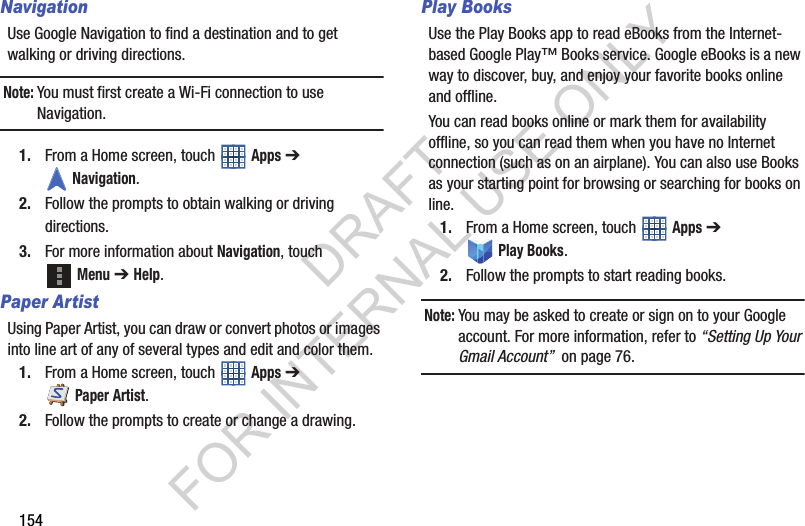
154NavigationUse Google Navigation to find a destination and to get walking or driving directions.Note:You must first create a Wi-Fi connection to use Navigation.1. From a Home screen, touch   Apps ➔ Navigation.2. Follow the prompts to obtain walking or driving directions. 3. For more information about Navigation, touch Menu ➔ Help. Paper ArtistUsing Paper Artist, you can draw or convert photos or images into line art of any of several types and edit and color them. 1. From a Home screen, touch   Apps ➔ Paper Artist. 2. Follow the prompts to create or change a drawing. Play BooksUse the Play Books app to read eBooks from the Internet-based Google Play™ Books service. Google eBooks is a new way to discover, buy, and enjoy your favorite books online and offline.You can read books online or mark them for availability offline, so you can read them when you have no Internet connection (such as on an airplane). You can also use Books as your starting point for browsing or searching for books on line.1. From a Home screen, touch   Apps ➔ Play Books.2. Follow the prompts to start reading books.Note:You may be asked to create or sign on to your Google account. For more information, refer to “Setting Up Your Gmail Account”  on page 76.DRAFT FOR INTERNAL USE ONLY
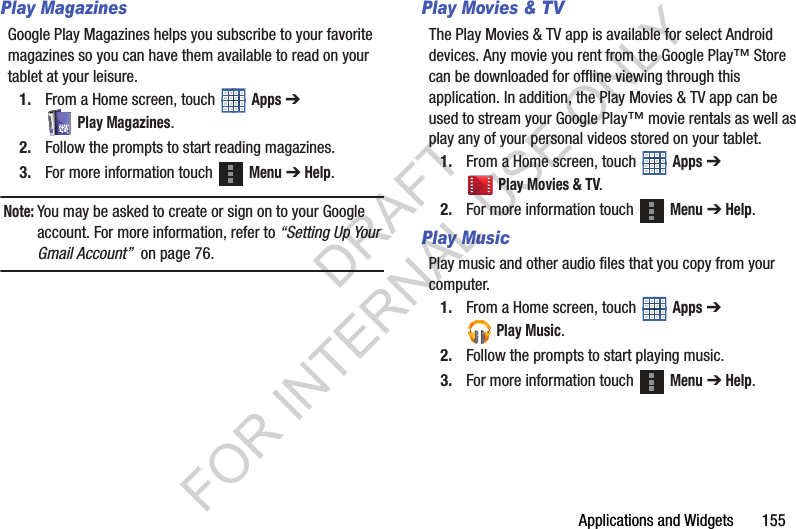
Applications and Widgets       155Play MagazinesGoogle Play Magazines helps you subscribe to your favorite magazines so you can have them available to read on your tablet at your leisure. 1. From a Home screen, touch   Apps ➔ Play Magazines. 2. Follow the prompts to start reading magazines. 3. For more information touch   Menu ➔ Help. Note:You may be asked to create or sign on to your Google account. For more information, refer to “Setting Up Your Gmail Account”  on page 76.Play Movies & TVThe Play Movies & TV app is available for select Android devices. Any movie you rent from the Google Play™ Store can be downloaded for offline viewing through this application. In addition, the Play Movies & TV app can be used to stream your Google Play™ movie rentals as well as play any of your personal videos stored on your tablet. 1. From a Home screen, touch   Apps ➔ Play Movies & TV. 2. For more information touch   Menu ➔ Help. Play MusicPlay music and other audio files that you copy from your computer. 1. From a Home screen, touch   Apps ➔ Play Music. 2. Follow the prompts to start playing music. 3. For more information touch   Menu ➔ Help. DRAFT FOR INTERNAL USE ONLY
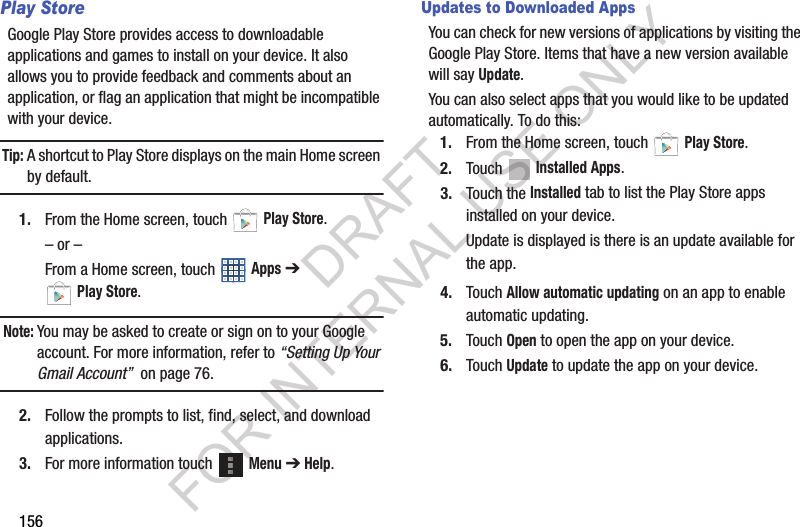
156Play StoreGoogle Play Store provides access to downloadable applications and games to install on your device. It also allows you to provide feedback and comments about an application, or flag an application that might be incompatible with your device.Tip:A shortcut to Play Store displays on the main Home screen by default.1. From the Home screen, touch   Play Store.– or –From a Home screen, touch   Apps ➔ Play Store.Note:You may be asked to create or sign on to your Google account. For more information, refer to “Setting Up Your Gmail Account”  on page 76.2. Follow the prompts to list, find, select, and download applications. 3. For more information touch   Menu ➔ Help. Updates to Downloaded AppsYou can check for new versions of applications by visiting the Google Play Store. Items that have a new version available will say Update.You can also select apps that you would like to be updated automatically. To do this:1. From the Home screen, touch   Play Store.2. Touch  Installed Apps.3. Touch the Installed tab to list the Play Store apps installed on your device.Update is displayed is there is an update available for the app.4. Touch Allow automatic updating on an app to enable automatic updating.5. Touch Open to open the app on your device.6. Touch Update to update the app on your device.DRAFT FOR INTERNAL USE ONLY
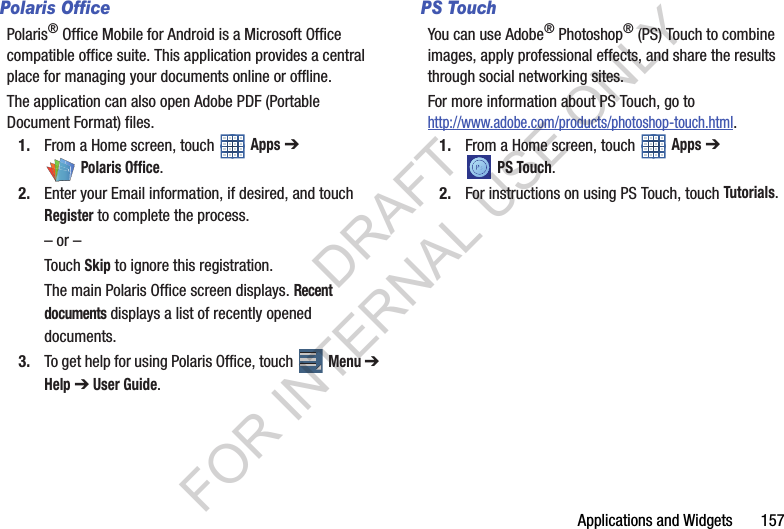
Applications and Widgets       157Polaris OfficePolaris® Office Mobile for Android is a Microsoft Office compatible office suite. This application provides a central place for managing your documents online or offline.The application can also open Adobe PDF (Portable Document Format) files.1. From a Home screen, touch   Apps ➔ Polaris Office.2. Enter your Email information, if desired, and touch Register to complete the process.– or –Touch Skip to ignore this registration.The main Polaris Office screen displays. Recent documents displays a list of recently opened documents.3. To get help for using Polaris Office, touch   Menu ➔ Help ➔ User Guide. PS TouchYou can use Adobe® Photoshop® (PS) Touch to combine images, apply professional effects, and share the results through social networking sites. For more information about PS Touch, go to http://www.adobe.com/products/photoshop-touch.html. 1. From a Home screen, touch   Apps ➔ PS Touch.2. For instructions on using PS Touch, touch Tutorials. DRAFT FOR INTERNAL USE ONLY
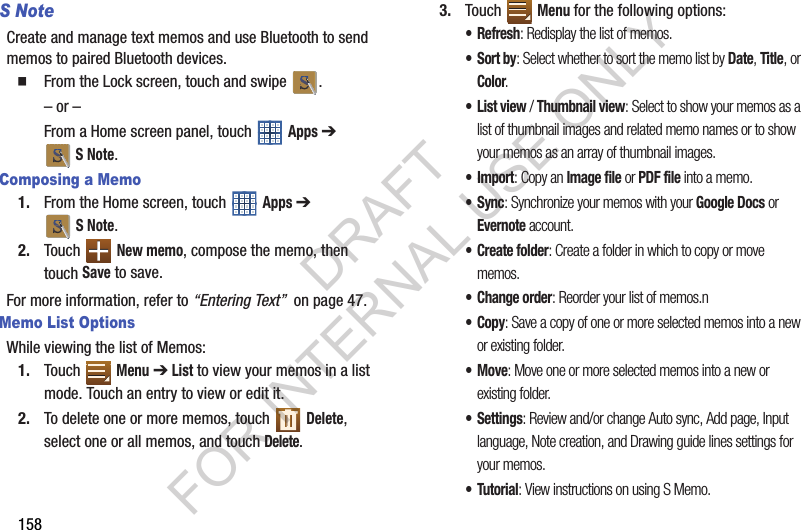
158S NoteCreate and manage text memos and use Bluetooth to send memos to paired Bluetooth devices.  From the Lock screen, touch and swipe  .– or –From a Home screen panel, touch   Apps ➔ SNote. Composing a Memo1. From the Home screen, touch   Apps ➔ SNote.2. Touch  New memo, compose the memo, then touch Save to save. For more information, refer to “Entering Text”  on page 47.Memo List OptionsWhile viewing the list of Memos: 1. Touch  Menu ➔ List to view your memos in a list mode. Touch an entry to view or edit it. 2. To delete one or more memos, touch   Delete, select one or all memos, and touch Delete.3. Touch  Menu for the following options:•Refresh: Redisplay the list of memos. •Sort by: Select whether to sort the memo list by Date, Title, or Color.•List view / Thumbnail view: Select to show your memos as a list of thumbnail images and related memo names or to show your memos as an array of thumbnail images. •Import: Copy an Image file or PDF file into a memo. •Sync: Synchronize your memos with your Google Docs or Evernote account. • Create folder: Create a folder in which to copy or move memos. • Change order: Reorder your list of memos.n •Copy: Save a copy of one or more selected memos into a new or existing folder. •Move: Move one or more selected memos into a new or existing folder. • Settings: Review and/or change Auto sync, Add page, Input language, Note creation, and Drawing guide lines settings for your memos. •Tutorial: View instructions on using S Memo. DRAFT FOR INTERNAL USE ONLY
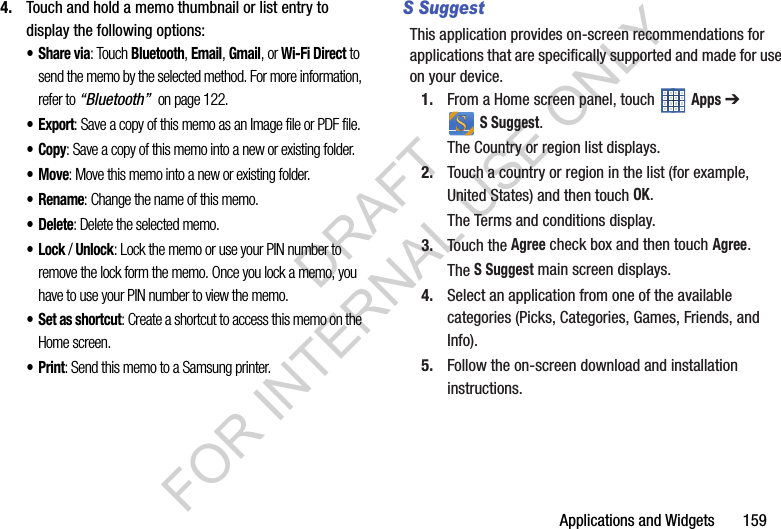
Applications and Widgets       1594. Touch and hold a memo thumbnail or list entry to display the following options:•Share via: Touch Bluetooth, Email, Gmail, or Wi-Fi Direct to send the memo by the selected method. For more information, refer to “Bluetooth”  on page 122.•Export: Save a copy of this memo as an Image file or PDF file. •Copy: Save a copy of this memo into a new or existing folder. •Move: Move this memo into a new or existing folder. •Rename: Change the name of this memo. •Delete: Delete the selected memo. •Lock / Unlock: Lock the memo or use your PIN number to remove the lock form the memo. Once you lock a memo, you have to use your PIN number to view the memo.•Set as shortcut: Create a shortcut to access this memo on the Home screen. •Print: Send this memo to a Samsung printer. S SuggestThis application provides on-screen recommendations for applications that are specifically supported and made for use on your device.1. From a Home screen panel, touch   Apps ➔ S Suggest.The Country or region list displays.2. Touch a country or region in the list (for example, United States) and then touch OK.The Terms and conditions display.3. Touch the Agree check box and then touch Agree.The S Suggest main screen displays.4. Select an application from one of the available categories (Picks, Categories, Games, Friends, and Info).5. Follow the on-screen download and installation instructions. DRAFT FOR INTERNAL USE ONLY
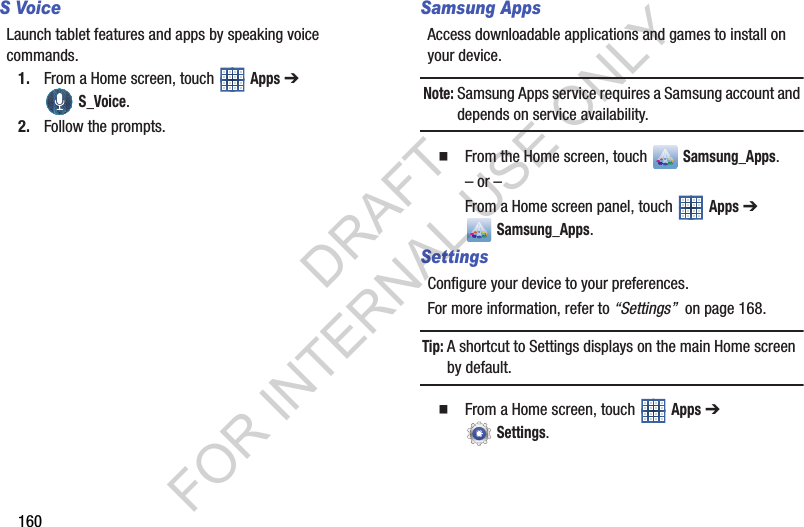
160S VoiceLaunch tablet features and apps by speaking voice commands. 1. From a Home screen, touch   Apps ➔ S_Voice. 2. Follow the prompts. Samsung AppsAccess downloadable applications and games to install on your device. Note:Samsung Apps service requires a Samsung account and depends on service availability.   From the Home screen, touch Samsung_Apps.– or –From a Home screen panel, touch   Apps ➔ Samsung_Apps. SettingsConfigure your device to your preferences.For more information, refer to “Settings”  on page 168.Tip:A shortcut to Settings displays on the main Home screen by default.  From a Home screen, touch   Apps ➔ Settings.DRAFT FOR INTERNAL USE ONLY
Applications and Widgets       161Smart RemoteAllows you to locate and watch programming on your TV and then control your entertainment system with gestures from the device.For more information, go to: http://www.peel.com.Discover and control TV programming right from your device. Lose your remotes, once and for all. Quit scrolling those tiresome grid guides. See what you want, right at your own fingertips: your shows, your controls, your friends.Peel® suggests Top Pick TV shows for you based on what you watch and like. Instead of a long, boring channel grid, Peel presents an easy-to-use mosaic of your favorite shows, filtered by type and genre in the order you like.1. From a Home screen, touch   Apps ➔ Smart Remote.The Samsung Disclaimer displays. 2. Touch Agree.3. Touch Set Up Smart Remote Now: US & Canada.4. Follow the on-screen instructions.TalkUse Google Talk to chat with other Google Talk users.For more information, refer to “Google Talk”  on page 80.  From a Home screen, touch   Apps ➔  Talk.Video EditorVideo Editor lets you custom-make your own videos. You can add themes, music, pictures, and other videos to your video.1. From a Home screen, touch   Apps ➔ Video Editor. 2. Touch New Project. 3. Follow the on-screen instructions.DRAFT FOR INTERNAL USE ONLY
162Video PlayerView and manage videos stored on your tablet.For more information, refer to “Video Player”  on page 95.Tip:A shortcut to Video Player displays on a Home screen by default.  From a Home screen, touch   Video Player.– or –From a Home screen, touch   Apps ➔ Video Player.Voice SearchSearch the internet by speaking to the GoogleTM search engine.   From a Home screen, touch   Apps ➔ Voice Search. World ClockView the date and time in any time zone.1. From a Home screen, touch   Apps ➔ World Clock.A map of the world displays with the locations you have added flagged.2. Touch  Add to add a city to display.A list of world cities displays in landscape mode.3. Scroll through the list and touch the city you want to add.Tip:Touch the first letter of the city’s name, to the right of the list, to find the city more quickly.– or –In portrait or landscape mode, touch and turn the globe to locate a city and touch the city you want to add.A pop-up displays the city name, current time, and date there, and the GMT offset.4. Touch the  on the pop-up to add the city.DRAFT FOR INTERNAL USE ONLY
Applications and Widgets       1635. Touch  Reorder to change the order of the cities. Touch and hold the grid   on an entry and drag the entry to a new position in the list. Touch Done to change the order.6. Touch  Delete to remove entries. Touch the box to check the cities you want to remove (a green check mark displays), then touch Delete. 7. Touch and hold an entry to remove it or to set the DST settings, which enable or disable Daylight Savings Time adjustments. YouTubeView YouTube videos on your tablet and upload videos from your tablet to your YouTube account. 1. From a Home screen, touch   Apps ➔ YouTube. 2. Follow the on-screen prompts to setup or access your YouTube account. DRAFT FOR INTERNAL USE ONLY
164WidgetsWidgets are self-contained applications that you can place on the Home screen panels to access your favorite features. When you first turn on your tablet, there are various widgets on the Home screen panels. Accessing the Widgets Menu  From a Home screen, touch   Apps ➔ Widgets tab (at the top of the Apps screen. The following widgets are available: •Alarm: Add an alarm then touch the widget to edit the alarm. For more information, refer to “Alarm”  on page 137.•AllShare Cast: View/listen to an AllShare Cast on a Home screen panel. • Application monitor: Monitor and control active or downloaded programs, RAM, or Storage. For more information, refer to “Task Manager”  on page 14. • Assistive Light: Use the camera flash on the back of your tablet as a flashlight. •Book: Touch this widget and then touch a book for quick access to the book. (For more information, refer to “Play Books”  on page 154.) •Bookmark: Directly access an Internet browser bookmark. (For more information, refer to “Internet”  on page 150.) •Bookmarks: View and directly access Chrome browser bookmarks. (For more information, refer to “Chrome”  on page 146.) •Calendar: Displays a list of your events. (For more information, refer to “Calendar”  on page 141.) • Calendar (mini today): Use Calendar to organize events and tasks for a day. (For more information, refer to “Calendar”  on page 141.) •Calendar (month): Use S Planner to organize events and tasks for a month. (For more information, refer to “Calendar”  on page 141.) • Clock (funky): Display a funky, analog clock.• Clock (modern): Display a modern, analog clock.•Contact (3 x 1): Display a link to one of your contacts to quickly compose an Email or Gmail message. (For more information, refer to “Messaging”  on page 68.) •Contact (1 x 1): Display a shortcut to one of your contact entries. (For more information, refer to “Contacts”  on page 57.) DRAFT FOR INTERNAL USE ONLY
Applications and Widgets       165• Digital clock: Display the digital time, the day, and the date.• Directions & Navigation: Get directions and navigation from Google Maps. (For more information, refer to “Maps”  on page 151.) • Dropbox Folder: Directly access one of your Dropbox folders. (For more information, refer to “Dropbox”  on page 148.) • Dual clock (analog): Display the date and time for two different locations using analog clocks. • Dual clock (digital): Display the date and time for two different locations using a digital format. •Email: Display your email inbox. (For more information, refer to “Email”  on page 68.) •Game Hub: Directly access games listed with GameHub. (For more information, refer to “Game Hub”  on page 148.) •Gmail: Send and receive email with Gmail, Google’s web-based email. (For more information, refer to “Gmail”  on page 76.) • Gmail label: Access a Gmail label. Displays once a Gmail account is set up. Touch the label to which you want to link. (For more information, refer to “Setting Up Your Gmail Account”  on page 76.) • Google Play Books: Read eBooks from the web-based Google Play Books service. (For more information, refer to “Play Books”  on page 154.) • Google Play Music: Use this widget to control the playback of songs playing in the Music app. (For more information, refer to “Options While Playing a Song”  on page 95.) • Google Search: Display a Google Search bar. (For more information, refer to “Google”  on page 149.) • Google+ posts: Display a shortcut to Google+TM posts. (For more information, refer to “Google+”  on page 84.) •Media Hub: Samsung Media Hub is your one stop for the hottest movie and TV content. You can rent or purchase your favorite content and watch from the convenience of anywhere. (For more information, refer to “Media Hub”  on page 86.) • Mono audio: Enable mono sound when listening to audio with one earbud.•Music Player: The Music Player allows you to play music files that you have stored on your device and memory card. You can also create playlists. (For more information, refer to “Music Player”  on page 89.) DRAFT FOR INTERNAL USE ONLY
166• Music playlist: Choose a music playlist to access from a home screen. (For more information, refer to “Playing a Playlist”  on page 91.) • Negative colors: Reverse the colors on your tablet’s screen. • Picture frame: Allows you to select one or more pictures and then touch the arrow on the widget for a slide show. (For more information, refer to “Gallery”  on page 98.) • Play – My Library: Directly access selections from Play Books, Play Magazines, Play Music, and/or Play Movies & TV libraries. • Play Recommendations: Play recommendations from Play Store Apps, Play Music, Play Books, Play Magazines, and/or Play Movies & TV libraries. •Play Store: Download applications from the Google Play™ Store. (For more information, refer to “Play Store”  on page 156.) • S Bookmark: Create a bookmark for a favorite website. (For more information, refer to “Using Bookmarks”  on page 115.) • S Bookmarks: Choose one of your Browser bookmarks then touch the widget to open the website. (For more information, refer to “Using Bookmarks”  on page 115.) •S Note: Create and save a memo on a Home screen. (For more information, refer to “S Note”  on page 158.) •S Suggest: Recommends popular applications, when your device is connected to a Wi-Fi, that are guaranteed to be compatible with your device. (For more information, refer to “S Suggest”  on page 159.) • Settings shortcut: Allows you to create a shortcut to a particular Settings item. (For more information, refer to “Settings”  on page 168.) • Software Update: Directly access software updates for your tablet. (For more information, refer to “Software Update”  on page 206.) • Traffic: Enter a name for the widget and a destination, and then touch Save. Touch the widget to use the Traffic component of the Maps application. (For more information, refer to “Maps”  on page 151.) • Video Player: Play and manage videos stored on your tablet. (For more information, refer to “Video Player”  on page 95.) • Weather: Display the forecast from AccuWeather. Touch the widget to choose locations.• Yahoo! Finance: Search for and add stocks.  DRAFT FOR INTERNAL USE ONLY
Applications and Widgets       167• Yahoo! News: Display current news and much more from Yahoo! •YouTube: Search YouTube and watch videos. (For more information, refer to “YouTube”  on page 163.) DRAFT FOR INTERNAL USE ONLY
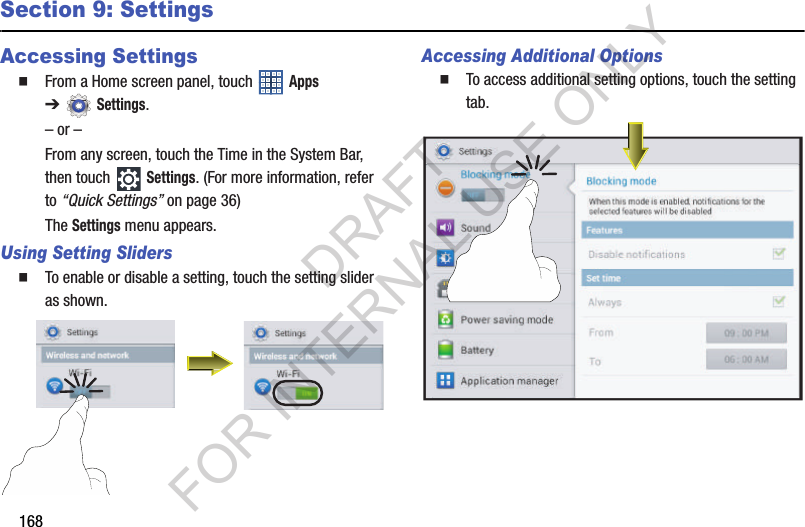
168Section 9: SettingsAccessing Settings  From a Home screen panel, touch   Apps ➔Settings. – or –From any screen, touch the Time in the System Bar, then touch Settings. (For more information, refer to “Quick Settings” on page 36) The Settings menu appears. Using Setting Sliders  To enable or disable a setting, touch the setting slider as shown. Accessing Additional Options  To access additional setting options, touch the setting tab. DRAFT FOR INTERNAL USE ONLY
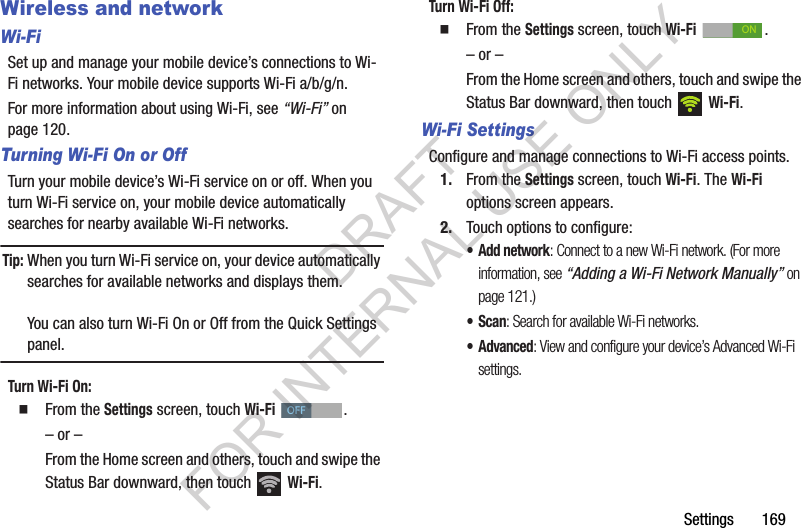
Settings       169Wireless and networkWi-FiSet up and manage your mobile device’s connections to Wi-Fi networks. Your mobile device supports Wi-Fi a/b/g/n.For more information about using Wi-Fi, see “Wi-Fi” on page 120. Turning Wi-Fi On or OffTurn your mobile device’s Wi-Fi service on or off. When you turn Wi-Fi service on, your mobile device automatically searches for nearby available Wi-Fi networks.Tip:When you turn Wi-Fi service on, your device automatically searches for available networks and displays them. You can also turn Wi-Fi On or Off from the Quick Settings panel. Turn Wi-Fi On:   From the Settings screen, touch Wi-Fi . – or –From the Home screen and others, touch and swipe the Status Bar downward, then touch   Wi-Fi. Turn Wi-Fi Off:   From the Settings screen, touch Wi-Fi . – or –From the Home screen and others, touch and swipe the Status Bar downward, then touch   Wi-Fi. Wi-Fi SettingsConfigure and manage connections to Wi-Fi access points. 1. From the Settings screen, touch Wi-Fi. The Wi-Fi  options screen appears. 2. Touch options to configure: •Add network: Connect to a new Wi-Fi network. (For more information, see “Adding a Wi-Fi Network Manually” on page 121.) •Scan: Search for available Wi-Fi networks. • Advanced: View and configure your device’s Advanced Wi-Fi settings. OFFONDRAFT FOR INTERNAL USE ONLY
170Advanced Wi-Fi settings1. From the Settings screen, touch Wi-Fi ➔ Advanced.2. Configure settings:• Network notification: When enabled, your device notifies you of nearby Wi-Fi networks when you launch a high data-usage application. • Keep Wi-Fi on during sleep: Specify when to switch from Wi-Fi to mobile data for data communications, when your device goes to sleep (when the backlight goes out). This setting can affect your data usage, and the behavior of devices you connect to your device, such as when tethering or using Mobile Hotspot. •MAC address: (Not configurable) View your device’s MAC address, needed for connecting to some secured networks (only shows when Wi-Fi is active). •IP address: (Not configurable) View your device’s IP address (only shows when connected to a Wi-Fi network). BluetoothYour tablet supports Bluetooth® 4.0.Bluetooth profilesBluetooth profiles are specifications for services supported by individual devices. Profiles improve the ability of different devices to work together. Your tablet supports these Bluetooth profiles:• Headset: HSP v1.2 profile supports use of compatible Bluetooth headsets for mono audio. • Stereo: A2DP v1.2,  AVRCP v1.0, GAVDP 1.2, AVCTP 1.3 and AVDTP 1.2 profiles support delivery of stereo audio to compatible Bluetooth devices. • Object Exchange: OPP v1.0 profile allows sending and receiving of contact name cards (vCard 2.1) and calendar events (vCalendar) between devices. PBAP v1.2 supports exchange of Phone Book Objects.• Human Interface Devices: HID v1.0 profile supports certain interface devices.• Personal Area Networking: PAN 1.0 supports exchange of data with other devices.• Message Access Profile: MAP 1.0 allows exchange of messages between devices, such as with an automotive hands-free device.DRAFT FOR INTERNAL USE ONLY
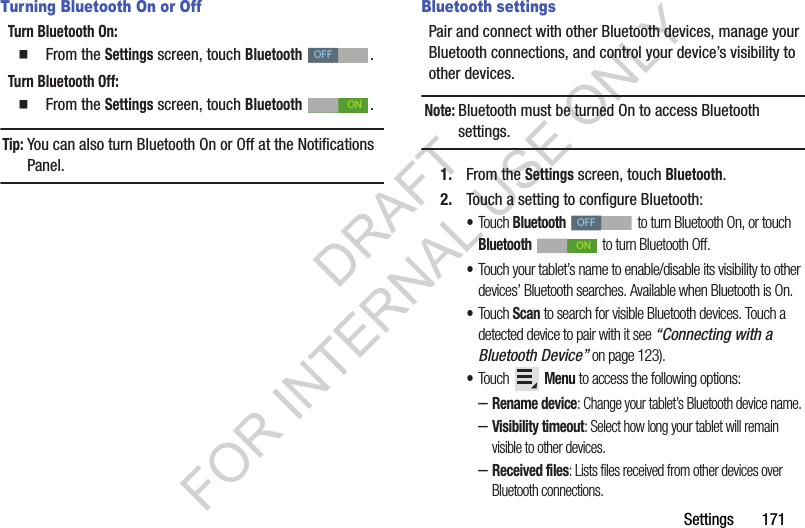
Settings       171Turning Bluetooth On or OffTurn Bluetooth On:   From the Settings screen, touch Bluetooth . Turn Bluetooth Off:   From the Settings screen, touch Bluetooth . Tip:You can also turn Bluetooth On or Off at the Notifications Panel. Bluetooth settingsPair and connect with other Bluetooth devices, manage your Bluetooth connections, and control your device’s visibility to other devices.Note:Bluetooth must be turned On to access Bluetooth settings. 1. From the Settings screen, touch Bluetooth.2. Touch a setting to configure Bluetooth: •Touch Bluetooth  to turn Bluetooth On, or touch Bluetooth   to turn Bluetooth Off.•Touch your tablet’s name to enable/disable its visibility to other devices’ Bluetooth searches. Available when Bluetooth is On. •Touch Scan to search for visible Bluetooth devices. Touch a detected device to pair with it see “Connecting with a Bluetooth Device” on page 123). •Touch  Menu to access the following options: –Rename device: Change your tablet’s Bluetooth device name. –Visibility timeout: Select how long your tablet will remain visible to other devices. –Received files: Lists files received from other devices over Bluetooth connections. OFFONOFFONDRAFT FOR INTERNAL USE ONLY
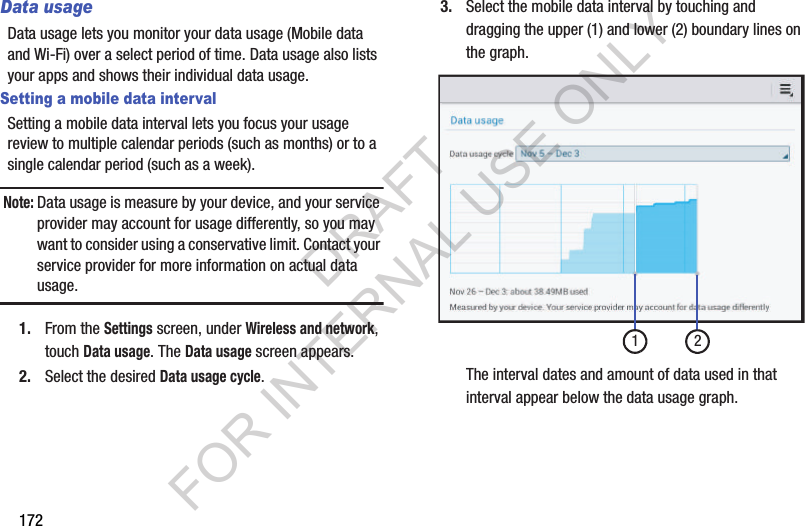
172Data usageData usage lets you monitor your data usage (Mobile data and Wi-Fi) over a select period of time. Data usage also lists your apps and shows their individual data usage. Setting a mobile data intervalSetting a mobile data interval lets you focus your usage review to multiple calendar periods (such as months) or to a single calendar period (such as a week). Note:Data usage is measure by your device, and your service provider may account for usage differently, so you may want to consider using a conservative limit. Contact your service provider for more information on actual data usage. 1. From the Settings screen, under Wireless and network, touch Data usage. The Data usage screen appears. 2. Select the desired Data usage cycle. 3. Select the mobile data interval by touching and dragging the upper (1) and lower (2) boundary lines on the graph.  The interval dates and amount of data used in that interval appear below the data usage graph. 12DRAFT FOR INTERNAL USE ONLY
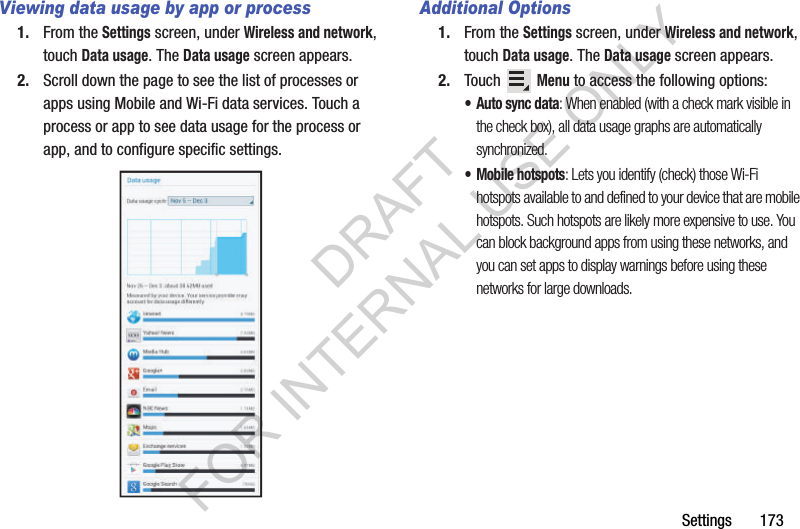
Settings       173Viewing data usage by app or process1. From the Settings screen, under Wireless and network, touch Data usage. The Data usage screen appears. 2. Scroll down the page to see the list of processes or apps using Mobile and Wi-Fi data services. Touch a process or app to see data usage for the process or app, and to configure specific settings. Additional Options1. From the Settings screen, under Wireless and network, touch Data usage. The Data usage screen appears. 2. Touch  Menu to access the following options: • Auto sync data: When enabled (with a check mark visible in the check box), all data usage graphs are automatically synchronized. • Mobile hotspots: Lets you identify (check) those Wi-Fi hotspots available to and defined to your device that are mobile hotspots. Such hotspots are likely more expensive to use. You can block background apps from using these networks, and you can set apps to display warnings before using these networks for large downloads. DRAFT FOR INTERNAL USE ONLY
174More Wireless and Network SettingsAirplane modeWhen Airplane mode is enabled, all your tablet’s wireless interfaces (4G network, Wi-Fi, and Bluetooth) are disabled. You can, however, re-enable Wi-Fi and Bluetooth and make connections without disabling Airplane mode. While in airplane mode, you can use other features of your tablet, such as updating your calander, playing videos, or using other apps. 1. From the Settings screen, under Wireless and network, touch More settings. The Wireless and network menu appears. 2. Touch Airplane mode to enable or disable Airplane mode. When enabled, a check mark appears in the check box. Mobile networksSet options for network selection, data service, and roaming behavior. 1. From the Settings screen, under Wireless and network, touch More settings ➔ Mobile networks. The Mobile network screen appears. 2. Set these options: •Mobile data: Enable or disable your tablet’s connection  to the mobile data network. You can also control this setting on the Quick settings pop-up with the Mobile data toggle. • Data roaming: Enable or disable connection to data services when your device is roaming on another network. •Network mode: Configure roaming for CDMA, LTE, and EV-DO networks. –LTE/CDMA: Lets your tablet automatically access LTE, CDMA, and/or EV-DO mobile networks when available. –CDMA: Restricts your tablet to CDMA mobile networks. • System select: Configure CDMA roaming mode. –Home only: Restricts your tablet to your Wireless Provider’s network. –Automatic: Permits your tablet to automatically roam to networks other than that provided by your Wireless Provider. DRAFT FOR INTERNAL USE ONLY
Settings       175Portable Wi-Fi HotspotUse Portable Wi-Fi Hotspot to share your tablet’s internet connection with up to 5 other devices, through Wi-Fi. You can control whether devices connect to your Portable Wi-Fi Hotspot with the Allowed device list. For more information about using your device as a mobile hotspot, see “Portable Wi-Fi Hotspot” on page 126. Note:Using Portable Wi-Fi Hotspot requires a subscription to data service. For more information, contact your Wireless Provider.Using your tablet as a mobile hotspot consumes battery power and uses data service. While Portable Wi-Fi Hotspot is active, your tablet’s applications will use your Wireless Provider’s data service. Roaming while using your tablet as a mobile hotspot will incur extra data charges.Turning Portable Wi-Fi Hotspot On or Off1. From the Settings screen, under Wireless and network, touch More settings ➔ Tethering and portable hotspot ➔ Portable Wi-Fi hotspot.2. Touch Portable Wi-Fi Hotspot    and follow the prompts to turn Portable Wi-Fi Hotspot On, or touch Portable Wi-Fi Hotspot   to turn Portable Wi-Fi Hotspot Off.Note:Using your tablet as a mobile hotspot consumes battery power and uses data service. While Portable Wi-Fi Hotspot is active, your tablet’s applications will use your Wireless Provider’s data service. Roaming while using your tablet as a mobile hotspot will incur extra data charges.OFFONDRAFT FOR INTERNAL USE ONLY
176Allowed Devices ListControl whether devices connect to your Portable Wi-Fi Hotspot with the Allowed devices list. After you add devices to the list, they can scan for your device and connect using your device’s Wi-Fi hotspot name (SSID) and password. Note:Using your tablet as a mobile hotspot consumes battery power and uses data service. While the Portable Wi-Fi Hotspot is active, your tablet’s applications will use your Wireless Provider’s data service. Roaming while using your tablet as a mobile hotspot will incur extra data charges. 1. From the Settings screen, under Wireless and network, touch More settings ➔ Tethering and portable hotspot ➔ Portable Wi-Fi hotspot. The Portable Wi-Fi hotspot screen appears. 2. Touch  Allowed devices ➔  Add, then enter the other device’s Device name and MAC address. 3. Touch OK to add the device to the Allowed devices list. Tip:For information about connecting to your Portable Wi-Fi Hotspot, see “Connecting a Device via Portable Wi-Fi Hotspot” on page 127. Configuring Portable Wi-Fi Hotspot1. From the Settings screen, under Wireless and network, touch More settings ➔ Tethering and portable hotspot ➔ Portable Wi-Fi hotspot. The Portable Wi-Fi hotspot screen appears. 2. Touch  Configure to access the following options: • Network SSID: View and change the name of your Mobile Hotspot. • Hide my device: When enabled, your Portable Wi-Fi Hotspot is not visible to other Wi-Fi devices during a scan. Other devices can still connect to your Portable Wi-Fi Hotspot, but  will have to set up the connection manually with your Network SSID and Password. • Security: Choose the security level for your Portable Wi-Fi Hotspot. • Password: If you choose a security level that uses a password, enter the password. By default, the password is your tablet’s mobile telephone number. (For more information, refer to “About device” on page 205.) • Show password: Enable to make the Password field visible. • Show advanced options: Enable to access advanced options, including Broadcast channel, to specify the channel your device uses for Portable Wi-Fi Hotspot. DRAFT FOR INTERNAL USE ONLY
Settings       1773. Touch  Menu ➔ Timeout settings to set the idle time limit for the Wi-Fi hotspot from Never time-out to 5 minutes – 60 minutes. 4. Touch the Wi-Fi hotspot tab, then select Allow all devices or Only allowed devices. TetheringUse Tethering to share your tablet’s internet connection with a computer that connects to your device via USB cable.(For more information about connecting computers to your tablet via Tethering, see “Tethering” on page 127.) 1. From the Settings screen, under Wireless and network, touch More settings ➔ Tethering and portable hotspot . The Tethering and portable hotspot screen appears. 2. Connect the computer to the phone with the USB data/charging cable. 3. Touch USB Tethering to turn tethering On or Off. When On, a check mark appears in the check box. Note:Using Tethering requires a subscription to your Wireless  Provider’s mobile data service. VPNSet up and manage Virtual Private Networks (VPNs).  (For more information about using VPNs, see “VPN” on page 128.) Adding a VPN1. From the Settings screen, touch Wireless and network ➔ More settings  ➔ VPN.2. Touch Add VPN network to set up a connection to a VPN, using the following settings:•Name: Enter a name for the VPN connection.•Type: Choose the type of VPN.• Server address: Enter the IP address of the VPN server.• PPP encryption (MPPE): Touch to enable or disable encryption.• Show advanced options: Touch to show more options. Available options depend on the type of VPN you are adding.Note:You must enable at least Pattern security before setting up a VPN. If you have not yet enabled security, you’ll be prompted to do so the first time you launch VPN settings.DRAFT FOR INTERNAL USE ONLY
178Nearby devicesShare files with nearby devices via DLNA (Digital Living Network Alliance) over Wi-Fi.Note:To use Nearby devices for sharing, you must have set up a connection with another Wi-Fi device that supports DLNA.1. From the Settings screen, under Wireless and network, touch More settings ➔ Nearby devices. The Nearby devices screen appears. 2. Touch File sharing   to turn file sharing via DLNA On, or touch File sharing   to turn file sharing via DLNA Off. 3. Under Advanced, touch options to control how content is shared from your device:• Shared contents: Choose the type of content to share, from Videos, Photos, or Music.• Device name: View or modify your device’s name.• Access control: Choose whether other devices access your content, from Allow all or Only allowed devices.• Allowed devices list: Lists Wi-Fi devices allowed to access your device. • Not-allowed devices list: Lists Wi-Fi devices blocked from accessing your device. •Download to: Choose a location to save downloaded content, from USB storage or SD card.• Upload from other devices: Choose how to handle incoming files from other devices, from Always accept, Always ask, or Always reject.OFFONDRAFT FOR INTERNAL USE ONLY
Settings       179AllShare CastAllShare Cast lets your device share the contents of its display with other Digital Living Network Alliance (DLNA) certified devices, such as Smart televisions. For more information, refer to “AllShare Cast” on page 129. Note:To view more information about DLNA certified products visit http://www.dlna.org/home.Kies via Wi-FiWi-Fi configuration and usage by Kies Air.1. From a Home screen, touch   Apps ➔Settings.2. Touch More settings ➔ Kies via Wi-Fi.Select the source of the Wi-Fi connection for Kies air.DeviceBlocking ModeWhen Blocking mode is enabled, notifications for selected features will be disabled. You will only receive notifications of incoming calls from people on your allowed list.1. From the Settings screen, under Device, touch Blocking mode. 2. In a single motion touch and slide the Blocking mode slider to the right to turn it on  . Confirm that the Blocking mode active icon   appears in the Status bar. 3. To block notifications from appearing, touch Disable notifications. When enabled, a check mark appears in the check box. 4. To select a specific time interval for this feature to be active, touch Always to disable that option (the check mark disappears from the check box), then select values for the From and To time fields. ONDRAFT FOR INTERNAL USE ONLY
180Sound  From the Settings screen, under Device, touch Sound. The Sound menu appears. VolumeSet the system volume level, and set default volume for call ringtones, notifications, and media playback.Note:You can also set System volume from the Home screen by pressing the Volume key Up or Down. 1. From the Sound menu, under General, touch Volume. The Volume menu pops-up. 2. Touch and drag the sliders for:• Music, video, games, and other media: Set the default volume level for audio playback. You can also adjust volume from this default inside the apps.•Ringtone: Set the volume for incoming call ringtones.• Notifications: Set the volume for notifications, such as new messages and event reminders.• System: Set the volume for all other system sounds, such as keytones played for screen touches. You can control whether tones play for screen touches with other sound settings.3. Touch OK to save your settings.Vibration intensitySet the level for vibration to accompany ringtones and notifications.1. From the Sound menu, under General, touch Vibration intensity. The Vibration intensity menu pops-up. 2. Touch and drag the sliders for:• Incoming call: Set the vibration level for incoming call ringtones.• Notification: Set the vibration level for notifications, such as new messages and event reminders.• Haptic feedback: Set the vibration level vibrations to accompany screen touches.3. Touch OK to save your settings.DRAFT FOR INTERNAL USE ONLY
Settings       181Default notificationsChoose a default sound to play for notifications, such as for new messages and event reminders.1. From the Sound menu, under Ringtone and notifications, touch Default notifications. The Default notifications menu pops-up. 2. Touch a sound to select it. When you touch a sound, a sample plays. 3. Touch OK to save your selection. Tip:You can also set songs as ringtones. (For more information, refer to “Music Player” on page 152.) KeytonesKeytones are sounds that play when you touch keys on the keyboard.  From the Sound menu, under System, touch Keytones to enable or disable key sounds. When Keytones is enabled, a checkmark appears in the checkbox. Touch soundsTouch sounds play when you touch items on the screen, such as when making a selection.  From the Sound menu, under System, touch Touch sounds to enable or disable touch sounds.When Touch sounds is enabled, a checkmark appears in the checkbox. Screen lock soundScreen lock sound plays when you lock or unlock the screen.  From the Sound menu, under System, touch Screen lock sound to enable or disable the Screen lock sound.When Screen lock sound is enabled, a checkmark appears in the checkbox. Haptic feedbackWhen turned On, the tablet vibrates to indicate screen touches and other interactions.   From the Sound menu, under System, touch Haptic feedback to turn touch vibrations On or Off.DRAFT FOR INTERNAL USE ONLY
182Display  From the Settings screen, under Device, touch Display. The Display menu appears. WallpaperCustomize the background of the Home and Lock screens.1. From the Display menu, under General, touch Wallpaper. 2. Select a screen, from Home screen, Lock screen, or Home and Lock screens. 3. Select a source for wallpaper, from Gallery, Live wallpaper, or Wallpapers. 4. Follow the prompts to set the picture or wallpaper. Note:You can also set Wallpaper by touching and holding on the Home screen, then touching Set wallpaper. Screen modeSelect from several different screen color balance and contrast modes. 1. From the Display menu, under Screen, touch Screen mode. 2. Touch Dynamic, Standard, or Movie then touch OK. BrightnessSet the default screen brightness.1. From the Display menu, under Screen, touch Brightness.2. Touch and drag the slider to set the brightness, or touch Automatic brightness to allow the tablet to adjust brightness in response to light conditions.3. Touch OK to save the setting.Screen timeoutSet the length of delay between the last key press or screen touch and the automatic screen timeout (dim and lock).1. From the Display menu, under Screen, touch Screen timeout. 2. Touch a setting between 15 seconds and 30 minutes to select it. Tip:The longer settings consume more battery power. DRAFT FOR INTERNAL USE ONLY
Settings       183Smart stayWhen On, the Smart stay feature prevents screen timeout, if  you are using your tablet. For example, the tablet uses the front camera to identify your eyes, and keeps the screen bright for continued viewing.   From the Display menu, under General, touch Smart stay to turn the feature On or Off. Font styleSet the font for screen displays. 1. From the Display menu, under Font, touch Font style. 2. Select a font, or touch Get fonts online to browse and download a new font. Font sizeSet the font size for screen displays.1. From the Display menu, under Font, touch Font size.2. Select a font size (Tiny, Small, Normal, Large, or Huge). Quick launchSet function or app launched by the multi-functional soft key. 1. From the Display menu, under More settings, touch Quick launch.2. Select a new function or app by touching None, Screen capture, Applications, Search, or Camera. DRAFT FOR INTERNAL USE ONLY
184StorageManage the use of memory resources in your tablet’s Device memory, and on an installed SD card. 1. From the Settings screen, under Device, touch Storage. The Storage screen appears. The following options are available: • Device memory: View usage for, and manage, your tablet’s internal memory (For detailed information and to manage storage in use, touch any item except Total space or Available space.): –Total space: Shows the total installed device memory. –Applications: Shows the total device memory currently used to store applications. –Pictures, videos: Shows the total device memory currently used to store pictures and videos. –Audio (music, ringtones, podcasts, etc.): Shows the total device memory currently used to store music files, ringtones, and so on.) –Miscellaneous files: Shows the total device memory currently used to store various application data and system data files. –Available space: Shows the total device memory available for use. •SD card: View usage for, and manage, storage space on an optional memory card. –Total space: Shows the total card memory. –Available space: Shows the total card memory available for use. –Unmount SD card: Deactivates the memory card so that you can safely remove it or format it. (For more information, see “Installing and Removing a Memory Card” on page 133) –Format SD card: Deletes all data from the memory card, including music, videos, and photos. (For more information, see “Formatting a Memory Card” on page 133.) DRAFT FOR INTERNAL USE ONLY
Settings       185Power saving modeConfigure Power saving settings to conserve battery power.1. From the Settings screen, under Device, touch Power saving mode. The Power saving mode screen appears. 2. Touch Power saving mode ON/OFF slider to enable or disable the option: •Touch Power saving mode   to enable Power saving.  •Touch Power saving mode   to disable Power saving. Power saving mode must be enabled ( ) to configure the Power saving mode settings. 3. Under Power saving mode settings, Touch the following options to enable or disable them. (When an option is enabled, a check mark appears in its check box.): • CPU power saving: When enabled, the tablet’s maximum performance is limited. This does not affect normal usage, such as browsing and video playback. • Screen power saving: When enabled, the screen uses reduced frame refresh rate and lower brightness. • Turn off haptic feedback: When enabled, no vibration plays when you touch the screen. 4. Under Power saving tips, touch Learn about power saving to read information about Power saving options. OFFONONDRAFT FOR INTERNAL USE ONLY
186BatterySee how much battery power is being used by device activities. 1. From the Settings screen, under Device, touch Battery. The Battery screen appears. 2. View battery usage for applications and services currently running. The battery level displays in percentage. The amount of time the battery was used also displays. Battery usage displays in percentages per application. 3. Touch Screen, Internet, Android OS, Android System, or any other listed feature or application to view how it is affecting battery use. Note: Other applications that affect battery use may be running. Application managerYou can download and install applications from the Google Play™ Store, or create applications using the Android SDK (Software Development Kit) and install them on your tablet. Use Application manager to manage applications on your tablet. Warning!Because this device can be configured with system software not provided by or supported by Google or any other company, end-users operate these devices at their own risk. 1. From the Settings screen, under Device, touch Application manager. The Application manager screen appears. 2. Touch Downloaded, Running, or All to list the statuses of applications and services. The graph at the bottom of the Downloaded tab shows used and free Device memory. The graph at the bottom of the Running tab shows used and free RAM. DRAFT FOR INTERNAL USE ONLY
Settings       1873. Touch an app or service to display the App info or Active app screen which provides more detailed storage usage information, and lets you Stop/Force stop or Uninstall/Report and app or service. For Downloaded apps, you can also Clear data, Clear cache, and/or Clear defaults. PersonalLocation servicesLocation services control your device's use of GPS signals. Some apps may require one or more location services be turned On for full app functionality.GPS signals may be affected by your surroundings, including:• Buildings • Tunnels or underground structures • Weather conditions • High-voltage or electromagnetic fields • Tinted windows 1. From the Settings screen, under Personal, touch Locations services. The Location services screen appears. 2. Touch the following options to enable/disable them. (When an option is enabled, a check mark appears in its check box.): • Use wireless networks: allows applications to use data from mobile networks and Wi-Fi to help determine your location.• Use GPS satellites: allows applications to use GPS to pinpoint your location.DRAFT FOR INTERNAL USE ONLY
188Note: Use GPS satellites must be enabled to use some applications. You can also enable or disable GPS from the Notifications panel. (For more information, refer to “Notifications” on page 35.) Important!By selecting Use GPS satellites, you are allowing access to all location information by any third party through web access or any software or peripheral components you choose to install, download, add, or attach to the device or any other means. • Location and Google search: allows Google to use your location data for improved search results and other services. Note:Google location services must be enabled to use some applications.Important!By selecting Location and Google search, you are allowing Google’s location service to collect anonymous location data. Some data may be stored on your device. Collection may occur even when n o apps are running.Lock screenChoose settings for locking and unlocking your tablet’s screen. For more information about using the lock and unlock features, see “Securing Your Device” on page 17.  From the Security screen, under Screen security, touch the following options to access additional options: • Screen lock: Touch one of the following options to select it as your custom screen lock/unlock method: –Swipe: When enabled, you unlock the tablet by swiping your finger across the screen. This is the default screen lock, and offers no security.–Motion: When enabled, you unlock the tablet by touching and holding on the screen and tilting the tablet forward. Touch the option for more information and a demonstration of the motion. This screen lock offers no security. –Face unlock: When enabled, you unlock the tablet by looking at the screen. This option offers low security, because someone who looks similar to you could unlock your tablet. Touch the option for more information, and to set up Face unlock. DRAFT FOR INTERNAL USE ONLY
Settings       189–Face and voice: When enabled, you unlock the tablet by looking at the screen and speaking. This option offers low security, because someone who looks and/or sounds similar to you could unlock your tablet. Touch the option for more information, and to set up Face unlock.–Pattern: When enabled, you draw a pattern, which you create, on the screen to unlock the tablet. Touch the option, then follow the prompts to create or change your screen unlock pattern.–PIN: When enabled, you enter a numeric PIN (Personal Identification Number), which you create, to unlock the tablet.–Password: When enabled, you enter an alphanumeric password, which you create, to unlock the tablet.–None: Disable all custom screen lock settings, to use the default swipe unlock screen. • Lock screen options: Touch this option and the Lock screen options screen appears with the following additional options available: Note: The Lock screen options are only available when the Screen lock option is set to Swipe or Motion.–Shortcuts: When enabled, application shortcuts appear on the lock screen. Swipe an icon to launch the associated application. Touch Shortcuts   to enable lock screen shortcuts. Touch Shortcuts   to disable lock screen shortcuts. Touch Shortcuts to add/remove lock screen shortcuts. –Information ticker: When enabled, a news or stock information ticker appears on the lock screen. Touch Information ticker   to enable the lock screen information ticker. Touch Information ticker   to disable the lock screen information ticker. Touch Information ticker to configure the lock screen information ticker. –Clock: Touch this option to enable/disable a clock display on the lock screen. When enabled, a check mark appears in the check box. OFFONOFFONDRAFT FOR INTERNAL USE ONLY
190–Dual clock: When enabled, a clock displaying two time zones appears on the lock screen. Touch Information ticker   to enable the lock screen dual clock. Touch Information ticker   to disable the lock screen dual clock. Touch Information ticker to configure the lock screen dual clock. –Weather: When enabled, weather information for your current location appears on the lock screen.  Touch Information ticker   to enable the lock screen weather display. Touch Information ticker   to disable the lock screen weather display. Touch Information ticker to configure the lock screen weather display. –Ripple effect: Touch this option to enable/disable showing a ripple effect on the lock screen, provided the lock screen wallpaper is not “live”. When enabled, a check mark appears in the check box. –Help text: Touch this option to enable/disable showing text explanations of lock screen features. When enabled, a check mark appears in the check box. –Wake up in lock screen: Touch this option to enable/disable unlocking your tablet by saying the S Voice wake-up command. When enabled, a check mark appears in the check box. (For more information about S Voice, see “S Voice” on page 160.) –Set wake-up command: Touch this option and to configure the S Voice wake-up command functions.  (For more information about S Voice, see “S Voice” on page 160.) • Popup Note on lock screen: Touch this option to enable/disable accessing the Popup Note feature from your lock screen by using the S Pen. • Owner information: Touch this option to enter text you want displayed on the Lock screen. The following options are available: –Show owner info on lock screen: When enabled, displays text you enter in the text box on the Lock screen. –Enter text to display on lock screen: In this box, enter text you want displayed on the lock screen. (For more information about entering text, see “Entering Text” on page 47.) OFFONOFFONDRAFT FOR INTERNAL USE ONLY
Settings       191Security  From the Settings screen, under Personal, touch Security. The Security screen appears. EncryptionAs a security measure, you can encrypt the contents of your tablet or an installed memory card, and require a password each time you turn on the tablet or access the memory card.Encryption may take an hour or more to complete. Start with a charged battery, and attach the charger until encryption is complete. Loss of power or other interruption may cause the loss of some or all data.Once your information is encrypted you will be prompted to enter your decryption password each time you turn your tablet on.   From the Security screen, under Encryption, touch the following options to encrypt your information: • Encrypt device: Touch this option to encrypt accounts, settings, downloaded applications and data, media files, and more under a password you specify. • Encrypt external SD card:  Touch this option to encrypt selected information stored on a microSD memory card under a password you specify. The following additional Encryption settings are available: –Encrypt: When enabled, new files on the memory card will be encrypted as they are added. –Full encryption: When enabled, all files on the memory card will be encrypted. –Exclude multimedia files: When enabled, multimedia files on the memory card will not be encrypted. PasswordsWhen enabled, password characters display briefly as you enter them.   From the Security screen, under Passwords, touch the following option to enable/disable it: (When the option is enabled, a check mark appears in the check box.) • Make passwords visible: When enabled, briefly displays password characters as you enter them.DRAFT FOR INTERNAL USE ONLY
192Device administrationView or disable device administrators. Some applications, such as corporate Email, may require you allow access to your device by device administrators in certain circumstances, such as if your tablet is lost or stolen.Some features a device administrator might control include: • Setting the number of failed password attempts before the tablet is restored to factory settings. • Automatically locking the tablet. • Restoring factory settings on the tablet.   From the Security screen, under Device administration, touch the following options to enable/disable them: (When an option is enabled, a check mark appears in its check box.) • Device administrators: View, add, or remove device administrators. • Unknown sources: When enabled, you can install applications from sources other than Google Play®. Warning!Because this device can be configured with system software not provided by or supported by Google or any other company, end-users operate these devices at their own risk. Credential storageYou can install credentials with an application, from device storage, or from an installed memory card, and use the Credential storage settings to allow applications to access the secure certificates and other credentials.   From the Security screen, under Credential storage, touch the following options to enable/disable them. (When an option is enabled, a check mark appears in its check box.): • Trusted credentials: View, enable, or disable trusted CA certificates. • Install from device storage: Install encrypted certificates from an installed memory card.Note:You must have installed a memory card containing encrypted certificates to use this feature. DRAFT FOR INTERNAL USE ONLY
Settings       193• Clear credentials: Clear stored credentials and reset the password.Note:This setting is active only if you have installed security credentials. Language and input  From the Settings screen, under Personal, touch Language and input. The Language and input screen appears. LanguageSelect the language used in your tablet’s screens.  From the Language and input screen, touch Language to select the language used in your tablet’s screens. Keyboards and input methodsConfigure text entry options to your preferences.   From the Language and input screen, under Keyboards and input methods, touch the check box next to each of the following options to enable it. (When enabled, a check mark appears in the check box.): •Default: Review the default method for manually entering text. Note:This option cannot be changed. • Google voice typing: Lets you vocally dictate the text entered into a field. Touch   beside Google voice typing to configure the following options: –Select input languages: Select languages for Google voice typing. Select Automatic to use the Default language exclusively, or choose other language(s). –Block offensive words: When enabled, words many people find offensive are not shown in results of Google voice searches. Offensive words are replaced in results with a placeholder (####). • Samsung keyboard: Touch   beside Samsung keypad to configure the following options: Note:This option cannot be disabled. –Portrait keyboard types: Choose the default keypad when the screen is in portrait mode, from Qwerty or 3x4 keyboard (similar to a phone keypad).–Input language: Select languages for the Samsung keyboard. DRAFT FOR INTERNAL USE ONLY
194Tip:When you have more than one language selected, you can slide your finger on the space bar while entering text to switch languages.–Predictive text: When enabled, T9 suggests words matching your text entries and optionally, complete common words automatically. Touch Predictive text   to enable T9 predictive text, touch Predictive text   to disable T9 predictive text. Touch Predictive text to configure the following options: Word completion: When enabled, T9 automatically completes words matching your key touches. Word completion point: Choose the number of letters T9 uses to predict words for automatic completion.Spell correction: Enable for automatic spelling check and correction.Next word prediction: When enabled, the system predicts the next word based on common usage patterns.Auto-append: When enabled, the most common predicted word is automatically added to your text. Auto-substitution: When enabled, T9 automatically replaces words you enter with words from the auto substitution list.Regional correction: When enabled, T9 automatically changes the spelling of words based on norms for your default language.Recapture: When enabled, T9 re-displays matching words when you make corrections to a word inserted automatically.My word list: Add words to your T9 predictive text dictionary.Auto substitution list: Manage the list of words T9 uses for auto-substitution (Auto-substitution setting must be enabled).–Continuous input: When enabled, you can sweep your finger over keypad letters to enter words. When you lift your finger, a word matching your sweep is entered automatically. Available when Predictive text is turned On.–Handwriting: When enabled, Samsung keyboard recognizes on-screen tracing of words. Touch Handwriting   to enable T9 predictive text, touch Handwriting   to disable T9 predictive text. Touch Handwriting to configure the following options: Recognition type: Select Stroke recognition or Complete recognition. Recognition time: Select 100 ms, 300 ms, 500 ms, 1000 ms, or 2000 ms. Pen thickness: Select 1 pixel, 3 pixels, 5 pixels, 7 pixels, or 9pixels. Pen color: Select Black, Red, Blue, Green, or Brown. OFFONOFFONDRAFT FOR INTERNAL USE ONLY
Settings       195Gesture guide: Shows gestures for text editing functions. Tutorial: Shows explanation of how to write by hand so that the tablet will accept your input. About: Lists the Build, DHWR, and DioWord+ release versions. –Voice input: When enabled, the voice input key appears on the keyboard.–Auto-capitalization: When enabled, T9 automatically capitalizes words in your text based on common usage, such as at the beginning of sentences.–Auto-punctuate: When enabled, a period and space are automatically entered to end a sentence, when you tap the space bar twice.–Character preview: When enabled, characters available on the key you touch display briefly as you enter text.–Key-tap vibration: When enabled, a vibration plays for your key touches.–Key-tap sound: When enabled, a sound plays for your key touches.–Tutorial: View help for using T9 predictive text.–Reset settings: Touch to reset Samsung keyboard settings to the defaults, except for My word list and the Auto substitution list.•Swype: Touch   beside Swype to configure the following options: –How to Swype: View an on-screen manual for Swype.–Preferences: The following settings are available:Vibrate on keypress: activates a vibration sensation as you enter text using the keypad.Sound on keypresses: turns on sounds generated by the Swype application.Show helpful tips: turns on a flashing indicator for quick help.Auto-spacing: automatically inserts a space between words. When you finish a word, just lift your finger or stylus and start the next word.Auto-capitalization: automatically capitalizes the first letter of a sentence.Show complete trace: once enabled, sets wether or not to display the complete Swype path.Pop-up on keypress: once enabled, displays a character above an on-screen key while typing.Next word prediction: once enabled, predicts the next word in your text string based on your current text entries.Note: If incorrect words are being entered as you type, disabled this feature.DRAFT FOR INTERNAL USE ONLY
196Reset Swype’s dictionary: once enabled, deletes any words you have added to Swype’s dictionary.Version: displays the software version information.–Language Options: Activate and select the current text input language. Default language is US English.–Swype Connect: Activate social media personalization and configure data settings.Facebook: allows you to log into your current Facebook account from where contact names are added to your Swpe’s personal dictionary for later use when you enter names into text fields. Helps recognize familiar names.Twitter: allows you to sing into your existing Twitter account from where names and words are added to your personal dictionary. Helps recognize familiar names and words.Gmail: allows you to sign in to your existing Gmail account from where existing contact information is added to your personal dictionary. Helps recognize familiar names.Contribute data usage: when enabled, allows the Nuance® application to collect usage data for better word predictions.Cellular data: when enabled, activates cellular data usage by the Swype application so it can receive program updates, language downloads, and other related features via your existing data connection.–Personal dictionary: Access and manage your personal dictionary.–Updates: Update Swype if new software is available. Speech  From the Language and input screen, under Speech, the following options are available: • Voice search: Configure how Voice search reacts to your speech. –Language: Choose a language for voice searching. –SafeSearch: Set the sensitivity for filtering of explicit images from the results of your Google voice searches (Off, Moderate, or Strict). –Block offensive words: When enabled, words many people find offensive are not shown in results of Google voice searches. Offensive words are replaced in results with a placeholder (####). –Personalized recognition: Train Voice search to more accurately recognize your voice. –Google Account dashboard: Manage data collected under your Google account. DRAFT FOR INTERNAL USE ONLY
Settings       197• Text-to-speech output: Provides audible readout of text, for example, the contents of text messages, and the Caller ID for incoming calls. –Preferred TTS engine: Select Google Text-to-speech Engine, or Samsung TTS. –General: Speech rate: Choose a rate at which text readouts are spoken.Listen to an example: Play a sample of speech synthesis.Driving mode: When enabled, incoming calls and new notifications are read out automatically. Touch Driving mode to enable Driving mode. Touch Driving mode to disable Driving mode. Touch Driving mode to choose items to be read out when Driving mode is enabled (Incoming call, Message, New emails, New voicemail, Alarm, Schedule, and/or Unlock screen). Mouse/trackpadCustomize the response of your screen swipes.  From the Language and input screen, under Mouse/trackpad, touch Pointer speed, then touch and drag along the scale to set the pointer speed.Back up and resetSet options for backing up your information and resetting your device.   From the Settings screen, under Personal, touch Backup and reset. The Backup and reset screen appears. Backup and restore  From the Backup and reset screen, under Backup and restore, touch the check box next to each of the following options to enable it: (When enabled, a check mark appears in the check box.) • Back up my data: Backs up app data, Wi-Fi passwords, and other tablet settings to Google servers. • Backup account: Select or set-up a Google account your tablet will use to backup your app data, Wi-Fi passwords, and other tablet settings. • Automatic restore: Automatically restore app data, Wi-Fi passwords, and other tablet settings from your automatic backup. OFFONDRAFT FOR INTERNAL USE ONLY
198Personal dataFactory data resetUse Factory data reset to return all settings to the defaults, and remove all data from the tablet.  From the Backup and reset screen, under Personal data, touch Factory data reset to return all settings to the defaults, and remove all data from the tablet.Important!Settings and data erased in a Factory data reset cannot be recovered. To save your settings, you can use Back up my data settings before a reset.AccountsSet up and manage accounts, including your Samsung, Google, Backup Assistant Plus, and social networking accounts.   From the Settings screen, under Personal, touch Accounts and sync. The Accounts and sync screen appears. The following options are available: • Accounts and sync: When enabled, all accounts sync data at any time, automatically. –Touch Accounts and sync   to enable automatic synchronization of all accounts.  –Touch Accounts and sync   to disable automatic synchronization of all accounts. •Accounts list: Touch an account and its Sync settings screen appears with the following options. –Common / General settings: When available, lets you change the configuration of the selected account. –Device backup: When available, lets you select what data is backed up to the selected account for later restoration after a Factory data reset. (For more information, refer to “Factory data reset” on page 198.) OFFONDRAFT FOR INTERNAL USE ONLY
Settings       199–Data and synchronization: View, enable, and disable individual synchronization items. –Sync now: Touch to sync the selected account. –Remove account: Touch to remove the selected account. •Sync all: Touch to synchronize all accounts. • Add account: Touch to launch the Add account screen, select the desired account type, follow the prompts to define the account to your tablet. SystemMotionMotion lets you control a number of your tablet’s functions by moving your hand or finger across the screen in a particular pattern or by moving the tablet itself in a particular way. Note:For more information about using Motion, see “Using Motions” on page 34. 1. From the Settings screen, under Device, touch Motion. The Motion screen appears. 2. Touch Motion activation to enable/disable your tablet’s ability to recognize active gestures. (When this option is enabled, a check mark appears in the check box.) DRAFT FOR INTERNAL USE ONLY
2003. Configure motion options by touching the   setting to enable them, or touching the   setting to disable them: • Tilt to zoom: When enabled, tilting the tablet while in Gallery or Internet causes the screen to zoom in or out. • Pan to move icon: When enabled, moving the tablet in a panning motion (side-to-side) moves a highlighted icon to a new location on the Home screen. • Pan to browse images: When enabled, moving the tablet in a panning motion while viewing an image moves focus around in the image. S PenAccessoryConfigure your tablet’s behavior when you connect it to optional accessories (not included).  From the Settings screen, under System, touch Accessory. The Accessory screen appears. DockConfigure your tablet’s behavior when it is connected to an optional Dock (not included).   From the Accessory screen, under Dock, touch the check box next to each of the following options to enable it: (When enabled, a check mark appears in the check box.) • Dock sound: When enabled, a sound plays when you insert and remove the tablet from the Dock.• Audio output mode: When enabled, audio plays through the Dock speakers when the tablet is docked.• Desk home screen display: When enabled, displays a special screen when the tablet is docked. OFFONDRAFT FOR INTERNAL USE ONLY
Settings       201HDMIConfigure your tablet’s behavior when you connect it to an HD television or an amplifier using an optional HDTV Adapter (not included).   From the Accessory screen, under HDMI, the following option is available: •Audio output: Select the quality of sound to be produced (Stereo or Surround). Date and timeBy default, your tablet receives date and time information from the wireless network.  When you are outside network coverage, you may want to set date and time information manually using the Date & time settings.1. From the Home screen, touch  Menu, then select Settings ➔ Date and time.2. Touch a setting to configure:• Automatic date and time: When enabled, the tablet takes date and time updates from the wireless network (disables Set date, Set time, and Select time zone).•Set date: Enter the current date (only available when Automatic date and time is disabled).•Set time: Enter the current time (only available when Automatic date and time is disabled).• Automatic time zone: When enabled, the tablet uses the network-provided time zone. • Select time zone: Choose your local time zone (only available when Automatic date and time is disabled).• Use 24-hour format: Set the format for time displays.• Select date format: Set the format for date displays.DRAFT FOR INTERNAL USE ONLY
202AccessibilityYour tablet offers features to make using it easier for those with certain physical disabilities. Use the Accessibility settings to activate these services.   From the Settings screen, under System, touch Accessibility. The Accessibility screen appears. System options  From the Accessibility screen, under System, touch the check box next to each of the following options to enable it: (When enabled, a check mark appears in the check box.) • Auto-rotate screen: The screen’s orientation automatically changes when you rotate the tablet. You can also set Auto rotate on the Quick Settings panel with the Screen rotation setting. (For more information, refer to “Quick Settings” on page 36.) • Speak passwords: Lets you speak passwords for log-ins. • The power key ends calls: Lets you can end voice calls by pressing  Power/Lock. • Accessibility shortcut: Adds an Accessibility settings option to the Device options menu (appears when you press and hold the  Power/Lock key. This provides quick access to the Accessibility settings, to make changes as you use the tablet. • Screen timeout: Set the length of delay between the last key press or screen touch and the automatic Screen timeout (dim and lock). Services optionEnable or disable accessibility services. TalkBack  From the Accessibility screen, under Services, touch the following option: •TalkBack: When enabled in the TalkBack screen, recites menu options, application titles, contacts, and other items when scrolling and making selections, according to the Settings values you select. DRAFT FOR INTERNAL USE ONLY
Settings       203Vision options  From the Accessibility screen, under Vision, touch the check box next to each of the following options to enable it: (When enabled, a check mark appears in the check box.) •Font size: Set the font size for screen displays (Tiny, Small, Normal, Large, Huge).• Negative colors: Reverses the colors on the screen. • Text-to-speech output: • Enhance web accessibility: Hearing options  From the Accessibility screen, under Hearing, touch the check box next to each of the following options to enable it: (When enabled, a check mark appears in the check box.) • Mono audio: Delivers monophonic sound to support listening with a wired or Bluetooth headset with one earphone. • Turn off all sounds: Disables all sounds, including the voice portion of calls. Mobility option  From the Accessibility screen, under Mobility, touch the following option: • Tap and hold delay: Select the length of time the tablet considers a screen touch before interpreting a touch as touch-and-hold (Short, Medium, Long). Developer optionsUse the Developer options to set options for Android application development and testing. 1. From the Settings screen, under System, touch Developer options. 2. From the Developer options screen, touch the check box next to each of the following options to enable it: (When enabled, a check mark appears in the check box.) • Desktop backup password: •Stay awake: • Protect SD card: DRAFT FOR INTERNAL USE ONLY
2043. From the Developer options screen, under Debugging, touch the check box next to each of the following options to enable it: (When enabled, a check mark appears in the check box.) • USB debugging: When enabled, allows debugging when the device is attached to a PC by a USB cable. • Allow mock locations: Used by developers when developing location-based applications. • Select app to be debugged: • Wait for debugged: 4. From the Developer options screen, under Input, touch the check box next to each of the following options to enable it: (When enabled, a check mark appears in the check box.) • Show touches: Displays touch interactions on the screen. • Show pointer location: Highlights the data that was touched on the screen. 5. From the Developer options screen, under Drawing, touch the check box next to each of the following options to enable it: (When enabled, a check mark appears in the check box.) • Show layout boundaries: • Show GPU view updates: • Show screen updates: Areas of the screen flash when they update. • Window animation scale: Configure the scale for animation (ranges from off to 10x). • Transition animation scale: Configure the scale for transitioning when using animation (ranges from Off to 10x). • Animator duration scale: • Disable hardware overlays: • Force GPU rendering: Uses a 2D acceleration in applications. DRAFT FOR INTERNAL USE ONLY
Settings       2056. From the Developer options screen, under Monitoring, touch the check box next to each of the following options to enable it: (When enabled, a check mark appears in the check box.) • Strict mode: The screen flashes when applications perform long operations on the main thread. • Show CPU usage: Screen highlights the current CPU usage. • GPU rendering profile: • Enable traces: 7. From the Developer options screen, under Apps, touch the check box next to each of the following options to enable it: (When enabled, a check mark appears in the check box.) • Do not keep activities: Destroys every activity as soon as the application is closed. • Limit background processes: Set the number of processes that can run in background. Options are: Standard limit, No background processes, and 1 to 4 processes at most.• Show all ANRs: Displays a prompt when applications running in background are not responding. About deviceView information about your tablet, including status, legal information, hardware and software versions, and a tutorial.1. From the Settings screen, under System, touch About device.2. Touch options to view details:• Software update: Check availability and install updates.•Status: View Battery status, Battery level, Network, Signal strength, Mobile network type, Service state, Roaming, Mobile network state, My phone number, MIN, PRL version, MEID, IMEI, ICCID,  IP address, Wi-Fi MAC address, Bluetooth address, Up time, and Device status.• Legal information: Display open source licenses, configure license settings, including your DivX VOD registration, and Google info.• Model number: View your tablet’s model number.• Android version: View the firmware version of your tablet.• Baseband version: View the baseband version of your tablet.•Kernel version: View the kernel version of your tablet.• Build number: View the build number of your tablet.• Hardware version: View the hardware version of your tablet. DRAFT FOR INTERNAL USE ONLY
206Software UpdateSoftware Update lets your tablet connect to the network and download any new device software directly to your tablet. The tablet automatically updates with the latest available software when you access this option.1. From the Settings screen, under System, touch About device ➔ Software update. A Disclaimer screen appears. 2. To proceed to Software Update, touch Confirm. Your device registers itself with your Wireless Provider’s Software Update service, connects with your Wireless Provider’s server, and scans for software updates. 3. At the Software update prompt, touch OK to continue.4. The tablet automatically updates the software (if available), otherwise, when the Current software is up to date prompt is displayed, touch OK.5. When updating software, once the update file is downloaded, you can delay the update on the start screen by postponing it for a certain period of time. If you want to resume the update before the selected time, touch Continue update. DRAFT FOR INTERNAL USE ONLY
Health and Safety Information       207Section 10: Health and Safety InformationThis section outlines the safety precautions associated with using your Galaxy Tab. The terms “GALAXY” or “mobile device” are used in this section to refer to your Galaxy Tab. Read this information before using your mobile device.Exposure to Radio Frequency (RF) SignalsAlthough GALAXY is not a cell phone, it can operate on the same network as cell phones and can use the same Radio Frequency (RF) signals to communicate with the network as a cell phone. Therefore, although the following information refers specifically to RF exposure from wireless phones, it may apply similarly to GALAXY when it is being used on a cell phone network.The U.S. Food and Drug Administration (FDA) has published information for consumers relating to Radio Frequency (RF) exposure from wireless phones. The FDA publication includes the following information:Do cell phones pose a health hazard?Many people are concerned that cell phone radiation will cause cancer or other serious health hazards. The weight of scientific evidence has not linked cell phones with any health problems.Cell phones emit low levels of Radio Frequency (RF) energy. Over the past 15 years, scientists have conducted hundreds of studies looking at the biological effects of the radio frequency energy emitted by cell phones. While some researchers have reported biological changes associated with RF energy, these studies have failed to be replicated. The majority of studies published have failed to show an association between exposure to radio frequency from a cell phone and health problems.The low levels of RF cell phones emit while in use are in the microwave frequency range. They also emit RF at substantially reduced time intervals when in the stand-by mode. Whereas high levels of RF can produce health effects (by heating tissue), exposure to low level RF that does not produce heating effects causes no known adverse health effects.DRAFT FOR INTERNAL USE ONLY
208The biological effects of radio frequency energy should not be confused with the effects from other types of electromagnetic energy.Very high levels of electromagnetic energy, such as is found in X-rays and gamma rays, can ionize biological tissues. Ionization is a process where electrons are stripped away from their normal locations in atoms and molecules. It can permanently damage biological tissues including DNA, the genetic material.The energy levels associated with radio frequency energy, including both radio waves and microwaves, are not great enough to cause ionization of atoms and molecules. Therefore, RF energy is a type of non-ionizing radiation. Other types of non-ionizing radiation include visible light, infrared radiation (heat), and other forms of electromagnetic radiation with relatively low frequencies.While RF energy does not ionize particles, large amounts can increase body temperatures and cause tissue damage. Two areas of the body, the eyes and the testes, are particularly vulnerable to RF heating because there is relatively little blood flow in them to carry away excess heat.Research Results to Date: Is there a connection between RF and certain health problems?The results of most studies conducted to date say no. In addition, attempts to replicate and confirm the few studies that have shown a connection have failed.The scientific community at large therefore believes that the weight of scientific evidence does not show an association between exposure to Radio Frequency (RF) from cell phones and adverse health outcomes. Still the scientific community has supported additional research to address gaps in knowledge. Some of these studies are described below.Interphone StudyInterphone is a large international study designed to determine whether cell phones increase the risk of head and neck cancer. A report published in the International Journal of Epidemiology (June, 2010) compared cell phone usage for more than 5,000 people with brain tumors (glioma and meningioma) and a similar number of healthy controls.Results of this study did NOT show that cell phones caused brain cancer. In this study, most people had no increased risk of brain cancer from using cell phones. For people with the heaviest use of cell phones (an average of more than ½ hour per day, every day, for over 10 years) the study suggested a DRAFT FOR INTERNAL USE ONLY
Health and Safety Information       209slight increase in brain cancer. However, the authors determined that biases and errors prevented any conclusions being drawn from this data. Additional information about Interphone can be found at http://www.iarc.fr/en/media-centre/pr/2010/pdfs/pr200_E.pdf.Interphone is the largest cell phone study to date, but it did not answer all questions about cell phone safety. Additional research is being conducted around the world, and the FDA continues to monitor developments in this field.International Cohort Study on Mobile Phone Users (COSMOS)The COSMOS study aims to conduct long-term health monitoring of a large group of people to determine if there are any health issues linked to long-term exposure to radio frequency energy from cell phone use. The COSMOS study will follow approximately 300,000 adult cell phone users in Europe for 20 to 30 years. Additional information about the COSMOS study can be found at http://www.ukcosmos.org/index.html.Risk of Brain Cancer from Exposure to Radio Frequency Fields in Childhood and Adolescence (MOBI-KIDS)MOBI-KIDS is an international study investigating the relationship between exposure to radio frequency energy from communication technologies including cell phones and brain cancer in young people. This is an international multi-center study involving 14 European and non-European countries. Additional information about MOBI-KIDS can be found at http://www.creal.cat/programes-recerca/en_projectes-creal/view.php?ID=39.Surveillance, Epidemiology, and End Results (SEER) Program of the National Cancer InstituteThe National Cancer Institute (NCI) actively follows cancer statistics in the United States to detect any change in rates of new cases for brain cancer. If cell phones play a role in risk for brain cancer, rates should go up, because heavy cell phone use has been common for quite some time in the U.S. Between 1987 and 2005, the overall age-adjusted incidence of brain cancer did not increase. Additional information about SEER can be found at  http://seer.cancer.gov/.DRAFT FOR INTERNAL USE ONLY
210Cell Phone Industry ActionsAlthough the existing scientific data do not justify FDA regulatory actions, the FDA has urged the cell phone industry to take a number of steps, including the following:•Support-needed research on possible biological effects of RF for the type of signal emitted by cell phones;•Design cell phones in a way that minimizes any RF exposure to the user; and•Cooperate in providing users of cell phones with the current information on cell phone use and human health concerns.The FDA also is working with voluntary standard-setting bodies such as the Institute of Electrical and Electronics Engineers (IEEE), the International Commission on Non-Ionizing Radiation Protection (ICNIRP), and others to assure that safety standards continue to adequately protect the public.Reducing Exposure: Hands-Free Kits and Other AccessoriesSteps to Reduce Exposure to Radio Frequency EnergyIf there is a risk from being exposed to radio frequency energy (RF) from cell phones - and at this point we do not know that there is - it is probably very small. But, if you are concerned about avoiding even potential risks, you can take a few simple steps to minimize your RF exposure.• Reduce the amount of time spent using your cell phone;• Use speaker mode or a headset to place more distance between your head and the cell phone.Hands-Free KitsHands-free kits may include audio or Bluetooth® headsets and various types of body-worn accessories such as belt-clips and holsters. Combinations of these can be used to reduce RF energy absorption from cell phones.Headsets can substantially reduce exposure because the phone is held away from the head in the user's hand or in approved body-worn accessories. Cell phones marketed in the U.S. are required to meet RF exposure compliance requirements when used against the head and against the body.DRAFT FOR INTERNAL USE ONLY
Health and Safety Information       211Because there are no known risks from exposure to RF emissions from cell phones, there is no reason to believe that hands-free kits reduce risks. Hands-free kits can be used for convenience and comfort. They are also required by law in many states if you want to use your phone while driving.Cell Phone Accessories that Claim to Shield the Head from RF RadiationBecause there are no known risks from exposure to RF emissions from cell phones, there is no reason to believe that accessories which claim to shield the head from those emissions reduce risks. Some products that claim to shield the user from RF absorption use special phone cases, while others involve nothing more than a metallic accessory attached to the phone. Studies have shown that these products generally do not work as advertised. Unlike “hands-free” kits, these so-called “shields” may interfere with proper operation of the phone. The phone may be forced to boost its power to compensate, leading to an increase in RF absorption.Children and Cell PhonesThe scientific evidence does not show a danger to any users of cell phones from RF exposure, including children and teenagers. The steps adults can take to reduce RF exposure apply to children and teenagers as well.• Reduce the amount of time spent on the cell phone;• Use speaker mode or a headset to place more distance between the head and the cell phone.Some groups sponsored by other national governments have advised that children be discouraged from using cell phones at all. For example, The Stewart Report from the United Kingdom made such a recommendation in December 2000. In this report, a group of independent experts noted that no evidence exists that using a cell phone causes brain tumors or other ill effects. Their recommendation to limit cell phone use by children was strictly precautionary; it was not based on scientific evidence that any health hazard exists.Additional information on the safety of RF exposures from various sources can be obtained from the following organizations (updated 10/1/2010):• FCC RF Safety Program: http://www.fcc.gov/oet/rfsafety/.DRAFT FOR INTERNAL USE ONLY
212• Environmental Protection Agency (EPA):http://www.epa.gov/radtown/wireless-tech.html.• Occupational Safety and Health Administration (OSHA): http://www.osha.gov/SLTC/radiofrequencyradiation/. (Note: This web address is case sensitive.)• National Institute for Occupational Safety and Health (NIOSH): http://www.cdc.gov/niosh/.• World Health Organization (WHO): http://www.who.int/peh-emf/en/.• International Commission on Non-Ionizing Radiation Protection: http://www.icnirp.de.• Health Protection Agency: http://www.hpa.org.uk/Topics/Radiation/.• US Food and Drug Administration: http://www.fda.gov/Radiation-EmittingProducts/RadiationEmittingProductsandProcedures/HomeBusinessandEntertainment/CellPhones/default.htm.Specific Absorption Rate (SAR) Certification InformationYour wireless mobile device is a radio transmitter and receiver. It is designed and manufactured not to exceed the exposure limits for Radio Frequency (RF) energy set by the Federal Communications Commission (FCC) of the U.S. Government.These FCC RF exposure limits are derived from the recommendations of two expert organizations: the National Council on Radiation Protection and Measurement (NCRP) and the Institute of Electrical and Electronics Engineers (IEEE). In both cases, the recommendations were developed by scientific and engineering experts drawn from industry, government, and academia after extensive reviews of the scientific literature related to the biological effects of RF energy.The RF exposure limit set by the FCC for wireless mobile devices employs a unit of measurement known as the Specific Absorption Rate (SAR). The SAR is a measure of the rate of absorption of RF energy by the human body expressed in units of watts per kilogram (W/kg). The FCC requires wireless devices to comply with a safety limit of 1.6 watts per kilogram (1.6 W/kg).DRAFT FOR INTERNAL USE ONLY
Health and Safety Information       213The FCC SAR limit incorporates a substantial margin of safety to give additional protection to the public and to account for any variations in measurements.SAR tests are conducted using standard operating positions accepted by the FCC with the mobile device transmitting at its highest certified power level in all tested frequency bands. Although the SAR is determined at the highest certified power level, the actual SAR level of the mobile device while operating can be well below the maximum reported value. This is because the mobile device is designed to operate at multiple power levels so as to use only the power required to reach the network. In general, the closer you are to a wireless base station antenna, the lower the power output of the mobile device.Before a new model mobile device is available for sale to the public, it must be tested and certified to the FCC that it does not exceed the SAR limit established by the FCC. Tests for each model mobile device are performed in positions and locations(e.g. at the ear and worn on the body) as required by the FCC. For body-worn operation, this mobile device has been tested and meets FCC RF exposure guidelines when used with an accessory that contains no metal and that positions the mobile device a minimum of 1.5 cm from the body.Use of other accessories may not ensure compliance with FCC RF exposure guidelines. The FCC has granted an Equipment Authorization for this mobile device with all reported SAR levels evaluated as in compliance with the FCC RF exposure guidelines. This tablet has a FCC ID number: A3LSCHI925U [Model Number: SCH-I925U] and the specific SAR levels for this tablet can be found at the following FCC website:http://www.fcc.gov/oet/ea/.The SAR information for this device can also be found on Samsung’s website: http://www.samsung.com/sar. ****************SAR information on this and other model mobile devices can be accessed online on the FCC's website through http://transition.fcc.gov/oet/rfsafety/sar.html. To find information that pertains to a particular model mobile device, this site uses the mobile device FCC ID number, which is usually printed somewhere on the case of the mobile device. Once you have the FCC ID number for a particular mobile device, follow the instructions on the website and it should provide values for typical or maximum SAR for a particular mobile device. Additional SAR information can also be DRAFT FOR INTERNAL USE ONLY
214obtained at http://www.fcc.gov/encyclopedia/specific-absorption-rate-sar-cellular-telephones.FCC Part 15 Information to UserPursuant to part 15.21 of the FCC Rules, you are cautioned that changes or modifications not expressly approved by Samsung could void your authority to operate the device.This device complies with part 15 of the FCC Rules. Operation is subject to the following two conditions: (1) This device may not cause harmful interference, and (2) this device must accept any interference received, including interference that may cause undesired operation.Note: This equipment has been tested and found to comply with the limits for a Class B digital device, pursuant to part 15 of the FCC Rules. These limits are designed to provide reasonable protection against harmful interference in a residential installation. This equipment generates, uses and can radiate radio frequency energy and, if not installed and used in accordance with the instructions, may cause harmful interference to radio communications. However, there is no guarantee that interference will not occur in a particular installation. If this equipment does cause harmful interference to radio or television reception, which can be determined by turning the equipment off and on, the user is encouraged to try to correct the interference by one or more of the following measures:• Reorient or relocate the receiving antenna.• Increase the separation between the equipment and receiver.• Connect the equipment into an outlet on a circuit different from that to which the receiver is connected.• Consult the dealer or an experienced radio/TV technician for help.Smart Practices While DrivingOn the Road - Off the TabletThe primary responsibility of every driver is the safe operation of his or her vehicle.Responsible drivers understand that no secondary task should be performed while driving whether it be eating, drinking, talking to passengers, or using a mobile device - unless the driver has assessed the driving conditions and is confident that the secondary task will not interfere with their primary responsibility. Do not engage in any activity while driving a moving vehicle which may cause you to take your eyes off the road or become so absorbed in the activity that your ability to concentrate on the act of driving becomes DRAFT FOR INTERNAL USE ONLY
Health and Safety Information       215impaired. Samsung is committed to promoting responsible driving and giving drivers the tools they need to understand and address distractions.Check the laws and regulations on the use of mobile devices and their accessories in the areas where you drive. Always obey them. The use of these devices may be prohibited or restricted in certain areas. For example, only hands-free use may be permitted in certain areas.Before using your device to chat with friends, consider your circumstances. Let the chat wait when driving conditions require. Remember, driving comes first, nothing else!If you consider a chat necessary and appropriate, follow these tips:• Use a hands-free device;• Secure your mobile device within easy reach;• Chat when you are not moving;• Plan chats when your car will be stationary;• Do not engage in stressful or emotional conversations;• Let the person with whom you are speaking know that you are driving and will suspend the chat if necessary;• Do not take notes or look up information while driving;Notice regarding legal restrictions on mounting this device in an automobile:Laws in some states may prohibit mounting this device on or near the windshield of an automobile. In other states, the law may permit mounting this device only in specific locations in the automobile. Be sure to consult the state and local laws or ordinances where you drive before mounting this device in an automobile. Failure to comply with these restrictions could result in fines, penalties, or other damages.Never mount this device in a manner that will obstruct the driver’s clear view of the street and traffic.Never use wireless data services such as Web browsing or e-mail while operating a vehicle.Never watch videos, such as a movie or clip, or play video games while operating a vehicle.For more information, go to http://www.ctia.org.Battery Use and SafetyThe battery in GALAXY is not intended to be replaced by the consumer. If you believe the battery is damaged or needs to be replaced, take the GALAXY to a service center for inspection and replacement.DRAFT FOR INTERNAL USE ONLY
216• Do not let the GALAXY or battery come in contact with liquids. Liquids can get into the GALAXY’s circuits, leading to corrosion. Even when the GALAXY appears to be dry and appears to operate normally, the circuitry could slowly corrode and pose a safety hazard. If the GALAXY and/or battery get wet, have them checked by your service provider or contact Samsung, even if they appear to be working properly.• Do not place your battery in or near a heat source. Excessive heating can damage the GALAXY or the battery and could cause the GALAXY or the battery to explode. Do not dry a wet or damp battery with an appliance or heat source such as a microwave oven, hair dryer, iron, or radiator. Avoid leaving your GALAXY in your car in high temperatures.• Do not dispose of the GALAXY or the battery in a fire. The GALAXY or the battery may explode when overheated.• Avoid dropping the GALAXY. Dropping the GALAXY, especially on a hard surface, can potentially cause damage to the GALAXY. If you suspect damage to the GALAXY or battery, take it to a service center for inspection.• Never use any charger or battery that is damaged in any way.Important! Use only Samsung-approved batteries, and recharge your battery only with Samsung-approved chargers which are specifically designed for your GALAXY.WARNING!Use of a non-Samsung-approved battery or charger may present a risk of fire, explosion, leakage, or other hazard. Samsung's warranty does not cover damage to the GALAXY caused by non-Samsung-approved batteries and/or chargers.• Do not use incompatible batteries and chargers. Some websites and second-hand dealers not associated with reputable manufacturers and carriers, might be selling incompatible or even counterfeit batteries and chargers. Consumers should purchase manufacturer or carrier-recommended products and accessories. If unsure about whether a replacement battery or charger is compatible, contact the manufacturer of the battery or charger.• Misuse or use of incompatible batteries and charging devices could result in damage to the equipment and a possible risk of fire, explosion, or leakage, leading to serious injuries, damages to your mobile device, or other serious hazard.DRAFT FOR INTERNAL USE ONLY
Health and Safety Information       217Samsung Mobile Products and RecyclingSamsung cares for the environment and encourages its customers to recycle Samsung mobile devices and genuine Samsung accessories.Proper disposal of your mobile device and its battery is not only important for safety, it benefits the environment. Batteries must be recycled or disposed of properly.For more information about recycling your GALAXY, go to: http://mobile.samsungusa.com/recycling/index.jsp or call1-800-822-8837 for more information.To find the nearest recycling location, go to:www.samsung.com/recyclingdirect or call 1-877-278-0799.Warning! Never dispose of batteries in a fire because they may explode.UL Certified Travel ChargerThe Travel Charger for this mobile device has met applicable UL safety requirements. Please adhere to the following safety instructions per UL guidelines:FAILURE TO FOLLOW THE INSTRUCTIONS OUTLINED MAY LEAD TO SERIOUS PERSONAL INJURY AND POSSIBLE PROPERTY DAMAGE.IMPORTANT SAFETY INSTRUCTIONS - SAVE THESE INSTRUCTIONS.DANGER - TO REDUCE THE RISK OF FIRE OR ELECTRIC SHOCK, CAREFULLY FOLLOW THESE INSTRUCTIONS.FOR CONNECTION TO A SUPPLY NOT IN NORTH AMERICA, USE AN ATTACHMENT PLUG ADAPTOR OF THE PROPER CONFIGURATION FOR THE POWER OUTLET.THIS POWER UNIT IS INTENDED TO BE CORRECTLY ORIENTED IN A VERTICAL OR HORIZONTAL OR FLOOR MOUNT POSITION.DRAFT FOR INTERNAL USE ONLY
218Display / Touch-ScreenPlease note the following information when using your mobile device:WARNING REGARDING DISPLAYThe display on your mobile device is made of glass or acrylic and could break if your mobile device is dropped or if it receives significant impact. Do not use if screen is broken or cracked as this could cause injury to you.WARRANTY DISCLAIMER: PROPER USE OF A TOUCH-SCREEN MOBILE DEVICEIf your mobile device has a touch-screen display, please note that a touch-screen responds best to a light touch from the pad of your finger or a non-metallic stylus. Using excessive force or a metallic object when pressing on the touch-screen may damage the tempered glass surface and void the warranty. For more information, please refer to the “Standard Limited Warranty”.GPSGALAXY can use a Global Positioning System (GPS) signal for location-based applications. A GPS uses satellites controlled by the U.S. Government that are subject to changes implemented in accordance with the Department of Defense policy and the 2008 Federal Radio navigation Plan (FRP). Changes may affect the performance of location-based technology on your mobile device.Your LocationLocation-based information includes information that can be used to determine the approximate location of a mobile device. Mobile devices which are connected to a wireless network transmit location-based information. Additionally, if you use applications that require location-based information (e.g. driving directions), such applications transmit location-based information. The location-based information may be shared with third-parties, including your wireless service provider, applications providers, Samsung, and other third-parties providing services.NavigationMaps, directions, and other navigation-data, including data relating to your current location, may contain inaccurate or incomplete data, and circumstances can and do change over DRAFT FOR INTERNAL USE ONLY
Health and Safety Information       219time. In some areas, complete information may not be available. Therefore, you should always visually confirm that the navigational instructions are consistent with what you see before following them. All users should pay attention to road conditions, closures, traffic, and all other factors that may impact safe driving or walking. Always obey posted road signs.Emergency CommunicationGALAXY should not be relied upon for essential communications (medical emergencies, calls to 911, or communications to emergency services). GALAXY is not designed or intended to be used for such communications. Voice Over Internet Protocol (VOIP) services which may be used on GALAXY to make mobile device calls do not support 911 calls and are only intended for talking with friends.Care and MaintenanceYour mobile device is a product of superior design and craftsmanship and should be treated with care. The suggestions below will help you fulfill any warranty obligations and allow you to enjoy this product for many years:Keep your Samsung Mobile Device away from:Liquids of any kindKeep the mobile device dry. Precipitation, humidity, and liquids contain minerals that will corrode electronic circuits. If the mobile device does get wet, do not accelerate drying with the use of an oven, microwave, or dryer, because this may damage the mobile device and could cause a fire or explosion. Do not use the mobile device with a wet hand. Doing so may cause an electric shock to you or damage to the mobile device.Extreme heat or coldAvoid temperatures below 0°C / 32°F or above 45°C / 113°F.MicrowavesDo not try to dry your mobile device in a microwave oven. Doing so may cause a fire or explosion.Dust and DirtDo not expose your mobile device to dust, dirt, or sand.Cleaning solutionsDo not use harsh chemicals, cleaning solvents, or strong detergents to clean the mobile device. Wipe it with a soft DRAFT FOR INTERNAL USE ONLY
220cloth slightly dampened in a mild soap-and-water solution.Shock or vibrationDo not drop, knock, or shake the mobile device. Rough handling can break internal circuit boards.PaintDo not paint the mobile device. Paint can clog the device’s moving parts or ventilation openings and prevent proper operation.Responsible ListeningCaution! Avoid potential hearing loss.Damage to hearing occurs when a person is exposed to loud sounds over time. The risk of hearing loss increases as sound is played louder and for longer durations. Prolonged exposure to loud sounds (including music) is the most common cause of preventable hearing loss. Some scientific research suggests that using portable audio devices, such as portable music players and mobile devices, at high volume settings for long durations may lead to permanent noise-induced hearing loss. This includes the use of headphones (including headsets, earbuds, and Bluetooth® or other wireless devices). Exposure to very loud sound has also been associated in some studies with tinnitus (a ringing in the ear), hypersensitivity to sound, and distorted hearing. Individual susceptibility to noise-induced hearing loss and potential hearing problem varies. Additionally, the amount of sound produced by a portable audio device varies depending on the nature of the sound, the device settings, and the headphones that are used. As a result, there is no single volume setting that is appropriate for everyone or for every combination of sound, settings, and equipment.You should follow some common sense recommendations when using any portable audio device:• Always turn the volume down before plugging the earphones into an audio source.• Set the volume in a quiet environment and select the lowest volume at which you can hear adequately.• Be aware that you can adapt to higher volume settings over time, not realizing that the higher volume may be harmful to your hearing.DRAFT FOR INTERNAL USE ONLY
Health and Safety Information       221• When using headphones, turn the volume down if you cannot hear the people speaking near you or if the person sitting next to you can hear what you are listening to. • Do not turn the volume up to block out noisy surroundings. If you choose to listen to your portable device in a noisy environment, use noise-cancelling headphones to block out background environmental noise. By blocking background environment noise, noise cancelling headphones should allow you to hear the music at lower volumes than when using earbuds.• Limit the amount of time you listen. As the volume increases, less time is required before you hearing could be affected.• Avoid using headphones after exposure to extremely loud noises, such as rock concerts, that might cause temporary hearing loss. Temporary hearing loss might cause unsafe volumes to sound normal.• Do not listen at any volume that causes you discomfort. If you experience ringing in your ears, hear muffled speech, or experience any temporary hearing difficulty after listening to your portable audio device, discontinue use and consult your doctor.You can obtain additional information on this subject from the following sources:American Academy of Audiology11730 Plaza American Drive, Suite 300Reston, VA 20190Voice: (800) 222-2336Email: info@audiology.orgInternet: http://www.audiology.org/Pages/default.aspxNational Institute on Deafness and Other Communication DisordersNational Institutes of Health31 Center Drive, MSC 2320Bethesda, MD 20892-2320Email: nidcdinfo@nih.govInternet:  http://www.nidcd.nih.gov/DRAFT FOR INTERNAL USE ONLY
222Operating EnvironmentRemember to follow any special regulations in force in any area, and always switch your mobile device off whenever it is forbidden to use it, or when it may cause interference or danger. When connecting the mobile device or any accessory to another device, read its user's guide for detailed safety instructions. Do not connect incompatible products.Using Your Mobile Device Near Other Electronic DevicesMost modern electronic equipment is shielded from Radio Frequency (RF) signals. However, certain electronic equipment may not be shielded against the RF signals from your wireless mobile device. Consult the manufacturer to discuss alternatives.Implantable Medical DevicesA minimum separation of six (6) inches should be maintained between a handheld wireless mobile device and an implantable medical device, such as a pacemaker or implantable cardioverter defibrillator, to avoid potential interference with the device.Persons who have such devices:• Should ALWAYS keep the mobile device more than six (6) inches from their implantable medical device when the mobile device is turned ON;• Should not carry the mobile device in a breast pocket;• Should use the ear opposite the implantable medical device to minimize the potential for interference;• Should turn the mobile device OFF immediately if there is any reason to suspect that interference is taking place;National Institute for Occupational Safety and Health (NIOSH)395 E Street, S.W., Suite 9200Patriots Plaza BuildingWashington, DC 20201Voice: 1-800-35-NIOSH (1-800-356-4674)1-800-CDC-INFO (1-800-232-4636)Outside the U.S. 513-533-8328Email: cdcinfo@cdc.govInternet:http://www.cdc.gov/niosh/topics/noise/default.html1-888-232-6348 TTYDRAFT FOR INTERNAL USE ONLY
Health and Safety Information       223• Should read and follow the directions from the manufacturer of your implantable medical device. If you have any questions about using your wireless mobile device with an implantable medical device, consult your health care provider.For more information see: http://www.fcc.gov/oet/rfsafety/rf-faqs.html#.Other Medical DevicesIf you use any other personal medical devices, consult the manufacturer of your device to determine if it is adequately shielded from external RF energy. Your physician may be able to assist you in obtaining this information. Switch your mobile device off in health care facilities when any regulations posted in these areas instruct you to do so. Hospitals or health care facilities may be using equipment that could be sensitive to external RF energy.VehiclesRF signals may affect improperly installed or inadequately shielded electronic systems in motor vehicles. Check with the manufacturer or its representative regarding your vehicle before using your mobile device in a motor vehicle. You should also consult the manufacturer of any equipment that has been added to your vehicle.Posted FacilitiesSwitch your mobile device off in any facility where posted notices require you to do so.Potentially Explosive EnvironmentsSwitch your mobile device off when in any area with a potentially explosive atmosphere and obey all signs and instructions. Sparks in such areas could cause an explosion or fire resulting in bodily injury or even death. Users are advised to switch the mobile device off while at a refueling point (service station). Users are reminded of the need to observe restrictions on the use of radio equipment in fuel depots (fuel storage and distribution areas), chemical plants, or where blasting operations are in progress. Areas with a potentially explosive atmosphere are often, but not always, clearly marked. They include below deck on boats, chemical transfer or storage facilities, vehicles using liquefied petroleum gas (such as propane or butane), areas where the air contains chemicals or particles, such as grain, dust, or metal powders, and any other area where you would normally be advised to turn off your vehicle engine.DRAFT FOR INTERNAL USE ONLY
224When your Device is WetDo not turn on your device if it is wet. If your device is already on, turn it off and remove the battery immediately, if applicable (if the device will not turn off or you cannot remove the battery, leave it as-is). Then, dry the device with a towel and take it to a service center.Restricting Children's Access to Your Mobile DeviceYour mobile device is not a toy. Do not allow children to play with it because they could hurt themselves and others, damage the mobile device, or use services that increase your mobile device bill.Keep the mobile device and all its parts and accessories out of the reach of small children.FCC Notice and CautionsFCC NoticeThe mobile device may cause TV or radio interference if used in close proximity to receiving equipment. The FCC can require you to stop using the mobile device if such interference cannot be eliminated. Vehicles using liquefied petroleum gas (such as propane or butane) must comply with the National Fire Protection Standard (NFPA-58). For a copy of this standard, contact the National Fire Protection Association.CautionsAny changes or modifications to your mobile device not expressly approved in this document could void your warranty for this equipment and void your authority to operate this equipment. Only use approved batteries, antennas, and chargers. The use of any unauthorized accessories may be dangerous and void the mobile device warranty if said accessories cause damage or a defect to the mobile device. Although your mobile device is quite sturdy, it is a complex piece of equipment and can be broken. Avoid dropping, hitting, bending, or sitting on it.Other Important Safety Information• Only qualified personnel should service the mobile device. Faulty service may be dangerous and may invalidate any warranty applicable to the device.• Ensure that any mobile devices or related equipment used in your vehicle are securely mounted.DRAFT FOR INTERNAL USE ONLY
Health and Safety Information       225• Check regularly that all wireless mobile device equipment in your vehicle is mounted and operating properly.• When using a headset in dry environments, static electricity can build up in the headset and cause a small quick static electrical shock. To minimize the risk of electrostatic discharge from the headset avoid using the headset in extremely dry environments or touch a grounded unpainted metal object to discharge static electricity before inserting the headset.• Do not store or carry flammable liquids, gases, or explosive materials in the same compartment as the mobile device, its parts, or accessories.• For vehicles equipped with an air bag, remember that an air bag inflates with great force. Do not place objects, including installed or portable wireless equipment near or in the area over the air bag or in the air bag deployment area. If wireless equipment is improperly installed and the air bag inflates, serious injury could result.• Switch your mobile device off before boarding an aircraft. The use of wireless mobile devices in aircraft is illegal and may be dangerous to the aircraft's operation. Check with appropriate authorities before using any function of a mobile device while on an aircraft.• Failure to observe these instructions may lead to the suspension or denial of network services to the offender, or legal action, or both.• While using your device, leave some lights on in the room and do not hold the screen too close to your eyes.• Seizures or blackouts can occur when you are exposed to flashing lights while watching videos or playing games for extended periods. If you feel any discomfort, stop using the device immediately.• Reduce risk of repetitive motion injuries.  When you repetitively perform actions, such as pressing keys, drawing characters on a touch screen with your fingers, or playing games, you may experience occasional discomfort in your hands, neck, shoulders, or other parts of your body.  When using your device for extended periods, hold the device with a relaxed grip, press the keys lightly, and take frequent breaks.  If you continue to have discomfort during or after such use, stop use and see a physician.• If your device has a camera flash or light, do not use the flash or light close to the eyes of people or pets. [122011]DRAFT FOR INTERNAL USE ONLY
226Section 11: Warranty InformationStandard Limited WarrantyWhat is covered and for how long?SAMSUNG TELECOMMUNICATIONS AMERICA, LLC (“SAMSUNG”) warrants that SAMSUNG's devices and accessories ("Products") are free from defects in material and workmanship under normal use and service for the period commencing upon the date of purchase by the first consumer purchaser and continuing for the following specified period of time after that date: What is not covered?This Limited Warranty is conditioned upon proper use of Product by Purchaser. This Limited Warranty does not cover: (a) defects or damage resulting from accident, misuse, abnormal use, abnormal conditions, improper storage, exposure to liquid, moisture, dampness, sand or dirt, neglect, or unusual physical, electrical or electromechanical stress; (b) scratches, dents and cosmetic damage, unless caused by SAMSUNG; (c) defects or damage resulting from excessive force or use of a metallic object when pressing on a touch screen; (d) equipment that has the serial number or the enhancement data code removed, defaced, damaged, altered or made illegible; (e) ordinary wear and tear; (f) defects or damage resulting from the use of Product in conjunction or connection with accessories, products, or ancillary/peripheral equipment not furnished or approved by SAMSUNG; (g) defects or damage resulting from improper testing, operation, maintenance, installation, service, or adjustment not furnished or approved by SAMSUNG; (h) defects or damage resulting from external causes such as collision with an object, fire, flooding, dirt, windstorm, lightning, earthquake, exposure to weather conditions, theft, blown fuse, or improper use of any electrical source; (i) defects or damage resulting from cellular signal reception Tablet 1 YearBatteries (Including Internal Batteries)1 YearCase 90 DaysOther Tablet Accessories 1 YearDRAFT FOR INTERNAL USE ONLY
Warranty Information       227or transmission, or viruses or other software problems introduced into the Product; or (j) Product used or purchased outside the United States. This Limited Warranty covers batteries only if battery capacity falls below 80% of rated capacity or the battery leaks, and this Limited Warranty does not cover any battery if (i) the battery has been charged by a battery charger not specified or approved by SAMSUNG for charging the battery; (ii) any of the seals on the battery are broken or show evidence of tampering; or (iii) the battery has been used in equipment other than the SAMSUNG Tablet for which it is specified.What are SAMSUNG's obligations?During the applicable warranty period, provided the Product is returned in accordance with the terms of this Limited Warranty, SAMSUNG will repair or replace the Product, without charge to Purchaser, or at SAMSUNG's sole option, refund the purchase price. SAMSUNG may, at SAMSUNG's sole option, use rebuilt, reconditioned, or new parts or components when repairing any Product, or may replace Product with a rebuilt, reconditioned or new Product. Repaired/replaced cases will be warranted for a period of ninety (90) days. All other repaired/replaced Products will be warranted for a period equal to the remainder of the original Limited Warranty on the original Product or for ninety (90) days, whichever is longer. All replaced Products, parts, components, boards and equipment shall become the property of SAMSUNG. This Limited Warranty is extended to the Purchaser and is not transferable or assignable to any other person or entity.What must you do to obtain warranty service?To obtain service under this Limited Warranty, Purchaser must return the Product to an authorized Tablet service facility in an adequate container for shipping, accompanied by the sales receipt or comparable proof of sale showing the original date of purchase, the serial number of the Product and the seller's name and address. To obtain assistance on where to deliver the Product, please call SAMSUNG Customer Care at 1-800-SAMSUNG. If SAMSUNG determines that any Product is not covered by this Limited Warranty, Purchaser must pay all parts, shipping, and labor charges for the repair or return of such Product.Purchaser should keep a separate backup copy of any contents of the Product before delivering the Product to SAMSUNG for warranty service, as some or all of the contents may be deleted or reformatted during the course of warranty service.DRAFT FOR INTERNAL USE ONLY
228What are the limits on SAMSUNG's liability?THIS LIMITED WARRANTY SETS OUT THE FULL EXTENT OF SAMSUNG'S RESPONSIBILITIES, AND THE EXCLUSIVE REMEDY REGARDING THE PRODUCTS. ALL IMPLIED WARRANTIES, INCLUDING WITHOUT LIMITATION, IMPLIED WARRANTIES OF MERCHANTABILITY AND FITNESS FOR A PARTICULAR PURPOSE, ARE LIMITED TO THE DURATION OF THIS LIMITED WARRANTY. IN NO EVENT SHALL SAMSUNG BE LIABLE FOR DAMAGES IN EXCESS OF THE PURCHASE PRICE OF THE PRODUCT OR FOR, WITHOUT LIMITATION, COMMERCIAL LOSS OF ANY SORT; LOSS OF USE, TIME, DATA, REPUTATION, OPPORTUNITY, GOODWILL, PROFITS OR SAVINGS; INCONVENIENCE; INCIDENTAL, SPECIAL, CONSEQUENTIAL OR PUNITIVE DAMAGES; OR DAMAGES ARISING FROM THE USE OR INABILITY TO USE THE PRODUCT. SOME STATES AND JURISDICTIONS DO NOT ALLOW LIMITATIONS ON HOW LONG AN IMPLIED WARRANTY LASTS, OR THE DISCLAIMER OR LIMITATION OF INCIDENTAL OR CONSEQUENTIAL DAMAGES, SO THE ABOVE LIMITATIONS AND DISCLAIMERS MAY NOT APPLY TO YOU.SAMSUNG MAKES NO WARRANTIES OR REPRESENTATIONS, EXPRESS OR IMPLIED, STATUTORY OR OTHERWISE, AS TO THE QUALITY, CAPABILITIES, OPERATIONS, PERFORMANCE OR SUITABILITY OF ANY THIRD-PARTY SOFTWARE OR EQUIPMENT USED IN CONJUNCTION WITH THE PRODUCT, OR THE ABILITY TO INTEGRATE ANY SUCH SOFTWARE OR EQUIPMENT WITH THE PRODUCT, WHETHER SUCH THIRD-PARTY SOFTWARE OR EQUIPMENT IS INCLUDED WITH THE PRODUCT DISTRIBUTED BY SAMSUNG OR OTHERWISE. RESPONSIBILITY FOR THE QUALITY, CAPABILITIES, OPERATIONS, PERFORMANCE AND SUITABILITY OF ANY SUCH THIRD-PARTY SOFTWARE OR EQUIPMENT RESTS SOLELY WITH THE PURCHASER AND THE DIRECT VENDOR, OWNER OR SUPPLIER OF SUCH THIRD-PARTY SOFTWARE OR EQUIPMENT.Nothing in the Product instructions or information shall be construed to create an express warranty of any kind with respect to the Products. No agent, employee, dealer, representative or reseller is authorized to modify or extend this Limited Warranty or to make binding representations or claims, whether in advertising, presentations or otherwise, on behalf of SAMSUNG regarding the Products or this Limited Warranty.DRAFT FOR INTERNAL USE ONLY
Warranty Information       229This Limited Warranty gives you specific legal rights, and you may also have other rights that vary from state to state.What is the procedure for resolving disputes?ALL DISPUTES WITH SAMSUNG ARISING IN ANY WAY FROM THIS LIMITED WARRANTY OR THE SALE, CONDITION OR PERFORMANCE OF THE PRODUCTS SHALL BE RESOLVED EXCLUSIVELY THROUGH FINAL AND BINDING ARBITRATION, AND NOT BY A COURT OR JURY. Any such dispute shall not be combined or consolidated with a dispute involving any other person's or entity's Product or claim, and specifically, without limitation of the foregoing, shall not under any circumstances proceed as part of a class action. The arbitration shall be conducted before a single arbitrator, whose award may not exceed, in form or amount, the relief allowed by the applicable law. The arbitration shall be conducted according to the American Arbitration Association (AAA) Commercial Arbitration Rules applicable to consumer disputes. This arbitration provision is entered pursuant to the Federal Arbitration Act. The laws of the State of Texas, without reference to its choice of laws principles, shall govern the interpretation of the Limited Warranty and all disputes that are subject to this arbitration provision. The arbitrator shall decide all issues of interpretation and application of this arbitration provision and the Limited Warranty.For any arbitration in which your total damage claims, exclusive of attorney fees and expert witness fees, are $5,000.00 or less (“Small Claim”), the arbitrator may, if you prevail, award your reasonable attorney fees, expert witness fees and costs as part of any award, but may not grant SAMSUNG its attorney fees, expert witness fees or costs unless it is determined that the claim was brought in bad faith. In a Small Claim case, you shall be required to pay no more than half of the total administrative, facility and arbitrator fees, or $50.00 of such fees, whichever is less, and SAMSUNG shall pay the remainder of such fees. Administrative, facility and arbitrator fees for arbitrations in which your total damage claims, exclusive of attorney fees and expert witness fees, exceed $5,000.00 (“Large Claim”) shall be determined according to AAA rules. In a Large Claim case, the arbitrator may grant to the prevailing party, or apportion among the parties, reasonable attorney fees, expert witness fees and costs. Judgment may be entered on the arbitrator’s award in any court of competent jurisdiction.DRAFT FOR INTERNAL USE ONLY
230This arbitration provision also applies to claims against SAMSUNG’s employees, representatives and affiliates if any such claim arises from the Product’s sale, condition or performance.You may opt out of this dispute resolution procedure by providing notice to SAMSUNG no later than 30 calendar days from the date of the first consumer purchaser’s purchase of the Product. To opt out, you must send notice by e-mail to optout@sta.samsung.com, with the subject line: “Arbitration Opt Out.” You must include in the opt out e-mail (a) your name and address; (b) the date on which the Product was purchased; (c) the Product model name or model number; and (d) the IMEI or MEID or Serial Number, as applicable, if you have it (the IMEI or MEID or Serial Number can be found (i) on the Product box; (ii) on the Product information screen, which can be found under “Settings;” (iii) on a label on the back of the Product beneath the battery, if the battery is removable; and (iv) on the outside of the Product if the battery is not removable). Alternatively, you may opt out by calling 1-888-987-4357 no later than 30 calendar days from the date of the first consumer purchaser’s purchase of the Product and providing the same information. These are the only two forms of notice that will be effective to opt out of this dispute resolution procedure. Opting out of this dispute resolution procedure will not affect the coverage of the Limited Warranty in any way, and you will continue to enjoy the benefits of the Limited Warranty.SeverabilityIf any portion of this Limited Warranty is held to be illegal or unenforceable, such partial illegality or unenforceability shall not affect the enforceability of the remainder of the Limited Warranty.Precautions for Transfer and DisposalIf data stored on this device is deleted or reformatted using the standard methods, the data only appears to be removed on a superficial level, and it may be possible for someone to retrieve and reuse the data by means of special software.To avoid unintended information leaks and other problems of this sort, it is recommended that the device be returned to Samsung’s Customer Care Center for an Extended File System (EFS) Clear which will eliminate all user memory and return all settings to default settings. Please contact the Samsung Customer Care Center for details.DRAFT FOR INTERNAL USE ONLY
Warranty Information       231Important! Please provide warranty information (proof of purchase) to Samsung’s Customer Care Center in order to provide this service at no charge. If the warranty has expired on the device, charges may apply.Samsung Telecommunications America, LLC1301 E. Lookout DriveRichardson, Texas 75082Phone: 1-800-SAMSUNGPhone: 1-888-987-HELP (4357)©2012 Samsung Telecommunications America. All rights reserved.No reproduction in whole or in part allowed without prior written approval. Specifications and availability subject to change without notice. [111611]End User License Agreement for SoftwareIMPORTANT. READ CAREFULLY: This End User License Agreement ("EULA") is a legal agreement between you (either an individual or a single entity) and Samsung Electronics Co., Ltd. ("Samsung Electronics Co.") for software, owned by Samsung Electronics Co. and its affiliated companies and its third party suppliers and licensors, that accompanies this EULA, which includes computer software and may include associated media, printed materials, "online" or electronic documentation ("Software"). Samsung Electronics Co. is a separate company from the company that provides the limited warranty for this mobile device, Samsung Telecommunications America, LLC.This device requires the use of preloaded software in its normal operation.  BY USING THE DEVICE OR ITS PRELOADED SOFTWARE, YOU ACCEPT THE TERMS OF THIS EULA. IF YOU DO NOT ACCEPT THESE TERMS, DO NOT USE THE DEVICE OR THE SOFTWARE. INSTEAD, RETURN THE DEVICE TO THE RETAILER FOR A REFUND OR CREDIT. 1. GRANT OF LICENSE. Samsung Electronics Co. grants you the following rights provided that you comply with all terms and conditions of this EULA: You may install, use, access, display and run one copy of the Software on the local hard disk(s) or other permanent storage media of one computer and use the Software on a single computer or a mobile device at a time, and you may not make the Software available over a network where it could be used by multiple computers at the same time. You may make one copy of the Software in machine readable form for backup purposes DRAFT FOR INTERNAL USE ONLY
232only; provided that the backup copy must include all copyright or other proprietary notices contained on the original.2. RESERVATION OF RIGHTS AND OWNERSHIP. Samsung Electronics Co. reserves all rights not expressly granted to you in this EULA. The Software is protected by copyright and other intellectual property laws and treaties. Samsung Electronics Co. or its suppliers own the title, copyright and other intellectual property rights in the Software. The Software is licensed, not sold.3. LIMITATIONS ON END USER RIGHTS. You may not reverse engineer, decompile, disassemble, or otherwise attempt to discover the source code or algorithms of, the Software (except and only to the extent that such activity is expressly permitted by applicable law not withstanding this limitation), or modify, or disable any features of, the Software, or create derivative works based on the Software. You may not rent, lease, lend, sublicense or provide commercial hosting services with the Software.4. CONSENT TO USE OF DATA. You agree that Samsung Electronics Co. and its affiliates may collect and use technical information gathered as part of the product support services related to the Software provided to you, if any. Samsung Electronics Co. and its affiliates may use this information solely to improve their products or to provide customized services or technologies to you and will not disclose this information in a form that personally identifies you.5. UPGRADES. This EULA applies to updates, supplements and add-on components (if any) of the Software that Samsung Electronics Co. may provide to you or make available to you after the date you obtain your initial copy of the Software, unless we provide other terms along with such upgrade. To use Software identified as an upgrade, you must first be licensed for the Software identified by Samsung Electronics Co. as eligible for the upgrade. After upgrading, you may no longer use the Software that formed the basis for your upgrade eligibility.6. SOFTWARE TRANSFER. You may not transfer this EULA or the rights to the Software granted herein to any third party unless it is in connection with the sale of the mobile device which the Software accompanied. In such event, the transfer must include all of the Software (including all component parts, the media and printed materials, any upgrades, this EULA) and you may not retain any copies of the Software. DRAFT FOR INTERNAL USE ONLY
Warranty Information       233The transfer may not be an indirect transfer, such as a consignment. Prior to the transfer, the end user receiving the Software must agree to all the EULA terms.7. EXPORT RESTRICTIONS. You acknowledge that the Software is subject to export restrictions of various countries. You agree to comply with all applicable international and national laws that apply to the Software, including the U.S. Export Administration Regulations, as well as end user, end use, and destination restrictions issued by U.S. and other governments.8. TERMINATION. This EULA is effective until terminated. Your rights under this License will terminate automatically without notice from Samsung Electronics Co. if you fail to comply with any of the terms and conditions of this EULA. Upon termination of this EULA, you must cease all use of the Software and destroy all copies, full or partial, of the Software.9. Disclaimer of Warranty. ALL SOFTWARE PROVIDED BY SAMSUNG ELECTRONICS CO. WITH THIS MOBILE DEVICE IS PROVIDED "AS IS" AND ON AN "AS AVAILABLE" BASIS, WITHOUT WARRANTIES OF ANY KIND FROM SAMSUNG ELECTRONICS CO., EITHER EXPRESS OR IMPLIED. TO THE FULLEST EXTENT POSSIBLE PURSUANT TO APPLICABLE LAW, SAMSUNG ELECTRONICS CO. DISCLAIMS ALL WARRANTIES EXPRESS, IMPLIED, OR STATUTORY, INCLUDING, BUT NOT LIMITED TO, IMPLIED WARRANTIES OF MERCHANTABILITY, SATISFACTORY QUALITY OR WORKMANLIKE EFFORT, FITNESS FOR A PARTICULAR PURPOSE, RELIABILITY OR AVAILABILITY, ACCURACY, LACK OF VIRUSES, QUIET ENJOYMENT, NON INFRINGEMENT OF THIRD PARTY RIGHTS OR OTHER VIOLATION OF RIGHTS. SOME JURISDICTIONS DO NOT ALLOW EXCLUSIONS OR LIMITATIONS OF IMPLIED WARRANTIES, SO THE ABOVE EXCLUSIONS OR LIMITATIONS MAY NOT APPLY TO YOU. NO ADVICE OR INFORMATION, WHETHER ORAL OR WRITTEN, OBTAINED BY YOU FROM SAMSUNG ELECTRONICS CO. OR ITS AFFILIATES SHALL BE DEEMED TO ALTER THIS DISCLAIMER BY SAMSUNG ELECTRONICS CO. OF WARRANTY REGARDING THE SOFTWARE, OR TO CREATE ANY WARRANTY OF ANY SORT FROM SAMSUNG ELECTRONICS CO. 10. THIRD-PARTY APPLICATIONS. Certain third party applications may be included with, or downloaded to this mobile device. Samsung Electronics Co. makes no representations whatsoever about any of these applications. Since Samsung Electronics Co. has no control over such applications, you acknowledge and agree that Samsung Electronics Co. is not responsible for the availability of such DRAFT FOR INTERNAL USE ONLY
234applications and is not responsible or liable for any content, advertising, products, services, or other materials on or available from such applications. You expressly acknowledge and agree that use of third party applications is at your sole risk and that the entire risk of unsatisfactory quality, performance, accuracy and effort is with you. It is up to you to take precautions to ensure that whatever you select to use is free of such items as viruses, worms, Trojan horses, and other items of a destructive nature. References on this mobile device to any names, marks, products, or services of any third-parties are provided solely as a convenience to you, and do not constitute or imply an endorsement, sponsorship, or recommendation of, or affiliation with the third party or its products and services. You agree that Samsung Electronics Co. shall not be responsible or liable, directly or indirectly, for any damage or loss caused or alleged to be caused by, or in connection with, use of or reliance on any such third party content, products, or services available on or through any such application. You acknowledge and agree that the use of any third-party application is governed by such third party application provider's Terms of Use, License Agreement, Privacy Policy, or other such agreement and that any information or personal data you provide, whether knowingly or unknowingly, to such third-party application provider, will be subject to such third party application provider's privacy policy, if such a policy exists. SAMSUNG ELECTRONICS CO. DISCLAIMS ANY RESPONSIBILITY FOR ANY DISCLOSURE OF INFORMATION OR ANY OTHER PRACTICES OF ANY THIRD PARTY APPLICATION PROVIDER.11. Disclaimer of Warranty Regarding Third Party Applications. SAMSUNG ELECTRONICS CO. DOES NOT WARRANT OR MAKE ANY REPRESENTATIONS REGARDING THE AVAILABILITY, USE, TIMELINESS, SECURITY, VALIDITY, ACCURACY, OR RELIABILITY OF, OR THE RESULTS OF THE USE OF, OR OTHERWISE RESPECTING, THE CONTENT OF ANY THIRD PARTY APPLICATION WHETHER SUCH THIRD PARTY APPLICATION IS INCLUDED WITH THE PRODUCT DISTRIBUTED BY SAMSUNG ELECTRONICS CO., IS DOWNLOADED, OR OTHERWISE OBTAINED. USE OF ANY THIRD PARTY APPLICATION IS DONE AT YOUR OWN DISCRETION AND RISK AND YOU ARE SOLELY RESPONSIBLE FOR ANY DAMAGE TO THE MOBILE DEVICE OR LOSS OF DATA THAT RESULTS FROM THE DOWNLOADING OR USE OF SUCH THIRD PARTY APPLICATIONS. SAMSUNG ELECTRONICS CO. EXPRESSLY DISCLAIMS ANY WARRANTY REGARDING WHETHER YOUR PERSONAL INFORMATION IS CAPTURED BY ANY THIRD PARTY APPLICATION PROVIDER OR THE USE TO WHICH SUCH PERSONAL INFORMATION MAY BE PUT BY DRAFT FOR INTERNAL USE ONLY
Warranty Information       235SUCH THIRD PARTY APPLICATION PROVIDER. ANY THIRD PARTY APPLICATIONS PROVIDED WITH THIS MOBILE DEVICE ARE PROVIDED "AS IS" AND ON AN "AS AVAILABLE" BASIS, WITHOUT WARRANTIES OF ANY KIND FROM SAMSUNG ELECTRONICS CO., EITHER EXPRESS OR IMPLIED. TO THE FULLEST EXTENT POSSIBLE PURSUANT TO APPLICABLE LAW, SAMSUNG ELECTRONICS CO. DISCLAIMS ALL WARRANTIES EXPRESS, IMPLIED, OR STATUTORY, INCLUDING, BUT NOT LIMITED TO, IMPLIED WARRANTIES OF MERCHANTABILITY, SATISFACTORY QUALITY OR WORKMANLIKE EFFORT, FITNESS FOR A PARTICULAR PURPOSE, RELIABILITY OR AVAILABILITY, ACCURACY, LACK OF VIRUSES, QUIET ENJOYMENT, NON INFRINGEMENT OF THIRD PARTY RIGHTS OR OTHER VIOLATION OF RIGHTS. SAMSUNG ELECTRONICS CO. DOES NOT WARRANT AGAINST INTERFERENCE WITH YOUR ENJOYMENT OF THE THIRD PARTY APPLICATION, THAT THE FUNCTIONS CONTAINED IN THE THIRD PARTY APPLICATION WILL MEET YOUR REQUIREMENTS, THAT THE OPERATION OF THE THIRD PARTY APPLICATION WILL BE UNINTERRUPTED OR ERROR FREE, OR THAT DEFECTS IN THE THIRD PARTY APPLICATION WILL BE CORRECTED. YOU ASSUME THE ENTIRE COST OF ALL NECESSARY SERVICING, REPAIR, OR CORRECTION. SOME JURISDICTIONS DO NOT ALLOW EXCLUSIONS OR LIMITATIONS OF IMPLIED WARRANTIES, SO THE ABOVE EXCLUSIONS OR LIMITATIONS MAY NOT APPLY TO YOU. NO ADVICE OR INFORMATION, WHETHER ORAL OR WRITTEN, OBTAINED BY YOU FROM SAMSUNG ELECTRONICS CO. OR ANY OTHER PERSON OR ENTITY SHALL BE DEEMED TO ALTER THIS DISCLAIMER OF WARRANTY REGARDING THIRD PARTY APPLICATIONS, OR TO CREATE ANY WARRANTY BY SAMSUNG ELECTRONICS CO.12. Limitation of Liability. SAMSUNG ELECTRONICS CO. WILL NOT BE LIABLE FOR ANY DAMAGES OF ANY KIND ARISING OUT OF OR RELATING TO THE USE OR THE INABILITY TO USE THE SOFTWARE OR ANY THIRD PARTY APPLICATION, ITS CONTENT OR FUNCTIONALITY, INCLUDING BUT NOT LIMITED TO DAMAGES CAUSED BY OR RELATED TO ERRORS, OMISSIONS, INTERRUPTIONS, DEFECTS, DELAY IN OPERATION OR TRANSMISSION, COMPUTER VIRUS, FAILURE TO CONNECT, NETWORK CHARGES, IN-APP PURCHASES, AND ALL OTHER DIRECT, INDIRECT, SPECIAL, INCIDENTAL, EXEMPLARY, OR CONSEQUENTIAL DAMAGES EVEN IF SAMSUNG ELECTRONICS CO. HAS BEEN ADVISED OF THE POSSIBILITY OF SUCH DAMAGES. SOME JURISDICTIONS DO NOT ALLOW THE EXCLUSION OR LIMITATION OF INCIDENTAL OR CONSEQUENTIAL DAMAGES, SO THE ABOVE EXCLUSIONS OR LIMITATIONS MAY NOT APPLY TO YOU. DRAFT FOR INTERNAL USE ONLY
236NOTWITHSTANDING THE FOREGOING, SAMSUNG ELECTRONIC CO.'S TOTAL LIABILITY TO YOU FOR ALL LOSSES, DAMAGES, CAUSES OF ACTION, INCLUDING BUT NOT LIMITED TO THOSE BASED ON CONTRACT, TORT, OR OTHERWISE, ARISING OUT OF YOUR USE OF THE SOFTWARE OR THIRD PARTY APPLICATIONS ON THIS MOBILE DEVICE, OR ANY OTHER PROVISION OF THIS EULA, SHALL NOT EXCEED THE AMOUNT PURCHASER PAID SPECIFICALLY FOR THIS MOBILE DEVICE OR ANY SUCH THIRD PARTY APPLICATION THAT WAS INCLUDED WITH THIS MOBILE DEVICE. THE FOREGOING LIMITATIONS, EXCLUSIONS, AND DISCLAIMERS (INCLUDING SECTIONS 9, 10, 11 AND 12) SHALL APPLY TO THE MAXIMUM EXTENT PERMITTED BY APPLICABLE LAW, EVEN IF ANY REMEDY FAILS ITS ESSENTIAL PURPOSE.13. U.S. Government End Users Restricted Rights. The Software is licensed only with "restricted rights" and as "commercial items" consisting of "commercial software" and "commercial software documentation" with only those rights as are granted to all other end users pursuant to the terms and conditions herein.  All Products are provided only with "restricted rights" with only those rights as are granted to all other end users pursuant to the terms and conditions herein.  All Software and Products are provided subject to Federal Acquisition Regulation (FAR) 52.227.19.  14. APPLICABLE LAW. This EULA is governed by the laws of TEXAS, without regard to conflicts of laws principles. This EULA shall not be governed by the UN Convention on Contracts for the International Sale of Goods, the application of which is expressly excluded. 15.  DISPUTE RESOLUTION.  (a) Non-United States residents.  If a dispute, controversy or difference is not amicably settled, it shall be finally resolved by arbitration in Seoul, Korea in accordance with the Arbitration Rules of the Korean Commercial Arbitration Board. The award of arbitration shall be final and binding upon the parties.  (b) United States residents.  ALL DISPUTES WITH SAMSUNG ELECTRONICS CO. ARISING IN ANY WAY FROM THIS EULA OR YOUR USE OF THE SOFTWARE SHALL BE RESOLVED EXCLUSIVELY THROUGH FINAL AND BINDING ARBITRATION, AND NOT BY A COURT OR JURY.  Any such dispute shall not be combined or consolidated with any other person's or entity's claim or dispute, and specifically, without limitation of the foregoing, shall not under any circumstances proceed as part of a class action. The arbitration shall be conducted before a single arbitrator, whose award may not exceed, in form or amount, the relief allowed by the applicable law. The DRAFT FOR INTERNAL USE ONLY
Warranty Information       237arbitration shall be conducted according to the American Arbitration Association (AAA) Commercial Arbitration Rules applicable to consumer disputes. This arbitration provision is entered pursuant to the Federal Arbitration Act. The laws of the State of Texas, without reference to its choice of laws principles, shall govern the interpretation of the EULA and all disputes that are subject to this arbitration provision. The arbitrator shall decide all issues of interpretation and application of this arbitration provision and the EULA.  For any arbitration in which your total damage claims, exclusive of attorney fees and expert witness fees, are $5,000.00 or less ("Small Claim"), the arbitrator may, if you prevail, award your reasonable attorney fees, expert witness fees and costs as part of any award, but may not grant Samsung Electronics Co. its attorney fees, expert witness fees or costs unless it is determined that the claim was brought in bad faith. In a Small Claim case, you shall be required to pay no more than half of the total administrative, facility and arbitrator fees, or $50.00 of such fees, whichever is less, and Samsung Electronics Co. shall pay the remainder of such fees. Administrative, facility and arbitrator fees for arbitrations in which your total damage claims, exclusive of attorney fees and expert witness fees, exceed $5,000.00 ("Large Claim") shall be determined according to AAA rules. In a Large Claim case, the arbitrator may grant to the prevailing party, or apportion among the parties, reasonable attorney fees, expert witness fees and costs. Judgment may be entered on the arbitrator's award in any court of competent jurisdiction.  This arbitration provision also applies to claims against Samsung Electronics Co.'s employees, representatives and affiliates if any such claim arises from the licensing or use of the Software.  You may opt out of this dispute resolution procedure by providing notice to Samsung Electronics Co. no later than 30 calendar days from the date of the first consumer purchaser's purchase of this device. To opt out, you must send notice by e-mail to optout@sta.samsung.com, with the subject line: "Arbitration Opt Out." You must include in the opt out e-mail (a) your name and address; (b) the date on which the device was purchased; (c) the device model name or model number; and (d) the IMEI or MEID or Serial Number, as applicable, if you have it (the IMEI or MEID or Serial Number can be found (i) on the device box; (ii) on the device information screen, which can be found under "Settings;" (iii) on a label on the back of the device beneath the battery, if the battery is removable; and (iv) on the outside of the device if the battery is not removable). Alternatively, you may opt out by calling 1-888-987-4357 no later than 30 calendar days from the date of DRAFT FOR INTERNAL USE ONLY
238the first consumer purchaser's purchase of the device and providing the same information. These are the only two forms of notice that will be effective to opt out of this dispute resolution procedure.  Opting out of this dispute resolution procedure will not affect your use of the device or its preloaded Software, and you will continue to enjoy the benefits of this license.16. ENTIRE AGREEMENT; SEVERABILITY. This EULA is the entire agreement between you and Samsung Electronics Co. relating to the Software and supersedes all prior or contemporaneous oral or written communications, proposals and representations with respect to the Software or any other subject matter covered by this EULA. If any provision of this EULA is held to be void, invalid, unenforceable or illegal, the other provisions shall continue in full force and effect. [101212]DRAFT FOR INTERNAL USE ONLY
       239IndexNumerics3.5mm Headset Jack 22AAccessibility settingsservices 202Accountssetting up 56Adobe PDF 157Airplane mode 174AlarmTurning Off 138AllShareconfiguring 138Android keyboardconfiguring 48App Shortcuts 40Application Bar 33Applications 134downloading new 156Applications settingsallow mock locations 204USB debugging 204BBack button 32Batterycharging 5indicator 5installing and removing 5Battery Use & Safety 215Blocking Mode 179On 179Bluetoothpairing with a device 123profiles 170settings 171turning on or off 123BrowserQuick Controls 120Browser Settings 117CCamcorderrecording video 106settings 107Camerasettings 103taking photos 103Care and Maintenance 219Children and mobile device 211Contactscreating 57display options 60exporting and importing 63groups 63joining 62linking 62namecards 62separating joined 62setting a photo as contact icon 100starred contacts 65updating 59DRAFT FOR INTERNAL USE ONLY
240DDisplay / Touch-Screen 218Display settingsbrightness 182font style and size 183screen timeout 182Do mobile device pose a health hazard? 207Downloadsmanaging 130EEmailCombined view 70composing and sending 71configuring accounts 68Exposure to Radio Frequency (RF) Signals 207FFacebookSwpe Connect 196FCC Notice and Cautions 224Firmware Update 129GGallery 98sharing photos and video 102viewing photos and video 99GesturesBrowse Image 35Tilt to Zoom 34Gmailaccount settings 79composing and sending 78Personalize Swype 196refreshing your account 77setting up your account 76GoogleGmail 76Maps 151Navigation 154Play Store 156Search 149your account 11YouTube 163Google Messenger 84Google Play 156Google Voice Typing 55GPS 218GPS Applications 136Groupscreating 64HHandwriting 53Health and Safety Information 207Home button 32Home screen 28adding widgets 41folders 42wallpaper 43IInfrared Blaster 22Internet browser 112KKies 129via Wi-Fi 179LLocking and Unlockingunlocking the keypad 17DRAFT FOR INTERNAL USE ONLY
       241MMaps 151Memory Cardformatting 133installing 16removing 16Memory settingsinternal phone storage 184Menucontext-sensitive 33Messagesemail 68Gmail 76types 68Messenger 84Mini App Tray 29, 44Mobile Hotspotusing your phone as a hotspot 126Mobile networkssettings 174MotionsOverview 34Musiccreating a playlist 90NNamecardssending 62Navigation 32screen 33Nearby Devicesstatus 40Notification Panel 35Notifications 35OOperating Environment 222Other Important Safety Information 224PPairing with Bluetooth 123PeelSet up 161Phone settingsDate & time 201language 193Photo Editor 109Photo IDsetting 100PhotosGallery 98sharing 102taking 103Play Store 156Playlistscreating 90Polaris® Office 157Powering On and Off 9QQuick Controls 120RReducing ExposureHands-Free Kits and Other Accessories 210RemoteSmart 161Responsible Listening 220Restricting Children's Access to Your Mobile device 224DRAFT FOR INTERNAL USE ONLY
242SS PenFunctionality 24Samsung Keyboardentering text 48Samsung Kies 129Samsung Mobile Products and Recycling 217Screen Capture 140Securing your devicelocking and unlocking 17Securitylocking and unlocking 17locking your device 17Security settingscredential storage 192Settings 168Shortcuts 40SIM cardinstallation 8Installing 8SIM Cart Port 22Smart Practices While Driving 214Smart Remotesee Peel 161Snooze 138Software Update 206Specific Absorption Rate (SAR) Certification Information 212Standard Limited Warranty 226Status Bar 39Storagesettings 184SwypeCellular Data 196Connect 196Contribute Data Usage 196Personal Dictionary 196Preferences 195Updates 196TT9 Trace 52Textchanging input method 47entering 47input methods 47Text settingsdefault 193Google voice typing 193Samsung keyboard 193Turning Your Device On and Off 9TwitterPersonalize Swype 196UUL Certified Travel Charger 217Update Available 135USB connectionsas a mass storage device 132USB settingsas a mass storage device 132mass storage device 132Windows Media Player 132DRAFT FOR INTERNAL USE ONLY
       243VVideosGallery 98recording 106sharing 102VPNaccessing 128settings 177WWarranty Information 226Widgets 41, 164Wi-Fiadding a connection manually 121Direct 63scanning and connecting 121settings 169turning on or off 121using your phone as a hotspot 126WiFi (see Wi-Fi) 120Windows Media Playersynchronizing with 132Wireless NetworkingBluetooth 122VPN 128Wi-Fi 120World Clock 162YYouTube 163DRAFT FOR INTERNAL USE ONLY

Navigation menu