Samsung Electronics Co SCHN330 Dual-Band CDMA Phone User Manual VerizonN330

Samsung Electronics Co Ltd Dual-Band CDMA Phone VerizonN330

Contents

Users Manual 1

SCH-n330 SeriesAll DigitalMobile PhoneUser GuidePlease read this guide before operating yourphone, and keep it for future reference.XK03.04_CB_n330_07-07-05_F8VerizonN330.book  Page 1  Thursday, July 7, 2005  2:21 PM
Intellectual PropertyAll Intellectual Property, as defined below, owned by or which is otherwise the property of Samsung or its respective suppliers relating to the SAMSUNG Phone, including but not limited to, accessories, parts, or software relating thereto (the “Phone System”), is proprietary to Samsung and protected under federal laws, state laws, and international treaty provisions. Intellectual Property includes, but is not limited to, inventions (patentable or unpatentable), patents, trade secrets, copyrights, software, computer programs, and related documentation and other works of authorship. You may not infringe or otherwise violate the rights secured by the Intellectual Property. Moreover, you agree that you will not (and will not attempt to) modify, prepare derivative works of, reverse engineer, decompile, disassemble, or otherwise attempt to create source code from the software. No title to or ownership in the Intellectual Property is transferred to you. All applicable rights of the Intellectual Property shall remain with SAMSUNG and its suppliers.Samsung Telecommunications America (STA), Inc.Internet Address: http://www.samsungusa.com©2005 Samsung Telecommunications America. Samsung is a registered trademark of Samsung Electronics America, Inc. and its related entities.Licensed by Qualcomm Incorporated under one or more of the following patents: U.S. Patent No. 4, 901, 307; 5, 056, 109; 5, 099, 204; 5, 101, 501; 5, 103, 459; 5, 107, 225; 5, 109, 390.Printed in South KoreaRevised July 7, 2005GH68-05300AHeadquarters Customer Care Center1301 East Lookout Dr. 1601 E. Plano Parkway, Suite 150Richardson, TX  75082 Plano, TX  75074Tel: 972.761.7000 Toll Free Tel: 1.888.987.HELP (4357)Fax: 972.761.7001 Fax: 972.761.7001 and 972.761.7501VerizonN330.book  Page 2  Thursday, July 7, 2005  2:21 PM
Openwave® is a registered trademark of Openwave, Inc.VibeTonz™ is a trademark of Immersion Corporation.RSA® is a registered trademark RSA Security, Inc.Disclaimer of Warranties; Exclusion of LiabilityEXCEPT AS SET FORTH IN THE EXPRESS WARRANTY CONTAINED ON THE WARRANTY PAGE ENCLOSED WITH THE PRODUCT, THE PURCHASER TAKES THE PRODUCT "AS IS", AND SAMSUNG MAKES NO EXPRESS OR IMPLIED WARRANTY OF ANY KIND WHATSOEVER WITH RESPECT TO THE PRODUCT, INCLUDING BUT NOT LIMITED TO THE MERCHANTABILITY OF THE PRODUCT OR ITS FITNESS FOR ANY PARTICULAR PURPOSE OR USE; THE DESIGN, CONDITION OR QUALITY OF THE PRODUCT; THE PERFORMANCE OF THE PRODUCT; THE WORKMANSHIP OF THE PRODUCT OR THE COMPONENTS CONTAINED THEREIN; OR COMPLIANCE OF THE PRODUCT WITH THE REQUIREMENTS OF ANY LAW, RULE, SPECIFICATION OR CONTRACT PERTAINING THERETO. NOTHING CONTAINED IN THE INSTRUCTION MANUAL SHALL BE CONSTRUED TO CREATE AN EXPRESS OR IMPLIED WARRANTY OF ANY KIND WHATSOEVER WITH RESPECT TO THE PRODUCT. IN ADDITION, SAMSUNG SHALL NOT BE LIABLE FOR ANY DAMAGES OF ANY KIND RESULTING FROM THE PURCHASE OR USE OF THE PRODUCT OR ARISING FROM THE BREACH OF THE EXPRESS WARRANTY, INCLUDING INCIDENTAL, SPECIAL OR CONSEQUENTIAL DAMAGES, OR LOSS OF ANTICIPATED PROFITS OR BENEFITS.VerizonN330.book  Page 3  Thursday, July 7, 2005  2:21 PM
VerizonN330.book  Page 4  Thursday, July 7, 2005  2:21 PM
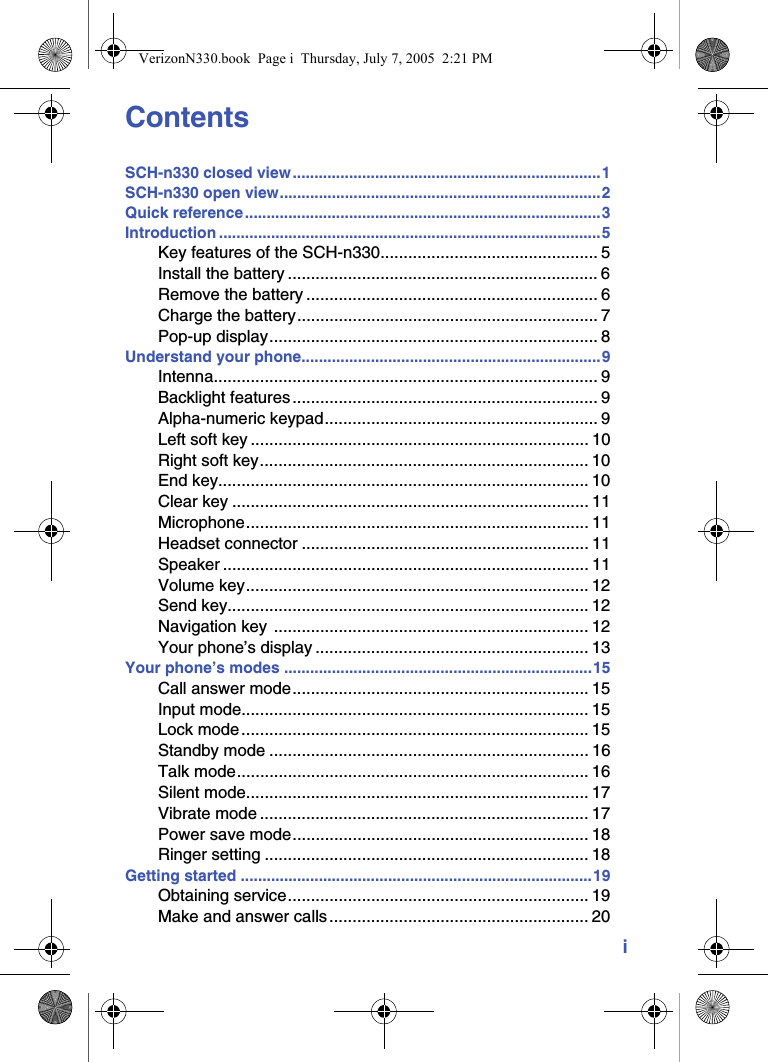
iContentsSCH-n330 closed view.......................................................................1SCH-n330 open view..........................................................................2Quick reference..................................................................................3Introduction ........................................................................................5Key features of the SCH-n330............................................... 5Install the battery ................................................................... 6Remove the battery ............................................................... 6Charge the battery................................................................. 7Pop-up display....................................................................... 8Understand your phone.....................................................................9Intenna................................................................................... 9Backlight features .................................................................. 9Alpha-numeric keypad........................................................... 9Left soft key ......................................................................... 10Right soft key....................................................................... 10End key................................................................................ 10Clear key ............................................................................. 11Microphone.......................................................................... 11Headset connector .............................................................. 11Speaker ............................................................................... 11Volume key.......................................................................... 12Send key.............................................................................. 12Navigation key  .................................................................... 12Your phone’s display ........................................................... 13Your phone’s modes .......................................................................15Call answer mode................................................................ 15Input mode........................................................................... 15Lock mode........................................................................... 15Standby mode ..................................................................... 16Talk mode............................................................................ 16Silent mode.......................................................................... 17Vibrate mode ....................................................................... 17Power save mode................................................................ 18Ringer setting ...................................................................... 18Getting started .................................................................................19Obtaining service................................................................. 19Make and answer calls ........................................................ 20VerizonN330.book  Page i  Thursday, July 7, 2005  2:21 PM
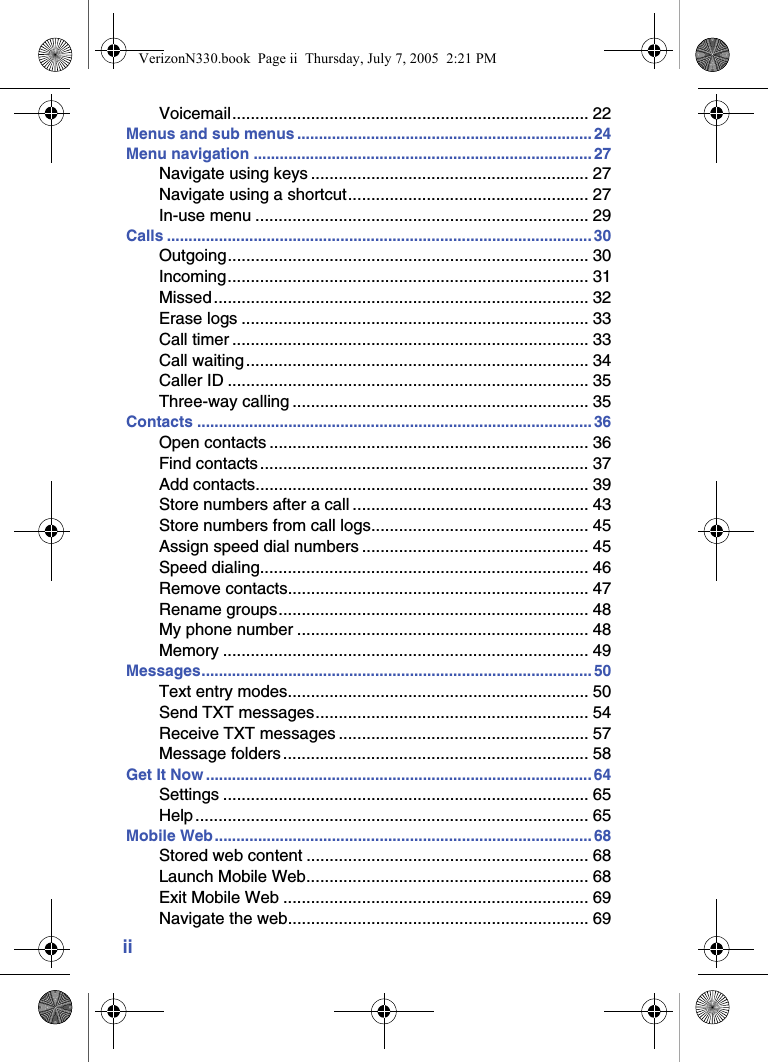
iiVoicemail............................................................................. 22Menus and sub menus ....................................................................24Menu navigation .............................................................................. 27Navigate using keys ............................................................ 27Navigate using a shortcut.................................................... 27In-use menu ........................................................................ 29Calls .................................................................................................. 30Outgoing.............................................................................. 30Incoming.............................................................................. 31Missed ................................................................................. 32Erase logs ........................................................................... 33Call timer ............................................................................. 33Call waiting.......................................................................... 34Caller ID .............................................................................. 35Three-way calling ................................................................ 35Contacts ........................................................................................... 36Open contacts ..................................................................... 36Find contacts ....................................................................... 37Add contacts........................................................................ 39Store numbers after a call ................................................... 43Store numbers from call logs............................................... 45Assign speed dial numbers ................................................. 45Speed dialing....................................................................... 46Remove contacts................................................................. 47Rename groups................................................................... 48My phone number ............................................................... 48Memory ............................................................................... 49Messages.......................................................................................... 50Text entry modes................................................................. 50Send TXT messages........................................................... 54Receive TXT messages ...................................................... 57Message folders.................................................................. 58Get It Now .........................................................................................64Settings ............................................................................... 65Help ..................................................................................... 65Mobile Web.......................................................................................68Stored web content ............................................................. 68Launch Mobile Web............................................................. 68Exit Mobile Web .................................................................. 69Navigate the web................................................................. 69VerizonN330.book  Page ii  Thursday, July 7, 2005  2:21 PM
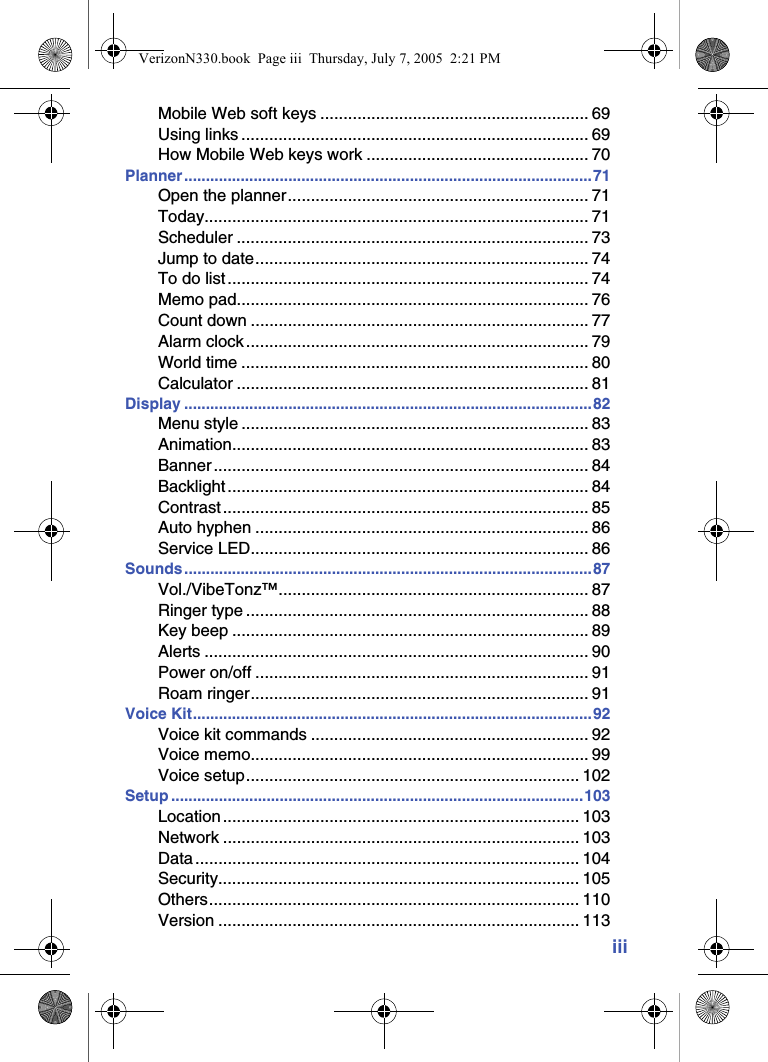
iiiMobile Web soft keys .......................................................... 69Using links ........................................................................... 69How Mobile Web keys work ................................................ 70Planner..............................................................................................71Open the planner................................................................. 71Today................................................................................... 71Scheduler ............................................................................ 73Jump to date........................................................................ 74To do list .............................................................................. 74Memo pad............................................................................ 76Count down ......................................................................... 77Alarm clock.......................................................................... 79World time ........................................................................... 80Calculator ............................................................................ 81Display ..............................................................................................82Menu style ........................................................................... 83Animation............................................................................. 83Banner................................................................................. 84Backlight .............................................................................. 84Contrast ............................................................................... 85Auto hyphen ........................................................................ 86Service LED......................................................................... 86Sounds..............................................................................................87Vol./VibeTonz™................................................................... 87Ringer type .......................................................................... 88Key beep ............................................................................. 89Alerts ................................................................................... 90Power on/off ........................................................................ 91Roam ringer......................................................................... 91Voice Kit............................................................................................92Voice kit commands ............................................................ 92Voice memo......................................................................... 99Voice setup........................................................................ 102Setup ...............................................................................................103Location............................................................................. 103Network ............................................................................. 103Data ................................................................................... 104Security.............................................................................. 105Others................................................................................ 110Version .............................................................................. 113VerizonN330.book  Page iii  Thursday, July 7, 2005  2:21 PM
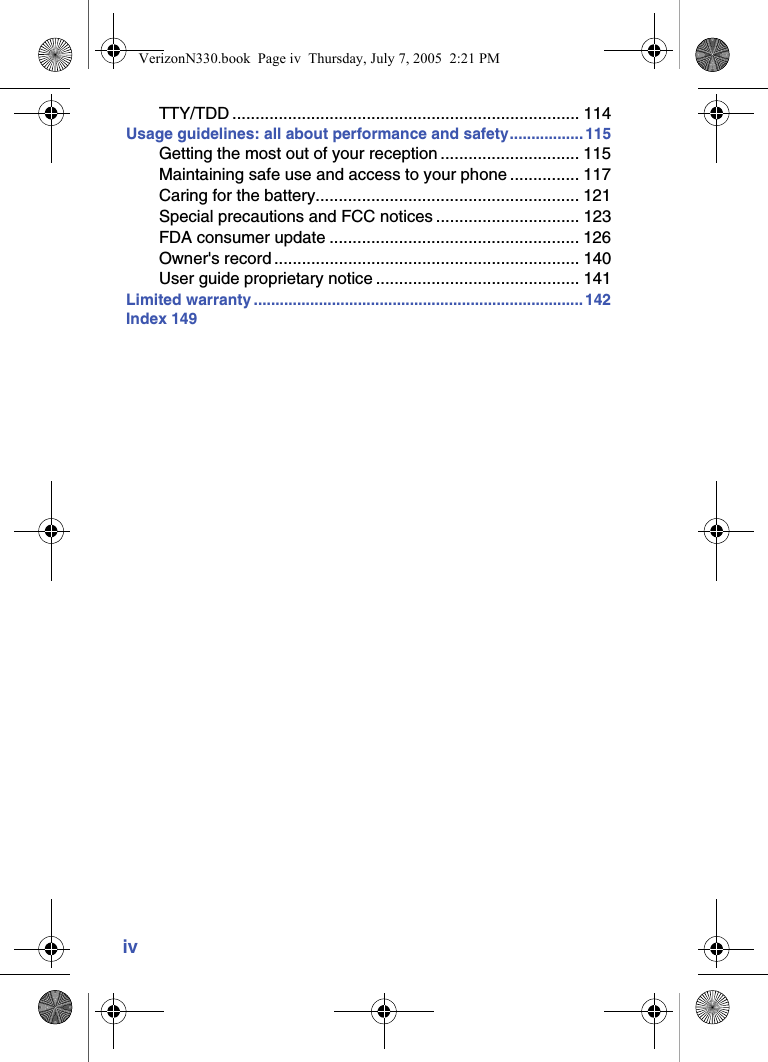
ivTTY/TDD ........................................................................... 114Usage guidelines: all about performance and safety................. 115Getting the most out of your reception .............................. 115Maintaining safe use and access to your phone ............... 117Caring for the battery......................................................... 121Special precautions and FCC notices ............................... 123FDA consumer update ...................................................... 126Owner's record .................................................................. 140User guide proprietary notice ............................................ 141Limited warranty ............................................................................142Index 149VerizonN330.book  Page iv  Thursday, July 7, 2005  2:21 PM
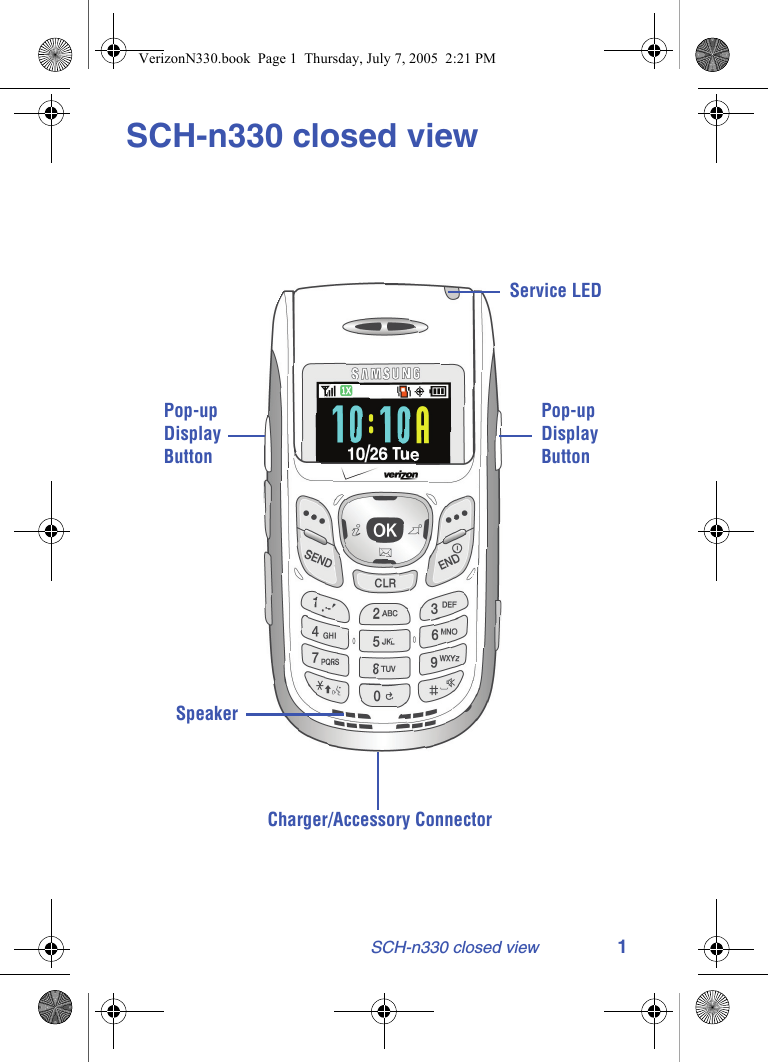
SCH-n330 closed view 1SCH-n330 closed viewService LEDSpeakerCharger/Accessory ConnectorPop-upDisplayButtonPop-upDisplayButtonVerizonN330.book  Page 1  Thursday, July 7, 2005  2:21 PM
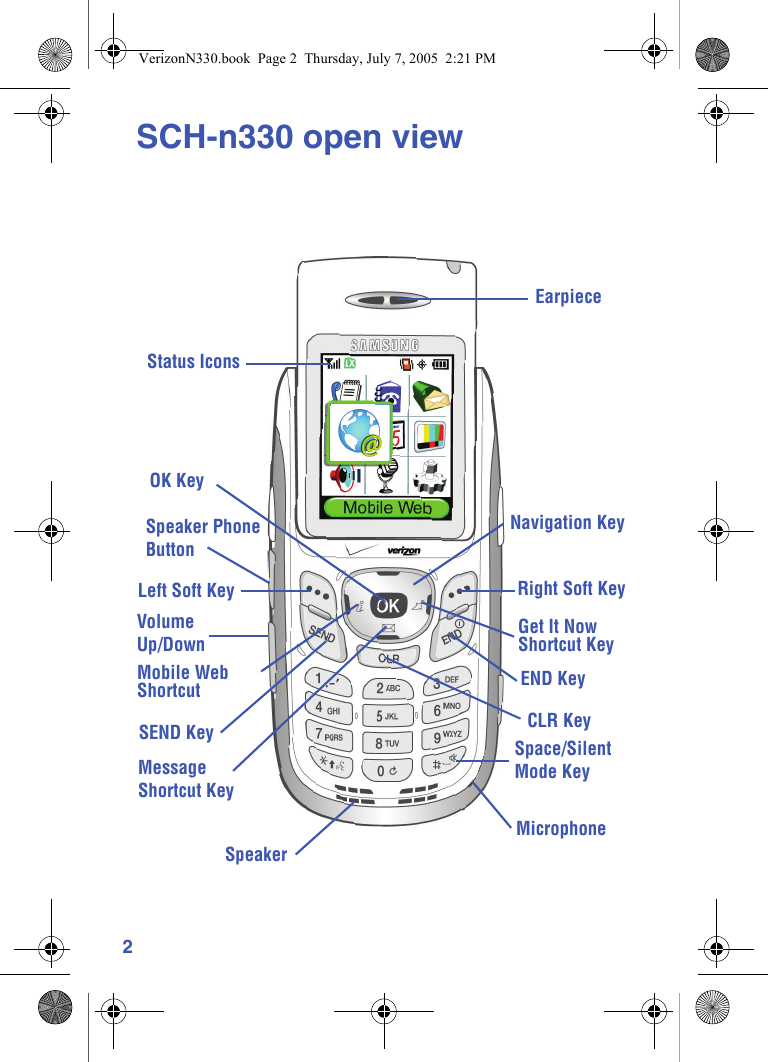
2SCH-n330 open viewRight Soft KeyLeft Soft KeyEarpieceStatus IconsNavigation KeySEND KeyEND KeyMobile WebShortcutGet It NowShortcut KeyCLR KeyMicrophoneSpace/SilentOK KeySpeaker PhoneButtonVolume Up/DownMessageShortcut KeyMode KeySpeakerVerizonN330.book  Page 2  Thursday, July 7, 2005  2:21 PM
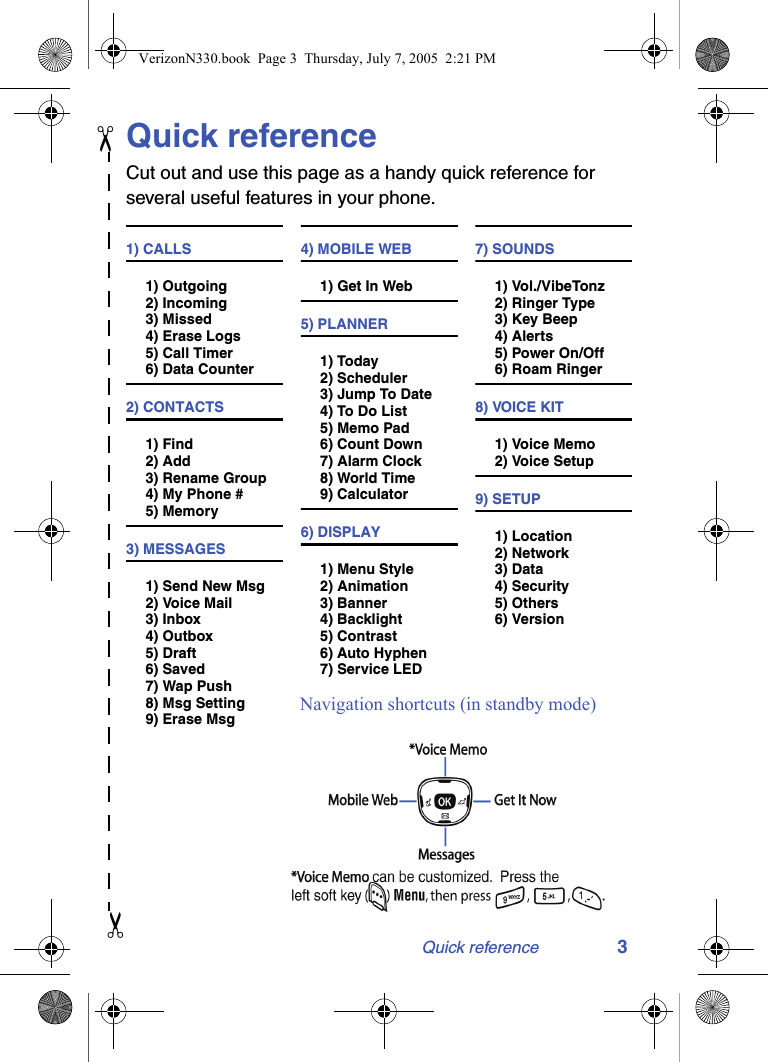
Quick reference 3Quick referenceCut out and use this page as a handy quick reference for several useful features in your phone.1) CALLS1) Outgoing2) Incoming3) Missed4) Erase Logs5) Call Timer6) Data Counter2) CONTACTS1) Find2) Add3) Rename Group4) My Phone #5) Memory3) MESSAGES1) Send New Msg2) Voice Mail3) Inbox4) Outbox5) Draft6) Saved7) Wap Push8) Msg Setting9) Erase Msg4) MOBILE WEB1) Get In Web5) PLANNER1) Today2) Scheduler3) Jump To Date4) To Do List5) Memo Pad6) Count Down7) Alarm Clock8) World Time9) Calculator6) DISPLAY1) Menu Style2) Animation3) Banner4) Backlight5) Contrast6) Auto Hyphen7) Service LED7) SOUNDS1) Vol./VibeTonz2) Ringer Type3) Key Beep4) Alerts5) Power On/Off6) Roam Ringer8) VOICE KIT1) Voice Memo2) Voice Setup9) SETUP1) Location2) Network3) Data4) Security5) Others6) Version✂✂Navigation shortcuts (in standby mode)VerizonN330.book  Page 3  Thursday, July 7, 2005  2:21 PM
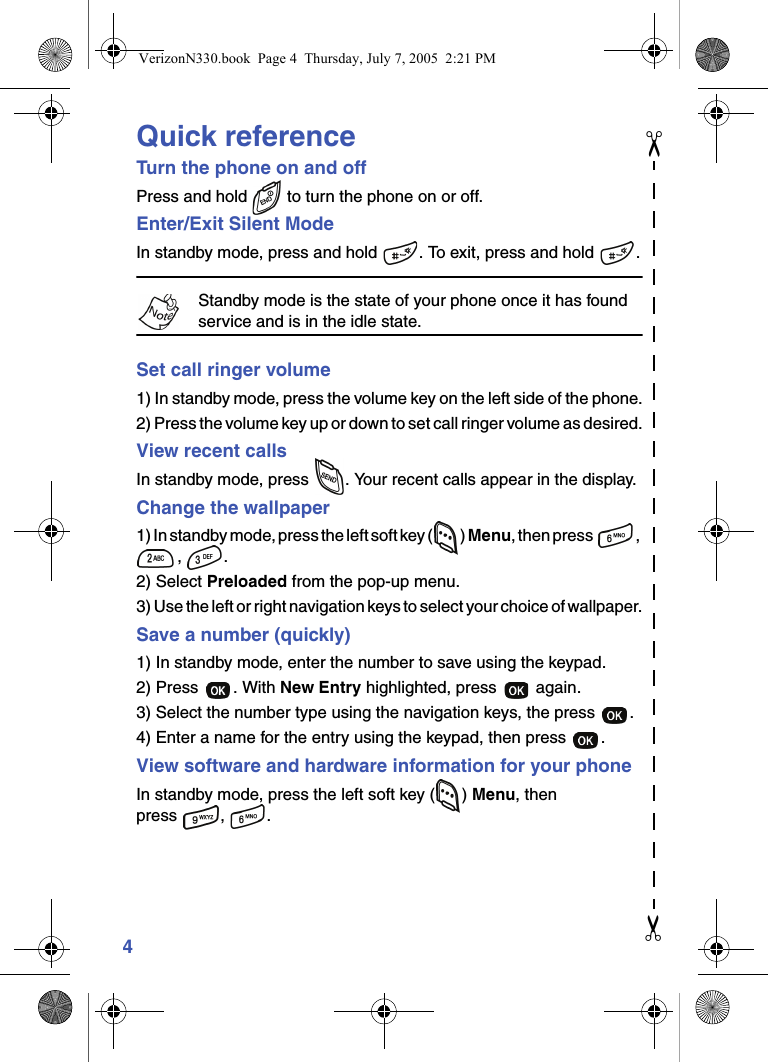
4Quick referenceTurn the phone on and offPress and hold   to turn the phone on or off.Enter/Exit Silent ModeIn standby mode, press and hold  . To exit, press and hold  .Standby mode is the state of your phone once it has found service and is in the idle state.Set call ringer volume1) In standby mode, press the volume key on the left side of the phone.2) Press the volume key up or down to set call ringer volume as desired.View recent callsIn standby mode, press  . Your recent calls appear in the display.Change the wallpaper1) In standby mode, press the left soft key ( ) Menu, then press  , , .2) Select Preloaded from the pop-up menu.3) Use the left or right navigation keys to select your choice of wallpaper.Save a number (quickly)1) In standby mode, enter the number to save using the keypad.2) Press  . With New Entry highlighted, press   again.3) Select the number type using the navigation keys, the press  .4) Enter a name for the entry using the keypad, then press  .View software and hardware information for your phoneIn standby mode, press the left soft key ( ) Menu, then press , .✂✂VerizonN330.book  Page 4  Thursday, July 7, 2005  2:21 PM
Introduction 5IntroductionCongratulations on your purchase of the Samsung SCH-n330 mobile phone. The features listed below are a sample of what SCH-n330 has to offer. We ask that you read this guide to understand the many features that this phone supports and keep it handy for reference.Key features of the SCH-n330 • 128 x 160 pixel Liquid Crystal Display • High speed data (CDMA 2000 1X Technology) • Global Positioning Technology (GPS) • PIM functions (Scheduler, To Do List, etc.) • TXT Messaging • Enhanced Messaging Service (EMS) • Voice Dial • Speaker phone • 32 Polyphonic Ringtones • VibeTonz™ TechnologyHow to use this guideThe chapters of this guide generally follow the same order as the menus and sub menus in your phone. A robust index for quick reference to most features begins on page 149.Also included is important safety information that you should know before using your phone. Most of this information is near the back of the guide, beginning on page 115.If you still have questions, we’ll be happy to answer them. Just call our Samsung Customer Care Center toll-free at 1.888.987.HELP (4357).VerizonN330.book  Page 5  Thursday, July 7, 2005  2:21 PM
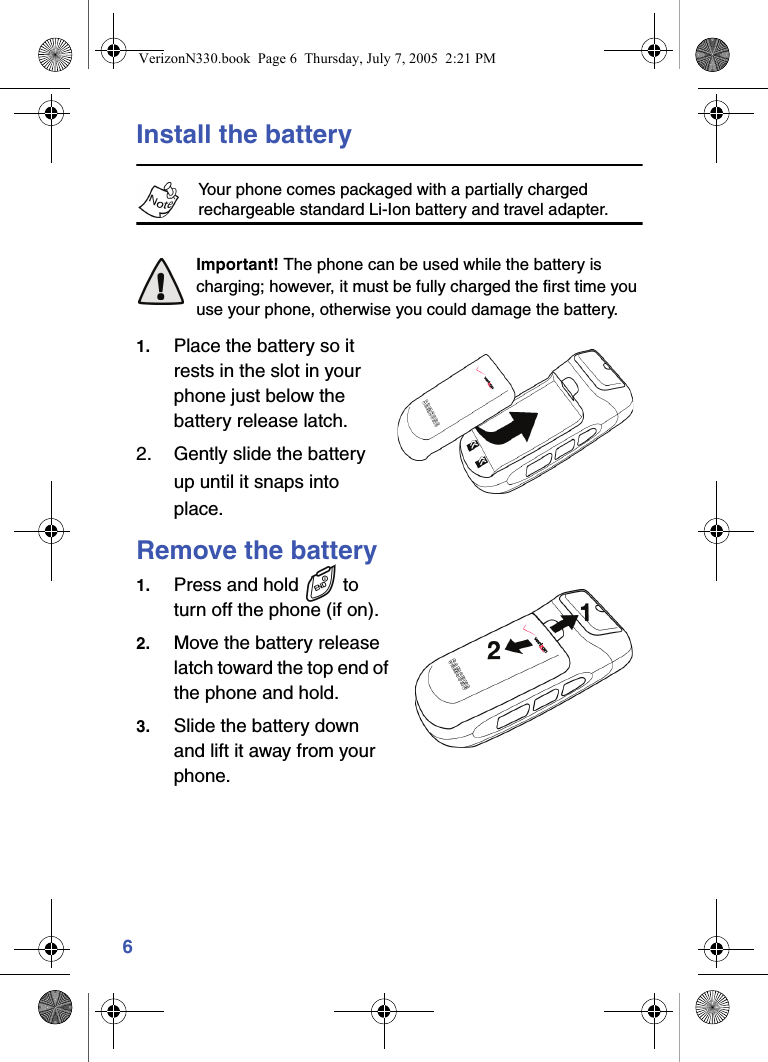
6Install the batteryYour phone comes packaged with a partially charged rechargeable standard Li-Ion battery and travel adapter.Important! The phone can be used while the battery is charging; however, it must be fully charged the first time you use your phone, otherwise you could damage the battery.1. Place the battery so it rests in the slot in your phone just below the battery release latch.2. Gently slide the battery up until it snaps into place.Remove the battery1. Press and hold   to turn off the phone (if on).2. Move the battery release latch toward the top end of the phone and hold.3. Slide the battery down and lift it away from your phone.VerizonN330.book  Page 6  Thursday, July 7, 2005  2:21 PM
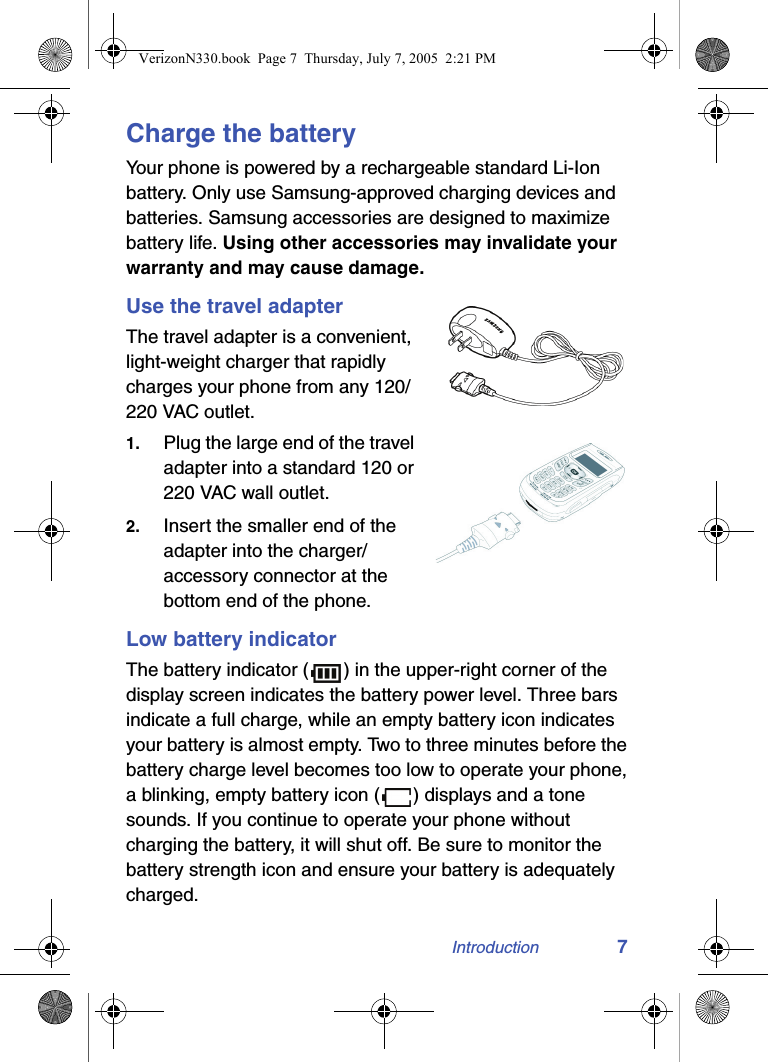
Introduction 7Charge the batteryYour phone is powered by a rechargeable standard Li-Ion battery. Only use Samsung-approved charging devices and batteries. Samsung accessories are designed to maximize battery life. Using other accessories may invalidate your warranty and may cause damage.Use the travel adapterThe travel adapter is a convenient, light-weight charger that rapidly charges your phone from any 120/220 VAC outlet.1. Plug the large end of the travel adapter into a standard 120 or 220 VAC wall outlet.2. Insert the smaller end of the adapter into the charger/accessory connector at the bottom end of the phone.Low battery indicatorThe battery indicator ( ) in the upper-right corner of the display screen indicates the battery power level. Three bars indicate a full charge, while an empty battery icon indicates your battery is almost empty. Two to three minutes before the battery charge level becomes too low to operate your phone, a blinking, empty battery icon ( ) displays and a tone sounds. If you continue to operate your phone without charging the battery, it will shut off. Be sure to monitor the battery strength icon and ensure your battery is adequately charged.VerizonN330.book  Page 7  Thursday, July 7, 2005  2:21 PM
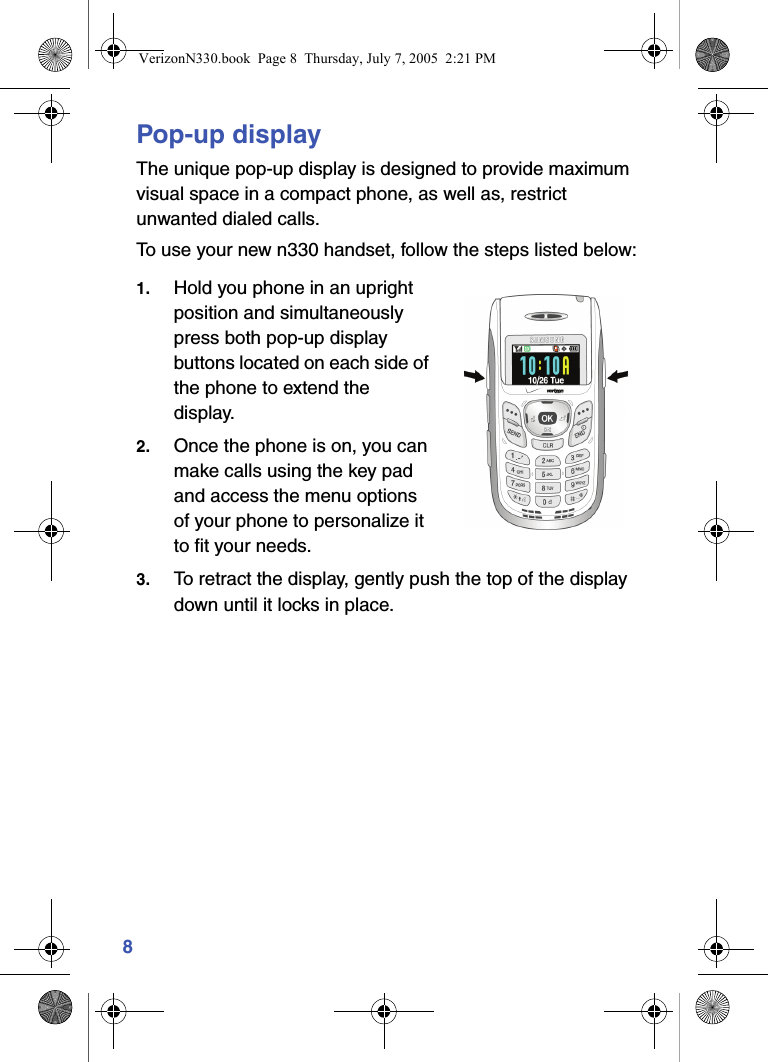
8Pop-up displayThe unique pop-up display is designed to provide maximum visual space in a compact phone, as well as, restrict unwanted dialed calls.To use your new n330 handset, follow the steps listed below:1. Hold you phone in an upright position and simultaneously press both pop-up display buttons located on each side of the phone to extend the display.2. Once the phone is on, you can make calls using the key pad and access the menu options of your phone to personalize it to fit your needs.3. To retract the display, gently push the top of the display down until it locks in place.VerizonN330.book  Page 8  Thursday, July 7, 2005  2:21 PM
Understand your phone 9Understand your phoneIntennaAvoid touching the intenna while the phone is powered up. Contact with the antenna affects the quality of your calls and may cause the phone to operate at a higher power level than necessary.Backlight featuresYou can choose the amount of time that the display and backlight remain illuminated after a period of inactivity. Keep in mind that increasing these settings reduces battery life.1. In standby mode, press the left soft key ( ) Menu.2. Press , , for Backlight. The following backlight options appear in the display.1 Lcd2 Keypad3 Power save3. Use the navigation key to highlight Keypad or Power Save, then press  .4. Use the navigation key to highlight the amount of time that you want the keypad or display to remain illuminated after a period of inactivity, then press  .Alpha-numeric keypadUse the alpha-numeric keypad to enter text, numbers, and special characters.VerizonN330.book  Page 9  Thursday, July 7, 2005  2:21 PM
10Left soft keyFunctions for the left soft key ( ) are defined by what appears above it in the display. Some functions of the left soft key are as follows. • Press the left soft key ( ) Menu to enter the Main menu. • Press the left soft key ( ) Option to view options in some features. • Press the left soft key ( ) to acknowledge browser charges and other functions.Right soft keyFunctions for the right soft key ( ) are defined by what appears above it in the display. Some functions of the right soft key are as follows: • Press the right soft key ( ) Back to return to the standby mode from any main menu. • Press the right soft key ( ) Back to return to the previous menu from a sub menu. • In standby mode, press the right soft key ( ) Contacts to enter the Contacts list.End key • Press and hold   to turn off and turn on your phone. • Press   once to disconnect a call, return to standby mode, or cancel any input.VerizonN330.book  Page 10  Thursday, July 7, 2005  2:21 PM
Understand your phone 11Clear keyThe CLR key ( ) is used to erase or clear numbers from the display. You can also use   to return to a previous menu or to return to standby mode from any menu. • If you enter an incorrect character, briefly press   to backspace and delete. • To erase all digits or characters from the display screen, press and hold  . • To back up one menu level, briefly press  . • To return to standby mode from any menu, press and hold   until you return to standby mode.MicrophoneThe microphone, located just beneath   on the keypad, is used for conversation, voice setup, and recording voice memos.Headset connectorThe headset connector is the input jack for the optional hands-free headset. The headset includes an earbud and microphone in a convenient, lightweight unit so you can talk without using your hands. • Before connecting the headset, gently pry open the input jack cover to expose the connector inside.SpeakerThe speaker, located on the front of your phone, plays audible sounds such as ring tones and alerts.MicrophoneSpeakerVerizonN330.book  Page 11  Thursday, July 7, 2005  2:21 PM
12Volume keyThe volume key is located on the left side of the phone. Use the volume key to set the call ringer volume in standby mode or earpiece volume while in a call. You can also use the volume key to scroll through menus, sub menus, and lists.Send keyThe Send key ( ) is used to answer calls, dial calls, and to recall the last number (or list of numbers) dialed. • Press   once to answer calls. • Enter a number and press   once to connect a call. • Press  once in standby mode to display the recent calls list, which includes the last 20 outgoing, 20 incoming, and 20 missed calls. • Press   twice in standby mode to call the most recently dialed number.Navigation key Use any of the four directional keys on the navigation key to browse menus, sub menus, and lists. Each of the four keys also acts as a shortcut to launch specific applications, and the Up navigation key is user definable. Use the center ( ) key to select a highlighted feature, confirm prompts, or to jump to highlighted links on the web.VerizonN330.book  Page 12  Thursday, July 7, 2005  2:21 PM
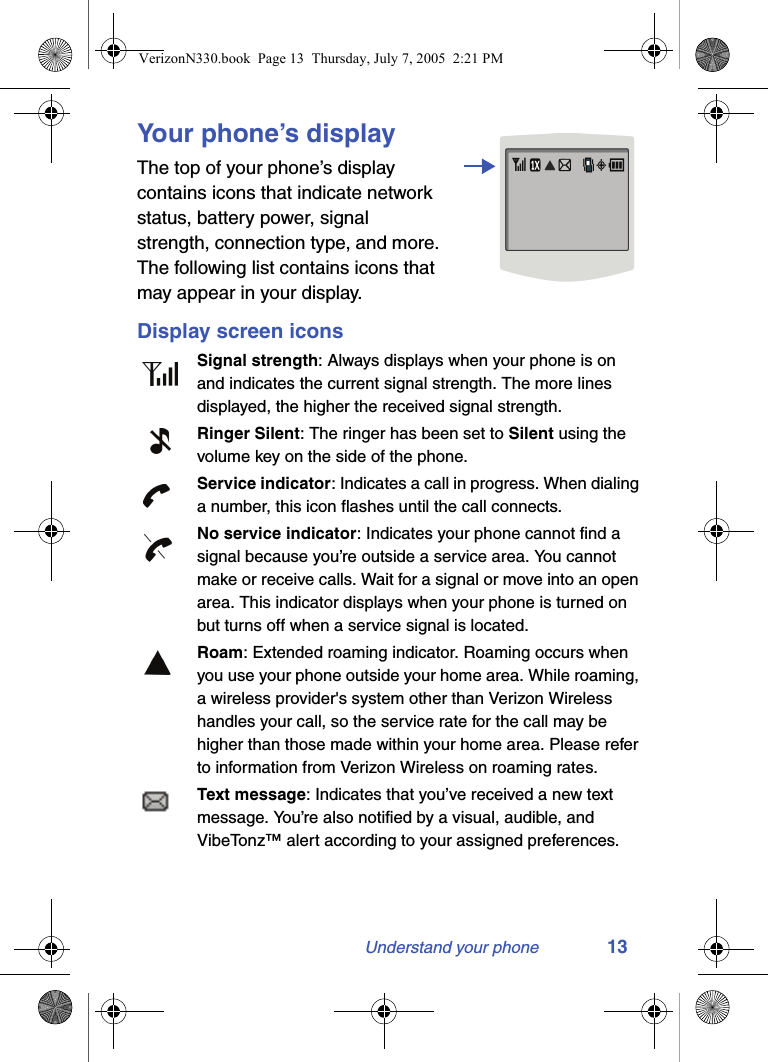
Understand your phone 13Your phone’s displayThe top of your phone’s display contains icons that indicate network status, battery power, signal strength, connection type, and more. The following list contains icons that may appear in your display.Display screen iconsSignal strength: Always displays when your phone is on and indicates the current signal strength. The more lines displayed, the higher the received signal strength.Ringer Silent: The ringer has been set to Silent using the volume key on the side of the phone. Service indicator: Indicates a call in progress. When dialing a number, this icon flashes until the call connects.No service indicator: Indicates your phone cannot find a signal because you’re outside a service area. You cannot make or receive calls. Wait for a signal or move into an open area. This indicator displays when your phone is turned on but turns off when a service signal is located.Roam: Extended roaming indicator. Roaming occurs when you use your phone outside your home area. While roaming, a wireless provider's system other than Verizon Wireless handles your call, so the service rate for the call may be higher than those made within your home area. Please refer to information from Verizon Wireless on roaming rates.Text message: Indicates that you’ve received a new text message. You’re also notified by a visual, audible, and VibeTonz™ alert according to your assigned preferences.VerizonN330.book  Page 13  Thursday, July 7, 2005  2:21 PM
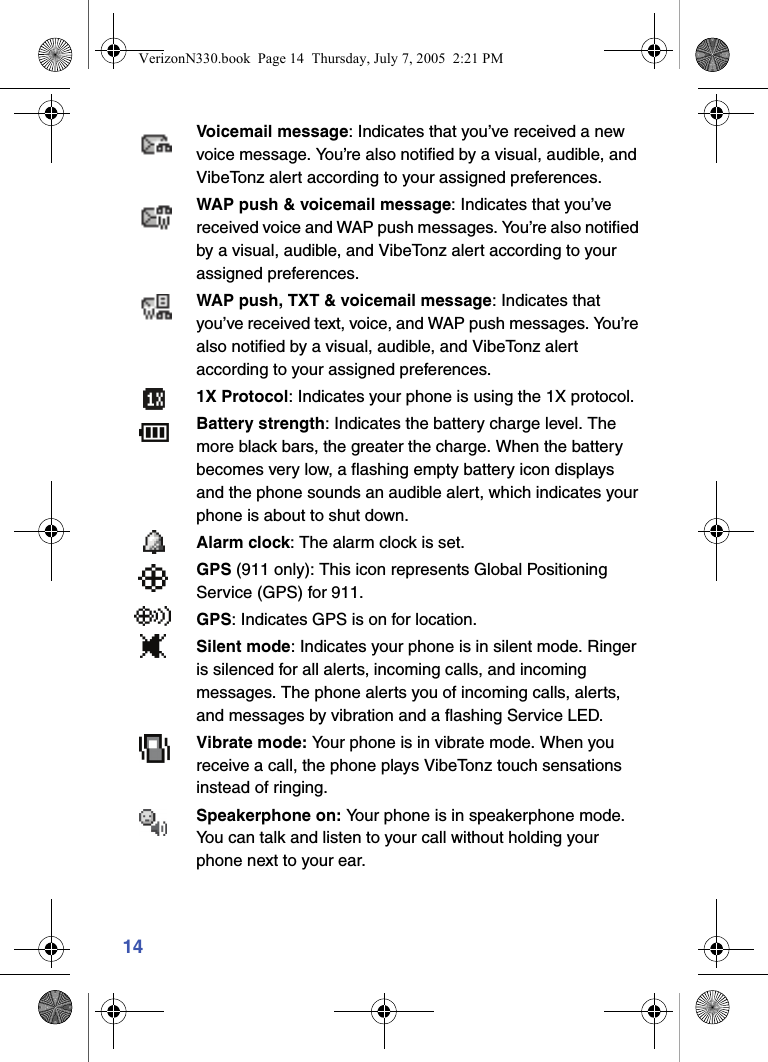
14Voicemail message: Indicates that you’ve received a new voice message. You’re also notified by a visual, audible, and VibeTonz alert according to your assigned preferences.WAP push & voicemail message: Indicates that you’ve received voice and WAP push messages. You’re also notified by a visual, audible, and VibeTonz alert according to your assigned preferences.WAP push, TXT & voicemail message: Indicates that you’ve received text, voice, and WAP push messages. You’re also notified by a visual, audible, and VibeTonz alert according to your assigned preferences.1X Protocol: Indicates your phone is using the 1X protocol.Battery strength: Indicates the battery charge level. The more black bars, the greater the charge. When the battery becomes very low, a flashing empty battery icon displays and the phone sounds an audible alert, which indicates your phone is about to shut down.Alarm clock: The alarm clock is set.GPS (911 only): This icon represents Global Positioning Service (GPS) for 911.GPS: Indicates GPS is on for location.Silent mode: Indicates your phone is in silent mode. Ringer is silenced for all alerts, incoming calls, and incoming messages. The phone alerts you of incoming calls, alerts, and messages by vibration and a flashing Service LED.Vibrate mode: Your phone is in vibrate mode. When you receive a call, the phone plays VibeTonz touch sensations instead of ringing.Speakerphone on: Your phone is in speakerphone mode. You can talk and listen to your call without holding your phone next to your ear.VerizonN330.book  Page 14  Thursday, July 7, 2005  2:21 PM
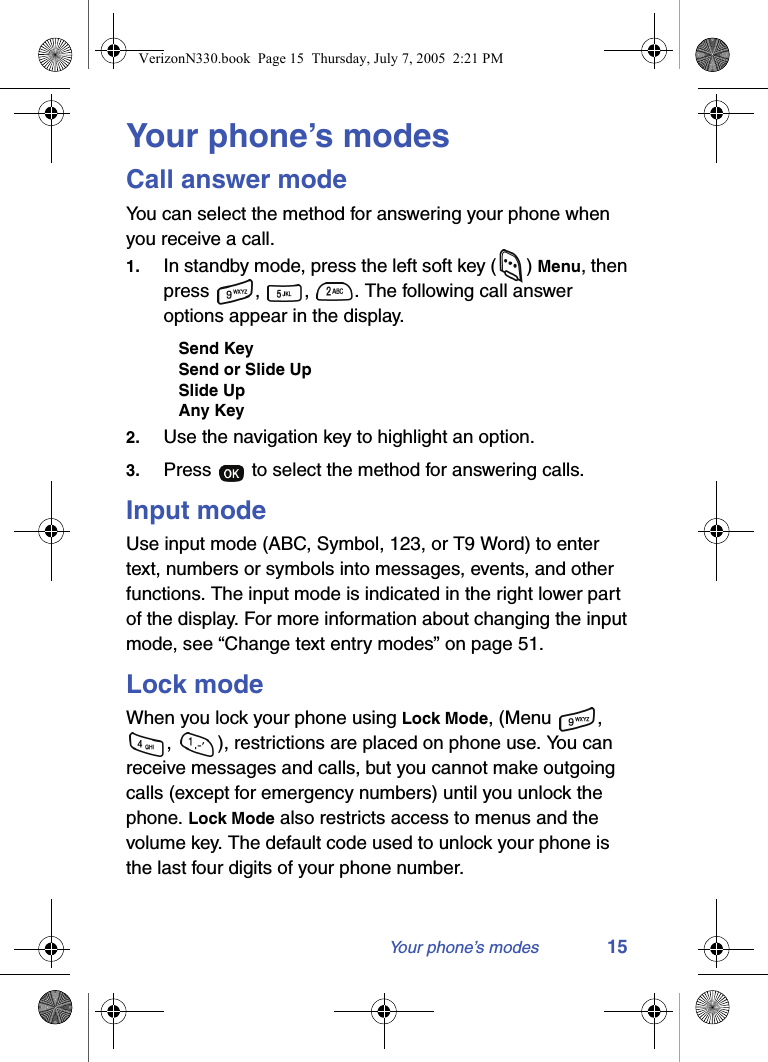
Your phone’s modes 15Your phone’s modesCall answer modeYou can select the method for answering your phone when you receive a call. 1. In standby mode, press the left soft key ( ) Menu, then press  ,  ,  . The following call answer options appear in the display.Send KeySend or Slide UpSlide UpAny Key2. Use the navigation key to highlight an option.3. Press   to select the method for answering calls.Input modeUse input mode (ABC, Symbol, 123, or T9 Word) to enter text, numbers or symbols into messages, events, and other functions. The input mode is indicated in the right lower part of the display. For more information about changing the input mode, see “Change text entry modes” on page 51.Lock modeWhen you lock your phone using Lock Mode, (Menu  , ,  ), restrictions are placed on phone use. You can receive messages and calls, but you cannot make outgoing calls (except for emergency numbers) until you unlock the phone. Lock Mode also restricts access to menus and the volume key. The default code used to unlock your phone is the last four digits of your phone number.VerizonN330.book  Page 15  Thursday, July 7, 2005  2:21 PM
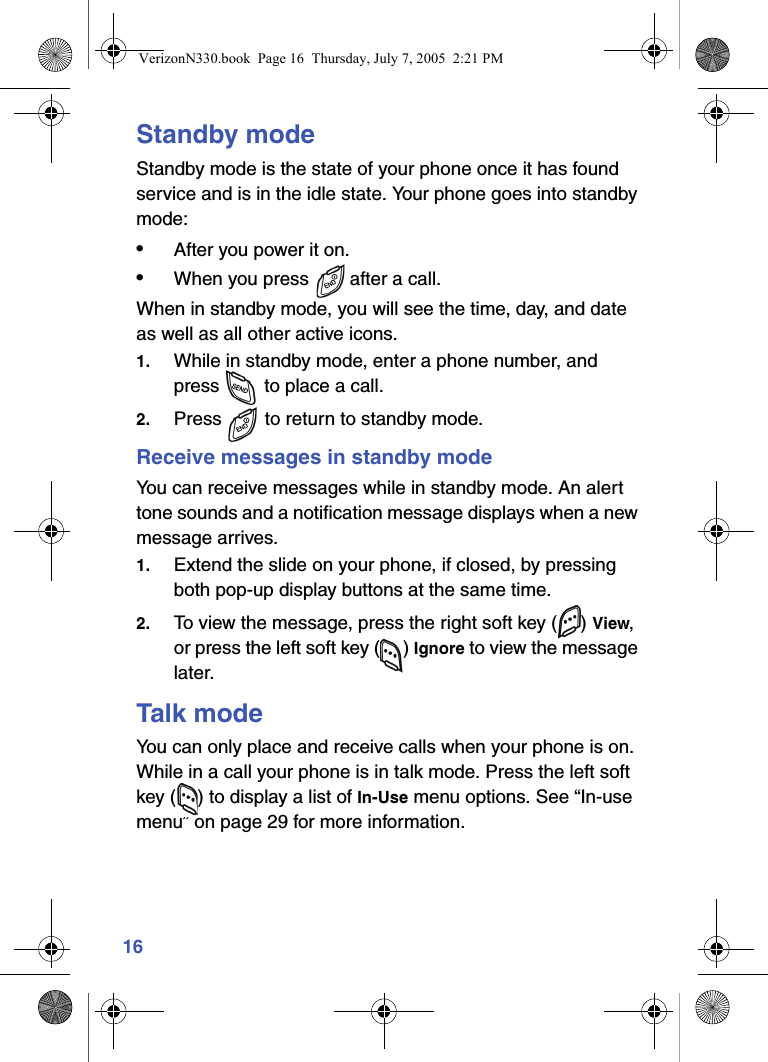
16Standby modeStandby mode is the state of your phone once it has found service and is in the idle state. Your phone goes into standby mode:•After you power it on.•When you press   after a call.When in standby mode, you will see the time, day, and date as well as all other active icons.1. While in standby mode, enter a phone number, and press   to place a call.2. Press   to return to standby mode.Receive messages in standby modeYou can receive messages while in standby mode. An alert tone sounds and a notification message displays when a new message arrives. 1. Extend the slide on your phone, if closed, by pressing both pop-up display buttons at the same time.2. To view the message, press the right soft key ( ) View, or press the left soft key ( ) Ignore to view the message later.Talk modeYou can only place and receive calls when your phone is on. While in a call your phone is in talk mode. Press the left soft key ( ) to display a list of In-Use menu options. See “In-use menu” on page 29 for more information. VerizonN330.book  Page 16  Thursday, July 7, 2005  2:21 PM
Your phone’s modes 17Silent modeWith a single press of the key you can silence the call ringer and tones that your keypad makes whenever you press a key. When you receive a call, the phone vibrates instead of ringing. Enter Silent mode•In standby mode, press and hold  . Entering Silent Mode briefly displays and your phone returns to standby mode. The   appears in the display.Exit silent mode•In standby mode, press and hold  . Exit Silent Mode briefly displays and your phone returns to standby mode. Vibrate modeYou can set your phone to vibrate while in Standby mode by either using your volume key or selecting VibeTonz™ from the Volume menu.•In standby mode, repeatedly press the volume key ( ) down until VibeTonz appears in the display. For more information about VibeTonz touch sensations see page 87.– or –1. In standby mode, press the left soft key ( ) Menu, then press , , .2. Use the navigation key until VibeTonz appears in the display, then press  .VerizonN330.book  Page 17  Thursday, July 7, 2005  2:21 PM
18Power save modeUnless the backlight setting for the LCD has been changed, the backlight dims after a minute of inactivity, and then turns off. With Power save enabled, the backlight for the LCD is always dim. After approximately one minute of inactivity, Power save turns the backlight off. To enable or disable Power save:1. In standby mode, press the left soft key ( ) Menu.2. Press , , for Backlight. The following backlight options appear in the display.1 Lcd2 Keypad3 Power save3. Use the navigation key to highlight Power save, then press . Off and On appear in the display.4. Use the navigation key to highlight On or Off, then press .Ringer setting1. In standby mode, repeatedly press the volume key ( ) on the left side of the phone up or down. Options are:2. Press   once you’re satisfied with the setting. The phone returns to standby mode.•Silent •Level 3•1 Beep •Level 4•VibeTonz •Level 5•Level 1 •Vib+Ring•Level 2 •Vib&RingVerizonN330.book  Page 18  Thursday, July 7, 2005  2:21 PM
Getting started 19Getting startedObtaining serviceContact Verizon Wireless and follow their instructions for obtaining service, if necessary. We suggest that you read this user guide to fully understand the services that your phone supports.Turn your phone on1. Extend the slide on your phone by pressing both pop-up display buttons on your phone at the same time.2. Press and hold   for two or more seconds. As with any other radio-transmitting device, do not touch the antenna as it affects call quality and can cause the phone to operate at a higher power level than is necessary.3. Verizon momentarily appears in the display and your phone begins searching for a network signal.4. Once your phone finds a signal, the time, date, and day appear in the bottom of the display.5. You’re now ready to place and receive calls.If the phone is outside of your carrier’s coverage or roaming area, the   icon appears in the top of the display. If you cannot place or receive calls, try later when service is available.VerizonN330.book  Page 19  Thursday, July 7, 2005  2:21 PM
20Turn your phone off•Press and hold   for two or more seconds. Your phone powers off.If your phone is on and you press   for less than one second, the phone will not power off. This feature prevents your phone from being turned off accidentally.Make and answer callsOutgoing1. With the phone on and the slide up, enter the number you want to call using the keypad.2. Press   to place the call.IncomingWhen you receive a call, the phone displays one of the following:•If the caller can be identified, the caller’s number (or name if they’re in Contacts) displays.•If the caller can’t be identified, Call from unavailable #, Call from restricted #, or no number will display.Incoming, outgoing, and missed calls are automatically stored in call logs. The last 20 calls you answered, made, or missed are stored in their respective logs.VerizonN330.book  Page 20  Thursday, July 7, 2005  2:21 PM
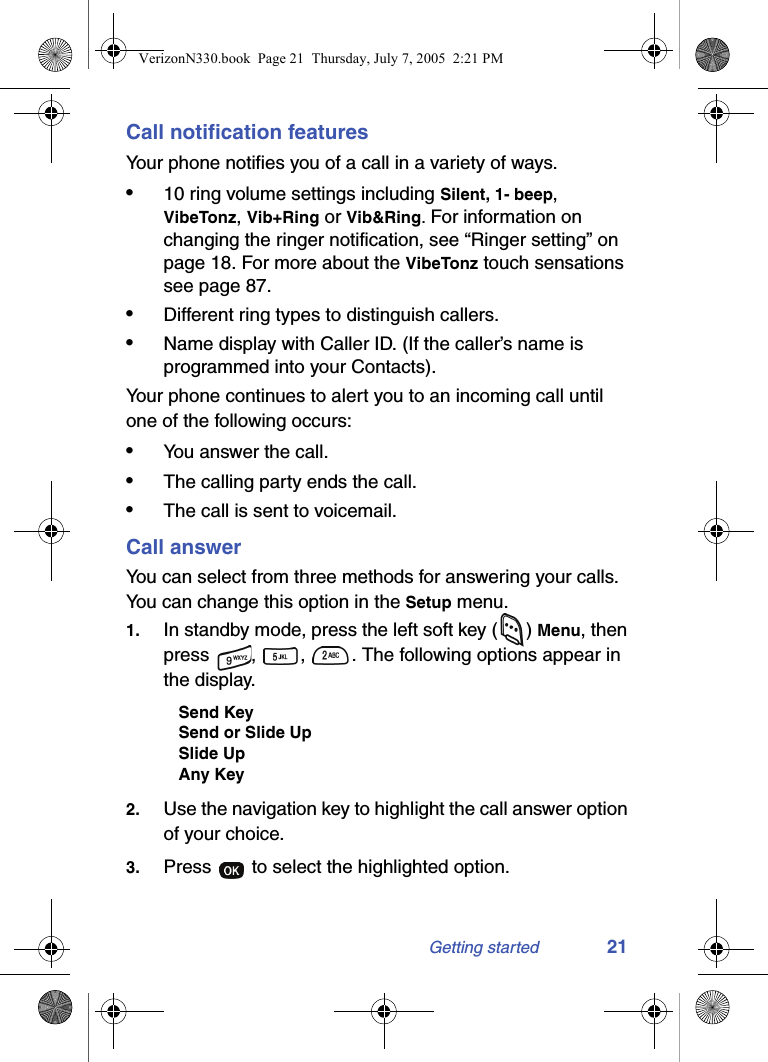
Getting started 21Call notification featuresYour phone notifies you of a call in a variety of ways.•10 ring volume settings including Silent, 1- beep, VibeTonz, Vib+Ring or Vib&Ring. For information on changing the ringer notification, see “Ringer setting” on page 18. For more about the VibeTonz touch sensations see page 87.•Different ring types to distinguish callers.•Name display with Caller ID. (If the caller’s name is programmed into your Contacts).Your phone continues to alert you to an incoming call until one of the following occurs:•You answer the call.•The calling party ends the call.•The call is sent to voicemail.Call answerYou can select from three methods for answering your calls. You can change this option in the Setup menu.1. In standby mode, press the left soft key ( ) Menu, then press  ,  ,  . The following options appear in the display.Send KeySend or Slide UpSlide UpAny Key2. Use the navigation key to highlight the call answer option of your choice.3. Press   to select the highlighted option.VerizonN330.book  Page 21  Thursday, July 7, 2005  2:21 PM
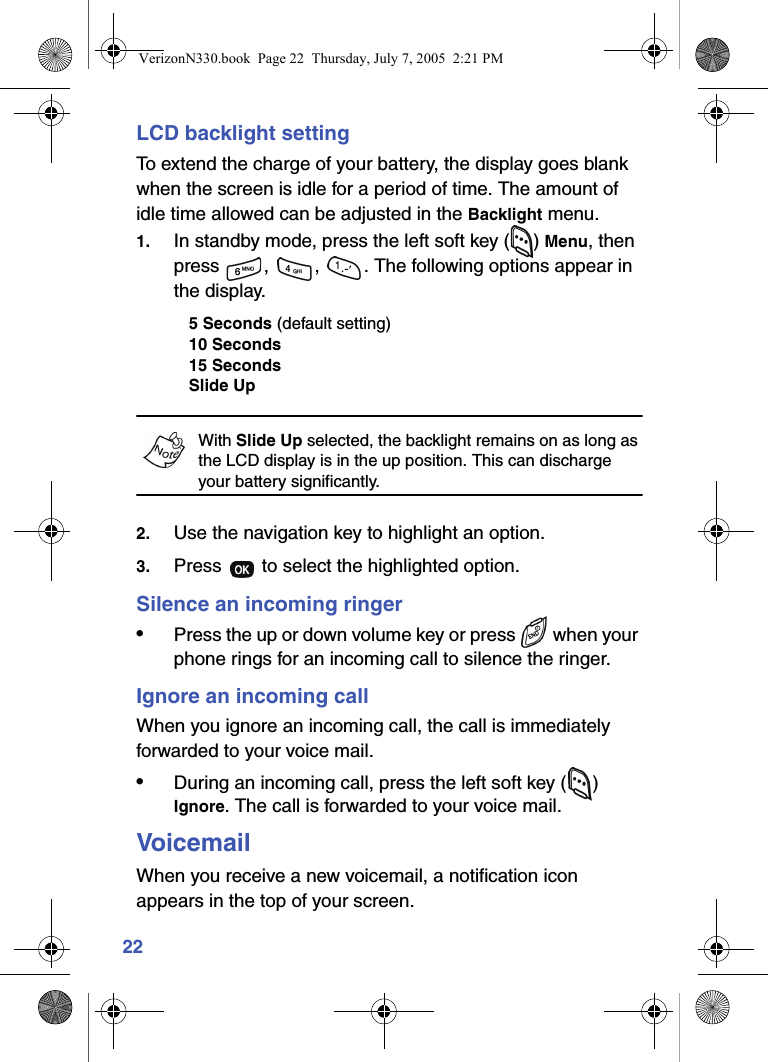
22LCD backlight settingTo extend the charge of your battery, the display goes blank when the screen is idle for a period of time. The amount of idle time allowed can be adjusted in the Backlight menu.1. In standby mode, press the left soft key ( ) Menu, then press  ,  ,  . The following options appear in the display.5 Seconds (default setting)10 Seconds15 SecondsSlide UpWith Slide Up selected, the backlight remains on as long as the LCD display is in the up position. This can discharge your battery significantly.2. Use the navigation key to highlight an option.3. Press   to select the highlighted option.Silence an incoming ringer•Press the up or down volume key or press   when your phone rings for an incoming call to silence the ringer.Ignore an incoming callWhen you ignore an incoming call, the call is immediately forwarded to your voice mail.•During an incoming call, press the left soft key ( ) Ignore. The call is forwarded to your voice mail.VoicemailWhen you receive a new voicemail, a notification icon appears in the top of your screen.VerizonN330.book  Page 22  Thursday, July 7, 2005  2:21 PM
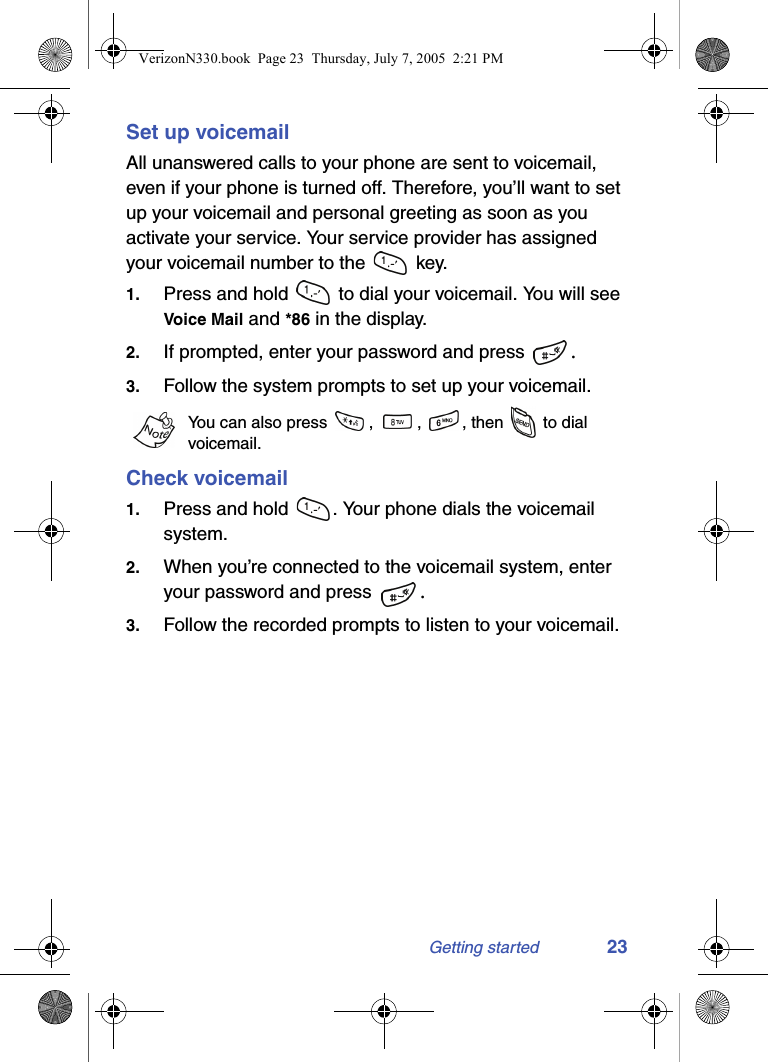
Getting started 23Set up voicemailAll unanswered calls to your phone are sent to voicemail, even if your phone is turned off. Therefore, you’ll want to set up your voicemail and personal greeting as soon as you activate your service. Your service provider has assigned your voicemail number to the   key. 1. Press and hold   to dial your voicemail. You will see Voice Mail and *86 in the display.2. If prompted, enter your password and press  .3. Follow the system prompts to set up your voicemail.You can also press  ,  ,  , then   to dial voicemail.Check voicemail1. Press and hold  . Your phone dials the voicemail system.2. When you’re connected to the voicemail system, enter your password and press  .3. Follow the recorded prompts to listen to your voicemail.VerizonN330.book  Page 23  Thursday, July 7, 2005  2:21 PM
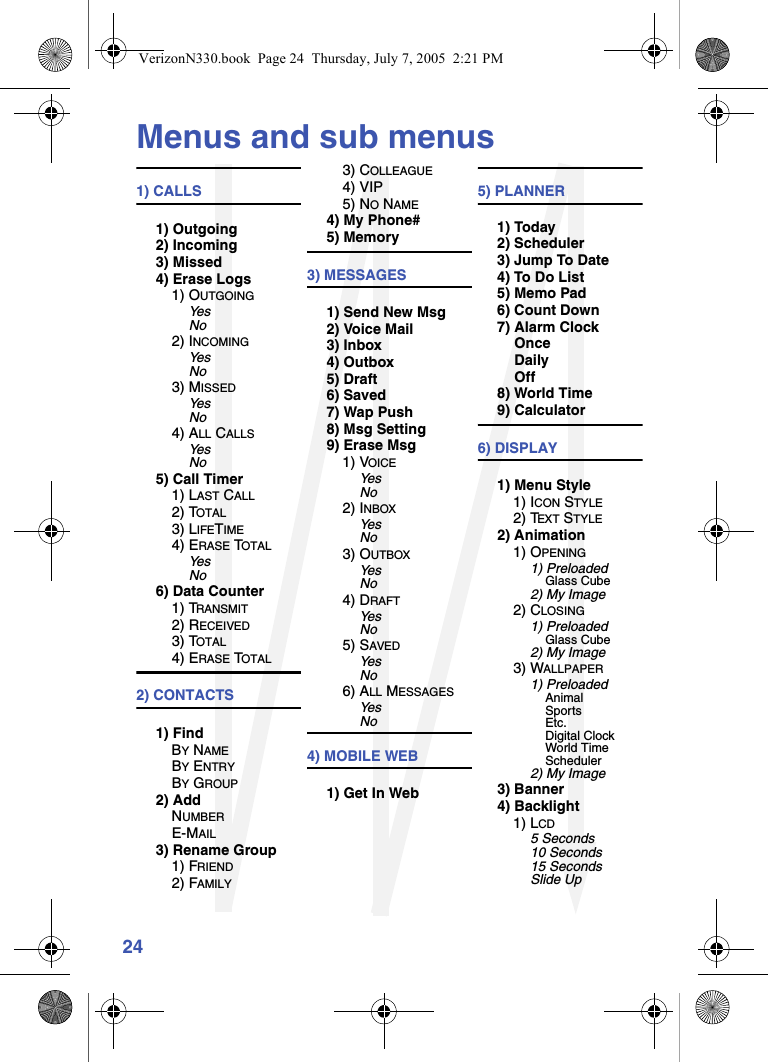
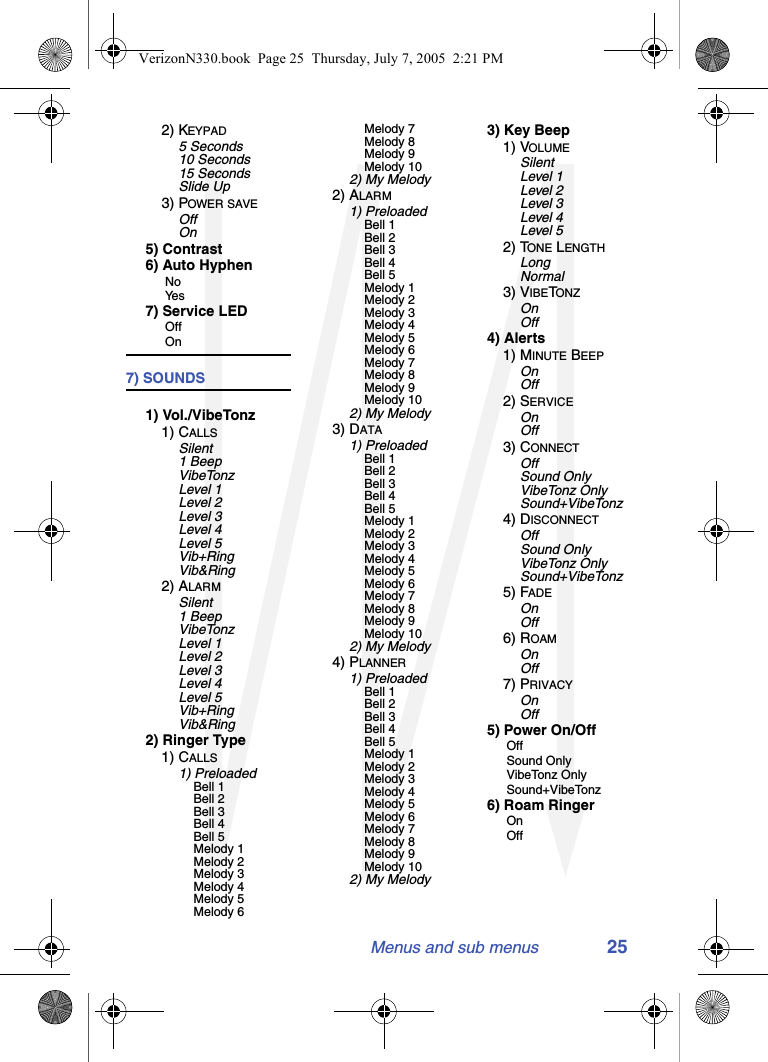
24Menus and sub menus1) CALLS 1) Outgoing2) Incoming3) Missed4) Erase Logs1) OUTGOINGYe sNo2) INCOMINGYe sNo3) MISSEDYe sNo4) ALL CALLSYe sNo5) Call Timer1) LAST CALL2) TOTAL3) LIFETIME4) ERASE TOTALYe sNo6) Data Counter1) TRANSMIT2) RECEIVED3) TOTAL4) ERASE TOTAL2) CONTACTS1) FindBY NAMEBY ENTRYBY GROUP2) AddNUMBERE-MAIL3) Rename Group1) FRIEND2) FAMILY3) COLLEAGUE4) VIP5) NO NAME4) My Phone#5) Memory3) MESSAGES1) Send New Msg2) Voice Mail3) Inbox4) Outbox5) Draft6) Saved7) Wap Push8) Msg Setting9) Erase Msg1) VOICEYe sNo2) INBOXYe sNo3) OUTBOXYe sNo4) DRAFTYe sNo5) SAVEDYe sNo6) ALL MESSAGESYe sNo4) MOBILE WEB1) Get In Web5) PLANNER1) Today2) Scheduler3) Jump To Date4) To Do List5) Memo Pad6) Count Down7) Alarm ClockOnceDailyOff8) World Time9) Calculator6) DISPLAY1) Menu Style1) ICON STYLE2) TEXT STYLE2) Animation1) OPENING1) PreloadedGlass Cube2) My Image2) CLOSING1) PreloadedGlass Cube2) My Image3) WALLPAPER1) PreloadedAnimalSportsEtc.Digital ClockWorld TimeScheduler2) My Image3) Banner4) Backlight1) LCD5 Seconds10 Seconds15 SecondsSlide UpVerizonN330.book  Page 24  Thursday, July 7, 2005  2:21 PM
Menus and sub menus 252) KEYPAD5 Seconds10 Seconds15 SecondsSlide Up3) POWER SAVEOffOn5) Contrast6) Auto Hyphen No Ye s7) Service LED Off On7) SOUNDS1) Vol./VibeTonz1) CALLSSilent1 BeepVibeTonzLevel 1Level 2Level 3Level 4Level 5Vib+RingVib&Ring2) ALARMSilent1 BeepVibeTonzLevel 1Level 2Level 3Level 4Level 5Vib+RingVib&Ring2) Ringer Type1) CALLS1) PreloadedBell 1Bell 2Bell 3Bell 4Bell 5Melody 1Melody 2Melody 3Melody 4Melody 5Melody 6Melody 7Melody 8Melody 9Melody 102) My Melody2) ALARM1) PreloadedBell 1Bell 2Bell 3Bell 4Bell 5Melody 1Melody 2Melody 3Melody 4Melody 5Melody 6Melody 7Melody 8Melody 9Melody 102) My Melody3) DATA1) PreloadedBell 1Bell 2Bell 3Bell 4Bell 5Melody 1Melody 2Melody 3Melody 4Melody 5Melody 6Melody 7Melody 8Melody 9Melody 102) My Melody4) PLANNER1) PreloadedBell 1Bell 2Bell 3Bell 4Bell 5Melody 1Melody 2Melody 3Melody 4Melody 5Melody 6Melody 7Melody 8Melody 9Melody 102) My Melody3) Key Beep1) VOLUMESilentLevel 1Level 2Level 3Level 4Level 52) TONE LENGTHLongNormal3) VIBETONZOnOff4) Alerts1) MINUTE BEEPOnOff2) SERVICEOnOff3) CONNECTOffSound OnlyVibeTonz OnlySound+VibeTonz4) DISCONNECTOffSound OnlyVibeTonz OnlySound+VibeTonz5) FADEOnOff6) ROAMOnOff7) PRIVACYOnOff5) Power On/Off Off Sound Only VibeTonz Only Sound+VibeTonz6) Roam Ringer On OffVerizonN330.book  Page 25  Thursday, July 7, 2005  2:21 PM
268) VOICE KIT1) Voice Memo1) RECORD2) REVIEW3) ERASE ALLYe sNo2) Voice Setup1) SET ACTIVE[*] Only[*]/Slide Up[*]/EarMic2) SET DIGITSAdapt DigitsReset Digits9) SETUP1) Location Location On 911 Only2) Network1) SET NAMNAM 1NAM 22) ROAM OPTIONHome onlyAutomatic-AAutomatic-B3) Data1) AUTO DETECTdata offdata for next calldata until powered off2) BAUD RATEAuto1920038400576001152002304004) Security1) LOCK PHONENeverOn Power upNow2) CHANGE LOCKNew code3) EMERGENCY #1) 9112) #9113) *9114) VOICE PRIVACYStandardEnhanced5) RESTRICTION1) OutgoingNoYe s2) IncomingNoYe s3) ContactsNoYe s6) ERASE MEMORYYe sNo7) RESET PHONEYe sNo5) Others1) SHORTCUTSchedulerVoice MemoAnimationRinger TypeAlarmCalculatorMemo Pad2) CALL ANSWERSend KeySend or Slide UpSlide UpAny Key3) CALL ENDEnd Key OnlySlide Down4) AUTO RETRYOffEvery 10 secEvery 30 secEvery 60 sec5) LANGUAGEEnglishSpanish6) CLOCK SET6) VersionVerizonN330.book  Page 26  Thursday, July 7, 2005  2:21 PM
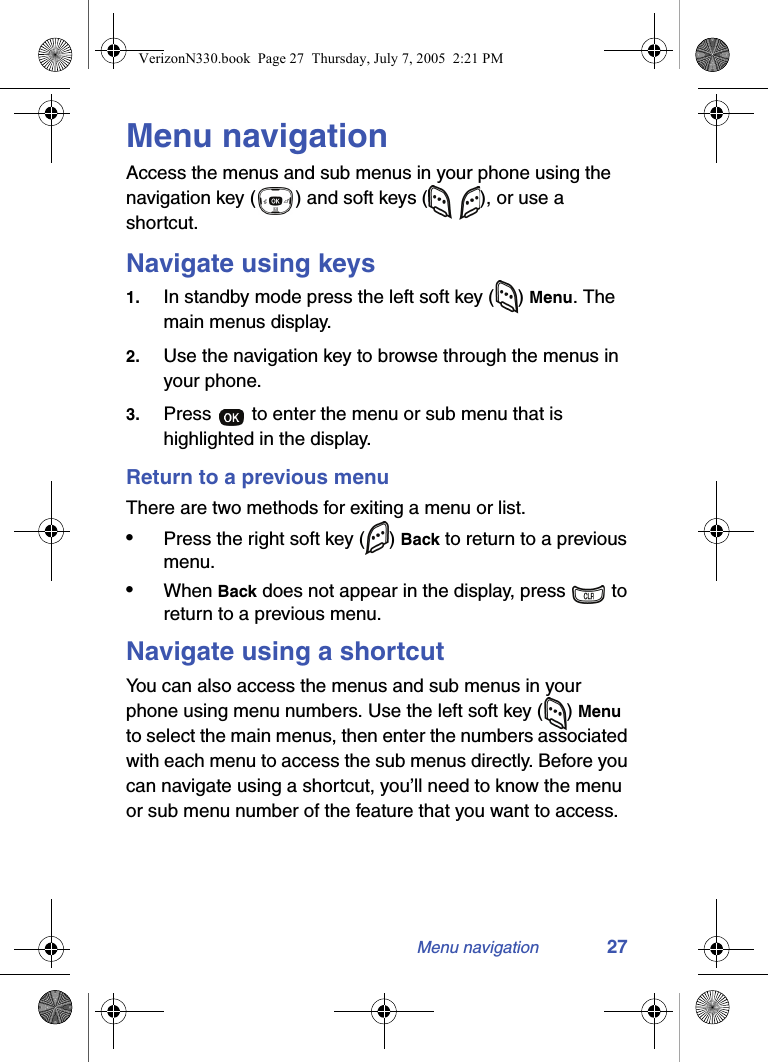
Menu navigation 27Menu navigationAccess the menus and sub menus in your phone using the navigation key ( ) and soft keys (   ), or use a shortcut.Navigate using keys1. In standby mode press the left soft key ( ) Menu. The main menus display.2. Use the navigation key to browse through the menus in your phone.3. Press   to enter the menu or sub menu that is highlighted in the display.Return to a previous menuThere are two methods for exiting a menu or list. •Press the right soft key ( ) Back to return to a previous menu.•When Back does not appear in the display, press   to return to a previous menu.Navigate using a shortcutYou can also access the menus and sub menus in your phone using menu numbers. Use the left soft key ( ) Menu to select the main menus, then enter the numbers associated with each menu to access the sub menus directly. Before you can navigate using a shortcut, you’ll need to know the menu or sub menu number of the feature that you want to access.VerizonN330.book  Page 27  Thursday, July 7, 2005  2:21 PM
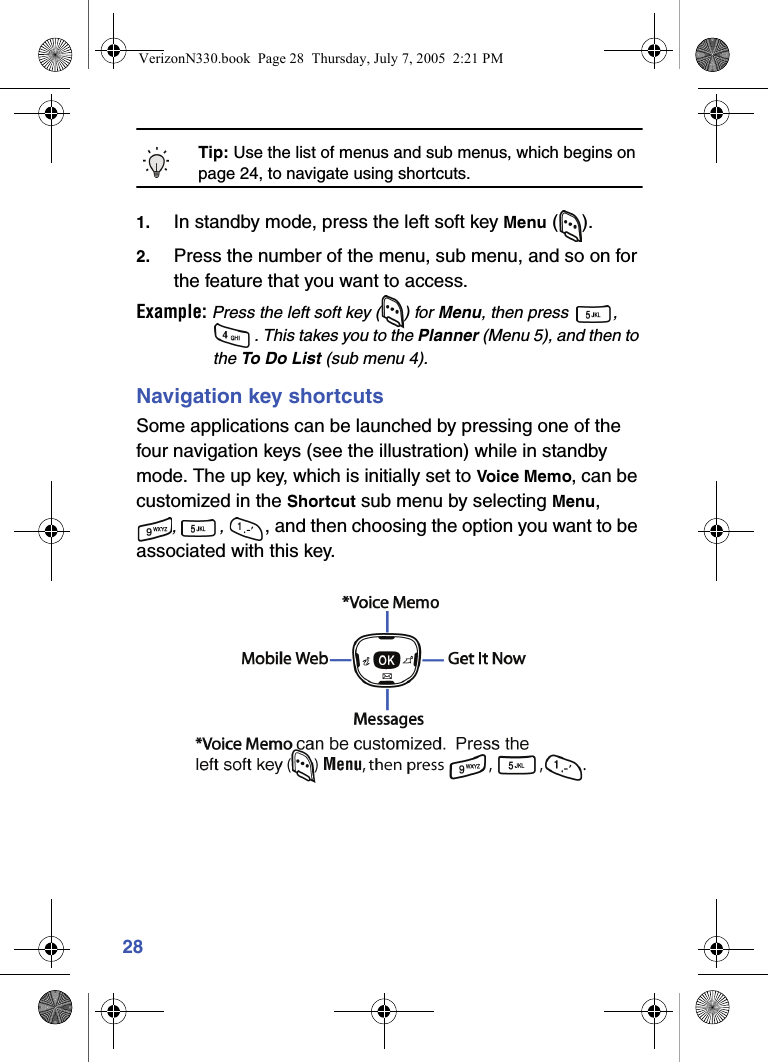
28Tip: Use the list of menus and sub menus, which begins on page 24, to navigate using shortcuts.1. In standby mode, press the left soft key Menu ().2. Press the number of the menu, sub menu, and so on for the feature that you want to access.Example: Press the left soft key ( ) for Menu, then press  , . This takes you to the Planner (Menu 5), and then to the To Do L i st (sub menu 4).Navigation key shortcutsSome applications can be launched by pressing one of the four navigation keys (see the illustration) while in standby mode. The up key, which is initially set to Voice Memo, can be customized in the Shortcut sub menu by selecting Menu,, , , and then choosing the option you want to be associated with this key.VerizonN330.book  Page 28  Thursday, July 7, 2005  2:21 PM
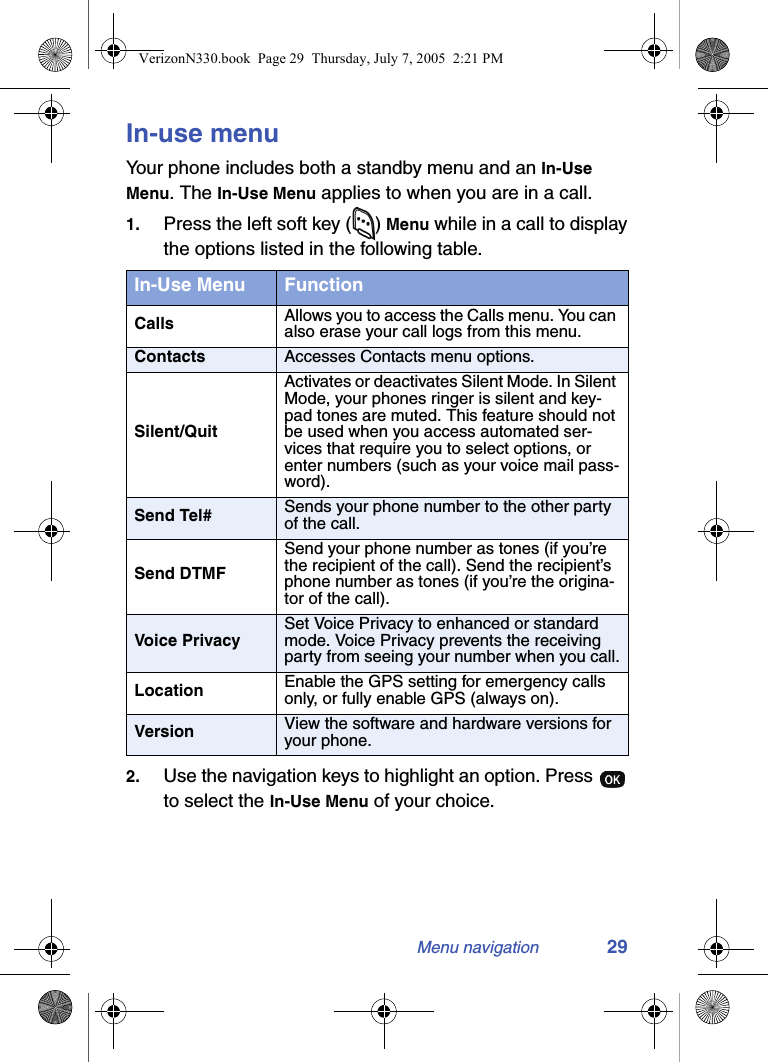
Menu navigation 29In-use menuYour phone includes both a standby menu and an In-Use Menu. The In-Use Menu applies to when you are in a call.1. Press the left soft key ( ) Menu while in a call to display the options listed in the following table.2. Use the navigation keys to highlight an option. Press   to select the In-Use Menu of your choice.In-Use Menu FunctionCalls Allows you to access the Calls menu. You can also erase your call logs from this menu.Contacts Accesses Contacts menu options.Silent/QuitActivates or deactivates Silent Mode. In Silent Mode, your phones ringer is silent and key-pad tones are muted. This feature should not be used when you access automated ser-vices that require you to select options, or enter numbers (such as your voice mail pass-word).Send Tel# Sends your phone number to the other party of the call.Send DTMFSend your phone number as tones (if you’re the recipient of the call). Send the recipient’s phone number as tones (if you’re the origina-tor of the call). Voice PrivacySet Voice Privacy to enhanced or standard mode. Voice Privacy prevents the receiving party from seeing your number when you call.Location Enable the GPS setting for emergency calls only, or fully enable GPS (always on).Version View the software and hardware versions for your phone.VerizonN330.book  Page 29  Thursday, July 7, 2005  2:21 PM
30CallsThe calls menu retains information about Outgoing, Incoming, and Missed Calls. You can also view times for your last call and the total of all calls.In cases where a Contact matches a call log entry, the name associated with the number appears instead of the number.OutgoingYour phone retains information about the last 20 outgoing calls and stores them in the Outgoing call log. You can review the Outgoing call log for the time and date of the call, as well as other information.Tip: To quickly view your most recent outgoing calls, briefly press   in standby mode. The recent calls lists displays the last 20 incoming, 20 outgoing, and 20 missed calls.1. In standby mode, press the left soft key ( ) Menu, then press  ,  . Your list of outgoing calls appears in the display.2. Use the navigation key to highlight a call, then press   to view further information about the call.Once your selection is highlighted you can do the following: • Press   to dial the number. • Press   to review all available call information (name and phone number [if available] and time/date stamp).VerizonN330.book  Page 30  Thursday, July 7, 2005  2:21 PM
Calls 31 • Press  , then press the left soft key ( ) Option to display the options below.IncomingYour phone retains information about the last 20 Incoming calls and stores them in the Incoming call log. You can review the Incoming call log for the time and date of the call, as well as other information.1. In standby mode, press the left soft key ( ) Menu, then press  ,  . Your list of Incoming calls appears in the display.2. Use the navigation key to highlight a call, then press   to view further information about the call.Once your selection is highlighted you can do the following: • Press   to dial the number. • Press   to review all available call information (name and phone number [if available] and time/date stamp). • Press  , then press the left soft key ( ) Option to display the options below.Option FunctionTalk Call the selected number.Save Save the number to your Contacts.Prepend Add a prefix to the number.Erase Erase the selected call from your Outgoing call list.Option FunctionTalk Call the selected number.Save Save the number to your Contacts.Prepend Add a prefix to the number.VerizonN330.book  Page 31  Thursday, July 7, 2005  2:21 PM
32MissedYour phone retains information about the last 20 missed calls (calls that were never picked up) and stores them in the Missed call log. You can review the Missed call log for the time and date of the call, as well as other information.1. In standby mode, press the left soft key ( ) Menu, then press  ,  . Your list of missed calls appears in the display.2. Use the navigation key to highlight a call, then press   to view further information about the call.Once your selection is highlighted you can do the following: • Press   to dial the number. • Press   to review all available call information (name and phone number [if available] and time/date stamp). • Press  , then press the left soft key ( ) Option to display the options below.Erase Erase the selected call from your Incoming call list.Option FunctionTalk Call the selected number.Save Save the number to your Contacts.Prepend Add a prefix to the number.Erase Erase the selected call from your Missed call list.Option FunctionVerizonN330.book  Page 32  Thursday, July 7, 2005  2:21 PM
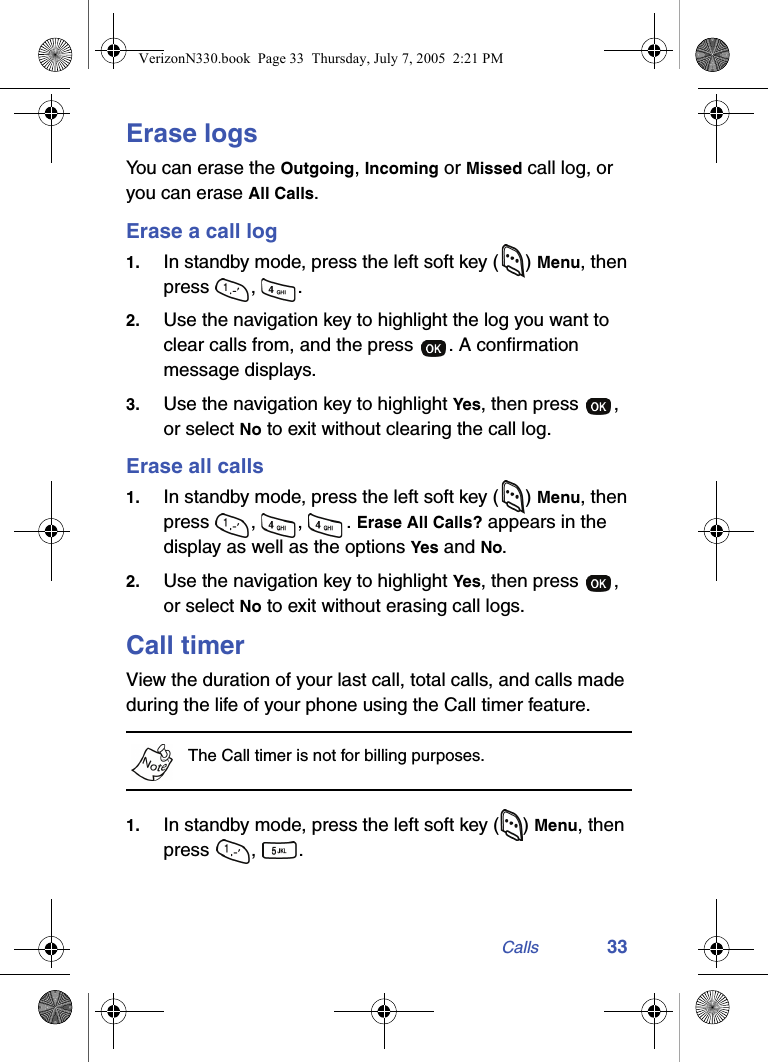
Calls 33Erase logsYou can erase the Outgoing, Incoming or Missed call log, or you can erase All Calls.Erase a call log1. In standby mode, press the left soft key ( ) Menu, then press , .2. Use the navigation key to highlight the log you want to clear calls from, and the press  . A confirmation message displays.3. Use the navigation key to highlight Yes, then press  , or select No to exit without clearing the call log.Erase all calls1. In standby mode, press the left soft key ( ) Menu, then press , , . Erase All Calls? appears in the display as well as the options Yes and No.2. Use the navigation key to highlight Yes, then press  , or select No to exit without erasing call logs.Call timerView the duration of your last call, total calls, and calls made during the life of your phone using the Call timer feature. The Call timer is not for billing purposes.1. In standby mode, press the left soft key () Menu, then press , . VerizonN330.book  Page 33  Thursday, July 7, 2005  2:21 PM
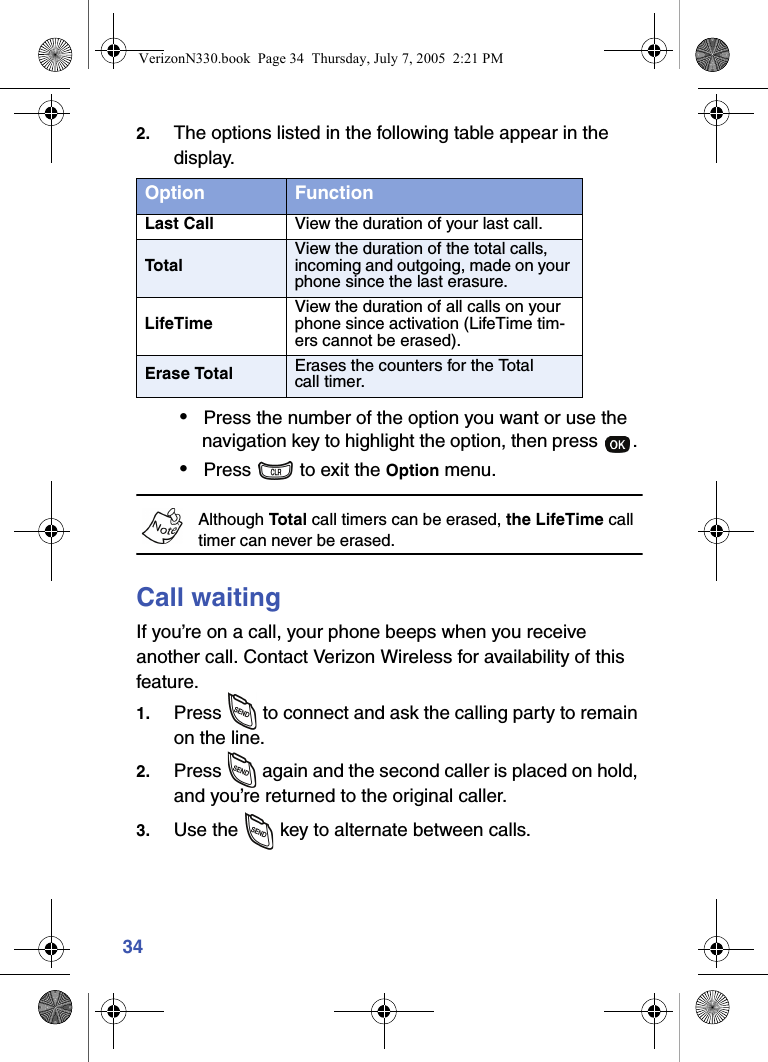
342. The options listed in the following table appear in the display.•Press the number of the option you want or use the navigation key to highlight the option, then press  . •Press   to exit the Option menu.Although Total call timers can be erased, the LifeTime call timer can never be erased.Call waitingIf you’re on a call, your phone beeps when you receive another call. Contact Verizon Wireless for availability of this feature.1. Press   to connect and ask the calling party to remain on the line.2. Press   again and the second caller is placed on hold, and you’re returned to the original caller.3. Use the   key to alternate between calls.Option FunctionLast Call View the duration of your last call.TotalView the duration of the total calls, incoming and outgoing, made on your phone since the last erasure.LifeTimeView the duration of all calls on your phone since activation (LifeTime tim-ers cannot be erased).Erase Total Erases the counters for the Total call timer.VerizonN330.book  Page 34  Thursday, July 7, 2005  2:21 PM
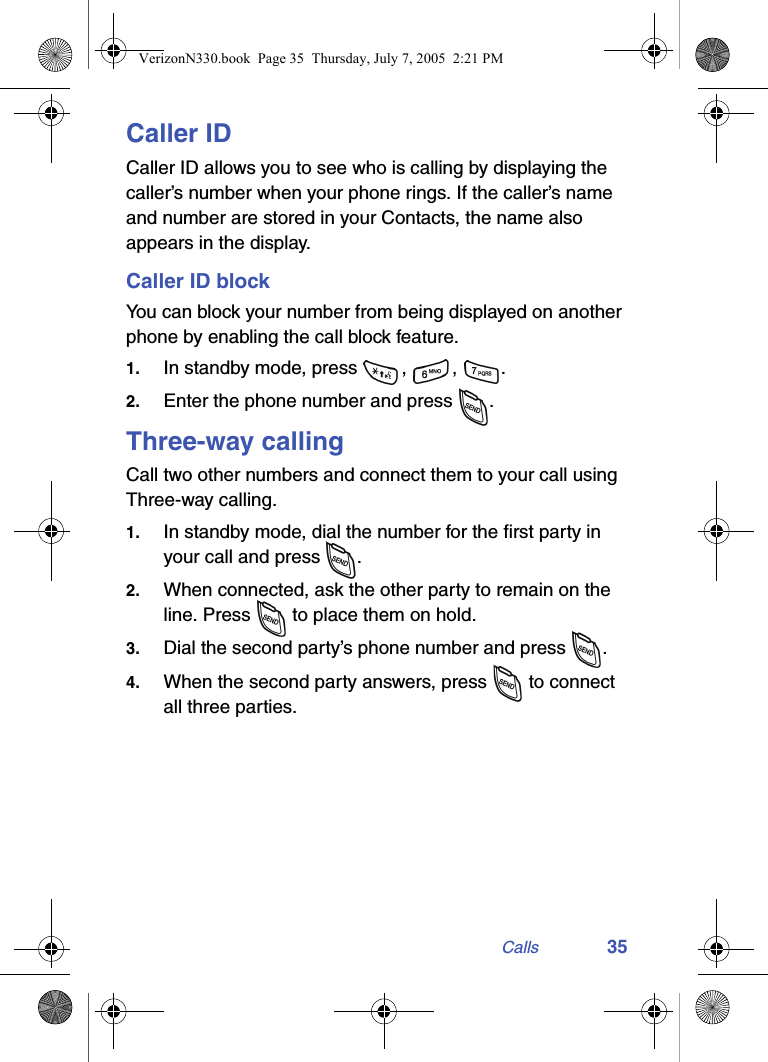
Calls 35Caller IDCaller ID allows you to see who is calling by displaying the caller’s number when your phone rings. If the caller’s name and number are stored in your Contacts, the name also appears in the display.Caller ID blockYou can block your number from being displayed on another phone by enabling the call block feature.1. In standby mode, press  ,  ,  .2. Enter the phone number and press  .Three-way callingCall two other numbers and connect them to your call using Three-way calling.1. In standby mode, dial the number for the first party in your call and press  . 2. When connected, ask the other party to remain on the line. Press   to place them on hold.3. Dial the second party’s phone number and press  .4. When the second party answers, press   to connect all three parties.VerizonN330.book  Page 35  Thursday, July 7, 2005  2:21 PM
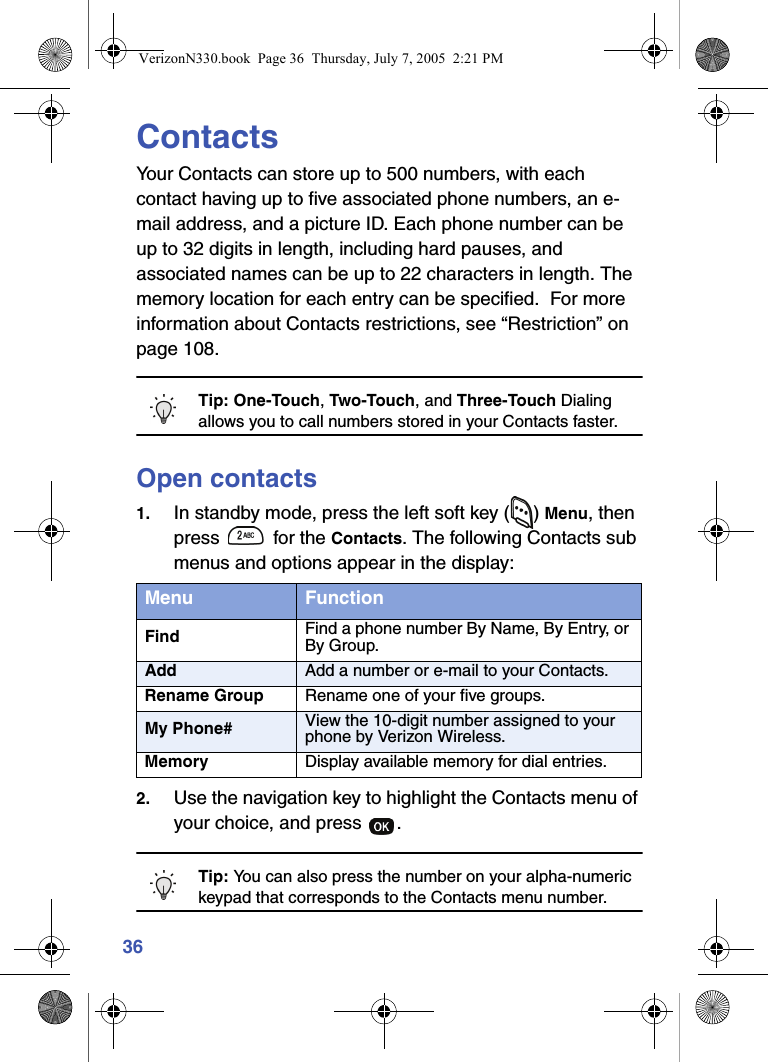
36ContactsYour Contacts can store up to 500 numbers, with each contact having up to five associated phone numbers, an e-mail address, and a picture ID. Each phone number can be up to 32 digits in length, including hard pauses, and associated names can be up to 22 characters in length. The memory location for each entry can be specified.  For more information about Contacts restrictions, see “Restriction” on page 108.Tip: One-Touch, Two-Touch, and Three-Touch Dialing allows you to call numbers stored in your Contacts faster.Open contacts1. In standby mode, press the left soft key ( ) Menu, then press   for the Contacts. The following Contacts sub menus and options appear in the display:2. Use the navigation key to highlight the Contacts menu of your choice, and press  .Tip: You can also press the number on your alpha-numeric keypad that corresponds to the Contacts menu number.Menu FunctionFind Find a phone number By Name, By Entry, or By Group.Add Add a number or e-mail to your Contacts.Rename Group Rename one of your five groups.My Phone# View the 10-digit number assigned to your phone by Verizon Wireless.Memory Display available memory for dial entries.VerizonN330.book  Page 36  Thursday, July 7, 2005  2:21 PM
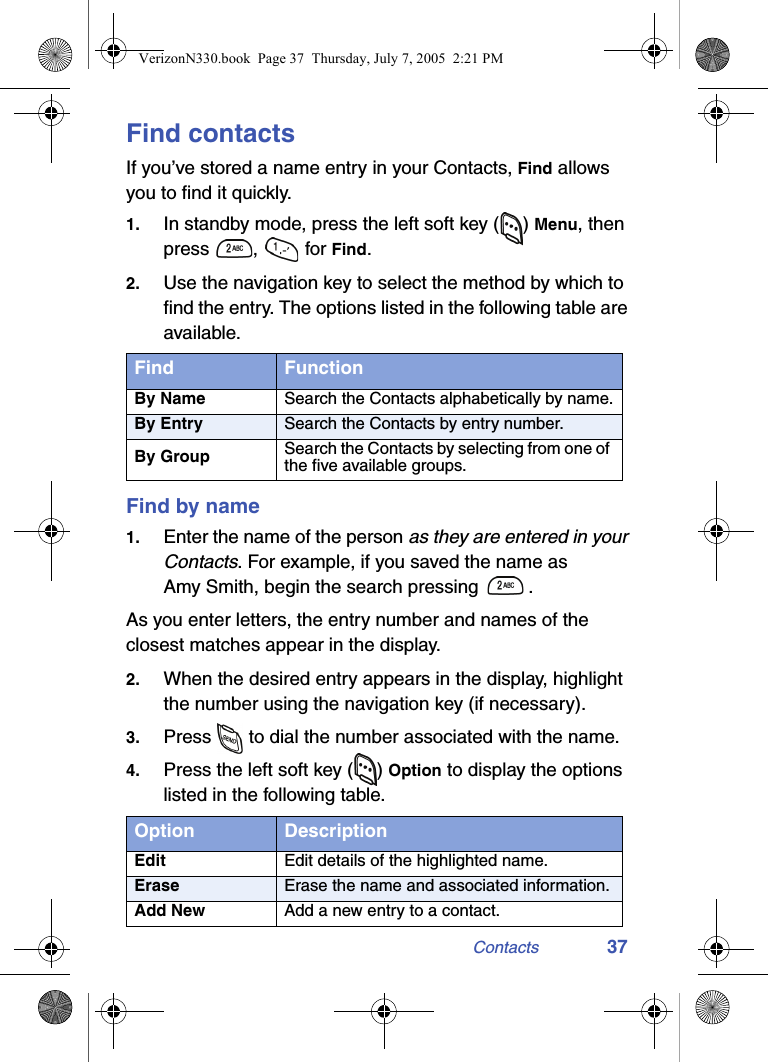
Contacts 37Find contactsIf you’ve stored a name entry in your Contacts, Find allows you to find it quickly.1. In standby mode, press the left soft key ( ) Menu, then press ,  for Find.2. Use the navigation key to select the method by which to find the entry. The options listed in the following table are available.Find by name1. Enter the name of the person as they are entered in your Contacts. For example, if you saved the name as Amy Smith, begin the search pressing  .As you enter letters, the entry number and names of the closest matches appear in the display.2. When the desired entry appears in the display, highlight the number using the navigation key (if necessary).3. Press   to dial the number associated with the name.4. Press the left soft key ( ) Option to display the options listed in the following table.Find FunctionBy Name Search the Contacts alphabetically by name.By Entry Search the Contacts by entry number.By Group Search the Contacts by selecting from one of the five available groups.Option DescriptionEdit Edit details of the highlighted name.Erase Erase the name and associated information.Add New Add a new entry to a contact.VerizonN330.book  Page 37  Thursday, July 7, 2005  2:21 PM
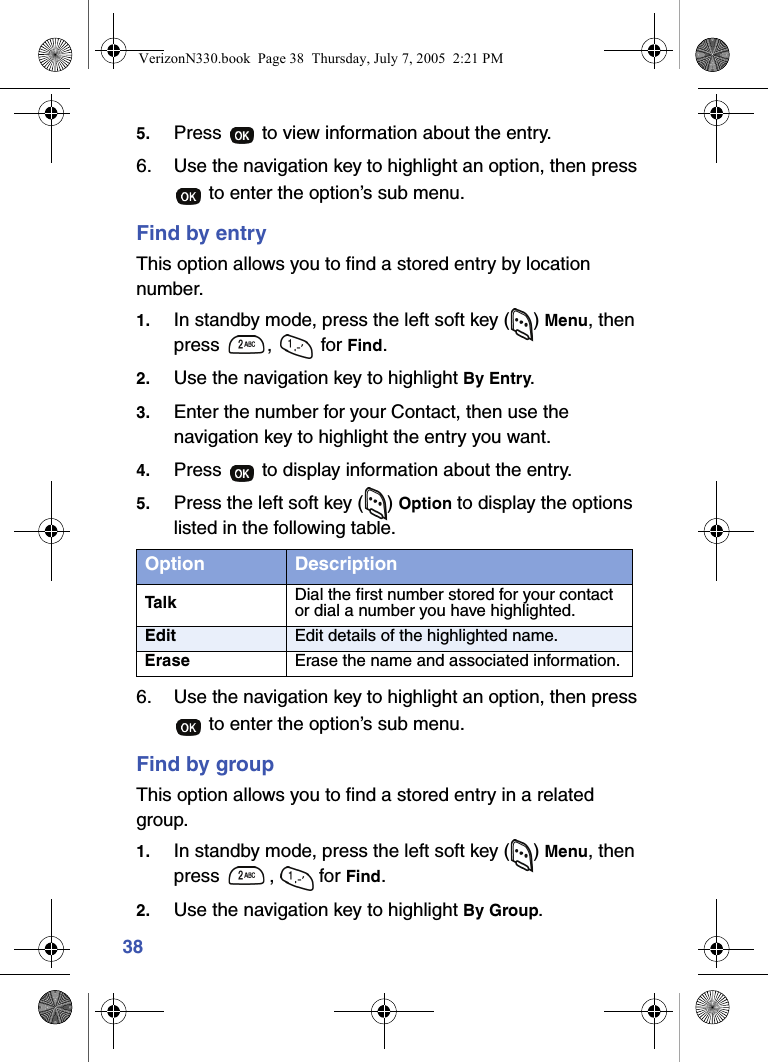
385. Press   to view information about the entry.6. Use the navigation key to highlight an option, then press  to enter the option’s sub menu.Find by entryThis option allows you to find a stored entry by location number.1. In standby mode, press the left soft key ( ) Menu, then press ,  for Find.2. Use the navigation key to highlight By Entry.3. Enter the number for your Contact, then use the navigation key to highlight the entry you want.4. Press   to display information about the entry.5. Press the left soft key ( ) Option to display the options listed in the following table.6. Use the navigation key to highlight an option, then press  to enter the option’s sub menu.Find by groupThis option allows you to find a stored entry in a related group.1. In standby mode, press the left soft key ( ) Menu, then press ,  for Find.2. Use the navigation key to highlight By Group.Option DescriptionTalk Dial the first number stored for your contact or dial a number you have highlighted.Edit Edit details of the highlighted name.Erase Erase the name and associated information.VerizonN330.book  Page 38  Thursday, July 7, 2005  2:21 PM
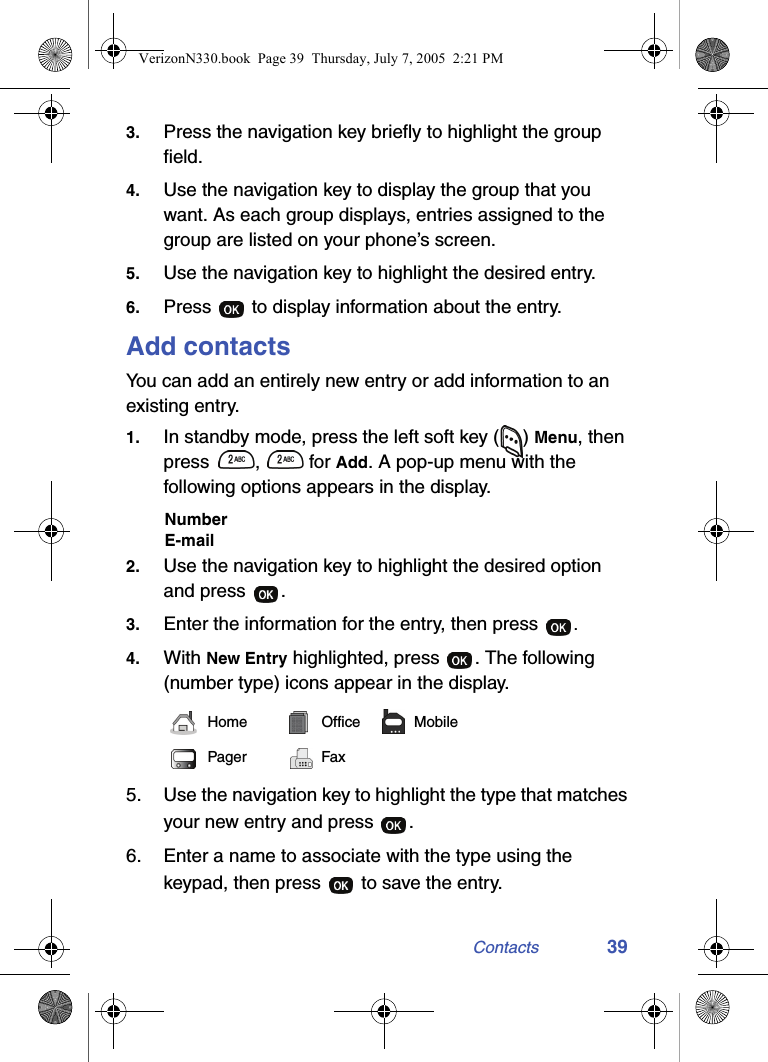
Contacts 393. Press the navigation key briefly to highlight the group field.4. Use the navigation key to display the group that you want. As each group displays, entries assigned to the group are listed on your phone’s screen.5. Use the navigation key to highlight the desired entry.6. Press   to display information about the entry.Add contactsYou can add an entirely new entry or add information to an existing entry. 1. In standby mode, press the left soft key () Menu, then press ,  for Add. A pop-up menu with the following options appears in the display.NumberE-mail2. Use the navigation key to highlight the desired option and press  .3. Enter the information for the entry, then press  .4. With New Entry highlighted, press  . The following (number type) icons appear in the display.5. Use the navigation key to highlight the type that matches your new entry and press  .6. Enter a name to associate with the type using the keypad, then press   to save the entry.Home Office MobilePager FaxVerizonN330.book  Page 39  Thursday, July 7, 2005  2:21 PM
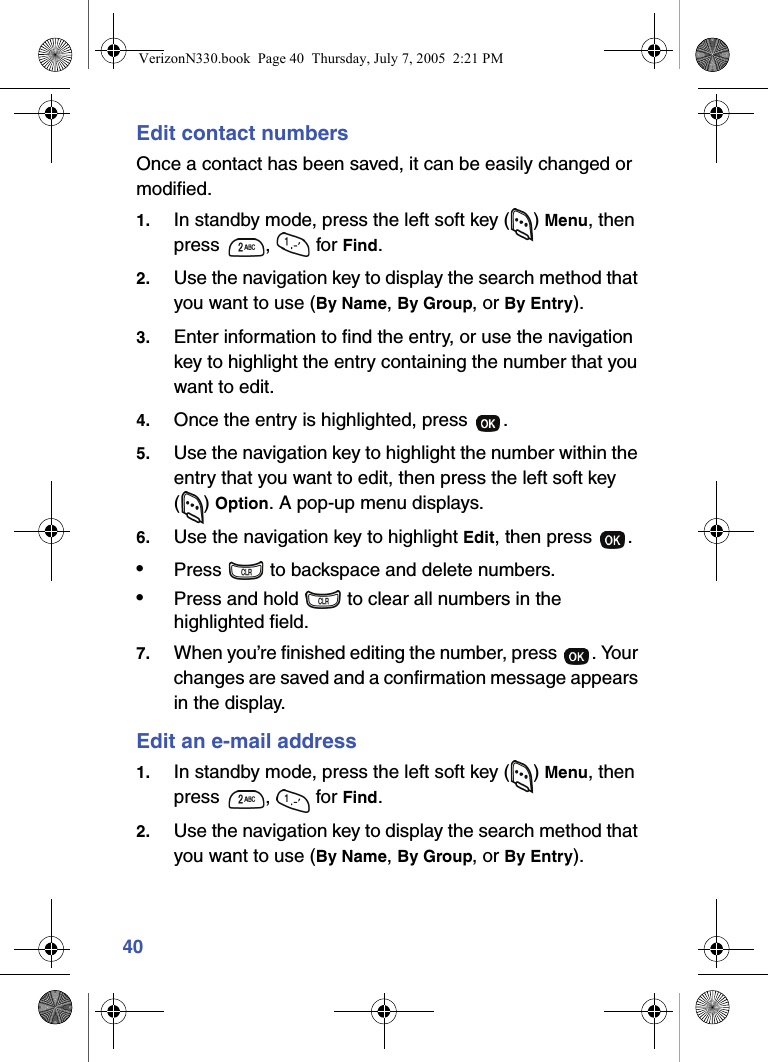
40Edit contact numbersOnce a contact has been saved, it can be easily changed or modified.1. In standby mode, press the left soft key ( ) Menu, then press ,  for Find.2. Use the navigation key to display the search method that you want to use (By Name, By Group, or By Entry).3. Enter information to find the entry, or use the navigation key to highlight the entry containing the number that you want to edit.4. Once the entry is highlighted, press  .5. Use the navigation key to highlight the number within the entry that you want to edit, then press the left soft key () Option. A pop-up menu displays.6. Use the navigation key to highlight Edit, then press  .•Press   to backspace and delete numbers.•Press and hold   to clear all numbers in the highlighted field.7. When you’re finished editing the number, press  . Your changes are saved and a confirmation message appears in the display.Edit an e-mail address1. In standby mode, press the left soft key ( ) Menu, then press ,  for Find.2. Use the navigation key to display the search method that you want to use (By Name, By Group, or By Entry).VerizonN330.book  Page 40  Thursday, July 7, 2005  2:21 PM
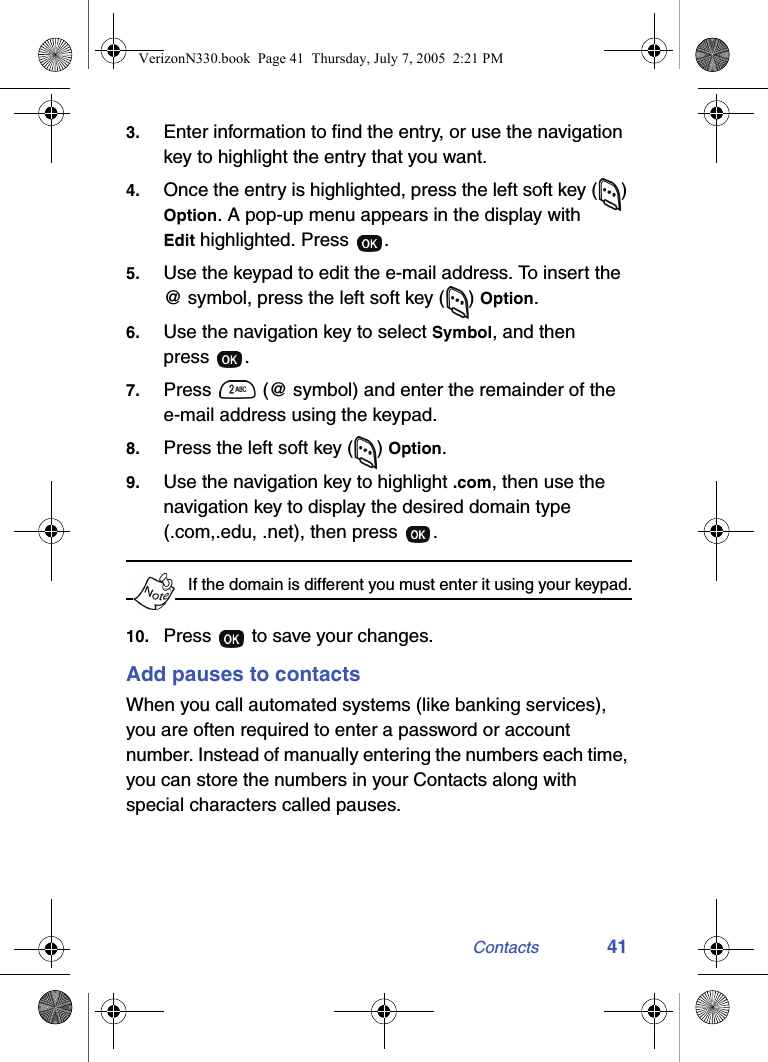
Contacts 413. Enter information to find the entry, or use the navigation key to highlight the entry that you want.4. Once the entry is highlighted, press the left soft key ( ) Option. A pop-up menu appears in the display with Edit highlighted. Press  .5. Use the keypad to edit the e-mail address. To insert the @ symbol, press the left soft key ( ) Option.6. Use the navigation key to select Symbol, and then press .7. Press   (@ symbol) and enter the remainder of the e-mail address using the keypad.8. Press the left soft key ( ) Option.9. Use the navigation key to highlight .com, then use the navigation key to display the desired domain type (.com,.edu, .net), then press  .If the domain is different you must enter it using your keypad.10. Press   to save your changes.Add pauses to contactsWhen you call automated systems (like banking services), you are often required to enter a password or account number. Instead of manually entering the numbers each time, you can store the numbers in your Contacts along with special characters called pauses. VerizonN330.book  Page 41  Thursday, July 7, 2005  2:21 PM
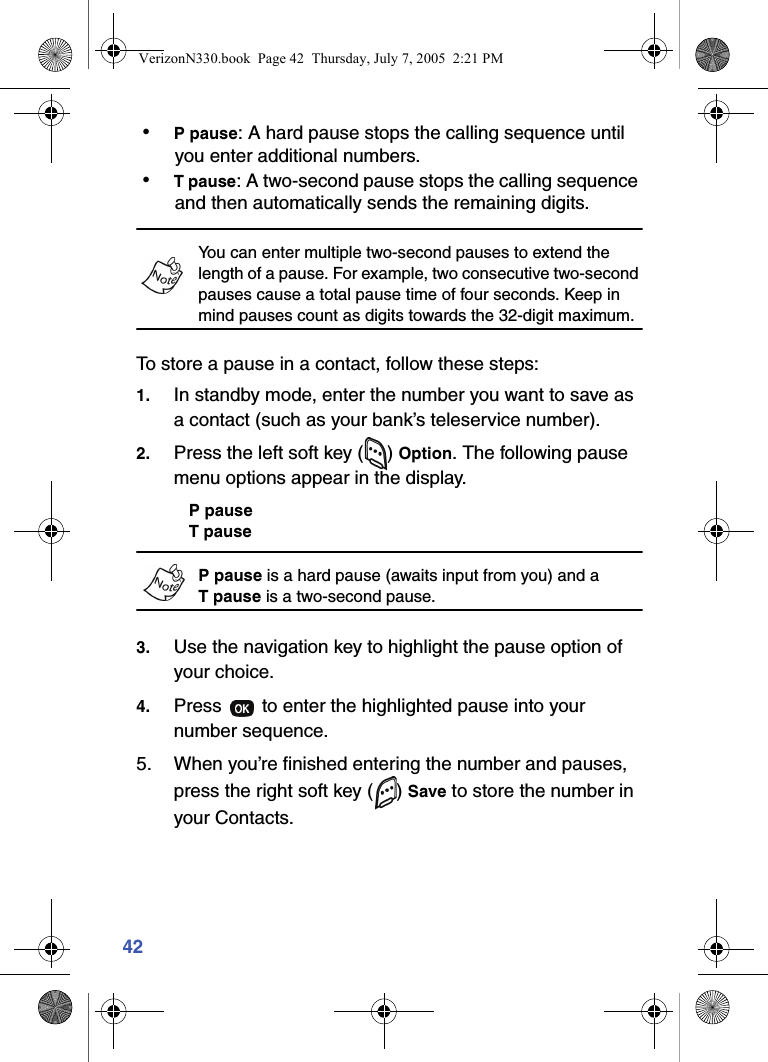
42 • P pause: A hard pause stops the calling sequence until you enter additional numbers. • T pause: A two-second pause stops the calling sequence and then automatically sends the remaining digits.You can enter multiple two-second pauses to extend the length of a pause. For example, two consecutive two-second pauses cause a total pause time of four seconds. Keep in mind pauses count as digits towards the 32-digit maximum.To store a pause in a contact, follow these steps:1. In standby mode, enter the number you want to save as a contact (such as your bank’s teleservice number).2. Press the left soft key ( ) Option. The following pause menu options appear in the display.P pauseT pauseP pause is a hard pause (awaits input from you) and a Tpause is a two-second pause.3. Use the navigation key to highlight the pause option of your choice.4. Press   to enter the highlighted pause into your number sequence.5. When you’re finished entering the number and pauses, press the right soft key ( ) Save to store the number in your Contacts.VerizonN330.book  Page 42  Thursday, July 7, 2005  2:21 PM
Contacts 43PAUSE DIALING WITH CONTACTS1. If you stored the number using (two-second) T pause(s), simply recall the number from the Contacts.2. If you stored the number using (hard) P pause(s), recall the number from the Contacts and wait for the appropriate prompt from the number you are calling (credit card number, bank account number, etc.).3. Press   to dial the remaining part of the saved number.Store numbers after a callOnce you’ve finished a call, you can store the number of the caller to your Contacts.If the call was incoming and Caller ID information was unavailable, then the store option is also unavailable.1. After you press  to end your call, the call time, length of call, phone number, and name of the party (if available) appears in the display.2. Press the right soft key ( ) Save. You’re prompted to confirm this as a New Entry, or Find a name in your Contacts with which to associate the number.3. Follow the instructions in the upcoming sections depending on if the number is a new entry or is one you want to add to an existing contact.VerizonN330.book  Page 43  Thursday, July 7, 2005  2:21 PM
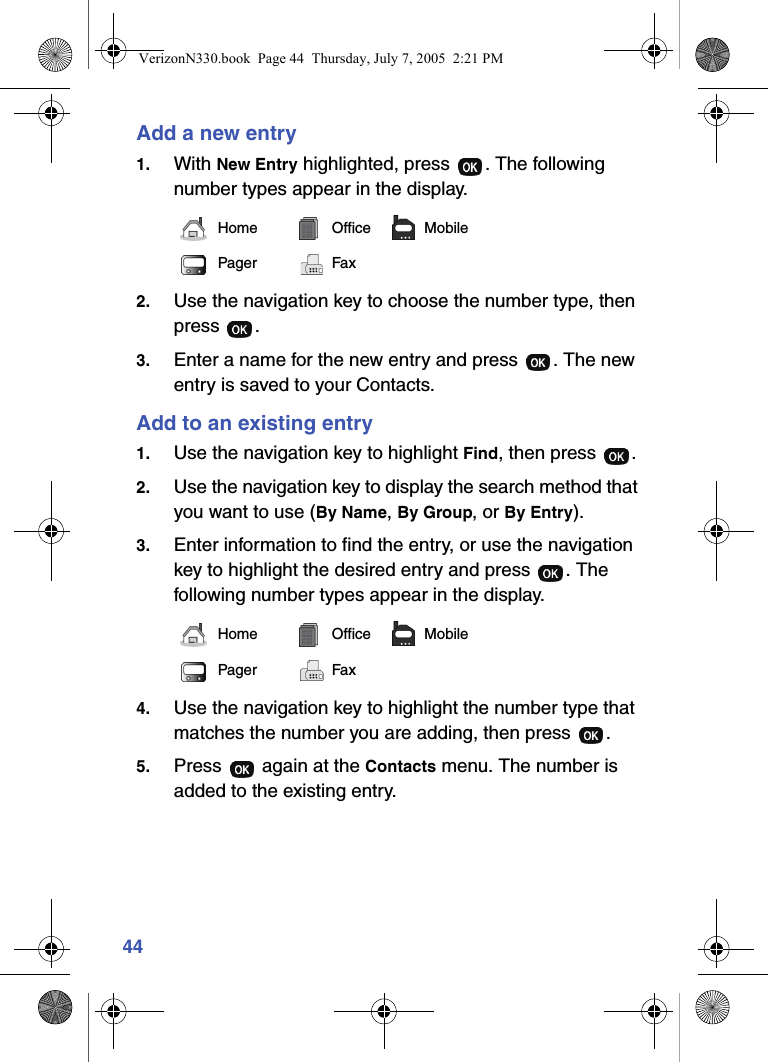
44Add a new entry1. With New Entry highlighted, press  . The following number types appear in the display.2. Use the navigation key to choose the number type, then press .3. Enter a name for the new entry and press  . The new entry is saved to your Contacts.Add to an existing entry1. Use the navigation key to highlight Find, then press  .2. Use the navigation key to display the search method that you want to use (By Name, By Group, or By Entry).3. Enter information to find the entry, or use the navigation key to highlight the desired entry and press  . The following number types appear in the display.4. Use the navigation key to highlight the number type that matches the number you are adding, then press  .5. Press   again at the Contacts menu. The number is added to the existing entry.Home Office MobilePager FaxHome Office MobilePager FaxVerizonN330.book  Page 44  Thursday, July 7, 2005  2:21 PM
Contacts 45Shortcuts to storing phone numbersYou can store a phone number by entering the number, and pressing the right soft key ( ) Save. Follow the screen prompts to designate other information. You can also save a number after an incoming or outgoing call.Store numbers from call logsStore numbers from call history log s to your Contacts.1. In standby mode, press the left soft key ( ) Menu, then press  for Calls.2. Press the corresponding number on the keypad to view call logs for the following call types.• for Outgoing   for Incoming   for Missed3. Use the navigation key to highlight the number you want to store in the Contacts, then press  .4. Press the left soft key ( ) Option, then use the navigation key to highlight Save.5. Add the number as a New Entry, or Find a number in your Contacts with which to add the number.6. Follow the prompts to store the number to the Contacts.Assign speed dial numbersEach entry in Contacts is assigned a number from 2 to 500, since the first entry is reserved for your voice mail. The entry number for each contact corresponds with a same speed dial location, so, for example, Contact entry 10 is also Speed dial location 10. Since a contact can have up to 5 different phone numbers stored in it, you must select what phone number is dialed when speed dialing is used.VerizonN330.book  Page 45  Thursday, July 7, 2005  2:21 PM
46The first number entered when you create a contact is used for speed dialing unless you change it. To change the number dialed when you use speed dialing, follow these steps:1. In standby mode, press the left soft key ( ) Menu, then press ,  for Find.2. Use the navigation key to select the find method (By Name, By Group, or By Entry).3. Enter information to find the entry, or use the navigation key to highlight the desired entry, then press  .4. Use the navigation key to highlight SpeedDial.5. With SpeedDial highlighted, press the left soft key () Edit. 6. Use the navigation key to select the icon associated with the number you want dialed when Speed dial is used.7. Press   to save your changes.Speed dialingOnce you have stored phone numbers in Contacts, you can dial them quickly using one of the Speed dialing options.One-touch dialingMemory locations 001 through 009 are special One-Touch dialing locations. You can call the phone numbers stored in the Contacts memory from 001 through 009 by pressing and holding a single key. For example, for location number 001, press and hold   until the name and number appear in the display and the number is dialed.VerizonN330.book  Page 46  Thursday, July 7, 2005  2:21 PM
Contacts 47Two-touch dialingMemory locations 010 through 099 are special Two-Touch dialing locations. For example, for location number 013, briefly press  , then hold down   until the name and number appear in the display and the number is dialed.Three-touch dialingMemory locations 100 through 500 are special Three-Touch dialing locations. For example, to dial location number 113, press  ,  , then hold   until the name and number appear in the display and the number is dialed.Remove contacts1. In standby mode, press the left soft key ( ) Menu, then press ,  for Find.2. Use the navigation key to display the search method that you want to use (By Name, By Group, or By Entry).3. Enter information to find the entry, or use the navigation key to highlight the entry that you want to erase.4. Once the entry is highlighted, press the left soft key ( ) Option. A pop-up with the following items displays:EditEraseAdd New5. Use the navigation key to highlight Erase.6. Press  . The phone prompts you to confirm the erasure. 7. Use the navigation key to highlight Yes or No, then press .VerizonN330.book  Page 47  Thursday, July 7, 2005  2:21 PM
48Rename groupsUse this option to rename a group in your Contacts.1. In standby mode, press the left soft key ( ) Menu, then press ,  for Rename Group.2. Use the navigation key to highlight the group that you want to rename, then press  . The current name of the group appears in the display with a flashing cursor at the end of the name.3. Press the left soft key ( ) Option to display a pop up with the following text entry modes.1  T9 word2  ABC3  Symbol4  1234. Press the corresponding number on the keypad for the method of entry that you prefer.5. Press   to delete characters individually, or press and hold   to clear all characters in the display.6. Enter a new group name using the keypad, then press .My phone numberMy Phone# displays the ten-digit number assigned to your phone by Verizon Wireless.•In standby mode, press the left soft key ( ) Menu, then press ,   for My Phone#. The phone number assigned by Verizon Wireless appears in the display.VerizonN330.book  Page 48  Thursday, July 7, 2005  2:21 PM
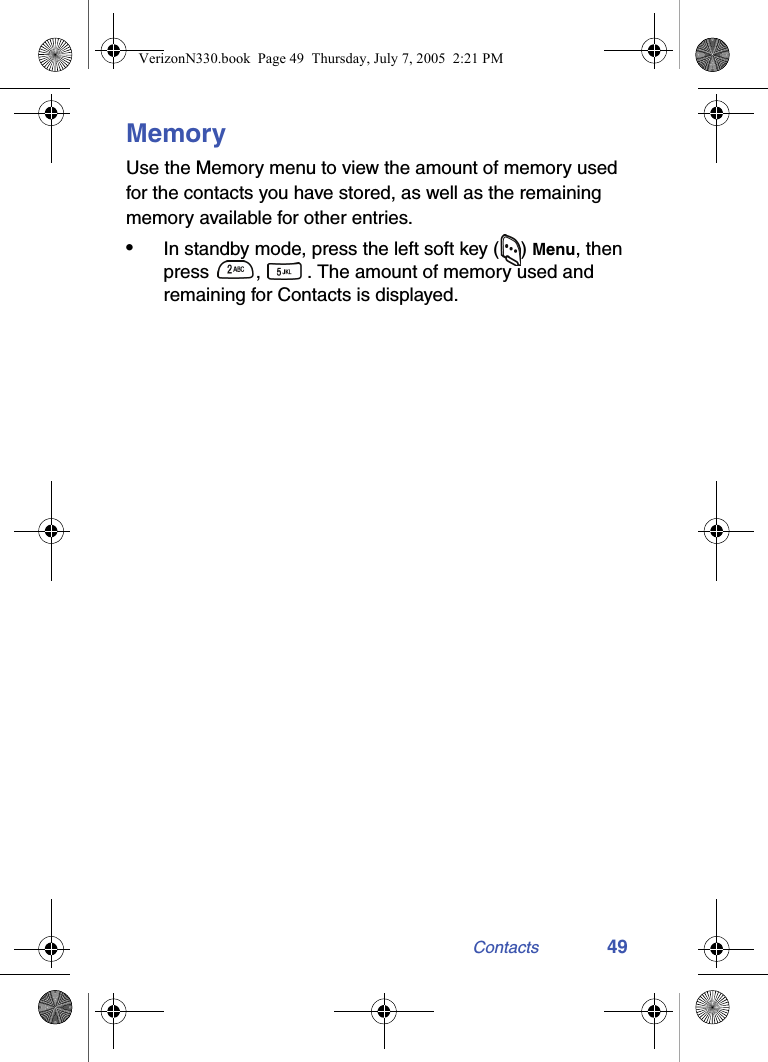
Contacts 49MemoryUse the Memory menu to view the amount of memory used for the contacts you have stored, as well as the remaining memory available for other entries.•In standby mode, press the left soft key ( ) Menu, then press  ,  . The amount of memory used and remaining for Contacts is displayed.VerizonN330.book  Page 49  Thursday, July 7, 2005  2:21 PM
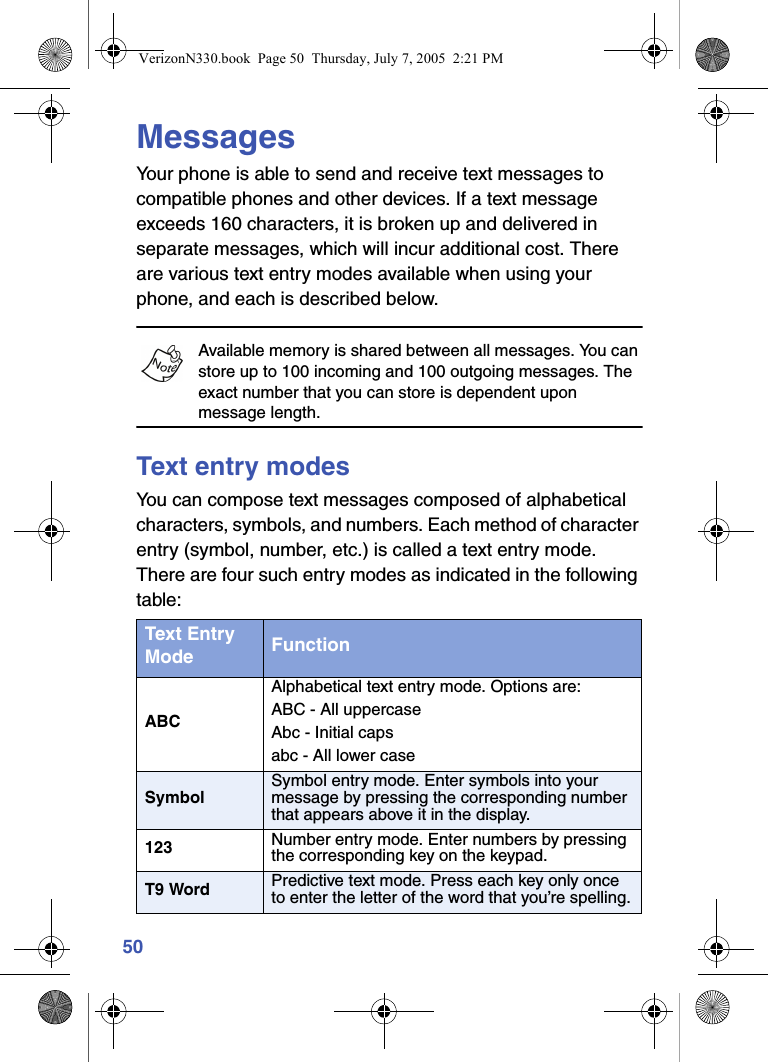
50MessagesYour phone is able to send and receive text messages to compatible phones and other devices. If a text message exceeds 160 characters, it is broken up and delivered in separate messages, which will incur additional cost. There are various text entry modes available when using your phone, and each is described below.Available memory is shared between all messages. You can store up to 100 incoming and 100 outgoing messages. The exact number that you can store is dependent upon message length.Text entry modesYou can compose text messages composed of alphabetical characters, symbols, and numbers. Each method of character entry (symbol, number, etc.) is called a text entry mode. There are four such entry modes as indicated in the following table:Text Entry Mode FunctionABCAlphabetical text entry mode. Options are: ABC - All uppercaseAbc - Initial capsabc - All lower caseSymbolSymbol entry mode. Enter symbols into your message by pressing the corresponding number that appears above it in the display.123 Number entry mode. Enter numbers by pressing the corresponding key on the keypad.T9 Word Predictive text mode. Press each key only once to enter the letter of the word that you’re spelling.VerizonN330.book  Page 50  Thursday, July 7, 2005  2:21 PM
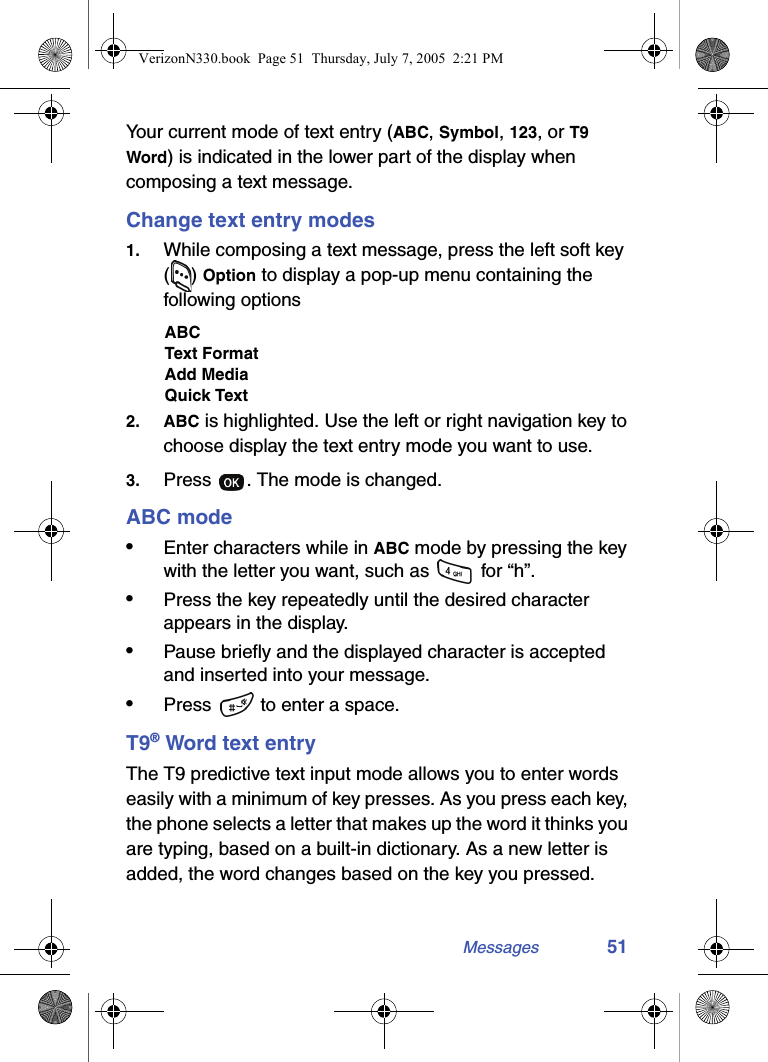
Messages 51Your current mode of text entry (ABC, Symbol, 123, or T9 Word) is indicated in the lower part of the display when composing a text message.Change text entry modes1. While composing a text message, press the left soft key () Option to display a pop-up menu containing the following optionsABCText FormatAdd MediaQuick Text2. ABC is highlighted. Use the left or right navigation key to choose display the text entry mode you want to use.3. Press  . The mode is changed.ABC mode•Enter characters while in ABC mode by pressing the key with the letter you want, such as   for “h”.•Press the key repeatedly until the desired character appears in the display. •Pause briefly and the displayed character is accepted and inserted into your message.•Press   to enter a space.T9® Word text entryThe T9 predictive text input mode allows you to enter words easily with a minimum of key presses. As you press each key, the phone selects a letter that makes up the word it thinks you are typing, based on a built-in dictionary. As a new letter is added, the word changes based on the key you pressed.VerizonN330.book  Page 51  Thursday, July 7, 2005  2:21 PM
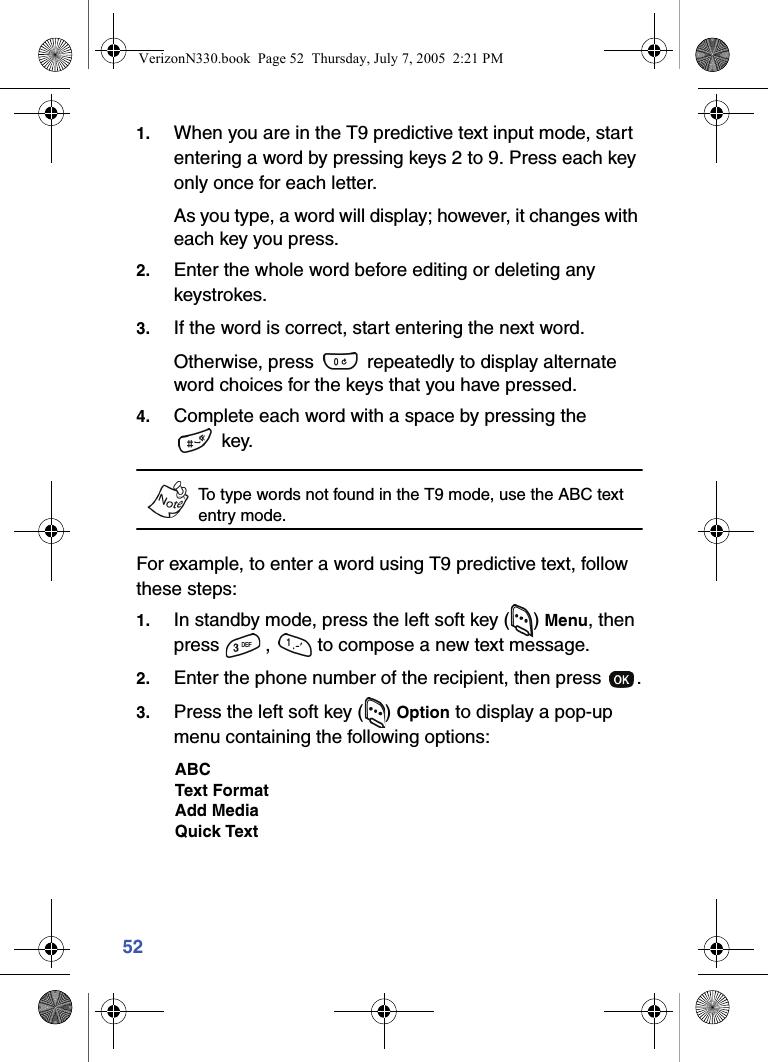
521. When you are in the T9 predictive text input mode, start entering a word by pressing keys 2 to 9. Press each key only once for each letter. As you type, a word will display; however, it changes with each key you press.2. Enter the whole word before editing or deleting any keystrokes.3. If the word is correct, start entering the next word.Otherwise, press   repeatedly to display alternate word choices for the keys that you have pressed. 4. Complete each word with a space by pressing the  key.To type words not found in the T9 mode, use the ABC text entry mode. For example, to enter a word using T9 predictive text, follow these steps:1. In standby mode, press the left soft key ( ) Menu, then press  ,   to compose a new text message.2. Enter the phone number of the recipient, then press  .3. Press the left soft key ( ) Option to display a pop-up menu containing the following options:ABCText FormatAdd MediaQuick TextVerizonN330.book  Page 52  Thursday, July 7, 2005  2:21 PM

Navigation menu