Samsung Electronics Co SCHN330 Dual-Band CDMA Phone User Manual VerizonN330

Samsung Electronics Co Ltd Dual-Band CDMA Phone VerizonN330

Contents

Users Manual 2

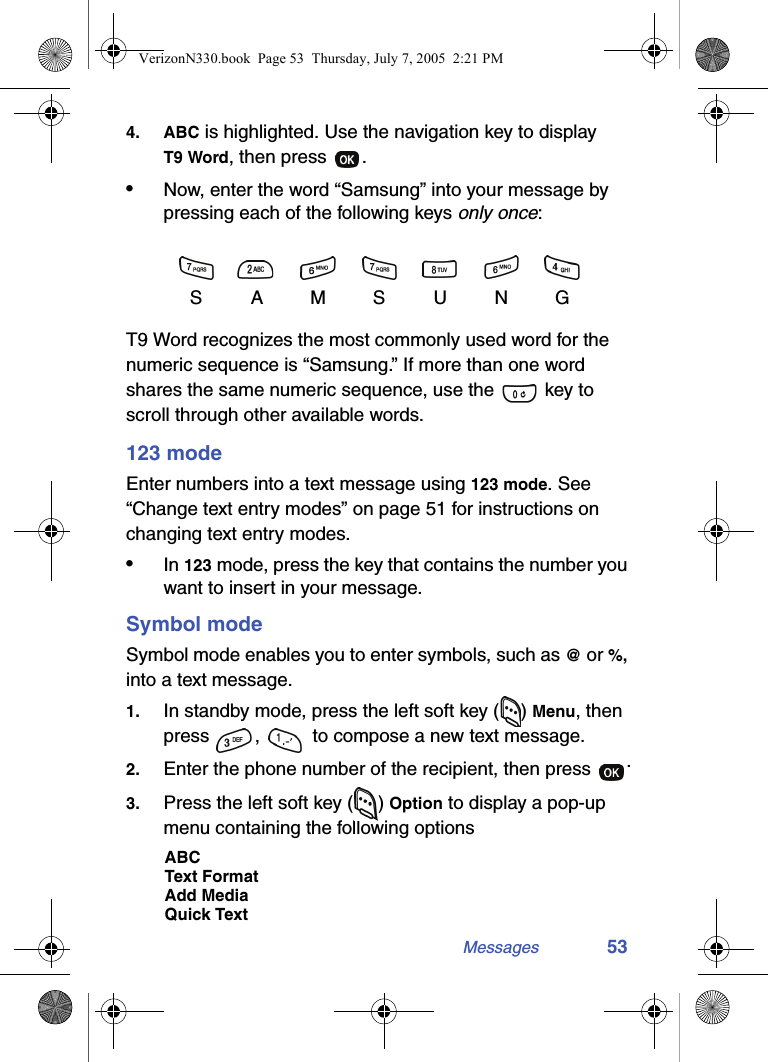
Messages 534. ABC is highlighted. Use the navigation key to display T9 Word, then press  .•Now, enter the word “Samsung” into your message by pressing each of the following keys only once:T9 Word recognizes the most commonly used word for the numeric sequence is “Samsung.” If more than one word shares the same numeric sequence, use the   key to scroll through other available words.123 modeEnter numbers into a text message using 123 mode. See “Change text entry modes” on page 51 for instructions on changing text entry modes.•In 123 mode, press the key that contains the number you want to insert in your message.Symbol modeSymbol mode enables you to enter symbols, such as @ or %, into a text message.1. In standby mode, press the left soft key ( ) Menu, then press  ,   to compose a new text message.2. Enter the phone number of the recipient, then press  .3. Press the left soft key ( ) Option to display a pop-up menu containing the following optionsABCText FormatAdd MediaQuick TextSAMSUNGVerizonN330.book  Page 53  Thursday, July 7, 2005  2:21 PM
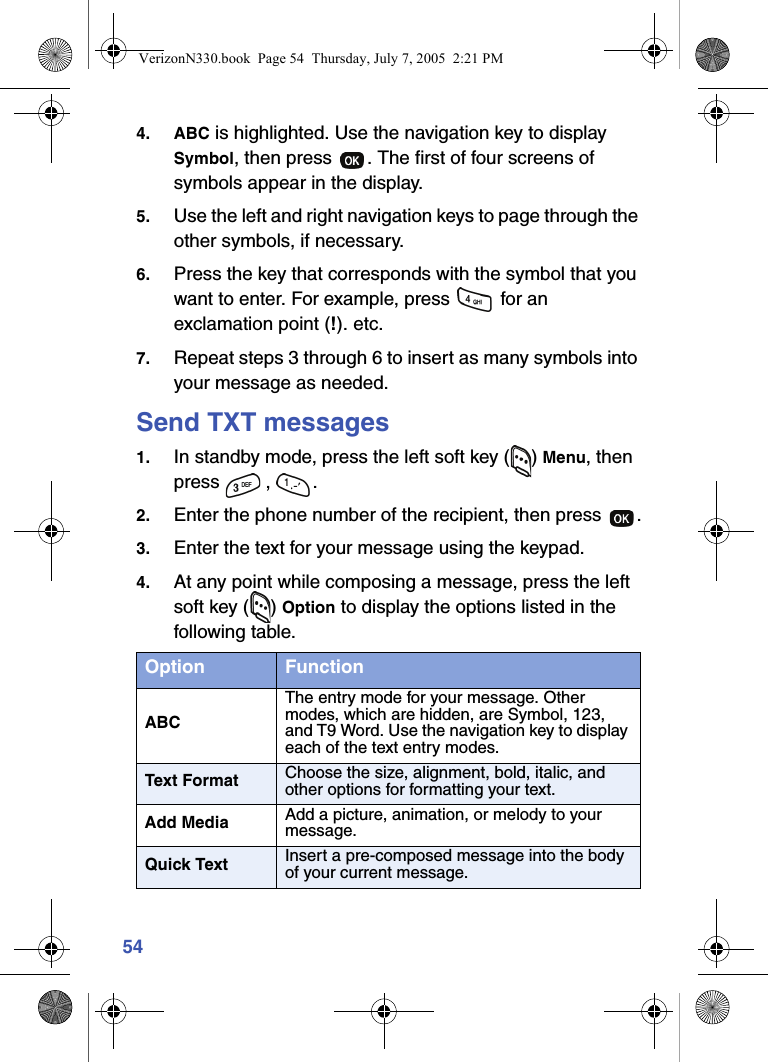
544. ABC is highlighted. Use the navigation key to display Symbol, then press  . The first of four screens of symbols appear in the display.5. Use the left and right navigation keys to page through the other symbols, if necessary.6. Press the key that corresponds with the symbol that you want to enter. For example, press   for an exclamation point (!). etc.7. Repeat steps 3 through 6 to insert as many symbols into your message as needed.Send TXT messages1. In standby mode, press the left soft key ( ) Menu, then press , .2. Enter the phone number of the recipient, then press  .3. Enter the text for your message using the keypad. 4. At any point while composing a message, press the left soft key ( ) Option to display the options listed in the following table.Option FunctionABCThe entry mode for your message. Other modes, which are hidden, are Symbol, 123, and T9 Word. Use the navigation key to display each of the text entry modes.Text Format Choose the size, alignment, bold, italic, and other options for formatting your text.Add Media Add a picture, animation, or melody to your message.Quick Text Insert a pre-composed message into the body of your current message.VerizonN330.book  Page 54  Thursday, July 7, 2005  2:21 PM
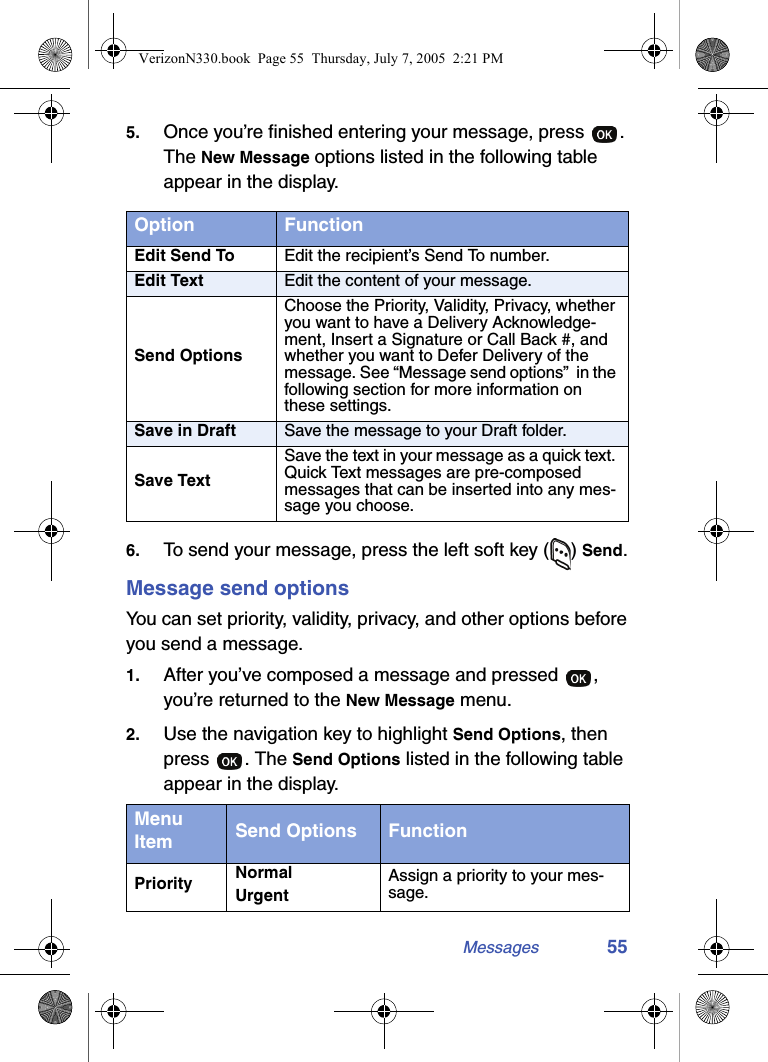
Messages 555. Once you’re finished entering your message, press  . The New Message options listed in the following table appear in the display.6. To send your message, press the left soft key ( ) Send.Message send optionsYou can set priority, validity, privacy, and other options before you send a message.1. After you’ve composed a message and pressed  , you’re returned to the New Message menu. 2. Use the navigation key to highlight Send Options, then press . The Send Options listed in the following table appear in the display.Option FunctionEdit Send To Edit the recipient’s Send To number.Edit Text Edit the content of your message.Send OptionsChoose the Priority, Validity, Privacy, whether you want to have a Delivery Acknowledge-ment, Insert a Signature or Call Back #, and whether you want to Defer Delivery of the message. See “Message send options”  in the following section for more information on these settings.Save in Draft Save the message to your Draft folder.Save TextSave the text in your message as a quick text. Quick Text messages are pre-composed messages that can be inserted into any mes-sage you choose.Menu Item Send Options FunctionPriority NormalUrgentAssign a priority to your mes-sage.VerizonN330.book  Page 55  Thursday, July 7, 2005  2:21 PM
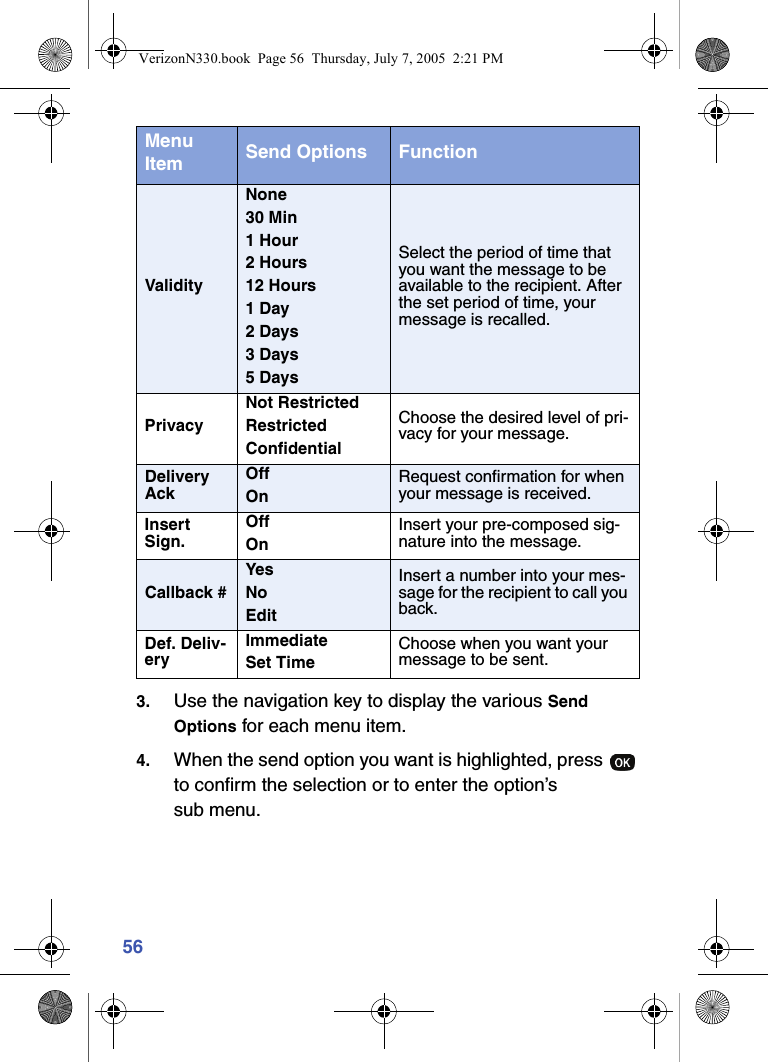
563. Use the navigation key to display the various Send Options for each menu item.4. When the send option you want is highlighted, press   to confirm the selection or to enter the option’s sub menu.ValidityNone30 Min1 Hour2 Hours12 Hours1 Day2 Days3 Days5 DaysSelect the period of time that you want the message to be available to the recipient. After the set period of time, your message is recalled.PrivacyNot RestrictedRestrictedConfidentialChoose the desired level of pri-vacy for your message.Delivery AckOffOnRequest confirmation for when your message is received.Insert Sign.OffOnInsert your pre-composed sig-nature into the message.Callback #YesNoEditInsert a number into your mes-sage for the recipient to call you back. Def. Deliv-eryImmediateSet TimeChoose when you want your message to be sent.Menu Item Send Options FunctionVerizonN330.book  Page 56  Thursday, July 7, 2005  2:21 PM
Messages 57Receive TXT messagesWhen your phone receives a message in standby mode, a ringer sounds (unless turned off), and New Message appears in the display along with the closed envelope icon ( ). The date and time of the message also appear in the display.•Press the left soft key ( ) Ignore to return your phone to standby mode. The message is saved to your inbox where you can view it later. •Press the right soft key ( ) View to open the message, and then press the right soft key ( ) Reply to open the message composer and respond to the message.OR•Press the left soft key ( ) Option, to Forward, Erase, Save Text, Save Msg, Save Contact, or Block Sender.Receive messages during a callWhen your phone receives a message during a call, New Message appears in the display along with the closed envelope icon ( ). You can view the message without disconnecting your call.1. Press the left soft key ( ) Ignore to ignore the message. The message is saved to your inbox where you can view it later.2. Press the right soft key ( ) View to open the message, your call remains connected.Messages and lock modeYour phone still receives messages while in Lock Mode. The time and date of the message appear in the display, but you cannot access the message until you enter the lock code.VerizonN330.book  Page 57  Thursday, July 7, 2005  2:21 PM
58Message foldersYour messages are stored in one of six folders. These folders are discussed in more details in the following sections.Voice mail folderMessages in your Voice Mail box are logged in the Voice folder of the Message menu. Open the voice folder to view the Callback # (if available), Urgency, and other details of the voice mail message.1. In standby mode, press the left soft key ( ) Menu, then press  .2. Use the navigation key to highlight Voice Mail, then press  . Details of your most recent voice mail message appear in the display.3. Press the left soft key ( ) SEND:Listen to call your voice mailbox and listen to the message.You can also press and hold  to dial your voice mailbox,if not changed.Inbox folderReceived TXT messages are stored in the Inbox folder.1. In standby mode, press the left soft key ( ) Menu, then press ,  to open the Inbox folder.Tip: Press the right soft key ( ) View while in a call to view a new message.2. Use the navigation key to highlight the message that you want to view.VerizonN330.book  Page 58  Thursday, July 7, 2005  2:21 PM
Messages 593. Press   to view contents of the highlighted message.4. While viewing your message, press the left soft key ( ) Option to display the options listed in the following table.5. Use the navigation key to highlight the option you want, then press   to select the option.Outbox folderYour phone stores TXT messages in the Outbox, regardless of whether the message was successfully transmitted. You can also verify if a message or e-mail was successfully transmitted, and at what date and time by enabling the Delivery Ack feature. See “Message send options” on page 55 for more information on delivery acknowledgements.REVIEW MESSAGES IN THE OUTBOX1. In standby mode, press the left soft key ( ) Menu, then press ,   for Outbox. Any sent messages appear in the display.2. Use the navigation key to highlight the message you want to review, then press  .Option FunctionForward Forward the message to another recipient.Erase Delete the message and its contents.Save Text Save only the text in the message.Save Msg Save the message to the Saved message folder.Save Contact Save the number of the sender to your Contacts as a new entry or add to an existing entry.Block Sender Block future messages from the phone number of the sender.VerizonN330.book  Page 59  Thursday, July 7, 2005  2:21 PM
603. Press the left soft key ( ) Option to display the options listed in the following table.4. Use the navigation key to highlight the option you want, then press   to select the option.Draft folderDraft messages have been composed but haven’t been sent yet. You can return to the Draft folder at any time to view, edit, or send a draft message.CREATE A DRAFT TXT MESSAGE1. In standby mode, press the left soft key ( ) Menu, then press ,  for Send New Msg.2. Enter the phone number of the recipient, then press  . 3. Compose your message using the keypad, then press .4. Use the navigation key to highlight Save in Draft, then press  . A confirmation message appears in the display and your message is saved to the Draft box.VIEW AND EDIT DRAFT MESSAGES1. In standby mode, press the left soft key ( ) Menu, then press  ,  . Your draft messages are displayed.2. Use the navigation key to highlight the message that you want to view and press  .Option FunctionRe-send Re-send the message.Save Msg Save the message to the Saved Msg folder.Erase Delete the message.VerizonN330.book  Page 60  Thursday, July 7, 2005  2:21 PM
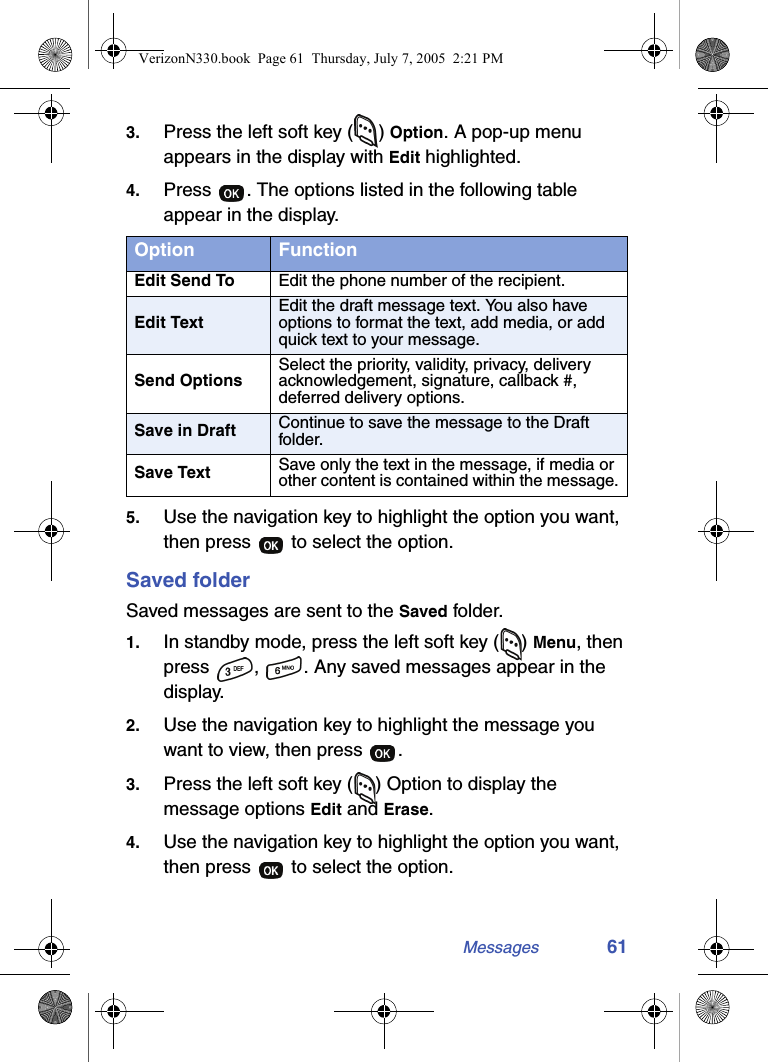
Messages 613. Press the left soft key ( ) Option. A pop-up menu appears in the display with Edit highlighted.4. Press  . The options listed in the following table appear in the display.5. Use the navigation key to highlight the option you want, then press   to select the option.Saved folderSaved messages are sent to the Saved folder.1. In standby mode, press the left soft key ( ) Menu, then press  ,  . Any saved messages appear in the display.2. Use the navigation key to highlight the message you want to view, then press  .3. Press the left soft key ( ) Option to display the message options Edit and Erase.4. Use the navigation key to highlight the option you want, then press   to select the option.Option FunctionEdit Send To Edit the phone number of the recipient.Edit TextEdit the draft message text. You also have options to format the text, add media, or add quick text to your message.Send OptionsSelect the priority, validity, privacy, delivery acknowledgement, signature, callback #, deferred delivery options.Save in Draft Continue to save the message to the Draft folder.Save Text Save only the text in the message, if media or other content is contained within the message.VerizonN330.book  Page 61  Thursday, July 7, 2005  2:21 PM
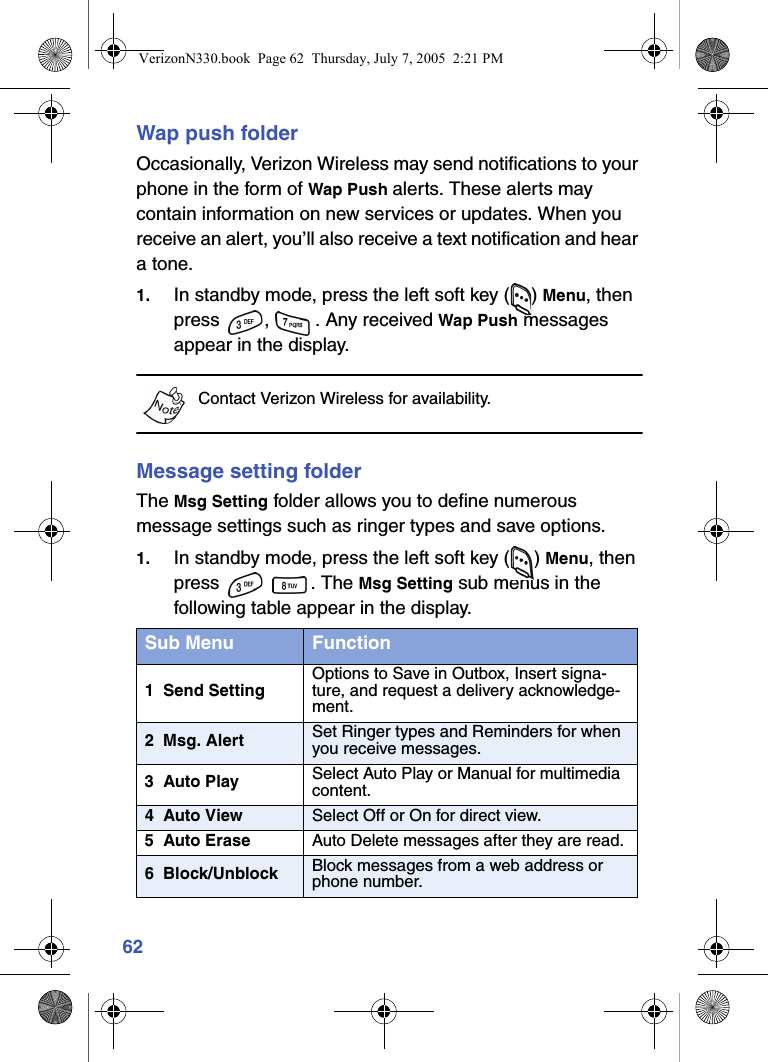
62Wap push folderOccasionally, Verizon Wireless may send notifications to your phone in the form of Wap Push alerts. These alerts may contain information on new services or updates. When you receive an alert, you’ll also receive a text notification and hear a tone.1. In standby mode, press the left soft key ( ) Menu, then press  ,  . Any received Wap Push messages appear in the display.Contact Verizon Wireless for availability.Message setting folderThe Msg Setting folder allows you to define numerous message settings such as ringer types and save options.1. In standby mode, press the left soft key ( ) Menu, then press  . The Msg Setting sub menus in the following table appear in the display.Sub Menu Function1  Send SettingOptions to Save in Outbox, Insert signa-ture, and request a delivery acknowledge-ment.2  Msg. Alert Set Ringer types and Reminders for when you receive messages.3  Auto Play Select Auto Play or Manual for multimedia content.4  Auto View Select Off or On for direct view.5  Auto Erase Auto Delete messages after they are read.6  Block/Unblock Block messages from a web address or phone number.VerizonN330.book  Page 62  Thursday, July 7, 2005  2:21 PM
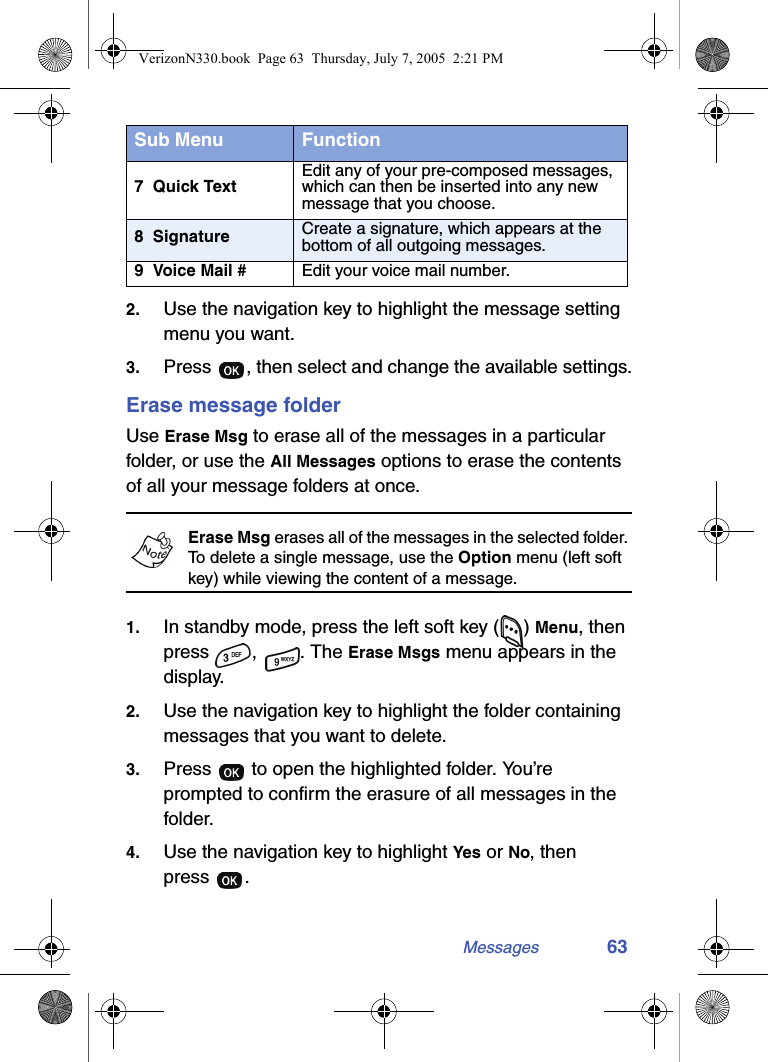
Messages 632. Use the navigation key to highlight the message setting menu you want.3. Press  , then select and change the available settings.Erase message folderUse Erase Msg to erase all of the messages in a particular folder, or use the All Messages options to erase the contents of all your message folders at once.Erase Msg erases all of the messages in the selected folder. To delete a single message, use the Option menu (left soft key) while viewing the content of a message.1. In standby mode, press the left soft key ( ) Menu, then press , . The Erase Msgs menu appears in the display.2. Use the navigation key to highlight the folder containing messages that you want to delete.3. Press   to open the highlighted folder. You’re prompted to confirm the erasure of all messages in the folder.4. Use the navigation key to highlight Yes or No, then press .7  Quick TextEdit any of your pre-composed messages, which can then be inserted into any new message that you choose.8  Signature Create a signature, which appears at the bottom of all outgoing messages.9  Voice Mail # Edit your voice mail number.Sub Menu FunctionVerizonN330.book  Page 63  Thursday, July 7, 2005  2:21 PM
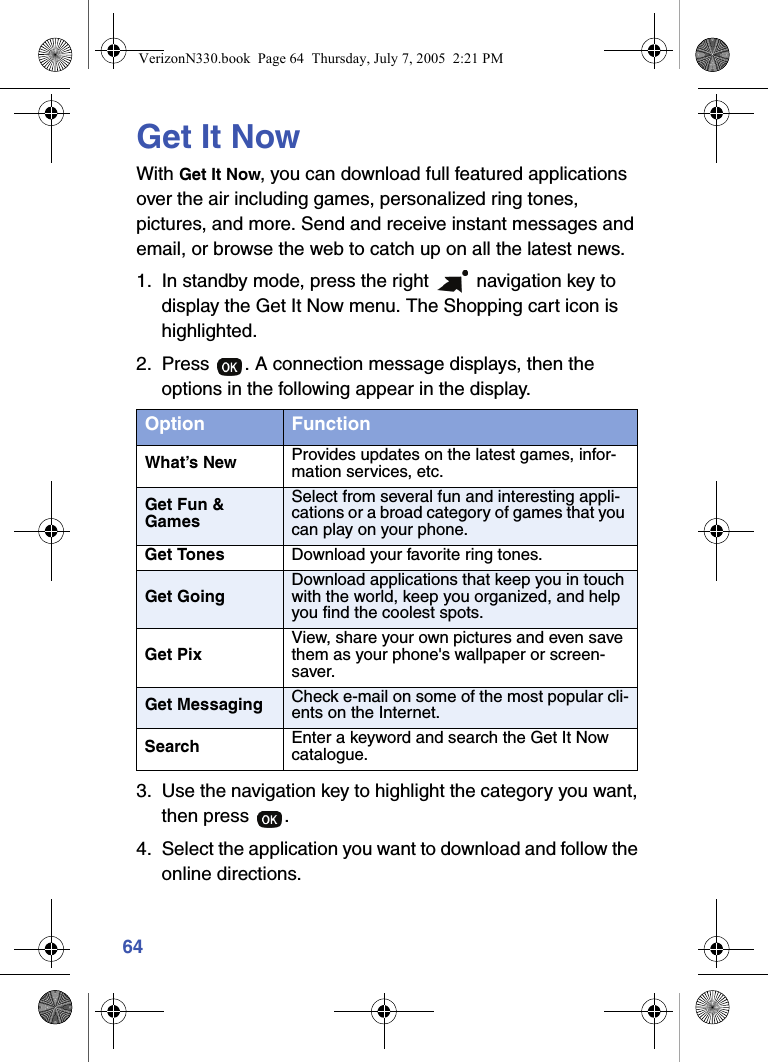
64Get It NowWith Get It Now, you can download full featured applications over the air including games, personalized ring tones, pictures, and more. Send and receive instant messages and email, or browse the web to catch up on all the latest news. 1. In standby mode, press the right   navigation key to display the Get It Now menu. The Shopping cart icon is highlighted.2. Press  . A connection message displays, then the options in the following appear in the display.3. Use the navigation key to highlight the category you want, then press  .4. Select the application you want to download and follow the online directions.Option FunctionWhat’s New Provides updates on the latest games, infor-mation services, etc.Get Fun & GamesSelect from several fun and interesting appli-cations or a broad category of games that you can play on your phone.Get Tones Download your favorite ring tones.Get GoingDownload applications that keep you in touch with the world, keep you organized, and help you find the coolest spots.Get PixView, share your own pictures and even save them as your phone's wallpaper or screen-saver.Get Messaging Check e-mail on some of the most popular cli-ents on the Internet.Search Enter a keyword and search the Get It Now catalogue. VerizonN330.book  Page 64  Thursday, July 7, 2005  2:21 PM
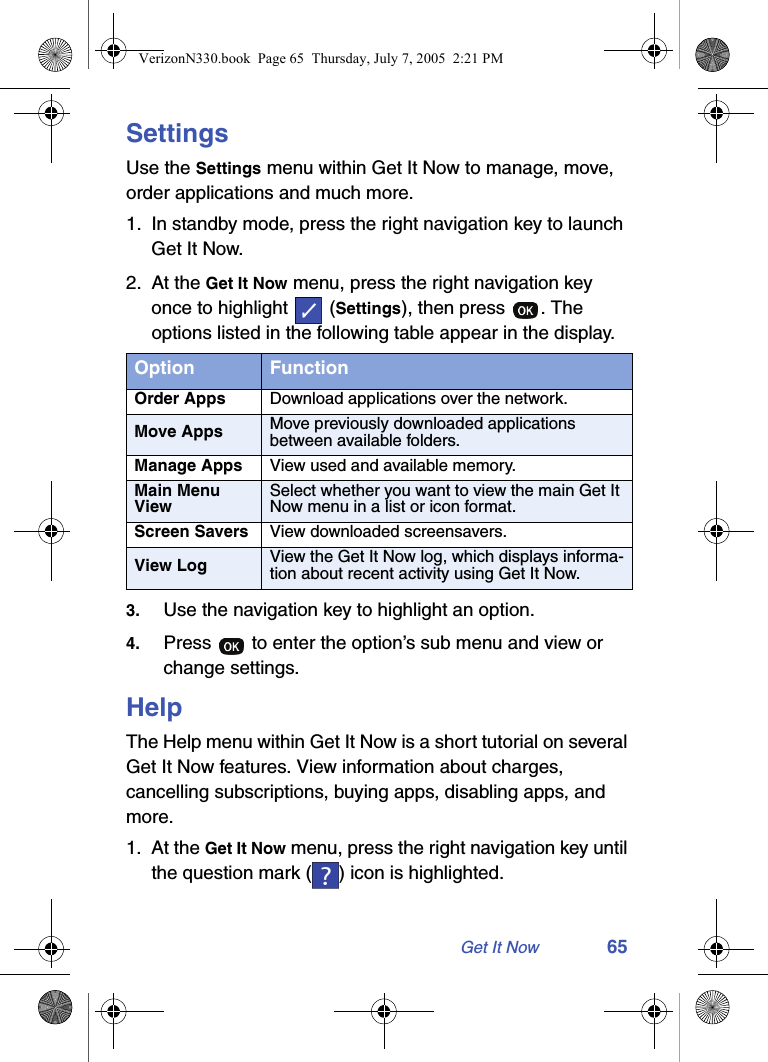
Get It Now 65SettingsUse the Settings menu within Get It Now to manage, move, order applications and much more.1. In standby mode, press the right navigation key to launch Get It Now.2. At the Get It Now menu, press the right navigation key once to highlight   (Settings), then press  . The options listed in the following table appear in the display.3. Use the navigation key to highlight an option.4. Press   to enter the option’s sub menu and view or change settings.HelpThe Help menu within Get It Now is a short tutorial on several Get It Now features. View information about charges, cancelling subscriptions, buying apps, disabling apps, and more.1. At the Get It Now menu, press the right navigation key until the question mark ( ) icon is highlighted.Option FunctionOrder Apps Download applications over the network.Move Apps Move previously downloaded applications between available folders.Manage Apps View used and available memory.Main Menu ViewSelect whether you want to view the main Get It Now menu in a list or icon format.Screen Savers View downloaded screensavers.View Log View the Get It Now log, which displays informa-tion about recent activity using Get It Now.VerizonN330.book  Page 65  Thursday, July 7, 2005  2:21 PM
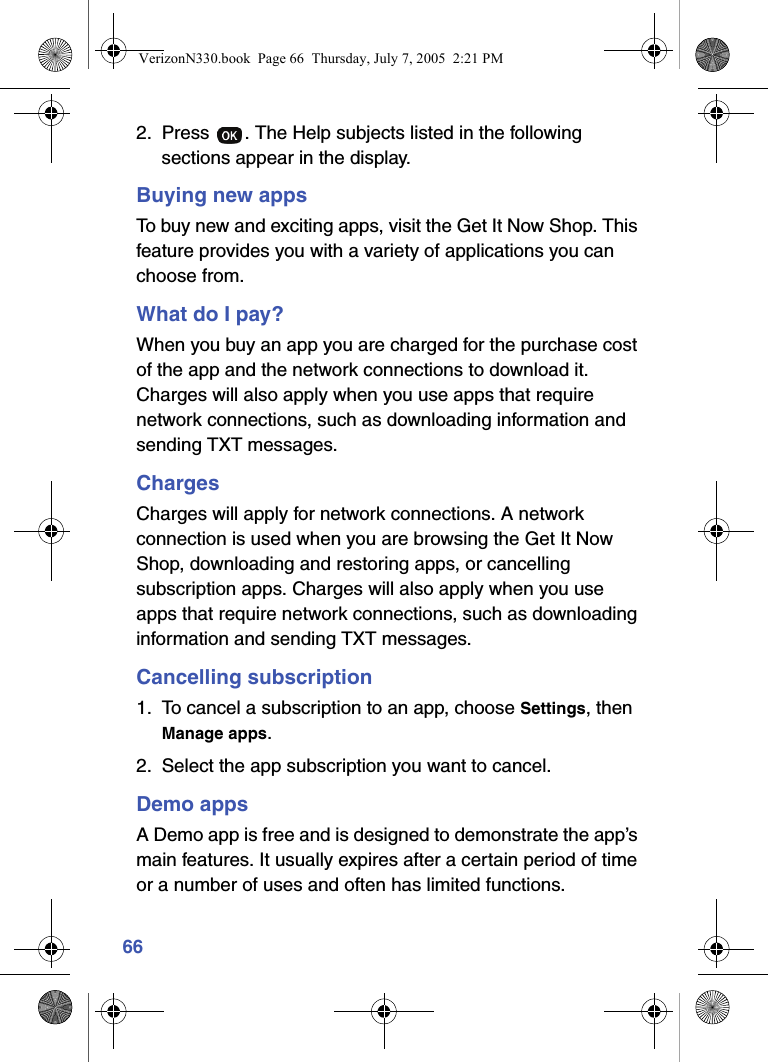
662. Press  . The Help subjects listed in the following sections appear in the display.Buying new appsTo buy new and exciting apps, visit the Get It Now Shop. This feature provides you with a variety of applications you can choose from.What do I pay?When you buy an app you are charged for the purchase cost of the app and the network connections to download it. Charges will also apply when you use apps that require network connections, such as downloading information and sending TXT messages.ChargesCharges will apply for network connections. A network connection is used when you are browsing the Get It Now Shop, downloading and restoring apps, or cancelling subscription apps. Charges will also apply when you use apps that require network connections, such as downloading information and sending TXT messages.Cancelling subscription1. To cancel a subscription to an app, choose Settings, then Manage apps.2. Select the app subscription you want to cancel.Demo appsA Demo app is free and is designed to demonstrate the app’s main features. It usually expires after a certain period of time or a number of uses and often has limited functions.VerizonN330.book  Page 66  Thursday, July 7, 2005  2:21 PM
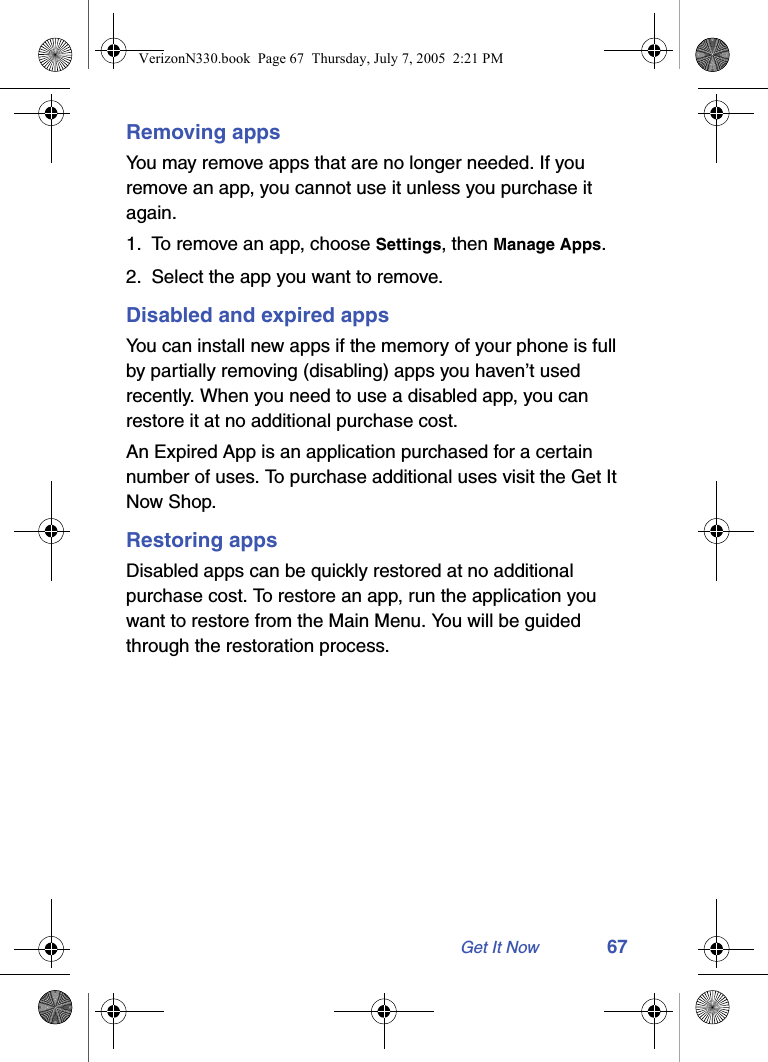
Get It Now 67Removing appsYou may remove apps that are no longer needed. If you remove an app, you cannot use it unless you purchase it again.1. To remove an app, choose Settings, then Manage Apps.2. Select the app you want to remove.Disabled and expired appsYou can install new apps if the memory of your phone is full by partially removing (disabling) apps you haven’t used recently. When you need to use a disabled app, you can restore it at no additional purchase cost.An Expired App is an application purchased for a certain number of uses. To purchase additional uses visit the Get It Now Shop.Restoring appsDisabled apps can be quickly restored at no additional purchase cost. To restore an app, run the application you want to restore from the Main Menu. You will be guided through the restoration process.VerizonN330.book  Page 67  Thursday, July 7, 2005  2:21 PM
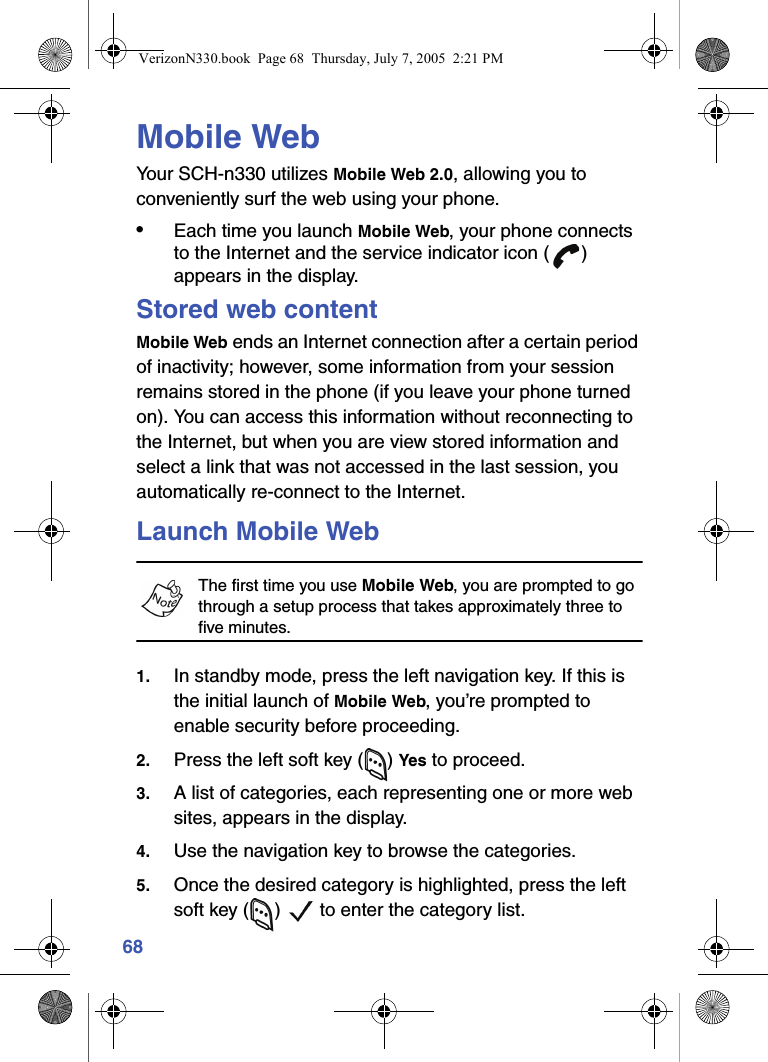
68Mobile WebYour SCH-n330 utilizes Mobile Web 2.0, allowing you to conveniently surf the web using your phone.•Each time you launch Mobile Web, your phone connects to the Internet and the service indicator icon ( ) appears in the display.Stored web contentMobile Web ends an Internet connection after a certain period of inactivity; however, some information from your session remains stored in the phone (if you leave your phone turned on). You can access this information without reconnecting to the Internet, but when you are view stored information and select a link that was not accessed in the last session, you automatically re-connect to the Internet.Launch Mobile WebThe first time you use Mobile Web, you are prompted to go through a setup process that takes approximately three to five minutes. 1. In standby mode, press the left navigation key. If this is the initial launch of Mobile Web, you’re prompted to enable security before proceeding.2. Press the left soft key ( ) Yes to proceed.3. A list of categories, each representing one or more web sites, appears in the display.4. Use the navigation key to browse the categories.5. Once the desired category is highlighted, press the left soft key ( )   to enter the category list.VerizonN330.book  Page 68  Thursday, July 7, 2005  2:21 PM
Mobile Web 69Exit Mobile WebTo  ex i t  Mobile Web, press the   key.Navigate the webWhen you use Mobile Web, some of the keys operate differently than during a normal phone call. Mobile Web presents on-screen items in any of the following ways: • Text or numeric input • Links (embedded in content) • Numbered options (some may not be numbered) • Simple textYou can act upon options or links by using the soft keys.Mobile Web soft keysAt the bottom of the Mobile Web display is a bar that contains browser commands. The left ( ) and right ( ) soft keys on the keypad are used to execute the command that appears above them in the display. These are called “soft keys” because their function changes depending on the application.Using linksLinks have several purposes, such as jumping to a different page, to a different site, or even initiating a phone call. Links are shown inside of brackets ([ ]). You can normally use the left soft key ( ) to select a link when it is highlighted.VerizonN330.book  Page 69  Thursday, July 7, 2005  2:21 PM
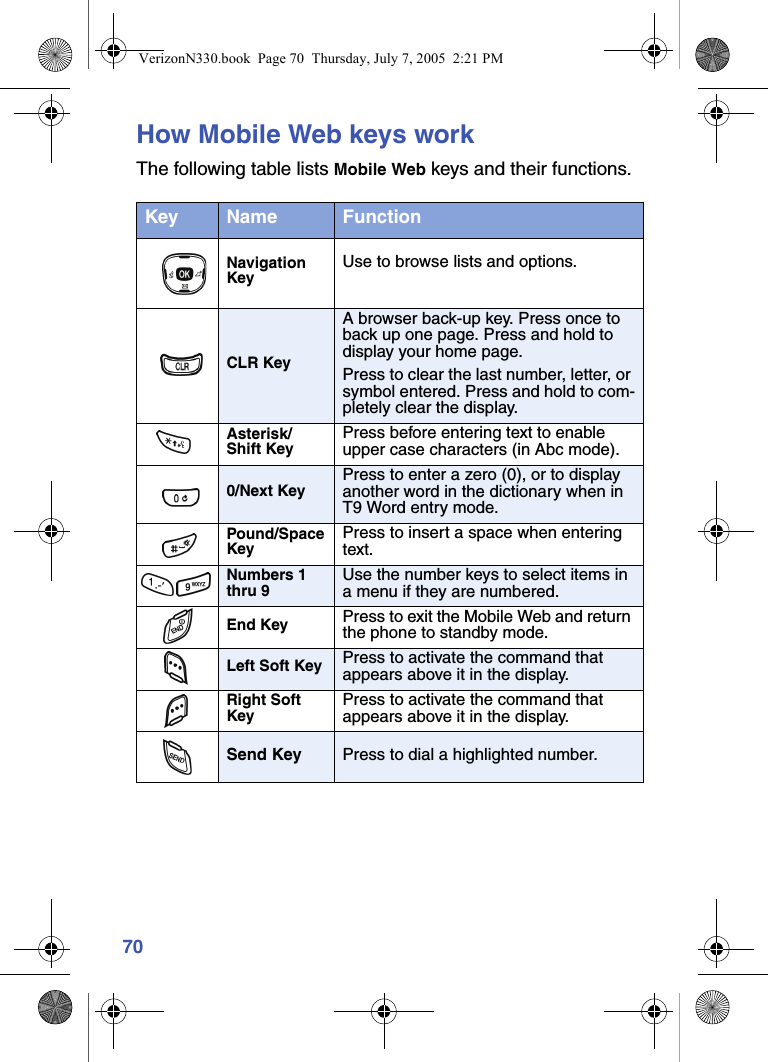
70How Mobile Web keys workThe following table lists Mobile Web keys and their functions.Key Name FunctionNavigation KeyUse to browse lists and options.CLR KeyA browser back-up key. Press once to back up one page. Press and hold to display your home page.Press to clear the last number, letter, or symbol entered. Press and hold to com-pletely clear the display.Asterisk/Shift KeyPress before entering text to enable upper case characters (in Abc mode).0/Next KeyPress to enter a zero (0), or to display another word in the dictionary when in T9 Word entry mode.Pound/Space KeyPress to insert a space when entering text.Numbers 1 thru 9Use the number keys to select items in a menu if they are numbered.End Key Press to exit the Mobile Web and return the phone to standby mode.Left Soft Key Press to activate the command that appears above it in the display.Right Soft KeyPress to activate the command that appears above it in the display.Send Key Press to dial a highlighted number.VerizonN330.book  Page 70  Thursday, July 7, 2005  2:21 PM
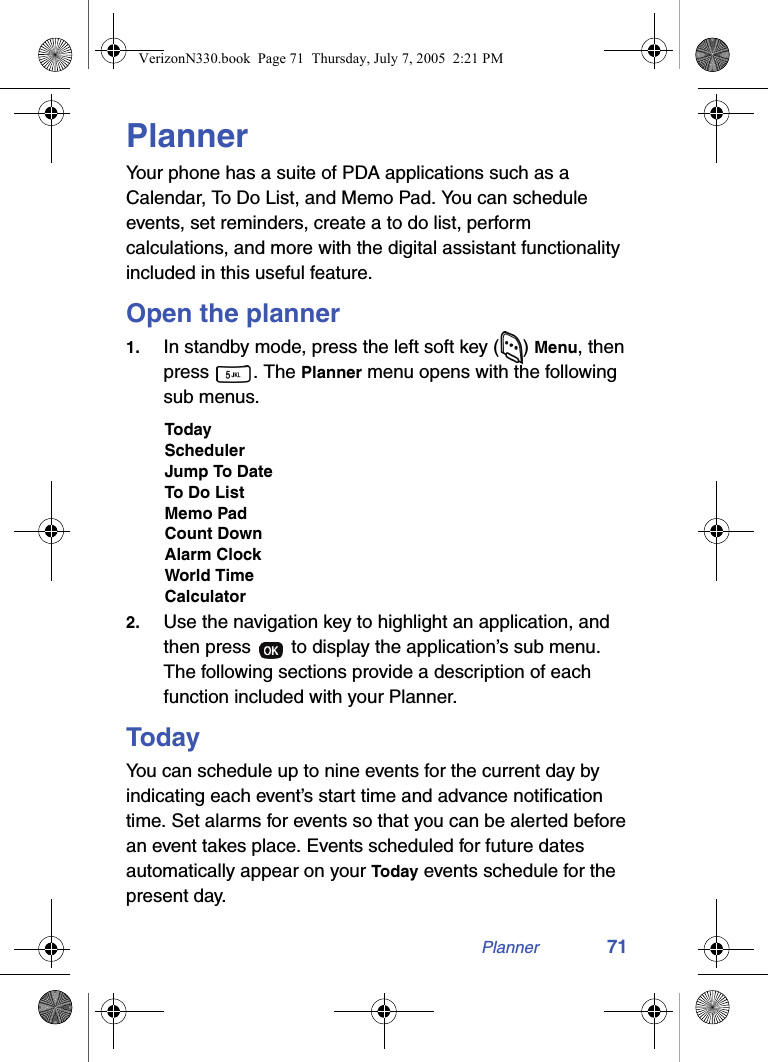
Planner 71PlannerYour phone has a suite of PDA applications such as a Calendar, To Do List, and Memo Pad. You can schedule events, set reminders, create a to do list, perform calculations, and more with the digital assistant functionality included in this useful feature.Open the planner1. In standby mode, press the left soft key ( ) Menu, then press . The Planner menu opens with the following sub menus.TodaySchedulerJump To DateTo Do ListMemo PadCount DownAlarm ClockWorld TimeCalculator2. Use the navigation key to highlight an application, and then press   to display the application’s sub menu. The following sections provide a description of each function included with your Planner.TodayYou can schedule up to nine events for the current day by indicating each event’s start time and advance notification time. Set alarms for events so that you can be alerted before an event takes place. Events scheduled for future dates automatically appear on your Today events schedule for the present day.VerizonN330.book  Page 71  Thursday, July 7, 2005  2:21 PM
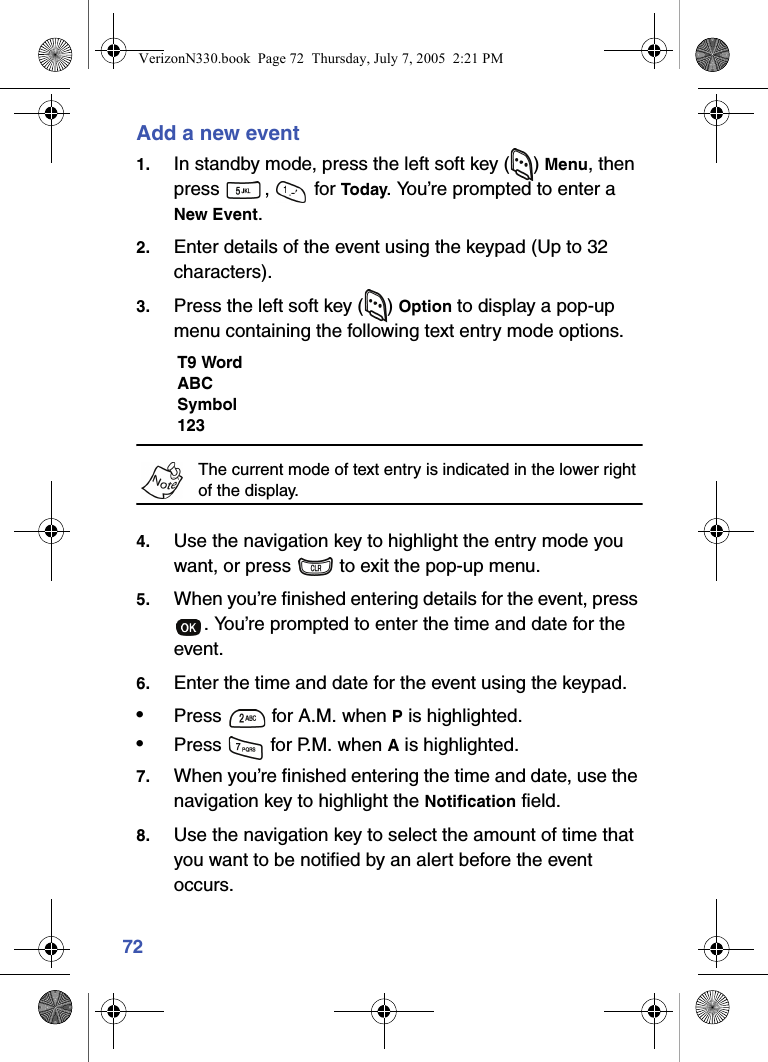
72Add a new event1. In standby mode, press the left soft key ( ) Menu, then press ,  for Today. You’re prompted to enter a New Event.2. Enter details of the event using the keypad (Up to 32 characters).3. Press the left soft key ( ) Option to display a pop-up menu containing the following text entry mode options.T9 WordABCSymbol123The current mode of text entry is indicated in the lower right of the display.4. Use the navigation key to highlight the entry mode you want, or press   to exit the pop-up menu.5. When you’re finished entering details for the event, press . You’re prompted to enter the time and date for the event.6. Enter the time and date for the event using the keypad.•Press   for A.M. when P is highlighted.•Press   for P.M. when A is highlighted.7. When you’re finished entering the time and date, use the navigation key to highlight the Notification field.8. Use the navigation key to select the amount of time that you want to be notified by an alert before the event occurs.VerizonN330.book  Page 72  Thursday, July 7, 2005  2:21 PM
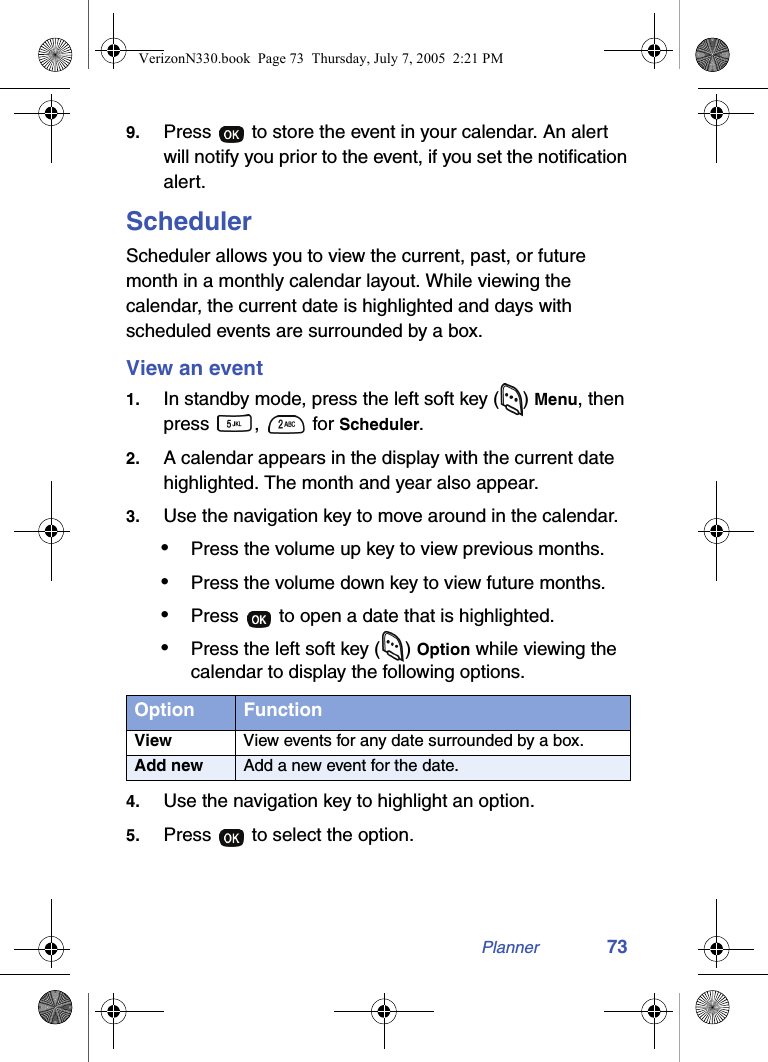
Planner 739. Press   to store the event in your calendar. An alert will notify you prior to the event, if you set the notification alert.SchedulerScheduler allows you to view the current, past, or future month in a monthly calendar layout. While viewing the calendar, the current date is highlighted and days with scheduled events are surrounded by a box. View an event1. In standby mode, press the left soft key ( ) Menu, then press ,   for Scheduler.2. A calendar appears in the display with the current date highlighted. The month and year also appear.3. Use the navigation key to move around in the calendar.•Press the volume up key to view previous months.•Press the volume down key to view future months.•Press   to open a date that is highlighted.•Press the left soft key ( ) Option while viewing the calendar to display the following options.4. Use the navigation key to highlight an option.5. Press   to select the option.Option FunctionView View events for any date surrounded by a box.Add new Add a new event for the date.VerizonN330.book  Page 73  Thursday, July 7, 2005  2:21 PM
74Jump to dateYou can to go directly to any date that you specify in the Jump to Date entry screen.1. In standby mode, press the left soft key ( ) Menu, then press ,  for Jump To Date. The Jump To Date entry screen appears in the display with the current month highlighted.2. Enter the desired Jump to date and press  . The calendar month for the date that you specified appears in the display with the current date highlighted.To do listThe To Do List allows you to create a task list. You can store, prioritize and manage up to twenty To Do List tasks.1. In standby mode, press the left soft key ( ) Menu, then press ,  for To Do List. The Add To Do screen appears in the display.2. Enter details of the task using the keypad. Press the left soft key ( ) Option to display a pop-up menu containing the following text entry mode options.T9 WordABCSymbol1233. Use the navigation key to highlight the entry mode that you want to use, or press   to exit the pop-up menu.4. When you’re finished entering details for the task, press . You’re prompted to enter the priority for the task.5. Use the navigation key to select High or Low priority.VerizonN330.book  Page 74  Thursday, July 7, 2005  2:21 PM
Planner 756. Use the navigation down key to highlight the Enter Date field.7. Enter a time and date for the task using the keypad.•Press   for P.M when A is highlighted.•Press   for A.M when P is highlighted.8. Press   to save the task.Add, edit, or erase tasks1. In standby mode, press the left soft key ( ) Menu, then press ,  for To Do List.2. Use the navigation key to browse tasks in your To Do List. Events are presented in order of priority.3. Press the left soft key ( ) Option while viewing your To Do List. A pop-up menu with the options listed in the following table appears in the display.4. Use the navigation key to highlight an option.5. Press   to select the option.Option FunctionAdd new Add a new task to the To Do List.Edit Edit the task currently appearing in the display.Erase Erase the task currently appearing in the display.Erase All Erase all tasks from your To Do List.VerizonN330.book  Page 75  Thursday, July 7, 2005  2:21 PM
76Memo padYou can create notes and store them in Memo Pad. You can’t prioritize or set an alert for stored notes. Return to Memo Pad anytime you want to review and edit your notes.1. In standby mode, press the left soft key ( ) Menu, then press ,  for Memo Pad.2. If you have any stored memos, they appear as a list in the display. If this is your first time in Memo Pad, you’re prompted to add a new memo.3. Enter a memo using the keypad.4. Press the left soft key ( ) Option to display a pop-up menu containing the following text entry mode options.T9 WordABCSymbol1235. Use the navigation key to highlight the entry mode that you want to use, or press   to exit the pop-up menu.6. When you’re finished entering details for the memo, press  . The memo is stored.Review, add, edit, or erase memos1. In standby mode, press the left soft key ( ) Menu, then press ,  for Memo Pad. Your list of stored memos appears in the display.2. Use the navigation key to browse memos.3. Press   to open a highlighted memo.VerizonN330.book  Page 76  Thursday, July 7, 2005  2:21 PM
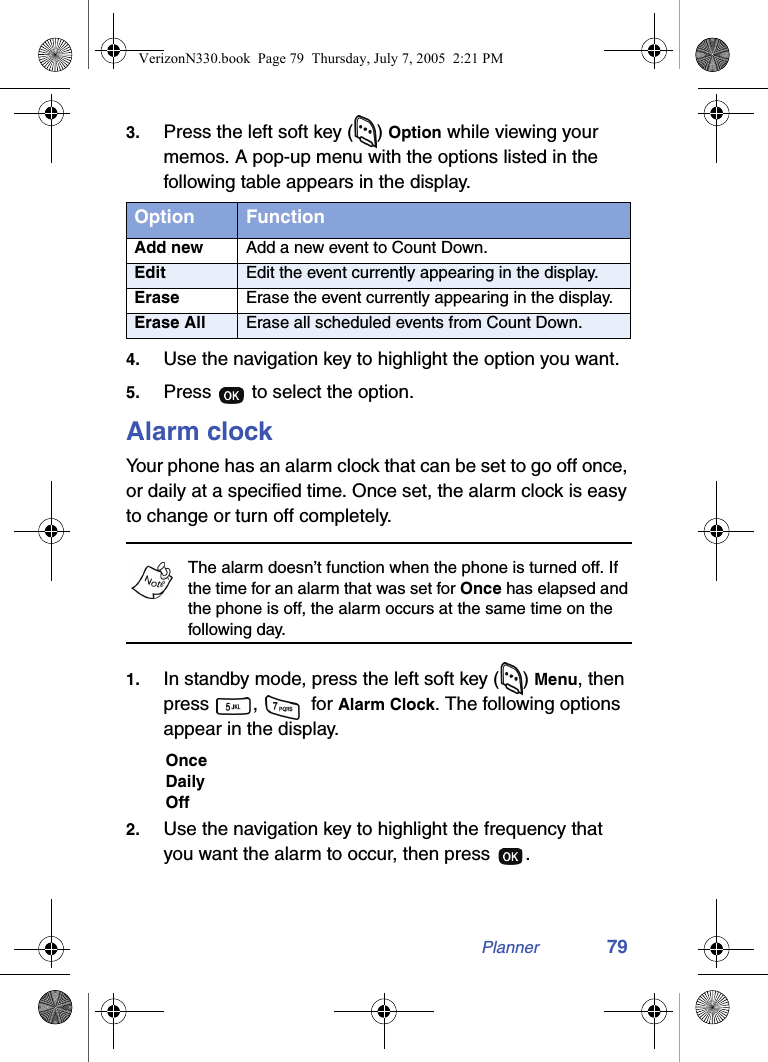
Planner 774. Press the left soft key ( ) Option while viewing your memos. A pop-up menu with the options listed in the following table appears in the display.5. Use the navigation key to highlight the option you want.6. Press   to select the option.Count downCount Down allows you to view the amount of time between the current date and any event that you want to schedule. You can create up to twenty Count Down events.1. In standby mode, press the left soft key ( ) Menu, then press ,  for Count Down.If you have multiple count down timers, the event that is scheduled closest to the current date appears in the display. Use the navigation key to browse timers.2. Enter details for the Count Down event using the keypad.3. Press the left soft key ( ) Option to display a pop-up menu containing the following text entry mode options.T9 WordABCSymbol123Option FunctionAdd new Add a new memo to Memo Pad.Edit Edit the memo currently highlighted or appearing in the display.Erase Erase the memo currently highlighted or appearing in the display.Erase All Erase all memos from Memo Pad.VerizonN330.book  Page 77  Thursday, July 7, 2005  2:21 PM
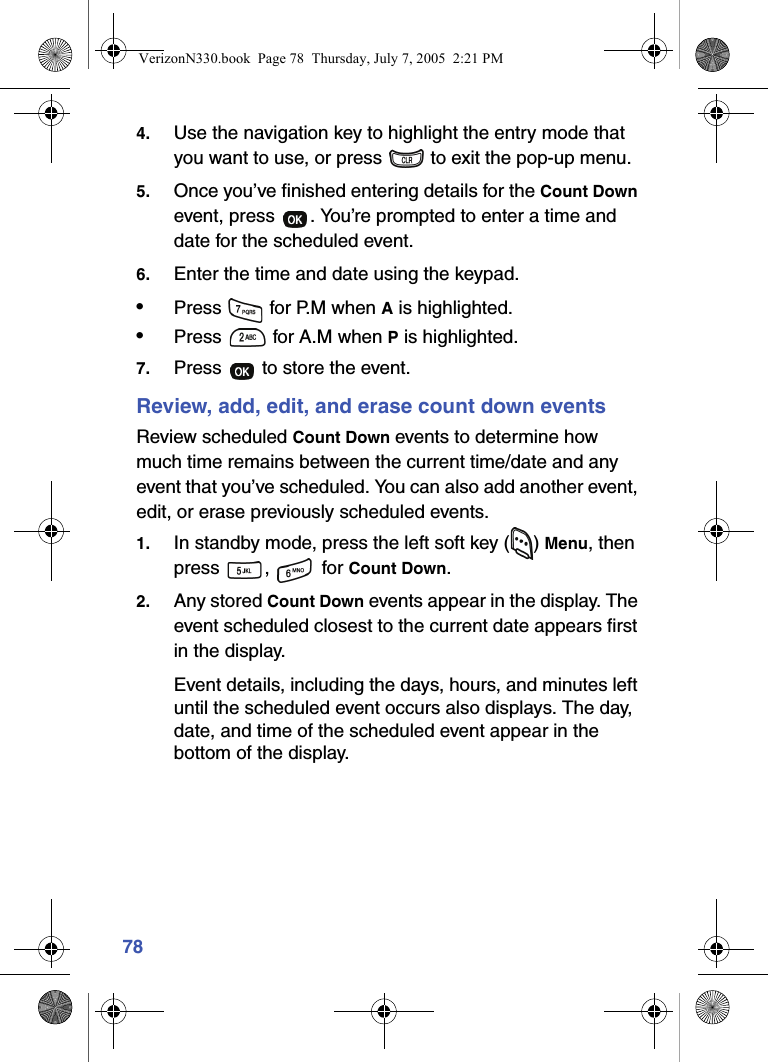
784. Use the navigation key to highlight the entry mode that you want to use, or press   to exit the pop-up menu.5. Once you’ve finished entering details for the Count Down event, press  . You’re prompted to enter a time and date for the scheduled event.6. Enter the time and date using the keypad.•Press   for P.M when A is highlighted.•Press   for A.M when P is highlighted.7. Press   to store the event.Review, add, edit, and erase count down eventsReview scheduled Count Down events to determine how much time remains between the current time/date and any event that you’ve scheduled. You can also add another event, edit, or erase previously scheduled events.1. In standby mode, press the left soft key ( ) Menu, then press ,  for Count Down. 2. Any stored Count Down events appear in the display. The event scheduled closest to the current date appears first in the display.Event details, including the days, hours, and minutes left until the scheduled event occurs also displays. The day, date, and time of the scheduled event appear in the bottom of the display.VerizonN330.book  Page 78  Thursday, July 7, 2005  2:21 PM
Planner 793. Press the left soft key ( ) Option while viewing your memos. A pop-up menu with the options listed in the following table appears in the display.4. Use the navigation key to highlight the option you want.5. Press   to select the option.Alarm clockYour phone has an alarm clock that can be set to go off once, or daily at a specified time. Once set, the alarm clock is easy to change or turn off completely.The alarm doesn’t function when the phone is turned off. If the time for an alarm that was set for Once has elapsed and the phone is off, the alarm occurs at the same time on the following day.1. In standby mode, press the left soft key ( ) Menu, then press ,   for Alarm Clock. The following options appear in the display.OnceDailyOff2. Use the navigation key to highlight the frequency that you want the alarm to occur, then press  .Option FunctionAdd new Add a new event to Count Down.Edit Edit the event currently appearing in the display.Erase Erase the event currently appearing in the display.Erase All Erase all scheduled events from Count Down.VerizonN330.book  Page 79  Thursday, July 7, 2005  2:21 PM
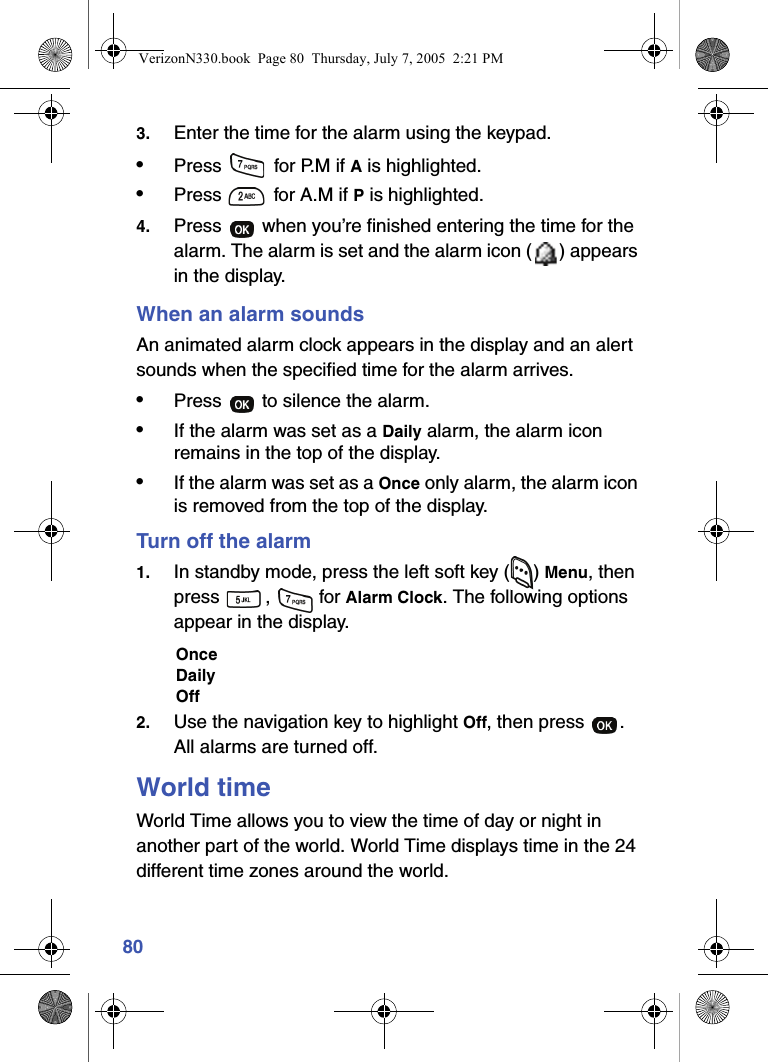
803. Enter the time for the alarm using the keypad.•Press   for P.M if A is highlighted.•Press   for A.M if P is highlighted.4. Press   when you’re finished entering the time for the alarm. The alarm is set and the alarm icon ( ) appears in the display.When an alarm soundsAn animated alarm clock appears in the display and an alert sounds when the specified time for the alarm arrives.•Press   to silence the alarm.•If the alarm was set as a Daily alarm, the alarm icon remains in the top of the display.•If the alarm was set as a Once only alarm, the alarm icon is removed from the top of the display.Turn off the alarm1. In standby mode, press the left soft key ( ) Menu, then press ,  for Alarm Clock. The following options appear in the display.OnceDailyOff2. Use the navigation key to highlight Off, then press  . All alarms are turned off.World timeWorld Time allows you to view the time of day or night in another part of the world. World Time displays time in the 24 different time zones around the world. VerizonN330.book  Page 80  Thursday, July 7, 2005  2:21 PM
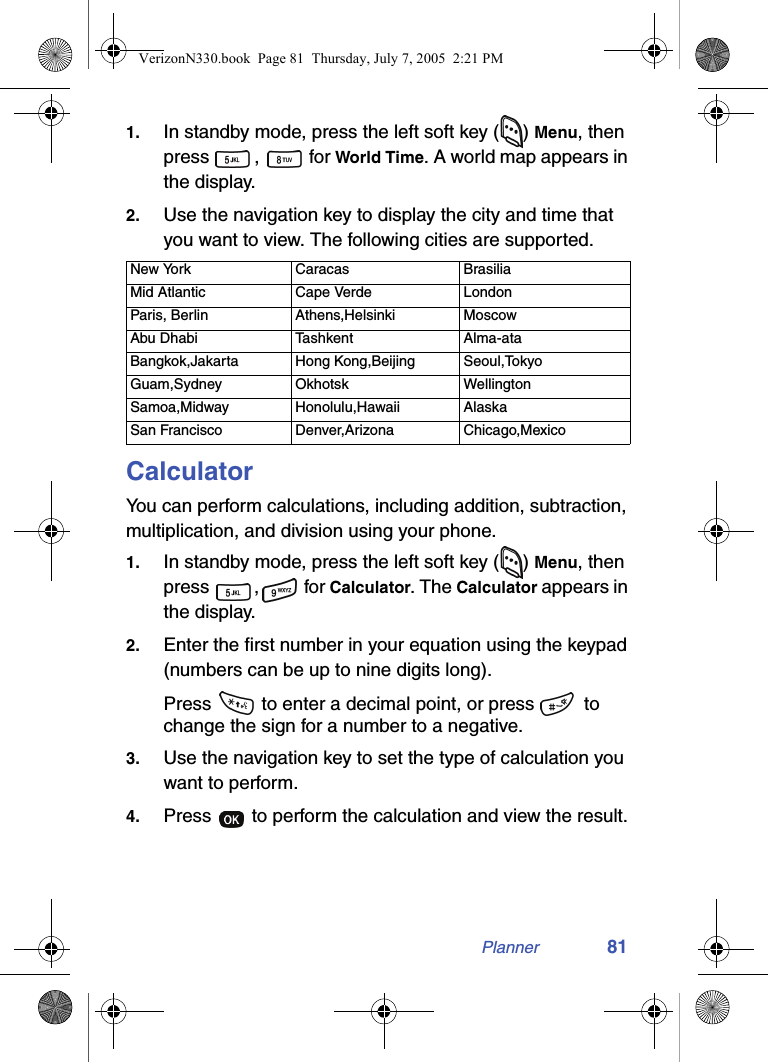
Planner 811. In standby mode, press the left soft key ( ) Menu, then press ,  for World Time. A world map appears in the display.2. Use the navigation key to display the city and time that you want to view. The following cities are supported.CalculatorYou can perform calculations, including addition, subtraction, multiplication, and division using your phone.1. In standby mode, press the left soft key ( ) Menu, then press ,  for Calculator. The Calculator appears in the display.2. Enter the first number in your equation using the keypad (numbers can be up to nine digits long).Press   to enter a decimal point, or press   to change the sign for a number to a negative.3. Use the navigation key to set the type of calculation you want to perform.4. Press   to perform the calculation and view the result.New York Caracas BrasiliaMid Atlantic Cape Verde LondonParis, Berlin Athens,Helsinki MoscowAbu Dhabi Tashkent Alma-ataBangkok,Jakarta Hong Kong,Beijing Seoul,TokyoGuam,Sydney Okhotsk WellingtonSamoa,Midway Honolulu,Hawaii AlaskaSan Francisco Denver,Arizona Chicago,MexicoVerizonN330.book  Page 81  Thursday, July 7, 2005  2:21 PM
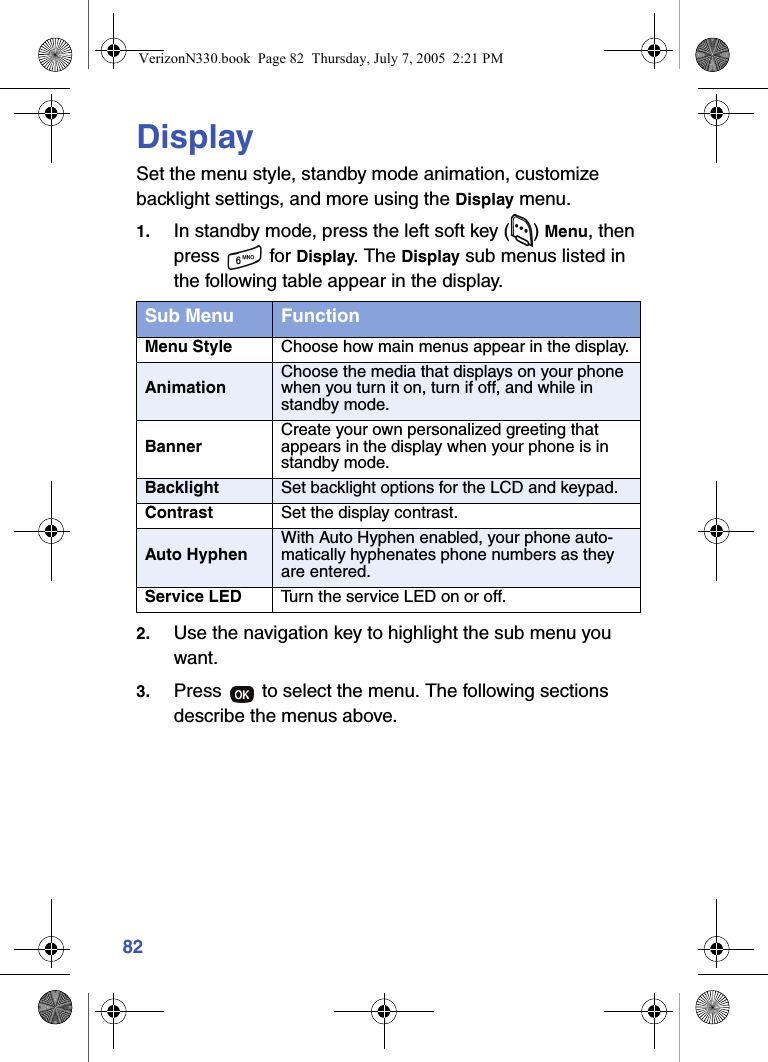
82DisplaySet the menu style, standby mode animation, customize backlight settings, and more using the Display menu.1. In standby mode, press the left soft key ( ) Menu, then press  for Display. The Display sub menus listed in the following table appear in the display.2. Use the navigation key to highlight the sub menu you want.3. Press   to select the menu. The following sections describe the menus above.Sub Menu FunctionMenu Style Choose how main menus appear in the display.AnimationChoose the media that displays on your phone when you turn it on, turn if off, and while in standby mode.BannerCreate your own personalized greeting that appears in the display when your phone is in standby mode.Backlight Set backlight options for the LCD and keypad.Contrast Set the display contrast.Auto HyphenWith Auto Hyphen enabled, your phone auto-matically hyphenates phone numbers as they are entered.Service LED Turn the service LED on or off.VerizonN330.book  Page 82  Thursday, July 7, 2005  2:21 PM
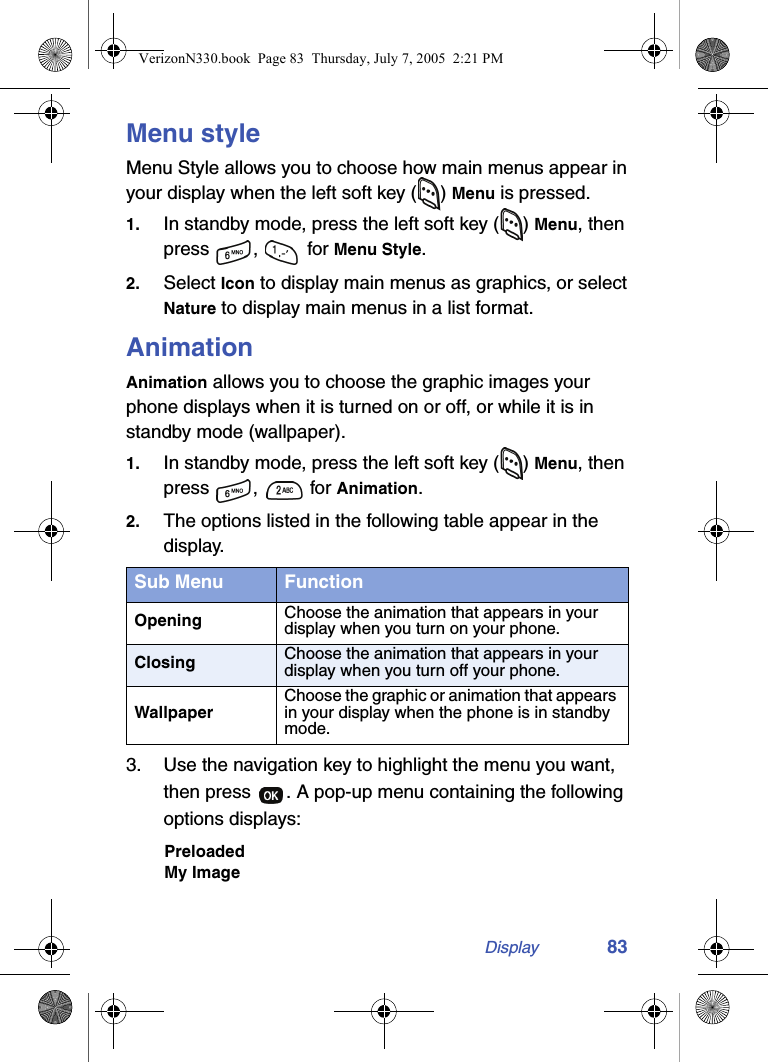
Display 83Menu styleMenu Style allows you to choose how main menus appear in your display when the left soft key ( ) Menu is pressed.1. In standby mode, press the left soft key ( ) Menu, then press ,  for Menu Style.2. Select Icon to display main menus as graphics, or select Nature to display main menus in a list format.AnimationAnimation allows you to choose the graphic images your phone displays when it is turned on or off, or while it is in standby mode (wallpaper).1. In standby mode, press the left soft key ( ) Menu, then press ,   for Animation.2. The options listed in the following table appear in the display.3. Use the navigation key to highlight the menu you want, then press  . A pop-up menu containing the following options displays:PreloadedMy ImageSub Menu FunctionOpening Choose the animation that appears in your display when you turn on your phone.Closing Choose the animation that appears in your display when you turn off your phone.WallpaperChoose the graphic or animation that appears in your display when the phone is in standby mode.VerizonN330.book  Page 83  Thursday, July 7, 2005  2:21 PM
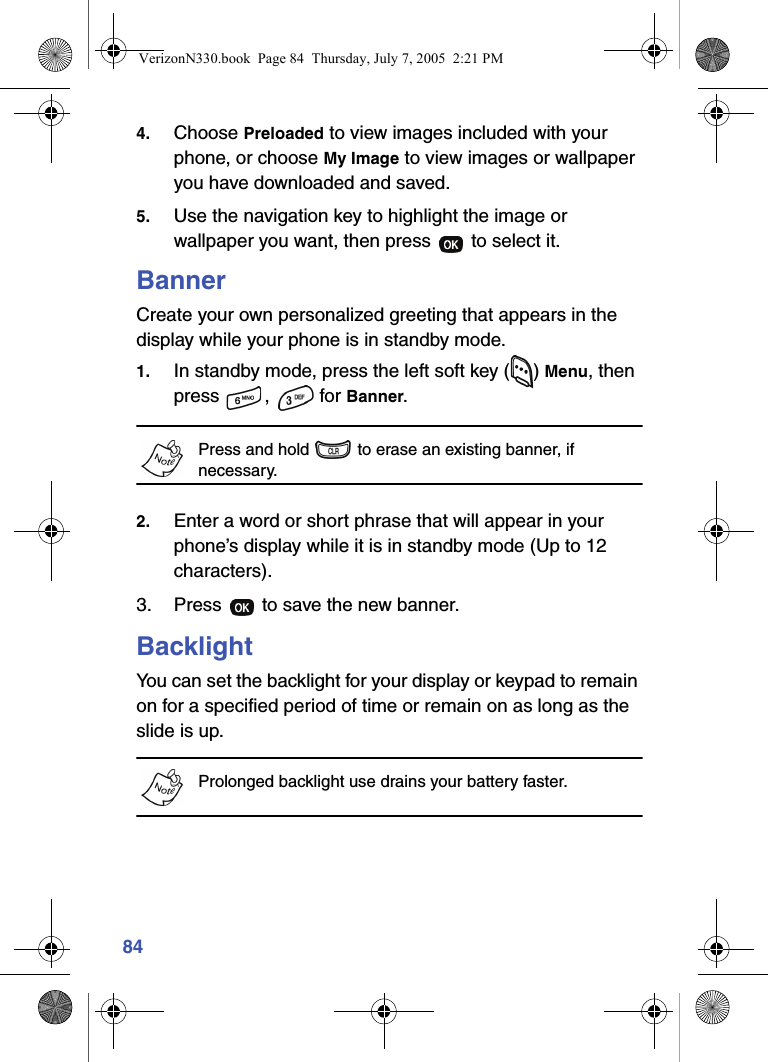
844. Choose Preloaded to view images included with your phone, or choose My Image to view images or wallpaper you have downloaded and saved.5. Use the navigation key to highlight the image or wallpaper you want, then press   to select it.BannerCreate your own personalized greeting that appears in the display while your phone is in standby mode.1. In standby mode, press the left soft key ( ) Menu, then press ,  for Banner.Press and hold   to erase an existing banner, if necessary.2. Enter a word or short phrase that will appear in your phone’s display while it is in standby mode (Up to 12 characters).3. Press   to save the new banner.BacklightYou can set the backlight for your display or keypad to remain on for a specified period of time or remain on as long as the slide is up.Prolonged backlight use drains your battery faster. VerizonN330.book  Page 84  Thursday, July 7, 2005  2:21 PM
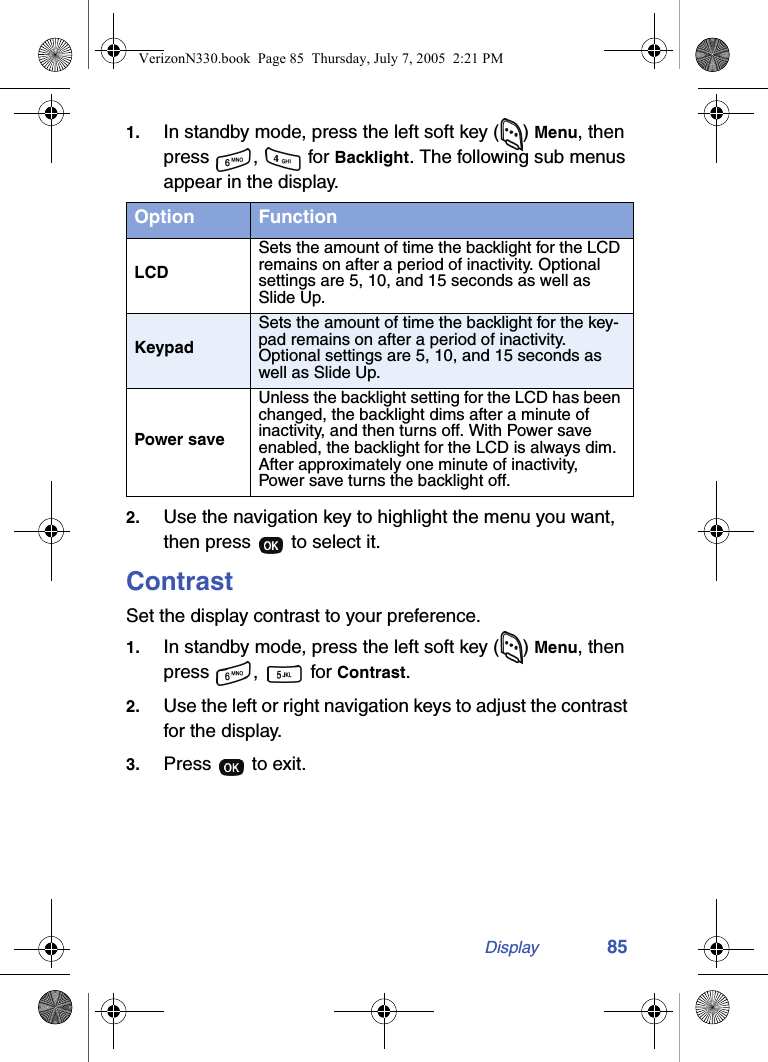
Display 851. In standby mode, press the left soft key ( ) Menu, then press ,  for Backlight. The following sub menus appear in the display.2. Use the navigation key to highlight the menu you want, then press   to select it.ContrastSet the display contrast to your preference.1. In standby mode, press the left soft key ( ) Menu, then press ,   for Contrast.2. Use the left or right navigation keys to adjust the contrast for the display.3. Press   to exit.Option FunctionLCDSets the amount of time the backlight for the LCD remains on after a period of inactivity. Optional settings are 5, 10, and 15 seconds as well as Slide Up.KeypadSets the amount of time the backlight for the key-pad remains on after a period of inactivity. Optional settings are 5, 10, and 15 seconds as well as Slide Up.Power saveUnless the backlight setting for the LCD has been changed, the backlight dims after a minute of inactivity, and then turns off. With Power save enabled, the backlight for the LCD is always dim. After approximately one minute of inactivity, Power save turns the backlight off.VerizonN330.book  Page 85  Thursday, July 7, 2005  2:21 PM
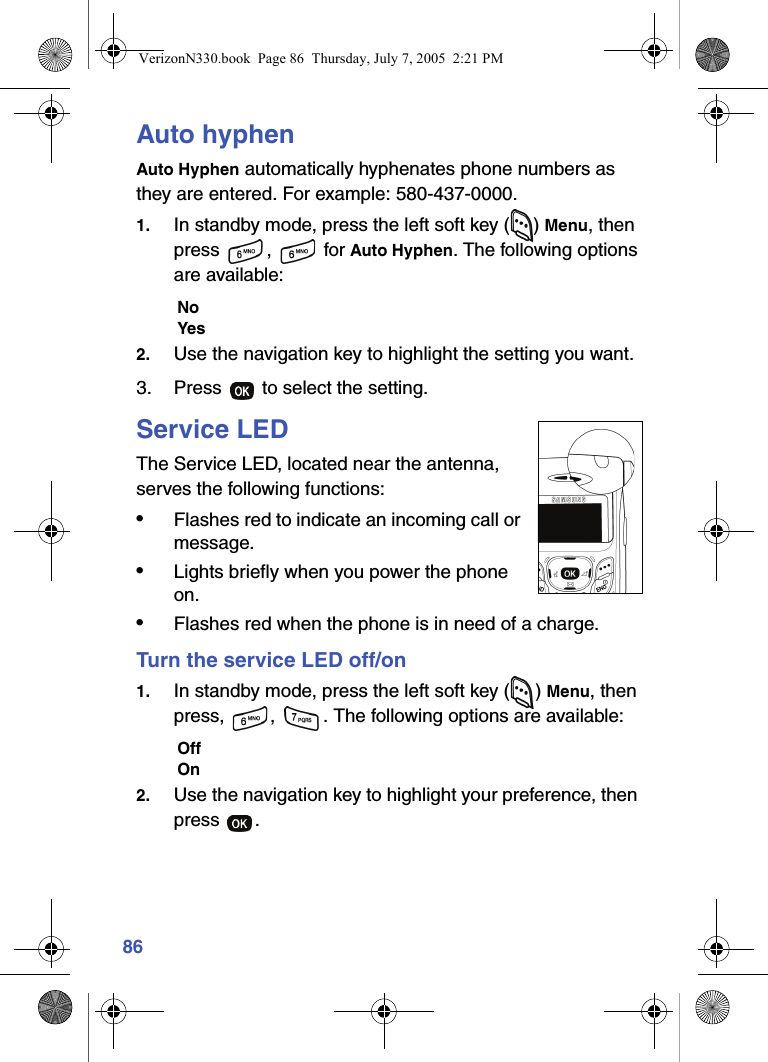
86Auto hyphenAuto Hyphen automatically hyphenates phone numbers as they are entered. For example: 580-437-0000.1. In standby mode, press the left soft key ( ) Menu, then press ,  for Auto Hyphen. The following options are available:NoYes2. Use the navigation key to highlight the setting you want.3. Press   to select the setting.Service LEDThe Service LED, located near the antenna, serves the following functions:•Flashes red to indicate an incoming call or message.•Lights briefly when you power the phone on.•Flashes red when the phone is in need of a charge.Turn the service LED off/on1. In standby mode, press the left soft key ( ) Menu, then press,  ,  . The following options are available:OffOn2. Use the navigation key to highlight your preference, then press .VerizonN330.book  Page 86  Thursday, July 7, 2005  2:21 PM
Sounds 87SoundsThe Sounds menu provides a variety of options to customize audio properties for such things as ringers, keypad tones, alerts, shut down sounds, and more.Vol./VibeTonz™The VibeTonz™ system brings the powerful sensation and realism of touch to your SCH-n330 handset, dramatically enhancing the quality of your communication experience. By providing the VT technology high fidelity touch sensations, the VibeTonz system allows you to interact with your phone in a way that fits your personal taste and lifestyle.Ringers enhanced by VibeTonz technology include a track of touch sensations synchronized to the music, making them more fun and identifiable.Use the Vol. /VibeTonz sub menu to set the default volume for incoming calls and alarms, or to set your phone to vibrate.1. In standby mode, press the left soft key ( ) Menu, then press  ,   for the Vol./VibeTonz sub menu.2. Use the navigation key to highlight Calls or Alarm, then press .VerizonN330.book  Page 87  Thursday, July 7, 2005  2:21 PM
883. Use the up and down volume keys to select the volume level (or vibrate mode) for the selected setting.Silent - No sound or vibration.1 Beep - Plays a single beep without vibration.VibeTonz - Plays only VibeTonz touch sensations without audio.Vib+Ring - Plays VibeTonz touch sensations first, then follows with audio.Vib&Ring - Plays VibeTonz touch sensations synchronized with audio track.4. Press   to save the setting.Ringer typeThe Ringer Type menu allows you to set a unique ring for voice calls, messages, data/fax, alarms, and schedule. As you change a ringer type, it plays so you can preview it.1. In standby mode, press the left soft key ( ) Menu, then press  ,   for the Ringer Type sub menu. The following ringer types appear in the display.CallsAlarmDataPlanner 2. Use the navigation key to highlight a ringer type, then press  . A pop-up menu displays with the following option:PreloadedMy Melody3. Choose Preloaded to preview sounds included with your phone, or choose My Melody to preview sounds you have downloaded and saved.VerizonN330.book  Page 88  Thursday, July 7, 2005  2:21 PM
Sounds 894. A list of bells and melodies appears in the display, each playing as it is highlighted.Ringers with VibeTonz tracks are highlighted with the   logo. 5. Use the navigation key to browse through available ring tones.6. When the desired ringer type plays, press   to save the setting.Key beepUse the Key Beep menu to adjust the tone volume that your keypad generates when you press a key.Key beep volume1. In standby mode, press the left soft key ( ) Menu, then press ,  for Key Beep. Volume is highlighted. 2. Press .3. Use the volume keys or the navigation key to set the volume level for keypad tones. A tone sounds as you increase or decrease the volume setting.4. Press   when the key beep volume setting you want displays. You’re returned to the Key Beep sub menu.Key beep tone length1. While in the Key Beep menu, use the navigation key to highlight Tone Length, then press  .2. Use the navigation key to highlight Long or Normal.3. Press   to save your settings.VerizonN330.book  Page 89  Thursday, July 7, 2005  2:21 PM
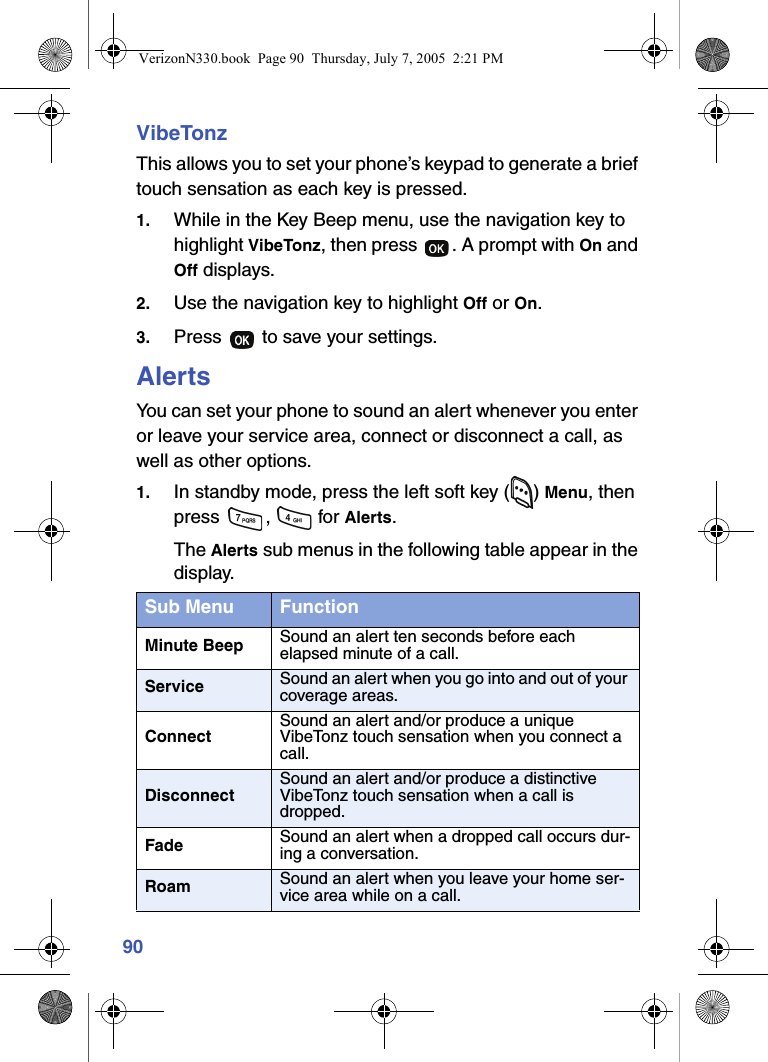
90VibeTonzThis allows you to set your phone’s keypad to generate a brief touch sensation as each key is pressed.1. While in the Key Beep menu, use the navigation key to highlight VibeTonz, then press  . A prompt with On and Off displays.2. Use the navigation key to highlight Off or On.3. Press   to save your settings.AlertsYou can set your phone to sound an alert whenever you enter or leave your service area, connect or disconnect a call, as well as other options.1. In standby mode, press the left soft key ( ) Menu, then press ,  for Alerts. The Alerts sub menus in the following table appear in the display.Sub Menu FunctionMinute Beep Sound an alert ten seconds before each elapsed minute of a call.Service Sound an alert when you go into and out of your coverage areas.ConnectSound an alert and/or produce a unique VibeTonz touch sensation when you connect a call.DisconnectSound an alert and/or produce a distinctive VibeTonz touch sensation when a call is dropped.Fade Sound an alert when a dropped call occurs dur-ing a conversation.Roam Sound an alert when you leave your home ser-vice area while on a call.VerizonN330.book  Page 90  Thursday, July 7, 2005  2:21 PM
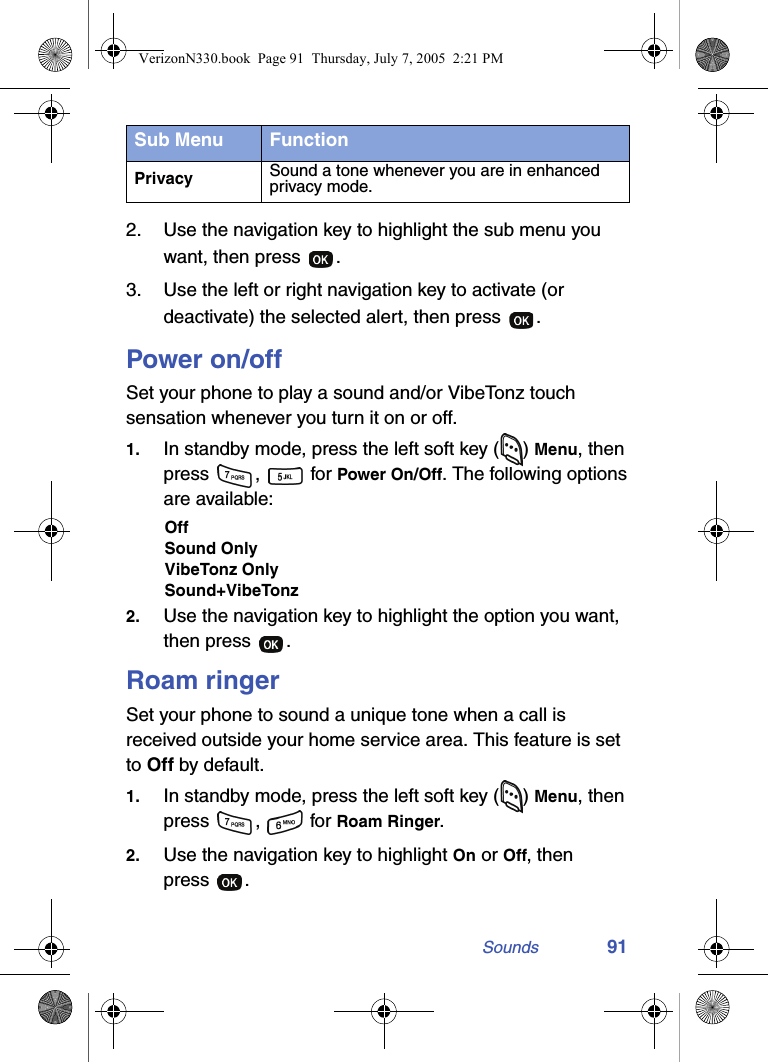
Sounds 912. Use the navigation key to highlight the sub menu you want, then press  .3. Use the left or right navigation key to activate (or deactivate) the selected alert, then press  .Power on/offSet your phone to play a sound and/or VibeTonz touch sensation whenever you turn it on or off.1. In standby mode, press the left soft key ( ) Menu, then press ,  for Power On/Off. The following options are available:OffSound OnlyVibeTonz OnlySound+VibeTonz2. Use the navigation key to highlight the option you want, then press  .Roam ringerSet your phone to sound a unique tone when a call is received outside your home service area. This feature is set to Off by default.1. In standby mode, press the left soft key ( ) Menu, then press ,  for Roam Ringer.2. Use the navigation key to highlight On or Off, then press .Privacy Sound a tone whenever you are in enhanced privacy mode.Sub Menu FunctionVerizonN330.book  Page 91  Thursday, July 7, 2005  2:21 PM
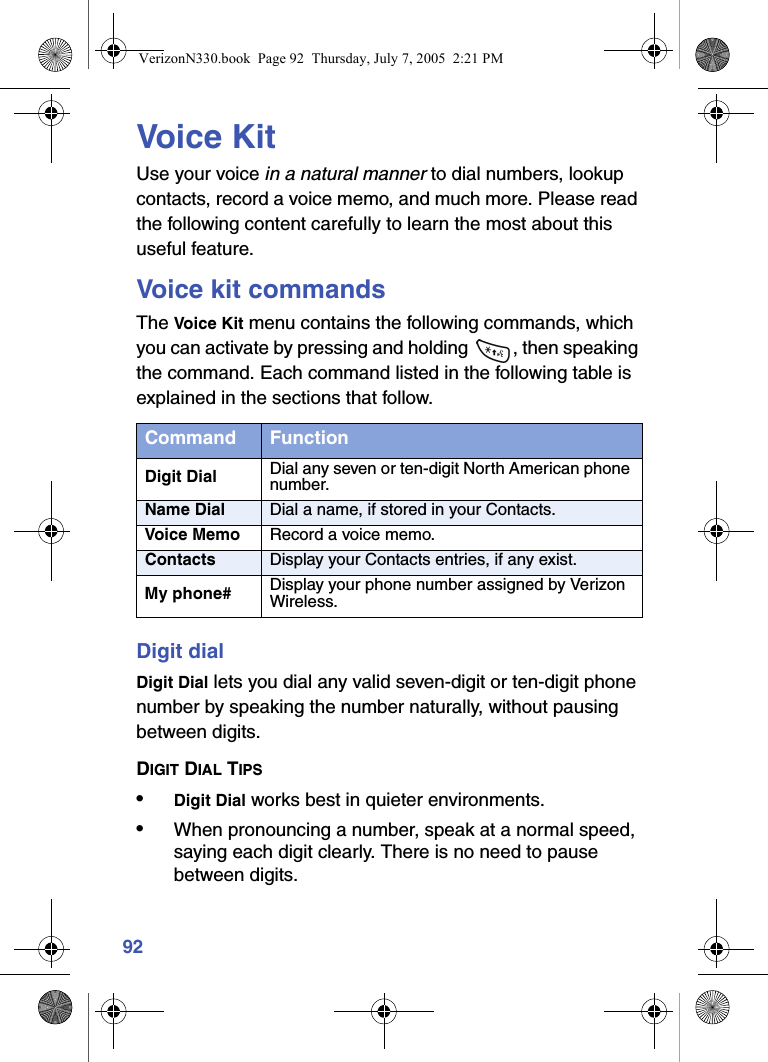
92Voice KitUse your voice in a natural manner to dial numbers, lookup contacts, record a voice memo, and much more. Please read the following content carefully to learn the most about this useful feature.Voice kit commandsThe Voice Kit menu contains the following commands, which you can activate by pressing and holding  , then speaking the command. Each command listed in the following table is explained in the sections that follow.Digit dialDigit Dial lets you dial any valid seven-digit or ten-digit phone number by speaking the number naturally, without pausing between digits.DIGIT DIAL TIPS•Digit Dial works best in quieter environments.•When pronouncing a number, speak at a normal speed, saying each digit clearly. There is no need to pause between digits.Command FunctionDigit Dial Dial any seven or ten-digit North American phone number.Name Dial Dial a name, if stored in your Contacts.Voice Memo Record a voice memo.Contacts Display your Contacts entries, if any exist.My phone# Display your phone number assigned by Verizon Wireless.VerizonN330.book  Page 92  Thursday, July 7, 2005  2:21 PM
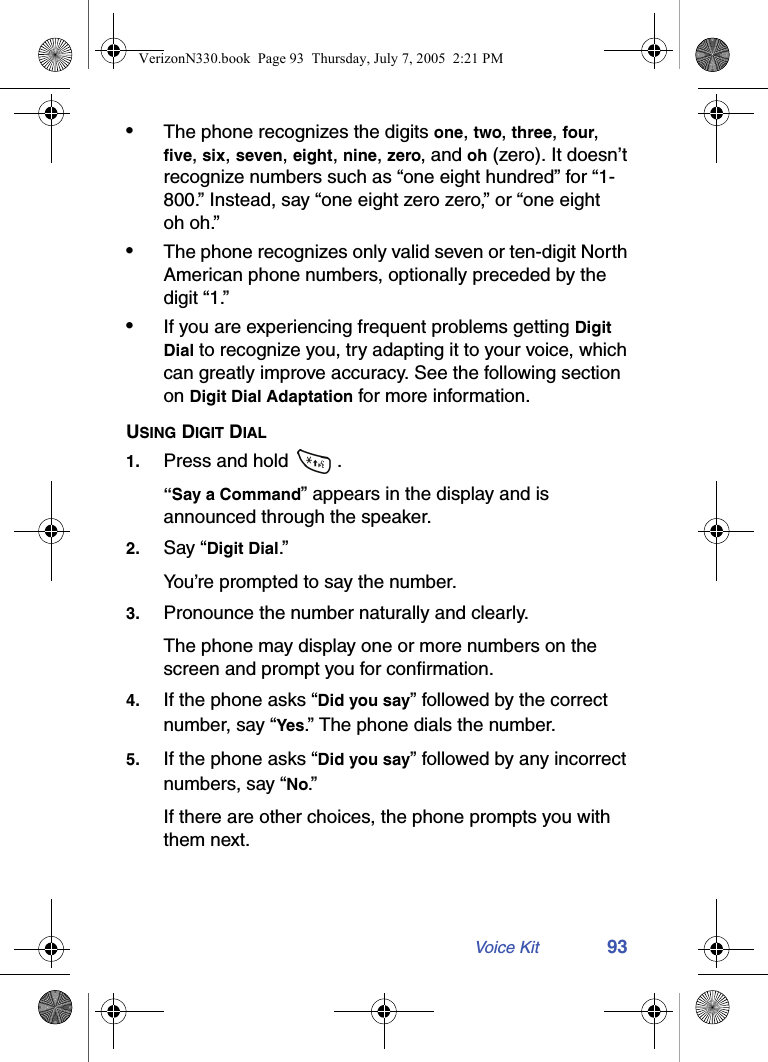
Voice Kit 93•The phone recognizes the digits one, two, three, four, five, six, seven, eight, nine, zero, and oh (zero). It doesn’t recognize numbers such as “one eight hundred” for “1-800.” Instead, say “one eight zero zero,” or “one eight oh oh.”•The phone recognizes only valid seven or ten-digit North American phone numbers, optionally preceded by the digit “1.”•If you are experiencing frequent problems getting Digit Dial to recognize you, try adapting it to your voice, which can greatly improve accuracy. See the following section on Digit Dial Adaptation for more information.USING DIGIT DIAL1. Press and hold  .“Say a Command” appears in the display and is announced through the speaker.2. Say “Digit Dial.” You’re prompted to say the number.3. Pronounce the number naturally and clearly. The phone may display one or more numbers on the screen and prompt you for confirmation.4. If the phone asks “Did you say” followed by the correct number, say “Yes.” The phone dials the number.5. If the phone asks “Did you say” followed by any incorrect numbers, say “No.”If there are other choices, the phone prompts you with them next.VerizonN330.book  Page 93  Thursday, July 7, 2005  2:21 PM
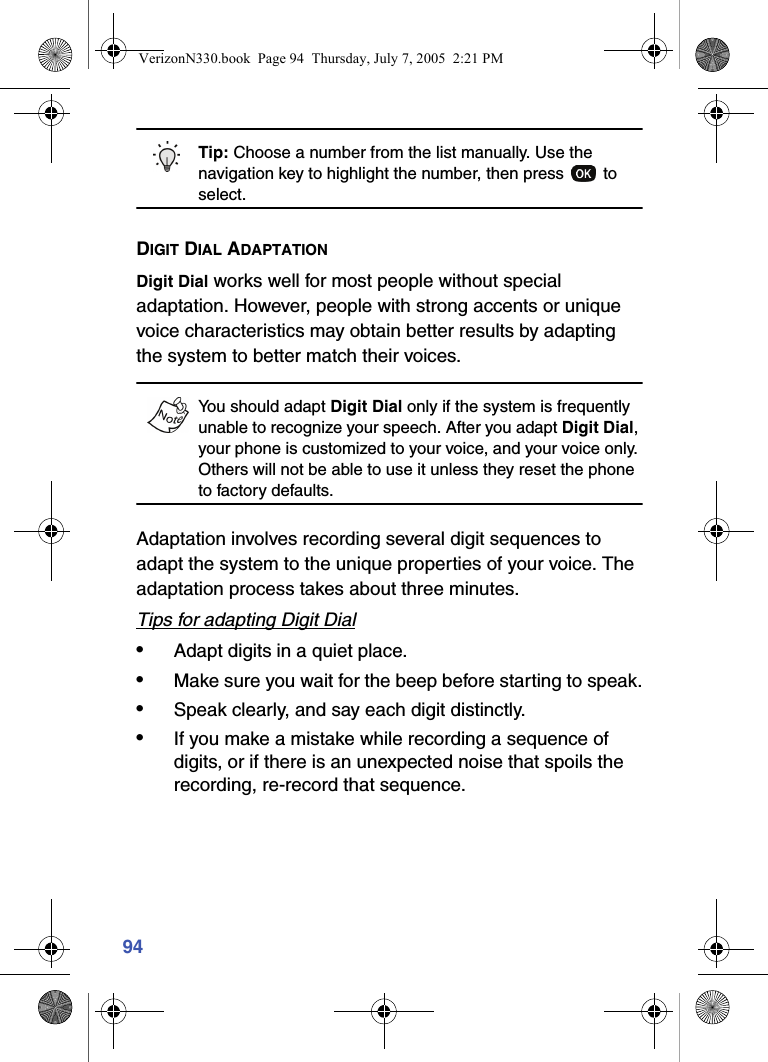
94Tip: Choose a number from the list manually. Use the navigation key to highlight the number, then press   to select.DIGIT DIAL ADAPTATIONDigit Dial works well for most people without special adaptation. However, people with strong accents or unique voice characteristics may obtain better results by adapting the system to better match their voices.You should adapt Digit Dial only if the system is frequently unable to recognize your speech. After you adapt Digit Dial, your phone is customized to your voice, and your voice only. Others will not be able to use it unless they reset the phone to factory defaults.Adaptation involves recording several digit sequences to adapt the system to the unique properties of your voice. The adaptation process takes about three minutes. Tips for adapting Digit Dial•Adapt digits in a quiet place.•Make sure you wait for the beep before starting to speak.•Speak clearly, and say each digit distinctly.•If you make a mistake while recording a sequence of digits, or if there is an unexpected noise that spoils the recording, re-record that sequence.VerizonN330.book  Page 94  Thursday, July 7, 2005  2:21 PM
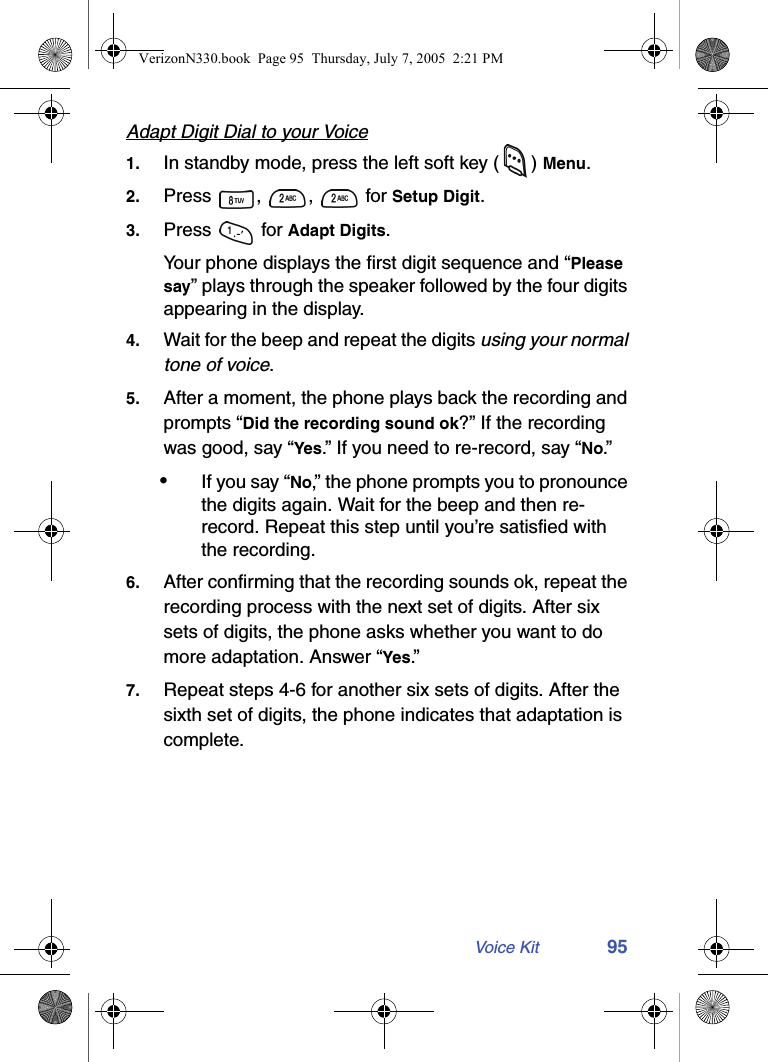
Voice Kit 95Adapt Digit Dial to your Voice1. In standby mode, press the left soft key ( ) Menu.2. Press , ,  for Setup Digit.3. Press  for Adapt Digits.Your phone displays the first digit sequence and “Please say” plays through the speaker followed by the four digits appearing in the display.4. Wait for the beep and repeat the digits using your normal tone of voice.5. After a moment, the phone plays back the recording and prompts “Did the recording sound ok?” If the recording was good, say “Yes.” If you need to re-record, say “No.”  •If you say “No,” the phone prompts you to pronounce the digits again. Wait for the beep and then re-record. Repeat this step until you’re satisfied with the recording.6. After confirming that the recording sounds ok, repeat the recording process with the next set of digits. After six sets of digits, the phone asks whether you want to do more adaptation. Answer “Yes.”7. Repeat steps 4-6 for another six sets of digits. After the sixth set of digits, the phone indicates that adaptation is complete.VerizonN330.book  Page 95  Thursday, July 7, 2005  2:21 PM
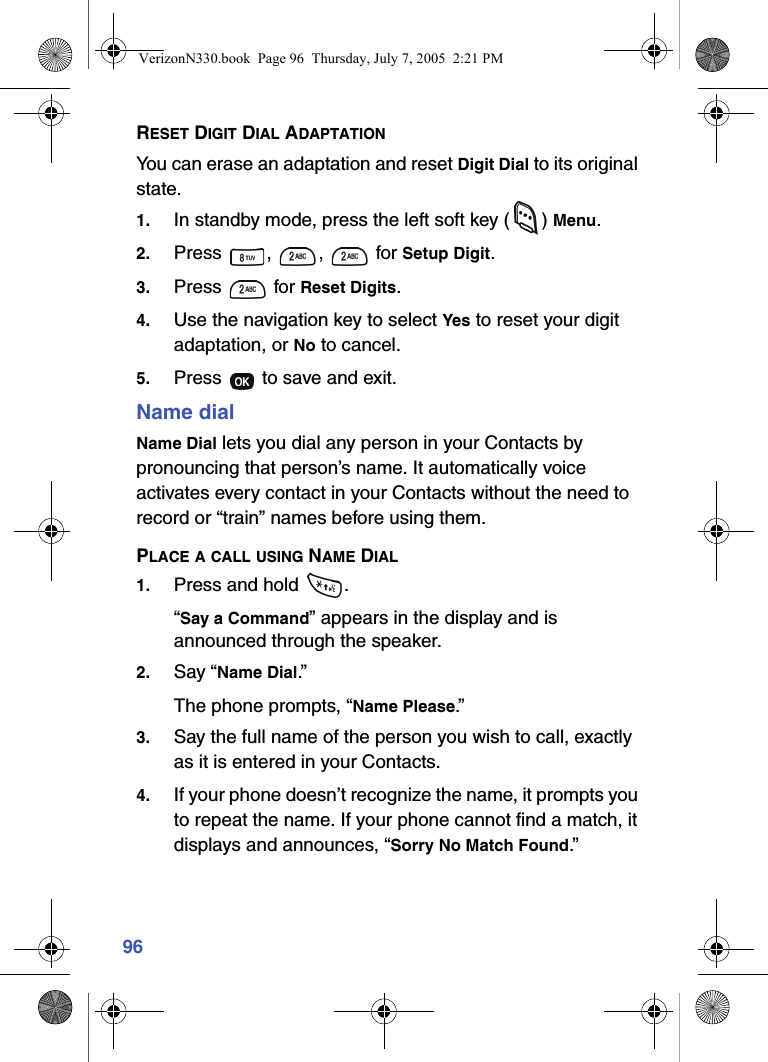
96RESET DIGIT DIAL ADAPTATIONYou can erase an adaptation and reset Digit Dial to its original state.1. In standby mode, press the left soft key ( ) Menu.2. Press , ,  for Setup Digit.3. Press  for Reset Digits.4. Use the navigation key to select Yes to reset your digit adaptation, or No to cancel.5. Press   to save and exit.Name dialName Dial lets you dial any person in your Contacts by pronouncing that person’s name. It automatically voice activates every contact in your Contacts without the need to record or “train” names before using them.PLACE A CALL USING NAME DIAL1. Press and hold  .“Say a Command” appears in the display and is announced through the speaker.2. Say “Name Dial.” The phone prompts, “Name Please.”3. Say the full name of the person you wish to call, exactly as it is entered in your Contacts.4. If your phone doesn’t recognize the name, it prompts you to repeat the name. If your phone cannot find a match, it displays and announces, “Sorry No Match Found.”VerizonN330.book  Page 96  Thursday, July 7, 2005  2:21 PM
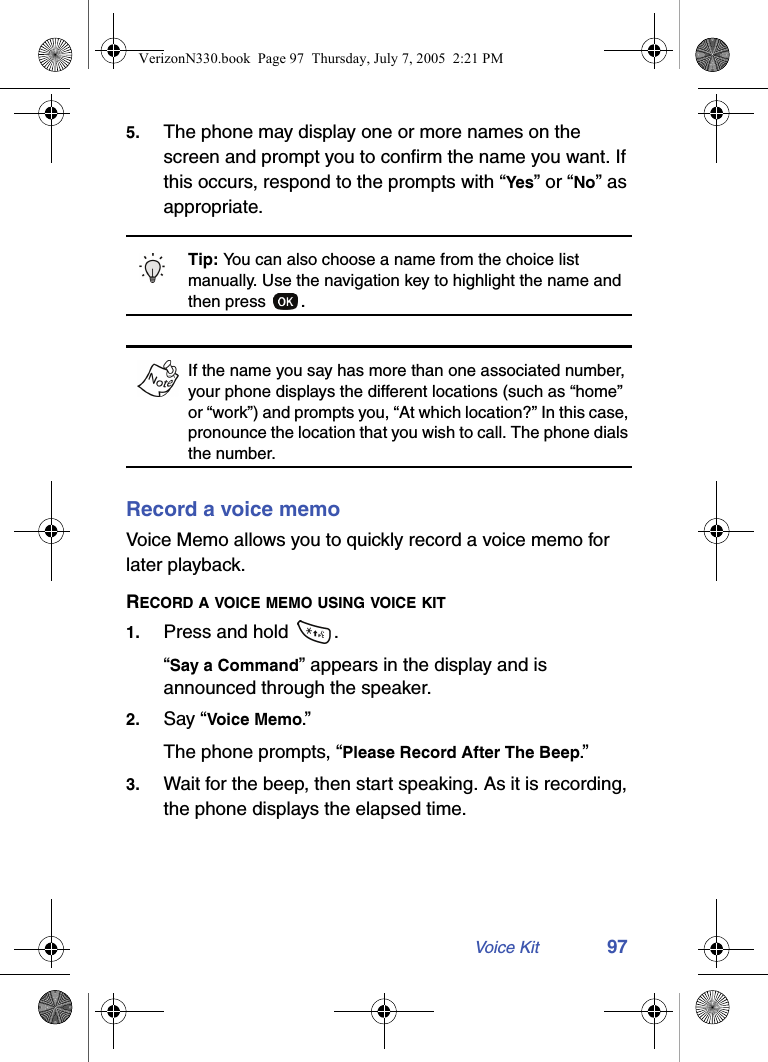
Voice Kit 975. The phone may display one or more names on the screen and prompt you to confirm the name you want. If this occurs, respond to the prompts with “Yes” or “No” as appropriate.Tip: You can also choose a name from the choice list manually. Use the navigation key to highlight the name and then press  .If the name you say has more than one associated number, your phone displays the different locations (such as “home” or “work”) and prompts you, “At which location?” In this case, pronounce the location that you wish to call. The phone dials the number.Record a voice memoVoice Memo allows you to quickly record a voice memo for later playback.RECORD A VOICE MEMO USING VOICE KIT1. Press and hold  .“Say a Command” appears in the display and is announced through the speaker.2. Say “Voice Memo.”The phone prompts, “Please Record After The Beep.”3. Wait for the beep, then start speaking. As it is recording, the phone displays the elapsed time.VerizonN330.book  Page 97  Thursday, July 7, 2005  2:21 PM
984. Press the right soft key ( ) Stop once you’re finished recording. A pop-up menu displays with Save highlighted.5. Press   to save your voice memo and return to the idle screen.For more information about the Voice Memo feature, see “Voice memo” on page 99.Display a contactTo display a contact using voice kit commands, follow these steps.DISPLAY A CONTACT USING VOICE KIT1. Press and hold  .“Say a Command” appears in the display and is announced through the speaker.2. Say “Contacts.”The phone prompts, “Name Please.”3. Say the full name of the person you want exactly as it is entered in your Contacts.4. If your phone doesn’t recognize the name, it prompts you to repeat the name. If your phone cannot find a match, it displays and announces, “Sorry No Match Found.”5. When your phone recognizes a match, it repeats the name and displays the information for the contact you requested.VerizonN330.book  Page 98  Thursday, July 7, 2005  2:21 PM
Voice Kit 99Display your phone numberTo display your phone number using voice kit commands, follow these steps.DISPLAY YOUR PHONE NUMBER USING VOICE KIT1. Press and hold  .“Say a Command” appears in the display and is pronounced through the speaker.2. Say “My phone number.”The phone displays and announces your phone number.3. Press   to exit.Voice memoYou can use the Voice kit feature to record a memo, or you can select the Voice Memo menu to record a memo for later playback. For more information on using the Voice kit to record a voice memo, see “Record a voice memo” on page 97.The maximum number of voice memos is 10. Record a memo using menus1. In standby mode, press the left soft key ( ) Menu.2. Press  ,  ,  . The phone prompts, “Please record after the beep.”3. Wait for the beep, then start speaking. As it is recording, the phone displays the elapsed time.VerizonN330.book  Page 99  Thursday, July 7, 2005  2:21 PM
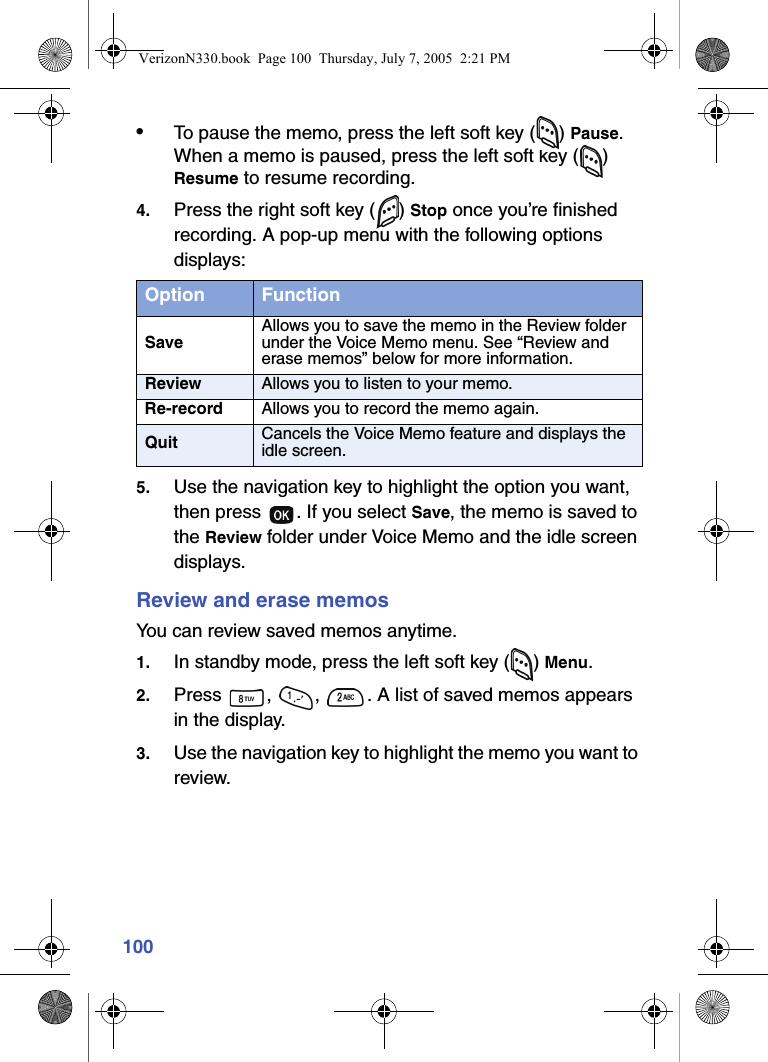
100•To pause the memo, press the left soft key ( ) Pause. When a memo is paused, press the left soft key ( ) Resume to resume recording.4. Press the right soft key ( ) Stop once you’re finished recording. A pop-up menu with the following options displays:5. Use the navigation key to highlight the option you want, then press  . If you select Save, the memo is saved to the Review folder under Voice Memo and the idle screen displays.Review and erase memosYou can review saved memos anytime. 1. In standby mode, press the left soft key ( ) Menu.2. Press  ,  ,  . A list of saved memos appears in the display.3. Use the navigation key to highlight the memo you want to review.Option FunctionSaveAllows you to save the memo in the Review folder under the Voice Memo menu. See “Review and erase memos” below for more information.Review Allows you to listen to your memo.Re-record Allows you to record the memo again.Quit Cancels the Voice Memo feature and displays the idle screen.VerizonN330.book  Page 100  Thursday, July 7, 2005  2:21 PM
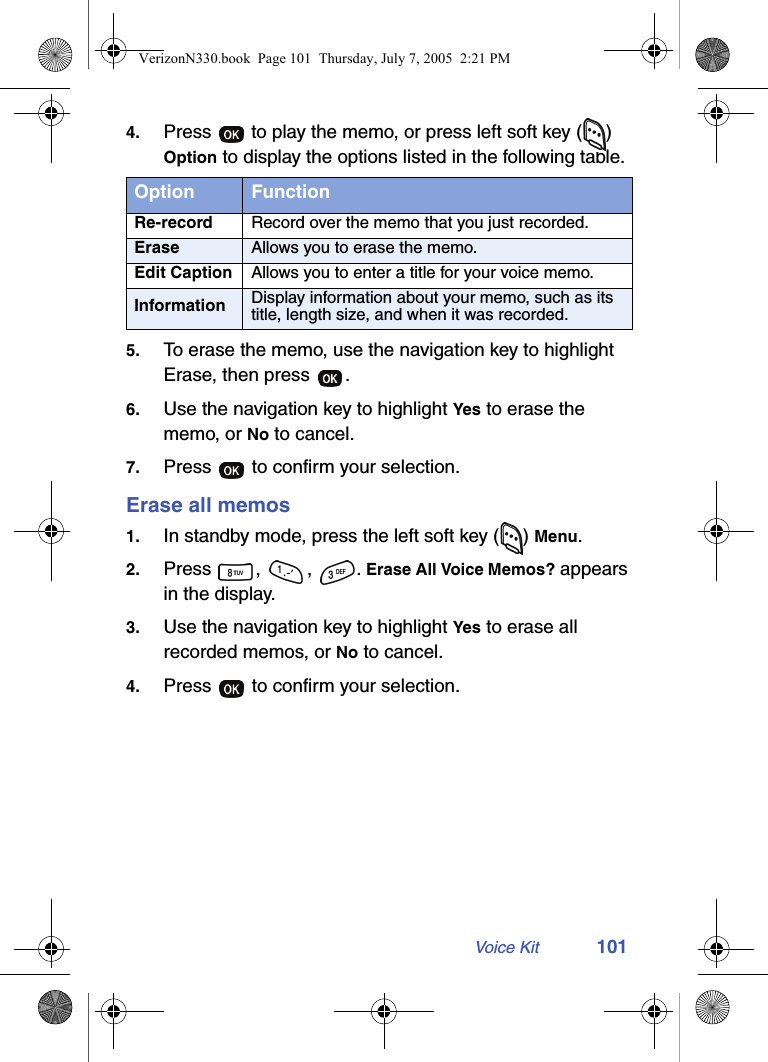
Voice Kit 1014. Press   to play the memo, or press left soft key ( ) Option to display the options listed in the following table.5. To erase the memo, use the navigation key to highlight Erase, then press  .6. Use the navigation key to highlight Yes to erase the memo, or No to cancel.7. Press   to confirm your selection.Erase all memos1. In standby mode, press the left soft key ( ) Menu.2. Press , , . Erase All Voice Memos? appears in the display.3. Use the navigation key to highlight Yes to erase all recorded memos, or No to cancel.4. Press   to confirm your selection.Option FunctionRe-record Record over the memo that you just recorded.Erase Allows you to erase the memo.Edit Caption Allows you to enter a title for your voice memo.Information Display information about your memo, such as its title, length size, and when it was recorded.VerizonN330.book  Page 101  Thursday, July 7, 2005  2:21 PM
102Voice setupTo set the key or action that launches your voice kit, follow these steps.1. In standby mode, press the left soft key ( ) Menu.2. Press , ,  . The Set Active menu displays, and the following options are available.[*] Only[*]/Slide Up[*]/EarMic3. Use the navigation key to highlight the option you want, then press   to save and exit.Your phone is initially set to [*], so that when you press and hold the   key, the voice kit commands are activated. If you select one of the other options, such as Slide Up or EarMic, your phone will launch the voice kit commands when you open the slide or when you attach the optional headphone set to your phone, as well as when you press and hold the   key.VerizonN330.book  Page 102  Thursday, July 7, 2005  2:21 PM
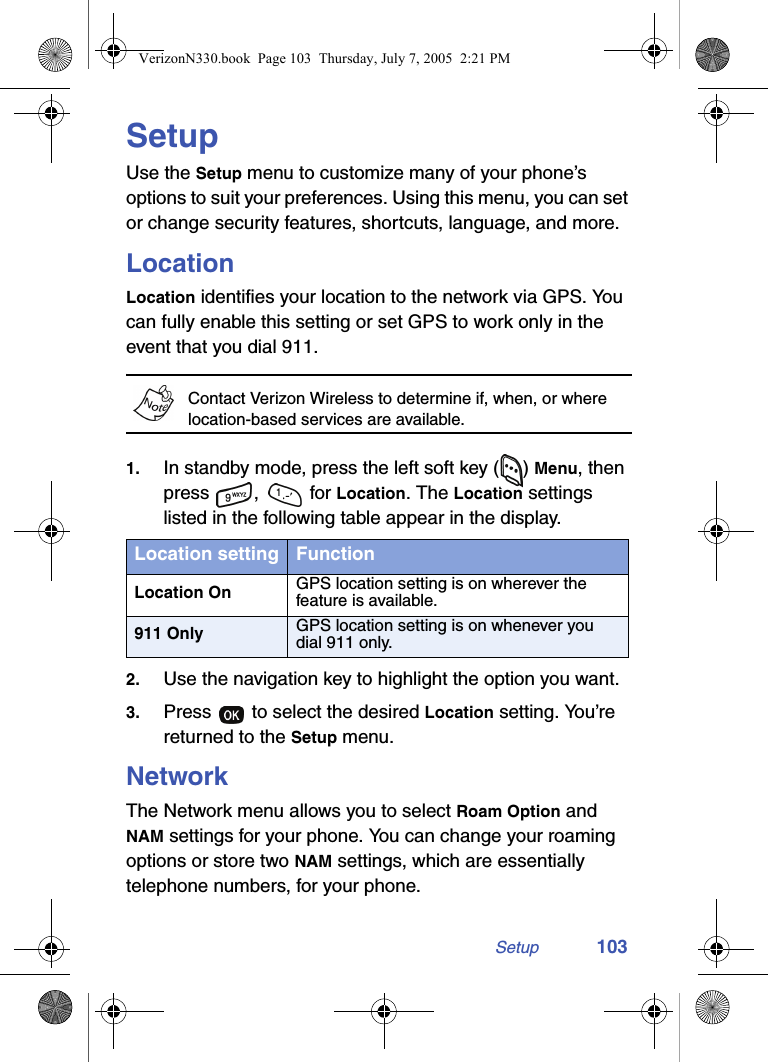
Setup 103SetupUse the Setup menu to customize many of your phone’s options to suit your preferences. Using this menu, you can set or change security features, shortcuts, language, and more.LocationLocation identifies your location to the network via GPS. You can fully enable this setting or set GPS to work only in the event that you dial 911.Contact Verizon Wireless to determine if, when, or where location-based services are available.1. In standby mode, press the left soft key ( ) Menu, then press ,  for Location. The Location settings listed in the following table appear in the display.2. Use the navigation key to highlight the option you want.3. Press   to select the desired Location setting. You’re returned to the Setup menu.NetworkThe Network menu allows you to select Roam Option and NAM settings for your phone. You can change your roaming options or store two NAM settings, which are essentially telephone numbers, for your phone.Location setting FunctionLocation On GPS location setting is on wherever the feature is available.911 Only GPS location setting is on whenever you dial 911 only.VerizonN330.book  Page 103  Thursday, July 7, 2005  2:21 PM
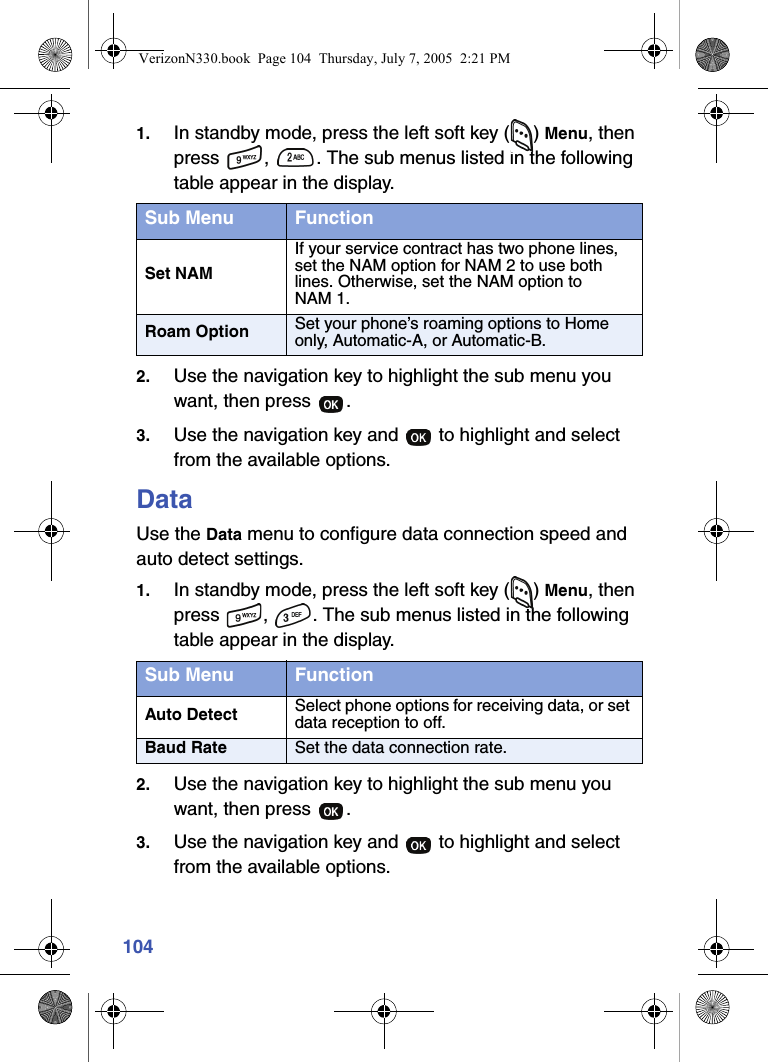
1041. In standby mode, press the left soft key ( ) Menu, then press  ,  . The sub menus listed in the following table appear in the display.2. Use the navigation key to highlight the sub menu you want, then press  .3. Use the navigation key and   to highlight and select from the available options.DataUse the Data menu to configure data connection speed and auto detect settings.1. In standby mode, press the left soft key ( ) Menu, then press  ,  . The sub menus listed in the following table appear in the display.2. Use the navigation key to highlight the sub menu you want, then press  .3. Use the navigation key and   to highlight and select from the available options.Sub Menu FunctionSet NAMIf your service contract has two phone lines, set the NAM option for NAM 2 to use both lines. Otherwise, set the NAM option to NAM 1.Roam Option Set your phone’s roaming options to Home only, Automatic-A, or Automatic-B.Sub Menu FunctionAuto Detect Select phone options for receiving data, or set data reception to off.Baud Rate Set the data connection rate.VerizonN330.book  Page 104  Thursday, July 7, 2005  2:21 PM
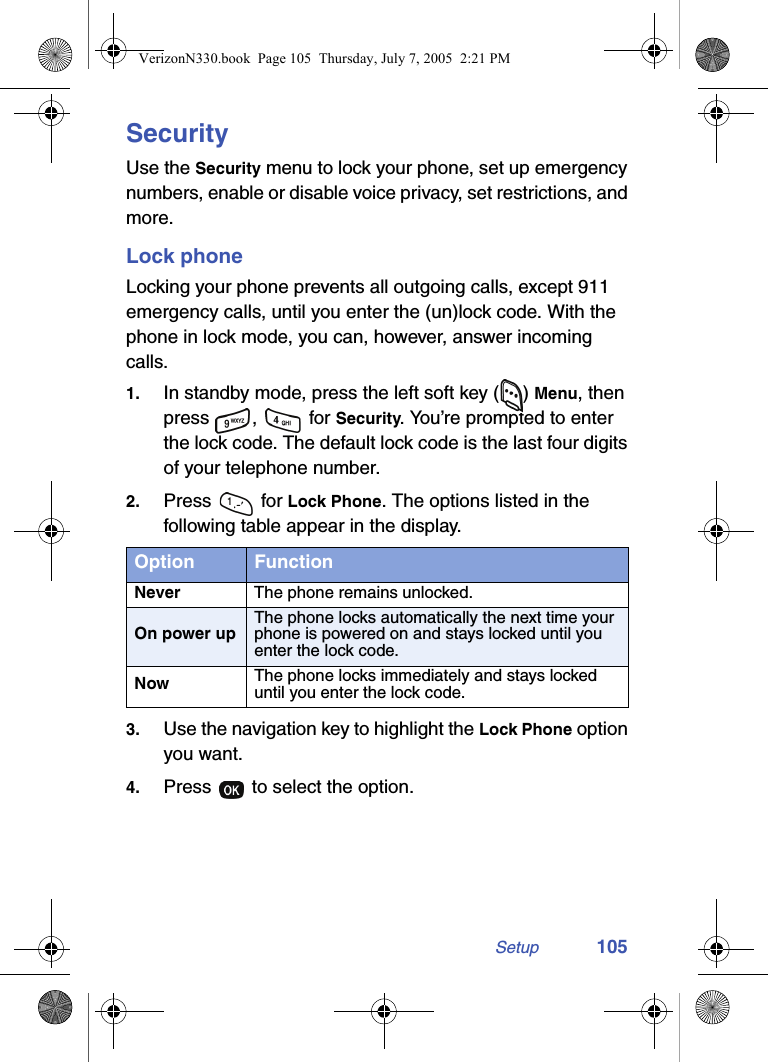
Setup 105SecurityUse the Security menu to lock your phone, set up emergency numbers, enable or disable voice privacy, set restrictions, and more.Lock phoneLocking your phone prevents all outgoing calls, except 911 emergency calls, until you enter the (un)lock code. With the phone in lock mode, you can, however, answer incoming calls.1. In standby mode, press the left soft key ( ) Menu, then press ,  for Security. You’re prompted to enter the lock code. The default lock code is the last four digits of your telephone number.2. Press  for Lock Phone. The options listed in the following table appear in the display.3. Use the navigation key to highlight the Lock Phone option you want. 4. Press   to select the option.Option FunctionNever The phone remains unlocked.On power upThe phone locks automatically the next time your phone is powered on and stays locked until you enter the lock code.Now The phone locks immediately and stays locked until you enter the lock code.VerizonN330.book  Page 105  Thursday, July 7, 2005  2:21 PM
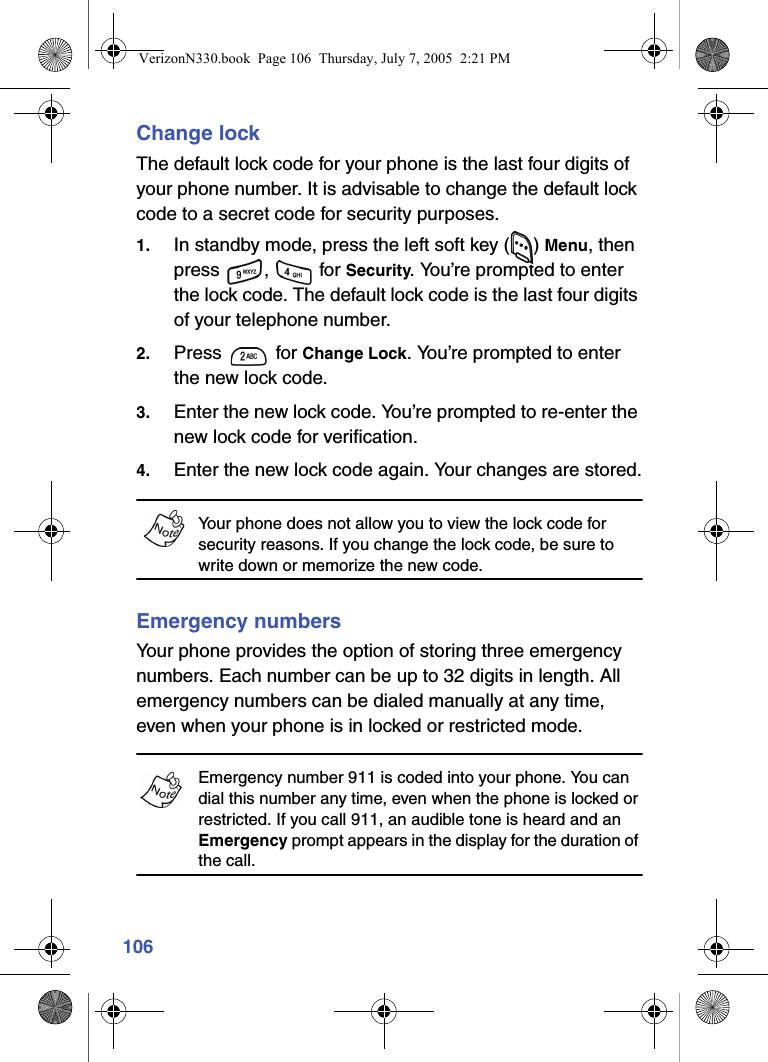
106Change lockThe default lock code for your phone is the last four digits of your phone number. It is advisable to change the default lock code to a secret code for security purposes.1. In standby mode, press the left soft key ( ) Menu, then press ,  for Security. You’re prompted to enter the lock code. The default lock code is the last four digits of your telephone number.2. Press  for Change Lock. You’re prompted to enter the new lock code.3. Enter the new lock code. You’re prompted to re-enter the new lock code for verification.4. Enter the new lock code again. Your changes are stored.Your phone does not allow you to view the lock code for security reasons. If you change the lock code, be sure to write down or memorize the new code.Emergency numbersYour phone provides the option of storing three emergency numbers. Each number can be up to 32 digits in length. All emergency numbers can be dialed manually at any time, even when your phone is in locked or restricted mode.Emergency number 911 is coded into your phone. You can dial this number any time, even when the phone is locked or restricted. If you call 911, an audible tone is heard and an Emergency prompt appears in the display for the duration of the call.VerizonN330.book  Page 106  Thursday, July 7, 2005  2:21 PM
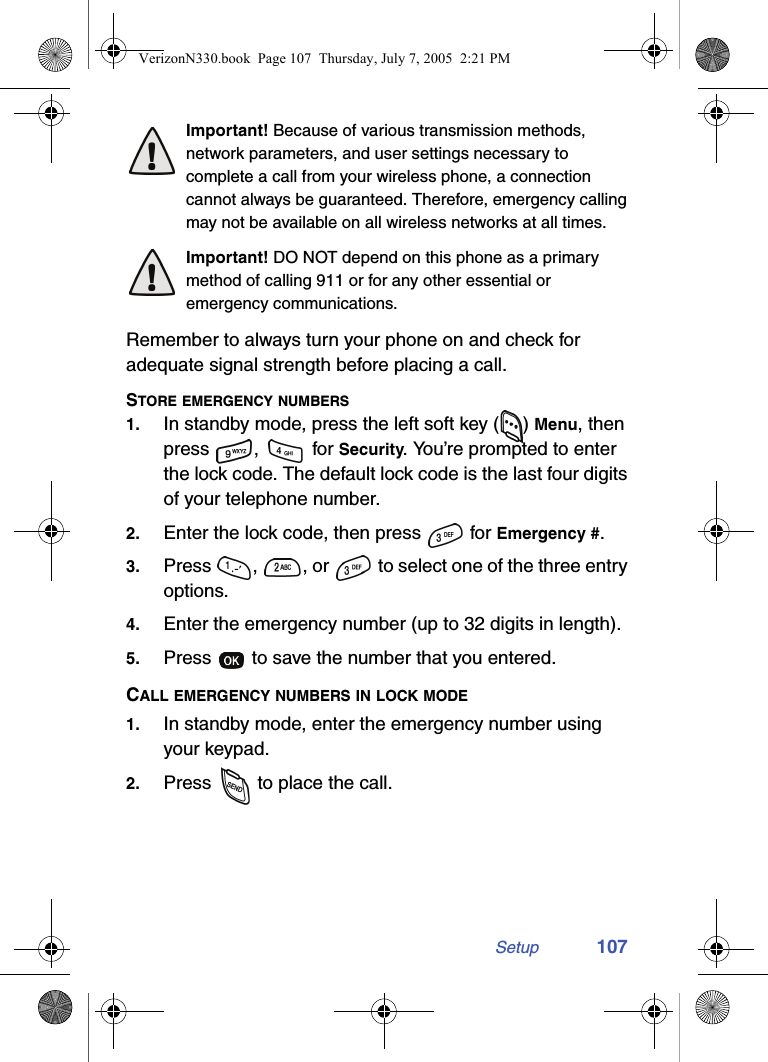
Setup 107Important! Because of various transmission methods, network parameters, and user settings necessary to complete a call from your wireless phone, a connection cannot always be guaranteed. Therefore, emergency calling may not be available on all wireless networks at all times.Important! DO NOT depend on this phone as a primary method of calling 911 or for any other essential or emergency communications. Remember to always turn your phone on and check for adequate signal strength before placing a call.STORE EMERGENCY NUMBERS1. In standby mode, press the left soft key ( ) Menu, then press ,  for Security. You’re prompted to enter the lock code. The default lock code is the last four digits of your telephone number.2. Enter the lock code, then press   for Emergency #.3. Press  ,  , or   to select one of the three entry options.4. Enter the emergency number (up to 32 digits in length).5. Press   to save the number that you entered.CALL EMERGENCY NUMBERS IN LOCK MODE1. In standby mode, enter the emergency number using your keypad.2. Press   to place the call.VerizonN330.book  Page 107  Thursday, July 7, 2005  2:21 PM
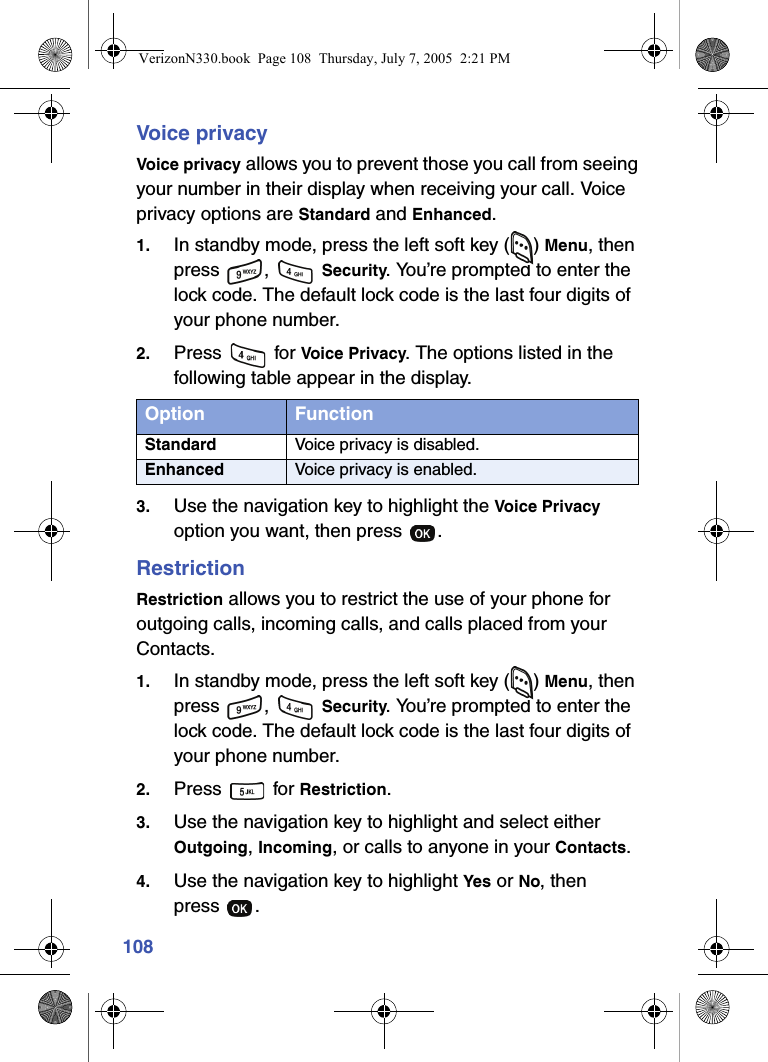
108Voice privacyVoice privacy allows you to prevent those you call from seeing your number in their display when receiving your call. Voice privacy options are Standard and Enhanced.1. In standby mode, press the left soft key ( ) Menu, then press ,  Security. You’re prompted to enter the lock code. The default lock code is the last four digits of your phone number.2. Press  for Voice Privacy. The options listed in the following table appear in the display.3. Use the navigation key to highlight the Voice Privacy option you want, then press  .RestrictionRestriction allows you to restrict the use of your phone for outgoing calls, incoming calls, and calls placed from your Contacts.1. In standby mode, press the left soft key ( ) Menu, then press ,  Security. You’re prompted to enter the lock code. The default lock code is the last four digits of your phone number.2. Press  for Restriction.3. Use the navigation key to highlight and select either Outgoing, Incoming, or calls to anyone in your Contacts.4. Use the navigation key to highlight Yes or No, then press .Option FunctionStandard Voice privacy is disabled.Enhanced Voice privacy is enabled.VerizonN330.book  Page 108  Thursday, July 7, 2005  2:21 PM
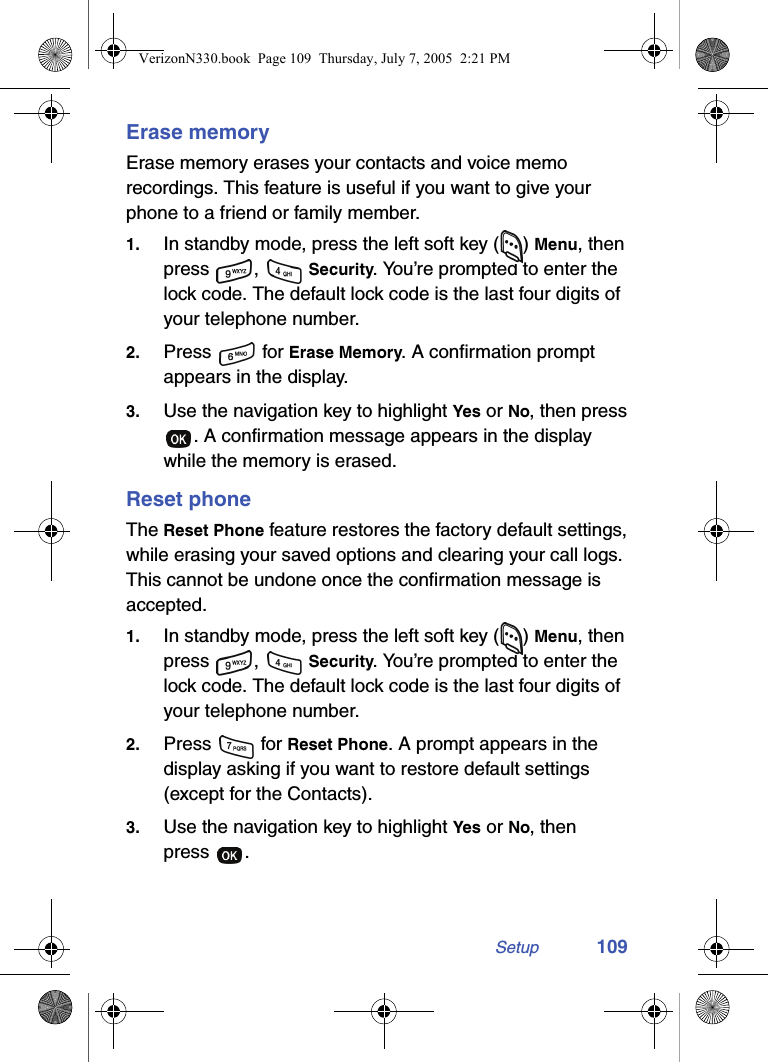
Setup 109Erase memoryErase memory erases your contacts and voice memo recordings. This feature is useful if you want to give your phone to a friend or family member.1. In standby mode, press the left soft key ( ) Menu, then press ,  Security. You’re prompted to enter the lock code. The default lock code is the last four digits of your telephone number.2. Press  for Erase Memory. A confirmation prompt appears in the display.3. Use the navigation key to highlight Yes or No, then press . A confirmation message appears in the display while the memory is erased.Reset phoneThe Reset Phone feature restores the factory default settings, while erasing your saved options and clearing your call logs. This cannot be undone once the confirmation message is accepted.1. In standby mode, press the left soft key ( ) Menu, then press ,  Security. You’re prompted to enter the lock code. The default lock code is the last four digits of your telephone number.2. Press   for Reset Phone. A prompt appears in the display asking if you want to restore default settings (except for the Contacts).3. Use the navigation key to highlight Yes or No, then press .VerizonN330.book  Page 109  Thursday, July 7, 2005  2:21 PM
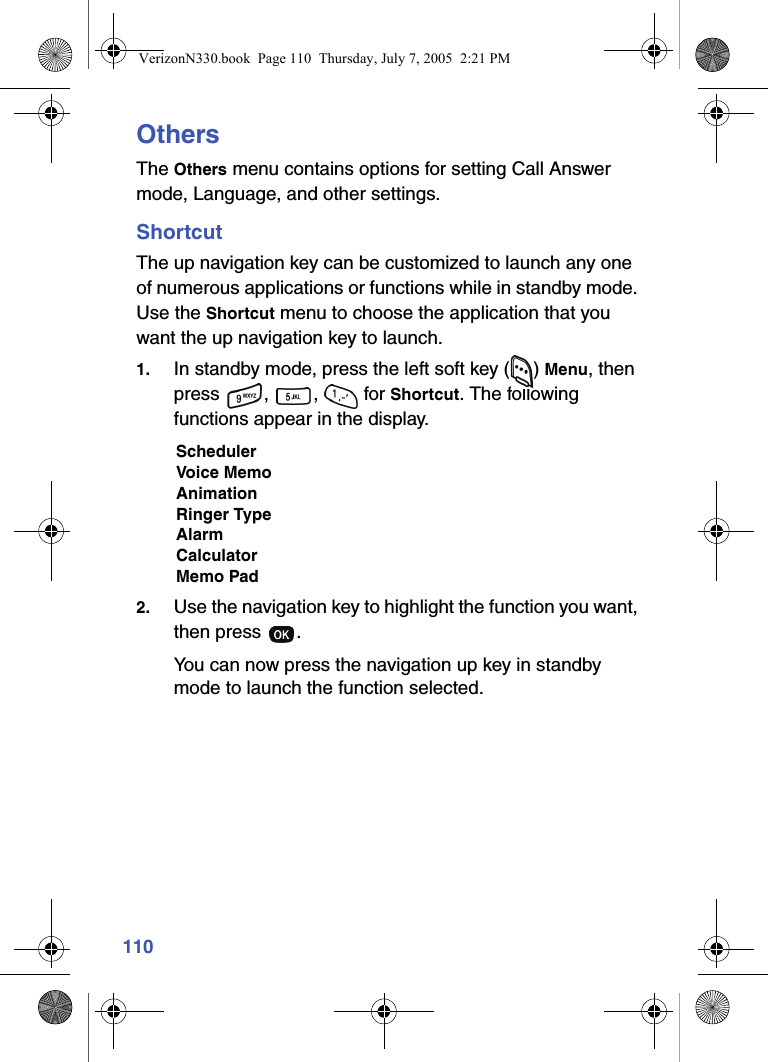
110OthersThe Others menu contains options for setting Call Answer mode, Language, and other settings.ShortcutThe up navigation key can be customized to launch any one of numerous applications or functions while in standby mode. Use the Shortcut menu to choose the application that you want the up navigation key to launch.1. In standby mode, press the left soft key ( ) Menu, then press , ,  for Shortcut. The following functions appear in the display.SchedulerVoice MemoAnimationRinger TypeAlarmCalculatorMemo Pad2. Use the navigation key to highlight the function you want, then press  . You can now press the navigation up key in standby mode to launch the function selected.VerizonN330.book  Page 110  Thursday, July 7, 2005  2:21 PM
Setup 111Call answerYou can select a specific answer mode when you receive an incoming call. Set your phone to any of the following options. • Send Key: Press   to answer an incoming call. • Send or Slide Up: Press   or open the slide to answer an incoming call. • Slide Up: Open the slide to answer an incoming call. • Any Key: Press any key except  to answer an incoming call.1. In standby mode, press the left soft key ( ) Menu, then press , ,  for Call Answer. The Call Answer menu appears in the display with the following options:Send KeySend or Slide UpSlide UpAny Key2. Use the navigation key to highlight the option you want to use for answering calls, then press  .Call endCall end allows you to set how you will end a call. Set your phone to one of the following options. • End Key Only: Press   to end a call. • Slide Down: Close the slide to end a call.1. In standby mode, press the left soft key ( ) Menu, then press , ,  for Call End. The Call End menu appears in the display with the following options:End Key OnlySlide DownVerizonN330.book  Page 111  Thursday, July 7, 2005  2:21 PM
1122. Use the navigation key to highlight the setting you want, then press  .Auto retryAuto Retry automatically re-dials a number if the call does not connect. Depending upon your location, the number of times your phone automatically dials the number may vary.1. In standby mode, press the left soft key ( ) Menu, then press , ,  for Auto Retry. The Auto Retry menu appears in the display with the following options.OffEvery 10 secEvery 30 secEvery 60 sec2. Use the navigation keys to highlight the setting you want, then press  .LanguageThe language option on your phone changes the language of voice prompts, menus, and key-input.1. In standby mode, press the left soft key ( ) Menu, then press , ,  for Language.The Language menu appears in the display with the following options.EnglishSpanish2. Use the navigation key to highlight your language preference, then press  .VerizonN330.book  Page 112  Thursday, July 7, 2005  2:21 PM
Setup 113Clock setUse the Clock Set menu to set the current date and time.1. In standby mode, press the left soft key ( ) Menu, then press , ,  for Clock Set.2. Enter the current time and date using your keypad. The month, day, hour and minute must be entered with 2 digits. The year requires all four digits, and you must enter the hour in 24-hour format.3. Press   to save the time and date.In digital service mode, the Main Clock feature is disabled. The network adjusts time and date automatically.VersionYou can view both the software and hardware version of your phone using this feature. This feature is helpful if you need to contact Customer Service.1. In standby mode, press the left soft key ( ) Menu, then press ,  for Version. Your phone’s hardware and software information appears in the display.2. Press   to return to the Setup menu.VerizonN330.book  Page 113  Thursday, July 7, 2005  2:21 PM
114TTY/TDDYour phone is fully TTY/TDD compatible. TTY/TDD equipment is connected to your phone through the headset connector on the left side of the phone. TTY/TDD must be enabled before you can use your phone with a TTY/TDD device.1. In standby mode, press the left soft key ( ) Menu, then press ,  . TTY/TDD Lock appears in the display.2. Enter the lock code. The default is  ,  ,  ,  (or #TTY). TTY Full and TTY Off appear in the display.3. Use the navigation key to highlight your selection, then press  . You’re returned to the Sounds menu.The TTY icon ( ) appears in the top of the display when the phone is in standby mode.VerizonN330.book  Page 114  Thursday, July 7, 2005  2:21 PM
Usage guidelines: all about performance and safety 115Usage guidelines: all about performance and safetyGetting the most out of your receptionThe quality of each call you make or receive depends on the signal strength in your area. Your phone informs you of the current signal strength by displaying a number of bars next to the signal strength icon. The more bars displayed, the stronger the signal.If you’re inside a building, being near a window may give you better reception.Understanding the Power Save FeatureIf your phone is unable to find a signal after 15 minutes of searching, a Power Save feature is automatically activated. If your phone is active, it periodically rechecks service availability or you can check it yourself by pressing any key. Anytime the Power Save feature is activated, a message displays on the screen. When a signal is found, your phone returns to standby mode. Understanding How Your Phone OperatesYour phone is basically a radio transmitter and receiver. When it’s turned on, it receives and transmits radio frequency (RF) signals. When you use your phone, the system handling your call controls the power level. This power can range from 0.006 watts to 0.2 watts in digital mode.VerizonN330.book  Page 115  Thursday, July 7, 2005  2:21 PM
116Knowing Radio Frequency SafetyThe design of your phone complies with updated NCRP standards described below.In 1991-92, the Institute of Electrical and Electronics Engineers (IEEE) and the American National Standards Institute (ANSI) joined in updating ANSI’s 1982 standard for safety levels with respect to human exposure to RF signals. More than 120 scientists, engineers and physicians from universities, government health agencies and industries developed this updated standard after reviewing the available body of research. In 1993, the Federal Communications Commission (FCC) adopted this updated standard in a regulation. In August 1996, the FCC adopted hybrid standard consisting of the existing ANSI/IEEE standard and the guidelines published by the National Council of Radiation Protection and Measurements (NCRP).Maintaining Your Phone’s Peak PerformanceFor the best care of your phone, only authorized personnel should service your phone and accessories. Faulty service may void the warranty.There are several simple guidelines to operating your phone properly and maintaining safe, satisfactory service. •Hold the phone with the antenna raised, fully-extended and over your shoulder.•Try not to hold, bend or twist the phone’s antenna.•Don’t use the phone if the antenna is damaged.•Speak directly into the phone’s receiver. VerizonN330.book  Page 116  Thursday, July 7, 2005  2:21 PM
Usage guidelines: all about performance and safety 117•Avoid exposing your phone and accessories to rain or liquid spills. If your phone does get wet, immediately turn the power off and remove the battery. If it is inoperable, return it to Verizon Wireless or call Customer Care for service.Maintaining safe use and access to your phoneFAILURE TO FOLLOW THE INSTRUCTIONS OUTLINED MAY LEAD TO SERIOUS PERSONAL INJURY AND POSSIBLE PROPERTY DAMAGEIMPORTANT SAFETY INSTRUCTIONS - SAVE THESE INSTRUCTIONS.DANGER - TO REDUCE THE RISK OF FIRE OR ELECTRIC SHOCK, CAREFULLY FOLLOW THESE INSTRUCTIONS.FOR CONNECTION TO A SUPPLY NOT IN THE U.S.A., USE AN ATTACHMENT PLUG ADAPTOR OF THE PROPER CONFIGURATION FOR THE POWER OUTLET.10 Driver Safety TipsYour wireless telephone gives you the powerful ability to communicate by voice - almost anywhere, anytime. But an important responsibility accompanies the benefits of wireless phones, one that every user must uphold.When driving a car, driving is your first responsibility. When using your wireless phone behind the wheel of a car, practice good common sense and remember the following tips:1. Get to know your wireless phone and its features such as speed dial and redial. If available, these features help you to place your call without taking your attention off the road.VerizonN330.book  Page 117  Thursday, July 7, 2005  2:21 PM
1182. When available, use a hands free device. If possible, add an additional layer of convenience and safety to your wireless phone with one of the many hands free accessories available today. Please Note: Hands free devices are required by law in some areas. You are solely responsible for ensuring that your phone use complies with all applicable laws.3. Position your wireless phone within easy reach. Be able to access your wireless phone without removing your eyes from the road. If you get an incoming call at an inconvenient time, if possible, let your voice mail answer it for you.4. Let the person you are speaking with know you are driving; if necessary, suspend the call in heavy traffic or hazardous weather conditions. Rain, sleet, snow, ice, and even heavy traffic can be hazardous.5. Do not take notes or look up phone numbers while driving. Jotting down a “to do” list or flipping through your address book takes attention away from your primary responsibility, driving safely.6. Dial sensibly and assess the traffic; if possible, place calls when you are not moving or before pulling into traffic. Try to plan calls when your car will be stationary. If you need to make a call while moving, dial only a few numbers, check the road and your mirrors, then continue.7. Do not engage in stressful or emotional conversations that may be distracting. Make people you are talking with aware you are driving and suspend conversations that have the potential to divert your attention from the road.VerizonN330.book  Page 118  Thursday, July 7, 2005  2:21 PM
Usage guidelines: all about performance and safety 1198. Use your wireless phone to call for help. Dial 9-1-1 or other local emergency number in the case of fire, traffic accident or medical emergencies. Remember, it is a free call on your wireless phone!9. Use your wireless phone to help others in emergencies. If you see an auto accident, crime in progress or other serious emergency where lives are in danger, call 9-1-1 or other local emergency number, as you would want others to do for you.10. Call roadside assistance or a special non-emergency wireless assistance number when necessary. If you see a broken-down vehicle posing no serious hazard, a broken traffic signal, a minor traffic accident where no on appears injured, or a vehicle you know to be stolen, call roadside assistance or other special non-emergency number.Following Safety GuidelinesAlways turn off the phone in health care facilities and request permission before using the phone near medical equipment.To operate your phone safely and efficiently, always follow any special regulations in a given area. Turn your phone off in areas where use is forbidden or when it may cause interference or danger.Using Your Phone Near Other Electronic DevicesMost modern electronic equipment is shielded from radio frequency (RF) signals. However, RF signals from wireless phones may affect inadequately shielded electronic equipment.VerizonN330.book  Page 119  Thursday, July 7, 2005  2:21 PM
120RF signals may affect improperly installed or inadequately shielded electronic operating systems and/or entertainment systems in motor vehicles. Check with the manufacturer or their representative to determine if these systems are adequately shielded from external RF signals. Also check with the manufacturer regarding any equipment that has been added to your vehicle.Consult the manufacturer of any personal medical devices, such as pacemakers and hearing aids, to determine if they are adequately shielded from external RF signals.Turning Off Your Phone Before FlyingTurn off your phone before boarding any aircraft. To prevent possible interference with aircraft systems, the U.S. Federal Aviation Administration (FAA) regulations require you to have permission from a crew member to use your phone while the plane is on the ground. To prevent any risk of interference, FCC regulations prohibit using your phone while the plane is in the air.Turning Off Your Phone in Dangerous AreasTo avoid interfering with blasting operations, turn off your phone when in a blasting area or in other areas with signs indicating that two-way radios should be turned off. Construction crews often use remote-control RF devices to set off explosives.Never transport or store flammable gas, liquid or explosives in the compartment of your vehicle that contains your phone or accessories.VerizonN330.book  Page 120  Thursday, July 7, 2005  2:21 PM
Usage guidelines: all about performance and safety 121Turn off your phone when you’re in any area that has a potentially explosive atmosphere. Although it’s rare, your phone or its accessories could generate sparks. Sparks could cause an explosion or a fire resulting in bodily injury or even death. These areas are often, but not always, clearly marked. They include:•Fueling areas such as gas stations.•Below deck on boats.•Fuel or chemical transfer or storage facilities.•Areas where the air contains chemicals or particles such as grain, dust or metal powders.•Any other area where you would normally be advised to turn off your vehicle’s engine.Restricting Children’s Access to your PhoneYour phone is not a toy. Children should not be allowed to play with it because they could hurt themselves and others, damage the phone or make calls that increase your phone bill.Caring for the batteryThe guidelines listed below help you get the most out of your battery’s performance.•Use only Samsung-approved batteries and desktop chargers. These chargers are designed to maximize battery life. Using other batteries or chargers voids your warranty and may cause damage.•In order to avoid damage, charge the battery only in temperatures that range from 32º F to 104º F (0º C to 40º C).•Don’t use the battery charger in direct sunlight or in high humidity areas, such as the bathroom.VerizonN330.book  Page 121  Thursday, July 7, 2005  2:21 PM
122•Never dispose of the battery by incineration.•Keep the metal contacts on top of the battery clean.•Don’t attempt to disassemble or short-circuit the battery.•The battery may need recharging if it has not been used for a long period of time.•It’s best to replace the battery when it no longer provides acceptable performance. It can be recharged hundreds of times before it needs replacing.Don’t store the battery in high temperature areas for long periods of time. It’s best to follow these storage rules:Less than one month:32º F to 131º F (0º C to 55º C)More than one month:32º F to 104º F (0º C to 40º C)Disposal of Lithium Ion (Li-Ion) BatteriesFor safety, do not handle a damaged or leaking Li-Ion battery.For safe disposal options of your Li-Ion batteries, contact your nearest Samsung-authorized service center. Special Note: Be sure to dispose of your battery properly. In some areas, the disposal of batteries in household or business trash may be prohibited.VerizonN330.book  Page 122  Thursday, July 7, 2005  2:21 PM
Usage guidelines: all about performance and safety 123Special precautions and FCC noticesFCC NoticeThe phone may cause TV or radio interference if used in close proximity to receiving equipment. The FCC can require you to stop using the phone if such interference cannot be eliminated.Vehicles using liquefied petroleum gas (such as propane or butane) must comply with the National Fire Protection Standard (NFPA-58). For a copy of this standard, contact the National Fire Protection Association, One Batterymarch Park, Quincy, MA 02269, Attn: Publication Sales Division.CautionsAny changes or modifications to your phone not expressly approved in this document could void your warranty for this equipment, and void your authority to operate this equipment. Only use approved batteries, antennas and chargers. The use of any unauthorized accessories may be dangerous and void the phone warranty if said accessories cause damage or a defect to the phone.Although your phone is quite sturdy, it is a complex piece of equipment and can be broken. Avoid dropping, hitting, bending or sitting on it.Body-Worn OperationTo maintain compliance with FCC RF exposure guidelines, if you wear a handset on your body, use the Samsung supplied or approved carrying case, holster or other body-worn accessory. If you do not use a body-worn accessory, ensure that the antenna is at least one inch (2.5 centimeters) from your body when transmitting. Use of non- Samsung approved accessories may violate FCC RF exposure guidelines.VerizonN330.book  Page 123  Thursday, July 7, 2005  2:21 PM
124For more information about RF exposure, please visit the FCC website at www.fcc.gov.This Model Phone Meets The Government’s Requirements For Exposure To Radio Waves.Your wireless phone is a radio transmitter and receiver. It is designed and manufactured not to exceed the emission limits for exposure to radio frequency (RF) energy set by the Federal Communications Commission of the U.S. Government.These limits are part of comprehensive guidelines and establish permitted levels of RF energy for the general population. The guidelines are based on standards that were developed by independent scientific organizations through periodic and thorough evaluation of scientific studies. The standards include a substantial safety margin designed to assure the safety of all persons, regardless of age and health.The exposure standard for wireless mobile phones employs a unit of measurement known as the Specific Absorption Rate, or SAR. The SAR limit set by the FCC is 1.6W/kg.* Tests for SAR are conducted using standard operating positions specified by the FCC with the phone transmitting at its highest certified power level in all tested frequency bands. Although the SAR is determined at the highest certified power level, the actual SAR level of the phone while operating can be well below the maximum value. This is because the phone is designed to operate at multiple power levels so as to use only the power required to reach the network. In general, the closer you are to a wireless base station antenna, the lower the power output.VerizonN330.book  Page 124  Thursday, July 7, 2005  2:21 PM
Usage guidelines: all about performance and safety 125Before a phone model is available for sale to the public, it must be tested and certified to the FCC that it does not exceed the limit established by the government adopted requirement for safe exposure. The tests are performed in positions and locations (e.g., at the ear and worn on the body) as required by the FCC for each model. The highest SAR value for this model phone when tested for use at the ear is 1.26 W/kg and when worn on the body, as described in this user guide, the highest SAR value is 1.31 W/kg (Body-worn measurements differ among phone models, depending upon available accessories and FCC requirements). While there may be differences between the SAR levels of various phones and at various positions, they all meet the government requirement for safe exposure. The FCC has granted an Equipment Authorization for this model phone with all reported SAR levels evaluated as in compliance with the FCC RF emission guidelines. SAR information on this model phone is on file with the FCC and can be found under the Display Grant section of http://www.fcc.gov/oet/fccid after searching on FCC ID A3LSCHN330.In the United States and Canada, the SAR limit for mobile phones used by the public is 1.6 watts/kg (W/kg) averaged over one gram of tissue. The standard incorporates a substantial margin of safety to give additional protection for the public and to account for any variations in measurements.Additional information on Specific Absorption Rates (SAR) can be found on the Cellular Telecommunications Industry Association (CTIA) web-site at http://www.wow-com.com.VerizonN330.book  Page 125  Thursday, July 7, 2005  2:21 PM
126FDA consumer updateDo wireless phones pose a health hazard?The available scientific evidence does not show that any health problems are associated with using wireless phones. There is no proof, however, that wireless phones are absolutely safe. Wireless phones emit low levels of radio frequency energy (RF) in the microwave range while being used. They also emit very low levels of RF when in stand-by mode. Whereas high levels of RF can produce health effects (by heating tissue), exposure to low level RF that does not produce heating effects causes no known adverse health effects. Many studies of low level RF exposures have not found any biological effects. Some studies have suggested that some biological effects may occur, but such findings have not been confirmed by additional research. In some cases, other researchers have had difficulty in reproducing those studies, or in determining the reasons for inconsistent results.What is FDA’s role concerning the safety of wireless phones?Under the law, FDA does not review the safety of radiation-emitting consumer products such as wireless phones before they can be sold, as it does with new drugs or medical devices. However, the agency has authority to take action if wireless phones are shown to emit radio frequency energy (RF) at a level that is hazardous to the user. In such a case, FDA could require the manufacturers of wireless phones to notify users of the health hazard and to repair, replace or recall the phones so that the hazard no longer exists.VerizonN330.book  Page 126  Thursday, July 7, 2005  2:21 PM
Usage guidelines: all about performance and safety 127Although the existing scientific data do not justify FDA regulatory actions, FDA has urged the wireless phone industry to take a number of steps, including the following:•Support needed research into possible biological effects of RF of the type emitted by wireless phones;•Design wireless phones in a way that minimizes any RF exposure to the user that it is not necessary for device function; and•Cooperate in providing users of wireless phones with the best possible information on possible effects of wireless phone use on human health.FDA belongs to a interagency working group of the federal agencies that have responsibility for different aspects of RF safety to ensure coordinated efforts at the federal level. The following agencies belong to this working group:•National Institute for Occupational Safety and Health•Environmental Protection Agency•Federal Communications Committee•Occupational Safety and Health AdministrationThe National Institutes of Health participates in some interagency working group activities, as well.FDA shares regulatory responsibilities about wireless phones with the Federal Communications Commission (FCC). All phones that are sold in the United States must comply with FCC safety guidelines that limit RF exposure. FCC relies on FDA and other health agencies for safety questions about wireless phones.FCC also regulates the base stations that the wireless phone networks rely upon. While these base stations operate at higher power than do the wireless phones themselves, the VerizonN330.book  Page 127  Thursday, July 7, 2005  2:21 PM
128wireless exposures that people get from these base stations are typically thousands of times lower than those they get from wireless phones. Base stations are thus not the subject of the safety questions discussed in this document.What kinds of phones are the subject of this update?The term “wireless phones” refers here to hand-held wireless phones with built-in antennas, often called “cell,” “mobile,” or “PCS”. These types of wireless phones can expose the user to measurable radio frequency energy (RF) because of the short distance between the phone and the user’s head. These RF exposures are limited by Federal Communications Commission safety guidelines that were developed with the advice of FDA and other federal health and safety agencies. When the phone is located at greater distances from the user, the exposure to RF is drastically lower because a person’s RF exposure decreases rapidly with increasing distance from the source. The so-called “cordless phones” which have a base unit connected to the phone wiring in a house, typically operate at far lower per levels, and thus produce RF exposures far below the FCC safety limits.What are the results of the research done already?The research done thus far has produced conflicting results, and many studies have suffered from flaws in their research methods. Animal experiments investigating the effects of radio frequency energy (RF) exposures characteristic of wireless phones have yielded conflicting results that often cannot be repeated in other laboratories. A few animal studies, however, have suggested that low levels of RF could Accelerate the development of cancer in laboratory animals. However, many of the studies that showed increased tumor VerizonN330.book  Page 128  Thursday, July 7, 2005  2:21 PM
Usage guidelines: all about performance and safety 129development used animals that had been genetically engineered or treated with cancer-causing chemicals so as to be pre-disposed to develop cancer in absence of RF exposure. Other studies exposed the animals to RF for up to 22 hours per day. These conditions are not similar to the conditions under which people use wireless phones, so we don’t know with certainty what results of such studies mean for human health.Three large epidemiology studies have been published since December 2000. Between them, the studies investigated any possible association between the use of wireless phones and primary brain cancer, glaucoma, meningioma, or acoustic neuroma, tumors of the brain or salivary gland, leukemia, or other cancers. None of the studies demonstrated the existence of any harmful health effects from wireless phones RF exposures. However, none of the studies can answer questions about long-term exposures, since average period of phone use in these studies was around three years.What research is needed to decide whether RF exposure from wireless phones poses a health threat?A combination of laboratory studies and epidemiological studies of people actually using wireless phones would provide some of the data that are needed. Lifetime animal exposure studies could be completed in a few years. However, very large numbers of animals would be needed to provide reliable proof of a cancer promoting effect if one exists. Epidemiological studies can provide data that is directly applicable to human populations, but ten or more years’ follow-up may be needed to provide answers about some health effects, such as cancer. This is because the VerizonN330.book  Page 129  Thursday, July 7, 2005  2:21 PM
130interval between the time of exposure to a cancer-causing agent and the time tumors develop - if they do - may be many, many years. The interpretation of epidemiological studies is hampered by difficulties in measuring actual RF exposure during day-to-day use of wireless phones. Many factors affect this measurement, such as the angle at which the phone is held, or which model of phone is used.What is FDA doing to find out more about the possible health effects of wireless phone RF?FDA is working with the U.S. Toxicology Program and with groups of investigators around the world to ensure that high priority animal studies are conducted to address important questions about the effects of exposure to radio frequency energy (RF).FDA has been a leading participant in the World Health Organization International Electromagnetic Fields (EMF) Project since its inception in 1996. An influential result of tis work has been the development of a detailed agenda of research needs that has driven the establishment of new research programs around the world. The project has also helped develop a series of public information documents on EMF issues.FDA and the Cellular Telecommunications & Internet Association (CTIA) have a formal Cooperative Research and Development Agreement (CRADA) to do research on wireless phone safety. FDA provides the scientific oversight, obtaining input from experts in government, industry, and academic organizations. CTIA-funded research is conducted through contracts to independent investigators. The initial research will include both laboratory studies and studies of wireless phone users. The CRADA will also include a broad VerizonN330.book  Page 130  Thursday, July 7, 2005  2:21 PM
Usage guidelines: all about performance and safety 131assessment of additional research needs in the context of the latest research developments around the world.How can I find out how much radio frequency energy exposure I can get by using my wireless phone?All phones sold in the United States must comply with Federal Communications Commission (FCC) guidelines that limit radio frequency energy (RF) exposures. FCC established these guidelines in consultation with FDA and other federal health and safety agencies. The FCC limit for exposure from wireless telephones is set at a Specific Absorption Rate (SAR) of 1.6 watts per kilogram (1.6 W/kg). The FCC limit is consistent with the safety standards developed by the Institute of Electrical and Electronic Engineering (IEEE) and the National Council on Radiation Protection and Measurement. The exposure limit takes into consideration the body’s ability to remove heat from the tissue that absorb energy from the wireless phone and is set well below levels known to have effects.Manufacturers of wireless phones must report the RF exposure level for each model of phone to the FCC. The FCC website (http://www.fcc.gov/oet/rfsafety) gives directions for locating the FCC identification number on your phone so you can find your phone’s RF exposure level in the online listing.VerizonN330.book  Page 131  Thursday, July 7, 2005  2:21 PM
132What has FDA done to measure the radio frequency energy coming from wireless phones?The Institute of Electrical and Electronic Engineers (IEEE) is developing a technical standard for measuring the radio frequency energy (RF) exposure from wireless phones and other wireless hand sets with the participation and leadership of FDA scientists and engineers. The standard, “Recommended Practice for Determining the Spatial-Peak Specific Absorption Rate (SAR) in the Human Body Due to Wireless Communications Devices: Experimental Techniques,” sets forth the first consistent test methodology for measuring the rate at which RF is deposited in the heads of wireless phone users. The test method uses a tissue-simulating model of the human head. Standardized SAR test methodology is expected to greatly improve the consistency of measurements made at different laboratories on the same phone. SAR is the measurement of the amount of energy absorbed in tissue, either by the whole body or a small part of the body. It is measured in watts/kg (or milliwatts/g) of matter. This measurement is used to determine whether a wireless phone complies with safety guidelines.What steps can I take to reduce my exposure to radio frequency energy from my wireless phone?If there is a risk from these products--and at this point we do not know that there is--it is probably very small. But if you are concerned about avoiding even potential risks, you can take a few simple steps to minimize your exposure to radio frequency energy (RF). Since time is a key factor in how much exposure a person receives, reducing the amount of time spent using a wireless phone will reduce RF exposure.VerizonN330.book  Page 132  Thursday, July 7, 2005  2:21 PM
Usage guidelines: all about performance and safety 133If you must conduct extended conversations by wireless phone every day, you could place more distance between your body and the source of the RF, since the exposure level drops off dramatically with distance. For example, you could use a headset and carry the wireless phone away from your body or use a wireless phone connected to a remote antenna.Again, the scientific data do not demonstrate that wireless phones are harmful. But if you are concerned about RF exposure from these products, you can use measures like those described above to reduce your RF exposure from wireless phone use.What about children using wireless phones?The scientific evidence does not show a danger to users of wireless phones, including children and teenagers. If you want to take steps to lower exposure to radio frequency energy (RF), the measured described above would apply to children and teenagers using wireless phones. Reducing the time of wireless phone use and increasing the distance between the user and the RF source will reduce RF exposure.Some groups sponsored by other national governments have advised that children be discouraged from using wireless phones at all. For example, the government in the United Kingdom distributed leaflets containing such a recommendation in December 2000. They noted that no evidence exists that using a wireless phone causes brain tumors or other ill effects. Their recommendation to limit wireless phone use by children was strictly precautionary; it was not based on scientific evidence that any health hazard exists.VerizonN330.book  Page 133  Thursday, July 7, 2005  2:21 PM
134What about wireless phone interference with medical equipment?Radio frequency energy (RF) from wireless phones can interact with some electronic devices. For this reason, FDA helped develop a detailed test method to measure electromagnetic interference (EMI) of implanted cardiac pacemakers and defibrillators from wireless telephones. This test method is now part of a standard sponsored by the Association for the Advancement of Medical instrumentation (AAMI). The final draft, a joint effort by FDA, medical device manufacturers, and many other groups, was completed on late 2000. This standard will allow manufacturers to ensure that cardiac pacemakers and defibrillators are safe from wireless phone EMI.FDA has tested hearing aids for interference from handheld wireless phones and helped develop a voluntary standard sponsored by the Institute of Electrical and Electronic Engineers (IEEE). This standard specifies test methods and performance requirements for hearing aids and wireless phones so that no interference occurs when a person uses a “compatible” phone and a “compatible” hearing aid at the same time. This standard was approved by the IEEE in 2000.FDA continues to monitor the use of wireless phones for possible interactions with other medical devices. Should harmful interference be found to occur, FDA will conduct testing to assess the interference and work to resolve the problem.VerizonN330.book  Page 134  Thursday, July 7, 2005  2:21 PM
Usage guidelines: all about performance and safety 135Where can I find additional information?For additional information, please refer to the following resources:•FDA web page on wireless phones(http://www.fda.gov/cellphones/)•Federal Communications Commission FCC) RF Safety Program(http://www.fcc.gov/oet/rfsafety)•International Commission on Non-Ionizing Radiation Protection(http://www.icnirp.de)•World Health Organization (WHO) International EMF Project(http://www.who.int/peh-emf/en/)•National Radiological Protection Board (UK)(http://www.nrpb.org/)CTIA Safety InformationExposure to radio frequency signalsYour wireless hand held portable telephone is a low power radio transmitter and receiver. When it is ON, it receives and also sends out radio frequency (RF) signals.In August, 1996, the Federal Communications Commissions (FCC) adopted RF exposure guidelines with safety levels for hand-held wireless phones. Those guidelines are consistent with the safety standards previously set by both U.S. and international standard bodies:•ANSI C95.1 (1992)•NCRP Report 86 (1986)•ICNIRP (1996)VerizonN330.book  Page 135  Thursday, July 7, 2005  2:21 PM
136Those standards were based on comprehensive and periodic evaluations of the relevant scientific literature. For example, over 120 scientists, engineers, and physicians from universities, government health agencies, and industry reviewed the available body of research to develop the ANSI Standard (C95.1).The design of your phone complies with the FCC guidelines (and those standards).Antenna careUse only the specified of approved replacement antenna. Unauthorized antennas, modifications, or attachments could damage the phone and may violate FCC regulations.Phone operationNORMAL POSITION: Hold the phone as you would any other telephone with the antenna pointed up and over your shoulder.TIPS ON EFFICIENT OPERATION:For your phone to operate most efficiently:•Extend your antenna fully.•Do not touch the antenna unnecessarily when the phone is in use. Contact with the antenna affects call quality and may cause the phone to operate at a higher power level than otherwise needed.DrivingCheck the laws and regulations on the use of wireless telephones in the areas where you drive. Always obey them. Also, if using your phone while driving, please:•Give full attention to driving--driving safety is your first responsibility.VerizonN330.book  Page 136  Thursday, July 7, 2005  2:21 PM
Usage guidelines: all about performance and safety 137•Use hands-free operation, if available.•Pull off the road and park before making or answering a call if driving conditions so require.Electronic devicesMost modern electronic equipment is shielded from RF signals. However, certain electronic equipment may not be shielded against RF signals from your wireless phone.PACEMAKERSThe Health Industry Manufacturers Association recommends that a minimum separation of six (6”) inches be maintained between a hand-held wireless phone and a pacemaker to avoid potential interference with the pacemaker. These recommendations are consistent with the independent research by and recommendations of Wireless Technology Research.Persons with pacemakers:•Should ALWAYS keep the phone more than six inches from their pacemaker when the pacemaker is turned on;•Should not carry the phone in a breast pocket;•Should use the ear opposite the pacemaker to minimize the potential for interference.•If you have any reason to suspect that interference is taking place, turn your phone OFF immediately.HEARING AIDSWhen some mobile phones are used near some hearing devices (hearing aids and cochlear implants), users may detect a buzzing, humming, or whining noise. Some hearing devices are more immune than others to this interference VerizonN330.book  Page 137  Thursday, July 7, 2005  2:21 PM
138noise, and phones also vary in the amount of interference they generate.The wireless telephone industry has developed ratings for some of their mobile phones, to assist hearing device users in finding phones that may be compatible with their hearing devices. Not all phones have been rated. Phones that are rated have the rating on their box or a label on the box.The ratings are not guarantees. Results will vary depending on the user’s hearing device and hearing loss. If your hearing device happens to be vulnerable to interference, you may not be able to use a rated phone successfully. Trying out the phone with your hearing device is the best way to evaluate it for your personal needs.M-Ratings: Phones rated M3 or M4 meet FCC requirements and are likely to generate less interference to hearing devices than phones that are not labeled. M4 is the better/higher of the two ratings.T- R a t i n g s :  Phones rated T3 or T4 meet FCC requirements and are likely to be more usable with a hearing device’s telecoil (“T Switch” or “Telephone Switch”) than unrated phones. T4 is the better/higher of the two ratings. (Note that not all hearing devices have telecoils in them.)Hearing devices may also be measured for immunity to this type of interference. Your hearing device manufacturer or hearing health professional may help you find results for your hearing device. The more immune your hearing aid is, the less likely you are to experience interference noise from mobile phones.  Optional for each phone manufacturer.VerizonN330.book  Page 138  Thursday, July 7, 2005  2:21 PM
Usage guidelines: all about performance and safety 139OTHER MEDICAL DEVICESIf you use any other personal medical device, consult the manufacturer of your device to determine if they are adequately shielded from external RF energy. Your physician may be able to assist you in obtaining this information.Turn your phone OFF in health care facilities when any regulations posted in these areas instruct you to do so. Hospitals or health care facilities may be using equipment that could be sensitive to external RF energy.VEHICLESRF signals may affect improperly installed or inadequately shielded electronic systems in motor vehicles. Check with the manufacturer or its representative regarding your vehicle. You should also consult the manufacturer of any equipment that has been added to your vehicle.POSTED FACILITIESTurn your phone OFF in any facility where posted notices so require.AircraftFCC regulations prohibit using your phone while in the air. Switch OFF your phone before boarding an aircraft.Blasting areasTo avoid interfering with blasting operations, turn your phone OFF when in a “blasting area” or in areas posted: “Turn off two-way radio”. Obey all signs and instructions.Potentially explosive atmospheresTurn your phone OFF when in any area with a potentially explosive atmosphere and obey all signs and instructions. VerizonN330.book  Page 139  Thursday, July 7, 2005  2:21 PM
140Sparks in such areas could cause an explosion or fire resulting in bodily injury of even death.Areas with a potentially explosive atmosphere are often but not always clearly marked. They include fueling areas such as gasoline stations; below deck on boats; fuel or chemical transfer or storage facilities; vehicles using liquefied petroleum gas (such as propane or butane); areas where the air contains chemicals or particles, such as grain, dust, or metal powders; and any other area where you would normally be advised to turn off your vehicle engine.For vehicles equipped with an air bagAn air bag inflates with great force. DO NOT place objects, including both installed or portable wireless equipment, in the area over the air bag deployment area. If in-vehicle wireless equipment is improperly installed and the air bag inflates, serious injury could result.Owner's recordThe model number, regulatory number and serial number are located on a nameplate inside the battery compartment. Record the serial number in the space provided below. This will be helpful if you need to contact us about your phone in the future.Model: SCH-n330Serial No.: VerizonN330.book  Page 140  Thursday, July 7, 2005  2:21 PM
Usage guidelines: all about performance and safety 141User guide proprietary noticeCDMA Technology is licensed by QUALCOMM Incorporated under one or more of the following patents:4,901,307 5,109,390 5,267,262 5,416,797   5,506,865 5,544,196 5,657,420 5,101,501   5,267,261 5,414,796 5,504,773 5,535,239   5,600,754 5,778,338 5,228,054 5,337,338   5,710,784 5,056,109 5,568,483 5,659,569   5,490,165 5,511,073 T9 Text Input is licensed by Tegic Communications and is covered by U.S. Pat. 5,818,437, U.S. Pat. 5,953,541, U.S. Pat. 6,011,554 and other patents pending.VerizonN330.book  Page 141  Thursday, July 7, 2005  2:21 PM
142Limited warranty1. What is Covered and For How Long?SAMSUNG TELECOMMUNICATIONS AMERICA, L.P. (“SAMSUNG”) warrants the original (“Purchaser”) that SAMSUNG’s phones and accessories (“Products”) are free from defects in material and workmanship under normal use and service for a period commencing on the date of purchase and continuing for the specified period of time after the date: • Phone - 1 year • Batteries - 1 year • Leather Case/Pouch/Holster - 90 Days • Other Phone Accessories - 1 year2. What is Not Covered?The limited warranty is conditioned upon proper use of Product by Purchaser. This limited warranty does not cover: (a) defects or damage resulting from accident, misuse, abuse, neglect, unusual physical, electrical, or electromechanical stress, modifications of any part of the Product, including antenna, or cosmetic damage; (b) equipment that has the serial number removed or made illegible; (c) any plastic surfaces or other externally exposed parts that are scratched or damaged due to normal usage; (d) malfunctions resulting from the use of Product in conjunction with the accessories, products, ancillary, or peripheral equipment not furnished or approved by SAMSUNG; (e) defects or damage from improper testing, operation, maintenance, installation, or adjustment; (f) installation, maintenance, and service of product, or (g) Product used or purchased outside the United States or Canada. This Limited Warranty covers VerizonN330.book  Page 142  Thursday, July 7, 2005  2:21 PM
Limited warranty 143batteries only if the battery falls below 80% of rated capacity or the battery leaks, and this Limited Warranty does not cover any battery if (i) the battery has been charged by a battery charger not specified or approved by SAMSUNG for charging the battery, (ii) any of the seals on the battery are broken or show evidence of tampering, or (iii) the battery has been used in equipment other than the SAMSUNG phone for which it is specified.3. What are SAMSUNG’s Obligations?During the applicable warranty period, SAMSUNG will repair or replace at SAMSUNG’s sole option, without charge to purchaser, any defective component part of the phone or accessory. To obtain service under this limited warranty, purchaser must return Product to an authorized phone service facility in an adequate container for shipping, accompanied by Purchaser’s sales receipt or comparable proof of sale showing the date of purchase, the serial number of Product, and the seller’s name and address. To obtain information on where to deliver the phone or accessory, call your service provider or Samsung Customer Care at (888) 987-4357. Upon receipt, SAMSUNG will promptly repair the defective product. SAMSUNG may, at SAMSUNG’s sole option, use rebuilt, reconditioned, or new parts or components when repairing any product or replace a product with a rebuilt, reconditioned, or new product. Repaired products will be warranted for a period equal to the remainder of the original limited warranty on the original product or for 90 days, whatever is longer. All replaced parts, components, boards, and equipment becomes the property of SAMSUNG. If SAMSUNG VerizonN330.book  Page 143  Thursday, July 7, 2005  2:21 PM
144determines that any product is not covered by this limited warranty, purchaser must pay all parts, shipping, and labor charges for the repair or return of said product.4. What Are the Limits On SAMSUNG’s Liability?EXCEPT AS SET FORTH IN THE EXPRESS WARRANTY CONTAINED HEREIN, PURCHASER TAKES THE PRODUCT “AS IS,” AND SAMSUNG MAKES NO WARRANTY OR REPRESENTATION AND THERE ARE NO CONDITIONS, EXPRESS OR IMPLIED, STATUTORY OR OTHERWISE, OF ANY KIND WHATSOEVER WITH RESPECT TO THE PRODUCT, INCLUDING BUT NOT LIMITED TO:•THE MERCHANTABILITY OF THE PRODUCT OR ITS FITNESS FOR ANY PARTICULAR PURPOSE OR USE;•WARRANTIES OF TITLE OR NON-INFRINGEMENT;•DESIGN, CONDITION, QUALITY, OR PERFORMANCE OF THE PRODUCT;•THE WORKMANSHIP OF THE PRODUCT OR THE COMPONENTS CONTAINED THEREIN; OR•COMPLIANCE OF THE PRODUCT WITH THE REQUIREMENTS OF ANY LAW, RULE, SPECIFICATION OR CONTRACT PERTAINING THERETO.NOTHING CONTAINED IN THE INSTRUCTION MANUAL SHALL BE CONSTRUED TO CREATE AN EXPRESS WARRANTY OF ANY KIND WHATSOEVER WITH RESPECT TO THE PRODUCT. ALL IMPLIED WARRANTIES AND CONDITIONS THAT MAY ARISE BY OPERATION OF LAW, INCLUDING IF APPLICABLE THE VerizonN330.book  Page 144  Thursday, July 7, 2005  2:21 PM
Limited warranty 145IMPLIED WARRANTIES OF MERCHANTABILITY AND FITNESS FOR A PARTICULAR PURPOSE, ARE HEREBY LIMITED TO THE SAME DURATION OF TIME AS THE EXPRESS WRITTEN WARRANTY STATED HEREIN. SOME STATES/PROVINCES DO NOT ALLOW LIMITATIONS ON HOW LONG AN IMPLIED WARRANTY LASTES, SO THE ABOVE LIMITATION MAY NOT APPLY TO YOU. IN ADDITION SAMSUNG SHALL NOT BE LIABLE FOR ANY DAMAGES OF ANY KIND RESULTING FROM THE PURCHASE, USE, OR MISUSE OF, OR INABILITY TO USE THE PRODUCT OR ARISING DIRECTLY OR INDIRECTLY FROM THE USE OR LOSS OF USE OF THE PRODUCT OR FROM BREACH OF THE EXPRESS WARRANTY, INCLUDING INCIDENTAL, SPECIAL, CONSEQUENTIAL OR SIMULAR DAMAGES, OR LOSS OF ANTICIPATED PROFITS OR BENEFITS, OR FOR DAMAGES ARISING FROM ANY TORT (INCLUDING NEGLIGENCE OR GROSS NELIGENCE) OR FAULT COMMITTED BY SAMSUNG, ITS AGENTS OR EMPLOYEES, OR ANY BREACH OF CONTRACT OR FOR ANY CLAIM BROUGHT AGAINST PURCHASER BY ANY OTHER PARTY. SOME STATES/PROVINCES DO NOT ALLOW THE EXCLUSION OR LIMITATION OF INCIDENTAL OR CONSEQUENTIAL DAMAGES, SO THE ABOVE LIMITATION OR EXCLUSION MAY NOT APPLY TO YOU.THIS WARRANTY GIVES YOU SPECIFIC LEGAL RIGHTS, AND YOU MAY ALSO HAVE OTHER RIGHTS WHICH VARY FROM STATE TO STATE/PROVINCE TO PROVINCE. THIS LIMITED WARRANTY SHALL NOT EXTENT TO ANYONE OTHER THAN THE ORIGINAL PURCHASER OF THIS PRODUCT AND STATES PURCHASER’S EXCLUSIVE REMEDY. IF ANY PORTION OF THIS LIMITED WARRANTY VerizonN330.book  Page 145  Thursday, July 7, 2005  2:21 PM
146IS HELD ILLEGAL OR UNENFORCEABLE BY REASON OF ANY LAW, SUCH PARTIAL ILLEGALITY OR UNENFORCEABILITY SHALL NOT AFFECT THE ENFORCEABILITY FOR THE REMAINDER OF THIS LIMITED WARRANTY WHICH PURCHASER ACKNOWLEDGES IS AND WILL ALWAYS BE CONSTRUCTED TO BE LIMITED BY ITS TERMS OR AS LIMITED AS THE LAW PERMITS.THE PARTIES UNDERSTAND THE PURCHASER MAY USE THIRD-PARTY SOFTWARE OR EQUIPMENT IN CONJUNCTION WITH THE PRODUCT. SAMSUNG MAKES NO WARRANTIES OR REPRESENTATIONS AND THERE ARE NO CONDITIONS, EXPRESS OR IMPLIED, STATUTORY OR OTHERWISE, AS TO THE QUALITY, CAPABILITIES, OPERATIONS, PERFORMANCE OR SUITABILITY OF ANY THIRD-PARTY SOFTWARE OR EQUIPMENT, WHETHER SUCH THIRD-PARTY SOFTWARE OR EQUIPMENT IS INCLUDED WITH THE PRODUCT DISTRIBUTED BY SAMSUNG OR OTHERWISE, INCLUDING THE ABILITY TO INTEGRATE ANY SUCH SOFTWARE OR EQUIPMENT WITH THE PRODUCT. THE QUALITY, CAPABILITIES OPERATIONS, PERFORMANCE AND SUITABILITY OF ANY SUCH THIRD-PARTY SOFTWARE OR EQUIPMENT LIE SOLELY WITH THE PURCHASER AND THE DIRECT VENDOR, OWNER OR SUPPLIER OF SUCH THIRD-PARTY SOFTWARE OR EQUIPMENT, AS THE CASE MAY BE.VerizonN330.book  Page 146  Thursday, July 7, 2005  2:21 PM
Limited warranty 147This Limited Warranty allocates risk of Product failure between Purchaser and SAMSUNG, and SAMSUNG’s Product pricing reflects this allocation of risk and the limitations of liability contained in this Limited Warranty. The agents, employees, distributors, and dealers of SAMSUNG are not authorized to make modifications to this Limited Warranty, or make additional warranties binding on SAMSUNG. Accordingly, additional statements such as dealer advertising or presentation, whether oral or written, do not constitute warranties by SAMSUNG and should not be relied upon.Samsung Telecommunications America, L.P.1301 E. Lookout DriveRichardson, TX 75082Phone: 1-800-SAMSUNGPhone: 1-888-987-HELP (4357)©2005 Samsung Telecommunications America, Inc. All rights reserved. No reproduction in whole or in part allowed without prior written approval. Specifications and availability subject to change without notice.VerizonN330.book  Page 147  Thursday, July 7, 2005  2:21 PM
148VerizonN330.book  Page 148  Thursday, July 7, 2005  2:21 PM
Index 149IndexNumerics10 driver safety tips ......... 117123 mode ........................ 53911 ............................... 106AAdjustLCD backlight setting ..... 22Air bag information ......... 140Alarm clockset alarm ..................... 80set the alarm ................ 79turn alarm off ................ 80when an alarm sounds .... 80Alerts .............................. 90Antenna ............................ 9Antenna care ................. 136Appsbuying ......................... 66cancelling subscription .... 66demo .......................... 66disabled ....................... 67paying for ..................... 66removing ..................... 67restoring ...................... 67Auto retry ...................... 112BBacklight features ............... 9Batterycare .......................... 121charging ........................ 7disposal ..................... 122installation ...................... 6low battery indicator ......... 7removal ......................... 6Body worn operation ....... 123Buying apps ..................... 66CCalculator ........................ 81Call answer ....................111Call answer mode .............15Call end .........................111Call notification methods ....21Call restriction .................108Call timer ..........................33Call waiting .......................34Calls menu .......................30Cautions ........................123Change language ............112Change lock code ...........106Charges for apps ..............66Consumer update, FDA ...126Contactsby entry ........................38by group .......................38by name .......................37finding ..........................37Count downedit timers .....................78CTIA safety information ....135CTIA website ..................125DDialingone-touch .....................46three-touch ...................47two-touch .....................47Digit dialadapting .......................94resetting .......................96tips ..............................92use ..............................93Display screen icons ..........13Display, extending ...............8Draft messagescreating ........................60view and edit .................60VerizonN330.book  Page 149  Thursday, July 7, 2005  2:21 PM
150EEmergency numbers ........106Emergency numbers, storing ..107Enter numbers ..................53Erasememory ......................109Erase logs ........................33Erase message folder ........63Exit Mobile Web ................69Exposure to radio waves, limits 124FFCCID ..............................125website ............. 125, 131FDAconsumer update .........126health effects of wireless phones .......................130RF measurements ........132Role ..........................126GGet It Nowhelp .............................65menu ...........................64options .........................64settings ........................65Getting started ..................19HHard pause .......................42IIgnore calls .......................22Inbox folder ......................58Incoming calls ............ 20, 31Input mode .......................15In-use menu .....................29KKey beep ..........................89LLaunch Mobile Web ...........68LCD backlight setting .........22Left soft key ......................10Limited warranty .............142List of menus ....................24Lock code, changing .......106Lock mode .......................15Lock phone ....................105MMaintaining peak performance 116Make outgoing calls ...........20Medical equipment, interfer-ence ..............................134Memo padedit memos ...................76Menu shortcuts .................27Message foldervoice ...........................58Message send options .......55Message setting folder .......62Messages and lock mode ...57Messages, receive in call ...57Microphone ......................11Missed Calls .....................32Mobile Web ......................68Modecall answer ...................15input ............................15lock .............................15silent ...........................17standby ........................16talk ..............................16vibrate .........................17Nn330 key features ...............5Name dial ........................96Navigation key ..................12VerizonN330.book  Page 150  Thursday, July 7, 2005  2:21 PM
Index 151Navigation key shortcuts ... 28OOne-touch dialing ............. 46Options, message sending 55Others menu .................. 110Outbox folder ................... 59Outbox, reviewing messages .59Outgoing calls ............20, 30Owner’s record ............... 140PP pause ........................... 42Peak performance, maintaining 116Phone usein dangerous areas ...... 120near electronic devices . 119restricting children’s access .121while flying ................. 120Planneradd a new event ............ 72alarm clock ................... 79calculator ..................... 81count down .................. 77memo pad .................... 76opening ....................... 71scheduler ..................... 73to do list ....................... 74today .......................... 71world time .................... 80Power save feature ......... 115Proprietary notice ........... 141RRadio frequency safety .... 116Receive text messages ..... 57Reception, getting most of 115Reset your phone ........... 109Restrict calls .................. 108Return to last menu .......... 27Reviewing outbox ..............59RF energy exposure ........131RF exposure research .....129RF safety .......................116Right soft key ....................10Ringer type .......................88Roam ringer .....................91SSafe use of your phone ....117hearing aids ................137in aircraft ....................139in blasting areas ...........139in explosive areas ........139in posted facilities .........139other medical devices ...139pacemakers ................137vehicles ......................139Safety guidelines, following ....119Samsung address ...........147Samsung phone numbers 147SAR values ....................125Scheduler .........................73jump to date ..................74view an event ................73Service LEDon & off ........................86Service, obtaining ..............19Shortcut to menus .............27Silence a ringer .................22SMS messages, sending ....54Special precautions, FCC .123Standby mode ..................16Store emergency numbers 107Store numbers after a call ..43Store pauses ....................42Symbol mode ...................53TT pause ...........................42T9 text entry .....................51VerizonN330.book  Page 151  Thursday, July 7, 2005  2:21 PM
152Talk mode ........................16Text entry mode123 mode .....................53abc mode .....................51Symbol mode ................53T9 ...............................51Text messages, receiving ...57Three-touch dialing ............47Tips, efficient operation ....136To do list ..........................74edit tasks ......................75Travel adapter ....................7TTY ...............................114Turn phone off ..................20Turn phone on ..................19Two-second pause ............42Two-touch dialing ..............47UUnderstanding phone operation 115Usagechildren ......................133electronic devices .........137hearing aids ................137in aircraft ....................139in blasting areas ...........139in explosive areas .........139in posted facilities .........139in vehicles ...................139other medical devices ....139pacemakers ................137RF exposure ...............132while driving ................136Usage guidelines .............115VVersion ..........................113VibeTonz ..........................87Vibrate mode ....................17View an event, scheduler ...73Voice kitcommands ....................92digit dial .......................92erase all memos ..........101erase memos ..............100name dial .....................96record memo .................99review memos .............100voice memos .................99Voice mailchecking ......................58the voice folder ..............58Voice memos, voice kit ......99Voicemailchecking ......................23setup ...........................23WWap push folder ................62Warranty informationSamsung liability ..........144Samsung obligations ....143what is covered ...........142WebsitesCTIA .........................125FCC ..........................135FDA ..........................135ICNIRP ......................135NRPB ........................135WHO .........................135World time ........................80VerizonN330.book  Page 152  Thursday, July 7, 2005  2:21 PM

Navigation menu