Samsung Electronics Co SGHT999L Portable Handset with Multi-band WCDMA/GSM/EDGE/LTE, WLAN, RFID and Bluetooth User Manual T Mobile SGH T999L

Samsung Electronics Co Ltd Portable Handset with Multi-band WCDMA/GSM/EDGE/LTE, WLAN, RFID and Bluetooth T Mobile SGH T999L

Users Manual 2
DRAFT InternalUse Only150• Exchange Server: your exchange server remote email address. Typically starts with mail.XXX.com. Obtain this information from your company network administrator. Important! Do not accept the default entry as this is a guess based on returned information.•If your network requires SSL encryption, tap the Use secure connection (SSL) field to place a check mark in the box and activate this additional level. Most often, this option should be enabled.•If your network requires that you accept SSL certificates, tap the Accept all SSL certificates field to place a check mark in the box and activate this additional level. Most often, this option is not required. Confirm this information with your IT Administrator.Important! If your Exchange server requires this feature, leaving this field unchecked can prevent connection.9. Consult your IT Administrator if it is necessary to enable the Use client certification option.10. With the new server information entered, tap Next.11. Read the on-screen Activation disclaimer and, when prompted, tap OK. The device then verifies your incoming server settings.12. If prompted, read the Remote security administration information and tap OK to accept the service and continue.13. Adjust the various on-screen configuration fields and tap Next. It may take a few seconds for the next screen to load.•Enabling the Automatically download attachments when connected to Wi-Fi option decreases the wait time to access large email attachments.14. If prompted, read the Activate device administrator? screen and tap Activate to complete the email setup process.Note: This process can take a few minutes. If the previous setup screen re-appears, ignore it and do not alter any fields during this process.
DRAFT InternalUse OnlyMessages       15115. Identify your new work email account with a unique name (Ex: Work), then tap Done.Opening an Exchange Email1. From the Home screen, tap   ➔  (Email).2. Tap the account name field (upper-left) to open the complete email account list page.   3. Select an exchange email account and tap an email message.Refreshing Exchange Email1. From the Home screen, tap   ➔  (Email).2. Select an email account.•If you are already in an email account, tap the account name field (upper-left) to open the complete email account list page.•Select an available email account.3. Tap  (Refresh).Composing Exchange Email  For more information, refer to “Composing Email”  on page 146.Deleting an Exchange Email Message  Touch and hold an email (from your inbox list) and select Delete from the on-screen context menu.– or –With the email message displayed, tap   (Delete).Configuring Microsoft Exchange Email Settings1. From the Home screen, press   and then tap Settings and then navigate to the Accounts area.2. Tap the Microsoft Exchange account and Settings ➔ <Exchange email account>.– or –From the current Email inbox listing, press   and then tap Settings ➔ <Exchange email account> and specify the email settings you wish to synchronize:• Account name displays the name used by the device to track the account. •Signature: Lets you attach a customized signature to the bottom of all outgoing emails. –In a single motion touch and slide to the right to turn it on . ON
DRAFT InternalUse Only152–Tap the Signature field, change the current text, and tap Done to save the new signature.• Default account: Assign this account as the default email account used for outgoing messages. • Always Cc/Bcc myself allows you to include your own email address in either the CC, Bcc, or None fields. Lets you always receive a copy of outgoing emails.• Forward with attachment: Lets you include attachments when forwarding an email. • Show images: allows you to view embedded images located within the body of the currently displayed email.• Auto download attachments: allows the device to automatically download email attachments when an active Wi-Fi connection is detected. This process speeds up the process of downloading an emails attachments for offline review by not using a 3G or 4G/LTE network connection.• Period to sync Email to assign the sync range for your incoming and outgoing email messages between your phone and your external exchange server. How many days worth of email messages should the phone and server synchronize. Choose from: Automatic, All, 1 day, 3 days, 1 week, 2 weeks, or 1 month.• Empty server trash: allows you to delete your email account’s trash bin remotely.• Sync schedule allows you to configure your email sync schedule.• Folder sync settings allows you to configure the sync settings for various folders such as Inbox, Drafts, Outbox, etc..• Out of office settings allows you to both activate/deactivate your email’s out of office settings, and configure both the start/end dates and your outgoing message.• Size to retrieve emails configures the incoming email size allowed to pass through to your phone automatically without user interaction. Emails with attachments larger than configured will have to be retrieved manually.
DRAFT InternalUse OnlyMessages       153• Period to sync Calendar assigns a period for your phone to sync calendar events. Choose from: 2 weeks, 1 month, 3 months, 6 months, or All calendar.• Security options: allows you to enable several security options such as: Encryption, Encryption algorithm, Sign, Sign algorithms, Email certificates, and Security policy list. These security policies could restrict some functions from corporate servers.–Security policy list: lists the current email’s security policy. These policies could restrict some functions from corporate servers.• In case of sync conflict allows you to assign the master source on emails. If there is a conflict with the current email sync you can assign the server as the main source for all emails (Server has priority) or assign the phone to be the main source and update the server accordingly (Device has priority).• Auto resend times enables the phone to resend an outgoing email a specified number of times if delivery fails. The default is 3 auto resends. • Email notifications enables the phone to display a status bar icon when new email messages have been received. • Select ringtone assigns an audible ringtone when a new or upcoming event is pending. •Vibrate assigns a vibration when a new or upcoming event is pending.• Exchange server settings provides access to the Domain\user name, Password, and Exchange server settings. •Sync Email synchronizes emails between your device and the remote exchange server. • Sync Contacts synchronizes the contacts between your device and the remote exchange server. •Sync Calendar synchronizes your exchange calendar entries between your device and the remote exchange server. • Sync Task synchronizes your exchange tasks entries between your device and the remote exchange server. 3. Press   to return to the previous page.
DRAFT InternalUse Only154Using Google MailGoogle Mail (Gmail) is Google’s web-based email. When you first setup the phone, Gmail is configured. Depending on the synchronization settings, Gmail is automatically synchronized with your Gmail account.Signing into Google Mail1. From the Home screen, tap   ➔  (Gmail).Note: You must sign in to your Gmail account in order to access features such as Google Mail and Play Store.2. Tap New if you do not have a Google account.– or –Tap Existing if you have a Google account.The Inbox loads conversations and email.Opening Gmail1. From the Home screen, tap   ➔  (Gmail).2. Tap an existing email message.Refreshing Gmail Mail  From within the Gmail message list, tap   (Refresh) at the bottom of the screen to refresh the screen, send and receive new emails, and synchronize your email with the Gmail account.Other Gmail Options1. From the main Gmail screen, tap   (Labels) at the bottom of the screen to set up and manage Labels for your Gmail messages.2. From the main Gmail screen, tap   (Search) at the bottom of the screen to search through your Gmail messages.Composing a Gmail Message1. From the Home screen, tap   ➔  (Gmail).2. From the Gmail Inbox, tap   (Compose) at the bottom of the screen to create a new message.3. Enter the recipients Email address in the To field.Tip: Separate multiple recipient email addresses with a comma.
DRAFT InternalUse OnlyMessages       1554. Press   and select Add Cc/Bcc to add a carbon or blind copy.5. Enter the subject of this message in the Subject field.6. Tap the Compose email field and begin composing your message.7. Once complete tap   (Send).Viewing a Gmail Message1. From the Gmail Inbox, tap a message to view the following options located at the bottom of the screen:•Archive : archives the selected Email.• Delete : deletes the currently selected Email.•Labels : assigns a label to the current Email.• Mark as Unread : tags the current message as unread and returns you to the Google Mail Inbox.• Newer: swiping to the right displays newer Emails.•Older: swiping to the left displays older Emails.2. Press   to select one of the following additional options:• Mark important: assigns the current email an important status.•Mute: mutes the conversation.• Report spam: reports the Email message as spam.• Report phishing: reports the Email message as a phishing email attempt.• Settings: allows you to configure the General, or Notification settings. • Send feedback: sends feedback to Google.•Help: launches the browser and displays Google Mobile Help information. Creating an Additional Gmail Account1. From the Home screen, tap   ➔  (Gmail).2. Press   and then tap Settings ➔ ADD ACCOUNT and follow the same steps as referenced in the previous section. For more information, refer to “Signing into Google Mail”  on page 154.
DRAFT InternalUse Only156Google TalkGoogle Talk™ is a free Windows and web-based application for instant messaging offered by Google. Conversation logs are automatically saved to a Chats area in your Gmail account. This allows you to search a chat log and store them in your Gmail accounts.Note: Before using this application, you must first have an active Gmail account available and be currently logged in.1. From the Home screen, tap   ➔  (Talk).Note: If you are not already logged into Google, refer to the instructions for signing in on page 154.2. Begin using Google Talk.Note: The Network confirms your login and processes. This could take up to 5 minutes to complete.ChatONProvides a global mobile communication service where you can chat with more than 2 buddies via a group chat. Share things such as pictures, videos, animation messages (Scribbles), audio, Contacts, Calendar entries, and Location information. Important! The Samsung account manages the access information (username/password) to several applications, such as AllShare Play, ChatON, and Media Hub.For more information, visit: https://web.samsungchaton.com.
DRAFT InternalUse OnlyMessages       157Registering with the Service1. Confirm you have already logged in to your Samsung account. Note: There should be no   (Samsung account icon) in the Notifications area of the screen.2. From the Home screen, tap   (Apps) ➔  (ChatON).3. Read the on-screen notification about data charges and tap OK.4. Select a country code, enter your current phone number to register with the service, and tap Done.5. Select either the Terms and conditions or Privacy policy and read the on-screen information. Tap Accept to continue.6. Choose to receive the verification code via either SMS (text message) or Voice (answering machine call) to your device.Note: If you opt to receive the verification code via SMS, this information is sent directly to your device. Once received, the Verification field is automatically filled in.7. Enter your real name and tap   (OK).Adding Your First Chat On Buddy1. From the Home screen, tap   (Apps) ➔  (ChatON).2. Tap Add buddy and choose a search method.•Address : to search by Country code and phone number.• Search by Samsung Account ID : to search by using a known samsung account ID.3. Select a country code if it differs from yours.4. Enter the information and tap   (Search). Once the recipient is matched, their entry appears in the Results area.5. Tap  (Add buddy) and confirm your new buddy appears in the Buddies tab.Note: For more information, press   (Settings) and tap General ➔ Help.
DRAFT InternalUse Only158Using ChatON for Chatting1. From the Home screen, tap   (Apps) ➔  (ChatON).2. Tap the Buddies tab and select a buddy to initiate your chat. 3. Enter your message using the on-screen text entry method.4. Tap Send.To reply to a ChatON message: 1. While the chat session is active, tap the Enter message field and then type your reply message.2. Compose your reply.Your texts are colored Blue and your buddy’s messages are white.3. Tap Send to deliver your reply.Deleting a single message bubble1. From the Home screen, tap   (Apps) ➔  (ChatON).2. Launch a chat session to reveal the message string.3. Touch and hold a message bubble, then select Delete.Google +Google+ makes messaging and sharing with your friends a lot easier. You can set up Circles of friends, visit the Stream to get updates from your Circles, use Messenger for fast messaging with everyone in your Circles, or use Instant Upload to automatically upload videos and photos to your own private album on Google+.1. Sign on to your Google account. For more information, refer to “Creating a New Google Account”  on page 18.2. From the Home screen, tap   (Apps) ➔  (Google+).3. Select the account you want to use to sign in to Google+.– or –Tap Add account to create another account.
DRAFT InternalUse OnlyMessages       1594. Follow the on-screen instructions to use Google+.5. Visit www.google.com/mobile/+/ for more information.MessengerMessenger allows you to bring groups of friends together into a simple group conversation. When you get a new conversation in Messenger, Google+ sends an update to your device.1. Sign on to your Google account. For more information, refer to “Creating a New Google Account”  on page 18.2. From the Home screen, tap   (Apps) ➔  (Messenger).– or –From the Google+ application, select Messenger.3. Select the account you want to use to sign in to Google+.– or –Tap Add account to create another account.4. When prompted, configure the Sync contacts parameter (Sync contacts or Don’t sync) and tap Continue.5. When prompted, configure the Instant Upload parameters as desired and tap DONE.6. Follow any on-screen setup instructions.7. At the Messenger screen, tap   to start a new message.8. In the upper text field, enter a name, email address, or circle.9. In the bottom message field, enter a message then tap  (Send).10. From the Messenger screen, tap Learn more for more detailed information.
DRAFT InternalUse Only160Section 8: MultimediaThis section explains how to use the multimedia features of your device, including the Camera/Camcorder, Music Player, AllShare Play, and how to manage your photos, images and sounds.You can take photographs and shoot video by using the built-in camera functionality. Your camera produces photos in JPEG format.Important! Do not take photos of people without their permission.Do not take photos in places where cameras are not allowed.Do not take photos in places where you may interfere with another person’s privacy.Note: An SD card is no longer needed to take pictures or shoot video since there is already 16/32GB of built-in storage.Assigning the Default Storage LocationImportant! Too many users can overlook this storage location until something goes wrong. It is recommended that you verify this location or change it before initiating the use of the camera or camcorder features.1. From the Home screen, tap   (Apps) ➔  (Camera).2. From the viewfinder screen, tap   (Settings) and scroll down to the Storage entry.3. Tap this entry and select the desired default storage location for newly taken pictures or videos. Choose from: Phone or Memory card.Note: It is recommended that you insert an external microSD card and then set the option to Memory card.4. Press   to return to the Home screen.
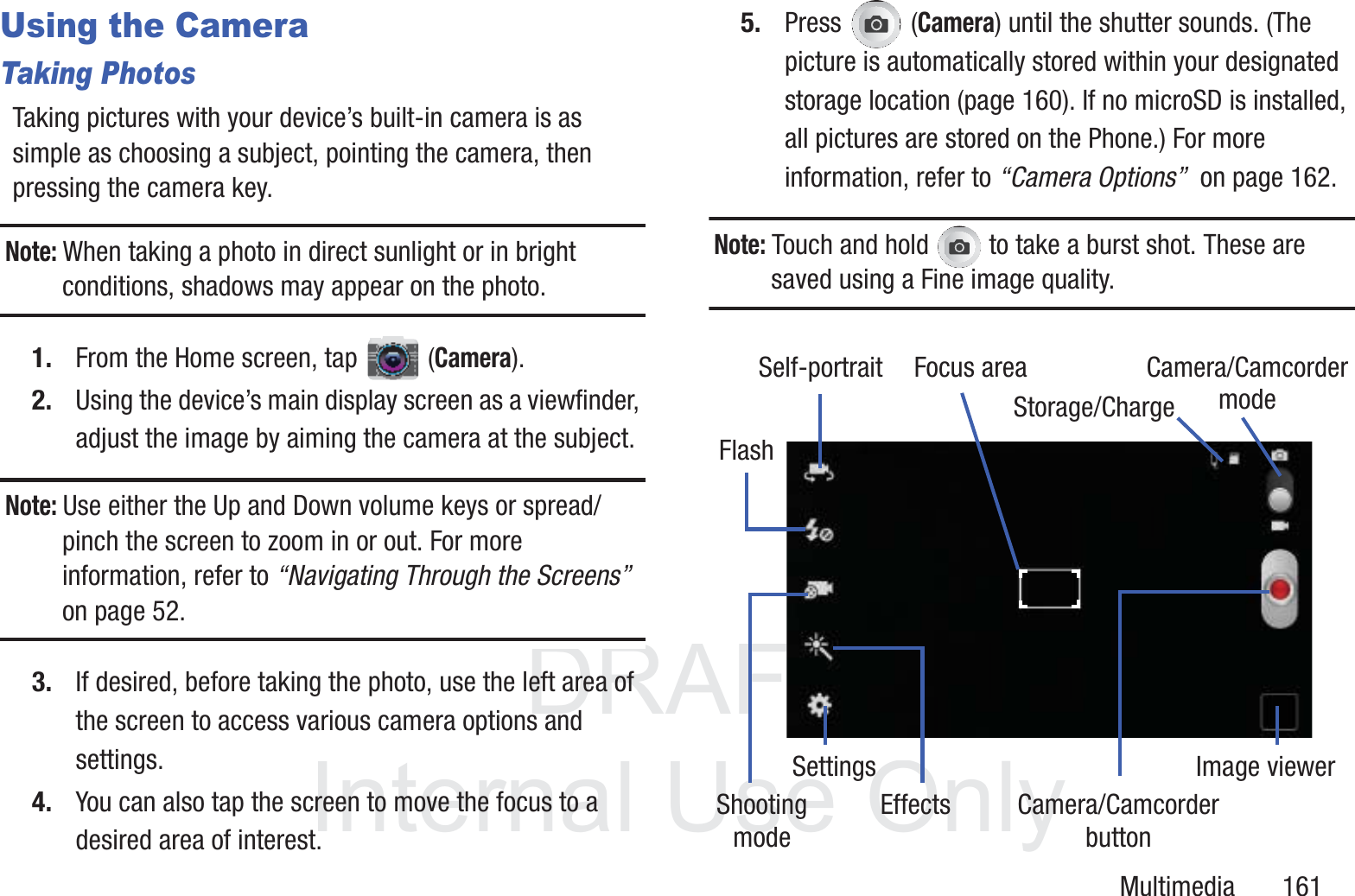
DRAFT InternalUse OnlyMultimedia       161Using the CameraTaking PhotosTaking pictures with your device’s built-in camera is as simple as choosing a subject, pointing the camera, then pressing the camera key.Note: When taking a photo in direct sunlight or in bright conditions, shadows may appear on the photo.1. From the Home screen, tap  (Camera).2. Using the device’s main display screen as a viewfinder, adjust the image by aiming the camera at the subject.Note: Use either the Up and Down volume keys or spread/pinch the screen to zoom in or out. For more information, refer to “Navigating Through the Screens”  on page 52.3. If desired, before taking the photo, use the left area of the screen to access various camera options and settings.4. You can also tap the screen to move the focus to a desired area of interest.5. Press  (Camera) until the shutter sounds. (The picture is automatically stored within your designated storage location (page 160). If no microSD is installed, all pictures are stored on the Phone.) For more information, refer to “Camera Options”  on page 162.Note: Touch and hold   to take a burst shot. These are saved using a Fine image quality.Focus areaSelf-portraitFlashShootingmodeSettingsEffects Camera/CamcorderImage viewerbuttonCamera/CamcordermodeStorage/Charge
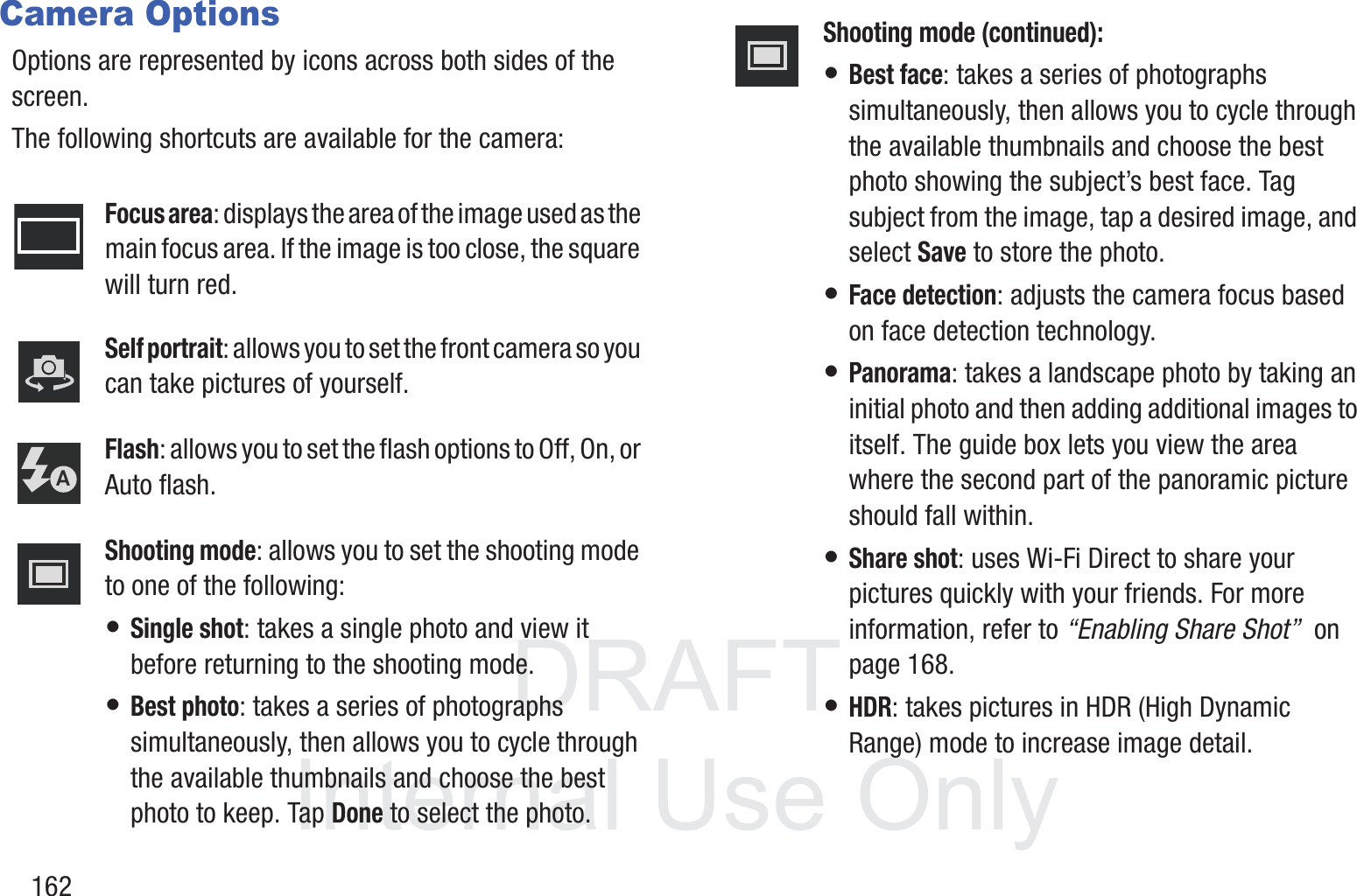
DRAFT InternalUse Only162Camera OptionsOptions are represented by icons across both sides of the screen. The following shortcuts are available for the camera:Focus area: displays the area of the image used as the main focus area. If the image is too close, the square will turn red.Self portrait: allows you to set the front camera so you can take pictures of yourself.Flash: allows you to set the flash options to Off, On, or Auto flash.Shooting mode: allows you to set the shooting mode to one of the following:• Single shot: takes a single photo and view it before returning to the shooting mode.• Best photo: takes a series of photographs simultaneously, then allows you to cycle through the available thumbnails and choose the best photo to keep. Tap Done to select the photo.Shooting mode (continued):• Best face: takes a series of photographs simultaneously, then allows you to cycle through the available thumbnails and choose the best photo showing the subject’s best face. Tag subject from the image, tap a desired image, and select Save to store the photo.• Face detection: adjusts the camera focus based on face detection technology.• Panorama: takes a landscape photo by taking an initial photo and then adding additional images to itself. The guide box lets you view the area where the second part of the panoramic picture should fall within.• Share shot: uses Wi-Fi Direct to share your pictures quickly with your friends. For more information, refer to “Enabling Share Shot”  on page 168.• HDR: takes pictures in HDR (High Dynamic Range) mode to increase image detail.
DRAFT InternalUse OnlyMultimedia       163• Buddy photo share: uses face recognition from pictures in your contacts to send your friends or family pictures of themselves.• Beauty: adjusts the contrast to smooth facial features.• Smile shot: the camera focuses on the face of your subject. Once the camera detects the person’s smile, it takes the picture.• Low light: adjusts the aperture and light settings to take better images in low light conditions.Effects: allows you to change the color tone or apply special effects to the photo. Options include: No effect, Cold vintage, Warm vintage, Posterize, Solarize, Green point, Blue Point, Red-yellow point, Washed out, Cartoonify, Black and white, Sepia, or Negative. Share shot - Share with: lists the current participants sharing images with you via an active Share shot session. Share shot - Shooting mode: lists the current shooting modes available from with the Share Shot mode. Settings:Edit shortcuts: allows you to set shortcut icons for the settings that you use the most.Burst shot: allows several photographs to be captured in quick succession by touching and holding the Camera button.GPS tag: allows you to turn GPS On or Off (also known as Geotagging). The location of where the picture is taken is attached to the picture. (Only available in Camera mode.)Self-portrait: allows you to set the front camera so you can take pictures of yourself or video chat.Flash: allows you to set the flash options to Off, On, or Auto flash.Shooting mode: allows you to set the shooting mode. For more information, see Shooting mode description.
DRAFT InternalUse Only164Settings (continued):Effects: allows you to change the color tone or apply special effects to the photo. Options include: No effect, Cold vintage, Warm vintage, Posterize, Solarize, Green point, Blue point, Red-yellow point, Washed out, Cartoonify, Black and white, Sepia, and Negative.Scene mode: allows you to set the Scene to help take the best pictures possible. Options include None, Portrait, Landscape, Sports, Party/Indoor, Beach/Snow, Sunset, Dawn, Autumn color, Firework, Text, Candlelight, Firework, Backlight, and Night. Helpful tips are shown for each scene mode at the bottom of the display screen.Exposure value: allows you to adjust the brightness level by moving the slider.Focus mode: allows you to set this option to Auto focus or Macro. Use Auto focus for all other focal situations.Timer: allows you to set a timer for how long to wait before taking a picture. Options include: Off, 2 sec, 5 sec, and 10 sec.Settings (continued):Resolution: allows you to set the image size to either: 8M (3264x2448), W6M (3264x1836), 3.2M (2048x1536), W2.4M (2048x1152), W0.9M (1280x720), or 0.3M (640x480).White balance: allows you to set this option to one of the following choices: Auto, Daylight, Cloudy, Incandescent, or Fluorescent.ISO: ISO determines how sensitive the light meter is on your digital camera. Choose from Auto, 100, 200, 400, or 800. Use a lower ISO number to make your camera less sensitive to light, a higher ISO number to take photos with less light, or Auto to let the camera automatically adjust the ISO for each of your shots.Metering: allows you to set how the camera measures or meters the light source: Center-weighted, or Spot.Auto contrast: provides a clear image even under backlight circumstances where intensity of illumination can vary excessively.Guidelines: allows you to turn the guidelines On or Off.
DRAFT InternalUse OnlyMultimedia       165Settings (continued):Auto share shot: when enabled, automatically enable the share shot feature once a Wi-Fi Direct connection is detected.Anti-Shake: compensates for camera movement.Shutter sound: allows you to set the Shutter sound to On or Off.Contextual filename: (requires GPS tagging) allows you to adjust the filename based on contextual information such as your current GPS location.Image quality: allows you to set the image quality to: Superfine, Fine, or Normal.Storage: allows you to configure the default storage location for images or videos as either Phone or Memory card (if inserted).Reset: allows you to reset all camera or camcorder settings to the default values.Image viewer: allows you to access the Image viewer and the various viewing options for a selected picture. The last picture you took, will be displayed as a thumbnail in the Image viewer icon.Camera button: takes a photo when pressed in Camera mode.Camera Mode: allows you to take a photo in various modes. Once you change the mode, the corresponding indicator appears at the top left of the display. Slide the button up for Camera, or down for Camcorder.Storage location/Charge Status: indicates the current storage location (Phone or Memory card) and the charge state of the device.
DRAFT InternalUse Only166Pictures and Videos Image Viewer OptionsAfter you take a photo or record a video, you can access various options.Photo viewing options1. Tap a thumbnail to view the picture.Note: If no control icons are displayed on the screen in addition to the picture, tap anywhere on the screen to display them.2. The following options are available at the top of the screen:•Share via : allows you to share the picture via ChatON, Dropbox, Flipboard, Picasa, Google+, S Memo, Bluetooth, Wi-Fi Direct, Messaging, Gmail, and Email.• Slideshow : allows you to see your photos in a slideshow. • Delete : allows you to delete the current picture.3. Press   for additional options such as: –Face tag: allows you to activate/deactivate face recognition for use with external social media applications. –Copy to clipboard allows you to copy one or more pictures to a different folder.–Rotate left: allows you to rotate the view of the current image in a counterclockwise direction.–Rotate right: allows you to rotate the view of the current image in a clockwise direction.–Crop: provides an on-screen box that allows you to crop the current picture. Tap Save to update the image with the new dimensions or tap Discard to ignore any changes.–Edit: launches the Photo Editor application. The Photo Editor application can be downloaded from the Play Store. –Set as: allows you to assign the current image as a Contact photo, Home screen, Lock screen, or Home and lock screens.–Buddy photo share: allows you to share the current image with active ChatON buddies.–Print: allows you to print the current image on a compatible Samsung printer.–Rename: allows you to rename the current file.
DRAFT InternalUse OnlyMultimedia       167–Scan for nearby devices: scans for nearby DLNA-compliant devices that can receive or display the current image.–Details: files details such as Title, Time, Width, Height, Orientation, File Size, and Path.Video viewing optionsNote: If no control icons are displayed on the screen in addition to the picture, tap anywhere on the screen to display them.1. Tap a video to select it. 2. Tap   to play the video.3. Press   for additional options.Sharing PicturesPictures are the best way of remembering the moment, but an even better treat is to share them with others.Two new features allow you to either instantly share a series of pictures as they are taken or quickly share a picture without using email or messaging.• Share Shot is a great way to instantly share a series of pictures among a group of users. The best example for this feature is having multiple users instantly sharing each others pictures at a company or family gathering. As each person takes a separate picture with their own device, they are all pooled together and instantly appear in each user’s Gallery. No more “Email your pictures to me later”. Each person walks out of the event with all the pictures taken by everyone. This method of image transfer requires that both devices have Wi-Fi Direct active and be paired prior to use.Note: You can only share a shot with other external users who also have their Wi-Fi Direct feature active.
DRAFT InternalUse Only168• S Beam Transfer uses the NFC (near Field Communication) feature found on your device to transmit large files directly to another compatible device by direct touch. This method of image transfer requires NFC and S Beam to be enabled prior to use.For more information, refer to “Using S Beam to Share Pictures”  on page 170.Enabling Share ShotShare shot is a Wi-Fi Direct group sharing feature where multiple users can Wi-Fi connect their devices and then all share each others pictures in real-time. This is really useful in group events (ex: family gathering or company party) where you don’t want to have to email everyone later and make sure you all can share your pics at a later date. For more information, refer to “Wi-Fi Direct Setup and Settings”  on page 276.The general process is:•Enable Wi-Fi Direct communication•Pair your device with other users•Enable Share shotTo enable Wi-Fi Direct:1. From the Home screen, press   and then tap Settings.2. In a single motion touch and slide the Wi-Fi slider to the right to turn it on. The slider color indicates the activation status.3. Tap Wi-Fi Direct.
DRAFT InternalUse OnlyMultimedia       1694. Tap Scan and select the single device name to begin the connection process to another Wi-Fi Direct compatible device.– or –Tap Multi-connect ➔ Scan and select all the device names to begin the connection process to these Wi-Fi Direct compatible devices.Note: The target device must also have Wi-Fi Direct service active and running before it can be detected by your device.5. Tap Done. The direct connection is then established. Confirm   appears in the Status bar.6. When prompted to complete the connection, the recipient should tap OK. Your status field now reads “Connected” and your connected device is listed within the Wi-Fi Direct devices listing.7. Each partner (including yourself) must then tap Accept to consent to the new Wi-Fi Direct pairing.To enable Share shot on Camera:1. From the Home screen, tap  (Camera) ➔  (Shooting Mode) ➔ Share shot.2. If you are prompted to activate your Wi-Fi Direct connection, tap OK and follow the activation procedures for Wi-Fi Direct.To configure your Share Shot options:1. Confirm the Share Shot viewfinder is active (see below).2. Confirm the Wi-Fi is actively sharing icon ( ) appears at the top of the viewfinder window.3. Tap   (Devices for sharing with) to display list of current participants.•Stop sharing images with select participants by tapping their entry and removing the green check mark.4. Tap   (Shooting modes) to display list of currently available shooting modes from within Share Shot.5. Tap  (Settings) to disable share shot while maintaining a Wi-Fi Direct connection.
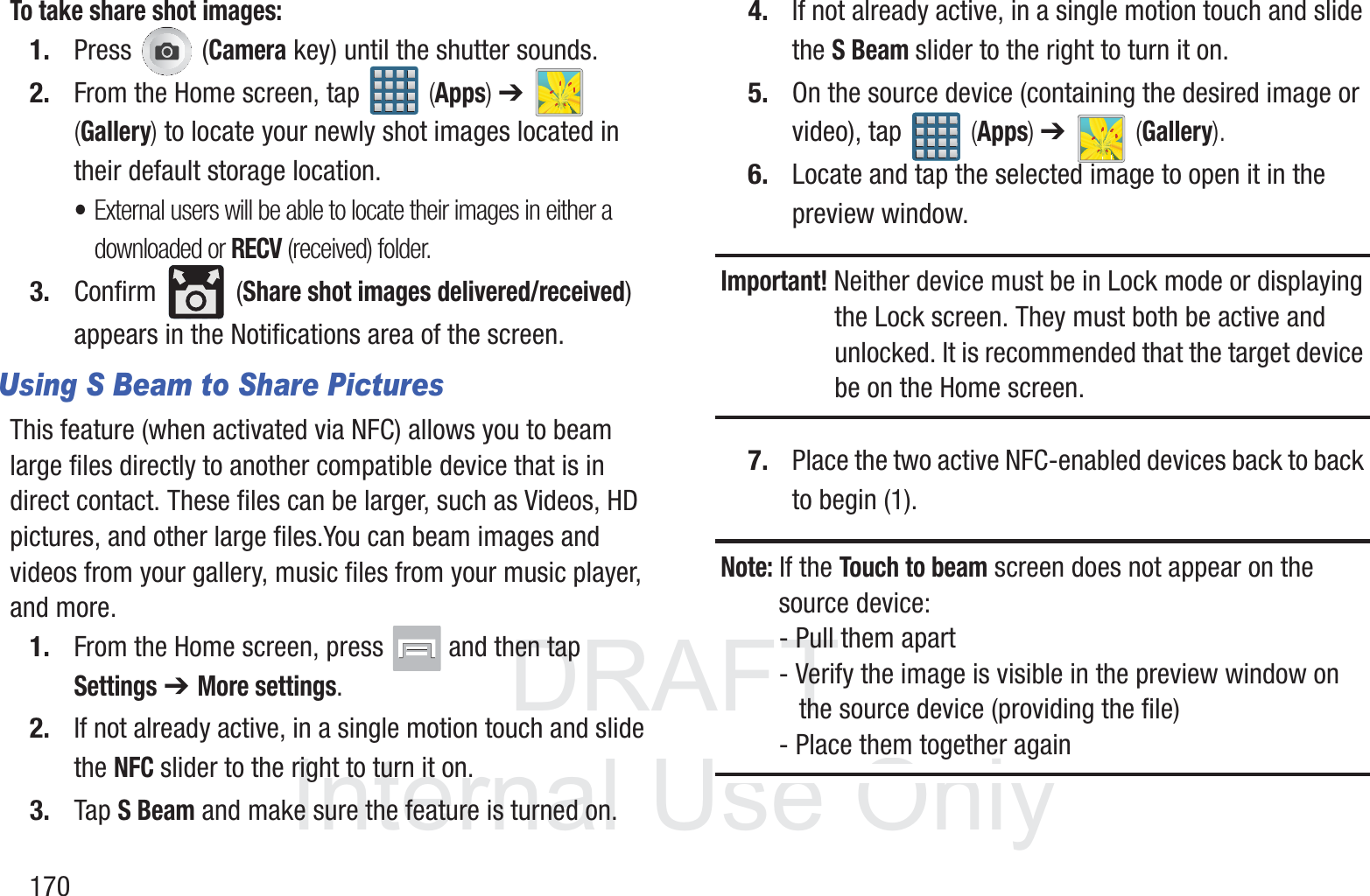
DRAFT InternalUse Only170To take share shot images:1. Press  (Camera key) until the shutter sounds. 2. From the Home screen, tap   (Apps) ➔   (Gallery) to locate your newly shot images located in their default storage location.•External users will be able to locate their images in either a downloaded or RECV (received) folder.3. Confirm  (Share shot images delivered/received) appears in the Notifications area of the screen.Using S Beam to Share PicturesThis feature (when activated via NFC) allows you to beam large files directly to another compatible device that is in direct contact. These files can be larger, such as Videos, HD pictures, and other large files.You can beam images and videos from your gallery, music files from your music player, and more.1. From the Home screen, press   and then tap Settings ➔ More settings.2. If not already active, in a single motion touch and slide the NFC slider to the right to turn it on. 3. Tap S Beam and make sure the feature is turned on. 4. If not already active, in a single motion touch and slide the S Beam slider to the right to turn it on. 5. On the source device (containing the desired image or video), tap   (Apps) ➔   (Gallery).6. Locate and tap the selected image to open it in the preview window.Important! Neither device must be in Lock mode or displaying the Lock screen. They must both be active and unlocked. It is recommended that the target device be on the Home screen.7. Place the two active NFC-enabled devices back to back to begin (1).Note: If the Touch to beam screen does not appear on the source device:- Pull them apart- Verify the image is visible in the preview window on    the source device (providing the file)- Place them together again
DRAFT InternalUse OnlyMultimedia       1718. From the Touch to beam screen, tap the reduced image preview to begin the transfer (2). After a few seconds (depending on file size) the recipient with then see the transferred file displayed on their screen.To share multiple pictures via S Beam:1. On the source device (containing the desired image or video), tap   (Apps) ➔   (Gallery).2. Locate the selected folder.3. Touch and hold the first image and place a checkmark on it and all desired images.4. Place the two active NFC-enabled devices back to back to begin.5. From the Touch to beam screen, tap the reduced image preview to begin the transfer (2). 6. When prompted, separate the two devices.Place device atop each otherTap the source image
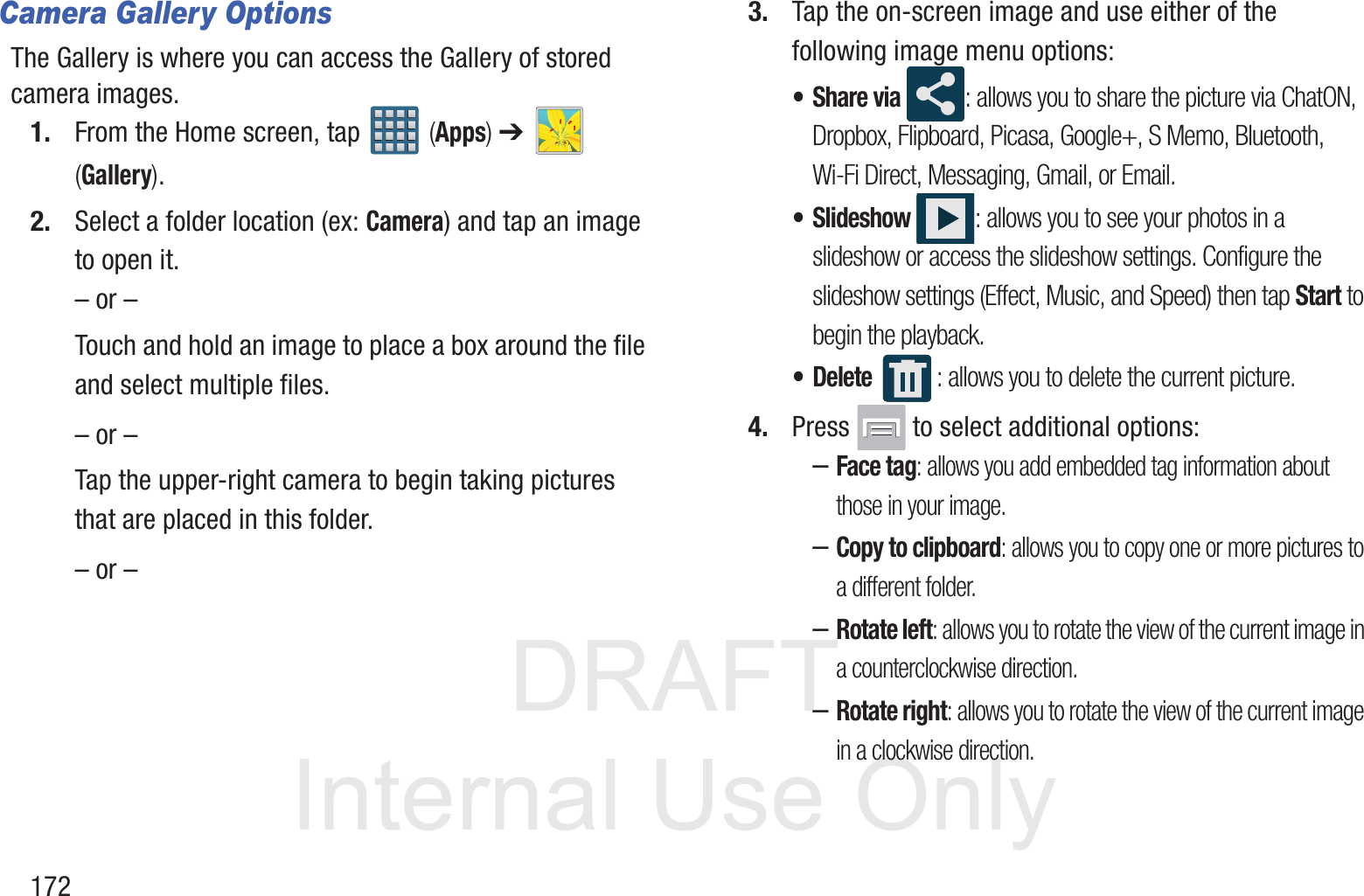
DRAFT InternalUse Only172Camera Gallery OptionsThe Gallery is where you can access the Gallery of stored camera images.1. From the Home screen, tap   (Apps) ➔   (Gallery).2. Select a folder location (ex: Camera) and tap an image to open it.– or –Touch and hold an image to place a box around the file and select multiple files.– or –Tap the upper-right camera to begin taking pictures that are placed in this folder.– or –3. Tap the on-screen image and use either of the following image menu options:•Share via : allows you to share the picture via ChatON, Dropbox, Flipboard, Picasa, Google+, S Memo, Bluetooth, Wi-Fi Direct, Messaging, Gmail, or Email.• Slideshow : allows you to see your photos in a slideshow or access the slideshow settings. Configure the slideshow settings (Effect, Music, and Speed) then tap Start to begin the playback.• Delete : allows you to delete the current picture.4. Press   to select additional options:–Face tag: allows you add embedded tag information about those in your image.–Copy to clipboard: allows you to copy one or more pictures to a different folder.–Rotate left: allows you to rotate the view of the current image in a counterclockwise direction.–Rotate right: allows you to rotate the view of the current image in a clockwise direction.
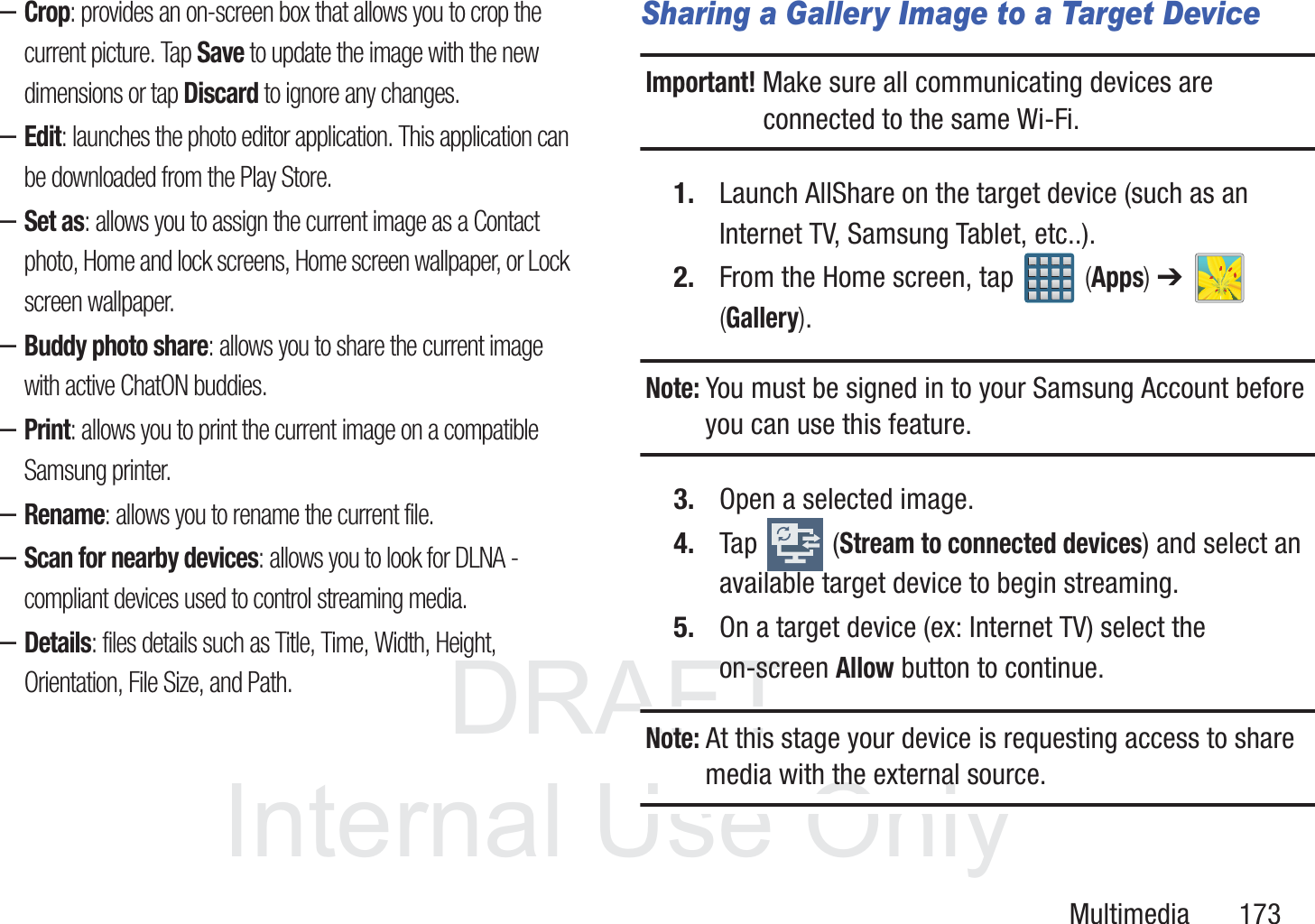
DRAFT InternalUse OnlyMultimedia       173–Crop: provides an on-screen box that allows you to crop the current picture. Tap Save to update the image with the new dimensions or tap Discard to ignore any changes.–Edit: launches the photo editor application. This application can be downloaded from the Play Store. –Set as: allows you to assign the current image as a Contact photo, Home and lock screens, Home screen wallpaper, or Lock screen wallpaper.–Buddy photo share: allows you to share the current image with active ChatON buddies.–Print: allows you to print the current image on a compatible Samsung printer.–Rename: allows you to rename the current file.–Scan for nearby devices: allows you to look for DLNA -compliant devices used to control streaming media. –Details: files details such as Title, Time, Width, Height, Orientation, File Size, and Path.Sharing a Gallery Image to a Target DeviceImportant! Make sure all communicating devices are connected to the same Wi-Fi.1. Launch AllShare on the target device (such as an Internet TV, Samsung Tablet, etc..).2. From the Home screen, tap   (Apps) ➔   (Gallery).Note: You must be signed in to your Samsung Account before you can use this feature.3. Open a selected image.4. Tap  (Stream to connected devices) and select an available target device to begin streaming.5. On a target device (ex: Internet TV) select the on-screen Allow button to continue.Note: At this stage your device is requesting access to share media with the external source.
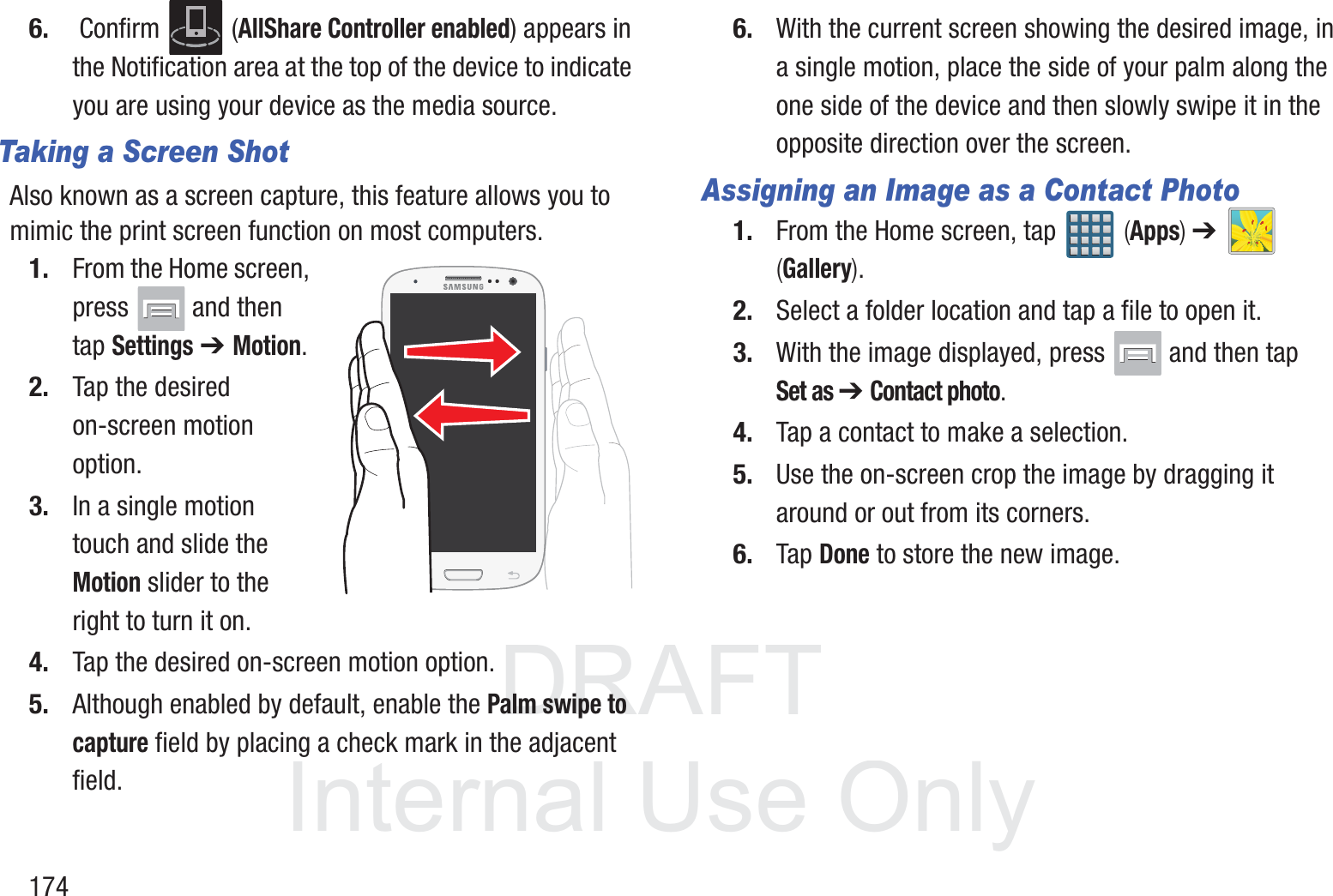
DRAFT InternalUse Only1746.  Confirm   (AllShare Controller enabled) appears in the Notification area at the top of the device to indicate you are using your device as the media source.Taking a Screen ShotAlso known as a screen capture, this feature allows you to mimic the print screen function on most computers.1. From the Home screen, press   and then tap Settings ➔ Motion.2. Tap the desired on-screen motion option.3. In a single motion touch and slide the Motion slider to the right to turn it on.4. Tap the desired on-screen motion option.5. Although enabled by default, enable the Palm swipe to capture field by placing a check mark in the adjacent field.6. With the current screen showing the desired image, in a single motion, place the side of your palm along the one side of the device and then slowly swipe it in the opposite direction over the screen.Assigning an Image as a Contact Photo1. From the Home screen, tap   (Apps) ➔   (Gallery).2. Select a folder location and tap a file to open it.3. With the image displayed, press   and then tap Set as ➔ Contact photo. 4. Tap a contact to make a selection.5. Use the on-screen crop the image by dragging it around or out from its corners.6. Tap Done to store the new image.
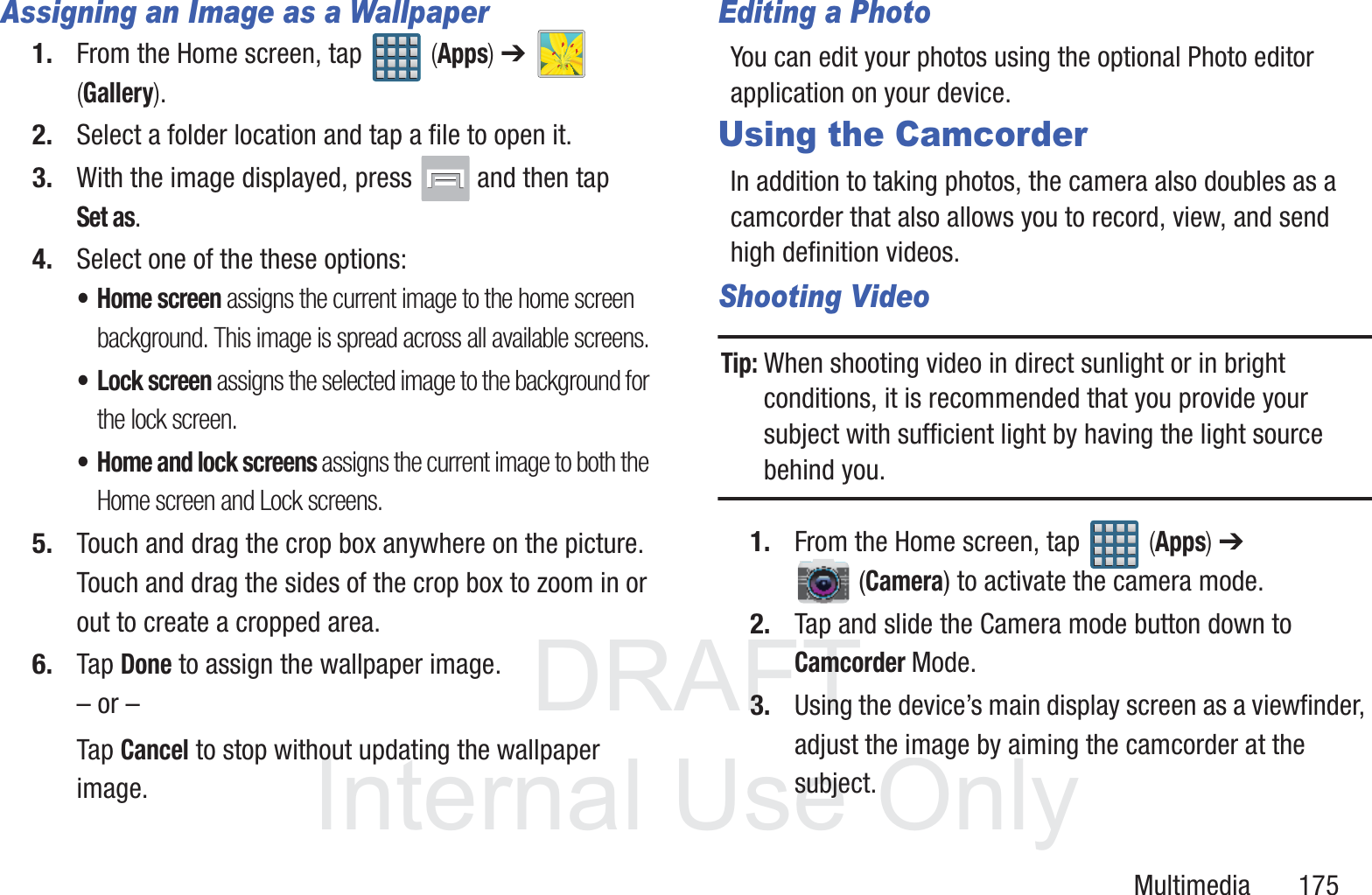
DRAFT InternalUse OnlyMultimedia       175Assigning an Image as a Wallpaper1. From the Home screen, tap   (Apps) ➔   (Gallery).2. Select a folder location and tap a file to open it.3. With the image displayed, press   and then tap Set as.4. Select one of the these options:•Home screen assigns the current image to the home screen background. This image is spread across all available screens.• Lock screen assigns the selected image to the background for the lock screen.• Home and lock screens assigns the current image to both the Home screen and Lock screens.5. Touch and drag the crop box anywhere on the picture. Touch and drag the sides of the crop box to zoom in or out to create a cropped area.6. Tap Done to assign the wallpaper image. – or –Tap Cancel to stop without updating the wallpaper image.Editing a PhotoYou can edit your photos using the optional Photo editor application on your device. Using the CamcorderIn addition to taking photos, the camera also doubles as a camcorder that also allows you to record, view, and send high definition videos.Shooting VideoTip: When shooting video in direct sunlight or in bright conditions, it is recommended that you provide your subject with sufficient light by having the light source behind you.1. From the Home screen, tap   (Apps) ➔  (Camera) to activate the camera mode.2. Tap and slide the Camera mode button down to Camcorder Mode.3. Using the device’s main display screen as a viewfinder, adjust the image by aiming the camcorder at the subject.
DRAFT InternalUse Only176Note: Use either the Up and Down volume keys or spread/pinch the screen to zoom in or out. For more information, refer to “Navigating Through the Screens”  on page 52.4. Tap the Video key ( ) to begin shooting video. The red light will blink while recording.5. Tap anywhere on the screen to re-focus the camera on that object. The camcorder auto-focuses on the new target area.6. Tap the screen then select   to turn on auto focus. This will automatically focus the video based on the object at the middle of the screen.7. To capture an image from the video while recording, tap  . This feature is not available while the anti-shake feature is activated.8. Tap the Stop key ( ) to stop the recording and save the video file to your Camera folder.– or –Tap the Pause key ( ) to pause the recording.9. Once the file has been saved, tap the image viewer, then tap   (Play) to playback your video for review.10. Press   to return to the viewer.Camcorder OptionsYou can change options using your keypad in capture mode. The following short cuts are available: Self portrait: allows you to activate the front facing camera so you can take videos of yourself or video chat.Flash: allows you to set the flash options to Off or On. When you set the flash to On, it stays on continually while you are taking a video.Recording mode: allows you to set the recording mode to: Normal, which is limited only by available space on the destination location, Limit for MMS, which is limited by MMS size restrictions.
DRAFT InternalUse OnlyMultimedia       177Effects: allows you to change the color tone or apply special effects to the video. Options include: No effect, Cold vintage, Warm vintage, Posterize, Solarize, Green point, Blue point, Red-yellow point, Washed out, Cartoonify, Black and white, Sepia, or Negative. Settings:Edit shortcuts: allows you to set shortcut icons for the settings that you use the most.GPS tag: allows you to turn GPS On or Off (also known as Geo-tagging). The location of where the video is shot is attached to the file. Self-recording: allows you to set the front camera so you can take videos of yourself or video chat.Flash: allows you to set the flash options to Off or On. When you set the flash to On, it stays on continually while you are taking a video.Recording mode: allows you to set the recording mode to:• Normal: is limited only by available space on the destination location.• Limit MMS: is limited by MMS size restrictions.
DRAFT InternalUse Only178Settings (continued):Effects: allows you to change the color tone or apply special effects to the video. Options include: No effect, Cold vintage, Warm vintage, Posterize, Solarize, Green point, Blue point, Red-yellow point, Washed out, Cartoonify, Black and white, Sepia, or Negative. Exposure value: allows you to adjust the brightness level by moving the slider.Timer: allows you to set a timer for how long to wait before taking a video. Options include: Off, 2 sec, 5 sec, and 10 sec.Resolution: allows you to set the image size to either: 1920x1080, 1280x720, 720x480, 640x480, or 320x240.White balance: allows you to set this option to one of the following choices: Auto, Daylight, Cloudy, Incandescent, or Fluorescent.Guidelines: allows you to turn the guidelines On or Off.Anti-Shake: reduces image blur due to the movement of the subject of the video or hand movement.Settings (continued):Contextual filename: (requires GPS tagging) allows you to adjust the filename based on contextual information such as your current GPS location.Video quality: allows you to set the image quality to: Superfine, Fine, or Normal.Storage: allows you to configure the default storage location for images or videos as either Phone or Memory card (if inserted).Reset: allows you to reset all camera or camcorder settings to the default values.Image viewer: allows you to access the Image viewer and the various viewing options for a selected video. Image viewer options are described in the following section. The last video you took, will be displayed as a thumbnail in the Image viewer icon.Camcorder button: shoots or stops video recording when pressed in Camcorder mode.
DRAFT InternalUse OnlyMultimedia       179Accessing VideosWhen you shoot a video, the file is saved in the Camera folder. You can view your videos immediately or view them anytime in the Camera folder.1. From the Home screen, tap   (Apps) ➔  (Gallery).2. Select a folder location and tap a video icon to begin video playback.– or –Touch and hold the video icon from the main Gallery to select the video (indicated by a colored border) and display the following video menu context options:•Share via : allows you to share the video via ChatON, Dropbox, Picassa, Google+, Bluetooth, Wi-Fi Direct, Messaging, YouTube, Gmail, or Email.• Delete : allows you to delete the current video. Choose either OK or Cancel.•Slideshow : (shown in Landscape mode) allows you to see your files in a slideshow or access the slideshow settings. Configure the slideshow settings (Effect, Music, and Speed) then tap Start to begin the playback.Live Shooting: takes a photo during a video recording session in Camcorder mode.Note: This feature is not functional when the Anti-Shake feature is activated.Camcorder Mode: allows you to shoot video. Slide the button up for Camera mode or down for Camcorder mode.Storage location/Charge Status: indicates the current storage location (Phone or Memory card) and the charge state of the device.
DRAFT InternalUse Only180•More : provides you with the additional options such as: –Slideshow: (shown in Portrait mode) allows you to see your files in a slideshow or access the slideshow settings.–Rename: allows you to rename one or more video files.–Details: displays video file information.The GalleryThe Gallery is where you view photos and play back videos. For photos, you can also perform basic editing tasks, view a slideshow, set photos as wallpaper or caller image, and share as a picture message.Note: If the phone displays a memory full message when accessing the Gallery, access Files and remove some of the media files from the folders, and then open the Gallery.Opening the Gallery  From the Home screen, tap   (Apps) ➔   (Gallery). For more information, refer to “Camera Gallery Options”  on page 172.Note: If you stored your files in folders (directories) on the storage card, Gallery displays these folders as separate albums. The top left album contains all the pictures in the storage card.Viewing a Video within the Gallery1. From the Home screen, tap   (Apps) ➔   (Gallery).2. Locate your folder and video.3. Tap  (Play) to playback your video.For more information on using the Picture-in-Picture feature for video playback, see “Using Picture-In-Picture” on page 181.Using the Video PlayerThe Video Player application plays video files stored on the SD card. This device is able to playback DivX videos.1. From the Home screen, tap   (Apps) ➔  (Video Player). A list of available videos displays in the Video list.2. Tap a video file to begin viewing.
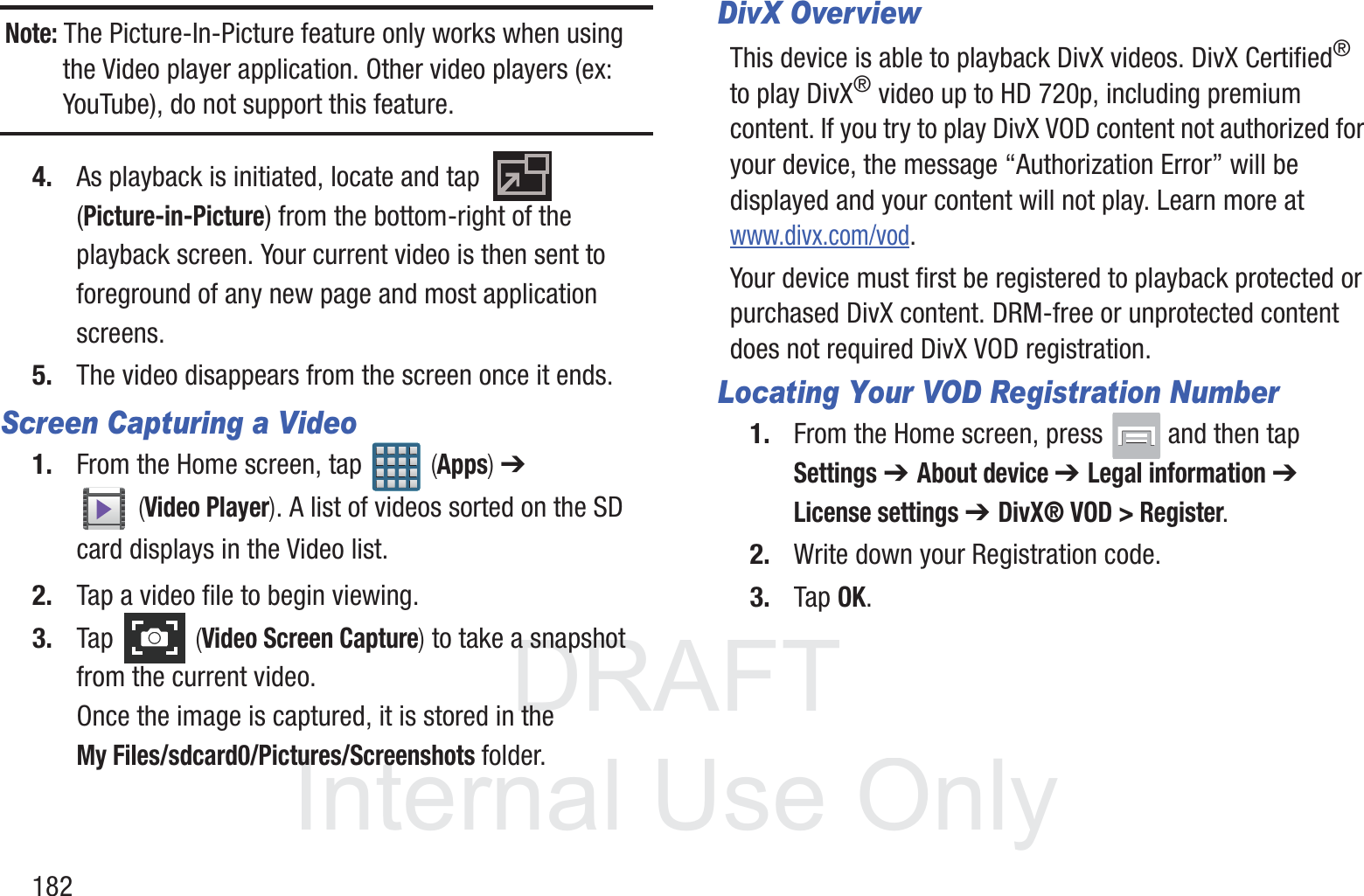
DRAFT InternalUse OnlyMultimedia       181Sharing Videos1. From the Home screen, tap   (Apps) ➔  (Video Player). After a few seconds, each on-screen video begins to cycle through a preview of the first five seconds of the clip.2. Press   and then tap Share via.3. Select either individual videos or tap Select all.4. Click Done to complete the process or Cancel to quit.5. Select a sharing option. Choose from: Bluetooth, ChatON, Dropbox, Email, Gmail, Google+, Messaging, Picassa, Wi-Fi Direct, and YouTube.Using Picture-In-PictureThis feature can be used during playback of supported video types via either the Gallery, Play Videos, or Video player.Note: Some applications might not allow this video to remain active in the foreground (ex: Camera/Camcorder screen).This feature allows you to continue to view your video as a background operation while you multi-task and do other things, such as surf the Internet, access your Contacts list, look for a picture, etc..1. From the Home screen, tap   (Apps).2. Tap the desired video playback application.3. Tap the desired video to begin playback.
DRAFT InternalUse Only182Note: The Picture-In-Picture feature only works when using the Video player application. Other video players (ex: YouTube), do not support this feature.4. As playback is initiated, locate and tap   (Picture-in-Picture) from the bottom-right of the playback screen. Your current video is then sent to foreground of any new page and most application screens.5. The video disappears from the screen once it ends.Screen Capturing a Video1. From the Home screen, tap   (Apps) ➔  (Video Player). A list of videos sorted on the SD card displays in the Video list.2. Tap a video file to begin viewing.3. Tap   (Video Screen Capture) to take a snapshot from the current video.Once the image is captured, it is stored in the My Files/sdcard0/Pictures/Screenshots folder.DivX OverviewThis device is able to playback DivX videos. DivX Certified® to play DivX® video up to HD 720p, including premium content. If you try to play DivX VOD content not authorized for your device, the message “Authorization Error” will be displayed and your content will not play. Learn more at www.divx.com/vod.Your device must first be registered to playback protected or purchased DivX content. DRM-free or unprotected content does not required DivX VOD registration.Locating Your VOD Registration Number1. From the Home screen, press   and then tap Settings ➔ About device ➔ Legal information ➔ License settings ➔ DivX® VOD > Register.2. Write down your Registration code.3. Tap OK.
DRAFT InternalUse OnlyMultimedia       183Register Your DivX Device for VOD Playback of Purchased MoviesTo play purchased DivX movies on your device, you will first need to complete a one-time registration using both your device and your computer.  1. Write down the DivX registration code that appears on-screen. Copy this 8 or 10-digit number down.2. Verify you have the latest DivX software running on your computer. Download the free player (for your computer) from www.divx.com. 3. Open the DivX Player on your computer and from within the VOD menu, select Register a DivX Certified Device..4. You are prompted to log in or create a DivX account if your account information has not already been saved in DivX Player.5. Follow the instructions in DivX Player to enter the registration code from step 2 and create a device nickname (ex: “Pat or Pat’s Device”).6. Select a location on your computer to download the DivX registration video with the same title as your device nickname (ex: Pat.divx).7. Follow the on-screen instructions to download the file and initiate the transfer process. You will need to place this video file onto your device and play it back.8. Connect your device to the computer via USB and transfer this video. For more information, refer to “Communicating with the SD card”  on page 67.9. From the Registration screen (Transfer), click Transfer Video now and select the location of the microSD card or USB (the device) as the target destination for the registration video (created in step 6) and click Start.– or –Locate the created file, copy and paste it into the new drive letter corresponding to your device’s storage location.10. From the Home screen, tap   (Apps) ➔  (My Files).
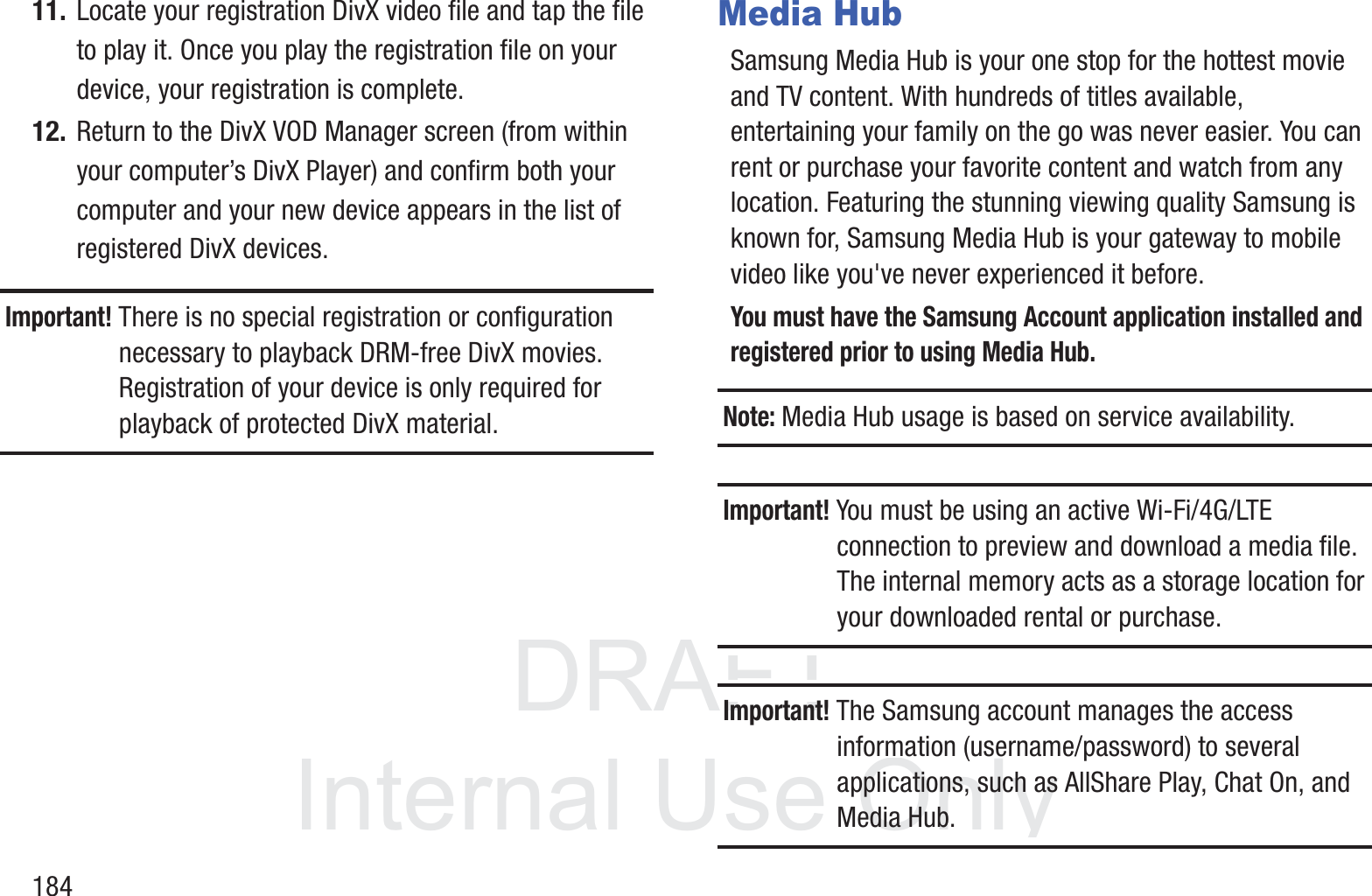
DRAFT InternalUse Only18411. Locate your registration DivX video file and tap the file to play it. Once you play the registration file on your device, your registration is complete.12. Return to the DivX VOD Manager screen (from within your computer’s DivX Player) and confirm both your computer and your new device appears in the list of registered DivX devices.Important! There is no special registration or configuration necessary to playback DRM-free DivX movies. Registration of your device is only required for playback of protected DivX material.Media HubSamsung Media Hub is your one stop for the hottest movie and TV content. With hundreds of titles available, entertaining your family on the go was never easier. You can rent or purchase your favorite content and watch from any location. Featuring the stunning viewing quality Samsung is known for, Samsung Media Hub is your gateway to mobile video like you've never experienced it before.You must have the Samsung Account application installed and registered prior to using Media Hub.Note: Media Hub usage is based on service availability.Important! You must be using an active Wi-Fi/4G/LTE connection to preview and download a media file. The internal memory acts as a storage location for your downloaded rental or purchase.Important! The Samsung account manages the access information (username/password) to several applications, such as AllShare Play, Chat On, and Media Hub.
DRAFT InternalUse OnlyMultimedia       185Creating a New Media Hub AccountBefore you can rent or buy media, you must first create an account. Enter the required information.1. Confirm you have already logged in to your Samsung account. There should be no   icon in the Notifications area of the screen.2. From the Home screen, tap   (Apps) ➔  (Media Hub).3. Read the Terms and Conditions screen and tap the I agree to the Terms and Conditions check box.4. Tap Accept to continue or Decline to exit. The Media Hub screen displays.Tip: In some cases it might be necessary to sign in via the application. Press   ➔ Sign in.5. From the main page, press   and then tap My page.Note: Your Media Hub account is managed by the Samsung account application. This application manages your user profile information.6. If not already signed in, use the keypad to enter the required information, then tap Create new account. Follow the on-screen instructions to complete your registration for a new Samsung account.Using Media Hub1. From the Home screen, tap   (Apps) ➔  (Media Hub).2. At the Media Hub screen, What’s New is displayed with recently added media that you can rent or purchase.3. The following tabs are displayed at the top of the screen:•Home: displays the Media Hub main screen.•Movies: displays movies that are available for rent or purchase. Scroll through the top navigation bar and select a movie category. The movies of that type will be displayed below. • TV Shows: displays TV shows that are available for purchase. Scroll through the top navigation bar and select a TV category. The TV shows of that type will be displayed below.•My Media: allows you to view all of the media that you have purchased or rented. Tap a media entry to view it.
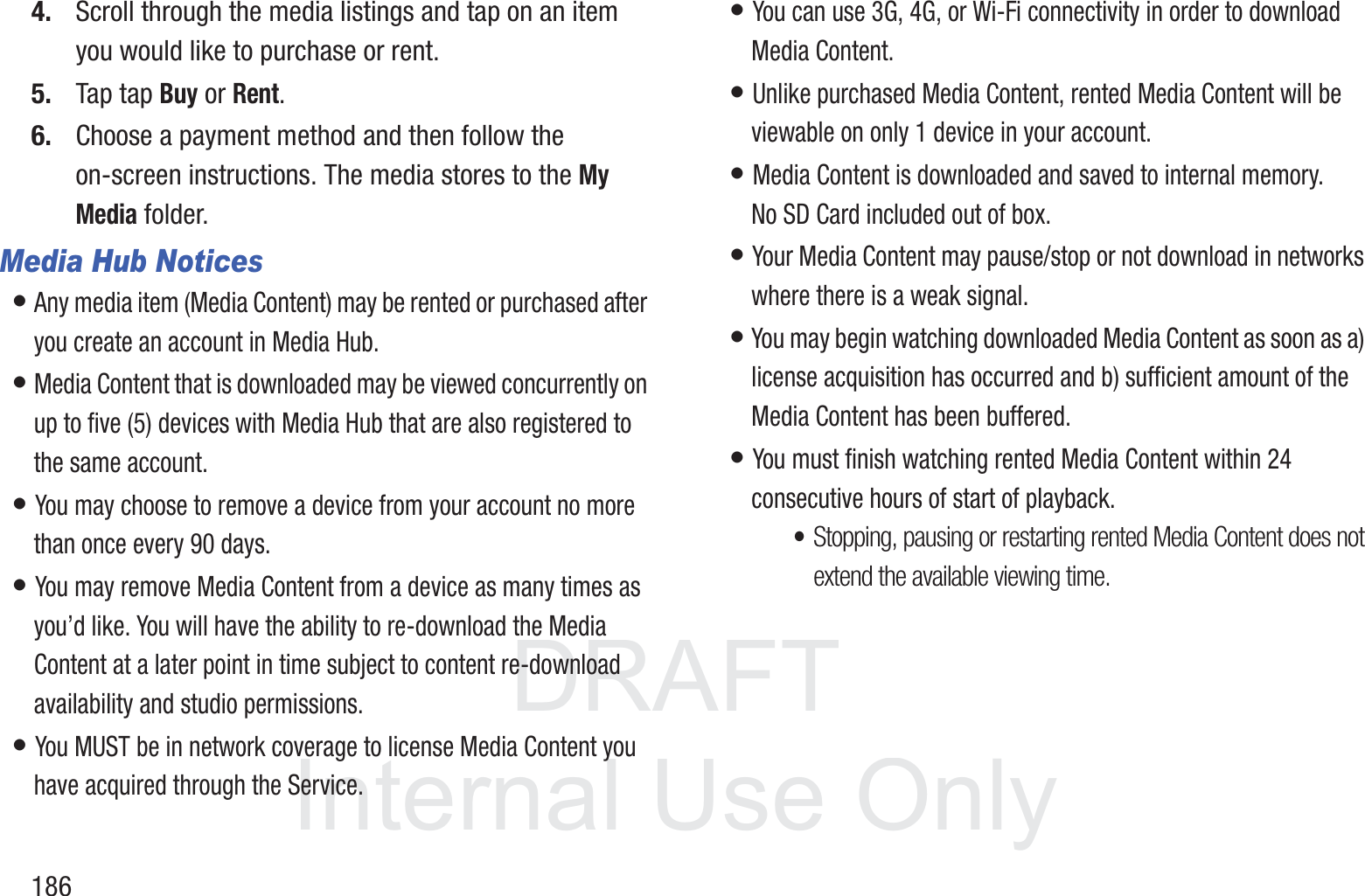
DRAFT InternalUse Only1864. Scroll through the media listings and tap on an item you would like to purchase or rent.5. Tap tap Buy or Rent.6. Choose a payment method and then follow the on-screen instructions. The media stores to the My Media folder.Media Hub Notices• Any media item (Media Content) may be rented or purchased after you create an account in Media Hub. • Media Content that is downloaded may be viewed concurrently on up to five (5) devices with Media Hub that are also registered to the same account. • You may choose to remove a device from your account no more than once every 90 days. • You may remove Media Content from a device as many times as you’d like. You will have the ability to re-download the Media Content at a later point in time subject to content re-download availability and studio permissions. • You MUST be in network coverage to license Media Content you have acquired through the Service. • You can use 3G, 4G, or Wi-Fi connectivity in order to download Media Content. • Unlike purchased Media Content, rented Media Content will be viewable on only 1 device in your account. • Media Content is downloaded and saved to internal memory.  No SD Card included out of box.• Your Media Content may pause/stop or not download in networks where there is a weak signal. • You may begin watching downloaded Media Content as soon as a) license acquisition has occurred and b) sufficient amount of the Media Content has been buffered.• You must finish watching rented Media Content within 24 consecutive hours of start of playback.•Stopping, pausing or restarting rented Media Content does not extend the available viewing time.
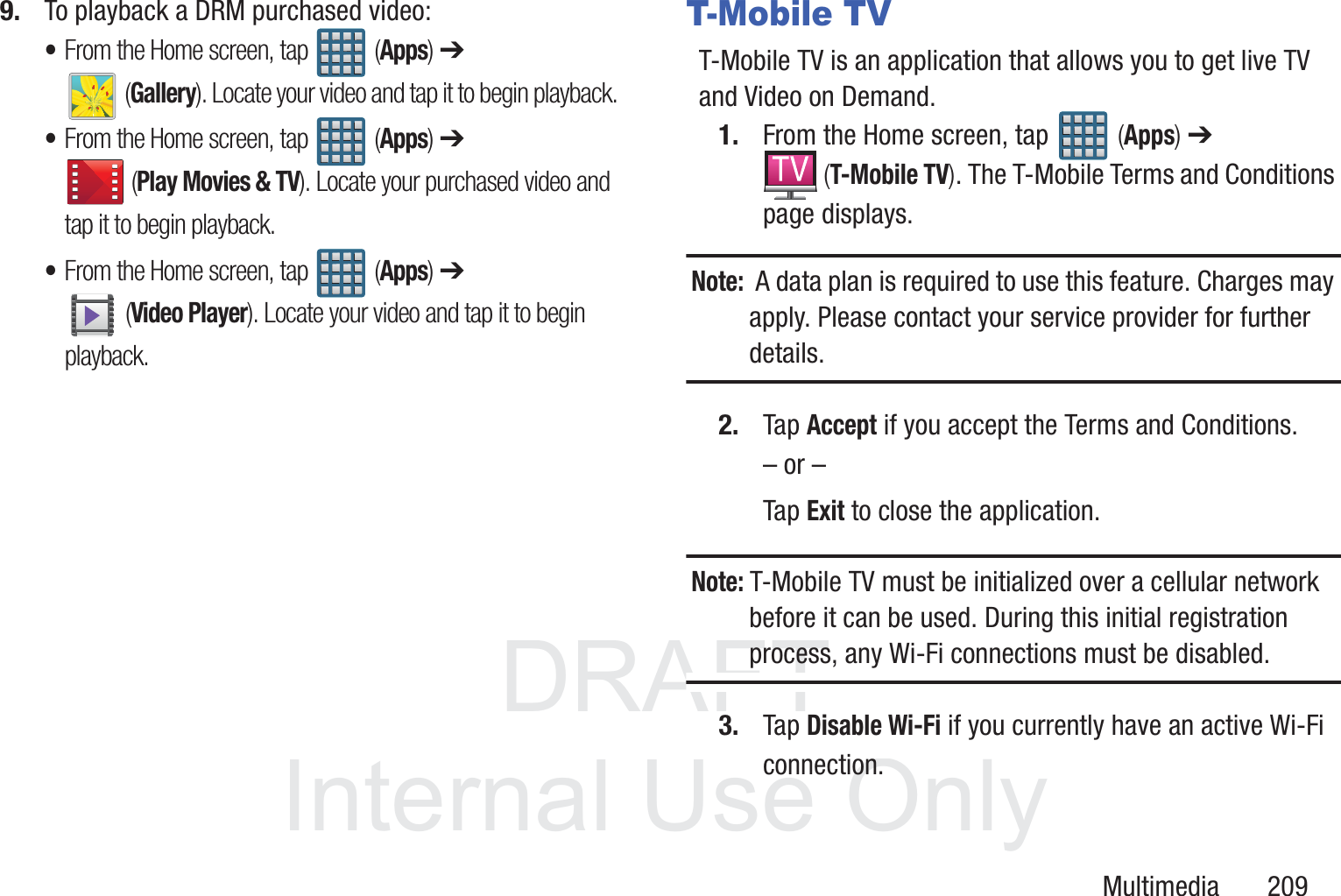
DRAFT InternalUse OnlyMultimedia       187•In no event will rented Media Content be available for a period of more than thirty (30) days (or shorter on a title-by-title basis) after the Media Content has been rented (e.g., if you begin viewing rented Media Content on the 29th day after the rental transaction, but do not finish viewing the entire title, that rented Media Content may not be available for the entire twenty-four (24) consecutive hour period if such period would extend the viewable time beyond the thirty (30) day rental window).• You cannot play any media content downloaded from Media Hub through any output on your mobile phone, including All Share.Play Movies & TVThis application allows you to connect to the Play Store, download a movie and then watch it instantly.Choose from thousands of movies, including new releases and HD titles in the Play Store and stream them instantly on your Android device. Movies, previously rented via the Play Store are automatically added to your My Movies library across your devices.Learn more about Google Play Movies at: http://play.google.com/about/movies.1. From the Home screen, tap   (Apps) ➔  (Play Movies & TV). 2. Log on to your Google account if you have not already done so. A list of videos sorted on the SD card displays in the Video list.3. Following the on-screen instructions for renting and viewing movies.4. Tap the MOVIES tab to view movies you have rented.5. Tap the TV SHOWS tab to view shows you have rented.6. Tap the PERSONAL VIDEOS tab to view movies you have on your device or memory card.
DRAFT InternalUse Only188For more information on using the Picture-in-Picture feature for video playback, see “Using Picture-In-Picture” on page 181.Play MusicAlso known as Google Music, allows you to browse, shop, and playback songs purchased from the Play Store. The music you choose is automatically stored in your Google Music library and instantly ready to play or download.  Access the new music tab from within your Play Store application.The Music application contains a music player that plays music and other audio files that you copy from your computer.1. From the Home screen, tap   (Apps) ➔  (Play Music).The Music app searches both your online library and your device’s internal storage for music and playlists; this can take from a few seconds to several minutes, depending on the amount of new music added since you last opened the application. It then displays a carousel view of your new and recent music, organized by album.2. If prompted, follow the on-screen instructions to link your current account to Google Play Music.3. Tap an on-screen account to add it or select Add account to use a new account.4. At the free songs screen, select either Get free songs or Skip.•Get free songs are downloaded via either the Internet or Play Store.•Follow the on-screen download and installation instructions.5. Swipe left or right to browse through your new and available music. Music, albums, and artists are grouped into categories.6. Tap an on-screen album to open it and begin playback.7. Return to the Library screen from most other screens in the Music application by tapping the Music application icon   (Music notification icon) at the top-left of the Application bar.
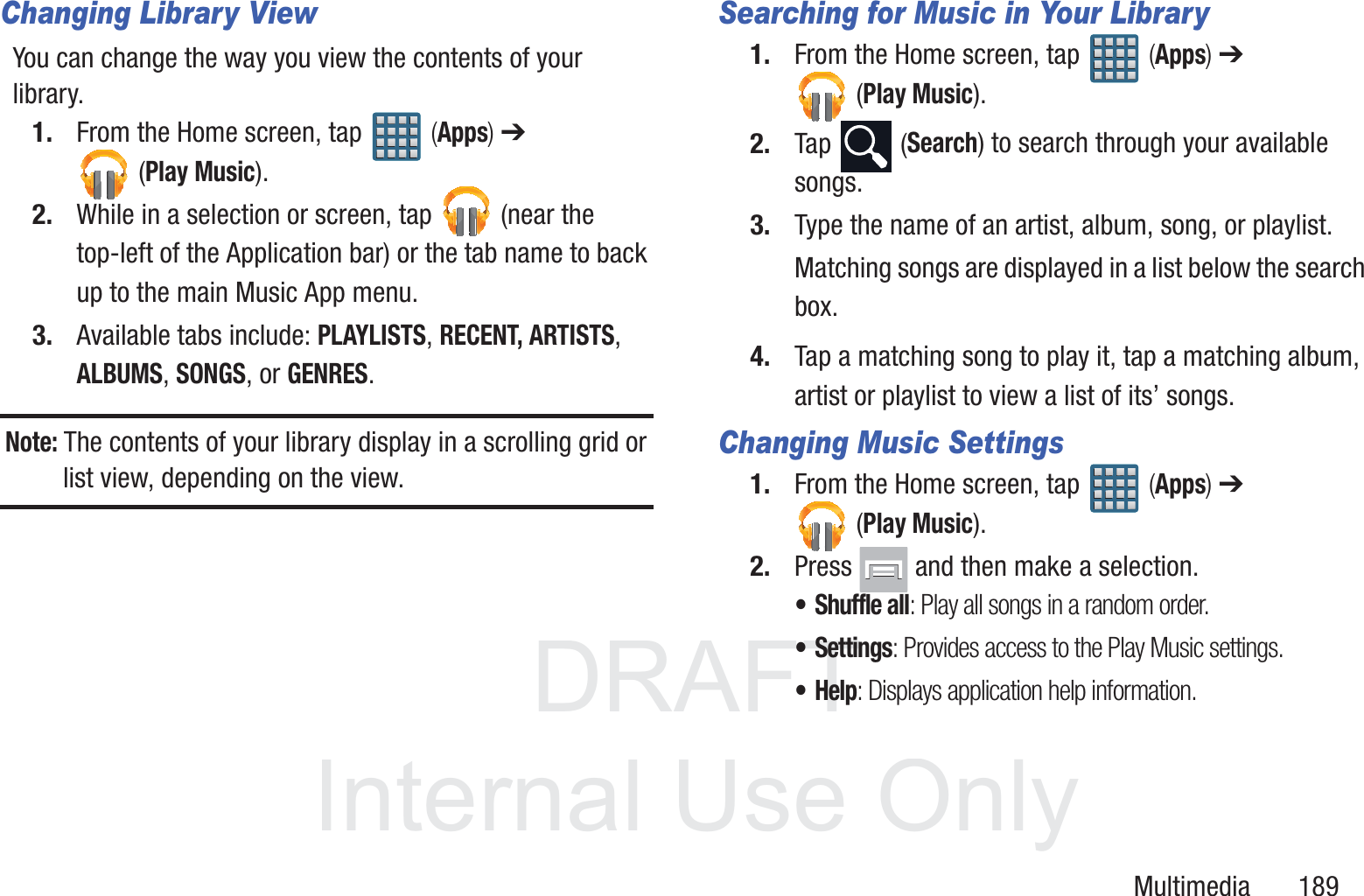
DRAFT InternalUse OnlyMultimedia       189Changing Library ViewYou can change the way you view the contents of your library.1. From the Home screen, tap   (Apps) ➔ (Play Music).2. While in a selection or screen, tap   (near the top-left of the Application bar) or the tab name to back up to the main Music App menu.3. Available tabs include: PLAYLISTS, RECENT, ARTISTS, ALBUMS, SONGS, or GENRES.Note: The contents of your library display in a scrolling grid or list view, depending on the view.Searching for Music in Your Library1. From the Home screen, tap   (Apps) ➔  (Play Music).2. Tap  (Search) to search through your available songs.3. Type the name of an artist, album, song, or playlist.Matching songs are displayed in a list below the search box.4. Tap a matching song to play it, tap a matching album, artist or playlist to view a list of its’ songs.Changing Music Settings1. From the Home screen, tap   (Apps) ➔  (Play Music).2. Press   and then make a selection.•Shuffle all: Play all songs in a random order.•Settings: Provides access to the Play Music settings.•Help: Displays application help information.
DRAFT InternalUse Only190Listening to MusicYou can listen to music by using your device’s built-in speakers, through a wired headset, or through a wireless Bluetooth stereo headset. Press the volume keys on the side of the device to activate on-screen volume control, then touch and drag on the scale to set volume.Playing Music1. From the Home screen, tap   (Apps) ➔  (Play Music).2. Tap a song in your library to listen to it.– or –While viewing a list of songs, tap   (Options) next to a song and tap Play.– or –While viewing a list of albums, artists, playlists, or genres, tap   (Options) adjacent to the label and tap Play.The Now playing screen opens and the song you touched or the first song in the album or playlist starts to play. The tracks in the current list play in order until you reach the end of the list (unless you choose a repeat option). Otherwise, playback stops only if you stop it, even when you switch applications.Note: If you navigate away from the Now playing screen in the Music application, the Now Playing bar appears at the bottom of the screen.
DRAFT InternalUse OnlyMultimedia       191Displaying the Now Playing ScreenIf you navigate away from the Now playing screen, to return to the Now playing screen from other Music screens:  Tap the name of the current song in the Now Playing bar.– or –In a single motion, touch and drag   (Music notification icon) down from the Status bar and tap the song title from the Notifications area. You can also pause and resume playback and skip to the next song in the panel. For more information, refer to “Notification Bar”  on page 37.Tab OptionsThere are various options available from the various tabs:1. From the Home screen, tap   (Apps) ➔ (Play Music).2. Select one of the following tabs and tap   to access an available option.•PLAYLISTS: Play, Add to queue, Rename, or Delete.• RECENT: to display the most recently played songs and albums•ARTISTS: Play, Add to queue, Add to playlist, More by artist, or Shop for artist.• ALBUMS: Play, Add to queue, Add to playlist, More by artist, or Shop for artist.•SONGS: Play, Add to queue, Add to playlist, Shop for artist, or Delete.• GENRES: Play, Add to queue, Add to playlist, More by artist, or Shop for artist.Options While Playing a SongWhen you play a song, the Now playing screen displays. There are various options and controls available while a song is playing:1. From the Home screen, tap   (Apps) ➔  (Play Music).2. Tap an album or song.3. From the Now playing screen, press   (Menu) to display the following options:•Equalizer: applies selected equalizer features such as: FX booster, Bass boost, and 3D effect.• Clear queue: clears the current queue.• Save queue: stores the current queue.
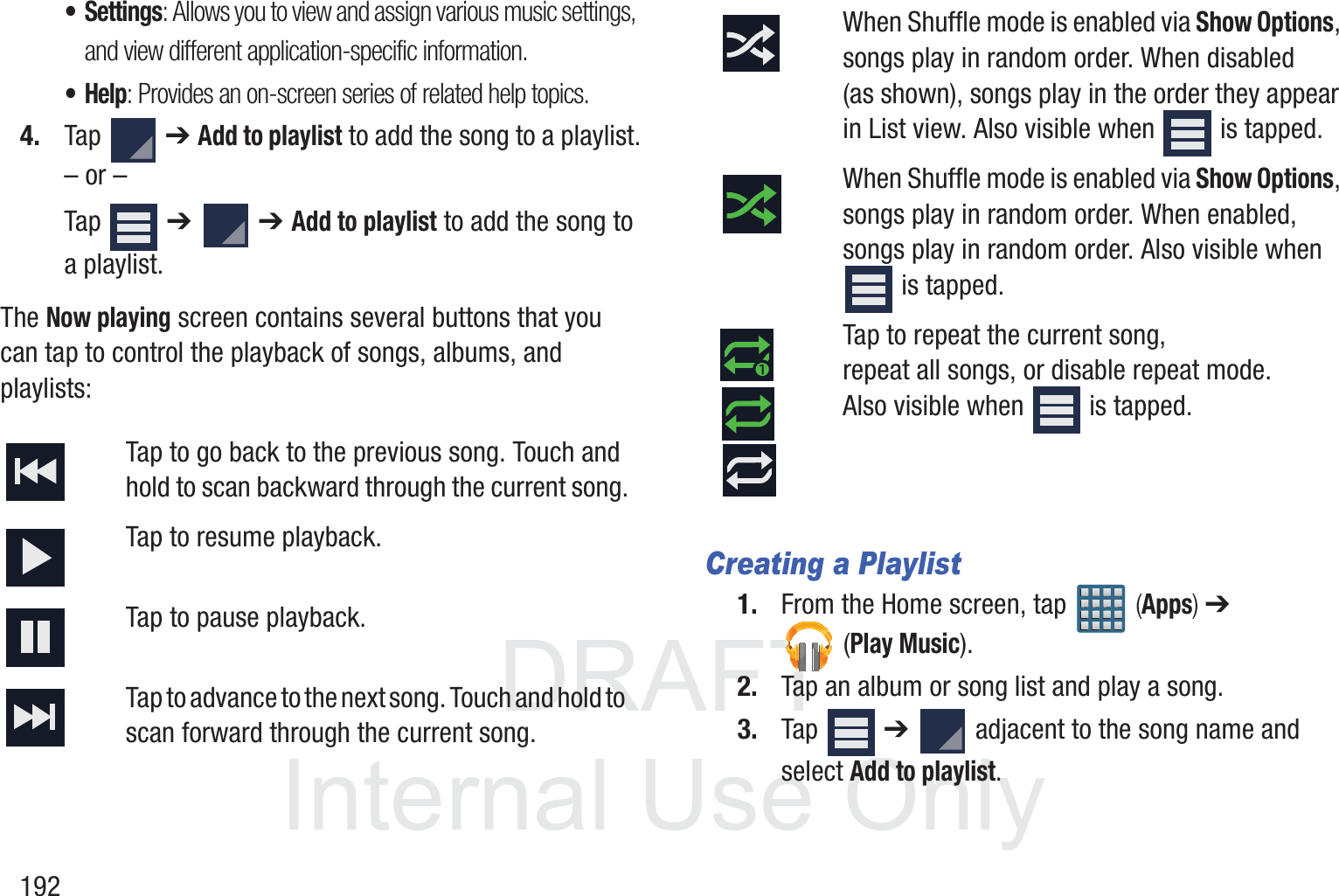
DRAFT InternalUse Only192• Settings: Allows you to view and assign various music settings, and view different application-specific information.•Help: Provides an on-screen series of related help topics.4. Tap  ➔ Add to playlist to add the song to a playlist.– or –Tap  ➔   ➔ Add to playlist to add the song to a playlist.The Now playing screen contains several buttons that you can tap to control the playback of songs, albums, and playlists: Creating a Playlist1. From the Home screen, tap   (Apps) ➔  (Play Music).2. Tap an album or song list and play a song.3. Tap  ➔   adjacent to the song name and select Add to playlist.Tap to go back to the previous song. Touch and hold to scan backward through the current song.Tap to resume playback.Tap to pause playback.Tap to advance to the next song. Touch and hold to scan forward through the current song.When Shuffle mode is enabled via Show Options, songs play in random order. When disabled (as shown), songs play in the order they appear in List view. Also visible when   is tapped.When Shuffle mode is enabled via Show Options, songs play in random order. When enabled, songs play in random order. Also visible when  is tapped.Tap to repeat the current song, repeat all songs, or disable repeat mode. Also visible when   is tapped.
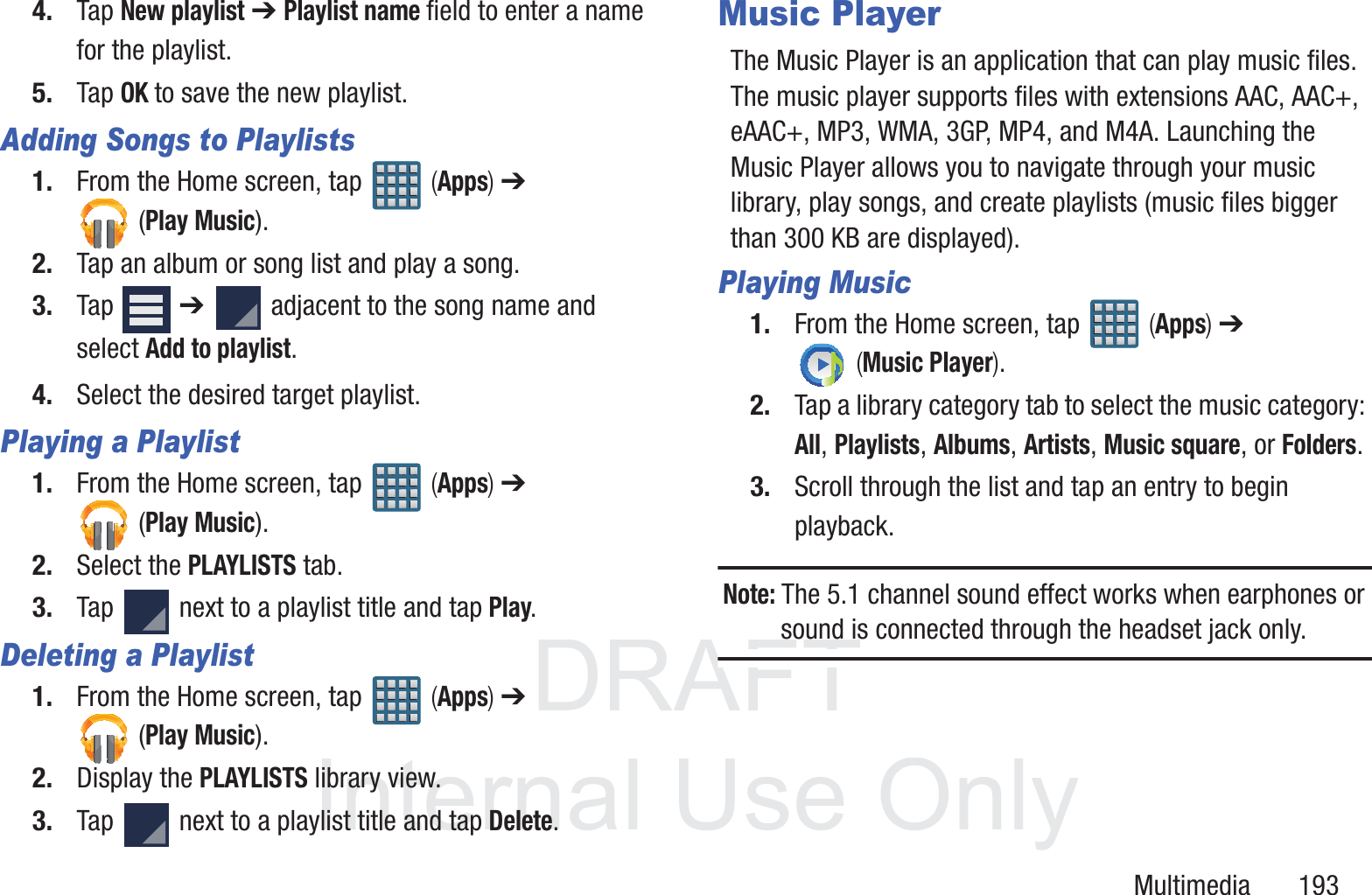
DRAFT InternalUse OnlyMultimedia       1934. Tap New playlist ➔ Playlist name field to enter a name for the playlist.5. Tap OK to save the new playlist.Adding Songs to Playlists1. From the Home screen, tap   (Apps) ➔ (Play Music).2. Tap an album or song list and play a song.3. Tap  ➔   adjacent to the song name and select Add to playlist.4. Select the desired target playlist.Playing a Playlist1. From the Home screen, tap   (Apps) ➔ (Play Music).2. Select the PLAYLISTS tab.3. Tap   next to a playlist title and tap Play.Deleting a Playlist1. From the Home screen, tap   (Apps) ➔ (Play Music).2. Display the PLAYLISTS library view.3. Tap   next to a playlist title and tap Delete.Music PlayerThe Music Player is an application that can play music files. The music player supports files with extensions AAC, AAC+, eAAC+, MP3, WMA, 3GP, MP4, and M4A. Launching the Music Player allows you to navigate through your music library, play songs, and create playlists (music files bigger than 300 KB are displayed).Playing Music1. From the Home screen, tap   (Apps) ➔  (Music Player). 2. Tap a library category tab to select the music category: All, Playlists, Albums, Artists, Music square, or Folders.3. Scroll through the list and tap an entry to begin playback.Note: The 5.1 channel sound effect works when earphones or sound is connected through the headset jack only.
DRAFT InternalUse Only1944. Use any of the following Music Player controls: Making a Song a Phone Ringtone1. From the Home screen, tap   (Apps) ➔  (Music Player). 2. Tap the All tab.3. Touch and hold a song from the list to reveal the on-screen context menu.4. Tap Set as ➔ Phone ringtone.Music Player OptionsThe Music Player Settings menu allows you to set preferences for the music player such as whether you want the music to play in the background, sound effects, and how the music menu displays.  With the Music player application displayed and playing a song, press   and select one of the following options:• Add to quick list: adds the current music file to the Quick list.• Via Bluetooth: scans for devices and pairs with a Bluetooth headset.•Share via: allows you to share your music by using Bluetooth, Dropbox, Email, Gmail, Messaging, or Wi-Fi Direct.Pause the song.Start the song after pausing.Press and hold to rewind the song. Tap to go to previous song.Press and hold to fast-forward  the song. Tap to go to next song.Volume control.Plays the entire song list once.Replays the current list when the list ends.Repeats the currently playing song.shuffles the current list of songs randomly.songs play in order and are not shuffled.provides access to the Music square.lists the current playlist songsdisplays the current song in the player windowprovides access to the Equalizer
DRAFT InternalUse OnlyMultimedia       195•Add to playlist: allows you to add the current music file to a selected playlist.•Details: allows you to view media info such as Artist, Title, Album, Track length, Genre, Track number, Format, Size, and Location.•Set as: allows you to set the current song as a Phone ringtone, Caller ringtone, or Alarm tone.• Scan for nearby devices: allows you to look for DLNA -compliant devices used to control streaming media. •Settings: allows you to change your music player settings. •End: closes the application.Music Player SettingsThe Music Player Settings menu allows you to set preferences for the music player such as whether you want the music to play in the background, sound effects, and how the music menu displays.1. From the Home screen, tap   (Apps) ➔  (Music Player). 2. Press  ➔ Settings.3. Select one of the following settings:•SoundAlive: set a type of equalization such as Normal, Pop, Rock, Jazz, Dance, Classic, etc.• Play speed: set the play speed anywhere between 0.5X and 2.0X using the slider.• Music menu: this menu allows you to select which categories you want to display. Choices are: Albums, Artists, Genres, Music square, Folders, Composers, Years, Most played, Recently played, or Recently added. Tap each item that you want to display in the Music menu.•Lyrics: when activated, the lyrics of the song are displayed if available.• Music auto off: when activated, music will automatically turn off after a set interval.
DRAFT InternalUse Only196Using PlaylistsPlaylists are used to assign music files into groups for playback. These Playlists can be created using the Music player on this device, or using a third-party application (such as Windows Media Player) and downloading those files to an SD card inserted into the device.Creating a Playlist1. From the Home screen, tap   (Apps) ➔  (Music Player). 2. Tap the Playlists tab.3. Press   and then tap Create playlist.4. Backspace over the default playlist title and type a new name for this playlist, then tap OK.Adding Music to a Playlist1. From the Home screen, tap   (Apps) ➔  (Music Player). 2. Tap the Playlists tab.3. Tap the playlist name in which to add music.4. Press   and then tap Add.– or –Tap  (Add music). This option is available within user-created playlists.Note: If a playlist is empty, add a song by touching a holding a song name from the main screen to open the context menu. Select Add to playlist and choose the playlist.5. Tap a music file, or tap Select all to add all the music tracks to this playlist then tap Done.
DRAFT InternalUse OnlyMultimedia       197Removing Music from a Playlist1. From the Home screen, tap   (Apps) ➔  (Music Player). 2. Tap the Playlists tab.3. Tap the playlist name in which to delete music.4. Touch and hold a song to reveal the on-screen context menu.5. Tap Remove. Editing a PlaylistBesides adding and removing music files in a playlist, you can also share, delete, or rename the playlist.Note: Only those playlist you have created can be edited. Default playlists can not be renamed.1. From the Home screen, tap   (Apps) ➔  (Music Player). 2. Tap the Playlists tab.3. Touch and hold a playlist entry to reveal the on-screen context menu.4. Tap Edit title.5. Enter a new name for this playlist and tap OK.Transferring Music FilesMusic files can be downloaded to the phone using one of two methods:1. Downloaded to the device from the Play Store.Music files are directly stored on your phone.2. Downloaded to the phone via a direct USB connection.Music files are stored into a Music folder on the SD card.For more information, refer to “Communicating with the SD card”  on page 67.Removing Music Files1. From the Home screen, tap   (Apps) ➔  (Music Player). 2. Tap the All tab.3. Touch and hold a song entry to reveal the on-screen context menu.4. Tap Delete ➔ OK. The music file(s) is deleted.
DRAFT InternalUse Only198Music HubSamsung Music Hub makes your device a personal music manager. It lets you access, buy, and download millions of music tracks. Access top albums, top tracks, featured albums, and new releases as well as search for tracks, albums and artist. Enjoy music samples before you download them from your device.Note: You must sign up for an account before accessing some of the Music Hub options.1. From the Home screen, tap   (Apps) ➔  (Music Hub). 2. Read the Disclaimer and tap Confirm to continue or   (Back) to exit. The Music Hub Home screen displays.3. Read the 30-day trial offer and choose either Start or Not now, go to store. Follow the on-screen instructions.4. Choose from any of the following options: My Music, Catalog, Radio, Recommended, Recent, Tagged, Q (Queue), or Settings.Note: You have to be signed in to use some options. To sign in without your Samsung account, tap Sign in and use the keyboard to enter your Email address and Music Hub Password. Tap Create account to set up a new account.5. Tap  (Search) and use the keyboard to enter a key word or phrase to search for tracks, albums, or artists. Tap   on the keyboard to search Music Hub. Select an item to play a sample, add an item to your basket, or add an item to your album.Making a PurchaseYou can use Music Hub to buy albums or individual tracks. You can also build your own album from various tracks.1. From the Home screen, tap   (Apps) ➔  (Music Hub) ➔ Store. 2. Select an album or a track.
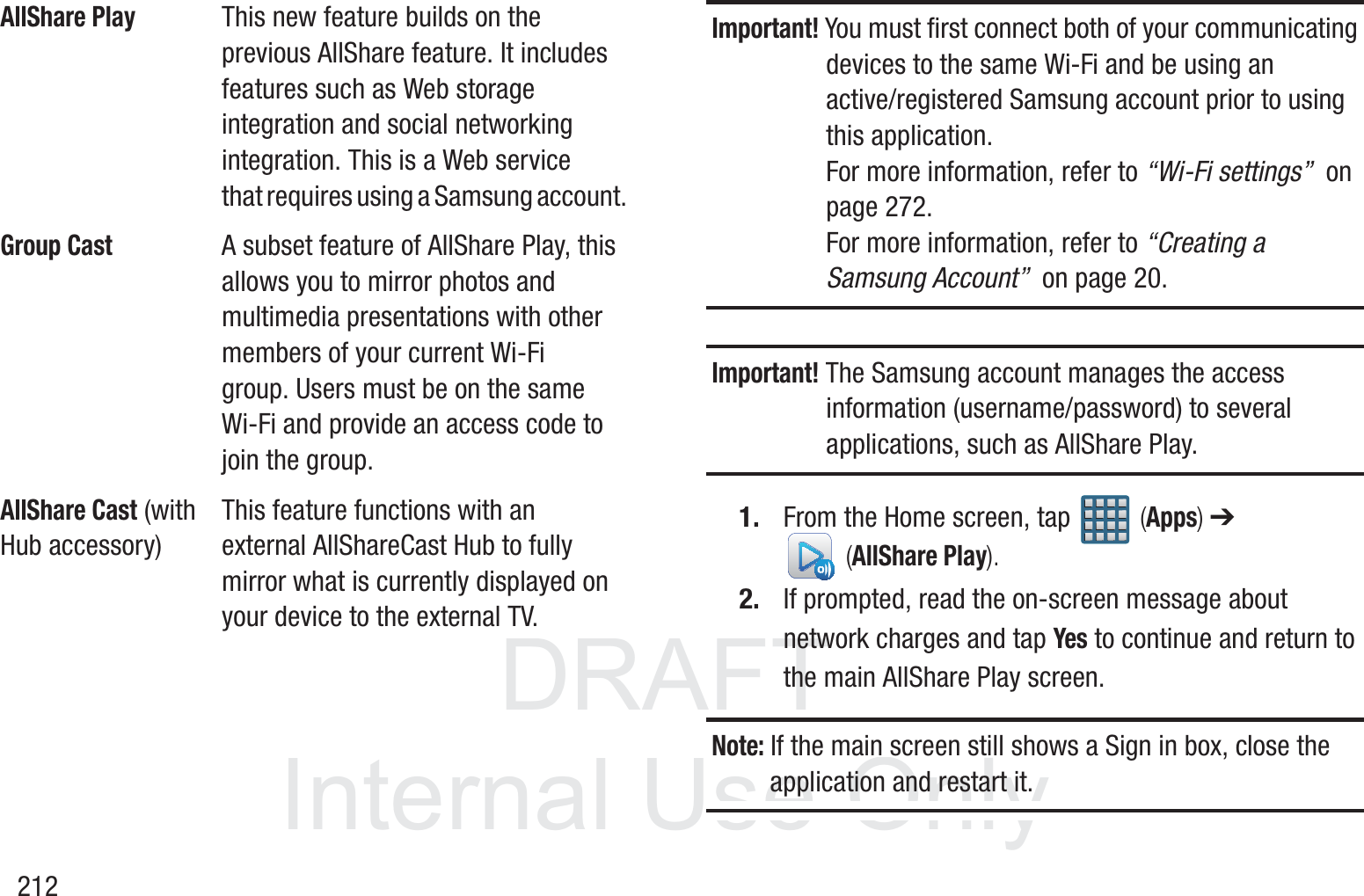
DRAFT InternalUse OnlyMultimedia       1993. To the right of the entry, tap   (Preview) hear a 30 second preview of the current selection.– or –4. To the far right of the entry, tap   (Options) choose from: Add to queue, Add to playlist..., Add to My Music, Find similar music, View artist, or Buy song. 5. Tap Buy song and follow the on-screen instructions to complete your purchase.AllShare PlayThis application wirelessly synchronizes your Samsung device with your TV, streams content and even keeps tabs on who calls or sends text messages with real-time, on-screen monitoring. Samsung’s AllShare makes staying connected easy.Allows users to share their in-device media content with other external devices using DLNA certified™ (Digital Living Network Alliance) Devices. These external devices must also be DLNA-compliant. Wi-Fi capability can be provided to TVs via a digital multimedia streamer.Important! You must first connect both of your communicating devices to the same Wi-Fi and be using an active/registered Samsung account prior to using this application. For more information, refer to “Wi-Fi settings”  on page 272. For more information, refer to “Creating a Samsung Account”  on page 20.
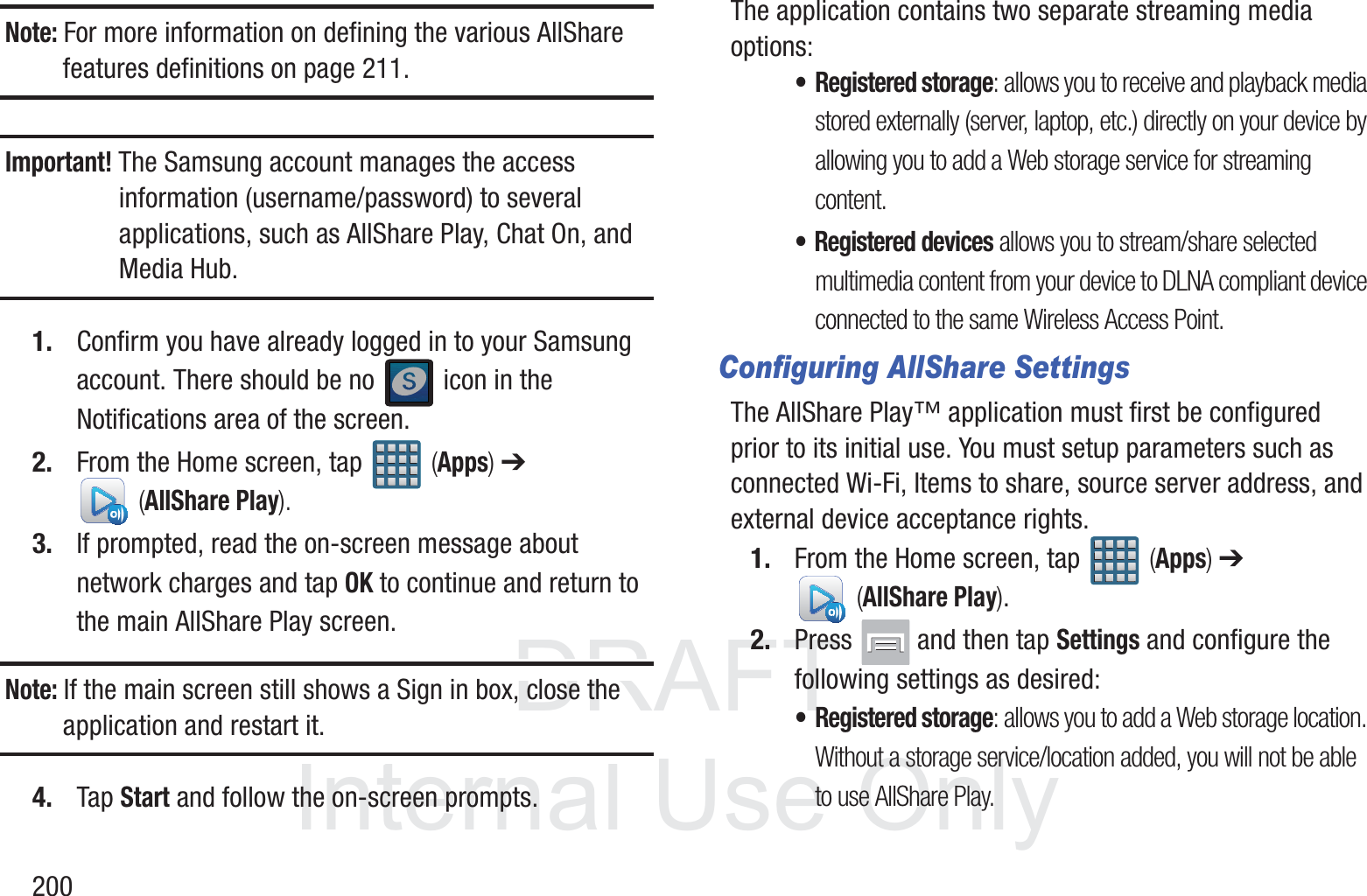
DRAFT InternalUse Only200Note: For more information on defining the various AllShare features definitions on page 211.Important! The Samsung account manages the access information (username/password) to several applications, such as AllShare Play, Chat On, and Media Hub.1. Confirm you have already logged in to your Samsung account. There should be no   icon in the Notifications area of the screen.2. From the Home screen, tap   (Apps) ➔  (AllShare Play).3. If prompted, read the on-screen message about network charges and tap OK to continue and return to the main AllShare Play screen.Note: If the main screen still shows a Sign in box, close the application and restart it. 4. Tap Start and follow the on-screen prompts.The application contains two separate streaming media options:•Registered storage: allows you to receive and playback media stored externally (server, laptop, etc.) directly on your device by allowing you to add a Web storage service for streaming content.• Registered devices allows you to stream/share selected multimedia content from your device to DLNA compliant device connected to the same Wireless Access Point.Configuring AllShare SettingsThe AllShare Play™ application must first be configured prior to its initial use. You must setup parameters such as connected Wi-Fi, Items to share, source server address, and external device acceptance rights.1. From the Home screen, tap   (Apps) ➔  (AllShare Play).2. Press   and then tap Settings and configure the following settings as desired:• Registered storage: allows you to add a Web storage location. Without a storage service/location added, you will not be able to use AllShare Play.
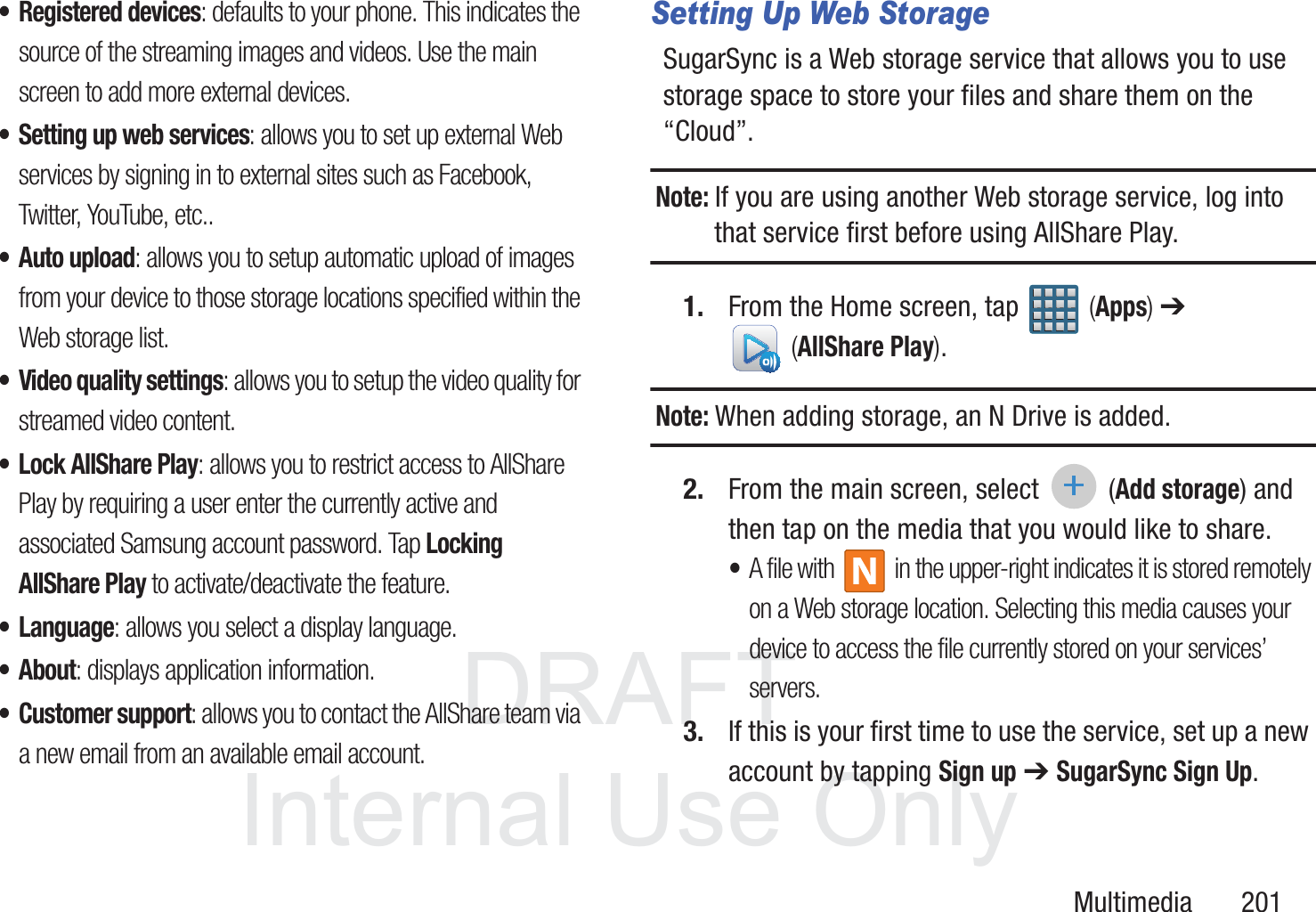
DRAFT InternalUse OnlyMultimedia       201• Registered devices: defaults to your phone. This indicates the source of the streaming images and videos. Use the main screen to add more external devices.• Setting up web services: allows you to set up external Web services by signing in to external sites such as Facebook, Twitter, YouTube, etc.. •Auto upload: allows you to setup automatic upload of images from your device to those storage locations specified within the Web storage list.• Video quality settings: allows you to setup the video quality for streamed video content.• Lock AllShare Play: allows you to restrict access to AllShare Play by requiring a user enter the currently active and associated Samsung account password. Tap Locking AllShare Play to activate/deactivate the feature.• Language: allows you select a display language. •About: displays application information.• Customer support: allows you to contact the AllShare team via a new email from an available email account.Setting Up Web StorageSugarSync is a Web storage service that allows you to use storage space to store your files and share them on the “Cloud”. Note: If you are using another Web storage service, log into that service first before using AllShare Play.1. From the Home screen, tap   (Apps) ➔  (AllShare Play). Note: When adding storage, an N Drive is added.2. From the main screen, select  (Add storage) and then tap on the media that you would like to share.  •A file with   in the upper-right indicates it is stored remotely on a Web storage location. Selecting this media causes your device to access the file currently stored on your services’ servers.3. If this is your first time to use the service, set up a new account by tapping Sign up ➔ SugarSync Sign Up.
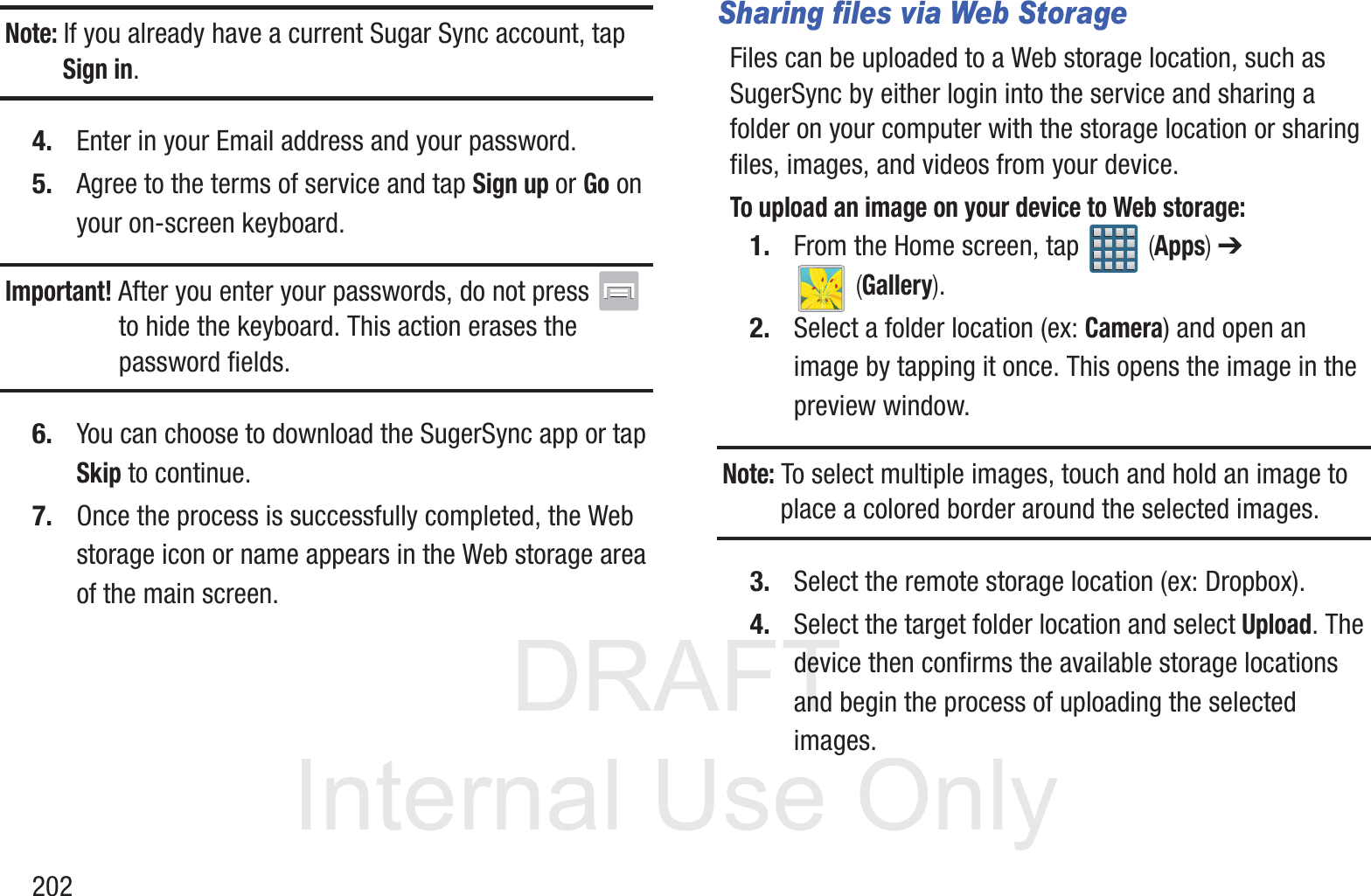
DRAFT InternalUse Only202Note: If you already have a current Sugar Sync account, tap Sign in.4. Enter in your Email address and your password.5. Agree to the terms of service and tap Sign up or Go on your on-screen keyboard.Important! After you enter your passwords, do not press   to hide the keyboard. This action erases the password fields.6. You can choose to download the SugerSync app or tap Skip to continue.7. Once the process is successfully completed, the Web storage icon or name appears in the Web storage area of the main screen.Sharing files via Web StorageFiles can be uploaded to a Web storage location, such as SugerSync by either login into the service and sharing a folder on your computer with the storage location or sharing files, images, and videos from your device.To upload an image on your device to Web storage:1. From the Home screen, tap   (Apps) ➔  (Gallery).2. Select a folder location (ex: Camera) and open an image by tapping it once. This opens the image in the preview window.Note: To select multiple images, touch and hold an image to place a colored border around the selected images.3. Select the remote storage location (ex: Dropbox). 4. Select the target folder location and select Upload. The device then confirms the available storage locations and begin the process of uploading the selected images.
DRAFT InternalUse OnlyMultimedia       203To upload a video on your device to Web storage:1. From the Home screen, tap   (Apps) ➔  (Gallery).2. Select a folder location (ex: Camera) and touch and hold a video to place a colored border around the selected file.3. Tap  ➔ Dropbox from the top of the Gallery screen. The device then confirms the available storage locations and begin the process of uploading the selected video.Sharing Media via AllShare Play to a Target DeviceImportant! Make sure all communicating devices are connected to the same Wi-Fi.1. Launch AllShare on the target device (such as an Internet TV, Samsung Tablet, etc..).2. From the Home screen, tap   (Apps) ➔  (AllShare Play). Note: You must be signed in to your Samsung Account before you can use this feature.3. Tap your device name from the Devices list.4. Tap an available category tab (Pictures, Music, Movies, Files, or Info) and select a file.•Touch and hold to select multiple files.•A file with   in the upper-right indicates it is stored remotely on a Web storage location. Selecting this media causes your device to access the file currently stored on your services’ servers.5. Tap an available on-screen file, image, or video to place a green check mark alongside it.6. Tap  (Stream to connected devices) and select an available target device to begin streaming.7. On a target device (ex: Internet TV) select the on-screen Allow button to continue.Note: At this stage your device is requesting access to share media with the external source.
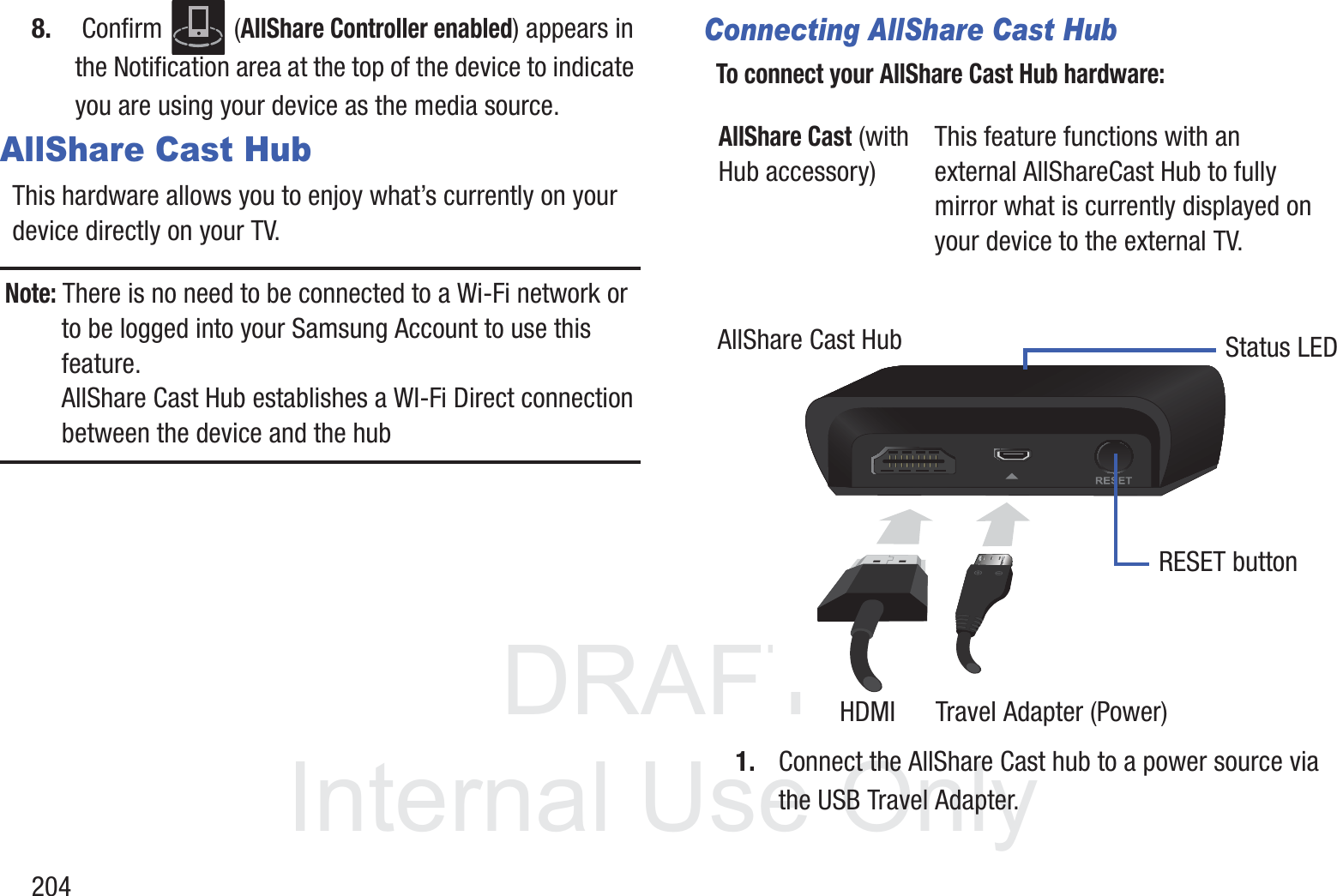
DRAFT InternalUse Only2048.  Confirm   (AllShare Controller enabled) appears in the Notification area at the top of the device to indicate you are using your device as the media source.AllShare Cast HubThis hardware allows you to enjoy what’s currently on your device directly on your TV. Note: There is no need to be connected to a Wi-Fi network or to be logged into your Samsung Account to use this feature. AllShare Cast Hub establishes a WI-Fi Direct connection between the device and the hubConnecting AllShare Cast HubTo connect your AllShare Cast Hub hardware: 1. Connect the AllShare Cast hub to a power source via the USB Travel Adapter.AllShare Cast (with Hub accessory)This feature functions with an external AllShareCast Hub to fully mirror what is currently displayed on your device to the external TV.AllShare Cast HubHDMI      Travel Adapter (Power)Status LEDRESET button
DRAFT InternalUse OnlyMultimedia       205Note: The status LED begins to blink solid red to indicate it has begun the start up process.2. Connect your TV to the AllShare Cast Hub via an HDMI cable (A-to-A cable) as shown above.3. Change the source input on your TV to match the input port used by the incoming HDMI cable.Note: The television screen should now display an on-screen tutorial showing you how to configure your device’s AllShare Cast Hub and device settings.To activate AllShare Cast on your device:1. From the Home screen, press   and then tap Settings ➔ More settings ➔ AllShare Cast.2. If not already on, touch and slide the AllShare Cast slider to the right to turn it on. The slider color indicates the activation status. Pairing AllShare Cast HubTo pair your device and Hub for the 1st time:1. Locate the AllShare Hub (dongle) name displayed at the bottom of the TV (showing the tutorial). Ex: Name: Dongle - XXXXXX.2. Access your device’s AllShare Cast screen and locate the same hub/dongle name in the list.•Tap Scan if your AllShare Cast Hub (dongle) does not appear in the list.3. Verify your AllShare Cast Hub is on (blinking red LED) and the on-screen tutorial is displaying on the connected TV.4. Verify the previous   (Wi-Fi Direct Active) is displayed.LED Color/Patterns DescriptionRed - SolidIndicates the AllShare Cast Hub is booting or processing.Red - BlinkingIndicates the AllShare Cast Hub is in standby mode (ready for connection).Blue - SolidIndicates the AllShare Cast Hub is ready to be connected with a new device.
DRAFT InternalUse Only206Note: The AllShare Cast Hub communicates with your paired device via a Wi-Fi Direct connection.5. For a first time connection:•Press the RESET button (located at the rear of the hub) once and only for a second until the LED turns solid BLUE.•Quickly tap the hub name entry on your device’s AllShare Cast screen.6. Verify  (AllShare Cast Hub Communicating) appears at the top of the device’s screen.7. Confirm the connection by making sure both your TV and device show the same image/screen and   (Wi-Fi Direct Communicating) now displays on the device.Important! The AllShare Cast Hub is a 1-to-1 connection. If a previous device was paired to the Hub and is still connected to the AllShare Cast Hub, you can not pair a new device until the first connection is stopped.To disconnect your device from the hub:1. Access your device’s AllShare Cast screen and locate the current connection.2. Tap the entry and select End connection.To reconnect your device again to an existing hub:1. Locate the AllShare Hub (dongle) name displayed at the bottom of the TV (showing the tutorial). Ex: Name: Dongle - XXXXXX.Important! Verify the LED is not a solid blue. This indicates there is another device currently connected.2. Access your device’s AllShare Cast screen and tap the same hub/dongle name in the list.3. Confirm the connection by making sure both your TV and device show the same image/screen.
DRAFT InternalUse OnlyMultimedia       207AllShare Cast Hub - Troubleshooting Connections• If this is the first time you are connecting your device to a hub and the connection fails:•Press the RESET button for 1 second until it turns solid BLUE.•Quickly tap the dongle name from within your device’s AllShare cast screen.Note: This process is similar to initially pairing a Bluetooth device.• If you have already successfully paired another device and you are trying to connect another device:•Only one device can be paired and in use at a time with the hub.•From the previously connected device’s AllShare Cast screen, tap the connection and select End connection.•If you can’t find the previous device:–Press and hold the RESET button (on the back of the hub), for about FOUR seconds until the LED begins to blink RED.–Access your new device’s AllShare Cast screen and rescan for the existing hub/dongle.–Press the RESET button on the hub for ONE second until the LED turns BLUE.–Tap the entry from your device’s AllShare Cast screen and confirm connection.Important! The AllShare Cast Hub is a 1-to-1 connection. If a previous device was paired to the Hub and is still connected to the AllShare Cast Hub, you can not pair a new device until the first connection is stopped.• I have a new device and the hub is connected but it doesn’t show up in my list:•Force the hub to disconnect from any previously paired devices:–Press and hold the RESET button (on the back of the hub), for about FOUR seconds until the LED begins to blink RED.–Access your new device’s AllShare Cast screen and rescan for the existing hub/dongle.–Press the RESET button on the hub for ONE second until the LED turns BLUE.
DRAFT InternalUse Only208–Tap the entry from your device’s AllShare Cast screen and confirm connection.AllShare Cast Hub - Streaming VideosThe hub supports streaming of purchased media content that contains DRM (Digital Rights Management).Note: You can control the volume level of your playback file being shown on your TV by using your device’s Volume buttons. For additional volume, use your TV’s volume controls.To stream video content to your Tv via AllShare Cast Hub:1. Connect your AllShare Cast Hub to your TV. For more information, refer to “Connecting AllShare Cast Hub”  on page 204.2. Verify your TV is set to the same source as your hub and that you can see the on-screen connection and configuration tutorials.3. On your device, press   ➔   and then tap Settings ➔ More settings ➔ AllShare Cast.4. In a single motion touch and slide the AllShare Cast slider to the right to turn it on. A list of available hubs will appear on the screen.5. Press the RESET button on the back of the hub once (LED turns blue) and tap the dongle entry from your device’s list.– or –If reconnecting, verify the hub’s LED is blinking red and then tap the dongle entry from your device’s list.6. Verify  (AllShare Cast Hub Communicating) appears at the top of the device’s screen.7. Verify the previous   (Wi-Fi Direct On) now displays  (Wi-Fi Direct Communicating).8. To playback a user-created video:•From the Home screen, tap   (Apps) ➔  (Gallery).•Locate your video and tap it to begin playback. Your TV now shows the video
DRAFT InternalUse OnlyMultimedia       2099. To playback a DRM purchased video:•From the Home screen, tap   (Apps) ➔  (Gallery). Locate your video and tap it to begin playback. •From the Home screen, tap   (Apps) ➔  (Play Movies & TV). Locate your purchased video and tap it to begin playback. •From the Home screen, tap   (Apps) ➔  (Video Player). Locate your video and tap it to begin playback. T-Mobile TVT-Mobile TV is an application that allows you to get live TV and Video on Demand.1. From the Home screen, tap   (Apps) ➔  (T-Mobile TV). The T-Mobile Terms and Conditions page displays.Note:  A data plan is required to use this feature. Charges may apply. Please contact your service provider for further details.2. Tap Accept if you accept the Terms and Conditions.– or –Tap Exit to close the application.Note: T-Mobile TV must be initialized over a cellular network before it can be used. During this initial registration process, any Wi-Fi connections must be disabled.3. Tap Disable Wi-Fi if you currently have an active Wi-Fi connection.
DRAFT InternalUse Only2104. Tap Start Trial to begin a free 30-day trial of the service. – or –Tap Continue to keep viewing the free content or Purchase Options to buy the paid features.5. Tap any of the following categories to begin viewing: Home, Live TV, TV Shows, Favorites, Help, Search, More Info, Browse, or Live Channels.YouTubeYouTube is a video sharing website on which users can upload and share videos, and view them in MPEG-4 format.1. From the Home screen, tap   (Apps) ➔  (YouTube).2. When the screen loads you can begin searching and viewing posted videos.3. Press  ➔ Settings ➔ General ➔ High quality on mobile if you prefer high quality output.
DRAFT InternalUse OnlyApplications and Development       211Section 9: Applications and DevelopmentThis section contains a description of each application that is available in the Applications Menu, its function, and how to navigate through that particular application. If the application is already described in another section of this user manual, then a cross reference to that particular section is provided.Note: This manual only addresses applications that have been loaded on your [device/computer/tablet] as of the date of purchase. Information concerning third party applications that you may choose to download from the Google Play Store or otherwise should be obtained from the application provider directly.Tip: To open applications quickly, add the icons of frequently-used applications to one of the Home screens. For more information, refer to “Customizing the Screens”  on page 59.You can also add an application icon as a Primary Shortcut that will display on all Home screens. If you add an application as a primary shortcut, the application icon will not be displayed in the Applications menu. ApplicationsThe Applications list provides quick access to all the available applications on the phone. AllShare PlayThis application wirelessly synchronizes your Samsung mobile phone with your TV, streams content and even keeps tabs on who calls or sends text messages with real-time, on-screen monitoring. Samsung’s AllShare makes staying connected easy.Allows users to share their in-device media content with other external devices using DLNA certified™ (Digital Living Network Alliance) Devices. These external devices must also be DLNA-compliant. Wi-Fi capability can be provided to TVs via a digital multimedia streamer.AllShare Definitions:    AllShareThis uses the traditional DLNA technology for sharing multimedia (photos, videos, or music) to your Samsung Smart TV and other DLNA devices.
DRAFT InternalUse Only212Important! You must first connect both of your communicating devices to the same Wi-Fi and be using an active/registered Samsung account prior to using this application. For more information, refer to “Wi-Fi settings”  on page 272. For more information, refer to “Creating a Samsung Account”  on page 20.Important! The Samsung account manages the access information (username/password) to several applications, such as AllShare Play.1. From the Home screen, tap   (Apps) ➔  (AllShare Play).2. If prompted, read the on-screen message about network charges and tap Yes to continue and return to the main AllShare Play screen.Note: If the main screen still shows a Sign in box, close the application and restart it. AllShare PlayThis new feature builds on the previous AllShare feature. It includes features such as Web storage integration and social networking integration. This is a Web service that requires using a Samsung account.Group CastA subset feature of AllShare Play, this allows you to mirror photos and multimedia presentations with other members of your current Wi-Fi group. Users must be on the same Wi-Fi and provide an access code to join the group.AllShare Cast (with Hub accessory)This feature functions with an external AllShareCast Hub to fully mirror what is currently displayed on your device to the external TV.
DRAFT InternalUse OnlyApplications and Development       2133. Tap Start and follow the on-screen prompts.For more information, refer to “AllShare Play”  on page 199.CalculatorUsing this feature allows you to use your device as a calculator. The calculator provides the basic arithmetic functions; addition, subtraction, multiplication, and division. You can also use this as a scientific calculator.1. From the Home screen, tap   (Apps) ➔  (Calculator). 2. Enter the first number using the numeric keys.3. Enter the operation for your calculation by tapping the Plus, Minus, Multiplication, or Division key.4. Enter the next number.5. To view the result, tap the =  (equals) key.6. Repeat steps 1 to 4 as many times as required.Note: Place the screen in Landscape mode to reveal additional scientific functions.CalendarWith this feature, you can consult the calendar by day, week, or month, create events, and set an alarm to act as a reminder. Google Calendar is built into the phone and synchronizes both new and existing entries between your phone and your online Google account.Important! You should previously add an account (Facebook, Microsoft Exchange ActiveSync, or Google) prior to using the Calendar.1. From the Home screen, tap   (Apps) ➔  (Calendar). Tap   (Show More) to display these tabs:•Year: displays the Year view.•Month: displays the Month view.• Week: displays the Week view.•Day: displays the Day view.•List: displays the events in a List view.•Task: allows you to search for tasks.
DRAFT InternalUse Only2142. Tap  (Create event) to create a new Calendar event.– or –Tap Today to display the current date indicated by a blue box, then press   and select one of the following options:•Go to: displays a specific date.•Delete: allows you to delete All events, All events before today, or an individual event.•Search: allows you to search within your current events.• Sync: synchronizes your current calendar events with your available accounts (such as Gmail, Microsoft Exchange ActiveSync, etc..).• Settings: displays a list of configurable settings.Creating a Calendar Event1. From the Home screen, tap   (Apps) ➔  (Calendar).2. Tap   to access the various calendar tabs.3. Within the Year, Month, Week, and Day tabs, tap   (Create event).Calendar SettingsUsing the Calendar settings you can select the day with which you want the calendar to begin. You also select how you want to view the calendar, by Month, Week, or Day or determine how to manage events, notifications, sounds, and defaults reminders.1. From the Home screen, tap   (Apps) ➔  .2. Press  ➔ Settings.3. Tap Month view styles and select a style: Calendar view + list or Calendar view + pop-up.4. Tap Week view and select a type: Timeline or Analog.5. Tap First day of week and select either Local default, Saturday, Sunday or Monday.6. Tap Hide declined events to activate this option. A check mark indicates selection.
DRAFT InternalUse OnlyApplications and Development       2157. Tap Lock time zone (to lock event time based on your current user-selected time zone). Select a time zone from within the Select time zone field.8. Tap Show week number to display the week numbers along the side of the week entries.9. Tap Calendars and select the type of general synchronization settings you want. A check mark indicates selection.10. Tap Set alerts & notifications to adjust the event notification method. Choose from: Alert, Status bar notification, and Off.11. Tap Select ringtone to assign a ringtone to a calendar event notification.12. Tap Vibration to assign a vibration notification to this event.13. Tap Default reminder time to assign a default time frame for event reminders.14. Tap Notifications while screen is off to display notifications on the full screen while it is turned off.15. Tap Quick responses to edit your default quick responses for outbound emails. These are default responses similar to those used by text templates.16. Tap Swipe with two fingers to change the way events are displayed when swiped.CameraUse your 8.0 megapixel camera feature to produce photos in a JPEG format. The Camcorder shoots High Definition video in an MP4 format.Note: A microSD card is no longer necessary before you take pictures or shoot video. It is recommended that you confirm your default storage location for images and videos.   From the Home screen, tap   (Apps) ➔  (Camera).For more information, refer to “Using the Camera”  on page 161.
DRAFT InternalUse Only216ChatONProvides a global mobile communication service where you can chat with more than 2 buddies via a group chat, In this service you can send pictures, videos, animation messages (Scribbles), audio, Contacts, Calendar entries, and Location information. Create special animated messages for your friends using handwritten messages, text, photos, background images and music.1. From the Home screen, tap   (Apps) ➔  (ChatON).2. Log in to the service and follow the on-screen instructions.For more information, visit: https://web.samsungchaton.com.For more information, refer to “ChatON”  on page 156.ChromeThe Google Chrome app allows you to use the Google Chrome Web browser on your device.1. From the Home screen, tap   (Apps) ➔  (Chrome).2. Read the Google Chrome Terms of Service and tap Accept and Continue.3. If you have an existing Chrome account, tap Sign in to bring your open tabs, bookmarks, and omnibox data from your computer to your phone, otherwise tap No thanks.4. Follow the on-screen instructions to use Google Chrome.
DRAFT InternalUse OnlyApplications and Development       217ClockHere you can set an Alarm, configure and view the World clock, use a Stopwatch, set a Timer, or use a Desk Clock. The applications display in a tabular format and quickly accessed with the touch of a finger.   From the Home screen, tap   (Apps) ➔  (Clock).Setting an Alarm1. From the Home screen, tap   (Apps) ➔  (Clock).2. From the Alarm  tab, tap   (Create alarm).3. Use the arrow symbols to enter adjust the hour, and minutes, then tap AM or PM (toggles depending on which was last selected).4. Tap the Alarm repeat field and touch the number of times you want this alarm to repeat. Selections are: day blocks or Repeat Weekly. Selected day blocks turn blue when active.5. Tap the Alarm type field and select one of the following: Melody, Vibration, Vibration and melody, or Briefing.6. Tap More to configure additional alarm settings such as volume slider, Alarm tone, Snooze, Smart alarm, and assign a name.To configure additional alarm settings:1. Tap More to access additional alarm settings.2. Slide the slider bar left or right in the Alarm volume field to decrease or increase the alarm volume. A sample of the volume level plays.3. Tap the Alarm tone field and either select an available tone or select Add to use locate a sound to use as an alarm ringtone. Tap OK to activate the ringtone.4. Move the Snooze slider to the right to activate the feature. Tap the field to assign a Interval time (3 minutes, 5 minutes, 10 minutes, 15 minutes, or 30 minutes) and Repeat (1 time, 2 times, 3 times, 5 times, and 10 times).•Interval indicates the length of time the alarm will remain silent between alarm notifications (snooze time).•Repeat indicates the numbers of snooze sessions that are assigned to this alarm. How many times will the snooze silence the alarm.
DRAFT InternalUse Only2185. Move the Smart alarm slider to the right to activate this feature which slowly increases screen brightness and the volume of nature tones to simulate dawn breaking. Tap the field to assign a interval time (3 min, 5 min, 10 min, 15 min, or 30 min) and nature tone (Fairy fountain, Birdsong by the lake, Sparkling mist, The secret forest, Serenity, or Gentle spring rain).•Interval category describes the length of time the alarm will remain silent between alarm notifications (snooze time).•Tone category provides one of several nature sounds that are used as the alarm tone.6. Tap the Name field and enter a name for this Alarm.7. Tap Save to store the new alarm event.Turning Off an Alarm  To stop an alarm when it sounds, touch and slide   to any direction.Setting the Snooze Feature  To activate the Snooze feature after an alarm sounds, touch and slide   to any direction. Snooze must first be set in the alarm settings. Deleting an Existing Alarm1. From the Home screen, tap   (Apps) ➔  (Clock).2. Touch and hold an on-screen alarm event.3. Tap Delete.World ClockThis feature allows you to find out what time it is another part of world.1. From the Home screen, tap   (Apps) ➔  (Clock).2. Tap the World Clock tab.3. Tap Add city then scroll and select the desired city, or tap in the search field to locate a city.To assign DST settings:1. Locate a desired city from the World Clock list.2. Touch and hold a city and select DST settings.3. Select a DST setting (Automatic, Off, or 1 hour). If Daylight Savings Time is selected, a sun symbol appears next to the World Clock city listing.
DRAFT InternalUse OnlyApplications and Development       219StopwatchThis feature allows you to capture elapsed time while letting the stopwatch keep running.1. From the Home screen, tap   (Apps) ➔  (Clock) ➔ Stopwatch tab.2. Tap Start to start the stopwatch counter.3. Tap Lap to begin the lap time counter. 4. Tap Stop to stop the counter. 5. Tap Restart to restart the lap counter. You can have multiple lap times.6. Tap Reset to reset the counter.Setting a Timer1. From the Home screen, tap   (Apps) ➔  (Clock) ➔ Timer tab.2. Tap the Hours, Minutes, or Seconds field and use the on-screen keypad to enter the hour, minute, or seconds. The timer plays an alarm at the end of the countdown.3. Tap Start to start the timer.4. Tap Stop to stop the timer or Reset to reset the timer and start over.5. Tap Restart to resume the timer counter.Configuring a Desk ClockThis feature lets you activate an on-screen clock that can be viewed when the device is docked.  From the Home screen, tap   (Apps) ➔  (Clock) ➔ Desk clock tab.ContactsThe default storage location for saving phone numbers to your Contacts List is your phone’s built-in memory.  From the Home screen, tap   (Apps) ➔  (Contacts).For more information, refer to “Contacts List”  on page 108.

Navigation menu