Samsung Electronics Co SLC480FW Printer User Manual 3

Samsung Electronics Co Ltd Printer 3

User Manual 3

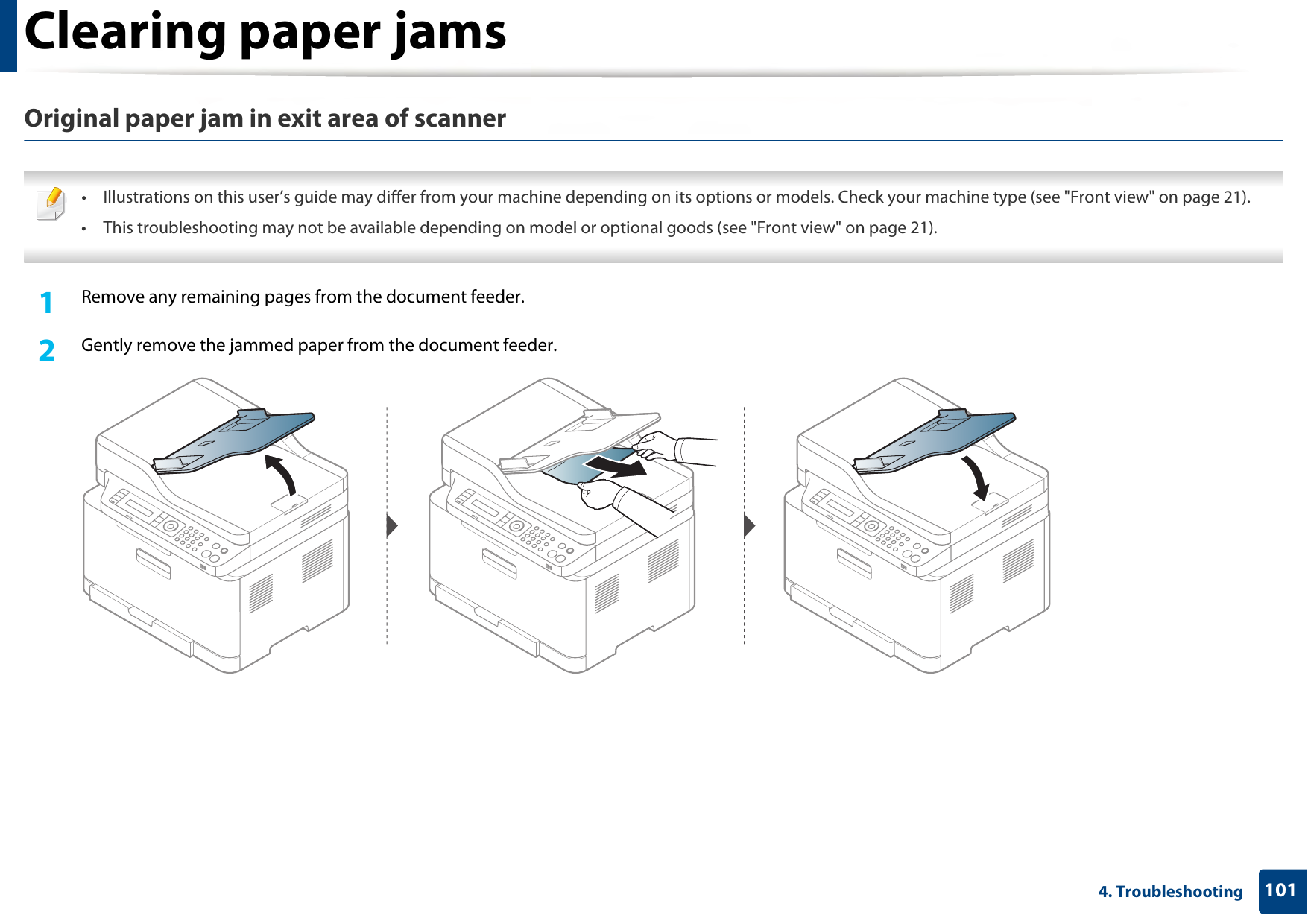
Clearing paper jams1014. TroubleshootingOriginal paper jam in exit area of scanner • Illustrations on this user’s guide may differ from your machine depending on its options or models. Check your machine type (see "Front view" on page 21).• This troubleshooting may not be available depending on model or optional goods (see "Front view" on page 21). 1Remove any remaining pages from the document feeder.2  Gently remove the jammed paper from the document feeder.
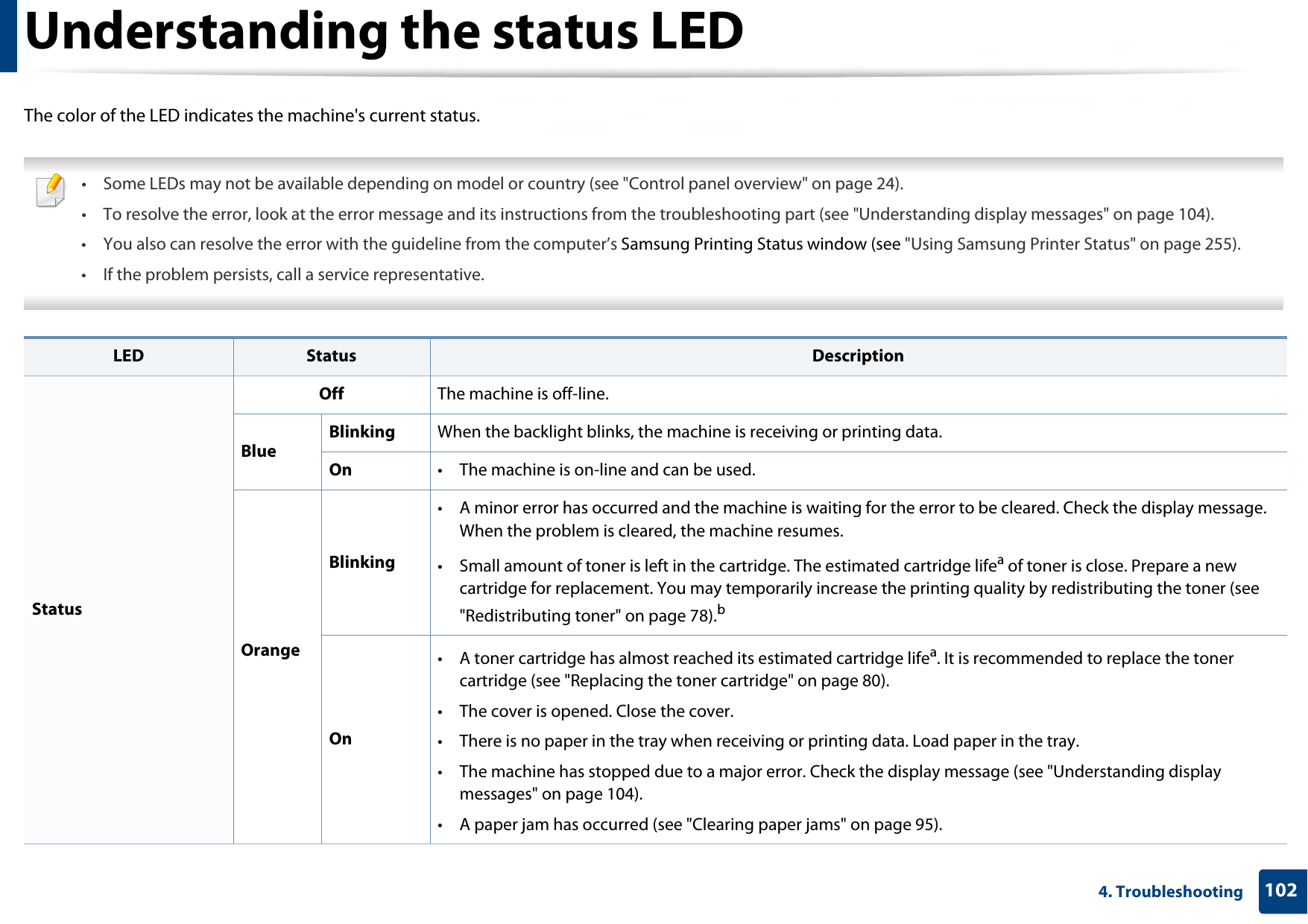
1024. TroubleshootingUnderstanding the status LEDThe color of the LED indicates the machine's current status. • Some LEDs may not be available depending on model or country (see "Control panel overview" on page 24).• To resolve the error, look at the error message and its instructions from the troubleshooting part (see "Understanding display messages" on page 104).• You also can resolve the error with the guideline from the computer’s Samsung Printing Status window (see "Using Samsung Printer Status" on page 255).• If the problem persists, call a service representative.  LED Status DescriptionStatusOff The machine is off-line.BlueBlinking When the backlight blinks, the machine is receiving or printing data.On • The machine is on-line and can be used.OrangeBlinking• A minor error has occurred and the machine is waiting for the error to be cleared. Check the display message. When the problem is cleared, the machine resumes.• Small amount of toner is left in the cartridge. The estimated cartridge lifea of toner is close. Prepare a new cartridge for replacement. You may temporarily increase the printing quality by redistributing the toner (see "Redistributing toner" on page 78).bOn• A toner cartridge has almost reached its estimated cartridge lifea. It is recommended to replace the toner cartridge (see "Replacing the toner cartridge" on page 80).• The cover is opened. Close the cover.• There is no paper in the tray when receiving or printing data. Load paper in the tray. • The machine has stopped due to a major error. Check the display message (see "Understanding display messages" on page 104). • A paper jam has occurred (see "Clearing paper jams" on page 95).
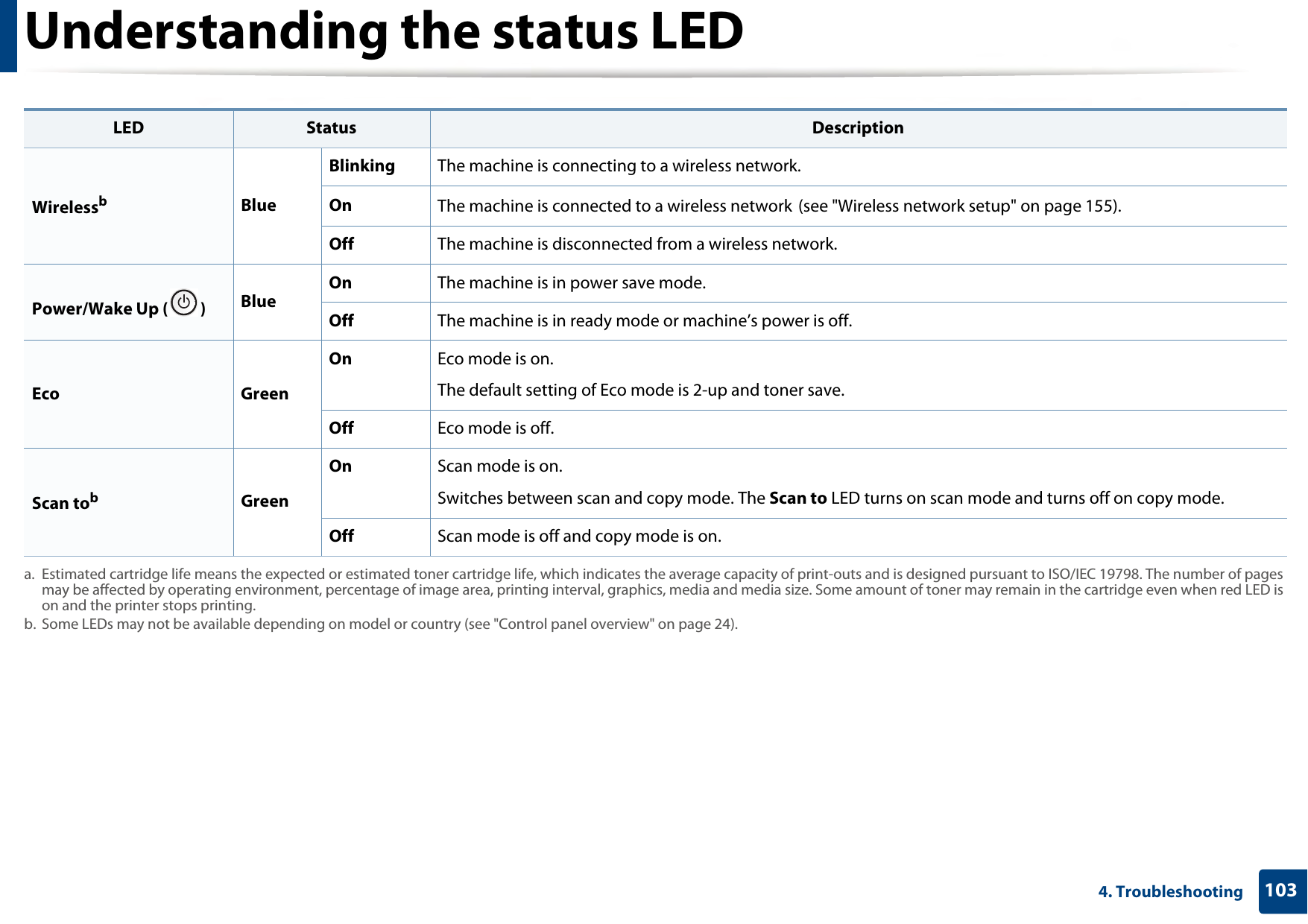
Understanding the status LED1034. Troubleshooting WirelessbBlueBlinking The machine is connecting to a wireless network.On The machine is connected to a wireless network (see "Wireless network setup" on page 155).Off The machine is disconnected from a wireless network.Power/Wake Up ( ) BlueOn The machine is in power save mode.Off The machine is in ready mode or machine’s power is off.Eco GreenOn Eco mode is on. The default setting of Eco mode is 2-up and toner save.Off Eco mode is off. Scan tobGreenOn Scan mode is on. Switches between scan and copy mode. The Scan to LED turns on scan mode and turns off on copy mode.Off Scan mode is off and copy mode is on. a. Estimated cartridge life means the expected or estimated toner cartridge life, which indicates the average capacity of print-outs and is designed pursuant to ISO/IEC 19798. The number of pages may be affected by operating environment, percentage of image area, printing interval, graphics, media and media size. Some amount of toner may remain in the cartridge even when red LED is on and the printer stops printing.b. Some LEDs may not be available depending on model or country (see "Control panel overview" on page 24).LED Status Description
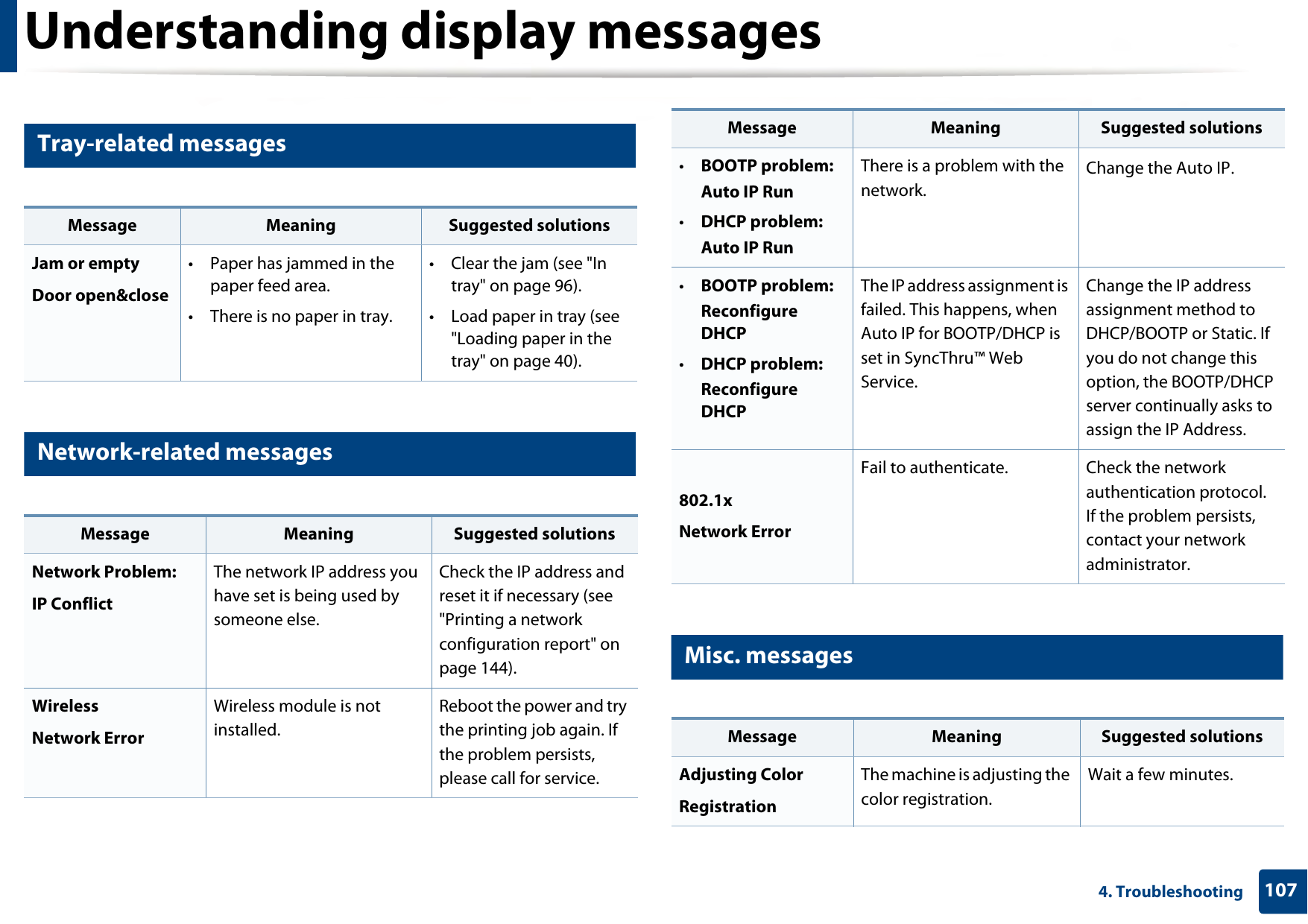
1044. TroubleshootingUnderstanding display messagesMessages appear on the control panel display to indicate the machine’s status or errors. Refer to the tables below to understand the messages’ and their meaning, and correct the problem, if necessary. • This function is not supported for the devices which has a control panel display. You can resolve the error with the guideline from the computer’s Printing Status window (see "Using Samsung Printer Status" on page 255).• If a message is not in the table, reboot the power and try the printing job again. If the problem persists, call a service representative.• When you call for service, provide the service representative with the contents of display message.• Some messages may not appear on the display depending on the options or models.• [error number] indicates the error number. • [tray type] indicates the tray number. • [media type] indicates the media type.• [media size] indicates the media size.• [color] indicates the color of toner. 5 Paper Jam-related messagesMessage Meaning Suggested solutionsDocument jam.Remove jamThe loaded original document has jammed in the document feeder.Clear the jam (see "Original paper jam" on page 99).Jam or emptyDoor open&close • Paper has jammed in the paper feed area.• There is no paper in tray.• Clear the jam (see "In tray" on page 96).• Load paper in tray (see "Loading paper in the tray" on page 40).Paper Jaminside machinePaper has jammed inside the machine.Clear the jam (see "Inside the machine" on page 97).Paper Jam in tray Paper has jammed in the paper tray.Clear the jam (see "Clearing paper jams" on page 95).Paper Jamin exit areaPaper has jammed in the exit area.Clear the jam (see "Original paper jam in exit area of scanner" on page 101).Paper Empty in [tray type]There is no paper in tray. Load paper in tray (see "Loading paper in the tray" on page 40).
Understanding display messages1054. Troubleshooting6 Toner-related messagesMessage Meaning Suggested solutions•Install Toner•Install toner cartridgeA toner cartridge is not installed.Install a toner cartridge.• Not Compatible [color] toner• Not Compatible toner cartridgeThe toner cartridge is not suitable for your machine. Install the corresponding toner cartridge with a Samsung-genuine cartridge.Not original [color] tonerThe toner cartridge is not a Samsung-genuine toner cartridge.Install the corresponding toner cartridge with a Samsung-genuine cartridge.•Prepare toner•Prepare new cartridgeSmall amount of toner is left in the indicated cartridge. The estimated cartridge life of toner is close.Prepare a new cartridge for a replacement. You may temporarily increase the printing quality by redistributing the toner (see "Redistributing toner" on page 78).•Replace toner•Replace new cartridgeThe indicated toner cartridge has almost reached its estimated cartridge life. a• You can choose Stop or Continue as shown on the control panel. If you select Stop, the printer stops printing and you cannot print any more without changing the cartridge. If you select Continue, the printer keeps printing but the printing quality cannot be guaranteed. Besides, it can cause serious damage to your machine.• Replace the toner cartridge for the best print quality when this message appears. Using a cartridge beyond this stage can result in printing quality issues (see "Replacing the toner cartridge" on page 80).The indicated toner cartridge has reached its estimated cartridge life.a The machine might stop printing.Replace the toner cartridge (see "Replacing the toner cartridge" on page 80).a. Estimated cartridge life means the expected or estimated toner cartridge life, which indicates the average capacity of print-outs and is designed pursuant to ISO/IEC 19798 (see "Available supplies" on page 75). The number of pages may be affected by operating environment, percentage of image area, printing interval, media, percentage of image area, and media size. Some amount of toner may remain in the cartridge even when replace new cartridge appears and the machine stops printing.Message Meaning Suggested solutions
Understanding display messages1064. Troubleshooting Samsung does not recommend using a non-genuine Samsung toner cartridge such as refilled or remanufactured. Samsung cannot guarantee a non-genuine Samsung toner cartridge's quality. Service or repair required as a result of using non-genuine Samsung toner cartridges will not be covered under the machine warranty.
Understanding display messages1074. Troubleshooting7 Tray-related messages8 Network-related messages9 Misc. messagesMessage Meaning Suggested solutionsJam or emptyDoor open&close • Paper has jammed in the paper feed area.• There is no paper in tray.• Clear the jam (see "In tray" on page 96).• Load paper in tray (see "Loading paper in the tray" on page 40).Message Meaning Suggested solutionsNetwork Problem: IP ConflictThe network IP address you have set is being used by someone else. Check the IP address and reset it if necessary (see "Printing a network configuration report" on page 144).Wireless Network ErrorWireless module is not installed.Reboot the power and try the printing job again. If the problem persists, please call for service. •BOOTP problem:Auto IP Run•DHCP problem:Auto IP RunThere is a problem with the network.Change the Auto IP.•BOOTP problem:Reconfigure DHCP•DHCP problem:Reconfigure DHCPThe IP address assignment is failed. This happens, when Auto IP for BOOTP/DHCP is set in SyncThru™ Web Service.Change the IP address assignment method to DHCP/BOOTP or Static. If you do not change this option, the BOOTP/DHCP server continually asks to assign the IP Address.802.1x Network ErrorFail to authenticate. Check the network authentication protocol. If the problem persists, contact your network administrator.Message Meaning Suggested solutionsAdjusting ColorRegistrationThe machine is adjusting the color registration.Wait a few minutes.Message Meaning Suggested solutions
Understanding display messages1084. TroubleshootingCalibratingimage density…The machine is calibrating the image density. Wait a few minutes.Door OpenClose itThe cover is not securely latched.Close the cover until it locks into place. Scan Unit Openor Exit JAMThe scan unit is not securely latched or paper has jammed in the scanner area.• Clear the jam (see "Original paper jam" on page 99).• Close the cover until it locks into place. Door of scanner is open.The cover of scanner is not securely latched.Close the cover until it locks into place. Error [error number]Install [color] tonerThe indicated toner cartridge is installed improperly, or the connector is polluted.Reinstall the Samsung-genuine toner cartridge two or three times to confirm it is seated properly. Or clean the connector. If the problem persists, contact the service representatives.Error [error number]Turn off then onThe machine unit cannot be controlled.Reboot the power and try the printing job again. If the problem persists, please call for service. Error [error number]Call for serviceMessage Meaning Suggested solutionsScanner Locked The scanner is locked. Reboot the power. If the problem persists, please call for service.Install TR.belt unit.The transfer belt is not installed.Install a Samsung-genuine transfer belt.Not compatibletransfer beltThe transfer belt of the machine is not for your machine.Install the a Samsung-genuine part designed for your machine.Not installedWaste tankThe waste toner container is not installed.Install a Samsung-genuine waste toner container.Check Fax Line The fax line is not properly connected to the LINE port.Connect the fax line to the LINE port not to the EXT port (see "Rear view" on page 23).Not proper roomtemp. Move setThe machine is in a room with improper room temperature. Move the machine to a room with proper room temperature.Output bin FullRemove paperThe output tray is full. Or the sensor is not facing down.Remove papers from the output tray, the machine resumes printing. Or make sure the sensor is facing down. If the problem persists, call for service.Message Meaning Suggested solutions
Understanding display messages1094. TroubleshootingPrepare newTransfer beltThe life of the transfer belt will expired soon.Replace the transfer belt with a new one. Contact the service representatives.Replace newTransfer beltThe life of the transfer belt has expired.Replace the transfer belt with a new one. Contact the service representatives.Transfer Belt Error The transfer belt cannot be controlled.Reboot the power and try the printing job again. If the problem persists, please call for service.Prepare newTransfer rollerThe life of the transfer belt will expired soon.Replace the transfer belt with a new one. Contact the service representatives.Replace newTransfer rollerThe life of the transfer belt has expired.Replace the transfer belt with a new one. Contact the service representatives.Replace Fuser SoonThe life of the fuser unit will be expired soon.Replace the fuser unit with a new one. Contact the service representatives.Replace newFuser unitThe life of the fuser unit will be expired.Message Meaning Suggested solutionsReplace/Install Waste Toner TankThe life span of the waste toner container has expired and the printer will stop printing until a new waste toner container is placed into the printer.Replace a waste toner container with a Samsung-genuine waste toner container.Prepare newImaging unitThe life of the imaging unit will be expired soon.Replace the imaging unit with a new one. Contact the service representatives.Replace withnew imaging unitThe life of the imaging unit will be expired.Installimaging unitThe imaging unit is not installedError [error number]Door open/closeThe imaging unit is installed improperly, or the cover is not securely latched.Reinstall the imaging unit to confirm it is seated properly. Close the cover until it locks into place.Message Meaning Suggested solutions
5. AppendixThis chapter provides product specifications and information concerning applicable regulations.• Specifications 111• Regulatory information 120• Copyright 133
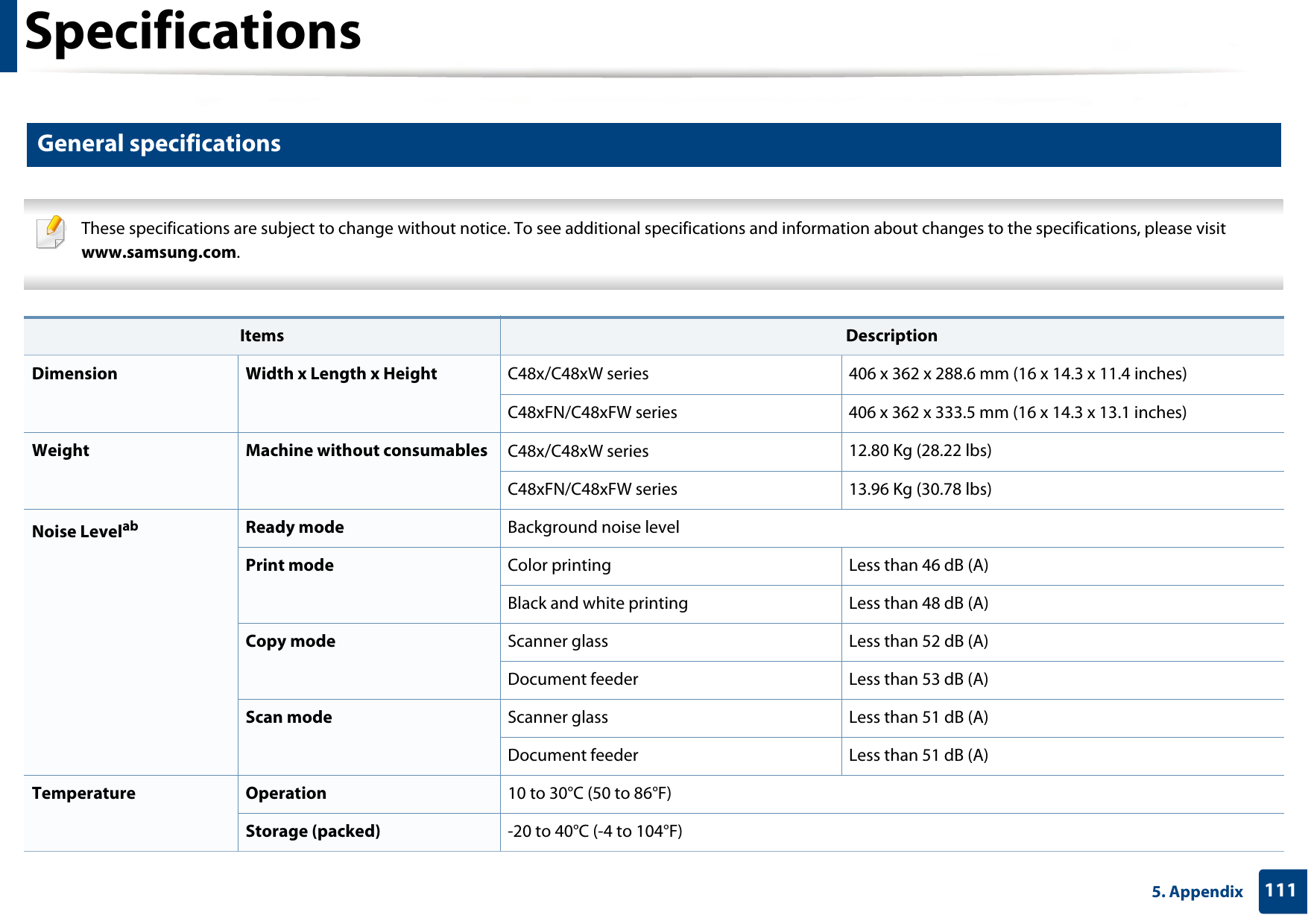
1115. AppendixSpecifications1 General specifications These specifications are subject to change without notice. To see additional specifications and information about changes to the specifications, please visit www.samsung.com.  Items DescriptionDimension Width x Length x Height C48x/C48xW series 406 x 362 x 288.6 mm (16 x 14.3 x 11.4 inches) C48xFN/C48xFW series 406 x 362 x 333.5 mm (16 x 14.3 x 13.1 inches) Weight Machine without consumables C48x/C48xW series 12.80 Kg (28.22 lbs)C48xFN/C48xFW series 13.96 Kg (30.78 lbs)Noise Levelab Ready mode Background noise levelPrint mode Color printing Less than 46 dB (A)Black and white printing Less than 48 dB (A)Copy mode Scanner glass Less than 52 dB (A)Document feeder Less than 53 dB (A)Scan mode Scanner glass Less than 51 dB (A)Document feeder Less than 51 dB (A)Temperature Operation 10 to 30°C (50 to 86°F)Storage (packed) -20 to 40°C (-4 to 104°F)
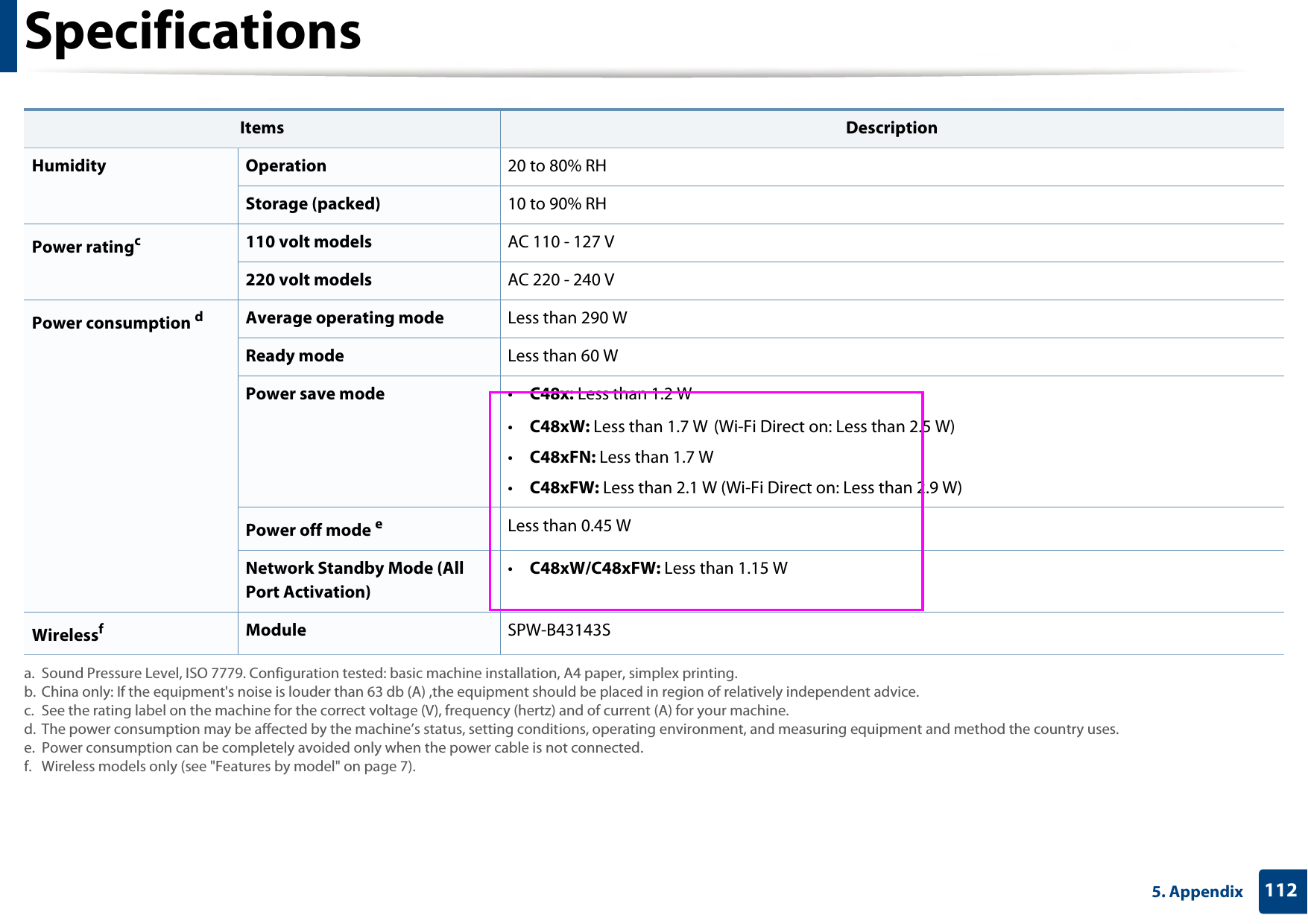
Specifications1125. Appendix Humidity Operation 20 to 80% RHStorage (packed) 10 to 90% RHPower ratingc110 volt models AC 110 - 127 V220 volt models AC 220 - 240 VPower consumption dAverage operating mode Less than 290 WReady mode Less than 60 WPower save mode  •C48x: Less than 1.2 W•C48xW: Less than 1.7 W (Wi-Fi Direct on: Less than 2.5 W)•C48xFN: Less than 1.7 W•C48xFW: Less than 2.1 W (Wi-Fi Direct on: Less than 2.9 W)Power off mode eLess than 0.45 WNetwork Standby Mode (All Port Activation)•C48xW/C48xFW: Less than 1.15 WWirelessfModule SPW-B43143Sa. Sound Pressure Level, ISO 7779. Configuration tested: basic machine installation, A4 paper, simplex printing.b. China only: If the equipment's noise is louder than 63 db (A) ,the equipment should be placed in region of relatively independent advice.c. See the rating label on the machine for the correct voltage (V), frequency (hertz) and of current (A) for your machine.d. The power consumption may be affected by the machine’s status, setting conditions, operating environment, and measuring equipment and method the country uses.e. Power consumption can be completely avoided only when the power cable is not connected.f. Wireless models only (see "Features by model" on page 7).Items Description
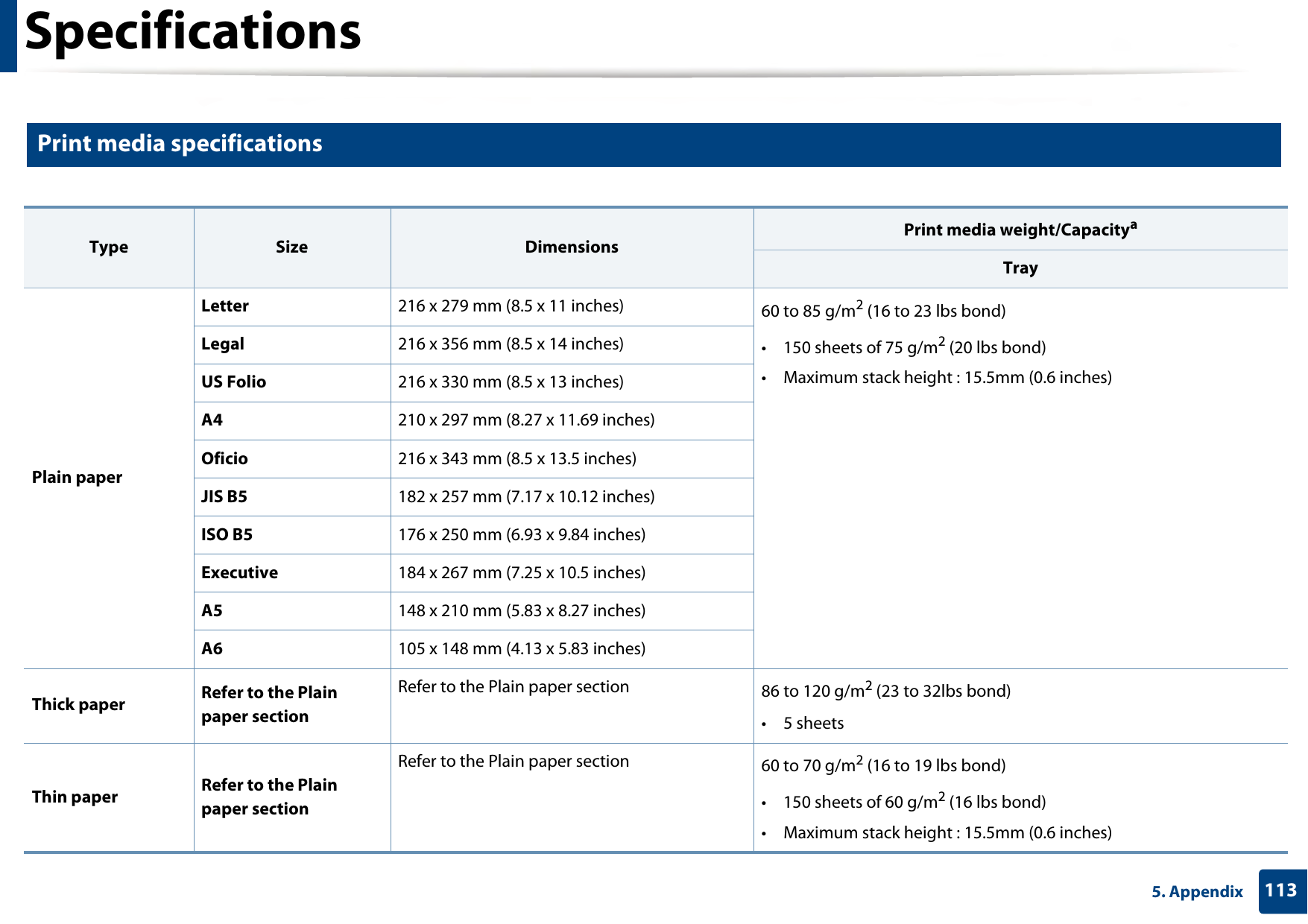
Specifications1135. Appendix2 Print media specifications  Type Size Dimensions Print media weight/CapacityaTrayPlain paperLetter 216 x 279 mm (8.5 x 11 inches) 60 to 85 g/m2 (16 to 23 lbs bond) • 150 sheets of 75 g/m2 (20 lbs bond)• Maximum stack height : 15.5mm (0.6 inches)Legal 216 x 356 mm (8.5 x 14 inches)US Folio 216 x 330 mm (8.5 x 13 inches)A4 210 x 297 mm (8.27 x 11.69 inches)Oficio 216 x 343 mm (8.5 x 13.5 inches)JIS B5 182 x 257 mm (7.17 x 10.12 inches)ISO B5 176 x 250 mm (6.93 x 9.84 inches) Executive 184 x 267 mm (7.25 x 10.5 inches)A5 148 x 210 mm (5.83 x 8.27 inches)A6 105 x 148 mm (4.13 x 5.83 inches)Thick paper Refer to the Plain paper section Refer to the Plain paper section  86 to 120 g/m2 (23 to 32lbs bond)• 5 sheetsThin paper Refer to the Plain paper section Refer to the Plain paper section  60 to 70 g/m2 (16 to 19 lbs bond)• 150 sheets of 60 g/m2 (16 lbs bond)• Maximum stack height : 15.5mm (0.6 inches)
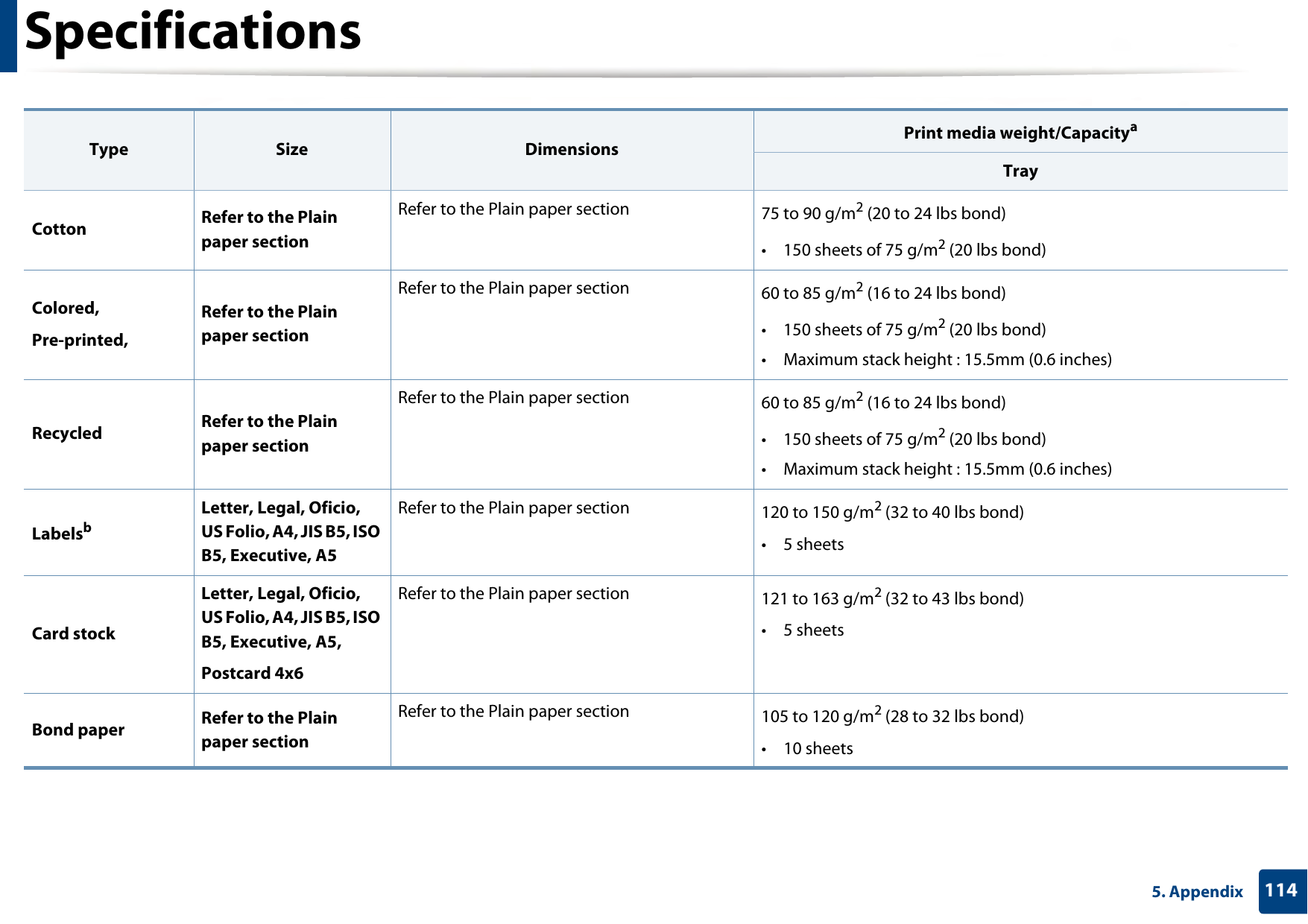
Specifications1145. AppendixCotton Refer to the Plain paper section Refer to the Plain paper section  75 to 90 g/m2 (20 to 24 lbs bond)• 150 sheets of 75 g/m2 (20 lbs bond)Colored, Pre-printed, Refer to the Plain paper section Refer to the Plain paper section  60 to 85 g/m2 (16 to 24 lbs bond)• 150 sheets of 75 g/m2 (20 lbs bond)• Maximum stack height : 15.5mm (0.6 inches)Recycled Refer to the Plain paper section Refer to the Plain paper section  60 to 85 g/m2 (16 to 24 lbs bond)• 150 sheets of 75 g/m2 (20 lbs bond)• Maximum stack height : 15.5mm (0.6 inches)LabelsbLetter, Legal, Oficio, US Folio, A4, JIS B5, ISO B5, Executive, A5Refer to the Plain paper section 120 to 150 g/m2 (32 to 40 lbs bond)• 5 sheets Card stockLetter, Legal, Oficio, US Folio, A4, JIS B5, ISO B5, Executive, A5,Postcard 4x6Refer to the Plain paper section 121 to 163 g/m2 (32 to 43 lbs bond)• 5 sheetsBond paper Refer to the Plain paper section Refer to the Plain paper section  105 to 120 g/m2 (28 to 32 lbs bond)• 10 sheetsType Size Dimensions Print media weight/CapacityaTray
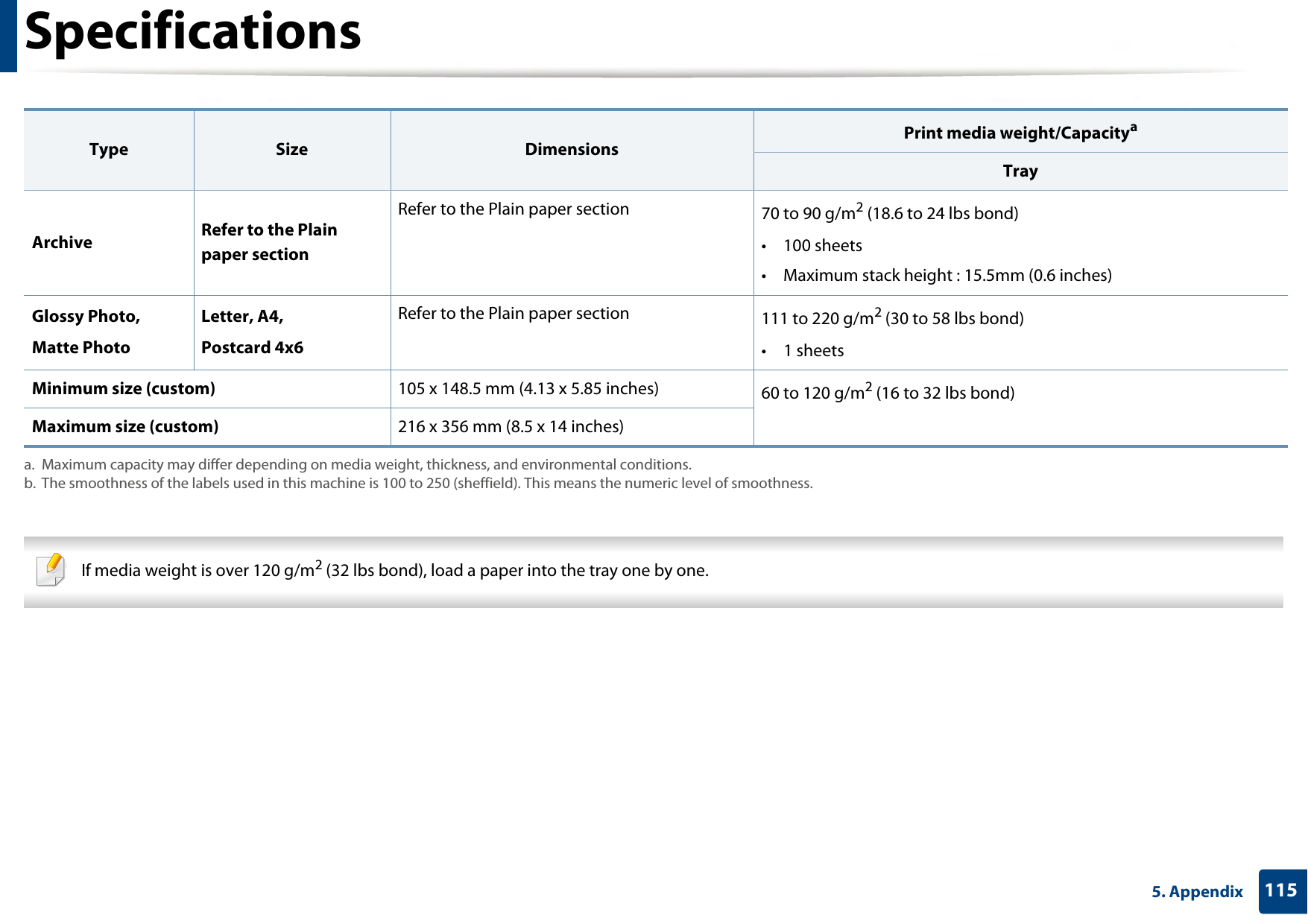
Specifications1155. Appendix  If media weight is over 120 g/m2 (32 lbs bond), load a paper into the tray one by one. Archive Refer to the Plain paper section Refer to the Plain paper section  70 to 90 g/m2 (18.6 to 24 lbs bond)• 100 sheets• Maximum stack height : 15.5mm (0.6 inches)Glossy Photo, Matte PhotoLetter, A4,Postcard 4x6Refer to the Plain paper section 111 to 220 g/m2 (30 to 58 lbs bond)• 1 sheetsMinimum size (custom) 105 x 148.5 mm (4.13 x 5.85 inches) 60 to 120 g/m2 (16 to 32 lbs bond)Maximum size (custom) 216 x 356 mm (8.5 x 14 inches)a. Maximum capacity may differ depending on media weight, thickness, and environmental conditions. b. The smoothness of the labels used in this machine is 100 to 250 (sheffield). This means the numeric level of smoothness.Type Size Dimensions Print media weight/CapacityaTray
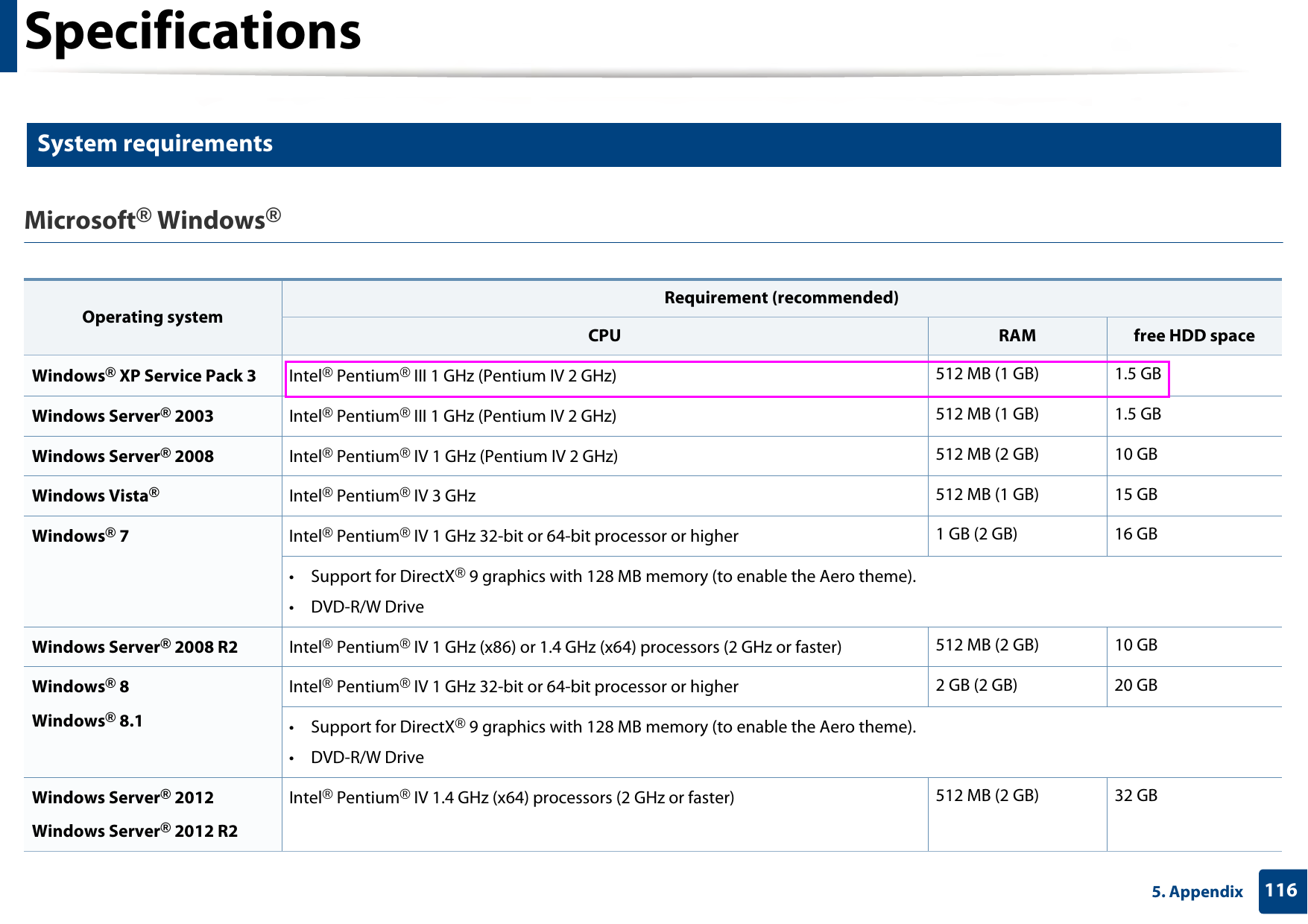
Specifications1165. Appendix3 System requirementsMicrosoft® Windows® Operating systemRequirement (recommended)CPU RAM free HDD spaceWindows® XP Service Pack 3 Intel® Pentium® III 1 GHz (Pentium IV 2 GHz) 512 MB (1 GB) 1.5 GBWindows Server® 2003 Intel® Pentium® III 1 GHz (Pentium IV 2 GHz) 512 MB (1 GB) 1.5 GBWindows Server® 2008 Intel® Pentium® IV 1 GHz (Pentium IV 2 GHz) 512 MB (2 GB) 10 GBWindows Vista®Intel® Pentium® IV 3 GHz 512 MB (1 GB) 15 GBWindows® 7 Intel® Pentium® IV 1 GHz 32-bit or 64-bit processor or higher 1 GB (2 GB) 16 GB• Support for DirectX® 9 graphics with 128 MB memory (to enable the Aero theme).•DVD-R/W DriveWindows Server® 2008 R2 Intel® Pentium® IV 1 GHz (x86) or 1.4 GHz (x64) processors (2 GHz or faster) 512 MB (2 GB) 10 GBWindows® 8Windows® 8.1Intel® Pentium® IV 1 GHz 32-bit or 64-bit processor or higher 2 GB (2 GB) 20 GB• Support for DirectX® 9 graphics with 128 MB memory (to enable the Aero theme).•DVD-R/W DriveWindows Server® 2012Windows Server® 2012 R2Intel® Pentium® IV 1.4 GHz (x64) processors (2 GHz or faster) 512 MB (2 GB) 32 GB
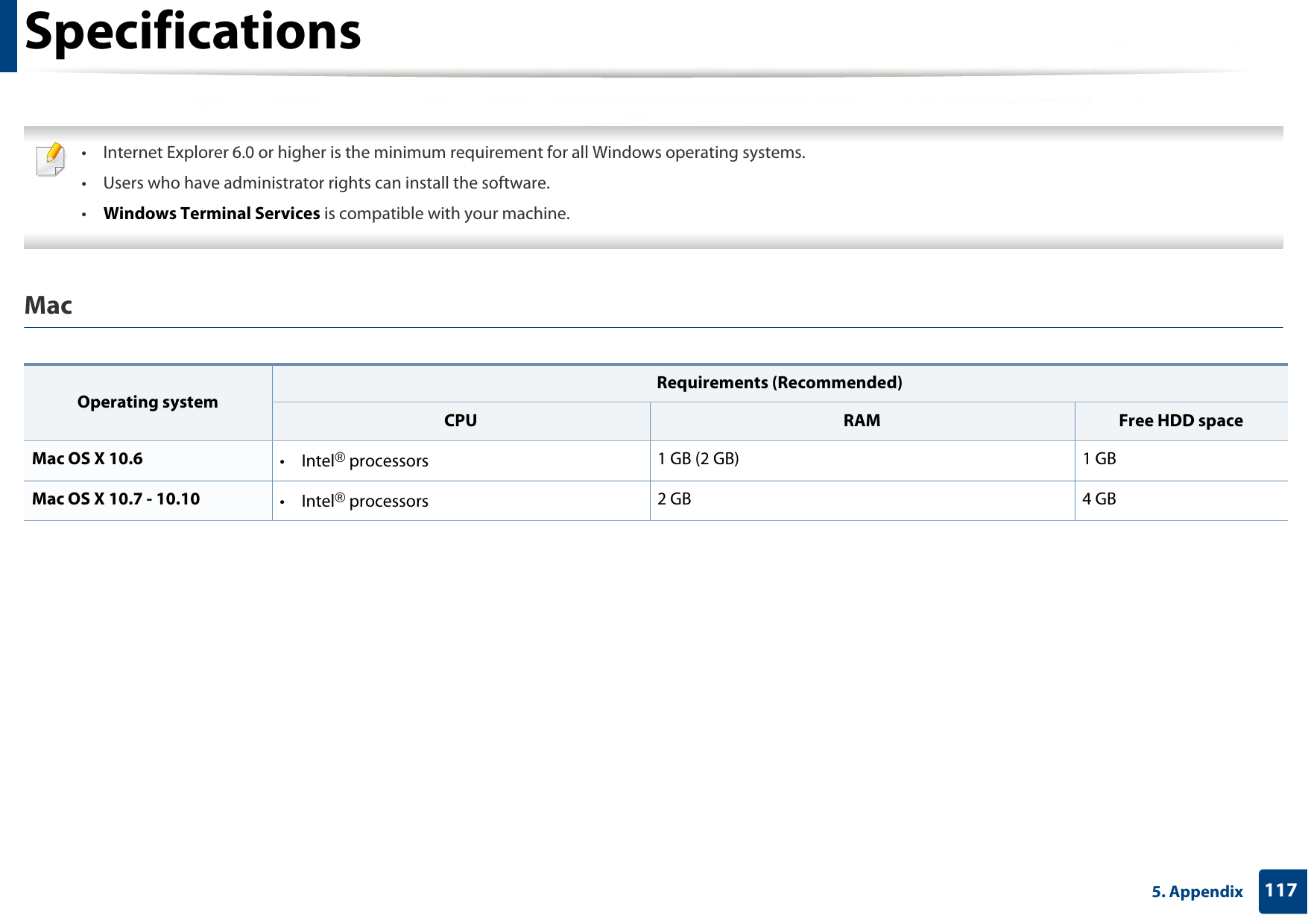
Specifications1175. Appendix  • Internet Explorer 6.0 or higher is the minimum requirement for all Windows operating systems.• Users who have administrator rights can install the software.•Windows Terminal Services is compatible with your machine. Mac  Operating systemRequirements (Recommended)CPU RAM Free HDD spaceMac OS X 10.6  •Intel® processors 1 GB (2 GB) 1 GBMac OS X 10.7 - 10.10 •Intel® processors 2 GB 4 GB
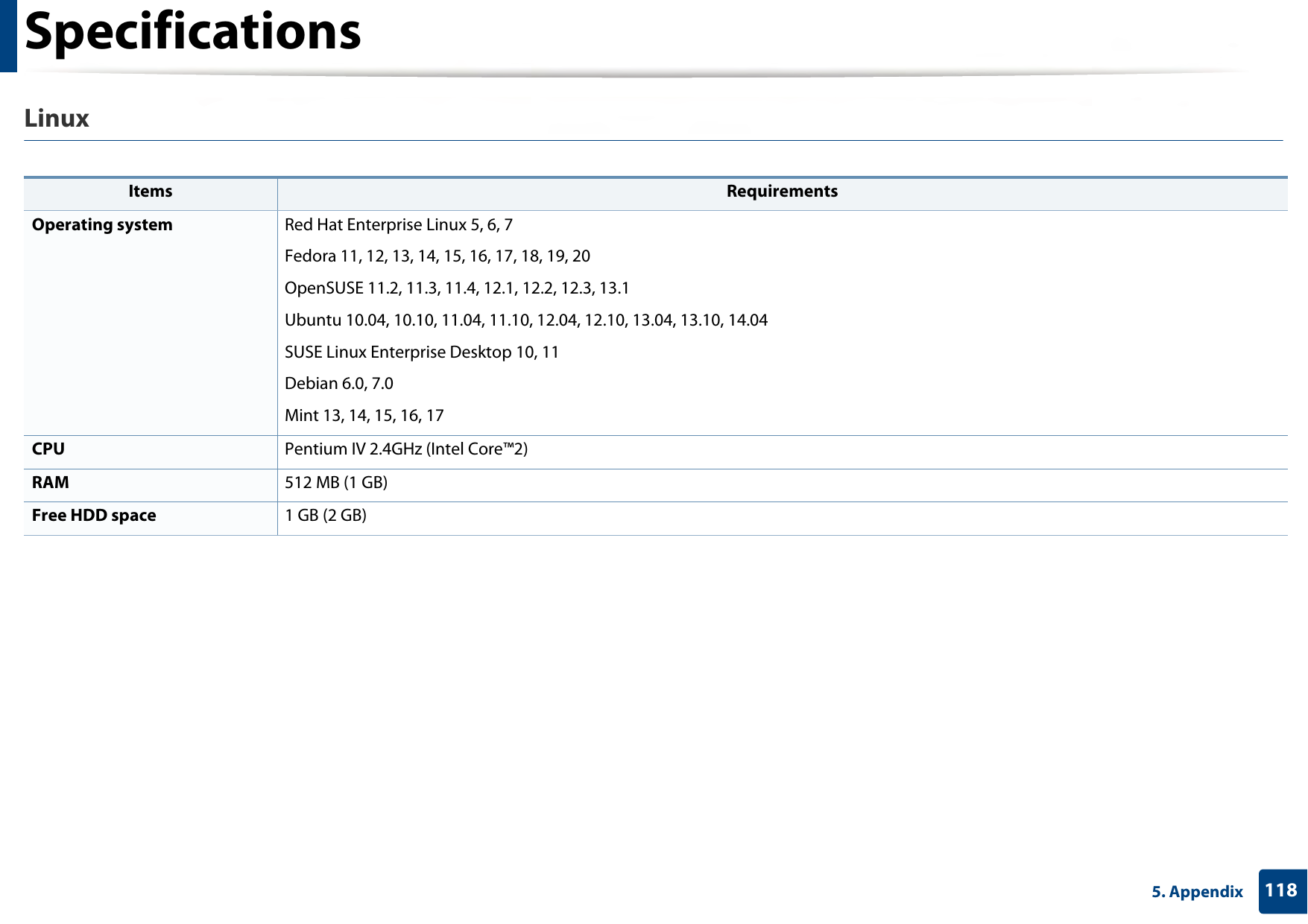
Specifications1185. AppendixLinux  Items RequirementsOperating system Red Hat Enterprise Linux 5, 6, 7Fedora 11, 12, 13, 14, 15, 16, 17, 18, 19, 20OpenSUSE 11.2, 11.3, 11.4, 12.1, 12.2, 12.3, 13.1Ubuntu 10.04, 10.10, 11.04, 11.10, 12.04, 12.10, 13.04, 13.10, 14.04SUSE Linux Enterprise Desktop 10, 11Debian 6.0, 7.0Mint 13, 14, 15, 16, 17CPU Pentium IV 2.4GHz (Intel Core™2)RAM 512 MB (1 GB)Free HDD space 1 GB (2 GB)
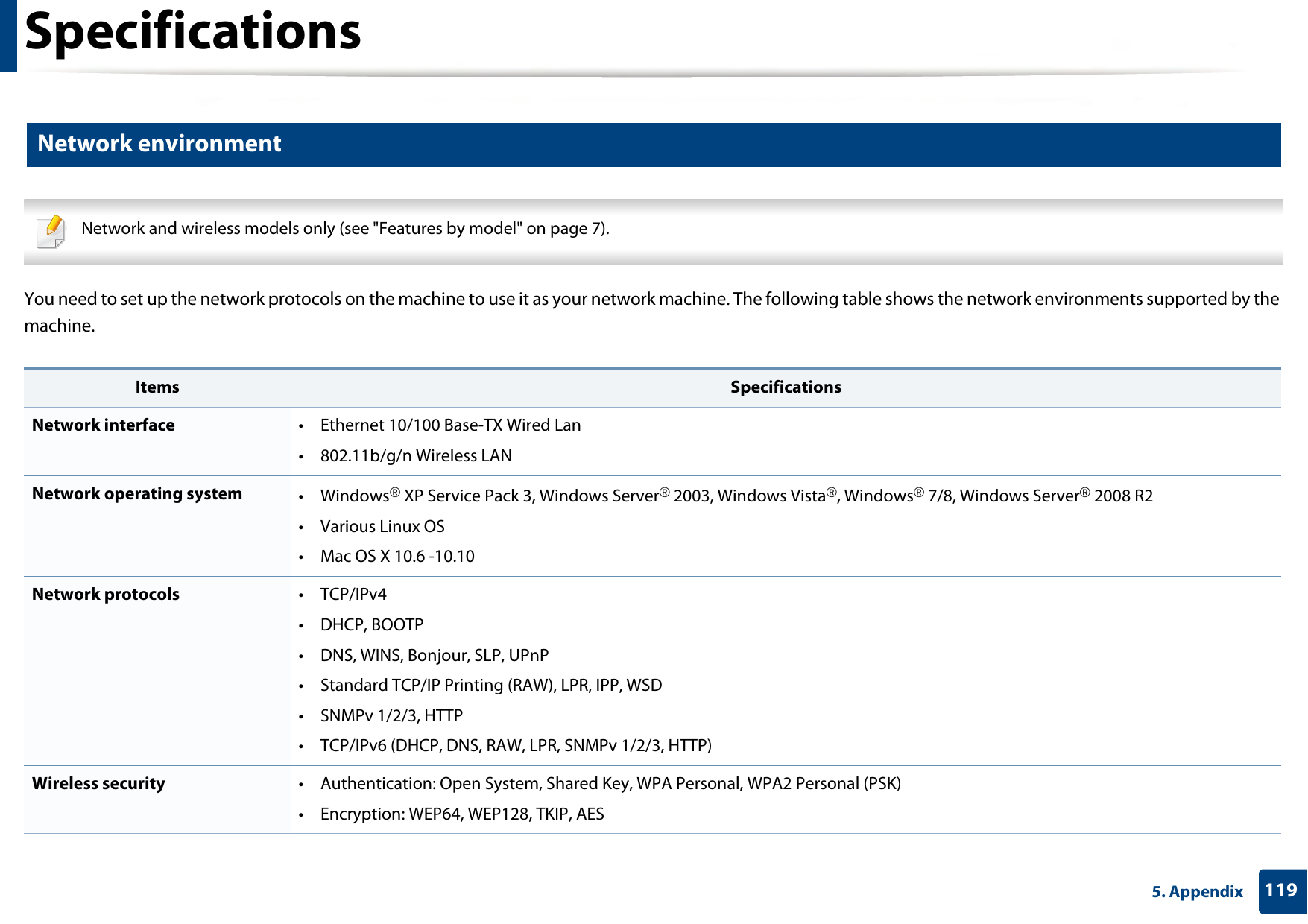
Specifications1195. Appendix4 Network environment Network and wireless models only (see "Features by model" on page 7). You need to set up the network protocols on the machine to use it as your network machine. The following table shows the network environments supported by the machine.  Items SpecificationsNetwork interface • Ethernet 10/100 Base-TX Wired Lan•802.11b/g/n Wireless LANNetwork operating system •Windows® XP Service Pack 3, Windows Server® 2003, Windows Vista®, Windows® 7/8, Windows Server® 2008 R2•Various Linux OS• Mac OS X 10.6 -10.10Network protocols •TCP/IPv4• DHCP, BOOTP• DNS, WINS, Bonjour, SLP, UPnP• Standard TCP/IP Printing (RAW), LPR, IPP, WSD• SNMPv 1/2/3, HTTP• TCP/IPv6 (DHCP, DNS, RAW, LPR, SNMPv 1/2/3, HTTP)Wireless security  • Authentication: Open System, Shared Key, WPA Personal, WPA2 Personal (PSK)• Encryption: WEP64, WEP128, TKIP, AES
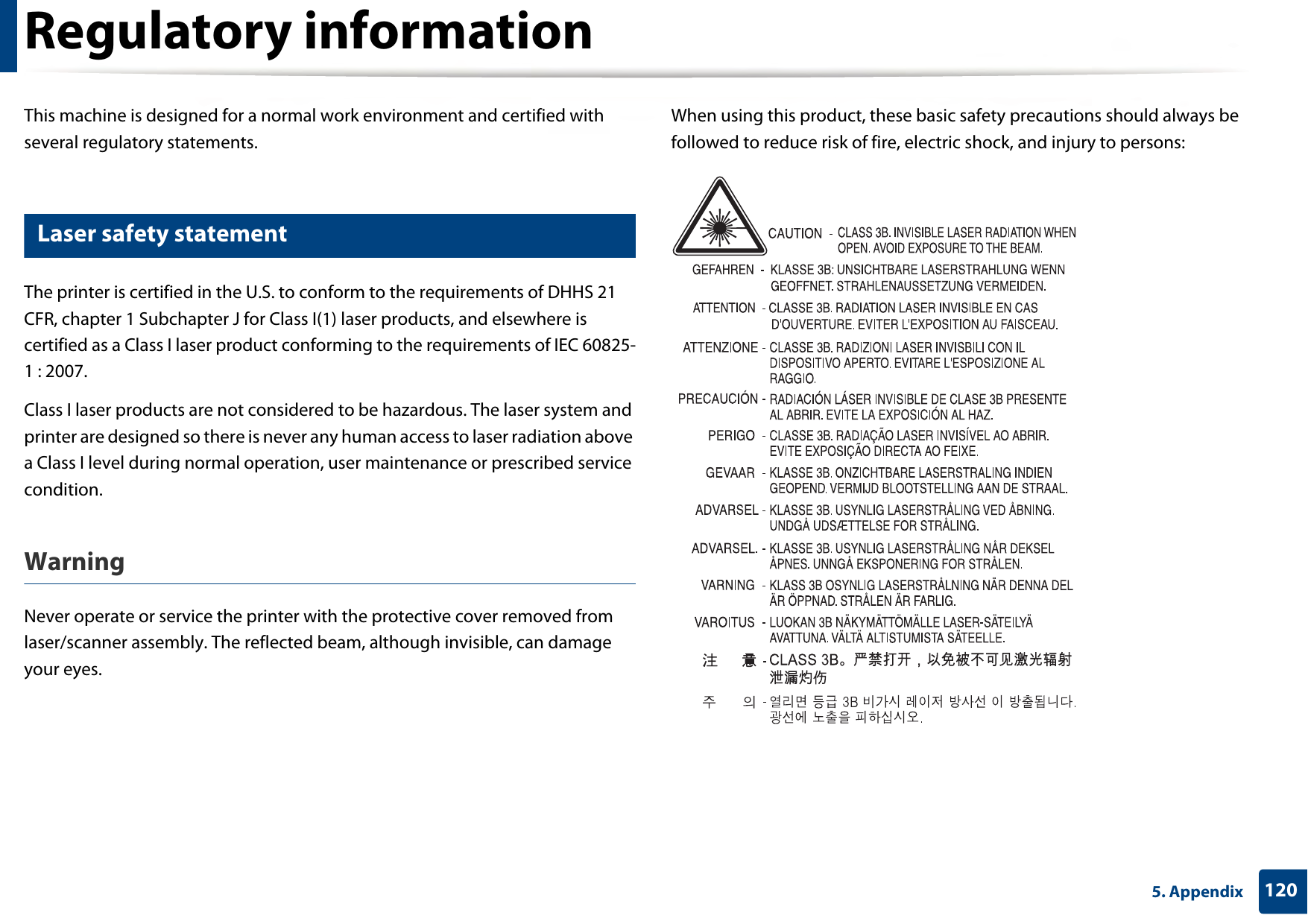
1205. AppendixRegulatory informationThis machine is designed for a normal work environment and certified with several regulatory statements.5 Laser safety statementThe printer is certified in the U.S. to conform to the requirements of DHHS 21 CFR, chapter 1 Subchapter J for Class I(1) laser products, and elsewhere is certified as a Class I laser product conforming to the requirements of IEC 60825-1 : 2007.Class I laser products are not considered to be hazardous. The laser system and printer are designed so there is never any human access to laser radiation above a Class I level during normal operation, user maintenance or prescribed service condition.Warning Never operate or service the printer with the protective cover removed from laser/scanner assembly. The reflected beam, although invisible, can damage your eyes.When using this product, these basic safety precautions should always be followed to reduce risk of fire, electric shock, and injury to persons:
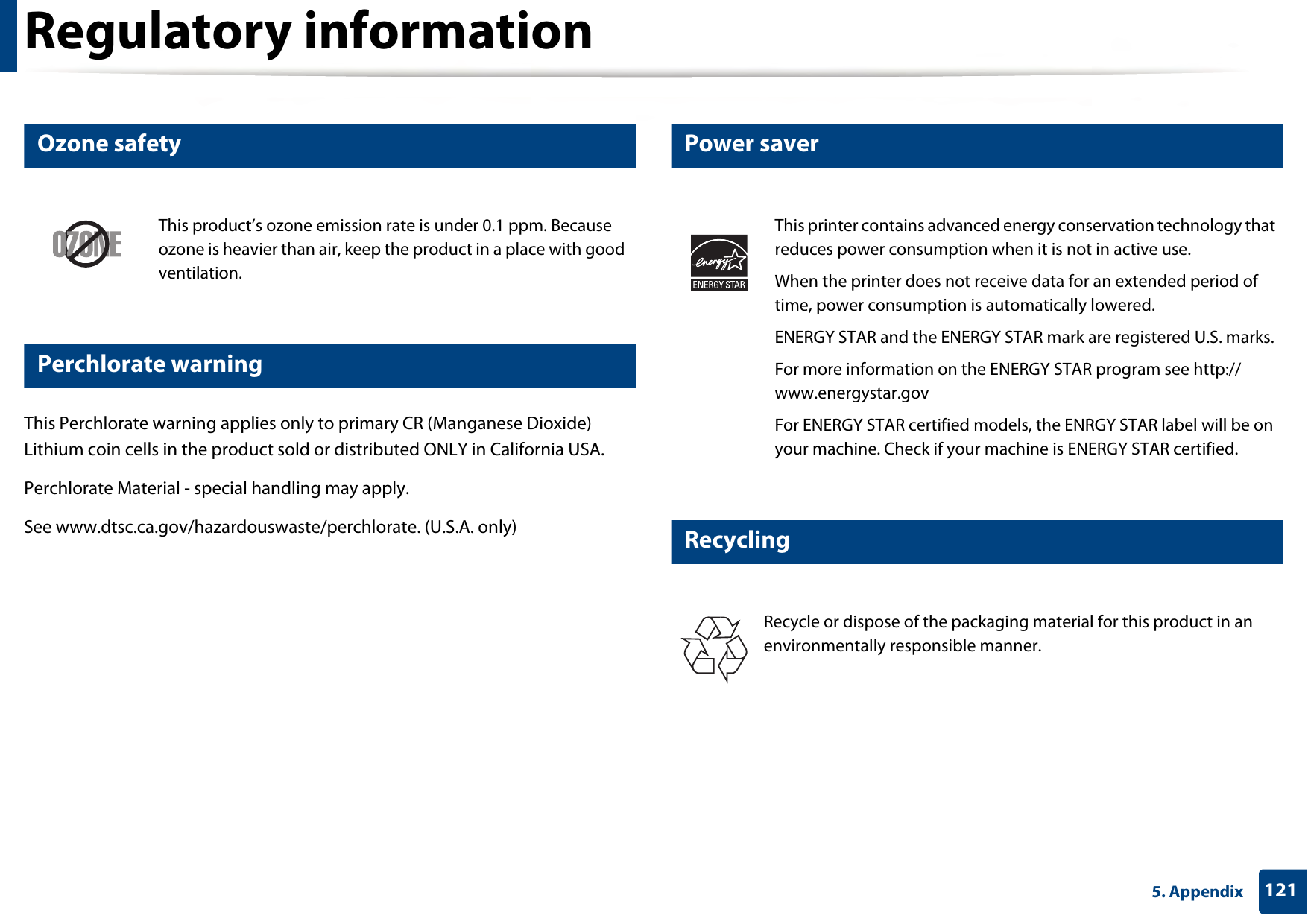
Regulatory information1215. Appendix6 Ozone safety7 Perchlorate warningThis Perchlorate warning applies only to primary CR (Manganese Dioxide) Lithium coin cells in the product sold or distributed ONLY in California USA. Perchlorate Material - special handling may apply.See www.dtsc.ca.gov/hazardouswaste/perchlorate. (U.S.A. only)8 Power saver9 RecyclingThis product’s ozone emission rate is under 0.1 ppm. Because ozone is heavier than air, keep the product in a place with good ventilation.This printer contains advanced energy conservation technology that reduces power consumption when it is not in active use.When the printer does not receive data for an extended period of time, power consumption is automatically lowered. ENERGY STAR and the ENERGY STAR mark are registered U.S. marks. For more information on the ENERGY STAR program see http://www.energystar.govFor ENERGY STAR certified models, the ENRGY STAR label will be on your machine. Check if your machine is ENERGY STAR certified.Recycle or dispose of the packaging material for this product in an environmentally responsible manner.
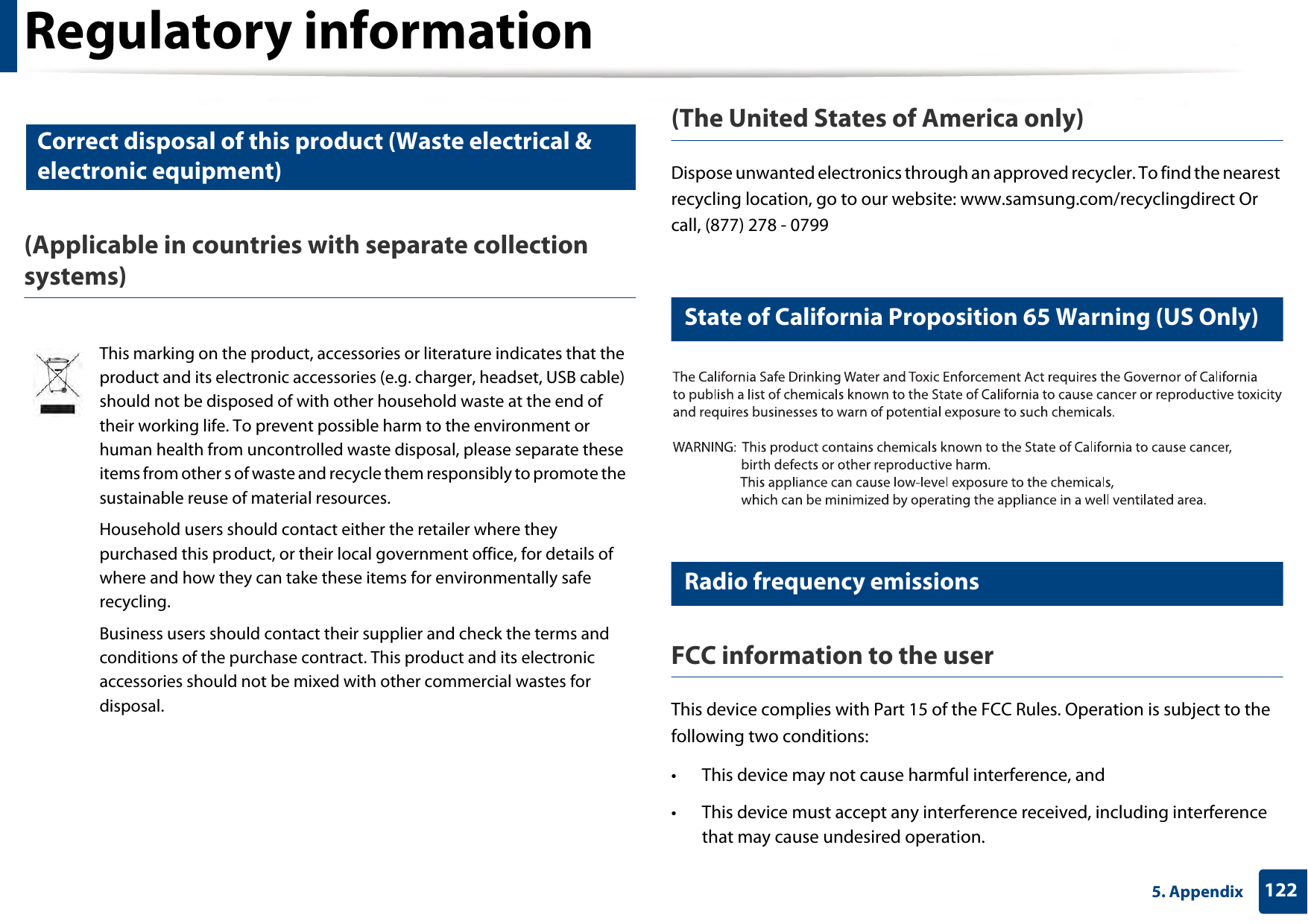
Regulatory information1225. Appendix10 Correct disposal of this product (Waste electrical & electronic equipment)(Applicable in countries with separate collection systems)(The United States of America only)Dispose unwanted electronics through an approved recycler. To find the nearest recycling location, go to our website: www.samsung.com/recyclingdirect Or call, (877) 278 - 079911 State of California Proposition 65 Warning (US Only)12 Radio frequency emissionsFCC information to the userThis device complies with Part 15 of the FCC Rules. Operation is subject to the following two conditions: • This device may not cause harmful interference, and• This device must accept any interference received, including interference that may cause undesired operation.This marking on the product, accessories or literature indicates that the product and its electronic accessories (e.g. charger, headset, USB cable) should not be disposed of with other household waste at the end of their working life. To prevent possible harm to the environment or human health from uncontrolled waste disposal, please separate these items from other s of waste and recycle them responsibly to promote the sustainable reuse of material resources.Household users should contact either the retailer where they purchased this product, or their local government office, for details of where and how they can take these items for environmentally safe recycling.Business users should contact their supplier and check the terms and conditions of the purchase contract. This product and its electronic accessories should not be mixed with other commercial wastes for disposal.
Regulatory information1235. AppendixThis equipment has been tested and found to comply with the limits for a Class B digital device, pursuant to Part 15 of the FCC Rules. These limits are designed to provide reasonable protection against harmful interference in a residential installation. This equipment generates, uses and can radiate radio frequency energy and, if not installed and used in accordance with the instructions, may cause harmful interference to radio communications. However, there is no guarantee that interference will not occur in a particular installation. If this equipment does cause harmful interference to radio or television reception, which can be determined by turning the equipment off and on, the user is encouraged to try to correct the interference by one or more of the following measures:• Reorient or relocate the receiving antenna.• Increase the separation between the equipment and receiver.• Connect the equipment into an outlet on a circuit different from that to which the receiver is connected.• Consult the dealer or experienced radio TV technician for help. Change or modifications not expressly approved by the manufacturer responsible for compliance could void the user's authority to operate the equipment. Canadian radio interference regulationsThis digital apparatus does not exceed the Class B limits for radio noise emissions from digital apparatus as set out in the interference-causing equipment standard entitled “Digital Apparatus”, ICES-003 of the Industry and Science Canada.Cet appareil numérique respecte les limites de bruits radioélectriques applicables aux appareils numériques de Classe B prescrites dans la norme sur le matériel brouilleur: “Appareils Numériques”, ICES-003 édictée par l’Industrie et Sciences Canada.13 RFID (Radio Frequency Interface Device)RFID operation is subject to the following two conditions:(1) this device may not cause interference, and (2) this device must accept any interference, including interference that may cause undesired operation of the device. (U.S.A., France, Taiwan only)
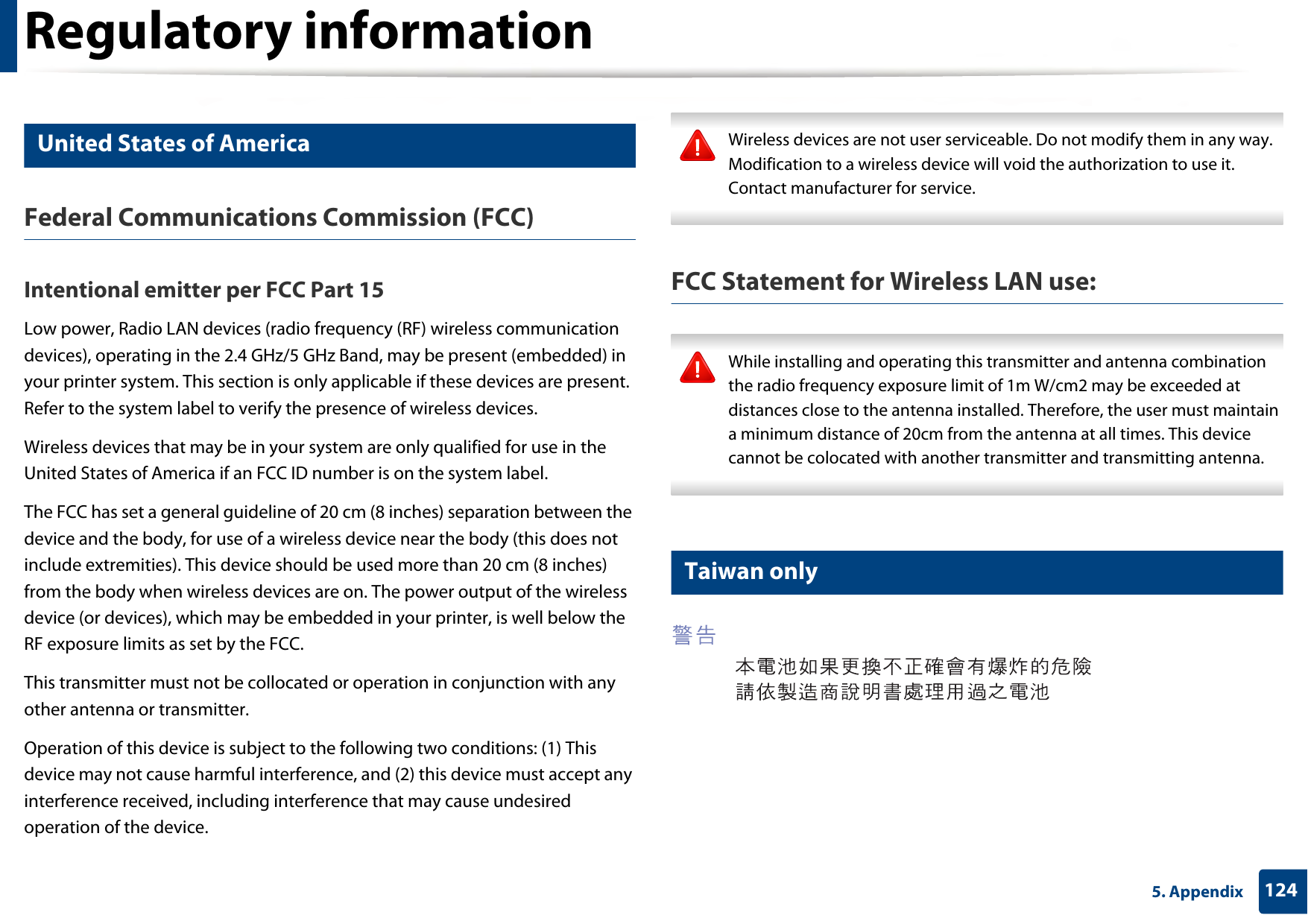
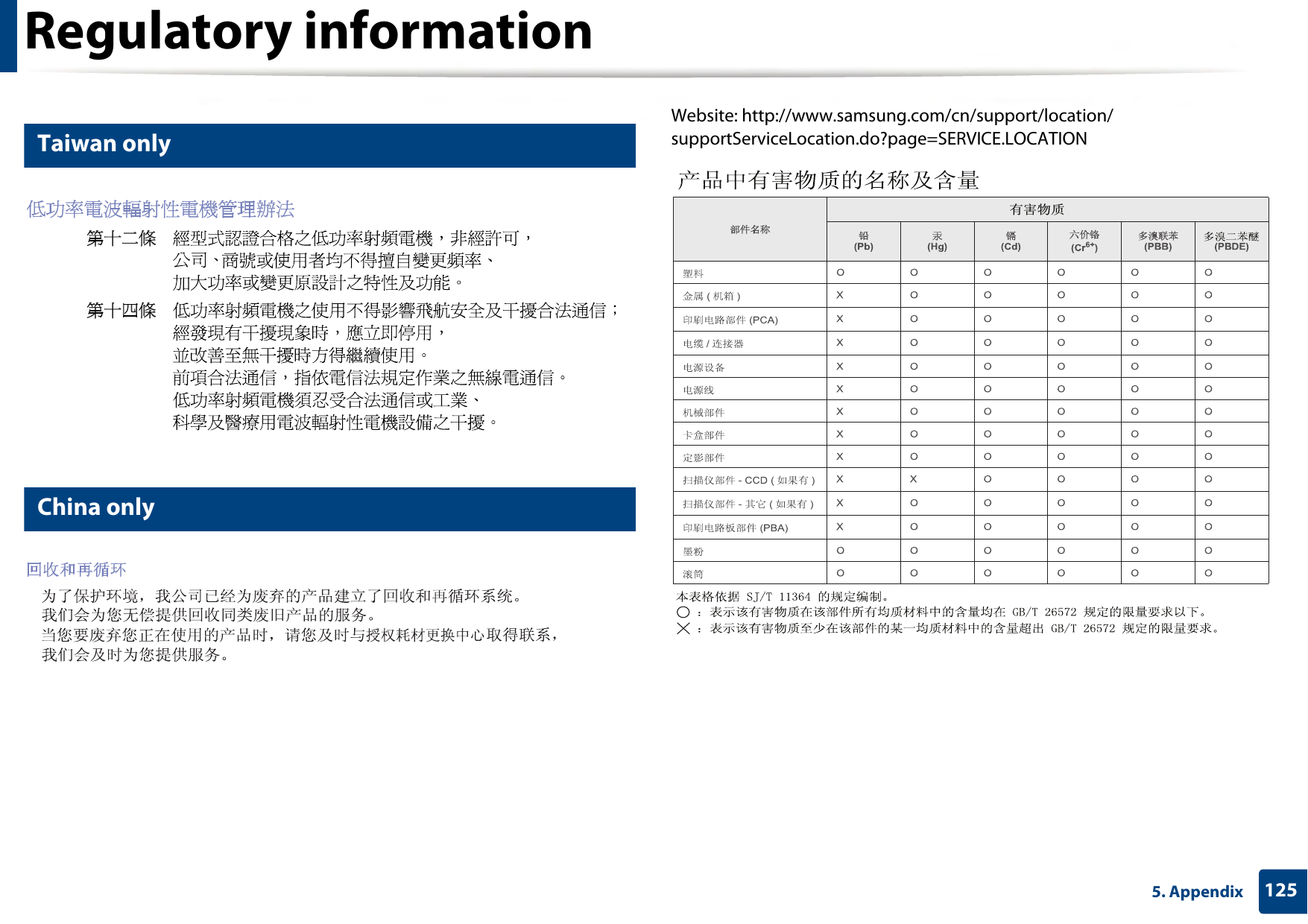
Regulatory information1245. Appendix14 United States of AmericaFederal Communications Commission (FCC)Intentional emitter per FCC Part 15Low power, Radio LAN devices (radio frequency (RF) wireless communication devices), operating in the 2.4 GHz/5 GHz Band, may be present (embedded) in your printer system. This section is only applicable if these devices are present. Refer to the system label to verify the presence of wireless devices.Wireless devices that may be in your system are only qualified for use in the United States of America if an FCC ID number is on the system label.The FCC has set a general guideline of 20 cm (8 inches) separation between the device and the body, for use of a wireless device near the body (this does not include extremities). This device should be used more than 20 cm (8 inches) from the body when wireless devices are on. The power output of the wireless device (or devices), which may be embedded in your printer, is well below the RF exposure limits as set by the FCC.This transmitter must not be collocated or operation in conjunction with any other antenna or transmitter.Operation of this device is subject to the following two conditions: (1) This device may not cause harmful interference, and (2) this device must accept any interference received, including interference that may cause undesired operation of the device. Wireless devices are not user serviceable. Do not modify them in any way. Modification to a wireless device will void the authorization to use it. Contact manufacturer for service. FCC Statement for Wireless LAN use: While installing and operating this transmitter and antenna combination the radio frequency exposure limit of 1m W/cm2 may be exceeded at distances close to the antenna installed. Therefore, the user must maintain a minimum distance of 20cm from the antenna at all times. This device cannot be colocated with another transmitter and transmitting antenna. 15 Taiwan only
Regulatory information1255. Appendix16 Taiwan only17 China onlyWebsite: http://www.samsung.com/cn/support/location/supportServiceLocation.do?page=SERVICE.LOCATION᳝ᆇ⠽䋼
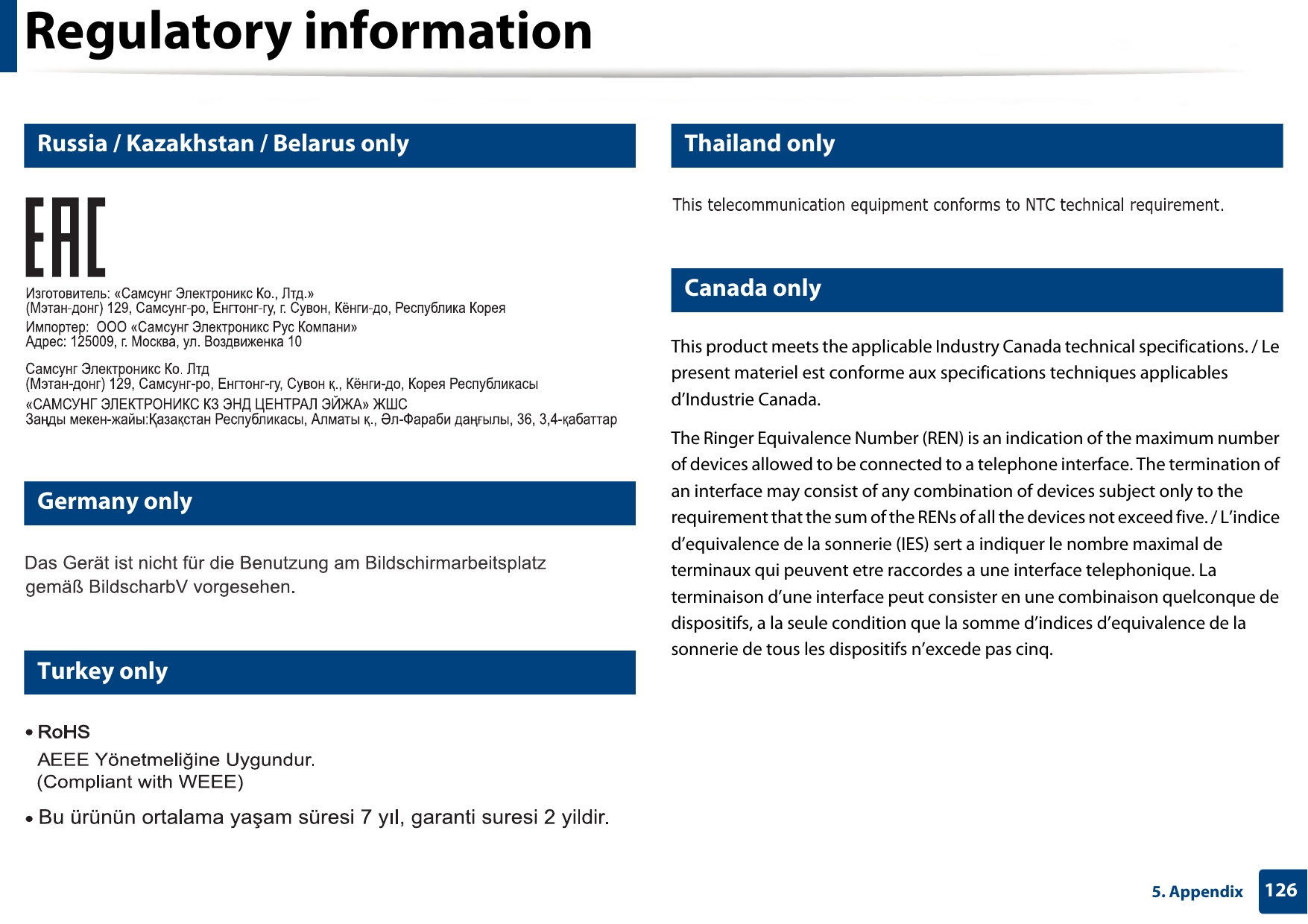
Regulatory information1265. Appendix18 Russia / Kazakhstan / Belarus only19 Germany only20 Turkey only21 Thailand only22 Canada onlyThis product meets the applicable Industry Canada technical specifications. / Le present materiel est conforme aux specifications techniques applicables d’Industrie Canada.The Ringer Equivalence Number (REN) is an indication of the maximum number of devices allowed to be connected to a telephone interface. The termination of an interface may consist of any combination of devices subject only to the requirement that the sum of the RENs of all the devices not exceed five. / L’indice d’equivalence de la sonnerie (IES) sert a indiquer le nombre maximal de terminaux qui peuvent etre raccordes a une interface telephonique. La terminaison d’une interface peut consister en une combinaison quelconque de dispositifs, a la seule condition que la somme d’indices d’equivalence de la sonnerie de tous les dispositifs n’excede pas cinq.
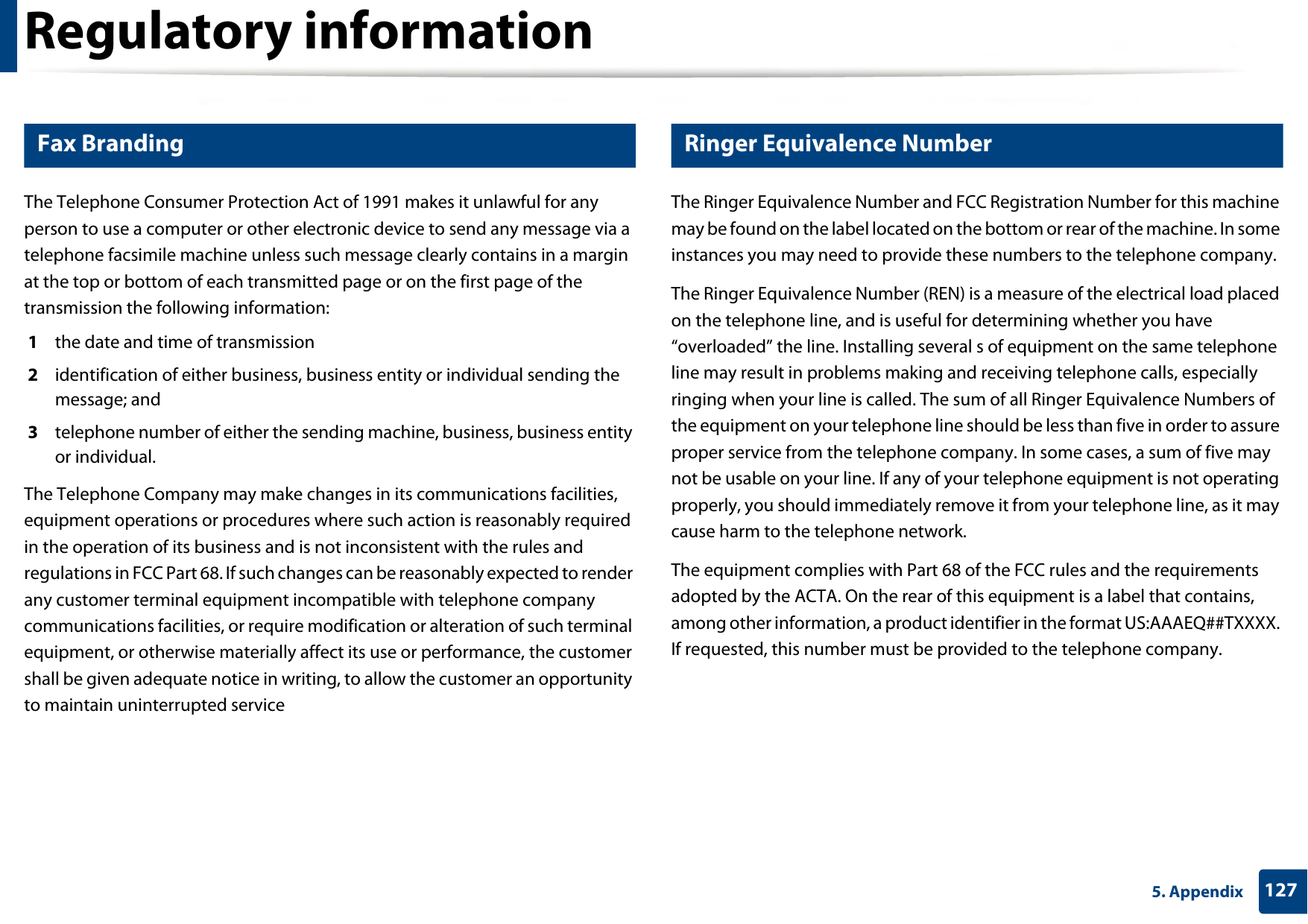
Regulatory information1275. Appendix23 Fax BrandingThe Telephone Consumer Protection Act of 1991 makes it unlawful for any person to use a computer or other electronic device to send any message via a telephone facsimile machine unless such message clearly contains in a margin at the top or bottom of each transmitted page or on the first page of the transmission the following information:1  the date and time of transmission2  identification of either business, business entity or individual sending the message; and3  telephone number of either the sending machine, business, business entity or individual.The Telephone Company may make changes in its communications facilities, equipment operations or procedures where such action is reasonably required in the operation of its business and is not inconsistent with the rules and regulations in FCC Part 68. If such changes can be reasonably expected to render any customer terminal equipment incompatible with telephone company communications facilities, or require modification or alteration of such terminal equipment, or otherwise materially affect its use or performance, the customer shall be given adequate notice in writing, to allow the customer an opportunity to maintain uninterrupted service24 Ringer Equivalence NumberThe Ringer Equivalence Number and FCC Registration Number for this machine may be found on the label located on the bottom or rear of the machine. In some instances you may need to provide these numbers to the telephone company.The Ringer Equivalence Number (REN) is a measure of the electrical load placed on the telephone line, and is useful for determining whether you have “overloaded” the line. Installing several s of equipment on the same telephone line may result in problems making and receiving telephone calls, especially ringing when your line is called. The sum of all Ringer Equivalence Numbers of the equipment on your telephone line should be less than five in order to assure proper service from the telephone company. In some cases, a sum of five may not be usable on your line. If any of your telephone equipment is not operating properly, you should immediately remove it from your telephone line, as it may cause harm to the telephone network.The equipment complies with Part 68 of the FCC rules and the requirements adopted by the ACTA. On the rear of this equipment is a label that contains, among other information, a product identifier in the format US:AAAEQ##TXXXX. If requested, this number must be provided to the telephone company.
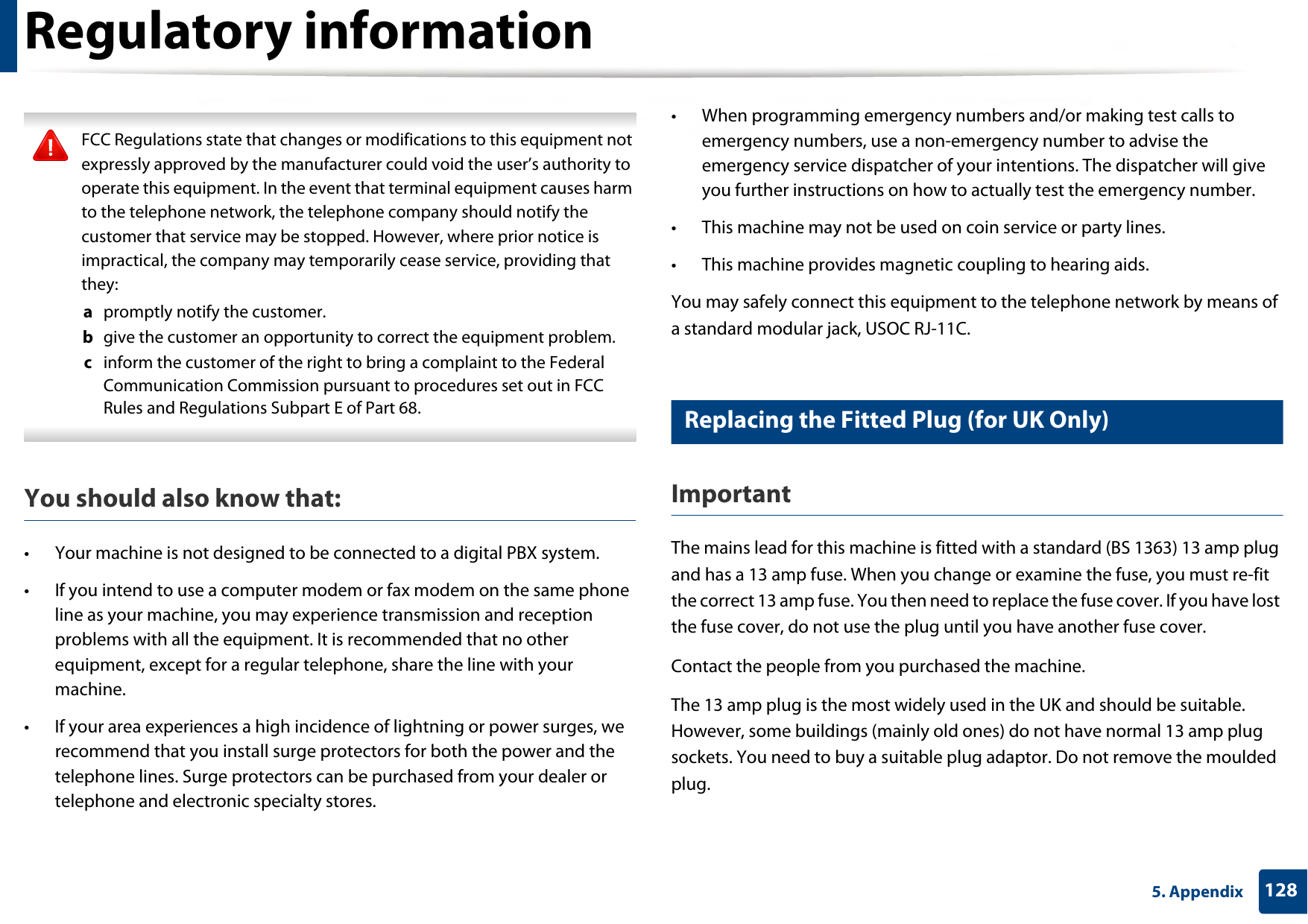
Regulatory information1285. Appendix FCC Regulations state that changes or modifications to this equipment not expressly approved by the manufacturer could void the user’s authority to operate this equipment. In the event that terminal equipment causes harm to the telephone network, the telephone company should notify the customer that service may be stopped. However, where prior notice is impractical, the company may temporarily cease service, providing that they:a  promptly notify the customer.b  give the customer an opportunity to correct the equipment problem.c  inform the customer of the right to bring a complaint to the Federal Communication Commission pursuant to procedures set out in FCC Rules and Regulations Subpart E of Part 68. You should also know that:• Your machine is not designed to be connected to a digital PBX system.• If you intend to use a computer modem or fax modem on the same phone line as your machine, you may experience transmission and reception problems with all the equipment. It is recommended that no other equipment, except for a regular telephone, share the line with your machine.• If your area experiences a high incidence of lightning or power surges, we recommend that you install surge protectors for both the power and the telephone lines. Surge protectors can be purchased from your dealer or telephone and electronic specialty stores.• When programming emergency numbers and/or making test calls to emergency numbers, use a non-emergency number to advise the emergency service dispatcher of your intentions. The dispatcher will give you further instructions on how to actually test the emergency number.• This machine may not be used on coin service or party lines.• This machine provides magnetic coupling to hearing aids.You may safely connect this equipment to the telephone network by means of a standard modular jack, USOC RJ-11C.25 Replacing the Fitted Plug (for UK Only)ImportantThe mains lead for this machine is fitted with a standard (BS 1363) 13 amp plug and has a 13 amp fuse. When you change or examine the fuse, you must re-fit the correct 13 amp fuse. You then need to replace the fuse cover. If you have lost the fuse cover, do not use the plug until you have another fuse cover. Contact the people from you purchased the machine.The 13 amp plug is the most widely used in the UK and should be suitable. However, some buildings (mainly old ones) do not have normal 13 amp plug sockets. You need to buy a suitable plug adaptor. Do not remove the moulded plug.
Regulatory information1295. Appendix If you cut off the moulded plug, get rid of it straight away.You cannot rewire the plug and you may receive an electric shock if you plug it into a socket. Important warning: If the wires in the mains lead do not match the colors marked in your plug, do the following:You must connect the green and yellow wire to the pin marked by the letter “E” or by the safety ‘Earth symbol’ or colored green and yellow or green.You must connect the blue wire to the pin which is marked with the letter “N” or colored black.You must connect the brown wire to the pin which is marked with the letter “L” or colored red.You must have a 13 amp fuse in the plug, adaptor, or at the distribution board.26 Declaration of conformity (European countries)Approvals and CertificationsJanuary 1, 1995: Council Directive 2006/95/EC Approximation of the laws of the member states related to low voltage equipment.January 1, 1996: Council Directive 2004/108/EC, approximation of the laws of the Member States related to electromagnetic compatibility.March 9, 1999: Council Directive 1999/5/EC on radio equipment and telecommunications terminal equipment and the mutual recognition of their conformity. A full declaration, defining the relevant Directives and referenced standards can be obtained from your Samsung Electronics Co., Ltd. representative.You must earth this machine.The wires in the mains lead have the following color code:•Green and Yellow: Earth•Blue: Neutral•Brown: LiveHereby, Samsung Electronics, declares that this [Xpress C48x series] is in compliance with the essential requirements and other relevant provisions of Low Voltage Directive (2006/95/EC), EMC Directive (2004/108/EC).Hereby, Samsung Electronics, declares that this [Xpress C48xW series, Xpress C48xFN series, Xpress C48xFW series] is in compliance with the essential requirements and other relevant provisions of R&TTE Directive 1999/5/EC.The declaration of conformity may be consulted at www.samsung.com, go to Support > Download center and enter your printer (MFP) name to browse the EuDoC.
Regulatory information1305. AppendixEC CertificationCertification to 1999/5/EC Radio Equipment & Telecommunications Terminal Equipment Directive (FAX)This Samsung product has been self-certified by Samsung for pan-European single terminal connection to the analogue public switched telephone network (PSTN) in accordance with Directive 1999/5/EC. The product has been designed to work with the national PSTNs and compatible PBXs of the European countries:In the event of problems, you should contact the Euro QA Lab of Samsung Electronics Co., Ltd. in the first instance.The product has been tested against TBR21. To assist in the use and application of terminal equipment which complies with this standard, the European Telecommunication Standards Institute (ETSI) has issued an advisory document (EG 201 121) which contains notes and additional requirements to ensure network compatibility of TBR21 terminals. The product has been designed against, and is fully compliant with, all of the relevant advisory notes contained in this document.European radio approval information (for products fitted with EU-approved radio devices)Low power, Radio LAN type devices (radio frequency (RF) wireless communication devices), operating in the 2.4 GHz/5 GHz band, may be present (embedded) in your printer system which is intended for home or office use. This section is only applicable if these devices are present. Refer to the system label to verify the presence of wireless devices.The power output of the wireless device or devices that may be embedded in you printer is well below the RF exposure limits as set by the European Commission through the R&TTE directive.European states qualified under wireless approvals:EU countriesEuropean states with restrictions on use:EUEEA/EFTA countriesNo limitations at this timeWireless devices that may be in your system are only qualified for use in the European Union or associated areas if a CE mark is on the system label.
Regulatory information1315. Appendix27 Regulatory compliance statementsWireless guidanceLow power, Radio LAN devices (radio frequency (RF) wireless communication devices), operating in the 2.4 GHz/5 GHz Band, may be present (embedded) in your printer system. The following section is a general overview of considerations while operating a wireless device.Additional limitations, cautions, and concerns for specific countries are listed in the specific country sections (or country group sections). The wireless devices in your system are only qualified for use in the countries identified by the Radio Approval Marks on the system rating label. If the country you will be using the wireless device in, is not listed, contact your local Radio Approval agency for requirements. Wireless devices are closely regulated and use may not be allowed.The power output of the wireless device or devices that may be embedded in your printer is well below the RF exposure limits as known at this time. Because the wireless devices (which may be embedded into your printer) emit less energy than is allowed in radio frequency safety standards and recommendations, manufacturer believes these devices are safe for use. Regardless of the power levels, care should be taken to minimize human contact during normal operation.As a general guideline, a separation of 20 cm (8 inches) between the wireless device and the body, for use of a wireless device near the body (this does not include extremities) is typical. This device should be used more than 20 cm (8 inches) from the body when wireless devices are on and transmitting.This transmitter must not be collocated or operation in conjunction with any other antenna or transmitter.Some circumstances require restrictions on wireless devices. Examples of common restrictions are listed below:Radio frequency wireless communication can interfere with equipment on commercial aircraft. Current aviation regulations require wireless devices to be turned off while traveling in an airplane. IEEE 802.11 (also known as wireless Ethernet) and Bluetooth communication devices are examples of devices that provide wireless communication.In environments where the risk of interference to other devices or services is harmful or perceived as harmful, the option to use a wireless device may be restricted or eliminated. Airports, Hospitals, and Oxygen or flammable gas laden atmospheres are limited examples where use of wireless devices may be restricted or eliminated. When in environments where you are uncertain of the sanction to use wireless devices, ask the applicable authority for authorization prior to use or turning on the wireless device.
Regulatory information1325. AppendixEvery country has different restrictions on the use of wireless devices. Since your system is equipped with a wireless device, when traveling between countries with your system, check with the local Radio Approval authorities prior to any move or trip for any restrictions on the use of a wireless device in the destination country.If your system came equipped with an internal embedded wireless device, do not operate the wireless device unless all covers and shields are in place and the system is fully assembled.Wireless devices are not user serviceable. Do not modify them in any way. Modification to a wireless device will void the authorization to use it. Contact manufacturer for service.Only use drivers approved for the country in which the device will be used. See the manufacturer System Restoration Kit, or contact manufacturer Technical Support for additional information.
1335. AppendixCopyright© 2015 Samsung Electronics Co., Ltd. All rights reserved.This user’s guide is provided for information purposes only. All information included herein is subject to change without notice.Samsung Electronics is not responsible for any direct or indirect damages, arising from or related to use of this user’s guide.• Samsung and the Samsung logo are trademarks of Samsung Electronics Co., Ltd.• Microsoft, Windows, Windows Vista, Windows 7, Windows 8, and Windows Server 2008 R2 are either registered trademarks or trademarks of Microsoft Corporation.• Microsoft, Internet Explorer, Excel, Word, PowerPoint, and Outlook are either registered trademarks or trademarks of Microsoft Corporation in the United States and other countries.• Google, Picasa, Google Cloud Print, Google Docs, Android and Gmail are either registered trademarks or trademarks of Google Inc.• iPad, iPhone, iPod touch, Mac and Mac OS are trademarks of Apple Inc., registered in the U.S and other countries.• AirPrint and the AirPrint logo are trademarks of Apple Inc.• All other brand or product names are trademarks of their respective companies or organizations.REV. 1.00QR codeThe software included in this product contains open source software. You may obtain the complete corresponding source code for a period of three years after the last shipment of this product by sending an email to mailto:oss.request@samsung.com. It is also possible to obtain the complete corresponding source code in a physical medium such as a CD-ROM; a minimal charge will be required.The following URL https://opensource.samsung.com/opensource/Samsung_C48x_Series/seq/48 leads to the download page of the source code made available and open source license information as related to this product. This offer is valid to anyone in receipt of this information.
Samsung  Multifunction Xpress                                                                                                                                                                                                                C48x / C48xW series                                                                                                   C48xFN / C48xFW series         ADVANCEDUser’s GuideADVANCEDUser’s GuideThis guide provides information about installation, advanced configuration, operation and troubleshooting on various OS environments. Some features may not be available depending on models or countries.BASICThis guide provides information concerning installation, basic operation and troubleshooting on windows.
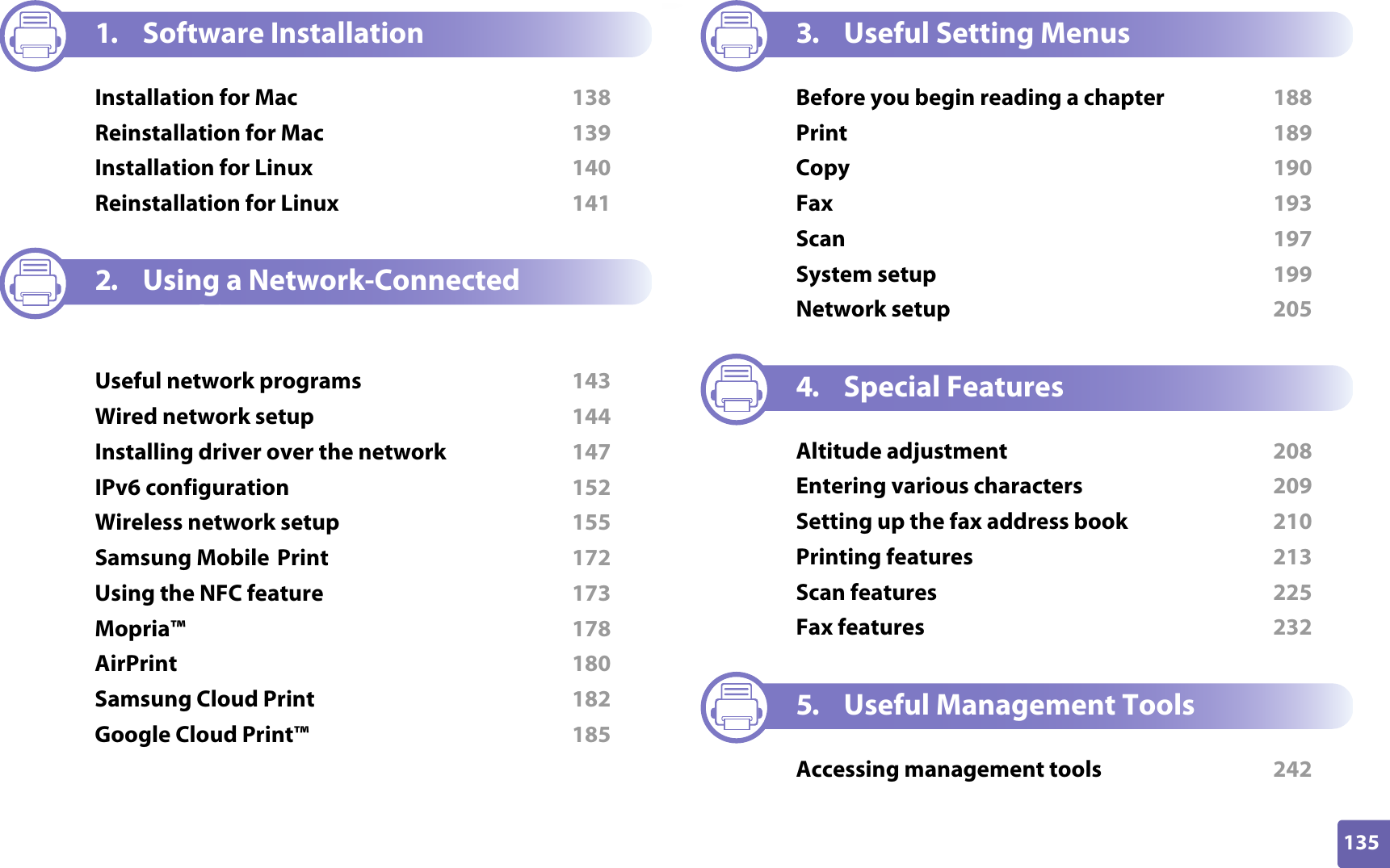
135ADVANCED1. Software InstallationInstallation for Mac  138Reinstallation for Mac  139Installation for Linux  140Reinstallation for Linux  1412. Using a Network-Connected MachineUseful network programs  143Wired network setup  144Installing driver over the network  147IPv6 configuration  152Wireless network setup  155Samsung Mobile Print  172Using the NFC feature  173Mopria™  178AirPrint  180Samsung Cloud Print  182Google Cloud Print™  1853. Useful Setting MenusBefore you begin reading a chapter  188Print  189Copy  190Fax  193Scan  197System setup  199Network setup  2054. Special FeaturesAltitude adjustment  208Entering various characters  209Setting up the fax address book  210Printing features  213Scan features  225Fax features  2325. Useful Management ToolsAccessing management tools  242
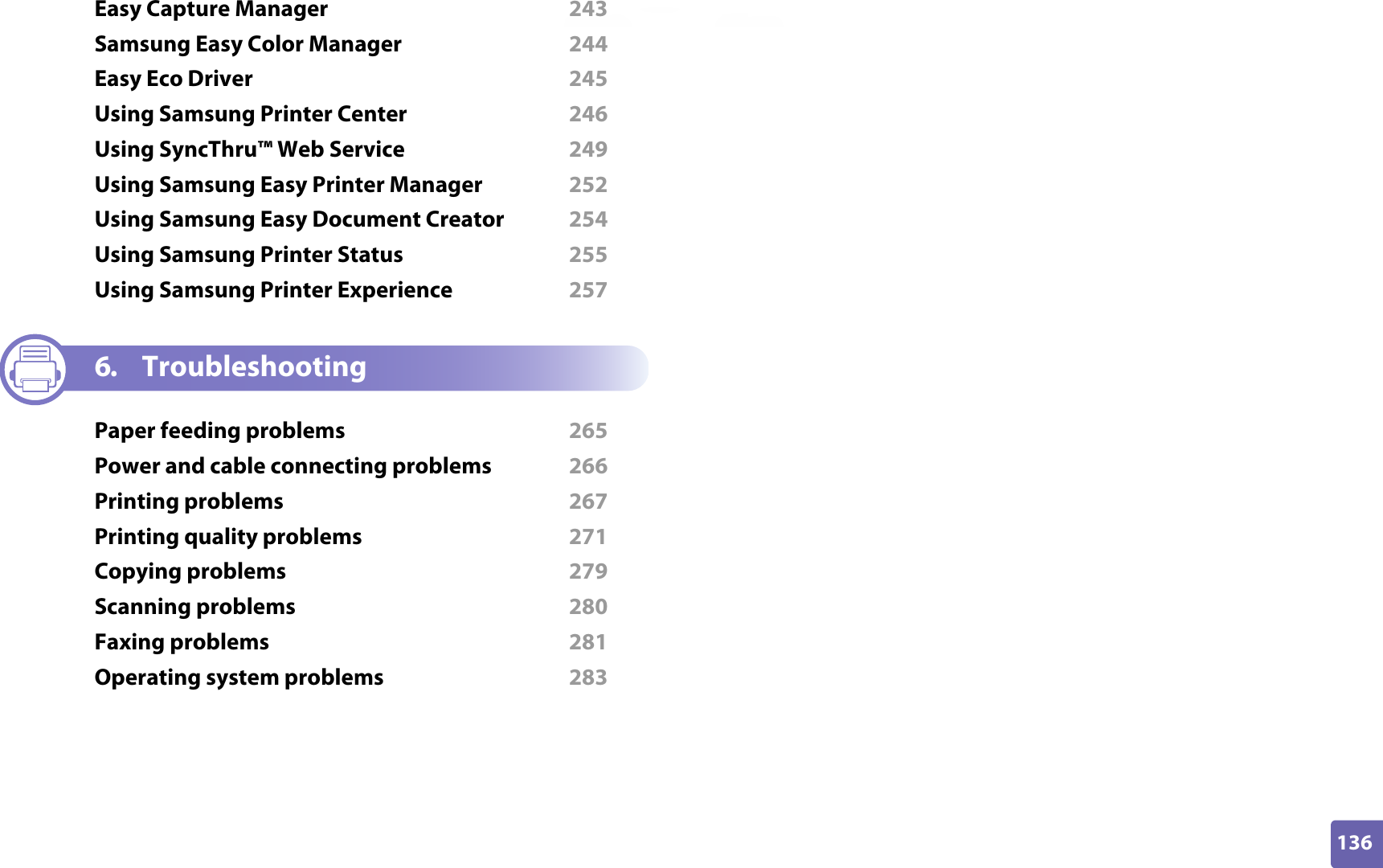
136ADVANCEDEasy Capture Manager  243Samsung Easy Color Manager  244Easy Eco Driver  245Using Samsung Printer Center  246Using SyncThru™ Web Service  249Using Samsung Easy Printer Manager  252Using Samsung Easy Document Creator  254Using Samsung Printer Status  255Using Samsung Printer Experience  2576. TroubleshootingPaper feeding problems  265Power and cable connecting problems  266Printing problems  267Printing quality problems  271Copying problems  279Scanning problems  280Faxing problems  281Operating system problems  283
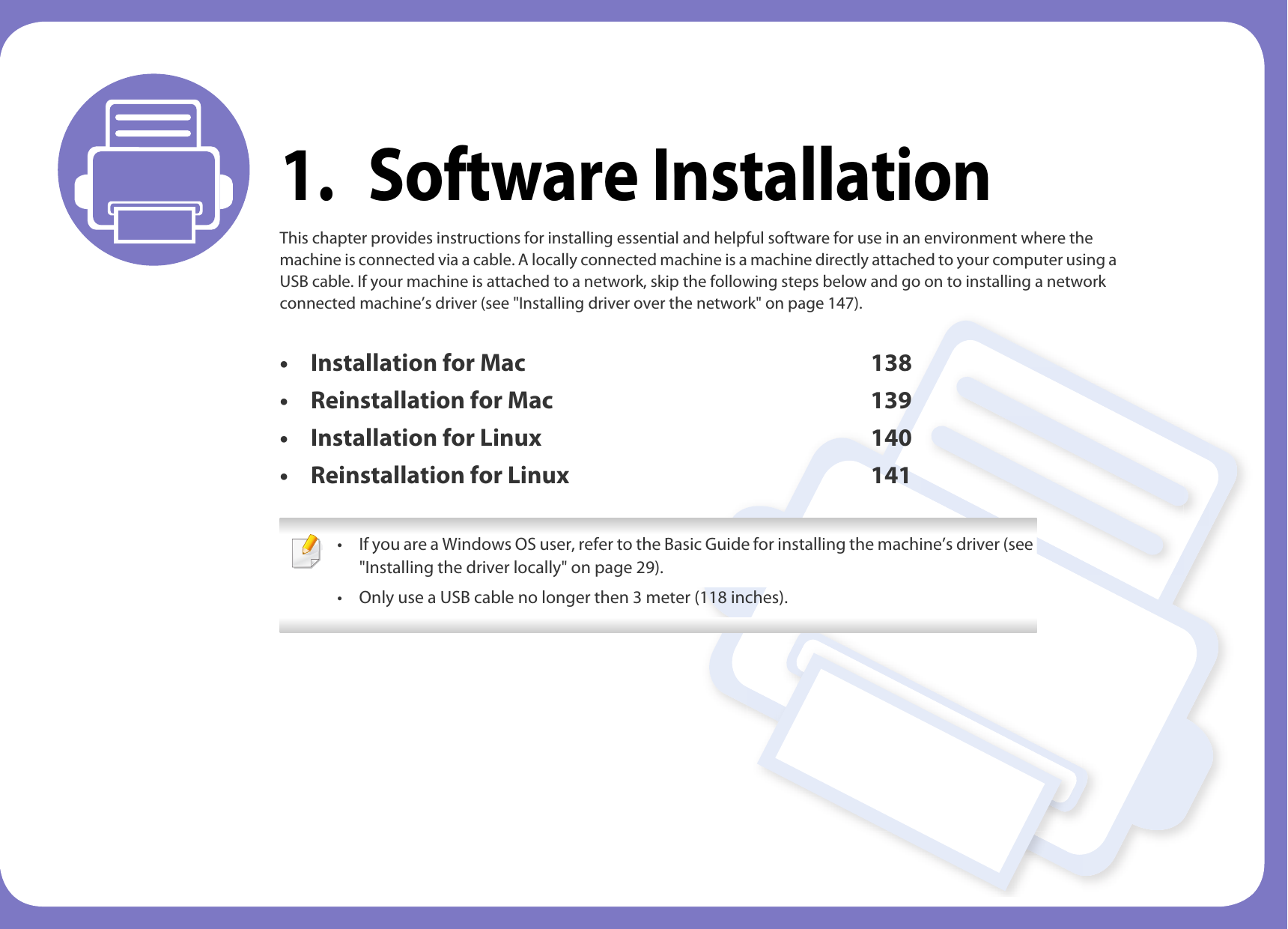
1. Software InstallationThis chapter provides instructions for installing essential and helpful software for use in an environment where the machine is connected via a cable. A locally connected machine is a machine directly attached to your computer using a USB cable. If your machine is attached to a network, skip the following steps below and go on to installing a network connected machine’s driver (see "Installing driver over the network" on page 147).• Installation for Mac 138• Reinstallation for Mac 139• Installation for Linux 140• Reinstallation for Linux 141 • If you are a Windows OS user, refer to the Basic Guide for installing the machine’s driver (see "Installing the driver locally" on page 29).• Only use a USB cable no longer then 3 meter (118 inches).
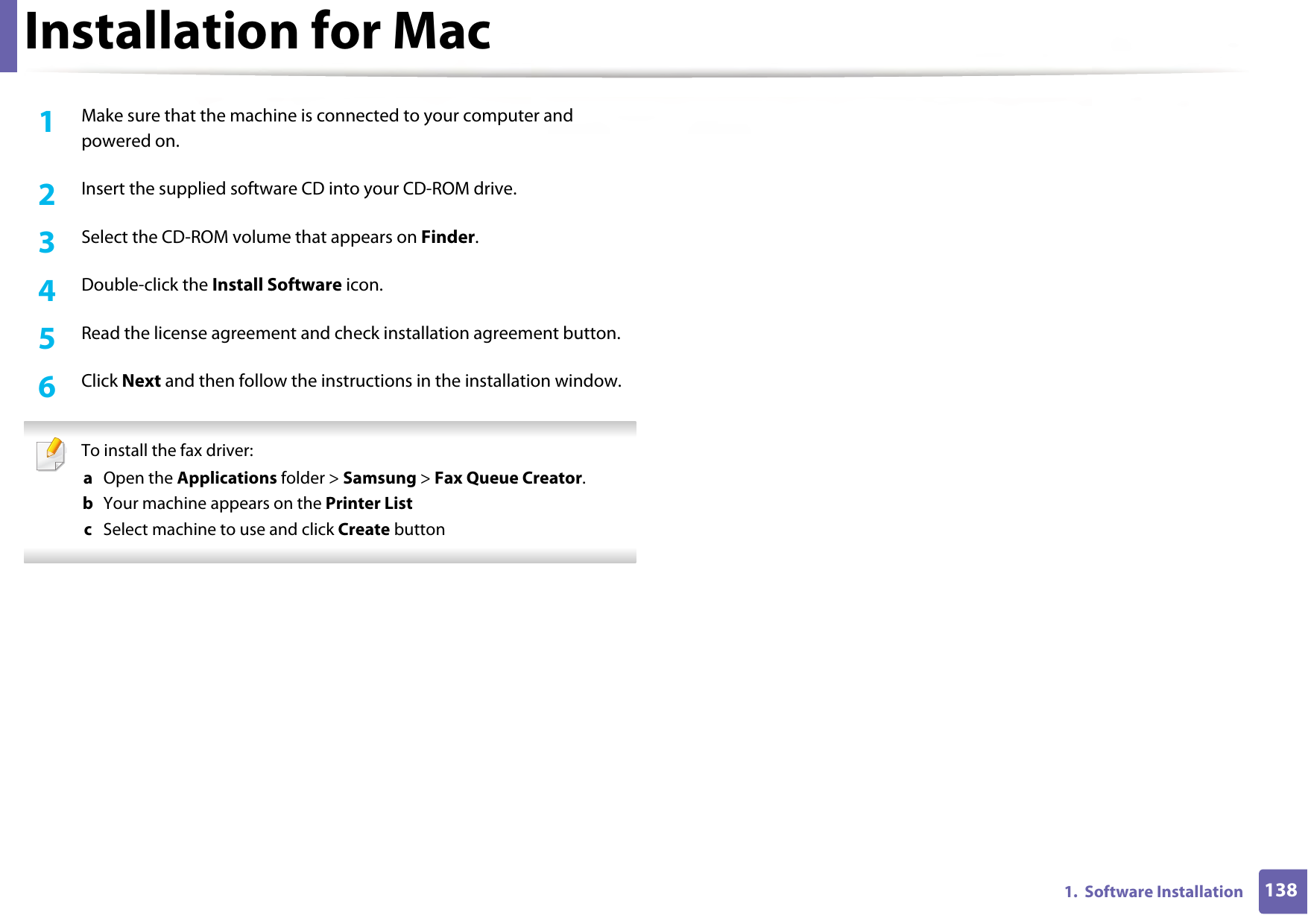
1381.  Software InstallationInstallation for Mac1Make sure that the machine is connected to your computer and powered on.2  Insert the supplied software CD into your CD-ROM drive.3  Select the CD-ROM volume that appears on Finder.4  Double-click the Install Software icon.5  Read the license agreement and check installation agreement button.6  Click Next and then follow the instructions in the installation window. To install the fax driver: a  Open the Applications folder > Samsung > Fax Queue Creator.b  Your machine appears on the Printer Listc  Select machine to use and click Create button
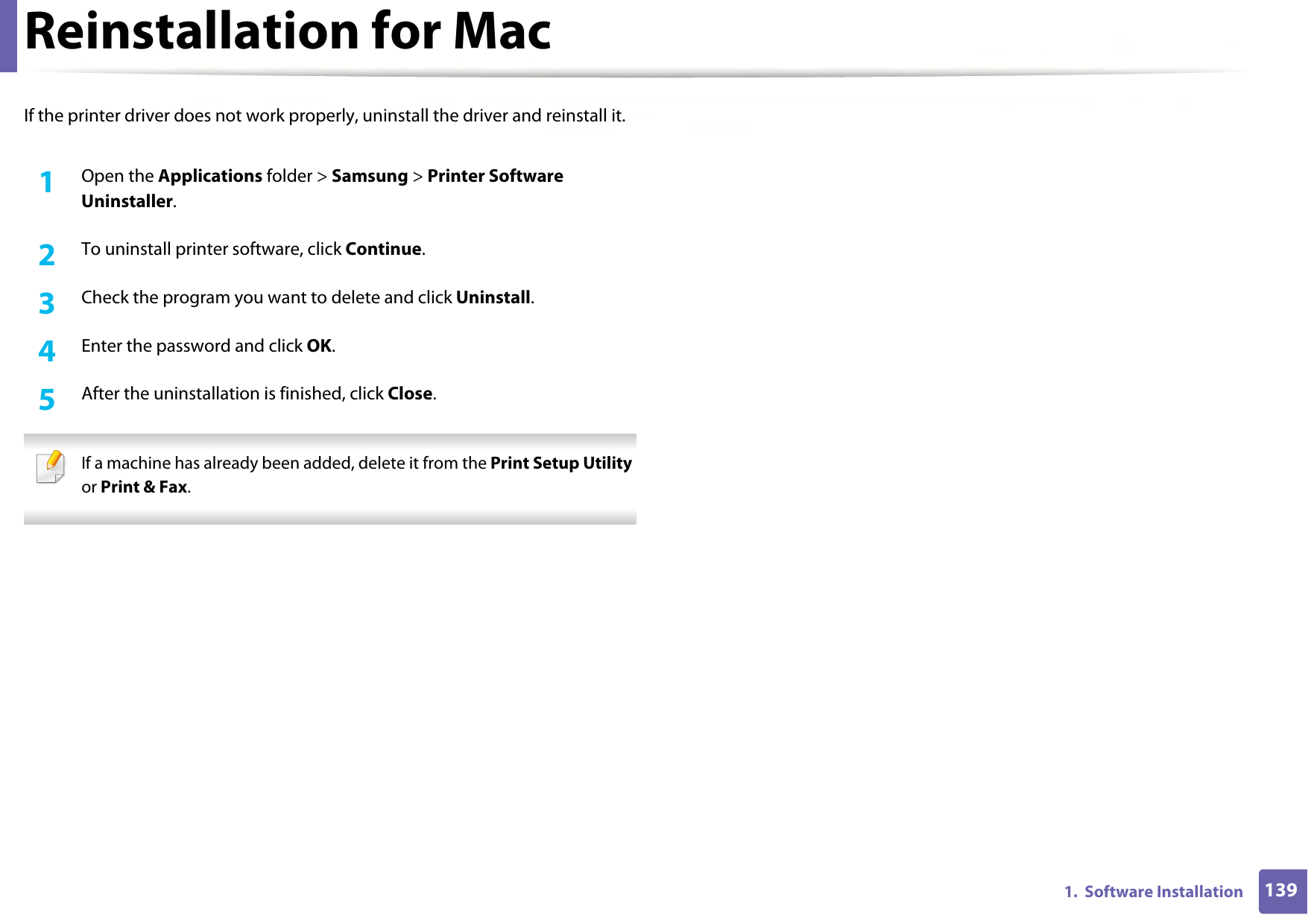
1391.  Software InstallationReinstallation for MacIf the printer driver does not work properly, uninstall the driver and reinstall it.1Open the Applications folder > Samsung > Printer Software Uninstaller.2  To uninstall printer software, click Continue.3  Check the program you want to delete and click Uninstall.4  Enter the password and click OK.5  After the uninstallation is finished, click Close. If a machine has already been added, delete it from the Print Setup Utility or Print & Fax.
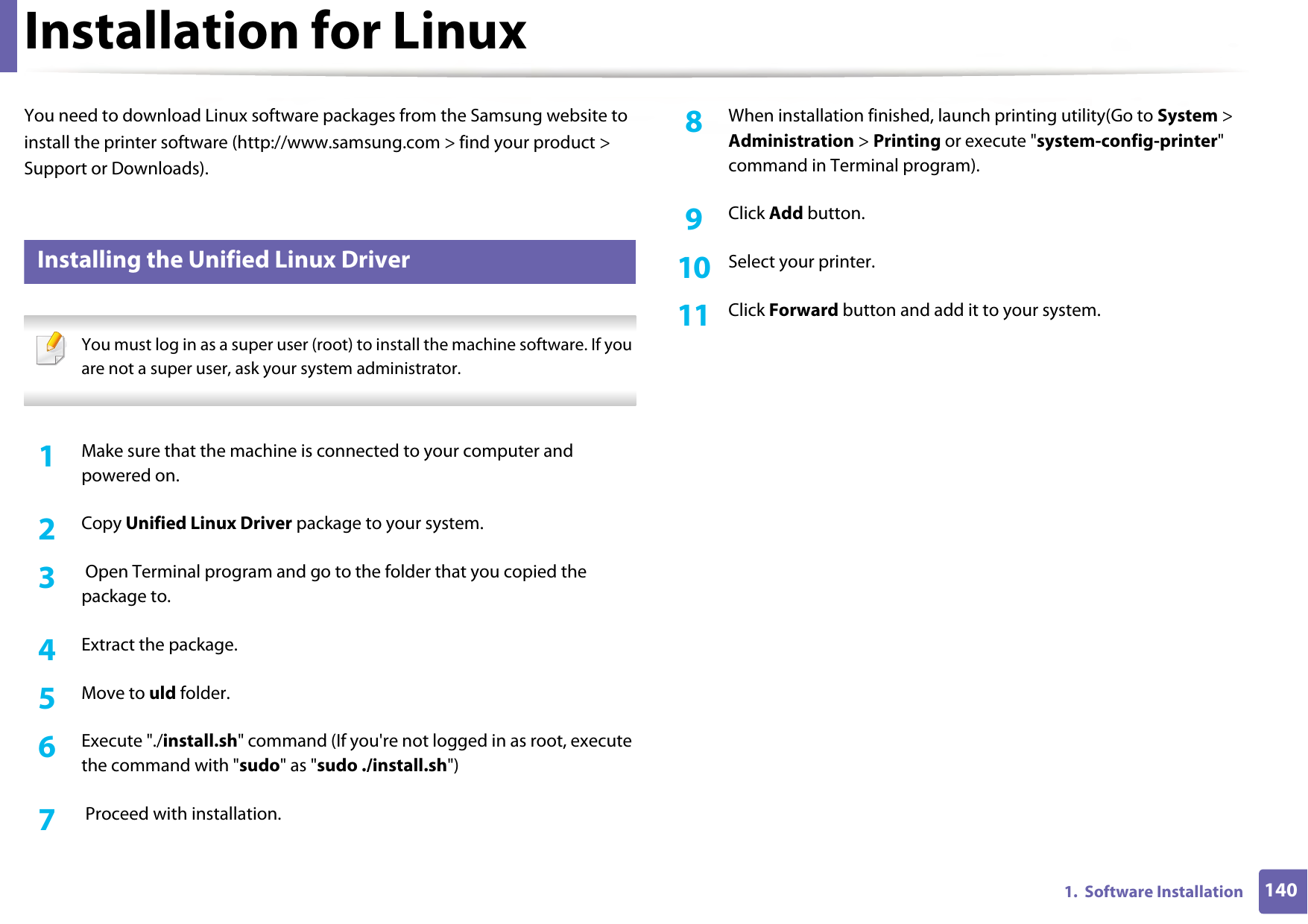
1401.  Software InstallationInstallation for LinuxYou need to download Linux software packages from the Samsung website to install the printer software (http://www.samsung.com > find your product > Support or Downloads).1 Installing the Unified Linux Driver You must log in as a super user (root) to install the machine software. If you are not a super user, ask your system administrator. 1Make sure that the machine is connected to your computer and powered on.2  Copy Unified Linux Driver package to your system.3   Open Terminal program and go to the folder that you copied the package to.4  Extract the package.5  Move to uld folder.6  Execute "./install.sh" command (If you're not logged in as root, execute the command with "sudo" as "sudo ./install.sh")7   Proceed with installation.8  When installation finished, launch printing utility(Go to System > Administration > Printing or execute "system-config-printer" command in Terminal program).9  Click Add button.10  Select your printer.11  Click Forward button and add it to your system.
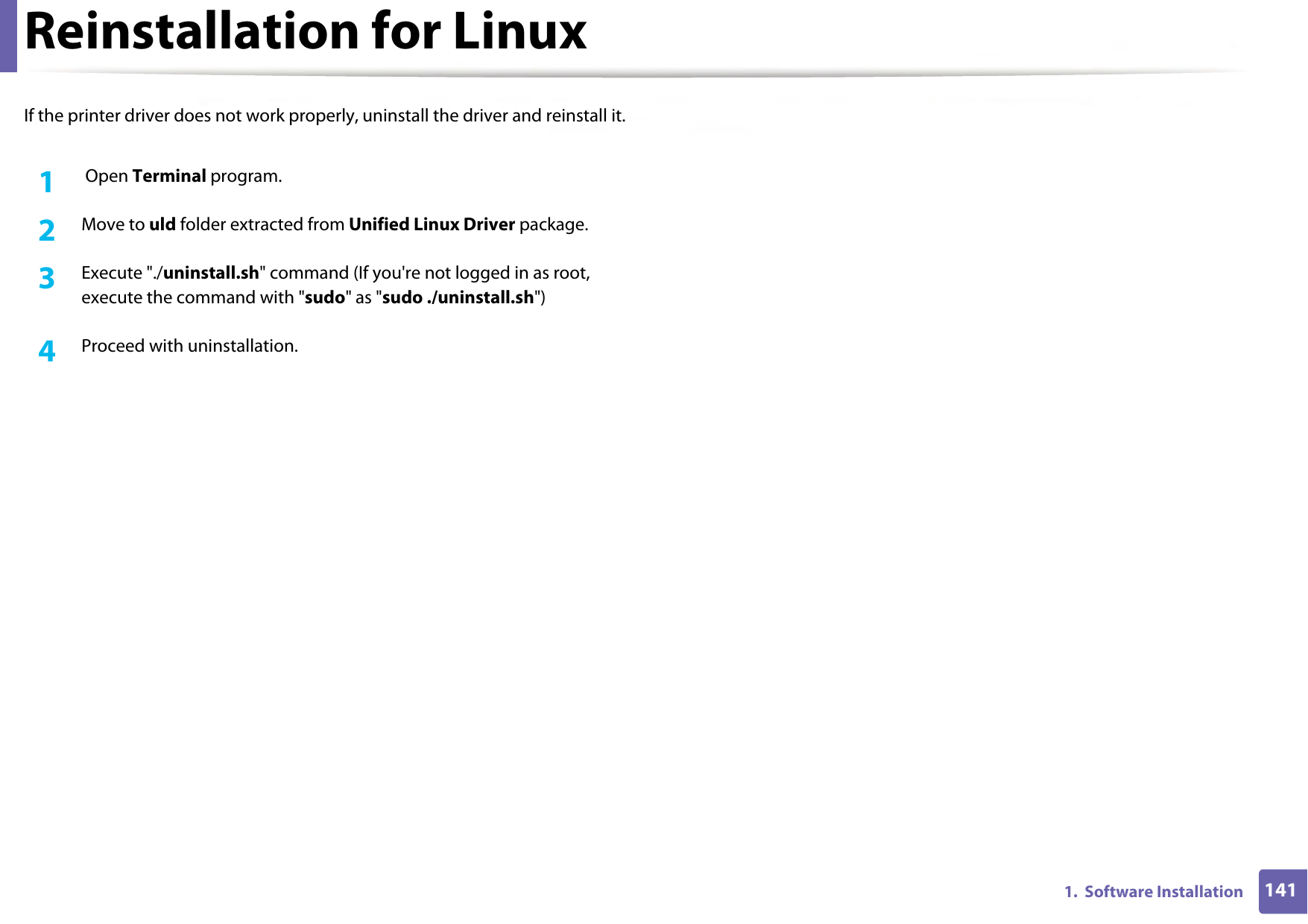
1411.  Software InstallationReinstallation for LinuxIf the printer driver does not work properly, uninstall the driver and reinstall it.1 Open Terminal program.2  Move to uld folder extracted from Unified Linux Driver package.3  Execute "./uninstall.sh" command (If you're not logged in as root, execute the command with "sudo" as "sudo ./uninstall.sh")4  Proceed with uninstallation.
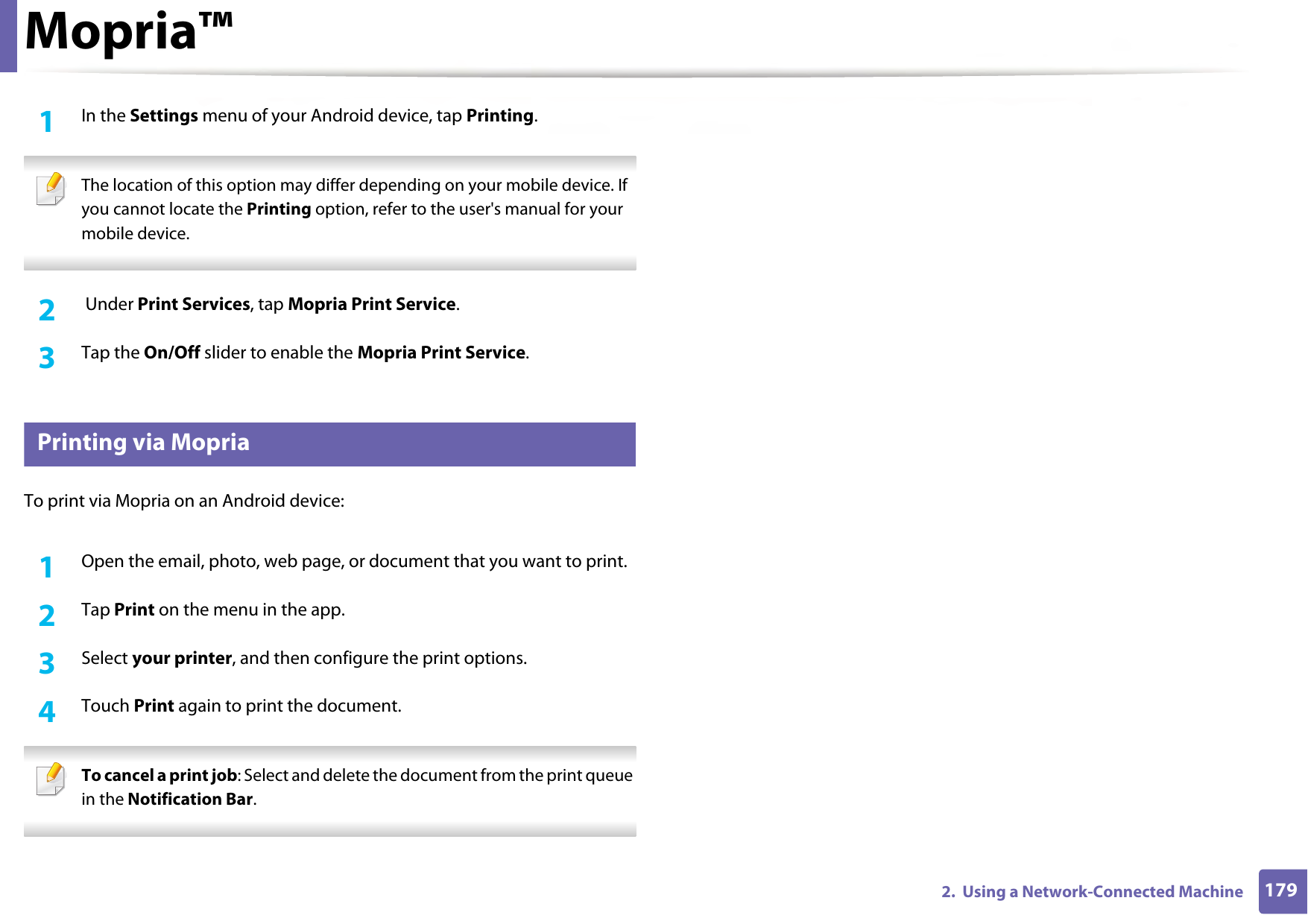
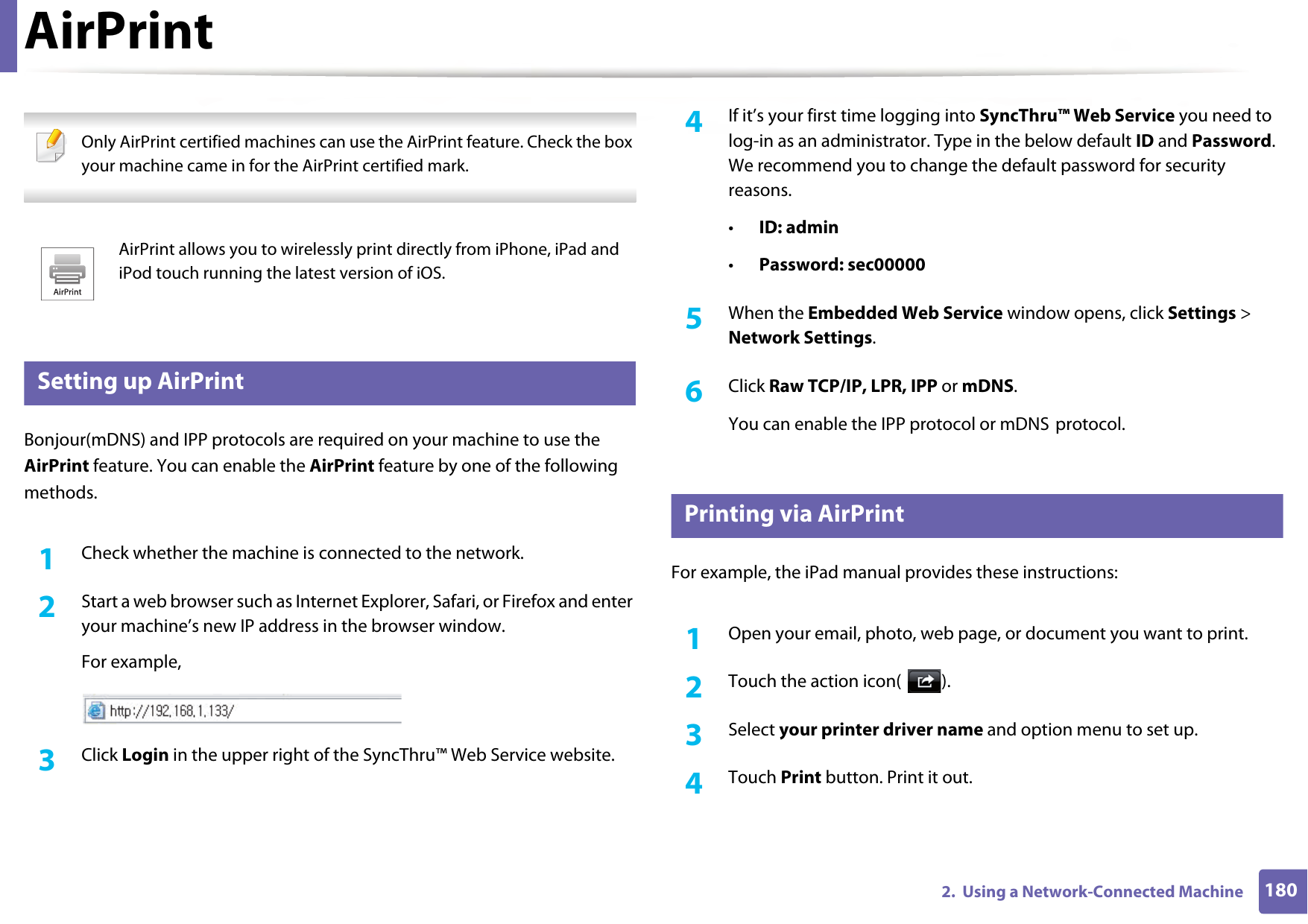
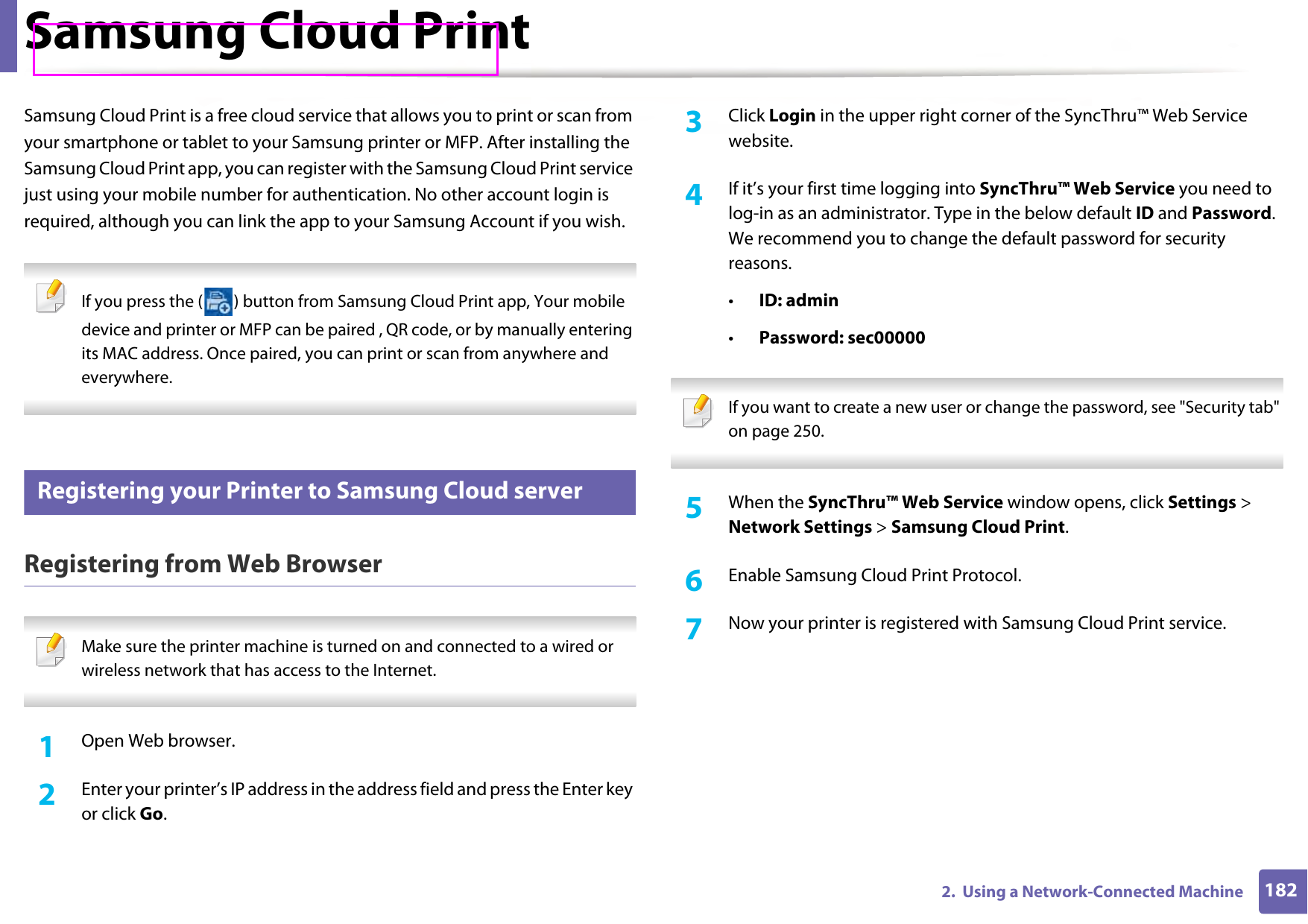
2. Using a Network-Connected MachineThis chapter gives you step-by-step instructions for setting up a network connected machine and software.• Useful network programs 143• Wired network setup 144• Installing driver over the network 147• IPv6 configuration 152• Wireless network setup 155• Samsung Mobile Print 172• Using the NFC feature 173• Mopria™ 178• AirPrint 180• Samsung Cloud Print 182• Google Cloud Print™ 185 Supported optional devices and features may differ according to your model (see "Features by model" on page 7).
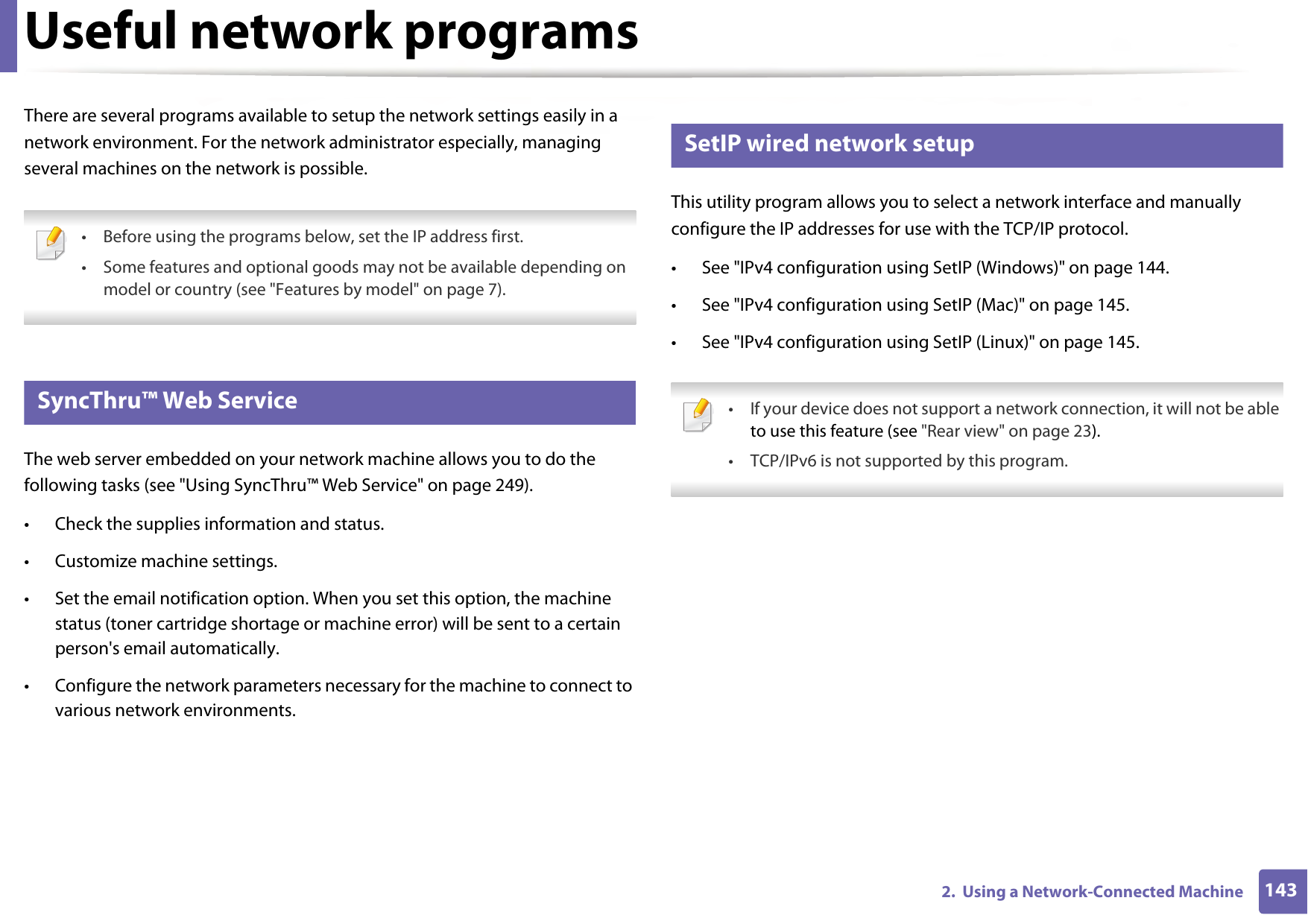
1432.  Using a Network-Connected MachineUseful network programsThere are several programs available to setup the network settings easily in a network environment. For the network administrator especially, managing several machines on the network is possible.  • Before using the programs below, set the IP address first. • Some features and optional goods may not be available depending on model or country (see "Features by model" on page 7). 1 SyncThru™ Web ServiceThe web server embedded on your network machine allows you to do the following tasks (see "Using SyncThru™ Web Service" on page 249).• Check the supplies information and status.• Customize machine settings.• Set the email notification option. When you set this option, the machine status (toner cartridge shortage or machine error) will be sent to a certain person's email automatically.• Configure the network parameters necessary for the machine to connect to various network environments.2 SetIP wired network setupThis utility program allows you to select a network interface and manually configure the IP addresses for use with the TCP/IP protocol.• See "IPv4 configuration using SetIP (Windows)" on page 144.• See "IPv4 configuration using SetIP (Mac)" on page 145.• See "IPv4 configuration using SetIP (Linux)" on page 145. • If your device does not support a network connection, it will not be able to use this feature (see "Rear view" on page 23).• TCP/IPv6 is not supported by this program.
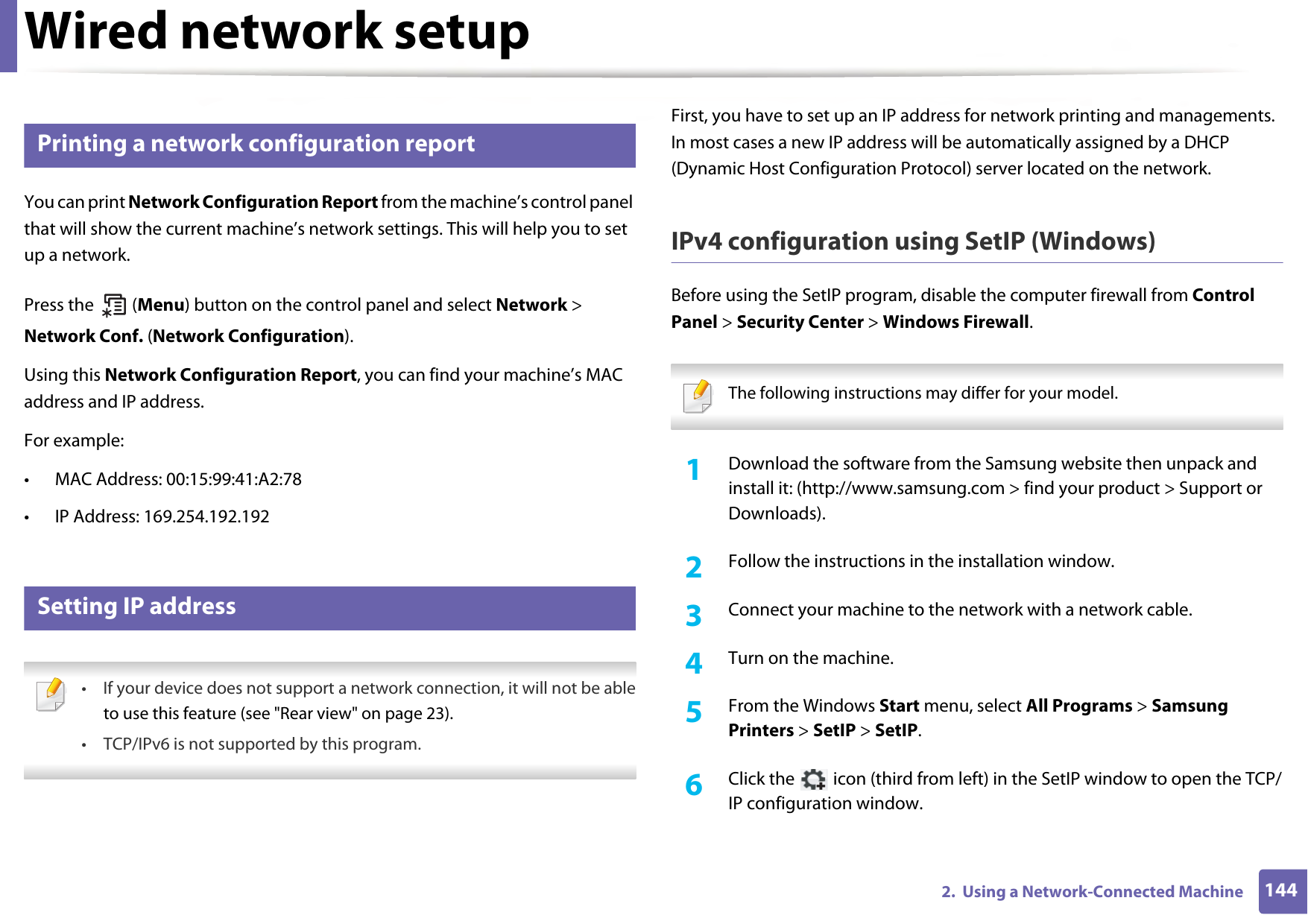
1442.  Using a Network-Connected MachineWired network setup3 Printing a network configuration reportYou can print Network Configuration Report from the machine’s control panel that will show the current machine’s network settings. This will help you to set up a network.Press the   (Menu) button on the control panel and select Network > Network Conf. (Network Configuration).Using this Network Configuration Report, you can find your machine’s MAC address and IP address.For example:• MAC Address: 00:15:99:41:A2:78• IP Address: 169.254.192.1924 Setting IP address • If your device does not support a network connection, it will not be ableto use this feature (see "Rear view" on page 23).• TCP/IPv6 is not supported by this program. First, you have to set up an IP address for network printing and managements. In most cases a new IP address will be automatically assigned by a DHCP (Dynamic Host Configuration Protocol) server located on the network.IPv4 configuration using SetIP (Windows)Before using the SetIP program, disable the computer firewall from Control Panel > Security Center > Windows Firewall. The following instructions may differ for your model.  1Download the software from the Samsung website then unpack and install it: (http://www.samsung.com > find your product > Support or Downloads).2  Follow the instructions in the installation window.3  Connect your machine to the network with a network cable.4  Turn on the machine.5  From the Windows Start menu, select All Programs > Samsung Printers > SetIP > SetIP.6  Click the   icon (third from left) in the SetIP window to open the TCP/IP configuration window.
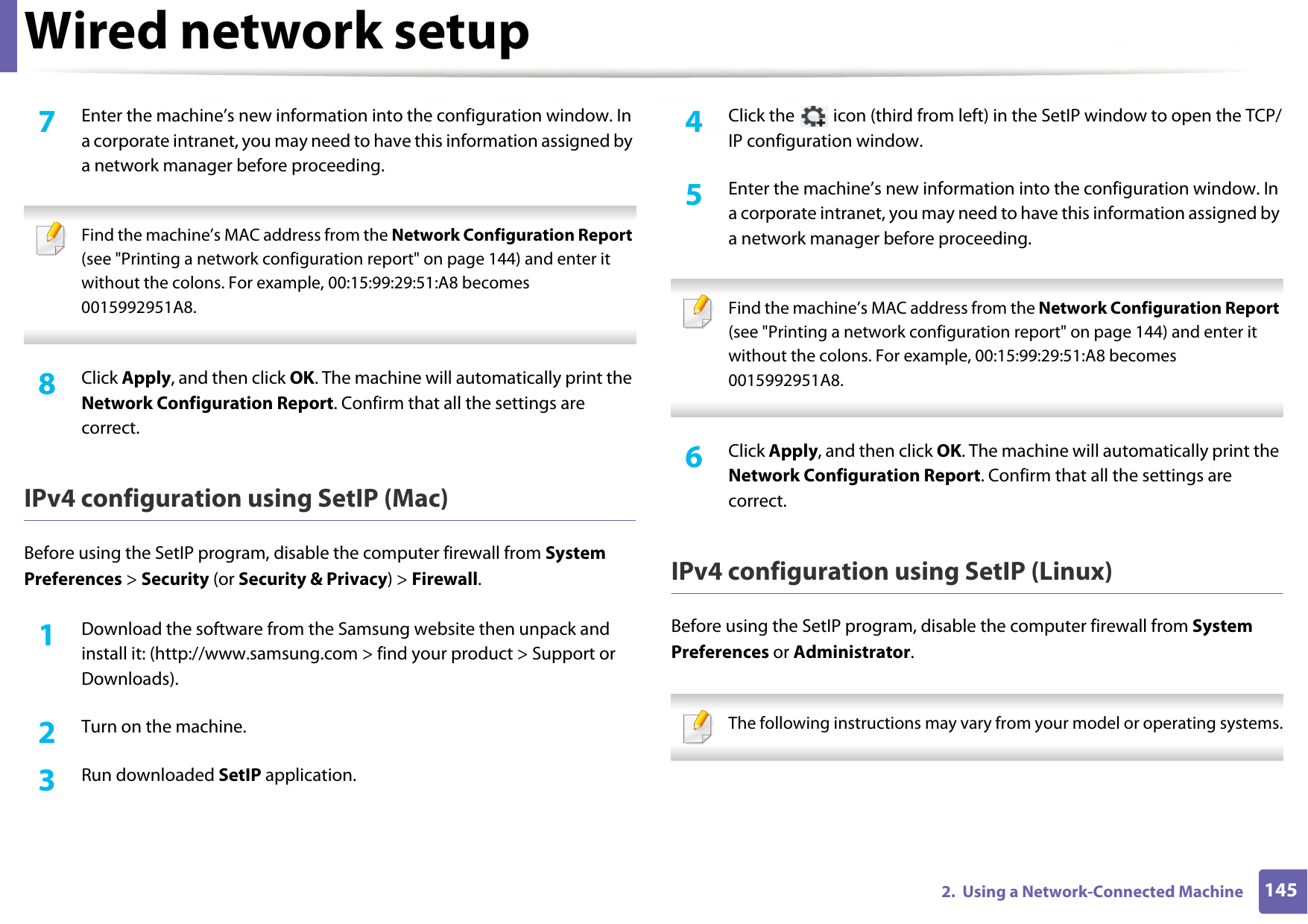
Wired network setup1452.  Using a Network-Connected Machine7  Enter the machine’s new information into the configuration window. In a corporate intranet, you may need to have this information assigned by a network manager before proceeding. Find the machine’s MAC address from the Network Configuration Report (see "Printing a network configuration report" on page 144) and enter it without the colons. For example, 00:15:99:29:51:A8 becomes 0015992951A8. 8  Click Apply, and then click OK. The machine will automatically print the Network Configuration Report. Confirm that all the settings are correct.IPv4 configuration using SetIP (Mac)Before using the SetIP program, disable the computer firewall from System Preferences > Security (or Security & Privacy) > Firewall.1Download the software from the Samsung website then unpack and install it: (http://www.samsung.com > find your product > Support or Downloads).2  Turn on the machine.3  Run downloaded SetIP application.4  Click the   icon (third from left) in the SetIP window to open the TCP/IP configuration window.5  Enter the machine’s new information into the configuration window. In a corporate intranet, you may need to have this information assigned by a network manager before proceeding. Find the machine’s MAC address from the Network Configuration Report (see "Printing a network configuration report" on page 144) and enter it without the colons. For example, 00:15:99:29:51:A8 becomes 0015992951A8. 6  Click Apply, and then click OK. The machine will automatically print the Network Configuration Report. Confirm that all the settings are correct.IPv4 configuration using SetIP (Linux)Before using the SetIP program, disable the computer firewall from System Preferences or Administrator. The following instructions may vary from your model or operating systems.
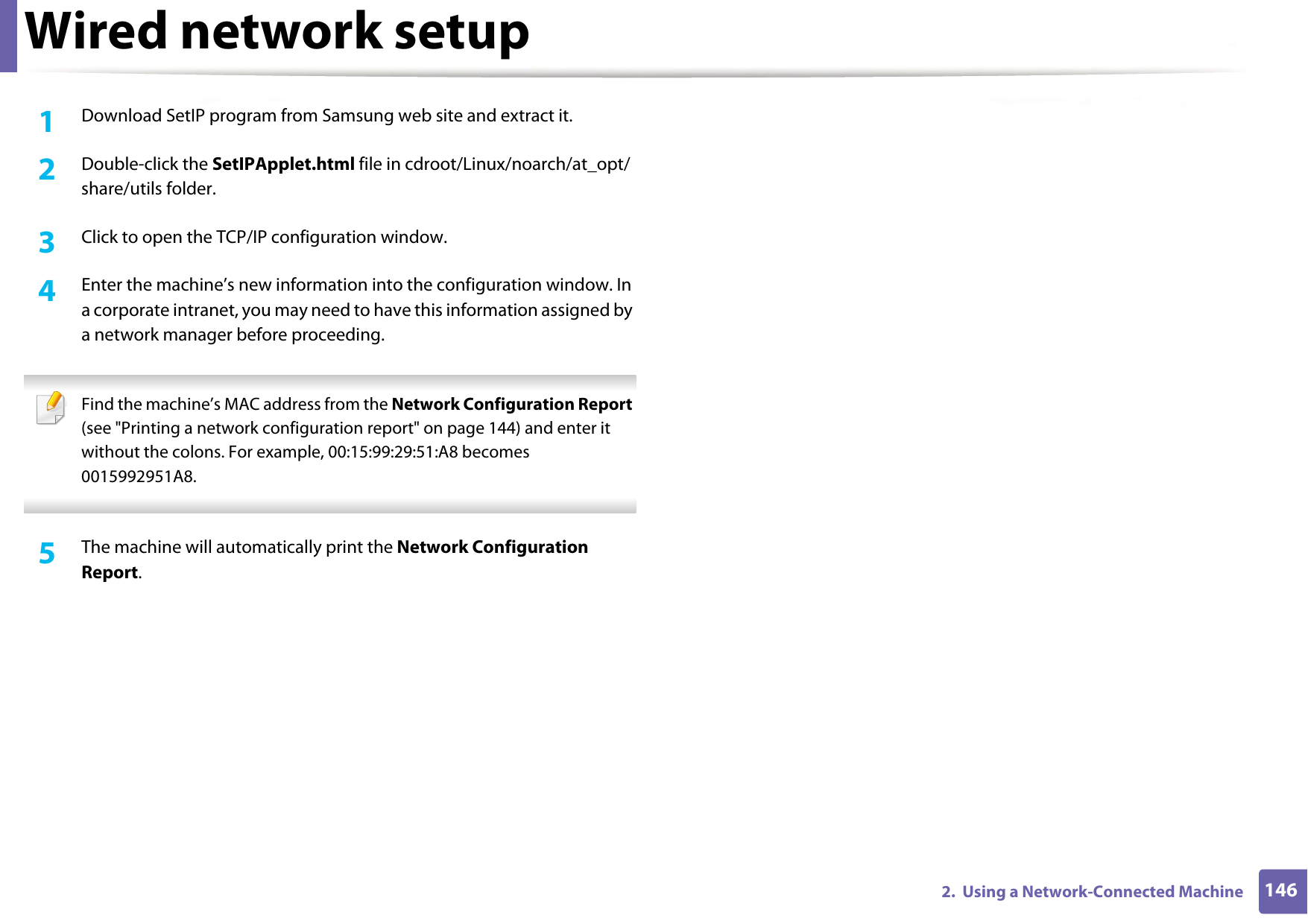
Wired network setup1462.  Using a Network-Connected Machine1Download SetIP program from Samsung web site and extract it.2  Double-click the SetIPApplet.html file in cdroot/Linux/noarch/at_opt/share/utils folder. 3  Click to open the TCP/IP configuration window. 4  Enter the machine’s new information into the configuration window. In a corporate intranet, you may need to have this information assigned by a network manager before proceeding. Find the machine’s MAC address from the Network Configuration Report (see "Printing a network configuration report" on page 144) and enter it without the colons. For example, 00:15:99:29:51:A8 becomes 0015992951A8. 5  The machine will automatically print the Network Configuration Report.
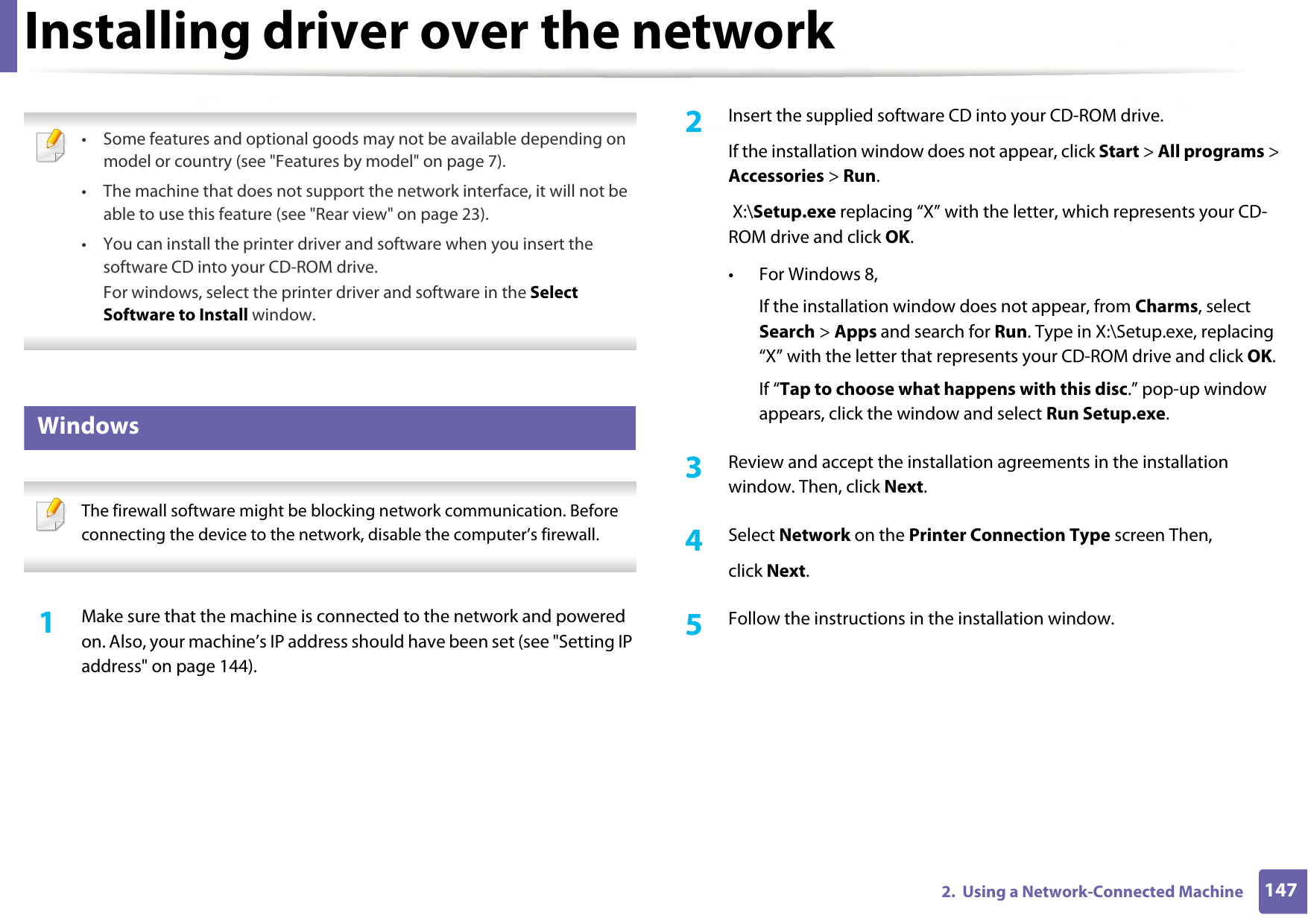
1472.  Using a Network-Connected MachineInstalling driver over the network • Some features and optional goods may not be available depending on model or country (see "Features by model" on page 7).• The machine that does not support the network interface, it will not be able to use this feature (see "Rear view" on page 23).• You can install the printer driver and software when you insert the software CD into your CD-ROM drive.For windows, select the printer driver and software in the Select Software to Install window. 5 Windows The firewall software might be blocking network communication. Before connecting the device to the network, disable the computer’s firewall. 1Make sure that the machine is connected to the network and powered on. Also, your machine’s IP address should have been set (see "Setting IP address" on page 144).2  Insert the supplied software CD into your CD-ROM drive.If the installation window does not appear, click Start > All programs > Accessories > Run. X:\Setup.exe replacing “X” with the letter, which represents your CD-ROM drive and click OK.• For Windows 8,If the installation window does not appear, from Charms, select Search > Apps and search for Run. Type in X:\Setup.exe, replacing “X” with the letter that represents your CD-ROM drive and click OK.If “Tap to choose what happens with this disc.” pop-up window appears, click the window and select Run Setup.exe.3  Review and accept the installation agreements in the installation window. Then, click Next.4  Select Network on the Printer Connection Type screen Then,click Next.5  Follow the instructions in the installation window.
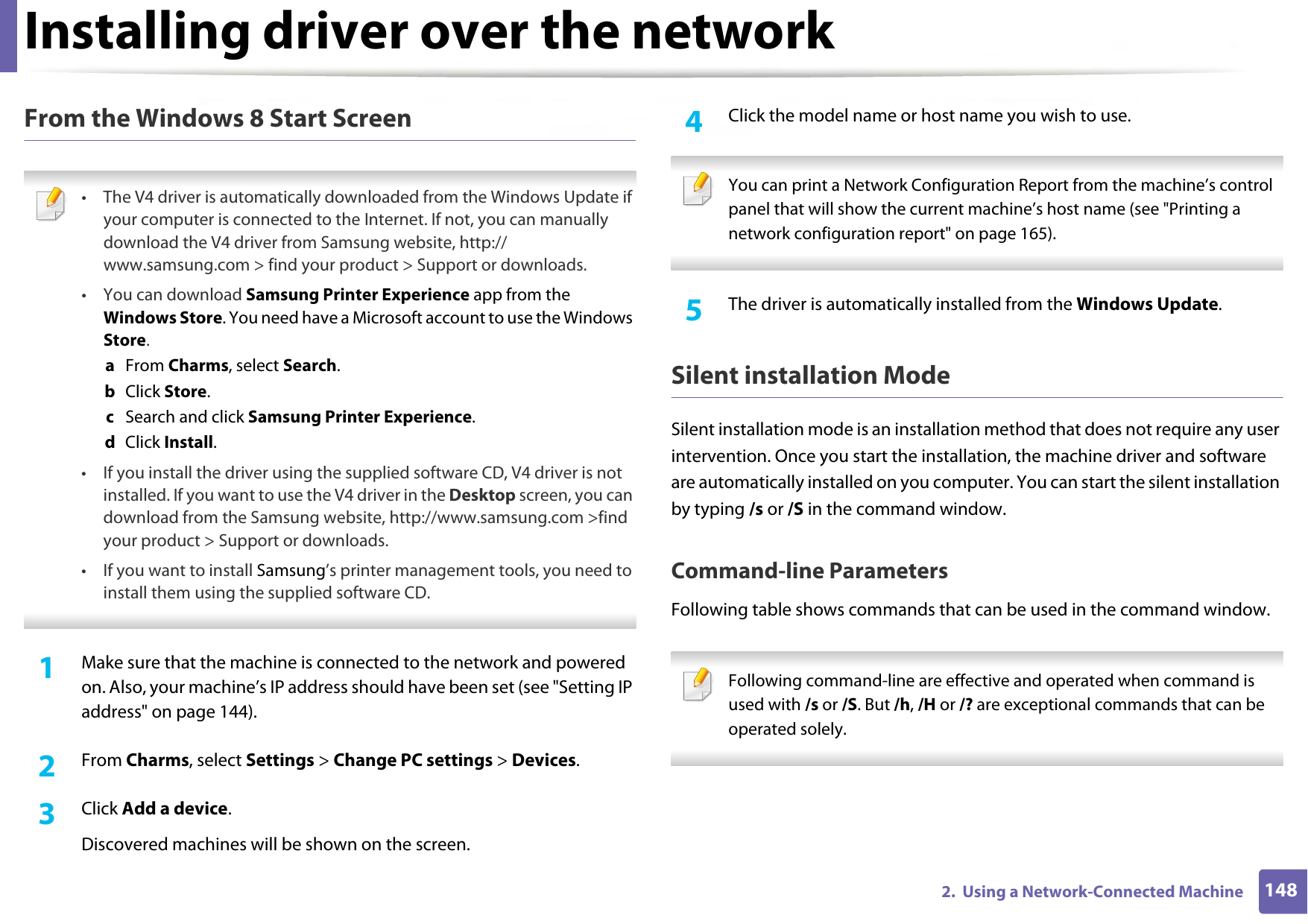
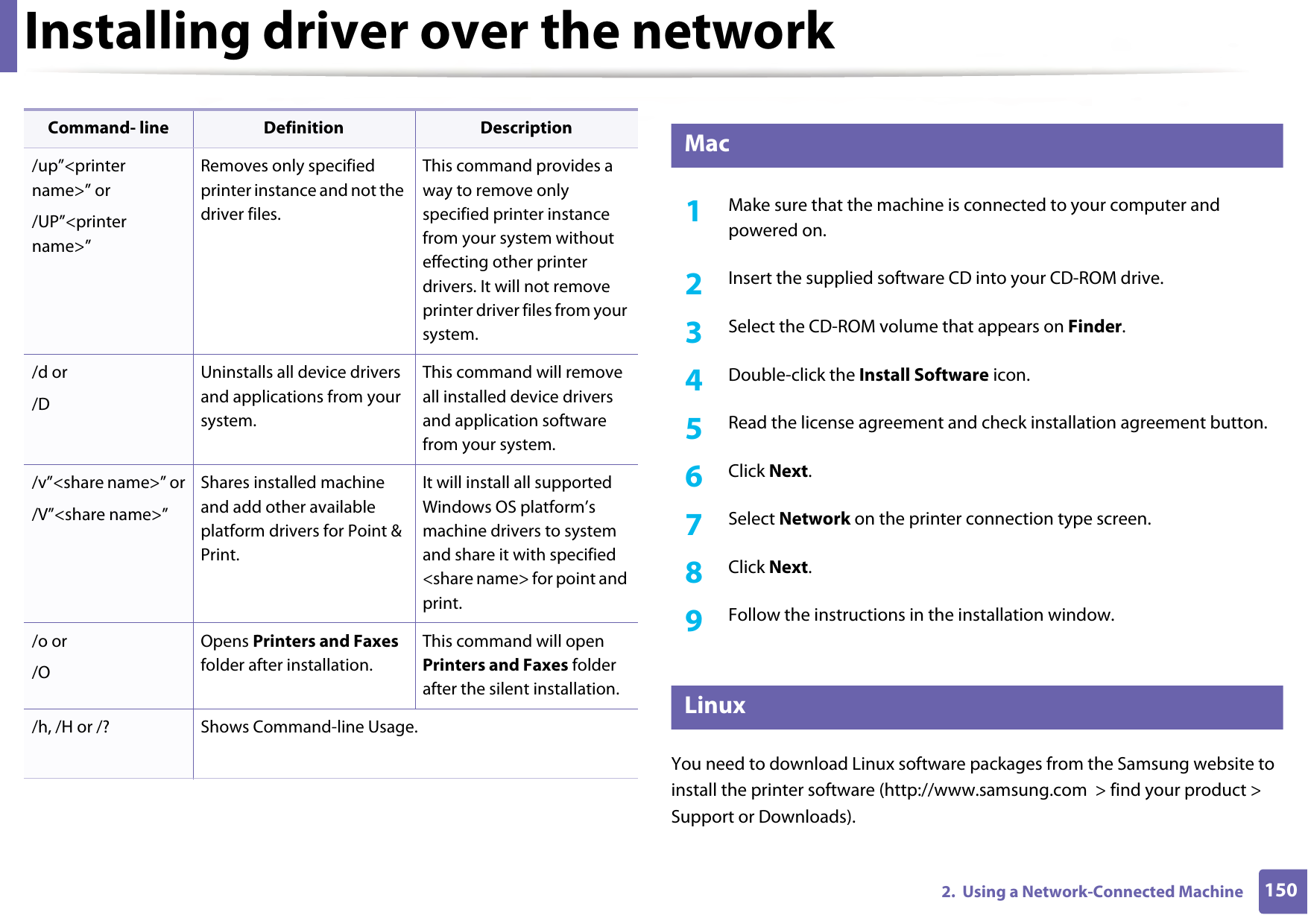
Installing driver over the network1482.  Using a Network-Connected MachineFrom the Windows 8 Start Screen • The V4 driver is automatically downloaded from the Windows Update if your computer is connected to the Internet. If not, you can manually download the V4 driver from Samsung website, http://www.samsung.com > find your product > Support or downloads. •You can download Samsung Printer Experience app from the Windows Store. You need have a Microsoft account to use the Windows Store.a  From Charms, select Search. b  Click Store.c  Search and click Samsung Printer Experience.d  Click Install.• If you install the driver using the supplied software CD, V4 driver is not installed. If you want to use the V4 driver in the Desktop screen, you can download from the Samsung website, http://www.samsung.com >find your product > Support or downloads.• If you want to install Samsung’s printer management tools, you need to install them using the supplied software CD. 1Make sure that the machine is connected to the network and powered on. Also, your machine’s IP address should have been set (see "Setting IP address" on page 144). 2  From Charms, select Settings > Change PC settings > Devices.3  Click Add a device. Discovered machines will be shown on the screen. 4  Click the model name or host name you wish to use.  You can print a Network Configuration Report from the machine’s control panel that will show the current machine’s host name (see "Printing a network configuration report" on page 165). 5  The driver is automatically installed from the Windows Update. Silent installation ModeSilent installation mode is an installation method that does not require any user intervention. Once you start the installation, the machine driver and software are automatically installed on you computer. You can start the silent installation by typing /s or /S in the command window.Command-line ParametersFollowing table shows commands that can be used in the command window. Following command-line are effective and operated when command is used with /s or /S. But /h, /H or /? are exceptional commands that can be operated solely.
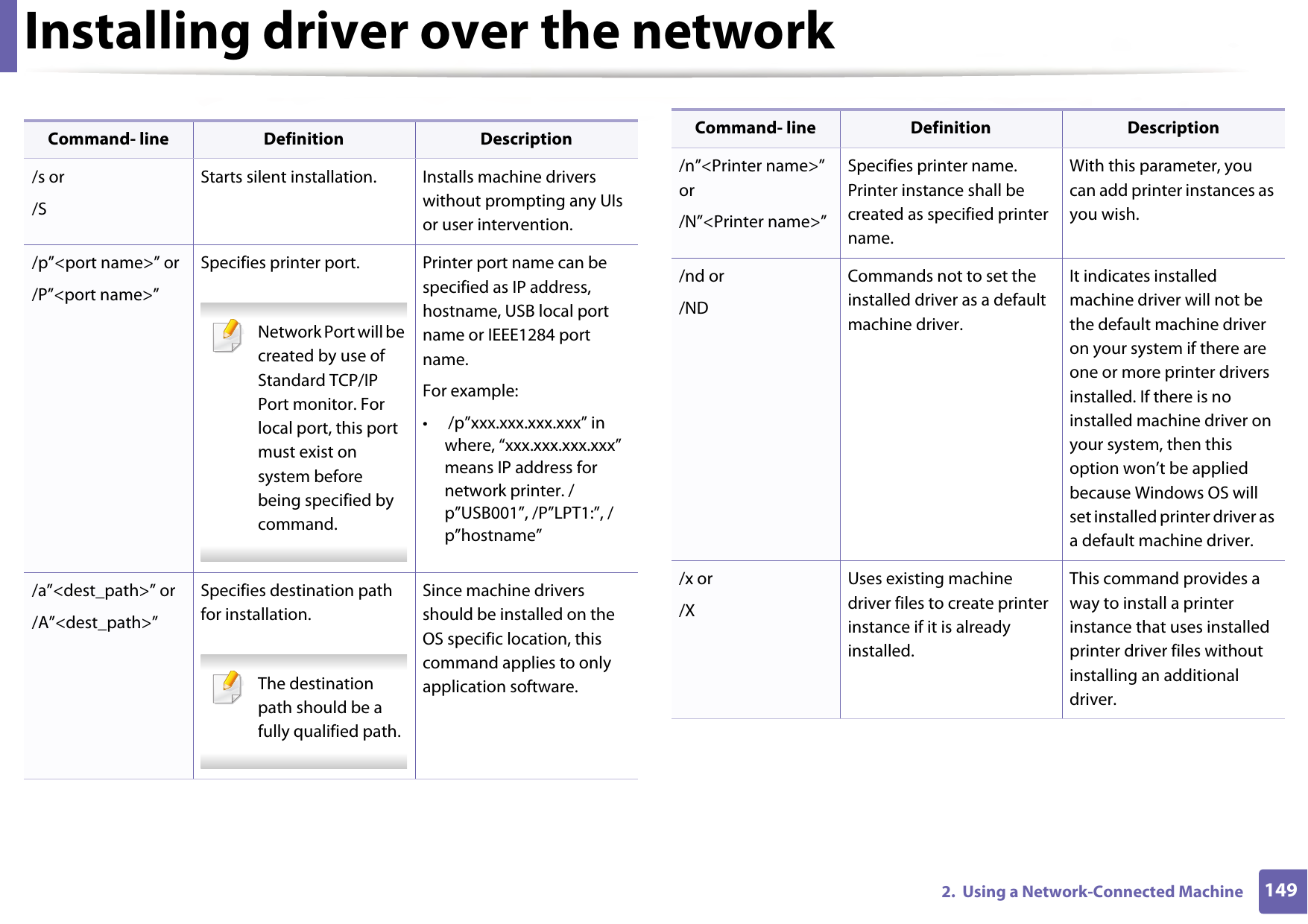
Installing driver over the network1492.  Using a Network-Connected MachineCommand- line Definition Description/s or/SStarts silent installation.  Installs machine drivers without prompting any UIs or user intervention./p”<port name>” or/P”<port name>”Specifies printer port. Network Port will be created by use of Standard TCP/IP Port monitor. For local port, this port must exist on system before being specified by command. Printer port name can be specified as IP address, hostname, USB local port name or IEEE1284 port name.For example:•  /p”xxx.xxx.xxx.xxx” in where, “xxx.xxx.xxx.xxx” means IP address for network printer. /p”USB001”, /P”LPT1:”, /p”hostname”/a”<dest_path>” or/A”<dest_path>”Specifies destination path for installation. The destination path should be a fully qualified path. Since machine drivers should be installed on the OS specific location, this command applies to only application software./n”<Printer name>” or/N”<Printer name>”Specifies printer name. Printer instance shall be created as specified printer name.With this parameter, you can add printer instances as you wish./nd or/NDCommands not to set the installed driver as a default machine driver.It indicates installed machine driver will not be the default machine driver on your system if there are one or more printer drivers installed. If there is no installed machine driver on your system, then this option won’t be applied because Windows OS will set installed printer driver as a default machine driver./x or/XUses existing machine driver files to create printer instance if it is already installed.This command provides a way to install a printer instance that uses installed printer driver files without installing an additional driver.Command- line Definition Description
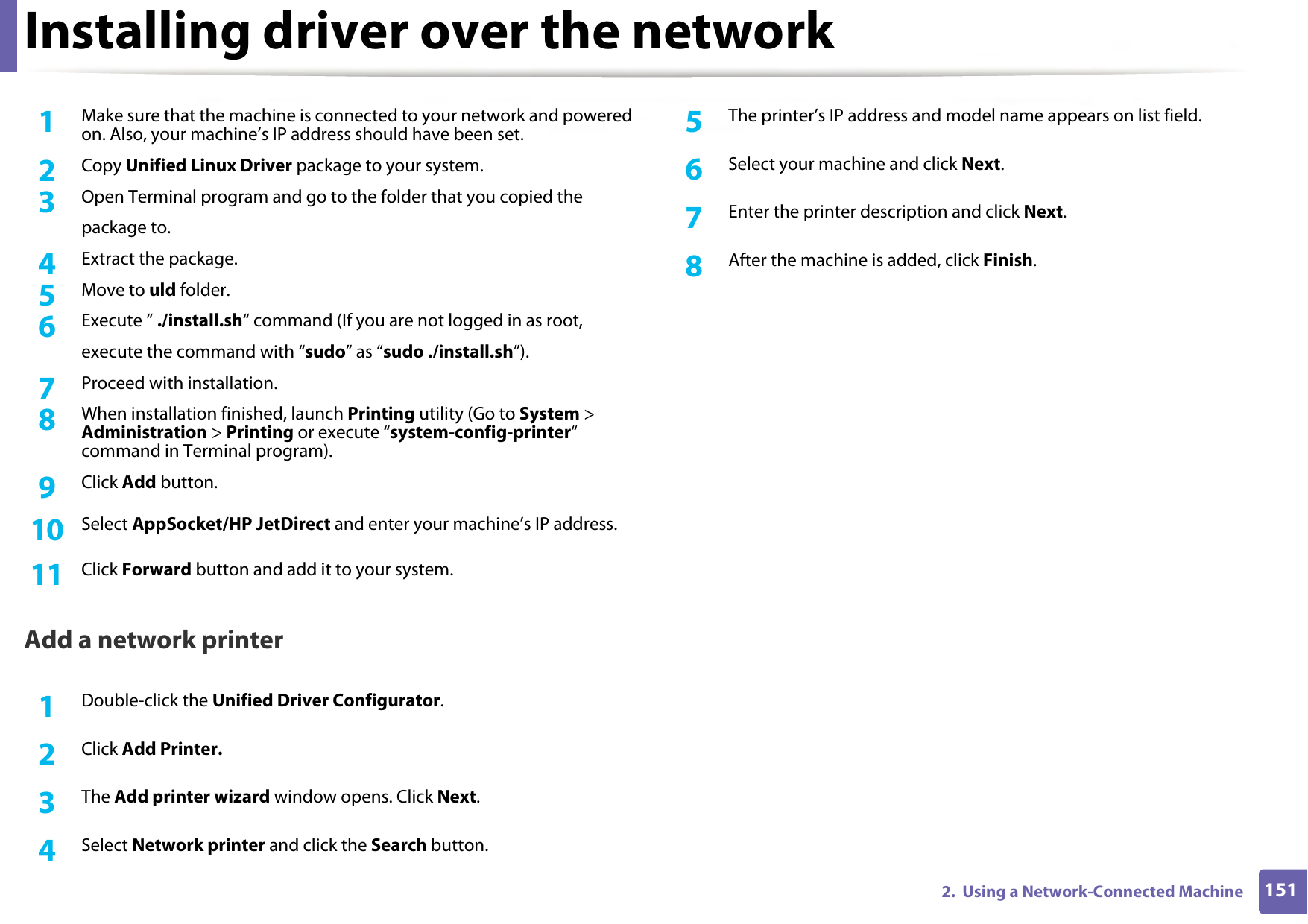
Installing driver over the network1502.  Using a Network-Connected Machine6 Mac1Make sure that the machine is connected to your computer and powered on.2  Insert the supplied software CD into your CD-ROM drive.3  Select the CD-ROM volume that appears on Finder.4  Double-click the Install Software icon.5  Read the license agreement and check installation agreement button.6  Click Next.7  Select Network on the printer connection type screen. 8  Click Next.9  Follow the instructions in the installation window.7 LinuxYou need to download Linux software packages from the Samsung website to install the printer software (http://www.samsung.com  > find your product > Support or Downloads)./up”<printer name>” or/UP”<printer name>”Removes only specified printer instance and not the driver files.This command provides a way to remove only specified printer instance from your system without effecting other printer drivers. It will not remove printer driver files from your system./d or/DUninstalls all device drivers and applications from your system.This command will remove all installed device drivers and application software from your system./v”<share name>” or/V”<share name>”Shares installed machine and add other available platform drivers for Point & Print.It will install all supported Windows OS platform’s machine drivers to system and share it with specified <share name> for point and print./o or /OOpens Printers and Faxes folder after installation.This command will open Printers and Faxes folder after the silent installation./h, /H or /? Shows Command-line Usage.Command- line Definition Description
Installing driver over the network1512.  Using a Network-Connected Machine1Make sure that the machine is connected to your network and powered on. Also, your machine’s IP address should have been set. 2  Copy Unified Linux Driver package to your system.3  Open Terminal program and go to the folder that you copied thepackage to.4  Extract the package.5  Move to uld folder.6  Execute ” ./install.sh“ command (If you are not logged in as root,execute the command with “sudo” as “sudo ./install.sh”).7  Proceed with installation.8  When installation finished, launch Printing utility (Go to System > Administration > Printing or execute “system-config-printer“ command in Terminal program).9  Click Add button.10  Select AppSocket/HP JetDirect and enter your machine’s IP address.11  Click Forward button and add it to your system.Add a network printer1Double-click the Unified Driver Configurator.2  Click Add Printer.3  The Add printer wizard window opens. Click Next.4  Select Network printer and click the Search button.5  The printer’s IP address and model name appears on list field.6  Select your machine and click Next.7  Enter the printer description and click Next.8  After the machine is added, click Finish.
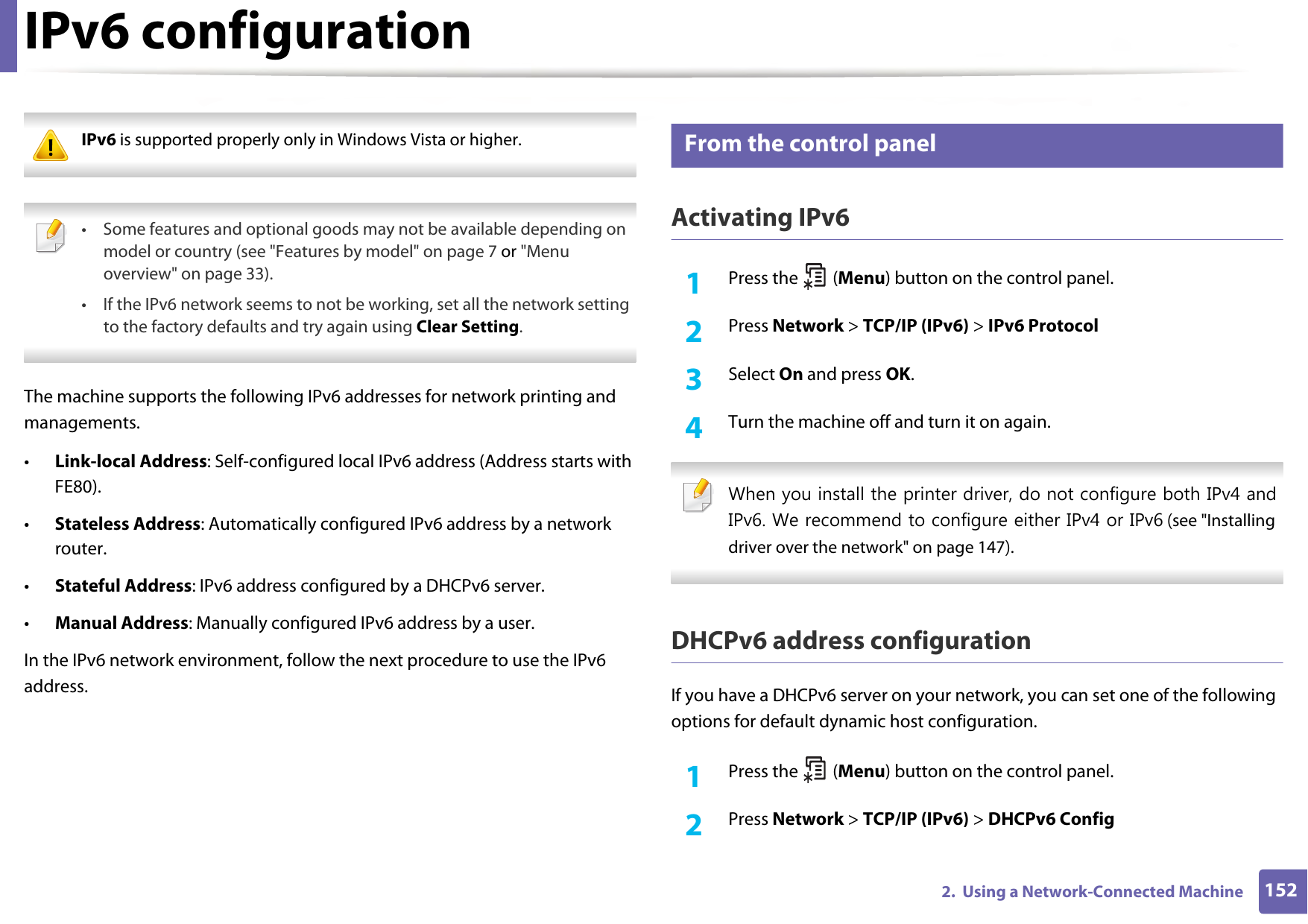
1522.  Using a Network-Connected MachineIPv6 configuration IPv6 is supported properly only in Windows Vista or higher.  • Some features and optional goods may not be available depending on model or country (see "Features by model" on page 7 or "Menu overview" on page 33).• If the IPv6 network seems to not be working, set all the network setting to the factory defaults and try again using Clear Setting. The machine supports the following IPv6 addresses for network printing and managements.•Link-local Address: Self-configured local IPv6 address (Address starts with FE80).•Stateless Address: Automatically configured IPv6 address by a network router.•Stateful Address: IPv6 address configured by a DHCPv6 server.•Manual Address: Manually configured IPv6 address by a user.In the IPv6 network environment, follow the next procedure to use the IPv6 address.8 From the control panelActivating IPv61Press the   (Menu) button on the control panel.2  Press Network > TCP/IP (IPv6) > IPv6 Protocol3  Select On and press OK.4  Turn the machine off and turn it on again. When you install the printer driver, do not configure both IPv4 and IPv6. We recommend to configure either IPv4 or IPv6 (see "Installing driver over the network" on page 147). DHCPv6 address configurationIf you have a DHCPv6 server on your network, you can set one of the following options for default dynamic host configuration.1Press the   (Menu) button on the control panel.2  Press Network > TCP/IP (IPv6) > DHCPv6 Config
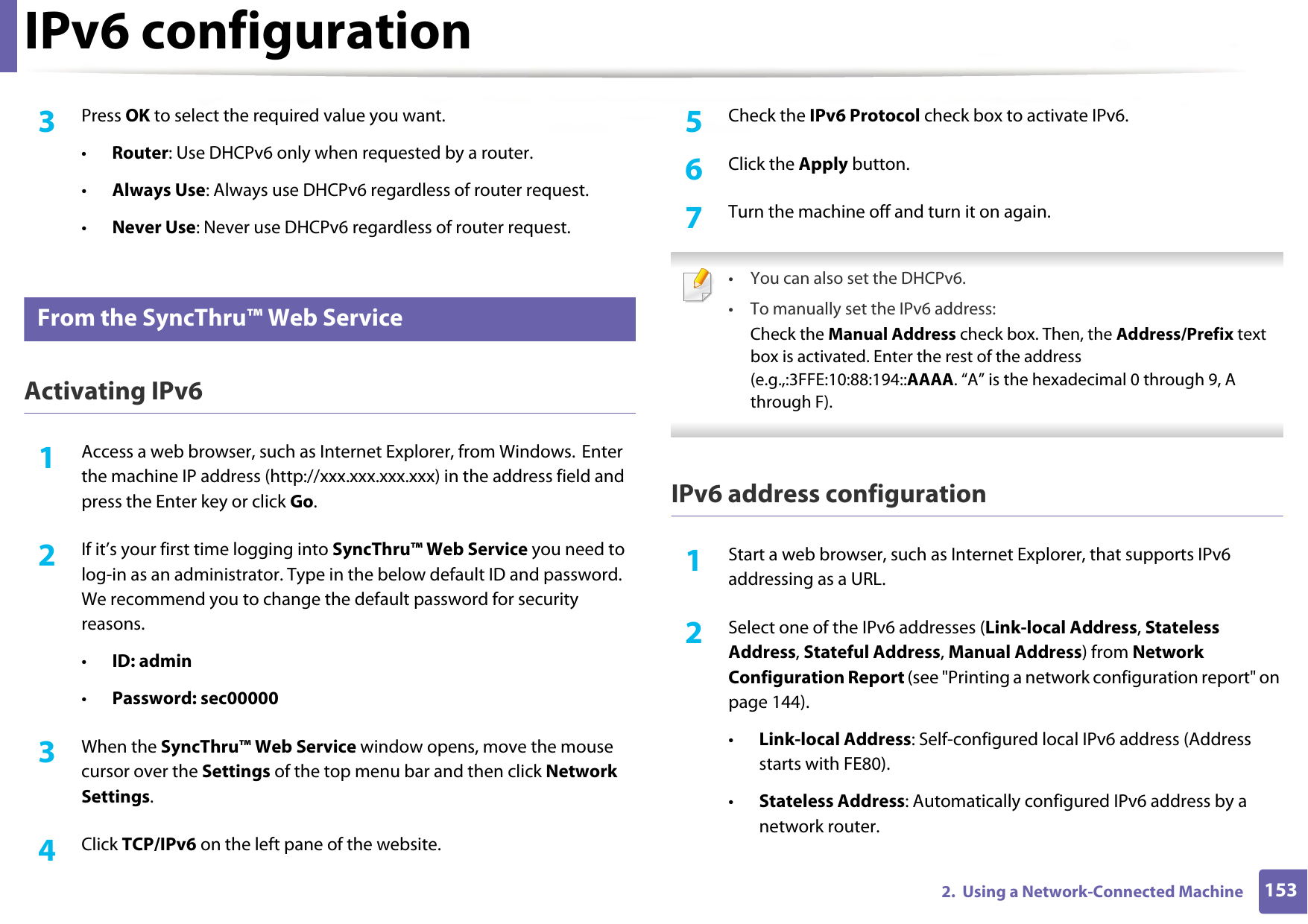
IPv6 configuration1532.  Using a Network-Connected Machine3  Press OK to select the required value you want.•Router: Use DHCPv6 only when requested by a router.•Always Use: Always use DHCPv6 regardless of router request.•Never Use: Never use DHCPv6 regardless of router request.9 From the SyncThru™ Web ServiceActivating IPv61Access a web browser, such as Internet Explorer, from Windows. Enter the machine IP address (http://xxx.xxx.xxx.xxx) in the address field and press the Enter key or click Go.2  If it’s your first time logging into SyncThru™ Web Service you need to log-in as an administrator. Type in the below default ID and password. We recommend you to change the default password for security reasons.•ID: admin•Password: sec00000 3  When the SyncThru™ Web Service window opens, move the mouse cursor over the Settings of the top menu bar and then click Network Settings.4  Click TCP/IPv6 on the left pane of the website.5  Check the IPv6 Protocol check box to activate IPv6.6  Click the Apply button.7  Turn the machine off and turn it on again. • You can also set the DHCPv6.• To manually set the IPv6 address:Check the Manual Address check box. Then, the Address/Prefix text box is activated. Enter the rest of the address (e.g.,:3FFE:10:88:194::AAAA. “A” is the hexadecimal 0 through 9, A through F). IPv6 address configuration1Start a web browser, such as Internet Explorer, that supports IPv6 addressing as a URL.2  Select one of the IPv6 addresses (Link-local Address, Stateless Address, Stateful Address, Manual Address) from Network Configuration Report (see "Printing a network configuration report" on page 144).•Link-local Address: Self-configured local IPv6 address (Address starts with FE80).•Stateless Address: Automatically configured IPv6 address by a network router.
IPv6 configuration1542.  Using a Network-Connected Machine•Stateful Address: IPv6 address configured by a DHCPv6 server.•Manual Address: Manually configured IPv6 address by a user.3  Enter the IPv6 addresses (e.g.,: http://[FE80::215:99FF:FE66:7701]). Address must be enclosed in '[ ]' brackets.
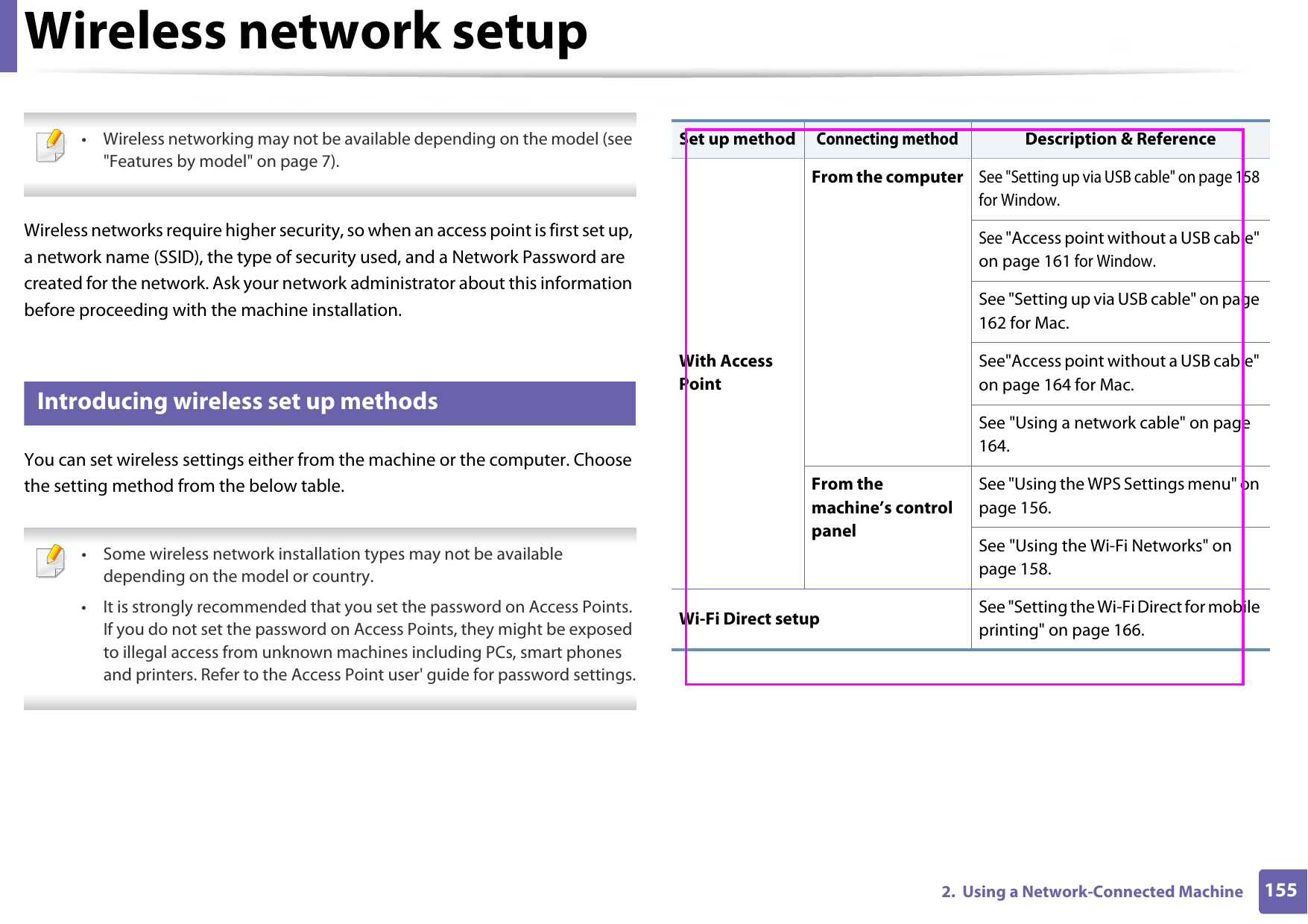
1552.  Using a Network-Connected MachineWireless network setup • Wireless networking may not be available depending on the model (see "Features by model" on page 7). Wireless networks require higher security, so when an access point is first set up, a network name (SSID), the type of security used, and a Network Password are created for the network. Ask your network administrator about this information before proceeding with the machine installation.10 Introducing wireless set up methodsYou can set wireless settings either from the machine or the computer. Choose the setting method from the below table. • Some wireless network installation types may not be available depending on the model or country.• It is strongly recommended that you set the password on Access Points. If you do not set the password on Access Points, they might be exposed to illegal access from unknown machines including PCs, smart phones and printers. Refer to the Access Point user' guide for password settings. Set up methodConnecting methodDescription & ReferenceWith Access PointFrom the computerSee "Setting up via USB cable" on page 158 for Window.See "Access point without a USB cable" on page 161 for Window.See "Setting up via USB cable" on page 162 for Mac.See"Access point without a USB cable" on page 164 for Mac.See "Using a network cable" on page 164.From the machine’s control panelSee "Using the WPS Settings menu" on page 156.See "Using the Wi-Fi Networks" on page 158.Wi-Fi Direct setup See "Setting the Wi-Fi Direct for mobile printing" on page 166.
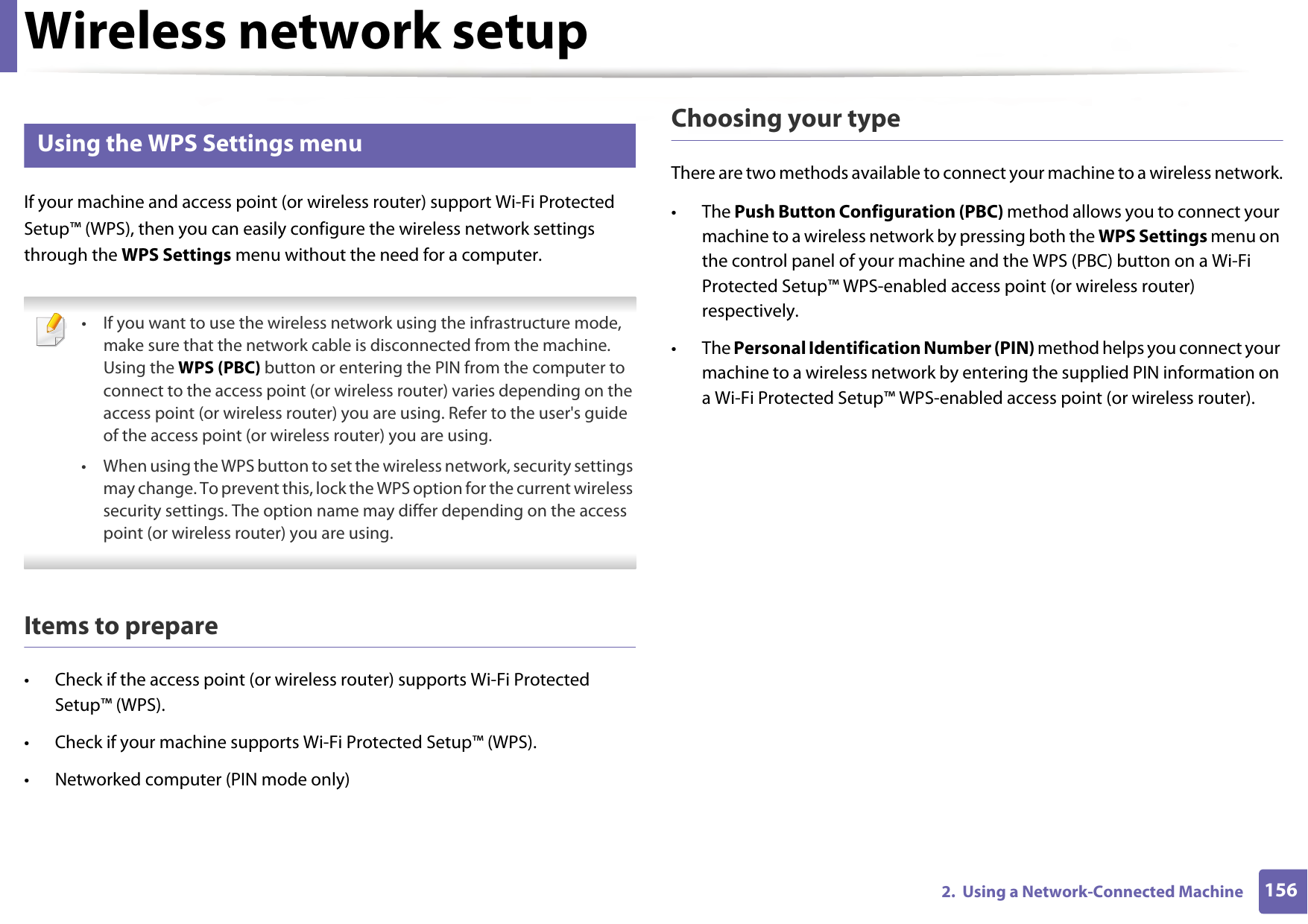
Wireless network setup1562.  Using a Network-Connected Machine11 Using the WPS Settings menu If your machine and access point (or wireless router) support Wi-Fi Protected Setup™ (WPS), then you can easily configure the wireless network settings through the WPS Settings menu without the need for a computer. • If you want to use the wireless network using the infrastructure mode, make sure that the network cable is disconnected from the machine. Using the WPS (PBC) button or entering the PIN from the computer to connect to the access point (or wireless router) varies depending on the access point (or wireless router) you are using. Refer to the user's guide of the access point (or wireless router) you are using.• When using the WPS button to set the wireless network, security settings may change. To prevent this, lock the WPS option for the current wireless security settings. The option name may differ depending on the access point (or wireless router) you are using. Items to prepare• Check if the access point (or wireless router) supports Wi-Fi Protected Setup™ (WPS).• Check if your machine supports Wi-Fi Protected Setup™ (WPS).• Networked computer (PIN mode only)Choosing your typeThere are two methods available to connect your machine to a wireless network.• The Push Button Configuration (PBC) method allows you to connect your machine to a wireless network by pressing both the WPS Settings menu on the control panel of your machine and the WPS (PBC) button on a Wi-Fi Protected Setup™ WPS-enabled access point (or wireless router) respectively.• The Personal Identification Number (PIN) method helps you connect your machine to a wireless network by entering the supplied PIN information on a Wi-Fi Protected Setup™ WPS-enabled access point (or wireless router).
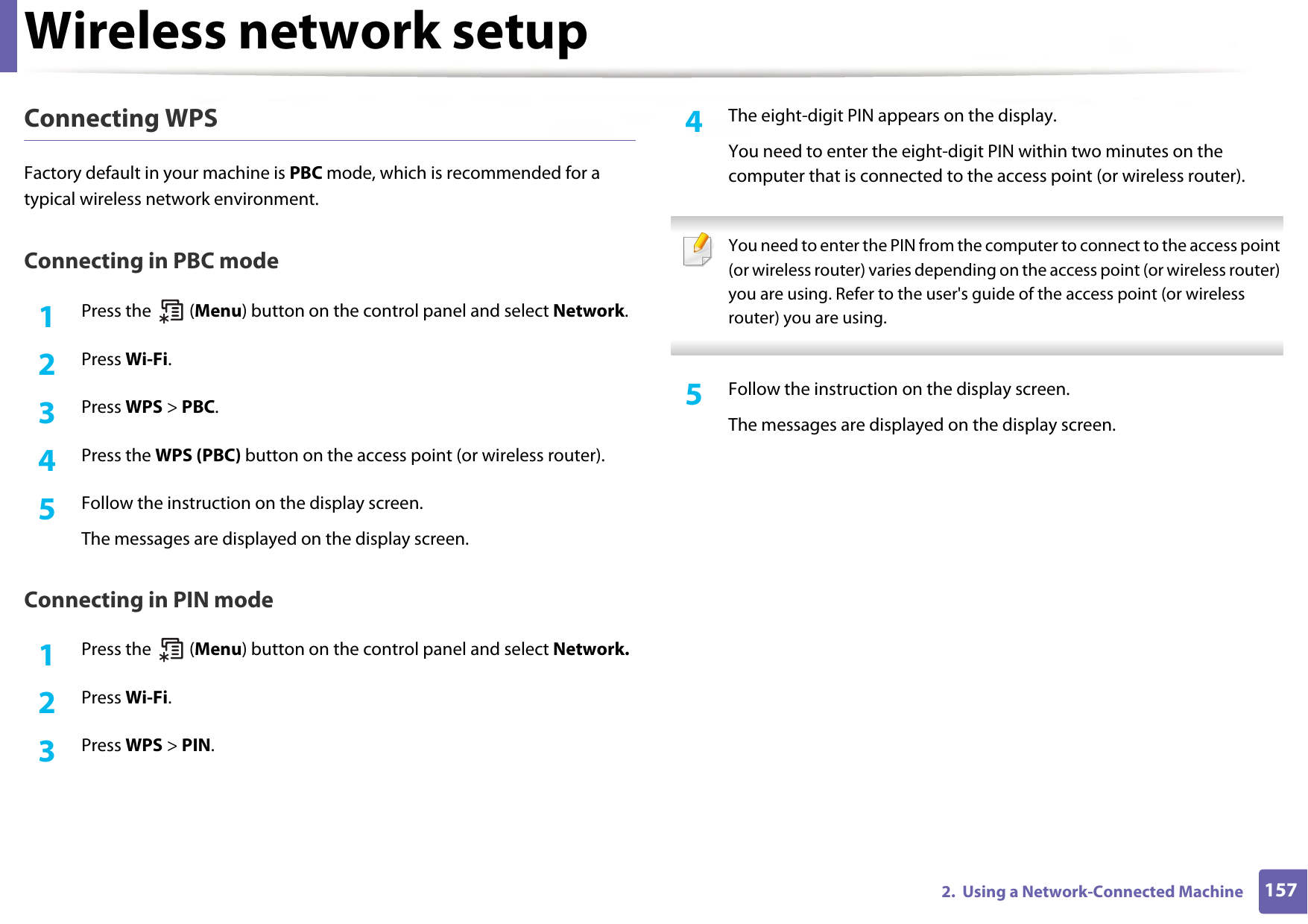
Wireless network setup1572.  Using a Network-Connected MachineConnecting WPSFactory default in your machine is PBC mode, which is recommended for a typical wireless network environment.Connecting in PBC mode1Press the   (Menu) button on the control panel and select Network. 2  Press Wi-Fi.3  Press WPS > PBC.4  Press the WPS (PBC) button on the access point (or wireless router).5  Follow the instruction on the display screen.The messages are displayed on the display screen.Connecting in PIN mode1Press the   (Menu) button on the control panel and select Network. 2  Press Wi-Fi.3  Press WPS > PIN.4  The eight-digit PIN appears on the display. You need to enter the eight-digit PIN within two minutes on the computer that is connected to the access point (or wireless router). You need to enter the PIN from the computer to connect to the access point (or wireless router) varies depending on the access point (or wireless router) you are using. Refer to the user's guide of the access point (or wireless router) you are using. 5  Follow the instruction on the display screen.The messages are displayed on the display screen.
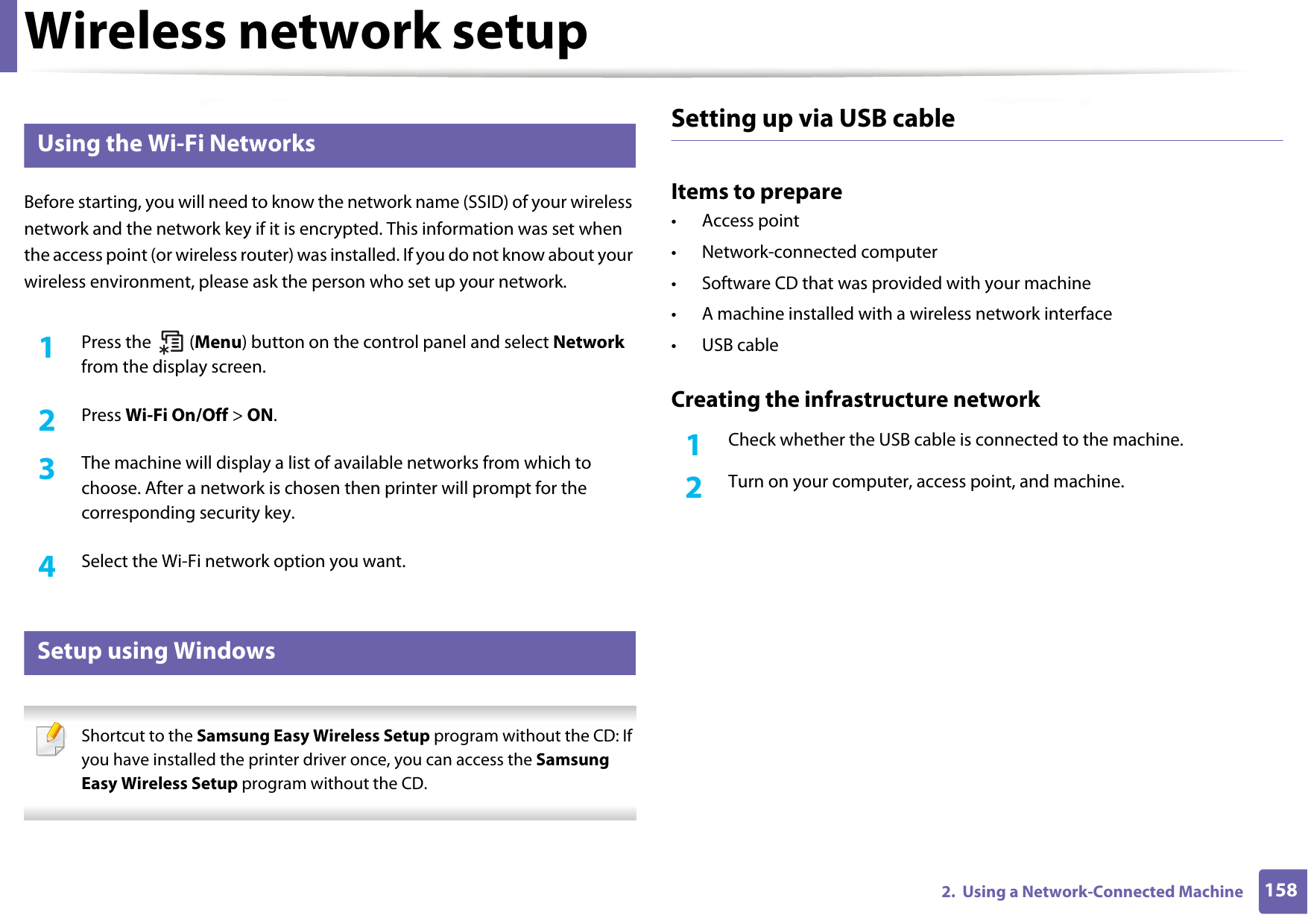
Wireless network setup1582.  Using a Network-Connected Machine12 Using the Wi-Fi NetworksBefore starting, you will need to know the network name (SSID) of your wireless network and the network key if it is encrypted. This information was set when the access point (or wireless router) was installed. If you do not know about your wireless environment, please ask the person who set up your network.1Press the   (Menu) button on the control panel and select Network from the display screen.2  Press Wi-Fi On/Off > ON.3  The machine will display a list of available networks from which to choose. After a network is chosen then printer will prompt for the corresponding security key.4  Select the Wi-Fi network option you want.13 Setup using Windows Shortcut to the Samsung Easy Wireless Setup program without the CD: If you have installed the printer driver once, you can access the Samsung Easy Wireless Setup program without the CD. Setting up via USB cableItems to prepare• Access point• Network-connected computer• Software CD that was provided with your machine• A machine installed with a wireless network interface• USB cableCreating the infrastructure network1Check whether the USB cable is connected to the machine.2  Turn on your computer, access point, and machine.
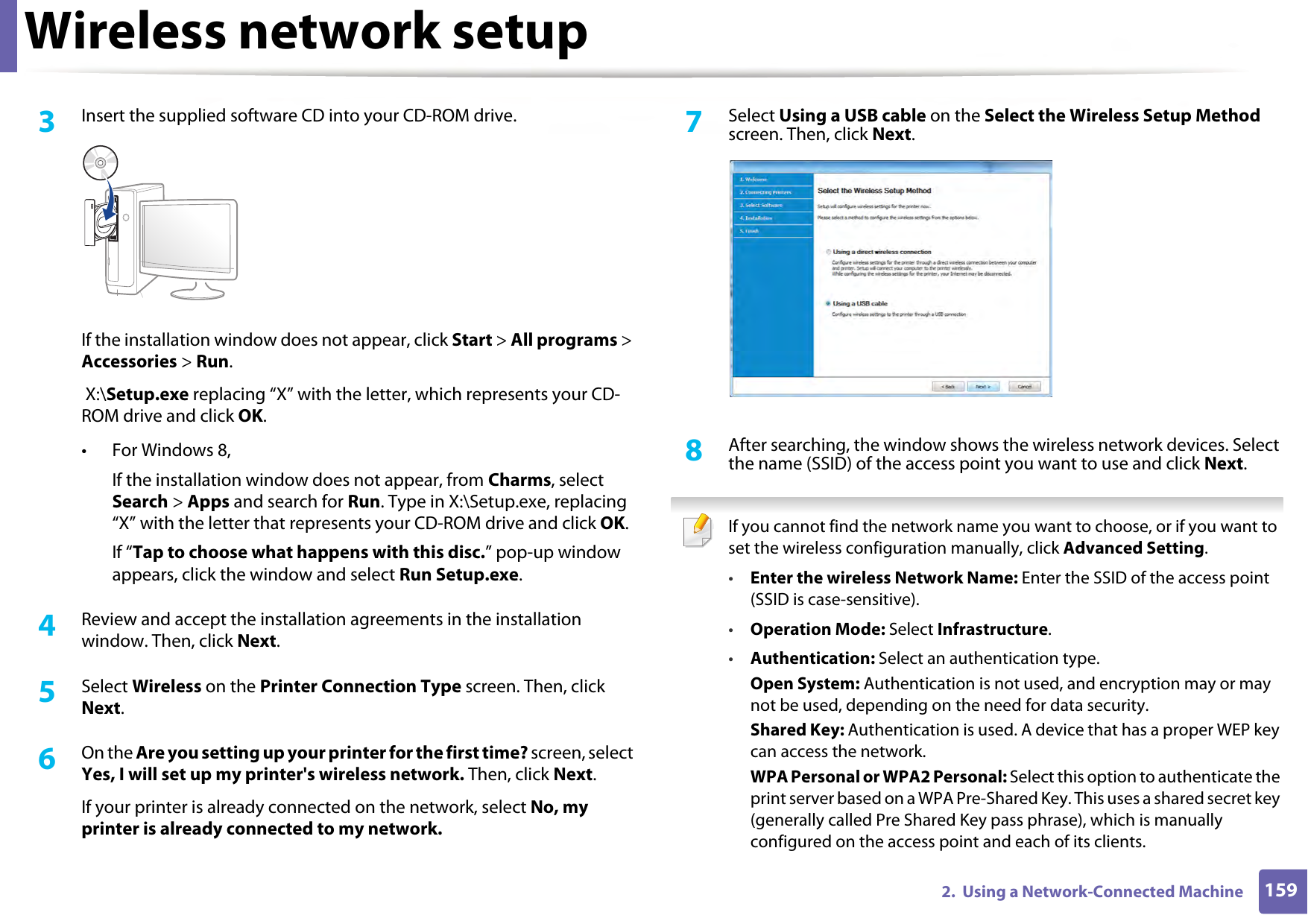
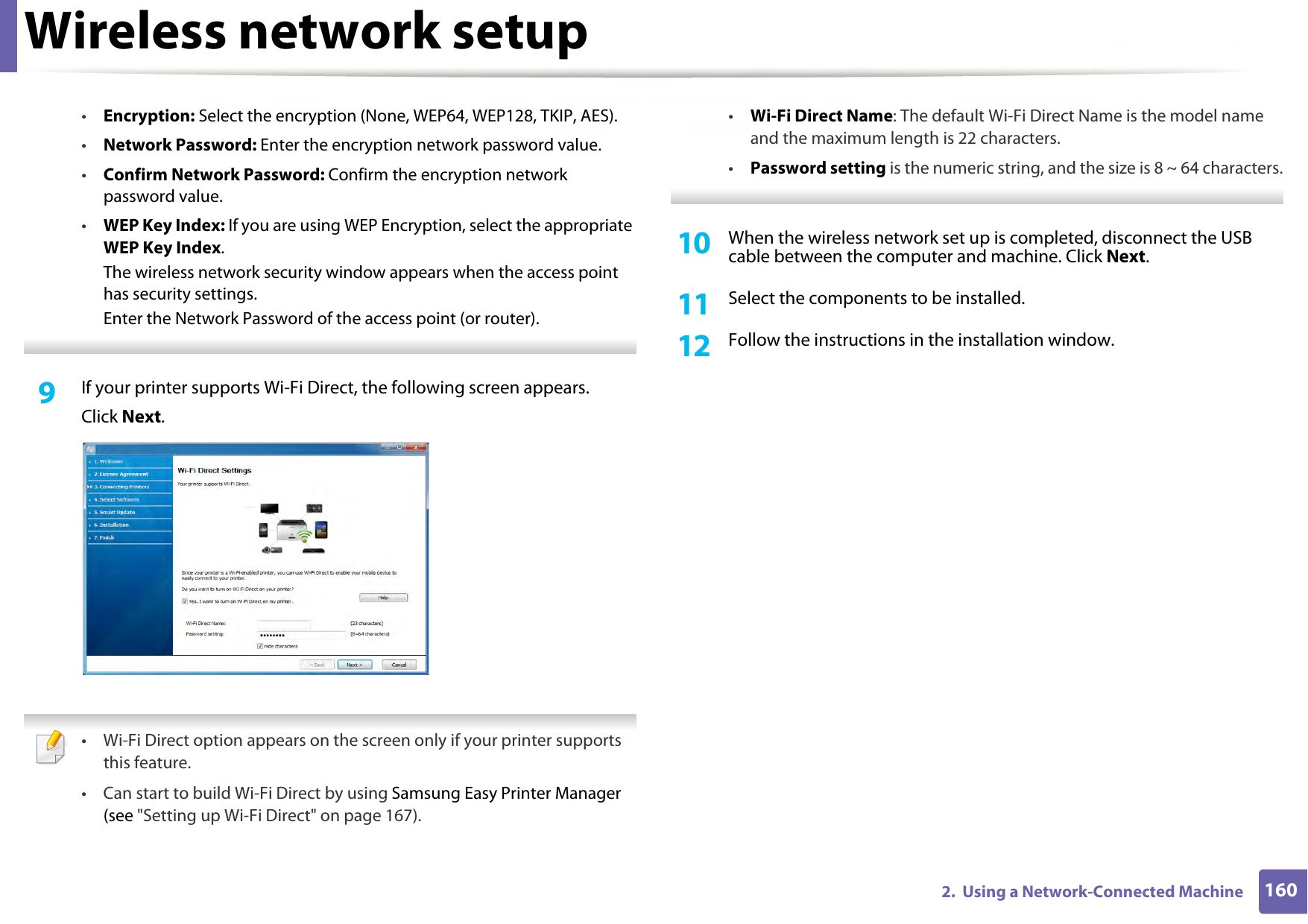
Wireless network setup1592.  Using a Network-Connected Machine3  Insert the supplied software CD into your CD-ROM drive.If the installation window does not appear, click Start > All programs > Accessories > Run. X:\Setup.exe replacing “X” with the letter, which represents your CD-ROM drive and click OK.• For Windows 8,If the installation window does not appear, from Charms, select Search > Apps and search for Run. Type in X:\Setup.exe, replacing “X” with the letter that represents your CD-ROM drive and click OK.If “Tap to choose what happens with this disc.” pop-up window appears, click the window and select Run Setup.exe.4  Review and accept the installation agreements in the installation window. Then, click Next.5  Select Wireless on the Printer Connection Type screen. Then, click Next.6  On the Are you setting up your printer for the first time? screen, select Yes, I will set up my printer's wireless network. Then, click Next.If your printer is already connected on the network, select No, my printer is already connected to my network.7  Select Using a USB cable on the Select the Wireless Setup Method screen. Then, click Next.8  After searching, the window shows the wireless network devices. Select the name (SSID) of the access point you want to use and click Next. If you cannot find the network name you want to choose, or if you want to set the wireless configuration manually, click Advanced Setting.•Enter the wireless Network Name: Enter the SSID of the access point (SSID is case-sensitive).•Operation Mode: Select Infrastructure.•Authentication: Select an authentication type.Open System: Authentication is not used, and encryption may or may not be used, depending on the need for data security.Shared Key: Authentication is used. A device that has a proper WEP key can access the network.WPA Personal or WPA2 Personal: Select this option to authenticate the print server based on a WPA Pre-Shared Key. This uses a shared secret key (generally called Pre Shared Key pass phrase), which is manually configured on the access point and each of its clients.
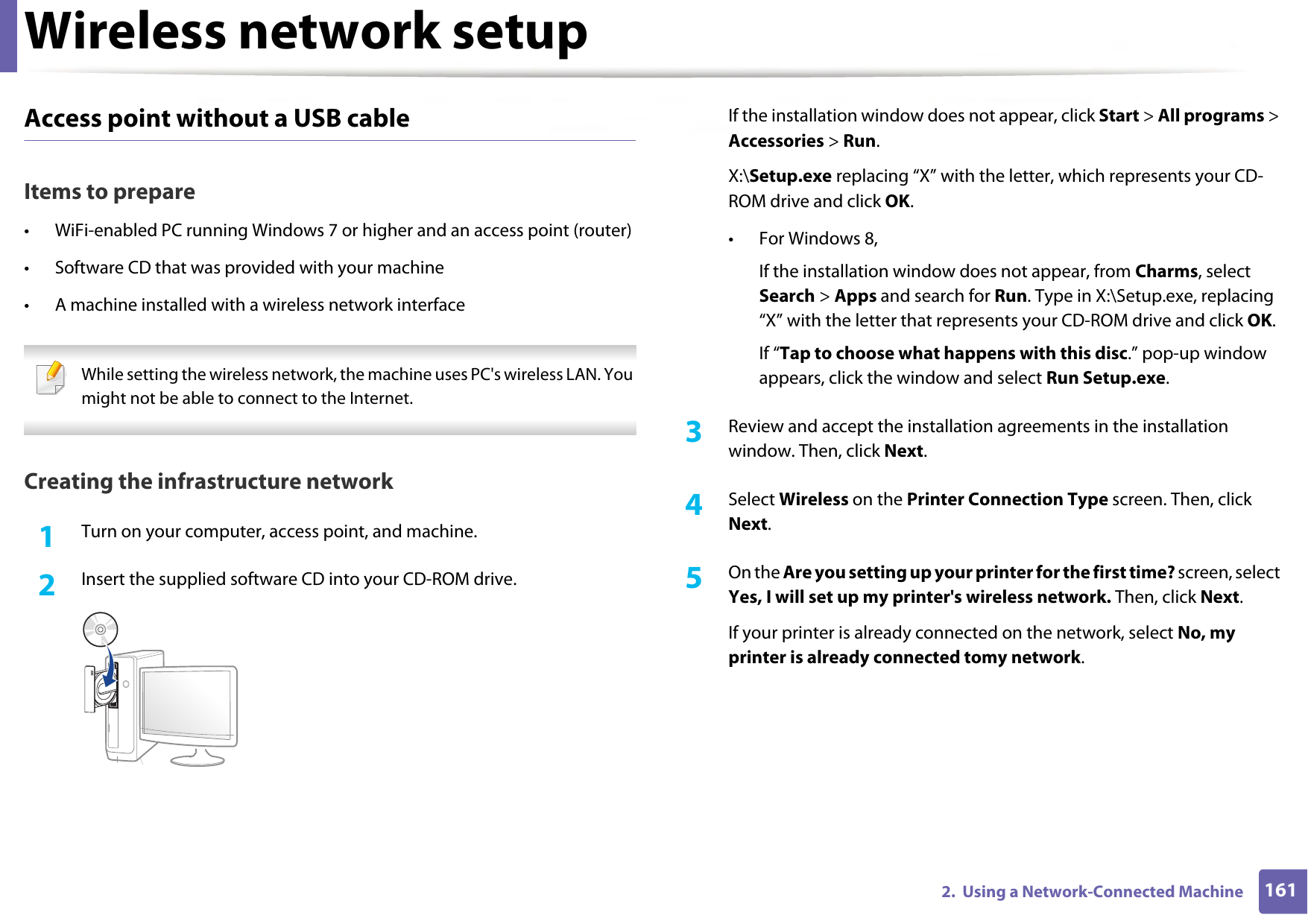
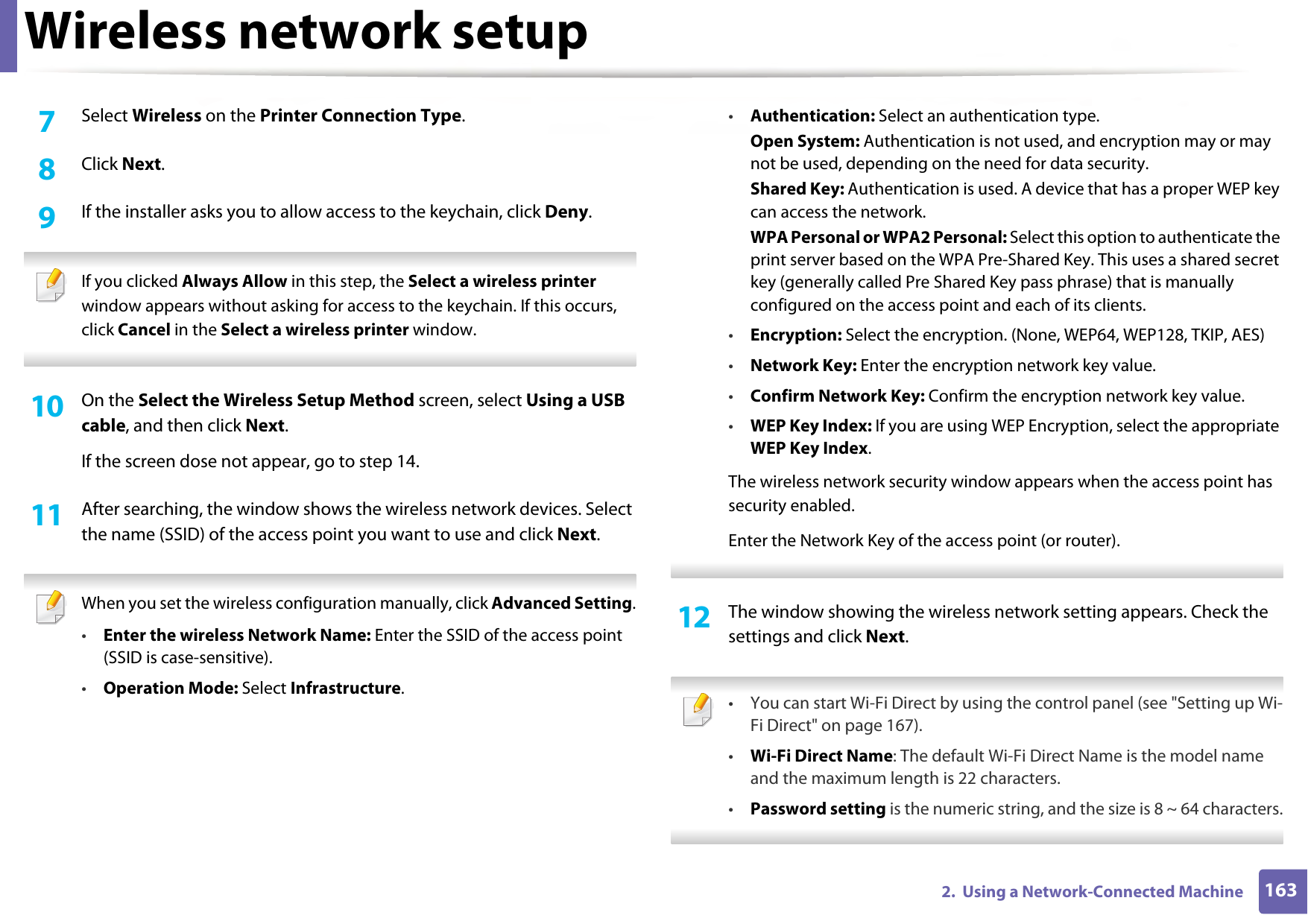
Wireless network setup1602.  Using a Network-Connected Machine•Encryption: Select the encryption (None, WEP64, WEP128, TKIP, AES).•Network Password: Enter the encryption network password value.•Confirm Network Password: Confirm the encryption network password value.•WEP Key Index: If you are using WEP Encryption, select the appropriate WEP Key Index.The wireless network security window appears when the access point has security settings.Enter the Network Password of the access point (or router). 9  If your printer supports Wi-Fi Direct, the following screen appears.Click Next. • Wi-Fi Direct option appears on the screen only if your printer supports this feature.• Can start to build Wi-Fi Direct by using Samsung Easy Printer Manager (see "Setting up Wi-Fi Direct" on page 167).•Wi-Fi Direct Name: The default Wi-Fi Direct Name is the model name and the maximum length is 22 characters.•Password setting is the numeric string, and the size is 8 ~ 64 characters. 10  When the wireless network set up is completed, disconnect the USB cable between the computer and machine. Click Next.11  Select the components to be installed.12  Follow the instructions in the installation window.
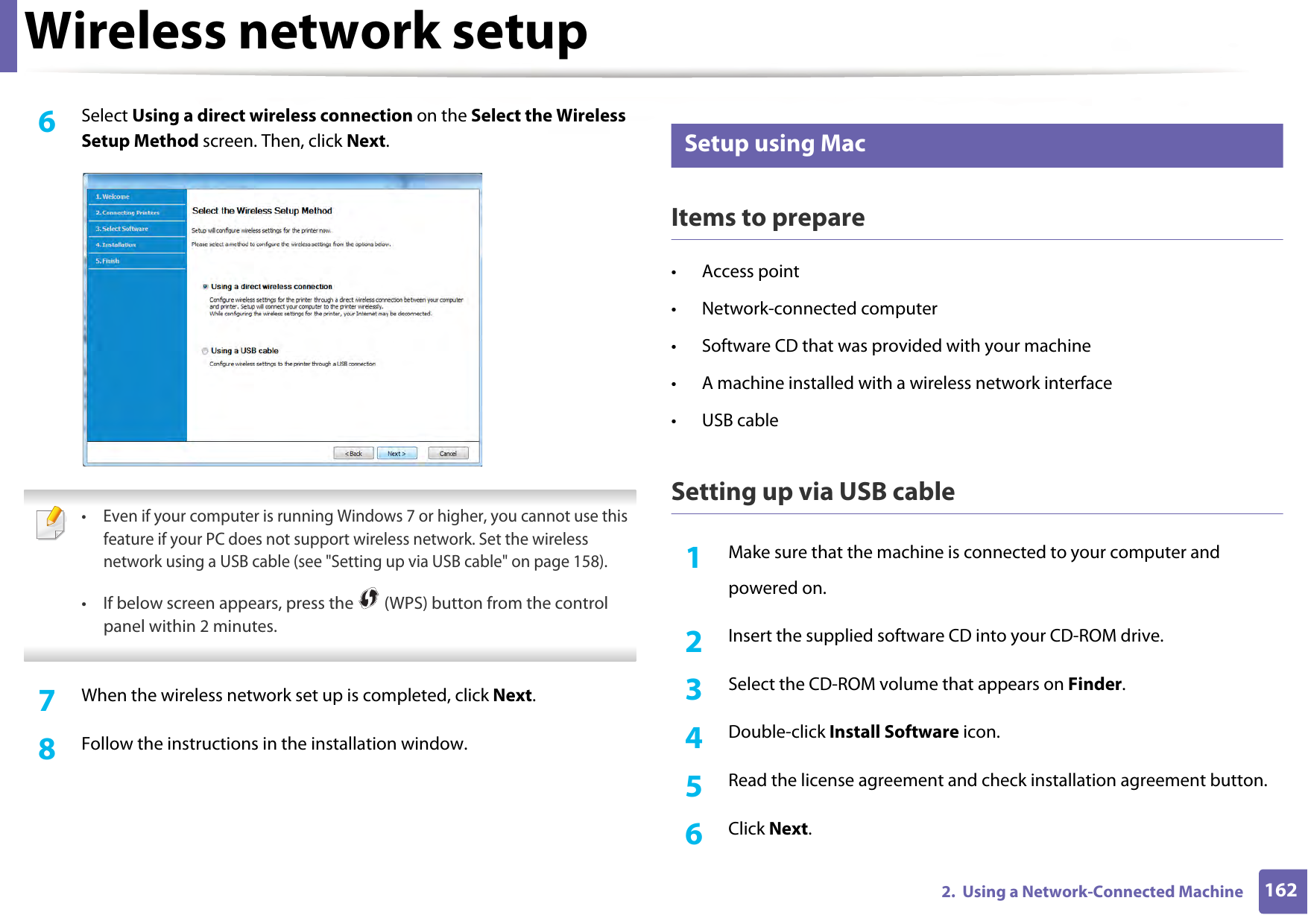
Wireless network setup1612.  Using a Network-Connected MachineAccess point without a USB cableItems to prepare• WiFi-enabled PC running Windows 7 or higher and an access point (router)• Software CD that was provided with your machine• A machine installed with a wireless network interface While setting the wireless network, the machine uses PC's wireless LAN. You might not be able to connect to the Internet.  Creating the infrastructure network1Turn on your computer, access point, and machine.2  Insert the supplied software CD into your CD-ROM drive.If the installation window does not appear, click Start > All programs > Accessories > Run.X:\Setup.exe replacing “X” with the letter, which represents your CD-ROM drive and click OK.• For Windows 8,If the installation window does not appear, from Charms, select Search > Apps and search for Run. Type in X:\Setup.exe, replacing “X” with the letter that represents your CD-ROM drive and click OK.If “Tap to choose what happens with this disc.” pop-up window appears, click the window and select Run Setup.exe.3  Review and accept the installation agreements in the installation window. Then, click Next.4  Select Wireless on the Printer Connection Type screen. Then, click Next.5  On the Are you setting up your printer for the first time? screen, select Yes, I will set up my printer's wireless network. Then, click Next.If your printer is already connected on the network, select No, my printer is already connected tomy network.
Wireless network setup1622.  Using a Network-Connected Machine6  Select Using a direct wireless connection on the Select the Wireless Setup Method screen. Then, click Next. • Even if your computer is running Windows 7 or higher, you cannot use this feature if your PC does not support wireless network. Set the wireless network using a USB cable (see "Setting up via USB cable" on page 158).• If below screen appears, press the   (WPS) button from the control panel within 2 minutes. 7  When the wireless network set up is completed, click Next. 8  Follow the instructions in the installation window.14 Setup using MacItems to prepare• Access point• Network-connected computer• Software CD that was provided with your machine• A machine installed with a wireless network interface• USB cableSetting up via USB cable1Make sure that the machine is connected to your computer andpowered on.2  Insert the supplied software CD into your CD-ROM drive.3  Select the CD-ROM volume that appears on Finder.4  Double-click Install Software icon.5  Read the license agreement and check installation agreement button.6  Click Next.
Wireless network setup1632.  Using a Network-Connected Machine7  Select Wireless on the Printer Connection Type.8  Click Next.9  If the installer asks you to allow access to the keychain, click Deny. If you clicked Always Allow in this step, the Select a wireless printer window appears without asking for access to the keychain. If this occurs, click Cancel in the Select a wireless printer window. 10  On the Select the Wireless Setup Method screen, select Using a USB cable, and then click Next.If the screen dose not appear, go to step 14.11  After searching, the window shows the wireless network devices. Select the name (SSID) of the access point you want to use and click Next. When you set the wireless configuration manually, click Advanced Setting.•Enter the wireless Network Name: Enter the SSID of the access point (SSID is case-sensitive).•Operation Mode: Select Infrastructure.•Authentication: Select an authentication type.Open System: Authentication is not used, and encryption may or may not be used, depending on the need for data security.Shared Key: Authentication is used. A device that has a proper WEP key can access the network.WPA Personal or WPA2 Personal: Select this option to authenticate the print server based on the WPA Pre-Shared Key. This uses a shared secret key (generally called Pre Shared Key pass phrase) that is manually configured on the access point and each of its clients.•Encryption: Select the encryption. (None, WEP64, WEP128, TKIP, AES)•Network Key: Enter the encryption network key value.•Confirm Network Key: Confirm the encryption network key value.•WEP Key Index: If you are using WEP Encryption, select the appropriate WEP Key Index.The wireless network security window appears when the access point has security enabled.Enter the Network Key of the access point (or router). 12  The window showing the wireless network setting appears. Check the settings and click Next. • You can start Wi-Fi Direct by using the control panel (see "Setting up Wi-Fi Direct" on page 167).•Wi-Fi Direct Name: The default Wi-Fi Direct Name is the model name and the maximum length is 22 characters.•Password setting is the numeric string, and the size is 8 ~ 64 characters.
Wireless network setup1642.  Using a Network-Connected Machine13  The Wireless Network Setting Complete window appears. Click Next.14  When the wireless network settings are completed, disconnect the USB cable between the computer and machine. Click Next.15  Follow the instructions in the installation window.Access point without a USB cableItems to prepare• WiFi-enabled Mac running Mac OS 10.7 or higher and an access point (router)• Software CD that was provided with your machine• A machine installed with a wireless network interface1Make sure that the machine is connected to your computer andpowered on.2  Insert the supplied software CD into your CD-ROM drive.3  Select the CD-ROM volume that appears on Finder.4  Double-click Install Software icon.5  Read the license agreement and check installation agreement button.6  Click Next.7  Select Wireless on the Printer Connection Type screen.8  Click Next.9  If the installer asks you to allow access to the keychain, click Allow.10  If the Select a wireless printer window appears, select the printer named DIRECT-xxx. If the Press WPS button on your printer screen appears, press the   (WPS) button from the control panel within 2 minutes. 11  When the wireless network set up is complete, follow the instructions in the installation window.15 Using a network cable See your network administrator, or the person that set up your wireless network, for information about your network configuration. Your machine is a network compatible machine. To enable your machine to work with your network, you will need to perform some configuration procedures.
Wireless network setup1652.  Using a Network-Connected MachineItems to prepare• Access point• Network-connected computer• Software CD that was provided with your machine• A machine installed with a wireless network interface• Network cablePrinting a network configuration reportYou can identify the network settings of your machine by printing a network configuration report.See "Printing a network configuration report" on page 144.IP setting using SetIP Program (Windows)This program is used to manually set the network IP address of your machine using its MAC address to communicate with the machine. The MAC address is the hardware serial number of the network interface and can be found in the Network Configuration Report. See "Printing a network configuration report" on page 144.Configuring the machine’s wireless networkBefore starting you will need to know the network name (SSID) of your wireless network and the network key if it is encrypted. This information was set when the access point (or wireless router) was installed. If you do not know about your wireless environment, please ask the person who set up your network.To configure wireless parameters, you can use SyncThru™ Web Service.Using SyncThru™ Web ServiceBefore starting wireless parameter configuration, check the cable connection status. 1Check whether or not the network cable is connected to the machine. If not, connect the machine with a standard network cable.2  Start a web browser such as Internet Explorer, Safari, or Firefox and enter your machine’s new IP address in the browser window.For example,3  Click Login on the upper right of the SyncThru™ Web Service website.
Wireless network setup1662.  Using a Network-Connected Machine4  If it’s your first time logging into SyncThru™ Web Service you need to log-in as an administrator. Type in the below default ID and Password. We recommend you to change the default password for security reasons.•ID: admin•Password: sec00000 5  When the SyncThru™ Web Service window opens, click Network Settings.6  Click Wi-Fi > Wizard.7  Select the one Network Name(SSID) in the list.8  Click Next.If the wireless security setting window appears, enter the registered password (network password) and click Next.9  The confirmation window appears, please check your wireless setup. If the setup is right, click Apply.16 Turning the Wi-Fi network on/off1Check whether the network cable is connected to the machine. If not, connect the machine with a standard network cable.2  Start a web browser such as Internet Explorer, Safari, or Firefox and enter your machine’s new IP address in the browser window.For example,3  Click Login on the upper right of the SyncThru™ Web Service website.4  If it’s your first time logging into SyncThru™ Web Service you need to log-in as an administrator. Type in the below default ID and Password. We recommend you to change the default password for security reasons.•ID: admin•Password: sec00000 5  When the SyncThru™ Web Service window opens, click Network Settings.6  Click Wi-Fi.7  You can turn the Wi-Fi network on/off.
Wireless network setup1672.  Using a Network-Connected Machine17 Setting the Wi-Fi Direct for mobile printingWi-Fi Direct is a secure and easy-to-use peer-to-peer connection between a Wi-Fi Direct-enabled printer and mobile device.With Wi-Fi Direct, you can connect your printer to a Wi-Fi Direct network while concurrently connecting to an access point. You can also use a wired network and a Wi-Fi Direct network simultaneously so multiple users can access and print documents both from Wi-Fi Direct and from a wired network. • You cannot connect your mobile device to the internet through the printer’s Wi-Fi Direct.• The supported protocol list may differ from your model, Wi-Fi Direct networks do NOT support IPv6, network filtering, IPSec, WINS, and SLP services. •The maximum number of devices that can be connected via Wi-Fi Direct is 4. Setting up Wi-Fi DirectYou can enable Wi-Fi Direct feature by one of the following methods.From the machine1Press the   (Menu) button on the control panel and select Network > Wi-Fi >Wi-Fi Direct from the display screen.2  Tap Wi-Fi Direct.3  Enable Wi-Fi Direct.From the network-connected computerIf your printer is using a network cable or a wireless access point, you can enable and configure Wi-Fi Direct from SyncThru™ Web Service.1Access SyncThru™ Web Service and select Settings > Network Settings > Wi-Fi > Wi-Fi Direct™.2  Enable Wi-Fi Direct™ and set other options.Setting up the mobile device• After setting up Wi-Fi Direct from the printer, refer to the user manual of the mobile device you are using to set its Wi-Fi Direct.• After setting up Wi-Fi Direct, you need to download the mobile printing application (For example: Samsung Mobile printer) to print from your smartphone.
Wireless network setup1682.  Using a Network-Connected Machine • When you have found the printer you want to connect to from your mobile device, select the printer and the printer's LED will blink. Press the WPS button on the printer and it will be connected to your mobile device. If you don’t have WPS button, press the option you want when the Wi-Fi connection confirmed window appears from the display screen and it will be connected to your mobile device.•  If your mobile device does not support Wi-Fi Direct, you need to enter the "Network Key" of a printer instead of pushing the WPS button. 18 Troubleshooting for wireless networkProblems during setup or driver installationPrinters Not Found• Your machine may not be turned on. Turn on your computer and the machine.• USB cable is not connected between your computer and machine. Connect the machine to your computer using the USB cable.• The machine does not support wireless networking. Check the machine's user's guide included on the software CD supplied with your machine and prepare a wireless network machine.Connecting Failure - SSID Not Found• The machine is unable to find the network name (SSID) you have selected or entered. Check the network name (SSID) on your access point and try connecting again. • Your access point is not turned on. Turn on your access point.
Wireless network setup1692.  Using a Network-Connected MachineConnecting Failure - Invalid Security• Security is not configured correctly. Check the configured security on your access point and machine.Connecting Failure - General Connection Error• Your computer is not receiving a signal from your machine. Check the USB cable and your machine’s power.Connecting Failure - Connected Wired Network• Your machine is connected with a wired network cable. Remove the wired network cable from your machine.Connecting Failure - Assigning the IP address• Cycle the power for the access point (or wireless router) and machine.PC Connection Error• The configured network address is unable to connect between your computer and machine.- For a DHCP network environmentThe receives the IP address automatically (DHCP) when computer is configured to DHCP. If the printing job is not working in DHCP mode, the problem may be caused by the automatically changed IP address. Compare the IP address between the product's IP address and the printer port's IP address.How to compare:1  Print the network information report of your printer, and then check the IP address (see "Printing a network configuration report" on page 144).2  Check the printer port's IP address from your computer.a  Click the Windows Start menu. • For Windows 8, from the Charms, select Search > Settings.b  For Windows XP Service Pack 3/Server 2003, select Printer and Faxes. • For Windows Server 2008/Vista, select Control Panel > Hardware and Sound > Printers. • For Windows Server 2008 R2, select Control Panel > Hardware > Devices and Printers. • For Windows 7/ Windows 8, select Control Panel > Devices and Printers. c  Right-click your machine.d  For Windows XP Service Pack 3/2003/2008/Vista, press Properties.For Windows 7/ Windows 8 or Windows Server 2008 R2, from context menus, select the Printer properties.If Printer properties item has ► mark, you can select other printer drivers connected with selected printer.e  Click Port tab.f  Click Configure Port.. button.g  Check if Printer Name or IP Address: is the IP address on the network configuration Sheet.3  Change the printer port's IP address if it is different from the network information report's.If you want to use the software installation CD to change the port IP, connect to a network printer. Then reconnect the IP address.
Wireless network setup1702.  Using a Network-Connected Machine- For a Static network environmentThe machine uses the static address when the computer is configured to static address.For example,If the computer’s network information is as shown below:▪IP address: 169.254.133.42▪Subnet Mask: 255.255.0.0Then the machine’s network information should be as below:▪IP address: 169.254.133.43▪Subnet Mask: 255.255.0.0 (Use the computer’s subnet mask.)▪Gateway: 169.254.133.1Other problemsIf problems occur while using the machine on a network, check the following:  For information on the access point (or wireless router), refer to its own user's guide.  • You cannot enable wired and wireless networks at the same time.• Your computer, access point (or wireless router), or machine may not be turned on.• Check the wireless reception around the machine. If the router is far from the machine or there is an obstacle, you might have difficulty receiving the signal. • Cycle the power for the access point (or wireless router), machine, and computer. Sometimes cycling the power can recover network communication.• Check whether firewall software (V3 or Norton) is blocking the communication. If the computer and the machine are connected on the same network and it cannot be found when searching, firewall software might be blocking the communication. Refer to the user's guide for the software to turn it off and try searching for the machine again.• Check whether the machine's IP address is allocated correctly. You can check the IP address by printing the network configuration report.• Check whether the access point (or wireless router) has a configured security (password). If it has a password, refer to the access point (or wireless router) administrator.• Check the machine's IP address. Reinstall the machine driver and change the settings to connect to the machine on the network. Due to the characteristics of DHCP, the allocated IP address could change if the machine is not used for a long time or if the access point has been reset.Register the product's MAC address when you confogure the DHCP server on the access point (or wireless router). Then you can always use the IP address that is set with the MAC address. You can identify the Mac address of your machine by printing a network configuration report (see "Printing a network configuration report" on page 144).
Wireless network setup1712.  Using a Network-Connected Machine• Check the wireless environment. You might not be able to connect to the network in the infrastructure environment where you need to type in a user's information before connecting to the access point (or wireless router).• This machine only supports IEEE 802.11 b/g/n and Wi-Fi. Other wireless communication types (e.g., Bluetooth) are not supported.• You cannot use infrastructure mode at the same time for Samsung wireless network machines.• The machine is within the range of the wireless network.• The machine is located away from obstacles that could block the wireless signal.Remove any large metal objects between the access point (or wireless router) and the machine.Make sure the machine and wireless access point (or wireless router) are not separated by poles, walls, or support columns containing metal or concrete.• The machine is located away from other electronic devices that may interfere with the wireless signal.Many devices can interfere with the wireless signal, including a microwave oven and some Bluetooth devices.• Whenever the configuration of your access point (or wireless router) changes, you must do the product's wireless network setup again.• The maximum number of device that can be connected via Wi-Fi Direct is 3.•If Wi-Fi Direct is ON, this machine only supports IEEE 802.11 b/g.• If the access point is set to work with the 802.11n standard only, it may not connect to your machine.
1722.  Using a Network-Connected MachineSamsung Mobile Print19 What is Samsung Mobile Print?Samsung Mobile Print is a free application that enables users to print photos, documents, and web pages directly from your smartphone or tablet. Samsung Mobile Print is not only compatible with your Android and iOS smart phones but also with your iPod Touch and tablet PC. It connects your mobile device to a network connected Samsung printer or to a wireless printer through a Wi-Fi access point. Installing a new driver or configuring network settings isn’t necessary – just simply install the Samsung Mobile Print application, and it will automatically detect compatible Samsung printers. Besides printing photos, web pages, and PDFs, scanning is also supported. If you have a Samsung multifunction, scan any document into a JPG, PDF, or PNG format for quick and easy viewing on your mobile device. 20 Downloading Samsung Mobile PrintTo download Samsung Mobile Print, go to the application store (Samsung Apps, Play Store, App Store) on your mobile device, and just search for “Samsung Mobile Print.” You can also visit iTunes for Apple devices on your computer.21 Supported Mobile OS • Android OS 2.3 or higher • iOS 4.0 or higher
1732.  Using a Network-Connected MachineUsing the NFC featureThe NFC(Near Field Communication) printer allows you to directly print/scan from your cell phone just by holding your cell phone over the NFC tag on your printer. It does not require installing print driver or connecting to an access point. You just need NFC supported cell phone. In order to use this feature, Samsung Mobile Print app needs to be installed on your cell phone.  • Depending on the material of the cell phone cover, NFC recognition may not work properly.• Depending on the cell phone you are using, the transmission speed may differ. 22 Requirements• NFC and Wi-Fi Direct enabled, Mobile Print app installed cell phone with Android OS 4.0 or higher.  Only Android OS 4.1 or higher will automatically enable the Wi-Fi Direct feature on your cell phone when you enable the NFC feature. We recommend you to upgrade your cell phone to Android OS 4.1 or higher to use the NFC feature. • Wi-Fi Direct feature enabled printer. Wi-Fi Direct feature is enabled by default. 23 Printing1Check that NFC and Wi-Fi Direct features are enabled on your cell phone and Wi-Fi Direct feature is enabled on your printer (see "Setting the Wi-Fi Direct for mobile printing" on page 166). 2  Tag the NFC antenna on your cell phone (usually located on the back of the cell phone) over the NFC tag( ) on your printer.Wait few seconds for Samsung Mobile Print app to start.
Using the NFC feature1742.  Using a Network-Connected Machine • For some cell phones, NFC antenna might not be located at the back of the cell phone. Check the location of the NFC antenna on your cell phone before tagging.• If error message about changed PIN number appears, enter a changed PIN number and press OK. Follow the instruction on the app screen to update the PIN number. • If you do not have Samsung Mobile Print app installed on your cell phone, it automatically connects to Samsung Mobile Print app download page. Download the app and try again.  3  Select the content you want to print.If necessary, change the print option by pressing the  .4  Tag the NFC antenna on your cell phone(usually located on the back of the cell phone) over the NFC tag( ) on your printer.Wait few seconds for the cell phone to connect to the printer. • For some cell phones, NFC antenna might not be located at the back of the cell phone. Check the location of the NFC antenna on your cell phone before tagging.• If error message about changed PIN number appears, enter a changed PIN number and press OK. Follow the instruction on the app screen to update the PIN number.  5  The printer starts printing.
Using the NFC feature1752.  Using a Network-Connected Machine24 Scanning1Check that NFC and Wi-Fi Direct enabled features are on your cell phone and Wi-Fi Direct feature is enabled on your printer (see "Setting the Wi-Fi Direct for mobile printing" on page 166). 2  Tag the NFC antenna on your cell phone(usually located on the back of the cell phone) over the NFC tag( ) on your printer.Wait few seconds for Samsung Mobile Print app to start. • For some cell phones, NFC antenna might not be located at the back of the cell phone. Check the location of the NFC antenna on your cell phone before tagging.• If error message about changed PIN number appears, enter a changed PIN number and press OK. Follow the instruction on the app screen to update the PIN number. • If you do not have Samsung Mobile Print app installed on your cell phone, it automatically connects to Samsung Mobile Print app download page. Download the app and try again.  3  Select scan mode.4  Place a single document face down on the document glass, or load the documents face up into the document feeder (see "Loading originals" on page 48).If necessary, change the scan option by pressing the  .
Using the NFC feature1762.  Using a Network-Connected Machine5  Tag the NFC antenna on your cell phone(usually located on the back of the cell phone) over the NFC tag( ) on your printer.Wait few seconds for the cell phone to connect to the printer. • For some cell phones, NFC antenna might not be located at the back of the cell phone. Check the location of the NFC antenna on your cell phone before tagging.• If error message about changed PIN number appears, enter a changed PIN number and press OK. Follow the instruction on the app screen to update the PIN number.  6  The printer starts scanning the content.The scanned data is saved on your cell phone. If you want to continue scanning, follow the instruction on the app screen.  25 Registering Google Cloud Printer1Check that NFC and Wi-Fi Direct features are enabled on your mobile device and Wi-Fi Direct feature is enabled on your printer. 2  Tag the NFC tag on your mobile device (usually located on the back of the mobile device) over the NFC tag( ) on your printer.Wait a few seconds for the Samsung Mobile Print app to start.
Using the NFC feature1772.  Using a Network-Connected Machine • For some mobile devices, NFC tag might not be located at the back of the mobile device. Check the location of the NFC antenna on your mobile device before tagging.• If error message about changed PIN number appears, enter a changed PIN number and press OK. Follow the instruction on the app screen to update the PIN number. • If your do not have Samsung Mobile Print app installed on your mobile devices, it automatically connects to Samsung Mobile Print app download page. Download the app and try again. 3  Select device status icon.4  Select Google Cloud Print > Register Google Cloud Printer.5  Tag the NFC tag on your mobile device (usually located on the back of the mobile device) over the NFC tag( ) on your printer.Wait a few seconds for the mobile device to connect to the printer. • For some mobile devices, NFC tag might not be located at the back of the mobile device. Check the location of the NFC antenna on your mobile device before tagging.• If error message about changed PIN number appears, enter a changed PIN number and press OK. Follow the instruction on the app screen to update the PIN number.  6  Confirm your printer in pop-up window.Now your printer is registered with Google Cloud Print™ service
1782.  Using a Network-Connected MachineMopria™ Only Mopria-certified machines can use the Mopria feature. Check the box that your machine came in for the Mopria-certified logo. 26 Setting up the machine for Mopria printingBonjour(mDNS) and IPP protocols are required on your machine to use the Mopria feature. Perform the following steps to enable the Mopria feature. 1Ensure that the machine is connected to the network.2  On your computer, open a web browser (Internet Explorer, Safari, or Firefox) and type the IP address of the machine in the address bar. Then, press Enter.For example,3  Click Login in the upper right corner of the SyncThru™ Web Service website.4  Type in the ID and Password. If you want to create a new user or change the password, see "Using SyncThru™ Web Service" on page 249. 5  When the SyncThru™ Web Service window opens, click Settings > Network Settings > Standard TCP/IP, LPR, IPP > IPP. Then, select Enable.6  Click Settings > Network Settings > mDNS. Then, select Enable.7  Click Security > System Security > Feature Management > Mopria. Then, select Enable.27 Setting up Mopria on your mobile deviceIf you do not have Mopria Print Service app installed on your mobile device, open to the app store (Play Store, App Store) on your mobile device, search for,Mopria Print Service, and then download and install the app.Mopria™ Print Service is a mobile printing solution that enhances the new print functionality on any Android phone or tablet (Android version 4.4 or later). With this service, you can connect and print to any Mopria-certified printer on the same network as your mobile device without additional set-up. Many native Android apps support printing, including Chrome, Gmail, Gallery, Drive and Quickoffice.
Mopria™1792.  Using a Network-Connected Machine1In the Settings menu of your Android device, tap Printing. The location of this option may differ depending on your mobile device. If you cannot locate the Printing option, refer to the user's manual for your mobile device. 2   Under Print Services, tap Mopria Print Service.3  Tap the On/Off slider to enable the Mopria Print Service. 28 Printing via MopriaTo print via Mopria on an Android device:1Open the email, photo, web page, or document that you want to print.2  Tap Print on the menu in the app.3  Select your printer, and then configure the print options.4  Touch Print again to print the document. To cancel a print job: Select and delete the document from the print queue in the Notification Bar.
1802.  Using a Network-Connected MachineAirPrint Only AirPrint certified machines can use the AirPrint feature. Check the box your machine came in for the AirPrint certified mark. 29 Setting up AirPrintBonjour(mDNS) and IPP protocols are required on your machine to use the AirPrint feature. You can enable the AirPrint feature by one of the following methods.1Check whether the machine is connected to the network.2  Start a web browser such as Internet Explorer, Safari, or Firefox and enter your machine’s new IP address in the browser window.For example,3  Click Login in the upper right of the SyncThru™ Web Service website.4  If it’s your first time logging into SyncThru™ Web Service you need to log-in as an administrator. Type in the below default ID and Password. We recommend you to change the default password for security reasons.•ID: admin•Password: sec00000 5  When the Embedded Web Service window opens, click Settings > Network Settings.6  Click Raw TCP/IP, LPR, IPP or mDNS.You can enable the IPP protocol or mDNS protocol.30 Printing via AirPrintFor example, the iPad manual provides these instructions:1Open your email, photo, web page, or document you want to print.2  Touch the action icon( ).3  Select your printer driver name and option menu to set up.4  Touch Print button. Print it out.AirPrint allows you to wirelessly print directly from iPhone, iPad and iPod touch running the latest version of iOS.
AirPrint1812.  Using a Network-Connected Machine Cancelling print job: To cancel the printing job or view the print summary, click the print center icon ( ) in multitasking area. You can click cancel in the print center.
1822.  Using a Network-Connected MachineSamsung Cloud PrintSamsung Cloud Print is a free cloud service that allows you to print or scan from your smartphone or tablet to your Samsung printer or MFP. After installing the Samsung Cloud Print app, you can register with the Samsung Cloud Print service just using your mobile number for authentication. No other account login is required, although you can link the app to your Samsung Account if you wish. If you press the ( ) button from Samsung Cloud Print app, Your mobile device and printer or MFP can be paired , QR code, or by manually entering its MAC address. Once paired, you can print or scan from anywhere and everywhere. 31 Registering your Printer to Samsung Cloud serverRegistering from Web Browser Make sure the printer machine is turned on and connected to a wired or wireless network that has access to the Internet.  1Open Web browser.2  Enter your printer’s IP address in the address field and press the Enter key or click Go.3  Click Login in the upper right corner of the SyncThru™ Web Service website.4  If it’s your first time logging into SyncThru™ Web Service you need to log-in as an administrator. Type in the below default ID and Password. We recommend you to change the default password for security reasons.•ID: admin•Password: sec00000  If you want to create a new user or change the password, see "Security tab" on page 250. 5  When the SyncThru™ Web Service window opens, click Settings > Network Settings > Samsung Cloud Print.6  Enable Samsung Cloud Print Protocol.7  Now your printer is registered with Samsung Cloud Print service.
Samsung Cloud Print1832.  Using a Network-Connected Machine32 Printing with Samsung Cloud Print Make sure the printer is turned on and connected to a wired or wireless network that has access to the Internet.  Registering a printer from an application on mobile deviceThe following steps are an example of using the Samsung Cloud Print app from Android mobile phone.1Open Samsung Cloud Print app. If you do not have Samsung Cloud Print app installed on your cellphone, go to the application store (Samsung Apps, Play Store, App Store) on your mobile device, and just search for download the  app and try again. 2  Press the ( ) button from Samsung Cloud Print app.3  Your mobile device and printer or MFP can be paired NFC tapping, QR code or by manually entering its MAC address.Printing from an application on mobile deviceThe following steps are an example of using the Samsung Cloud Print app from Android mobile phone.1Open Samsung Cloud Print app. If you do not have Samsung Cloud Print app installed on your cellphone, go to the application store (Samsung Apps, Play Store, App Store) on your mobile device, and just search for download the  app and try again. 2  Tap the option check button of the document that you want to print.3  Set the printing options if you want.4  Tap Send Job.
Samsung Cloud Print1842.  Using a Network-Connected MachineScanning and sending to Samsung Cloud Print You can scan an image and the scanned data will be stored in the Samsung Cloud Print.1Place a single document face down on the document glass, or load the documents face up into the document feeder (see "Loading originals" on page 48).2  Press (scan) on the control panel.3  Press Samsung Cloud.4  Enter recipient country code and recipient phone number.5  Enter sender information. 6  Press the  (Start) button to scan and store the file in samsung cloud server. When the user is not registered in the Samsung Cloud Print, a confirmation window will pop up. Select a work in progress or not.
1852.  Using a Network-Connected MachineGoogle Cloud Print™Google Cloud Print™ is a service that allows you to print to a printer using your smart phone, tablet, or any other web-connected devices. Just register your Google account with the printer, and you are ready to use the Google Cloud Print service. You can print your document or email with Chrome OS, Chrome browser, or a Gmail™/ Google Docs™ application on your mobile device, so you don’t need to install the printer driver on the mobile device. Refer to the Google website (http://support.google.com/cloudprint) for more information about Google Cloud Print.33 Registering your Google account to the printer • Make sure the printer machine is turned on and connected to a wired or wireless network that has access to the Internet. •You should create your Google account in the advance.  1Open the Chrome browser.2  Visit www.google.com.3  Sign in to the Google website with your Gmail address.4  Enter your printer’s IP address in the address field and press the Enter key or click Go.5  Click Login in the upper right corner of the SyncThru™ Web Service website.6  If it’s your first time logging into SyncThru™ Web Service you need to log-in as an administrator. Type in the below default ID and Password. We recommend you to change the default password for security reasons.•ID: admin•Password: sec00000  If the network environment is using a proxy server, you need to configure the proxy’s IP and port number from Settings > Network Settings > Google Cloud Print > Proxy Setting. Contact your network service provider or network administrator for more information.  7  When the SyncThru™ Web Service window opens, click Settings > Network Settings > Google Cloud Print.8  Enter your printer’s name and description.9  Click Register.The confirmation pop-up window appears. If you set the browser to block pop-ups, the confirmation window will not appear. Allow the site to show pop-ups.
Google Cloud Print™1862.  Using a Network-Connected Machine10  Click Finish printer registration.11  Click Manage your printers.Now your printer is registered with Google Cloud Print service.Google Cloud Print-ready devices will appear in the list.34 Printing with Google Cloud Print™The printing procedure varies depending on the application or the device you are using. You can see the application list that supports Google Cloud Print service. Make sure the printer is turned on and connected to a wired or wireless network that has access to the Internet.  Printing from an application on mobile deviceThe following steps are an example of using the Google Docs app from Android mobile phone.1Install the Cloud Print application on your mobile device.  If you do not have the application, download it from the application store such as Android Market or App Store.  2  Access the Google Docs application from your mobile device. 3  Tap the option   button of the document that you want to print.4  Tap the send   button.5  Tap the Cloud Print   button.6  Set the printing options if you want.7  Tap Click here to Print.Printing from the Chrome browserThe following steps are an example of using the Chrome browser.1Run Chrome.2  Open the document or email that you want to print.3  Click the wrench icon   in the browser’s top right corner.4  Click Print. A new tab for printing appears.5  Select Print with Google Cloud Print.6  Click the Print button.
3. Useful Setting MenusThis chapter explains how to browse the current status of your machine, and the method of setting for advanced machine setup. • Before you begin reading a chapter 188• Print 189• Copy 190• Fax 193• Scan 197• System setup 199 • Network setup 205
1883.  Useful Setting MenusBefore you begin reading a chapterThis chapter explains all the features available for this series' models to help users  easily understand the features.You can check the features available for each model in the Basic Guide (see "Menu overview" on page 33).The following are tips for using this chapter• The control panel provides access to various menus to set up the machine or use the machine’s functions. These menus can be accessed by pressing   (Menu).• Some menus may not appear on the display depending on options or models. If so, it is not applicable to your machine.• For models that do not have the   (Menu) on the control panel, this feature is not applicable (see "Control panel overview" on page 24).• Some menu names may differ from your machine depending on its options or the models.
1893.  Useful Setting MenusPrint Some menus may not appear in the display depending on options or models. If so, it is not applicable to your machine (see "Menu overview" on page 33). To change the menu options:• Press  (Menu) > Print Setup on the control panel.Item DescriptionOrientation Selects the direction in which information is printed on a page.Copies  You can enter the number of copies using the number keypad.ResolutionSpecifies the number of dots printed per inch (dpi). The higher the setting, the sharper printed characters and graphics.TrappingReduces the white gap caused by misalignment of color channels in color printing mode. Also black text will be overprinted on other colors.ScreenAffects the resolution and clarity of your color output.•Enhanced: This mode will generate printouts with sharp texts and smooth graphic/photo objects in the page.•Detailed: This mode will generate printouts with sharp details over the entire page.•Normal: This mode will generate printouts with smooth tone over the entire page.Clear Text Selects this option to print texts clearer than on a normal document.Auto CR Allows you to append the required carriage return to each line feed, which is useful for Unix or DOS users.Emulation Sets the emulation type and option.Edge Enhance Allows user to enhance sharpness of text and graphics for improving readability.Darkness You can adjust the degree of darkness. This feature allows dark images to be printed into lighter images, or light images into darker images.Item Description
1903.  Useful Setting MenusCopy1 Copy feature Some menus may not appear in the display depending on options or models. If so, it is not applicable to your machine (see "Menu overview" on page 33). To change the menu options:In copy mode, press   (Menu) > Copy Feature on the control panel. •C48xW series: When the Scan to button’s LED is off, the machine is in copy mode.•C48xFN/C48xFW series: Press  (copy) on the control panel. Item DescriptionOriginal Size Sets the image size.Reduce/EnlargeReduces or enlarges the size of a copied image (see "Reduced or enlarged copy" on page 59). If the machine is set to Eco mode, reduce and enlarge features are not available. DarknessAdjusts the brightness level to make a copy that is easier to read, when the original contains faint markings and dark images (see "Darkness" on page 59)Original Type Improves the copy quality by selecting the document type for the current copy job (see "Original" on page 59)Collation Set the machine to sort the copy job. For example, if you make 2 copies of a 3 page original, one complete 3 page document will print followed by a second complete document.Layout Adjusts the layout format such as poster, clone, ID copy, 2/4-up, booklet, etc.Layout > 2-up or Layout > 4-upReduces the size of the original images and prints 2 or 4 pages onto one sheet of paper.  This copy feature is available only when you load originals into the document feeder. Item Description1 21 23 4
Copy1913.  Useful Setting Menus2 Copy Setup Some menus may not appear in the display depending on options or models. If so, it is not applicable to your machine (see "Menu overview" on page 33). To change the menu options:In copy mode, press   (Menu) > Copy Setup on the control panel. •C48xW series: When the Scan to button’s LED is off, the machine is in copy mode.•C48xFN/C48xFW series: Press  (copy) on the control panel. Layout > ID Copyprints one side of the original on the upper half of the paper and the other side on the lower half without reducing the size of the original. This feature is helpful for copying a small-sized item such as business card.Adjust Bkgd.Prints an image without its background. This copy feature removes the background color and can be helpful when copying an original containing color in the background, such as a newspaper or a catalog.•Off: Does not use this feature.•Auto: Optimizes the background.•Enhance Lev.1~2: The higher the number is, the more vivid the background is.•Erase Lev.1~4: The higher the number is, the lighter the background is.Item DescriptionItem DescriptionChange Default Resets the value or setting to the printer’s out-of-box state.Change Default > Original SizeImproves the copy quality by selecting the document size for the current copy job.Change Default > Copies You can enter the number of copies using the number keypad.
Copy1923.  Useful Setting MenusChange Default > CollationSet the machine to sort the copy job. For example, if you make 2 copies of a 3 page original, one complete 3 page document will print followed by a second complete document. •On: Prints output in sets to match the sequence of originals.•Off: Prints output sorted into stacks of individual pages.Change Default > Reduce/EnlargeReduces or enlarges the size of a copied image (see "Reduced or enlarged copy" on page 59). If the machine is set Eco mode, reduce and enlarge features are not available. Item DescriptionChange Default > DarknessAdjusts the brightness level to make a copy that is easier to read, when the original contains faint markings and dark images (see "Darkness" on page 59)Change Default > Original TypeImproves the copy quality by selecting the document type for the current copy job (see "Original" on page 59)Item Description
1933.  Useful Setting MenusFax3 Fax Feature Some menus may not appear in the display depending on options or models. If so, it is not applicable to your machine (see "Menu overview" on page 33). To change the menu options:• Press   (fax) >   (Menu)> Fax Feature on the control panel.Item DescriptionDarknessAdjusts the brightness level to scan an original that is easier to read, when the original contains faint markings and dark images (see "Darkness" on page 67).ResolutionThe default document settings produce good results when using typical text-based originals. However, if you send originals that are of poor quality, or contain photographs, you can adjust the resolution to produce a higher quality fax (see "Resolution" on page 66).Original Size Sets the image size.Multi SendSends a fax to multiple destinations (see "Sending a fax to multiple destinations" on page 65). You cannot send a color fax using this feature.  Delay SendSets your machine to send a fax at a later time when you will not be present (see "Delaying a fax transmission" on page 234). You cannot send a color fax using this feature.  Priority SendScans the original into memory and immediately transmits it when the current operation is finished. Priority transmission will interrupt a sending to multiple destinations between stations (example, when the transmission to station A ends, before transmission to station B begins) or between redial attempts (see "Sending a priority fax" on page 235).Send ForwardForwards the sent fax to other destination. See "Forwarding a sent fax to another destination" on page 235.Item Description
Fax1943.  Useful Setting Menus4 Sending setup Some menus may not appear in the display depending on options or models. If so, it is not applicable to your machine (see "Menu overview" on page 33). To change the menu options:• Press   (fax) >   (Menu) > Fax Setup > Sending on the control panel.Rcv. ForwardForwards the received fax to other destination. If you are out of office but have to receive the fax, this feature may be useful. See "Forwarding a received fax" on page 236.Secure ReceiveStores the received fax in memory without printing out. To print received documents, you need to enter the password. You can prevent your received faxes from being accessed by unauthorized people (see "Receiving in secure receiving mode" on page 239).Add PageAdds additional documents to a reserved delay fax job (see "Adding documents to a reserved fax" on page 234).Cancel Job Cancels the delayed fax job which is saved in memory (see "Canceling a reserved fax job" on page 235).Item DescriptionItem DescriptionRedial Times Sets the number of redial attempts. If you enter 0, the machine will not redial.Redial Term Sets the time interval before automatic redialling. Prefix DialSets a prefix of up to five digits. This number dials before any automatic dial number is started. It is useful for accessing a PABX exchange.ECM ModeSends faxes using error correction mode (ECM) to makes sure the faxes are sent smoothly without any error. It may take more time.Fax Confirm.Sets the machine to print a report whether a fax transmission was successfully completed or not. If you select On-Error, the machine prints a report only when a transmission is not successful.Modem speed  Select the maximum modem speed you want if the phone line fails to sustain a higher modem speed. Image TCR Prints a transmission report with a minimized image of the first page of the fax sent. Dial ModeSets the dialing mode to either tone or pulse. This setting may not be available depending on your country.
Fax1953.  Useful Setting Menus5 Receiving setup Some menus may not appear in the display depending on options or models. If so, it is not applicable to your machine (see "Menu overview" on page 33). To change the menu options:• Press   (fax) >   (Menu) > Fax Setup > Receiving on the control panel.Item DescriptionReceive Mode Selects the default fax receiving mode.Ring To Answer Specifies the number of times the machine rings before answering an incoming call.Stamp Rcv NameAutomatically prints the page number, and the date and time of reception at the bottom of each page of a received fax.Rcv Start CodeInitiates fax reception from an extension phone plugged into the EXT socket on the back of the machine. If you pick up the extension phone and hear fax tones, enter the code. It is preset to *9* at the factory.Auto Reduction Automatically reduces an incoming fax page to fit the size of the paper loaded in the machine.Discard Size Discards a specific length from the end of the received fax.Junk Fax SetupBlocks any unwanted faxes that you stored in the memory as junk fax numbers. This setting may not be available depending on your country.DRPD Mode Enables a user to use a single telephone line to answer several different telephone numbers. You can set the machine to recognize different ring patterns for each number. This setting may not be available depending on your country (see "Receiving faxes using DRPD mode" on page 238).Item Description
Fax1963.  Useful Setting Menus6 Another setup Some menus may not appear in the display depending on options or models. If so, it is not applicable to your machine (see "Menu overview" on page 33). To change the menu options:• Press   (fax) >   (Menu) > Fax Setup on the control panel.Item DescriptionChange Default Resets the value or setting to the printer’s out-of-box state.Smart Fax Diag The Smart Fax Diag feature optimizes the settings for your fax line.Manual TX/RXSetting this option to ON provides the ability to send or receive a fax while the line is busy. You can select to send or receive a fax by either picking up the extension phone receiver and pressing the Start button or by pressing the On Hook Dial button and pressing the Start button.
1973.  Useful Setting MenusScan7 Scan feature Some menus may not appear in the display depending on options or models. If so, it is not applicable to your machine (see "Menu overview" on page 33). To change the menu options:in scan mode, press   (Menu) > Scan Feature on the control panel. •C48xW series: When the Scan to button’s LED is on, the machine is in scan mode.•C48xFN/C48xFW series: Press (scan) on the control panel. Item DescriptionUSB FeatureSets scan destination to a USB. You scan the originals and save the scanned image to a USB device.•USB Feature > Original Size•Email Feature > Original Size•Samsung Cloud > Original SizeSets the image size.•USB Feature > Original Type•Email Feature > Original Type•Samsung Cloud > Original TypeSets the original document’s type.•USB Feature > Resolution•Email Feature > Resolution•Samsung Cloud > ResolutionSets the image resolution.•USB Feature > Color Mode•Email Feature > Color Mode•Samsung Cloud > Color ModeSets the color mode.•USB Feature > Darkness•Email Feature >Darkness•Samsung Cloud > DarknessAdjusts the brightness level to scan.USB Feature > File FormatSets the file format in which the image is to be saved. If you select JPEG, TIFF, PDF, or XPS, you can select to scan multiple pages.Item Description
Scan1983.  Useful Setting Menus8 Scan setup Some menus may not appear in the display depending on options or models. If so, it is not applicable to your machine (see "Menu overview" on page 33). To change the menu options:In scan mode, press   (Menu) > Scan Setup on the control panel. •C48xW series: When the Scan to button’s LED is on, the machine is in scan mode.•C48xFN/C48xFW series: Press  (scan) on the control panel. Item DescriptionChange Default Resets the value or setting to the printer’s out-of-box state.Change Default > USB DefaultResets the USB scan setting to the printer’s out-of-box state.Change Default > Email DefaultResets the Email scan setting to the printer’s out-of-box state.Change Default > Samsung CloudResets the Samsung Cloud scan setting to the printer’s out-of-box state.Item Description
1993.  Useful Setting MenusSystem setup9 Machine setup Some menus may not appear in the display depending on options or models. If so, it is not applicable to your machine (see "Menu overview" on page 33). To change the menu options:• Press  (Menu) > System Setup > Machine Setup on the control panel.Item DescriptionMachine ID Sets the machine ID which will be printed at the top of each fax page that you send.Fax Number Sets the fax number which will be printed at the top of each fax page that you send.Date & Time Sets the date and time.Clock Mode Selects the format for displaying time between 12 hr. and 24 hr. Language Sets the language of the text that appears on the control panel display.Default Mode Sets the default status.Power SaveSets how long the machine waits before going to power save mode.When the machine does not receive data for an extended period of time, power consumption is automatically lowered. Auto Power Off Turns power off automatically when the machine has been in power save mode for the length of time set in Auto Power Off > On > Timeout. • This option only appears in the C48x/C48xW series.• To turn the machine on again, press the   (Power/Wake Up) button on the control panel (make sure the main power switch is on).• If you run the printer driver or Samsung Easy Printer Manager, the time automatically extends.• While the machine is connected to the network or working on a print job, Auto Power Off feature doesn't work. Item Description
System setup2003.  Useful Setting MenusWakeup EventYou can set the condition to wake up from power-save mode.•On:  The machine wake up from the power save mode on the following cases:- Pressing any button- Opening or closing the paper tray- Inserting paper in the document feeder•Off: The machine wake up from the power save mode only when the Power/Wake Up button is pressed.System TimeoutSets the time that the machine remembers previously used copy settings. After the timeout, the machine restores the default copy settings.Job TimeoutSets the length of time the printer waits before printing the last page of a print job that does not end with a command to print the page.Altitude Adj. Optimize print quality according to the machine’s altitude.Humidity Optimizes print quality according to the humidity in the environment.Item DescriptionAuto ContinueDetermine whether or not the machine continues printing when it detects the paper does not match the paper settings.•After 30 Sec: If a paper mismatch occurs, an error message will display. The machine waits for about 30 second, then automatically clear the message and continue printing. •After 0 Sec: Even though a paper mismatch occurs, the machine continues printing.•Off: If a paper mismatch occurs, the machine waits until you insert the correct paper. Paper Substit.Automatically substitutes the printer driver’s paper size to prevent the paper mismatch between Letter and A4. For example, if you have A4 paper in the tray but you set the paper size to Letter in the printer driver, the machine prints on A4 paper and vice versa.Eco SettingsAllows you to save print resources and enables eco-friendly printing. •Default Mode: Select whether to turn the Eco mode on or off. On force (On-Forced): Sets the Eco mode on with password. If a user wants to turn the Eco mode on/off, the user needs to enter the password. •Select Temp.: Selects the eco template set from the SyncThru™ Web Service.Item Description

Navigation menu