Samsung Electronics Co SLM2070W Mono Laser Multi-Function Printer User Manual Egmont F english

Samsung Electronics Co Ltd Mono Laser Multi-Function Printer Egmont F english

Users Manual 7

Quick Guide for Windows 8 UserThis chapter will outline features specific to the Windows 8 OS. This chapter applies to users running Windows 8. • Understanding the screen 312• System requirements 313• Installing the driver locally 314• Installing the driver over the network 316• Installing the driver over the wireless network 318• Uninstalling the driver 320• Using Samsung Printer Experience 321• Accessing management tools 327• Installing accessories 328• Troubleshooting 329 • The screen may appear somewhat different depending on the model or interface in use.• Since this guide has been prepared based on Windows 8, some of the instructions may differ depending on the version. It may also be modified without prior notice.
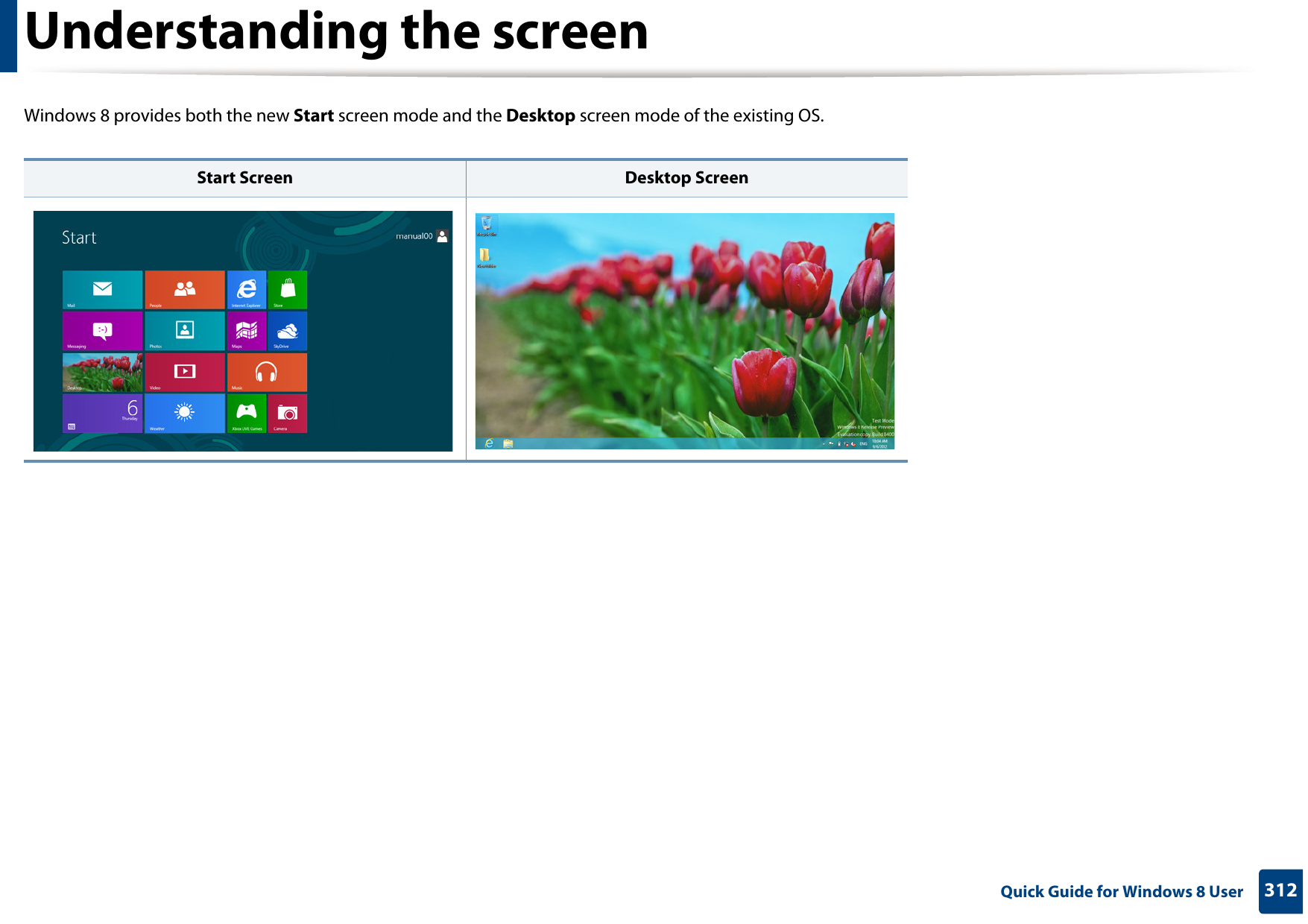
312 Quick Guide for Windows 8 UserUnderstanding the screenWindows 8 provides both the new Start screen mode and the Desktop screen mode of the existing OS.Start Screen Desktop Screen
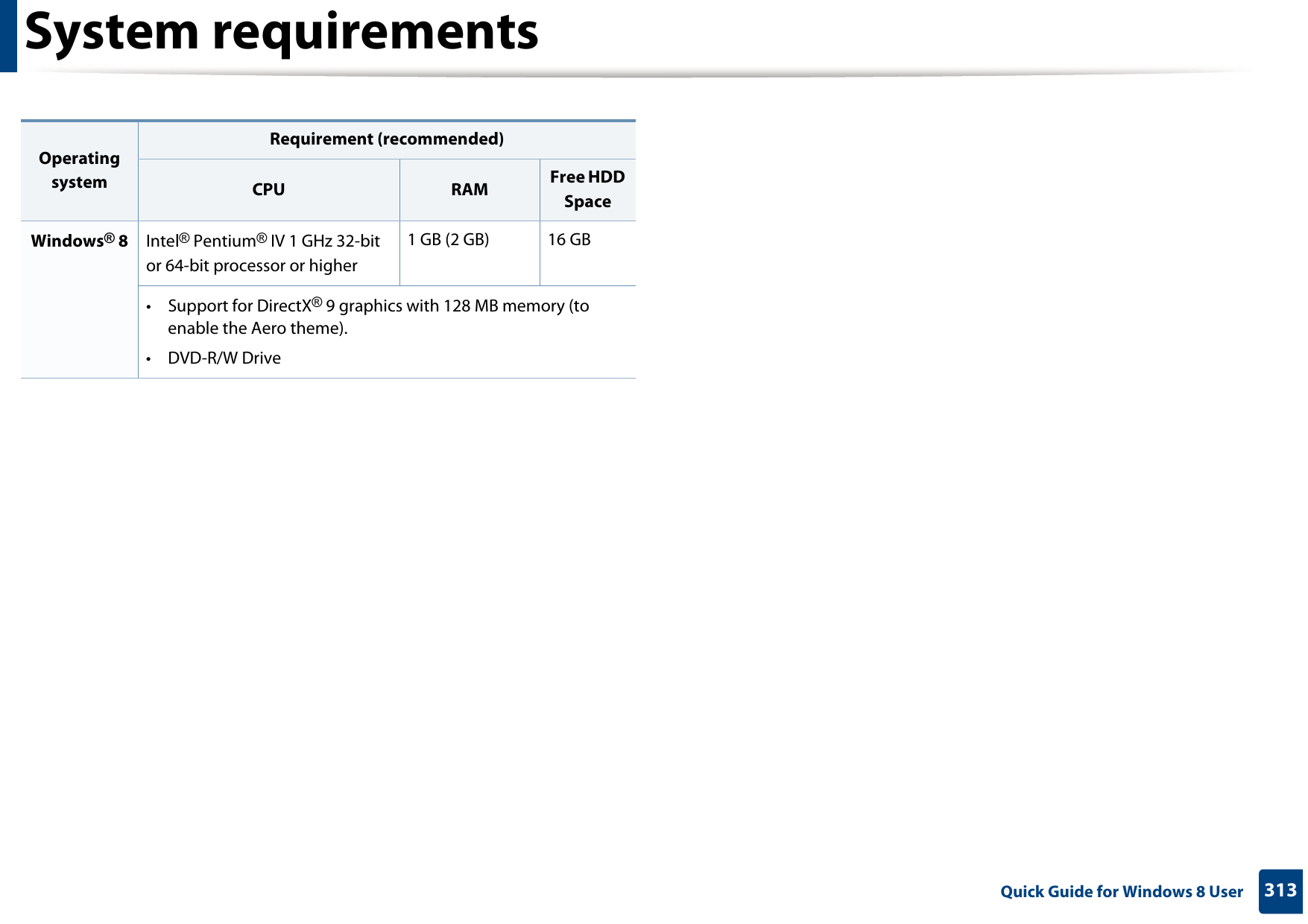
313 Quick Guide for Windows 8 UserSystem requirementsOperating systemRequirement (recommended)CPU RAM Free HDD SpaceWindows® 8 Intel® Pentium® IV 1 GHz 32-bit or 64-bit processor or higher1 GB (2 GB) 16 GB• Support for DirectX® 9 graphics with 128 MB memory (to enable the Aero theme).•DVD-R/W Drive
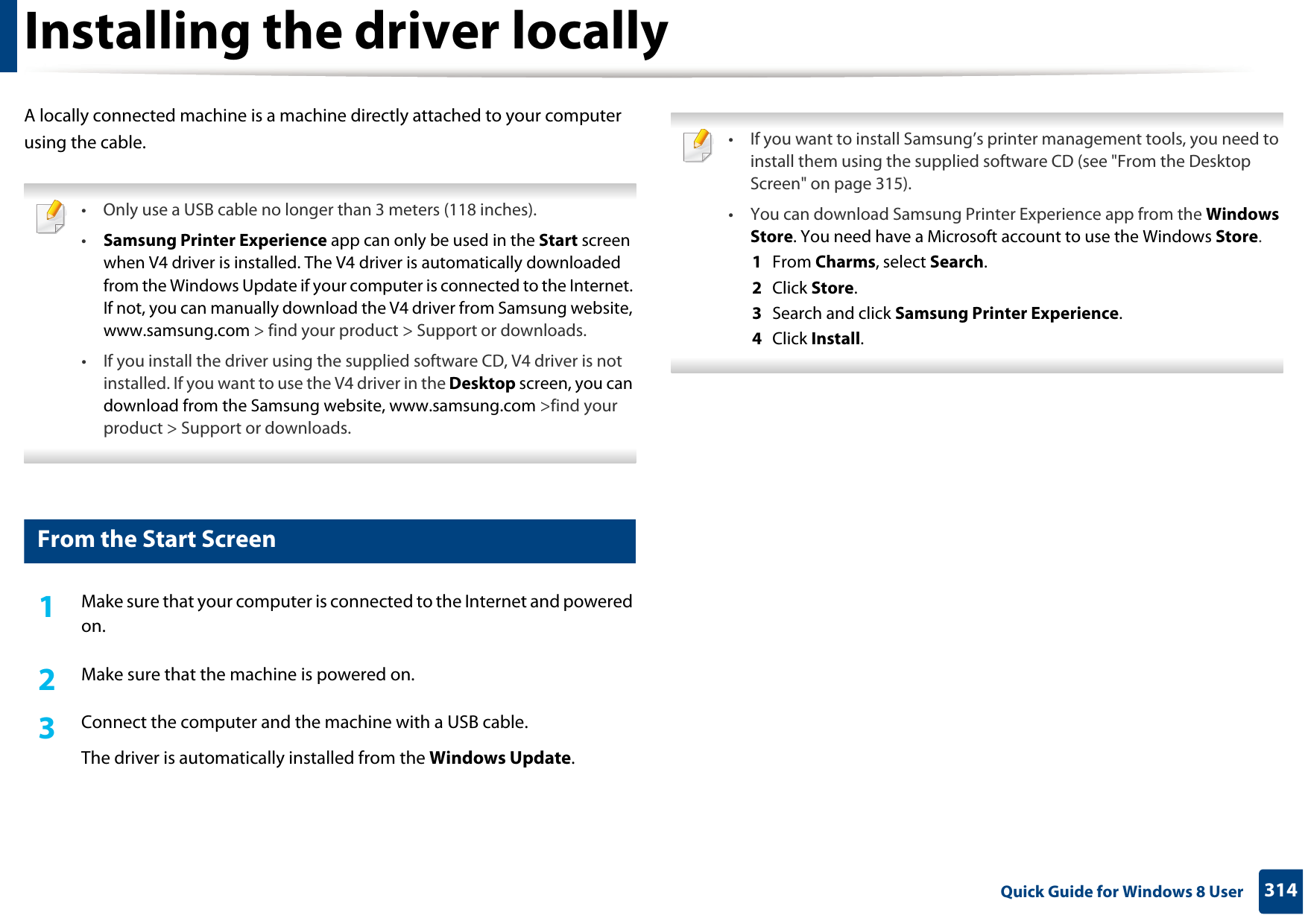
314 Quick Guide for Windows 8 UserInstalling the driver locallyA locally connected machine is a machine directly attached to your computer using the cable. • Only use a USB cable no longer than 3 meters (118 inches).•Samsung Printer Experience app can only be used in the Start screen when V4 driver is installed. The V4 driver is automatically downloaded from the Windows Update if your computer is connected to the Internet. If not, you can manually download the V4 driver from Samsung website, www.samsung.com > find your product > Support or downloads. • If you install the driver using the supplied software CD, V4 driver is not installed. If you want to use the V4 driver in the Desktop screen, you can download from the Samsung website, www.samsung.com >find your product > Support or downloads. 1 From the Start Screen1Make sure that your computer is connected to the Internet and powered on.2  Make sure that the machine is powered on.3  Connect the computer and the machine with a USB cable.The driver is automatically installed from the Windows Update.  • If you want to install Samsung’s printer management tools, you need to install them using the supplied software CD (see "From the Desktop Screen" on page 315).• You can download Samsung Printer Experience app from the Windows Store. You need have a Microsoft account to use the Windows Store.1  From Charms, select Search. 2  Click Store.3  Search and click Samsung Printer Experience.4  Click Install.
Installing the driver locally315 Quick Guide for Windows 8 User2 From the Desktop Screen If you install the driver using the supplied software CD, you cannot use the installed driver from the Start screen. 1Insert the supplied software CD into your CD-ROM drive.If the installation window does not appear, from Charms, select Search > Apps and search for Run. Type in X:\Setup.exe, replacing “X” with the letter that represents your CD-ROM drive and click OK. If “Tap to choose what happens with this disc.” pop-up window appears, click the window and select Run Setup.exe. 2  Review and accept the installation agreements in the installation window. Then, click Next.3  Select USB connection on the Printer Connection Type screen. Then, click Next.4  Follow the instructions in the installation window.
316 Quick Guide for Windows 8 UserInstalling the driver over the network • Some features and optional goods may not be available depending on model or country (see "Features by models" on page 7).• Machine that do not support networking will not be able to use this feature (see "Rear view" on page 24).•Samsung Printer Experience app can only be used in the Start screen when V4 driver is installed. The V4 driver is automatically downloaded from the Windows Update if your computer is connected to the Internet. If not, you can manually download the V4 driver from Samsung website, www.samsung.com >find your product > Support or downloads. • If you install the driver using the supplied software CD, V4 driver is not installed. If you want to use the V4 driver in the Desktop screen, you can download from the Samsung website, www.samsung.com >find your product > Support or downloads. 3 From the Start Screen1Make sure that the machine is connected to the network and powered on. Also, your machine’s IP address should have been set (see "Setting IP address" on page 142). 2  From Charms, select Settings > Change PC settings > Devices.3  Click Add a device. Discovered machines will be shown on the screen. 4  Click the model name or host name you wish to use.  • You can print a Network Configuration Report from the machine’s control panel that will show the current machine’s host name (see "Printing a network configuration report" on page 181).• If you want to install Samsung’s printer management tools, you need to install them using the supplied software CD (see "From the Desktop Screen" on page 315).• You can download Samsung Printer Experience app from the Windows Store. You need have a Microsoft account to use the Windows Store.1  From Charms, select Search. 2  Click Store.3  Search and click Samsung Printer Experience.4  Click Install. 5  The driver is automatically installed from the Windows Update.
Installing the driver over the network317 Quick Guide for Windows 8 User4 From the Desktop Screen If you install the driver using the supplied software CD, you cannot use the installed driver from the Start screen. 1Make sure that the machine is connected to the network and powered on. Also, your machine’s IP address should have been set (see "Setting IP address" on page 142).2  Insert the supplied software CD into your CD-ROM drive.If the installation window does not appear, from Charms, select Search > Apps and search for Run. Type in X:\Setup.exe, replacing “X” with the letter that represents your CD-ROM drive and click OK. If “Tap to choose what happens with this disc.” pop-up window appears, click the window and select Run Setup.exe. 3  Review and accept the installation agreements in the installation window. Then, click Next.4  Select Network connection on the Printer Connection Type screen. 5  Follow the instructions in the installation window.
318 Quick Guide for Windows 8 UserInstalling the driver over the wireless network •Samsung Printer Experience app can only be used in the Start screen when V4 driver is installed. The V4 driver is automatically downloaded from the Windows Update if your computer is connected to the Internet. If not, you can manually download the V4 driver from Samsung website, www.samsung.com >find your product > Support or downloads. • If you install the driver using the supplied software CD, V4 driver is not installed. If you want to use the V4 driver in the Desktop screen, you can download from the Samsung website, www.samsung.com >find your product > Support or downloads.• You must set up for wireless network using the supplied software CD in Desktop screen mode. • If you are using a computer without a CD-ROM, you can set up the wireless network from the machine’s control panel (see "Wireless network setup" on page 156). 5 From the Start Screen1After completing the wireless network connection, you need to install a machine driver to print from an application. 2  From Charms, select Settings > Change PC settings > Devices.3  Click Add a device. Discovered machines will be shown on the screen. 4  Click the model name or host name you wish to use.  You can print a Network Configuration Report from the machine’s control panel that will show the current machine’s host name (see "Printing a network configuration report" on page 181). 5  The driver is automatically installed from the Windows Update.  • If you want to install Samsung’s printer management tools, you need to install them using the supplied software CD (see "From the Desktop Screen" on page 315).• You can download Samsung Printer Experience app from the Windows Store. You need have a Microsoft account to use the Windows Store.1  From Charms, select Search. 2  Click Store.3  Search and click Samsung Printer Experience.4  Click Install.
Installing the driver over the wireless network319 Quick Guide for Windows 8 User6 From the Desktop Screen If you install the driver using the supplied software CD, you cannot use the installed driver from the Start screen. 1Turn on your computer, access point, and machine.2  Insert the supplied software CD into your CD-ROM drive.If the installation window does not appear, from Charms, select Search > Apps and search for Run. Type in X:\Setup.exe, replacing “X” with the letter that represents your CD-ROM drive and click OK. If “Tap to choose what happens with this disc.” pop-up window appears, click the window and select Run Setup.exe. 3  Review and accept the installation agreements in the installation window. Then, click Next.4  Follow the instructions in the installation window. For wireless set up or driver installation, refer to the wireless network setup chapter (see "Wireless network setup" on page 156).
320 Quick Guide for Windows 8 UserUninstalling the driver7 From the Start Screen1Make sure that the machine is connected to your computer and powered on.2  Click on the Uninstall Samsung Printer Software tile in the Start screen.3  Follow the instructions in the window. • If you cannot find a Samsung Printer Software tile, unintstall from the desktop screen mode (see "From the Desktop Screen" on page 320). • If you want to uninstall Samsung’s printer management tools, from the Start screen, right-click the app > Uninstall > right-click the program you want to delete > Uninstall and follow the instruction in the window.  8 From the Desktop Screen1From Charms, select Search > Apps. 2  Search and click Control Panel.3  Click Programs and Features.4  Right-click the driver you want to uninstall and select Uninstall. 5  Follow the instructions in the window.
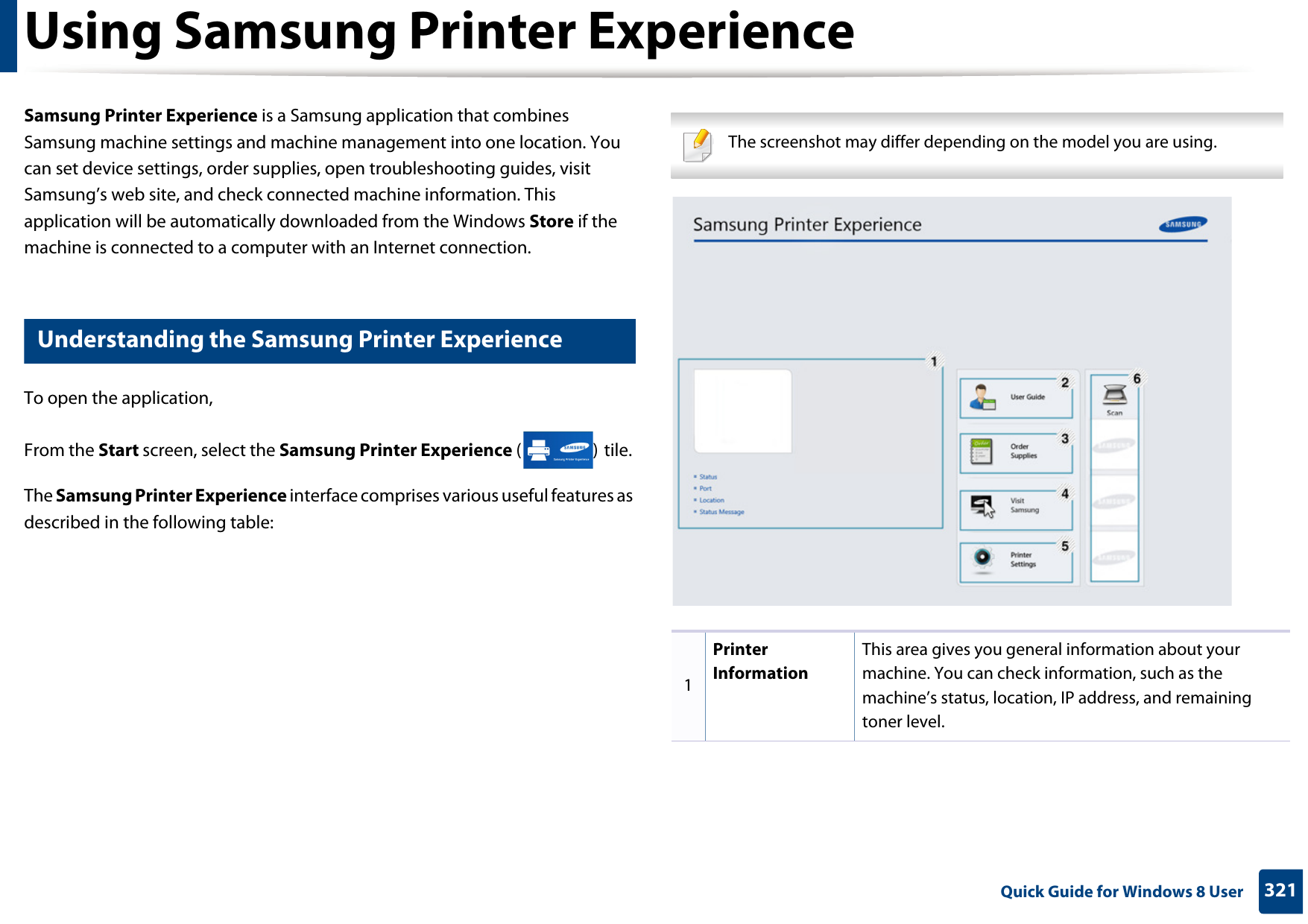
321 Quick Guide for Windows 8 UserUsing Samsung Printer Experience Samsung Printer Experience is a Samsung application that combines Samsung machine settings and machine management into one location. You can set device settings, order supplies, open troubleshooting guides, visit Samsung’s web site, and check connected machine information. This application will be automatically downloaded from the Windows Store if the machine is connected to a computer with an Internet connection. 9 Understanding the Samsung Printer ExperienceTo open the application, From the Start screen, select the Samsung Printer Experience () tile. The Samsung Printer Experience interface comprises various useful features as described in the following table: The screenshot may differ depending on the model you are using. 1Printer InformationThis area gives you general information about your machine. You can check information, such as the machine’s status, location, IP address, and remaining toner level.
Using Samsung Printer Experience322 Quick Guide for Windows 8 User10 Printing from Windows 8This section explains common printing tasks from the Start screen.Basic printing1Open the document to print.2  From the Charms, select Devices.3  Select your printer from the list4  Select the printer settings, such as the number of copies and orientation.2User Guide You can view the online User’s Guide. You need to be connected to the Internet to use this feature. This button opens the Troubleshooting Guide when an error occurs. You can directly open the troubleshooting section in the user’s guide.  3Order SuppliesClick on this button to order replacement toner cartridges online. You need to be connected to the Internet to use this feature. 4Visit Samsung Links to Samsung printer website. You need to be connected to the Internet to use this feature.5Printer Settings You can configure various machine settings such as machine setup, paper, layout, emulation, networking, and print information through SyncThru™ Web Service. Your machine needs to be connected to a network. This button will be disabled if your machine is connected via USB cable.6Device List & Latest Scanned ImageThe scan list displays devices that supports Samsung Printer Experience. Under the device, you can see the latest scanned images. Your machine needs to be connected to a network to scan from here. This section is for the users with multi-functional printers.
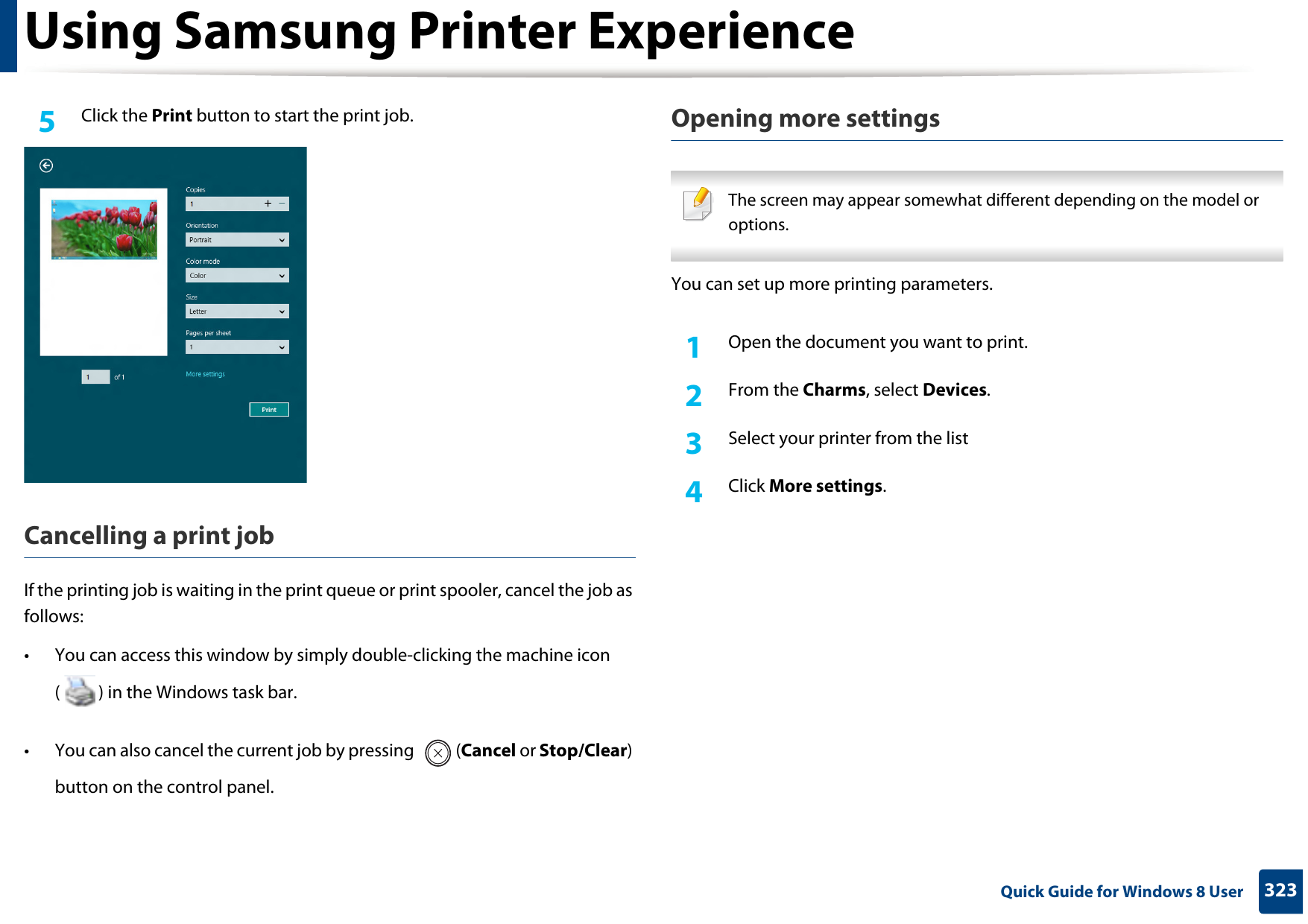
Using Samsung Printer Experience323 Quick Guide for Windows 8 User5  Click the Print button to start the print job.Cancelling a print jobIf the printing job is waiting in the print queue or print spooler, cancel the job as follows:• You can access this window by simply double-clicking the machine icon ( ) in the Windows task bar. • You can also cancel the current job by pressing  (Cancel or Stop/Clear) button on the control panel.Opening more settings The screen may appear somewhat different depending on the model or options. You can set up more printing parameters.1Open the document you want to print.2  From the Charms, select Devices.3  Select your printer from the list4  Click More settings.
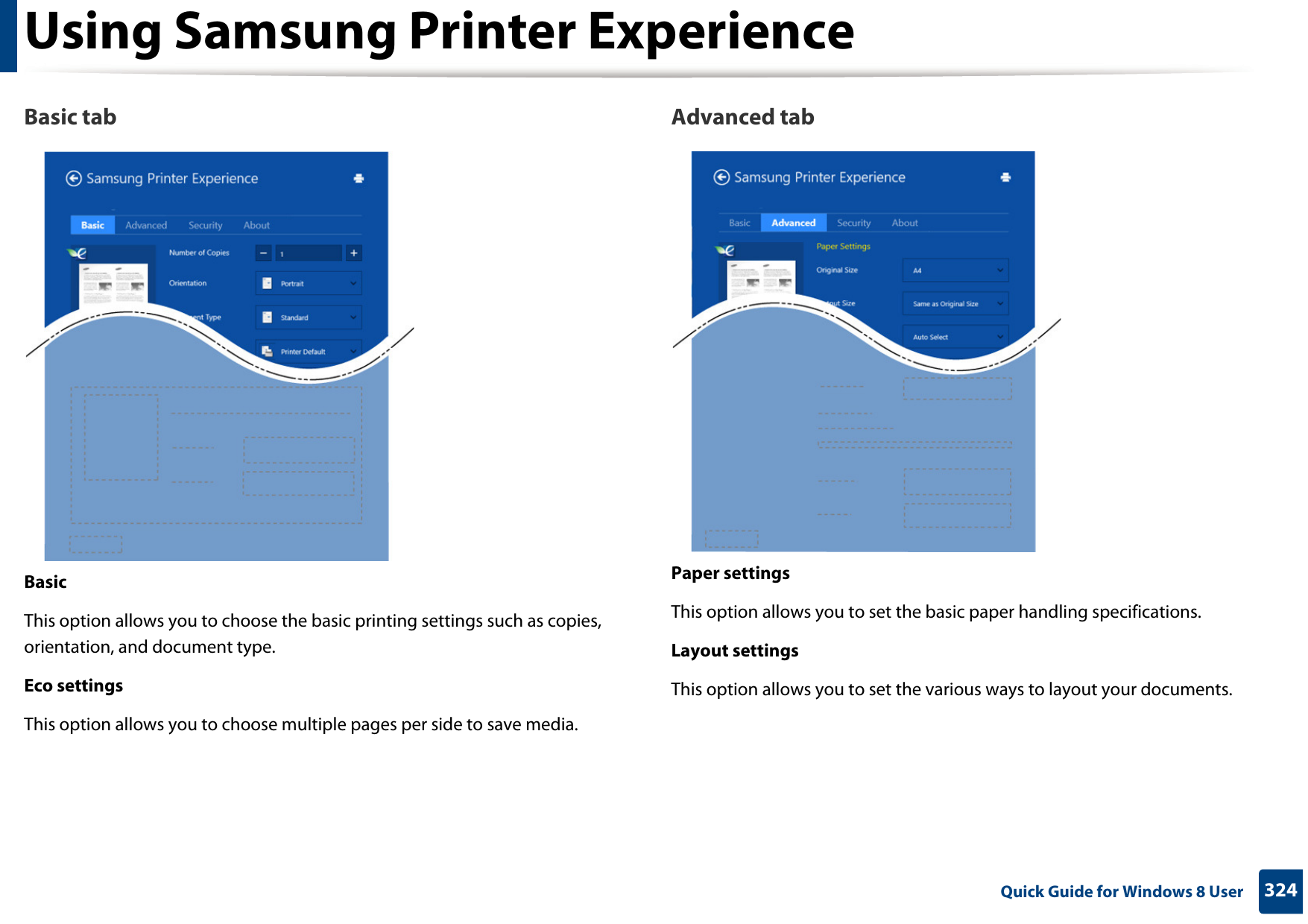
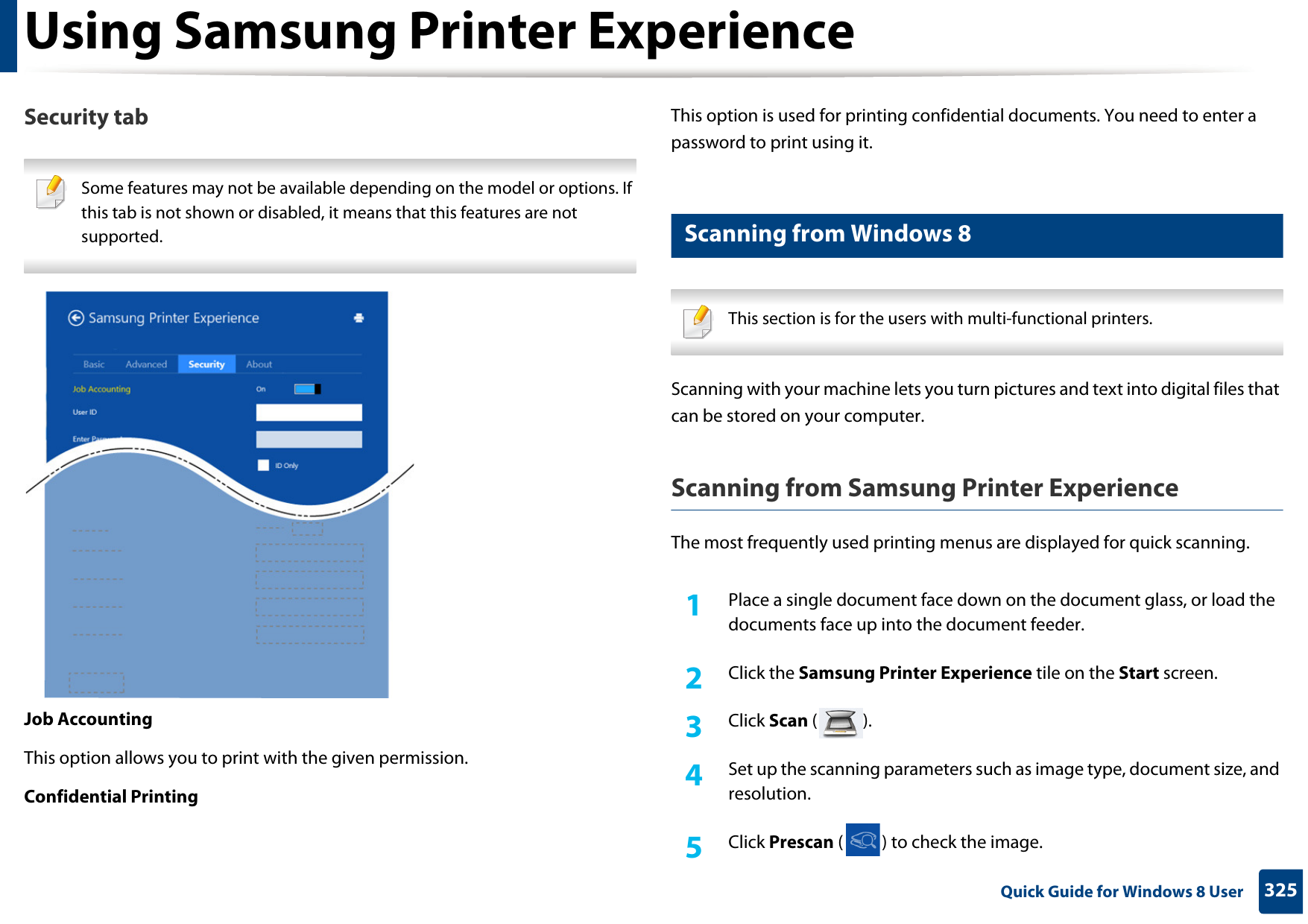
Using Samsung Printer Experience324 Quick Guide for Windows 8 UserBasic tabBasicThis option allows you to choose the basic printing settings such as copies, orientation, and document type.Eco settingsThis option allows you to choose multiple pages per side to save media.Advanced tabPaper settingsThis option allows you to set the basic paper handling specifications.Layout settingsThis option allows you to set the various ways to layout your documents.
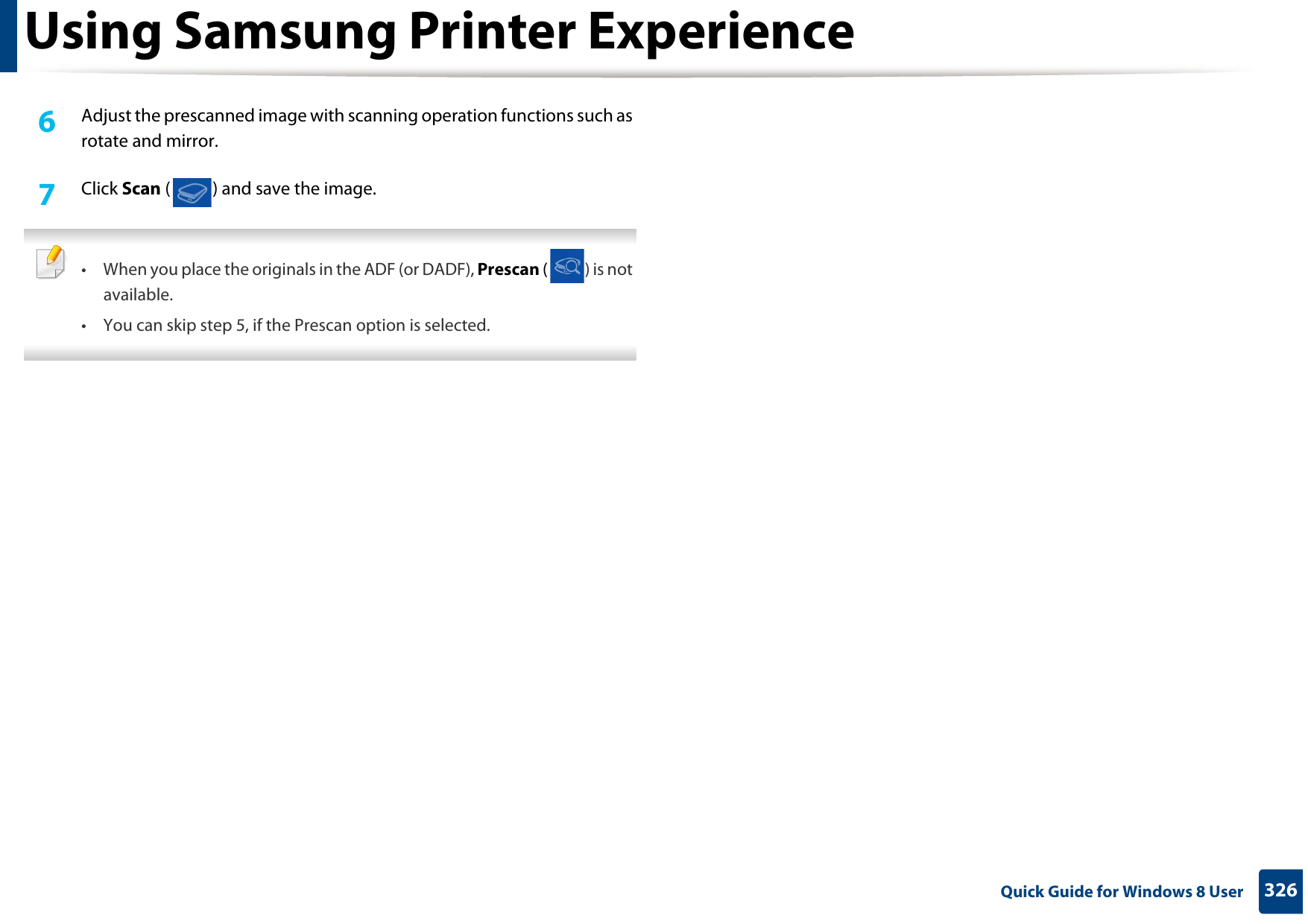
Using Samsung Printer Experience325 Quick Guide for Windows 8 UserSecurity tab Some features may not be available depending on the model or options. If this tab is not shown or disabled, it means that this features are not supported. Job AccountingThis option allows you to print with the given permission.Confidential PrintingThis option is used for printing confidential documents. You need to enter a password to print using it.11 Scanning from Windows 8 This section is for the users with multi-functional printers. Scanning with your machine lets you turn pictures and text into digital files that can be stored on your computer.Scanning from Samsung Printer ExperienceThe most frequently used printing menus are displayed for quick scanning.1Place a single document face down on the document glass, or load the documents face up into the document feeder.2  Click the Samsung Printer Experience tile on the Start screen.3  Click Scan ().4  Set up the scanning parameters such as image type, document size, and resolution.5  Click Prescan ( ) to check the image.
Using Samsung Printer Experience326 Quick Guide for Windows 8 User6  Adjust the prescanned image with scanning operation functions such as rotate and mirror.7  Click Scan ( ) and save the image.  • When you place the originals in the ADF (or DADF), Prescan ( ) is not available.• You can skip step 5, if the Prescan option is selected.
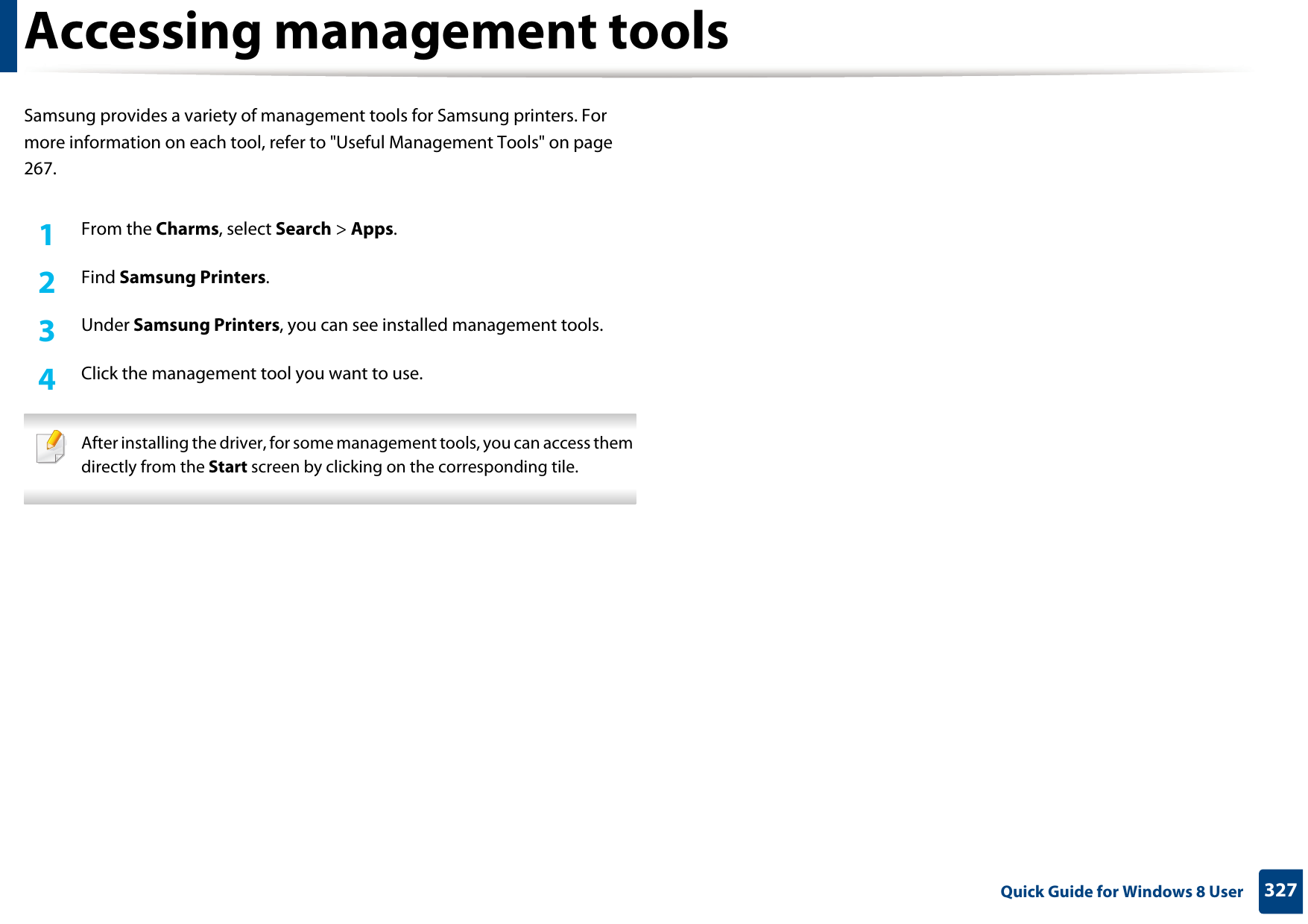
327 Quick Guide for Windows 8 UserAccessing management toolsSamsung provides a variety of management tools for Samsung printers. For more information on each tool, refer to "Useful Management Tools" on page 267.1From the Charms, select Search > Apps.2  Find Samsung Printers.3  Under Samsung Printers, you can see installed management tools.4  Click the management tool you want to use. After installing the driver, for some management tools, you can access them directly from the Start screen by clicking on the corresponding tile.
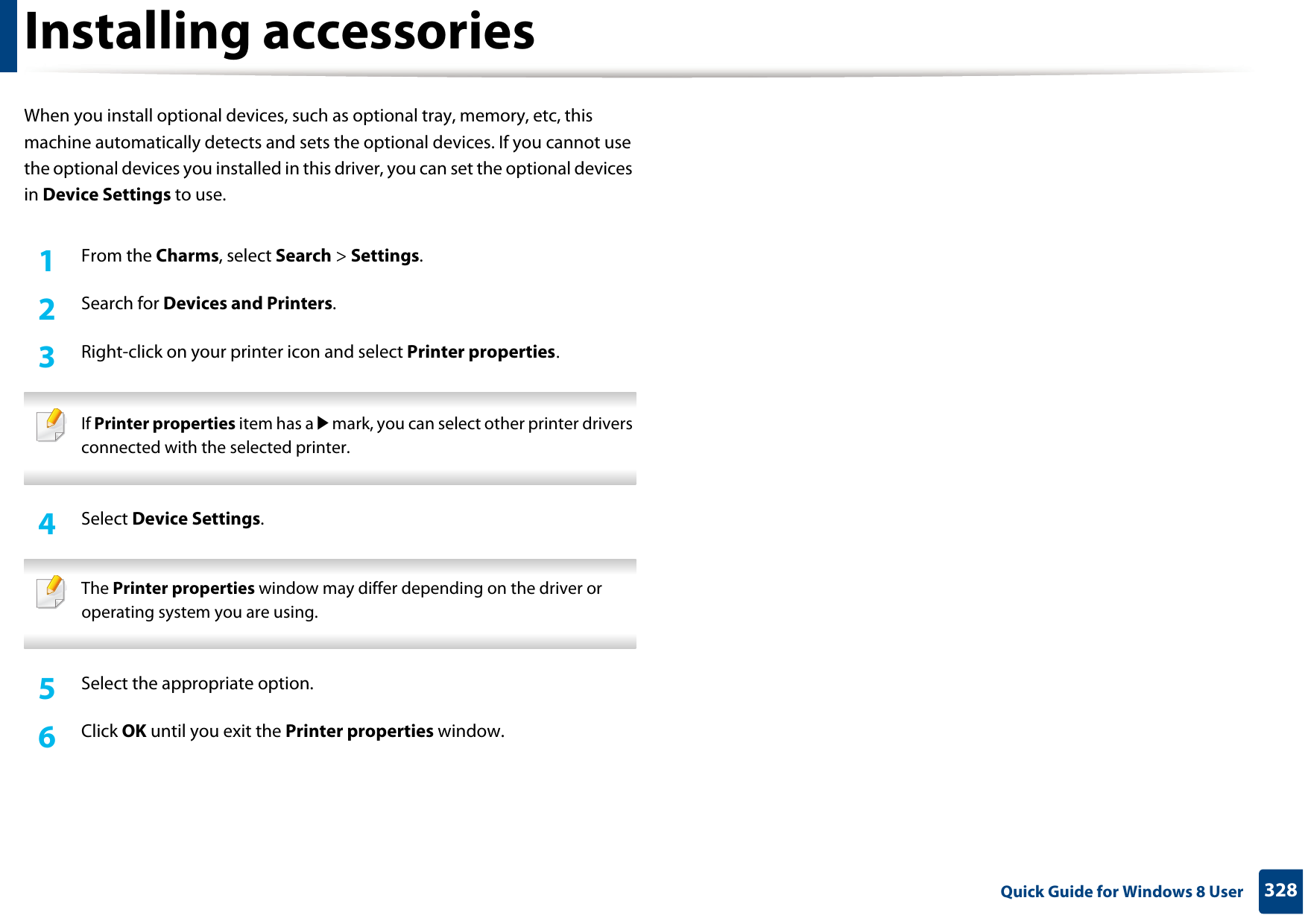
328 Quick Guide for Windows 8 UserInstalling accessoriesWhen you install optional devices, such as optional tray, memory, etc, this machine automatically detects and sets the optional devices. If you cannot use the optional devices you installed in this driver, you can set the optional devices in Device Settings to use.1From the Charms, select Search > Settings.2  Search for Devices and Printers.3  Right-click on your printer icon and select Printer properties. If Printer properties item has a▶mark, you can select other printer drivers connected with the selected printer. 4  Select Device Settings.  The Printer properties window may differ depending on the driver or operating system you are using. 5  Select the appropriate option.6  Click OK until you exit the Printer properties window.
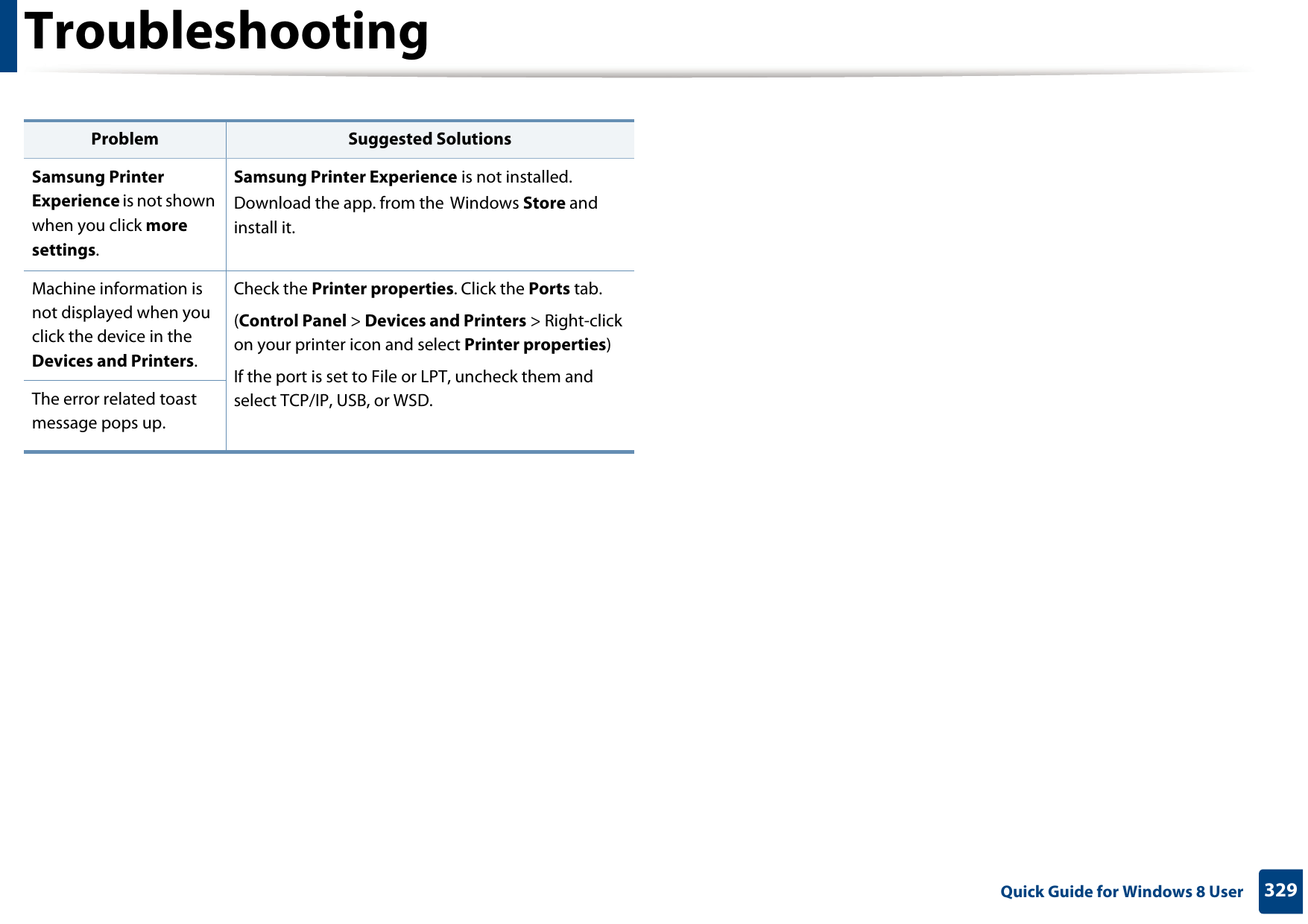
329 Quick Guide for Windows 8 UserTroubleshootingProblem Suggested SolutionsSamsung Printer Experience is not shown when you click more settings.Samsung Printer Experience is not installed. Download the app. from the Windows Store and install it.Machine information is not displayed when you click the device in the Devices and Printers.Check the Printer properties. Click the Ports tab.(Control Panel > Devices and Printers > Right-click on your printer icon and select Printer properties)If the port is set to File or LPT, uncheck them and select TCP/IP, USB, or WSD.The error related toast message pops up.
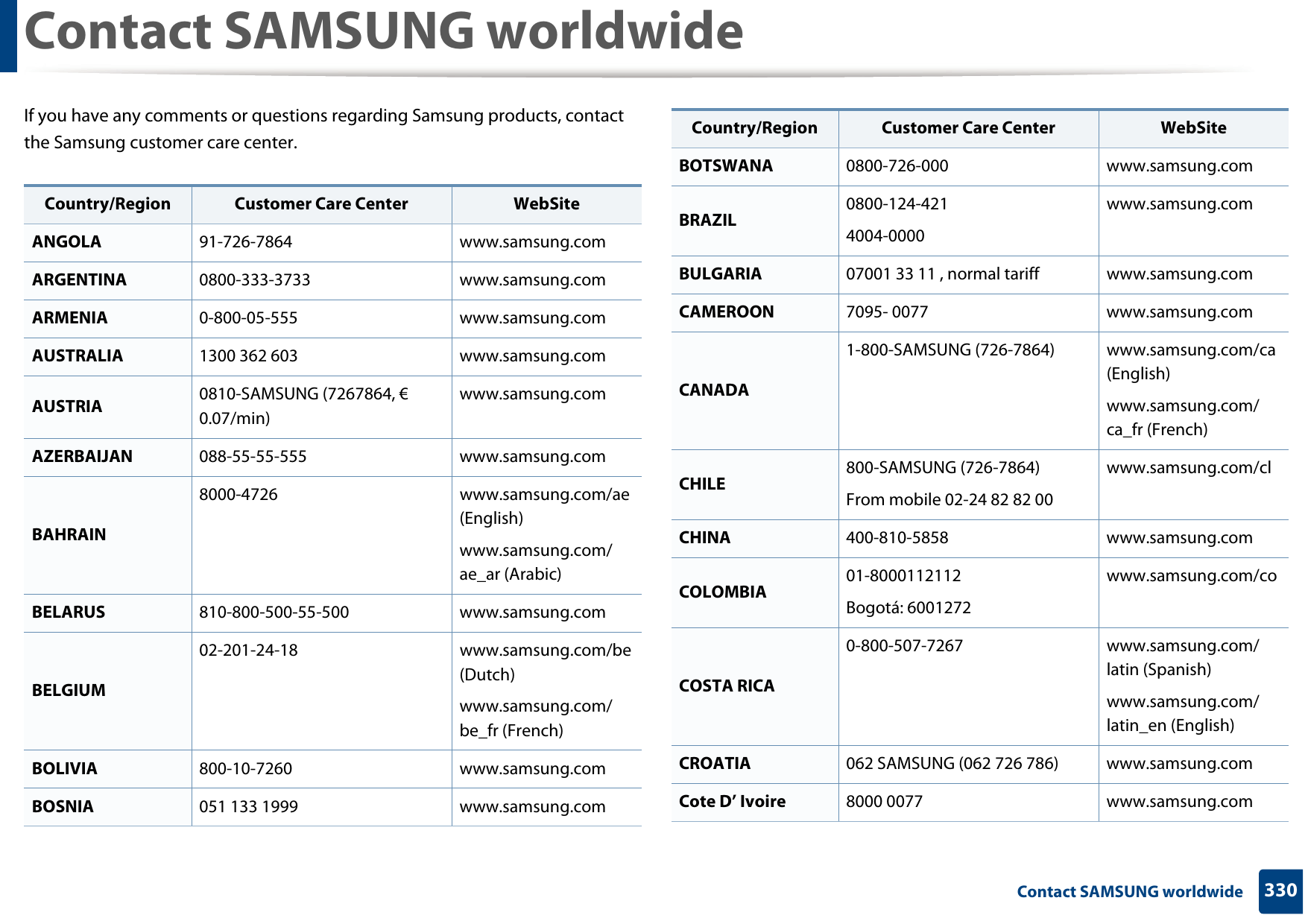
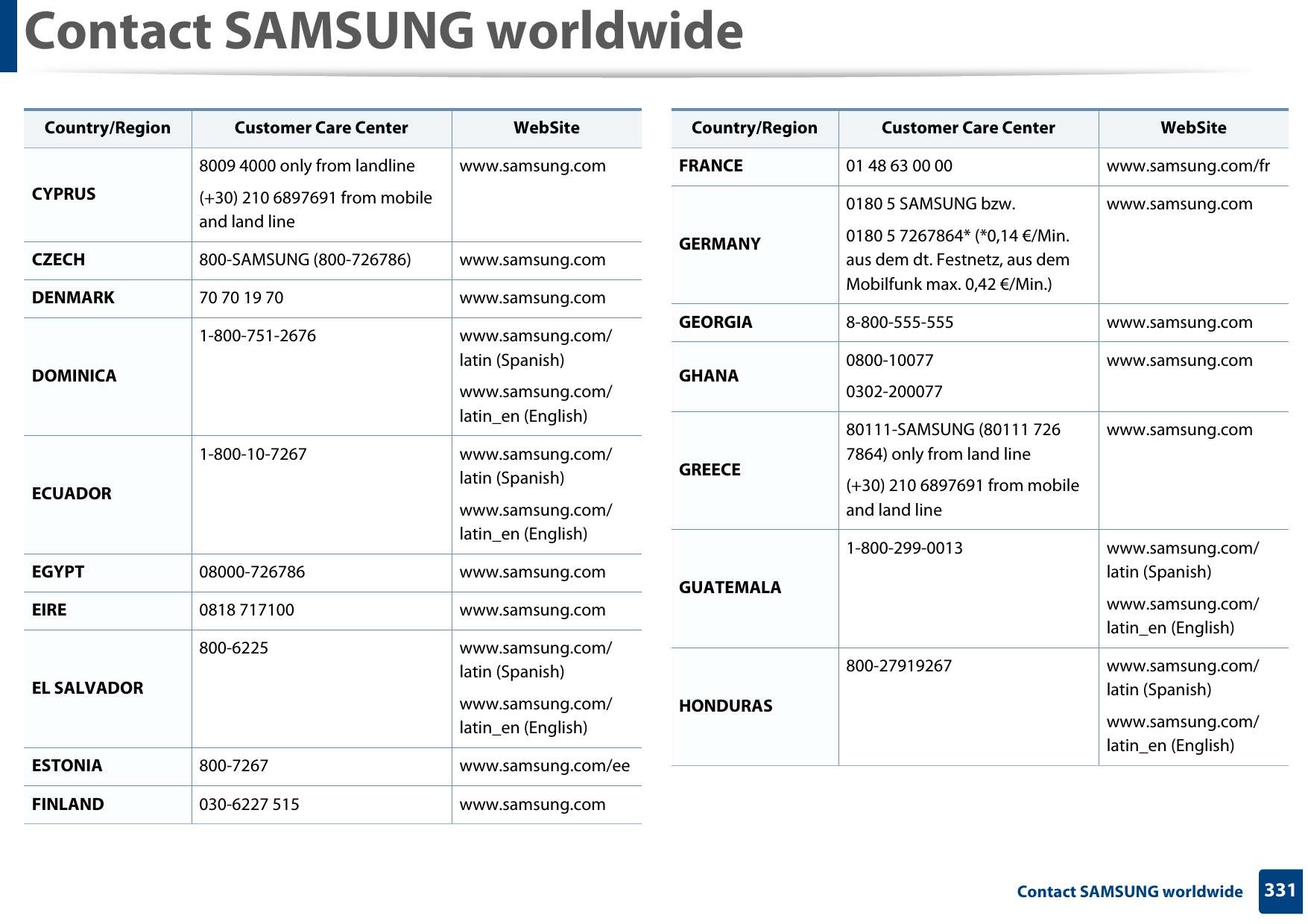
330 Contact SAMSUNG worldwideContact SAMSUNG worldwideIf you have any comments or questions regarding Samsung products, contact the Samsung customer care center.Country/Region Customer Care Center  WebSiteANGOLA 91-726-7864 www.samsung.comARGENTINA 0800-333-3733 www.samsung.comARMENIA 0-800-05-555 www.samsung.comAUSTRALIA 1300 362 603 www.samsung.comAUSTRIA 0810-SAMSUNG (7267864, € 0.07/min)www.samsung.comAZERBAIJAN 088-55-55-555 www.samsung.comBAHRAIN8000-4726 www.samsung.com/ae (English)www.samsung.com/ae_ar (Arabic)BELARUS 810-800-500-55-500 www.samsung.comBELGIUM02-201-24-18 www.samsung.com/be (Dutch)www.samsung.com/be_fr (French)BOLIVIA 800-10-7260 www.samsung.comBOSNIA 051 133 1999 www.samsung.comBOTSWANA 0800-726-000 www.samsung.comBRAZIL 0800-124-4214004-0000www.samsung.comBULGARIA 07001 33 11 , normal tariff www.samsung.comCAMEROON 7095- 0077 www.samsung.comCANADA1-800-SAMSUNG (726-7864) www.samsung.com/ca (English)www.samsung.com/ca_fr (French)CHILE 800-SAMSUNG (726-7864)From mobile 02-24 82 82 00www.samsung.com/clCHINA 400-810-5858 www.samsung.comCOLOMBIA 01-8000112112Bogotá: 6001272www.samsung.com/coCOSTA RICA0-800-507-7267 www.samsung.com/latin (Spanish)www.samsung.com/latin_en (English)CROATIA 062 SAMSUNG (062 726 786) www.samsung.comCote D’ Ivoire 8000 0077 www.samsung.comCountry/Region Customer Care Center  WebSite
Contact SAMSUNG worldwide331 Contact SAMSUNG worldwideCYPRUS8009 4000 only from landline(+30) 210 6897691 from mobile and land linewww.samsung.comCZECH 800-SAMSUNG (800-726786) www.samsung.comDENMARK 70 70 19 70 www.samsung.comDOMINICA1-800-751-2676 www.samsung.com/latin (Spanish)www.samsung.com/latin_en (English)ECUADOR1-800-10-7267 www.samsung.com/latin (Spanish)www.samsung.com/latin_en (English)EGYPT 08000-726786 www.samsung.comEIRE 0818 717100 www.samsung.comEL SALVADOR800-6225 www.samsung.com/latin (Spanish)www.samsung.com/latin_en (English)ESTONIA 800-7267 www.samsung.com/eeFINLAND 030-6227 515 www.samsung.comCountry/Region Customer Care Center  WebSiteFRANCE 01 48 63 00 00 www.samsung.com/frGERMANY0180 5 SAMSUNG bzw.0180 5 7267864* (*0,14 €/Min. aus dem dt. Festnetz, aus dem Mobilfunk max. 0,42 €/Min.)www.samsung.comGEORGIA 8-800-555-555 www.samsung.comGHANA 0800-100770302-200077www.samsung.comGREECE80111-SAMSUNG (80111 726 7864) only from land line(+30) 210 6897691 from mobile and land linewww.samsung.comGUATEMALA1-800-299-0013 www.samsung.com/latin (Spanish)www.samsung.com/latin_en (English)HONDURAS800-27919267 www.samsung.com/latin (Spanish)www.samsung.com/latin_en (English)Country/Region Customer Care Center  WebSite
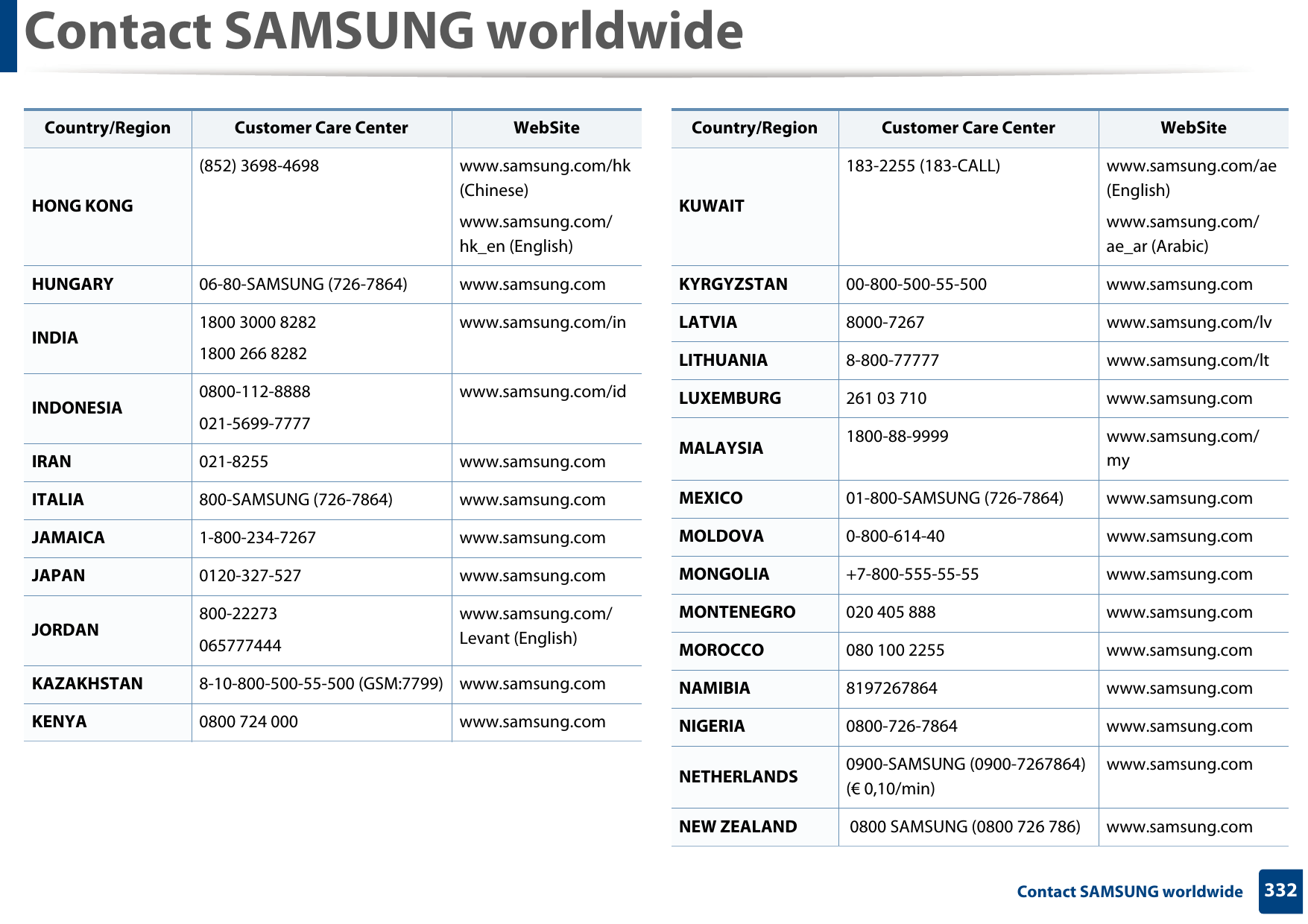
Contact SAMSUNG worldwide332 Contact SAMSUNG worldwideHONG KONG(852) 3698-4698 www.samsung.com/hk (Chinese)www.samsung.com/hk_en (English)HUNGARY 06-80-SAMSUNG (726-7864) www.samsung.comINDIA 1800 3000 82821800 266 8282www.samsung.com/inINDONESIA 0800-112-8888021-5699-7777www.samsung.com/idIRAN 021-8255 www.samsung.comITALIA 800-SAMSUNG (726-7864) www.samsung.comJAMAICA 1-800-234-7267 www.samsung.comJAPAN 0120-327-527 www.samsung.comJORDAN 800-22273065777444www.samsung.com/Levant (English)KAZAKHSTAN 8-10-800-500-55-500 (GSM:7799) www.samsung.comKENYA 0800 724 000 www.samsung.comCountry/Region Customer Care Center  WebSiteKUWAIT183-2255 (183-CALL) www.samsung.com/ae (English)www.samsung.com/ae_ar (Arabic)KYRGYZSTAN 00-800-500-55-500 www.samsung.comLATVIA 8000-7267 www.samsung.com/lvLITHUANIA 8-800-77777 www.samsung.com/ltLUXEMBURG 261 03 710 www.samsung.comMALAYSIA 1800-88-9999 www.samsung.com/myMEXICO 01-800-SAMSUNG (726-7864) www.samsung.comMOLDOVA 0-800-614-40 www.samsung.comMONGOLIA +7-800-555-55-55 www.samsung.comMONTENEGRO 020 405 888 www.samsung.comMOROCCO 080 100 2255 www.samsung.comNAMIBIA 8197267864 www.samsung.comNIGERIA 0800-726-7864 www.samsung.comNETHERLANDS 0900-SAMSUNG (0900-7267864) (€ 0,10/min)www.samsung.comNEW ZEALAND  0800 SAMSUNG (0800 726 786) www.samsung.comCountry/Region Customer Care Center  WebSite
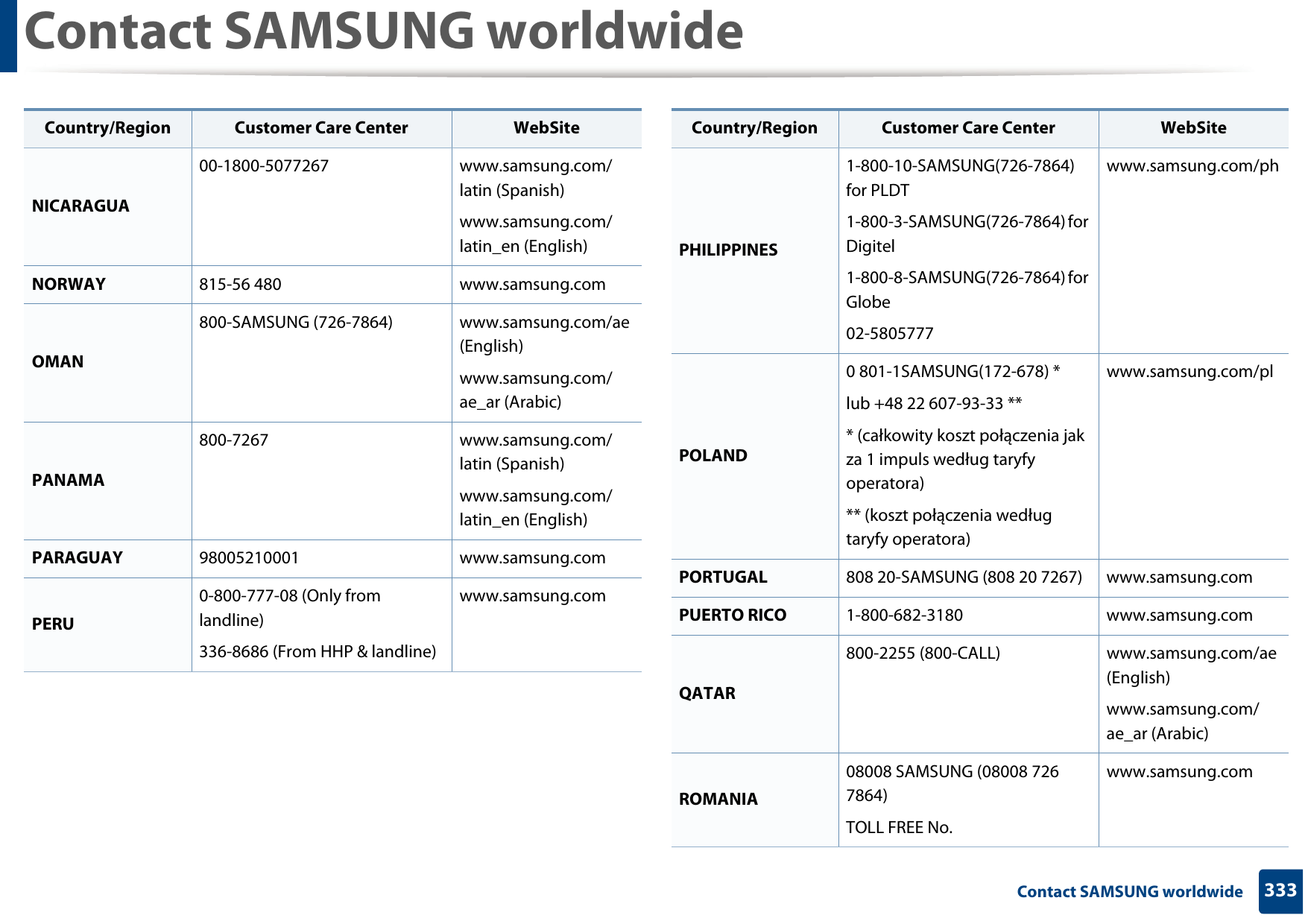
Contact SAMSUNG worldwide333 Contact SAMSUNG worldwideNICARAGUA00-1800-5077267 www.samsung.com/latin (Spanish)www.samsung.com/latin_en (English)NORWAY 815-56 480 www.samsung.comOMAN800-SAMSUNG (726-7864) www.samsung.com/ae (English)www.samsung.com/ae_ar (Arabic)PANAMA800-7267 www.samsung.com/latin (Spanish)www.samsung.com/latin_en (English)PARAGUAY 98005210001 www.samsung.comPERU0-800-777-08 (Only from landline)336-8686 (From HHP & landline)www.samsung.comCountry/Region Customer Care Center  WebSitePHILIPPINES1-800-10-SAMSUNG(726-7864) for PLDT1-800-3-SAMSUNG(726-7864) for Digitel1-800-8-SAMSUNG(726-7864) for Globe02-5805777www.samsung.com/phPOLAND0 801-1SAMSUNG(172-678) * lub +48 22 607-93-33 *** (całkowity koszt połączenia jak za 1 impuls według taryfy operatora)** (koszt połączenia według taryfy operatora)www.samsung.com/plPORTUGAL 808 20-SAMSUNG (808 20 7267) www.samsung.comPUERTO RICO 1-800-682-3180 www.samsung.comQATAR800-2255 (800-CALL) www.samsung.com/ae (English)www.samsung.com/ae_ar (Arabic)ROMANIA08008 SAMSUNG (08008 726 7864)TOLL FREE No.www.samsung.comCountry/Region Customer Care Center  WebSite
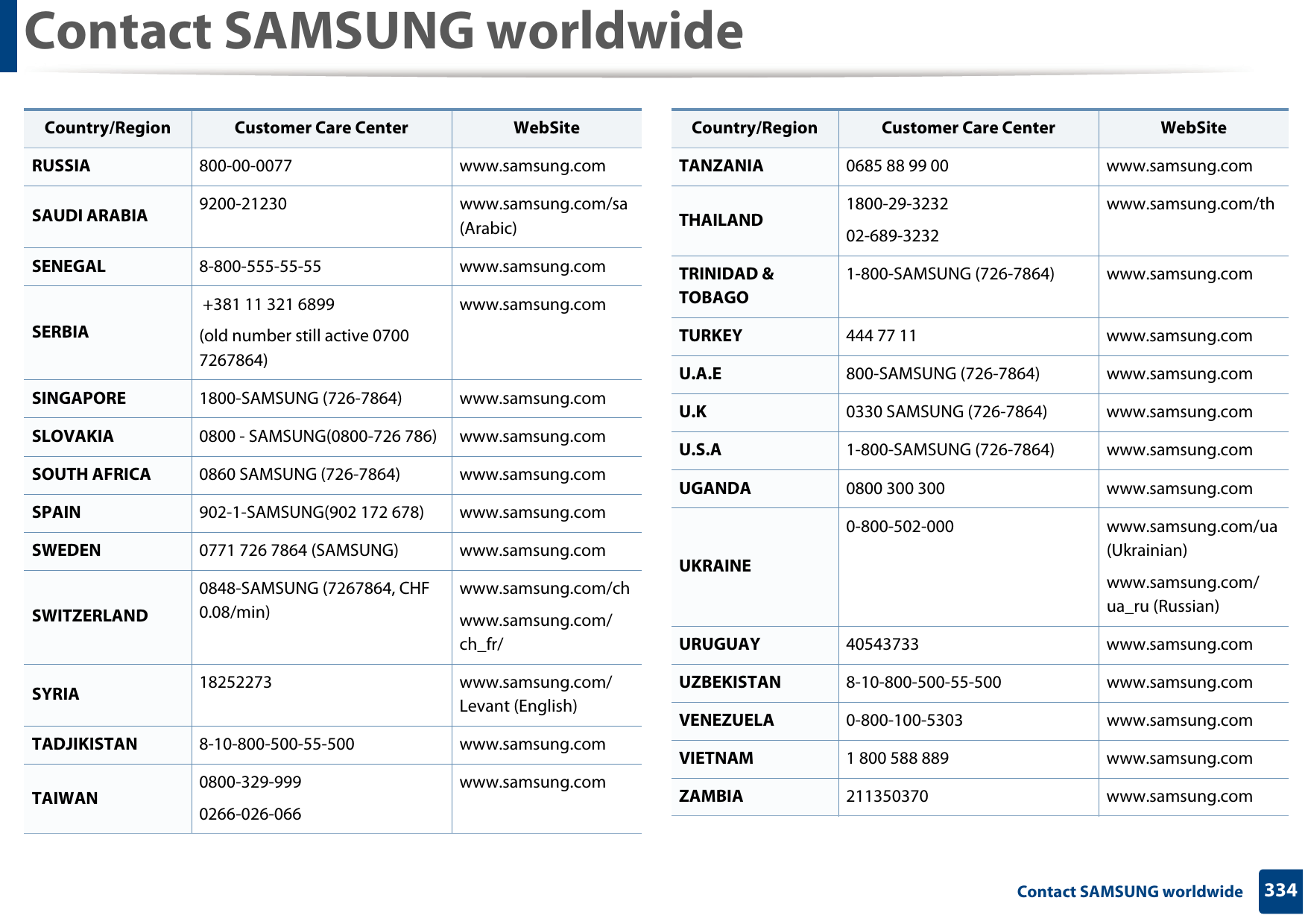
Contact SAMSUNG worldwide334 Contact SAMSUNG worldwideRUSSIA 800-00-0077 www.samsung.comSAUDI ARABIA 9200-21230 www.samsung.com/sa (Arabic)SENEGAL 8-800-555-55-55 www.samsung.comSERBIA +381 11 321 6899 (old number still active 0700 7267864)www.samsung.comSINGAPORE 1800-SAMSUNG (726-7864) www.samsung.comSLOVAKIA 0800 - SAMSUNG(0800-726 786) www.samsung.comSOUTH AFRICA 0860 SAMSUNG (726-7864) www.samsung.comSPAIN 902-1-SAMSUNG(902 172 678) www.samsung.comSWEDEN 0771 726 7864 (SAMSUNG) www.samsung.comSWITZERLAND0848-SAMSUNG (7267864, CHF 0.08/min)www.samsung.com/chwww.samsung.com/ch_fr/SYRIA 18252273 www.samsung.com/Levant (English)TADJIKISTAN 8-10-800-500-55-500 www.samsung.comTAIWAN 0800-329-9990266-026-066www.samsung.comCountry/Region Customer Care Center  WebSiteTANZANIA 0685 88 99 00 www.samsung.comTHAILAND 1800-29-323202-689-3232www.samsung.com/thTRINIDAD & TOBAGO1-800-SAMSUNG (726-7864) www.samsung.comTURKEY 444 77 11 www.samsung.comU.A.E 800-SAMSUNG (726-7864) www.samsung.comU.K 0330 SAMSUNG (726-7864) www.samsung.comU.S.A 1-800-SAMSUNG (726-7864) www.samsung.comUGANDA 0800 300 300 www.samsung.comUKRAINE0-800-502-000 www.samsung.com/ua (Ukrainian)www.samsung.com/ua_ru (Russian)URUGUAY 40543733 www.samsung.comUZBEKISTAN 8-10-800-500-55-500 www.samsung.comVENEZUELA 0-800-100-5303 www.samsung.comVIETNAM 1 800 588 889 www.samsung.comZAMBIA 211350370 www.samsung.comCountry/Region Customer Care Center  WebSite
335 GlossaryGlossary The following glossary helps you get familiar with the product by understanding the terminologies commonly used with printing as well as mentioned in this user’s guide. 802.11802.11 is a set of standards for wireless local area network (WLAN) communication, developed by the IEEE LAN/MAN Standards Committee (IEEE 802). 802.11b/g/n802.11b/g/n can share same hardware and use the 2.4 GHz band. 802.11b supports bandwidth up to 11 Mbps, 802.11n supports bandwidth up to 150 Mbps. 802.11b/g/n devices may occasionally suffer interference from microwave ovens, cordless telephones, and Bluetooth devices.Access pointAccess Point or Wireless Access Point (AP or WAP) is a device that connects wireless communication devices together on wireless local area networks (WLAN), and acts as a central transmitter and receiver of WLAN radio signals. ADFAn Automatic Document Feeder (ADF) is a scanning unit that will automatically feed an original sheet of paper so that the machine can scan some amount of the paper at once. AppleTalkAppleTalk is a proprietary suite of protocols developed by Apple, Inc for computer networking. It was included in the original Mac (1984) and is now deprecated by Apple in favor of TCP/IP networking.BIT DepthA computer graphics term describing the number of bits used to represent the color of a single pixel in a bitmapped image. Higher color depth gives a broader range of distinct colors. As the number of bits increases, the number of possible colors becomes impractically large for a color map. 1-bit color is commonly called as monochrome or black and white.BMPA bitmapped graphics format used internally by the Microsoft Windows graphics subsystem (GDI), and used commonly as a simple graphics file format on that platform.
Glossary336 GlossaryBOOTPBootstrap Protocol. A network protocol used by a network client to obtain its IP address automatically. This is usually done in the bootstrap process of computers or operating systems running on them. The BOOTP servers assign the IP address from a pool of addresses to each client. BOOTP enables 'diskless workstation' computers to obtain an IP address prior to loading any advanced operating system.CCDCharge Coupled Device (CCD) is a hardware which enables the scan job. CCD Locking mechanism is also used to hold the CCD module to prevent any damage when you move the machine.CollationCollation is a process of printing a multiple-copy job in sets. When collation is selected, the device prints an entire set before printing additional copies.Control PanelA control panel is a flat, typically vertical, area where control or monitoring instruments are displayed. They are typically found in front of the machine. CoverageIt is the printing term used for a toner usage measurement on printing. For example, 5% coverage means that an A4 sided paper has about 5% image or text on it. So, if the paper or original has complicated images or lots of text on it, the coverage will be higher and at the same time, a toner usage will be as much as the coverage.CSVComma Separated Values (CSV). A type of file format, CSV is used to exchange data between disparate applications. The file format, as it is used in Microsoft Excel, has become a de facto standard throughout the industry, even among non-Microsoft platforms.DADFA Duplex Automatic Document Feeder (DADF) is a scanning unit that will automatically feed and turn over an original sheet of paper so that the machine can scan on both sides of the paper.DefaultThe value or setting that is in effect when taking a printer out of its box state, reset, or initialized.
Glossary337 GlossaryDHCPA Dynamic Host Configuration Protocol (DHCP) is a client-server networking protocol. A DHCP server provides configuration parameters specific to the DHCP client host requesting, generally, information required by the client host to participate on an IP network. DHCP also provides a mechanism for allocation of IP addresses to client hosts.DIMMDual Inline Memory Module (DIMM), a small circuit board that holds memory. DIMM stores all the data within the machine like printing data, received fax data.DLNAThe Digital Living Network Alliance (DLNA) is a standard that allows devices on a home network to share information with each other across the network.DNSThe Domain Name Server (DNS) is a system that stores information associated with domain names in a distributed database on networks, such as the Internet.Dot Matrix PrinterA dot matrix printer refers to a type of computer printer with a print head that runs back and forth on the page and prints by impact, striking an ink-soaked cloth ribbon against the paper, much like a typewriter.DPIDots Per Inch (DPI) is a measurement of resolution that is used for scanning and printing. Generally, higher DPI results in a higher resolution, more visible detail in the image, and a larger file size.DRPD Distinctive Ring Pattern Detection. Distinctive Ring is a telephone company service which enables a user to use a single telephone line to answer several different telephone numbers.DuplexA mechanism that will automatically turn over a sheet of paper so that the machine can print (or scan) on both sides of the paper. A printer equipped with a Duplex Unit can print on both sides of paper during one print cycle.
Glossary338 GlossaryDuty CycleDuty cycle is the page quantity which does not affect printer performance for a month. Generally the printer has the lifespan limitation such as pages per year. The lifespan means the average capacity of print-outs, usually within the warranty period. For example, if the duty cycle is 48,000 pages per month assuming 20 working days, a printer limits 2,400 pages a day.ECMError Correction Mode (ECM) is an optional transmission mode built into Class 1 fax machines or fax modems. It automatically detects and corrects errors in the fax transmission process that are sometimes caused by telephone line noise.EmulationEmulation is a technique of one machine obtaining the same results as another.An emulator duplicates the functions of one system with a different system, so that the second system behaves like the first system. Emulation focuses on exact reproduction of external behavior, which is in contrast to simulation, which concerns an abstract model of the system being simulated, often considering its internal state.EthernetEthernet is a frame-based computer networking technology for local area networks (LANs). It defines wiring and signaling for the physical layer, and frame formats and protocols for the media access control (MAC)/data link layer of the OSI model. Ethernet is mostly standardized as IEEE 802.3. It has become the most widespread LAN technology in use during the 1990s to the present.EtherTalkA suite of protocols developed by Apple Computer for computer networking. It was included in the original Mac (1984) and is now deprecated by Apple in favor of TCP/IP networking. FDIForeign Device Interface (FDI) is a card installed inside the machine to allow a third party device such as a coin operated device or a card reader. Those devices allow the pay-for-print service on your machine.FTPA File Transfer Protocol (FTP) is a commonly used protocol for exchanging files over any network that supports the TCP/IP protocol (such as the Internet or an intranet).
Glossary339 GlossaryFuser Unit The part of a laser printer that fuses the toner onto the print media. It consists of a heat roller and a pressure roller. After toner is transferred onto the paper, the fuser unit applies heat and pressure to ensure that the toner stays on the paper permanently, which is why paper is warm when it comes out of a laser printer.GatewayA connection between computer networks, or between a computer network and a telephone line. It is very popular, as it is a computer or a network that allows access to another computer or network.GrayscaleA shades of gray that represent light and dark portions of an image when color images are converted to grayscale; colors are represented by various shades of gray.HalftoneAn image type that simulates grayscale by varying the number of dots. Highly colored areas consist of a large number of dots, while lighter areas consist of a smaller number of dots.Mass storage device (HDD)Mass storage device (HDD), commonly referred to as a hard drive or hard disk, is a non-volatile storage device which stores digitally-encoded data on rapidly rotating platters with magnetic surfaces.IEEEThe Institute of Electrical and Electronics Engineers (IEEE) is an international non-profit, professional organization for the advancement of technology related to electricity.IEEE 1284The 1284 parallel port standard was developed by the Institute of Electrical and Electronics Engineers (IEEE). The term "1284-B" refers to a specific connector type on the end of the parallel cable that attaches to the peripheral (for example, a printer). IntranetA private network that uses Internet Protocols, network connectivity, and possibly the public telecommunication system to securely share part of an organization's information or operations with its employees. Sometimes the term refers only to the most visible service, the internal website.
Glossary340 GlossaryIP addressAn Internet Protocol (IP) address is a unique number that devices use in order to identify and communicate with each other on a network utilizing the Internet Protocol standard.IPMThe Images Per Minute (IPM) is a way of measuring the speed of a printer. An IPM rate indicates the number of single-sided sheets a printer can complete within one minute.IPPThe Internet Printing Protocol (IPP) defines a standard protocol for printing as well as managing print jobs, media size, resolution, and so forth. IPP can be used locally or over the Internet to hundreds of printers, and also supports access control, authentication, and encryption, making it a much more capable and secure printing solution than older ones.IPX/SPXIPX/SPX stands for Internet Packet Exchange/Sequenced Packet Exchange. It is a networking protocol used by the Novell NetWare operating systems. IPX and SPX both provide connection services similar to TCP/IP, with the IPX protocol having similarities to IP, and SPX having similarities to TCP. IPX/SPX was primarily designed for local area networks (LANs), and is a very efficient protocol for this purpose (typically its performance exceeds that of TCP/IP on a LAN).ISOThe International Organization for Standardization (ISO) is an international standard-setting body composed of representatives from national standards bodies. It produces world-wide industrial and commercial standards.ITU-TThe International Telecommunication Union is an international organization established to standardize and regulate international radio and telecommunications. Its main tasks include standardization, allocation of the radio spectrum, and organizing interconnection arrangements between different countries to allow international phone calls. A -T out of ITU-T indicates telecommunication.
Glossary341 GlossaryITU-T No. 1 chartStandardized test chart published by ITU-T for document facsimile transmissions.JBIGJoint Bi-level Image Experts Group (JBIG) is an image compression standard with no loss of accuracy or quality, which was designed for compression of binary images, particularly for faxes, but can also be used on other images.JPEGJoint Photographic Experts Group (JPEG) is a most commonly used standard method of lossy compression for photographic images. It is the format used for storing and transmitting photographs on the World Wide Web.LDAPThe Lightweight Directory Access Protocol (LDAP) is a networking protocol for querying and modifying directory services running over TCP/IP.LEDA Light-Emitting Diode (LED) is a semiconductor device that indicates the status of a machine.MAC addressMedia Access Control (MAC) address is a unique identifier associated with a network adapter. MAC address is a unique 48-bit identifier usually written as 12 hexadecimal characters grouped in pairs (e. g., 00-00-0c-34-11-4e). This address is usually hard-coded into a Network Interface Card (NIC) by its manufacturer, and used as an aid for routers trying to locate machines on large networks.MFPMulti Function Peripheral (MFP) is an office machine that includes the following functionality in one physical body, so as to have a printer, a copier, a fax, a scanner and etc.
Glossary342 GlossaryMHModified Huffman (MH) is a compression method for decreasing the amount of data that needs to be transmitted between the fax machines to transfer the image recommended by ITU-T T.4. MH is a codebook-based run-length encoding scheme optimized to efficiently compress white space. As most faxes consist mostly of white space, this minimizes the transmission time of most faxes. MMRModified Modified READ (MMR) is a compression method recommended by ITU-T T.6.ModemA device that modulates a carrier signal to encode digital information, and also demodulates such a carrier signal to decode transmitted information.MRModified Read (MR) is a compression method recommended by ITU-T T.4. MR encodes the first scanned line using MH. The next line is compared to the first, the differences determined, and then the differences are encoded and transmitted.NetWareA network operating system developed by Novell, Inc. It initially used cooperative multitasking to run various services on a PC, and the network protocols were based on the archetypal Xerox XNS stack. Today NetWare supports TCP/IP as well as IPX/SPX.OPCOrganic Photo Conductor (OPC) is a mechanism that makes a virtual image for print using a laser beam emitted from a laser printer, and it is usually green or rust colored and has a cylinder shape. An imaging unit containing a drum slowly wears the drum surface by its usage in the printer, and it should be replaced appropriately since it gets worn from contact with the cartridge development brush, cleaning mechanism, and paper.OriginalsThe first example of something, such as a document, photograph or text, etc, which is copied, reproduced or translated to produce others, but which is not itself copied or derived from something else.
Glossary343 GlossaryOSIOpen Systems Interconnection (OSI) is a model developed by the International Organization for Standardization (ISO) for communications. OSI offers a standard, modular approach to network design that divides the required set of complex functions into manageable, self-contained, functional layers. The layers are, from top to bottom, Application, Presentation, Session, Transport, Network, Data Link and Physical.PABX A private automatic branch exchange (PABX) is an automatic telephone switching system within a private enterprise.PCLPrinter Command Language (PCL) is a Page Description Language (PDL) developed by HP as a printer protocol and has become an industry standard. Originally developed for early inkjet printers, PCL has been released in varying levels for thermal, dot matrix printer, and laser printers.PDFPortable Document Format (PDF) is a proprietary file format developed by Adobe Systems for representing two dimensional documents in a device independent and resolution independent format.PostScriptPostScript (PS) is a page description language and programming language used primarily in the electronic and desktop publishing areas. - that is run in an interpreter to generate an image.Printer DriverA program used to send commands and transfer data from the computer to the printer.Print MediaThe media like paper, envelopes, labels, and transparencies which can be used in a printer, a scanner, a fax or, a copier.PPMPages Per Minute (PPM) is a method of measurement for determining how fast a printer works, meaning the number of pages a printer can produce in one minute.
Glossary344 GlossaryPRN fileAn interface for a device driver, this allows software to interact with the device driver using standard input/output system calls, which simplifies many tasks. ProtocolA convention or standard that controls or enables the connection, communication, and data transfer between two computing endpoints.PSSee PostScript.PSTNThe Public-Switched Telephone Network (PSTN) is the network of the world's public circuit-switched telephone networks which, on industrial premises, is usually routed through the switchboard.RADIUSRemote Authentication Dial In User Service (RADIUS) is a protocol for remote user authentication and accounting. RADIUS enables centralized management of authentication data such as usernames and passwords using an AAA (authentication, authorization, and accounting) concept to manage network access.ResolutionThe sharpness of an image, measured in Dots Per Inch (DPI). The higher the dpi, the greater the resolution.SMBServer Message Block (SMB) is a network protocol mainly applied to share files, printers, serial ports, and miscellaneous communications between nodes on a network. It also provides an authenticated Inter-process communication mechanism.
Glossary345 GlossarySMTPSimple Mail Transfer Protocol (SMTP) is the standard for e-mail transmissions across the Internet. SMTP is a relatively simple, text-based protocol, where one or more recipients of a message are specified, and then the message text is transferred. It is a client-server protocol, where the client transmits an email message to the server.SSIDService Set Identifier (SSID) is a name of a wireless local area network (WLAN). All wireless devices in a WLAN use the same SSID in order to communicate with each other. The SSIDs are case-sensitive and have a maximum length of 32 characters.Subnet Mask The subnet mask is used in conjunction with the network address to determine which part of the address is the network address and which part is the host address.TCP/IPThe Transmission Control Protocol (TCP) and the Internet Protocol (IP); the set of communications protocols that implement the protocol stack on which the Internet and most commercial networks run.TCRTransmission Confirmation Report (TCR) provides details of each transmission such as job status, transmission result and number of pages sent. This report can be set to print after each job or only after failed transmissions.TIFFTagged Image File Format (TIFF) is a variable-resolution bitmapped image format. TIFF describes image data that typically come from scanners. TIFF images make use of tags, keywords defining the characteristics of the image that is included in the file. This flexible and platform-independent format can be used for pictures that have been made by various image processing applications.Toner CartridgeA kind of bottle or container used in a machine like a printer which contains toner. Toner is a powder used in laser printers and photocopiers, which forms the text and images on the printed paper. Toner can be fused by by a combination of heat/pressure from the fuser, causing it to bind to the fibers in the paper.
Glossary346 GlossaryTWAINAn industry standard for scanners and software. By using a TWAIN-compliant scanner with a TWAIN-compliant program, a scan can be initiated from within the program. It is an image capture API for Microsoft Windows and Apple Mac operating systems.UNC PathUniform Naming Convention (UNC) is a standard way to access network shares in Window NT and other Microsoft products. The format of a UNC path is: \\<servername>\<sharename>\<Additional directory>URLUniform Resource Locator (URL) is the global address of documents and resources on the Internet. The first part of the address indicates what protocol to use, the second part specifies the IP address or the domain name where the resource is located.USBUniversal Serial Bus (USB) is a standard that was developed by the USB Implementers Forum, Inc., to connect computers and peripherals. Unlike the parallel port, USB is designed to concurrently connect a single computer USB port to multiple peripherals.WatermarkA watermark is a recognizable image or pattern in paper that appears lighter when viewed by transmitted light. Watermarks were first introduced in Bologna, Italy in 1282; they have been used by papermakers to identify their product, and also on postage stamps, currency, and other government documents to discourage counterfeiting.WEPWired Equivalent Privacy (WEP) is a security protocol specified in IEEE 802.11 to provide the same level of security as that of a wired LAN. WEP provides security by encrypting data over radio so that it is protected as it is transmitted from one end point to another.WIAWindows Imaging Architecture (WIA) is an imaging architecture that is originally introduced in Windows Me and Windows XP. A scan can be initiated from within these operating systems by using a WIA-compliant scanner.WPAWi-Fi Protected Access (WPA) is a class of systems to secure wireless (Wi-Fi) computer networks, which was created to improve upon the security features of WEP.
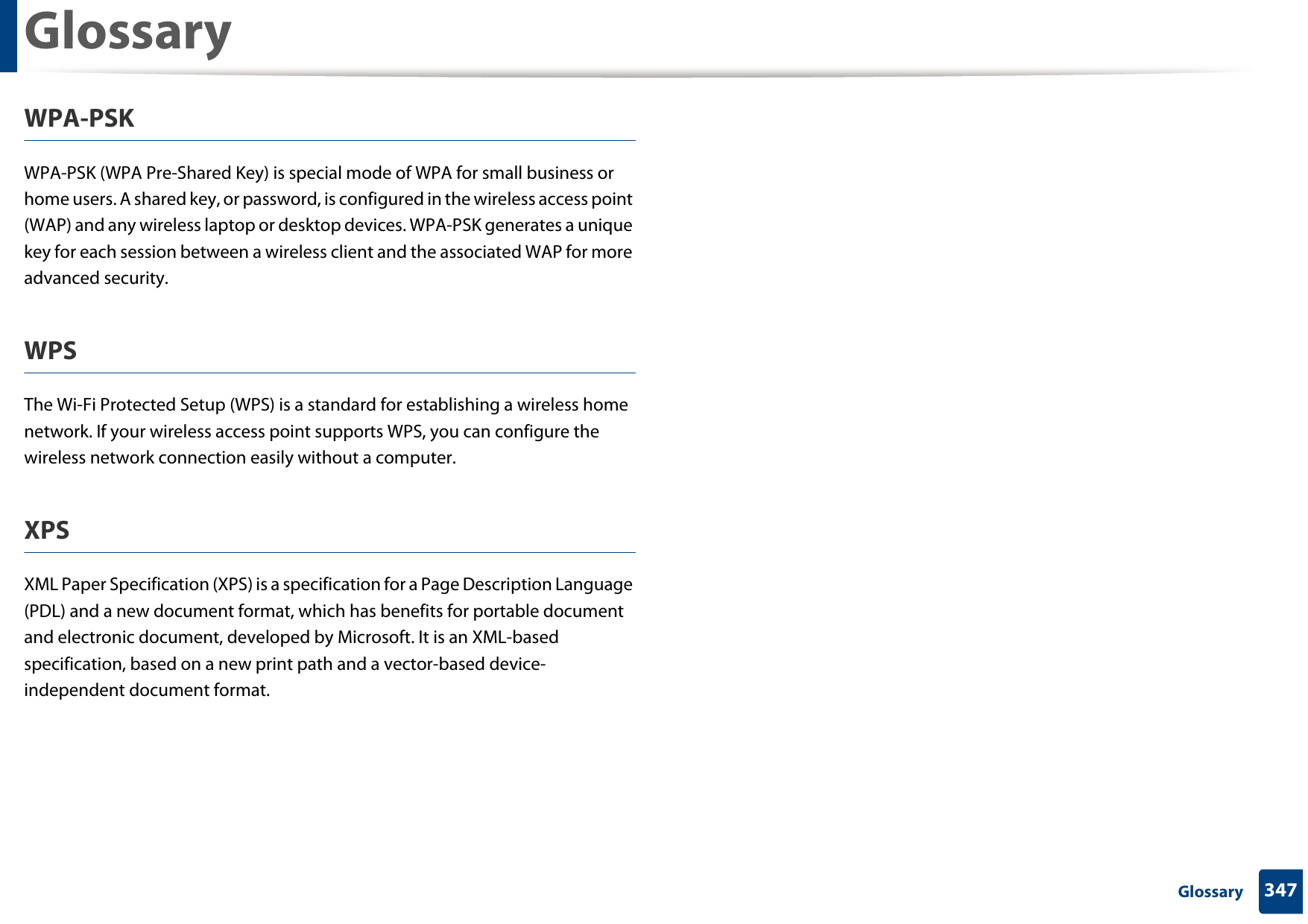
Glossary347 GlossaryWPA-PSKWPA-PSK (WPA Pre-Shared Key) is special mode of WPA for small business or home users. A shared key, or password, is configured in the wireless access point (WAP) and any wireless laptop or desktop devices. WPA-PSK generates a unique key for each session between a wireless client and the associated WAP for more advanced security.WPSThe Wi-Fi Protected Setup (WPS) is a standard for establishing a wireless home network. If your wireless access point supports WPS, you can configure the wireless network connection easily without a computer.XPSXML Paper Specification (XPS) is a specification for a Page Description Language (PDL) and a new document format, which has benefits for portable document and electronic document, developed by Microsoft. It is an XML-based specification, based on a new print path and a vector-based device-independent document format.
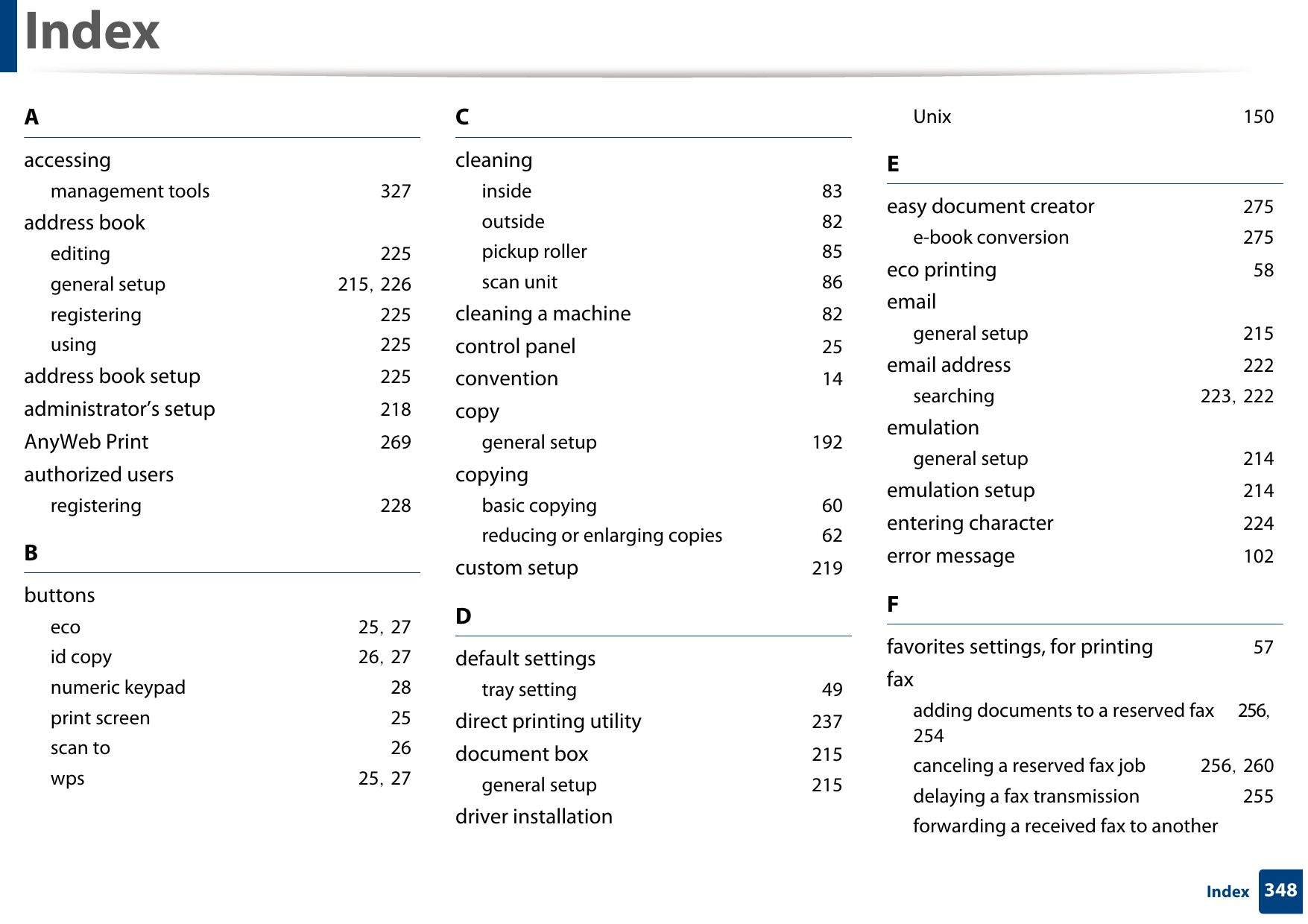
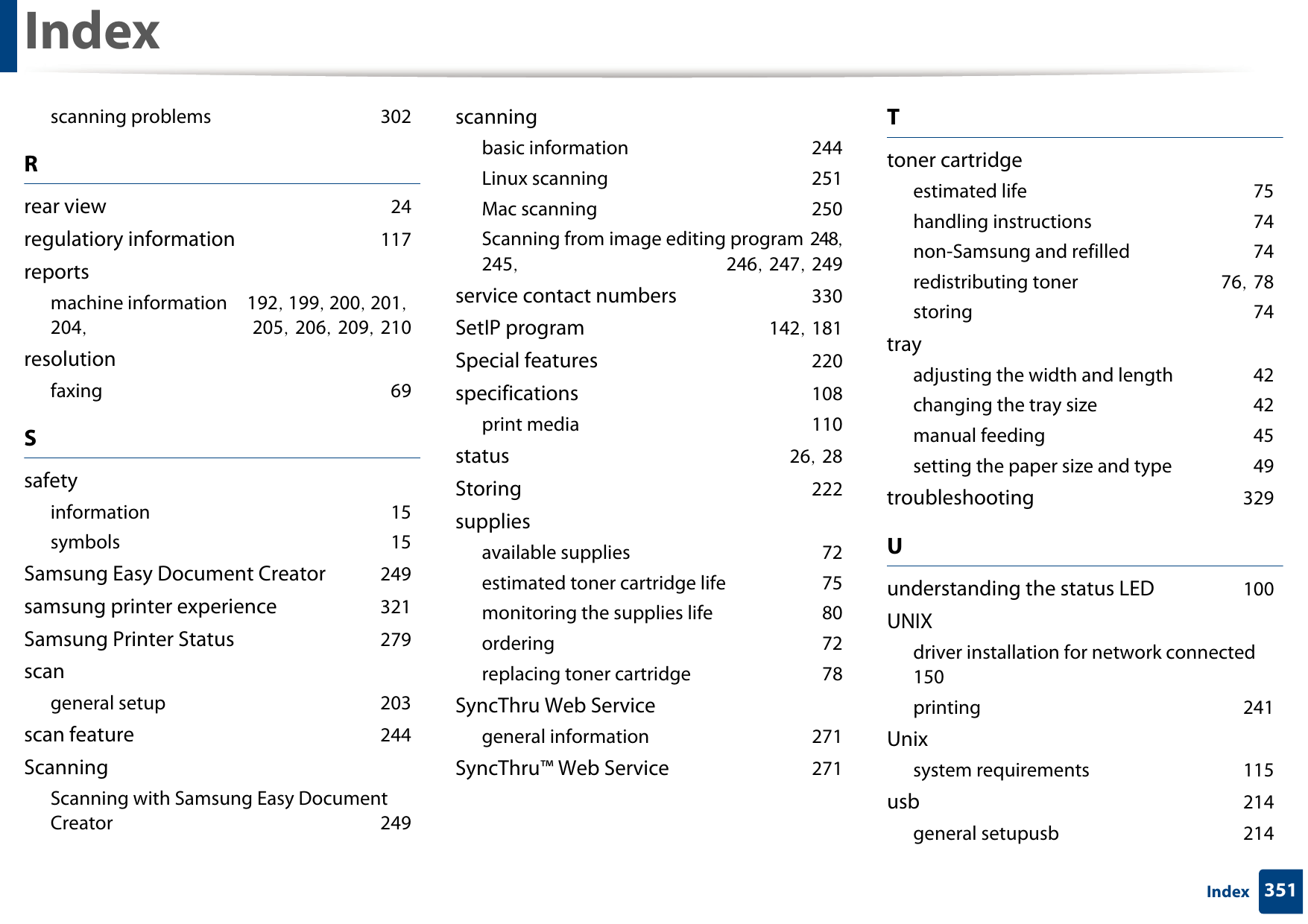
348IndexIndexAaccessingmanagement tools 327address bookediting 225general setup 215, 226registering 225using 225address book setup 225administrator’s setup 218AnyWeb Print 269authorized usersregistering 228Bbuttonseco 25, 27id copy 26, 27numeric keypad 28print screen 25scan to 26wps 25, 27Ccleaninginside 83outside 82pickup roller 85scan unit 86cleaning a machine 82control panel 25convention 14copygeneral setup 192copyingbasic copying 60reducing or enlarging copies 62custom setup 219Ddefault settingstray setting 49direct printing utility 237document box 215general setup 215driver installationUnix 150Eeasy document creator 275e-book conversion 275eco printing 58emailgeneral setup 215email address 222searching 223, 222emulationgeneral setup 214emulation setup 214entering character 224error message 102Ffavorites settings, for printing 57faxadding documents to a reserved fax 256, 254canceling a reserved fax job 256, 260delaying a fax transmission 255forwarding a received fax to another
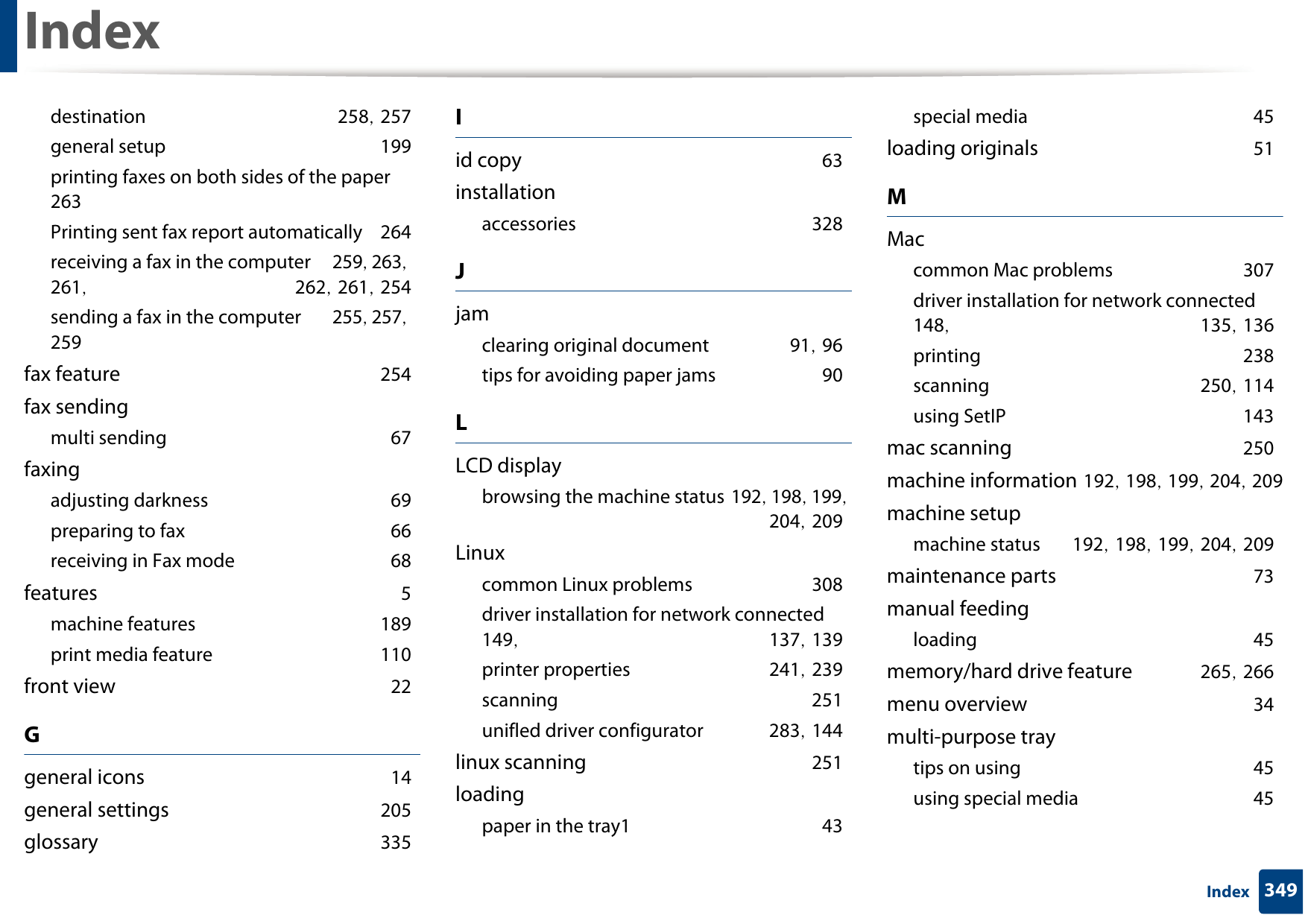
Index349Indexdestination 258, 257general setup 199printing faxes on both sides of the paper 263Printing sent fax report automatically 264receiving a fax in the computer 259, 263, 261,  262, 261, 254sending a fax in the computer 255, 257, 259fax feature 254fax sendingmulti sending 67faxingadjusting darkness 69preparing to fax 66receiving in Fax mode 68features 5machine features 189print media feature 110front view 22Ggeneral icons 14general settings 205glossary 335Iid copy 63installationaccessories 328Jjamclearing original document 91, 96tips for avoiding paper jams 90LLCD displaybrowsing the machine status 192, 198, 199, 204, 209Linuxcommon Linux problems 308driver installation for network connected 149,  137, 139printer properties 241, 239scanning 251unifled driver configurator 283, 144linux scanning 251loadingpaper in the tray1 43special media 45loading originals 51MMaccommon Mac problems 307driver installation for network connected 148,  135, 136printing 238scanning 250, 114using SetIP 143mac scanning 250machine information 192, 198, 199, 204, 209machine setupmachine status 192, 198, 199, 204, 209maintenance parts 73manual feedingloading 45memory/hard drive feature 265, 266menu overview 34multi-purpose traytips on using 45using special media 45
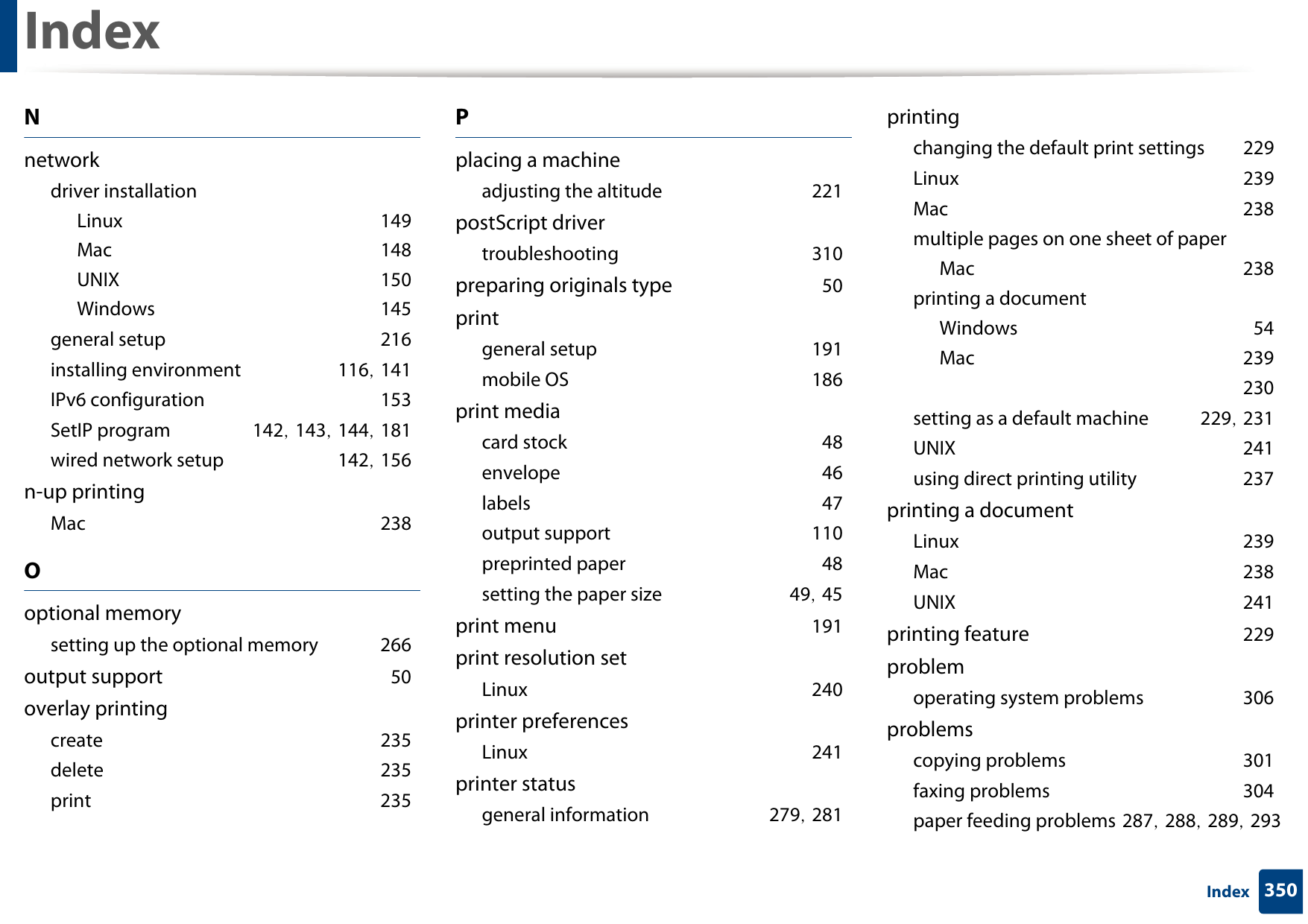
Index350IndexNnetworkdriver installationLinux 149Mac 148UNIX 150Windows 145general setup 216installing environment 116, 141IPv6 configuration 153SetIP program 142, 143, 144, 181wired network setup 142, 156n-up printingMac 238Ooptional memorysetting up the optional memory 266output support 50overlay printingcreate 235delete 235print 235Pplacing a machineadjusting the altitude 221postScript drivertroubleshooting 310preparing originals type 50printgeneral setup 191mobile OS 186print mediacard stock 48envelope 46labels 47output support 110preprinted paper 48setting the paper size 49, 45print menu 191print resolution setLinux 240printer preferencesLinux 241printer statusgeneral information 279, 281printingchanging the default print settings 229Linux 239Mac 238multiple pages on one sheet of paperMac 238printing a documentWindows 54Mac 239 230setting as a default machine 229, 231UNIX 241using direct printing utility 237printing a documentLinux 239Mac 238UNIX 241printing feature 229problemoperating system problems 306problemscopying problems 301faxing problems 304paper feeding problems 287, 288, 289, 293
Index351Indexscanning problems 302Rrear view 24regulatiory information 117reportsmachine information 192, 199, 200, 201, 204,  205, 206, 209, 210resolutionfaxing 69Ssafetyinformation 15symbols 15Samsung Easy Document Creator 249samsung printer experience 321Samsung Printer Status 279scangeneral setup 203scan feature 244ScanningScanning with Samsung Easy Document Creator 249scanningbasic information 244Linux scanning 251Mac scanning 250Scanning from image editing program 248, 245,  246, 247, 249service contact numbers 330SetIP program 142, 181Special features 220specifications 108print media 110status 26, 28Storing 222suppliesavailable supplies 72estimated toner cartridge life 75monitoring the supplies life 80ordering 72replacing toner cartridge 78SyncThru Web Servicegeneral information 271SyncThru™ Web Service 271Ttoner cartridgeestimated life 75handling instructions 74non-Samsung and refilled 74redistributing toner 76, 78storing 74trayadjusting the width and length 42changing the tray size 42manual feeding 45setting the paper size and type 49troubleshooting 329Uunderstanding the status LED 100UNIXdriver installation for network connected 150printing 241Unixsystem requirements 115usb 214general setupusb 214
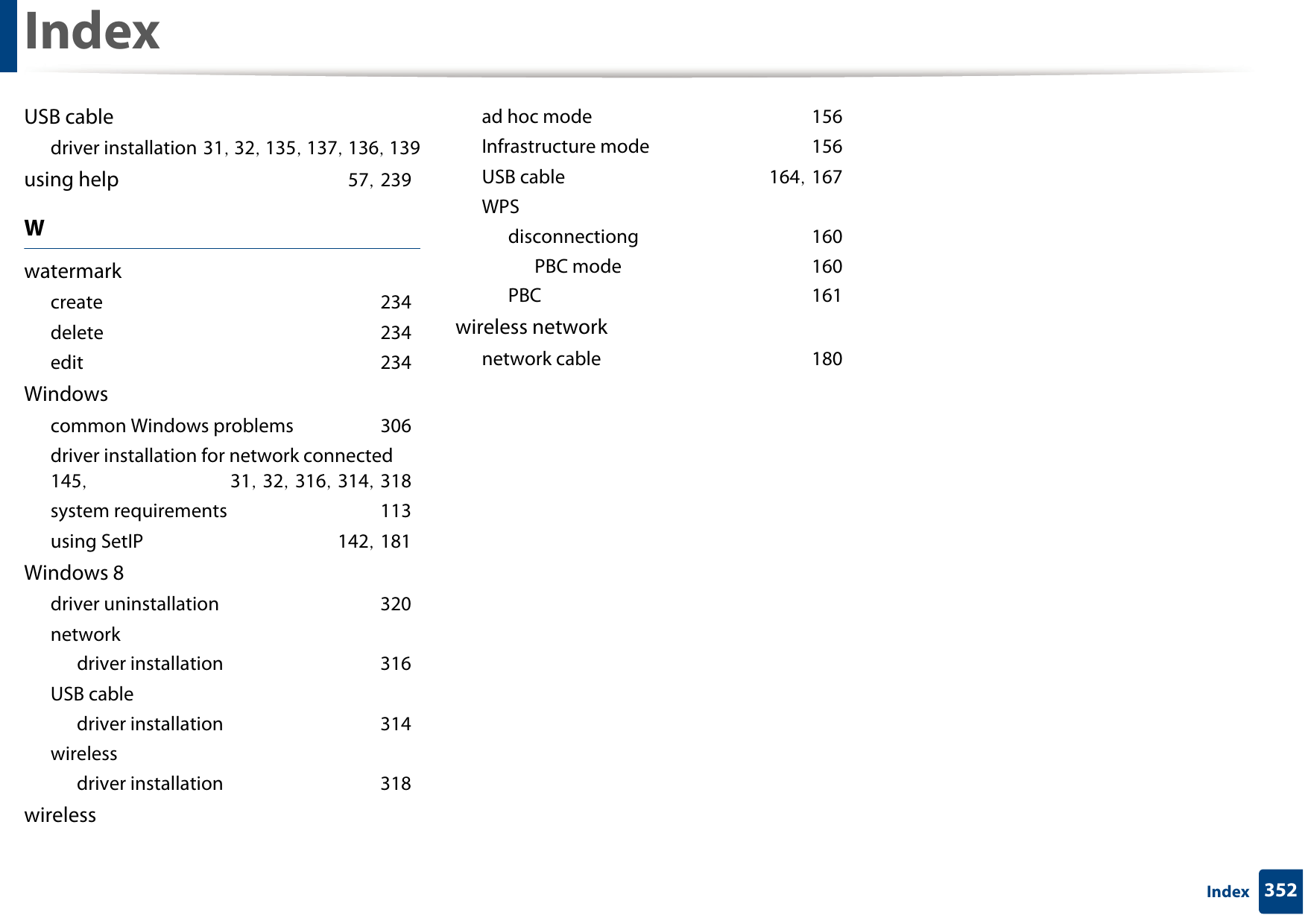
Index352IndexUSB cabledriver installation 31, 32, 135, 137, 136, 139using help 57, 239Wwatermarkcreate 234delete 234edit 234Windowscommon Windows problems 306driver installation for network connected 145,  31, 32, 316, 314, 318system requirements 113using SetIP 142, 181Windows 8driver uninstallation 320networkdriver installation 316USB cabledriver installation 314wirelessdriver installation 318wirelessad hoc mode 156Infrastructure mode 156USB cable 164, 167WPSdisconnectiong 160PBC mode 160PBC 161wireless networknetwork cable 180

Navigation menu