Samsung Electronics Co SMJ727R4 Multi-band GSM/EDGE/CDMA/UMTS/LTE Phone with Bluetooth, WLAN and ANT+ User Manual 2
Samsung Electronics Co Ltd Multi-band GSM/EDGE/CDMA/UMTS/LTE Phone with Bluetooth, WLAN and ANT+ Users Manual 2
Contents
- 1. Users Manual 1
- 2. Users Manual 2
Users Manual 2
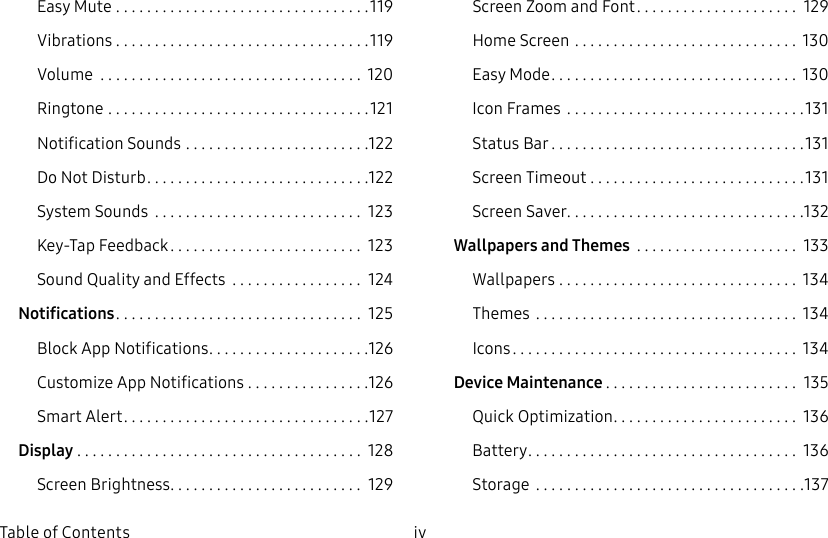
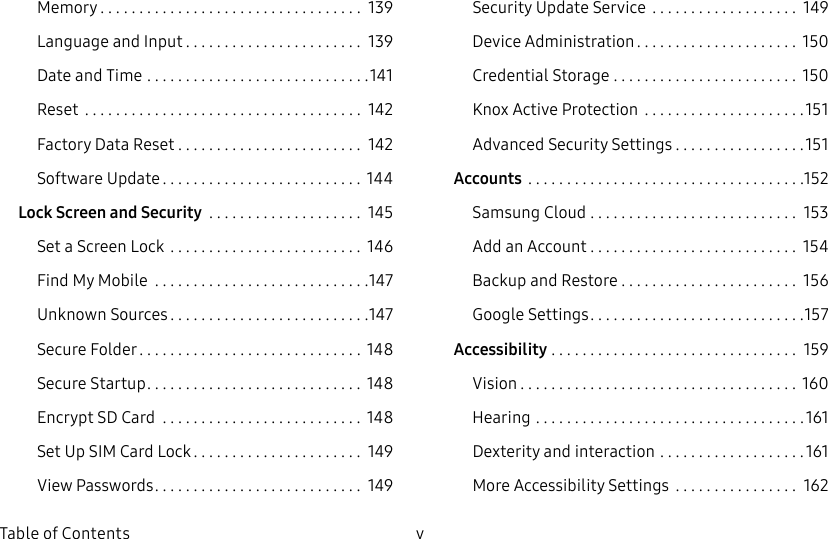
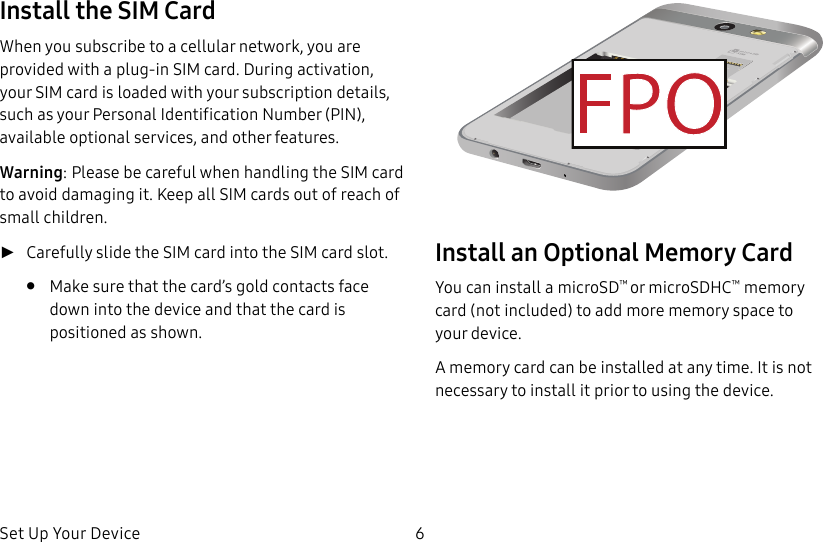
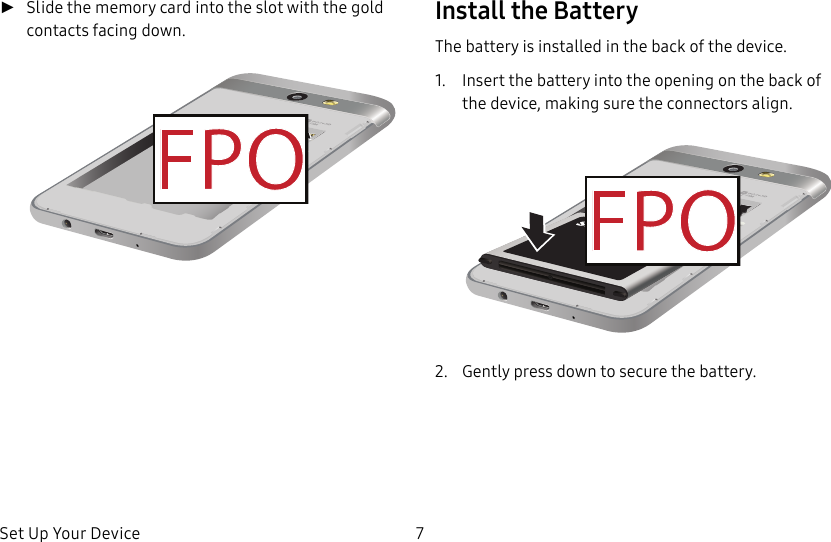
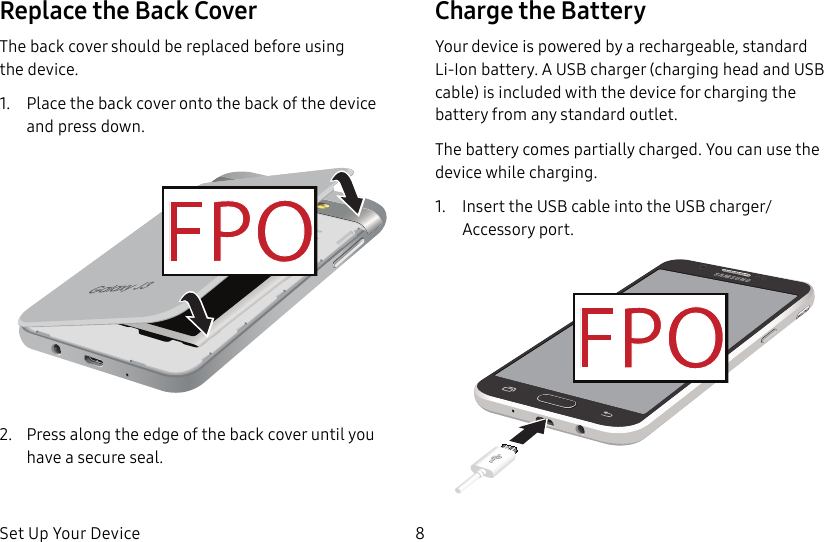
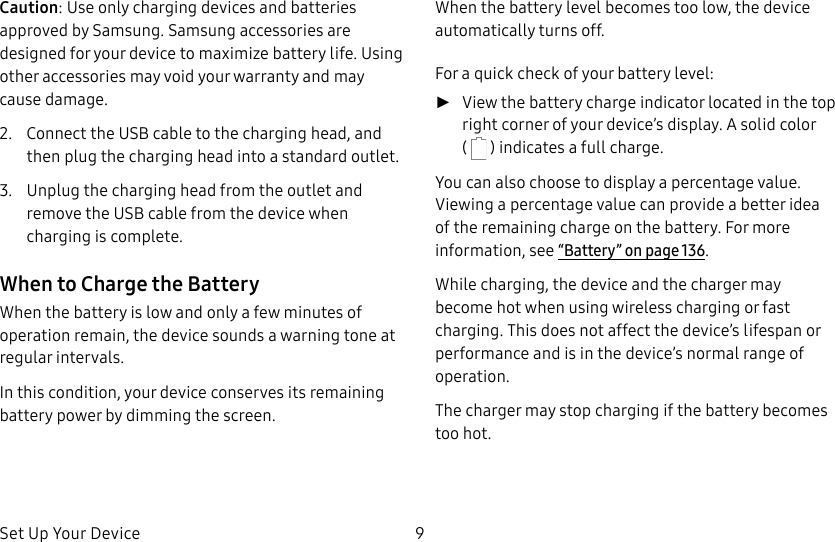
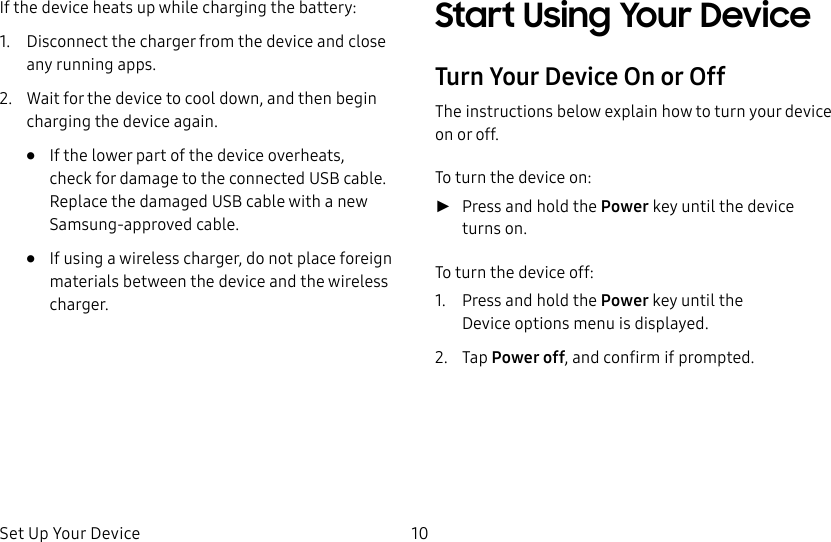
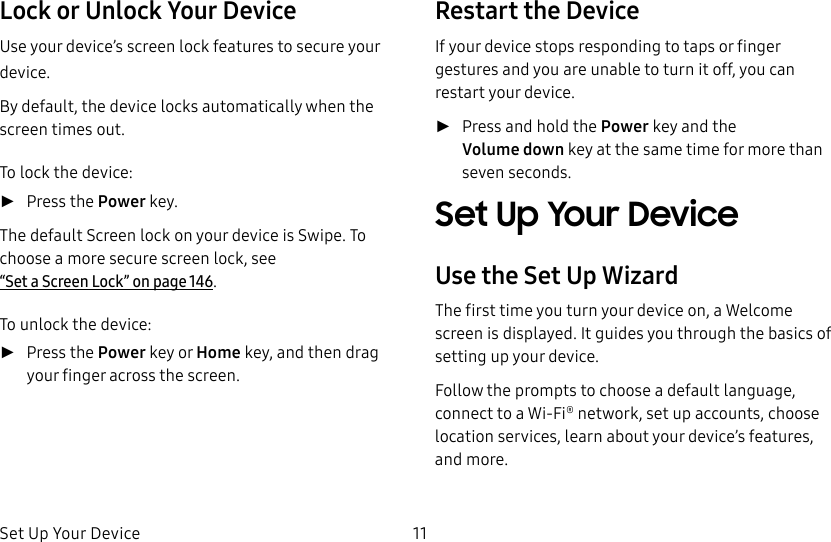
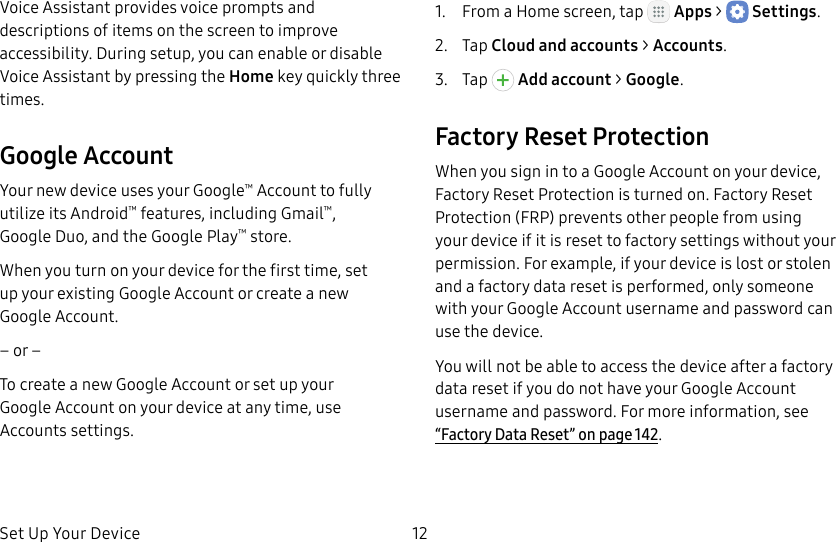
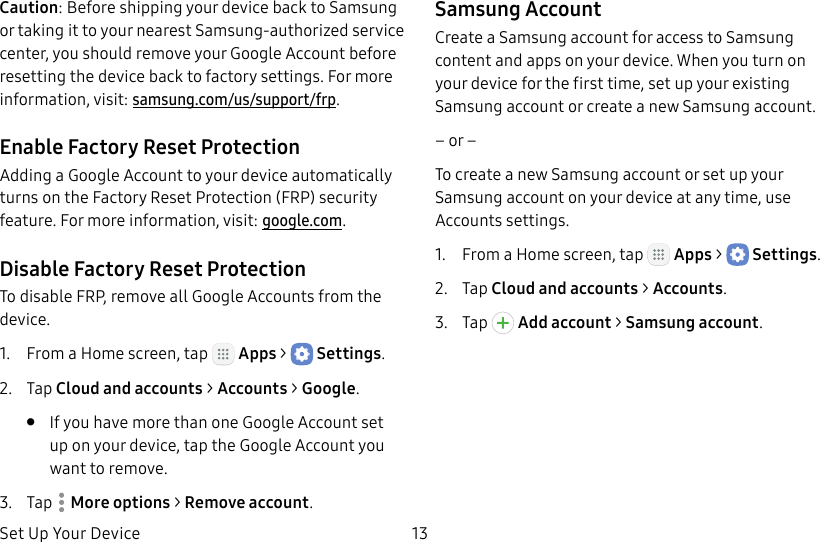
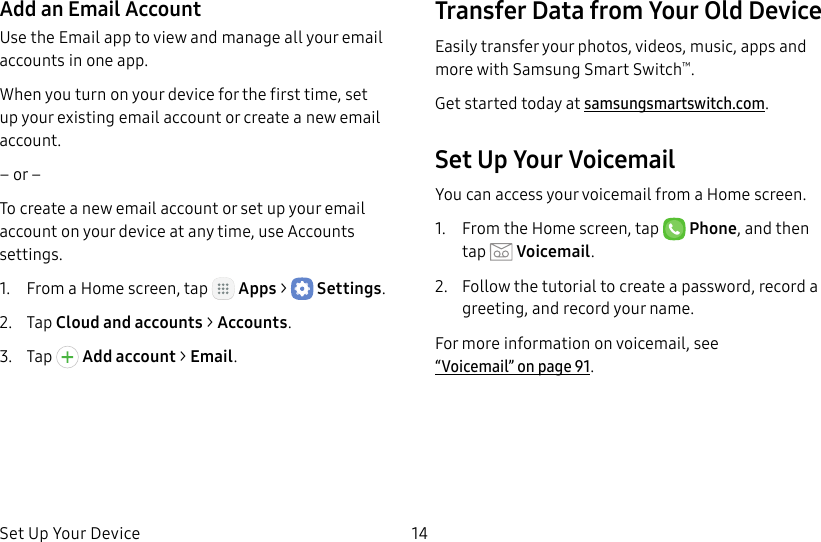
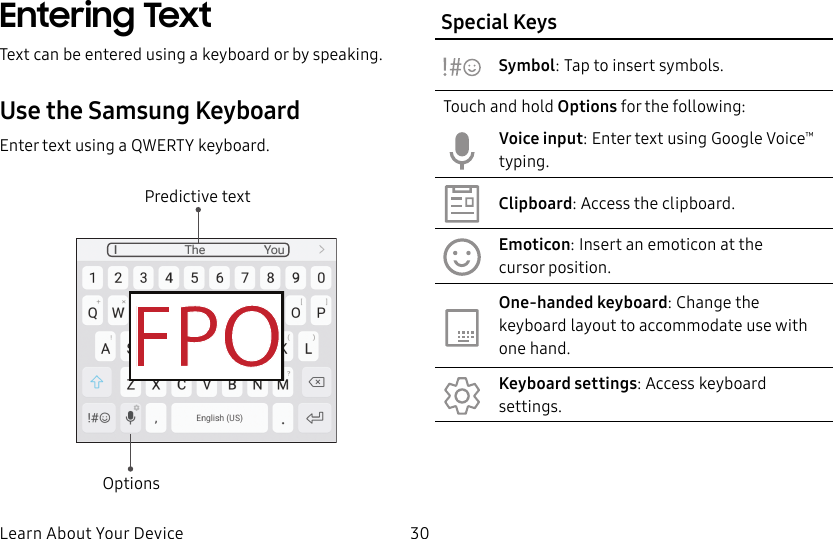
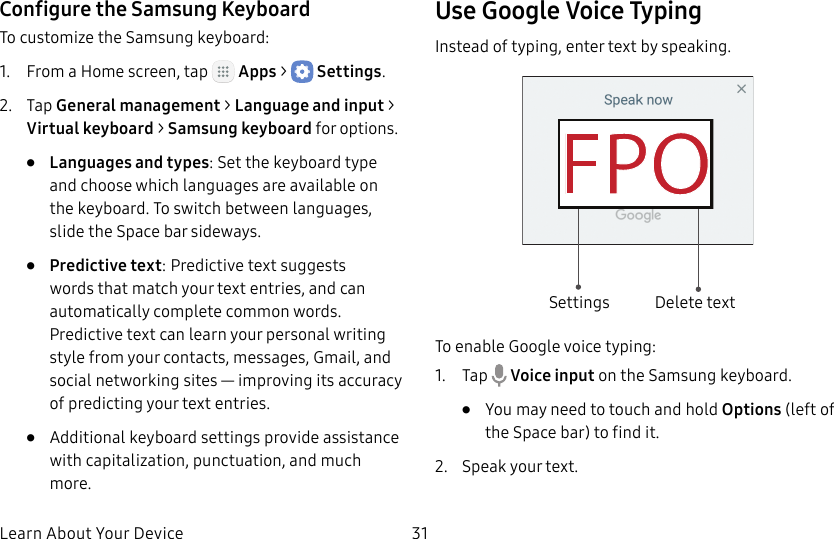
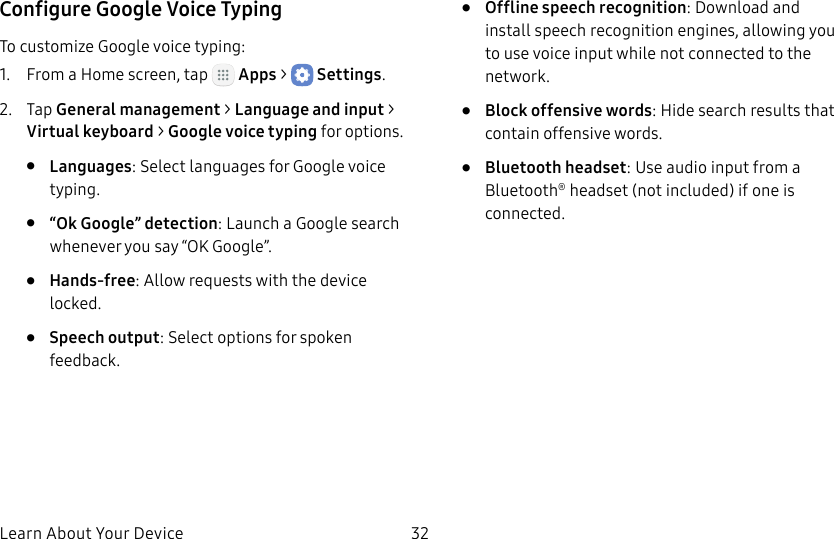
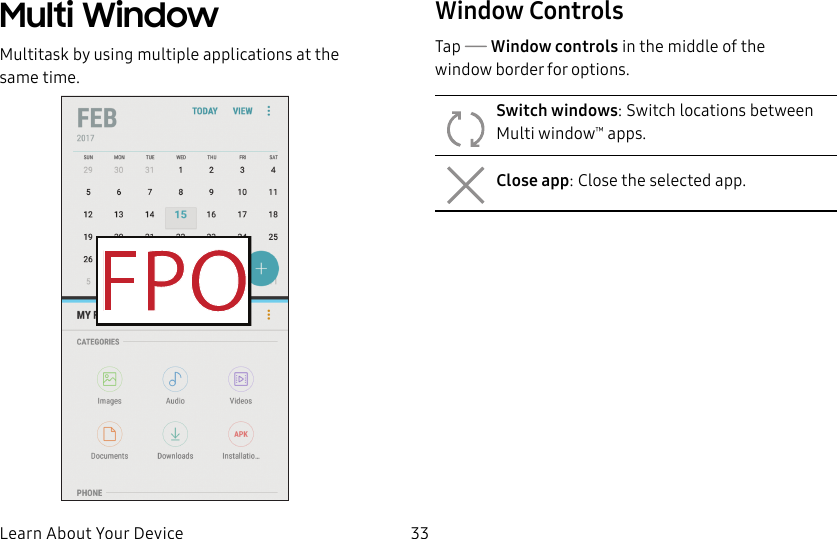
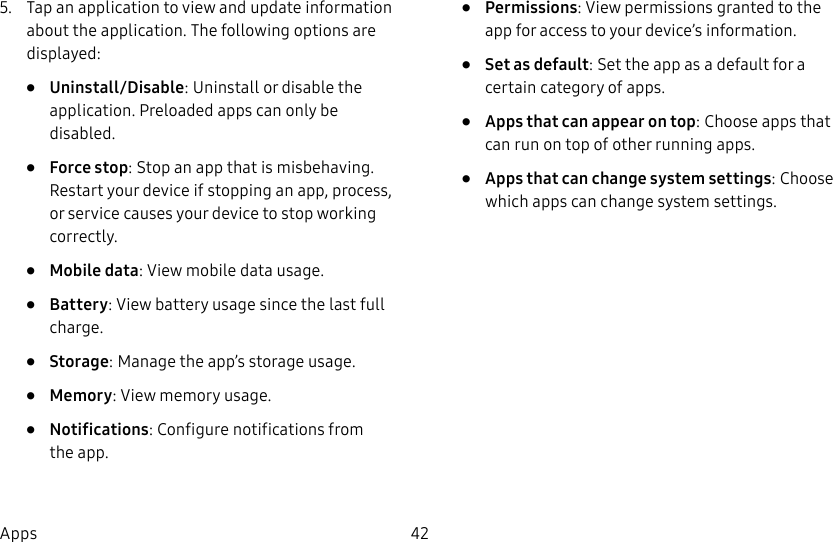
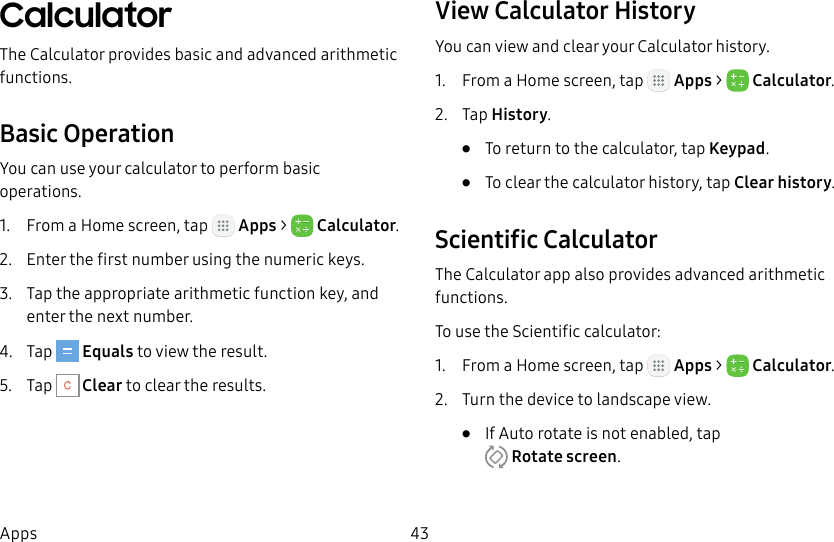
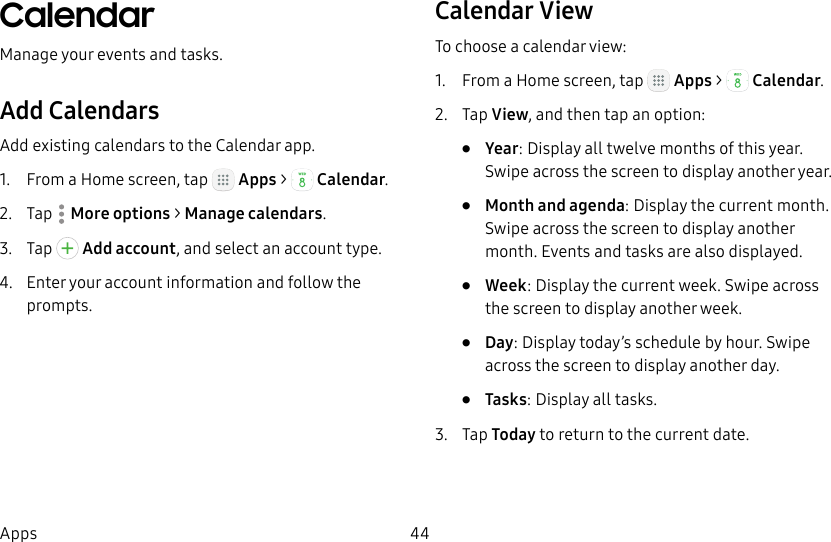
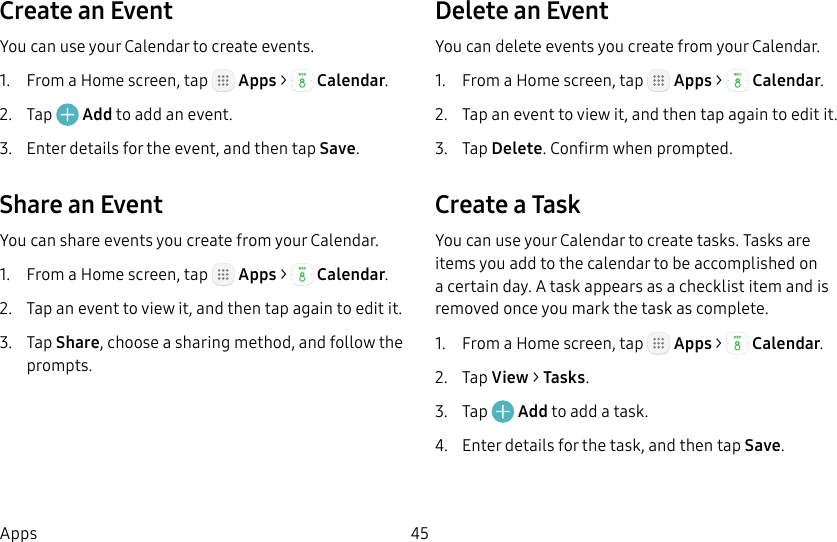
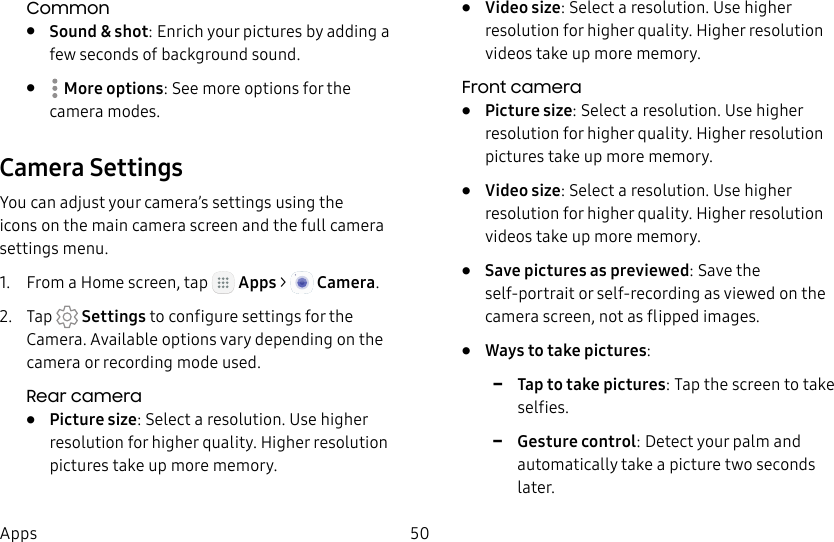
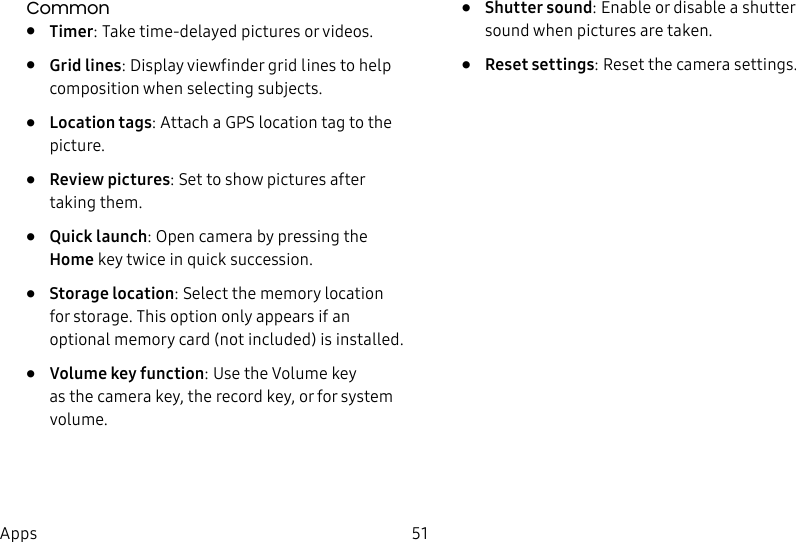
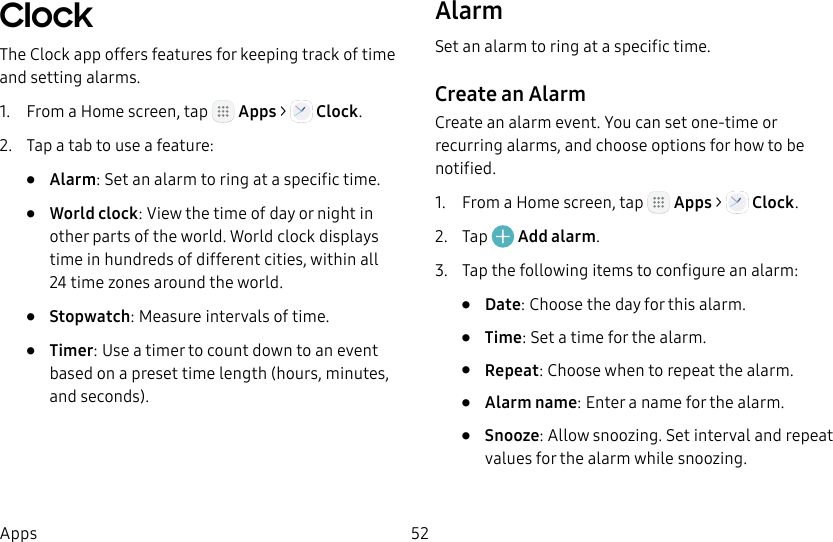
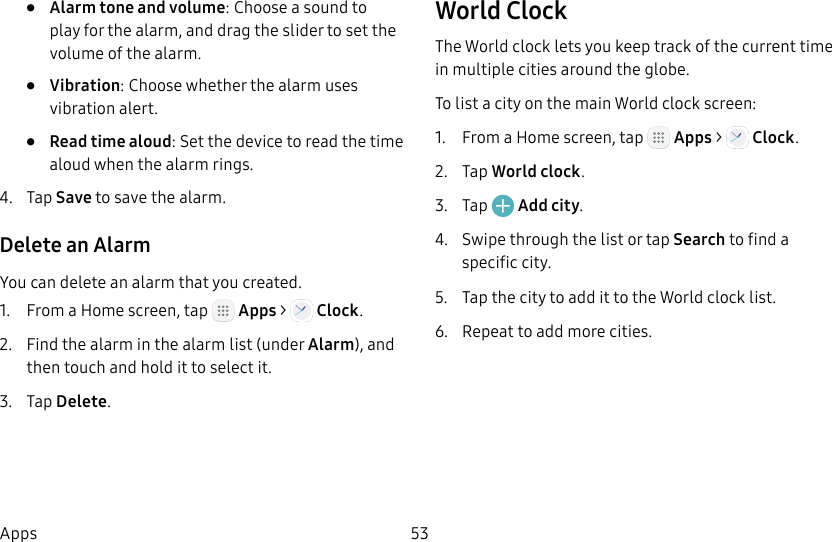
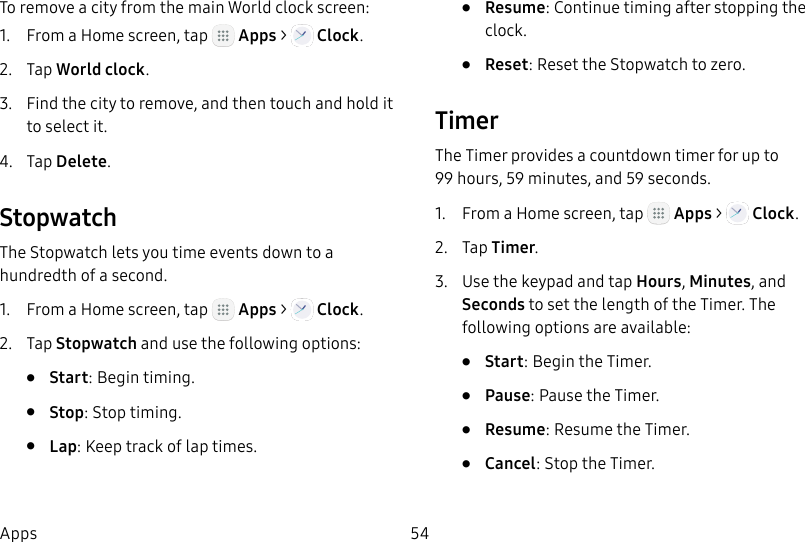
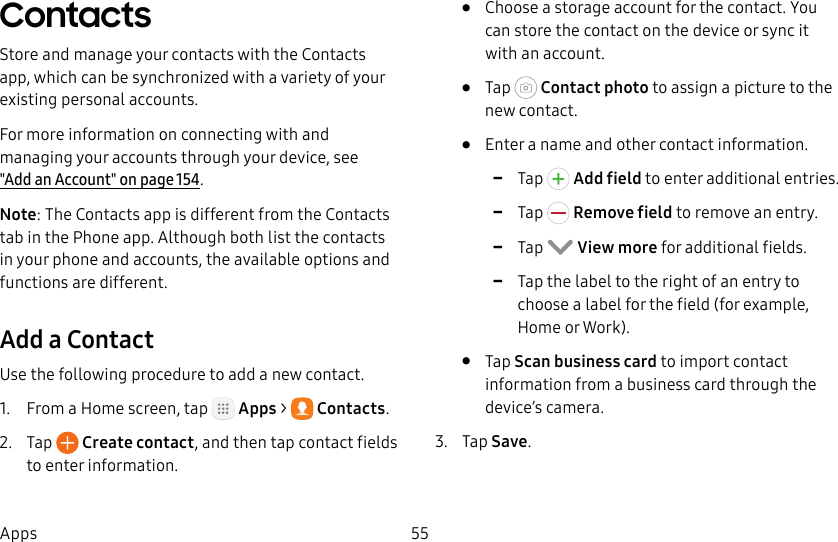
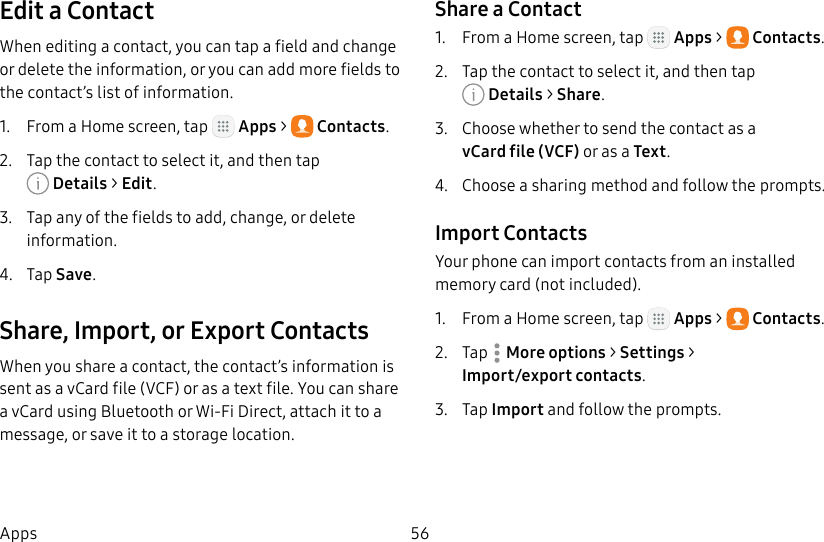
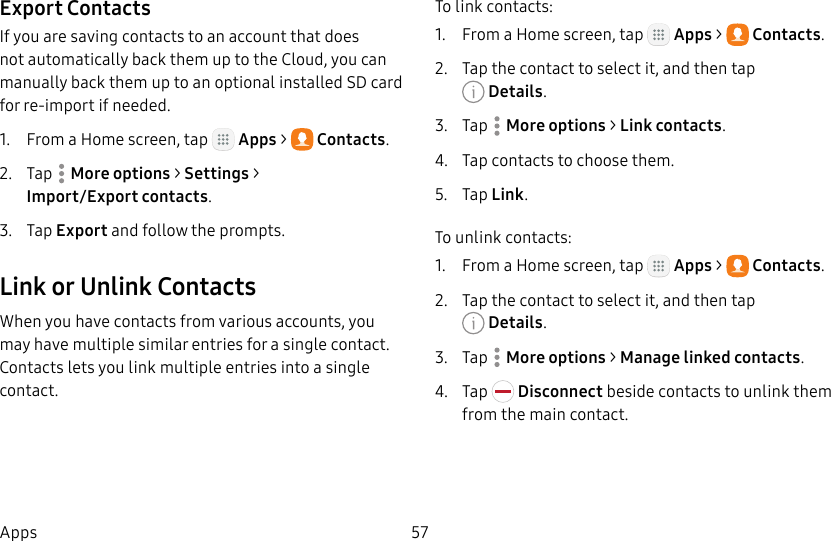
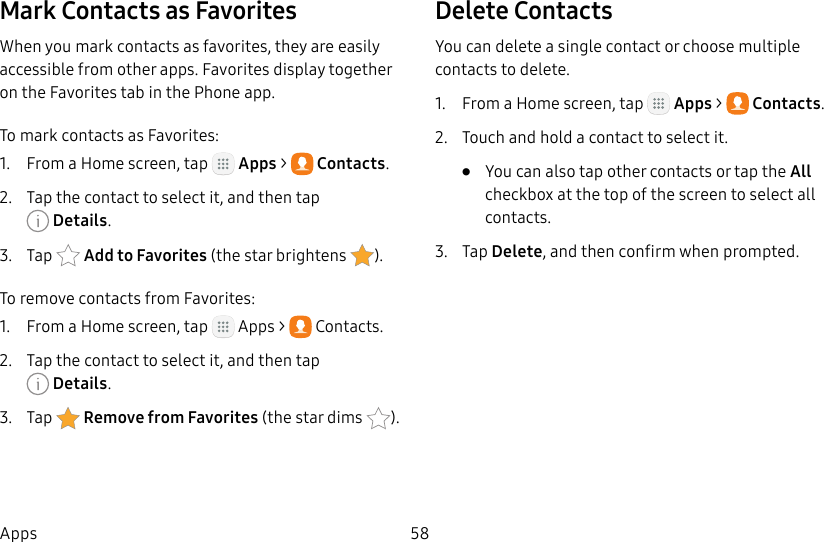
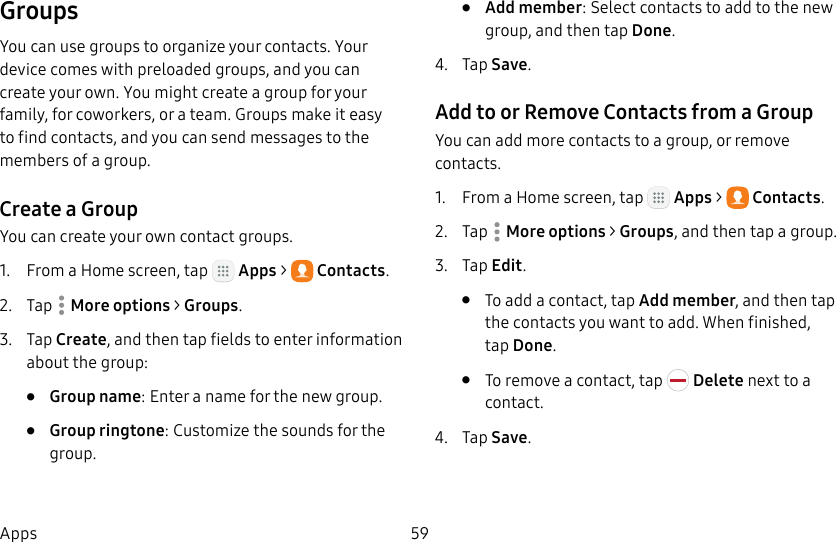
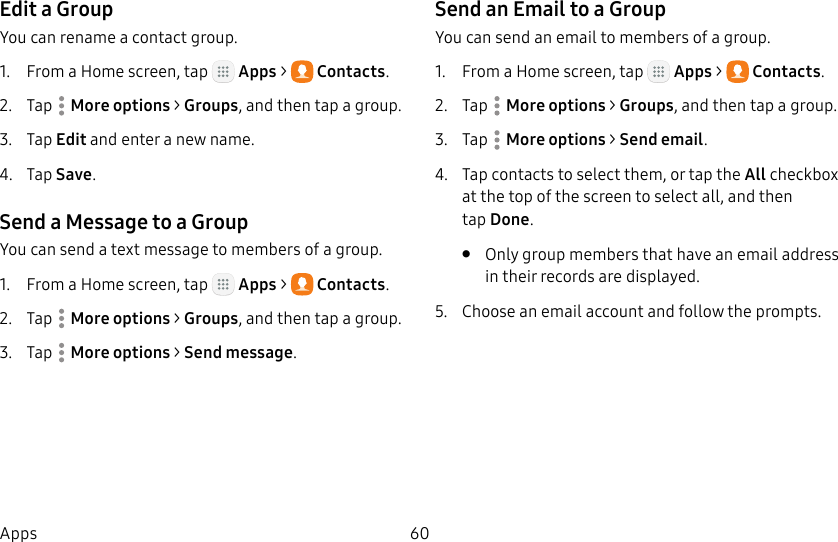
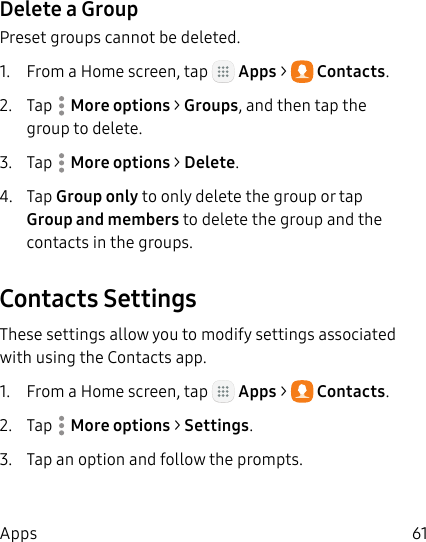
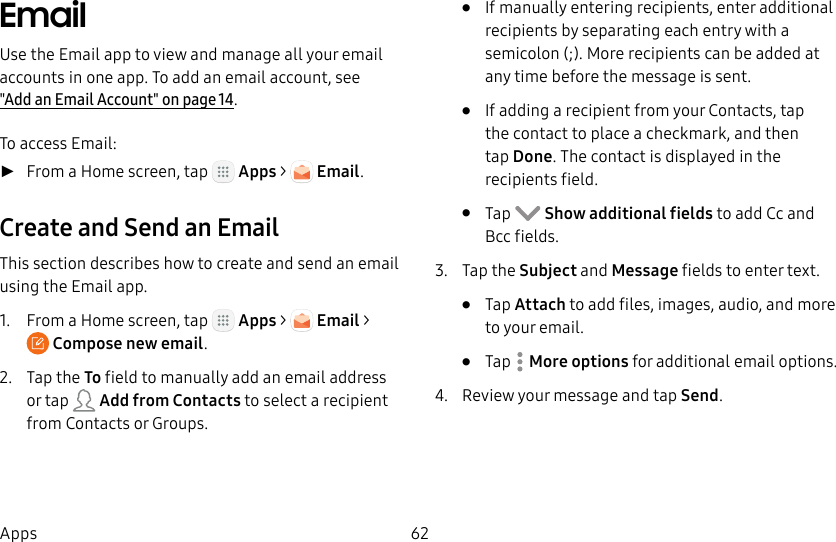
![DRAFT–FOR INTERNAL USE ONLY63AppsManage the InboxThere are several tools available from the Inbox screen. ►From a Home screen, tap Apps > Email.• Tap a message to read and reply or forward it.• Tap Search to search for key words in your email inbox.• Tap Edit for additional message options like sorting, deleting, sharing and more.• Tap Sort by to customize how messages display.View Multiple Email AccountsYou can view email you receive for multiple accounts on the Combined inbox screen or you can view email accounts individually.1. From a Home screen, tap Apps > Email.2. Tap Mailbox at the top left of the screen to view the current account mailbox.3. Tap the account name to view:• All accounts: View all email in a combined inbox.• [Account Name]: View email for only one email account.](https://usermanual.wiki/Samsung-Electronics-Co/SMJ727R4.Users-Manual-2/User-Guide-3337911-Page-69.png)
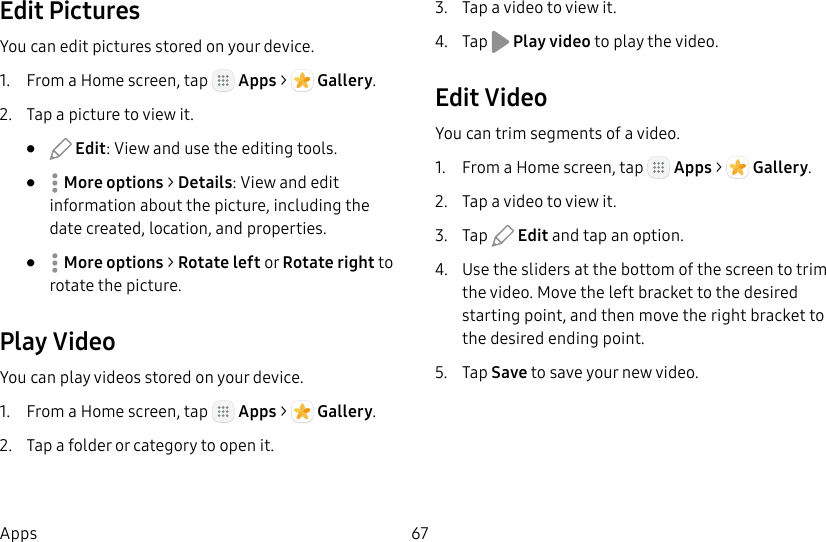
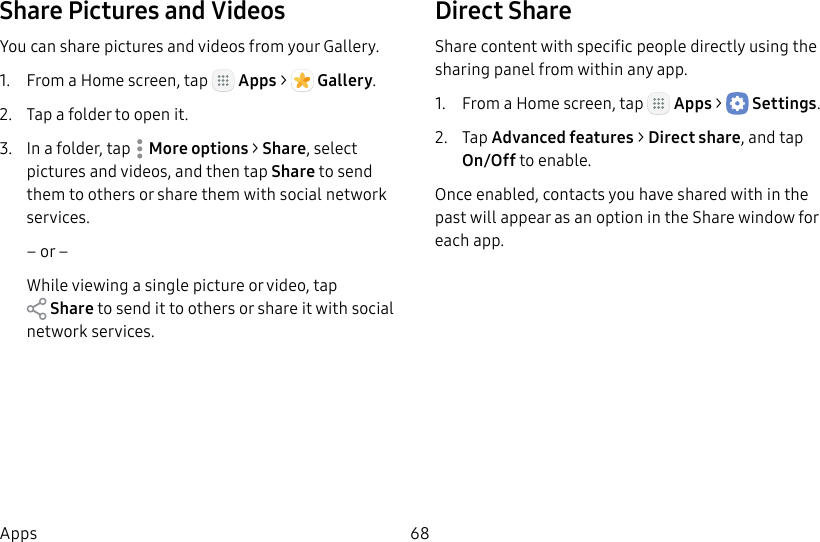
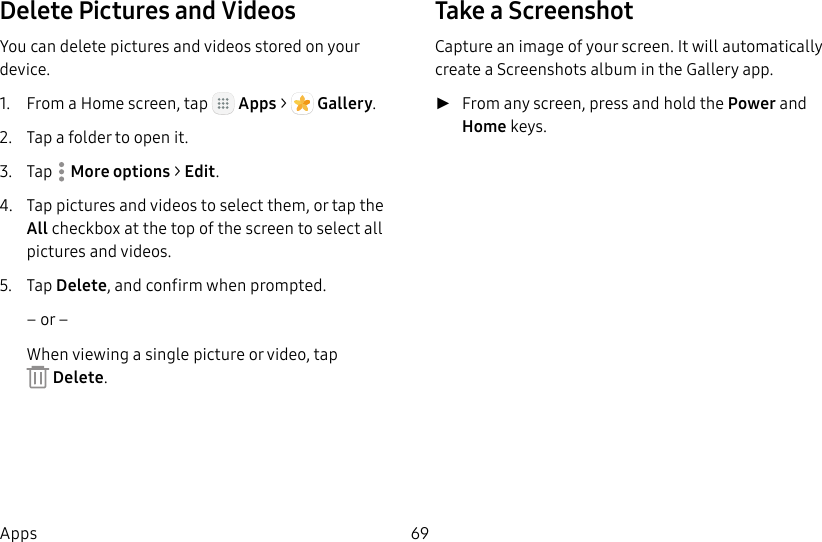
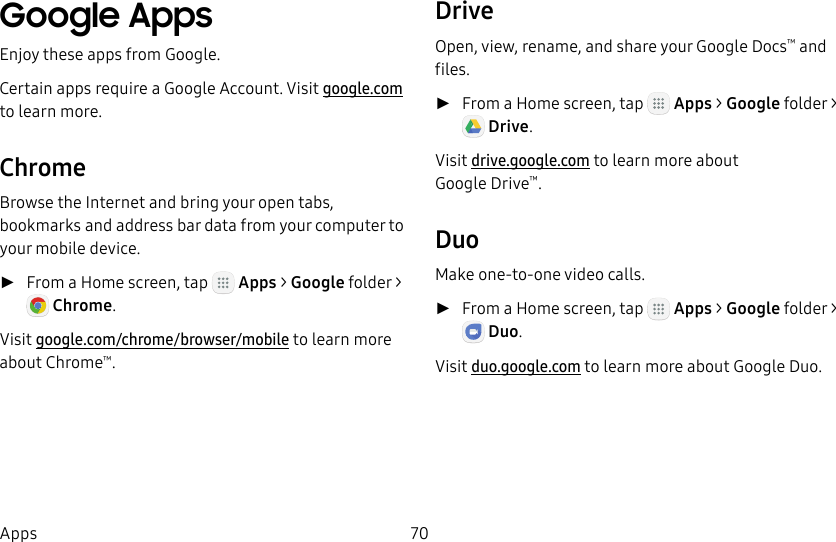
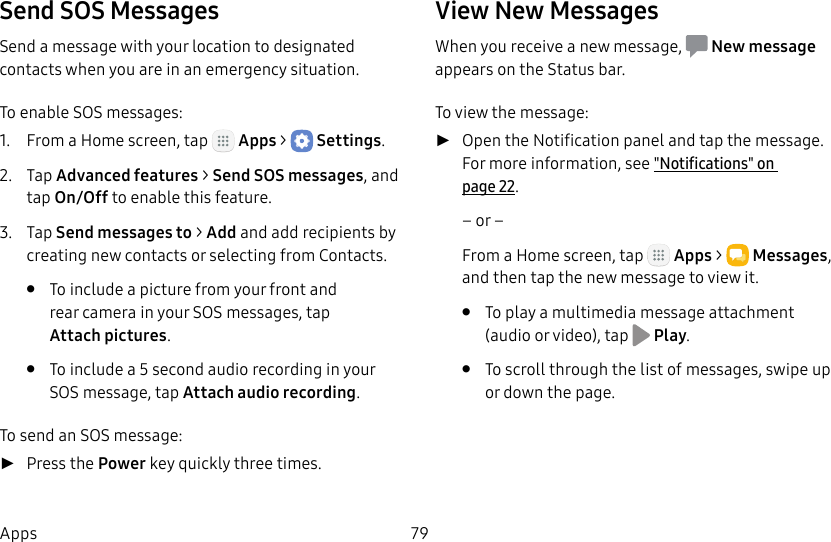
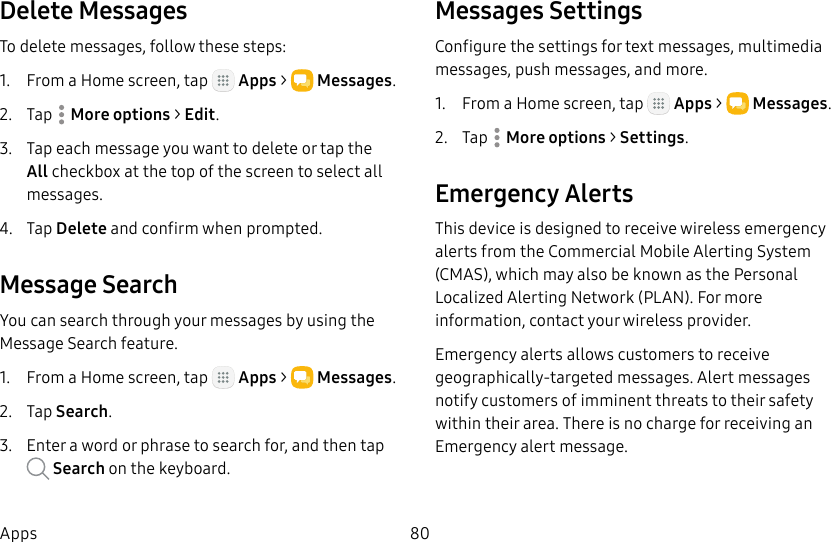
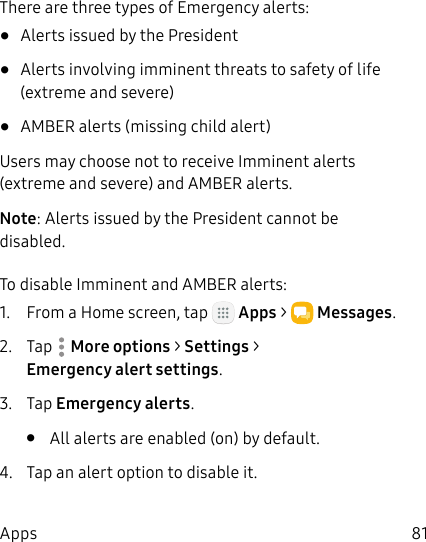
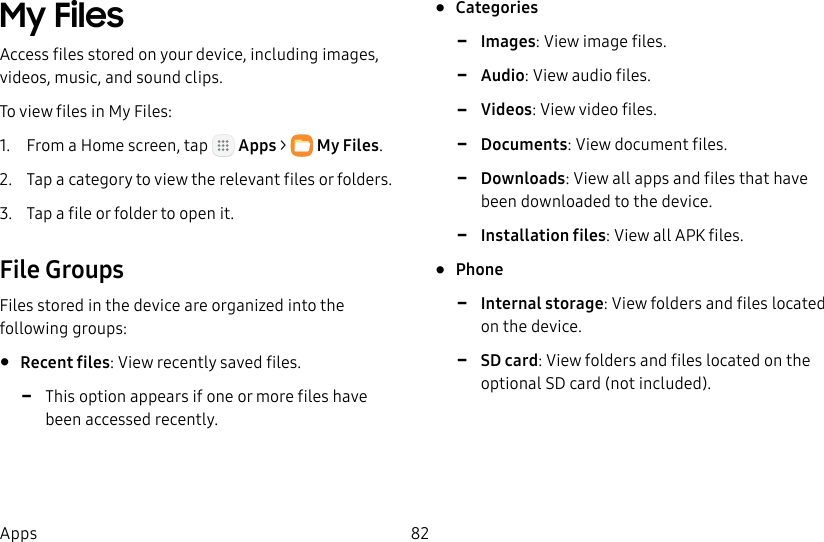
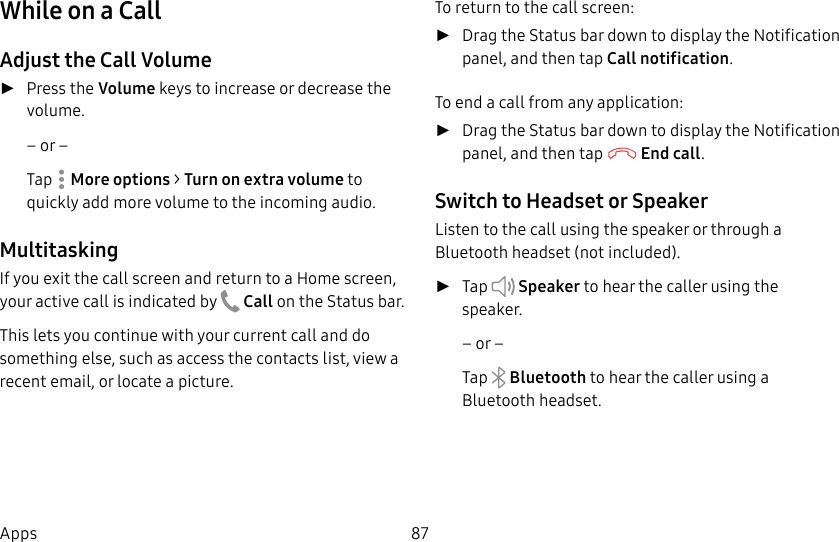
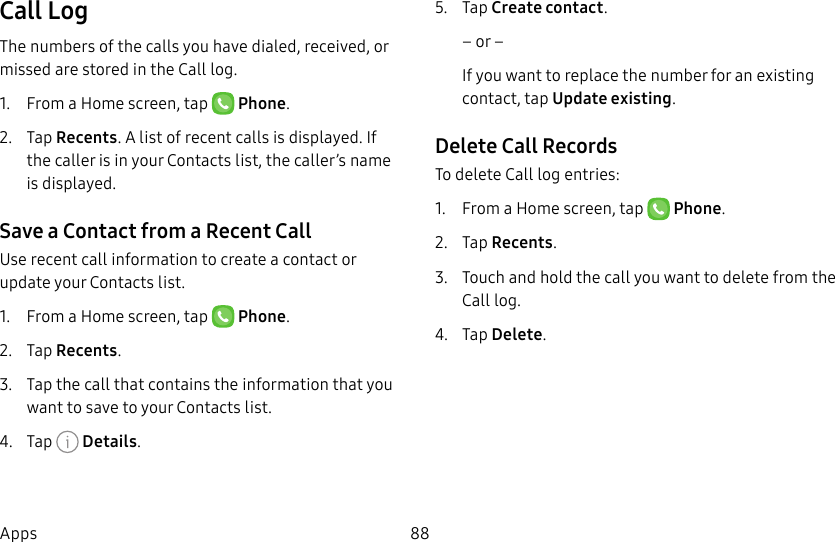
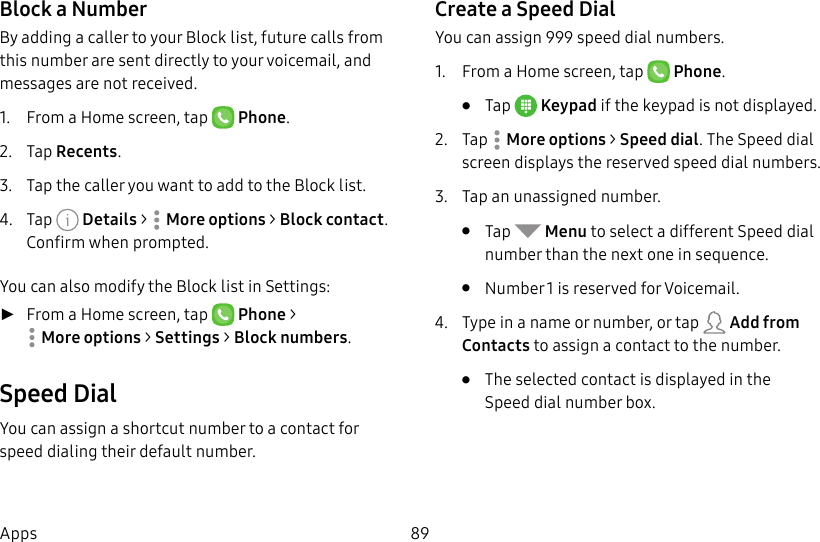
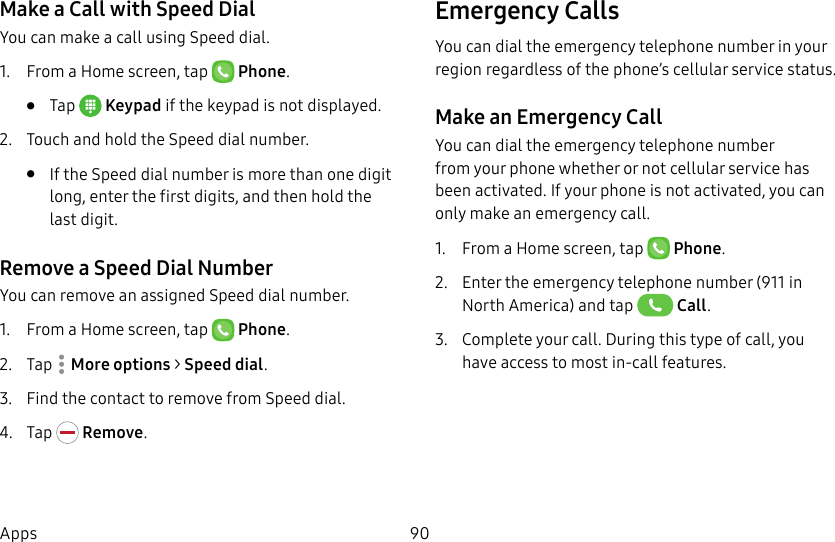
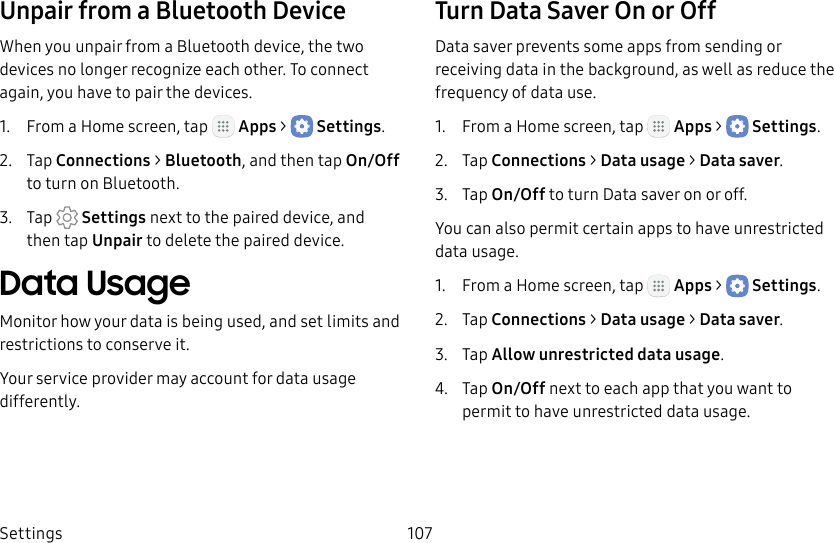
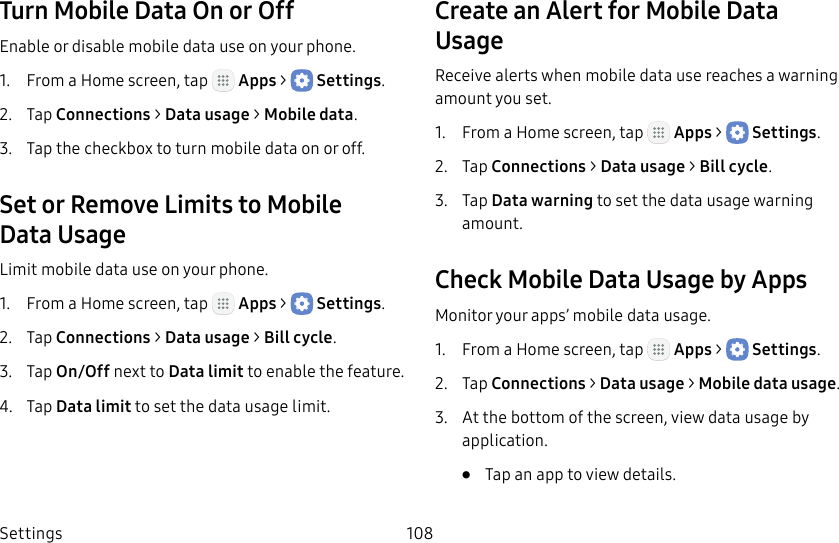
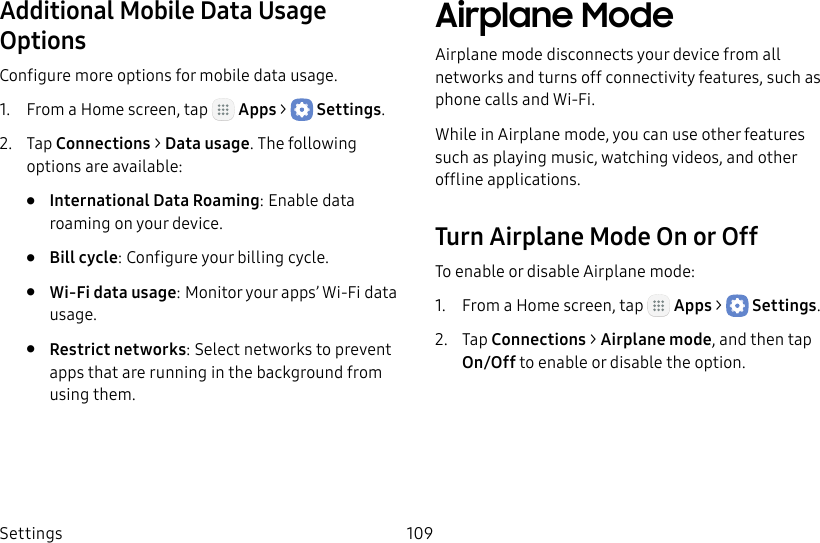
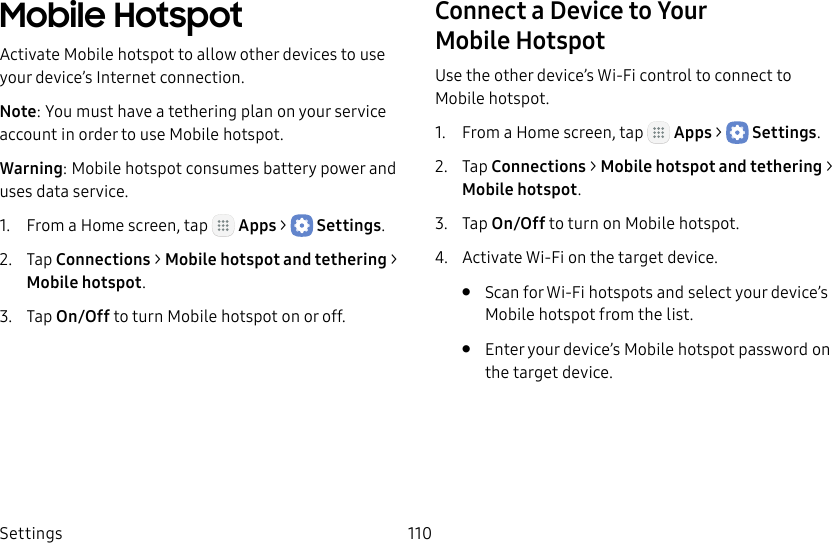
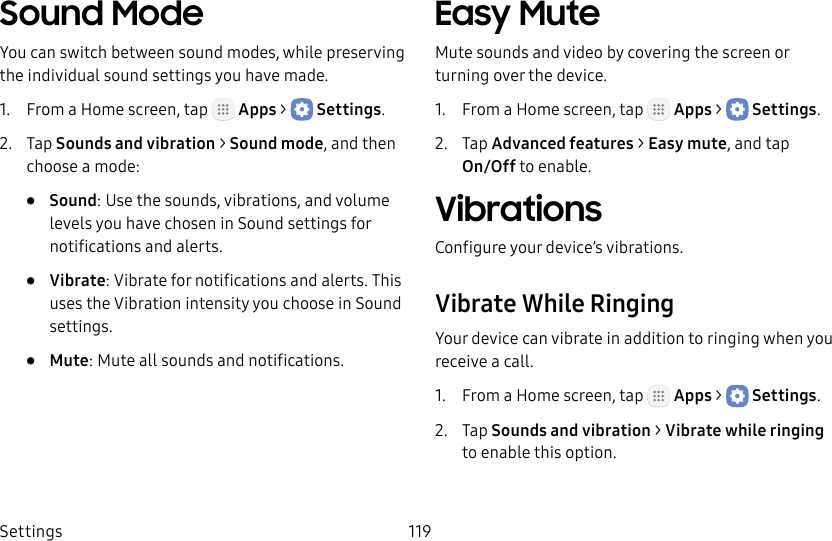
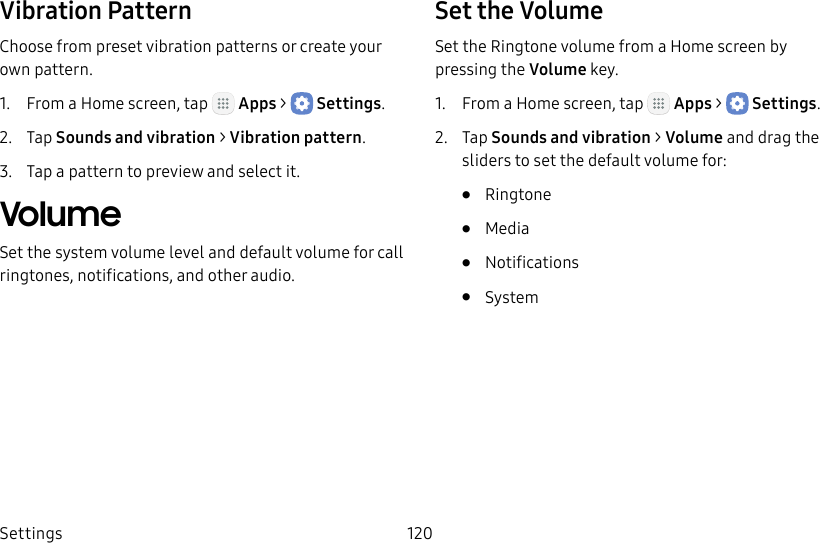
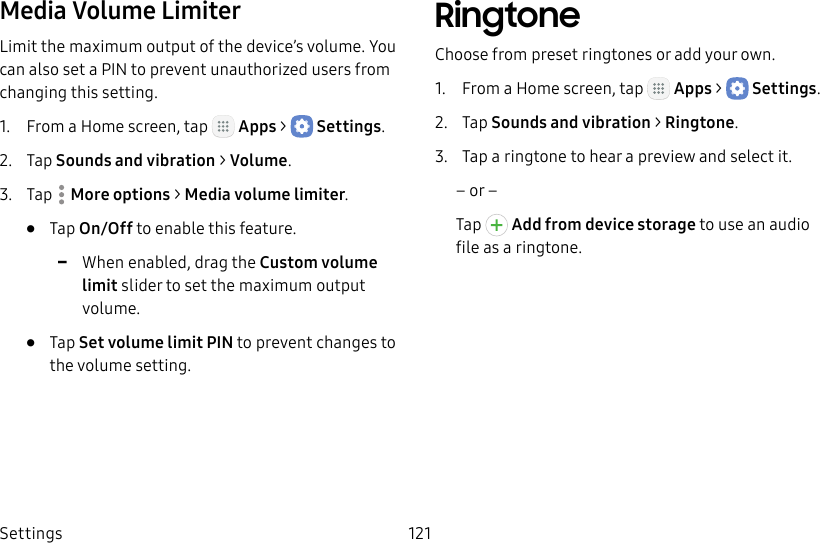
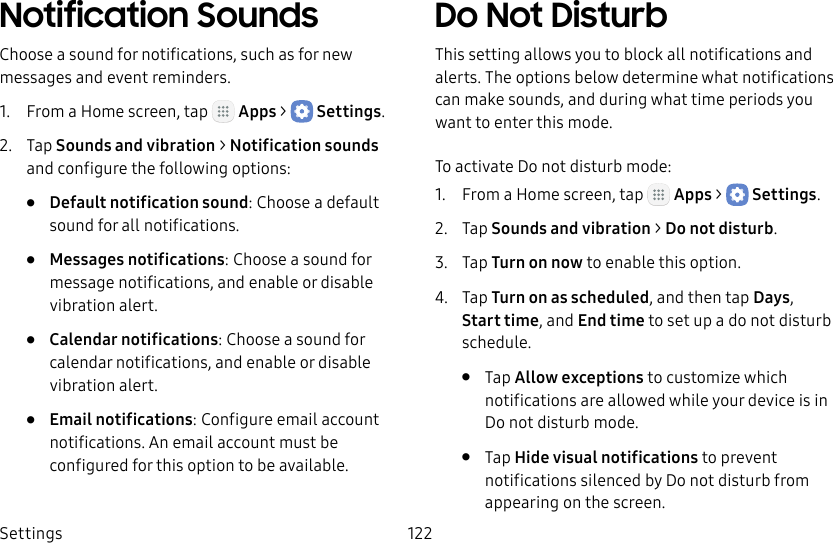
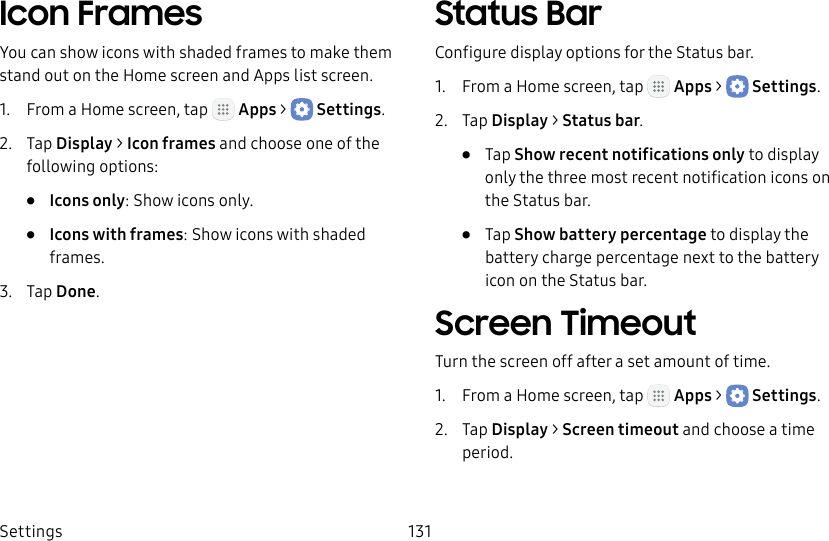
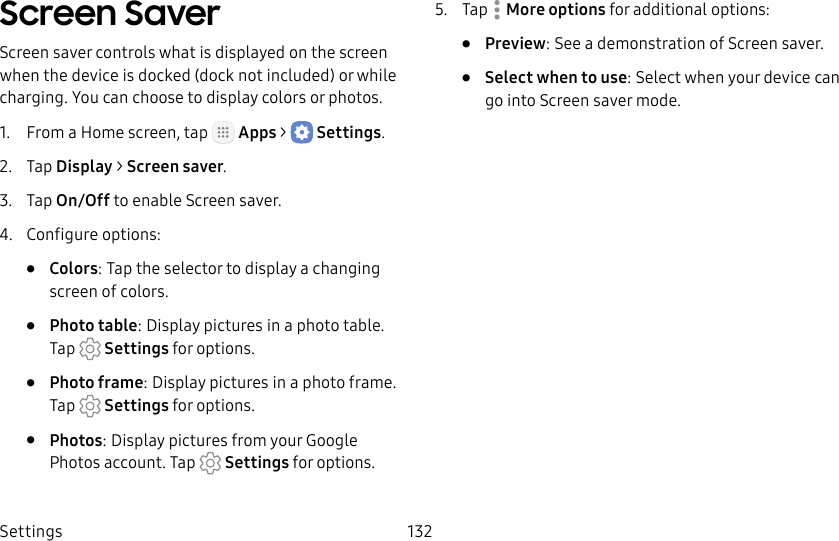

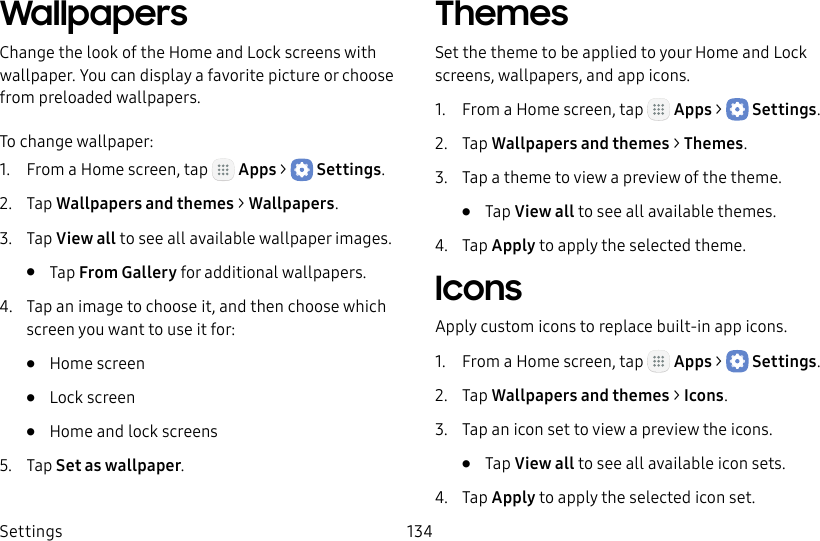
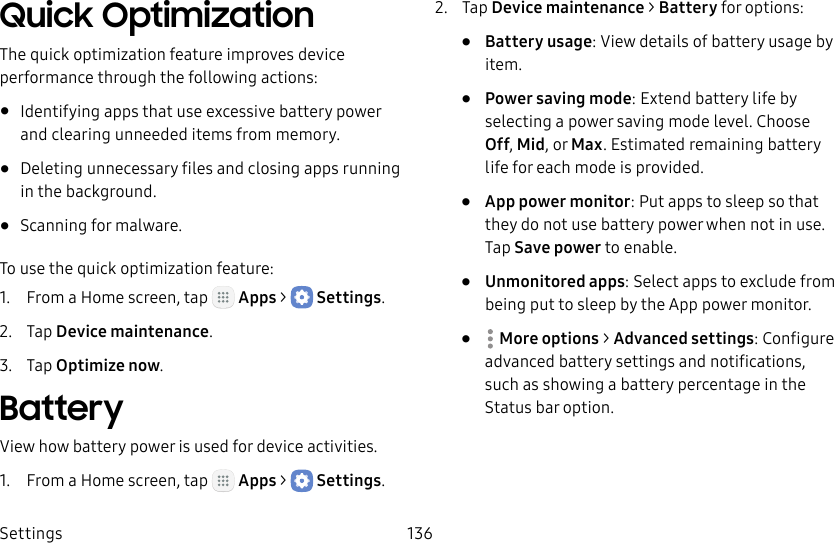
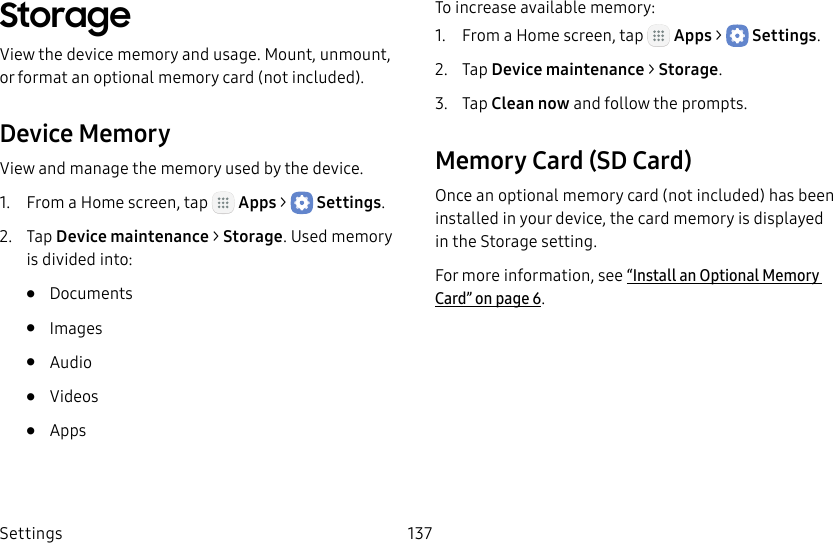
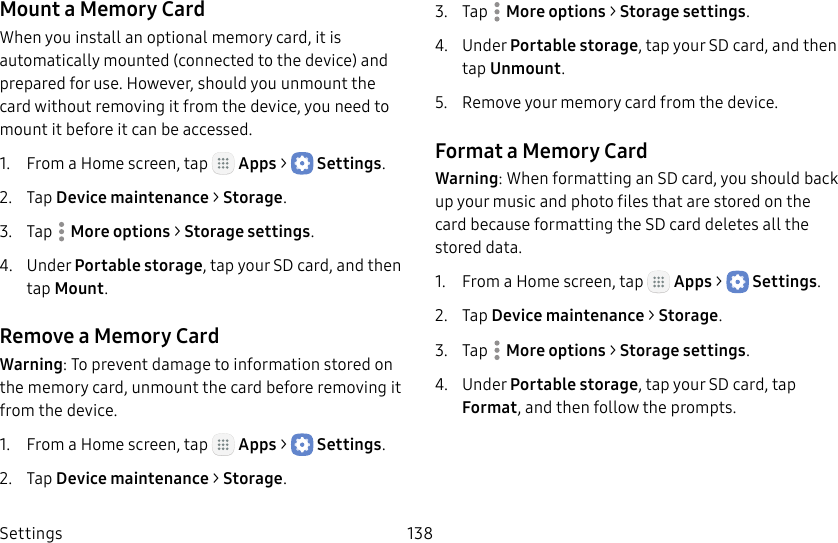
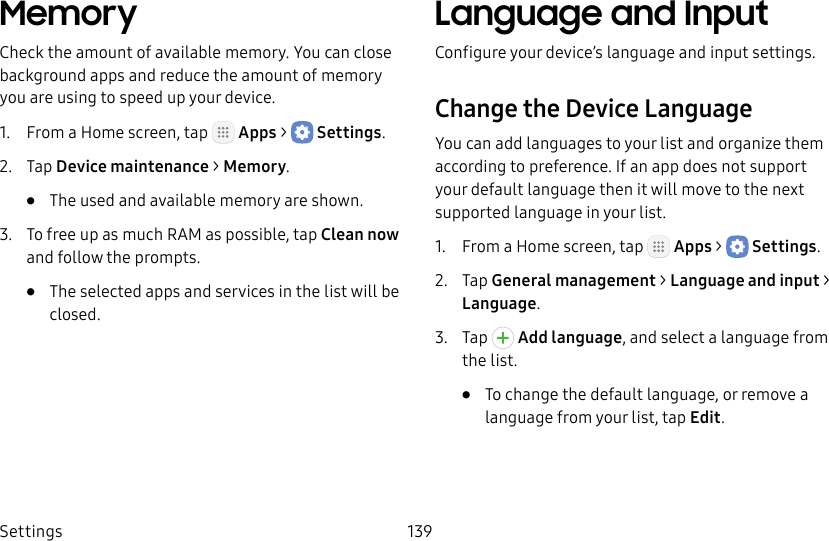
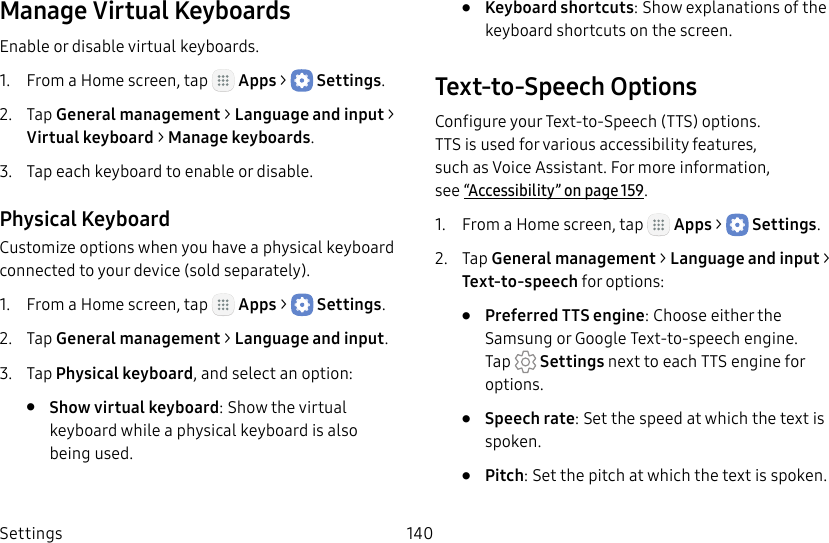
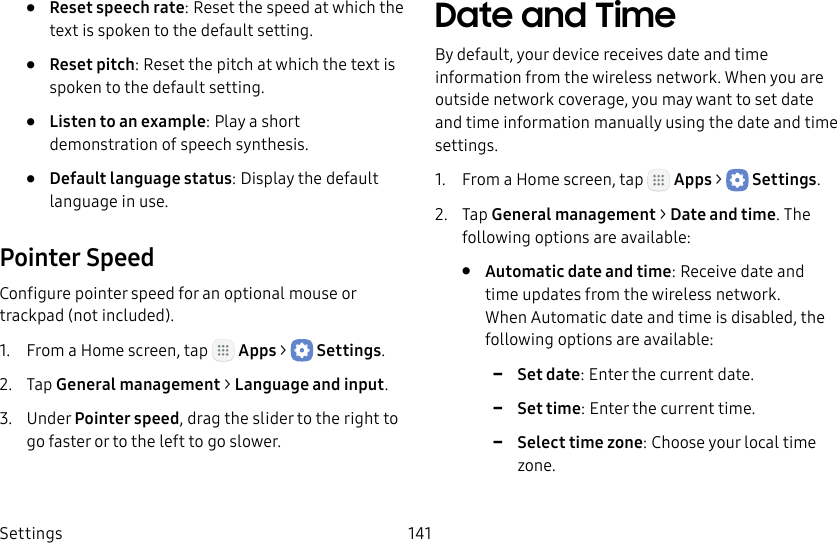
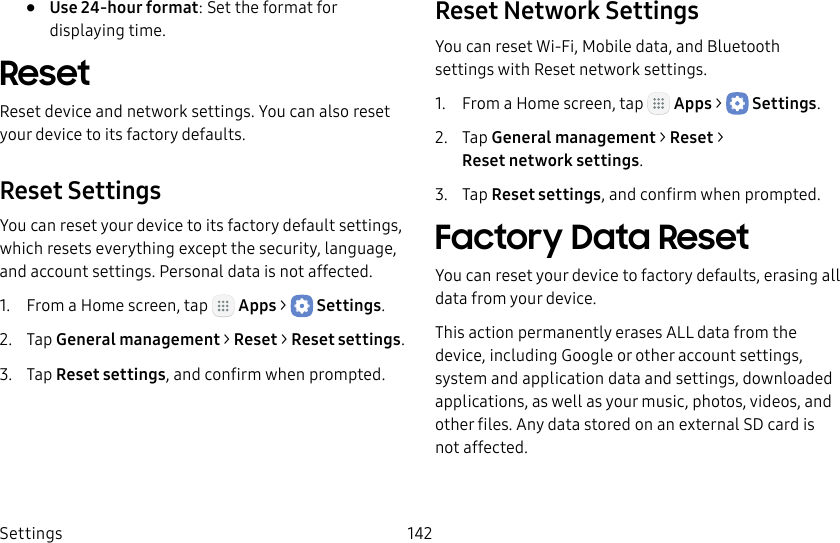
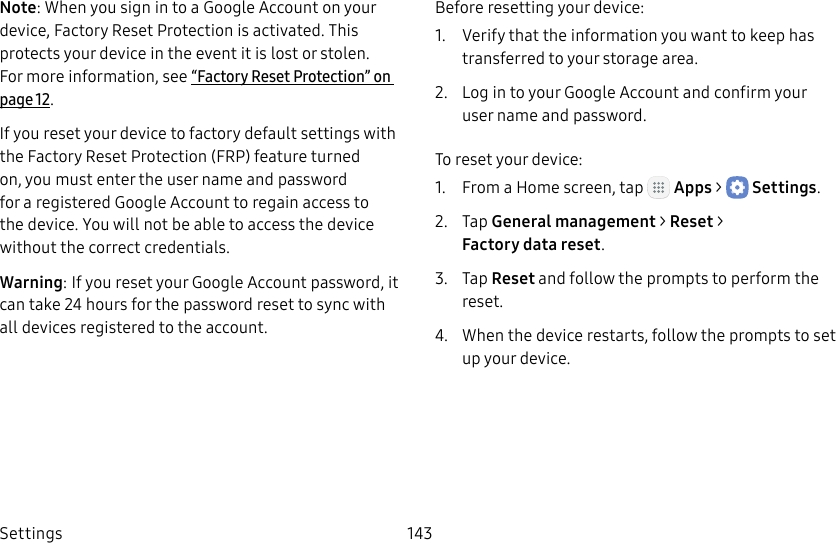
![DRAFT–FOR INTERNAL USE ONLYSettings 155Synchronize AccountsYou can synchronize your calendar, contacts, and other types of accounts.1. From a Home screen, tap Apps > Settings.2. Tap Cloud and accounts > Accounts > [Accounttype].3. Tap an account to view the sync settings for that account.4. Tap individual data items to sync.5. Tap Moreoptions > Sync now to synchronize the account.Account SettingsEach account has its own set of settings. In addition, you can configure common settings for all accounts of the same type.Account settings and available features vary between account types and service providers. Contact your service provider for more information on your account’s settings.1. From a Home screen, tap Apps > Settings.2. Tap Cloud and accounts > Accounts > [Accounttype].3. Tap an account to configure that account’s sync settings.4. Tap other available options for the account type.](https://usermanual.wiki/Samsung-Electronics-Co/SMJ727R4.Users-Manual-2/User-Guide-3337911-Page-161.png)
![DRAFT–FOR INTERNAL USE ONLYSettings 156Remove an AccountYou can remove accounts from your device.1. From a Home screen, tap Apps > Settings.2. Tap Cloud and accounts > Accounts > [Accounttype].3. Tap the account and then tap Moreoptions > Removeaccount.Backup and RestoreBack up your data to your Samsung or Google accounts.Samsung AccountEnable backup of your information to your Samsung account.1. From a Home screen, tap Apps > Settings.2. Tap Cloud and accounts > Backup and restore for options:• Backup settings: Enable back up of your phone log, messages, and more through your Samsung account.• Restore: Use your Samsung account to restore your backup data.](https://usermanual.wiki/Samsung-Electronics-Co/SMJ727R4.Users-Manual-2/User-Guide-3337911-Page-162.png)