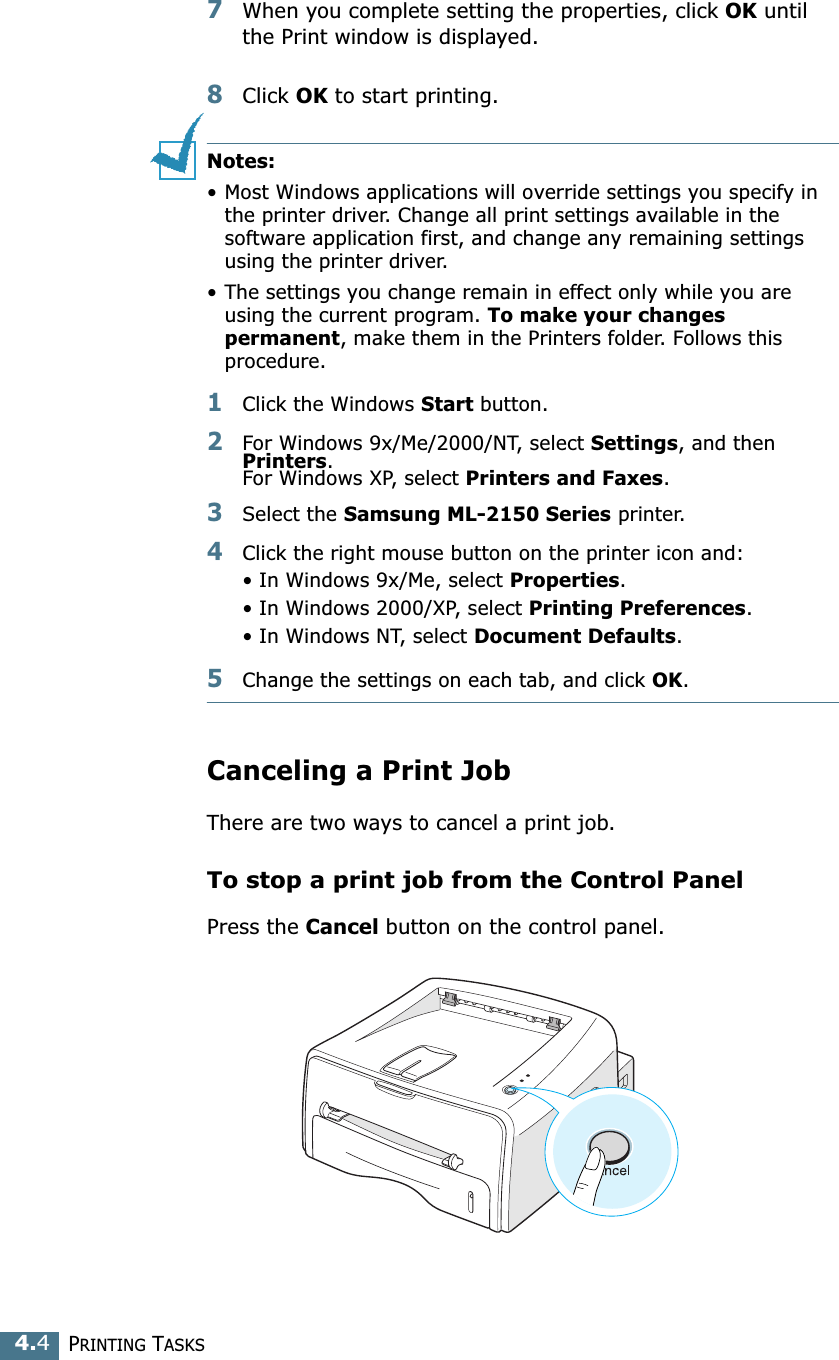
Samsung Electronics Co SWL-2250U 2.4 GHz Wireless LAN Module User Manual 1750 EN USER

Samsung Electronics Co Ltd 2.4 GHz Wireless LAN Module 1750 EN USER

Contents

Users Manual 1

SAMSUNG LASER PRINTERUser’s GuideML-2150
 i This manual is provided for information purposes only. All information included herein is subject to change without notice. Samsung Electronics is not responsible for any damages, direct or indirect, arising from or related to use of this manual.© 2002 Samsung Electronics Co., Ltd. All rights reserved.•ML-2150 and Samsung logo are trademarks of Samsung Electronics Co., Ltd.• PCL and PCL 6 are trademarks of Helett-Packard Company.• Centronics is a trademark of Centronics Data Computer Corporation.• IBM and IBM PC are trademarks of International Business Machines Corporation.• Apple, AppleTalk, TrueType, LaserWriter and Macintosh are trademarks of Apple Computer, Inc.• Microsoft, Windows, Windows 9x, Windows Me, Windows 2000, Windows NT and Windows XP are registered trademarks of Micorsoft Corporation.• All other brand or product names are trademarks of their respective companies or organizations.
 For more information about RF exposure, please visit the FCC website at www.fcc.gov FCC RF EXPOSURE INFORMATION     In August 1996 the Federal Communications Commission (FCC) of the United States with its action in Report and Order FCC 96-326 adopted an updated safety standard for human exposure to radio frequency electromagnetic energy emitted by FCC regulated transmitters.  Those guidelines are consistent with the safety standard previously set by both U.S. and international standards bodies.  The design of this phone complies with the FCC guidelines and these international standards.             Operating Requirements   The antennas used for this transmitter must be installed to provide a separation distance of at least 20 cm from all persons and must not be co-located or operating in conjunction with any other antennas or transmitters. Please maintain 20 cm separation distance from the antenna to meet FCC RF exposure compliance requirements.   WARNING!    Read this information before using your phone
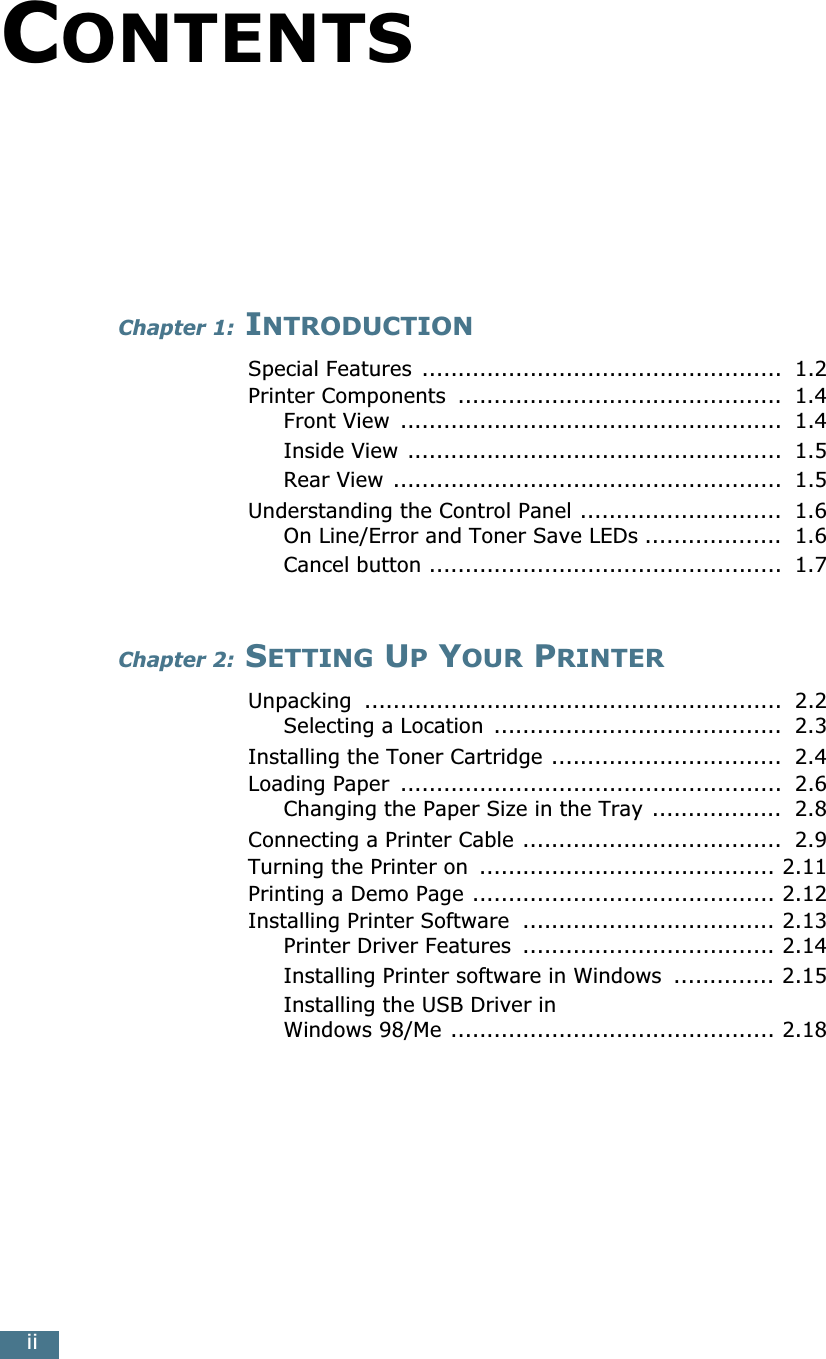
 ii C ONTENTS Chapter 1:  I NTRODUCTION Special Features  ..................................................  1.2Printer Components  .............................................  1.4Front View  .....................................................  1.4Inside View ....................................................  1.5Rear View ......................................................  1.5Understanding the Control Panel ............................  1.6On Line/Error and Toner Save LEDs ...................  1.6Cancel button .................................................  1.7 Chapter 2:  S ETTING  U P  Y OUR  P RINTER Unpacking  ..........................................................  2.2Selecting a Location  ........................................  2.3Installing the Toner Cartridge ................................  2.4Loading Paper  .....................................................  2.6Changing the Paper Size in the Tray ..................  2.8Connecting a Printer Cable ....................................  2.9Turning the Printer on  ......................................... 2.11Printing a Demo Page .......................................... 2.12Installing Printer Software  ................................... 2.13Printer Driver Features  ................................... 2.14Installing Printer software in Windows  .............. 2.15Installing the USB Driver in Windows 98/Me ............................................. 2.18
 iii Chapter 3:  U SING  P RINT  M ATERIALS Choosing Paper and Other Materials  .......................  3.2Sizes and Capacities  .......................................  3.3Guidelines for Paper and Special Materials ..........  3.4Selecting the Output Location ................................  3.5Printing to the Top Output Tray (Face down)  ......  3.5Printing to the Rear Output Tray (Face up) .........  3.6Loading Paper  .....................................................  3.7Using the Tray ................................................  3.7Using the Manual Feeder  .................................  3.8Printing on Envelopes .......................................... 3.10Printing on Labels  ............................................... 3.12Printing on Transparencies ................................... 3.13Printing on Card Stock or Custom-sized Materials  ....................................... 3.15 Chapter 4:  P RINTING  T ASKS Printing a Document  ............................................  4.2Canceling a Print Job .......................................  4.4Using a Favorite Setting  ..................................  4.5Using Help  .....................................................  4.5Setting Paper Properties  .......................................  4.6Using the Toner Save Mode ...................................  4.8Printing Multiple Pages on One Sheet of Paper (N-Up Printing) ................................................... 4.10Scaling Your Document  ....................................... 4.12Fitting Your Document to a Selected Paper Size  ...... 4.13Printing Posters  .................................................. 4.14Setting Graphic Properties  ................................... 4.16Printing Watermarks  ........................................... 4.19Using an existing Watermark ........................... 4.19Creating a Watermark  .................................... 4.20Editing a Watermark  ...................................... 4.21Deleting a Watermark  .................................... 4.21Printing Overlays  ................................................ 4.22What is an Overlay?  ....................................... 4.22Creating a New Page Overlay  .......................... 4.22Using a Page Overlay  ..................................... 4.24Deleting a Page Overlay  ................................. 4.25Using the Status Monitor  ..................................... 4.26Opening the Status Monitor ............................. 4.26Setting Up Locally Shared Printer .......................... 4.28Windows 98/Me ............................................. 4.28Windows NT/2000/XP ..................................... 4.29
 iv Chapter 5:  M AINTAINING  Y OUR  P RINTER Maintaining the Toner Cartridge .............................  5.2Redistributing Toner ........................................  5.3Replacing the Toner Cartridge  ..........................  5.4Cleaning the Printer  .............................................  5.5Cleaning the Outside .......................................  5.5Cleaning the Inside  .........................................  5.5Consumables and Replacement Parts  .....................  5.8 Chapter 6:  S OLVING  P ROBLEMS Troubleshooting Checklist  .....................................  6.2Solving General Printing Problems ..........................  6.3Clearing Paper Jams .............................................  6.7In the Paper Exit Area  .....................................  6.7In the Paper Feed Area ....................................  6.9Around the Toner Cartridge ............................. 6.10Tips for Avoiding Paper Jams ........................... 6.11Solving Print Quality Problems .............................. 6.11Print Quality Checklist  .................................... 6.11Solving Print Quality Problems ......................... 6.12Troubleshooting Error Messages  ........................... 6.17Common Windows Problems  ................................ 6.18Common Macintosh Problems ............................... 6.19Problems in the Chooser  ................................. 6.19Printing Errors ............................................... 6.19Common Linux Problems  ..................................... 6.20Common DOS problem ........................................ 6.22 Chapter 7:  A PPENDIX Using Your Printer with a Macintosh  .......................  7.2Installing Software for Macintosh  ......................  7.2Printing a Document  .......................................  7.4Using Advanced Printing Features  .....................  7.6Using Your Printer in Linux ................................... 7.10Installing the Printer Driver ............................. 7.10Changing the Printer Connection Method ........... 7.14Using the Configuration Tool  ........................... 7.16Changing LLPR Properties  ............................... 7.18Printing from DOS Applications ............................. 7.20About the Remote Control Panel  ...................... 7.20Installing the Remote Control Panel .................. 7.20Selecting Print Settings  .................................. 7.22
 v Printer Specifications ........................................... 7.29Paper Specifications  ............................................ 7.30Overview ...................................................... 7.30Supported Sizes of Paper ................................ 7.31Guidelines for Using Paper  .............................. 7.32Paper Specifications  ....................................... 7.33Paper Output Capacity .................................... 7.33Printer and Paper Storage Environment  ............ 7.34
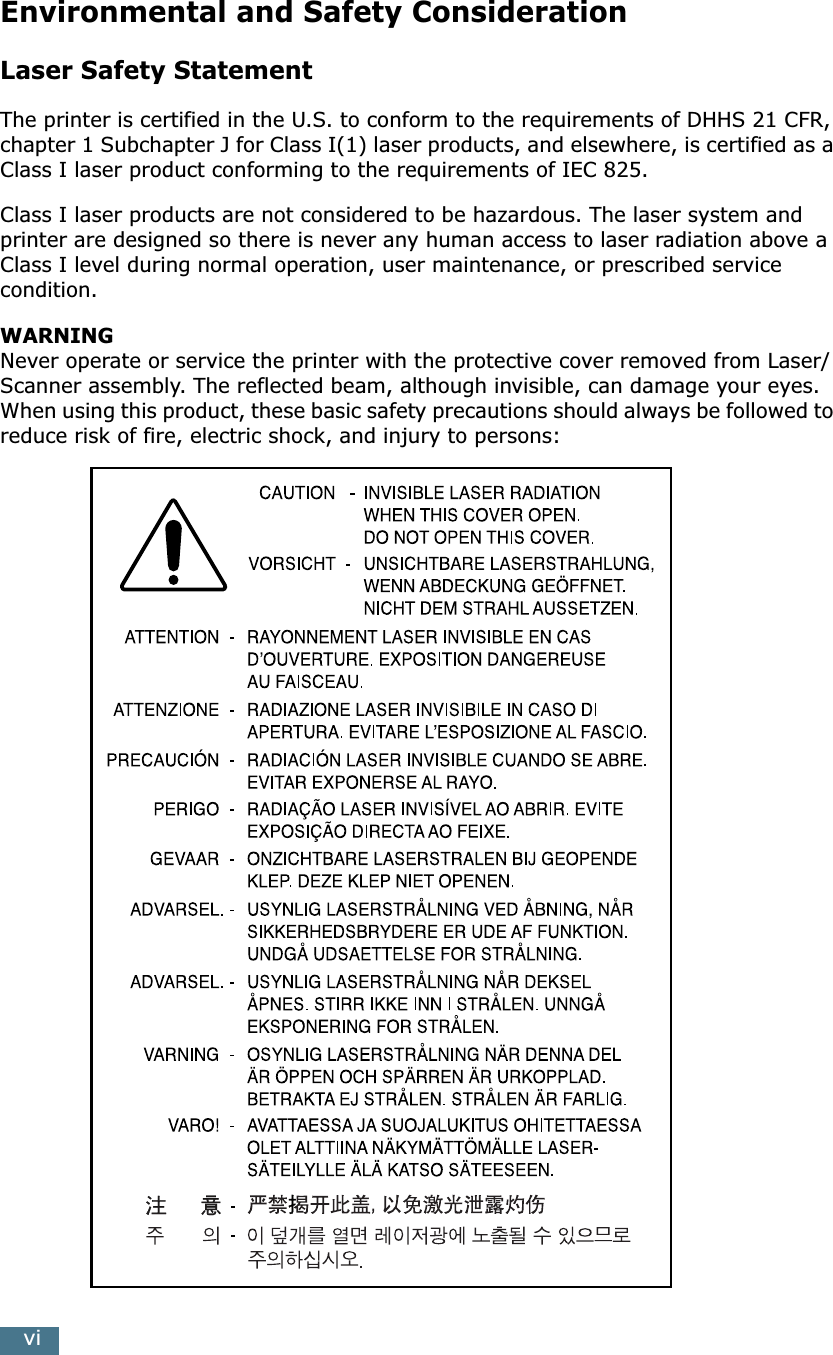
 vi Environmental and Safety Consideration Laser Safety Statement The printer is certified in the U.S. to conform to the requirements of DHHS 21 CFR, chapter 1 Subchapter J for Class I(1) laser products, and elsewhere, is certified as a Class I laser product conforming to the requirements of IEC 825.Class I laser products are not considered to be hazardous. The laser system and printer are designed so there is never any human access to laser radiation above a Class I level during normal operation, user maintenance, or prescribed service condition. WARNING   Never operate or service the printer with the protective cover removed from Laser/Scanner assembly. The reflected beam, although invisible, can damage your eyes.When using this product, these basic safety precautions should always be followed to reduce risk of fire, electric shock, and injury to persons:
 vii Ozone Safety During normal operation, this machine produces ozone. The ozone produced does not present a hazard to the operator. However, it is advisable that the machine be operated in a well ventilated area.If you need additional information about ozone, please contact your nearest Samsung dealer. Power Saver This printer contains advanced energy conservation technology that reduces power consumption when it is not in active use.When the printer does not receive data for an extended period of time, power consumption is automatically lowered. The energy star emblem does not represent EPA endorsement of any product or service. Radio Frequency Emissions FCC regulations This device has been tested and found to comply with the limits for a Class B digital device, pursuant to Part 15 of the FCC rules. These limits are designed to provide reasonable protection against harmful interference in a residential installation. This equipment generates, uses and can radiate radio frequency energy and, if not installed and used in accordance with the instructions, may cause harmful interference to radio communications. However, there is no guarantee that interference will not occur in a particular installation. If this equipment does cause harmful interference to radio or television reception, which can be determined by turning the equipment off and on, the user is encouraged to try to correct the interference by one or more of the following measures: 1 Reorient or relocate the receiving antenna. 2 Increase the separation between the equipment and receiver. 3 Connect the equipment into an outlet on a circuit different from that to which the receiver is connected. 4 Consult the dealer or an experienced radio/TV technician for help. CAUTION:  Changes or modifications not expressly approved by the manufacturer responsible for compliance could void the user’s authority to operate the equipment.
 viii Canadian Radio Interference Regulations This digital apparatus does not exceed the Class B limits for radio noise emissions from digital apparatus as set out in the interference-causing equipment standard entitled “Digital Apparatus”, ICES-003 of the Industry and Science Canada.Cet appareil numérique respecte les limites de bruits radioélectriques applicables aux appareils numériques de Classe B prescrites dans la norme sur le matériel brouilleur: “Appareils Numériques”, ICES-003 édictée par l’Industrie et Sciences Canada. Declaration of Conformity (European Countries) Approvals and Certifications The CE marking applied to this product symbolizes Samsung Electronics Co., Ltd. Declaration of Conformity with the following applicable 93/68/EEC Directives of the European Union as of the dates indicated:January 1, 1995: Council Directive 73/23/EEC Approximation of the laws of the member states related to low voltage equipment.January 1, 1996: Council Directive 89/336/EEC (92/31/EEC), approximation of the laws of the Member States related to electromagnetic compatibility.March 9, 1999: Council Directive 1999/5/EC on radio equipment and telecommunications terminal equipment and the mutual recognition of their conformity.A full declaration, defining the relevant Directives and referenced standards can be obtained from your Samsung Electronics Co., Ltd. representative. EC CertificationCertification to 1999/5/EC Radio Equipment & Telecommunications Terminal Equipment Directive (FAX) This Samsung product has been self-certified by Samsung for pan-European single terminal connection to the analogue public switched telephone network (PSTN) in accordance with Directive 1999/5/EC. The product has been designed to work with the national PSTNs and compatible PBXs of the European countries:In the event of problems, you should contact the Euro QA Lab of Samsung Electronics Co., Ltd. in the first instance.The product has been tested against TBR21 and/or TBR 38. To assist in the use and application of terminal equipment which complies with this standard, the European Telecommunication Standards Institute (ETSI) has issued an advisory document (EG 201 121) which contains notes and additional requirements to ensure network compatibility of TBR21 terminals. The product has been designed against, and is fully compliant with, all of the relevant advisory notes contained in this document.
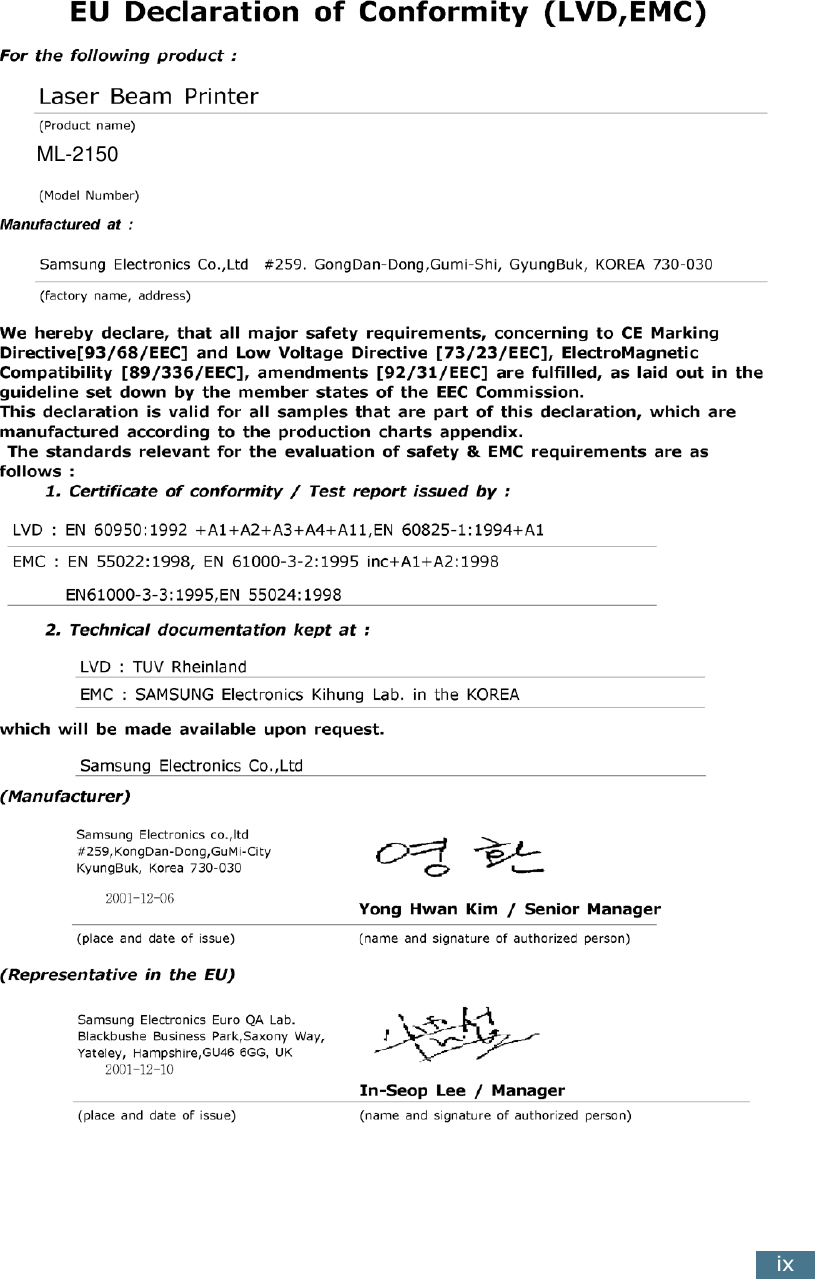
 ix       ML-2150
 x N OTE
 xi
 1 I NTRODUCTION Congratulations on the purchase of your Printer! This chapter includes: • Special Features• Printer Components• Understanding the Control Panel
 I NTRODUCTION 1. 2 Special Features Your new printer is equipped with special features that improve the print quality, giving you a competitive edge. You can: Print with excellent quality and high speed • You can print at  1200 dots per inch  (dpi). See page 4.16.• Prints  17 pages-per-minute (Letter size) ,  16 pages-per-minute (A4 size) . Handle paper flexibly •  Standard 250-sheet tray  and a 1-sheet Manual Feeder support various sizes and types of paper.• Two output tray; select either  the top output tray (face-down)  or  the rear output tray (face-up)  for the most convenient access. Create professional documents • You can customize your documents using  Watermarks , such as “Confidential.” See page 4.19.• Print Posters. The text and pictures of each page of your document are magnified and printed across the selected sheet of paper. After the document has printed, trim off the white edges of each sheet. Tape the sheets together to form a poster. See page 4.14.Save your time and money • Allows you to use the Toner Save mode to save toner. See page 4.8.• Allows you to print multiple pages on one single sheet of paper to save paper (N-Up printing). See page 4.10.• This printer meets Energy Star guidelines for energy efficiency.WORLD BESTDear ABCRegards
INTRODUCTION1.31Print in various environments• You can print in Windows 95/98/Me/NT 4.0/2000/XP.• Your printer is compatible with Linux and Macintosh. • Your printer comes with both the Parallel and the USB interface.
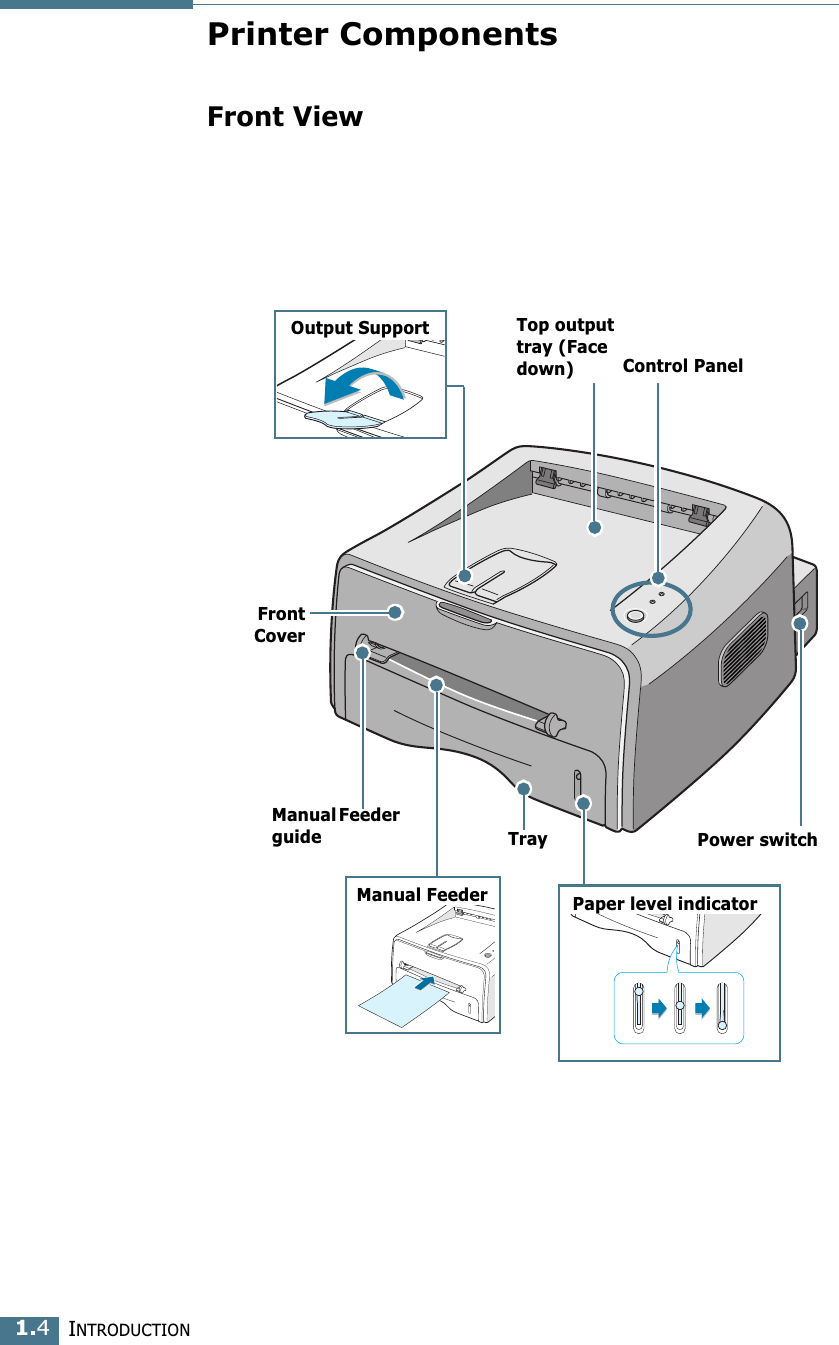
INTRODUCTION1.4Printer ComponentsFront ViewManual Feeder guide TrayFrontCoverTop output tray (Face down) Control PanelPower switchPaper level indicatorManual FeederOutput Support
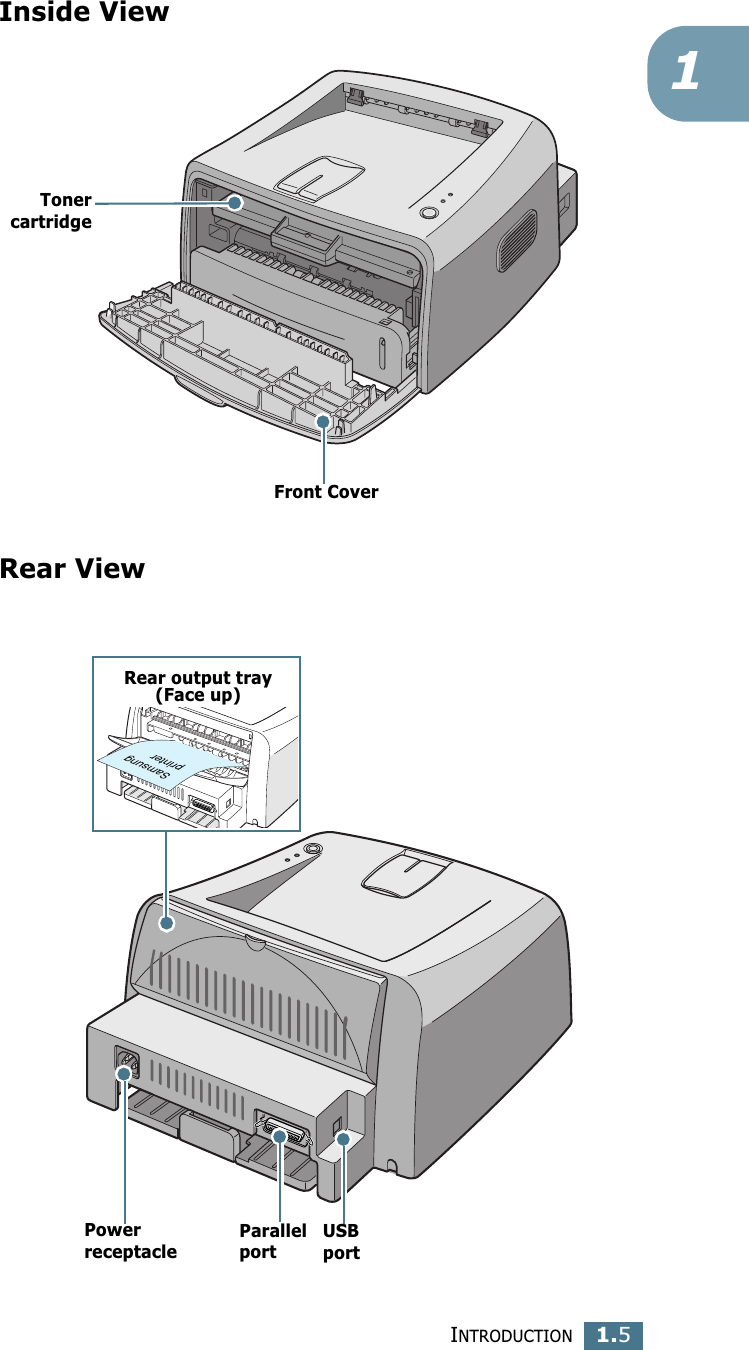
INTRODUCTION1.51Inside ViewRear ViewFront CoverTonercartridgeRear output tray(Face up)Power receptacleParallel portUSB port
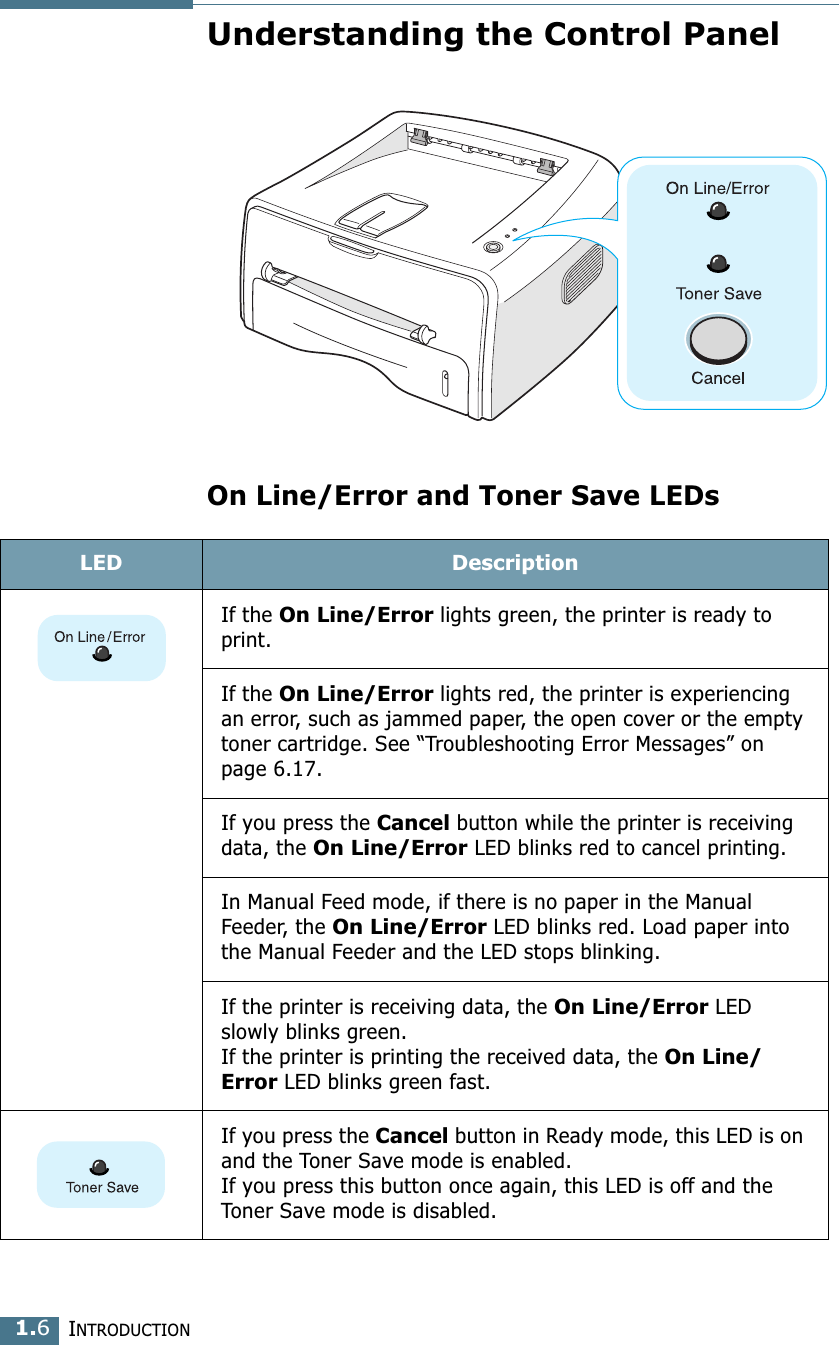
INTRODUCTION1.6Understanding the Control PanelOn Line/Error and Toner Save LEDsLED DescriptionIf the On Line/Error lights green, the printer is ready to print. If the On Line/Error lights red, the printer is experiencing an error, such as jammed paper, the open cover or the empty toner cartridge. See “Troubleshooting Error Messages” on page 6.17. If you press the Cancel button while the printer is receiving data, the On Line/Error LED blinks red to cancel printing.In Manual Feed mode, if there is no paper in the Manual Feeder, the On Line/Error LED blinks red. Load paper into the Manual Feeder and the LED stops blinking. If the printer is receiving data, the On Line/Error LED slowly blinks green. If the printer is printing the received data, the On Line/Error LED blinks green fast. If you press the Cancel button in Ready mode, this LED is on and the Toner Save mode is enabled. If you press this button once again, this LED is off and the Toner Save mode is disabled.
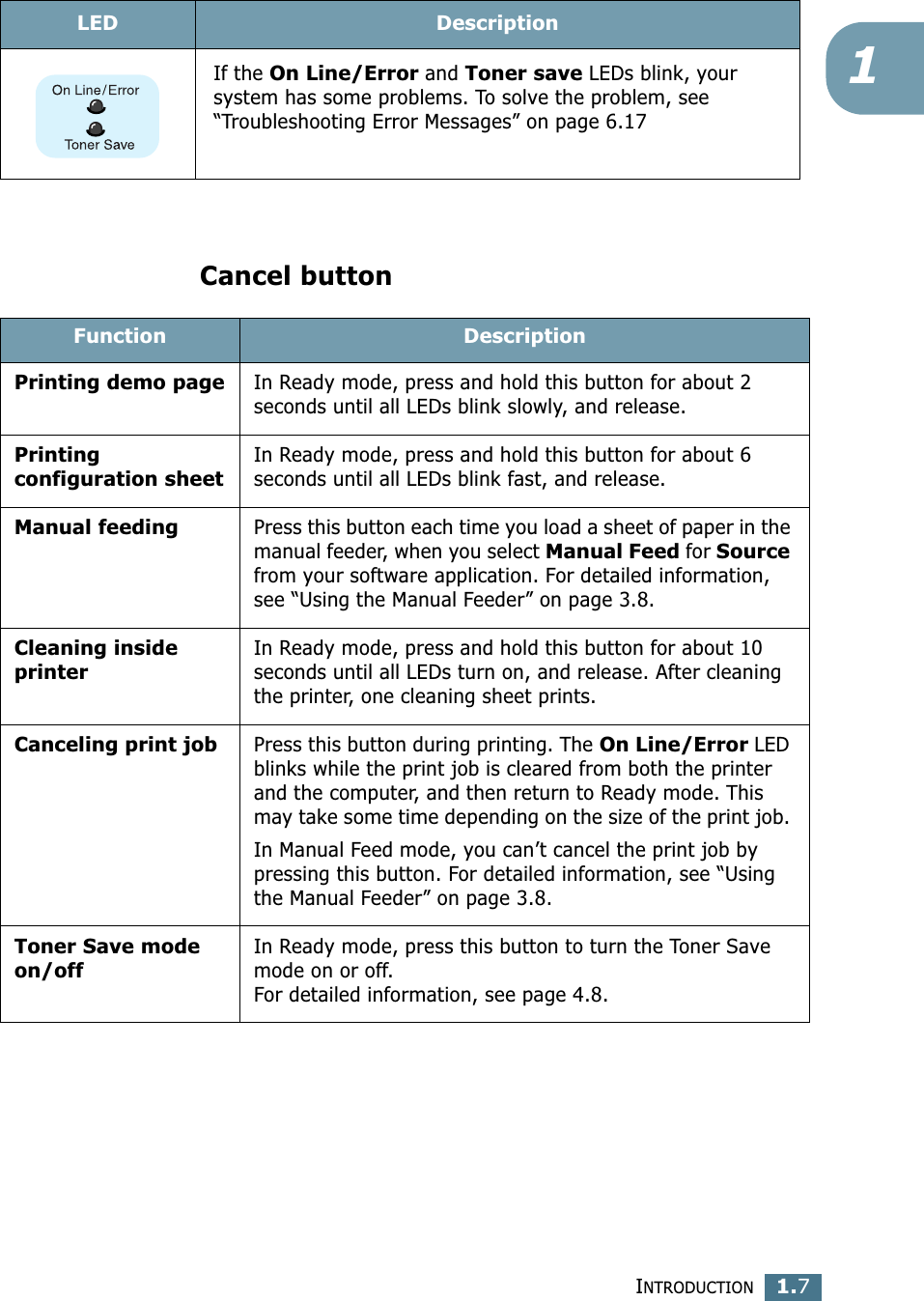
INTRODUCTION1.71Cancel buttonIf the On Line/Error and Toner save LEDs blink, your system has some problems. To solve the problem, see “Troubleshooting Error Messages” on page 6.17LED DescriptionFunction DescriptionPrinting demo pageIn Ready mode, press and hold this button for about 2 seconds until all LEDs blink slowly, and release. Printing configuration sheetIn Ready mode, press and hold this button for about 6 seconds until all LEDs blink fast, and release. Manual feedingPress this button each time you load a sheet of paper in the manual feeder, when you select Manual Feed for Source from your software application. For detailed information, see “Using the Manual Feeder” on page 3.8. Cleaning inside printerIn Ready mode, press and hold this button for about 10 seconds until all LEDs turn on, and release. After cleaning the printer, one cleaning sheet prints.Canceling print jobPress this button during printing. The On Line/Error LED blinks while the print job is cleared from both the printer and the computer, and then return to Ready mode. This may take some time depending on the size of the print job. In Manual Feed mode, you can’t cancel the print job by pressing this button. For detailed information, see “Using the Manual Feeder” on page 3.8. Toner Save mode on/offIn Ready mode, press this button to turn the Toner Save mode on or off. For detailed information, see page 4.8.
INTRODUCTION1.8NOTE
2This chapter provides step by step information on setting up your printer. This chapter includes:• Unpacking• Installing the Toner Cartridge• Loading Paper• Connecting a Printer Cable• Turning the Printer on• Printing a Demo Page• Installing Printer SoftwareSETTING UP YOUR PRINTER
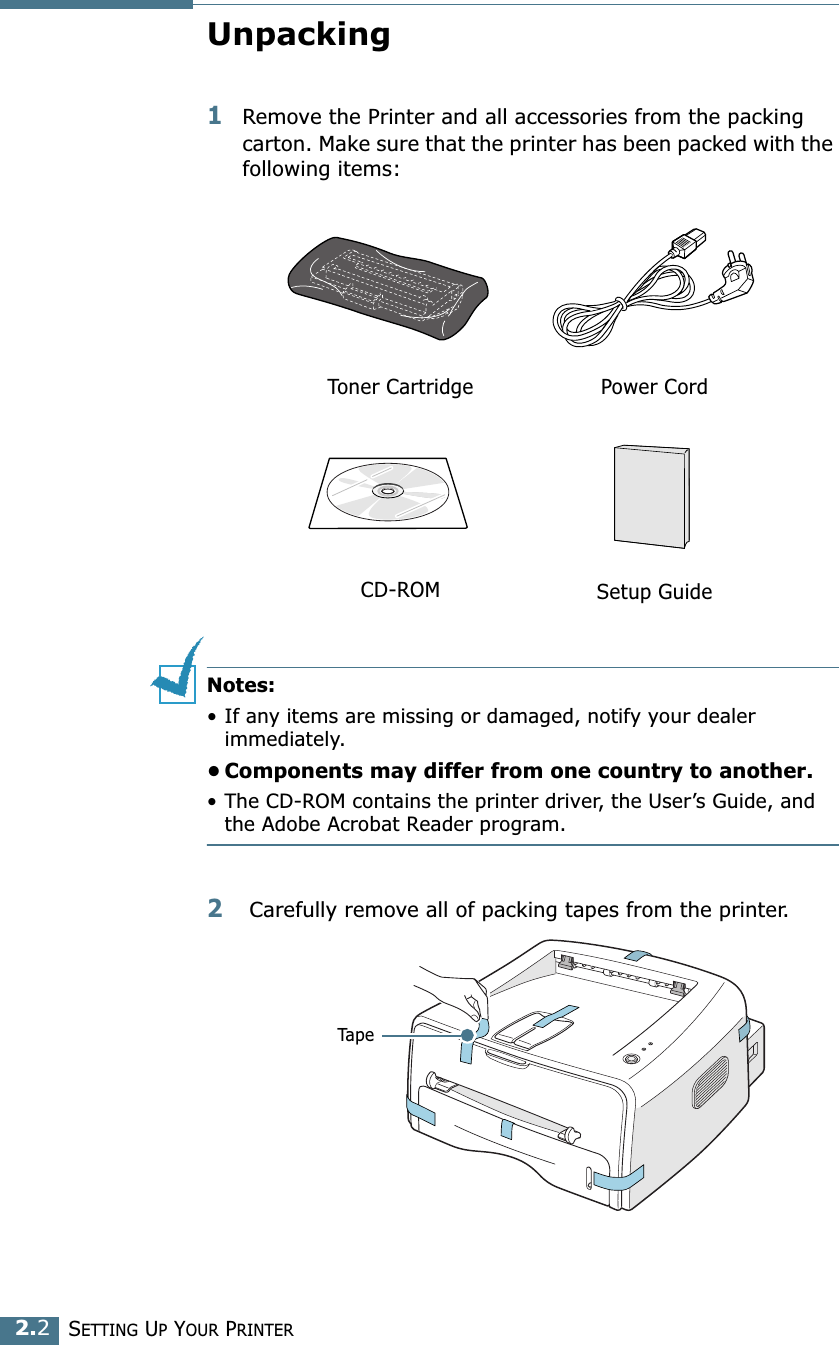
SETTING UP YOUR PRINTER2.2Unpacking1Remove the Printer and all accessories from the packing carton. Make sure that the printer has been packed with the following items:Notes:• If any items are missing or damaged, notify your dealer immediately. • Components may differ from one country to another.• The CD-ROM contains the printer driver, the User’s Guide, and the Adobe Acrobat Reader program. 2 Carefully remove all of packing tapes from the printer. Toner Cartridge Power CordCD-ROM Setup GuideTape
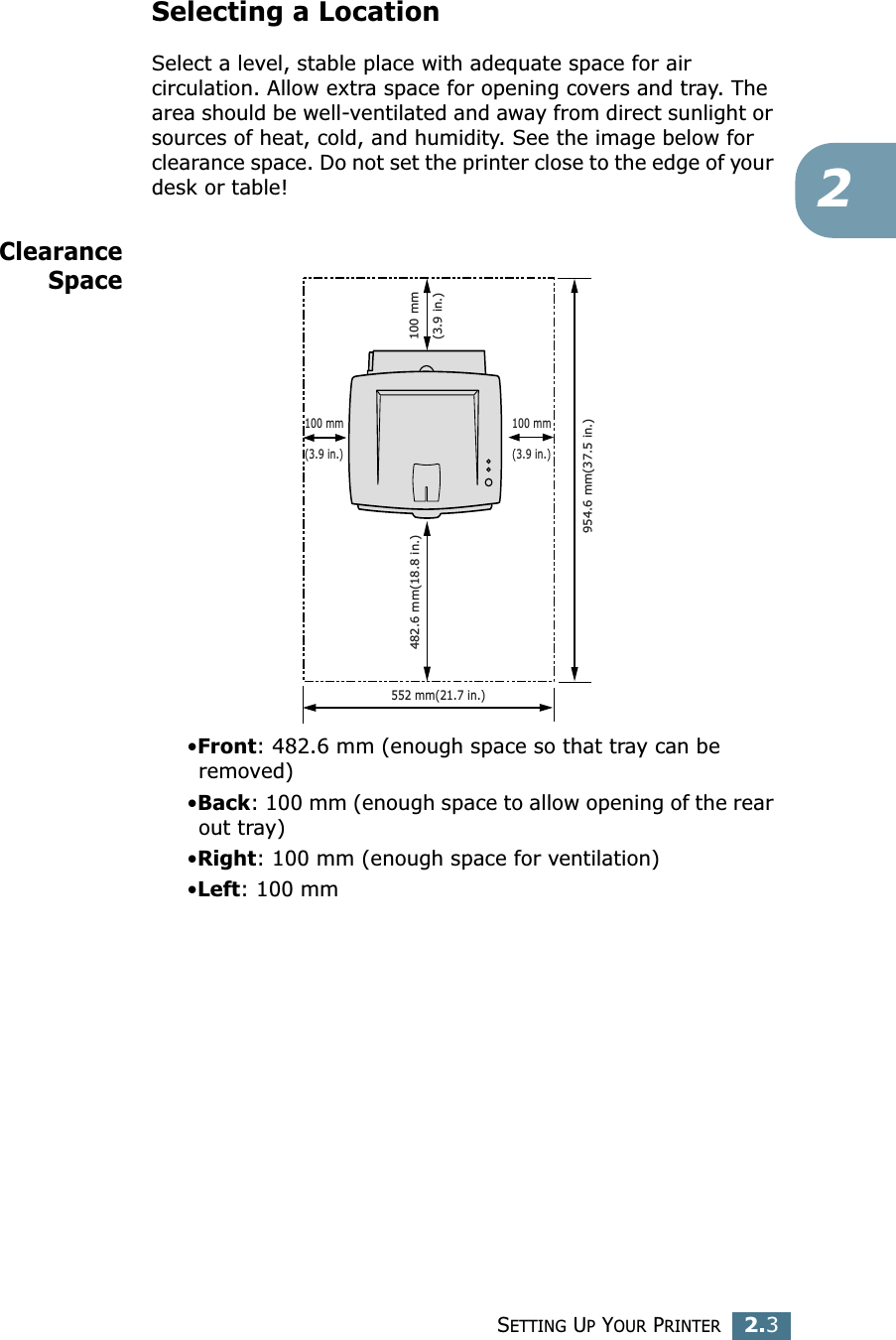
SETTING UP YOUR PRINTER2.32Selecting a LocationSelect a level, stable place with adequate space for air circulation. Allow extra space for opening covers and tray. The area should be well-ventilated and away from direct sunlight or sources of heat, cold, and humidity. See the image below for clearance space. Do not set the printer close to the edge of your desk or table!ClearanceSpace•Front: 482.6 mm (enough space so that tray can be removed)•Back: 100 mm (enough space to allow opening of the rear out tray)•Right: 100 mm (enough space for ventilation)•Left: 100 mm552 mm(21.7 in.)100 mm(3.9 in.)954.6 mm(37.5 in.)482.6 mm(18.8 in.)100 mm(3.9 in.)100 mm(3.9 in.)
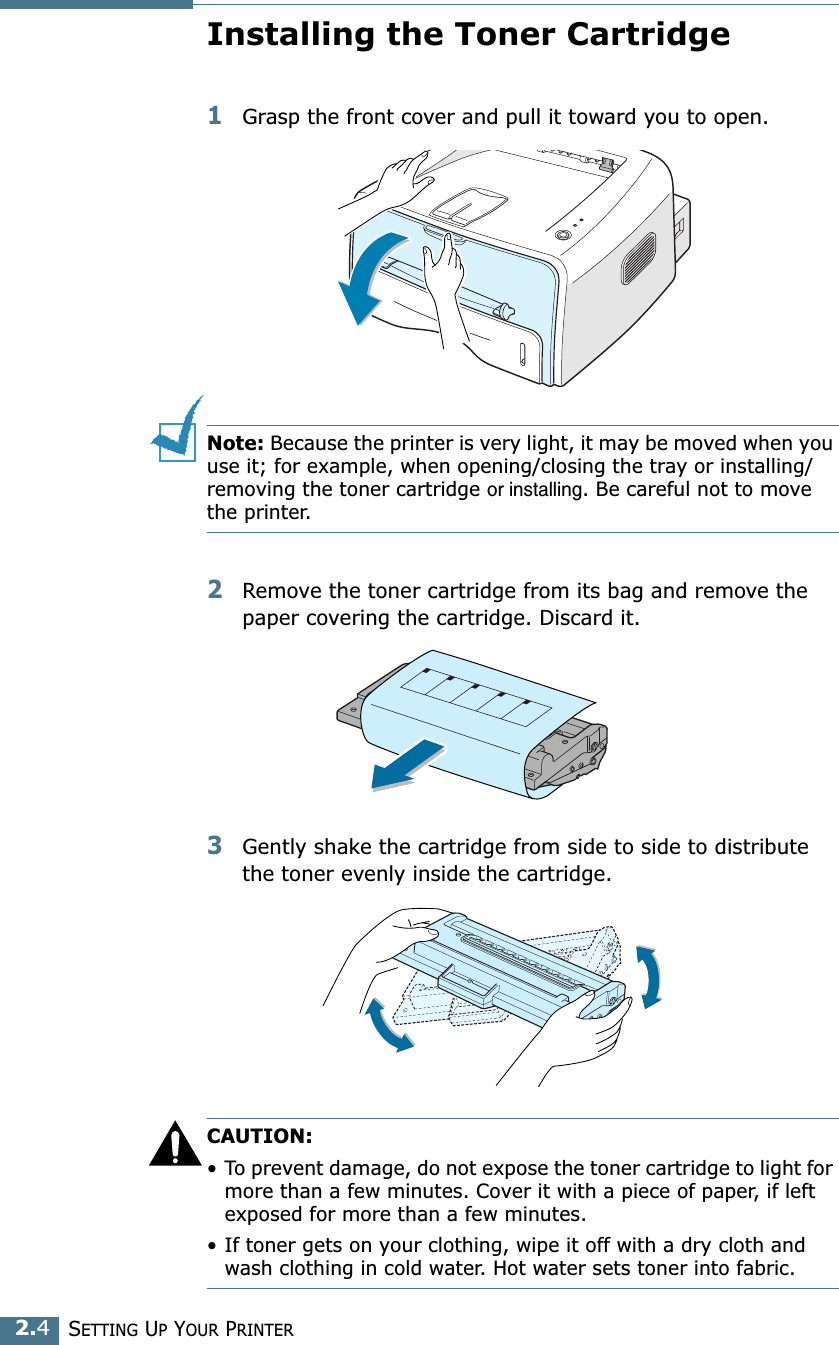
SETTING UP YOUR PRINTER2.4Installing the Toner Cartridge1Grasp the front cover and pull it toward you to open.Note: Because the printer is very light, it may be moved when you use it; for example, when opening/closing the tray or installing/removing the toner cartridge or installing. Be careful not to move the printer.2Remove the toner cartridge from its bag and remove the paper covering the cartridge. Discard it.3Gently shake the cartridge from side to side to distribute the toner evenly inside the cartridge.CAUTION:• To prevent damage, do not expose the toner cartridge to light for more than a few minutes. Cover it with a piece of paper, if left exposed for more than a few minutes.• If toner gets on your clothing, wipe it off with a dry cloth and wash clothing in cold water. Hot water sets toner into fabric.
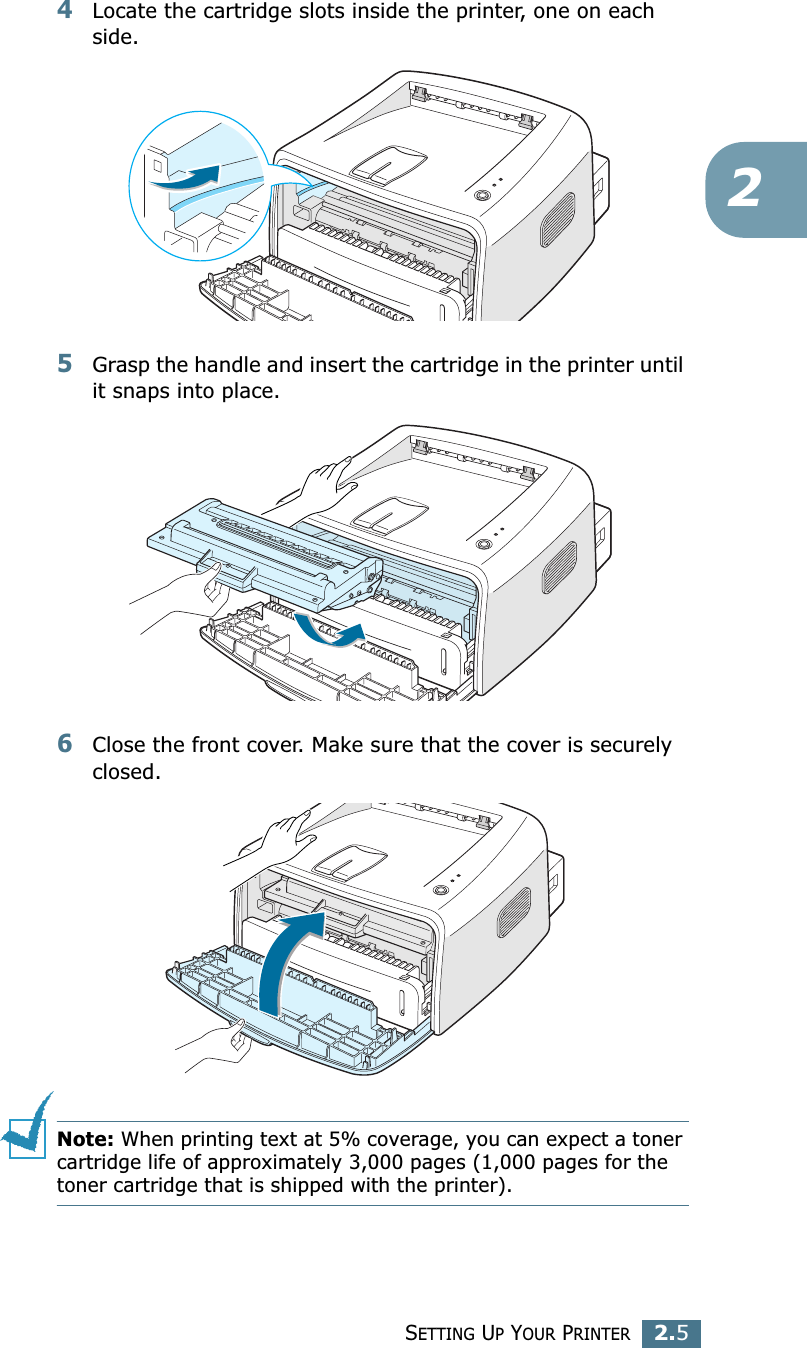
SETTING UP YOUR PRINTER2.524Locate the cartridge slots inside the printer, one on each side.5Grasp the handle and insert the cartridge in the printer until it snaps into place.6Close the front cover. Make sure that the cover is securely closed.Note: When printing text at 5% coverage, you can expect a toner cartridge life of approximately 3,000 pages (1,000 pages for the toner cartridge that is shipped with the printer).
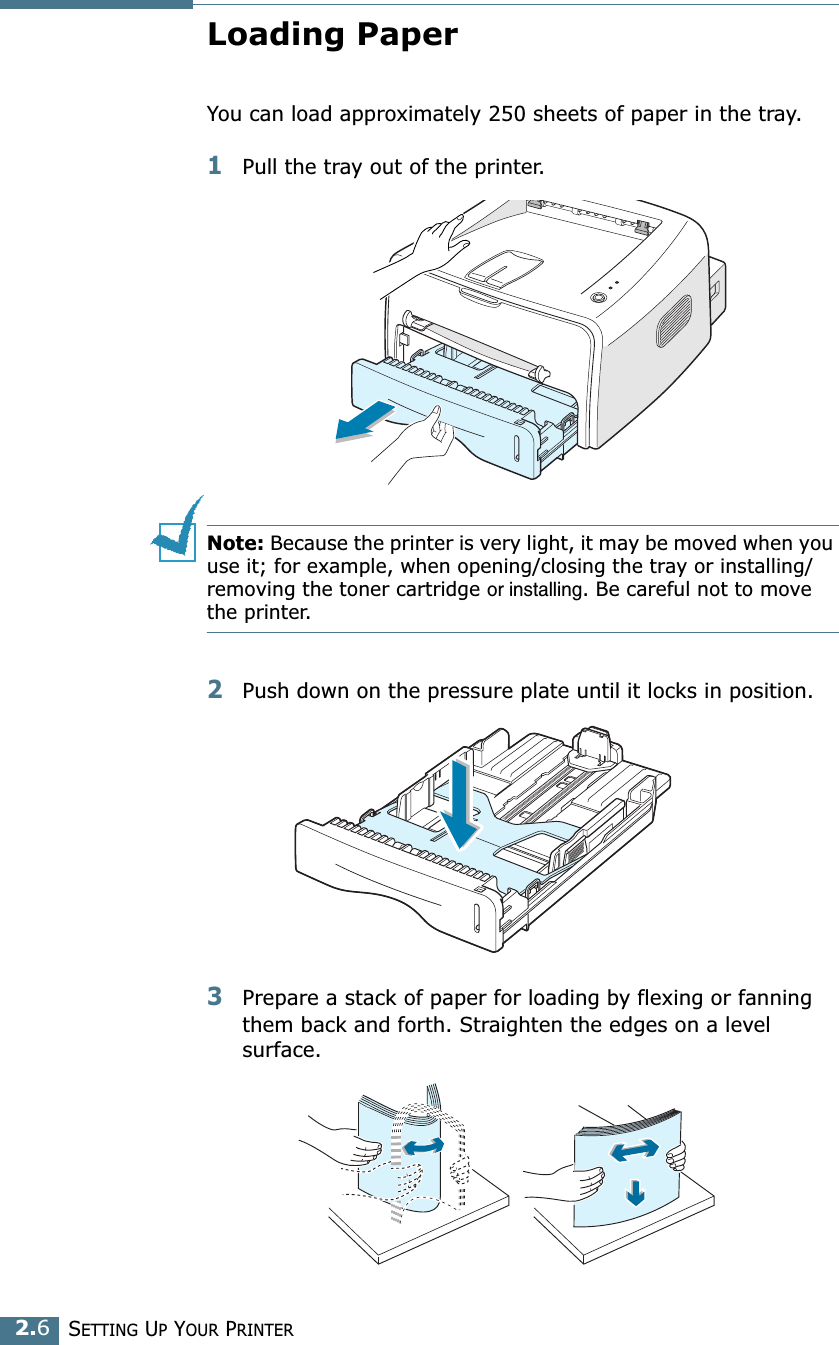
SETTING UP YOUR PRINTER2.6Loading PaperYou can load approximately 250 sheets of paper in the tray.1Pull the tray out of the printer.Note: Because the printer is very light, it may be moved when you use it; for example, when opening/closing the tray or installing/removing the toner cartridge or installing. Be careful not to move the printer.2Push down on the pressure plate until it locks in position.3Prepare a stack of paper for loading by flexing or fanning them back and forth. Straighten the edges on a level surface.
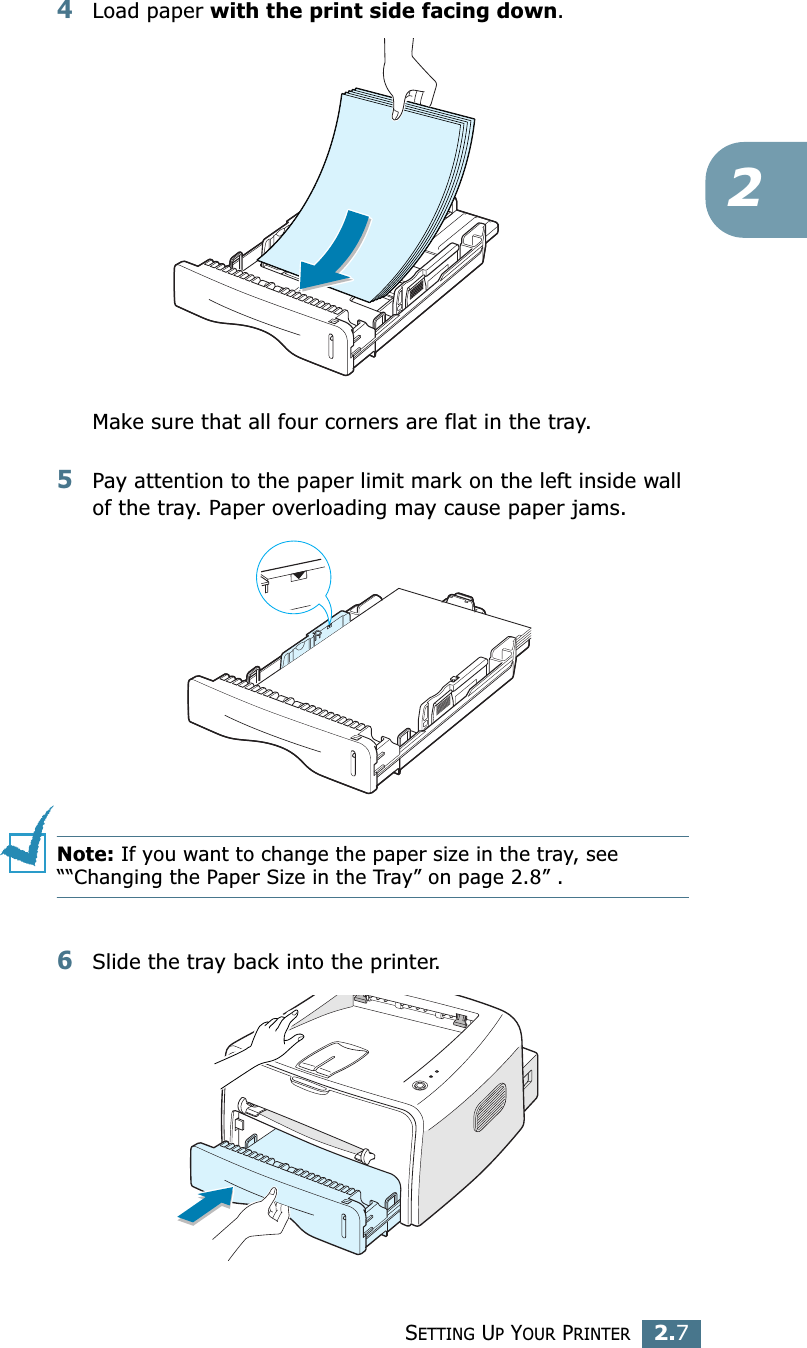
SETTING UP YOUR PRINTER2.724Load paper with the print side facing down. Make sure that all four corners are flat in the tray. 5Pay attention to the paper limit mark on the left inside wall of the tray. Paper overloading may cause paper jams.Note: If you want to change the paper size in the tray, see ““Changing the Paper Size in the Tray” on page 2.8” . 6Slide the tray back into the printer.
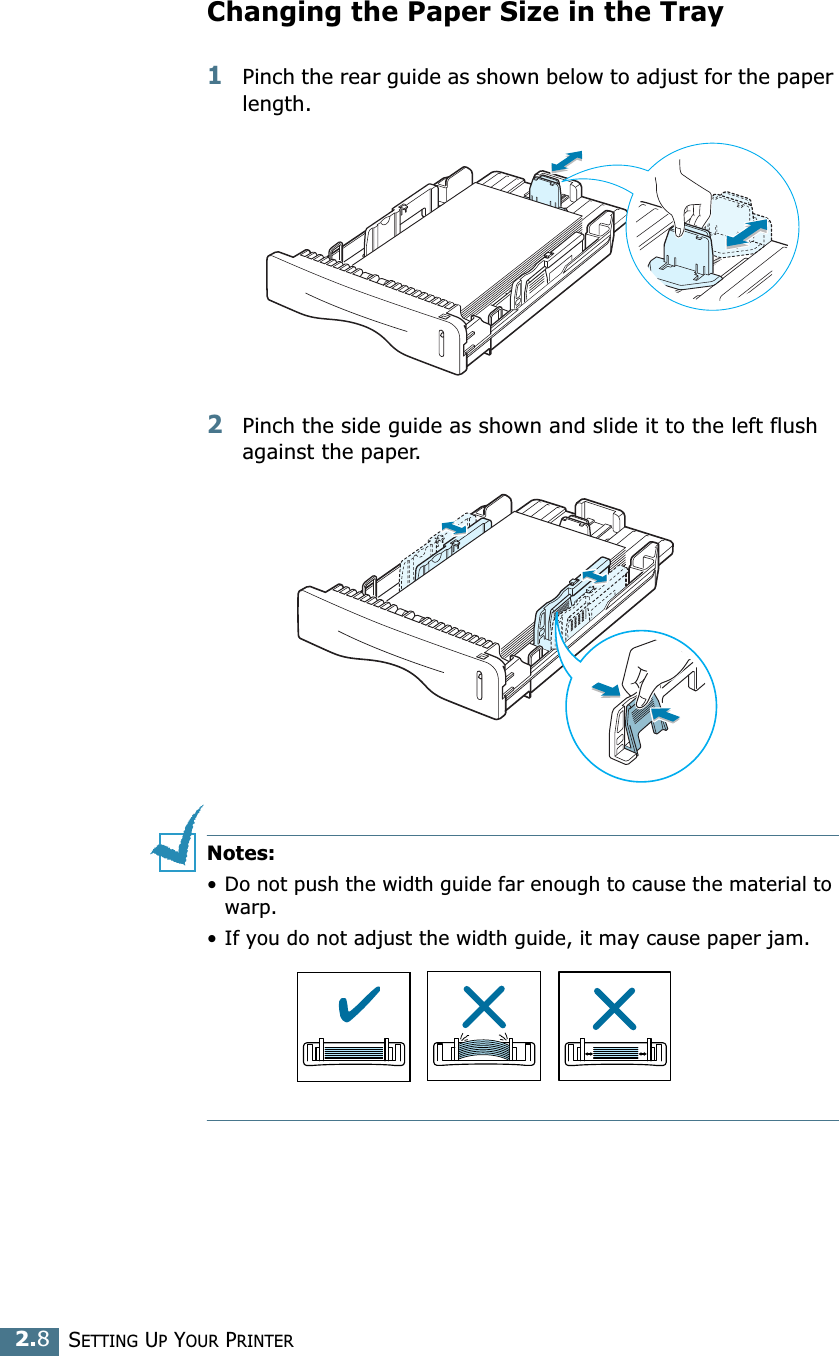
SETTING UP YOUR PRINTER2.8Changing the Paper Size in the Tray1Pinch the rear guide as shown below to adjust for the paper length. 2Pinch the side guide as shown and slide it to the left flush against the paper. Notes: • Do not push the width guide far enough to cause the material to warp. • If you do not adjust the width guide, it may cause paper jam.
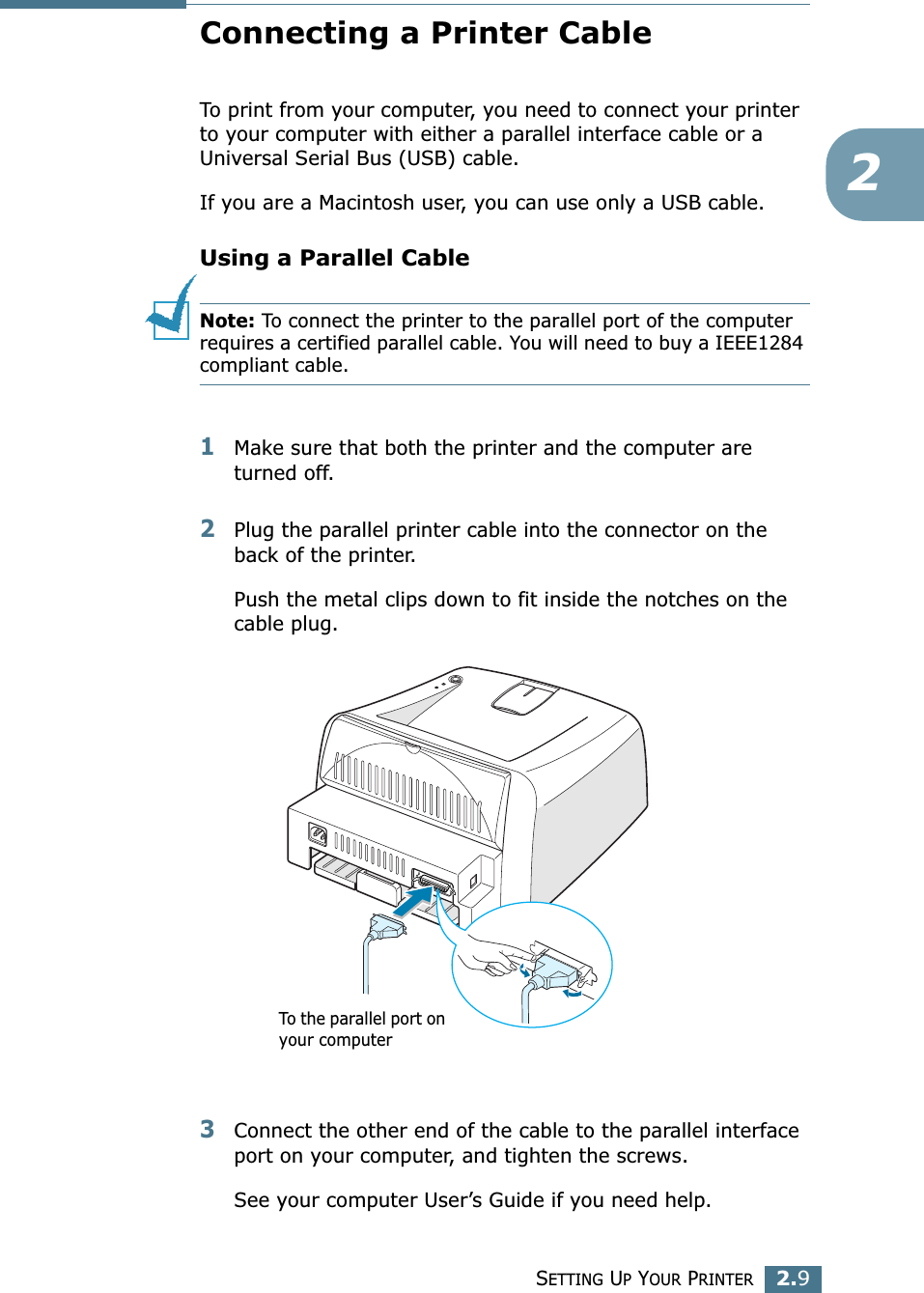
SETTING UP YOUR PRINTER2.92Connecting a Printer CableTo print from your computer, you need to connect your printer to your computer with either a parallel interface cable or a Universal Serial Bus (USB) cable. If you are a Macintosh user, you can use only a USB cable. Using a Parallel CableNote: To connect the printer to the parallel port of the computer requires a certified parallel cable. You will need to buy a IEEE1284 compliant cable.1Make sure that both the printer and the computer are turned off.2Plug the parallel printer cable into the connector on the back of the printer. Push the metal clips down to fit inside the notches on the cable plug.3Connect the other end of the cable to the parallel interface port on your computer, and tighten the screws. See your computer User’s Guide if you need help.To the parallel port on your computer
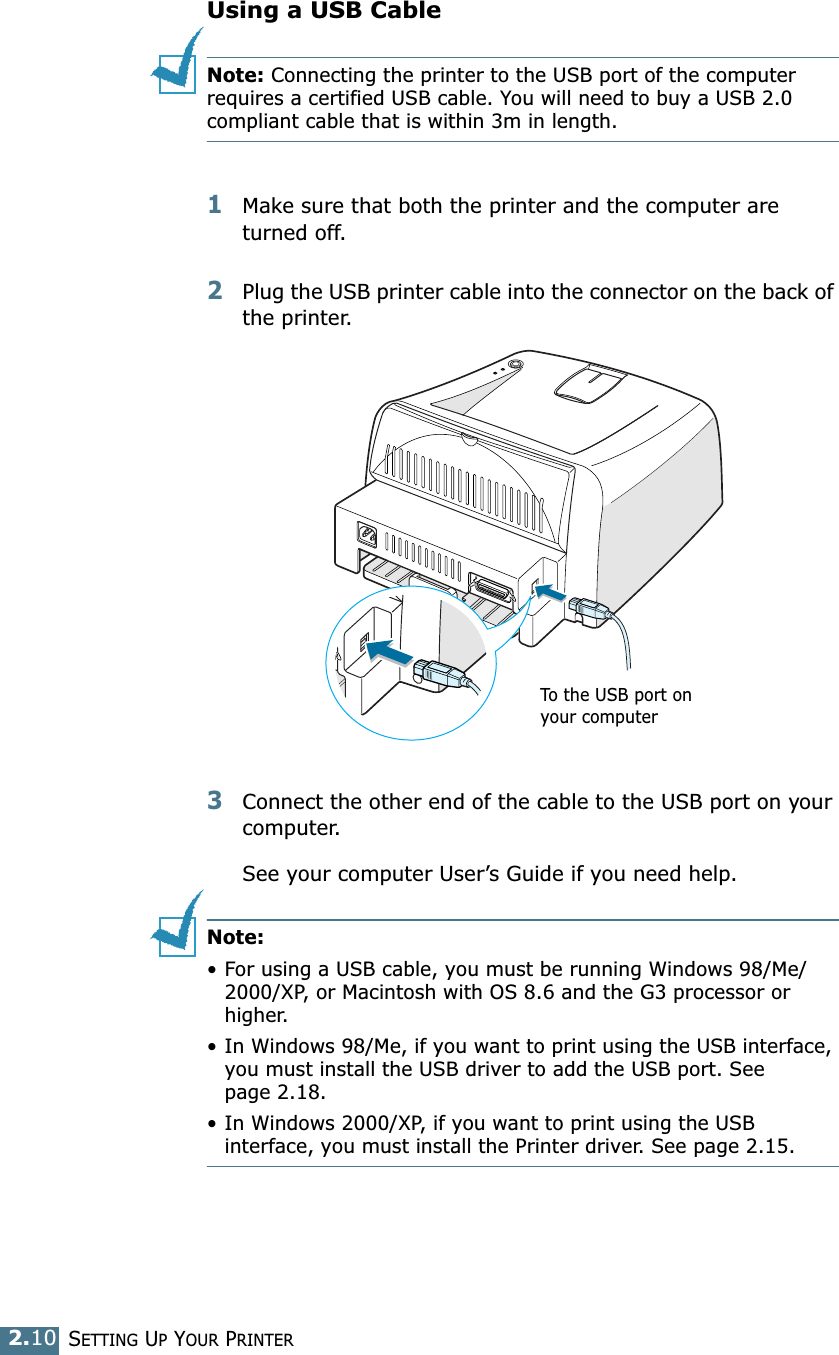
SETTING UP YOUR PRINTER2.10Using a USB CableNote: Connecting the printer to the USB port of the computer requires a certified USB cable. You will need to buy a USB 2.0 compliant cable that is within 3m in length. 1Make sure that both the printer and the computer are turned off.2Plug the USB printer cable into the connector on the back of the printer.3Connect the other end of the cable to the USB port on your computer. See your computer User’s Guide if you need help. Note: • For using a USB cable, you must be running Windows 98/Me/2000/XP, or Macintosh with OS 8.6 and the G3 processor or higher. • In Windows 98/Me, if you want to print using the USB interface, you must install the USB driver to add the USB port. See page 2.18.• In Windows 2000/XP, if you want to print using the USB interface, you must install the Printer driver. See page 2.15. To the USB port on your computer
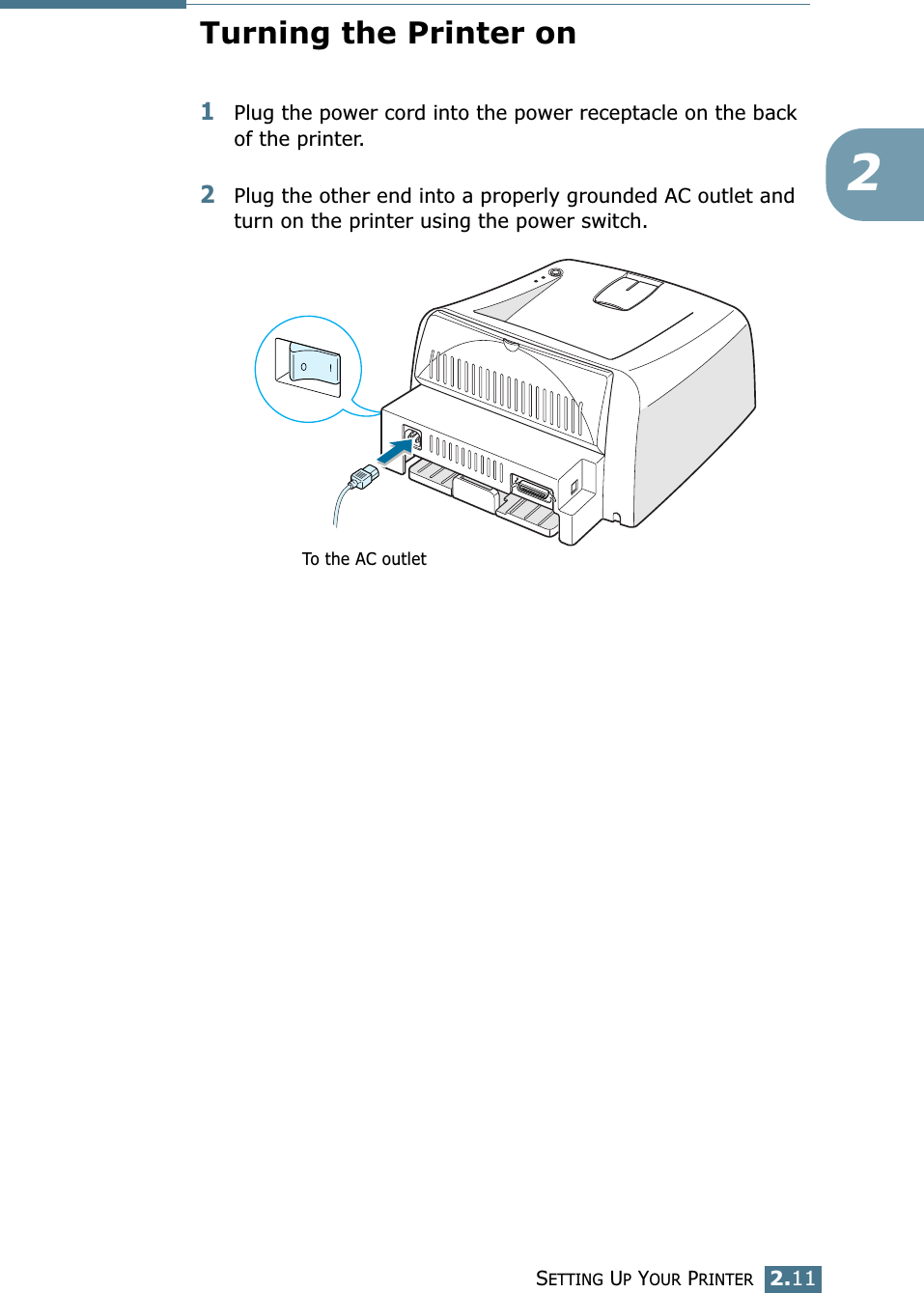
SETTING UP YOUR PRINTER2.112Turning the Printer on1Plug the power cord into the power receptacle on the back of the printer. 2Plug the other end into a properly grounded AC outlet and turn on the printer using the power switch. To the AC outlet
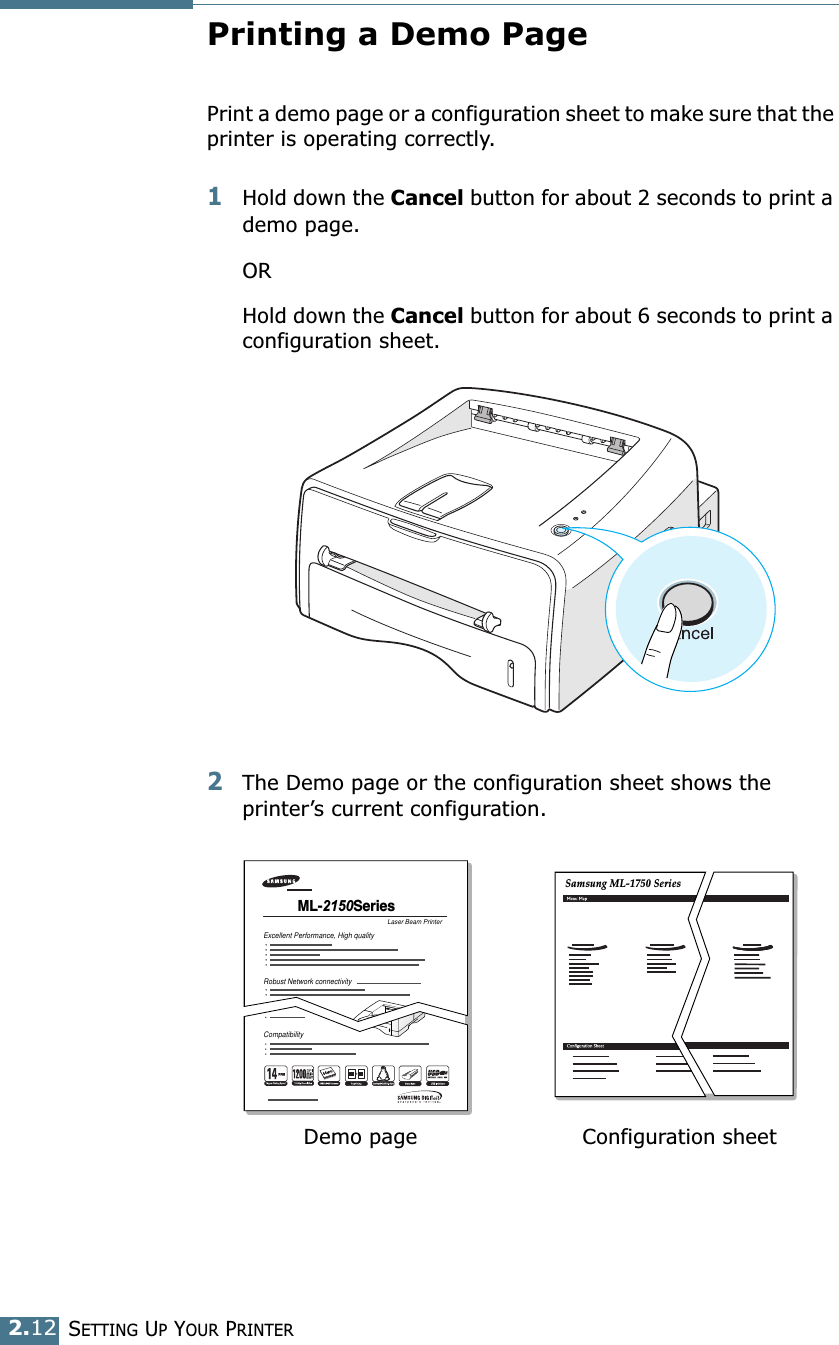
SETTING UP YOUR PRINTER2.12Printing a Demo PagePrint a demo page or a configuration sheet to make sure that the printer is operating correctly.1Hold down the Cancel button for about 2 seconds to print a demo page. ORHold down the Cancel button for about 6 seconds to print a configuration sheet.2The Demo page or the configuration sheet shows the printer’s current configuration. Laser Beam PrinterML-2150Series Excellent Performance, High qualityRobust Network connectivityCompatibilitySamsung ML-1750 Series Demo page Configuration sheet
SETTING UP YOUR PRINTER2.132Installing Printer SoftwareThe supplied CD-ROM contains Windows printing software, Macintosh printing software, Linux printing software, on-line User’s Guide and Acrobat Reader to view the User’s Guide. If you are printing from WindowsYou can install the following printer software using the CD-ROM. • SPL printer driver for windows. Use this driver to take full advantage of your printer’s features. See page 2.15.• Status Monitor allows you to see the printing status of the printer. See page 4.26.• Remote Control Panel for DOS application. Go to “Printing from DOS Applications” on page 7.20, for information about installing the Remote Control Panel and printing from DOS applications. • USB driver for adding the USB port to Windows 98/Me. You must first install the USB driver for the USB connection in Windows 98/Me. In Windows 2000/XP, the USB port is provided, so that you don’t have to install the USB driver. Just install the printer software; see page 2.15. If you are printing from MacintoshGo to “Using Your Printer with a Macintosh” on page 7.2, for information about installing the print software and printing from a Macintosh.If you are printing in LinuxGo to “Using Your Printer in Linux” on page 7.10, for information about installing the Linux driver.
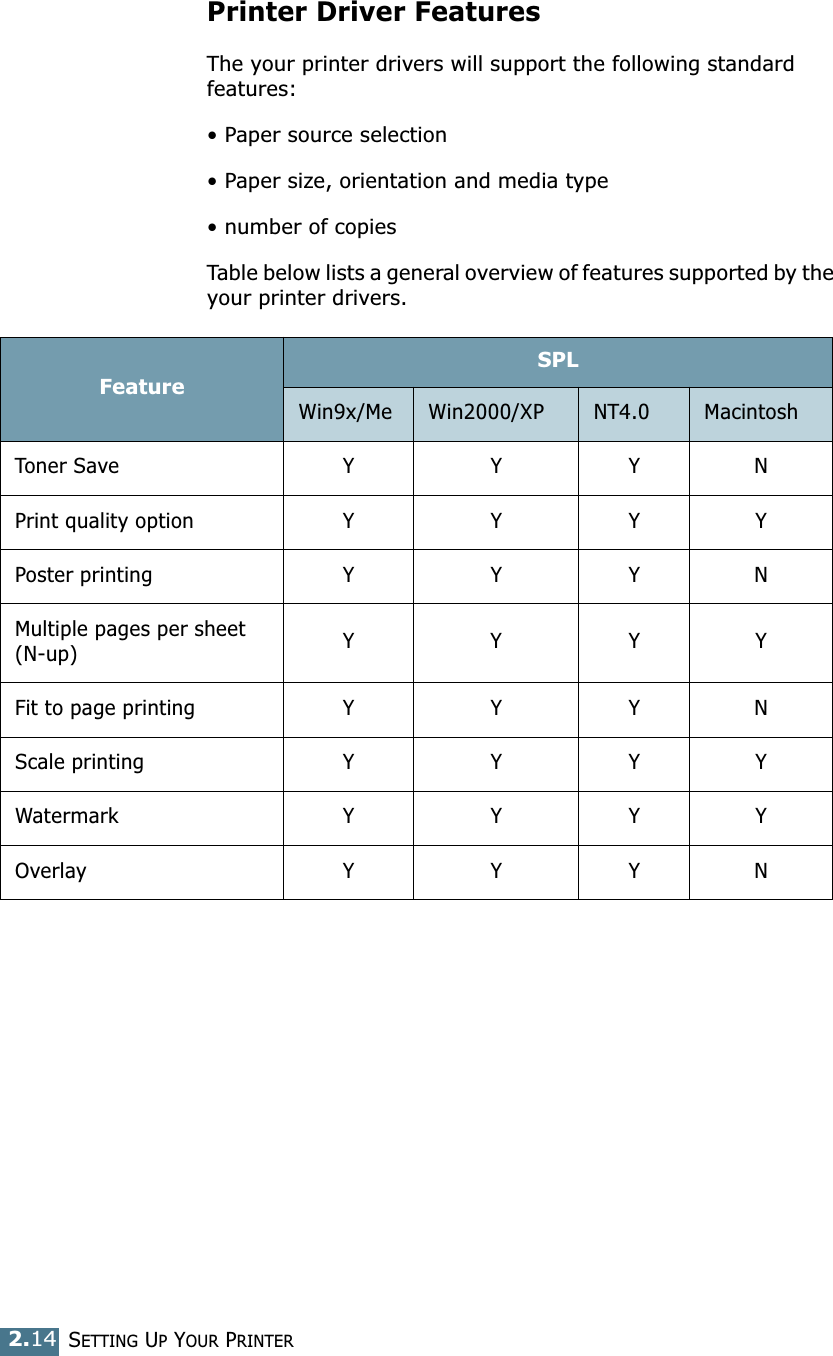
SETTING UP YOUR PRINTER2.14Printer Driver FeaturesThe your printer drivers will support the following standard features:• Paper source selection• Paper size, orientation and media type• number of copiesTable below lists a general overview of features supported by the your printer drivers. FeatureSPLWin9x/Me Win2000/XP NT4.0 MacintoshToner Save Y Y Y NPrint quality option Y Y Y YPoster printing Y Y Y NMultiple pages per sheet (N-up) YYYYFit to page printing Y Y Y NScale printing Y Y Y YWatermark Y Y Y YOverlay Y Y Y N
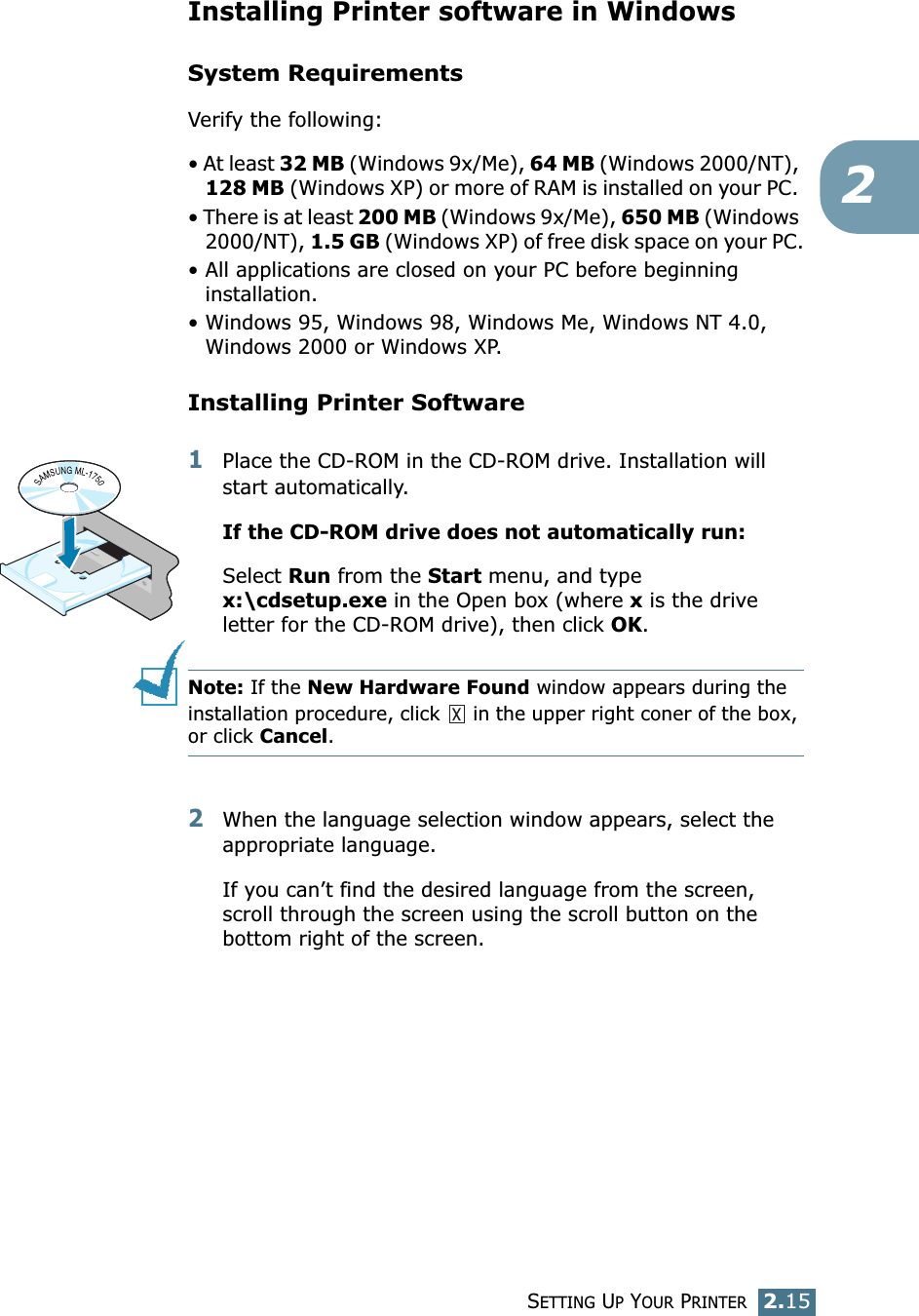
SETTING UP YOUR PRINTER2.152Installing Printer software in WindowsSystem RequirementsVerify the following:• At least 32 MB (Windows 9x/Me), 64 MB (Windows 2000/NT), 128 MB (Windows XP) or more of RAM is installed on your PC. • There is at least 200 MB (Windows 9x/Me), 650 MB (Windows 2000/NT), 1.5 GB (Windows XP) of free disk space on your PC.• All applications are closed on your PC before beginning installation. • Windows 95, Windows 98, Windows Me, Windows NT 4.0, Windows 2000 or Windows XP.Installing Printer Software1Place the CD-ROM in the CD-ROM drive. Installation will start automatically.If the CD-ROM drive does not automatically run:Select Run from the Start menu, and type x:\cdsetup.exe in the Open box (where x is the drive letter for the CD-ROM drive), then click OK.Note: If the New Hardware Found window appears during the installation procedure, click   in the upper right coner of the box, or click Cancel. 2When the language selection window appears, select the appropriate language. If you can’t find the desired language from the screen, scroll through the screen using the scroll button on the bottom right of the screen.
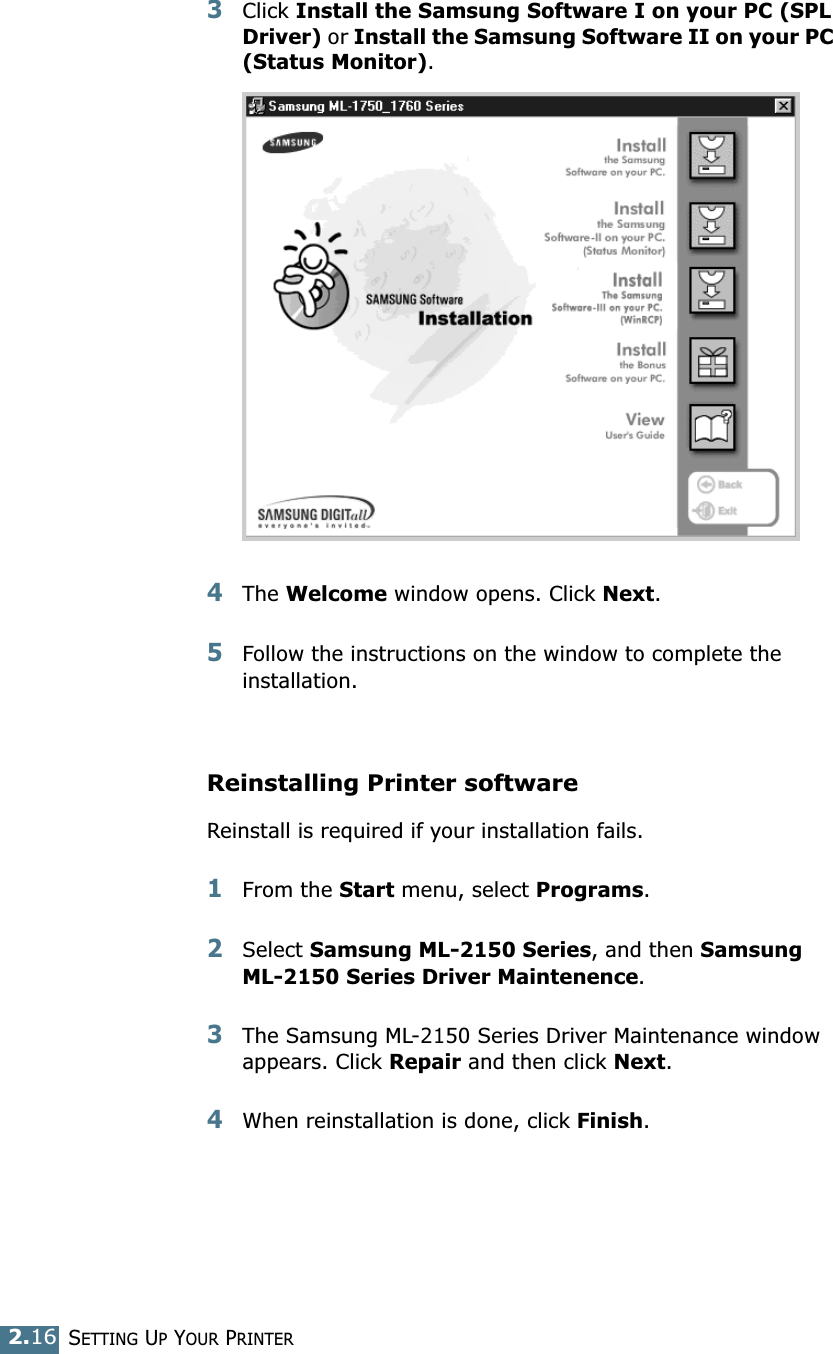
SETTING UP YOUR PRINTER2.163Click Install the Samsung Software I on your PC (SPL Driver) or Install the Samsung Software II on your PC (Status Monitor). 4The Welcome window opens. Click Next.5Follow the instructions on the window to complete the installation. Reinstalling Printer softwareReinstall is required if your installation fails.1From the Start menu, select Programs.2Select Samsung ML-2150 Series, and then Samsung ML-2150 Series Driver Maintenence.3The Samsung ML-2150 Series Driver Maintenance window appears. Click Repair and then click Next. 4When reinstallation is done, click Finish.
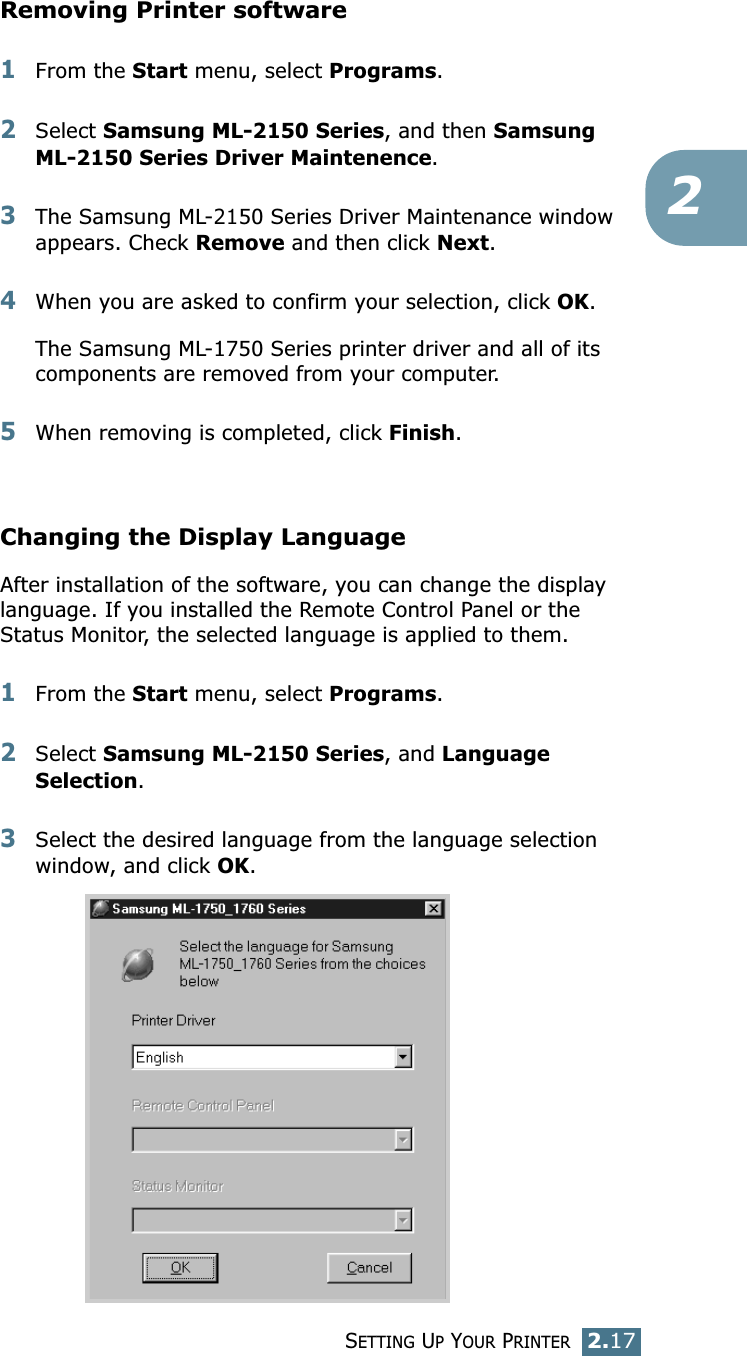
SETTING UP YOUR PRINTER2.172Removing Printer software1From the Start menu, select Programs.2Select Samsung ML-2150 Series, and then Samsung ML-2150 Series Driver Maintenence. 3The Samsung ML-2150 Series Driver Maintenance window appears. Check Remove and then click Next. 4When you are asked to confirm your selection, click OK. The Samsung ML-1750 Series printer driver and all of its components are removed from your computer. 5When removing is completed, click Finish. Changing the Display LanguageAfter installation of the software, you can change the display language. If you installed the Remote Control Panel or the Status Monitor, the selected language is applied to them. 1From the Start menu, select Programs.2Select Samsung ML-2150 Series, and Language Selection.3Select the desired language from the language selection window, and click OK.
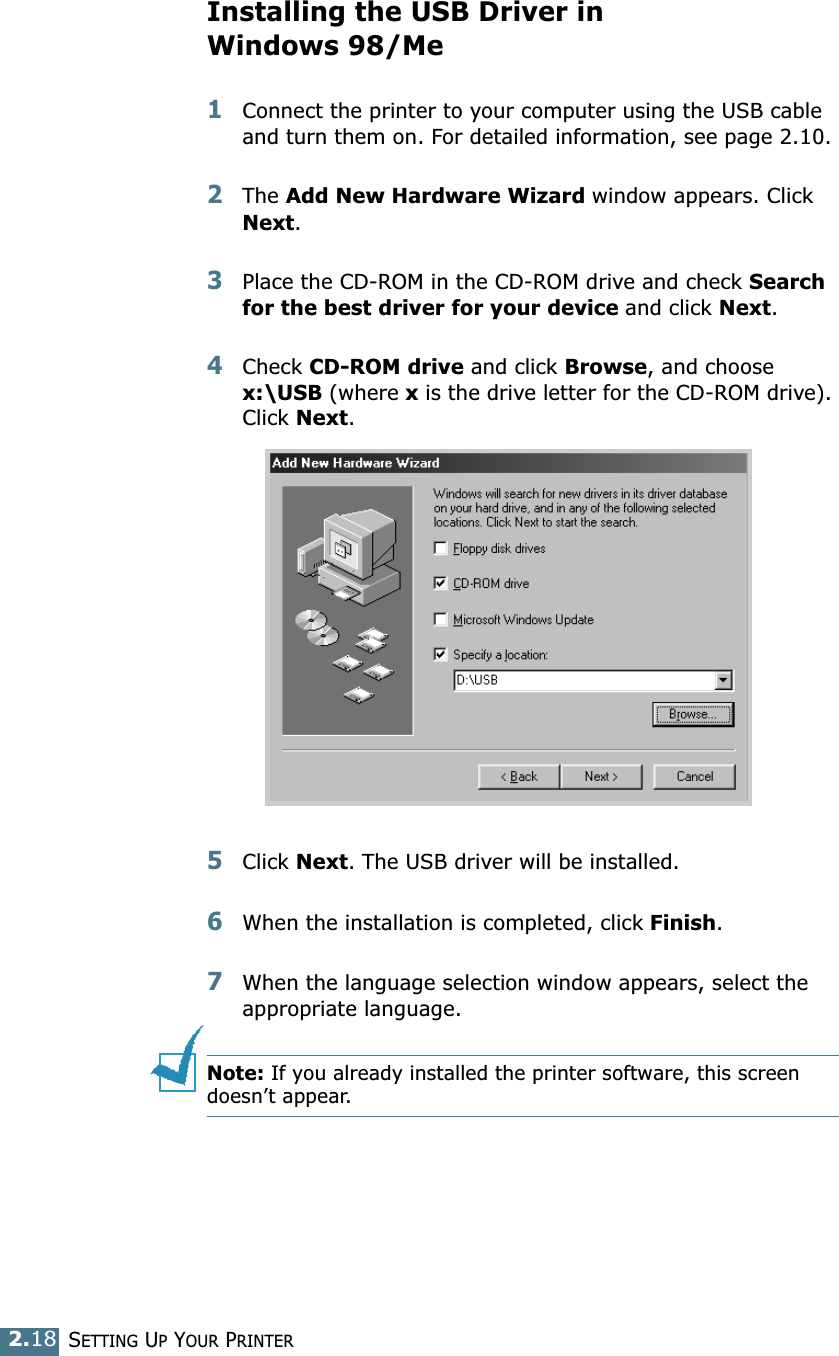
SETTING UP YOUR PRINTER2.18Installing the USB Driver in Windows 98/Me1Connect the printer to your computer using the USB cable and turn them on. For detailed information, see page 2.10. 2The Add New Hardware Wizard window appears. Click Next. 3Place the CD-ROM in the CD-ROM drive and check Search for the best driver for your device and click Next. 4Check CD-ROM drive and click Browse, and choose x:\USB (where x is the drive letter for the CD-ROM drive). Click Next. 5Click Next. The USB driver will be installed. 6When the installation is completed, click Finish. 7When the language selection window appears, select the appropriate language. Note: If you already installed the printer software, this screen doesn’t appear.
SETTING UP YOUR PRINTER2.1928Follow the instructions on the window to complete the printer software installation. For more details, see page 2.15. Notes:• If you want to use your printer with the parallel cable, remove the USB cable and connect the parallel cable. Then reinstall the printer driver. • If your printer doesn’t work properly, reinstall the printer driver.
SETTING UP YOUR PRINTER2.20NOTE
3This chapter will help you understand types of paper you can use with this printer and how to properly load paper in the tray for the best print quality. This chapter includes:• Choosing Paper and Other Materials• Selecting the Output Location• Loading Paper• Printing on Envelopes• Printing on Labels• Printing on Transparencies• Printing on Card Stock or Custom-sized MaterialsUsing Print Materials
USING PRINT MATERIALS3.2Choosing Paper and Other MaterialsYou can print on a variety of print materials, such as plain paper, envelopes, labels, transparencies and so on. See “Paper Specifications” on page 7.30. To get the best possible print quality, use only high-quality copier-grade paper.When you choose print materials, consider the followings:• Desired outcome: The paper you choose should be appropriate for the project.• Size: You can use any size paper that fits easily within the paper adjusters of the paper feeder.• Weight: Your printer supports paper weight as follows:      • 16~24 lbs (60~90g/m2) bond for the tray      • 16~43 lbs (60~163 g/m2) bond for the manual feeder• Brightness: Some papers are whiter than others and produce sharper, more vibrant images. • Surface smoothness: The smoothness of the paper affects how crisp the printing looks on the paper.CAUTION: Using a material that does not conform to the specification listed in the paper specification can cause problems that may require service. This service is not covered by the warranty or service agreements.
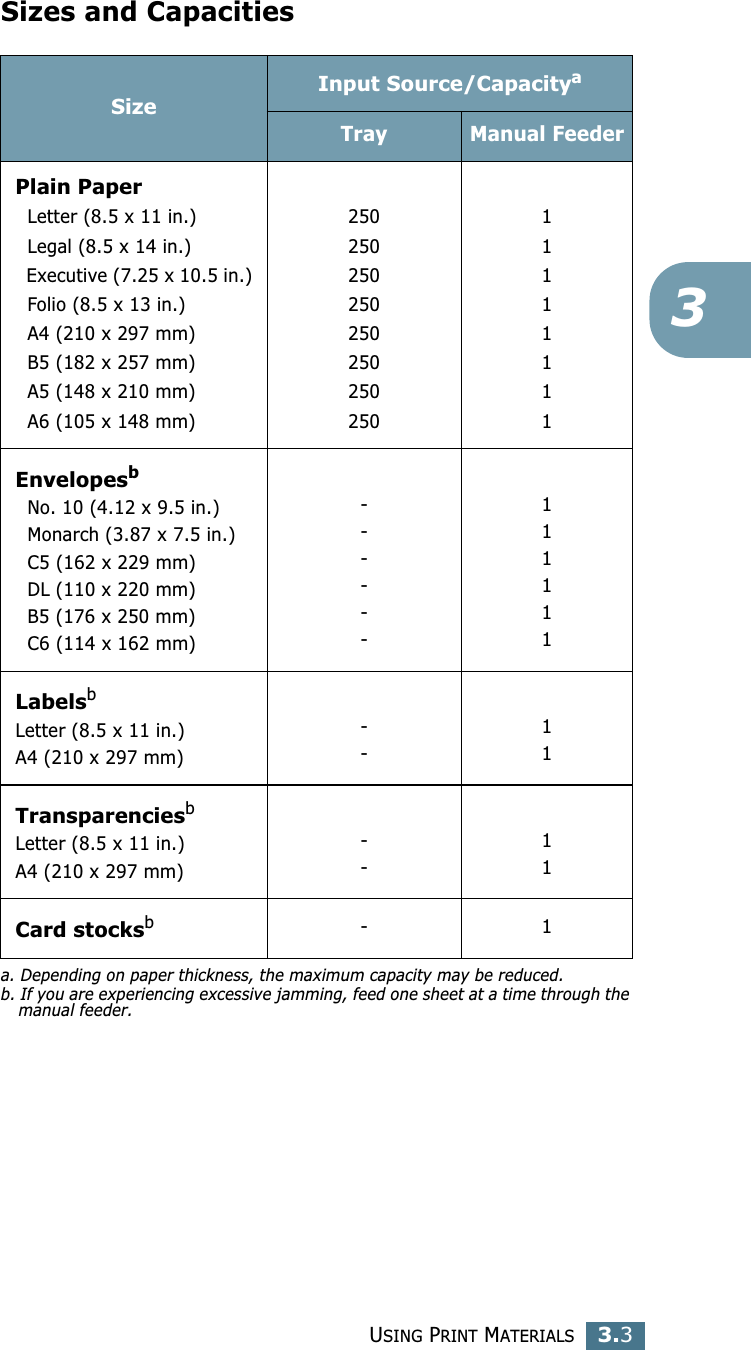
USING PRINT MATERIALS3.33Sizes and CapacitiesSizeInput Source/Capacityaa. Depending on paper thickness, the maximum capacity may be reduced. Tray Manual FeederPlain Paper   Letter (8.5 x 11 in.)  Legal (8.5 x 14 in.)  Executive (7.25 x 10.5 in.)  Folio (8.5 x 13 in.)  A4 (210 x 297 mm)  B5 (182 x 257 mm)  A5 (148 x 210 mm)  A6 (105 x 148 mm)25025025025025025025025011111111Envelopesb  No. 10 (4.12 x 9.5 in.)  Monarch (3.87 x 7.5 in.)  C5 (162 x 229 mm)  DL (110 x 220 mm)  B5 (176 x 250 mm)  C6 (114 x 162 mm)b. If you are experiencing excessive jamming, feed one sheet at a time through the manual feeder.------111111LabelsbLetter (8.5 x 11 in.)A4 (210 x 297 mm)--11TransparenciesbLetter (8.5 x 11 in.)A4 (210 x 297 mm)--11Card stocksb-1
USING PRINT MATERIALS3.4Guidelines for Paper and Special MaterialsWhen selecting or loading paper, envelopes, or other special materials, keep these guidelines in mind:• Attempting to print on damp, curled, wrinkled, or torn paper can cause paper jams and poor print quality.• Use cut-sheet paper only. You cannot use multi-part paper.• Use only high-quality, copier grade paper for the best print quality. • Do not use paper that has been already printed on or that has been fed through a photocopier.• Do not use paper with irregularities, such as tabs or staples.• Do not attempt to load any feeder during printing and never overfill the feeder. This could cause a paper jam.• Avoid paper with embossed lettering, perforations, or texture that is too smooth or too rough.• Colored paper should be of the same high quality as white photocopy paper. The pigments must withstand the printer’s fusing temperature of 400°F (205°C) for 0.1 second without deterioration. Do not use paper with a colored coating that was added after the paper was produced.• Preprinted forms must be printed with nonflammable, heat-resistant ink that do not melt, vaporize, or release hazardous emissions when subject to the printer’s approximately 400°F (205°C) fusing temperature for 0.1 second.• Store paper in its ream wrapper until ready to use. Place cartons on pallets or shelves, not on the floor. • Do not place heavy objects on top of the paper, whether it is packaged or unpackaged. • Keep paper away from moisture, direct sunlight or other conditions that can cause it to wrinkle or curl.
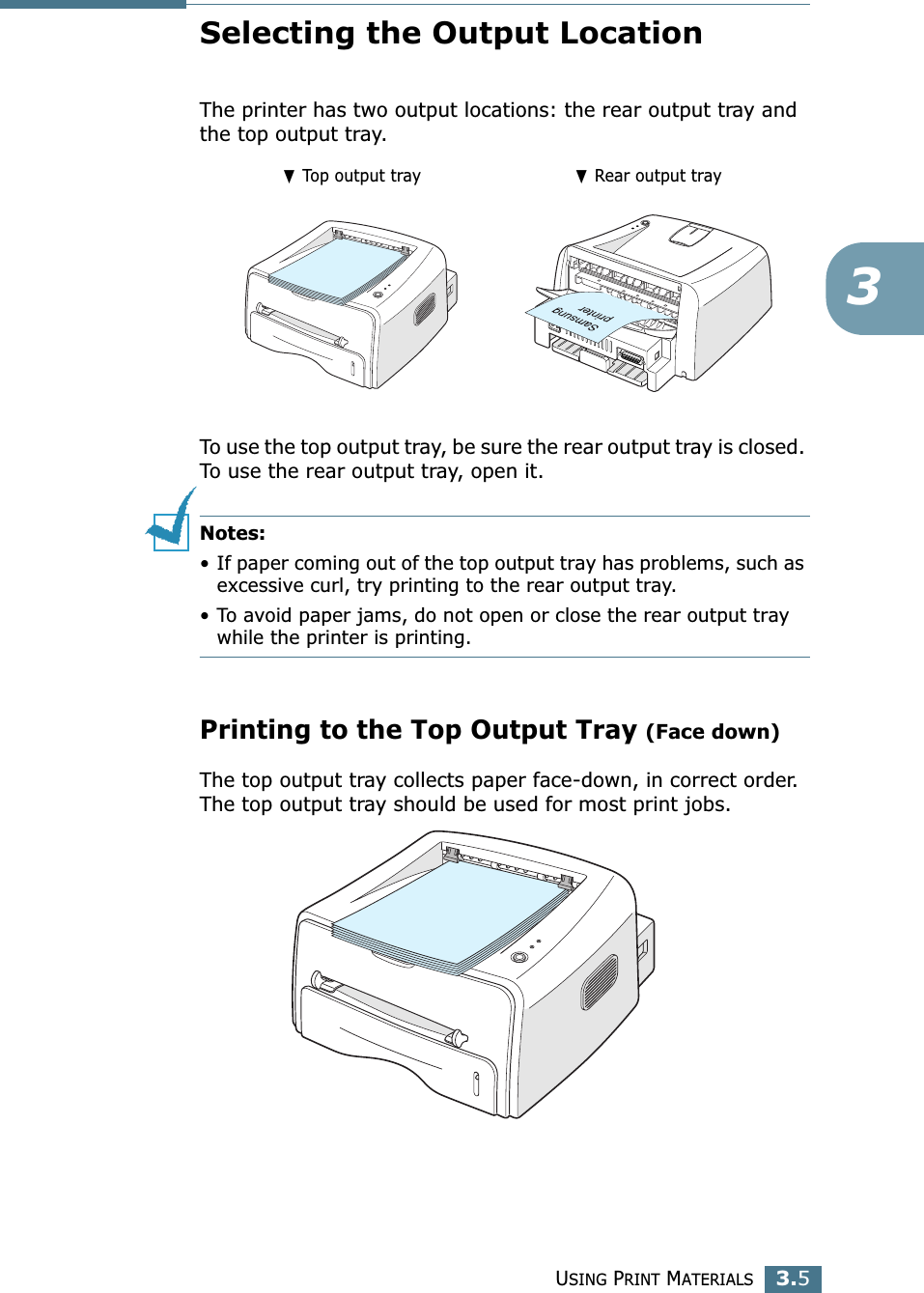
USING PRINT MATERIALS3.53Selecting the Output LocationThe printer has two output locations: the rear output tray and the top output tray. To use the top output tray, be sure the rear output tray is closed. To use the rear output tray, open it.Notes:• If paper coming out of the top output tray has problems, such as excessive curl, try printing to the rear output tray.• To avoid paper jams, do not open or close the rear output tray while the printer is printing.Printing to the Top Output Tray (Face down)The top output tray collects paper face-down, in correct order. The top output tray should be used for most print jobs.❷ Top output tray ❷ Rear output tray
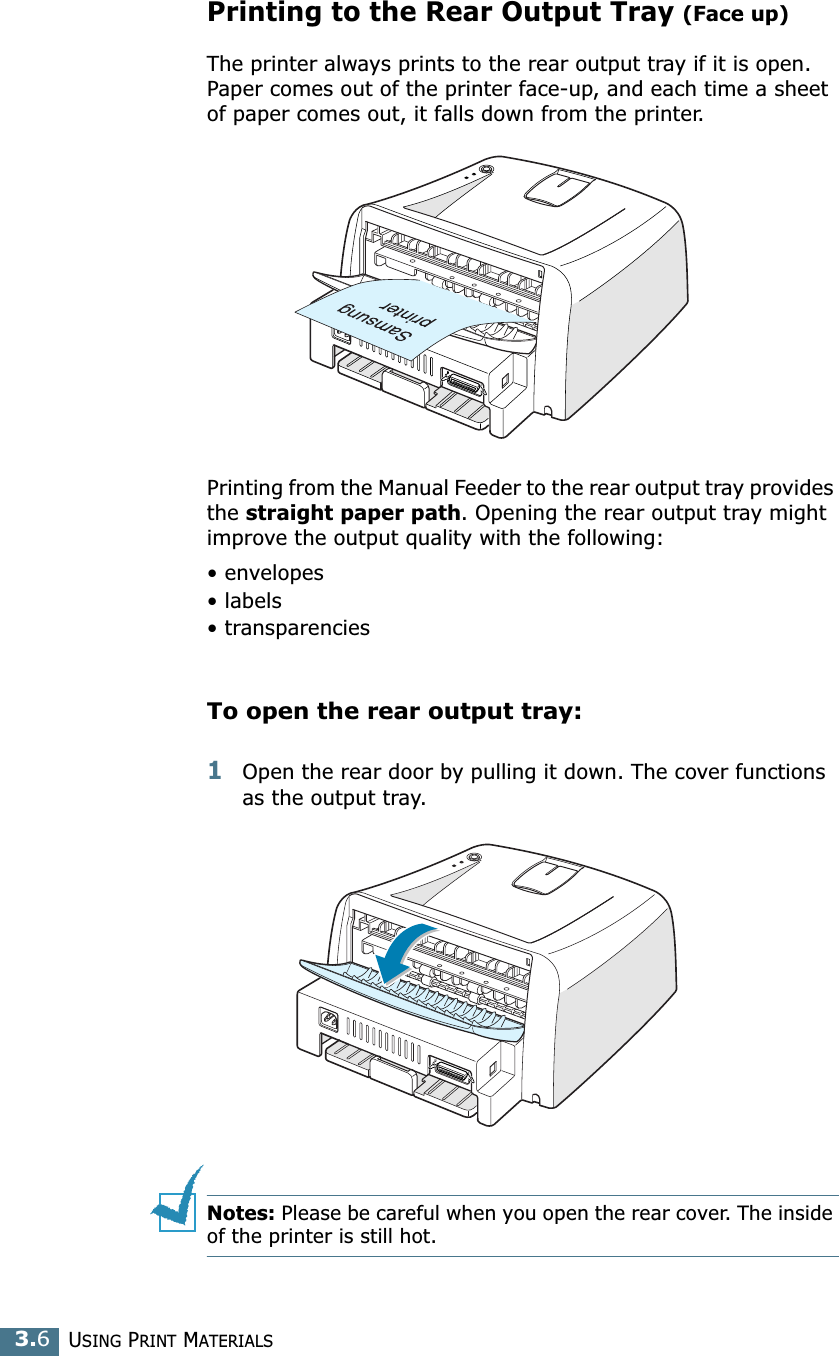
USING PRINT MATERIALS3.6Printing to the Rear Output Tray (Face up)The printer always prints to the rear output tray if it is open. Paper comes out of the printer face-up, and each time a sheet of paper comes out, it falls down from the printer.Printing from the Manual Feeder to the rear output tray provides the straight paper path. Opening the rear output tray might improve the output quality with the following:• envelopes• labels• transparenciesTo open the rear output tray:1Open the rear door by pulling it down. The cover functions as the output tray.Notes: Please be careful when you open the rear cover. The inside of the printer is still hot.
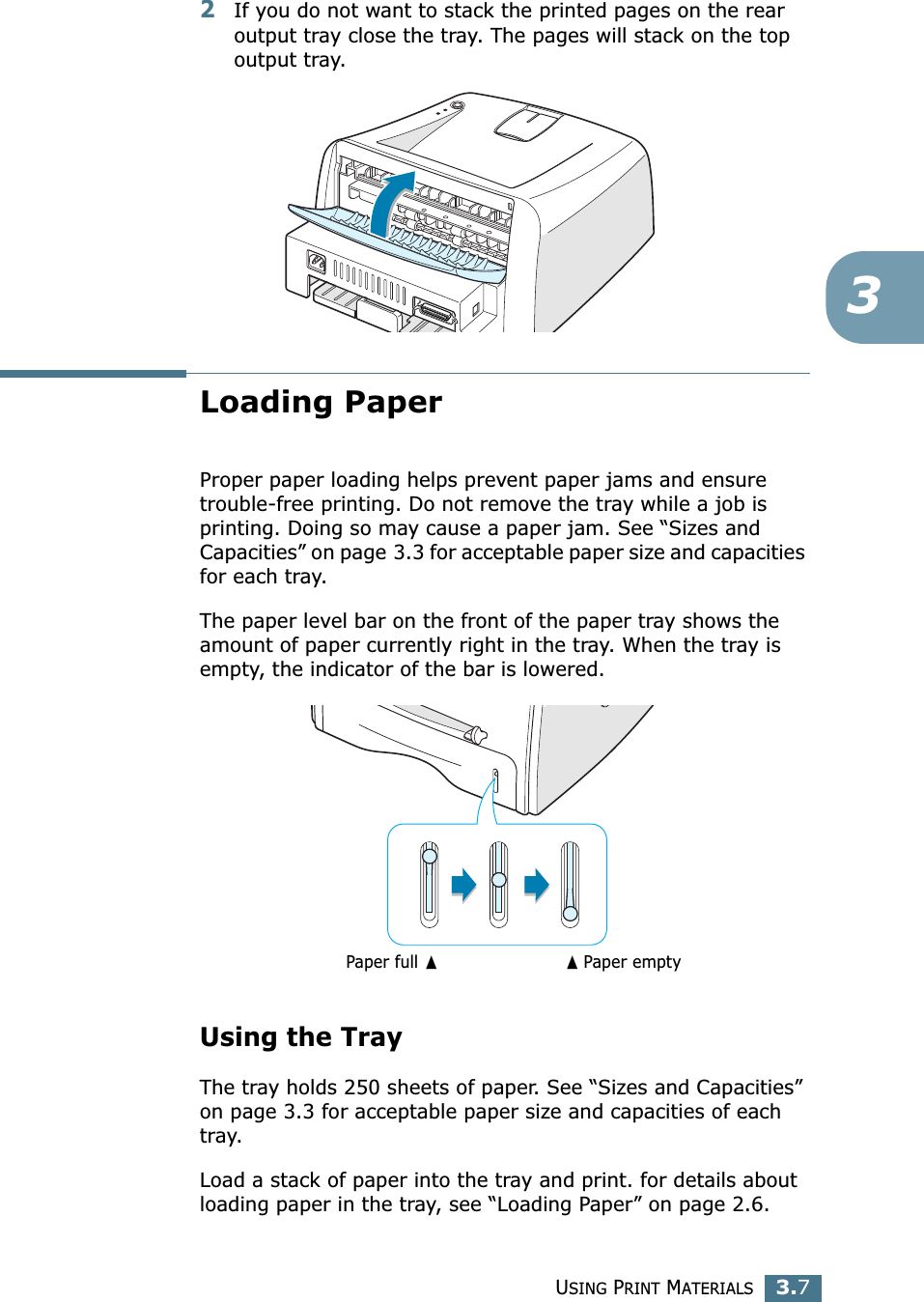
USING PRINT MATERIALS3.732If you do not want to stack the printed pages on the rear output tray close the tray. The pages will stack on the top output tray.Loading PaperProper paper loading helps prevent paper jams and ensure trouble-free printing. Do not remove the tray while a job is printing. Doing so may cause a paper jam. See “Sizes and Capacities” on page 3.3 for acceptable paper size and capacities for each tray. The paper level bar on the front of the paper tray shows the amount of paper currently right in the tray. When the tray is empty, the indicator of the bar is lowered.Using the TrayThe tray holds 250 sheets of paper. See “Sizes and Capacities” on page 3.3 for acceptable paper size and capacities of each tray.Load a stack of paper into the tray and print. for details about loading paper in the tray, see “Loading Paper” on page 2.6. ➐☎Paper emptyPaper full ➐
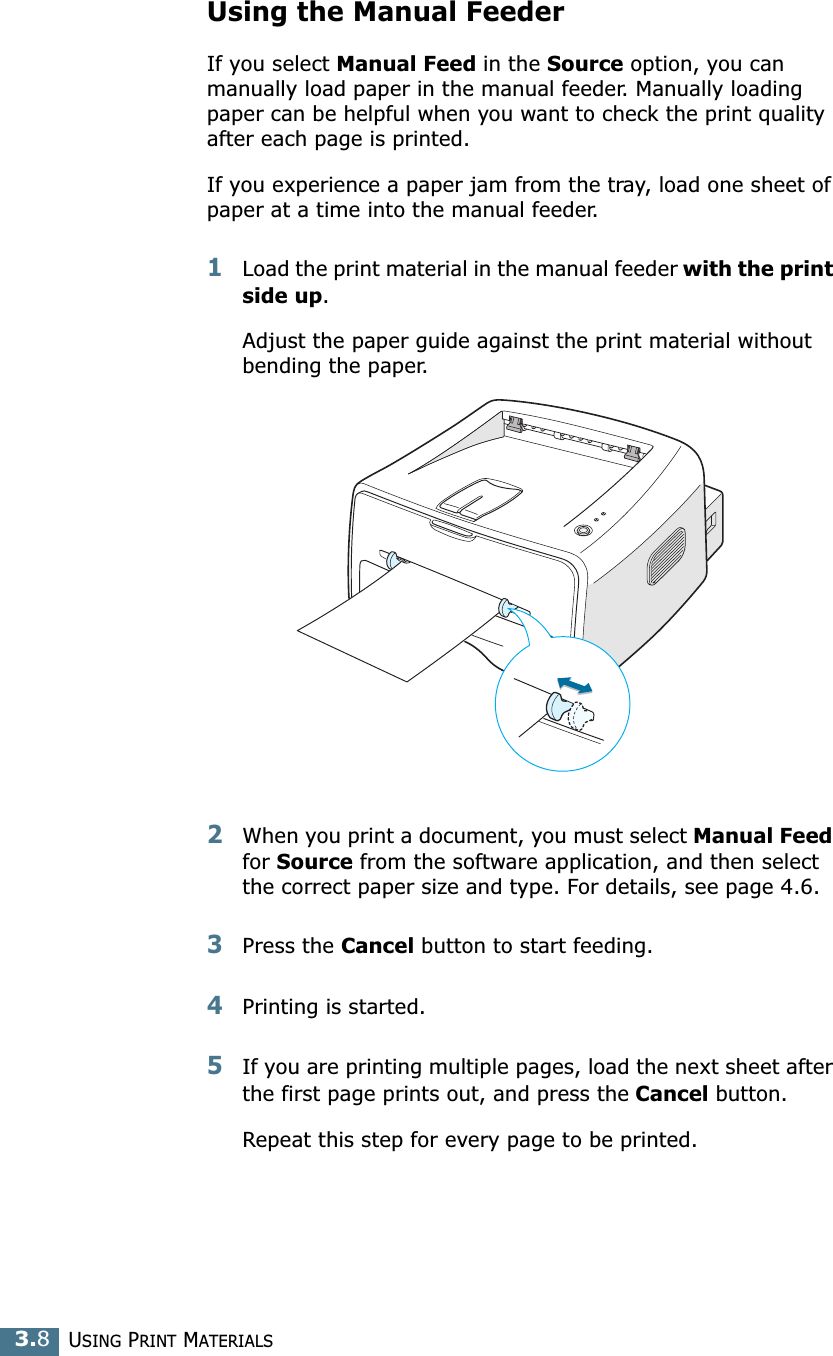
USING PRINT MATERIALS3.8Using the Manual FeederIf you select Manual Feed in the Source option, you can manually load paper in the manual feeder. Manually loading paper can be helpful when you want to check the print quality after each page is printed. If you experience a paper jam from the tray, load one sheet of paper at a time into the manual feeder. 1Load the print material in the manual feeder with the print side up. Adjust the paper guide against the print material without bending the paper.2When you print a document, you must select Manual Feed for Source from the software application, and then select the correct paper size and type. For details, see page 4.6. 3Press the Cancel button to start feeding.4Printing is started. 5If you are printing multiple pages, load the next sheet after the first page prints out, and press the Cancel button. Repeat this step for every page to be printed.
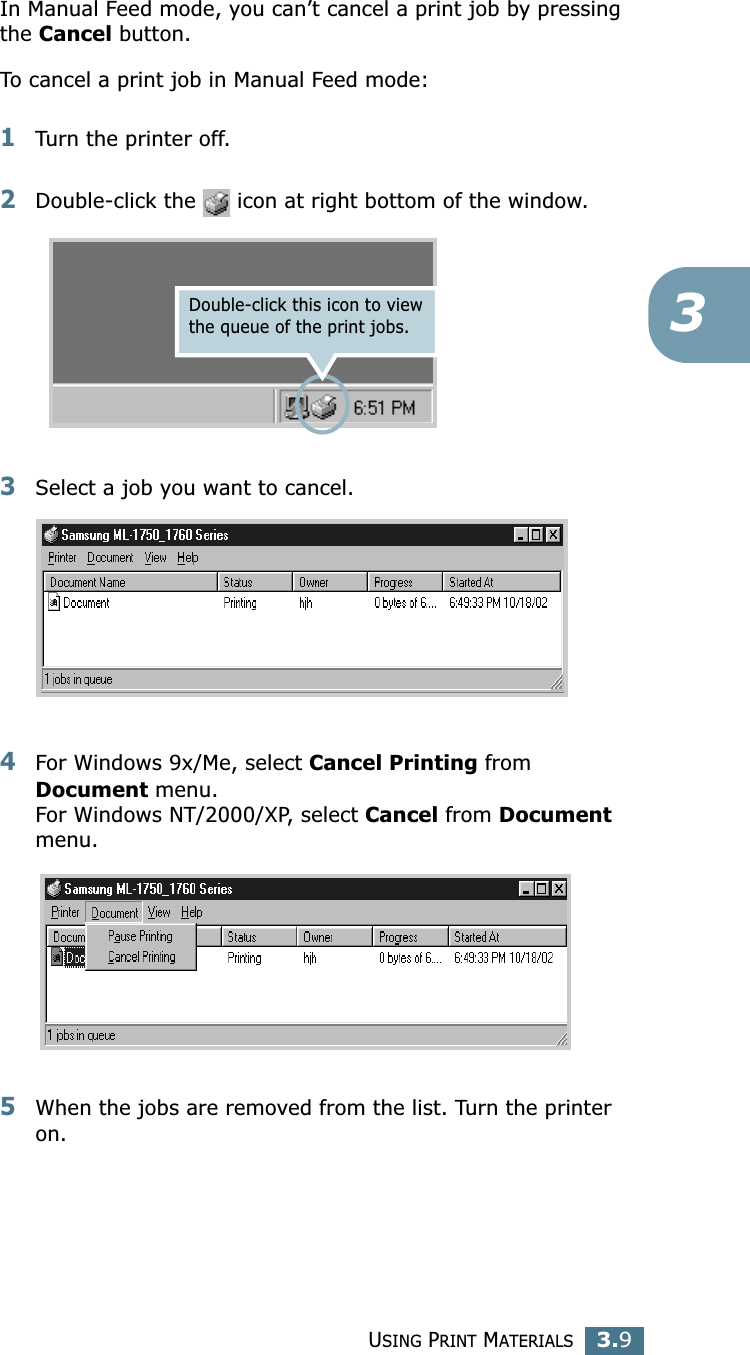
USING PRINT MATERIALS3.93In Manual Feed mode, you can’t cancel a print job by pressing the Cancel button. To cancel a print job in Manual Feed mode:1Turn the printer off. 2Double-click the   icon at right bottom of the window.3Select a job you want to cancel. 4For Windows 9x/Me, select Cancel Printing from Document menu. For Windows NT/2000/XP, select Cancel from Document menu. 5When the jobs are removed from the list. Turn the printer on.Double-click this icon to view the queue of the print jobs.
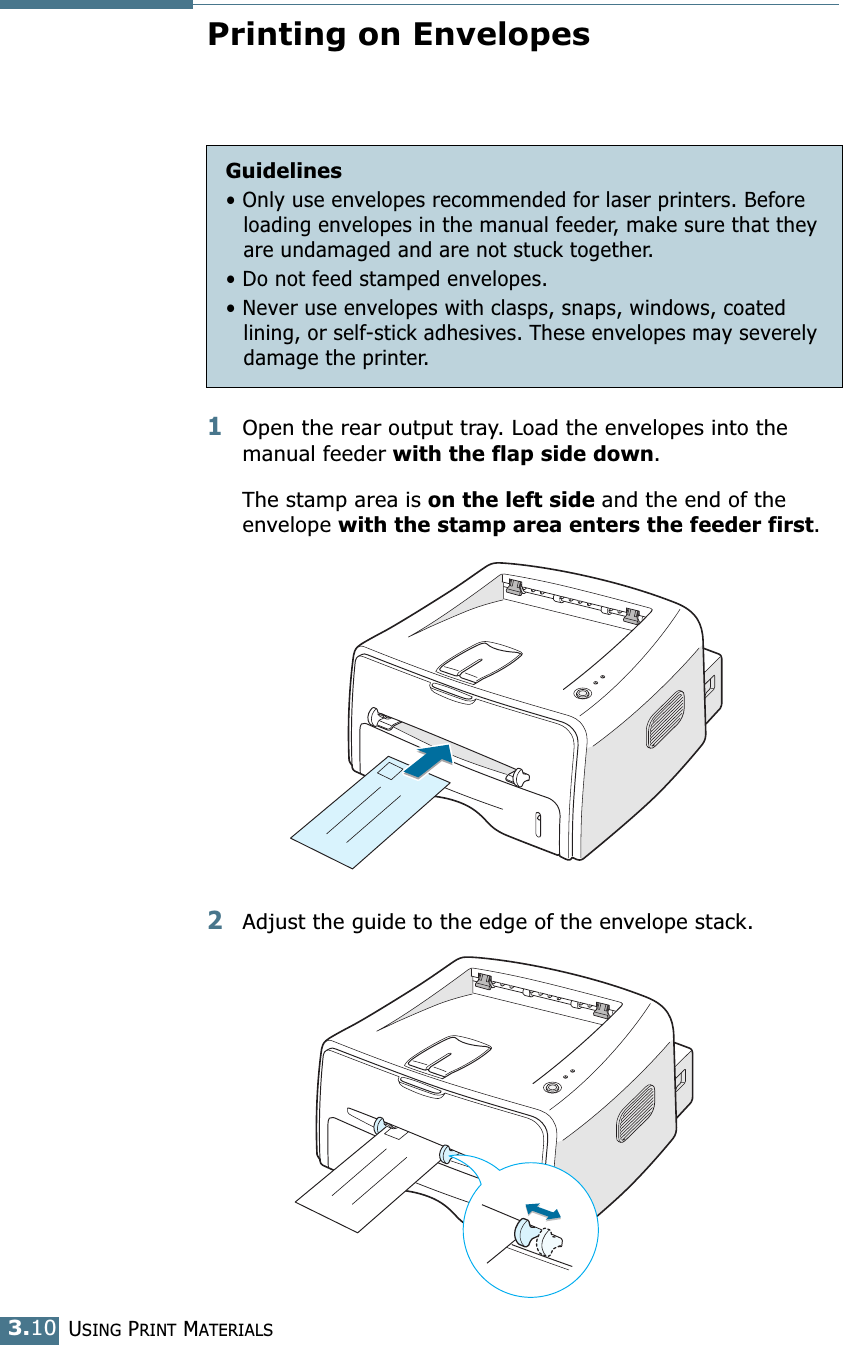
USING PRINT MATERIALS3.10Printing on Envelopes1Open the rear output tray. Load the envelopes into the manual feeder with the flap side down. The stamp area is on the left side and the end of the envelope with the stamp area enters the feeder first. 2Adjust the guide to the edge of the envelope stack. Guidelines• Only use envelopes recommended for laser printers. Before loading envelopes in the manual feeder, make sure that they are undamaged and are not stuck together. • Do not feed stamped envelopes.• Never use envelopes with clasps, snaps, windows, coated lining, or self-stick adhesives. These envelopes may severely damage the printer.
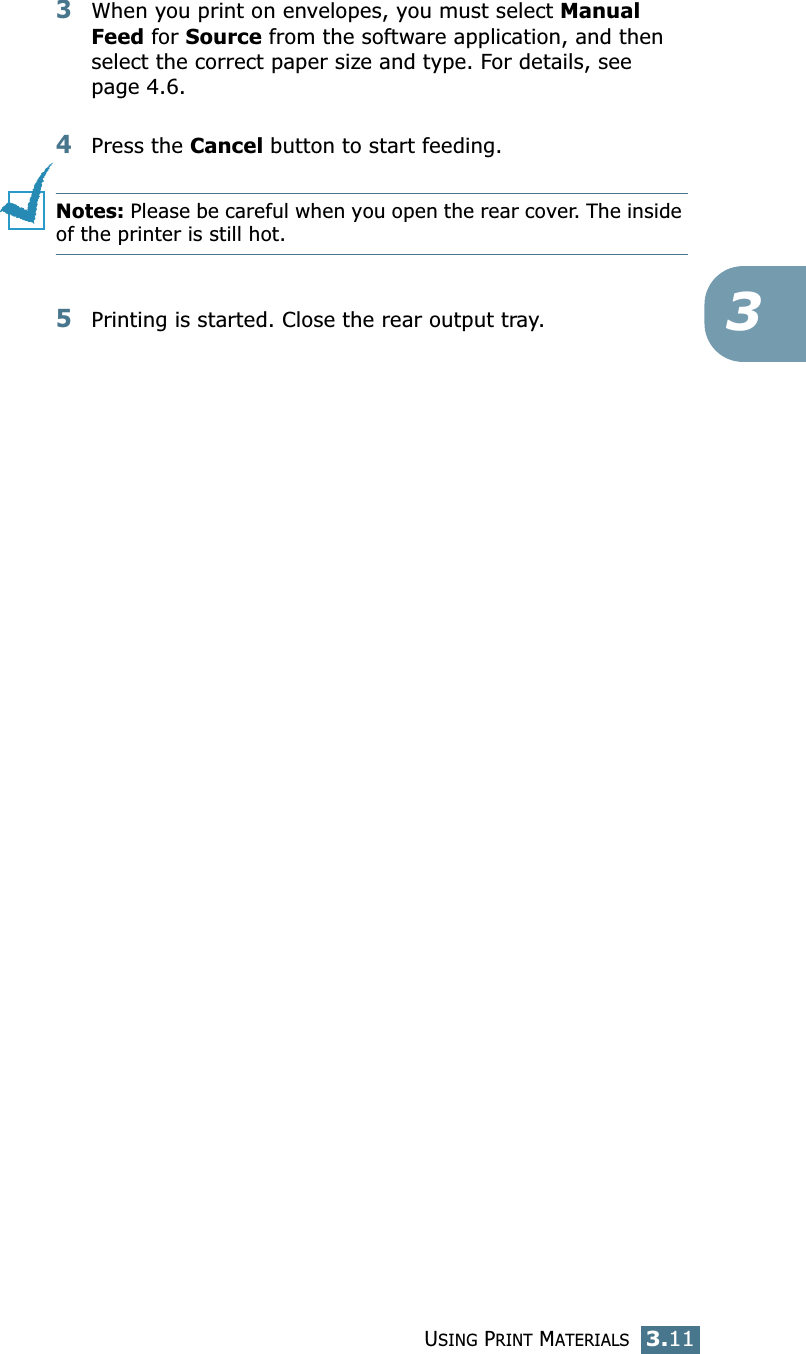
USING PRINT MATERIALS3.1133When you print on envelopes, you must select Manual Feed for Source from the software application, and then select the correct paper size and type. For details, see page 4.6. 4Press the Cancel button to start feeding. Notes: Please be careful when you open the rear cover. The inside of the printer is still hot.5Printing is started. Close the rear output tray.
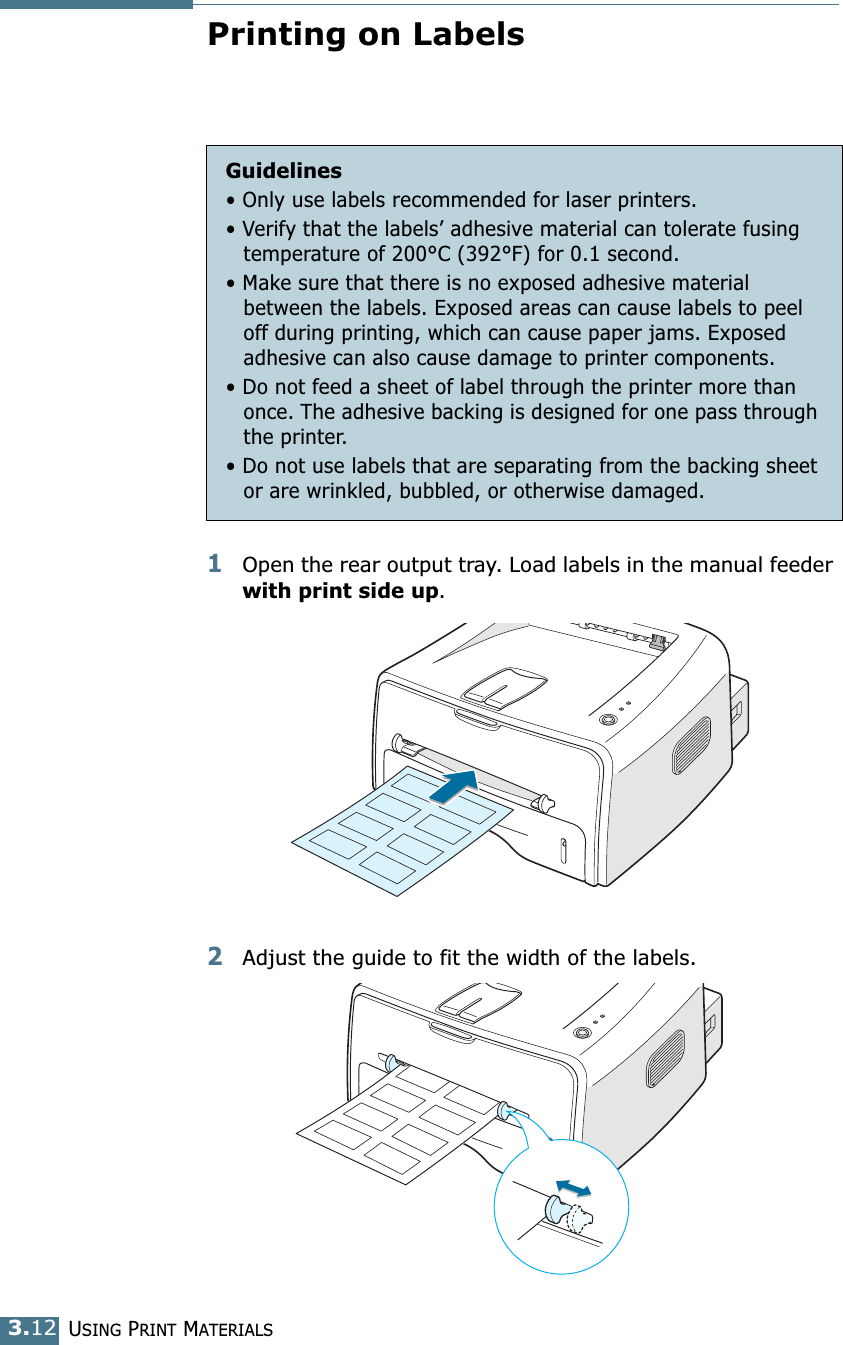
USING PRINT MATERIALS3.12Printing on Labels1Open the rear output tray. Load labels in the manual feeder with print side up. 2Adjust the guide to fit the width of the labels.Guidelines• Only use labels recommended for laser printers.• Verify that the labels’ adhesive material can tolerate fusing temperature of 200°C (392°F) for 0.1 second.• Make sure that there is no exposed adhesive material between the labels. Exposed areas can cause labels to peel off during printing, which can cause paper jams. Exposed adhesive can also cause damage to printer components.• Do not feed a sheet of label through the printer more than once. The adhesive backing is designed for one pass through the printer.• Do not use labels that are separating from the backing sheet or are wrinkled, bubbled, or otherwise damaged.
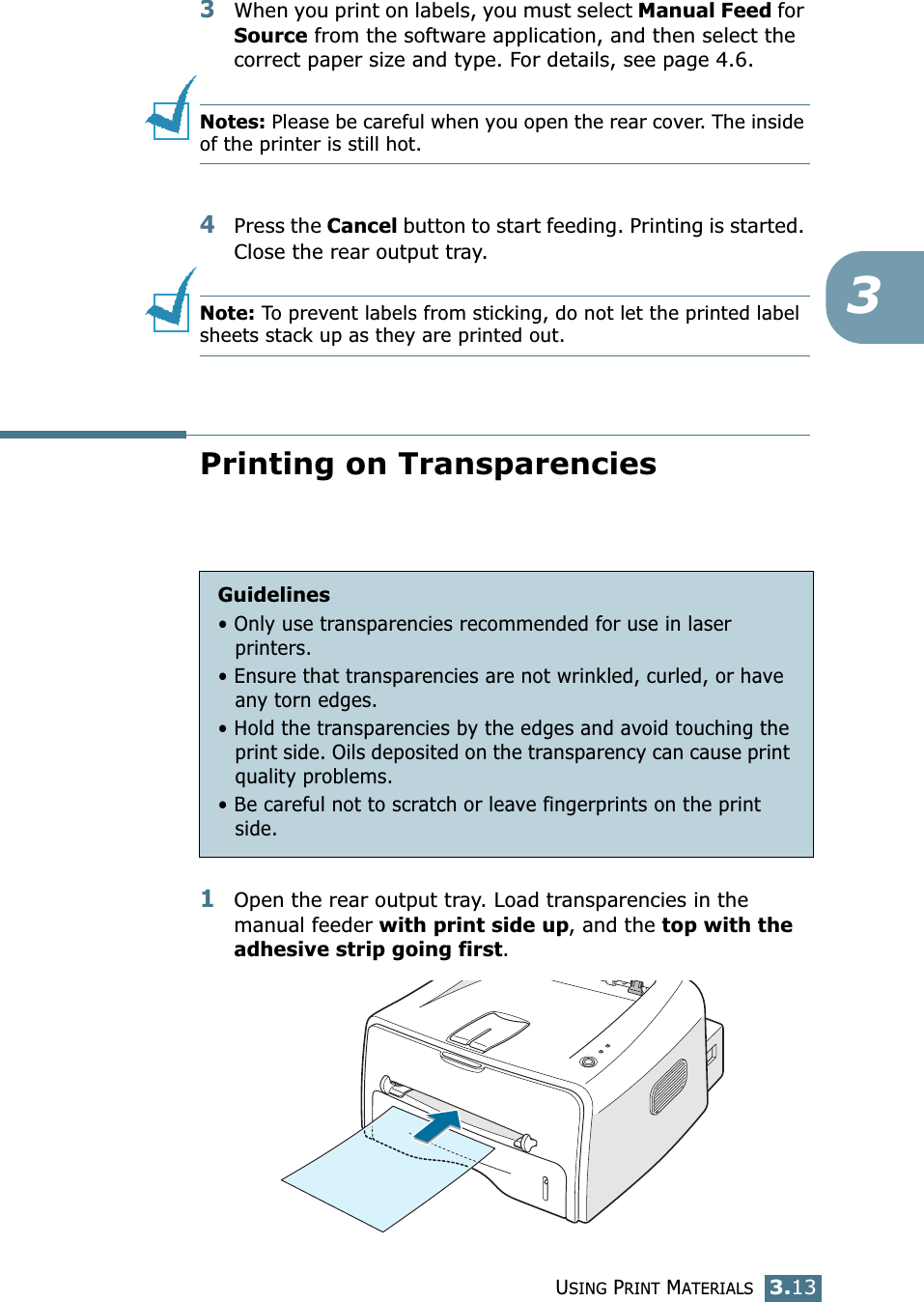
USING PRINT MATERIALS3.1333When you print on labels, you must select Manual Feed for Source from the software application, and then select the correct paper size and type. For details, see page 4.6. Notes: Please be careful when you open the rear cover. The inside of the printer is still hot.4Press the Cancel button to start feeding. Printing is started. Close the rear output tray.Note: To prevent labels from sticking, do not let the printed label sheets stack up as they are printed out. Printing on Transparencies1Open the rear output tray. Load transparencies in the manual feeder with print side up, and the top with the adhesive strip going first. Guidelines• Only use transparencies recommended for use in laser printers.• Ensure that transparencies are not wrinkled, curled, or have any torn edges.• Hold the transparencies by the edges and avoid touching the print side. Oils deposited on the transparency can cause print quality problems.• Be careful not to scratch or leave fingerprints on the print side.
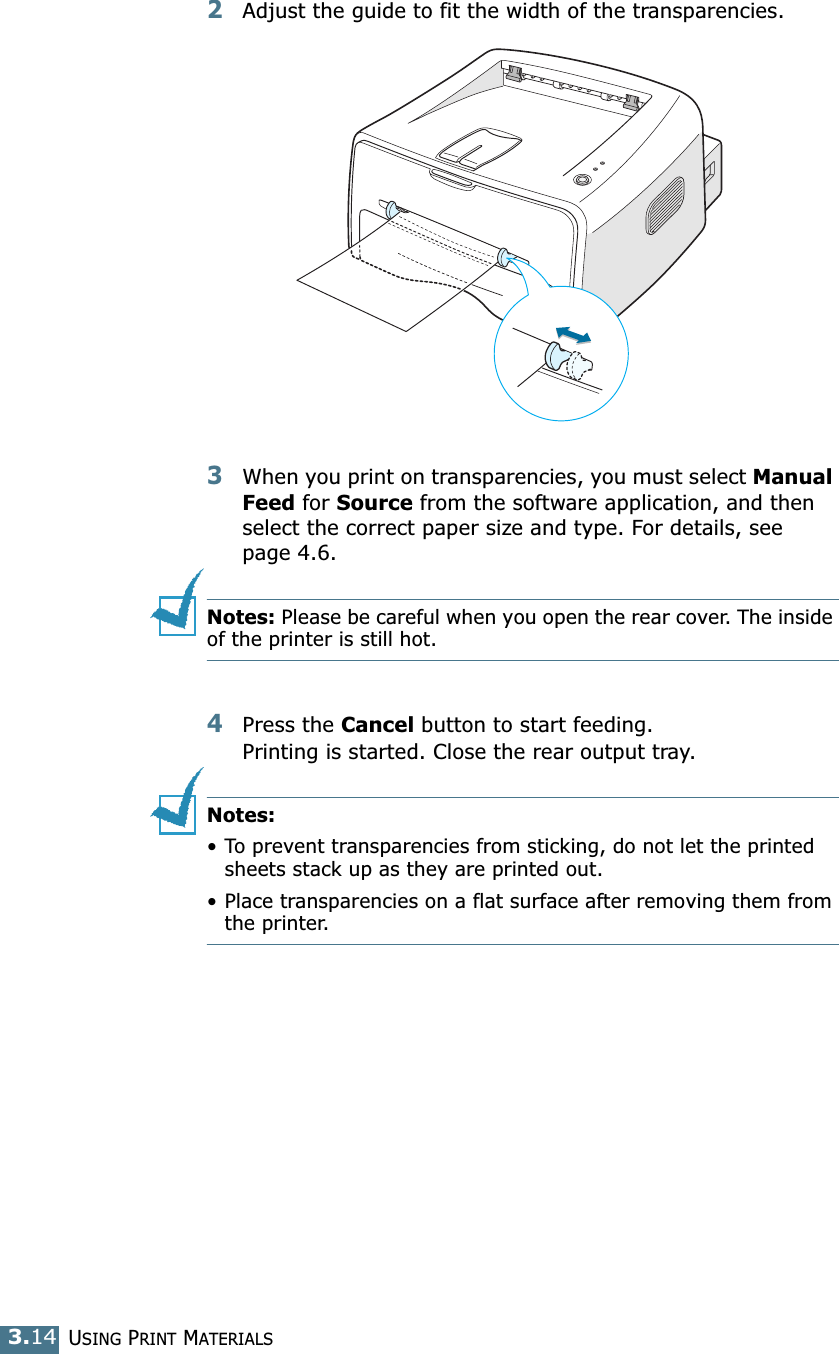
USING PRINT MATERIALS3.142Adjust the guide to fit the width of the transparencies.3When you print on transparencies, you must select Manual Feed for Source from the software application, and then select the correct paper size and type. For details, see page 4.6. Notes: Please be careful when you open the rear cover. The inside of the printer is still hot.4Press the Cancel button to start feeding.Printing is started. Close the rear output tray. Notes: • To prevent transparencies from sticking, do not let the printed sheets stack up as they are printed out.• Place transparencies on a flat surface after removing them from the printer.
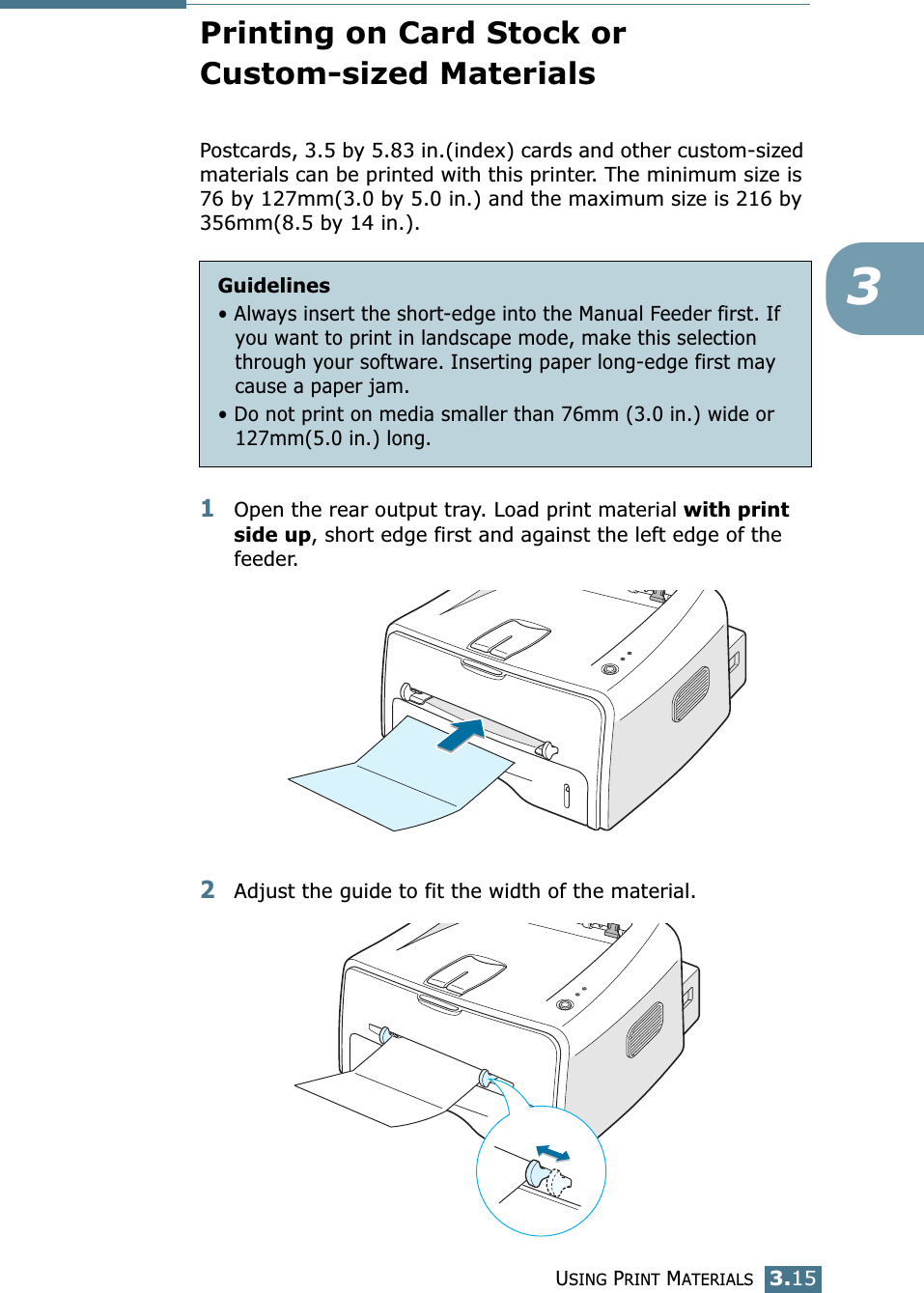
USING PRINT MATERIALS3.153Printing on Card Stock or Custom-sized MaterialsPostcards, 3.5 by 5.83 in.(index) cards and other custom-sized materials can be printed with this printer. The minimum size is 76 by 127mm(3.0 by 5.0 in.) and the maximum size is 216 by 356mm(8.5 by 14 in.).1Open the rear output tray. Load print material with print side up, short edge first and against the left edge of the feeder. 2Adjust the guide to fit the width of the material.Guidelines• Always insert the short-edge into the Manual Feeder first. If you want to print in landscape mode, make this selection through your software. Inserting paper long-edge first may cause a paper jam.• Do not print on media smaller than 76mm (3.0 in.) wide or 127mm(5.0 in.) long.
USING PRINT MATERIALS3.163When you print on card stocks or the custom-sized paper, you must select Manual Feed for Source from the software application, and then select the correct paper size and type. For details, see page 4.6.Note: If the size of your print material is not listed in the Size box in the Paper tab of the printer driver properties, click Add Custom button and set the size manually. See page 4.6. 4Press the Cancel button to start feeding. Printing is started. Close the rear output tray.
4This chapter explains the printing options and common printing tasks. This chapter includes:• Printing a Document• Setting Paper Properties• Using the Toner Save Mode• Printing Multiple Pages on One Sheet of Paper(N-Up Printing)• Scaling Your Document• Fitting Your Document to a Selected Paper Size• Printing Posters• Setting Graphic Properties• Printing Watermarks• Printing Overlays• Using the Status Monitor• Setting Up Locally Shared PrinterPrinting Tasks
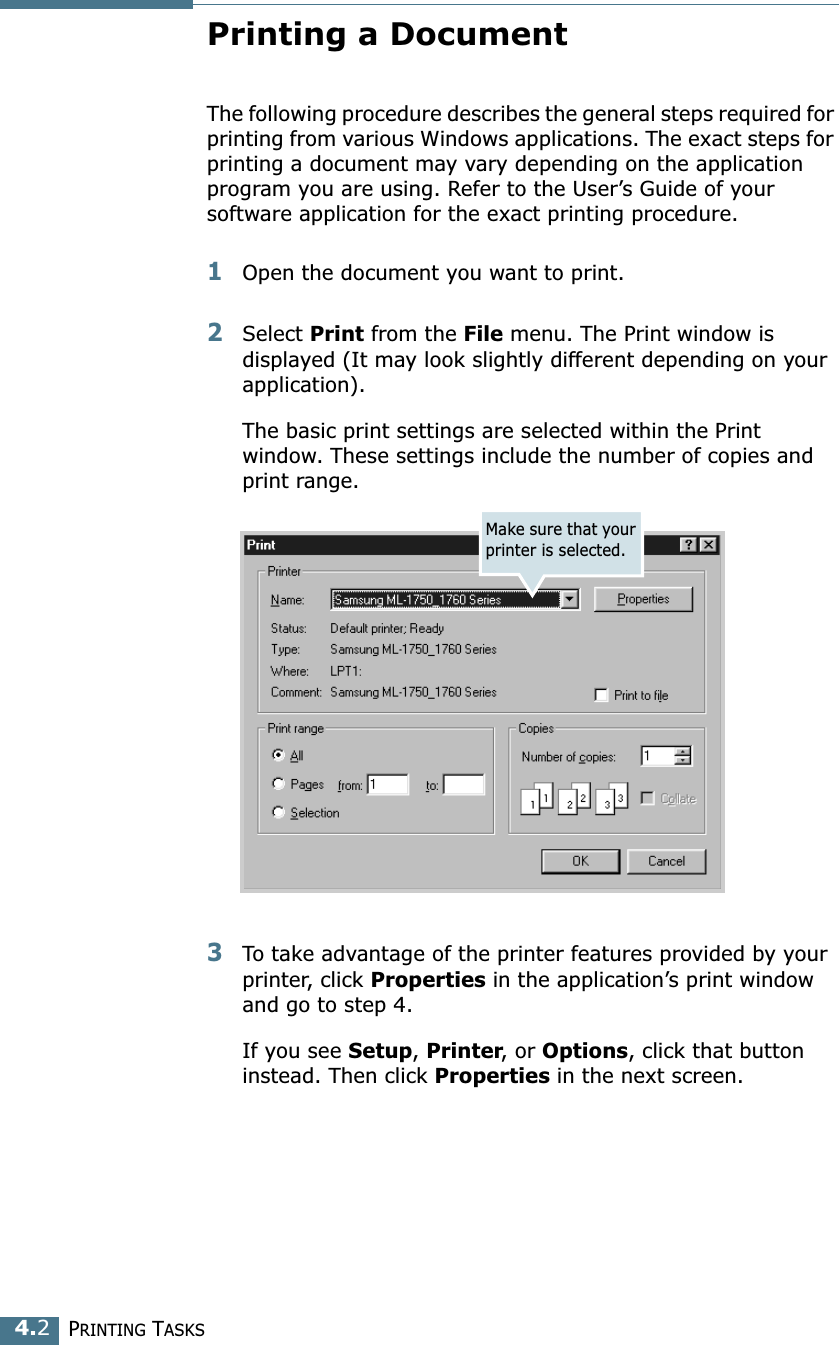
PRINTING TASKS4.2Printing a DocumentThe following procedure describes the general steps required for printing from various Windows applications. The exact steps for printing a document may vary depending on the application program you are using. Refer to the User’s Guide of your software application for the exact printing procedure.1Open the document you want to print.2Select Print from the File menu. The Print window is displayed (It may look slightly different depending on your application). The basic print settings are selected within the Print window. These settings include the number of copies and print range.3To take advantage of the printer features provided by your printer, click Properties in the application’s print window and go to step 4. If you see Setup, Printer, or Options, click that button instead. Then click Properties in the next screen.Make sure that your printer is selected.
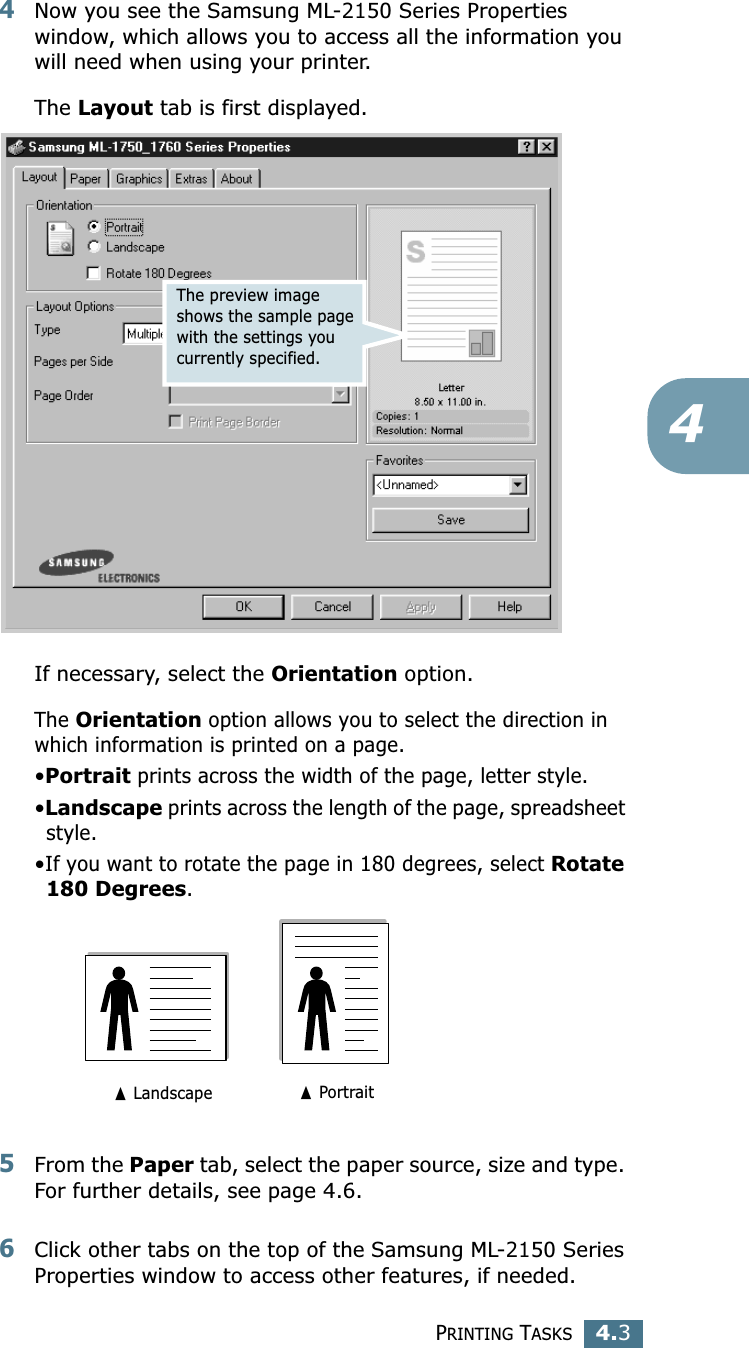
PRINTING TASKS4.344Now you see the Samsung ML-2150 Series Properties window, which allows you to access all the information you will need when using your printer. The Layout tab is first displayed.   If necessary, select the Orientation option. The Orientation option allows you to select the direction in which information is printed on a page. •Portrait prints across the width of the page, letter style. •Landscape prints across the length of the page, spreadsheet style. •If you want to rotate the page in 180 degrees, select Rotate 180 Degrees.5From the Paper tab, select the paper source, size and type. For further details, see page 4.6. 6Click other tabs on the top of the Samsung ML-2150 Series Properties window to access other features, if needed. The preview image shows the sample page with the settings you currently specified.➐ Landscape ➐ Portrait
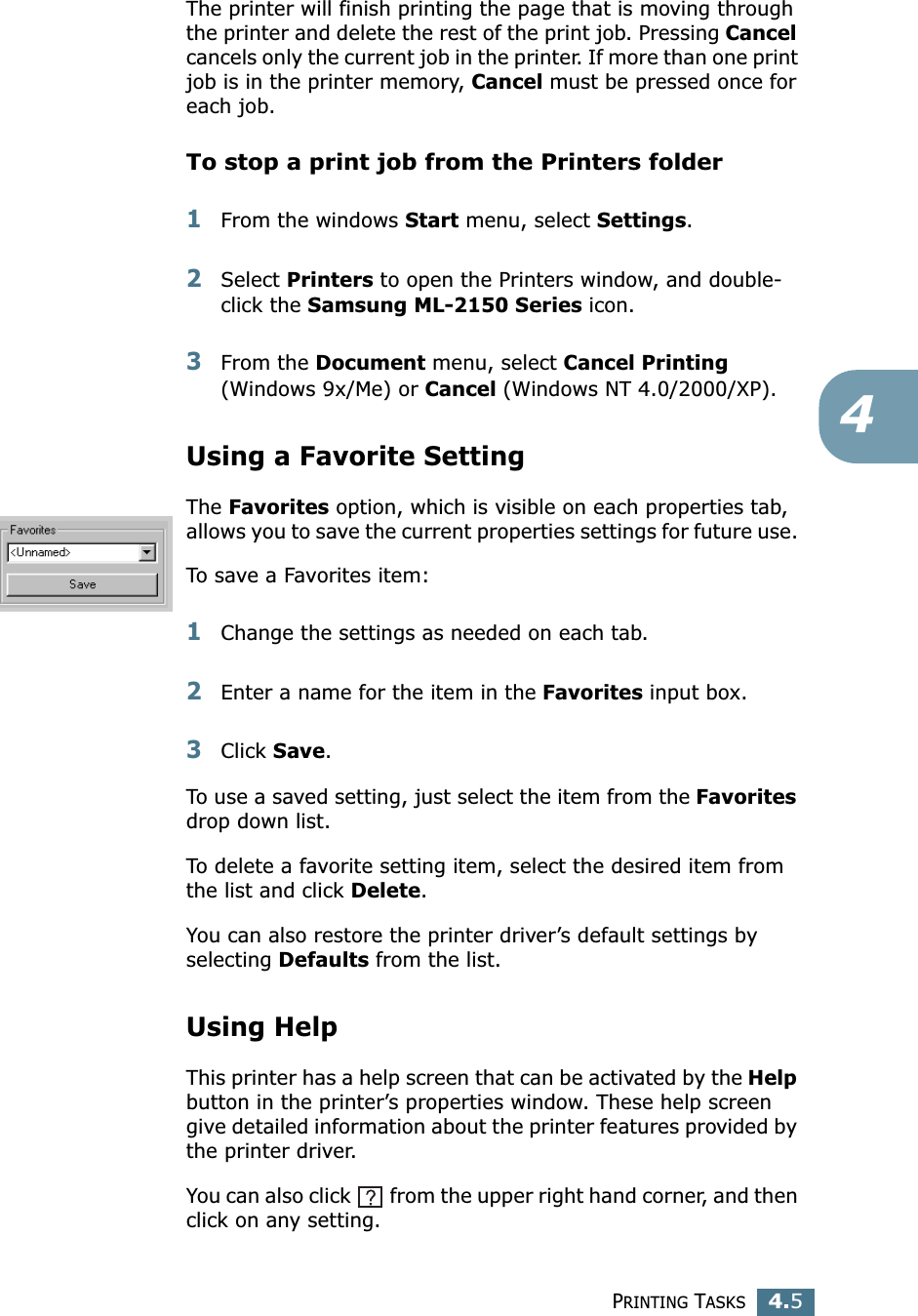
PRINTING TASKS4.47When you complete setting the properties, click OK until the Print window is displayed. 8Click OK to start printing. Notes:• Most Windows applications will override settings you specify in the printer driver. Change all print settings available in the software application first, and change any remaining settings using the printer driver. • The settings you change remain in effect only while you are using the current program. To make your changes permanent, make them in the Printers folder. Follows this procedure.1Click the Windows Start button.2For Windows 9x/Me/2000/NT, select Settings, and then Printers. For Windows XP, select Printers and Faxes.3Select the Samsung ML-2150 Series printer.4Click the right mouse button on the printer icon and:• In Windows 9x/Me, select Properties.• In Windows 2000/XP, select Printing Preferences.• In Windows NT, select Document Defaults.5Change the settings on each tab, and click OK.Canceling a Print JobThere are two ways to cancel a print job.To stop a print job from the Control PanelPress the Cancel button on the control panel.
PRINTING TASKS4.54The printer will finish printing the page that is moving through the printer and delete the rest of the print job. Pressing Cancel cancels only the current job in the printer. If more than one print job is in the printer memory, Cancel must be pressed once for each job.To stop a print job from the Printers folder1From the windows Start menu, select Settings.2Select Printers to open the Printers window, and double-click the Samsung ML-2150 Series icon. 3From the Document menu, select Cancel Printing (Windows 9x/Me) or Cancel (Windows NT 4.0/2000/XP).Using a Favorite SettingThe Favorites option, which is visible on each properties tab, allows you to save the current properties settings for future use. To save a Favorites item:1Change the settings as needed on each tab. 2Enter a name for the item in the Favorites input box. 3Click Save. To use a saved setting, just select the item from the Favorites drop down list. To delete a favorite setting item, select the desired item from the list and click Delete. You can also restore the printer driver’s default settings by selecting Defaults from the list. Using HelpThis printer has a help screen that can be activated by the Help button in the printer’s properties window. These help screen give detailed information about the printer features provided by the printer driver.You can also click   from the upper right hand corner, and then click on any setting.
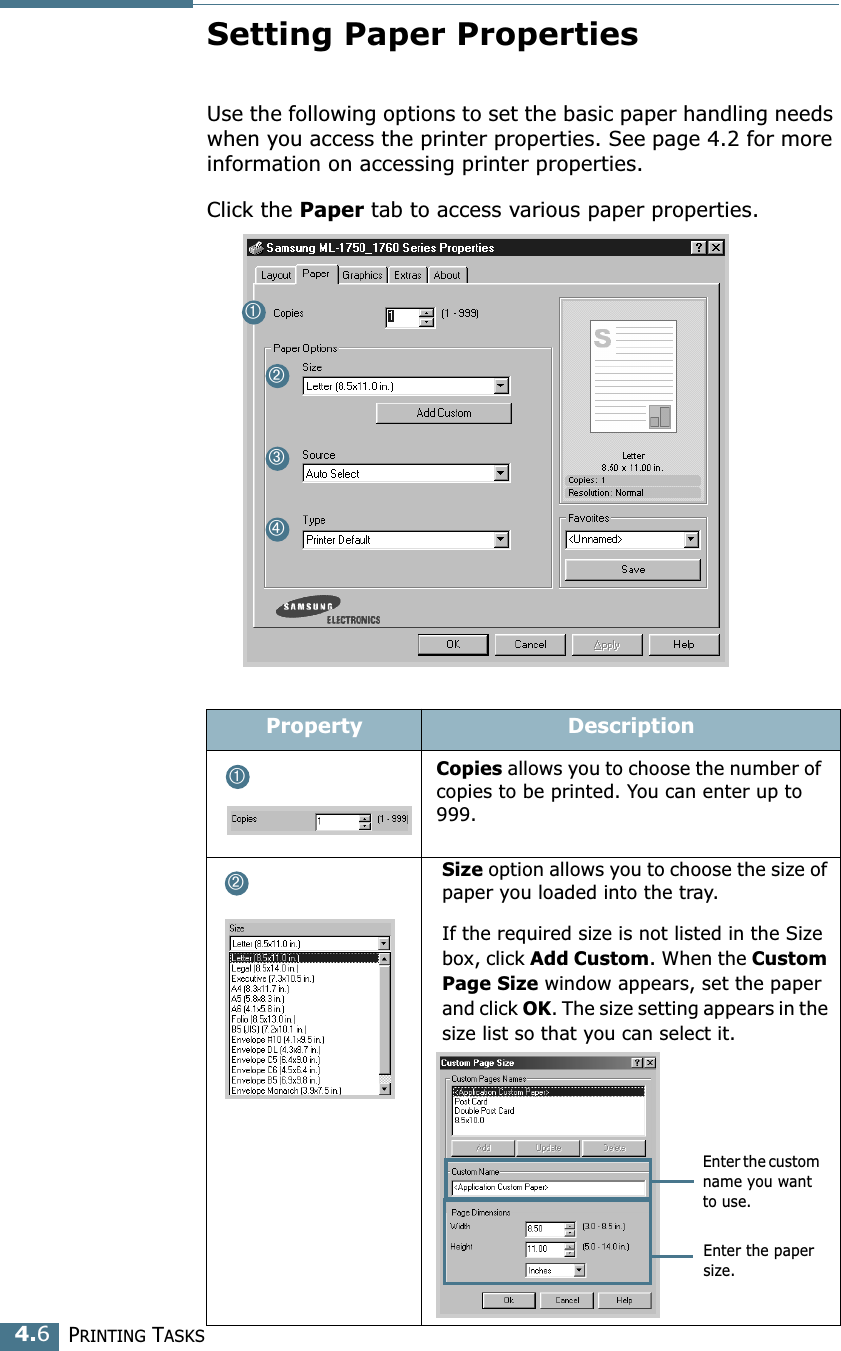
PRINTING TASKS4.6Setting Paper PropertiesUse the following options to set the basic paper handling needs when you access the printer properties. See page 4.2 for more information on accessing printer properties. Click the Paper tab to access various paper properties. Property DescriptionCopies allows you to choose the number of copies to be printed. You can enter up to 999. Size option allows you to choose the size of paper you loaded into the tray. If the required size is not listed in the Size box, click Add Custom. When the Custom Page Size window appears, set the paper and click OK. The size setting appears in the size list so that you can select it. ➀➁➂➃➀➁Enter the custom name you want to use. Enter the paper size.
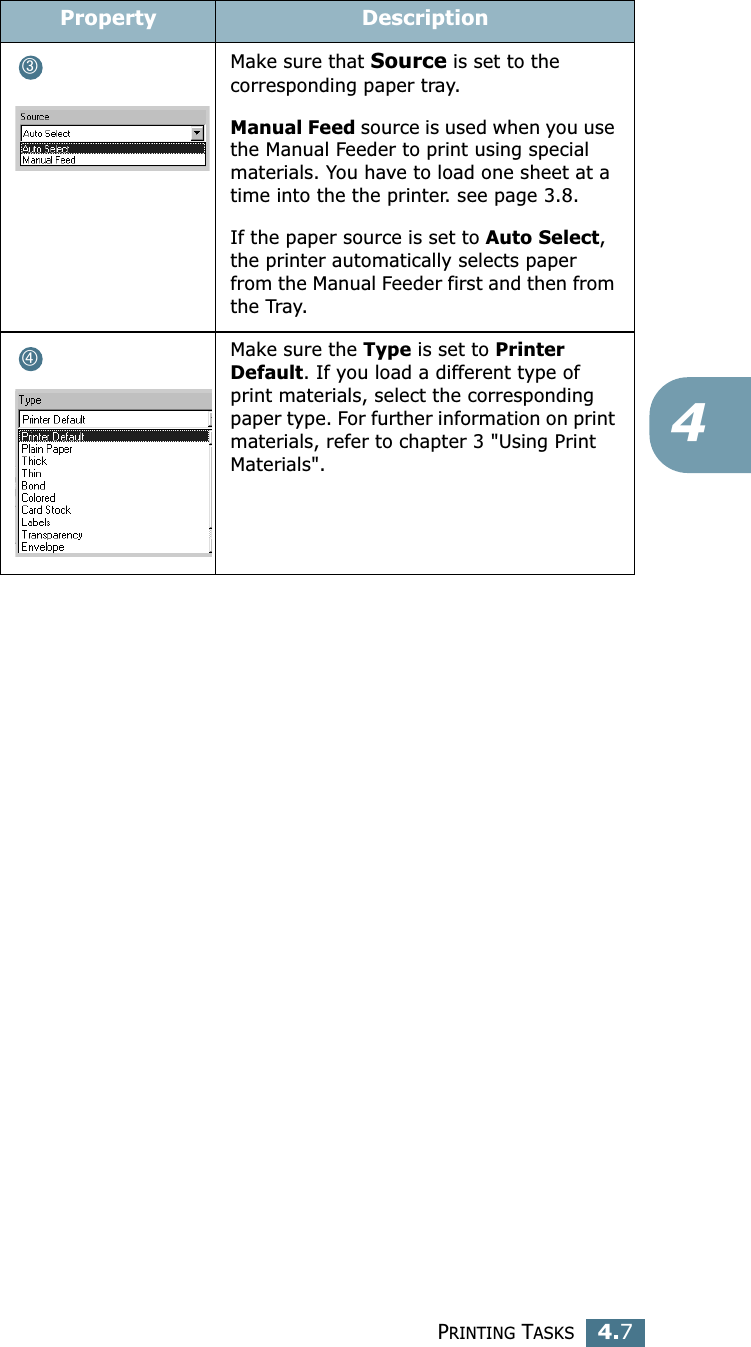
PRINTING TASKS4.74Make sure that Source is set to the corresponding paper tray.Manual Feed source is used when you use the Manual Feeder to print using special materials. You have to load one sheet at a time into the the printer. see page 3.8.If the paper source is set to Auto Select, the printer automatically selects paper from the Manual Feeder first and then from the Tray.Make sure the Type is set to Printer Default. If you load a different type of print materials, select the corresponding paper type. For further information on print materials, refer to chapter 3 "Using Print Materials".Property Description➂➃
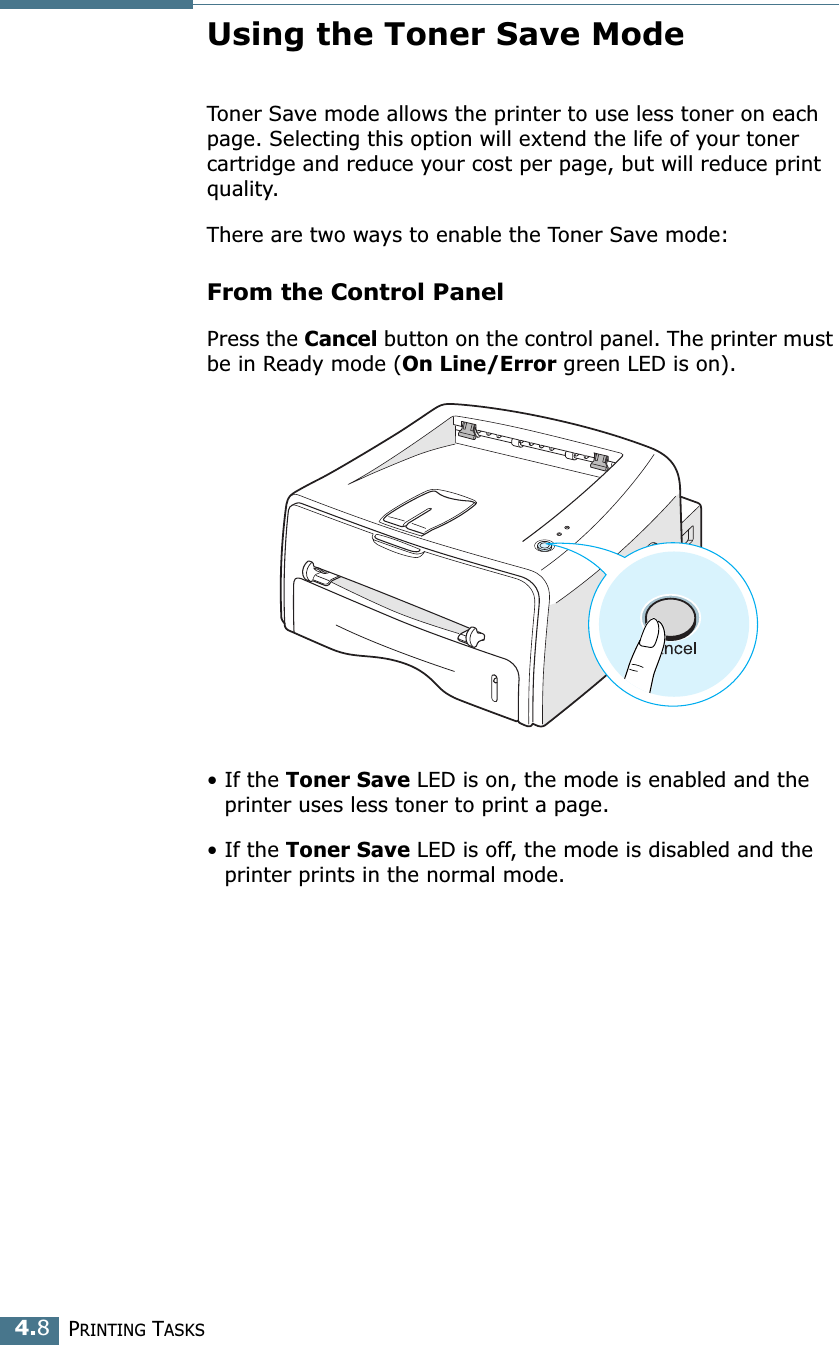
PRINTING TASKS4.8Using the Toner Save ModeToner Save mode allows the printer to use less toner on each page. Selecting this option will extend the life of your toner cartridge and reduce your cost per page, but will reduce print quality. There are two ways to enable the Toner Save mode:From the Control PanelPress the Cancel button on the control panel. The printer must be in Ready mode (On Line/Error green LED is on).• If the Toner Save LED is on, the mode is enabled and the printer uses less toner to print a page.• If the Toner Save LED is off, the mode is disabled and the printer prints in the normal mode.
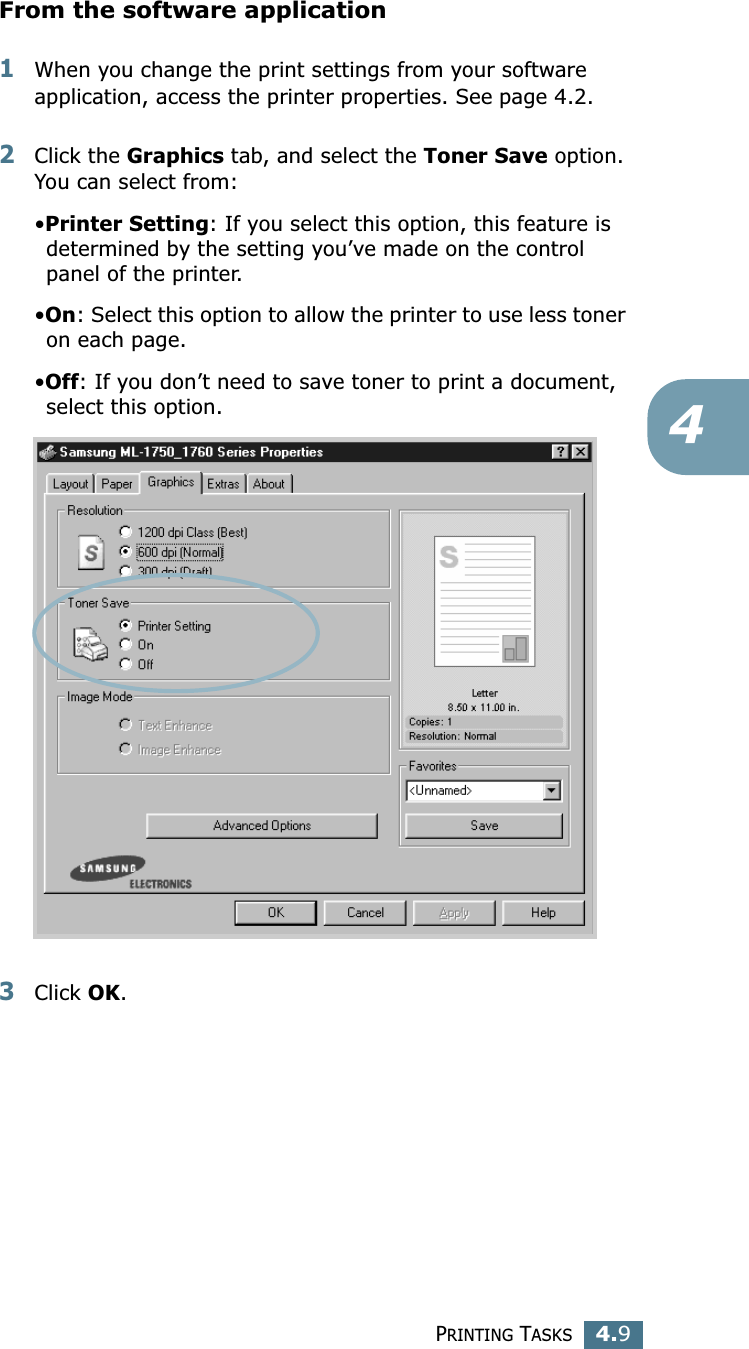
PRINTING TASKS4.94From the software application1When you change the print settings from your software application, access the printer properties. See page 4.2.2Click the Graphics tab, and select the Toner Save option. You can select from: •Printer Setting: If you select this option, this feature is determined by the setting you’ve made on the control panel of the printer.•On: Select this option to allow the printer to use less toner on each page.•Off: If you don’t need to save toner to print a document, select this option. 3Click OK.
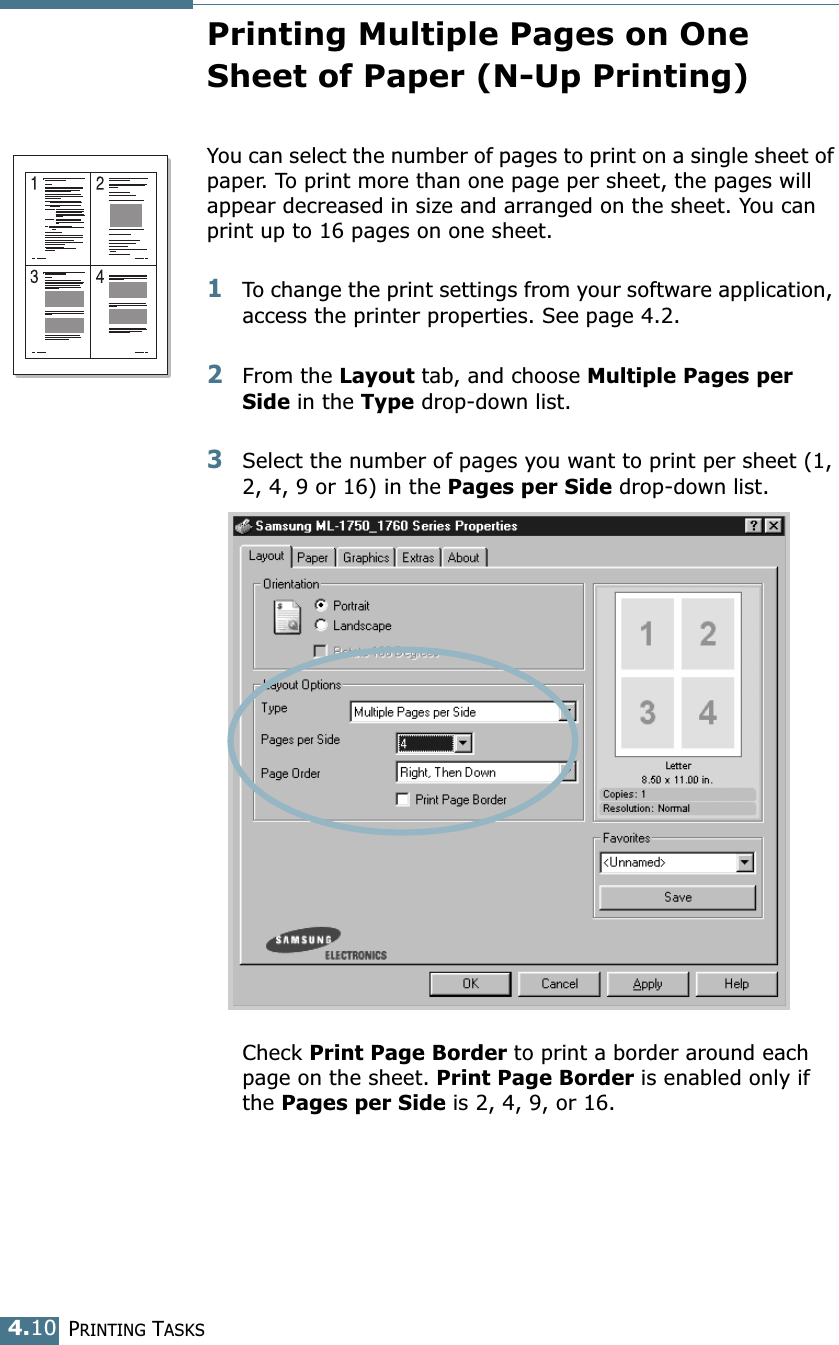
PRINTING TASKS4.10Printing Multiple Pages on One Sheet of Paper (N-Up Printing)You can select the number of pages to print on a single sheet of paper. To print more than one page per sheet, the pages will appear decreased in size and arranged on the sheet. You can print up to 16 pages on one sheet.1To change the print settings from your software application, access the printer properties. See page 4.2.2From the Layout tab, and choose Multiple Pages per Side in the Type drop-down list. 3Select the number of pages you want to print per sheet (1, 2, 4, 9 or 16) in the Pages per Side drop-down list.Check Print Page Border to print a border around each page on the sheet. Print Page Border is enabled only if the Pages per Side is 2, 4, 9, or 16.
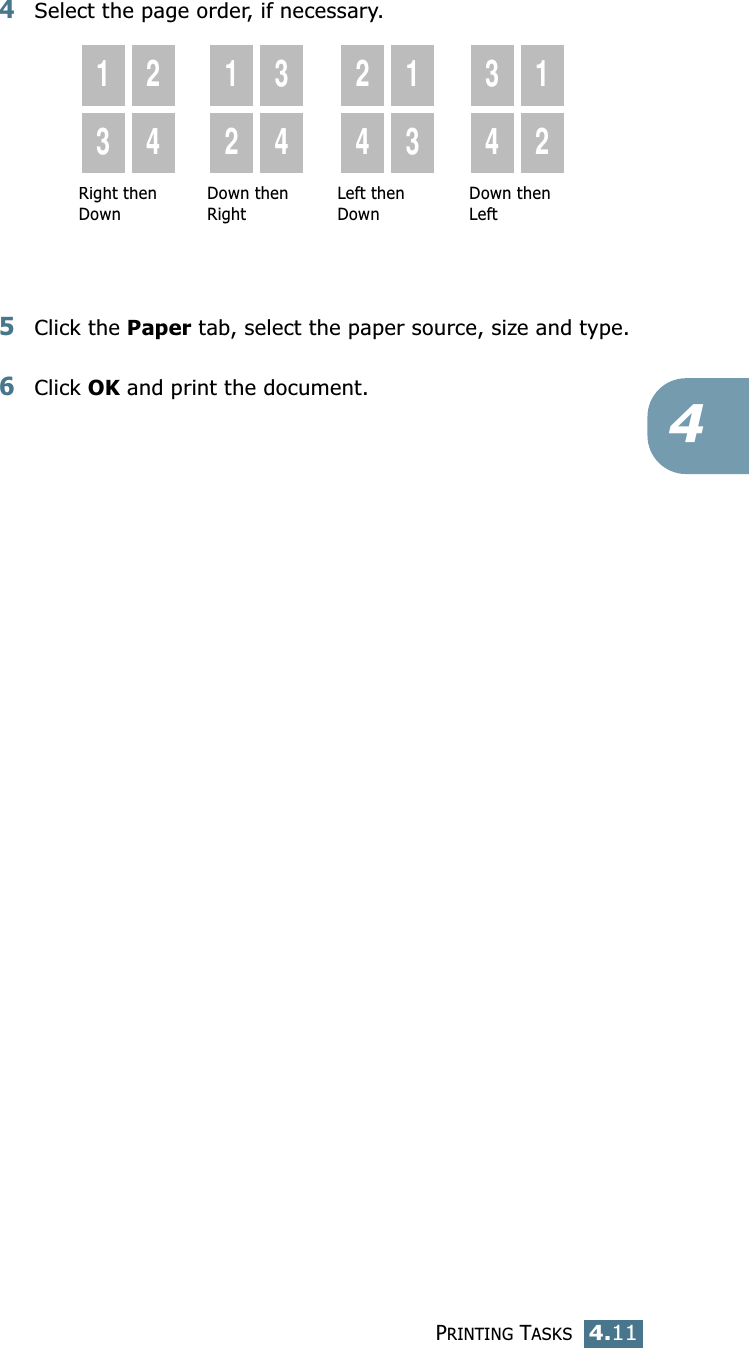
PRINTING TASKS4.1144Select the page order, if necessary.5Click the Paper tab, select the paper source, size and type.6Click OK and print the document. Right then Down1324123424133412Down then RightLeft then DownDown then Left
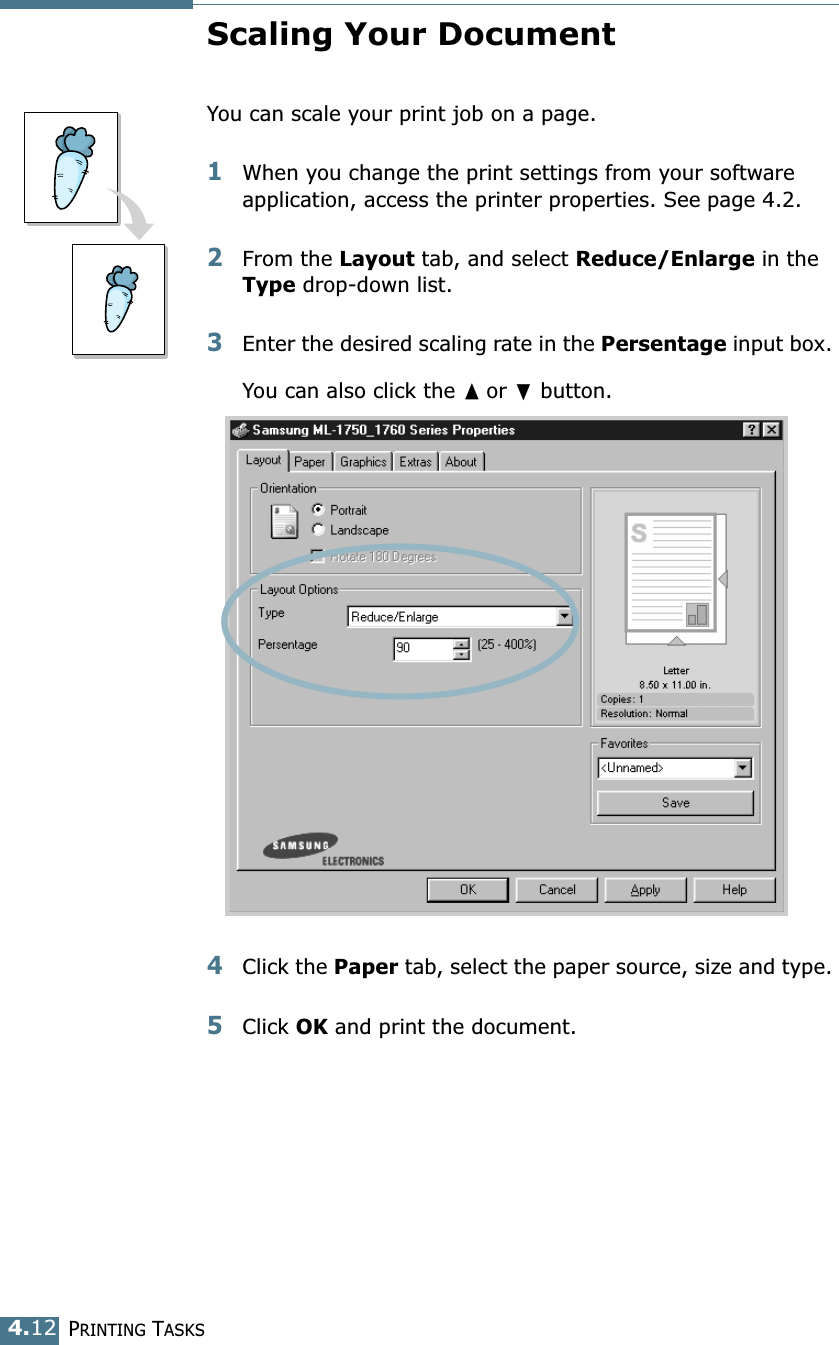
PRINTING TASKS4.12Scaling Your DocumentYou can scale your print job on a page. 1When you change the print settings from your software application, access the printer properties. See page 4.2. 2From the Layout tab, and select Reduce/Enlarge in the Type drop-down list. 3Enter the desired scaling rate in the Persentage input box. You can also click the ➐☎or ❷ button.4Click the Paper tab, select the paper source, size and type. 5Click OK and print the document.
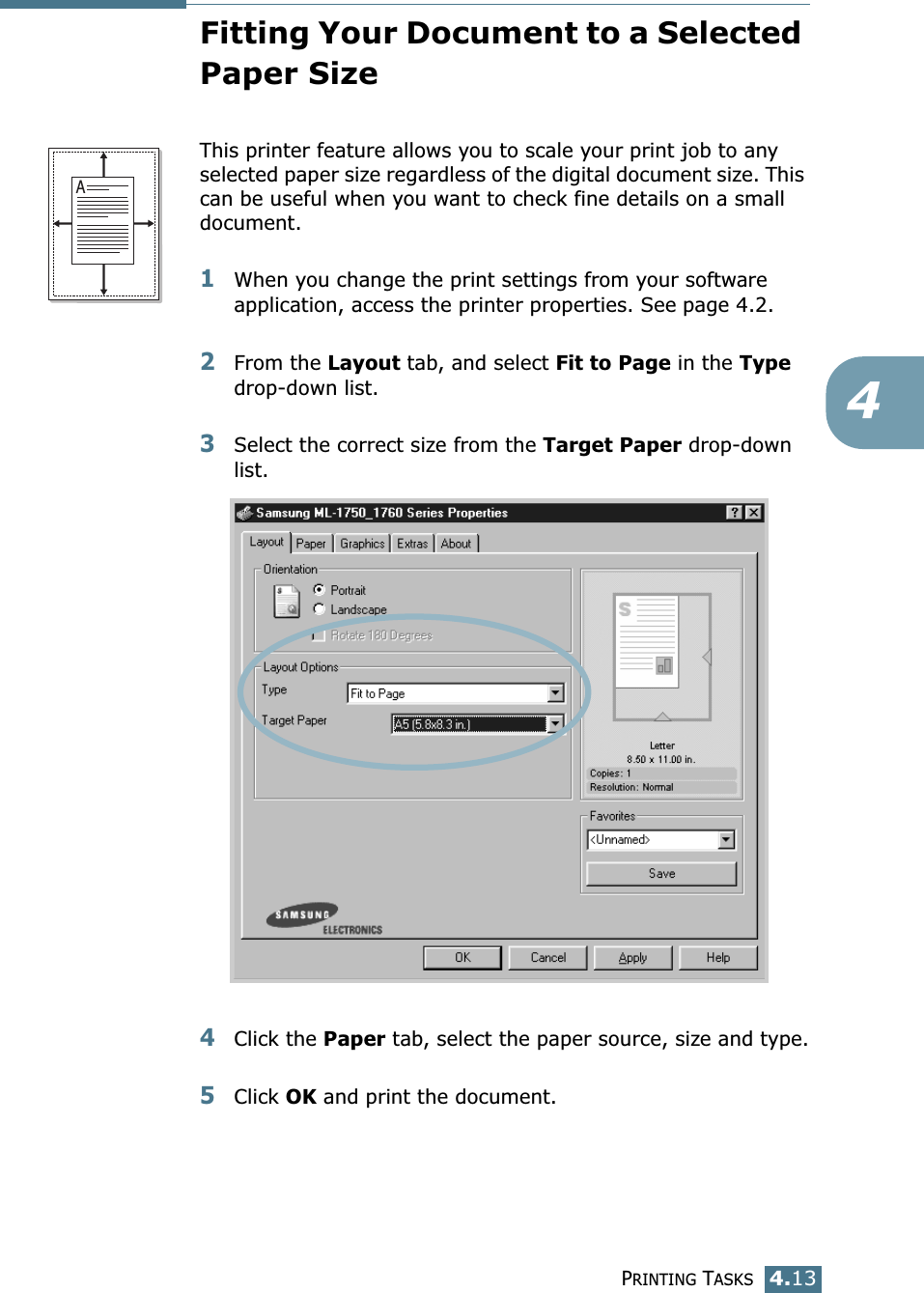
PRINTING TASKS4.134Fitting Your Document to a Selected Paper SizeThis printer feature allows you to scale your print job to any selected paper size regardless of the digital document size. This can be useful when you want to check fine details on a small document. 1When you change the print settings from your software application, access the printer properties. See page 4.2.2From the Layout tab, and select Fit to Page in the Type drop-down list. 3Select the correct size from the Target Paper drop-down list.4Click the Paper tab, select the paper source, size and type.5Click OK and print the document.A
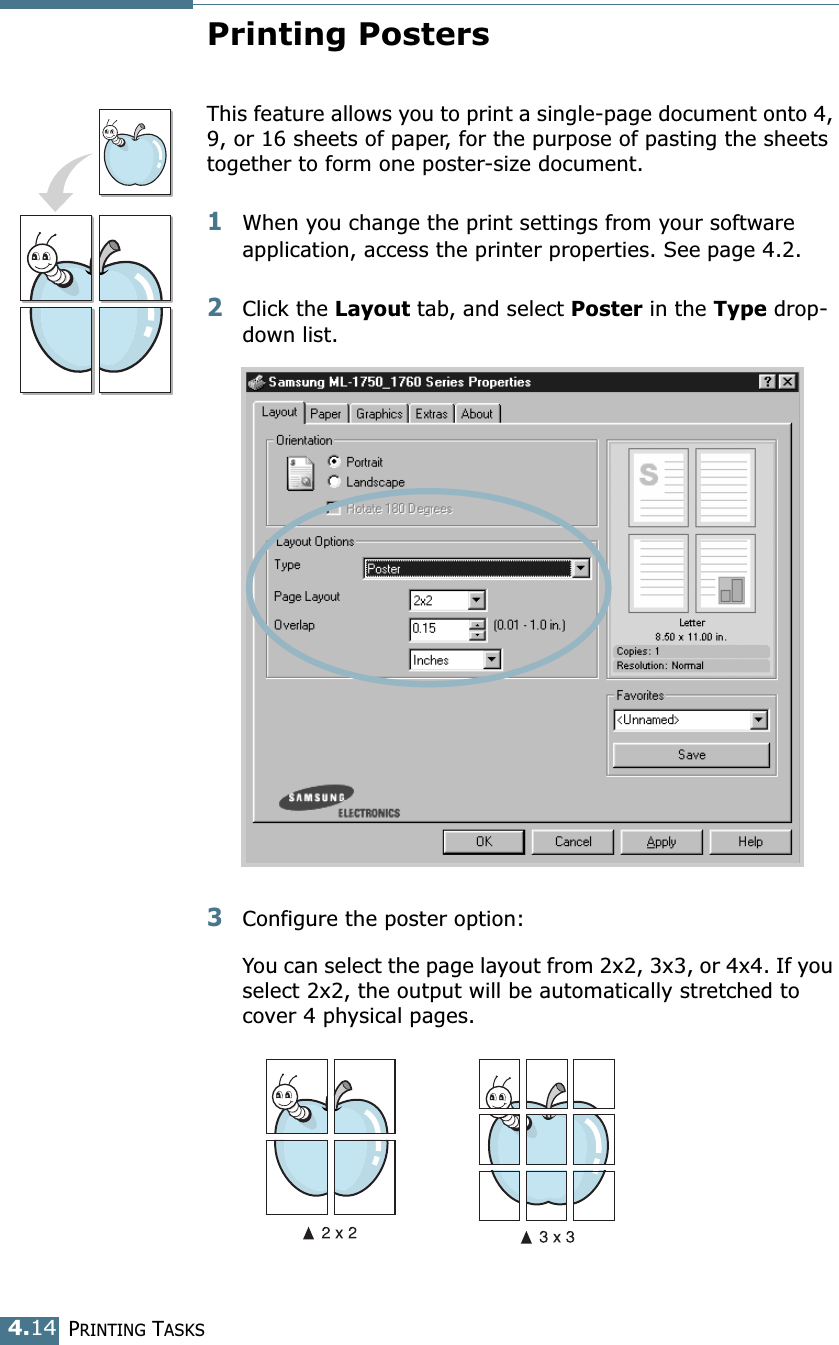
PRINTING TASKS4.14Printing PostersThis feature allows you to print a single-page document onto 4, 9, or 16 sheets of paper, for the purpose of pasting the sheets together to form one poster-size document.1When you change the print settings from your software application, access the printer properties. See page 4.2.2Click the Layout tab, and select Poster in the Type drop-down list. 3Configure the poster option:You can select the page layout from 2x2, 3x3, or 4x4. If you select 2x2, the output will be automatically stretched to cover 4 physical pages.
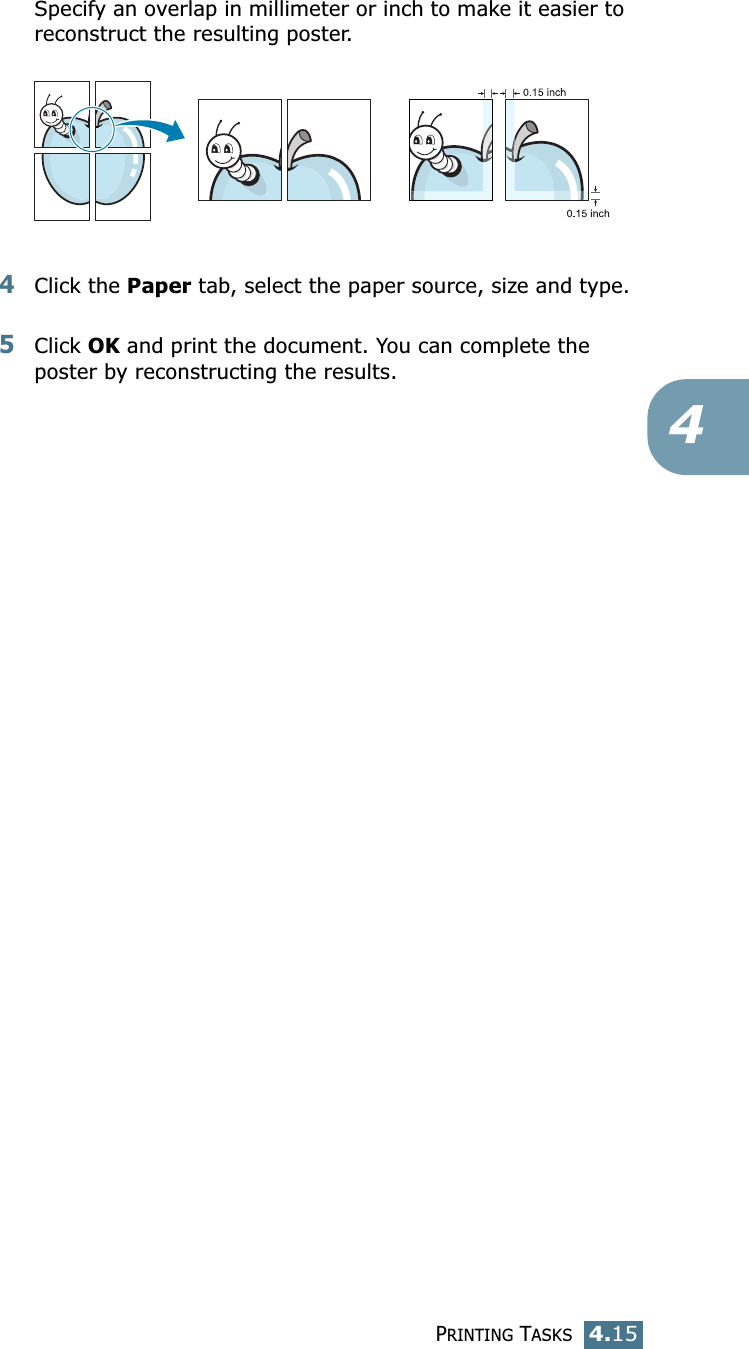
PRINTING TASKS4.154Specify an overlap in millimeter or inch to make it easier to reconstruct the resulting poster. 4Click the Paper tab, select the paper source, size and type.5Click OK and print the document. You can complete the poster by reconstructing the results.
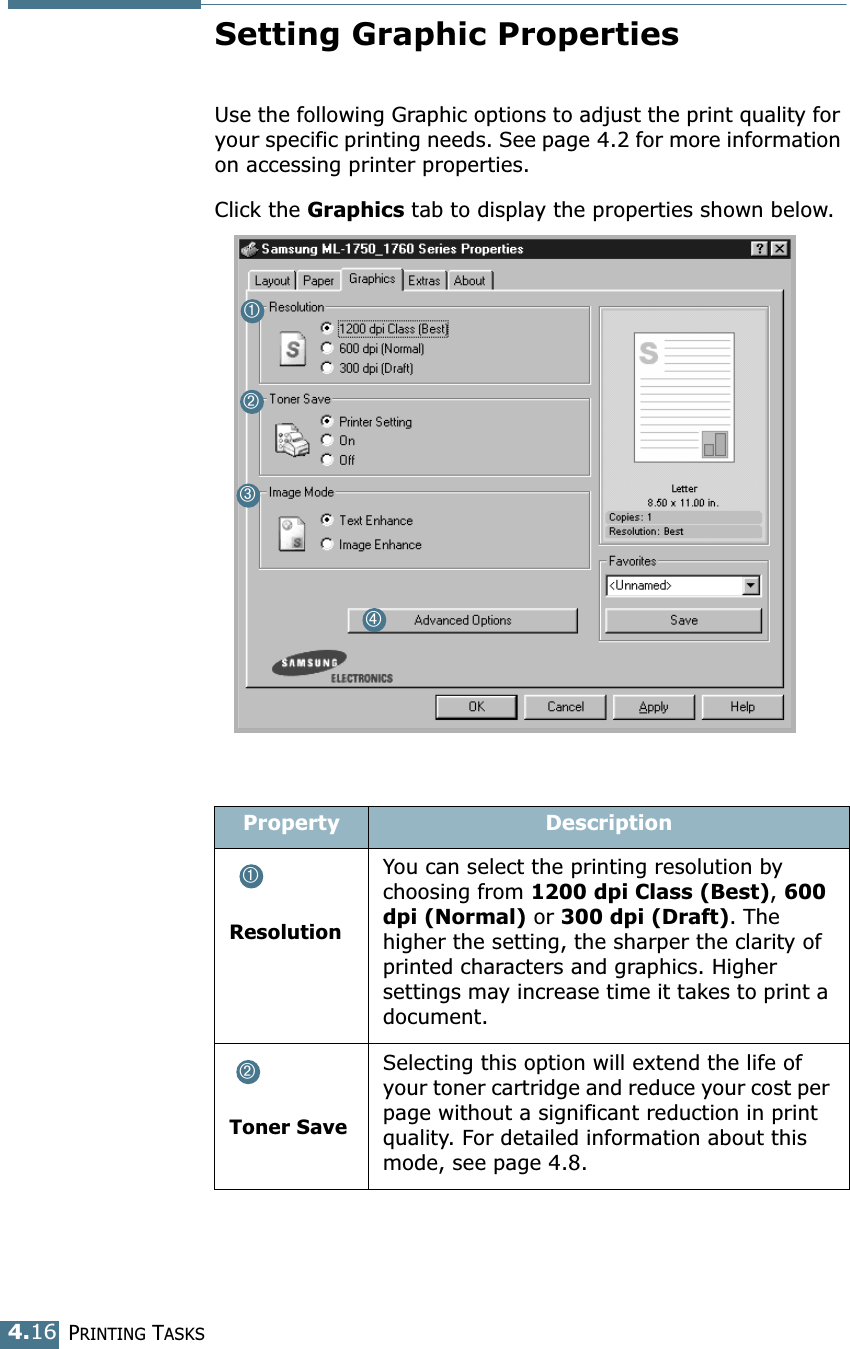
PRINTING TASKS4.16Setting Graphic PropertiesUse the following Graphic options to adjust the print quality for your specific printing needs. See page 4.2 for more information on accessing printer properties. Click the Graphics tab to display the properties shown below. Property DescriptionResolutionYou can select the printing resolution by choosing from 1200 dpi Class (Best), 600 dpi (Normal) or 300 dpi (Draft). The higher the setting, the sharper the clarity of printed characters and graphics. Higher settings may increase time it takes to print a document. Toner SaveSelecting this option will extend the life of your toner cartridge and reduce your cost per page without a significant reduction in print quality. For detailed information about this mode, see page 4.8.➀➁➂➃➀➁
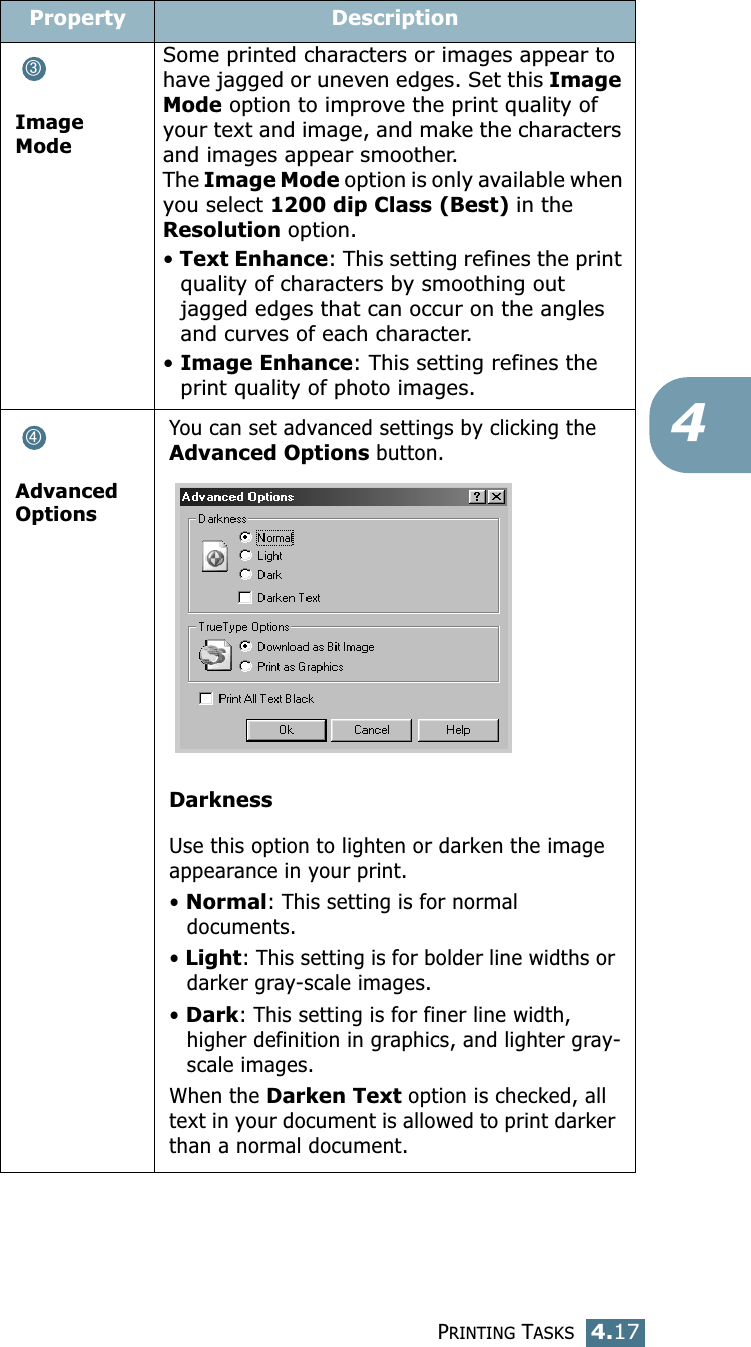
PRINTING TASKS4.174Image ModeSome printed characters or images appear to have jagged or uneven edges. Set this Image Mode option to improve the print quality of your text and image, and make the characters and images appear smoother. The Image Mode option is only available when you select 1200 dip Class (Best) in the Resolution option.• Text Enhance: This setting refines the print quality of characters by smoothing out jagged edges that can occur on the angles and curves of each character. • Image Enhance: This setting refines the print quality of photo images. Advanced OptionsYou can set advanced settings by clicking the Advanced Options button. DarknessUse this option to lighten or darken the image appearance in your print.• Normal: This setting is for normal documents.• Light: This setting is for bolder line widths or darker gray-scale images.• Dark: This setting is for finer line width, higher definition in graphics, and lighter gray-scale images.When the Darken Text option is checked, all text in your document is allowed to print darker than a normal document. Property Description➂➃
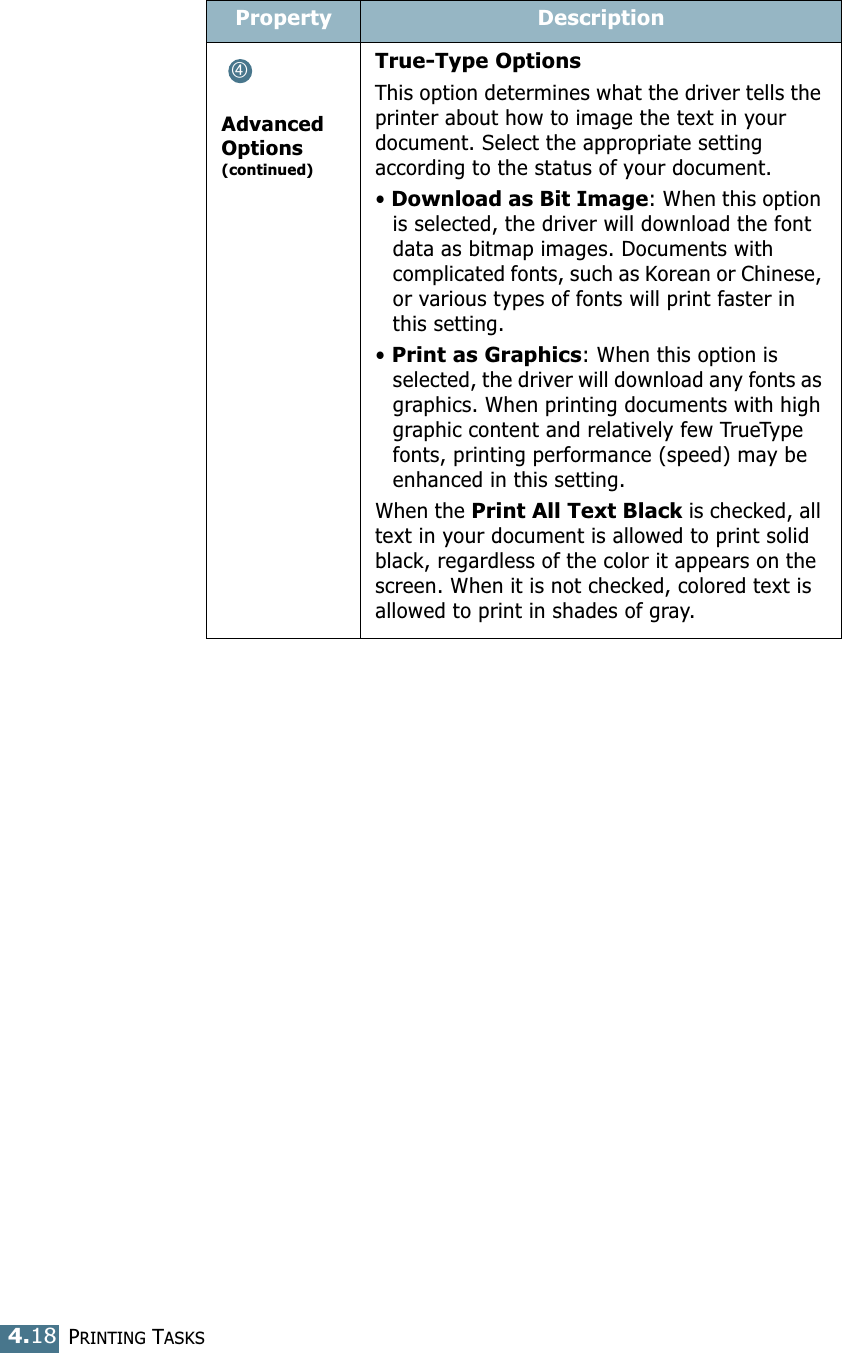
PRINTING TASKS4.18Advanced Options(continued)True-Type OptionsThis option determines what the driver tells the printer about how to image the text in your document. Select the appropriate setting according to the status of your document. • Download as Bit Image: When this option is selected, the driver will download the font data as bitmap images. Documents with complicated fonts, such as Korean or Chinese, or various types of fonts will print faster in this setting. • Print as Graphics: When this option is selected, the driver will download any fonts as graphics. When printing documents with high graphic content and relatively few TrueType fonts, printing performance (speed) may be enhanced in this setting. When the Print All Text Black is checked, all text in your document is allowed to print solid black, regardless of the color it appears on the screen. When it is not checked, colored text is allowed to print in shades of gray.Property Description➃
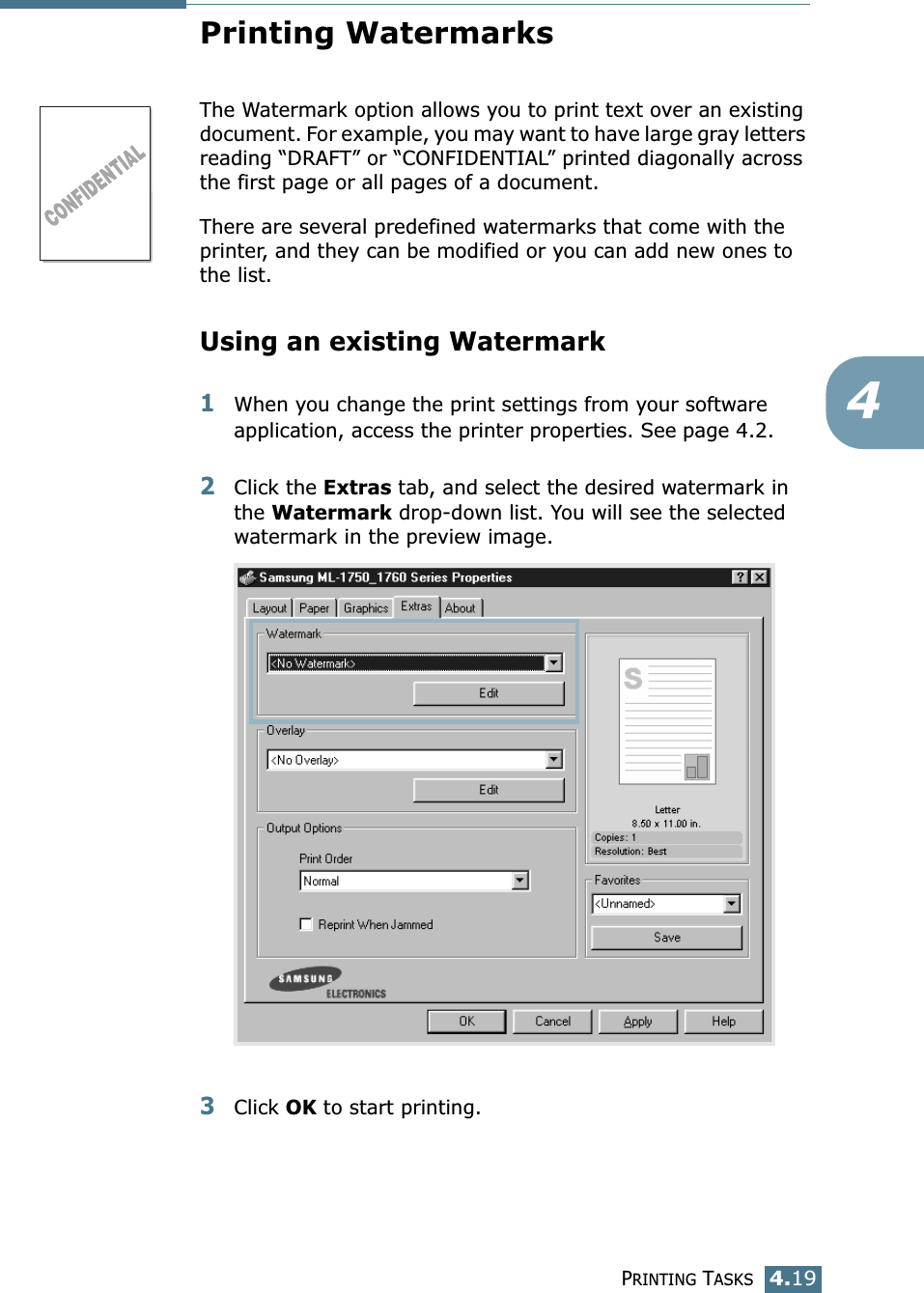
PRINTING TASKS4.194Printing WatermarksThe Watermark option allows you to print text over an existing document. For example, you may want to have large gray letters reading “DRAFT” or “CONFIDENTIAL” printed diagonally across the first page or all pages of a document. There are several predefined watermarks that come with the printer, and they can be modified or you can add new ones to the list. Using an existing Watermark1When you change the print settings from your software application, access the printer properties. See page 4.2. 2Click the Extras tab, and select the desired watermark in the Watermark drop-down list. You will see the selected watermark in the preview image. 3Click OK to start printing.
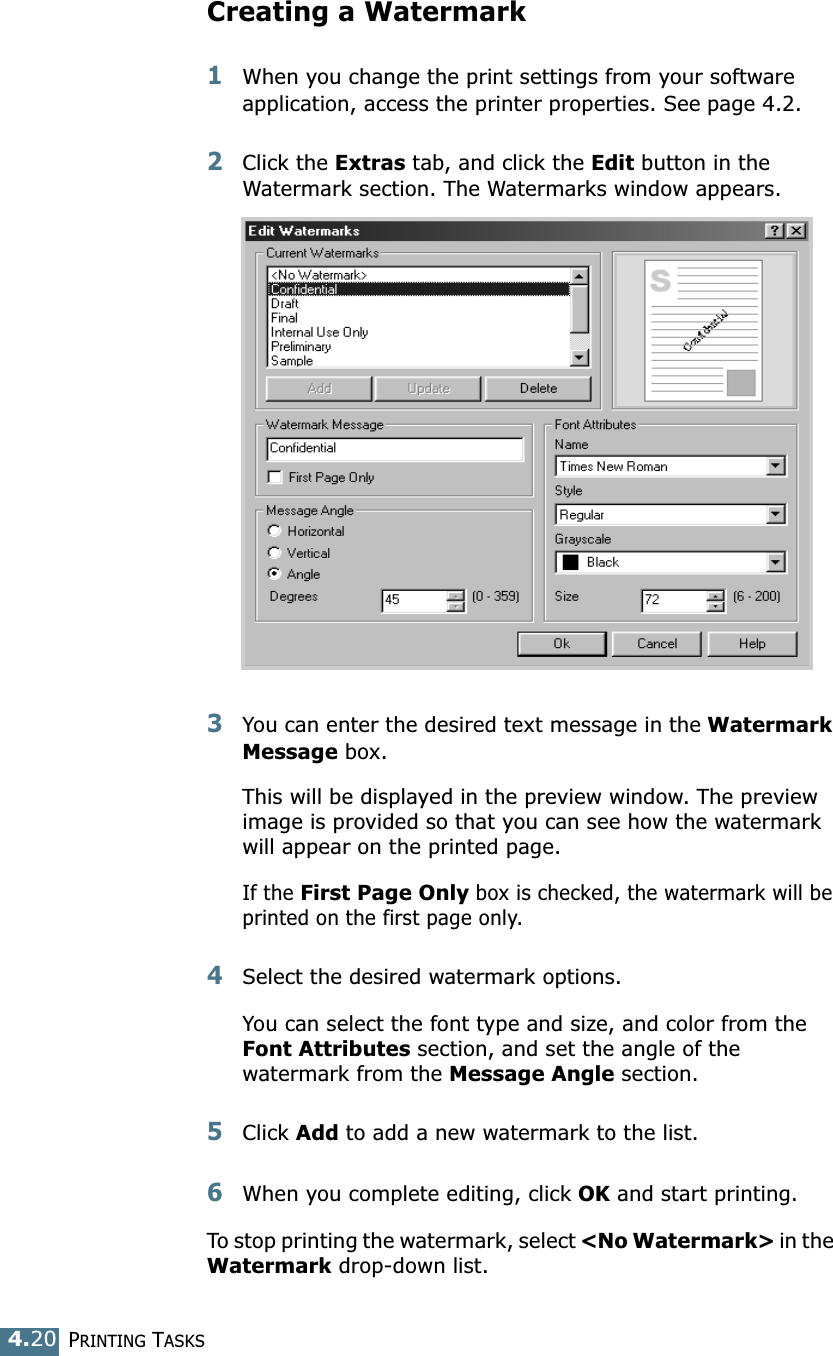
PRINTING TASKS4.20Creating a Watermark1When you change the print settings from your software application, access the printer properties. See page 4.2. 2Click the Extras tab, and click the Edit button in the Watermark section. The Watermarks window appears. 3You can enter the desired text message in the Watermark Message box. This will be displayed in the preview window. The preview image is provided so that you can see how the watermark will appear on the printed page. If the First Page Only box is checked, the watermark will be printed on the first page only.4Select the desired watermark options. You can select the font type and size, and color from the Font Attributes section, and set the angle of the watermark from the Message Angle section. 5Click Add to add a new watermark to the list.   6When you complete editing, click OK and start printing. To stop printing the watermark, select <No Watermark> in the Watermark drop-down list.
PRINTING TASKS4.214Editing a Watermark1When you change the print settings from your software application, access the printer properties. See page 4.2. 2Click the Extras tab, and click the Edit button in the Watermark section. The Watermarks window appears.3Select the watermark you want to edit in the Current Watermarks list, and change the watermark message and the options. Refer to “Creating a Watermark” on page 4.20. 4Click Update to save the changes.5Click OK. Deleting a Watermark1When you change the print settings from your software application, access the printer properties. See page 4.2.2From the Extras tab, click the Edit button in the Watermark section.3Select the watermark you want to delete in the Current Watermarks list, and click Delete. 4Click OK.
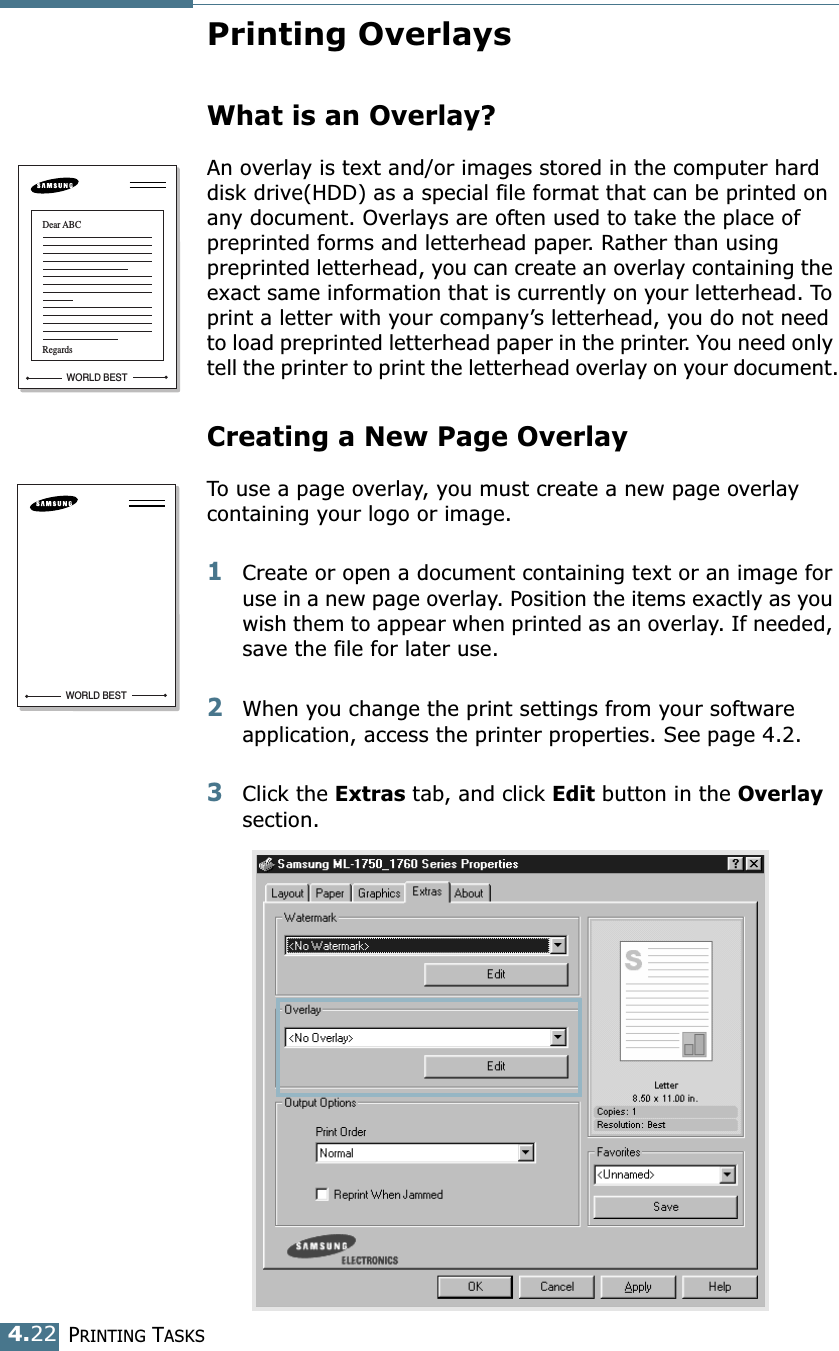
PRINTING TASKS4.22Printing OverlaysWhat is an Overlay?An overlay is text and/or images stored in the computer hard disk drive(HDD) as a special file format that can be printed on any document. Overlays are often used to take the place of preprinted forms and letterhead paper. Rather than using preprinted letterhead, you can create an overlay containing the exact same information that is currently on your letterhead. To print a letter with your company’s letterhead, you do not need to load preprinted letterhead paper in the printer. You need only tell the printer to print the letterhead overlay on your document.Creating a New Page OverlayTo use a page overlay, you must create a new page overlay containing your logo or image.1Create or open a document containing text or an image for use in a new page overlay. Position the items exactly as you wish them to appear when printed as an overlay. If needed, save the file for later use.2When you change the print settings from your software application, access the printer properties. See page 4.2.3Click the Extras tab, and click Edit button in the Overlay section. WORLD BESTDear ABCRegardsWORLD BEST
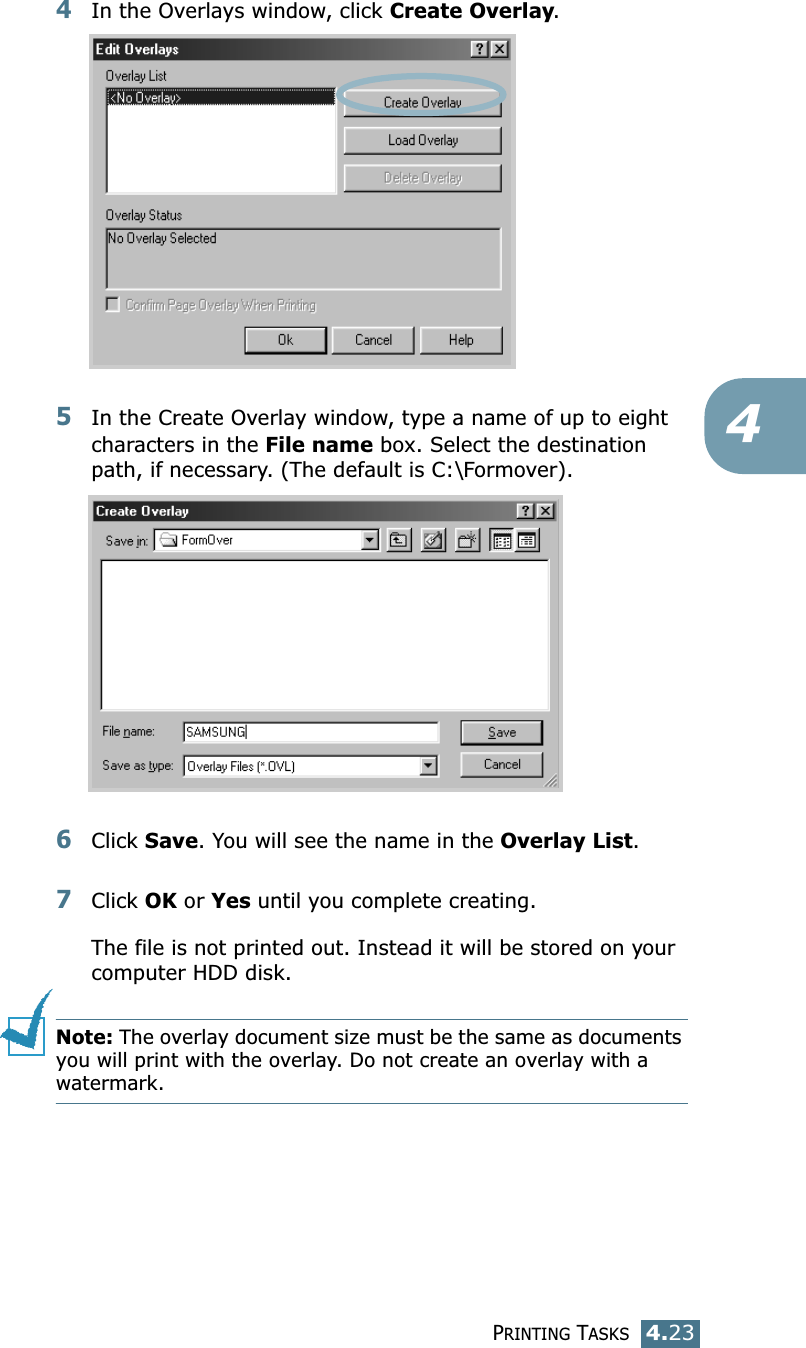
PRINTING TASKS4.2344In the Overlays window, click Create Overlay. 5In the Create Overlay window, type a name of up to eight characters in the File name box. Select the destination path, if necessary. (The default is C:\Formover).6Click Save. You will see the name in the Overlay List. 7Click OK or Yes until you complete creating. The file is not printed out. Instead it will be stored on your computer HDD disk. Note: The overlay document size must be the same as documents you will print with the overlay. Do not create an overlay with a watermark.
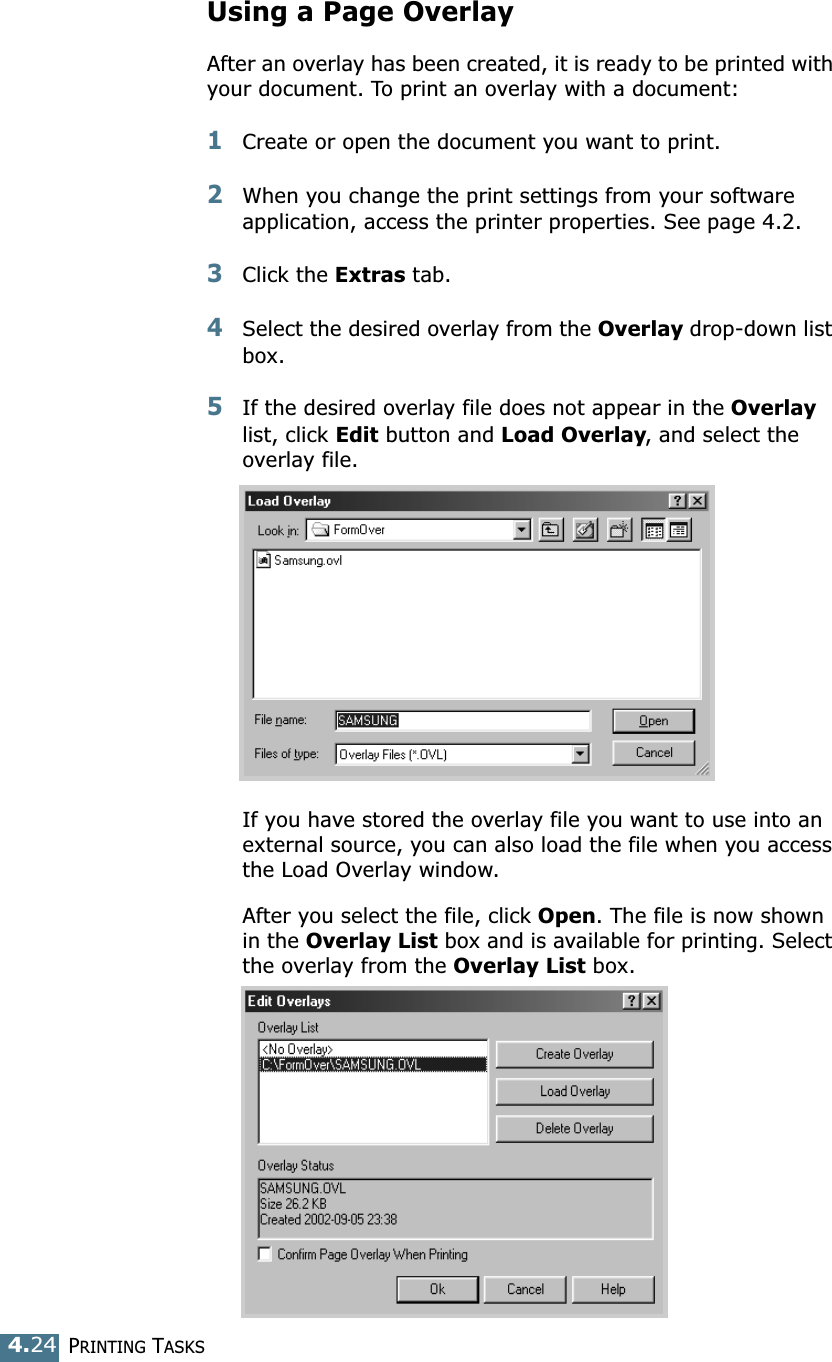
PRINTING TASKS4.24Using a Page OverlayAfter an overlay has been created, it is ready to be printed with your document. To print an overlay with a document:1Create or open the document you want to print. 2When you change the print settings from your software application, access the printer properties. See page 4.2. 3Click the Extras tab. 4Select the desired overlay from the Overlay drop-down list box. 5If the desired overlay file does not appear in the Overlay list, click Edit button and Load Overlay, and select the overlay file. If you have stored the overlay file you want to use into an external source, you can also load the file when you access the Load Overlay window. After you select the file, click Open. The file is now shown in the Overlay List box and is available for printing. Select the overlay from the Overlay List box.
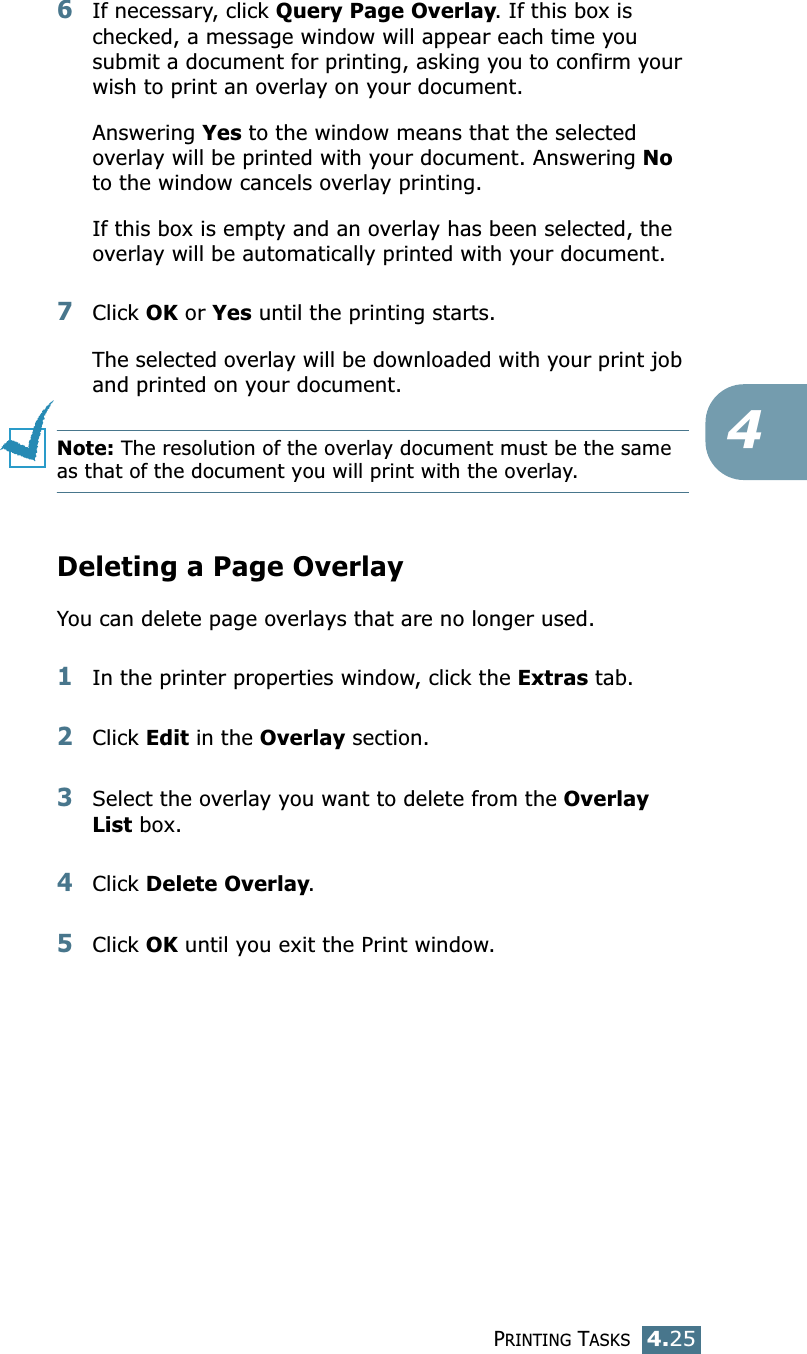
PRINTING TASKS4.2546If necessary, click Query Page Overlay. If this box is checked, a message window will appear each time you submit a document for printing, asking you to confirm your wish to print an overlay on your document. Answering Yes to the window means that the selected overlay will be printed with your document. Answering No to the window cancels overlay printing. If this box is empty and an overlay has been selected, the overlay will be automatically printed with your document. 7Click OK or Yes until the printing starts. The selected overlay will be downloaded with your print job and printed on your document. Note: The resolution of the overlay document must be the same as that of the document you will print with the overlay.  Deleting a Page OverlayYou can delete page overlays that are no longer used. 1In the printer properties window, click the Extras tab. 2Click Edit in the Overlay section. 3Select the overlay you want to delete from the Overlay List box. 4Click Delete Overlay. 5Click OK until you exit the Print window.
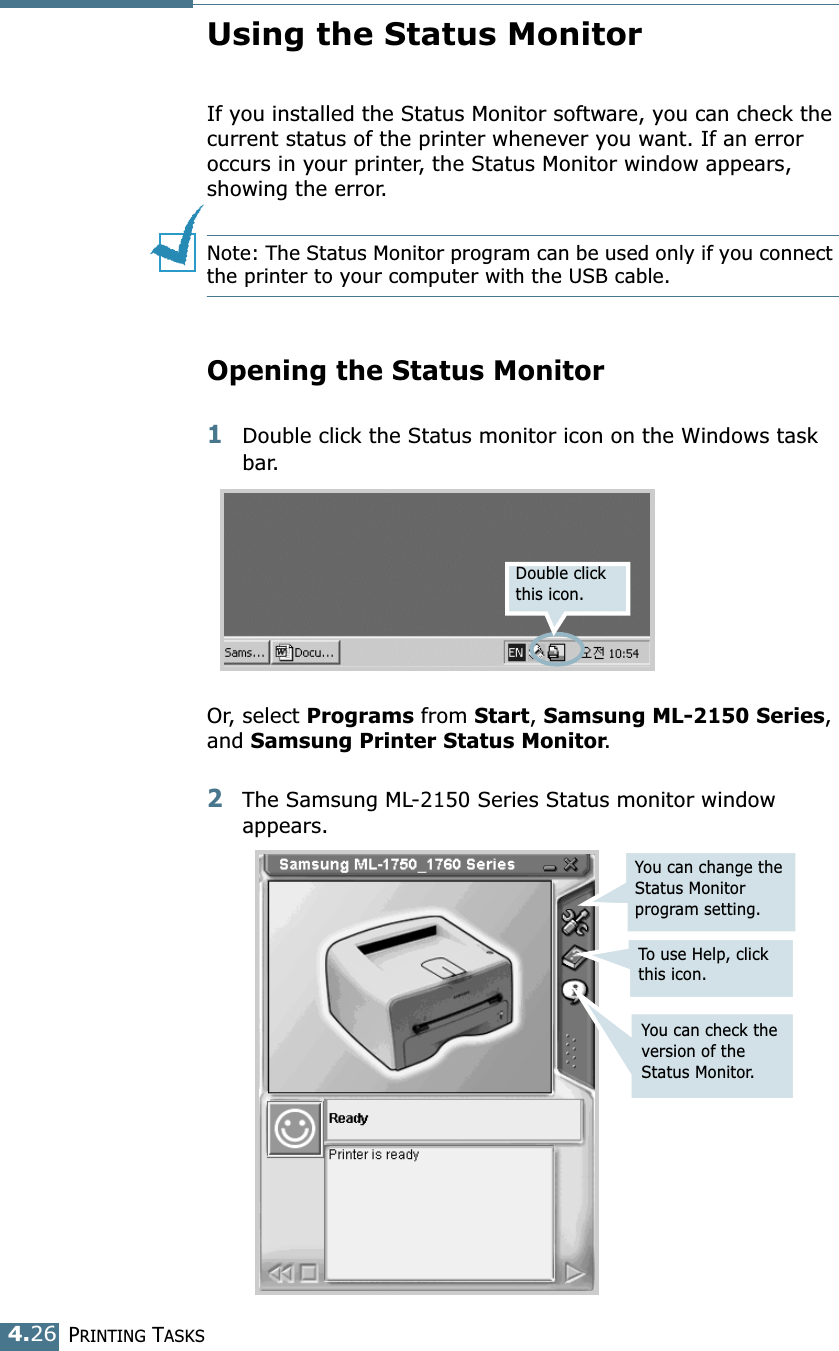
PRINTING TASKS4.26Using the Status MonitorIf you installed the Status Monitor software, you can check the current status of the printer whenever you want. If an error occurs in your printer, the Status Monitor window appears, showing the error. Note: The Status Monitor program can be used only if you connect the printer to your computer with the USB cable. Opening the Status Monitor1Double click the Status monitor icon on the Windows task bar.Or, select Programs from Start, Samsung ML-2150 Series, and Samsung Printer Status Monitor. 2The Samsung ML-2150 Series Status monitor window appears.Double click this icon.You can change the Status Monitor program setting.To use Help, click this icon.You can check the version of the Status Monitor.
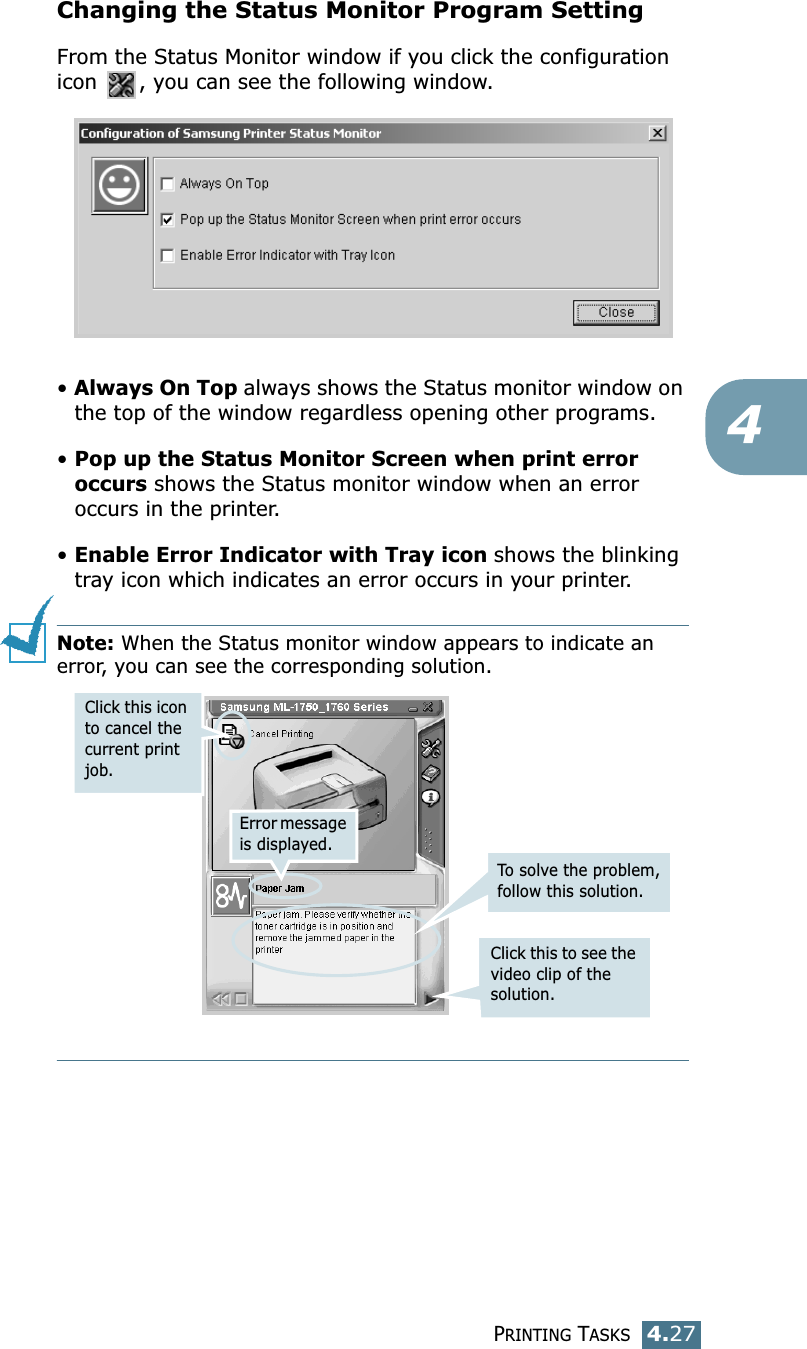
PRINTING TASKS4.274Changing the Status Monitor Program SettingFrom the Status Monitor window if you click the configuration icon  , you can see the following window.• Always On Top always shows the Status monitor window on the top of the window regardless opening other programs.• Pop up the Status Monitor Screen when print error occurs shows the Status monitor window when an error occurs in the printer.• Enable Error Indicator with Tray icon shows the blinking tray icon which indicates an error occurs in your printer. Note: When the Status monitor window appears to indicate an error, you can see the corresponding solution.Error message is displayed.Click this to see the video clip of the solution.To solve the problem, follow this solution.Click this icon to cancel the current print job.
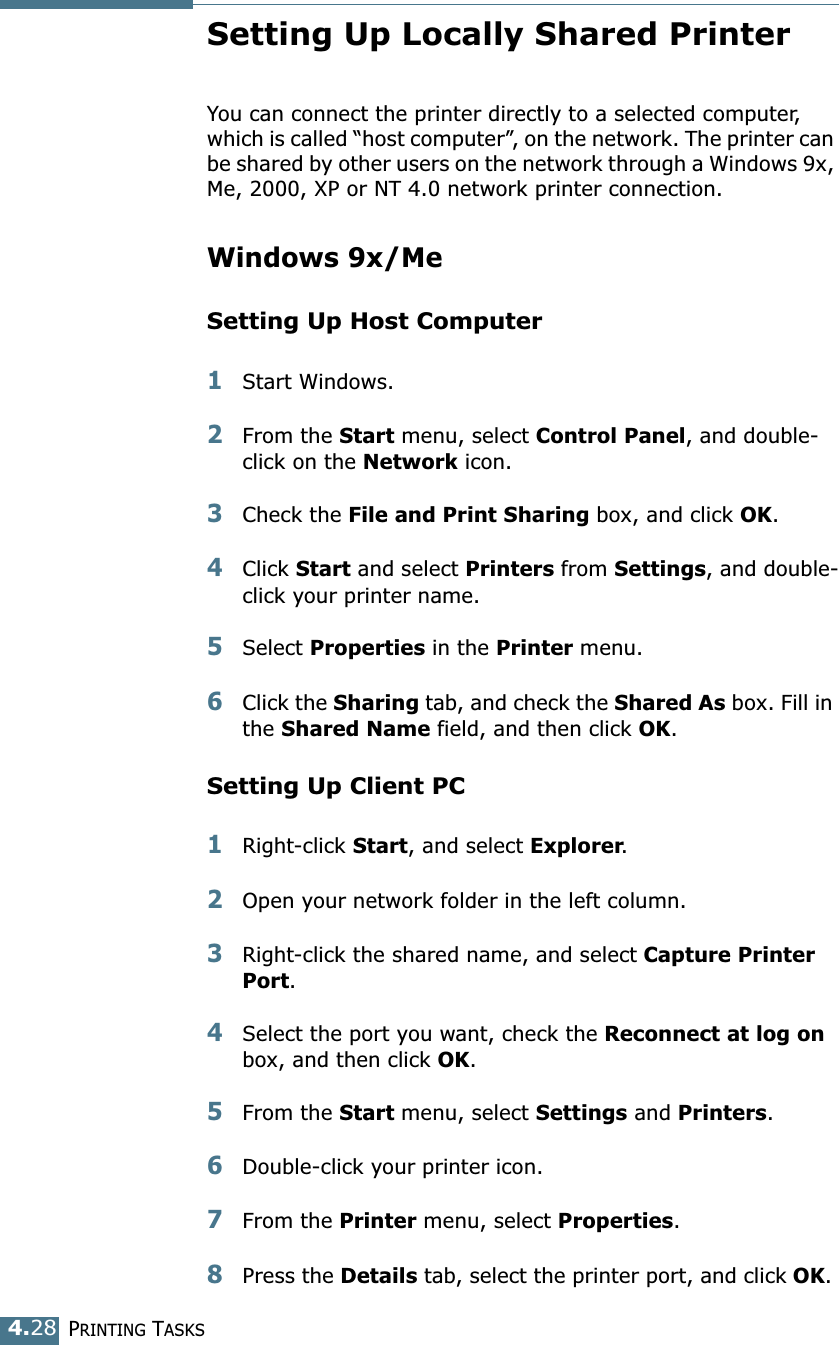
PRINTING TASKS4.28Setting Up Locally Shared PrinterYou can connect the printer directly to a selected computer, which is called “host computer”, on the network. The printer can be shared by other users on the network through a Windows 9x, Me, 2000, XP or NT 4.0 network printer connection. Windows 9x/MeSetting Up Host Computer1Start Windows.2From the Start menu, select Control Panel, and double-click on the Network icon. 3Check the File and Print Sharing box, and click OK. 4Click Start and select Printers from Settings, and double-click your printer name. 5Select Properties in the Printer menu. 6Click the Sharing tab, and check the Shared As box. Fill in the Shared Name field, and then click OK. Setting Up Client PC1Right-click Start, and select Explorer. 2Open your network folder in the left column. 3Right-click the shared name, and select Capture Printer Port. 4Select the port you want, check the Reconnect at log on box, and then click OK.5From the Start menu, select Settings and Printers. 6Double-click your printer icon. 7From the Printer menu, select Properties. 8Press the Details tab, select the printer port, and click OK.
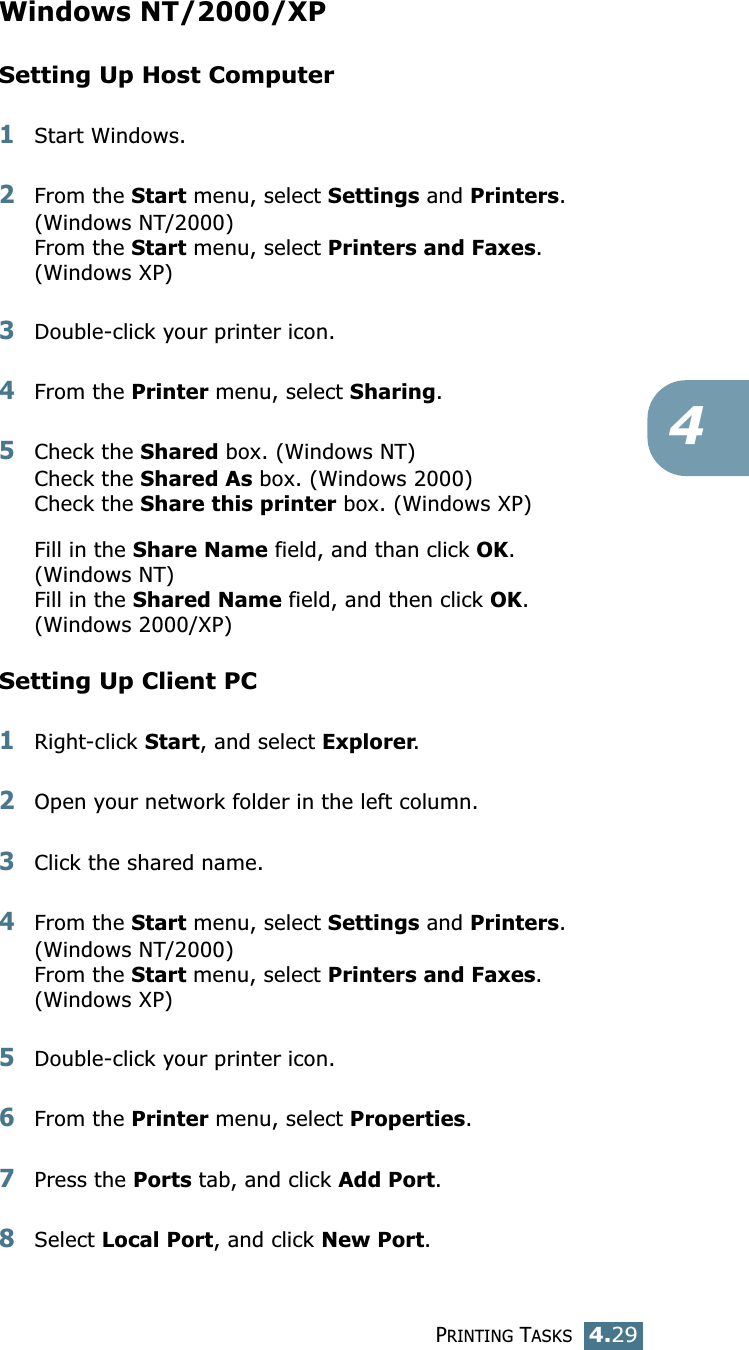
PRINTING TASKS4.294Windows NT/2000/XPSetting Up Host Computer1Start Windows. 2From the Start menu, select Settings and Printers. (Windows NT/2000)From the Start menu, select Printers and Faxes. (Windows XP)3Double-click your printer icon. 4From the Printer menu, select Sharing. 5Check the Shared box. (Windows NT)Check the Shared As box. (Windows 2000)Check the Share this printer box. (Windows XP)Fill in the Share Name field, and than click OK. (Windows NT)Fill in the Shared Name field, and then click OK. (Windows 2000/XP)Setting Up Client PC1Right-click Start, and select Explorer. 2Open your network folder in the left column. 3Click the shared name. 4From the Start menu, select Settings and Printers. (Windows NT/2000)From the Start menu, select Printers and Faxes.(Windows XP)5Double-click your printer icon. 6From the Printer menu, select Properties. 7Press the Ports tab, and click Add Port. 8Select Local Port, and click New Port.
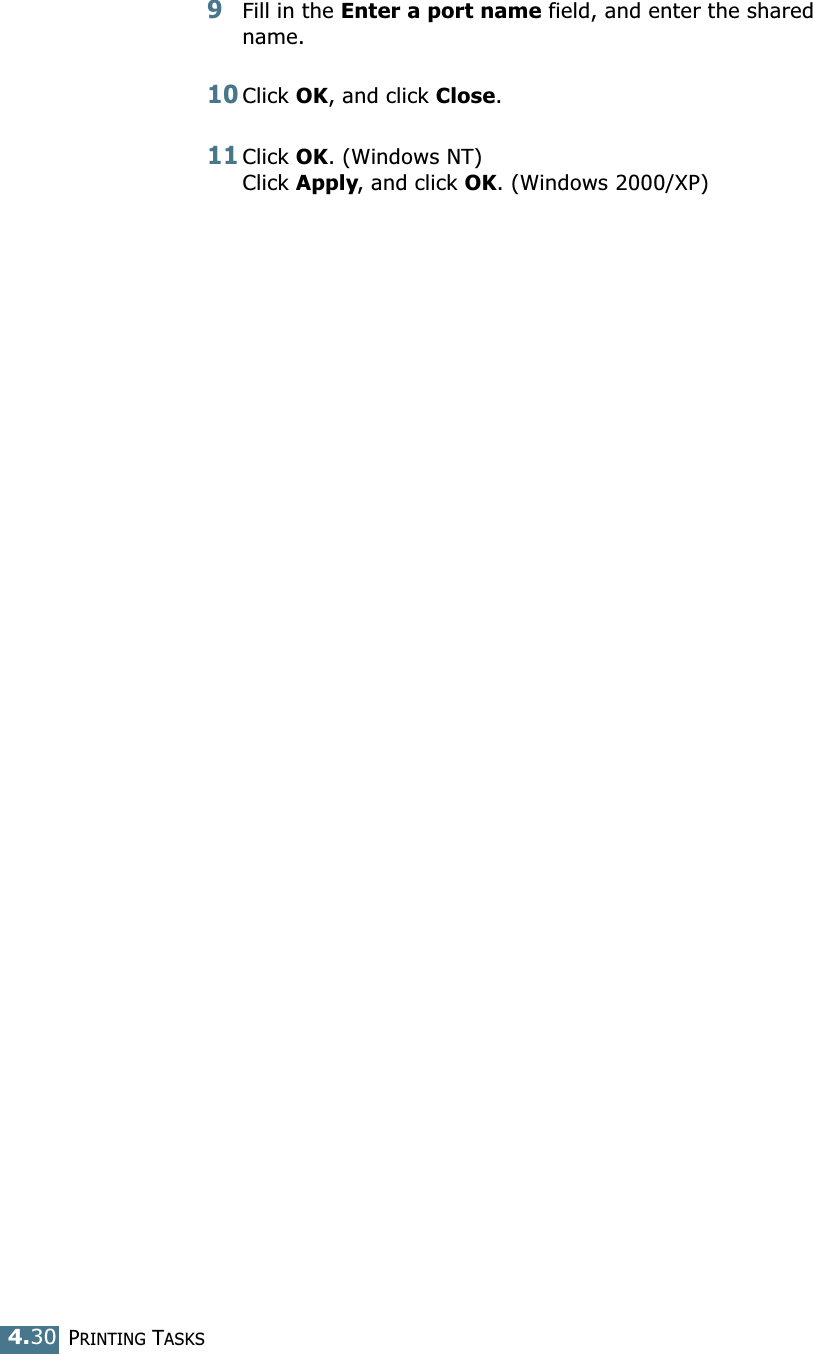
PRINTING TASKS4.309Fill in the Enter a port name field, and enter the shared name. 10Click OK, and click Close. 11Click OK. (Windows NT)Click Apply, and click OK. (Windows 2000/XP)
5This chapter provides suggestions for maintaining the toner cartridge and the printer. This chapter includes:• Maintaining the Toner Cartridge• Cleaning the Printer• Consumables and Replacement PartsMaintaining Your Printer
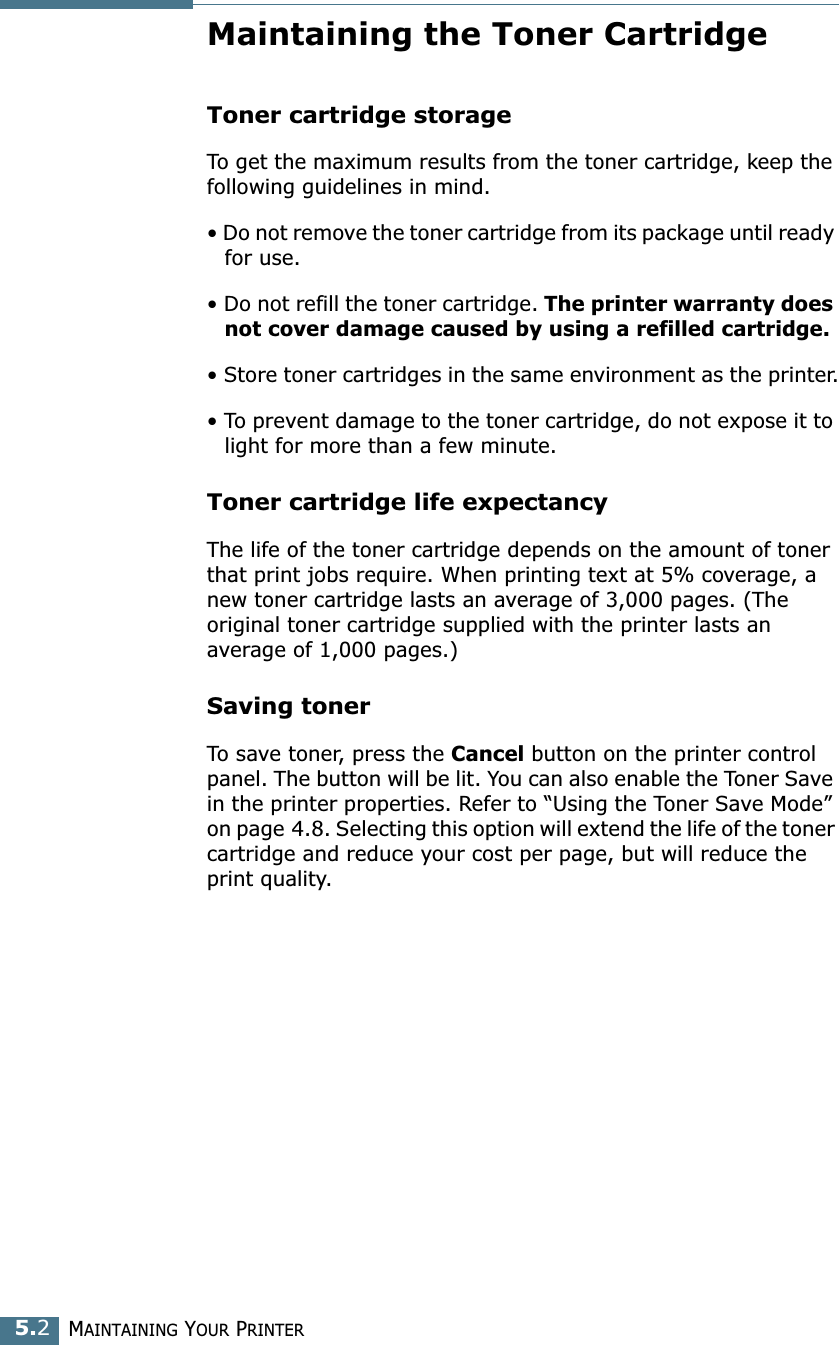
MAINTAINING YOUR PRINTER5.2Maintaining the Toner CartridgeToner cartridge storageTo get the maximum results from the toner cartridge, keep the following guidelines in mind.• Do not remove the toner cartridge from its package until ready for use. • Do not refill the toner cartridge. The printer warranty does not cover damage caused by using a refilled cartridge.• Store toner cartridges in the same environment as the printer.• To prevent damage to the toner cartridge, do not expose it to light for more than a few minute.Toner cartridge life expectancyThe life of the toner cartridge depends on the amount of toner that print jobs require. When printing text at 5% coverage, a new toner cartridge lasts an average of 3,000 pages. (The original toner cartridge supplied with the printer lasts an average of 1,000 pages.)Saving tonerTo save toner, press the Cancel button on the printer control panel. The button will be lit. You can also enable the Toner Save in the printer properties. Refer to “Using the Toner Save Mode” on page 4.8. Selecting this option will extend the life of the toner cartridge and reduce your cost per page, but will reduce the print quality.
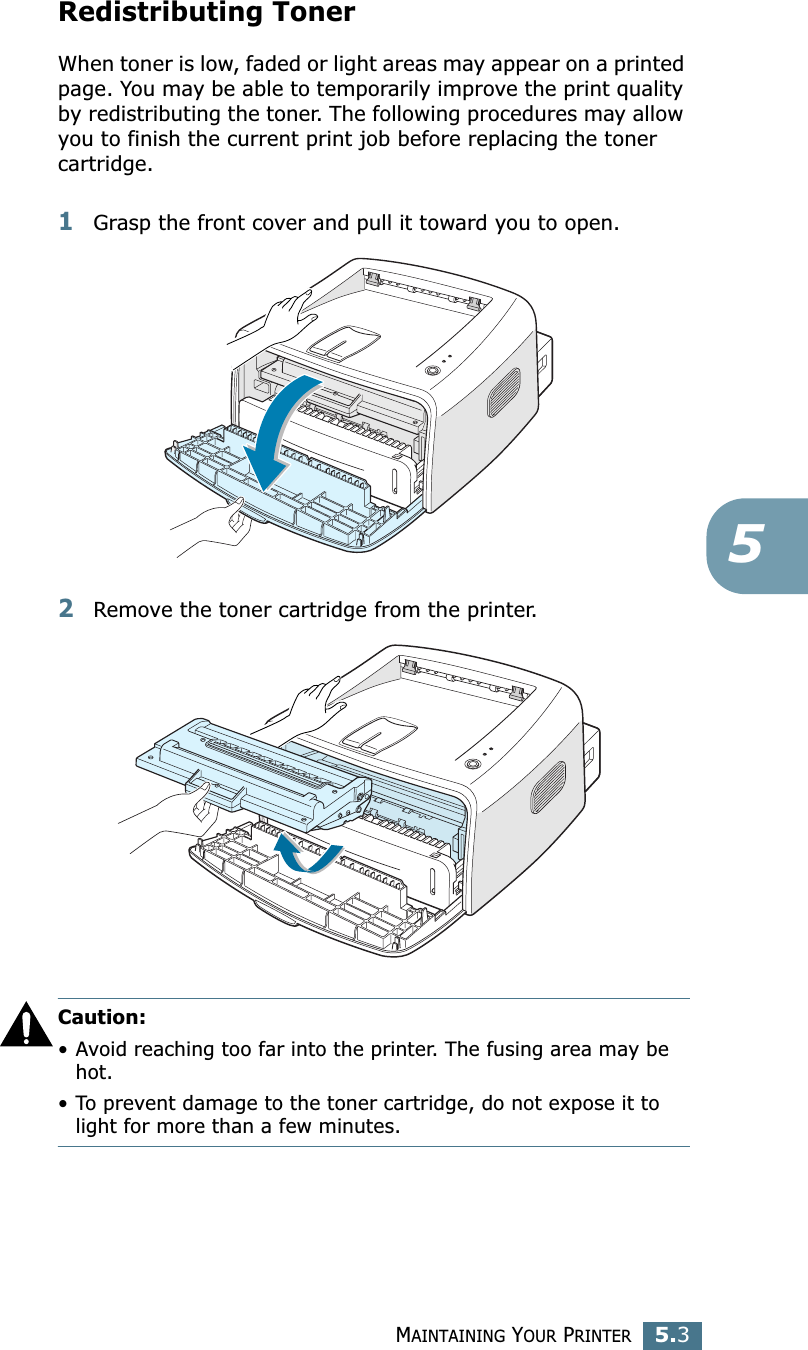
MAINTAINING YOUR PRINTER5.35Redistributing TonerWhen toner is low, faded or light areas may appear on a printed page. You may be able to temporarily improve the print quality by redistributing the toner. The following procedures may allow you to finish the current print job before replacing the toner cartridge.1Grasp the front cover and pull it toward you to open.2Remove the toner cartridge from the printer.Caution: • Avoid reaching too far into the printer. The fusing area may be hot.• To prevent damage to the toner cartridge, do not expose it to light for more than a few minutes.
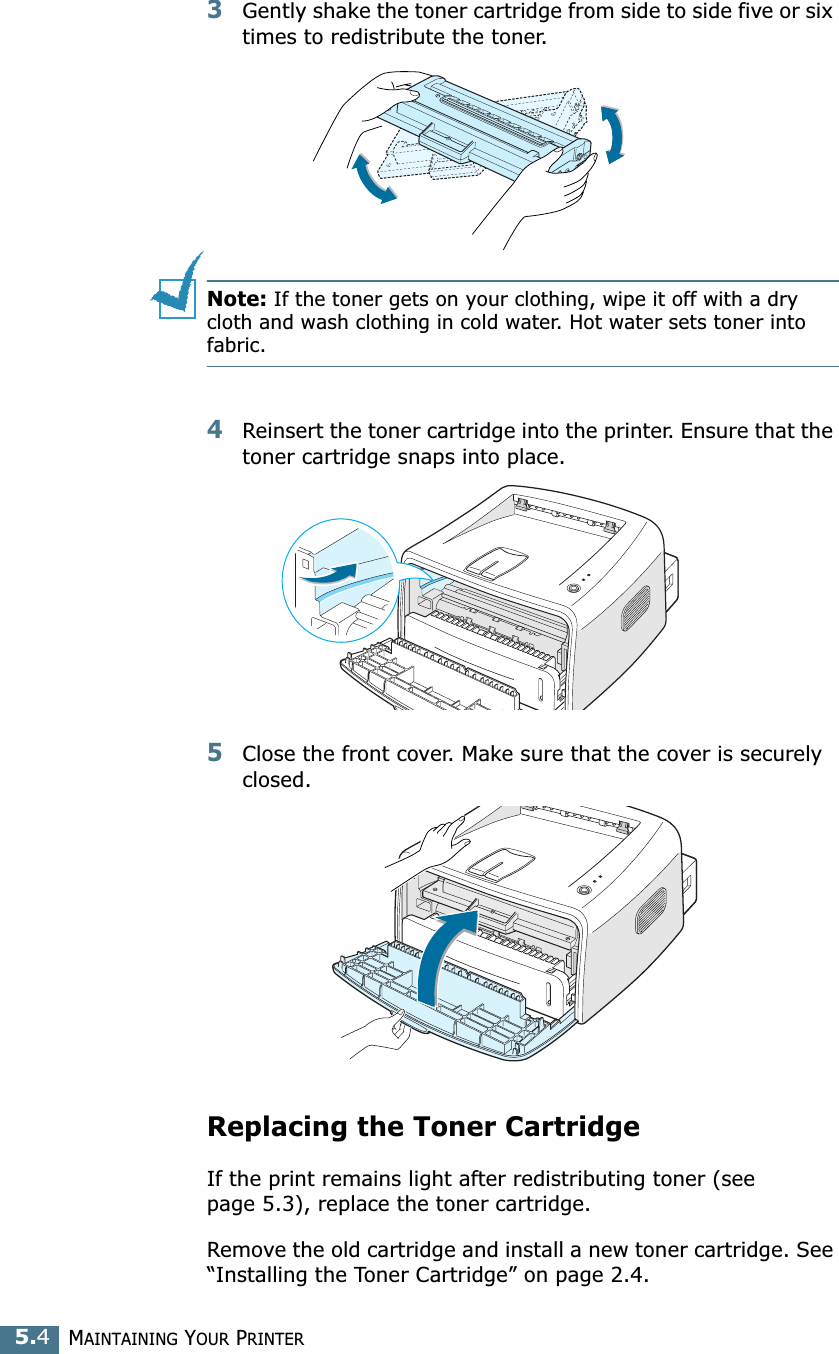
MAINTAINING YOUR PRINTER5.43Gently shake the toner cartridge from side to side five or six times to redistribute the toner.Note: If the toner gets on your clothing, wipe it off with a dry cloth and wash clothing in cold water. Hot water sets toner into fabric.4Reinsert the toner cartridge into the printer. Ensure that the toner cartridge snaps into place.5Close the front cover. Make sure that the cover is securely closed.Replacing the Toner CartridgeIf the print remains light after redistributing toner (see page 5.3), replace the toner cartridge. Remove the old cartridge and install a new toner cartridge. See “Installing the Toner Cartridge” on page 2.4.
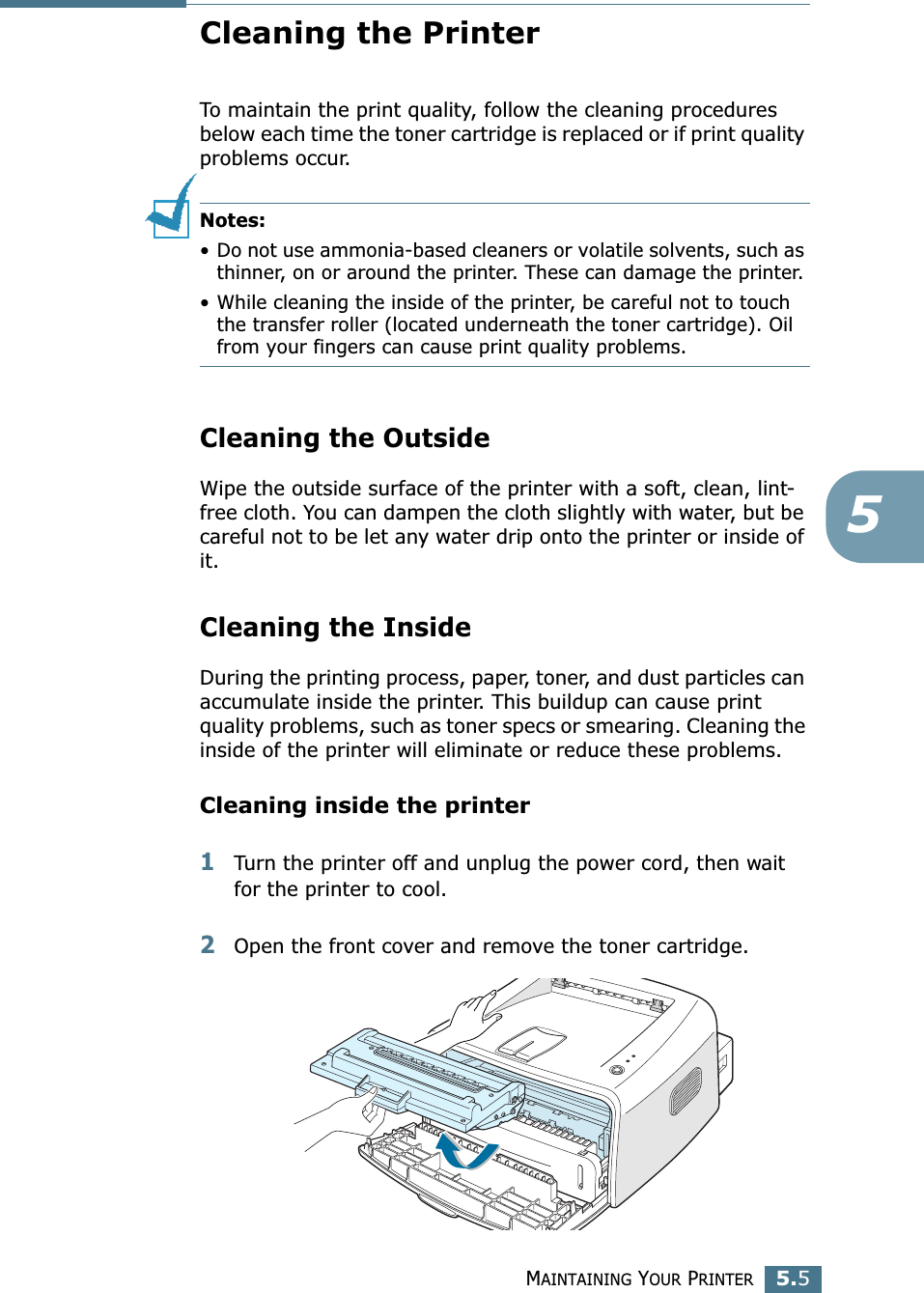
MAINTAINING YOUR PRINTER5.55Cleaning the PrinterTo maintain the print quality, follow the cleaning procedures below each time the toner cartridge is replaced or if print quality problems occur.Notes: • Do not use ammonia-based cleaners or volatile solvents, such as thinner, on or around the printer. These can damage the printer.• While cleaning the inside of the printer, be careful not to touch the transfer roller (located underneath the toner cartridge). Oil from your fingers can cause print quality problems.Cleaning the OutsideWipe the outside surface of the printer with a soft, clean, lint-free cloth. You can dampen the cloth slightly with water, but be careful not to be let any water drip onto the printer or inside of it.Cleaning the InsideDuring the printing process, paper, toner, and dust particles can accumulate inside the printer. This buildup can cause print quality problems, such as toner specs or smearing. Cleaning the inside of the printer will eliminate or reduce these problems.Cleaning inside the printer1Turn the printer off and unplug the power cord, then wait for the printer to cool.2Open the front cover and remove the toner cartridge.
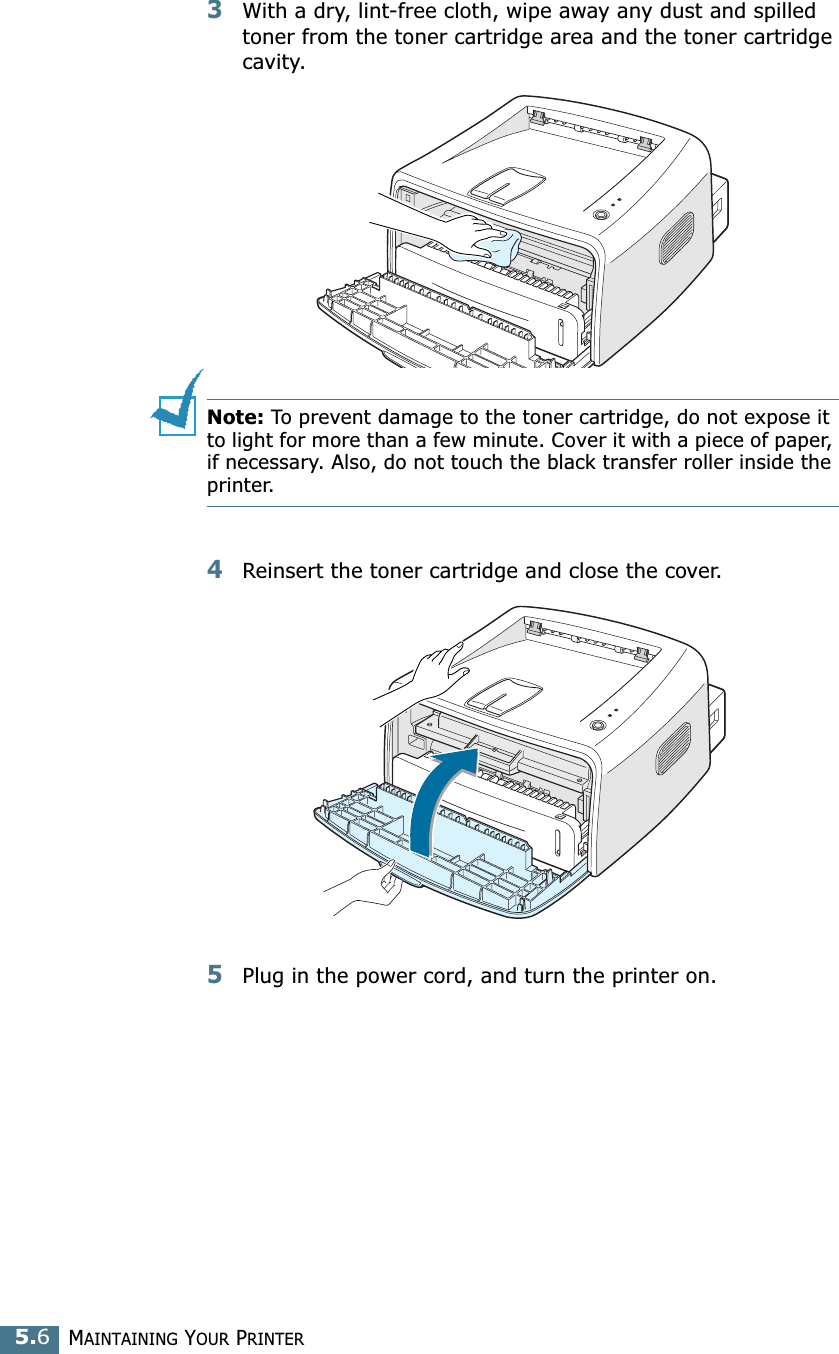
MAINTAINING YOUR PRINTER5.63With a dry, lint-free cloth, wipe away any dust and spilled toner from the toner cartridge area and the toner cartridge cavity.Note: To prevent damage to the toner cartridge, do not expose it to light for more than a few minute. Cover it with a piece of paper, if necessary. Also, do not touch the black transfer roller inside the printer. 4Reinsert the toner cartridge and close the cover.5Plug in the power cord, and turn the printer on.
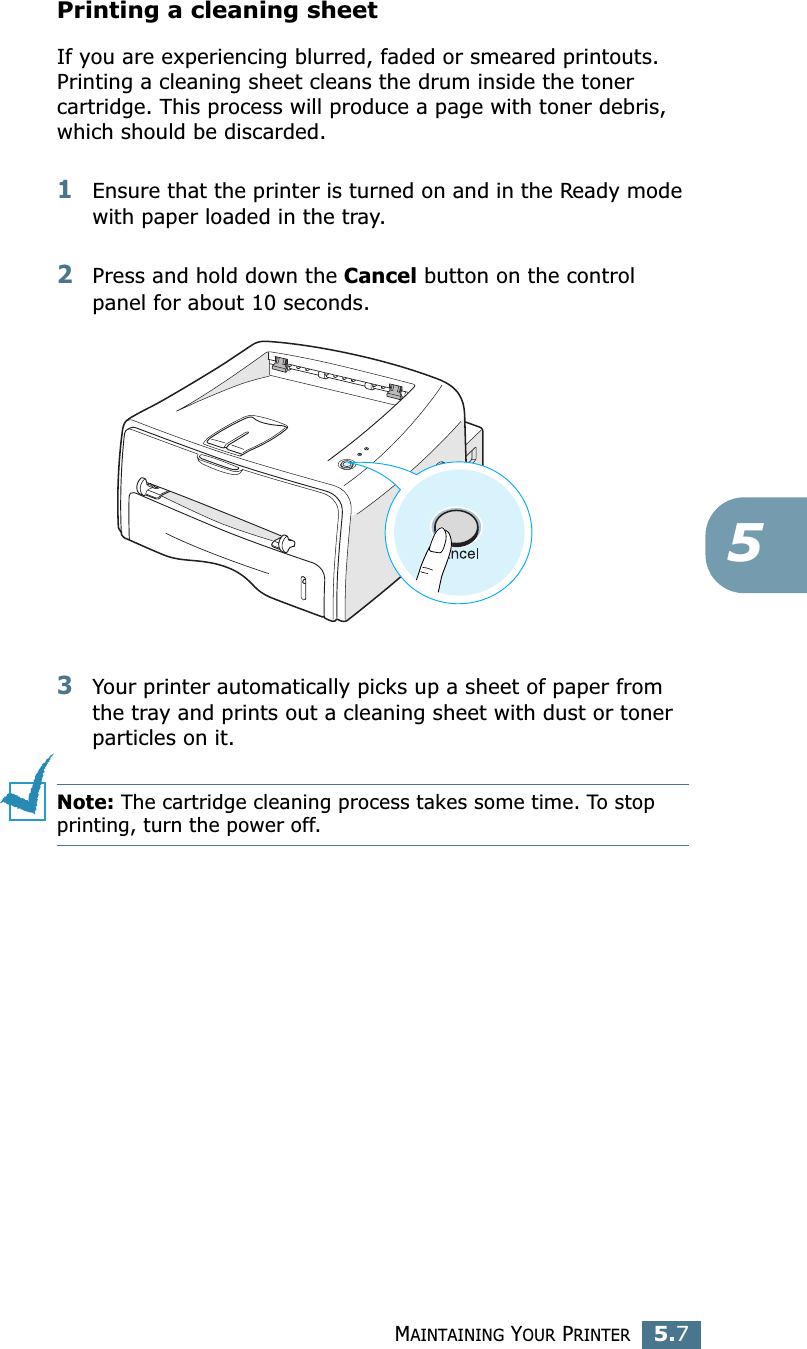
MAINTAINING YOUR PRINTER5.75Printing a cleaning sheet If you are experiencing blurred, faded or smeared printouts. Printing a cleaning sheet cleans the drum inside the toner cartridge. This process will produce a page with toner debris, which should be discarded.1Ensure that the printer is turned on and in the Ready mode with paper loaded in the tray.2Press and hold down the Cancel button on the control panel for about 10 seconds.3Your printer automatically picks up a sheet of paper from the tray and prints out a cleaning sheet with dust or toner particles on it.Note: The cartridge cleaning process takes some time. To stop printing, turn the power off.
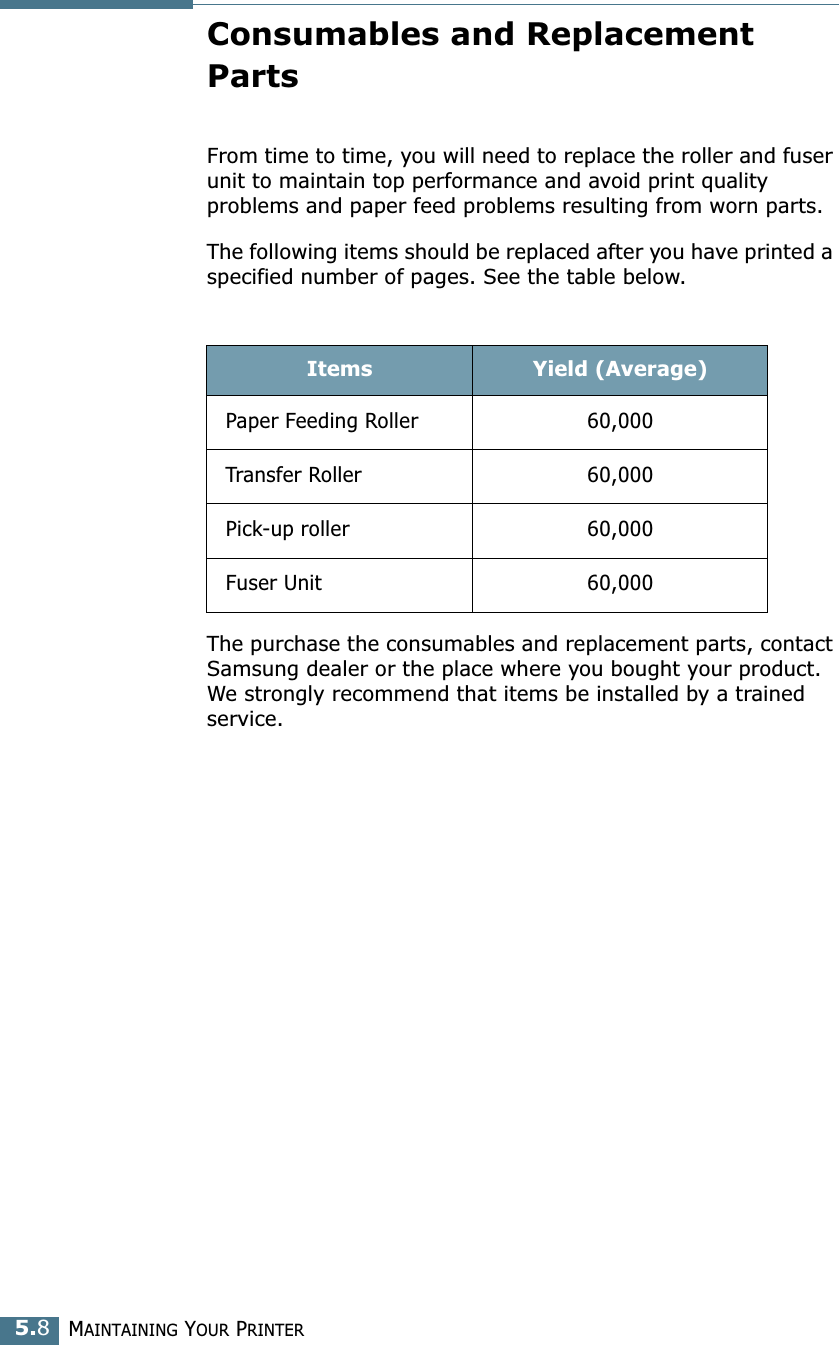
MAINTAINING YOUR PRINTER5.8Consumables and Replacement PartsFrom time to time, you will need to replace the roller and fuser unit to maintain top performance and avoid print quality problems and paper feed problems resulting from worn parts.The following items should be replaced after you have printed a specified number of pages. See the table below.The purchase the consumables and replacement parts, contact Samsung dealer or the place where you bought your product. We strongly recommend that items be installed by a trained service. Items Yield (Average)Paper Feeding Roller 60,000Transfer Roller 60,000Pick-up roller 60,000Fuser Unit 60,000
6This chapter provides helpful information for what to do if you encounter an error while using your printer. This chapter includes:• Troubleshooting Checklist• Solving General Printing Problems• Clearing Paper Jams• Solving Print Quality Problems• Troubleshooting Error Messages• Common Windows Problems• Common Macintosh Problems• Common Linux Problems• Common DOS problemSolving Problems
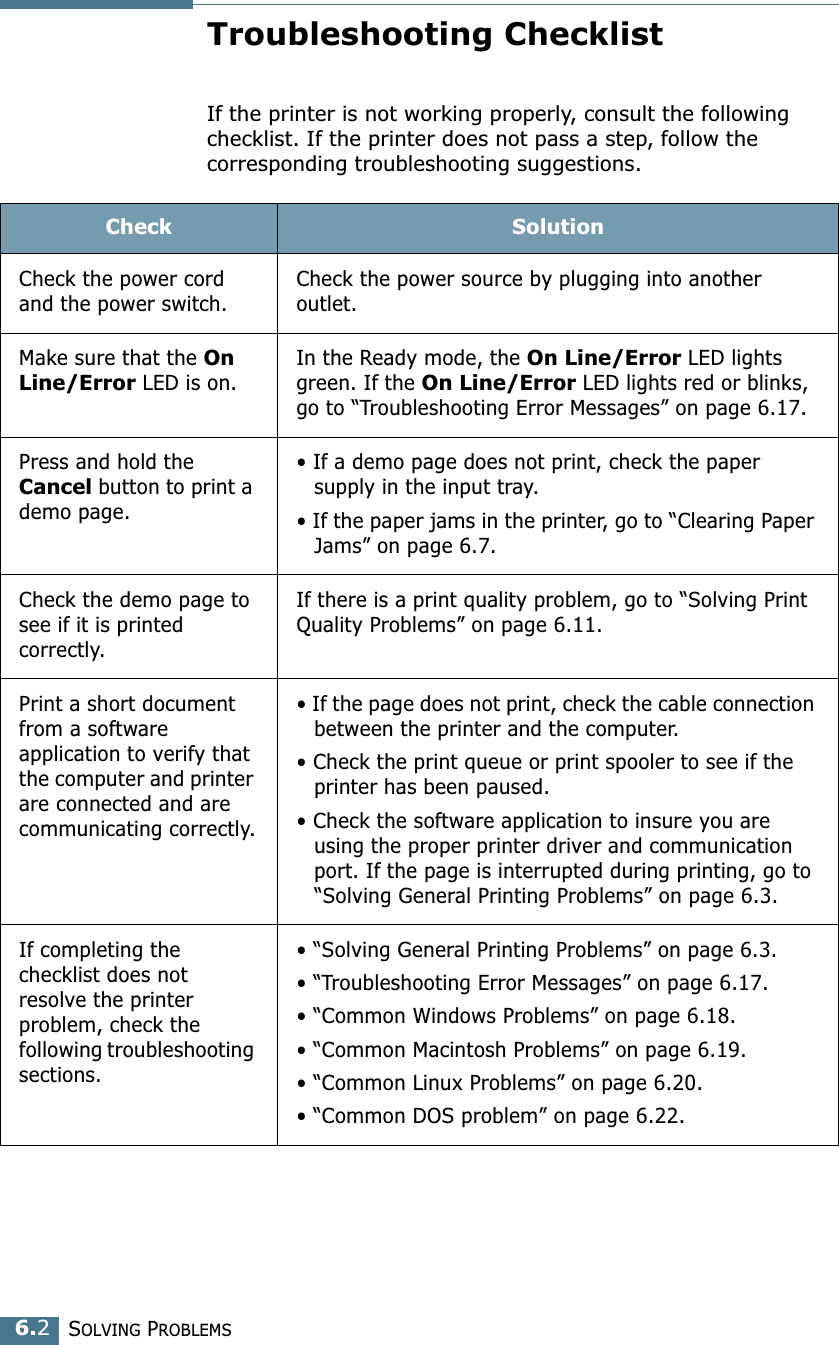
SOLVING PROBLEMS6.2Troubleshooting ChecklistIf the printer is not working properly, consult the following checklist. If the printer does not pass a step, follow the corresponding troubleshooting suggestions.Check SolutionCheck the power cord and the power switch. Check the power source by plugging into another outlet. Make sure that the On Line/Error LED is on. In the Ready mode, the On Line/Error LED lights green. If the On Line/Error LED lights red or blinks, go to “Troubleshooting Error Messages” on page 6.17. Press and hold the Cancel button to print a demo page.• If a demo page does not print, check the paper supply in the input tray.• If the paper jams in the printer, go to “Clearing Paper Jams” on page 6.7. Check the demo page to see if it is printed correctly.If there is a print quality problem, go to “Solving Print Quality Problems” on page 6.11.Print a short document from a software application to verify that the computer and printer are connected and are communicating correctly.• If the page does not print, check the cable connection between the printer and the computer. • Check the print queue or print spooler to see if the printer has been paused.• Check the software application to insure you are using the proper printer driver and communication port. If the page is interrupted during printing, go to “Solving General Printing Problems” on page 6.3.If completing the checklist does not resolve the printer problem, check the following troubleshooting sections.• “Solving General Printing Problems” on page 6.3.• “Troubleshooting Error Messages” on page 6.17.• “Common Windows Problems” on page 6.18.• “Common Macintosh Problems” on page 6.19.• “Common Linux Problems” on page 6.20.• “Common DOS problem” on page 6.22.
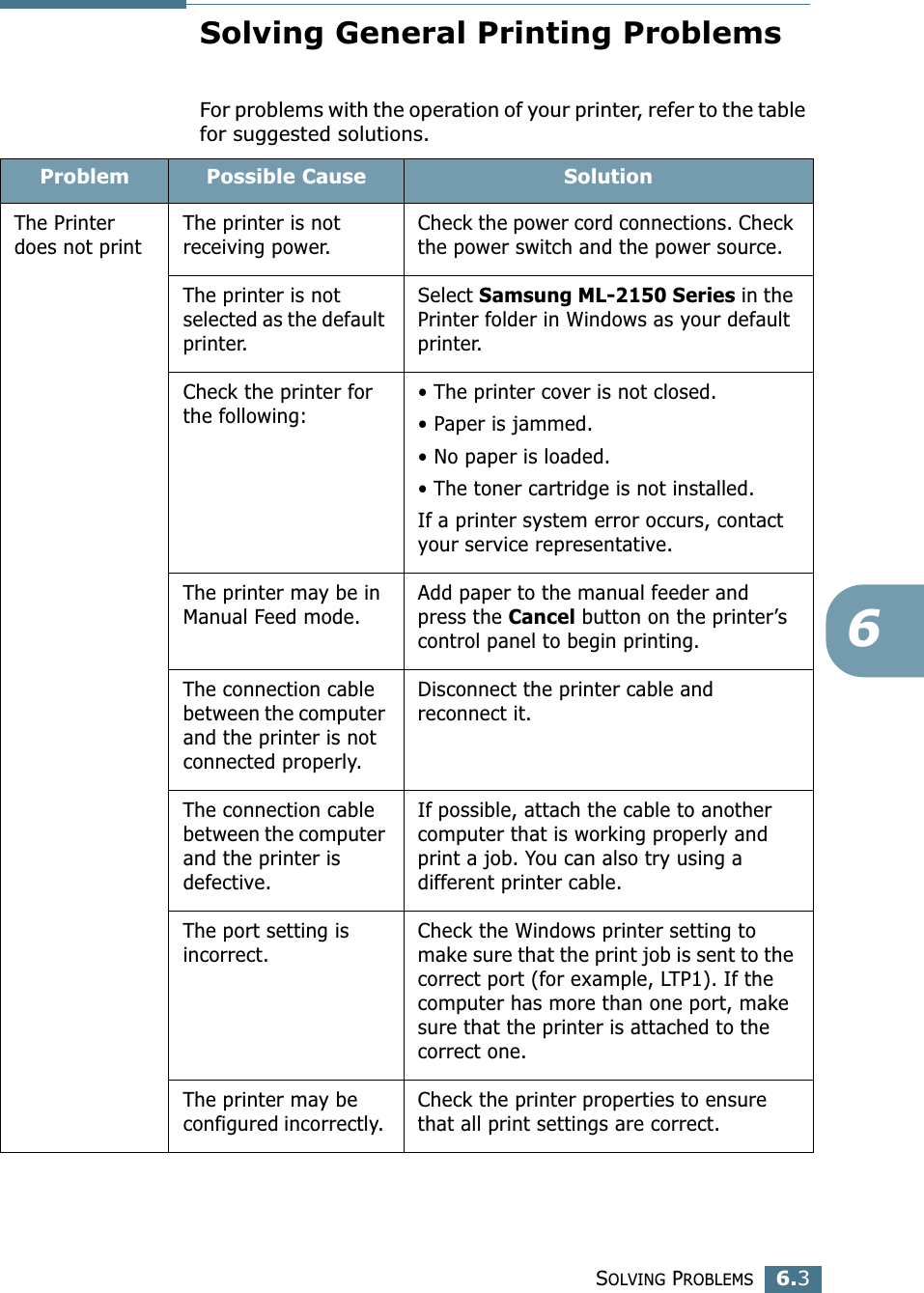
SOLVING PROBLEMS6.36Solving General Printing ProblemsFor problems with the operation of your printer, refer to the table for suggested solutions.Problem Possible Cause SolutionThe Printer does not printThe printer is not receiving power.Check the power cord connections. Check the power switch and the power source.The printer is not selected as the default printer.Select Samsung ML-2150 Series in the Printer folder in Windows as your default printer.Check the printer for the following:• The printer cover is not closed.• Paper is jammed.• No paper is loaded.• The toner cartridge is not installed.If a printer system error occurs, contact your service representative.The printer may be in Manual Feed mode.Add paper to the manual feeder and press the Cancel button on the printer’s control panel to begin printing.The connection cable between the computer and the printer is not connected properly.Disconnect the printer cable and reconnect it.The connection cable between the computer and the printer is defective.If possible, attach the cable to another computer that is working properly and print a job. You can also try using a different printer cable.The port setting is incorrect.Check the Windows printer setting to make sure that the print job is sent to the correct port (for example, LTP1). If the computer has more than one port, make sure that the printer is attached to the correct one.The printer may be configured incorrectly. Check the printer properties to ensure that all print settings are correct.
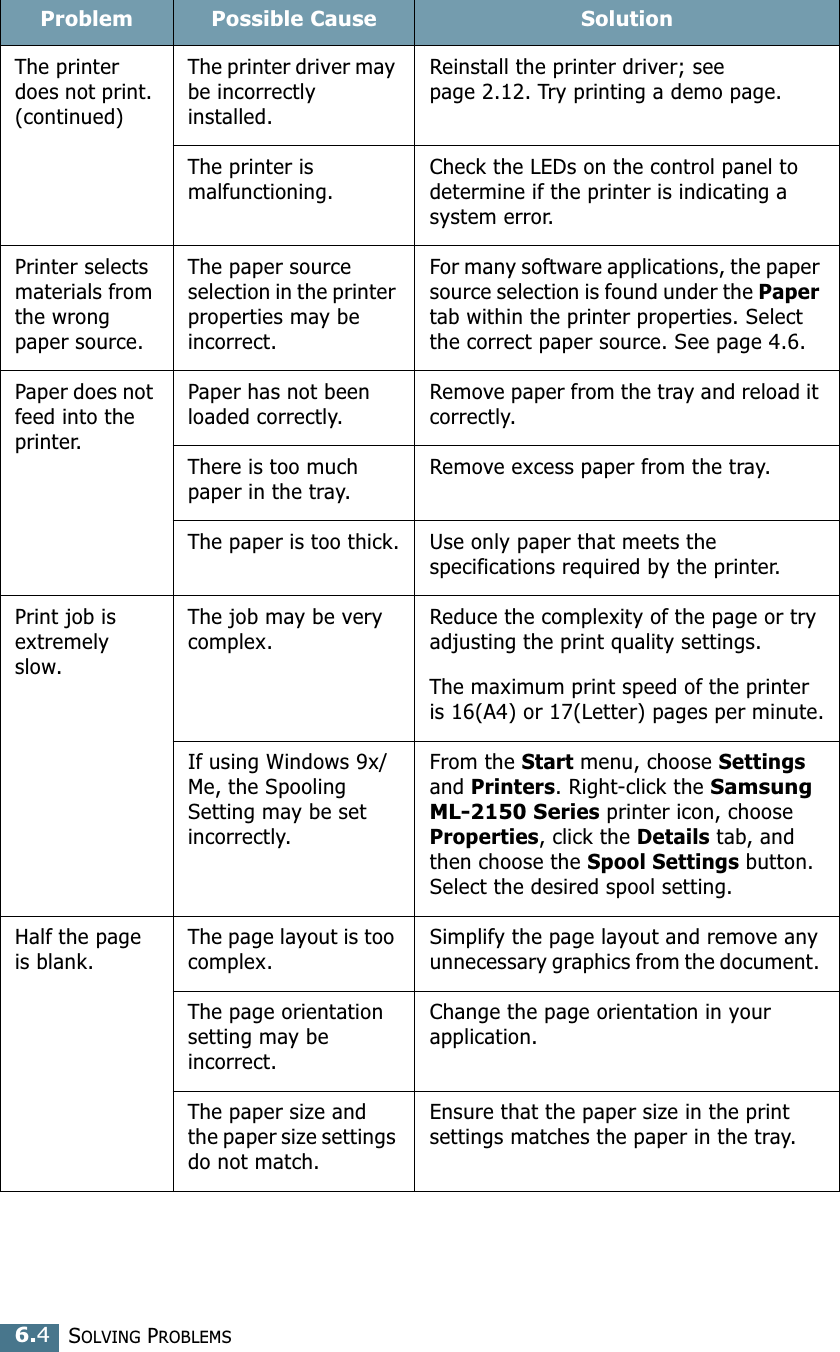
SOLVING PROBLEMS6.4Problem Possible Cause SolutionThe printer does not print. (continued)The printer driver may be incorrectly installed.Reinstall the printer driver; see page 2.12. Try printing a demo page.The printer is malfunctioning.Check the LEDs on the control panel to determine if the printer is indicating a system error.Printer selects materials from the wrong paper source.The paper source selection in the printer properties may be incorrect.For many software applications, the paper source selection is found under the Paper tab within the printer properties. Select the correct paper source. See page 4.6.Paper does not feed into the printer.Paper has not been loaded correctly.Remove paper from the tray and reload it correctly.There is too much paper in the tray.Remove excess paper from the tray.The paper is too thick. Use only paper that meets the specifications required by the printer.Print job is extremely slow.The job may be very complex.Reduce the complexity of the page or try adjusting the print quality settings.The maximum print speed of the printer is 16(A4) or 17(Letter) pages per minute.If using Windows 9x/Me, the Spooling Setting may be set incorrectly. From the Start menu, choose Settings and Printers. Right-click the Samsung ML-2150 Series printer icon, choose Properties, click the Details tab, and then choose the Spool Settings button. Select the desired spool setting.Half the page is blank.The page layout is too complex.Simplify the page layout and remove any unnecessary graphics from the document. The page orientation setting may be incorrect.Change the page orientation in your application.The paper size and the paper size settings do not match.Ensure that the paper size in the print settings matches the paper in the tray.
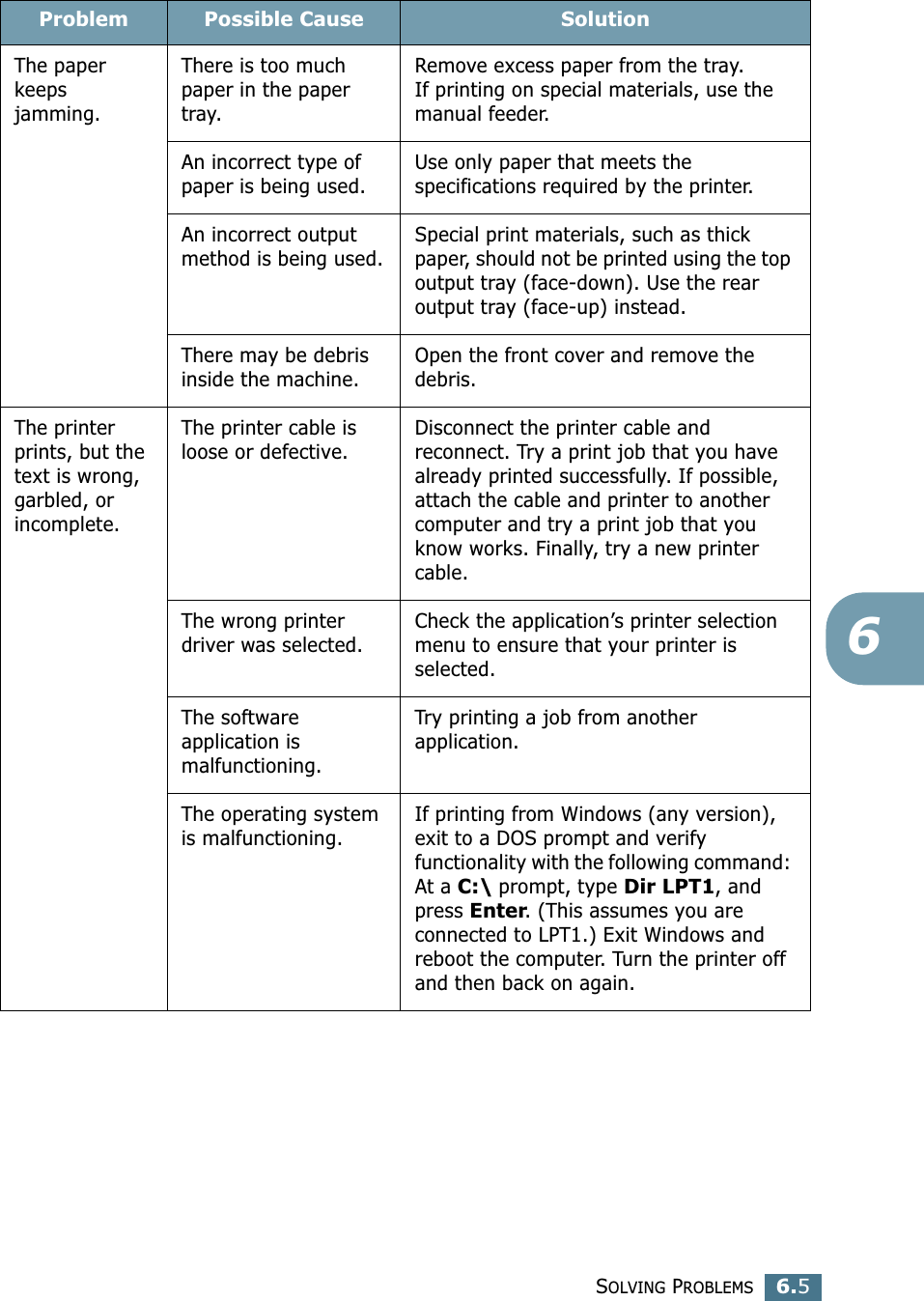
SOLVING PROBLEMS6.56The paper keeps jamming.There is too much paper in the paper tray.Remove excess paper from the tray. If printing on special materials, use the manual feeder.An incorrect type of paper is being used.Use only paper that meets the specifications required by the printer.An incorrect output method is being used.Special print materials, such as thick paper, should not be printed using the top output tray (face-down). Use the rear output tray (face-up) instead.There may be debris inside the machine.Open the front cover and remove the debris.The printer prints, but the text is wrong, garbled, or incomplete.The printer cable is loose or defective.Disconnect the printer cable and reconnect. Try a print job that you have already printed successfully. If possible, attach the cable and printer to another computer and try a print job that you know works. Finally, try a new printer cable.The wrong printer driver was selected.Check the application’s printer selection menu to ensure that your printer is selected.The software application is malfunctioning.Try printing a job from another application.The operating system is malfunctioning.If printing from Windows (any version), exit to a DOS prompt and verify functionality with the following command: At a C:\ prompt, type Dir LPT1, and press Enter. (This assumes you are connected to LPT1.) Exit Windows and reboot the computer. Turn the printer off and then back on again.Problem Possible Cause Solution

Navigation menu