Sequel Technologies KF5X01 Keyfob, 5 Button User Manual CERTIFICATE OF COMPLIANCE

Sequel Technologies, LLC Keyfob, 5 Button CERTIFICATE OF COMPLIANCE

User Manual

Rhein Tech Laboratories, Inc.  Client:  Sequel Technologies, LLC 360 Herndon Parkway    Model:  STWS-KF5 Suite 1400  Standard: FCC 15.231                                             FCC ID:  V4X-KF5X01 Herndon, VA 20170 http://www.rheintech.com Report #: 2008037    Page 21 of 26       Appendix G:  Manual  Please see the following pages.
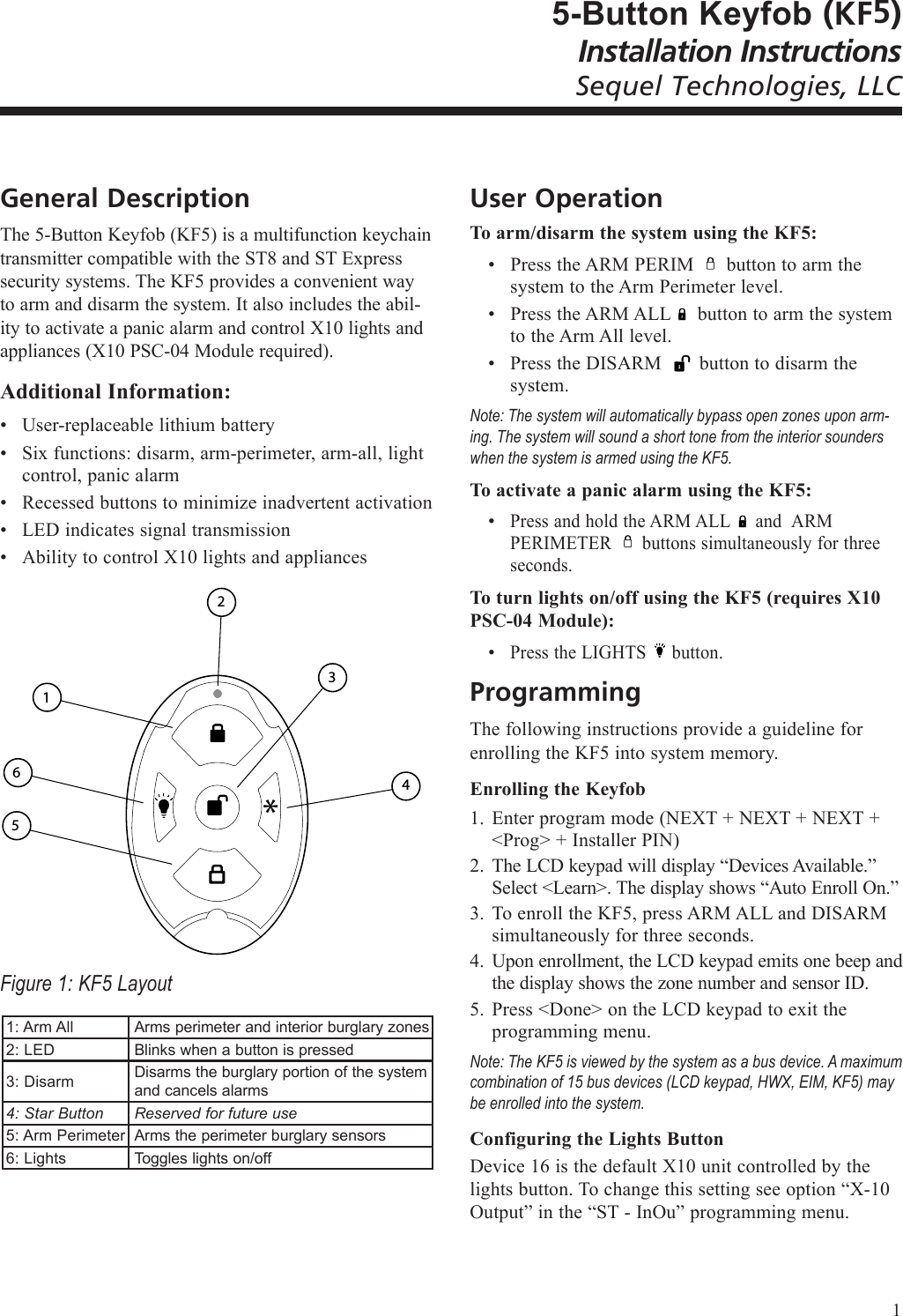
5-Button Keyfob (KF5)Installation InstructionsSequel Technologies, LLCGeneral DescriptionThe 5-Button Keyfob (KF5) is a multifunction keychain transmitter compatible with the ST8 and ST Express security systems. The KF5 provides a convenient way to arm and disarm the system. It also includes the abil-ity to activate a panic alarm and control X10 lights and appliances (X10 PSC-04 Module required).Additional Information:User-replaceable lithium battery Six functions: disarm, arm-perimeter, arm-all, light control, panic alarmRecessed buttons to minimize inadvertent activationLED indicates signal transmissionAbility to control X10 lights and appliances 4 6 1 3* 5 2Figure 1: KF5 Layout1: Arm AllArms perimeter and interior burglary zones 2: LEDBlinks when a button is pressed3: DisarmDisarms the burglary portion of the system and cancels alarms4: Star ButtonReserved for future use5: Arm PerimeterArms the perimeter burglary sensors6: LightsToggles lights on/off•••••User OperationTo arm/disarm the system using the KF5:Press the ARM PERIM      button to arm the system to the Arm Perimeter level.Press the ARM ALL     button to arm the system to the Arm All level.Press the DISARM       button to disarm the system. Note: The system will automatically bypass open zones upon arm-ing. The system will sound a short tone from the interior sounders when the system is armed using the KF5.  To activate a panic alarm using the KF5:Press and hold the ARM ALL     and  ARM PERIMETER      buttons simultaneously for three seconds.To turn lights on/off using the KF5 (requires X10 PSC-04 Module):Press the LIGHTS     button.ProgrammingThe following instructions provide a guideline for enrolling the KF5 into system memory. Enrolling the KeyfobEnter program mode (NEXT + NEXT + NEXT + <Prog> + Installer PIN)The LCD keypad will display “Devices Available.” Select <Learn>. The display shows “Auto Enroll On.”To enroll the KF5, press ARM ALL and DISARM simultaneously for three seconds.Upon enrollment, the LCD keypad emits one beep and the display shows the zone number and sensor ID.Press <Done> on the LCD keypad to exit the programming menu.Note: The KF5 is viewed by the system as a bus device. A maximum combination of 15 bus devices (LCD keypad, HWX, EIM, KF5) may be enrolled into the system. Configuring the Lights ButtonDevice 16 is the default X10 unit controlled by the lights button. To change this setting see option “X-10 Output” in the “ST - InOu” programming menu.•••••1.2.3.4.5.1
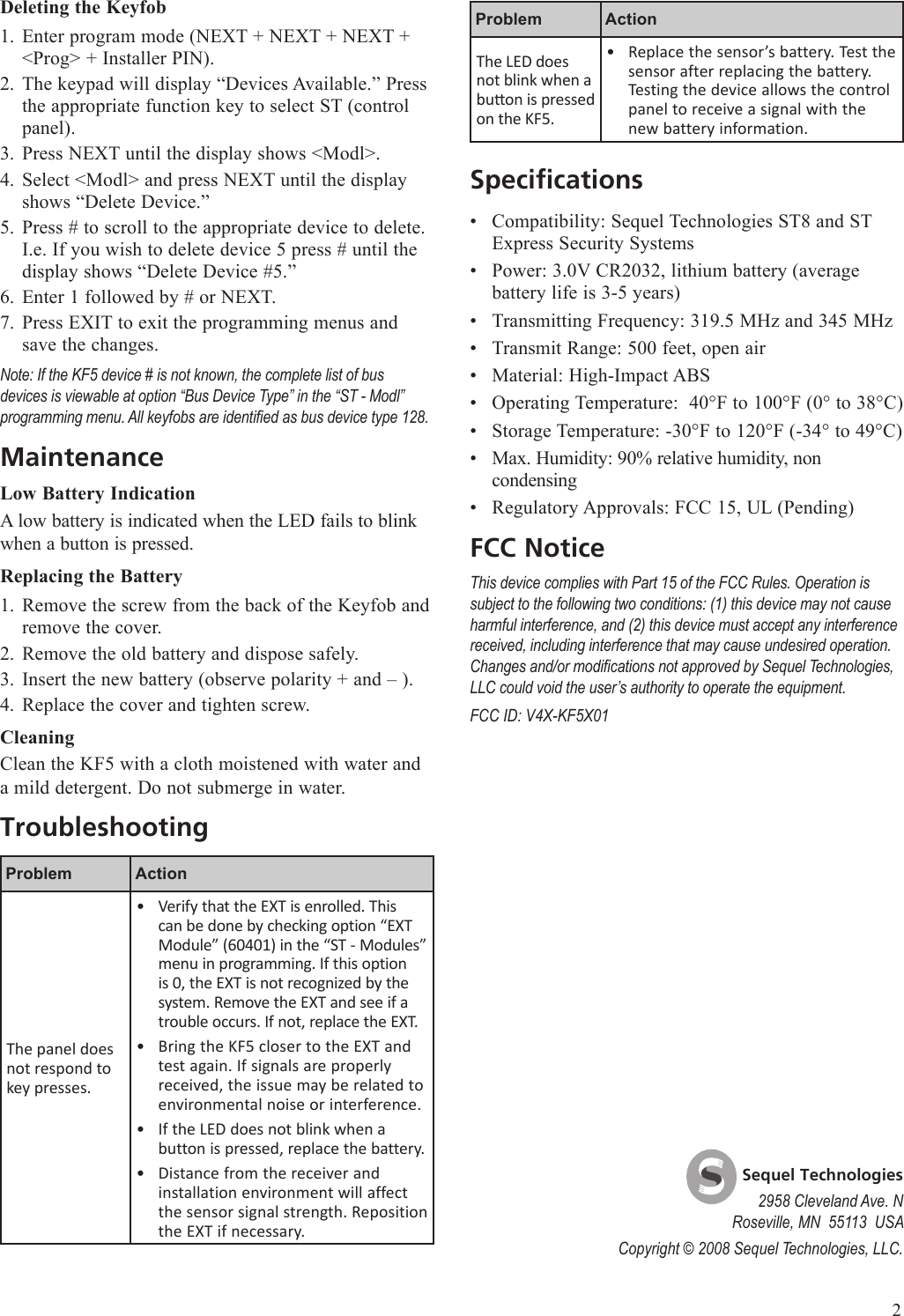
Problem ActionThe LED does not blink when a buon is pressed on the KF5.Replace the sensor’s battery. Test the sensor after replacing the battery. Testing the device allows the control panel to receive a signal with the new battery information.•SpecificationsCompatibility: Sequel Technologies ST8 and ST Express Security SystemsPower: 3.0V CR2032, lithium battery (average battery life is 3-5 years)Transmitting Frequency: 319.5 MHz and 345 MHzTransmit Range: 500 feet, open airMaterial: High-Impact ABSOperating Temperature:  40°F to 100°F (0° to 38°C)Storage Temperature: -30°F to 120°F (-34° to 49°C)Max. Humidity: 90% relative humidity, non condensingRegulatory Approvals: FCC 15, UL (Pending)FCC NoticeThis device complies with Part 15 of the FCC Rules. Operation is subject to the following two conditions: (1) this device may not cause harmful interference, and (2) this device must accept any interference received, including interference that may cause undesired operation. Changes and/or modications not approved by Sequel Technologies, LLC could void the user’s authority to operate the equipment.FCC ID: V4X-KF5X01•••••••••Deleting the KeyfobEnter program mode (NEXT + NEXT + NEXT + <Prog> + Installer PIN).The keypad will display “Devices Available.” Press the appropriate function key to select ST (control panel).Press NEXT until the display shows <Modl>. Select <Modl> and press NEXT until the display shows “Delete Device.” Press # to scroll to the appropriate device to delete. I.e. If you wish to delete device 5 press # until the display shows “Delete Device #5.”Enter 1 followed by # or NEXT. Press EXIT to exit the programming menus and save the changes.Note: If the KF5 device # is not known, the complete list of bus devices is viewable at option “Bus Device Type” in the “ST - Modl” programming menu. All keyfobs are identied as bus device type 128.MaintenanceLow Battery IndicationA low battery is indicated when the LED fails to blink when a button is pressed. Replacing the BatteryRemove the screw from the back of the Keyfob and remove the cover.Remove the old battery and dispose safely.Insert the new battery (observe polarity + and – ).Replace the cover and tighten screw.CleaningClean the KF5 with a cloth moistened with water and a mild detergent. Do not submerge in water.TroubleshootingProblem ActionThe panel does not respond to key presses.Verify that the EXT is enrolled. This can be done by checking option “EXT Module” (60401) in the “ST - Modules” menu in programming. If this option is 0, the EXT is not recognized by the system. Remove the EXT and see if a trouble occurs. If not, replace the EXT.Bring the KF5 closer to the EXT and test again. If signals are properly received, the issue may be related to environmental noise or interference.If the LED does not blink when a button is pressed, replace the battery.Distance from the receiver and installation environment will affect the sensor signal strength. Reposition the EXT if necessary.••••1.2.3.4.5.6.7.1.2.3.4.    Sequel Technologies2958 Cleveland Ave. NRoseville, MN  55113  USACopyright © 2008 Sequel Technologies, LLC.2

Navigation menu