ShenZhen Eyang Technology EW01 E-Watch User Manual

ShenZhen Eyang Technology Co., Ltd E-Watch Users Manual

User Manual

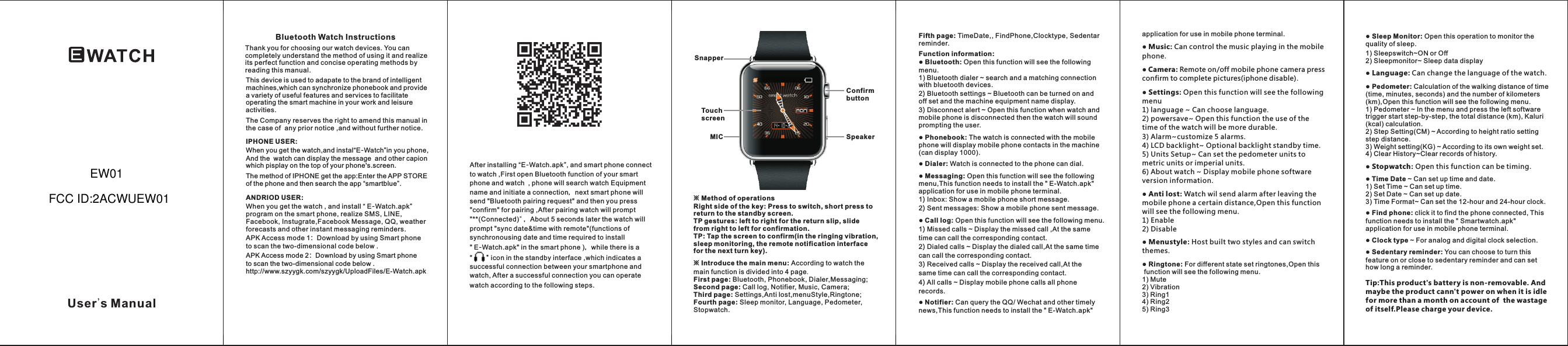
Bluetooth Watch InstructionsThank you for choosing our watch devices. You can completely understand the method of using it and realize its perfect function and concise operating methods by reading this manual.This device is used to adapate to the brand of intelligent machines,which can synchronize phonebook and provide a variety of useful features and services to facilitate operating the smart machine in your work and leisure activities.The Company reserves the right to amend this manual in the case of  any prior notice ,and without further notice.IPHONE USER:When you get the watch,and instal“ ”in you phone, And the  watch can display the message  and other capion which pisplay on the top of your phone's.screen.E-WatchANDRIOD USER:When you get the watch , and install “ E-Watch.apk” program on the smart phone, realize SMS, LINE, Facebook, Instugrate,Facebook Message, QQ, weather forecasts and other instant messaging reminders.APK Access mode 1:Download by using Smart phone to scan the two-dimensional code below .※ Method of operationsRight side of the key: Press to switch, short press to return to the standby screen.TP gestures: left to right for the return slip, slide from right to left for confirmation.TP: Tap the screen to confirm(in the ringing vibration, sleep monitoring, the remote notification interface for the next turn key).※ Introduce the main menu According to watch the main function is divided into 4 page.First page: Bluetooth, Phonebook, Dialer,Messaging; Second page: Call log, Notifier, Music, Camera;Third page: Settings,Anti lost,menuStyle,Ringtone;Fourth page: Sleep monitor, Language, Pedometer,Stopwatch.: User's ManualConfirm buttonSpeakerTouch screenMICSnapperAfter installing “E-Watch.apk”, and smart phone connect to watch ,First open Bluetooth function of your smart phone and watch  , phone will search watch Equipment name and initiate a connection,next smart phone will send "Bluetooth pairing request" and then you press  "confirm" for pairing ,After pairing watch will prompt "**(Connected)" ,About 5 seconds later the watch will prompt "sync date&time with remote"(functions of synchronousing date and time required to install " E-Watch.apk" in the smart phone ),while there is a  "       " icon in the standby interface ,which indicates a successful connection between your smartphone and watch, After a successful connection you can operate watch according to the following steps.Fifth page: TimeDate,, FindPhone,Clocktype, Sedentar reminder.Function information:● Bluetooth: Open this function will see the following menu.1) Bluetooth dialer ~ search and a matching connection with bluetooth devices.2) Bluetooth settings ~ Bluetooth can be turned on and off set and the machine equipment name display.3) Disconnect alert ~ Open this function when watch and mobile phone is disconnected then the watch will sound prompting the user.● Phonebook: The watch is connected with the mobile phone will display mobile phone contacts in the machine(can display 1000).● Dialer: Watch is connected to the phone can dial.● Messaging: Open this function will see the following menu,This function needs to install the " E-Watch.apk" application for use in mobile phone terminal.1) Inbox: Show a mobile phone short message.2) Sent messages: Show a mobile phone sent message.● Call log: Open this function will see the following menu.1) Missed calls ~ Display the missed call ,At the same time can call the corresponding contact.2) Dialed calls ~ Display the dialed call,At the same time can call the corresponding contact.3) Received calls ~ Display the received call,At the same time can call the corresponding contact.4) All calls ~ Display mobile phone calls all phone records.application for use in mobile phone terminal.● Music: Can control the music playing in the mobile phone.● Camera: Remote on/off mobile phone camera press confirm to complete pictures(iphone disable).● Settings: Open this function will see the following menu1) language ~ Can choose language.2) powersave~ Open this function the use of the time of the watch will be more durable.3) Alarm~customize 5 alarms.4) LCD backlight~ Optional backlight standby time.5) Units Setup~ Can set the pedometer units to metric units or imperial units.6) About watch ~ Display mobile phone software version information.● Anti lost: Watch wil send alarm after leaving the mobile phone a certain distance,Open this function will see the following menu.1) Enable 2) Disable● Menustyle: Host built two styles and can switch themes.● Ringtone: For different state set ringtones,Open this function will see the following menu.1) Mute2) Vibration3) Ring14) Ring25) Ring3● Sleep Monitor: Open this operation to monitor the quality of sleep.● Language: Can change the language of the watch.● Pedometer: Calculation of the walking distance of time (time, minutes, seconds) and the number of kilometers (km),Open this function will see the following menu.1) Pedometer ~ In the menu and press the left software trigger start step-by-step, the total distance (km), Kaluri (kcal) calculation.2) Step Setting(CM) ~ According to height ratio setting step distance.3) Weight setting(KG) ~ According to its own weight set.4) Clear History~Clear records of history.1) Sleepswitch~ON or Off2) Sleepmonitor~ Sleep data display● Stopwatch: Open this function can be timing.● Time Date ~ Can set up time and date.1) Set Time ~ Can set up time.2) Set Date ~ Can set up date.3) Time Format~ Can set the 12-hour and 24-hour clock.● Find phone: click it to find the phone connected, This function needs to install the " Smartwatch.apk" application for use in mobile phone terminal.● Clock type ~ For analog and digital clock selection.● Sedentary reminder: You can choose to turn this feature on or close to sedentary reminder and can set how long a reminder.● Notifier: Can query the QQ/ Wechat and other timely news,This function needs to install the " E-Watch.apk" Tip:This product's battery is non-removable. And maybe the product cann't power on when it is idle for more than a month on account of  the wastage of itself.Please charge your device.APK Access mode 2:Download by using Smart phone to scan the two-dimensional code below .http://www.szyygk.com/szyygk/UploadFiles/E-Watch.apk The method of IPHONE get the app:Enter the APP STORE of the phone and then search the app “smartblue”.EW01FCC ID:2ACWUEW01
NOTE: This equipment has been tested and found to comply with the limits for a Class B digital device, pursuant to part 15 of the FCC Rules. These limits are designed to provide reasonable protection against harmful interference in a residential installation. This equipment generates, uses and can radiate radio frequency energy and, if not installed and used in accordance with the instructions, may cause harmful interference to radio communications. However, there is no guarantee that interference will not occur in a particular installation. If this equipment does cause harmful interference to radio or television reception, which can be determined by turning the equipment off and on, the user is encouraged to try to correct the interference by one or more of the following measures: —Reorient or relocate the receiving antenna. —Increase the separation between the equipment and receiver. —Connect the equipment into an outlet on a circuit different from that to which the receiver is connected. —Consult the dealer or an experienced radio/TV technician for help. Thisdevicecomplieswithpart15oftheFCCrules.Operationissubjecttothefollowingtwoconditions:(1)thisdevicemaynotcauseharmfulinterference,and(2)thisdevicemustacceptanyinterferencereceived,includinginterferencethatmaycauseundesiredoperation.Changesormodificationstothisunitnotexpresslyapprovedbythepartyresponsibleforcompliancecouldvoidtheuser'sauthoritytooperatetheequipment.

Navigation menu