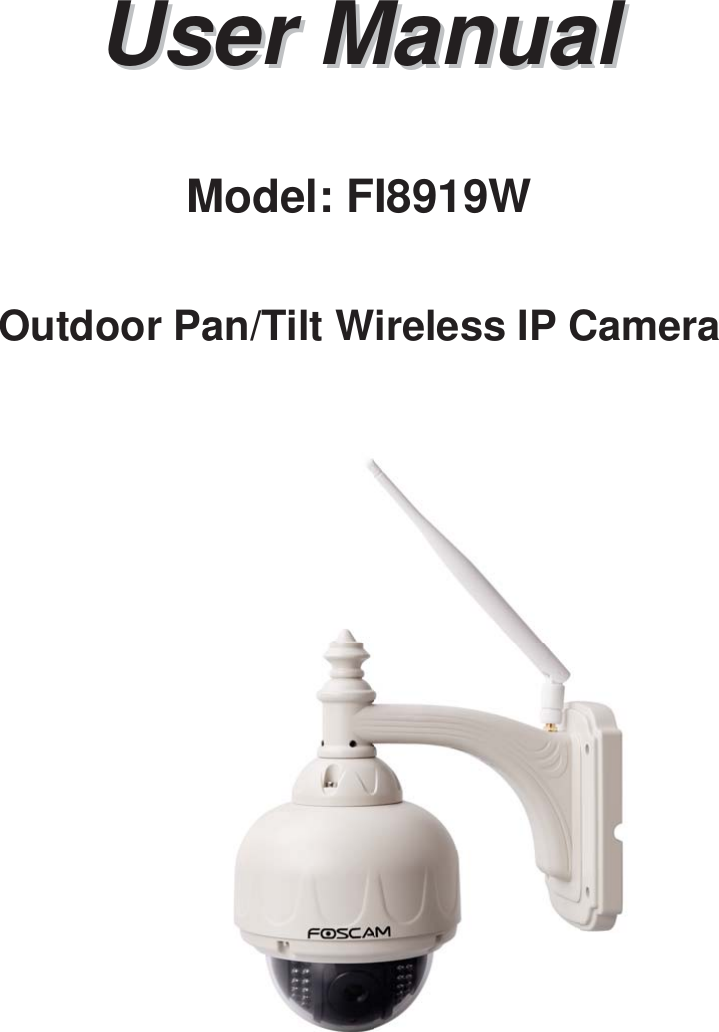
ShenZhen Foscam Intelligent Technology FI8919W Wireless Outdoor Pan/Tilt IP Camera User Manual 1

ShenZhen Foscam Intelligent Technology Co., Ltd. Wireless Outdoor Pan/Tilt IP Camera 1

User Manual

UserUser ManualManualModel: FI8919WOutdoor Pan/Tilt Wireless IP Camera
1wwww.foscam.coww.foscam.commShenzhenShenzhen FoscamFoscam IntelligentIntelligent TechnologyTechnology Co.,Co., LimitedLimitedTel:Tel: 8686 755755 26742674 56685668 Fax:Fax: 8686 755755 26742674 51685168 1Table of Contents11OverviewsOverviews................................................................................................................................................21.11.1 KeyKey FeaturesFeatures.......................................................................................................................................................................31.21.2 ReadRead BeforeBefore UseUse................................................................................................................................................................31.31.3 PackingPacking ContentsContents............................................................................................................................................................... 41.41.4 PhysicalPhysical DescriptionDescription.......................................................................................................................................................... 422SurveillanceSurveillance SoftwareSoftware GUIGUI.................................................................................................................. 72.12.1 LoginLogin WindowWindow..................................................................................................................................................................... 72.2 Surveillance Window......................................................................................................................................................... 933AdvancedAdvanced CameraCamera SettingsSettings.............................................................................................................. 163.1 Device Status....................................................................................................................................................................163.23.2 Alias Settings.................................................................................................................................................................... 183.33.3 Date & Time Settings.......................................................................................................................................................183.43.4 UserUser SettingsSettings.................................................................................................................................................................... 193.5 Multi-Device Settings.......................................................................................................................................................203.63.6 Basic Network Settings................................................................................................................................................... 263.73.7 WirelessWireless SettingsSettings............................................................................................................................................................. 293.83.8 ADSLADSL.................................................................................................................................................................................. 333.93.9 UPnP Settings.................................................................................................................................................................. 343.10 DDNS Service Settings.................................................................................................................................................353.11 Mail Service Settings..................................................................................................................................................... 403.12 MSN Setting....................................................................................................................................................................413.13 FTP Service Settings.....................................................................................................................................................433.14 Alarm Service Settings..................................................................................................................................................463.15 PT Settings..................................................................................................................................................................... 523.16 Upgrade Device Firmware............................................................................................................................................533.17 Backup & Restore Settings.......................................................................................................................................... 553.18 Restore Factory Settings..............................................................................................................................................553.19 Reboot Device................................................................................................................................................................563.20 Log................................................................................................................................................................................... 563.21 Back................................................................................................................................................................................. 5644APPENDIXAPPENDIX............................................................................................................................................. 57
2wwww.foscam.coww.foscam.commShenzhenShenzhen FoscamFoscam IntelligentIntelligent TechnologyTechnology Co.,Co., LimitedLimitedTel:Tel: 8686 755755 26742674 56685668 Fax:Fax: 8686 755755 26742674 51685168 24.1 Frequently Asked Questions.......................................................................................................................................... 574.2 Default Parameters..........................................................................................................................................................614.3 Specifications....................................................................................................................................................................6155OBTAININGOBTAINING TECHNICALTECHNICAL SUPPORTSUPPORT...............................................................................................6211OverviewsOverviewsFOSCAM FI8919W is an integrated wireless IP Camera with a color CMOS sensor. It combinesa high quality digital video camera, with a powerful web server, to bring clear video to yourdesktop from anywhere on your local network or over the Internet.With flexible 355-degree pan and 90-degree tilt, FI8919W gives users more comprehensivecontrol over a monitored site. The IPCAM supports IR-CUT, when light conditions turns poor, theIR cut filter will be automatically removed to accept IR illumination. Meanwhile, the cameraswitches itself automatically from color to black and white, assuring optimal image quality at alltimes.The IPCAM is based on the TCP/IP standard. There is a WEB server inside which could supportInternet Explore. Therefore the management and maintenance of your device is simplified byusing the network to achieve the remote configuration, start-up and to upgrade the firmware.FI8919W is designed for outdoor surveillance applications such as gardens, courtyards or parks.Controlling the IPCAM and managing images are simplified by using the provided web interfaceacross the network utilizing wireless connectivity.FOSCAM provides Phone APPs for Android and iPhone users, please search “Foscam ip camviewer” and install it through APP Store, then you can view your camera directly as a computer.
3wwww.foscam.coww.foscam.commShenzhenShenzhen FoscamFoscam IntelligentIntelligent TechnologyTechnology Co.,Co., LimitedLimitedTel:Tel: 8686 755755 26742674 56685668 Fax:Fax: 8686 755755 26742674 51685168 31.11.1 KeyKey FeaturesFeatures●Powerful high-speed video protocol processor●300K Pixels●IR night vision (Range: 15m)●Pan 355 degree, tilt 90 degree●Optimized MJPEG video compression for transmission●Multi-level users’ management and passwords definition●Embedded Web Server for users to visit by IE●Wi-Fi compliant with wireless standards IEEE 802.11b/g/n●Embedded FOSCAM DDNS (dynamic domain name service) Service●Motion detection activates alarm●Supports image snapshot●Supports multiple network protocols: HTTP/TCP/IP/UDP/STMP/DDNS/SNTP/DHCP/FTP●Supports WEP/WPA/WPA2 encryption●Supports WPS(Wi-Fi Protected Set-up)●Supports Daylight Saving Time●Supports MSN●Supports Gmail as sender on mail service settings●Providing Phone APPs for Android and iPhone users●Providing Central Management Software to manage or monitor multi-cameras1.21.2 ReadRead BeforeBefore UseUsePlease first verify that all contents received are complete according to the Package Contentslisted below. Before the Network Camera is installed, please carefully read and follow theinstructions in the Quick Installation Guide to avoid damage due to faulty assembly andinstallation. This also ensures the product is used properly as intended.
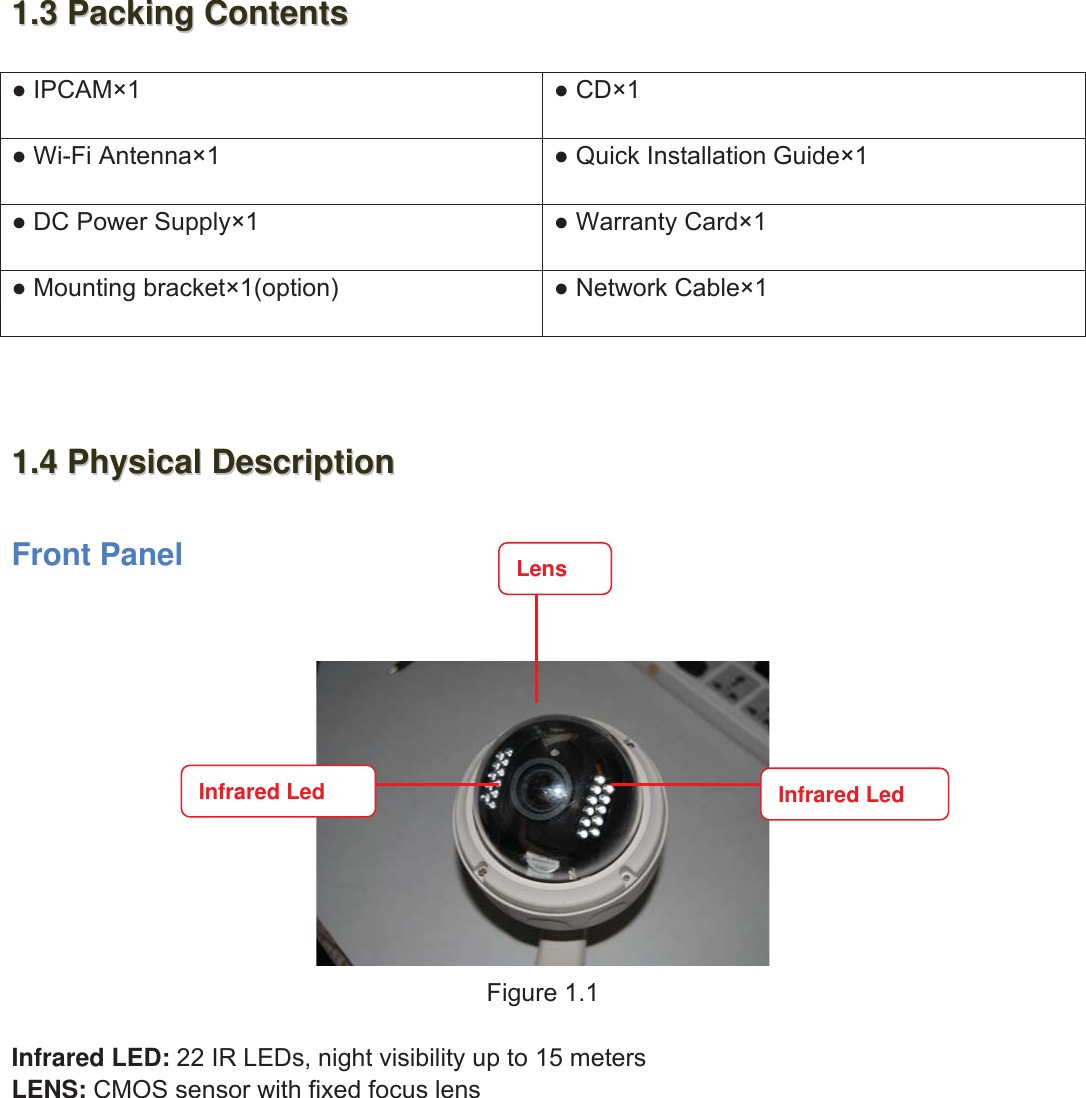
4wwww.foscam.coww.foscam.commShenzhenShenzhen FoscamFoscam IntelligentIntelligent TechnologyTechnology Co.,Co., LimitedLimitedTel:Tel: 8686 755755 26742674 56685668 Fax:Fax: 8686 755755 26742674 51685168 41.31.3 PackingPacking ContentsContents●IPCAM×1 ●CD×1●Wi-Fi Antenna×1 ●Quick Installation Guide×1●DC Power Supply×1 ●Warranty Card×1●Mounting bracket×1(option) ●Network Cable×11.41.4 PhysicalPhysical DescriptionDescriptionFront PanelFigure 1.1Infrared LED: 22 IR LEDs, night visibility up to 15 metersLENS: CMOS sensor with fixed focus lensInfrared LedLensInfrared Led
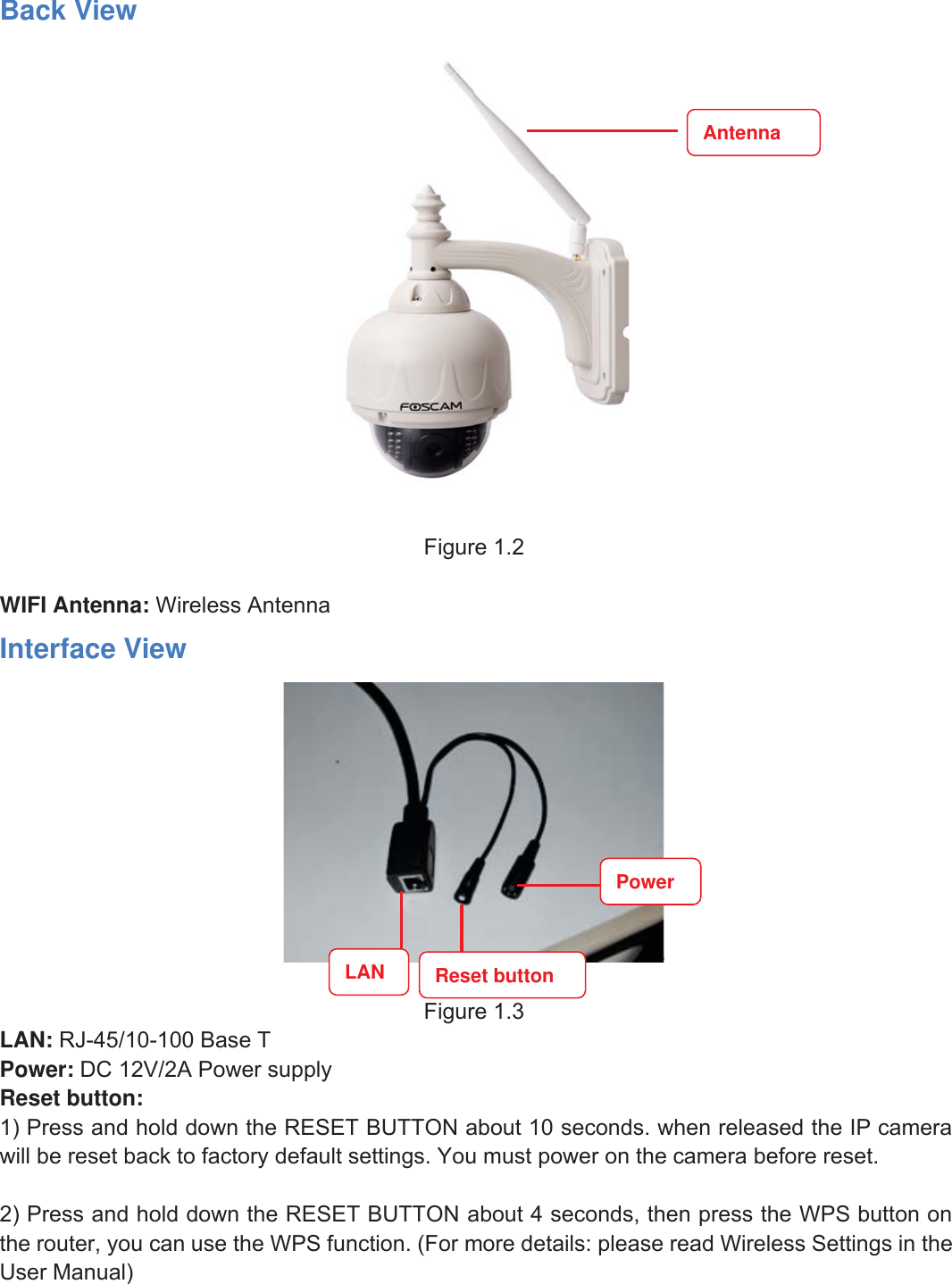
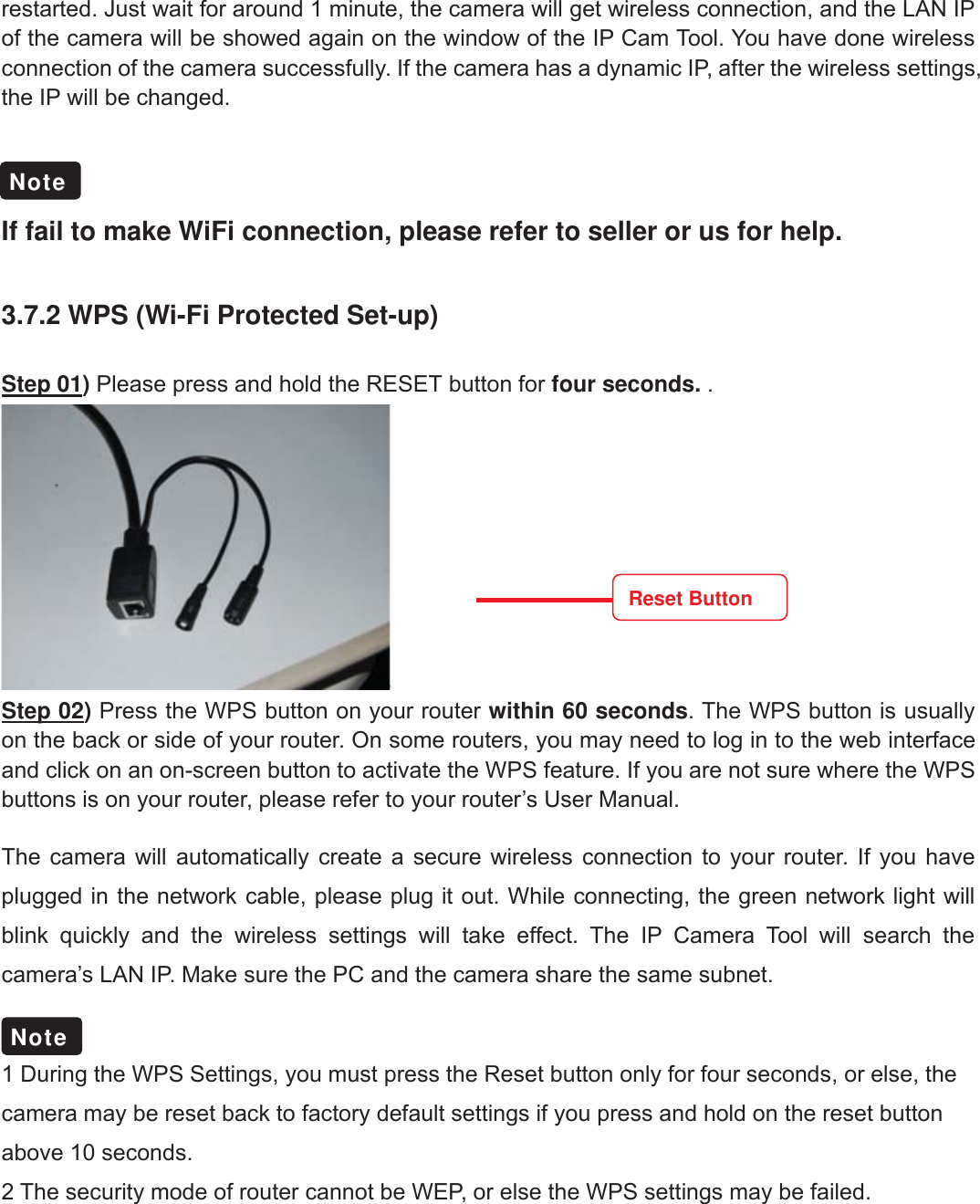
5wwww.foscam.coww.foscam.commShenzhenShenzhen FoscamFoscam IntelligentIntelligent TechnologyTechnology Co.,Co., LimitedLimitedTel:Tel: 8686 755755 26742674 56685668 Fax:Fax: 8686 755755 26742674 51685168 5Back ViewFigure 1.2WIFI Antenna: Wireless AntennaInterface ViewFigure 1.3LAN: RJ-45/10-100 Base TPower: DC 12V/2A Power supplyReset button:1) Press and hold down the RESET BUTTON about 10 seconds. when released the IP camerawill be reset back to factory default settings. You must power on the camera before reset.2) Press and hold down the RESET BUTTON about 4 seconds, then press the WPS button onthe router, you can use the WPS function. (For more details: please read Wireless Settings in theUser Manual)AntennaPowerLAN Reset button
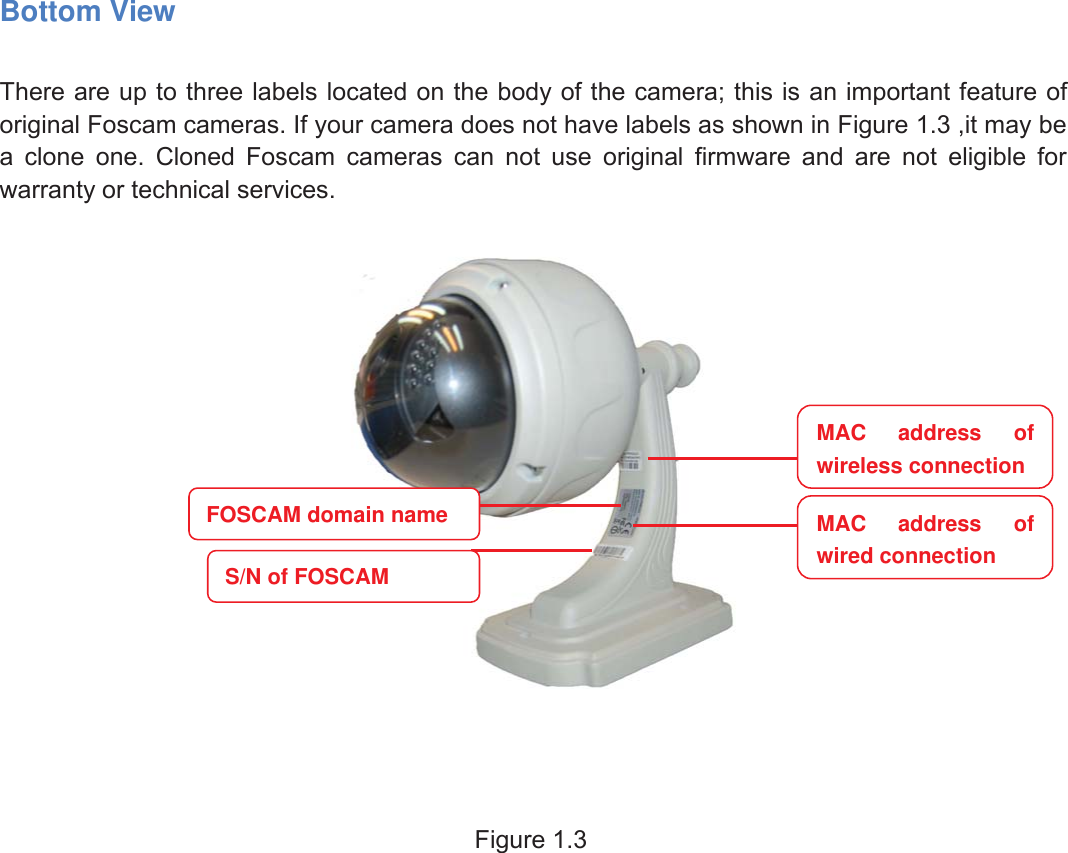
6wwww.foscam.coww.foscam.commShenzhenShenzhen FoscamFoscam IntelligentIntelligent TechnologyTechnology Co.,Co., LimitedLimitedTel:Tel: 8686 755755 26742674 56685668 Fax:Fax: 8686 755755 26742674 51685168 6Bottom ViewThere are up to three labels located on the body of the camera; this is an important feature oforiginal Foscam cameras. If your camera does not have labels as shown in Figure 1.3 ,it may bea clone one. Cloned Foscam cameras can not use original firmware and are not eligible forwarranty or technical services.Figure 1.3MAC address ofwireless connectionMAC address ofwired connectionFOSCAM domain nameS/N of FOSCAM
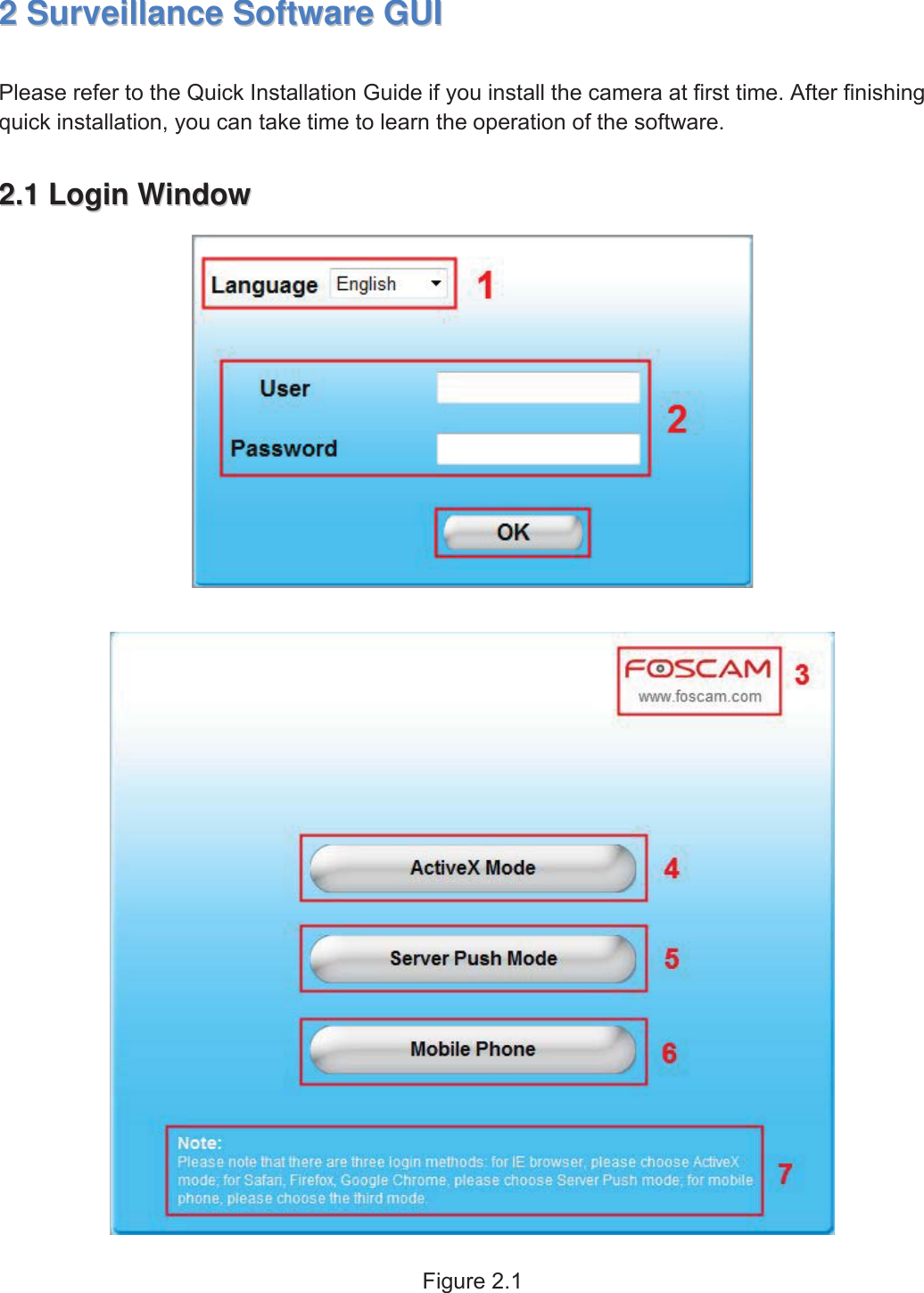
7wwww.foscam.coww.foscam.commShenzhenShenzhen FoscamFoscam IntelligentIntelligent TechnologyTechnology Co.,Co., LimitedLimitedTel:Tel: 8686 755755 26742674 56685668 Fax:Fax: 8686 755755 26742674 51685168 722SurveillanceSurveillance SoftwareSoftware GUIGUIPlease refer to the Quick Installation Guide if you install the camera at first time. After finishingquick installation, you can take time to learn the operation of the software.2.12.1 LoginLogin WindowWindowFigure 2.1
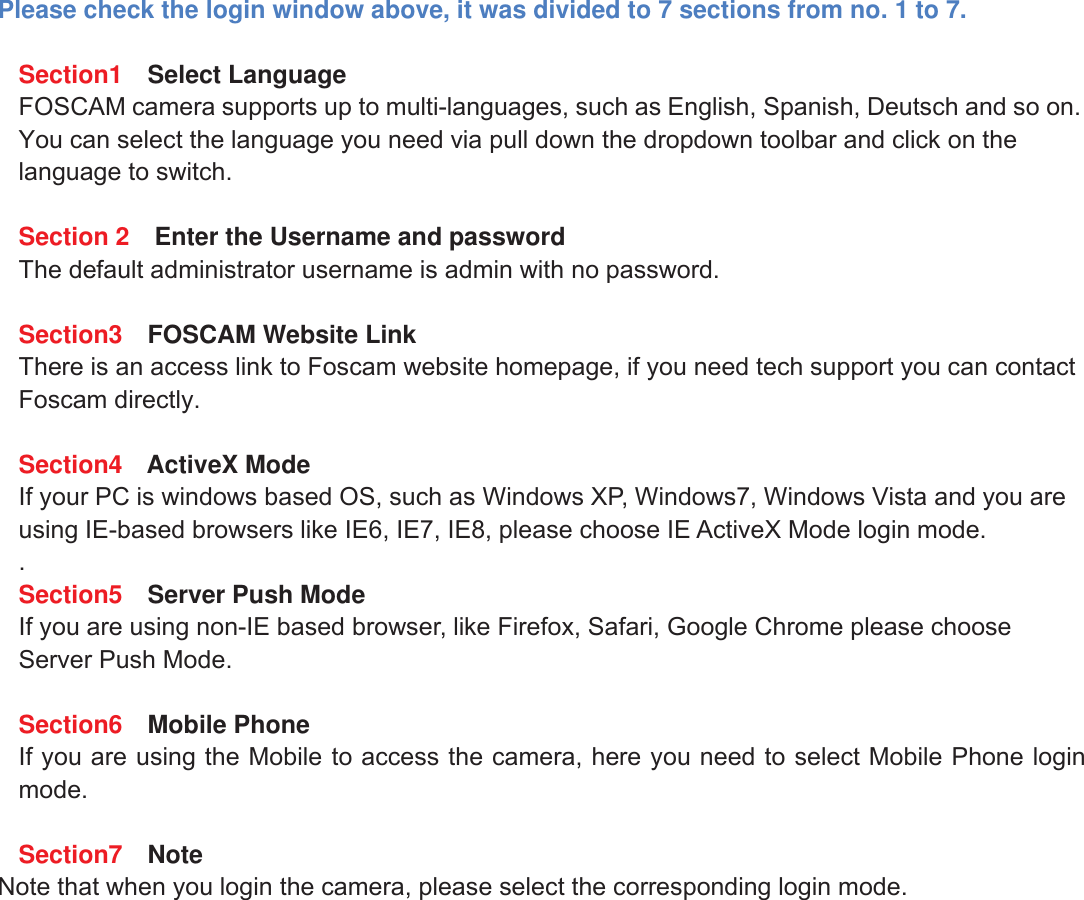
8wwww.foscam.coww.foscam.commShenzhenShenzhen FoscamFoscam IntelligentIntelligent TechnologyTechnology Co.,Co., LimitedLimitedTel:Tel: 8686 755755 26742674 56685668 Fax:Fax: 8686 755755 26742674 51685168 8Please check the login window above, it was divided to 7 sections from no. 1 to 7.Section1 Select LanguageFOSCAM camera supports up to multi-languages, such as English, Spanish, Deutsch and so on.You can select the language you need via pull down the dropdown toolbar and click on thelanguage to switch.Section 2 Enter the Username and passwordThe default administrator username is admin with no password.Section3 FOSCAM Website LinkThere is an access link to Foscam website homepage, if you need tech support you can contactFoscam directly.Section4 ActiveX ModeIf your PC is windows based OS, such as Windows XP, Windows7, Windows Vista and you areusing IE-based browsers like IE6, IE7, IE8, please choose IE ActiveX Mode login mode..Section5 Server Push ModeIf you are using non-IE based browser, like Firefox, Safari, Google Chrome please chooseServer Push Mode.Section6 Mobile PhoneIf you are using the Mobile to access the camera, here you need to select Mobile Phone loginmode.Section7 NoteNote that when you login the camera, please select the corresponding login mode.
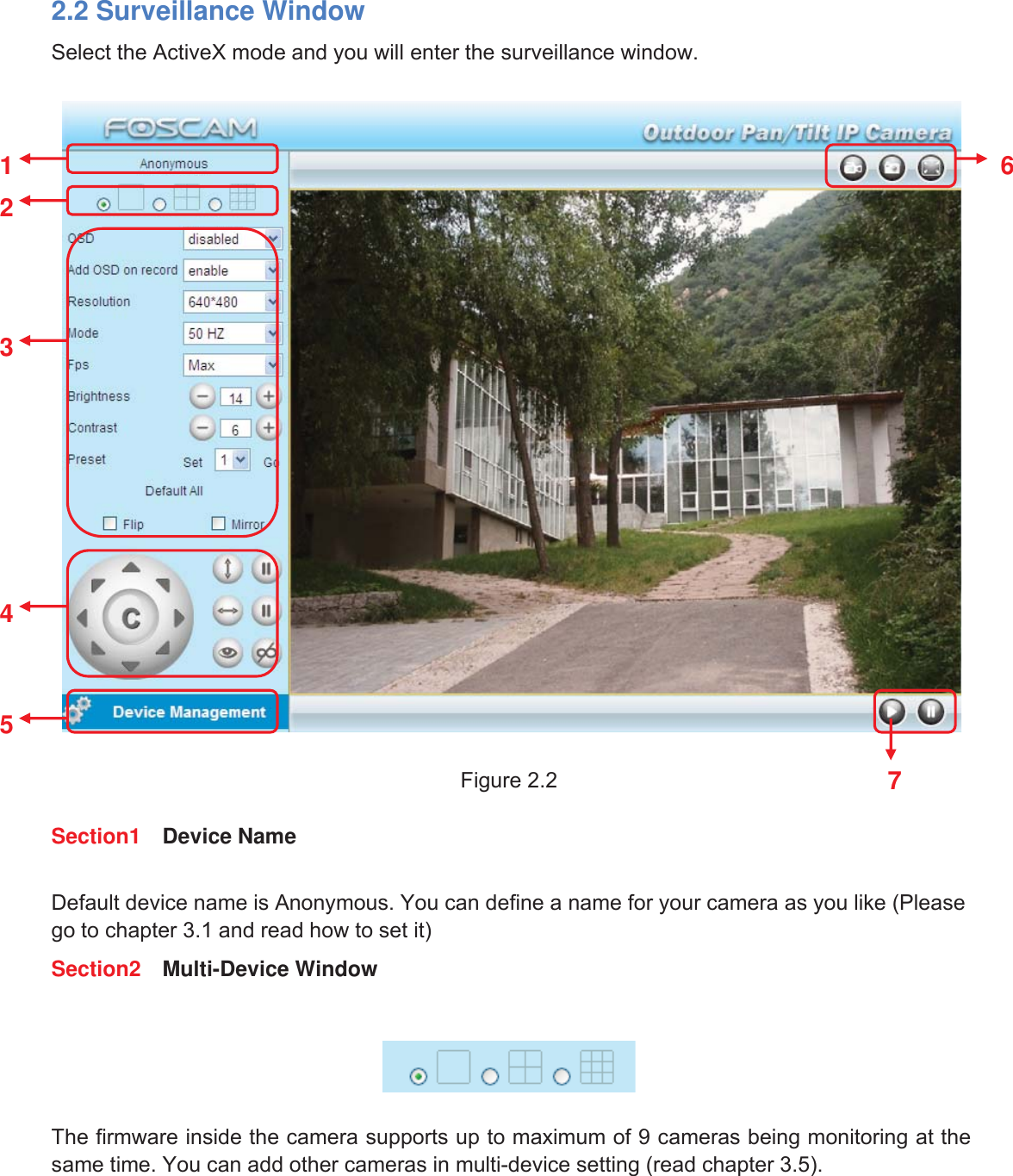
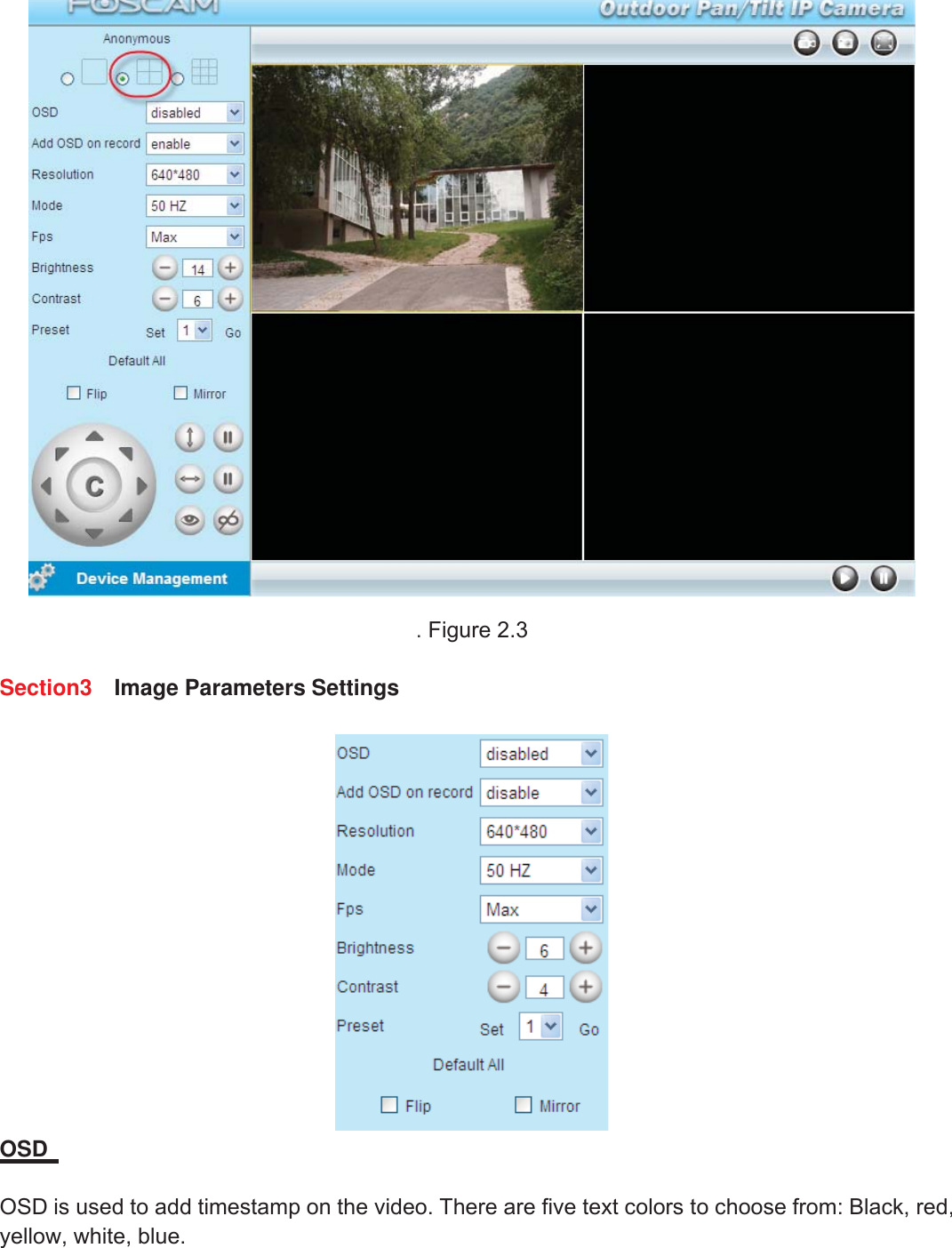
9wwww.foscam.coww.foscam.commShenzhenShenzhen FoscamFoscam IntelligentIntelligent TechnologyTechnology Co.,Co., LimitedLimitedTel:Tel: 8686 755755 26742674 56685668 Fax:Fax: 8686 755755 26742674 51685168 92.2 Surveillance WindowSelect the ActiveX mode and you will enter the surveillance window.Figure 2.2Section1 Device NameDefault device name is Anonymous. You can define a name for your camera as you like (Pleasego to chapter 3.1 and read how to set it)Section2 Multi-Device WindowThe firmware inside the camera supports up to maximum of 9 cameras being monitoring at thesame time. You can add other cameras in multi-device setting (read chapter 3.5).1236457
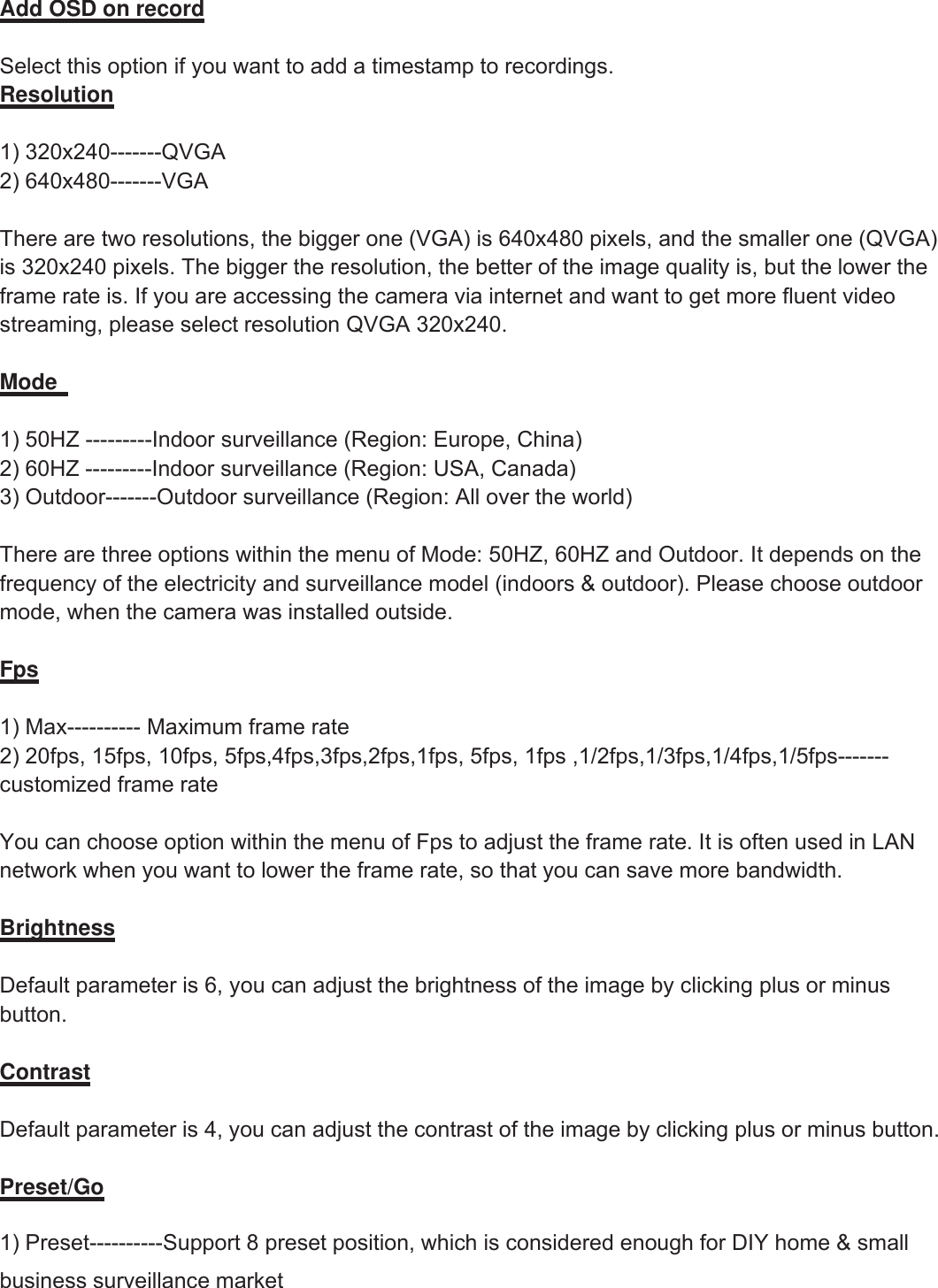
10wwww.foscam.coww.foscam.commShenzhenShenzhen FoscamFoscam IntelligentIntelligent TechnologyTechnology Co.,Co., LimitedLimitedTel:Tel: 8686 755755 26742674 56685668 Fax:Fax: 8686 755755 26742674 51685168 10.Figure 2.3Section3 Image Parameters SettingsOSDOSD is used to add timestamp on the video. There are five text colors to choose from: Black, red,yellow, white, blue.
11wwww.foscam.coww.foscam.commShenzhenShenzhen FoscamFoscam IntelligentIntelligent TechnologyTechnology Co.,Co., LimitedLimitedTel:Tel: 8686 755755 26742674 56685668 Fax:Fax: 8686 755755 26742674 51685168 11Add OSD on recordSelect this option if you want to add a timestamp to recordings.Resolution1) 320x240-------QVGA2) 640x480-------VGAThere are two resolutions, the bigger one (VGA) is 640x480 pixels, and the smaller one (QVGA)is 320x240 pixels. The bigger the resolution, the better of the image quality is, but the lower theframe rate is. If you are accessing the camera via internet and want to get more fluent videostreaming, please select resolution QVGA 320x240.Mode1) 50HZ ---------Indoor surveillance (Region: Europe, China)2) 60HZ ---------Indoor surveillance (Region: USA, Canada)3) Outdoor-------Outdoor surveillance (Region: All over the world)There are three options within the menu of Mode: 50HZ, 60HZ and Outdoor. It depends on thefrequency of the electricity and surveillance model (indoors & outdoor). Please choose outdoormode, when the camera was installed outside.Fps1) Max---------- Maximum frame rate2) 20fps, 15fps, 10fps, 5fps,4fps,3fps,2fps,1fps, 5fps, 1fps ,1/2fps,1/3fps,1/4fps,1/5fps-------customized frame rateYou can choose option within the menu of Fps to adjust the frame rate. It is often used in LANnetwork when you want to lower the frame rate, so that you can save more bandwidth.BrightnessDefault parameter is 6, you can adjust the brightness of the image by clicking plus or minusbutton.ContrastDefault parameter is 4, you can adjust the contrast of the image by clicking plus or minus button.Preset/Go1) Preset----------Support 8 preset position, which is considered enough for DIY home & smallbusiness surveillance market
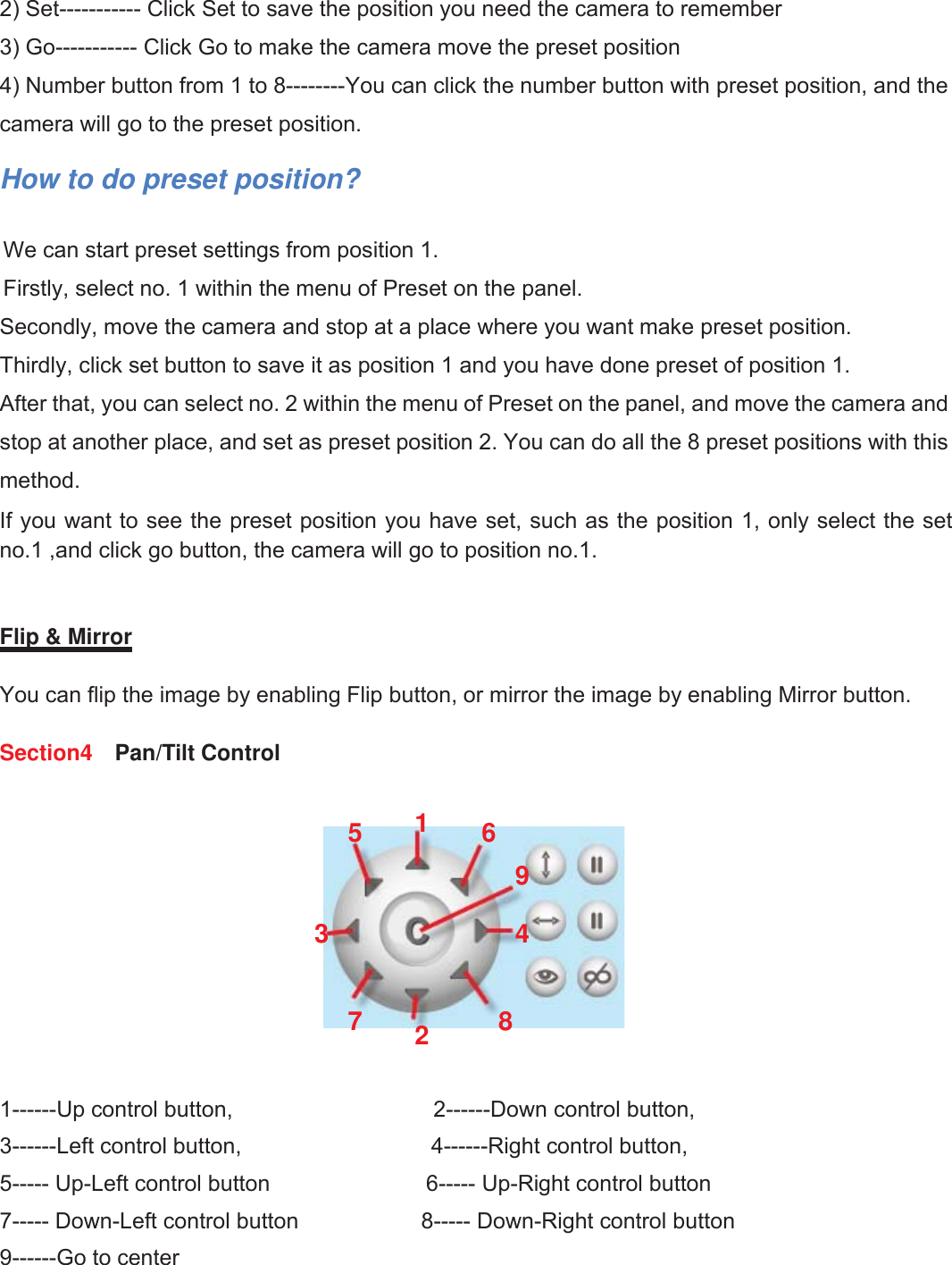
12wwww.foscam.coww.foscam.commShenzhenShenzhen FoscamFoscam IntelligentIntelligent TechnologyTechnology Co.,Co., LimitedLimitedTel:Tel: 8686 755755 26742674 56685668 Fax:Fax: 8686 755755 26742674 51685168 122) Set----------- Click Set to save the position you need the camera to remember3) Go----------- Click Go to make the camera move the preset position4) Number button from 1 to 8--------You can click the number button with preset position, and thecamera will go to the preset position.How to do preset position?We can start preset settings from position 1.Firstly, select no. 1 within the menu of Preset on the panel.Secondly, move the camera and stop at a place where you want make preset position.Thirdly, click set button to save it as position 1 and you have done preset of position 1.After that, you can select no. 2 within the menu of Preset on the panel, and move the camera andstop at another place, and set as preset position 2. You can do all the 8 preset positions with thismethod.If you want to see the preset position you have set, such as the position 1, only select the setno.1 ,and click go button, the camera will go to position no.1.Flip & MirrorYou can flip the image by enabling Flip button, or mirror the image by enabling Mirror button.Section4 Pan/Tilt Control1------Up control button, 2------Down control button,3------Left control button, 4------Right control button,5----- Up-Left control button 6----- Up-Right control button7----- Down-Left control button 8----- Down-Right control button9------Go to center123456789
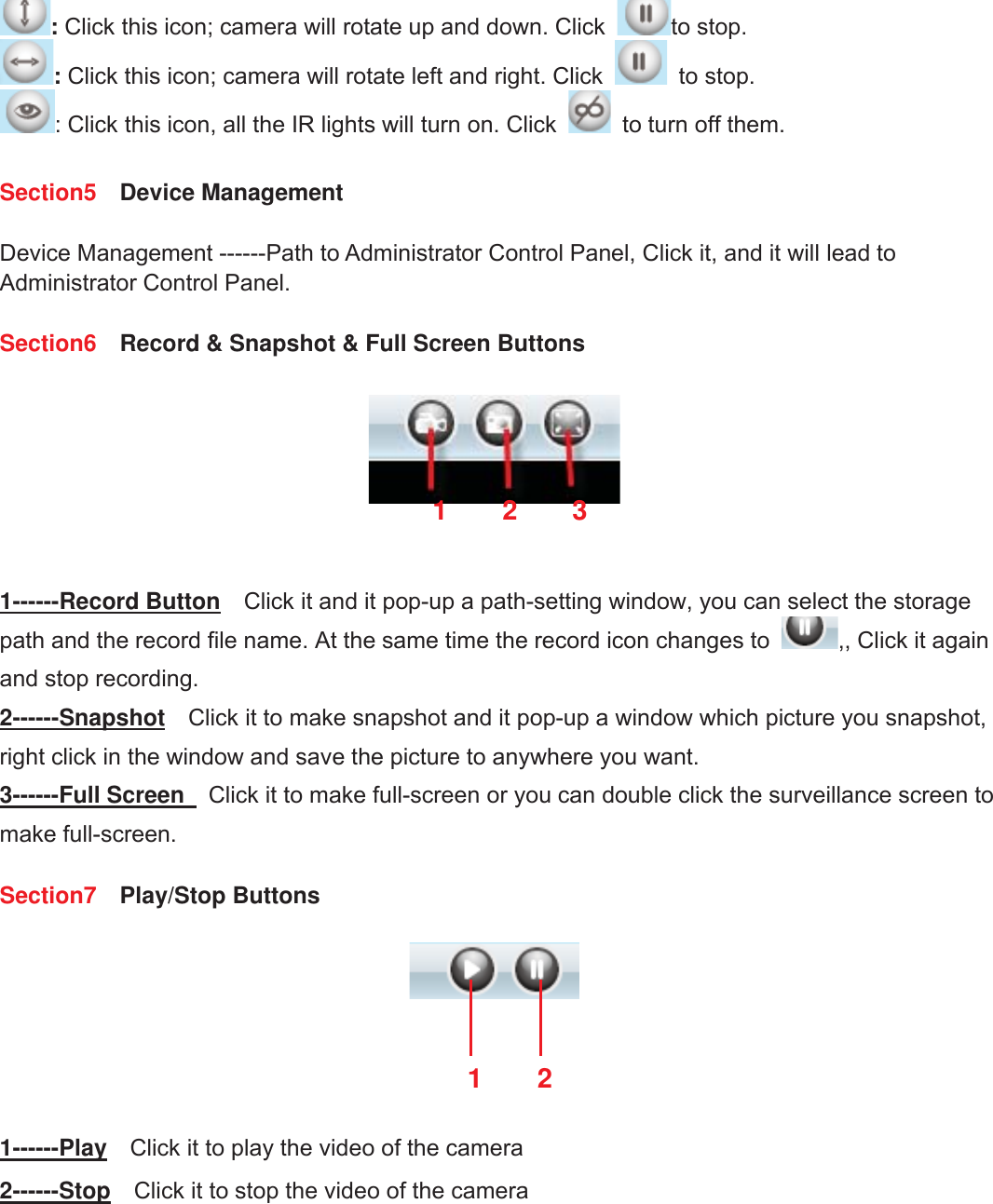
13wwww.foscam.coww.foscam.commShenzhenShenzhen FoscamFoscam IntelligentIntelligent TechnologyTechnology Co.,Co., LimitedLimitedTel:Tel: 8686 755755 26742674 56685668 Fax:Fax: 8686 755755 26742674 51685168 13:Click this icon; camera will rotate up and down. Click to stop.:Click this icon; camera will rotate left and right. Click to stop.: Click this icon, all the IR lights will turn on. Click to turn off them.Section5 Device ManagementDevice Management ------Path to Administrator Control Panel, Click it, and it will lead toAdministrator Control Panel.Section6 Record & Snapshot & Full Screen Buttons1------Record Button Click it and it pop-up a path-setting window, you can select the storagepath and the record file name. At the same time the record icon changes to ,, Click it againand stop recording.2------Snapshot Click it to make snapshot and it pop-up a window which picture you snapshot,right click in the window and save the picture to anywhere you want.3------Full Screen Click it to make full-screen or you can double click the surveillance screen tomake full-screen.Section7 Play/Stop Buttons1------Play Click it to play the video of the camera2------Stop Click it to stop the video of the camera12312
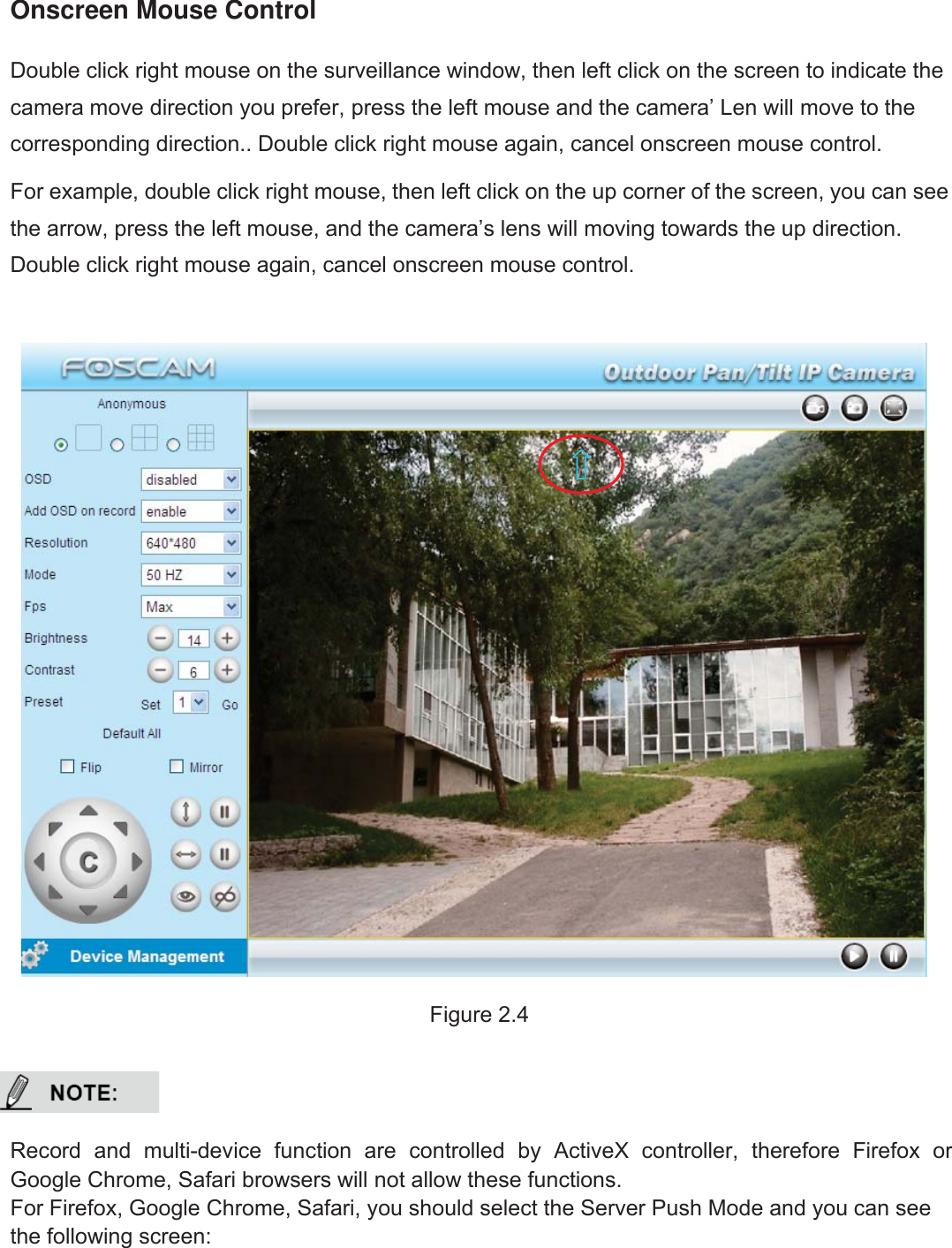
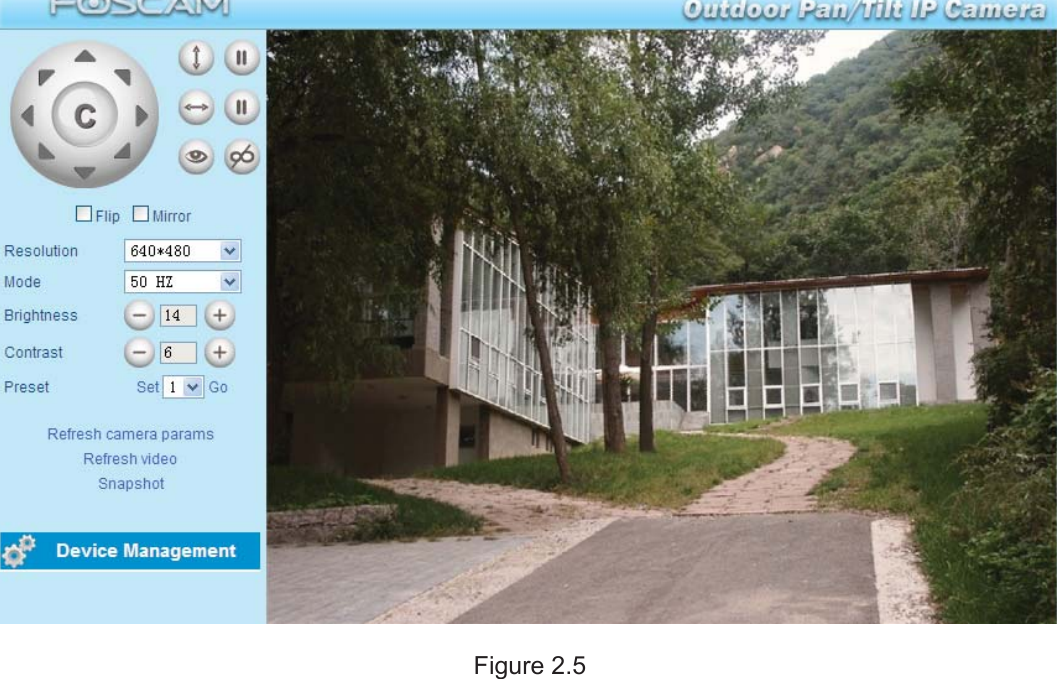
14wwww.foscam.coww.foscam.commShenzhenShenzhen FoscamFoscam IntelligentIntelligent TechnologyTechnology Co.,Co., LimitedLimitedTel:Tel: 8686 755755 26742674 56685668 Fax:Fax: 8686 755755 26742674 51685168 14Onscreen Mouse ControlDouble click right mouse on the surveillance window, then left click on the screen to indicate thecamera move direction you prefer, press the left mouse and the camera’ Len will move to thecorresponding direction.. Double click right mouse again, cancel onscreen mouse control.For example, double click right mouse, then left click on the up corner of the screen, you can seethe arrow, press the left mouse, and the camera’s lens will moving towards the up direction.Double click right mouse again, cancel onscreen mouse control.Figure 2.4Record and multi-device function are controlled by ActiveX controller, therefore Firefox orGoogle Chrome, Safari browsers will not allow these functions.For Firefox, Google Chrome, Safari, you should select the Server Push Mode and you can seethe following screen:
15wwww.foscam.coww.foscam.commShenzhenShenzhen FoscamFoscam IntelligentIntelligent TechnologyTechnology Co.,Co., LimitedLimitedTel:Tel: 8686 755755 26742674 56685668 Fax:Fax: 8686 755755 26742674 51685168 15Figure 2.5
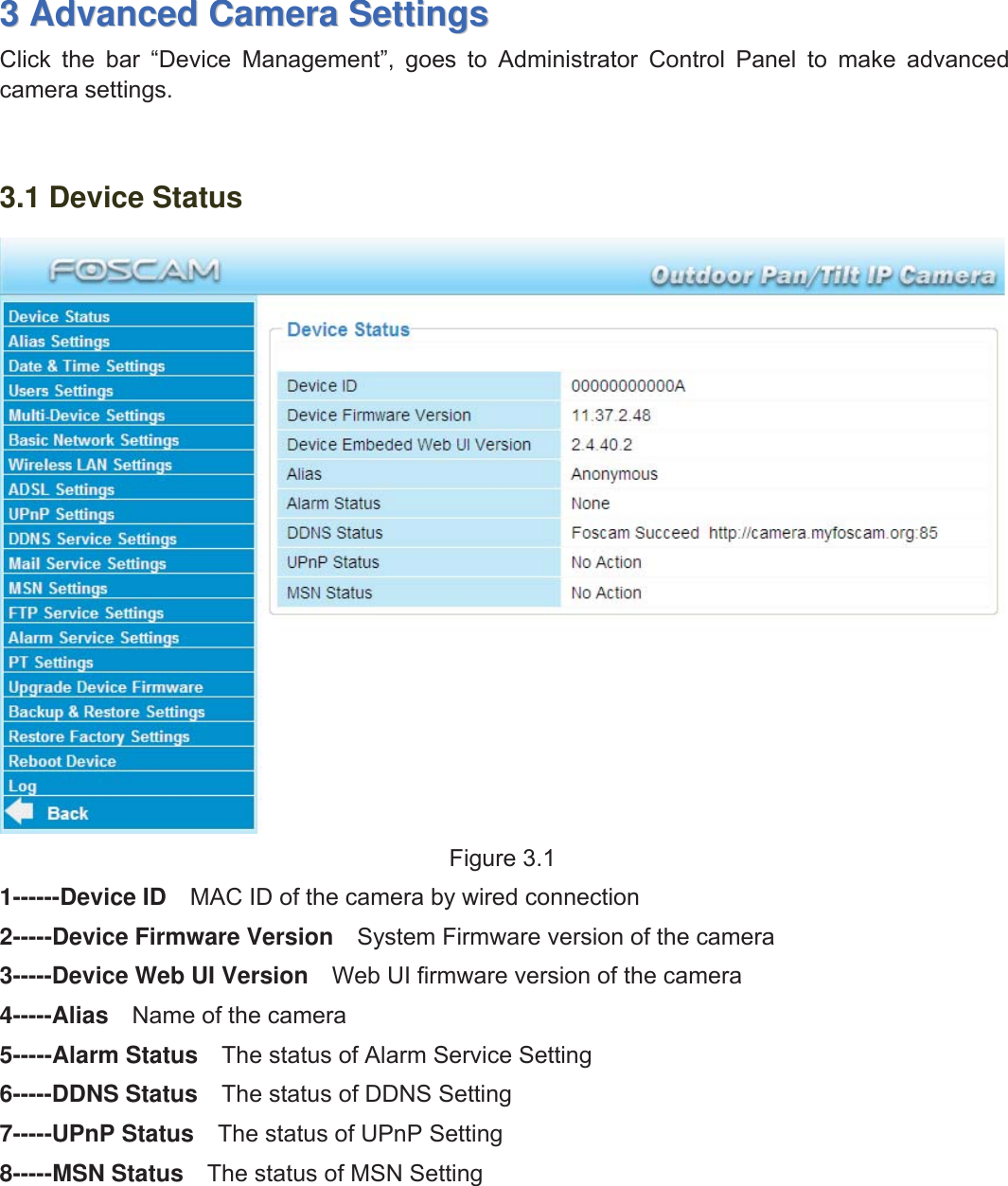
16wwww.foscam.coww.foscam.commShenzhenShenzhen FoscamFoscam IntelligentIntelligent TechnologyTechnology Co.,Co., LimitedLimitedTel:Tel: 8686 755755 26742674 56685668 Fax:Fax: 8686 755755 26742674 51685168 1633AdvancedAdvanced CameraCamera SettingsSettingsClick the bar “Device Management”, goes to Administrator Control Panel to make advancedcamera settings.3.1 Device StatusFigure 3.11------Device ID MAC ID of the camera by wired connection2-----Device Firmware Version System Firmware version of the camera3-----Device Web UI Version Web UI firmware version of the camera4-----Alias Name of the camera5-----Alarm Status The status of Alarm Service Setting6-----DDNS Status The status of DDNS Setting7-----UPnP Status The status of UPnP Setting8-----MSN Status The status of MSN Setting
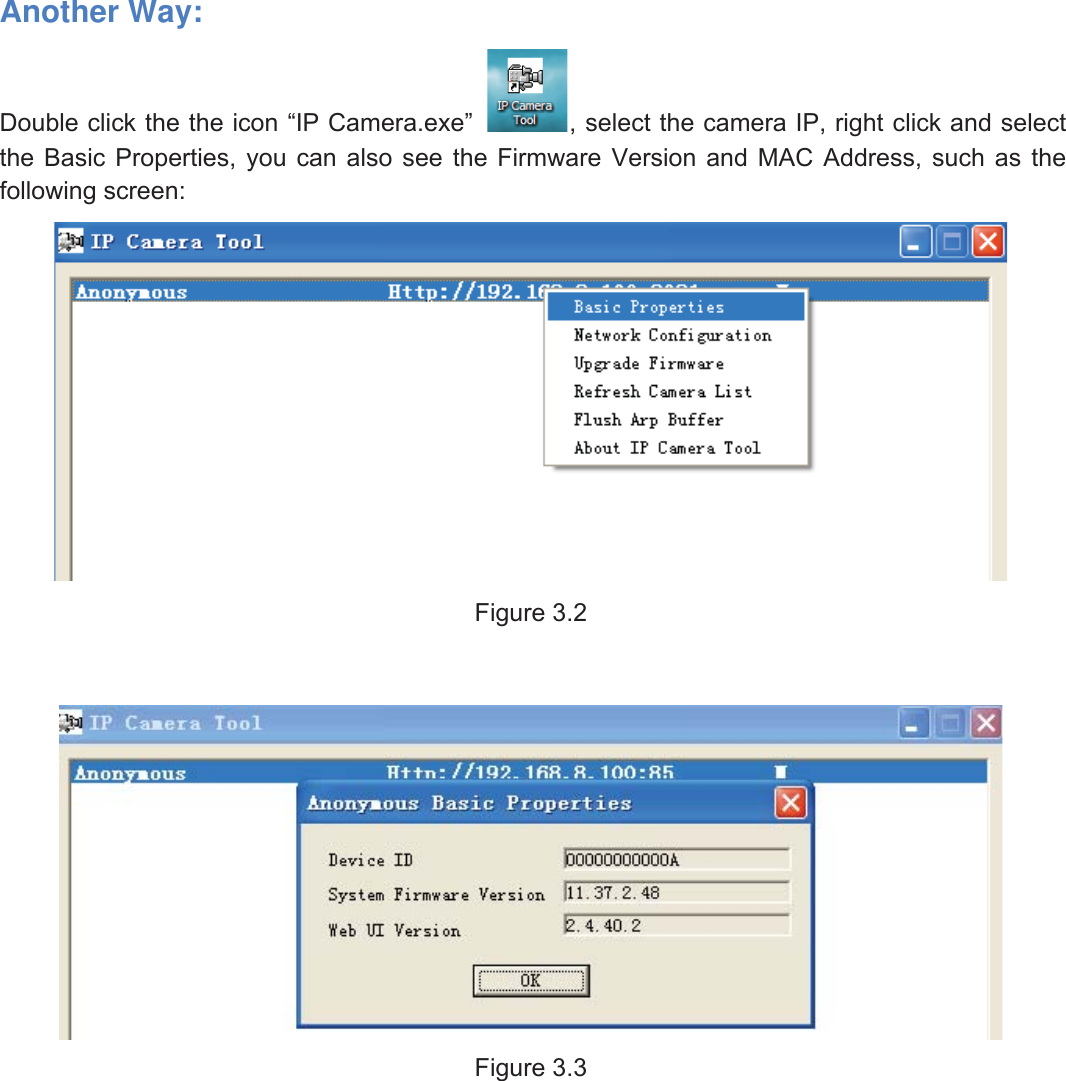
17wwww.foscam.coww.foscam.commShenzhenShenzhen FoscamFoscam IntelligentIntelligent TechnologyTechnology Co.,Co., LimitedLimitedTel:Tel: 8686 755755 26742674 56685668 Fax:Fax: 8686 755755 26742674 51685168 17Another Way:Double click the the icon “IP Camera.exe” , select the camera IP, right click and selectthe Basic Properties, you can also see the Firmware Version and MAC Address, such as thefollowing screen:Figure 3.2Figure 3.3
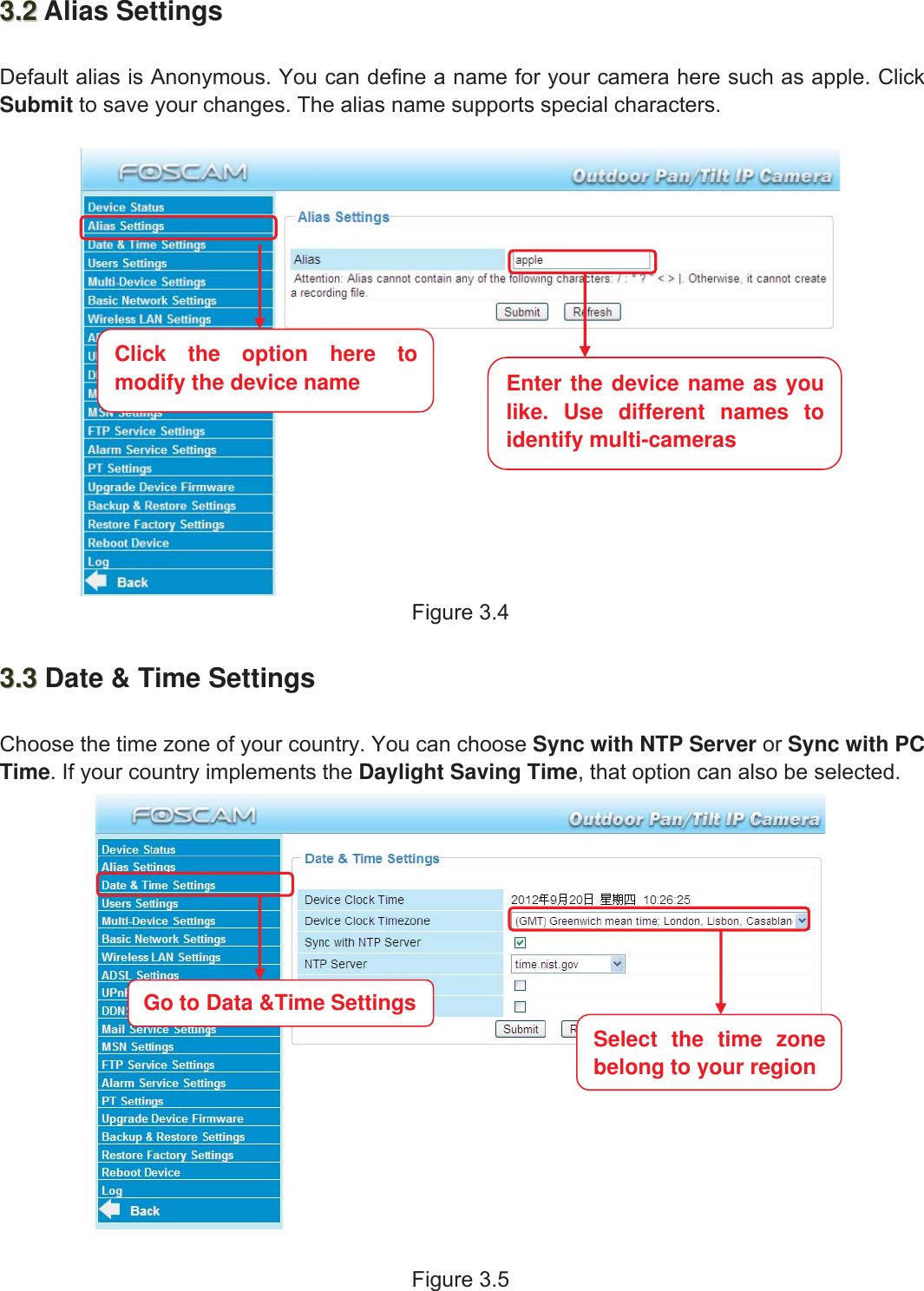
18wwww.foscam.coww.foscam.commShenzhenShenzhen FoscamFoscam IntelligentIntelligent TechnologyTechnology Co.,Co., LimitedLimitedTel:Tel: 8686 755755 26742674 56685668 Fax:Fax: 8686 755755 26742674 51685168 183.23.2 Alias SettingsDefault alias is Anonymous. You can define a name for your camera here such as apple. ClickSubmit to save your changes. The alias name supports special characters.Figure 3.43.33.3 Date & Time SettingsChoose the time zone of your country. You can choose Sync with NTP Server or Sync with PCTime. If your country implements the Daylight Saving Time, that option can also be selected.Figure 3.5Click the option here tomodify the device name Enter the device name as youlike. Use different names toidentify multi-camerasGo to Data &Time SettingsSelectthetimezonebelong to your region
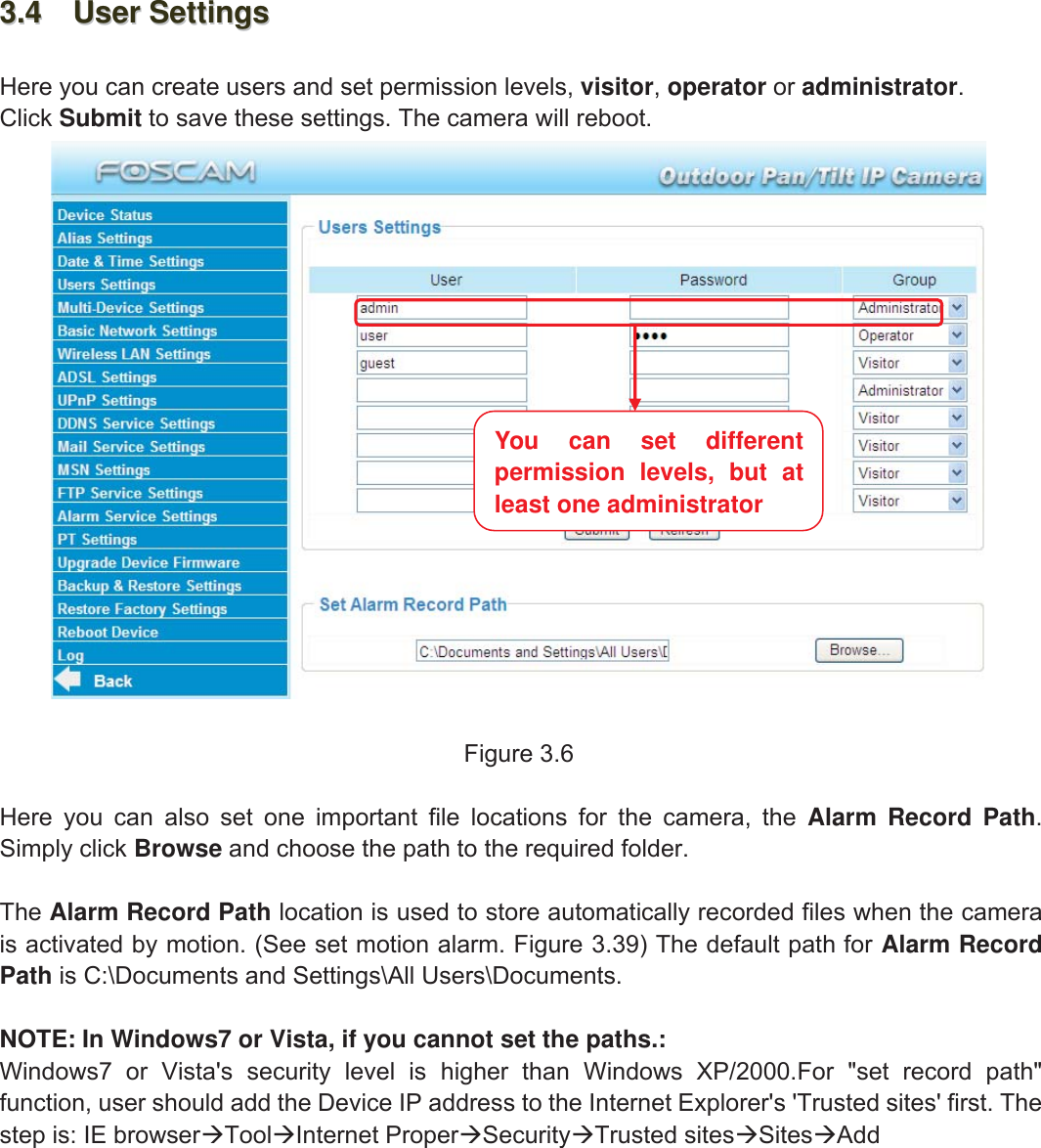
19wwww.foscam.coww.foscam.commShenzhenShenzhen FoscamFoscam IntelligentIntelligent TechnologyTechnology Co.,Co., LimitedLimitedTel:Tel: 8686 755755 26742674 56685668 Fax:Fax: 8686 755755 26742674 51685168 193.43.4 UserUser SettingsSettingsHere you can create users and set permission levels, visitor,operator or administrator.Click Submit to save these settings. The camera will reboot.Figure 3.6Here you can also set one important file locations for the camera, the Alarm Record Path.Simply click Browse and choose the path to the required folder.The Alarm Record Path location is used to store automatically recorded files when the camerais activated by motion. (See set motion alarm. Figure 3.39) The default path for Alarm RecordPath is C:\Documents and Settings\All Users\Documents.NOTE: In Windows7 or Vista, if you cannot set the paths.:Windows7 or Vista's security level is higher than Windows XP/2000.For "set record path"function, user should add the Device IP address to the Internet Explorer's 'Trusted sites' first. Thestep is: IE browserToolInternet ProperSecurityTrusted sitesSitesAddYou can set differentpermission levels, but atleast one administrator
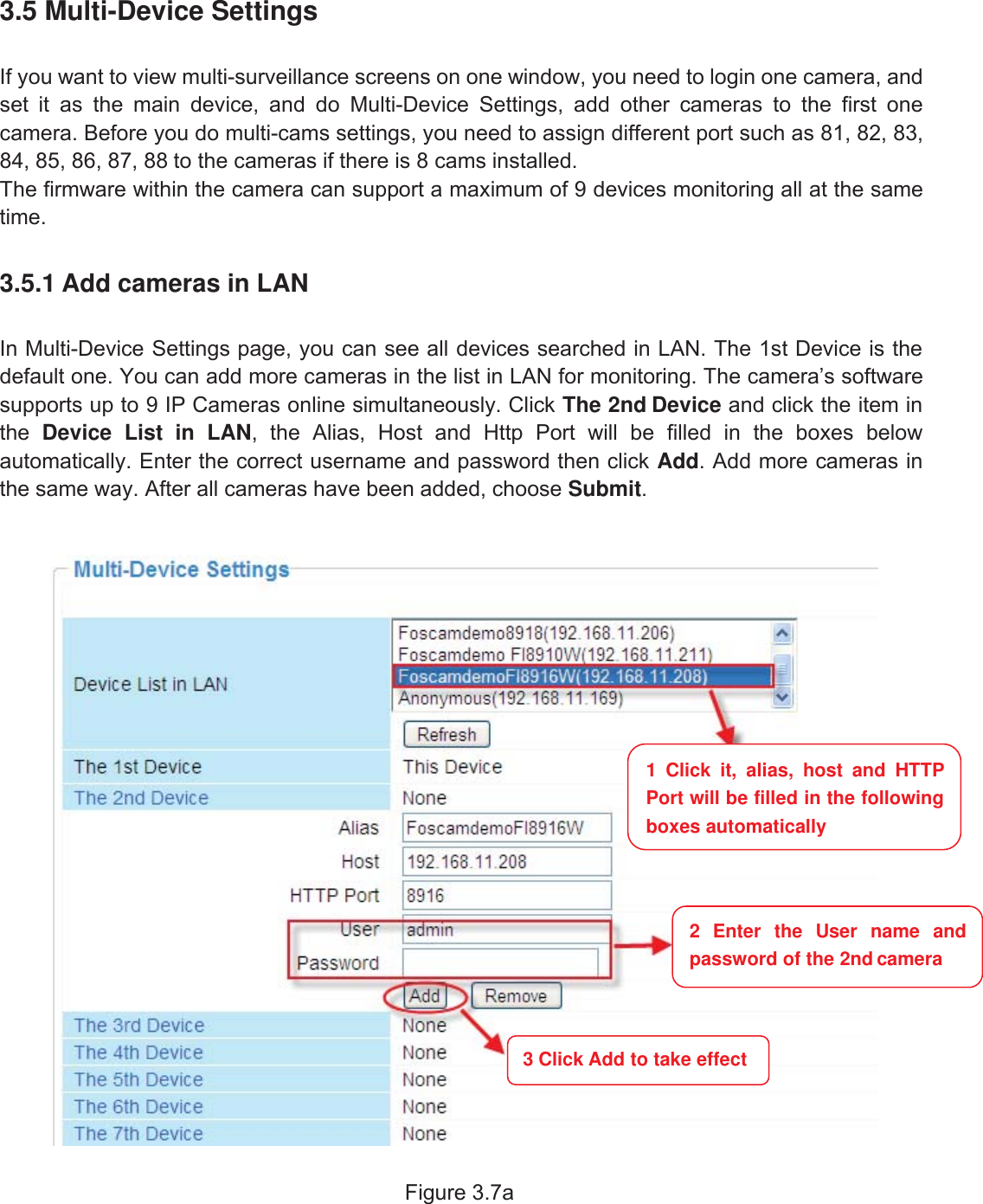
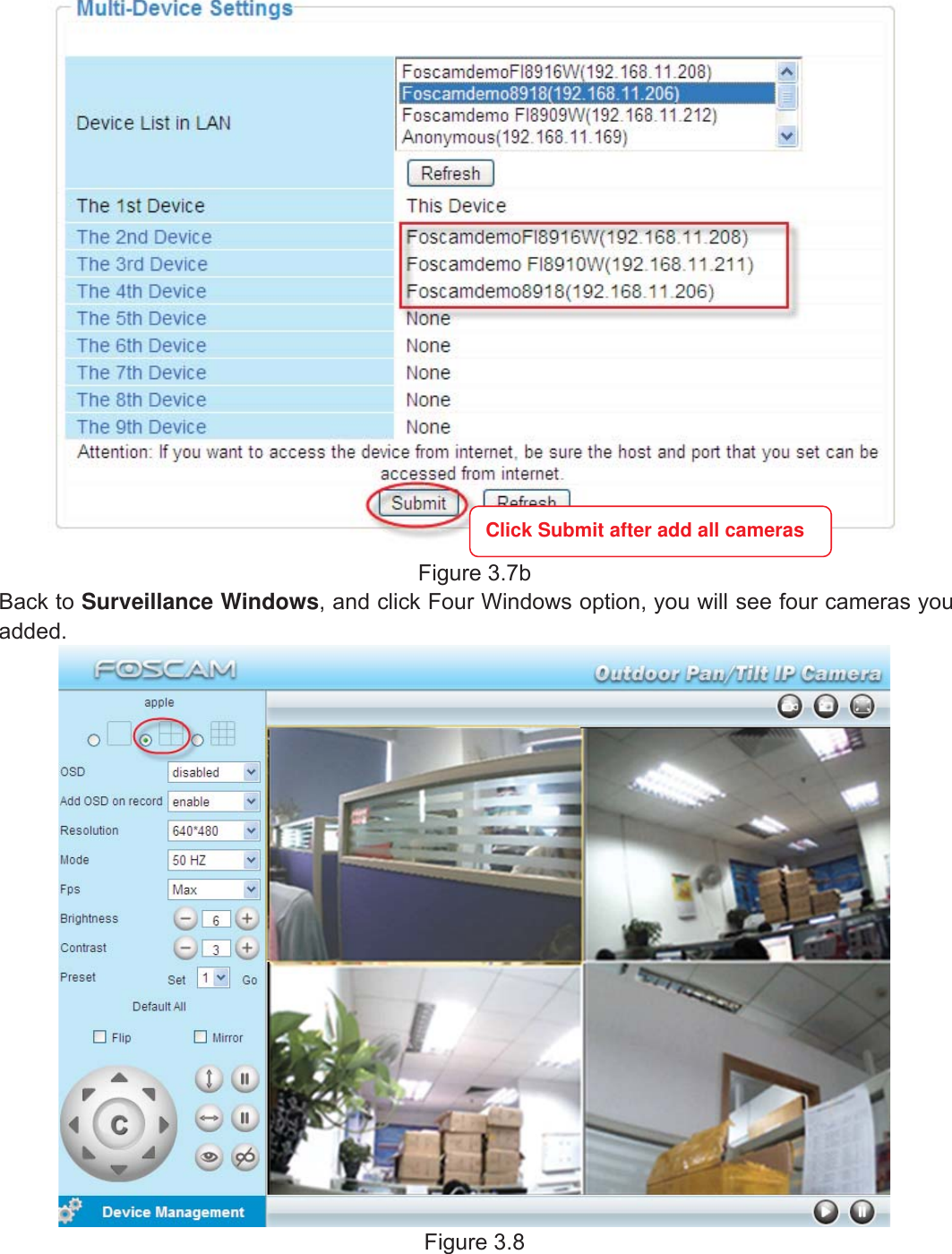
20wwww.foscam.coww.foscam.commShenzhenShenzhen FoscamFoscam IntelligentIntelligent TechnologyTechnology Co.,Co., LimitedLimitedTel:Tel: 8686 755755 26742674 56685668 Fax:Fax: 8686 755755 26742674 51685168 203.5 Multi-Device SettingsIf you want to view multi-surveillance screens on one window, you need to login one camera, andset it as the main device, and do Multi-Device Settings, add other cameras to the first onecamera. Before you do multi-cams settings, you need to assign different port such as 81, 82, 83,84, 85, 86, 87, 88 to the cameras if there is 8 cams installed.The firmware within the camera can support a maximum of 9 devices monitoring all at the sametime.3.5.1 Add cameras in LANIn Multi-Device Settings page, you can see all devices searched in LAN. The 1st Device is thedefault one. You can add more cameras in the list in LAN for monitoring. The camera’s softwaresupports up to 9 IP Cameras online simultaneously. Click The 2nd Device and click the item inthe Device List in LAN, the Alias, Host and Http Port will be filled in the boxes belowautomatically. Enter the correct username and password then click Add. Add more cameras inthe same way. After all cameras have been added, choose Submit.Figure 3.7a1 Click it, alias, host and HTTPPort will be filled in the followingboxes automatically2 Enter the User name andpassword of the 2nd camera3 Click Add to take effect
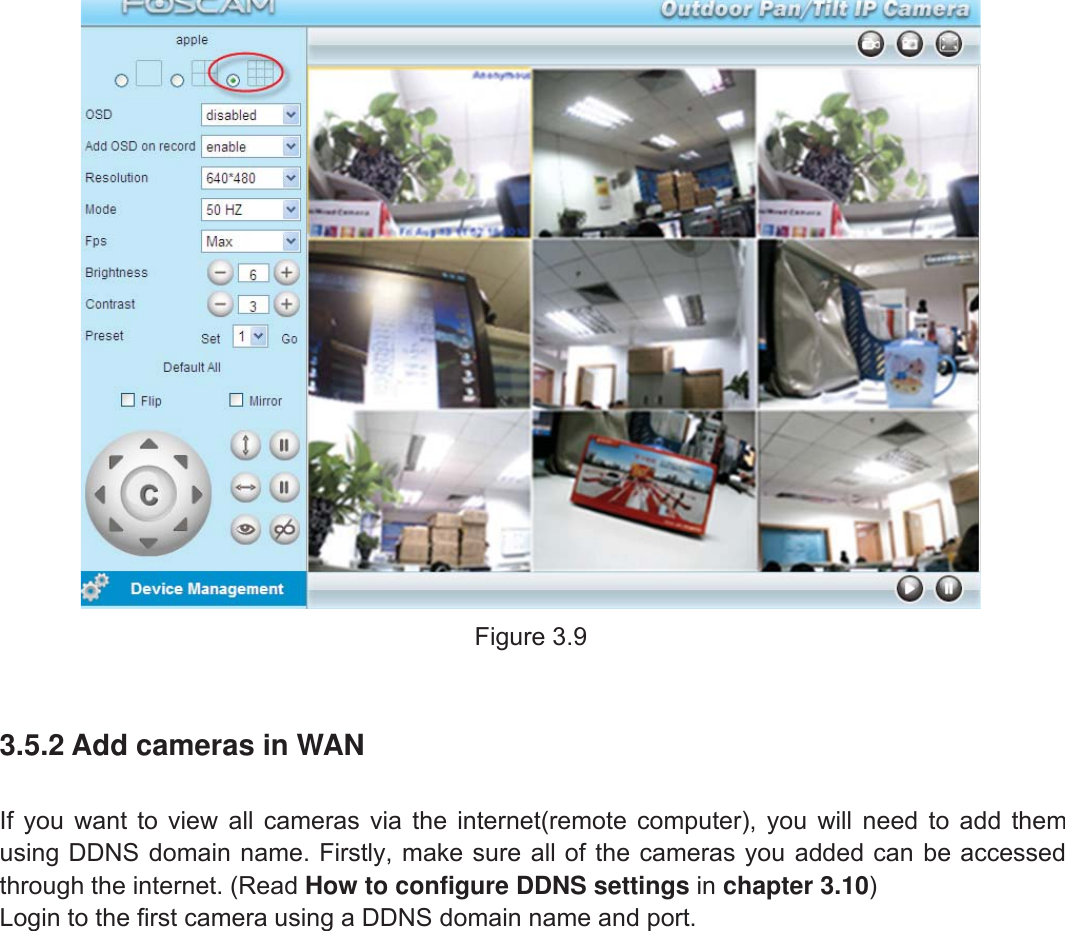
21wwww.foscam.coww.foscam.commShenzhenShenzhen FoscamFoscam IntelligentIntelligent TechnologyTechnology Co.,Co., LimitedLimitedTel:Tel: 8686 755755 26742674 56685668 Fax:Fax: 8686 755755 26742674 51685168 21Figure 3.7bBack to Surveillance Windows, and click Four Windows option, you will see four cameras youadded.Figure 3.8Click Submit after add all cameras
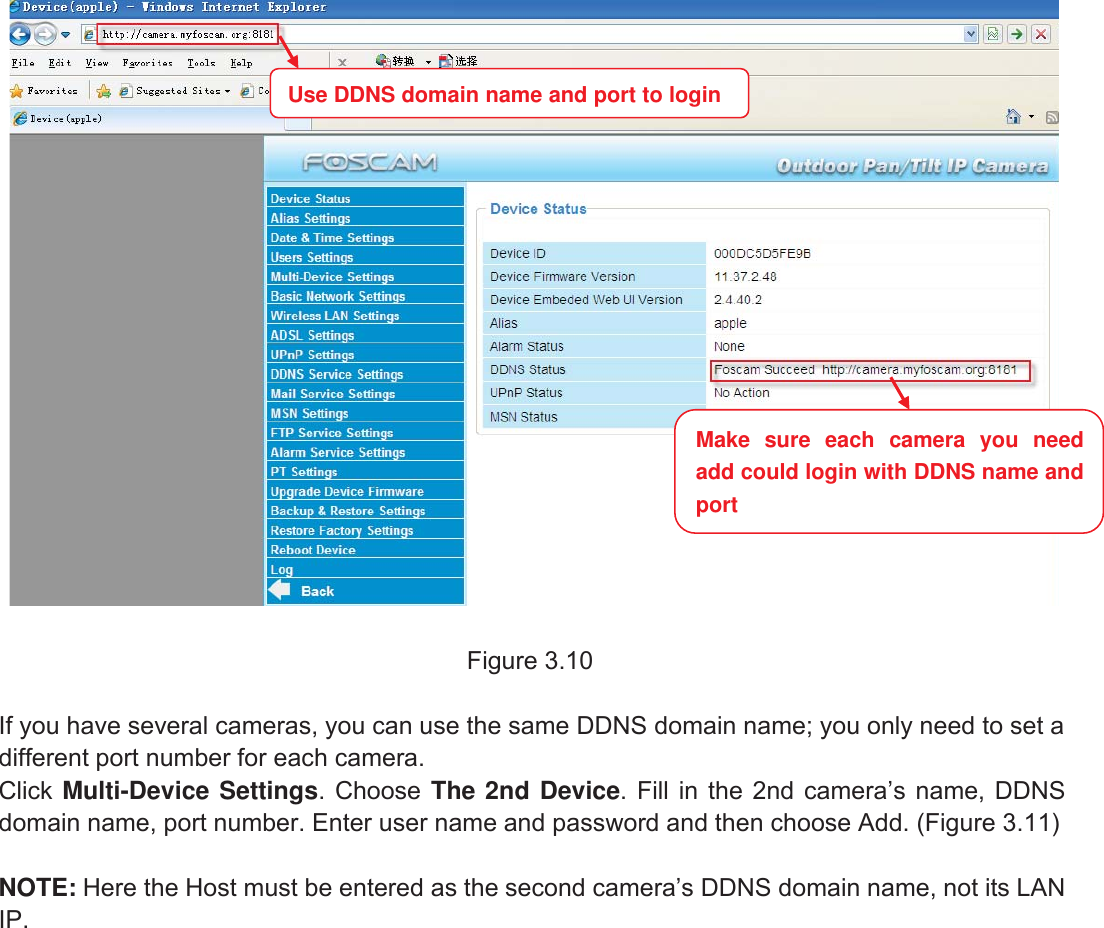
22wwww.foscam.coww.foscam.commShenzhenShenzhen FoscamFoscam IntelligentIntelligent TechnologyTechnology Co.,Co., LimitedLimitedTel:Tel: 8686 755755 26742674 56685668 Fax:Fax: 8686 755755 26742674 51685168 22Figure 3.93.5.2 Add cameras in WANIf you want to view all cameras via the internet(remote computer), you will need to add themusing DDNS domain name. Firstly, make sure all of the cameras you added can be accessedthrough the internet. (Read How to configure DDNS settings in chapter 3.10)Login to the first camera using a DDNS domain name and port.
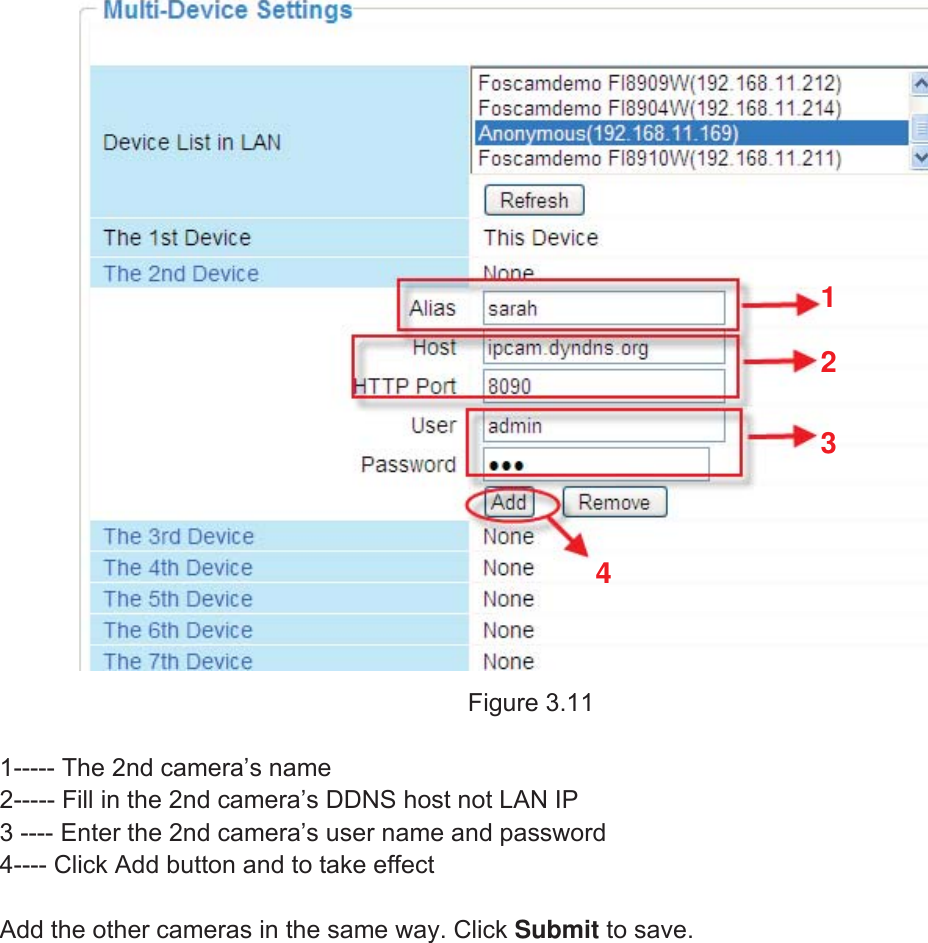
23wwww.foscam.coww.foscam.commShenzhenShenzhen FoscamFoscam IntelligentIntelligent TechnologyTechnology Co.,Co., LimitedLimitedTel:Tel: 8686 755755 26742674 56685668 Fax:Fax: 8686 755755 26742674 51685168 23Figure 3.10If you have several cameras, you can use the same DDNS domain name; you only need to set adifferent port number for each camera.Click Multi-Device Settings. Choose The 2nd Device. Fill in the 2nd camera’s name, DDNSdomain name, port number. Enter user name and password and then choose Add. (Figure 3.11)NOTE: Here the Host must be entered as the second camera’s DDNS domain name, not its LANIP.Make sure each camera you needadd could login with DDNS name andportUse DDNS domain name and port to login
24wwww.foscam.coww.foscam.commShenzhenShenzhen FoscamFoscam IntelligentIntelligent TechnologyTechnology Co.,Co., LimitedLimitedTel:Tel: 8686 755755 26742674 56685668 Fax:Fax: 8686 755755 26742674 51685168 24Figure 3.111----- The 2nd camera’s name2----- Fill in the 2nd camera’s DDNS host not LAN IP3 ---- Enter the 2nd camera’s user name and password4---- Click Add button and to take effectAdd the other cameras in the same way. Click Submit to save.1234
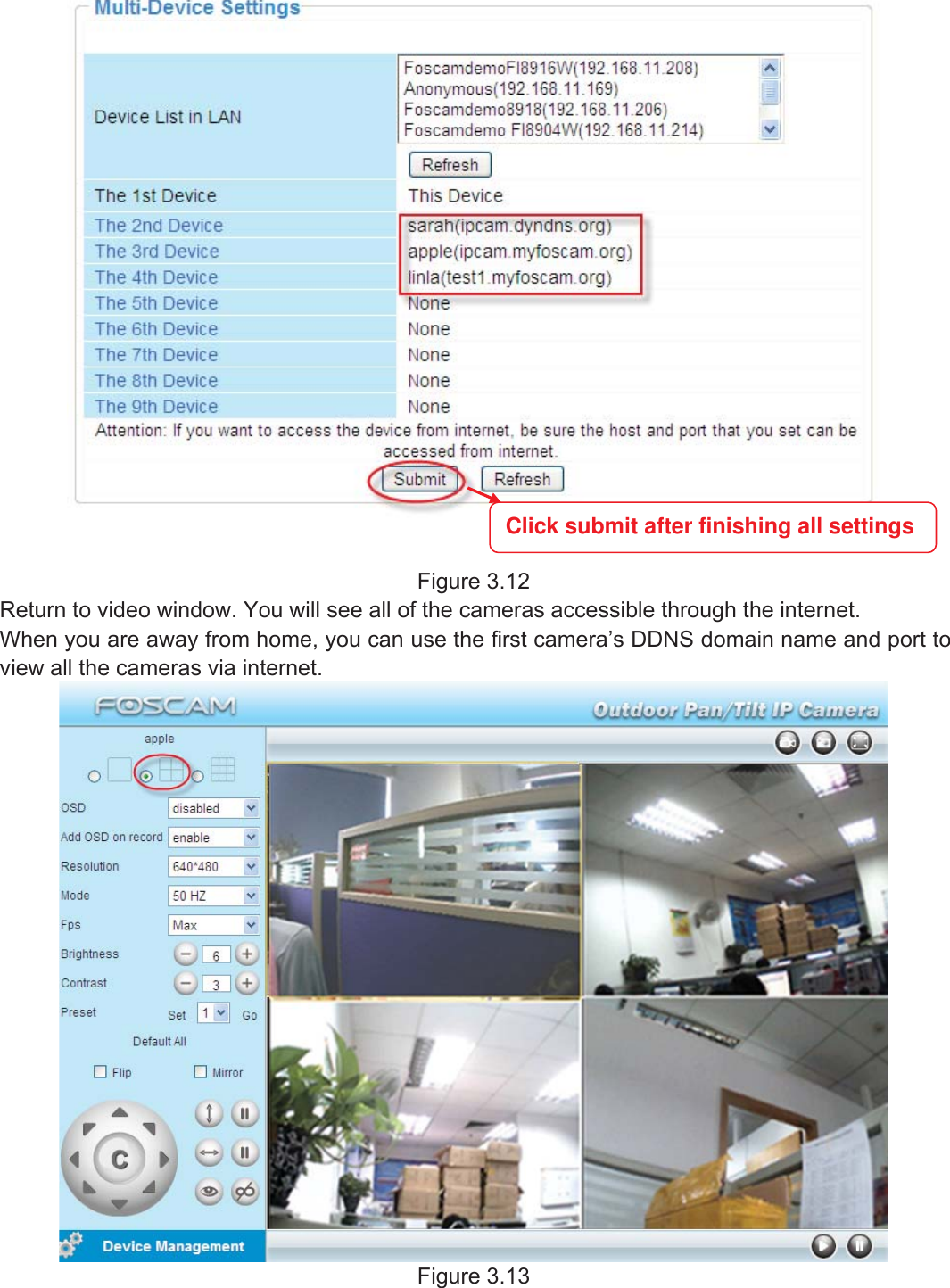
25wwww.foscam.coww.foscam.commShenzhenShenzhen FoscamFoscam IntelligentIntelligent TechnologyTechnology Co.,Co., LimitedLimitedTel:Tel: 8686 755755 26742674 56685668 Fax:Fax: 8686 755755 26742674 51685168 25Figure 3.12Return to video window. You will see all of the cameras accessible through the internet.When you are away from home, you can use the first camera’s DDNS domain name and port toview all the cameras via internet.Figure 3.13Click submit after finishing all settings
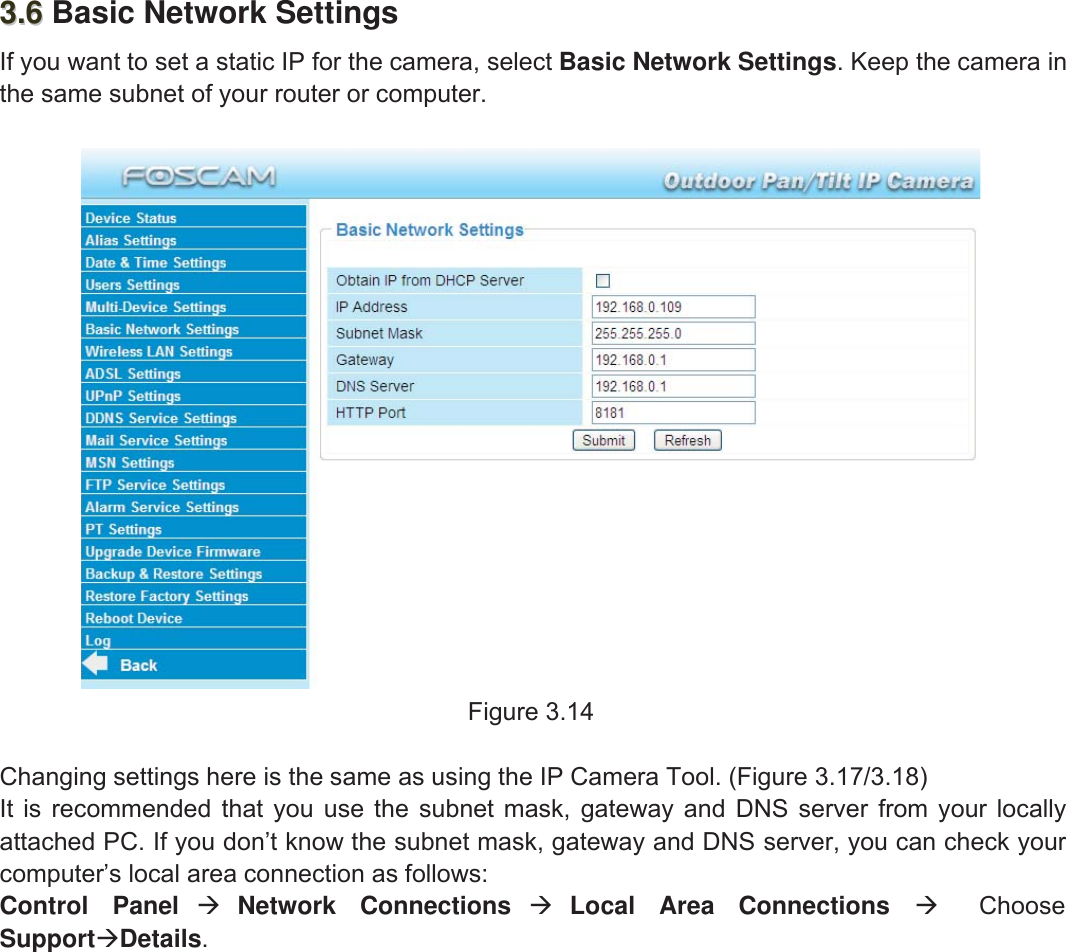
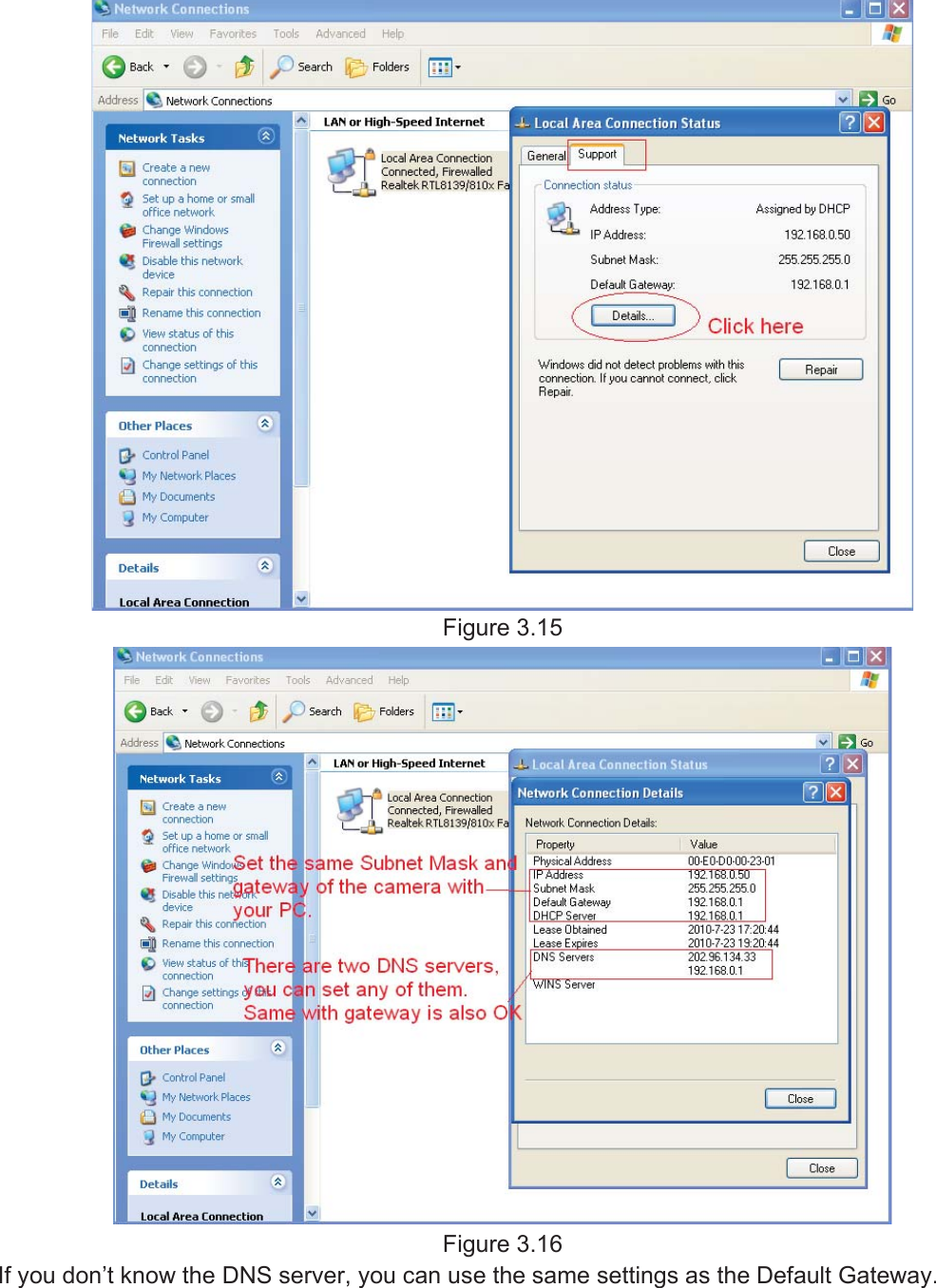
26wwww.foscam.coww.foscam.commShenzhenShenzhen FoscamFoscam IntelligentIntelligent TechnologyTechnology Co.,Co., LimitedLimitedTel:Tel: 8686 755755 26742674 56685668 Fax:Fax: 8686 755755 26742674 51685168 263.63.6 Basic Network SettingsIf you want to set a static IP for the camera, select Basic Network Settings. Keep the camera inthe same subnet of your router or computer.Figure 3.14Changing settings here is the same as using the IP Camera Tool. (Figure 3.17/3.18)It is recommended that you use the subnet mask, gateway and DNS server from your locallyattached PC. If you don’t know the subnet mask, gateway and DNS server, you can check yourcomputer’s local area connection as follows:Control Panel Network Connections Local Area Connections ChooseSupportDetails.
27wwww.foscam.coww.foscam.commShenzhenShenzhen FoscamFoscam IntelligentIntelligent TechnologyTechnology Co.,Co., LimitedLimitedTel:Tel: 8686 755755 26742674 56685668 Fax:Fax: 8686 755755 26742674 51685168 27Figure 3.15Figure 3.16If you don’t know the DNS server, you can use the same settings as the Default Gateway.
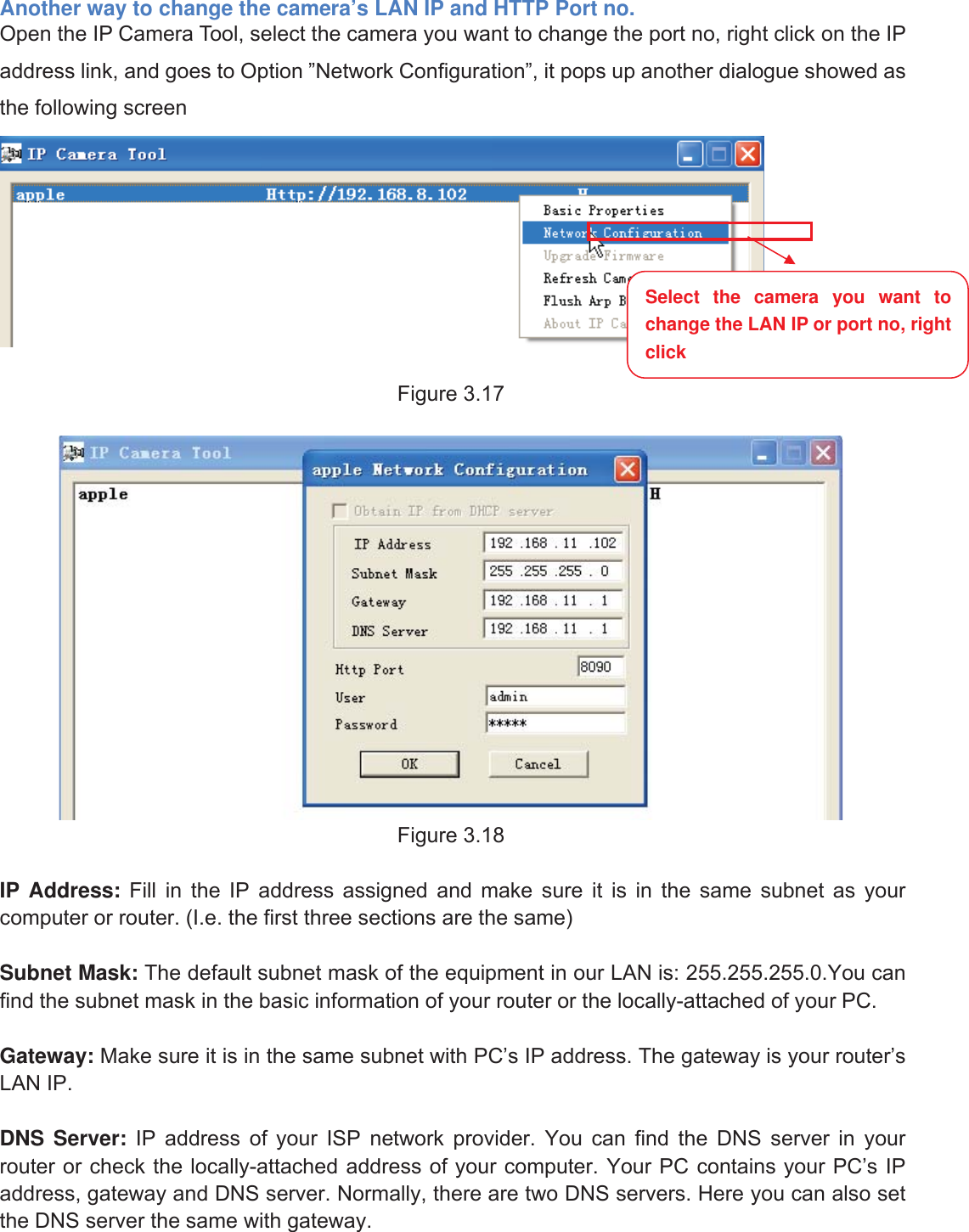
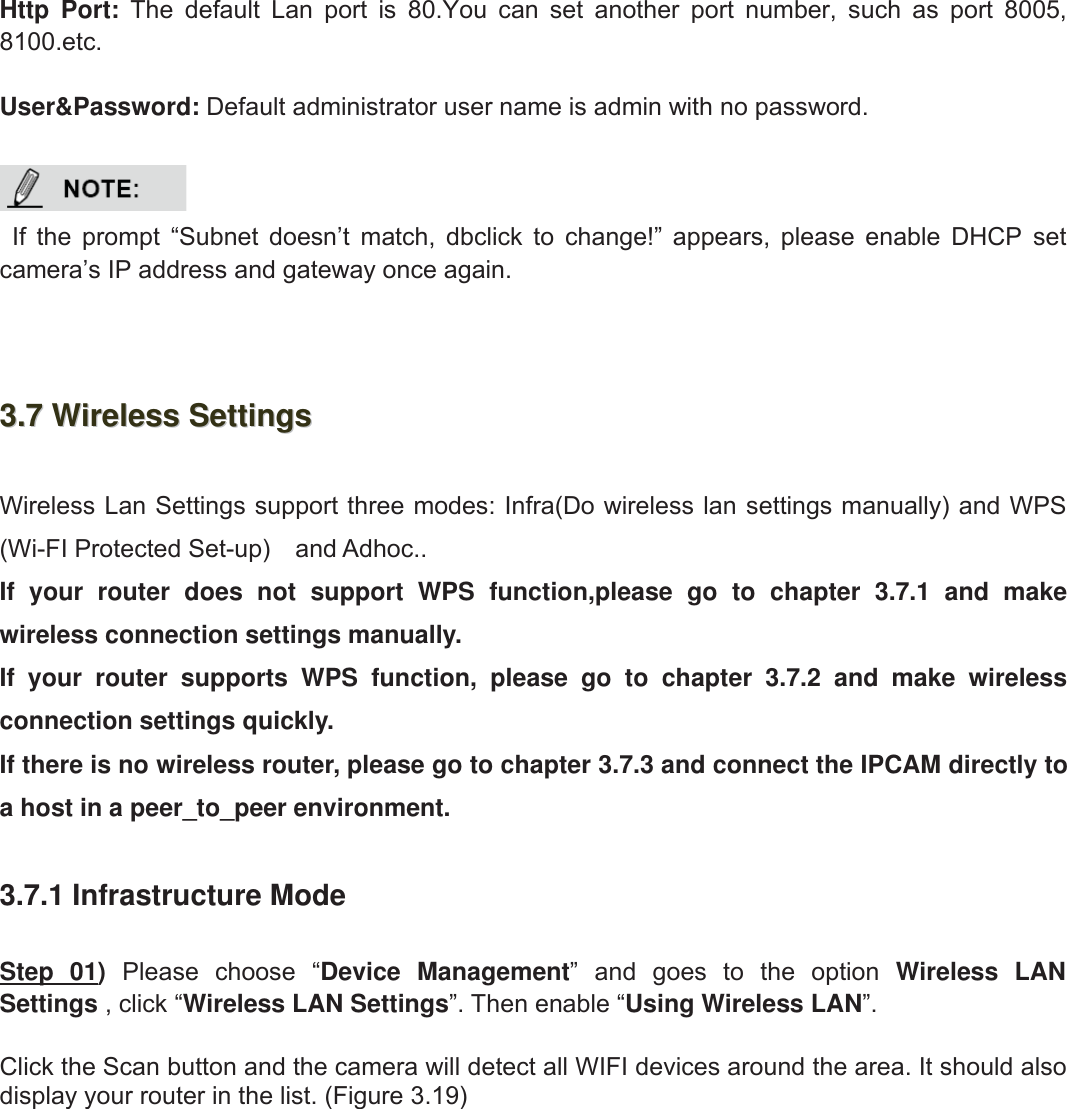
28wwww.foscam.coww.foscam.commShenzhenShenzhen FoscamFoscam IntelligentIntelligent TechnologyTechnology Co.,Co., LimitedLimitedTel:Tel: 8686 755755 26742674 56685668 Fax:Fax: 8686 755755 26742674 51685168 28Another way to change the camera’s LAN IP and HTTP Port no.Open the IP Camera Tool, select the camera you want to change the port no, right click on the IPaddress link, and goes to Option ”Network Configuration”, it pops up another dialogue showed asthe following screenFigure 3.17Figure 3.18IP Address: Fill in the IP address assigned and make sure it is in the same subnet as yourcomputer or router. (I.e. the first three sections are the same)Subnet Mask: The default subnet mask of the equipment in our LAN is: 255.255.255.0.You canfind the subnet mask in the basic information of your router or the locally-attached of your PC.Gateway: Make sure it is in the same subnet with PC’s IP address. The gateway is your router’sLAN IP.DNS Server: IP address of your ISP network provider. You can find the DNS server in yourrouter or check the locally-attached address of your computer. Your PC contains your PC’s IPaddress, gateway and DNS server. Normally, there are two DNS servers. Here you can also setthe DNS server the same with gateway.Select the camera you want tochange the LAN IP or port no, rightclick
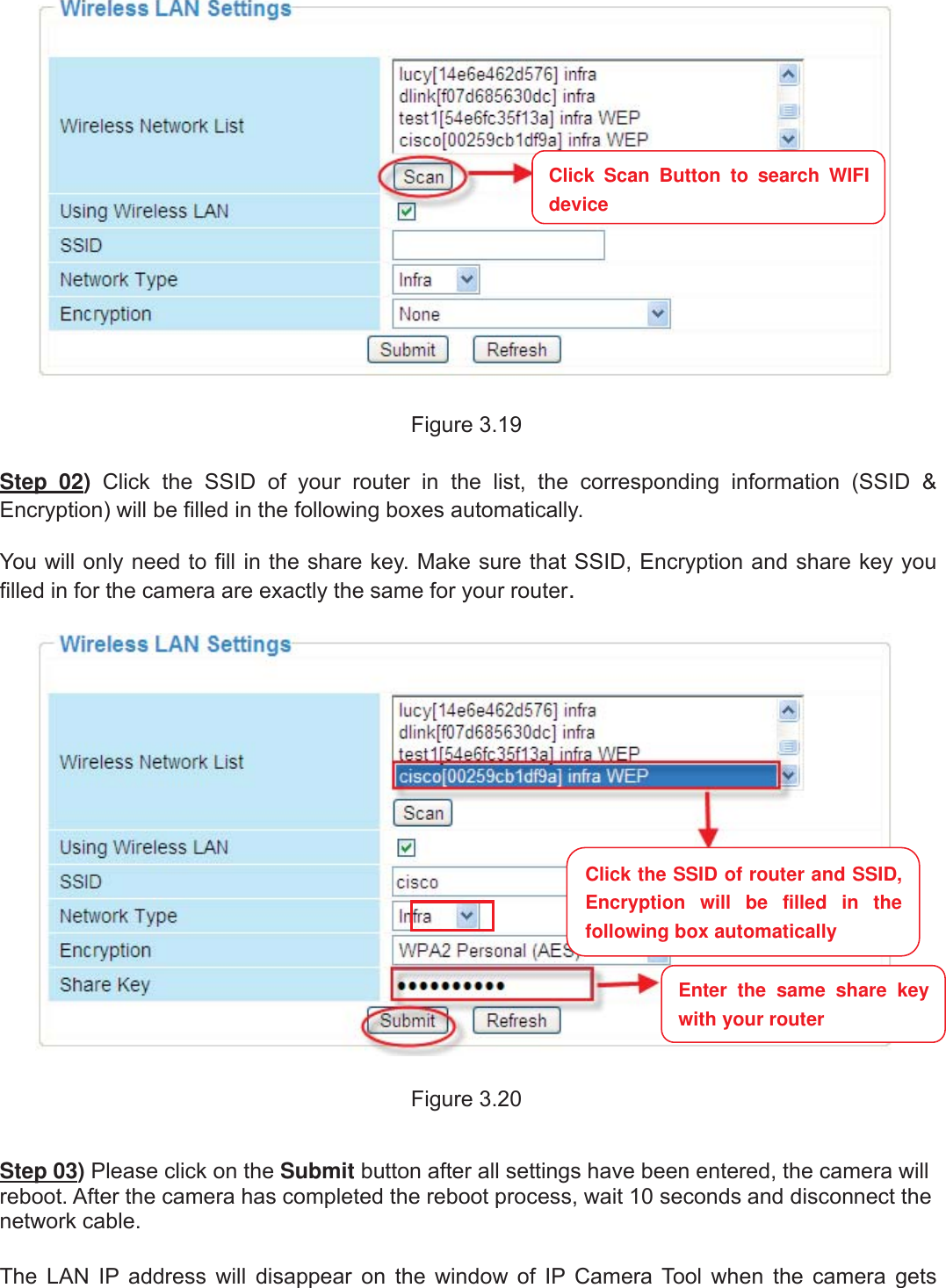
29wwww.foscam.coww.foscam.commShenzhenShenzhen FoscamFoscam IntelligentIntelligent TechnologyTechnology Co.,Co., LimitedLimitedTel:Tel: 8686 755755 26742674 56685668 Fax:Fax: 8686 755755 26742674 51685168 29Http Port: The default Lan port is 80.You can set another port number, such as port 8005,8100.etc.User&Password: Default administrator user name is admin with no password.If the prompt “Subnet doesn’t match, dbclick to change!” appears, please enable DHCP setcamera’s IP address and gateway once again.3.73.7 WirelessWireless SettingsSettingsWireless Lan Settings support three modes: Infra(Do wireless lan settings manually) and WPS(Wi-FI Protected Set-up) and Adhoc..If your router does not support WPS function,please go to chapter 3.7.1 and makewireless connection settings manually.If your router supports WPS function, please go to chapter 3.7.2 and make wirelessconnection settings quickly.If there is no wireless router, please go to chapter 3.7.3 and connect the IPCAM directly toa host in a peer_to_peer environment.3.7.1 Infrastructure ModeStep 01)Please choose “Device Management” and goes to the option Wireless LANSettings , click “Wireless LAN Settings”. Then enable “Using Wireless LAN”.Click the Scan button and the camera will detect all WIFI devices around the area. It should alsodisplay your router in the list. (Figure 3.19)
30wwww.foscam.coww.foscam.commShenzhenShenzhen FoscamFoscam IntelligentIntelligent TechnologyTechnology Co.,Co., LimitedLimitedTel:Tel: 8686 755755 26742674 56685668 Fax:Fax: 8686 755755 26742674 51685168 30Figure 3.19Step 02)Click the SSID of your router in the list, the corresponding information (SSID &Encryption) will be filled in the following boxes automatically.You will only need to fill in the share key. Make sure that SSID, Encryption and share key youfilled in for the camera are exactly the same for your router.Figure 3.20Step 03)Please click on the Submit button after all settings have been entered, the camera willreboot. After the camera has completed the reboot process, wait 10 seconds and disconnect thenetwork cable.The LAN IP address will disappear on the window of IP Camera Tool when the camera getsClick Scan Button to search WIFIdeviceClick the SSID of router and SSID,Encryption will be filled in thefollowing box automaticallyEnter the same share keywith your router
31wwww.foscam.coww.foscam.commShenzhenShenzhen FoscamFoscam IntelligentIntelligent TechnologyTechnology Co.,Co., LimitedLimitedTel:Tel: 8686 755755 26742674 56685668 Fax:Fax: 8686 755755 26742674 51685168 31restarted. Just wait for around 1 minute, the camera will get wireless connection, and the LAN IPof the camera will be showed again on the window of the IP Cam Tool. You have done wirelessconnection of the camera successfully. If the camera has a dynamic IP, after the wireless settings,the IP will be changed.If fail to make WiFi connection, please refer to seller or us for help.3.7.2 WPS (Wi-Fi Protected Set-up)Step 01)Please press and hold the RESET button for four seconds. .Step 02)Press the WPS button on your router within 60 seconds. The WPS button is usuallyon the back or side of your router. On some routers, you may need to log in to the web interfaceand click on an on-screen button to activate the WPS feature. If you are not sure where the WPSbuttons is on your router, please refer to your router’s User Manual.The camera will automatically create a secure wireless connection to your router. If you haveplugged in the network cable, please plug it out. While connecting, the green network light willblink quickly and the wireless settings will take effect. The IP Camera Tool will search thecamera’s LAN IP. Make sure the PC and the camera share the same subnet.1 During the WPS Settings, you must press the Reset button only for four seconds, or else, thecamera may be reset back to factory default settings if you press and hold on the reset buttonabove 10 seconds.2 The security mode of router cannot be WEP, or else the WPS settings may be failed.NoteNoteReset Button
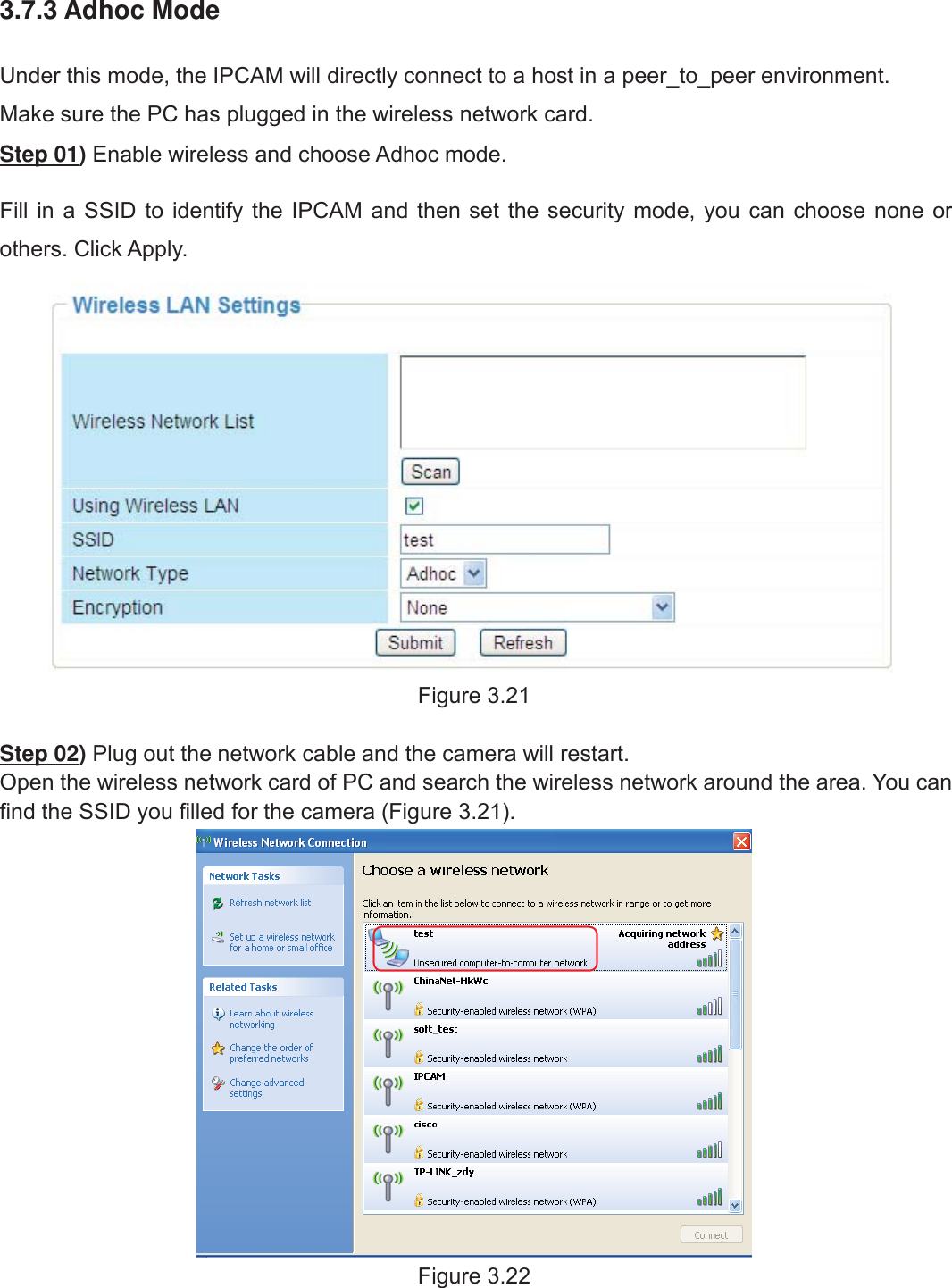
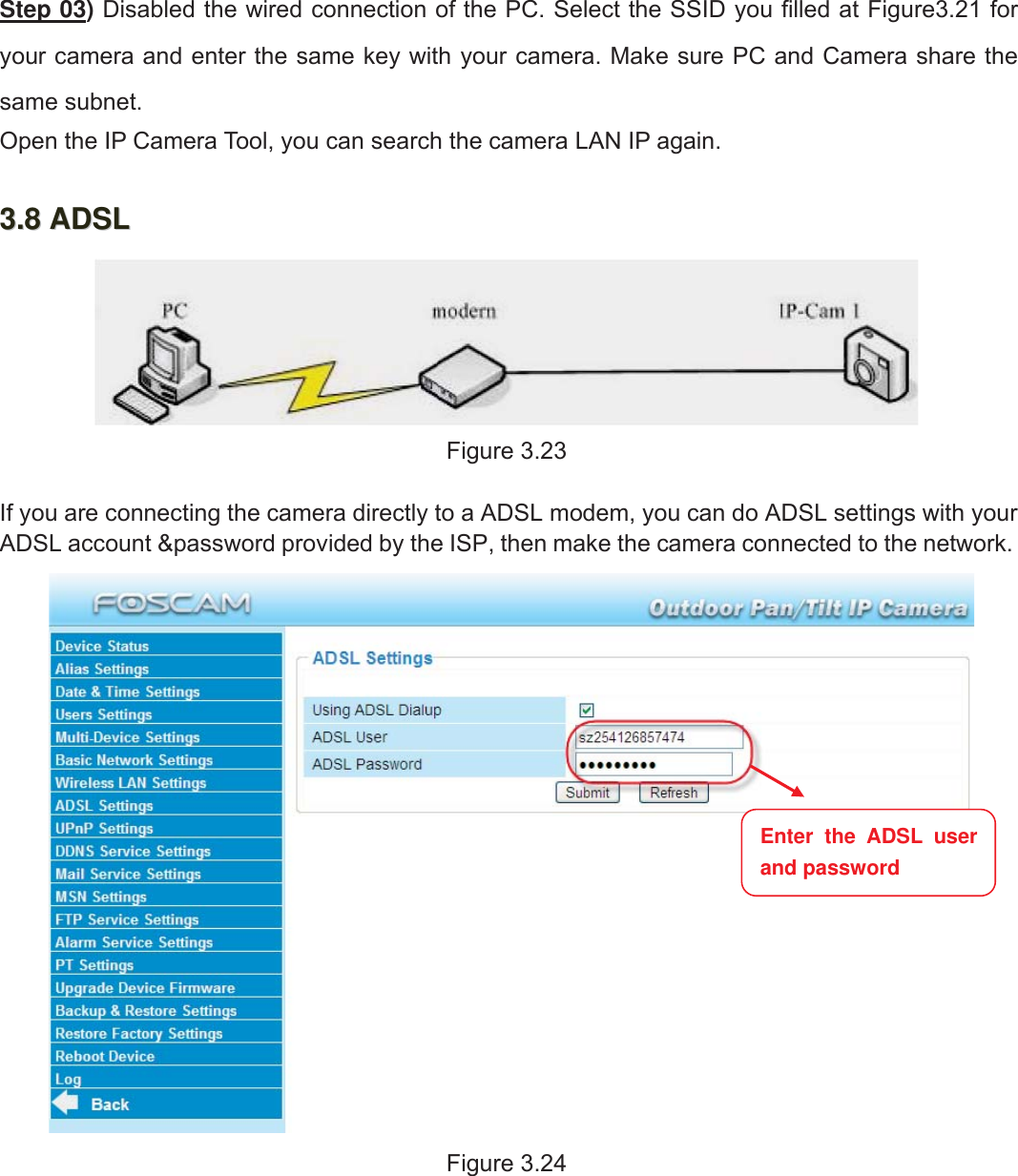
32wwww.foscam.coww.foscam.commShenzhenShenzhen FoscamFoscam IntelligentIntelligent TechnologyTechnology Co.,Co., LimitedLimitedTel:Tel: 8686 755755 26742674 56685668 Fax:Fax: 8686 755755 26742674 51685168 323.7.3 Adhoc ModeUnder this mode, the IPCAM will directly connect to a host in a peer_to_peer environment.Make sure the PC has plugged in the wireless network card.Step 01)Enable wireless and choose Adhoc mode.Fill in a SSID to identify the IPCAM and then set the security mode, you can choose none orothers. Click Apply.Figure 3.21Step 02)Plug out the network cable and the camera will restart.Open the wireless network card of PC and search the wireless network around the area. You canfind the SSID you filled for the camera (Figure 3.21).Figure 3.22
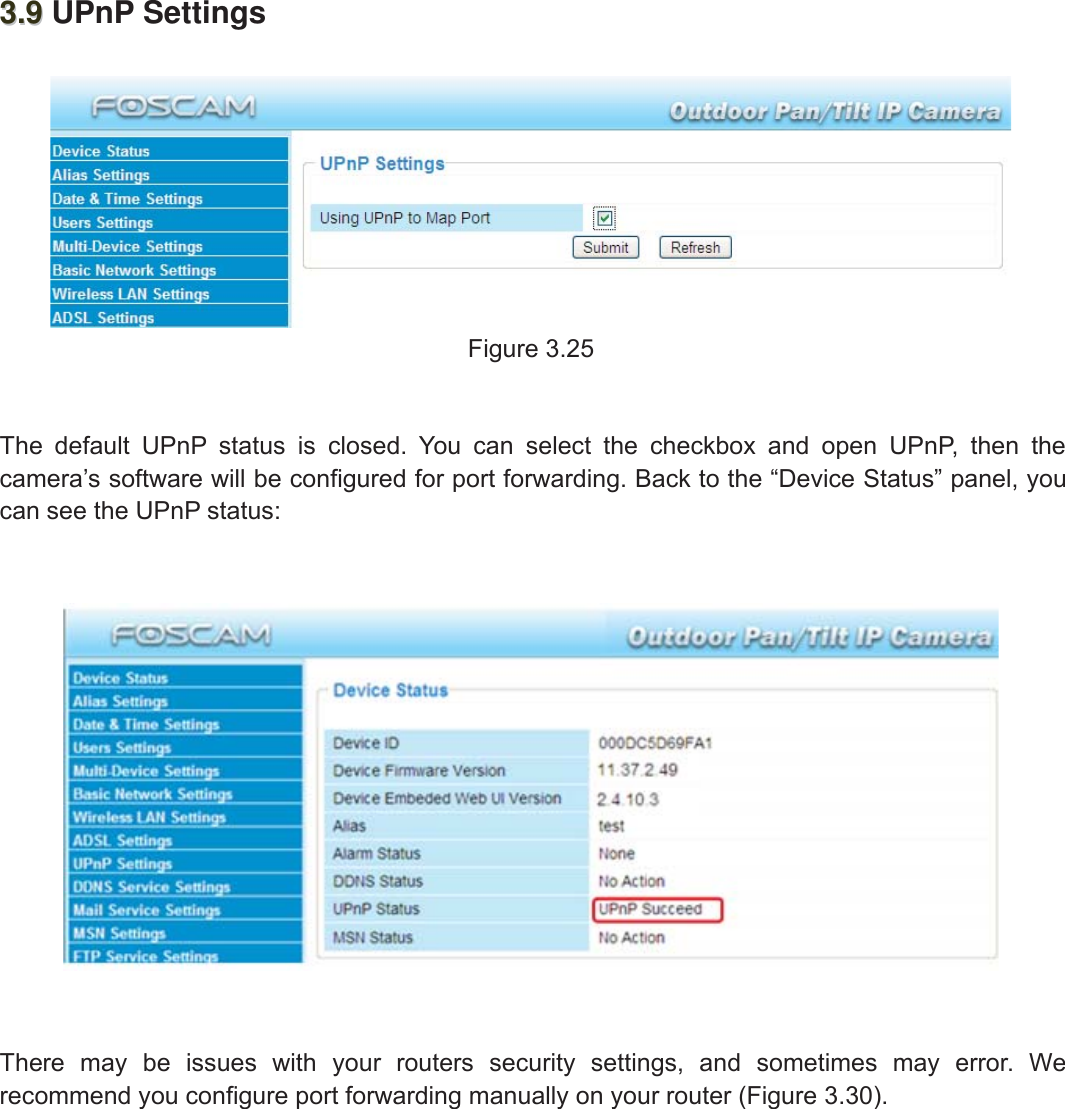
33wwww.foscam.coww.foscam.commShenzhenShenzhen FoscamFoscam IntelligentIntelligent TechnologyTechnology Co.,Co., LimitedLimitedTel:Tel: 8686 755755 26742674 56685668 Fax:Fax: 8686 755755 26742674 51685168 33Step 03)Disabled the wired connection of the PC. Select the SSID you filled at Figure3.21 foryour camera and enter the same key with your camera. Make sure PC and Camera share thesame subnet.Open the IP Camera Tool, you can search the camera LAN IP again.3.83.8 ADSLADSLFigure 3.23If you are connecting the camera directly to a ADSL modem, you can do ADSL settings with yourADSL account &password provided by the ISP, then make the camera connected to the network.Figure 3.24Enter the ADSL userand password
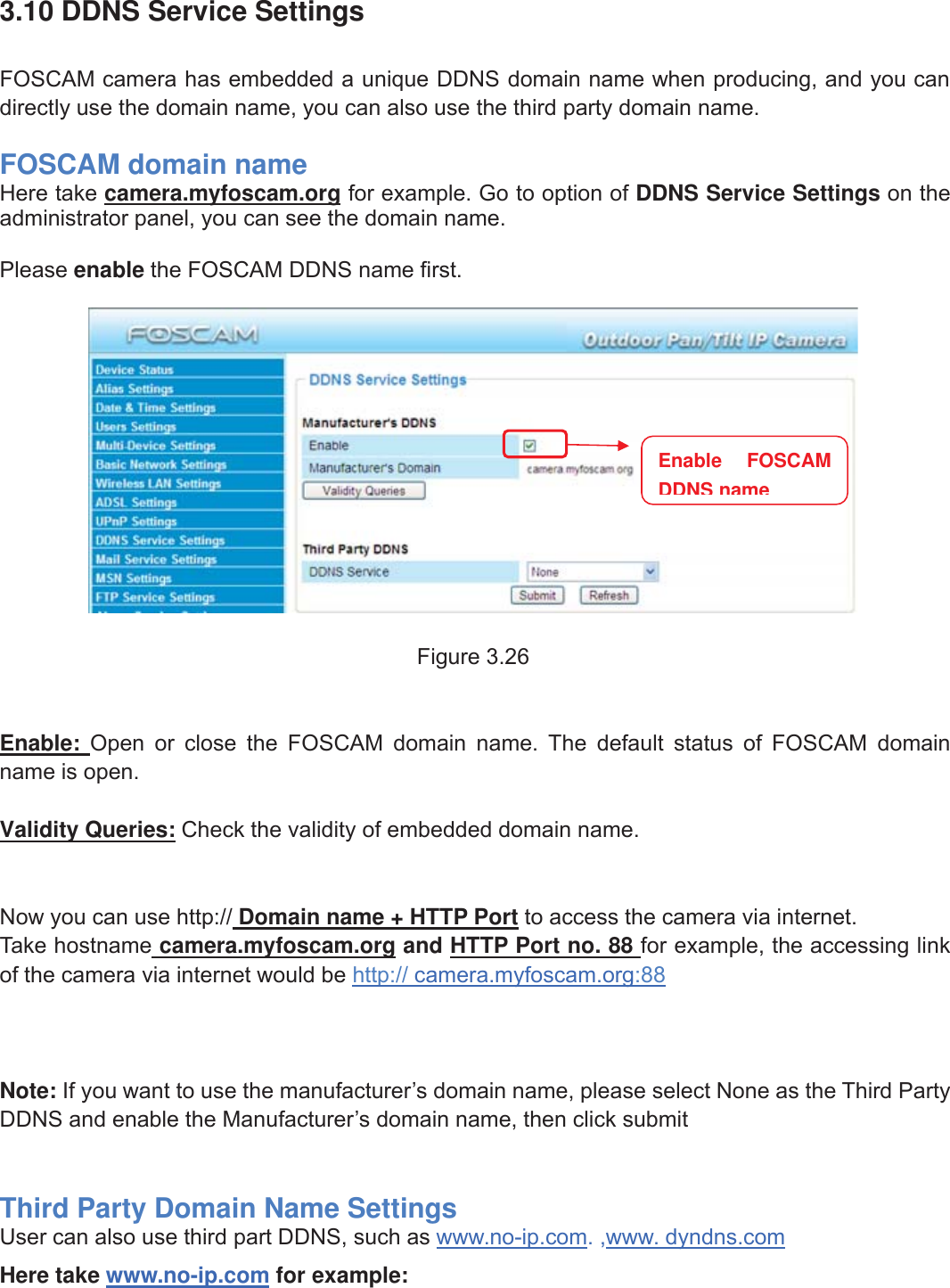
34wwww.foscam.coww.foscam.commShenzhenShenzhen FoscamFoscam IntelligentIntelligent TechnologyTechnology Co.,Co., LimitedLimitedTel:Tel: 8686 755755 26742674 56685668 Fax:Fax: 8686 755755 26742674 51685168 343.93.9 UPnP SettingsFigure 3.25The default UPnP status is closed. You can select the checkbox and open UPnP, then thecamera’s software will be configured for port forwarding. Back to the “Device Status” panel, youcan see the UPnP status:There may be issues with your routers security settings, and sometimes may error. Werecommend you configure port forwarding manually on your router (Figure 3.30).
35wwww.foscam.coww.foscam.commShenzhenShenzhen FoscamFoscam IntelligentIntelligent TechnologyTechnology Co.,Co., LimitedLimitedTel:Tel: 8686 755755 26742674 56685668 Fax:Fax: 8686 755755 26742674 51685168 353.10 DDNS Service SettingsFOSCAM camera has embedded a unique DDNS domain name when producing, and you candirectly use the domain name, you can also use the third party domain name.FOSCAM domain nameHere take camera.myfoscam.org for example. Go to option of DDNS Service Settings on theadministrator panel, you can see the domain name.Please enable the FOSCAM DDNS name first.Figure 3.26Enable: Open or close the FOSCAM domain name. The default status of FOSCAM domainname is open.Validity Queries: Check the validity of embedded domain name.Now you can use http:// Domain name + HTTP Port to access the camera via internet.Take hostname camera.myfoscam.org and HTTP Port no. 88 for example, the accessing linkof the camera via internet would be http:// camera.myfoscam.org:88Note: If you want to use the manufacturer’s domain name, please select None as the Third PartyDDNS and enable the Manufacturer’s domain name, then click submitThird Party Domain Name SettingsUser can also use third part DDNS, such as www.no-ip.com. ,www. dyndns.comHere take www.no-ip.com for example:Enable FOSCAMDDNS name
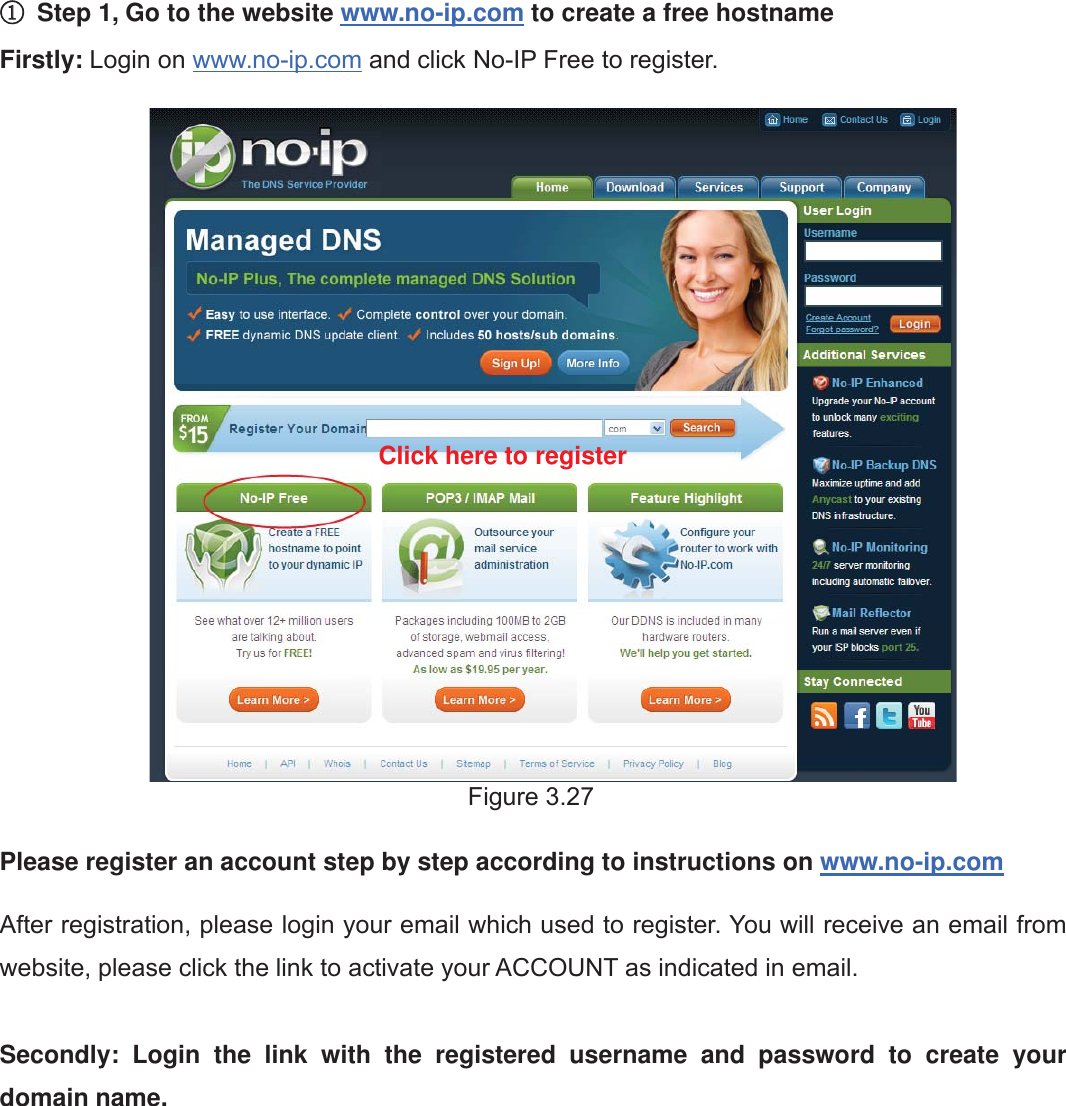
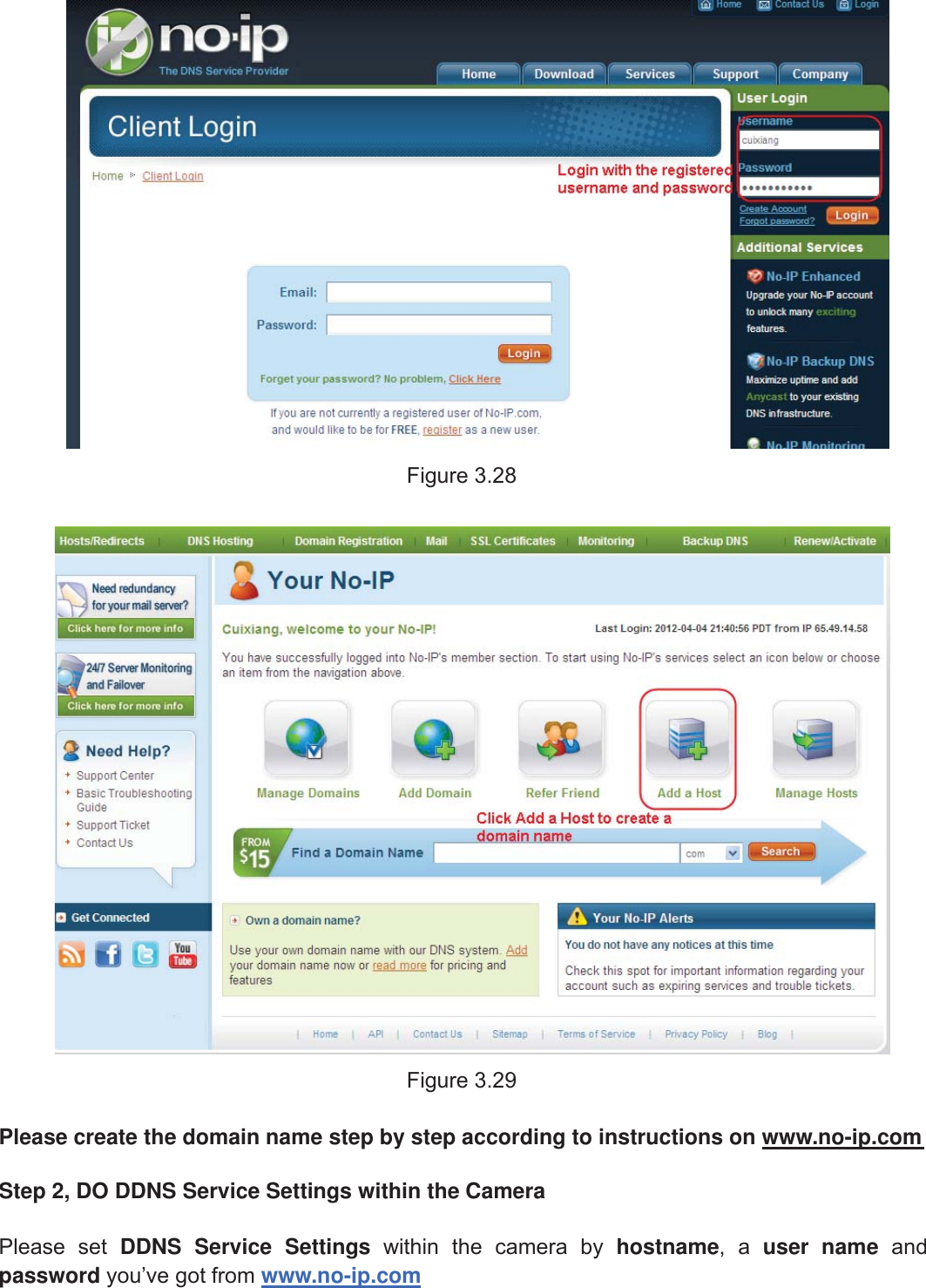
36wwww.foscam.coww.foscam.commShenzhenShenzhen FoscamFoscam IntelligentIntelligent TechnologyTechnology Co.,Co., LimitedLimitedTel:Tel: 8686 755755 26742674 56685668 Fax:Fax: 8686 755755 26742674 51685168 36①①Step 1, Go to the website www.no-ip.com to create a free hostnameFirstly: Login on www.no-ip.com and click No-IP Free to register.Figure 3.27Please register an account step by step according to instructions on www.no-ip.comAfter registration, please login your email which used to register. You will receive an email fromwebsite, please click the link to activate your ACCOUNT as indicated in email.Secondly: Login the link with the registered username and password to create yourdomain name.Click here to register
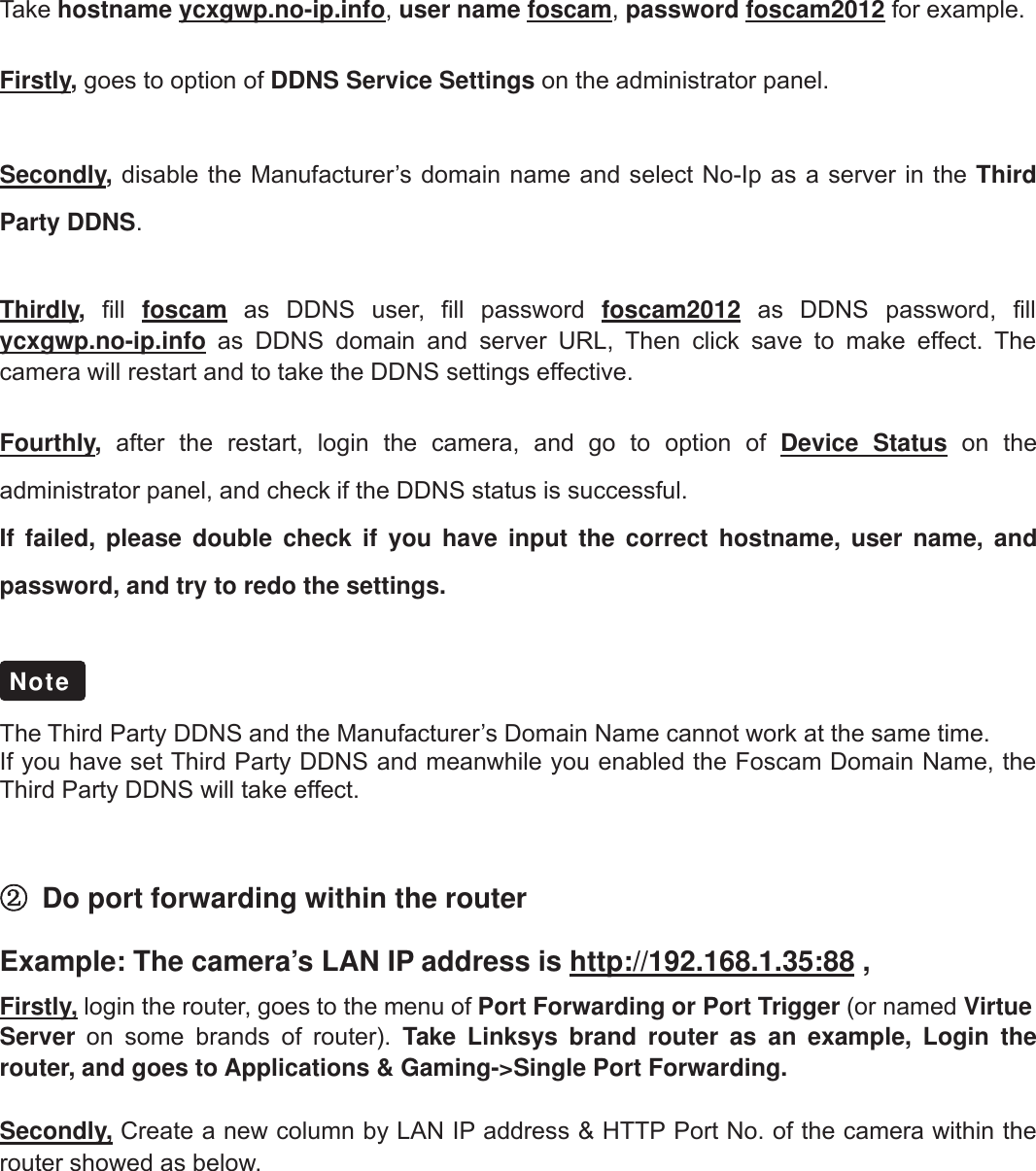
37wwww.foscam.coww.foscam.commShenzhenShenzhen FoscamFoscam IntelligentIntelligent TechnologyTechnology Co.,Co., LimitedLimitedTel:Tel: 8686 755755 26742674 56685668 Fax:Fax: 8686 755755 26742674 51685168 37Figure 3.28Figure 3.29Please create the domain name step by step according to instructions on www.no-ip.comStep 2, DO DDNS Service Settings within the CameraPlease set DDNS Service Settings within the camera by hostname,auser name andpassword you’ve got from www.no-ip.com
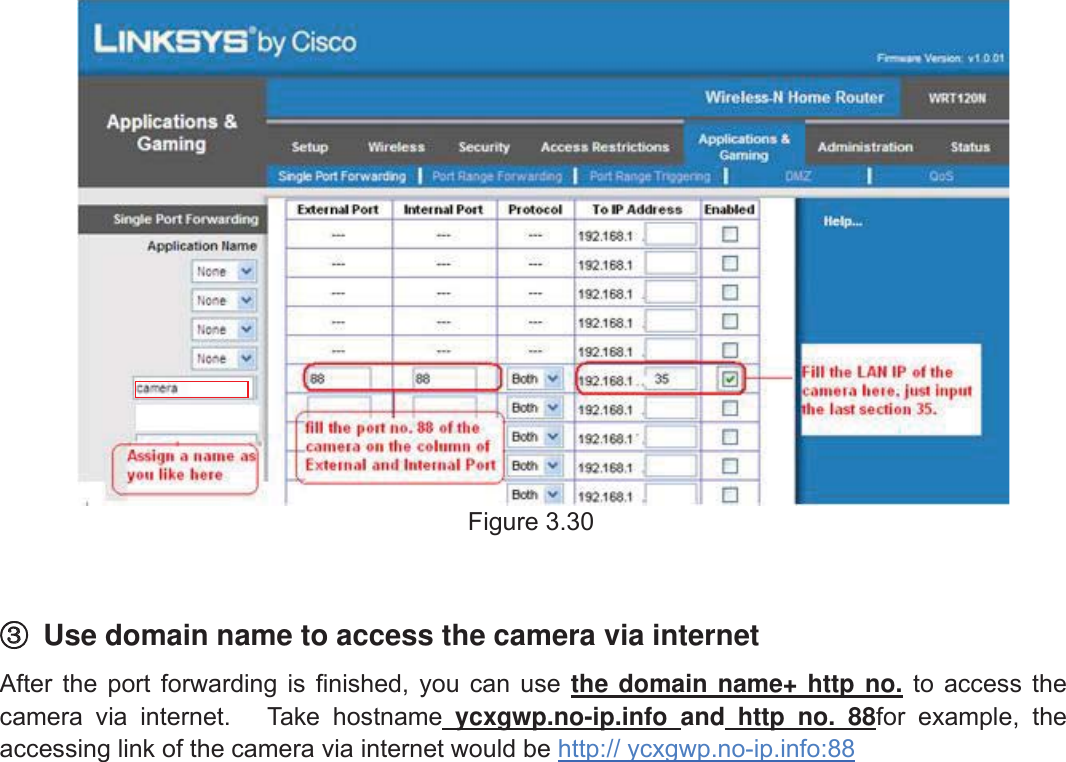
38wwww.foscam.coww.foscam.commShenzhenShenzhen FoscamFoscam IntelligentIntelligent TechnologyTechnology Co.,Co., LimitedLimitedTel:Tel: 8686 755755 26742674 56685668 Fax:Fax: 8686 755755 26742674 51685168 38Take hostname ycxgwp.no-ip.info,user name foscam,password foscam2012 for example.Firstly,goes to option of DDNS Service Settings on the administrator panel.Secondly,disable the Manufacturer’s domain name and select No-Ip as a server in the ThirdParty DDNS.Thirdly,fill foscam as DDNS user, fill password foscam2012 as DDNS password, fillycxgwp.no-ip.info as DDNS domain and server URL, Then click save to make effect. Thecamera will restart and to take the DDNS settings effective.Fourthly,after the restart, login the camera, and go to option of Device Status on theadministrator panel, and check if the DDNS status is successful.If failed, please double check if you have input the correct hostname, user name, andpassword, and try to redo the settings.The Third Party DDNS and the Manufacturer’s Domain Name cannot work at the same time.If you have set Third Party DDNS and meanwhile you enabled the Foscam Domain Name, theThird Party DDNS will take effect.②Do port forwarding within the routerExample: The camera’s LAN IP address is http://192.168.1.35:88 ,Firstly, login the router, goes to the menu of Port Forwarding or Port Trigger (or named VirtueServer on some brands of router). Take Linksys brand router as an example, Login therouter, and goes to Applications & Gaming->Single Port Forwarding.Secondly, Create a new column by LAN IP address & HTTP Port No. of the camera within therouter showed as below.Note
39wwww.foscam.coww.foscam.commShenzhenShenzhen FoscamFoscam IntelligentIntelligent TechnologyTechnology Co.,Co., LimitedLimitedTel:Tel: 8686 755755 26742674 56685668 Fax:Fax: 8686 755755 26742674 51685168 39Figure 3.30③③Use domain name to access the camera via internetAfter the port forwarding is finished, you can use the domain name+ http no. to access thecamera via internet. Take hostname ycxgwp.no-ip.info and http no. 88for example, theaccessing link of the camera via internet would be http:// ycxgwp.no-ip.info:88
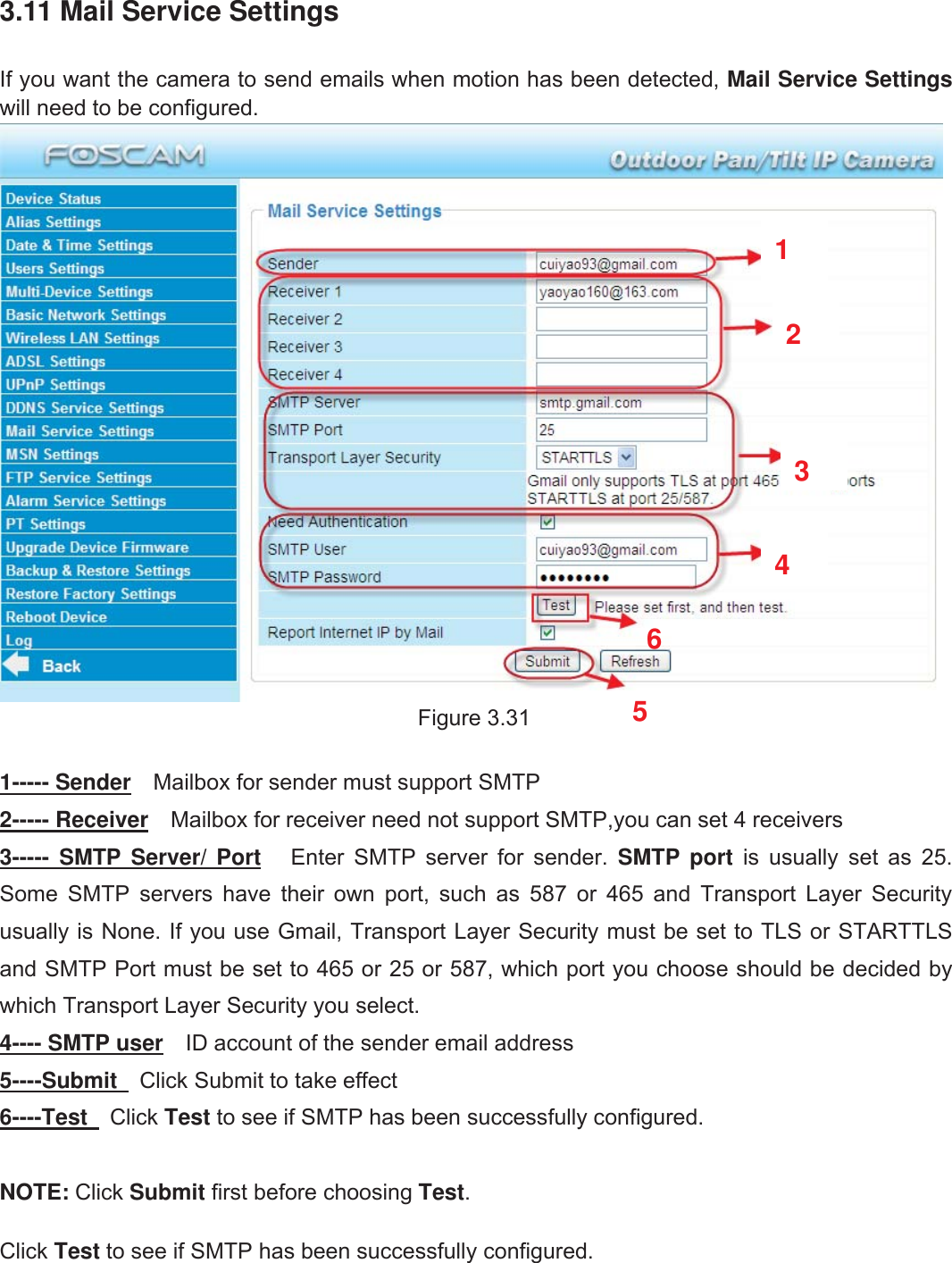
40wwww.foscam.coww.foscam.commShenzhenShenzhen FoscamFoscam IntelligentIntelligent TechnologyTechnology Co.,Co., LimitedLimitedTel:Tel: 8686 755755 26742674 56685668 Fax:Fax: 8686 755755 26742674 51685168 403.11 Mail Service SettingsIf you want the camera to send emails when motion has been detected, Mail Service Settingswill need to be configured.Figure 3.311----- Sender Mailbox for sender must support SMTP2----- Receiver Mailbox for receiver need not support SMTP,you can set 4 receivers3----- SMTP Server/ Port Enter SMTP server for sender. SMTP port is usually set as 25.Some SMTP servers have their own port, such as 587 or 465 and Transport Layer Securityusually is None. If you use Gmail, Transport Layer Security must be set to TLS or STARTTLSand SMTP Port must be set to 465 or 25 or 587, which port you choose should be decided bywhich Transport Layer Security you select.4---- SMTP user ID account of the sender email address5----Submit Click Submit to take effect6----Test Click Test to see if SMTP has been successfully configured.NOTE: Click Submit first before choosing Test.Click Test to see if SMTP has been successfully configured.152346
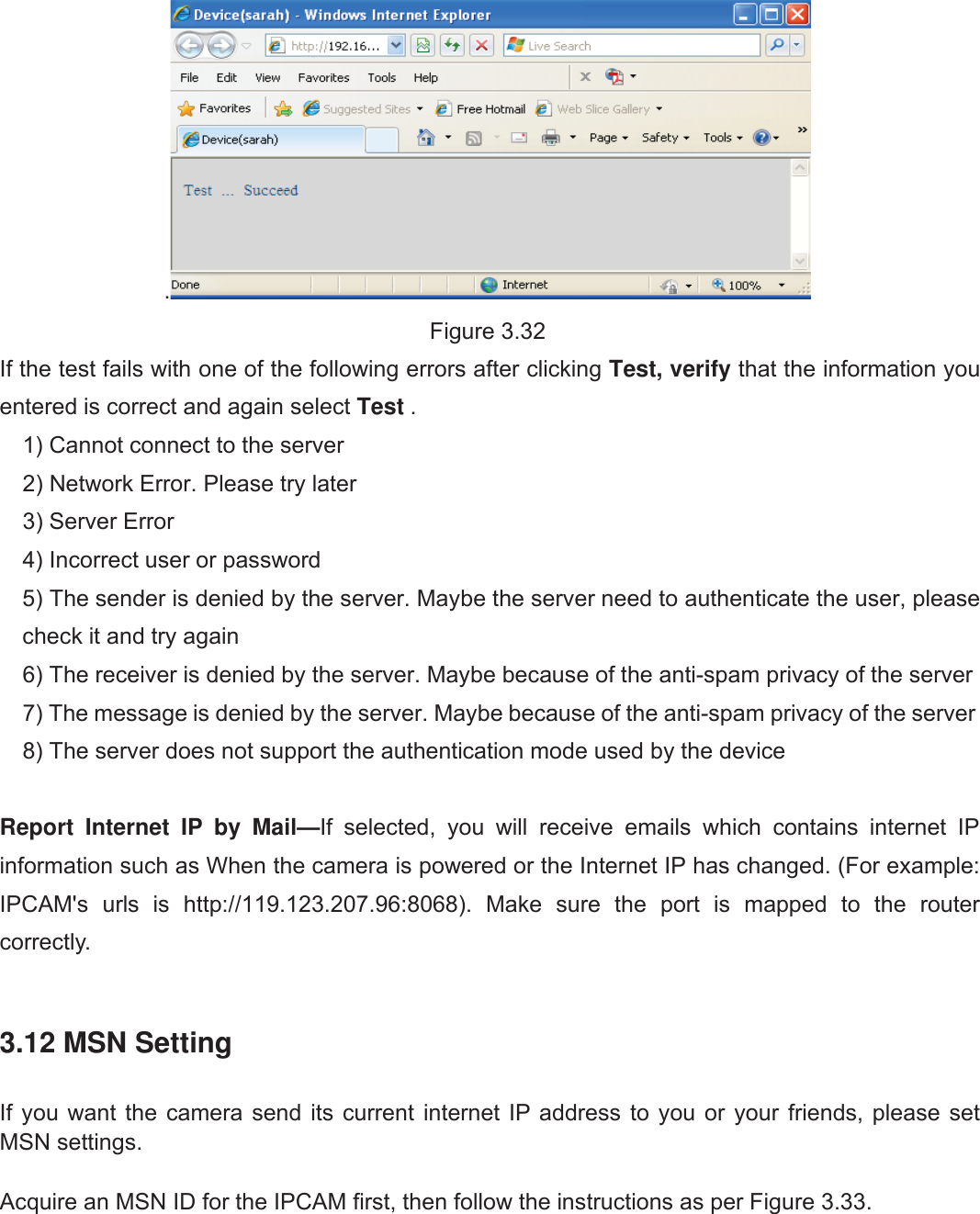
41wwww.foscam.coww.foscam.commShenzhenShenzhen FoscamFoscam IntelligentIntelligent TechnologyTechnology Co.,Co., LimitedLimitedTel:Tel: 8686 755755 26742674 56685668 Fax:Fax: 8686 755755 26742674 51685168 41.Figure 3.32If the test fails with one of the following errors after clicking Test, verify that the information youentered is correct and again select Test .1) Cannot connect to the server2) Network Error. Please try later3) Server Error4) Incorrect user or password5) The sender is denied by the server. Maybe the server need to authenticate the user, pleasecheck it and try again6) The receiver is denied by the server. Maybe because of the anti-spam privacy of the server7) The message is denied by the server. Maybe because of the anti-spam privacy of the server8) The server does not support the authentication mode used by the deviceReport Internet IP by Mail—If selected, you will receive emails which contains internet IPinformation such as When the camera is powered or the Internet IP has changed. (For example:IPCAM's urls is http://119.123.207.96:8068). Make sure the port is mapped to the routercorrectly.3.12 MSN SettingIf you want the camera send its current internet IP address to you or your friends, please setMSN settings.Acquire an MSN ID for the IPCAM first, then follow the instructions as per Figure 3.33.
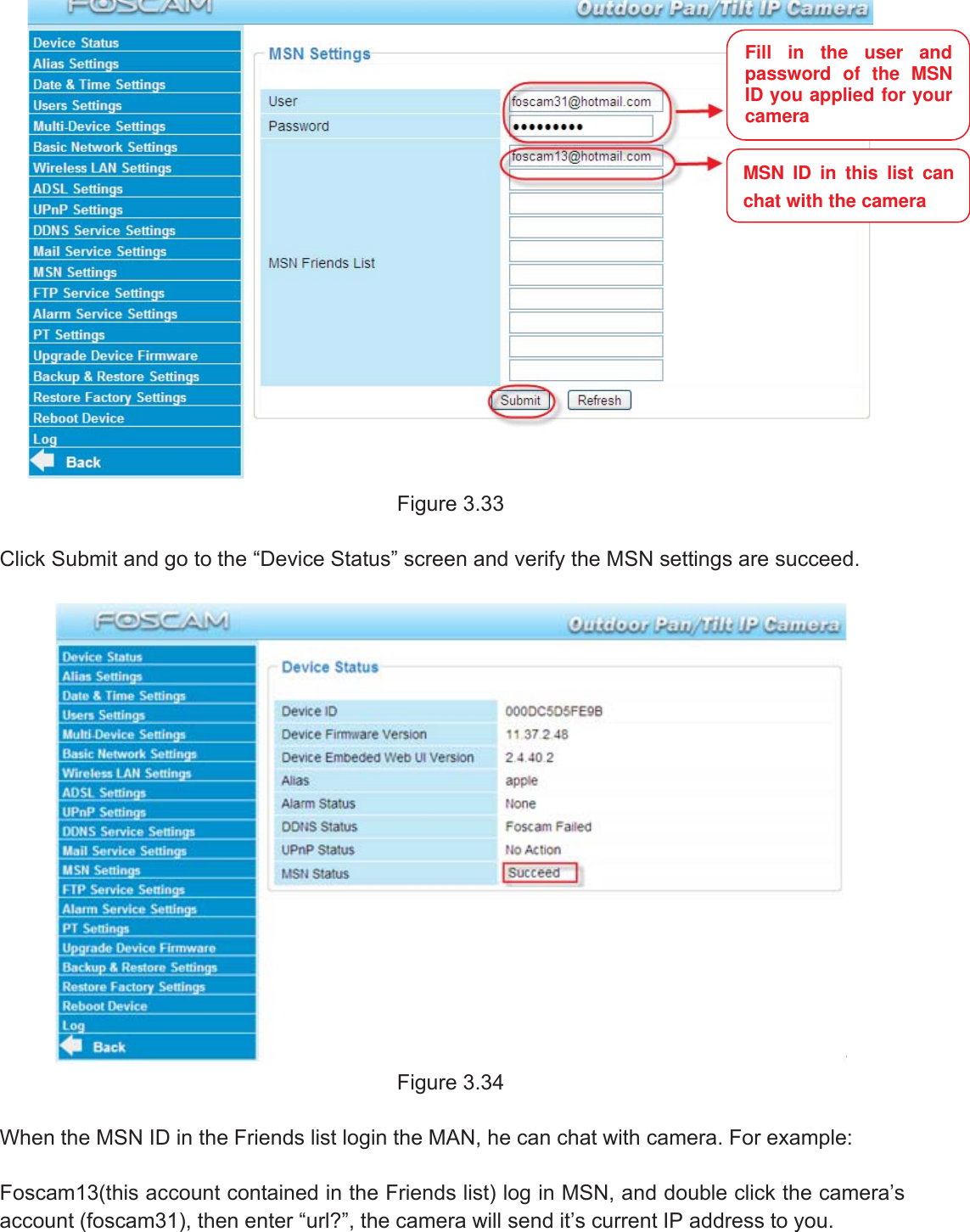
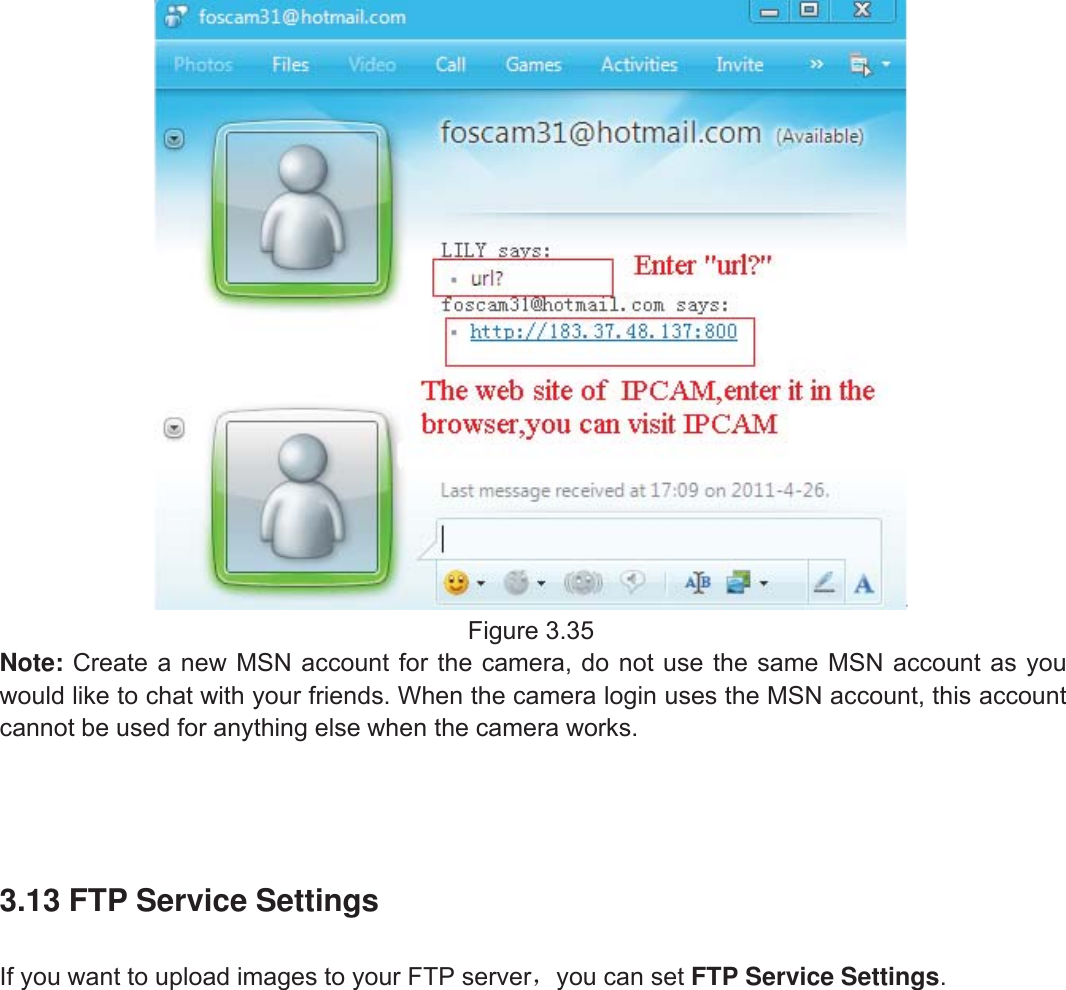
42wwww.foscam.coww.foscam.commShenzhenShenzhen FoscamFoscam IntelligentIntelligent TechnologyTechnology Co.,Co., LimitedLimitedTel:Tel: 8686 755755 26742674 56685668 Fax:Fax: 8686 755755 26742674 51685168 42Figure 3.33Click Submit and go to the “Device Status” screen and verify the MSN settings are succeed.Figure 3.34When the MSN ID in the Friends list login the MAN, he can chat with camera. For example:Foscam13(this account contained in the Friends list) log in MSN, and double click the camera’saccount (foscam31), then enter “url?”, the camera will send it’s current IP address to you.Fill in the user andpassword of the MSNID you applied for yourcameraMSN ID in this list canchat with the camera
43wwww.foscam.coww.foscam.commShenzhenShenzhen FoscamFoscam IntelligentIntelligent TechnologyTechnology Co.,Co., LimitedLimitedTel:Tel: 8686 755755 26742674 56685668 Fax:Fax: 8686 755755 26742674 51685168 43Figure 3.35Note: Create a new MSN account for the camera, do not use the same MSN account as youwould like to chat with your friends. When the camera login uses the MSN account, this accountcannot be used for anything else when the camera works.3.13 FTP Service SettingsIf you want to upload images to your FTP server,you can set FTP Service Settings.
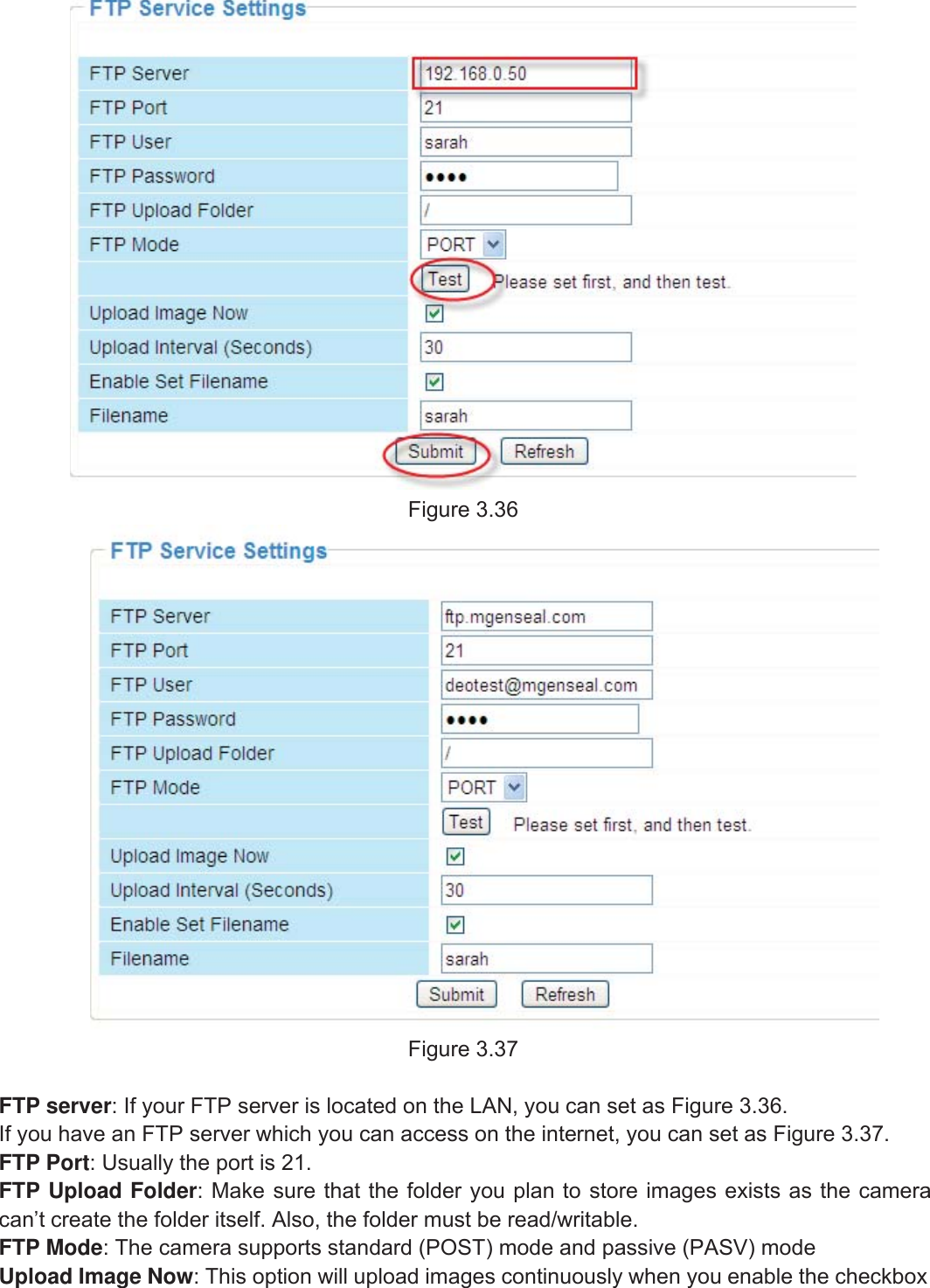
44wwww.foscam.coww.foscam.commShenzhenShenzhen FoscamFoscam IntelligentIntelligent TechnologyTechnology Co.,Co., LimitedLimitedTel:Tel: 8686 755755 26742674 56685668 Fax:Fax: 8686 755755 26742674 51685168 44Figure 3.36Figure 3.37FTP server: If your FTP server is located on the LAN, you can set as Figure 3.36.If you have an FTP server which you can access on the internet, you can set as Figure 3.37.FTP Port: Usually the port is 21.FTP Upload Folder: Make sure that the folder you plan to store images exists as the cameracan’t create the folder itself. Also, the folder must be read/writable.FTP Mode: The camera supports standard (POST) mode and passive (PASV) modeUpload Image Now: This option will upload images continuously when you enable the checkbox
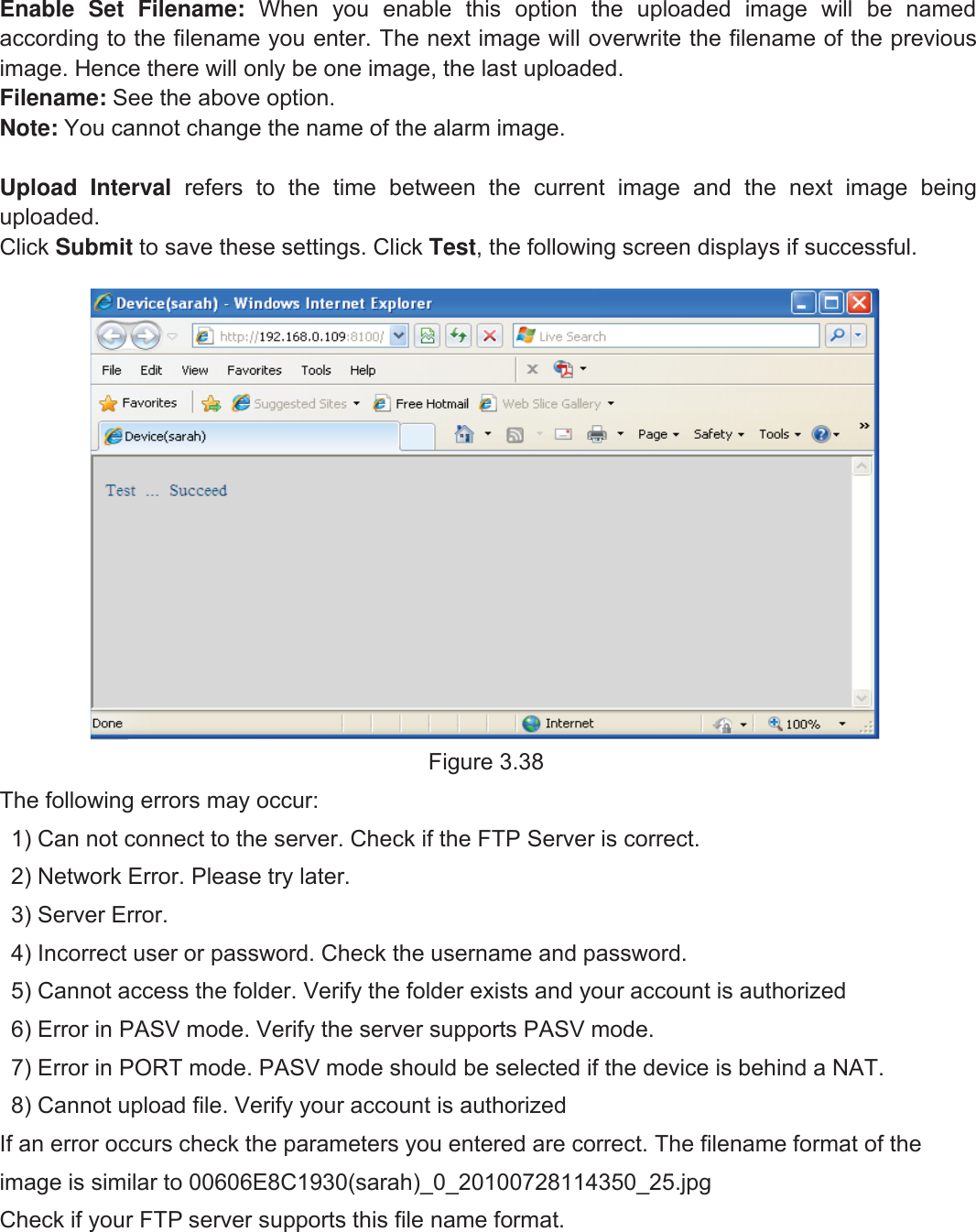
45wwww.foscam.coww.foscam.commShenzhenShenzhen FoscamFoscam IntelligentIntelligent TechnologyTechnology Co.,Co., LimitedLimitedTel:Tel: 8686 755755 26742674 56685668 Fax:Fax: 8686 755755 26742674 51685168 45Enable Set Filename: When you enable this option the uploaded image will be namedaccording to the filename you enter. The next image will overwrite the filename of the previousimage. Hence there will only be one image, the last uploaded.Filename: See the above option.Note: You cannot change the name of the alarm image.Upload Interval refers to the time between the current image and the next image beinguploaded.Click Submit to save these settings. Click Test, the following screen displays if successful.Figure 3.38The following errors may occur:1) Can not connect to the server. Check if the FTP Server is correct.2) Network Error. Please try later.3) Server Error.4) Incorrect user or password. Check the username and password.5) Cannot access the folder. Verify the folder exists and your account is authorized6) Error in PASV mode. Verify the server supports PASV mode.7) Error in PORT mode. PASV mode should be selected if the device is behind a NAT.8) Cannot upload file. Verify your account is authorizedIf an error occurs check the parameters you entered are correct. The filename format of theimage is similar to 00606E8C1930(sarah)_0_20100728114350_25.jpgCheck if your FTP server supports this file name format.
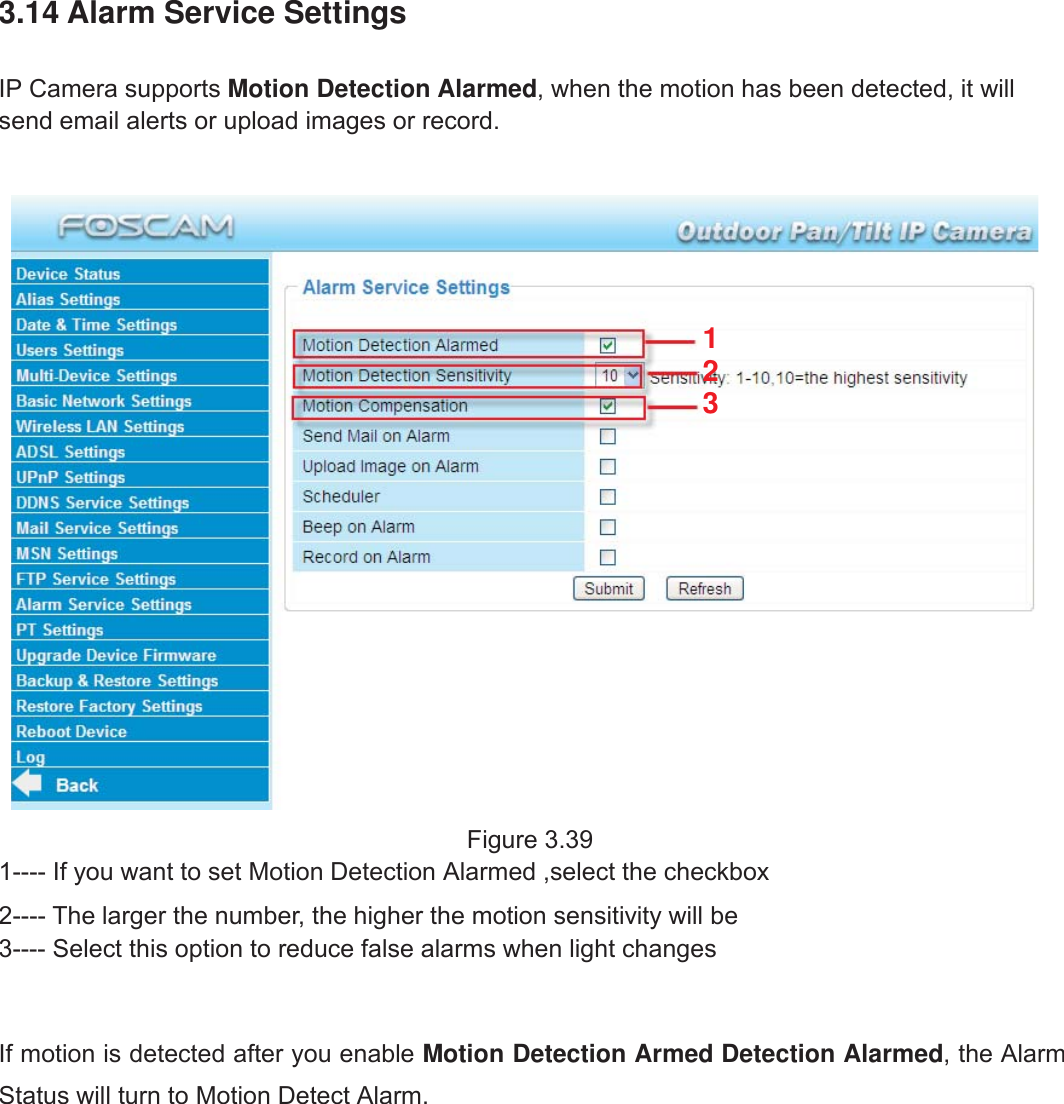
46wwww.foscam.coww.foscam.commShenzhenShenzhen FoscamFoscam IntelligentIntelligent TechnologyTechnology Co.,Co., LimitedLimitedTel:Tel: 8686 755755 26742674 56685668 Fax:Fax: 8686 755755 26742674 51685168 463.14 Alarm Service SettingsIP Camera supports Motion Detection Alarmed, when the motion has been detected, it willsend email alerts or upload images or record.Figure 3.391---- If you want to set Motion Detection Alarmed ,select the checkbox2---- The larger the number, the higher the motion sensitivity will be3---- Select this option to reduce false alarms when light changesIf motion is detected after you enable Motion Detection Armed Detection Alarmed, the AlarmStatus will turn to Motion Detect Alarm.123
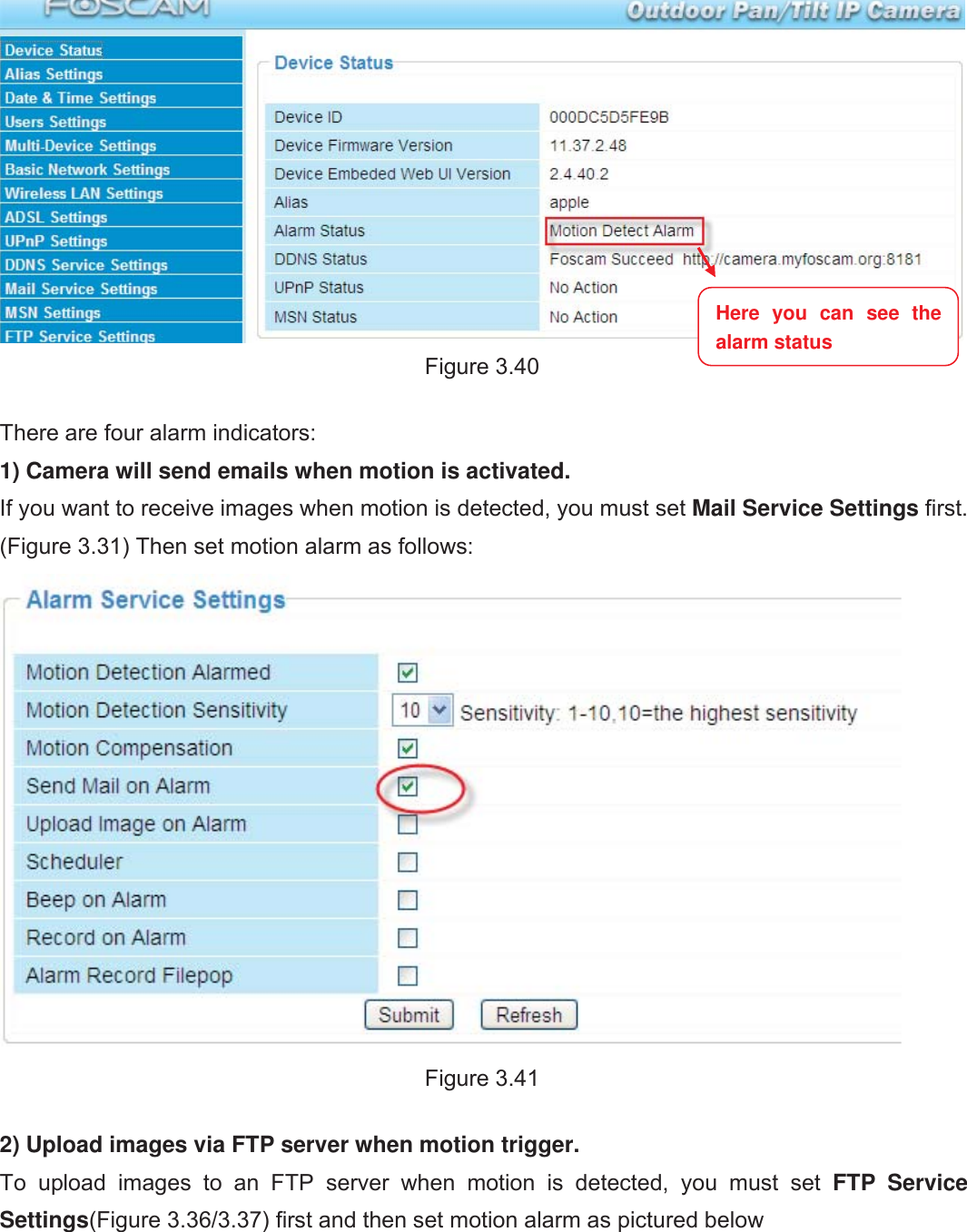
47wwww.foscam.coww.foscam.commShenzhenShenzhen FoscamFoscam IntelligentIntelligent TechnologyTechnology Co.,Co., LimitedLimitedTel:Tel: 8686 755755 26742674 56685668 Fax:Fax: 8686 755755 26742674 51685168 47Figure 3.40There are four alarm indicators:1) Camera will send emails when motion is activated.If you want to receive images when motion is detected, you must set Mail Service Settings first.(Figure 3.31) Then set motion alarm as follows:Figure 3.412) Upload images via FTP server when motion trigger.To upload images to an FTP server when motion is detected, you must set FTP ServiceSettings(Figure 3.36/3.37) first and then set motion alarm as pictured belowHere you can see thealarm status
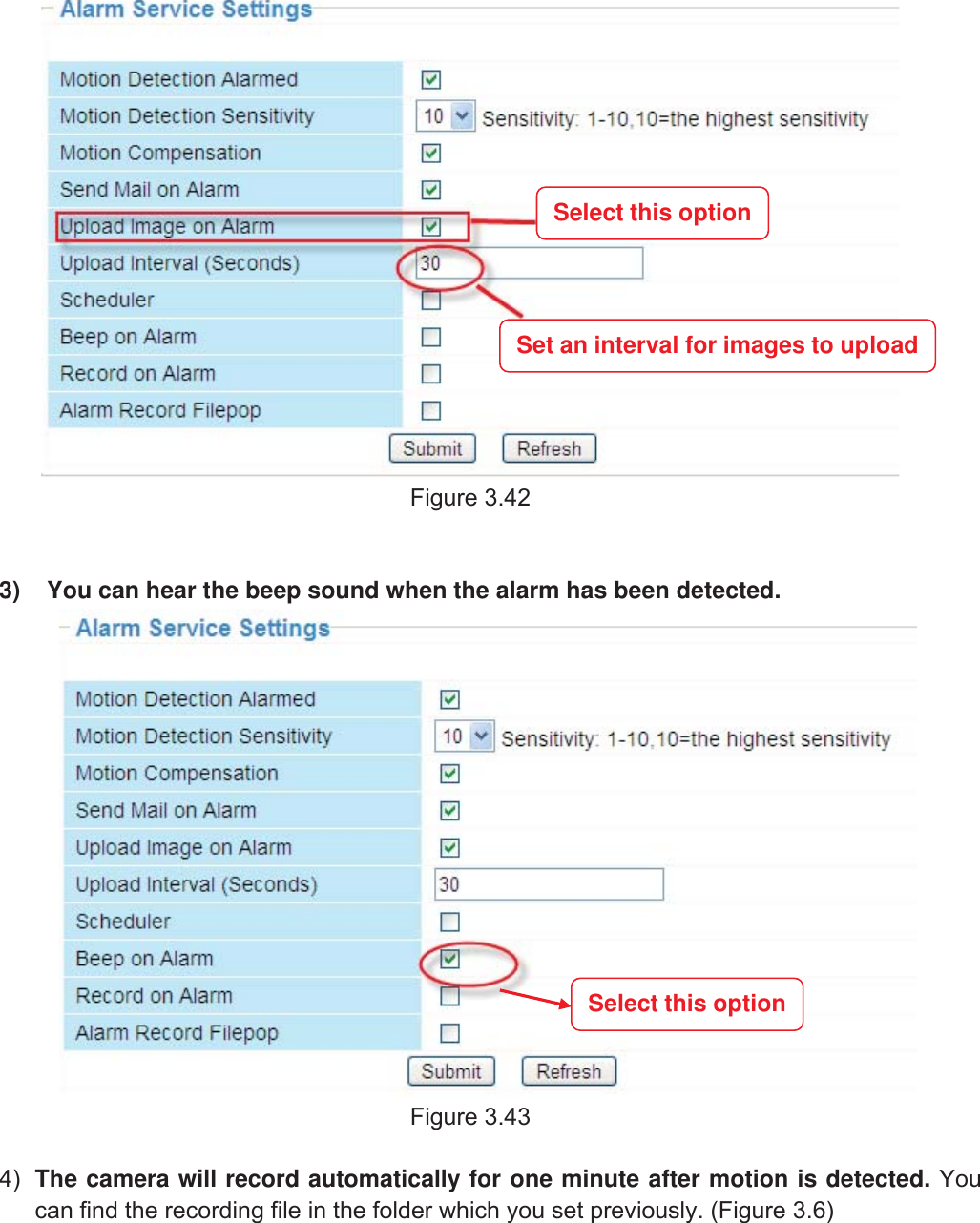
48wwww.foscam.coww.foscam.commShenzhenShenzhen FoscamFoscam IntelligentIntelligent TechnologyTechnology Co.,Co., LimitedLimitedTel:Tel: 8686 755755 26742674 56685668 Fax:Fax: 8686 755755 26742674 51685168 48Figure 3.423) You can hear the beep sound when the alarm has been detected.Figure 3.434) The camera will record automatically for one minute after motion is detected. Youcan find the recording file in the folder which you set previously. (Figure 3.6)Select this optionSet an interval for images to uploadSelect this option
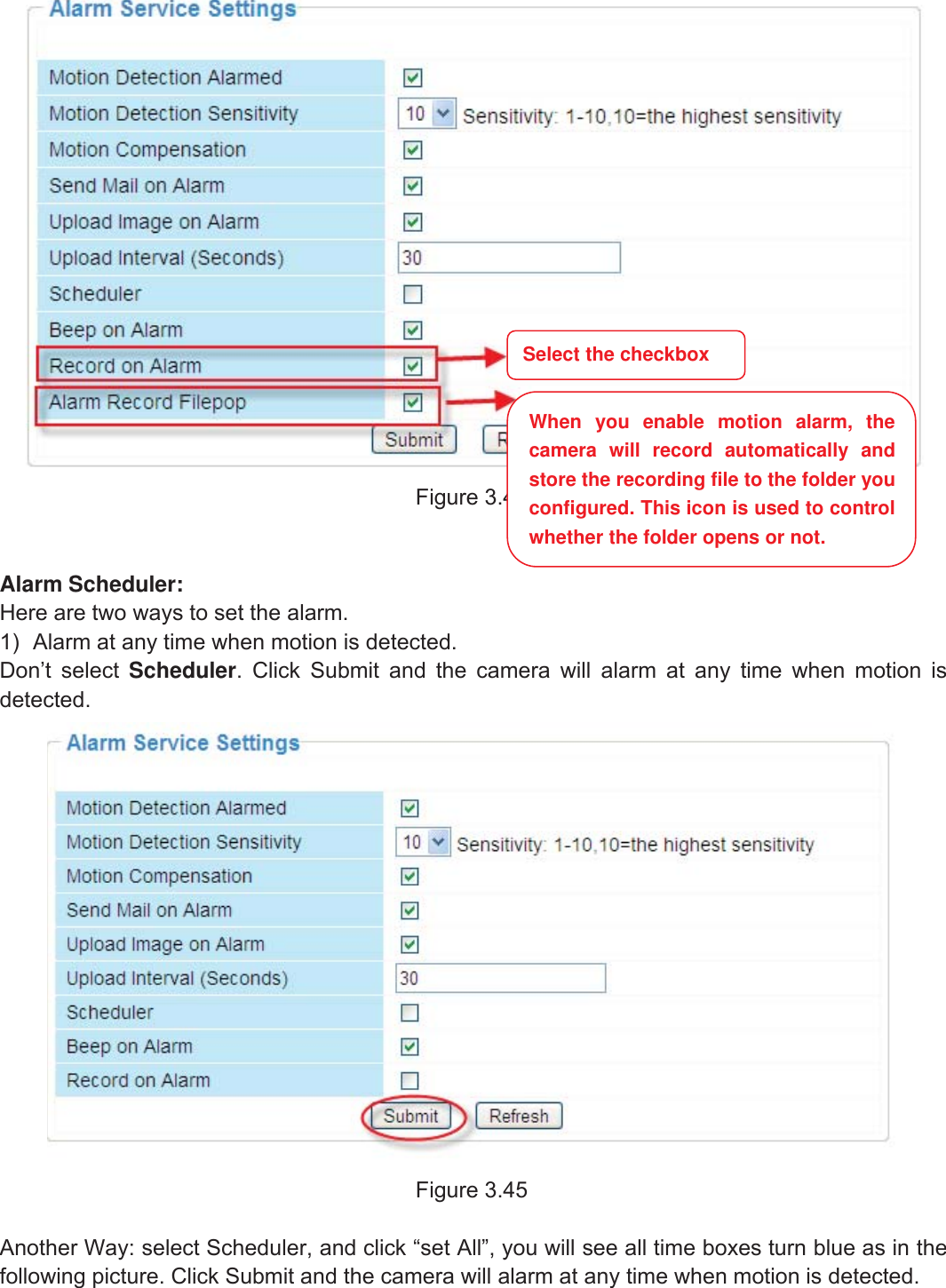
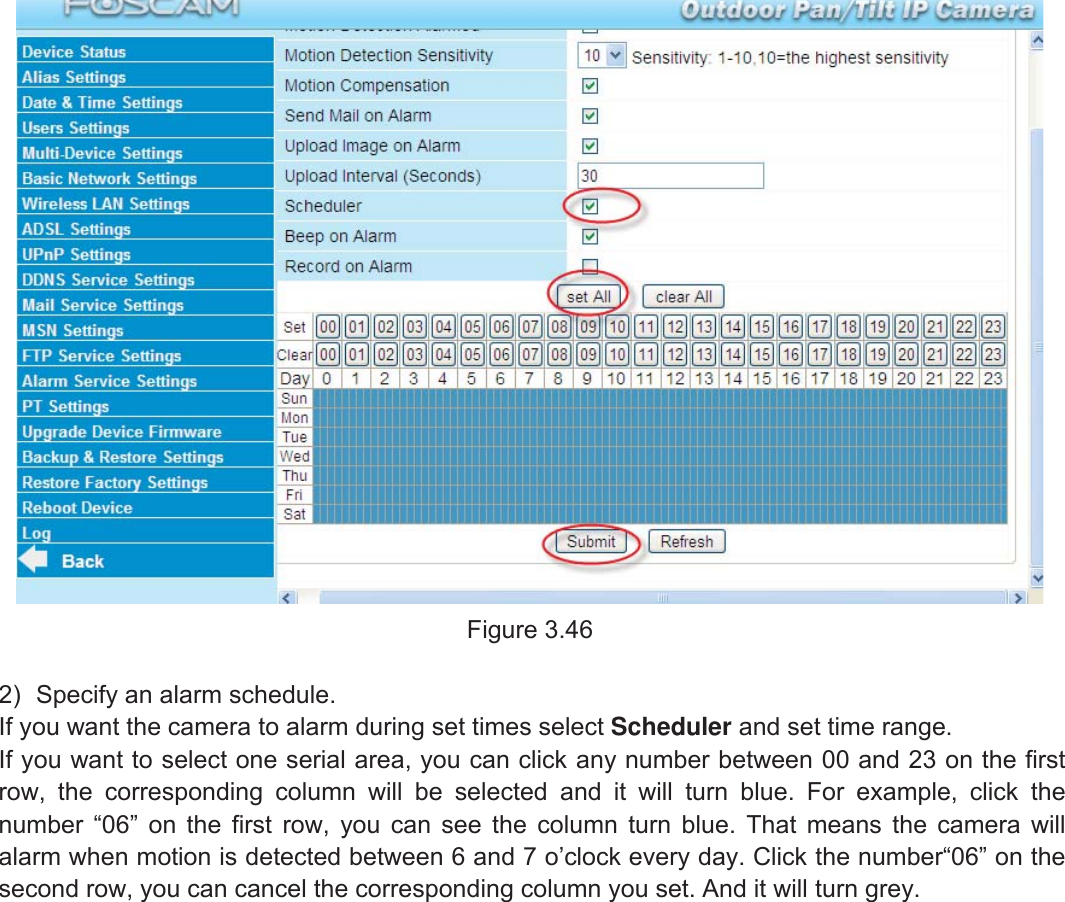
49wwww.foscam.coww.foscam.commShenzhenShenzhen FoscamFoscam IntelligentIntelligent TechnologyTechnology Co.,Co., LimitedLimitedTel:Tel: 8686 755755 26742674 56685668 Fax:Fax: 8686 755755 26742674 51685168 49Figure 3.44Alarm Scheduler:Here are two ways to set the alarm.1) Alarm at any time when motion is detected.Don’t select Scheduler. Click Submit and the camera will alarm at any time when motion isdetected.Figure 3.45Another Way: select Scheduler, and click “set All”, you will see all time boxes turn blue as in thefollowing picture. Click Submit and the camera will alarm at any time when motion is detected.Select the checkboxWhen you enable motion alarm, thecamera will record automatically andstore the recording file to the folder youconfigured. This icon is used to controlwhether the folder opens or not.
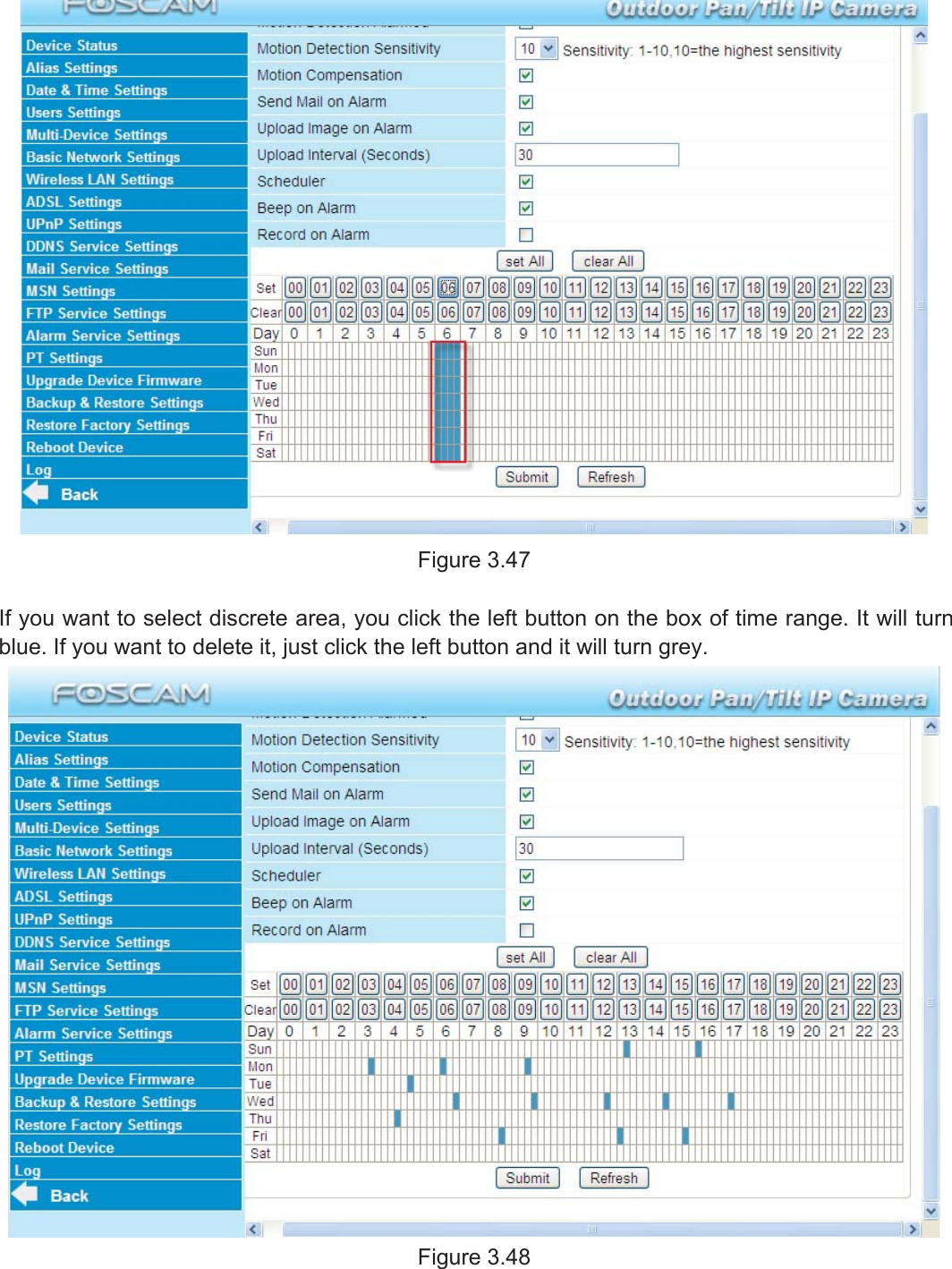
50wwww.foscam.coww.foscam.commShenzhenShenzhen FoscamFoscam IntelligentIntelligent TechnologyTechnology Co.,Co., LimitedLimitedTel:Tel: 8686 755755 26742674 56685668 Fax:Fax: 8686 755755 26742674 51685168 50Figure 3.462) Specify an alarm schedule.If you want the camera to alarm during set times select Scheduler and set time range.If you want to select one serial area, you can click any number between 00 and 23 on the firstrow, the corresponding column will be selected and it will turn blue. For example, click thenumber “06” on the first row, you can see the column turn blue. That means the camera willalarm when motion is detected between 6 and 7 o’clock every day. Click the number“06” on thesecond row, you can cancel the corresponding column you set. And it will turn grey.
51wwww.foscam.coww.foscam.commShenzhenShenzhen FoscamFoscam IntelligentIntelligent TechnologyTechnology Co.,Co., LimitedLimitedTel:Tel: 8686 755755 26742674 56685668 Fax:Fax: 8686 755755 26742674 51685168 51Figure 3.47If you want to select discrete area, you click the left button on the box of time range. It will turnblue. If you want to delete it, just click the left button and it will turn grey.Figure 3.48
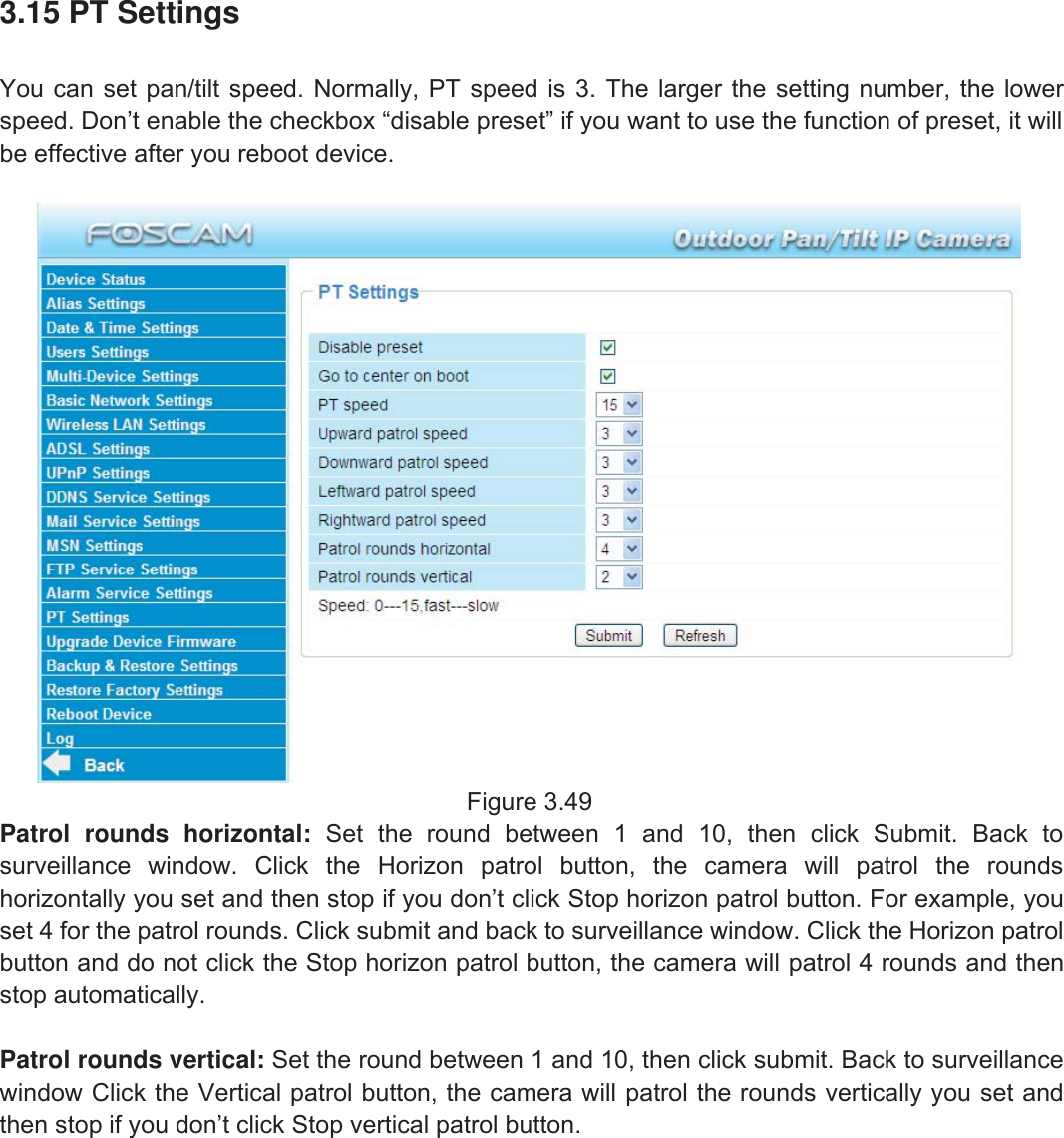
52wwww.foscam.coww.foscam.commShenzhenShenzhen FoscamFoscam IntelligentIntelligent TechnologyTechnology Co.,Co., LimitedLimitedTel:Tel: 8686 755755 26742674 56685668 Fax:Fax: 8686 755755 26742674 51685168 523.15 PT SettingsYou can set pan/tilt speed. Normally, PT speed is 3. The larger the setting number, the lowerspeed. Don’t enable the checkbox “disable preset” if you want to use the function of preset, it willbe effective after you reboot device.Figure 3.49Patrol rounds horizontal: Set the round between 1 and 10, then click Submit. Back tosurveillance window. Click the Horizon patrol button, the camera will patrol the roundshorizontally you set and then stop if you don’t click Stop horizon patrol button. For example, youset 4 for the patrol rounds. Click submit and back to surveillance window. Click the Horizon patrolbutton and do not click the Stop horizon patrol button, the camera will patrol 4 rounds and thenstop automatically.Patrol rounds vertical: Set the round between 1 and 10, then click submit. Back to surveillancewindow Click the Vertical patrol button, the camera will patrol the rounds vertically you set andthen stop if you don’t click Stop vertical patrol button.
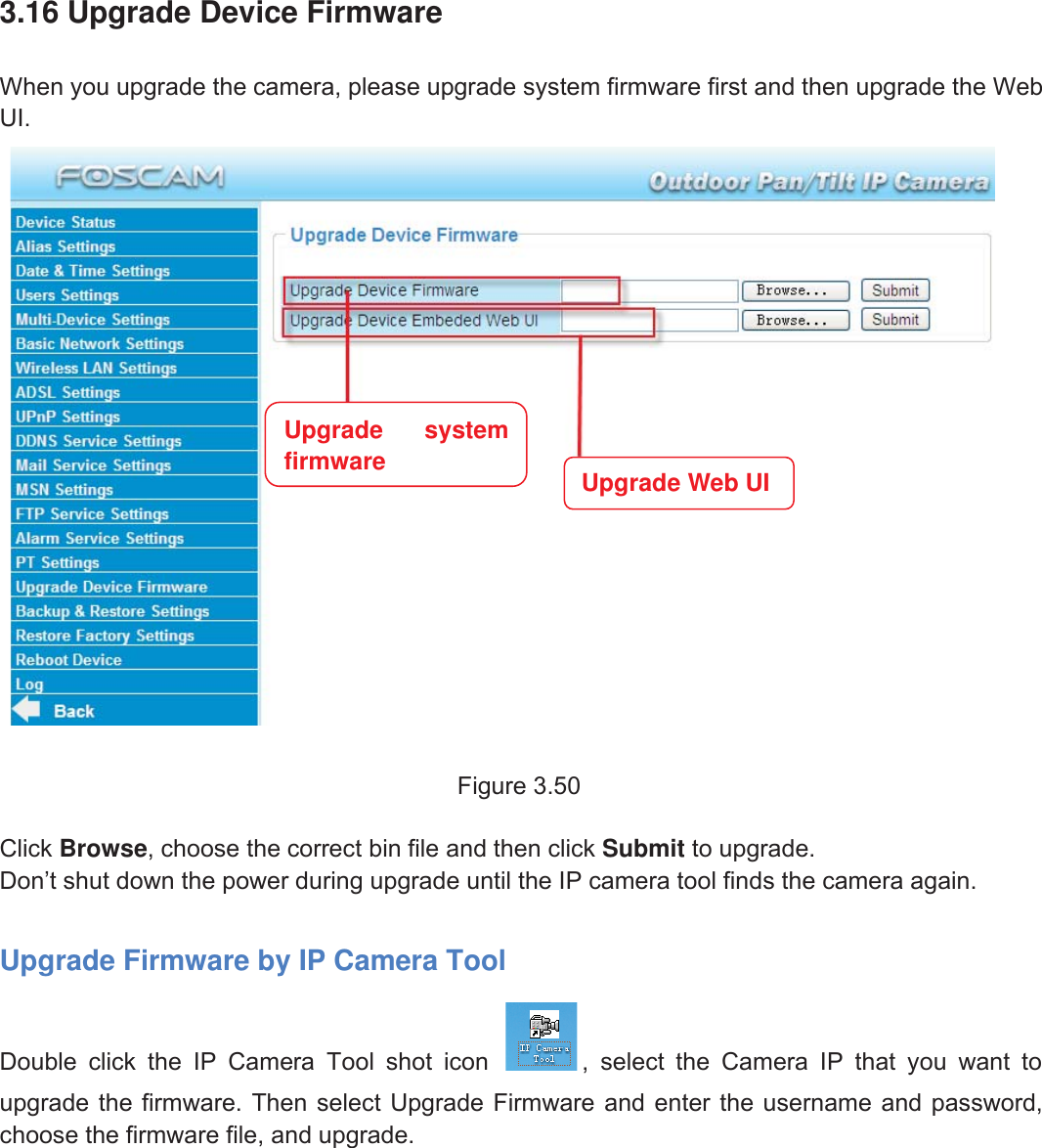
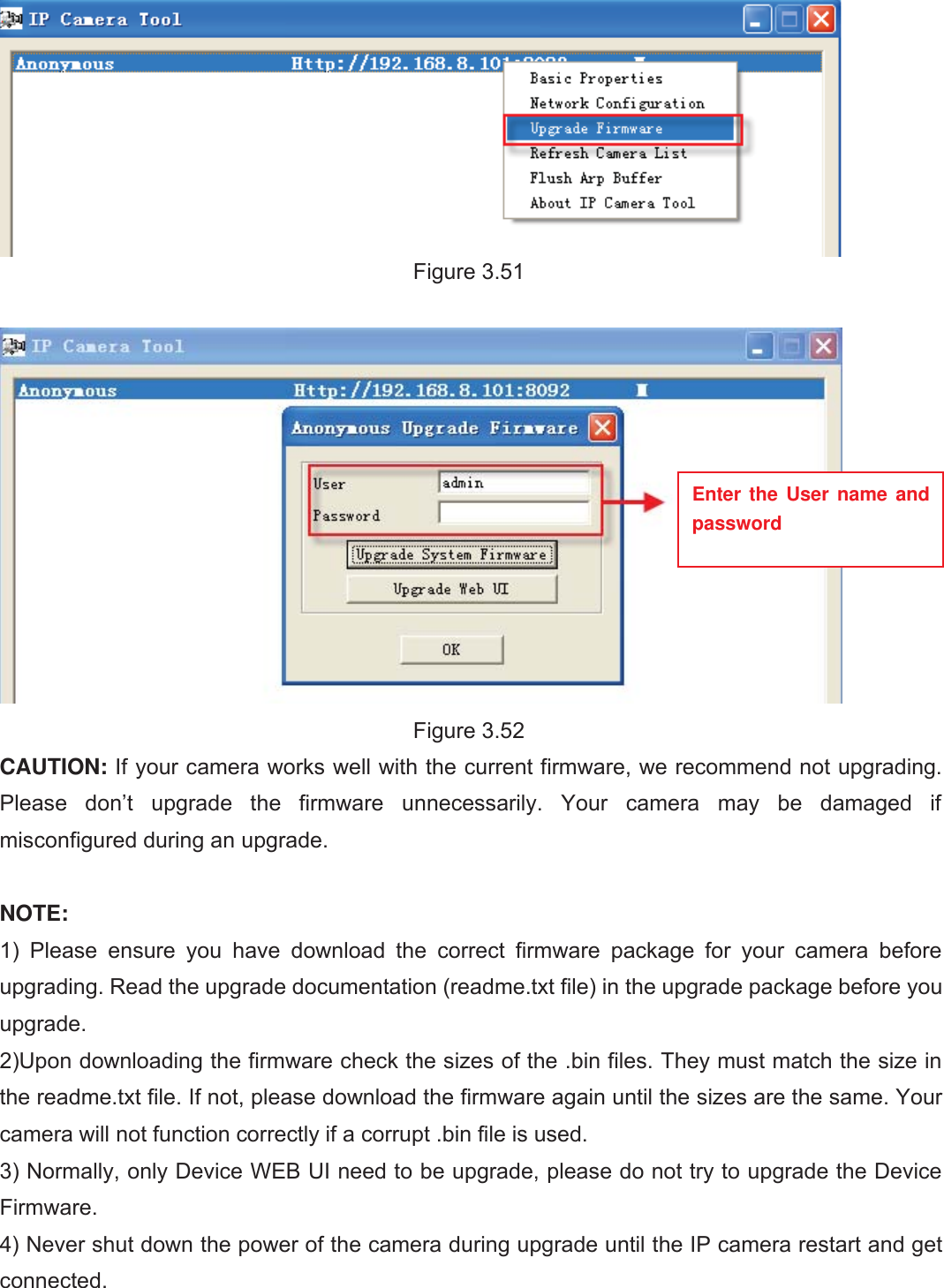
53wwww.foscam.coww.foscam.commShenzhenShenzhen FoscamFoscam IntelligentIntelligent TechnologyTechnology Co.,Co., LimitedLimitedTel:Tel: 8686 755755 26742674 56685668 Fax:Fax: 8686 755755 26742674 51685168 533.16 Upgrade Device FirmwareWhen you upgrade the camera, please upgrade system firmware first and then upgrade the WebUI.Figure 3.50Click Browse, choose the correct bin file and then click Submit to upgrade.Don’t shut down the power during upgrade until the IP camera tool finds the camera again.Upgrade Firmware by IP Camera ToolDouble click the IP Camera Tool shot icon , select the Camera IP that you want toupgrade the firmware. Then select Upgrade Firmware and enter the username and password,choose the firmware file, and upgrade.Upgrade systemfirmware Upgrade Web UI
54wwww.foscam.coww.foscam.commShenzhenShenzhen FoscamFoscam IntelligentIntelligent TechnologyTechnology Co.,Co., LimitedLimitedTel:Tel: 8686 755755 26742674 56685668 Fax:Fax: 8686 755755 26742674 51685168 54Figure 3.51Figure 3.52CAUTION: If your camera works well with the current firmware, we recommend not upgrading.Please don’t upgrade the firmware unnecessarily. Your camera may be damaged ifmisconfigured during an upgrade.NOTE:1) Please ensure you have download the correct firmware package for your camera beforeupgrading. Read the upgrade documentation (readme.txt file) in the upgrade package before youupgrade.2)Upon downloading the firmware check the sizes of the .bin files. They must match the size inthe readme.txt file. If not, please download the firmware again until the sizes are the same. Yourcamera will not function correctly if a corrupt .bin file is used.3) Normally, only Device WEB UI need to be upgrade, please do not try to upgrade the DeviceFirmware.4) Never shut down the power of the camera during upgrade until the IP camera restart and getconnected.Enter the User name andpassword
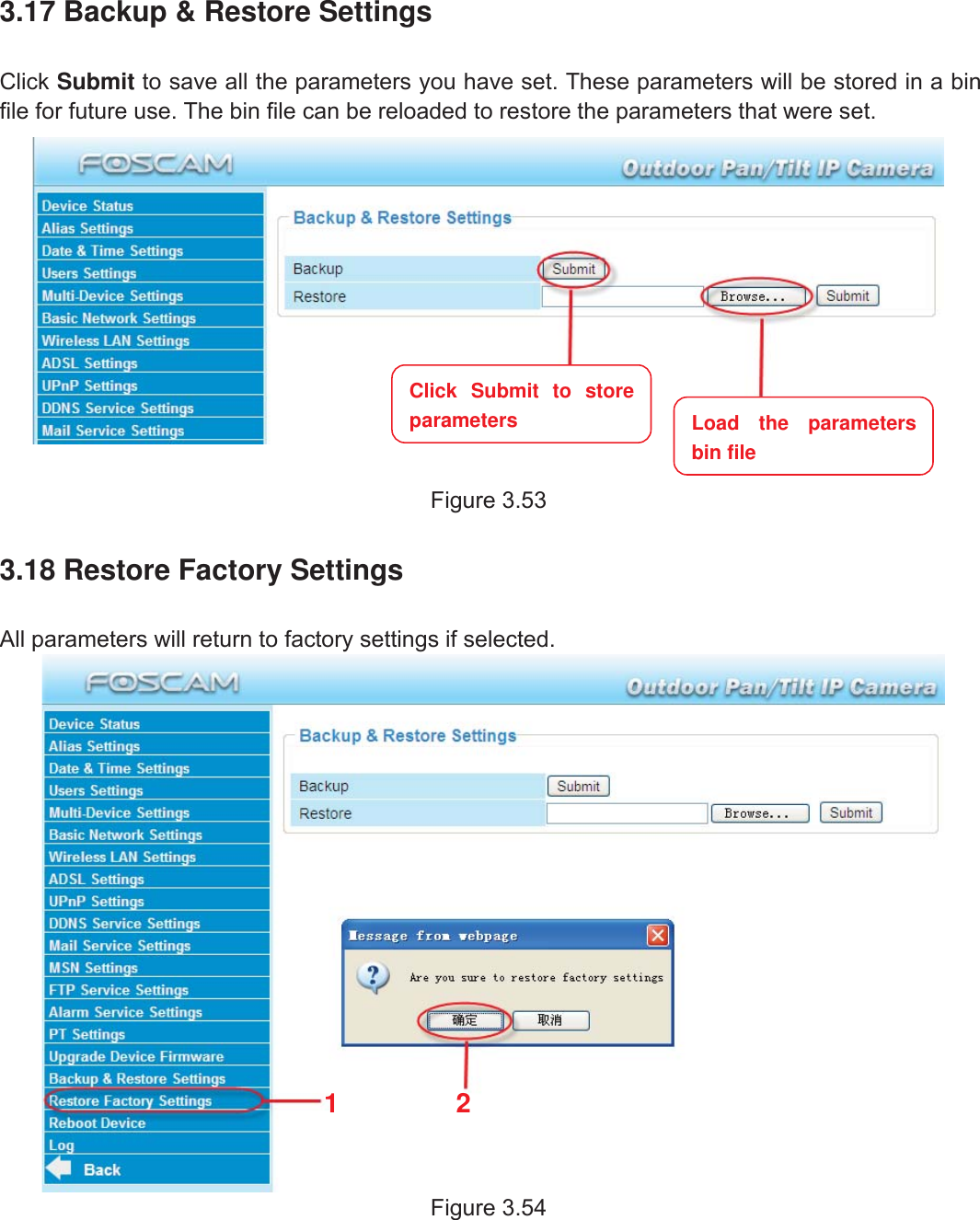
55wwww.foscam.coww.foscam.commShenzhenShenzhen FoscamFoscam IntelligentIntelligent TechnologyTechnology Co.,Co., LimitedLimitedTel:Tel: 8686 755755 26742674 56685668 Fax:Fax: 8686 755755 26742674 51685168 553.17 Backup & Restore SettingsClick Submit to save all the parameters you have set. These parameters will be stored in a binfile for future use. The bin file can be reloaded to restore the parameters that were set.Figure 3.533.18 Restore Factory SettingsAll parameters will return to factory settings if selected.Figure 3.5412Click Submit to storeparameters Load the parametersbin file
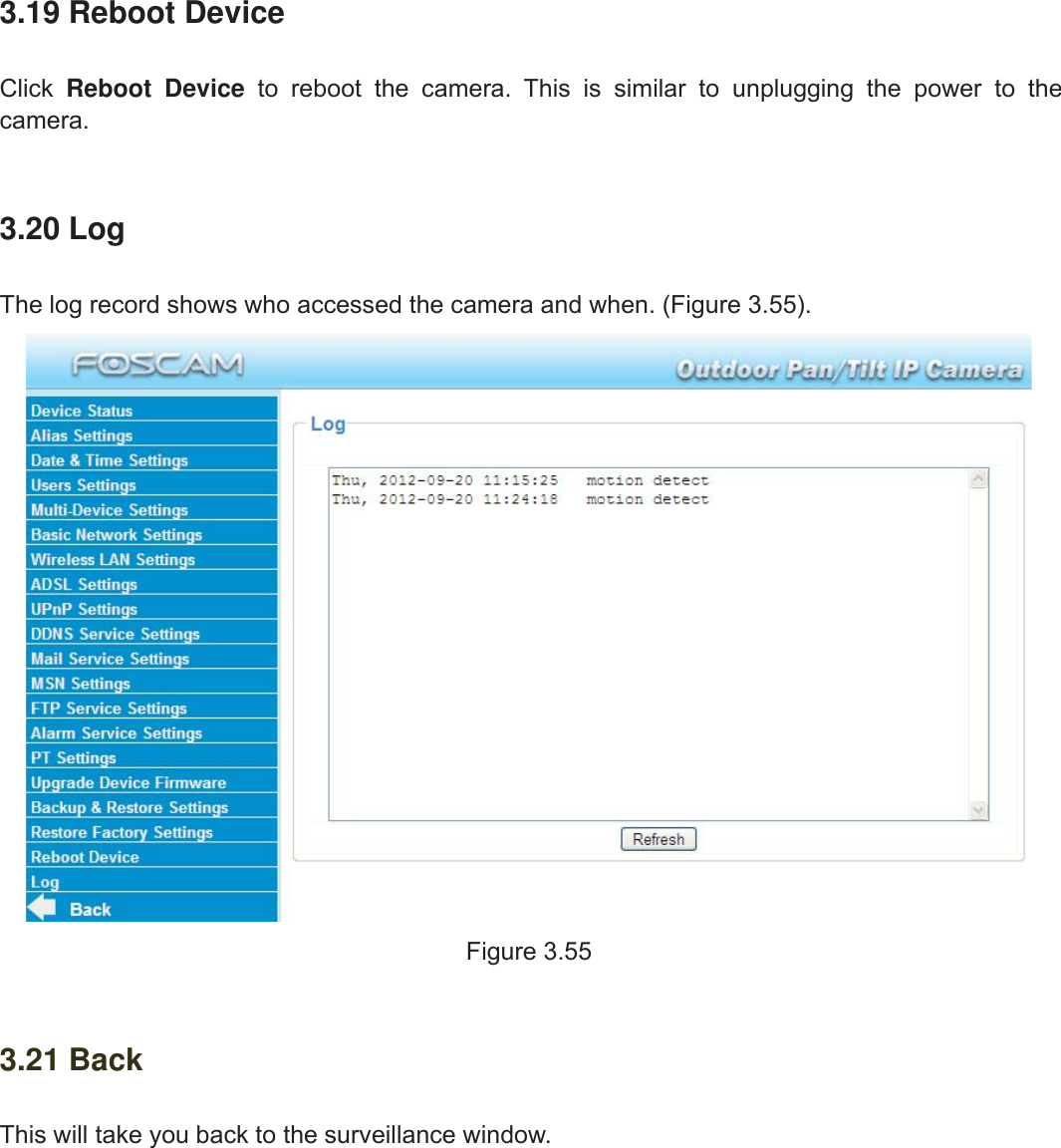
56wwww.foscam.coww.foscam.commShenzhenShenzhen FoscamFoscam IntelligentIntelligent TechnologyTechnology Co.,Co., LimitedLimitedTel:Tel: 8686 755755 26742674 56685668 Fax:Fax: 8686 755755 26742674 51685168 563.19 Reboot DeviceClick Reboot Device to reboot the camera. This is similar to unplugging the power to thecamera.3.20 LogThe log record shows who accessed the camera and when. (Figure 3.55).Figure 3.553.21 BackThis will take you back to the surveillance window.
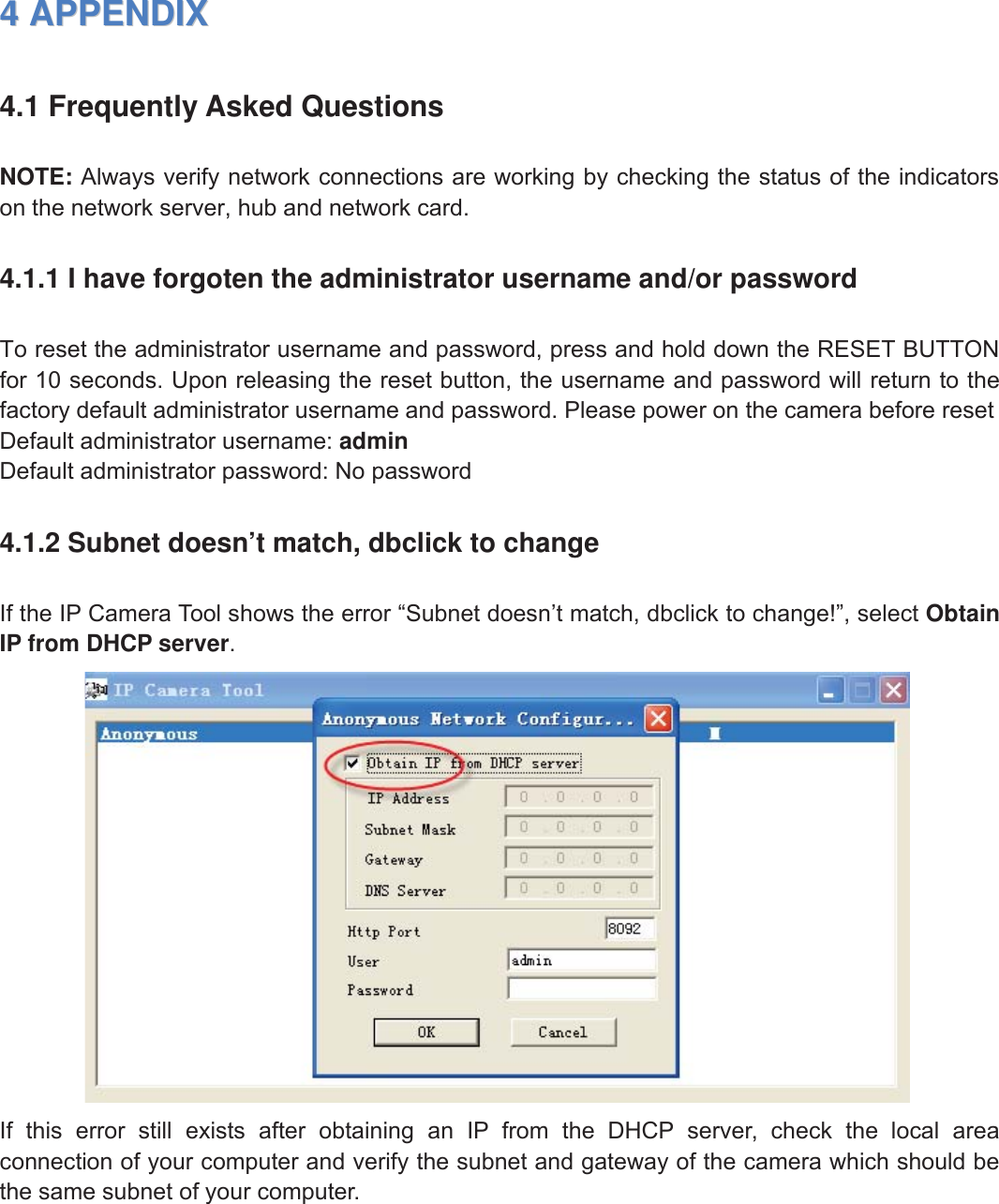
57wwww.foscam.coww.foscam.commShenzhenShenzhen FoscamFoscam IntelligentIntelligent TechnologyTechnology Co.,Co., LimitedLimitedTel:Tel: 8686 755755 26742674 56685668 Fax:Fax: 8686 755755 26742674 51685168 5744APPENDIXAPPENDIX4.1 Frequently Asked QuestionsNOTE: Always verify network connections are working by checking the status of the indicatorson the network server, hub and network card.4.1.1 I have forgoten the administrator username and/or passwordTo reset the administrator username and password, press and hold down the RESET BUTTONfor 10 seconds. Upon releasing the reset button, the username and password will return to thefactory default administrator username and password. Please power on the camera before resetDefault administrator username: adminDefault administrator password: No password4.1.2 Subnet doesn’t match, dbclick to changeIf the IP Camera Tool shows the error “Subnet doesn’t match, dbclick to change!”, select ObtainIP from DHCP server.If this error still exists after obtaining an IP from the DHCP server, check the local areaconnection of your computer and verify the subnet and gateway of the camera which should bethe same subnet of your computer.
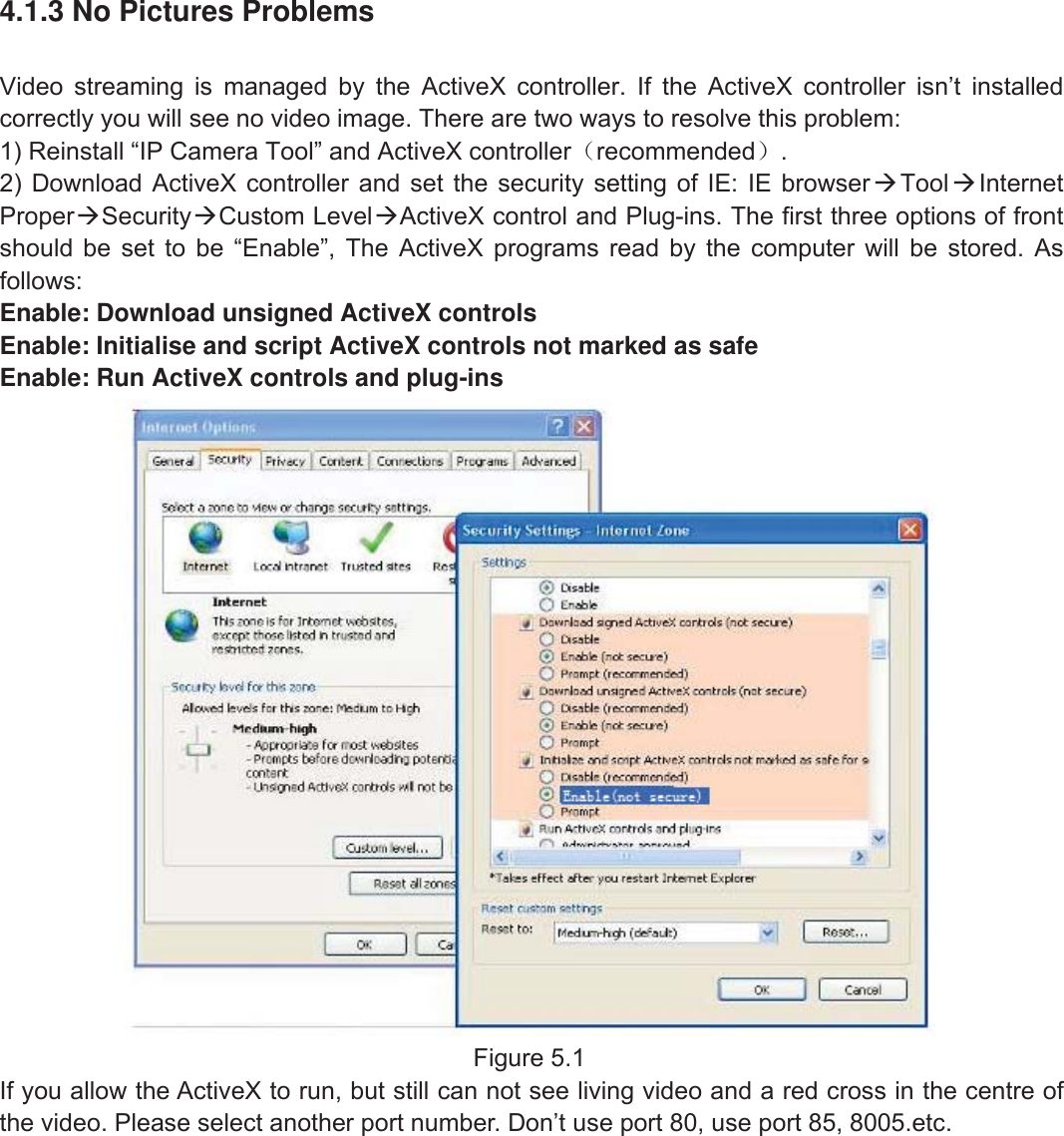
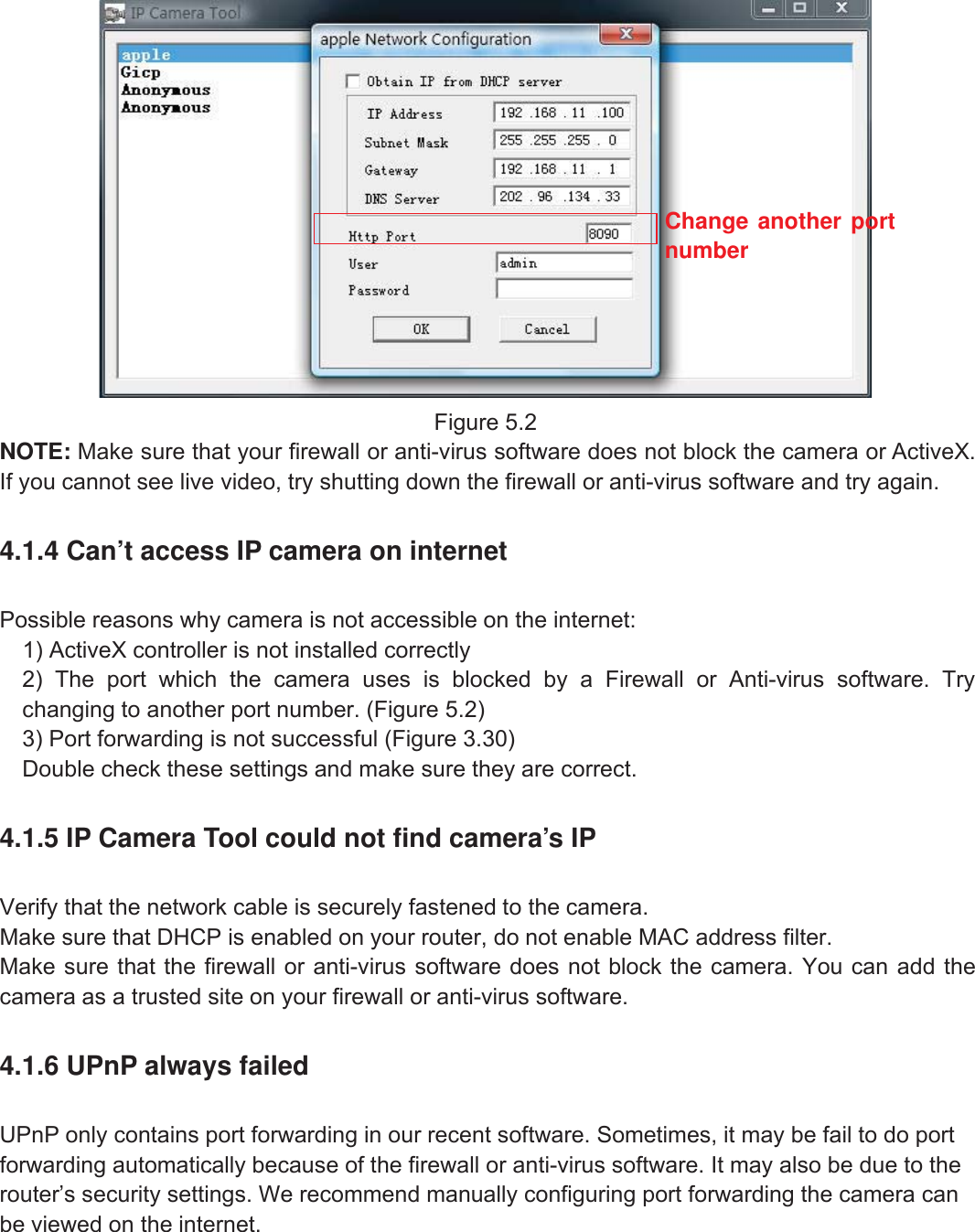
58wwww.foscam.coww.foscam.commShenzhenShenzhen FoscamFoscam IntelligentIntelligent TechnologyTechnology Co.,Co., LimitedLimitedTel:Tel: 8686 755755 26742674 56685668 Fax:Fax: 8686 755755 26742674 51685168 584.1.3NoPicturesProblemsVideo streaming is managed by the ActiveX controller. If the ActiveX controller isn’t installedcorrectly you will see no video image. There are two ways to resolve this problem:1) Reinstall “IP Camera Tool” and ActiveX controller(recommended).2) Download ActiveX controller and set the security setting of IE: IE browserTool InternetProperSecurityCustom LevelActiveX control and Plug-ins. The first three options of frontshould be set to be “Enable”, The ActiveX programs read by the computer will be stored. Asfollows:Enable: Download unsigned ActiveX controlsEnable: Initialise and script ActiveX controls not marked as safeEnable: Run ActiveX controls and plug-insFigure 5.1If you allow the ActiveX to run, but still can not see living video and a red cross in the centre ofthe video. Please select another port number. Don’t use port 80, use port 85, 8005.etc.
59wwww.foscam.coww.foscam.commShenzhenShenzhen FoscamFoscam IntelligentIntelligent TechnologyTechnology Co.,Co., LimitedLimitedTel:Tel: 8686 755755 26742674 56685668 Fax:Fax: 8686 755755 26742674 51685168 59Figure 5.2NOTE: Make sure that your firewall or anti-virus software does not block the camera or ActiveX.If you cannot see live video, try shutting down the firewall or anti-virus software and try again.4.1.4 Can’t access IP camera on internetPossible reasons why camera is not accessible on the internet:1) ActiveX controller is not installed correctly2) The port which the camera uses is blocked by a Firewall or Anti-virus software. Trychanging to another port number. (Figure 5.2)3) Port forwarding is not successful (Figure 3.30)Double check these settings and make sure they are correct.4.1.5 IP Camera Tool could not find camera’s IPVerify that the network cable is securely fastened to the camera.Make sure that DHCP is enabled on your router, do not enable MAC address filter.Make sure that the firewall or anti-virus software does not block the camera. You can add thecamera as a trusted site on your firewall or anti-virus software.4.1.6 UPnP always failedUPnP only contains port forwarding in our recent software. Sometimes, it may be fail to do portforwarding automatically because of the firewall or anti-virus software. It may also be due to therouter’s security settings. We recommend manually configuring port forwarding the camera canbe viewed on the internet.Change another portnumber
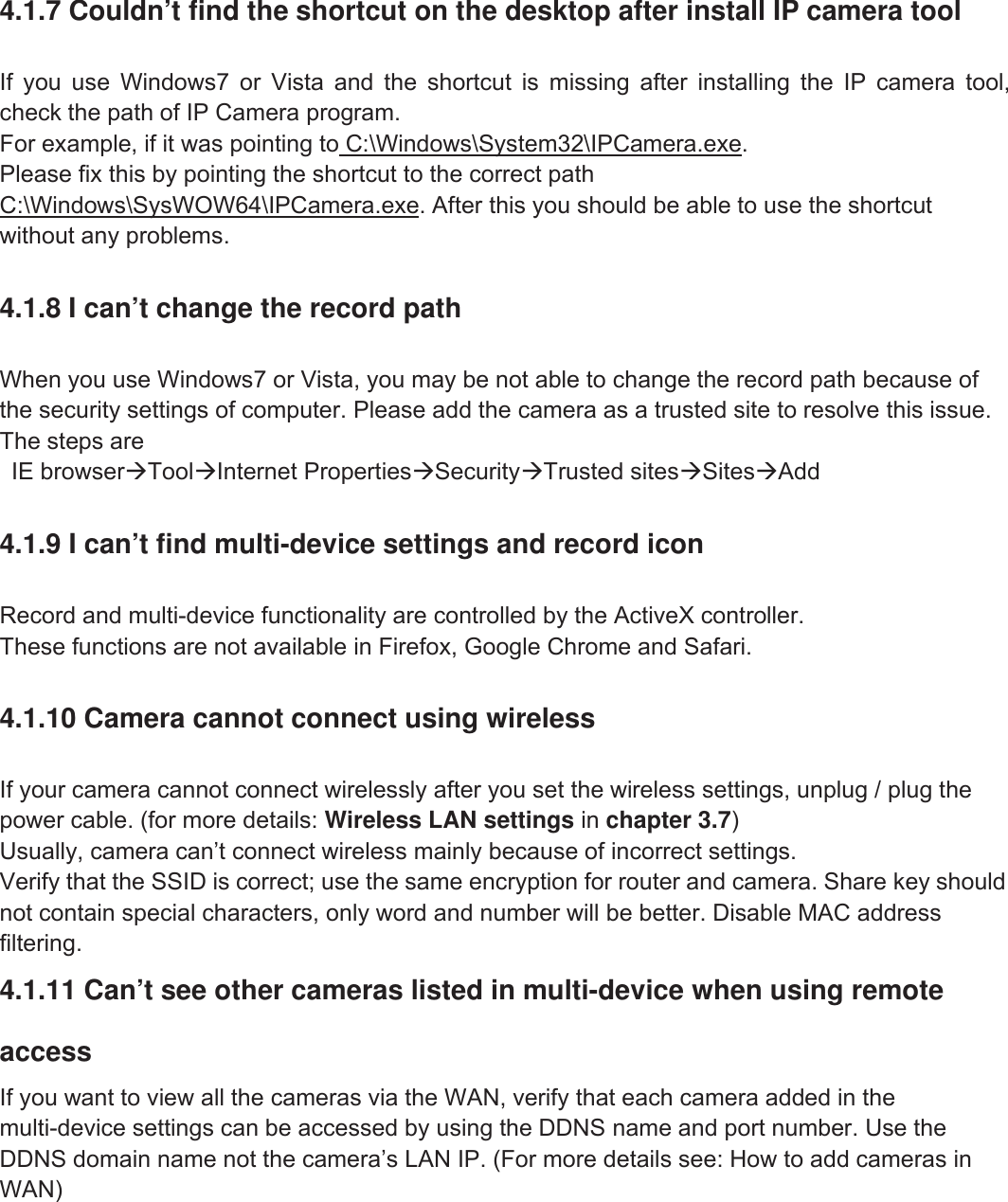
60wwww.foscam.coww.foscam.commShenzhenShenzhen FoscamFoscam IntelligentIntelligent TechnologyTechnology Co.,Co., LimitedLimitedTel:Tel: 8686 755755 26742674 56685668 Fax:Fax: 8686 755755 26742674 51685168 604.1.7 Couldn’t find the shortcut on the desktop after install IP camera toolIf you use Windows7 or Vista and the shortcut is missing after installing the IP camera tool,check the path of IP Camera program.For example, if it was pointing to C:\Windows\System32\IPCamera.exe.Please fix this by pointing the shortcut to the correct pathC:\Windows\SysWOW64\IPCamera.exe. After this you should be able to use the shortcutwithout any problems.4.1.8 I can’t change the record pathWhen you use Windows7 or Vista, you may be not able to change the record path because ofthe security settings of computer. Please add the camera as a trusted site to resolve this issue.The steps areIE browserToolInternet PropertiesSecurityTrusted sitesSitesAdd4.1.9 I can’t find multi-device settings and record iconRecord and multi-device functionality are controlled by the ActiveX controller.These functions are not available in Firefox, Google Chrome and Safari.4.1.10 Camera cannot connect using wirelessIf your camera cannot connect wirelessly after you set the wireless settings, unplug / plug thepower cable. (for more details: Wireless LAN settings in chapter 3.7)Usually, camera can’t connect wireless mainly because of incorrect settings.Verify that the SSID is correct; use the same encryption for router and camera. Share key shouldnot contain special characters, only word and number will be better. Disable MAC addressfiltering.4.1.11 Can’t see other cameras listed in multi-device when using remoteaccessIf you want to view all the cameras via the WAN, verify that each camera added in themulti-device settings can be accessed by using the DDNS name and port number. Use theDDNS domain name not the camera’s LAN IP. (For more details see: How to add cameras inWAN)
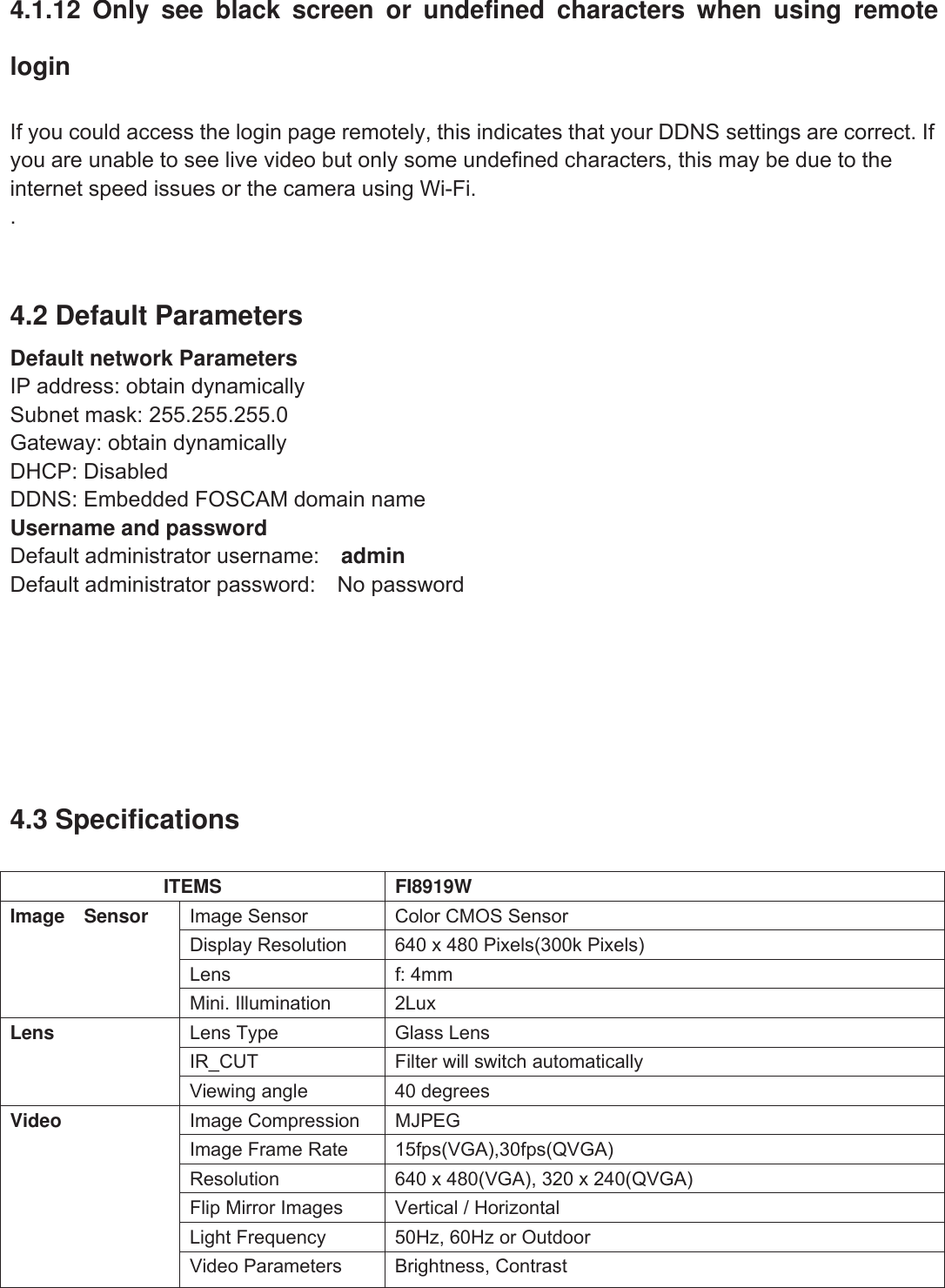
61wwww.foscam.coww.foscam.commShenzhenShenzhen FoscamFoscam IntelligentIntelligent TechnologyTechnology Co.,Co., LimitedLimitedTel:Tel: 8686 755755 26742674 56685668 Fax:Fax: 8686 755755 26742674 51685168 614.1.12 Only see black screen or undefined characters when using remoteloginIf you could access the login page remotely, this indicates that your DDNS settings are correct. Ifyou are unable to see live video but only some undefined characters, this may be due to theinternet speed issues or the camera using Wi-Fi..4.2 Default ParametersDefault network ParametersIP address: obtain dynamicallySubnet mask: 255.255.255.0Gateway: obtain dynamicallyDHCP: DisabledDDNS: Embedded FOSCAM domain nameUsername and passwordDefault administrator username: adminDefault administrator password: No password4.3 SpecificationsITEMS FI8919WImage Sensor Image Sensor Color CMOS SensorDisplay Resolution 640 x 480 Pixels(300k Pixels)Lens f: 4mmMini. Illumination 2LuxLens Lens Type Glass LensIR_CUT Filter will switch automaticallyViewing angle 40 degreesVideo Image Compression MJPEGImage Frame Rate 15fps(VGA),30fps(QVGA)Resolution 640 x 480(VGA), 320 x 240(QVGA)Flip Mirror Images Vertical / HorizontalLight Frequency 50Hz, 60Hz or OutdoorVideo Parameters Brightness, Contrast
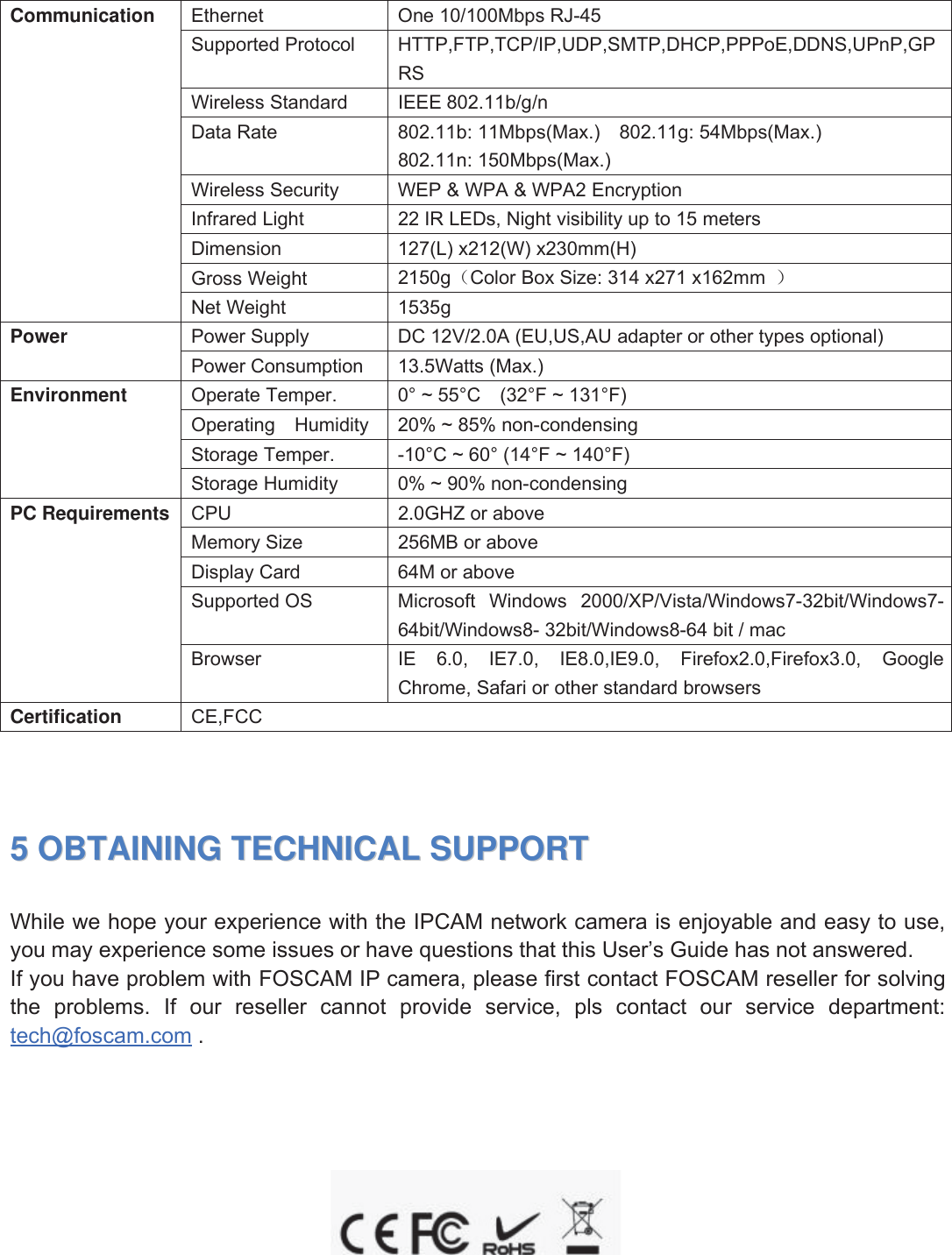
62wwww.foscam.coww.foscam.commShenzhenShenzhen FoscamFoscam IntelligentIntelligent TechnologyTechnology Co.,Co., LimitedLimitedTel:Tel: 8686 755755 26742674 56685668 Fax:Fax: 8686 755755 26742674 51685168 62Communication Ethernet One 10/100Mbps RJ-45Supported Protocol HTTP,FTP,TCP/IP,UDP,SMTP,DHCP,PPPoE,DDNS,UPnP,GPRSWireless Standard IEEE 802.11b/g/nData Rate 802.11b: 11Mbps(Max.) 802.11g: 54Mbps(Max.)802.11n: 150Mbps(Max.)Wireless Security WEP & WPA & WPA2 EncryptionInfrared Light 22 IR LEDs, Night visibility up to 15 metersDimension 127(L) x212(W) x230mm(H)Gross Weight 2150g(Color Box Size: 314 x271 x162mm )Net Weight 1535gPower Power Supply DC 12V/2.0A (EU,US,AU adapter or other types optional)Power Consumption 13.5Watts (Max.)Environment Operate Temper. 0° ~ 55°C (32°F ~ 131°F)Operating Humidity 20% ~ 85% non-condensingStorage Temper. -10°C ~ 60° (14°F ~ 140°F)Storage Humidity 0% ~ 90% non-condensingPC Requirements CPU 2.0GHZ or aboveMemory Size 256MB or aboveDisplay Card 64M or aboveSupported OS Microsoft Windows 2000/XP/Vista/Windows7-32bit/Windows7-64bit/Windows8- 32bit/Windows8-64 bit / macBrowser IE 6.0, IE7.0, IE8.0,IE9.0, Firefox2.0,Firefox3.0, GoogleChrome, Safari or other standard browsersCertification CE,FCC55OBTAININGOBTAINING TECHNICALTECHNICAL SUPPORTSUPPORTWhile we hope your experience with the IPCAM network camera is enjoyable and easy to use,you may experience some issues or have questions that this User’s Guide has not answered.If you have problem with FOSCAM IP camera, please first contact FOSCAM reseller for solvingthe problems. If our reseller cannot provide service, pls contact our service department:tech@foscam.com .
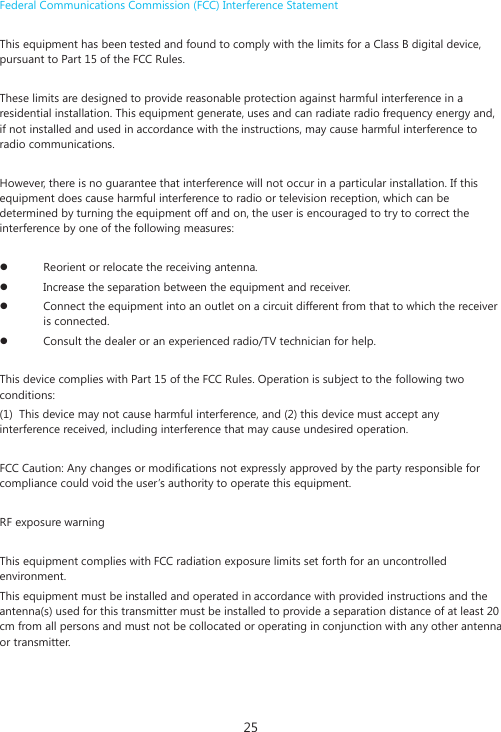
25 Federal Communications Commission (FCC) Interference Statement   This equipment has been tested and found to comply with the limits for a Class B digital device, pursuant to Part 15 of the FCC Rules.    These limits are designed to provide reasonable protection against harmful interference in a residential installation. This equipment generate, uses and can radiate radio frequency energy and, if not installed and used in accordance with the instructions, may cause harmful interference to radio communications.   However, there is no guarantee that interference will not occur in a particular installation. If this equipment does cause harmful interference to radio or television reception, which can be determined by turning the equipment off and on, the user is encouraged to try to correct the interference by one of the following measures:    z Reorient or relocate the receiving antenna.  z Increase the separation between the equipment and receiver.  z Connect the equipment into an outlet on a circuit different from that to which the receiver is connected.  z Consult the dealer or an experienced radio/TV technician for help.    This device complies with Part 15 of the FCC Rules. Operation is subject to the following two conditions:  (1)  This device may not cause harmful interference, and (2) this device must accept any interference received, including interference that may cause undesired operation.  FCC Caution: Any changes or modifications not expressly approved by the party responsible for compliance could void the user’s authority to operate this equipment.    RF exposure warning    This equipment complies with FCC radiation exposure limits set forth for an uncontrolled environment.  This equipment must be installed and operated in accordance with provided instructions and the antenna(s) used for this transmitter must be installed to provide a separation distance of at least 20 cm from all persons and must not be collocated or operating in conjunction with any other antenna or transmitter.

Navigation menu