ShenZhen Foscam Intelligent Technology FI9803PV2 Outdoor HD IP Camera User Manual 1

ShenZhen Foscam Intelligent Technology Co., Ltd. Outdoor HD IP Camera 1

Contents

User Manual Part 1

UserUser ManualManualOutdoor HD IP CameraModel: FI9803P V2
wwwwww.foscam.co.foscam.commShenzhenShenzhen FoscamFoscam IntelligentIntelligent TechnologyTechnology Co.,Co., LimitedLimitedTel:Tel: 8686 755755 26742674 56685668 Fax:Fax: 8686 755755 26742674 516851681Table of ContentsTable of Contents.................................................................................................................................................................. 11 Overviews............................................................................................................................................................................31.1 Key Features...........................................................................................................................................................31.2Read Before Use.................................................................................................................................................... 41.3Packing Contents................................................................................................................................................... 41.4Physical Description...............................................................................................................................................41.4.1 Front Panel...................................................................................................................................................41.4.2 Interface........................................................................................................................................................51.4.3 Bottom View................................................................................................................................................. 61.5The different features between the models involved........................................................................................62 Accessing the Network Camera...................................................................................................................................... 72.1 Access the Camera in LAN...................................................................................................................................72.2 Access the Camera in WAN................................................................................................................................. 72.2.1 Static IP Addresses.....................................................................................................................................72.2.2 Dynamic IP Addresses...............................................................................................................................92.3 Using the VLC player...........................................................................................................................................122.4 IP camera connection to the server.................................................................................................................. 143 Surveillance Software GUI............................................................................................................................................. 153.1 Login Window........................................................................................................................................................153.2 Surveillance Window........................................................................................................................................... 184 Advanced Camera Settings........................................................................................................................................... 254.1 Setup Wizard.........................................................................................................................................................254.2 Device Status........................................................................................................................................................ 254.2.1 Device Information....................................................................................................................................254.2.2 Device Status.............................................................................................................................................264.2.3 Session status........................................................................................................................................... 264.2.4 Log...............................................................................................................................................................274.3 Basic Settings....................................................................................................................................................... 274.3.1 Camera Name........................................................................................................................................... 274.3.2 Camera Time............................................................................................................................................. 274.3.3 User Accounts........................................................................................................................................... 284.3.4 Multi-Camera............................................................................................................................................. 304.4 Network.................................................................................................................................................................. 354.4.1 IP Configuration.........................................................................................................................................354.4.2 Wireless Settings...................................................................................................................................... 374.4.3DDNS.......................................................................................................................................................... 384.4.4UPnP........................................................................................................................................................... 424.4.5Port.............................................................................................................................................................. 424.4.6Mail Settings...............................................................................................................................................444.4.7FTP Settings.............................................................................................................................................. 464.4.8P2P.............................................................................................................................................................. 474.5 Video.......................................................................................................................................................................47
wwwwww.foscam.co.foscam.commShenzhenShenzhen FoscamFoscam IntelligentIntelligent TechnologyTechnology Co.,Co., LimitedLimitedTel:Tel: 8686 755755 26742674 56685668 Fax:Fax: 8686 755755 26742674 5168516824.5.1 Video Settings........................................................................................................................................... 474.5.2 On Screen Display....................................................................................................................................484.5.3Snapshot Settings.....................................................................................................................................494.5.4IR LED Schedule.......................................................................................................................................504.5.5Lens Distortion Correction....................................................................................................................... 504.6 Alarm.......................................................................................................................................................................514.6.1 Motion Detection....................................................................................................................................... 514.7 Record....................................................................................................................................................................554.7.1 Storage Location.......................................................................................................................................554.7.2 Alarm Record............................................................................................................................................. 554.7.3 Local Alarm Location................................................................................................................................ 554.7.4 Schedule Recording................................................................................................................................. 564.8Firewall................................................................................................................................................................... 564.9System....................................................................................................................................................................574.9.1 Back-up& Restore.....................................................................................................................................574.9.2 System Upgrade........................................................................................................................................584.9.3 Patch Installation.......................................................................................................................................604.9.4 Factory Reset.............................................................................................................................................614.9.5 Reboot.........................................................................................................................................................615Appendix............................................................................................................................................................................ 625.1 Frequently Asked Questions...............................................................................................................................625.1.1 Install the ActiveX of Firefox browser, Google Chrome and IE Chrome......................................... 625.1.2 Uninstall the ActiveX of Firefox browser, Google Chrome and IE Chrome.................................... 655.1.3 I have forgotten the administrator password........................................................................................ 675.1.4 Subnet doesn’t match...............................................................................................................................675.1.5 Camera can not record............................................................................................................................ 675.1.6 No Pictures Problems...............................................................................................................................675.1.7 Can’t access IP camera in internet........................................................................................................ 685.1.8 UPnP always failed...................................................................................................................................695.1.9 Camera can not connect wireless.......................................................................................................... 695.1.10 Remove the plug-in................................................................................................................................ 695.2 Default Parameters.............................................................................................................................................. 725.3 Specification.......................................................................................................................................................... 725.4 CE & FCC.............................................................................................................................................................. 735.5 WARRANTY.......................................................................................................................................................... 746Obtaining Technical Support..............................................................................................................................................77
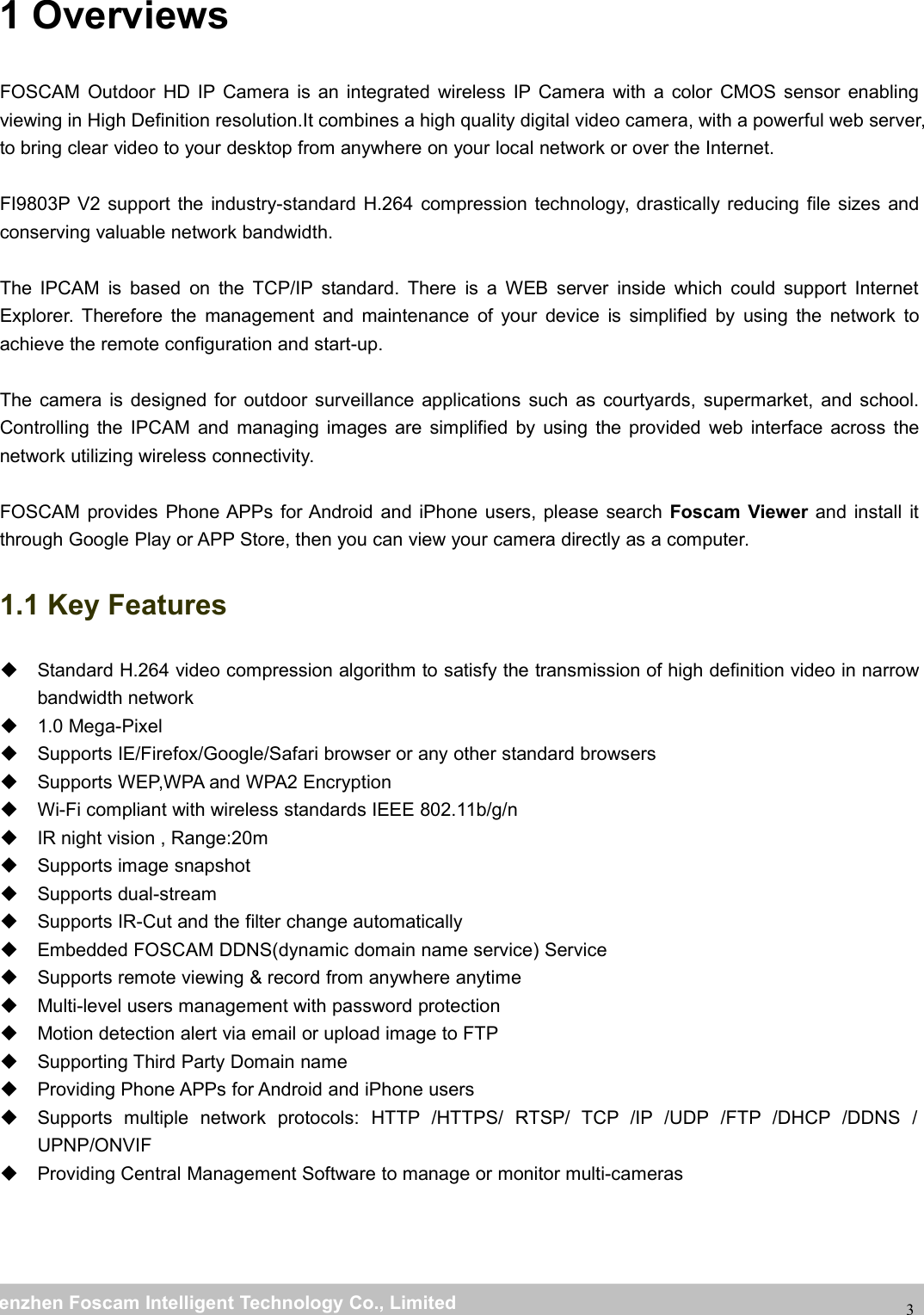
wwwwww.foscam.co.foscam.commShenzhenShenzhen FoscamFoscam IntelligentIntelligent TechnologyTechnology Co.,Co., LimitedLimitedTel:Tel: 8686 755755 26742674 56685668 Fax:Fax: 8686 755755 26742674 5168516831 OverviewsFOSCAM Outdoor HD IP Camera is an integrated wireless IP Camera with a color CMOS sensor enablingviewing in High Definition resolution.It combines a high quality digital video camera, with a powerful web server,to bring clear video to your desktop from anywhere on your local network or over the Internet.FI9803P V2 support the industry-standard H.264 compression technology, drastically reducing file sizes andconserving valuable network bandwidth.The IPCAM is based on the TCP/IP standard. There is a WEB server inside which could support InternetExplorer. Therefore the management and maintenance of your device is simplified by using the network toachieve the remote configuration and start-up.The camera is designed for outdoor surveillance applications such as courtyards, supermarket, and school.Controlling the IPCAM and managing images are simplified by using the provided web interface across thenetwork utilizing wireless connectivity.FOSCAM provides Phone APPs for Android and iPhone users, please search Foscam Viewer and install itthrough Google Play or APP Store, then you can view your camera directly as a computer.1.1 Key FeaturesStandard H.264 video compression algorithm to satisfy the transmission of high definition video in narrowbandwidth network1.0 Mega-PixelSupports IE/Firefox/Google/Safari browser or any other standard browsersSupports WEP,WPA and WPA2 EncryptionWi-Fi compliant with wireless standards IEEE 802.11b/g/nIR night vision , Range:20mSupports image snapshotSupports dual-streamSupports IR-Cut and the filter change automaticallyEmbedded FOSCAM DDNS(dynamic domain name service) ServiceSupports remote viewing & record from anywhere anytimeMulti-level users management with password protectionMotion detection alert via email or upload image to FTPSupporting Third Party Domain nameProviding Phone APPs for Android and iPhone usersSupports multiple network protocols: HTTP /HTTPS/ RTSP/ TCP /IP /UDP /FTP /DHCP /DDNS /UPNP/ONVIFProviding Central Management Software to manage or monitor multi-cameras
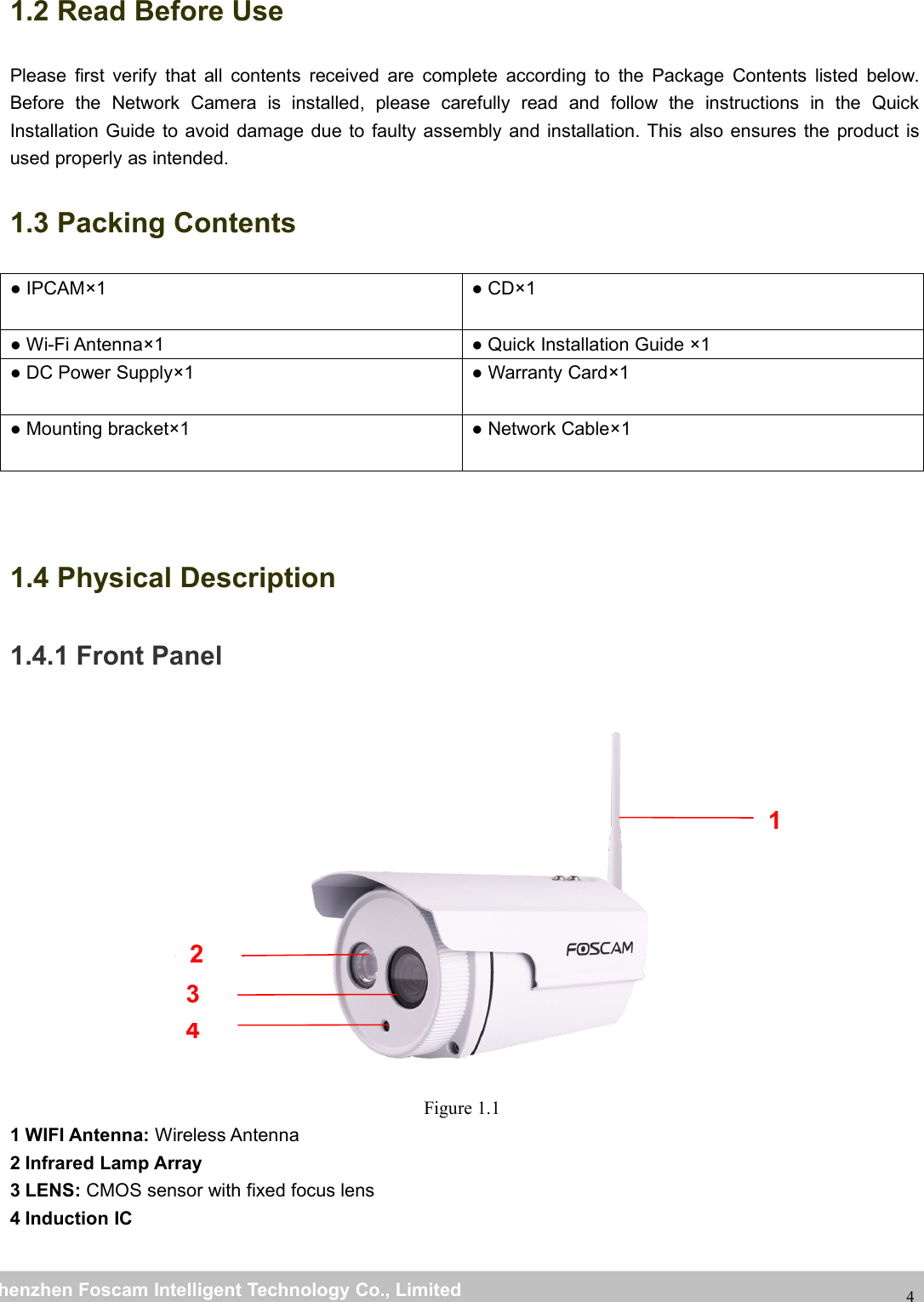
wwwwww.foscam.co.foscam.commShenzhenShenzhen FoscamFoscam IntelligentIntelligent TechnologyTechnology Co.,Co., LimitedLimitedTel:Tel: 8686 755755 26742674 56685668 Fax:Fax: 8686 755755 26742674 5168516841.2 Read Before UsePlease first verify that all contents received are complete according to the Package Contents listed below.Before the Network Camera is installed, please carefully read and follow the instructions in the QuickInstallation Guide to avoid damage due to faulty assembly and installation. This also ensures the product isused properly as intended.1.3 Packing Contents● IPCAM×1 ● CD×1● Wi-Fi Antenna×1 ● Quick Installation Guide ×1● DC Power Supply×1 ● Warranty Card×1● Mounting bracket×1 ● Network Cable×11.4 Physical Description1.4.1 Front PanelFigure 1.11 WIFI Antenna: Wireless Antenna2 Infrared Lamp Array3 LENS: CMOS sensor with fixed focus lens4 Induction IC1432
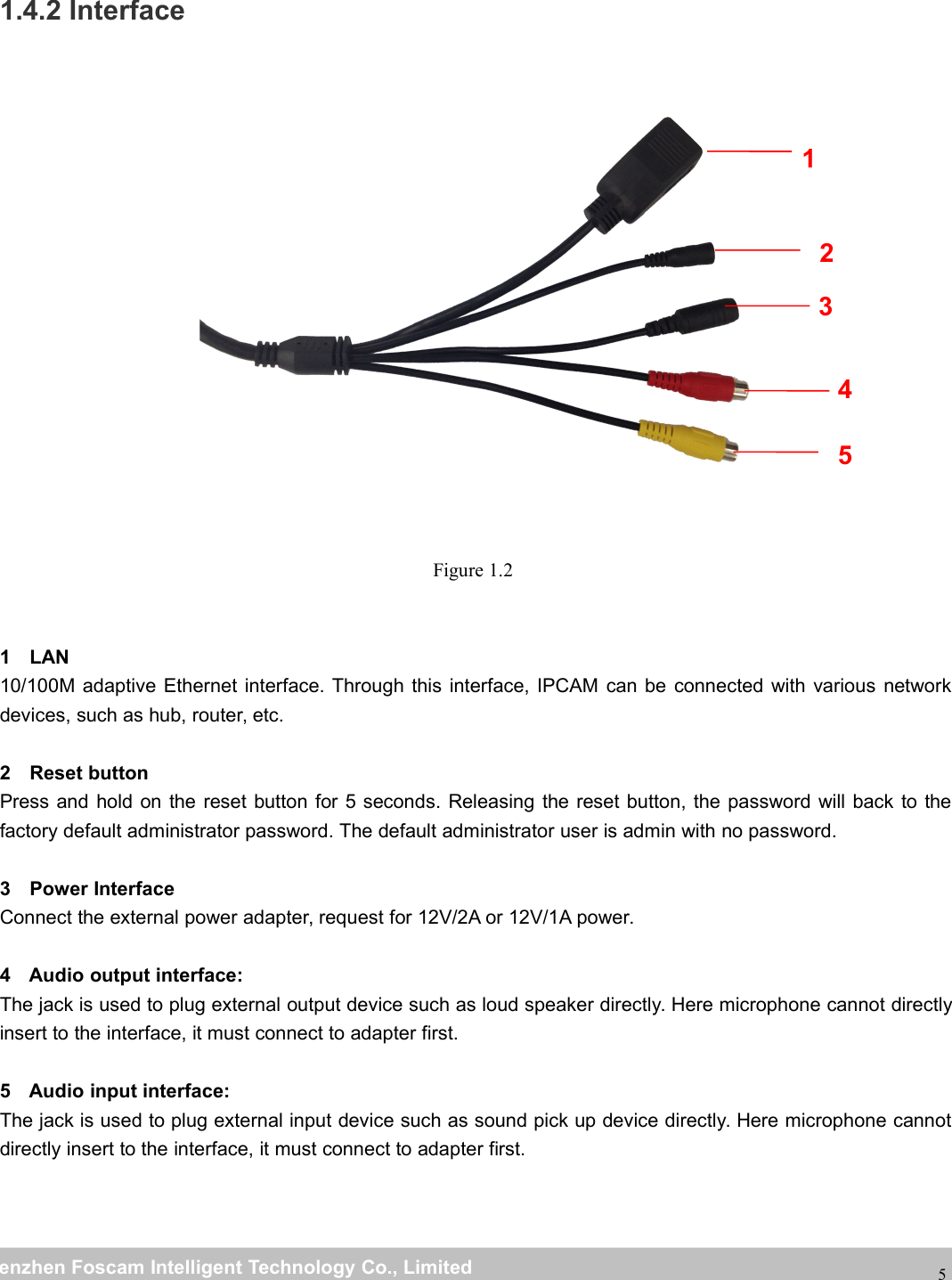
wwwwww.foscam.co.foscam.commShenzhenShenzhen FoscamFoscam IntelligentIntelligent TechnologyTechnology Co.,Co., LimitedLimitedTel:Tel: 8686 755755 26742674 56685668 Fax:Fax: 8686 755755 26742674 5168516851.4.2 InterfaceFigure 1.21 LAN10/100M adaptive Ethernet interface. Through this interface, IPCAM can be connected with various networkdevices, such as hub, router, etc.2 Reset buttonPress and hold on the reset button for 5 seconds. Releasing the reset button, the password will back to thefactory default administrator password. The default administrator user is admin with no password.3 Power InterfaceConnect the external power adapter, request for 12V/2A or 12V/1A power.4 Audio output interface:The jack is used to plug external output device such as loud speaker directly. Here microphone cannot directlyinsert to the interface, it must connect to adapter first.5 Audio input interface:The jack is used to plug external input device such as sound pick up device directly. Here microphone cannotdirectly insert to the interface, it must connect to adapter first.12345
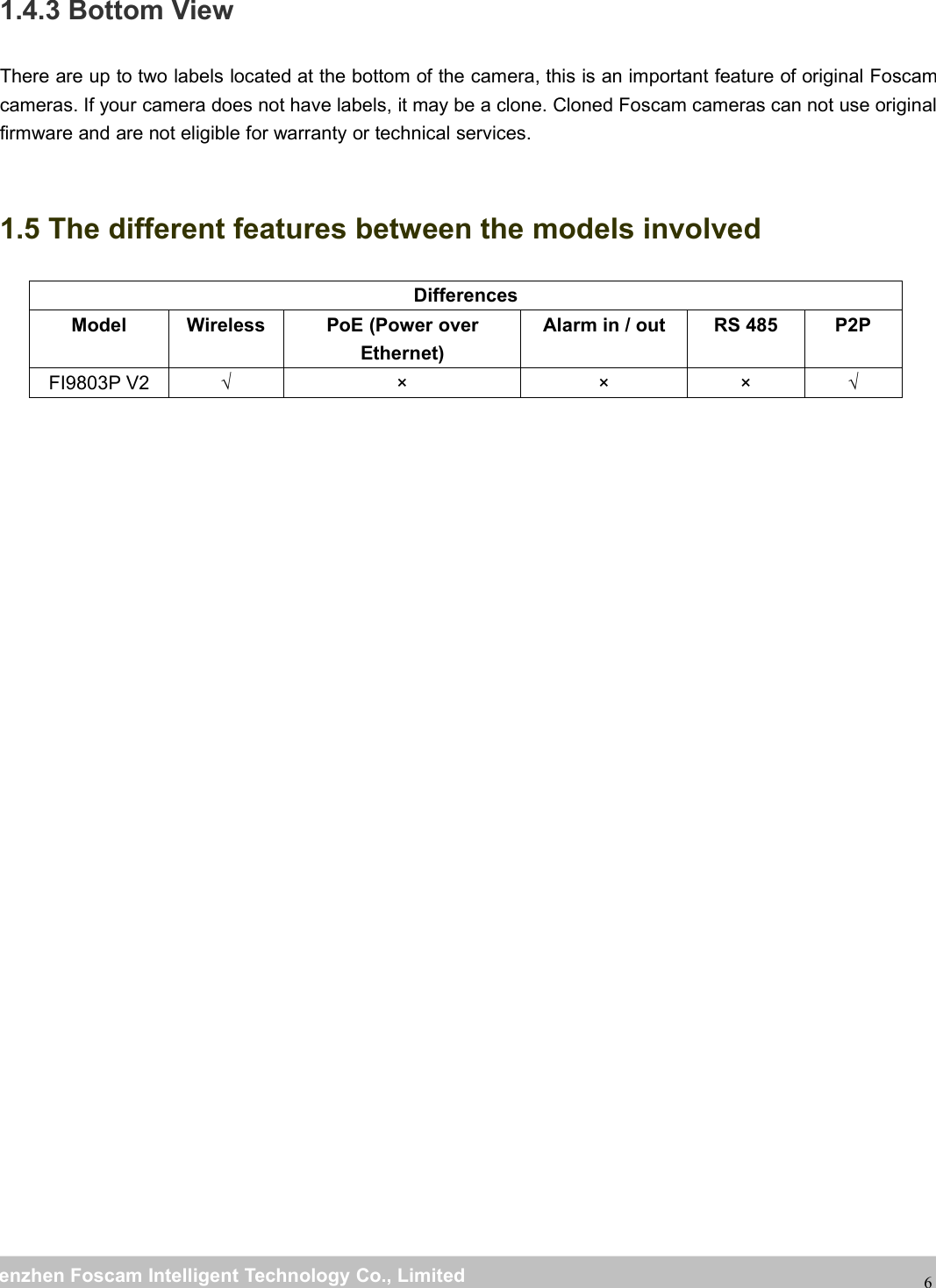
wwwwww.foscam.co.foscam.commShenzhenShenzhen FoscamFoscam IntelligentIntelligent TechnologyTechnology Co.,Co., LimitedLimitedTel:Tel: 8686 755755 26742674 56685668 Fax:Fax: 8686 755755 26742674 5168516861.4.3 Bottom ViewThere are up to two labels located at the bottom of the camera, this is an important feature of original Foscamcameras. If your camera does not have labels, it may be a clone. Cloned Foscam cameras can not use originalfirmware and are not eligible for warranty or technical services.1.5 The different features between the models involvedDifferencesModel WirelessPoE (Power overEthernet)Alarm in / out RS 485 P2PFI9803P V2 √ × × × √
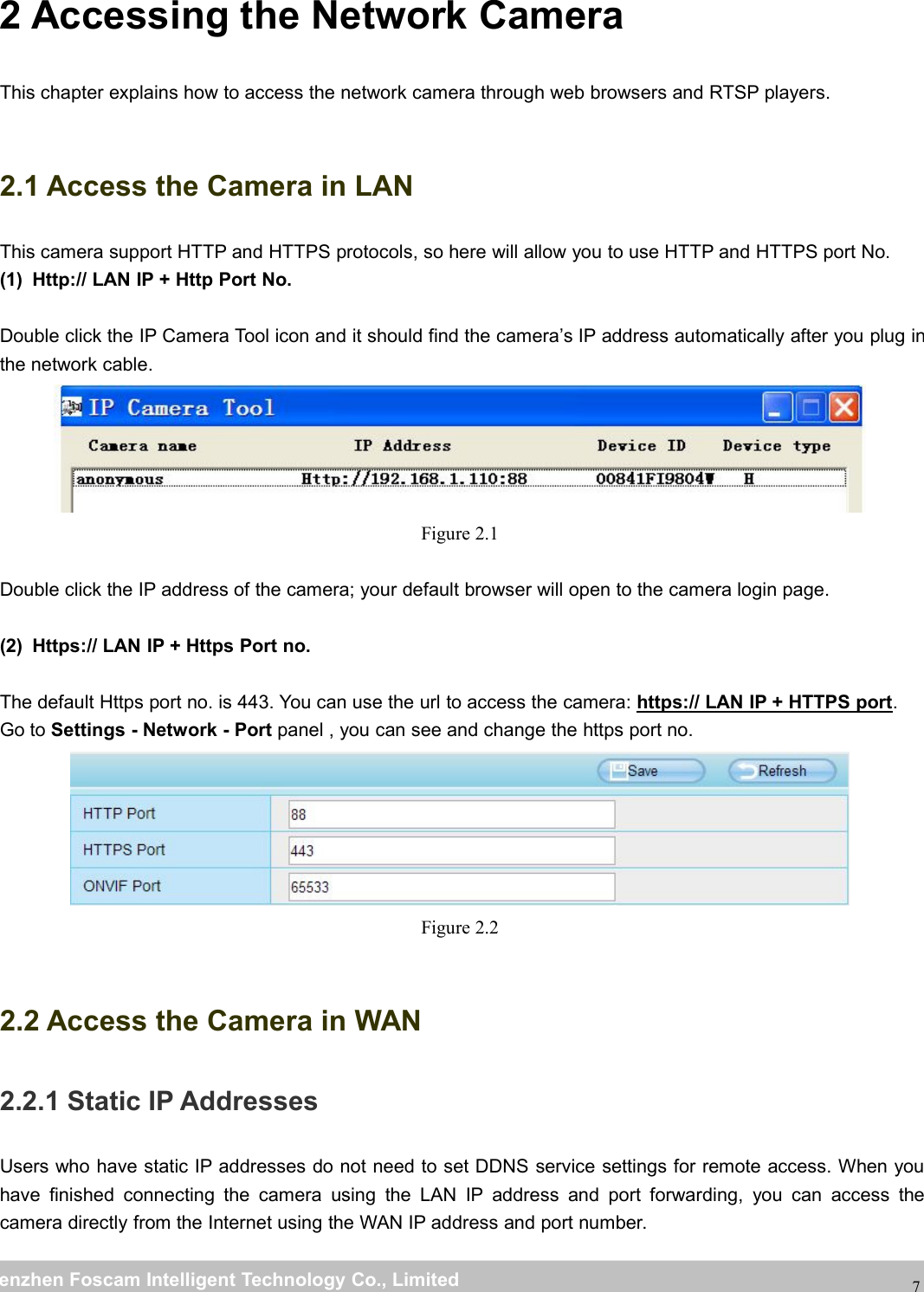
wwwwww.foscam.co.foscam.commShenzhenShenzhen FoscamFoscam IntelligentIntelligent TechnologyTechnology Co.,Co., LimitedLimitedTel:Tel: 8686 755755 26742674 56685668 Fax:Fax: 8686 755755 26742674 5168516872 Accessing the Network CameraThis chapter explains how to access the network camera through web browsers and RTSP players.2.1 Access the Camera in LANThis camera support HTTP and HTTPS protocols, so here will allow you to use HTTP and HTTPS port No.(1) Http:// LAN IP + Http Port No.Double click the IP Camera Tool icon and it should find the camera’s IP address automatically after you plug inthe network cable.Figure 2.1Double click the IP address of the camera; your default browser will open to the camera login page.(2) Https:// LAN IP + Https Port no.The default Https port no. is 443. You can use the url to access the camera: https:// LAN IP + HTTPS port.Go to Settings - Network - Port panel , you can see and change the https port no.Figure 2.22.2 Access the Camera in WAN2.2.1 Static IP AddressesUsers who have static IP addresses do not need to set DDNS service settings for remote access. When youhave finished connecting the camera using the LAN IP address and port forwarding, you can access thecamera directly from the Internet using the WAN IP address and port number.
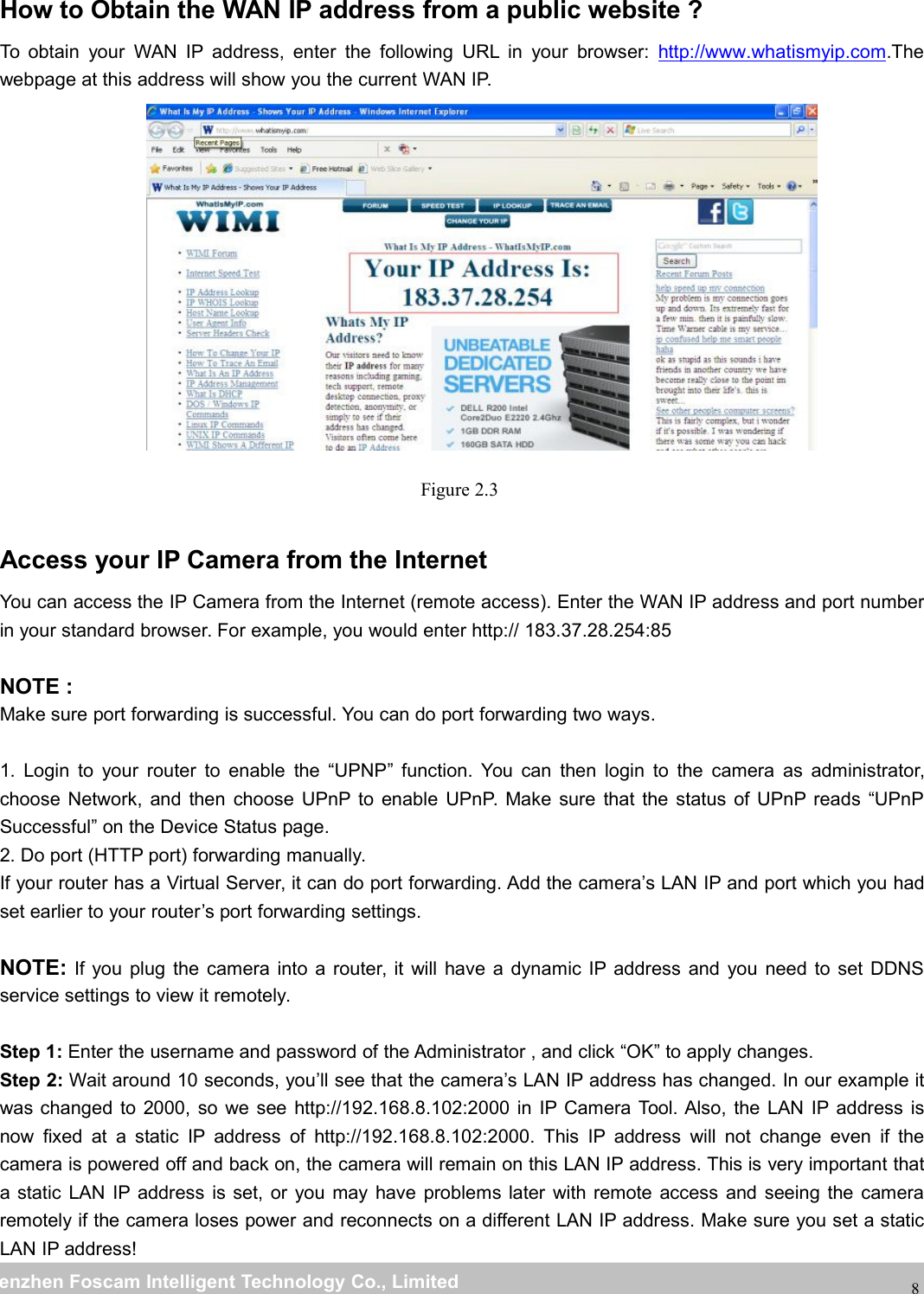
wwwwww.foscam.co.foscam.commShenzhenShenzhen FoscamFoscam IntelligentIntelligent TechnologyTechnology Co.,Co., LimitedLimitedTel:Tel: 8686 755755 26742674 56685668 Fax:Fax: 8686 755755 26742674 516851688How to Obtain the WAN IP address from a public website ?To obtain your WAN IP address, enter the following URL in your browser: http://www.whatismyip.com.Thewebpage at this address will show you the current WAN IP.Figure 2.3Access your IP Camera from the InternetYou can access the IP Camera from the Internet (remote access). Enter the WAN IP address and port numberin your standard browser. For example, you would enter http:// 183.37.28.254:85NOTE :Make sure port forwarding is successful. You can do port forwarding two ways.1. Login to your router to enable the “UPNP” function. You can then login to the camera as administrator,choose Network, and then choose UPnP to enable UPnP. Make sure that the status of UPnP reads “UPnPSuccessful” on the Device Status page.2. Do port (HTTP port) forwarding manually.If your router has a Virtual Server, it can do port forwarding. Add the camera’s LAN IP and port which you hadset earlier to your router’s port forwarding settings.NOTE: If you plug the camera into a router, it will have a dynamic IP address and you need to set DDNSservice settings to view it remotely.Step 1: Enter the username and password of the Administrator , and click “OK” to apply changes.Step 2: Wait around 10 seconds, you’ll see that the camera’s LAN IP address has changed. In our example itwas changed to 2000, so we see http://192.168.8.102:2000 in IP Camera Tool. Also, the LAN IP address isnow fixed at a static IP address of http://192.168.8.102:2000. This IP address will not change even if thecamera is powered off and back on, the camera will remain on this LAN IP address. This is very important thata static LAN IP address is set, or you may have problems later with remote access and seeing the cameraremotely if the camera loses power and reconnects on a different LAN IP address. Make sure you set a staticLAN IP address!
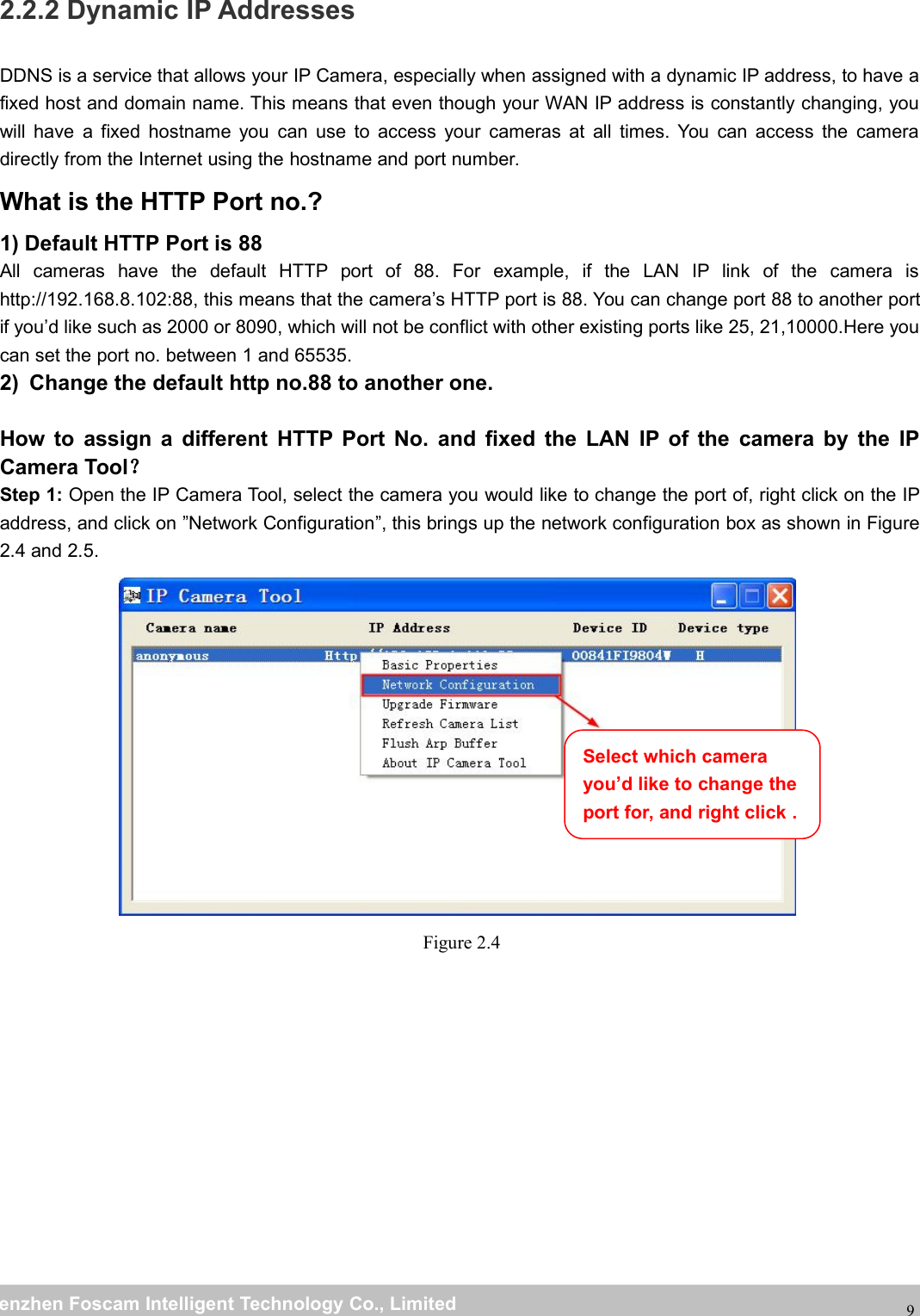
wwwwww.foscam.co.foscam.commShenzhenShenzhen FoscamFoscam IntelligentIntelligent TechnologyTechnology Co.,Co., LimitedLimitedTel:Tel: 8686 755755 26742674 56685668 Fax:Fax: 8686 755755 26742674 5168516892.2.2 Dynamic IP AddressesDDNS is a service that allows your IP Camera, especially when assigned with a dynamic IP address, to have afixed host and domain name. This means that even though your WAN IP address is constantly changing, youwill have a fixed hostname you can use to access your cameras at all times. You can access the cameradirectly from the Internet using the hostname and port number.What is the HTTP Port no.?1) Default HTTP Port is 88All cameras have the default HTTP port of 88. For example, if the LAN IP link of the camera ishttp://192.168.8.102:88, this means that the camera’s HTTP port is 88. You can change port 88 to another portif you’d like such as 2000 or 8090, which will not be conflict with other existing ports like 25, 21,10000.Here youcan set the port no. between 1 and 65535.2) Change the default http no.88 to another one.How to assign a different HTTP Port No. and fixed the LAN IP of the camera by the IPCamera Tool?Step 1: Open the IP Camera Tool, select the camera you would like to change the port of, right click on the IPaddress, and click on ”Network Configuration”, this brings up the network configuration box as shown in Figure2.4 and 2.5.Figure 2.4Select which camerayou’d like to change theport for, and right click .
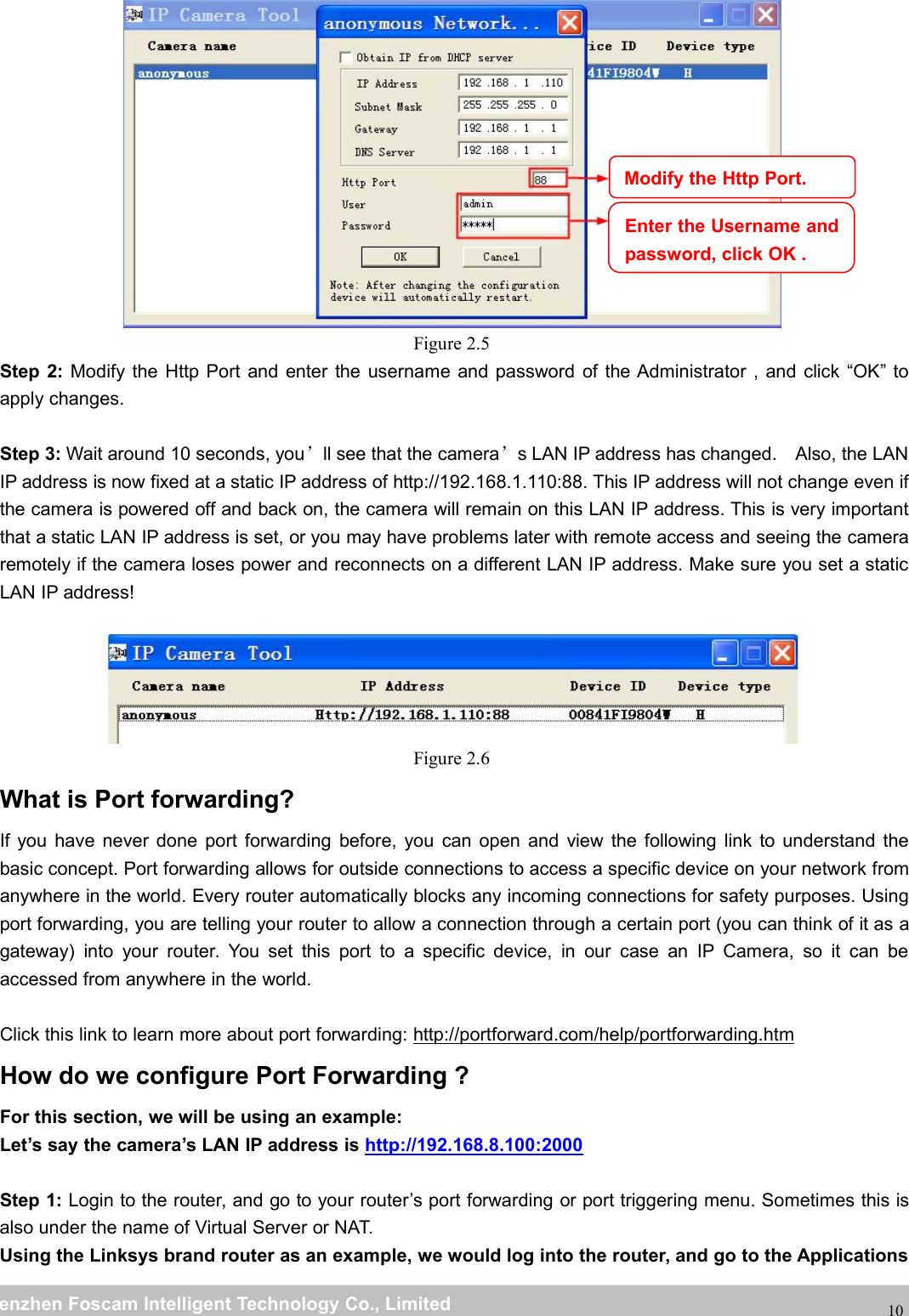
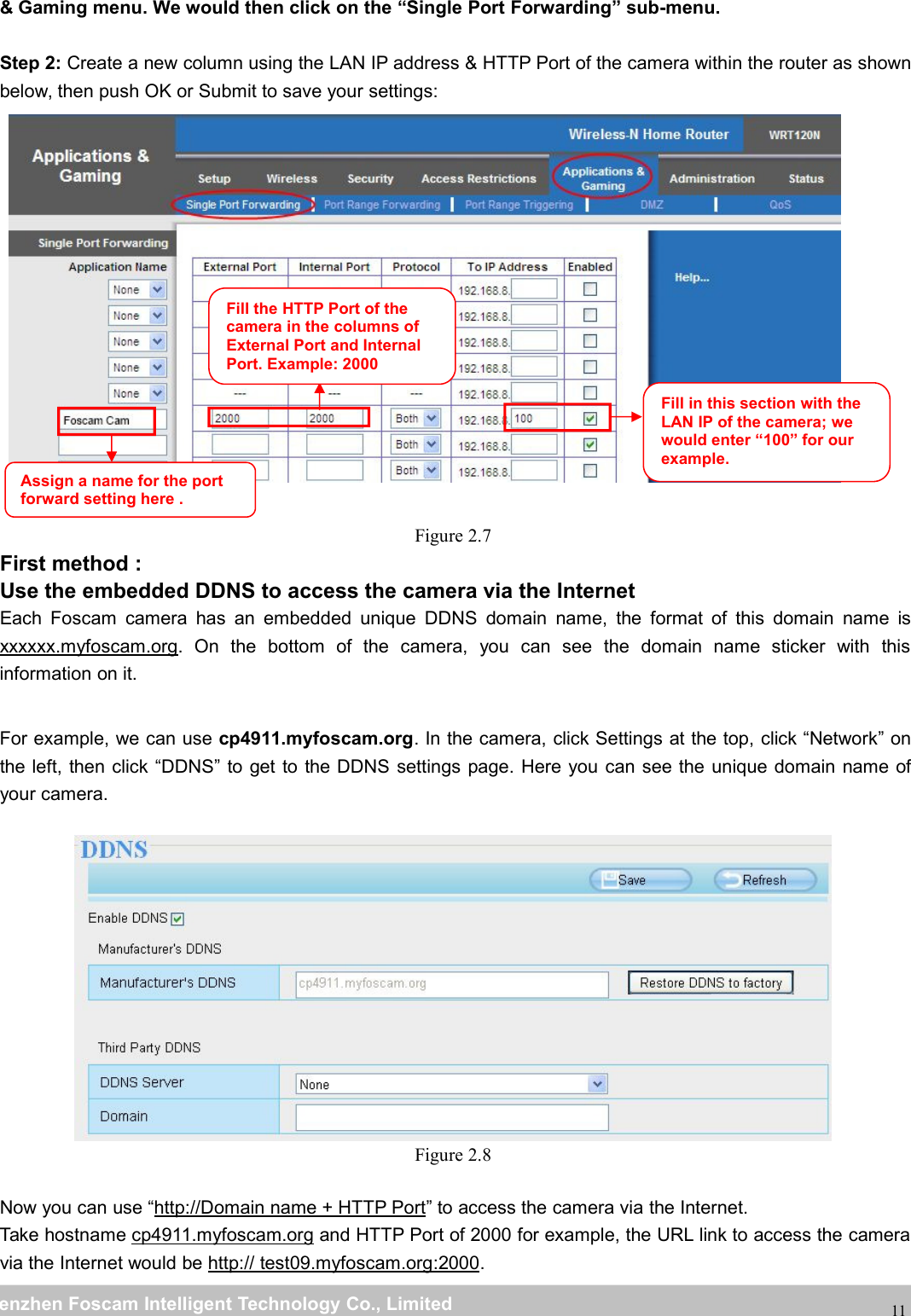
wwwwww.foscam.co.foscam.commShenzhenShenzhen FoscamFoscam IntelligentIntelligent TechnologyTechnology Co.,Co., LimitedLimitedTel:Tel: 8686 755755 26742674 56685668 Fax:Fax: 8686 755755 26742674 5168516810Figure 2.5Step 2: Modify the Http Port and enter the username and password of the Administrator , and click “OK” toapply changes.Step 3: Wait around 10 seconds, you’ll see that the camera’s LAN IP address has changed. Also, the LANIP address is now fixed at a static IP address of http://192.168.1.110:88. This IP address will not change even ifthe camera is powered off and back on, the camera will remain on this LAN IP address. This is very importantthat a static LAN IP address is set, or you may have problems later with remote access and seeing the cameraremotely if the camera loses power and reconnects on a different LAN IP address. Make sure you set a staticLAN IP address!Figure 2.6What is Port forwarding?If you have never done port forwarding before, you can open and view the following link to understand thebasic concept. Port forwarding allows for outside connections to access a specific device on your network fromanywhere in the world. Every router automatically blocks any incoming connections for safety purposes. Usingport forwarding, you are telling your router to allow a connection through a certain port (you can think of it as agateway) into your router. You set this port to a specific device, in our case an IP Camera, so it can beaccessed from anywhere in the world.Click this link to learn more about port forwarding: http://portforward.com/help/portforwarding.htmHow do we configure Port Forwarding ?For this section, we will be using an example:Let’s say the camera’s LAN IP address is http://192.168.8.100:2000Step 1: Login to the router, and go to your router’s port forwarding or port triggering menu. Sometimes this isalso under the name of Virtual Server or NAT.Using the Linksys brand router as an example, we would log into the router, and go to the ApplicationsModify the Http Port.Enter the Username andpassword, click OK .
wwwwww.foscam.co.foscam.commShenzhenShenzhen FoscamFoscam IntelligentIntelligent TechnologyTechnology Co.,Co., LimitedLimitedTel:Tel: 8686 755755 26742674 56685668 Fax:Fax: 8686 755755 26742674 5168516811& Gaming menu. We would then click on the “Single Port Forwarding” sub-menu.Step 2: Create a new column using the LAN IP address & HTTP Port of the camera within the router as shownbelow, then push OK or Submit to save your settings:Figure 2.7First method :Use the embedded DDNS to access the camera via the InternetEach Foscam camera has an embedded unique DDNS domain name, the format of this domain name isxxxxxx.myfoscam.org. On the bottom of the camera, you can see the domain name sticker with thisinformation on it.For example, we can use cp4911.myfoscam.org. In the camera, click Settings at the top, click “Network” onthe left, then click “DDNS” to get to the DDNS settings page. Here you can see the unique domain name ofyour camera.Figure 2.8Now you can use “http://Domain name + HTTP Port” to access the camera via the Internet.Take hostname cp4911.myfoscam.org and HTTP Port of 2000 for example, the URL link to access the cameravia the Internet would be http:// test09.myfoscam.org:2000.Fill the HTTP Port of thecamera in the columns ofExternal Port and InternalPort. Example: 2000Fill in this section with theLAN IP of the camera; wewould enter “100” for ourexample.Assign a name for the portforward setting here .
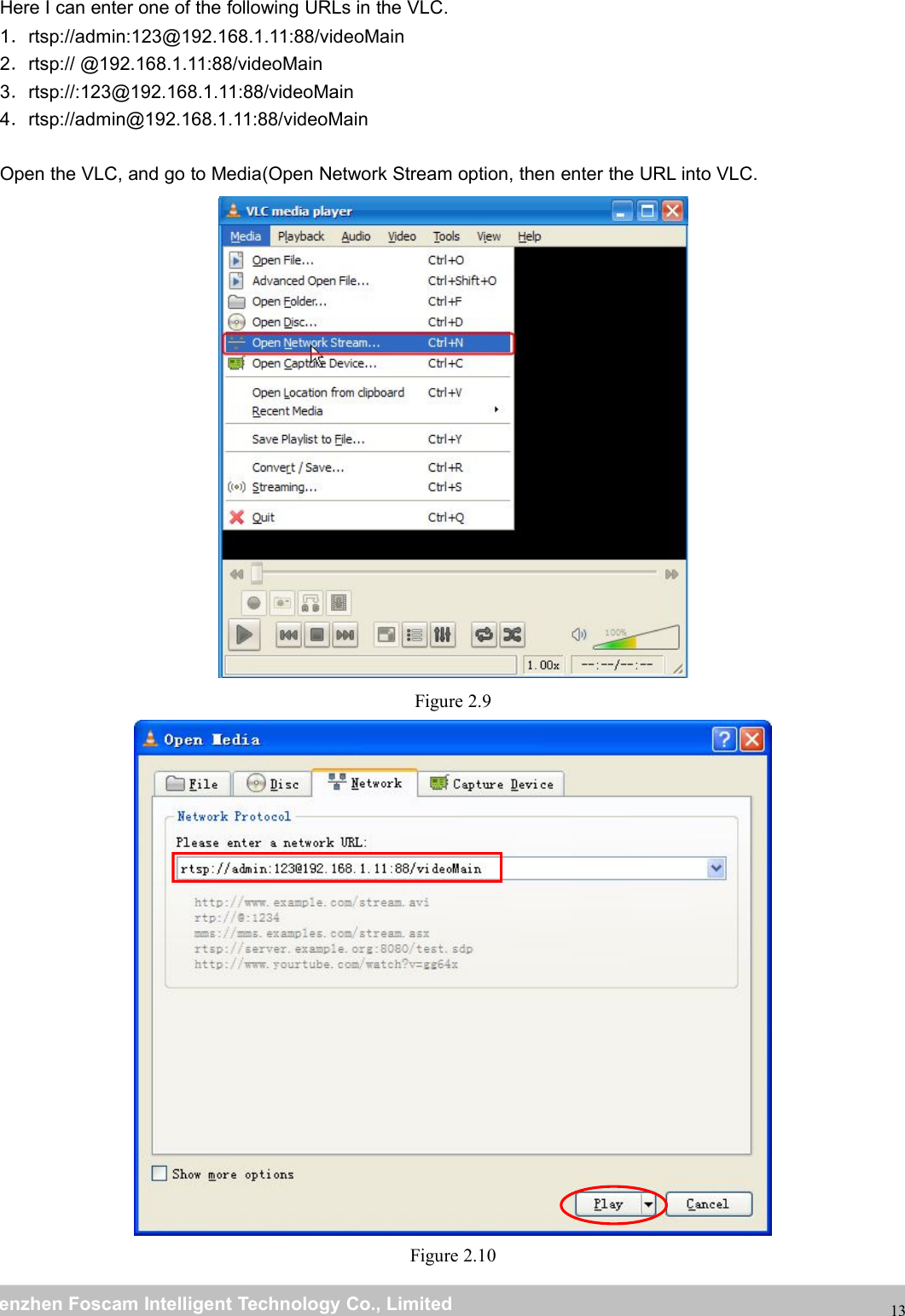
wwwwww.foscam.co.foscam.commShenzhenShenzhen FoscamFoscam IntelligentIntelligent TechnologyTechnology Co.,Co., LimitedLimitedTel:Tel: 8686 755755 26742674 56685668 Fax:Fax: 8686 755755 26742674 5168516812Second method :Use the Third party DDNS to access the camera via the InternetStep 1, Please go to the third party DDNS website(such as www.no-ip.com) to create a free hostname.Step 2, DO DDNS Service Settings within the CameraPlease set DDNS Settings within the camera by hostname, a user name and password you’ve got fromwww.no-ip.comTake hostname ycxgwp.no-ip.info, user name foscam, password foscam2012 for example.Firstly, goes to option of DDNS Settings on the administrator panel.Secondly, select No-Ip as a server.Thirdly, fill foscam as DDNS user, fill password foscam2012 as DDNS password, fill ycxgwp.no-ip.info asDDNS domain and server URL, Then click save to make effect. The camera will restart and to take the DDNSsettings effective.Fourthly, after the restart, login the camera, and go to option of Device Status on the administrator panel, andcheck if the DDNS status is successful.If failed, please double check if you have input the correct hostname, user name, and password, andtry to redo the settings.NOTE :If you have set Third Party DDNS successfully ,the Foscam Domain Name will be invalid. The Third PartyDDNS and the Foscam Domain Name cannot work at the same time, the last time you configured will takeeffect.2.3 Using the VLC playerThis camera supports RTSP streaming, here you can view the camera using VLC player.RTSP URL rtsp:// [user name][:password]@IP:HTTP port number/videosreamThe part in the square brackets may be omitted.user name & password:The user name and password to access the camera. This part can be omitted.IP: WAN or LAN IP address.Videostream:Here support three modes: videoMain, videoSub and audio. When the network speed is bad,here you had better select videoSub. If you select audio, you can only hear the sound but cannot see thevideo.For example:IP: 192.168.1.11HTTP Port number: 88User name: adminPassword: 123
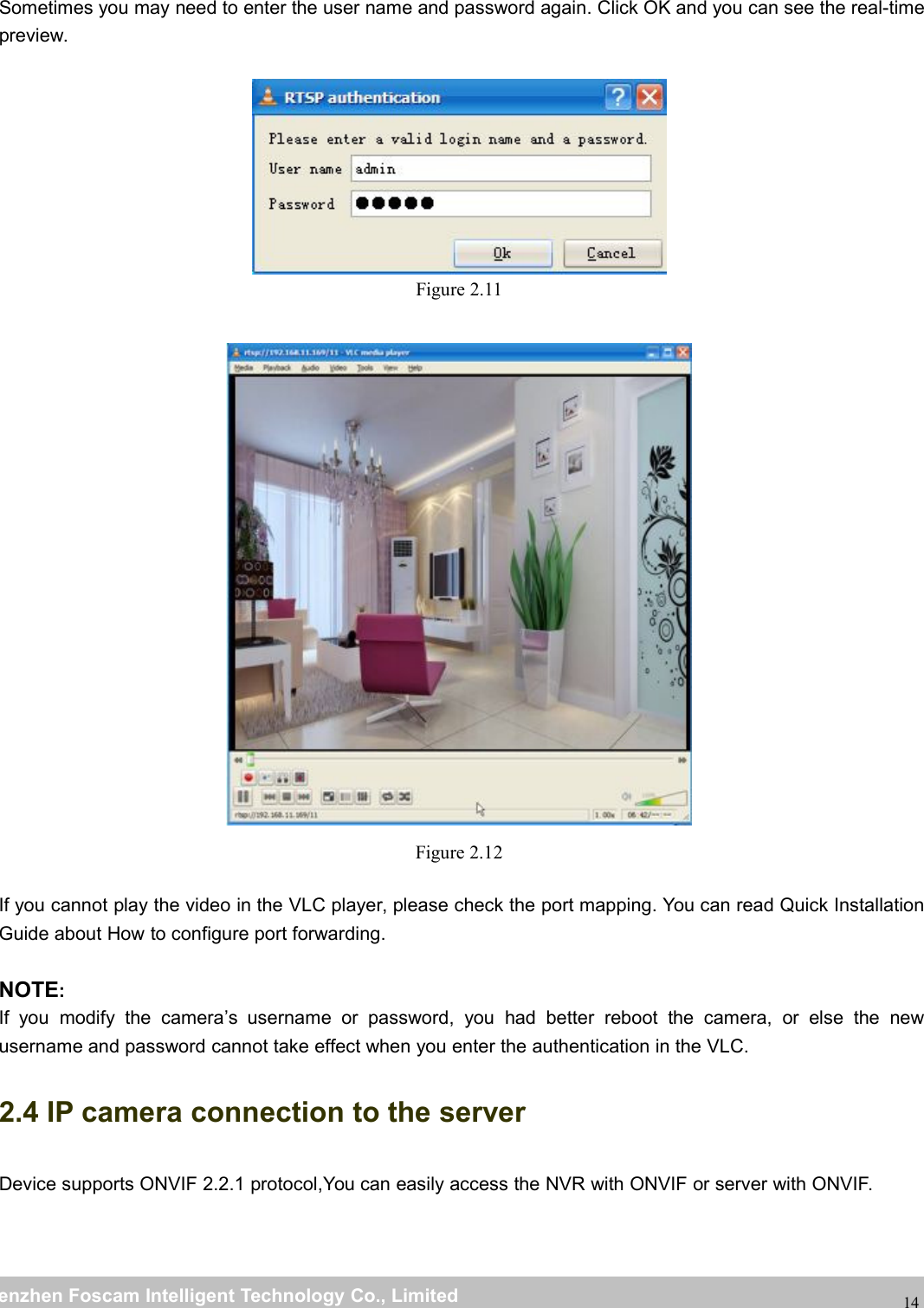
wwwwww.foscam.co.foscam.commShenzhenShenzhen FoscamFoscam IntelligentIntelligent TechnologyTechnology Co.,Co., LimitedLimitedTel:Tel: 8686 755755 26742674 56685668 Fax:Fax: 8686 755755 26742674 5168516813Here I can enter one of the following URLs in the VLC.1.rtsp://admin:123@192.168.1.11:88/videoMain2.rtsp:// @192.168.1.11:88/videoMain3.rtsp://:123@192.168.1.11:88/videoMain4.rtsp://admin@192.168.1.11:88/videoMainOpen the VLC, and go to Media(Open Network Stream option, then enter the URL into VLC.Figure 2.9Figure 2.10
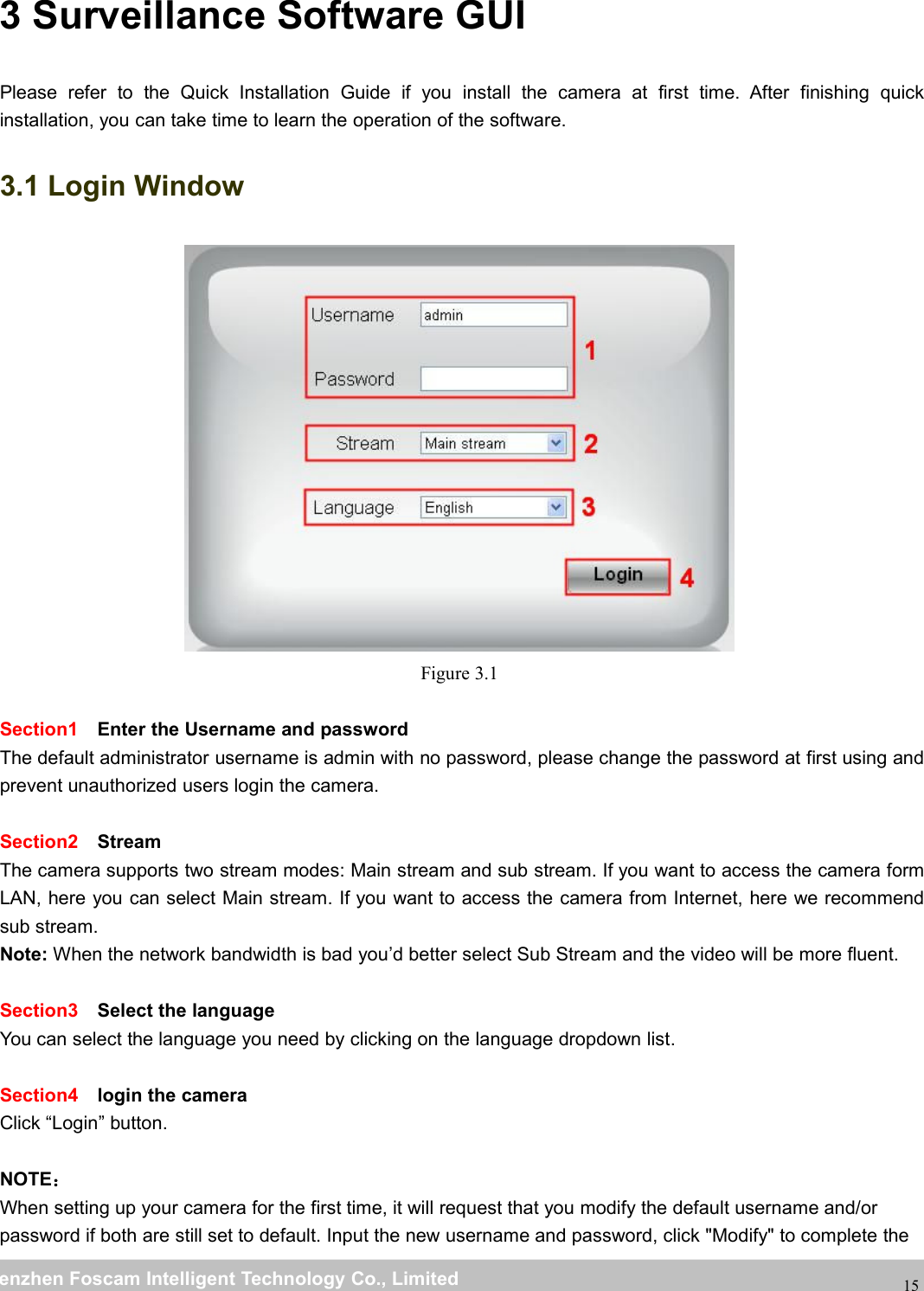
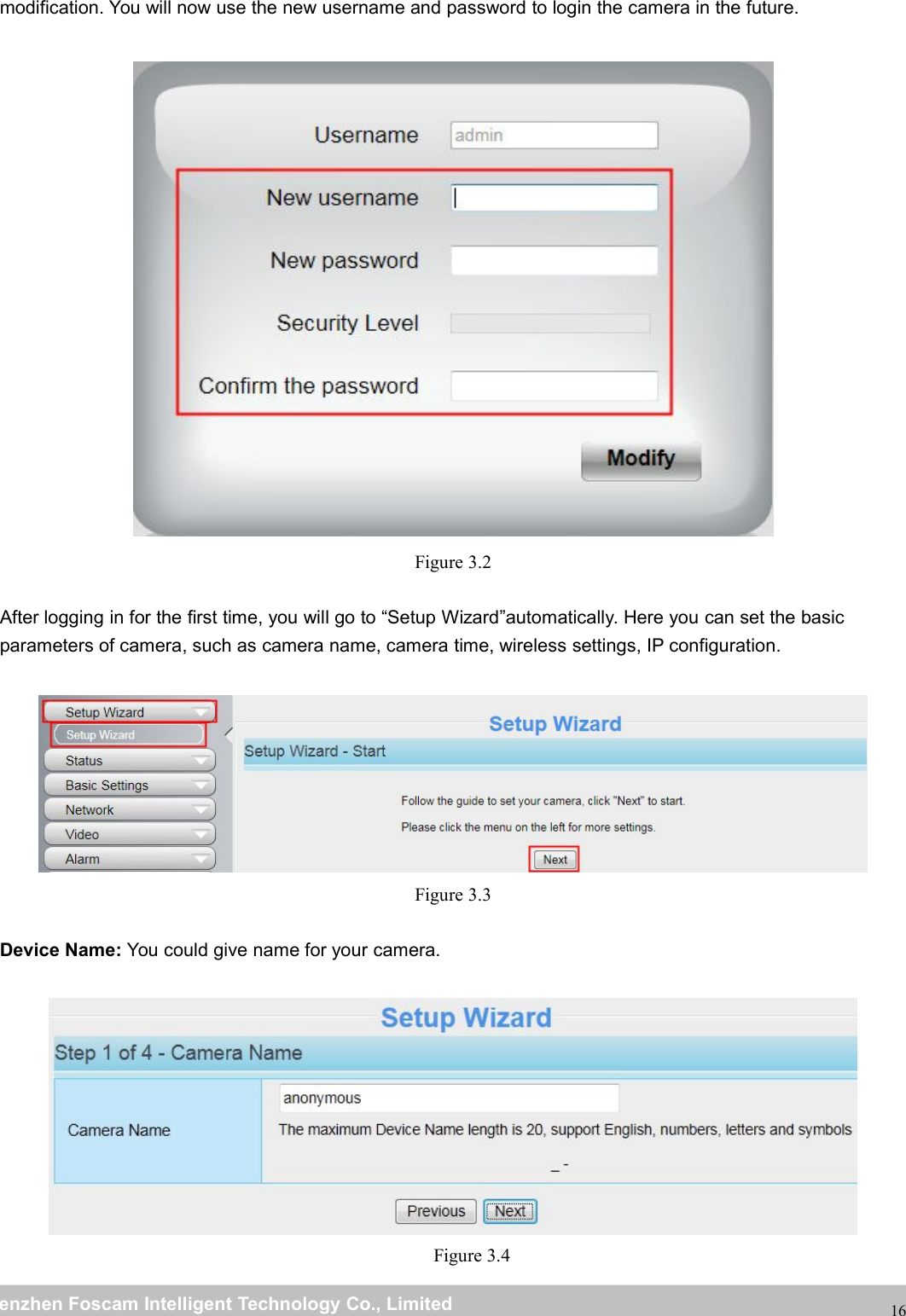
wwwwww.foscam.co.foscam.commShenzhenShenzhen FoscamFoscam IntelligentIntelligent TechnologyTechnology Co.,Co., LimitedLimitedTel:Tel: 8686 755755 26742674 56685668 Fax:Fax: 8686 755755 26742674 5168516814Sometimes you may need to enter the user name and password again. Click OK and you can see the real-timepreview.Figure 2.11Figure 2.12If you cannot play the video in the VLC player, please check the port mapping. You can read Quick InstallationGuide about How to configure port forwarding.NOTE:If you modify the camera’s username or password, you had better reboot the camera, or else the newusername and password cannot take effect when you enter the authentication in the VLC.2.4 IP camera connection to the serverDevice supports ONVIF 2.2.1 protocol,You can easily access the NVR with ONVIF or server with ONVIF.
wwwwww.foscam.co.foscam.commShenzhenShenzhen FoscamFoscam IntelligentIntelligent TechnologyTechnology Co.,Co., LimitedLimitedTel:Tel: 8686 755755 26742674 56685668 Fax:Fax: 8686 755755 26742674 51685168153 Surveillance Software GUIPlease refer to the Quick Installation Guide if you install the camera at first time. After finishing quickinstallation, you can take time to learn the operation of the software.3.1 Login WindowFigure 3.1Section1 Enter the Username and passwordThe default administrator username is admin with no password, please change the password at first using andprevent unauthorized users login the camera.Section2 StreamThe camera supports two stream modes: Main stream and sub stream. If you want to access the camera formLAN, here you can select Main stream. If you want to access the camera from Internet, here we recommendsub stream.Note: When the network bandwidth is bad you’d better select Sub Stream and the video will be more fluent.Section3 Select the languageYou can select the language you need by clicking on the language dropdown list.Section4 login the cameraClick “Login” button.NOTE:When setting up your camera for the first time, it will request that you modify the default username and/orpassword if both are still set to default. Input the new username and password, click "Modify" to complete the
wwwwww.foscam.co.foscam.commShenzhenShenzhen FoscamFoscam IntelligentIntelligent TechnologyTechnology Co.,Co., LimitedLimitedTel:Tel: 8686 755755 26742674 56685668 Fax:Fax: 8686 755755 26742674 5168516816modification. You will now use the new username and password to login the camera in the future.Figure 3.2After logging in for the first time, you will go to “Setup Wizard”automatically. Here you can set the basicparameters of camera, such as camera name, camera time, wireless settings, IP configuration.Figure 3.3Device Name: You could give name for your camera.Figure 3.4
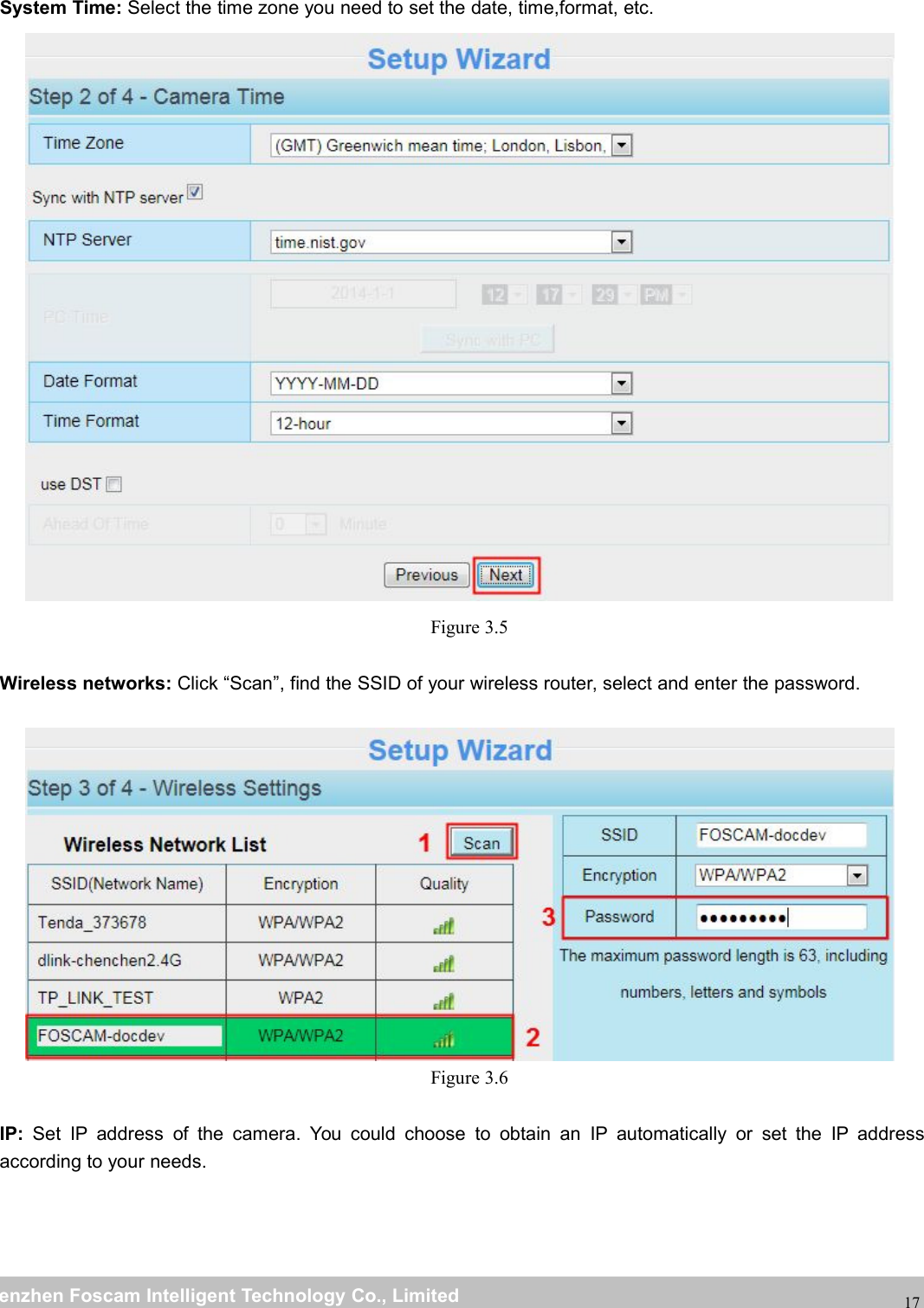
wwwwww.foscam.co.foscam.commShenzhenShenzhen FoscamFoscam IntelligentIntelligent TechnologyTechnology Co.,Co., LimitedLimitedTel:Tel: 8686 755755 26742674 56685668 Fax:Fax: 8686 755755 26742674 5168516817System Time: Select the time zone you need to set the date, time,format, etc.Figure 3.5Wireless networks: Click “Scan”, find the SSID of your wireless router, select and enter the password.Figure 3.6IP: Set IP address of the camera. You could choose to obtain an IP automatically or set the IP addressaccording to your needs.
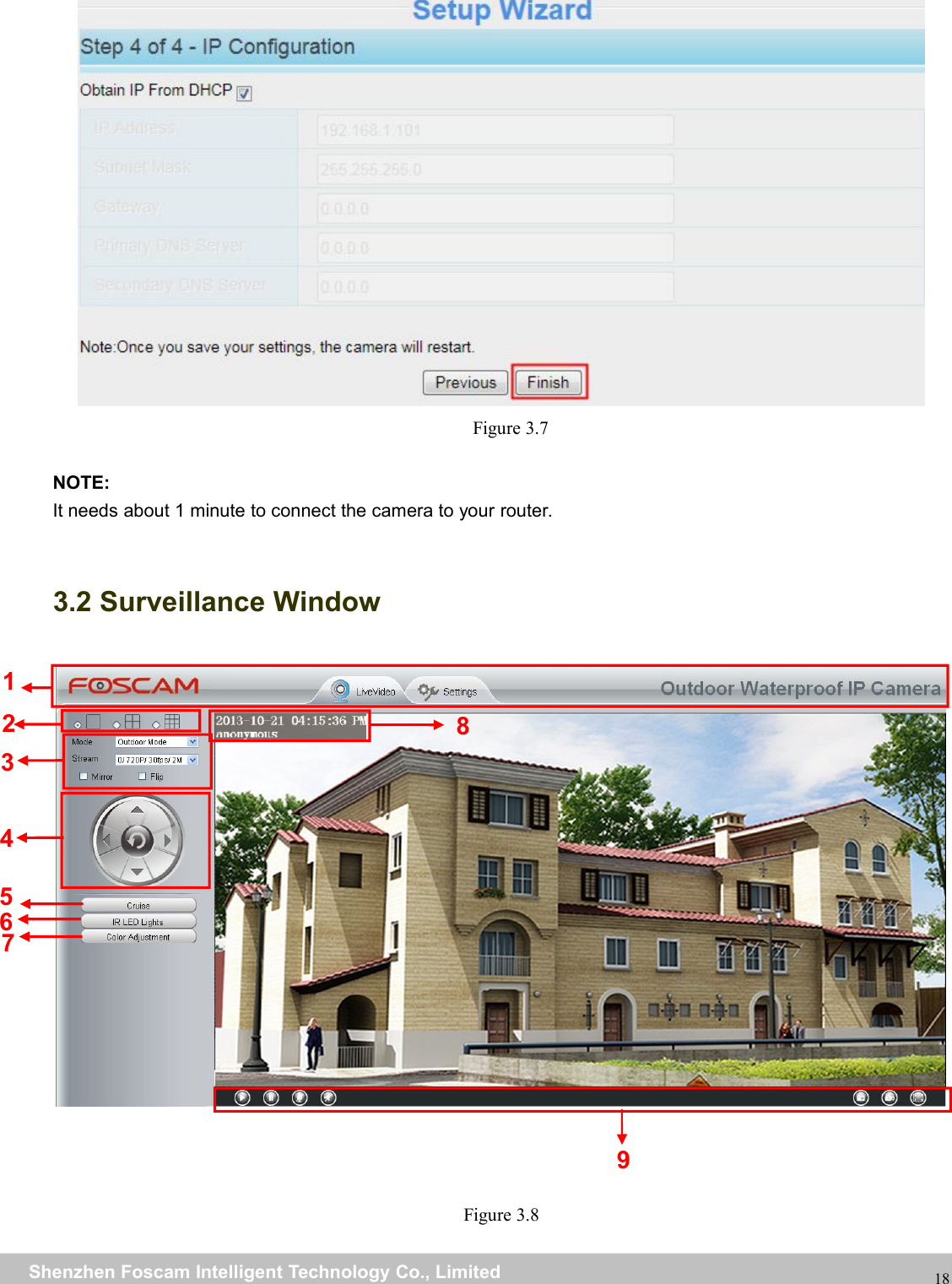
wwwwww.foscam.co.foscam.commShenzhenShenzhen FoscamFoscam IntelligentIntelligent TechnologyTechnology Co.,Co., LimitedLimitedTel:Tel: 8686 755755 26742674 56685668 Fax:Fax: 8686 755755 26742674 5168516818Figure 3.7NOTE:It needs about 1 minute to connect the camera to your router.3.2 Surveillance WindowFigure 3.8126937845
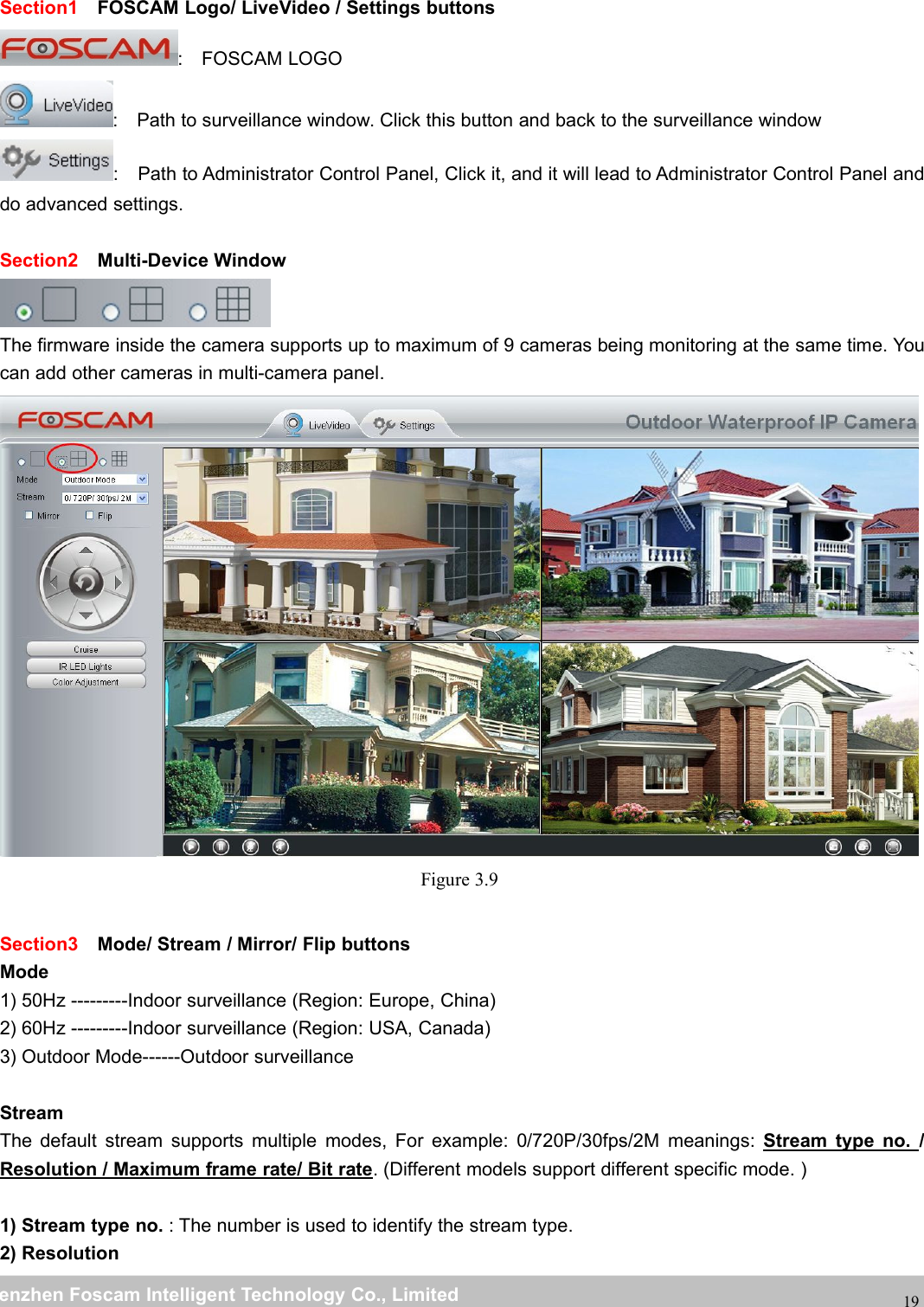
wwwwww.foscam.co.foscam.commShenzhenShenzhen FoscamFoscam IntelligentIntelligent TechnologyTechnology Co.,Co., LimitedLimitedTel:Tel: 8686 755755 26742674 56685668 Fax:Fax: 8686 755755 26742674 5168516819Section1 FOSCAM Logo/ LiveVideo / Settings buttons: FOSCAM LOGO: Path to surveillance window. Click this button and back to the surveillance window: Path to Administrator Control Panel, Click it, and it will lead to Administrator Control Panel anddo advanced settings.Section2 Multi-Device WindowThe firmware inside the camera supports up to maximum of 9 cameras being monitoring at the same time. Youcan add other cameras in multi-camera panel.Figure 3.9Section3 Mode/ Stream / Mirror/ Flip buttonsMode1) 50Hz ---------Indoor surveillance (Region: Europe, China)2) 60Hz ---------Indoor surveillance (Region: USA, Canada)3) Outdoor Mode------Outdoor surveillanceStreamThe default stream supports multiple modes, For example: 0/720P/30fps/2M meanings: Stream type no. /Resolution / Maximum frame rate/ Bit rate. (Different models support different specific mode. )1) Stream type no. : The number is used to identify the stream type.2) Resolution
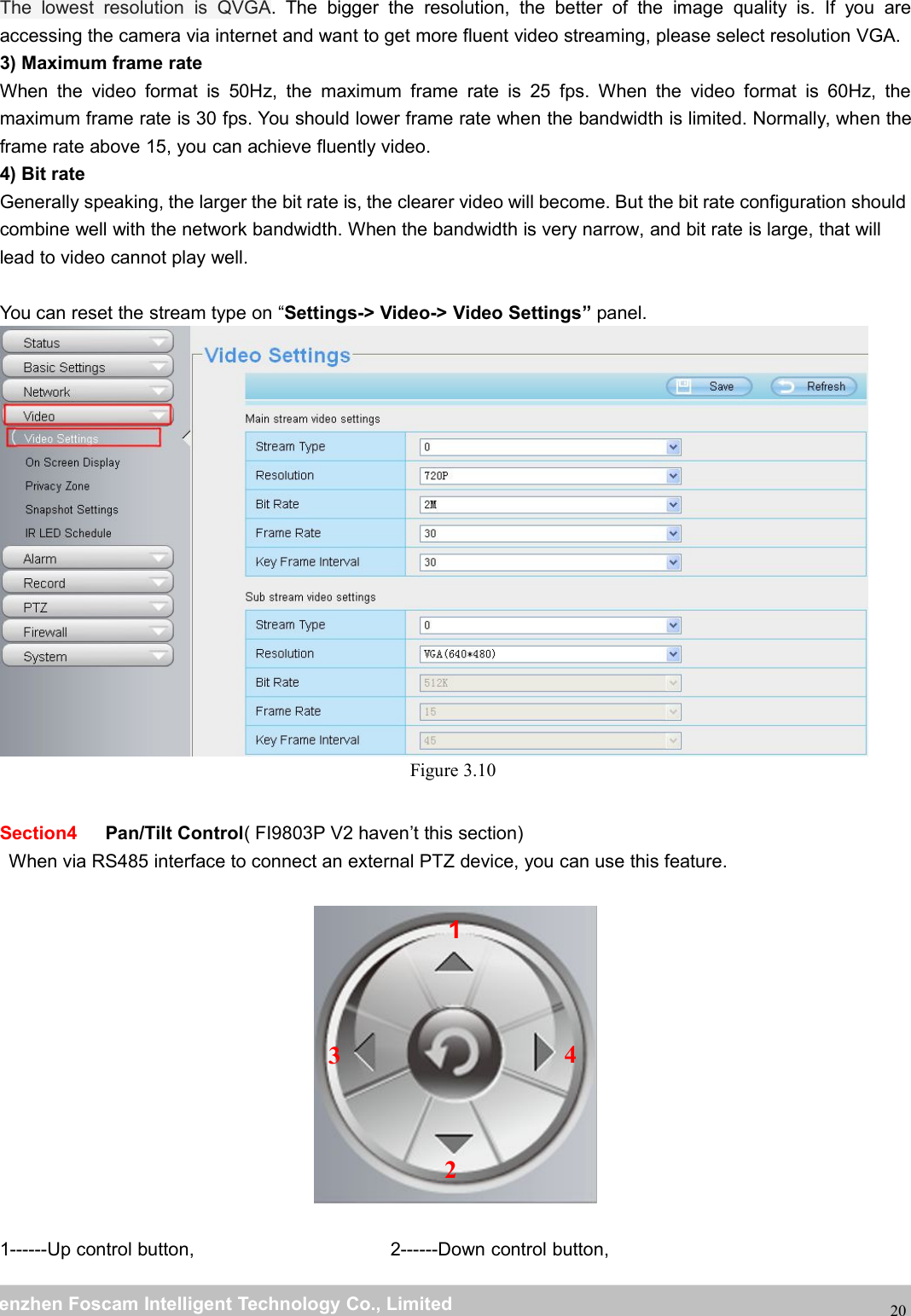
wwwwww.foscam.co.foscam.commShenzhenShenzhen FoscamFoscam IntelligentIntelligent TechnologyTechnology Co.,Co., LimitedLimitedTel:Tel: 8686 755755 26742674 56685668 Fax:Fax: 8686 755755 26742674 5168516820The lowest resolution is QVGA. The bigger the resolution, the better of the image quality is. If you areaccessing the camera via internet and want to get more fluent video streaming, please select resolution VGA.3) Maximum frame rateWhen the video format is 50Hz, the maximum frame rate is 25 fps. When the video format is 60Hz, themaximum frame rate is 30 fps. You should lower frame rate when the bandwidth is limited. Normally, when theframe rate above 15, you can achieve fluently video.4) Bit rateGenerally speaking, the larger the bit rate is, the clearer video will become. But the bit rate configuration shouldcombine well with the network bandwidth. When the bandwidth is very narrow, and bit rate is large, that willlead to video cannot play well.You can reset the stream type on “Settings-> Video-> Video Settings” panel.Figure 3.10Section4 Pan/Tilt Control( FI9803P V2 haven’t this section)When via RS485 interface to connect an external PTZ device, you can use this feature.1------Up control button, 2------Down control button,1234
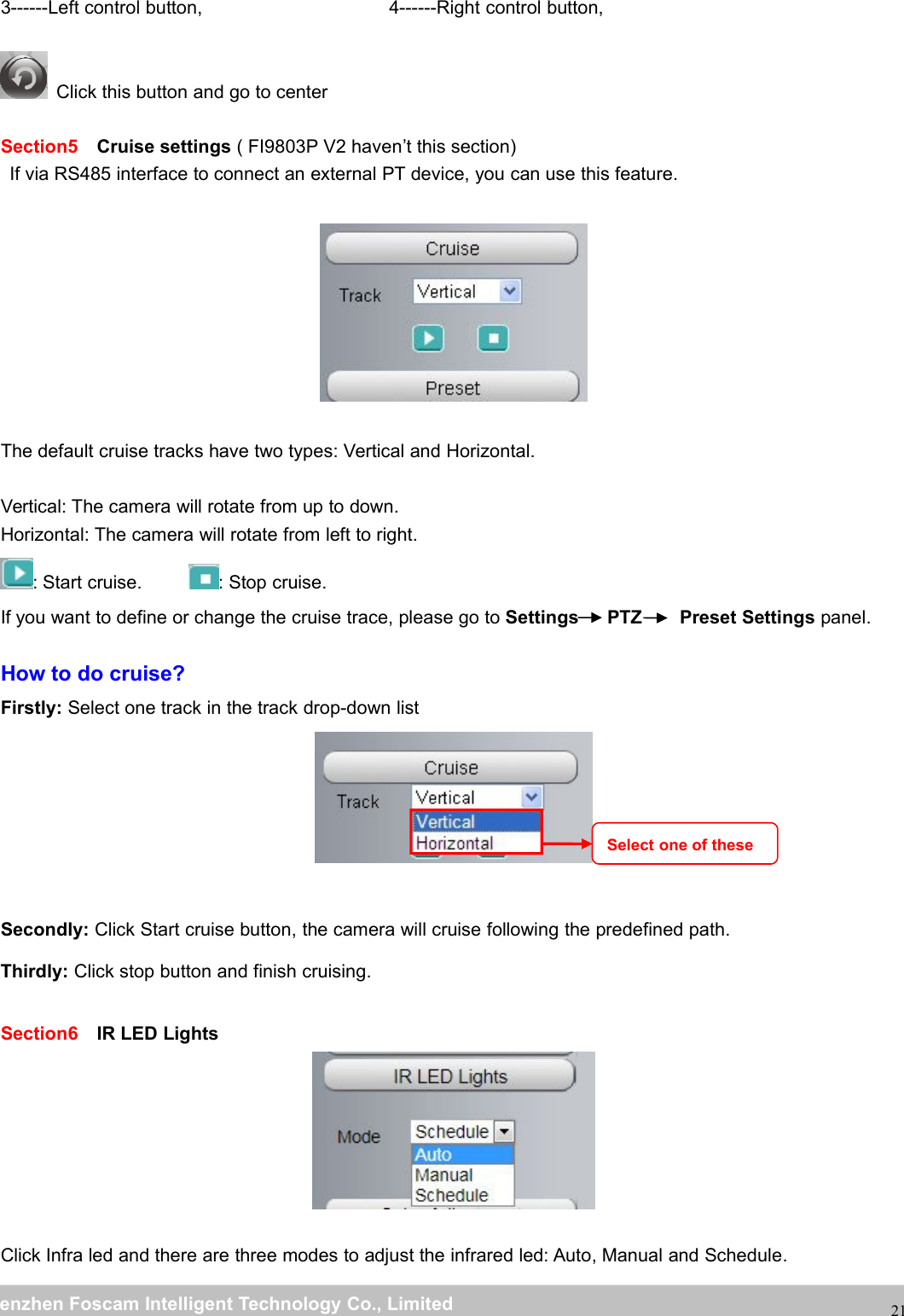
wwwwww.foscam.co.foscam.commShenzhenShenzhen FoscamFoscam IntelligentIntelligent TechnologyTechnology Co.,Co., LimitedLimitedTel:Tel: 8686 755755 26742674 56685668 Fax:Fax: 8686 755755 26742674 51685168213------Left control button, 4------Right control button,Click this button and go to centerSection5 Cruise settings ( FI9803P V2 haven’t this section)If via RS485 interface to connect an external PT device, you can use this feature.The default cruise tracks have two types: Vertical and Horizontal.Vertical: The camera will rotate from up to down.Horizontal: The camera will rotate from left to right.: Start cruise. : Stop cruise.If you want to define or change the cruise trace, please go to Settings PTZ Preset Settings panel.How to do cruise?Firstly: Select one track in the track drop-down listSecondly: Click Start cruise button, the camera will cruise following the predefined path.Thirdly: Click stop button and finish cruising.Section6 IR LED LightsClick Infra led and there are three modes to adjust the infrared led: Auto, Manual and Schedule.Select one of these
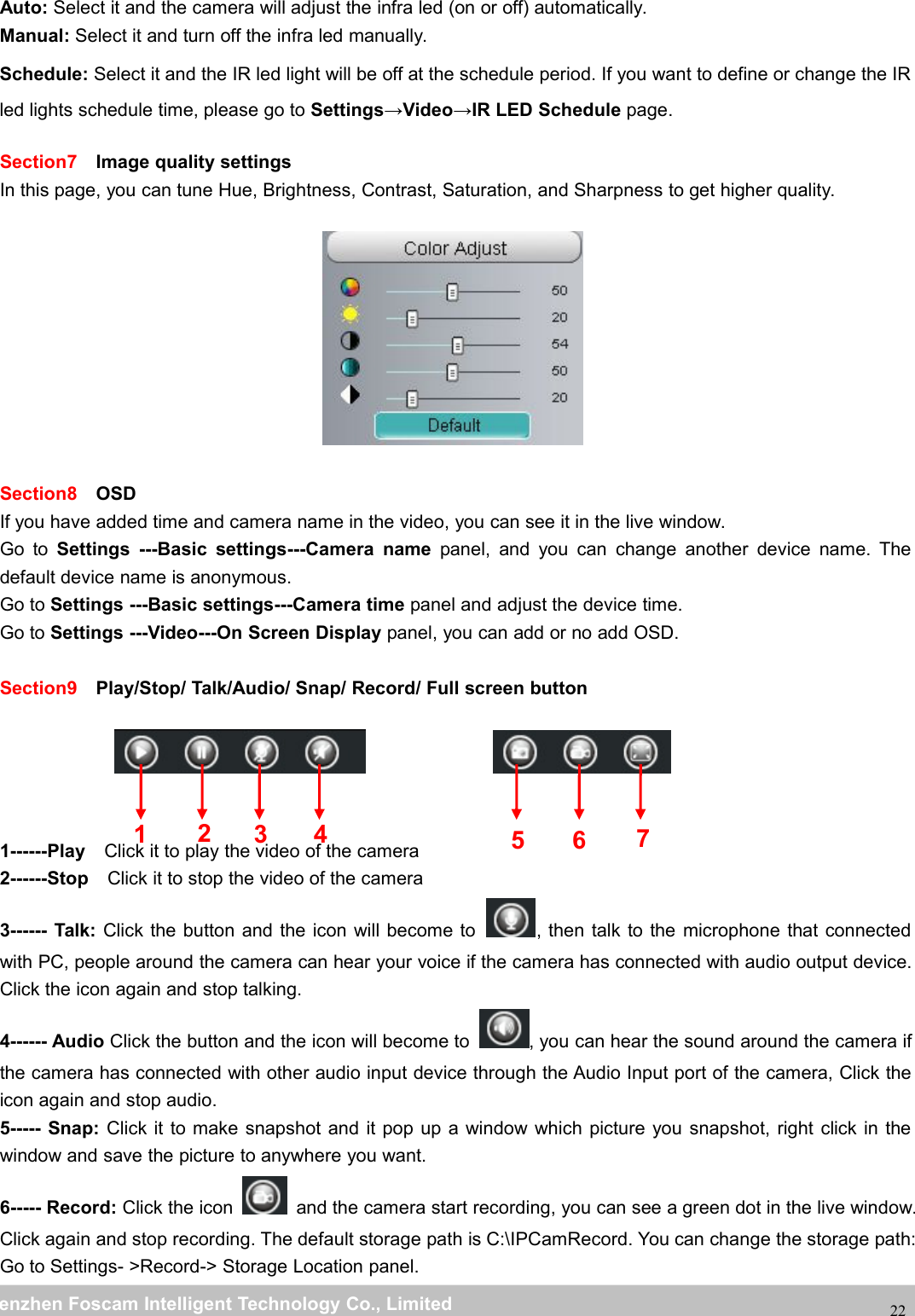
wwwwww.foscam.co.foscam.commShenzhenShenzhen FoscamFoscam IntelligentIntelligent TechnologyTechnology Co.,Co., LimitedLimitedTel:Tel: 8686 755755 26742674 56685668 Fax:Fax: 8686 755755 26742674 5168516822Auto: Select it and the camera will adjust the infra led (on or off) automatically.Manual: Select it and turn off the infra led manually.Schedule: Select it and the IR led light will be off at the schedule period. If you want to define or change the IRled lights schedule time, please go to Settings→Video→IR LED Schedule page.Section7 Image quality settingsIn this page, you can tune Hue, Brightness, Contrast, Saturation, and Sharpness to get higher quality.Section8 OSDIf you have added time and camera name in the video, you can see it in the live window.Go to Settings ---Basic settings---Camera name panel, and you can change another device name. Thedefault device name is anonymous.Go to Settings ---Basic settings---Camera time panel and adjust the device time.Go to Settings ---Video---On Screen Display panel, you can add or no add OSD.Section9 Play/Stop/ Talk/Audio/ Snap/ Record/ Full screen button1------Play Click it to play the video of the camera2------Stop Click it to stop the video of the camera3------ Talk: Click the button and the icon will become to , then talk to the microphone that connectedwith PC, people around the camera can hear your voice if the camera has connected with audio output device.Click the icon again and stop talking.4------ Audio Click the button and the icon will become to , you can hear the sound around the camera ifthe camera has connected with other audio input device through the Audio Input port of the camera, Click theicon again and stop audio.5----- Snap: Click it to make snapshot and it pop up a window which picture you snapshot, right click in thewindow and save the picture to anywhere you want.6----- Record: Click the icon and the camera start recording, you can see a green dot in the live window.Click again and stop recording. The default storage path is C:\IPCamRecord. You can change the storage path:Go to Settings- >Record-> Storage Location panel.1235674
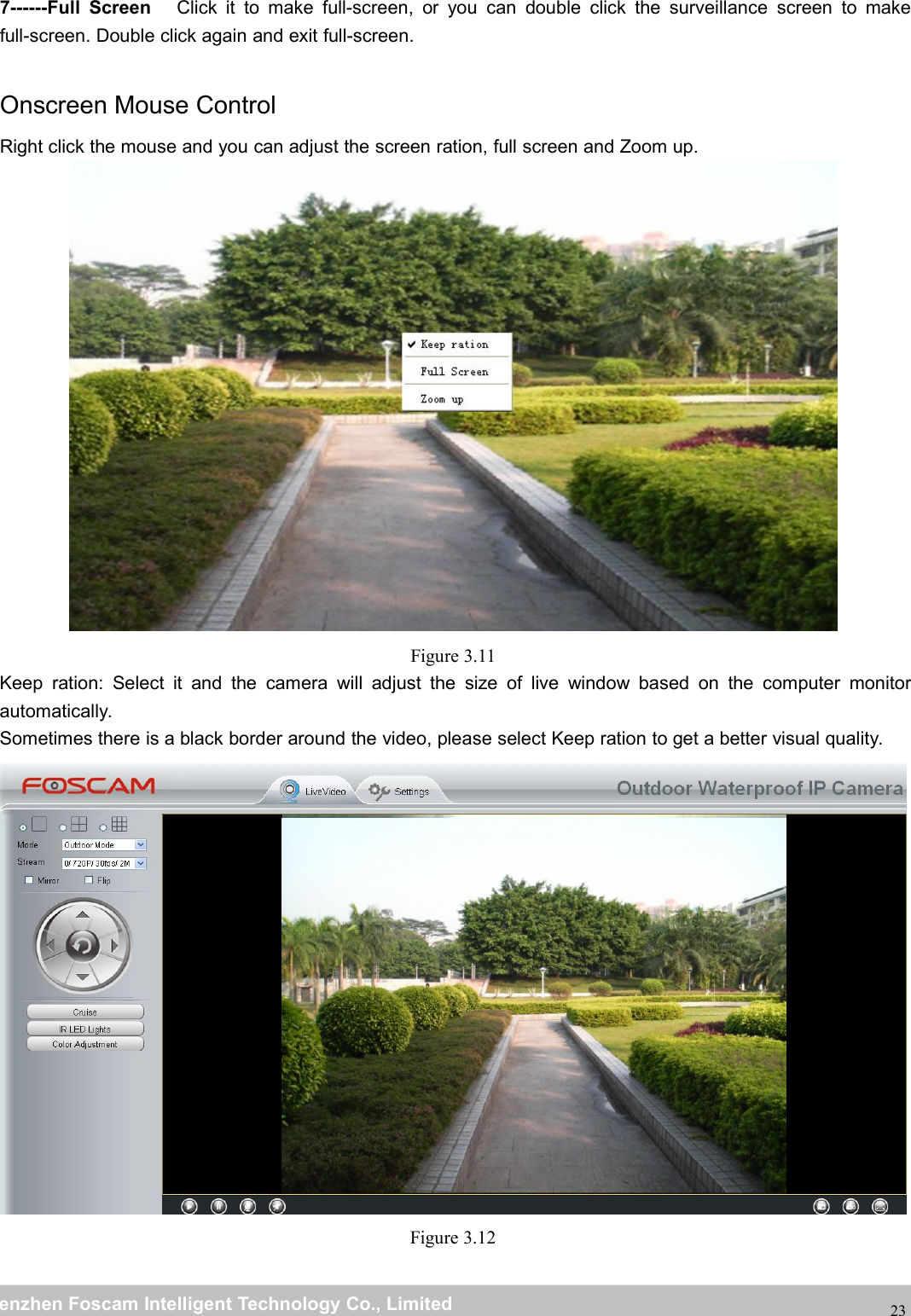
wwwwww.foscam.co.foscam.commShenzhenShenzhen FoscamFoscam IntelligentIntelligent TechnologyTechnology Co.,Co., LimitedLimitedTel:Tel: 8686 755755 26742674 56685668 Fax:Fax: 8686 755755 26742674 51685168237------Full Screen Click it to make full-screen, or you can double click the surveillance screen to makefull-screen. Double click again and exit full-screen.Onscreen Mouse ControlRight click the mouse and you can adjust the screen ration, full screen and Zoom up.Figure 3.11Keep ration: Select it and the camera will adjust the size of live window based on the computer monitorautomatically.Sometimes there is a black border around the video, please select Keep ration to get a better visual quality.Figure 3.12
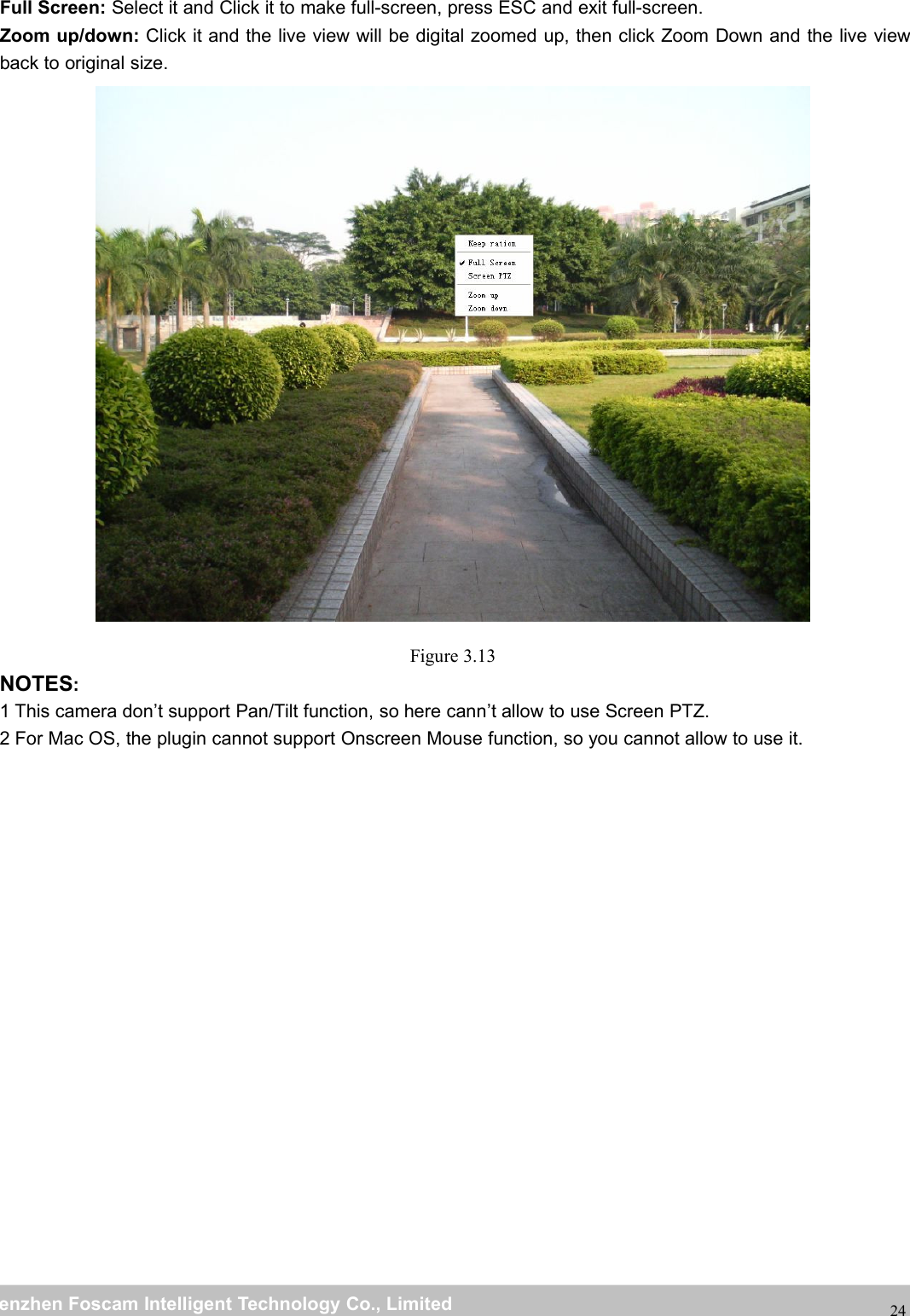
wwwwww.foscam.co.foscam.commShenzhenShenzhen FoscamFoscam IntelligentIntelligent TechnologyTechnology Co.,Co., LimitedLimitedTel:Tel: 8686 755755 26742674 56685668 Fax:Fax: 8686 755755 26742674 5168516824Full Screen: Select it and Click it to make full-screen, press ESC and exit full-screen.Zoom up/down: Click it and the live view will be digital zoomed up, then click Zoom Down and the live viewback to original size.Figure 3.13NOTES:1 This camera don’t support Pan/Tilt function, so here cann’t allow to use Screen PTZ.2 For Mac OS, the plugin cannot support Onscreen Mouse function, so you cannot allow to use it.
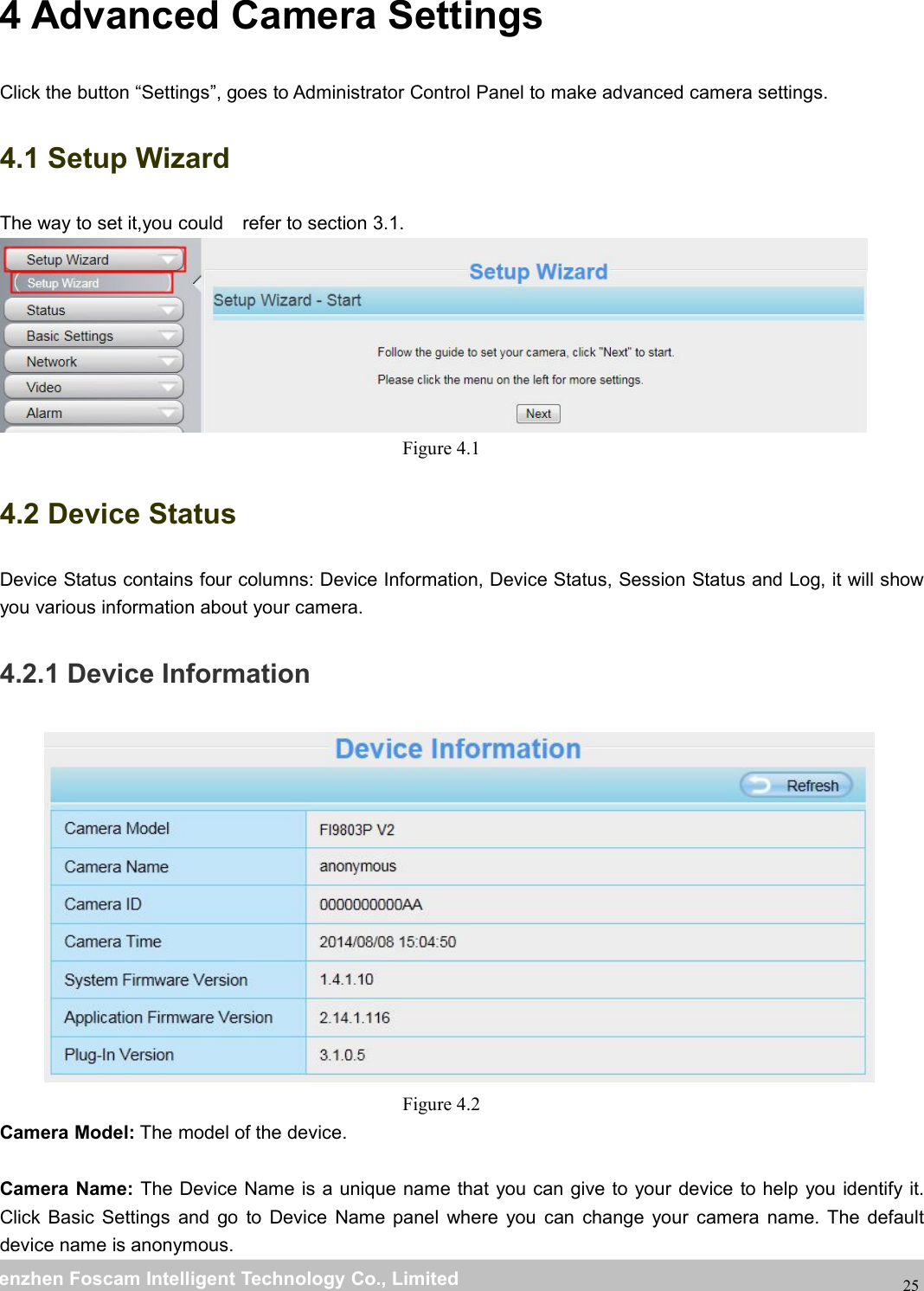
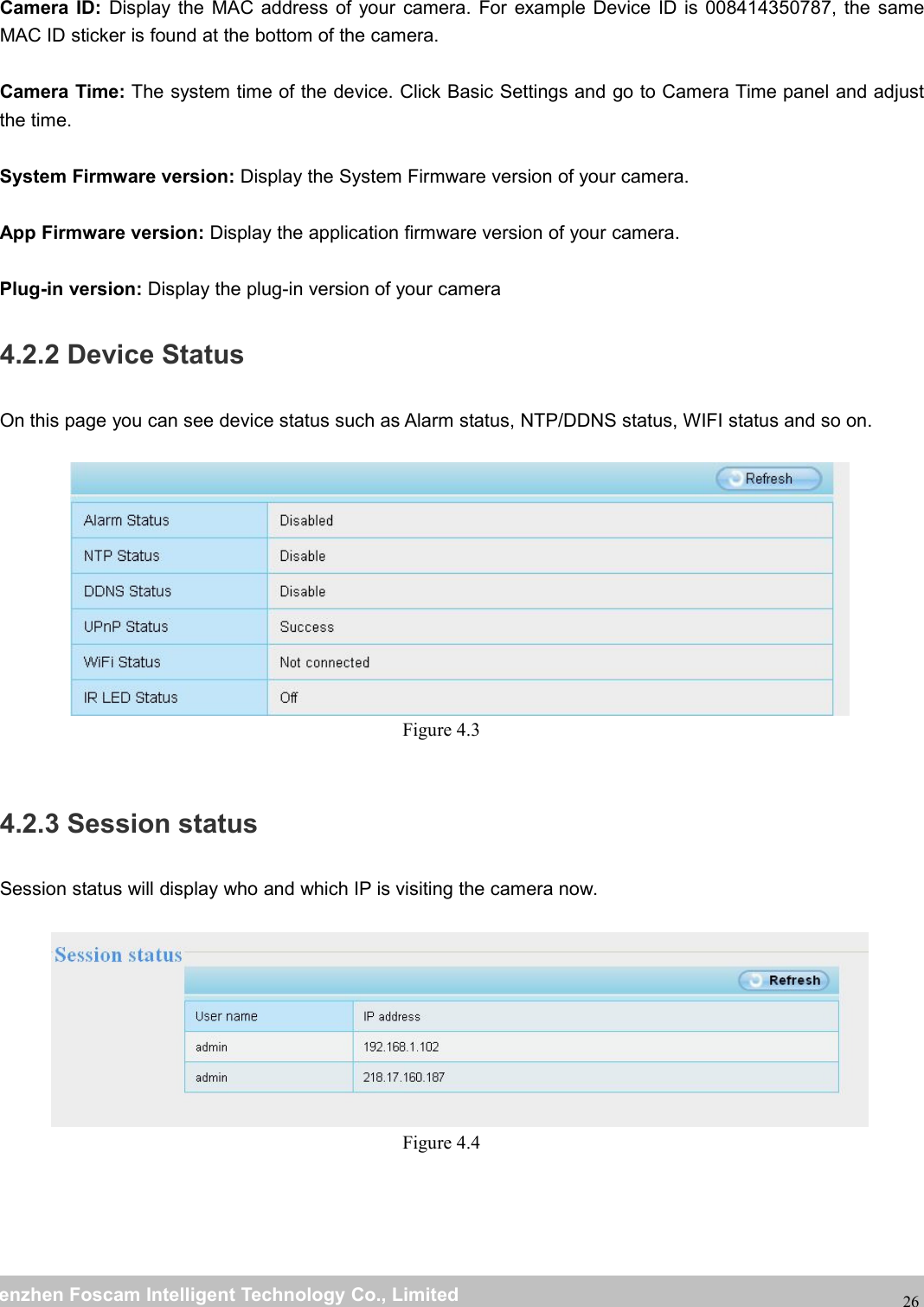
wwwwww.foscam.co.foscam.commShenzhenShenzhen FoscamFoscam IntelligentIntelligent TechnologyTechnology Co.,Co., LimitedLimitedTel:Tel: 8686 755755 26742674 56685668 Fax:Fax: 8686 755755 26742674 51685168254 Advanced Camera SettingsClick the button “Settings”, goes to Administrator Control Panel to make advanced camera settings.4.1 Setup WizardThe way to set it,you could refer to section 3.1.Figure 4.14.2 Device StatusDevice Status contains four columns: Device Information, Device Status, Session Status and Log, it will showyou various information about your camera.4.2.1 Device InformationFigure 4.2Camera Model: The model of the device.Camera Name: The Device Name is a unique name that you can give to your device to help you identify it.Click Basic Settings and go to Device Name panel where you can change your camera name. The defaultdevice name is anonymous.
wwwwww.foscam.co.foscam.commShenzhenShenzhen FoscamFoscam IntelligentIntelligent TechnologyTechnology Co.,Co., LimitedLimitedTel:Tel: 8686 755755 26742674 56685668 Fax:Fax: 8686 755755 26742674 5168516826Camera ID: Display the MAC address of your camera. For example Device ID is 008414350787, the sameMAC ID sticker is found at the bottom of the camera.Camera Time: The system time of the device. Click Basic Settings and go to Camera Time panel and adjustthe time.System Firmware version: Display the System Firmware version of your camera.App Firmware version: Display the application firmware version of your camera.Plug-in version: Display the plug-in version of your camera4.2.2 Device StatusOn this page you can see device status such as Alarm status, NTP/DDNS status, WIFI status and so on.Figure 4.34.2.3 Session statusSession status will display who and which IP is visiting the camera now.Figure 4.4
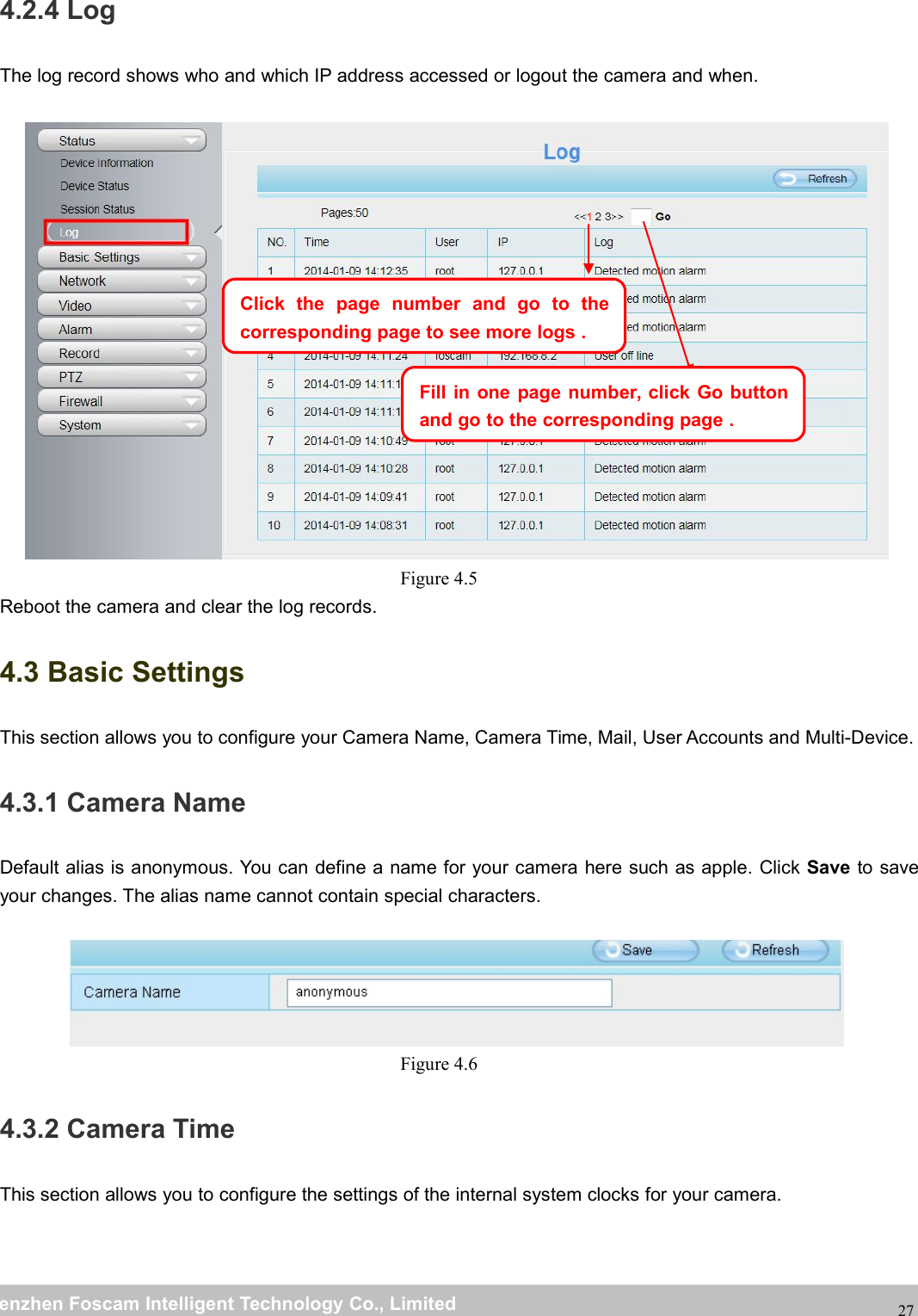
wwwwww.foscam.co.foscam.commShenzhenShenzhen FoscamFoscam IntelligentIntelligent TechnologyTechnology Co.,Co., LimitedLimitedTel:Tel: 8686 755755 26742674 56685668 Fax:Fax: 8686 755755 26742674 51685168274.2.4 LogThe log record shows who and which IP address accessed or logout the camera and when.Figure 4.5Reboot the camera and clear the log records.4.3 Basic SettingsThis section allows you to configure your Camera Name, Camera Time, Mail, User Accounts and Multi-Device.4.3.1 Camera NameDefault alias is anonymous. You can define a name for your camera here such as apple. Click Save to saveyour changes. The alias name cannot contain special characters.Figure 4.64.3.2 Camera TimeThis section allows you to configure the settings of the internal system clocks for your camera.Click the page number and go to thecorresponding page to see more logs .Fill in one page number, click Go buttonand go to the corresponding page .
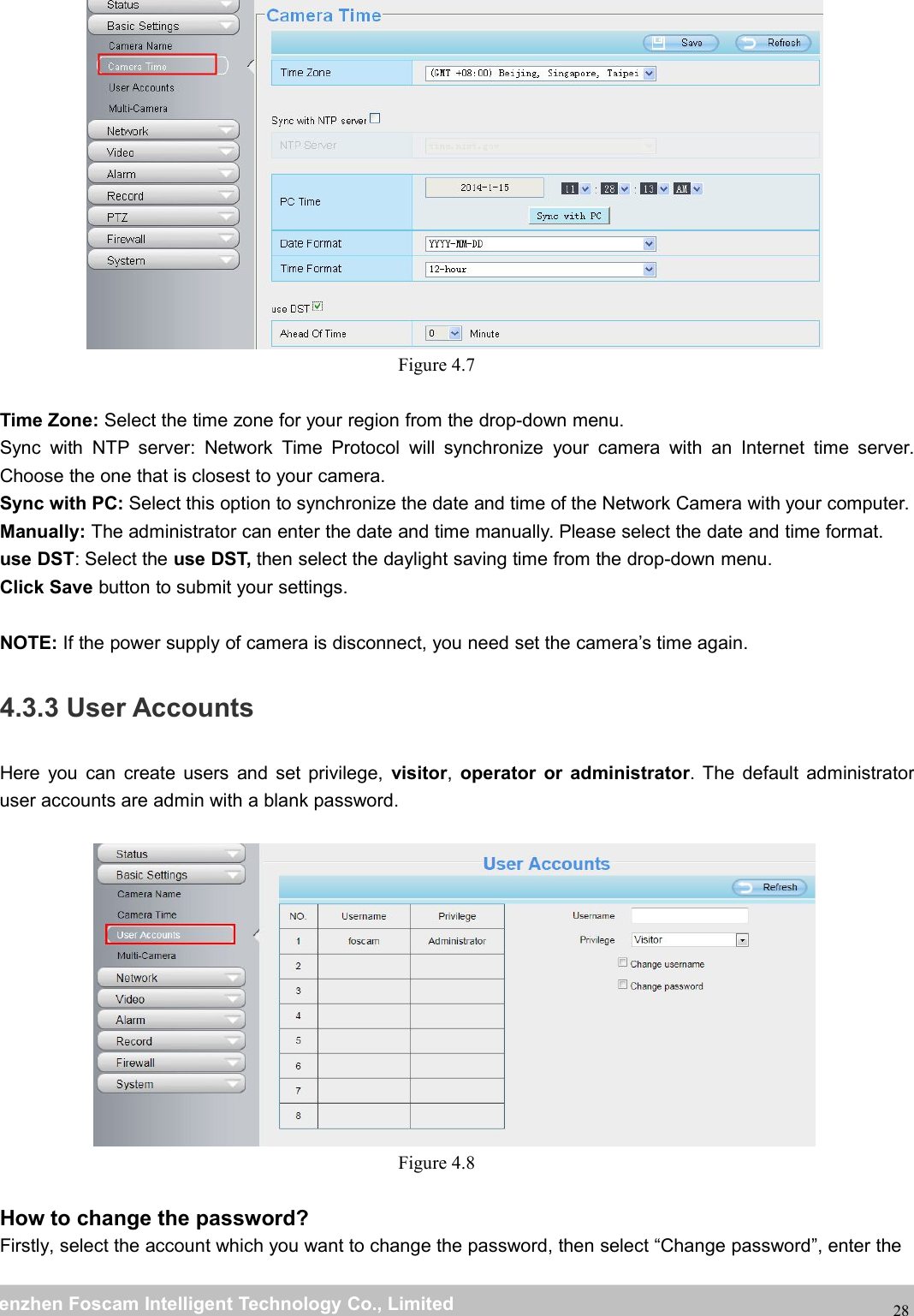
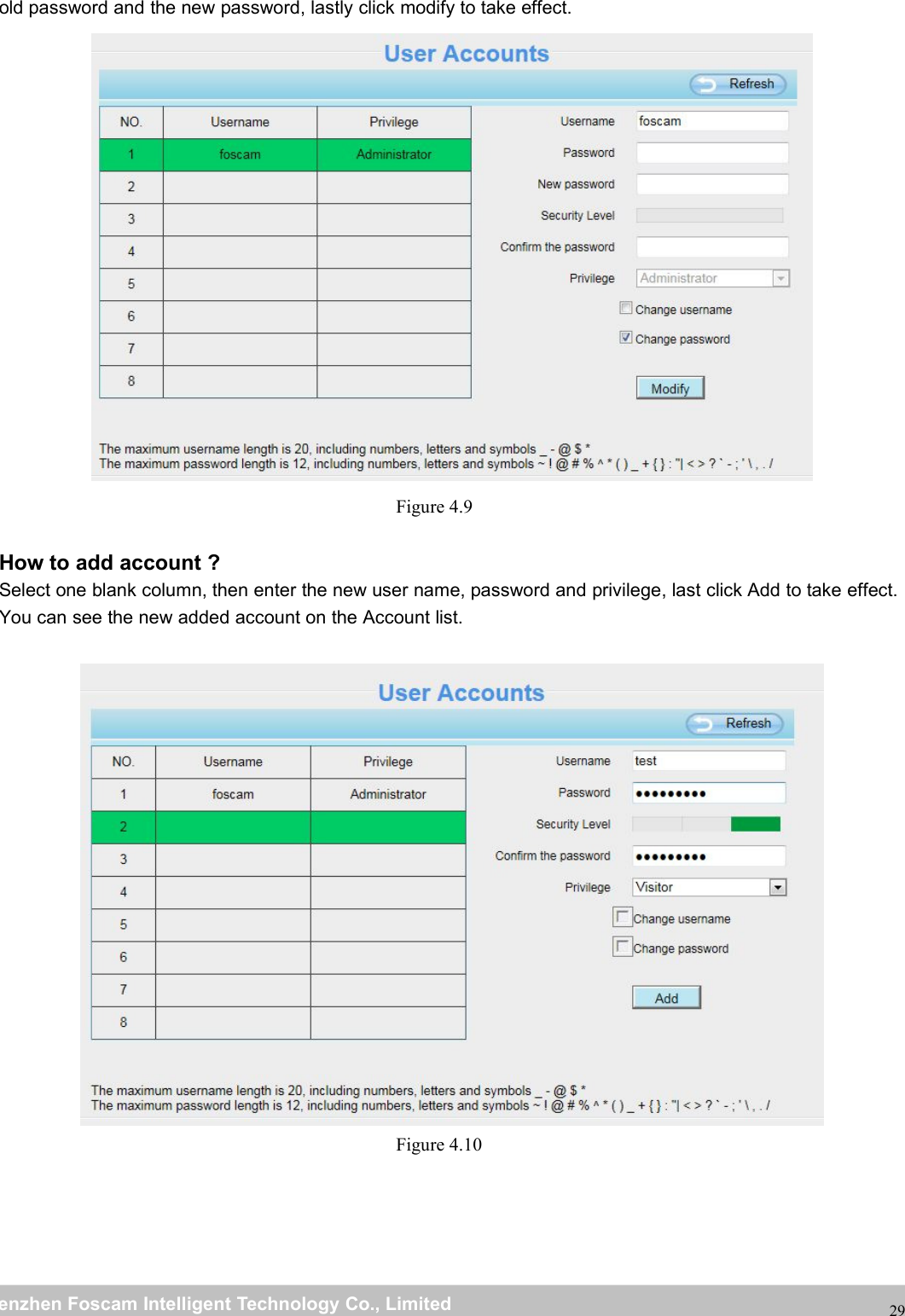
wwwwww.foscam.co.foscam.commShenzhenShenzhen FoscamFoscam IntelligentIntelligent TechnologyTechnology Co.,Co., LimitedLimitedTel:Tel: 8686 755755 26742674 56685668 Fax:Fax: 8686 755755 26742674 5168516828Figure 4.7Time Zone: Select the time zone for your region from the drop-down menu.Sync with NTP server: Network Time Protocol will synchronize your camera with an Internet time server.Choose the one that is closest to your camera.Sync with PC: Select this option to synchronize the date and time of the Network Camera with your computer.Manually: The administrator can enter the date and time manually. Please select the date and time format.use DST: Select the use DST, then select the daylight saving time from the drop-down menu.Click Save button to submit your settings.NOTE: If the power supply of camera is disconnect, you need set the camera’s time again.4.3.3 User AccountsHere you can create users and set privilege, visitor,operator or administrator. The default administratoruser accounts are admin with a blank password.Figure 4.8How to change the password?Firstly, select the account which you want to change the password, then select “Change password”, enter the
wwwwww.foscam.co.foscam.commShenzhenShenzhen FoscamFoscam IntelligentIntelligent TechnologyTechnology Co.,Co., LimitedLimitedTel:Tel: 8686 755755 26742674 56685668 Fax:Fax: 8686 755755 26742674 5168516829old password and the new password, lastly click modify to take effect.Figure 4.9How to add account ?Select one blank column, then enter the new user name, password and privilege, last click Add to take effect.You can see the new added account on the Account list.Figure 4.10
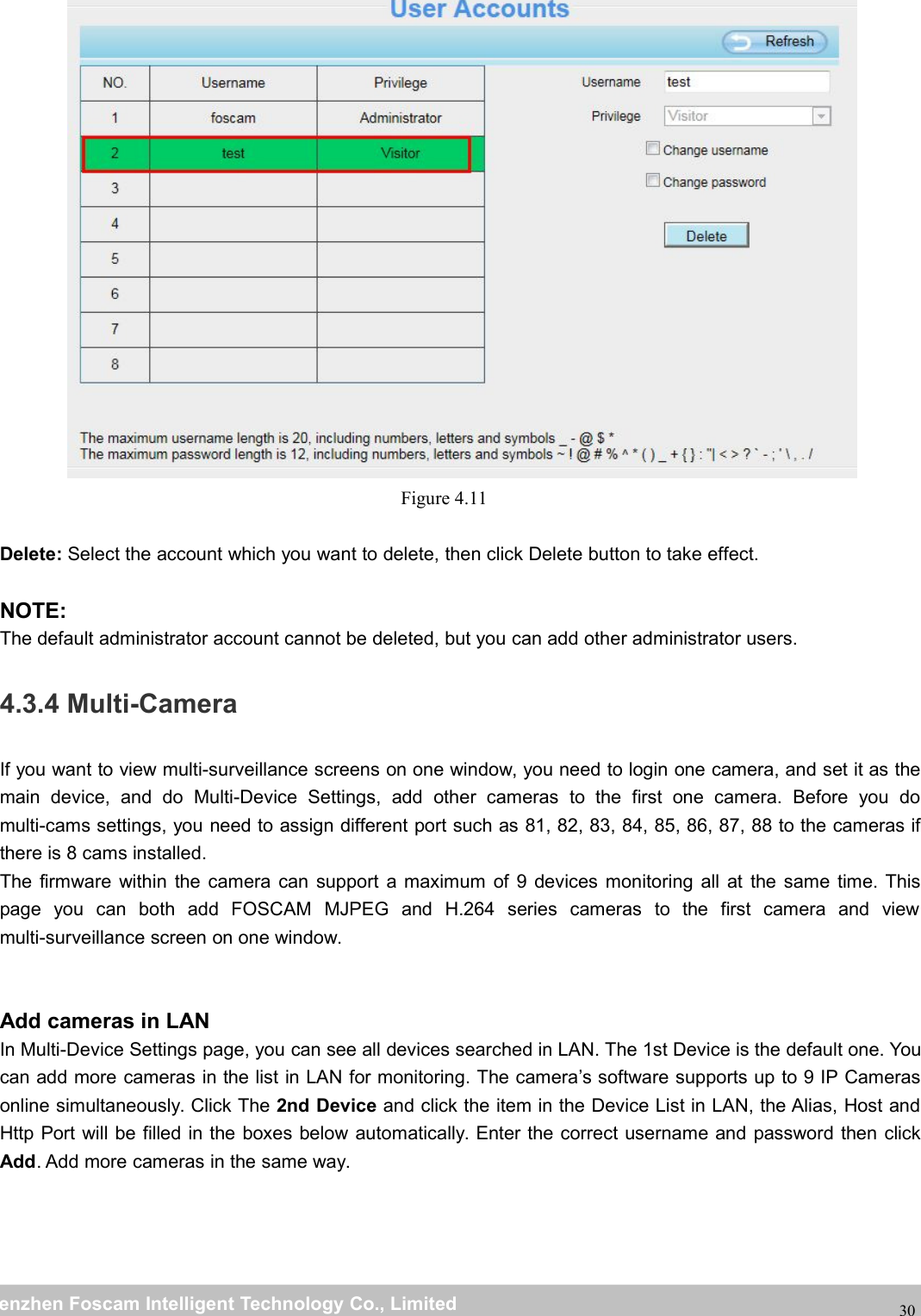
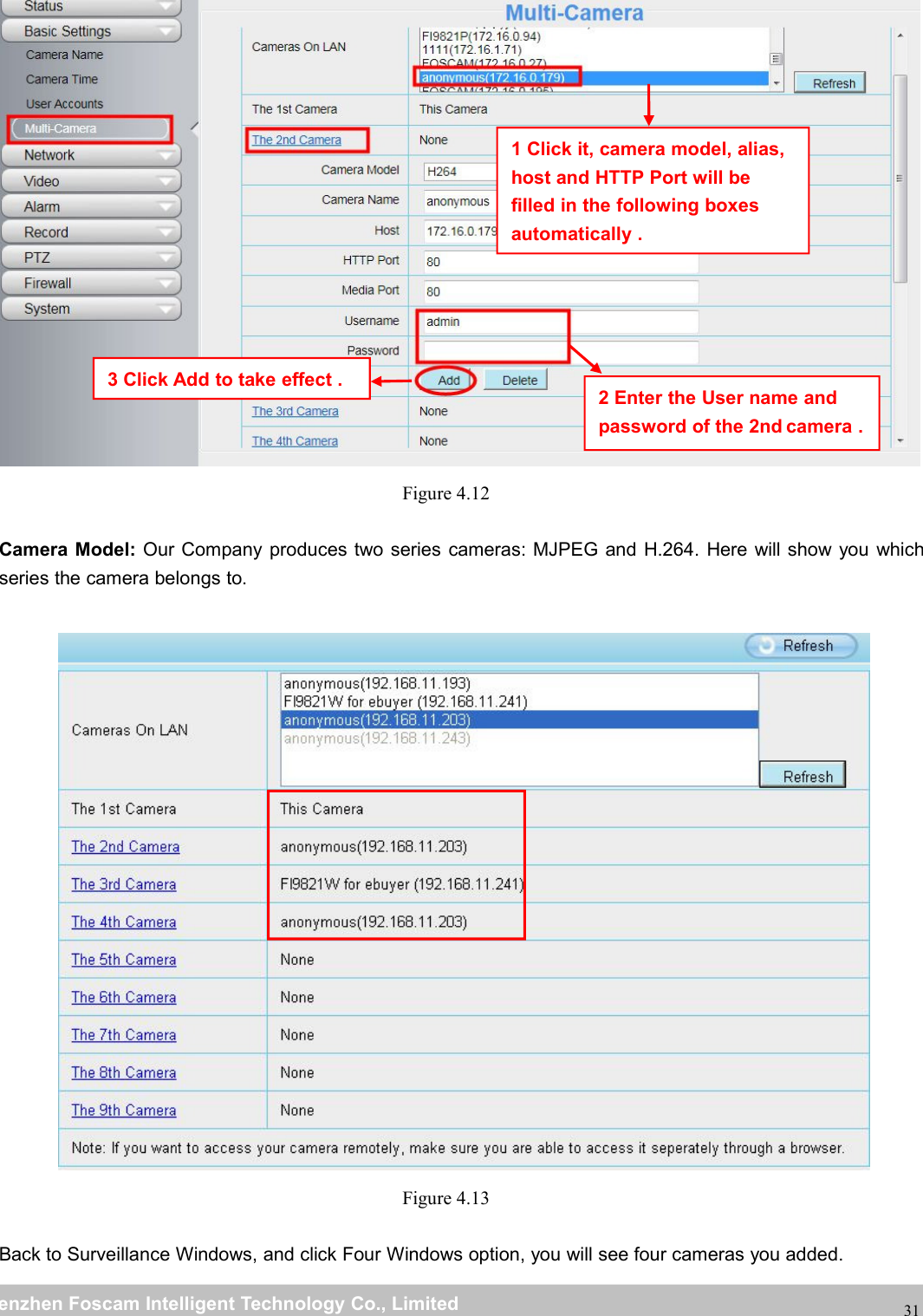
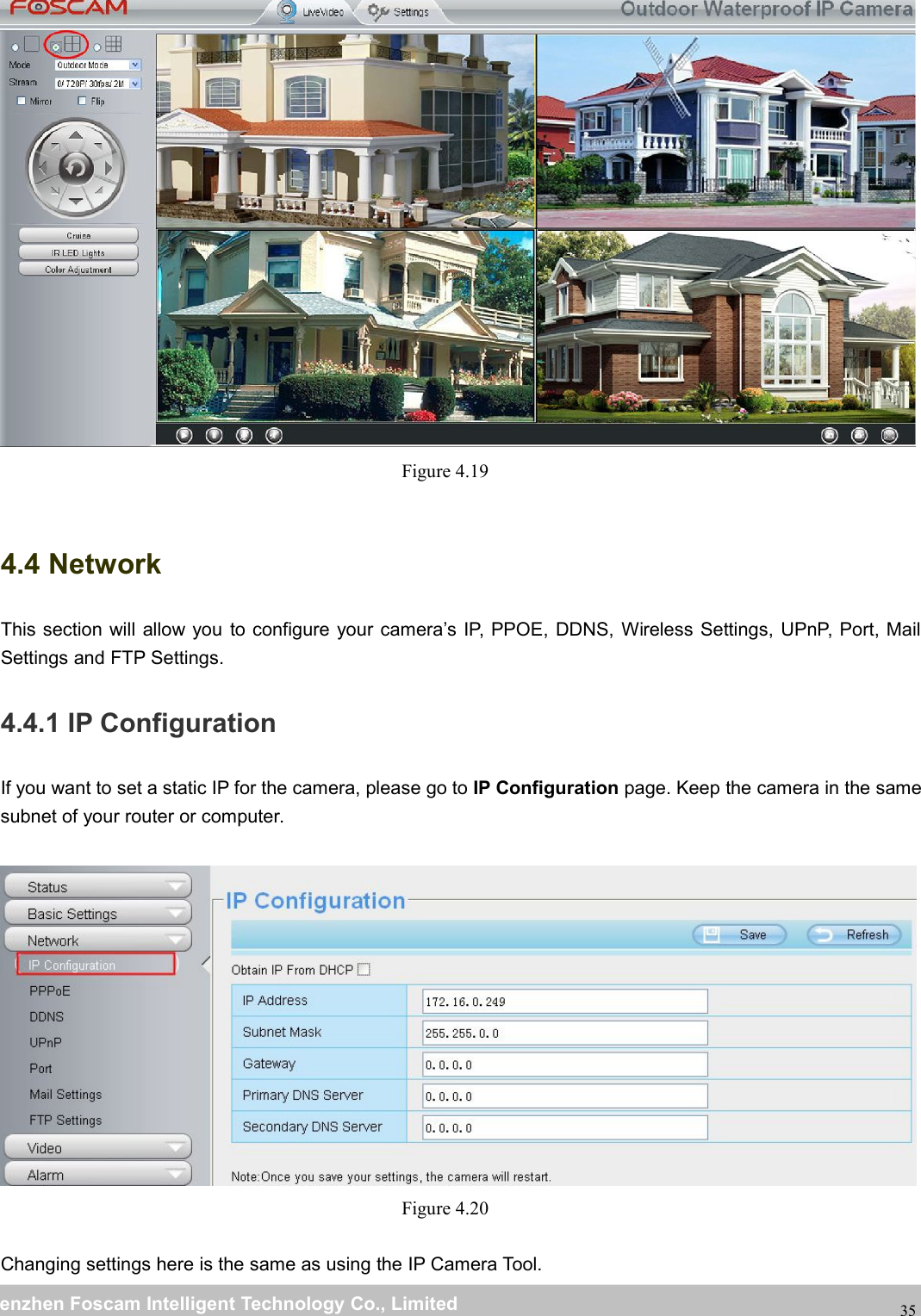
wwwwww.foscam.co.foscam.commShenzhenShenzhen FoscamFoscam IntelligentIntelligent TechnologyTechnology Co.,Co., LimitedLimitedTel:Tel: 8686 755755 26742674 56685668 Fax:Fax: 8686 755755 26742674 5168516830Figure 4.11Delete: Select the account which you want to delete, then click Delete button to take effect.NOTE:The default administrator account cannot be deleted, but you can add other administrator users.4.3.4 Multi-CameraIf you want to view multi-surveillance screens on one window, you need to login one camera, and set it as themain device, and do Multi-Device Settings, add other cameras to the first one camera. Before you domulti-cams settings, you need to assign different port such as 81, 82, 83, 84, 85, 86, 87, 88 to the cameras ifthere is 8 cams installed.The firmware within the camera can support a maximum of 9 devices monitoring all at the same time. Thispage you can both add FOSCAM MJPEG and H.264 series cameras to the first camera and viewmulti-surveillance screen on one window.Add cameras in LANIn Multi-Device Settings page, you can see all devices searched in LAN. The 1st Device is the default one. Youcan add more cameras in the list in LAN for monitoring. The camera’s software supports up to 9 IP Camerasonline simultaneously. Click The 2nd Device and click the item in the Device List in LAN, the Alias, Host andHttp Port will be filled in the boxes below automatically. Enter the correct username and password then clickAdd. Add more cameras in the same way.
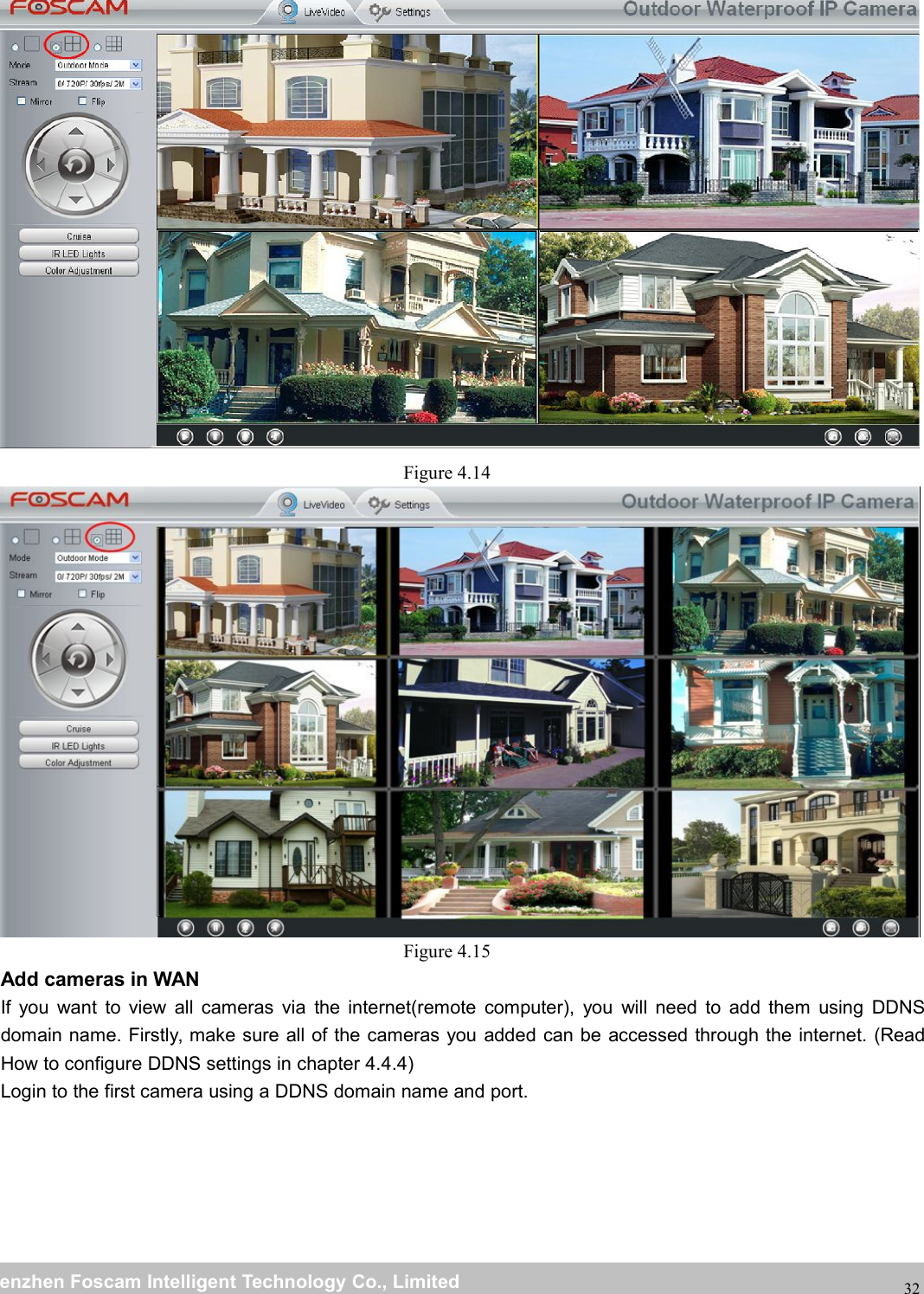
wwwwww.foscam.co.foscam.commShenzhenShenzhen FoscamFoscam IntelligentIntelligent TechnologyTechnology Co.,Co., LimitedLimitedTel:Tel: 8686 755755 26742674 56685668 Fax:Fax: 8686 755755 26742674 5168516831Figure 4.12Camera Model: Our Company produces two series cameras: MJPEG and H.264. Here will show you whichseries the camera belongs to.Figure 4.13Back to Surveillance Windows, and click Four Windows option, you will see four cameras you added.2 Enter the User name andpassword of the 2nd camera .1 Click it, camera model, alias,host and HTTP Port will befilled in the following boxesautomatically .3 Click Add to take effect .
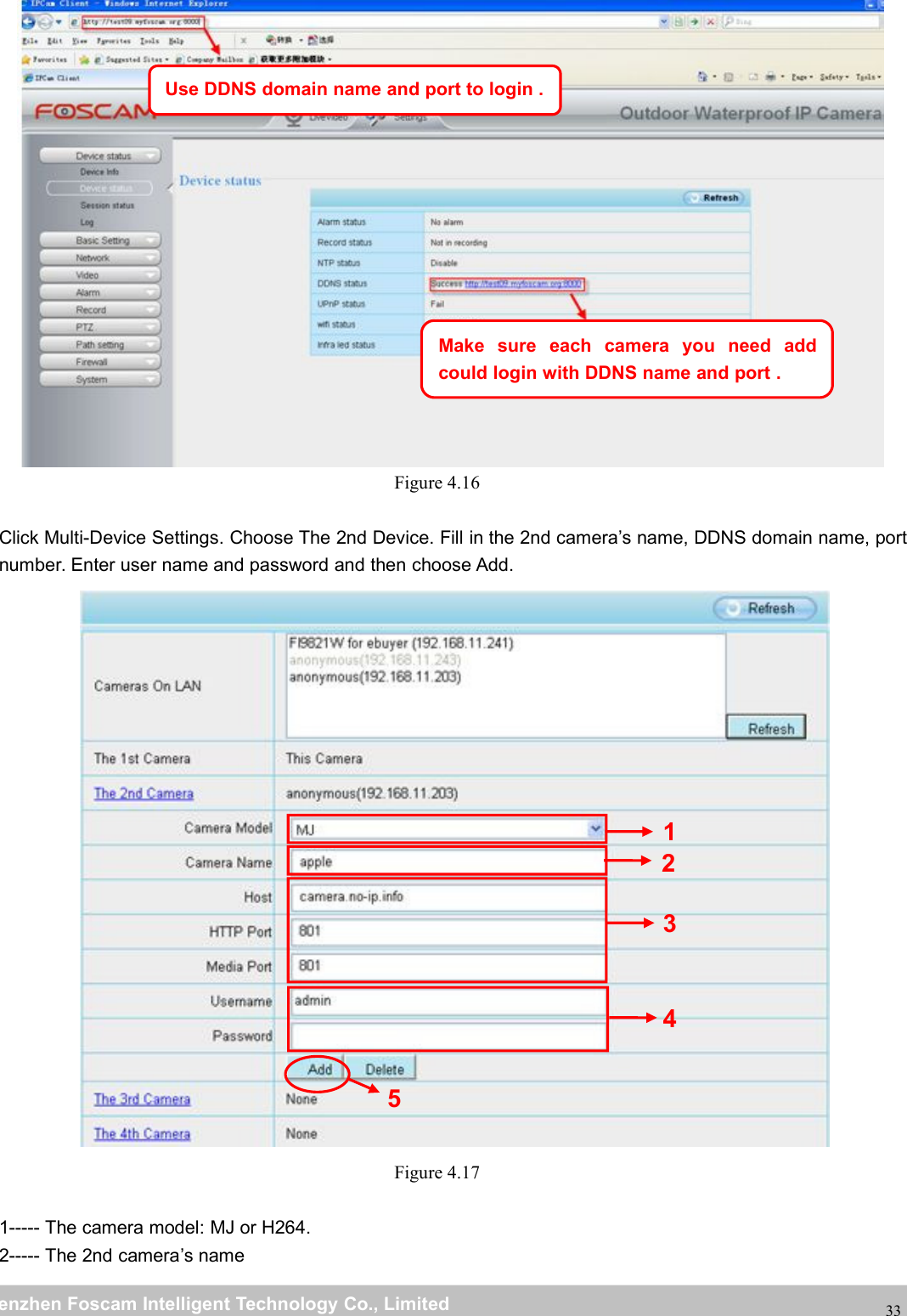
wwwwww.foscam.co.foscam.commShenzhenShenzhen FoscamFoscam IntelligentIntelligent TechnologyTechnology Co.,Co., LimitedLimitedTel:Tel: 8686 755755 26742674 56685668 Fax:Fax: 8686 755755 26742674 5168516832Figure 4.14Figure 4.15Add cameras in WANIf you want to view all cameras via the internet(remote computer), you will need to add them using DDNSdomain name. Firstly, make sure all of the cameras you added can be accessed through the internet. (ReadHow to configure DDNS settings in chapter 4.4.4)Login to the first camera using a DDNS domain name and port.
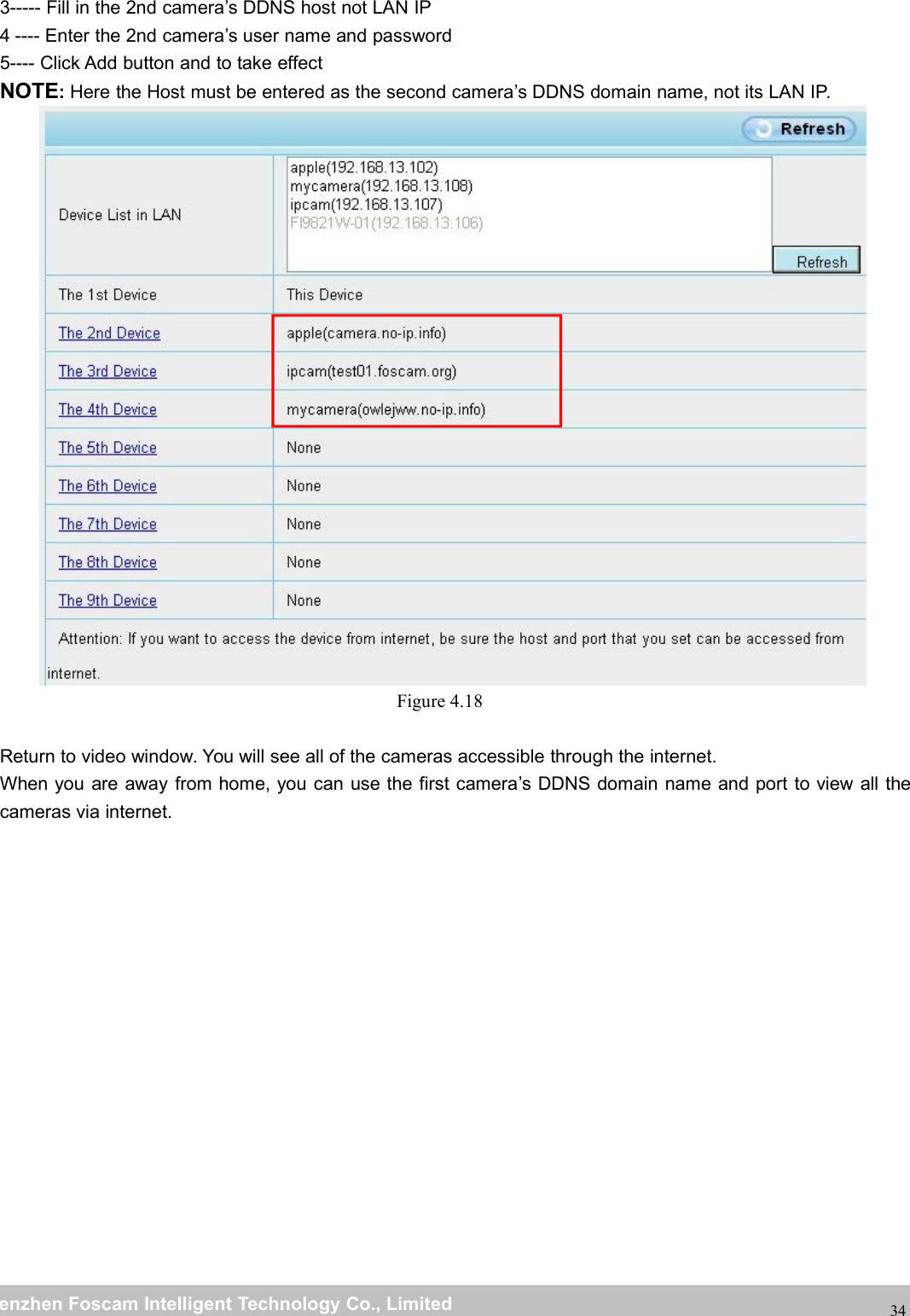
wwwwww.foscam.co.foscam.commShenzhenShenzhen FoscamFoscam IntelligentIntelligent TechnologyTechnology Co.,Co., LimitedLimitedTel:Tel: 8686 755755 26742674 56685668 Fax:Fax: 8686 755755 26742674 5168516833Figure 4.16Click Multi-Device Settings. Choose The 2nd Device. Fill in the 2nd camera’s name, DDNS domain name, portnumber. Enter user name and password and then choose Add.Figure 4.171----- The camera model: MJ or H264.2----- The 2nd camera’s nameUse DDNS domain name and port to login .Make sure each camera you need addcould login with DDNS name and port .23451
wwwwww.foscam.co.foscam.commShenzhenShenzhen FoscamFoscam IntelligentIntelligent TechnologyTechnology Co.,Co., LimitedLimitedTel:Tel: 8686 755755 26742674 56685668 Fax:Fax: 8686 755755 26742674 51685168343----- Fill in the 2nd camera’s DDNS host not LAN IP4 ---- Enter the 2nd camera’s user name and password5---- Click Add button and to take effectNOTE:Here the Host must be entered as the second camera’s DDNS domain name, not its LAN IP.Figure 4.18Return to video window. You will see all of the cameras accessible through the internet.When you are away from home, you can use the first camera’s DDNS domain name and port to view all thecameras via internet.
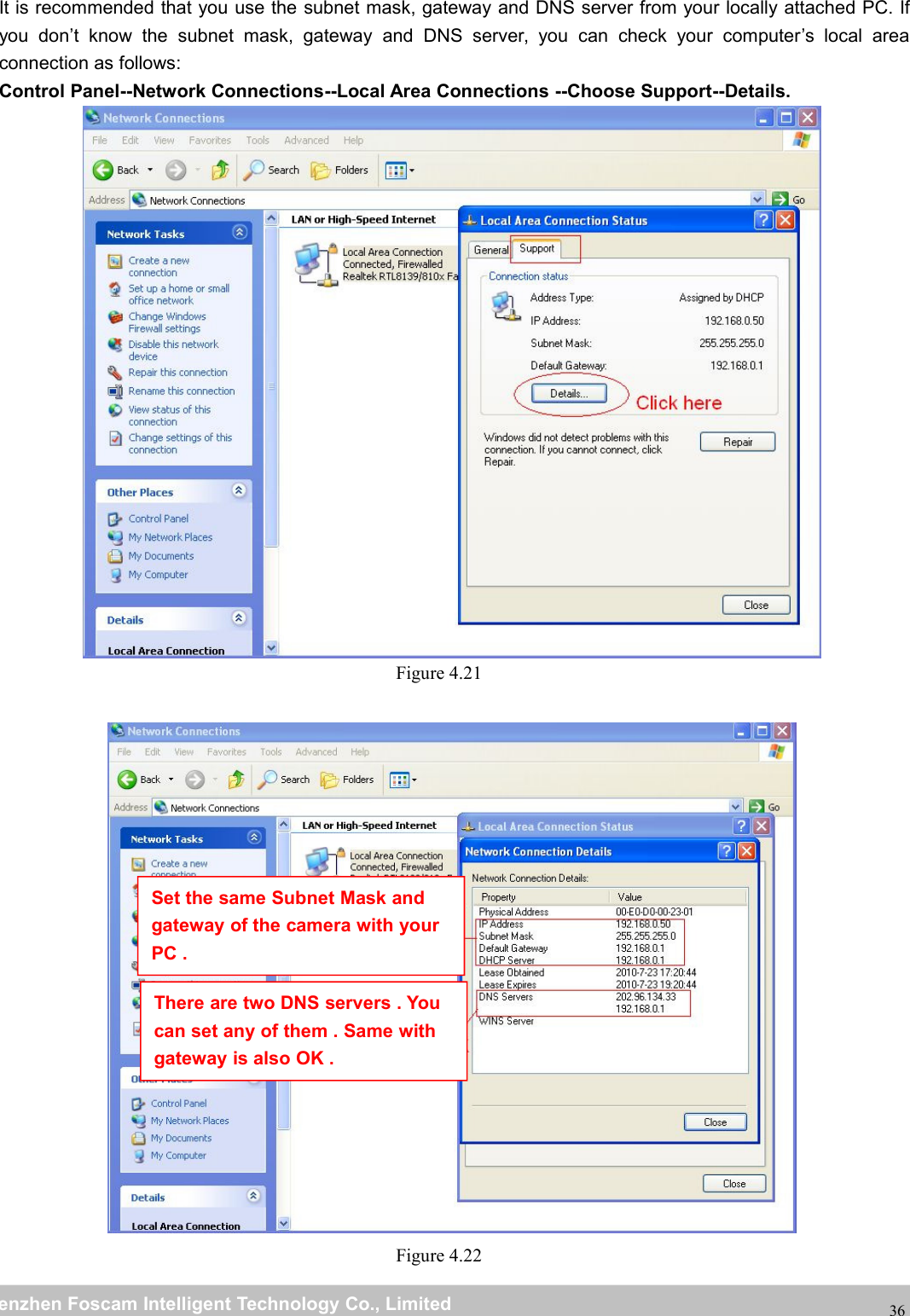
wwwwww.foscam.co.foscam.commShenzhenShenzhen FoscamFoscam IntelligentIntelligent TechnologyTechnology Co.,Co., LimitedLimitedTel:Tel: 8686 755755 26742674 56685668 Fax:Fax: 8686 755755 26742674 5168516835Figure 4.194.4 NetworkThis section will allow you to configure your camera’s IP, PPOE, DDNS, Wireless Settings, UPnP, Port, MailSettings and FTP Settings.4.4.1 IP ConfigurationIf you want to set a static IP for the camera, please go to IP Configuration page. Keep the camera in the samesubnet of your router or computer.Figure 4.20Changing settings here is the same as using the IP Camera Tool.
wwwwww.foscam.co.foscam.commShenzhenShenzhen FoscamFoscam IntelligentIntelligent TechnologyTechnology Co.,Co., LimitedLimitedTel:Tel: 8686 755755 26742674 56685668 Fax:Fax: 8686 755755 26742674 5168516836It is recommended that you use the subnet mask, gateway and DNS server from your locally attached PC. Ifyou don’t know the subnet mask, gateway and DNS server, you can check your computer’s local areaconnection as follows:Control Panel--Network Connections--Local Area Connections --Choose Support--Details.Figure 4.21Figure 4.22Set the same Subnet Mask andgateway of the camera with yourPC .There are two DNS servers . Youcan set any of them . Same withgateway is also OK .
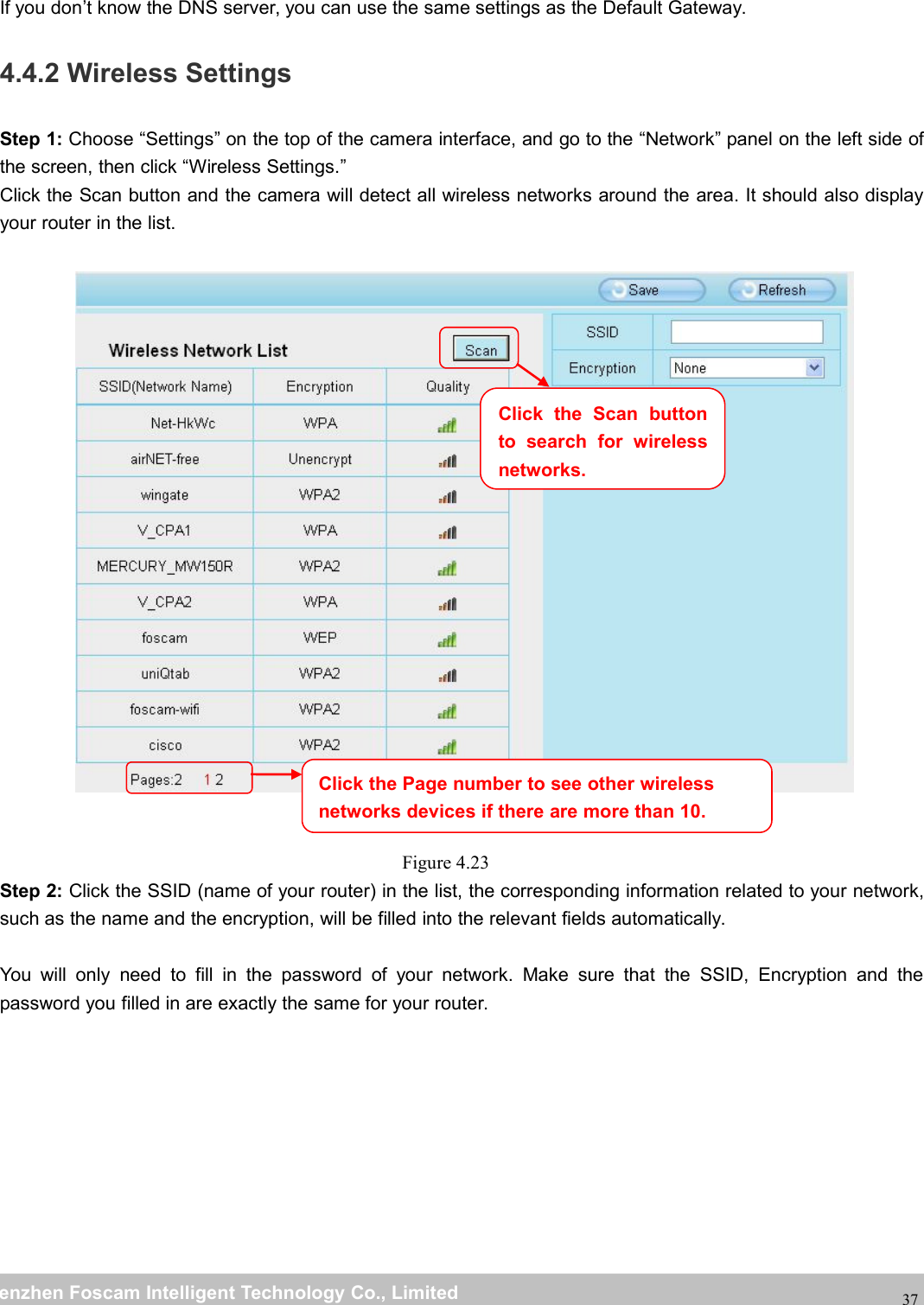
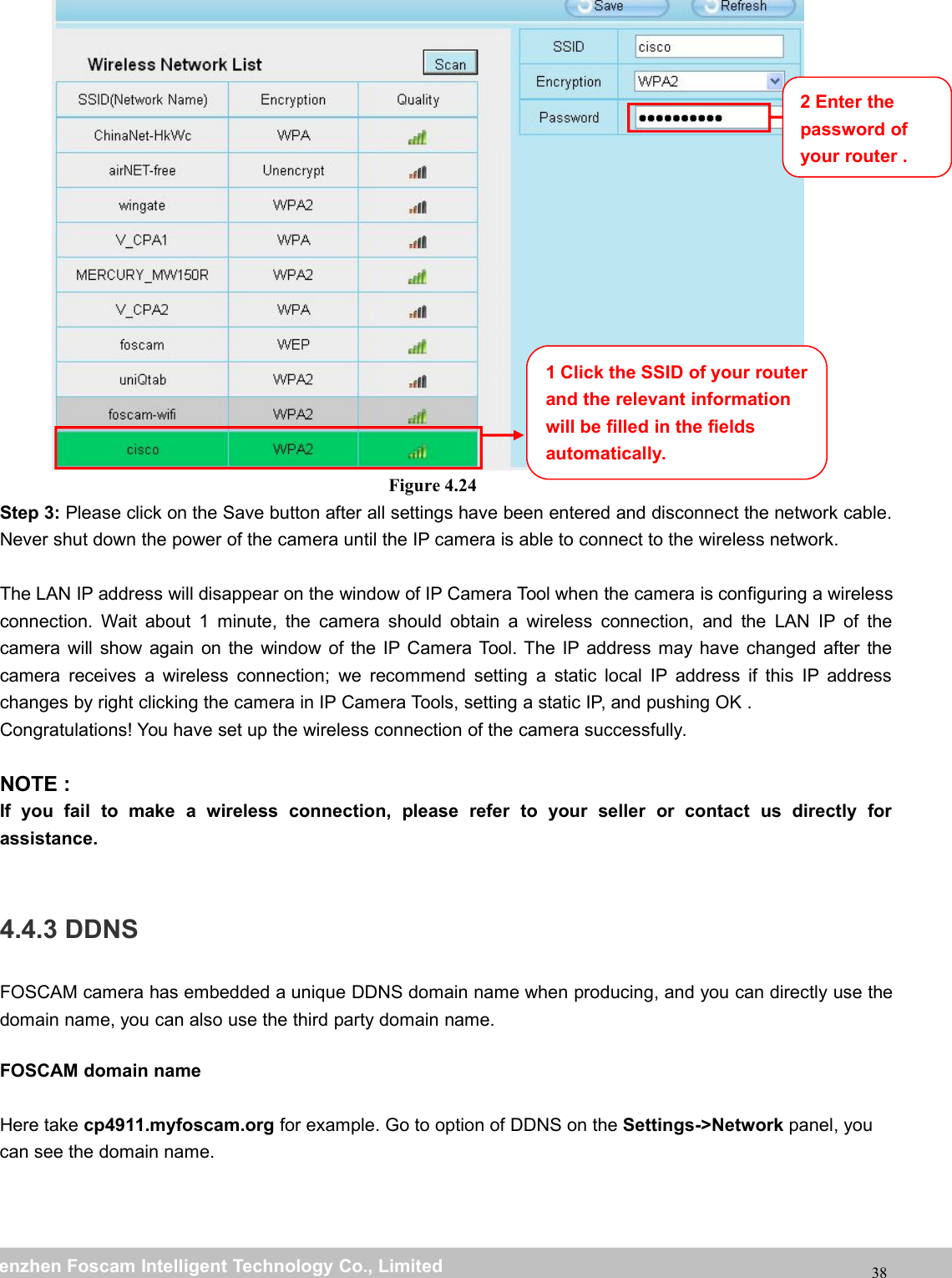
wwwwww.foscam.co.foscam.commShenzhenShenzhen FoscamFoscam IntelligentIntelligent TechnologyTechnology Co.,Co., LimitedLimitedTel:Tel: 8686 755755 26742674 56685668 Fax:Fax: 8686 755755 26742674 5168516837If you don’t know the DNS server, you can use the same settings as the Default Gateway.4.4.2 Wireless SettingsStep 1: Choose “Settings” on the top of the camera interface, and go to the “Network” panel on the left side ofthe screen, then click “Wireless Settings.”Click the Scan button and the camera will detect all wireless networks around the area. It should also displayyour router in the list.Figure 4.23Step 2: Click the SSID (name of your router) in the list, the corresponding information related to your network,such as the name and the encryption, will be filled into the relevant fields automatically.You will only need to fill in the password of your network. Make sure that the SSID, Encryption and thepassword you filled in are exactly the same for your router.Click the Page number to see other wirelessnetworks devices if there are more than 10.Click the Scan buttonto search for wirelessnetworks.
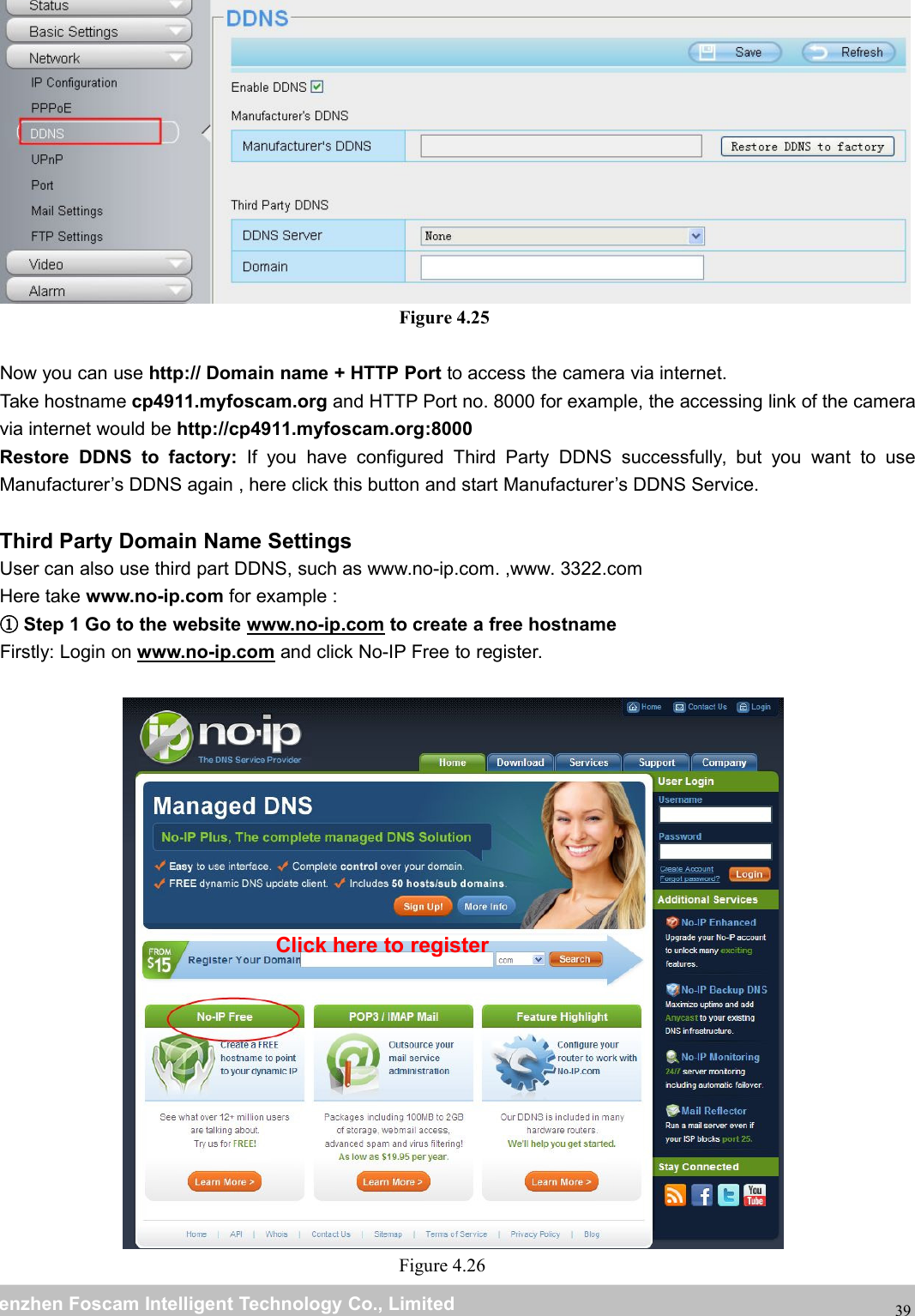
wwwwww.foscam.co.foscam.commShenzhenShenzhen FoscamFoscam IntelligentIntelligent TechnologyTechnology Co.,Co., LimitedLimitedTel:Tel: 8686 755755 26742674 56685668 Fax:Fax: 8686 755755 26742674 5168516838Figure 4.24Step 3: Please click on the Save button after all settings have been entered and disconnect the network cable.Never shut down the power of the camera until the IP camera is able to connect to the wireless network.The LAN IP address will disappear on the window of IP Camera Tool when the camera is configuring a wirelessconnection. Wait about 1 minute, the camera should obtain a wireless connection, and the LAN IP of thecamera will show again on the window of the IP Camera Tool. The IP address may have changed after thecamera receives a wireless connection; we recommend setting a static local IP address if this IP addresschanges by right clicking the camera in IP Camera Tools, setting a static IP, and pushing OK .Congratulations! You have set up the wireless connection of the camera successfully.NOTE :If you fail to make a wireless connection, please refer to your seller or contact us directly forassistance.4.4.3 DDNSFOSCAM camera has embedded a unique DDNS domain name when producing, and you can directly use thedomain name, you can also use the third party domain name.FOSCAM domain nameHere take cp4911.myfoscam.org for example. Go to option of DDNS on the Settings->Network panel, youcan see the domain name.1 Click the SSID of your routerand the relevant informationwill be filled in the fieldsautomatically.2 Enter thepassword ofyour router .
wwwwww.foscam.co.foscam.commShenzhenShenzhen FoscamFoscam IntelligentIntelligent TechnologyTechnology Co.,Co., LimitedLimitedTel:Tel: 8686 755755 26742674 56685668 Fax:Fax: 8686 755755 26742674 5168516839Figure 4.25Now you can use http:// Domain name + HTTP Port to access the camera via internet.Take hostname cp4911.myfoscam.org and HTTP Port no. 8000 for example, the accessing link of the cameravia internet would be http://cp4911.myfoscam.org:8000Restore DDNS to factory: If you have configured Third Party DDNS successfully, but you want to useManufacturer’s DDNS again , here click this button and start Manufacturer’s DDNS Service.Third Party Domain Name SettingsUser can also use third part DDNS, such as www.no-ip.com. ,www. 3322.comHere take www.no-ip.com for example :①Step 1 Go to the website www.no-ip.com to create a free hostnameFirstly: Login on www.no-ip.com and click No-IP Free to register.Figure 4.26Click here to register
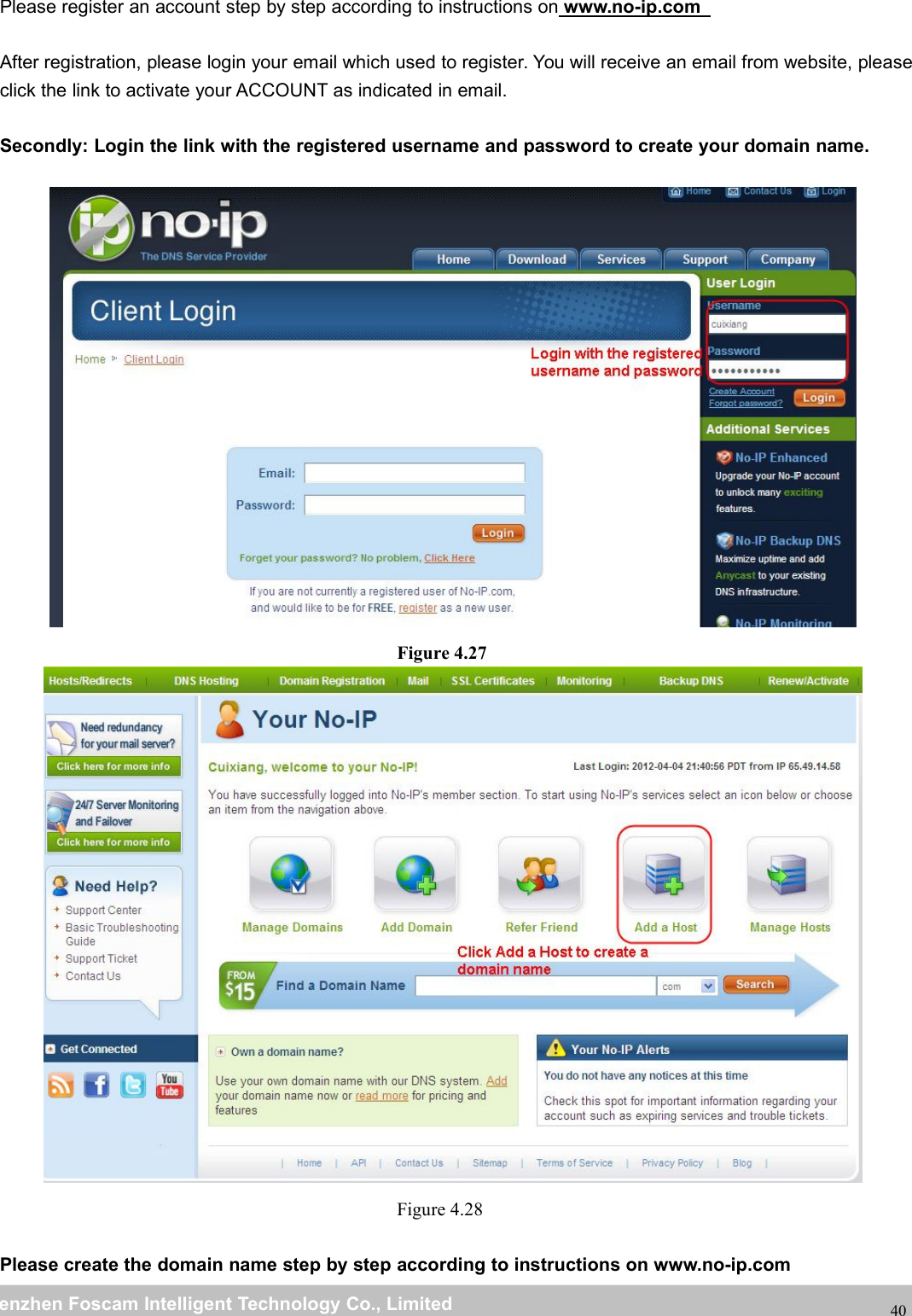
wwwwww.foscam.co.foscam.commShenzhenShenzhen FoscamFoscam IntelligentIntelligent TechnologyTechnology Co.,Co., LimitedLimitedTel:Tel: 8686 755755 26742674 56685668 Fax:Fax: 8686 755755 26742674 5168516840Please register an account step by step according to instructions on www.no-ip.comAfter registration, please login your email which used to register. You will receive an email from website, pleaseclick the link to activate your ACCOUNT as indicated in email.Secondly: Login the link with the registered username and password to create your domain name.Figure 4.27Figure 4.28Please create the domain name step by step according to instructions on www.no-ip.com
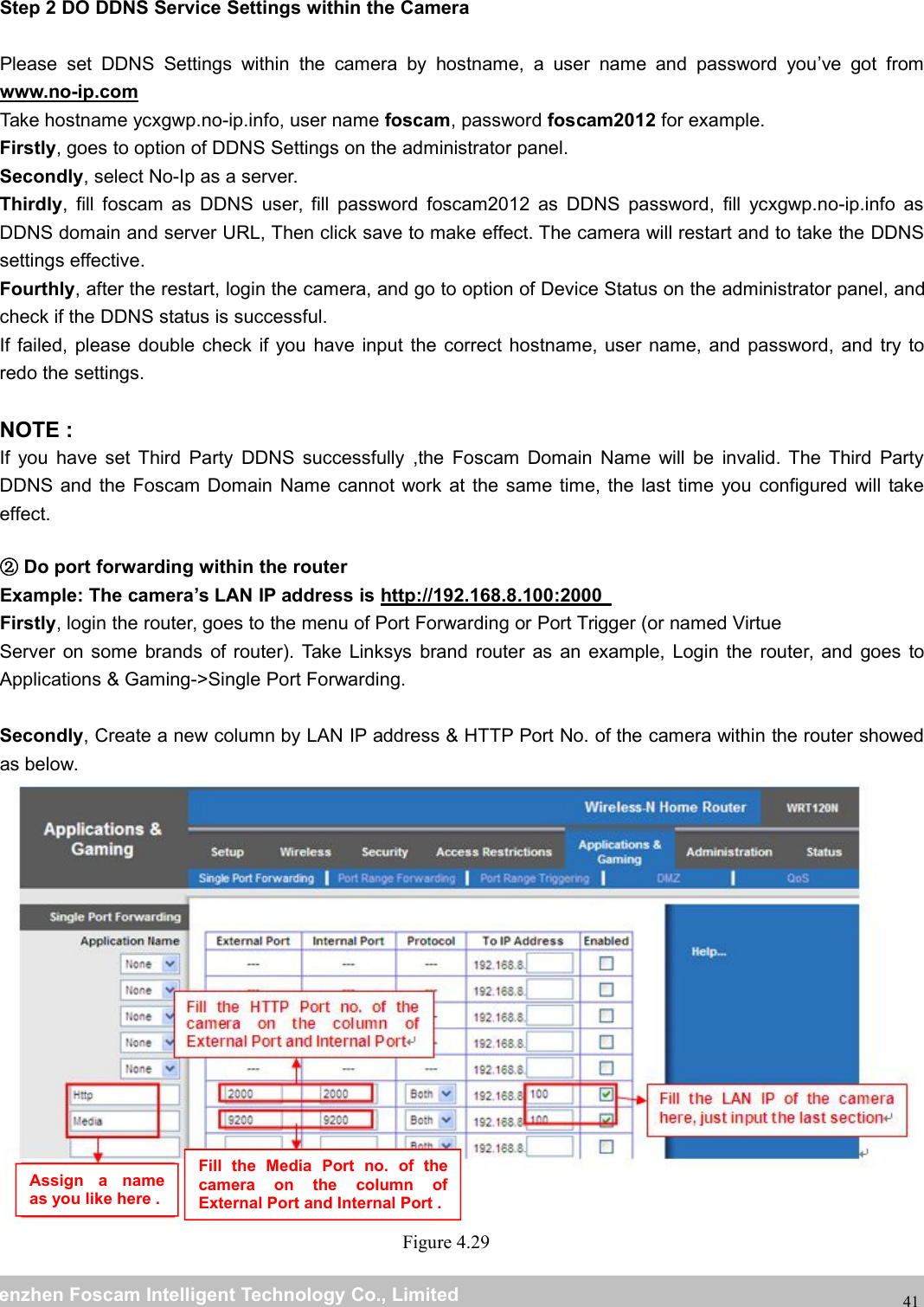
wwwwww.foscam.co.foscam.commShenzhenShenzhen FoscamFoscam IntelligentIntelligent TechnologyTechnology Co.,Co., LimitedLimitedTel:Tel: 8686 755755 26742674 56685668 Fax:Fax: 8686 755755 26742674 5168516841Step 2 DO DDNS Service Settings within the CameraPlease set DDNS Settings within the camera by hostname, a user name and password you’ve got fromwww.no-ip.comTake hostname ycxgwp.no-ip.info, user name foscam, password foscam2012 for example.Firstly, goes to option of DDNS Settings on the administrator panel.Secondly, select No-Ip as a server.Thirdly, fill foscam as DDNS user, fill password foscam2012 as DDNS password, fill ycxgwp.no-ip.info asDDNS domain and server URL, Then click save to make effect. The camera will restart and to take the DDNSsettings effective.Fourthly, after the restart, login the camera, and go to option of Device Status on the administrator panel, andcheck if the DDNS status is successful.If failed, please double check if you have input the correct hostname, user name, and password, and try toredo the settings.NOTE :If you have set Third Party DDNS successfully ,the Foscam Domain Name will be invalid. The Third PartyDDNS and the Foscam Domain Name cannot work at the same time, the last time you configured will takeeffect.②Do port forwarding within the routerExample: The camera’s LAN IP address is http://192.168.8.100:2000Firstly, login the router, goes to the menu of Port Forwarding or Port Trigger (or named VirtueServer on some brands of router). Take Linksys brand router as an example, Login the router, and goes toApplications & Gaming->Single Port Forwarding.Secondly, Create a new column by LAN IP address & HTTP Port No. of the camera within the router showedas below.Figure 4.29Assign a nameas you like here .Fill the Media Port no. of thecamera on the column ofExternal Port and Internal Port .
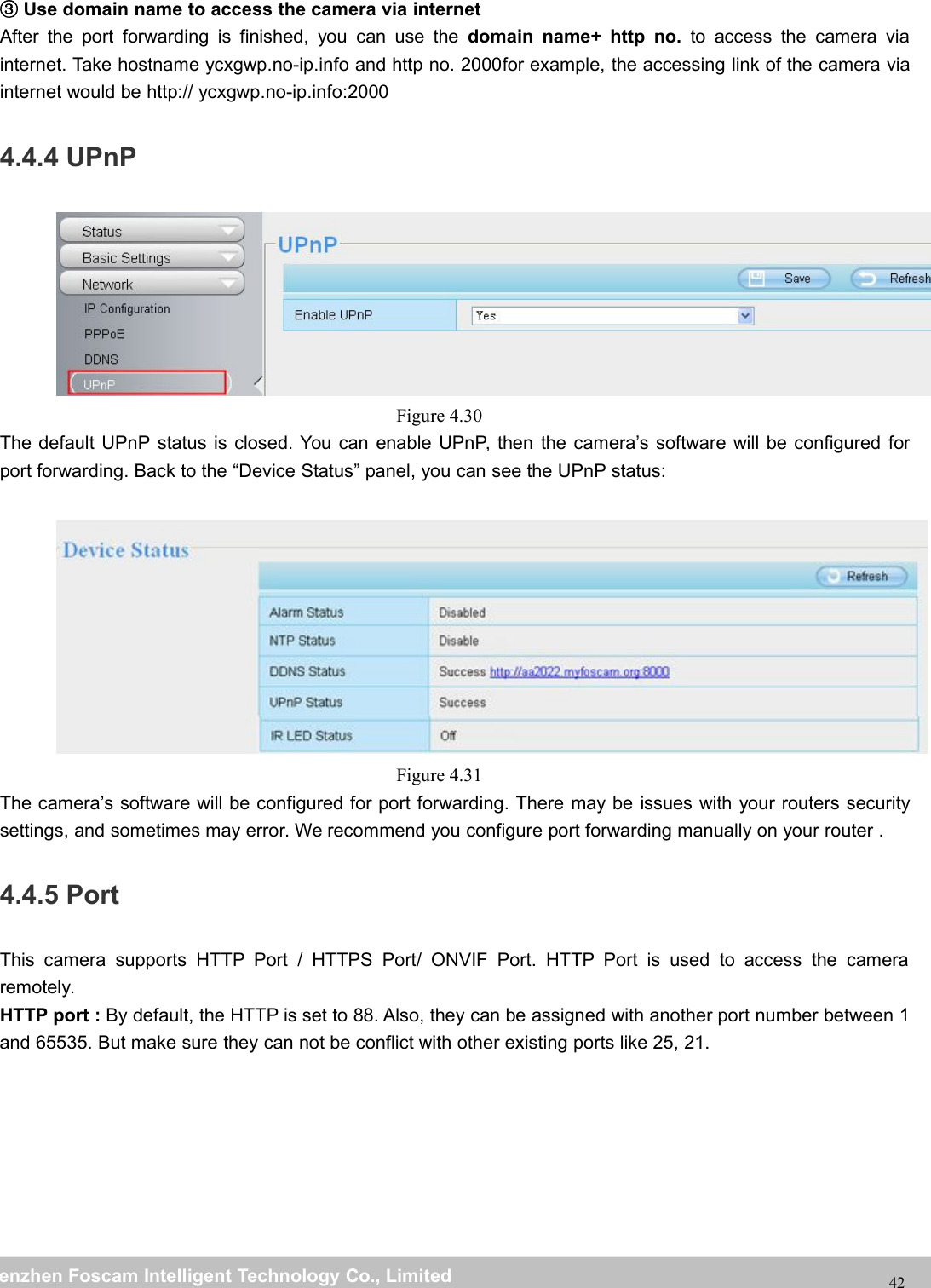
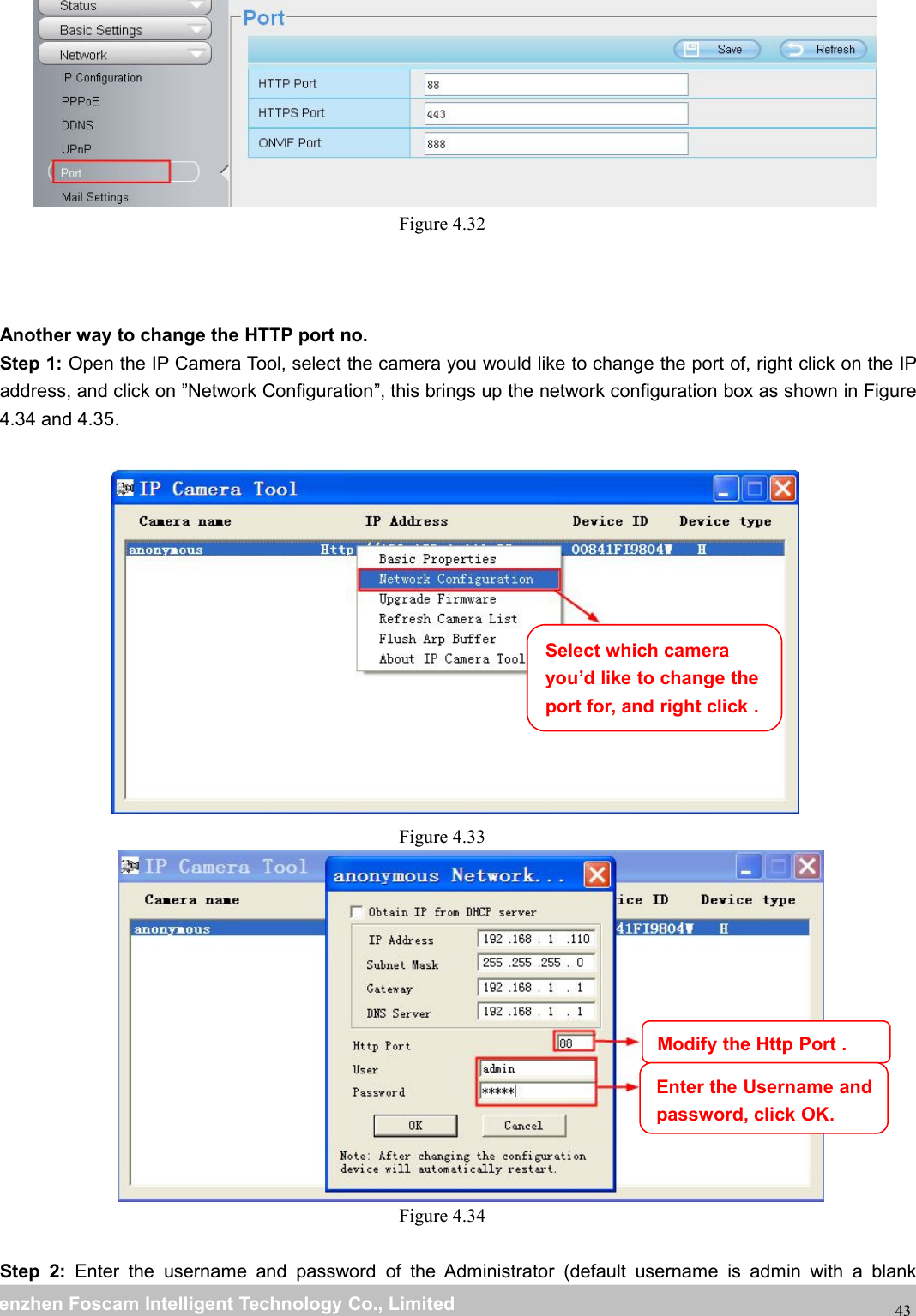
wwwwww.foscam.co.foscam.commShenzhenShenzhen FoscamFoscam IntelligentIntelligent TechnologyTechnology Co.,Co., LimitedLimitedTel:Tel: 8686 755755 26742674 56685668 Fax:Fax: 8686 755755 26742674 5168516842③Use domain name to access the camera via internetAfter the port forwarding is finished, you can use the domain name+ http no. to access the camera viainternet. Take hostname ycxgwp.no-ip.info and http no. 2000for example, the accessing link of the camera viainternet would be http:// ycxgwp.no-ip.info:20004.4.4 UPnPFigure 4.30The default UPnP status is closed. You can enable UPnP, then the camera’s software will be configured forport forwarding. Back to the “Device Status” panel, you can see the UPnP status:Figure 4.31The camera’s software will be configured for port forwarding. There may be issues with your routers securitysettings, and sometimes may error. We recommend you configure port forwarding manually on your router .4.4.5 PortThis camera supports HTTP Port / HTTPS Port/ ONVIF Port. HTTP Port is used to access the cameraremotely.HTTP port : By default, the HTTP is set to 88. Also, they can be assigned with another port number between 1and 65535. But make sure they can not be conflict with other existing ports like 25, 21.
wwwwww.foscam.co.foscam.commShenzhenShenzhen FoscamFoscam IntelligentIntelligent TechnologyTechnology Co.,Co., LimitedLimitedTel:Tel: 8686 755755 26742674 56685668 Fax:Fax: 8686 755755 26742674 5168516843Figure 4.32Another way to change the HTTP port no.Step 1: Open the IP Camera Tool, select the camera you would like to change the port of, right click on the IPaddress, and click on ”Network Configuration”, this brings up the network configuration box as shown in Figure4.34 and 4.35.Figure 4.33Figure 4.34Step 2: Enter the username and password of the Administrator (default username is admin with a blankSelect which camerayou’d like to change theport for, and right click .Modify the Http Port .Enter the Username andpassword, click OK.
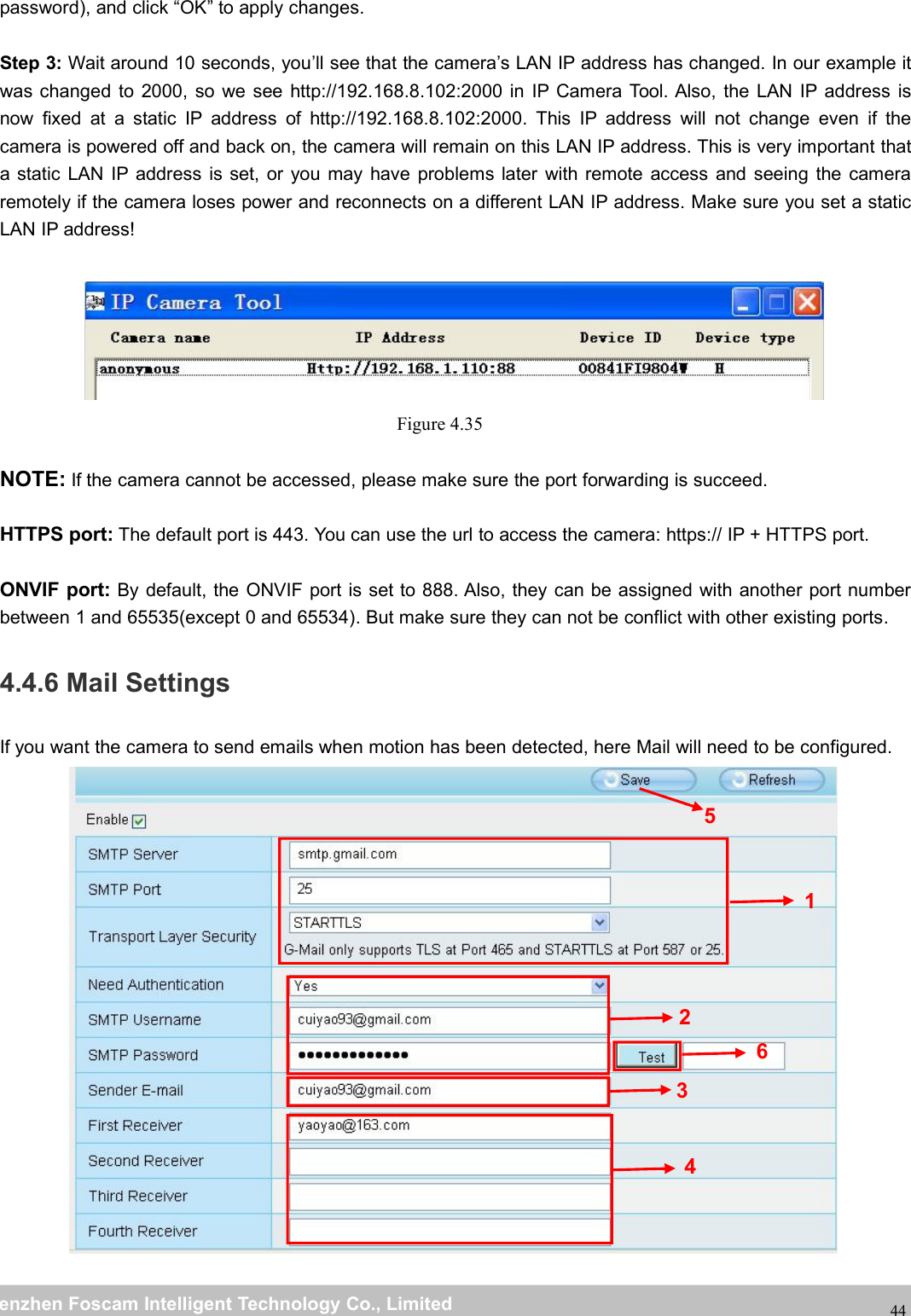
wwwwww.foscam.co.foscam.commShenzhenShenzhen FoscamFoscam IntelligentIntelligent TechnologyTechnology Co.,Co., LimitedLimitedTel:Tel: 8686 755755 26742674 56685668 Fax:Fax: 8686 755755 26742674 5168516844password), and click “OK” to apply changes.Step 3: Wait around 10 seconds, you’ll see that the camera’s LAN IP address has changed. In our example itwas changed to 2000, so we see http://192.168.8.102:2000 in IP Camera Tool. Also, the LAN IP address isnow fixed at a static IP address of http://192.168.8.102:2000. This IP address will not change even if thecamera is powered off and back on, the camera will remain on this LAN IP address. This is very important thata static LAN IP address is set, or you may have problems later with remote access and seeing the cameraremotely if the camera loses power and reconnects on a different LAN IP address. Make sure you set a staticLAN IP address!Figure 4.35NOTE: If the camera cannot be accessed, please make sure the port forwarding is succeed.HTTPS port: The default port is 443. You can use the url to access the camera: https:// IP + HTTPS port.ONVIF port: By default, the ONVIF port is set to 888. Also, they can be assigned with another port numberbetween 1 and 65535(except 0 and 65534). But make sure they can not be conflict with other existing ports.4.4.6 Mail SettingsIf you want the camera to send emails when motion has been detected, here Mail will need to be configured.123456
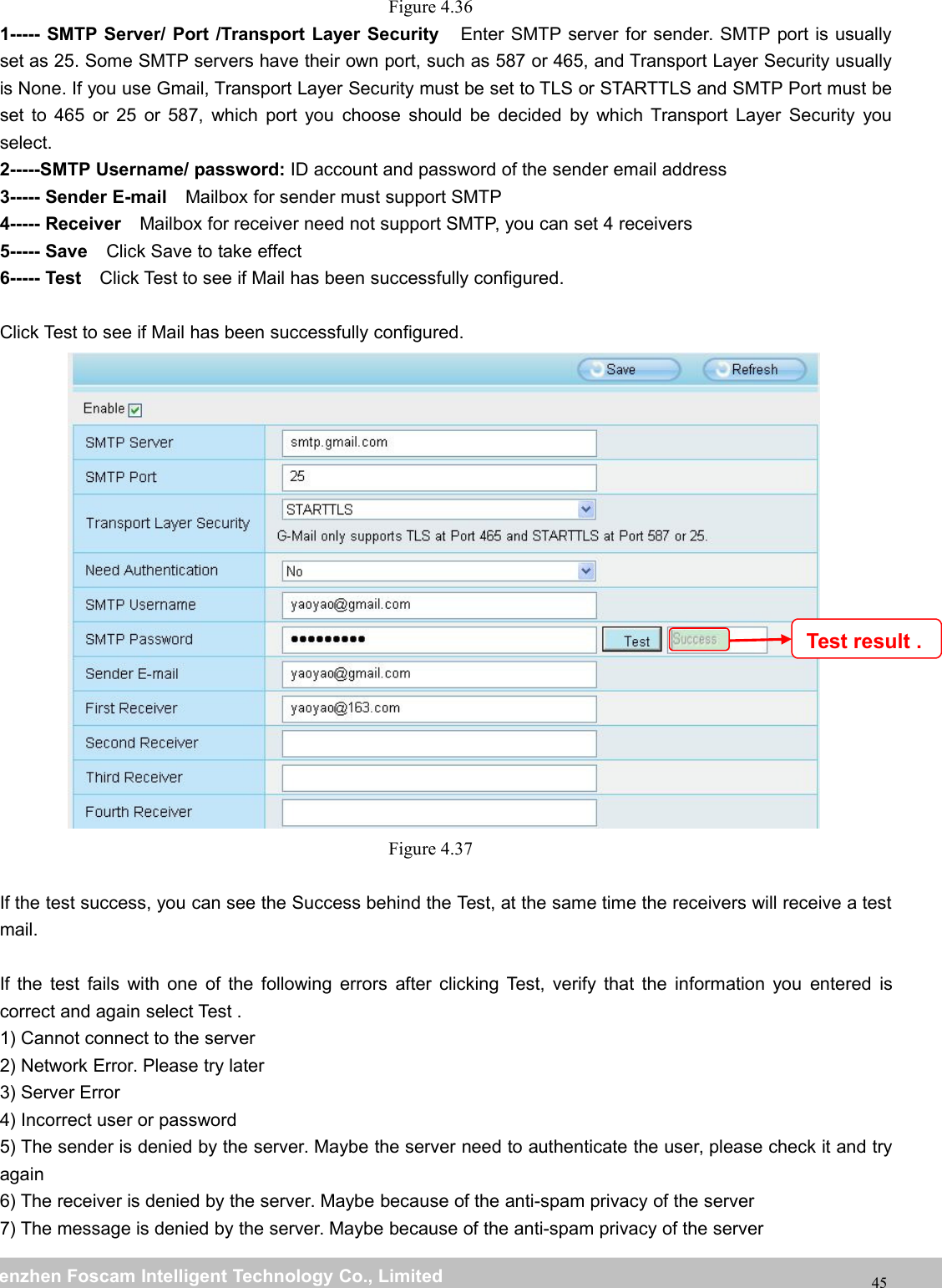
wwwwww.foscam.co.foscam.commShenzhenShenzhen FoscamFoscam IntelligentIntelligent TechnologyTechnology Co.,Co., LimitedLimitedTel:Tel: 8686 755755 26742674 56685668 Fax:Fax: 8686 755755 26742674 5168516845Figure 4.361----- SMTP Server/ Port /Transport Layer Security Enter SMTP server for sender. SMTP port is usuallyset as 25. Some SMTP servers have their own port, such as 587 or 465, and Transport Layer Security usuallyis None. If you use Gmail, Transport Layer Security must be set to TLS or STARTTLS and SMTP Port must beset to 465 or 25 or 587, which port you choose should be decided by which Transport Layer Security youselect.2-----SMTP Username/ password: ID account and password of the sender email address3----- Sender E-mail Mailbox for sender must support SMTP4----- Receiver Mailbox for receiver need not support SMTP, you can set 4 receivers5----- Save Click Save to take effect6----- Test Click Test to see if Mail has been successfully configured.Click Test to see if Mail has been successfully configured.Figure 4.37If the test success, you can see the Success behind the Test, at the same time the receivers will receive a testmail.If the test fails with one of the following errors after clicking Test, verify that the information you entered iscorrect and again select Test .1) Cannot connect to the server2) Network Error. Please try later3) Server Error4) Incorrect user or password5) The sender is denied by the server. Maybe the server need to authenticate the user, please check it and tryagain6) The receiver is denied by the server. Maybe because of the anti-spam privacy of the server7) The message is denied by the server. Maybe because of the anti-spam privacy of the serverTest result .
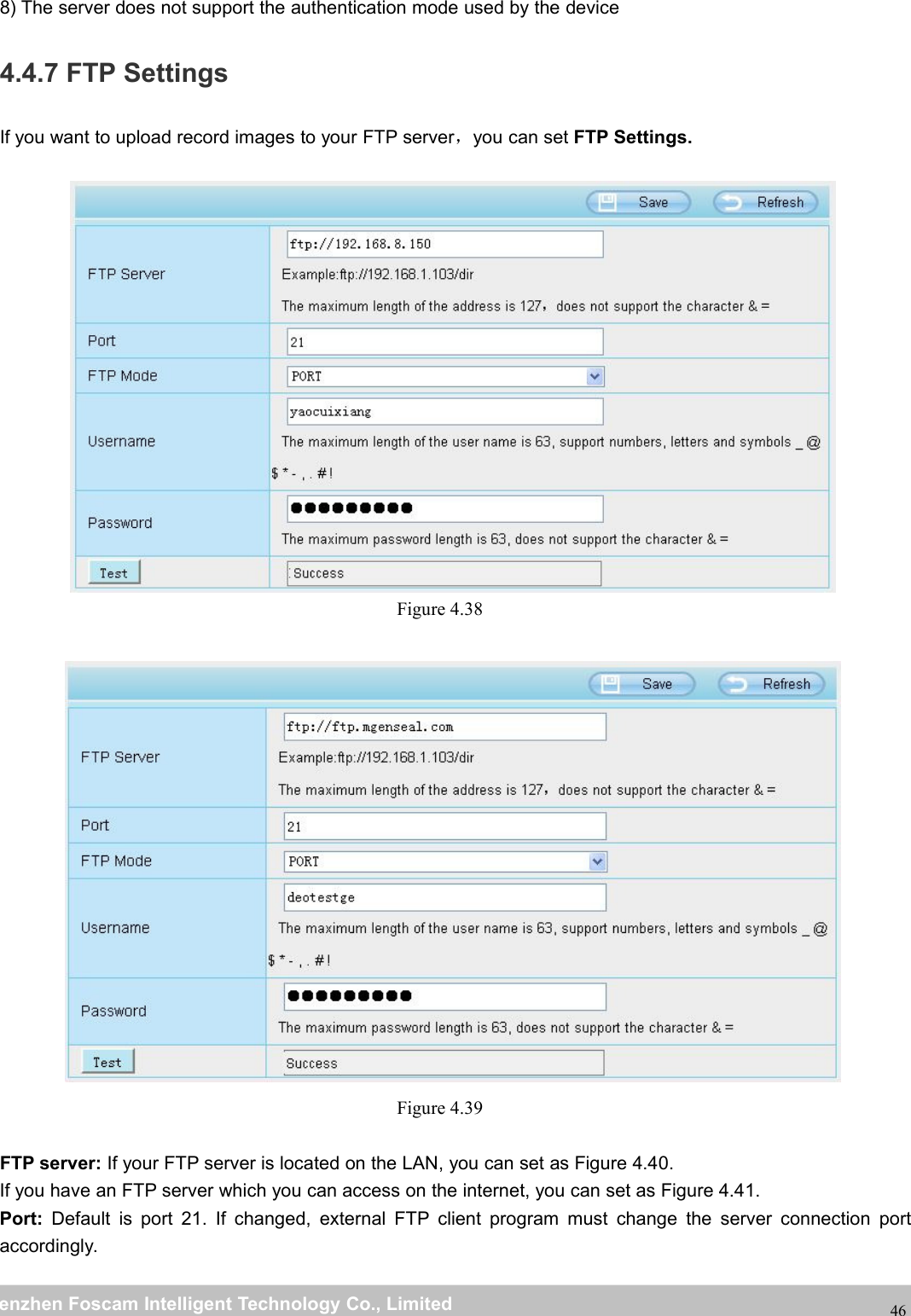
wwwwww.foscam.co.foscam.commShenzhenShenzhen FoscamFoscam IntelligentIntelligent TechnologyTechnology Co.,Co., LimitedLimitedTel:Tel: 8686 755755 26742674 56685668 Fax:Fax: 8686 755755 26742674 51685168468) The server does not support the authentication mode used by the device4.4.7 FTP SettingsIf you want to upload record images to your FTP server,you can set FTP Settings.Figure 4.38Figure 4.39FTP server: If your FTP server is located on the LAN, you can set as Figure 4.40.If you have an FTP server which you can access on the internet, you can set as Figure 4.41.Port: Default is port 21. If changed, external FTP client program must change the server connection portaccordingly.
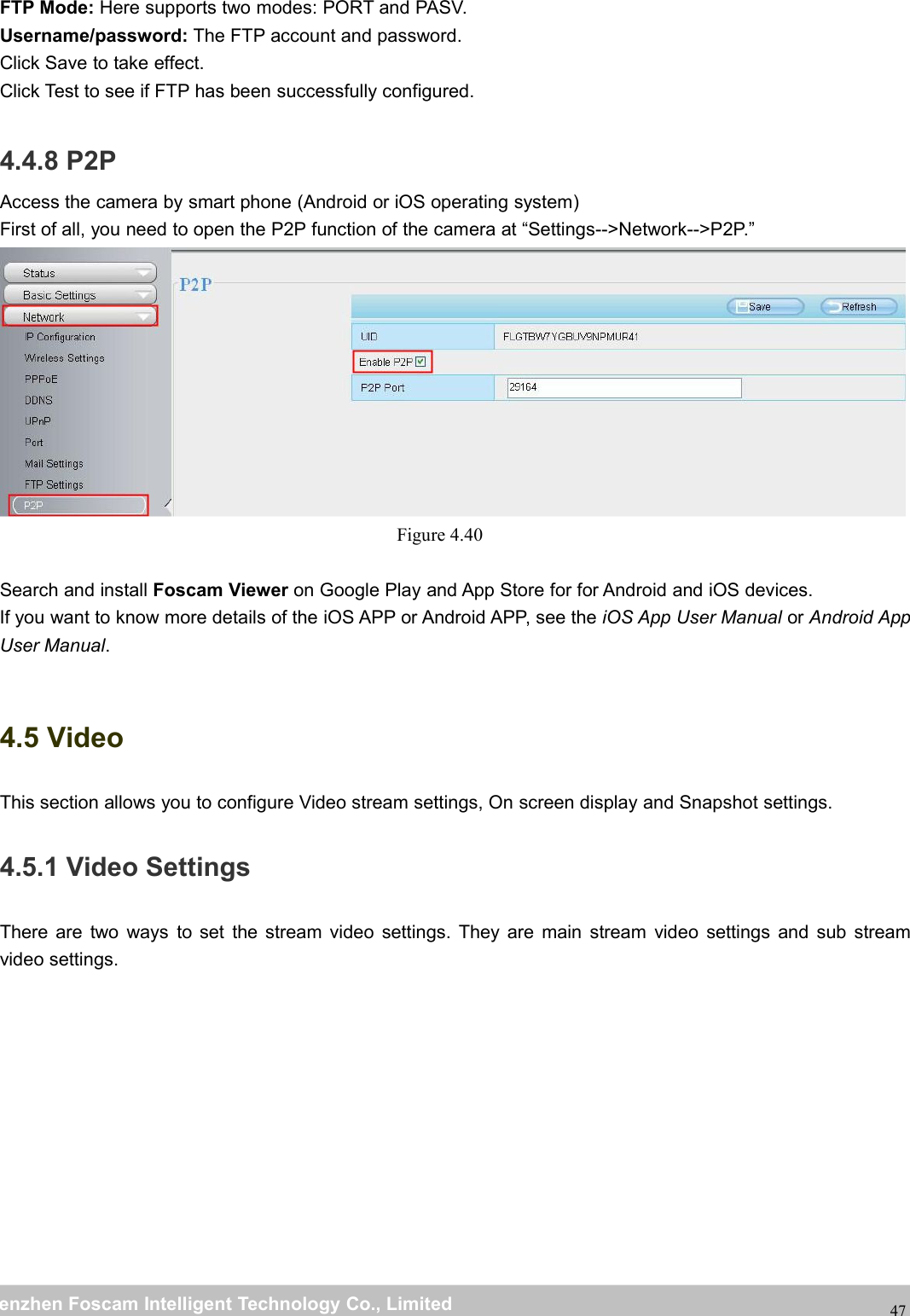
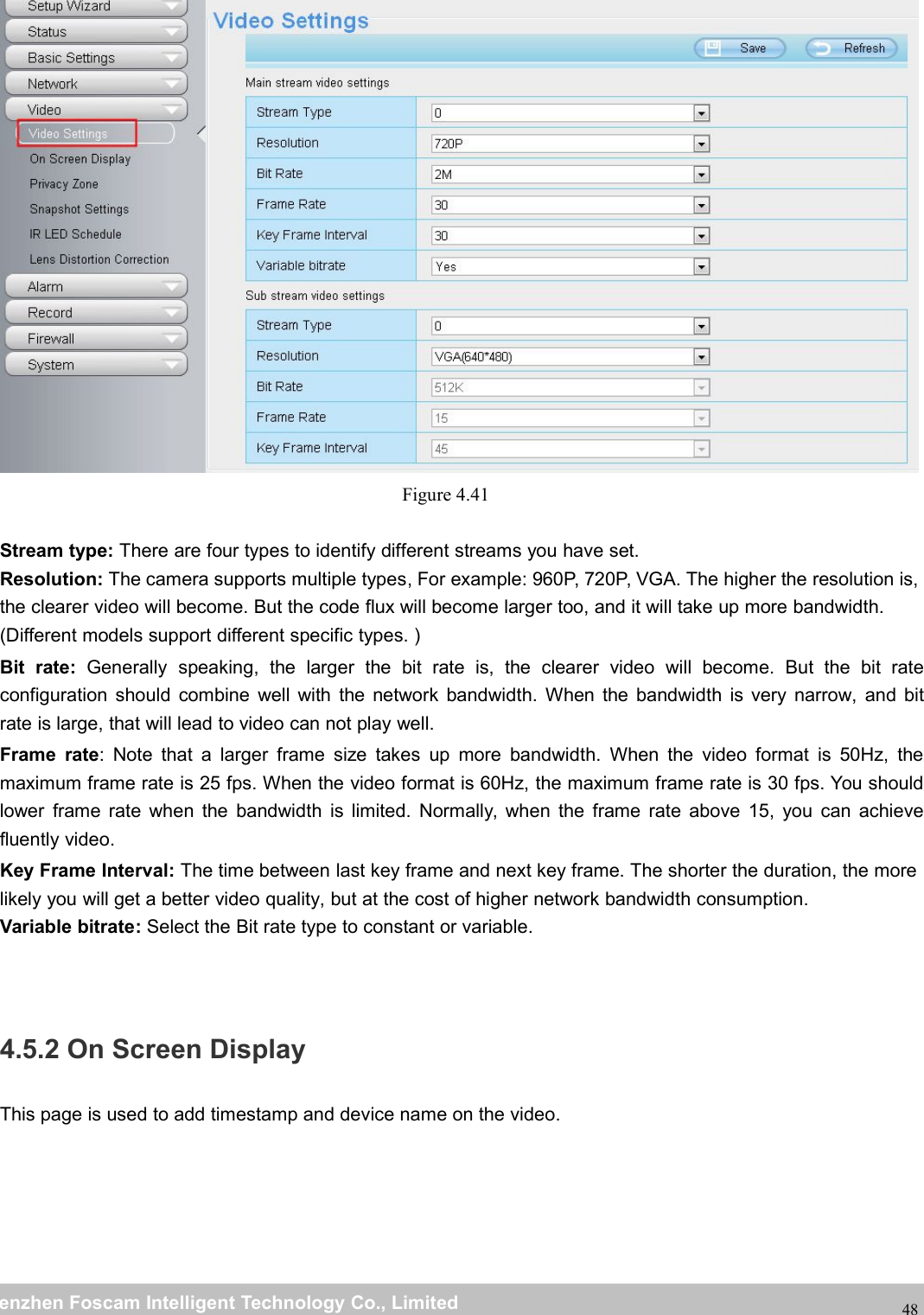
wwwwww.foscam.co.foscam.commShenzhenShenzhen FoscamFoscam IntelligentIntelligent TechnologyTechnology Co.,Co., LimitedLimitedTel:Tel: 8686 755755 26742674 56685668 Fax:Fax: 8686 755755 26742674 5168516847FTP Mode: Here supports two modes: PORT and PASV.Username/password: The FTP account and password.Click Save to take effect.Click Test to see if FTP has been successfully configured.4.4.8 P2PAccess the camera by smart phone (Android or iOS operating system)First of all, you need to open the P2P function of the camera at “Settings-->Network-->P2P.”Figure 4.40Search and install Foscam Viewer on Google Play and App Store for for Android and iOS devices.If you want to know more details of the iOS APP or Android APP, see the iOS App User Manual or Android AppUser Manual.4.5 VideoThis section allows you to configure Video stream settings, On screen display and Snapshot settings.4.5.1 Video SettingsThere are two ways to set the stream video settings. They are main stream video settings and sub streamvideo settings.
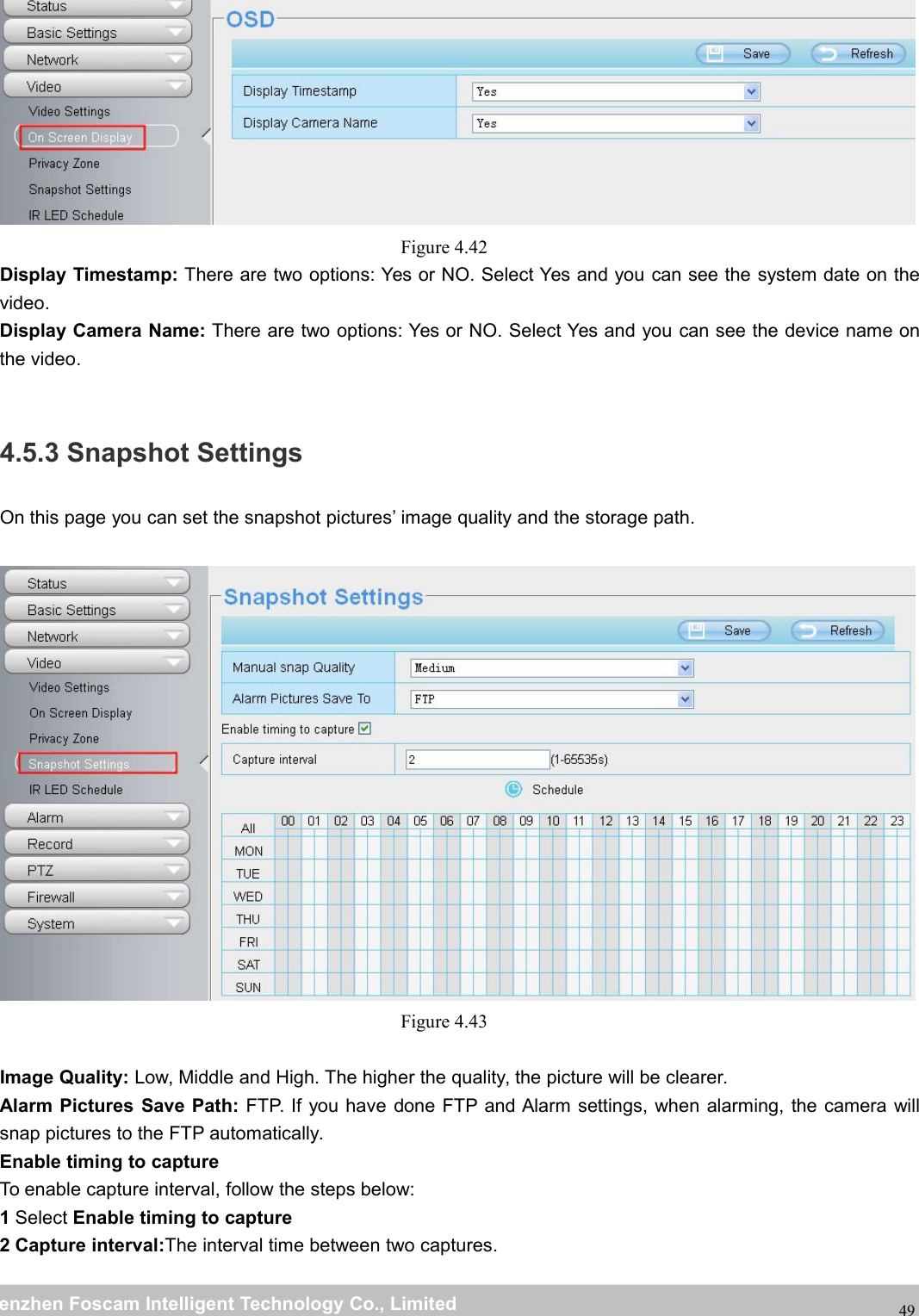
wwwwww.foscam.co.foscam.commShenzhenShenzhen FoscamFoscam IntelligentIntelligent TechnologyTechnology Co.,Co., LimitedLimitedTel:Tel: 8686 755755 26742674 56685668 Fax:Fax: 8686 755755 26742674 5168516848Figure 4.41Stream type: There are four types to identify different streams you have set.Resolution: The camera supports multiple types, For example: 960P, 720P, VGA. The higher the resolution is,the clearer video will become. But the code flux will become larger too, and it will take up more bandwidth.(Different models support different specific types. )Bit rate: Generally speaking, the larger the bit rate is, the clearer video will become. But the bit rateconfiguration should combine well with the network bandwidth. When the bandwidth is very narrow, and bitrate is large, that will lead to video can not play well.Frame rate: Note that a larger frame size takes up more bandwidth. When the video format is 50Hz, themaximum frame rate is 25 fps. When the video format is 60Hz, the maximum frame rate is 30 fps. You shouldlower frame rate when the bandwidth is limited. Normally, when the frame rate above 15, you can achievefluently video.Key Frame Interval: The time between last key frame and next key frame. The shorter the duration, the morelikely you will get a better video quality, but at the cost of higher network bandwidth consumption.Variable bitrate: Select the Bit rate type to constant or variable.4.5.2 On Screen DisplayThis page is used to add timestamp and device name on the video.
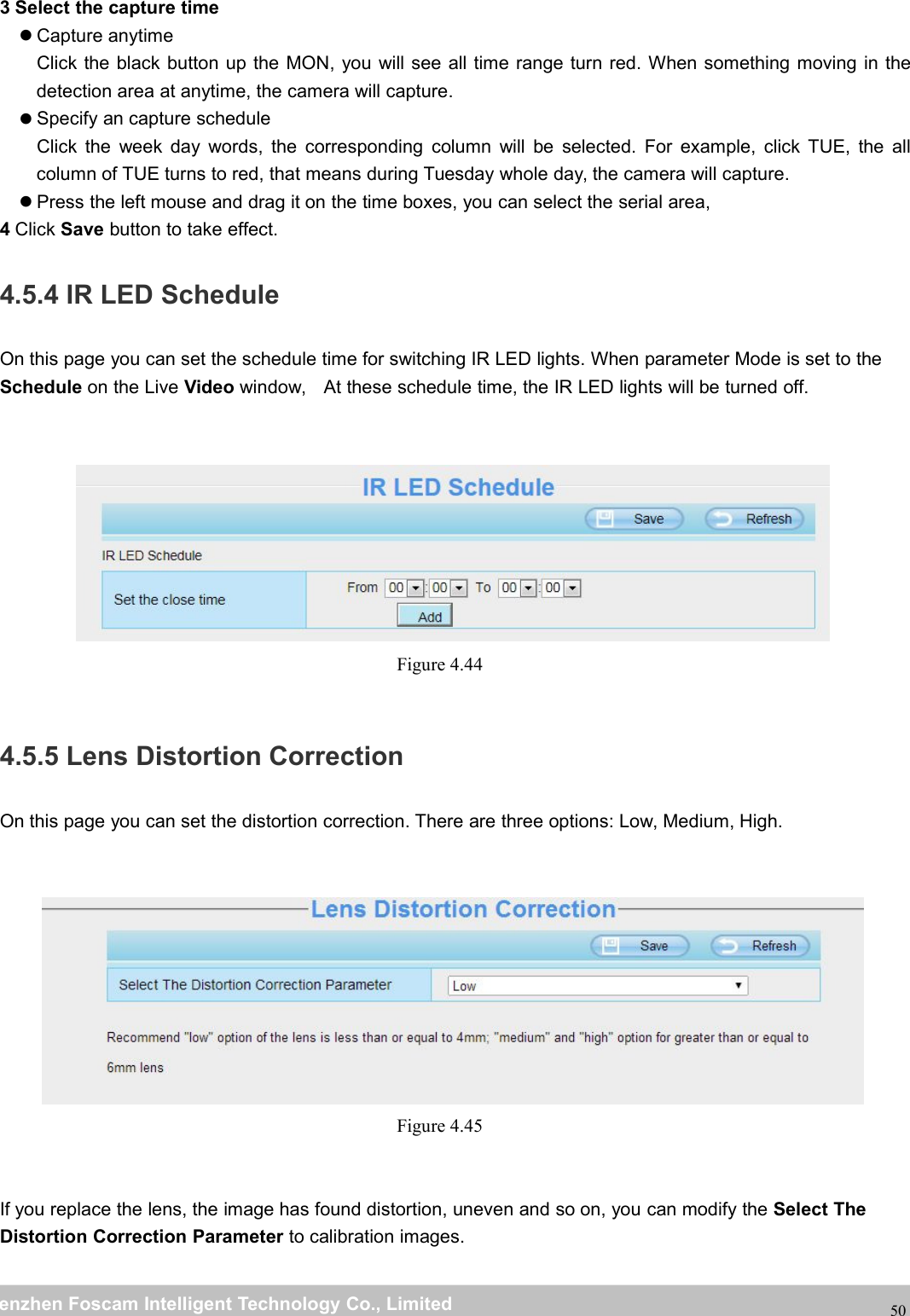
wwwwww.foscam.co.foscam.commShenzhenShenzhen FoscamFoscam IntelligentIntelligent TechnologyTechnology Co.,Co., LimitedLimitedTel:Tel: 8686 755755 26742674 56685668 Fax:Fax: 8686 755755 26742674 5168516849Figure 4.42Display Timestamp: There are two options: Yes or NO. Select Yes and you can see the system date on thevideo.Display Camera Name: There are two options: Yes or NO. Select Yes and you can see the device name onthe video.4.5.3 Snapshot SettingsOn this page you can set the snapshot pictures’ image quality and the storage path.Figure 4.43Image Quality: Low, Middle and High. The higher the quality, the picture will be clearer.Alarm Pictures Save Path: FTP. If you have done FTP and Alarm settings, when alarming, the camera willsnap pictures to the FTP automatically.Enable timing to captureTo enable capture interval, follow the steps below:1Select Enable timing to capture2 Capture interval:The interval time between two captures.
wwwwww.foscam.co.foscam.commShenzhenShenzhen FoscamFoscam IntelligentIntelligent TechnologyTechnology Co.,Co., LimitedLimitedTel:Tel: 8686 755755 26742674 56685668 Fax:Fax: 8686 755755 26742674 51685168503 Select the capture timeCapture anytimeClick the black button up the MON, you will see all time range turn red. When something moving in thedetection area at anytime, the camera will capture.Specify an capture scheduleClick the week day words, the corresponding column will be selected. For example, click TUE, the allcolumn of TUE turns to red, that means during Tuesday whole day, the camera will capture.Press the left mouse and drag it on the time boxes, you can select the serial area,4Click Save button to take effect.4.5.4 IR LED ScheduleOn this page you can set the schedule time for switching IR LED lights. When parameter Mode is set to theSchedule on the Live Video window, At these schedule time, the IR LED lights will be turned off.Figure 4.444.5.5 Lens Distortion CorrectionOn this page you can set the distortion correction. There are three options: Low, Medium, High.Figure 4.45If you replace the lens, the image has found distortion, uneven and so on, you can modify the Select TheDistortion Correction Parameter to calibration images.

Navigation menu