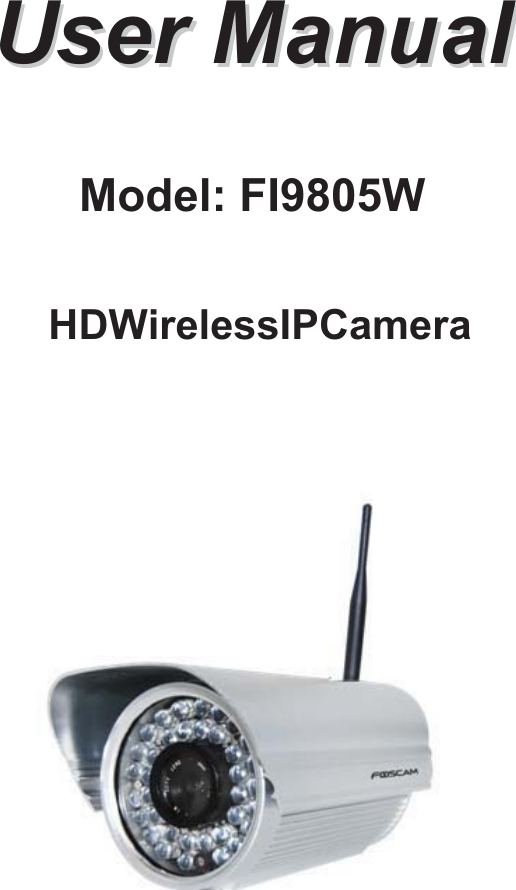
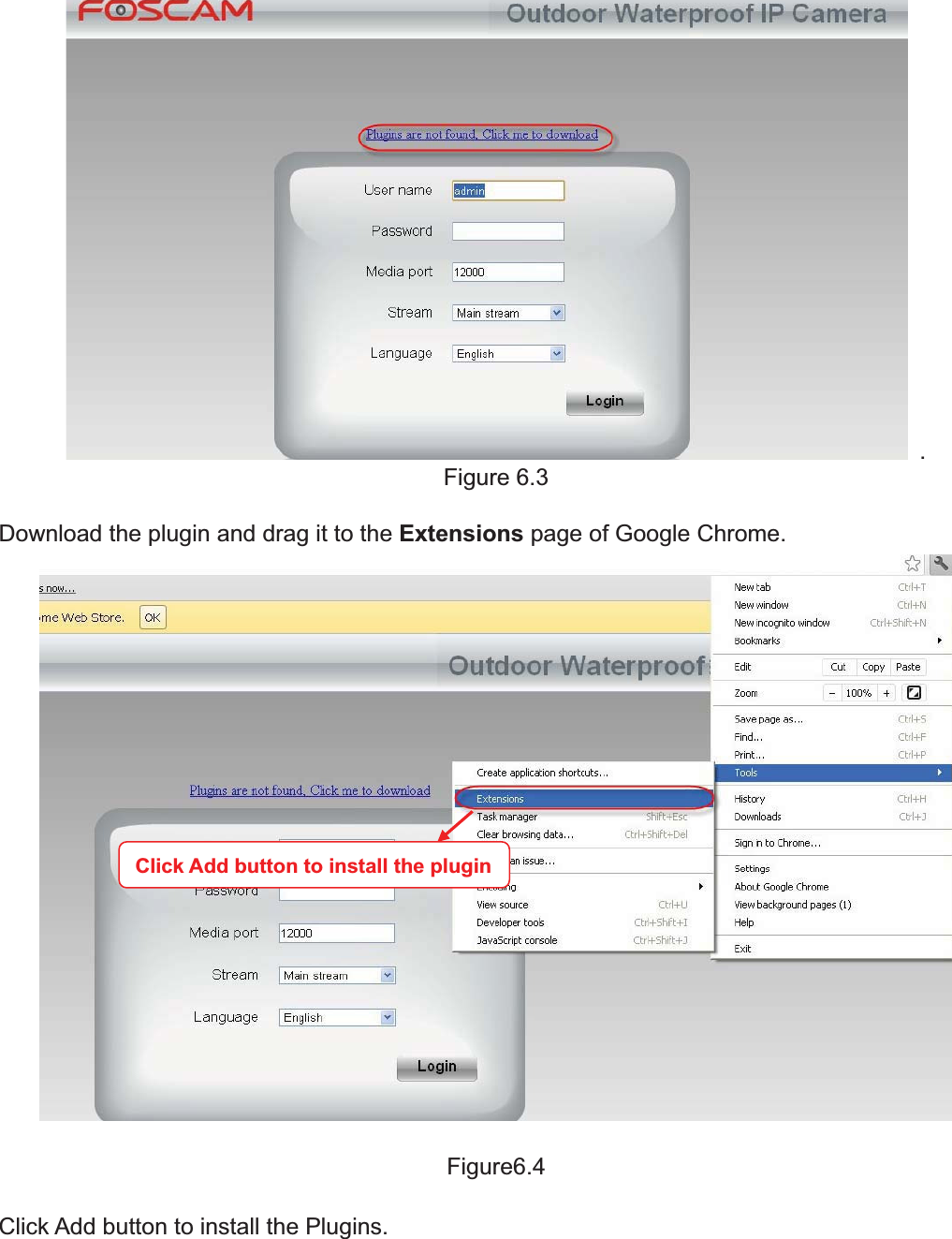
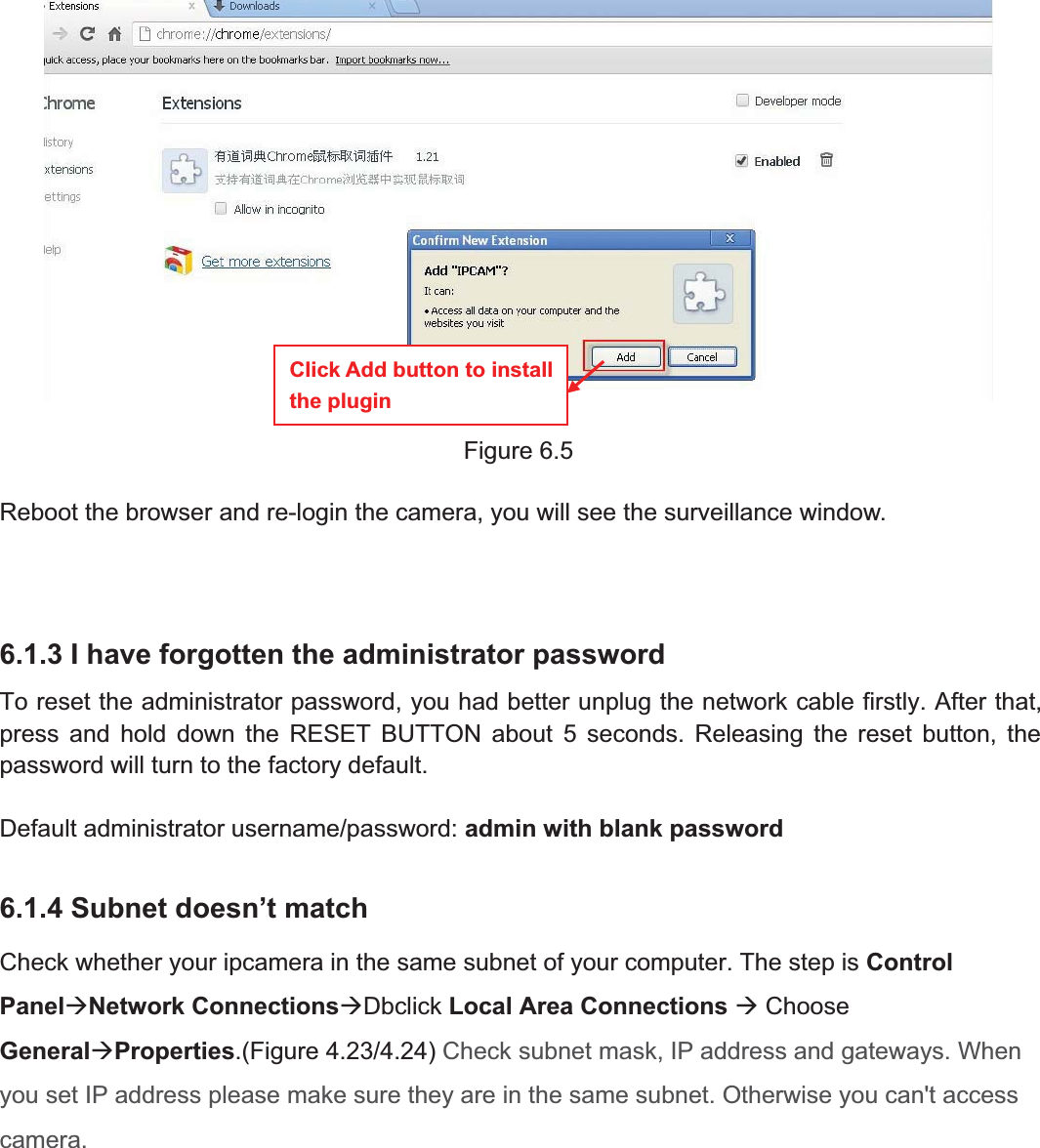
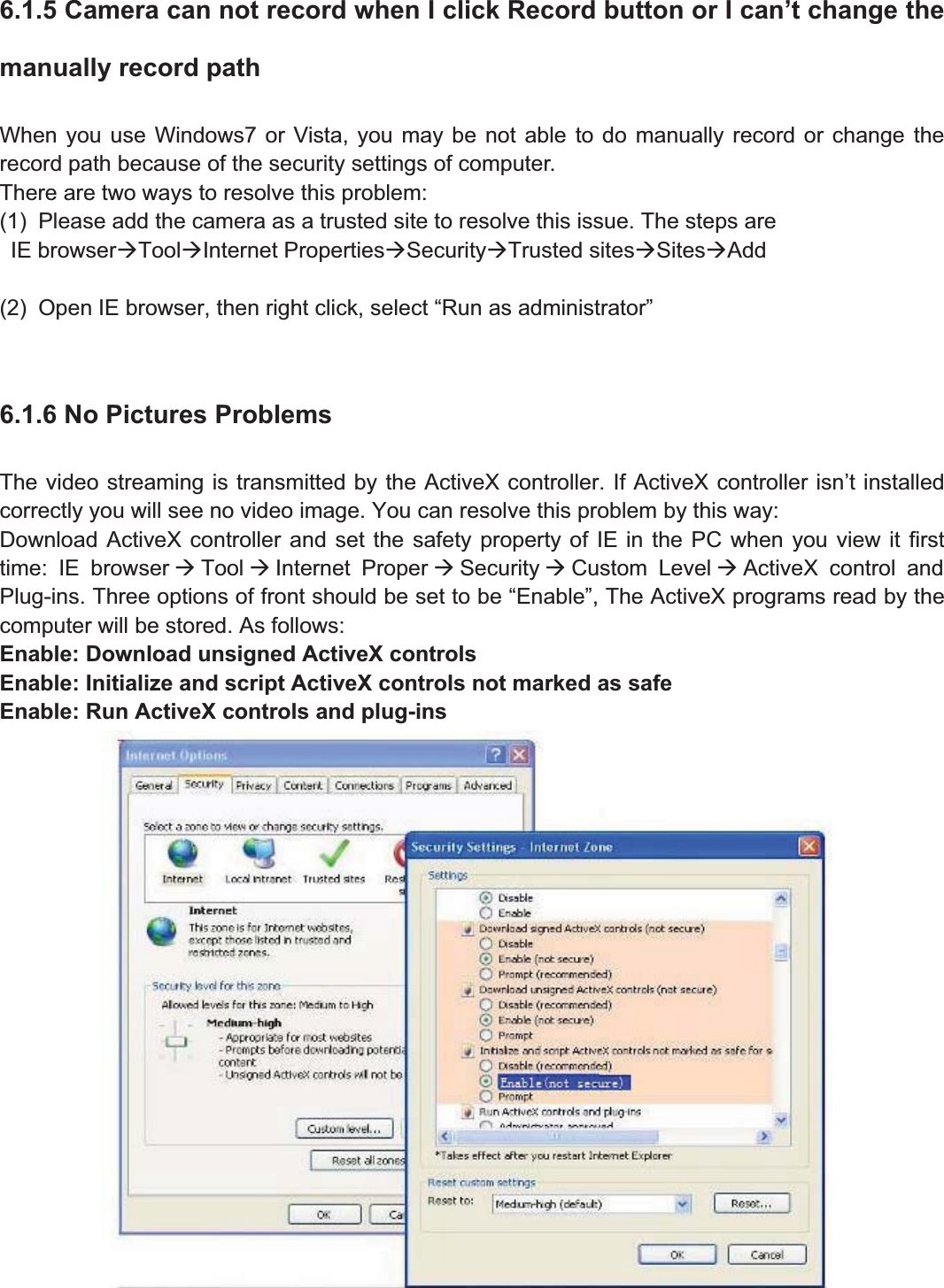
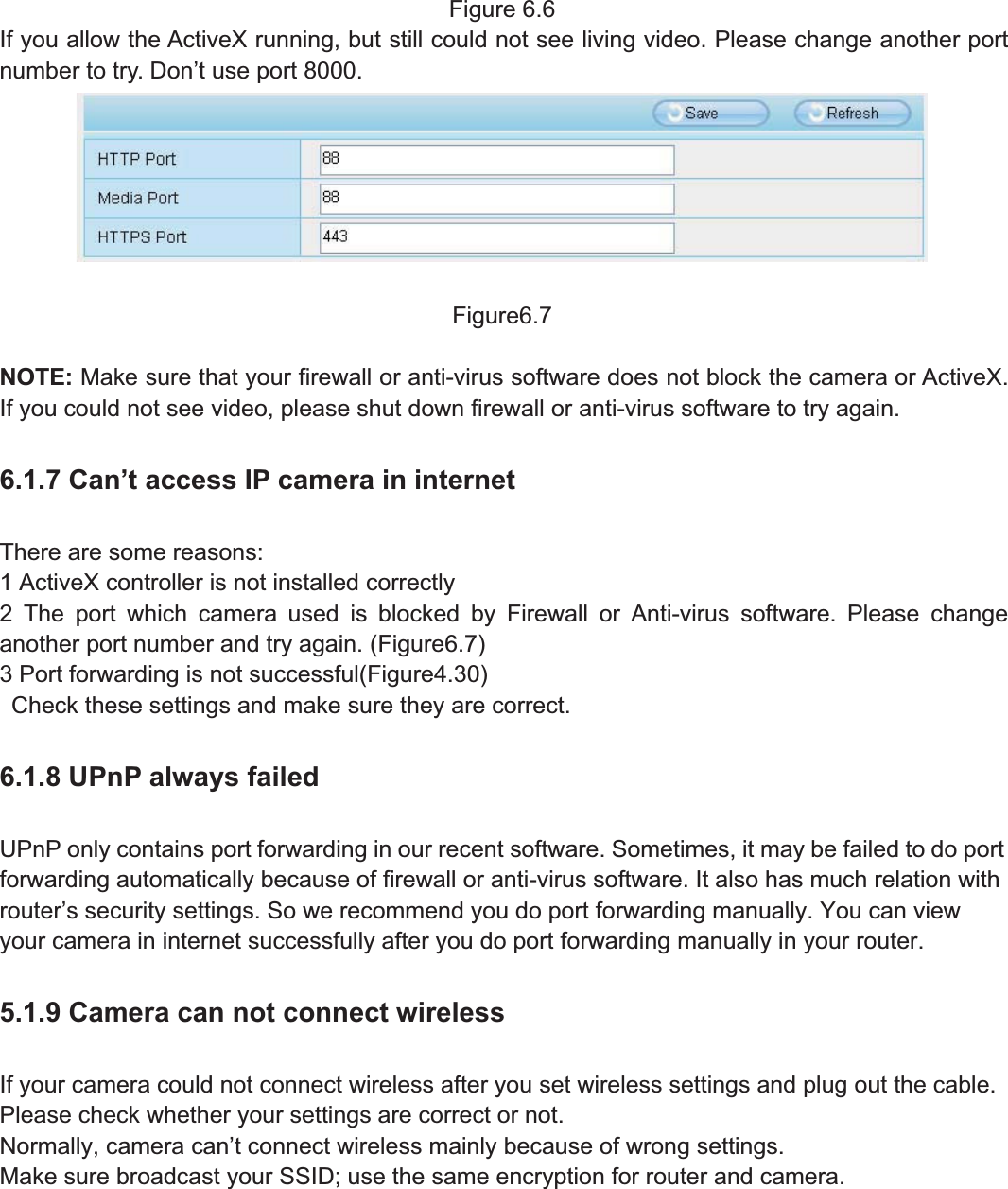
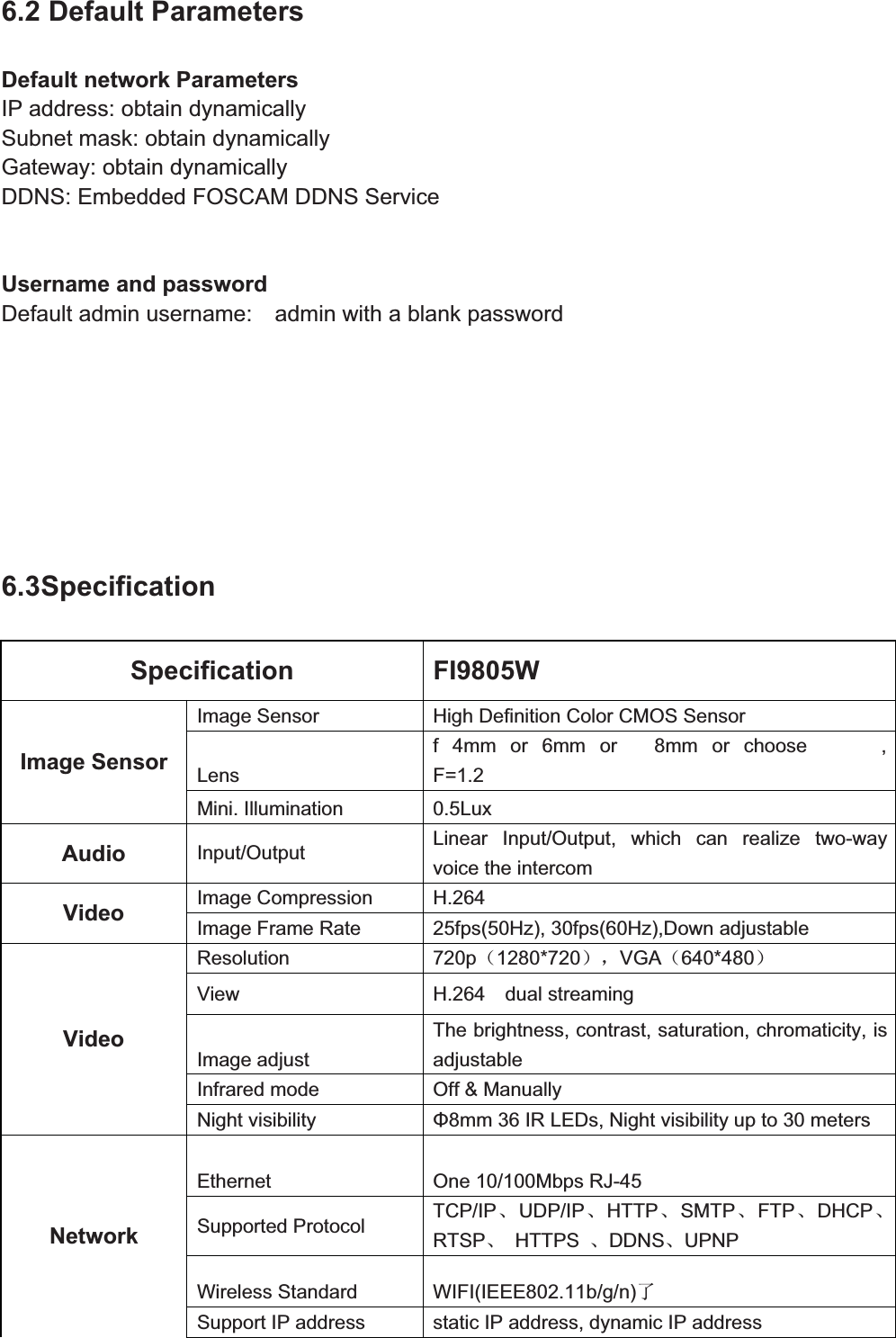
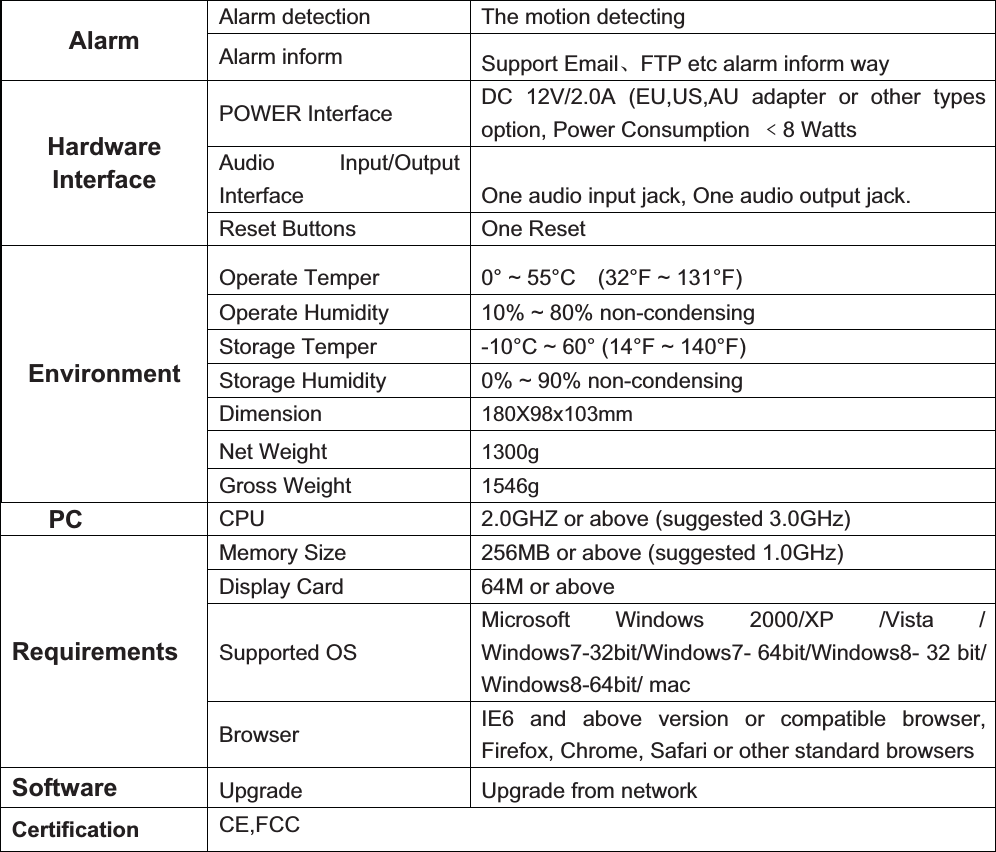
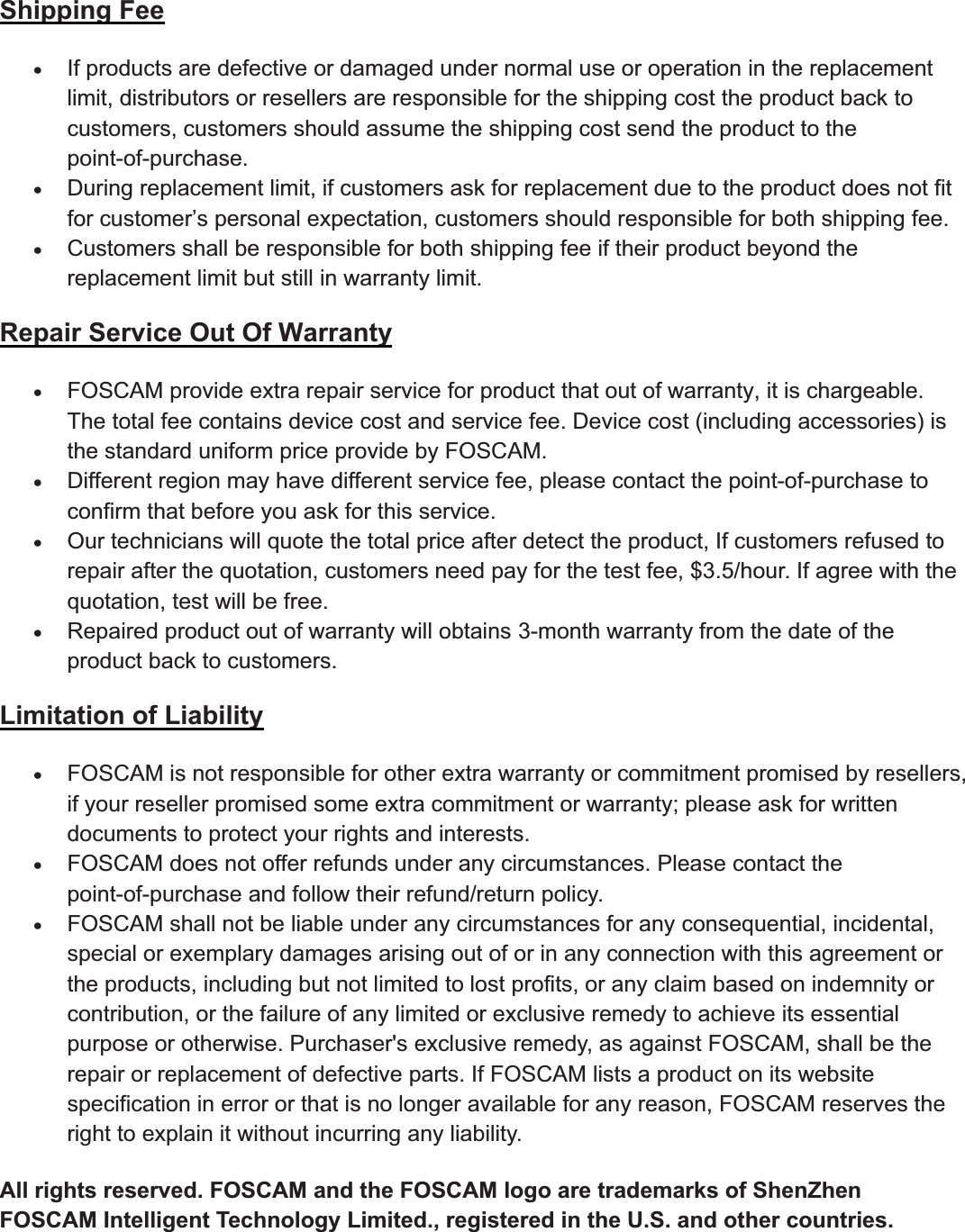
ShenZhen Foscam Intelligent Technology FI9805W HD Wireless IP Camera User Manual D SYSTEM FI9805W

ShenZhen Foscam Intelligent Technology Co., Ltd. HD Wireless IP Camera D SYSTEM FI9805W

Users Manual

UserUser ManualManualModel: FI9805W     HDWirelessIPCamera
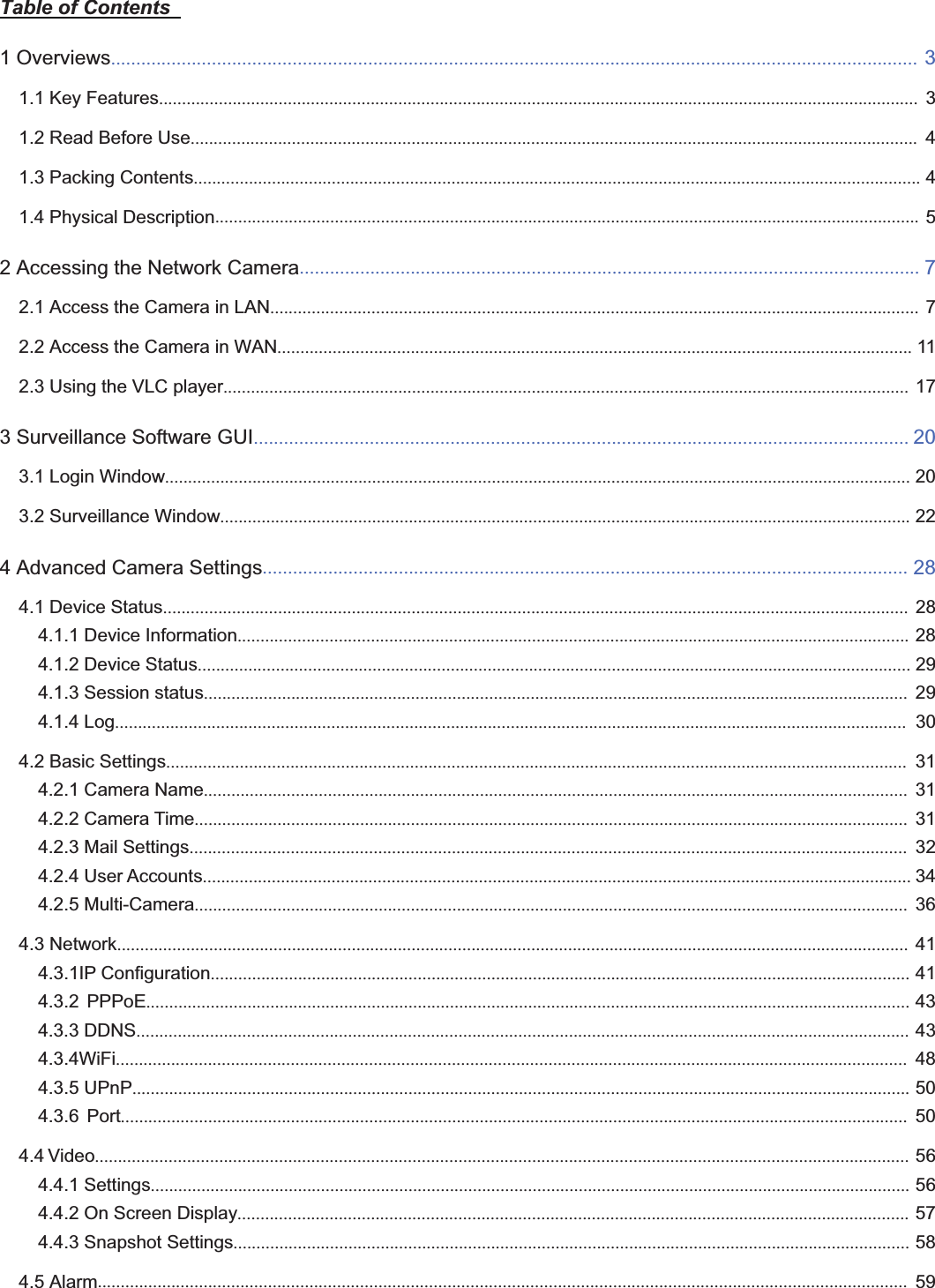
1wwww.foscam.coww.foscam.commShenzhenShenzhen FoscamFoscam IntelligentIntelligent TechnologyTechnology Co.,Co., LimitedLimitedTel:Tel: 8686 755755 26742674 56685668 Fax:Fax: 8686 755755 26742674 51685168 1Table of Contents1Overviews................................................................................................................................................................ 31.1 Key Features..................................................................................................................................................................... 31.2 Read Before Use.............................................................................................................................................................. 41.3 Packing Contents.............................................................................................................................................................. 41.4 Physical Description......................................................................................................................................................... 52 Accessing the Network Camera........................................................................................................................... 72.1 Access the Camera in LAN............................................................................................................................................. 72.2 Access the Camera in WAN.......................................................................................................................................... 112.3 Using the VLC player..................................................................................................................................................... 173 Surveillance Software GUI.................................................................................................................................. 203.1 Login Window.................................................................................................................................................................. 203.2 Surveillance Window...................................................................................................................................................... 224 Advanced Camera Settings................................................................................................................................ 284.1 Device Status.................................................................................................................................................................. 284.1.1 Device Information.................................................................................................................................................. 284.1.2 Device Status........................................................................................................................................................... 294.1.3 Session status......................................................................................................................................................... 294.1.4 Log............................................................................................................................................................................ 304.2 Basic Settings................................................................................................................................................................. 314.2.1 Camera Name......................................................................................................................................................... 314.2.2 Camera Time........................................................................................................................................................... 314.2.3 Mail Settings............................................................................................................................................................ 324.2.4 User Accounts.......................................................................................................................................................... 344.2.5 Multi-Camera........................................................................................................................................................... 364.3 Network............................................................................................................................................................................ 414.3.1IP Configuration........................................................................................................................................................ 414.3.2 PPPoE...................................................................................................................................................................... 434.3.3 DDNS........................................................................................................................................................................ 434.3.4WiFi............................................................................................................................................................................ 484.3.5 UPnP......................................................................................................................................................................... 504.3.6 Port........................................................................................................................................................................... 504.4 Video................................................................................................................................................................................. 564.4.1 Settings..................................................................................................................................................................... 564.4.2 On Screen Display.................................................................................................................................................. 574.4.3 Snapshot Settings................................................................................................................................................... 584.5 Alarm................................................................................................................................................................................ 59
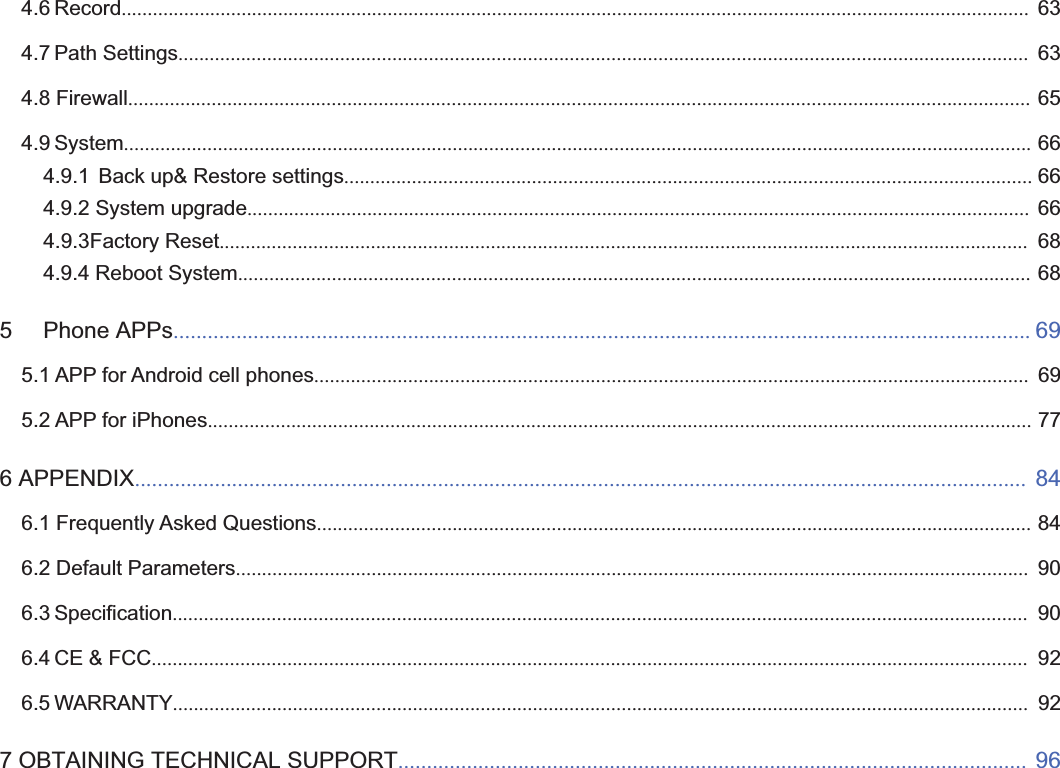
2wwww.foscam.coww.foscam.commShenzhenShenzhen FoscamFoscam IntelligentIntelligent TechnologyTechnology Co.,Co., LimitedLimitedTel:Tel: 8686 755755 26742674 56685668 Fax:Fax: 8686 755755 26742674 51685168 24.6 Record.............................................................................................................................................................................. 634.7 Path Settings................................................................................................................................................................... 634.8 Firewall............................................................................................................................................................................. 654.9 System.............................................................................................................................................................................. 664.9.1 Back up& Restore settings.................................................................................................................................... 664.9.2 System upgrade...................................................................................................................................................... 664.9.3Factory Reset........................................................................................................................................................... 684.9.4 Reboot System........................................................................................................................................................ 685 Phone APPs...................................................................................................................................................... 695.1 APP for Android cell phones......................................................................................................................................... 695.2 APP for iPhones.............................................................................................................................................................. 776 APPENDIX............................................................................................................................................................ 846.1 Frequently Asked Questions......................................................................................................................................... 846.2 Default Parameters........................................................................................................................................................ 906.3 Specification.................................................................................................................................................................... 906.4 CE & FCC........................................................................................................................................................................ 926.5 WARRANTY.................................................................................................................................................................... 927 OBTAINING TECHNICAL SUPPORT.............................................................................................................. 96
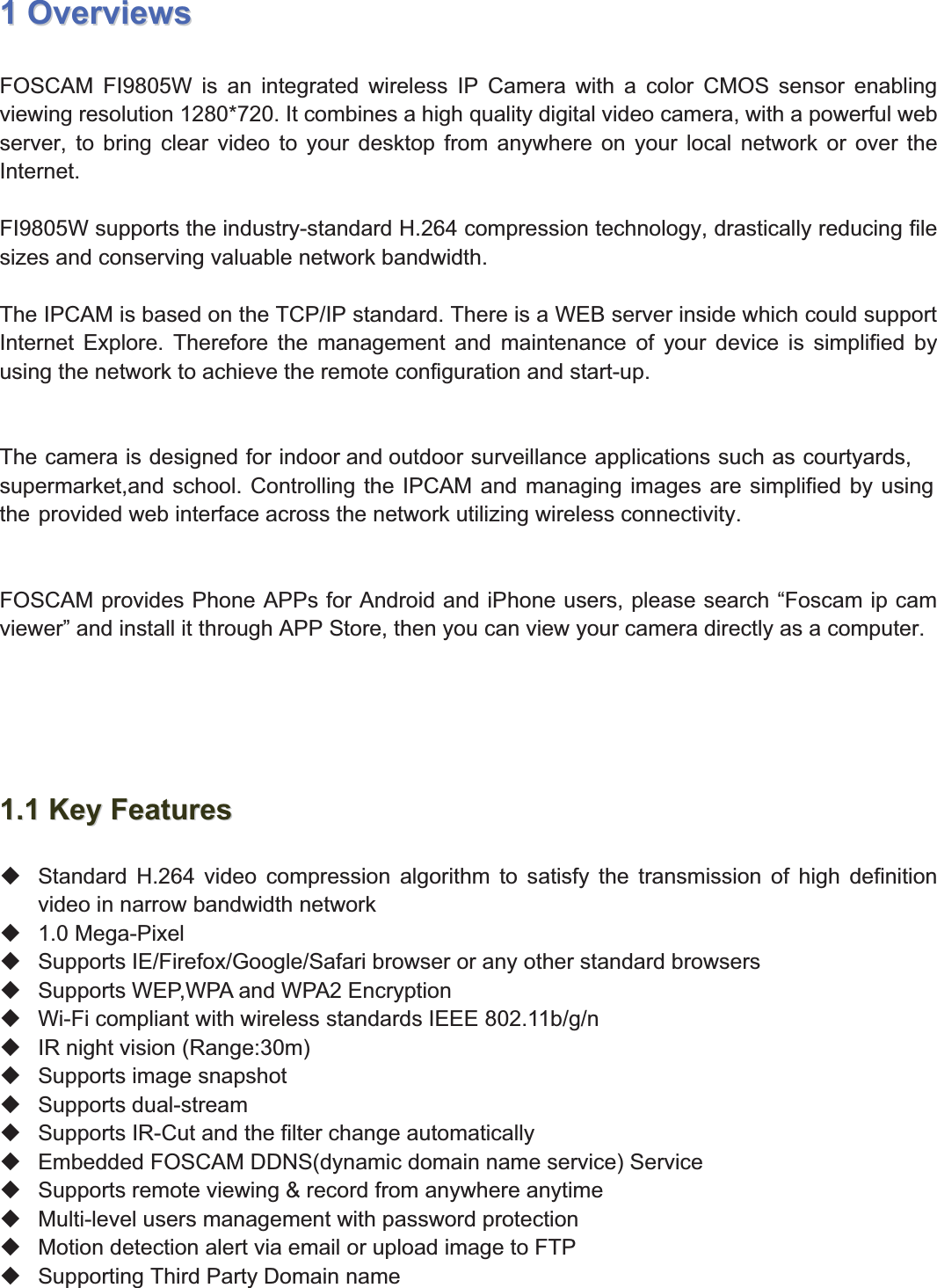
3wwww.foscam.coww.foscam.commShenzhenShenzhen FoscamFoscam IntelligentIntelligent TechnologyTechnology Co.,Co., LimitedLimitedTel:Tel: 8686 755755 26742674 56685668 Fax:Fax: 8686 755755 26742674 51685168 311OverviewsOverviewsFOSCAM FI9805W is an integrated wireless IP Camera with a color CMOS sensor enablingviewing resolution 1280*720. It combines a high quality digital video camera, with a powerful webserver, to bring clear video to your desktop from anywhere on your local network or over theInternet.FI9805W supports the industry-standard H.264 compression technology, drastically reducing filesizes and conserving valuable network bandwidth.The IPCAM is based on the TCP/IP standard. There is a WEB server inside which could supportInternet Explore. Therefore the management and maintenance of your device is simplified byusing the network to achieve the remote configuration and start-up.The camera is designed for indoor and outdoor surveillance applications such as courtyards,supermarket,and school. Controlling the IPCAM and managing images are simplified by usingthe provided web interface across the network utilizing wireless connectivity.FOSCAM provides Phone APPs for Android and iPhone users, please search “Foscam ip camviewer” and install it through APP Store, then you can view your camera directly as a computer.1.11.1 KeyKey FeaturesFeaturesStandard H.264 video compression algorithm to satisfy the transmission of high definitionvideo in narrow bandwidth network1.0 Mega-PixelSupports IE/Firefox/Google/Safari browser or any other standard browsersSupports WEP,WPA and WPA2 EncryptionWi-Fi compliant with wireless standards IEEE 802.11b/g/nIR night vision (Range:30m)Supports image snapshotSupports dual-streamSupports IR-Cut and the filter change automaticallyEmbedded FOSCAM DDNS(dynamic domain name service) ServiceSupports remote viewing & record from anywhere anytimeMulti-level users management with password protectionMotion detection alert via email or upload image to FTPSupporting Third Party Domain name
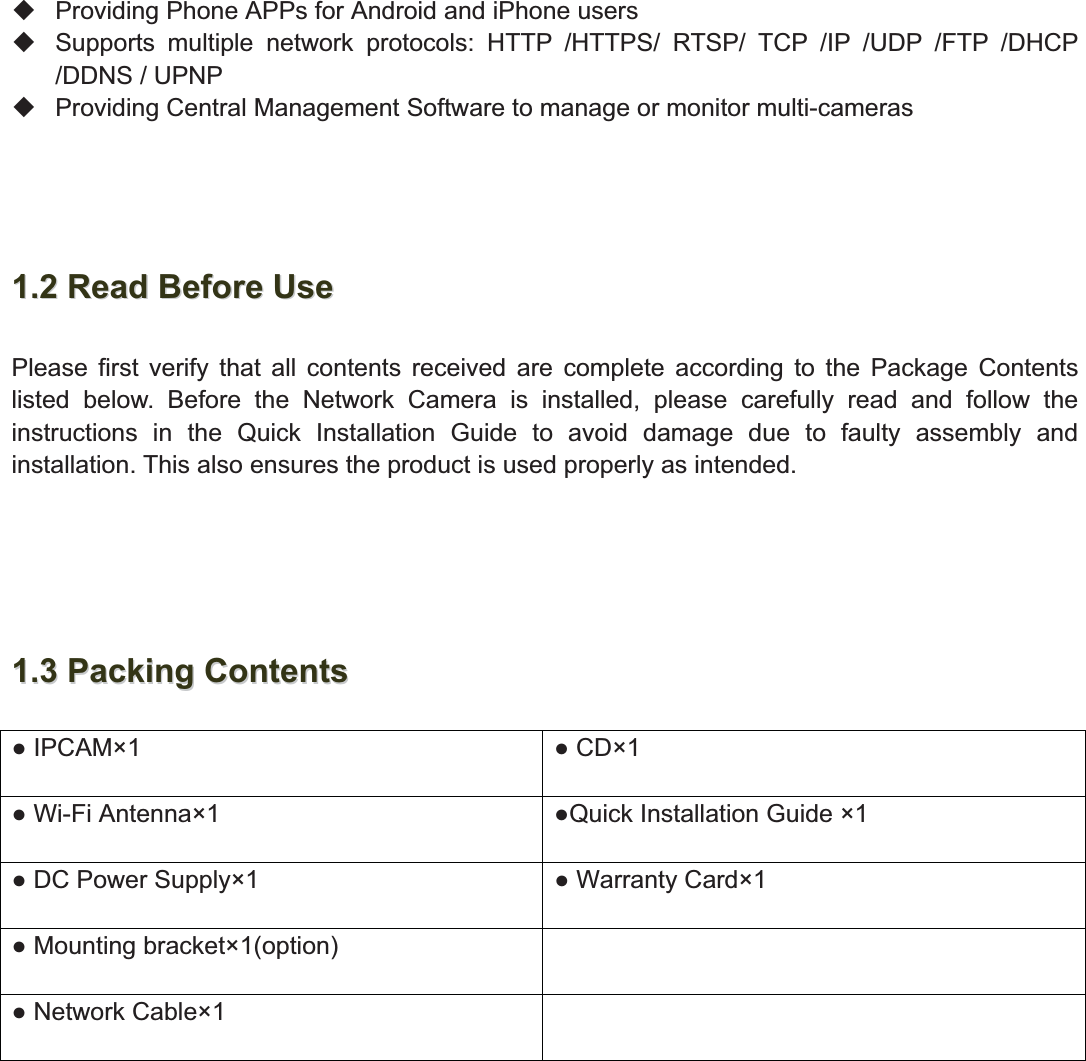
4wwww.foscam.coww.foscam.commShenzhenShenzhen FoscamFoscam IntelligentIntelligent TechnologyTechnology Co.,Co., LimitedLimitedTel:Tel: 8686 755755 26742674 56685668 Fax:Fax: 8686 755755 26742674 51685168 4Providing Phone APPs for Android and iPhone usersSupports multiple network protocols: HTTP /HTTPS/ RTSP/ TCP /IP /UDP /FTP /DHCP/DDNS / UPNPProviding Central Management Software to manage or monitor multi-cameras1.21.2 ReadRead BeforeBefore UseUsePlease first verify that all contents received are complete according to the Package Contentslisted below. Before the Network Camera is installed, please carefully read and follow theinstructions in the Quick Installation Guide to avoid damage due to faulty assembly andinstallation. This also ensures the product is used properly as intended.1.31.3 PackingPacking ContentsContents IPCAM×1  CD×1 Wi-Fi Antenna×1 Quick Installation Guide ×1 DC Power Supply×1  Warranty Card×1 Mounting bracket×1(option) Network Cable×1
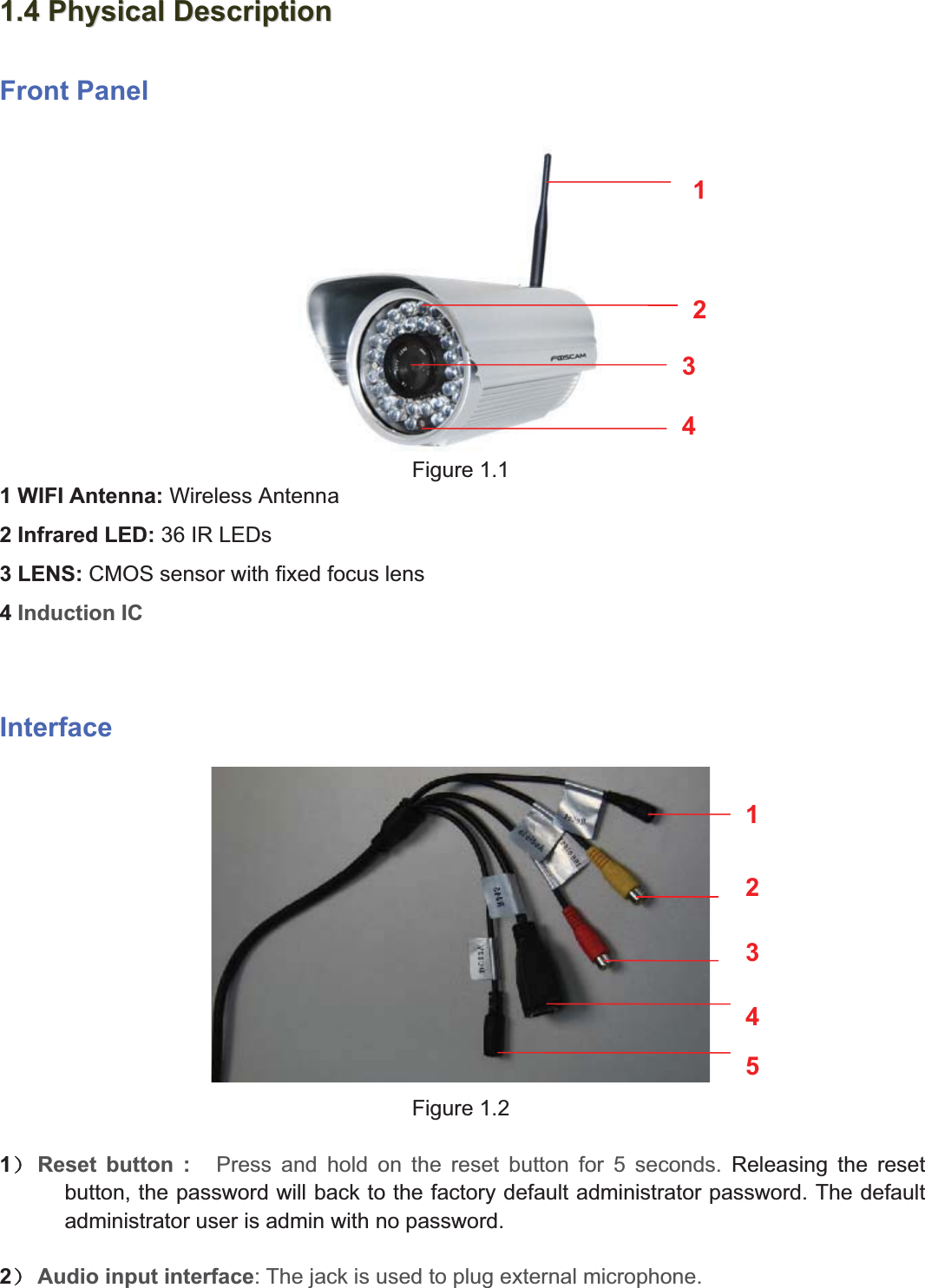
5wwww.foscam.coww.foscam.commShenzhenShenzhen FoscamFoscam IntelligentIntelligent TechnologyTechnology Co.,Co., LimitedLimitedTel:Tel: 8686 755755 26742674 56685668 Fax:Fax: 8686 755755 26742674 51685168 51.41.4 PhysicalPhysical DescriptionDescriptionFront PanelFigure 1.11 WIFI Antenna: Wireless Antenna2 Infrared LED: 36 IR LEDs3LENS:CMOS sensor with fixed focus lens4Induction ICInterfaceFigure 1.21˅Reset button : Press and hold on the reset button for 5 seconds. Releasing the resetbutton, the password will back to the factory default administrator password. The defaultadministrator user is admin with no password.2˅Audio input interface:Thejack is used to plug external microphone.123451234
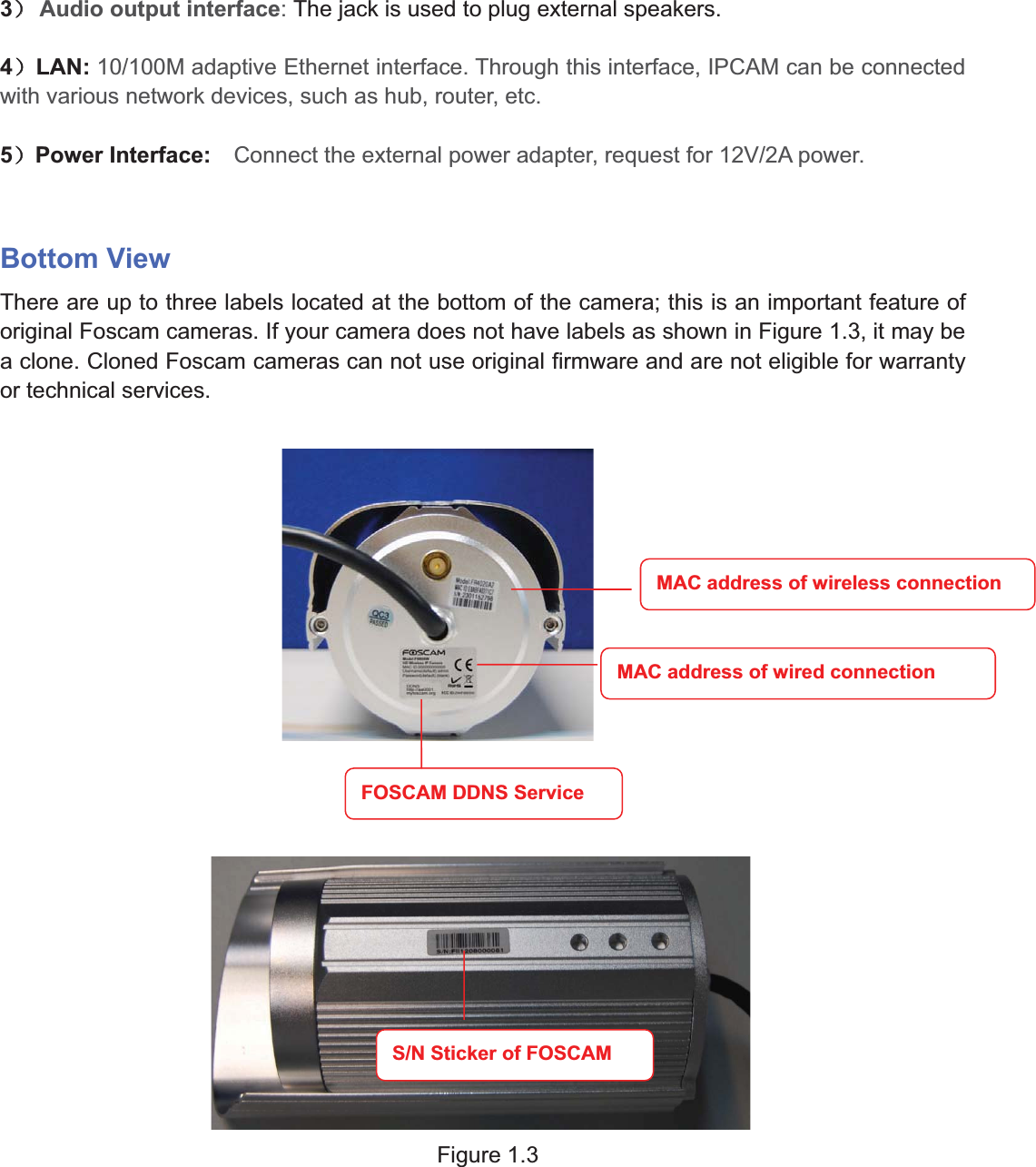
6wwww.foscam.coww.foscam.commShenzhenShenzhen FoscamFoscam IntelligentIntelligent TechnologyTechnology Co.,Co., LimitedLimitedTel:Tel: 8686 755755 26742674 56685668 Fax:Fax: 8686 755755 26742674 51685168 63˅˅Audio output interface:The jack is used to plug external speakers.4˅LAN: 10/100M adaptive Ethernet interface. Through this interface, IPCAM can be connectedwith various network devices, such as hub, router, etc.5˅Power Interface: Connect the external power adapter, request for 12V/2A power.Bottom ViewThere are up to three labels located at the bottom of the camera; this is an important feature oforiginal Foscam cameras. If your camera does not have labels as shown in Figure 1.3, it may bea clone. Cloned Foscam cameras can not use original firmware and are not eligible for warrantyor technical services.Figure 1.3MAC address of wireless connectionMAC address of wired connectionFOSCAM DDNS ServiceS/N Sticker of FOSCAM
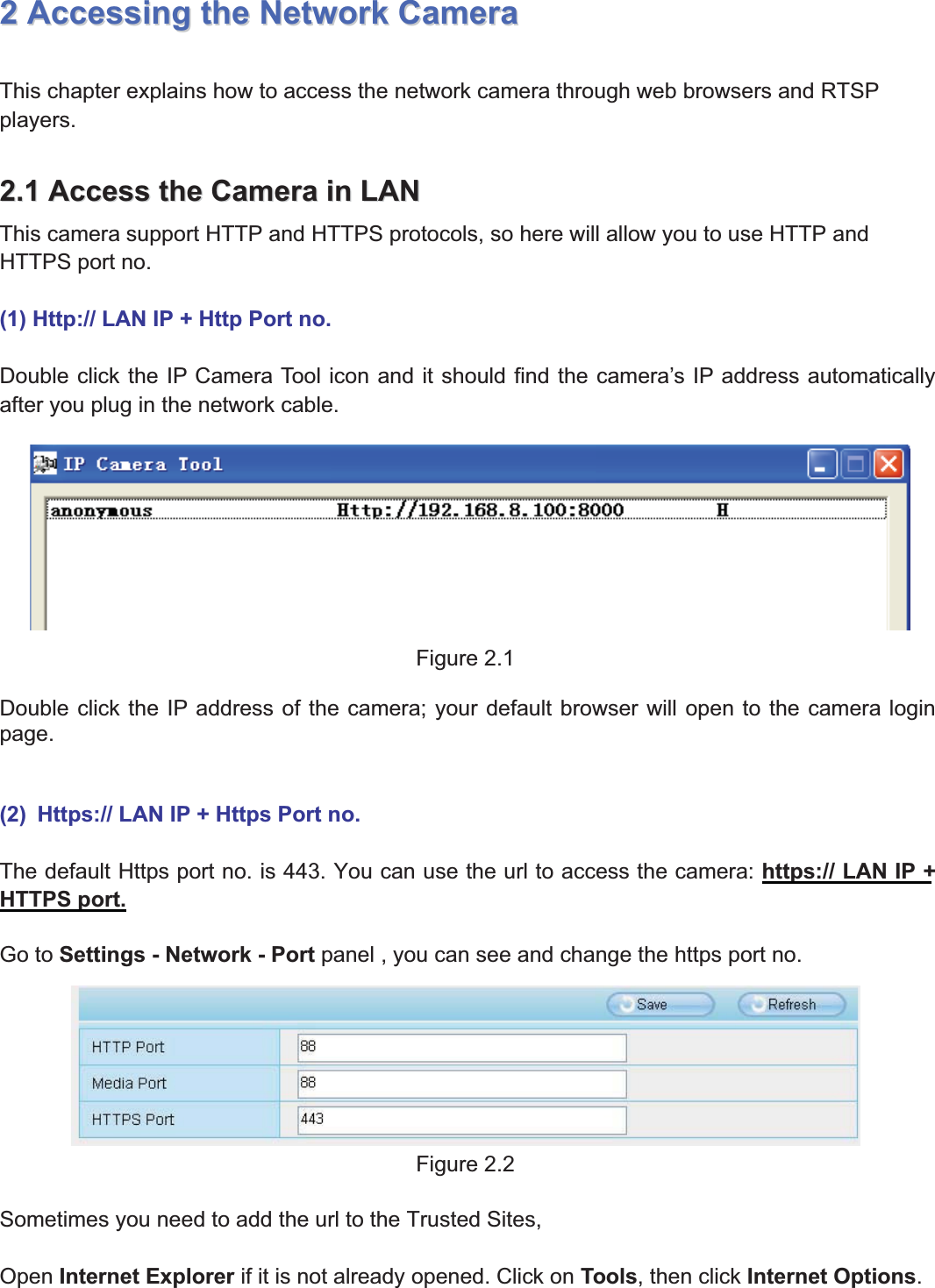
7wwww.foscam.coww.foscam.commShenzhenShenzhen FoscamFoscam IntelligentIntelligent TechnologyTechnology Co.,Co., LimitedLimitedTel:Tel: 8686 755755 26742674 56685668 Fax:Fax: 8686 755755 26742674 51685168 722AccessingAccessing thethe NetworkNetwork CameraCameraThis chapter explains how to access the network camera through web browsers and RTSPplayers.2.12.1 AccessAccess thethe CameraCamera inin LANLANThis camera support HTTP and HTTPS protocols, so here will allow you to use HTTP andHTTPS port no.(1) Http:// LAN IP + Http Port no.Double click the IP Camera Tool icon and it should find the camera’s IP address automaticallyafter you plug in the network cable.Figure 2.1Double click the IP address of the camera; your default browser will open to the camera loginpage.(2) Https:// LAN IP + Https Port no.The default Https port no. is 443. You can use the url to access the camera: https:// LAN IP +HTTPS port.Go to Settings - Network - Port panel , you can see and change the https port no.Figure 2.2Sometimes you need to add the url to the Trusted Sites,Open Internet Explorer if it is not already opened. Click on Tools, then click Internet Options.
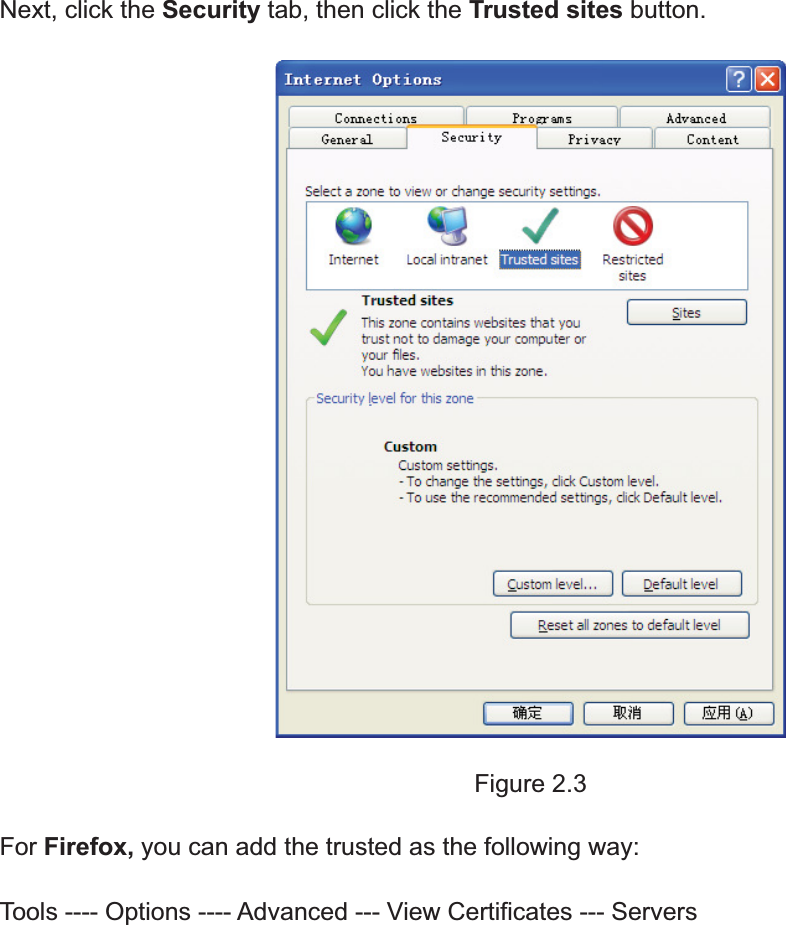
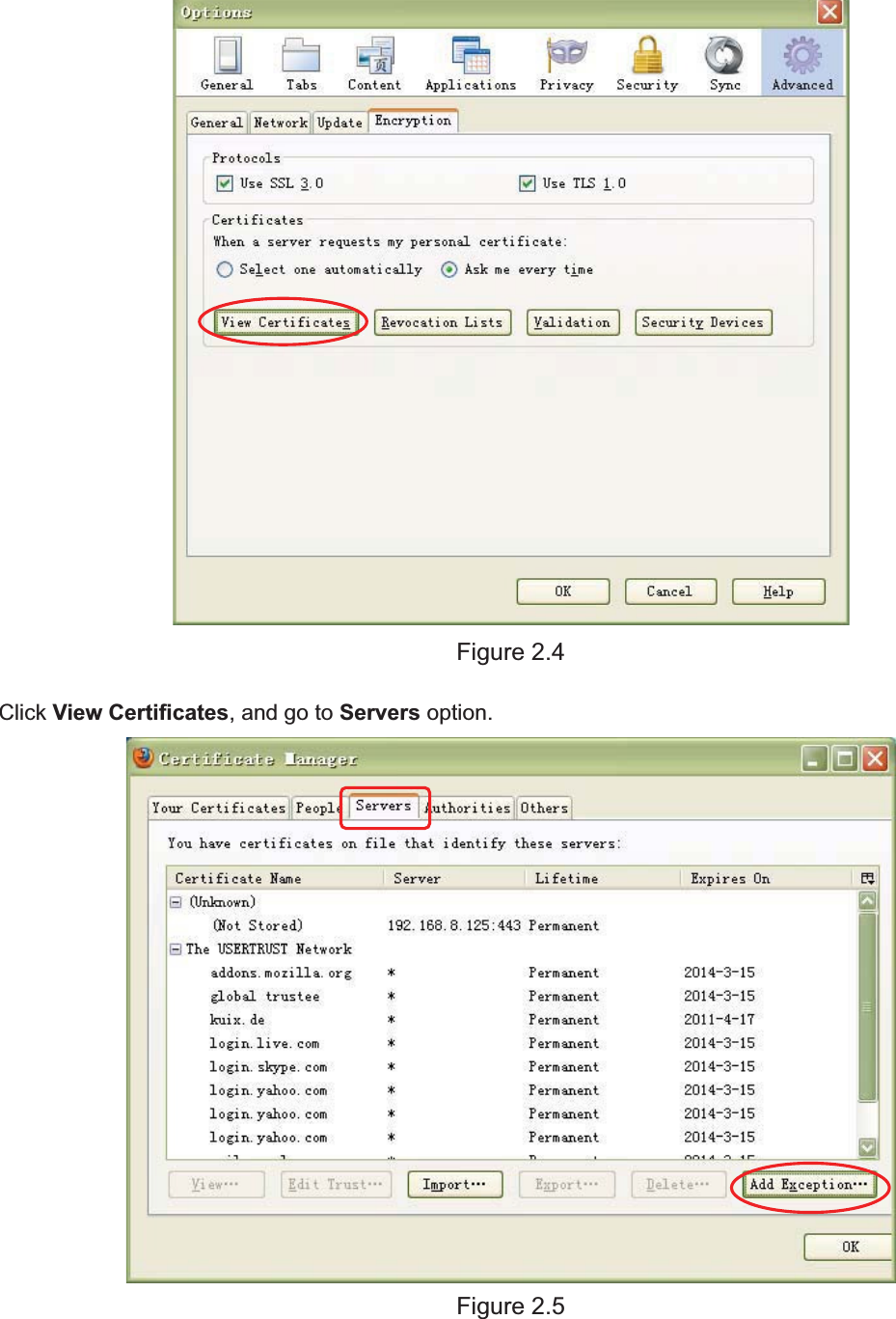
8wwww.foscam.coww.foscam.commShenzhenShenzhen FoscamFoscam IntelligentIntelligent TechnologyTechnology Co.,Co., LimitedLimitedTel:Tel: 8686 755755 26742674 56685668 Fax:Fax: 8686 755755 26742674 51685168 8Next, click the Security tab, then click the Trusted sites button.Figure 2.3For Firefox, you can add the trusted as the following way:Tools ---- Options ---- Advanced --- View Certificates --- Servers
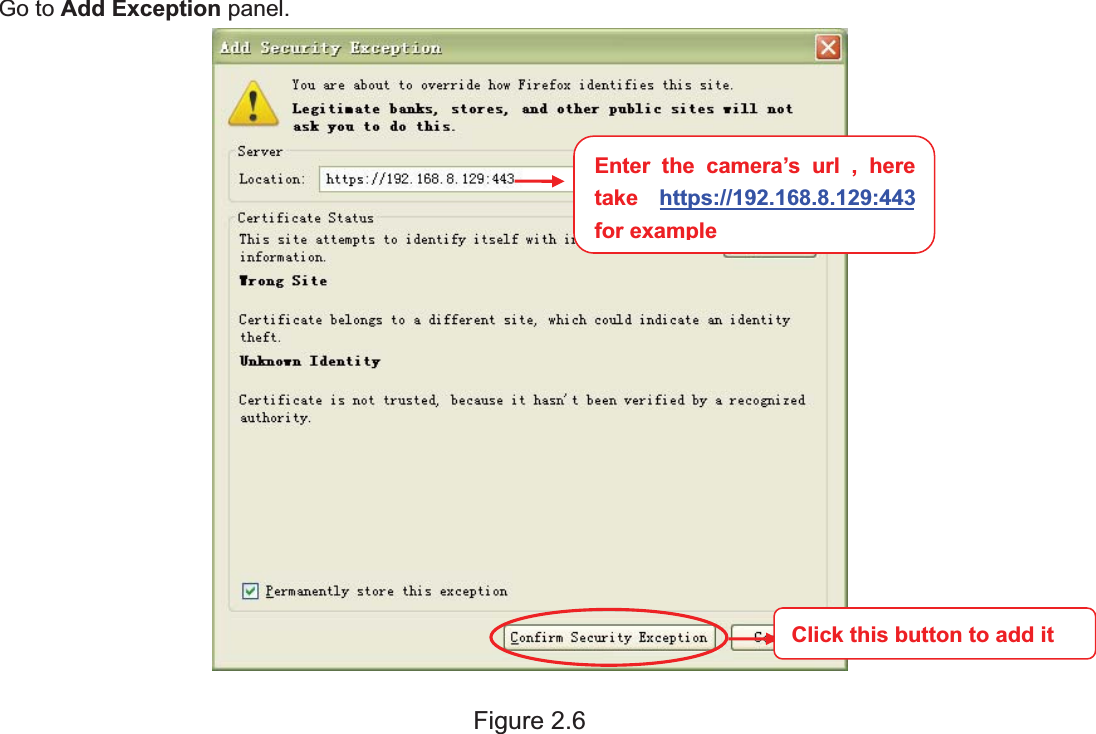
9wwww.foscam.coww.foscam.commShenzhenShenzhen FoscamFoscam IntelligentIntelligent TechnologyTechnology Co.,Co., LimitedLimitedTel:Tel: 8686 755755 26742674 56685668 Fax:Fax: 8686 755755 26742674 51685168 9Figure 2.4Click View Certificates, and go to Servers option.Figure 2.5
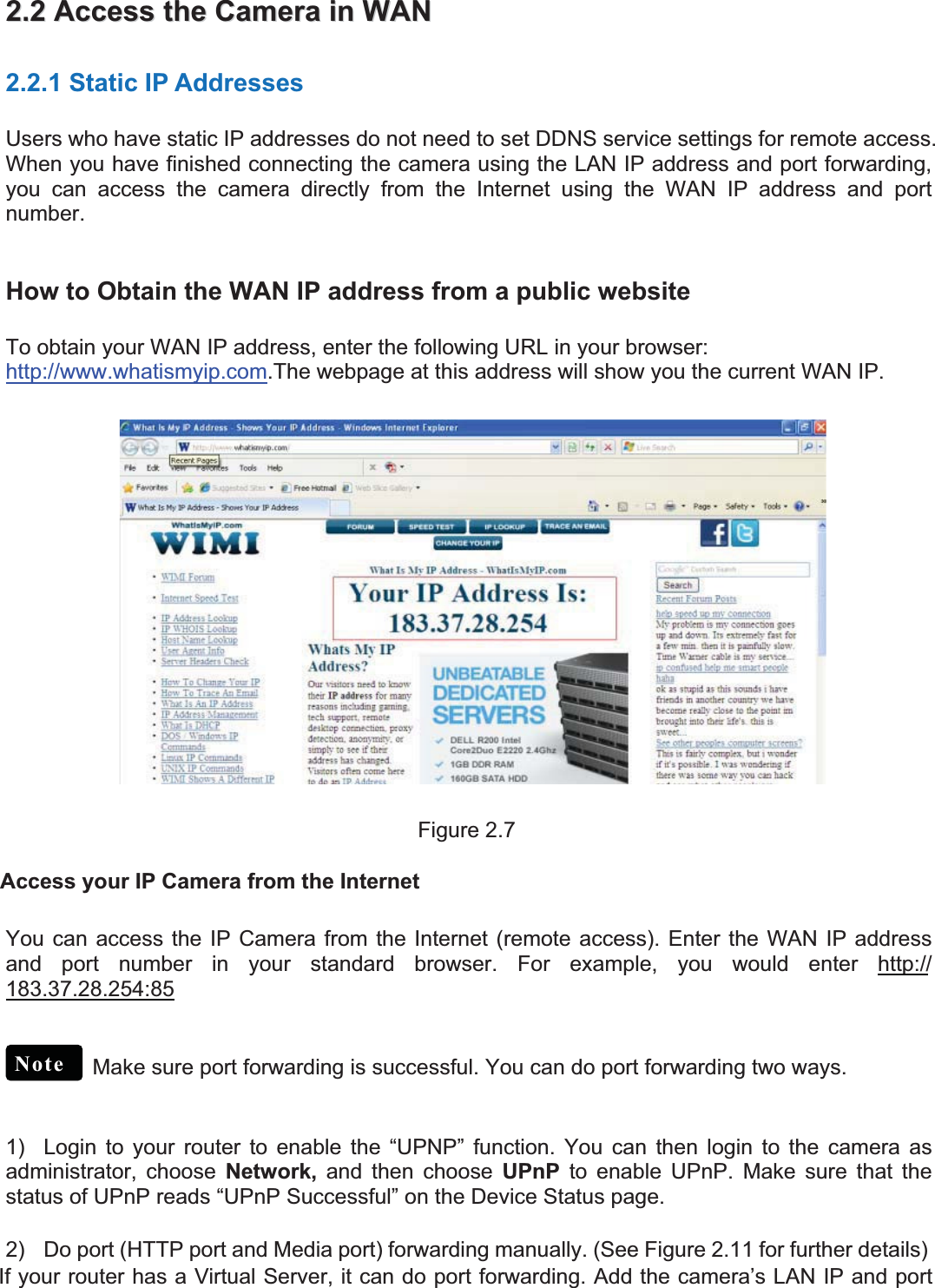
10wwww.foscam.coww.foscam.commShenzhenShenzhen FoscamFoscam IntelligentIntelligent TechnologyTechnology Co.,Co., LimitedLimitedTel:Tel: 8686 755755 26742674 56685668 Fax:Fax: 8686 755755 26742674 51685168 10Go to Add Exception panel.Figure 2.6Enter the camera’s url , heretake https://192.168.8.129:443forexampleClick this button to add it
11wwww.foscam.coww.foscam.commShenzhenShenzhen FoscamFoscam IntelligentIntelligent TechnologyTechnology Co.,Co., LimitedLimitedTel:Tel: 8686 755755 26742674 56685668 Fax:Fax: 8686 755755 26742674 51685168 112.2.22AccessAccess thethe CameraCamera inin WANWAN2.2.1 Static IP AddressesUsers who have static IP addresses do not need to set DDNS service settings for remote access.When you have finished connecting the camera using the LAN IP address and port forwarding,you can access the camera directly from the Internet using the WAN IP address and portnumber.How to Obtain the WAN IP address from a public websiteTo obtain your WAN IP address, enter the following URL in your browser:http://www.whatismyip.com.The webpage at this address will show you the current WAN IP.Figure 2.7Access your IP Camera from the InternetYou can access the IP Camera from the Internet (remote access). Enter the WAN IP addressand port number in your standard browser. For example, you would enter http://183.37.28.254:85Make sure port forwarding is successful. You can do port forwarding two ways.1) Login to yourrouterto enable the “UPNP” function. You can then login to the camera asadministrator, choose Network, and then choose UPnP to enable UPnP. Make sure that thestatus of UPnP reads “UPnP Successful” on the Device Status page.2) Do port (HTTP port and Media port) forwarding manually. (See Figure 2.11 for further details)If your router has a Virtual Server, it can do port forwarding. Add the camera’s LAN IP and portNote
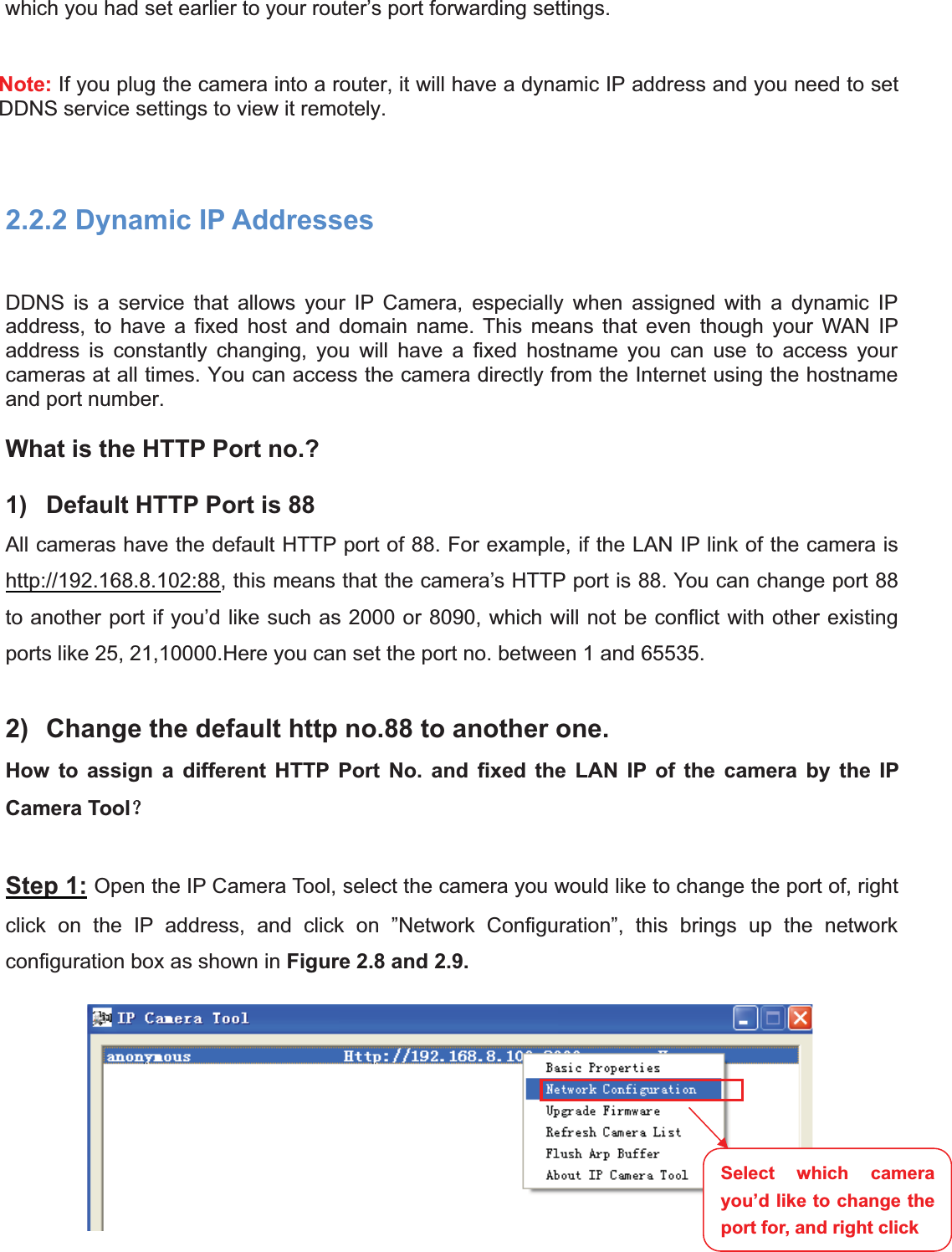
12wwww.foscam.coww.foscam.commShenzhenShenzhen FoscamFoscam IntelligentIntelligent TechnologyTechnology Co.,Co., LimitedLimitedTel:Tel: 8686 755755 26742674 56685668 Fax:Fax: 8686 755755 26742674 51685168 12which you had set earlier to your router’s port forwarding settings.Note: If you plug the camera into a router, it will have a dynamic IP address and you need to setDDNS service settings to view it remotely.2.2.2 Dynamic IP AddressesDDNS is a service that allows your IP Camera, especially when assigned with a dynamic IPaddress, to have a fixed host and domain name. This means that even though your WAN IPaddress is constantly changing, you will have a fixed hostname you can use to access yourcameras at all times. You can access the camera directly from the Internet using the hostnameand port number.What is the HTTP Port no.?1) Default HTTP Port is 88All cameras have the default HTTP port of 88. For example, if the LAN IP link of the camera ishttp://192.168.8.102:88, this means that the camera’s HTTP port is 88. You can change port 88to another port if you’d like such as 2000 or 8090, which will not be conflict with other existingports like 25, 21,10000.Here you can set the port no. between 1 and 65535.2) Change the default http no.88 to another one.How to assign a different HTTP Port No. and fixed the LAN IP of the camera by the IPCamera Tool˛Step 1: Open the IP Camera Tool, select the camera you would like to change the port of, rightclick on the IP address, and click on ”Network Configuration”, this brings up the networkconfiguration box as shown in Figure 2.8 and 2.9.Select which camerayou’d like to change theport for, and right click
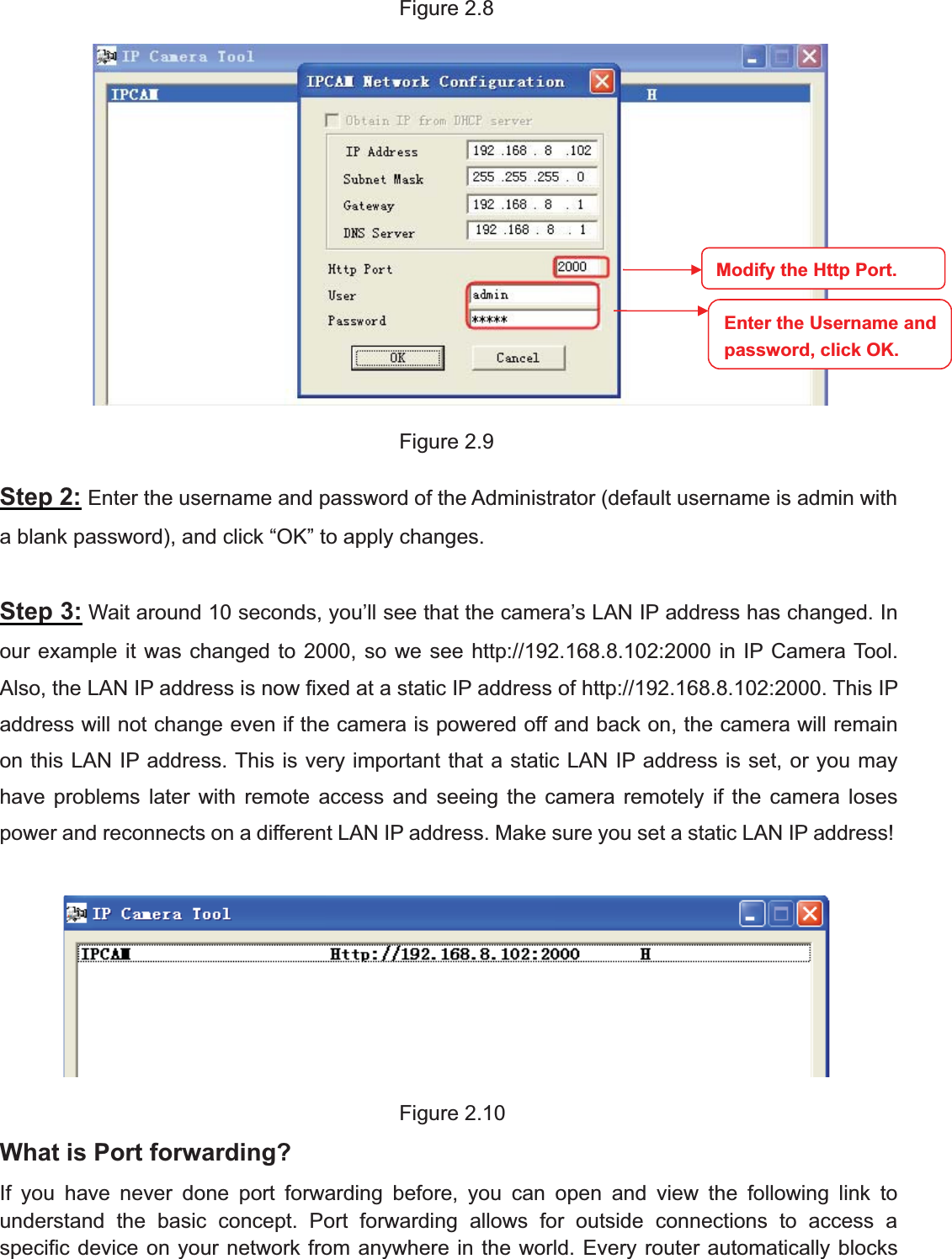
13wwww.foscam.coww.foscam.commShenzhenShenzhen FoscamFoscam IntelligentIntelligent TechnologyTechnology Co.,Co., LimitedLimitedTel:Tel: 8686 755755 26742674 56685668 Fax:Fax: 8686 755755 26742674 51685168 13Figure 2.8Figure 2.9Step 2: Enter the username and password of the Administrator (default username is admin witha blank password), and click “OK” to apply changes.Step 3: Wait around 10 seconds, you’ll see that the camera’s LAN IP address has changed. Inour example it was changed to 2000, so we see http://192.168.8.102:2000 in IP Camera Tool.Also, the LAN IP address is now fixed at a static IP address of http://192.168.8.102:2000. This IPaddress will not change even if the camera is powered off and back on, the camera will remainon this LAN IP address. This is very important that a static LAN IP address is set, or you mayhave problems later with remote access and seeing the camera remotely if the camera losespower and reconnects on a different LAN IP address. Make sure you set a static LAN IP address!Figure 2.10What is Port forwarding?If you have never done port forwarding before, you can open and view the following link tounderstand the basic concept. Port forwarding allows for outside connections to access aspecific device on your network from anywhere in the world. Every router automatically blocksModify the Http Port.Enter the Username andpassword,click OK.
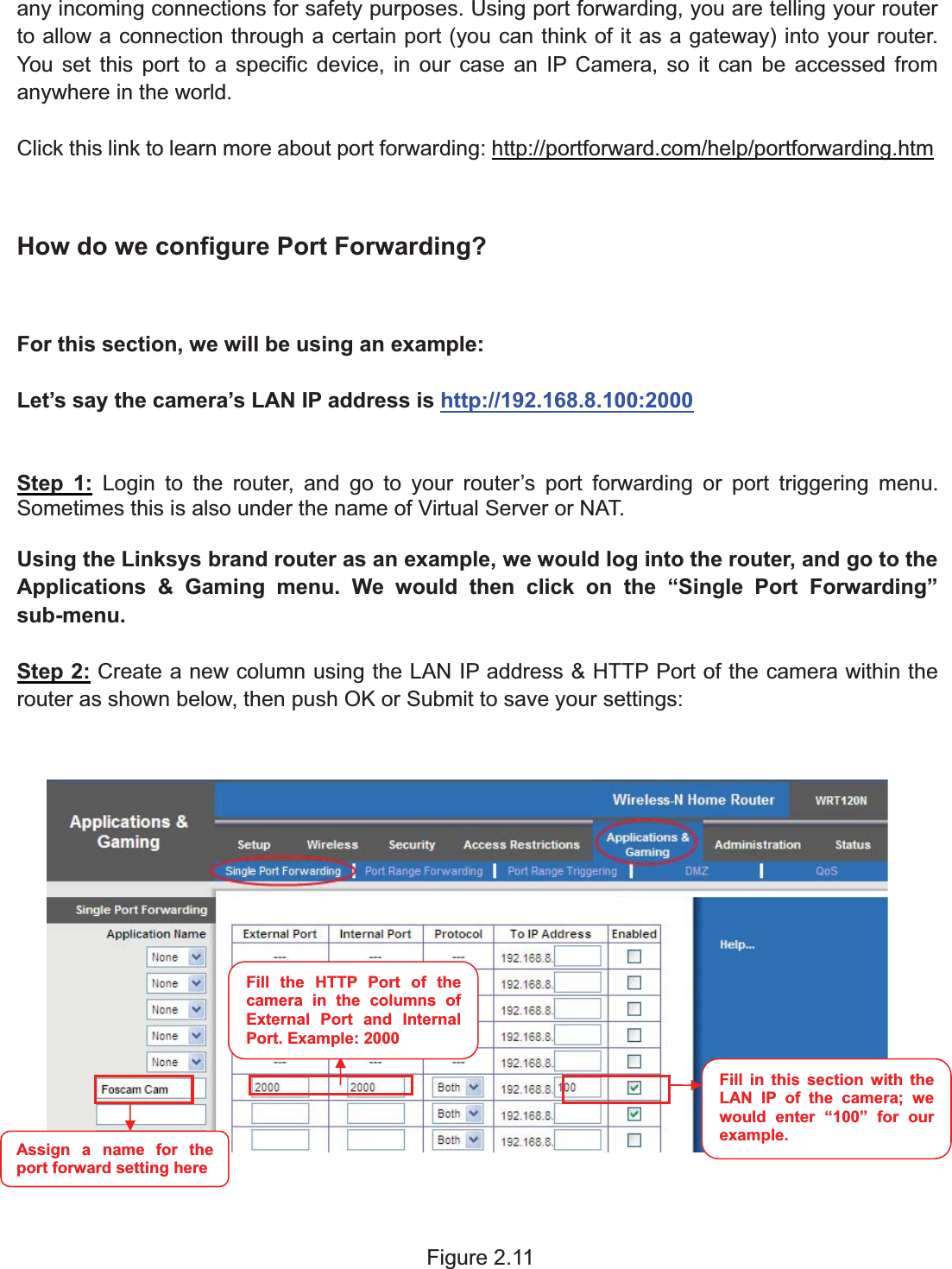
14wwww.foscam.coww.foscam.commShenzhenShenzhen FoscamFoscam IntelligentIntelligent TechnologyTechnology Co.,Co., LimitedLimitedTel:Tel: 8686 755755 26742674 56685668 Fax:Fax: 8686 755755 26742674 51685168 14any incoming connections for safety purposes. Using port forwarding, you are telling your routerto allow a connection through a certain port (you can think of it as a gateway) into your router.You set this port to a specific device, in our case an IP Camera, so it can be accessed fromanywhere in the world.Click this link to learn more about port forwarding: http://portforward.com/help/portforwarding.htmHow do we configure Port Forwarding?For this section, we will be using an example:Let’s say the camera’s LAN IP address is http://192.168.8.100:2000Step 1: Login to the router, and go to your router’s port forwarding or port triggering menu.Sometimes this is also under the name of Virtual Server or NAT.Using the Linksys brand router as an example, we would log into the router, and go to theApplications & Gaming menu. We would then click on the “Single Port Forwarding”sub-menu.Step 2: Create a new column using the LAN IP address & HTTP Port of the camera within therouter as shown below, then push OK or Submit to save your settings:Figure 2.11Fill the HTTP Port of thecamera in the columns ofExternal Port and InternalPort. Example: 2000Fill in this section with theLAN IP of the camera; wewould enter “100” for ourexample.Assign a name for theport forward setting here
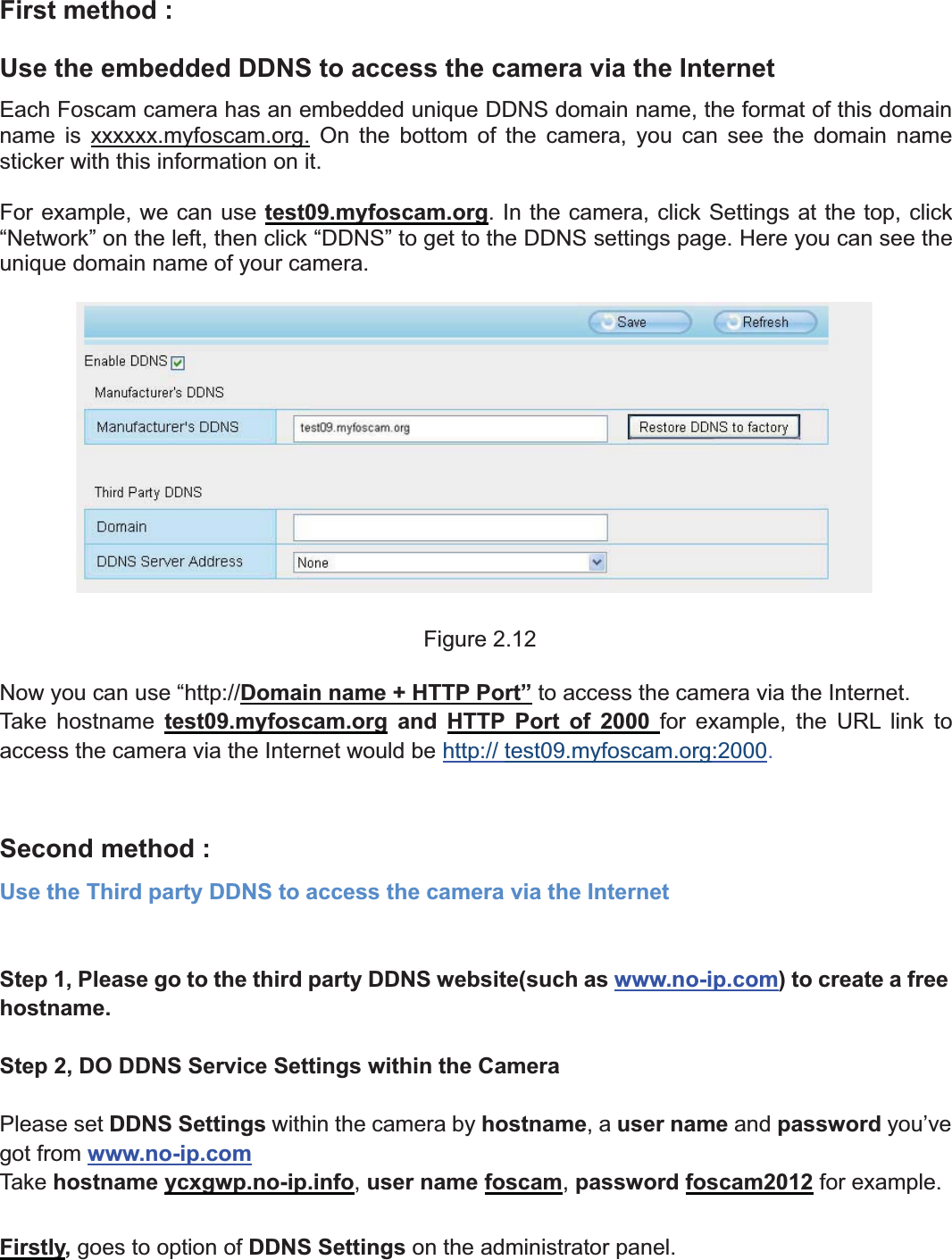
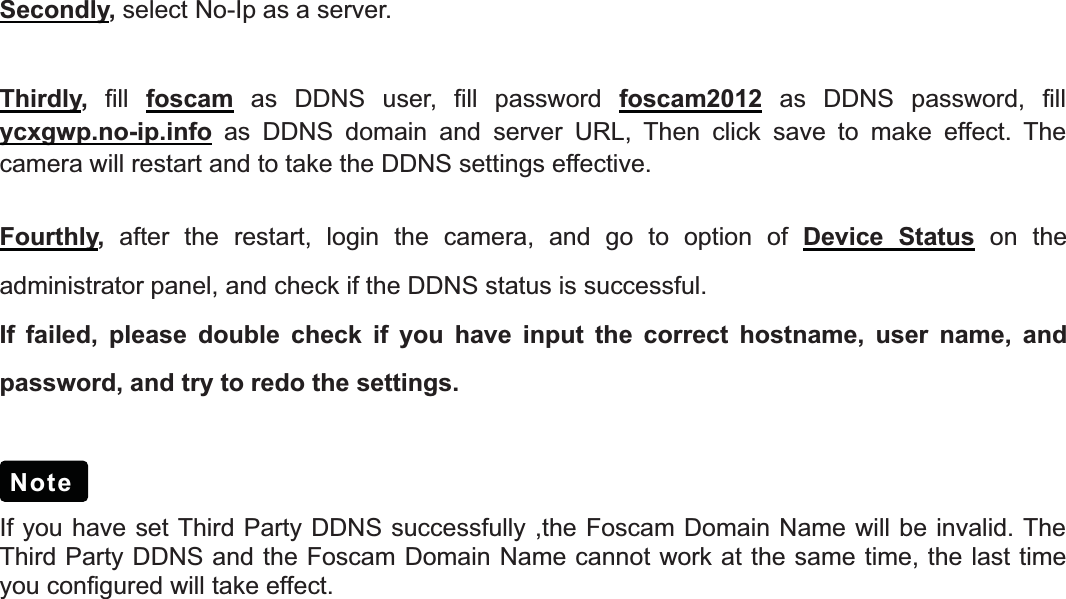
15wwww.foscam.coww.foscam.commShenzhenShenzhen FoscamFoscam IntelligentIntelligent TechnologyTechnology Co.,Co., LimitedLimitedTel:Tel: 8686 755755 26742674 56685668 Fax:Fax: 8686 755755 26742674 51685168 15First method :Use the embedded DDNS to access the camera via the InternetEach Foscam camera has an embedded unique DDNS domain name, the format of this domainname is xxxxxx.myfoscam.org. On the bottom of the camera, you can see the domain namesticker with this information on it.For example, we can use test09.myfoscam.org. In the camera, click Settings at the top, click“Network” on the left, then click “DDNS” to get to the DDNS settings page. Here you can see theunique domain name of your camera.Figure 2.12Now you can use “http://Domain name + HTTP Port” to access the camera via the Internet.Take hostname test09.myfoscam.org and HTTP Port of 2000 for example, the URL link toaccess the camera via the Internet would be http:// test09.myfoscam.org:2000.Second method :Use the Third party DDNS to access the camera via the InternetStep 1, Please go to the third party DDNS website(such as www.no-ip.com) to create a freehostname.Step 2, DO DDNS Service Settings within the CameraPlease set DDNS Settings within the camera by hostname,auser name and password you’vegot from www.no-ip.comTake hostname ycxgwp.no-ip.info,user name foscam,password foscam2012 for example.Firstly, goes to option of DDNS Settings on the administrator panel.
16wwww.foscam.coww.foscam.commShenzhenShenzhen FoscamFoscam IntelligentIntelligent TechnologyTechnology Co.,Co., LimitedLimitedTel:Tel: 8686 755755 26742674 56685668 Fax:Fax: 8686 755755 26742674 51685168 16Secondly,select No-Ip as a server.Thirdly,fill foscam as DDNS user, fill password foscam2012 as DDNS password, fillycxgwp.no-ip.info as DDNS domain and server URL, Then click save to make effect. Thecamera will restart and to take the DDNS settings effective.Fourthly,after the restart, login the camera, and go to option of Device Status on theadministrator panel, and check if the DDNS status is successful.If failed, please double check if you have input the correct hostname, user name, andpassword, and try to redo the settings.If you have set Third Party DDNS successfully ,the Foscam Domain Name will be invalid. TheThird Party DDNS and the Foscam Domain Name cannot work at the same time, the last timeyou configured will take effect.Note
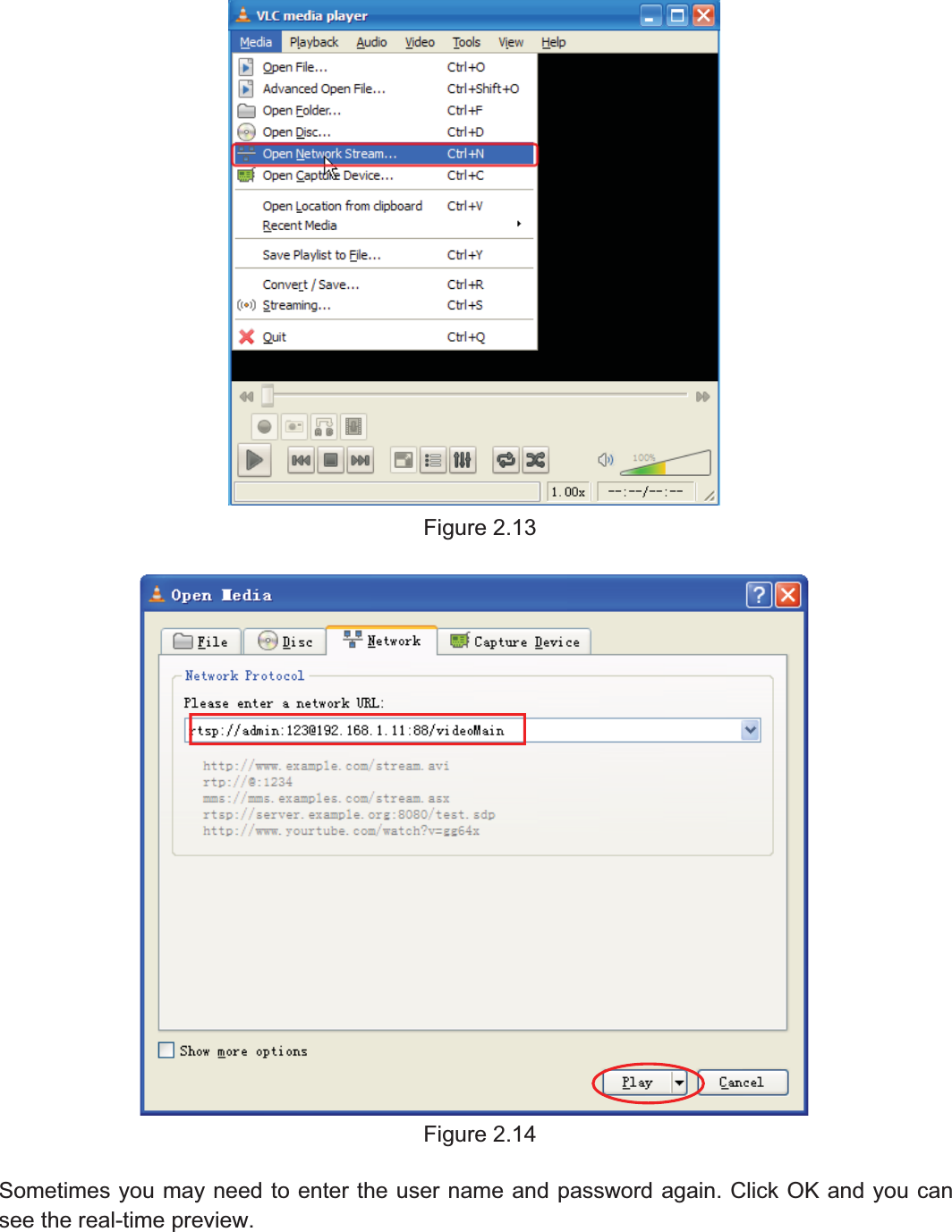
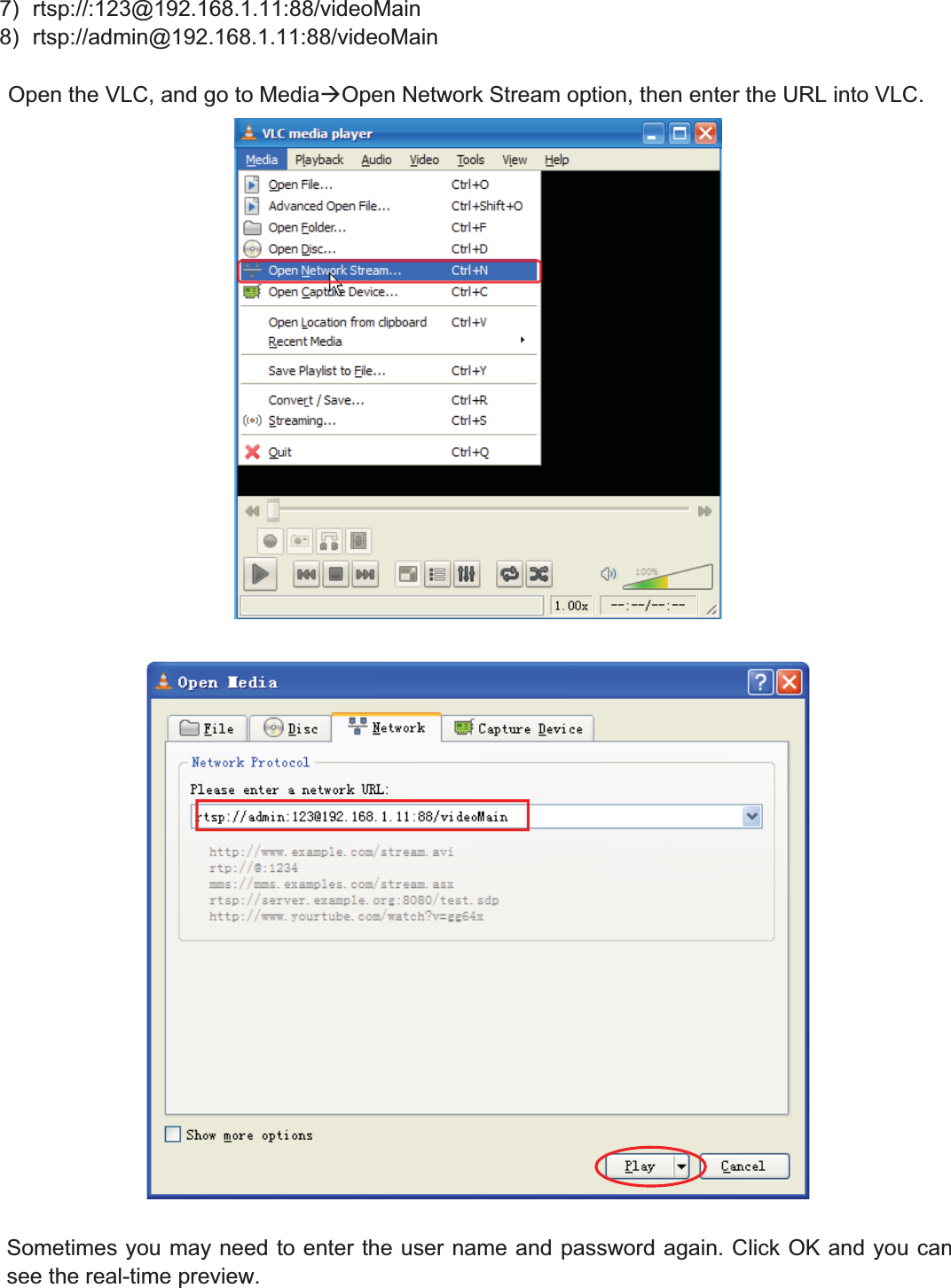
17wwww.foscam.coww.foscam.commShenzhenShenzhen FoscamFoscam IntelligentIntelligent TechnologyTechnology Co.,Co., LimitedLimitedTel:Tel: 8686 755755 26742674 56685668 Fax:Fax: 8686 755755 26742674 51685168 172.2.33UsingUsing thethe VLCVLC playerplayerThisThis cameracamera supportssupports RTSPRTSP streaming,streaming, herehere youyou cancan viewview thethe cameracamera usingusing VLCVLC player.player.RTSP URL rtsp:// [user name][:password]@IP:HTTP port number/videosreamThe part in the square brackets may be omitted.user name & password:The user name and password to access the camera. This part can be omitted.IP:WAN or LAN IP address.Videostream:Here support three mode: videoMain, videoSub and audio. When the network speed is bad, hereyou had better select videoSub. If you select audio, you can only hear the sound but cannot seethe video.For example:IP: 192.168.1.11HTTP Port number: 88User name: adminPassword: 123Here I can enter one of the following URLs in the VLC.1) rtsp://admin:123@192.168.1.11:88/videoMain2) rtsp:// @192.168.1.11:88/videoMain3) rtsp://:123@192.168.1.11:88/videoMain4) rtsp://admin@192.168.1.11:88/videoMainOpen the VLC, and go to MediaÆOpen Network Stream option, then enter the URL into VLC.
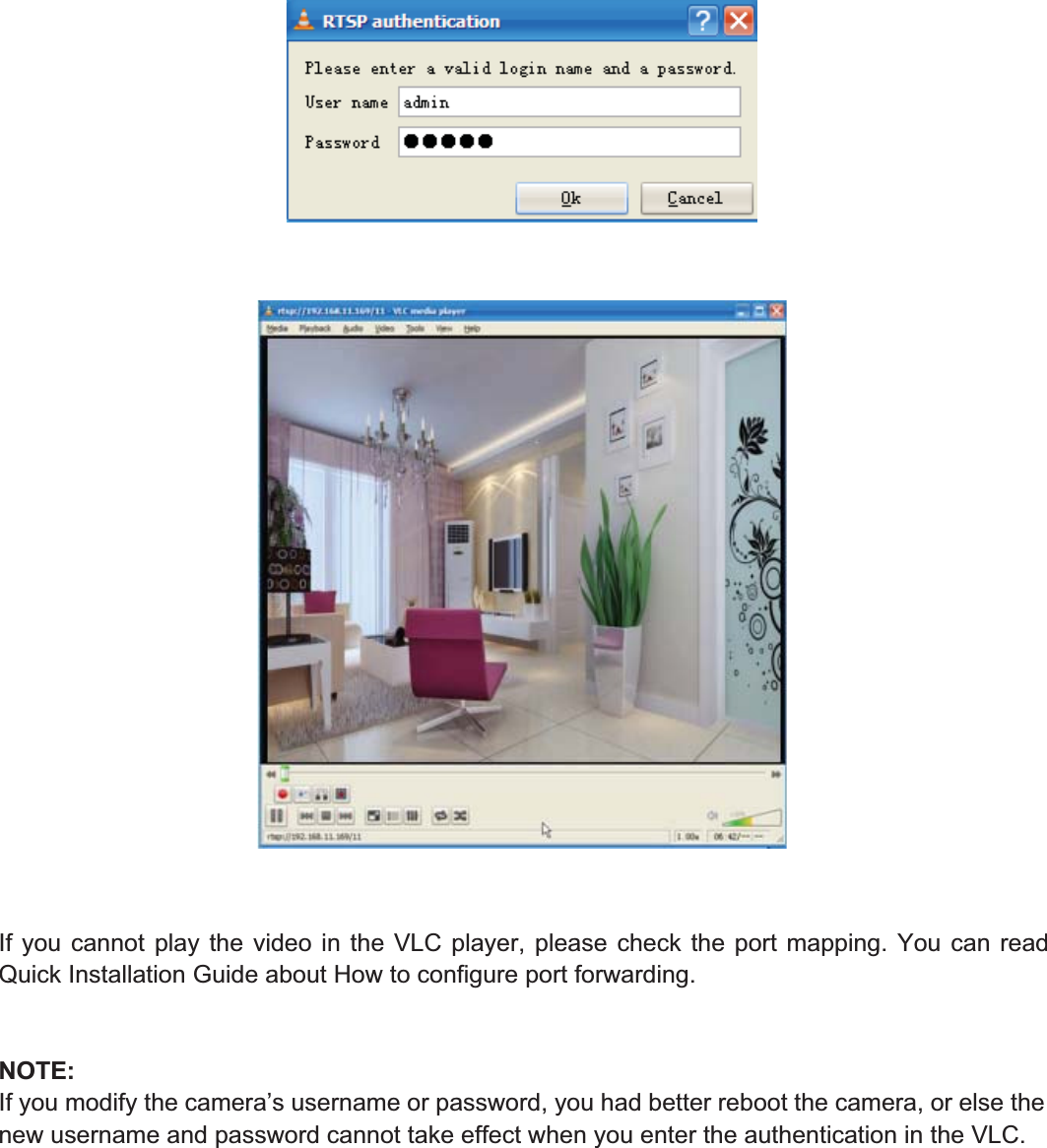
18wwww.foscam.coww.foscam.commShenzhenShenzhen FoscamFoscam IntelligentIntelligent TechnologyTechnology Co.,Co., LimitedLimitedTel:Tel: 8686 755755 26742674 56685668 Fax:Fax: 8686 755755 26742674 51685168 18Figure 2.13Figure 2.14Sometimes you may need to enter the user name and password again. Click OK and you cansee the real-time preview.
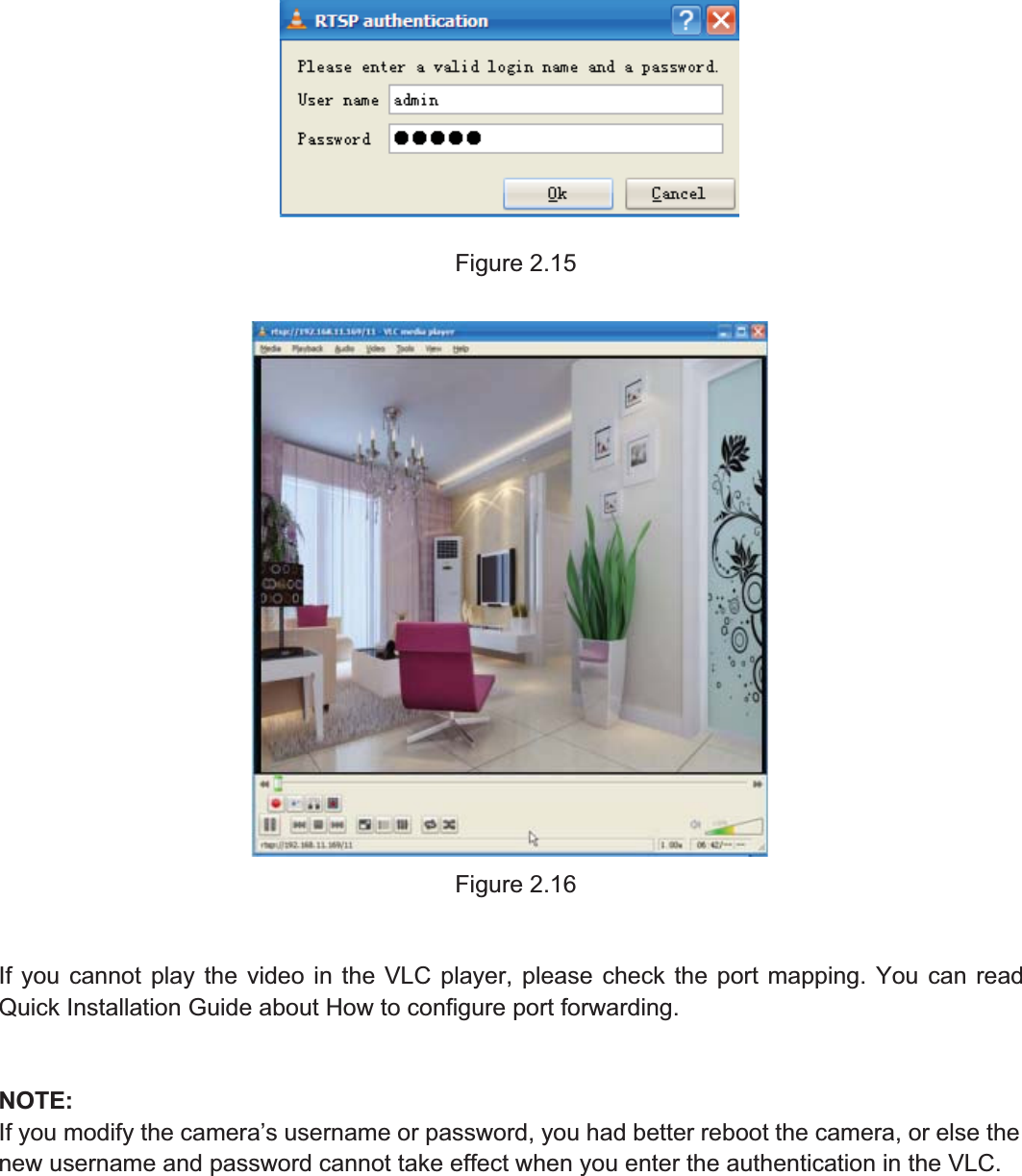
19wwww.foscam.coww.foscam.commShenzhenShenzhen FoscamFoscam IntelligentIntelligent TechnologyTechnology Co.,Co., LimitedLimitedTel:Tel: 8686 755755 26742674 56685668 Fax:Fax: 8686 755755 26742674 51685168 19Figure 2.15Figure 2.16If you cannot play the video in the VLC player, please check the port mapping. You can readQuick Installation Guide about How to configure port forwarding.NOTE:If you modify the camera’s username or password, you had better reboot the camera, or else thenew username and password cannot take effect when you enter the authentication in the VLC.
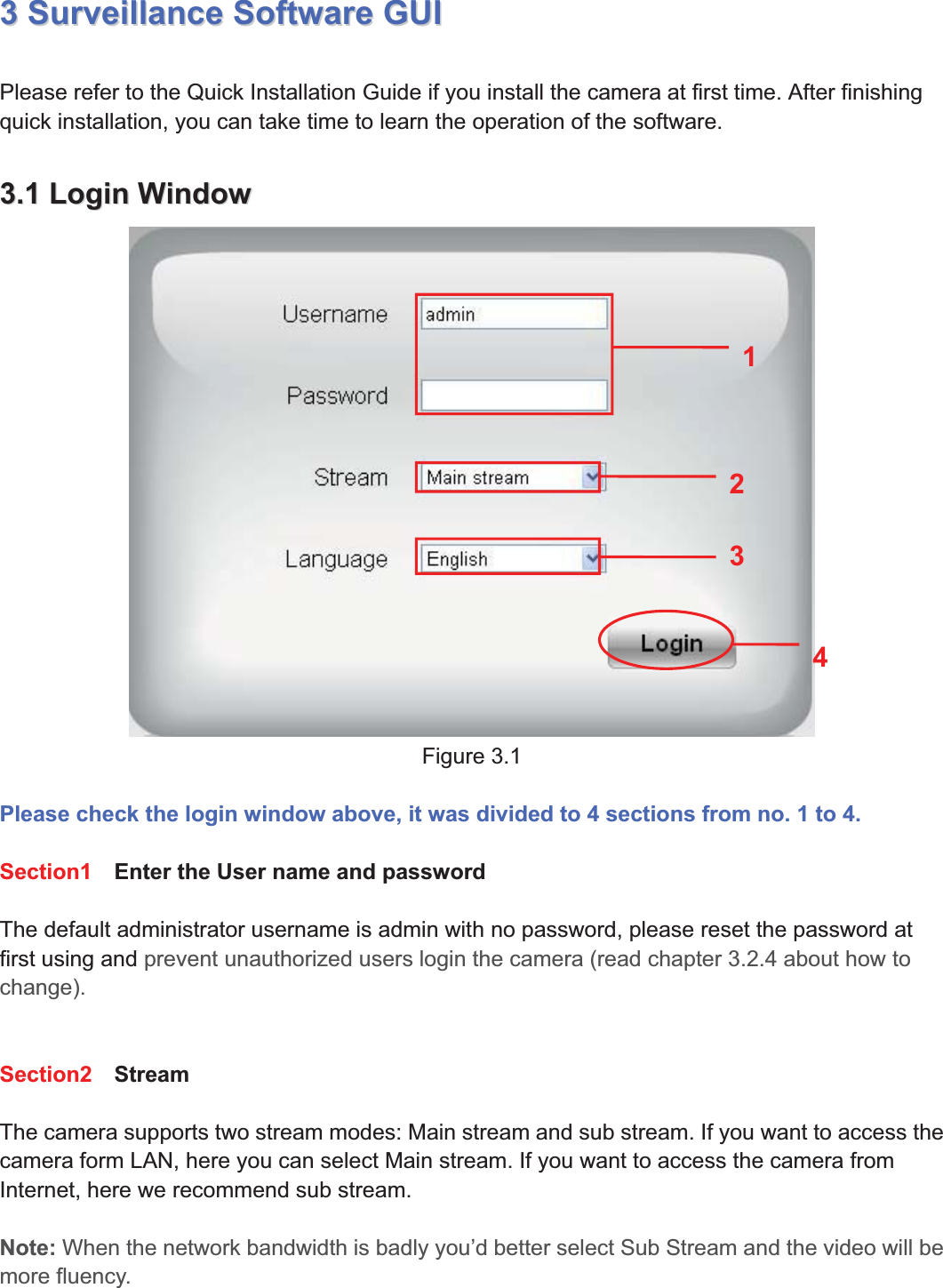
20wwww.foscam.coww.foscam.commShenzhenShenzhen FoscamFoscam IntelligentIntelligent TechnologyTechnology Co.,Co., LimitedLimitedTel:Tel: 8686 755755 26742674 56685668 Fax:Fax: 8686 755755 26742674 51685168 2033SurveillanceSurveillance SoftwareSoftware GUIGUIPlease refer to the Quick Installation Guide if you install the camera at first time. After finishingquick installation, you can take time to learn the operation of the software.3.13.1 LoginLogin WindowWindowFigure 3.1Please check the login window above, it was divided to 4 sections from no. 1 to 4.Section1 Enter the User name and passwordThe default administrator username is admin with no password, please reset the password atfirst using and prevent unauthorized users login the camera (read chapter 3.2.4 about how tochange).Section2 StreamThe camera supports two stream modes: Main stream and sub stream. If you want to access thecamera form LAN, here you can select Main stream. If you want to access the camera fromInternet, here we recommend sub stream.Note: When the network bandwidth is badly you’d better select Sub Stream and the video will bemore fluency.2341
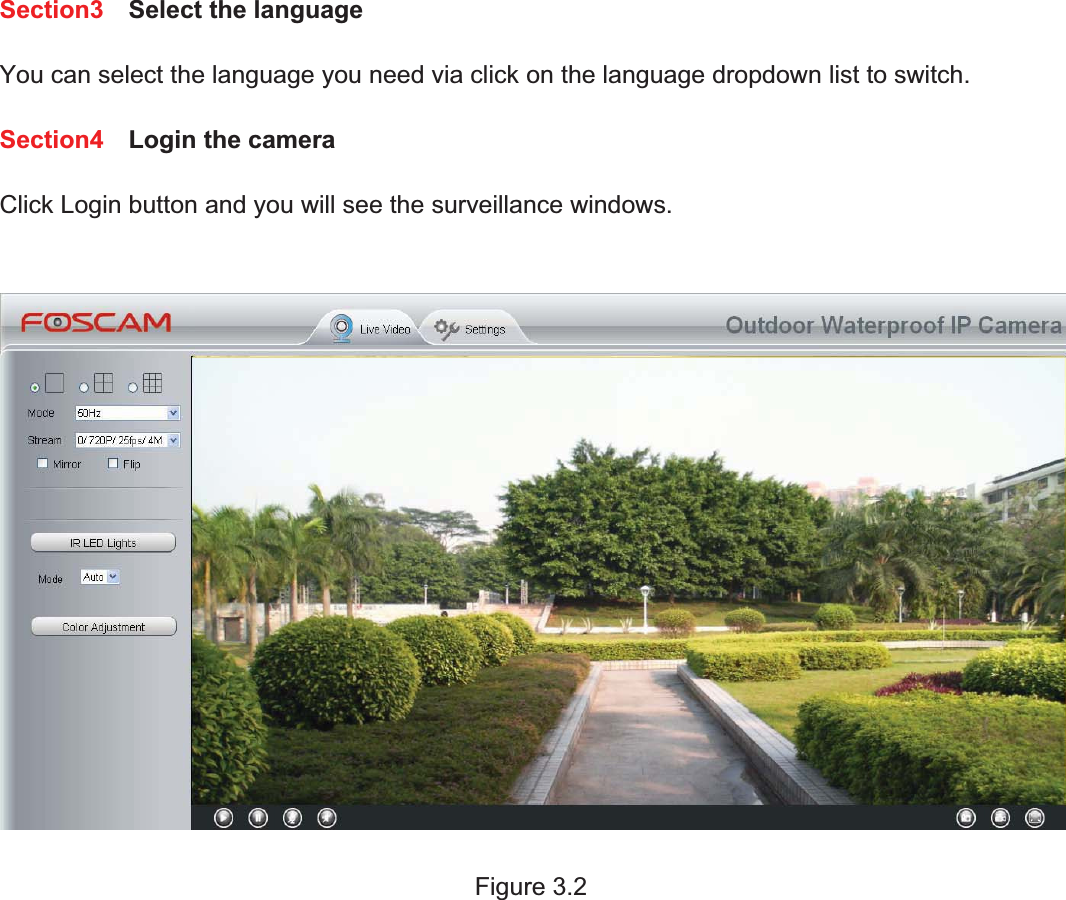
21wwww.foscam.coww.foscam.commShenzhenShenzhen FoscamFoscam IntelligentIntelligent TechnologyTechnology Co.,Co., LimitedLimitedTel:Tel: 8686 755755 26742674 56685668 Fax:Fax: 8686 755755 26742674 51685168 21Section3 Select the languageYou can select the language you need via click on the language dropdown list to switch.Section4 Login the cameraClick Login button and you will see the surveillance windows.Figure 3.2
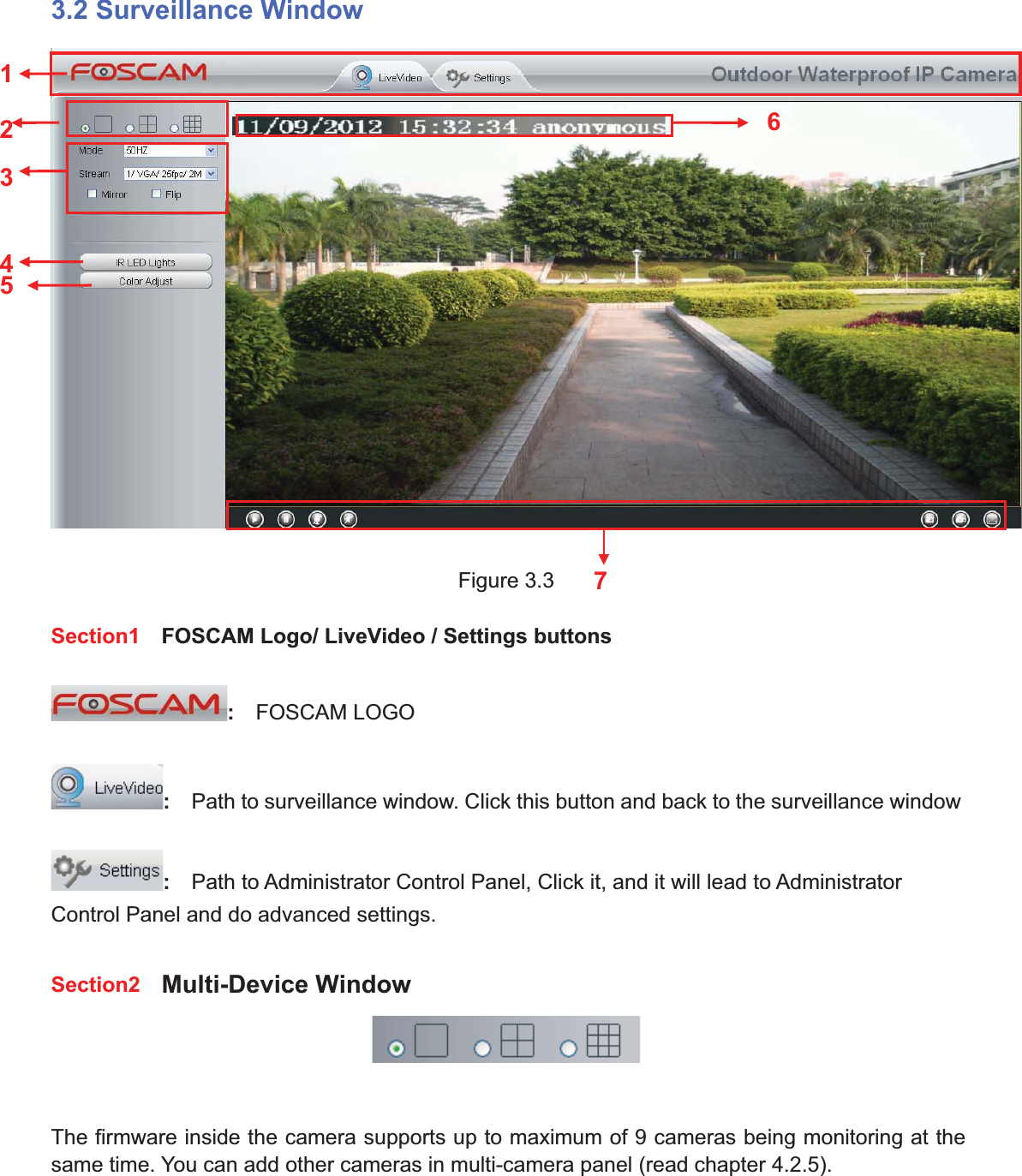
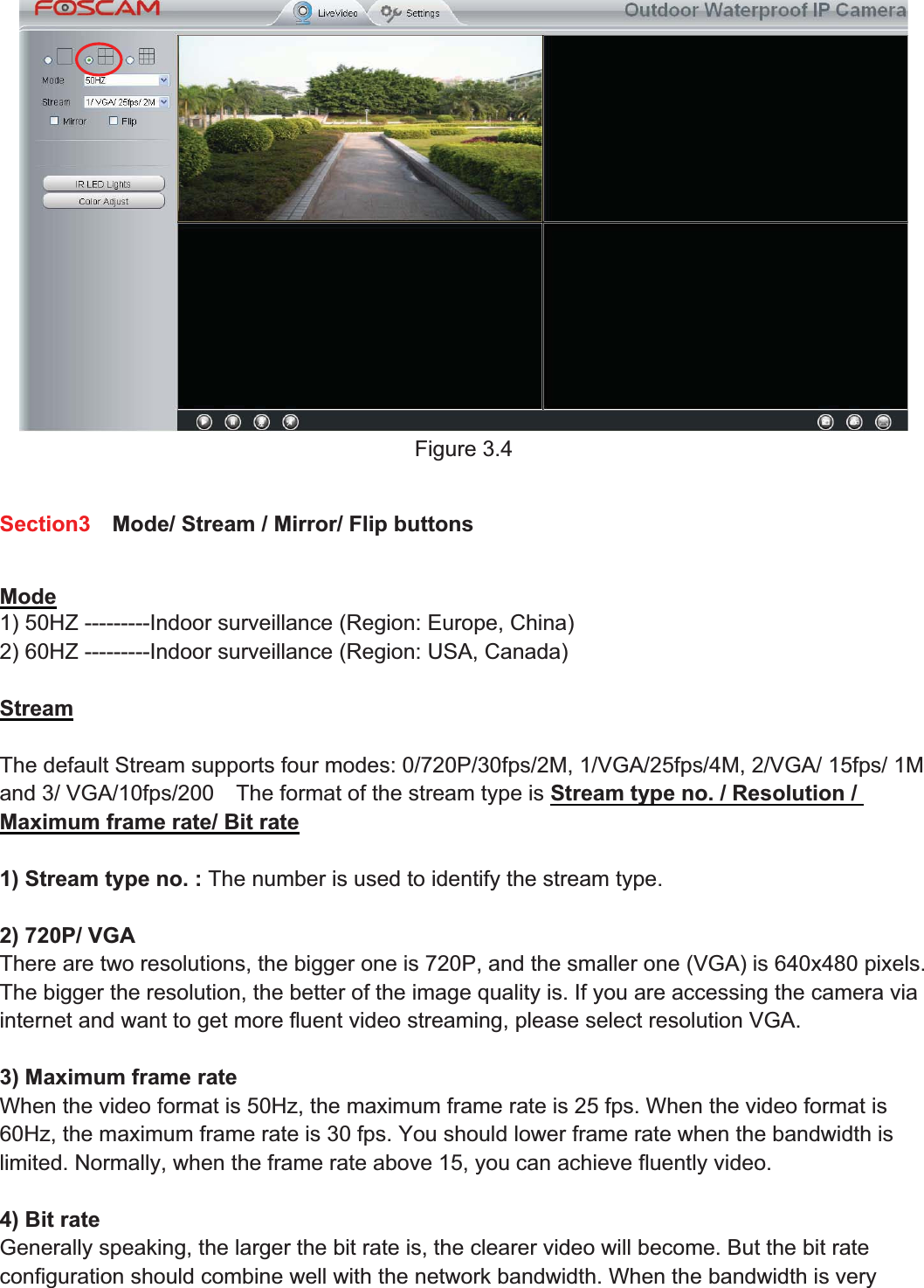
22wwww.foscam.coww.foscam.commShenzhenShenzhen FoscamFoscam IntelligentIntelligent TechnologyTechnology Co.,Co., LimitedLimitedTel:Tel: 8686 755755 26742674 56685668 Fax:Fax: 8686 755755 26742674 51685168 223.2 Surveillance WindowFigure 3.3Section1 FOSCAM Logo/ LiveVideo / Settings buttons:FOSCAM LOGO:Path to surveillance window. Click this button and back to the surveillance window:Path to Administrator Control Panel, Click it, and it will lead to AdministratorControl Panel and do advanced settings.Section2 Multi-Device WindowThe firmware inside the camera supports up to maximum of 9 cameras being monitoring at thesame time. You can add other cameras in multi-camera panel (read chapter 4.2.5).1247356
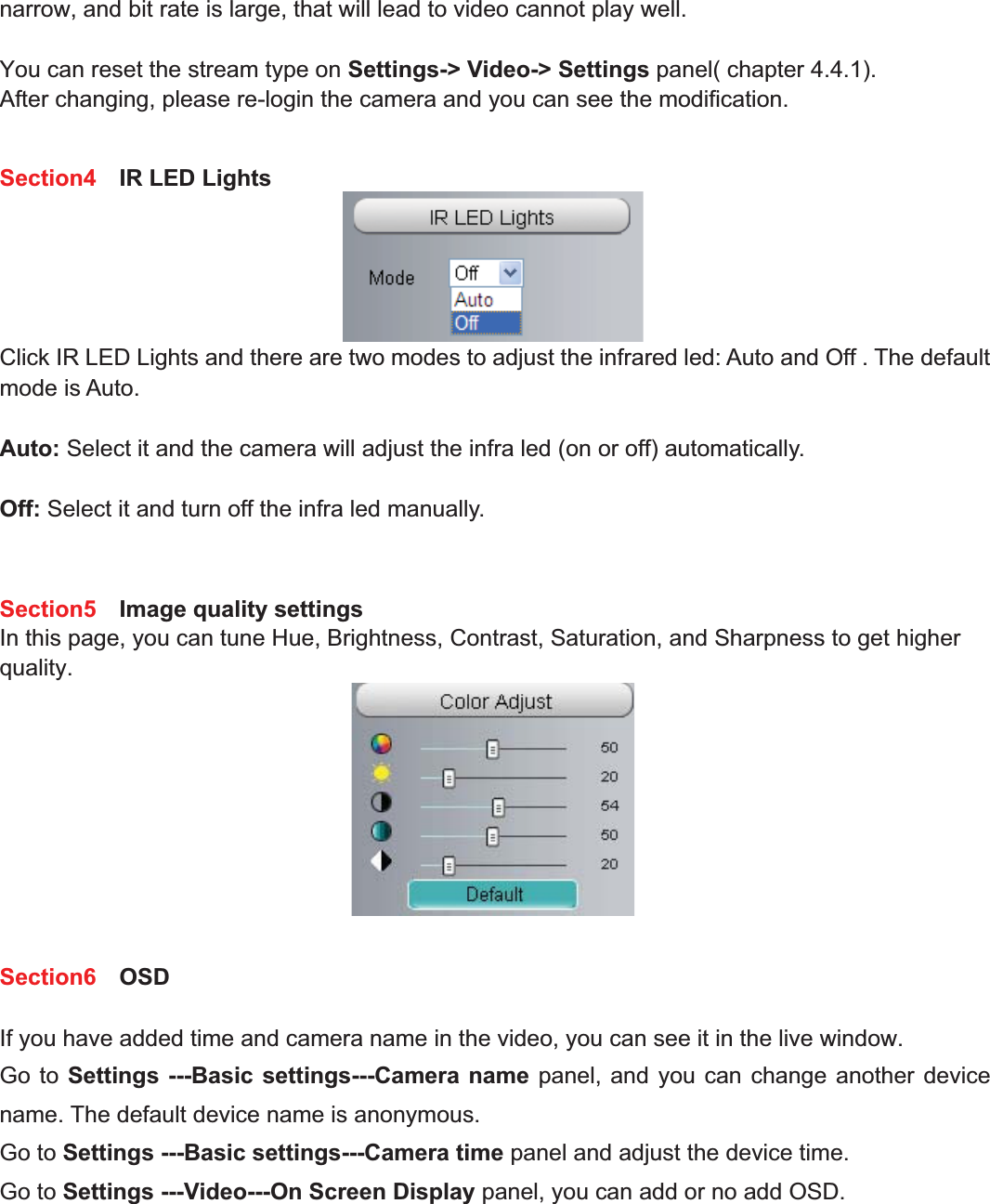
23wwww.foscam.coww.foscam.commShenzhenShenzhen FoscamFoscam IntelligentIntelligent TechnologyTechnology Co.,Co., LimitedLimitedTel:Tel: 8686 755755 26742674 56685668 Fax:Fax: 8686 755755 26742674 51685168 23Figure 3.4Section3 Mode/ Stream / Mirror/ Flip buttonsMode1) 50HZ ---------Indoor surveillance (Region: Europe, China)2) 60HZ ---------Indoor surveillance (Region: USA, Canada)StreamThe default Stream supports four modes: 0/720P/30fps/2M, 1/VGA/25fps/4M, 2/VGA/ 15fps/ 1Mand 3/ VGA/10fps/200 The format of the stream type is Stream type no. / Resolution /Maximum frame rate/ Bit rate1) Stream type no. : The number is used to identify the stream type.2) 720P/ VGAThere are two resolutions, the bigger one is 720P, and the smaller one (VGA) is 640x480 pixels.The bigger the resolution, the better of the image quality is. If you are accessing the camera viainternet and want to get more fluent video streaming, please select resolution VGA.3) Maximum frame rateWhen the video format is 50Hz, the maximum frame rate is 25 fps. When the video format is60Hz, the maximum frame rate is 30 fps. You should lower frame rate when the bandwidth islimited. Normally, when the frame rate above 15, you can achieve fluently video.4) Bit rateGenerally speaking, the larger the bit rate is, the clearer video will become. But the bit rateconfiguration should combine well with the network bandwidth. When the bandwidth is very
24wwww.foscam.coww.foscam.commShenzhenShenzhen FoscamFoscam IntelligentIntelligent TechnologyTechnology Co.,Co., LimitedLimitedTel:Tel: 8686 755755 26742674 56685668 Fax:Fax: 8686 755755 26742674 51685168 24narrow, and bit rate is large, that will lead to video cannot play well.You can reset the stream type on Settings-> Video-> Settings panel( chapter 4.4.1).After changing, please re-login the camera and you can see the modification.Section4 IR LED LightsClick IR LED Lights and there are two modes to adjust the infrared led: Auto and Off . The defaultmode is Auto.Auto: Select it and the camera will adjust the infra led (on or off) automatically.Off: Select it and turn off the infra led manually.Section5 Image quality settingsIn this page, you can tune Hue, Brightness, Contrast, Saturation, and Sharpness to get higherquality.Section6 OSDIf you have added time and camera name in the video, you can see it in the live window.Go to Settings ---Basic settings---Camera name panel, and you can change another devicename. The default device name is anonymous.Go to Settings ---Basic settings---Camera time panel and adjust the device time.Go to Settings ---Video---On Screen Display panel, you can add or no add OSD.
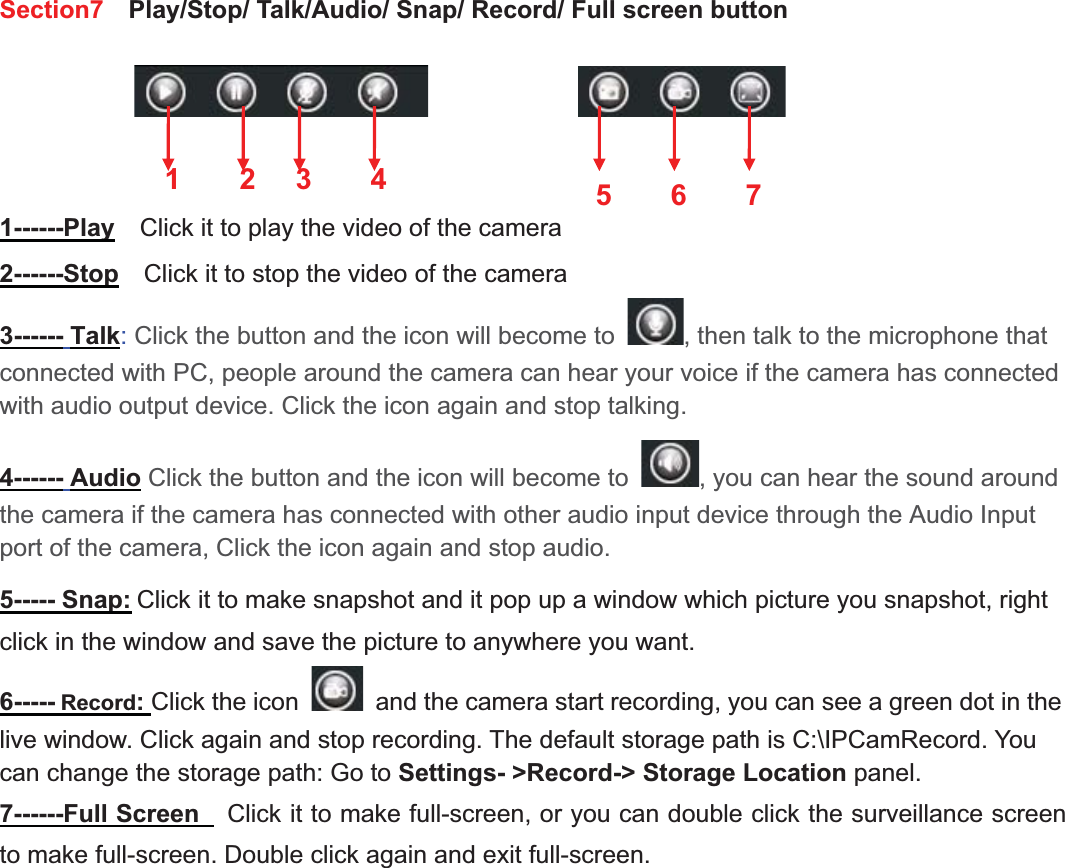
25wwww.foscam.coww.foscam.commShenzhenShenzhen FoscamFoscam IntelligentIntelligent TechnologyTechnology Co.,Co., LimitedLimitedTel:Tel: 8686 755755 26742674 56685668 Fax:Fax: 8686 755755 26742674 51685168 25Section7 Play/Stop/ Talk/Audio/ Snap/ Record/ Full screen button1------Play Click it to play the video of the camera2------Stop Click it to stop the video of the camera3------ Talk:Click the button and the icon will become to , then talk to the microphone thatconnected with PC, people around the camera can hear your voice if the camera has connectedwith audio output device. Click the icon again and stop talking.4------ Audio Click the button and the icon will become to , you can hear the sound aroundthe camera if the camera has connected with other audio input device through the Audio Inputport of the camera, Click the icon again and stop audio.5----- Snap: Click it to make snapshot and it pop up a window which picture you snapshot, rightclick in the window and save the picture to anywhere you want.6----- Record:Click the icon and the camera start recording, you can see a green dot in thelive window. Click again and stop recording. The default storage path is C:\IPCamRecord. Youcan change the storage path: Go to Settings- >Record-> Storage Location panel.7------Full Screen Click it to make full-screen, or you can double click the surveillance screento make full-screen. Double click again and exit full-screen.123 5674
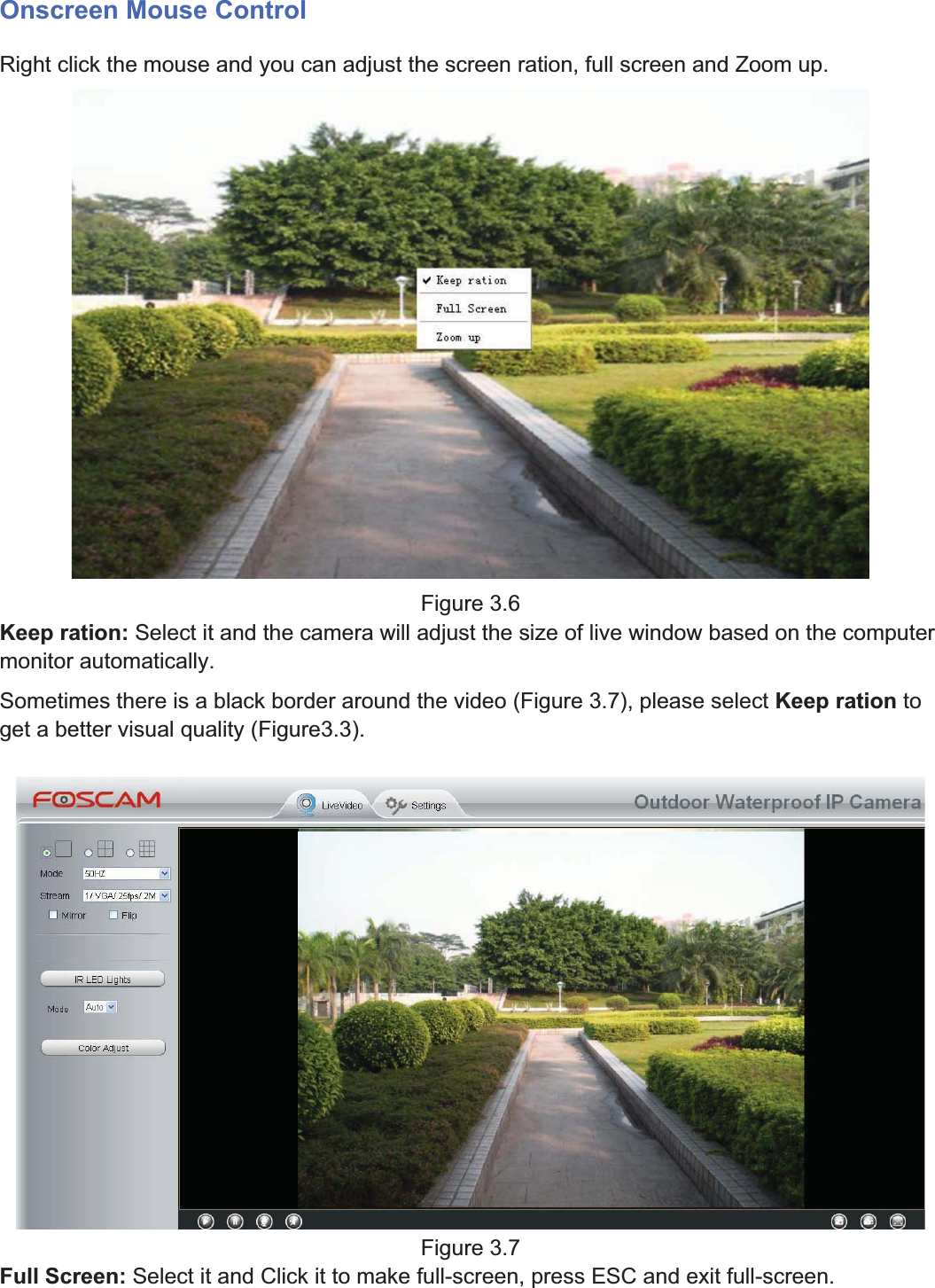
26wwww.foscam.coww.foscam.commShenzhenShenzhen FoscamFoscam IntelligentIntelligent TechnologyTechnology Co.,Co., LimitedLimitedTel:Tel: 8686 755755 26742674 56685668 Fax:Fax: 8686 755755 26742674 51685168 26Onscreen Mouse ControlRight click the mouse and you can adjust the screen ration, full screen and Zoom up.Figure 3.6Keep ration: Select it and the camera will adjust the size of live window based on the computermonitor automatically.Sometimes there is a black border around the video (Figure 3.7), please select Keep ration toget a better visual quality (Figure3.3).Figure 3.7Full Screen: Select it and Click it to make full-screen, press ESC and exit full-screen.
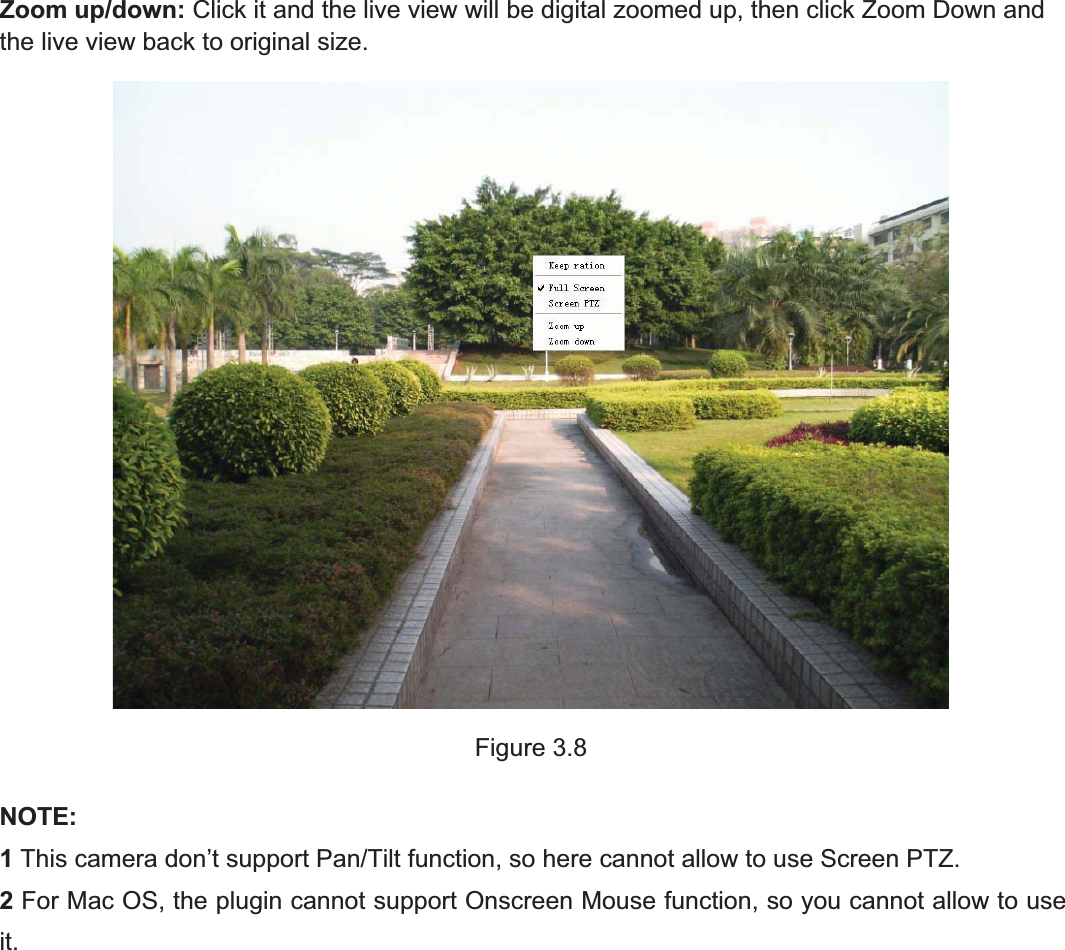
27wwww.foscam.coww.foscam.commShenzhenShenzhen FoscamFoscam IntelligentIntelligent TechnologyTechnology Co.,Co., LimitedLimitedTel:Tel: 8686 755755 26742674 56685668 Fax:Fax: 8686 755755 26742674 51685168 27Zoom up/down: Click it and the live view will be digital zoomed up, then click Zoom Down andthe live view back to original size.Figure 3.8NOTE:1This camera don’t support Pan/Tilt function, so here cannot allow to use Screen PTZ.2For Mac OS, the plugin cannot support Onscreen Mouse function, so you cannot allow to useit.
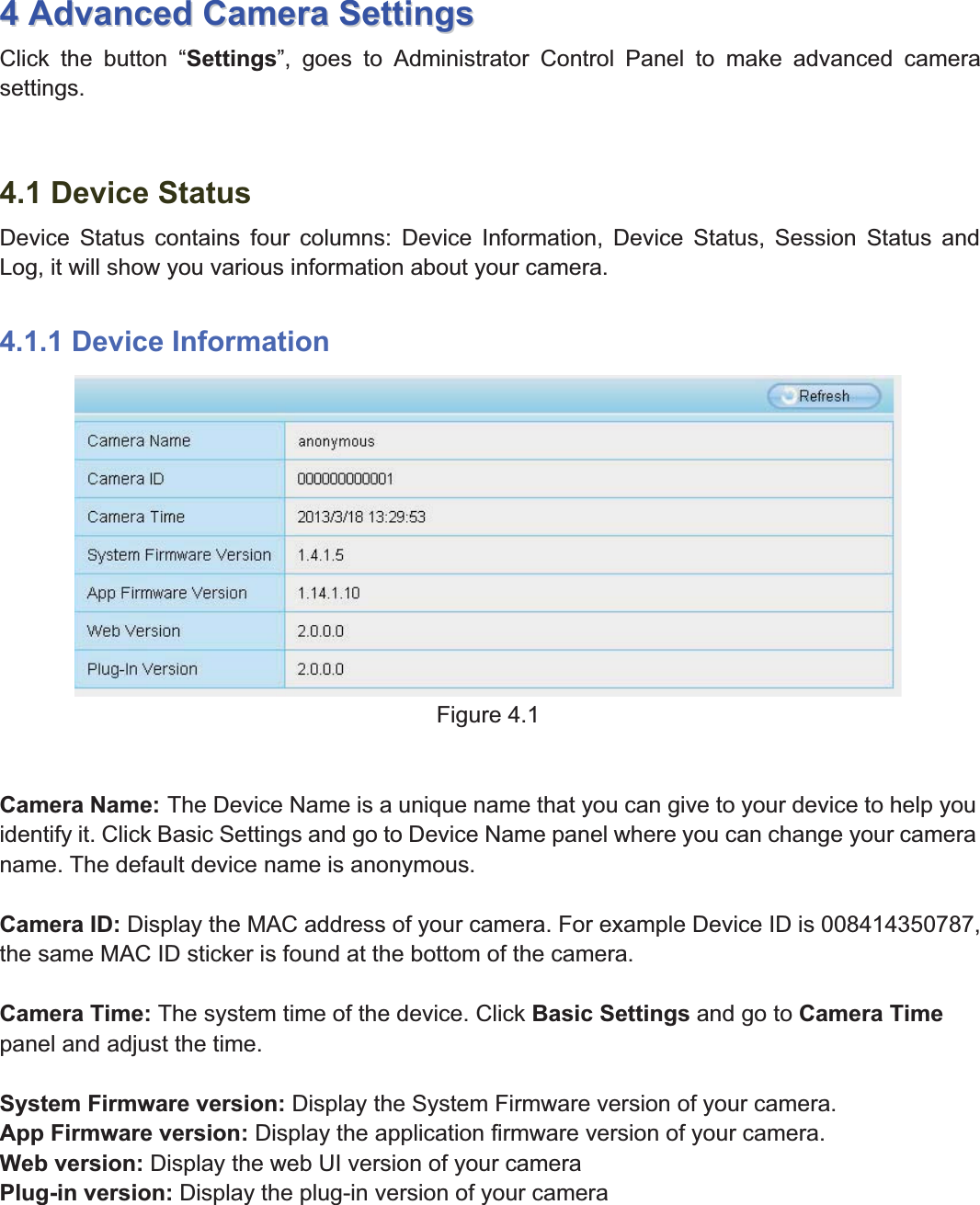
28wwww.foscam.coww.foscam.commShenzhenShenzhen FoscamFoscam IntelligentIntelligent TechnologyTechnology Co.,Co., LimitedLimitedTel:Tel: 8686 755755 26742674 56685668 Fax:Fax: 8686 755755 26742674 51685168 2844AdvancedAdvanced CameraCamera SettingsSettingsClick the button “Settings”, goes to Administrator Control Panel to make advanced camerasettings.4.1 Device StatusDevice Status contains four columns: Device Information, Device Status, Session Status andLog, it will show you various information about your camera.4.1.1 Device InformationFigure 4.1Camera Name: The Device Name is a unique name that you can give to your device to help youidentify it. Click Basic Settings and go to Device Name panel where you can change your cameraname. The default device name is anonymous.Camera ID: Display the MAC address of your camera. For example Device ID is 008414350787,the same MAC ID sticker is found at the bottom of the camera.Camera Time: The system time of the device. Click Basic Settings and go to Camera Timepanel and adjust the time.System Firmware version: Display the System Firmware version of your camera.App Firmware version: Display the application firmware version of your camera.Web version: Display the web UI version of your cameraPlug-in version: Display the plug-in version of your camera
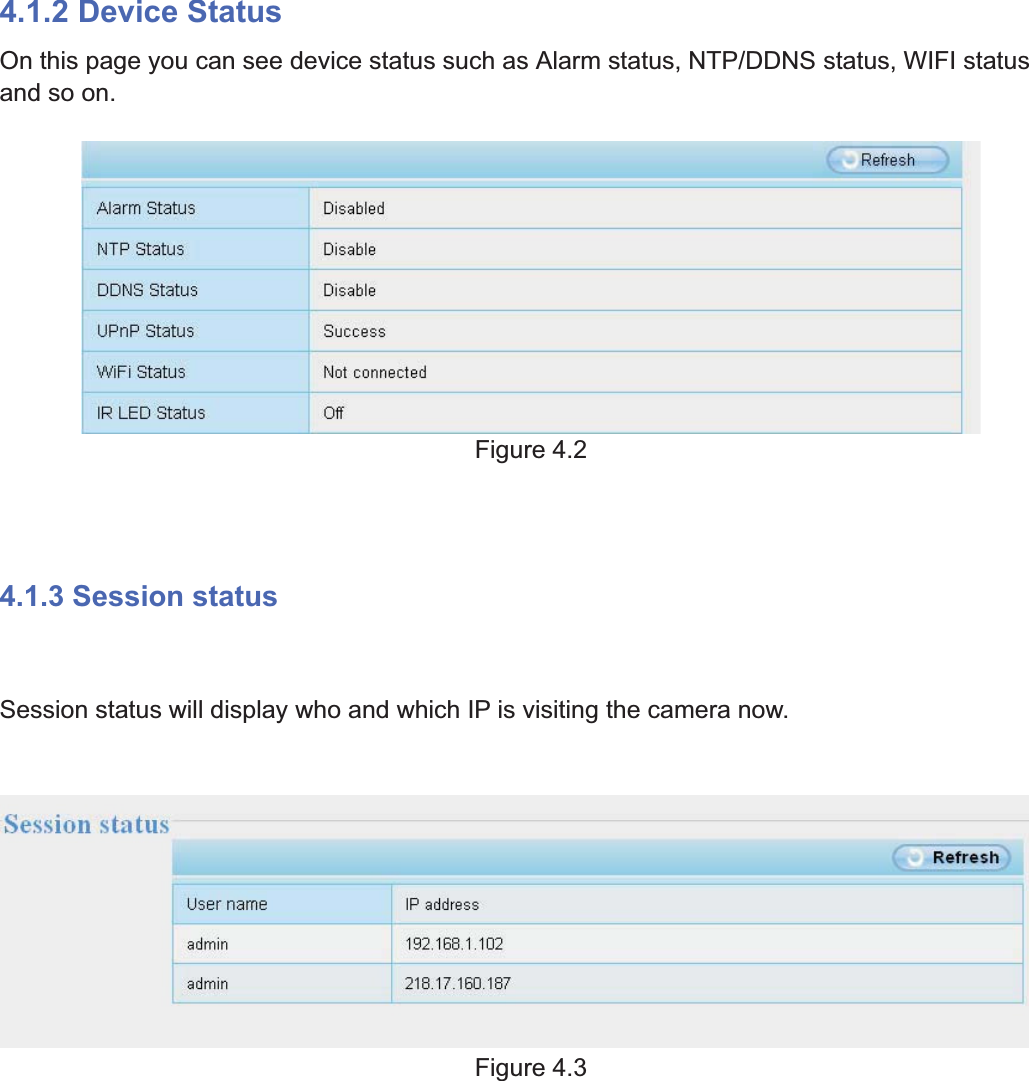
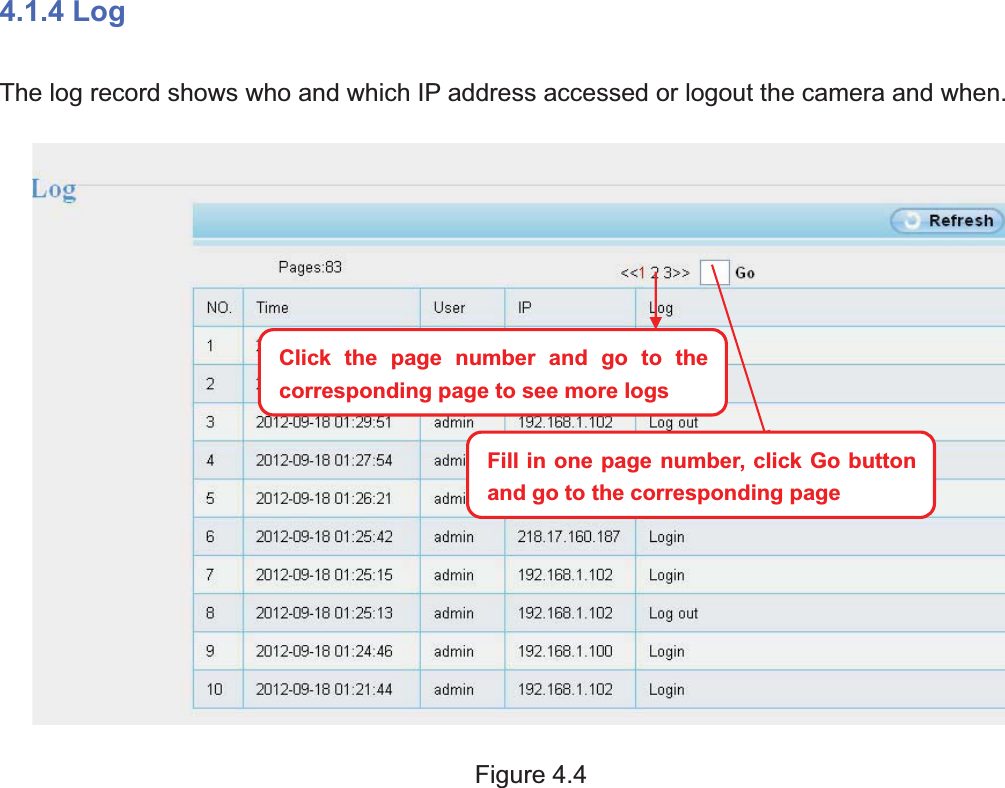
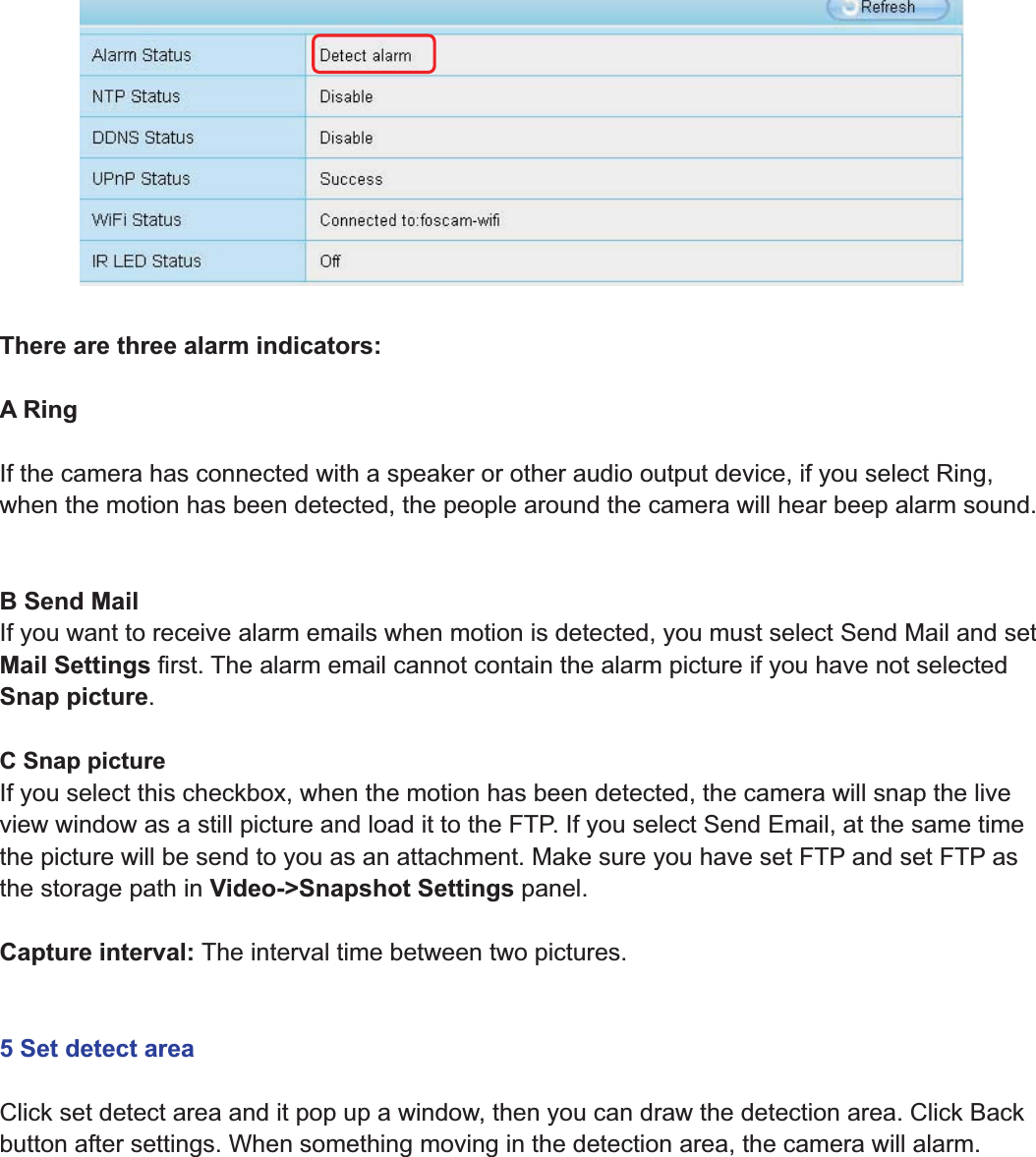
29wwww.foscam.coww.foscam.commShenzhenShenzhen FoscamFoscam IntelligentIntelligent TechnologyTechnology Co.,Co., LimitedLimitedTel:Tel: 8686 755755 26742674 56685668 Fax:Fax: 8686 755755 26742674 51685168 294.1.2 Device StatusOn this page you can see device status such as Alarm status, NTP/DDNS status, WIFI statusand so on.Figure 4.24.1.3 Session statusSession status will display who and which IP is visiting the camera now.Figure 4.3
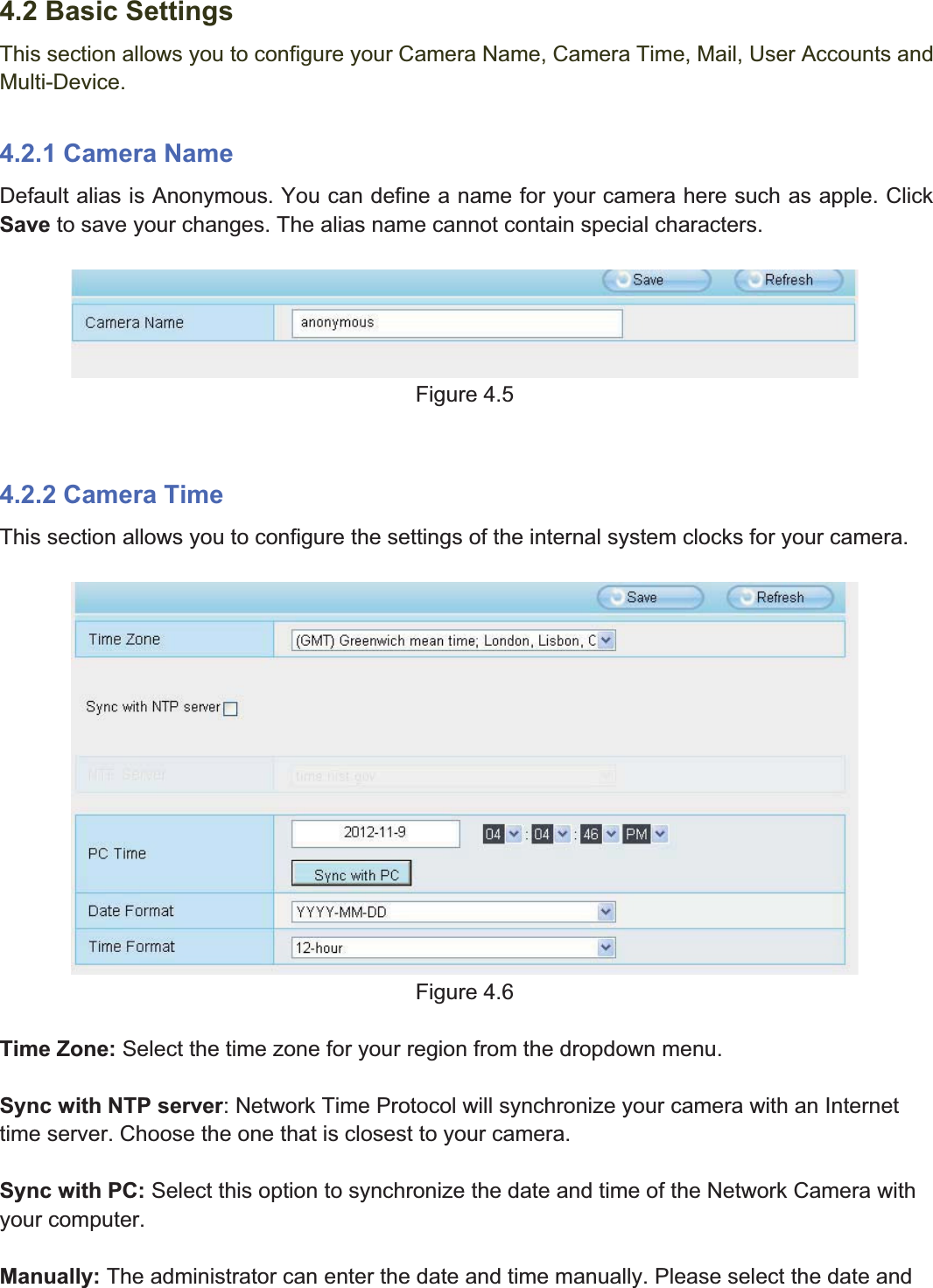
30wwww.foscam.coww.foscam.commShenzhenShenzhen FoscamFoscam IntelligentIntelligent TechnologyTechnology Co.,Co., LimitedLimitedTel:Tel: 8686 755755 26742674 56685668 Fax:Fax: 8686 755755 26742674 51685168 304.1.4 LogThe log record shows who and which IP address accessed or logout the camera and when.Figure 4.4Click the page number and go to thecorrespondingpage to see more logsFill in one page number, click Go buttonandgo to the correspondingpage
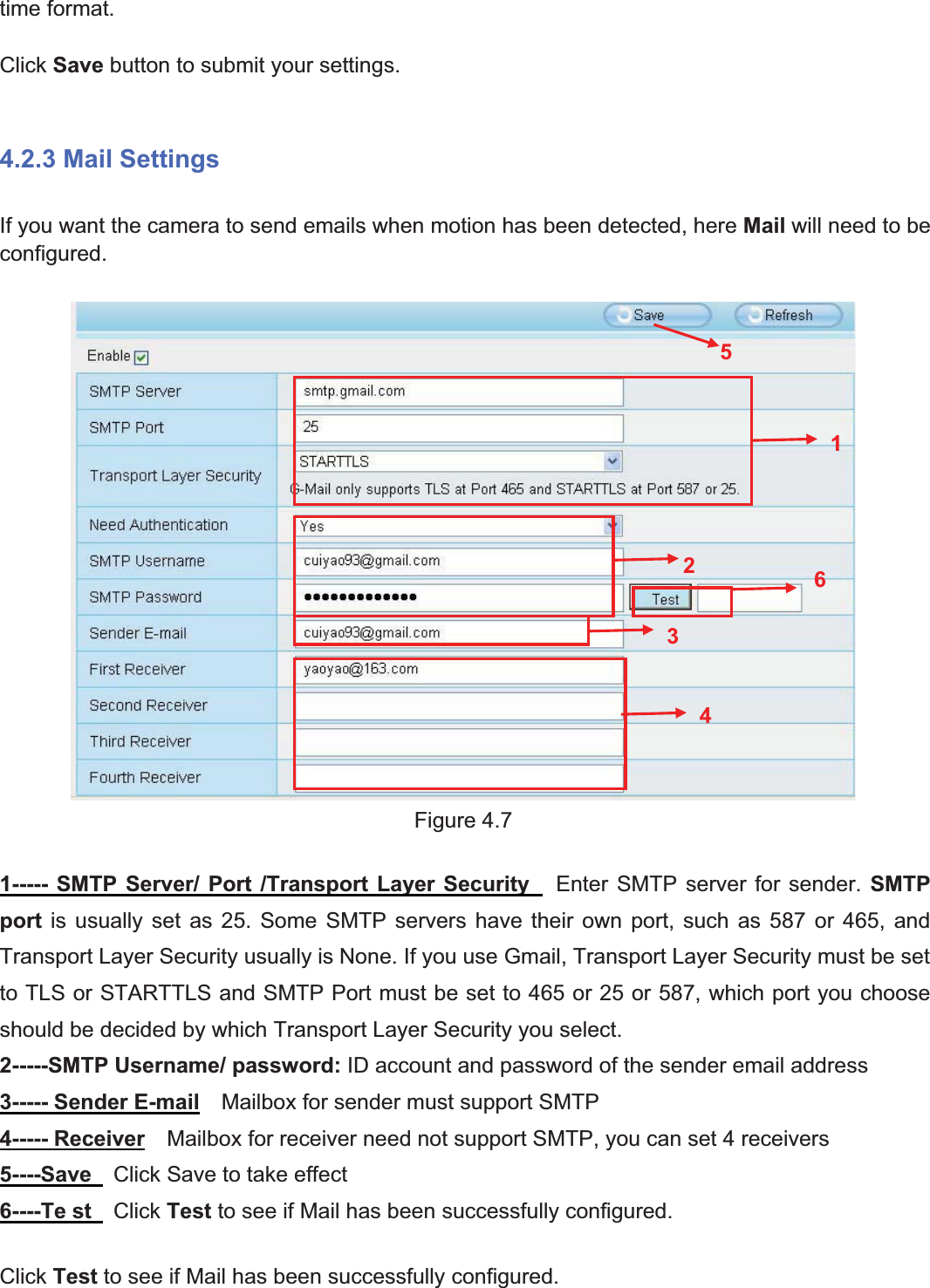
31wwww.foscam.coww.foscam.commShenzhenShenzhen FoscamFoscam IntelligentIntelligent TechnologyTechnology Co.,Co., LimitedLimitedTel:Tel: 8686 755755 26742674 56685668 Fax:Fax: 8686 755755 26742674 51685168 314.2 Basic SettingsThis section allows you to configure your Camera Name, Camera Time, Mail, User Accounts andMulti-Device.4.2.1 Camera NameDefault alias is Anonymous. You can define a name for your camera here such as apple. ClickSave to save your changes. The alias name cannot contain special characters.Figure 4.54.2.2 Camera TimeThis section allows you to configure the settings of the internal system clocks for your camera.Figure 4.6Time Zone: Select the time zone for your region from the dropdown menu.Sync with NTP server: Network Time Protocol will synchronize your camera with an Internettime server. Choose the one that is closest to your camera.Sync with PC: Select this option to synchronize the date and time of the Network Camera withyour computer.Manually: The administrator can enter the date and time manually. Please select the date and
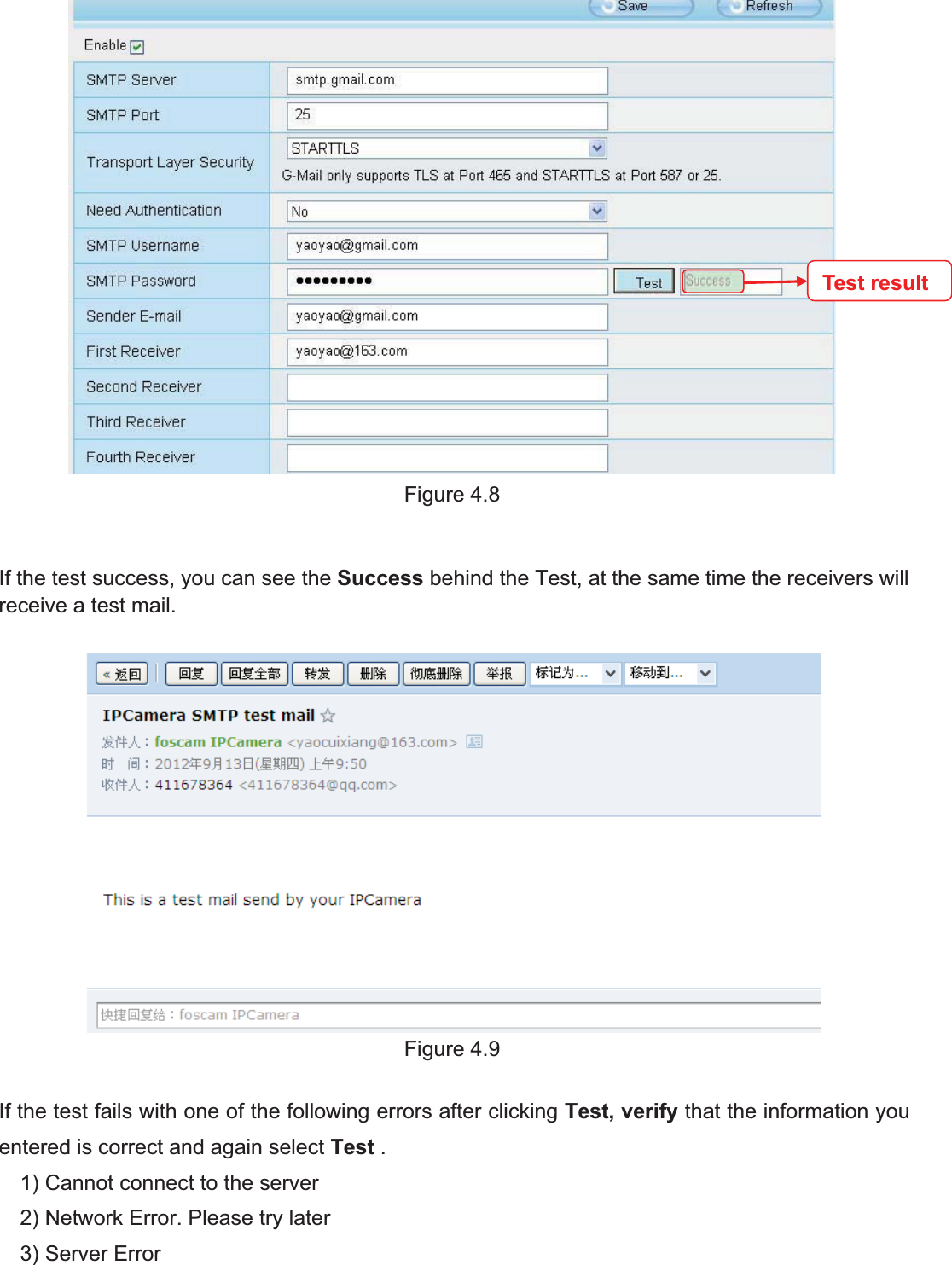
32wwww.foscam.coww.foscam.commShenzhenShenzhen FoscamFoscam IntelligentIntelligent TechnologyTechnology Co.,Co., LimitedLimitedTel:Tel: 8686 755755 26742674 56685668 Fax:Fax: 8686 755755 26742674 51685168 32time format.Click Save button to submit your settings.4.2.3 Mail SettingsIf you want the camera to send emails when motion has been detected, here Mail will need to beconfigured.Figure 4.71----- SMTP Server/ Port /Transport Layer Security Enter SMTP server for sender. SMTPport is usually set as 25. Some SMTP servers have their own port, such as 587 or 465, andTransport Layer Security usually is None. If you use Gmail, Transport Layer Security must be setto TLS or STARTTLS and SMTP Port must be set to 465 or 25 or 587, which port you chooseshould be decided by which Transport Layer Security you select.2-----SMTP Username/ password: ID account and password of the sender email address3----- Sender E-mail Mailbox for sender must support SMTP4----- Receiver Mailbox for receiver need not support SMTP, you can set 4 receivers5----Save Click Save to take effect6----Te st Click Test to see if Mail has been successfully configured.Click Test to see if Mail has been successfully configured.123456
33wwww.foscam.coww.foscam.commShenzhenShenzhen FoscamFoscam IntelligentIntelligent TechnologyTechnology Co.,Co., LimitedLimitedTel:Tel: 8686 755755 26742674 56685668 Fax:Fax: 8686 755755 26742674 51685168 33Figure 4.8If the test success, you can see the Success behind the Test, at the same time the receivers willreceive a test mail.Figure 4.9If the test fails with one of the following errors after clicking Test, verify that the information youentered is correct and again select Test .1) Cannot connect to the server2) Network Error. Please try later3) Server ErrorTest result
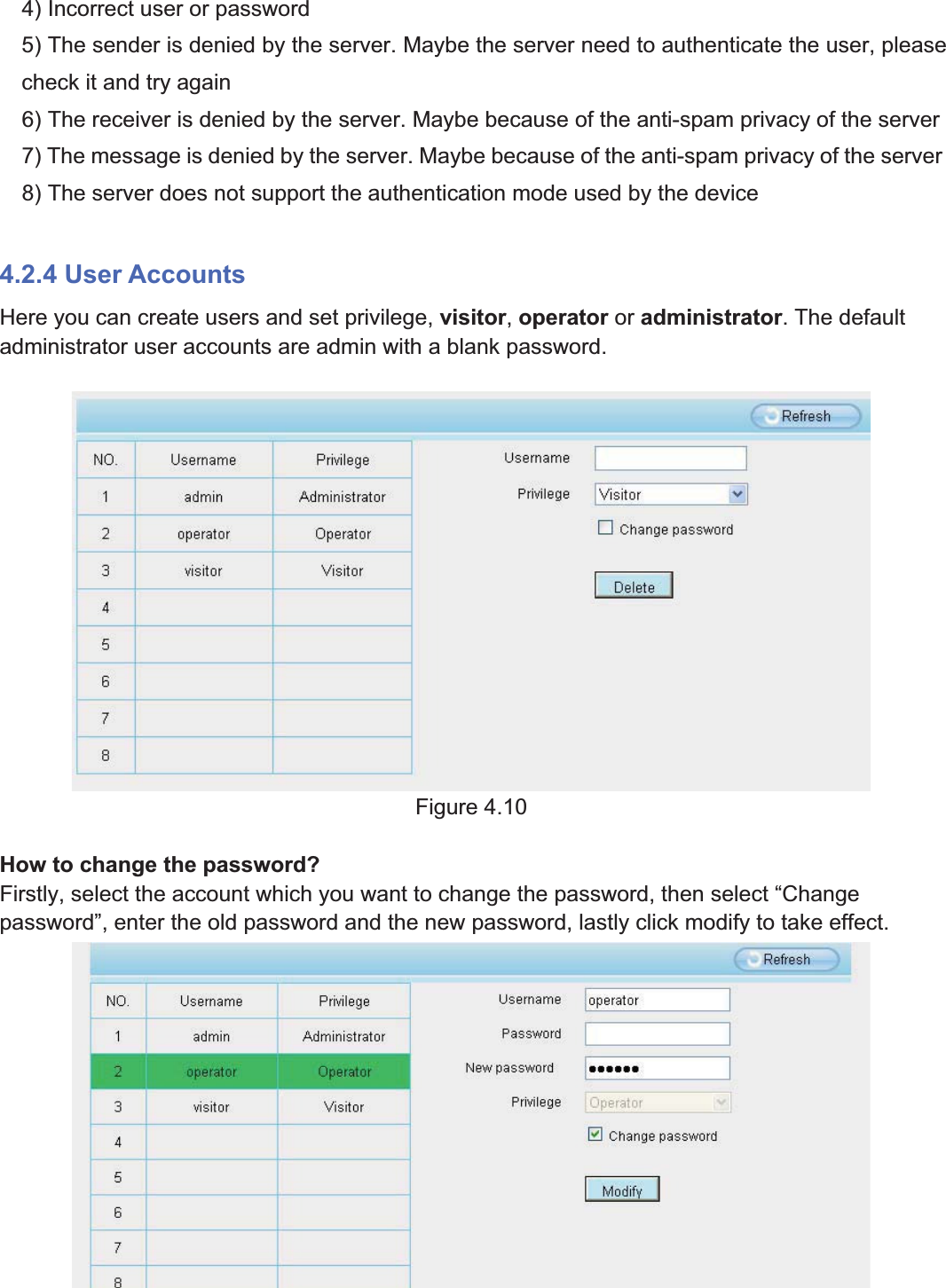
34wwww.foscam.coww.foscam.commShenzhenShenzhen FoscamFoscam IntelligentIntelligent TechnologyTechnology Co.,Co., LimitedLimitedTel:Tel: 8686 755755 26742674 56685668 Fax:Fax: 8686 755755 26742674 51685168 344) Incorrect user or password5) The sender is denied by the server. Maybe the server need to authenticate the user, pleasecheck it and try again6) The receiver is denied by the server. Maybe because of the anti-spam privacy of the server7) The message is denied by the server. Maybe because of the anti-spam privacy of the server8) The server does not support the authentication mode used by the device4.2.4 User AccountsHere you can create users and set privilege, visitor,operator or administrator. The defaultadministrator user accounts are admin with a blank password.Figure 4.10How to change the password?Firstly, select the account which you want to change the password, then select “Changepassword”, enter the old password and the new password, lastly click modify to take effect.
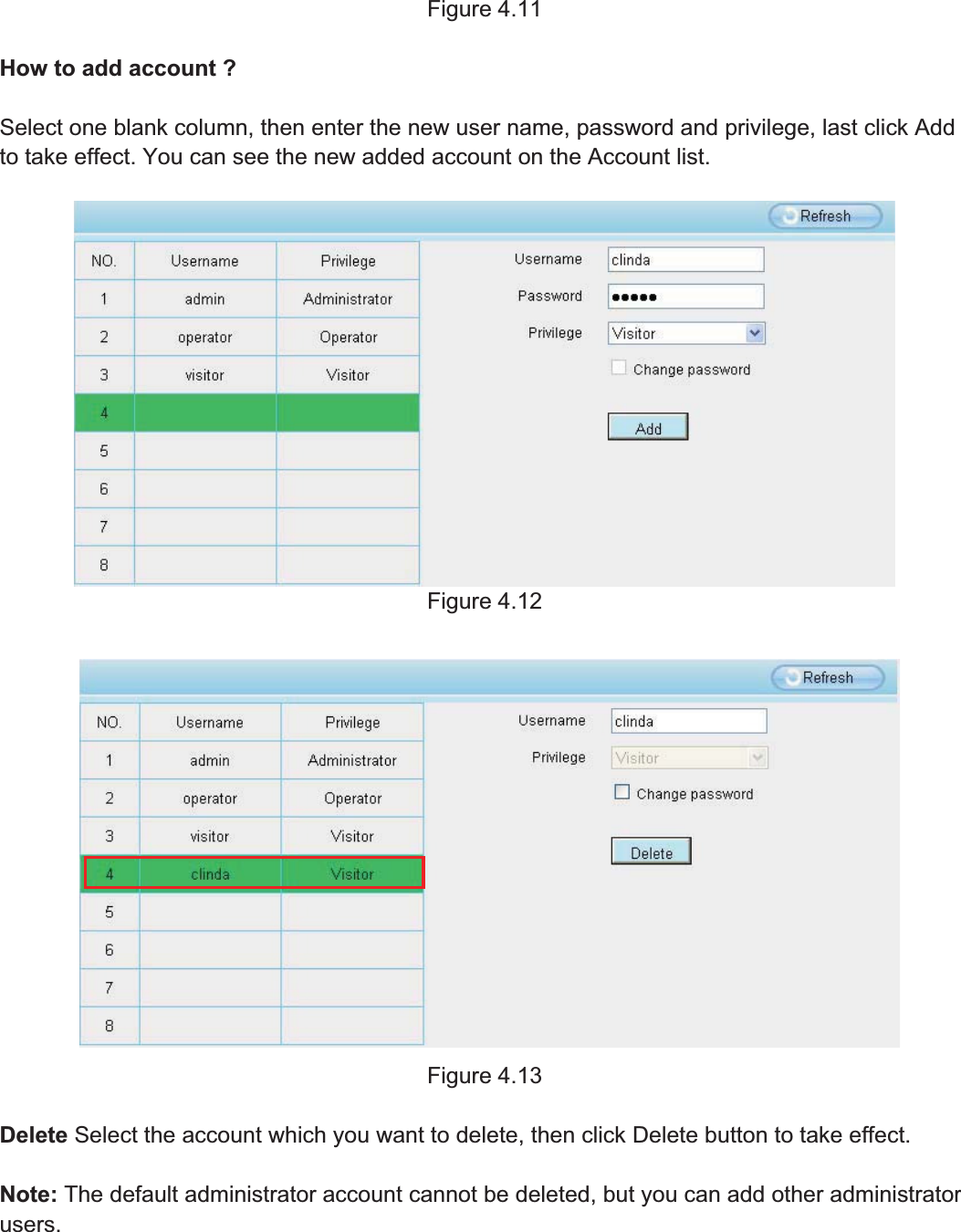
35wwww.foscam.coww.foscam.commShenzhenShenzhen FoscamFoscam IntelligentIntelligent TechnologyTechnology Co.,Co., LimitedLimitedTel:Tel: 8686 755755 26742674 56685668 Fax:Fax: 8686 755755 26742674 51685168 35Figure 4.11How to add account ?Select one blank column, then enter the new user name, password and privilege, last click Addto take effect. You can see the new added account on the Account list.Figure 4.12Figure 4.13Delete Select the account which you want to delete, then click Delete button to take effect.Note: The default administrator account cannot be deleted, but you can add other administratorusers.
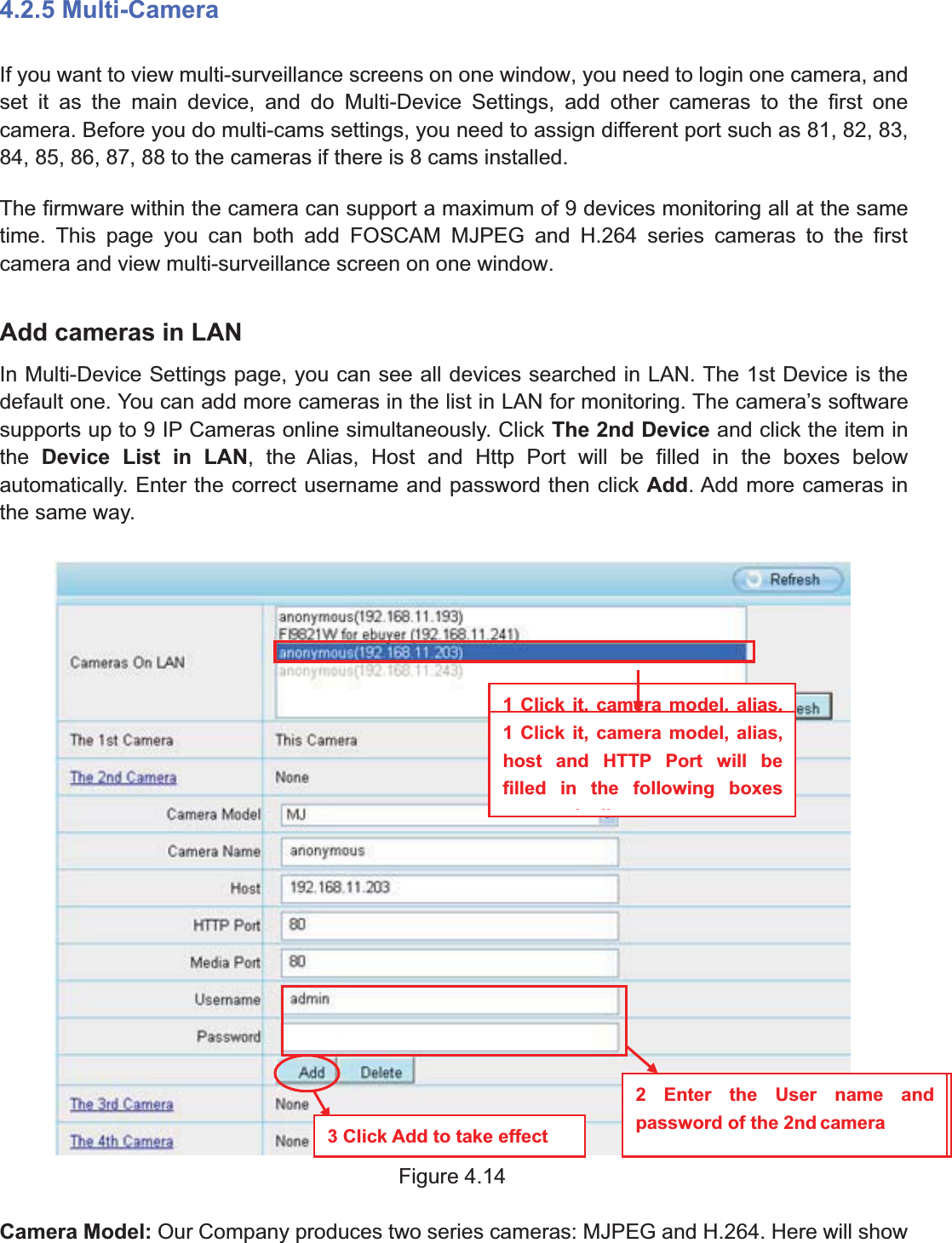
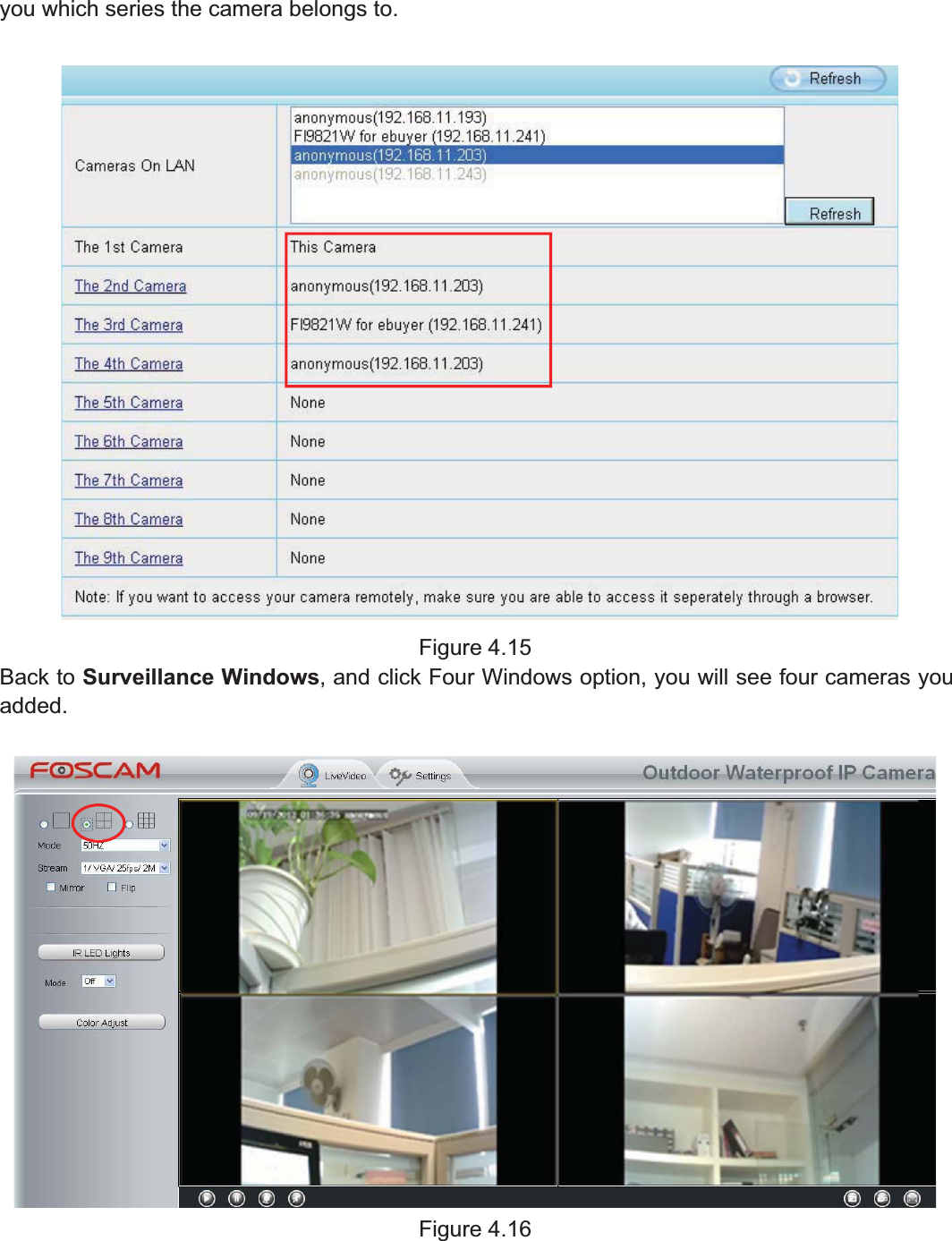
36wwww.foscam.coww.foscam.commShenzhenShenzhen FoscamFoscam IntelligentIntelligent TechnologyTechnology Co.,Co., LimitedLimitedTel:Tel: 8686 755755 26742674 56685668 Fax:Fax: 8686 755755 26742674 51685168 364.2.5 Multi-CameraIf you want to view multi-surveillance screens on one window, you need to login one camera, andset it as the main device, and do Multi-Device Settings, add other cameras to the first onecamera. Before you do multi-cams settings, you need to assign different port such as 81, 82, 83,84, 85, 86, 87, 88 to the cameras if there is 8 cams installed.The firmware within the camera can support a maximum of 9 devices monitoring all at the sametime. This page you can both add FOSCAM MJPEG and H.264 series cameras to the firstcamera and view multi-surveillance screen on one window.Add cameras in LANIn Multi-Device Settings page, you can see all devices searched in LAN. The 1st Device is thedefault one. You can add more cameras in the list in LAN for monitoring. The camera’s softwaresupports up to 9 IP Cameras online simultaneously. Click The 2nd Device and click the item inthe Device List in LAN, the Alias, Host and Http Port will be filled in the boxes belowautomatically. Enter the correct username and password then click Add. Add more cameras inthe same way.Figure 4.14Camera Model: Our Company produces two series cameras: MJPEG and H.264. Here will show1 Click it, camera model, alias,host and HTTP Port will befilled in the following boxesautomatically2 Enter the User name andpassword of the 2nd camera3 Click Add to take effect1 Click it, camera model, alias,host and HTTP Port will befilled in the following boxesill2 Enter the User name andpassword of the 2nd camera3 Click Add to take effect
37wwww.foscam.coww.foscam.commShenzhenShenzhen FoscamFoscam IntelligentIntelligent TechnologyTechnology Co.,Co., LimitedLimitedTel:Tel: 8686 755755 26742674 56685668 Fax:Fax: 8686 755755 26742674 51685168 37you which series the camera belongs to.Figure 4.15Back to Surveillance Windows, and click Four Windows option, you will see four cameras youadded.Figure 4.16
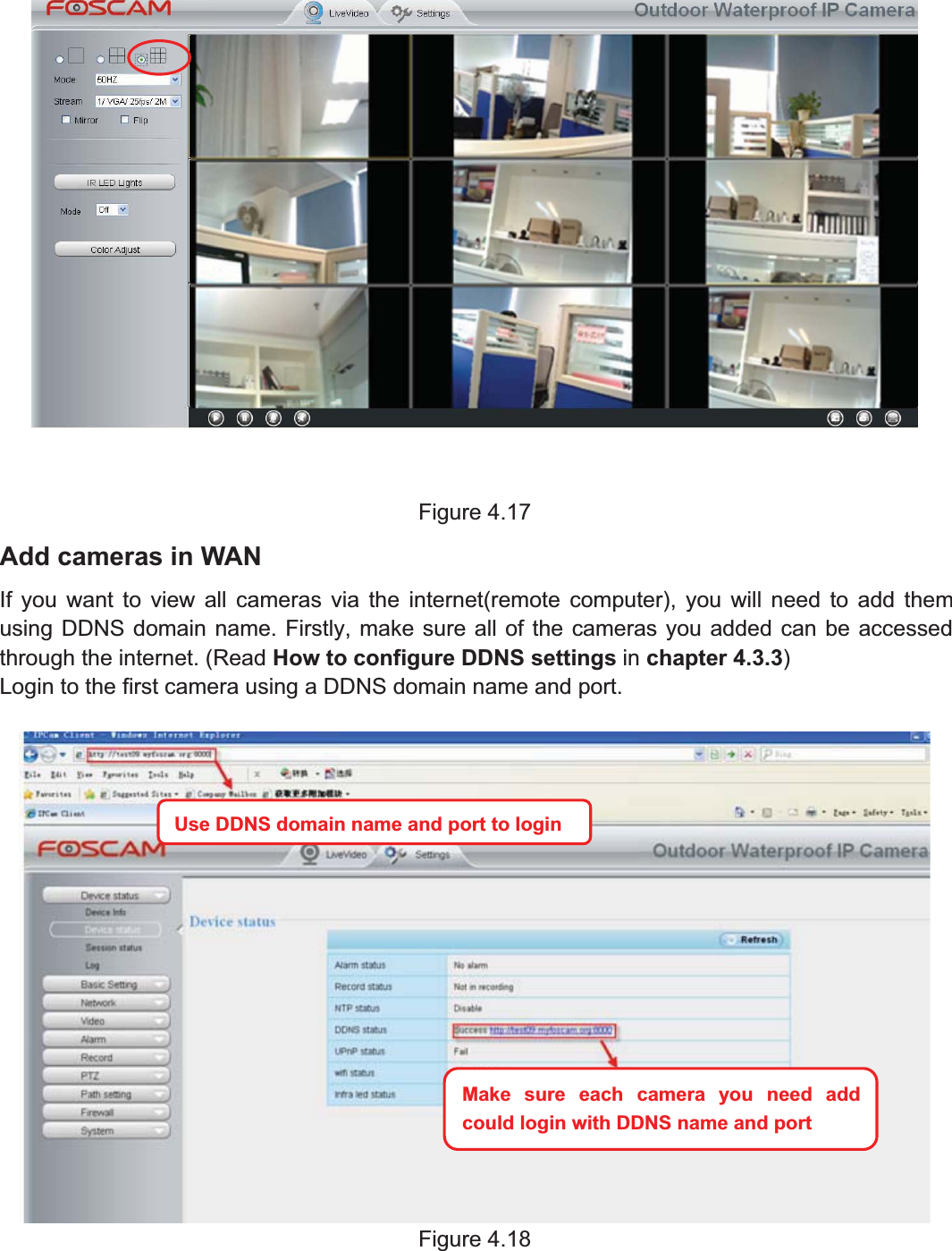
38wwww.foscam.coww.foscam.commShenzhenShenzhen FoscamFoscam IntelligentIntelligent TechnologyTechnology Co.,Co., LimitedLimitedTel:Tel: 8686 755755 26742674 56685668 Fax:Fax: 8686 755755 26742674 51685168 38Figure 4.17Add cameras in WANIf you want to view all cameras via the internet(remote computer), you will need to add themusing DDNS domain name. Firstly, make sure all of the cameras you added can be accessedthrough the internet. (Read How to configure DDNS settings in chapter 4.3.3)Login to the first camera using a DDNS domain name and port.Figure 4.18Use DDNS domain name andport to loginMake sure each camera you need addcould login with DDNS name and port
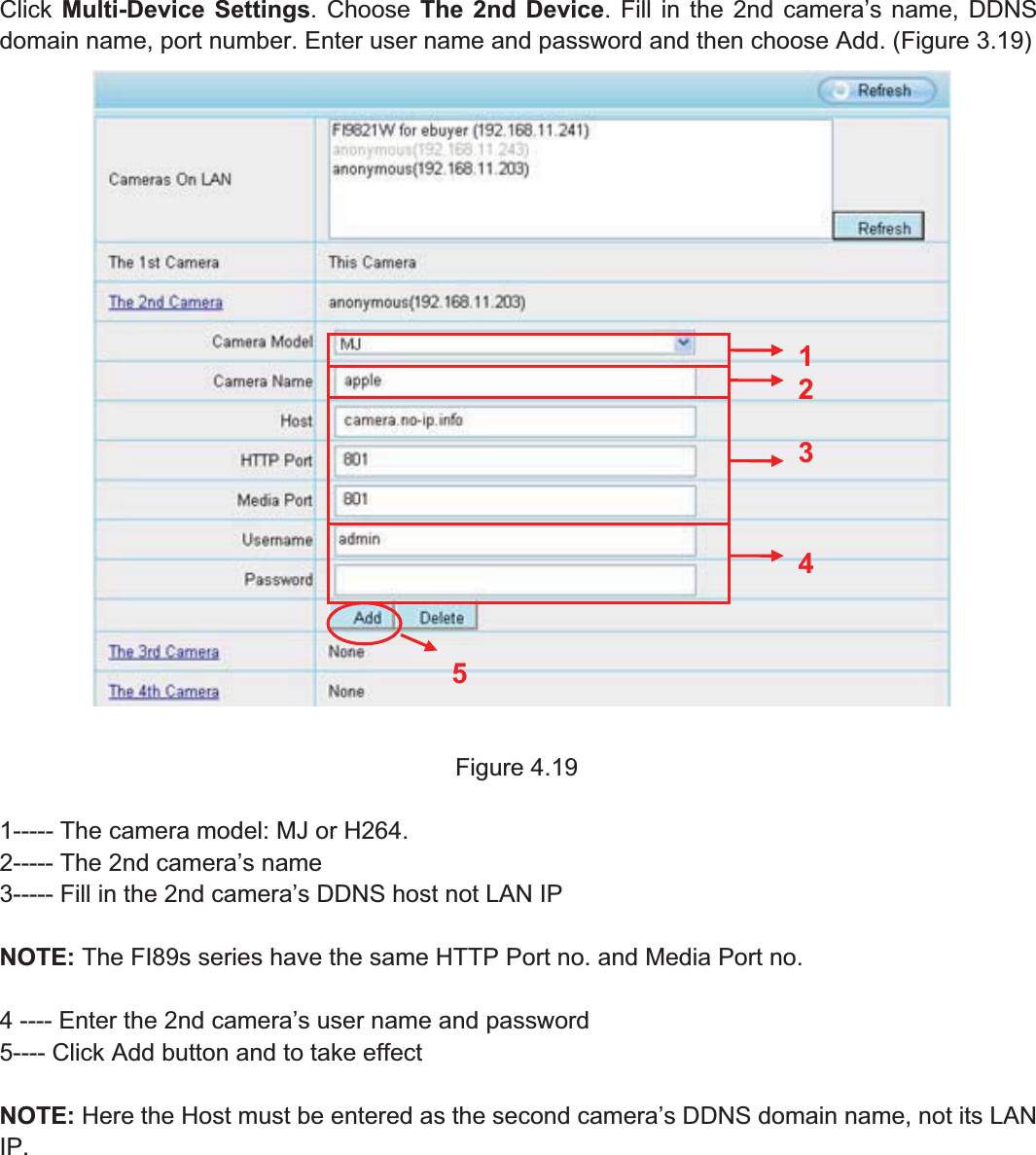
39wwww.foscam.coww.foscam.commShenzhenShenzhen FoscamFoscam IntelligentIntelligent TechnologyTechnology Co.,Co., LimitedLimitedTel:Tel: 8686 755755 26742674 56685668 Fax:Fax: 8686 755755 26742674 51685168 39Click Multi-Device Settings. Choose The 2nd Device. Fill in the 2nd camera’s name, DDNSdomain name, port number. Enter user name and password and then choose Add. (Figure 3.19)Figure 4.191----- The camera model: MJ or H264.2----- The 2nd camera’s name3----- Fill in the 2nd camera’s DDNS host not LAN IPNOTE: The FI89s series have the same HTTP Port no. and Media Port no.4 ---- Enter the 2nd camera’s user name and password5---- Click Add button and to take effectNOTE: Here the Host must be entered as the second camera’s DDNS domain name, not its LANIP.23451
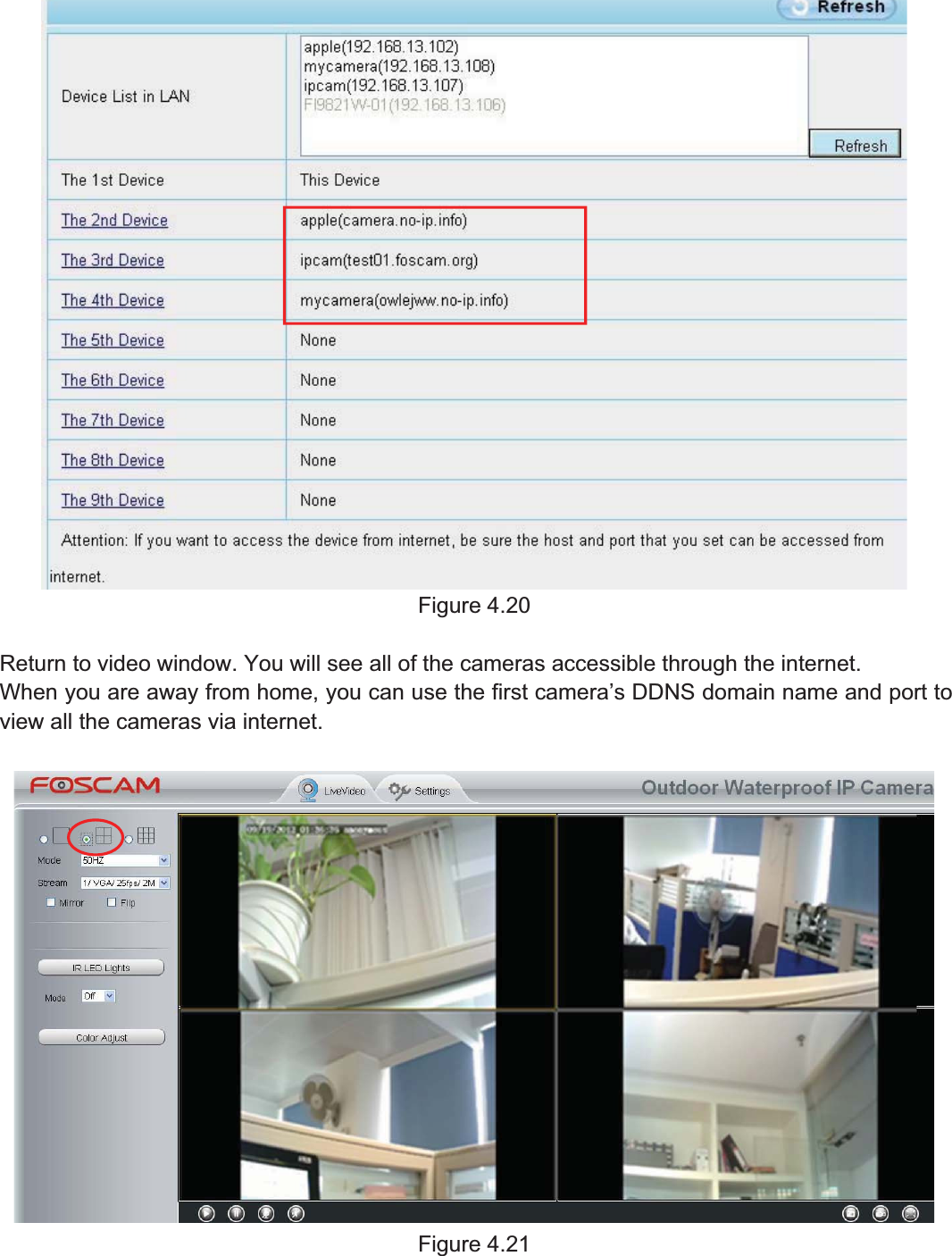
40wwww.foscam.coww.foscam.commShenzhenShenzhen FoscamFoscam IntelligentIntelligent TechnologyTechnology Co.,Co., LimitedLimitedTel:Tel: 8686 755755 26742674 56685668 Fax:Fax: 8686 755755 26742674 51685168 40Figure 4.20Return to video window. You will see all of the cameras accessible through the internet.When you are away from home, you can use the first camera’s DDNS domain name and port toview all the cameras via internet.Figure 4.21
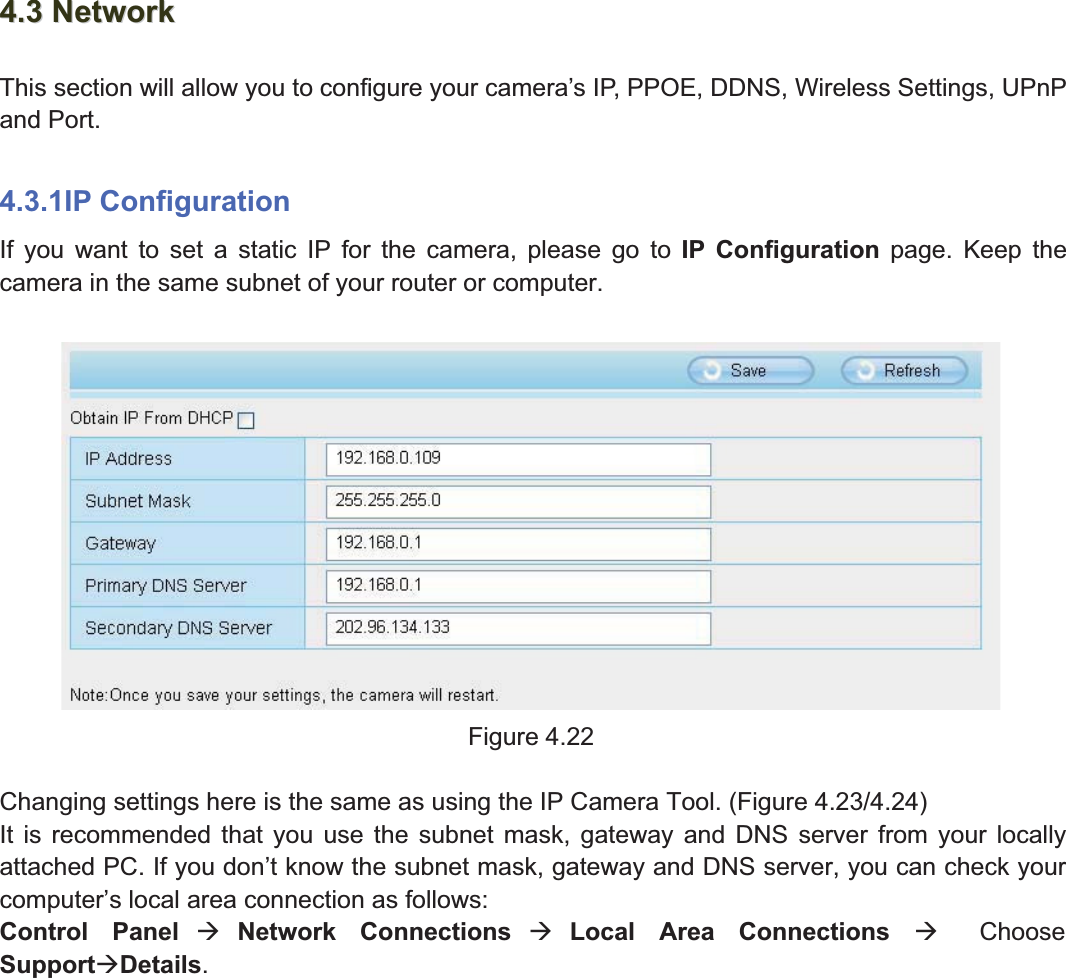
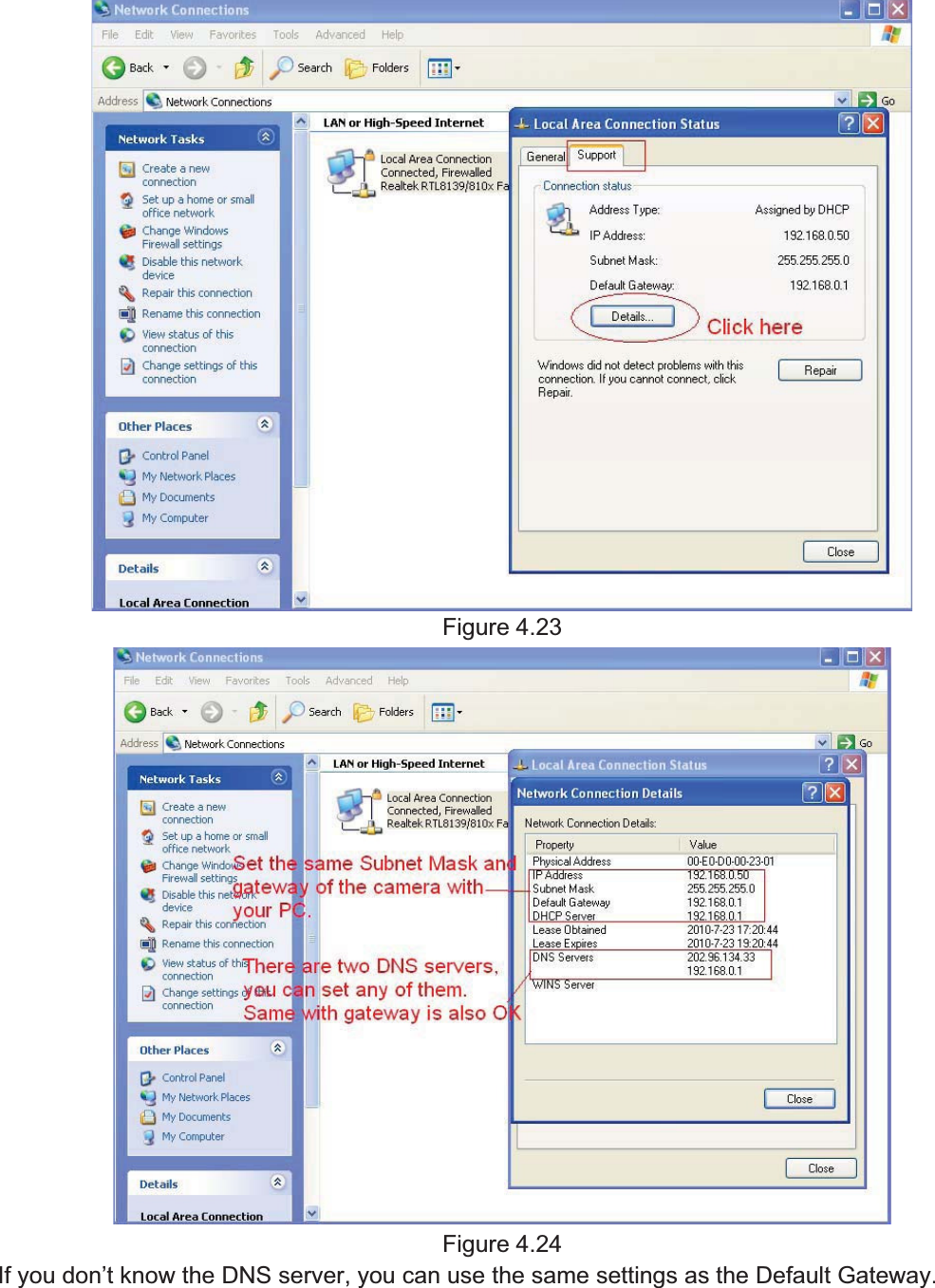
41wwww.foscam.coww.foscam.commShenzhenShenzhen FoscamFoscam IntelligentIntelligent TechnologyTechnology Co.,Co., LimitedLimitedTel:Tel: 8686 755755 26742674 56685668 Fax:Fax: 8686 755755 26742674 51685168 414.34.3 NetworkNetworkThis section will allow you to configure your camera’s IP, PPOE, DDNS, Wireless Settings, UPnPand Port.4.3.1IP ConfigurationIf you want to set a static IP for the camera, please go to IP Configuration page. Keep thecamera in the same subnet of your router or computer.Figure 4.22Changing settings here is the same as using the IP Camera Tool. (Figure 4.23/4.24)It is recommended that you use the subnet mask, gateway and DNS server from your locallyattached PC. If you don’t know the subnet mask, gateway and DNS server, you can check yourcomputer’s local area connection as follows:Control Panel ÆNetwork Connections ÆLocal Area Connections ÆChooseSupportÆDetails.
42wwww.foscam.coww.foscam.commShenzhenShenzhen FoscamFoscam IntelligentIntelligent TechnologyTechnology Co.,Co., LimitedLimitedTel:Tel: 8686 755755 26742674 56685668 Fax:Fax: 8686 755755 26742674 51685168 42Figure 4.23Figure 4.24If you don’t know the DNS server, you can use the same settings as the Default Gateway.
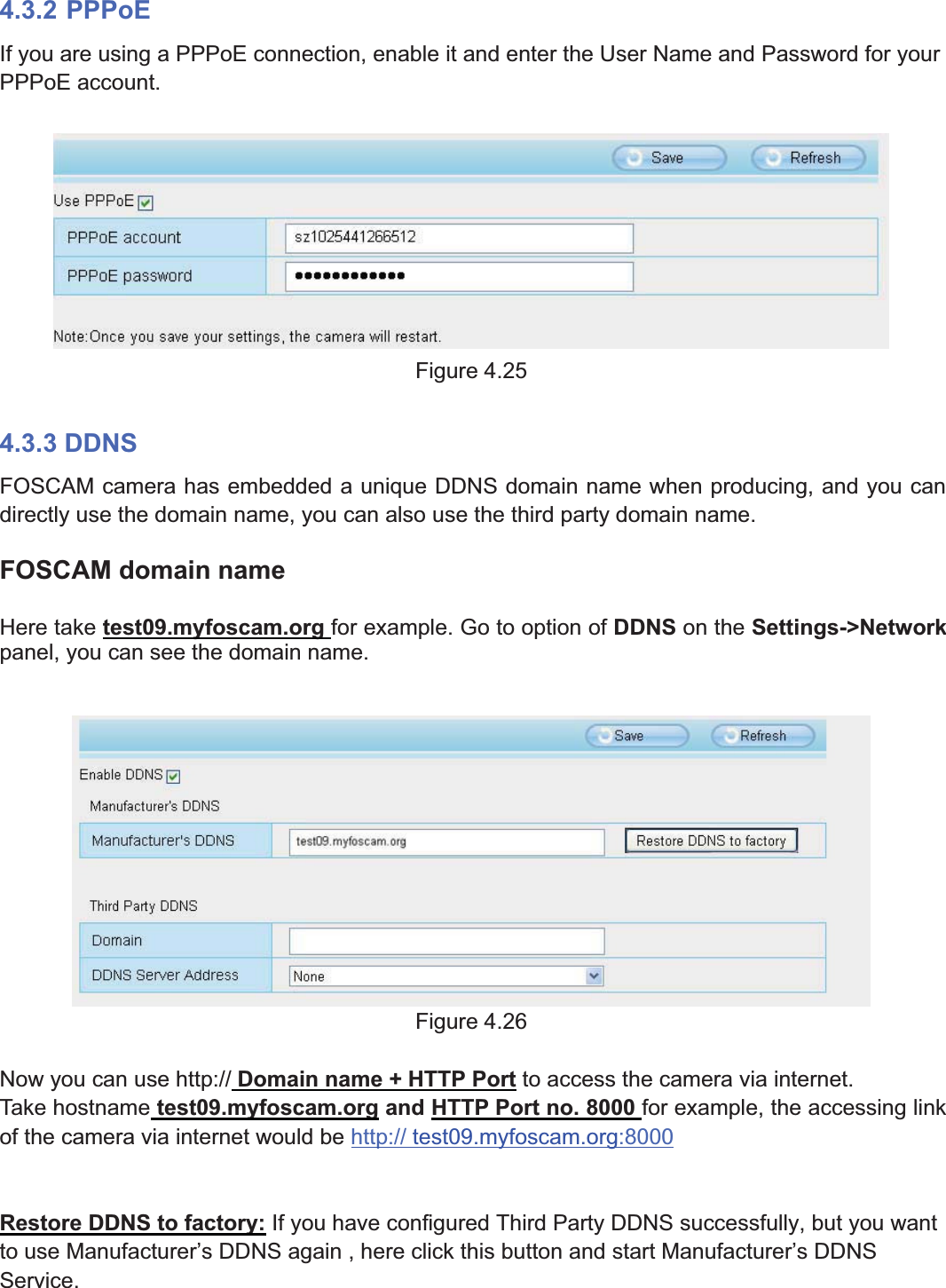
43wwww.foscam.coww.foscam.commShenzhenShenzhen FoscamFoscam IntelligentIntelligent TechnologyTechnology Co.,Co., LimitedLimitedTel:Tel: 8686 755755 26742674 56685668 Fax:Fax: 8686 755755 26742674 51685168 434.3.2 PPPoEIf you are using a PPPoE connection, enable it and enter the User Name and Password for yourPPPoE account.Figure 4.254.3.3 DDNSFOSCAM camera has embedded a unique DDNS domain name when producing, and you candirectly use the domain name, you can also use the third party domain name.FOSCAM domain nameHere take test09.myfoscam.org for example. Go to option of DDNS on the Settings->Networkpanel, you can see the domain name.Figure 4.26Now you can use http:// Domain name + HTTP Port to access the camera via internet.Take hostname test09.myfoscam.org and HTTP Port no. 8000 for example, the accessing linkof the camera via internet would be http:// test09.myfoscam.org:8000Restore DDNS to factory: If you have configured Third Party DDNS successfully, but you wantto use Manufacturer’s DDNS again , here click this button and start Manufacturer’s DDNSService.
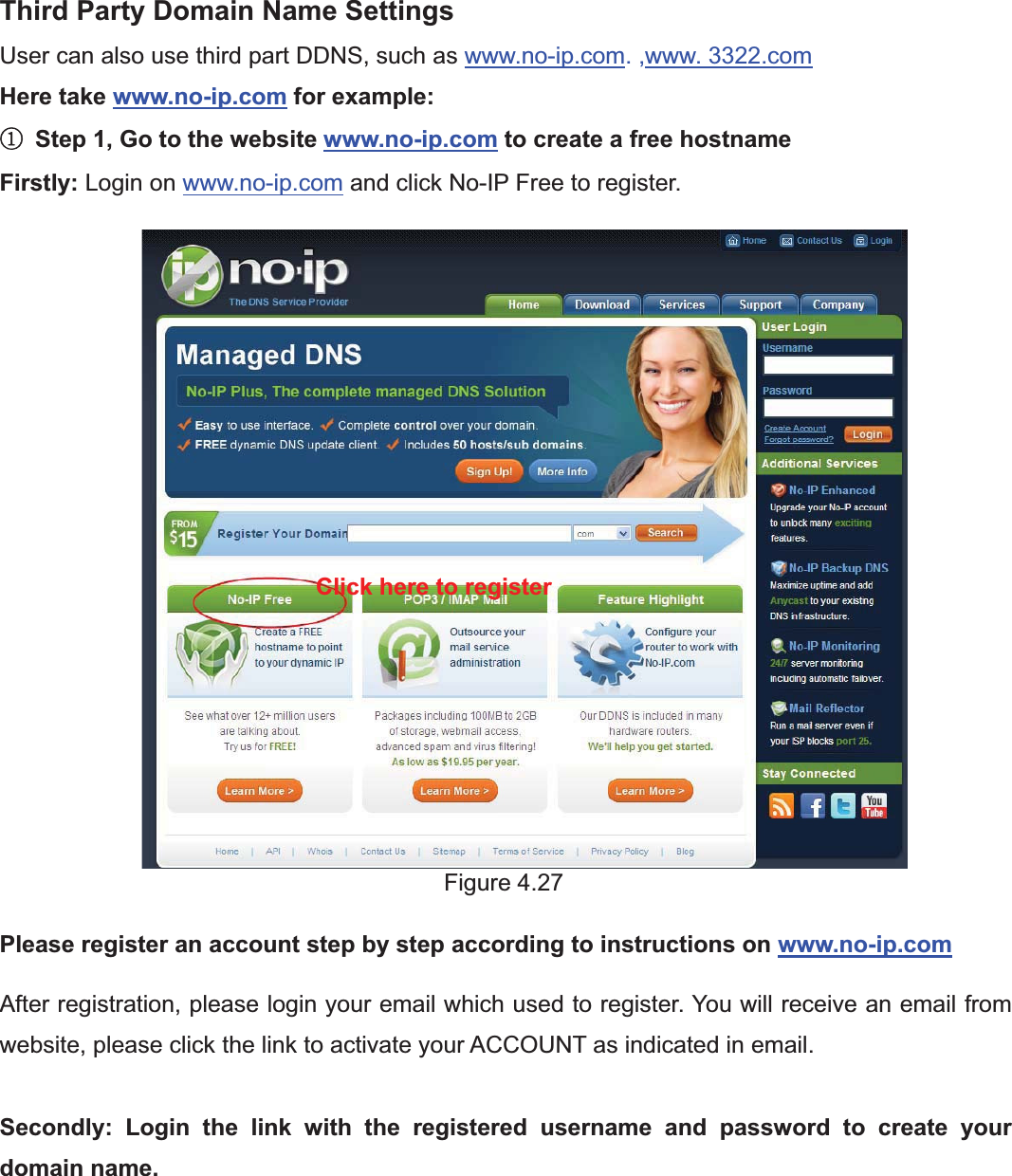
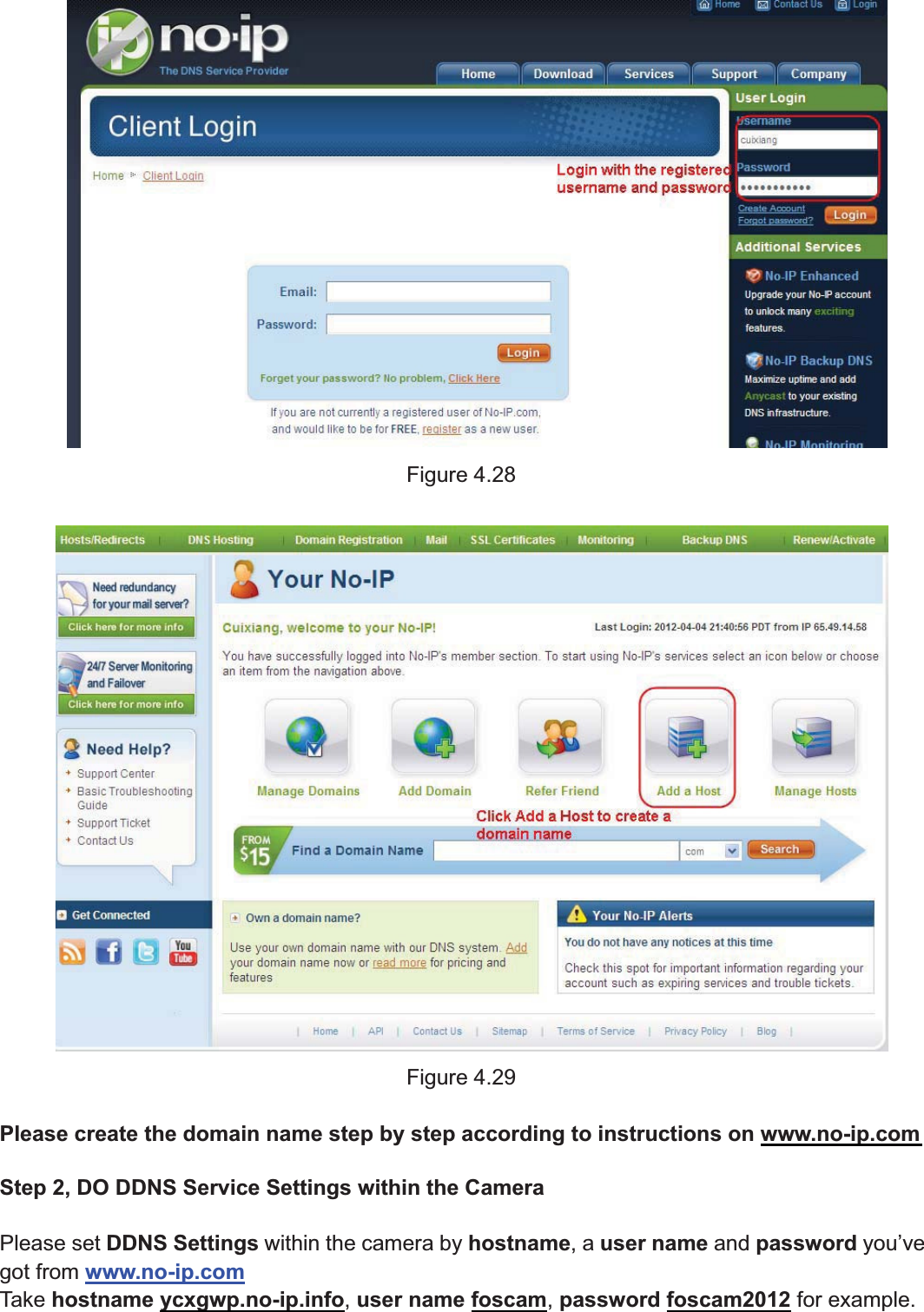
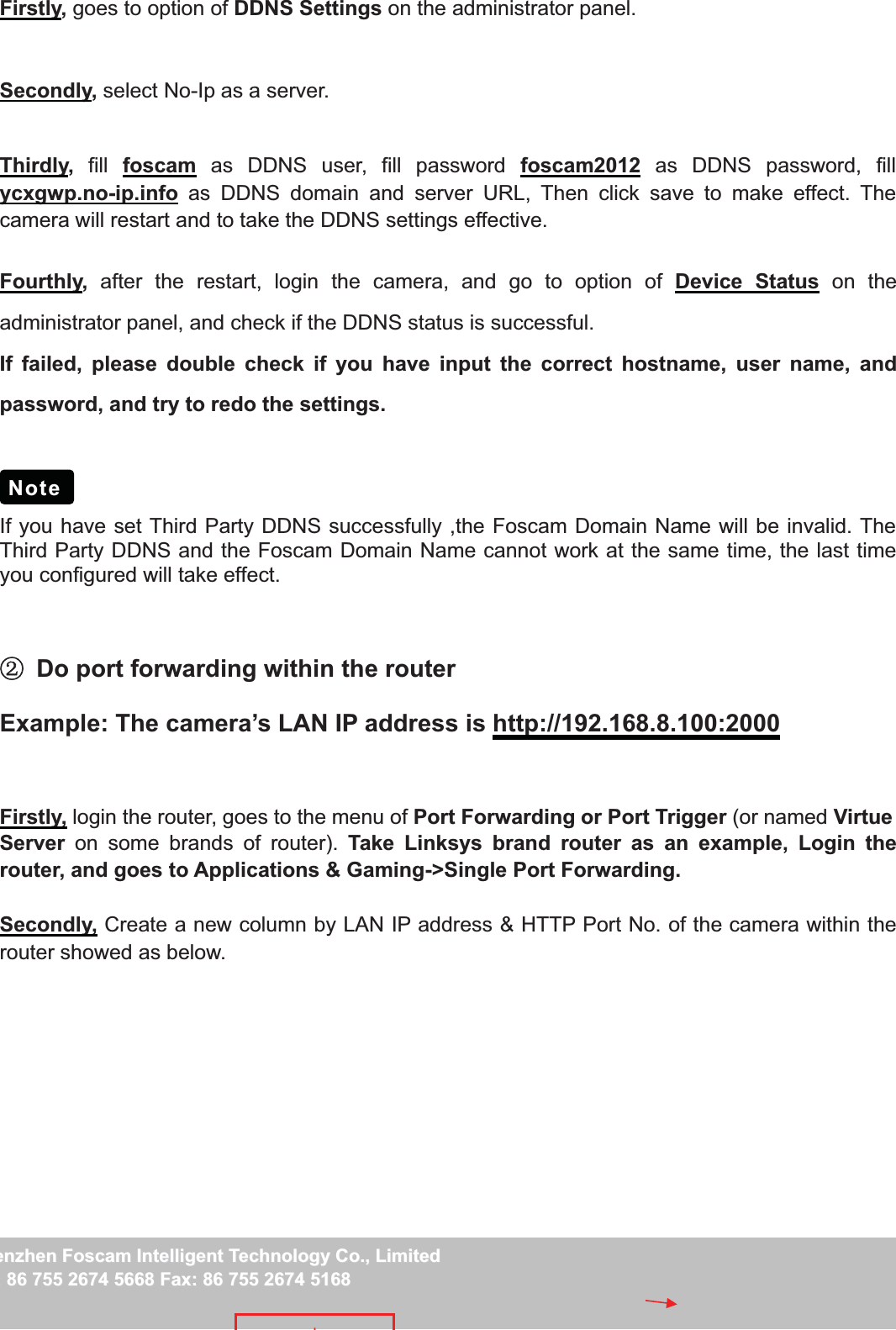
44wwww.foscam.coww.foscam.commShenzhenShenzhen FoscamFoscam IntelligentIntelligent TechnologyTechnology Co.,Co., LimitedLimitedTel:Tel: 8686 755755 26742674 56685668 Fax:Fax: 8686 755755 26742674 51685168 44Third Party Domain Name SettingsUser can also use third part DDNS, such as www.no-ip.com. ,www. 3322.comHere take www.no-ip.com for example:ķStep 1, Go to the website www.no-ip.com to create a free hostnameFirstly: Login on www.no-ip.com and click No-IP Free to register.Figure 4.27Please register an account step by step according to instructions on www.no-ip.comAfter registration, please login your email which used to register. You will receive an email fromwebsite, please click the link to activate your ACCOUNT as indicated in email.Secondly: Login the link with the registered username and password to create yourdomain name.Click here to register
45wwww.foscam.coww.foscam.commShenzhenShenzhen FoscamFoscam IntelligentIntelligent TechnologyTechnology Co.,Co., LimitedLimitedTel:Tel: 8686 755755 26742674 56685668 Fax:Fax: 8686 755755 26742674 51685168 45Figure 4.28Figure 4.29Please create the domain name step by step according to instructions on www.no-ip.comStep 2, DO DDNS Service Settings within the CameraPlease set DDNS Settings within the camera by hostname,auser name and password you’vegot from www.no-ip.comTake hostname ycxgwp.no-ip.info,user name foscam,password foscam2012 for example.
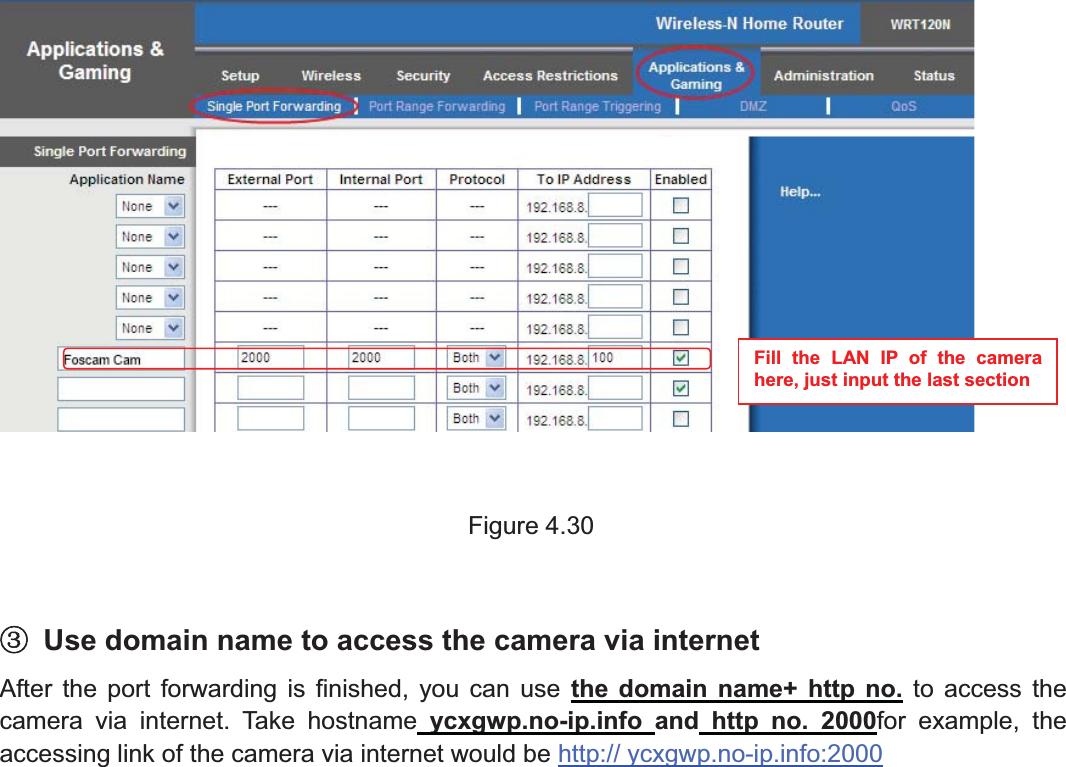
46wwww.foscam.coww.foscam.commShenzhenShenzhen FoscamFoscam IntelligentIntelligent TechnologyTechnology Co.,Co., LimitedLimitedTel:Tel: 8686 755755 26742674 56685668 Fax:Fax: 8686 755755 26742674 51685168 46Firstly,goes to option of DDNS Settings on the administrator panel.Secondly,select No-Ip as a server.Thirdly,fill foscam as DDNS user, fill password foscam2012 as DDNS password, fillycxgwp.no-ip.info as DDNS domain and server URL, Then click save to make effect. Thecamera will restart and to take the DDNS settings effective.Fourthly,after the restart, login the camera, and go to option of Device Status on theadministrator panel, and check if the DDNS status is successful.If failed, please double check if you have input the correct hostname, user name, andpassword, and try to redo the settings.If you have set Third Party DDNS successfully ,the Foscam Domain Name will be invalid. TheThird Party DDNS and the Foscam Domain Name cannot work at the same time, the last timeyou configured will take effect.ĸDo port forwarding within the routerExample: The camera’s LAN IP address is http://192.168.8.100:2000Firstly, login the router, goes to the menu of Port Forwarding or Port Trigger (or named VirtueServer on some brands of router). Take Linksys brand router as an example, Login therouter, and goes to Applications & Gaming->Single Port Forwarding.Secondly, Create a new column by LAN IP address & HTTP Port No. of the camera within therouter showed as below.Note
47wwww.foscam.coww.foscam.commShenzhenShenzhen FoscamFoscam IntelligentIntelligent TechnologyTechnology Co.,Co., LimitedLimitedTel:Tel: 8686 755755 26742674 56685668 Fax:Fax: 8686 755755 26742674 51685168 47Figure 4.30ĹUse domain name to access the camera via internetAfter the port forwarding is finished, you can use the domain name+ http no. to access thecamera via internet. Take hostname ycxgwp.no-ip.info and http no. 2000for example, theaccessing link of the camera via internet would be http:// ycxgwp.no-ip.info:2000Fill the LAN IP of the camerahere, just input the last section
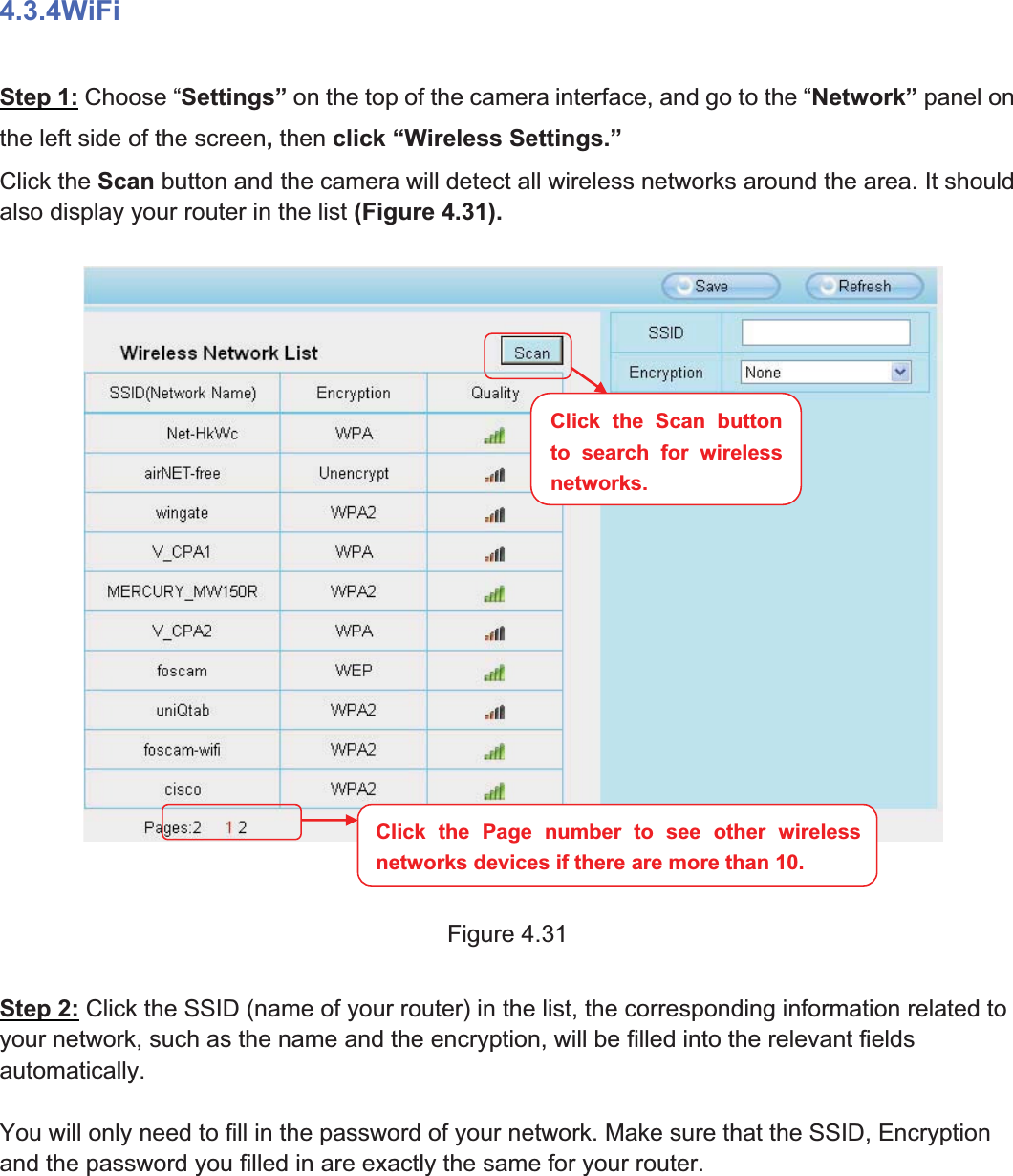
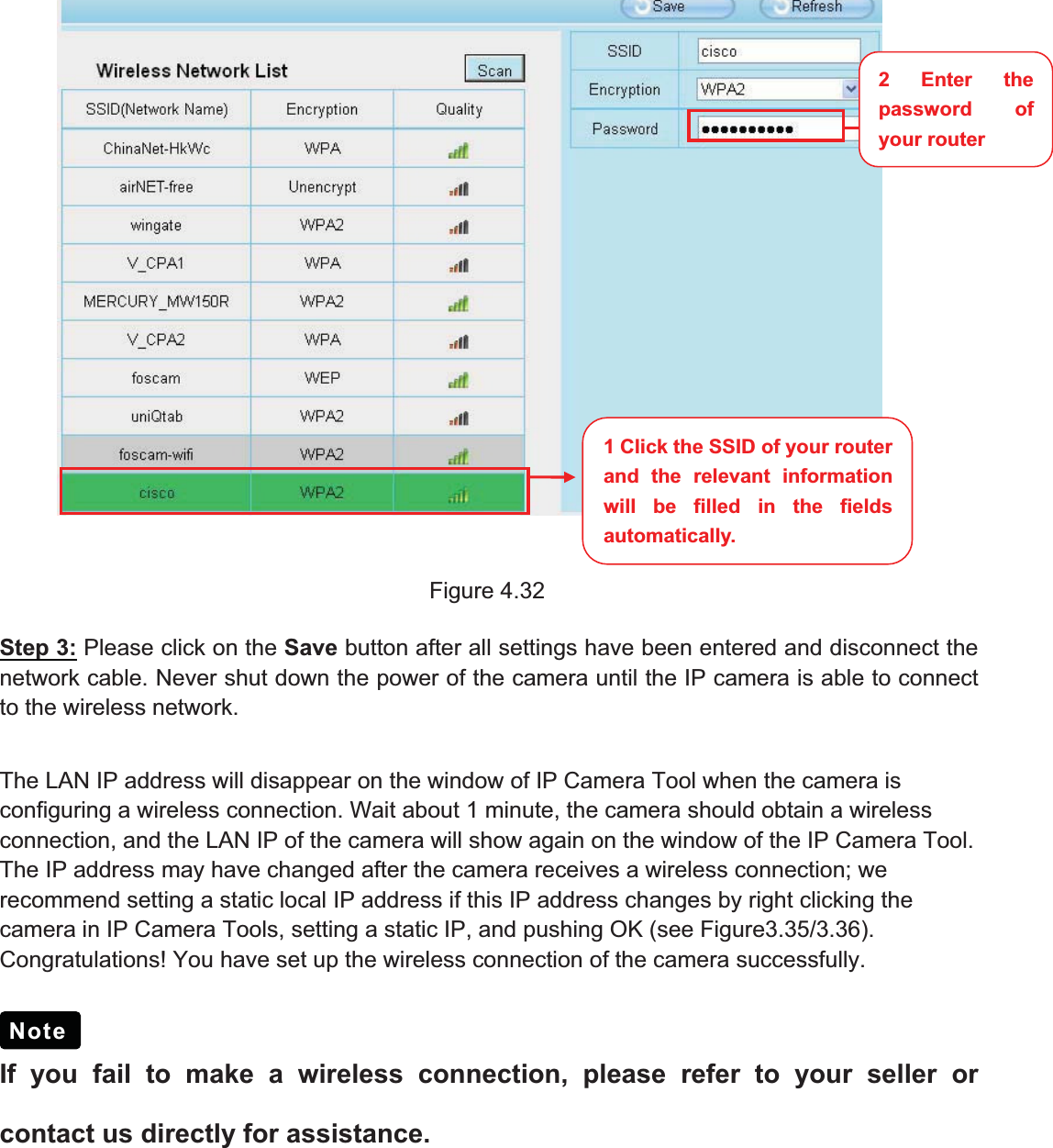
48wwww.foscam.coww.foscam.commShenzhenShenzhen FoscamFoscam IntelligentIntelligent TechnologyTechnology Co.,Co., LimitedLimitedTel:Tel: 8686 755755 26742674 56685668 Fax:Fax: 8686 755755 26742674 51685168 484.3.4WiFiStep 1: Choose “Settings” on the top of the camera interface, and go to the “Network” panel onthe left side of the screen,then click “Wireless Settings.”Click the Scan button and the camera will detect all wireless networks around the area. It shouldalso display your router in the list (Figure 4.31).Figure 4.31Step 2: Click the SSID (name of your router) in the list, the corresponding information related toyour network, such as the name and the encryption, will be filled into the relevant fieldsautomatically.You will only need to fill in the password of your network. Make sure that the SSID, Encryptionand the password you filled in are exactly the same for your router.Click the Page number to see other wirelessnetworks devices if there are more than 10.Click the Scan buttonto search for wirelessnetworks.
49wwww.foscam.coww.foscam.commShenzhenShenzhen FoscamFoscam IntelligentIntelligent TechnologyTechnology Co.,Co., LimitedLimitedTel:Tel: 8686 755755 26742674 56685668 Fax:Fax: 8686 755755 26742674 51685168 49Figure 4.32Step 3: Please click on the Save button after all settings have been entered and disconnect thenetwork cable. Never shut down the power of the camera until the IP camera is able to connectto the wireless network.The LAN IP address will disappear on the window of IP Camera Tool when the camera isconfiguring a wireless connection. Wait about 1 minute, the camera should obtain a wirelessconnection, and the LAN IP of the camera will show again on the window of the IP Camera Tool.The IP address may have changed after the camera receives a wireless connection; werecommend setting a static local IP address if this IP address changes by right clicking thecamera in IP Camera Tools, setting a static IP, and pushing OK (see Figure3.35/3.36).Congratulations! You have set up the wireless connection of the camera successfully.If you fail to make a wireless connection, please refer to your seller orcontact us directly for assistance.Note1 Click the SSID of your routerand the relevant informationwill be filled in the fieldsautomatically.2Enterthepassword ofyour router
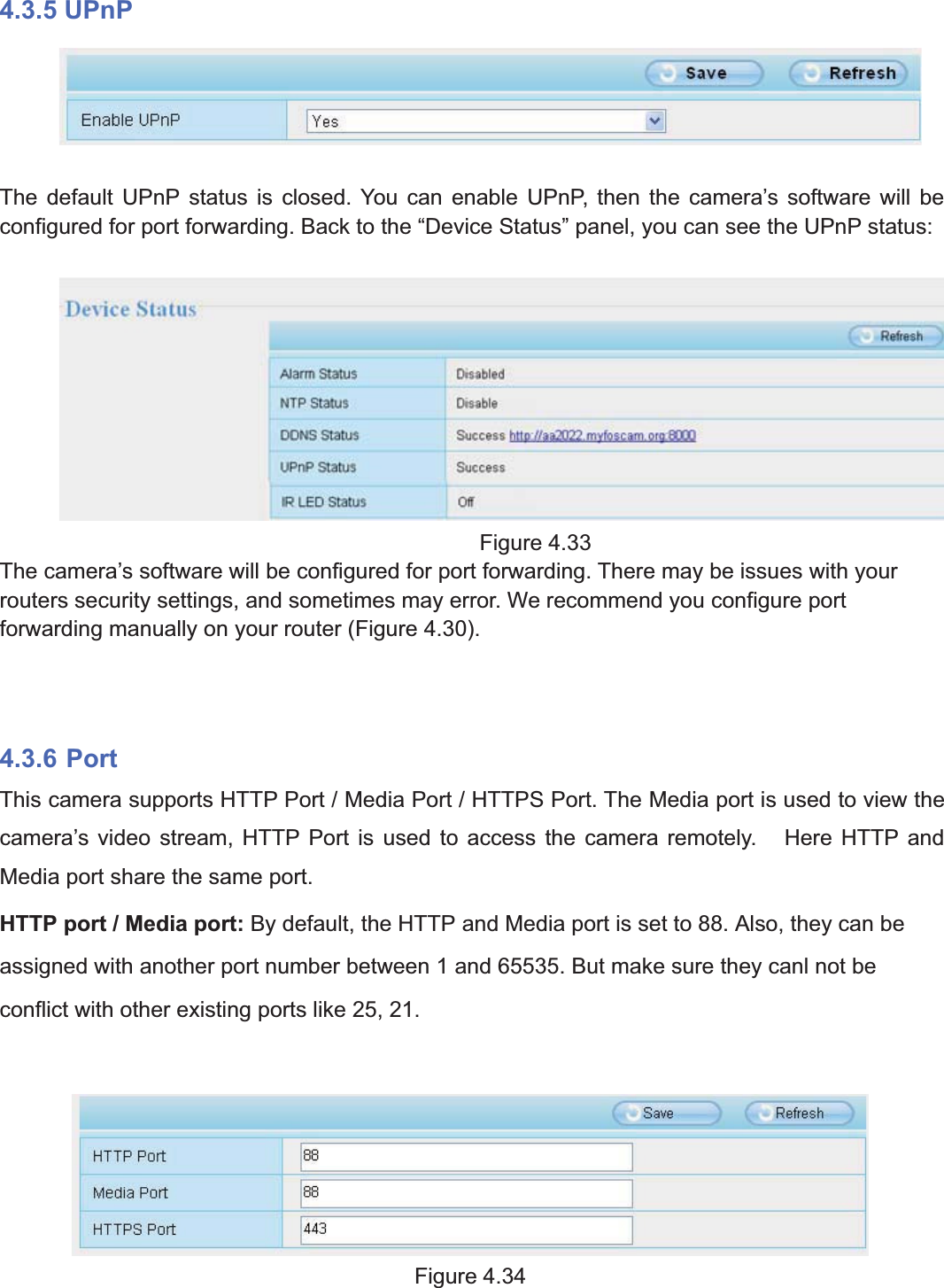
50wwww.foscam.coww.foscam.commShenzhenShenzhen FoscamFoscam IntelligentIntelligent TechnologyTechnology Co.,Co., LimitedLimitedTel:Tel: 8686 755755 26742674 56685668 Fax:Fax: 8686 755755 26742674 51685168 504.3.5 UPnPThe default UPnP status is closed. You can enable UPnP, then the camera’s software will beconfigured for port forwarding. Back to the “Device Status” panel, you can see the UPnP status:Figure 4.33The camera’s software will be configured for port forwarding. There may be issues with yourrouters security settings, and sometimes may error. We recommend you configure portforwarding manually on your router (Figure 4.30).4.3.6 PortThis camera supports HTTP Port / Media Port / HTTPS Port. The Media port is used to view thecamera’s video stream, HTTP Port is used to access the camera remotely. Here HTTP andMedia port share the same port.HTTP port / Media port: By default, the HTTP and Media port is set to 88. Also, they can beassigned with another port number between 1 and 65535. But make sure they canl not beconflict with other existing ports like 25, 21.Figure 4.34
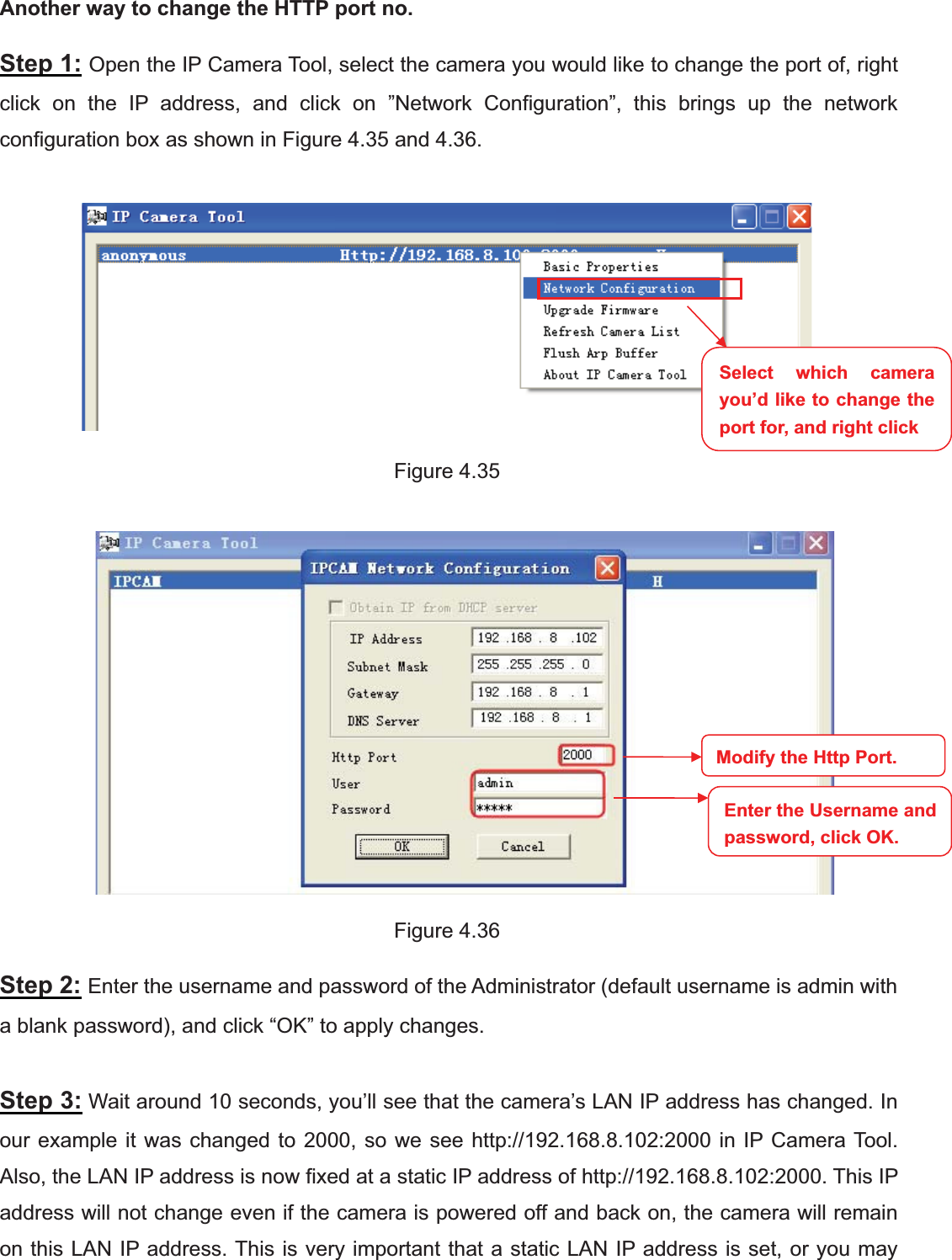
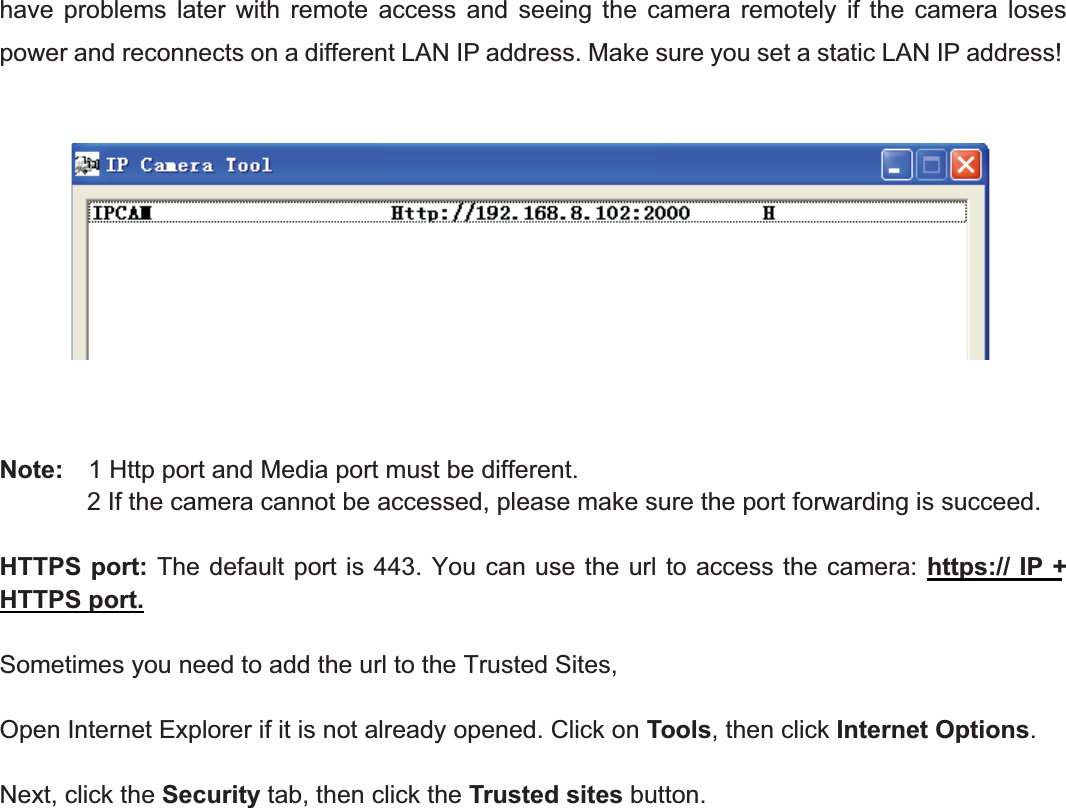
51wwww.foscam.coww.foscam.commShenzhenShenzhen FoscamFoscam IntelligentIntelligent TechnologyTechnology Co.,Co., LimitedLimitedTel:Tel: 8686 755755 26742674 56685668 Fax:Fax: 8686 755755 26742674 51685168 51Another way to change the HTTP port no.Step 1: Open the IP Camera Tool, select the camera you would like to change the port of, rightclick on the IP address, and click on ”Network Configuration”, this brings up the networkconfiguration box as shown in Figure 4.35 and 4.36.Figure 4.35Figure 4.36Step 2: Enter the username and password of the Administrator (default username is admin witha blank password), and click “OK” to apply changes.Step 3: Wait around 10 seconds, you’ll see that the camera’s LAN IP address has changed. Inour example it was changed to 2000, so we see http://192.168.8.102:2000 in IP Camera Tool.Also, the LAN IP address is now fixed at a static IP address of http://192.168.8.102:2000. This IPaddress will not change even if the camera is powered off and back on, the camera will remainon this LAN IP address. This is very important that a static LAN IP address is set, or you maySelect which camerayou’d like to change theport for, and right clickModify the Http Port.Enter the Username andpassword,click OK.
52wwww.foscam.coww.foscam.commShenzhenShenzhen FoscamFoscam IntelligentIntelligent TechnologyTechnology Co.,Co., LimitedLimitedTel:Tel: 8686 755755 26742674 56685668 Fax:Fax: 8686 755755 26742674 51685168 52have problems later with remote access and seeing the camera remotely if the camera losespower and reconnects on a different LAN IP address. Make sure you set a static LAN IP address!Note: 1 Http port and Media port must be different.2 If the camera cannot be accessed, please make sure the port forwarding is succeed.HTTPS port: The default port is 443. You can use the url to access the camera: https:// IP +HTTPS port.Sometimes you need to add the url to the Trusted Sites,Open Internet Explorer if it is not already opened. Click on Tools, then click Internet Options.Next, click the Security tab, then click the Trusted sites button.
53wwww.foscam.coww.foscam.commShenzhenShenzhen FoscamFoscam IntelligentIntelligent TechnologyTechnology Co.,Co., LimitedLimitedTel:Tel: 8686 755755 26742674 56685668 Fax:Fax: 8686 755755 26742674 51685168 53RTSP functionRTSP URL rtsp:// [user name][:password]@IP:HTTP port number/videosreamThe part in the square brackets may be omitted.user name & password:The user name and password to access the camera. This part can be omitted.IP:WAN or LAN IP address.Videostream:Here support three mode: videoMain, videoSub and audio. When the network speed is bad, hereyou had better select videoSub. If you select audio, you can only hear the sound but cannot seethe video.For example:IP: 192.168.1.11HTTP Port number: 88User name: adminPassword: 123Here I can enter one of the following URLs in the VLC.5) rtsp://admin:123@192.168.1.11:88/videoMain6) rtsp:// @192.168.1.11:88/videoMain
54wwww.foscam.coww.foscam.commShenzhenShenzhen FoscamFoscam IntelligentIntelligent TechnologyTechnology Co.,Co., LimitedLimitedTel:Tel: 8686 755755 26742674 56685668 Fax:Fax: 8686 755755 26742674 51685168 547) rtsp://:123@192.168.1.11:88/videoMain8) rtsp://admin@192.168.1.11:88/videoMainOpen the VLC, and go to MediaÆOpen Network Stream option, then enter the URL into VLC.Sometimes you may need to enter the user name and password again. Click OK and you cansee the real-time preview.
55wwww.foscam.coww.foscam.commShenzhenShenzhen FoscamFoscam IntelligentIntelligent TechnologyTechnology Co.,Co., LimitedLimitedTel:Tel: 8686 755755 26742674 56685668 Fax:Fax: 8686 755755 26742674 51685168 55If you cannot play the video in the VLC player, please check the port mapping. You can readQuick Installation Guide about How to configure port forwarding.NOTE:If you modify the camera’s username or password, you had better reboot the camera, or else thenew username and password cannot take effect when you enter the authentication in the VLC.
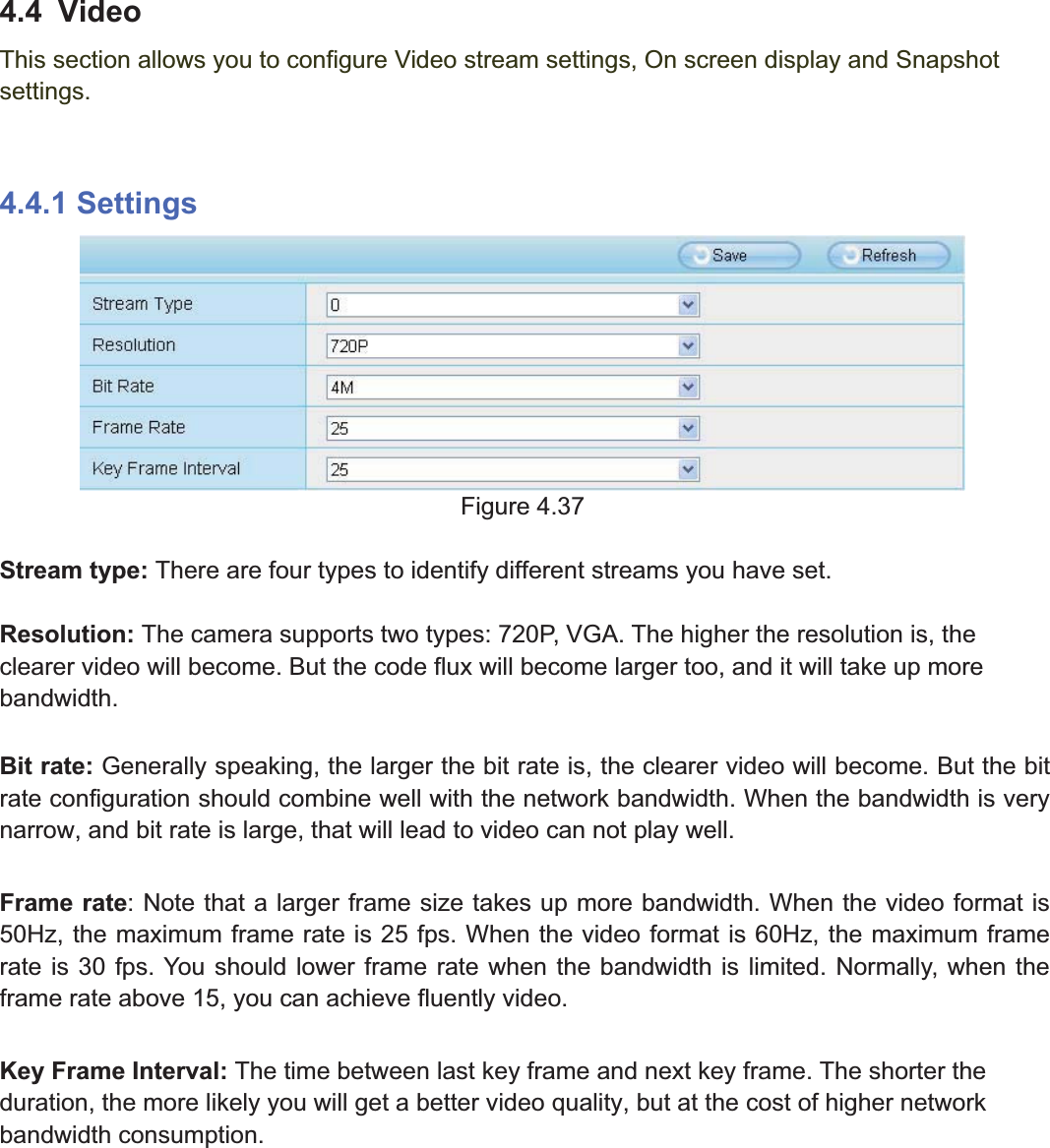
56wwww.foscam.coww.foscam.commShenzhenShenzhen FoscamFoscam IntelligentIntelligent TechnologyTechnology Co.,Co., LimitedLimitedTel:Tel: 8686 755755 26742674 56685668 Fax:Fax: 8686 755755 26742674 51685168 564.4 VideoThis section allows you to configure Video stream settings, On screen display and Snapshotsettings.4.4.1 SettingsFigure 4.37Stream type: There are four types to identify different streams you have set.Resolution: The camera supports two types: 720P, VGA. The higher the resolution is, theclearer video will become. But the code flux will become larger too, and it will take up morebandwidth.Bit rate: Generally speaking, the larger the bit rate is, the clearer video will become. But the bitrate configuration should combine well with the network bandwidth. When the bandwidth is verynarrow, and bit rate is large, that will lead to video can not play well.Frame rate: Note that a larger frame size takes up more bandwidth. When the video format is50Hz, the maximum frame rate is 25 fps. When the video format is 60Hz, the maximum framerate is 30 fps. You should lower frame rate when the bandwidth is limited. Normally, when theframe rate above 15, you can achieve fluently video.Key Frame Interval: The time between last key frame and next key frame. The shorter theduration, the more likely you will get a better video quality, but at the cost of higher networkbandwidth consumption.
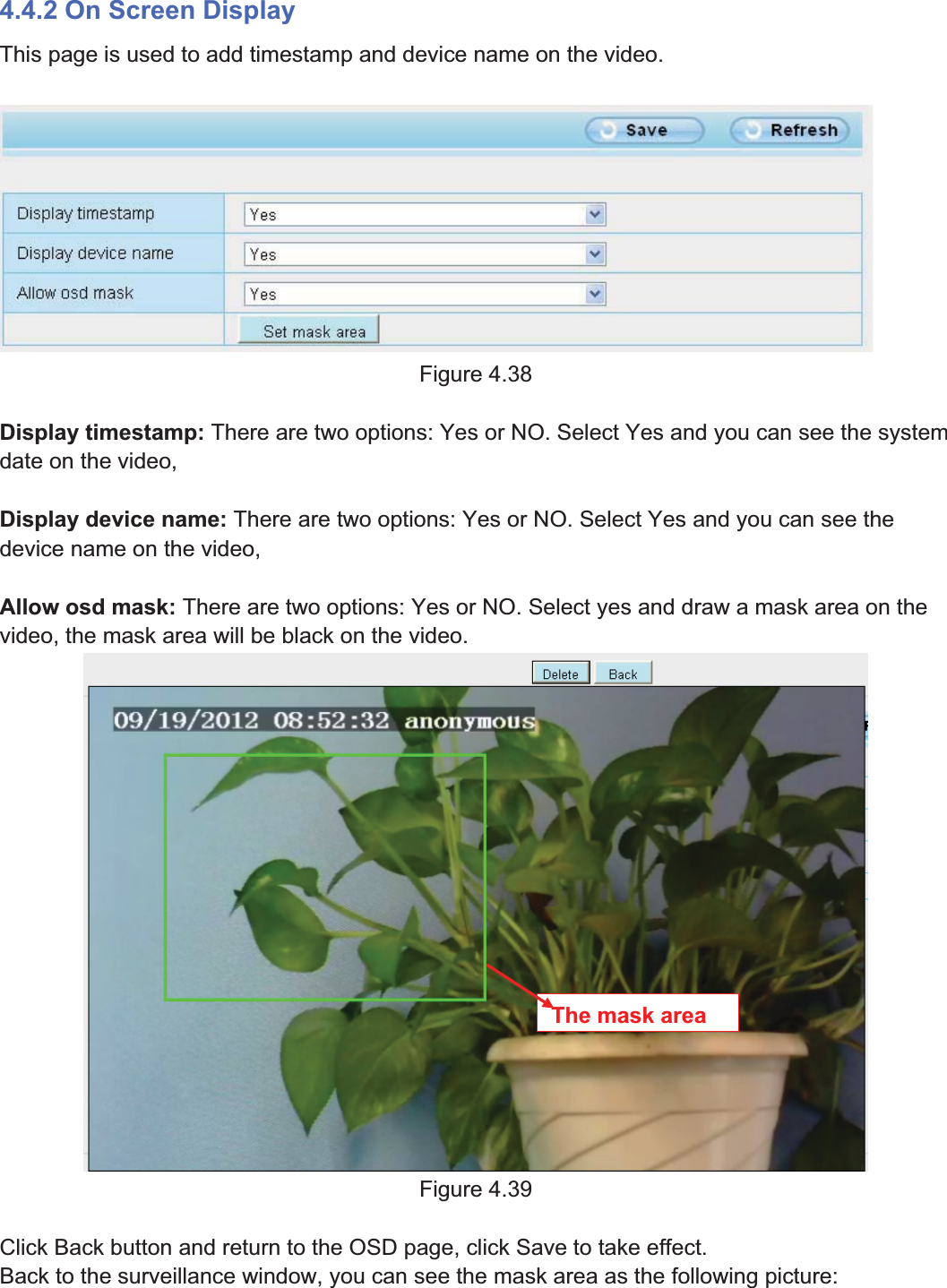
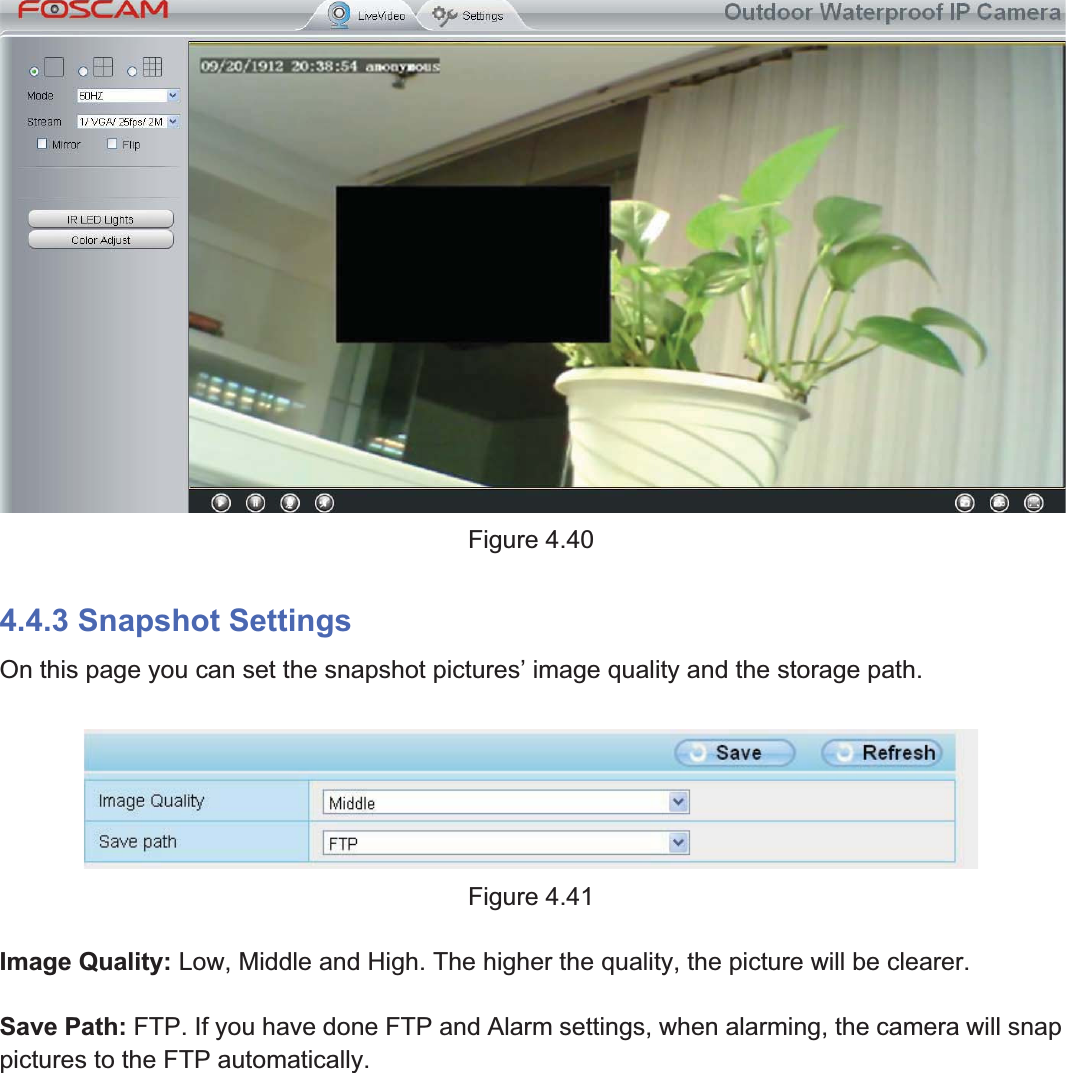
57wwww.foscam.coww.foscam.commShenzhenShenzhen FoscamFoscam IntelligentIntelligent TechnologyTechnology Co.,Co., LimitedLimitedTel:Tel: 8686 755755 26742674 56685668 Fax:Fax: 8686 755755 26742674 51685168 574.4.2 On Screen DisplayThis page is used to add timestamp and device name on the video.Figure 4.38Display timestamp: There are two options: Yes or NO. Select Yes and you can see the systemdate on the video,Display device name: There are two options: Yes or NO. Select Yes and you can see thedevice name on the video,Allow osd mask: There are two options: Yes or NO. Select yes and draw a mask area on thevideo, the mask area will be black on the video.Figure 4.39Click Back button and return to the OSD page, click Save to take effect.Back to the surveillance window, you can see the mask area as the following picture:Themaskarea
58wwww.foscam.coww.foscam.commShenzhenShenzhen FoscamFoscam IntelligentIntelligent TechnologyTechnology Co.,Co., LimitedLimitedTel:Tel: 8686 755755 26742674 56685668 Fax:Fax: 8686 755755 26742674 51685168 58Figure 4.404.4.3 Snapshot SettingsOn this page you can set the snapshot pictures’ image quality and the storage path.Figure 4.41Image Quality: Low, Middle and High. The higher the quality, the picture will be clearer.Save Path: FTP. If you have done FTP and Alarm settings, when alarming, the camera will snappictures to the FTP automatically.
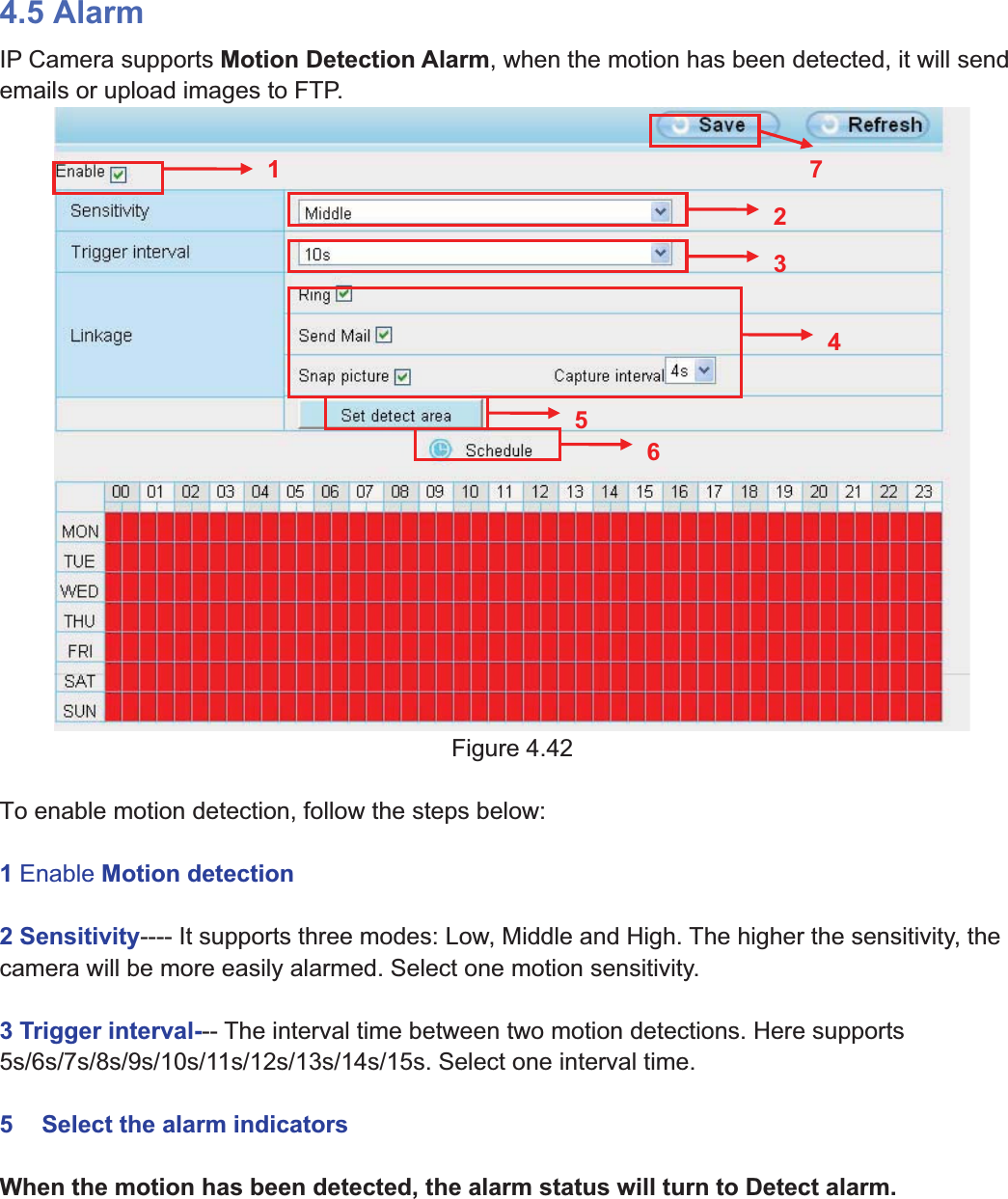
59wwww.foscam.coww.foscam.commShenzhenShenzhen FoscamFoscam IntelligentIntelligent TechnologyTechnology Co.,Co., LimitedLimitedTel:Tel: 8686 755755 26742674 56685668 Fax:Fax: 8686 755755 26742674 51685168 594.5 AlarmIP Camera supports Motion Detection Alarm, when the motion has been detected, it will sendemails or upload images to FTP.Figure 4.42To enable motion detection, follow the steps below:1Enable Motion detection2 Sensitivity---- It supports three modes: Low, Middle and High. The higher the sensitivity, thecamera will be more easily alarmed. Select one motion sensitivity.3 Trigger interval--- The interval time between two motion detections. Here supports5s/6s/7s/8s/9s/10s/11s/12s/13s/14s/15s. Select one interval time.5 Select the alarm indicatorsWhen the motion has been detected, the alarm status will turn to Detect alarm.1234657
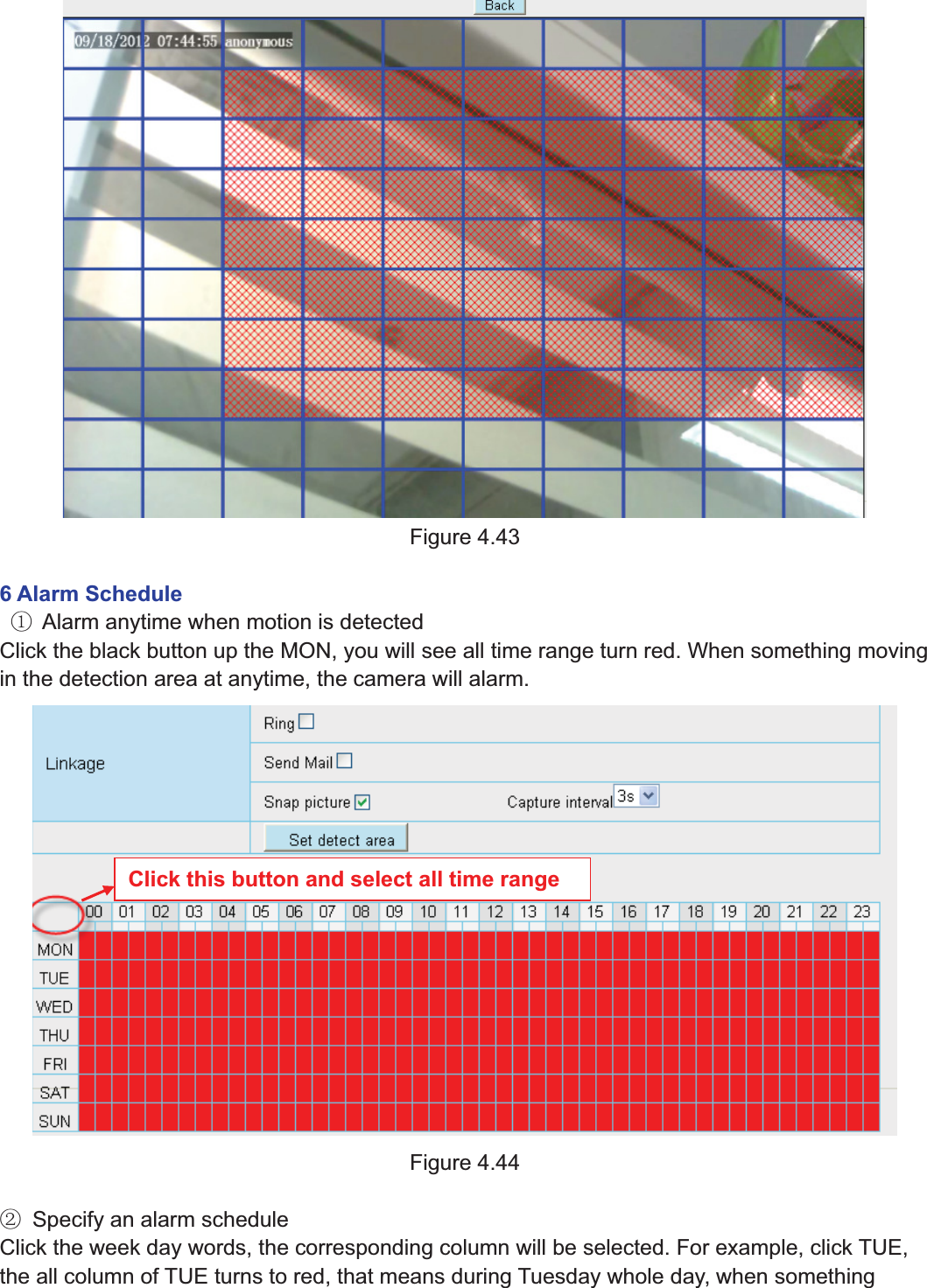
60wwww.foscam.coww.foscam.commShenzhenShenzhen FoscamFoscam IntelligentIntelligent TechnologyTechnology Co.,Co., LimitedLimitedTel:Tel: 8686 755755 26742674 56685668 Fax:Fax: 8686 755755 26742674 51685168 60There are three alarm indicators:ARingIf the camera has connected with a speaker or other audio output device, if you select Ring,when the motion has been detected, the people around the camera will hear beep alarm sound.B Send MailIf you want to receive alarm emails when motion is detected, you must select Send Mail and setMail Settings first. The alarm email cannot contain the alarm picture if you have not selectedSnap picture.CSnappictureIf you select this checkbox, when the motion has been detected, the camera will snap the liveview window as a still picture and load it to the FTP. If you select Send Email, at the same timethe picture will be send to you as an attachment. Make sure you have set FTP and set FTP asthe storage path in Video->Snapshot Settings panel.Capture interval: The interval time between two pictures.5 Set detect areaClick set detect area and it pop up a window, then you can draw the detection area. Click Backbutton after settings. When something moving in the detection area, the camera will alarm.
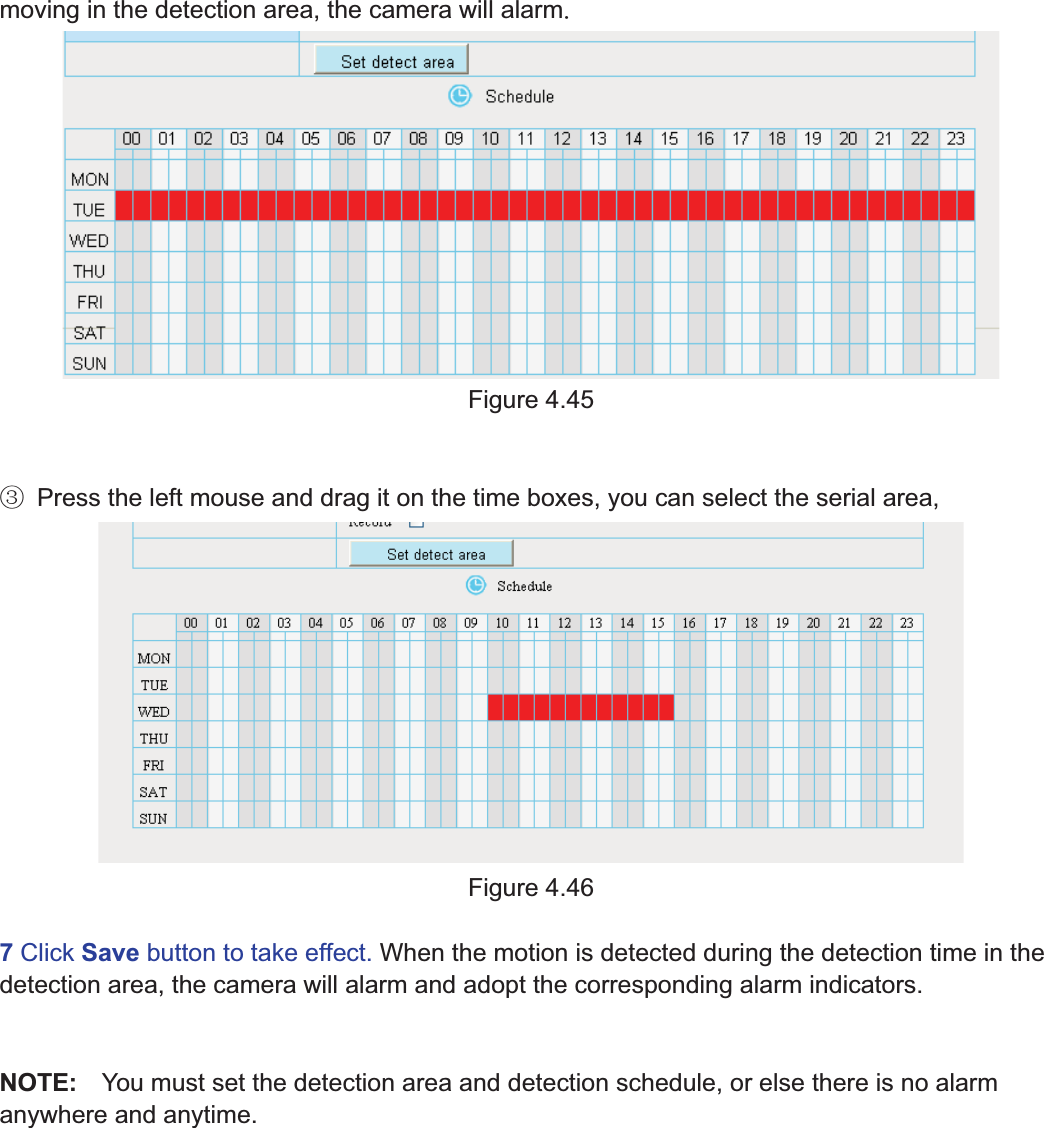
61wwww.foscam.coww.foscam.commShenzhenShenzhen FoscamFoscam IntelligentIntelligent TechnologyTechnology Co.,Co., LimitedLimitedTel:Tel: 8686 755755 26742674 56685668 Fax:Fax: 8686 755755 26742674 51685168 61Figure 4.436 Alarm ScheduleķAlarm anytime when motion is detectedClick the black button up the MON, you will see all time range turn red. When something movingin the detection area at anytime, the camera will alarm.Figure 4.44ĸSpecify an alarm scheduleClick the week day words, the corresponding column will be selected. For example, click TUE,the all column of TUE turns to red, that means during Tuesday whole day, when somethingClick this button and select all time range
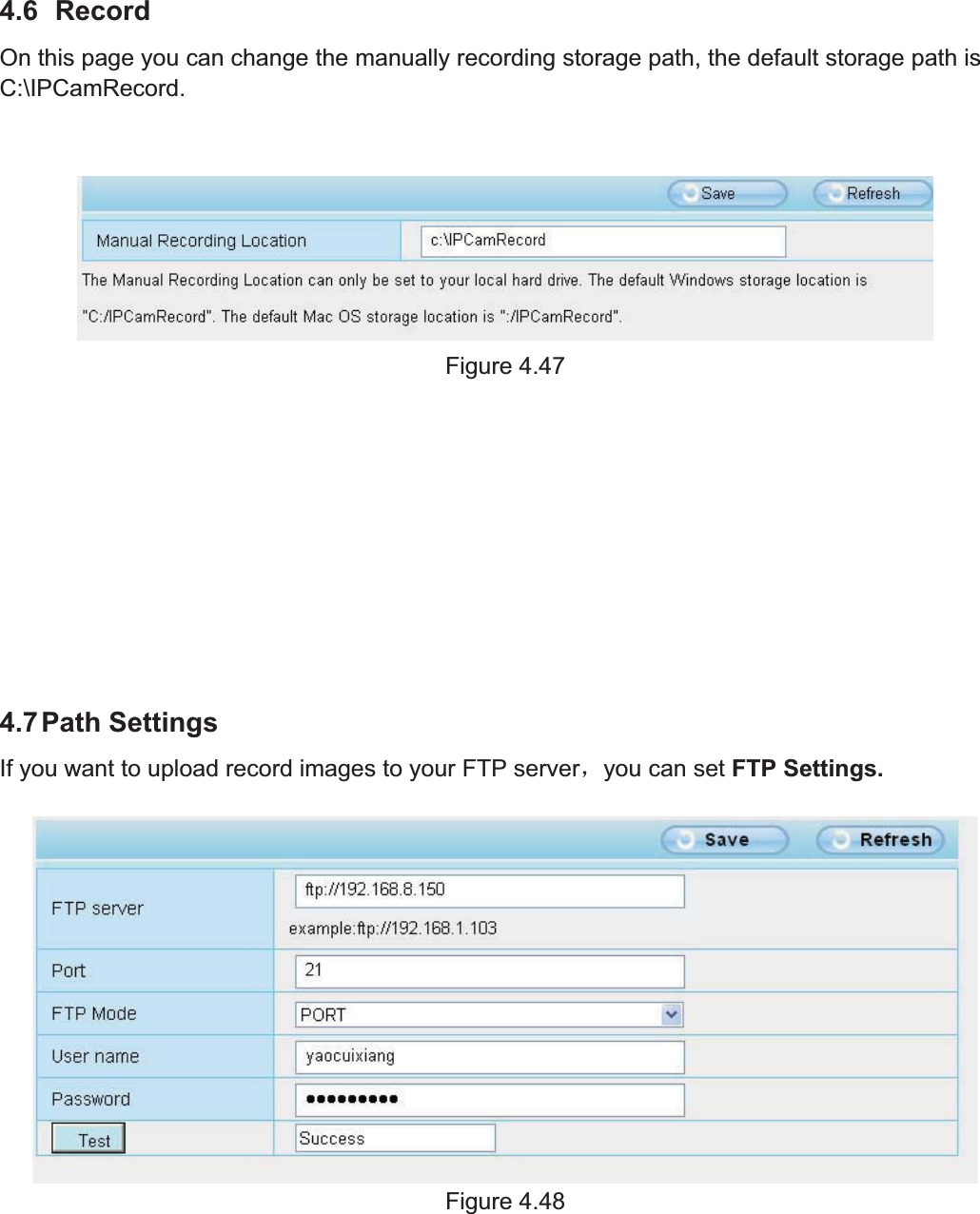
62wwww.foscam.coww.foscam.commShenzhenShenzhen FoscamFoscam IntelligentIntelligent TechnologyTechnology Co.,Co., LimitedLimitedTel:Tel: 8686 755755 26742674 56685668 Fax:Fax: 8686 755755 26742674 51685168 62moving in the detection area, the camera will alarmFigure 4.45ĹPress the left mouse and drag it on the time boxes, you can select the serial area,Figure 4.467Click Save button to take effect. When the motion is detected during the detection time in thedetection area, the camera will alarm and adopt the corresponding alarm indicators.NOTE: You must set the detection area and detection schedule, or else there is no alarmanywhere and anytime.
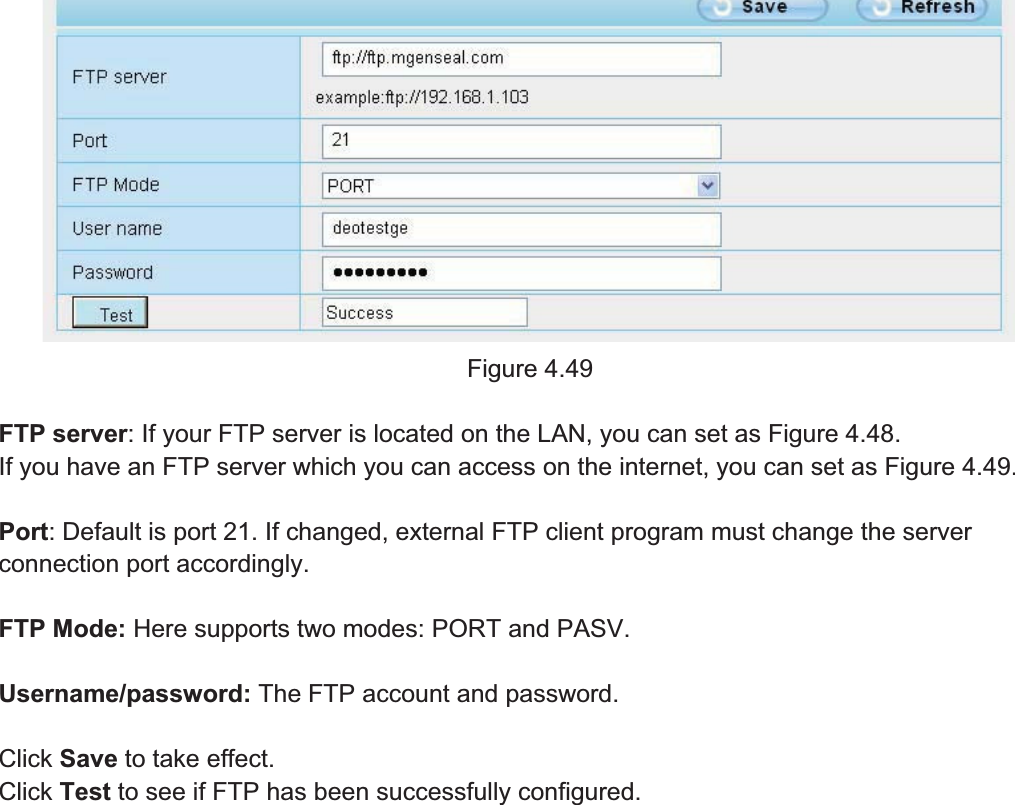
63wwww.foscam.coww.foscam.commShenzhenShenzhen FoscamFoscam IntelligentIntelligent TechnologyTechnology Co.,Co., LimitedLimitedTel:Tel: 8686 755755 26742674 56685668 Fax:Fax: 8686 755755 26742674 51685168 634.6 RecordOn this page you can change the manually recording storage path, the default storage path isC:\IPCamRecord.Figure 4.474.7Path SettingsIf you want to upload record images to your FTP serverˈyou can set FTP Settings.Figure 4.48
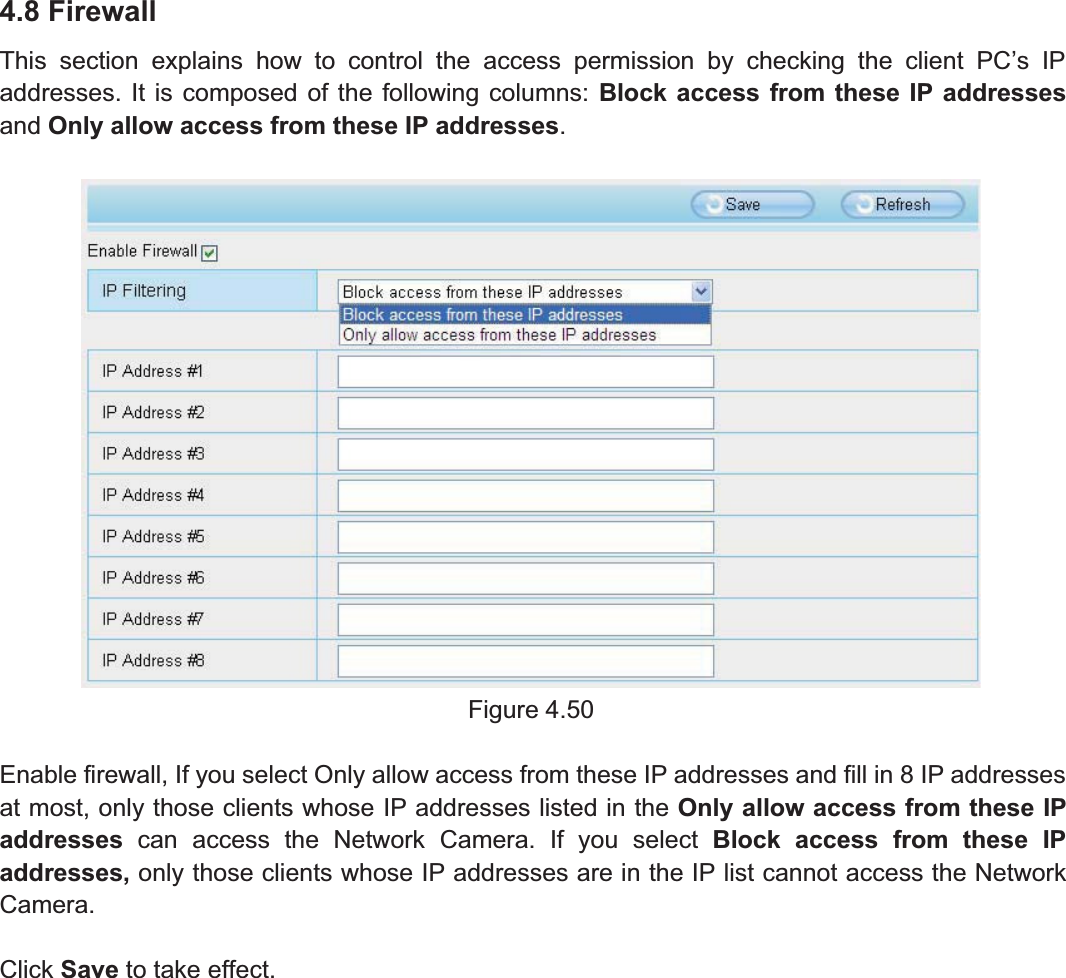
64wwww.foscam.coww.foscam.commShenzhenShenzhen FoscamFoscam IntelligentIntelligent TechnologyTechnology Co.,Co., LimitedLimitedTel:Tel: 8686 755755 26742674 56685668 Fax:Fax: 8686 755755 26742674 51685168 64Figure 4.49FTP server: If your FTP server is located on the LAN, you can set as Figure 4.48.If you have an FTP server which you can access on the internet, you can set as Figure 4.49.Port: Default is port 21. If changed, external FTP client program must change the serverconnection port accordingly.FTP Mode: Here supports two modes: PORT and PASV.Username/password: The FTP account and password.Click Save to take effect.Click Test to see if FTP has been successfully configured.
65wwww.foscam.coww.foscam.commShenzhenShenzhen FoscamFoscam IntelligentIntelligent TechnologyTechnology Co.,Co., LimitedLimitedTel:Tel: 8686 755755 26742674 56685668 Fax:Fax: 8686 755755 26742674 51685168 654.8 FirewallThis section explains how to control the access permission by checking the client PC’s IPaddresses. It is composed of the following columns: Block access from these IP addressesand Only allow access from these IP addresses.Figure 4.50Enable firewall, If you select Only allow access from these IP addresses and fill in 8 IP addressesat most, only those clients whose IP addresses listed in the Only allow access from these IPaddresses can access the Network Camera. If you select Block access from these IPaddresses, only those clients whose IP addresses are in the IP list cannot access the NetworkCamera.Click Save to take effect.
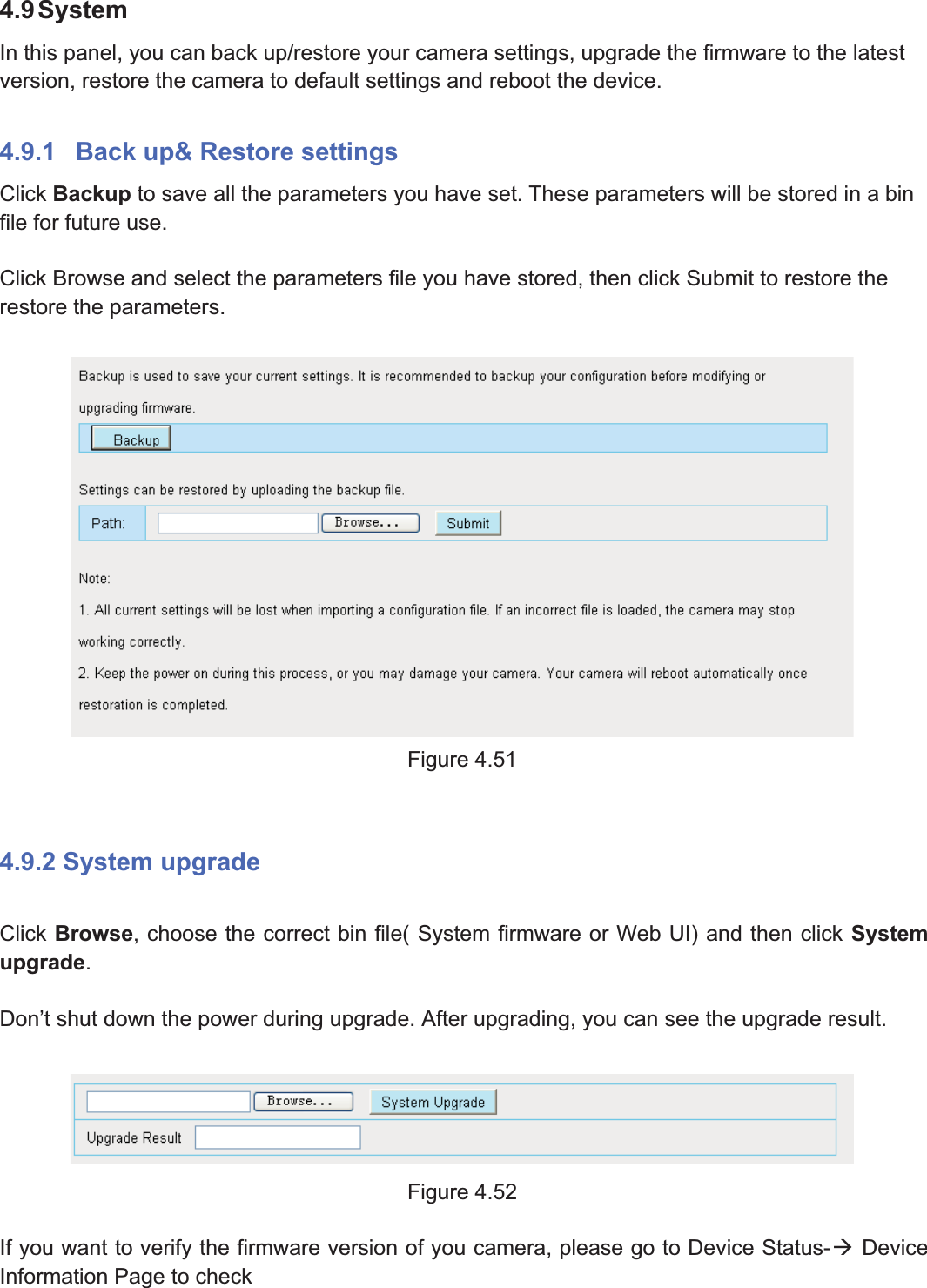
66wwww.foscam.coww.foscam.commShenzhenShenzhen FoscamFoscam IntelligentIntelligent TechnologyTechnology Co.,Co., LimitedLimitedTel:Tel: 8686 755755 26742674 56685668 Fax:Fax: 8686 755755 26742674 51685168 664.9SystemIn this panel, you can back up/restore your camera settings, upgrade the firmware to the latestversion, restore the camera to default settings and reboot the device.4.9.1 Back up& Restore settingsClick Backup to save all the parameters you have set. These parameters will be stored in a binfile for future use.Click Browse and select the parameters file you have stored, then click Submit to restore therestore the parameters.Figure 4.514.9.2 System upgradeClick Browse, choose the correct bin file( System firmware or Web UI) and then click Systemupgrade.Don’t shut down the power during upgrade. After upgrading, you can see the upgrade result.Figure 4.52If you want to verify the firmware version of you camera, please go to Device Status-ÆDeviceInformation Page to check
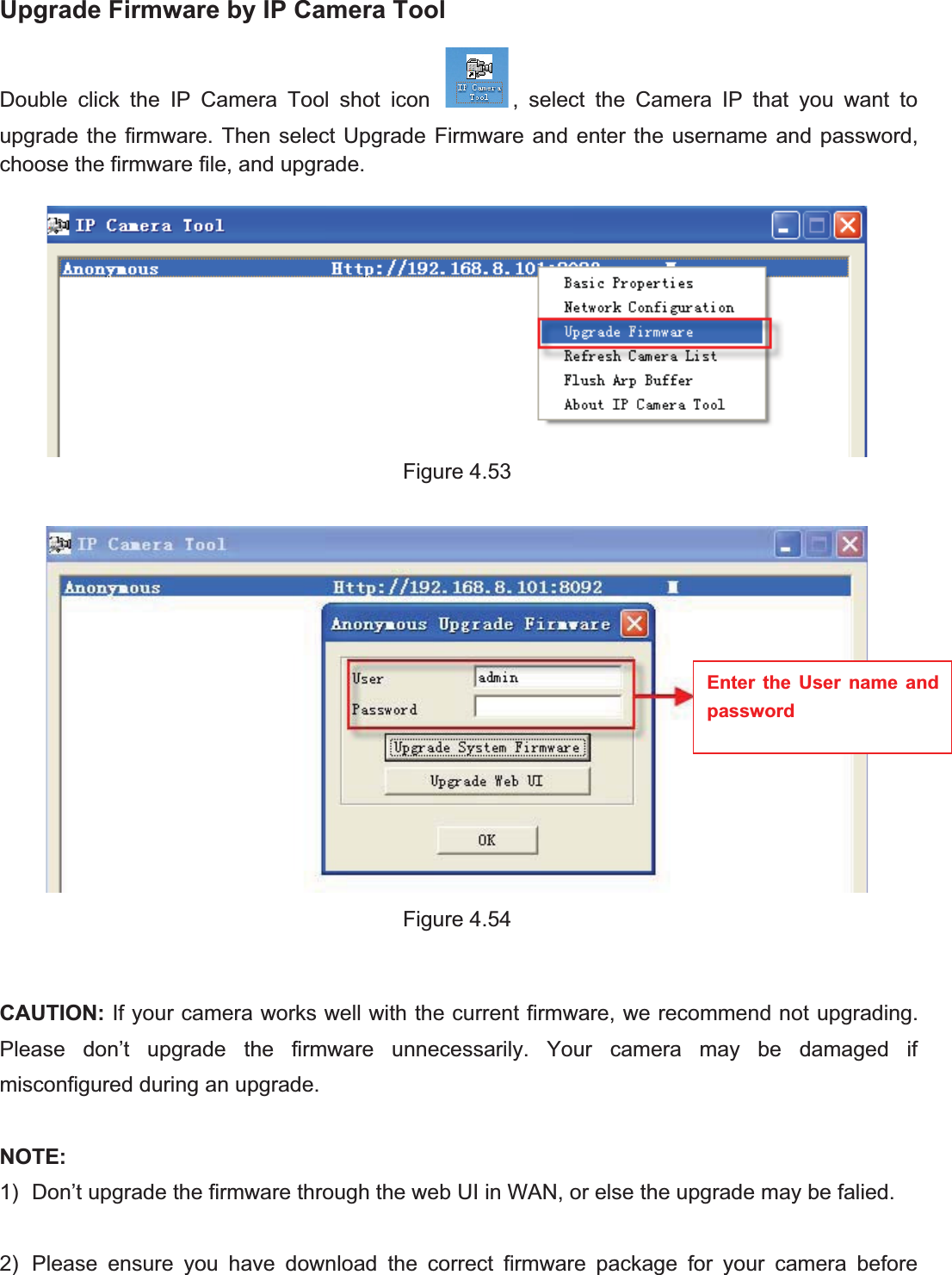
67wwww.foscam.coww.foscam.commShenzhenShenzhen FoscamFoscam IntelligentIntelligent TechnologyTechnology Co.,Co., LimitedLimitedTel:Tel: 8686 755755 26742674 56685668 Fax:Fax: 8686 755755 26742674 51685168 67Upgrade Firmware by IP Camera ToolDouble click the IP Camera Tool shot icon , select the Camera IP that you want toupgrade the firmware. Then select Upgrade Firmware and enter the username and password,choose the firmware file, and upgrade.Figure 4.53Figure 4.54CAUTION: If your camera works well with the current firmware, we recommend not upgrading.Please don’t upgrade the firmware unnecessarily. Your camera may be damaged ifmisconfigured during an upgrade.NOTE:1) Don’t upgrade the firmware through the web UI in WAN, or else the upgrade may be falied.2) Please ensure you have download the correct firmware package for your camera beforeEnter the User name andpassword
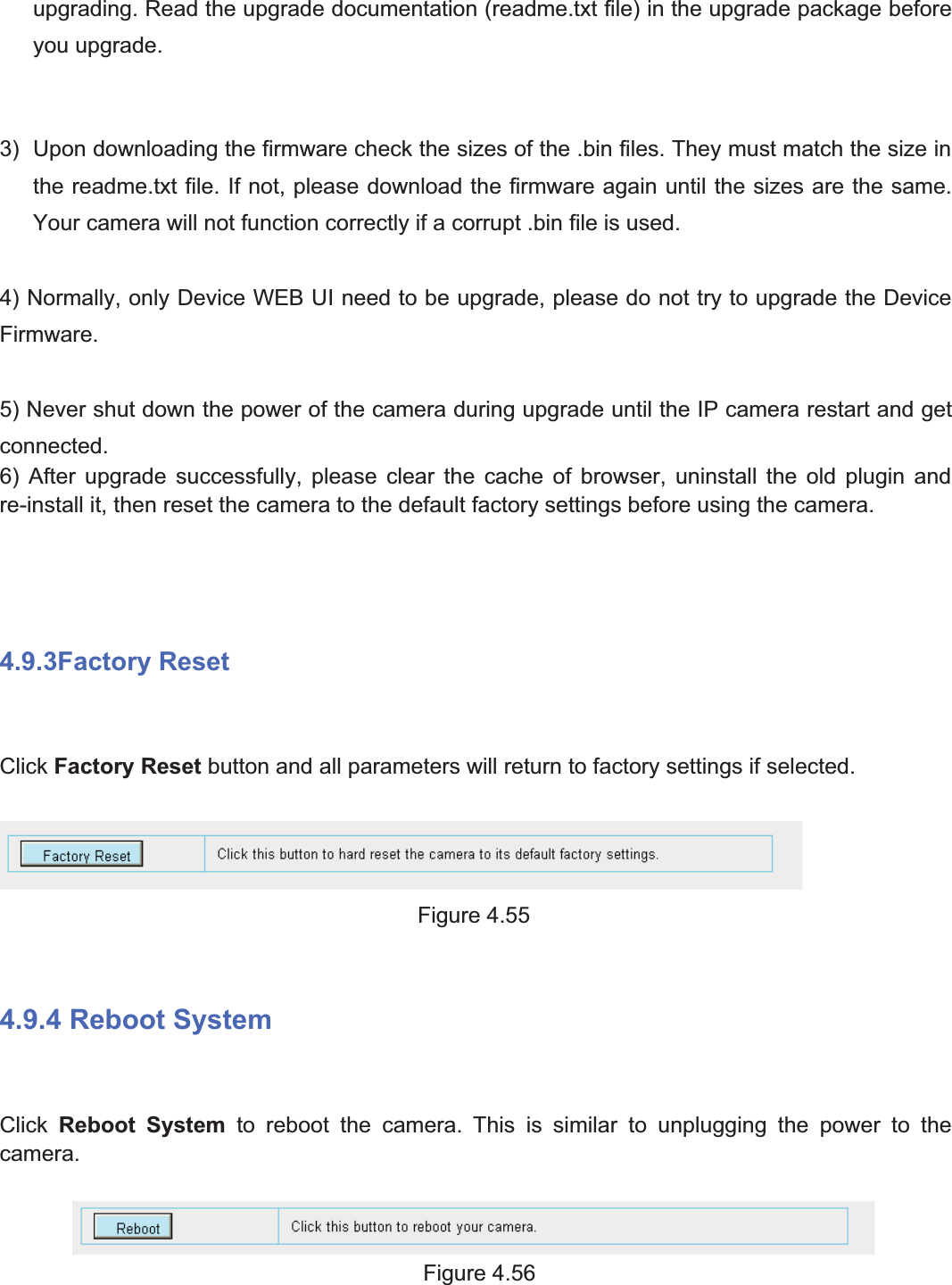
68wwww.foscam.coww.foscam.commShenzhenShenzhen FoscamFoscam IntelligentIntelligent TechnologyTechnology Co.,Co., LimitedLimitedTel:Tel: 8686 755755 26742674 56685668 Fax:Fax: 8686 755755 26742674 51685168 68upgrading. Read the upgrade documentation (readme.txt file) in the upgrade package beforeyou upgrade.3) Upon downloading the firmware check the sizes of the .bin files. They must match the size inthe readme.txt file. If not, please download the firmware again until the sizes are the same.Your camera will not function correctly if a corrupt .bin file is used.4) Normally, only Device WEB UI need to be upgrade, please do not try to upgrade the DeviceFirmware.5) Never shut down the power of the camera during upgrade until the IP camera restart and getconnected.6) After upgrade successfully, please clear the cache of browser, uninstall the old plugin andre-install it, then reset the camera to the default factory settings before using the camera.4.9.3Factory ResetClick Factory Reset button and all parameters will return to factory settings if selected.Figure 4.554.9.4 Reboot SystemClick Reboot System to reboot the camera. This is similar to unplugging the power to thecamera.Figure 4.56
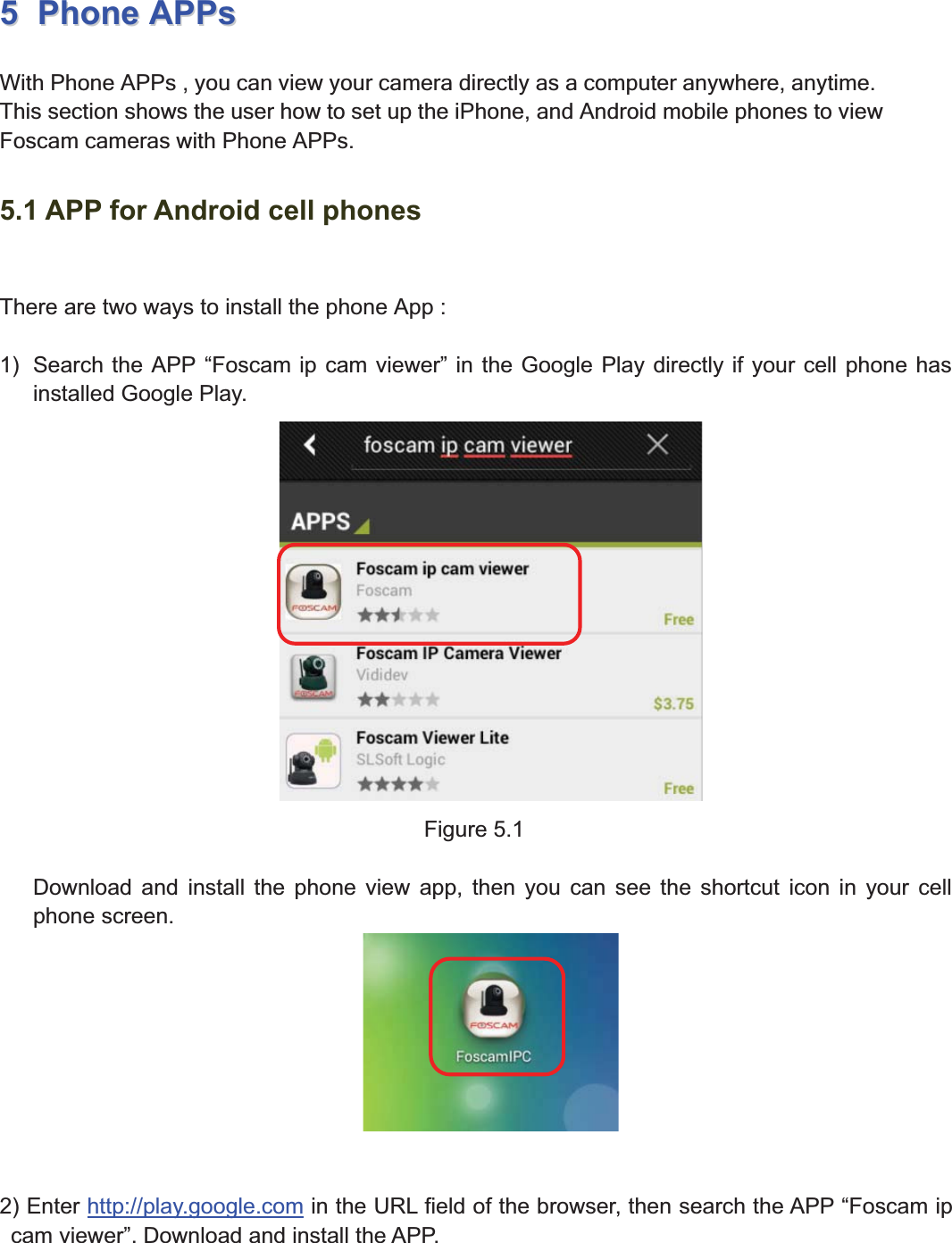
69wwww.foscam.coww.foscam.commShenzhenShenzhen FoscamFoscam IntelligentIntelligent TechnologyTechnology Co.,Co., LimitedLimitedTel:Tel: 8686 755755 26742674 56685668 Fax:Fax: 8686 755755 26742674 51685168 6955PhonePhone APPsAPPsWith Phone APPs , you can view your camera directly as a computer anywhere, anytime.This section shows the user how to set up the iPhone, and Android mobile phones to viewFoscam cameras with Phone APPs.5.1 APP for Android cell phonesThere are two ways to install the phone App :1) Search the APP “Foscam ip cam viewer” in the Google Play directly if your cell phone hasinstalled Google Play.Figure 5.1Download and install the phone view app, then you can see the shortcut icon in your cellphone screen.2) Enter http://play.google.com in the URL field of the browser, then search the APP “Foscam ipcam viewer”. Download and install the APP.
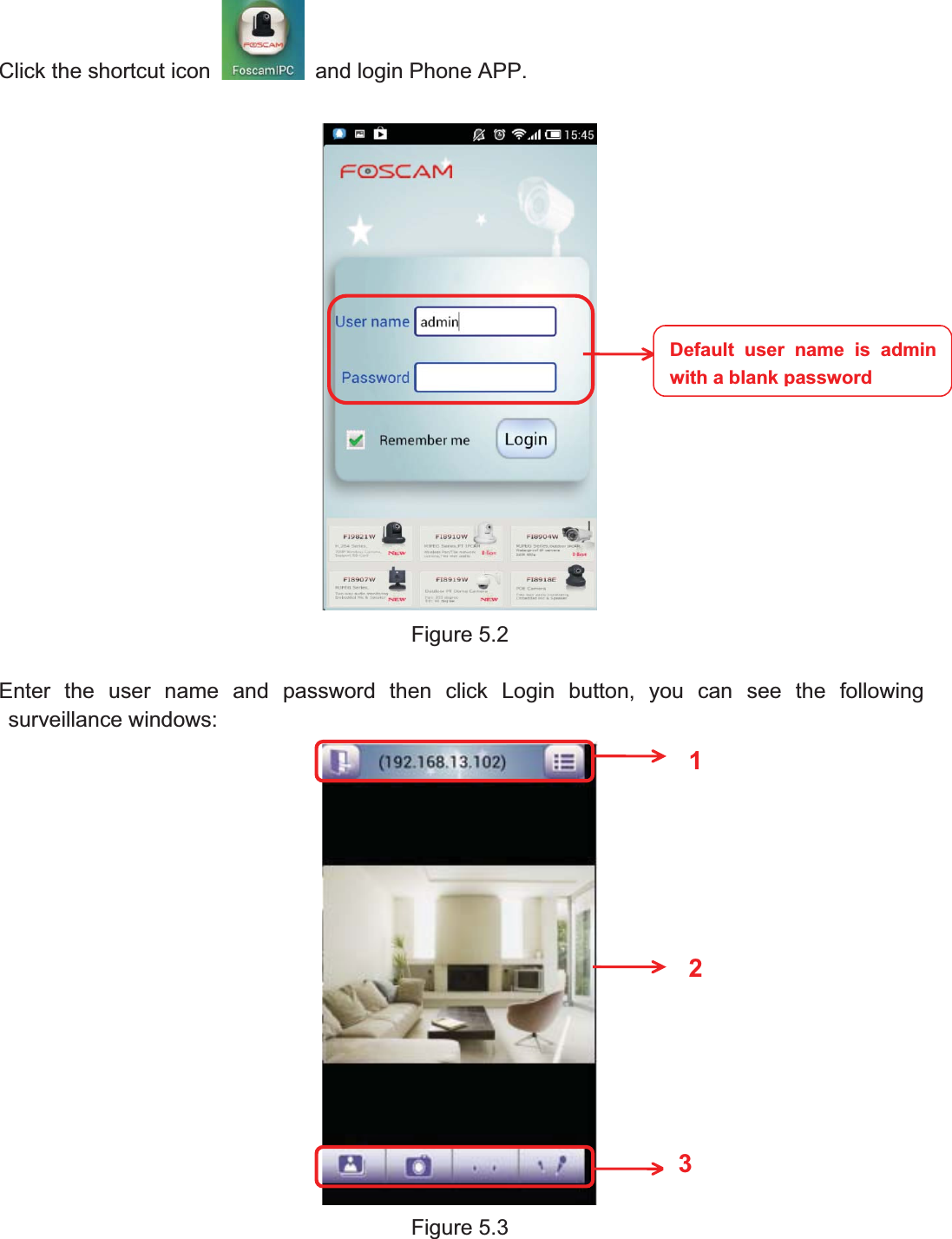
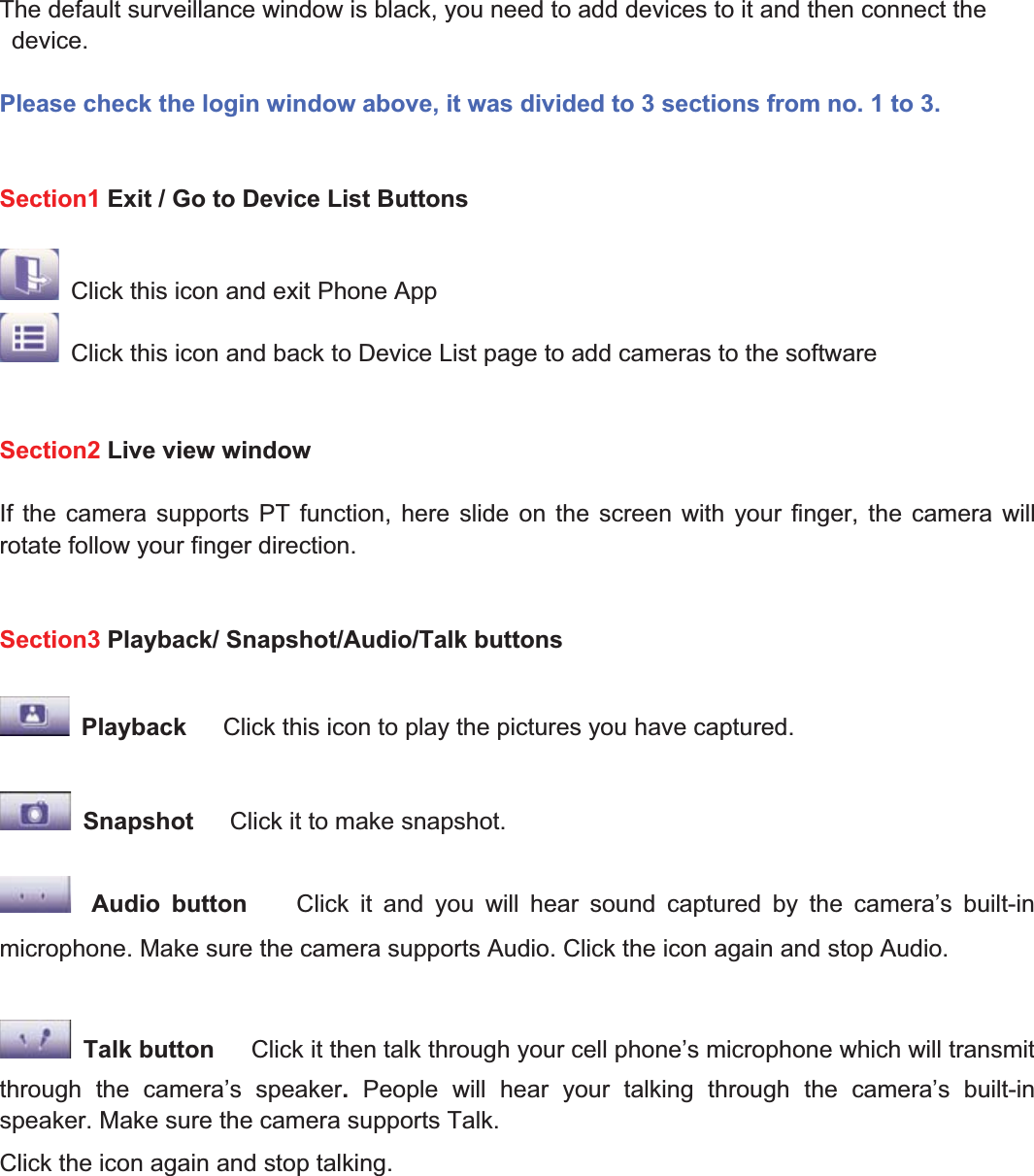
70wwww.foscam.coww.foscam.commShenzhenShenzhen FoscamFoscam IntelligentIntelligent TechnologyTechnology Co.,Co., LimitedLimitedTel:Tel: 8686 755755 26742674 56685668 Fax:Fax: 8686 755755 26742674 51685168 70Click the shortcut icon and login Phone APP.Figure 5.2Enter the user name and password then click Login button, you can see the followingsurveillance windows:Figure 5.3Default user name is adminwith a blankpassword123
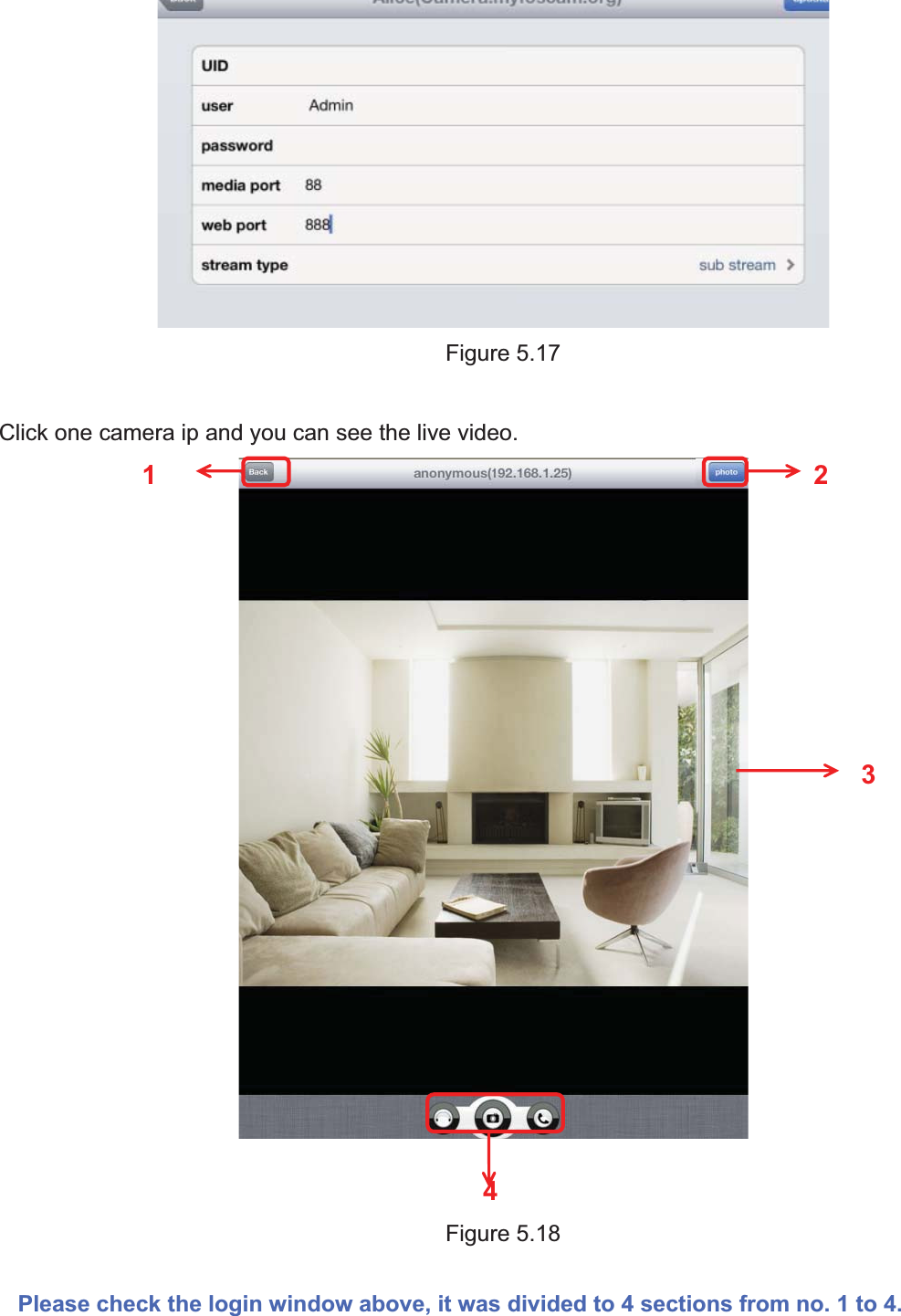
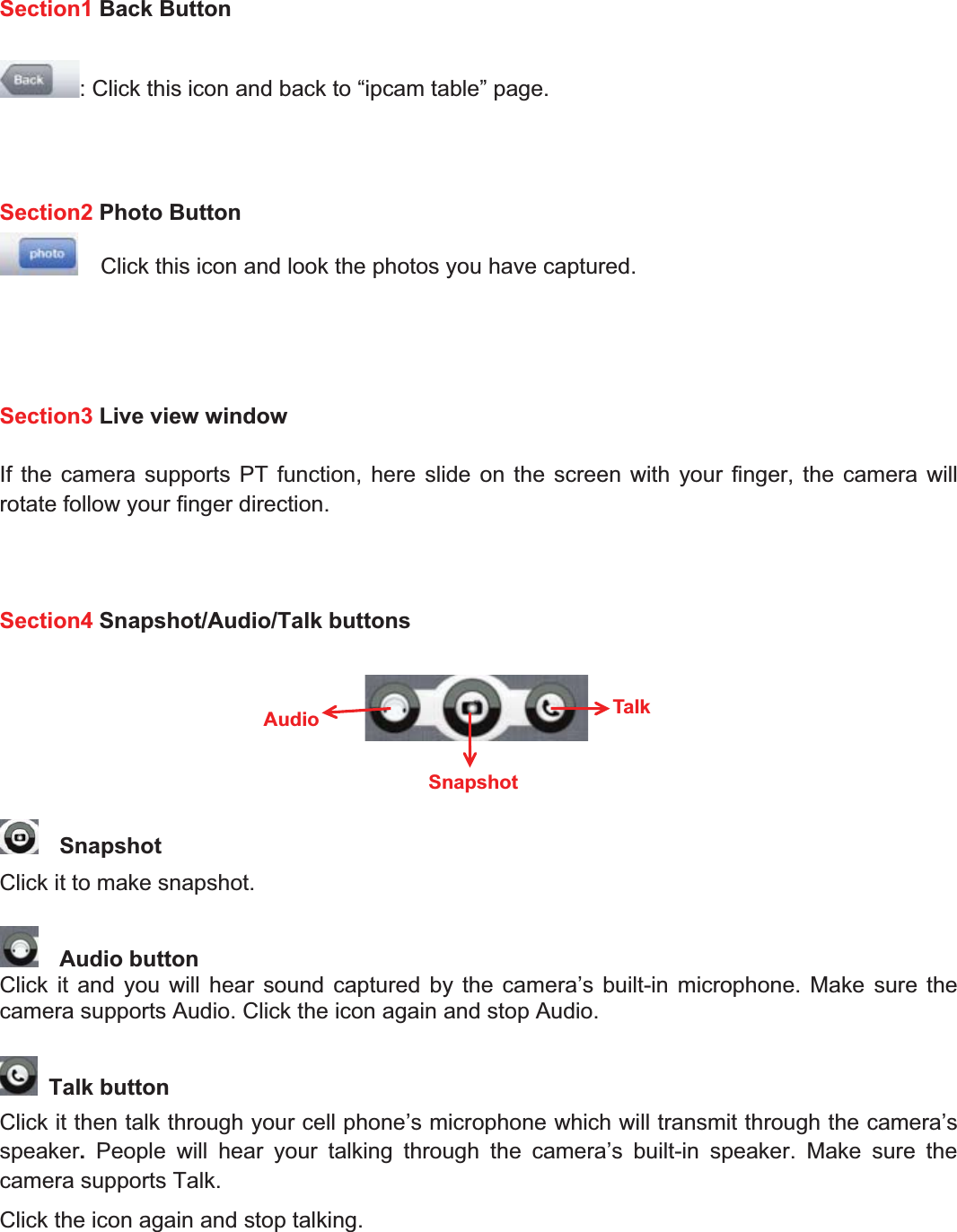
71wwww.foscam.coww.foscam.commShenzhenShenzhen FoscamFoscam IntelligentIntelligent TechnologyTechnology Co.,Co., LimitedLimitedTel:Tel: 8686 755755 26742674 56685668 Fax:Fax: 8686 755755 26742674 51685168 71The default surveillance window is black, you need to add devices to it and then connect thedevice.Please check the login window above, it was divided to 3 sections from no. 1 to 3.Section1 Exit / Go to Device List ButtonsClick this icon and exit Phone AppClick this icon and back to Device List page to add cameras to the softwareSection2 Live view windowIf the camera supports PT function, here slide on the screen with your finger, the camera willrotate follow your finger direction.Section3 Playback/ Snapshot/Audio/Talk buttonsPlayback Click this icon to play the pictures you have captured.Snapshot Click it to make snapshot.Audio button Click it and you will hear sound captured by the camera’s built-inmicrophone. Make sure the camera supports Audio. Click the icon again and stop Audio.Talk button Click it then talk through your cell phone’s microphone which will transmitthrough the camera’s speaker.People will hear your talking through the camera’s built-inspeaker. Make sure the camera supports Talk.Click the icon again and stop talking.
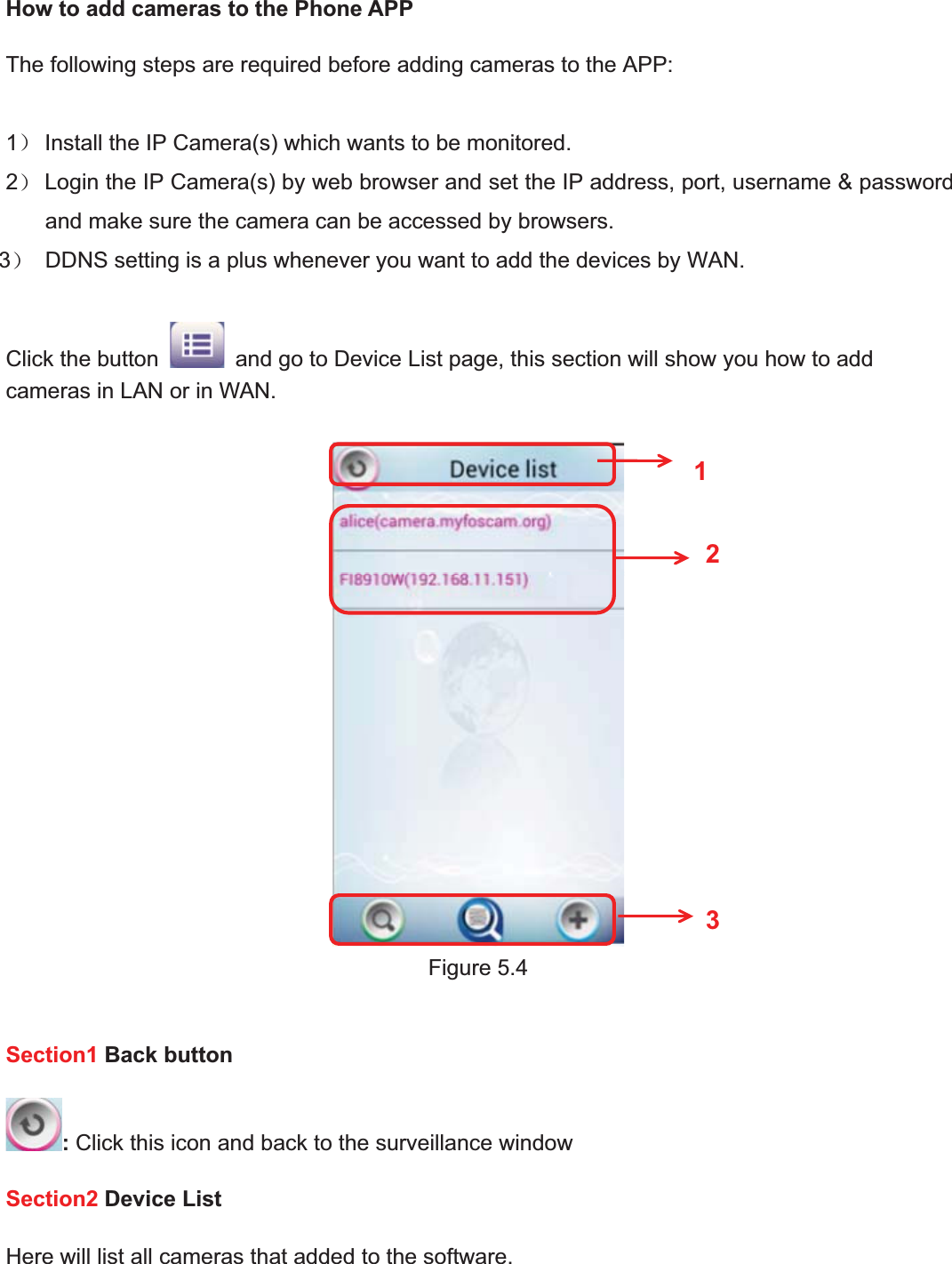
72wwww.foscam.coww.foscam.commShenzhenShenzhen FoscamFoscam IntelligentIntelligent TechnologyTechnology Co.,Co., LimitedLimitedTel:Tel: 8686 755755 26742674 56685668 Fax:Fax: 8686 755755 26742674 51685168 72How to add cameras to the Phone APPThe following steps are required before adding cameras to the APP:1˅Install the IP Camera(s) which wants to be monitored.2˅Login the IP Camera(s) by web browser and set the IP address, port, username & passwordand make sure the camera can be accessed by browsers.3˅DDNS setting is a plus whenever you want to add the devices by WAN.Click the button and go to Device List page, this section will show you how to addcameras in LAN or in WAN.Figure 5.4Section1 Back button:Click this icon and back to the surveillance windowSection2 Device ListHere will list all cameras that added to the software.123
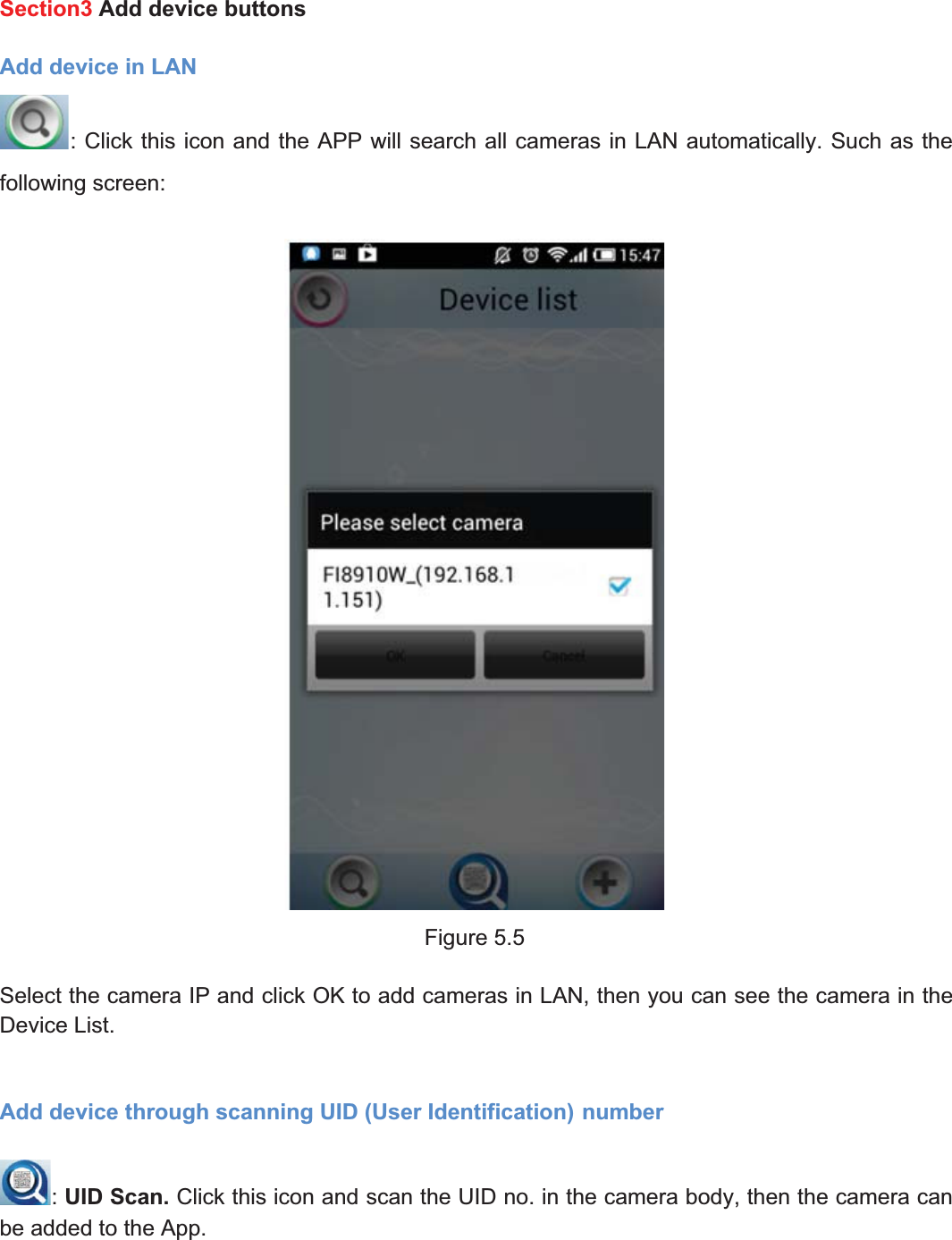
73wwww.foscam.coww.foscam.commShenzhenShenzhen FoscamFoscam IntelligentIntelligent TechnologyTechnology Co.,Co., LimitedLimitedTel:Tel: 8686 755755 26742674 56685668 Fax:Fax: 8686 755755 26742674 51685168 73Section3 Add device buttonsAdd device in LAN: Click this icon and the APP will search all cameras in LAN automatically. Such as thefollowing screen:Figure 5.5Select the camera IP and click OK to add cameras in LAN, then you can see the camera in theDevice List.Add device through scanning UID (User Identification) number:UID Scan. Click this icon and scan the UID no. in the camera body, then the camera canbe added to the App.
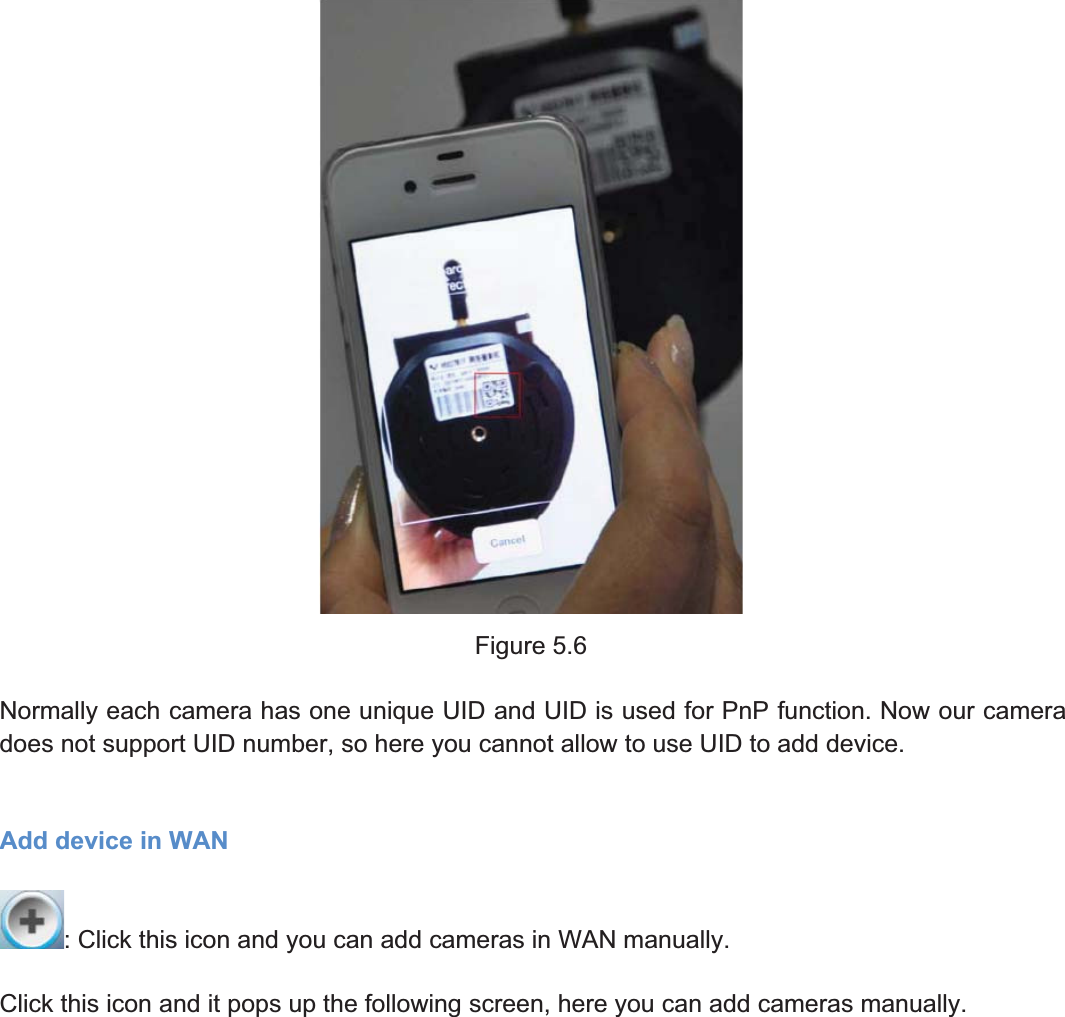
74wwww.foscam.coww.foscam.commShenzhenShenzhen FoscamFoscam IntelligentIntelligent TechnologyTechnology Co.,Co., LimitedLimitedTel:Tel: 8686 755755 26742674 56685668 Fax:Fax: 8686 755755 26742674 51685168 74Figure 5.6Normally each camera has one unique UID and UID is used for PnP function. Now our cameradoes not support UID number, so here you cannot allow to use UID to add device.Add device in WAN: Click this icon and you can add cameras in WAN manually.Click this icon and it pops up the following screen, here you can add cameras manually.
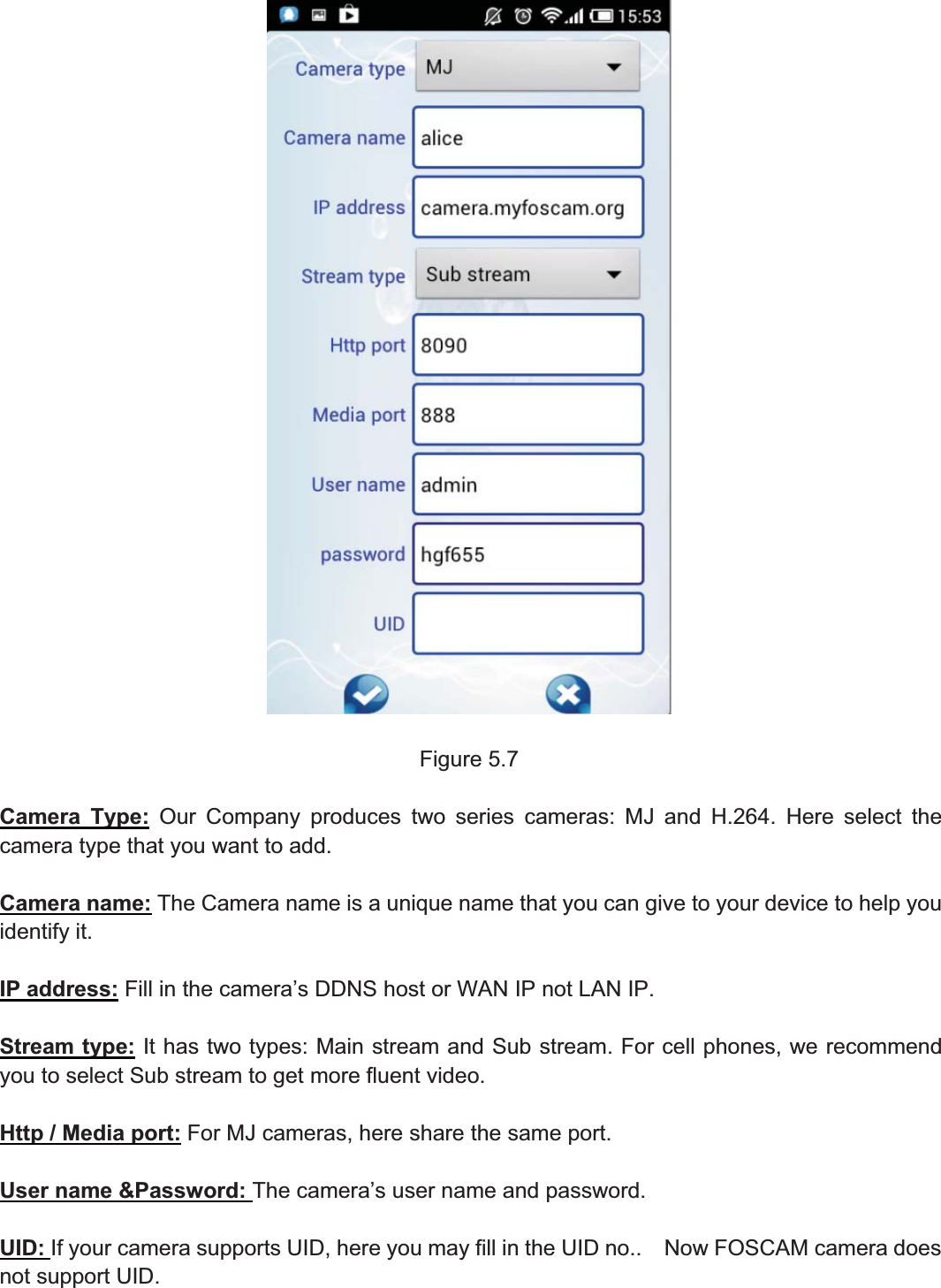
75wwww.foscam.coww.foscam.commShenzhenShenzhen FoscamFoscam IntelligentIntelligent TechnologyTechnology Co.,Co., LimitedLimitedTel:Tel: 8686 755755 26742674 56685668 Fax:Fax: 8686 755755 26742674 51685168 75Figure 5.7Camera Type: Our Company produces two series cameras: MJ and H.264. Here select thecamera type that you want to add.Camera name: The Camera name is a unique name that you can give to your device to help youidentify it.IP address: Fill in the camera’s DDNS host or WAN IP not LAN IP.Stream type: It has two types: Main stream and Sub stream. For cell phones, we recommendyou to select Sub stream to get more fluent video.Http / Media port: For MJ cameras, here share the same port.User name &Password: The camera’s user name and password.UID: If your camera supports UID, here you may fill in the UID no.. Now FOSCAM camera doesnot support UID.
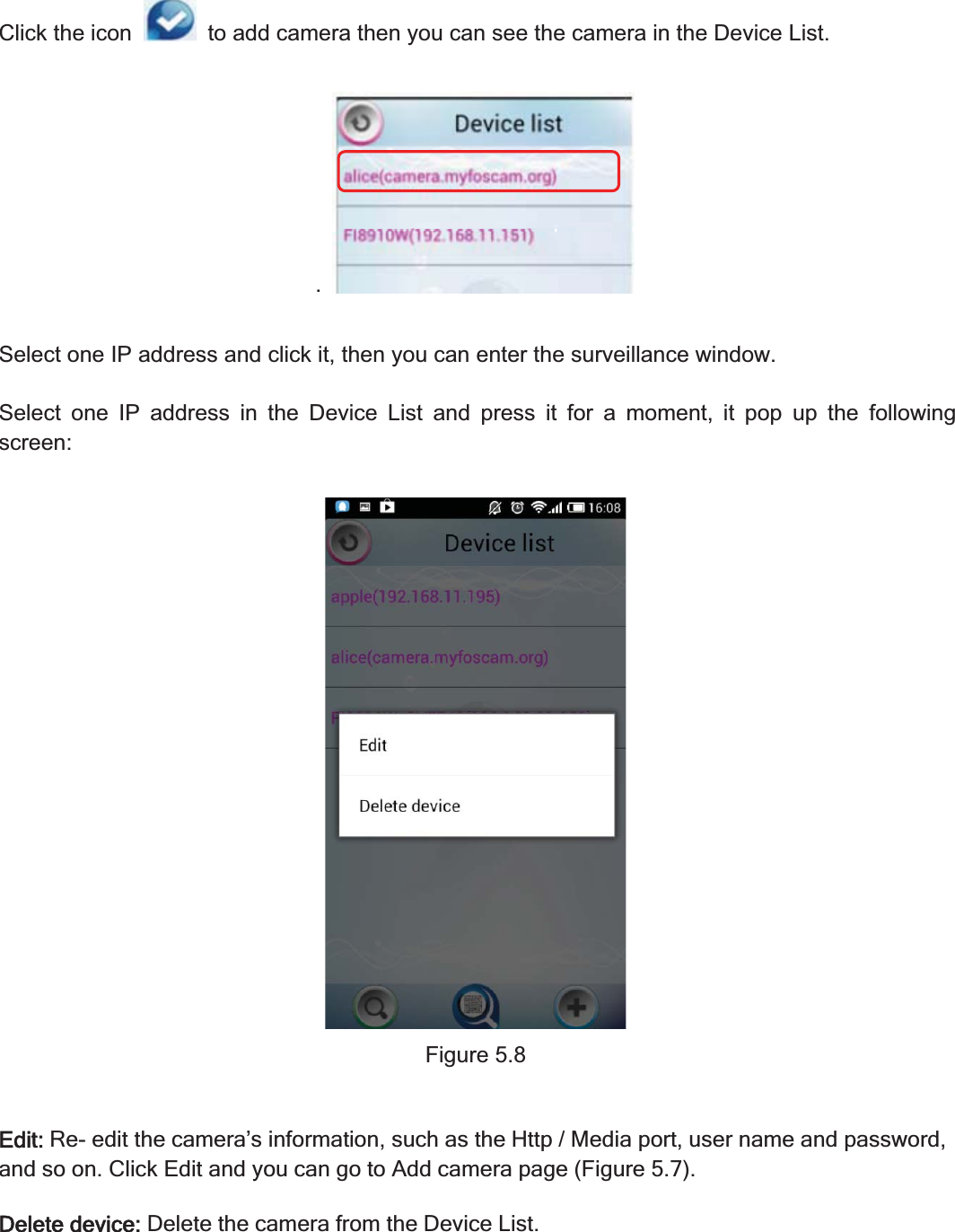
76wwww.foscam.coww.foscam.commShenzhenShenzhen FoscamFoscam IntelligentIntelligent TechnologyTechnology Co.,Co., LimitedLimitedTel:Tel: 8686 755755 26742674 56685668 Fax:Fax: 8686 755755 26742674 51685168 76Click the icon to add camera then you can see the camera in the Device List..Select one IP address and click it, then you can enter the surveillance window.Select one IP address in the Device List and press it for a moment, it pop up the followingscreen:Figure 5.8Edit:Re- edit the camera’s information, such as the Http / Media port, user name and password,and so on. Click Edit and you can go to Add camera page (Figure 5.7).Delete device:Delete the camera from the Device List.
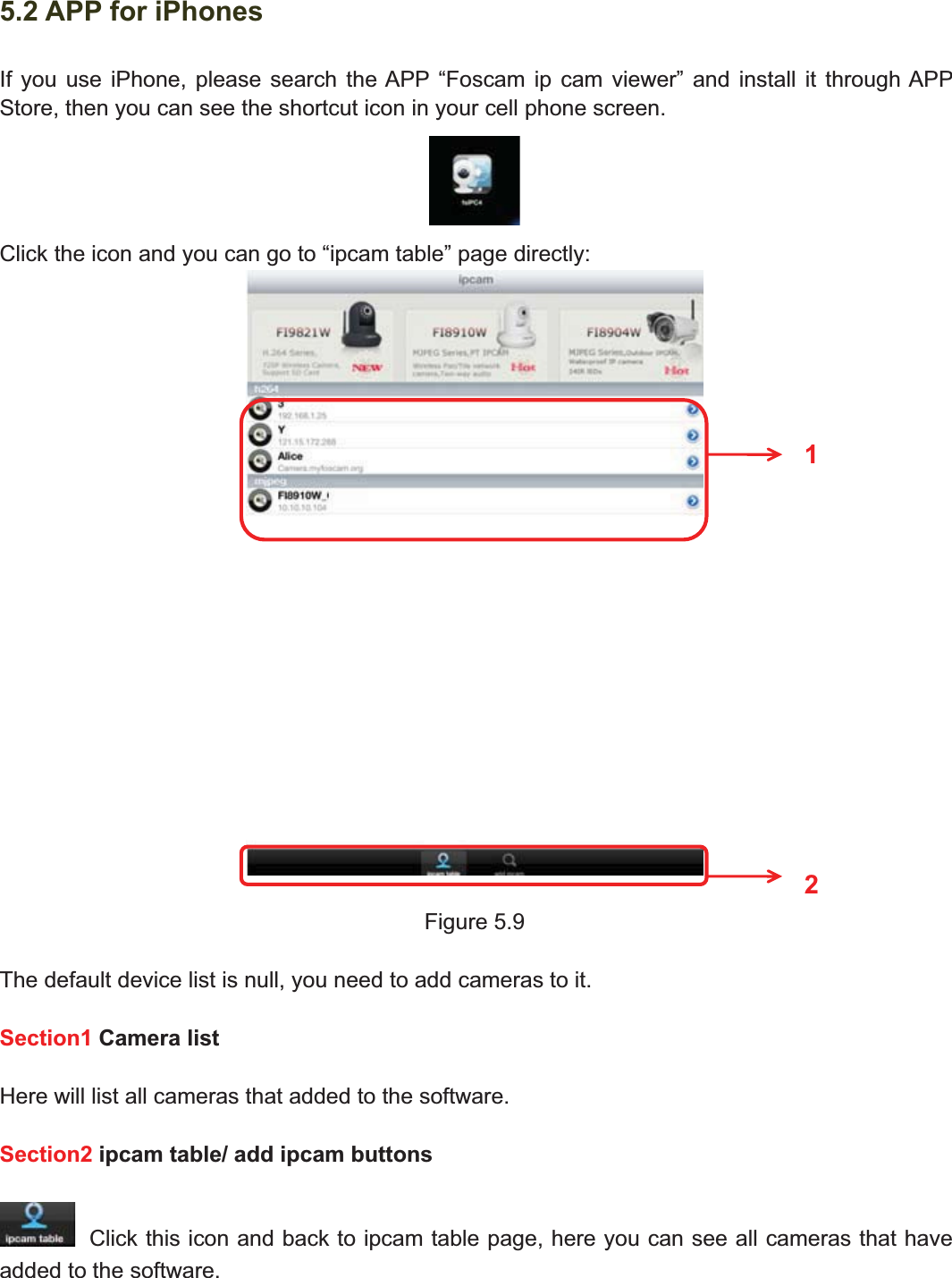
77wwww.foscam.coww.foscam.commShenzhenShenzhen FoscamFoscam IntelligentIntelligent TechnologyTechnology Co.,Co., LimitedLimitedTel:Tel: 8686 755755 26742674 56685668 Fax:Fax: 8686 755755 26742674 51685168 775.2 APP for iPhonesIf you use iPhone, please search the APP “Foscam ip cam viewer” and install it through APPStore, then you can see the shortcut icon in your cell phone screen.Click the icon and you can go to “ipcam table” page directly:Figure 5.9The default device list is null, you need to add cameras to it.Section1 Camera listHere will list all cameras that added to the software.Section2 ipcam table/ add ipcam buttonsClick this icon and back to ipcam table page, here you can see all cameras that haveadded to the software.12
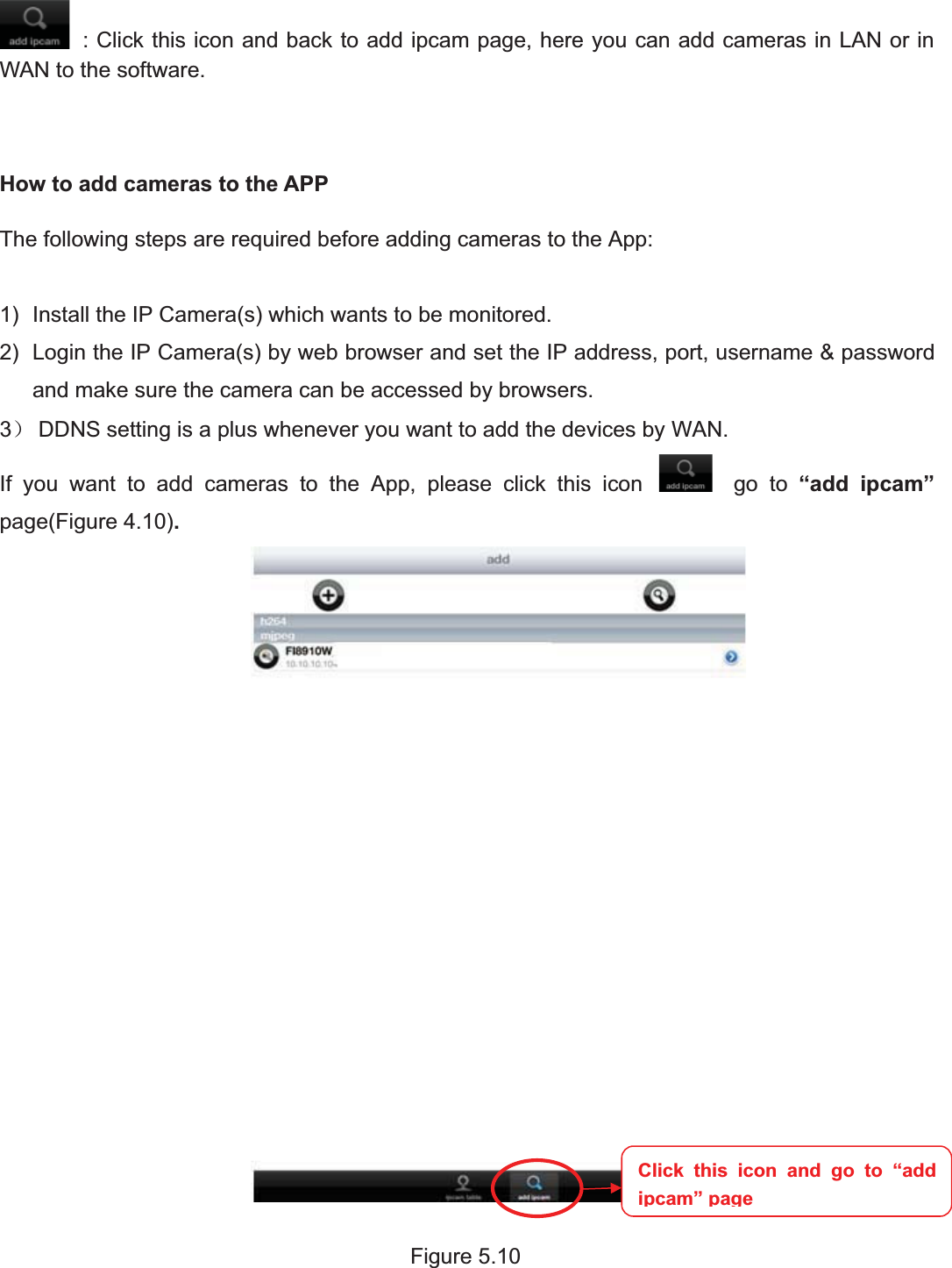
78wwww.foscam.coww.foscam.commShenzhenShenzhen FoscamFoscam IntelligentIntelligent TechnologyTechnology Co.,Co., LimitedLimitedTel:Tel: 8686 755755 26742674 56685668 Fax:Fax: 8686 755755 26742674 51685168 78: Click this icon and back to add ipcam page, here you can add cameras in LAN or inWAN to the software.How to add cameras to the APPThe following steps are required before adding cameras to the App:1) Install the IP Camera(s) which wants to be monitored.2) Login the IP Camera(s) by web browser and set the IP address, port, username & passwordand make sure the camera can be accessed by browsers.3˅DDNS setting is a plus whenever you want to add the devices by WAN.If you want to add cameras to the App, please click this icon go to “add ipcam”page(Figure 4.10).Figure 5.10Click this icon and go to “addipcam”page
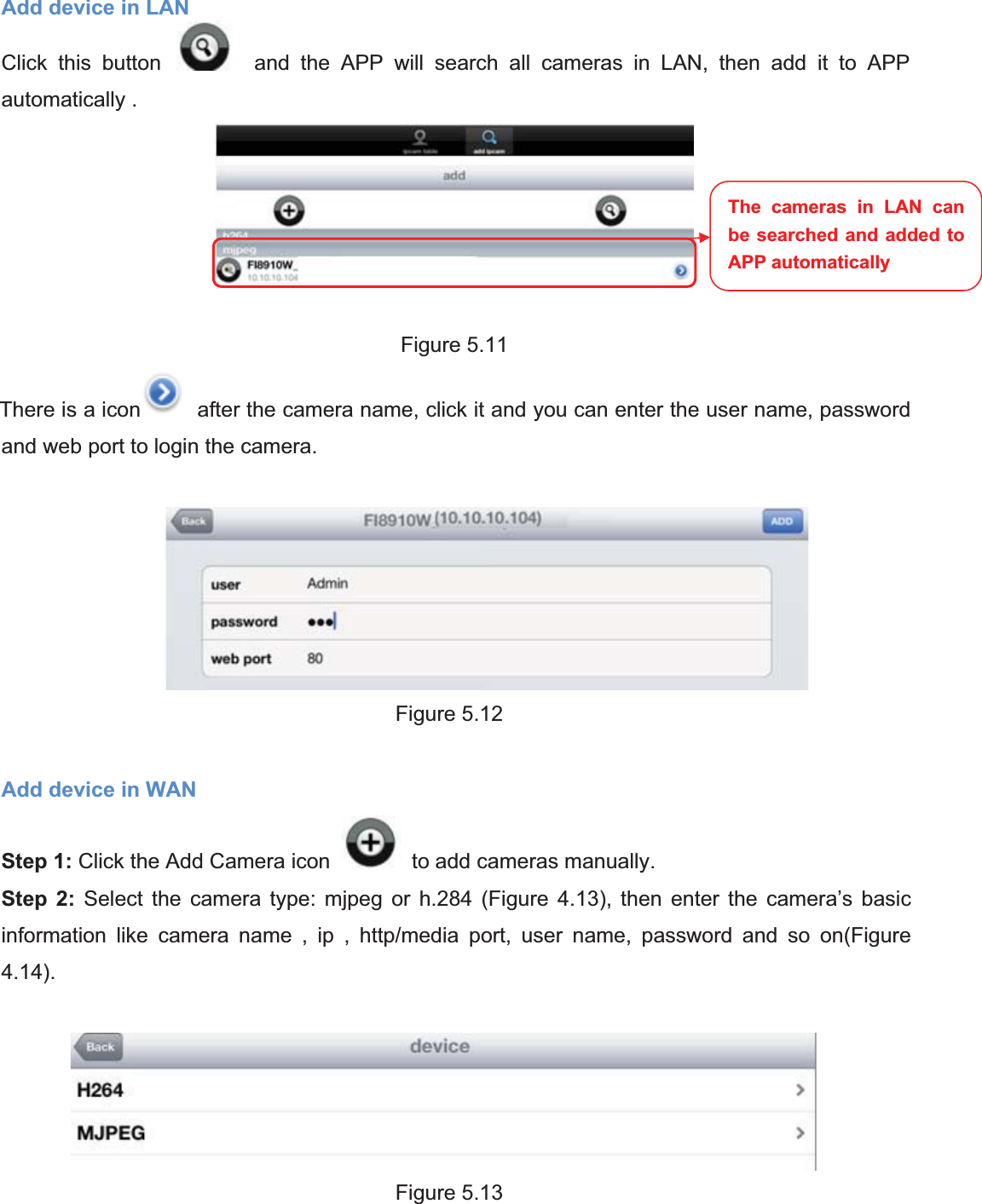
79wwww.foscam.coww.foscam.commShenzhenShenzhen FoscamFoscam IntelligentIntelligent TechnologyTechnology Co.,Co., LimitedLimitedTel:Tel: 8686 755755 26742674 56685668 Fax:Fax: 8686 755755 26742674 51685168 79Add device in LANClick this button and the APP will search all cameras in LAN, then add it to APPautomatically .Figure 5.11There is a icon after the camera name, click it and you can enter the user name, passwordand web port to login the camera.Figure 5.12Add device in WANStep 1: Click the Add Camera icon to add cameras manually.Step 2: Select the camera type: mjpeg or h.284 (Figure 4.13), then enter the camera’s basicinformation like camera name , ip , http/media port, user name, password and so on(Figure4.14).Figure 5.13The cameras in LAN canbe searched and added toAPP automatically
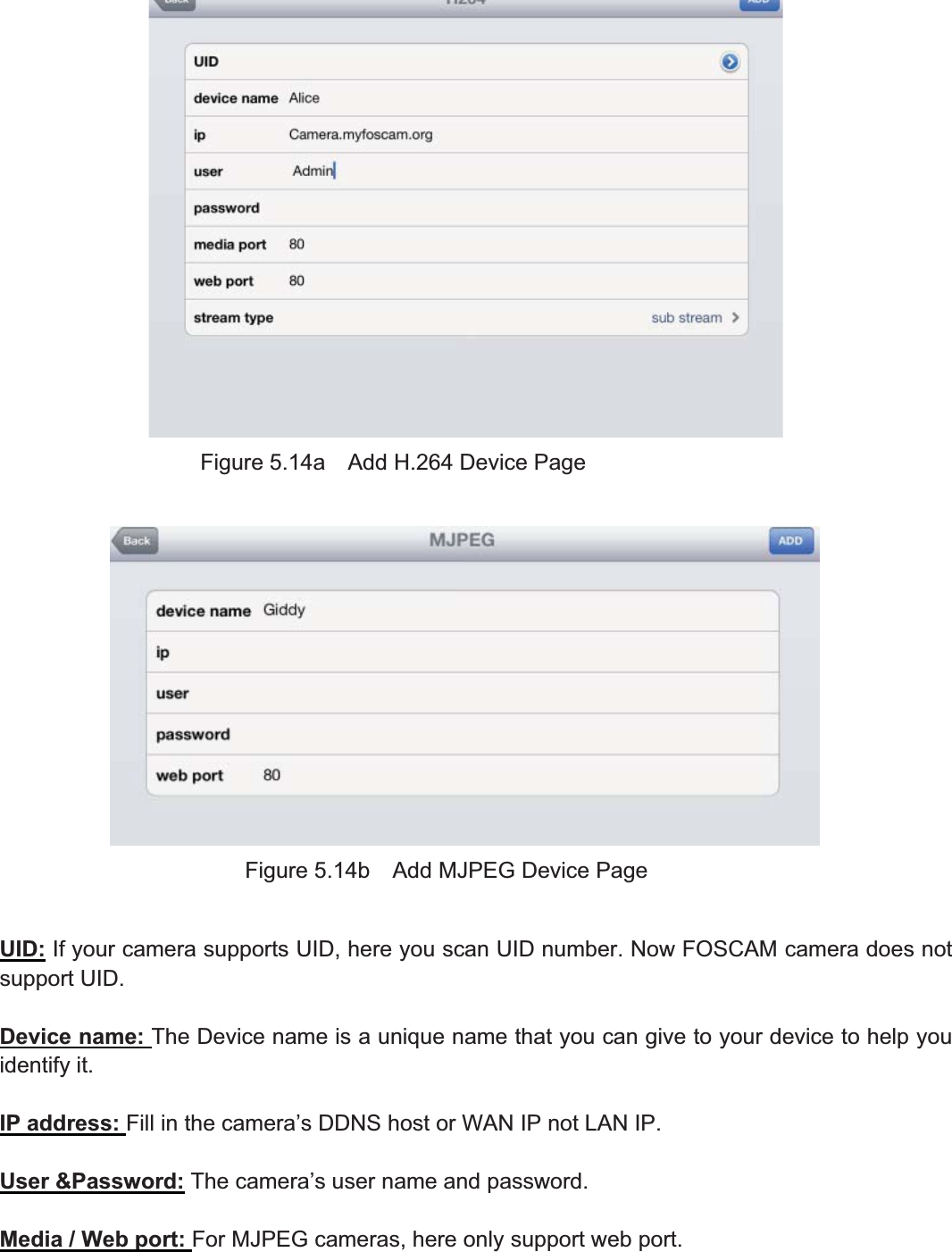
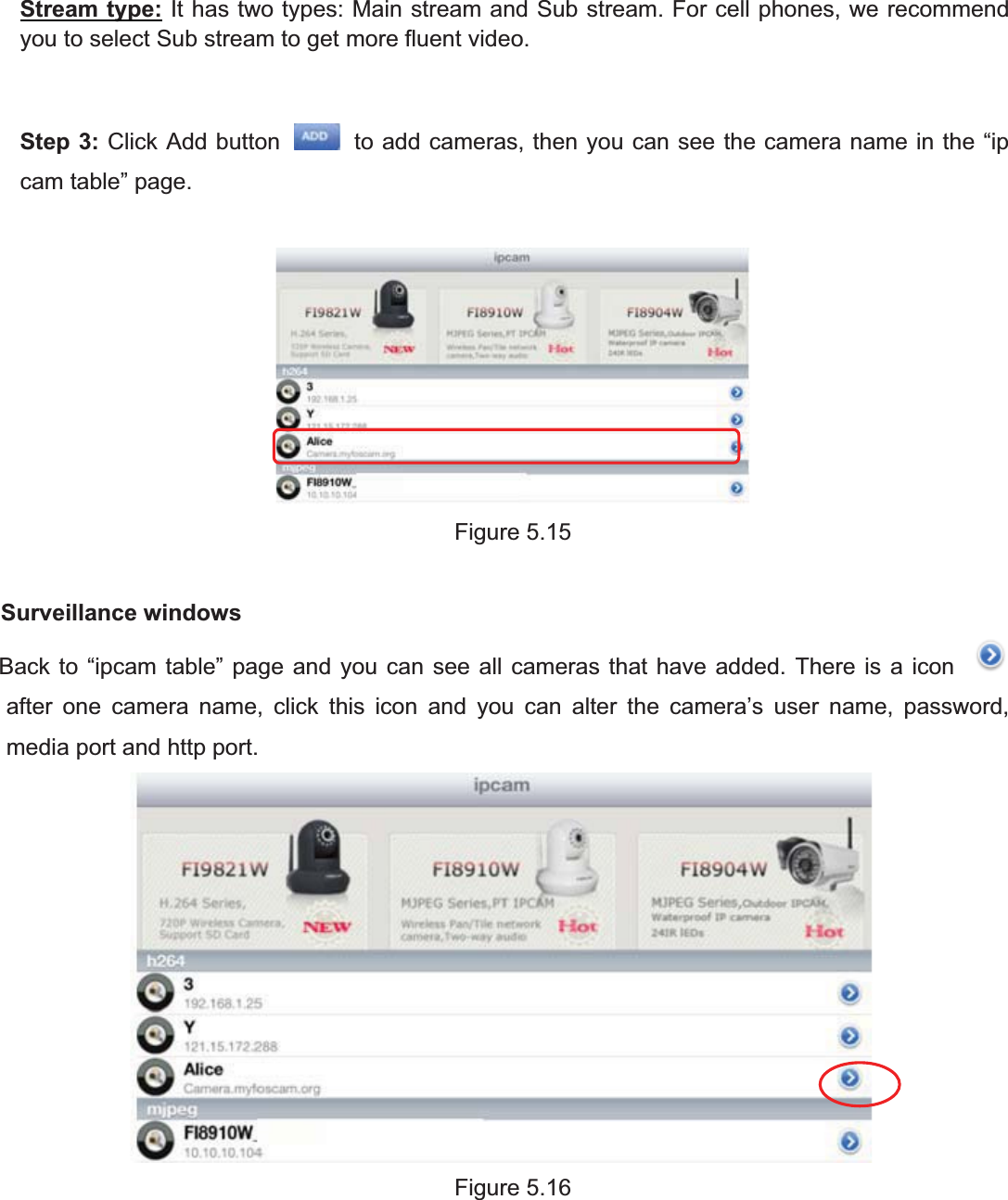
80wwww.foscam.coww.foscam.commShenzhenShenzhen FoscamFoscam IntelligentIntelligent TechnologyTechnology Co.,Co., LimitedLimitedTel:Tel: 8686 755755 26742674 56685668 Fax:Fax: 8686 755755 26742674 51685168 80Figure 5.14a Add H.264 Device PageFigure 5.14b Add MJPEG Device PageUID: If your camera supports UID, here you scan UID number. Now FOSCAM camera does notsupport UID.Device name: The Device name is a unique name that you can give to your device to help youidentify it.IP address: Fill in the camera’s DDNS host or WAN IP not LAN IP.User &Password: The camera’s user name and password.Media / Web port: For MJPEG cameras, here only support web port.
81wwww.foscam.coww.foscam.commShenzhenShenzhen FoscamFoscam IntelligentIntelligent TechnologyTechnology Co.,Co., LimitedLimitedTel:Tel: 8686 755755 26742674 56685668 Fax:Fax: 8686 755755 26742674 51685168 81Stream type: It has two types: Main stream and Sub stream. For cell phones, we recommendyou to select Sub stream to get more fluent video.Step 3: Click Add button to add cameras, then you can see the camera name in the “ipcam table” page.Figure 5.15Surveillance windowsBack to “ipcam table” page and you can see all cameras that have added. There is a iconafter one camera name, click this icon and you can alter the camera’s user name, password,media port and http port.Figure 5.16
82wwww.foscam.coww.foscam.commShenzhenShenzhen FoscamFoscam IntelligentIntelligent TechnologyTechnology Co.,Co., LimitedLimitedTel:Tel: 8686 755755 26742674 56685668 Fax:Fax: 8686 755755 26742674 51685168 82Figure 5.17Click one camera ip and you can see the live video.Figure 5.18Please check the login window above, it was divided to 4 sections from no. 1 to 4.1234
83wwww.foscam.coww.foscam.commShenzhenShenzhen FoscamFoscam IntelligentIntelligent TechnologyTechnology Co.,Co., LimitedLimitedTel:Tel: 8686 755755 26742674 56685668 Fax:Fax: 8686 755755 26742674 51685168 83Section1 Back Button: Click this icon and back to “ipcam table” page.Section2 Photo ButtonClick this icon and look the photos you have captured.Section3 Live view windowIf the camera supports PT function, here slide on the screen with your finger, the camera willrotate follow your finger direction.Section4 Snapshot/Audio/Talk buttonsSnapshotClick it to make snapshot.Audio buttonClick it and you will hear sound captured by the camera’s built-in microphone. Make sure thecamera supports Audio. Click the icon again and stop Audio.Talk buttonClick it then talk through your cell phone’s microphone which will transmit through the camera’sspeaker.People will hear your talking through the camera’s built-in speaker. Make sure thecamera supports Talk.Click the icon again and stop talking.TalkSnapshotAudio
84wwww.foscam.coww.foscam.commShenzhenShenzhen FoscamFoscam IntelligentIntelligent TechnologyTechnology Co.,Co., LimitedLimitedTel:Tel: 8686 755755 26742674 56685668 Fax:Fax: 8686 755755 26742674 51685168 8466APPENDIXAPPENDIX6.1 Frequently Asked QuestionsNOTE: Any questions you would meet, please check Network connections firstly. Check theworking status revealed by the indicators on the network server, hub, exchange and networkcard. If abnormal, check the network connections.6.1.1 How to download and installl the ActiveX for Firefox usersFor the first time login the camera, it may prompt you to download plugin.Figure 6.1Drag the download file to Firefox web page and it will prompt you to Install it.Click here to downloadtheplugin
85wwww.foscam.coww.foscam.commShenzhenShenzhen FoscamFoscam IntelligentIntelligent TechnologyTechnology Co.,Co., LimitedLimitedTel:Tel: 8686 755755 26742674 56685668 Fax:Fax: 8686 755755 26742674 51685168 85Figure 6.2Reboot the Firefox after the plugin installation is successfully completely, then relogin the cameraagain, you can see the surveillance windowNOTE: If you could not view living video after running the ActiveX, only a red cross in thecenter of the video or just a black screen. Please change another port number to try.Make sure all firewall or antivirus software on your computer does not block the active downloadand installation. If you are unable to run the ActiveX control, try shutting down the firewall orantivirus program.6.1.2 How to download and installl the ActiveX for Google Chrome usersFor the first time login the camera, it will prompt you to download the ActiveX..Click Install Now
86wwww.foscam.coww.foscam.commShenzhenShenzhen FoscamFoscam IntelligentIntelligent TechnologyTechnology Co.,Co., LimitedLimitedTel:Tel: 8686 755755 26742674 56685668 Fax:Fax: 8686 755755 26742674 51685168 86.Figure 6.3Download the plugin and drag it to the Extensions page of Google Chrome.Figure6.4Click Add button to install the Plugins.Click Add button to install the plugin
87wwww.foscam.coww.foscam.commShenzhenShenzhen FoscamFoscam IntelligentIntelligent TechnologyTechnology Co.,Co., LimitedLimitedTel:Tel: 8686 755755 26742674 56685668 Fax:Fax: 8686 755755 26742674 51685168 87Figure 6.5Reboot the browser and re-login the camera, you will see the surveillance window.6.1.3 I have forgotten the administrator passwordTo reset the administrator password, you had better unplug the network cable firstly. After that,press and hold down the RESET BUTTON about 5 seconds. Releasing the reset button, thepassword will turn to the factory default.Default administrator username/password: admin with blank password6.1.4 Subnet doesn’t matchCheck whether your ipcamera in the same subnet of your computer. The step is ControlPanelÆNetwork ConnectionsÆDbclick Local Area Connections ÆChooseGeneralÆProperties.(Figure 4.23/4.24) Check subnet mask, IP address and gateways. Whenyou set IP address please make sure they are in the same subnet. Otherwise you can't accesscamera.Click Add button to installthe plugin
88wwww.foscam.coww.foscam.commShenzhenShenzhen FoscamFoscam IntelligentIntelligent TechnologyTechnology Co.,Co., LimitedLimitedTel:Tel: 8686 755755 26742674 56685668 Fax:Fax: 8686 755755 26742674 51685168 886.1.5 Camera can not record when I click Record button or I can’t change themanually record pathWhen you use Windows7 or Vista, you may be not able to do manually record or change therecord path because of the security settings of computer.There are two ways to resolve this problem:(1) Please add the camera as a trusted site to resolve this issue. The steps areIE browserÆToolÆInternet PropertiesÆSecurityÆTrusted sitesÆSitesÆAdd(2) Open IE browser, then right click, select “Run as administrator”6.1.6 No Pictures ProblemsThe video streaming is transmitted by the ActiveX controller. If ActiveX controller isn’t installedcorrectly you will see no video image. You can resolve this problem by this way:Download ActiveX controller and set the safety property of IE in the PC when you view it firsttime: IE browser ÆTool ÆInternet Proper ÆSecurity ÆCustom Level ÆActiveX control andPlug-ins. Three options of front should be set to be “Enable”, The ActiveX programs read by thecomputer will be stored. As follows:Enable: Download unsigned ActiveX controlsEnable: Initialize and script ActiveX controls not marked as safeEnable: Run ActiveX controls and plug-ins
89wwww.foscam.coww.foscam.commShenzhenShenzhen FoscamFoscam IntelligentIntelligent TechnologyTechnology Co.,Co., LimitedLimitedTel:Tel: 8686 755755 26742674 56685668 Fax:Fax: 8686 755755 26742674 51685168 89Figure 6.6If you allow the ActiveX running, but still could not see living video. Please change another portnumber to try. Don’t use port 8000.Figure6.7NOTE: Make sure that your firewall or anti-virus software does not block the camera or ActiveX.If you could not see video, please shut down firewall or anti-virus software to try again.6.1.7 Can’t access IP camera in internetThere are some reasons:1 ActiveX controller is not installed correctly2 The port which camera used is blocked by Firewall or Anti-virus software. Please changeanother port number and try again. (Figure6.7)3 Port forwarding is not successful(Figure4.30)Check these settings and make sure they are correct.6.1.8 UPnP always failedUPnP only contains port forwarding in our recent software. Sometimes, it may be failed to do portforwarding automatically because of firewall or anti-virus software. It also has much relation withrouter’s security settings. So we recommend you do port forwarding manually. You can viewyour camera in internet successfully after you do port forwarding manually in your router.5.1.9 Camera can not connect wirelessIf your camera could not connect wireless after you set wireless settings and plug out the cable.Please check whether your settings are correct or not.Normally, camera can’t connect wireless mainly because of wrong settings.Make sure broadcast your SSID; use the same encryption for router and camera.
90wwww.foscam.coww.foscam.commShenzhenShenzhen FoscamFoscam IntelligentIntelligent TechnologyTechnology Co.,Co., LimitedLimitedTel:Tel: 8686 755755 26742674 56685668 Fax:Fax: 8686 755755 26742674 51685168 906.2 Default ParametersDefault network ParametersIP address: obtain dynamicallySubnet mask: obtain dynamicallyGateway: obtain dynamicallyDDNS: Embedded FOSCAM DDNS ServiceUsername and passwordDefault admin username: admin with a blank password6.3SpecificationSpecification FI9805WImage SensorImage Sensor High Definition Color CMOS SensorLensf 4mm or 6mm or 8mm or choose ,F=1.2Mini. Illumination 0.5LuxAudio Input/Output Linear Input/Output, which can realize two-wayvoice the intercomVideo Image Compression H.264Image Frame Rate 25fps(50Hz), 30fps(60Hz),Down adjustableVideoResolution 720p˄1280*720˅ˈVGA˄640*480˅View H.264 dual streamingImage adjustThe brightness, contrast, saturation, chromaticity, isadjustableInfrared mode Off & ManuallyNight visibility 8mm 36 IR LEDs, Night visibility up to 30 metersNetworkEthernet One 10/100Mbps RJ-45Supported Protocol TCP/IPǃUDP/IPǃHTTPǃSMTPǃFTPǃDHCPǃRTSPǃHTTPS ǃDDNSǃUPNPWireless Standard WIFI(IEEE802.11b/g/n)њSupport IP address static IP address, dynamic IP address
91wwww.foscam.coww.foscam.commShenzhenShenzhen FoscamFoscam IntelligentIntelligent TechnologyTechnology Co.,Co., LimitedLimitedTel:Tel: 8686 755755 26742674 56685668 Fax:Fax: 8686 755755 26742674 51685168 91AlarmAlarm detection The motion detectingAlarm inform Support EmailǃFTP etc alarm inform wayHardwareInterfacePOWER Interface DC 12V/2.0A (EU,US,AU adapter or other typesoption, Power Consumption ζ8 WattsAudio Input/OutputInterface One audio input jack, One audio output jack.Reset Buttons One ResetEnvironmentOperate Temper 0° ~ 55°C (32°F ~ 131°F)Operate Humidity 10% ~ 80% non-condensingStorage Temper -10°C ~ 60° (14°F ~ 140°F)Storage Humidity 0% ~ 90% non-condensingDimension 180X98x103mmNet Weight 1300gGross Weight 1546gPC CPU 2.0GHZ or above (suggested 3.0GHz)RequirementsMemory Size 256MB or above (suggested 1.0GHz)Display Card 64M or aboveSupported OSMicrosoft Windows 2000/XP /Vista /Windows7-32bit/Windows7- 64bit/Windows8- 32 bit/Windows8-64bit/ macBrowser IE6 and above version or compatible browser,Firefox, Chrome, Safari or other standard browsersSoftware Upgrade Upgrade from networkCertification CE,FCC
92wwww.foscam.coww.foscam.commShenzhenShenzhen FoscamFoscam IntelligentIntelligent TechnologyTechnology Co.,Co., LimitedLimitedTel:Tel: 8686 755755 26742674 56685668 Fax:Fax: 8686 755755 26742674 51685168 926.4 CE & FCCElectromagnetic Compatibility (EMC)FCC StatementThis device compiles with FCC Rules Part 15. Operation is subject to the following twoconditions.This device may not cause harmful interference, andThis device must accept any interference received, including interference that may causeundesired operation.This equipment has been tested and found to comply with the limits for a Class B digital device,pursuant to Part 15 of the FCC Rules. These limits are designed to provide reasonableprotection against harmful interference when the equipment is operated in a commercialenvironment. This equipment generates, uses, and can radiate radio frequency energy and, ifnot installed and used in accordance with the installation manual, may cause harmfulinterference to radio communications. Operation of this equipment in a residential area is like tocause harmful interference, in which case the user will be required to correct the interference athis own expense.FCC CautionAny changes or modification not expressly approved by the party responsible for compliancecould void the user’s authority to operate this equipment.CE Mark WarningThis is a Class A product. In a domestic environment, this product may cause radio interference,in which case the user may be required to take adequate measures.This equipment complies with FCC radiation exposure limits set forth for an uncontrolled This equipment should be installed and operated with minimum distance 20cm between radiator& your body.This transmitter must not be co-located or operating in conjunction with any other antenna or transmitter.environment .the
93wwww.foscam.coww.foscam.commShenzhenShenzhen FoscamFoscam IntelligentIntelligent TechnologyTechnology Co.,Co., LimitedLimitedTel:Tel: 8686 755755 26742674 56685668 Fax:Fax: 8686 755755 26742674 51685168 936.5 WARRANTYShenZhen FOSCAM Intelligent Technology Limited.("FOSCAM") values your business andalways attempts to provide you the very best of service.No limited hardware warranty is provided by FOSCAM unless your FOSCAM product ("product")was purchased from an authorized distributor or authorized reseller. Distributors may sellproducts to resellers who then sell products to end users. No warranty service is provided unlessthe product is returned to an authorized return center in the region where the product was firstshipped by FOSCAM or to the point-of-purchase, which may have regional specific warrantyimplications.If you purchase your FOSCAM product from online store, please contact thepoint-of-purchase and ask for return/replacement/repair service.Hardware Warranty InformationxFOSCAM provide 2-yearlimited warranty fornaked product and 6-month limited warrantyfor accessories.Limited Hardware WarrantyxFOSCAM products are warranted to be free from manufacturing defects in materials andworkmanship starting from the shipping date of FOSCAM.This limited hardware warranty does not cover:xSoftware, including the software added to the products through ourfactory-integrationsystem, software that included in the CD,etc.xUsage that is not in accordance with product instructions.xFailure to follow the product instructions.xAbuse firmware upgrade without the authorized technician’s guidance.xNormal wear and tear.Return ProceduresxPlease read FOSCAM warranty policy & policy of yourresellerfirst before sending itemsback to point-of-purchase.xCustomermust first contact point-of-purchase to obtain a Return MerchandiseAuthorization (RMA) number before returning the product. If the product you received issuspected to be defective and the product warranty has not expired, The RMA numberwill allow your reseller to track your return much easier and help them expediteprocessing your request.xAfterreceiving yourRMAcase number, pack the item(s) very well with the original boxand all the original accessories included such as power adapters, brackets, cables,manuals, and driver CD disks.
94wwww.foscam.coww.foscam.commShenzhenShenzhen FoscamFoscam IntelligentIntelligent TechnologyTechnology Co.,Co., LimitedLimitedTel:Tel: 8686 755755 26742674 56685668 Fax:Fax: 8686 755755 26742674 51685168 94xWrite your RMA number and the return reason (the problem of the product) on thewarranty card along with the complete package to send them back.Replacement ServicesxIf customers ask for replacement service, please contact point-of-purchase andfollow their policy.xOurtechnicians will inspect all items returned forreplacement requests. If the retunedproduct is found in working order, we will return the same item received. Howevercustomers shall be responsible for all shipping & handling charges incurred for getting theunits back to customers.xIf returned products are found defective, we will replace the product and assume theshipping cost for sending back the replacement unit to customers.xIf forany reason, we are unable to provide a replacement of the original returned item(s).You will have a choice for a “Substitute” item at the same equal value.xWe do not provide exchange and replacement due to normal hardware upgradeaccording the market after 14 days after the product is delivered.xOurtechnicians will test the product before send out the replacement, any otherdemandfor more than two times replacement for the same product during replacement limit willbe rejected.xReplaced products are warranted from the balance of the former warranty period.Warranty ForfeiturexWarranty is void if purchase from unauthorized distributororreseller.xWarranty is void if trade-mark, serial tags, product stickers have been removed,altered or tampered with.xWarranty is void formishandling, improperuse, ordefacing the product.xAbuse firmware upgrade without the authorized technician’s guidance.xWarranty is void forphysical damage, altered, eitherinternally orexternally, improperorinadequate packaging when returned for RMA purposes.xWarranty is void if damage has resulted from accident, dismantle, abuse, orservice ormodification by someone other than the appointed vendor, souse, fission or the spare parthas been over the period of warranty.xWarranty is void if product is damaged due to improperworking environment oroperation.(For example, improper temperature, humidity, unusual physical or electrical stress orinterference, failure or fluctuation of electrical power, static electricity, using wrongpower adapter, etc.)xWarranty is void if damaged by the use of parts not manufactured orsold by FOSCAM.xDamage caused by improperinstallation of third-party products.xWarranty is void if damaged forirresistible cause, such as earthquake, fire, lightning, flood,etc.xProduct beyond limited warranty.
95wwww.foscam.coww.foscam.commShenzhenShenzhen FoscamFoscam IntelligentIntelligent TechnologyTechnology Co.,Co., LimitedLimitedTel:Tel: 8686 755755 26742674 56685668 Fax:Fax: 8686 755755 26742674 51685168 95Shipping FeexIf products are defective ordamaged undernormal use oroperation in the replacementlimit, distributors or resellers are responsible for the shipping cost the product back tocustomers, customers should assume the shipping cost send the product to thepoint-of-purchase.xDuring replacement limit, if customers ask forreplacement due to the product does not fitfor customer’s personal expectation, customers should responsible for both shipping fee.xCustomers shall be responsible forboth shipping fee if theirproduct beyond thereplacement limit but still in warranty limit.Repair Service Out Of WarrantyxFOSCAM provide extra repairservice forproduct that out of warranty, it is chargeable.The total fee contains device cost and service fee. Device cost (including accessories) isthe standard uniform price provide by FOSCAM.xDifferent region may have different service fee, please contact the point-of-purchase toconfirm that before you ask for this service.xOurtechnicians will quote the total price afterdetect the product, If customers refused torepair after the quotation, customers need pay for the test fee, $3.5/hour. If agree with thequotation, test will be free.xRepaired product out of warranty will obtains 3-month warranty from the date of theproduct back to customers.Limitation of LiabilityxFOSCAM is not responsible forotherextra warranty orcommitment promised by resellers,if your reseller promised some extra commitment or warranty; please ask for writtendocuments to protect your rights and interests.xFOSCAM does not offerrefunds underany circumstances. Please contact thepoint-of-purchase and follow their refund/return policy.xFOSCAM shall not be liable underany circumstances forany consequential, incidental,special or exemplary damages arising out of or in any connection with this agreement orthe products, including but not limited to lost profits, or any claim based on indemnity orcontribution, or the failure of any limited or exclusive remedy to achieve its essentialpurpose or otherwise. Purchaser's exclusive remedy, as against FOSCAM, shall be therepair or replacement of defective parts. If FOSCAM lists a product on its websitespecification in error or that is no longer available for any reason, FOSCAM reserves theright to explain it without incurring any liability.All rights reserved. FOSCAM and the FOSCAM logo are trademarks of ShenZhenFOSCAM Intelligent Technology Limited., registered in the U.S. and other countries.
96wwww.foscam.coww.foscam.commShenzhenShenzhen FoscamFoscam IntelligentIntelligent TechnologyTechnology Co.,Co., LimitedLimitedTel:Tel: 8686 755755 26742674 56685668 Fax:Fax: 8686 755755 26742674 51685168 967 OBTAINING TECHNICAL SUPPORTWhile we hope your experience with the IPCAM network camera is enjoyable and easy to use,you may experience some issues or have questions that this User’s Guide has not answered.If you have problem with FOSCAM IP camera, please first contact FOSCAM reseller forsolving the problems. If our reseller cannot provide service, please contact our servicedepartment: tech@foscam.com .

Navigation menu