ShenZhen Foscam Intelligent Technology FI9900P Outdoor HD IP Camera User Manual Part One

ShenZhen Foscam Intelligent Technology Co., Ltd. Outdoor HD IP Camera Users Manual Part One
Users Manual Part One

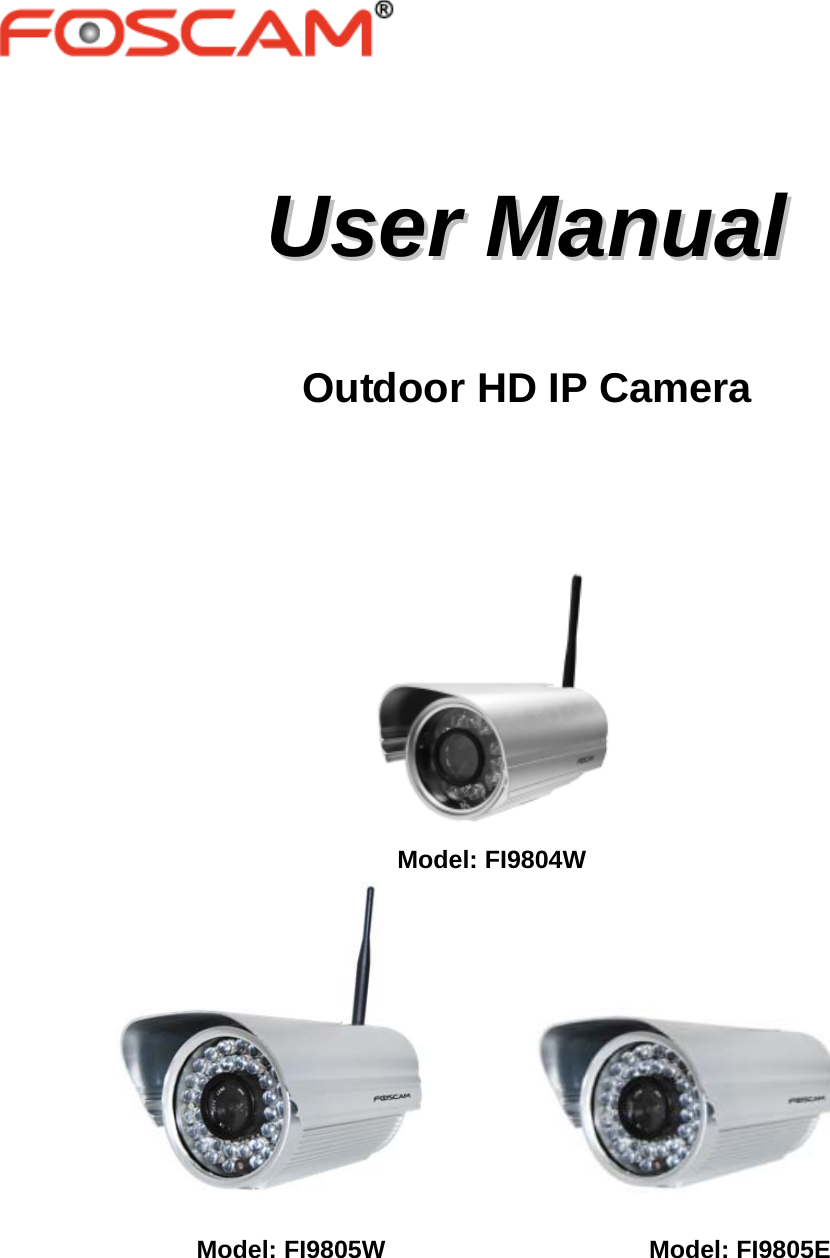
      UUsseerr  MMaannuuaall   Outdoor HD IP Camera                                                                                 Model: FI9804W                                          Model: FI9805W                     Model: FI9805E
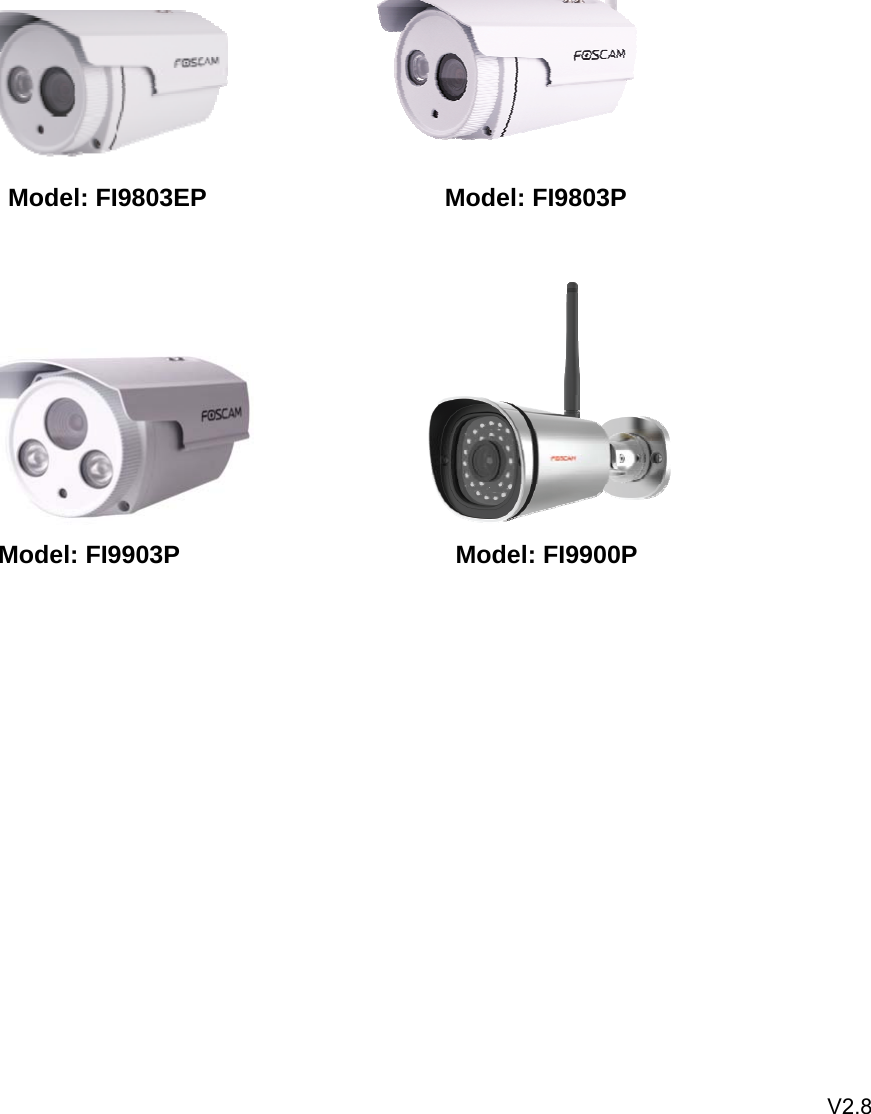
                                                        wwwwww..ffoossccaamm..ccoomm                                                         Model: FI9803EP                   Model: FI9803P                                                    Model: FI9903P                      Model: FI9900P                                                V2.8
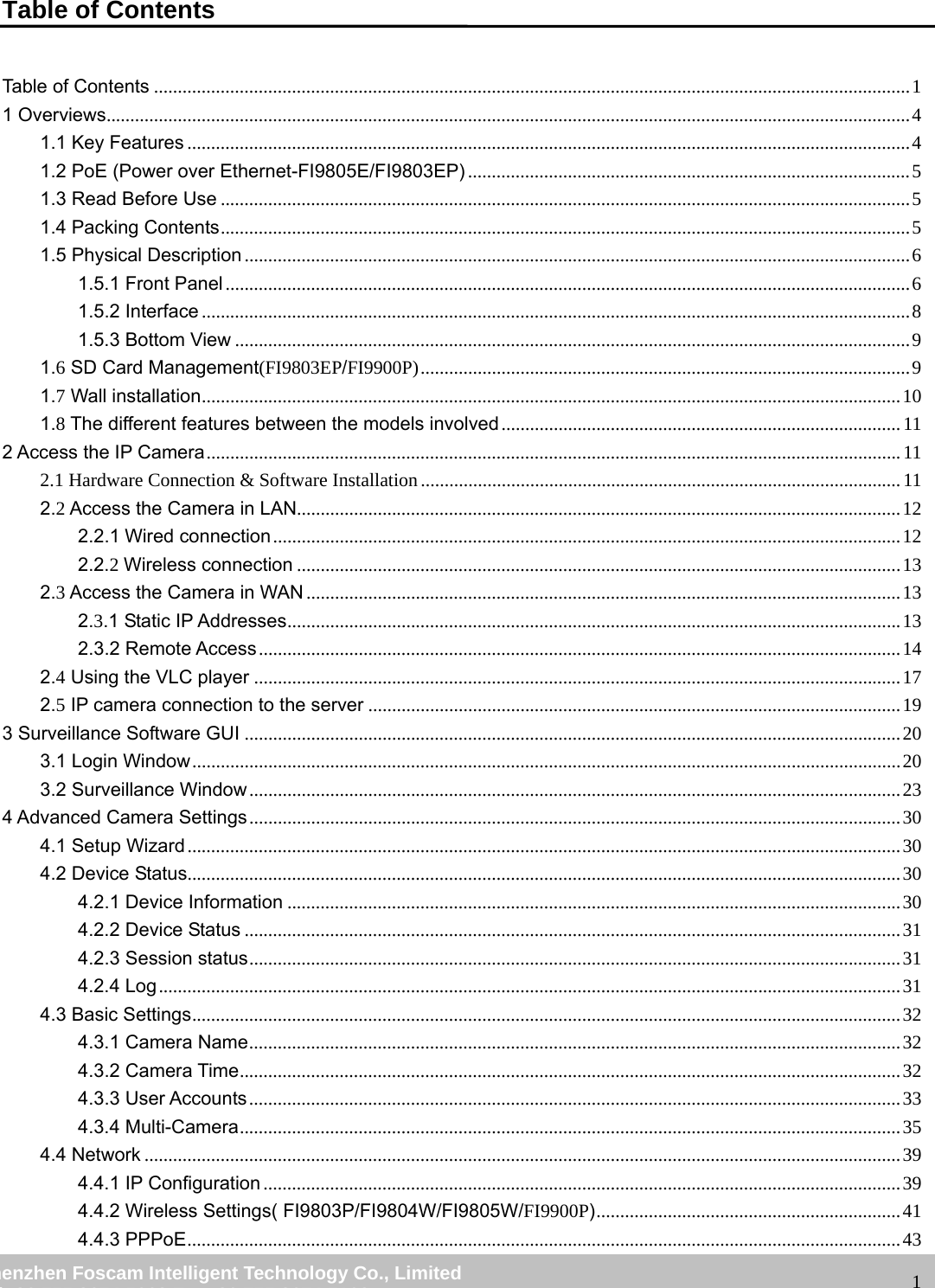
                                                        wwwwww..ffoossccaamm..ccoomm  SShheennzzhheenn  FFoossccaamm  IInntteelllliiggeenntt  TTeecchhnnoollooggyy  CCoo..,,  LLiimmiitteedd  TTeell::  8866  775555  22667744  55666688  FFaaxx::  8866  775555  22667744  55116688                                                                                                                   1Table of Contents Table of Contents ............................................................................................................................................................... 1 1 Overviews......................................................................................................................................................................... 4 1.1 Key Features ........................................................................................................................................................ 4 1.2 PoE (Power over Ethernet-FI9805E/FI9803EP) ............................................................................................. 5 1.3 Read Before Use ................................................................................................................................................. 5 1.4 Packing Contents ................................................................................................................................................. 5 1.5 Physical Description ............................................................................................................................................ 6 1.5.1 Front Panel ................................................................................................................................................ 6 1.5.2 Interface ..................................................................................................................................................... 8 1.5.3 Bottom View .............................................................................................................................................. 9 1.6 SD Card Management(FI9803EP/FI9900P) ....................................................................................................... 9 1.7 Wall installation ................................................................................................................................................... 10 1.8 The different features between the models involved .................................................................................... 11 2 Access the IP Camera .................................................................................................................................................. 11 2.1 Hardware Connection & Software Installation ..................................................................................................... 11 2.2 Access the Camera in LAN............................................................................................................................... 12 2.2.1 Wired connection .................................................................................................................................... 12 2.2.2 Wireless connection ............................................................................................................................... 13 2.3 Access the Camera in WAN ............................................................................................................................. 13 2.3.1 Static IP Addresses ................................................................................................................................. 13 2.3.2 Remote Access ....................................................................................................................................... 14 2.4 Using the VLC player ........................................................................................................................................ 17 2.5 IP camera connection to the server ................................................................................................................ 19 3 Surveillance Software GUI .......................................................................................................................................... 20 3.1 Login Window ..................................................................................................................................................... 20 3.2 Surveillance Window ......................................................................................................................................... 23 4 Advanced Camera Settings ......................................................................................................................................... 30 4.1 Setup Wizard ...................................................................................................................................................... 30 4.2 Device Status...................................................................................................................................................... 30 4.2.1 Device Information ................................................................................................................................. 30 4.2.2 Device Status .......................................................................................................................................... 31 4.2.3 Session status ......................................................................................................................................... 31 4.2.4 Log ............................................................................................................................................................ 31 4.3 Basic Settings ..................................................................................................................................................... 32 4.3.1 Camera Name ......................................................................................................................................... 32 4.3.2 Camera Time ........................................................................................................................................... 32 4.3.3 User Accounts ......................................................................................................................................... 33 4.3.4 Multi-Camera ........................................................................................................................................... 35 4.4 Network ............................................................................................................................................................... 39 4.4.1 IP Configuration ...................................................................................................................................... 39 4.4.2 Wireless Settings( FI9803P/FI9804W/FI9805W/FI9900P) ................................................................ 41 4.4.3 PPPoE ...................................................................................................................................................... 43
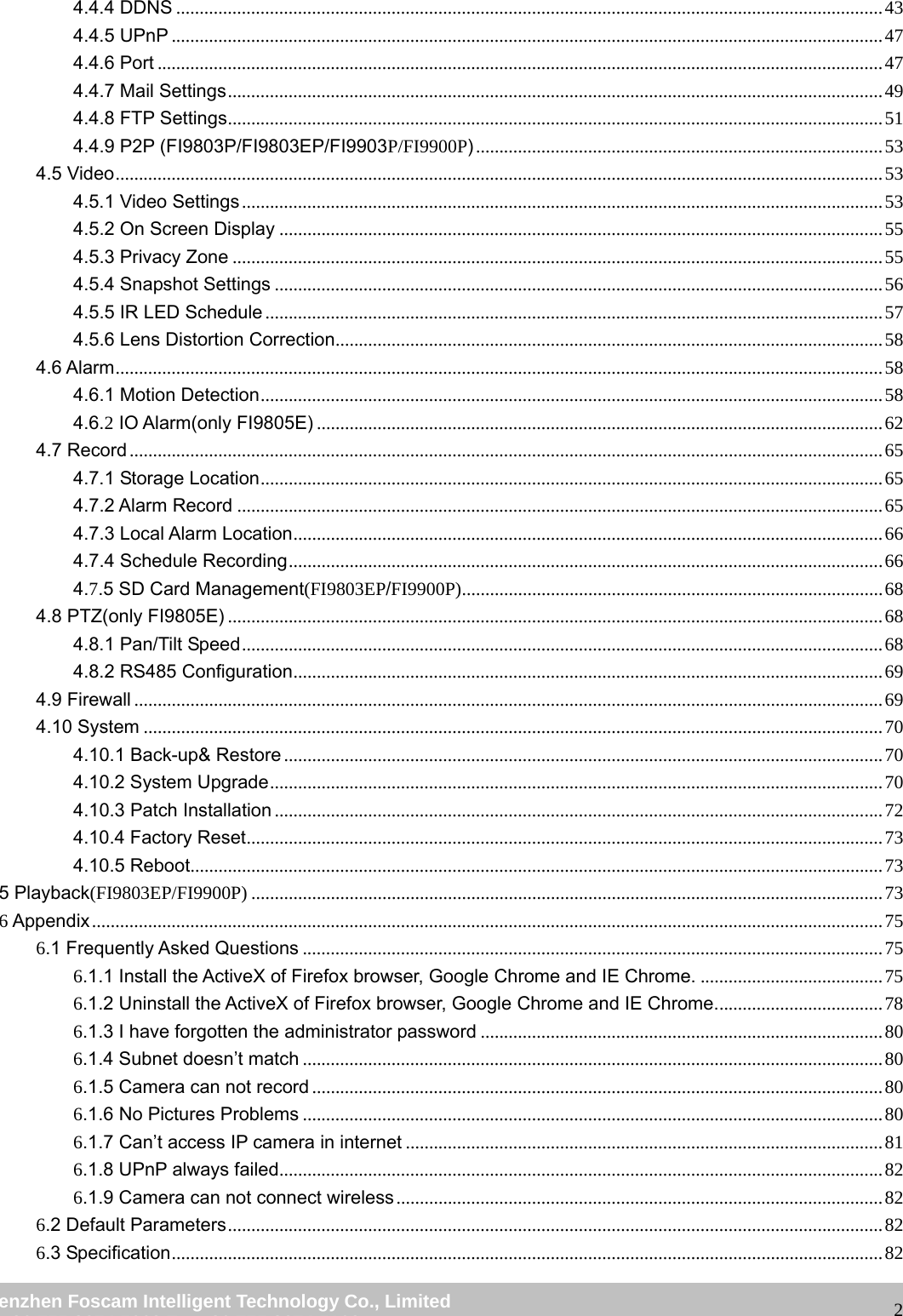
                                                        wwwwww..ffoossccaamm..ccoomm  SShheennzzhheenn  FFoossccaamm  IInntteelllliiggeenntt  TTeecchhnnoollooggyy  CCoo..,,  LLiimmiitteedd  TTeell::  8866  775555  22667744  55666688  FFaaxx::  8866  775555  22667744  55116688                                                                                                                   24.4.4 DDNS ....................................................................................................................................................... 43 4.4.5 UPnP ........................................................................................................................................................ 47 4.4.6 Port ........................................................................................................................................................... 47 4.4.7 Mail Settings ............................................................................................................................................ 49 4.4.8 FTP Settings ............................................................................................................................................ 51 4.4.9 P2P (FI9803P/FI9803EP/FI9903P/FI9900P) ....................................................................................... 53 4.5 Video .................................................................................................................................................................... 53 4.5.1 Video Settings ......................................................................................................................................... 53 4.5.2 On Screen Display ................................................................................................................................. 55 4.5.3 Privacy Zone ........................................................................................................................................... 55 4.5.4 Snapshot Settings .................................................................................................................................. 56 4.5.5 IR LED Schedule .................................................................................................................................... 57 4.5.6 Lens Distortion Correction ..................................................................................................................... 58 4.6 Alarm .................................................................................................................................................................... 58 4.6.1 Motion Detection ..................................................................................................................................... 58 4.6.2 IO Alarm(only FI9805E) ......................................................................................................................... 62 4.7 Record ................................................................................................................................................................. 65 4.7.1 Storage Location ..................................................................................................................................... 65 4.7.2 Alarm Record .......................................................................................................................................... 65 4.7.3 Local Alarm Location .............................................................................................................................. 66 4.7.4 Schedule Recording ............................................................................................................................... 66 4.7.5 SD Card Management(FI9803EP/FI9900P) .......................................................................................... 68 4.8 PTZ(only FI9805E) ............................................................................................................................................ 68 4.8.1 Pan/Tilt Speed ......................................................................................................................................... 68 4.8.2 RS485 Configuration .............................................................................................................................. 69 4.9 Firewall ................................................................................................................................................................ 69 4.10 System .............................................................................................................................................................. 70 4.10.1 Back-up& Restore ................................................................................................................................ 70 4.10.2 System Upgrade ................................................................................................................................... 70 4.10.3 Patch Installation .................................................................................................................................. 72 4.10.4 Factory Reset ........................................................................................................................................ 73 4.10.5 Reboot.................................................................................................................................................... 73 5 Playback(FI9803EP/FI9900P) ....................................................................................................................................... 73 6 Appendix ......................................................................................................................................................................... 75 6.1 Frequently Asked Questions ............................................................................................................................ 75 6.1.1 Install the ActiveX of Firefox browser, Google Chrome and IE Chrome. ....................................... 75 6.1.2 Uninstall the ActiveX of Firefox browser, Google Chrome and IE Chrome. ................................... 78 6.1.3 I have forgotten the administrator password ...................................................................................... 80 6.1.4 Subnet doesn’t match ............................................................................................................................ 80 6.1.5 Camera can not record .......................................................................................................................... 80 6.1.6 No Pictures Problems ............................................................................................................................ 80 6.1.7 Can’t access IP camera in internet ...................................................................................................... 81 6.1.8 UPnP always failed ................................................................................................................................. 82 6.1.9 Camera can not connect wireless ........................................................................................................ 82 6.2 Default Parameters ............................................................................................................................................ 82 6.3 Specification ........................................................................................................................................................ 82
                                                        wwwwww..ffoossccaamm..ccoomm  SShheennzzhheenn  FFoossccaamm  IInntteelllliiggeenntt  TTeecchhnnoollooggyy  CCoo..,,  LLiimmiitteedd  TTeell::  8866  775555  22667744  55666688  FFaaxx::  8866  775555  22667744  55116688                                                                                                                   36.4 CE & FCC ........................................................................................................................................................... 91 6.5 WARRANTY ....................................................................................................................................................... 92 7 Obtaining Technical Support ........................................................................................................................................... 94
                                                        wwwwww..ffoossccaamm..ccoomm  SShheennzzhheenn  FFoossccaamm  IInntteelllliiggeenntt  TTeecchhnnoollooggyy  CCoo..,,  LLiimmiitteedd  TTeell::  8866  775555  22667744  55666688  FFaaxx::  8866  775555  22667744  55116688                                                                                                                   41 Overviews FOSCAM Outdoor HD IP Camera is an integrated wireless IP Camera with a color CMOS sensor enabling viewing in High Definition resolution.It combines a high quality digital video camera, with a powerful web server, to bring clear video to your desktop from anywhere on your local network or over the Internet.  The IP Camera supports the industry-standard H.264 compression technology, drastically reducing file sizes and conserving valuable network bandwidth.  The IP Camera is based on the TCP/IP standard. There is a WEB server inside which could support Internet Explorer. Therefore the management and maintenance of your device is simplified by using the network to achieve the remote configuration and start-up.    The camera is designed for outdoor surveillance applications such as courtyards, supermarket, and school. Controlling the IPCAM and managing images are simplified by using the provided web interface across the network utilizing wireless connectivity.  FOSCAM provides Phone APPs for Android and iPhone users, please search and install Foscam App on App Store and Google Play for iOS and Android devices, then you can view your camera anywhere, anytime on your smart mobile devices.  1.1 Key Features   Standard H.264 video compression algorithm to satisfy the transmission of high definition video in narrow bandwidth network   1.0 Mega-Pixel(FI9803P, FI9803EP,FI9804W) / 1.3 Mega-Pixel (FI9805W, FI9805E)/ 2.0 Mega-Pixel (FI9903P, FI9900P) Supports IE/Firefox/Google/Safari browser or any other standard browsers   Supports WEP,WPA and WPA2 Encryption   Wi-Fi compliant with wireless standards IEEE 802.11b/g/n (FI9804W, FI9805W, FI9803P, FI9900P)   PoE compliant with PoE standards IEEE 802.3af (FI9805E,FI9803EP)   IR night vision, Range:20m (FI9803P, FI9900P, FI9803EP, FI9804W)/ 30m (FI9805W, FI9805E,FI9903P)   Supports image snapshot  Supports dual-stream   Supports IR-Cut and the filter change automatically     Embedded FOSCAM DDNS(dynamic domain name service) Service     Supports remote viewing & record from anywhere anytime   Multi-level users management with password protection   Motion detection alert via email or upload image to FTP   Supporting Third Party Domain name     Providing Phone APPs for Android and iPhone users     Supports multiple network protocols: HTTP /HTTPS/ RTSP/ TCP /IP /UDP /FTP /DHCP /DDNS / UPNP/ONVIF
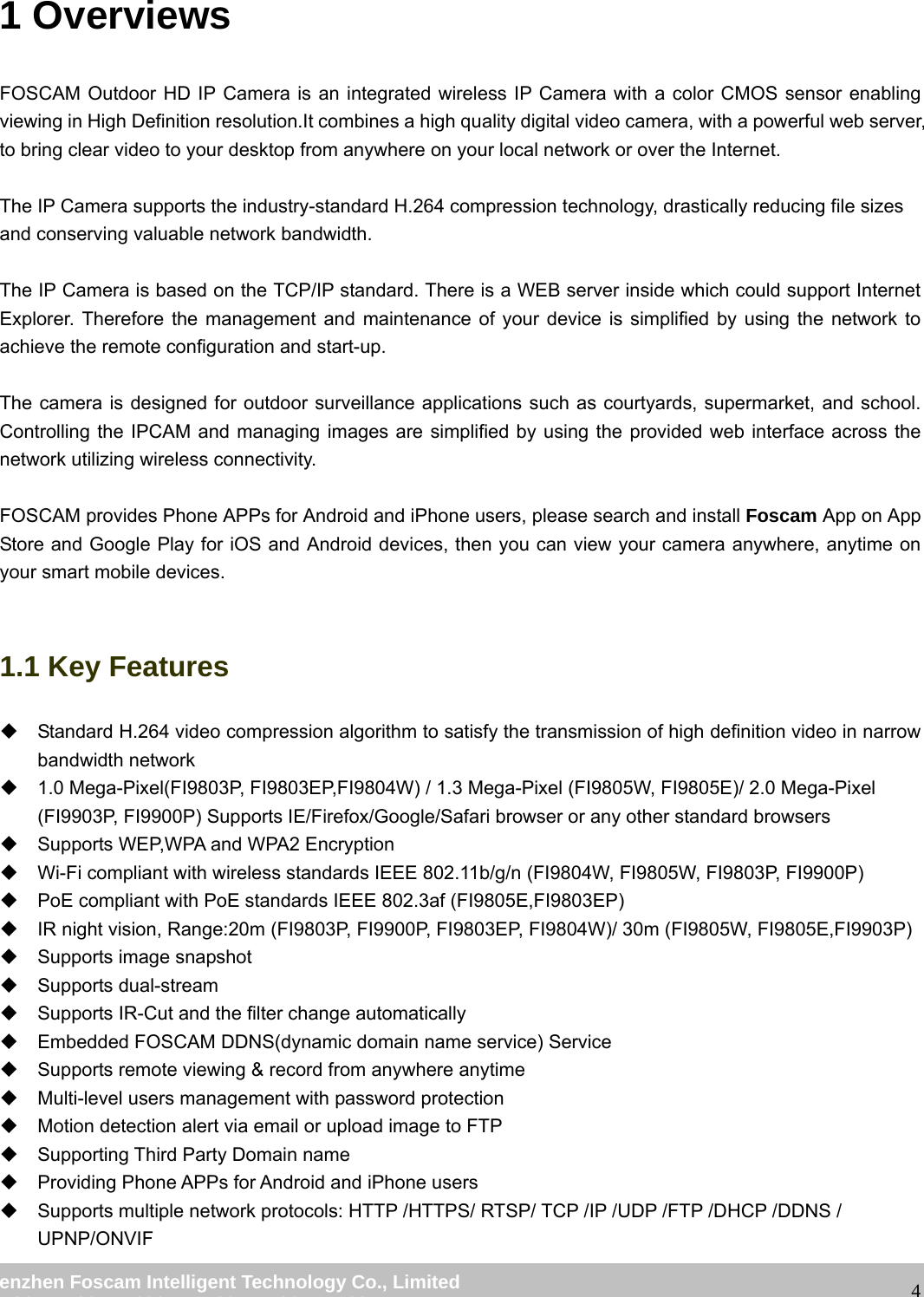
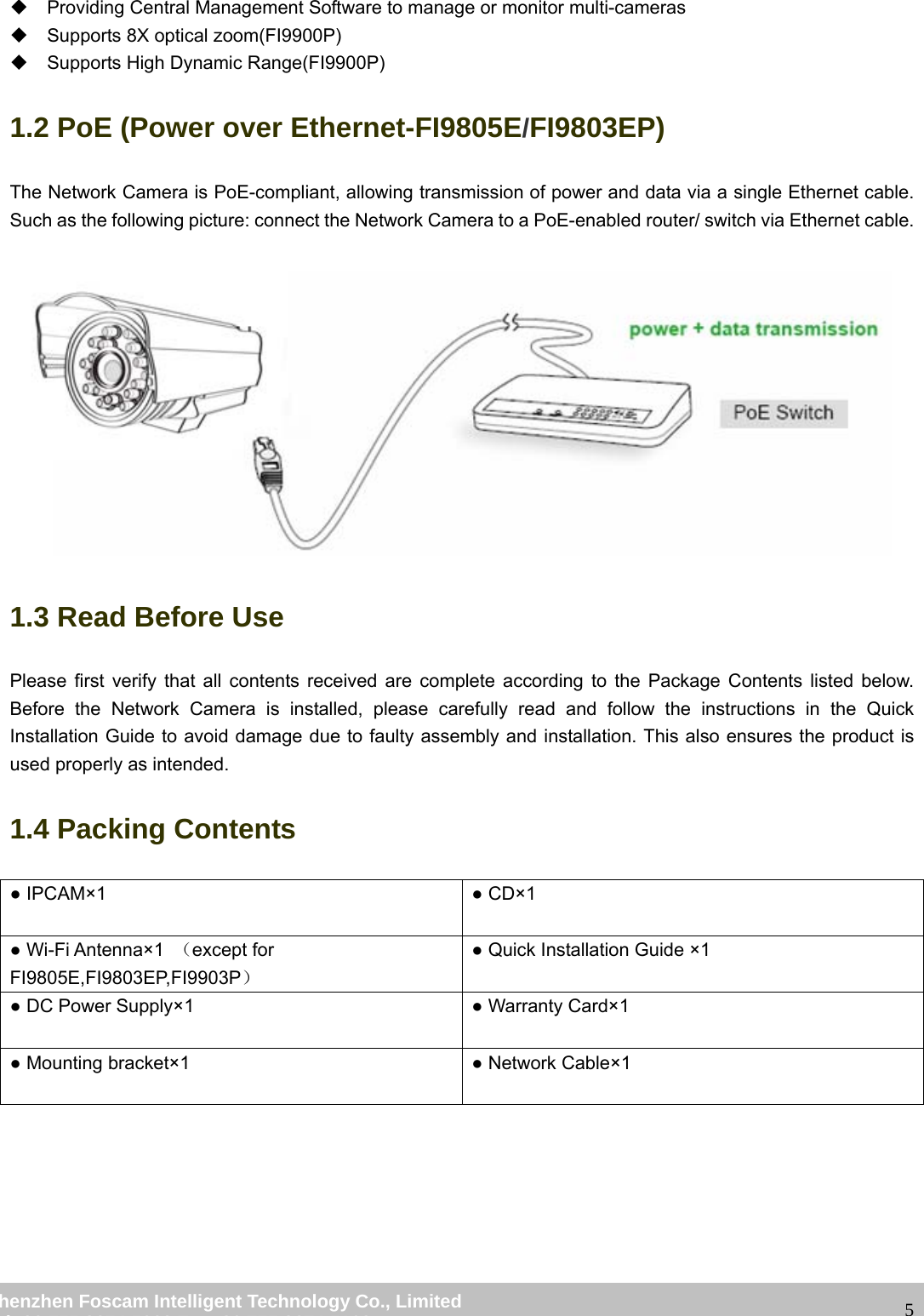
                                                        wwwwww..ffoossccaamm..ccoomm  SShheennzzhheenn  FFoossccaamm  IInntteelllliiggeenntt  TTeecchhnnoollooggyy  CCoo..,,  LLiimmiitteedd  TTeell::  8866  775555  22667744  55666688  FFaaxx::  8866  775555  22667744  55116688                                                                                                                   5  Providing Central Management Software to manage or monitor multi-cameras  Supports 8X optical zoom(FI9900P)   Supports High Dynamic Range(FI9900P) 1.2 PoE (Power over Ethernet-FI9805E/FI9803EP) The Network Camera is PoE-compliant, allowing transmission of power and data via a single Ethernet cable. Such as the following picture: connect the Network Camera to a PoE-enabled router/ switch via Ethernet cable.   1.3 Read Before Use Please first verify that all contents received are complete according to the Package Contents listed below. Before the Network Camera is installed, please carefully read and follow the instructions in the Quick Installation Guide to avoid damage due to faulty assembly and installation. This also ensures the product is used properly as intended. 1.4 Packing Contents ● IPCAM×1  ● CD×1  ● Wi-Fi Antenna×1  (except for FI9805E,FI9803EP,FI9903P) ● Quick Installation Guide ×1 ● DC Power Supply×1  ● Warranty Card×1 ● Mounting bracket×1  ● Network Cable×1
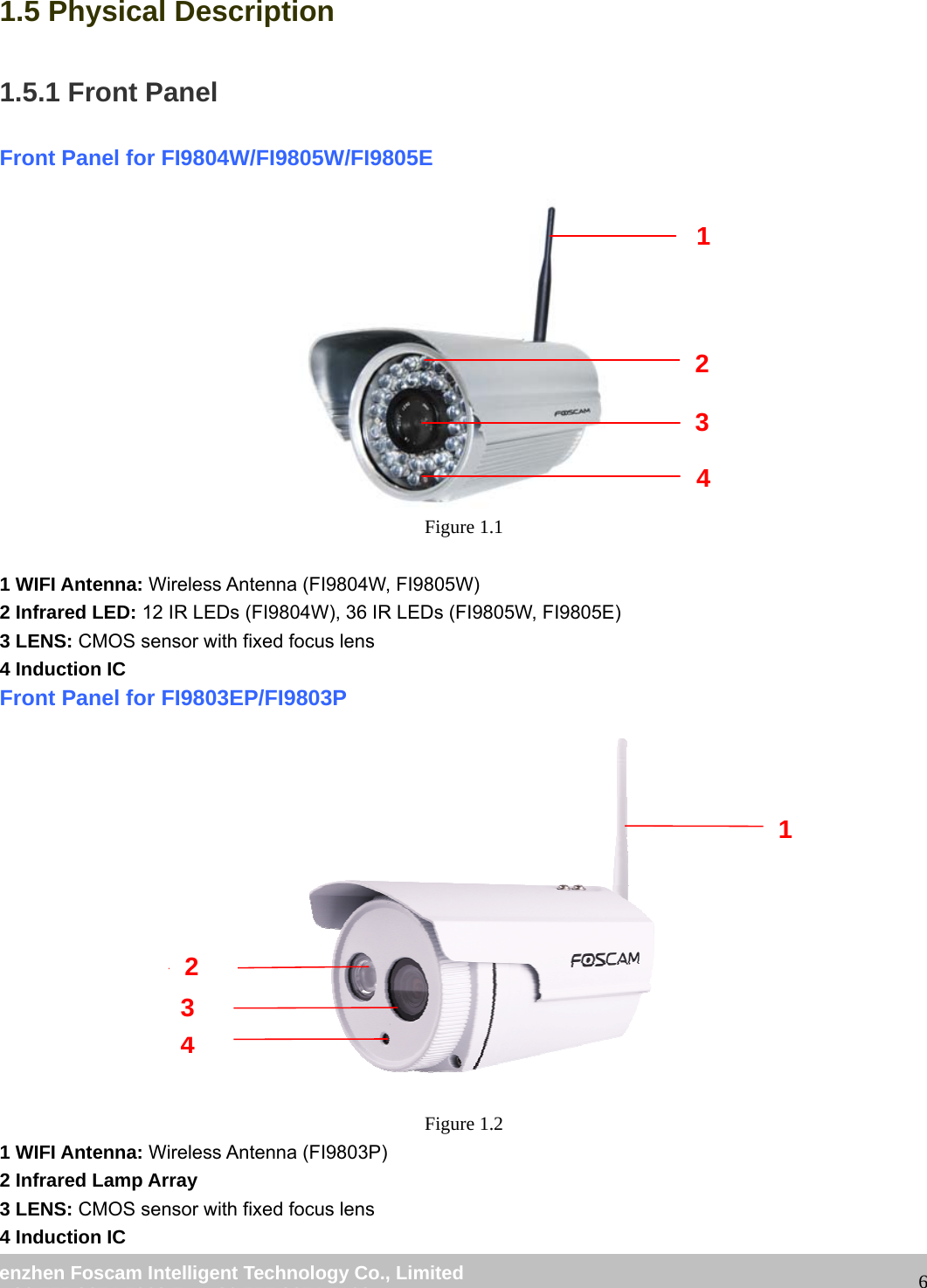
                                                        wwwwww..ffoossccaamm..ccoomm  SShheennzzhheenn  FFoossccaamm  IInntteelllliiggeenntt  TTeecchhnnoollooggyy  CCoo..,,  LLiimmiitteedd  TTeell::  8866  775555  22667744  55666688  FFaaxx::  8866  775555  22667744  55116688                                                                                                                   6 1.5 Physical Description 1.5.1 Front Panel Front Panel for FI9804W/FI9805W/FI9805E           Figure 1.1  1 WIFI Antenna: Wireless Antenna (FI9804W, FI9805W) 2 Infrared LED: 12 IR LEDs (FI9804W), 36 IR LEDs (FI9805W, FI9805E) 3 LENS: CMOS sensor with fixed focus lens 4 Induction IC Front Panel for FI9803EP/FI9803P            Figure 1.2 1 WIFI Antenna: Wireless Antenna (FI9803P) 2 Infrared Lamp Array 3 LENS: CMOS sensor with fixed focus lens   4 Induction IC 2 3 4 1 1 43 2
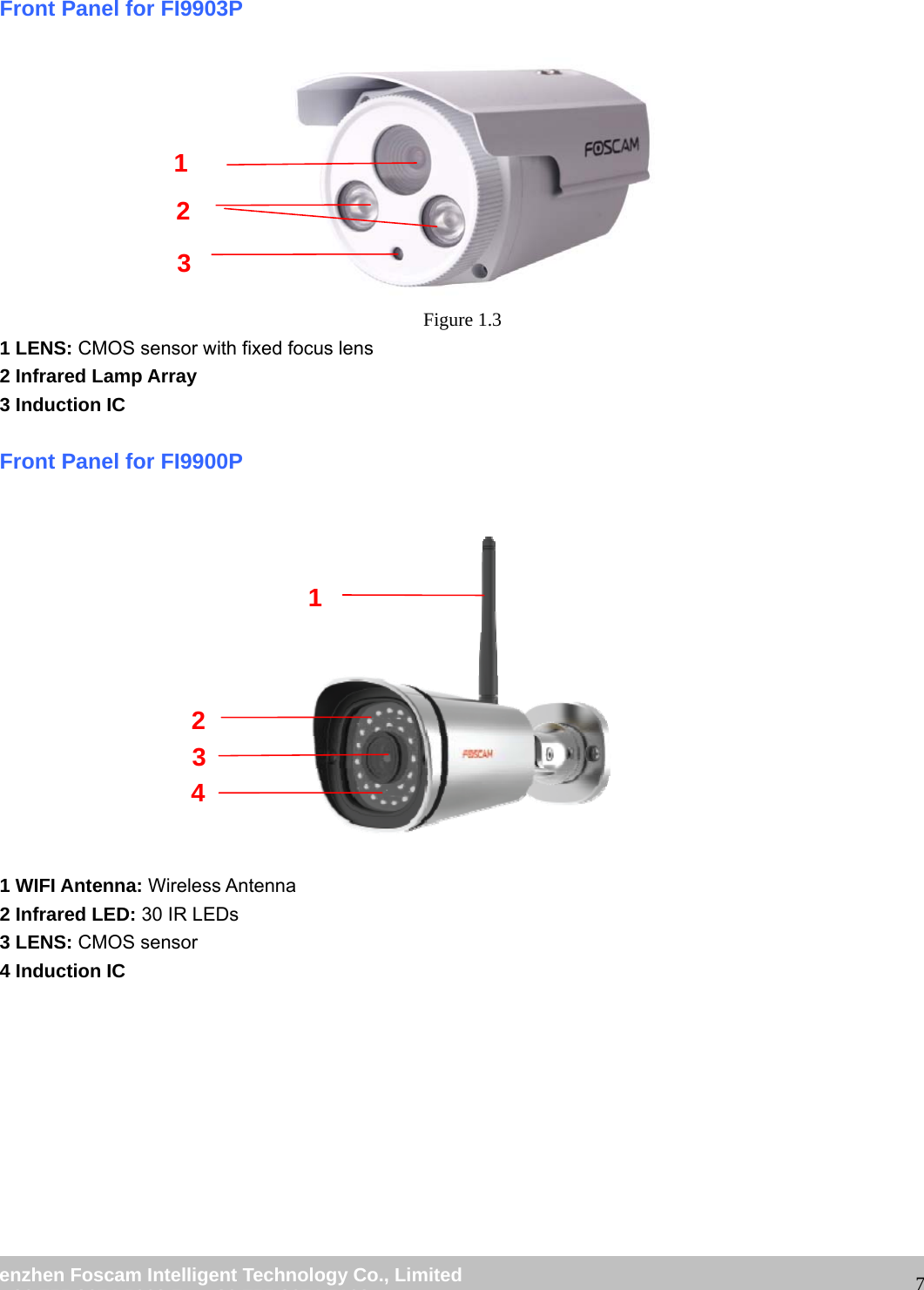
                                                        wwwwww..ffoossccaamm..ccoomm  SShheennzzhheenn  FFoossccaamm  IInntteelllliiggeenntt  TTeecchhnnoollooggyy  CCoo..,,  LLiimmiitteedd  TTeell::  8866  775555  22667744  55666688  FFaaxx::  8866  775555  22667744  55116688                                                                                                                   7  Front Panel for FI9903P             Figure 1.3 1 LENS: CMOS sensor with fixed focus lens 2 Infrared Lamp Array  3 Induction IC  Front Panel for FI9900P    1 WIFI Antenna: Wireless Antenna 2 Infrared LED: 30 IR LEDs   3 LENS: CMOS sensor   4 Induction IC 3 2 11 4 3 2
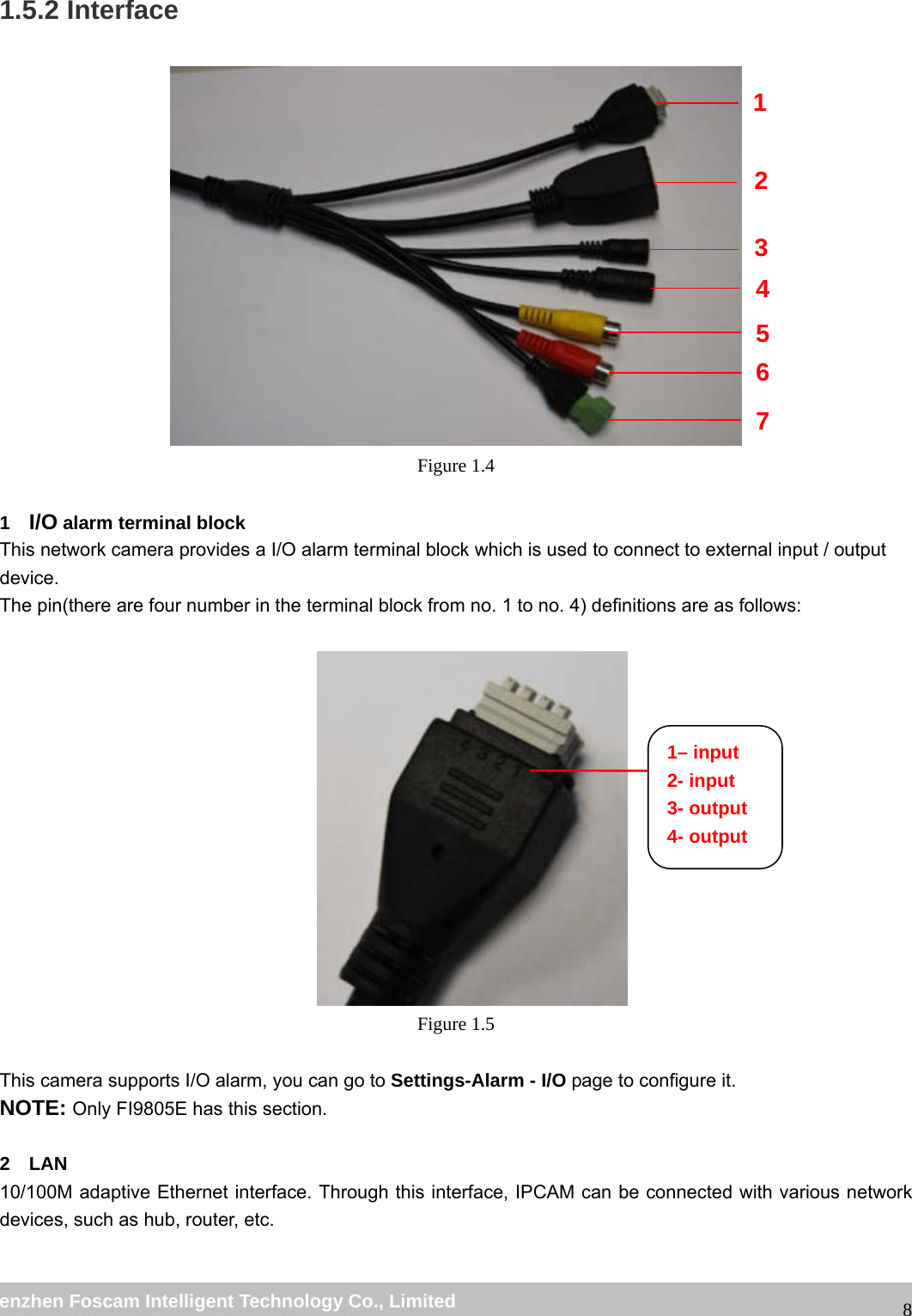
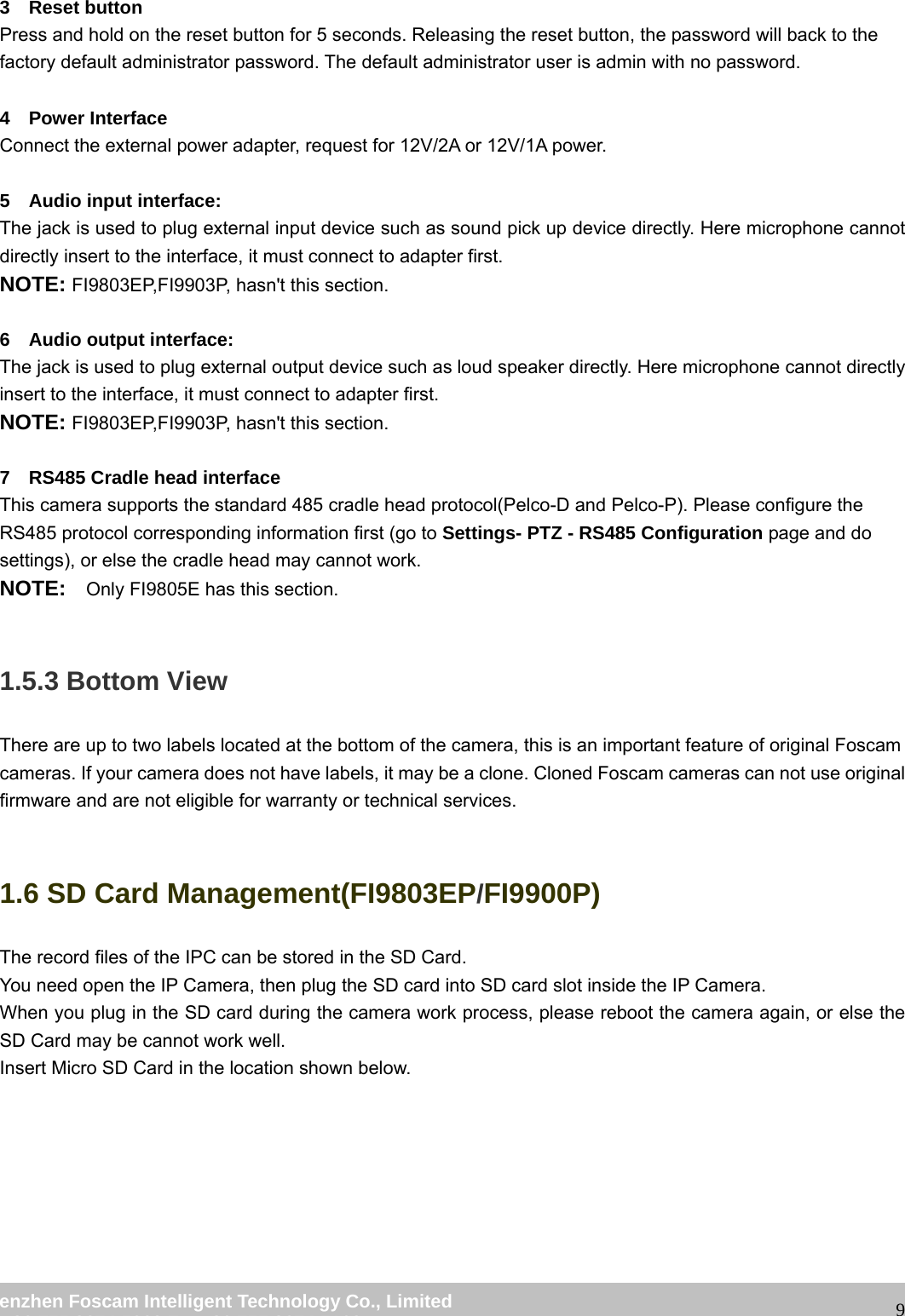
                                                        wwwwww..ffoossccaamm..ccoomm  SShheennzzhheenn  FFoossccaamm  IInntteelllliiggeenntt  TTeecchhnnoollooggyy  CCoo..,,  LLiimmiitteedd  TTeell::  8866  775555  22667744  55666688  FFaaxx::  8866  775555  22667744  55116688                                                                                                                   81.5.2 Interface      Figure 1.4  1  I/O alarm terminal block This network camera provides a I/O alarm terminal block which is used to connect to external input / output device.  The pin(there are four number in the terminal block from no. 1 to no. 4) definitions are as follows:   Figure 1.5  This camera supports I/O alarm, you can go to Settings-Alarm - I/O page to configure it. NOTE: Only FI9805E has this section.  2  LAN 10/100M adaptive Ethernet interface. Through this interface, IPCAM can be connected with various network devices, such as hub, router, etc.  1 2 3 4 5 6 7 1– input 2- input 3- output 4- output
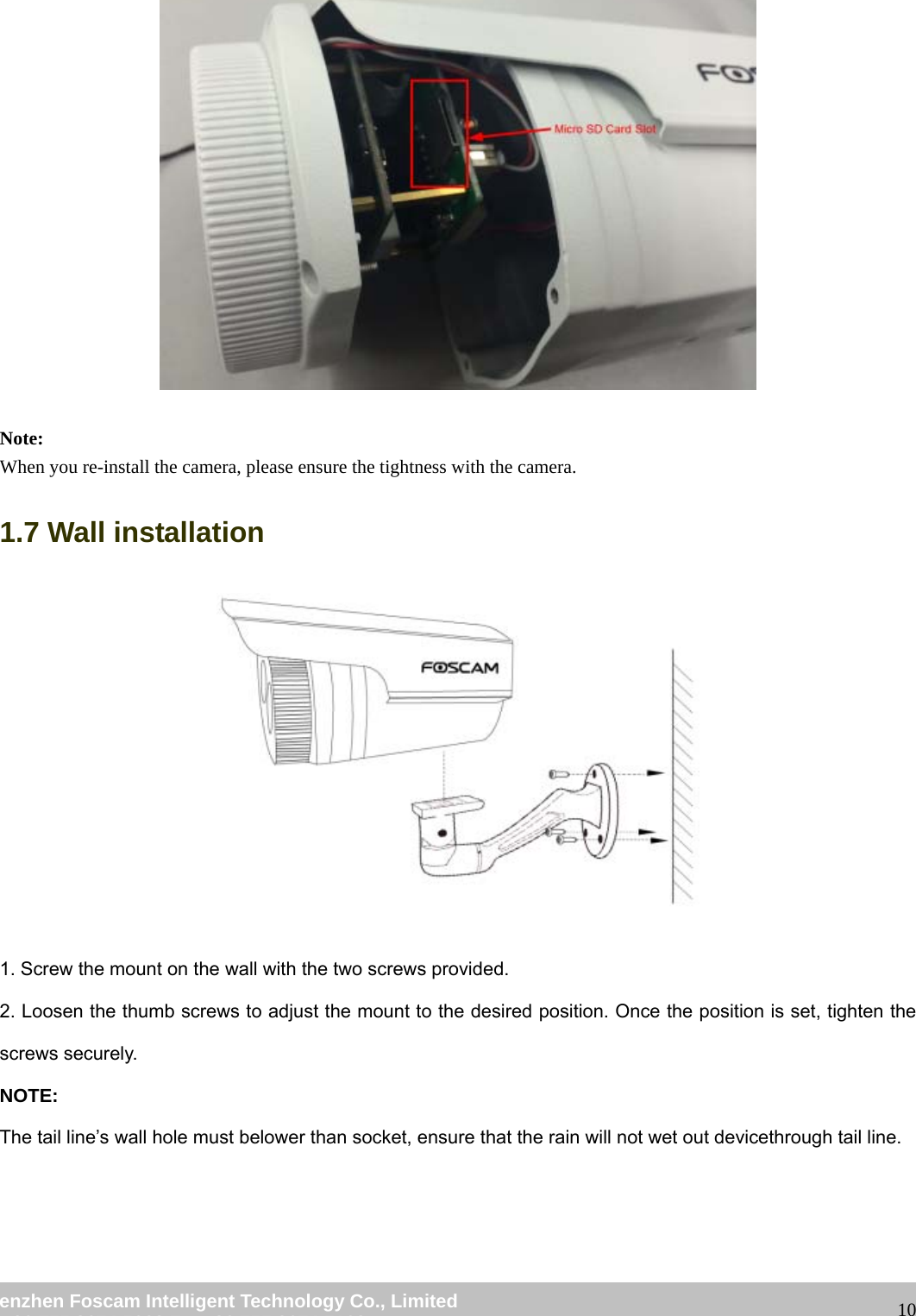
                                                        wwwwww..ffoossccaamm..ccoomm  SShheennzzhheenn  FFoossccaamm  IInntteelllliiggeenntt  TTeecchhnnoollooggyy  CCoo..,,  LLiimmiitteedd  TTeell::  8866  775555  22667744  55666688  FFaaxx::  8866  775555  22667744  55116688                                                                                                                   93  Reset button  Press and hold on the reset button for 5 seconds. Releasing the reset button, the password will back to the factory default administrator password. The default administrator user is admin with no password.    4  Power Interface  Connect the external power adapter, request for 12V/2A or 12V/1A power.  5  Audio input interface: The jack is used to plug external input device such as sound pick up device directly. Here microphone cannot directly insert to the interface, it must connect to adapter first. NOTE: FI9803EP,FI9903P, hasn't this section.  6  Audio output interface: The jack is used to plug external output device such as loud speaker directly. Here microphone cannot directly insert to the interface, it must connect to adapter first. NOTE: FI9803EP,FI9903P, hasn't this section.  7    RS485 Cradle head interface This camera supports the standard 485 cradle head protocol(Pelco-D and Pelco-P). Please configure the RS485 protocol corresponding information first (go to Settings- PTZ - RS485 Configuration page and do settings), or else the cradle head may cannot work. NOTE:  Only FI9805E has this section.  1.5.3 Bottom View There are up to two labels located at the bottom of the camera, this is an important feature of original Foscam cameras. If your camera does not have labels, it may be a clone. Cloned Foscam cameras can not use original firmware and are not eligible for warranty or technical services.                   1.6 SD Card Management(FI9803EP/FI9900P) The record files of the IPC can be stored in the SD Card.   You need open the IP Camera, then plug the SD card into SD card slot inside the IP Camera. When you plug in the SD card during the camera work process, please reboot the camera again, or else the SD Card may be cannot work well. Insert Micro SD Card in the location shown below.
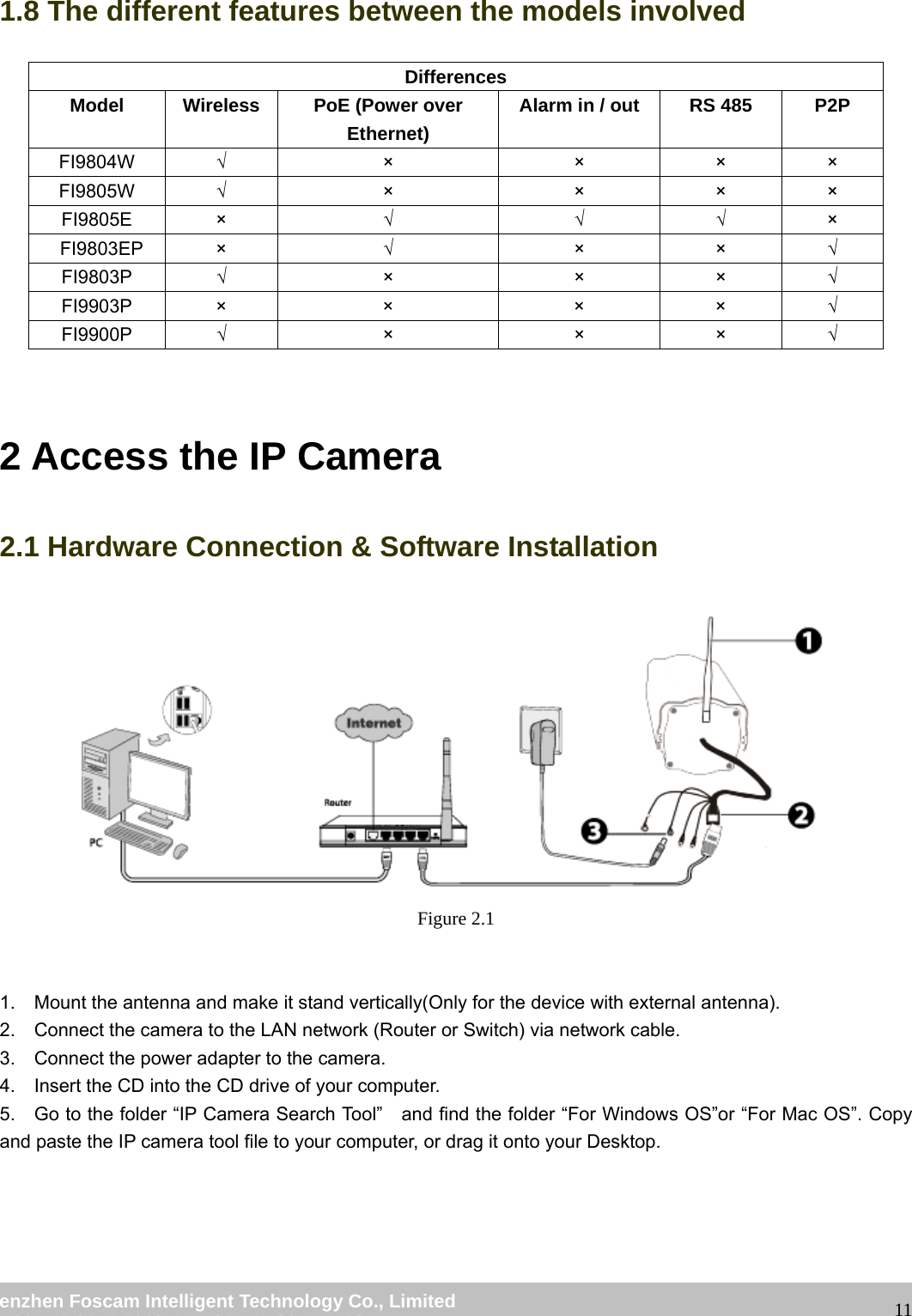
                                                        wwwwww..ffoossccaamm..ccoomm  SShheennzzhheenn  FFoossccaamm  IInntteelllliiggeenntt  TTeecchhnnoollooggyy  CCoo..,,  LLiimmiitteedd  TTeell::  8866  775555  22667744  55666688  FFaaxx::  8866  775555  22667744  55116688                                                                                                                   10  Note: When you re-install the camera, please ensure the tightness with the camera. 1.7 Wall installation   1. Screw the mount on the wall with the two screws provided. 2. Loosen the thumb screws to adjust the mount to the desired position. Once the position is set, tighten the screws securely. NOTE: The tail line’s wall hole must belower than socket, ensure that the rain will not wet out devicethrough tail line.
                                                        wwwwww..ffoossccaamm..ccoomm  SShheennzzhheenn  FFoossccaamm  IInntteelllliiggeenntt  TTeecchhnnoollooggyy  CCoo..,,  LLiimmiitteedd  TTeell::  8866  775555  22667744  55666688  FFaaxx::  8866  775555  22667744  55116688                                                                                                                   111.8 The different features between the models involved Differences Model Wireless PoE (Power over Ethernet) Alarm in / out  RS 485  P2P FI9804W  √ ×  × × × FI9805W  √ ×  × × × FI9805E ×  √ √ √ ×  FI9803EP  ×  √ × × √ FI9803P  √ ×  × × √ FI9903P ×  ×  ×  ×  √ FI9900P  √ ×  × × √  2 Access the IP Camera 2.1 Hardware Connection & Software Installation  Figure 2.1   1.    Mount the antenna and make it stand vertically(Only for the device with external antenna). 2.    Connect the camera to the LAN network (Router or Switch) via network cable.             3.    Connect the power adapter to the camera. 4.    Insert the CD into the CD drive of your computer. 5.    Go to the folder “IP Camera Search Tool”    and find the folder “For Windows OS”or “For Mac OS”. Copy and paste the IP camera tool file to your computer, or drag it onto your Desktop.
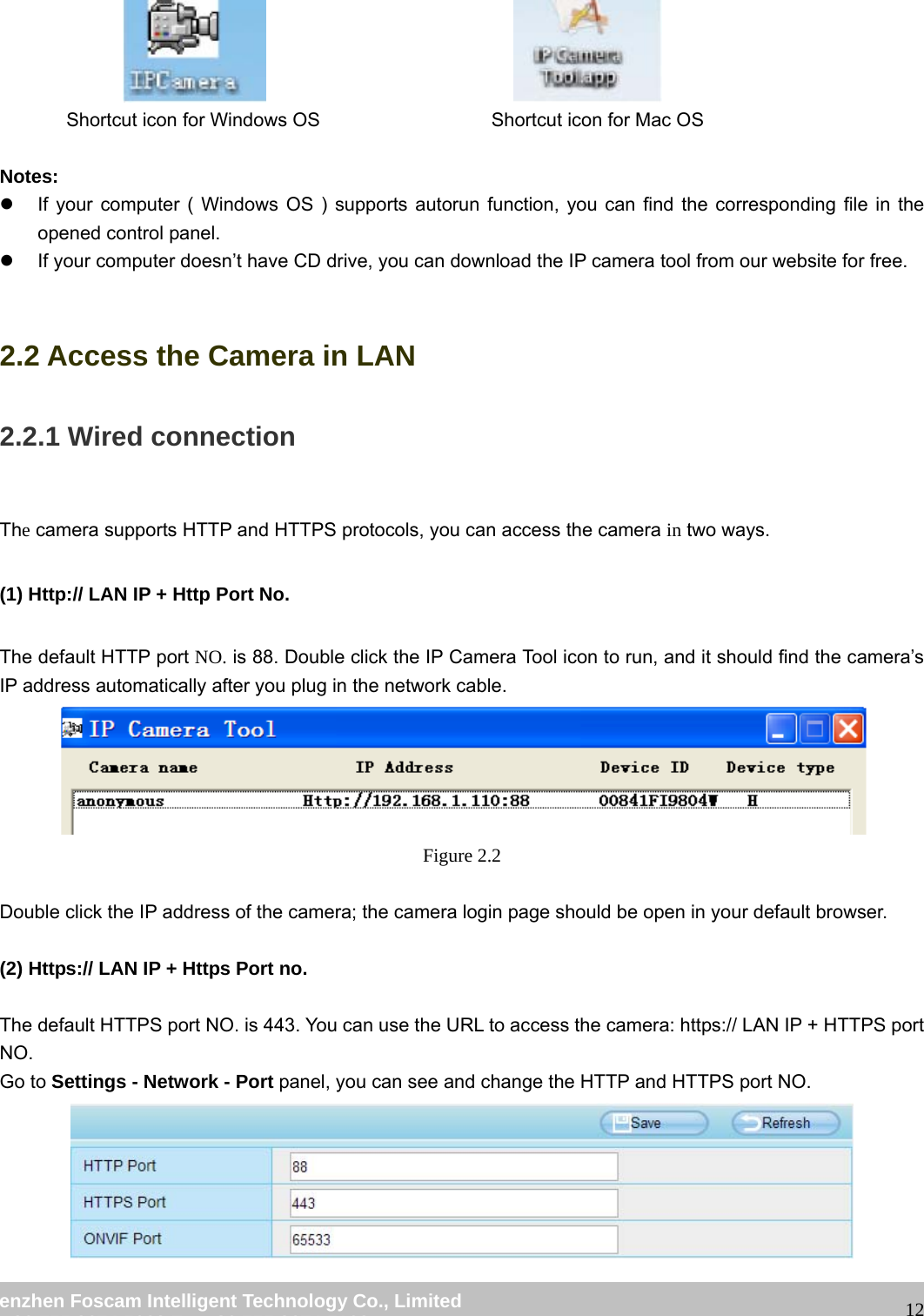
                                                        wwwwww..ffoossccaamm..ccoomm  SShheennzzhheenn  FFoossccaamm  IInntteelllliiggeenntt  TTeecchhnnoollooggyy  CCoo..,,  LLiimmiitteedd  TTeell::  8866  775555  22667744  55666688  FFaaxx::  8866  775555  22667744  55116688                                                                                                                   12                                                 Shortcut icon for Windows OS                  Shortcut icon for Mac OS  Notes:  z  If your computer ( Windows OS ) supports autorun function, you can find the corresponding file in the opened control panel.   z  If your computer doesn’t have CD drive, you can download the IP camera tool from our website for free.  2.2 Access the Camera in LAN 2.2.1 Wired connection  The camera supports HTTP and HTTPS protocols, you can access the camera in two ways.  (1) Http:// LAN IP + Http Port No.  The default HTTP port NO. is 88. Double click the IP Camera Tool icon to run, and it should find the camera’s IP address automatically after you plug in the network cable.  Figure 2.2  Double click the IP address of the camera; the camera login page should be open in your default browser.  (2) Https:// LAN IP + Https Port no.  The default HTTPS port NO. is 443. You can use the URL to access the camera: https:// LAN IP + HTTPS port NO. Go to Settings - Network - Port panel, you can see and change the HTTP and HTTPS port NO.
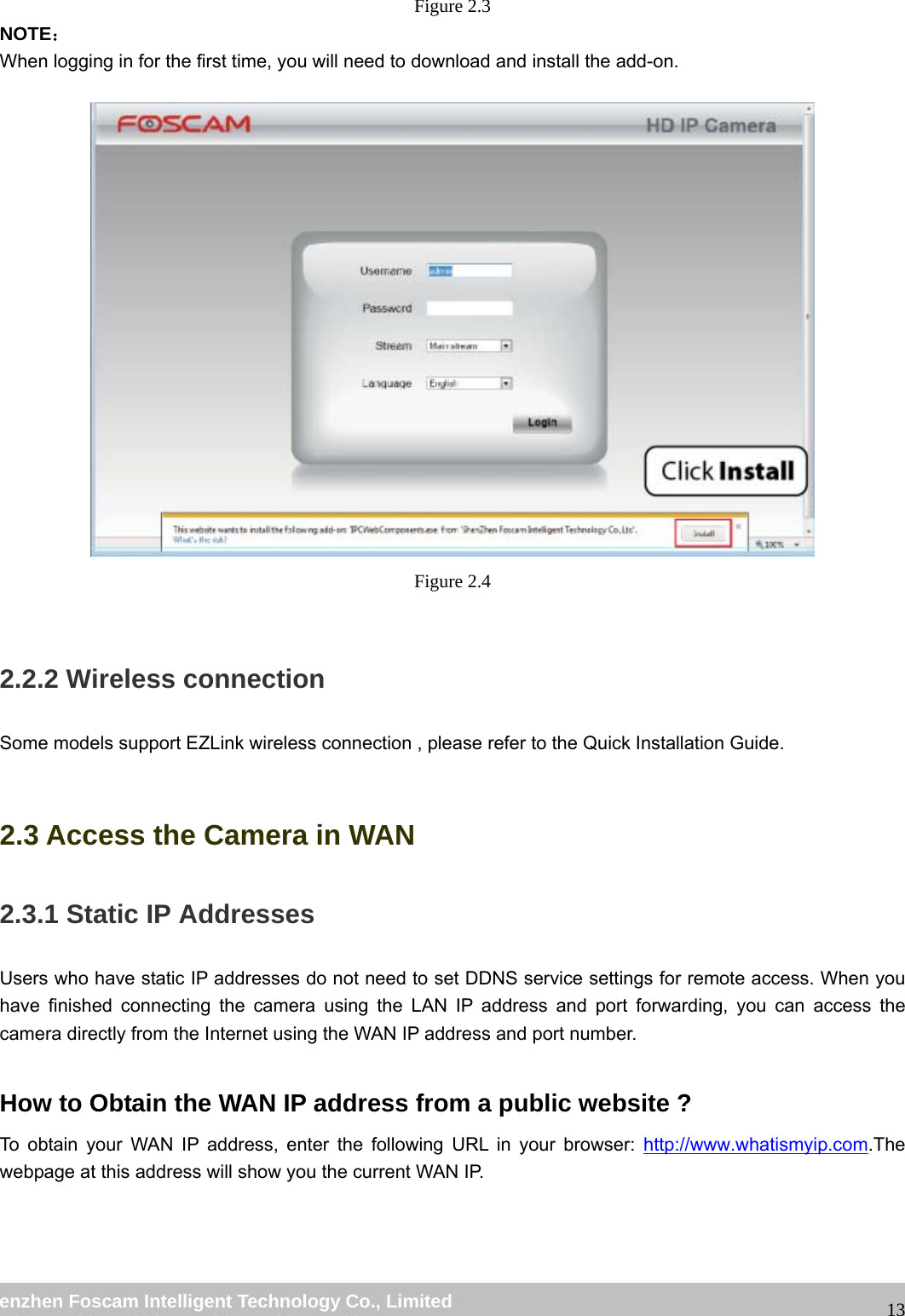
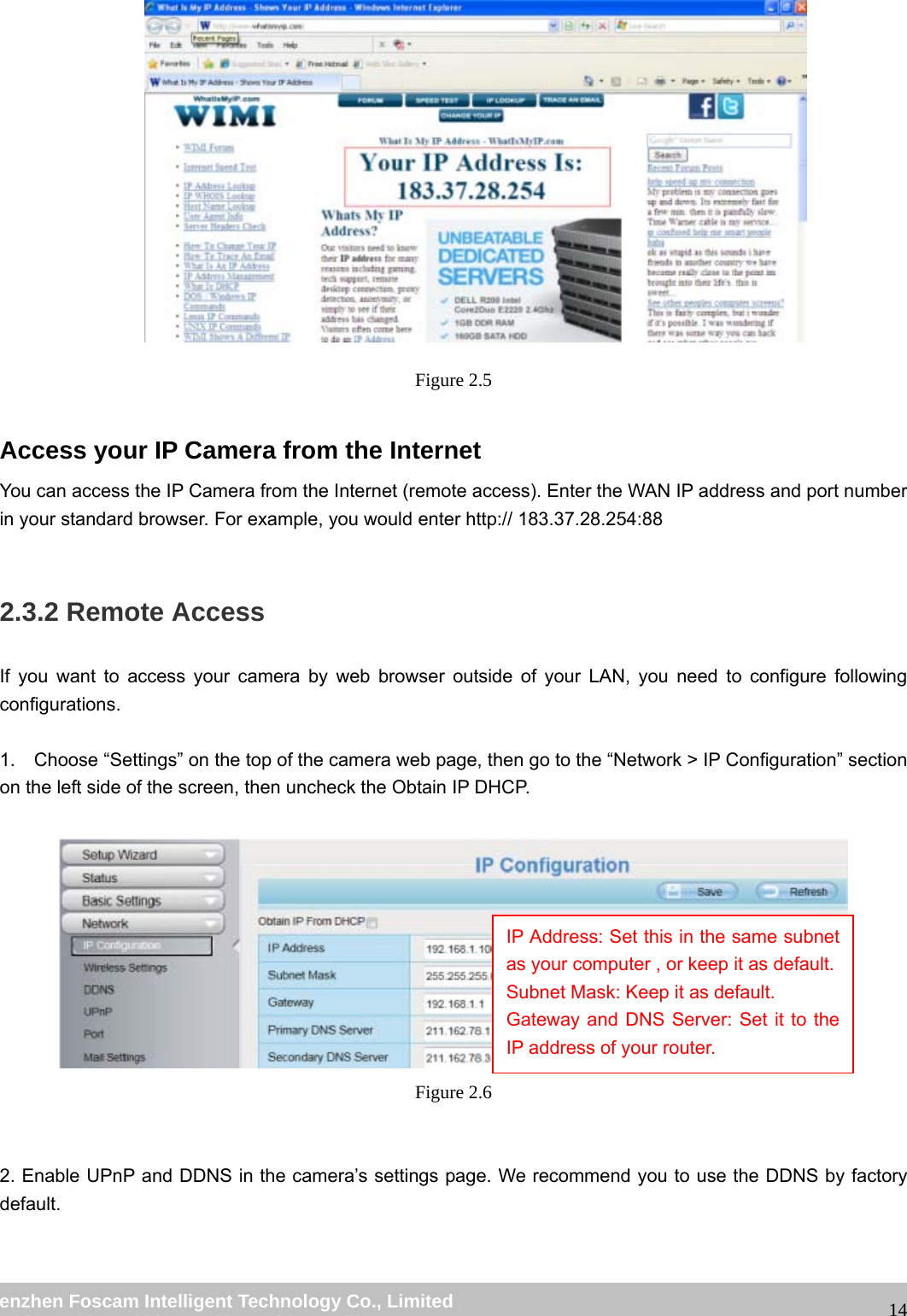
                                                        wwwwww..ffoossccaamm..ccoomm  SShheennzzhheenn  FFoossccaamm  IInntteelllliiggeenntt  TTeecchhnnoollooggyy  CCoo..,,  LLiimmiitteedd  TTeell::  8866  775555  22667744  55666688  FFaaxx::  8866  775555  22667744  55116688                                                                                                                   13Figure 2.3 NOTE: When logging in for the first time, you will need to download and install the add-on.   Figure 2.4  2.2.2 Wireless connection Some models support EZLink wireless connection , please refer to the Quick Installation Guide.  2.3 Access the Camera in WAN 2.3.1 Static IP Addresses Users who have static IP addresses do not need to set DDNS service settings for remote access. When you have finished connecting the camera using the LAN IP address and port forwarding, you can access the camera directly from the Internet using the WAN IP address and port number.    How to Obtain the WAN IP address from a public website ? To obtain your WAN IP address, enter the following URL in your browser: http://www.whatismyip.com.The webpage at this address will show you the current WAN IP.
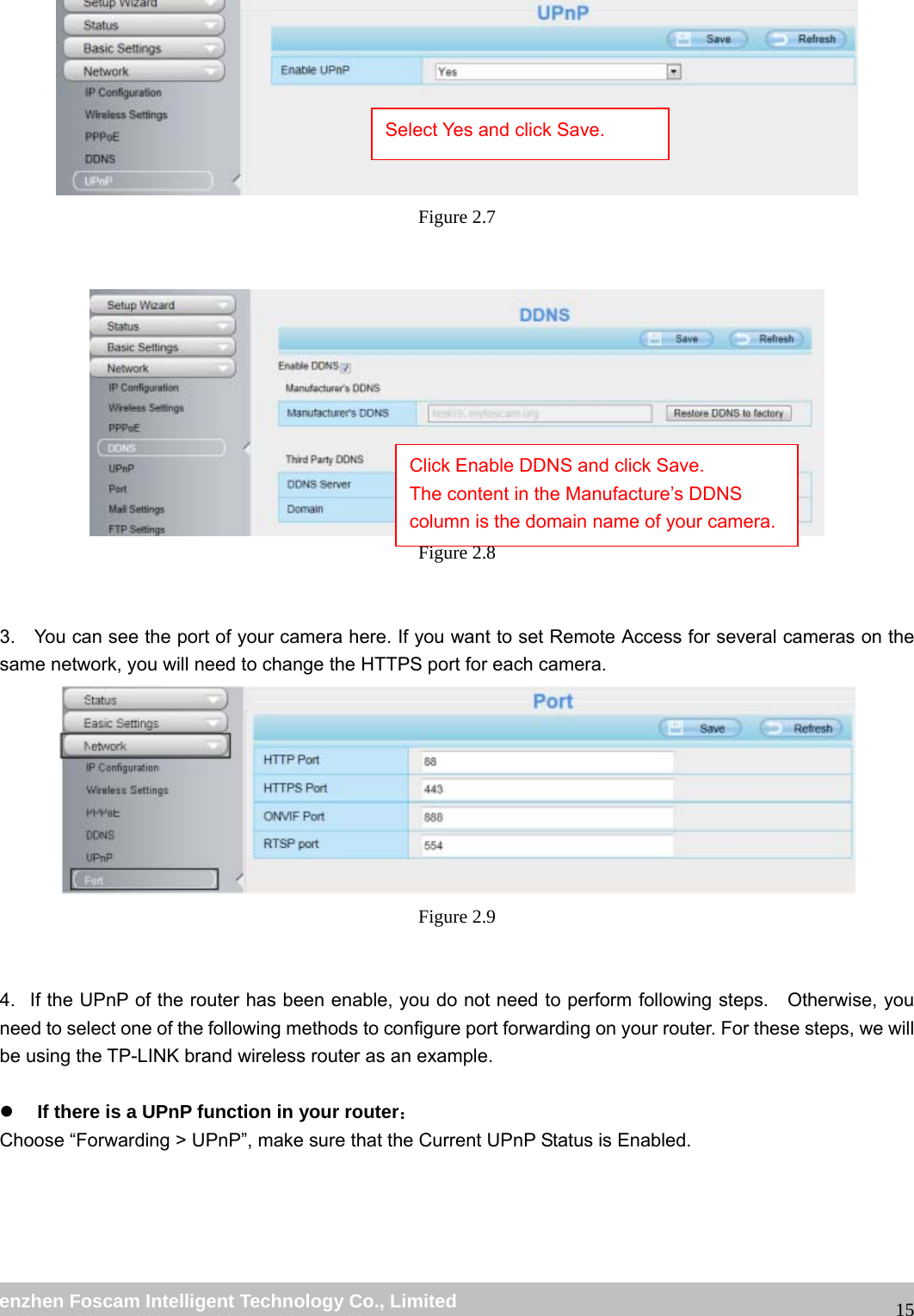
                                                        wwwwww..ffoossccaamm..ccoomm  SShheennzzhheenn  FFoossccaamm  IInntteelllliiggeenntt  TTeecchhnnoollooggyy  CCoo..,,  LLiimmiitteedd  TTeell::  8866  775555  22667744  55666688  FFaaxx::  8866  775555  22667744  55116688                                                                                                                   14 Figure 2.5  Access your IP Camera from the Internet You can access the IP Camera from the Internet (remote access). Enter the WAN IP address and port number in your standard browser. For example, you would enter http:// 183.37.28.254:88  2.3.2 Remote Access If you want to access your camera by web browser outside of your LAN, you need to configure following configurations.  1.    Choose “Settings” on the top of the camera web page, then go to the “Network > IP Configuration” section on the left side of the screen, then uncheck the Obtain IP DHCP.   Figure 2.6   2. Enable UPnP and DDNS in the camera’s settings page. We recommend you to use the DDNS by factory default.  IP Address: Set this in the same subnet as your computer , or keep it as default. Subnet Mask: Keep it as default. Gateway and DNS Server: Set it to the IP address of your router.
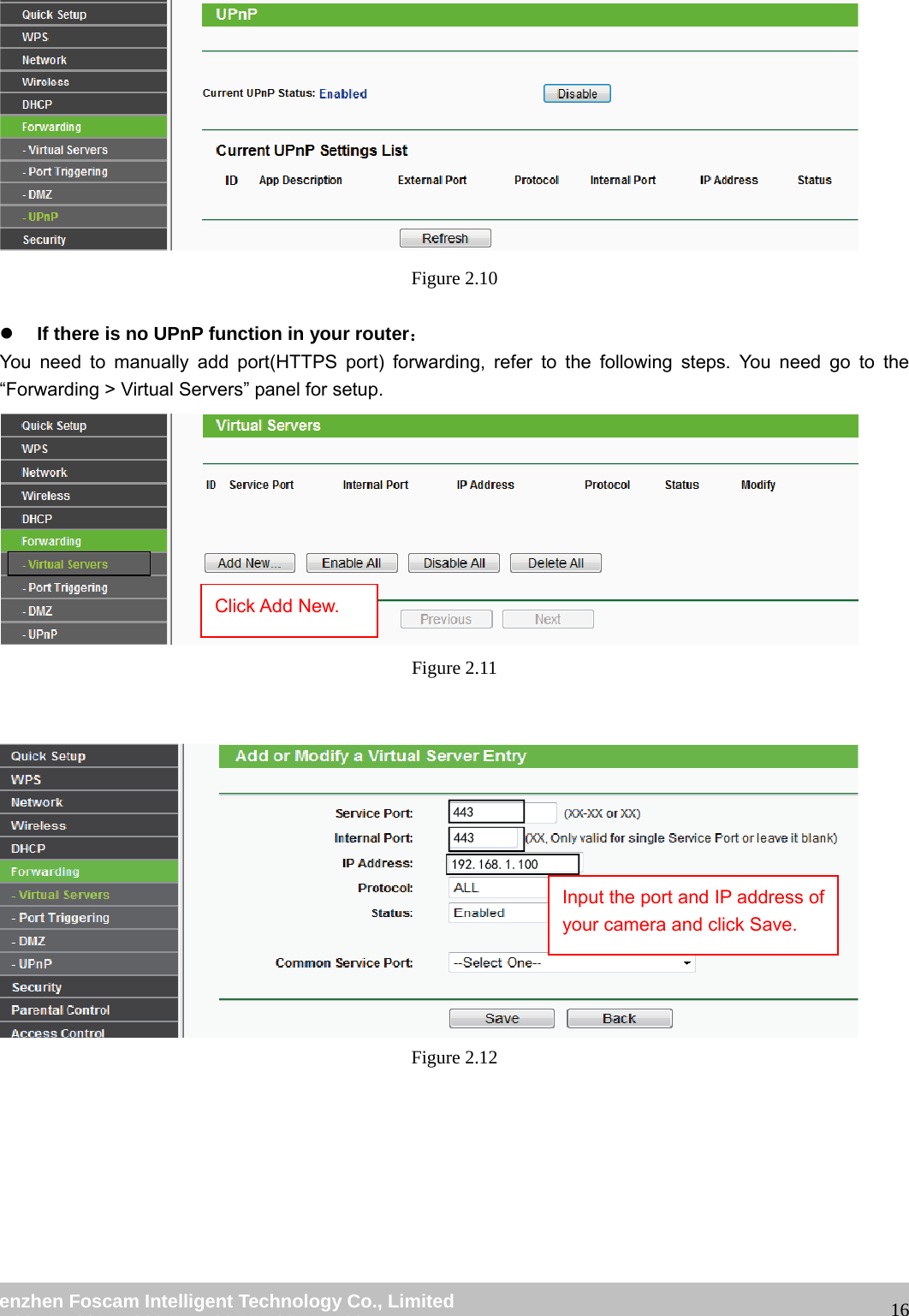
                                                        wwwwww..ffoossccaamm..ccoomm  SShheennzzhheenn  FFoossccaamm  IInntteelllliiggeenntt  TTeecchhnnoollooggyy  CCoo..,,  LLiimmiitteedd  TTeell::  8866  775555  22667744  55666688  FFaaxx::  8866  775555  22667744  55116688                                                                                                                   15 Figure 2.7    Figure 2.8   3.    You can see the port of your camera here. If you want to set Remote Access for several cameras on the same network, you will need to change the HTTPS port for each camera.  Figure 2.9   4.   If the UPnP of the router has been enable, you do not need to perform following steps.    Otherwise, you need to select one of the following methods to configure port forwarding on your router. For these steps, we will be using the TP-LINK brand wireless router as an example.    z If there is a UPnP function in your router: Choose “Forwarding > UPnP”, make sure that the Current UPnP Status is Enabled.  Select Yes and click Save. Click Enable DDNS and click Save. The content in the Manufacture’s DDNS column is the domain name of your camera.
                                                        wwwwww..ffoossccaamm..ccoomm  SShheennzzhheenn  FFoossccaamm  IInntteelllliiggeenntt  TTeecchhnnoollooggyy  CCoo..,,  LLiimmiitteedd  TTeell::  8866  775555  22667744  55666688  FFaaxx::  8866  775555  22667744  55116688                                                                                                                   16 Figure 2.10  z If there is no UPnP function in your router: You need to manually add port(HTTPS port) forwarding, refer to the following steps. You need go to the “Forwarding > Virtual Servers” panel for setup.    Figure 2.11    Figure 2.12   Click Add New. Input the port and IP address of your camera and click Save.
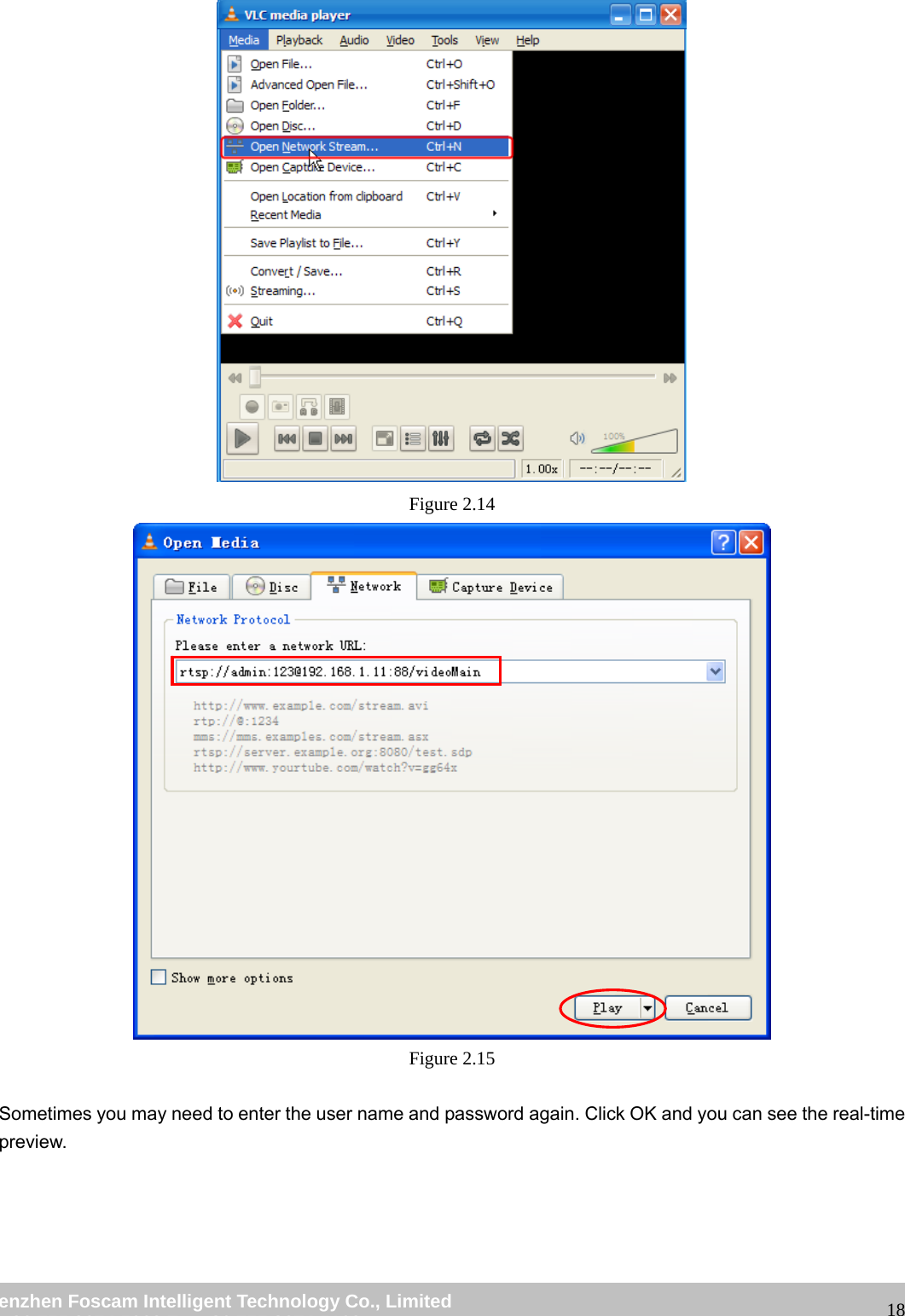
                                                        wwwwww..ffoossccaamm..ccoomm  SShheennzzhheenn  FFoossccaamm  IInntteelllliiggeenntt  TTeecchhnnoollooggyy  CCoo..,,  LLiimmiitteedd  TTeell::  8866  775555  22667744  55666688  FFaaxx::  8866  775555  22667744  55116688                                                                                                                   17 Figure 2.13   5.   Now you can access your IP camera by https://domain name: HTTPS port via the Internet.   2.4 Using the VLC player This camera supports RTSP streaming, here you can view the camera using VLC player.  RTSP URL    rtsp:// [user name][:password]@IP:port number/videosream  The part in the square brackets may be omitted. user name & password: The user name and password to access the camera. This part can be omitted. IP: WAN or LAN IP address. port number:If there is the RSTP port number on the Port page, you must only use RTSP port number. otherwise, you must only use http port number. Videostream:Here support three modes: videoMain, videoSub and audio. When the network speed is bad, here you had better select videoSub. If you select audio, you can only hear the sound but cannot see the video.  For example: IP:  192.168.1.11 Port number:  88 User name:  admin Password:  123  Here I can enter one of the following URLs in the VLC. 1.rtsp://admin:123@192.168.1.11:88/videoMain 2.rtsp:// @192.168.1.11:88/videoMain 3.rtsp://:123@192.168.1.11:88/videoMain 4.rtsp://admin@192.168.1.11:88/videoMain  Open the VLC, and go to MediaٛOpen Network Stream option, then enter the URL into VLC. Here you have finished the Port Forwarding setup.
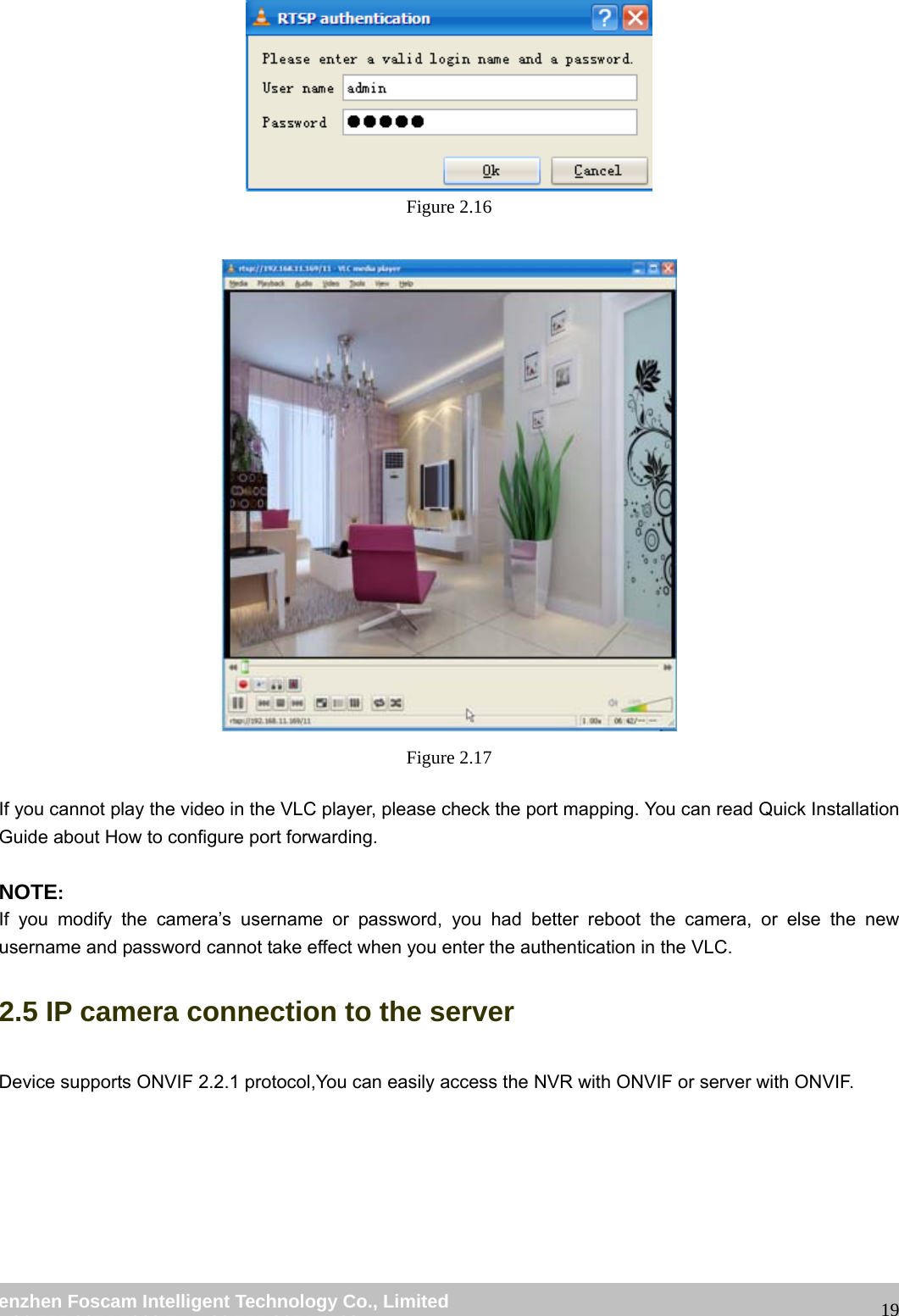
                                                        wwwwww..ffoossccaamm..ccoomm  SShheennzzhheenn  FFoossccaamm  IInntteelllliiggeenntt  TTeecchhnnoollooggyy  CCoo..,,  LLiimmiitteedd  TTeell::  8866  775555  22667744  55666688  FFaaxx::  8866  775555  22667744  55116688                                                                                                                   18 Figure 2.14  Figure 2.15  Sometimes you may need to enter the user name and password again. Click OK and you can see the real-time preview.
                                                        wwwwww..ffoossccaamm..ccoomm  SShheennzzhheenn  FFoossccaamm  IInntteelllliiggeenntt  TTeecchhnnoollooggyy  CCoo..,,  LLiimmiitteedd  TTeell::  8866  775555  22667744  55666688  FFaaxx::  8866  775555  22667744  55116688                                                                                                                   19 Figure 2.16   Figure 2.17  If you cannot play the video in the VLC player, please check the port mapping. You can read Quick Installation Guide about How to configure port forwarding.  NOTE: If you modify the camera’s username or password, you had better reboot the camera, or else the new username and password cannot take effect when you enter the authentication in the VLC. 2.5 IP camera connection to the server Device supports ONVIF 2.2.1 protocol,You can easily access the NVR with ONVIF or server with ONVIF.
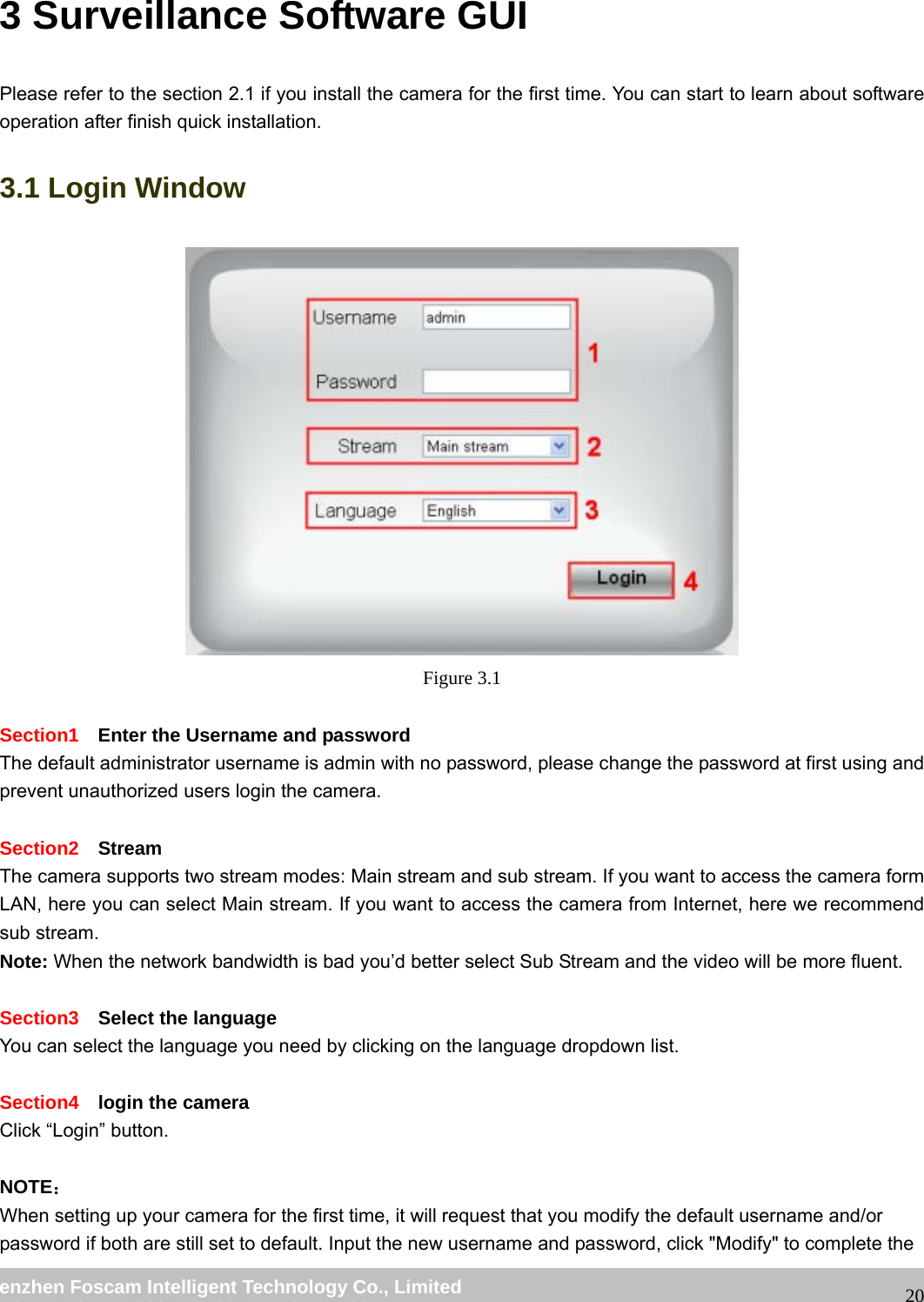
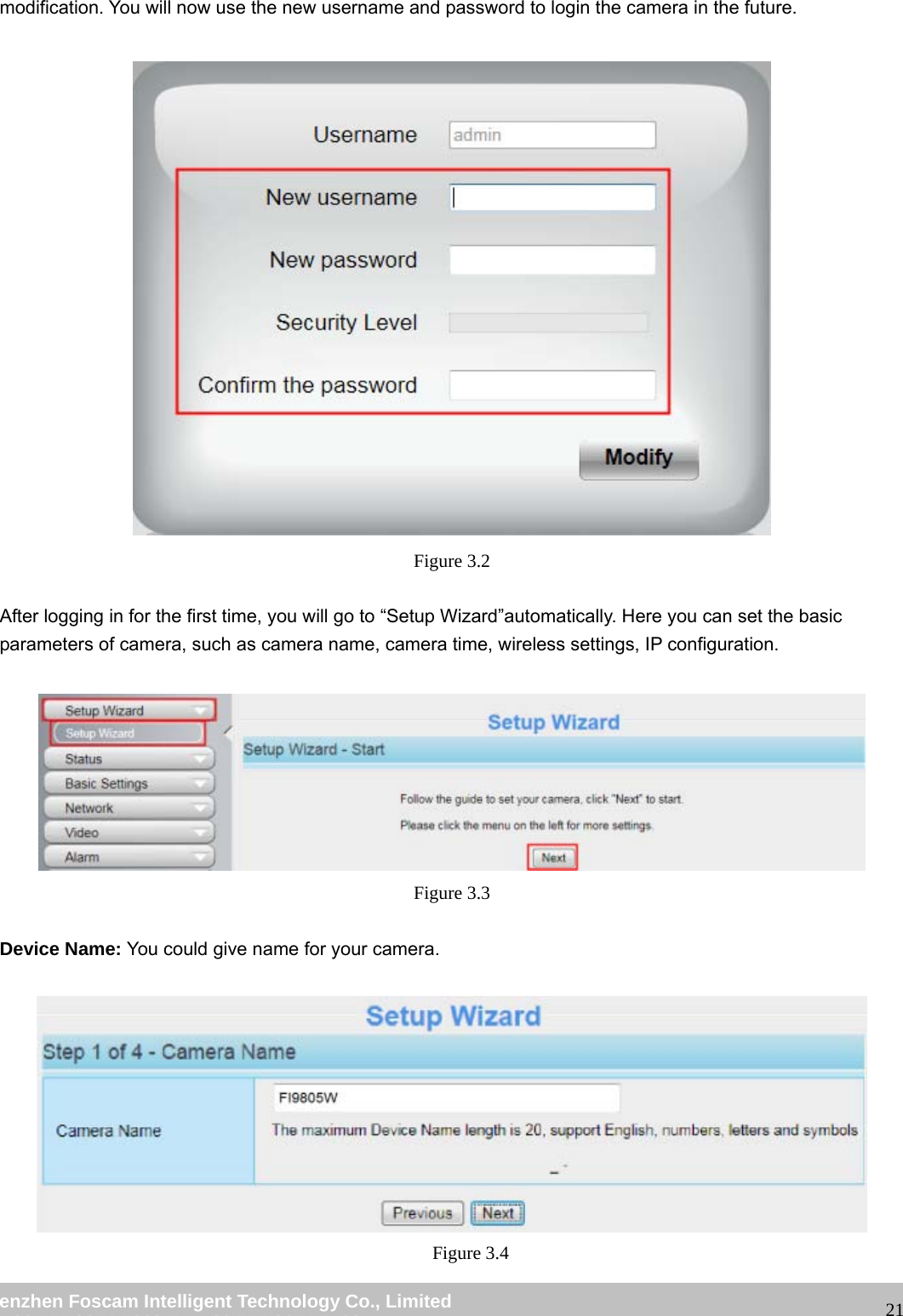
                                                        wwwwww..ffoossccaamm..ccoomm  SShheennzzhheenn  FFoossccaamm  IInntteelllliiggeenntt  TTeecchhnnoollooggyy  CCoo..,,  LLiimmiitteedd  TTeell::  8866  775555  22667744  55666688  FFaaxx::  8866  775555  22667744  55116688                                                                                                                   203 Surveillance Software GUI Please refer to the section 2.1 if you install the camera for the first time. You can start to learn about software operation after finish quick installation. 3.1 Login Window  Figure 3.1  Section1  Enter the Username and password The default administrator username is admin with no password, please change the password at first using and prevent unauthorized users login the camera.      Section2  Stream The camera supports two stream modes: Main stream and sub stream. If you want to access the camera form LAN, here you can select Main stream. If you want to access the camera from Internet, here we recommend sub stream.   Note: When the network bandwidth is bad you’d better select Sub Stream and the video will be more fluent.  Section3  Select the language You can select the language you need by clicking on the language dropdown list.  Section4  login the camera Click “Login” button.  NOTE: When setting up your camera for the first time, it will request that you modify the default username and/or password if both are still set to default. Input the new username and password, click "Modify" to complete the
                                                        wwwwww..ffoossccaamm..ccoomm  SShheennzzhheenn  FFoossccaamm  IInntteelllliiggeenntt  TTeecchhnnoollooggyy  CCoo..,,  LLiimmiitteedd  TTeell::  8866  775555  22667744  55666688  FFaaxx::  8866  775555  22667744  55116688                                                                                                                   21modification. You will now use the new username and password to login the camera in the future.   Figure 3.2  After logging in for the first time, you will go to “Setup Wizard”automatically. Here you can set the basic parameters of camera, such as camera name, camera time, wireless settings, IP configuration.    Figure 3.3   Device Name: You could give name for your camera.     Figure 3.4
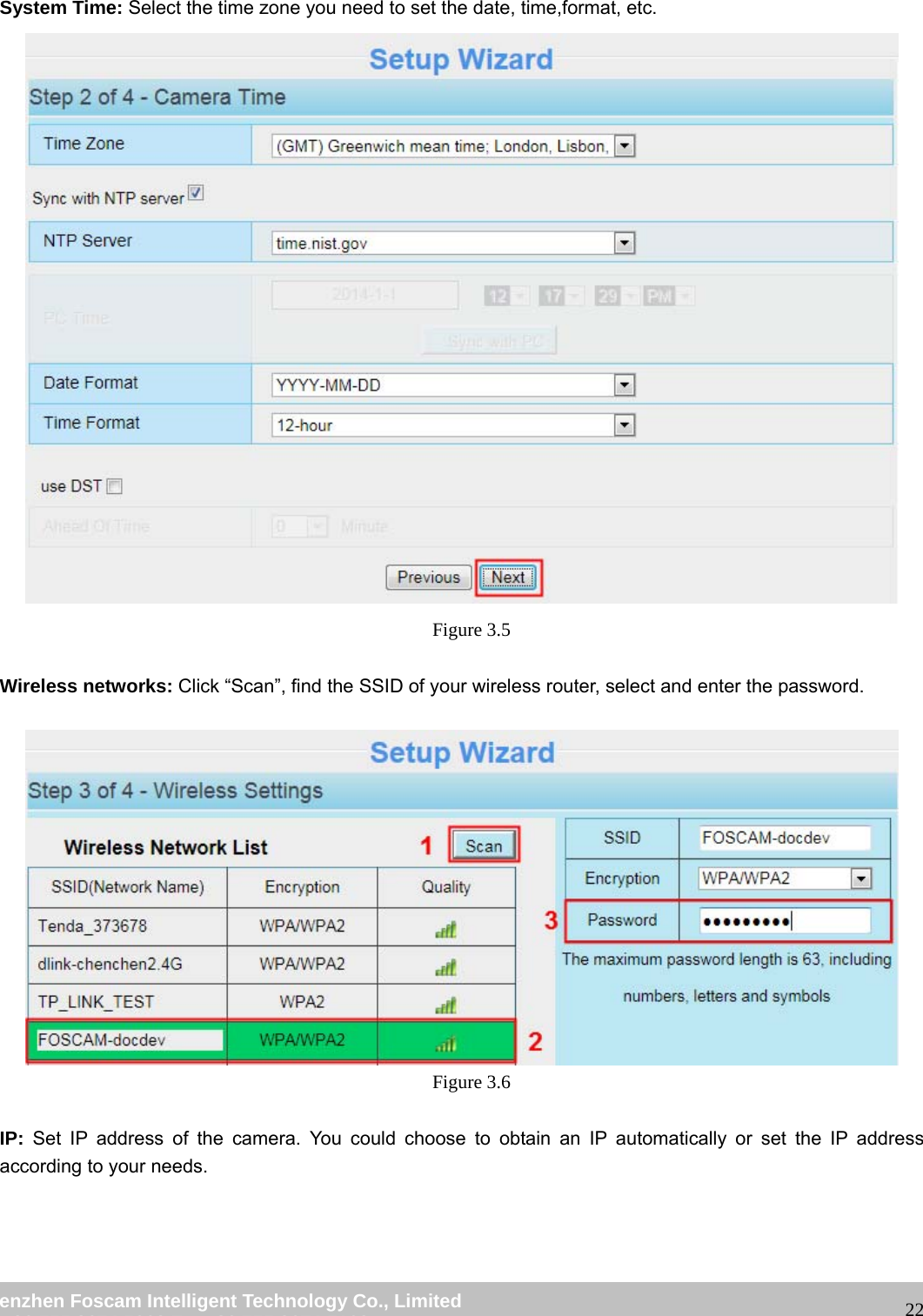
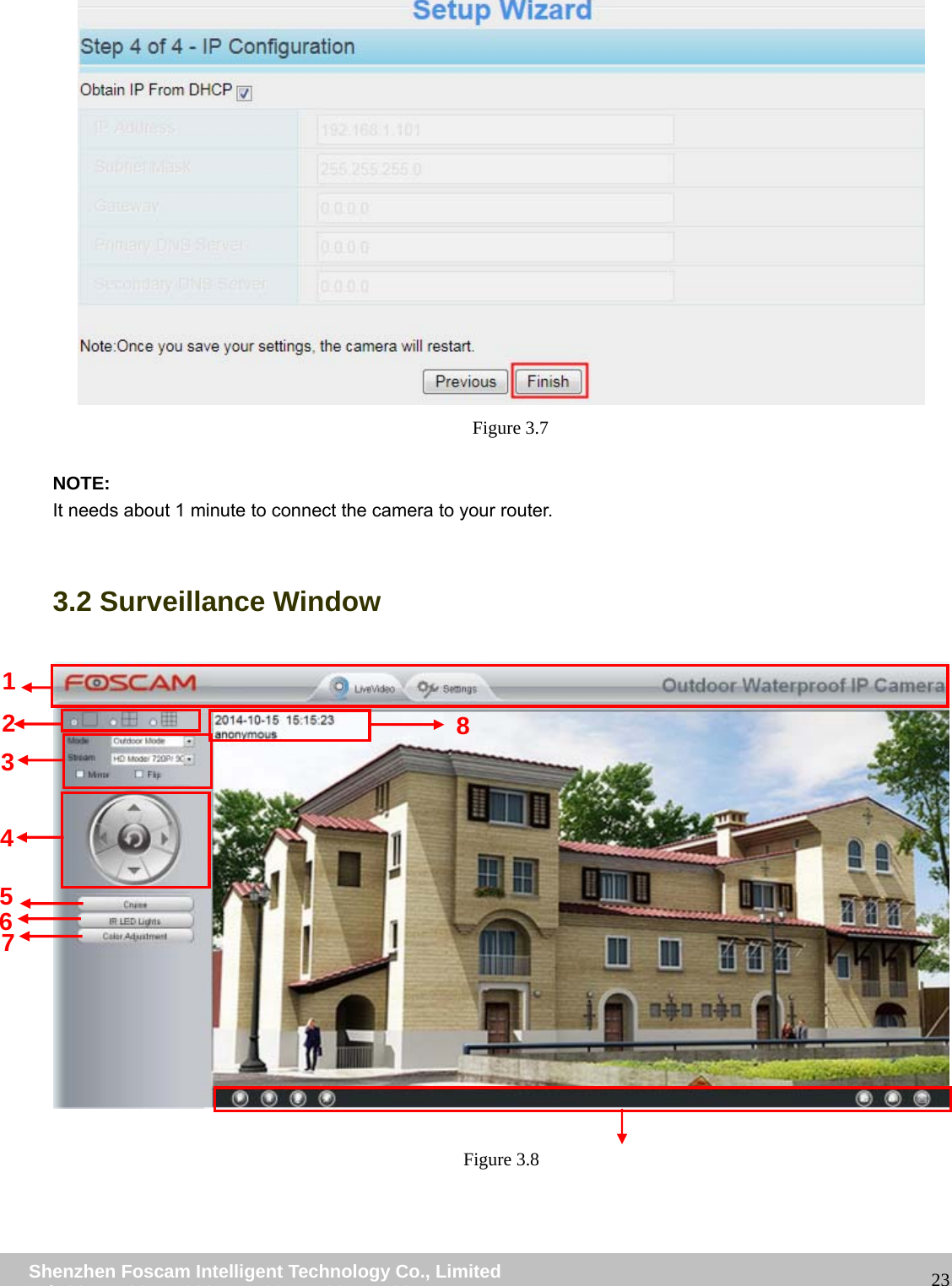
                                                        wwwwww..ffoossccaamm..ccoomm  SShheennzzhheenn  FFoossccaamm  IInntteelllliiggeenntt  TTeecchhnnoollooggyy  CCoo..,,  LLiimmiitteedd  TTeell::  8866  775555  22667744  55666688  FFaaxx::  8866  775555  22667744  55116688                                                                                                                   22 System Time: Select the time zone you need to set the date, time,format, etc.   Figure 3.5  Wireless networks: Click “Scan”, find the SSID of your wireless router, select and enter the password.      Figure 3.6  IP: Set IP address of the camera. You could choose to obtain an IP automatically or set the IP address according to your needs.
                                                        wwwwww..ffoossccaamm..ccoomm  SShheennzzhheenn  FFoossccaamm  IInntteelllliiggeenntt  TTeecchhnnoollooggyy  CCoo..,,  LLiimmiitteedd  TTeell::  8866  775555  22667744  55666688  FFaaxx::  8866  775555  22667744  55116688                                                                                                                   23  Figure 3.7  NOTE: It needs about 1 minute to connect the camera to your router.  3.2 Surveillance Window   Figure 3.8   1 2 6 3 7 8 4 5

Navigation menu