Shuttle PN18 XPC 802.11 b/g Wireless Kit User Manual

Shuttle Inc. XPC 802.11 b/g Wireless Kit Users Manual

Users Manual

User’s GuideforXPC 802.11b/g Wireless Kit
Shuttle®User’s Guide for XPC 802.11b/g Wireless KitManual Version 1.0FCC Regulation InformationThe equipment has been tested and f ound to comply w ith the limits for a Class B DigitalDev ice, pursuant to part 15 of t he FCC rules. Thes e limits are designed to prov idereasonable protection against harmful interf erence in a residential installation. This equip-ment generates, uses and can radiate radio frequency energy and, if not installed andused in accordanc e w ith the ins tructions, may caus e har mful interf erence to radiocommunication. How ever, there is no guaran tee that interference w ill not occur in apar ticular installation. If this equipment does cause harmful interf erenc e to radio ortelevision reception, w hich can be determined by turning the equipment of f and on, theuser is encouraged to try to correct the interference by one or more of the follow ingmeasures:Reorient or relocate the receiving antenna.Increase the separation betw een the equipment and receiver.Connect the equipment into an outlet on a circuit different from that to w hich thereceiver is connected.Consult the dealer or an experienced radio/TV technician for help.The equipment is for home or of fice use.CopyrightCopyright©2005 by Shuttle®Inc.All Rights Reserved. This publication, including all photos,illustrations, and sof tw are, is protected under international copyright law s. Reproducingany of the material contained herein is prohibited w ithout the consent of the publisher.DisclaimerShuttle®Inc.shall not beliable f or any incidental or consequential damages resulting fromthe use of this product. This company makes no representations or w arranties regard-ing the contents of this manual. This company reserves the right to revise the manual ormake changes in the spec ifications of the pr oduct described herein at any time andw ithout notice and w ithout obligation to notify any person of such revision or changes.General Notice: All the other trademarks and registered trademarks are the propertyof their respective ow ners.
1. Introduction ............................................................................ 11.1 Features ........................................................................... 11.2 Package Contents ............................................................ 21.3 System Requirements ...................................................... 22. Insta llation Of The X PC 802.11b/g Wireless Kit ....................... 32.1 Hardw are Setup ............................................................... 3For P series ...................................................................... 4For i series ........................................................................ 5For G,G2,G4,G5 series ....................................................... 6For K series ...................................................................... 82.2 Software Insta llation ....................................................... 112.3 Network Connection .........................................................142.4 IP Address .......................................................................182.5 Configuration Utility ........................................................192.6 Station .............................................................................21More Setting ....................................................................23Advanced Setting .............................................................272.7 Access Point ....................................................................29More Setting ....................................................................313. Appendix ...............................................................................343.1 SoftAP Configuration ......................................................343.2 Specifications.................................................................39Table of Contents9M0-PN1801-0000
11. IntroductionThe XPC 802.11b/g Wireless Kit aims to let your XPC quickly andseamlessly communicate with a 802.11b/g (at up to 54 Mbps)networks. Wireless networking uses radio frequencies to transmitand rec eive data between your XPC’s and other network devices.With this Wireless Kit, surfing on the Internet couldn’t be any easier.Simply install the USB connector to the reserve header onmainboard, launch the attached friendly-interfaced program- ShuttleWireless tool to configure the Module, and you will be ready toex peri enc e a LAN (loc al area network) that c an be ac cess edanywhere. You can operate the network in either an independentmode or an infrastructure mode. The former, which is also knownas peer-to-peer or ad-hoc network, lets you directly make connec-tion with other wireless-equipped computers, and the later, the so-called infrastructure network, allows you to communicate with wiredLAN via an access point. To obtain the complete benefits your XPC802.11b/g Wireless Kit provides, please read this manual carefullybefore using it.1.1 FeaturesWith XPC 802.11b/g Wireless Kit, you canexchange data over the air, which minimizes the need for wiredconnections.possess the portabilit y and mobili ty of wireless networki ngconnectivity wherever you are.operate Ad-Hoc or Infrastructure modes.utilize up to 256-bit WEP,WPA encryption.enjoy high-speed data transfer rate up to 54 Mbps.employ automatic data rate switc hing which offers max imumreliability, throughput and connectivity.monitor and configure the network vi a t he supplied friendly-interfaced application ~ Shuttle Wireless Tool.Operate a Software Access Point to share your internetconnection with friend family.
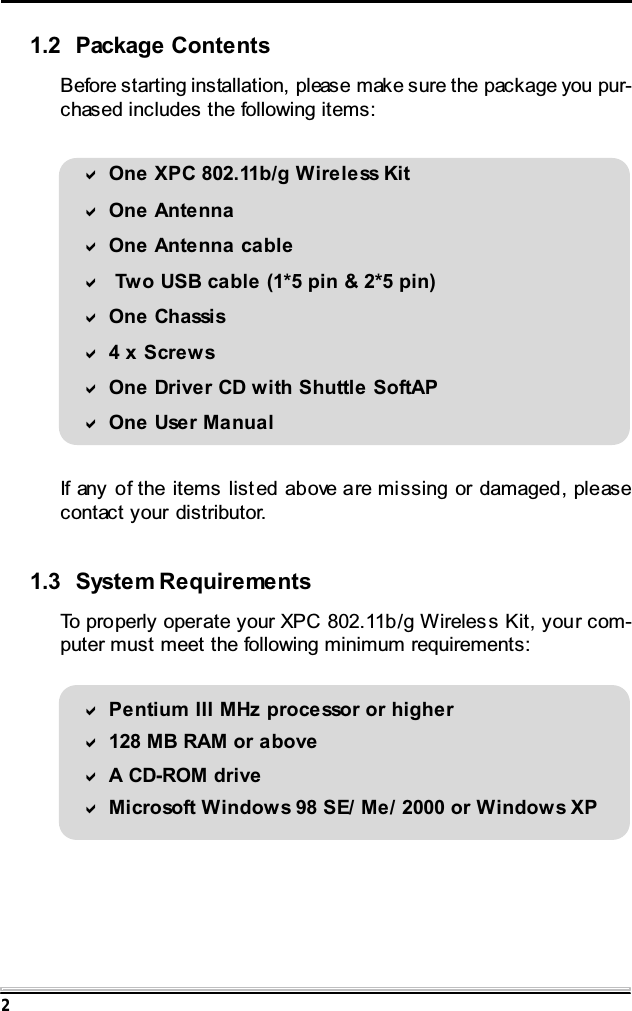
21.2 Package ContentsBefore starting installation, please make sure the package you pur-chased includes the following items:One XPC 802.11b/g Wireless KitOne AntennaOne Antenna cable Two USB cable (1*5 pin & 2*5 pin)One Ch assi s4xScrewsOne Driver CD with Shuttle SoftAPOne User ManualIf any of the items list ed above are missing or damaged, pleasecontact your distributor.1.3 System RequirementsTo properly operate your XPC 802.11b/g Wireles s Kit, your com-puter must meet the following minimum requirements:Pentium III MHz processor or higher128 MB RAM or aboveA CD-ROM driveMicrosoft Windows 98 SE/ Me/ 2000 or Windows XP
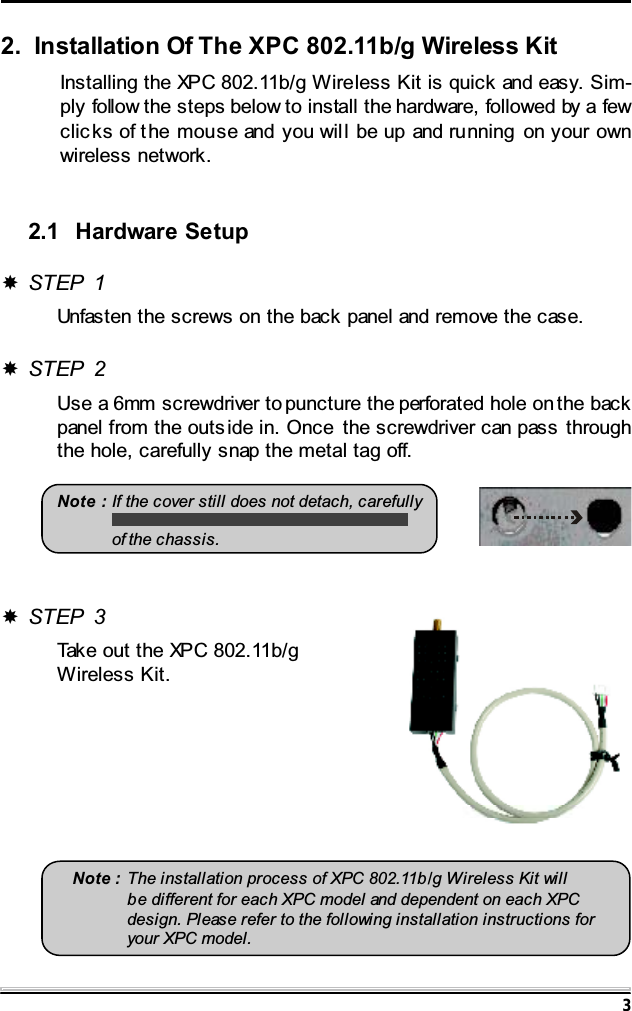
32. Installation Of The XPC 802.11b/g Wireless KitInstalling the XPC 802.11b/g Wireless Kit is quick and easy. Sim-ply follow the steps below to install the hardware, followed by a fewclic ks of the mouse and you will be up and running on your ownwireless network.2.1 Hardware SetupSTEP 1Unfasten the screws on the back panel and remove the case.STEP 2Use a 6mm screwdriver to puncture the perforated hole on the backpanel from the outs ide in. Once the screwdriver can pass throughthe hole, carefully snap the metal tag off.Note : If the cover still does not detach, carefullyof the chassis.Note : The installation process of XPC 802.11b/g Wireless Kit willbe different for each XPC model and dependent on each XPCdesign. Please refer to the following installation instructions foryour XPC model.STEP 3Take out the XPC 802.11b/gWireless Kit.
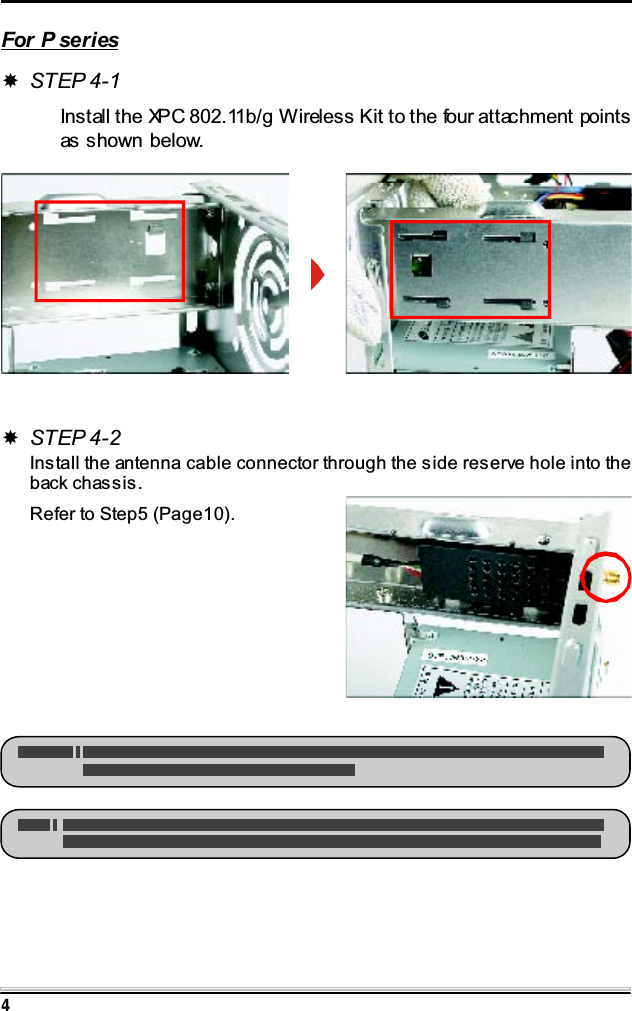
4For P seriesSTEP 4-1Install the XPC 802.11b/g Wireless Kit to the four attachment pointsas shown below.STEP 4-2Install the antenna cable connector through the side reserve hole into theback chassis.Refer to Step5 (Page10).
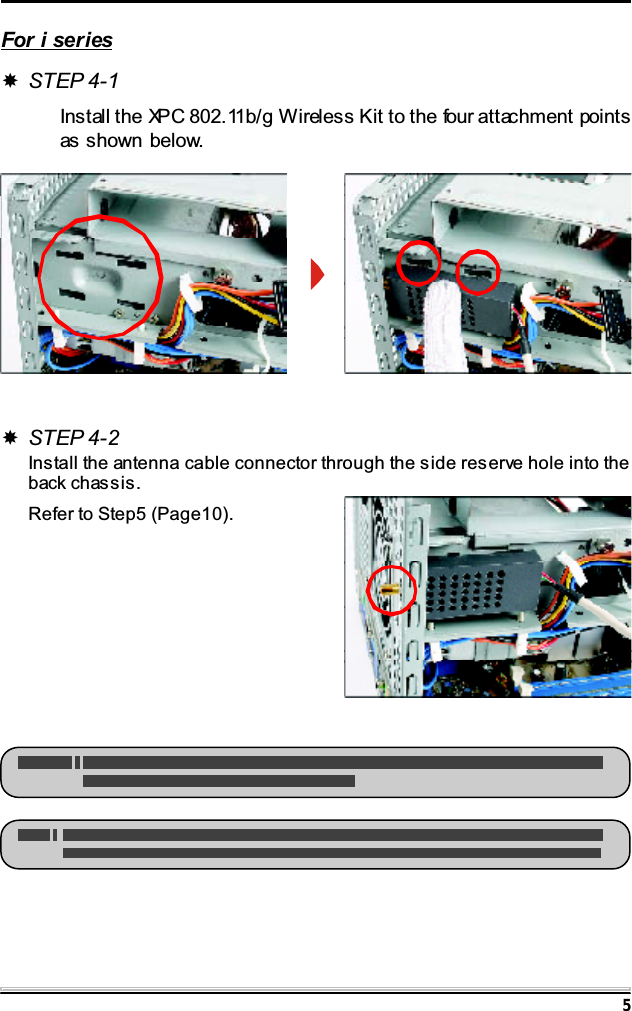
5For i seriesSTEP 4-1Install the XPC 802.11b/g Wireless Kit to the four attachment pointsas shown below.STEP 4-2Install the antenna cable connector through the side reserve hole into theback chassis.Refer to Step5 (Page10).
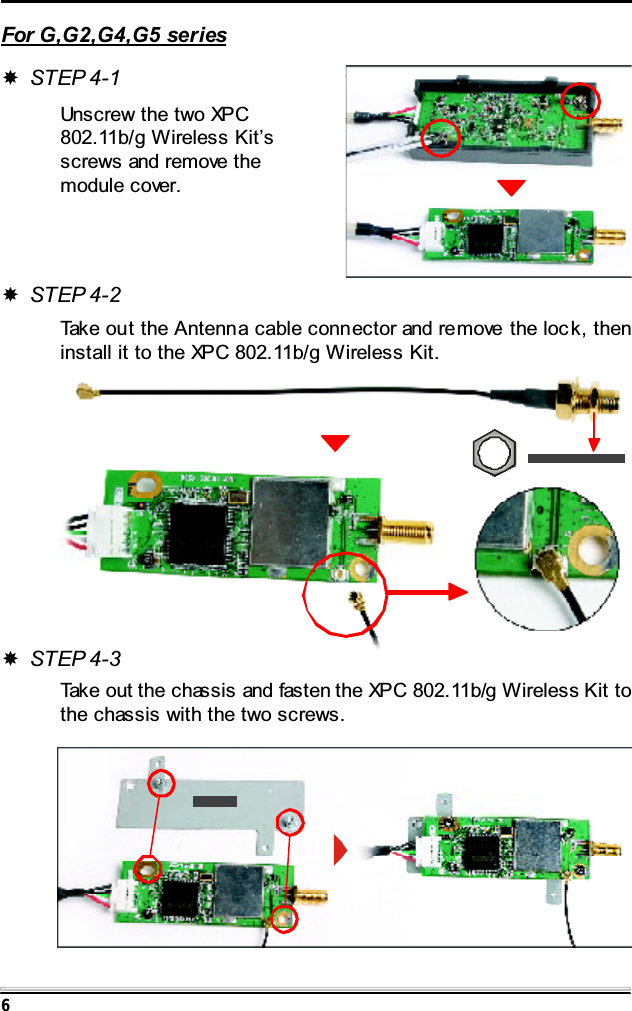
6For G,G2,G4,G5 seriesSTEP 4-1Unscrew the two XPC802.11b/g Wireless Kit’sscrews and remove themodule cover.STEP 4-2Take out the Antenna cable connector and remove the loc k, theninstall it to the XPC 802.11b/g Wireless Kit.STEP 4-3Take out the chassis and fasten the XPC 802.11b/g Wireless Kit tothe chassis with the two screws.
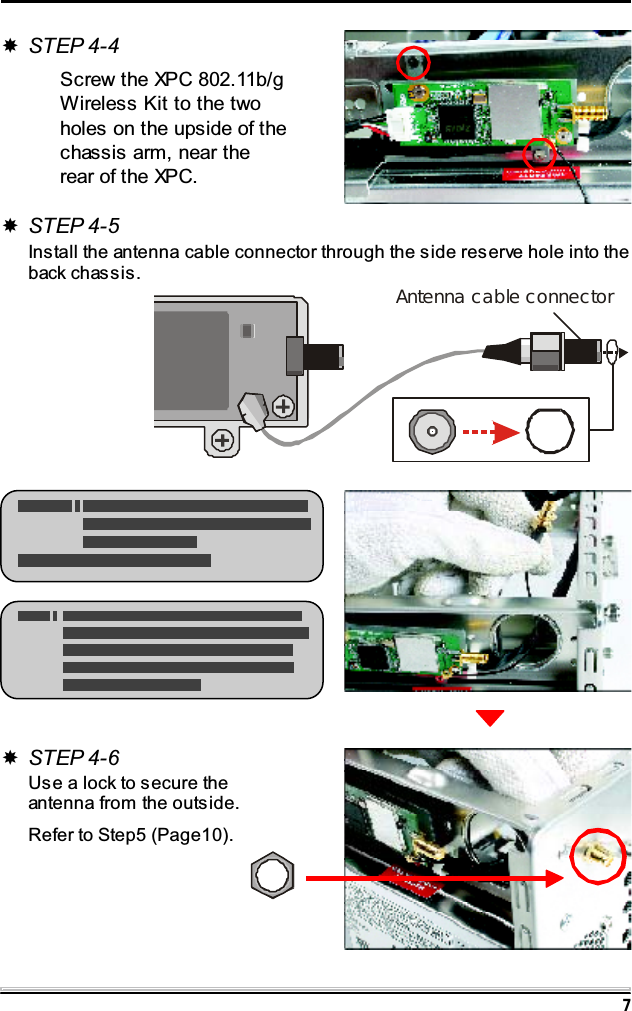
7STEP 4-4Screw the XPC 802.11b/gWireless Kit to the twoholes on the upside of thechassis arm, near therear of the XPC.STEP 4-6Use a lock to secure theantenna from the outside.Refer to Step5 (Page10).STEP 4-5Install the antenna cable connector through the side reserve hole into theback chassis.Antenna cable connector
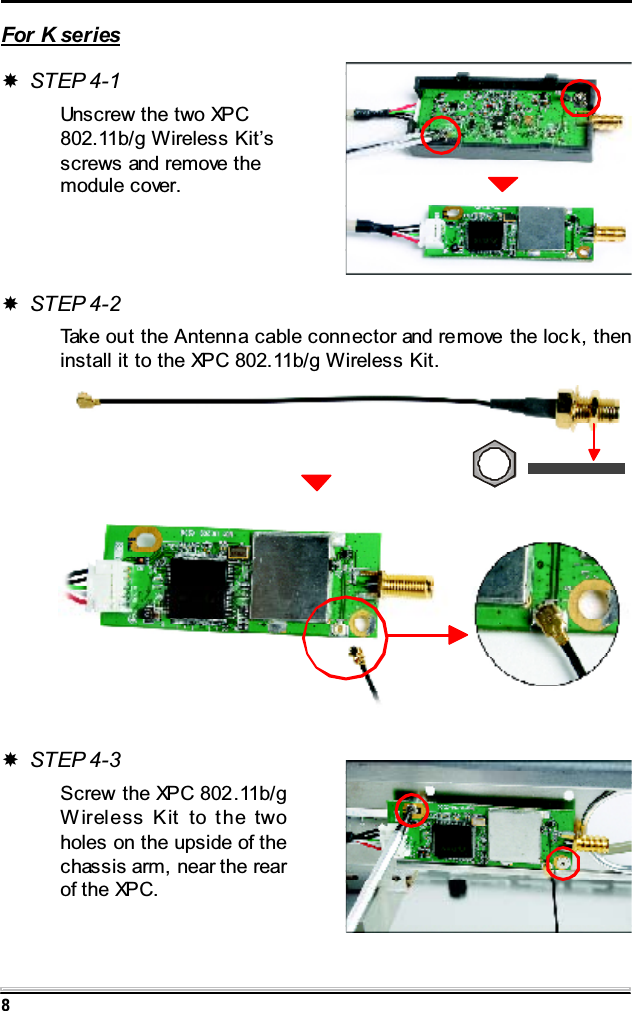
8For K seriesSTEP 4-1Unscrew the two XPC802.11b/g Wireless Kit’sscrews and remove themodule cover.STEP 4-2Take out the Antenna cable connector and remove the loc k, theninstall it to the XPC 802.11b/g Wireless Kit.STEP 4-3Screw the XPC 802.11b/gWireless Kit to the twoholes on the upside of thechassis arm, near the rearof the XPC.
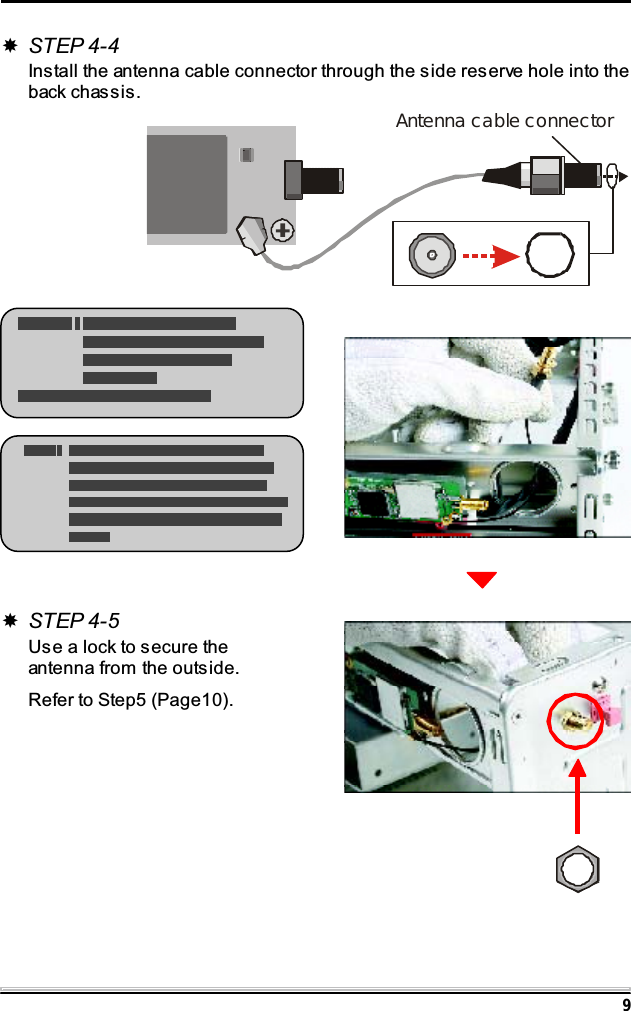
9STEP 4-5Use a lock to secure theantenna from the outside.Refer to Step5 (Page10).STEP 4-4Install the antenna cable connector through the side reserve hole into theback chassis.Antenna cable connector
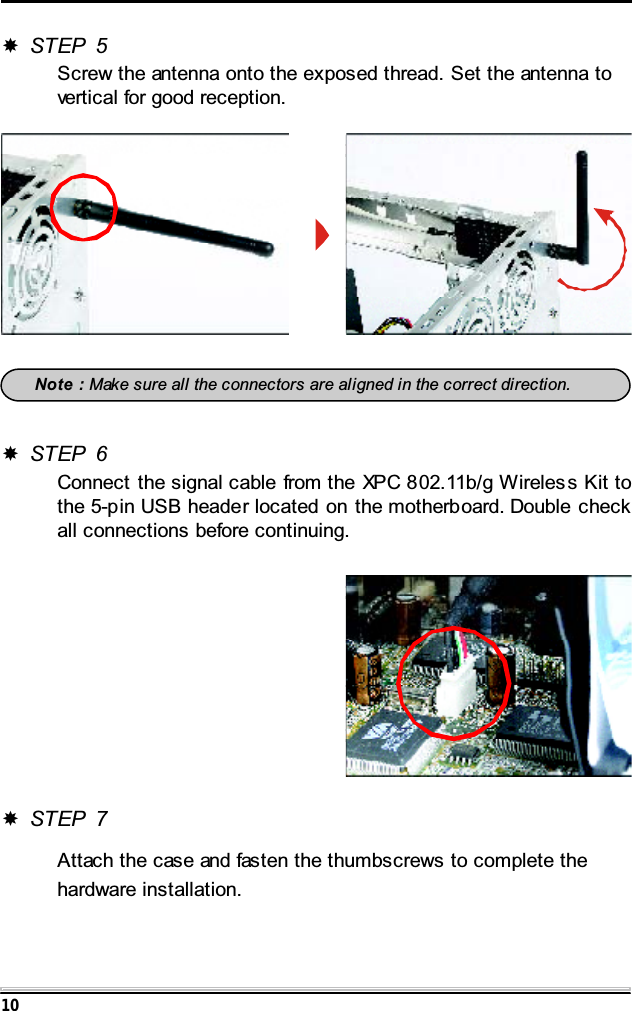
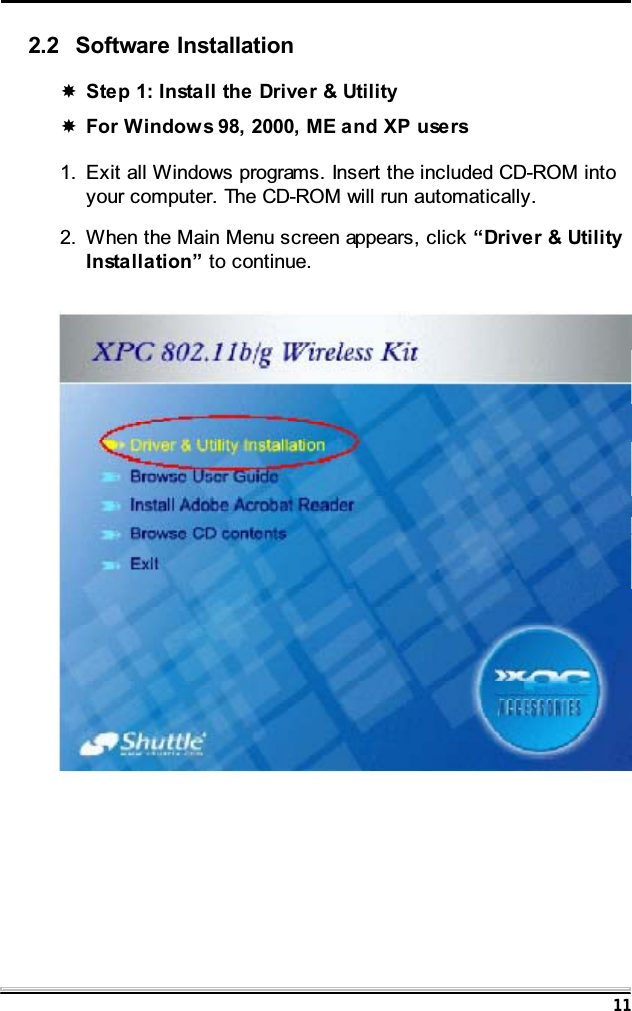
10STEP 5Screw the antenna onto the exposed thread. Set the antenna tovertical for good reception.Note : Make sure all the connectors are aligned in the correct direction.STEP 6Connect the signal cable from the XPC 802.11b/g Wireles s Kit tothe 5-pin USB header located on the motherboard. Double checkall connections before continuing.STEP 7Attach the case and fasten the thumbscrews to complete thehardware installation.
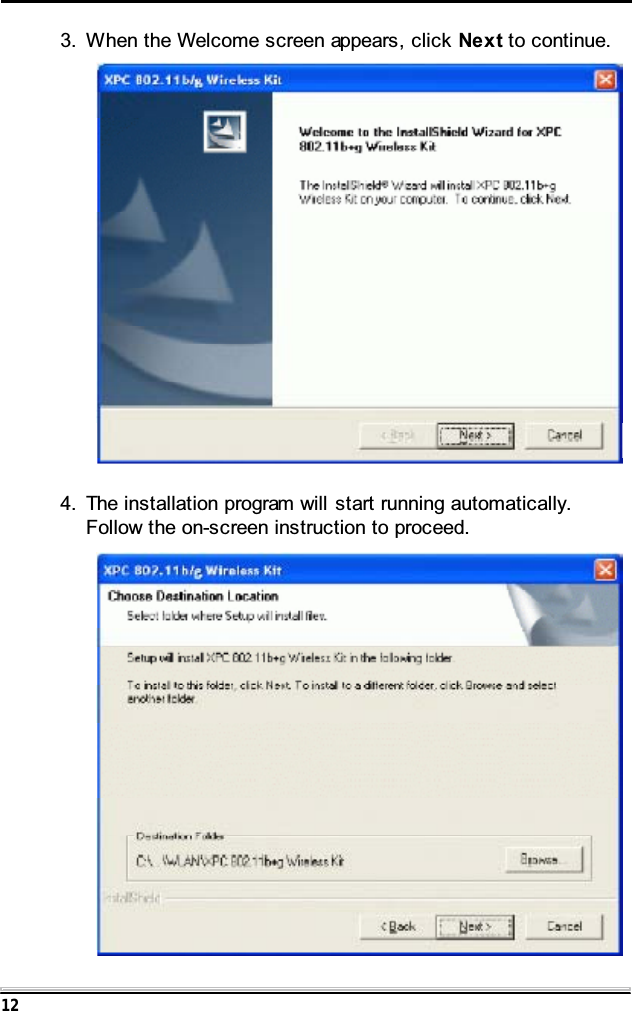
112.2 Software InstallationStep 1: Install the Driver & UtilityFor Windows 98, 2000, ME and XP users1. Exit all Windows programs. Insert the included CD-ROM intoyour computer. The CD-ROM will run automatically.2. When the Main Menu screen appears, click “Driver & UtilityInstallation” to continue.
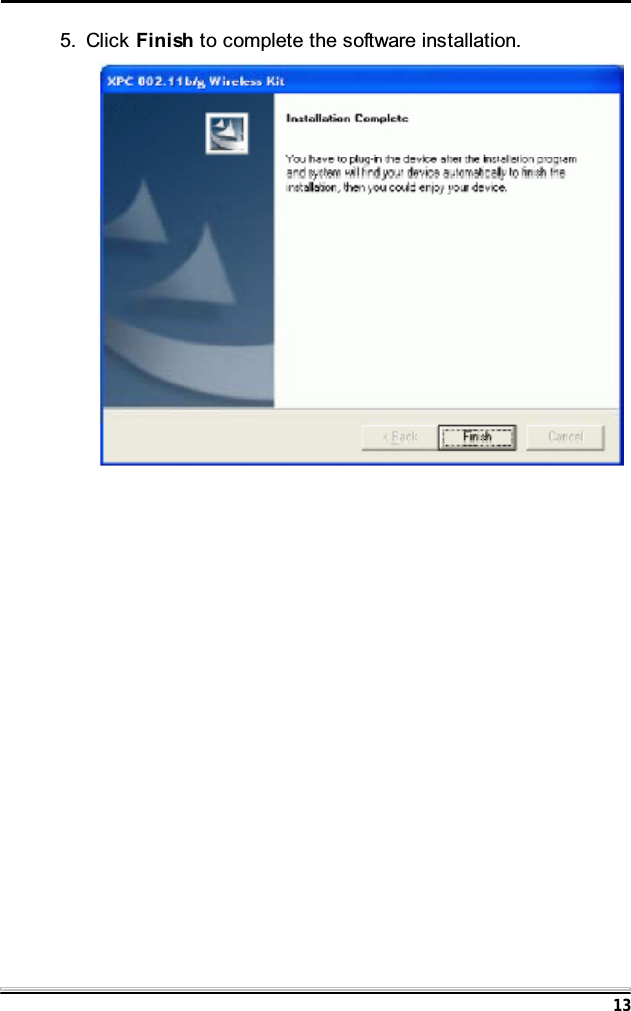
123. When the Welcome screen appears, click Next to continue.4. The installation program will start running automatically.Follow the on-screen instruction to proceed.
135. Click Finish to complete the software installation.
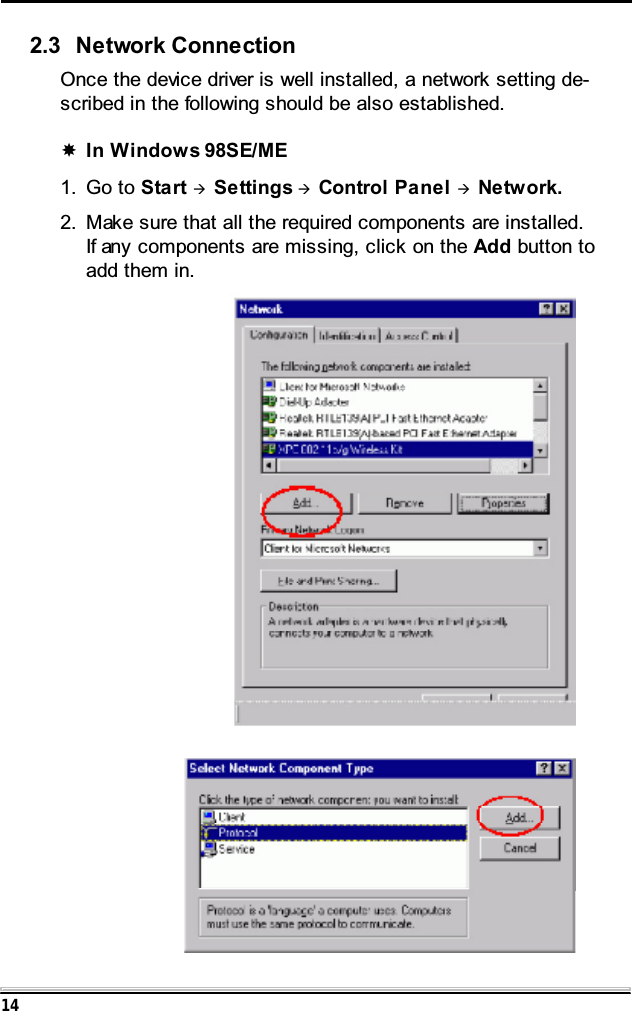
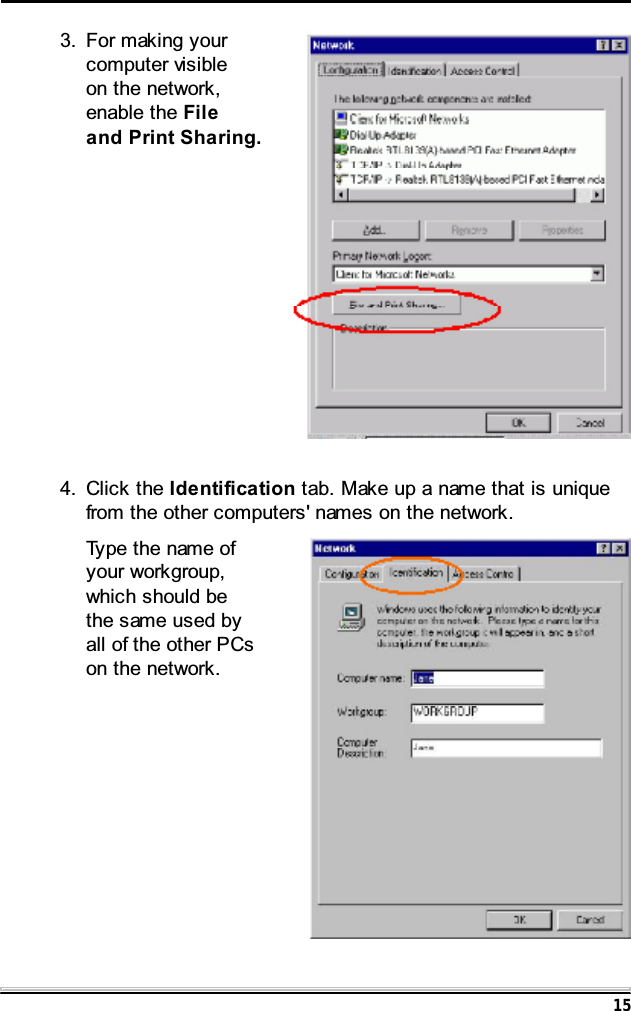
142.3 Network ConnectionOnce the device driver is well installed, a network setting de-scribed in the following should be also established.In Windows 98SE/ME1. Go to Start ÆSettings ÆControl Panel ÆNetwork.2. Make sure that all the required components are installed.If any components are missing, click on the Add button toadd them in.
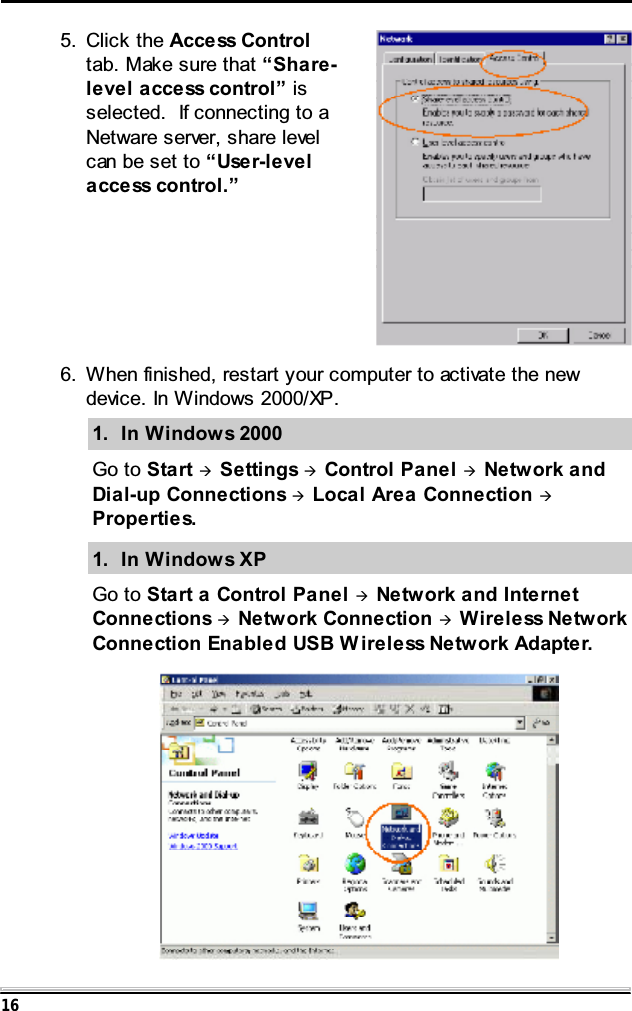
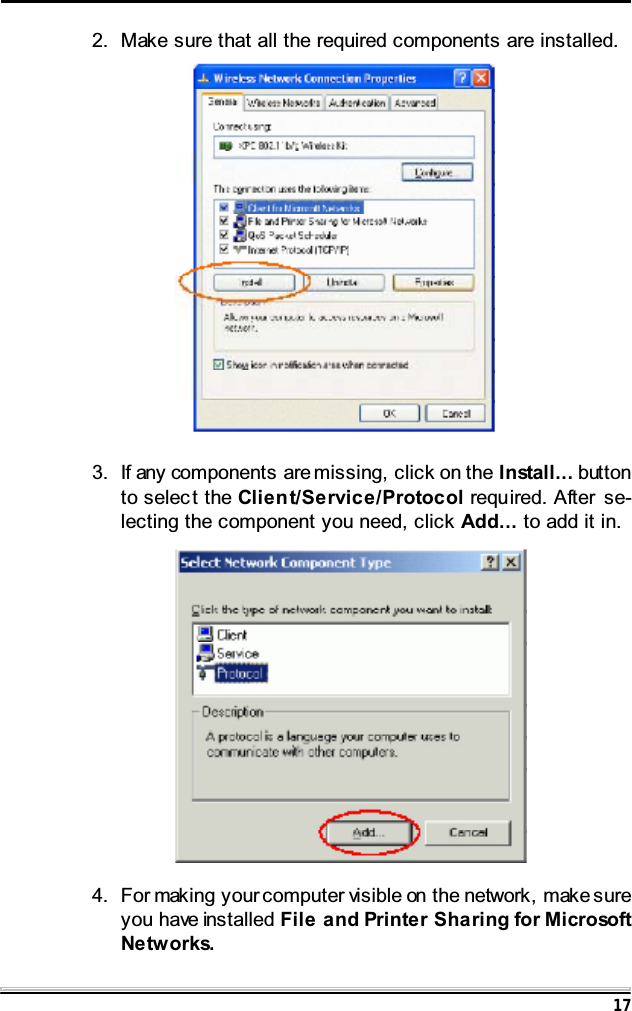
154. Click the Identification tab. Make up a name that is uniquefrom the other computers' names on the network.Typethenameofyour workgroup,which should bethesameusedbyall of the other PCson the network.3. For making yourcomputer visibleon the network,enable the Fileand Print Sharing.
16 6. When finished, restart your computer to activate the newdevice. In Windows 2000/XP.1. In Windows 2000Go to Start ÆSettings ÆControl Panel ÆNetwork andDial-up Connections ÆLocal Area Connection ÆProperties.1. In Windows XPGo to Start a Control Panel ÆNetwork and InternetConnections ÆNetwork Connection ÆWireless NetworkConnection Enabled USB W ireless Network Adapter.5. Click the Access Controltab. Make sure that “Share-level access control” isselected. If connecting to aNetware server, share levelcanbesetto“User-levelaccess control.”
172. Make sure that all the required components are installed.3. If any components are missing, click on the Install... buttonto select the Client/Service/Protocol required. After se-lecting the component you need, click Add... to add it in.4. For making your computer visible on the network, make sureyou have installed File and Printer Sharing for MicrosoftNetworks.
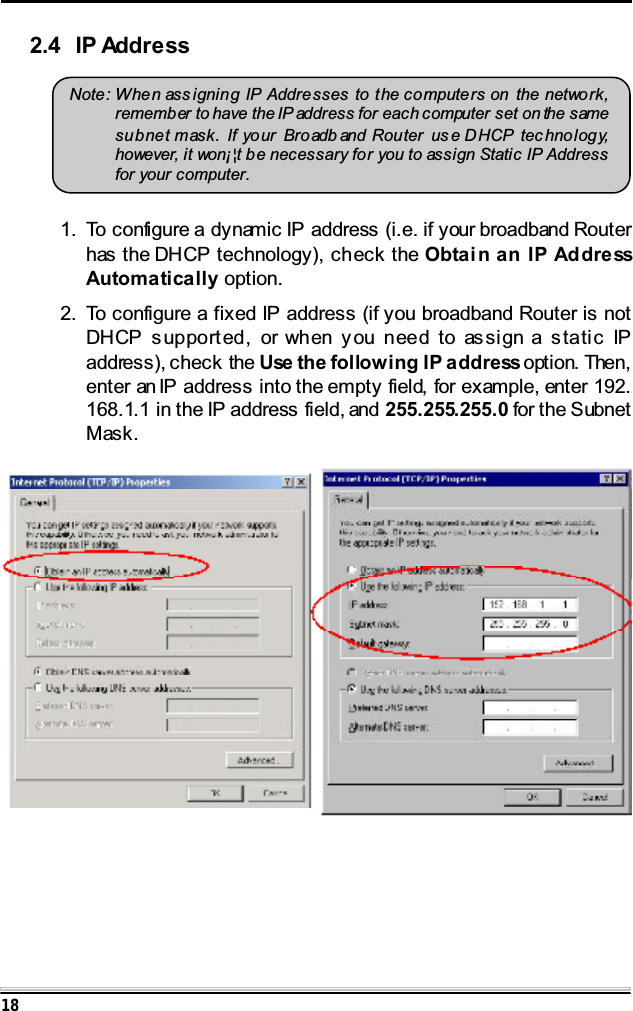
182.4 IP AddressNote: When ass igning IP Addresses to the computers on the network,remember to have the IP address for each computer set on the samesubnet mask. If yo ur Broadb and Router us e DHCP tec hnology,however, it won¡¦t be necessary for you to assign Static IP Addressfor your computer.1. To configure a dynamic IP address (i.e. if your broadband Routerhas the DHCP technology), check the Obtain an IP AddressAutomatically option.2. To configure a fixed IP address (if you broadband Router is notDHCP supported, or when you need to assign a static IPaddress), check the Use the following IP address option. Then,enter an IP address into the empty field, for example, enter 192.168.1.1 in the IP address field, and 255.255.255.0 for the SubnetMask.
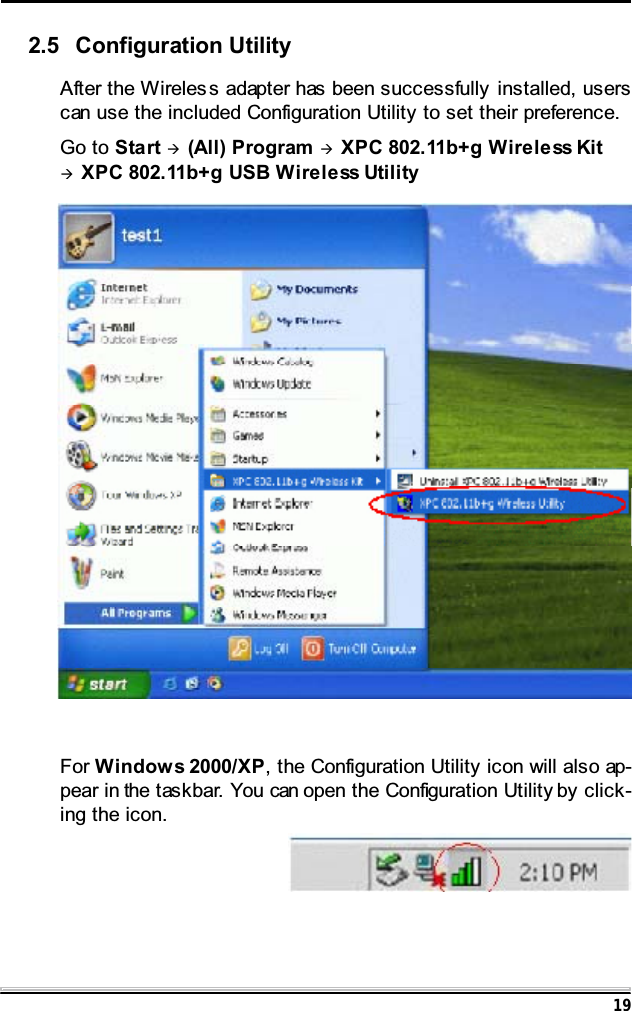
19After the Wireles s adapter has been successfully installed, userscan use the included Configuration Utility to set their preference.Go to Start Æ(All) Program ÆXPC 802.11b+g Wireless KitÆXPC 802.11b+g USB Wireless UtilityFor Windows 2000/XP, the Configuration Utility icon will also ap-pear in the taskbar. You can open the Configuration Utility by click-ing the icon.2.5 Configuration Utility
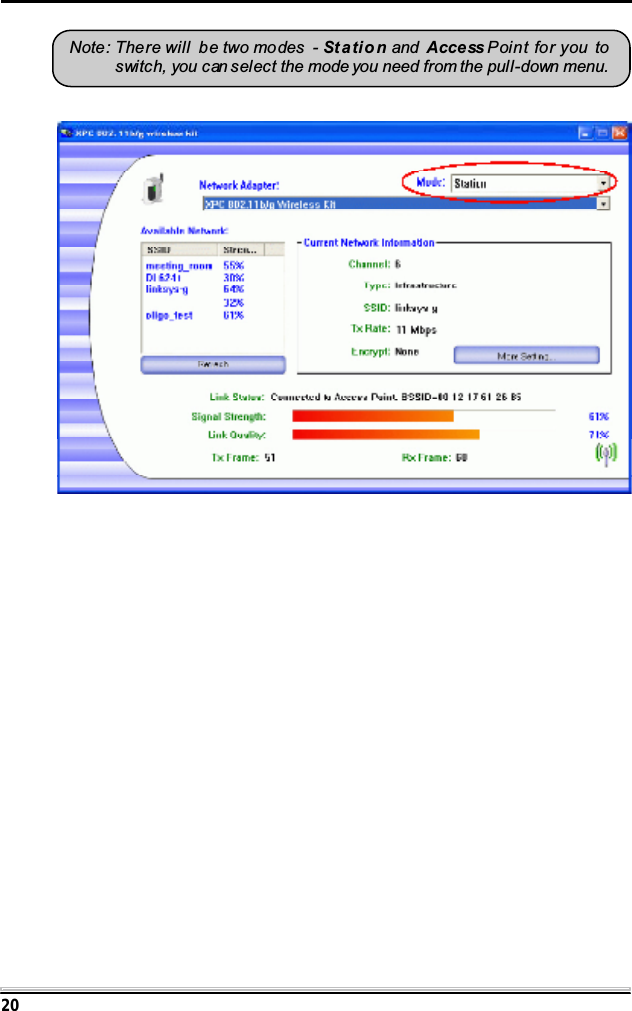
20Note: The re will b e two modes - St atio n and Acce ss Point for you toswitch, you can select the mode you need from the pull-down menu.
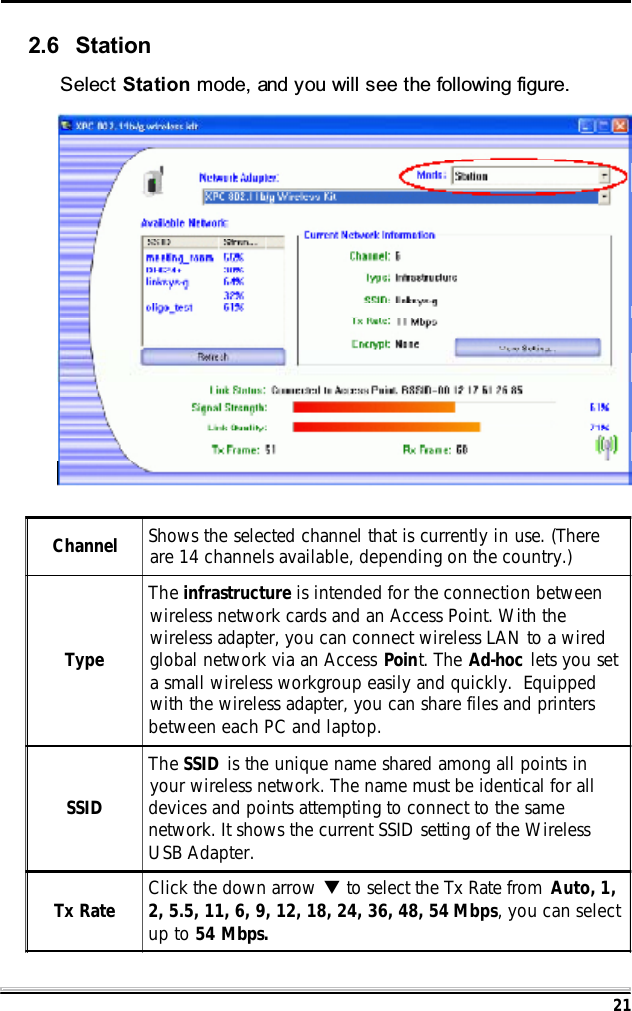
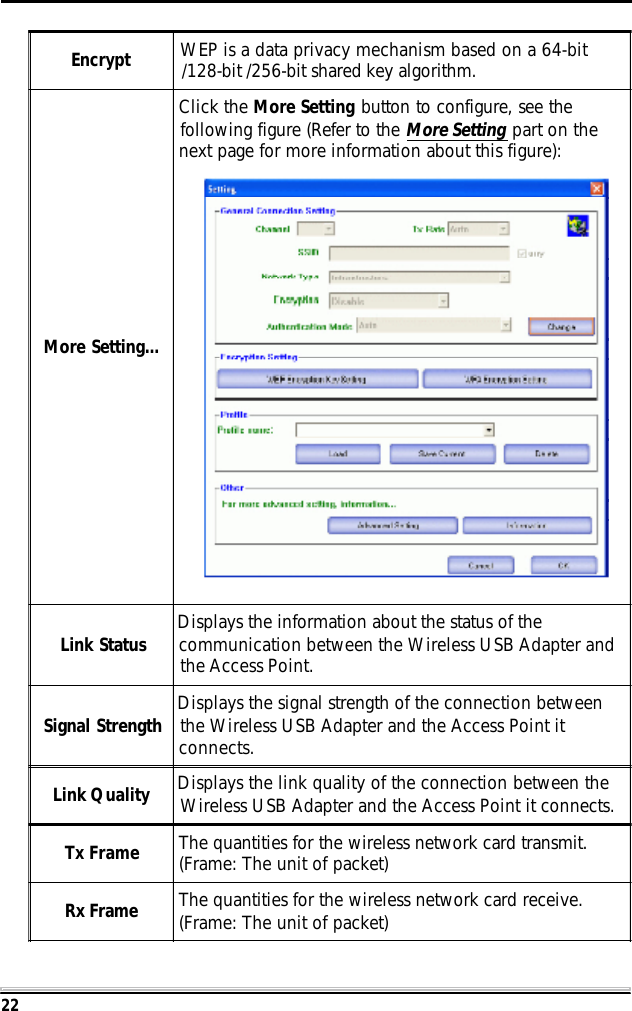
212.6 StationSelect Station mode, and you will see the following figure.Channel Shows the selected channel that is currently in use. (Thereare 14 channels available, depending on the country.)TypeThe infrastructure is intended for the connection betweenwireless network cards and an Access Point. With thewireless adapter, you can connect wireless LAN to a wiredglobal network via an Access Point. The Ad-hoc lets you seta small wireless workgroup easily and quickly.  Equippedwith the wireless adapter, you can share files and printersbetween each PC and laptop.SSIDThe SSID is the unique name shared among all points inyour wireless network. The name must be identical for alldevices and points attempting to connect to the samenetwork. It shows the current SSID setting of the WirelessUSB Adapter.Tx Rate Click the down arrow T to select the Tx Rate from  Auto, 1,2, 5.5, 11, 6, 9, 12, 18, 24, 36, 48, 54 Mbps, you can selectup to 54 Mbps.
22Encrypt WEP is a data privacy mechanism based on a 64-bit/128-bit /256-bit shared key algorithm.More Setting...Click the More Setting button to configure, see thefollowing figure (Refer to the More Setting part on thenext page for more information about this figure):Link Status Displays the information about the status of thecommunication between the Wireless USB Adapter andthe Access Point.Signal Strength Displays the signal strength of the connection betweenthe Wireless USB Adapter and the Access Point itconnects.Link Quality Displays the link quality of the connection between theWireless USB Adapter and the Access Point it connects.Tx Frame The quantities for the wireless network card transmit.(Frame: The unit of packet)Rx Frame The quantities for the wireless network card receive.(Frame: The unit of packet)
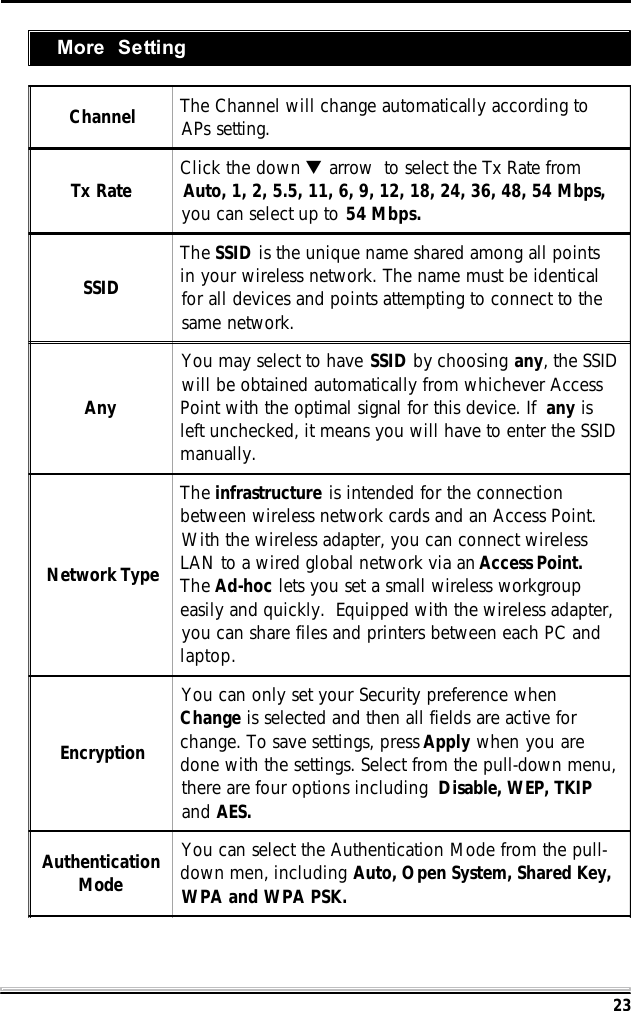
23Channel The Channel will change automatically according toAPs setting.Tx Rate Click the down T arrow  to select the Tx Rate fromAuto, 1, 2, 5.5, 11, 6, 9, 12, 18, 24, 36, 48, 54 Mbps,you can select up to 54 Mbps.SSIDThe SSID is the unique name shared among all pointsin your wireless network. The name must be identicalfor all devices and points attempting to connect to thesame network.AnyYou may select to have SSID by choosing any, the SSIDwill be obtained automatically from whichever AccessPoint with the optimal signal for this device. If any isleft unchecked, it means you will have to enter the SSIDmanually.Network TypeThe infrastructure is intended for the connectionbetween wireless network cards and an Access Point.With the wireless adapter, you can connect wirelessLAN to a wired global network via an Access Point.The Ad-hoc lets you set a small wireless workgroupeasily and quickly.  Equipped with the wireless adapter,you can share files and printers between each PC andlaptop.EncryptionYou can only set your Security preference whenChange is selected and then all fields are active forchange. To save settings, press Apply when you aredone with the settings. Select from the pull-down menu,there are four options including Disable, WEP, TKIPand AES.AuthenticationModeYou can select the Authentication Mode from the pull-down men, including Auto, Open System, Shared Key,WPA and WPA PSK.More Setting
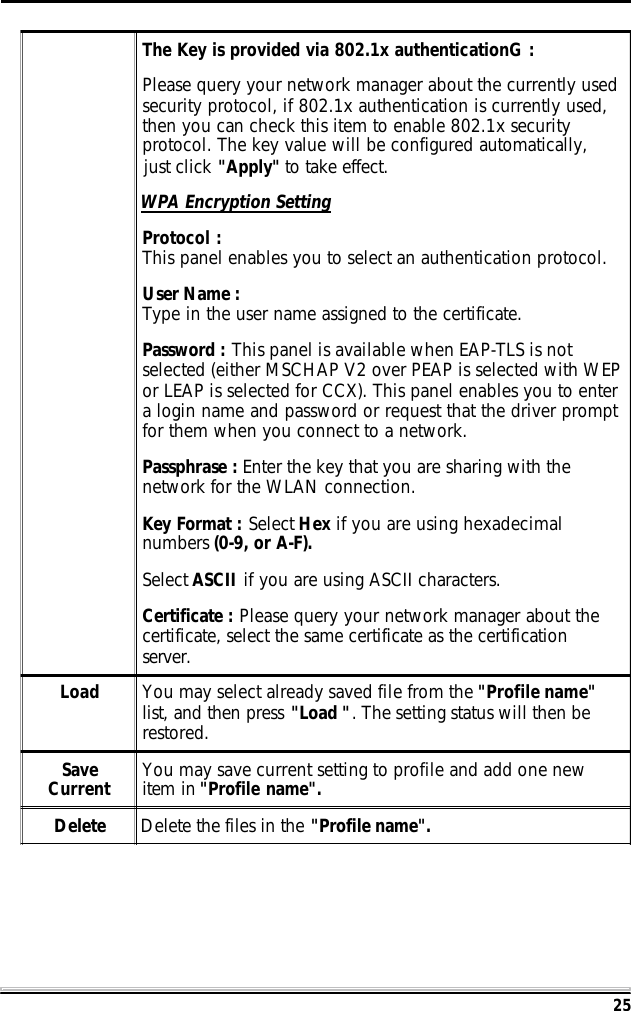
24EncryptionSettingYou can only set your Security preference when "Change" isselected and then all fields are active for change. To savesettings, press "Apply" when you are done with the settings.WEP Encryption Setting.Key length : 64 (bit), 128 (bit) or 256 (bit).Default Key ID : You can set your default key ID at #1~#4.Key Format : Select Hexadecimal if you are usinghexadecimal numbers (0-9, or A-F).Select ASCII if you are using ASCII characters (case-sensitive).10 hexadecimal digits or 5 ASCII characters are needed if64-bit WEP is used; 26 hexadecimal digits or 13 ASCIIcharacters are needed if 128-bitWEP is used; 58hexadecimal digits or 29 ASCII characters are needed if 256-bitWEP is used.Key Value (#1~#4) : This setting is the configuration keyused in access-ing the wireless network via WEP encryption.You can speci-fy up to 4 different keys to encrypt or decryptwireless data.WEP Encryption SettingWPA Encryption Setting
25The Key is provided via 802.1x authenticationG :Please query your network manager about the currently usedsecurity protocol, if 802.1x authentication is currently used,then you can check this item to enable 802.1x securityprotocol. The key value will be configured automatically,just click "Apply" to take effect.WPA Encryption SettingProtocol :This panel enables you to select an authentication protocol.User Name :Type in the user name assigned to the certificate.Password : This panel is available when EAP-TLS is notselected (either MSCHAP V2 over PEAP is selected with WEPor LEAP is selected for CCX). This panel enables you to entera login name and password or request that the driver promptfor them when you connect to a network.Passphrase : Enter the key that you are sharing with thenetwork for the WLAN connection.Key Format : Select Hex if you are using hexadecimalnumbers (0-9, or A-F).Select ASCII if you are using ASCII characters.Certificate : Please query your network manager about thecertificate, select the same certificate as the certificationserver.Load You may select already saved file from the "Profile name"list, and then press "Load ". The setting status will then berestored.SaveCurrent You may save current setting to profile and add one newitem in "Profile name".Delete Delete the files in the "Profile name".
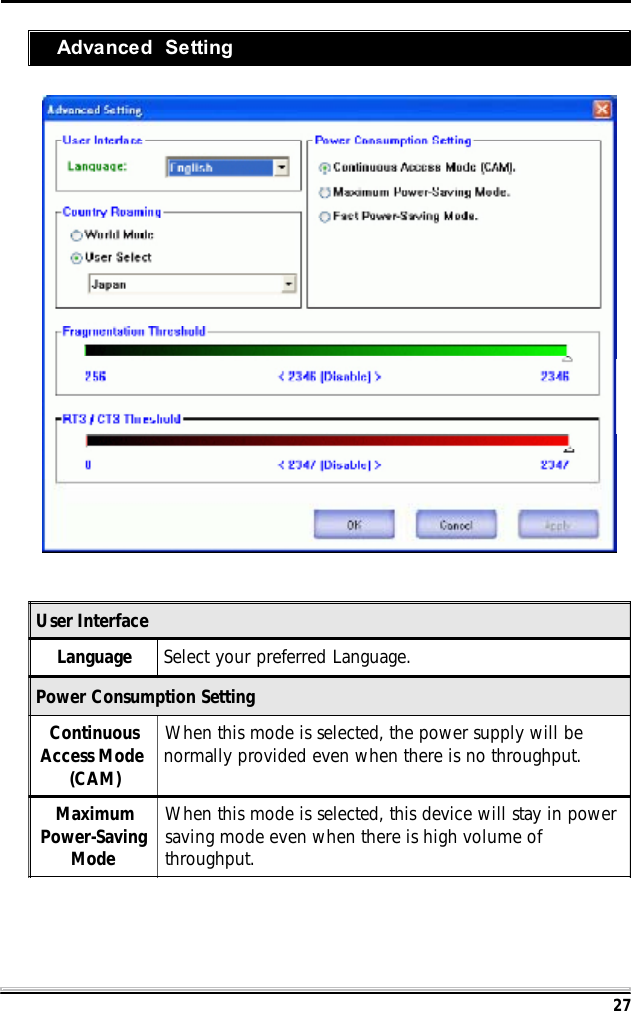
26AdvancedSettingClick the Advanced Setting button to configure thefollowing figure ( Refer to the Advanced Setting  parton the next page to see more information about theAdvanced Setting ) :InformationClick the Information button to show the Driver Version,Utility Version and MAC Address of the system.
27Advanced SettingUser InterfaceLanguage Select your preferred Language.Power Consumption SettingContinuousAccess Mode(CAM)When this mode is selected, the power supply will benormally provided even when there is no throughput.MaximumPower-SavingModeWhen this mode is selected, this device will stay in powersaving mode even when there is high volume ofthroughput.
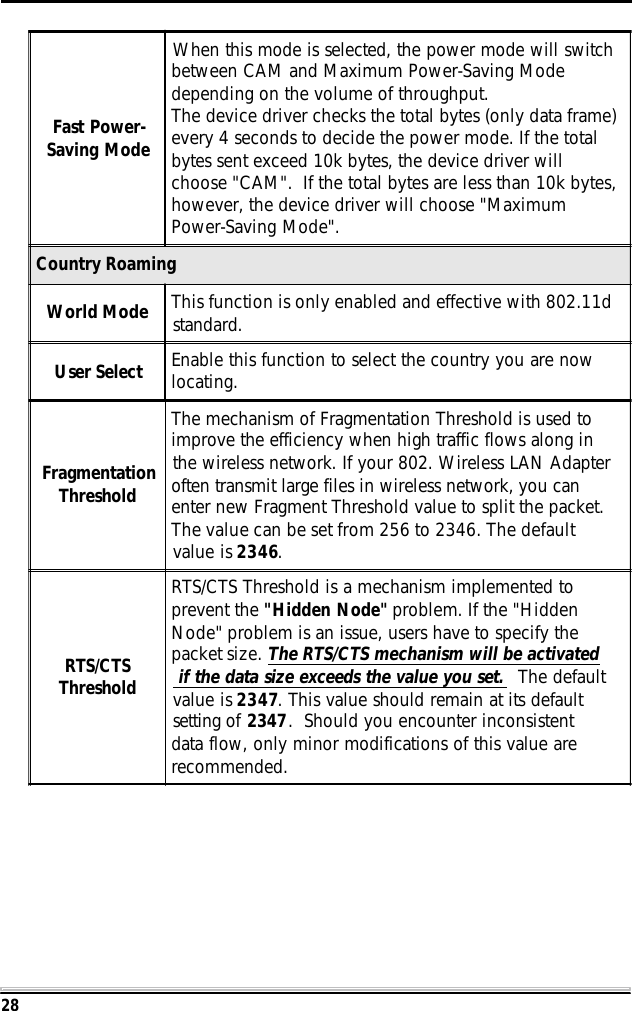
28Fast Power-Saving ModeWhen this mode is selected, the power mode will switchbetween CAM and Maximum Power-Saving Modedepending on the volume of throughput.The device driver checks the total bytes (only data frame)every 4 seconds to decide the power mode. If the totalbytes sent exceed 10k bytes, the device driver willchoose "CAM".  If the total bytes are less than 10k bytes,however, the device driver will choose "MaximumPower-Saving Mode".Country RoamingWorld Mode This function is only enabled and effective with 802.11dstandard.User Select Enable this function to select the country you are nowlocating.FragmentationThresholdThe mechanism of Fragmentation Threshold is used toimprove the efficiency when high traffic flows along inthe wireless network. If your 802. Wireless LAN Adapteroften transmit large files in wireless network, you canenter new Fragment Threshold value to split the packet.The value can be set from 256 to 2346. The defaultvalue is 2346.RTS/CTSThresholdRTS/CTS Threshold is a mechanism implemented toprevent the "Hidden Node" problem. If the "HiddenNode" problem is an issue, users have to specify thepacket size. The RTS/CTS mechanism will be activated if the data size exceeds the value you set.  The defaultvalue is 2347. This value should remain at its defaultsetting of 2347.  Should you encounter inconsistentdata flow, only minor modifications of this value arerecommended.
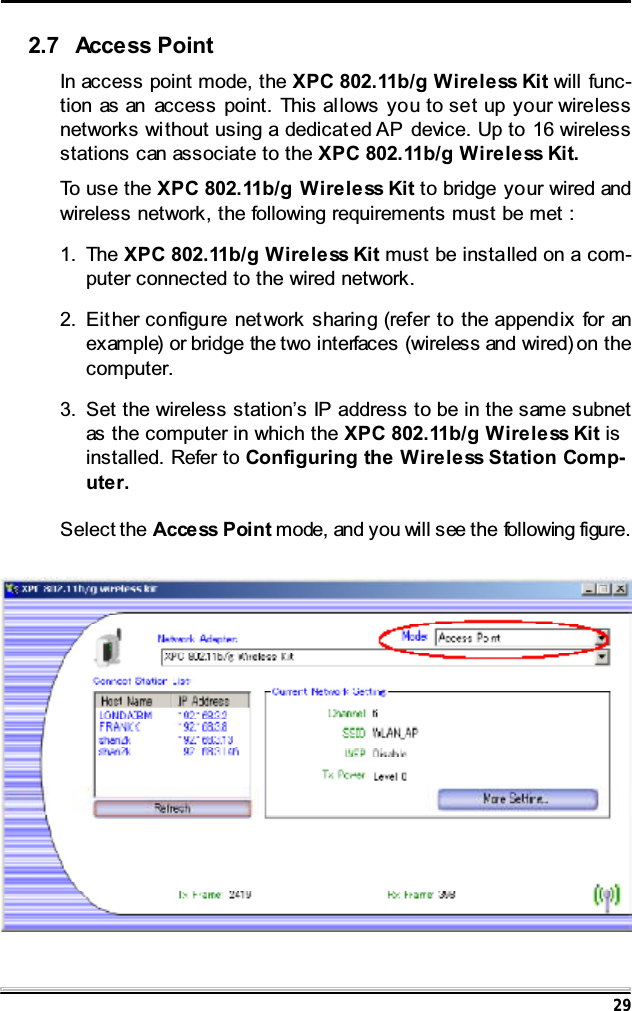
292.7 Access PointIn access point mode, the XPC 802.11b/g Wireless Kit will func-tion as an access point. This al lows you to set up your wirelessnetworks without using a dedicat ed AP device. Up to 16 wirelessstations can associate to the XPC 802.11b/g Wireless Kit.To use the XPC 802.11b/g Wireless Kit to bridge your wired andwireless network, the following requirements must be met :1. The XPC 802.11b/g Wireless Kit must be installed on a com-puter connected to the wired network.2. Eit her configu re net work sharing (refer to the append ix for anexample) or bridge the two interfaces (wireless and wired) on thecomputer.3. Set the wireless station’s IP address to be in the same subnetas the computer in which the XPC 802.11b/g Wireless Kit isinstalled. Refer to Configuring the Wireless Station Comp-uter.Select the Acce ss P oi n t mode, and you will see the following figure.
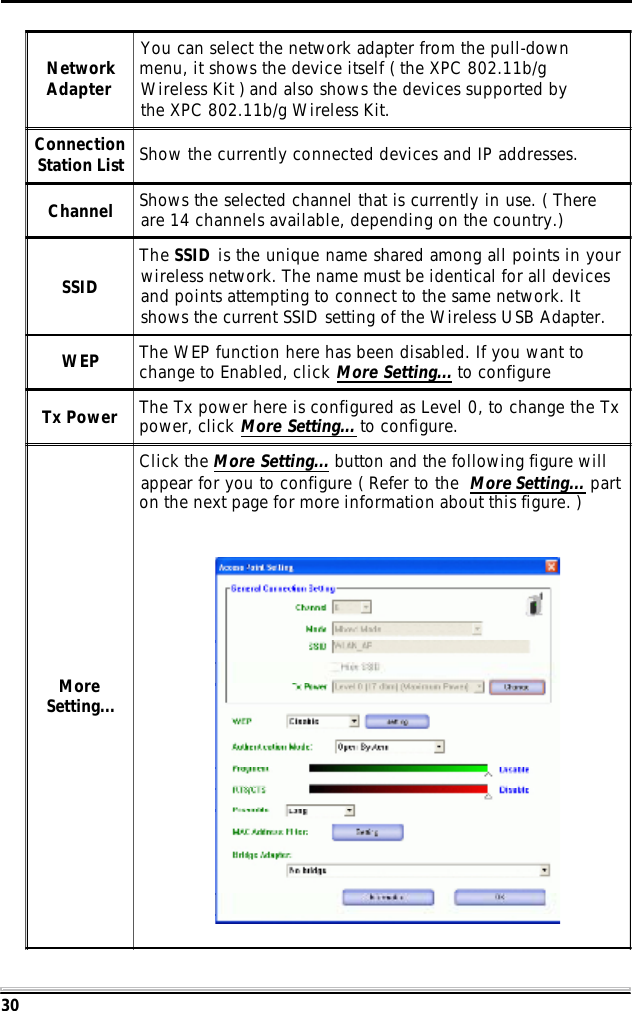
30NetworkAdapterYou can select the network adapter from the pull-downmenu, it shows the device itself ( the XPC 802.11b/gWireless Kit ) and also shows the devices supported bythe XPC 802.11b/g Wireless Kit.ConnectionStation List Show the currently connected devices and IP addresses.Channel Shows the selected channel that is currently in use. ( Thereare 14 channels available, depending on the country.)SSIDThe SSID is the unique name shared among all points in yourwireless network. The name must be identical for all devicesand points attempting to connect to the same network. Itshows the current SSID setting of the Wireless USB Adapter.WEP The WEP function here has been disabled. If you want tochange to Enabled, click More Setting... to configureTx Power The Tx power here is configured as Level 0, to change the Txpower, click More Setting... to configure.MoreSetting...Click the More Setting... button and the following figure willappear for you to configure ( Refer to the More Setting... parton the next page for more information about this figure. )
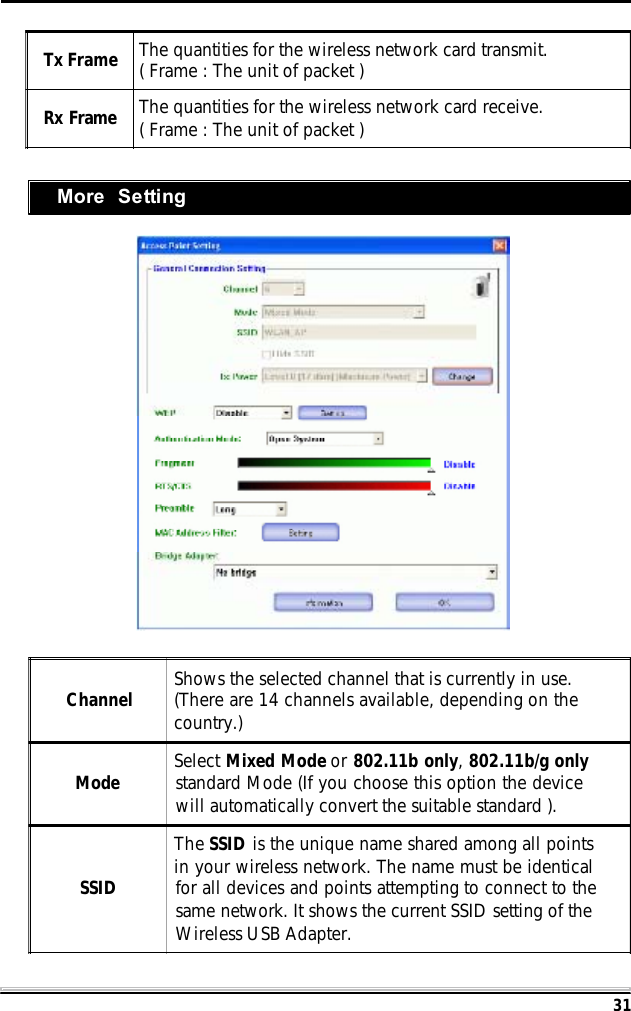
31More SettingTx Frame The quantities for the wireless network card transmit.( Frame : The unit of packet )Rx Frame The quantities for the wireless network card receive.( Frame : The unit of packet )Channel Shows the selected channel that is currently in use.(There are 14 channels available, depending on thecountry.)Mode Select Mixed Mode or 802.11b only,802.11b/g onlystandard Mode (If you choose this option the devicewill automatically convert the suitable standard ).SSIDThe SSID is the unique name shared among all pointsin your wireless network. The name must be identicalfor all devices and points attempting to connect to thesame network. It shows the current SSID setting of theWireless USB Adapter.
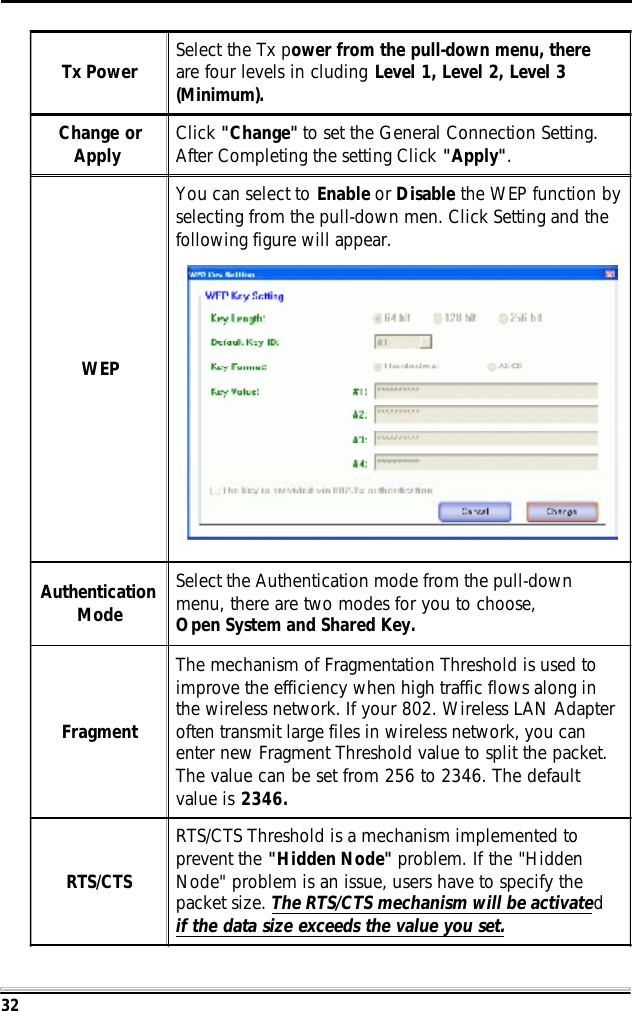
32Tx Power Select the Tx power from the pull-down menu, thereare four levels in cluding Level 1, Level 2, Level 3(Minimum).Change orApply Click "Change" to set the General Connection Setting.After Completing the setting Click "Apply".WEPYou can select to Enable or Disable the WEP function byselecting from the pull-down men. Click Setting and thefollowing figure will appear.AuthenticationModeSelect the Authentication mode from the pull-downmenu, there are two modes for you to choose,Open System and Shared Key.FragmentThe mechanism of Fragmentation Threshold is used toimprove the efficiency when high traffic flows along inthe wireless network. If your 802. Wireless LAN Adapteroften transmit large files in wireless network, you canenter new Fragment Threshold value to split the packet.The value can be set from 256 to 2346. The defaultvalue is 2346.RTS/CTSRTS/CTS Threshold is a mechanism implemented toprevent the "Hidden Node" problem. If the "HiddenNode" problem is an issue, users have to specify thepacket size. The RTS/CTS mechanism will be activatedif the data size exceeds the value you set.
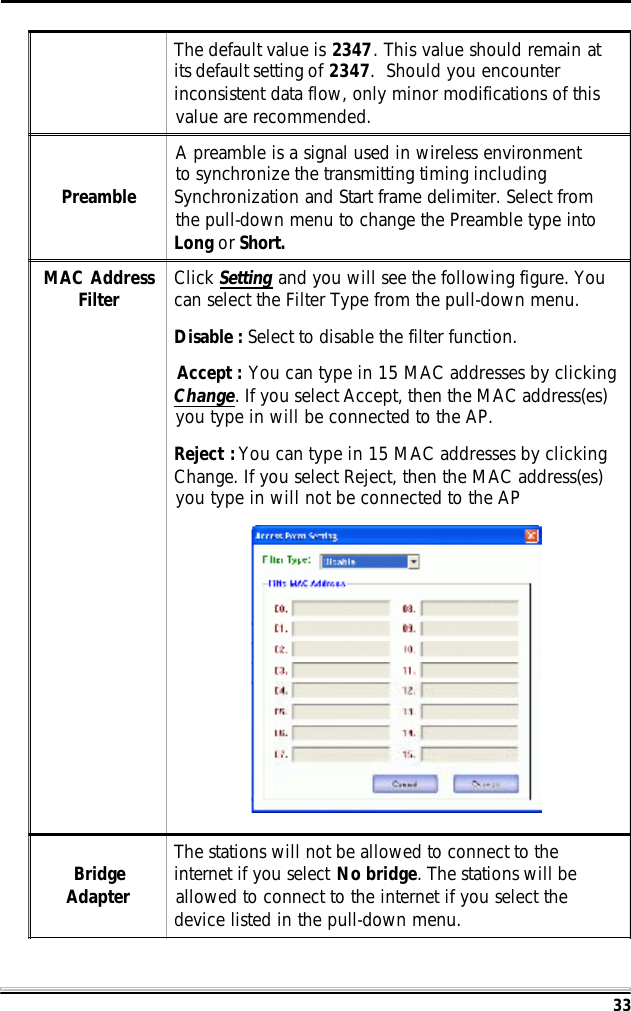
33The default value is 2347. This value should remain atits default setting of 2347.  Should you encounterinconsistent data flow, only minor modifications of thisvalue are recommended.PreambleA preamble is a signal used in wireless environmentto synchronize the transmitting timing includingSynchronization and Start frame delimiter. Select fromthe pull-down menu to change the Preamble type intoLong or Short.MAC AddressFilter Click Setting and you will see the following figure. Youcan select the Filter Type from the pull-down menu.Disable : Select to disable the filter function.Accept : You can type in 15 MAC addresses by clickingChange. If you select Accept, then the MAC address(es)you type in will be connected to the AP.Reject : You can type in 15 MAC addresses by clickingChange. If you select Reject, then the MAC address(es)you type in will not be connected to the APBridgeAdapterThe stations will not be allowed to connect to theinternet if you select No bridge. The stations will beallowed to connect to the internet if you select thedevice listed in the pull-down menu.
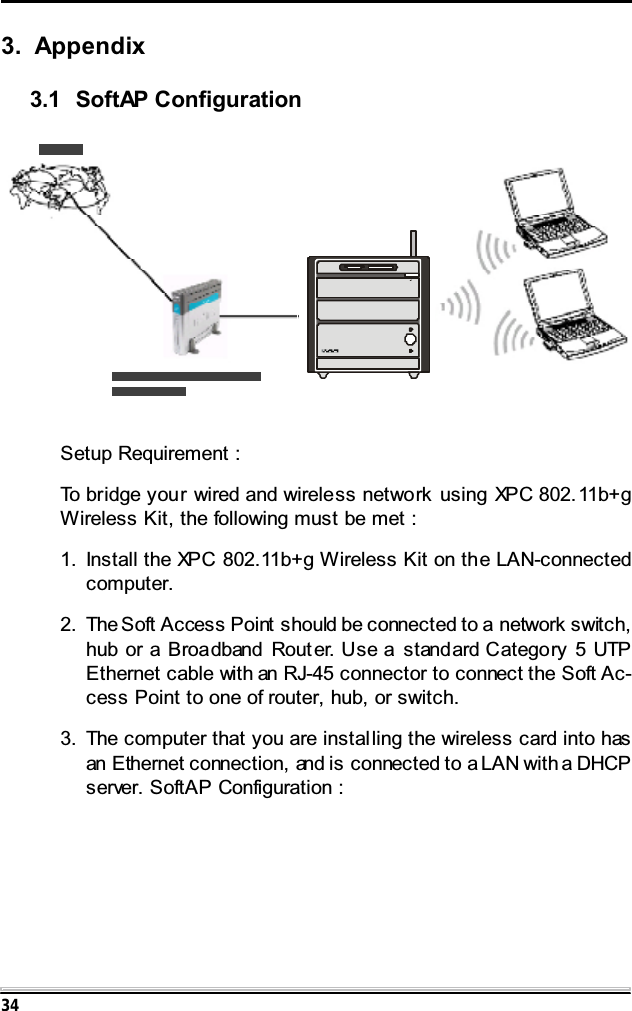
343. Appendix3.1 SoftAP ConfigurationSetup Requirement :To bridge your wired and wireless network using XPC 802.11b+gWireless Kit, the following must be met :1. Install the XPC 802.11b+g Wireless Kit on the LAN-connectedcomputer.2. The Soft Access Point should be connected to a network switch,hub or a Broadband Router. Use a standard Category 5 UTPEthernet cable with an RJ-45 connector to connect the Soft Ac-cess Point to one of router, hub, or switch.3. The computer that you are installing the wireless card into hasan Ethernet connection, and is connected to a LAN with a DHCPserver. SoftAP Configuration :
351. Selec t the Access Point m ode, and y ou will see the followingscreen.2. Click the More Setting. .. button and the following figure willappear for you to configure.
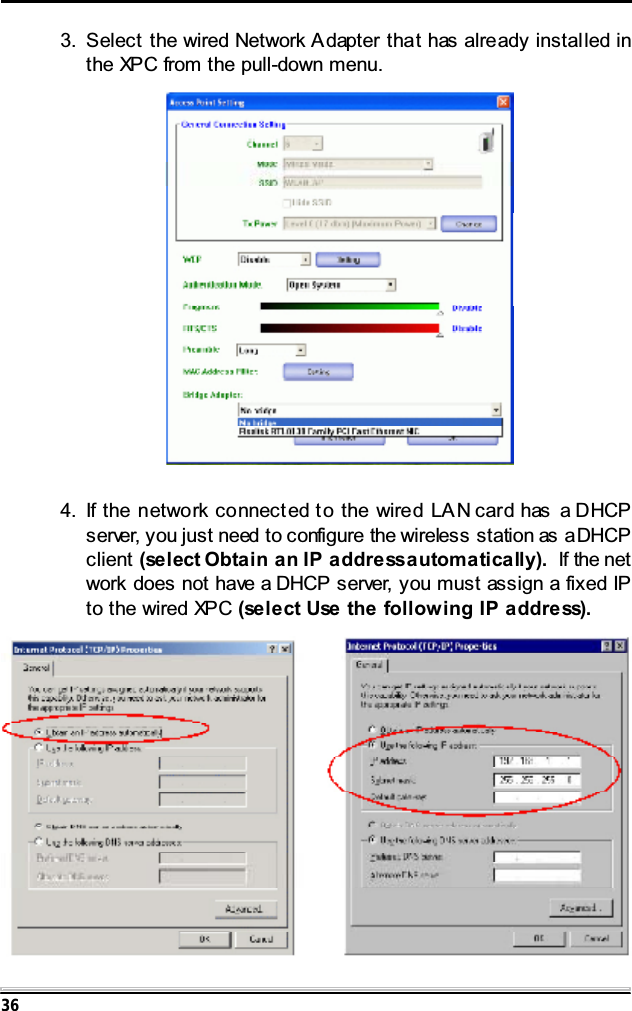
363. Select the wired Network A dapter that has already installed inthe XPC from the pull-down menu.4. If the network connect ed t o the wired LA N card has a DHCPserver, you just need to configure the wireless station as aDHCPclient (select Obtain an IP addressautomatically). If the network does not have a DHCP server, you must assign a fixed IPto the wired XPC (select Use the following IP address).
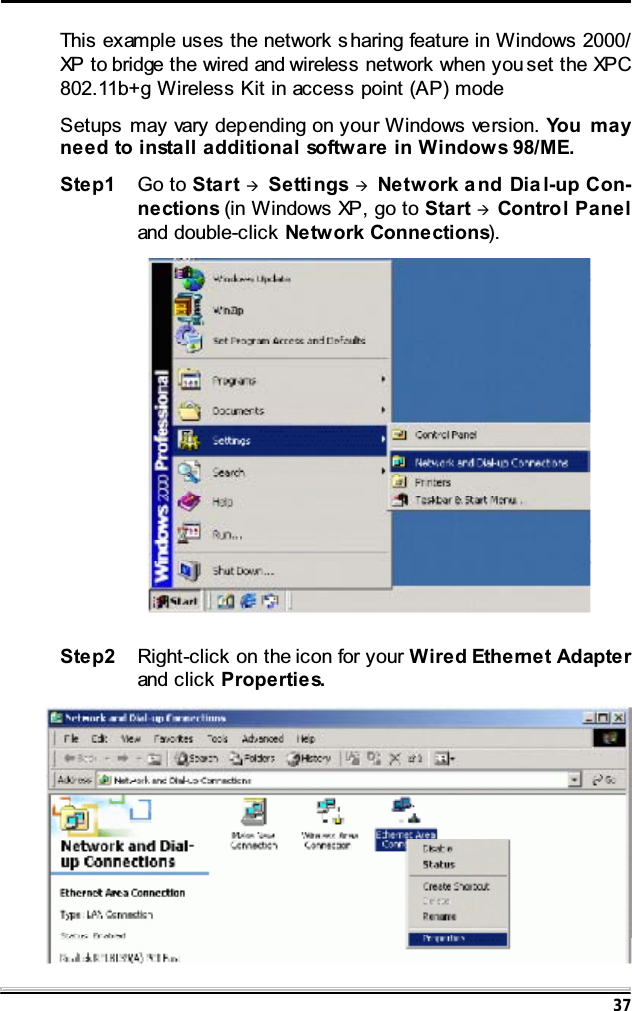
37This example uses the network s haring feature in Windows 2000/XP to bridge the wired and wireless network when you set the XPC802.11b+g Wireless Kit in access point (AP) modeSetups may vary depending on your Windows version. Yo u m a yneed to install additional software in Windows 98/ME.Step1 Go to Start ÆSetti ngs ÆNetwork a nd Dia l-up Con-nections (in Windows XP, go to Start ÆControl Paneland double-click Network Connections).Step2 Right-click on the icon for your Wired Ethernet Adapterand click Properties.
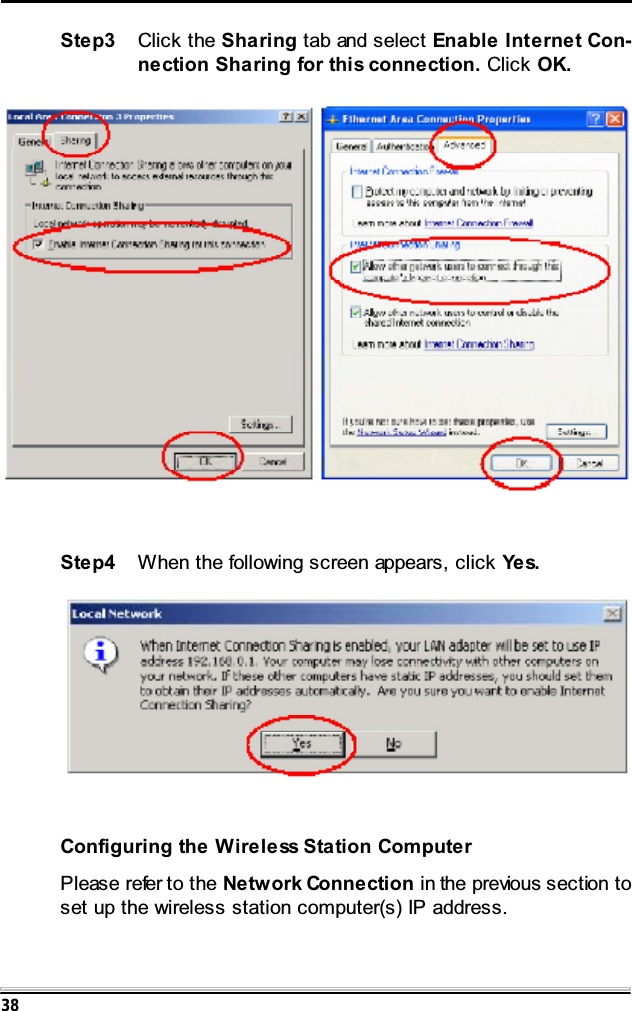
38Step3 Click the Sharing tab and select Enable Internet Con-nection Sharing for this connection. Click OK.Step4 When the following screen appears, click Ye s.Configuring the Wireless Station ComputerPlease refer to the Network Connection in the previous section toset up the wireless station computer(s) IP address.
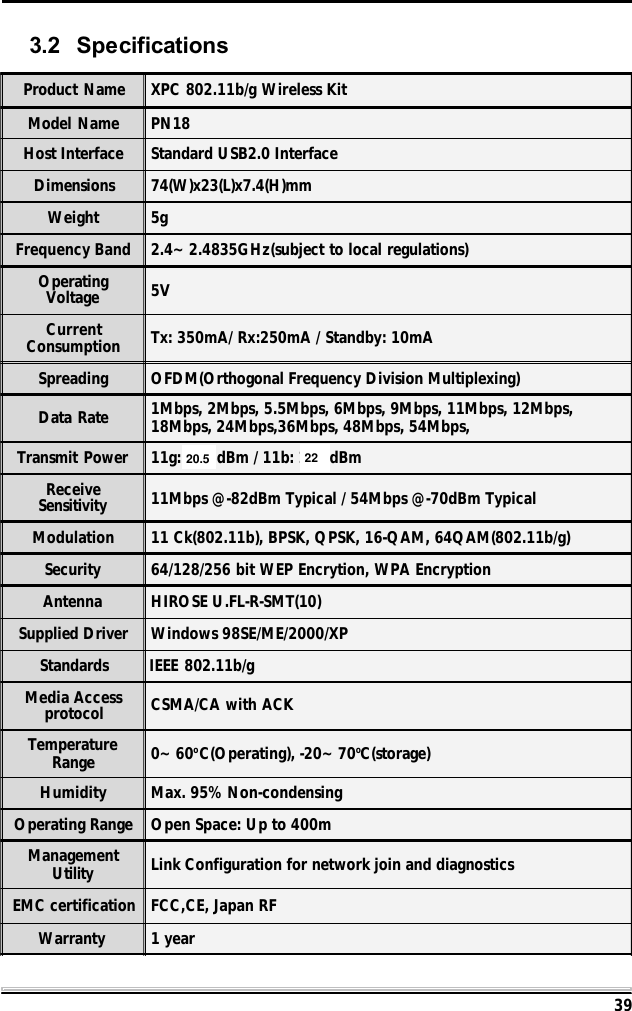
393.2 SpecificationsProduct Name XPC 802.11b/g Wireless KitModel Name PN18Host Interface Standard USB2.0 InterfaceDimensions 74(W)x23(L)x7.4(H)mmWeight 5gFrequency Band 2.4~2.4835GHz(subject to local regulations)OperatingVoltage 5VCurrentConsumption Tx: 350mA/ Rx:250mA / Standby: 10mASpreading OFDM(Orthogonal Frequency Division Multiplexing)Data Rate 1Mbps, 2Mbps, 5.5Mbps, 6Mbps, 9Mbps, 11Mbps, 12Mbps,18Mbps, 24Mbps,36Mbps, 48Mbps, 54Mbps,Transmit Power 11g: 13.5dBm / 11b: 16.5dBmReceiveSensitivity 11Mbps @-82dBm Typical / 54Mbps @-70dBm TypicalModulation 11 Ck(802.11b), BPSK, QPSK, 16-QAM, 64QAM(802.11b/g)Security 64/128/256 bit WEP Encrytion, WPA EncryptionAntenna HIROSE U.FL-R-SMT(10)Supplied Driver Windows 98SE/ME/2000/XPStandards IEEE 802.11b/gMedia Accessprotocol CSMA/CA with ACKTemperatureRange 0~60oC(Operating), -20~70oC(storage)Humidity Max. 95% Non-condensingOperating Range Open Space: Up to 400mManagementUtility Link Configuration for network join and diagnosticsEMC certification FCC,CE, Japan RFWarranty 1 year2220.5
Federal Communication Commission Interference Statement This equipment has been tested and found to comply with the limits for a Class B digital device, pursuant to Part 15 of the FCC Rules.  These limits are designed to provide reasonable protection against harmful interference in a residential installation.  This equipment generates, uses and can radiate radio frequency energy and, if not installed and used in accordance with the instructions, may cause harmful interference to radio communications.  However, there is no guarantee that interference will not occur in a particular installation.  If this equipment does cause harmful interference to radio or television reception, which can be determined by turning the equipment off and on, the user is encouraged to try to correct the interference by one of the following measures: -  Reorient or relocate the receiving antenna. -  Increase the separation between the equipment and receiver. -  Connect the equipment into an outlet on a circuit different from that to which the receiver is connected. -  Consult the dealer or an experienced radio/TV technician for help. This device complies with Part 15 of the FCC Rules. Operation is subject to the following two conditions: (1) This device may not cause harmful interference, and (2) this device must accept any interference received, including interference that may cause undesired operation. FCC Caution: Any changes or modifications not expressly approved by the party responsible for compliance could void the user's authority to operate this equipment.IMPORTANT NOTE: FCC Radiation Exposure Statement: This equipment complies with FCC radiation exposure limits set forth for an uncontrolled environment. This equipment should be installed and operated with minimum distance 20cm between the radiator & your body. This transmitter must not be co-located or operating in conjunction with any other antenna or transmitter. SHUTTLE INC. declared that PN18 is limited in CH1~11 from 2412 to 2462 MHz by specified firmware controlled in USA.

Navigation menu