Signcomplex LCORGBD420 WIFI 4-in1 DIMMING controller User Manual 1

Signcomplex Limited WIFI 4-in1 DIMMING controller 1

USER MANUAL

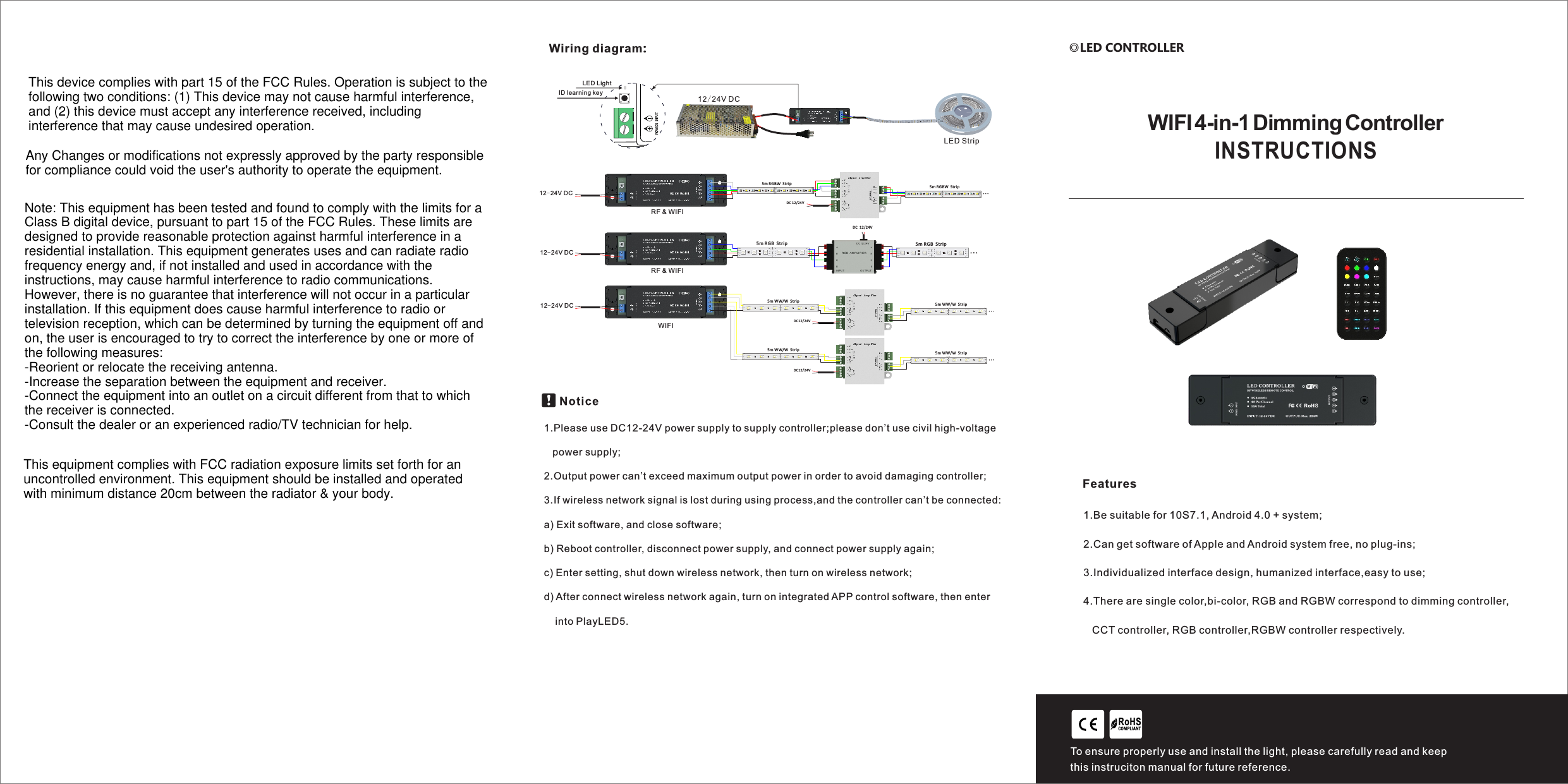
FeaturesRoHSCO MPLIANTTo ensure properly use and install the light, please carefully read and keep this instruciton manual for future reference. ◎LED CONTROLLERINSTRUCTIONSWIFI 4-in-1 Dimming Controller1.Be suitable for 10S7.1, Android 4.0 + system;2.Can get software of Apple and Android system free, no plug-ins;3.Individualized interface design, humanized interface,easy to use;4.There are single color,bi-color, RGB and RGBW correspond to dimming controller,   CCT controller, RGB controller,RGBW controller respectively.Wiring diagram:  DC 12/24V +BRGW+BRGW+BRGW+BRGW5m RGBW  Strip+BRGW+BRGW+BRGW+BRGW5m RGBW  Strip+WBGRRJ45  12-24V DC   DC 12/24V +BRG+BRG+BRG+BRG5m RGB  Strip+BRG+BRG+BRG+BRG5m RGB  StripRJ45  12-24V DC RJ45  12-24V DC   DC12/24V +WW5m WW/W  St rip 5m WW/W  St ripW+WWW+WWW+WWW+WWW+WWWWW W WW W WW W WW W WW W WW W+WWW+WWWWW W WW W WW W WW W WW W WW W+WW5m WW/W  St rip 5m WW/W  St ripW+WWW+WWW+WWW+WWW+WWWWW W WW W WW W WW W WW W WW W+WWW+WWWWW W WW W WW W WW W WW W WW W  DC12/24V LED LightID learning keyRF & WIFIRF & WIFIWIFI1.Please use DC12-24V power supply to supply controller;please don’t use civil high-voltage    power supply;2.Output power can’t exceed maximum output power in order to avoid damaging controller;3.If wireless network signal is lost during using process,and the controller can’t be connected:a) Exit software, and close software;b) Reboot controller, disconnect power supply, and connect power supply again;c) Enter setting, shut down wireless network, then turn on wireless network;d) After connect wireless network again, turn on integrated APP control software, then enter     into PlayLED5. This device complies with part 15 of the FCC Rules. Operation is subject to the following two conditions: (1) This device may not cause harmful interference, and (2) this device must accept any interference received, including interference that may cause undesired operation.Any Changes or modifications not expressly approved by the party responsible for compliance could void the user's authority to operate the equipment.Note: This equipment has been tested and found to comply with the limits for a Class B digital device, pursuant to part 15 of the FCC Rules. These limits are designed to provide reasonable protection against harmful interference in a residential installation. This equipment generates uses and can radiate radio frequency energy and, if not installed and used in accordance with the instructions, may cause harmful interference to radio communications. However, there is no guarantee that interference will not occur in a particular installation. If this equipment does cause harmful interference to radio or television reception, which can be determined by turning the equipment off and on, the user is encouraged to try to correct the interference by one or more of the following measures:-Reorient or relocate the receiving antenna.-Increase the separation between the equipment and receiver.-Connect the equipment into an outlet on a circuit different from that to which the receiver is connected.-Consult the dealer or an experienced radio/TV technician for help.This equipment complies with FCC radiation exposure limits set forth for an uncontrolled environment. This equipment should be installed and operated with minimum distance 20cm between the radiator & your body.
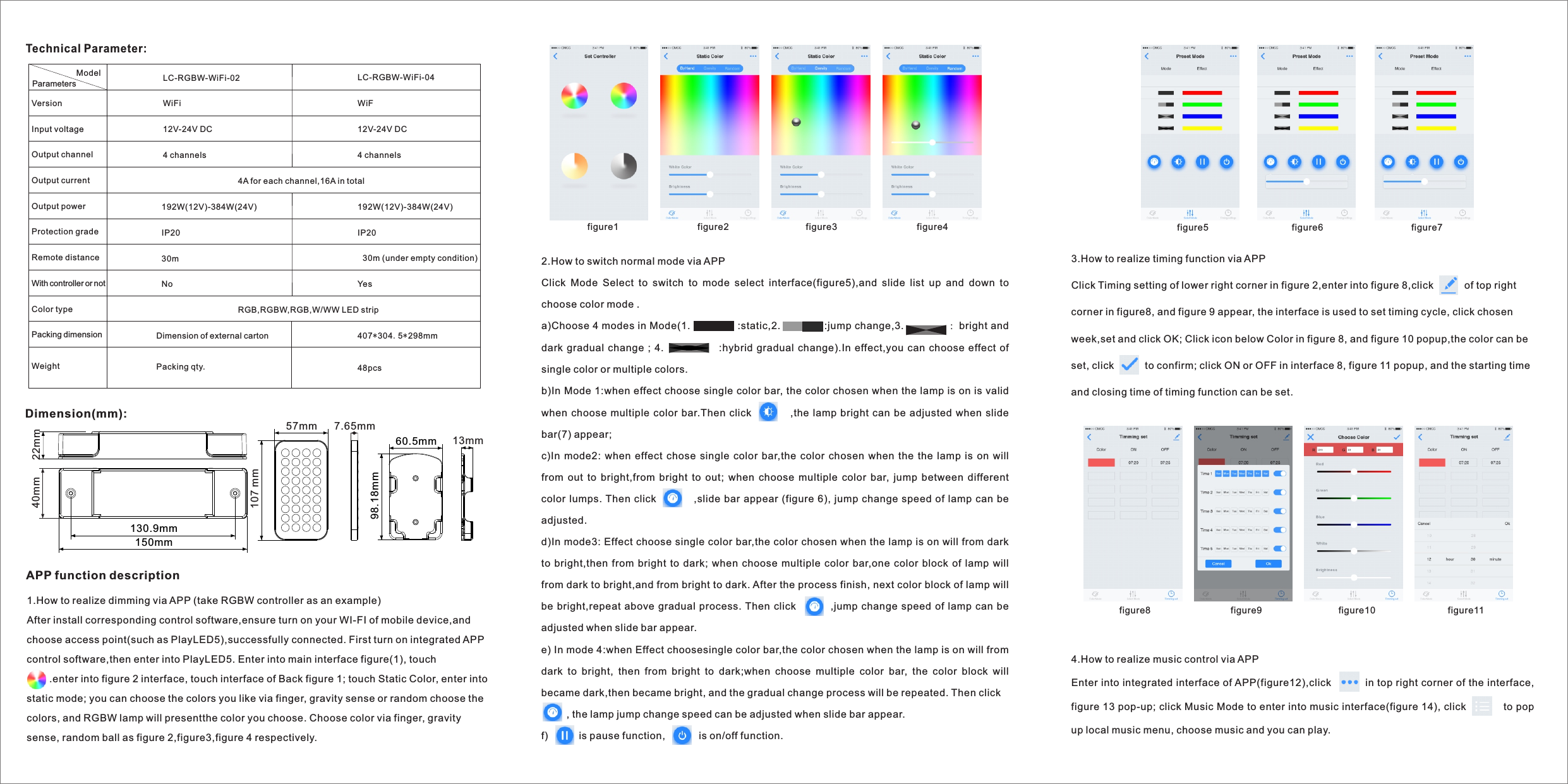
Dimension(mm):Technical Parameter:150mm130.9mm22mm40mm60.5mm 98.18mm 13mm7.65mm57mm107 mmModelVersion Input voltageOutput channel Output currentOutput power Protection grade Remote distanceWith controller or notColor type   Packing dimension Weight  LC-RGBW-WiFi-02WiFi12V-24V DC4 channels4A for each channel,16A in total192W(12V)-384W(24V)IP2030mNo RGB,RGBW,RGB,W/WW LED stripDimension of external cartonPacking qty.LC-RGBW-WiFi-04WiF12V-24V DC4 channels192W(12V)-384W(24V)IP2030m (under empty condition)Yes 407*304.5*298mm48pcsParameters 1.How to realize dimming via APP (take RGBW controller as an example)After install corresponding control software,ensure turn on your WI-FI of mobile device,and choose access point(such as PlayLED5),successfully connected. First turn on integrated APP control software,then enter into PlayLED5. Enter into main interface figure(1), touch                  .enter into figure 2 interface, touch interface of Back figure 1; touch Static Color, enter into static mode; you can choose the colors you like via finger, gravity sense or random choose the colors, and RGBW lamp will presentthe color you choose. Choose color via finger, gravity sense, random ball as figure 2,figure3,figure 4 respectively.  APP function description figure12.How to switch normal mode via APP Click  Mode  Select  to  switch  to  mode  select  interface(figure5),and  slide  list  up  and  down  to choose color mode .a)Choose 4 modes in Mode(1.              :static,2.             :jump change,3. :bright and dark gradual  change  ;  4.                          :hybrid  gradual  change).In effect,you  can choose  effect  of single color or multiple colors. b)In Mode 1:when effect choose single color bar, the color chosen when the lamp is on is valid when choose multiple  color bar.Then click                 ,the lamp bright can be adjusted  when slide bar(7) appear;c)In mode2:  when  effect  chose single  color  bar,the color chosen  when  the  the  lamp is  on  will from  out  to  bright,from  bright  to  out;  when  choose  multiple  color  bar,  jump  between  different color  lumps. Then  click           ,slide bar appear (figure 6), jump change speed of lamp can be adjusted.d)In mode3: Effect choose single color bar,the color chosen when the lamp is on will from dark to bright,then from bright  to  dark; when choose multiple  color bar,one  color block  of  lamp will from dark to bright,and from bright to dark. After the process finish, next color block of lamp will be bright,repeat above gradual process. Then click              ,jump change speed of lamp can be adjusted when slide bar appear. e) In mode 4:when Effect choosesingle color bar,the color chosen when the lamp is on will from dark  to  bright,  then  from  bright  to  dark;when  choose  multiple  color  bar,  the  color  block  will became dark,then became bright, and the gradual change process will be repeated. Then click         , the lamp jump change speed can be adjusted when slide bar appear.f)           is pause function,            is on/off function. figure2 figure3 figure43.How to realize timing function via APPClick Timing setting of lower right corner in figure 2,enter into figure 8,click           of top right corner in figure8, and figure 9 appear, the interface is used to set timing cycle, click chosen week,set and click OK; Click icon below Color in figure 8, and figure 10 popup,the color can be set, click           to confirm; click ON or OFF in interface 8, figure 11 popup, and the starting time and closing time of timing function can be set. figure5 figure6 figure7figure8 figure9 figure10 figure114.How to realize music control via APPEnter into integrated interface of APP(figure12),click          in top right corner of the interface, figure 13 pop-up; click Music Mode to enter into music interface(figure 14), click           to pop up local music menu, choose music and you can play.

Navigation menu