Silent Herdsman 2110002 Silent Herdsman collar sensor, model 2110002 User Manual Title

Silent Herdsman Limited Silent Herdsman collar sensor, model 2110002 Title

User Manual

                                   SILENT HERDSMAN® USER GUIDE   Version 2.7
     Issue 2.7    2
1. Table of Contents  1. Table of Contents ................................................................................................ 3 2. About this Guide .................................................................................................. 5 3. Introduction .......................................................................................................... 7 4. Installation ........................................................................................................... 8 4.1. Overview ....................................................................................................... 8 4.2. Silent Herdsman® Management Computer ................................................... 8 4.3. Management Computer Installation ............................................................ 11 4.4. Data Gathering Base Station....................................................................... 11 5. Silent Herdsman® Collar .................................................................................... 12 5.1. Standard assembly ..................................................................................... 12 5.2. Collar sensor ............................................................................................... 12 5.3. Buckle ......................................................................................................... 13 5.4. Weight ......................................................................................................... 13 6. Silent Herdsman® Management Computer ........................................................ 14 6.1. Start up ....................................................................................................... 14 6.2. Overview ..................................................................................................... 15 6.3. On Screen Keyboard ................................................................................... 18 7. Activity Monitoring .............................................................................................. 20 7.1. Overview ..................................................................................................... 20 7.2. Oestrus Prediction ....................................................................................... 20 7.3. Oestrus Detection Threshold....................................................................... 23 7.4. Future Oestrus Events ................................................................................ 23 7.5. Calving Date Indicator ................................................................................. 25 7.6. Changing Time Period on Activity Graphs .................................................. 26 8. Alerts ................................................................................................................. 28 8.1. Overview ..................................................................................................... 28 8.2. Multiple Alerts .............................................................................................. 30 8.3. System Alerts .............................................................................................. 30 8.4. Alert Beacon................................................................................................ 30 8.5. Alerts and Activity ........................................................................................ 31 8.6. Annotations ................................................................................................. 33 8.7. Email Alerts ................................................................................................. 35 9. Collars ............................................................................................................... 36 9.1. Introduction ................................................................................................. 36
     Issue 2.7    4  9.2. Attaching collars to cows ............................................................................. 37 9.3. Detaching Collars from Cows ...................................................................... 38 9.4. Finding Collars ............................................................................................ 40 9.5. Deleting Collar ............................................................................................. 40 9.6. Saving List of Attached Cows...................................................................... 41 10. Cow Information Table ....................................................................................... 42 10.1. Overview .................................................................................................. 42 10.2. Importing Herd Information ...................................................................... 43 10.3. Cow Groups ............................................................................................. 44 11. Settings .............................................................................................................. 45 11.1. Overview .................................................................................................. 45 11.2. Activity Display ......................................................................................... 45 11.3. System Settings ....................................................................................... 46 11.4. Group Settings ......................................................................................... 47 11.5. Data Exchange ........................................................................................ 48 11.6. Data Backup ............................................................................................ 51 11.7. Reports .................................................................................................... 51 12. System Functions .............................................................................................. 54 12.1. Online User Guide ................................................................................... 54 12.2. System Power Down ................................................................................ 54 12.3. Manual Starting of Silent Herdsman ........................................................ 55 Appendix A - Base Stations ...................................................................................... 56 Appendix B – InterHerd Export Events ..................................................................... 58 Appendix C - Collar Upgrade ................................................................................... 60 Introduction ........................................................................................................... 60 Upgrading Collars ................................................................................................. 61 Appendix D - Regulatory Information ....................................................................... 65 Declaration of Conformance ................................................................................. 65 Waste Electric and Electronic Equipment ............................................................. 67
     Issue 2.7    5  2. About this Guide  Related Documents • GOT-5120T-830 Series User Manual Abbreviations •  ETS  Embedded Technology Solutions •  SHM  Silent Herdsman Typographical Conventions The following typographical conventions are used in this manual: Red text indicates a cross-reference to information within the document set you are currently reading. Click the red text to go to the referenced item Blue  underlined  text  indicates  a  link to  a  Web page.  Click  blue-underlined  text  to browse the specified Web site.  Italics denotes the following items: •  References to other documents: •  Emphasis in text:    Information,  provide  addition  information  to  help  in  better  use  of system.    Critical  warning,  high  lights  actions  that  could  cause  damage  to  the system.    Warning, high lights non critical actions to avoid.  Online Resources Website addresses in this document are listed without http:// in front of the address because  most  current  web  browsers  do  not  require  it.  If  you  use  an  older  web browser, you may have to add http:// in front of the web address.  See http://www.embeddedtech.co.uk for further information. Copyright and Trademarks ‘Silent  Herdsman’  and  Embedded  Technology  Solutions  Logo  are  registered trademarks of Embedded Technology Solutions Ltd.
     Issue 2.7    6   Other brands and product names are trademarks or registered trademarks of their respective holders.  © 2007 - 2014 Embedded Technology Solutions Ltd. All rights reserved.
     Issue 2.7    7  3. Introduction   The  Silent  Herdsman®  system  is  a  new  generation  of  technology  that  improves significantly the capabilities of automated detection and reporting of the oestrus cycle for cows.  The system monitors the herd around the clock to ensure that no oestrus events are missed and the optimal time for fertilization is alerted to achieve maximum efficiency of the herd for milk production.  Data  collection  and  alerting  has  been  designed  to  fit  in  with  the  normal  working routine of the farm by accessing data on the cow while it is in the milking or holding areas.  Therefore  no  additional  time  is  required  within  the  parlour  and  alerts  are produced by the management computer when a cow requires attention.
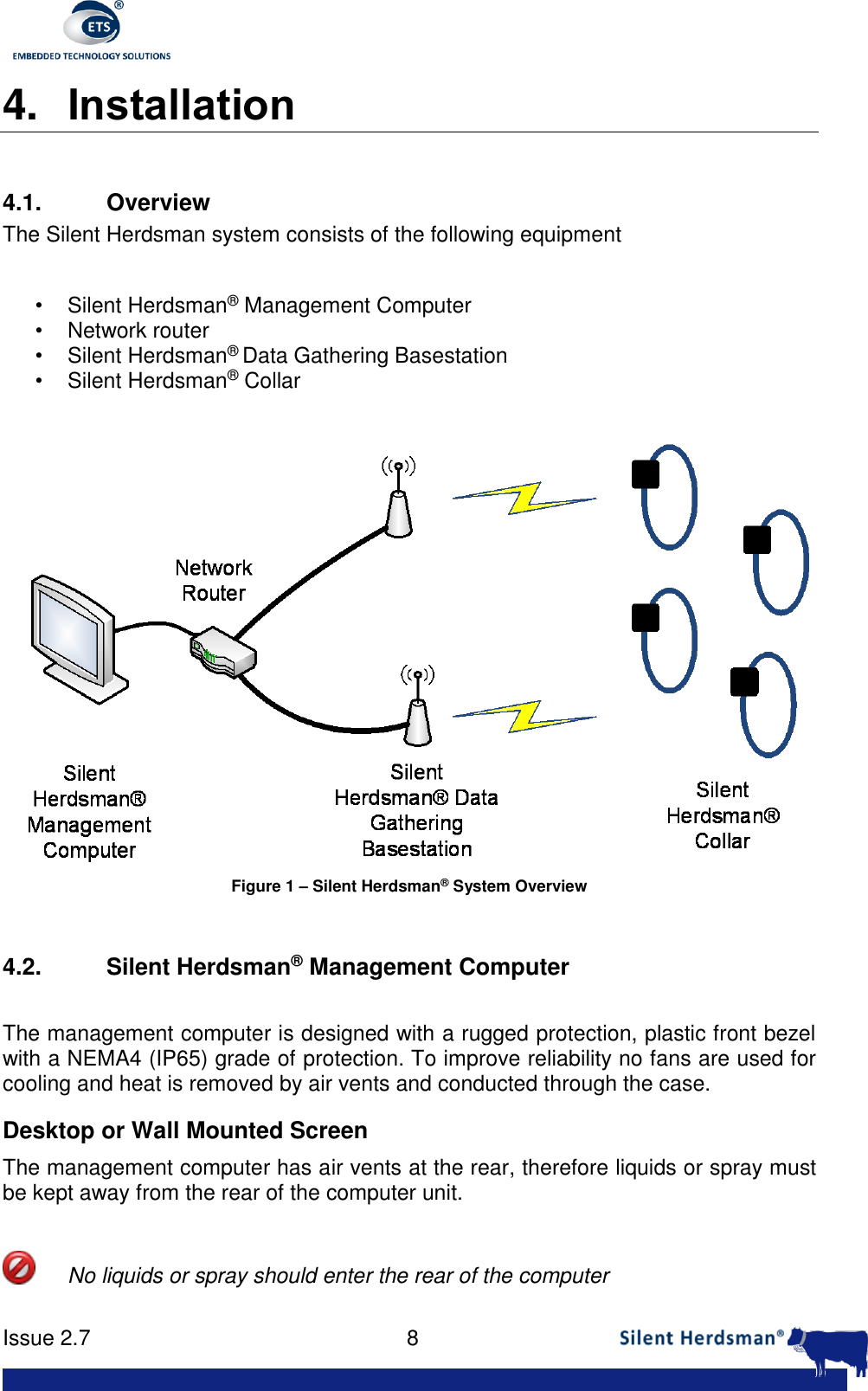
     Issue 2.7    8  4. Installation  4.1.  Overview The Silent Herdsman system consists of the following equipment  •  Silent Herdsman® Management Computer •  Network router •  Silent Herdsman® Data Gathering Basestation •  Silent Herdsman® Collar   Figure 1 – Silent Herdsman® System Overview  4.2. Silent Herdsman® Management Computer  The management computer is designed with a rugged protection, plastic front bezel with a NEMA4 (IP65) grade of protection. To improve reliability no fans are used for cooling and heat is removed by air vents and conducted through the case.  Desktop or Wall Mounted Screen The management computer has air vents at the rear, therefore liquids or spray must be kept away from the rear of the computer unit.     No liquids or spray should enter the rear of the computer
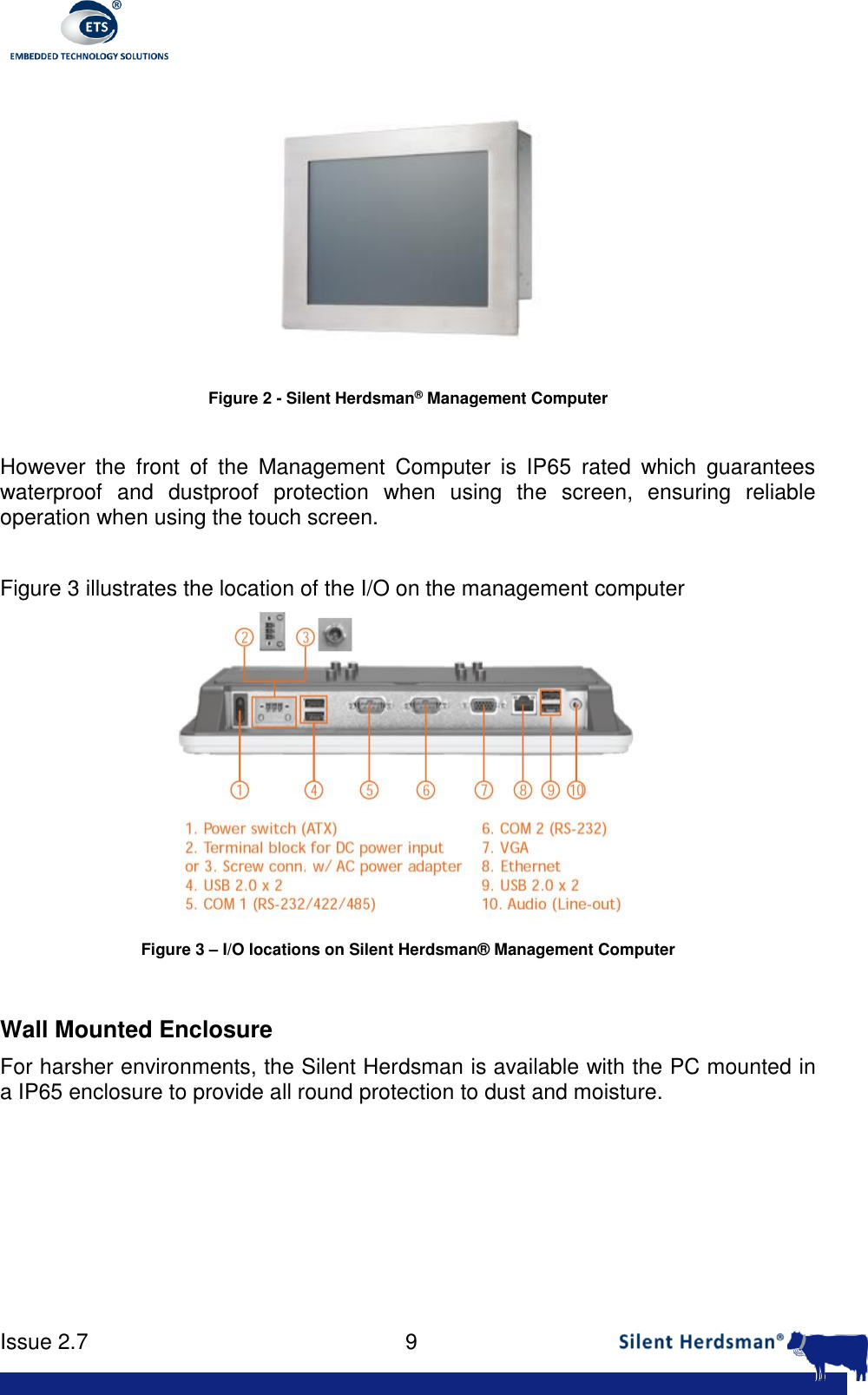
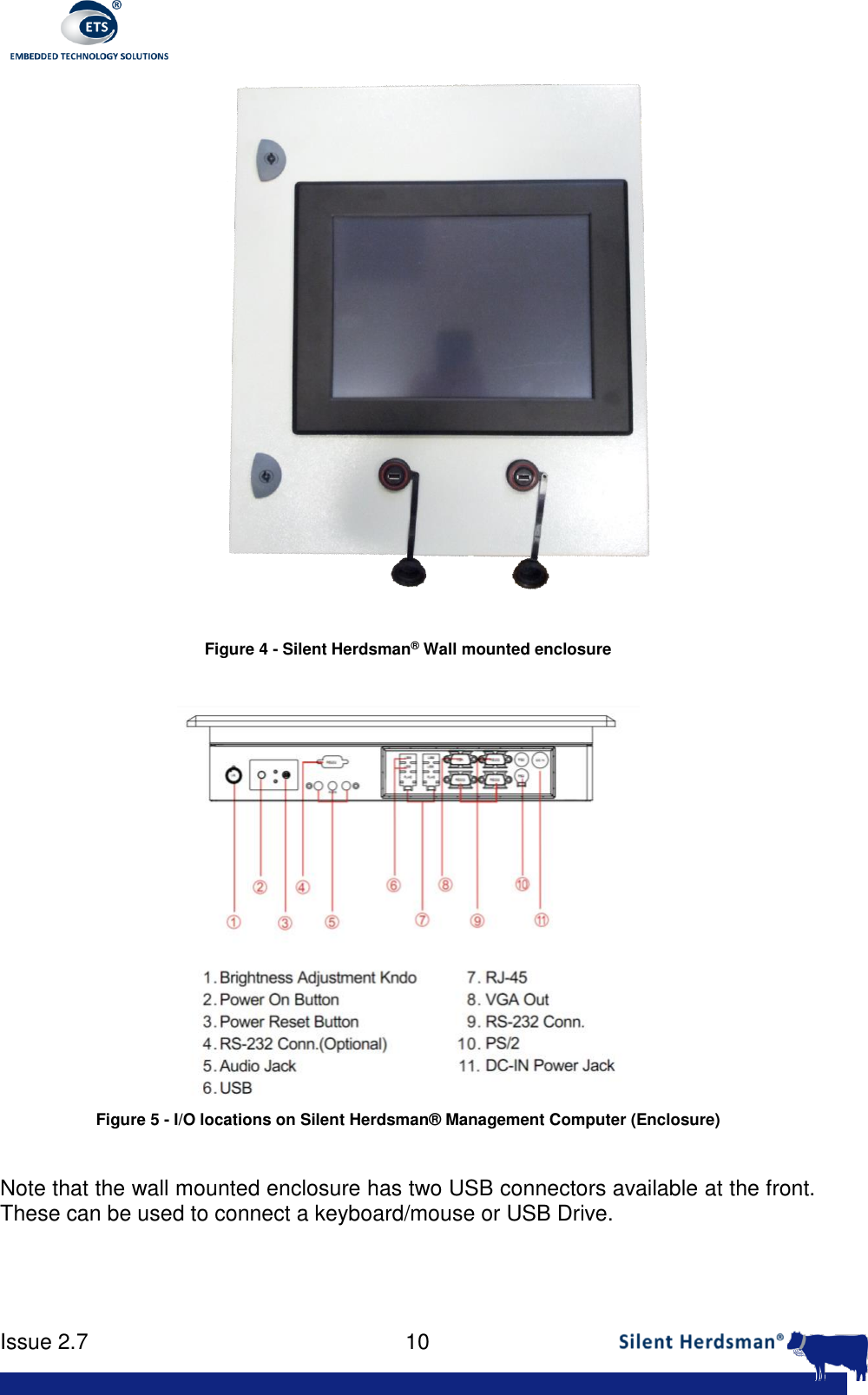
     Issue 2.7    9   Figure 2 - Silent Herdsman® Management Computer  However  the  front  of  the  Management  Computer  is  IP65  rated  which  guarantees waterproof  and  dustproof  protection  when  using  the  screen,  ensuring  reliable operation when using the touch screen.   Figure 3 illustrates the location of the I/O on the management computer  Figure 3 – I/O locations on Silent Herdsman® Management Computer  Wall Mounted Enclosure For harsher environments, the Silent Herdsman is available with the PC mounted in a IP65 enclosure to provide all round protection to dust and moisture.
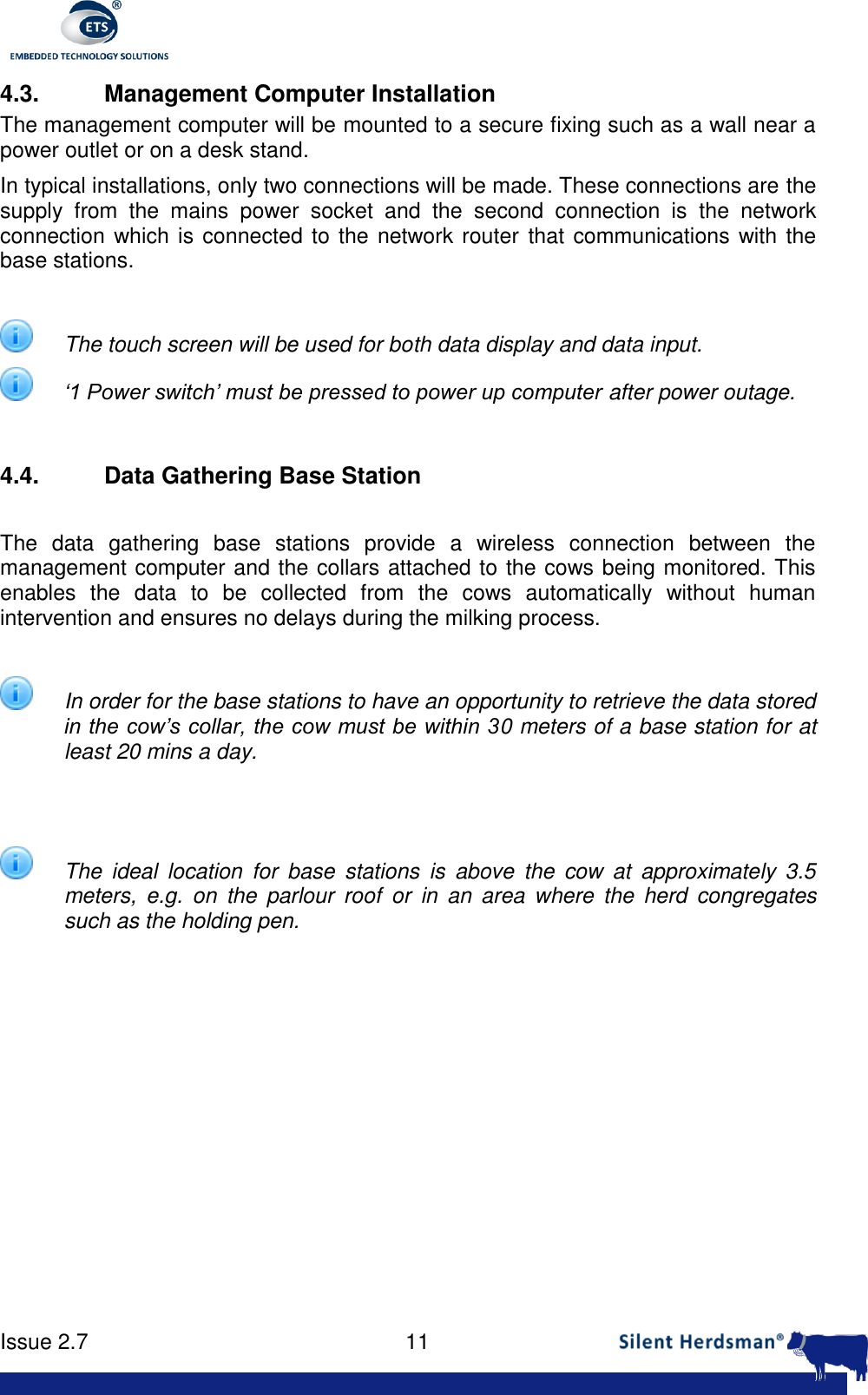
     Issue 2.7    10    Figure 4 - Silent Herdsman® Wall mounted enclosure   Figure 5 - I/O locations on Silent Herdsman® Management Computer (Enclosure)  Note that the wall mounted enclosure has two USB connectors available at the front. These can be used to connect a keyboard/mouse or USB Drive.
     Issue 2.7    11  4.3.  Management Computer Installation The management computer will be mounted to a secure fixing such as a wall near a power outlet or on a desk stand.  In typical installations, only two connections will be made. These connections are the supply  from  the  mains  power  socket  and  the  second  connection  is  the  network connection which is connected to the network router that communications with the base stations.   The touch screen will be used for both data display and data input.  ‘1 Power switch’ must be pressed to power up computer after power outage.  4.4.  Data Gathering Base Station  The  data  gathering  base  stations  provide  a  wireless  connection  between  the management computer and the collars attached to the cows being monitored. This enables  the  data  to  be  collected  from  the  cows  automatically  without  human intervention and ensures no delays during the milking process.   In order for the base stations to have an opportunity to retrieve the data stored in the cow’s collar, the cow must be within 30 meters of a base station for at least 20 mins a day.     The  ideal  location  for  base  stations  is  above  the  cow  at  approximately  3.5 meters,  e.g.  on  the  parlour  roof  or  in  an  area  where  the  herd  congregates such as the holding pen.
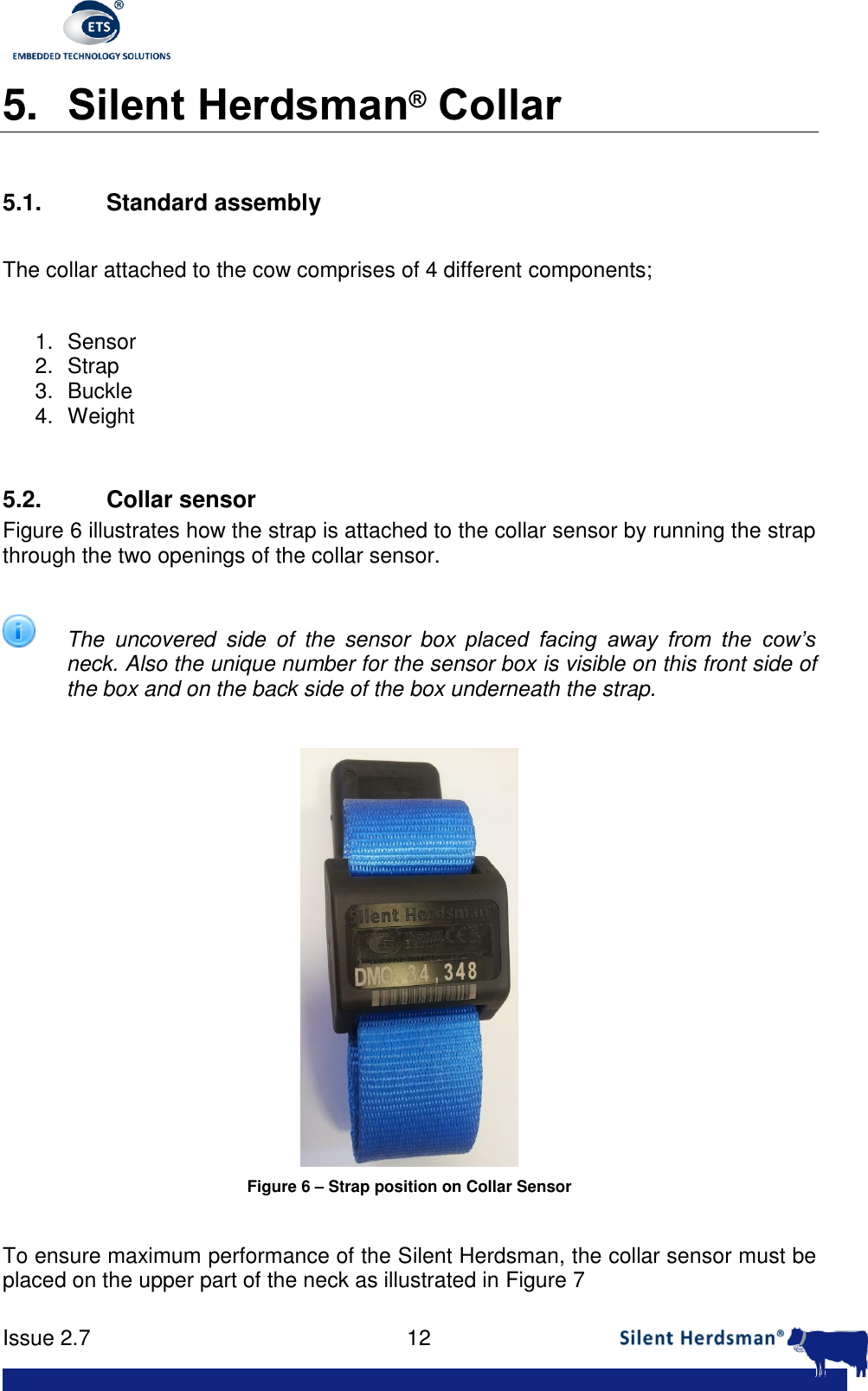
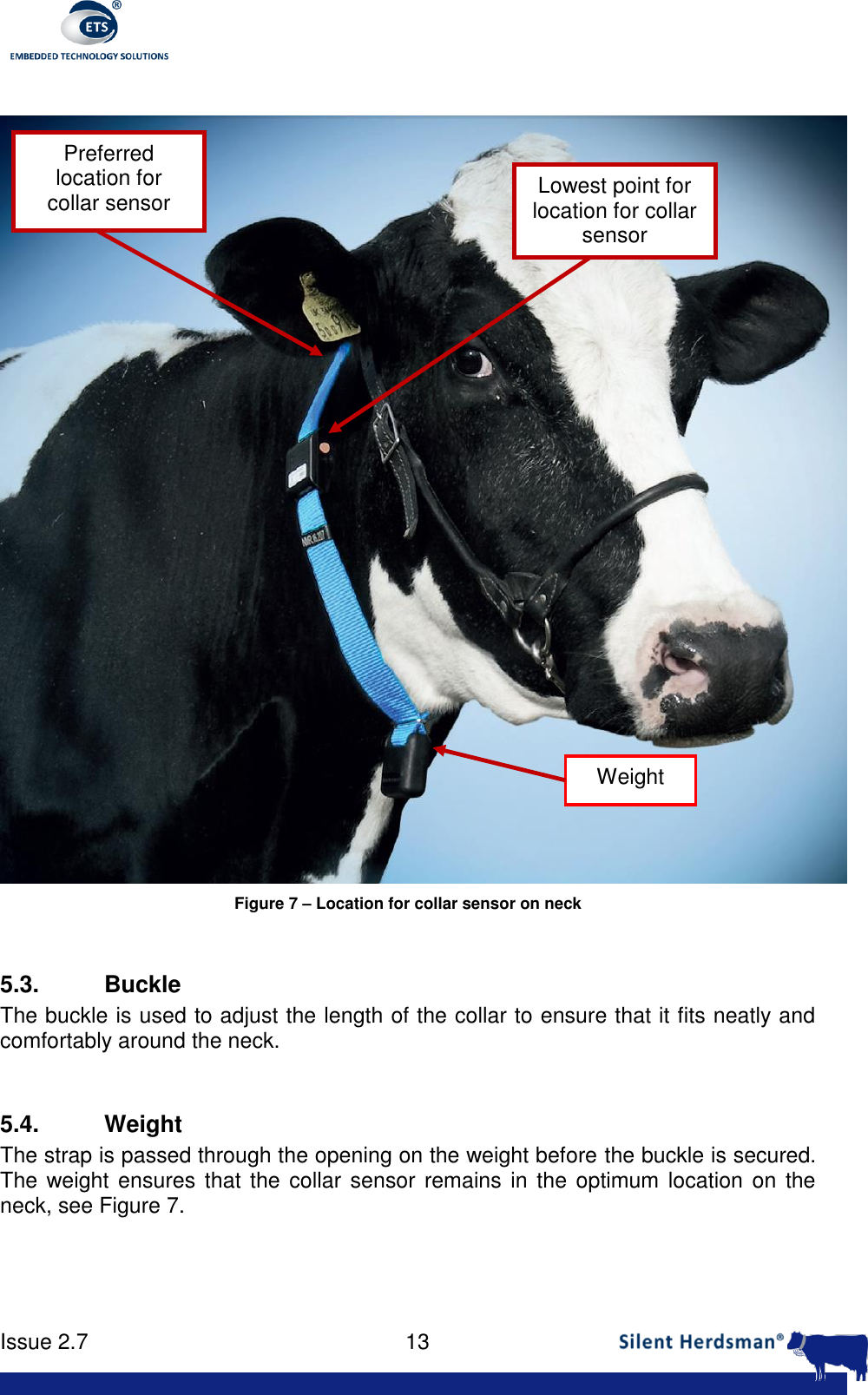
     Issue 2.7    12  5. Silent Herdsman® Collar  5.1.  Standard assembly  The collar attached to the cow comprises of 4 different components;  1.  Sensor 2.  Strap 3.  Buckle 4.  Weight  5.2. Collar sensor Figure 6 illustrates how the strap is attached to the collar sensor by running the strap through the two openings of the collar sensor.    The  uncovered  side  of  the  sensor  box  placed  facing  away  from  the  cow’s neck. Also the unique number for the sensor box is visible on this front side of the box and on the back side of the box underneath the strap.   Figure 6 – Strap position on Collar Sensor  To ensure maximum performance of the Silent Herdsman, the collar sensor must be placed on the upper part of the neck as illustrated in Figure 7
     Issue 2.7    13    Figure 7 – Location for collar sensor on neck  5.3. Buckle The buckle is used to adjust the length of the collar to ensure that it fits neatly and comfortably around the neck.  5.4.  Weight The strap is passed through the opening on the weight before the buckle is secured. The weight ensures that  the collar sensor remains in the optimum location on the neck, see Figure 7.   Lowest point for location for collar sensor Weight Preferred location for collar sensor
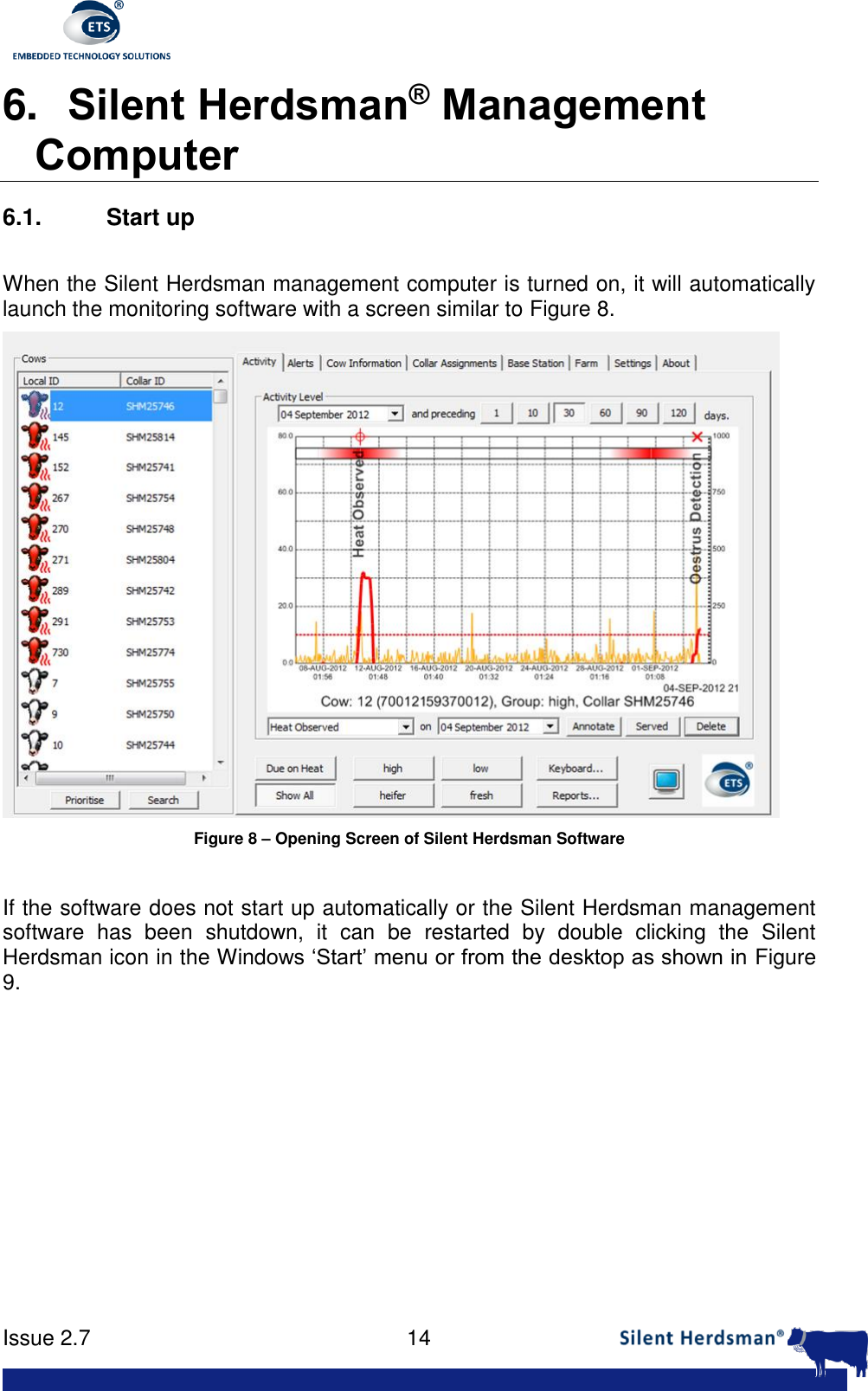
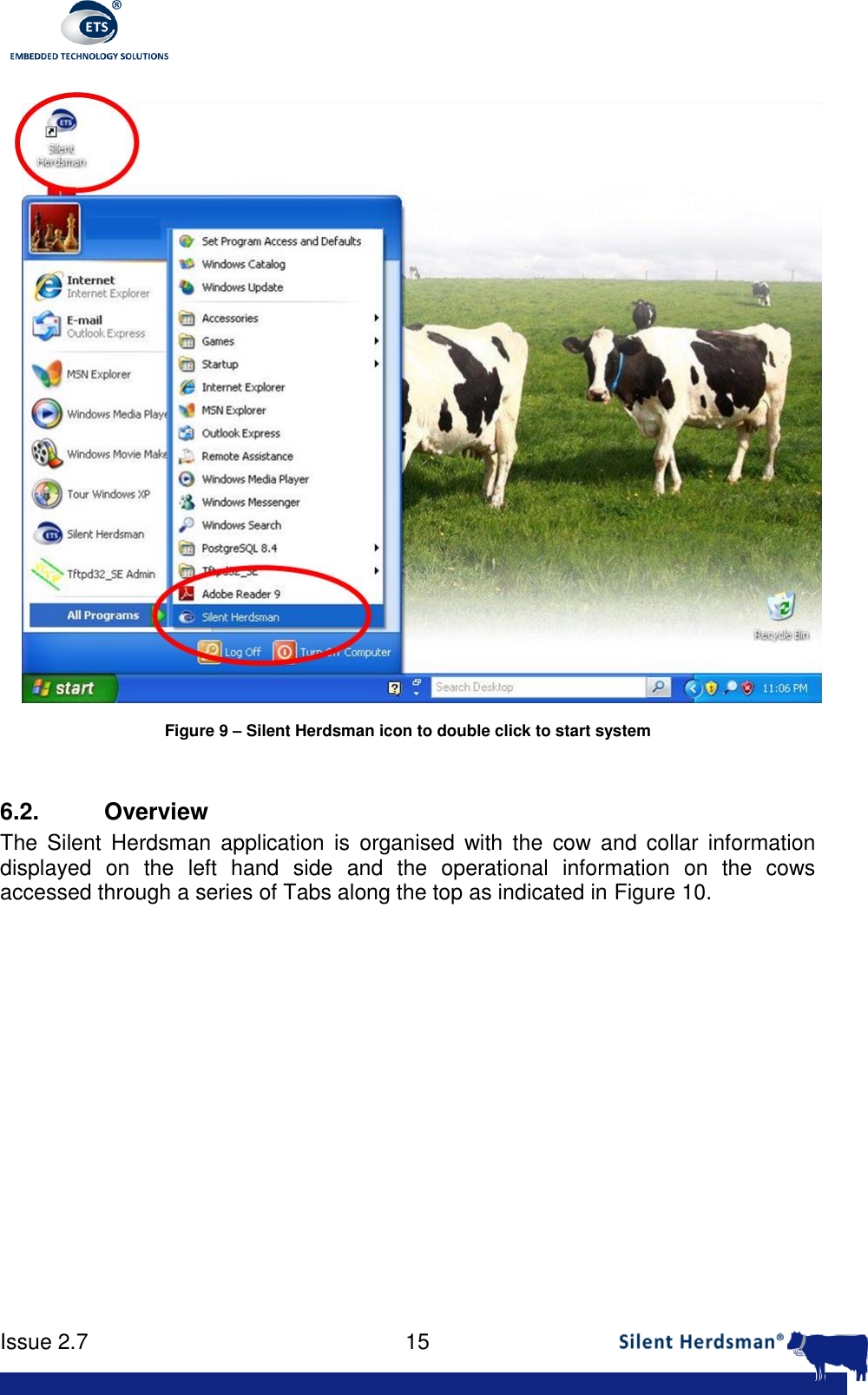
     Issue 2.7    14  6. Silent Herdsman® Management Computer 6.1. Start up  When the Silent Herdsman management computer is turned on, it will automatically launch the monitoring software with a screen similar to Figure 8.   Figure 8 – Opening Screen of Silent Herdsman Software  If the software does not start up automatically or the Silent Herdsman management software  has  been  shutdown,  it  can  be  restarted  by  double  clicking  the  Silent Herdsman icon in the Windows ‘Start’ menu or from the desktop as shown in Figure 9.
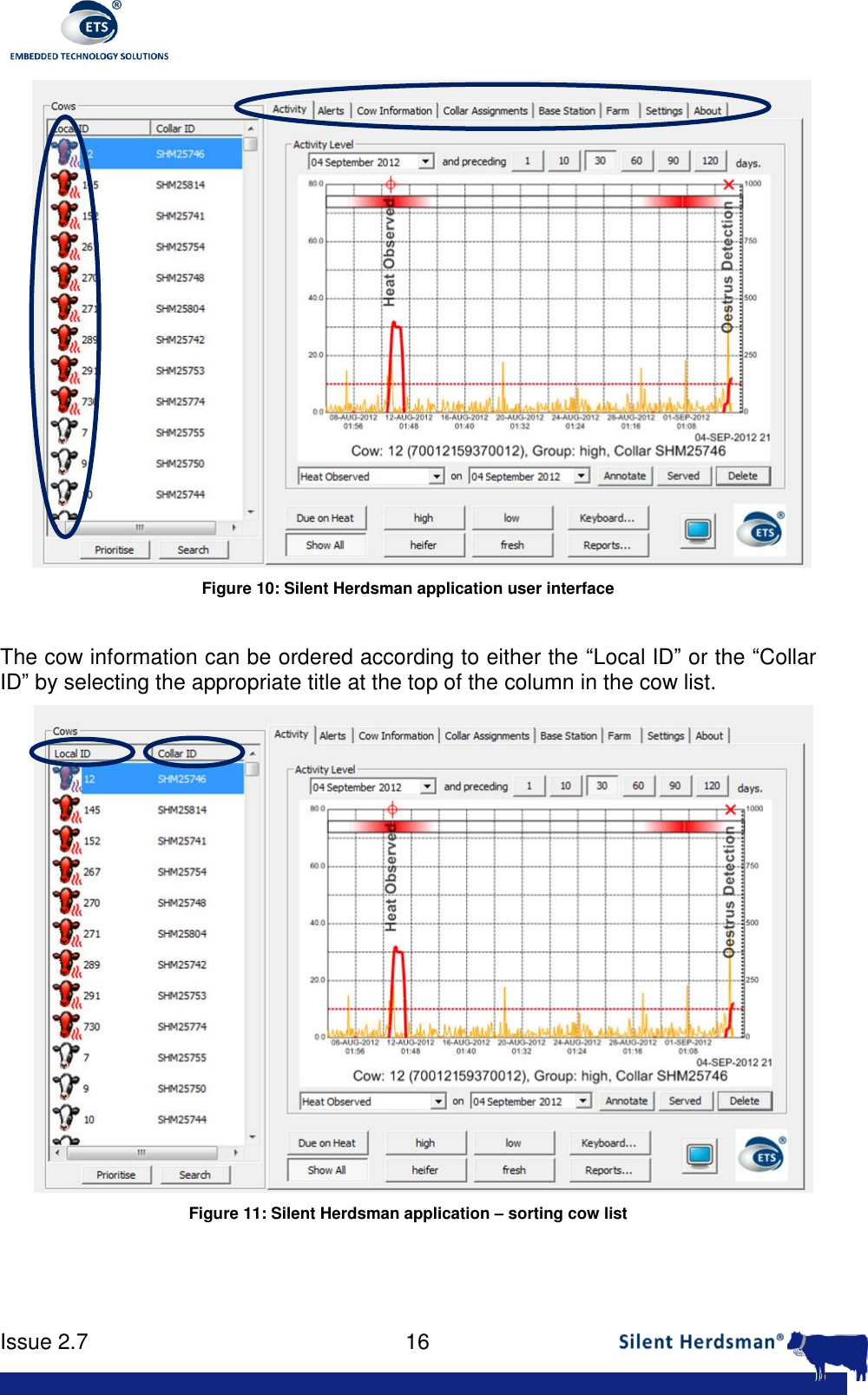
     Issue 2.7    15   Figure 9 – Silent Herdsman icon to double click to start system  6.2.  Overview The  Silent  Herdsman  application  is  organised  with  the  cow  and  collar  information displayed  on  the  left  hand  side  and  the  operational  information  on  the  cows accessed through a series of Tabs along the top as indicated in Figure 10.
     Issue 2.7    16   Figure 10: Silent Herdsman application user interface  The cow information can be ordered according to either the “Local ID” or the “Collar ID” by selecting the appropriate title at the top of the column in the cow list.  Figure 11: Silent Herdsman application – sorting cow list
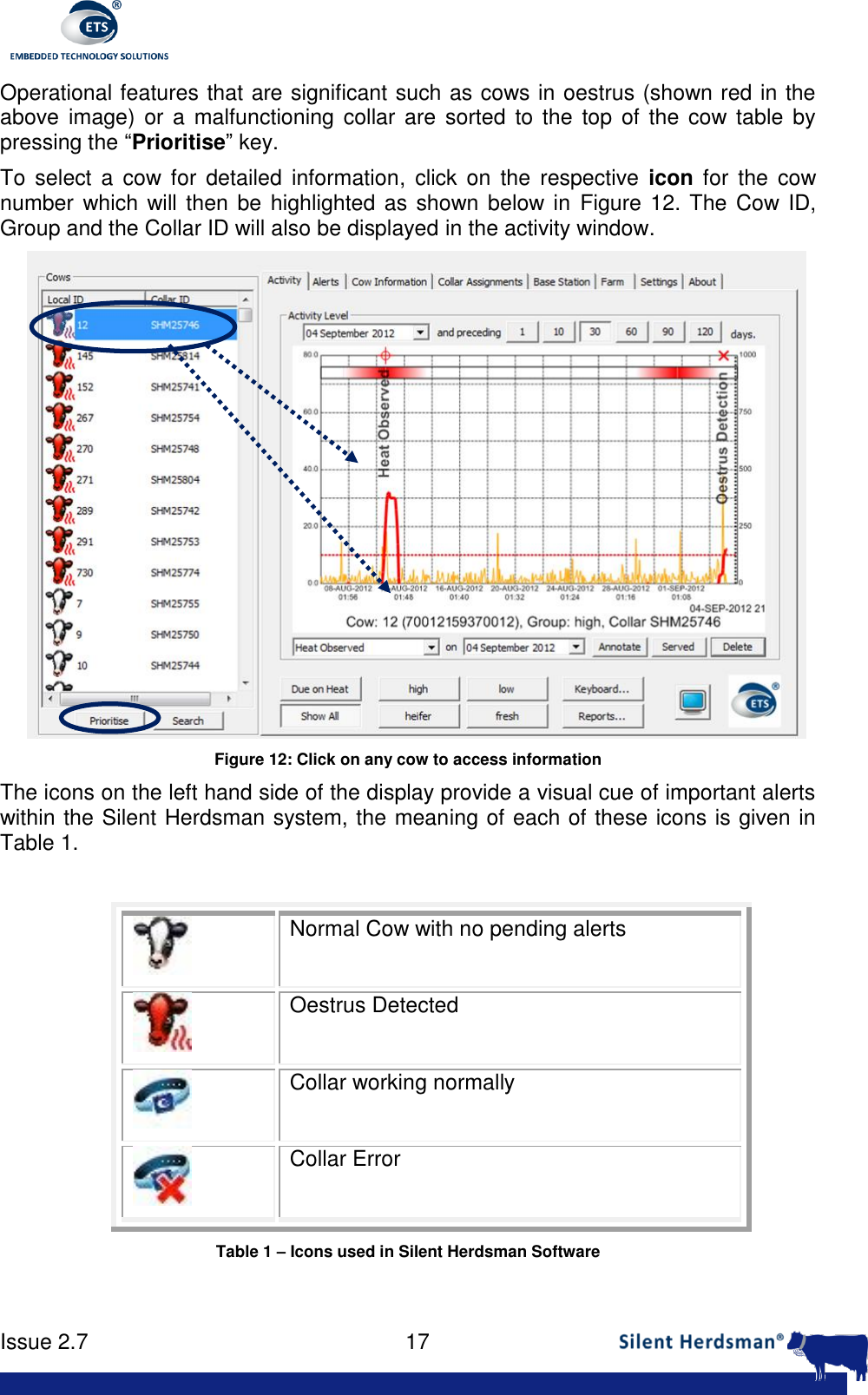
     Issue 2.7    17  Operational features that are significant such as cows in oestrus (shown red in the above  image)  or  a  malfunctioning collar are  sorted to  the  top  of  the  cow table  by pressing the “Prioritise” key.  To  select  a  cow  for  detailed  information,  click on  the  respective  icon  for  the  cow number which will then be highlighted as shown below in Figure 12. The  Cow ID, Group and the Collar ID will also be displayed in the activity window.   Figure 12: Click on any cow to access information The icons on the left hand side of the display provide a visual cue of important alerts within the Silent Herdsman system, the meaning of each of these icons is given in Table 1.   Normal Cow with no pending alerts  Oestrus Detected  Collar working normally  Collar Error Table 1 – Icons used in Silent Herdsman Software
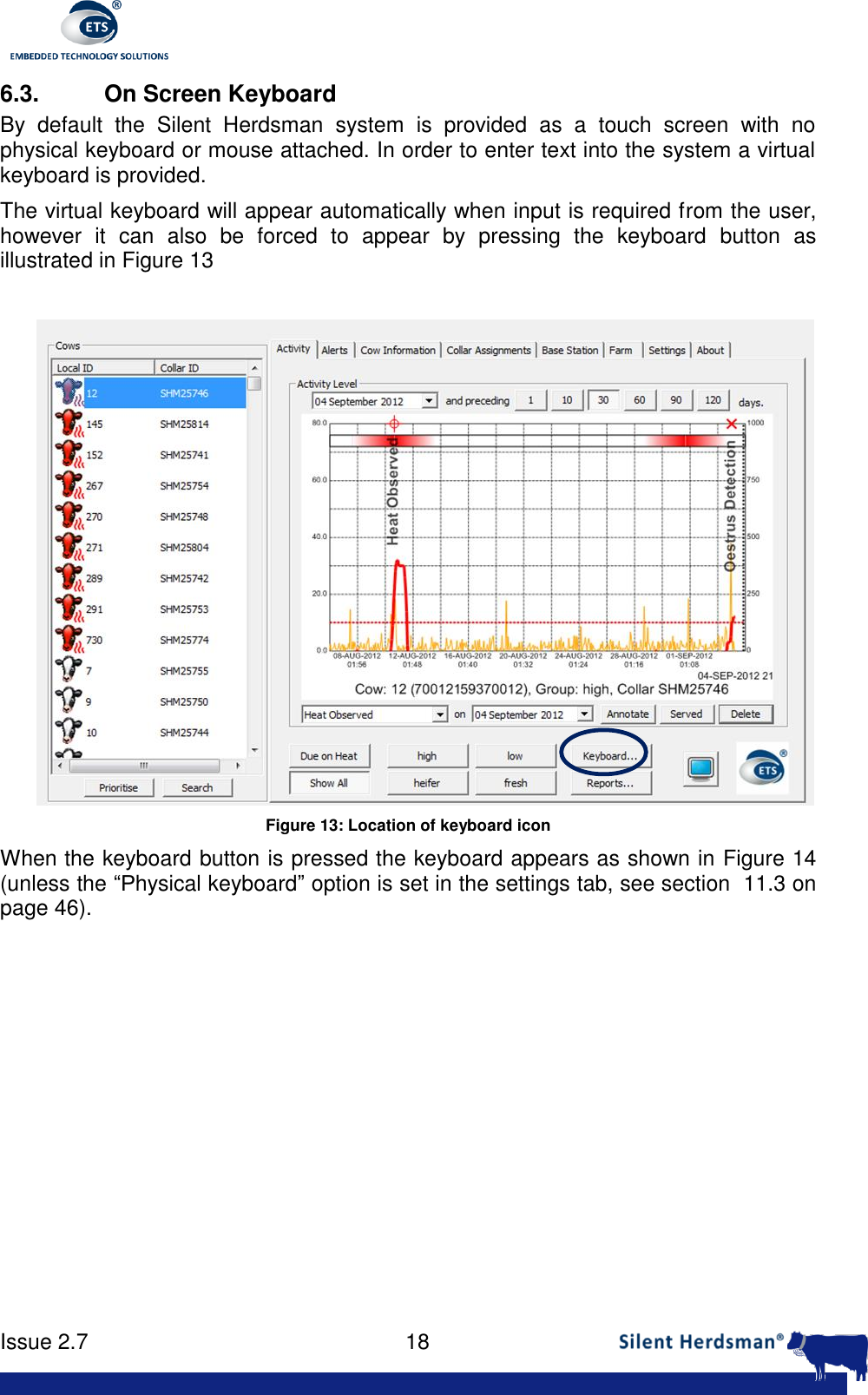
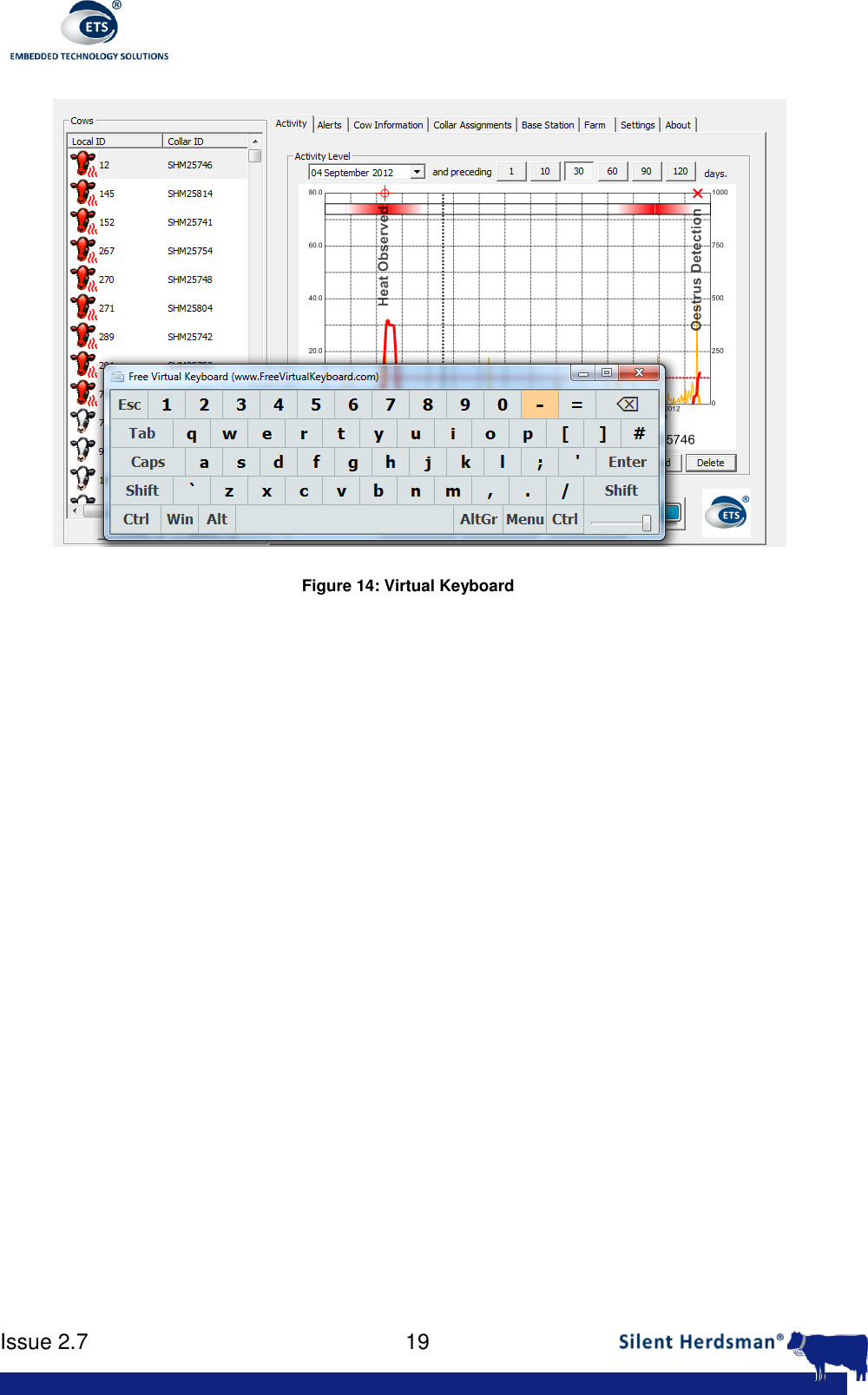
     Issue 2.7    18  6.3.  On Screen Keyboard By  default  the  Silent  Herdsman  system  is  provided  as  a  touch  screen  with  no physical keyboard or mouse attached. In order to enter text into the system a virtual keyboard is provided.  The virtual keyboard will appear automatically when input is required from the user, however  it  can  also  be  forced  to  appear  by  pressing  the  keyboard  button  as illustrated in Figure 13   Figure 13: Location of keyboard icon When the keyboard button is pressed the keyboard appears as shown in Figure 14 (unless the “Physical keyboard” option is set in the settings tab, see section  11.3 on page 46).
     Issue 2.7    19   Figure 14: Virtual Keyboard
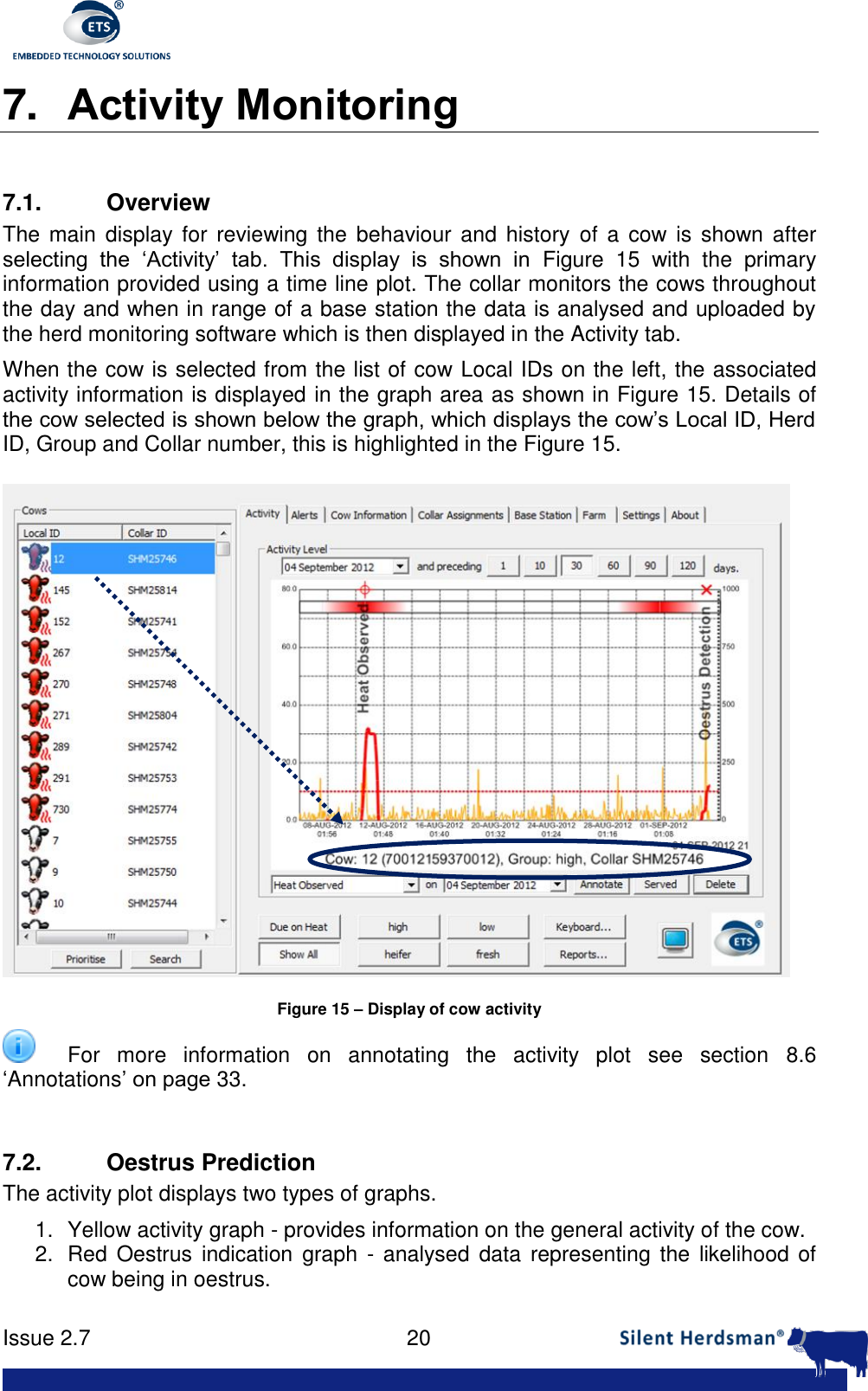
     Issue 2.7    20  7. Activity Monitoring  7.1.  Overview The  main  display for reviewing the  behaviour and history  of a cow  is  shown after selecting  the  ‘Activity’  tab.  This  display  is  shown  in  Figure  15  with  the  primary information provided using a time line plot. The collar monitors the cows throughout the day and when in range of a base station the data is analysed and uploaded by the herd monitoring software which is then displayed in the Activity tab. When the cow is selected from the list of cow Local IDs on the left, the associated activity information is displayed in the graph area as shown in Figure 15. Details of the cow selected is shown below the graph, which displays the cow’s Local ID, Herd ID, Group and Collar number, this is highlighted in the Figure 15.  Figure 15 – Display of cow activity   For  more  information  on  annotating  the  activity  plot  see  section  8.6 ‘Annotations’ on page 33.  7.2.  Oestrus Prediction The activity plot displays two types of graphs.  1.  Yellow activity graph - provides information on the general activity of the cow.  2.  Red  Oestrus  indication  graph  - analysed  data  representing  the likelihood of cow being in oestrus.
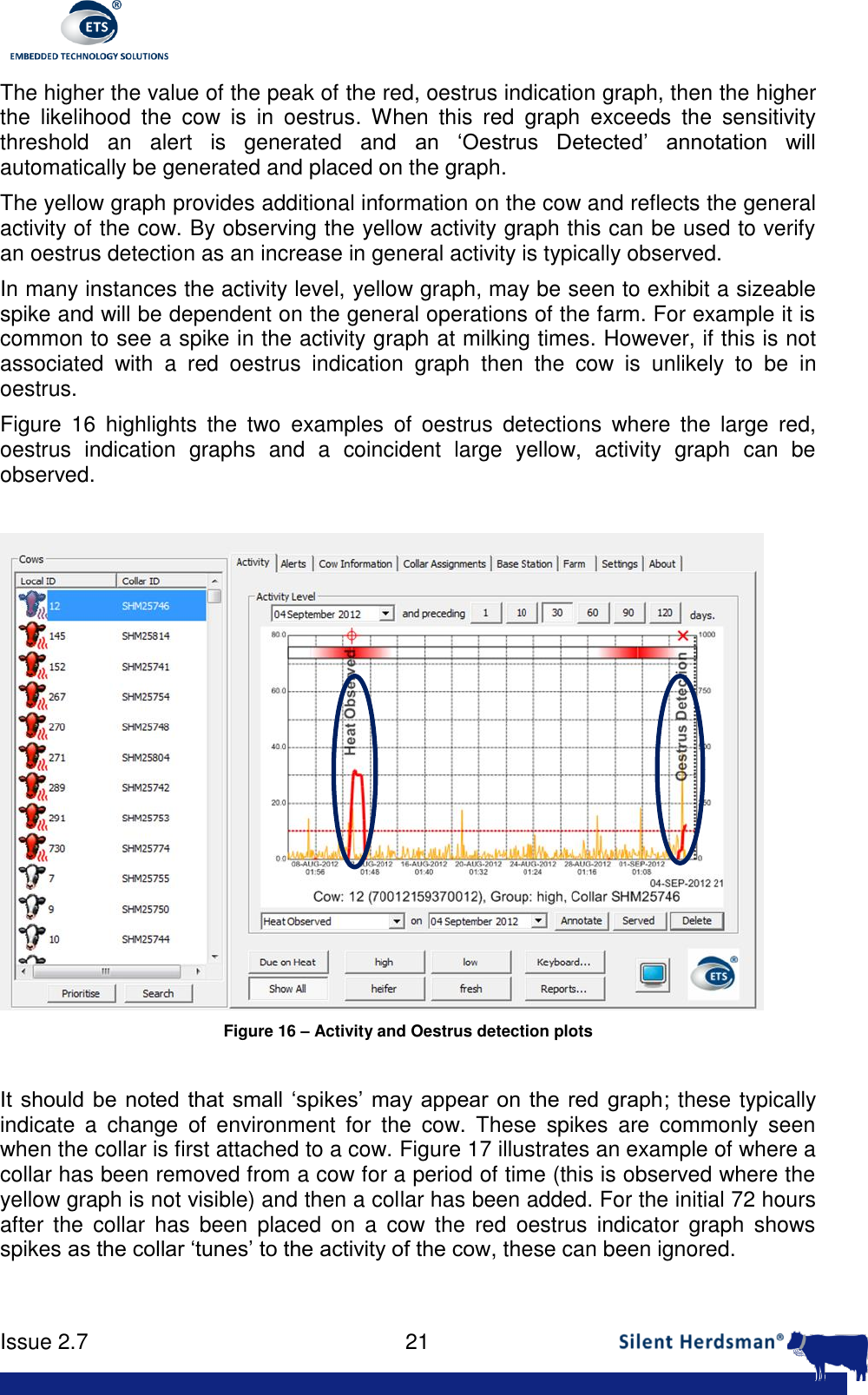
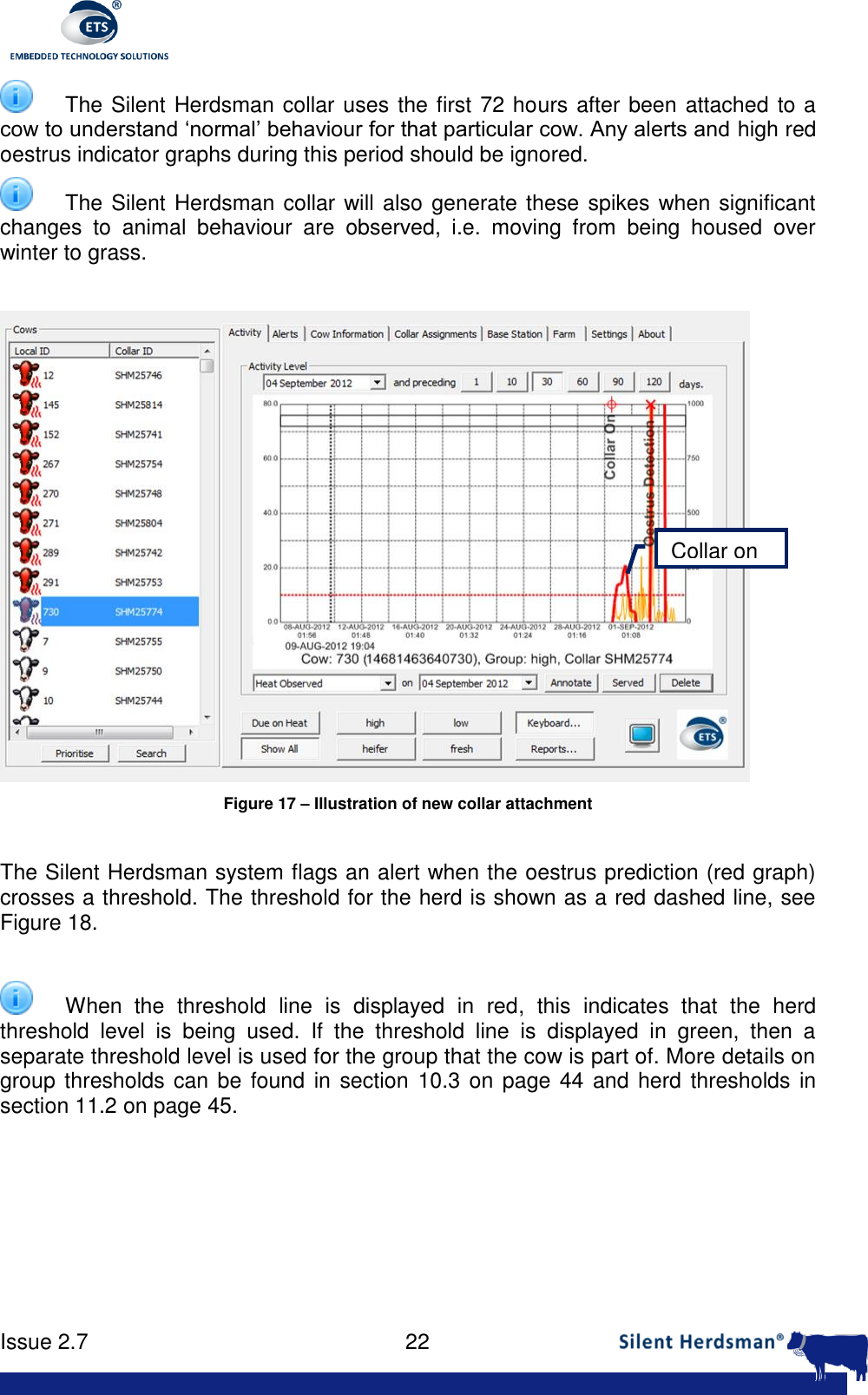
     Issue 2.7    21  The higher the value of the peak of the red, oestrus indication graph, then the higher the  likelihood  the  cow  is  in  oestrus.  When  this  red  graph  exceeds  the  sensitivity threshold  an  alert  is  generated  and  an  ‘Oestrus  Detected’  annotation  will automatically be generated and placed on the graph. The yellow graph provides additional information on the cow and reflects the general activity of the cow. By observing the yellow activity graph this can be used to verify an oestrus detection as an increase in general activity is typically observed. In many instances the activity level, yellow graph, may be seen to exhibit a sizeable spike and will be dependent on the general operations of the farm. For example it is common to see a spike in the activity graph at milking times. However, if this is not associated  with  a  red  oestrus  indication  graph  then  the  cow  is  unlikely  to  be  in oestrus. Figure  16  highlights  the  two  examples  of  oestrus  detections  where  the  large  red, oestrus  indication  graphs  and  a  coincident  large  yellow,  activity  graph  can  be observed.   Figure 16 – Activity and Oestrus detection plots  It should be noted  that  small  ‘spikes’  may appear  on the red graph; these typically indicate  a  change  of  environment  for  the  cow.  These  spikes  are  commonly  seen when the collar is first attached to a cow. Figure 17 illustrates an example of where a collar has been removed from a cow for a period of time (this is observed where the yellow graph is not visible) and then a collar has been added. For the initial 72 hours after  the  collar  has  been  placed  on  a  cow  the  red  oestrus  indicator  graph  shows spikes as the collar ‘tunes’ to the activity of the cow, these can been ignored.
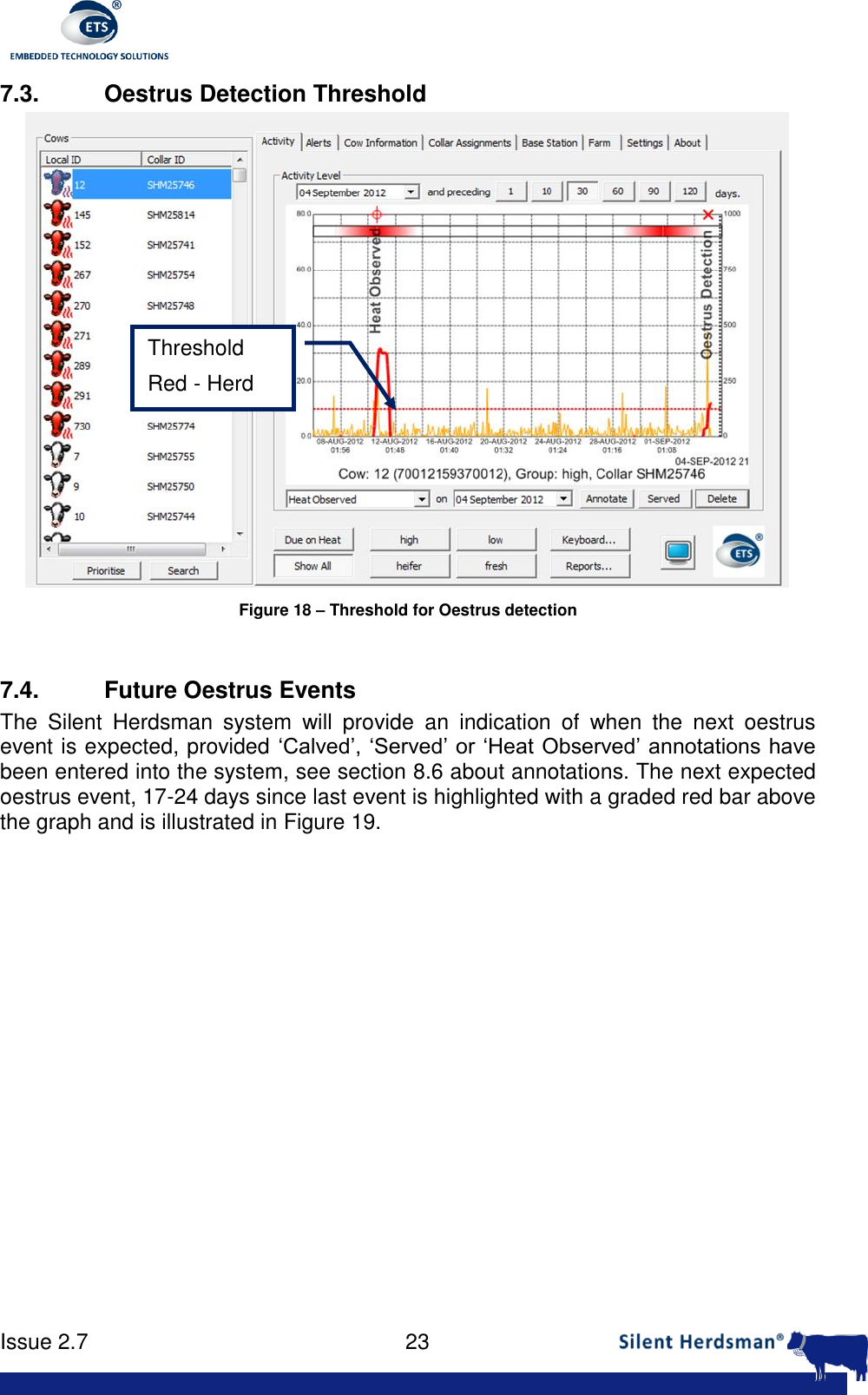
     Issue 2.7    22    The Silent Herdsman collar uses the first 72 hours after been attached to a cow to understand ‘normal’ behaviour for that particular cow. Any alerts and high red oestrus indicator graphs during this period should be ignored.   The Silent Herdsman collar will also generate these spikes when significant changes  to  animal  behaviour  are  observed,  i.e.  moving  from  being  housed  over winter to grass.   Figure 17 – Illustration of new collar attachment  The Silent Herdsman system flags an alert when the oestrus prediction (red graph) crosses a threshold. The threshold for the herd is shown as a red dashed line, see Figure 18.     When  the  threshold  line  is  displayed  in  red,  this  indicates  that  the  herd threshold  level  is  being  used.  If  the  threshold  line  is  displayed  in  green,  then  a separate threshold level is used for the group that the cow is part of. More details on group thresholds can be found in section  10.3 on page 44 and herd thresholds in section 11.2 on page 45.  Collar on
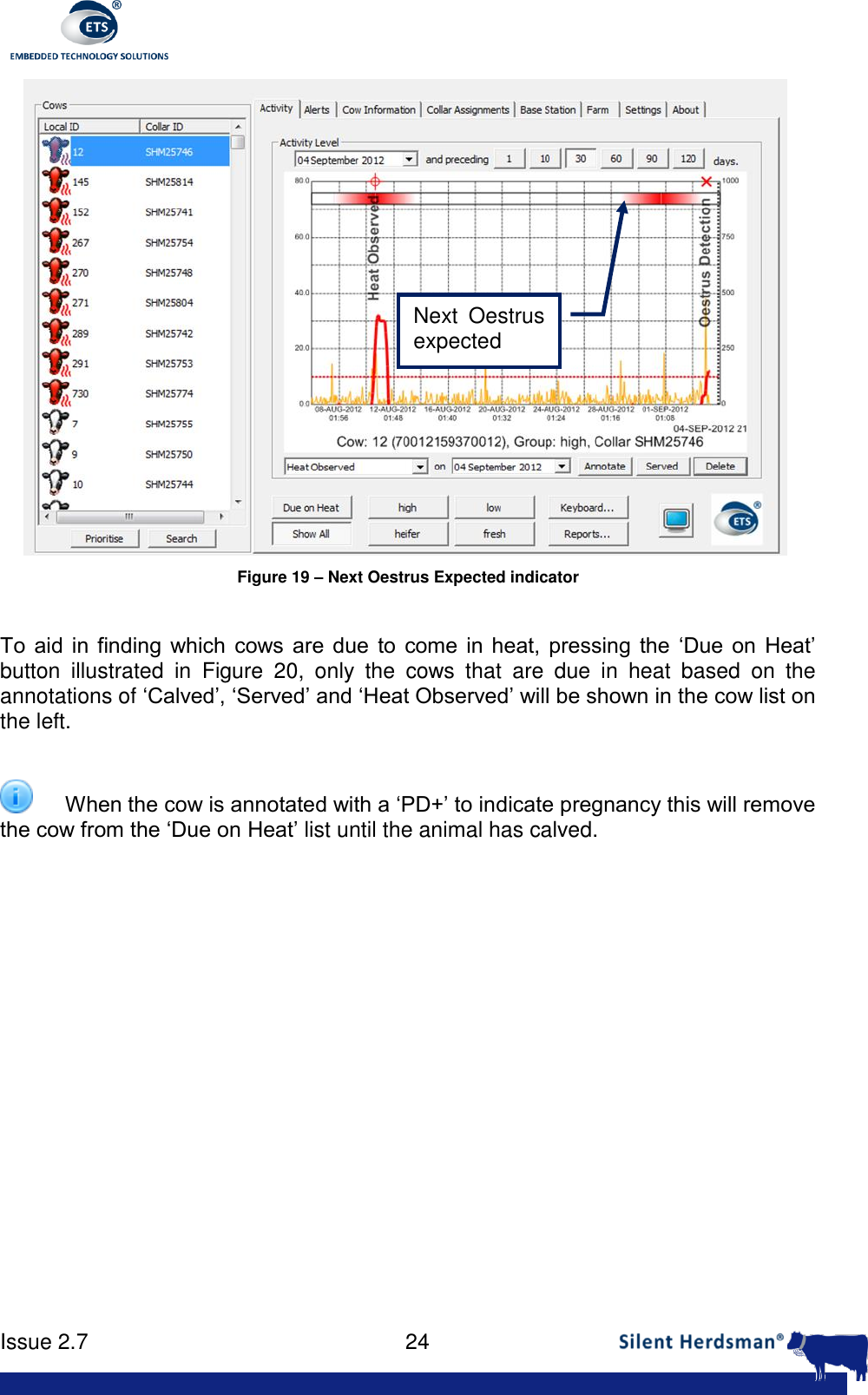
     Issue 2.7    23  7.3.  Oestrus Detection Threshold  Figure 18 – Threshold for Oestrus detection  7.4. Future Oestrus Events The  Silent  Herdsman  system  will  provide  an  indication  of  when  the  next  oestrus event is expected, provided ‘Calved’, ‘Served’ or ‘Heat Observed’ annotations have been entered into the system, see section 8.6 about annotations. The next expected oestrus event, 17-24 days since last event is highlighted with a graded red bar above the graph and is illustrated in Figure 19.   Threshold Red - Herd
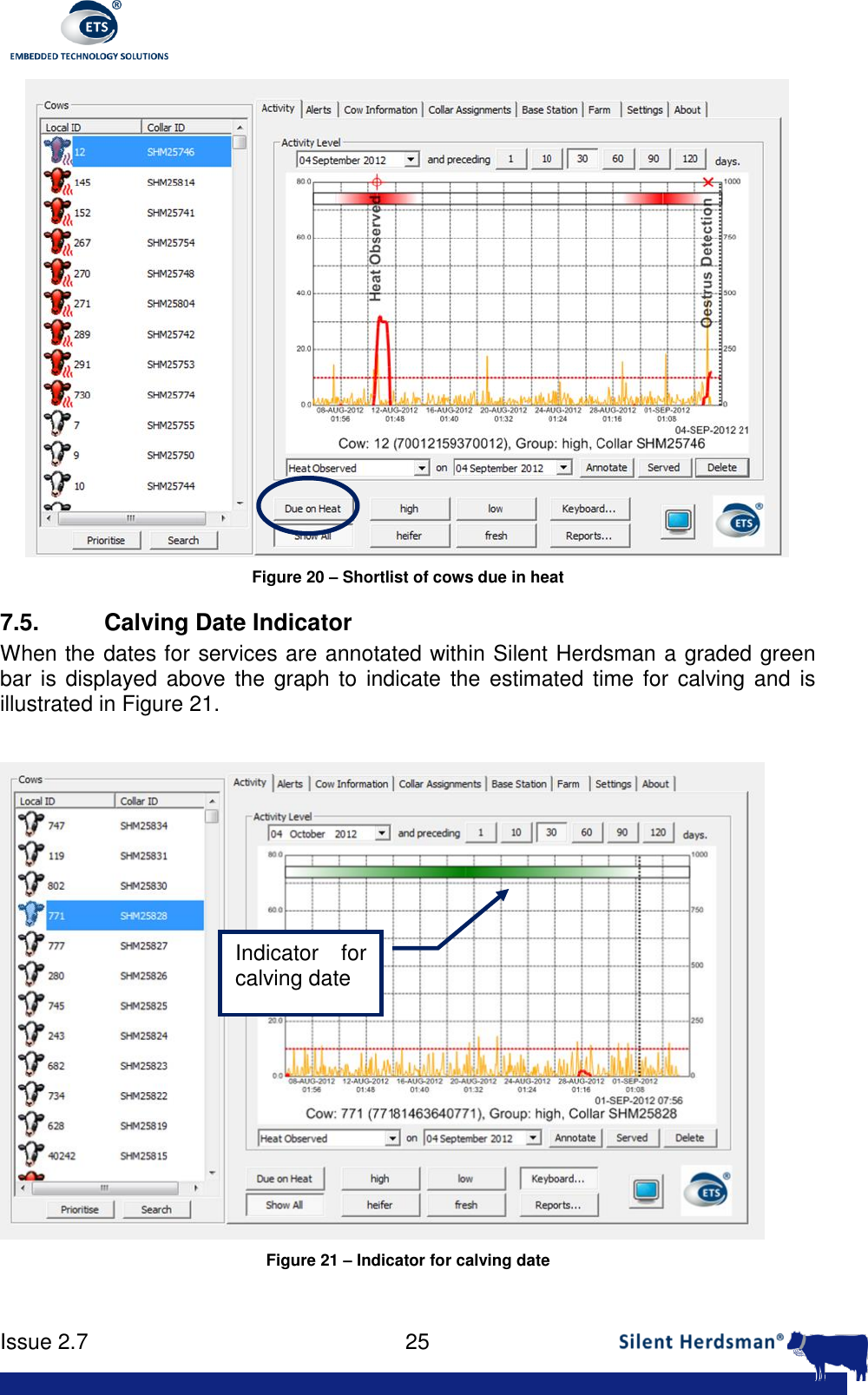
     Issue 2.7    24   Figure 19 – Next Oestrus Expected indicator  To  aid  in  finding  which  cows  are  due  to  come  in  heat,  pressing  the  ‘Due  on  Heat’ button  illustrated  in  Figure  20,  only  the  cows  that  are  due  in  heat  based  on  the annotations of ‘Calved’, ‘Served’ and ‘Heat Observed’ will be shown in the cow list on the left.    When the cow is annotated with a ‘PD+’ to indicate pregnancy this will remove the cow from the ‘Due on Heat’ list until the animal has calved.  Next  Oestrus expected
     Issue 2.7    25   Figure 20 – Shortlist of cows due in heat 7.5.  Calving Date Indicator When the dates for services are annotated within Silent Herdsman a graded green bar is displayed above the graph  to  indicate the estimated time for calving and  is illustrated in Figure 21.   Figure 21 – Indicator for calving date  Indicator  for calving date
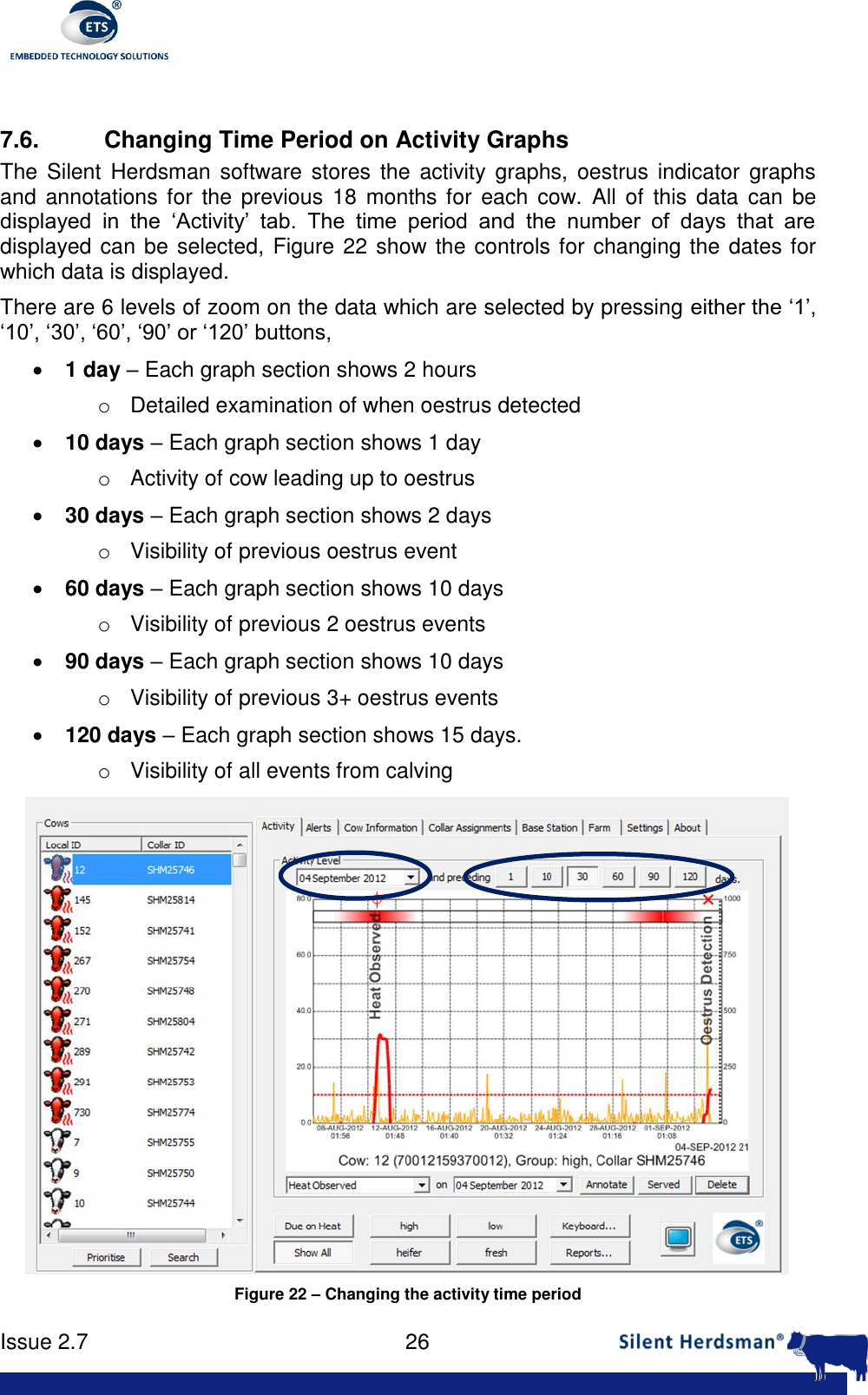
     Issue 2.7    26   7.6. Changing Time Period on Activity Graphs The  Silent  Herdsman  software  stores  the activity graphs,  oestrus indicator  graphs and  annotations for the  previous  18  months for  each  cow.  All of  this  data  can be displayed  in  the  ‘Activity’  tab.  The  time  period  and  the  number  of  days  that  are displayed can be selected, Figure 22 show the controls for changing the dates for which data is displayed.  There are 6 levels of zoom on the data which are selected by pressing either the ‘1’, ‘10’, ‘30’, ‘60’, ‘90’ or ‘120’ buttons,  1 day – Each graph section shows 2 hours o  Detailed examination of when oestrus detected  10 days – Each graph section shows 1 day o  Activity of cow leading up to oestrus  30 days – Each graph section shows 2 days o  Visibility of previous oestrus event  60 days – Each graph section shows 10 days o  Visibility of previous 2 oestrus events  90 days – Each graph section shows 10 days o  Visibility of previous 3+ oestrus events  120 days – Each graph section shows 15 days. o  Visibility of all events from calving  Figure 22 – Changing the activity time period
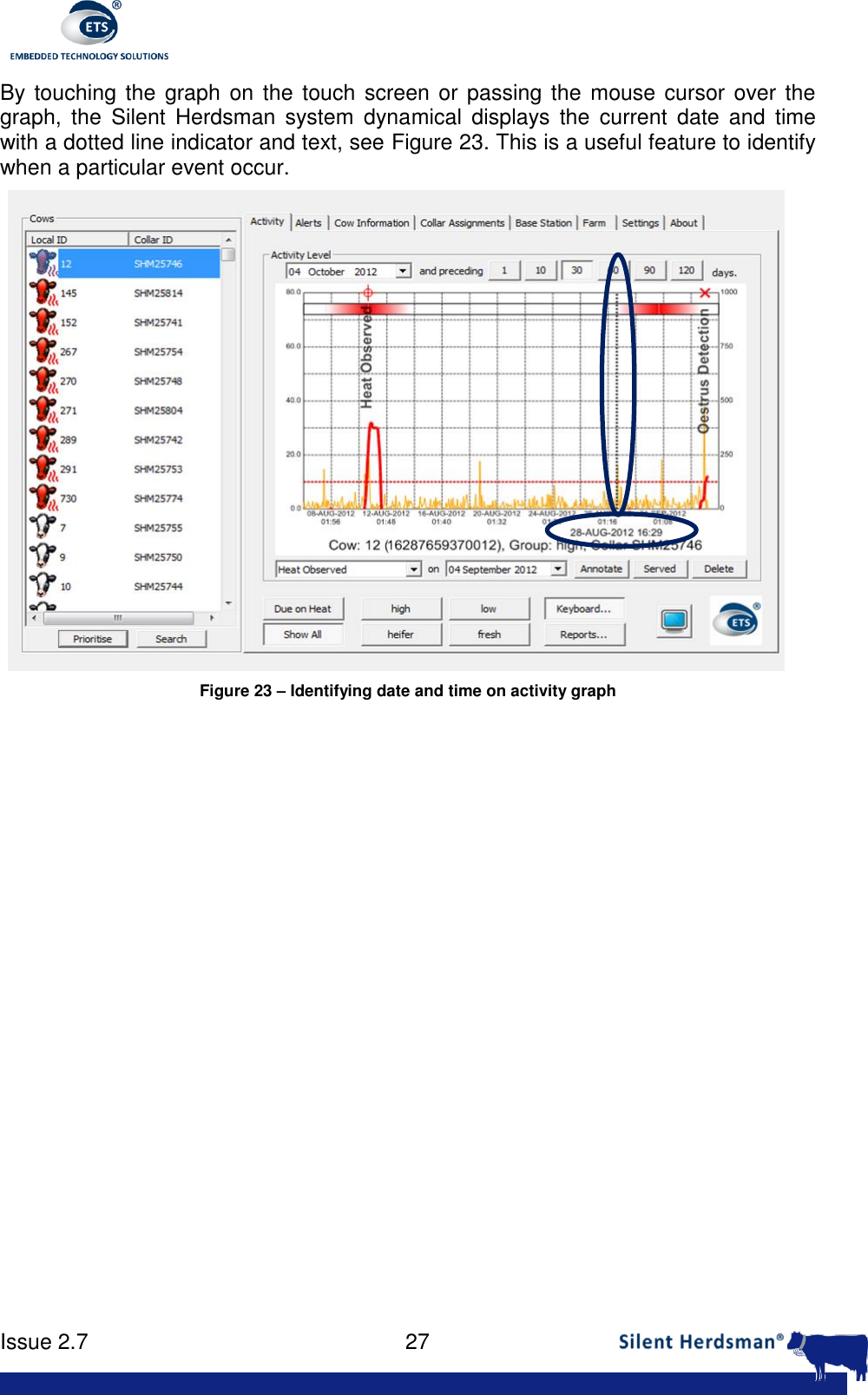
     Issue 2.7    27  By touching the graph  on the touch screen or  passing the mouse cursor over the graph,  the  Silent  Herdsman  system  dynamical  displays  the  current  date  and  time with a dotted line indicator and text, see Figure 23. This is a useful feature to identify when a particular event occur.  Figure 23 – Identifying date and time on activity graph
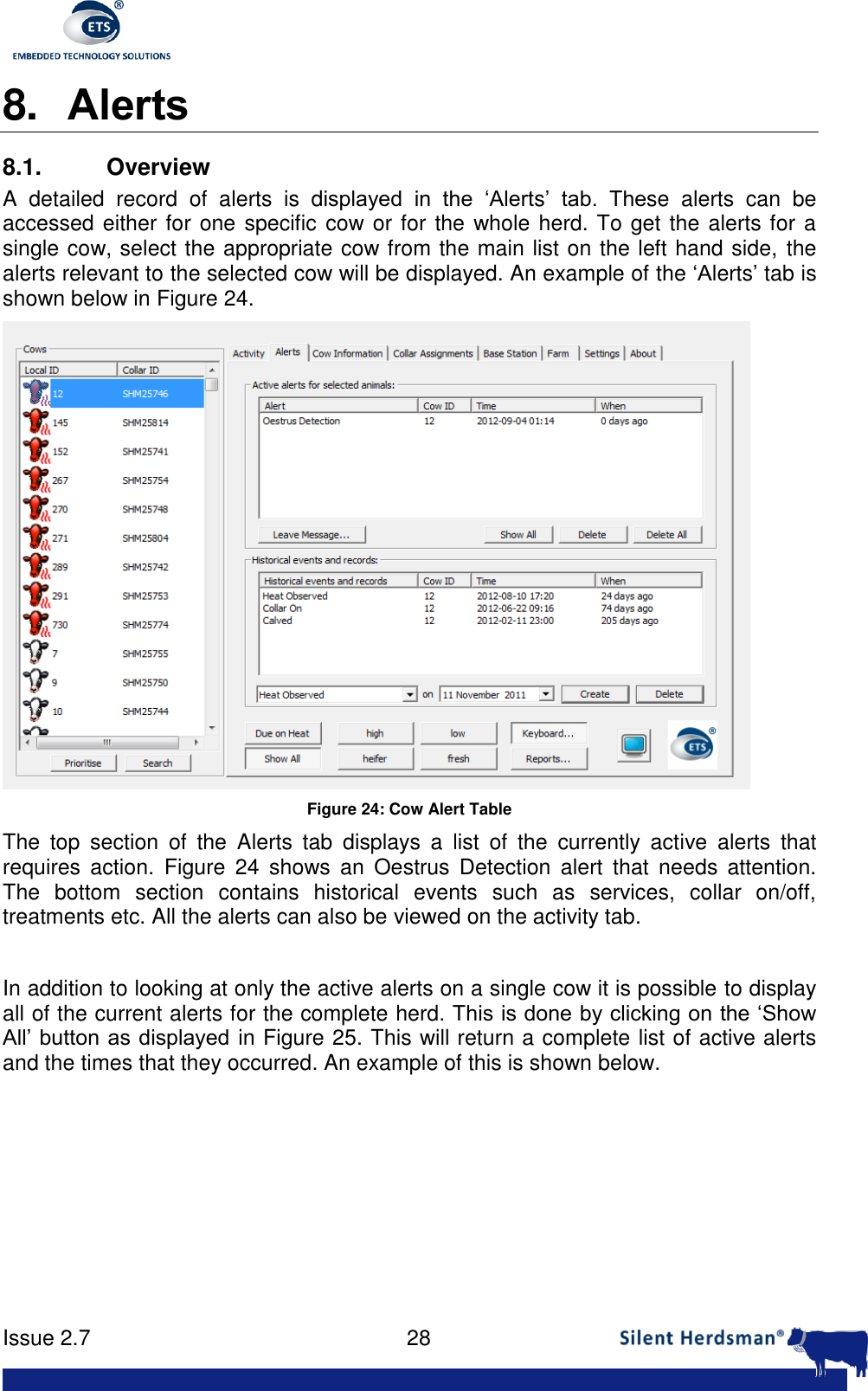
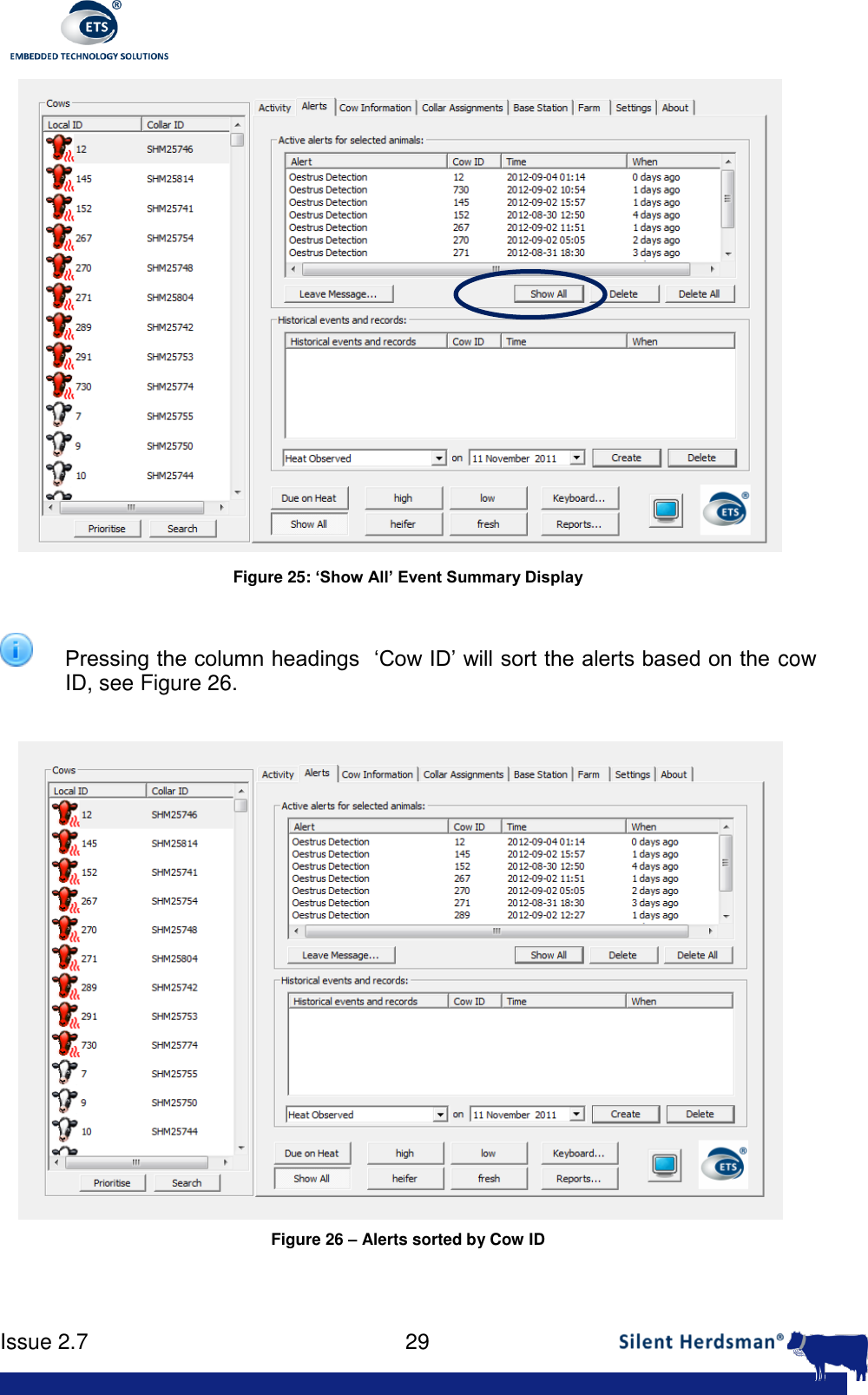
     Issue 2.7    28  8. Alerts 8.1.  Overview A  detailed  record  of  alerts  is  displayed  in  the  ‘Alerts’  tab.  These  alerts  can  be accessed either for one specific cow or for the whole herd. To get the alerts for a single cow, select the appropriate cow from the main list on the left hand side, the alerts relevant to the selected cow will be displayed. An example of the ‘Alerts’ tab is shown below in Figure 24.  Figure 24: Cow Alert Table The  top  section  of  the  Alerts  tab  displays  a  list  of  the  currently  active  alerts  that requires  action.  Figure  24  shows  an  Oestrus  Detection  alert  that  needs  attention. The  bottom  section  contains  historical  events  such  as  services,  collar  on/off, treatments etc. All the alerts can also be viewed on the activity tab.  In addition to looking at only the active alerts on a single cow it is possible to display all of the current alerts for the complete herd. This is done by clicking on the ‘Show All’ button as displayed in Figure 25. This will return a complete list of active alerts and the times that they occurred. An example of this is shown below.
     Issue 2.7    29   Figure 25: ‘Show All’ Event Summary Display   Pressing the column headings  ‘Cow ID’ will sort the alerts based on the cow ID, see Figure 26.    Figure 26 – Alerts sorted by Cow ID
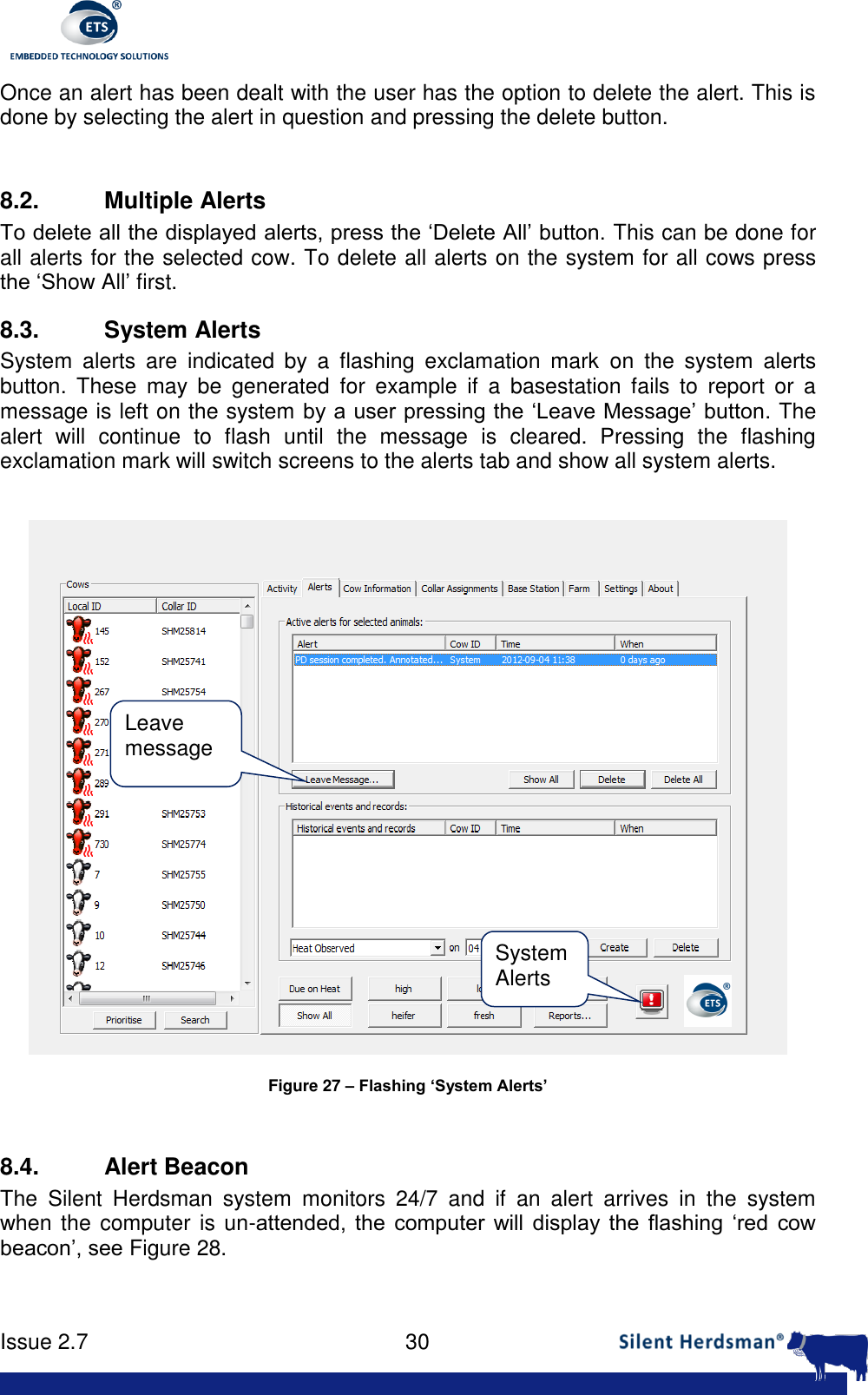
     Issue 2.7    30  Once an alert has been dealt with the user has the option to delete the alert. This is done by selecting the alert in question and pressing the delete button.   8.2.  Multiple Alerts To delete all the displayed alerts, press the ‘Delete All’ button. This can be done for all alerts for the selected cow. To delete all alerts on the system for all cows press the ‘Show All’ first. 8.3.  System Alerts System  alerts  are  indicated  by  a  flashing  exclamation  mark  on  the  system  alerts button.  These  may  be  generated  for  example  if  a  basestation  fails  to  report  or  a message is left on the system by a user pressing the ‘Leave Message’ button. The alert  will  continue  to  flash  until  the  message  is  cleared.  Pressing  the  flashing exclamation mark will switch screens to the alerts tab and show all system alerts.    Figure 27 – Flashing ‘System Alerts’  8.4.  Alert Beacon The  Silent  Herdsman  system  monitors  24/7  and  if  an  alert  arrives  in  the  system when the computer is un-attended,  the  computer  will  display  the  flashing  ‘red  cow beacon’, see Figure 28. System Alerts Leave message
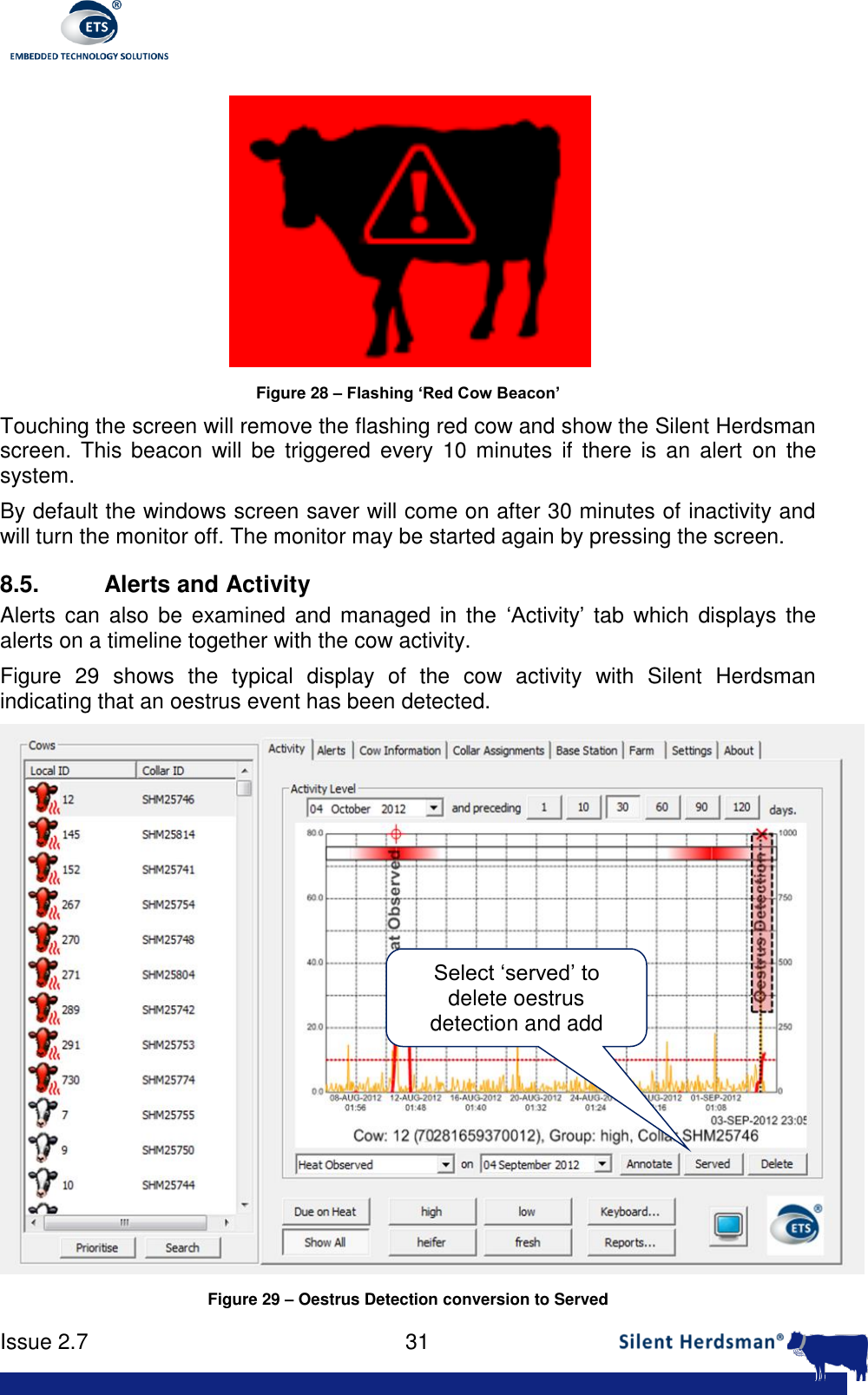
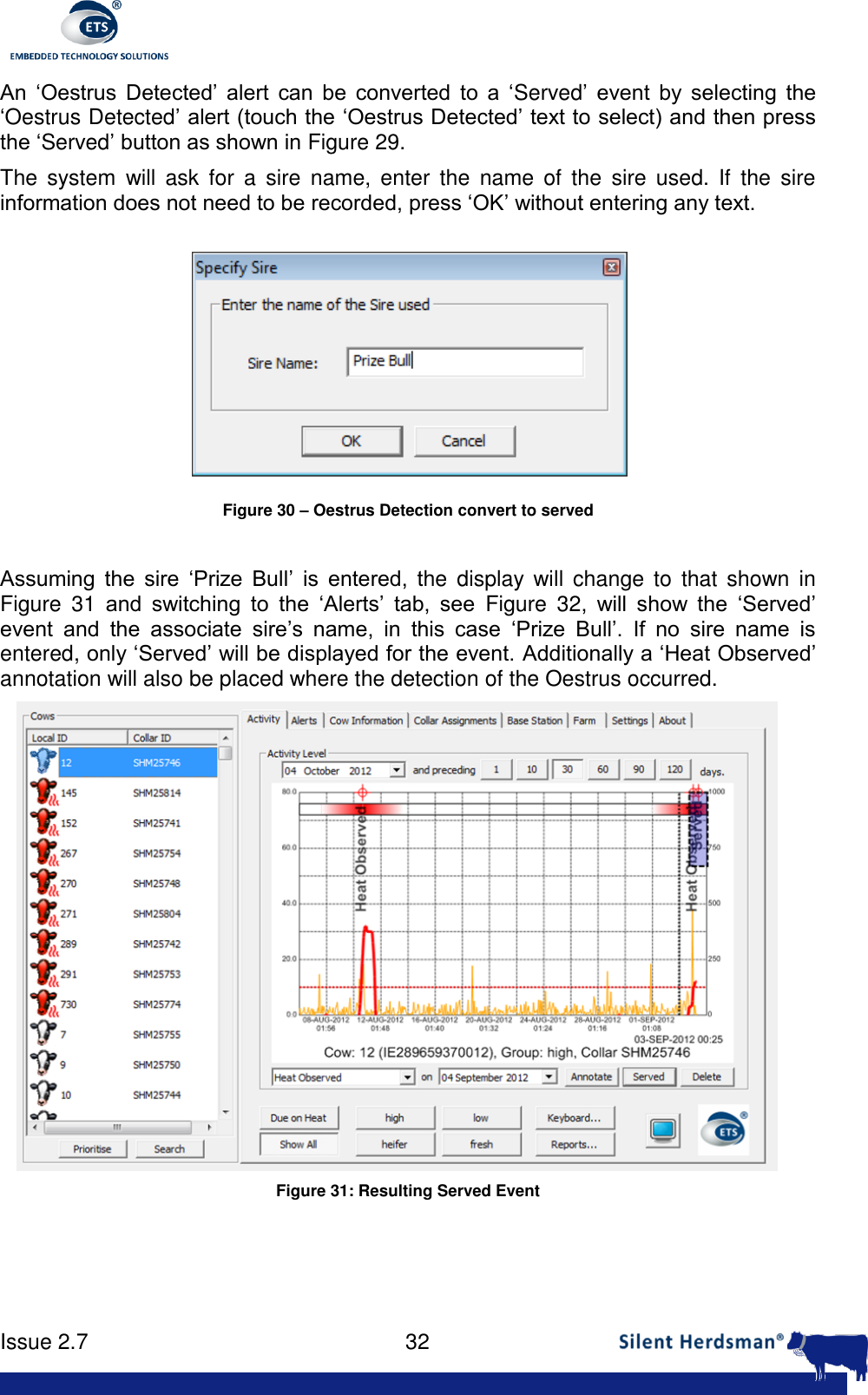
     Issue 2.7    31   Figure 28 – Flashing ‘Red Cow Beacon’ Touching the screen will remove the flashing red cow and show the Silent Herdsman screen.  This  beacon will  be  triggered  every  10  minutes if  there  is  an  alert  on  the system.  By default the windows screen saver will come on after 30 minutes of inactivity and will turn the monitor off. The monitor may be started again by pressing the screen. 8.5.  Alerts and Activity Alerts can  also be examined  and managed in  the  ‘Activity’  tab  which  displays the alerts on a timeline together with the cow activity. Figure  29  shows  the  typical  display  of  the  cow  activity  with  Silent  Herdsman indicating that an oestrus event has been detected.  Figure 29 – Oestrus Detection conversion to Served Select ‘served’ to delete oestrus detection and add served annotation
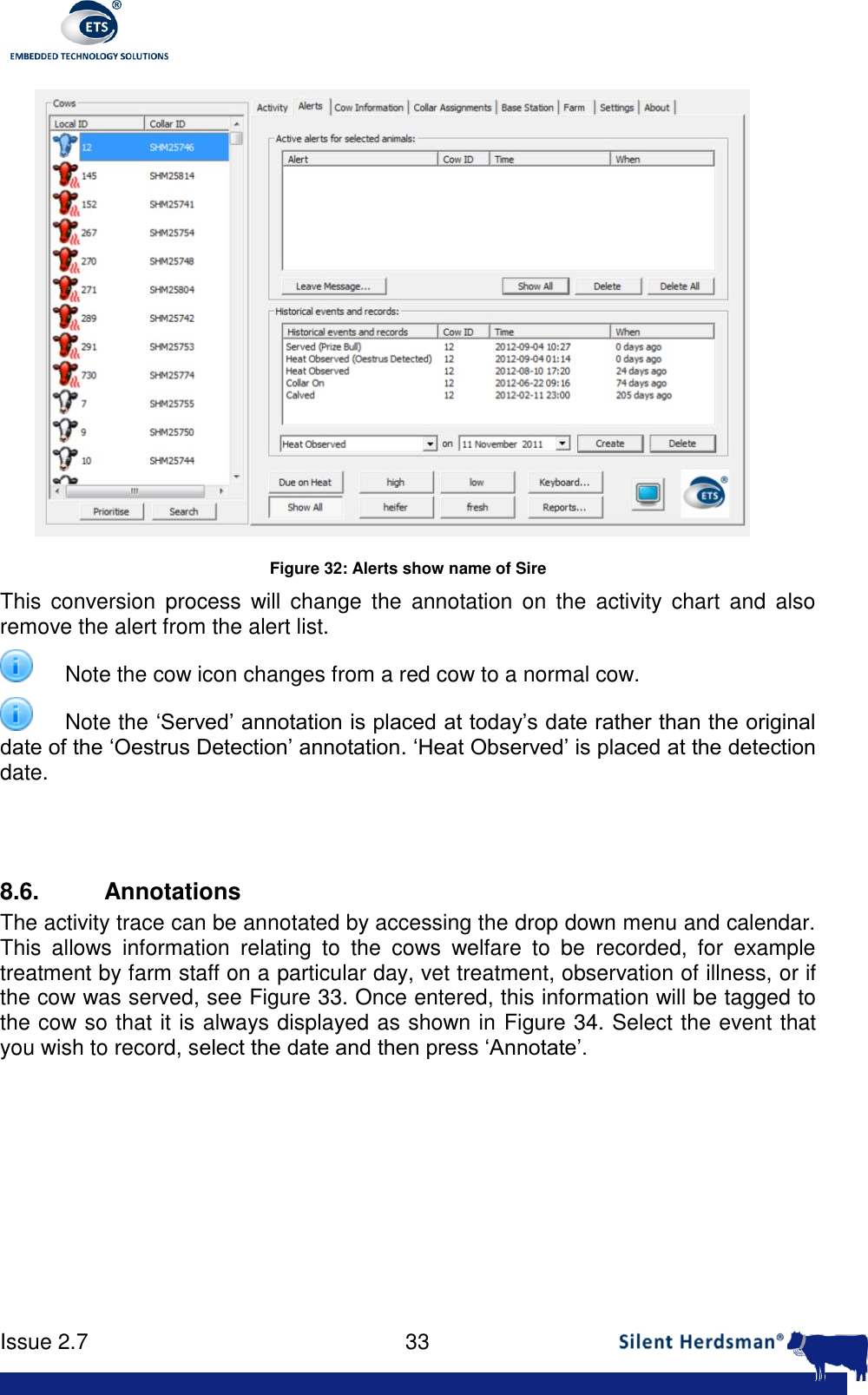
     Issue 2.7    32  An  ‘Oestrus  Detected’  alert  can  be  converted  to  a  ‘Served’  event  by  selecting  the ‘Oestrus Detected’ alert (touch the ‘Oestrus Detected’ text to select) and then press the ‘Served’ button as shown in Figure 29.  The  system  will ask  for  a  sire  name,  enter  the  name  of  the  sire  used.  If  the  sire information does not need to be recorded, press ‘OK’ without entering any text.  Figure 30 – Oestrus Detection convert to served  Assuming  the  sire  ‘Prize  Bull’  is  entered,  the  display  will change  to  that  shown  in Figure  31 and  switching  to  the  ‘Alerts’  tab,  see  Figure  32,  will  show  the  ‘Served’ event  and  the  associate  sire’s  name,  in  this  case  ‘Prize  Bull’.  If  no  sire  name  is entered, only ‘Served’ will be displayed for the event. Additionally a ‘Heat Observed’ annotation will also be placed where the detection of the Oestrus occurred.  Figure 31: Resulting Served Event
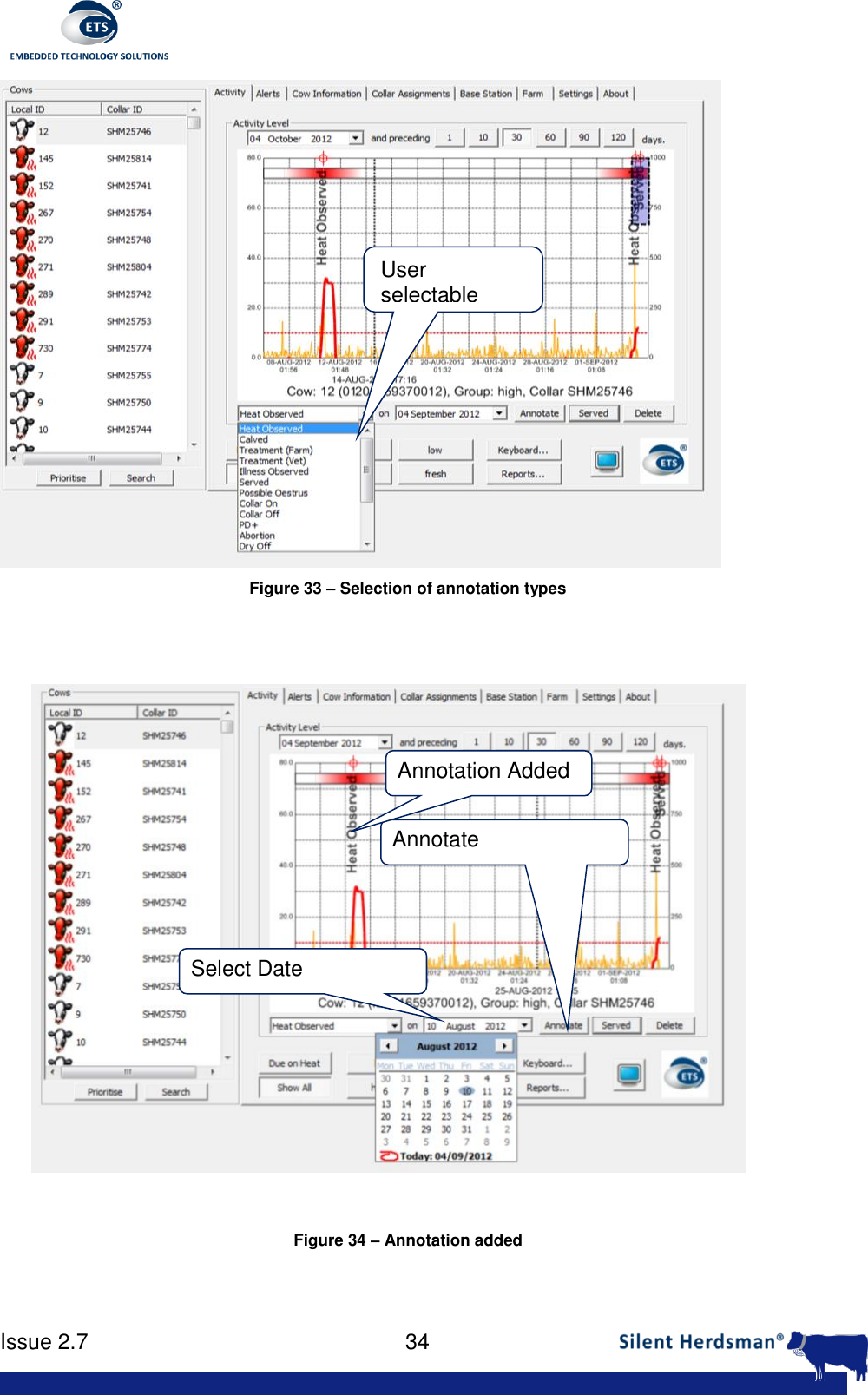
     Issue 2.7    33   Figure 32: Alerts show name of Sire This  conversion  process  will  change  the  annotation  on the  activity  chart  and  also remove the alert from the alert list.   Note the cow icon changes from a red cow to a normal cow.   Note the ‘Served’ annotation is placed at today’s date rather than the original date of the ‘Oestrus Detection’ annotation. ‘Heat Observed’ is placed at the detection date.   8.6.  Annotations The activity trace can be annotated by accessing the drop down menu and calendar. This  allows  information  relating  to  the  cows  welfare  to  be  recorded,  for  example treatment by farm staff on a particular day, vet treatment, observation of illness, or if the cow was served, see Figure 33. Once entered, this information will be tagged to the cow so that it is always displayed as shown in Figure 34. Select the event that you wish to record, select the date and then press ‘Annotate’.
     Issue 2.7    34   Figure 33 – Selection of annotation types    Figure 34 – Annotation added  User selectable Select Date Annotate Annotation Added
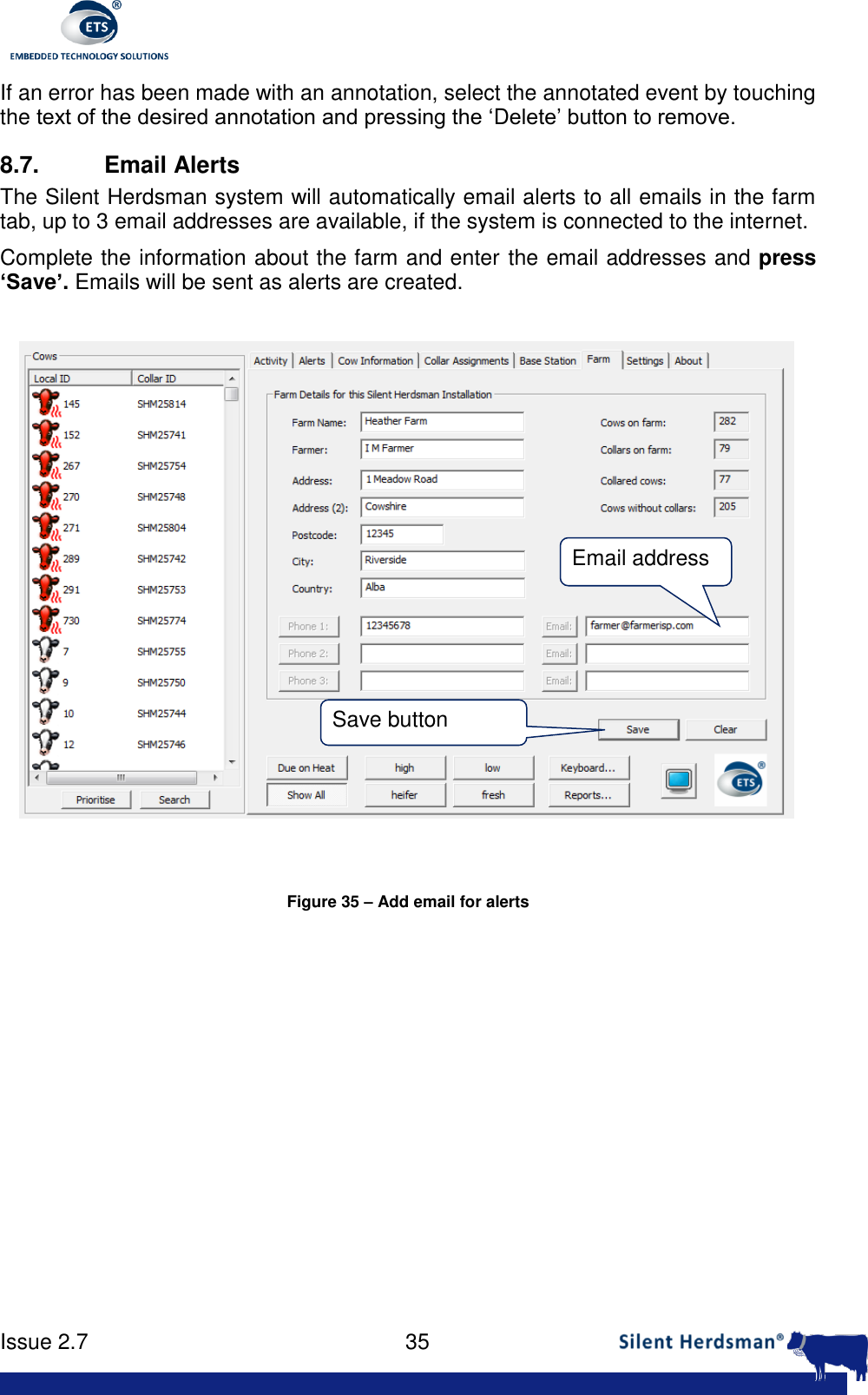
     Issue 2.7    35  If an error has been made with an annotation, select the annotated event by touching the text of the desired annotation and pressing the ‘Delete’ button to remove. 8.7.  Email Alerts The Silent Herdsman system will automatically email alerts to all emails in the farm tab, up to 3 email addresses are available, if the system is connected to the internet.  Complete the information about the farm and enter the email addresses and press ‘Save’. Emails will be sent as alerts are created.   Figure 35 – Add email for alerts  Email address Save button
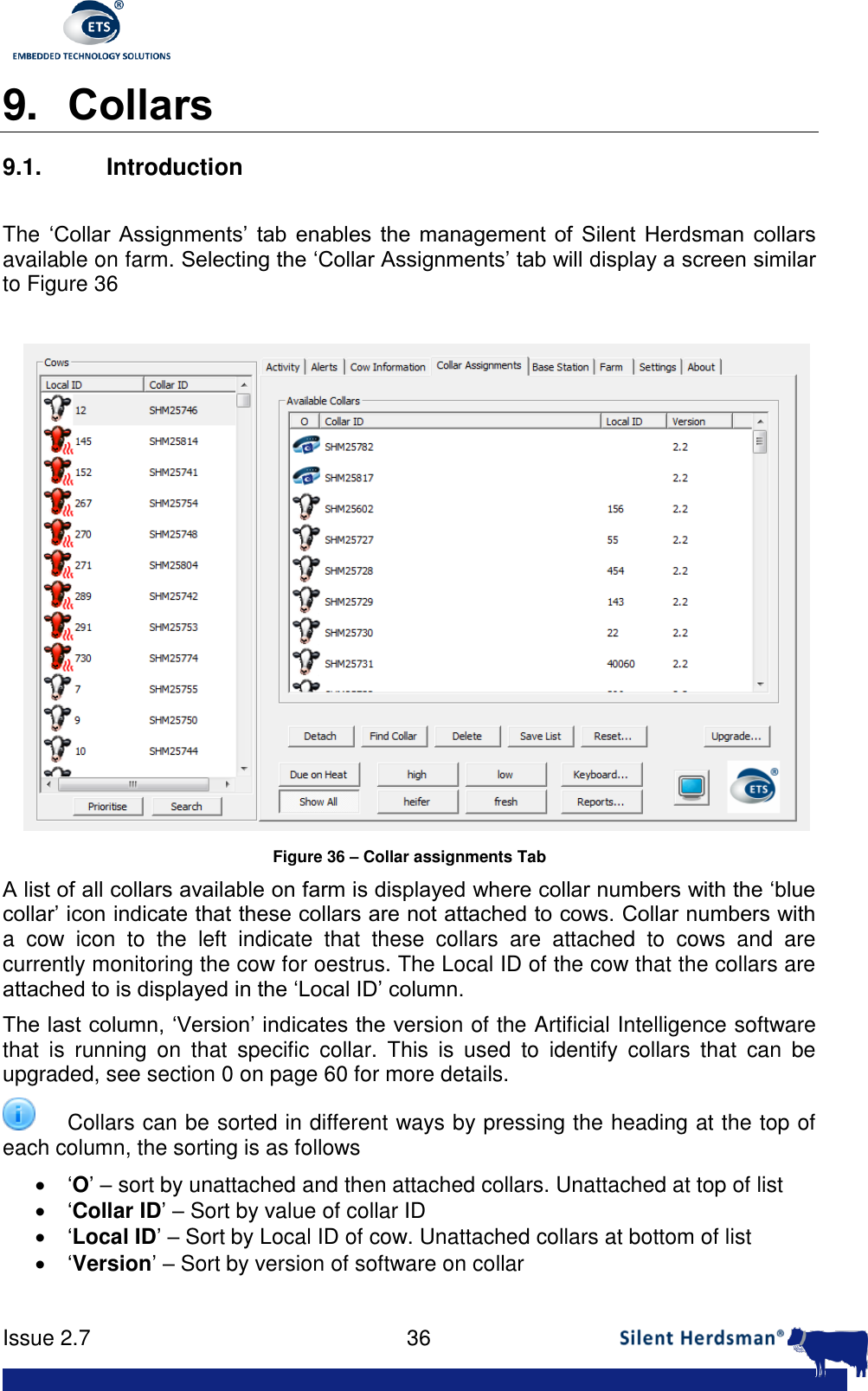
     Issue 2.7    36  9. Collars 9.1. Introduction  The ‘Collar  Assignments’  tab  enables  the  management  of  Silent  Herdsman  collars available on farm. Selecting the ‘Collar Assignments’ tab will display a screen similar to Figure 36   Figure 36 – Collar assignments Tab A list of all collars available on farm is displayed where collar numbers with the ‘blue collar’ icon indicate that these collars are not attached to cows. Collar numbers with a  cow  icon  to  the  left  indicate  that  these  collars  are  attached  to  cows  and  are currently monitoring the cow for oestrus. The Local ID of the cow that the collars are attached to is displayed in the ‘Local ID’ column. The last column, ‘Version’ indicates the version of the Artificial Intelligence software that  is  running  on  that  specific  collar.  This  is  used  to  identify  collars  that  can  be upgraded, see section 0 on page 60 for more details.  Collars can be sorted in different ways by pressing the heading at the top of each column, the sorting is as follows  ‘O’ – sort by unattached and then attached collars. Unattached at top of list  ‘Collar ID’ – Sort by value of collar ID  ‘Local ID’ – Sort by Local ID of cow. Unattached collars at bottom of list  ‘Version’ – Sort by version of software on collar
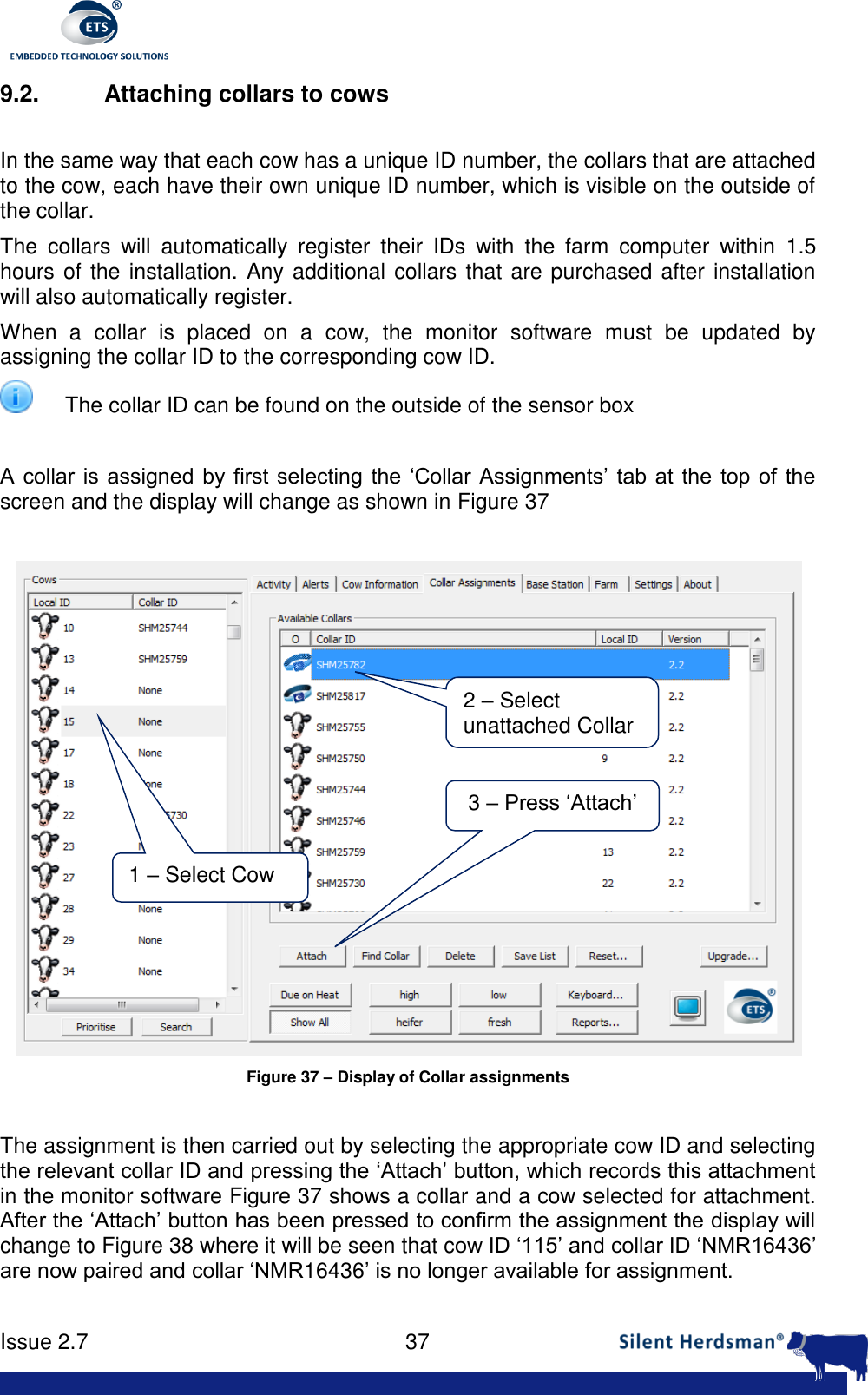
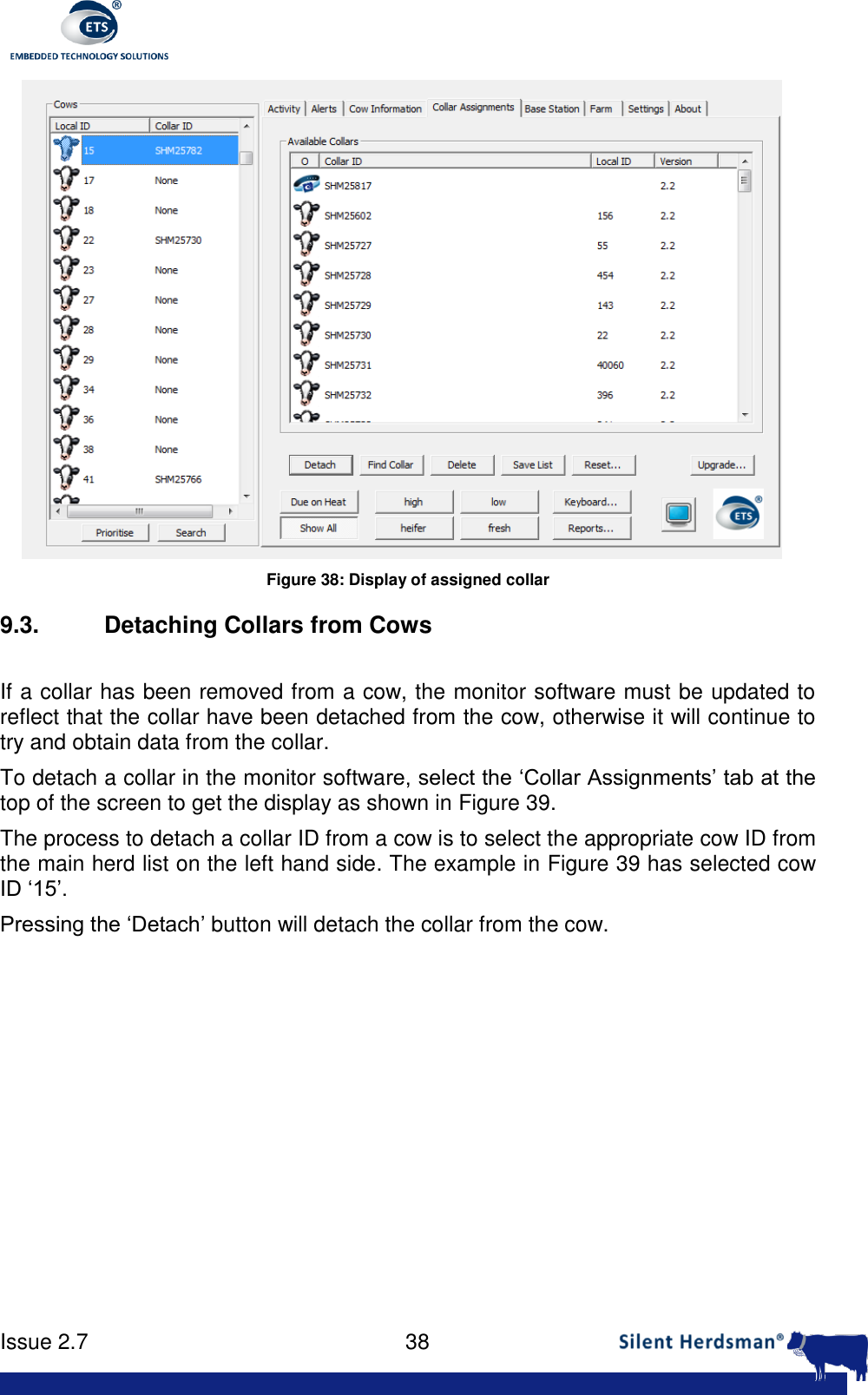
     Issue 2.7    37  9.2.  Attaching collars to cows  In the same way that each cow has a unique ID number, the collars that are attached to the cow, each have their own unique ID number, which is visible on the outside of the collar. The  collars  will  automatically  register  their  IDs  with  the  farm  computer  within  1.5 hours of the installation. Any additional collars that are purchased after installation will also automatically register. When  a  collar  is  placed  on  a  cow,  the  monitor  software  must  be  updated  by assigning the collar ID to the corresponding cow ID.  The collar ID can be found on the outside of the sensor box  A collar  is  assigned  by first  selecting the ‘Collar Assignments’ tab at the top of  the screen and the display will change as shown in Figure 37   Figure 37 – Display of Collar assignments  The assignment is then carried out by selecting the appropriate cow ID and selecting the relevant collar ID and pressing the ‘Attach’ button, which records this attachment in the monitor software Figure 37 shows a collar and a cow selected for attachment. After the ‘Attach’ button has been pressed to confirm the assignment the display will change to Figure 38 where it will be seen that cow ID ‘115’ and collar ID ‘NMR16436’ are now paired and collar ‘NMR16436’ is no longer available for assignment.   1 – Select Cow 2 – Select unattached Collar 3 – Press ‘Attach’
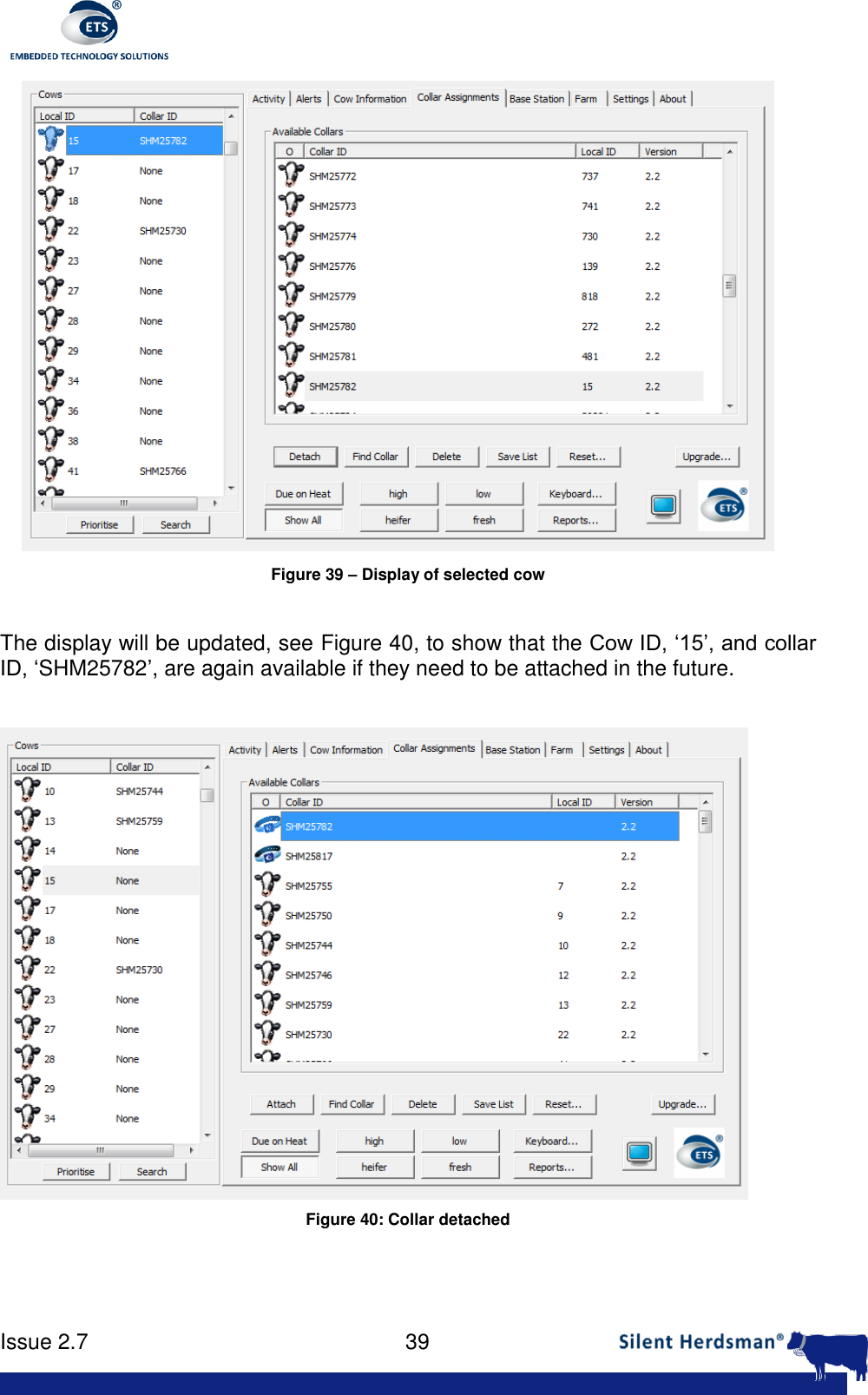
     Issue 2.7    38   Figure 38: Display of assigned collar 9.3.  Detaching Collars from Cows  If a collar has been removed from a cow, the monitor software must be updated to reflect that the collar have been detached from the cow, otherwise it will continue to try and obtain data from the collar. To detach a collar in the monitor software, select the ‘Collar Assignments’ tab at the top of the screen to get the display as shown in Figure 39. The process to detach a collar ID from a cow is to select the appropriate cow ID from the main herd list on the left hand side. The example in Figure 39 has selected cow ID ‘15’. Pressing the ‘Detach’ button will detach the collar from the cow.
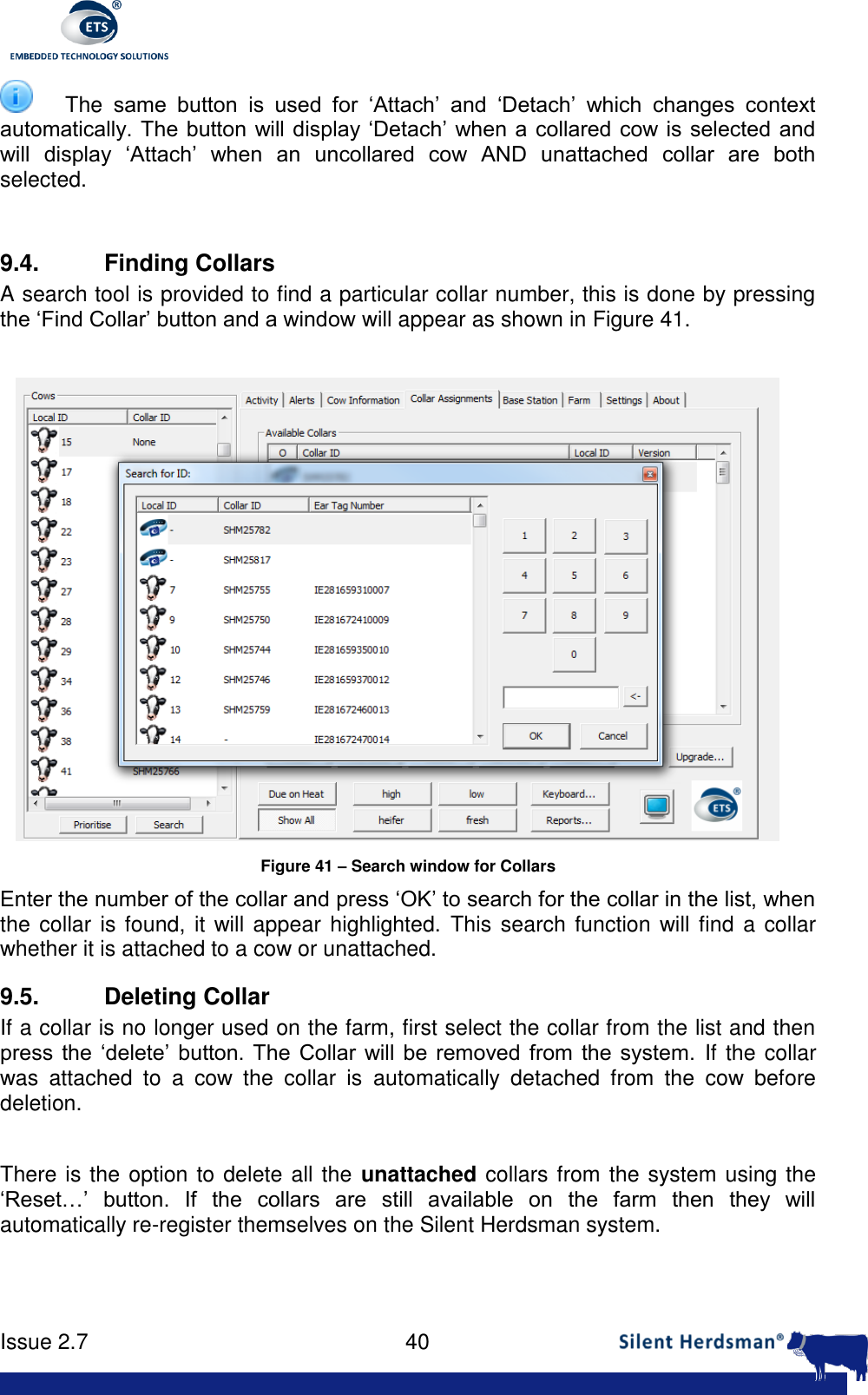
     Issue 2.7    39   Figure 39 – Display of selected cow  The display will be updated, see Figure 40, to show that the Cow ID, ‘15’, and collar ID, ‘SHM25782’, are again available if they need to be attached in the future.   Figure 40: Collar detached
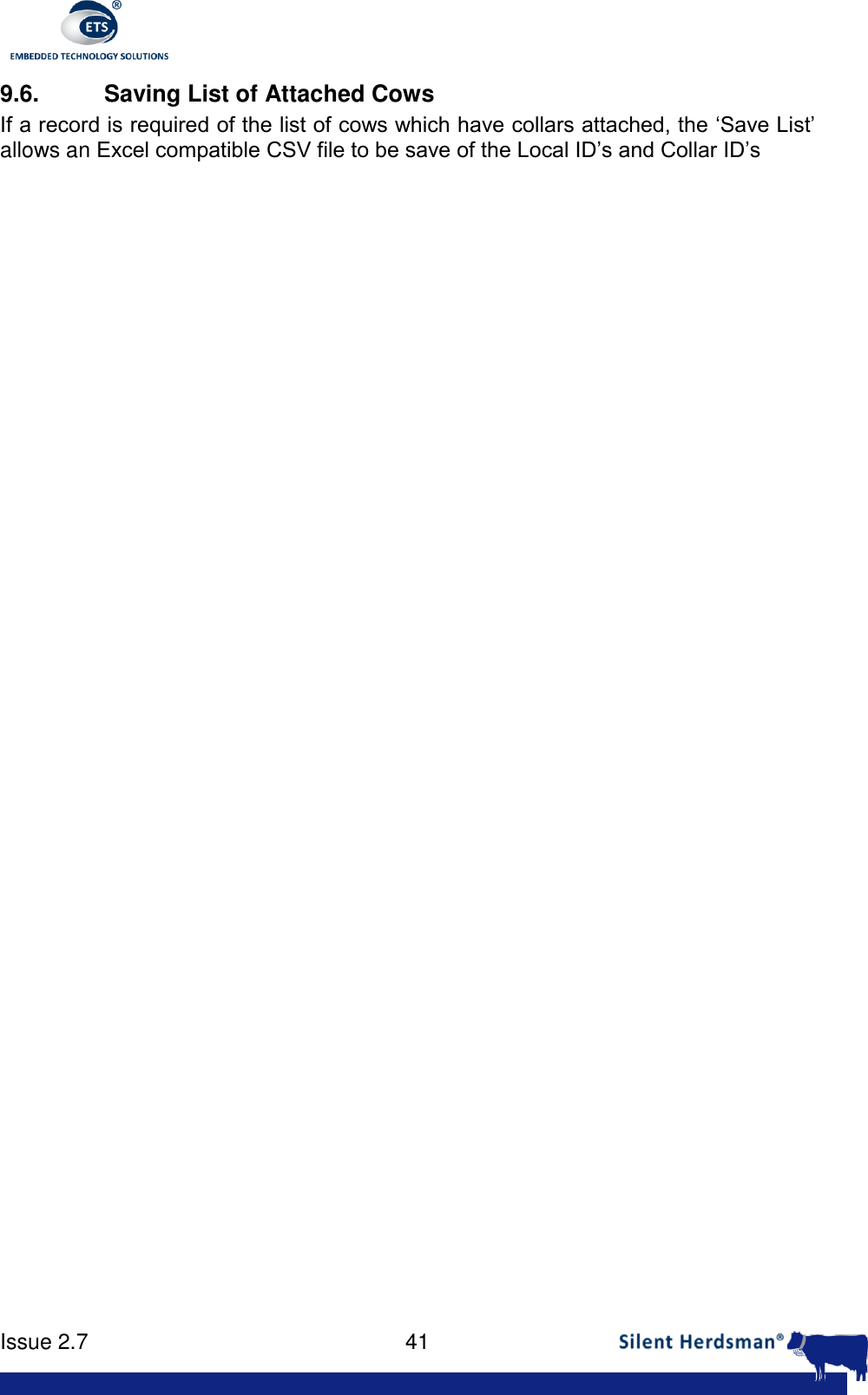
     Issue 2.7    40   The  same  button  is  used  for  ‘Attach’  and  ‘Detach’  which  changes  context automatically. The button will display ‘Detach’  when a collared cow is selected and will  display  ‘Attach’  when  an  uncollared  cow  AND  unattached  collar  are  both selected.  9.4. Finding Collars A search tool is provided to find a particular collar number, this is done by pressing the ‘Find Collar’ button and a window will appear as shown in Figure 41.   Figure 41 – Search window for Collars Enter the number of the collar and press ‘OK’ to search for the collar in the list, when the collar is found, it will appear  highlighted. This search function will find a  collar whether it is attached to a cow or unattached. 9.5. Deleting Collar If a collar is no longer used on the farm, first select the collar from the list and then press  the  ‘delete’  button. The  Collar  will be  removed  from  the  system. If the collar was  attached  to  a  cow  the  collar  is  automatically  detached  from  the  cow  before deletion.  There is the option to delete all the  unattached collars from the system using the ‘Reset…’  button.  If  the  collars  are  still  available  on  the  farm  then  they  will automatically re-register themselves on the Silent Herdsman system.
     Issue 2.7    41  9.6.  Saving List of Attached Cows If a record is required of the list of cows which have collars attached, the ‘Save List’ allows an Excel compatible CSV file to be save of the Local ID’s and Collar ID’s
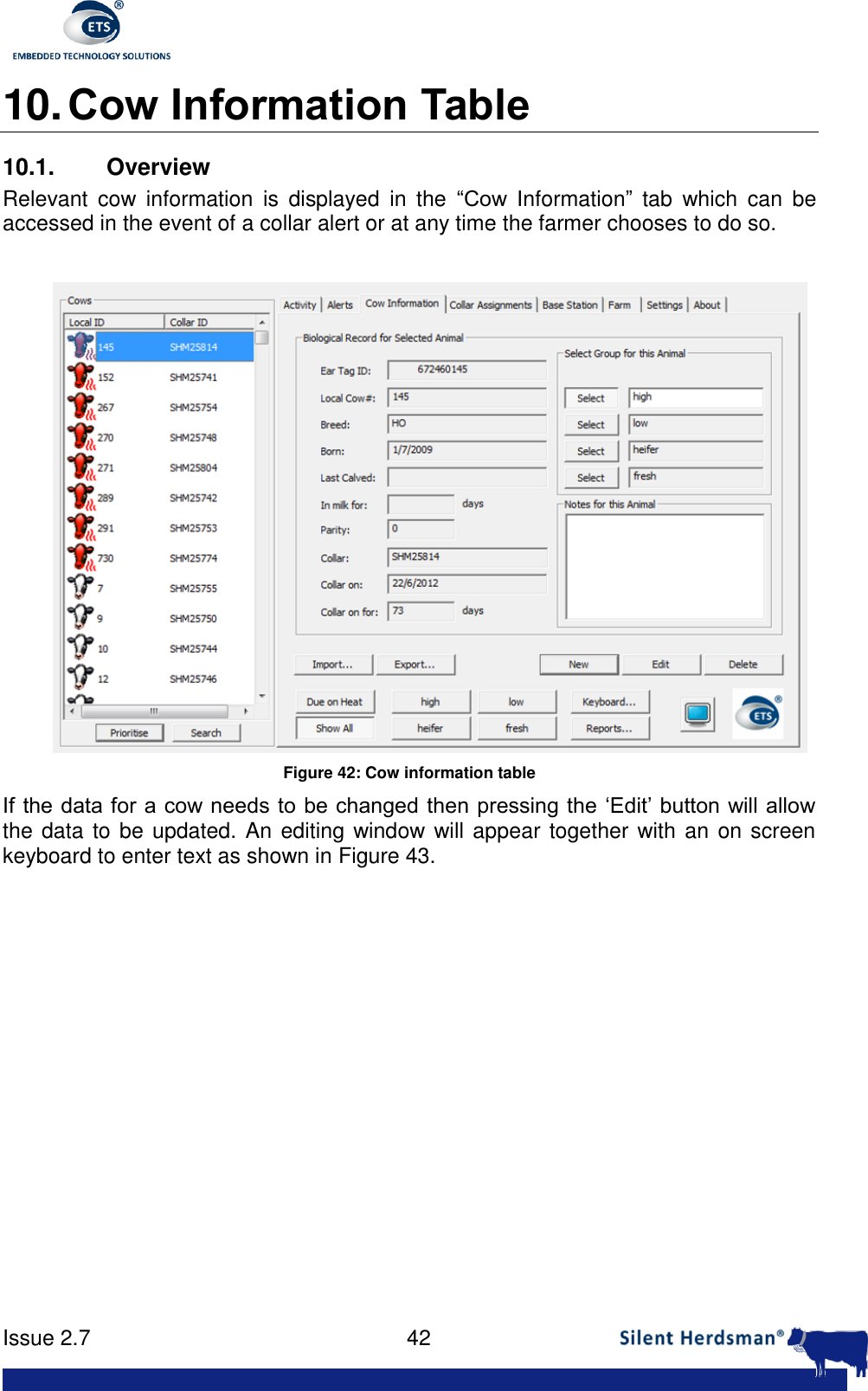
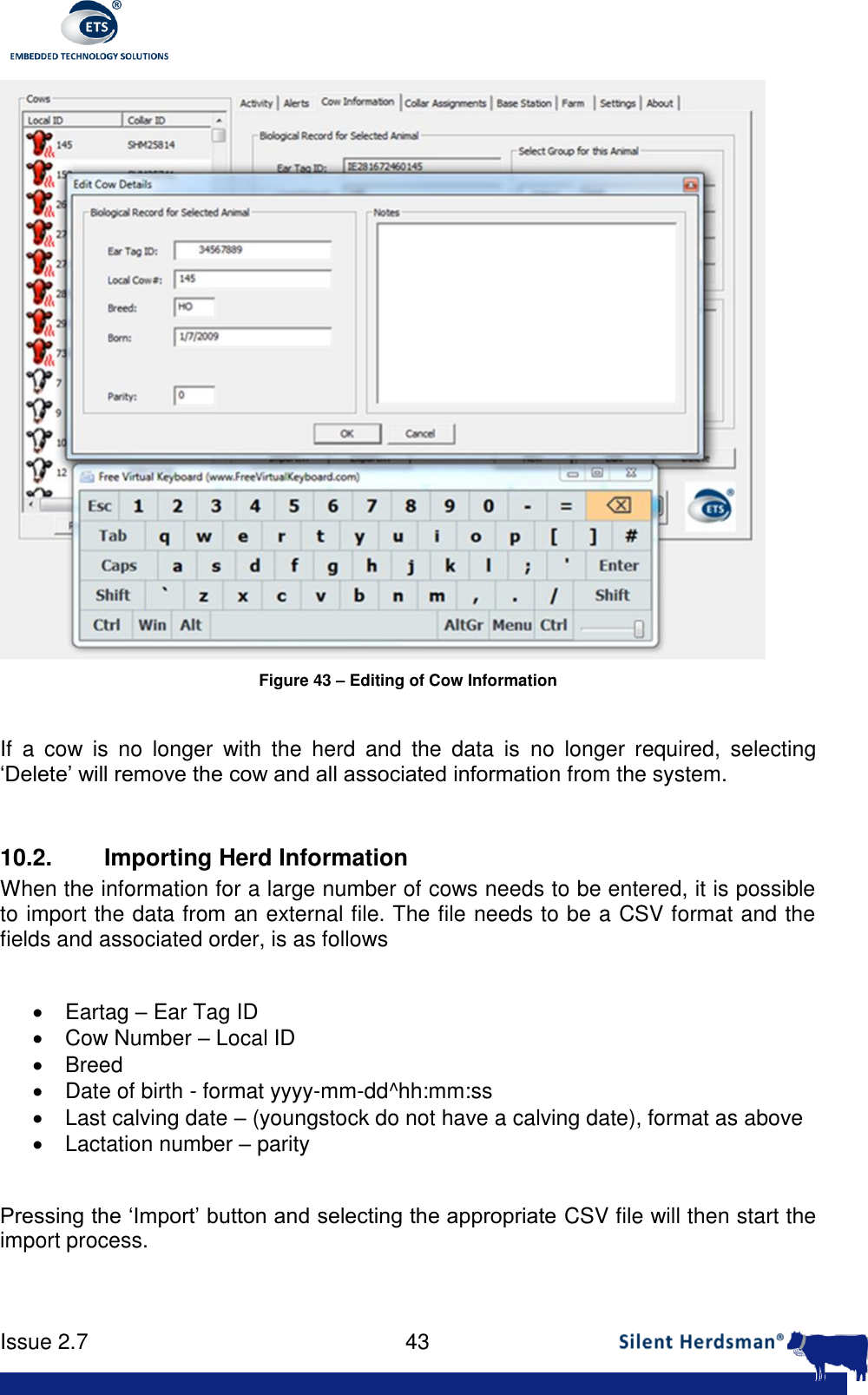
     Issue 2.7    42  10. Cow Information Table 10.1.  Overview Relevant  cow  information  is  displayed  in  the  “Cow  Information”  tab  which  can  be accessed in the event of a collar alert or at any time the farmer chooses to do so.    Figure 42: Cow information table If the data for a cow needs to be changed then pressing the ‘Edit’ button will allow the data to be updated. An editing window will appear together with an on screen keyboard to enter text as shown in Figure 43.
     Issue 2.7    43   Figure 43 – Editing of Cow Information  If  a  cow  is  no  longer  with  the  herd  and  the  data  is  no  longer  required,  selecting ‘Delete’ will remove the cow and all associated information from the system.  10.2. Importing Herd Information When the information for a large number of cows needs to be entered, it is possible to import the data from an external file. The file needs to be a CSV format and the fields and associated order, is as follows    Eartag – Ear Tag ID   Cow Number – Local ID   Breed   Date of birth - format yyyy-mm-dd^hh:mm:ss   Last calving date – (youngstock do not have a calving date), format as above   Lactation number – parity  Pressing the ‘Import’ button and selecting the appropriate CSV file will then start the import process.
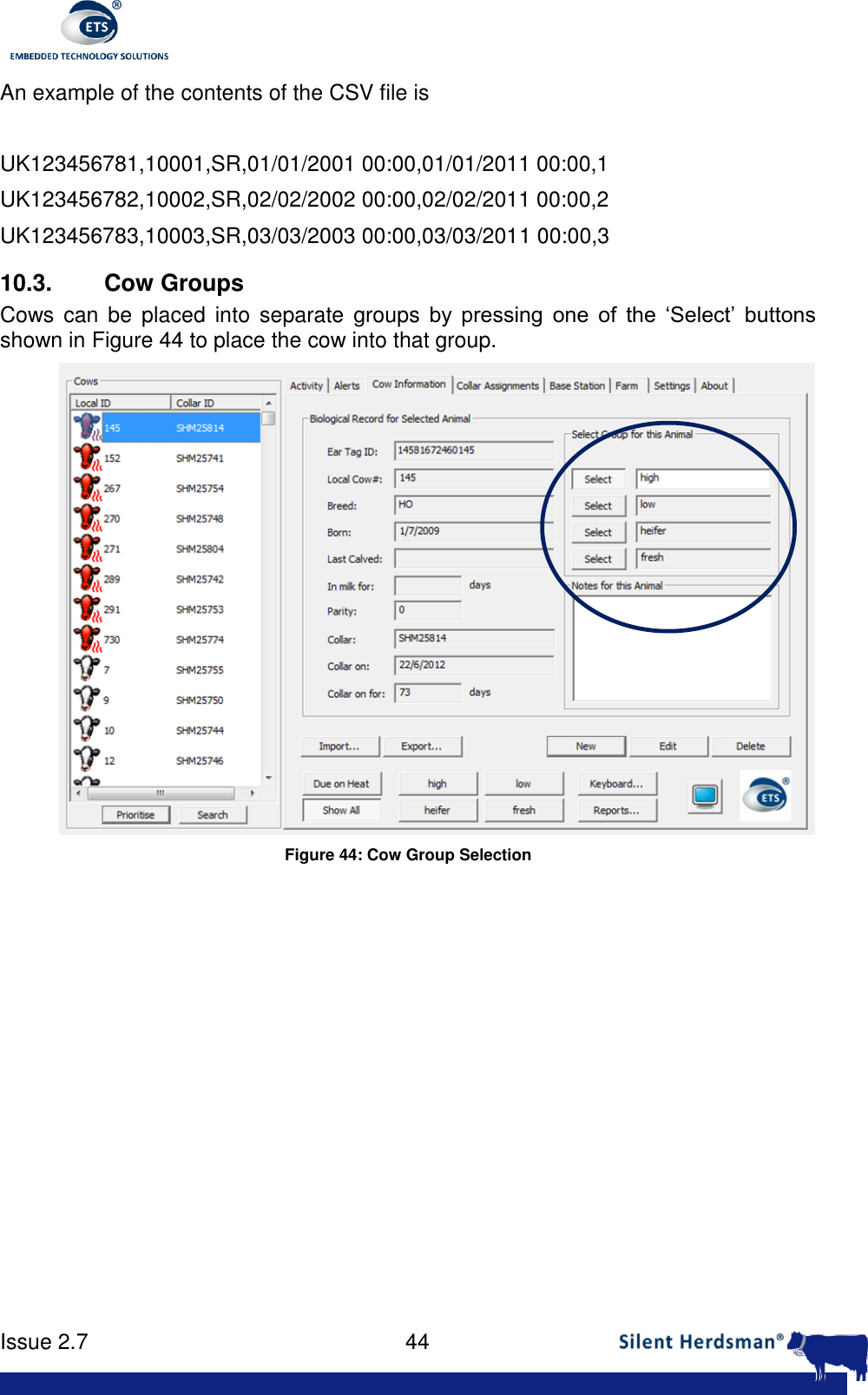
     Issue 2.7    44  An example of the contents of the CSV file is   UK123456781,10001,SR,01/01/2001 00:00,01/01/2011 00:00,1 UK123456782,10002,SR,02/02/2002 00:00,02/02/2011 00:00,2 UK123456783,10003,SR,03/03/2003 00:00,03/03/2011 00:00,3 10.3.  Cow Groups Cows can be  placed  into  separate groups by  pressing  one  of  the  ‘Select’  buttons shown in Figure 44 to place the cow into that group.  Figure 44: Cow Group Selection
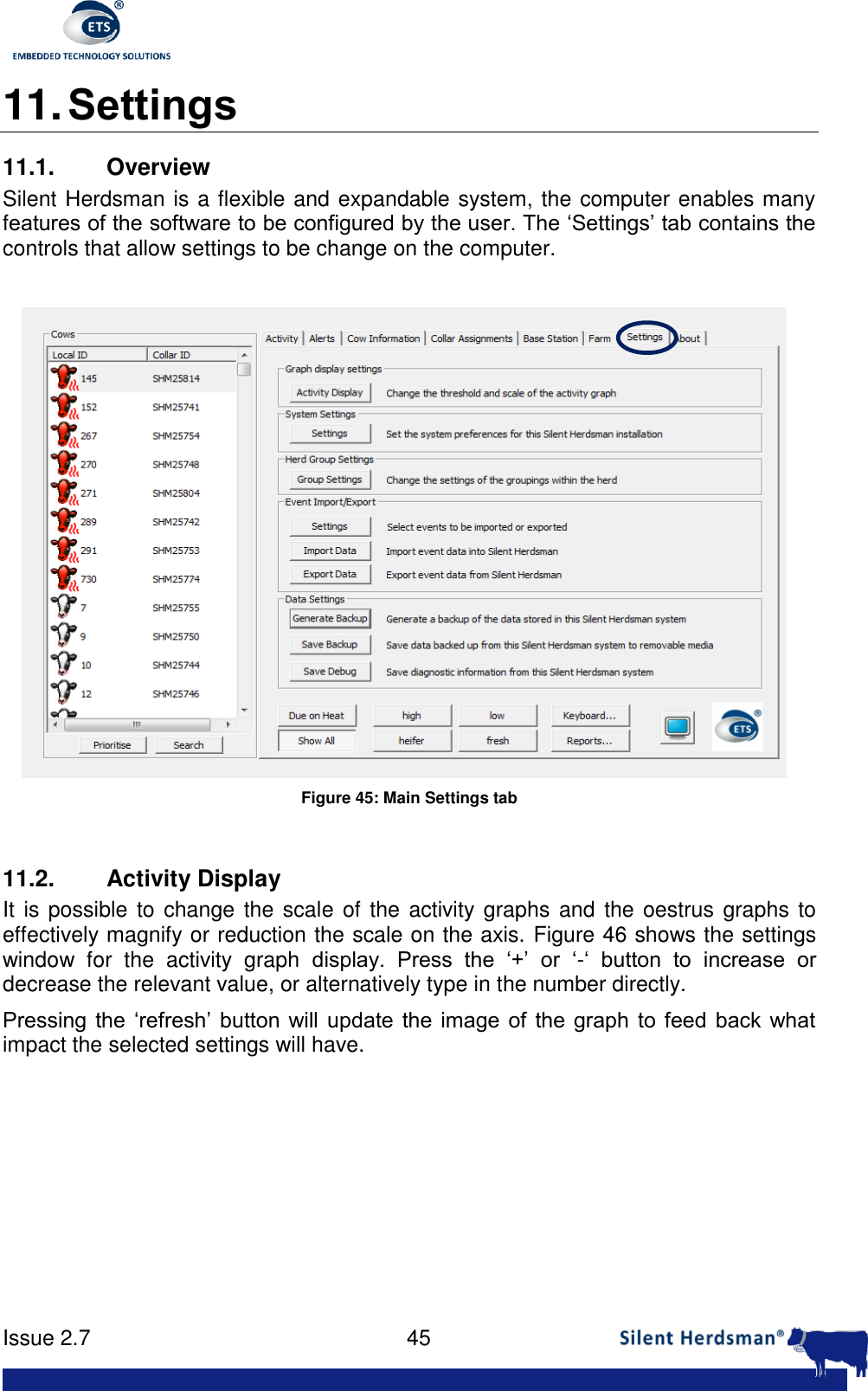
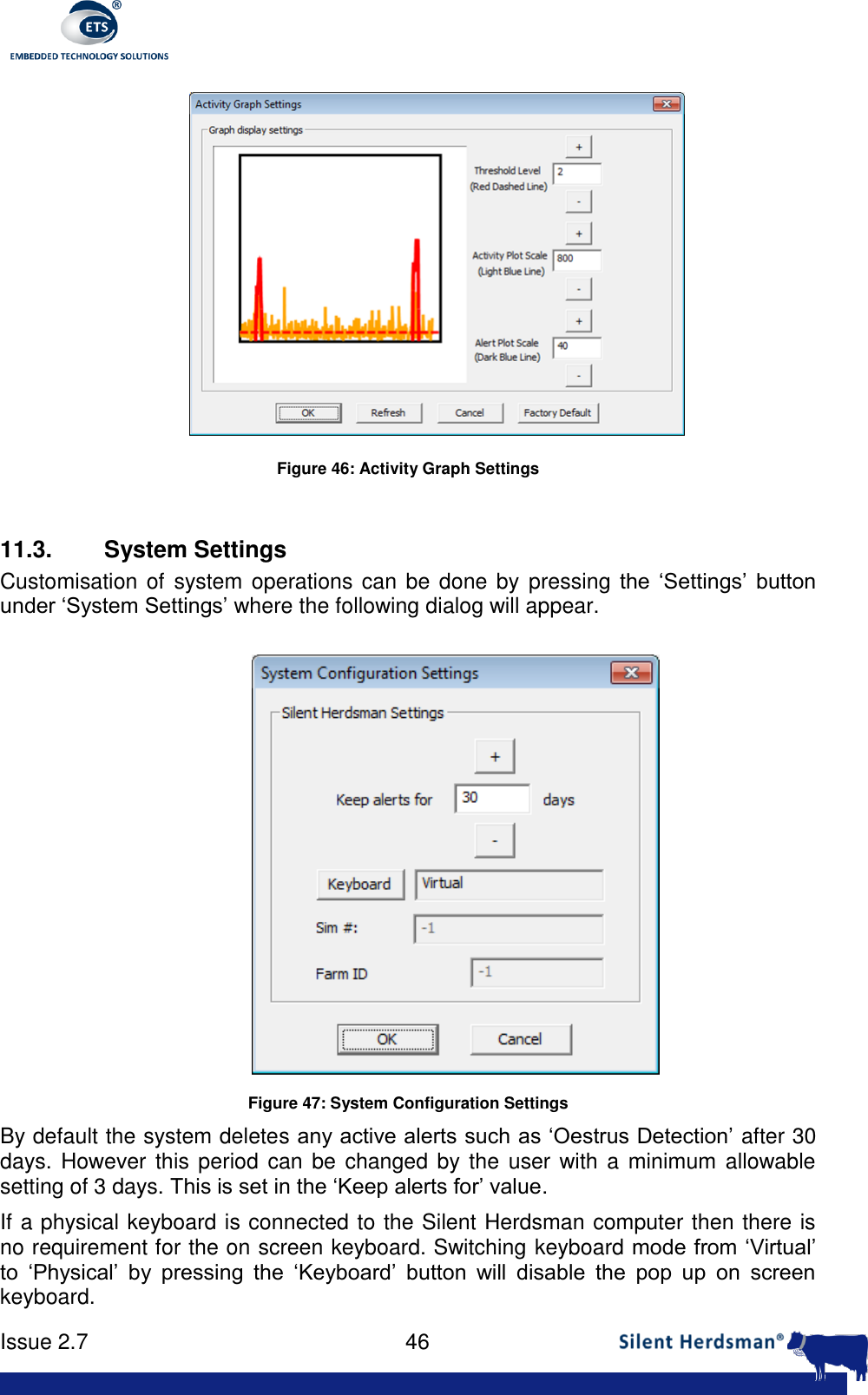
     Issue 2.7    45  11. Settings 11.1.  Overview Silent Herdsman is a flexible and expandable system, the computer enables many features of the software to be configured by the user. The ‘Settings’ tab contains the controls that allow settings to be change on the computer.   Figure 45: Main Settings tab  11.2.  Activity Display It is possible to change  the scale of the  activity graphs and the oestrus graphs to effectively magnify or reduction the scale on the axis. Figure 46 shows the settings window  for  the  activity  graph  display.  Press  the  ‘+’  or  ‘-‘  button  to  increase  or decrease the relevant value, or alternatively type in the number directly. Pressing  the ‘refresh’  button  will update the  image of  the  graph  to  feed  back  what impact the selected settings will have.
     Issue 2.7    46   Figure 46: Activity Graph Settings  11.3.  System Settings Customisation of  system operations can be done by pressing the  ‘Settings’  button under ‘System Settings’ where the following dialog will appear.  Figure 47: System Configuration Settings By default the system deletes any active alerts such as ‘Oestrus Detection’ after 30 days. However this  period can  be changed by the user with a minimum  allowable setting of 3 days. This is set in the ‘Keep alerts for’ value. If a physical keyboard is connected to the Silent Herdsman computer then there is no requirement for the on screen keyboard. Switching keyboard mode from ‘Virtual’ to  ‘Physical’  by  pressing  the  ‘Keyboard’  button  will  disable  the  pop  up  on  screen keyboard.
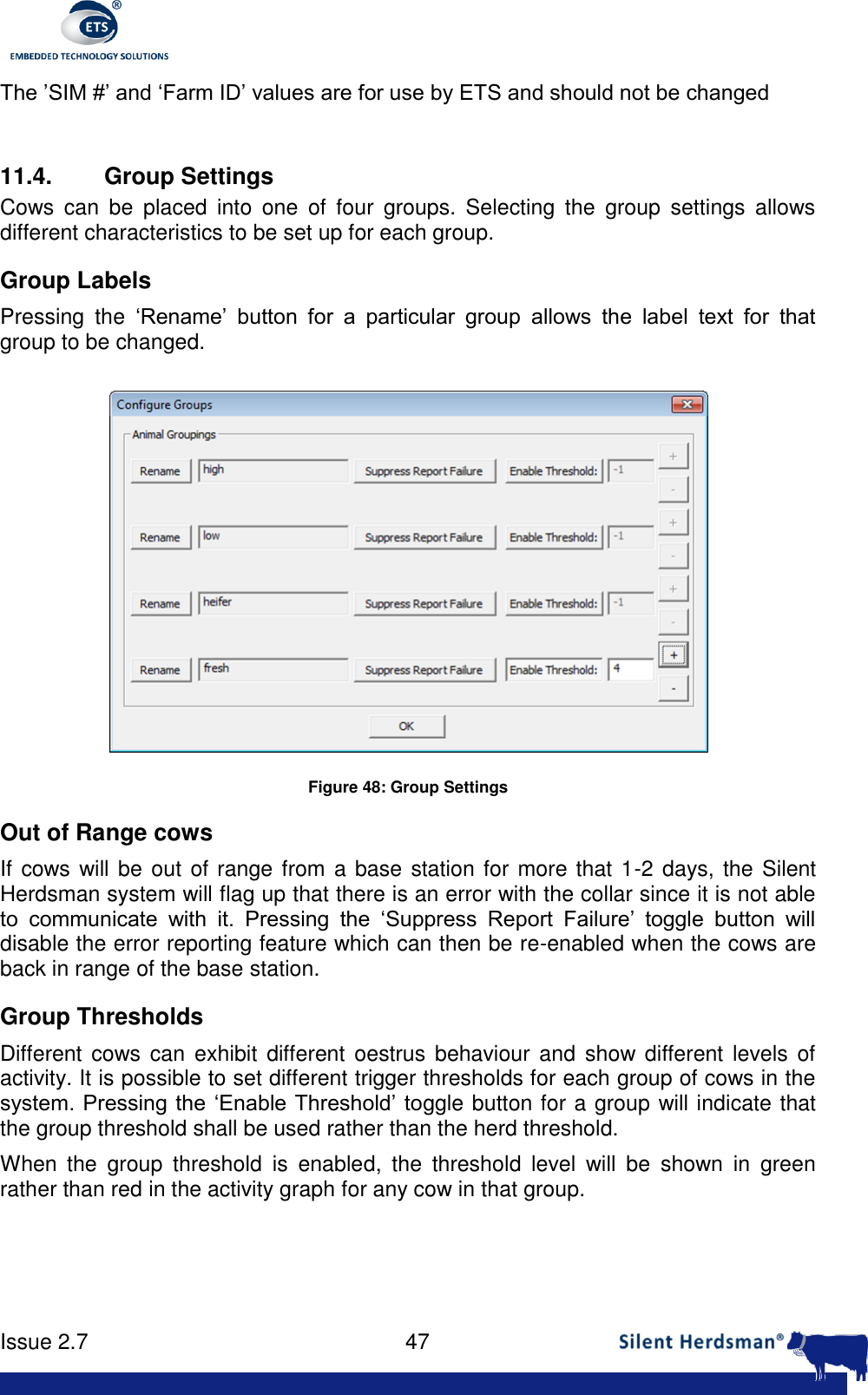
     Issue 2.7    47  The ’SIM #’ and ‘Farm ID’ values are for use by ETS and should not be changed  11.4.  Group Settings Cows  can  be  placed  into  one  of  four  groups.  Selecting  the  group  settings  allows different characteristics to be set up for each group. Group Labels Pressing  the  ‘Rename’  button  for  a  particular  group  allows  the  label  text  for  that group to be changed.  Figure 48: Group Settings Out of Range cows If cows will be out of range from a base station for more that 1-2 days, the Silent Herdsman system will flag up that there is an error with the collar since it is not able to  communicate  with  it.  Pressing  the  ‘Suppress  Report  Failure’  toggle  button  will disable the error reporting feature which can then be re-enabled when the cows are back in range of the base station. Group Thresholds Different  cows can exhibit different oestrus behaviour and  show  different  levels of activity. It is possible to set different trigger thresholds for each group of cows in the system. Pressing the ‘Enable Threshold’ toggle button for a group will indicate that the group threshold shall be used rather than the herd threshold. When  the  group  threshold  is  enabled,  the  threshold  level  will  be  shown  in  green rather than red in the activity graph for any cow in that group.
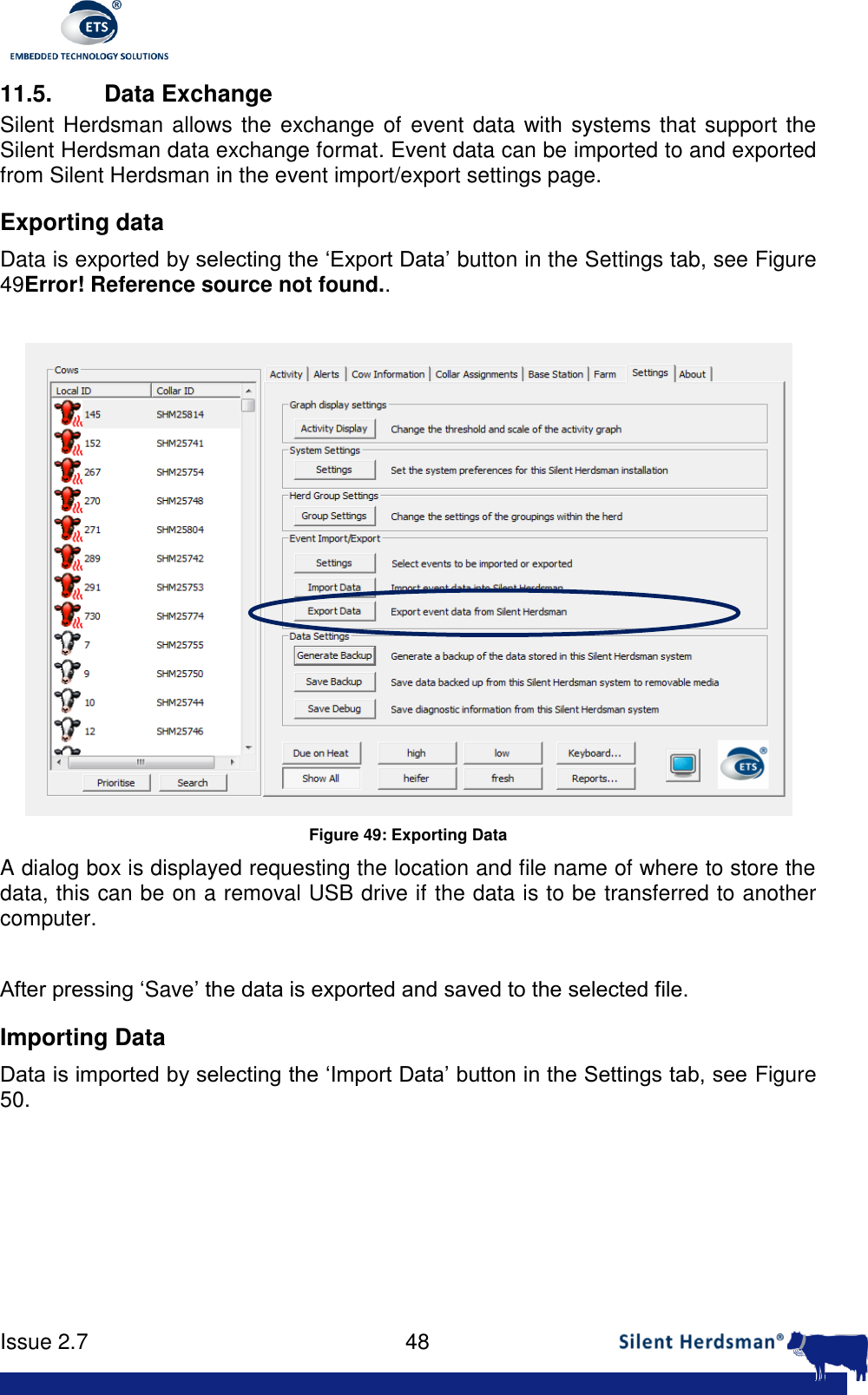
     Issue 2.7    48  11.5. Data Exchange Silent Herdsman allows the exchange of  event data with systems that support the Silent Herdsman data exchange format. Event data can be imported to and exported from Silent Herdsman in the event import/export settings page.  Exporting data Data is exported by selecting the ‘Export Data’ button in the Settings tab, see Figure 49Error! Reference source not found..   Figure 49: Exporting Data A dialog box is displayed requesting the location and file name of where to store the data, this can be on a removal USB drive if the data is to be transferred to another computer.   After pressing ‘Save’ the data is exported and saved to the selected file. Importing Data Data is imported by selecting the ‘Import Data’ button in the Settings tab, see Figure 50.
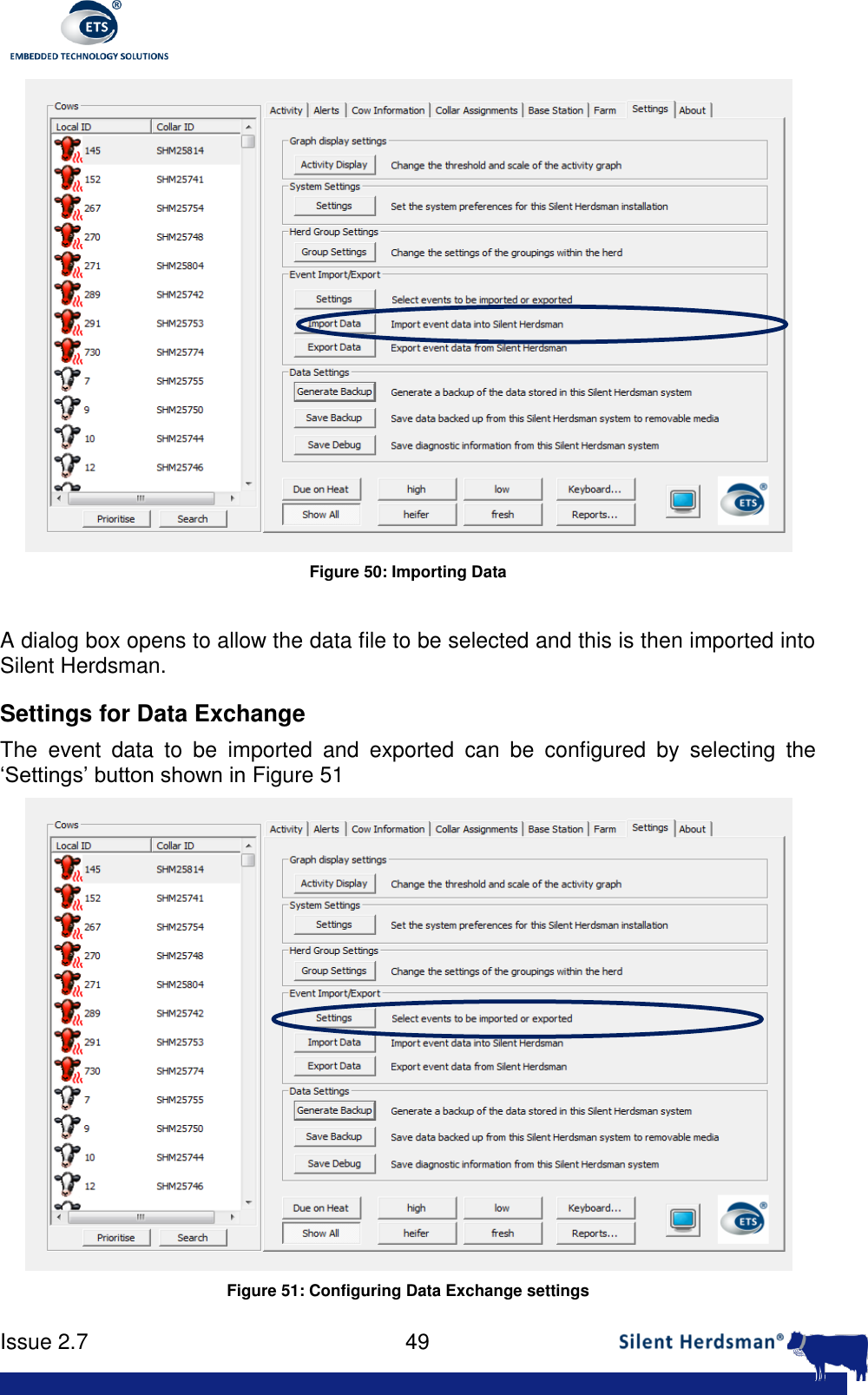
     Issue 2.7    49   Figure 50: Importing Data   A dialog box opens to allow the data file to be selected and this is then imported into Silent Herdsman. Settings for Data Exchange The  event  data  to  be  imported  and  exported  can  be  configured  by  selecting  the ‘Settings’ button shown in Figure 51  Figure 51: Configuring Data Exchange settings
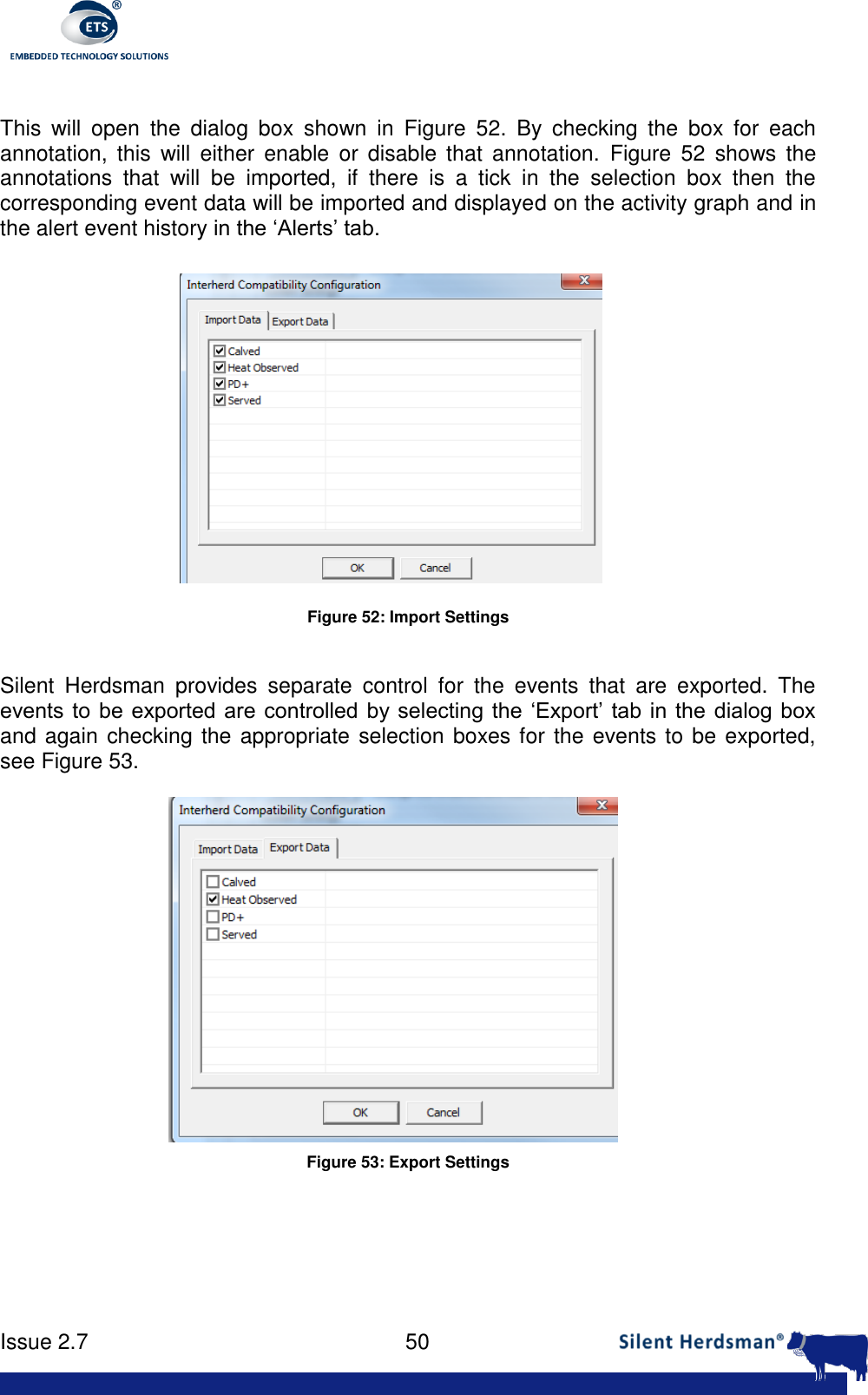
     Issue 2.7    50   This  will  open  the  dialog  box  shown  in  Figure  52.  By  checking  the  box  for  each annotation,  this  will  either  enable  or disable  that  annotation.  Figure  52  shows  the annotations  that  will  be  imported,  if  there  is  a  tick  in  the  selection  box  then  the corresponding event data will be imported and displayed on the activity graph and in the alert event history in the ‘Alerts’ tab.  Figure 52: Import Settings  Silent  Herdsman  provides  separate  control  for  the  events  that  are  exported.  The events to  be exported are controlled by selecting  the ‘Export’ tab in  the dialog box and again checking the appropriate selection boxes for the events to be exported, see Figure 53.  Figure 53: Export Settings
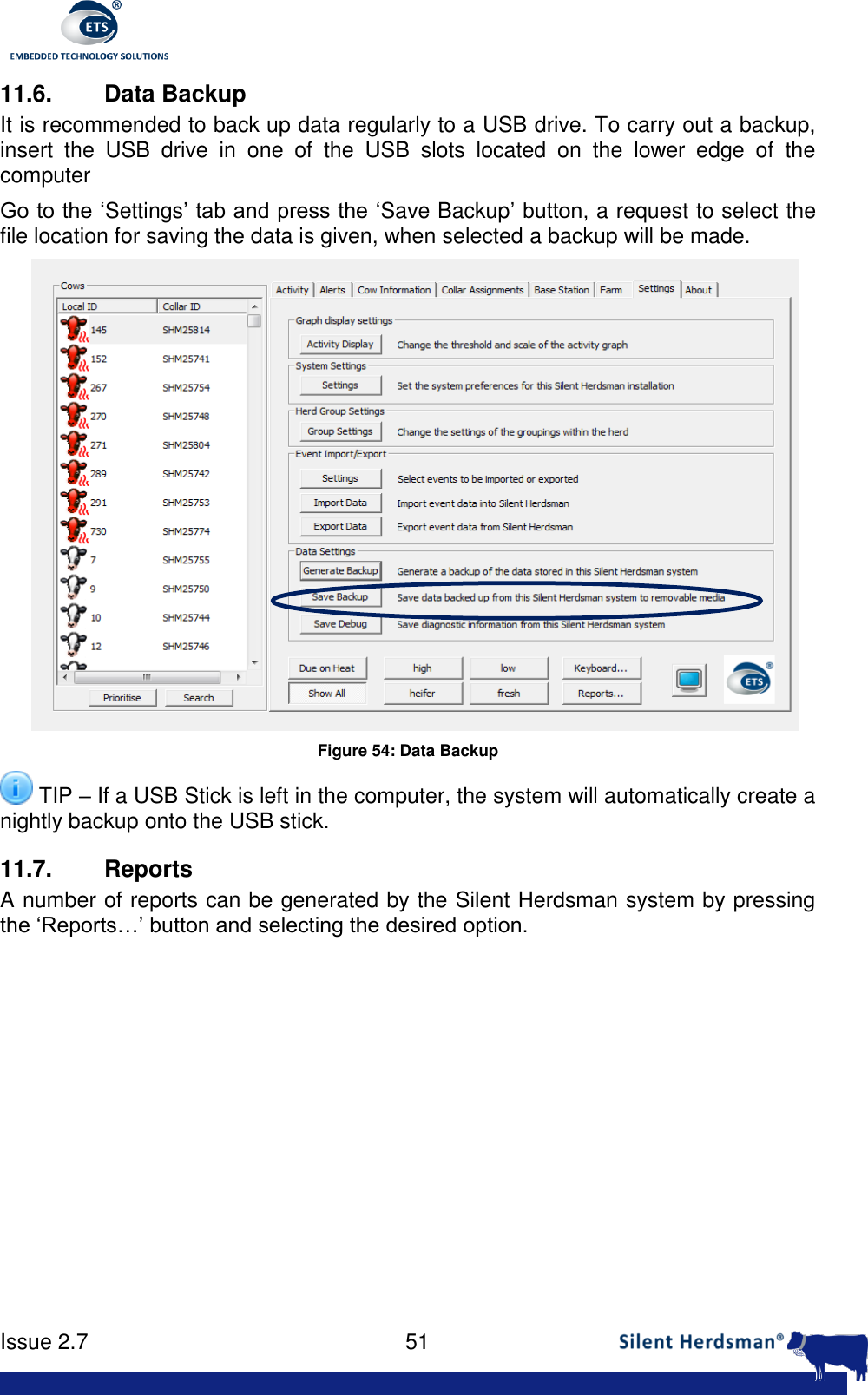
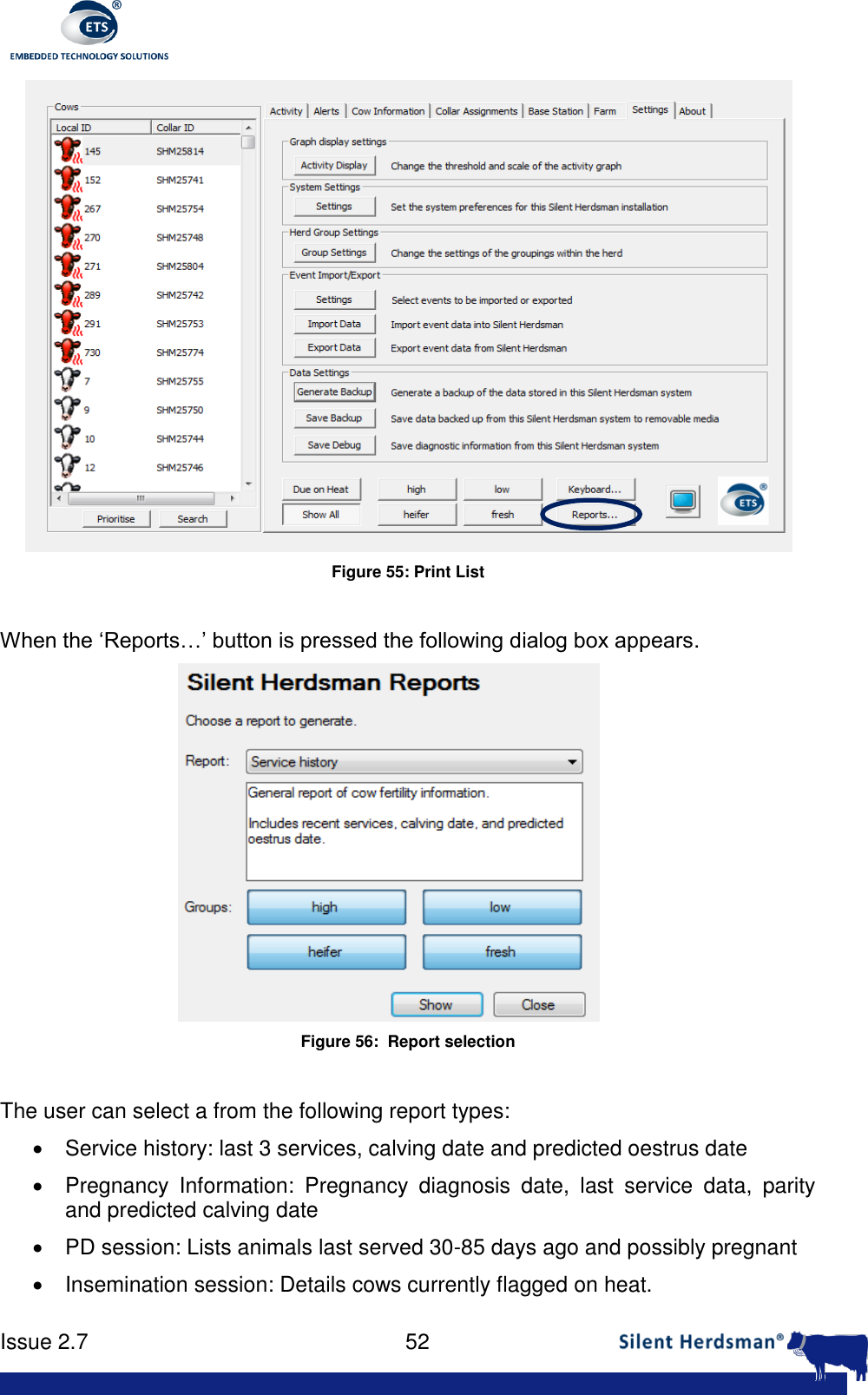
     Issue 2.7    51  11.6.  Data Backup It is recommended to back up data regularly to a USB drive. To carry out a backup, insert  the  USB  drive  in  one  of  the  USB  slots  located  on  the  lower  edge  of  the computer Go to the ‘Settings’ tab and press the ‘Save Backup’ button, a request to select the file location for saving the data is given, when selected a backup will be made.  Figure 54: Data Backup  TIP – If a USB Stick is left in the computer, the system will automatically create a nightly backup onto the USB stick. 11.7. Reports A number of reports can be generated by the Silent Herdsman system by pressing the ‘Reports…’ button and selecting the desired option.
     Issue 2.7    52   Figure 55: Print List  When the ‘Reports…’ button is pressed the following dialog box appears.   Figure 56:  Report selection  The user can select a from the following report types:    Service history: last 3 services, calving date and predicted oestrus date   Pregnancy  Information:  Pregnancy  diagnosis  date,  last  service  data,  parity and predicted calving date   PD session: Lists animals last served 30-85 days ago and possibly pregnant   Insemination session: Details cows currently flagged on heat.
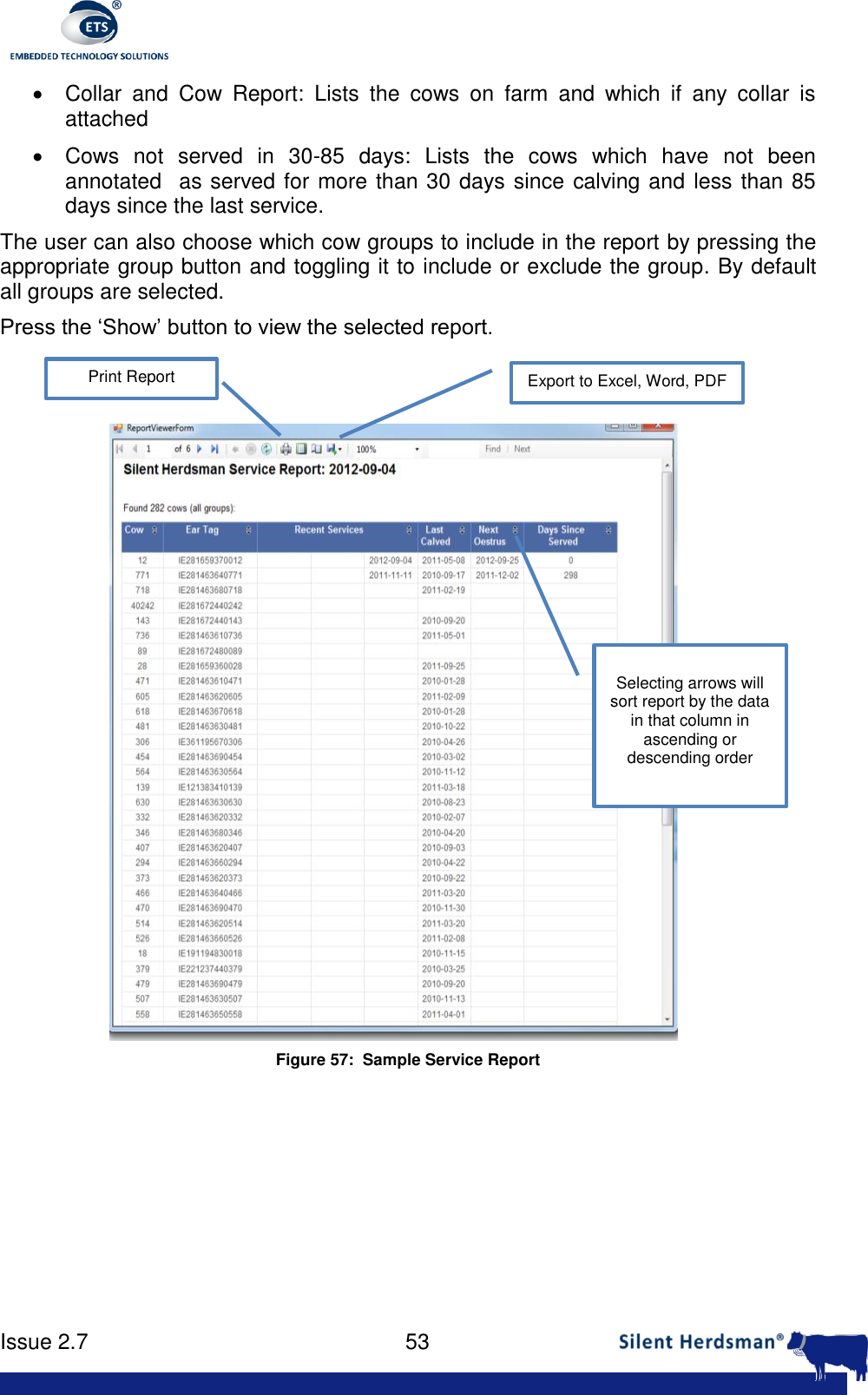
     Issue 2.7    53    Collar  and  Cow  Report:  Lists  the  cows  on  farm  and  which  if  any  collar  is attached   Cows  not  served  in  30-85  days:  Lists  the  cows  which  have  not  been annotated  as served for more than 30 days since calving and less than 85 days since the last service. The user can also choose which cow groups to include in the report by pressing the appropriate group button and toggling it to include or exclude the group. By default all groups are selected. Press the ‘Show’ button to view the selected report.  Figure 57:  Sample Service Report   Export to Excel, Word, PDF Print Report Selecting arrows will sort report by the data in that column in ascending or descending order
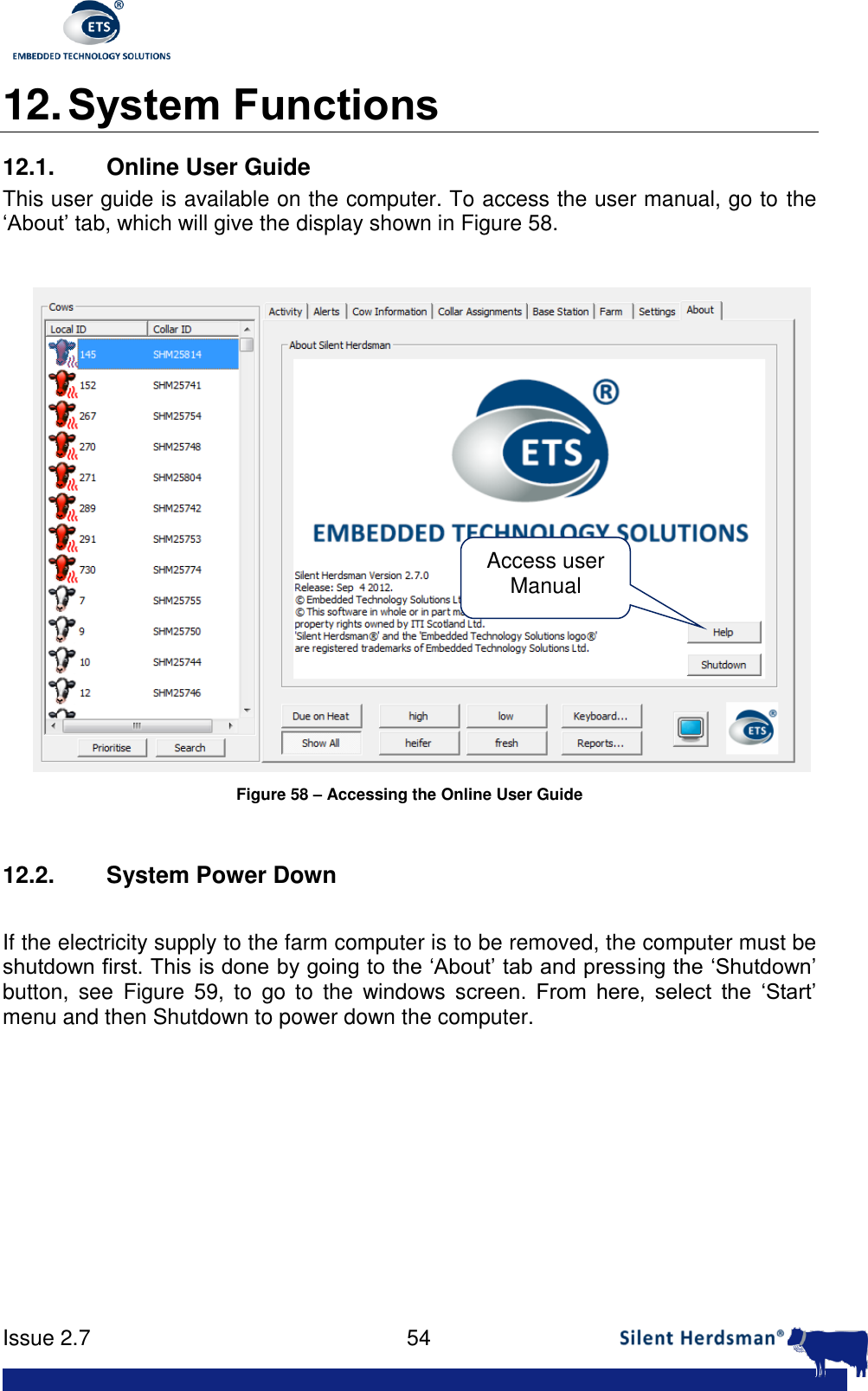
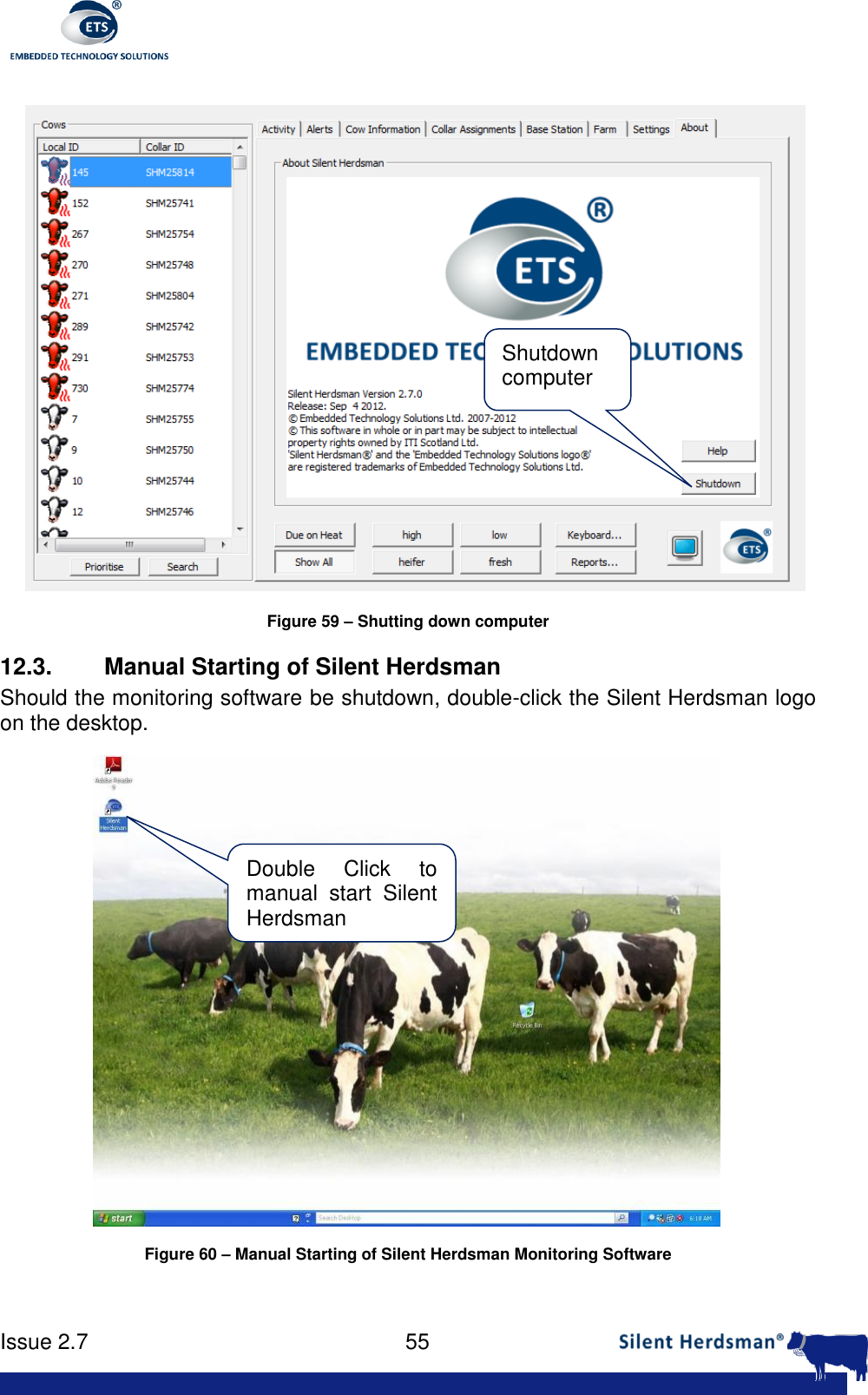
     Issue 2.7    54  12. System Functions 12.1. Online User Guide This user guide is available on the computer. To access the user manual, go to the ‘About’ tab, which will give the display shown in Figure 58.   Figure 58 – Accessing the Online User Guide  12.2.  System Power Down  If the electricity supply to the farm computer is to be removed, the computer must be shutdown first. This is done by going to the ‘About’ tab and pressing the ‘Shutdown’ button,  see  Figure  59,  to  go  to  the  windows  screen.  From  here,  select  the  ‘Start’ menu and then Shutdown to power down the computer.  Access user Manual
     Issue 2.7    55   Figure 59 – Shutting down computer 12.3.  Manual Starting of Silent Herdsman Should the monitoring software be shutdown, double-click the Silent Herdsman logo on the desktop.   Figure 60 – Manual Starting of Silent Herdsman Monitoring Software  Shutdown computer Double  Click  to manual  start  Silent Herdsman
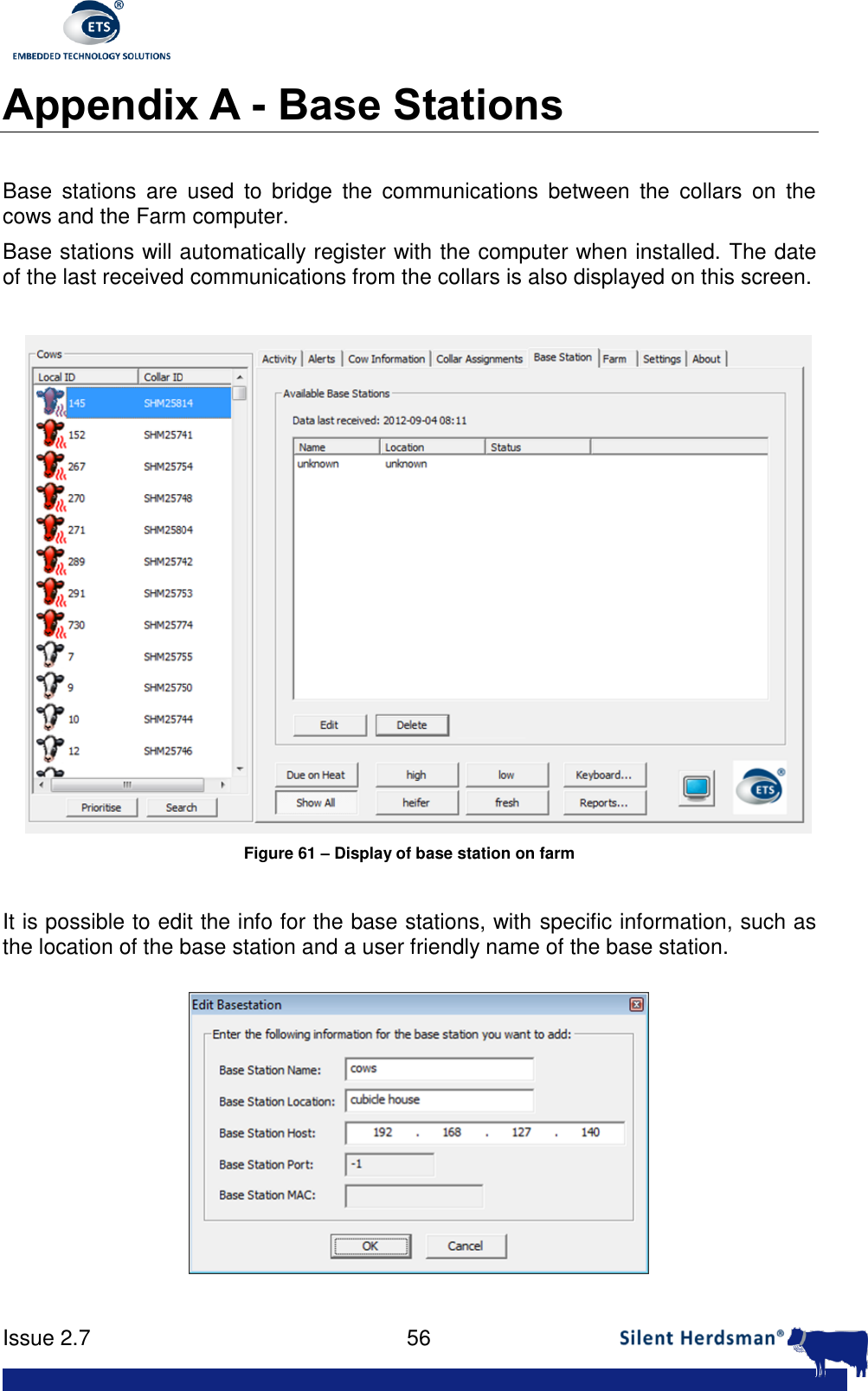
     Issue 2.7    56  Appendix A - Base Stations  Base  stations  are  used  to  bridge  the  communications  between  the  collars  on  the cows and the Farm computer. Base stations will automatically register with the computer when installed. The date of the last received communications from the collars is also displayed on this screen.   Figure 61 – Display of base station on farm  It is possible to edit the info for the base stations, with specific information, such as the location of the base station and a user friendly name of the base station.
     Issue 2.7    57  Figure 62 – Editing Base station info  To delete a base station from the list; select  it  from  the  list  and  press  the  ‘Delete’ button,  similarly  to  test  that  communications  is  operationally  between  the management computer and the base station, select the base station and press the ‘Refresh’ button, the status should show that it is connected.
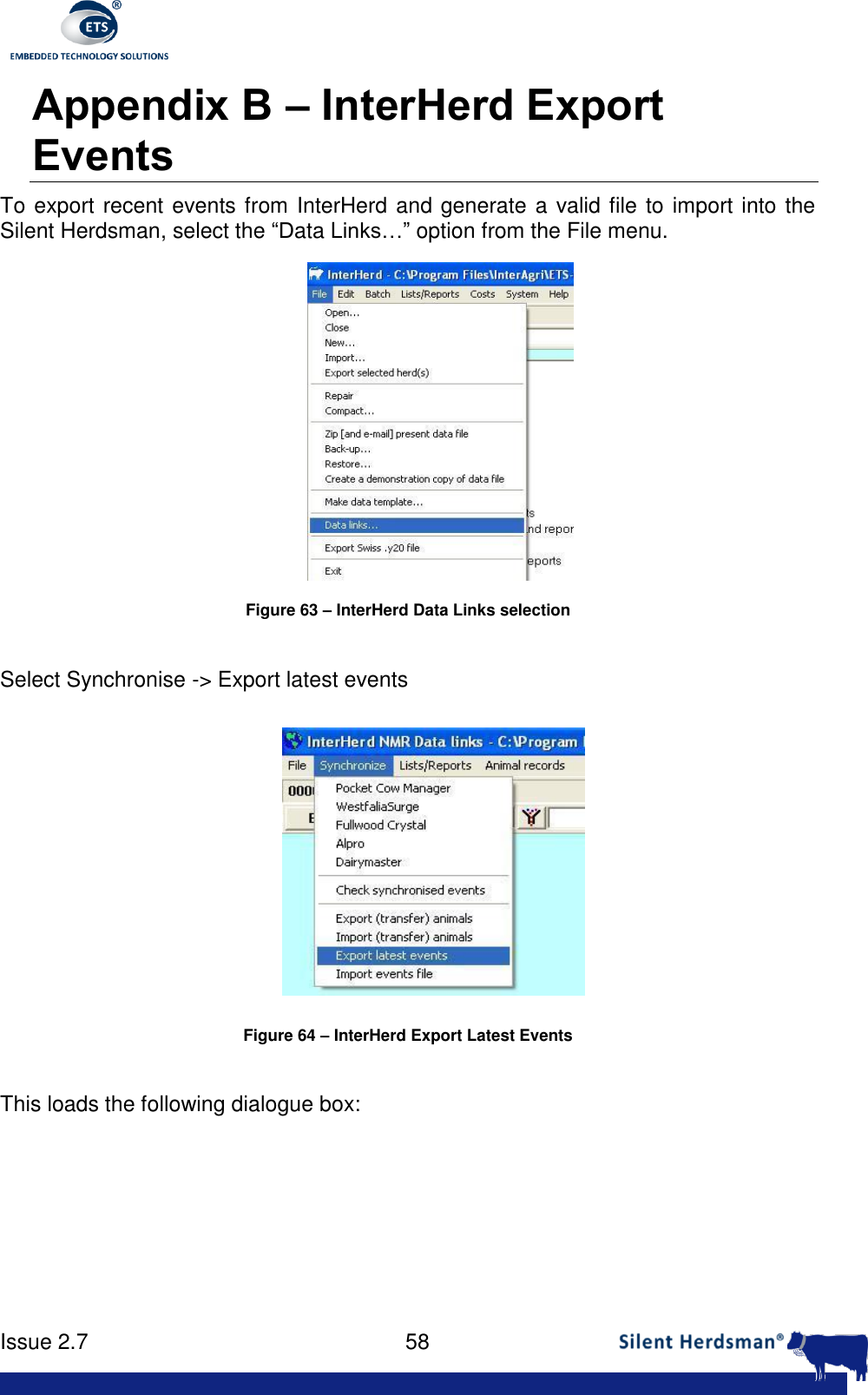
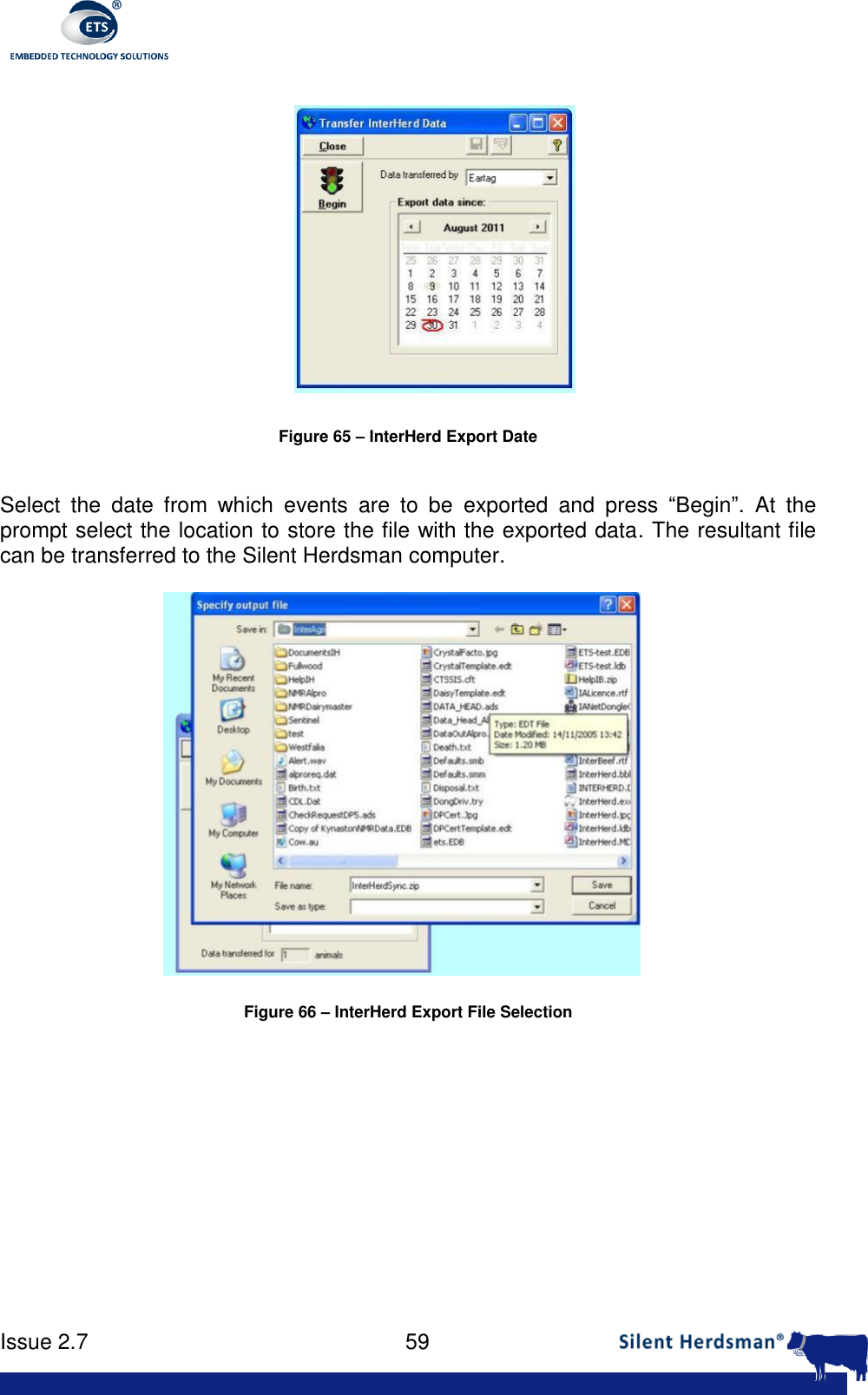
     Issue 2.7    58  Appendix B – InterHerd Export Events To export recent events from InterHerd and generate a valid file to import into the Silent Herdsman, select the “Data Links…” option from the File menu.  Figure 63 – InterHerd Data Links selection   Select Synchronise -> Export latest events  Figure 64 – InterHerd Export Latest Events  This loads the following dialogue box:
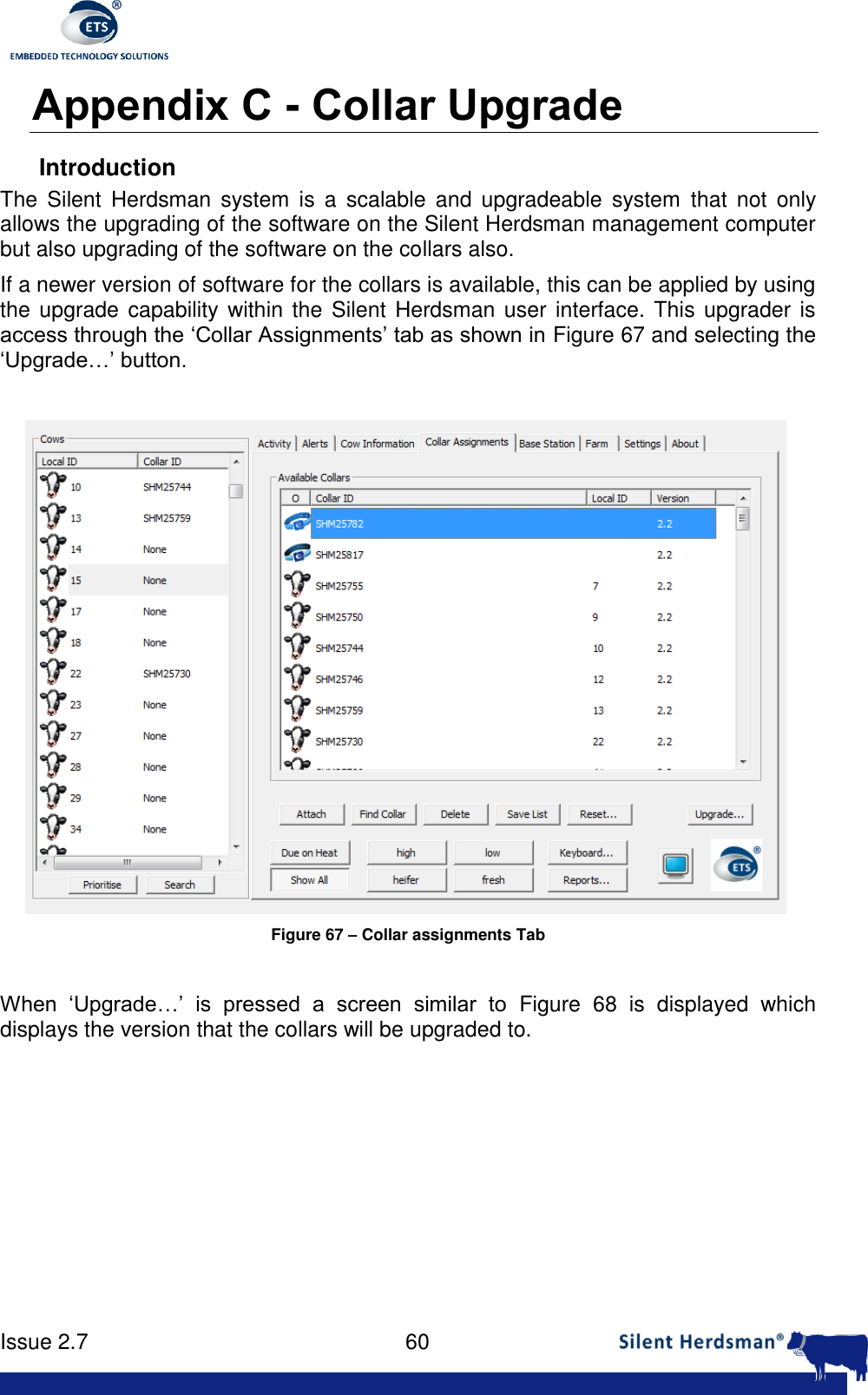
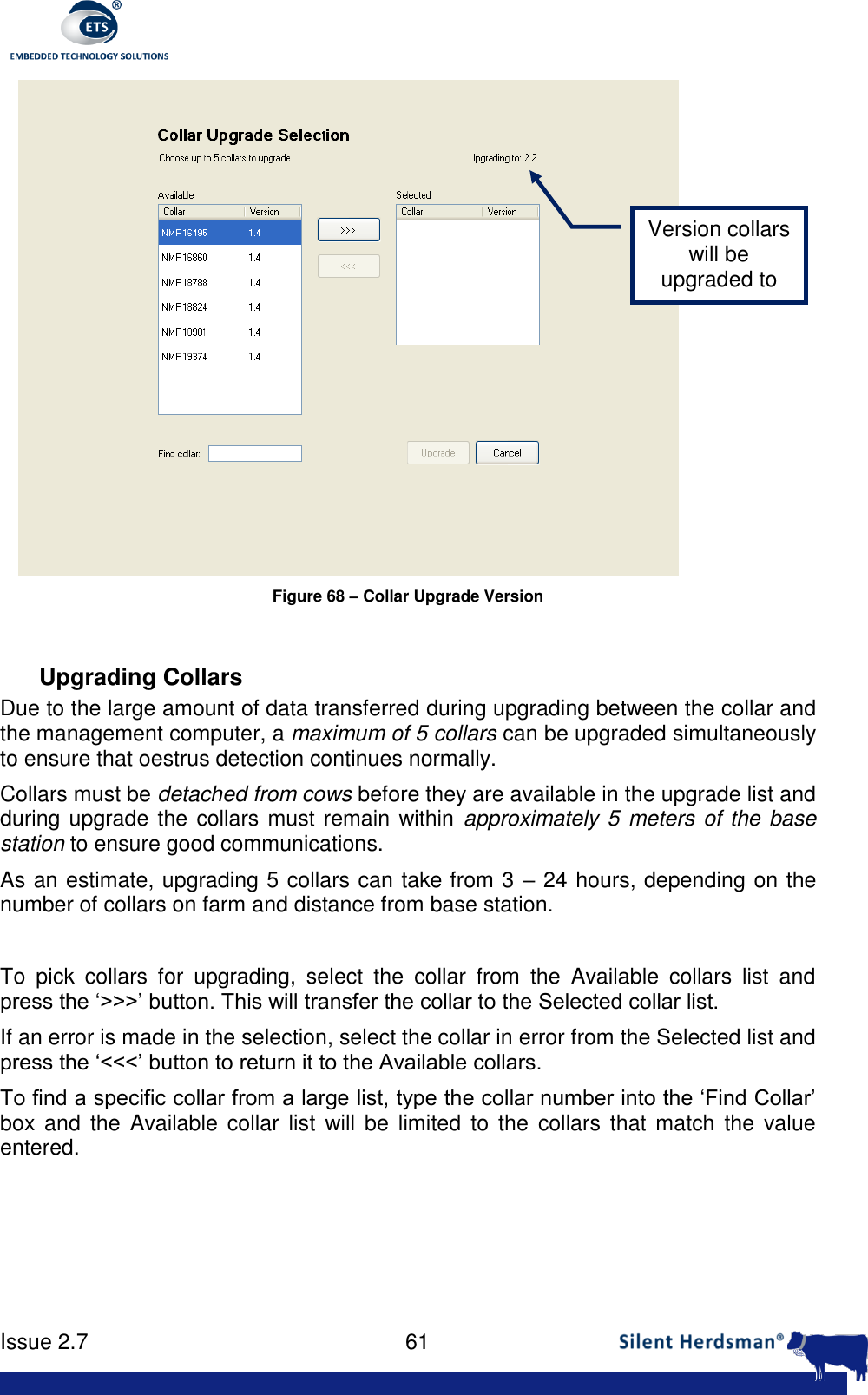
     Issue 2.7    59   Figure 65 – InterHerd Export Date  Select  the  date  from  which  events  are  to  be  exported  and  press  “Begin”.  At  the prompt select the location to store the file with the exported data. The resultant file can be transferred to the Silent Herdsman computer.  Figure 66 – InterHerd Export File Selection
     Issue 2.7    60  Appendix C - Collar Upgrade Introduction The  Silent  Herdsman  system  is  a  scalable and  upgradeable  system  that  not  only allows the upgrading of the software on the Silent Herdsman management computer but also upgrading of the software on the collars also. If a newer version of software for the collars is available, this can be applied by using the upgrade capability within  the Silent Herdsman user interface. This upgrader is access through the ‘Collar Assignments’ tab as shown in Figure 67 and selecting the ‘Upgrade…’ button.   Figure 67 – Collar assignments Tab  When  ‘Upgrade…’  is  pressed  a  screen  similar  to  Figure  68  is  displayed  which displays the version that the collars will be upgraded to.
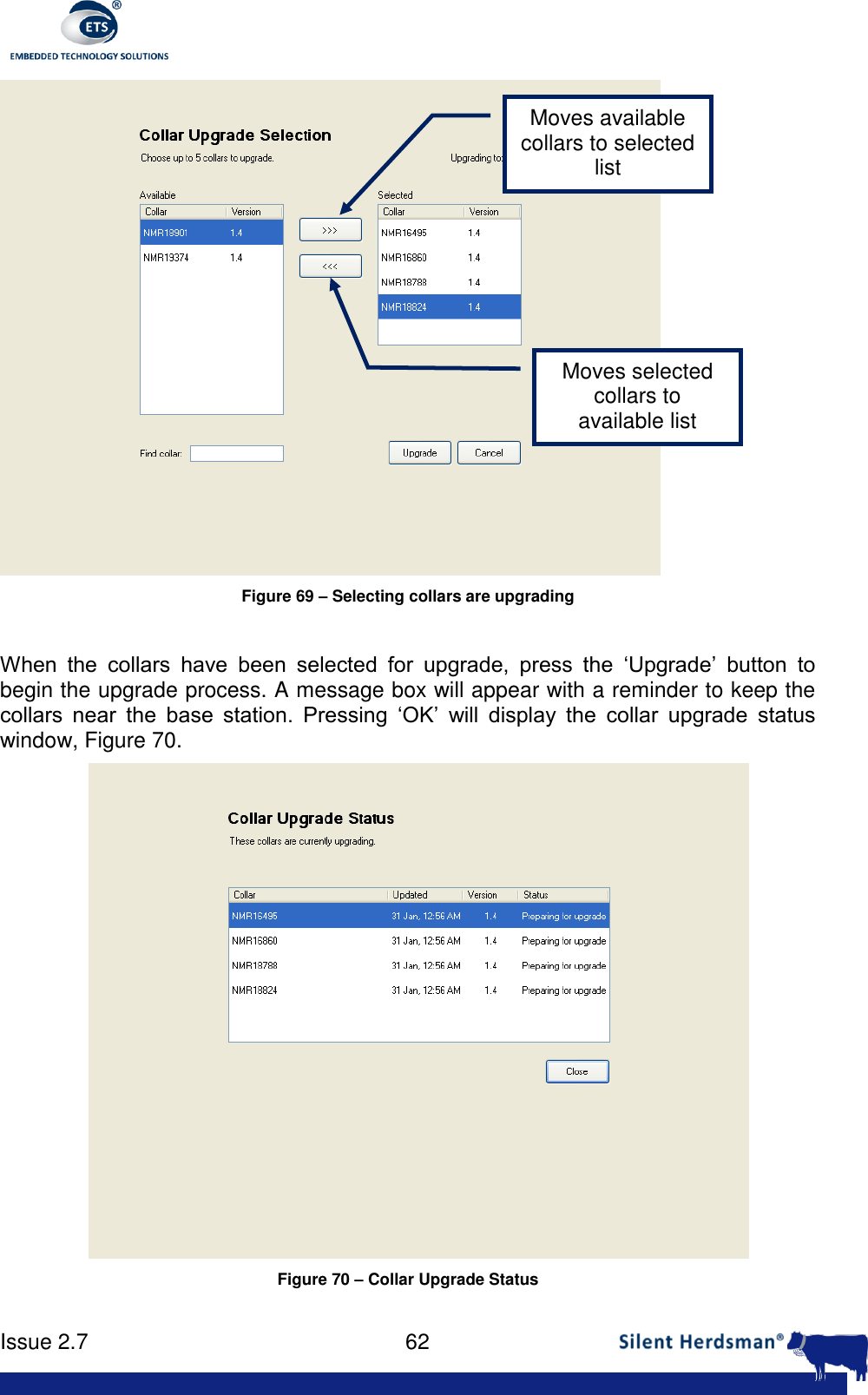
     Issue 2.7    61   Figure 68 – Collar Upgrade Version  Upgrading Collars Due to the large amount of data transferred during upgrading between the collar and the management computer, a maximum of 5 collars can be upgraded simultaneously to ensure that oestrus detection continues normally. Collars must be detached from cows before they are available in the upgrade list and during upgrade the collars must remain within approximately 5 meters of the base station to ensure good communications. As an estimate, upgrading 5 collars can take from 3 – 24 hours, depending on the number of collars on farm and distance from base station.  To  pick  collars  for  upgrading,  select  the  collar  from  the  Available  collars  list  and press the ‘>>>’ button. This will transfer the collar to the Selected collar list. If an error is made in the selection, select the collar in error from the Selected list and press the ‘<<<’ button to return it to the Available collars. To find a specific collar from a large list, type the collar number into the ‘Find Collar’ box  and  the  Available collar  list  will  be  limited  to  the  collars  that  match  the  value entered. Version collars will be upgraded to
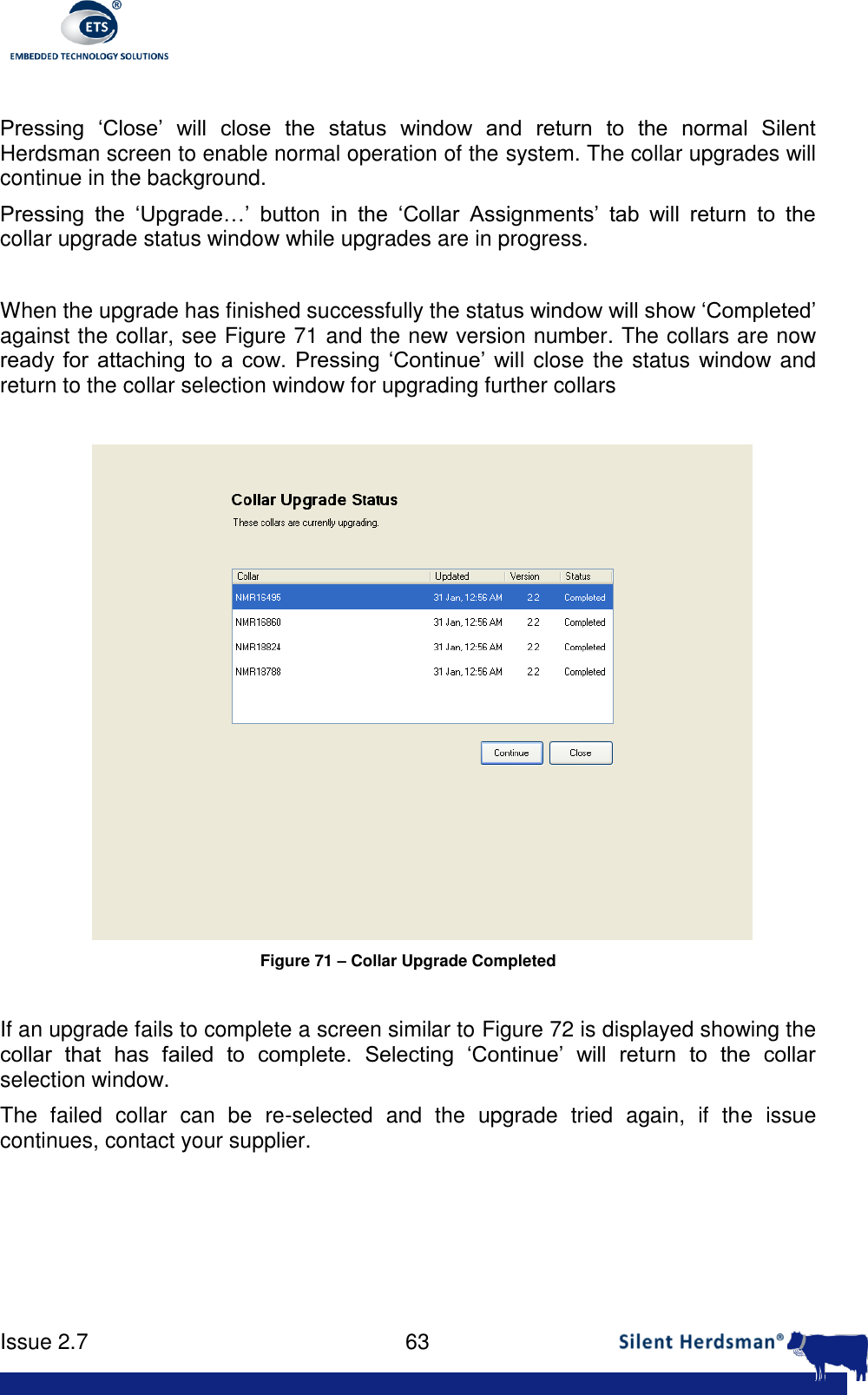
     Issue 2.7    62   Figure 69 – Selecting collars are upgrading  When  the  collars  have  been  selected  for  upgrade,  press  the  ‘Upgrade’  button  to begin the upgrade process. A message box will appear with a reminder to keep the collars  near  the  base  station.  Pressing  ‘OK’  will  display  the  collar  upgrade  status window, Figure 70.  Figure 70 – Collar Upgrade Status Moves available collars to selected list Moves selected collars to available list
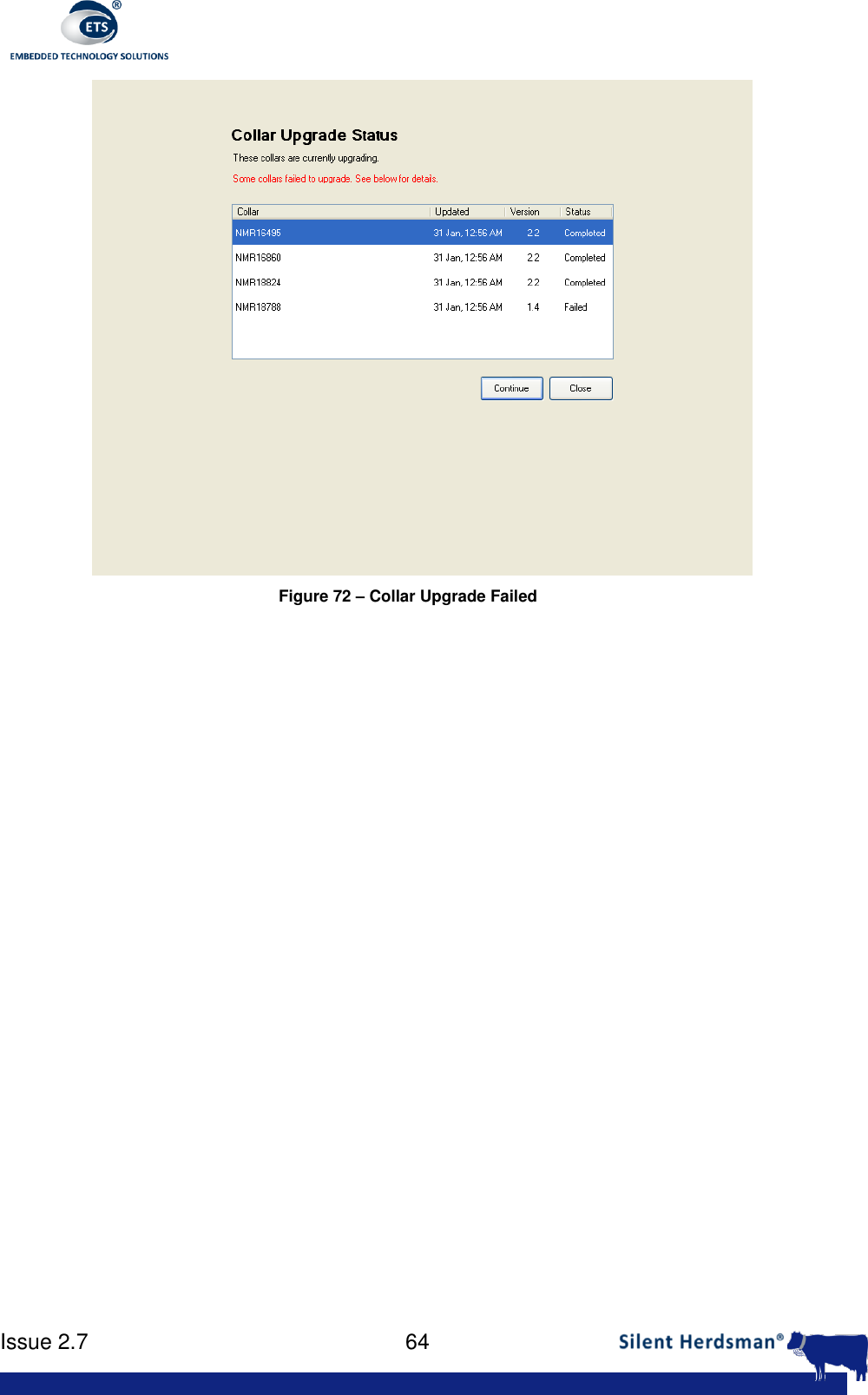
     Issue 2.7    63   Pressing  ‘Close’  will  close  the  status  window  and  return  to  the  normal  Silent Herdsman screen to enable normal operation of the system. The collar upgrades will continue in the background. Pressing  the  ‘Upgrade…’  button  in  the  ‘Collar  Assignments’  tab  will  return  to  the collar upgrade status window while upgrades are in progress.  When the upgrade has finished successfully the status window will show ‘Completed’ against the collar, see Figure 71 and the new version number. The collars are now ready  for  attaching  to  a  cow.  Pressing  ‘Continue’  will close the status window and return to the collar selection window for upgrading further collars   Figure 71 – Collar Upgrade Completed  If an upgrade fails to complete a screen similar to Figure 72 is displayed showing the collar  that  has  failed  to  complete.  Selecting  ‘Continue’  will  return  to  the  collar selection window. The  failed  collar  can  be  re-selected  and  the  upgrade  tried  again,  if  the  issue continues, contact your supplier.
     Issue 2.7    64   Figure 72 – Collar Upgrade Failed
     Issue 2.7    65  Appendix D - Regulatory Information  Declaration of Conformance
     Issue 2.7    66  EC Declaration of Conformity to R&TTE Directive 1999/5/EC  Manufacturer :     Embedded Technology Solutions Ltd, Ladywell Business Center,  Glasgow, G4 0UW    Product / Apparatus :   Silent Herdsman Type Number :     ETSFANSB Variants include :    All country variations  Declaration  I  declare  that  above  product  is  in  conformity  with  the  essential  requirements  and other relevant requirements of the R&TTE Directive (1999/5/EC). The product is in conformity with the following standards and/or other normative documents: Article 3.1a:   (Standard(s))  used  to  show  compliance  with  LVD,  2006/95/EC: EN60950-1;2006  Article 3.1b:   (Standard(s))  used  to  show  compliance  with  EMC  Directive, 2004/108/EC: EN301 489-17 V2.1.1,  EN301 489-1 V1.8.1 Article 3.2:   Standard(s) used to show compliance: EN300 328 V1.7.1 (2006-10)   Signature:   ......................................................................  Name:   Ivan Andonovic Title:    Chief Technology Officer Date:     29th August 2011
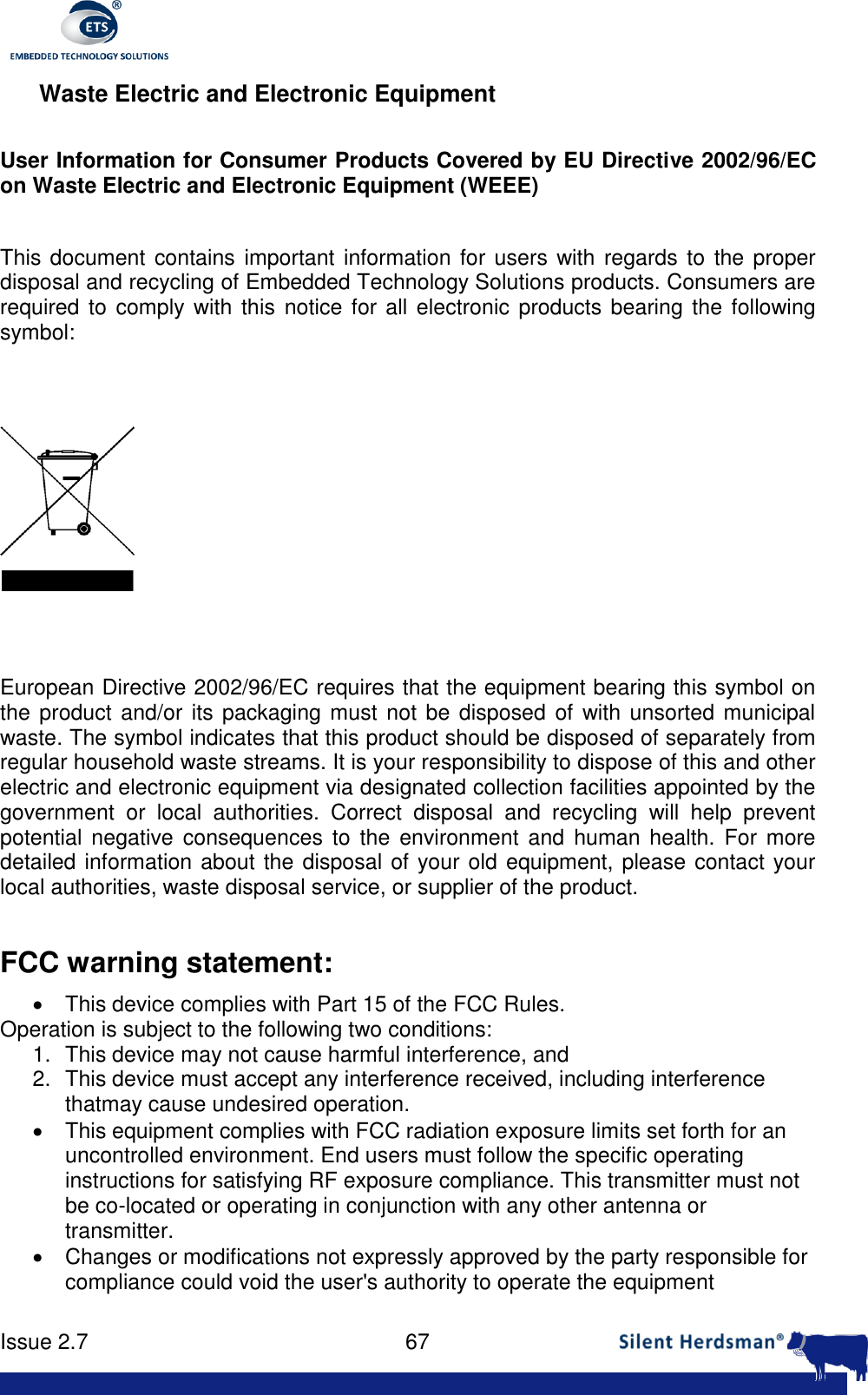
     Issue 2.7    67  Waste Electric and Electronic Equipment  User Information for Consumer Products Covered by EU Directive 2002/96/EC on Waste Electric and Electronic Equipment (WEEE)  This document  contains important information for users  with regards to  the proper disposal and recycling of Embedded Technology Solutions products. Consumers are required to  comply with this notice for all electronic products bearing the following symbol:      European Directive 2002/96/EC requires that the equipment bearing this symbol on the product and/or its packaging must  not be disposed of with unsorted municipal waste. The symbol indicates that this product should be disposed of separately from regular household waste streams. It is your responsibility to dispose of this and other electric and electronic equipment via designated collection facilities appointed by the government  or  local  authorities.  Correct  disposal  and  recycling  will  help  prevent potential  negative  consequences  to  the  environment  and  human health.  For  more detailed information about the disposal of your old equipment, please contact your local authorities, waste disposal service, or supplier of the product.  FCC warning statement:   This device complies with Part 15 of the FCC Rules. Operation is subject to the following two conditions: 1.  This device may not cause harmful interference, and 2.  This device must accept any interference received, including interference thatmay cause undesired operation.   This equipment complies with FCC radiation exposure limits set forth for an uncontrolled environment. End users must follow the specific operating instructions for satisfying RF exposure compliance. This transmitter must not be co-located or operating in conjunction with any other antenna or transmitter.   Changes or modifications not expressly approved by the party responsible for compliance could void the user's authority to operate the equipment

Navigation menu