Skytech Digital A360D ANDROID SET TOP BOX WITH WLAN User Manual English usermanual android tv box

Skytech Digital Limited ANDROID SET TOP BOX WITH WLAN English usermanual android tv box

User Manual

Android TV BoxAndroid TV BoxUser ManualANDROID SET TOP BOX WITH WLAN         i8000 HD
Federal Communications Commission (FCC) Statement     This device complies with part 15 of the FCC Rules. Operation is subject to the following two conditions: (1) This device may not cause harmful interference, and (2) this device must accept any interference received, including interference that may cause undesired operation.          Note: This equipment has been tested and found to comply with the limits for a Class B digital device, pursuant to part 15 of the FCC Rules. These limits are designed to provide reasonable protection against harmful interference in a residential installation. This equipment generates, uses and can radiate radio frequency energy and, if not installed and used in accordance with the instructions, may cause harmful interference to radio communications. However, there is no guarantee that interference will not occur in a particular installation. If this equipment does cause harmful interference to radio or television reception, which can be determined by turning the equipment off and on, the user is encouraged to try to correct the interference by one or more of the following measures:     z Reorient or relocate the receiving antenna.         z Increase the separation between the equipment and receiver.     z Connect the equipment into an outlet on a circuit different from that to which the receiver is connected.     z Consult the dealer or an experienced radio/TV technician for help.        Warning: Changes or modifications made to this device not expressly approved by Skytech Digital Limited may void the FCC authorization to operate this device.     Note: The manufacturer is not responsible for any radio or tv interference caused by unauthorized modifications to this equipment. Such modifications could void the user’s authority to operate the equipment.  This device should be installed and operated with a minimum distance of 20cm between the antenna and all persons.
PrefaceThanks very much for choosing our TV Box. In order to make it more convenient for you to useproficiently, we provide you with a user manual. Please read it carefully before using and properly keep it for reference.StatementsWe have made every effort to provide the most current information about the product.We do not grant any guarantees as to the contents of the present instruction manual anddisclaim any implied guarantees concerning market value or suitability for specific purposes.The information contained here is an instruction intended to enable the correct usage andmaintenance of the receiver.We reserve itself the right to introduce amendments, changes or translations of the usermanual without prior notification thereof. For this reason, we recommend you regularly visitour website in order to obtain the latest information.
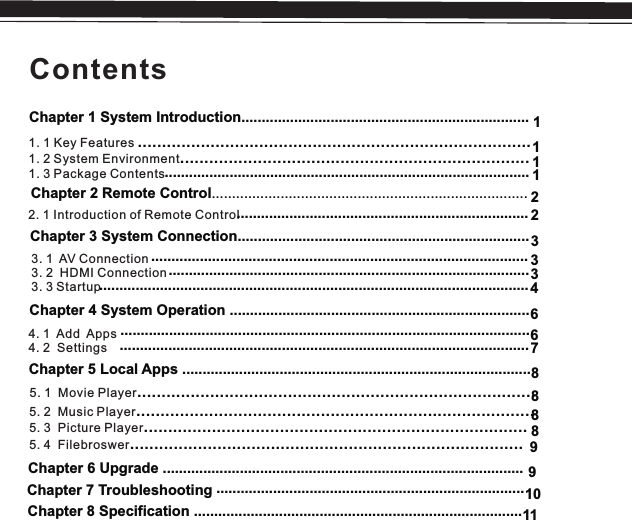
ContentsChapter 1 System Introduction.......................................................................1. 1 Key Features 1. 2 System Environment1. 3 Package Contents.........................................................................................................................................................Chapter 2 Remote Control..............................................................................2. 1 Introduction of Remote ControlChapter 3 System Connection........................................................................ 3. 1  AV Connection3. 2  HDMI Connection3. 3 StartupChapter 4 System Operation ..........................................................................Chapter 5 Local Apps ......................................................................................5. 2  Music 5. 3  Picture 5. 4  FilebroswerPlayerPlayer..................................................................................................................................................................................................................................................Chapter 6 Upgrade .........................................................................................Chapter 7 Troubleshooting  Chapter 8 Specification ........................................................................................................................................................................... ........................................................................................................................................................................................................................................................................................................................................................................ 331112123464. 1  Add Apps4. 2  Settings..................................................................................................... .....................................................................................................6788895. 1  Movie Player..................................................................................891011............................................................................
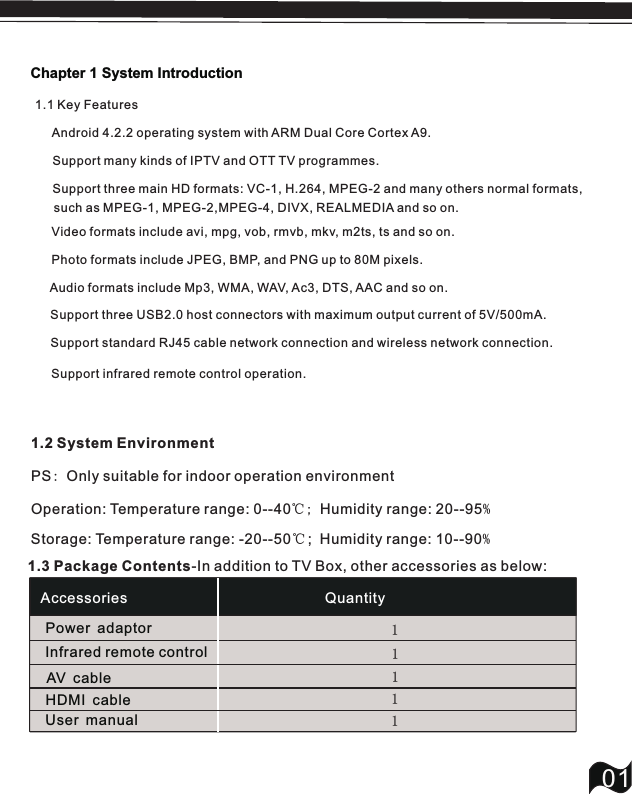
Chapter 1 System Introduction011.1 Key Features     Android 4.2.2 operating system with ARM Dual Core Cortex A9.       Support many kinds of IPTV and OTT TV programmes.     Support three main HD formats: VC-1, H.264, MPEG-2 and many others normal formats,     1.2 System Environment PS: Only suitable for indoor operation environmentOperation: Temperature range: 0--40℃; Humidity range: 20--95%Storage: Temperature range: -20--50℃;  Humidity range: 10--90%1.3 Package Contents-In addition to TV Box, other accessories as below: Support standard RJ45 cable network connection and wireless network connection.  Video formats include avi, mpg, vob, rmvb, mkv, m2ts, ts and so on. Photo formats include JPEG, BMP, and PNG up to 80M pixels. Audio formats include Mp3, WMA, WAV, Ac3, DTS, AAC and so on.   Support three USB2.0 host connectors with maximum output current of 5V/500mA.Accessories QuantityPower adaptorInfrared remote controlAV cableUser manual1111HDMI cable 1Support infrared remote control operation.such as MPEG-1, MPEG-2,MPEG-4, DIVX, REALMEDIA and so on.
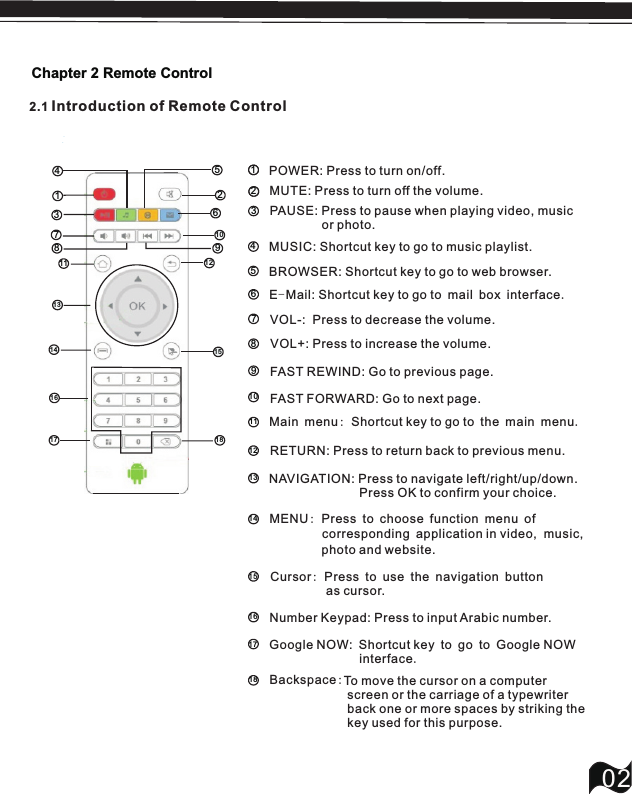
Chapter 2 Remote Control022.1   Introduction of Remote ControlOK            II1234567890461111018258111911161113115114121731751243POWER: Press to turn on/off.MUTE: Press to turn off the volume.PAUSE: Press to pause when playing video, music                or photo.MUSIC: Shortcut key to go to music playlist.BROWSER: Shortcut   to go to web browser.key86791013E-Mail: Shortcut   to go to mail box interface.keyVOL-:  Press to decrease the volume.VOL+: Press to increase the volume.FAST REWIND: Go to previous page.FAST FORWARD: Go to next page.1214517161511518RETURN: Press to return back to previous menu.NAVIGATION: Press to navigate left/right/up/down.                          Press OK to confirm your choice.Number Keypad: Press to input Arabic number.       MENU: Press to choose function menu of          Main menu: Shortcut   to go to the main menu.keyCursor: Press to use the navigation button           Google NOW: Shortcut key to go to Google NOW                Backspace: 11corresponding application in video,  music,                photo and website.interface.as cursor.To move the cursor on a computer  screen or the carriage of a typewriter  back one or more spaces by striking the  key used for this purpose.
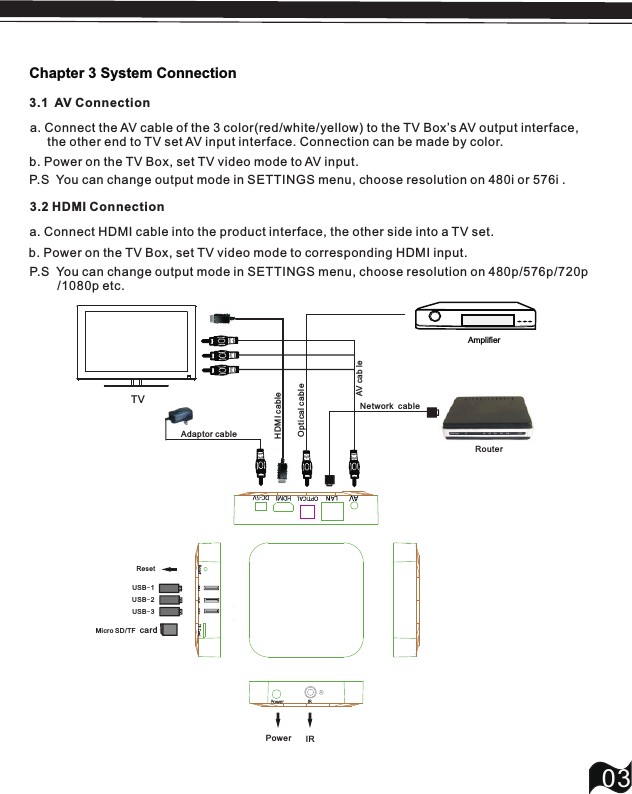
Chapter 3 System Connection033.1  AV ConnectionTVAmplifierOptical cableAV cab leHDMI cableAdaptor cableRouterNetwork  cableUSB-1Micro SD/TF cardResetPower IRP.S  You can change output mode in SETTINGS menu, choose resolution on 480i or 576i .P.S  You can change output mode in SETTINGS menu, choose resolution on 480p/576p/720p        /1080p etc.3.2 HDMI Connection a. Connect the AV cable of the 3 color(red/white/yellow) to the TV Box’s AV output interface,      the other end to TV set AV input interface. Connection can be made by color.b. Power on the TV Box, set TV video mode to AV input.a. Connect HDMI cable into the product interface, the other side into a TV set.b. Power on the TV Box, set TV video mode to corresponding HDMI input.USB2 US B3USB-2USB-3
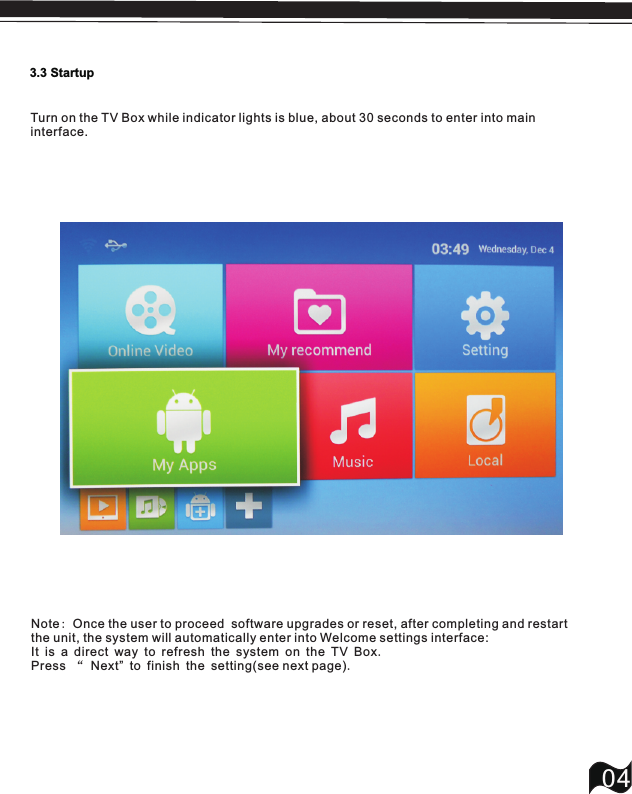
3.3 Startup04Turn on the TV Box while indicator lights is blue, about 30 seconds to enter into main interface.Note: Once the user to proceed  software upgrades or reset, after completing and restart the unit, the system will automatically enter into Welcome settings interface: It is a direct way to refresh the system on the TV Box.Press “ Next” to finish the setting(see next page).
05
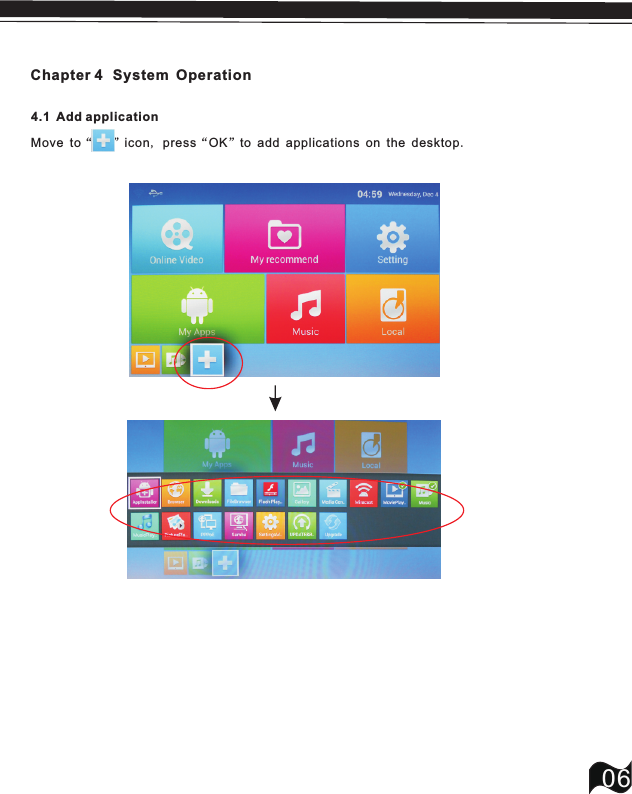
06Chapter 4  Move to“   ”icon, press“OK”to add applications on the desktop.4.1  Add applicationSystem Operation
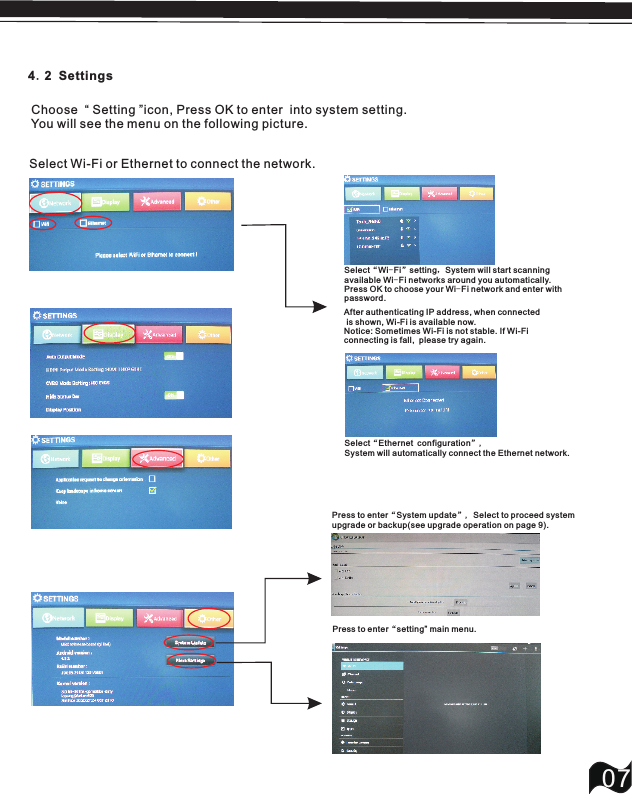
07 Choose  “ Setting ”icon, Press OK to enter  into system setting.  You will see the menu on the following picture.4.2 SettingsSelect“Ethernet configuration”,System will automatically connect the Ethernet network.Select“Wi-Fi”setting,System will start scanning available Wi-Fi networks around you automatically. Press OK to choose your  network and enter with password.Wi-Fi After authenticating IP address, when connected is shown, Wi-Fi is available now.Notice: Sometimes Wi-Fi is not stable. If Wi-Fi connecting is fall,  please try again.Select Wi-Fi or Ethernet to connect the network.Press to enter“System update”, Select to proceed system upgrade or backup(see upgrade operati on on page 9).Press to enter“setting” main menu.
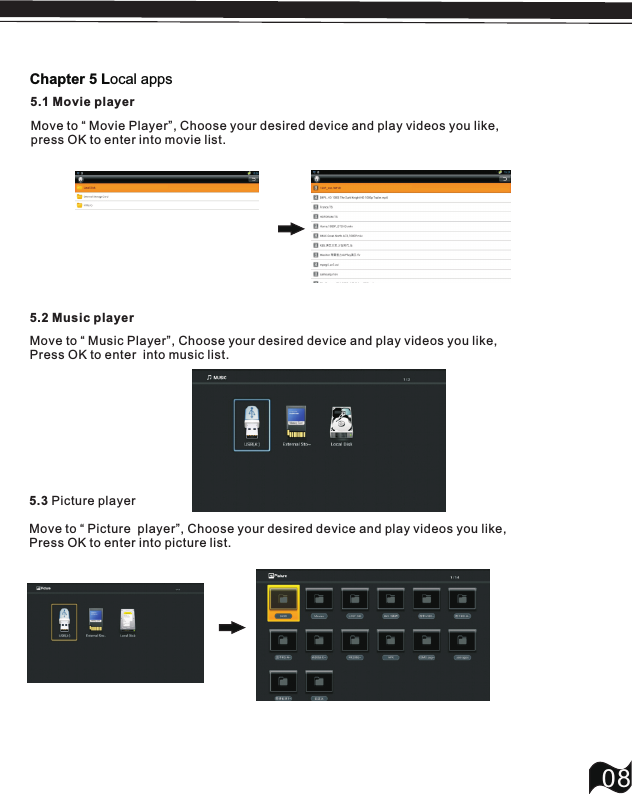
5.2 Music player08Move to “ Music Player”, Press OK to enter  into music list.Choose your desired device and play videos you like,5.3 Picture playerMove to “ Picture  player”, Press OK to enter into picture list.Choose your desired device and play videos you like,Chapter 5 Local apps5.1 Movie playerMove to “ Movie Player”, Choose your desired device and play videos you like,press OK to enter into movie list.
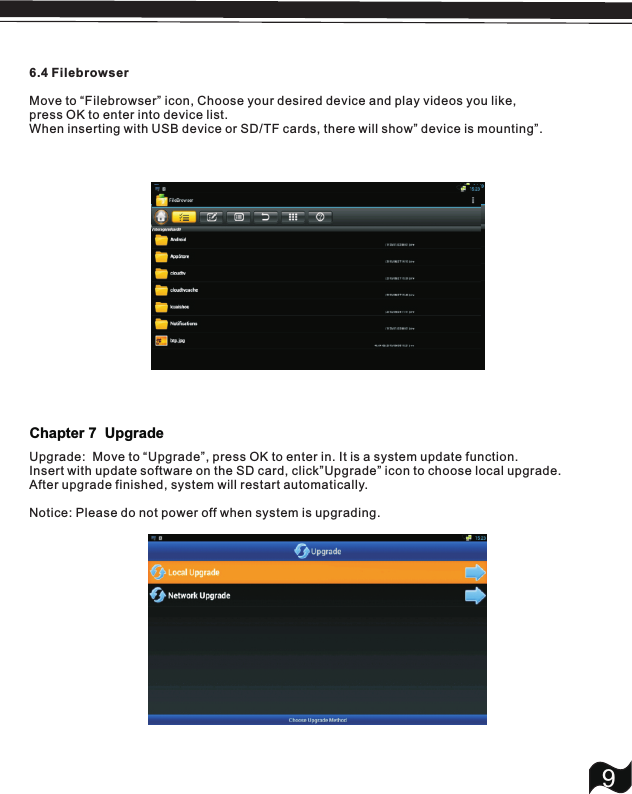
6.4 FilebrowserMove to “Filebrowser” icon, press OK to enter into device list.When inserting with USB device or SD/TF cards, there will show” device is mounting”.Choose your desired device and play videos you like,9Upgrade:  Move to “Upgrade”, press OK to enter in. It is a system update function.Insert with update software on the SD card, click”Upgrade” icon to choose local upgrade.After upgrade finished, system will restart automatically.Notice: Please do not power off when system is upgrading.Chapter 7  Upgrade
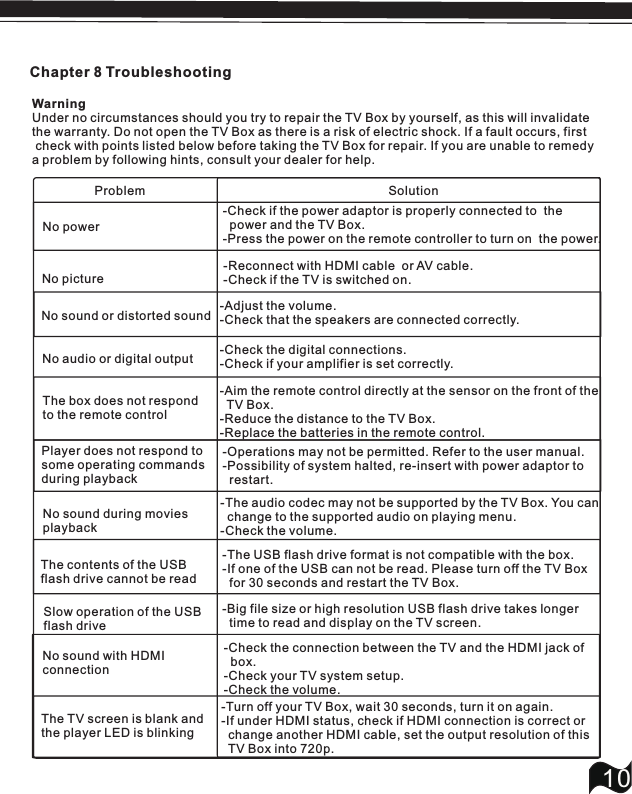
Chapter 8 Troubleshooting10WarningUnder no circumstances should you try to repair the TV Box by yourself, as this will invalidate the warranty. Do not open the TV Box as there is a risk of electric shock. If a fault occurs, first check with points listed below before taking the TV Box for repair. If you are unable to remedy a problem by following hints, consult your dealer for help.     Problem                                                                      SolutionNo picture  No sound or distorted soundNo audio or digital output  The box does not respondto the remote controlPlayer does not respond tosome operating commands during playbackNo sound during moviesplaybackThe contents of the USB flash drive cannot be readNo sound with HDMI connectionThe TV screen is blank andthe player LED is blinking-Check if the power adaptor is properly connected to  the   power and the TV Box.-Press the power on the remote controller to turn on  the power.              Slow operation of the USB            flash drive              No power-Reconnect with HDMI cable  or AV cable.-Check if the TV is switched on.-Adjust the volume.-Check that the speakers are connected correctly.-Check the digital connections.-Check if your amplifier is set correctly.-Operations may not be permitted. Refer to the user manual.-Possibility of system halted, re-insert with power adaptor to  restart.-Aim the remote control directly at the sensor on the front of the  TV Box.-Reduce the distance to the TV Box.-Replace the batteries in the remote control.-The audio codec may not be supported by the TV Box. You can  change to the supported audio on playing menu.-Check the volume.-The USB flash drive format is not compatible with the box.-If one of the USB can not be read. Please turn off the TV Box  for 30 seconds and restart the TV Box.-Big file size or high resolution USB flash drive takes longer  time to read and display on the TV screen.-Check the connection between the TV and the HDMI jack of   box.-Check your TV system setup.-Check the volume.-Turn off your TV Box, wait 30 seconds, turn it on again.-If under HDMI status, check if HDMI connection is correct or  change another HDMI cable, set the output resolution of this  TV Box into 720p.
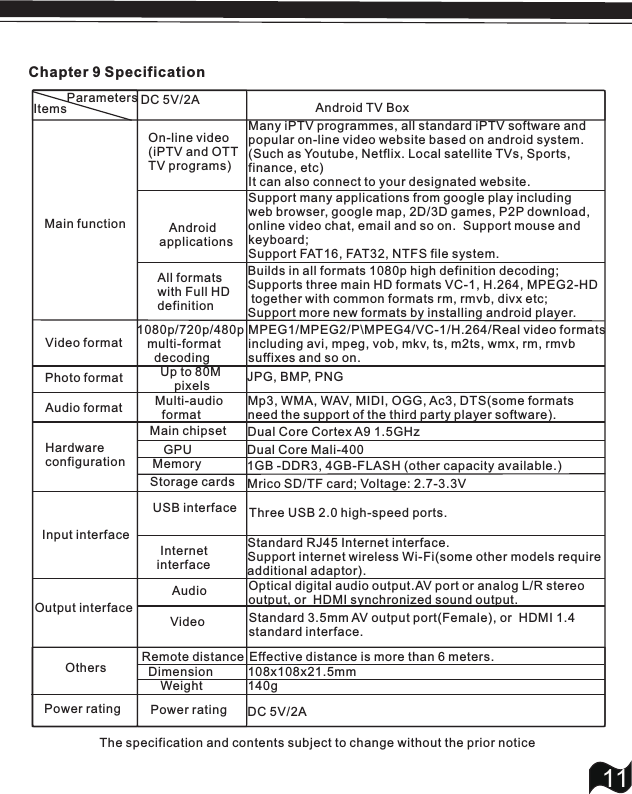
11Chapter 9 SpecificationParametersItems Android TV BoxMain functionOn-line video(iPTV and OTTTV programs)Many iPTV programmes, all standard iPTV software andpopular on-line video website based on android system.(Such as Youtube, Netflix. Local satellite TVs, Sports,finance, etc)It can also connect to your designated website.Support many applications from google play includingweb browser, google map, 2D/3D games, P2P download,online video chat, email and so on.  Support mouse andkeyboard; Support FAT16, FAT32, NTFS file system.   Android applicationsAll formats with Full HDdefinitionBuilds in all formats 1080p high definition decoding; Supports three main HD formats VC-1, H.264, MPEG2-HD together with common formats rm, rmvb, divx etc; Support more new formats by installing android player.Video format1080p/720p/480p    multi-format      decodingMPEG1/MPEG2/P\MPEG4/VC-1/H.264/Real video formatsincluding avi, mpeg, vob, mkv, ts, m2ts, wmx, rm, rmvbsuffixes and so on.Photo format Up to 80M     pixels JPG, BMP, PNGAudio format Multi-audio  formatMp3, WMA, WAV, MIDI, OGG, Ac3, DTS(some formatsneed the support of the third party player software).HardwareconfigurationMain chipsetGPUMemoryStorage cardsDual Core Cortex A9 1.5GHzDual Core Mali-4001GB -DDR3, 4GB-FLASH (other capacity available.)Mrico SD/TF card; Voltage: 2.7-3.3VInput interfaceUSB interface Three USB 2.0 high-speed ports.  Internet interfaceStandard RJ45 Internet interface.Support internet wireless Wi-Fi(some other models requireadditional adaptor).DC 5V/2AOutput interfaceAudioVideoOptical digital audio output.AV port or analog L/R stereo output, or  HDMI synchronized sound output.Standard 3.5mm AV output port(Female), or  HDMI 1.4 standard interface.Others Remote distance Effective distance is more than 6 meters.Dimension          108x108x21.5mmWeight             140gPower rating  Power ratingThe specification and contents subject to change without the prior noticeDC 5V/2A

Navigation menu