Smart Modular Technologies 90137 USB Bluetooth Adapter User Manual BluePC

Smart Modular Technologies USB Bluetooth Adapter BluePC

Users Manual

 USB BlueOpal AdapterUser GuideVersion Number: 2.1
BluePC User ManualCopyright©Copyright 2002 SMART Modular Technologies, Inc.  All right reserved..No part of this work may be reproduced, copied, (electronically, mechanically or otherwise), stored in a retrieval system, or transmitted inany form or by any means, mechanical, electronic, photocopying, recording, or used to make a derivative work (such as translation,transformation, or adaptation) or otherwise, without the permission of SMART Modular Technologies, Inc. except as permitted by theamended United States Copyright Act of 1976.TrademarksSMART and SMART Modular logo are trademarks of SMART Modular TechnologiesImpulsesoft, Impulsesoft logo, BluePC, BlueConfig, BlueTransfer, and BlueExplore are trademarks of Impulsesoft.Microsoft, Windows, Windows NT, and Windows for Workgroups are registered trademarks of Microsoft Corporation.Bluetooth is a trademark owned by Bluetooth SIG, Inc. and is used by SMART Modular Technologies under license.All other products or name brands are trademarks of their respective holders.
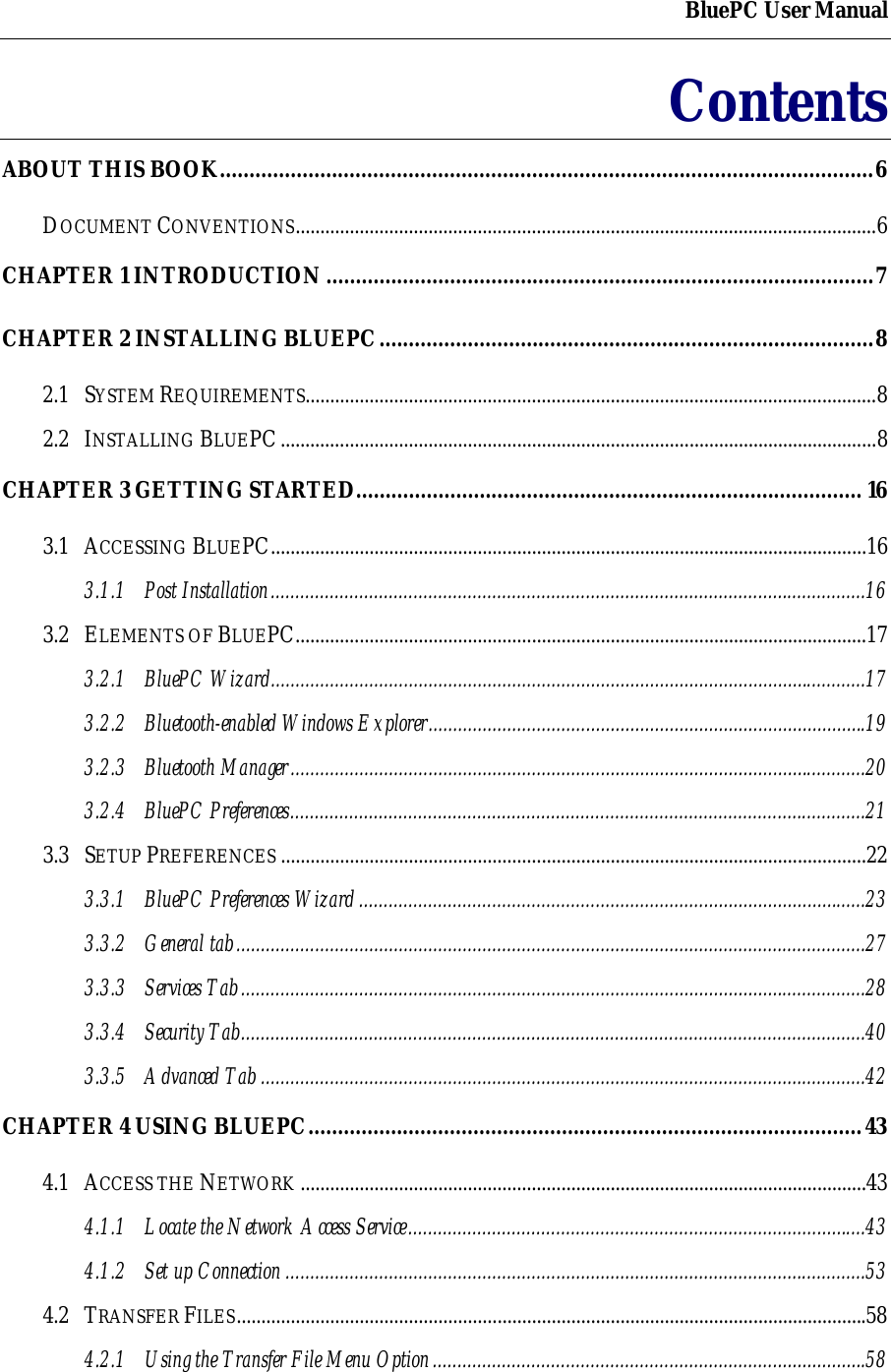
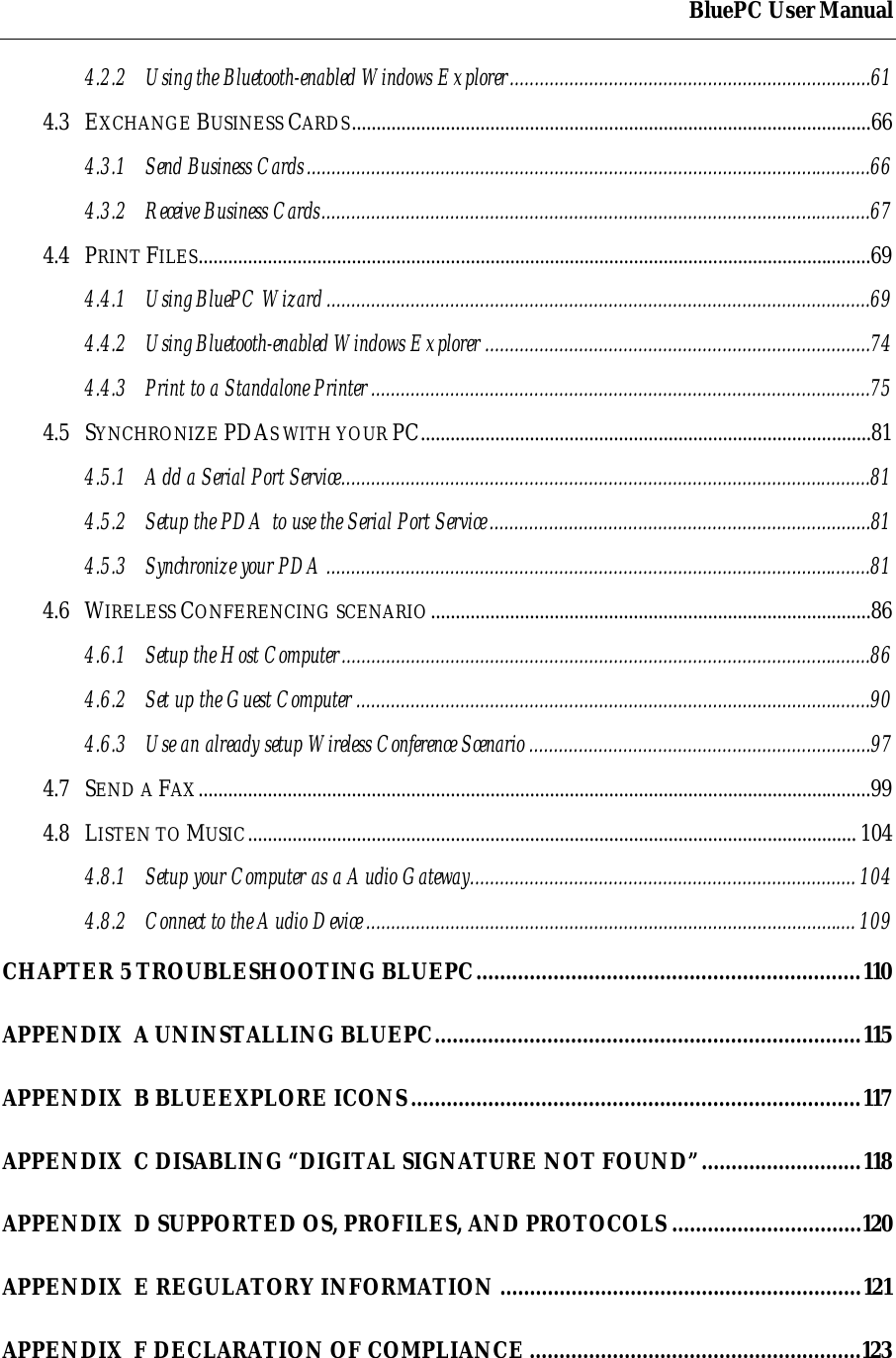
BluePC User ManualContentsABOUT THIS BOOK...............................................................................................................6DOCUMENT CONVENTIONS......................................................................................................................6CHAPTER 1 INTRODUCTION.............................................................................................7CHAPTER 2 INSTALLING BLUEPC....................................................................................82.1 SYSTEM REQUIREMENTS....................................................................................................................82.2 INSTALLING BLUEPC.........................................................................................................................8CHAPTER 3 GETTING STARTED...................................................................................... 163.1 ACCESSING BLUEPC.........................................................................................................................163.1.1 Post Installation.........................................................................................................................163.2 ELEMENTS OF BLUEPC....................................................................................................................173.2.1 BluePC Wizard.........................................................................................................................173.2.2 Bluetooth-enabled Windows Explorer.........................................................................................193.2.3 Bluetooth Manager.....................................................................................................................203.2.4 BluePC Preferences.....................................................................................................................213.3 SETUP PREFERENCES .......................................................................................................................223.3.1 BluePC Preferences Wizard.......................................................................................................233.3.2 General tab................................................................................................................................273.3.3 Services Tab...............................................................................................................................283.3.4 Security Tab...............................................................................................................................403.3.5 Advanced Tab ...........................................................................................................................42CHAPTER 4 USING BLUEPC..............................................................................................434.1 ACCESS THE NETWORK ...................................................................................................................434.1.1 Locate the Network Access Service.............................................................................................434.1.2 Set up Connection ......................................................................................................................534.2 TRANSFER FILES................................................................................................................................584.2.1 Using the Transfer File Menu Option........................................................................................58
BluePC User Manual4.2.2 Using the Bluetooth-enabled Windows Explorer.........................................................................614.3 EXCHANGE BUSINESS CARDS.........................................................................................................664.3.1 Send Business Cards..................................................................................................................664.3.2 Receive Business Cards...............................................................................................................674.4 PRINT FILES........................................................................................................................................694.4.1 Using BluePC Wizard..............................................................................................................694.4.2 Using Bluetooth-enabled Windows Explorer ..............................................................................744.4.3 Print to a Standalone Printer.....................................................................................................754.5 SYNCHRONIZE PDAS WITH YOUR PC...........................................................................................814.5.1 Add a Serial Port Service...........................................................................................................814.5.2 Setup the PDA to use the Serial Port Service.............................................................................814.5.3 Synchronize your PDA..............................................................................................................814.6 WIRELESS CONFERENCING SCENARIO.........................................................................................864.6.1 Setup the Host Computer...........................................................................................................864.6.2 Set up the Guest Computer ........................................................................................................904.6.3 Use an already setup Wireless Conference Scenario .....................................................................974.7 SEND A FAX........................................................................................................................................994.8 LISTEN TO MUSIC........................................................................................................................... 1044.8.1 Setup your Computer as a Audio Gateway.............................................................................. 1044.8.2 Connect to the Audio Device................................................................................................... 109CHAPTER 5 TROUBLESHOOTING BLUEPC.................................................................110APPENDIX  A UNINSTALLING BLUEPC........................................................................115APPENDIX  B BLUEEXPLORE ICONS............................................................................117APPENDIX  C DISABLING “DIGITAL SIGNATURE NOT FOUND”...........................118APPENDIX  D SUPPORTED OS, PROFILES, AND PROTOCOLS ................................120APPENDIX  E REGULATORY INFORMATION .............................................................121APPENDIX  F DECLARATION OF COMPLIANCE ........................................................123
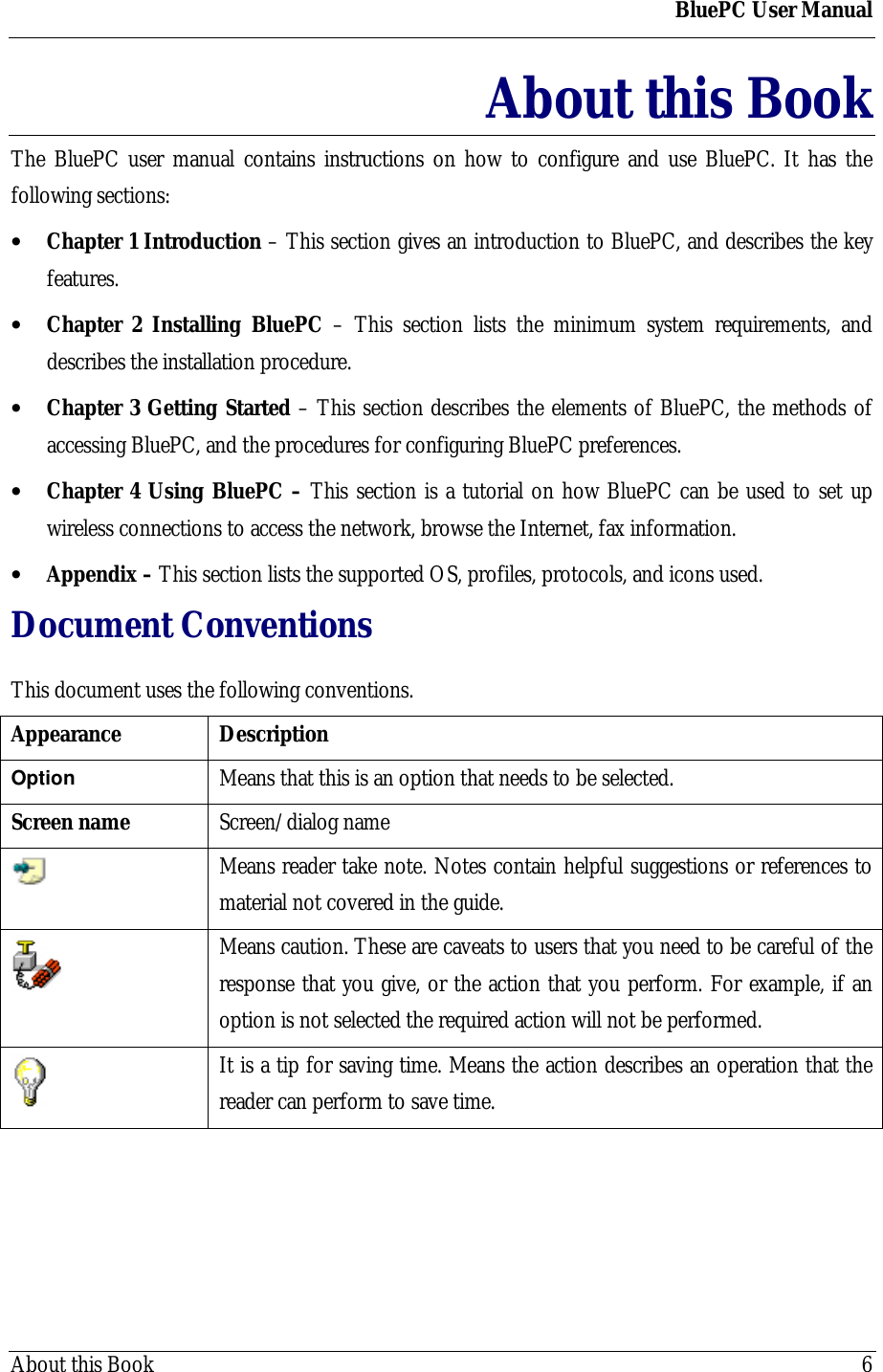
BluePC User ManualAbout this Book 6About this BookThe BluePC user manual contains instructions on how to configure and use BluePC. It has thefollowing sections:• Chapter 1 Introduction – This section gives an introduction to BluePC, and describes the keyfeatures.• Chapter 2 Installing BluePC – This section lists the minimum system requirements, anddescribes the installation procedure.• Chapter 3 Getting Started – This section describes the elements of BluePC, the methods ofaccessing BluePC, and the procedures for configuring BluePC preferences.• Chapter 4 Using BluePC – This section is a tutorial on how BluePC can be used to set upwireless connections to access the network, browse the Internet, fax information.• Appendix – This section lists the supported OS, profiles, protocols, and icons used.Document ConventionsThis document uses the following conventions.Appearance DescriptionOption Means that this is an option that needs to be selected.Screen name Screen/dialog nameMeans reader take note. Notes contain helpful suggestions or references tomaterial not covered in the guide.Means caution. These are caveats to users that you need to be careful of theresponse that you give, or the action that you perform. For example, if anoption is not selected the required action will not be performed.It is a tip for saving time. Means the action describes an operation that thereader can perform to save time.
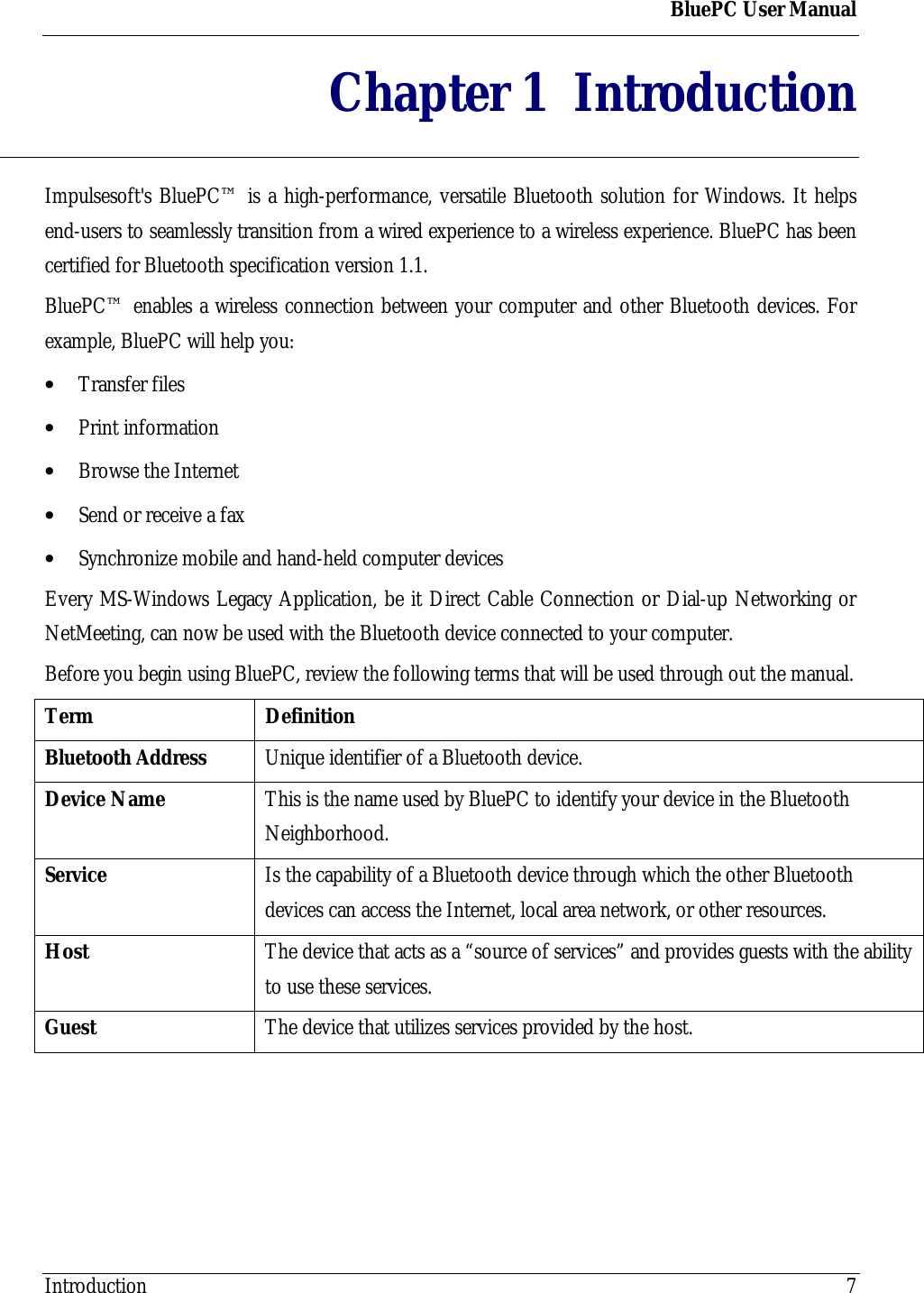
BluePC User ManualIntroduction 7Chapter 1 IntroductionImpulsesoft's BluePC™ is a high-performance, versatile Bluetooth solution for Windows. It helpsend-users to seamlessly transition from a wired experience to a wireless experience. BluePC has beencertified for Bluetooth specification version 1.1.BluePC™ enables a wireless connection between your computer and other Bluetooth devices. Forexample, BluePC will help you:• Transfer files• Print information• Browse the Internet• Send or receive a fax• Synchronize mobile and hand-held computer devicesEvery MS-Windows Legacy Application, be it Direct Cable Connection or Dial-up Networking orNetMeeting, can now be used with the Bluetooth device connected to your computer.Before you begin using BluePC, review the following terms that will be used through out the manual.Term DefinitionBluetooth Address Unique identifier of a Bluetooth device.Device Name This is the name used by BluePC to identify your device in the BluetoothNeighborhood.Service Is the capability of a Bluetooth device through which the other Bluetoothdevices can access the Internet, local area network, or other resources.Host The device that acts as a “source of services” and provides guests with the abilityto use these services.Guest The device that utilizes services provided by the host.
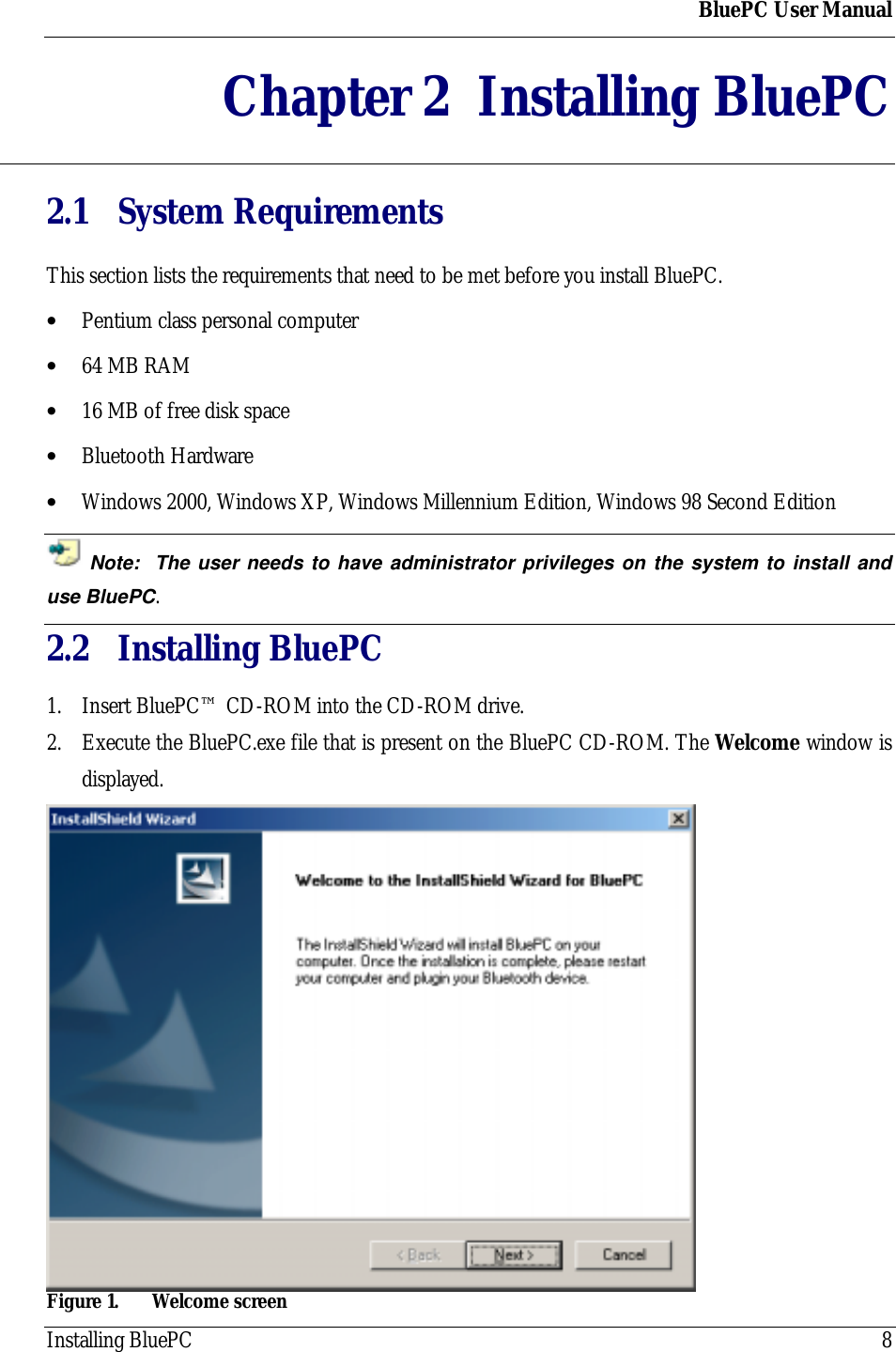
BluePC User ManualInstalling BluePC 8Chapter 2 Installing BluePC2.1 System RequirementsThis section lists the requirements that need to be met before you install BluePC.• Pentium class personal computer• 64 MB RAM• 16 MB of free disk space• Bluetooth Hardware• Windows 2000, Windows XP, Windows Millennium Edition, Windows 98 Second Edition Note:  The user needs to have administrator privileges on the system to install anduse BluePC.2.2 Installing BluePC1. Insert BluePC™ CD-ROM into the CD-ROM drive.2. Execute the BluePC.exe file that is present on the BluePC CD-ROM. The Welcome window isdisplayed.Figure 1. Welcome screen
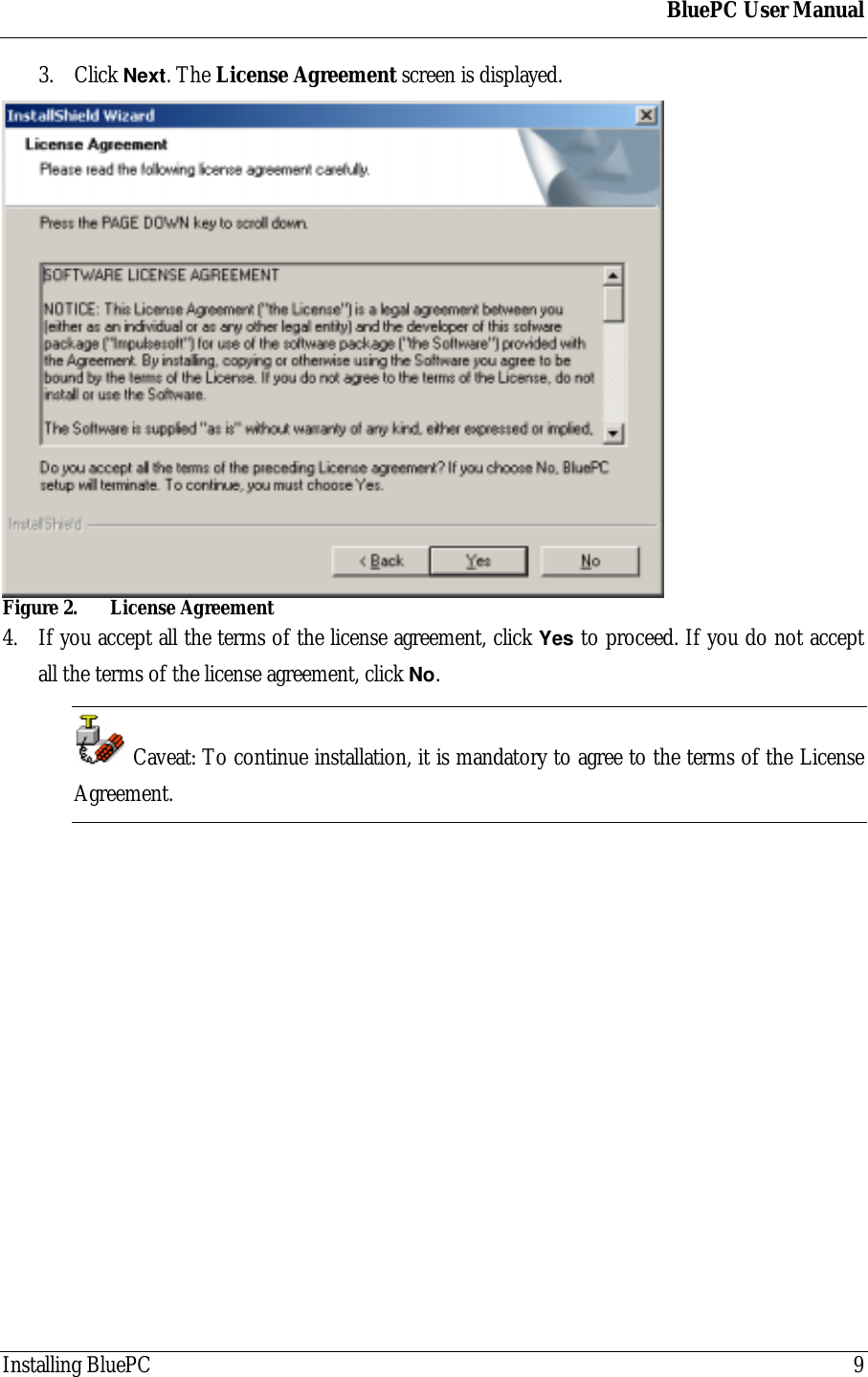
BluePC User ManualInstalling BluePC 93. Click Next. The License Agreement screen is displayed.Figure 2. License Agreement4. If you accept all the terms of the license agreement, click Yes to proceed. If you do not acceptall the terms of the license agreement, click No. Caveat: To continue installation, it is mandatory to agree to the terms of the LicenseAgreement.
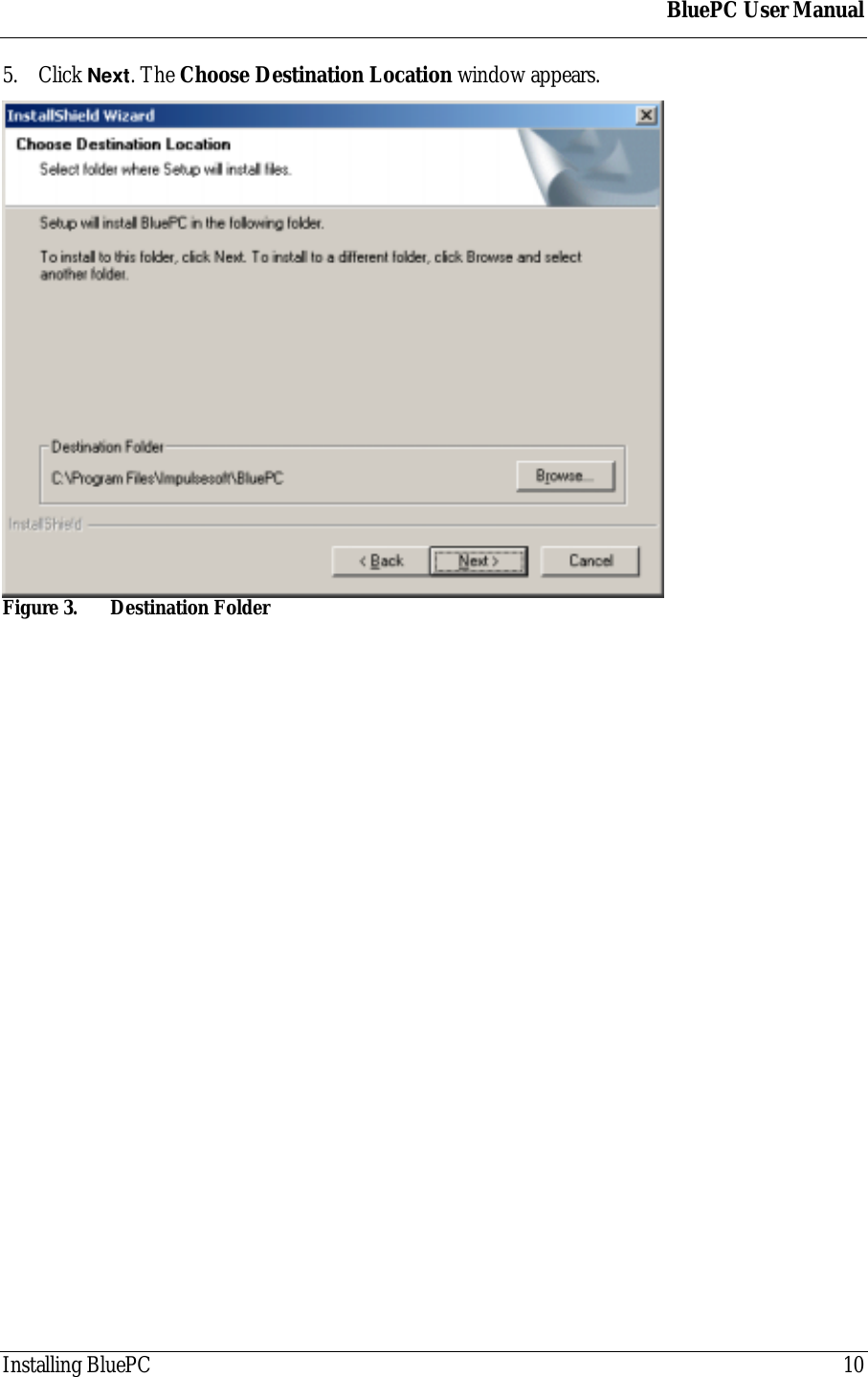
BluePC User ManualInstalling BluePC 105. Click Next. The Choose Destination Location window appears.Figure 3. Destination Folder
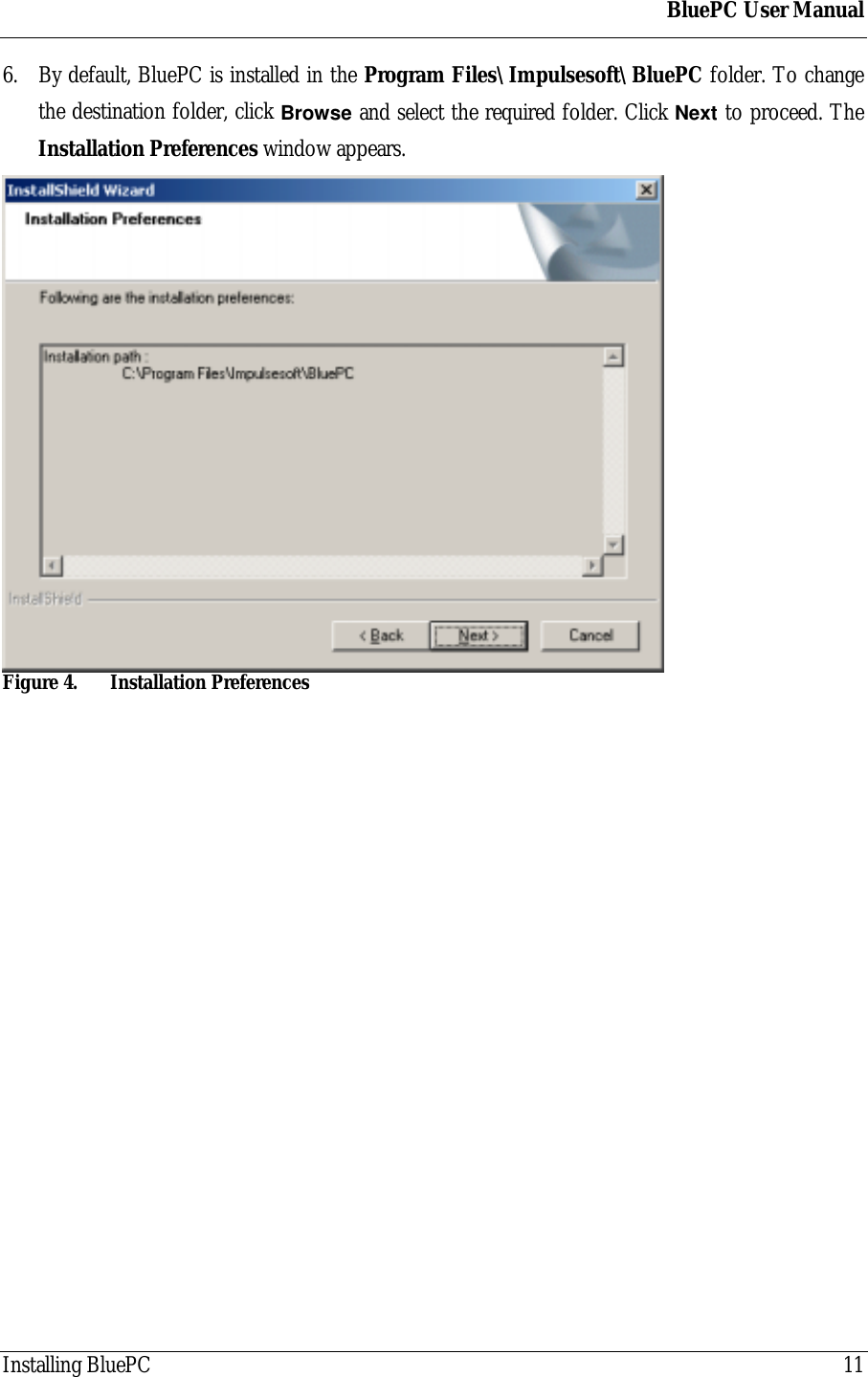
BluePC User ManualInstalling BluePC 116. By default, BluePC is installed in the Program Files\Impulsesoft\BluePC folder. To changethe destination folder, click Browse and select the required folder. Click Next to proceed. TheInstallation Preferences window appears.Figure 4. Installation Preferences
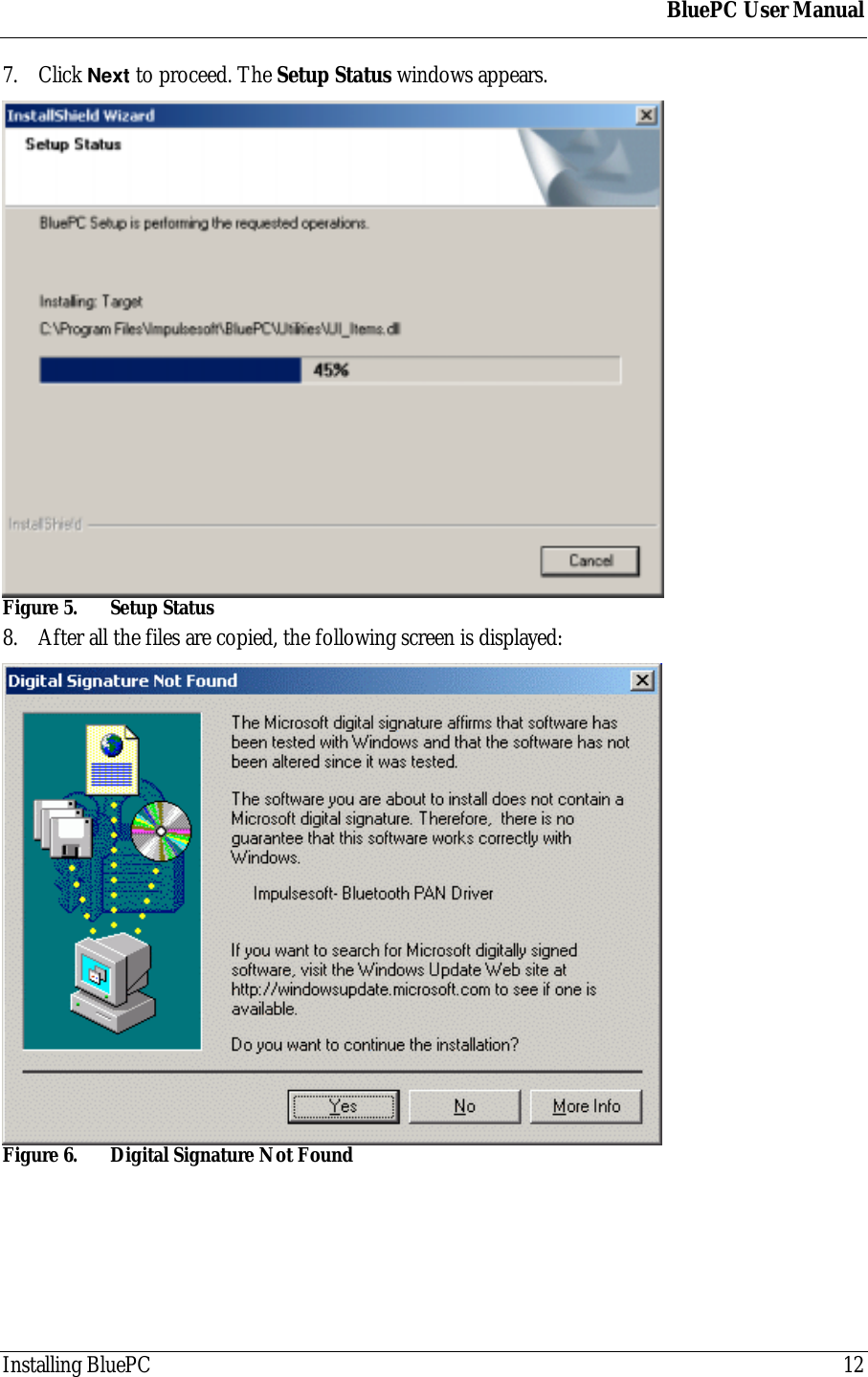
BluePC User ManualInstalling BluePC 127. Click Next to proceed. The Setup Status windows appears.Figure 5. Setup Status8. After all the files are copied, the following screen is displayed:Figure 6. Digital Signature Not Found
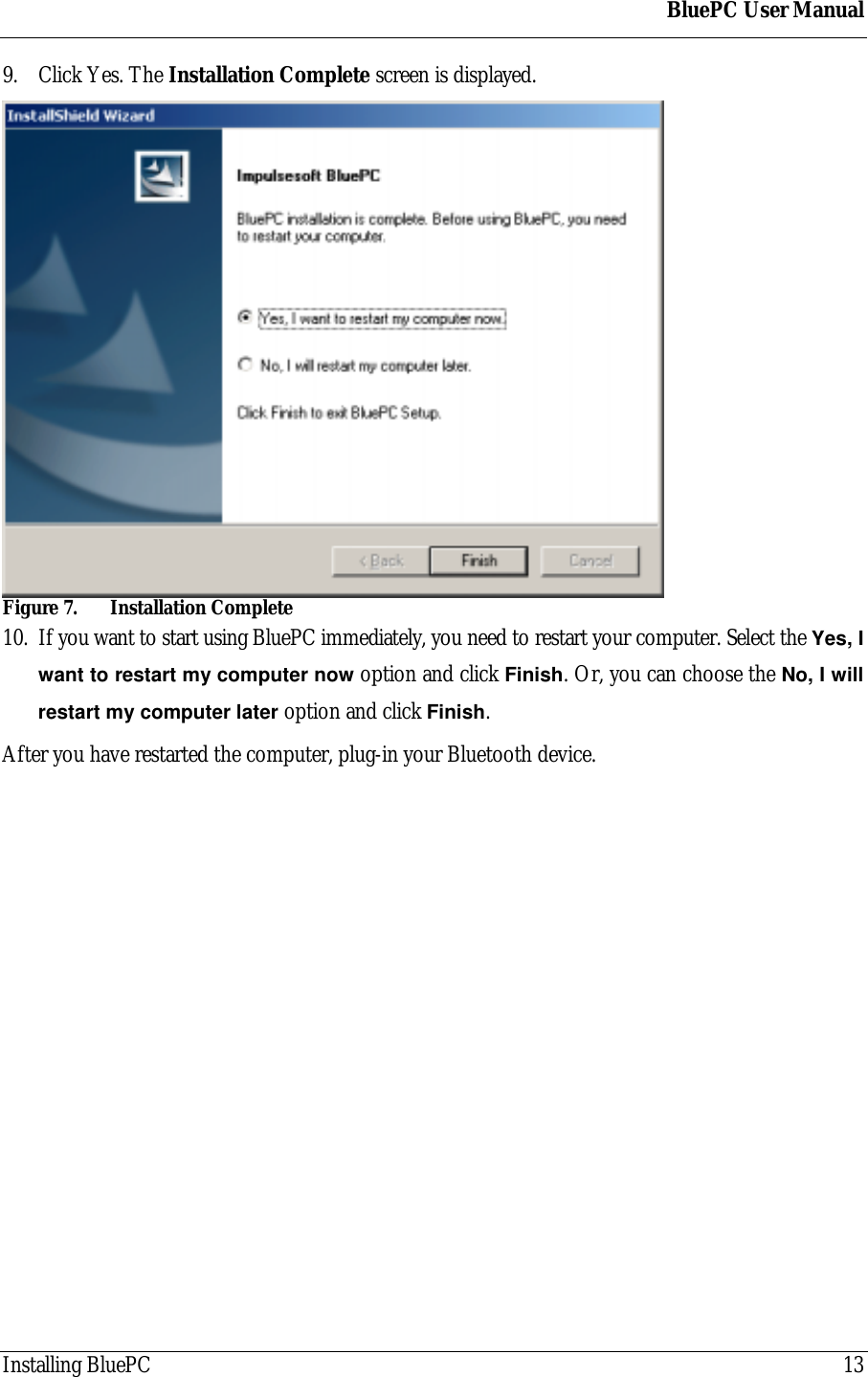
BluePC User ManualInstalling BluePC 139. Click Yes. The Installation Complete screen is displayed.Figure 7. Installation Complete10. If you want to start using BluePC immediately, you need to restart your computer. Select the Yes, Iwant to restart my computer now option and click Finish. Or, you can choose the No, I willrestart my computer later option and click Finish.After you have restarted the computer, plug-in your Bluetooth device.
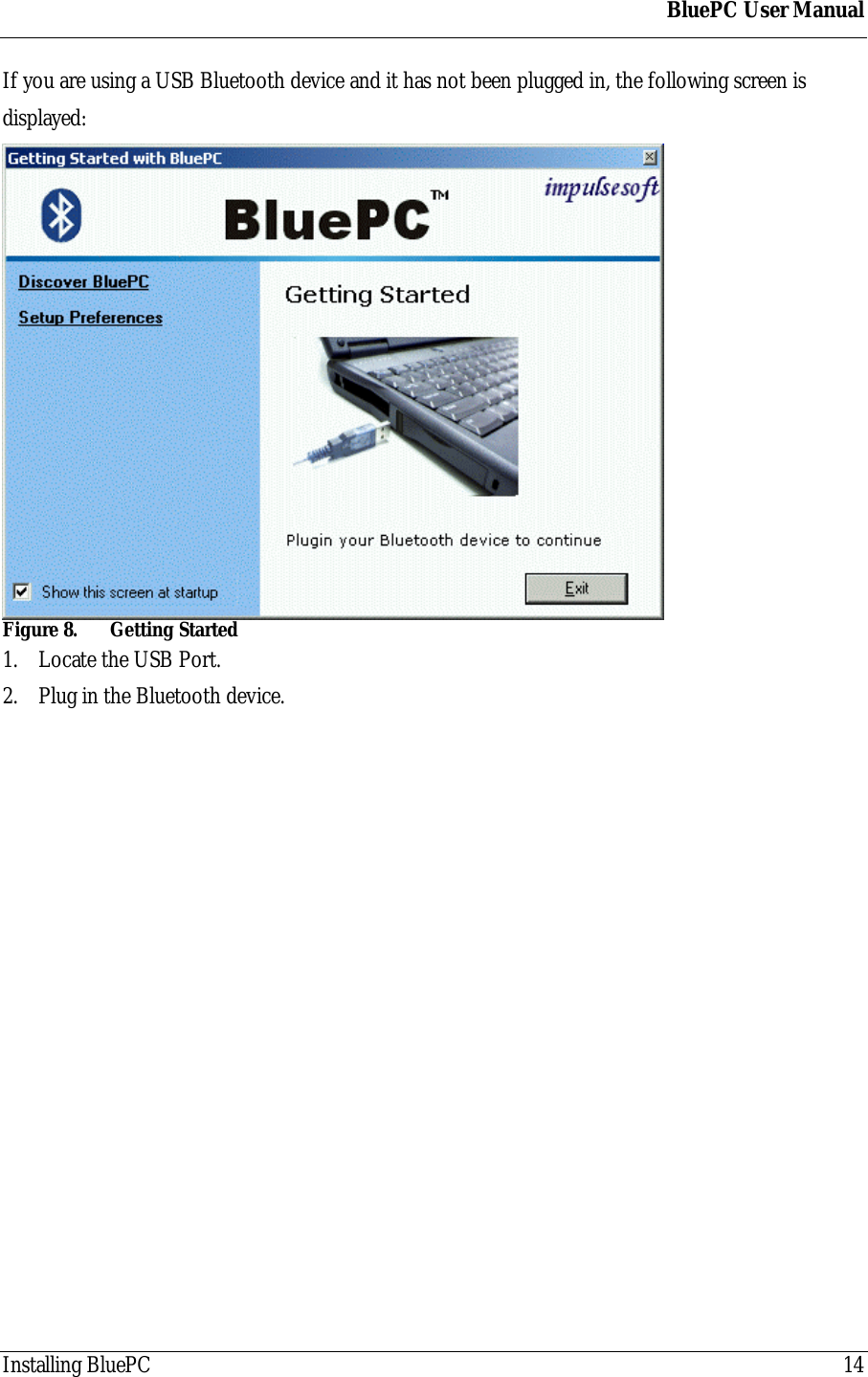
BluePC User ManualInstalling BluePC 14If you are using a USB Bluetooth device and it has not been plugged in, the following screen isdisplayed:Figure 8. Getting Started1. Locate the USB Port.2. Plug in the Bluetooth device.
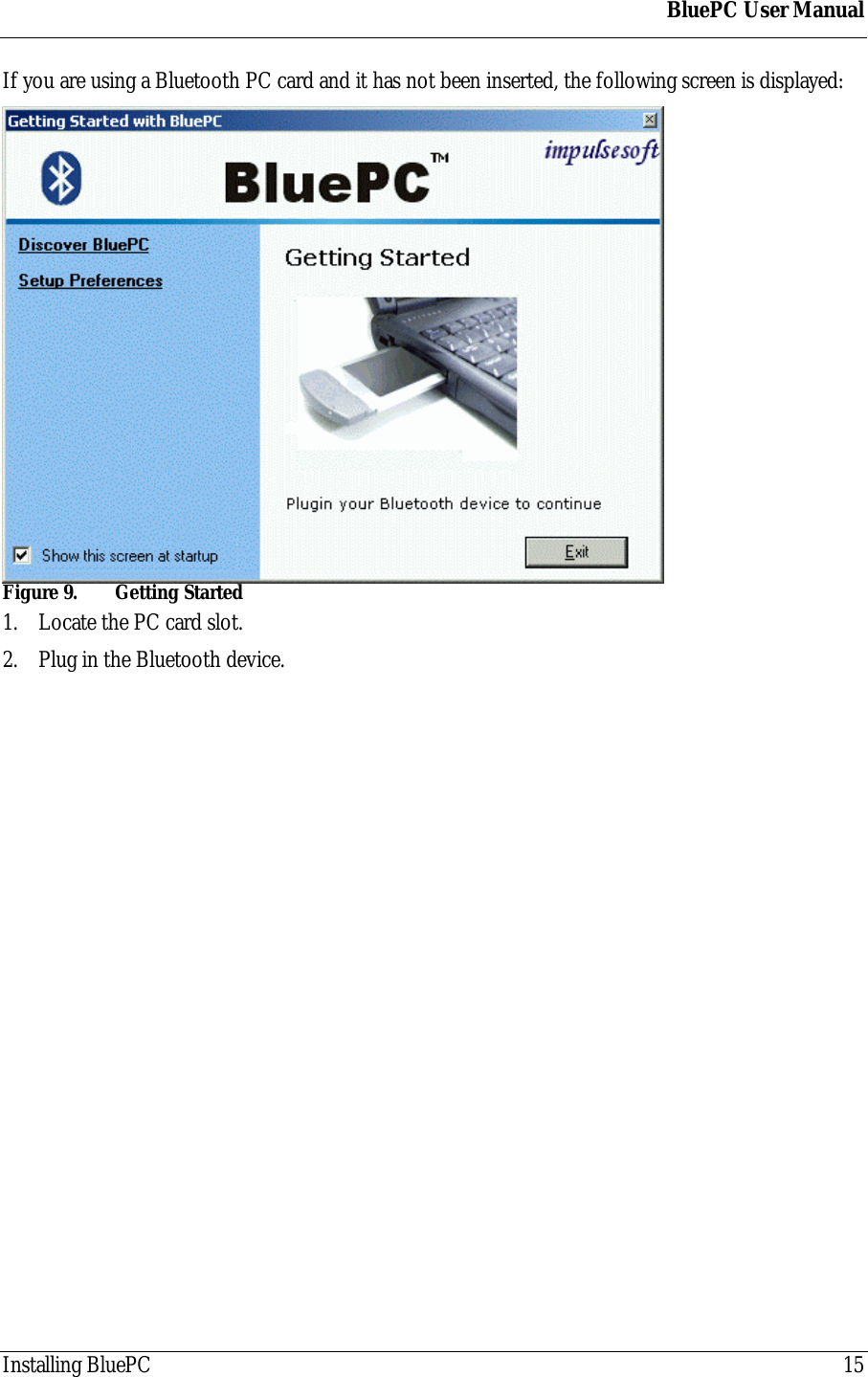
BluePC User ManualInstalling BluePC 15If you are using a Bluetooth PC card and it has not been inserted, the following screen is displayed:Figure 9.  Getting Started1. Locate the PC card slot.2. Plug in the Bluetooth device.
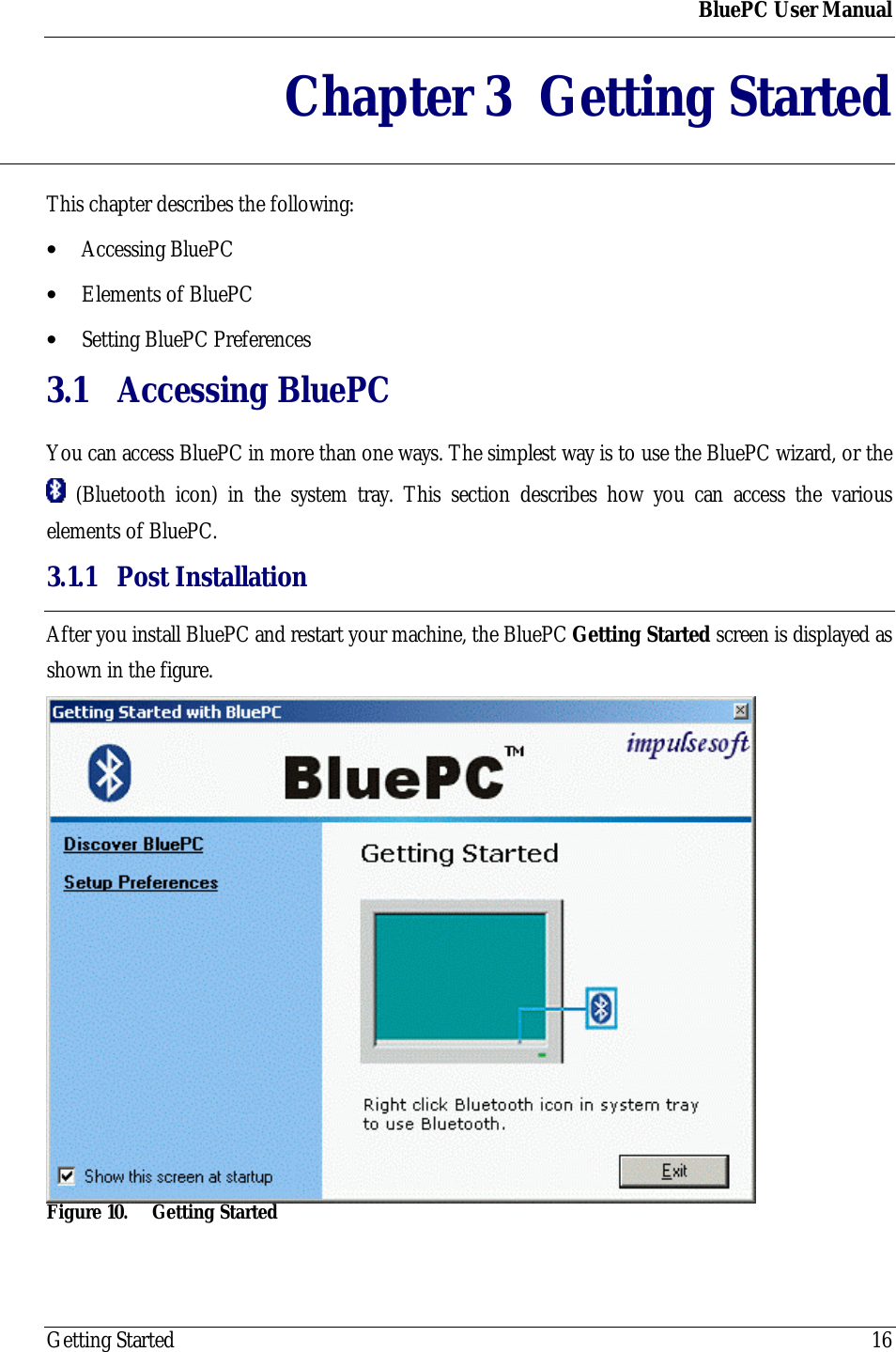
BluePC User ManualGetting Started 16Chapter 3 Getting StartedThis chapter describes the following:• Accessing BluePC• Elements of BluePC• Setting BluePC Preferences3.1 Accessing BluePCYou can access BluePC in more than one ways. The simplest way is to use the BluePC wizard, or the (Bluetooth icon) in the system tray. This section describes how you can access the variouselements of BluePC.3.1.1 Post InstallationAfter you install BluePC and restart your machine, the BluePC Getting Started screen is displayed asshown in the figure.Figure 10. Getting Started
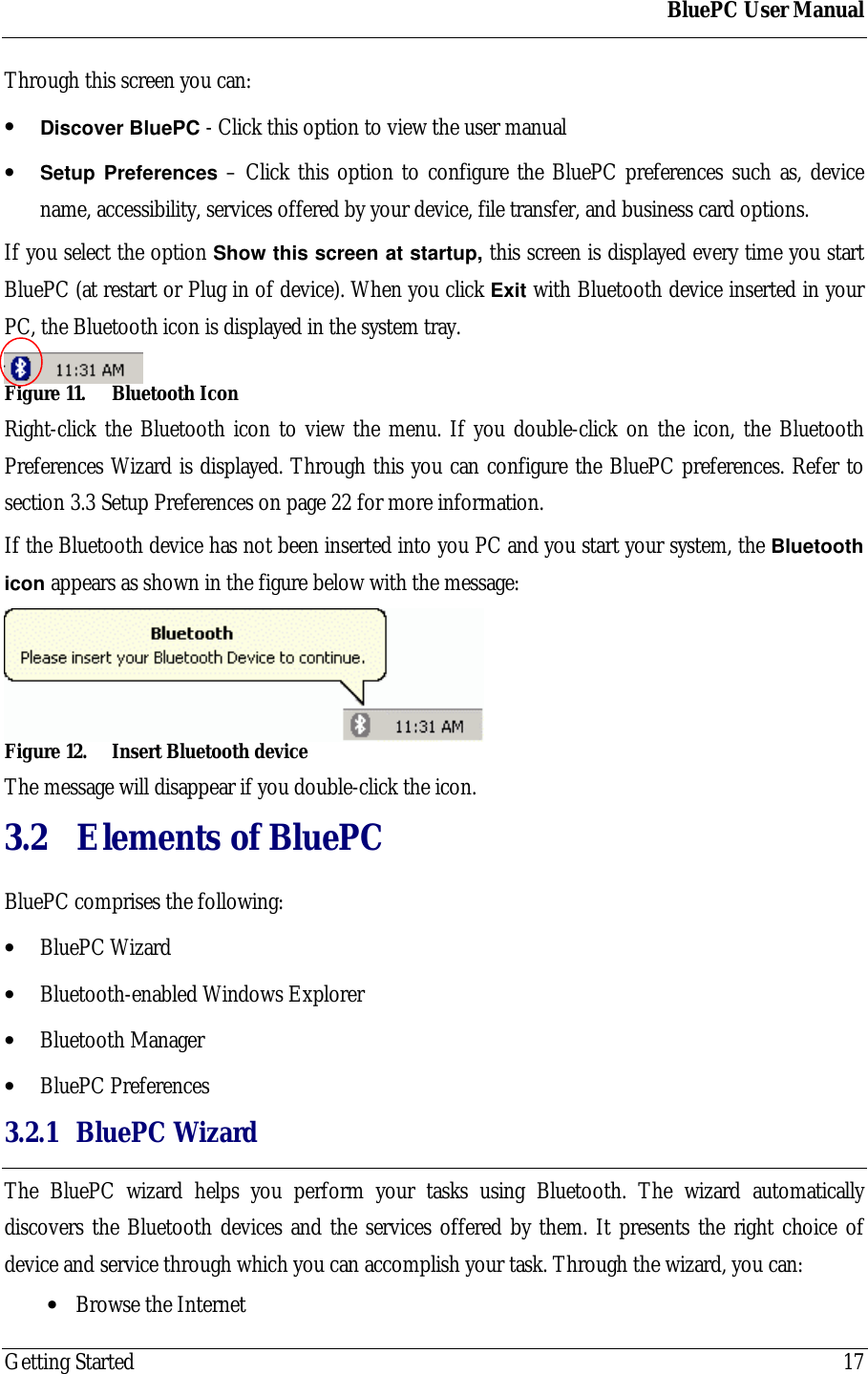
BluePC User ManualGetting Started 17Through this screen you can:• Discover BluePC - Click this option to view the user manual• Setup Preferences – Click this option to configure the BluePC preferences such as, devicename, accessibility, services offered by your device, file transfer, and business card options.If you select the option Show this screen at startup, this screen is displayed every time you startBluePC (at restart or Plug in of device). When you click Exit with Bluetooth device inserted in yourPC, the Bluetooth icon is displayed in the system tray.Figure 11. Bluetooth IconRight-click the Bluetooth icon to view the menu. If you double-click on the icon, the BluetoothPreferences Wizard is displayed. Through this you can configure the BluePC preferences. Refer tosection 3.3 Setup Preferences on page 22 for more information.If the Bluetooth device has not been inserted into you PC and you start your system, the Bluetoothicon appears as shown in the figure below with the message:Figure 12. Insert Bluetooth deviceThe message will disappear if you double-click the icon.3.2 Elements of BluePCBluePC comprises the following:• BluePC Wizard• Bluetooth-enabled Windows Explorer• Bluetooth Manager• BluePC Preferences3.2.1 BluePC WizardThe BluePC wizard helps you perform your tasks using Bluetooth. The wizard automaticallydiscovers the Bluetooth devices and the services offered by them. It presents the right choice ofdevice and service through which you can accomplish your task. Through the wizard, you can:• Browse the Internet
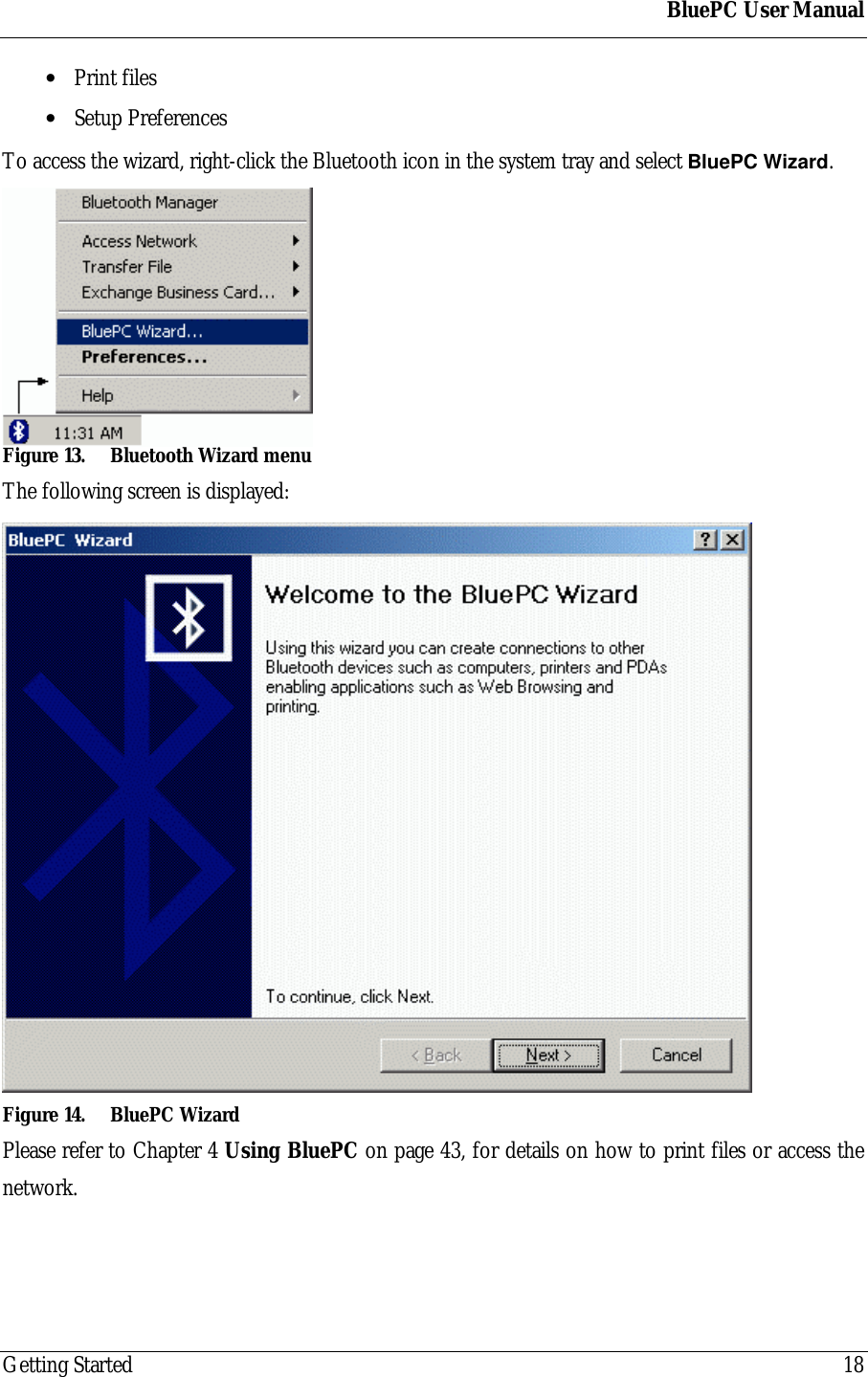
BluePC User ManualGetting Started 18• Print files• Setup PreferencesTo access the wizard, right-click the Bluetooth icon in the system tray and select BluePC Wizard.Figure 13. Bluetooth Wizard menuThe following screen is displayed:Figure 14. BluePC WizardPlease refer to Chapter 4 Using BluePC on page 43, for details on how to print files or access thenetwork.
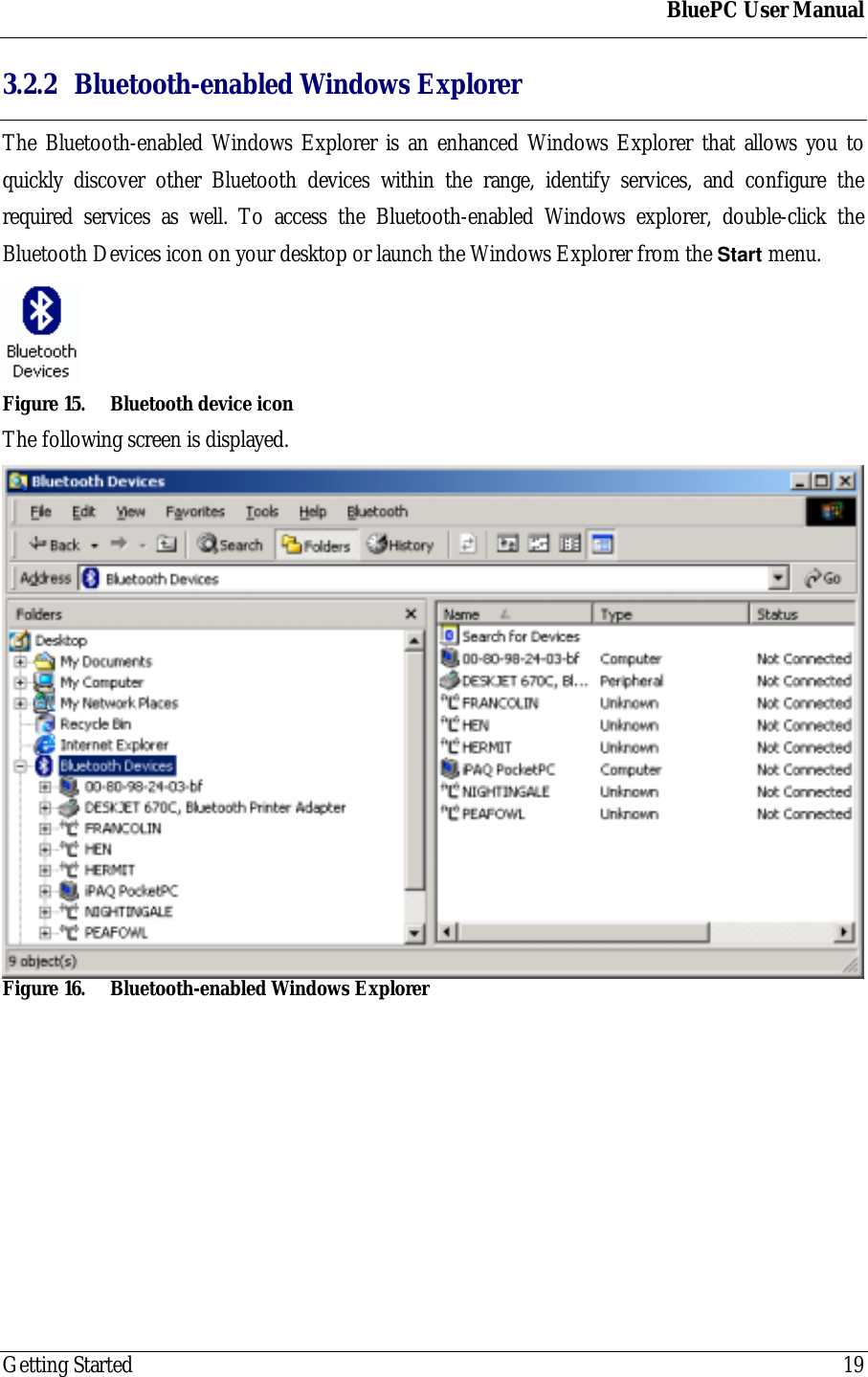
BluePC User ManualGetting Started 193.2.2 Bluetooth-enabled Windows ExplorerThe Bluetooth-enabled Windows Explorer is an enhanced Windows Explorer that allows you toquickly discover other Bluetooth devices within the range, identify services, and configure therequired services as well. To access the Bluetooth-enabled Windows explorer, double-click theBluetooth Devices icon on your desktop or launch the Windows Explorer from the Start menu.Figure 15. Bluetooth device iconThe following screen is displayed.Figure 16. Bluetooth-enabled Windows Explorer
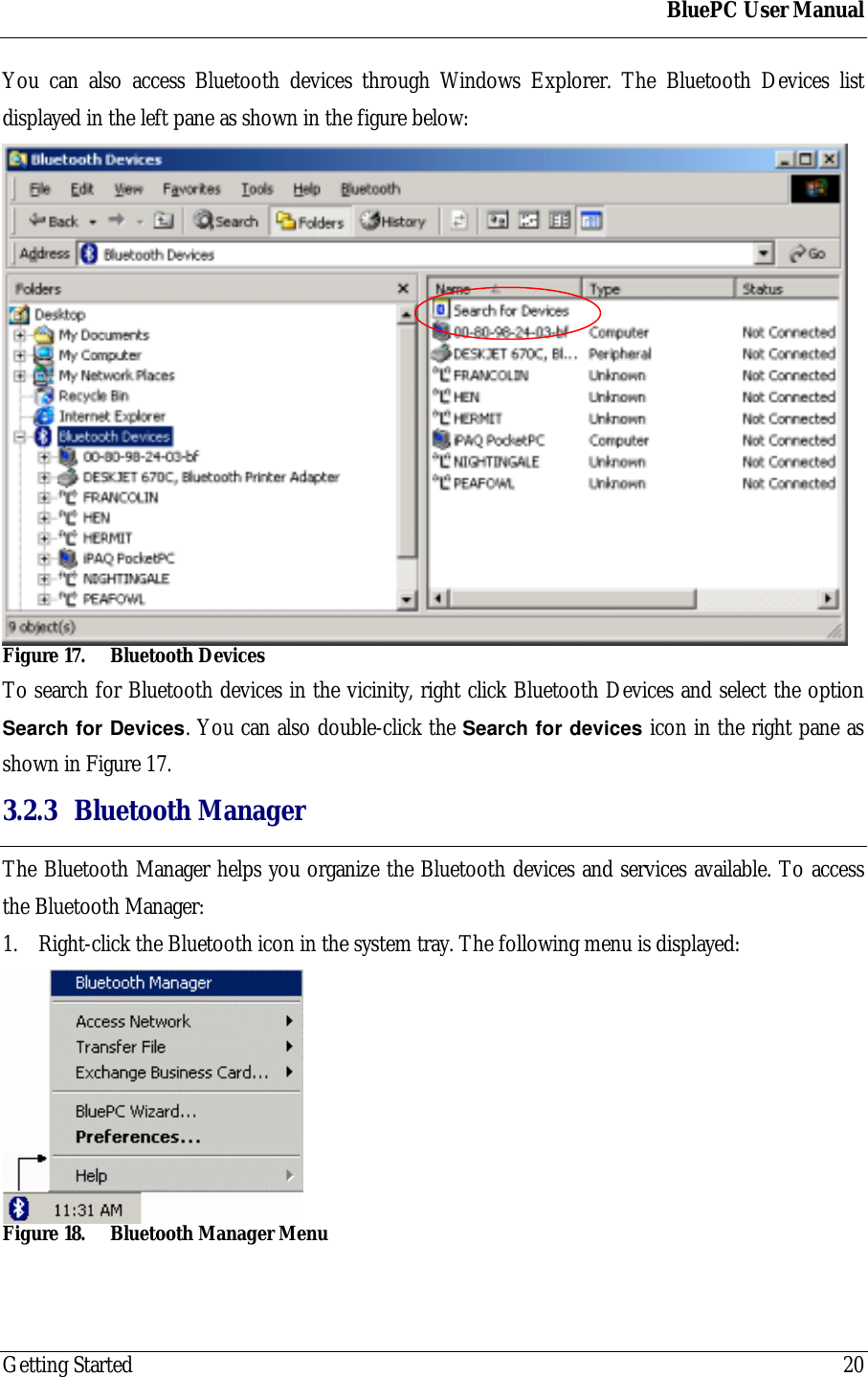
BluePC User ManualGetting Started 20You can also access Bluetooth devices through Windows Explorer. The Bluetooth Devices listdisplayed in the left pane as shown in the figure below:Figure 17. Bluetooth DevicesTo search for Bluetooth devices in the vicinity, right click Bluetooth Devices and select the optionSearch for Devices. You can also double-click the Search for devices icon in the right pane asshown in Figure 17.3.2.3 Bluetooth ManagerThe Bluetooth Manager helps you organize the Bluetooth devices and services available. To accessthe Bluetooth Manager:1. Right-click the Bluetooth icon in the system tray. The following menu is displayed:Figure 18. Bluetooth Manager Menu
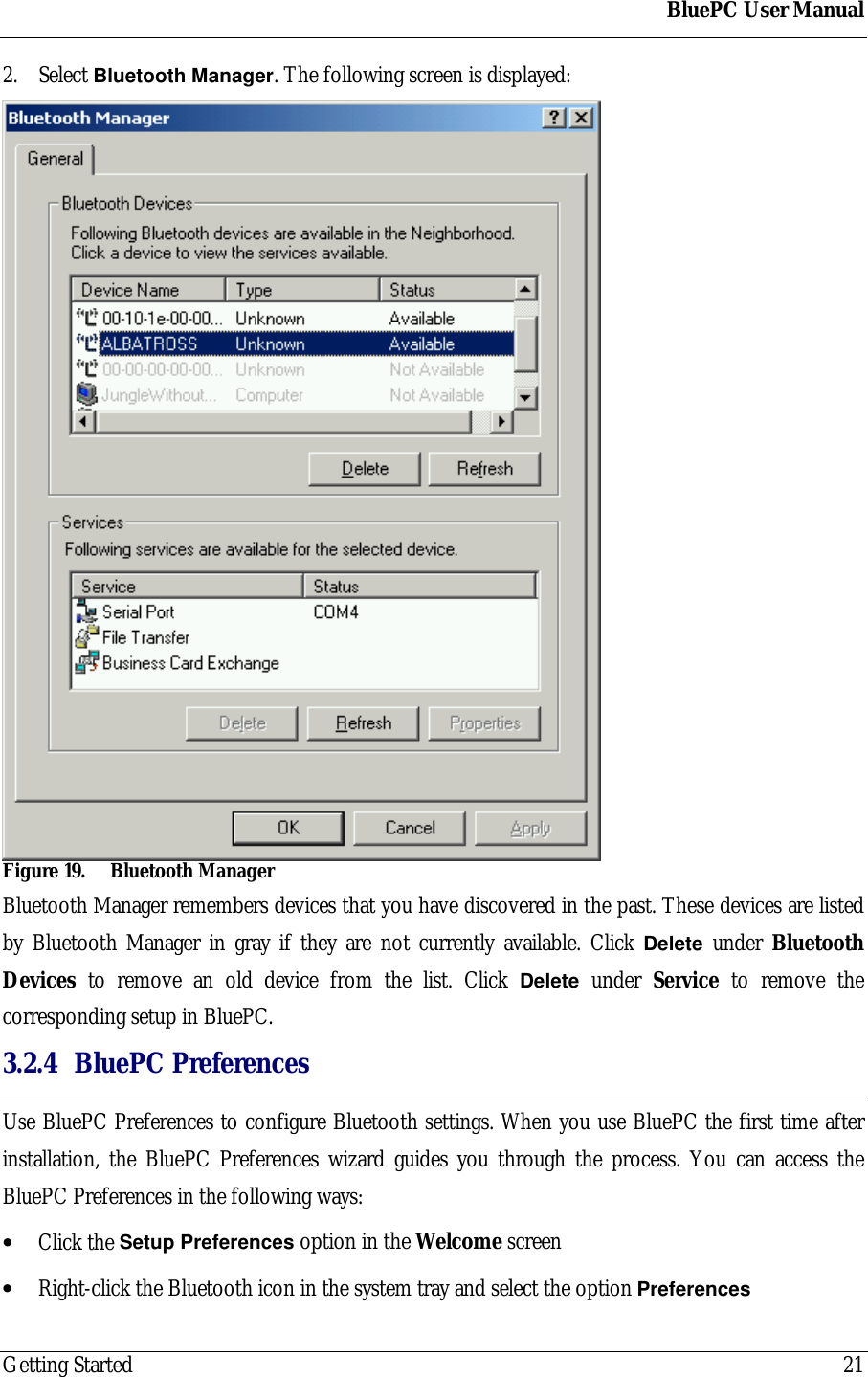
BluePC User ManualGetting Started 212. Select Bluetooth Manager. The following screen is displayed:Figure 19. Bluetooth ManagerBluetooth Manager remembers devices that you have discovered in the past. These devices are listedby Bluetooth Manager in gray if they are not currently available. Click Delete under BluetoothDevices to remove an old device from the list. Click Delete under Service to remove thecorresponding setup in BluePC.3.2.4 BluePC PreferencesUse BluePC Preferences to configure Bluetooth settings. When you use BluePC the first time afterinstallation, the BluePC Preferences wizard guides you through the process. You can access theBluePC Preferences in the following ways:• Click the Setup Preferences option in the Welcome screen• Right-click the Bluetooth icon in the system tray and select the option Preferences
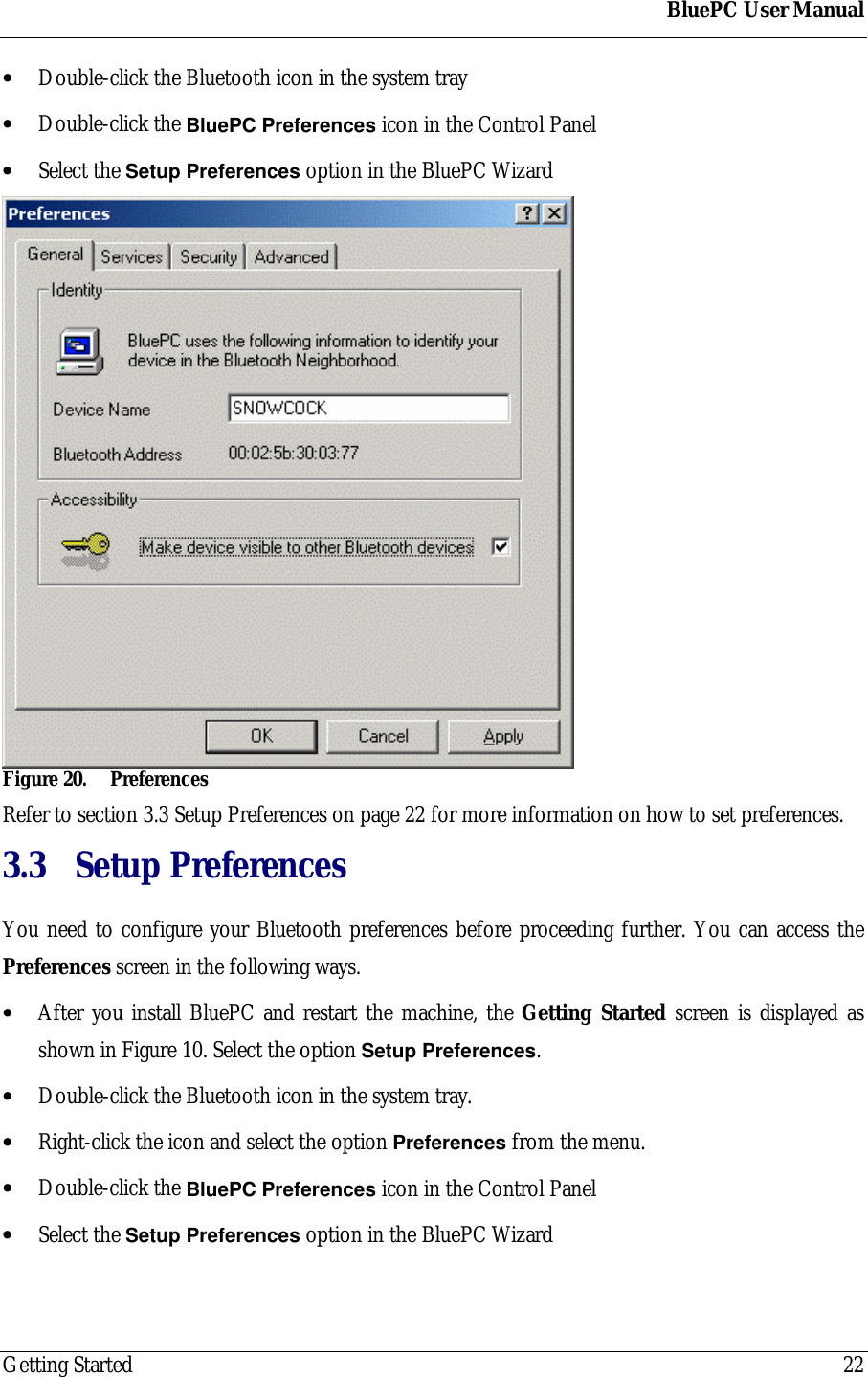
BluePC User ManualGetting Started 22• Double-click the Bluetooth icon in the system tray• Double-click the BluePC Preferences icon in the Control Panel• Select the Setup Preferences option in the BluePC WizardFigure 20. PreferencesRefer to section 3.3 Setup Preferences on page 22 for more information on how to set preferences.3.3 Setup PreferencesYou need to configure your Bluetooth preferences before proceeding further. You can access thePreferences screen in the following ways.• After you install BluePC and restart the machine, the Getting Started screen is displayed asshown in Figure 10. Select the option Setup Preferences.• Double-click the Bluetooth icon in the system tray.• Right-click the icon and select the option Preferences from the menu.• Double-click the BluePC Preferences icon in the Control Panel• Select the Setup Preferences option in the BluePC Wizard
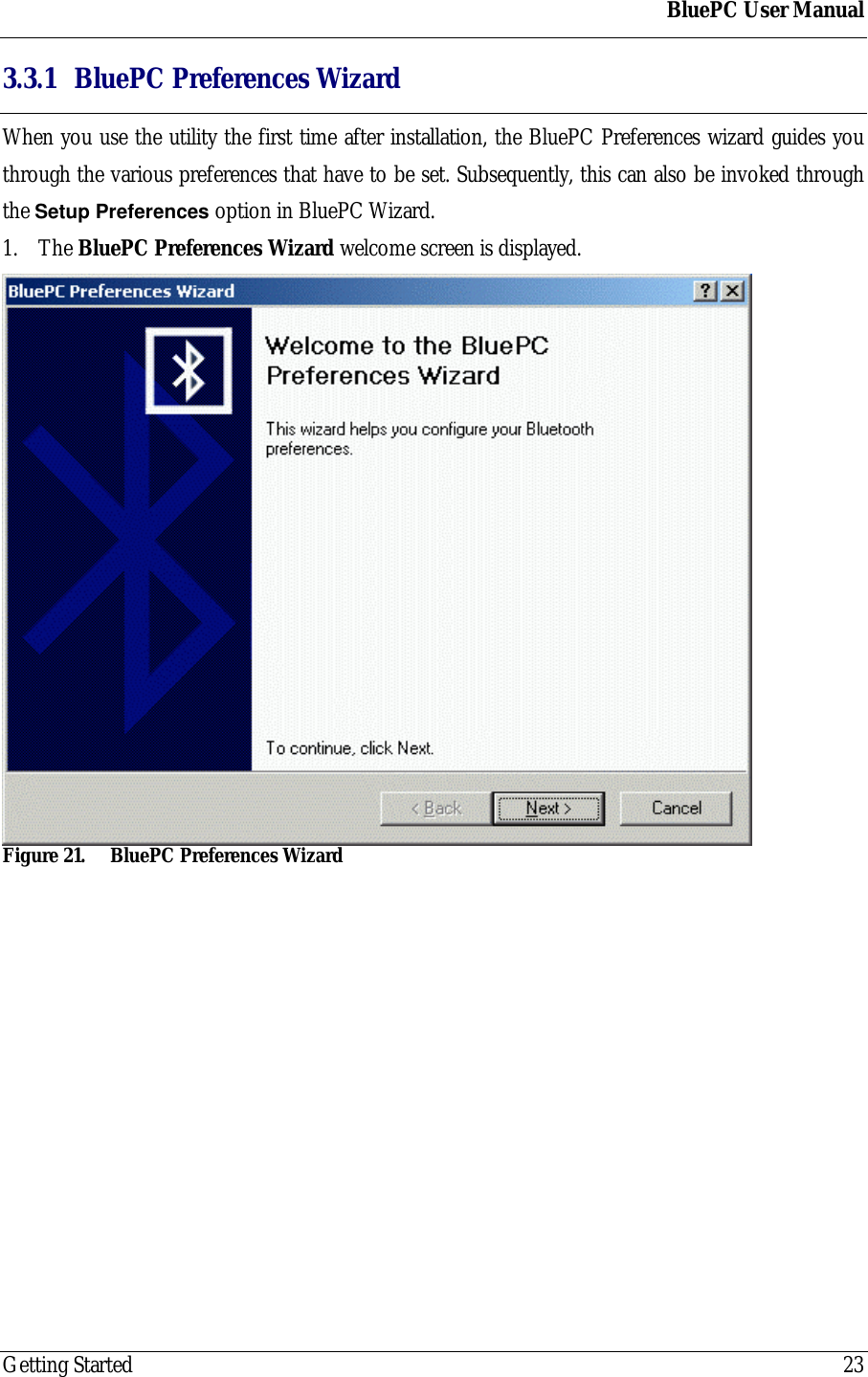
BluePC User ManualGetting Started 233.3.1 BluePC Preferences WizardWhen you use the utility the first time after installation, the BluePC Preferences wizard guides youthrough the various preferences that have to be set. Subsequently, this can also be invoked throughthe Setup Preferences option in BluePC Wizard.1. The BluePC Preferences Wizard welcome screen is displayed.Figure 21. BluePC Preferences Wizard
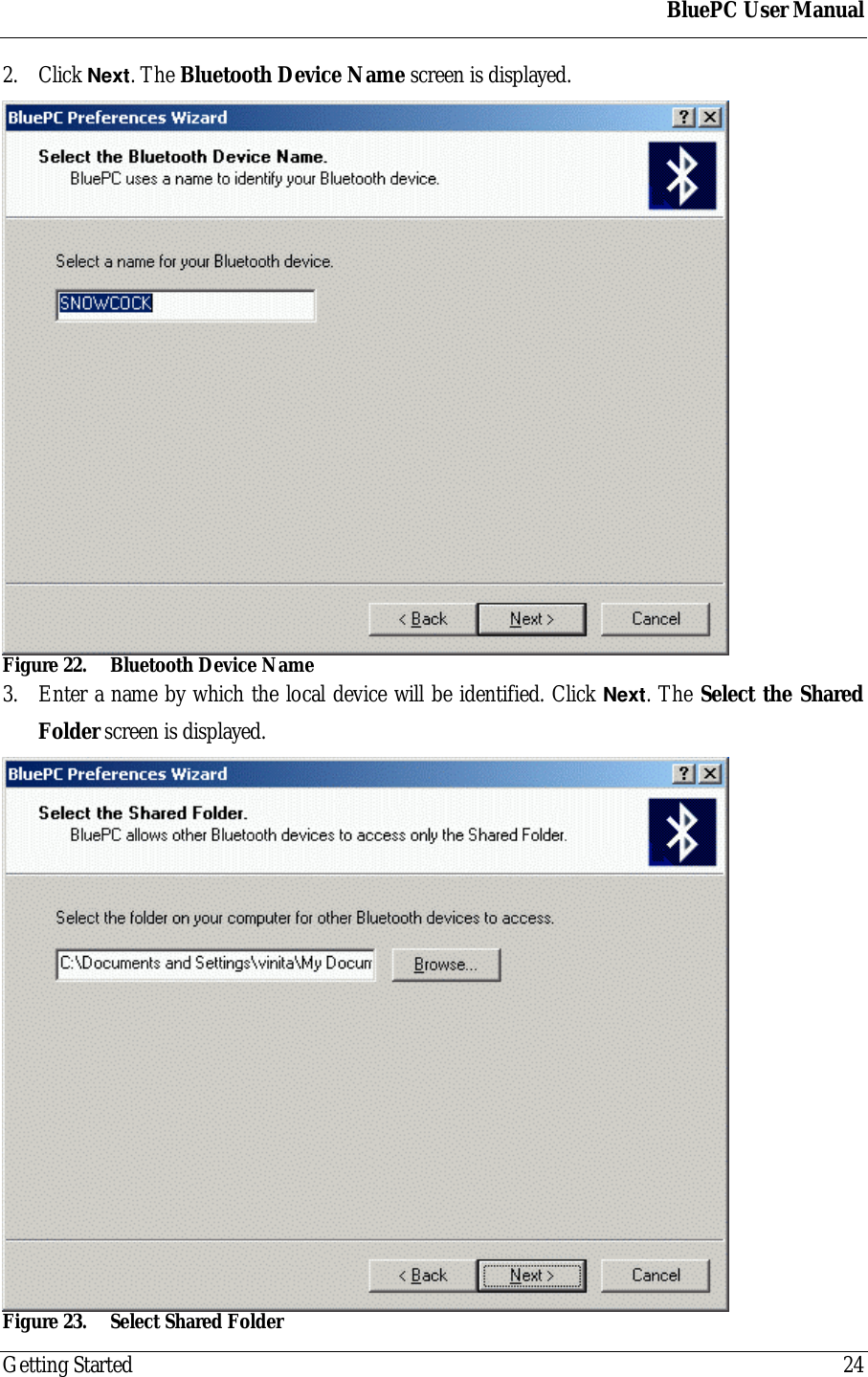
BluePC User ManualGetting Started 242. Click Next. The Bluetooth Device Name screen is displayed.Figure 22. Bluetooth Device Name3. Enter a name by which the local device will be identified. Click Next. The Select the SharedFolder screen is displayed.Figure 23. Select Shared Folder
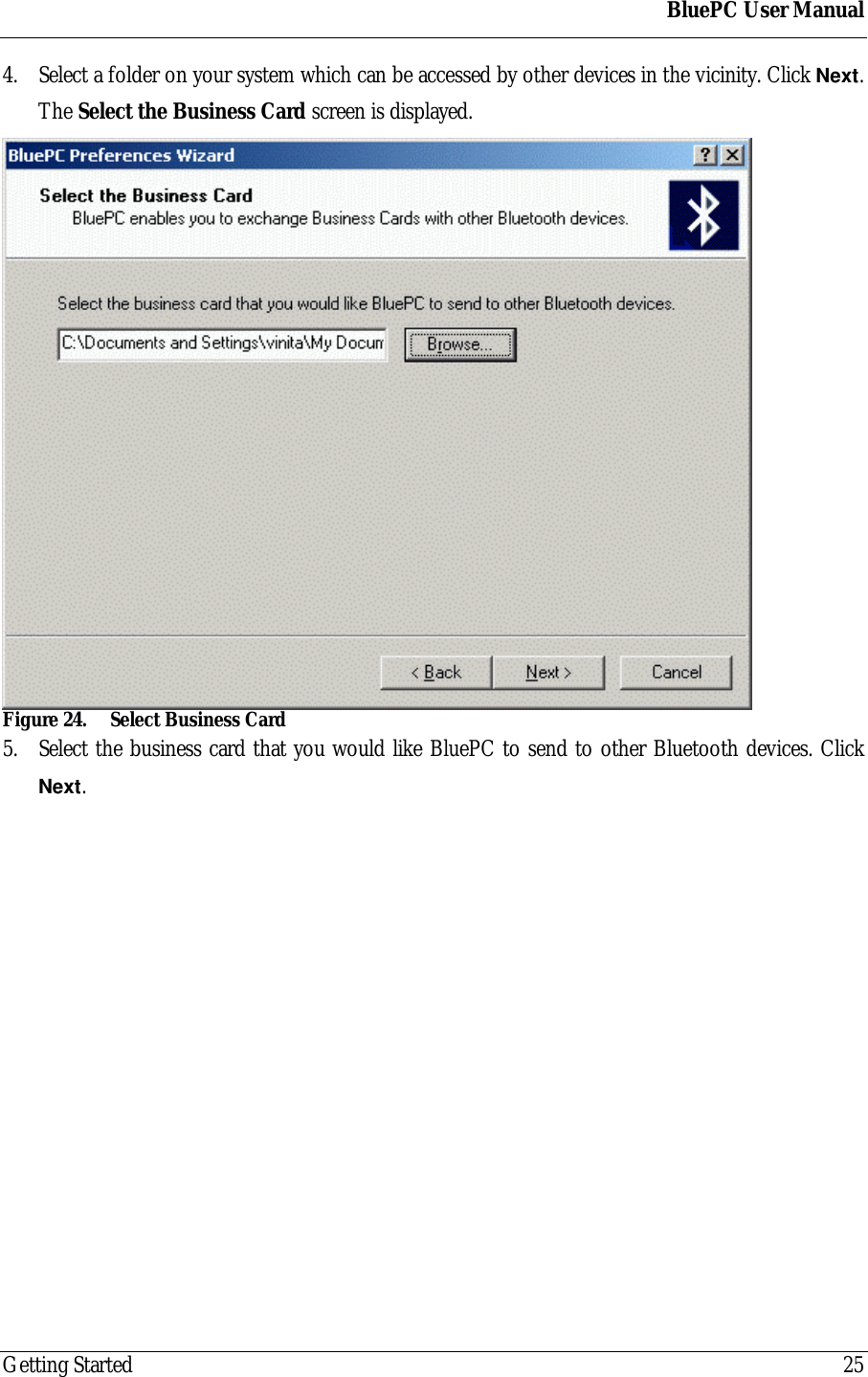
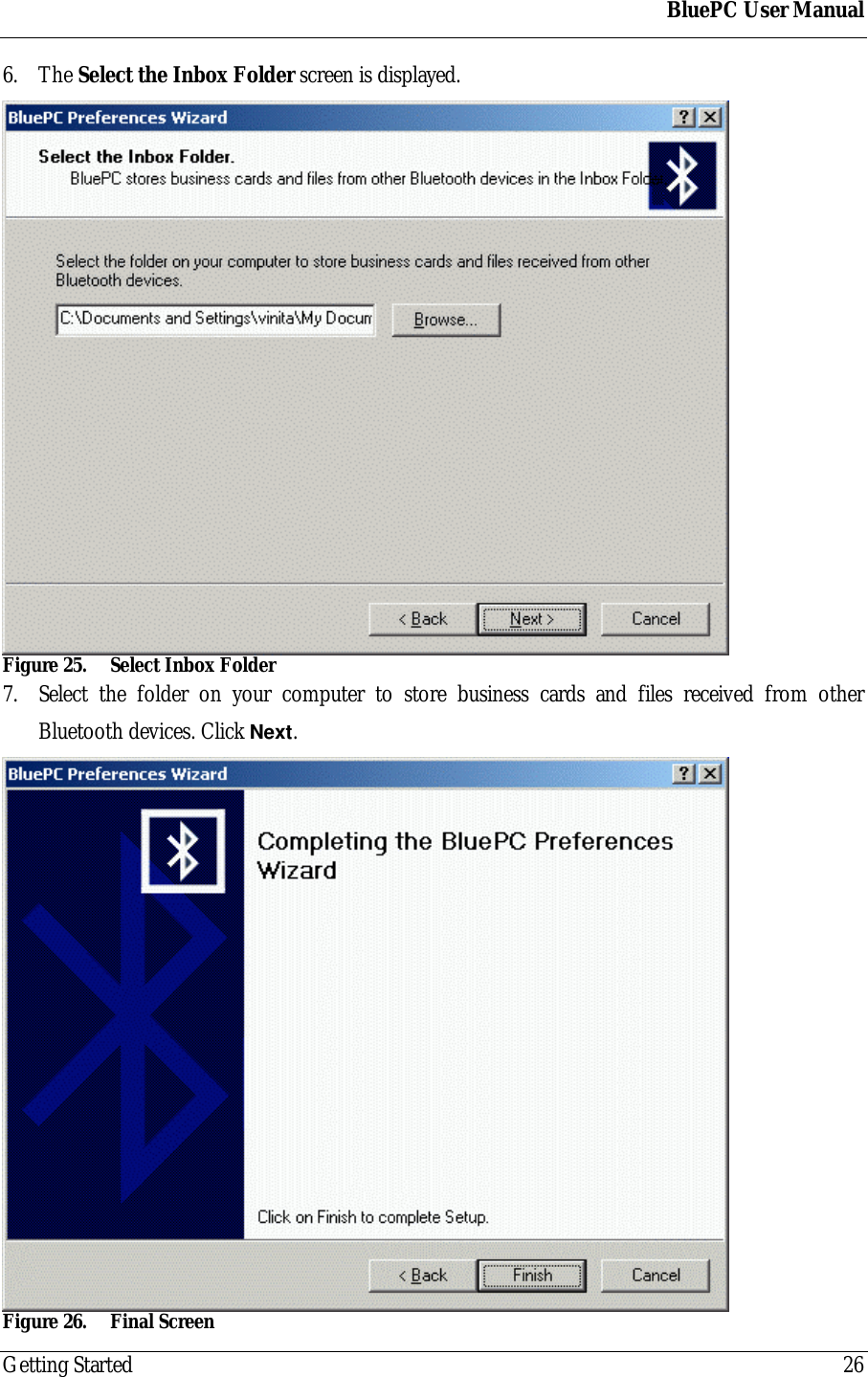
BluePC User ManualGetting Started 254. Select a folder on your system which can be accessed by other devices in the vicinity. Click Next.The Select the Business Card screen is displayed.Figure 24. Select Business Card5. Select the business card that you would like BluePC to send to other Bluetooth devices. ClickNext.
BluePC User ManualGetting Started 266. The Select the Inbox Folder screen is displayed.Figure 25. Select Inbox Folder7. Select the folder on your computer to store business cards and files received from otherBluetooth devices. Click Next.Figure 26. Final Screen
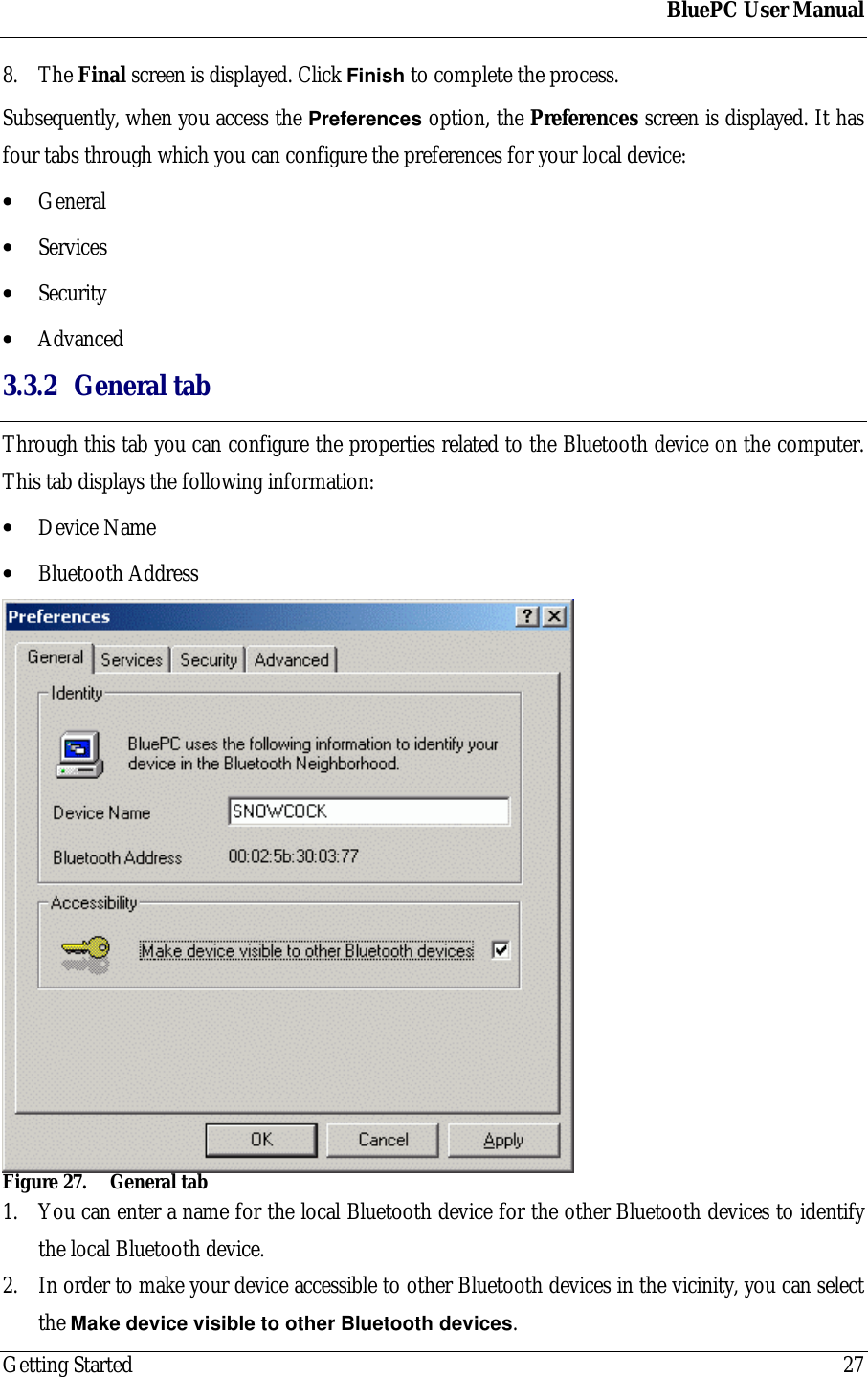
BluePC User ManualGetting Started 278. The Final screen is displayed. Click Finish to complete the process.Subsequently, when you access the Preferences option, the Preferences screen is displayed. It hasfour tabs through which you can configure the preferences for your local device:• General• Services• Security• Advanced3.3.2 General tabThrough this tab you can configure the properties related to the Bluetooth device on the computer.This tab displays the following information:• Device Name• Bluetooth AddressFigure 27. General tab1. You can enter a name for the local Bluetooth device for the other Bluetooth devices to identifythe local Bluetooth device.2. In order to make your device accessible to other Bluetooth devices in the vicinity, you can selectthe Make device visible to other Bluetooth devices.
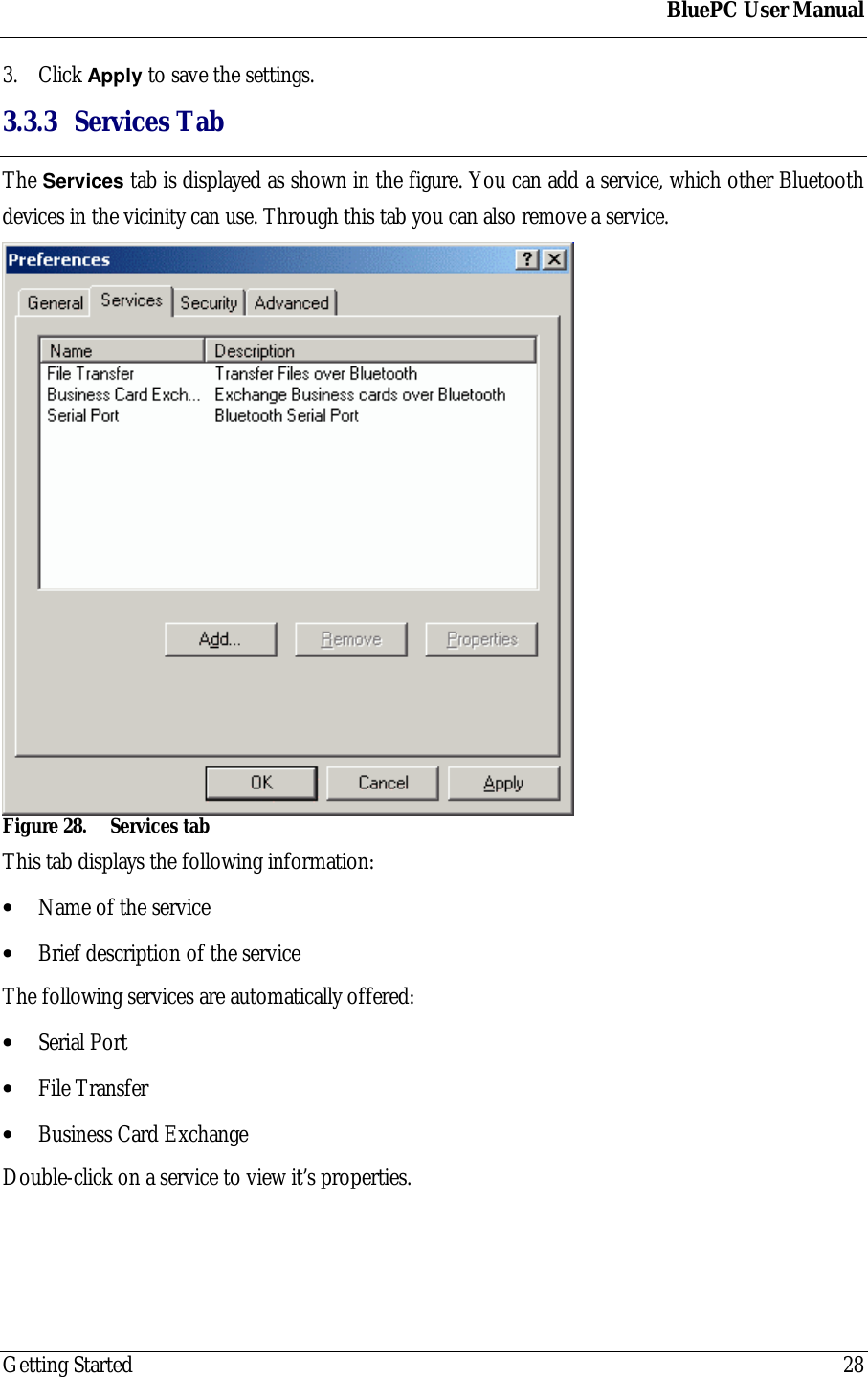
BluePC User ManualGetting Started 283. Click Apply to save the settings.3.3.3 Services TabThe Services tab is displayed as shown in the figure. You can add a service, which other Bluetoothdevices in the vicinity can use. Through this tab you can also remove a service.Figure 28. Services tabThis tab displays the following information:• Name of the service• Brief description of the serviceThe following services are automatically offered:• Serial Port• File Transfer• Business Card ExchangeDouble-click on a service to view it’s properties.
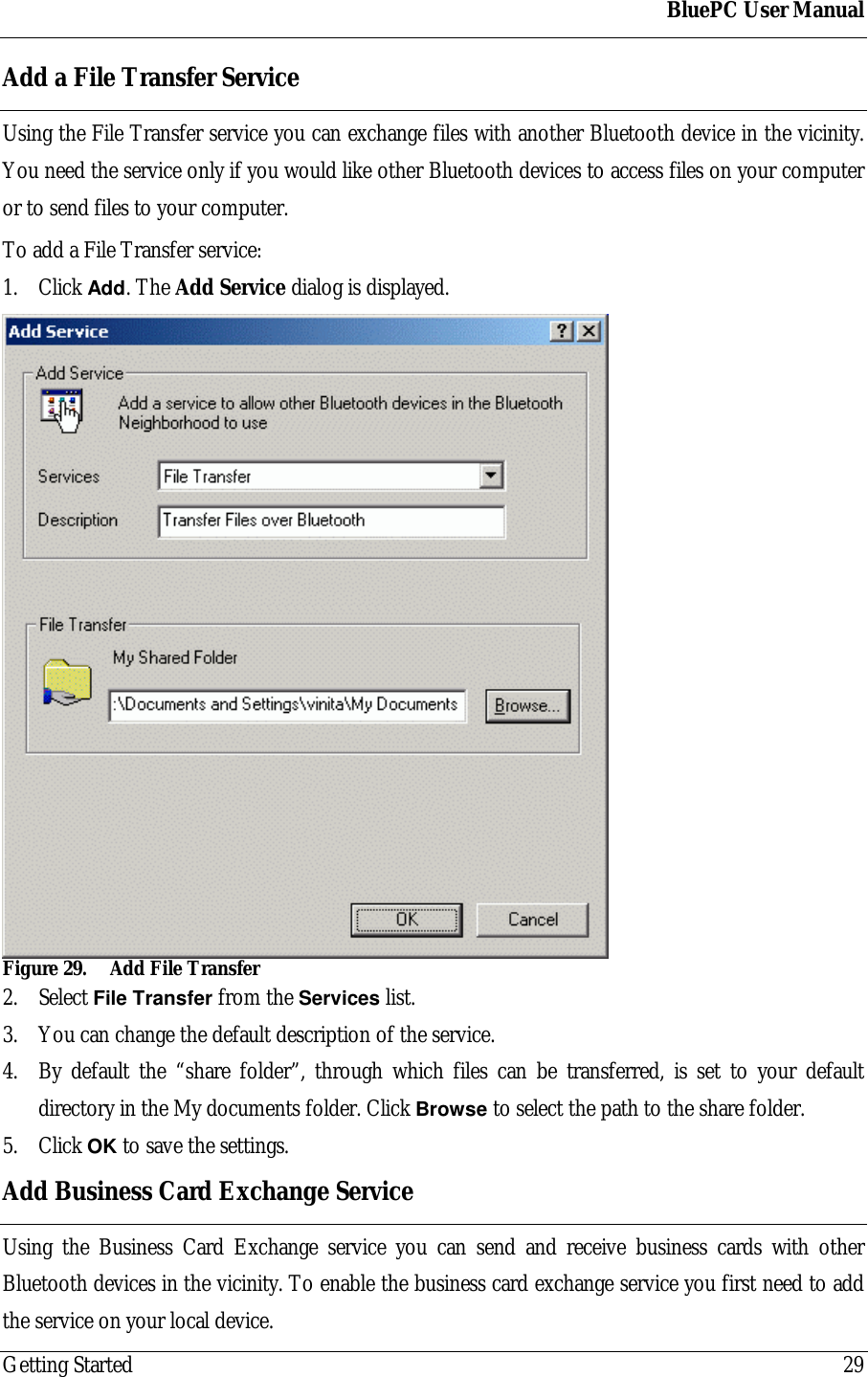
BluePC User ManualGetting Started 29Add a File Transfer ServiceUsing the File Transfer service you can exchange files with another Bluetooth device in the vicinity.You need the service only if you would like other Bluetooth devices to access files on your computeror to send files to your computer.To add a File Transfer service:1. Click Add. The Add Service dialog is displayed.Figure 29. Add File Transfer2. Select File Transfer from the Services list.3. You can change the default description of the service.4. By default the “share folder”, through which files can be transferred, is set to your defaultdirectory in the My documents folder. Click Browse to select the path to the share folder.5. Click OK to save the settings.Add Business Card Exchange ServiceUsing the Business Card Exchange service you can send and receive business cards with otherBluetooth devices in the vicinity. To enable the business card exchange service you first need to addthe service on your local device.
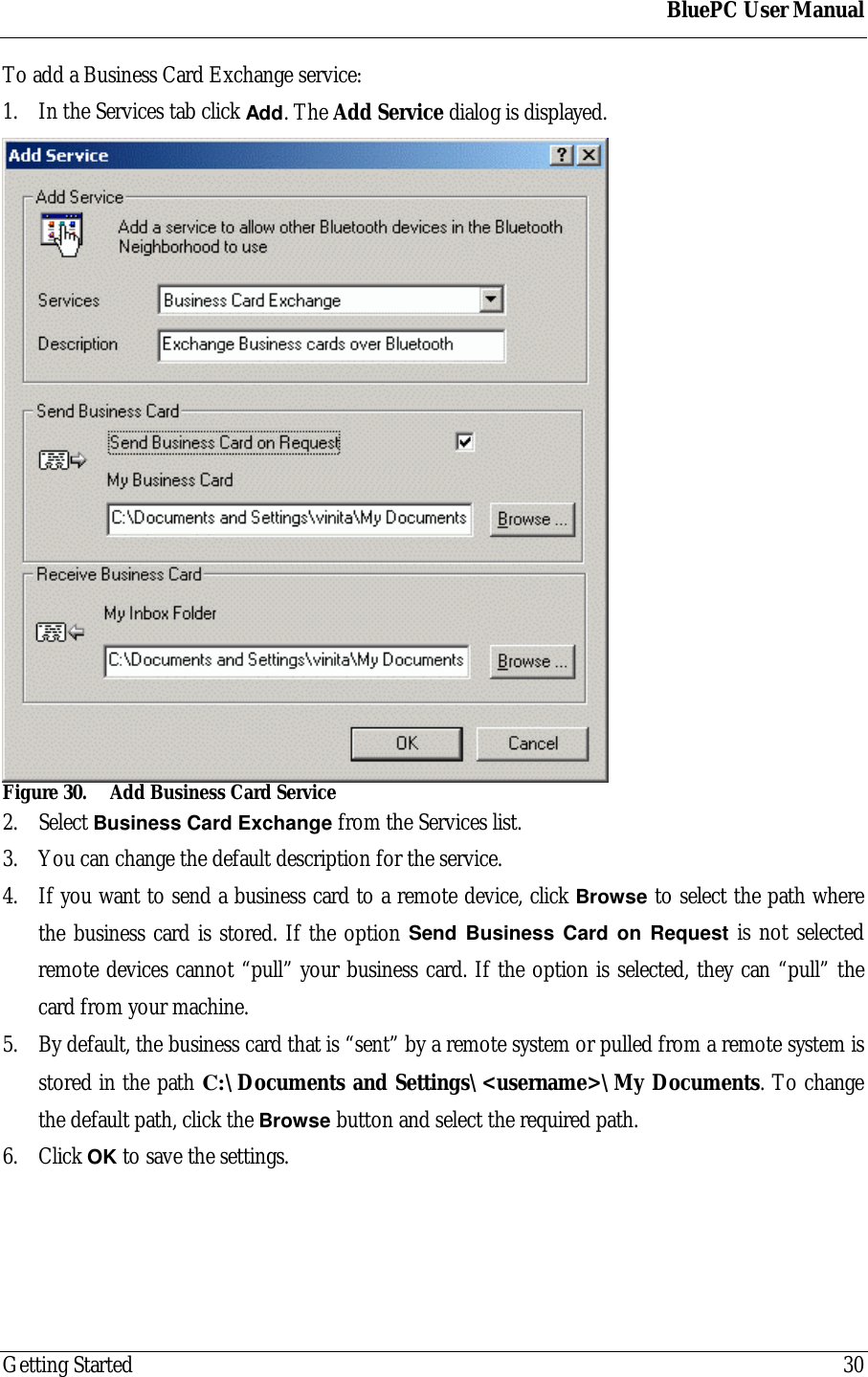
BluePC User ManualGetting Started 30To add a Business Card Exchange service:1. In the Services tab click Add. The Add Service dialog is displayed.Figure 30. Add Business Card Service2. Select Business Card Exchange from the Services list.3. You can change the default description for the service.4. If you want to send a business card to a remote device, click Browse to select the path wherethe business card is stored. If the option Send Business Card on Request is not selectedremote devices cannot “pull” your business card. If the option is selected, they can “pull” thecard from your machine.5. By default, the business card that is “sent” by a remote system or pulled from a remote system isstored in the path C:\Documents and Settings\<username>\My Documents. To changethe default path, click the Browse button and select the required path.6. Click OK to save the settings.
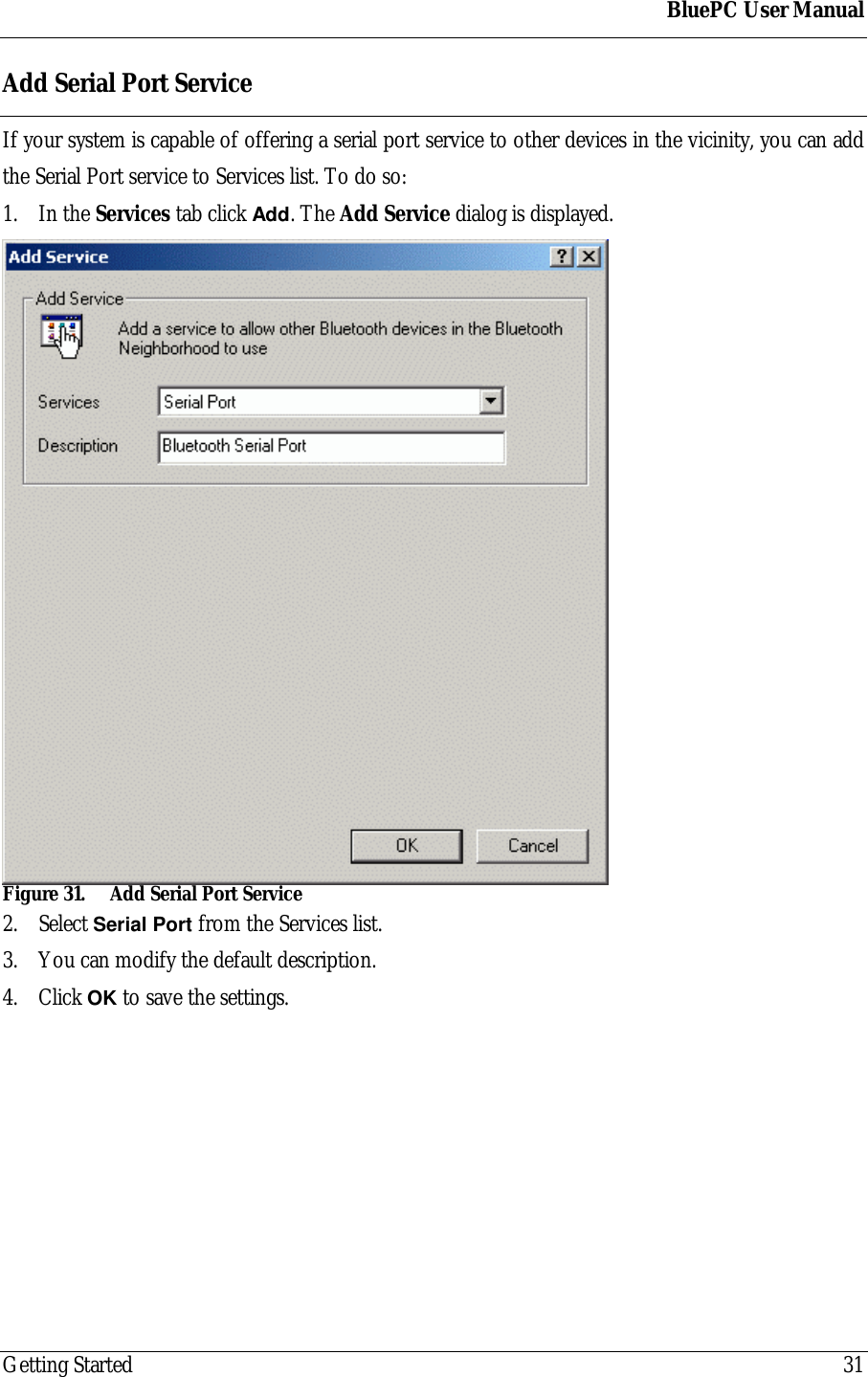
BluePC User ManualGetting Started 31Add Serial Port ServiceIf your system is capable of offering a serial port service to other devices in the vicinity, you can addthe Serial Port service to Services list. To do so:1. In the Services tab click Add. The Add Service dialog is displayed.Figure 31. Add Serial Port Service2. Select Serial Port from the Services list.3. You can modify the default description.4. Click OK to save the settings.
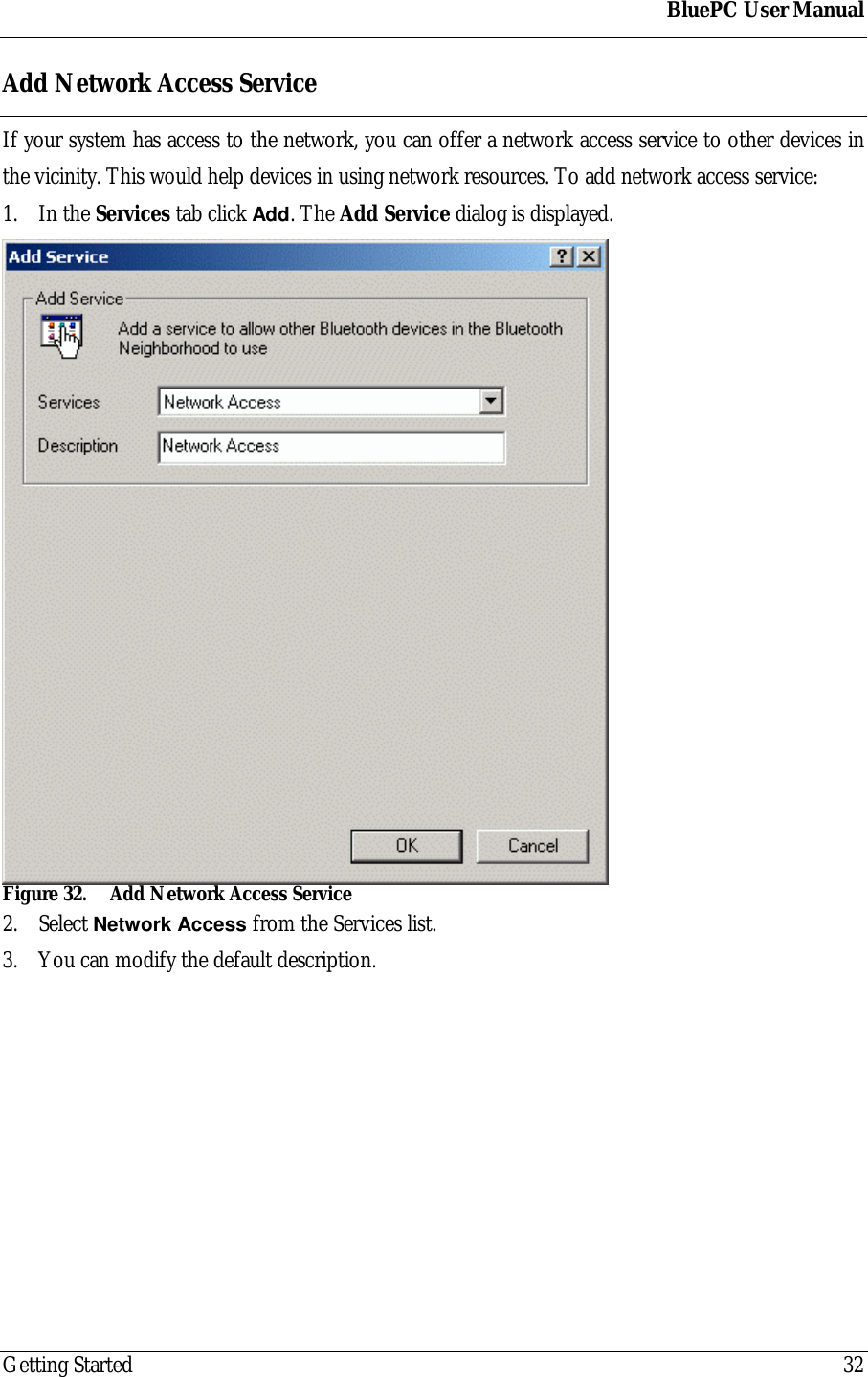
BluePC User ManualGetting Started 32Add Network Access ServiceIf your system has access to the network, you can offer a network access service to other devices inthe vicinity. This would help devices in using network resources. To add network access service:1. In the Services tab click Add. The Add Service dialog is displayed.Figure 32. Add Network Access Service2. Select Network Access from the Services list.3. You can modify the default description.
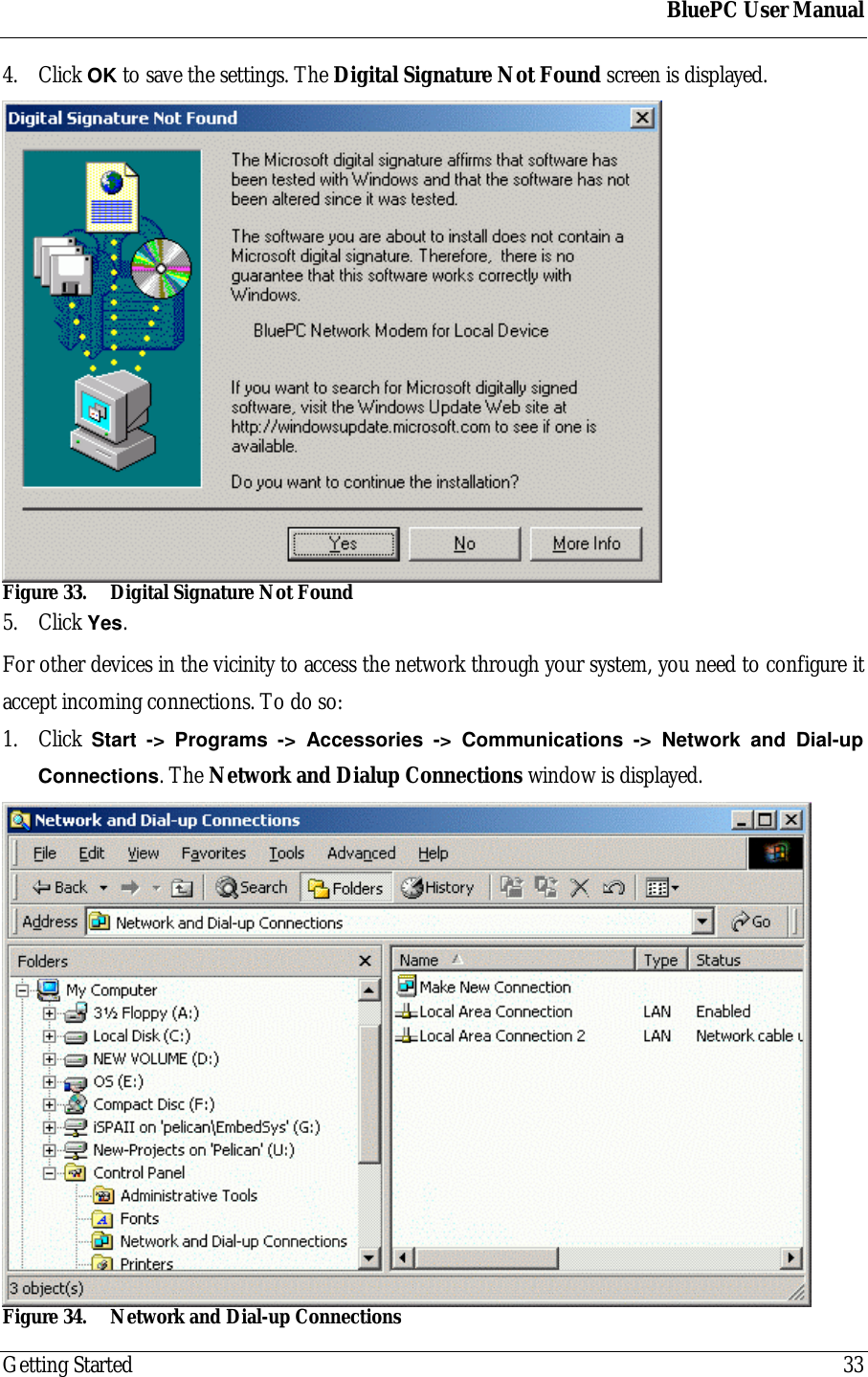
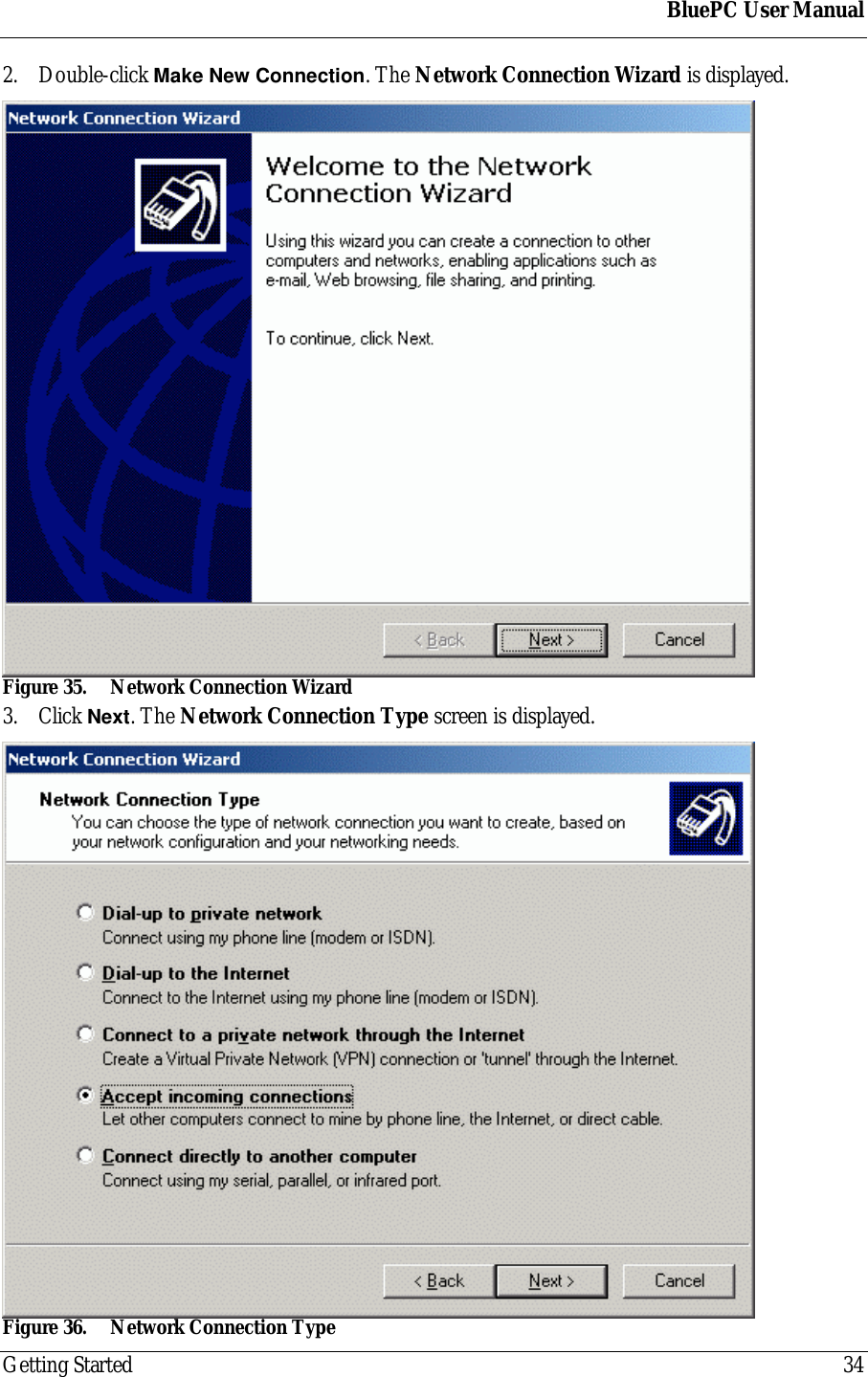
BluePC User ManualGetting Started 334. Click OK to save the settings. The Digital Signature Not Found screen is displayed.Figure 33. Digital Signature Not Found5. Click Yes.For other devices in the vicinity to access the network through your system, you need to configure itaccept incoming connections. To do so:1. Click  Start -> Programs -> Accessories -> Communications -> Network and Dial-upConnections. The Network and Dialup Connections window is displayed.Figure 34. Network and Dial-up Connections
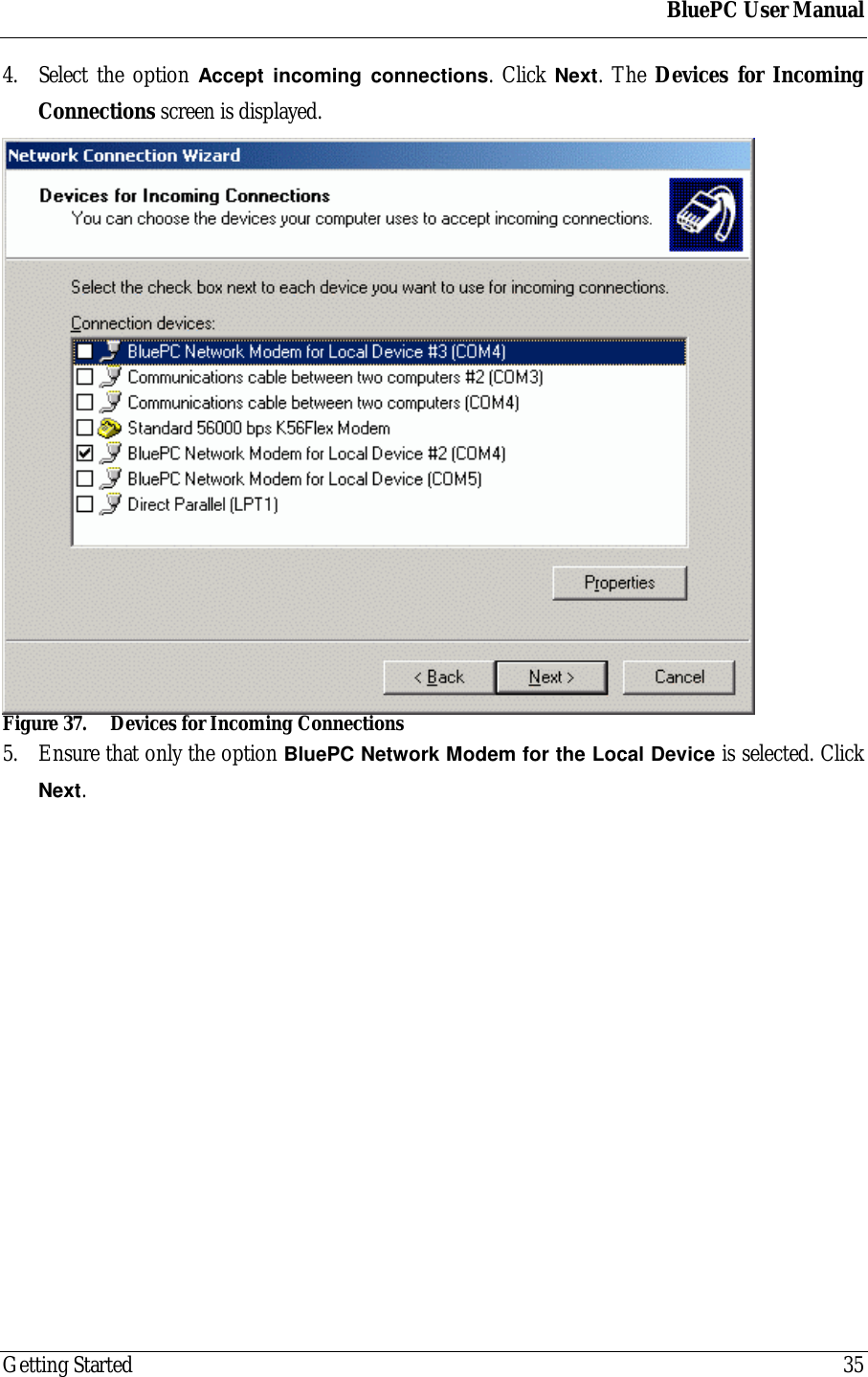
BluePC User ManualGetting Started 342. Double-click Make New Connection. The Network Connection Wizard is displayed.Figure 35. Network Connection Wizard3. Click Next. The Network Connection Type screen is displayed.Figure 36. Network Connection Type
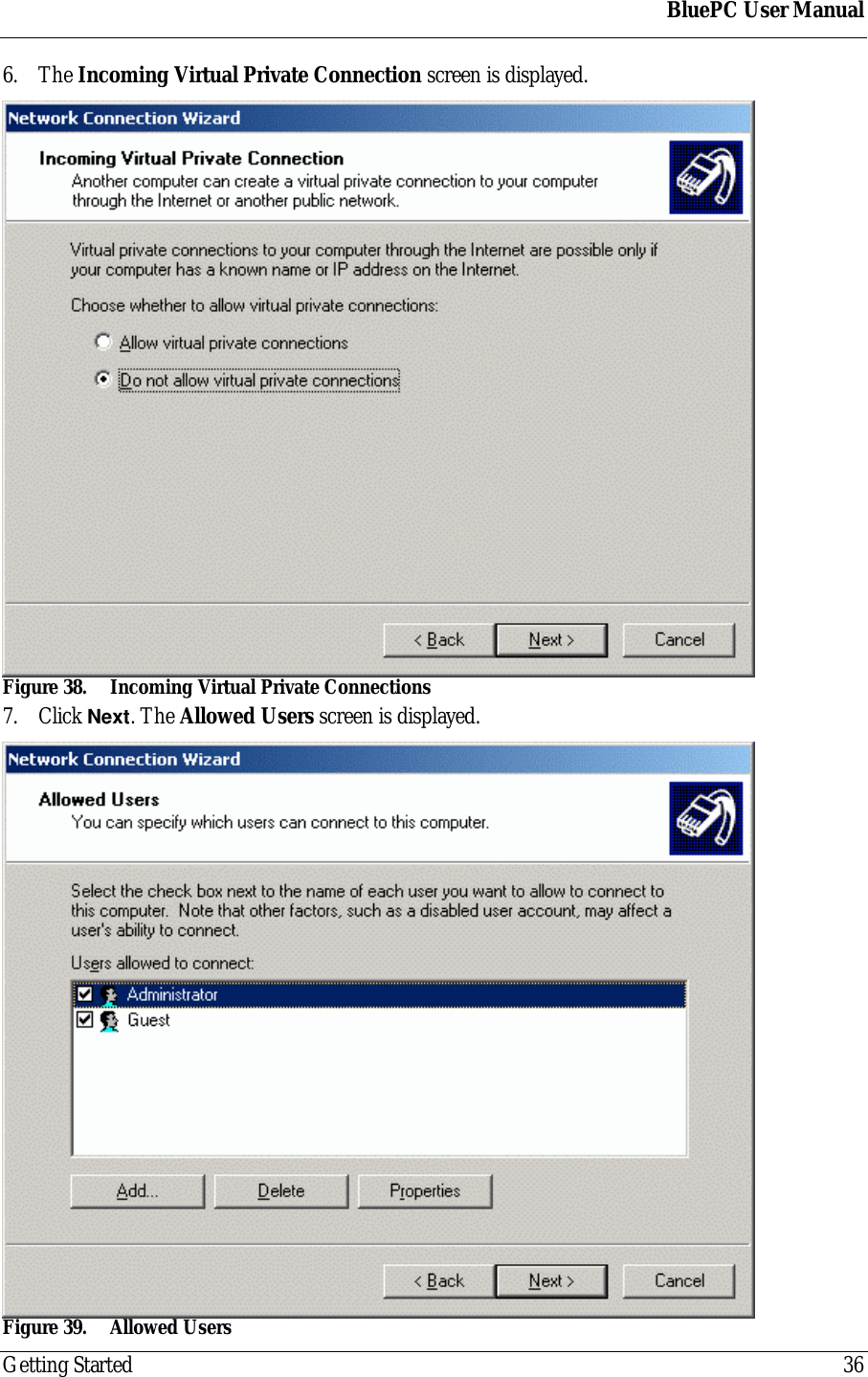
BluePC User ManualGetting Started 354. Select the option Accept incoming connections. Click Next. The Devices for IncomingConnections screen is displayed.Figure 37. Devices for Incoming Connections5. Ensure that only the option BluePC Network Modem for the Local Device is selected. ClickNext.
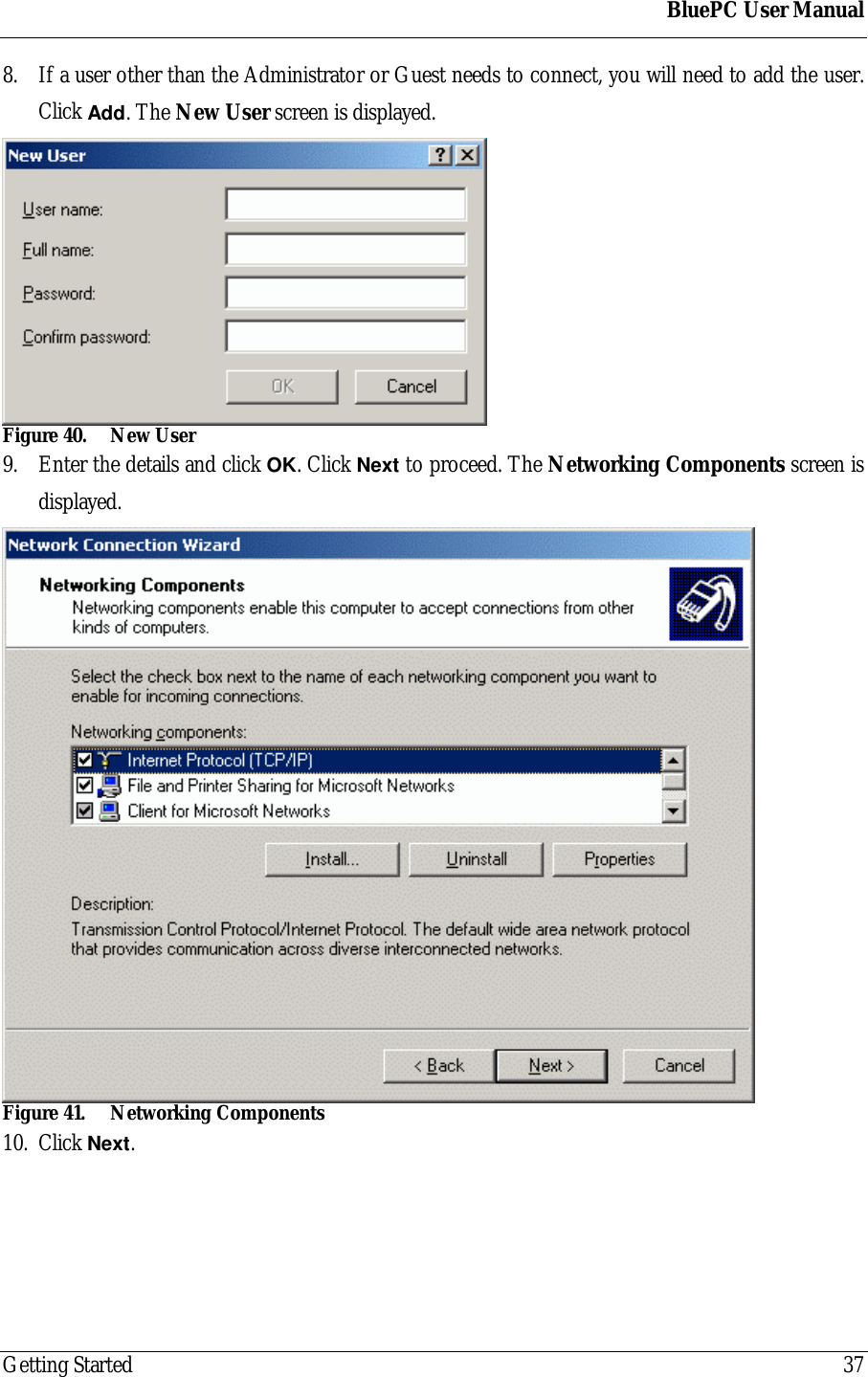
BluePC User ManualGetting Started 366. The Incoming Virtual Private Connection screen is displayed.Figure 38. Incoming Virtual Private Connections7. Click Next. The Allowed Users screen is displayed.Figure 39. Allowed Users
BluePC User ManualGetting Started 378. If a user other than the Administrator or Guest needs to connect, you will need to add the user.Click Add. The New User screen is displayed.Figure 40. New User9. Enter the details and click OK. Click Next to proceed. The Networking Components screen isdisplayed.Figure 41. Networking Components10. Click Next.
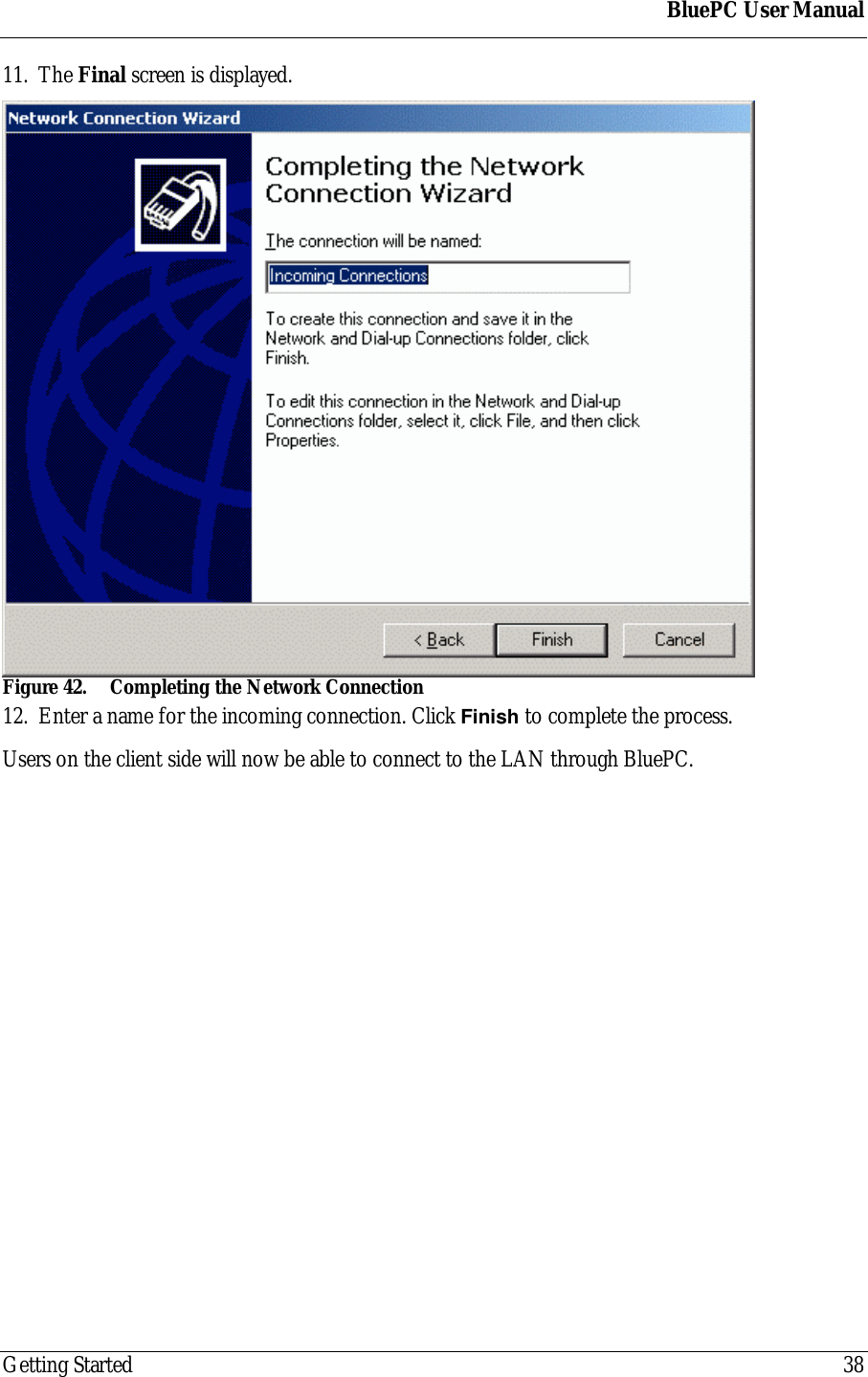
BluePC User ManualGetting Started 3811. The Final screen is displayed.Figure 42. Completing the Network Connection12. Enter a name for the incoming connection. Click Finish to complete the process.Users on the client side will now be able to connect to the LAN through BluePC.
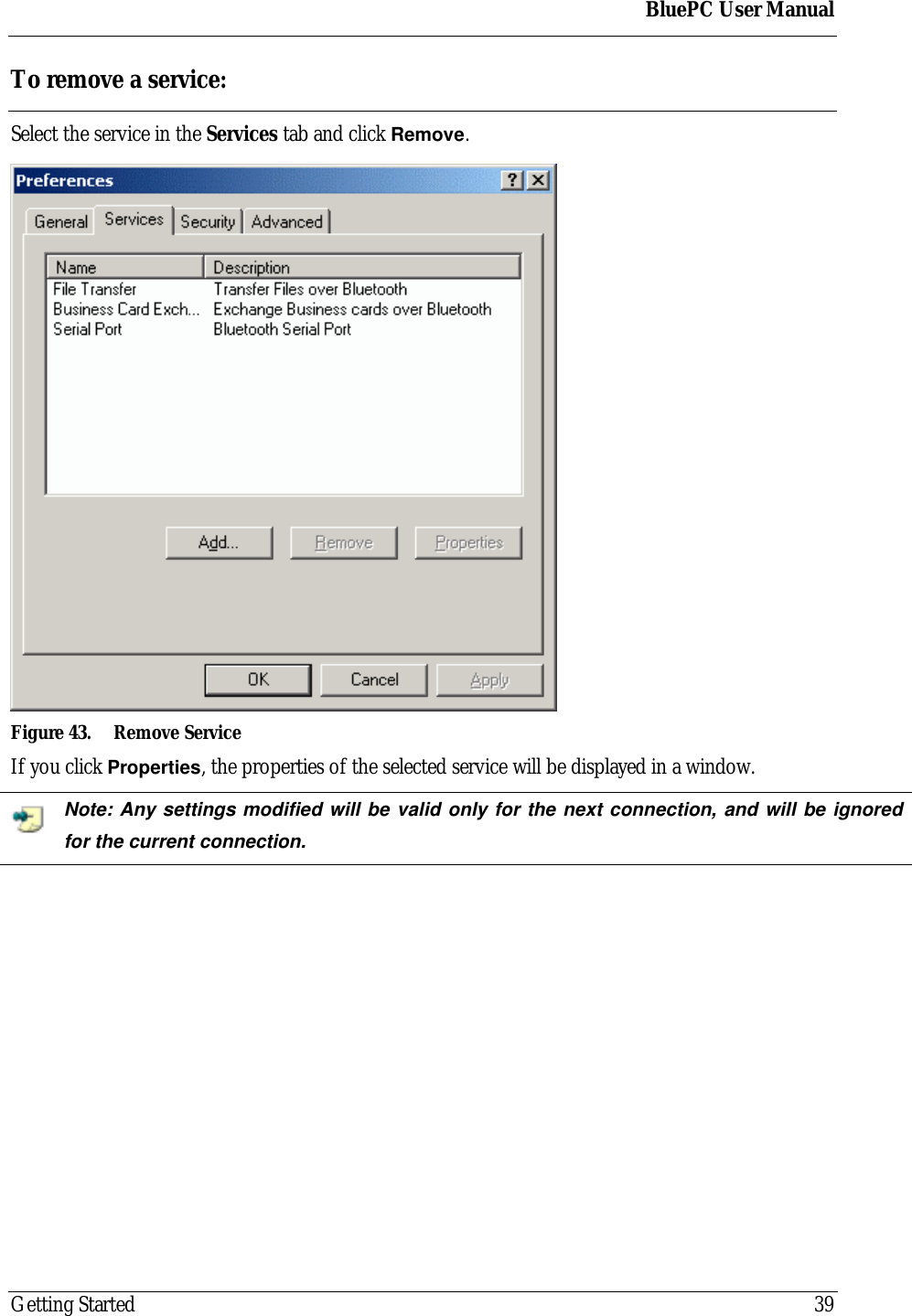
BluePC User ManualGetting Started 39To remove a service:Select the service in the Services tab and click Remove.Figure 43. Remove ServiceIf you click Properties, the properties of the selected service will be displayed in a window.Note: Any settings modified will be valid only for the next connection, and will be ignoredfor the current connection.
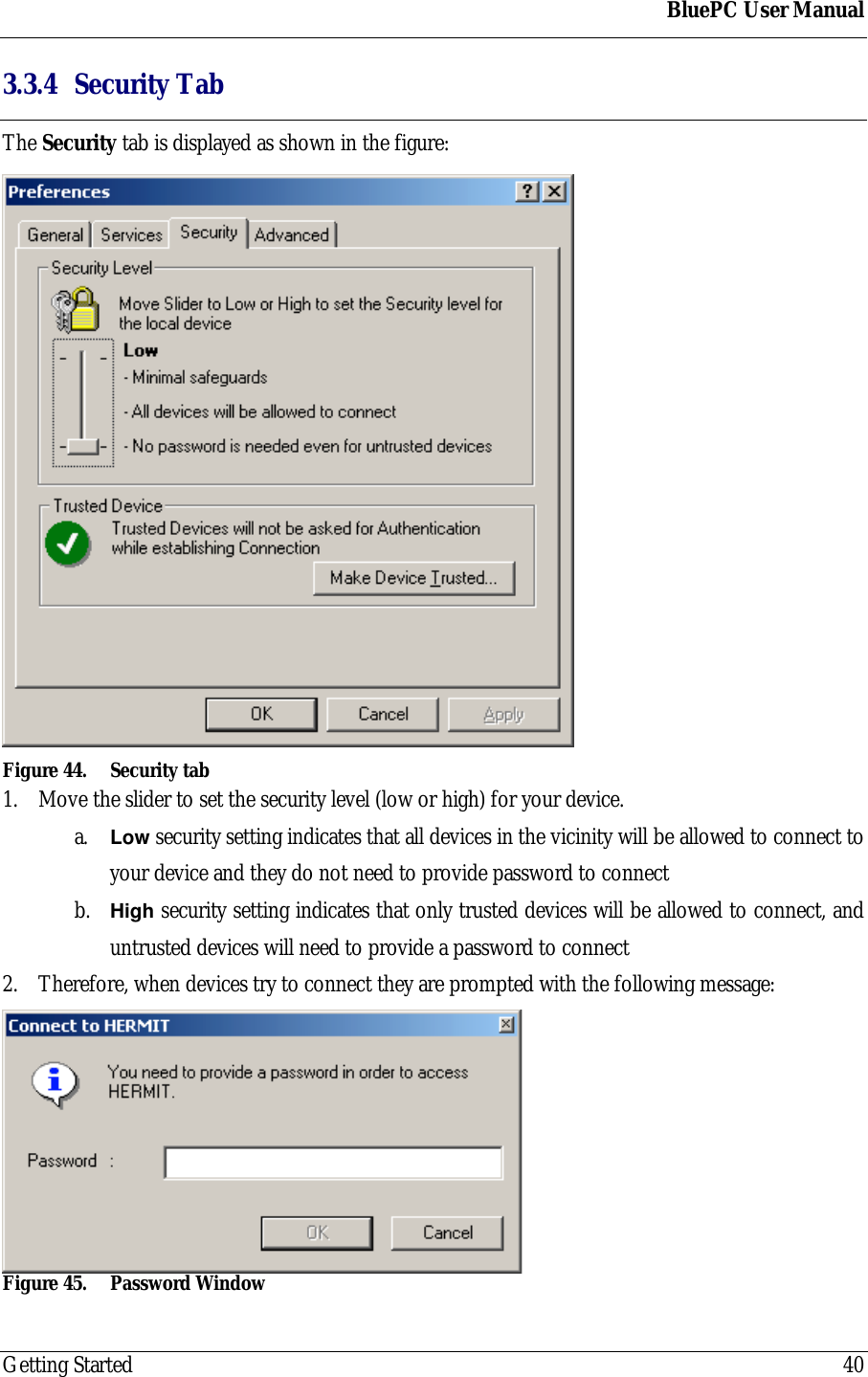
BluePC User ManualGetting Started 403.3.4 Security TabThe Security tab is displayed as shown in the figure:Figure 44. Security tab1. Move the slider to set the security level (low or high) for your device.a. Low security setting indicates that all devices in the vicinity will be allowed to connect toyour device and they do not need to provide password to connectb. High security setting indicates that only trusted devices will be allowed to connect, anduntrusted devices will need to provide a password to connect2. Therefore, when devices try to connect they are prompted with the following message:Figure 45. Password Window
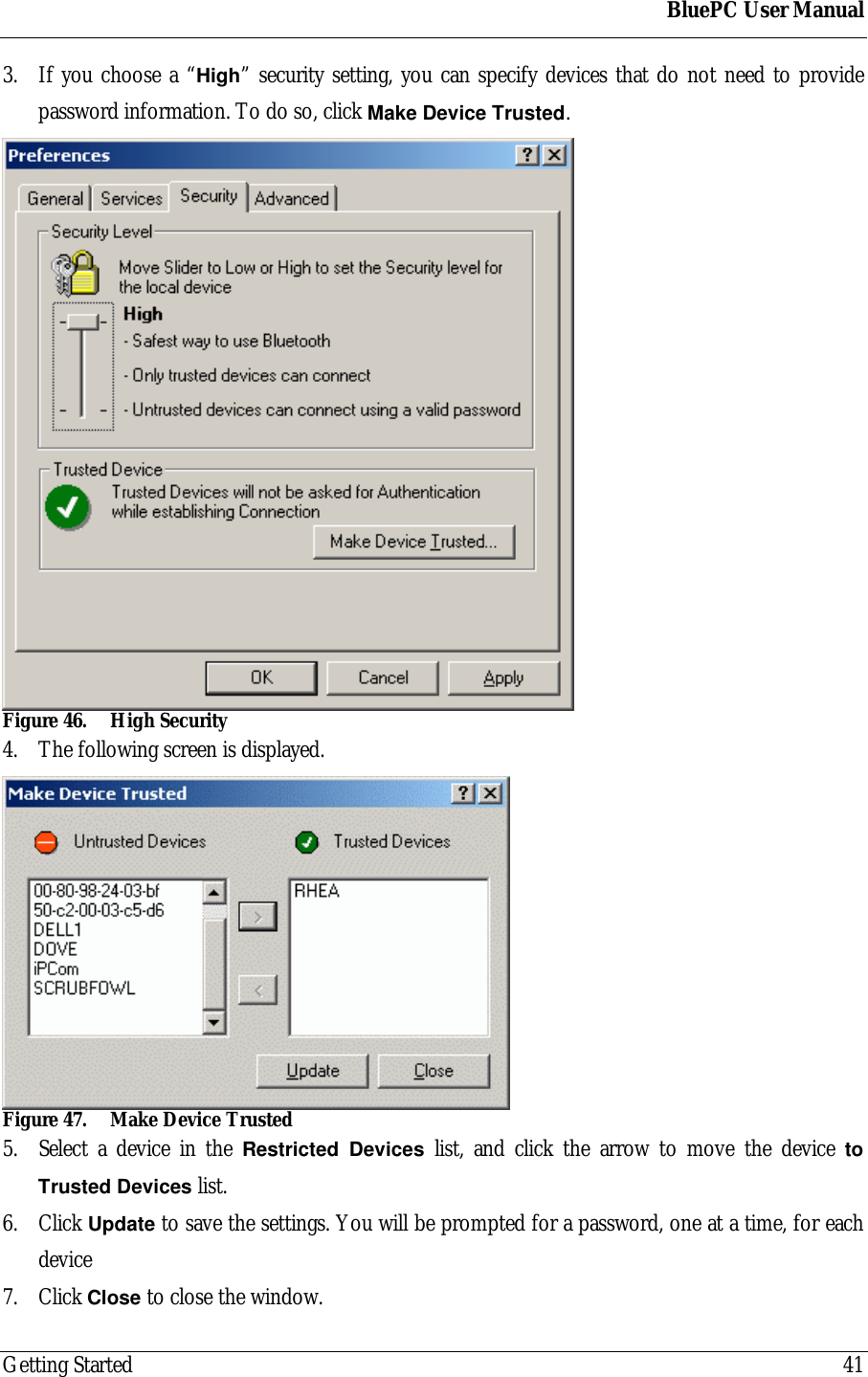
BluePC User ManualGetting Started 413. If you choose a “High” security setting, you can specify devices that do not need to providepassword information. To do so, click Make Device Trusted.Figure 46. High Security4. The following screen is displayed.Figure 47. Make Device Trusted5. Select a device in the Restricted Devices list, and click the arrow to move the device toTrusted Devices list.6. Click Update to save the settings. You will be prompted for a password, one at a time, for eachdevice7. Click Close to close the window.
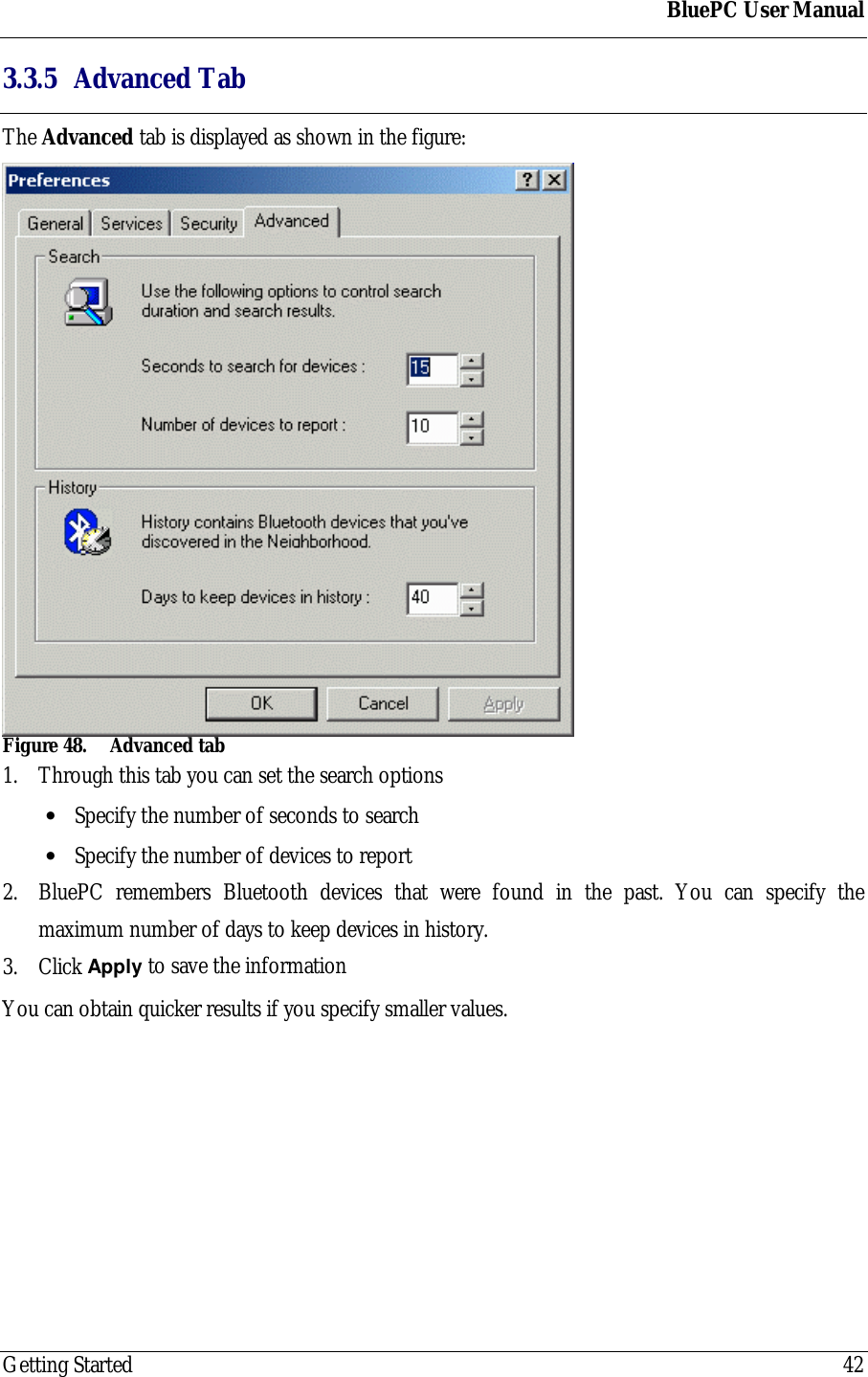
BluePC User ManualGetting Started 423.3.5 Advanced TabThe Advanced tab is displayed as shown in the figure:Figure 48. Advanced tab1. Through this tab you can set the search options• Specify the number of seconds to search• Specify the number of devices to report2. BluePC remembers Bluetooth devices that were found in the past. You can specify themaximum number of days to keep devices in history.3. Click Apply to save the informationYou can obtain quicker results if you specify smaller values.
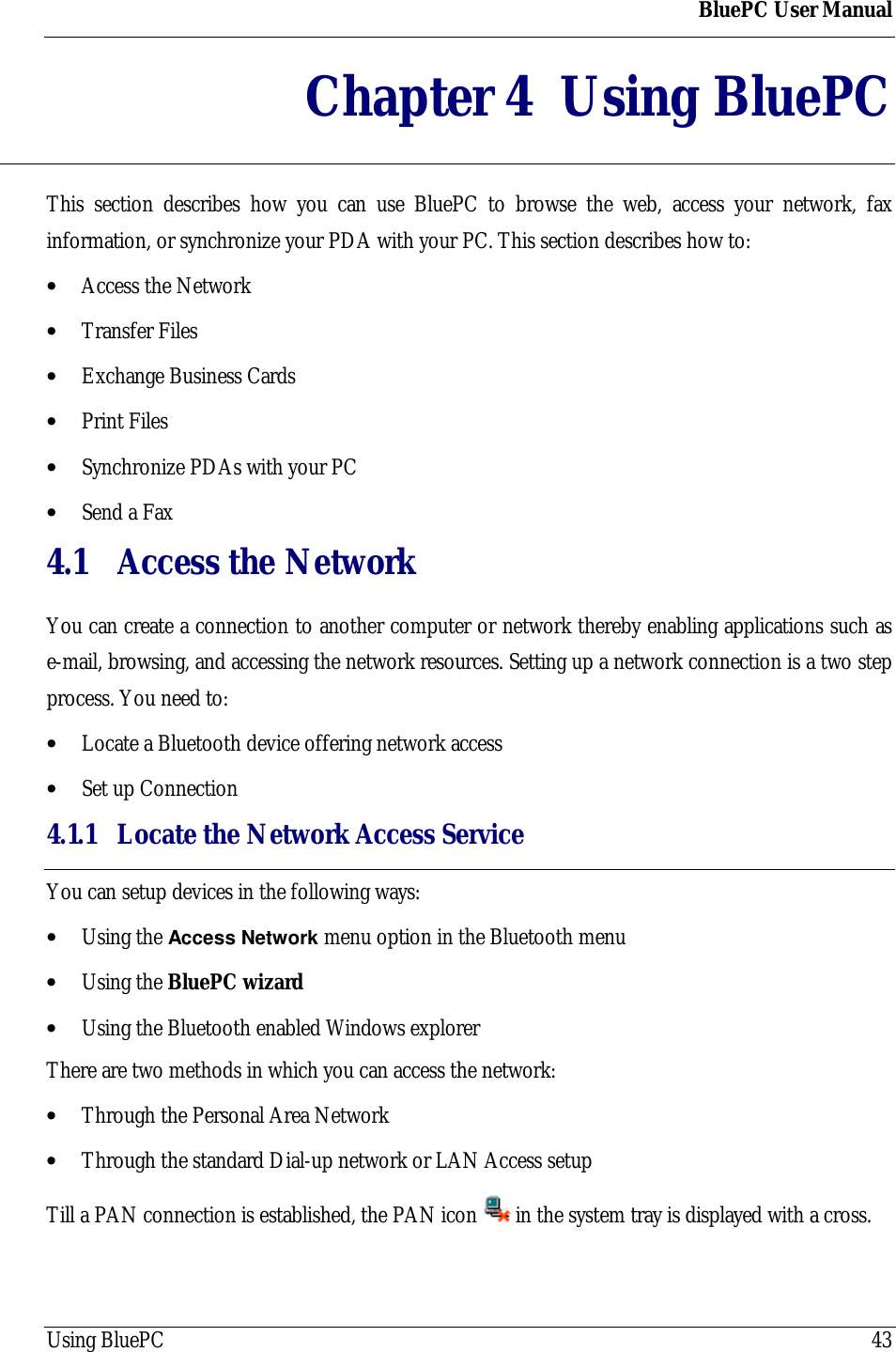
BluePC User ManualUsing BluePC 43Chapter 4 Using BluePCThis section describes how you can use BluePC to browse the web, access your network, faxinformation, or synchronize your PDA with your PC. This section describes how to:• Access the Network• Transfer Files• Exchange Business Cards• Print Files• Synchronize PDAs with your PC• Send a Fax4.1 Access the NetworkYou can create a connection to another computer or network thereby enabling applications such ase-mail, browsing, and accessing the network resources. Setting up a network connection is a two stepprocess. You need to:• Locate a Bluetooth device offering network access• Set up Connection4.1.1 Locate the Network Access ServiceYou can setup devices in the following ways:• Using the Access Network menu option in the Bluetooth menu• Using the BluePC wizard• Using the Bluetooth enabled Windows explorerThere are two methods in which you can access the network:• Through the Personal Area Network• Through the standard Dial-up network or LAN Access setupTill a PAN connection is established, the PAN icon   in the system tray is displayed with a cross.
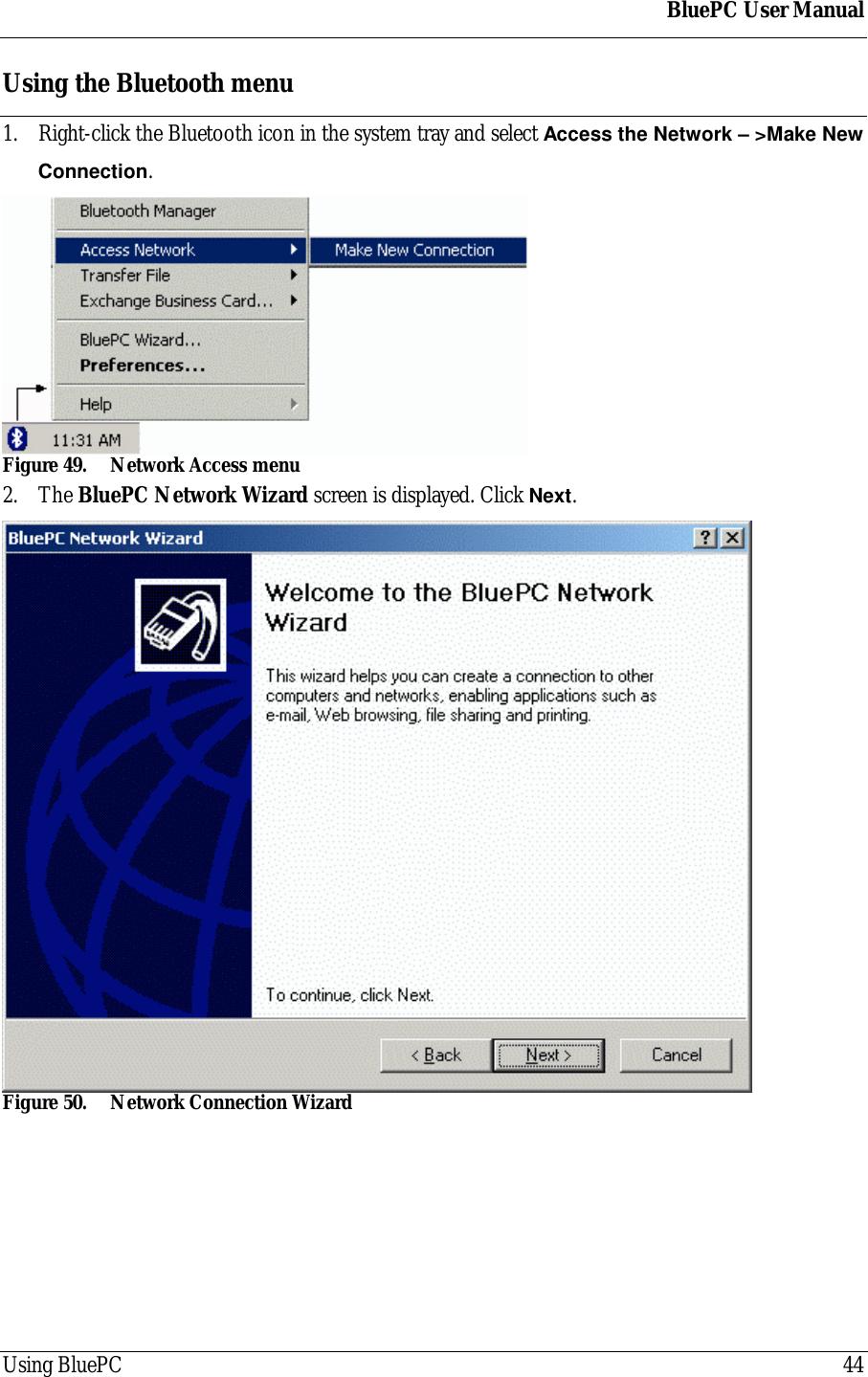
BluePC User ManualUsing BluePC 44Using the Bluetooth menu1. Right-click the Bluetooth icon in the system tray and select Access the Network – >Make NewConnection.Figure 49. Network Access menu2. The BluePC Network Wizard screen is displayed. Click Next.Figure 50. Network Connection Wizard
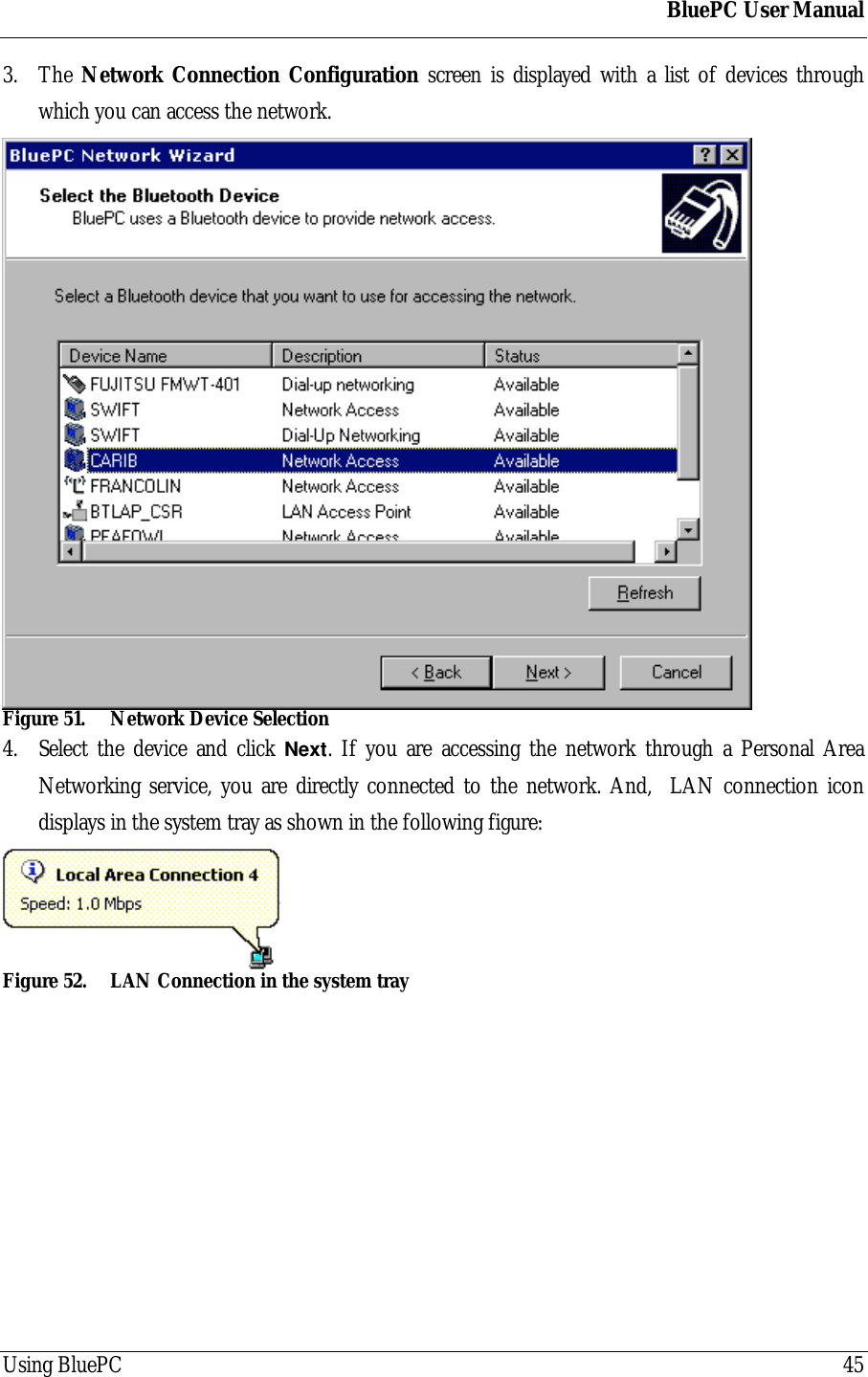
BluePC User ManualUsing BluePC 453. The Network Connection Configuration screen is displayed with a list of devices throughwhich you can access the network.Figure 51. Network Device Selection4. Select the device and click Next. If you are accessing the network through a Personal AreaNetworking service, you are directly connected to the network. And,  LAN connection icondisplays in the system tray as shown in the following figure:Figure 52. LAN Connection in the system tray
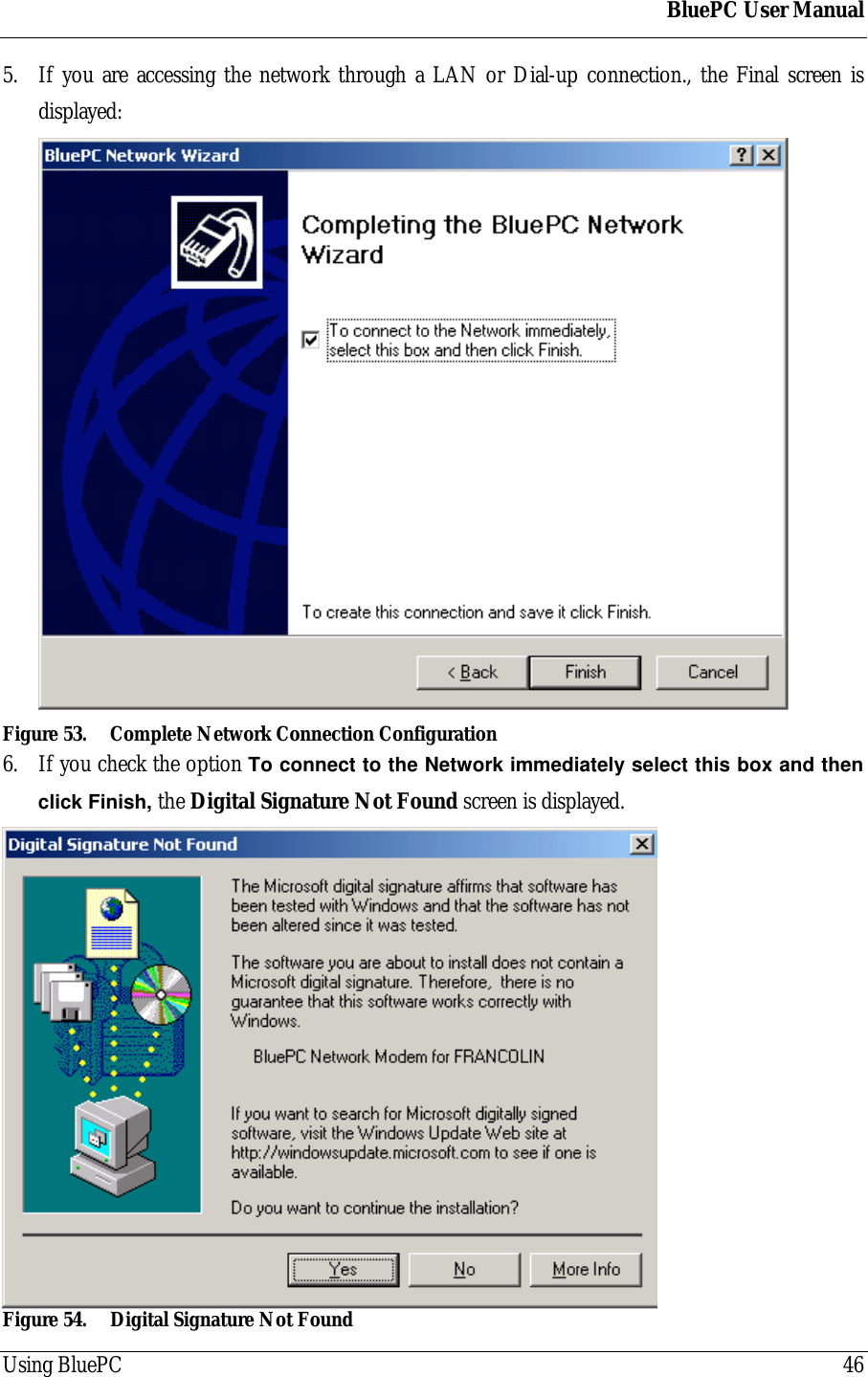
BluePC User ManualUsing BluePC 465. If you are accessing the network through a LAN or Dial-up connection., the Final screen isdisplayed:Figure 53. Complete Network Connection Configuration6. If you check the option To connect to the Network immediately select this box and thenclick Finish, the Digital Signature Not Found screen is displayed.Figure 54. Digital Signature Not Found
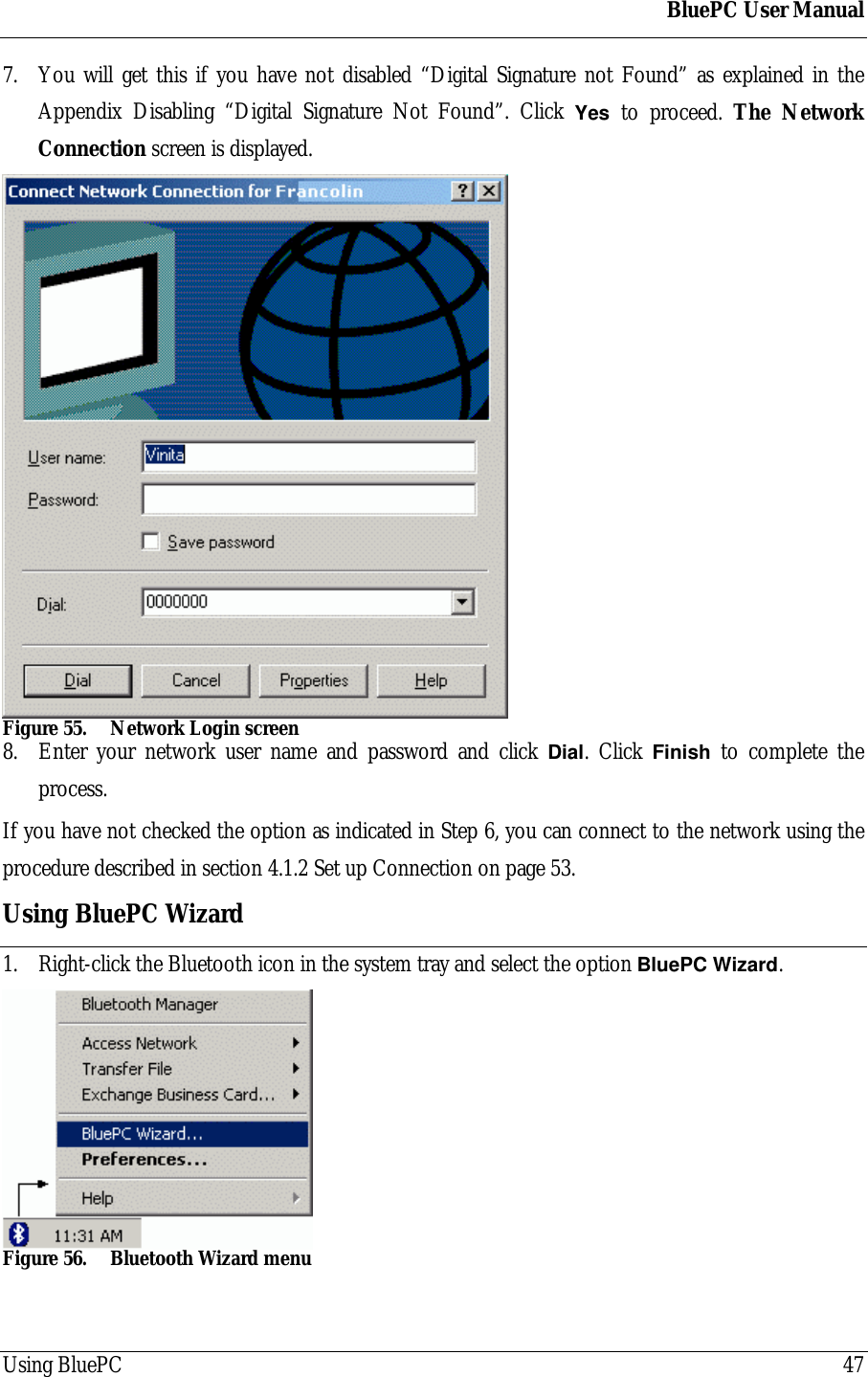
BluePC User ManualUsing BluePC 477. You will get this if you have not disabled “Digital Signature not Found” as explained in theAppendix Disabling “Digital Signature Not Found”. Click Yes to proceed. The NetworkConnection screen is displayed.Figure 55. Network Login screen8. Enter your network user name and password and click Dial. Click Finish to complete theprocess.If you have not checked the option as indicated in Step 6, you can connect to the network using theprocedure described in section 4.1.2 Set up Connection on page 53.Using BluePC Wizard1. Right-click the Bluetooth icon in the system tray and select the option BluePC Wizard.Figure 56. Bluetooth Wizard menu
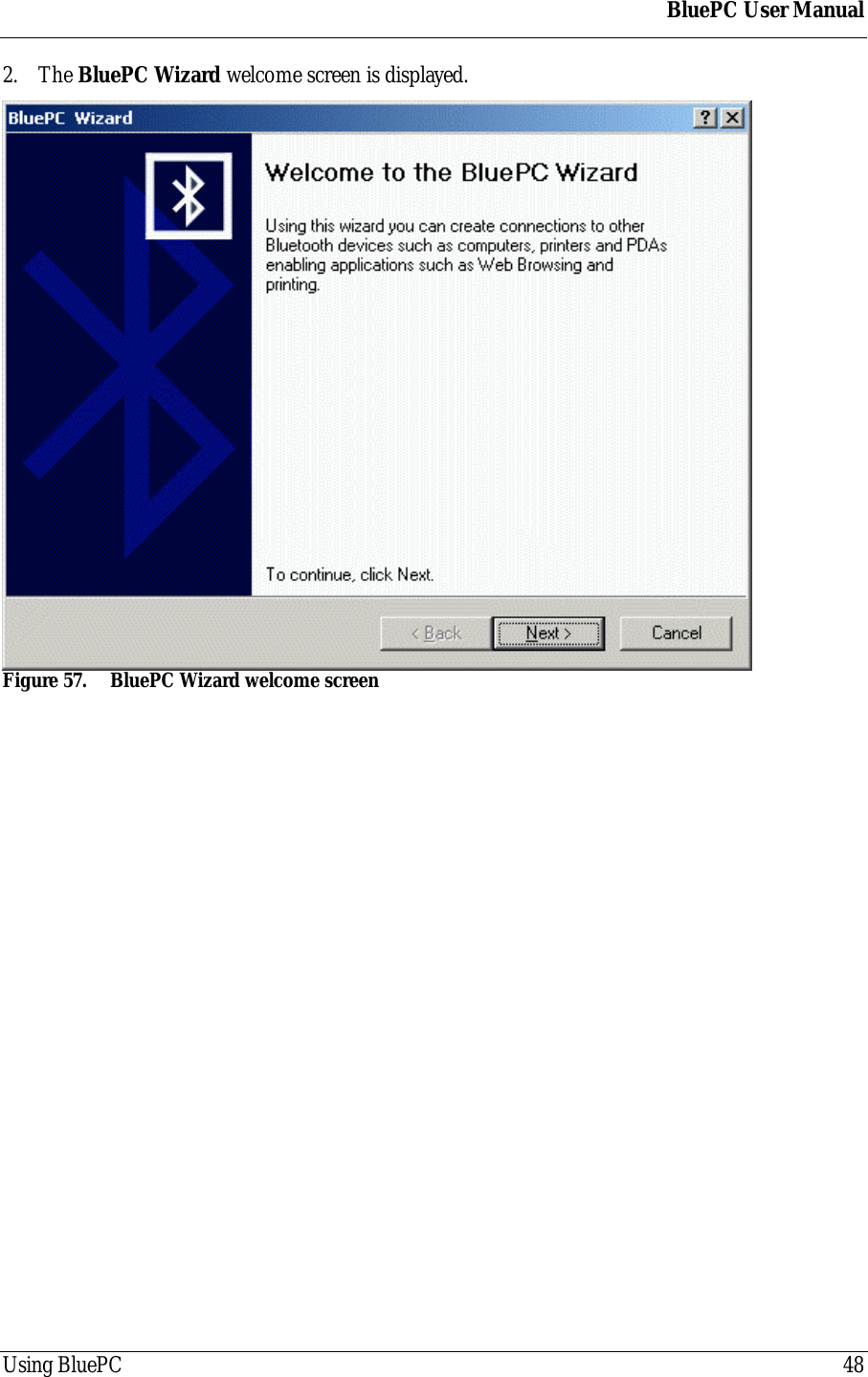
BluePC User ManualUsing BluePC 482. The BluePC Wizard welcome screen is displayed.Figure 57. BluePC Wizard welcome screen
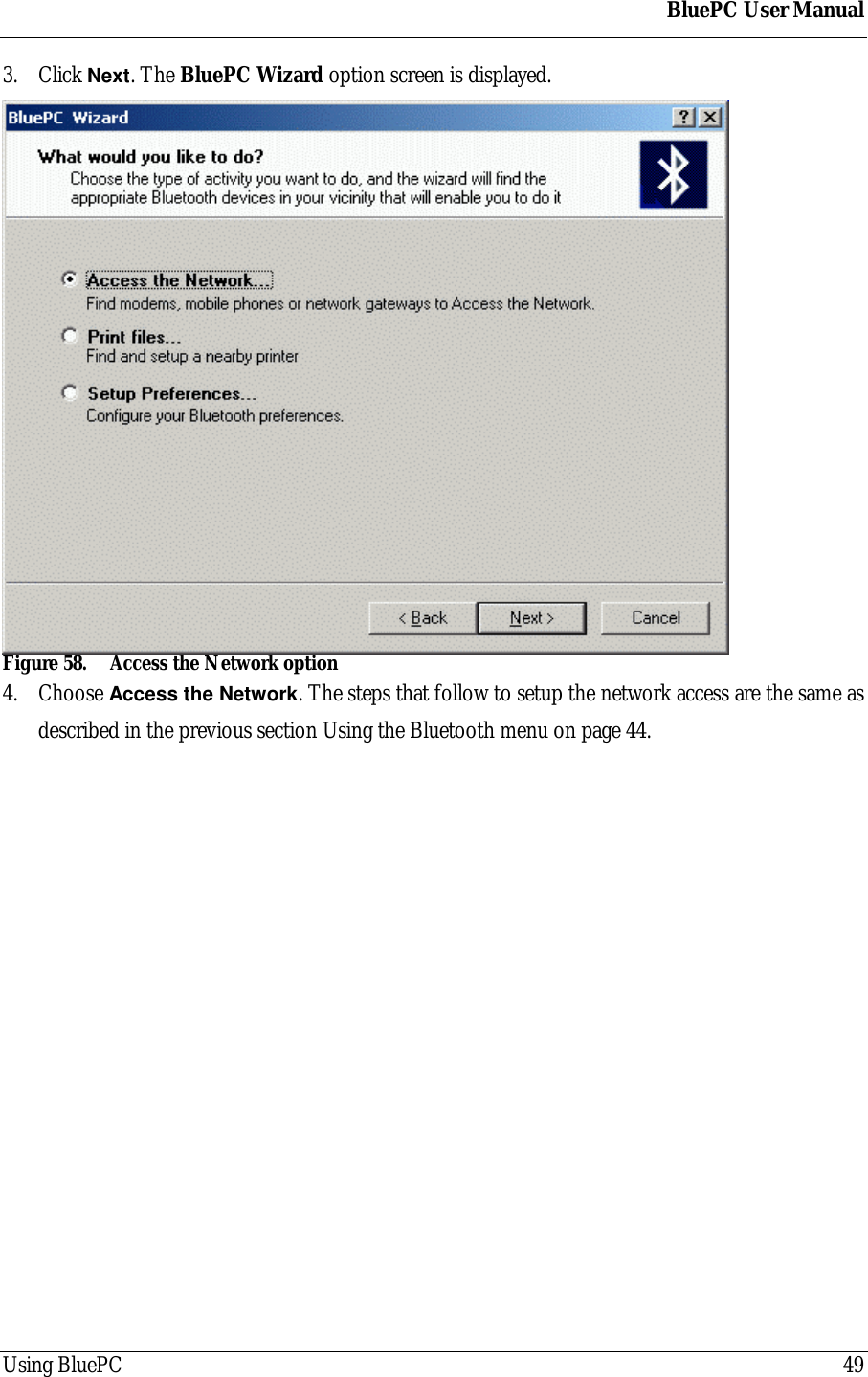
BluePC User ManualUsing BluePC 493. Click Next. The BluePC Wizard option screen is displayed.Figure 58. Access the Network option4. Choose Access the Network. The steps that follow to setup the network access are the same asdescribed in the previous section Using the Bluetooth menu on page 44.
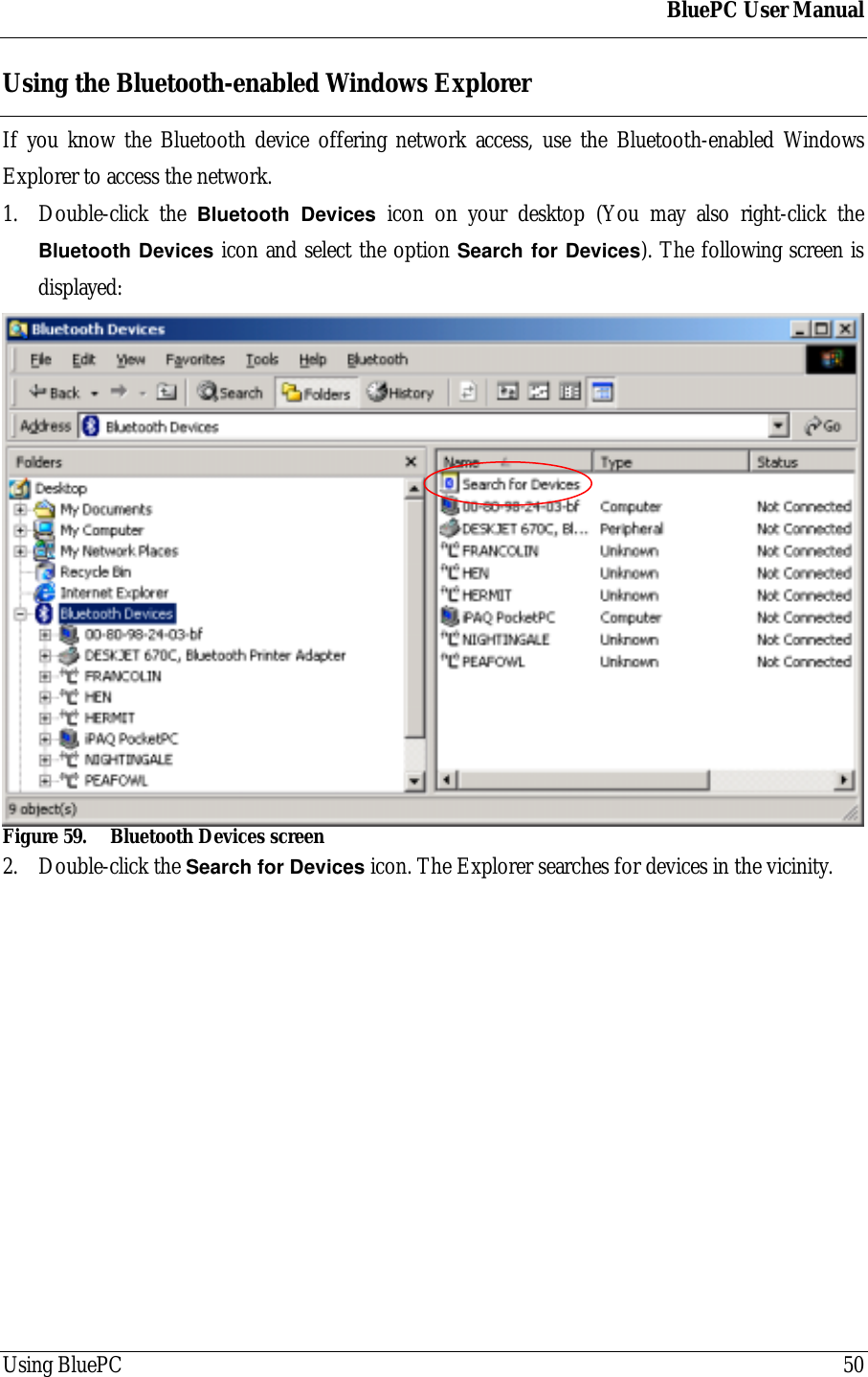
BluePC User ManualUsing BluePC 50Using the Bluetooth-enabled Windows ExplorerIf you know the Bluetooth device offering network access, use the Bluetooth-enabled WindowsExplorer to access the network.1. Double-click the Bluetooth Devices icon on your desktop (You may also right-click theBluetooth Devices icon and select the option Search for Devices). The following screen isdisplayed:Figure 59. Bluetooth Devices screen2. Double-click the Search for Devices icon. The Explorer searches for devices in the vicinity.
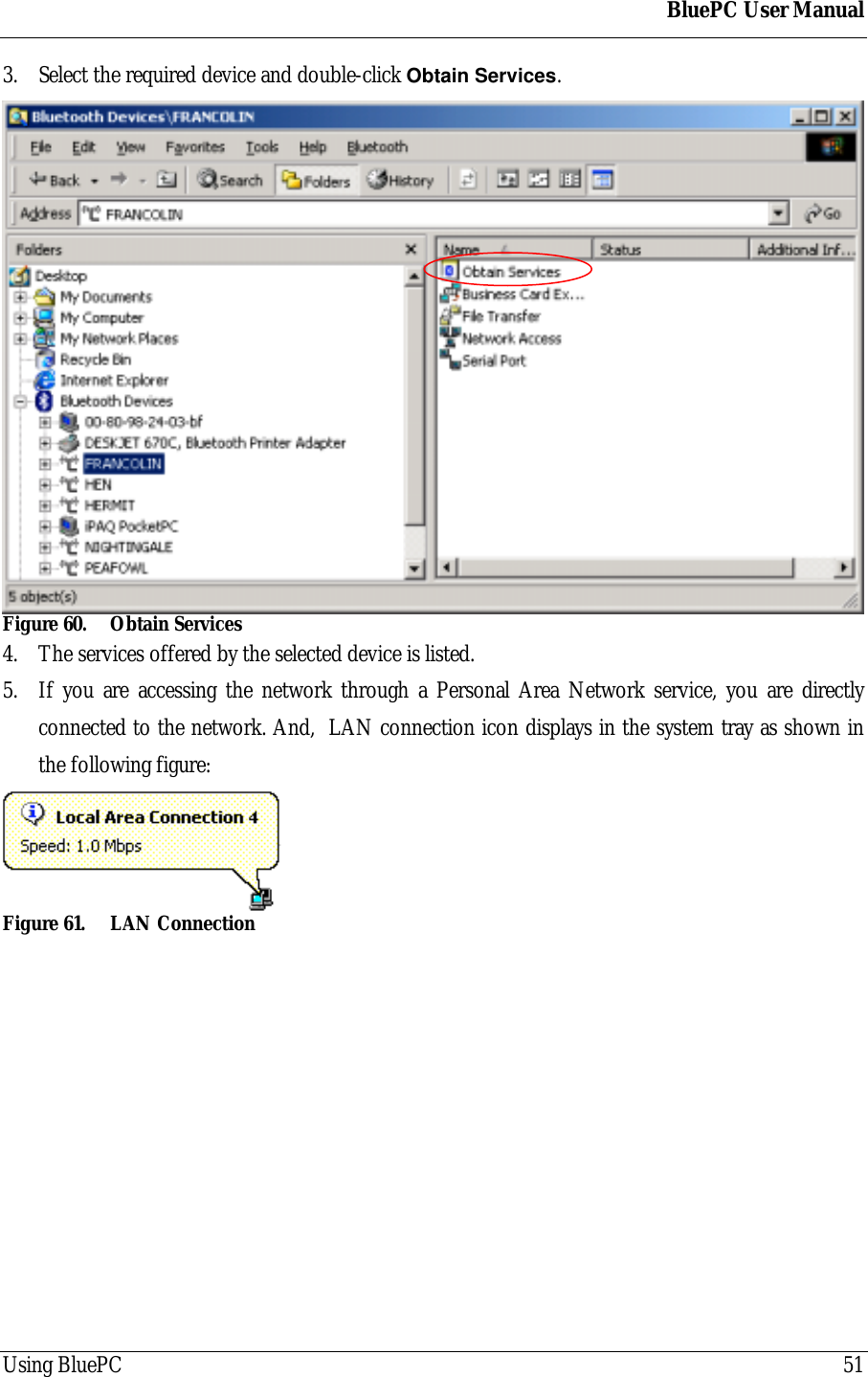
BluePC User ManualUsing BluePC 513. Select the required device and double-click Obtain Services.Figure 60. Obtain Services4. The services offered by the selected device is listed.5. If you are accessing the network through a Personal Area Network service, you are directlyconnected to the network. And,  LAN connection icon displays in the system tray as shown inthe following figure:Figure 61. LAN Connection
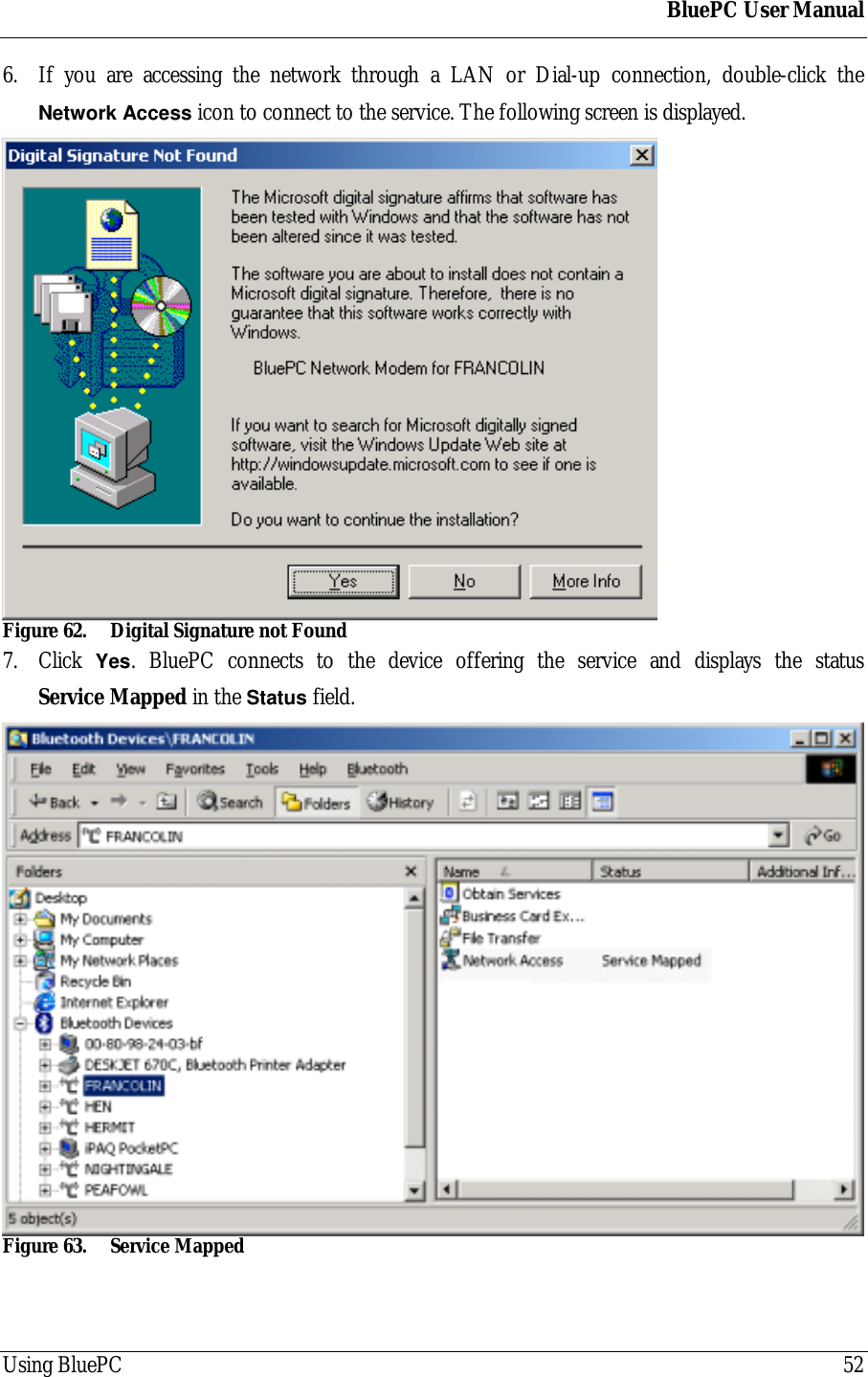
BluePC User ManualUsing BluePC 526. If you are accessing the network through a LAN or Dial-up connection, double-click theNetwork Access icon to connect to the service. The following screen is displayed.Figure 62. Digital Signature not Found7. Click  Yes. BluePC connects to the device offering the service and displays the statusService Mapped in the Status field.Figure 63. Service Mapped
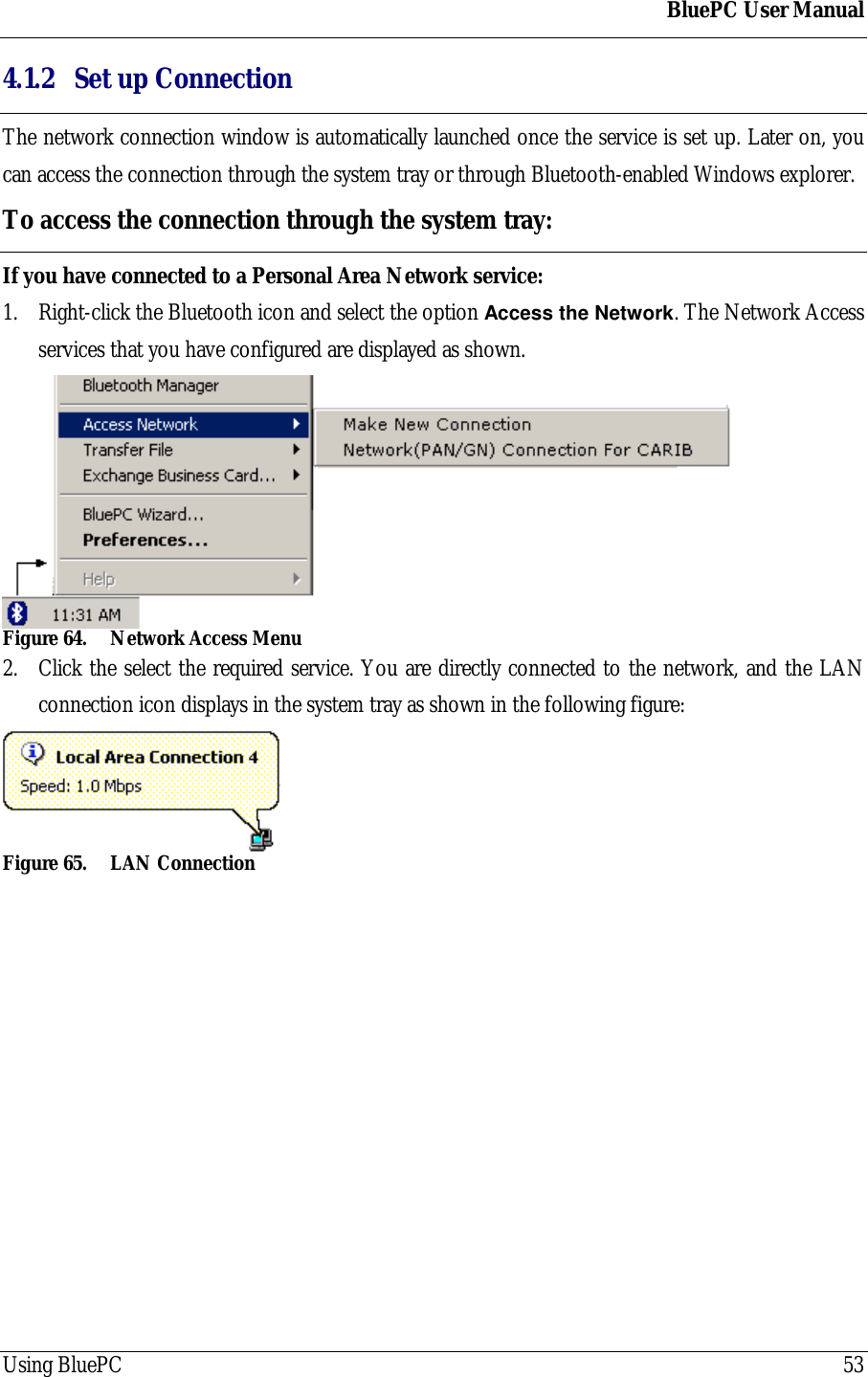
BluePC User ManualUsing BluePC 534.1.2 Set up ConnectionThe network connection window is automatically launched once the service is set up. Later on, youcan access the connection through the system tray or through Bluetooth-enabled Windows explorer.To access the connection through the system tray:If you have connected to a Personal Area Network service:1. Right-click the Bluetooth icon and select the option Access the Network. The Network Accessservices that you have configured are displayed as shown.Figure 64. Network Access Menu2. Click the select the required service. You are directly connected to the network, and the LANconnection icon displays in the system tray as shown in the following figure:Figure 65. LAN Connection
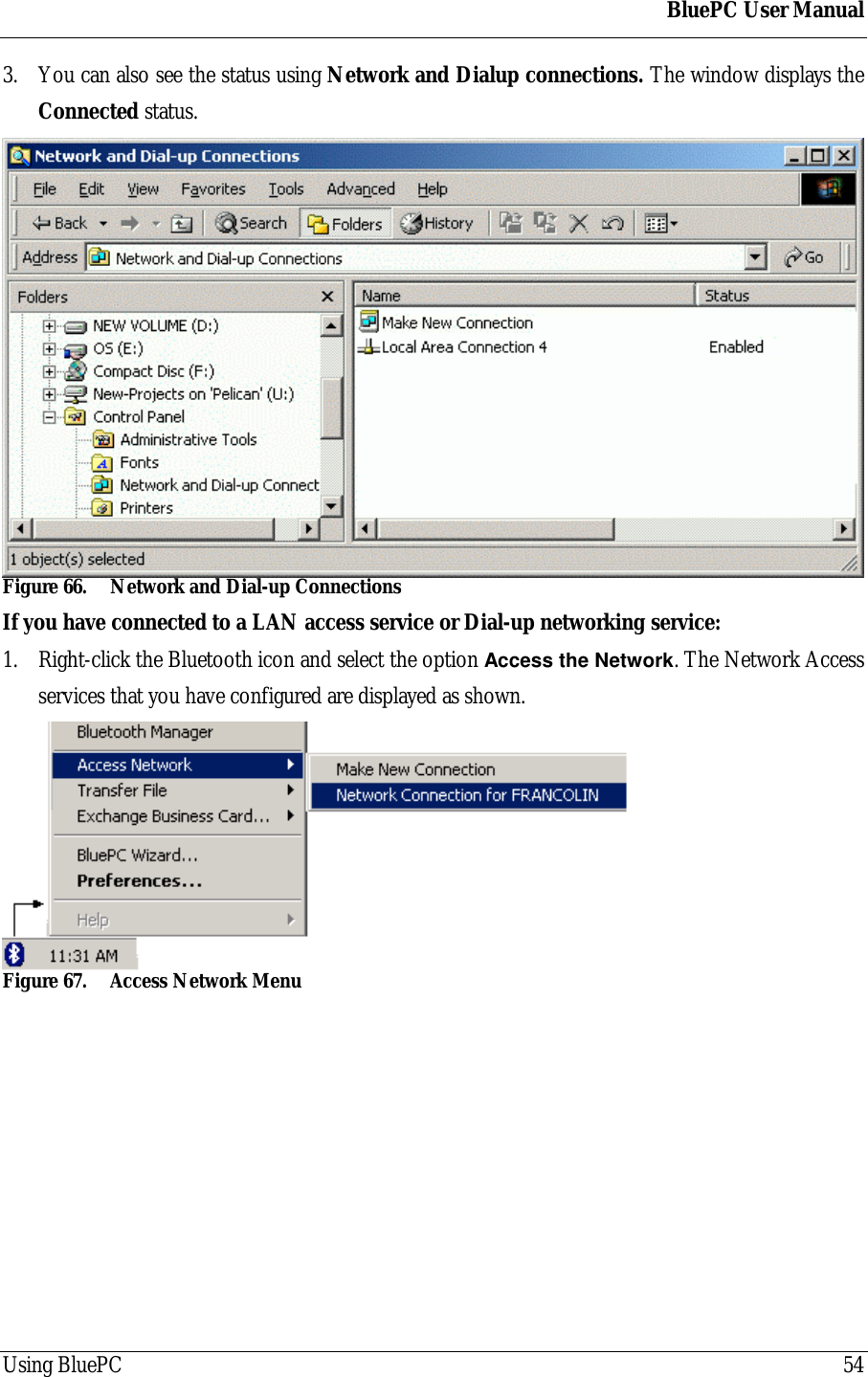
BluePC User ManualUsing BluePC 543. You can also see the status using Network and Dialup connections. The window displays theConnected status.Figure 66. Network and Dial-up ConnectionsIf you have connected to a LAN access service or Dial-up networking service:1. Right-click the Bluetooth icon and select the option Access the Network. The Network Accessservices that you have configured are displayed as shown.Figure 67. Access Network Menu
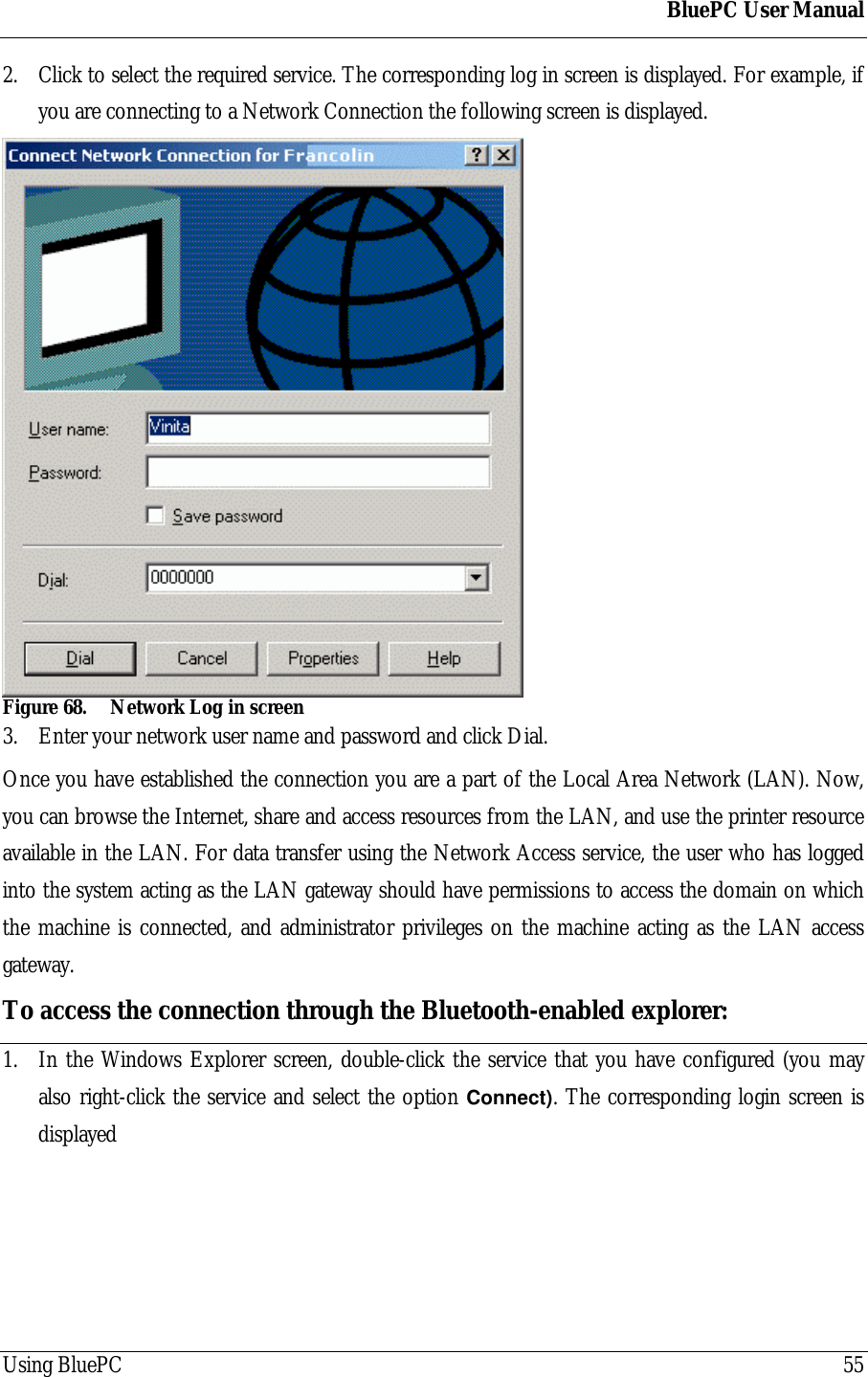
BluePC User ManualUsing BluePC 552. Click to select the required service. The corresponding log in screen is displayed. For example, ifyou are connecting to a Network Connection the following screen is displayed.Figure 68. Network Log in screen3. Enter your network user name and password and click Dial.Once you have established the connection you are a part of the Local Area Network (LAN). Now,you can browse the Internet, share and access resources from the LAN, and use the printer resourceavailable in the LAN. For data transfer using the Network Access service, the user who has loggedinto the system acting as the LAN gateway should have permissions to access the domain on whichthe machine is connected, and administrator privileges on the machine acting as the LAN accessgateway.To access the connection through the Bluetooth-enabled explorer:1. In the Windows Explorer screen, double-click the service that you have configured (you mayalso right-click the service and select the option Connect). The corresponding login screen isdisplayed
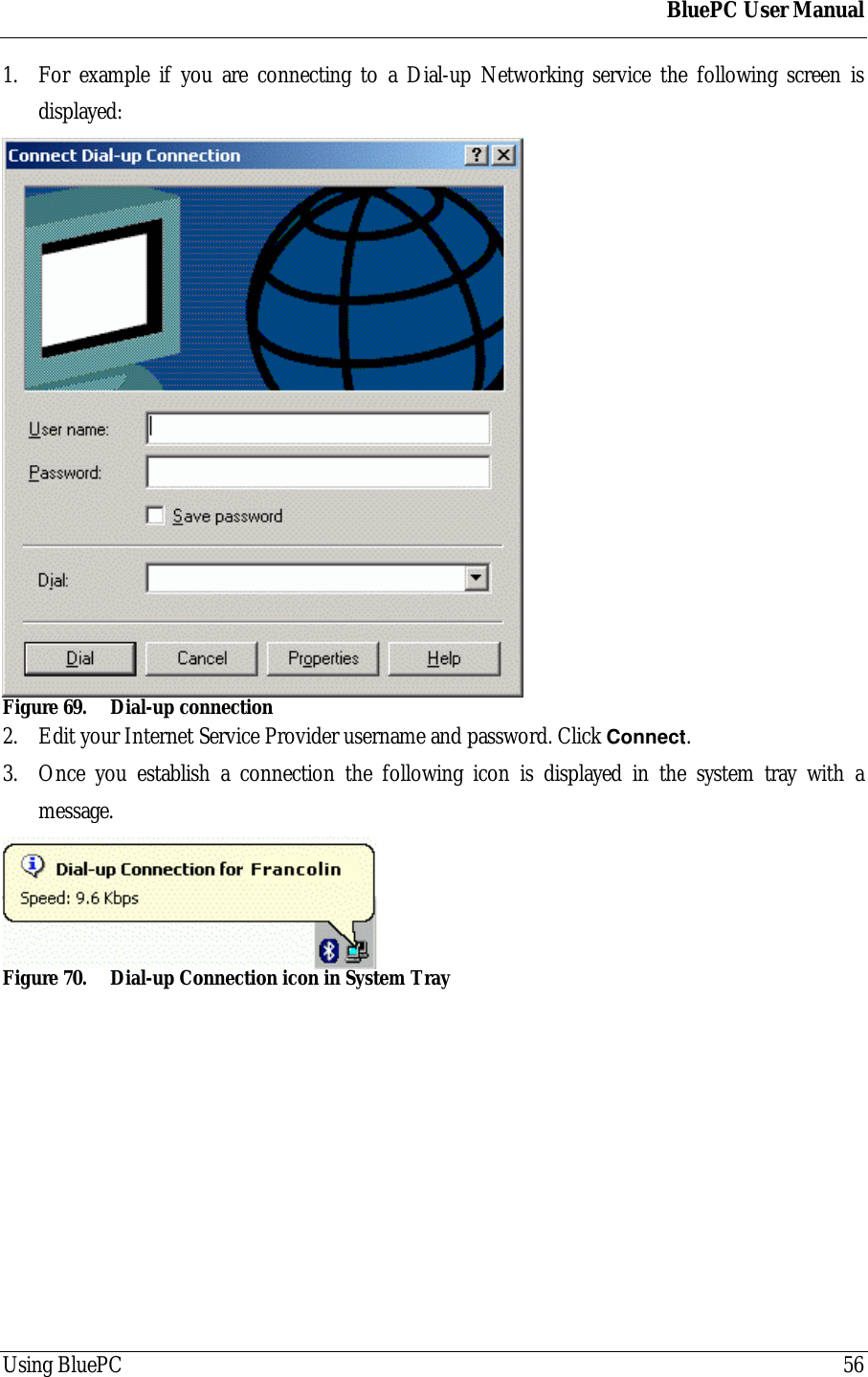
BluePC User ManualUsing BluePC 561. For example if you are connecting to a Dial-up Networking service the following screen isdisplayed:Figure 69. Dial-up connection2. Edit your Internet Service Provider username and password. Click Connect.3. Once you establish a connection the following icon is displayed in the system tray with amessage.Figure 70. Dial-up Connection icon in System Tray
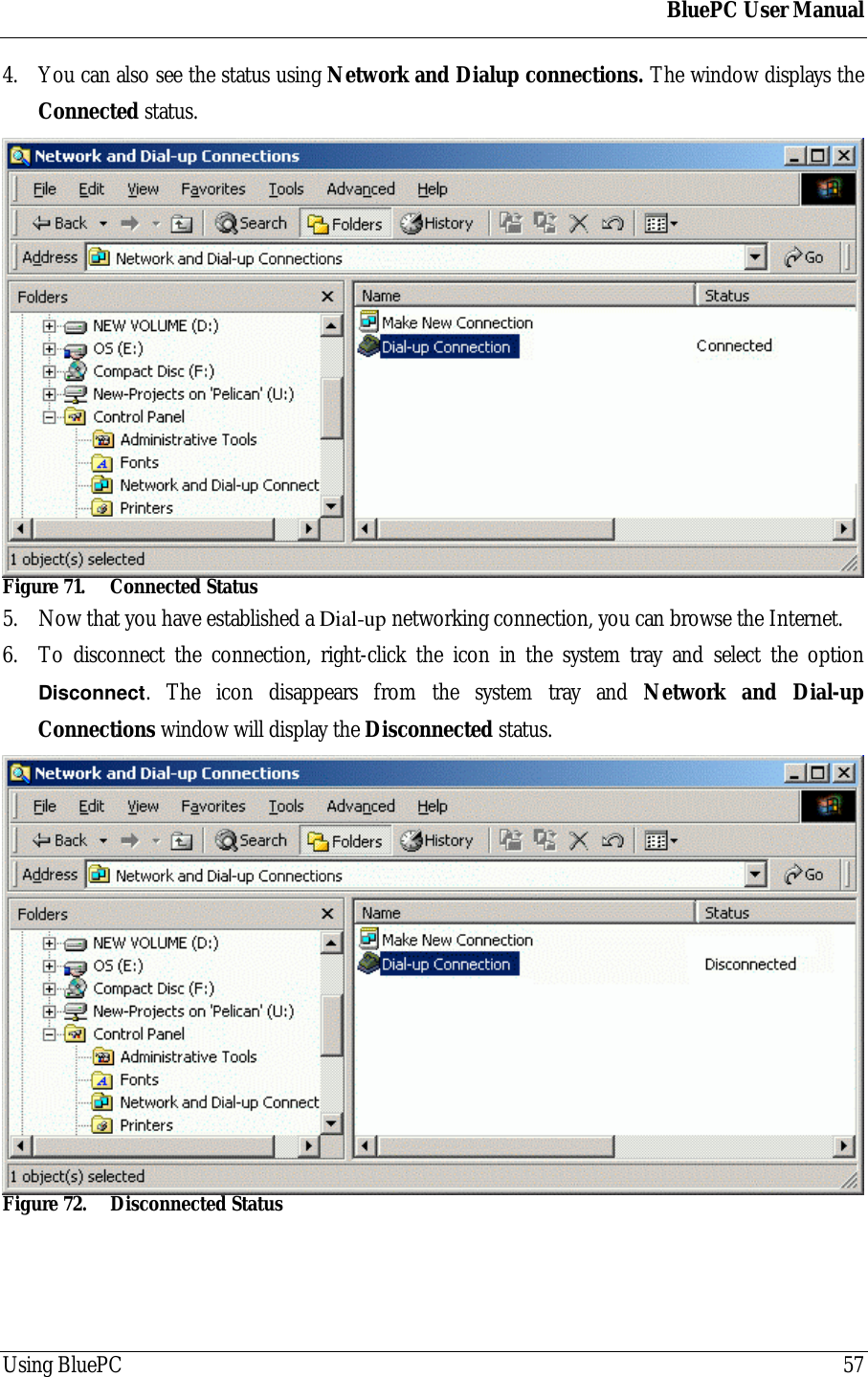
BluePC User ManualUsing BluePC 574. You can also see the status using Network and Dialup connections. The window displays theConnected status.Figure 71. Connected Status5. Now that you have established a Dial-up networking connection, you can browse the Internet.6. To disconnect the connection, right-click the icon in the system tray and select the optionDisconnect. The icon disappears from the system tray and Network and Dial-upConnections window will display the Disconnected status.Figure 72. Disconnected Status
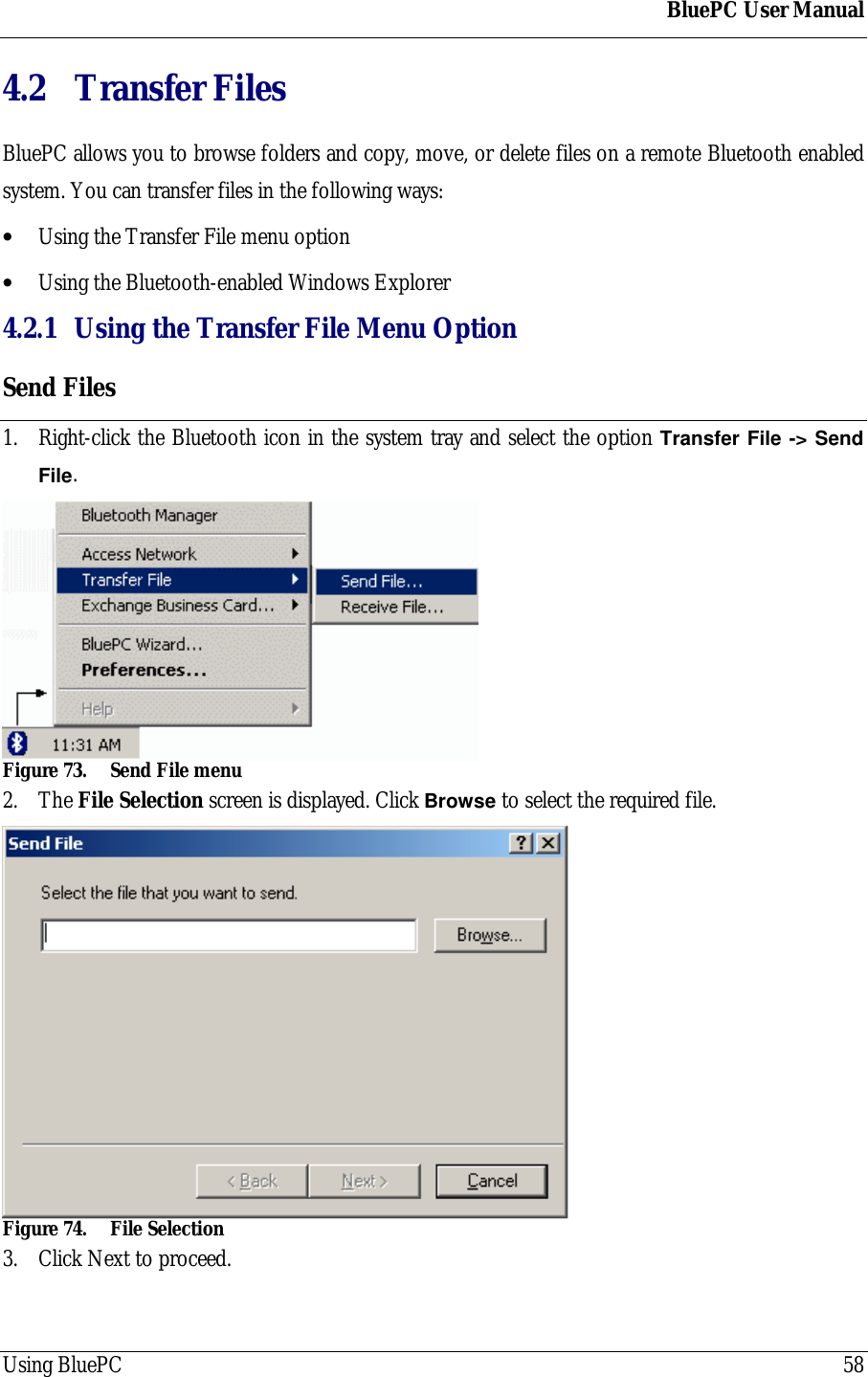
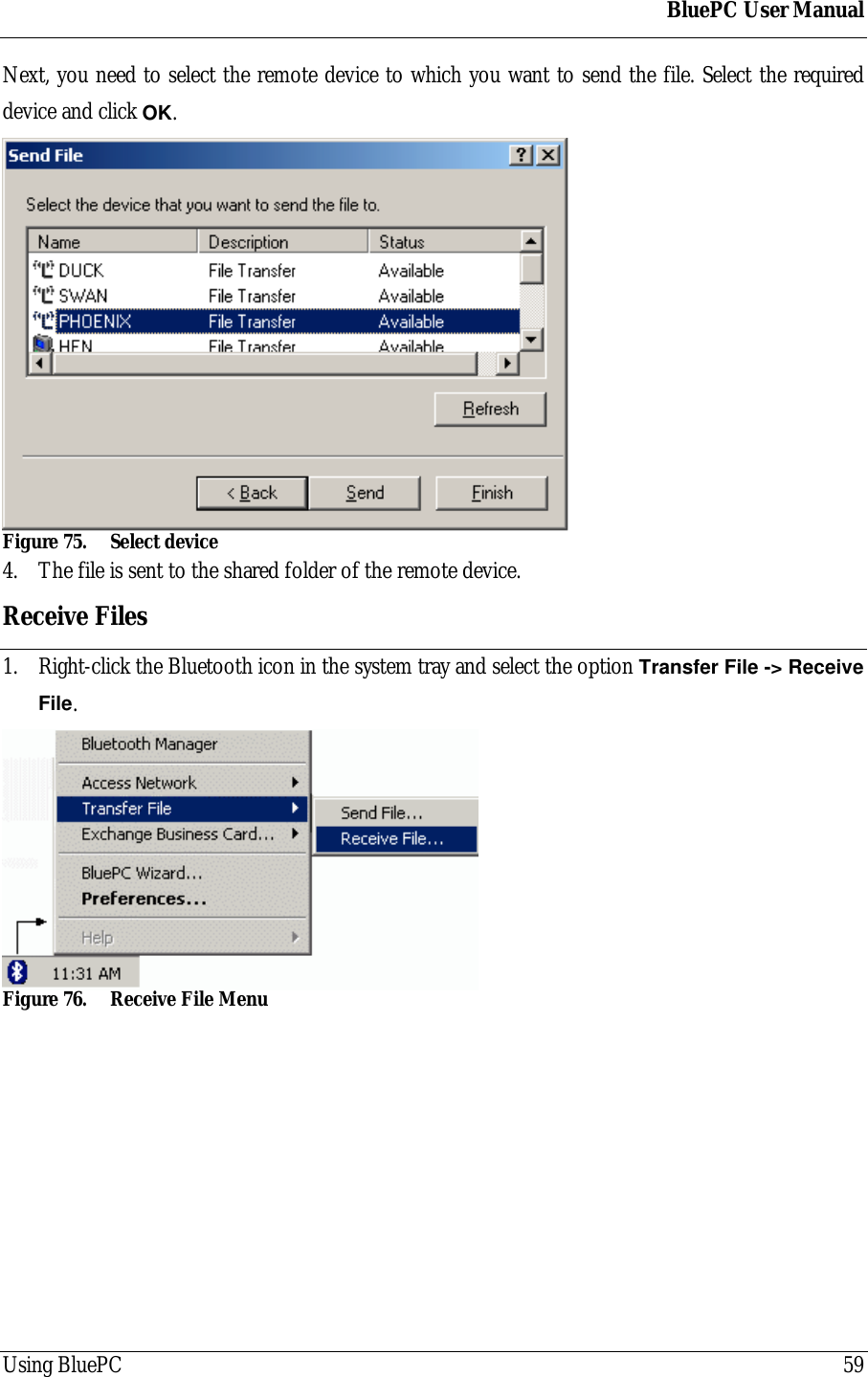
BluePC User ManualUsing BluePC 584.2 Transfer FilesBluePC allows you to browse folders and copy, move, or delete files on a remote Bluetooth enabledsystem. You can transfer files in the following ways:• Using the Transfer File menu option• Using the Bluetooth-enabled Windows Explorer4.2.1 Using the Transfer File Menu OptionSend Files1. Right-click the Bluetooth icon in the system tray and select the option Transfer File -> SendFile.Figure 73. Send File menu2. The File Selection screen is displayed. Click Browse to select the required file.Figure 74. File Selection3. Click Next to proceed.
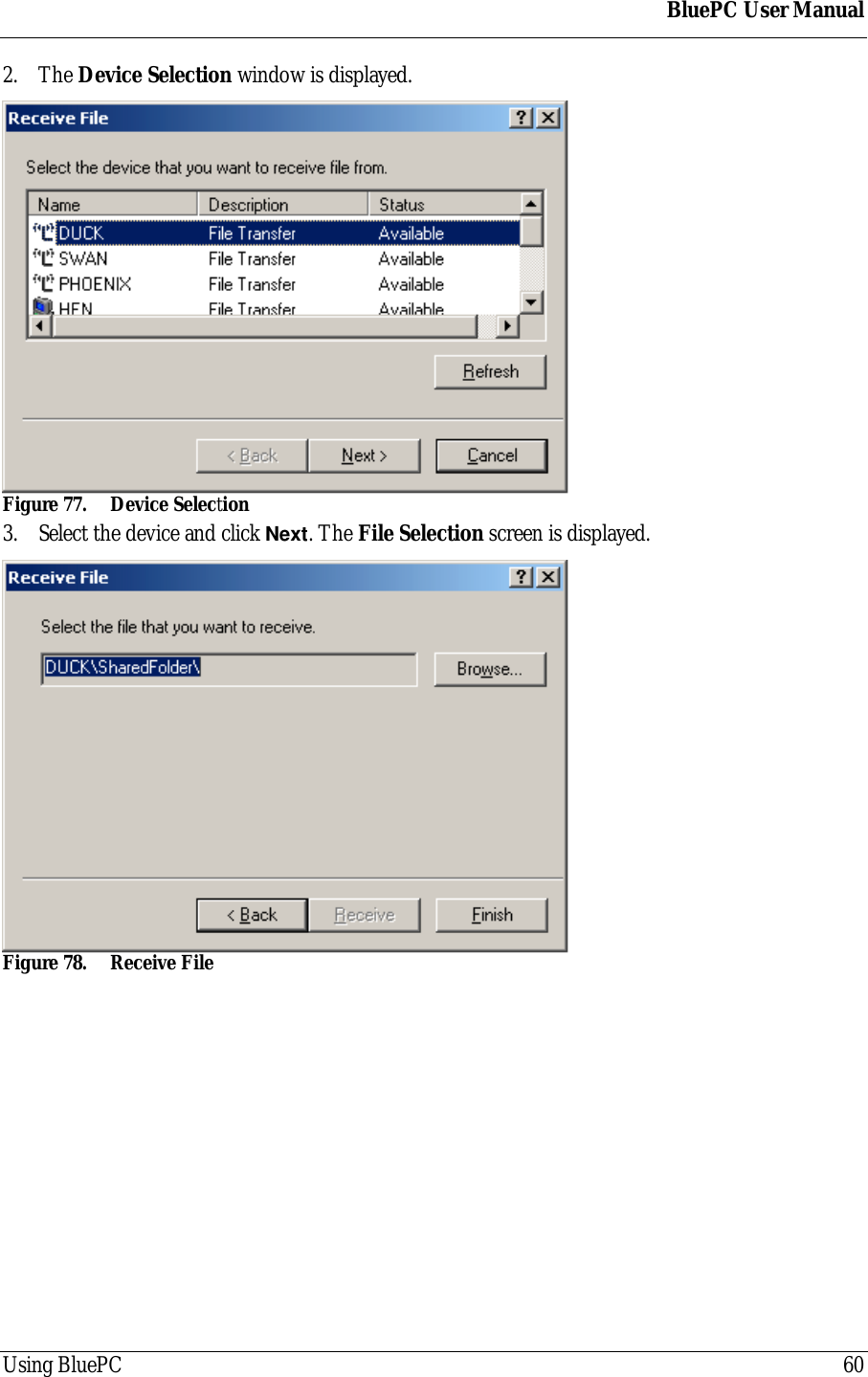
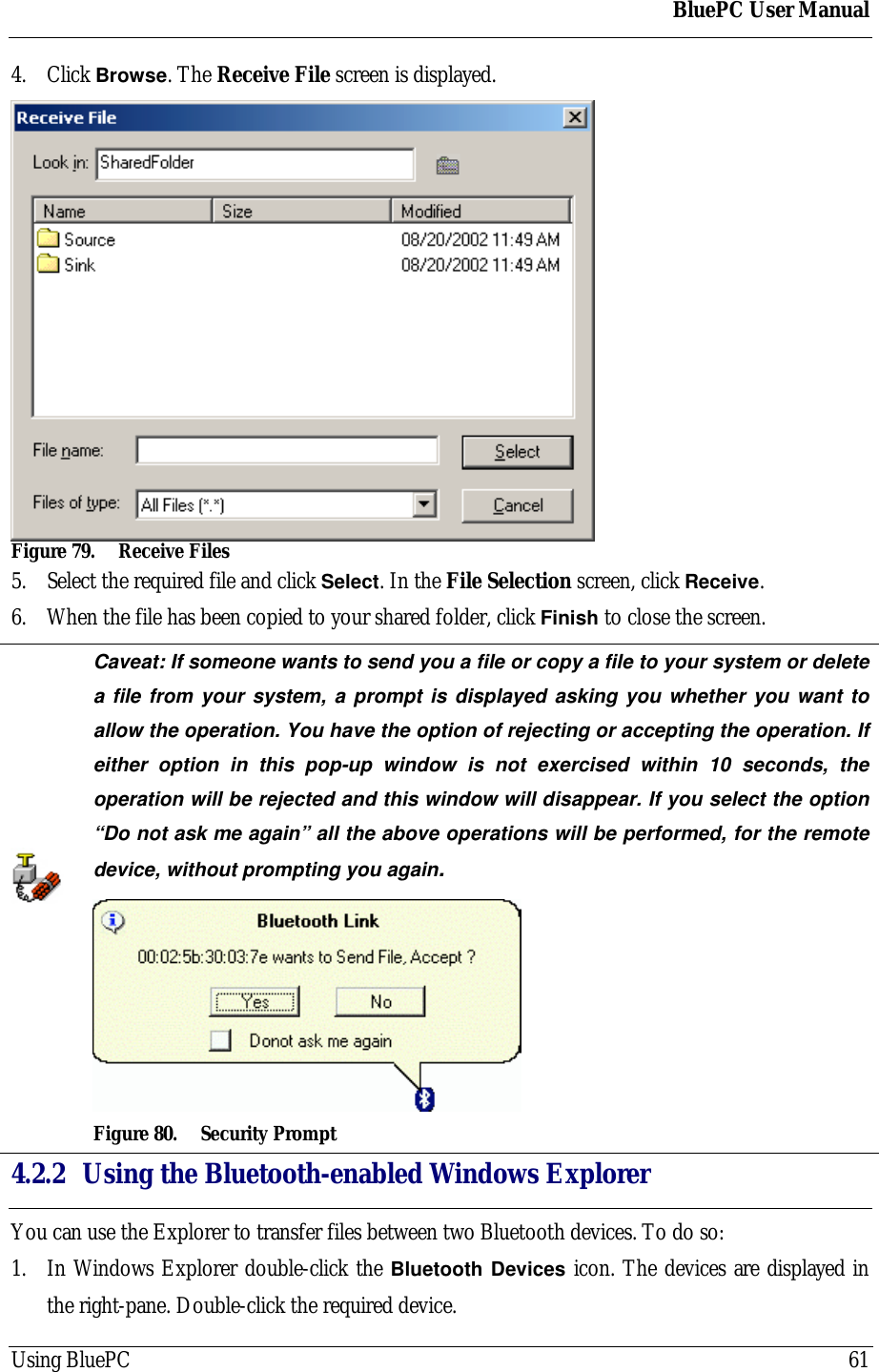
BluePC User ManualUsing BluePC 59Next, you need to select the remote device to which you want to send the file. Select the requireddevice and click OK.Figure 75. Select device4. The file is sent to the shared folder of the remote device.Receive Files1. Right-click the Bluetooth icon in the system tray and select the option Transfer File -> ReceiveFile.Figure 76. Receive File Menu
BluePC User ManualUsing BluePC 602. The Device Selection window is displayed.Figure 77. Device Selection3. Select the device and click Next. The File Selection screen is displayed.Figure 78. Receive File
BluePC User ManualUsing BluePC 614. Click Browse. The Receive File screen is displayed.Figure 79. Receive Files5. Select the required file and click Select. In the File Selection screen, click Receive.6. When the file has been copied to your shared folder, click Finish to close the screen.Caveat: If someone wants to send you a file or copy a file to your system or deletea file from your system, a prompt is displayed asking you whether you want toallow the operation. You have the option of rejecting or accepting the operation. Ifeither option in this pop-up window is not exercised within 10 seconds, theoperation will be rejected and this window will disappear. If you select the option“Do not ask me again” all the above operations will be performed, for the remotedevice, without prompting you again.Figure 80. Security Prompt4.2.2 Using the Bluetooth-enabled Windows ExplorerYou can use the Explorer to transfer files between two Bluetooth devices. To do so:1. In Windows Explorer double-click the Bluetooth Devices icon. The devices are displayed inthe right-pane. Double-click the required device.
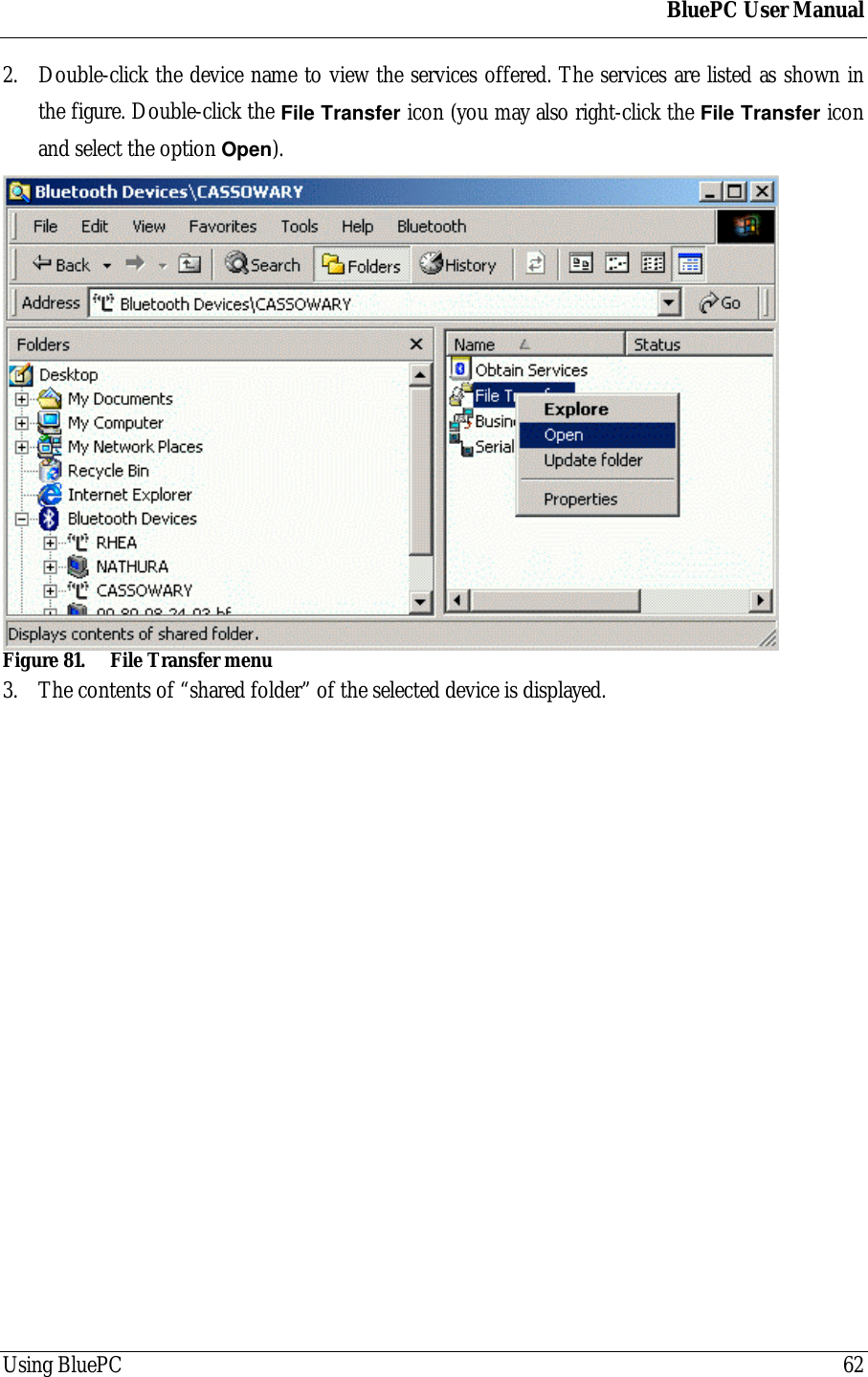
BluePC User ManualUsing BluePC 622. Double-click the device name to view the services offered. The services are listed as shown inthe figure. Double-click the File Transfer icon (you may also right-click the File Transfer iconand select the option Open).Figure 81. File Transfer menu3. The contents of “shared folder” of the selected device is displayed.
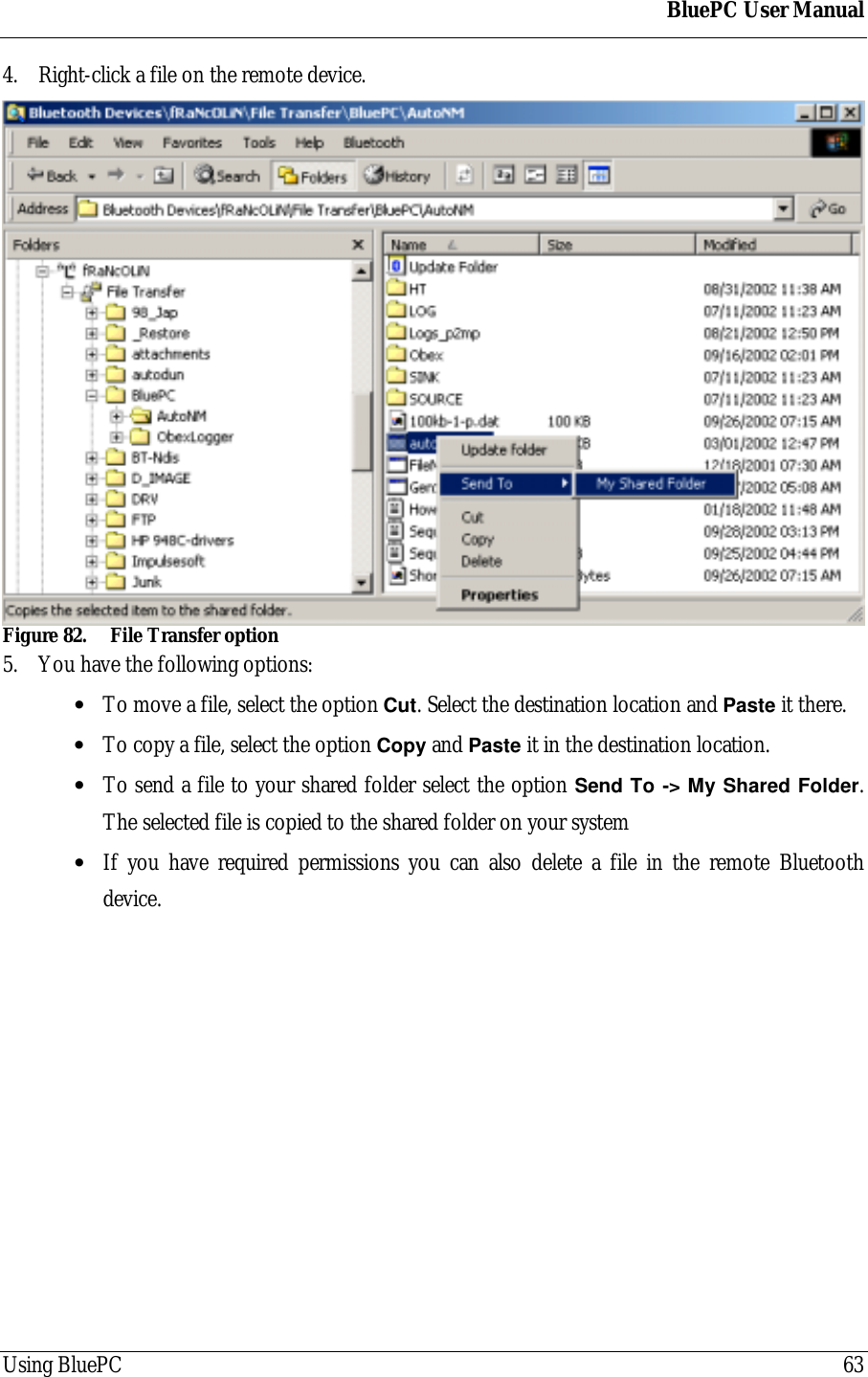
BluePC User ManualUsing BluePC 634. Right-click a file on the remote device.Figure 82. File Transfer option5. You have the following options:• To move a file, select the option Cut. Select the destination location and Paste it there.• To copy a file, select the option Copy and Paste it in the destination location.• To send a file to your shared folder select the option Send To -> My Shared Folder.The selected file is copied to the shared folder on your system• If you have required permissions you can also delete a file in the remote Bluetoothdevice.
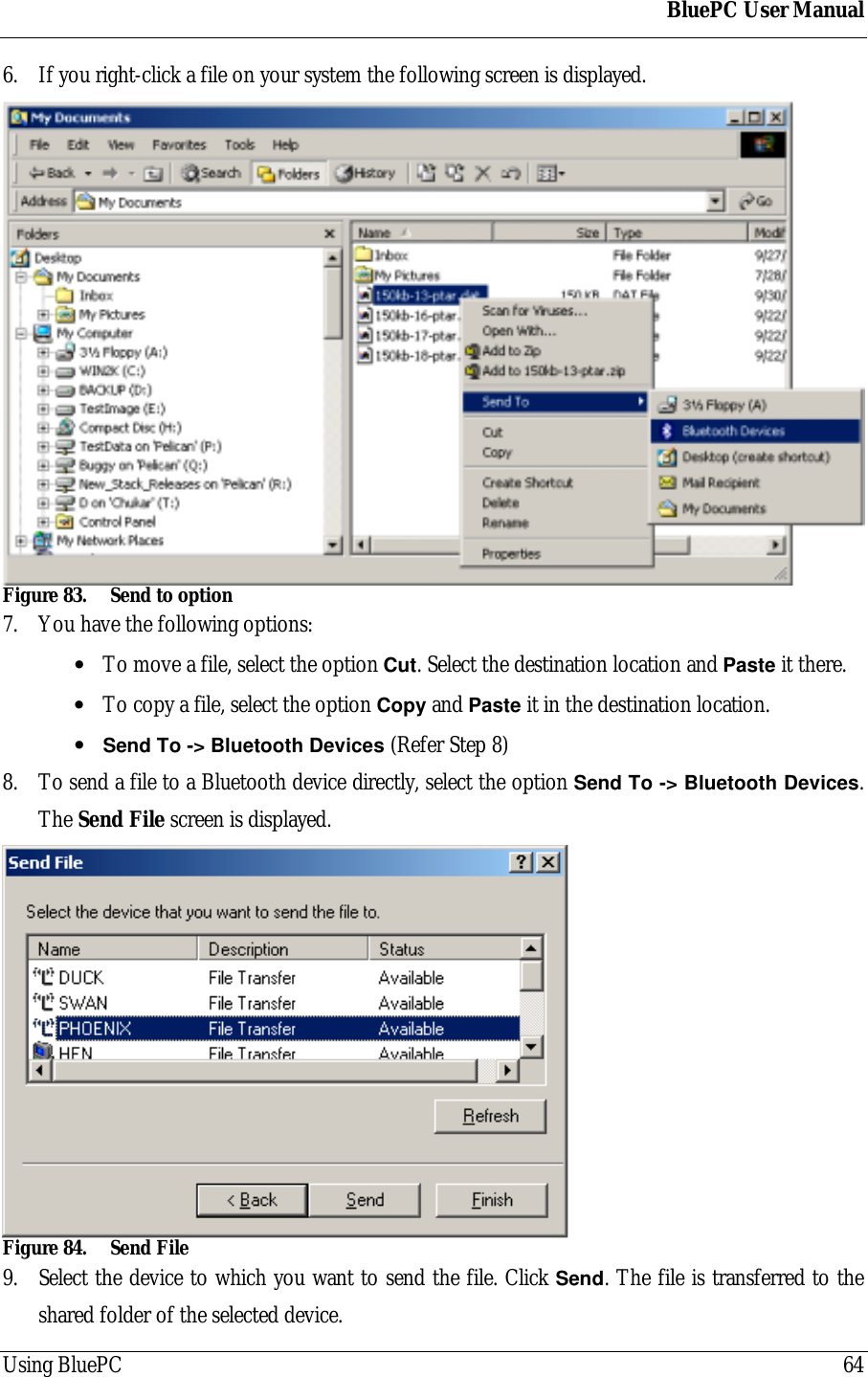
BluePC User ManualUsing BluePC 646. If you right-click a file on your system the following screen is displayed.Figure 83. Send to option7. You have the following options:• To move a file, select the option Cut. Select the destination location and Paste it there.• To copy a file, select the option Copy and Paste it in the destination location.• Send To -> Bluetooth Devices (Refer Step 8)8. To send a file to a Bluetooth device directly, select the option Send To -> Bluetooth Devices.The Send File screen is displayed.Figure 84. Send File9. Select the device to which you want to send the file. Click Send. The file is transferred to theshared folder of the selected device.
BluePC User ManualUsing BluePC 6510. You can also drag and drop files. Select the required file on your system and drag and drop it inthe shared folder of the remote device. Or select a file in the shared folder of the remote device,and drag and drop it  into a folder on your system.
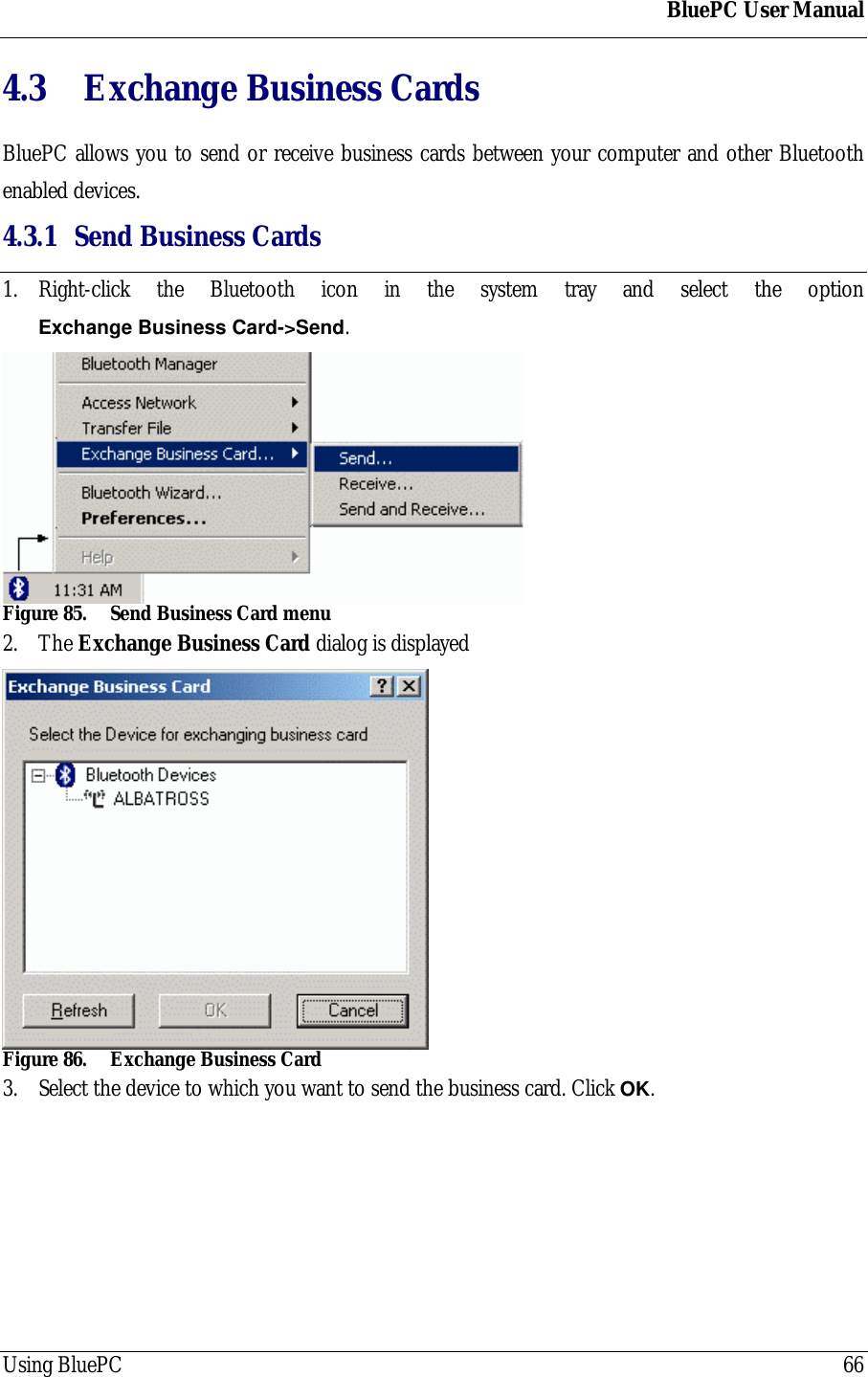
BluePC User ManualUsing BluePC 664.3  Exchange Business CardsBluePC allows you to send or receive business cards between your computer and other Bluetoothenabled devices.4.3.1 Send Business Cards1. Right-click the Bluetooth icon in the system tray and select the optionExchange Business Card->Send.Figure 85. Send Business Card menu2. The Exchange Business Card dialog is displayedFigure 86. Exchange Business Card3. Select the device to which you want to send the business card. Click OK.
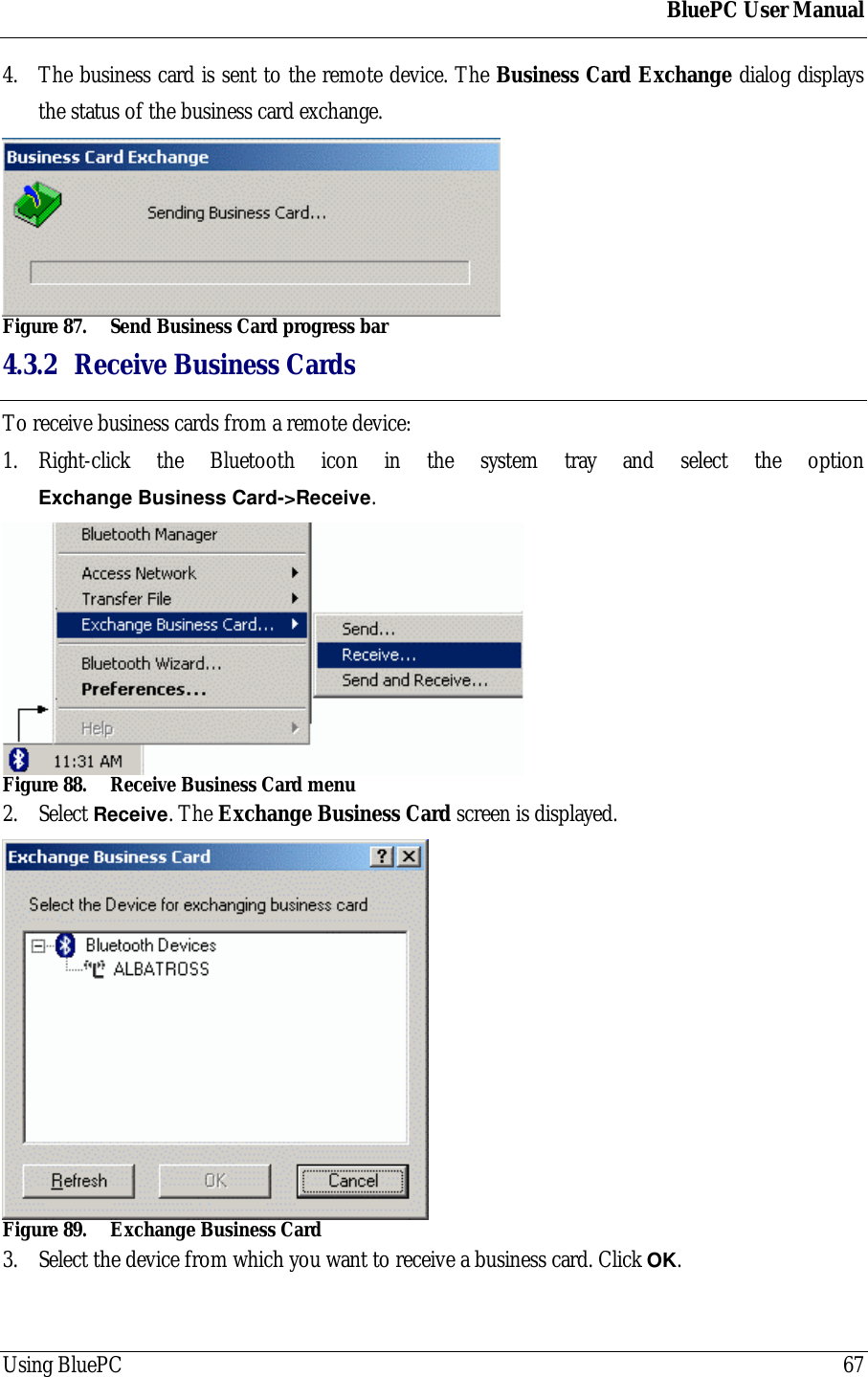
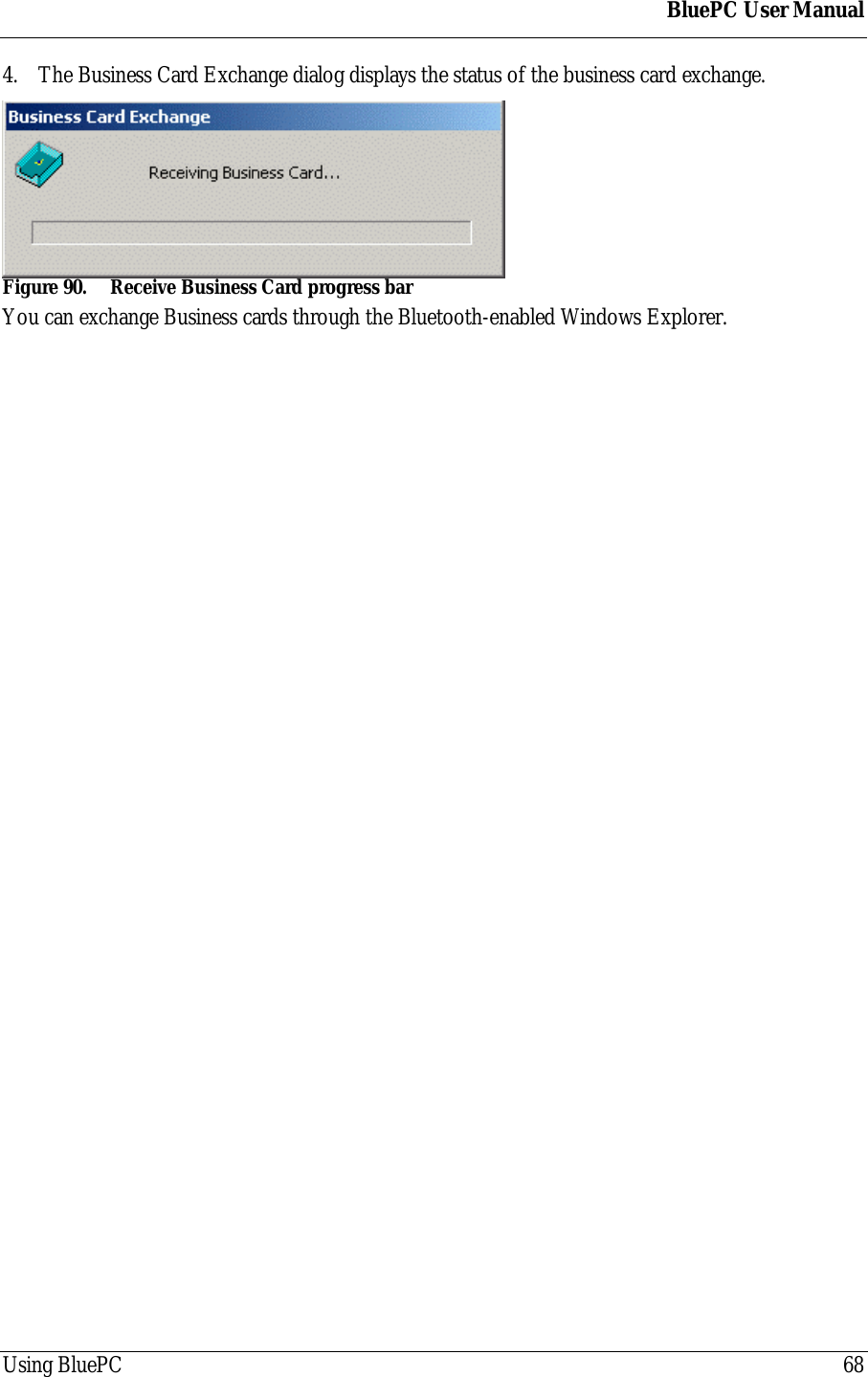
BluePC User ManualUsing BluePC 674. The business card is sent to the remote device. The Business Card Exchange dialog displaysthe status of the business card exchange.Figure 87. Send Business Card progress bar4.3.2 Receive Business CardsTo receive business cards from a remote device:1. Right-click the Bluetooth icon in the system tray and select the optionExchange Business Card->Receive.Figure 88. Receive Business Card menu2. Select Receive. The Exchange Business Card screen is displayed.Figure 89. Exchange Business Card3. Select the device from which you want to receive a business card. Click OK.
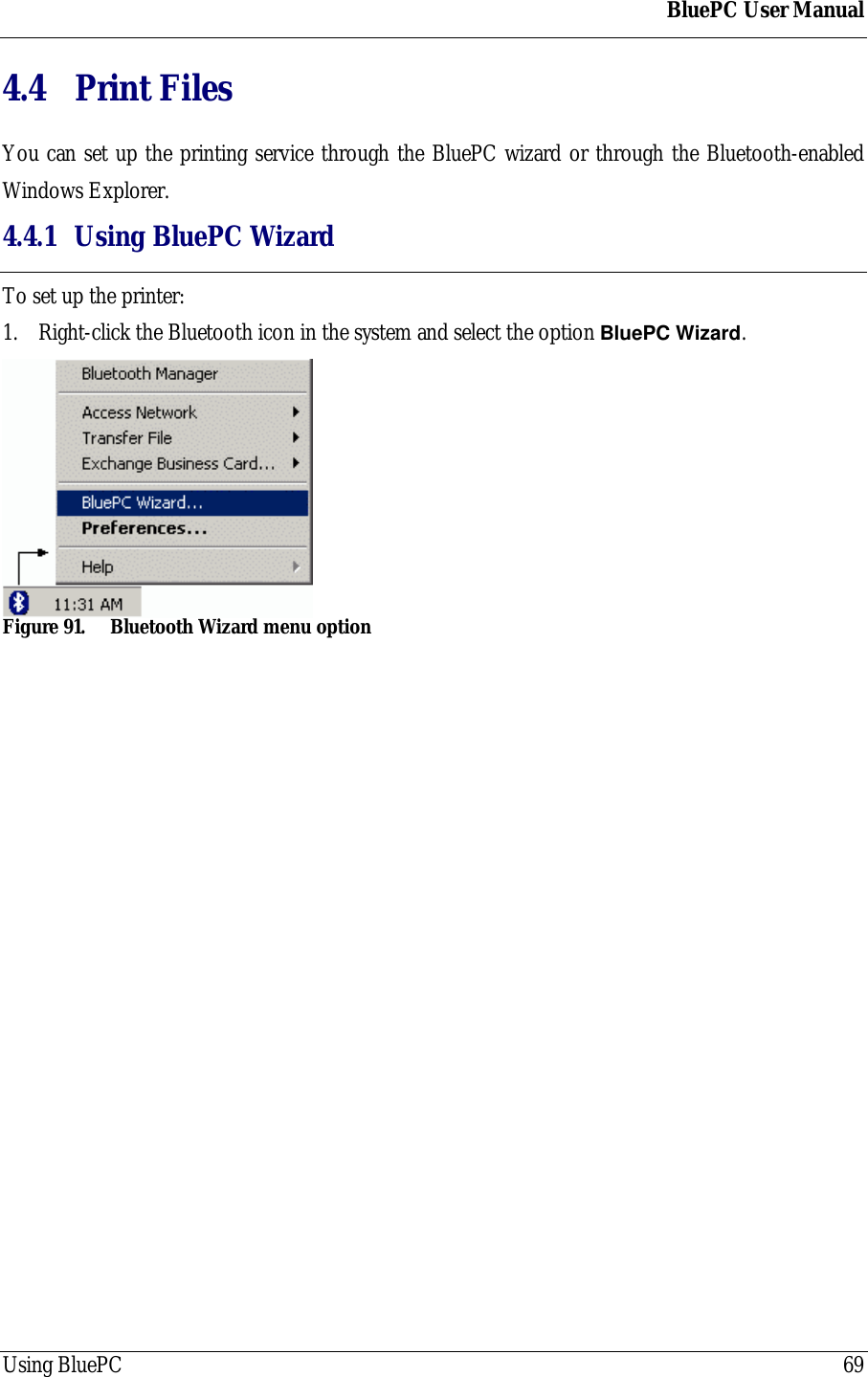
BluePC User ManualUsing BluePC 684. The Business Card Exchange dialog displays the status of the business card exchange.Figure 90. Receive Business Card progress barYou can exchange Business cards through the Bluetooth-enabled Windows Explorer.
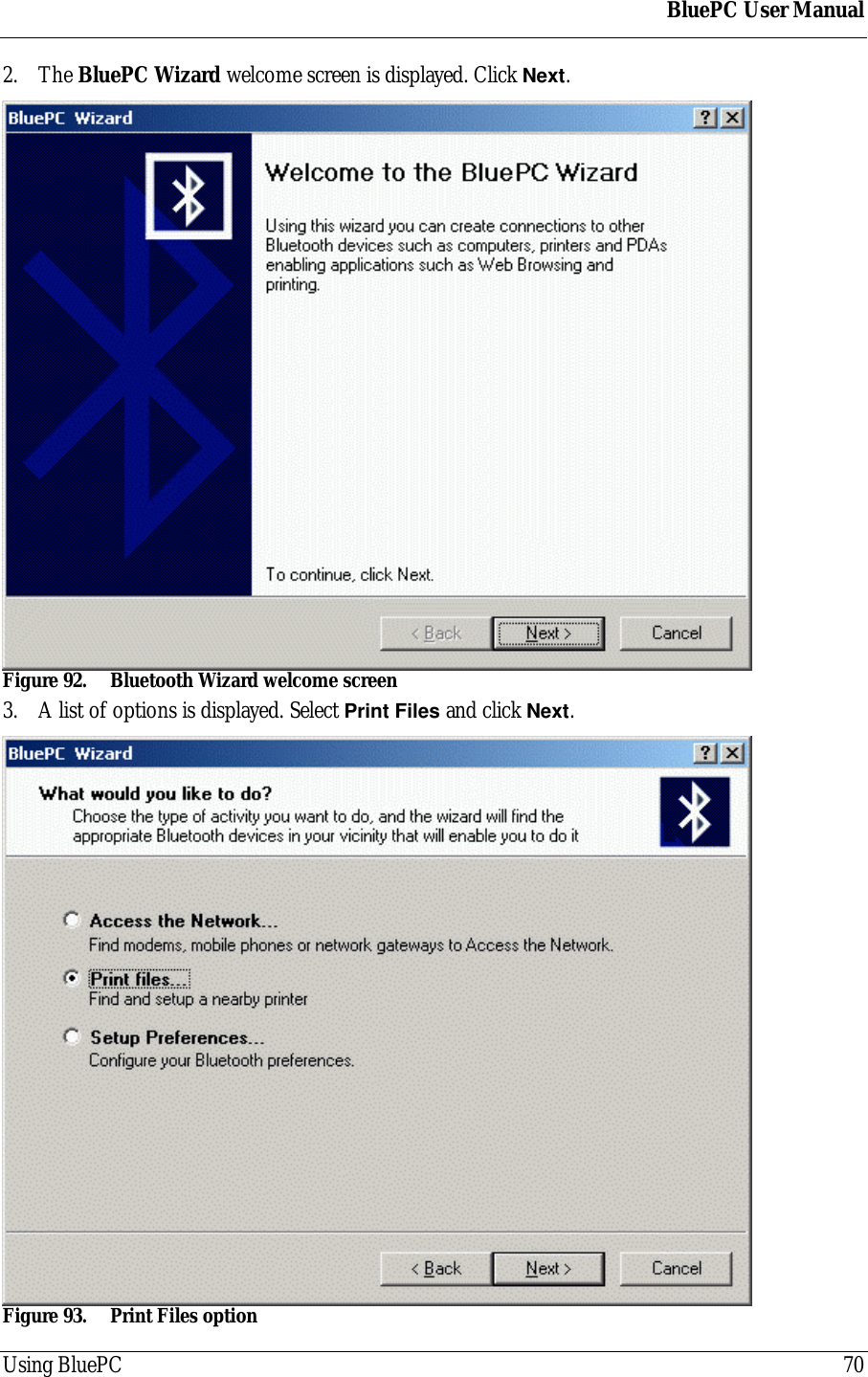
BluePC User ManualUsing BluePC 694.4 Print FilesYou can set up the printing service through the BluePC wizard or through the Bluetooth-enabledWindows Explorer.4.4.1 Using BluePC WizardTo set up the printer:1. Right-click the Bluetooth icon in the system and select the option BluePC Wizard.Figure 91. Bluetooth Wizard menu option
BluePC User ManualUsing BluePC 702. The BluePC Wizard welcome screen is displayed. Click Next.Figure 92. Bluetooth Wizard welcome screen3. A list of options is displayed. Select Print Files and click Next.Figure 93. Print Files option
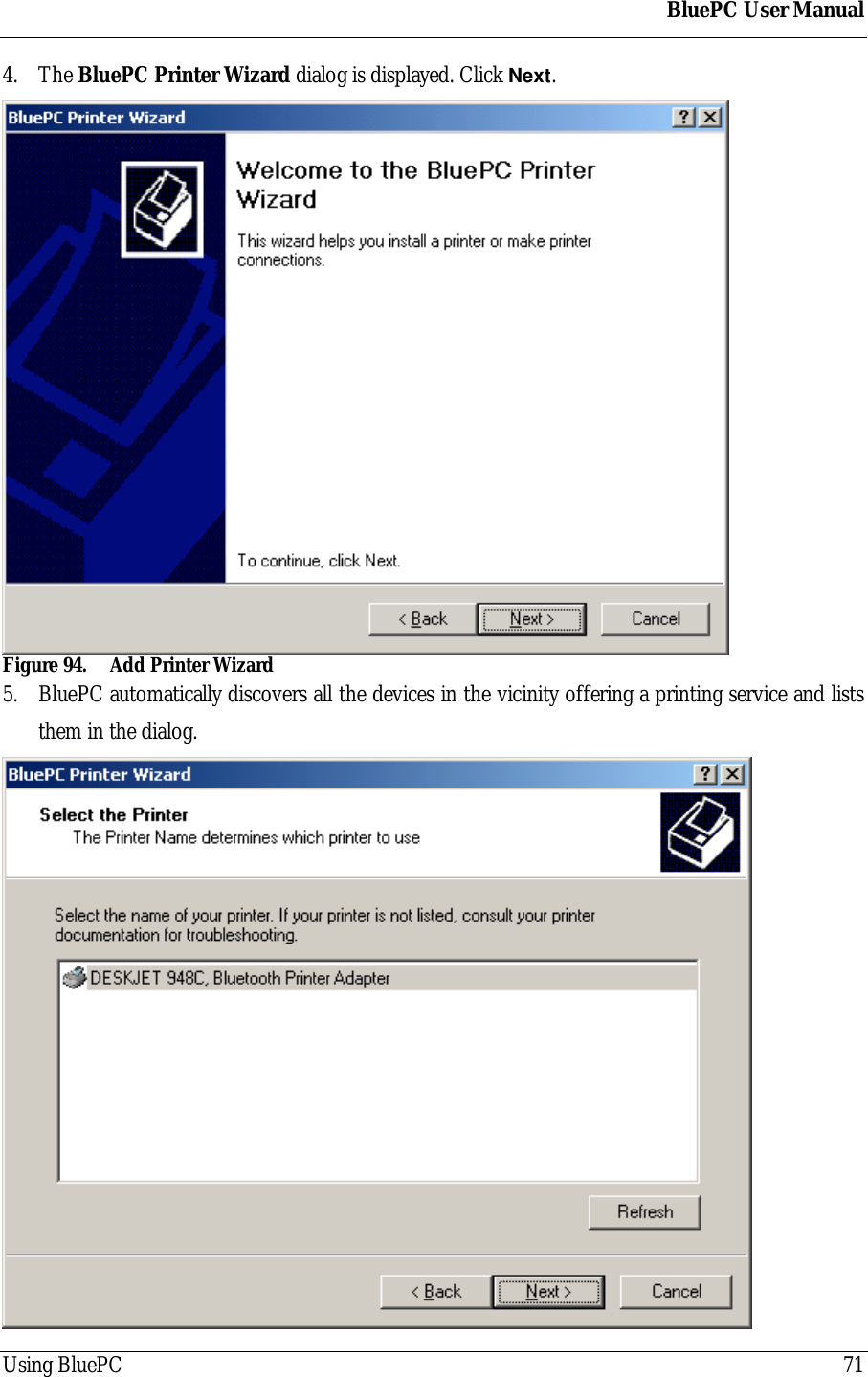
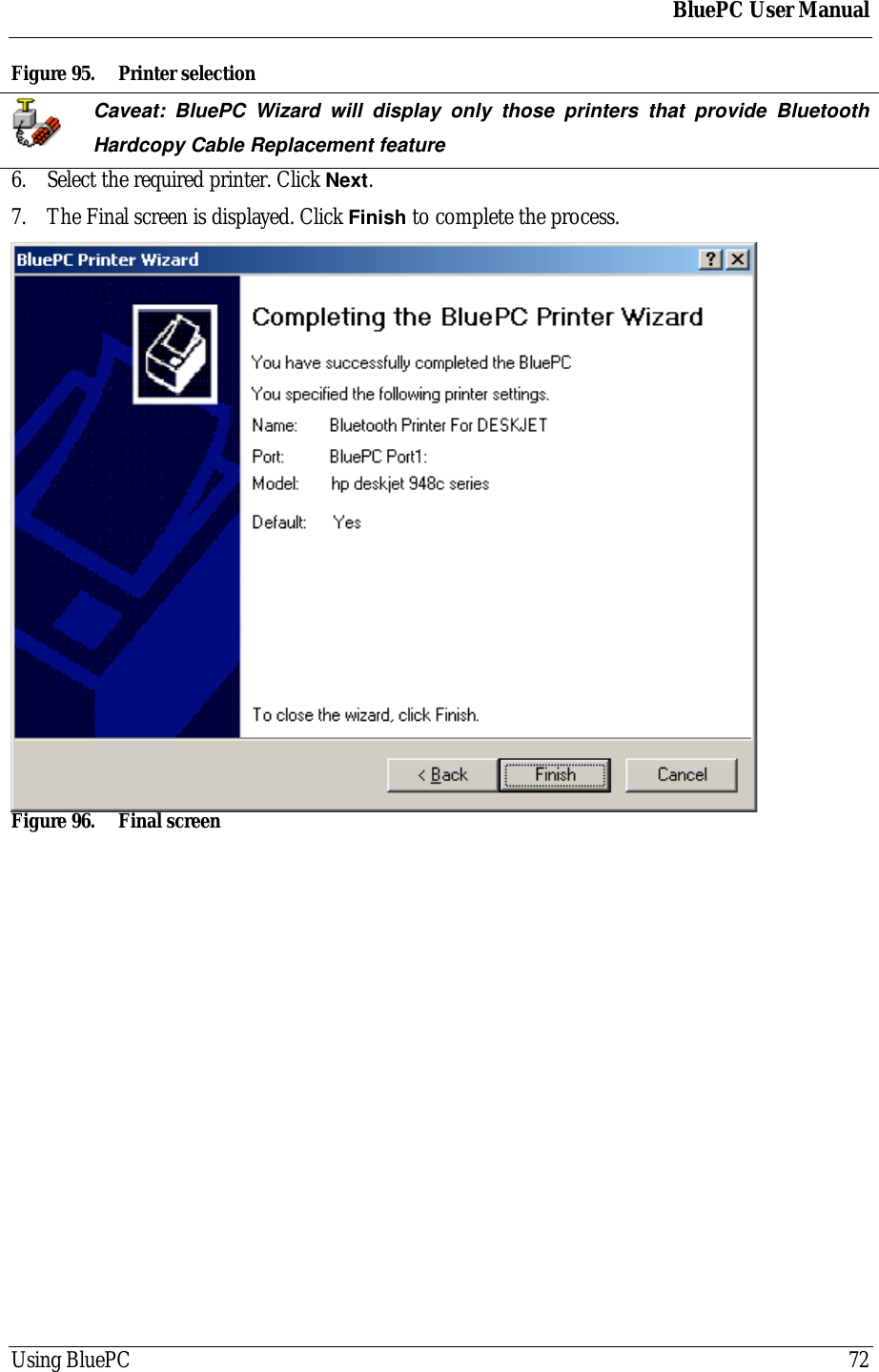
BluePC User ManualUsing BluePC 714. The BluePC Printer Wizard dialog is displayed. Click Next.Figure 94. Add Printer Wizard5. BluePC automatically discovers all the devices in the vicinity offering a printing service and liststhem in the dialog.
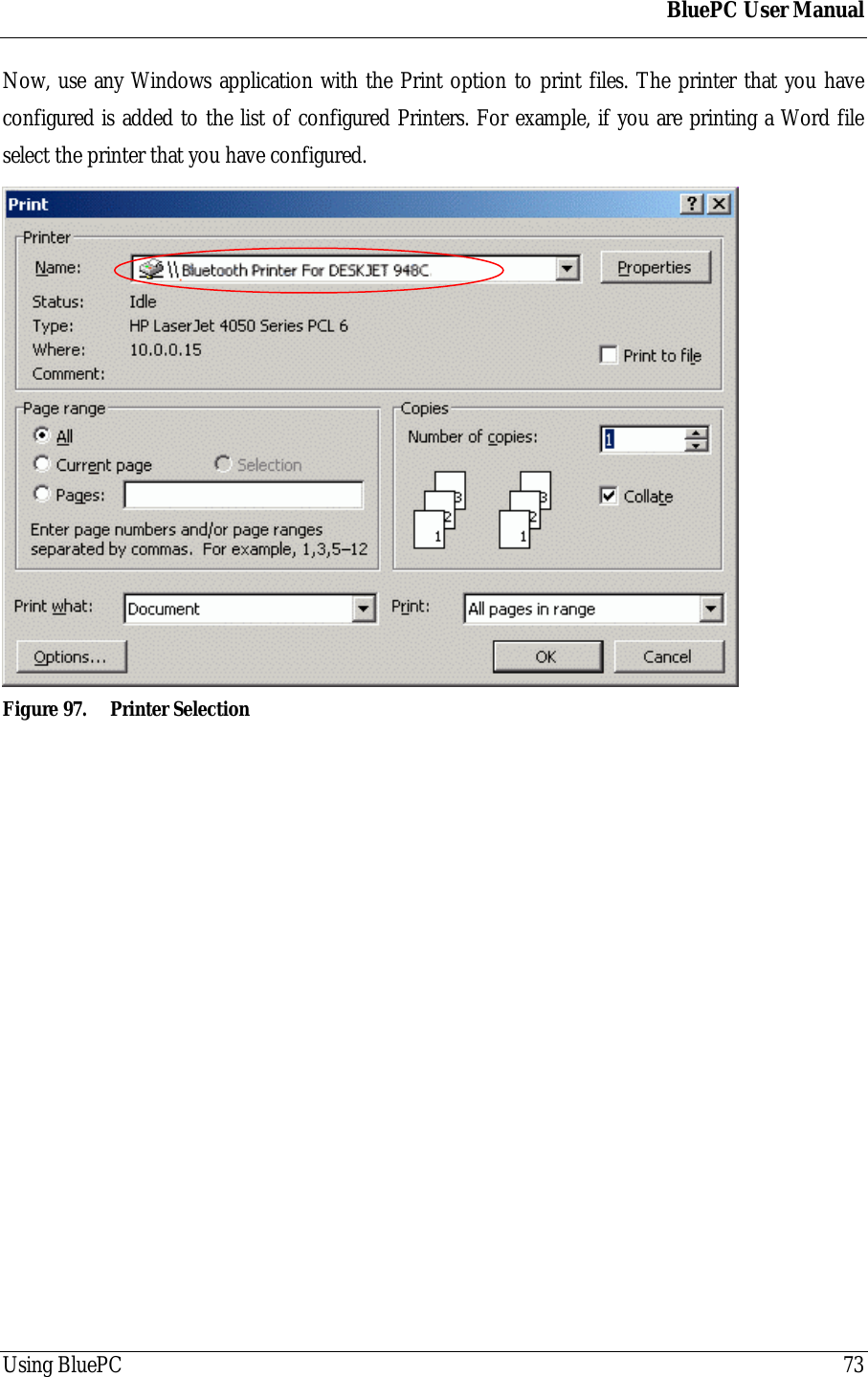
BluePC User ManualUsing BluePC 72Figure 95. Printer selectionCaveat: BluePC Wizard will display only those printers that provide BluetoothHardcopy Cable Replacement feature6. Select the required printer. Click Next.7. The Final screen is displayed. Click Finish to complete the process.Figure 96. Final screen
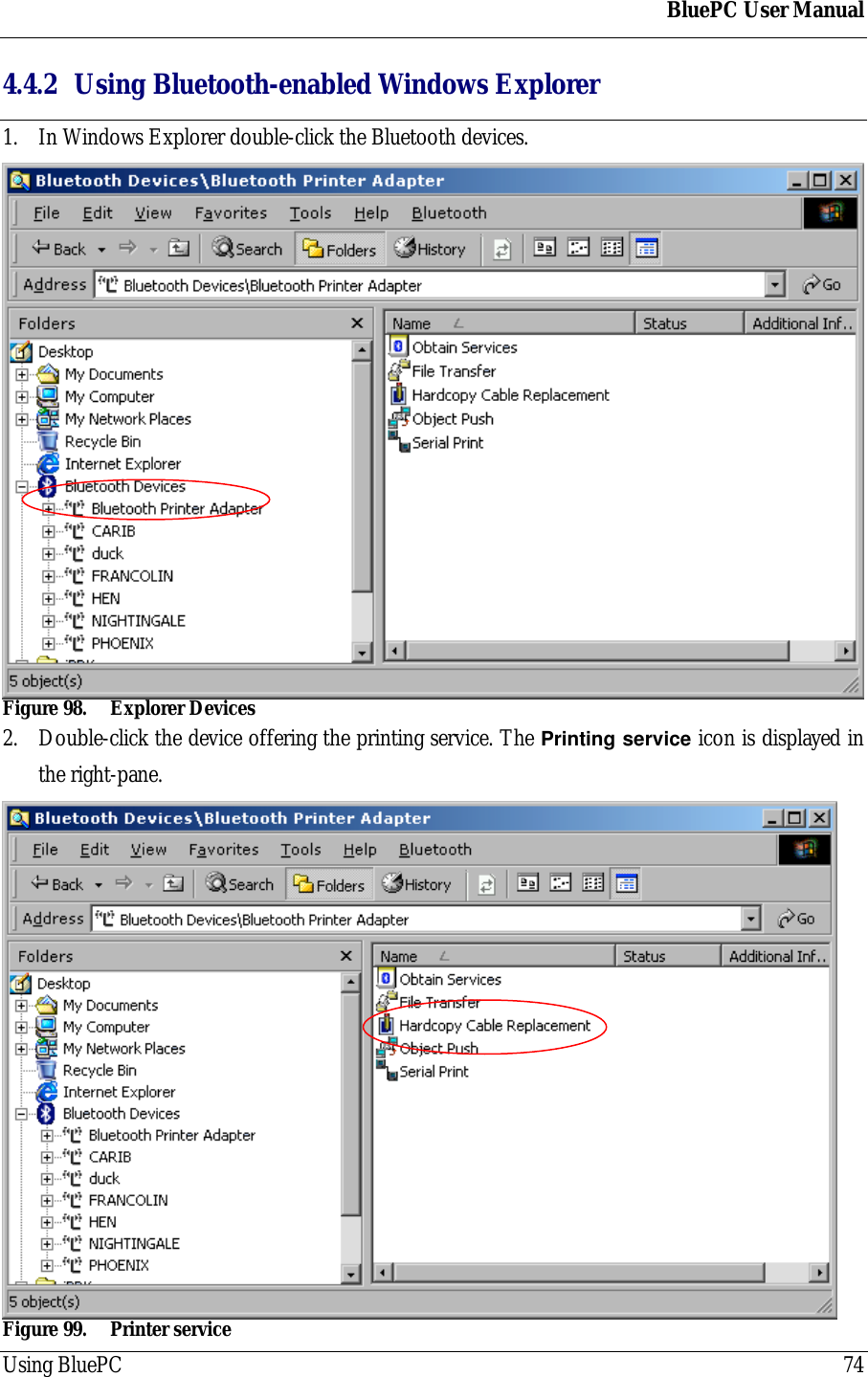
BluePC User ManualUsing BluePC 73Now, use any Windows application with the Print option to print files. The printer that you haveconfigured is added to the list of configured Printers. For example, if you are printing a Word fileselect the printer that you have configured.Figure 97. Printer Selection
BluePC User ManualUsing BluePC 744.4.2 Using Bluetooth-enabled Windows Explorer1. In Windows Explorer double-click the Bluetooth devices.Figure 98. Explorer Devices2. Double-click the device offering the printing service. The Printing service icon is displayed inthe right-pane.Figure 99. Printer service
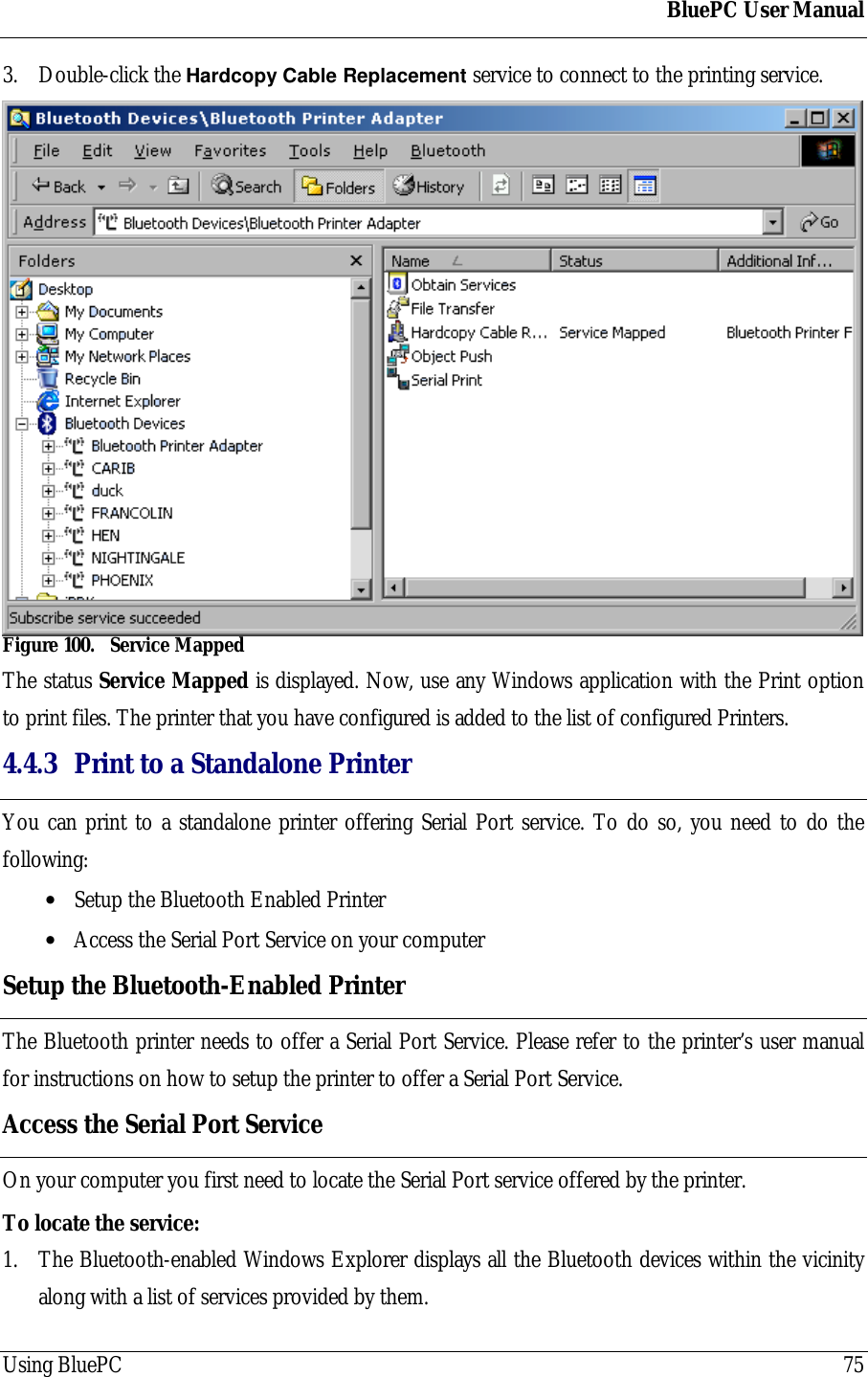
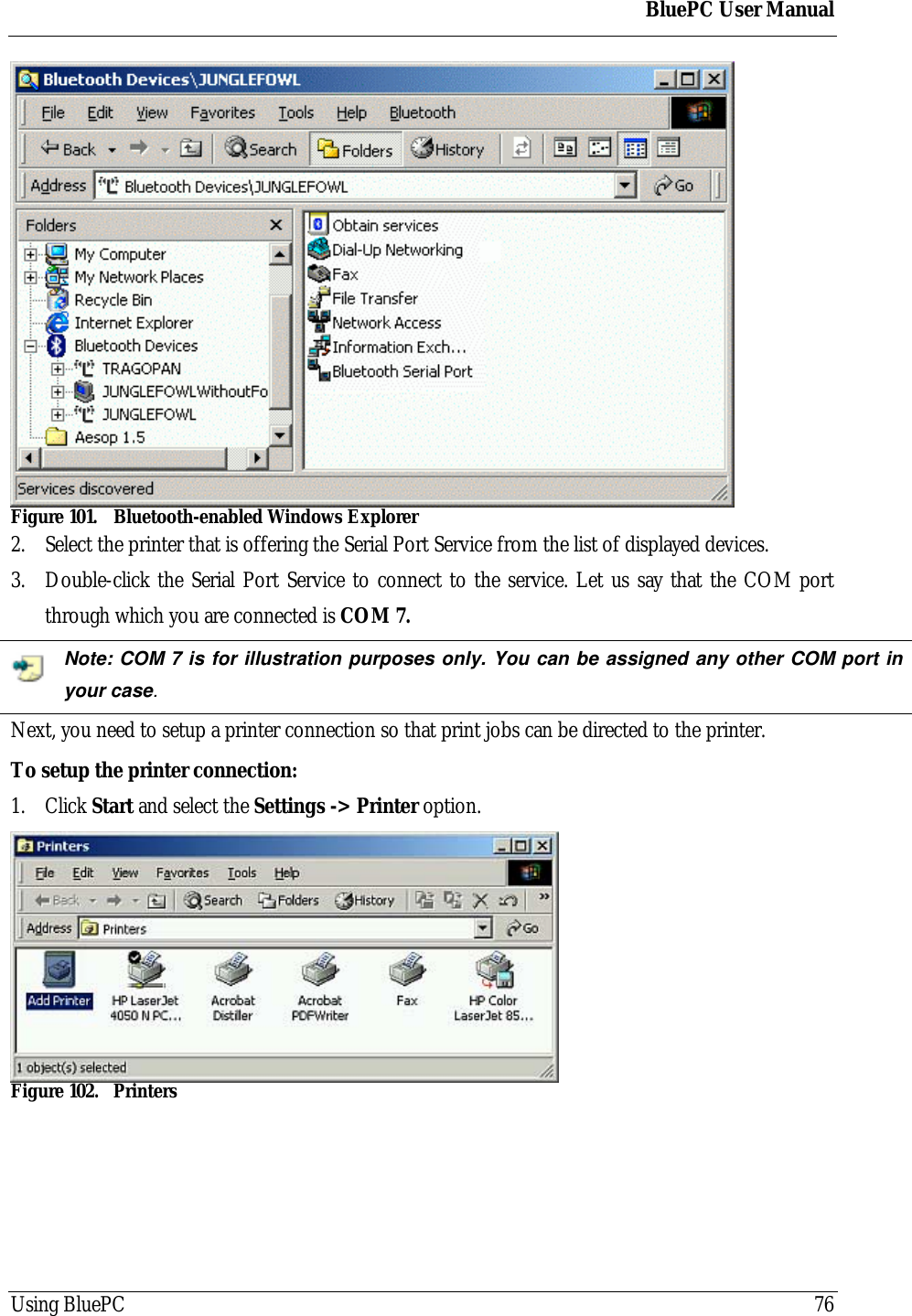
BluePC User ManualUsing BluePC 753. Double-click the Hardcopy Cable Replacement service to connect to the printing service.Figure 100. Service MappedThe status Service Mapped is displayed. Now, use any Windows application with the Print optionto print files. The printer that you have configured is added to the list of configured Printers.4.4.3 Print to a Standalone PrinterYou can print to a standalone printer offering Serial Port service. To do so, you need to do thefollowing:• Setup the Bluetooth Enabled Printer• Access the Serial Port Service on your computerSetup the Bluetooth-Enabled PrinterThe Bluetooth printer needs to offer a Serial Port Service. Please refer to the printer’s user manualfor instructions on how to setup the printer to offer a Serial Port Service.Access the Serial Port ServiceOn your computer you first need to locate the Serial Port service offered by the printer.To locate the service:1. The Bluetooth-enabled Windows Explorer displays all the Bluetooth devices within the vicinityalong with a list of services provided by them.
BluePC User ManualUsing BluePC 76Figure 101. Bluetooth-enabled Windows Explorer2. Select the printer that is offering the Serial Port Service from the list of displayed devices.3. Double-click the Serial Port Service to connect to the service. Let us say that the COM portthrough which you are connected is COM 7.Note: COM 7 is for illustration purposes only. You can be assigned any other COM port inyour case.Next, you need to setup a printer connection so that print jobs can be directed to the printer.To setup the printer connection:1. Click Start and select the Settings -> Printer option.Figure 102. Printers
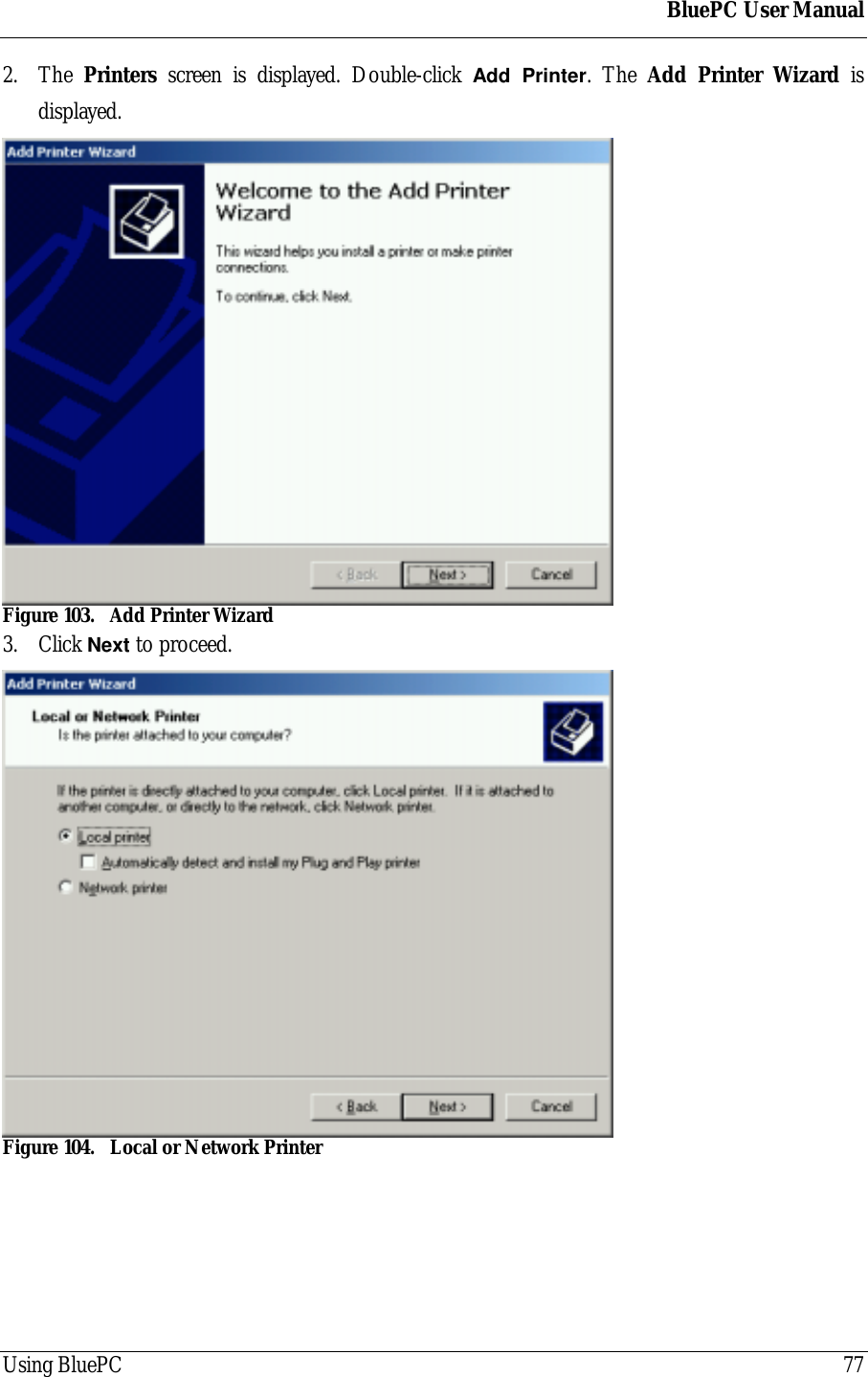
BluePC User ManualUsing BluePC 772. The  Printers screen is displayed. Double-click Add Printer. The Add Printer Wizard isdisplayed.Figure 103. Add Printer Wizard3. Click Next to proceed.Figure 104. Local or Network Printer
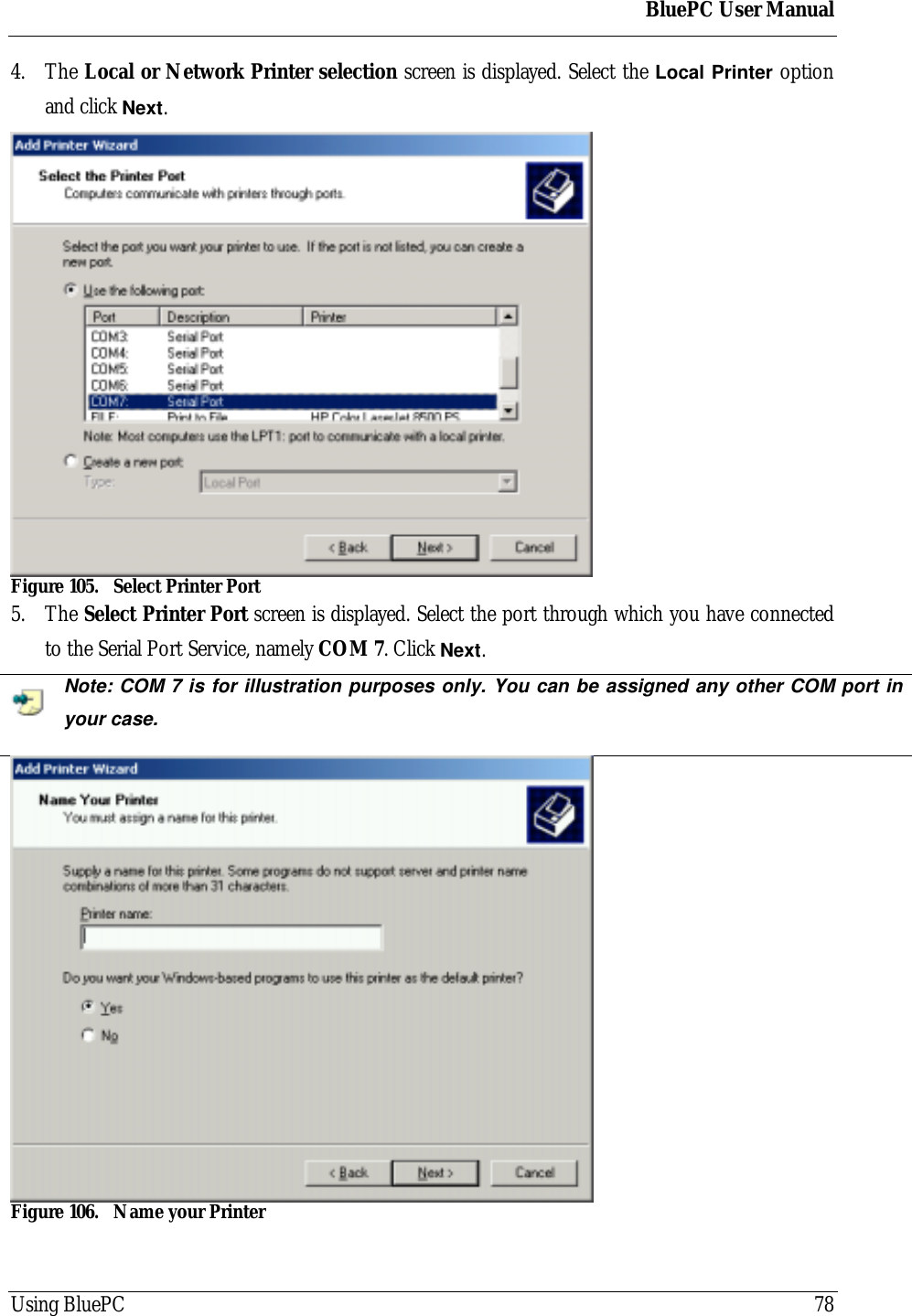
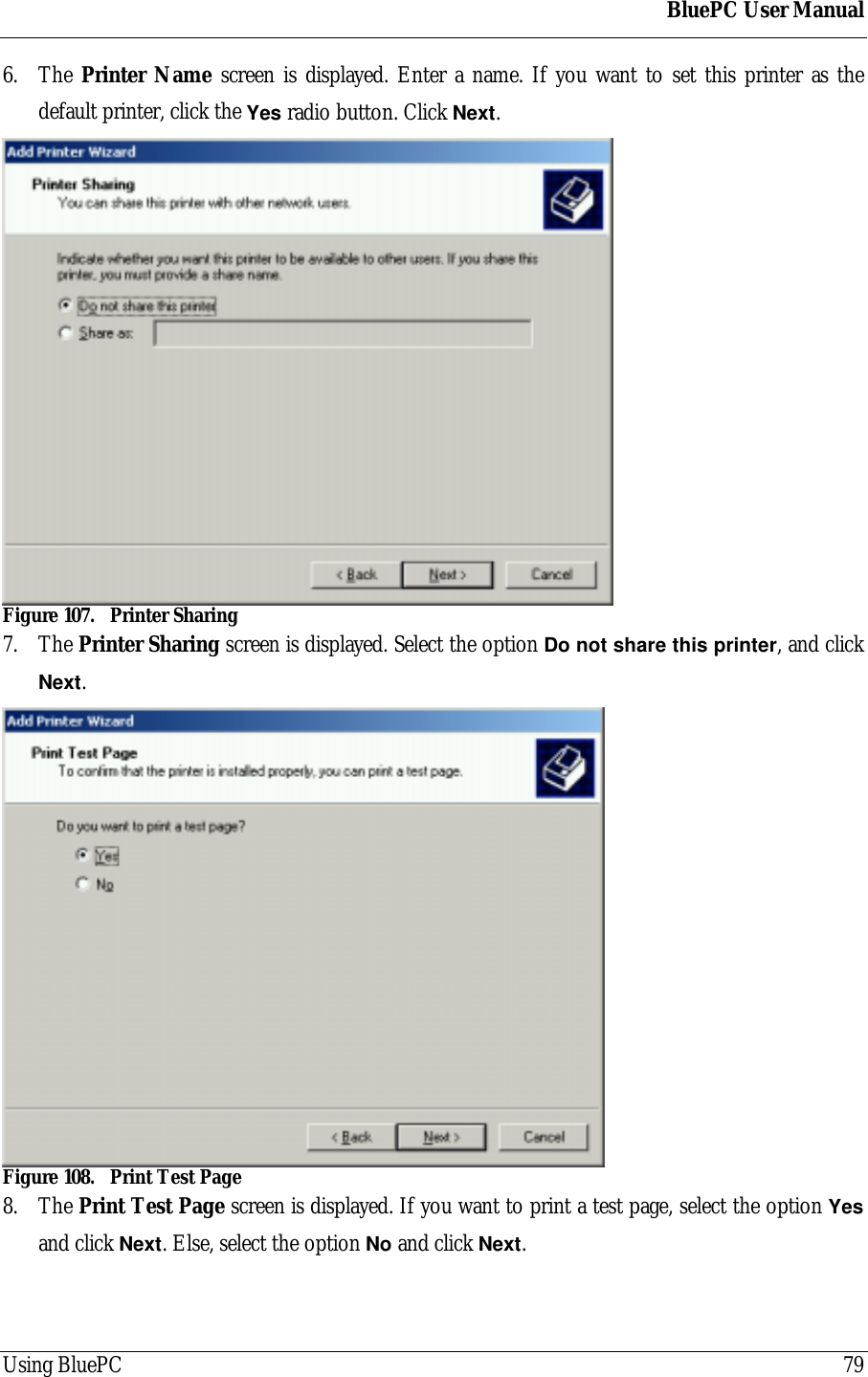
BluePC User ManualUsing BluePC 784. The Local or Network Printer selection screen is displayed. Select the Local Printer optionand click Next.Figure 105. Select Printer Port5. The Select Printer Port screen is displayed. Select the port through which you have connectedto the Serial Port Service, namely COM 7. Click Next.Note: COM 7 is for illustration purposes only. You can be assigned any other COM port inyour case.Figure 106. Name your Printer
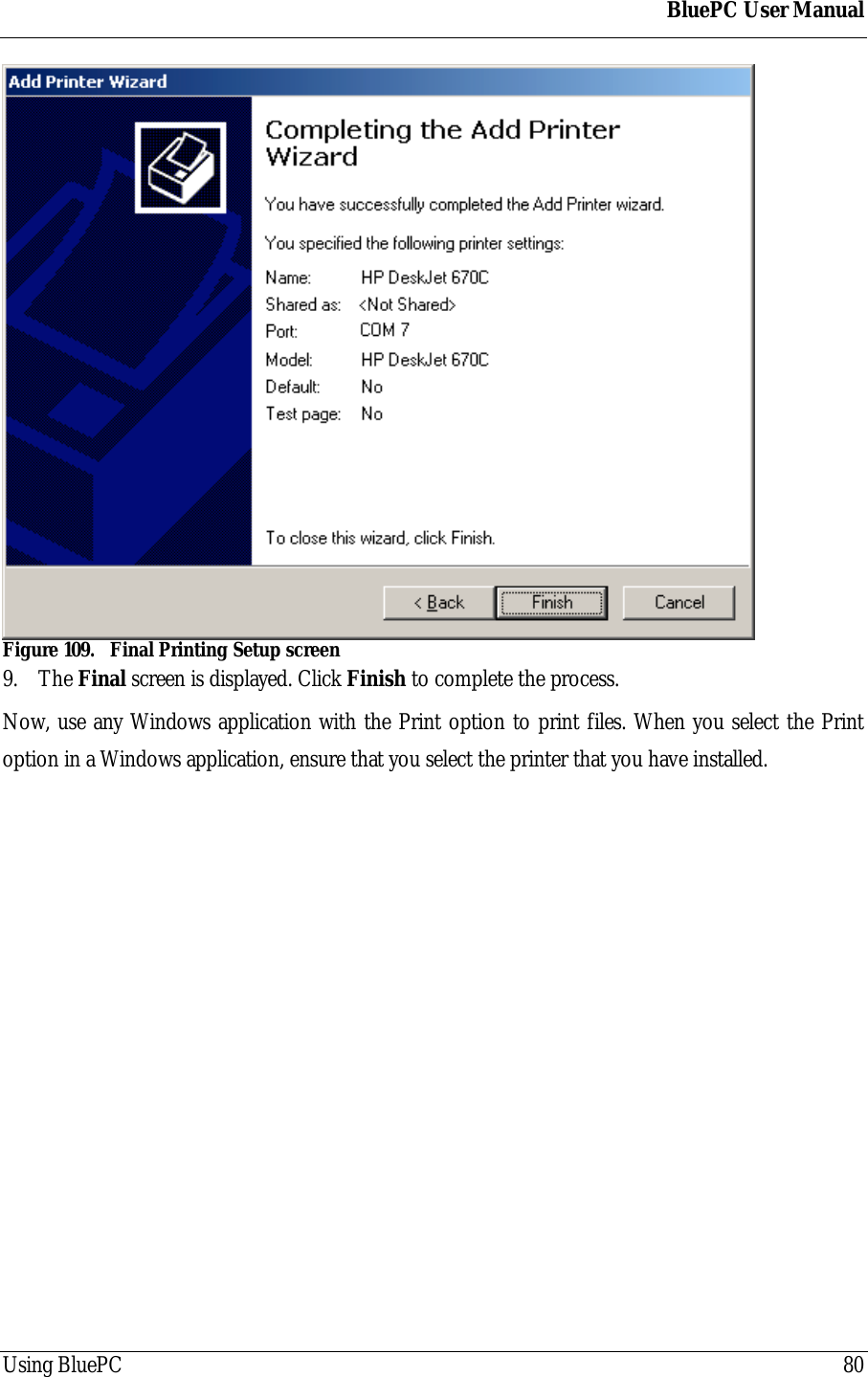
BluePC User ManualUsing BluePC 796. The Printer Name screen is displayed. Enter a name. If you want to set this printer as thedefault printer, click the Yes radio button. Click Next.Figure 107. Printer Sharing7. The Printer Sharing screen is displayed. Select the option Do not share this printer, and clickNext.Figure 108. Print Test Page8. The Print Test Page screen is displayed. If you want to print a test page, select the option Yesand click Next. Else, select the option No and click Next.
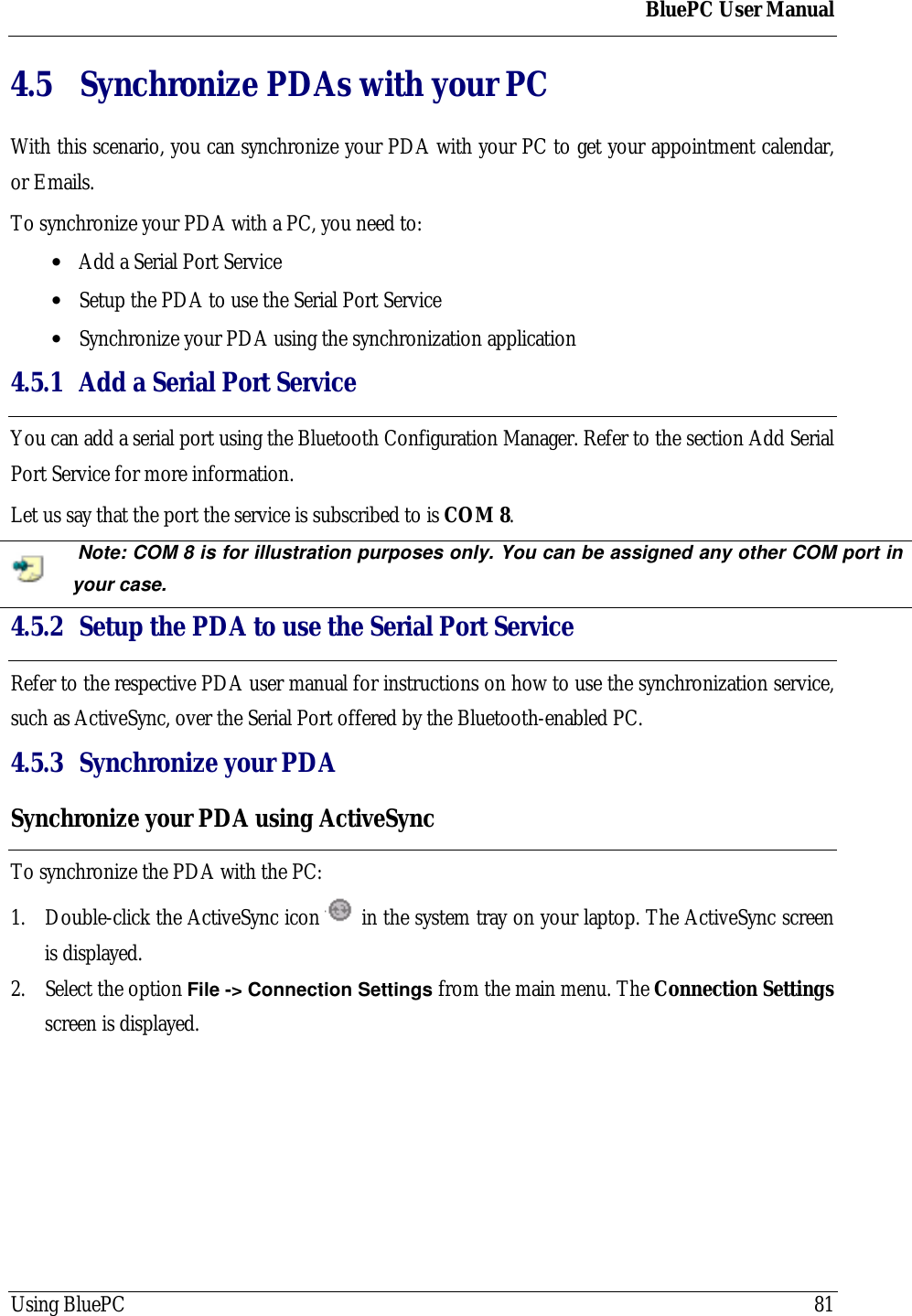
BluePC User ManualUsing BluePC 80Figure 109. Final Printing Setup screen9. The Final screen is displayed. Click Finish to complete the process.Now, use any Windows application with the Print option to print files. When you select the Printoption in a Windows application, ensure that you select the printer that you have installed.
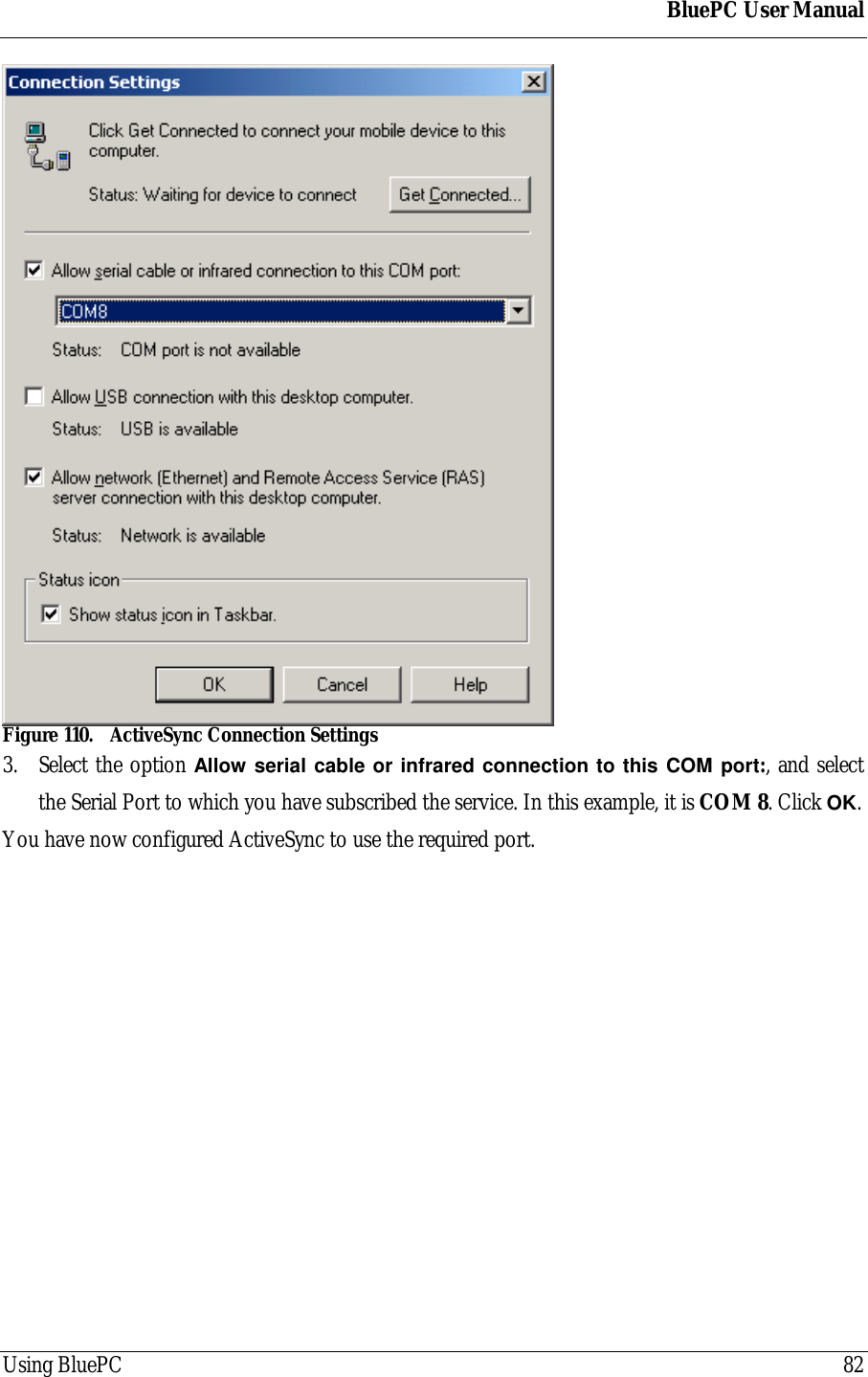
BluePC User ManualUsing BluePC 814.5 Synchronize PDAs with your PCWith this scenario, you can synchronize your PDA with your PC to get your appointment calendar,or Emails.To synchronize your PDA with a PC, you need to:• Add a Serial Port Service• Setup the PDA to use the Serial Port Service• Synchronize your PDA using the synchronization application4.5.1 Add a Serial Port ServiceYou can add a serial port using the Bluetooth Configuration Manager. Refer to the section Add SerialPort Service for more information.Let us say that the port the service is subscribed to is COM 8. Note: COM 8 is for illustration purposes only. You can be assigned any other COM port inyour case.4.5.2 Setup the PDA to use the Serial Port ServiceRefer to the respective PDA user manual for instructions on how to use the synchronization service,such as ActiveSync, over the Serial Port offered by the Bluetooth-enabled PC.4.5.3 Synchronize your PDASynchronize your PDA using ActiveSyncTo synchronize the PDA with the PC:1. Double-click the ActiveSync icon   in the system tray on your laptop. The ActiveSync screenis displayed.2. Select the option File -> Connection Settings from the main menu. The Connection Settingsscreen is displayed.
BluePC User ManualUsing BluePC 82Figure 110. ActiveSync Connection Settings3. Select the option Allow serial cable or infrared connection to this COM port:, and selectthe Serial Port to which you have subscribed the service. In this example, it is COM 8. Click OK.You have now configured ActiveSync to use the required port.
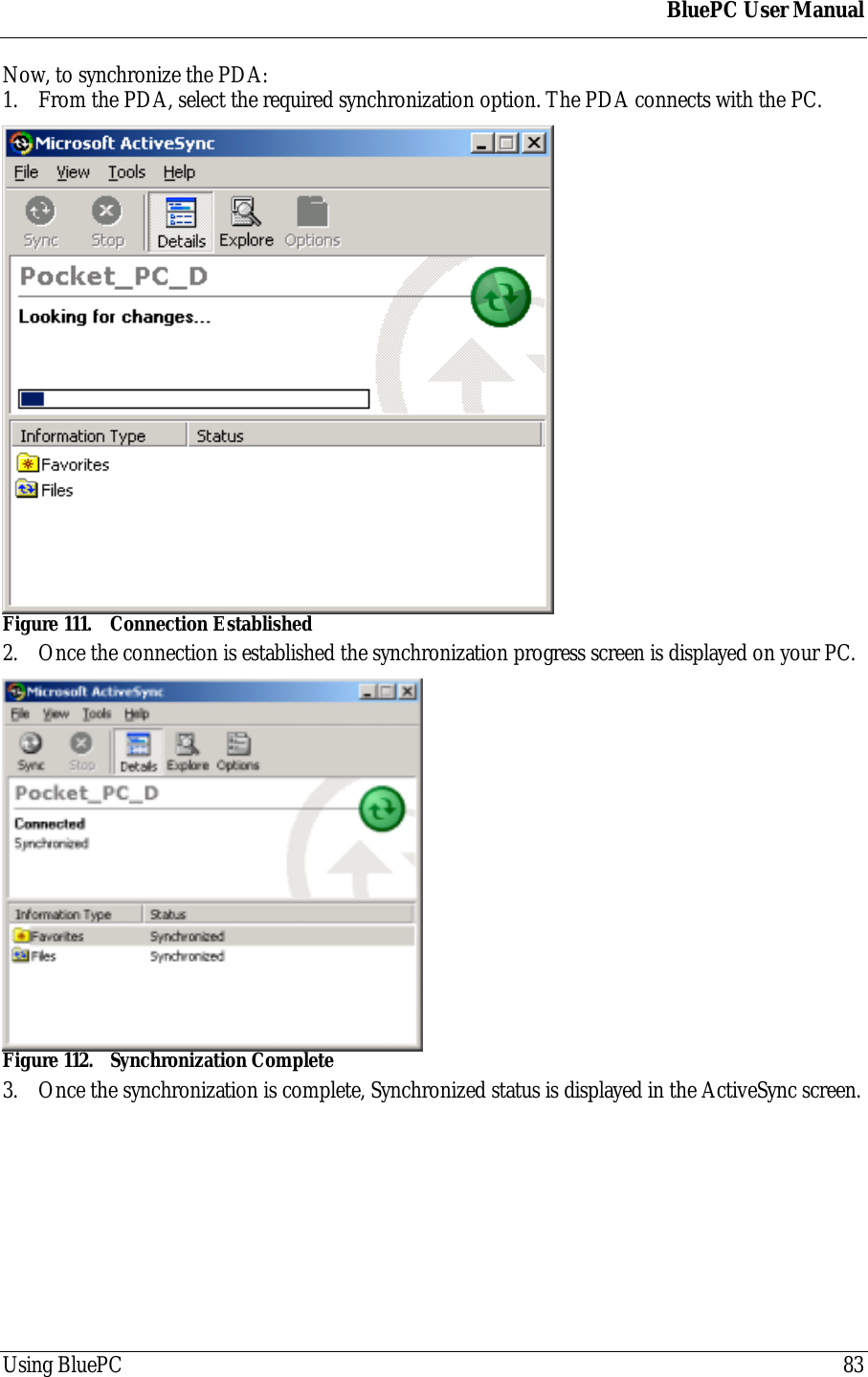
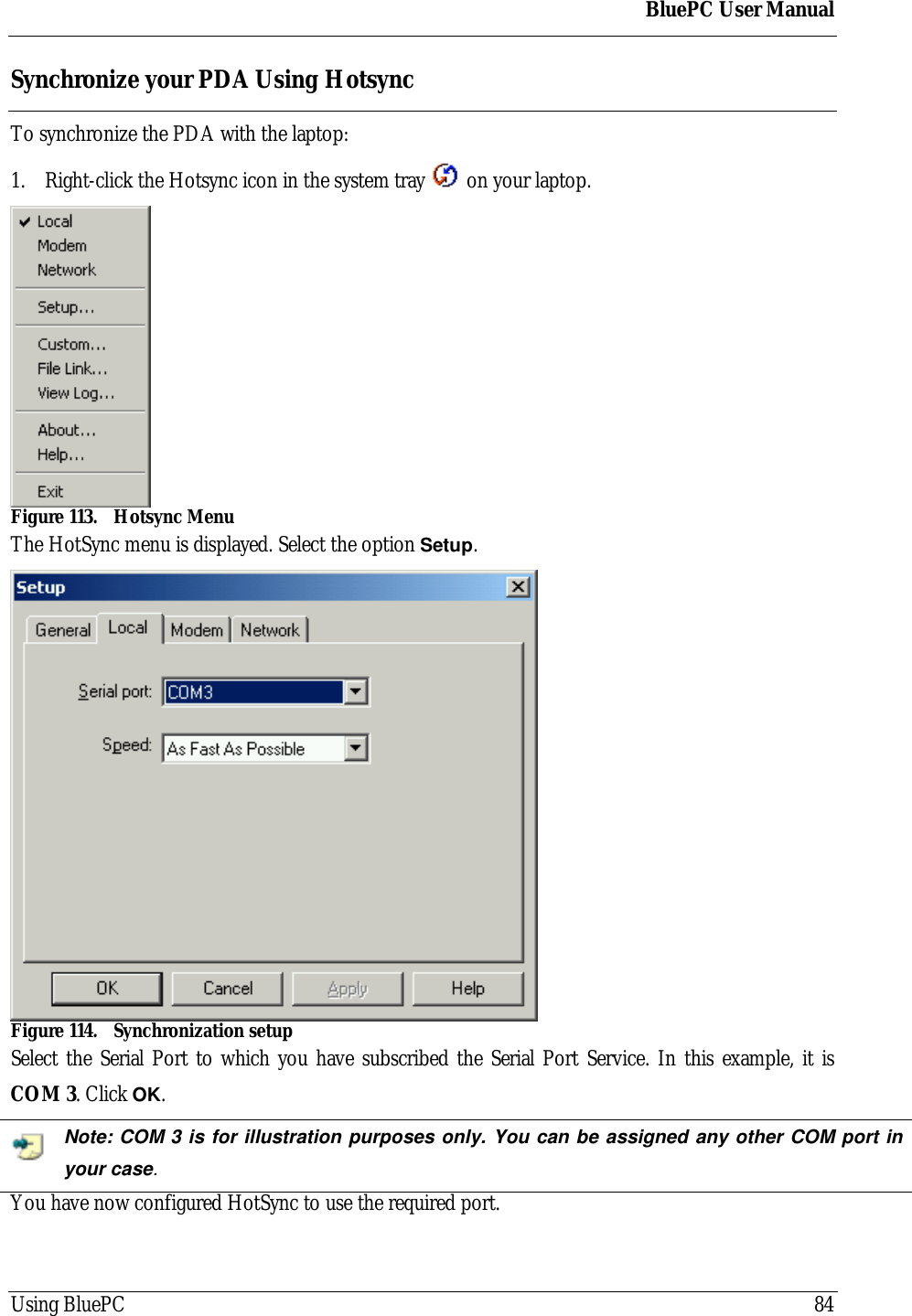
BluePC User ManualUsing BluePC 83Now, to synchronize the PDA:1. From the PDA, select the required synchronization option. The PDA connects with the PC.Figure 111. Connection Established2. Once the connection is established the synchronization progress screen is displayed on your PC.Figure 112. Synchronization Complete3. Once the synchronization is complete, Synchronized status is displayed in the ActiveSync screen.
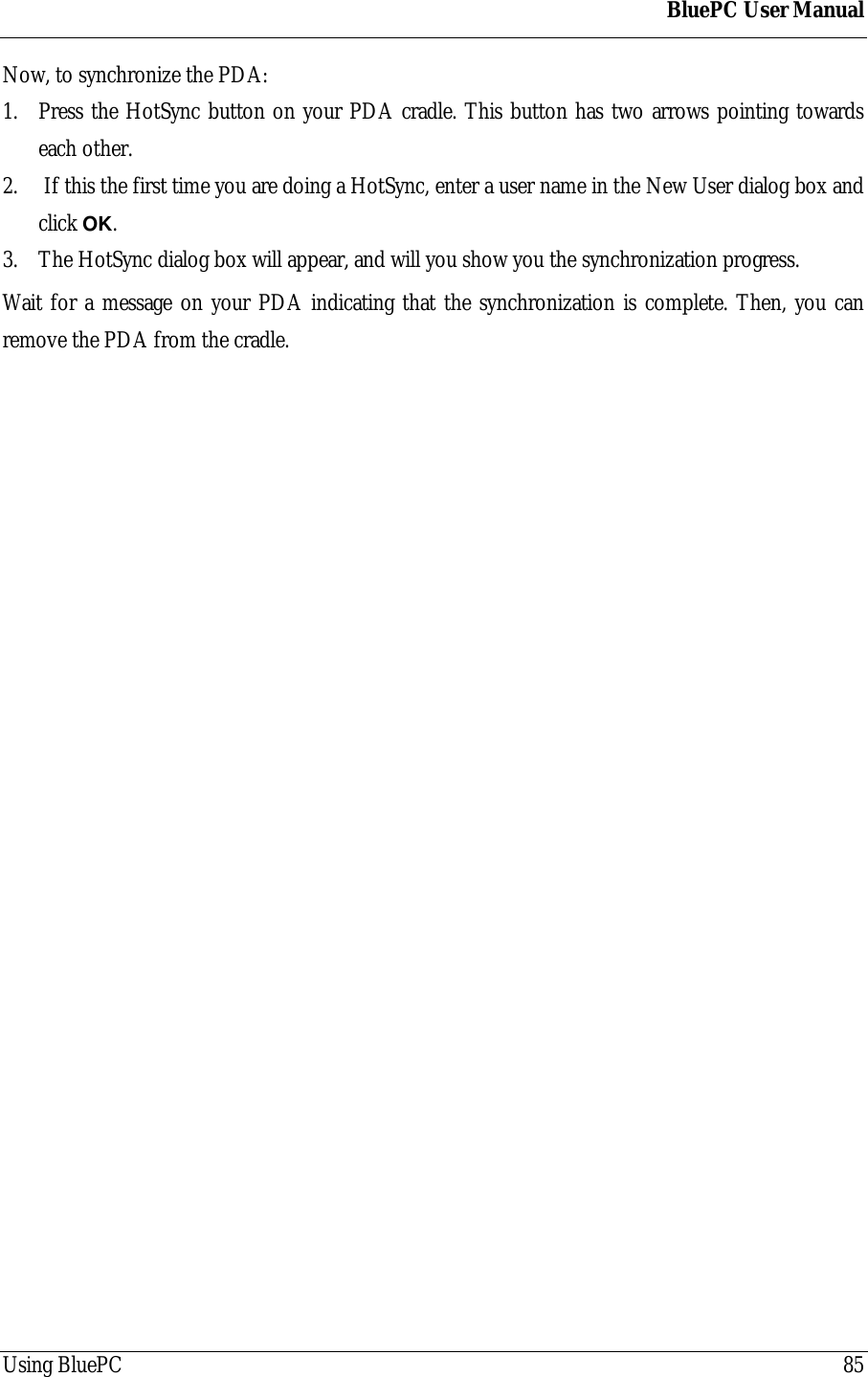
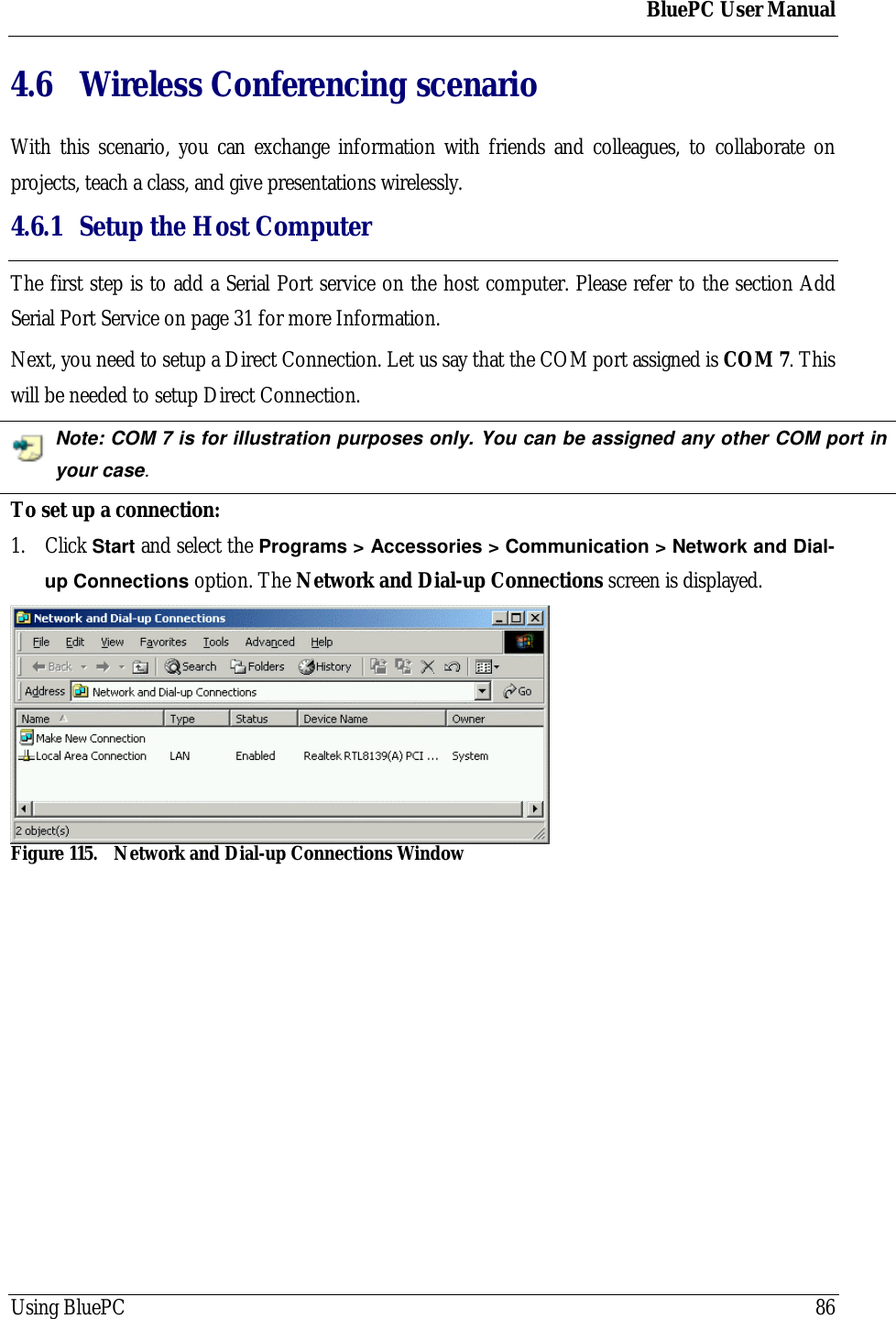
BluePC User ManualUsing BluePC 84Synchronize your PDA Using HotsyncTo synchronize the PDA with the laptop:1. Right-click the Hotsync icon in the system tray   on your laptop.Figure 113. Hotsync MenuThe HotSync menu is displayed. Select the option Setup.Figure 114. Synchronization setupSelect the Serial Port to which you have subscribed the Serial Port Service. In this example, it isCOM 3. Click OK.Note: COM 3 is for illustration purposes only. You can be assigned any other COM port inyour case.You have now configured HotSync to use the required port.
BluePC User ManualUsing BluePC 85Now, to synchronize the PDA:1. Press the HotSync button on your PDA cradle. This button has two arrows pointing towardseach other.2.  If this the first time you are doing a HotSync, enter a user name in the New User dialog box andclick OK.3. The HotSync dialog box will appear, and will you show you the synchronization progress.Wait for a message on your PDA indicating that the synchronization is complete. Then, you canremove the PDA from the cradle.
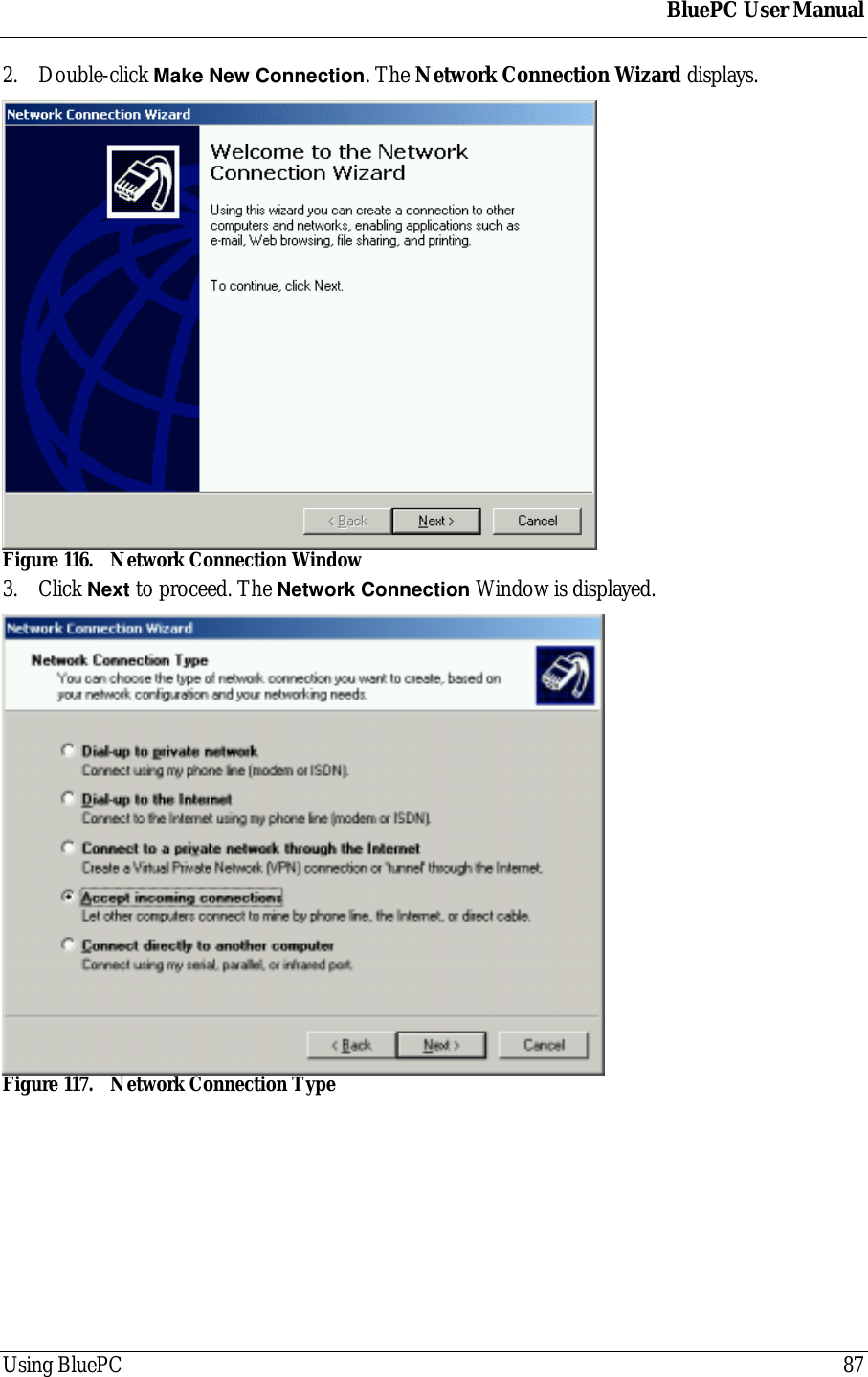
BluePC User ManualUsing BluePC 864.6 Wireless Conferencing scenarioWith this scenario, you can exchange information with friends and colleagues, to collaborate onprojects, teach a class, and give presentations wirelessly.4.6.1 Setup the Host ComputerThe first step is to add a Serial Port service on the host computer. Please refer to the section AddSerial Port Service on page 31 for more Information.Next, you need to setup a Direct Connection. Let us say that the COM port assigned is COM 7. Thiswill be needed to setup Direct Connection.Note: COM 7 is for illustration purposes only. You can be assigned any other COM port inyour case.To set up a connection:1. Click Start and select the Programs > Accessories > Communication > Network and Dial-up Connections option. The Network and Dial-up Connections screen is displayed.Figure 115. Network and Dial-up Connections Window
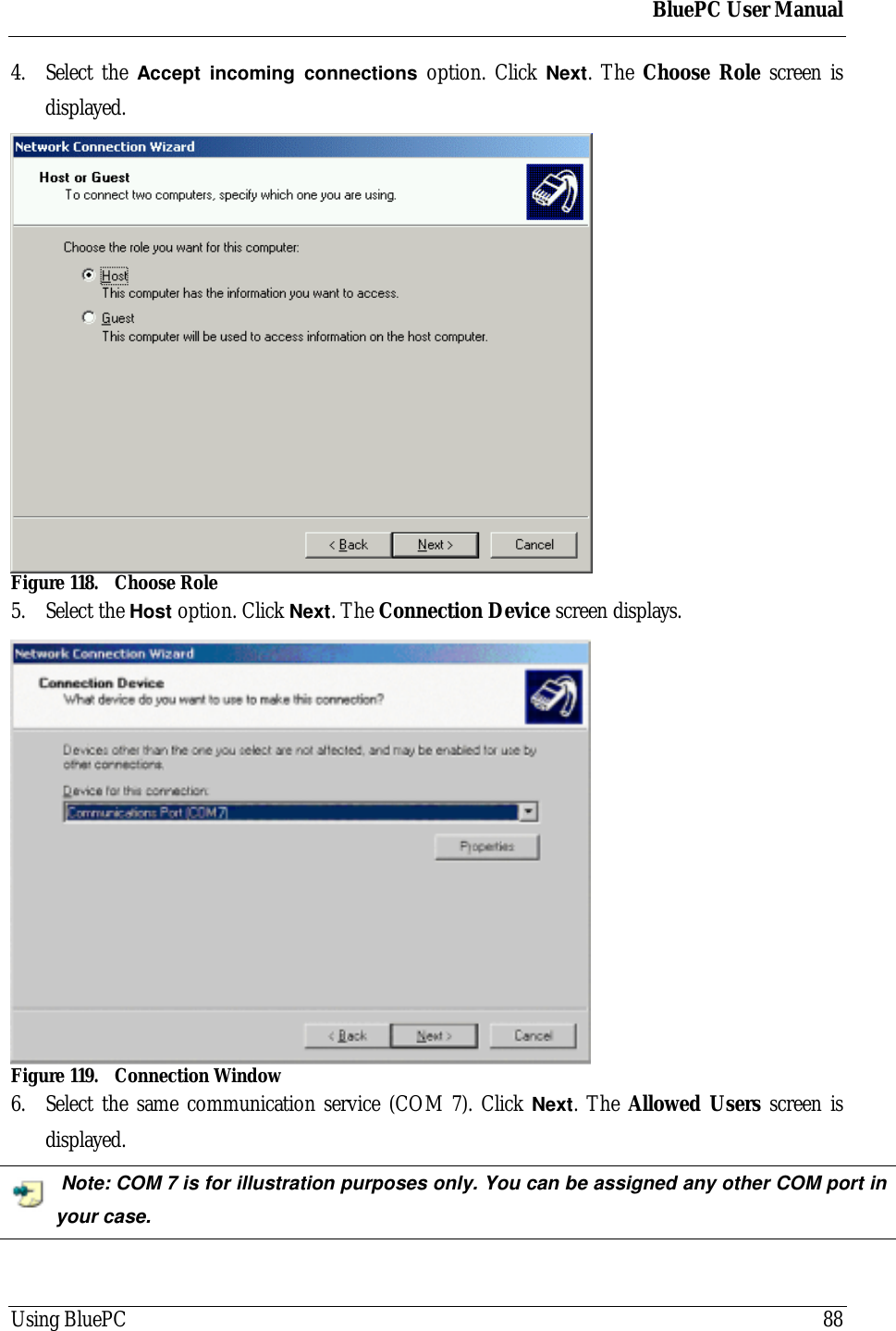
BluePC User ManualUsing BluePC 872. Double-click Make New Connection. The Network Connection Wizard displays.Figure 116. Network Connection Window3. Click Next to proceed. The Network Connection Window is displayed.Figure 117. Network Connection Type
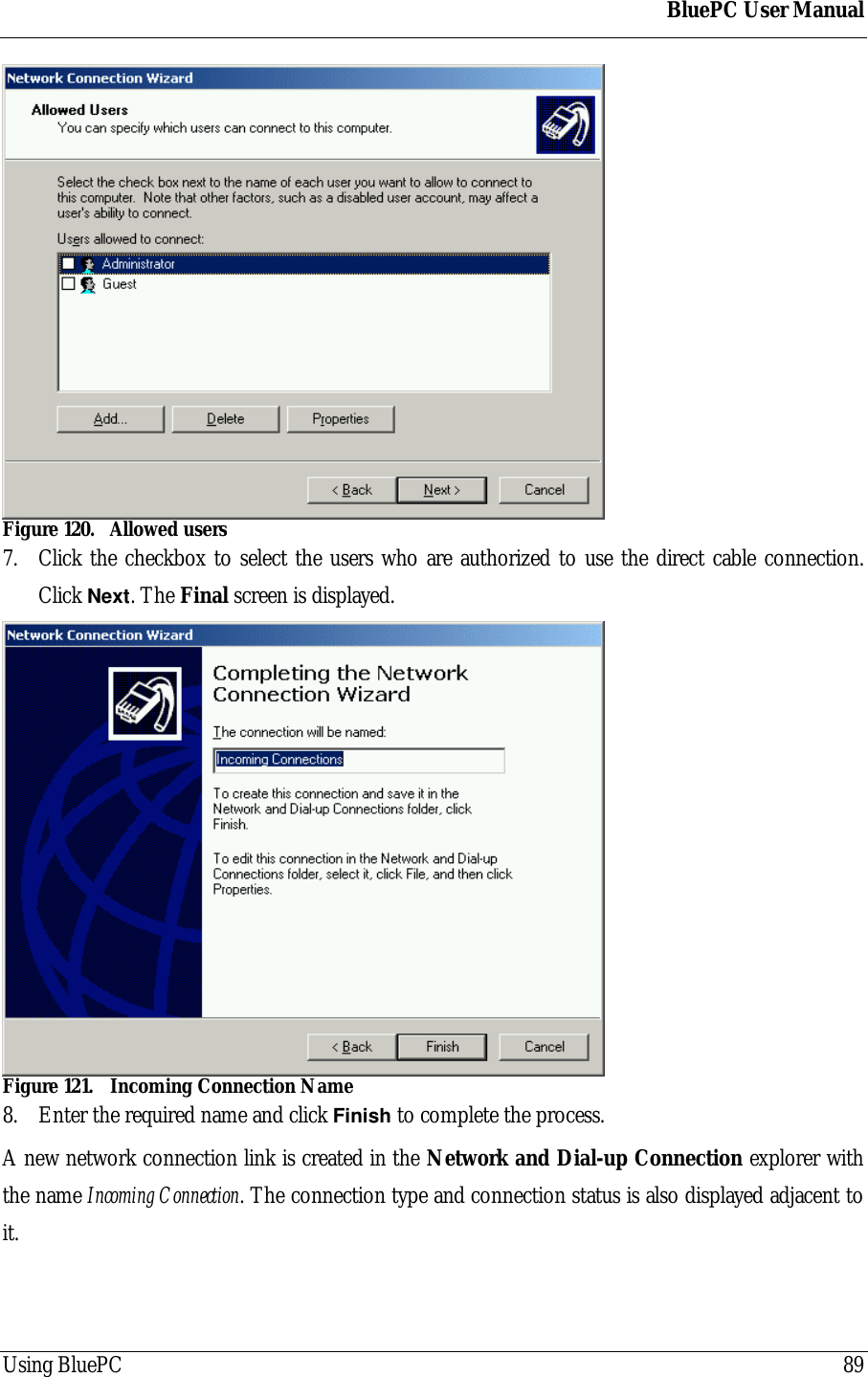
BluePC User ManualUsing BluePC 884. Select the Accept incoming connections option. Click Next. The Choose Role screen isdisplayed.Figure 118. Choose Role5. Select the Host option. Click Next. The Connection Device screen displays.Figure 119. Connection Window6. Select the same communication service (COM 7). Click Next. The Allowed Users screen isdisplayed. Note: COM 7 is for illustration purposes only. You can be assigned any other COM port inyour case.
BluePC User ManualUsing BluePC 89Figure 120. Allowed users7. Click the checkbox to select the users who are authorized to use the direct cable connection.Click Next. The Final screen is displayed.Figure 121. Incoming Connection Name8. Enter the required name and click Finish to complete the process.A new network connection link is created in the Network and Dial-up Connection explorer withthe name Incoming Connection. The connection type and connection status is also displayed adjacent toit.
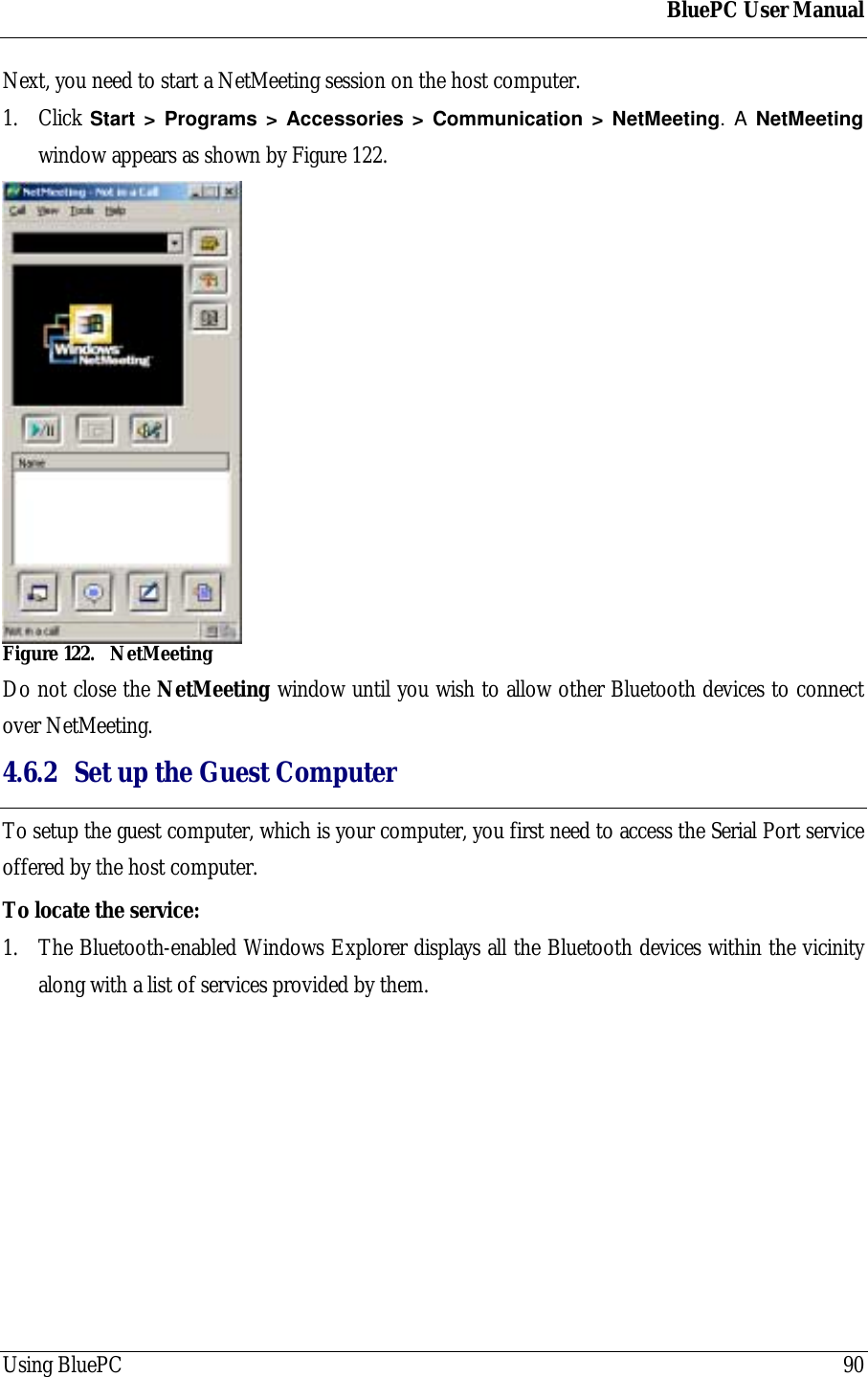
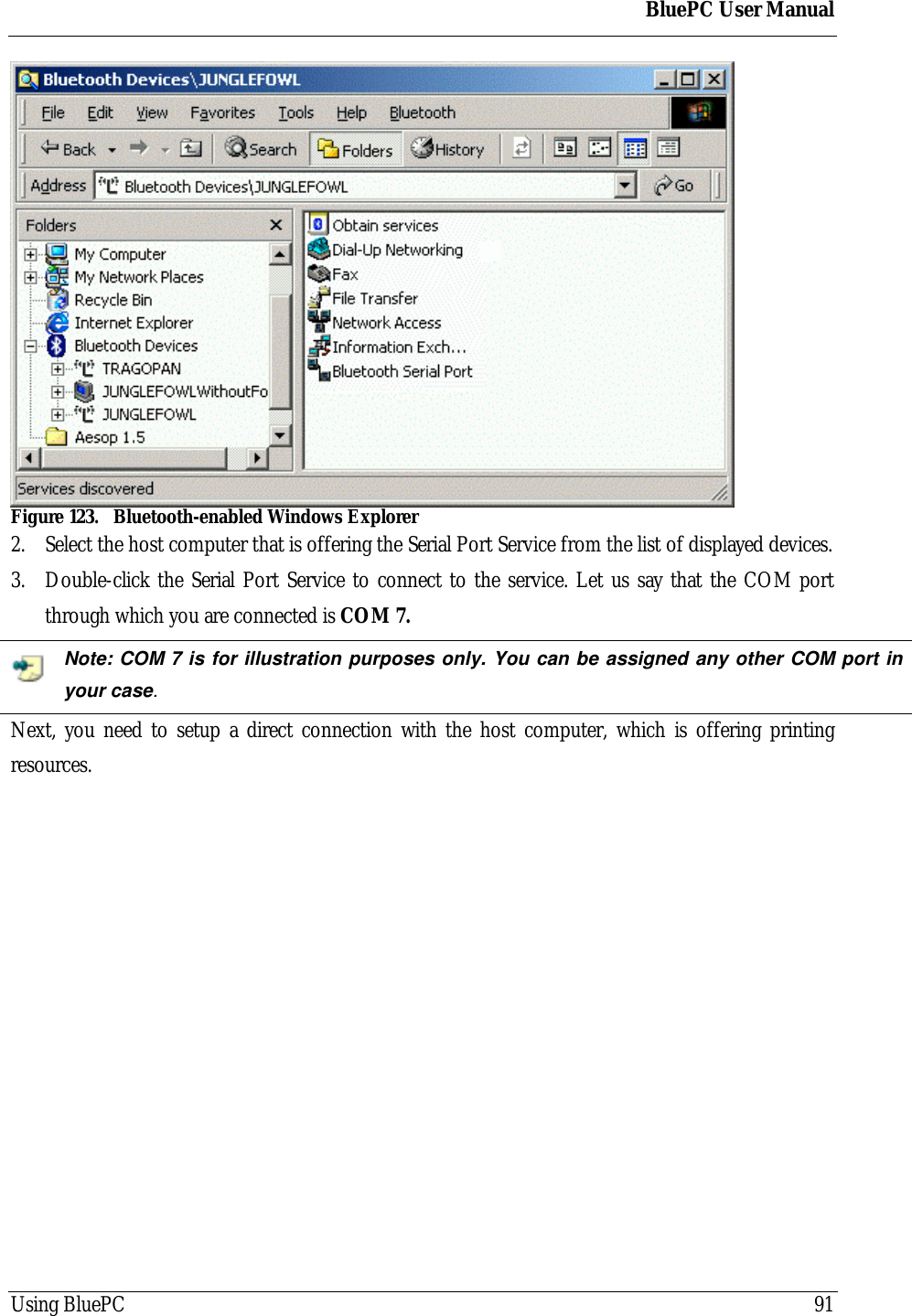
BluePC User ManualUsing BluePC 90Next, you need to start a NetMeeting session on the host computer.1. Click Start > Programs > Accessories > Communication > NetMeeting. A NetMeetingwindow appears as shown by Figure 122.Figure 122. NetMeetingDo not close the NetMeeting window until you wish to allow other Bluetooth devices to connectover NetMeeting.4.6.2 Set up the Guest ComputerTo setup the guest computer, which is your computer, you first need to access the Serial Port serviceoffered by the host computer.To locate the service:1. The Bluetooth-enabled Windows Explorer displays all the Bluetooth devices within the vicinityalong with a list of services provided by them.
BluePC User ManualUsing BluePC 91Figure 123. Bluetooth-enabled Windows Explorer2. Select the host computer that is offering the Serial Port Service from the list of displayed devices.3. Double-click the Serial Port Service to connect to the service. Let us say that the COM portthrough which you are connected is COM 7.Note: COM 7 is for illustration purposes only. You can be assigned any other COM port inyour case.Next, you need to setup a direct connection with the host computer, which is offering printingresources.
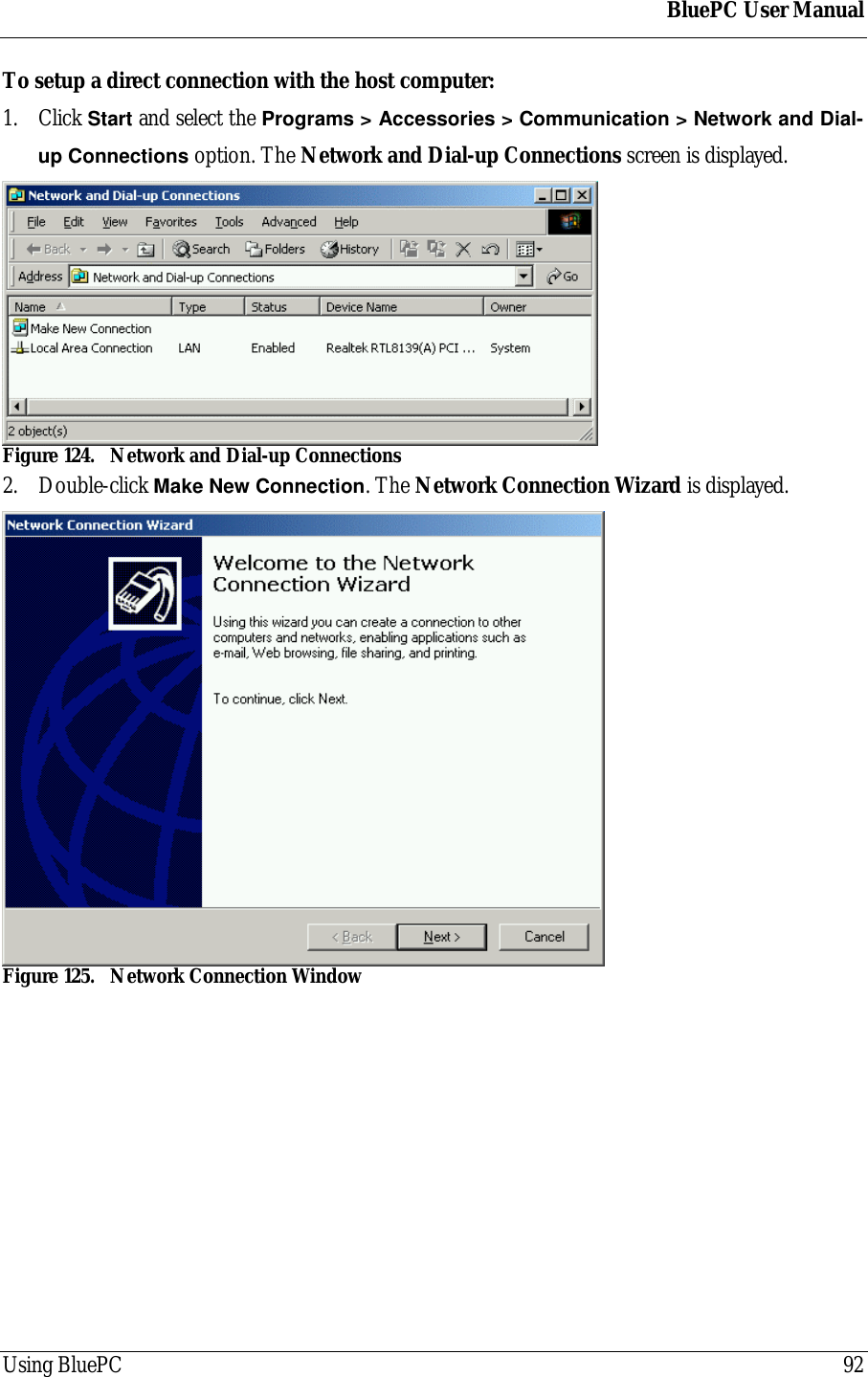
BluePC User ManualUsing BluePC 92To setup a direct connection with the host computer:1. Click Start and select the Programs > Accessories > Communication > Network and Dial-up Connections option. The Network and Dial-up Connections screen is displayed.Figure 124. Network and Dial-up Connections2. Double-click Make New Connection. The Network Connection Wizard is displayed.Figure 125. Network Connection Window
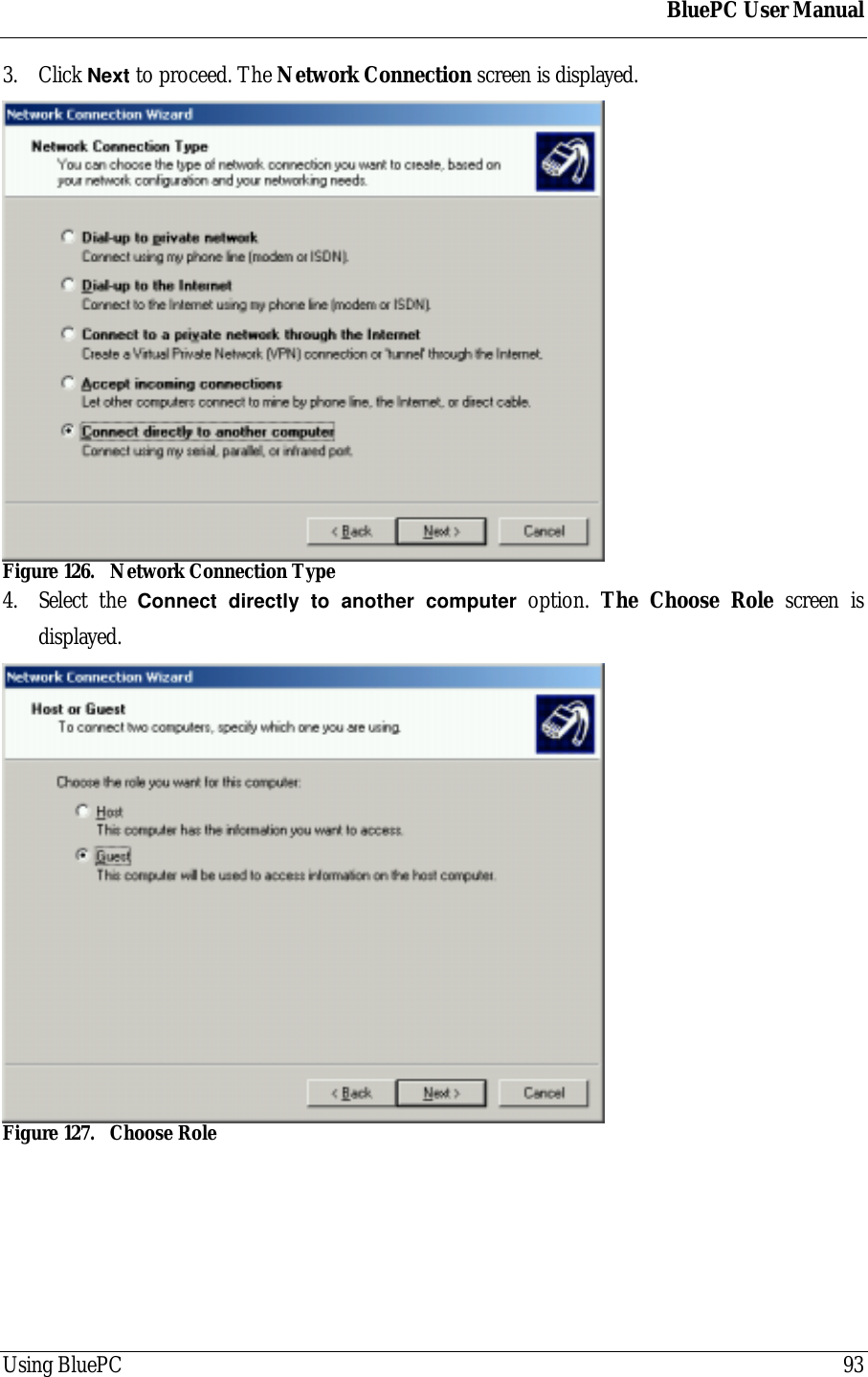
BluePC User ManualUsing BluePC 933. Click Next to proceed. The Network Connection screen is displayed.Figure 126. Network Connection Type4. Select the Connect directly to another computer option. The Choose Role screen isdisplayed.Figure 127. Choose Role
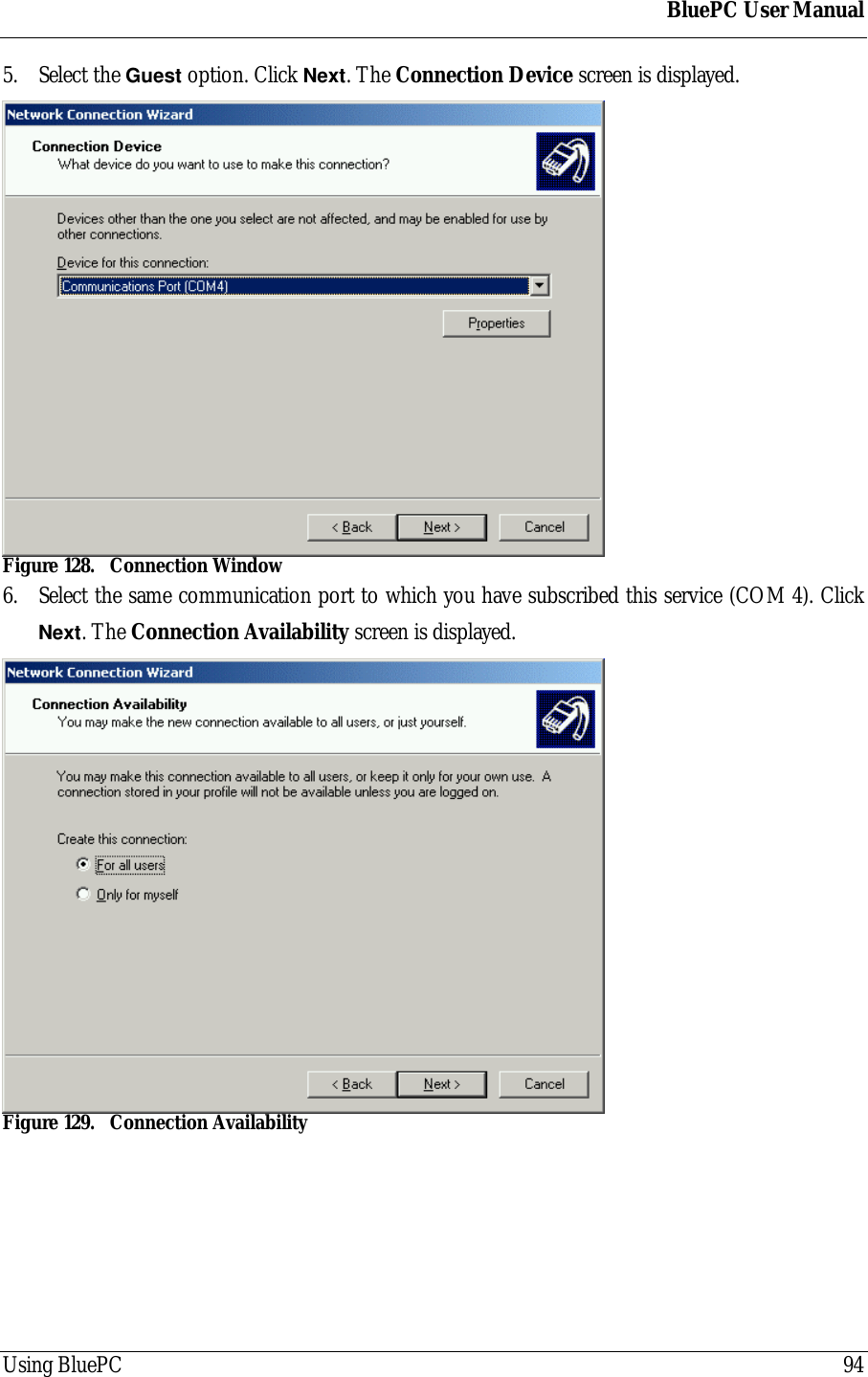
BluePC User ManualUsing BluePC 945. Select the Guest option. Click Next. The Connection Device screen is displayed.Figure 128. Connection Window6. Select the same communication port to which you have subscribed this service (COM 4). ClickNext. The Connection Availability screen is displayed.Figure 129. Connection Availability
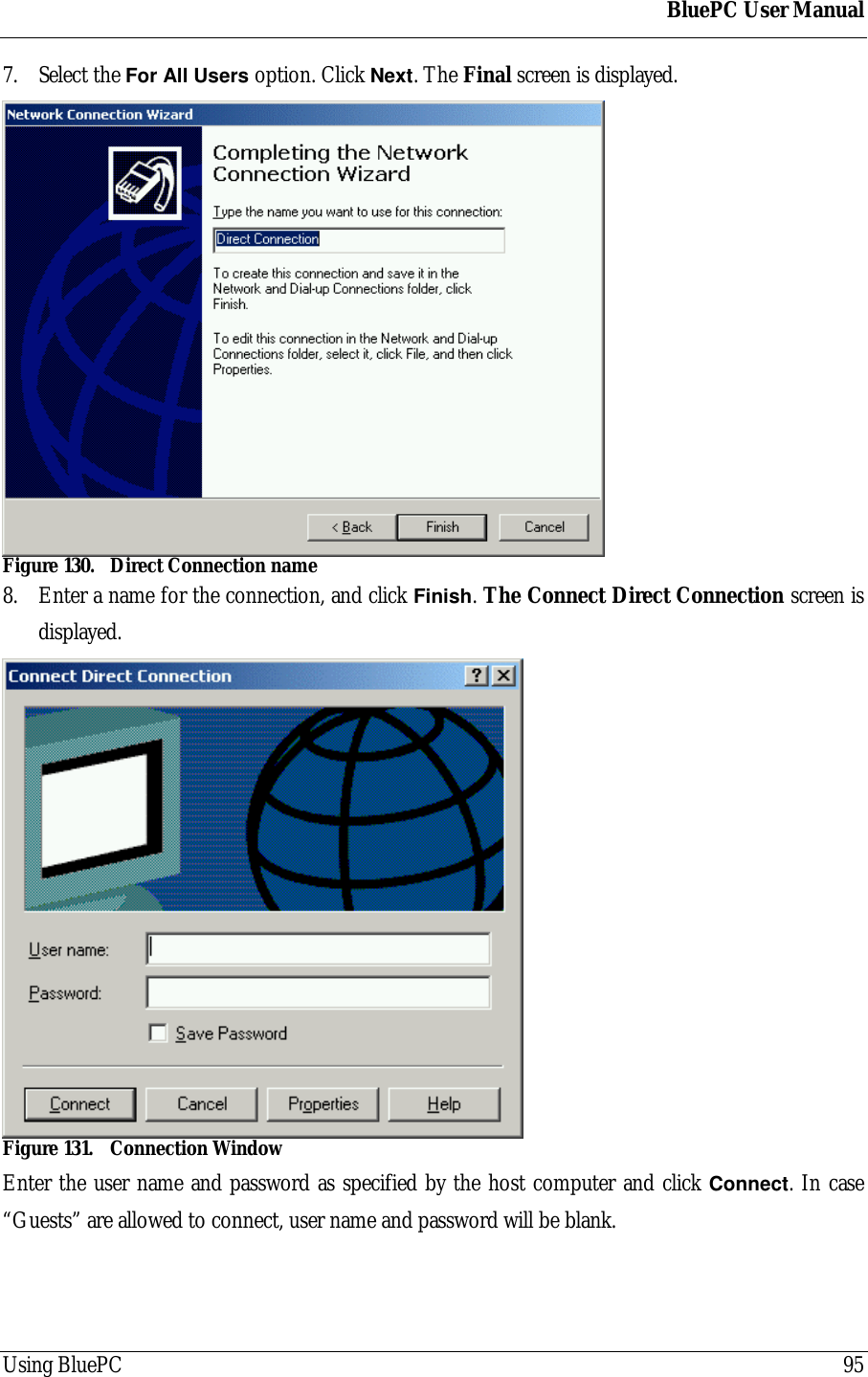
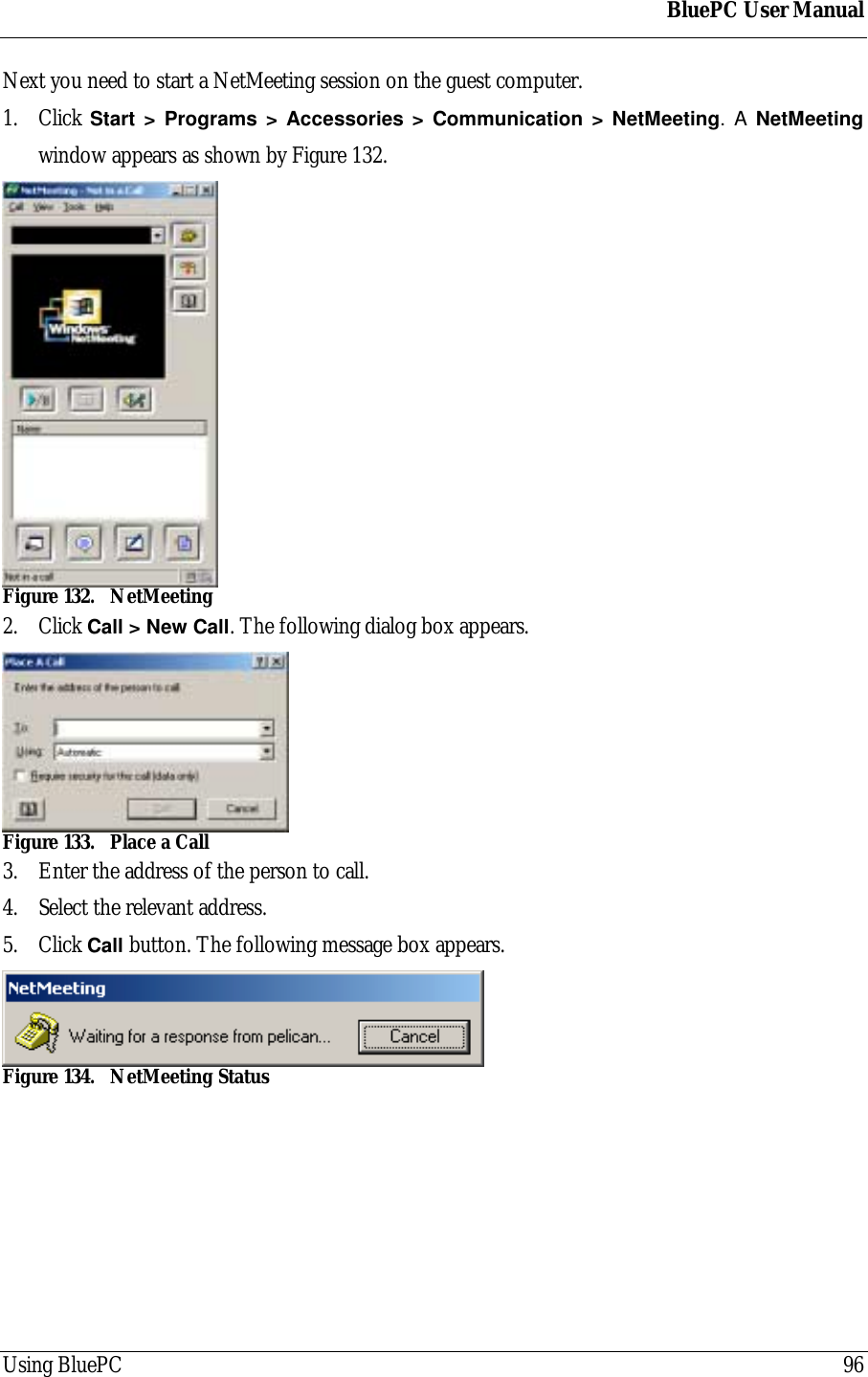
BluePC User ManualUsing BluePC 957. Select the For All Users option. Click Next. The Final screen is displayed.Figure 130. Direct Connection name8. Enter a name for the connection, and click Finish. The Connect Direct Connection screen isdisplayed.Figure 131. Connection WindowEnter the user name and password as specified by the host computer and click Connect. In case“Guests” are allowed to connect, user name and password will be blank.
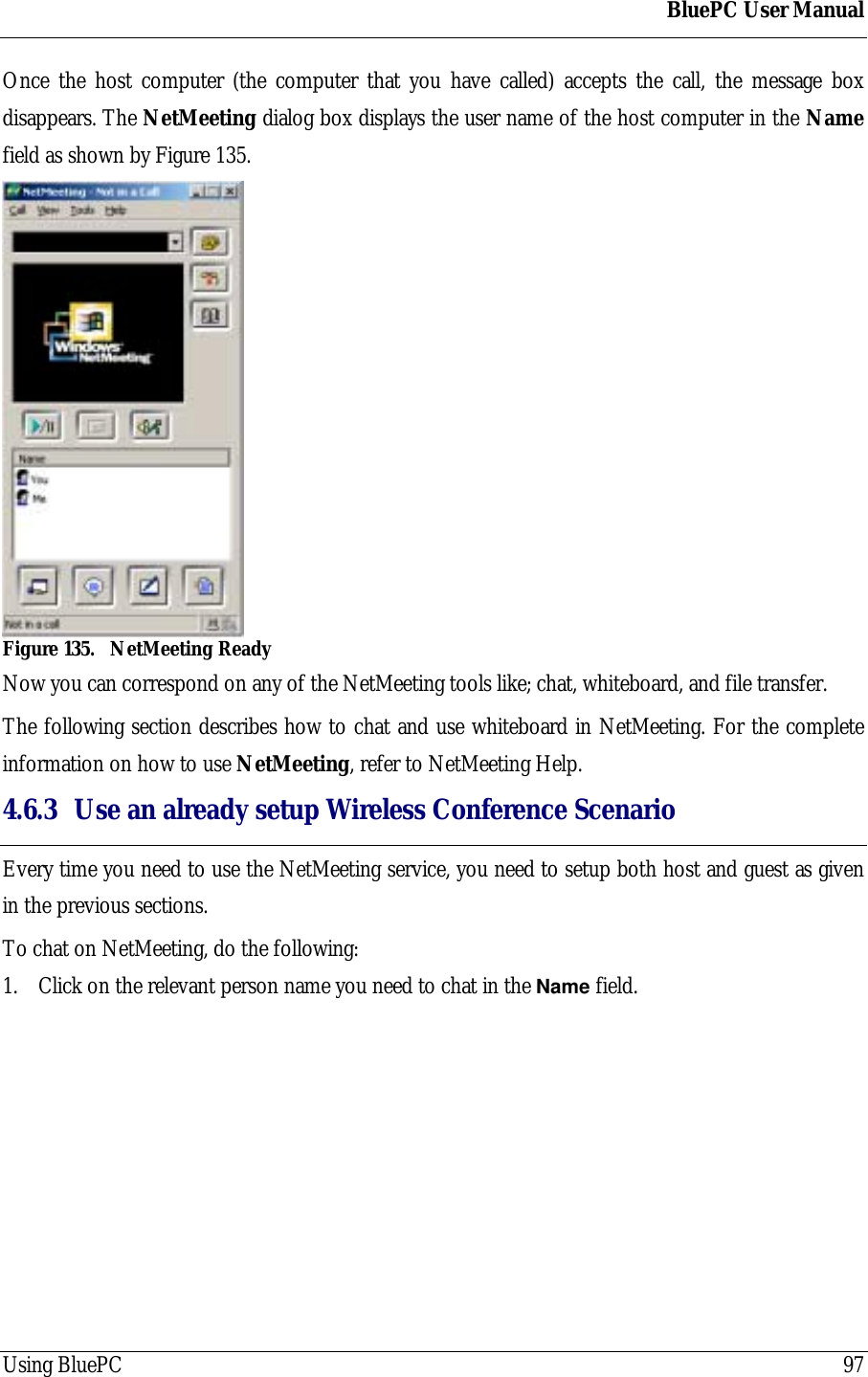
BluePC User ManualUsing BluePC 96Next you need to start a NetMeeting session on the guest computer.1. Click Start > Programs > Accessories > Communication > NetMeeting. A NetMeetingwindow appears as shown by Figure 132.Figure 132. NetMeeting2. Click Call > New Call. The following dialog box appears.Figure 133. Place a Call3. Enter the address of the person to call.4. Select the relevant address.5. Click Call button. The following message box appears.Figure 134. NetMeeting Status
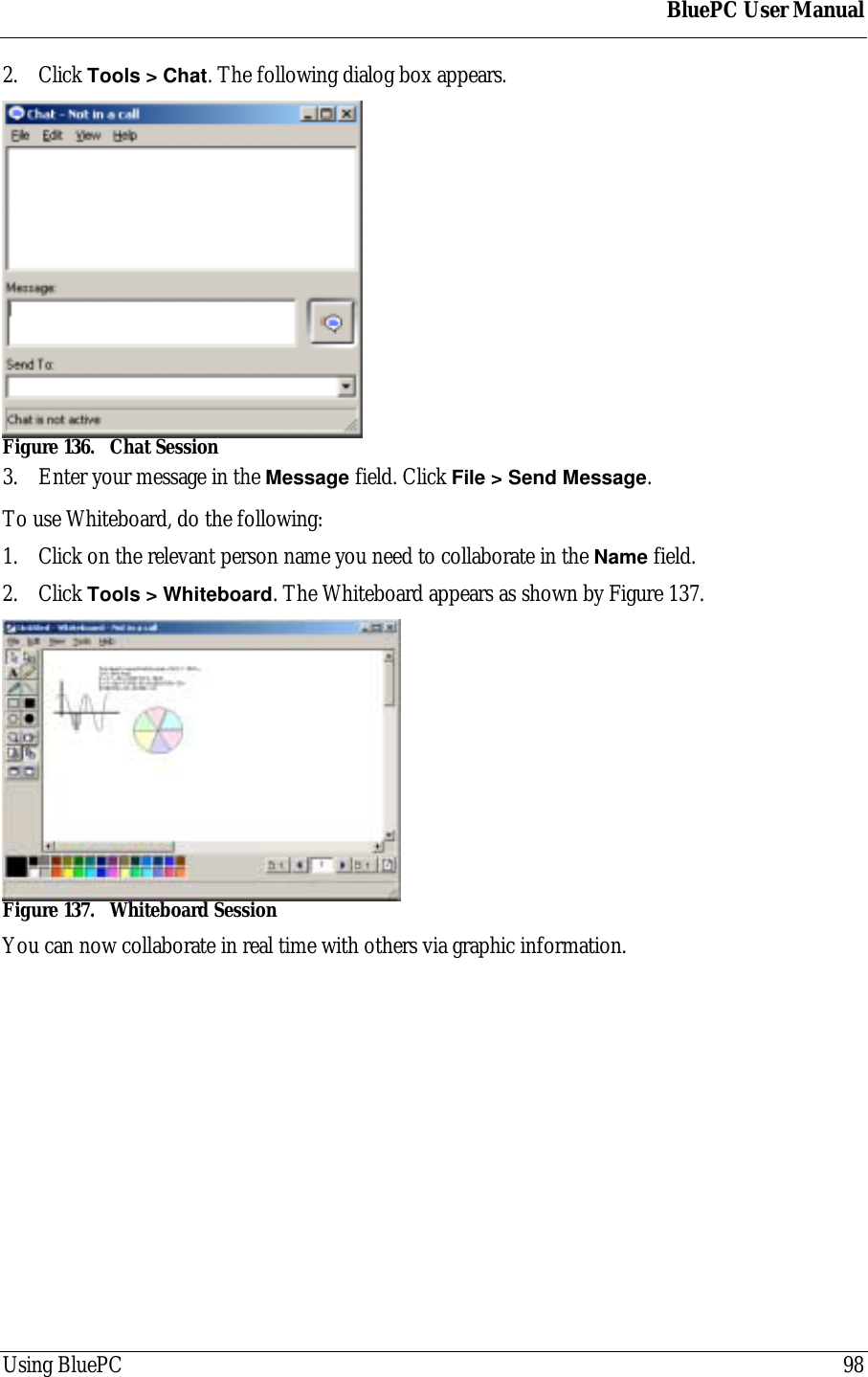
BluePC User ManualUsing BluePC 97Once the host computer (the computer that you have called) accepts the call, the message boxdisappears. The NetMeeting dialog box displays the user name of the host computer in the Namefield as shown by Figure 135.Figure 135. NetMeeting ReadyNow you can correspond on any of the NetMeeting tools like; chat, whiteboard, and file transfer.The following section describes how to chat and use whiteboard in NetMeeting. For the completeinformation on how to use NetMeeting, refer to NetMeeting Help.4.6.3 Use an already setup Wireless Conference ScenarioEvery time you need to use the NetMeeting service, you need to setup both host and guest as givenin the previous sections.To chat on NetMeeting, do the following:1. Click on the relevant person name you need to chat in the Name field.
BluePC User ManualUsing BluePC 982. Click Tools > Chat. The following dialog box appears.Figure 136. Chat Session3. Enter your message in the Message field. Click File > Send Message.To use Whiteboard, do the following:1. Click on the relevant person name you need to collaborate in the Name field.2. Click Tools > Whiteboard. The Whiteboard appears as shown by Figure 137.Figure 137. Whiteboard SessionYou can now collaborate in real time with others via graphic information.
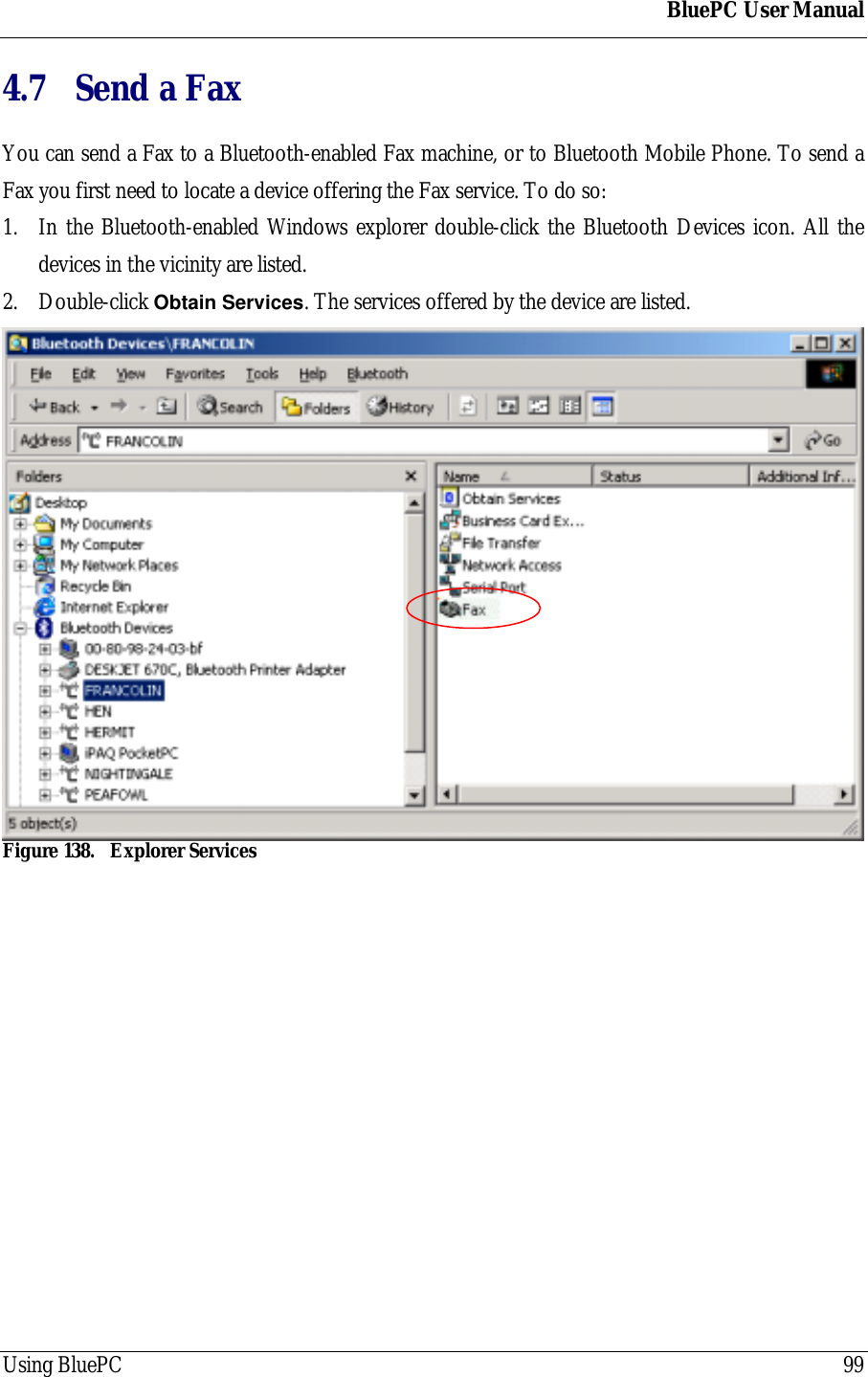
BluePC User ManualUsing BluePC 994.7 Send a FaxYou can send a Fax to a Bluetooth-enabled Fax machine, or to Bluetooth Mobile Phone. To send aFax you first need to locate a device offering the Fax service. To do so:1. In the Bluetooth-enabled Windows explorer double-click the Bluetooth Devices icon. All thedevices in the vicinity are listed.2. Double-click Obtain Services. The services offered by the device are listed.Figure 138. Explorer Services
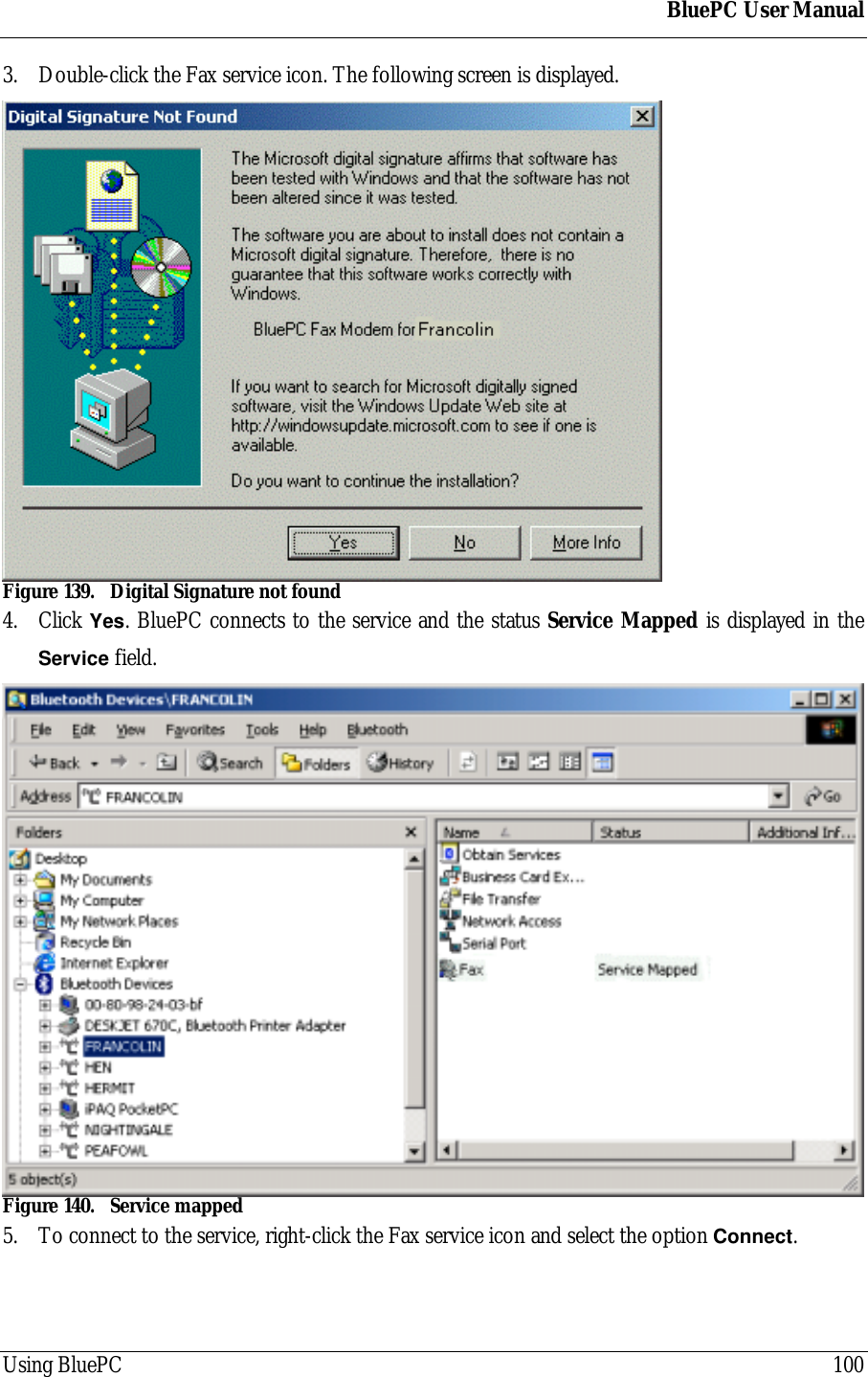
BluePC User ManualUsing BluePC 1003. Double-click the Fax service icon. The following screen is displayed.Figure 139. Digital Signature not found4. Click Yes. BluePC connects to the service and the status Service Mapped is displayed in theService field.Figure 140. Service mapped5. To connect to the service, right-click the Fax service icon and select the option Connect.
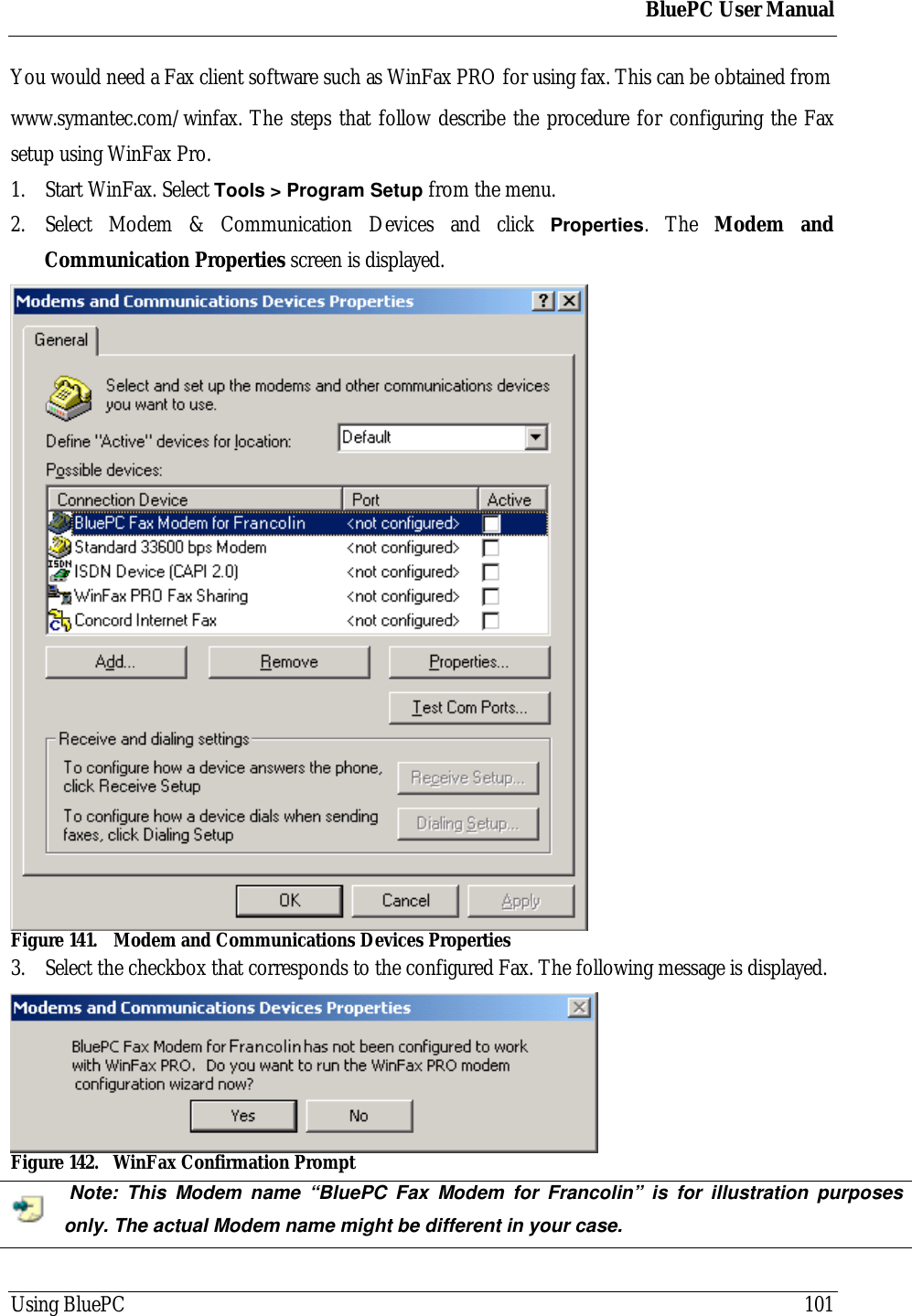
BluePC User ManualUsing BluePC 101You would need a Fax client software such as WinFax PRO for using fax. This can be obtained fromwww.symantec.com/winfax. The steps that follow describe the procedure for configuring the Faxsetup using WinFax Pro.1. Start WinFax. Select Tools > Program Setup from the menu.2. Select Modem & Communication Devices and click Properties. The Modem andCommunication Properties screen is displayed.Figure 141. Modem and Communications Devices Properties3. Select the checkbox that corresponds to the configured Fax. The following message is displayed.Figure 142. WinFax Confirmation Prompt Note: This Modem name “BluePC Fax Modem for Francolin” is for illustration purposesonly. The actual Modem name might be different in your case.
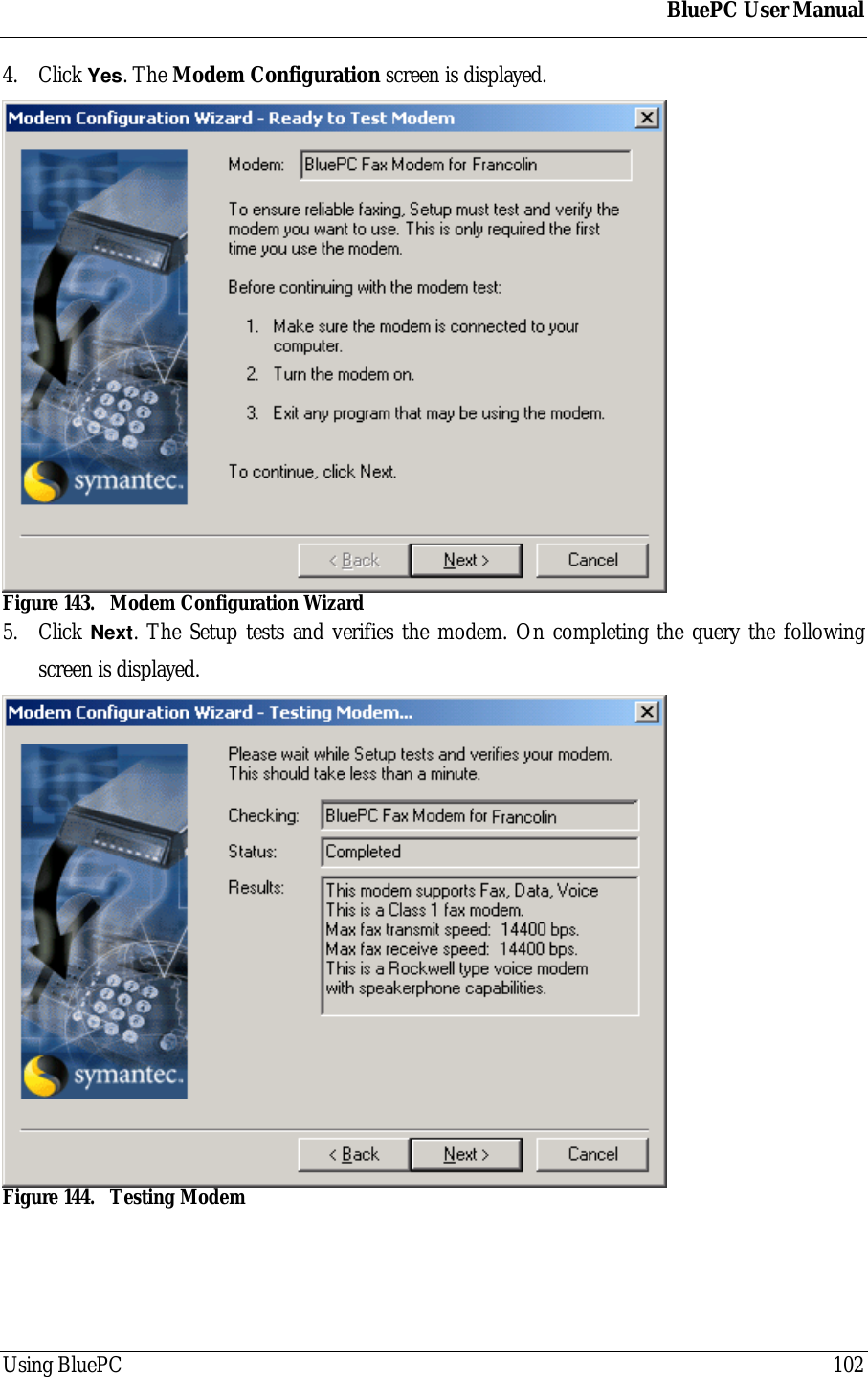
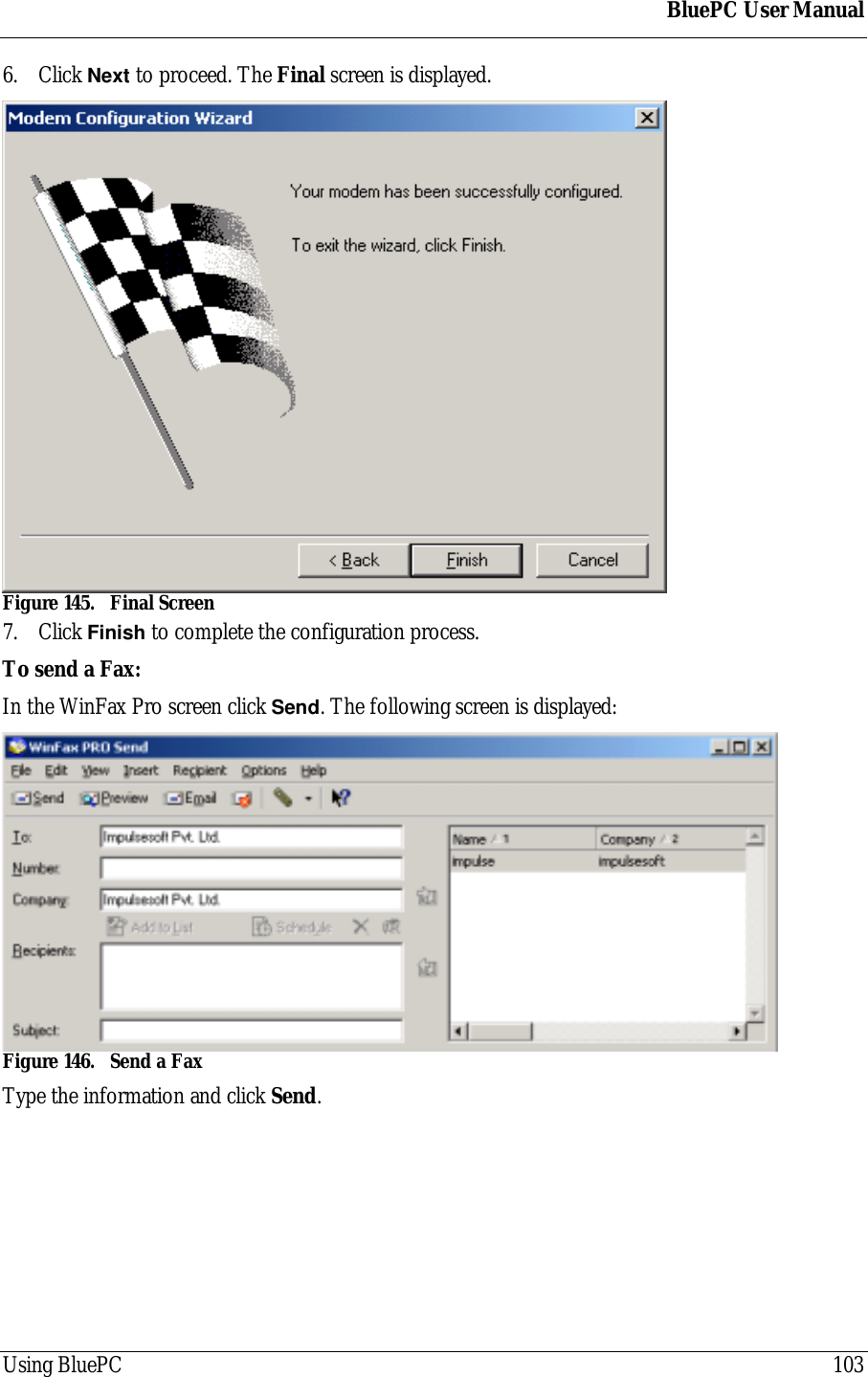
BluePC User ManualUsing BluePC 1024. Click Yes. The Modem Configuration screen is displayed.Figure 143. Modem Configuration Wizard5. Click Next. The Setup tests and verifies the modem. On completing the query the followingscreen is displayed.Figure 144. Testing Modem
BluePC User ManualUsing BluePC 1036. Click Next to proceed. The Final screen is displayed.Figure 145. Final Screen7. Click Finish to complete the configuration process.To send a Fax:In the WinFax Pro screen click Send. The following screen is displayed:Figure 146. Send a FaxType the information and click Send.
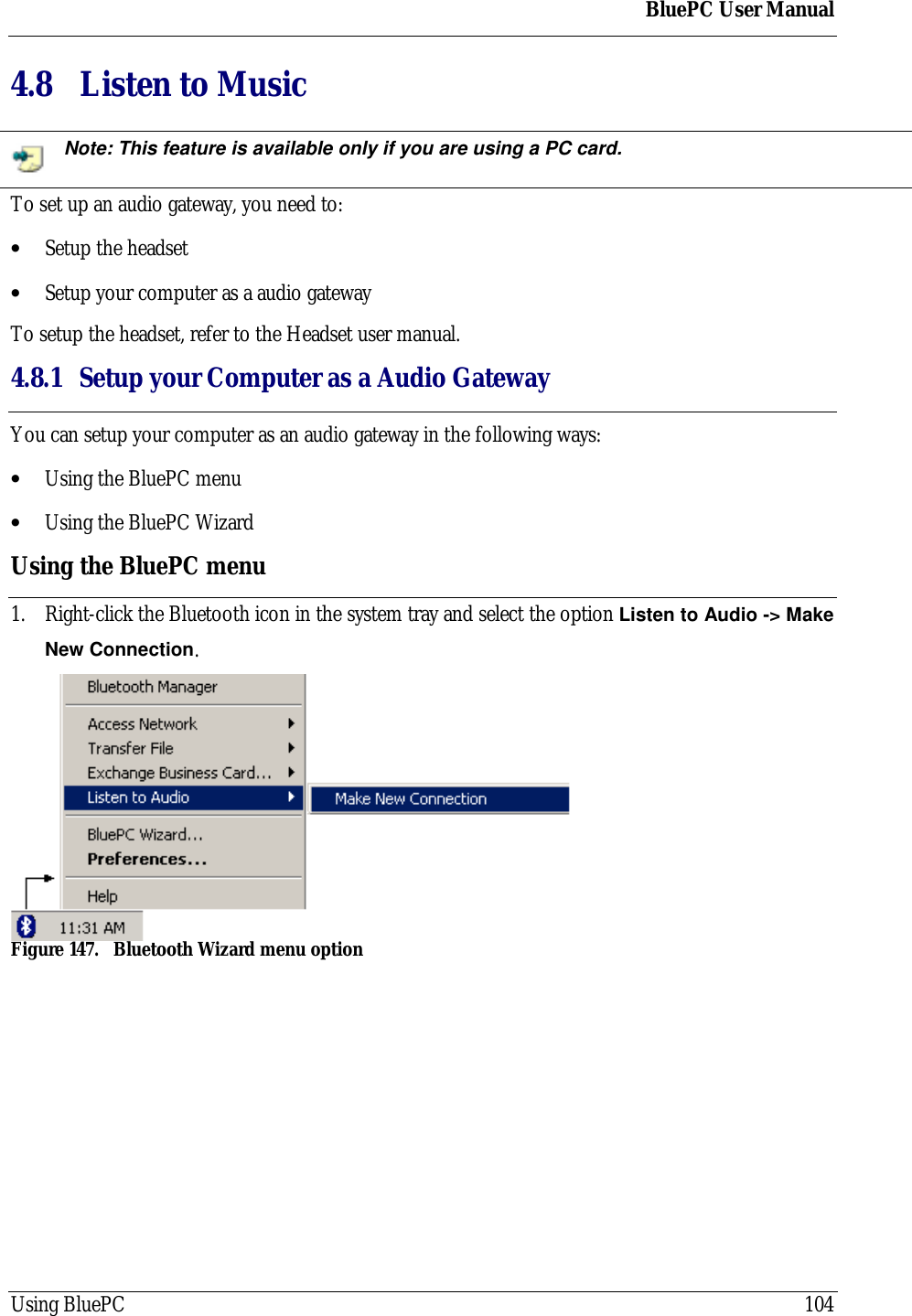
BluePC User ManualUsing BluePC 1044.8 Listen to MusicNote: This feature is available only if you are using a PC card.To set up an audio gateway, you need to:• Setup the headset• Setup your computer as a audio gatewayTo setup the headset, refer to the Headset user manual.4.8.1 Setup your Computer as a Audio GatewayYou can setup your computer as an audio gateway in the following ways:• Using the BluePC menu• Using the BluePC WizardUsing the BluePC menu1. Right-click the Bluetooth icon in the system tray and select the option Listen to Audio -> MakeNew Connection.Figure 147. Bluetooth Wizard menu option
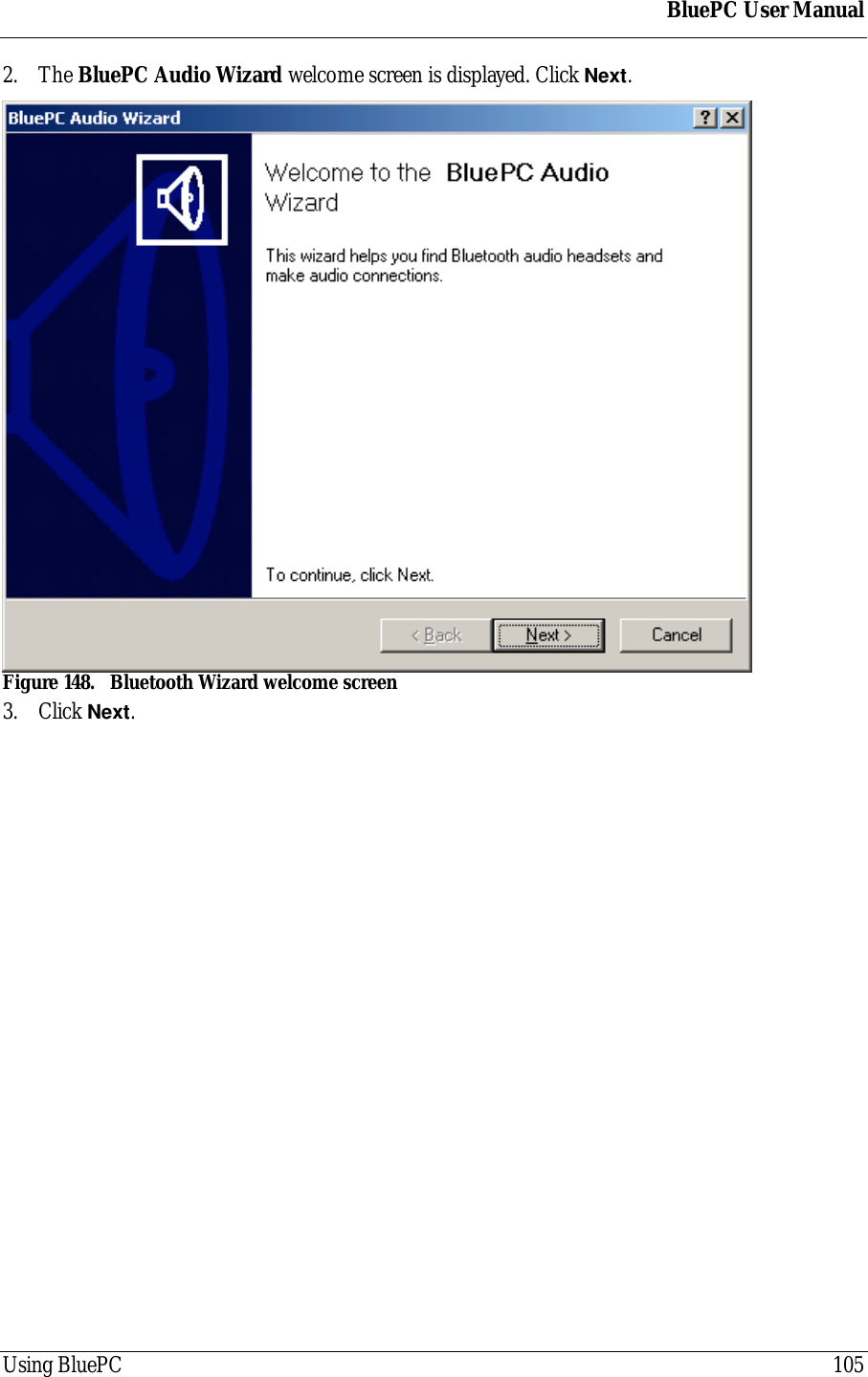
BluePC User ManualUsing BluePC 1052. The BluePC Audio Wizard welcome screen is displayed. Click Next.Figure 148. Bluetooth Wizard welcome screen3. Click Next.
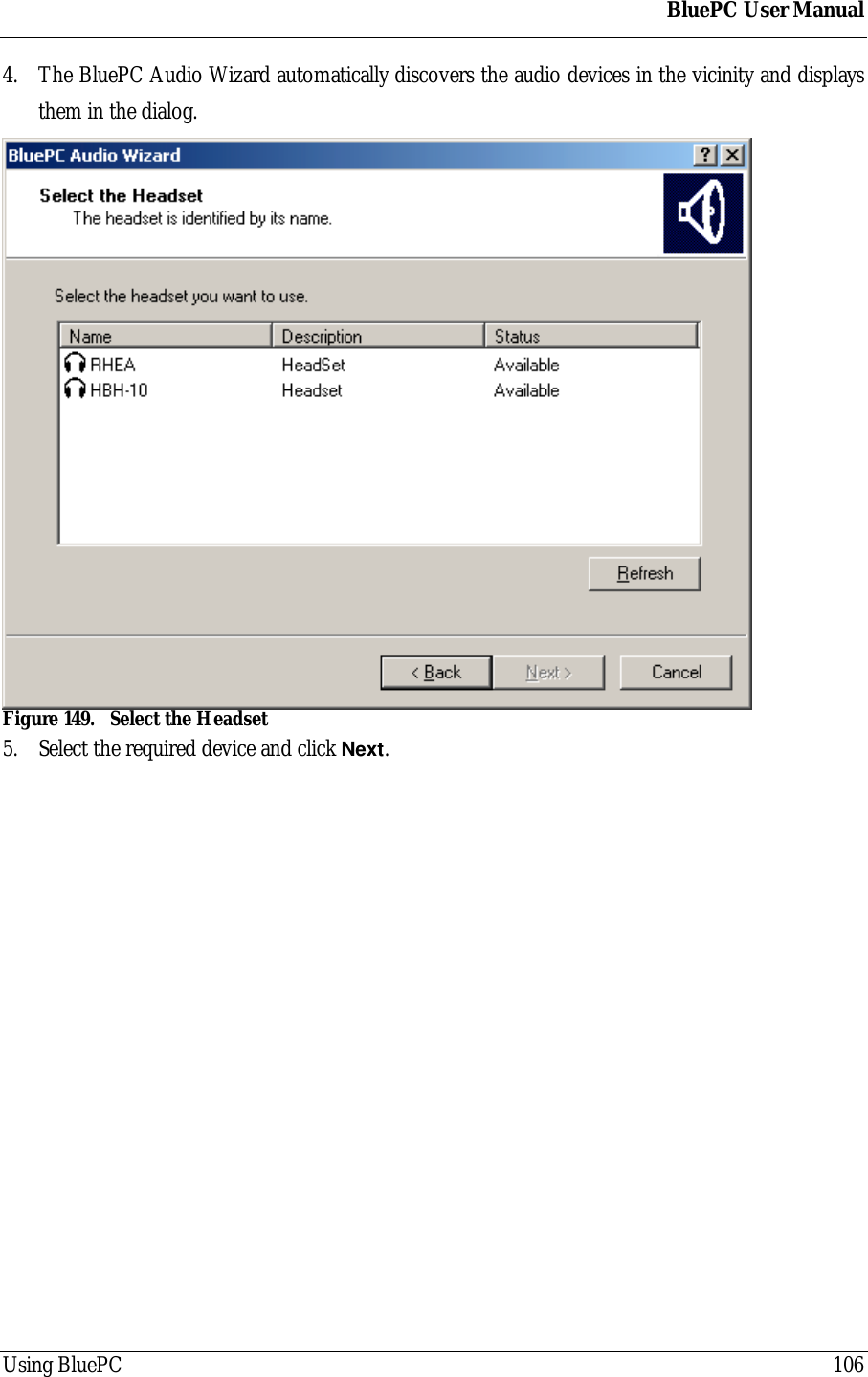
BluePC User ManualUsing BluePC 1064. The BluePC Audio Wizard automatically discovers the audio devices in the vicinity and displaysthem in the dialog.Figure 149. Select the Headset5. Select the required device and click Next.
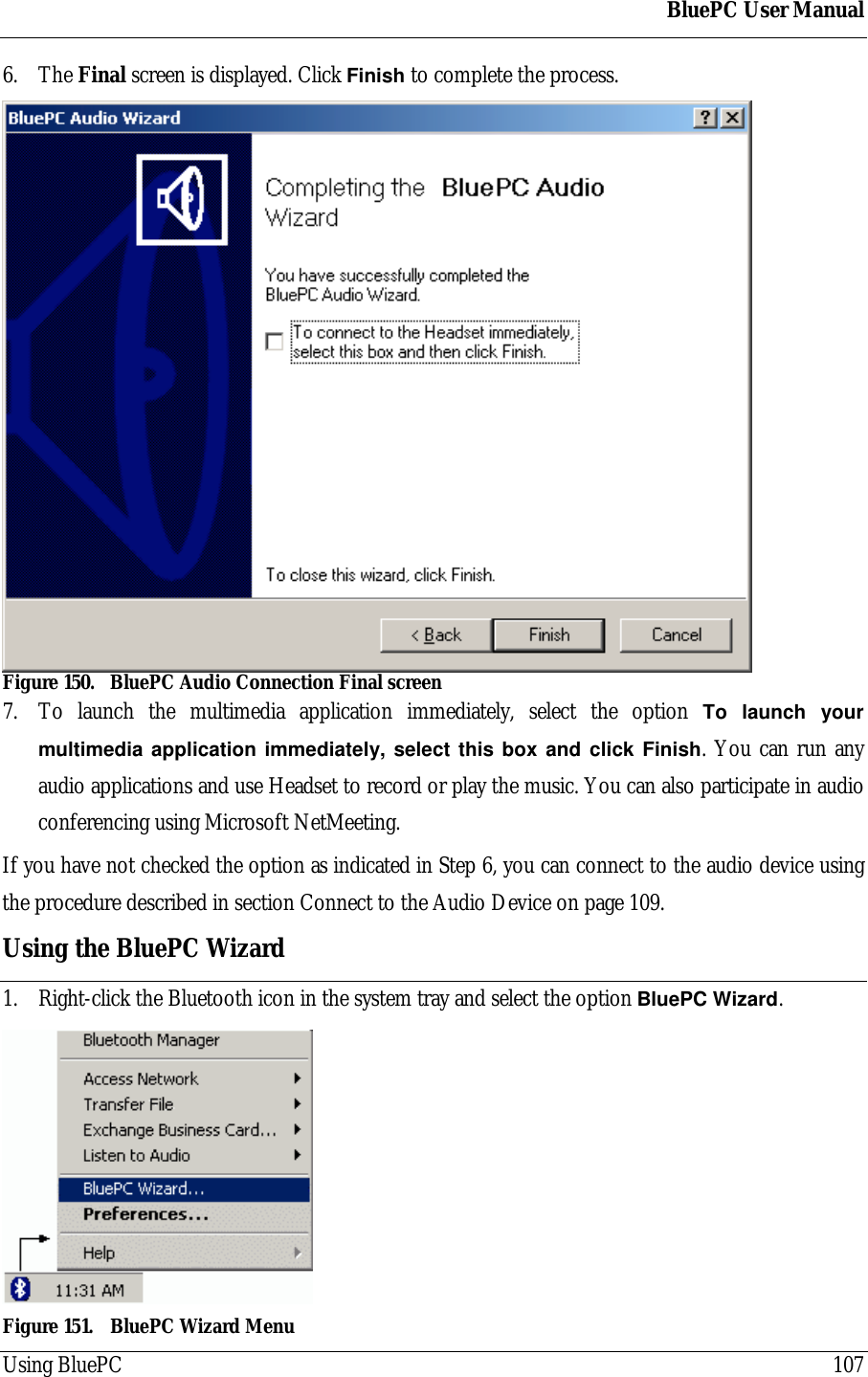
BluePC User ManualUsing BluePC 1076. The Final screen is displayed. Click Finish to complete the process.Figure 150. BluePC Audio Connection Final screen7. To launch the multimedia application immediately, select the option To launch yourmultimedia application immediately, select this box and click Finish. You can run anyaudio applications and use Headset to record or play the music. You can also participate in audioconferencing using Microsoft NetMeeting.If you have not checked the option as indicated in Step 6, you can connect to the audio device usingthe procedure described in section Connect to the Audio Device on page 109.Using the BluePC Wizard1. Right-click the Bluetooth icon in the system tray and select the option BluePC Wizard.Figure 151. BluePC Wizard Menu
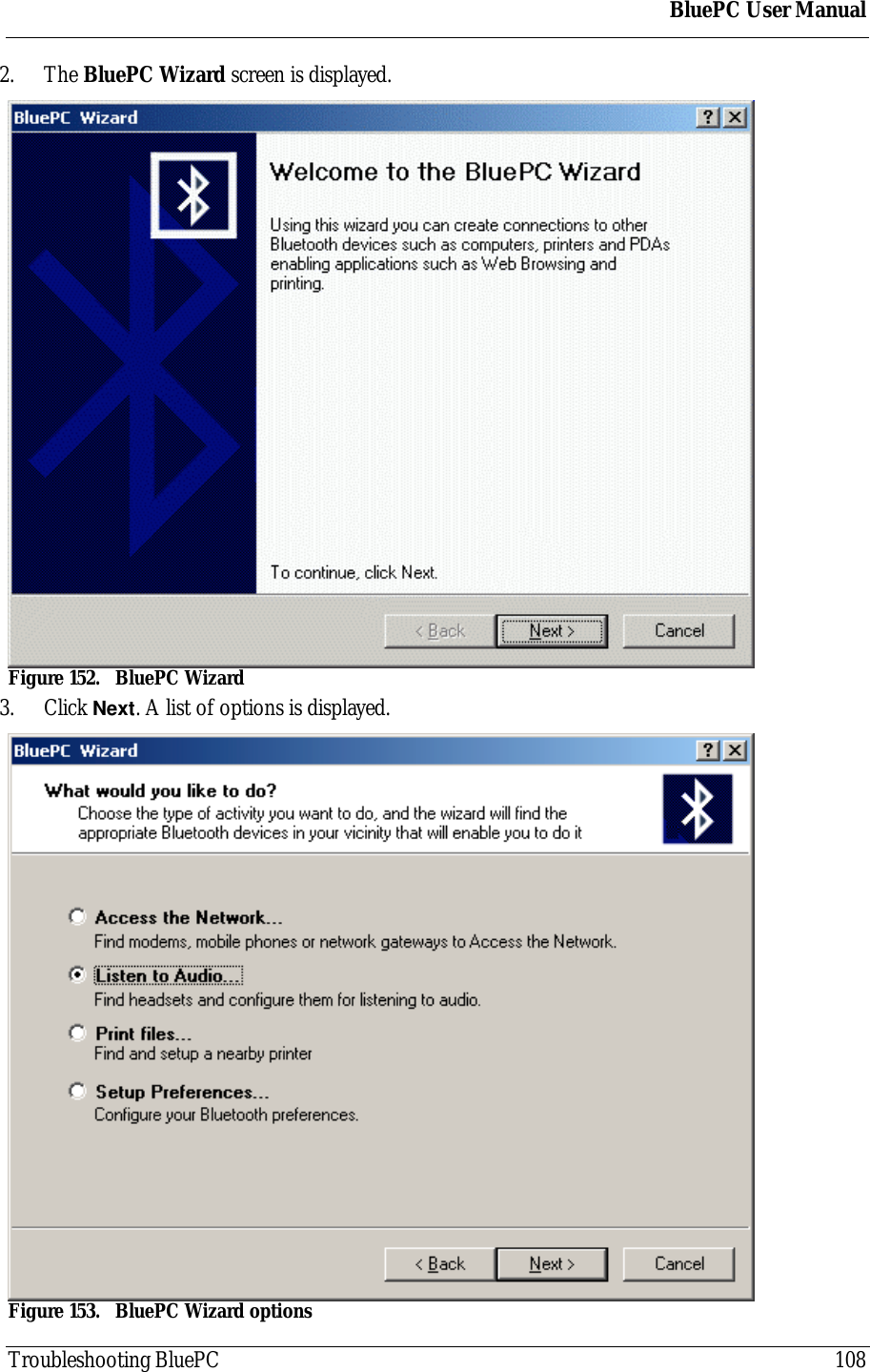
BluePC User ManualTroubleshooting BluePC 1082. The BluePC Wizard screen is displayed.Figure 152. BluePC Wizard3. Click Next. A list of options is displayed.Figure 153. BluePC Wizard options
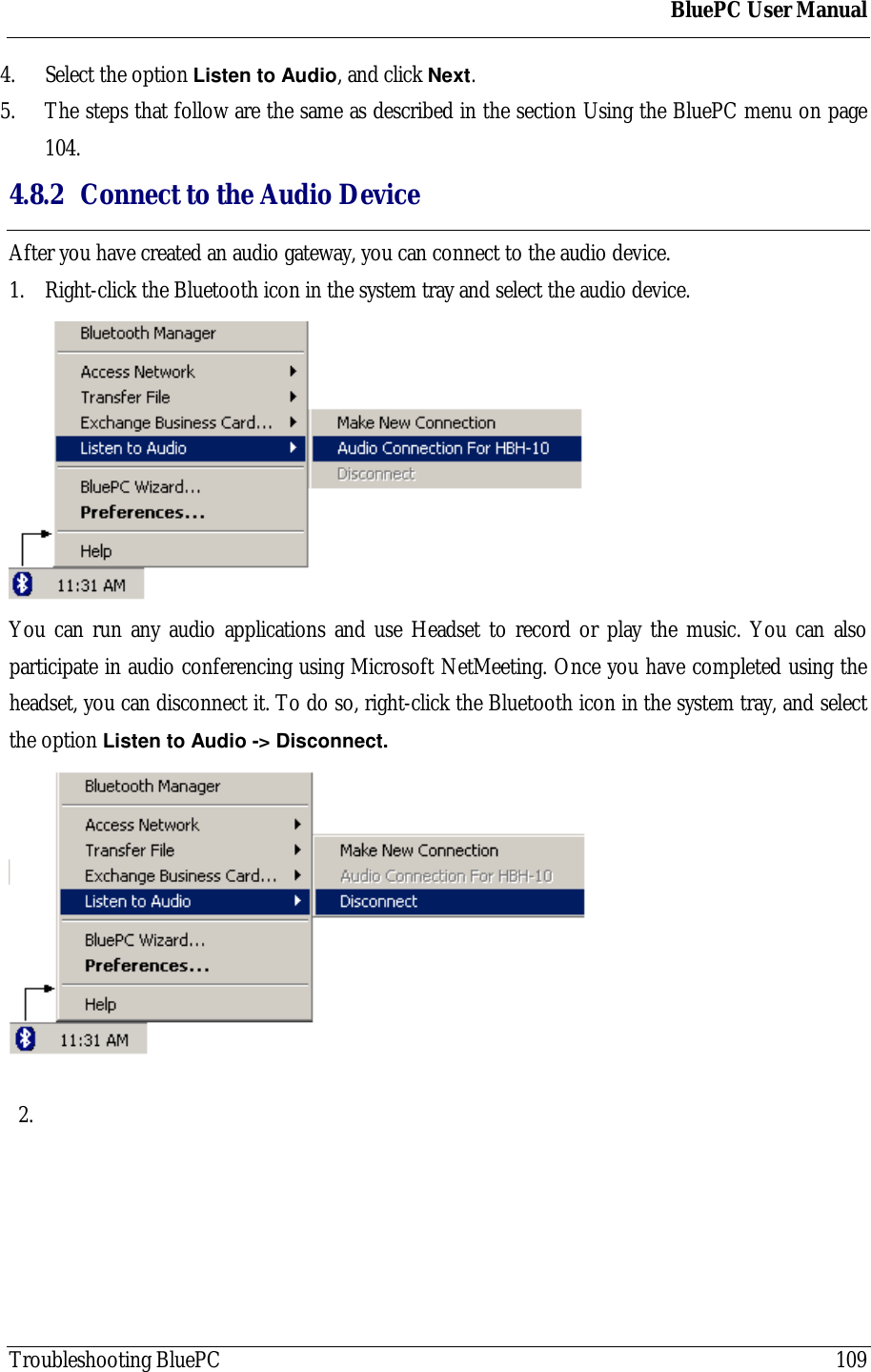
BluePC User ManualTroubleshooting BluePC 1094. Select the option Listen to Audio, and click Next.5. The steps that follow are the same as described in the section Using the BluePC menu on page104.4.8.2 Connect to the Audio DeviceAfter you have created an audio gateway, you can connect to the audio device.1. Right-click the Bluetooth icon in the system tray and select the audio device.You can run any audio applications and use Headset to record or play the music. You can alsoparticipate in audio conferencing using Microsoft NetMeeting. Once you have completed using theheadset, you can disconnect it. To do so, right-click the Bluetooth icon in the system tray, and selectthe option Listen to Audio -> Disconnect.2.
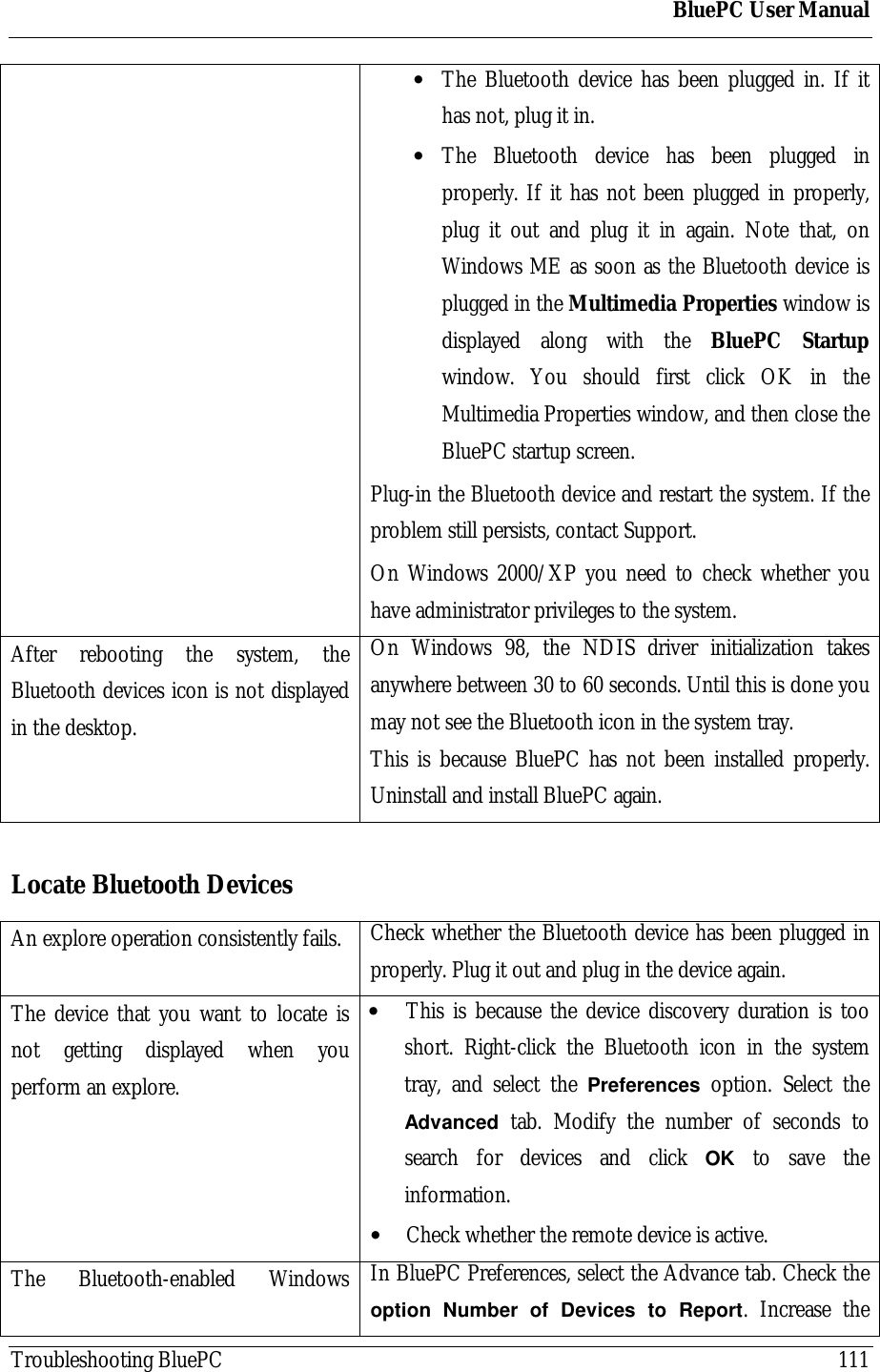
BluePC User ManualTroubleshooting BluePC 110Chapter 5 Troubleshooting BluePCThis section gives solutions to some of the common problems that you may face while using BluePCand is divided into the following section:• Installation• Post Installation• Locate Bluetooth Devices• Connect to services• File Transfer• Exchange Business Cards• Network Access• Printing Information• Listening to MusicInstallationProblem SolutionUnable to start the installation. If you have downloaded the installation file, thedownloaded file could be corrupted. Download the fileagain, and verify the size of the downloaded file againstthe size mentioned in the release notes.The installation appears to be hanging Check whether the Digital Signature Verification dialoghas been masked by the installation screen. Move theinstallation screen, and click Continue Anyway in thedialog to proceed with the installation.Post InstallationThe Bluetooth icon in the system tray isnot active (gray in color)This could be because BluePC is unable to recognize theBluetooth device. Plug out and plug in the device slowlyuntil it is recognized.Check whether
BluePC User ManualTroubleshooting BluePC 111• The Bluetooth device has been plugged in. If ithas not, plug it in.• The Bluetooth device has been plugged inproperly. If it has not been plugged in properly,plug it out and plug it in again. Note that, onWindows ME as soon as the Bluetooth device isplugged in the Multimedia Properties window isdisplayed along with the BluePC Startupwindow. You should first click OK in theMultimedia Properties window, and then close theBluePC startup screen.Plug-in the Bluetooth device and restart the system. If theproblem still persists, contact Support.On Windows 2000/XP you need to check whether youhave administrator privileges to the system.After rebooting the system, theBluetooth devices icon is not displayedin the desktop.On Windows 98, the NDIS driver initialization takesanywhere between 30 to 60 seconds. Until this is done youmay not see the Bluetooth icon in the system tray.This is because BluePC has not been installed properly.Uninstall and install BluePC again.Locate Bluetooth DevicesAn explore operation consistently fails. Check whether the Bluetooth device has been plugged inproperly. Plug it out and plug in the device again.The device that you want to locate isnot getting displayed when youperform an explore.• This is because the device discovery duration is tooshort. Right-click the Bluetooth icon in the systemtray, and select the Preferences option. Select theAdvanced tab. Modify the number of seconds tosearch for devices and click OK to save theinformation.• Check whether the remote device is active.The Bluetooth-enabled Windows In BluePC Preferences, select the Advance tab. Check theoption Number of Devices to Report. Increase the
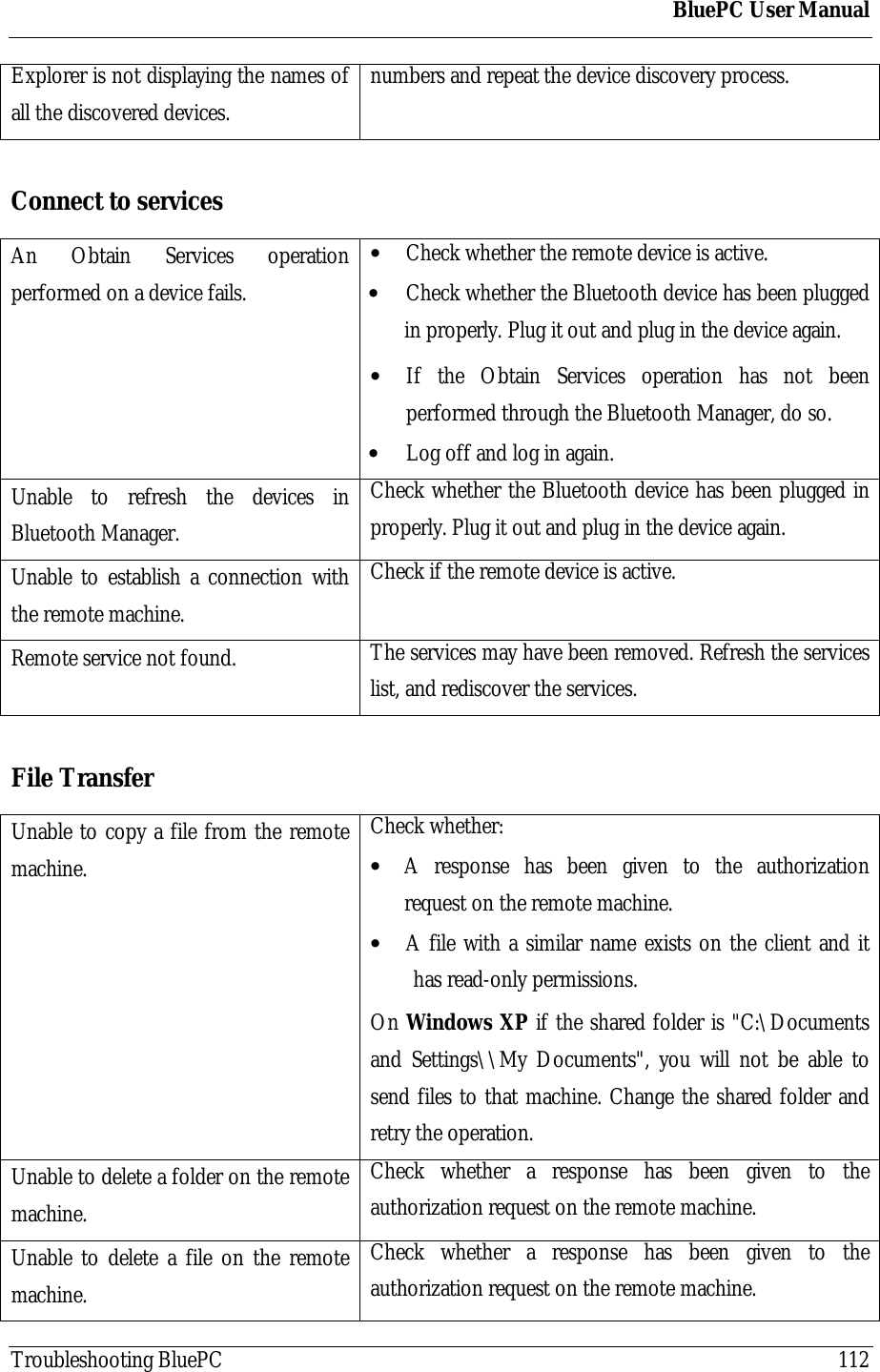
BluePC User ManualTroubleshooting BluePC 112Explorer is not displaying the names ofall the discovered devices.numbers and repeat the device discovery process.Connect to servicesAn Obtain Services operationperformed on a device fails.• Check whether the remote device is active.• Check whether the Bluetooth device has been pluggedin properly. Plug it out and plug in the device again.• If the Obtain Services operation has not beenperformed through the Bluetooth Manager, do so.• Log off and log in again.Unable to refresh the devices inBluetooth Manager.Check whether the Bluetooth device has been plugged inproperly. Plug it out and plug in the device again.Unable to establish a connection withthe remote machine.Check if the remote device is active.Remote service not found. The services may have been removed. Refresh the serviceslist, and rediscover the services.File TransferUnable to copy a file from the remotemachine.Check whether:• A response has been given to the authorizationrequest on the remote machine.• A file with a similar name exists on the client and ithas read-only permissions.On Windows XP if the shared folder is "C:\Documentsand Settings\\My Documents", you will not be able tosend files to that machine. Change the shared folder andretry the operation.Unable to delete a folder on the remotemachine.Check whether a response has been given to theauthorization request on the remote machine.Unable to delete a file on the remotemachine.Check whether a response has been given to theauthorization request on the remote machine.
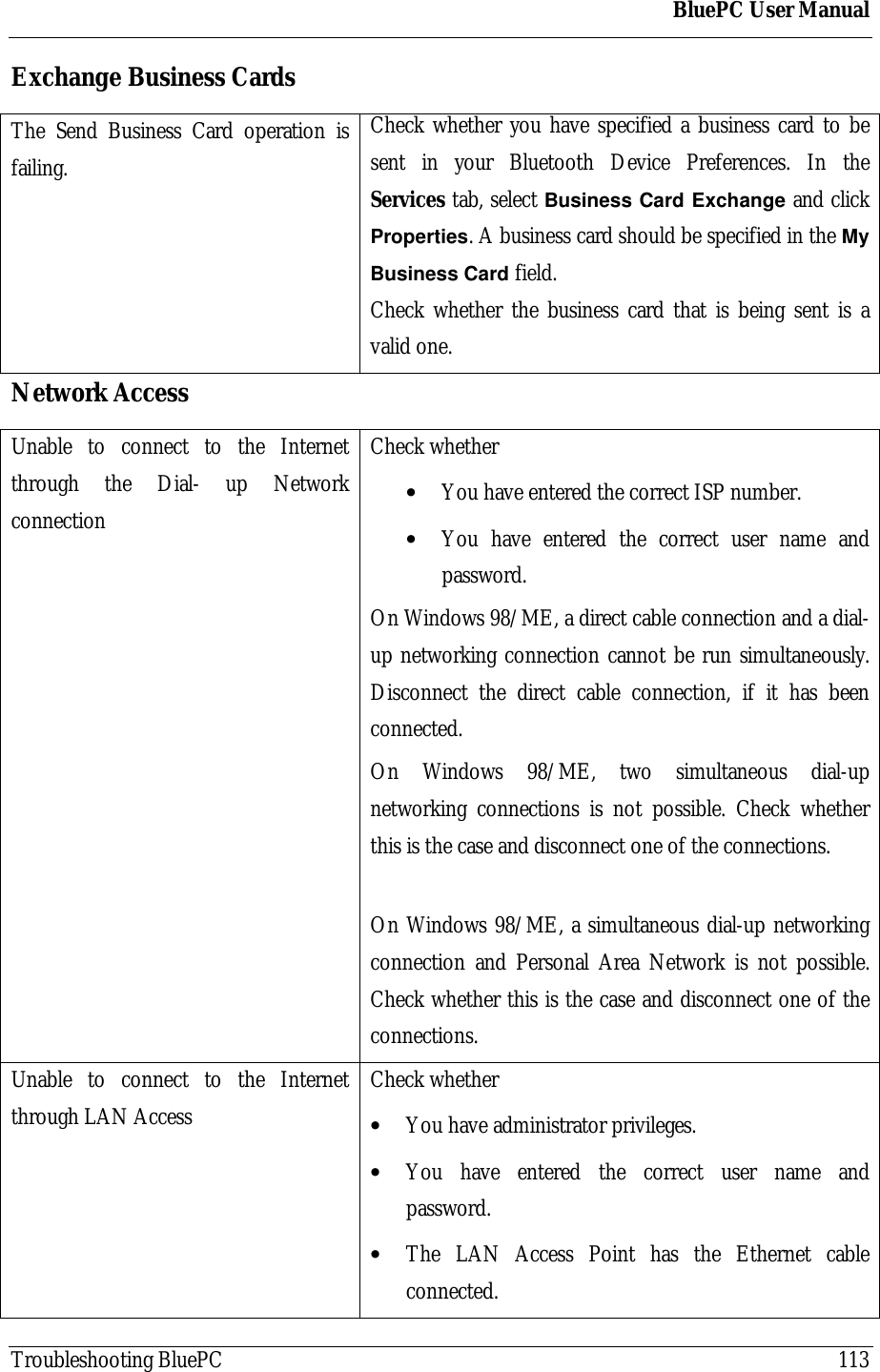
BluePC User ManualTroubleshooting BluePC 113Exchange Business CardsThe Send Business Card operation isfailing.Check whether you have specified a business card to besent in your Bluetooth Device Preferences. In theServices tab, select Business Card Exchange and clickProperties. A business card should be specified in the MyBusiness Card field.Check whether the business card that is being sent is avalid one.Network AccessUnable to connect to the Internetthrough the Dial- up NetworkconnectionCheck whether• You have entered the correct ISP number.• You have entered the correct user name andpassword.On Windows 98/ME, a direct cable connection and a dial-up networking connection cannot be run simultaneously.Disconnect the direct cable connection, if it has beenconnected.On Windows 98/ME, two simultaneous dial-upnetworking connections is not possible. Check whetherthis is the case and disconnect one of the connections.On Windows 98/ME, a simultaneous dial-up networkingconnection and Personal Area Network is not possible.Check whether this is the case and disconnect one of theconnections.Unable to connect to the Internetthrough LAN AccessCheck whether• You have administrator privileges.• You have entered the correct user name andpassword.• The LAN Access Point has the Ethernet cableconnected.
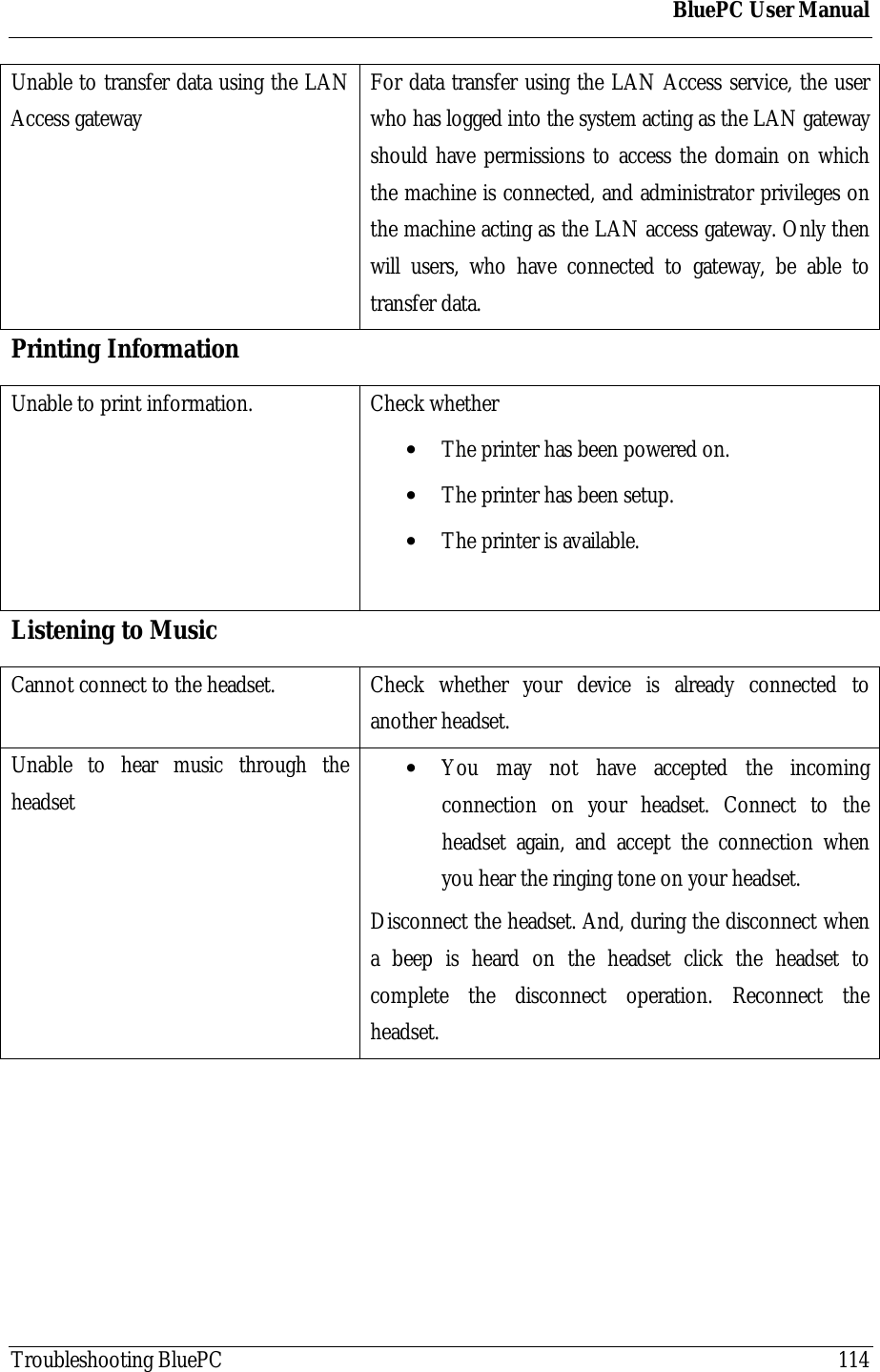
BluePC User ManualTroubleshooting BluePC 114Unable to transfer data using the LANAccess gatewayFor data transfer using the LAN Access service, the userwho has logged into the system acting as the LAN gatewayshould have permissions to access the domain on whichthe machine is connected, and administrator privileges onthe machine acting as the LAN access gateway. Only thenwill users, who have connected to gateway, be able totransfer data.Printing InformationUnable to print information. Check whether• The printer has been powered on.• The printer has been setup.• The printer is available.Listening to MusicCannot connect to the headset. Check whether your device is already connected toanother headset.Unable to hear music through theheadset• You may not have accepted the incomingconnection on your headset. Connect to theheadset again, and accept the connection whenyou hear the ringing tone on your headset.Disconnect the headset. And, during the disconnect whena beep is heard on the headset click the headset tocomplete the disconnect operation. Reconnect theheadset.
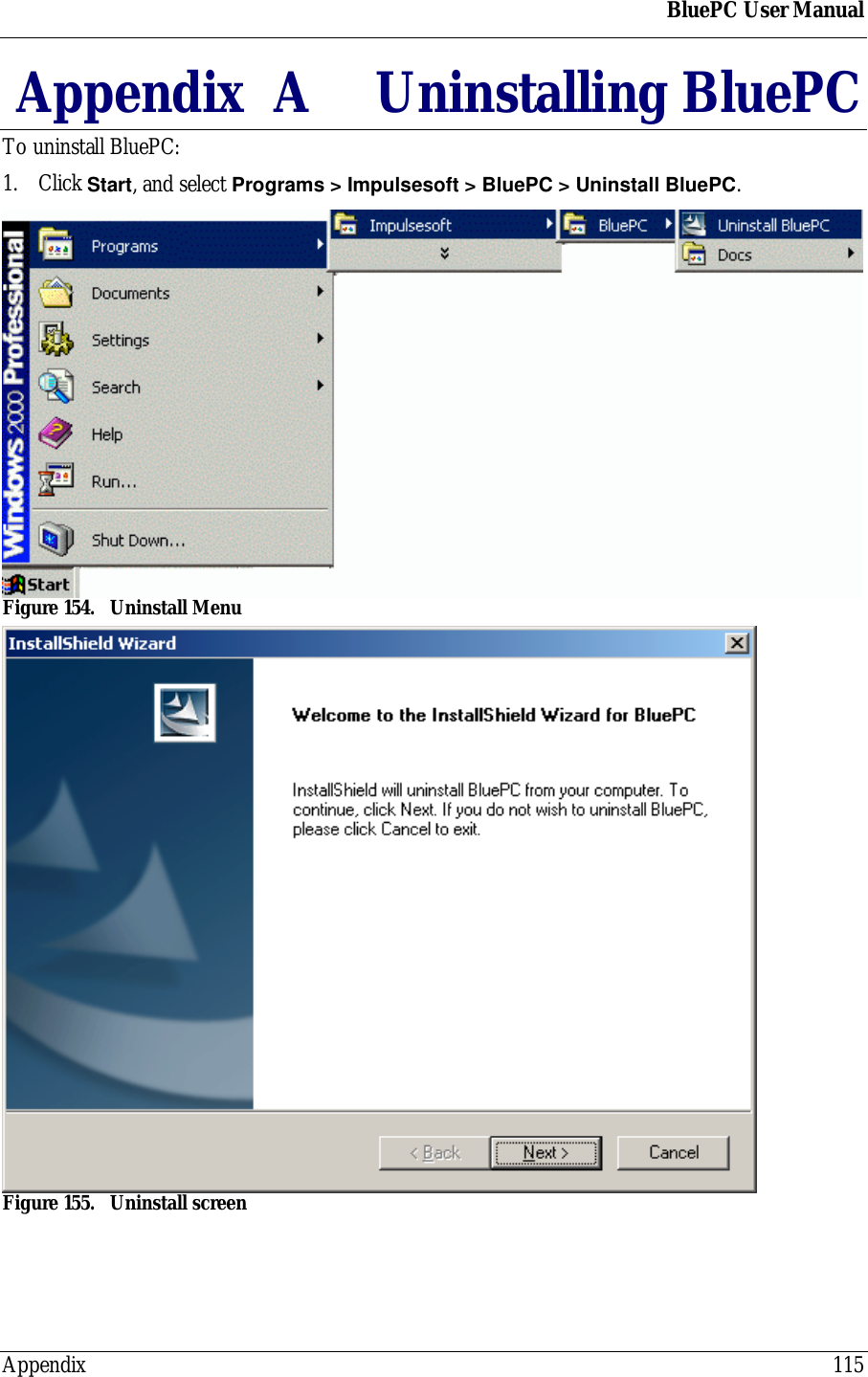
BluePC User ManualAppendix 115Appendix  A Uninstalling BluePCTo uninstall BluePC:1. Click Start, and select Programs > Impulsesoft > BluePC > Uninstall BluePC.Figure 154. Uninstall MenuFigure 155. Uninstall screen
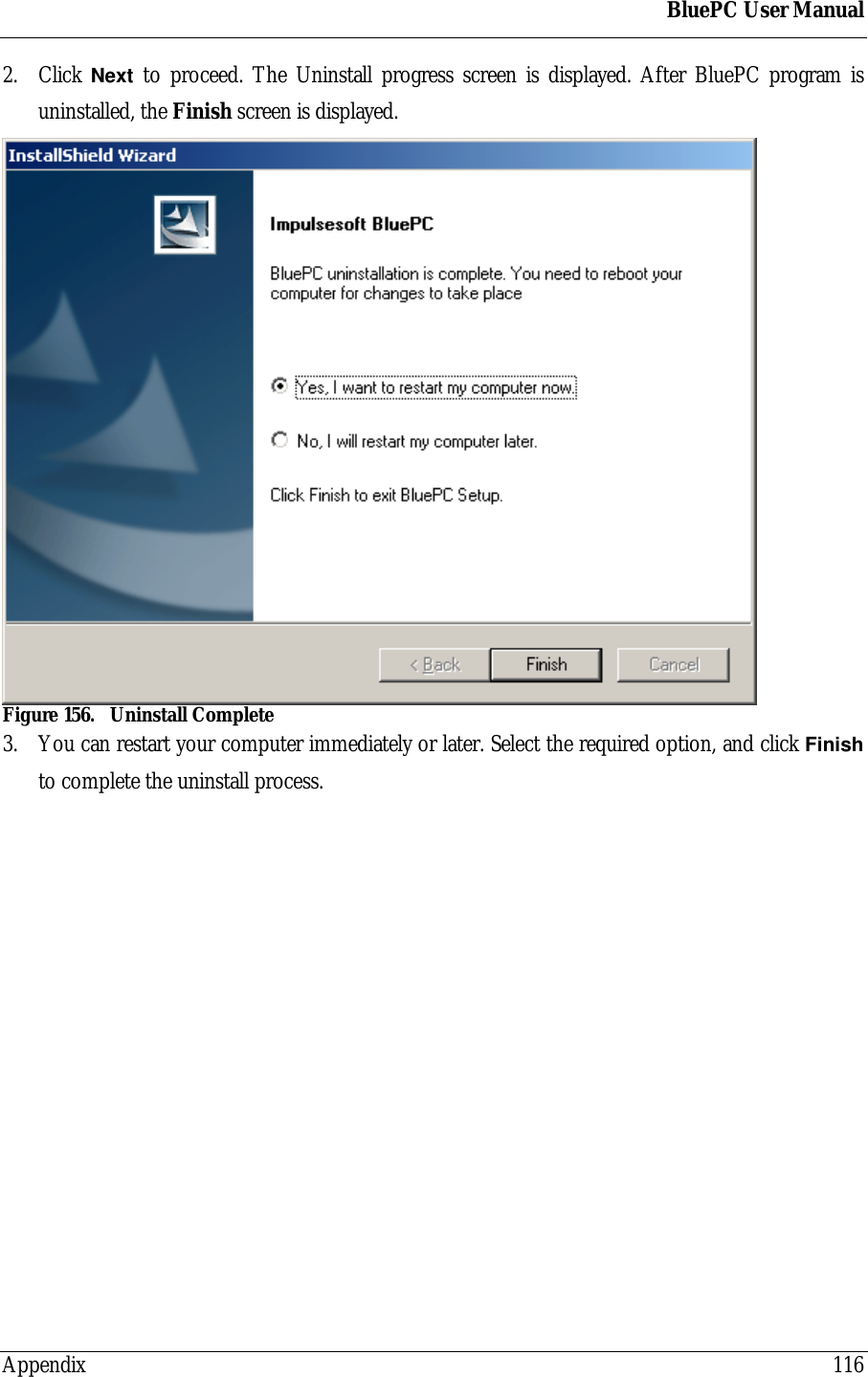
BluePC User ManualAppendix 1162. Click Next to proceed. The Uninstall progress screen is displayed. After BluePC program isuninstalled, the Finish screen is displayed.Figure 156. Uninstall Complete3. You can restart your computer immediately or later. Select the required option, and click Finishto complete the uninstall process.
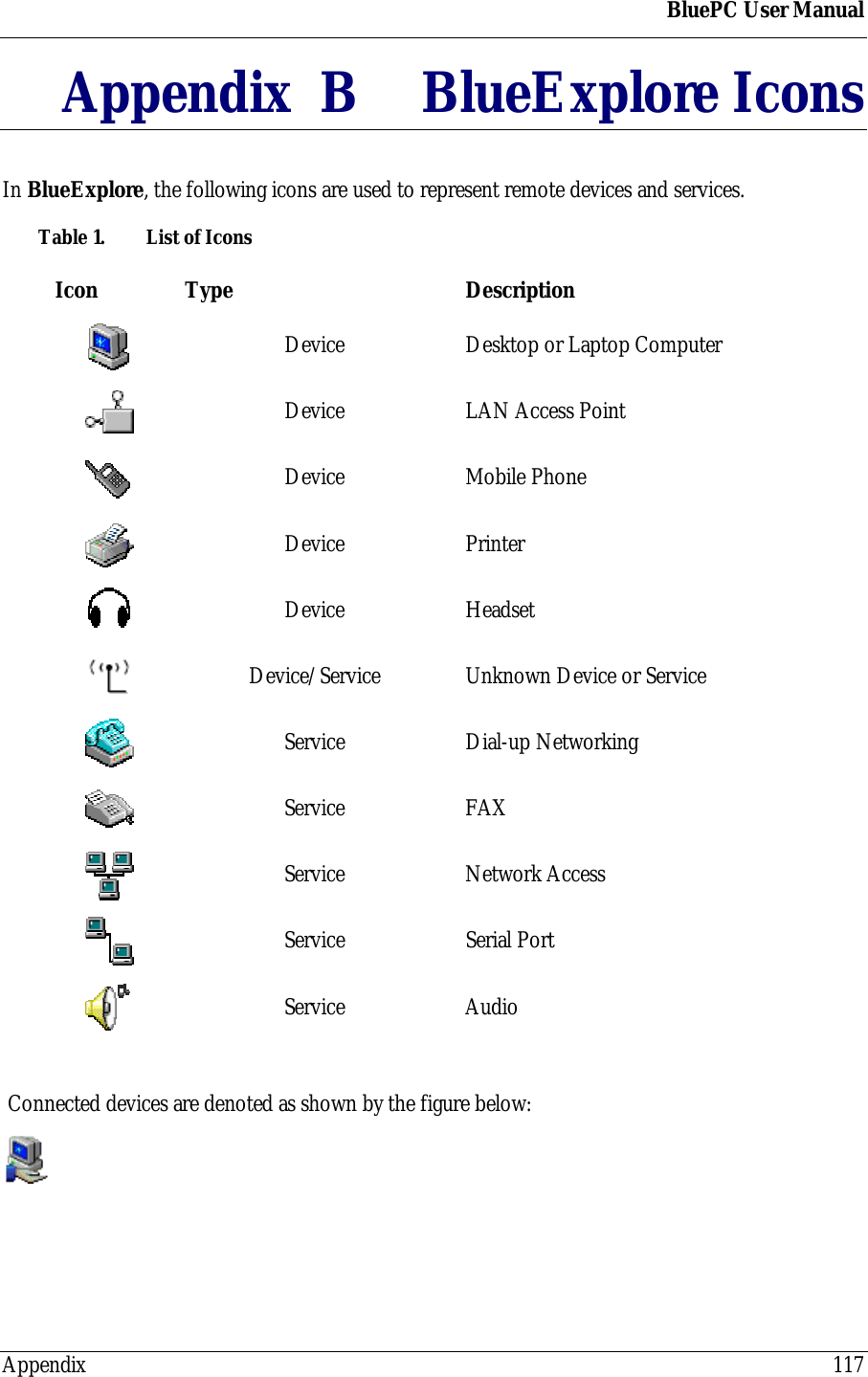
BluePC User ManualAppendix 117Appendix  B BlueExplore IconsIn BlueExplore, the following icons are used to represent remote devices and services.Table 1.  List of IconsIcon Type DescriptionDevice Desktop or Laptop ComputerDevice LAN Access PointDevice Mobile PhoneDevice PrinterDevice HeadsetDevice/Service Unknown Device or ServiceService Dial-up NetworkingService FAXService Network AccessService Serial PortService Audio Connected devices are denoted as shown by the figure below:
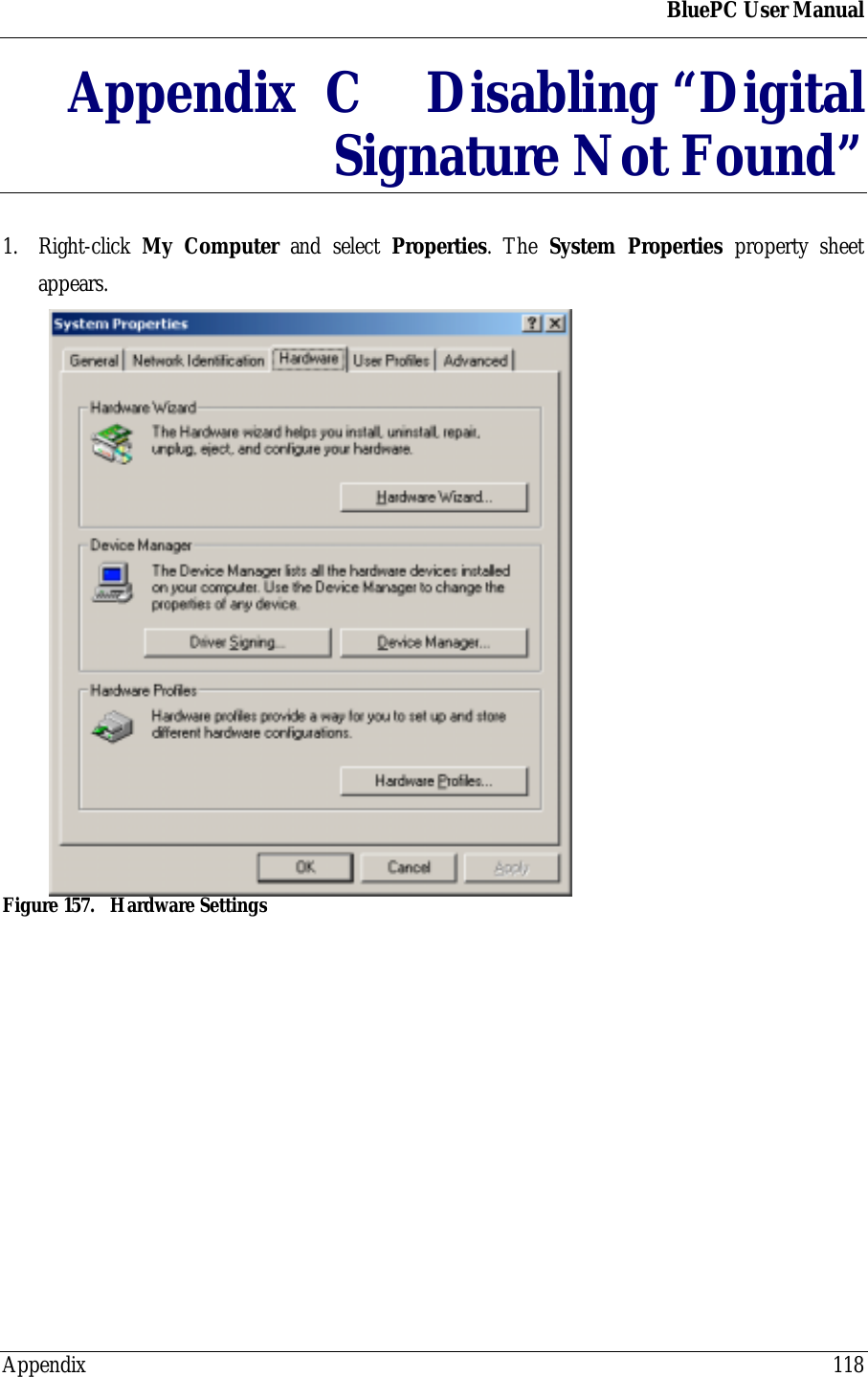
BluePC User ManualAppendix 118Appendix  C Disabling “DigitalSignature Not Found”1. Right-click  My Computer and select Properties. The System Properties property sheetappears.Figure 157. Hardware Settings
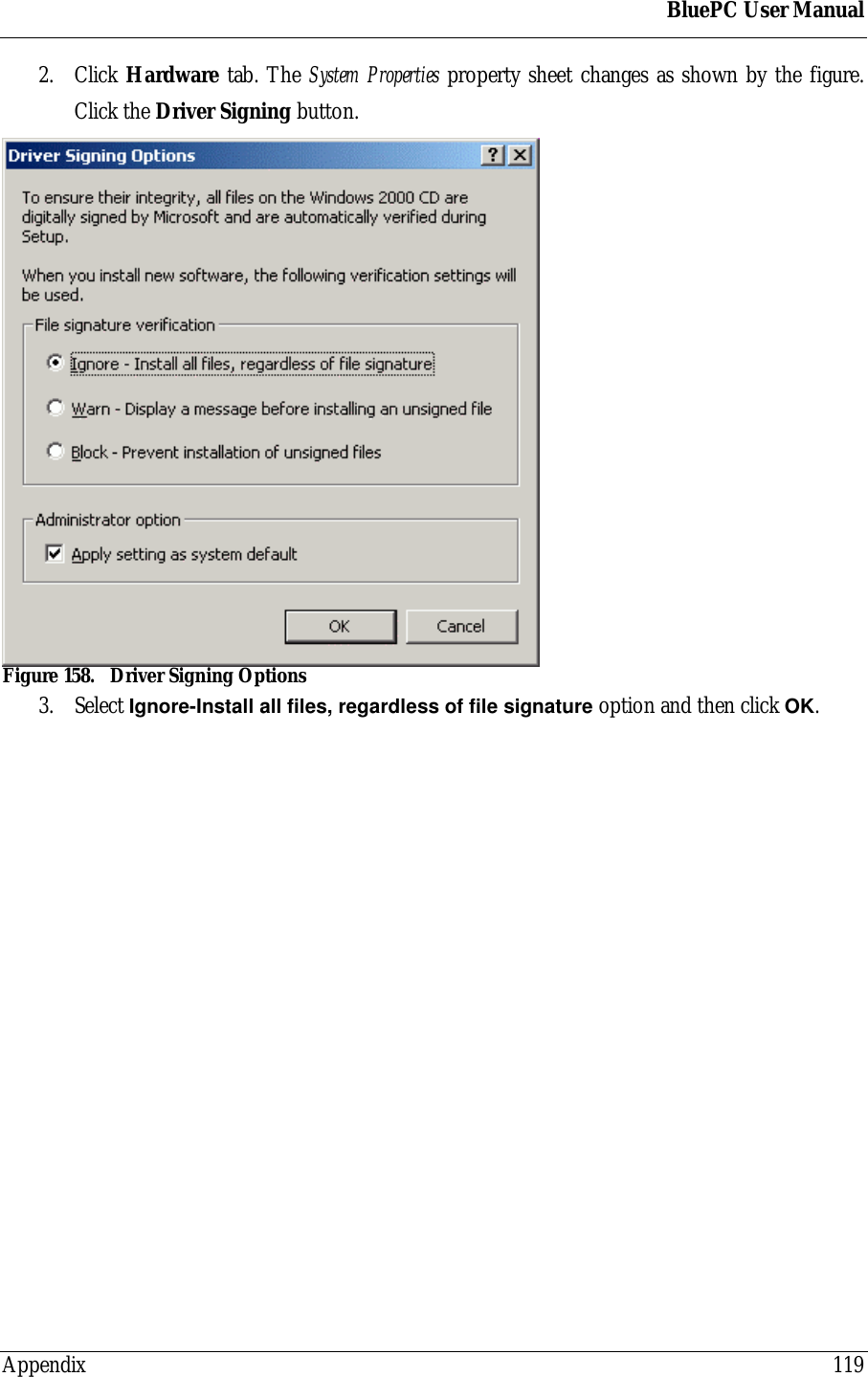
BluePC User ManualAppendix 1192. Click Hardware tab. The System Properties property sheet changes as shown by the figure.Click the Driver Signing button.Figure 158. Driver Signing Options3. Select Ignore-Install all files, regardless of file signature option and then click OK.
BluePC User ManualAppendix 120Appendix  D Supported OS,Profiles, and ProtocolsBluePC supports the following Operating System:• Microsoft Windows® XP• Microsoft Windows® 2000• Microsoft Windows® Millennium Edition• Microsoft Windows® 98 Second EditionBluePC currently supports the following Bluetooth Profiles:• General Access Profile• Service Discovery Application Profile• Serial Port Profile• Dial-up Networking Profile• LAN Access Profile• FAX Profile• File Transfer Profile• Object Push Profile• Headset Profile (for UART Transport Layer only)• HCRP – Hard Copy Cable Replacement• PANU – Personal Area NetworkBluePC currently implements the following Bluetooth Protocols:• HCI - Host Controller Interface• L2CAP - Logical Link Control and Adaptation Protocol• RFCOMM - Radio Frequency Communication• SDP - Service Discovery Protocol• OBEX – Object Exchange
BluePC User ManualAppendix 121Appendix  E RegulatoryInformationExposure to Radio Frequency RadiationThe radiated output power of the USB BlueOpal Adapter (Bluetooth) internal wireless radio is farbelow the FCC and Industry Canada radio frequency exposure limits.  Nevertheless, the wirelessradio shall be used in such a manner that the potential for human contact during normal operation isminimized. The internal wireless radio operates within guidelines found in radio frequency safetystandards and recommendations, which reflect the consensus of the scientific community.The level of emitted energy emitted is far less than the electromagnetic energy emitted by wirelessdevices such as mobile phones. However, the use of wireless radios may be restricted in somesituations or environments, such as aboard airplanes. If you are unsure of restrictions, you areencouraged to ask for authorization before turning on the wireless radio.The FCC and Industry Canada has set a general guideline of 20 cm (8 inches) separation betweenthe device and the body, for use of a wireless device near the body. This device should be usedmore than 20 cm (8 inches) from the body when wireless devices are on.FCC Part 15 Radio Frequency Interference StatementThis device complies with Part 15 of the FCC Rules. Operation is subject to the following twoconditions:• This device may not cause harmful interference.• This device must accept any interference received, including interference that may causeundesired operation.Note: This equipment has been tested and found to comply with the limits for a Class B digitaldevice, pursuant to Part 15 of the FCC Rules. These limits are designed to provide reasonableprotection against harmful interference in a residential installation. This equipment generates, usesand can radiate radio frequency energy and, if not installed and used in accordance with theinstructions, may cause harmful interference to radio communications. However, there is noguarantee that interference will not occur in a particular installation. If this equipment does causeharmful interference to radio or television reception, which can be determined by turning theequipment off and on. The user is encouraged to correct the interference by one or more of thefollowing measures:
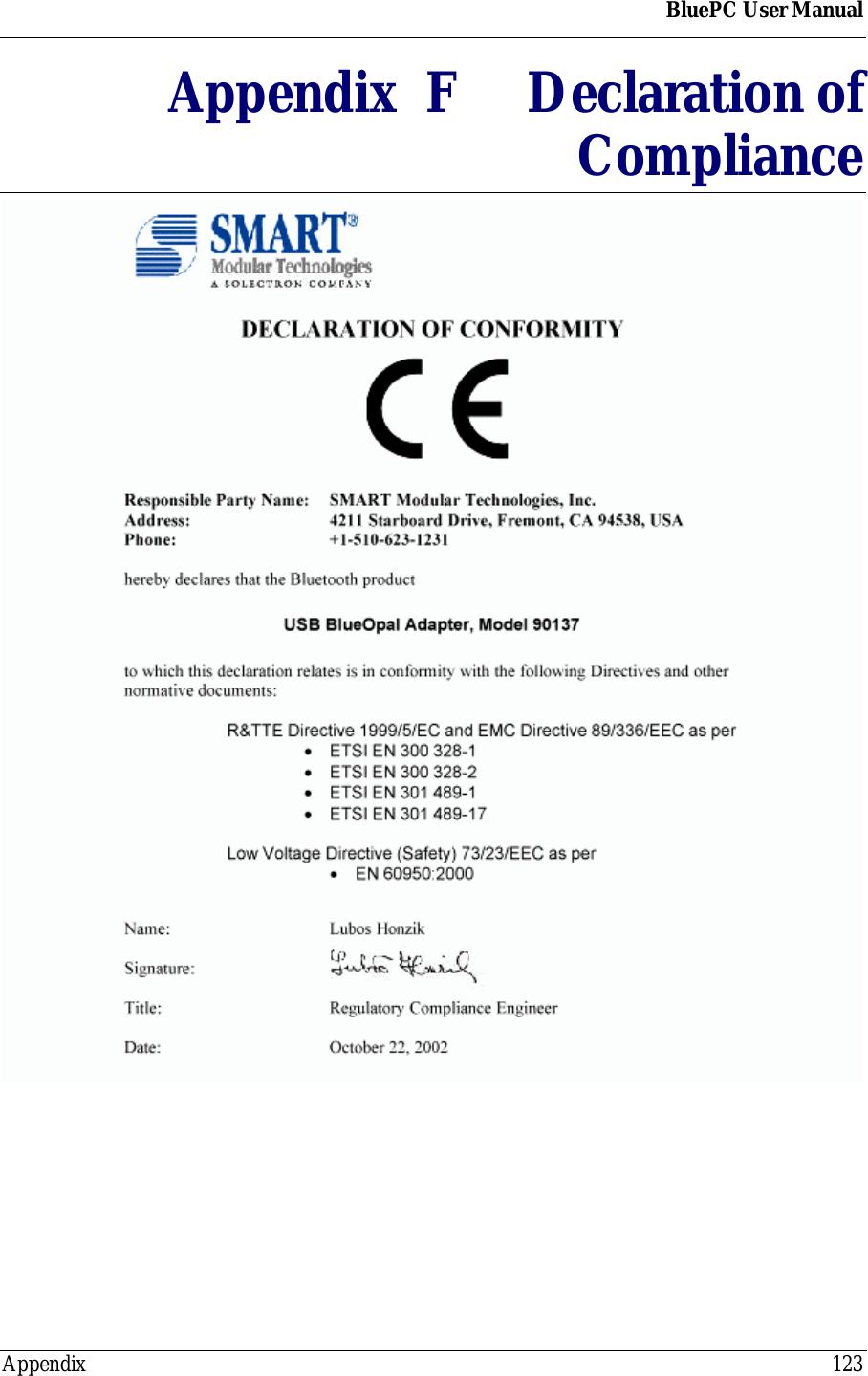
BluePC User ManualAppendix 122• Reorient or relocate the receiving antenna.• Increase the separation between the equipment and the receiver.• Connect the equipment into an outlet that is on a circuit different from the receiver.• Consult the dealer or an experienced radio/TV technician for help.Industry Canada RSS-210 Radio Compliance StatementTo prevent radio interference to the licensed service, this device must be operated indoors only andshould be kept away from windows to provide maximum shielding.Pour empêcher le brouillage radioélectrique du service faisant l’object d’un license, cet appareil doitêtre utilisé à l’intérieur et loin des fenêtres afin d’assurer un blindage maximal.Industry Canada ICES-003 Emission Compliance StatementThis Class B digital apparatus meets the requirement of the Canadian Interference-CausingEquipment Regulations.Cet appareil numérique de la classe B respecte toutes les exigences du règlement sur le matérielbrouiller du Canada.European Radio Approval InformationThe USB BlueOpal Adapter is a low power, wireless communication devices, operating in the 2.4GHz band, intended for home or office use. The power output of this device is well below the RFexposure limits as set by the European Commission through the R&TTE directive.The USB BlueOpal Adapter can be operated in:Austria, Belgium, Denmark, Finland, France, Germany, Greece, Iceland, Ireland, Italy, Liechtenstein,Luxembourg, the Netherlands, Norway, Portugal, Spain, Sweden, Switzerland and the UnitedKingdom.
BluePC User ManualAppendix 123Appendix  F Declaration ofCompliance

Navigation menu