Smart Modular Technologies 90183 Bluetooth to USB bridge User Manual

Smart Modular Technologies Bluetooth to USB bridge Users Manual

Users Manual

HP bt300 Bluetooth® Wireless PrinterAdapter
© Copyright 2004 Hewlett-Packard Development Company, L.P.The information contained herein is subject to change withoutnotice.Reproduction, adaptation or translation without prior writtenpermission is prohibited, except as allowed under the copyrightlaws.Publication Number: Q3395–90xxxBluetooth is a trademark owned by its proprietor and used byHewlett-Packard Company under license.Windows is a U.S.-registered trademark of Microsoft Corporation.NoticeThe only warranties for HP products and services are set forth inthe express warranty statements accompanying such productsand services. Nothing herein should be construed as constitutingany additional warranty. HP shall not be liable for technical oreditorial errors or omissions contained herein.The Hewlett-Packard Company shall not be liable for incidental orconsequential damages in connection with, or arising out of thefurnishing, performance, or use of this document and the programmaterial which it describes.Note Regulatory information can be found in the TechnicalInformation section and the back section of this user guide.
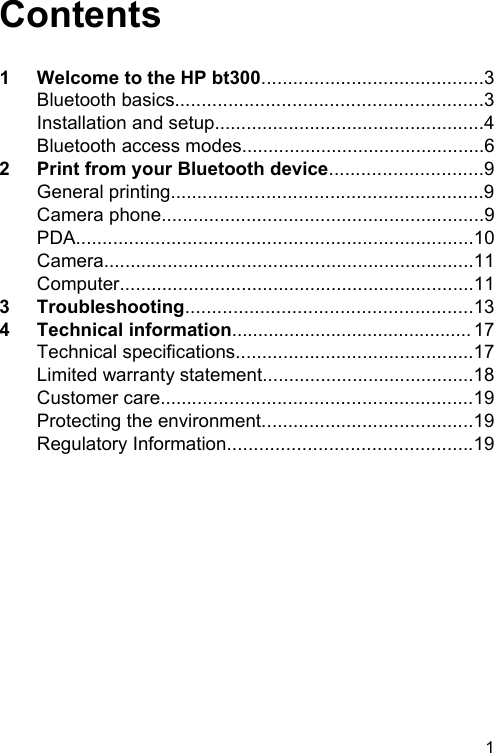
Contents1 Welcome to the HP bt300..........................................3Bluetooth basics..........................................................3Installation and setup...................................................4Bluetooth access modes..............................................62 Print from your Bluetooth device.............................9General printing...........................................................9Camera phone.............................................................9PDA...........................................................................10Camera......................................................................11Computer...................................................................113 Troubleshooting......................................................134 Technical information.............................................. 17Technical specifications.............................................17Limited warranty statement........................................18Customer care...........................................................19Protecting the environment........................................19Regulatory Information..............................................191
2 HP bt300 Bluetooth® Wireless Printer Adapter
1Welcome to theHP bt300The HP bt300 wireless printer adapter uses Bluetoothwireless technology to allow you to print without using acable. In general, Bluetooth wireless technology is a short-range wireless technology that allows connection betweendevices without requiring a cable. By using your HP bt300,you can print from your camera phone, PDA, digitalcamera, or computer to selected HP printers and all in ones.Note Check the documentation for your printer to verifythe devices you can use to print to it.Tip Check www.hp.com/go/bluetooth for a current listof supported printers and other valuable informationconcerning your Bluetooth adapter.Bluetooth basicsThe following concepts will help you use your HP bt300with your particular printer.Generally, the sending device (camera, PDA, computer,etc.) sends a signal and discovers the nearby Bluetoothprinting devices and displays their Bluetooth devicenames. Then, you simply print or send to that printer name.Tip For most devices, the default settings will allow you toprint without making any changes. However, aBluetooth device may be set to be visible or invisibleWelcome to the HP bt300 3
and may have security settings established. If youhave difficulty printing to your printer, consult“Bluetooth access modes” on page 6.Bluetooth device nameWhen a sending device discovers the printer, it displaysthe printer's Bluetooth device name. The printer's defaultBluetooth device name can be found and changed in theprinter's Bluetooth control panel menu.Installation and setupFollow these instructions to install and set up yourHP bt300. More detailed setup instructions can be found inthe user guide for your printer.Installing the HP bt3001 Locate the host USB port on your printer or all-in-one.It will usually be located in the front and is shaped likethe USB port on your computer. It may be called acamera or Pictbridge port on your printer.4 HP bt300 Bluetooth® Wireless Printer Adapter
GRAPHIC2 Remove the cap from the HP bt300 and insert it intothe port.GRAPHICWelcome to the HP bt300 5
LED behaviorThe LED on the HP bt300 tells you what is going on.●Blinking—This is the default state and means thedevice is installed and has power.●Rapid blinking—A sending device is “Discovering” theHP bt300.●On steady—The HP bt300 is receiving data.Bluetooth access modesAccess modes determine how easily a Bluetooth sendingdevice can print to a printer. The access modes aredefined by the following settings:●Accessibility●Security levelAccessibility modeThere are two available Accessibility modes for yourprinter. Follow the instructions in your device user guide tochange the Accessibility mode.●Visible to all (public/shown to all) (default)When the printer's Accessibility setting is set to“Visible to all”, any Bluetooth device within range candiscover and use the printer. This is the default settingfor your HP device.●Not visible (private/hidden)When the Accessibility setting is set to “Not visible”,only sending devices that have stored the printer's6 HP bt300 Bluetooth® Wireless Printer Adapter
Bluetooth device address can discover and use theprinter.Bluetooth device addressBluetooth devices have a unique device address thatcannot be changed.The following are general instructions for finding yourprinter or all-in-one's Bluetooth device address. Consultthe documentation for your printer or all-in-one for specificinstructions.1 Access the control panel menu and select theBluetooth option.2 Select Device address and press OK to display theBluetooth adapter device address.Security level●Low (default)When the printer's security level is set to “Low”, theprinter does not require a Passkey code. AnyBluetooth device may print to it.●HighWhen the printer's security level is set to “High”, youmust enter the Passkey code in the sending device inorder to print.Passkey/PIN codeWhen the printer's Bluetooth security level is set to High,the sending device attempting to print is prompted for aWelcome to the HP bt300 7
Passkey. The Passkey is a 4-digit code that is set on theprinter. The default Passkey is 0000.The following are general instructions for finding yourprinter or all-in-one's Bluetooth passkey. Consult thedocumentation for your printer or all-in-one for specificinstructions.1 Access the control panel menu and select theBluetooth option.2 Select Passkey and press OK to display the printer'sPasskey.You can also change the Passkey from this menu.8 HP bt300 Bluetooth® Wireless Printer Adapter
2Print from yourBluetooth deviceThis chapter contains sections on printing from differentBluetooth devices.General printing1 From your sending device, start the Discovery ofavailable Bluetooth printers.2 Select the printer and enter the Passkey if prompted.Note Secure printing may require you to know thePasskey of your printer. Refer to “Passkey/PINcode” on page 7.3 Print.Camera phoneThese are general instructions. Refer to the documentationfor your camera phone for detailed instructions.There are two techniques for printing from your cameraphone—from the imaging software or from a printingapplication.Print from your Bluetooth device 9
Follow these instructions to print from the imaging orcamera software.1 From the imaging application, select Send viaBluetooth.2 The phone searches for Bluetooth devices. Select theprinter you want to use.3 If you are prompted for a Passkey, enter it.The following method can be used if your camera phonehas a printing application. Check your software CD orphone manufacturer's website for the latest software.1 Press the Menu button.2 Select the Print application.3 Select the item to print.4 Either select Find Printer or Accept the printerselected.PDAThese are general instructions that apply to both PocketPCs and Palm OS devices. Refer to the documentation foryour PDA for detailed instructions.1 From the application you want to use, select Send orPrint.2 A list of Bluetooth devices displays. Select the printingdevice you want to use.3 If you are prompted to enter a Passkey, enter theprinter's Passkey then tap OK.10 HP bt300 Bluetooth® Wireless Printer Adapter
If you have a Pocket PC with the HP Image Zone, use oneof the following methods to print.1 Tap HP Image Zone.2 Select the image you want to print.3 Tap File, then Print.4 Select the printer you want to use and tap Print.or1 Tap the printer icon in the lower right corner of thescreen.2 Select Mobile Printing.3 Select the printer you want to use and tap Print.Note If the printer you want to use does not display,tap Configure to add a printer. Consult yourPocket PC documentation for directions.CameraCameras vary a great deal. Refer to the documentation foryour camera for instructions.ComputerThe method for printing from a computer depends on theProfile that your computer supports and the Bluetoothstack that is installed.Check your computer documentation to verify supportedprofiles and for detailed instructions. These instructions arefor Windows computers.Print from your Bluetooth device 11
You must install the printer software driver on yourcomputer before attempting to print using Bluetooth.Note If your computer does not support either of thesemethods, consult your computer documentation forhelp printing with Bluetooth.This procedure is for the HP or Widcomm stack.1 Click the My Bluetooth Places icon on your desktopor in the Task Bar.2 Click Search for devices in range.3 Once the available printers are discovered, double-click the printer name.4 Print to this printer name as you would any printer.This procedure is for the Microsoft stack.1 Go to Start, Settings, then Printers or Start, thenPrinters and Faxes.2 Select Add Printer.3 Click Next.4 Select A Wireless Printer.5 Follow the directions on the screen to finish theinstallation.Note You may need to select a Bluetooth port.6 Print to this printer name as you would any printer.12 HP bt300 Bluetooth® Wireless Printer Adapter
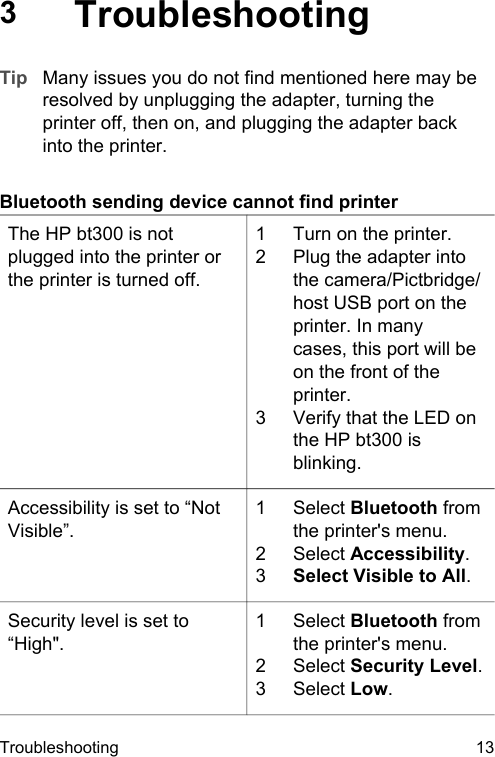
3TroubleshootingTip Many issues you do not find mentioned here may beresolved by unplugging the adapter, turning theprinter off, then on, and plugging the adapter backinto the printer.Bluetooth sending device cannot find printerThe HP bt300 is notplugged into the printer orthe printer is turned off.1 Turn on the printer.2 Plug the adapter intothe camera/Pictbridge/host USB port on theprinter. In manycases, this port will beon the front of theprinter.3 Verify that the LED onthe HP bt300 isblinking.Accessibility is set to “NotVisible”.1 Select Bluetooth fromthe printer's menu.2 Select Accessibility.3Select Visible to All.Security level is set to“High".1 Select Bluetooth fromthe printer's menu.2 Select Security Level.3 Select Low.Troubleshooting 13
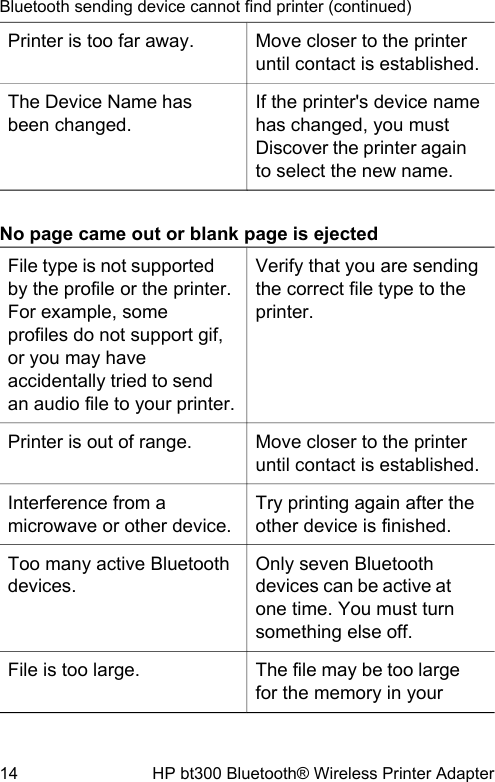
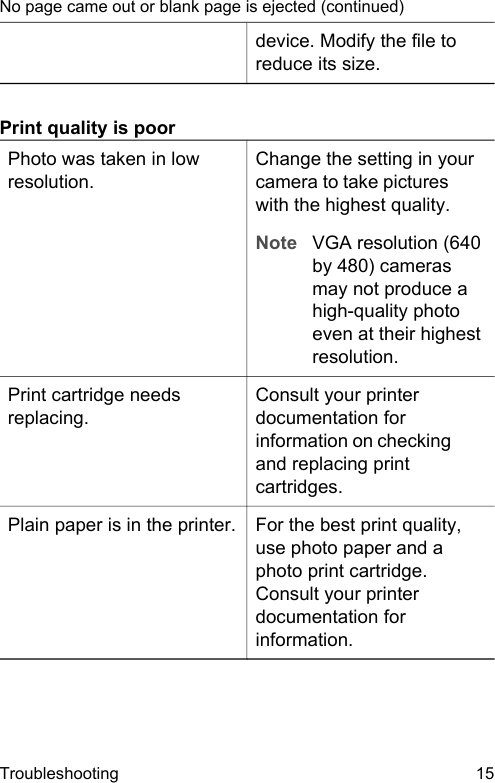
Printer is too far away. Move closer to the printeruntil contact is established.The Device Name hasbeen changed.If the printer's device namehas changed, you mustDiscover the printer againto select the new name.No page came out or blank page is ejectedFile type is not supportedby the profile or the printer.For example, someprofiles do not support gif,or you may haveaccidentally tried to sendan audio file to your printer.Verify that you are sendingthe correct file type to theprinter.Printer is out of range. Move closer to the printeruntil contact is established.Interference from amicrowave or other device.Try printing again after theother device is finished.Too many active Bluetoothdevices.Only seven Bluetoothdevices can be active atone time. You must turnsomething else off.File is too large. The file may be too largefor the memory in yourBluetooth sending device cannot find printer (continued)14 HP bt300 Bluetooth® Wireless Printer Adapter
device. Modify the file toreduce its size.Print quality is poorPhoto was taken in lowresolution.Change the setting in yourcamera to take pictureswith the highest quality.Note VGA resolution (640by 480) camerasmay not produce ahigh-quality photoeven at their highestresolution.Print cartridge needsreplacing.Consult your printerdocumentation forinformation on checkingand replacing printcartridges.Plain paper is in the printer. For the best print quality,use photo paper and aphoto print cartridge.Consult your printerdocumentation forinformation.No page came out or blank page is ejected (continued)Troubleshooting 15
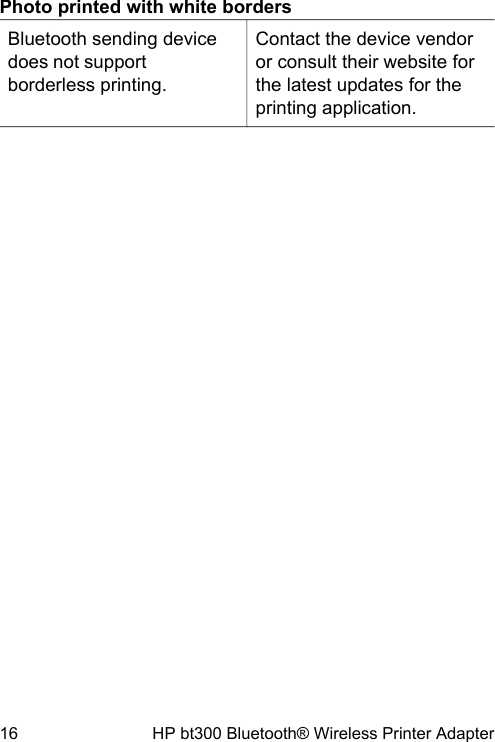
Photo printed with white bordersBluetooth sending devicedoes not supportborderless printing.Contact the device vendoror consult their website forthe latest updates for theprinting application.16 HP bt300 Bluetooth® Wireless Printer Adapter
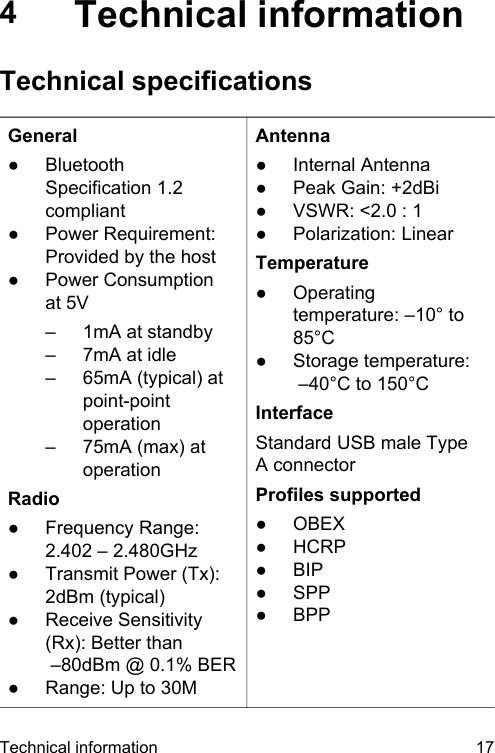
4Technical informationTechnical specificationsGeneral●BluetoothSpecification 1.2compliant●Power Requirement:Provided by the host●Power Consumptionat 5V– 1mA at standby– 7mA at idle– 65mA (typical) atpoint-pointoperation– 75mA (max) atoperationRadio●Frequency Range:2.402 – 2.480GHz●Transmit Power (Tx):2dBm (typical)●Receive Sensitivity(Rx): Better than        –80dBm @ 0.1% BER●Range: Up to 30MAntenna●Internal Antenna●Peak Gain: +2dBi●VSWR: <2.0 : 1●Polarization: LinearTemperature●Operatingtemperature: –10° to85°C●Storage temperature: –40°C to 150°CInterfaceStandard USB male TypeA connectorProfiles supported●OBEX●HCRP●BIP●SPP●BPPTechnical information 17
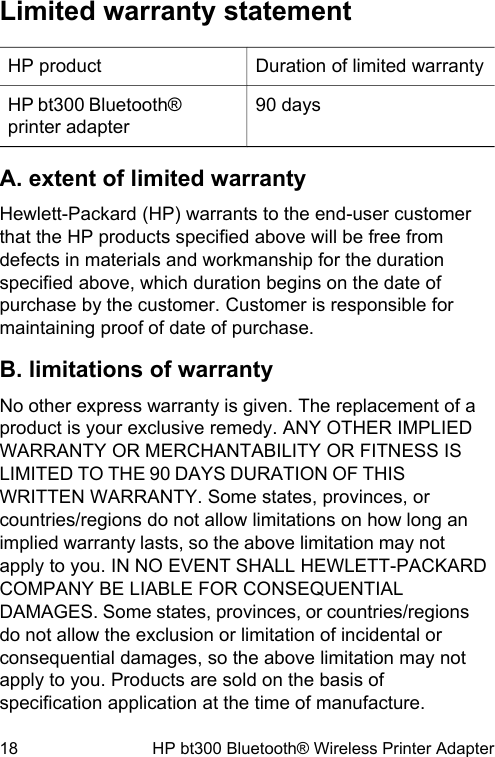
Limited warranty statementHP product Duration of limited warrantyHP bt300 Bluetooth®printer adapter90 daysA. extent of limited warrantyHewlett-Packard (HP) warrants to the end-user customerthat the HP products specified above will be free fromdefects in materials and workmanship for the durationspecified above, which duration begins on the date ofpurchase by the customer. Customer is responsible formaintaining proof of date of purchase.B. limitations of warrantyNo other express warranty is given. The replacement of aproduct is your exclusive remedy. ANY OTHER IMPLIEDWARRANTY OR MERCHANTABILITY OR FITNESS ISLIMITED TO THE 90 DAYS DURATION OF THISWRITTEN WARRANTY. Some states, provinces, orcountries/regions do not allow limitations on how long animplied warranty lasts, so the above limitation may notapply to you. IN NO EVENT SHALL HEWLETT-PACKARDCOMPANY BE LIABLE FOR CONSEQUENTIALDAMAGES. Some states, provinces, or countries/regionsdo not allow the exclusion or limitation of incidental orconsequential damages, so the above limitation may notapply to you. Products are sold on the basis ofspecification application at the time of manufacture.18 HP bt300 Bluetooth® Wireless Printer Adapter
Hewlett-Packard shall have no obligation to modify orupdate products, once sold.Customer careFor assistance, call 1-800-HP-INVENT (North Americaonly) or go to the Customer Care website at www.hp.com/support.Protecting the environmentHewlett-Packard is committed to providing quality productsin an environmentally sound manner. This product hasbeen designed with several attributes to minimize impactson our environment.For more information, visit HP's Commitment to theEnvironment website at:www.hp.com/hpinfo/globalcitizenship/environment/index.htmlRegulatory InformationThis section contains regulatory information. Moreregulatory information can be found before the back coverof this user guide.Exposure to Radio Frequency RadiationThe radiated output power of the HP bt300 Bluetoothwireless radio Class 2 is far below the FCC, IndustryCanada and European Union radio frequency exposureTechnical information 19
limits. Nevertheless, the wireless radio shall be used insuch a manner that the potential for human contact duringnormal operation is minimized. The internal wireless radiooperates within guidelines found in radio frequency safetystandards and recommendations, which reflect theconsensus of the scientific community.The level of emitted energy emitted is far less than theelectromagnetic energy emitted by wireless devices suchas mobile phones. However, the use of wireless radiosmay be restricted in some situations or environments, suchas aboard airplanes. If you are unsure of restrictions, youare encouraged to ask for authorization before turning onthe wireless radio. The FCC, Industry Canada andEuropean Union have set a general guideline of 20 cm (8inches) from the body when wireless devices are on.European Radio Approval InformationThe HP bt300 is a low power, wireless communicationdevices, operating in the 2.4 GHz band, intended for homeor office use. The power output of this device is well belowthe RF exposure limits as set by the EuropeanCommission through the R&TTE directive.The HP bt300 can be operated in the following EuropeanUnion and European Economic Area countries:Austria, Belgium Cyprus, Czech Republic, Denmark,Estonia, Finland, France, Germany, Greece, Hungary,Iceland, Ireland, Italy, Latvia, Liechtenstein, Lithuania,Luxembourg, Malta, the Netherlands, Norway, Poland,20 HP bt300 Bluetooth® Wireless Printer Adapter
Portugal, Slovakia, Slovenia, Spain, Sweden, Switzerlandand the United Kingdom.Technical information 21
FCC Part 15 Radio Frequency InterferenceStatementThis device complies with Part 15 of the FCC Rules.Operation is subject to the following two conditions: (1)Thisdevice may not cause harmful interference. (2)This devicemust accept any interference received, includinginterference that may cause undesired operation.Note This equipment has been tested and found tocomply with the limits for a Class B digital device,pursuant to Part 15 of the FCC Rules. These limitsare designed to provide reasonable protectionagainst harmful interference in a residentialinstallation. This equipment generates, uses andcan radiate radio frequency energy and, if notinstalled and used in accordance with theinstructions, may cause harmful interference toradio communications. However, there is noguarantee that interference will not occur in aparticular installation. If this equipment does causeharmful interference to radio or television reception,which can be determined by turning the equipmentoff and on, the user is encouraged to correct theinterference by one or more of the followingmeasures:●Reorient or relocate the receiving antenna.●Increase the separation between the equipment andthe receiver.22
●Connect the equipment into an outlet that is on acircuit different from the receiver.●Consult the dealer or an experienced radio/TVtechnician for help.Caution Pursuant to Part 15.21 of the FCC Rulesfor intentional or unintentional radiators, any changesor modifications not expressly approved by the partyresponsible for compliance could void the user's authority to operate this equipment.Industry Canada ICES-003 EmissionCompliance StatementThis Class B digital apparatus meets the requirement ofthe Canadian Interference-Causing Equipment Regulations.Cet appareil numérique de la classe B respecte toutes lesexigences du règlement sur le matériel brouiller du Canada.23
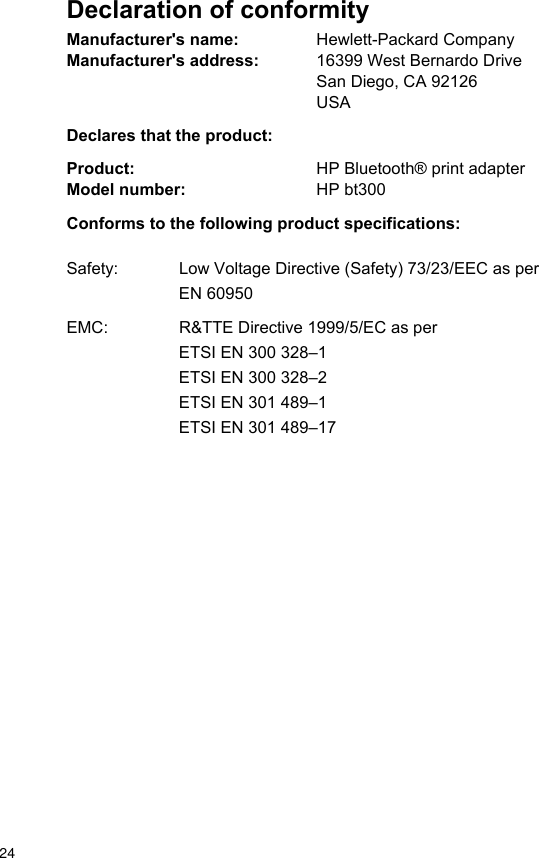
Declaration of conformityManufacturer's name: Hewlett-Packard CompanyManufacturer's address: 16399 West Bernardo DriveSan Diego, CA 92126USADeclares that the product:Product: HP Bluetooth® print adapterModel number: HP bt300Conforms to the following product specifications:Safety: Low Voltage Directive (Safety) 73/23/EEC as perEN 60950EMC: R&TTE Directive 1999/5/EC as perETSI EN 300 328–1ETSI EN 300 328–2ETSI EN 301 489–1ETSI EN 301 489–1724

Navigation menu