Star Systems PLATINO-WF2014 RFID Handheld Reader User Manual

Star Systems International Limited RFID Handheld Reader

User Manual

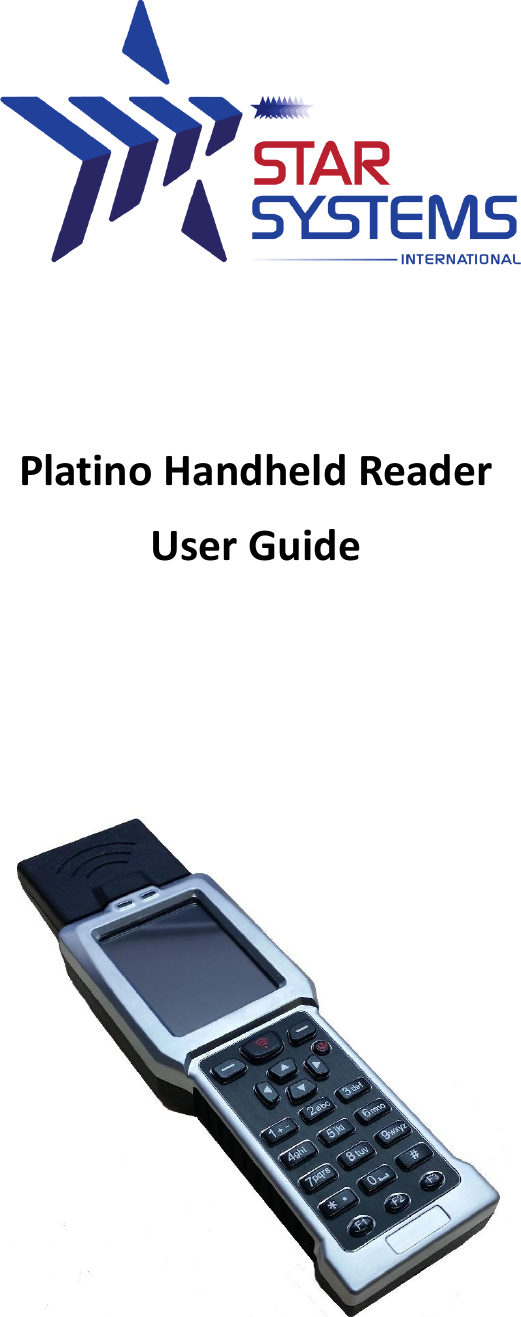
      Platino Handheld Reader User Guide
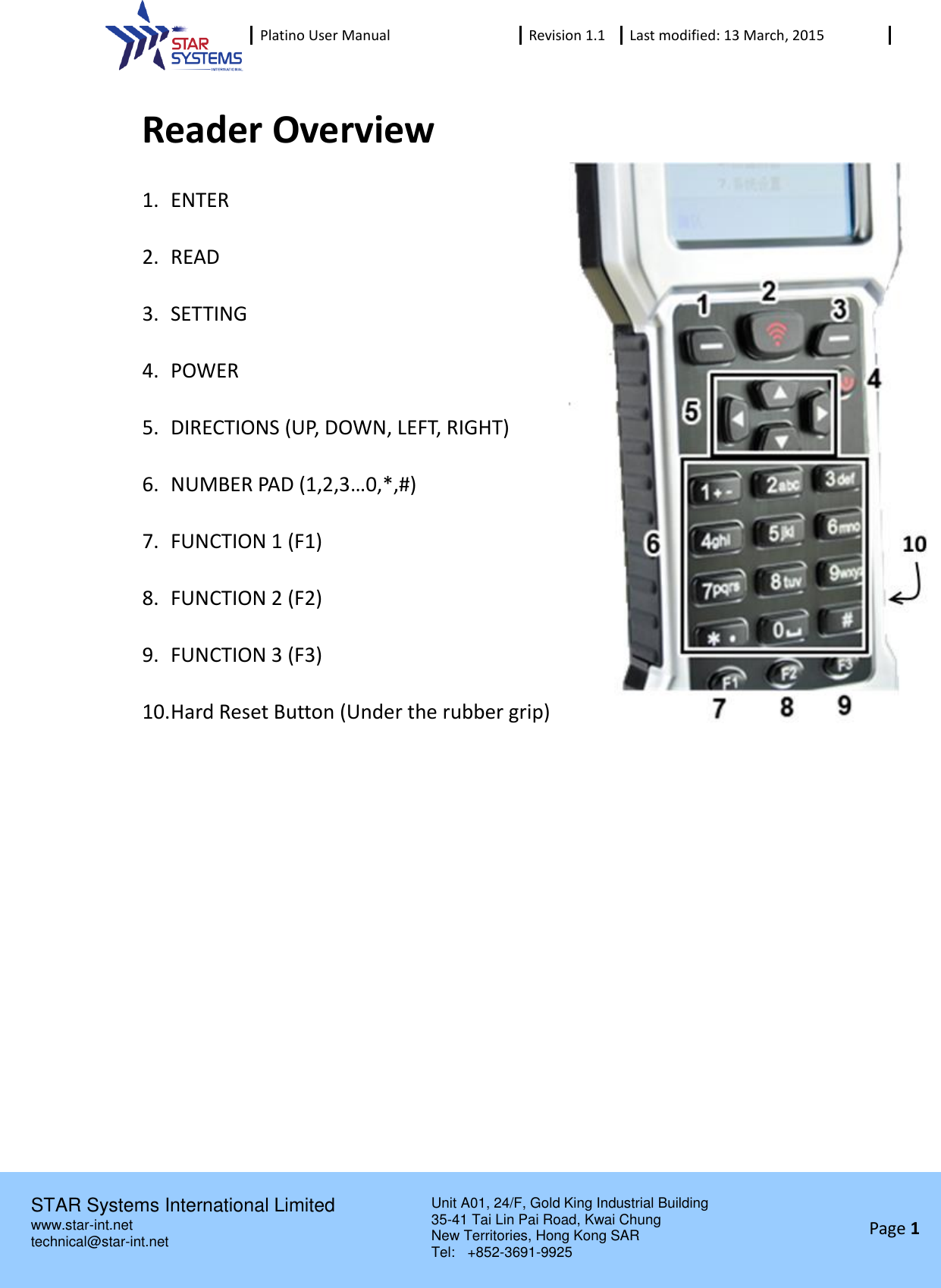
 Platino User Manual Revision 1.1 Last modified: 13 March, 2015    STAR Systems International Limited Unit A01, 24/F, Gold King Industrial Building 35-41 Tai Lin Pai Road, Kwai Chung New Territories, Hong Kong SAR Tel:    +852-3691-9925  www.star-int.net technical@star-int.net Page 1     Reader Overview 1. ENTER  2. READ  3. SETTING  4. POWER  5. DIRECTIONS (UP, DOWN, LEFT, RIGHT)  6. NUMBER PAD (1,2,3…0,*,#)  7. FUNCTION 1 (F1)  8. FUNCTION 2 (F2)  9. FUNCTION 3 (F3)  10. Hard Reset Button (Under the rubber grip)
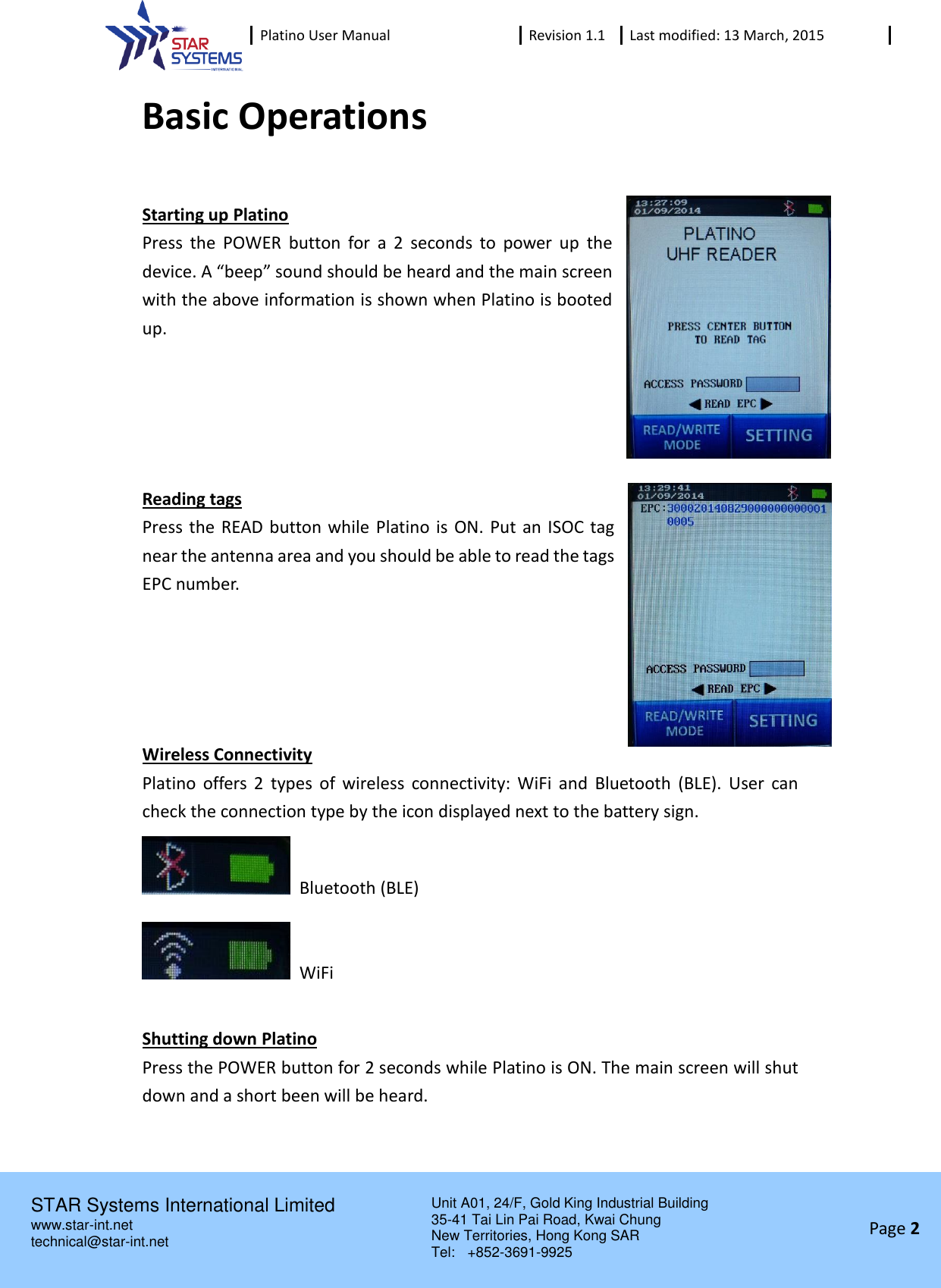
 Platino User Manual Revision 1.1 Last modified: 13 March, 2015    STAR Systems International Limited Unit A01, 24/F, Gold King Industrial Building 35-41 Tai Lin Pai Road, Kwai Chung New Territories, Hong Kong SAR Tel:    +852-3691-9925  www.star-int.net technical@star-int.net Page 2     Basic Operations  Starting up Platino Press  the  POWER  button  for  a  2  seconds  to  power  up  the device. A “beep” sound should be heard and the main screen with the above information is shown when Platino is booted up.        Reading tags Press the READ button while Platino is  ON. Put an ISOC tag near the antenna area and you should be able to read the tags EPC number.      Wireless Connectivity Platino  offers  2  types  of  wireless  connectivity:  WiFi  and  Bluetooth  (BLE).  User  can check the connection type by the icon displayed next to the battery sign.   Bluetooth (BLE)   WiFi  Shutting down Platino Press the POWER button for 2 seconds while Platino is ON. The main screen will shut down and a short been will be heard.
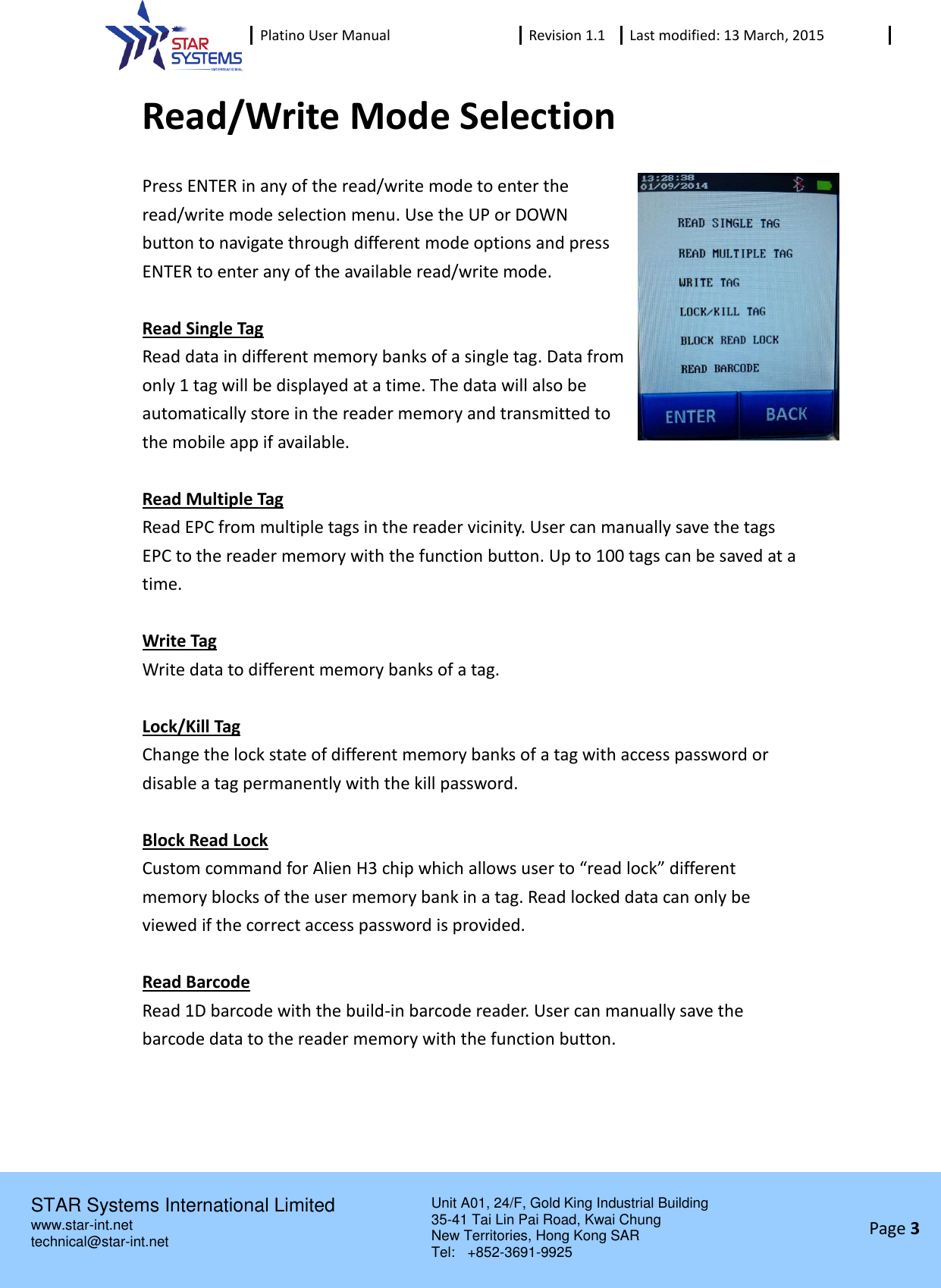
 Platino User Manual Revision 1.1 Last modified: 13 March, 2015    STAR Systems International Limited Unit A01, 24/F, Gold King Industrial Building 35-41 Tai Lin Pai Road, Kwai Chung New Territories, Hong Kong SAR Tel:    +852-3691-9925  www.star-int.net technical@star-int.net Page 3     Read/Write Mode Selection Press ENTER in any of the read/write mode to enter the read/write mode selection menu. Use the UP or DOWN button to navigate through different mode options and press ENTER to enter any of the available read/write mode.  Read Single Tag Read data in different memory banks of a single tag. Data from only 1 tag will be displayed at a time. The data will also be automatically store in the reader memory and transmitted to the mobile app if available.  Read Multiple Tag Read EPC from multiple tags in the reader vicinity. User can manually save the tags EPC to the reader memory with the function button. Up to 100 tags can be saved at a time.  Write Tag Write data to different memory banks of a tag.  Lock/Kill Tag Change the lock state of different memory banks of a tag with access password or disable a tag permanently with the kill password.  Block Read Lock Custom command for Alien H3 chip which allows user to “read lock” different memory blocks of the user memory bank in a tag. Read locked data can only be viewed if the correct access password is provided.  Read Barcode Read 1D barcode with the build-in barcode reader. User can manually save the barcode data to the reader memory with the function button.
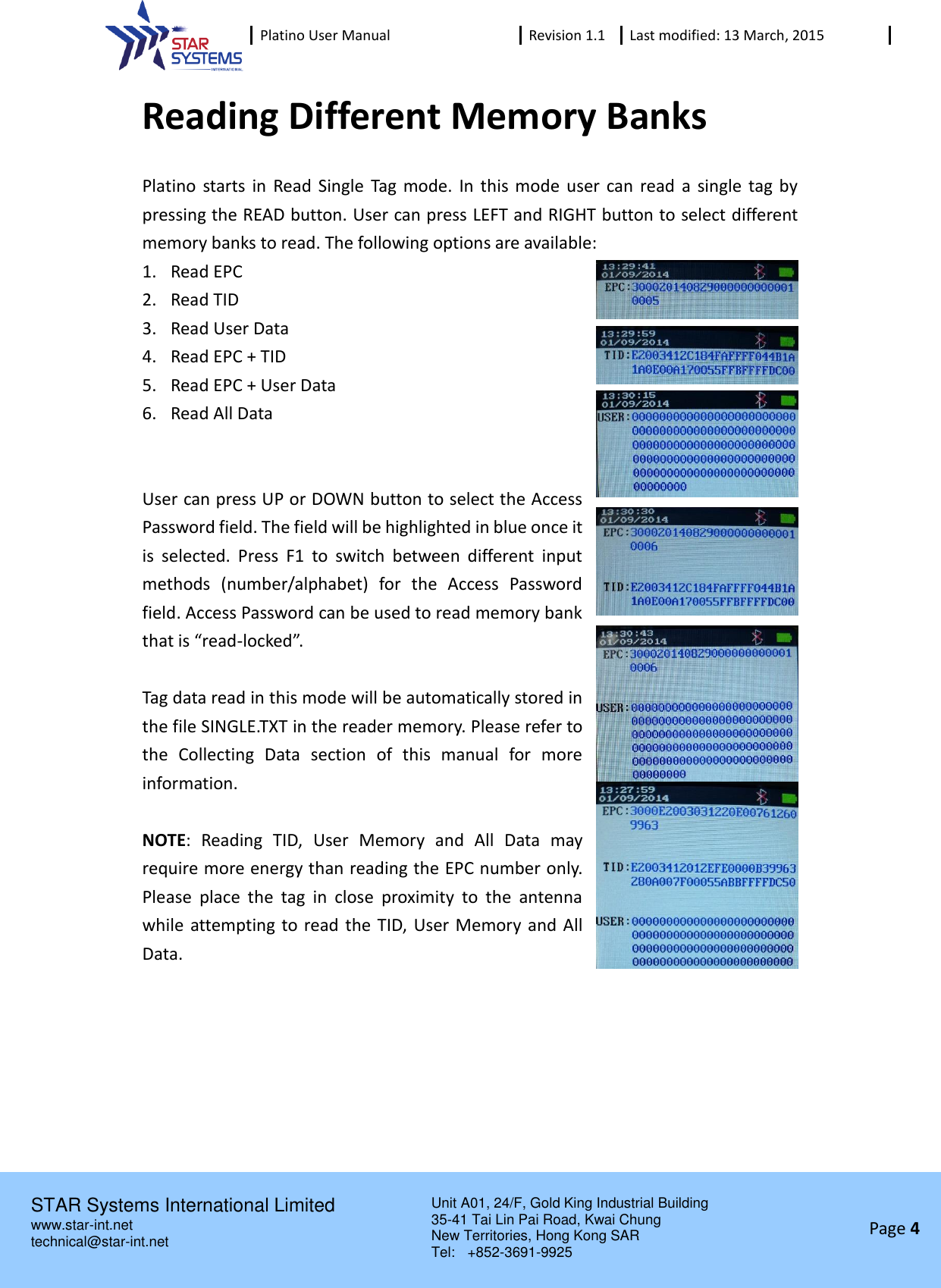
 Platino User Manual Revision 1.1 Last modified: 13 March, 2015    STAR Systems International Limited Unit A01, 24/F, Gold King Industrial Building 35-41 Tai Lin Pai Road, Kwai Chung New Territories, Hong Kong SAR Tel:    +852-3691-9925  www.star-int.net technical@star-int.net Page 4     Reading Different Memory Banks Platino  starts  in  Read Single  Tag mode.  In this mode user can read  a single  tag  by pressing the READ button. User can press LEFT and RIGHT button to select different memory banks to read. The following options are available: 1. Read EPC 2. Read TID 3. Read User Data 4. Read EPC + TID 5. Read EPC + User Data 6. Read All Data   User can press UP or DOWN button to select the Access Password field. The field will be highlighted in blue once it is  selected.  Press  F1  to  switch  between  different  input methods  (number/alphabet)  for  the  Access  Password field. Access Password can be used to read memory bank that is “read-locked”.  Tag data read in this mode will be automatically stored in the file SINGLE.TXT in the reader memory. Please refer to the  Collecting  Data  section  of  this  manual  for  more information.  NOTE:  Reading  TID,  User  Memory  and  All  Data  may require more energy than reading the EPC number only. Please  place  the  tag  in  close  proximity  to  the  antenna while attempting to read the TID,  User Memory and All Data.
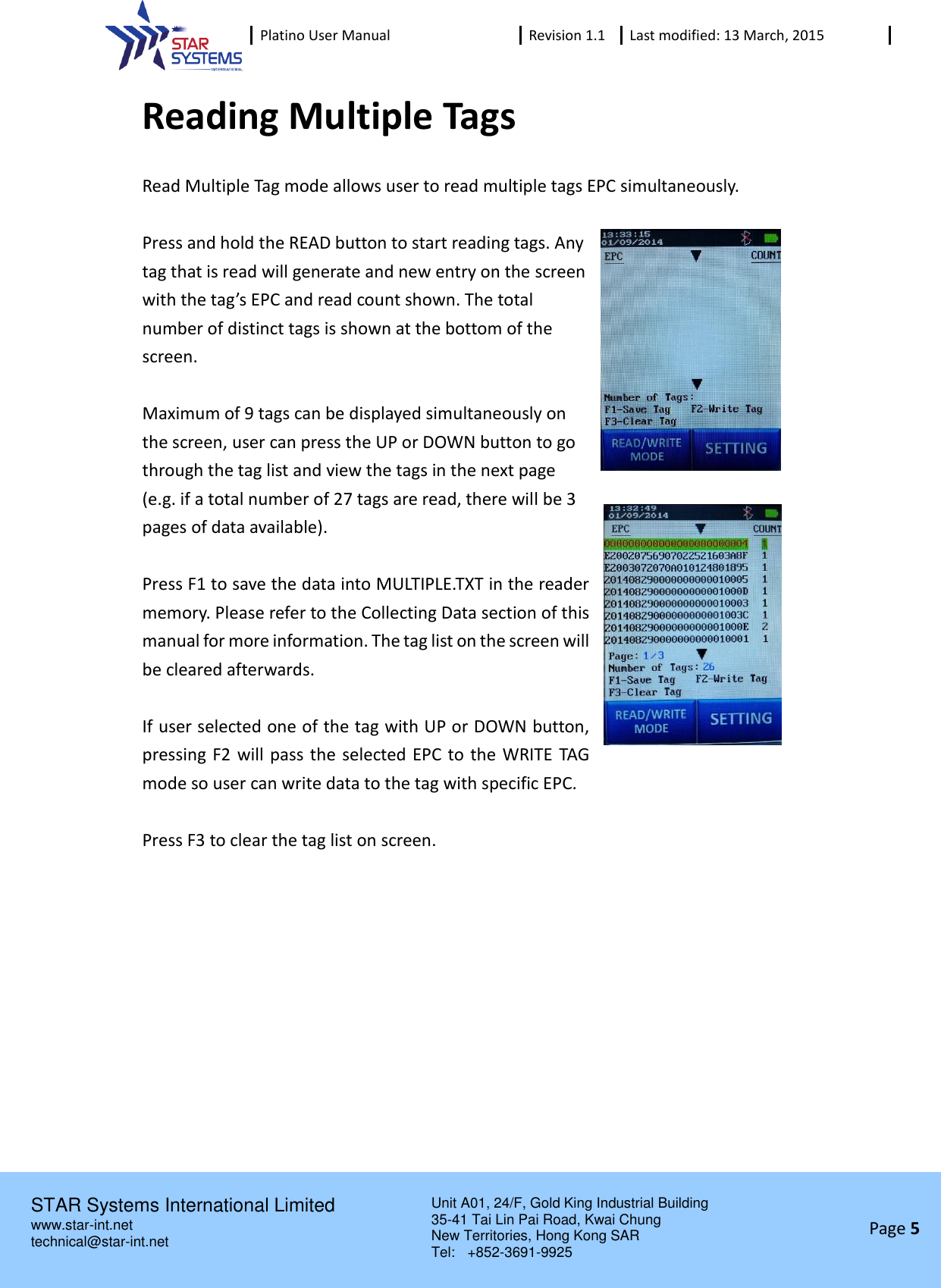
 Platino User Manual Revision 1.1 Last modified: 13 March, 2015    STAR Systems International Limited Unit A01, 24/F, Gold King Industrial Building 35-41 Tai Lin Pai Road, Kwai Chung New Territories, Hong Kong SAR Tel:    +852-3691-9925  www.star-int.net technical@star-int.net Page 5     Reading Multiple Tags Read Multiple Tag mode allows user to read multiple tags EPC simultaneously.    Press and hold the READ button to start reading tags. Any tag that is read will generate and new entry on the screen with the tag’s EPC and read count shown. The total number of distinct tags is shown at the bottom of the screen.  Maximum of 9 tags can be displayed simultaneously on the screen, user can press the UP or DOWN button to go through the tag list and view the tags in the next page (e.g. if a total number of 27 tags are read, there will be 3 pages of data available).  Press F1 to save the data into MULTIPLE.TXT in the reader memory. Please refer to the Collecting Data section of this manual for more information. The tag list on the screen will be cleared afterwards.  If user selected one of the tag with UP or DOWN button, pressing F2 will pass the selected EPC to the WRITE TAG mode so user can write data to the tag with specific EPC.  Press F3 to clear the tag list on screen.
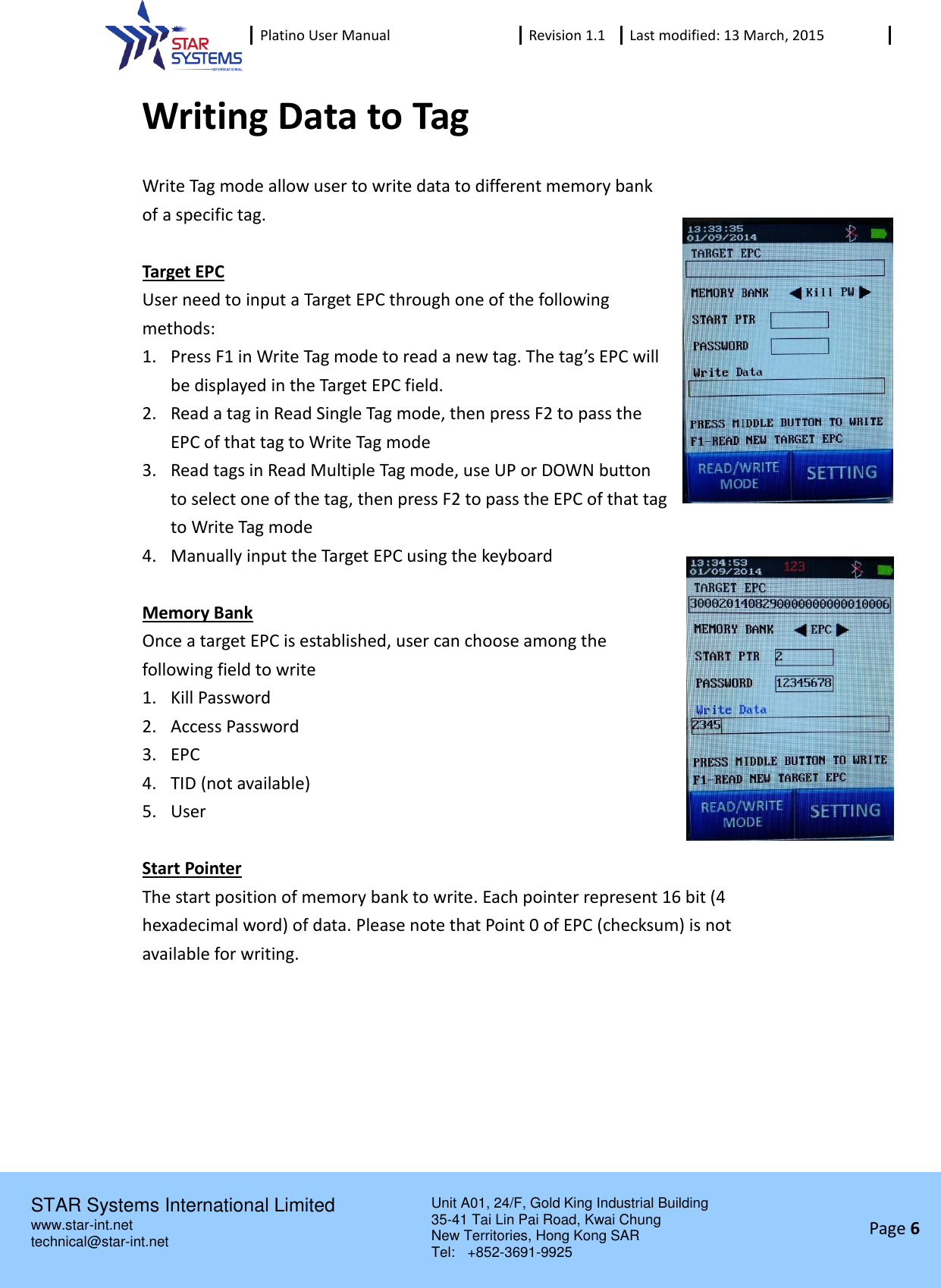
 Platino User Manual Revision 1.1 Last modified: 13 March, 2015    STAR Systems International Limited Unit A01, 24/F, Gold King Industrial Building 35-41 Tai Lin Pai Road, Kwai Chung New Territories, Hong Kong SAR Tel:    +852-3691-9925  www.star-int.net technical@star-int.net Page 6     Writing Data to Tag Write Tag mode allow user to write data to different memory bank of a specific tag.  Target EPC User need to input a Target EPC through one of the following methods: 1. Press F1 in Write Tag mode to read a new tag. The tag’s EPC will be displayed in the Target EPC field. 2. Read a tag in Read Single Tag mode, then press F2 to pass the EPC of that tag to Write Tag mode 3. Read tags in Read Multiple Tag mode, use UP or DOWN button to select one of the tag, then press F2 to pass the EPC of that tag to Write Tag mode 4. Manually input the Target EPC using the keyboard  Memory Bank Once a target EPC is established, user can choose among the following field to write 1. Kill Password 2. Access Password 3. EPC 4. TID (not available) 5. User  Start Pointer The start position of memory bank to write. Each pointer represent 16 bit (4 hexadecimal word) of data. Please note that Point 0 of EPC (checksum) is not available for writing.
 Platino User Manual Revision 1.1 Last modified: 13 March, 2015    STAR Systems International Limited Unit A01, 24/F, Gold King Industrial Building 35-41 Tai Lin Pai Road, Kwai Chung New Territories, Hong Kong SAR Tel:    +852-3691-9925  www.star-int.net technical@star-int.net Page 7     Writing Data to Tag Access Password If the memory bank is previously locked with an access password, user will need to fill in the password field to successfully write to the tag. Once the field is selected, user can use the F1 button to switch between integer and alphabet input.  Write Data Data to be written in the designated memory bank. Once the field is selected, user can use the F1 button to switch between integer and alphabet input.
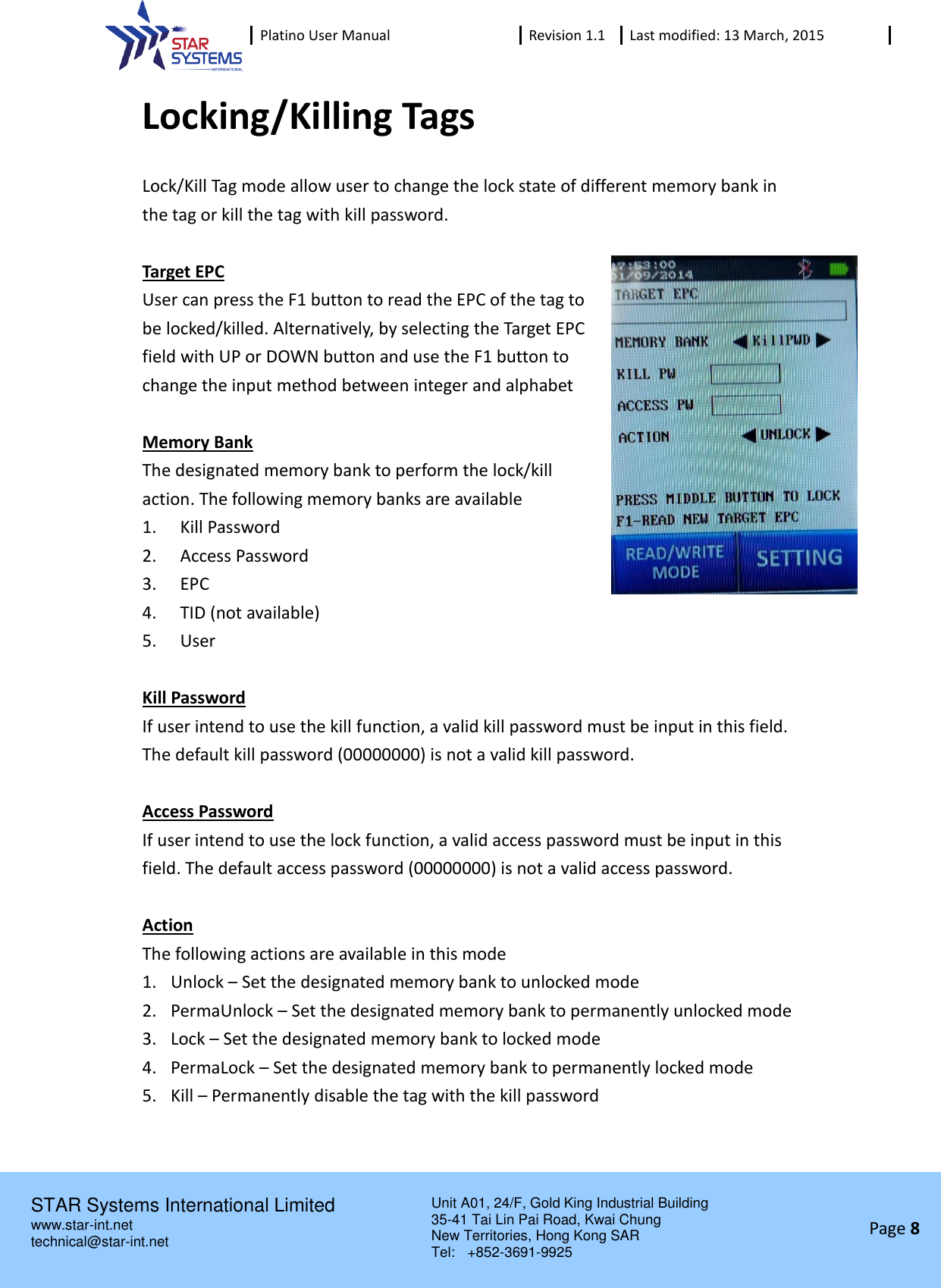
 Platino User Manual Revision 1.1 Last modified: 13 March, 2015    STAR Systems International Limited Unit A01, 24/F, Gold King Industrial Building 35-41 Tai Lin Pai Road, Kwai Chung New Territories, Hong Kong SAR Tel:    +852-3691-9925  www.star-int.net technical@star-int.net Page 8     Locking/Killing Tags Lock/Kill Tag mode allow user to change the lock state of different memory bank in the tag or kill the tag with kill password.  Target EPC User can press the F1 button to read the EPC of the tag to be locked/killed. Alternatively, by selecting the Target EPC field with UP or DOWN button and use the F1 button to change the input method between integer and alphabet  Memory Bank The designated memory bank to perform the lock/kill action. The following memory banks are available 1.  Kill Password 2.  Access Password 3.  EPC 4.  TID (not available) 5.  User  Kill Password If user intend to use the kill function, a valid kill password must be input in this field. The default kill password (00000000) is not a valid kill password.  Access Password If user intend to use the lock function, a valid access password must be input in this field. The default access password (00000000) is not a valid access password.  Action The following actions are available in this mode 1. Unlock – Set the designated memory bank to unlocked mode 2. PermaUnlock – Set the designated memory bank to permanently unlocked mode 3. Lock – Set the designated memory bank to locked mode 4. PermaLock – Set the designated memory bank to permanently locked mode 5. Kill – Permanently disable the tag with the kill password
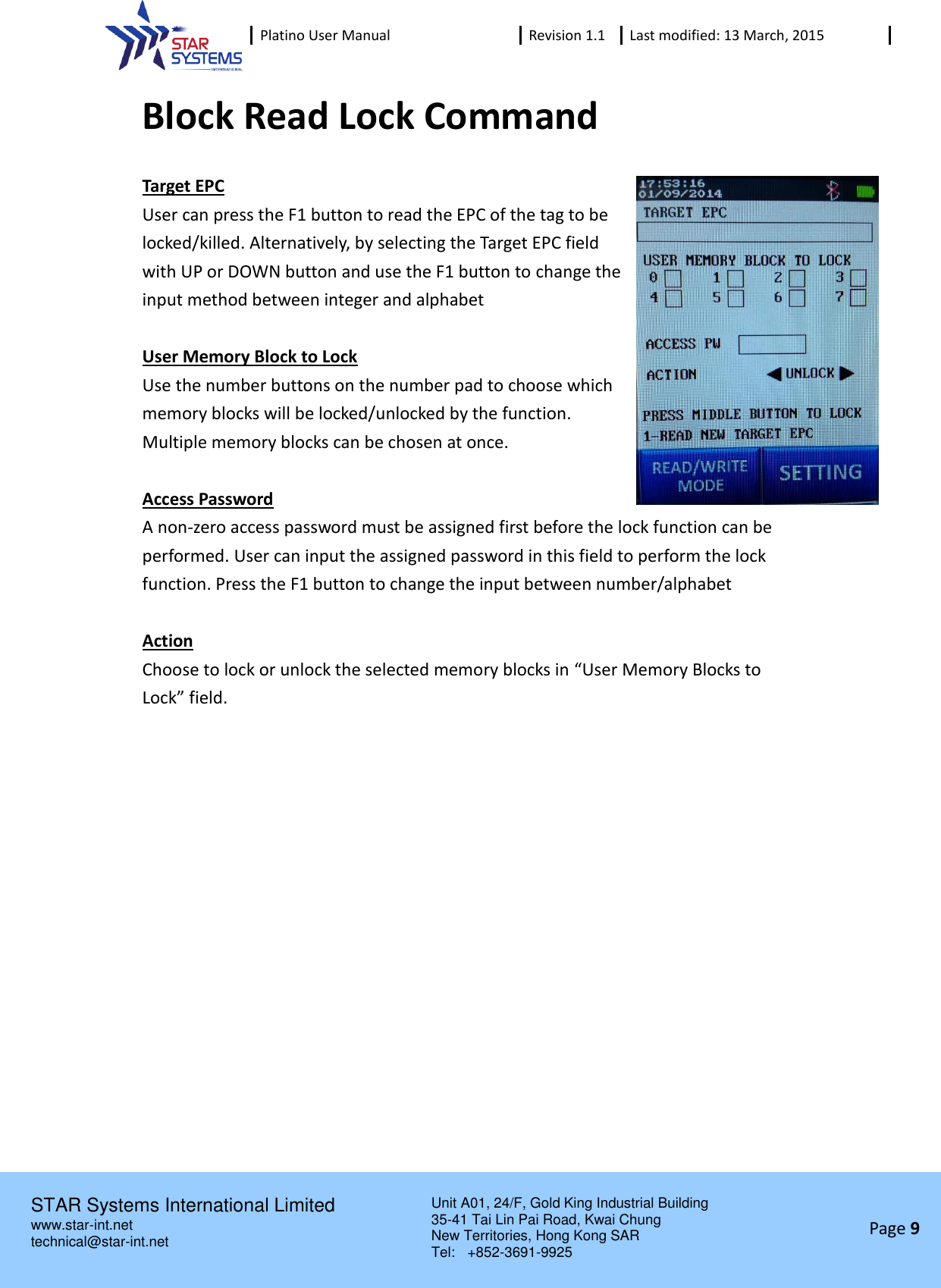
 Platino User Manual Revision 1.1 Last modified: 13 March, 2015    STAR Systems International Limited Unit A01, 24/F, Gold King Industrial Building 35-41 Tai Lin Pai Road, Kwai Chung New Territories, Hong Kong SAR Tel:    +852-3691-9925  www.star-int.net technical@star-int.net Page 9     Block Read Lock Command Target EPC User can press the F1 button to read the EPC of the tag to be locked/killed. Alternatively, by selecting the Target EPC field with UP or DOWN button and use the F1 button to change the input method between integer and alphabet  User Memory Block to Lock Use the number buttons on the number pad to choose which memory blocks will be locked/unlocked by the function. Multiple memory blocks can be chosen at once.  Access Password A non-zero access password must be assigned first before the lock function can be performed. User can input the assigned password in this field to perform the lock function. Press the F1 button to change the input between number/alphabet  Action Choose to lock or unlock the selected memory blocks in “User Memory Blocks to Lock” field.
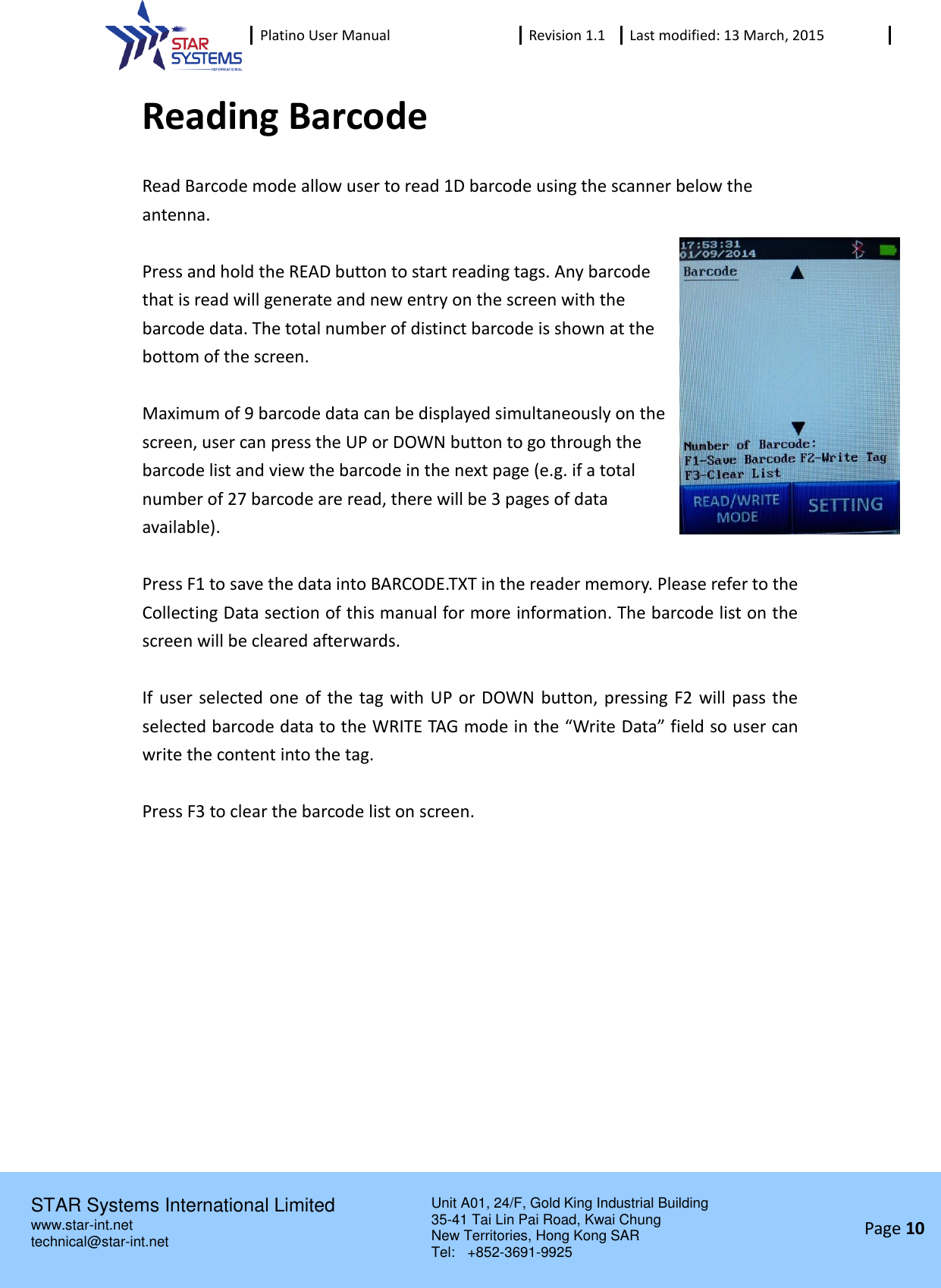
 Platino User Manual Revision 1.1 Last modified: 13 March, 2015    STAR Systems International Limited Unit A01, 24/F, Gold King Industrial Building 35-41 Tai Lin Pai Road, Kwai Chung New Territories, Hong Kong SAR Tel:    +852-3691-9925  www.star-int.net technical@star-int.net Page 10     Reading Barcode Read Barcode mode allow user to read 1D barcode using the scanner below the antenna.  Press and hold the READ button to start reading tags. Any barcode that is read will generate and new entry on the screen with the barcode data. The total number of distinct barcode is shown at the bottom of the screen.  Maximum of 9 barcode data can be displayed simultaneously on the screen, user can press the UP or DOWN button to go through the barcode list and view the barcode in the next page (e.g. if a total number of 27 barcode are read, there will be 3 pages of data available).  Press F1 to save the data into BARCODE.TXT in the reader memory. Please refer to the Collecting Data section of this manual for more information. The barcode list on the screen will be cleared afterwards.  If user selected one of the tag with UP  or DOWN button, pressing F2 will pass the selected barcode data to the WRITE TAG mode in the “Write Data” field so user can write the content into the tag.  Press F3 to clear the barcode list on screen.
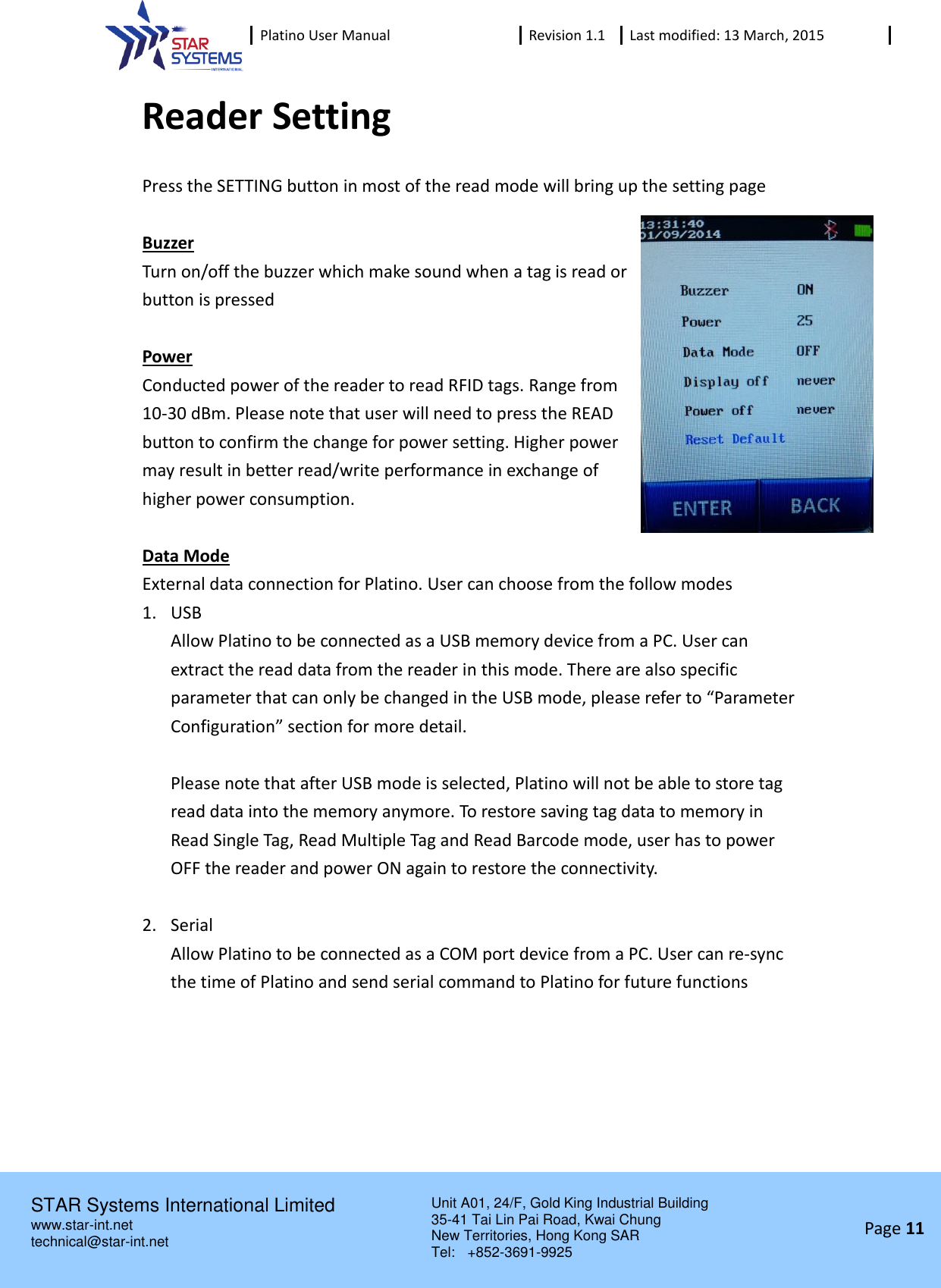
 Platino User Manual Revision 1.1 Last modified: 13 March, 2015    STAR Systems International Limited Unit A01, 24/F, Gold King Industrial Building 35-41 Tai Lin Pai Road, Kwai Chung New Territories, Hong Kong SAR Tel:    +852-3691-9925  www.star-int.net technical@star-int.net Page 11     Reader Setting Press the SETTING button in most of the read mode will bring up the setting page  Buzzer Turn on/off the buzzer which make sound when a tag is read or button is pressed  Power Conducted power of the reader to read RFID tags. Range from 10-30 dBm. Please note that user will need to press the READ button to confirm the change for power setting. Higher power may result in better read/write performance in exchange of higher power consumption.  Data Mode External data connection for Platino. User can choose from the follow modes 1. USB Allow Platino to be connected as a USB memory device from a PC. User can extract the read data from the reader in this mode. There are also specific parameter that can only be changed in the USB mode, please refer to “Parameter Configuration” section for more detail.    Please note that after USB mode is selected, Platino will not be able to store tag read data into the memory anymore. To restore saving tag data to memory in Read Single Tag, Read Multiple Tag and Read Barcode mode, user has to power OFF the reader and power ON again to restore the connectivity.  2. Serial Allow Platino to be connected as a COM port device from a PC. User can re-sync the time of Platino and send serial command to Platino for future functions
 Platino User Manual Revision 1.1 Last modified: 13 March, 2015    STAR Systems International Limited Unit A01, 24/F, Gold King Industrial Building 35-41 Tai Lin Pai Road, Kwai Chung New Territories, Hong Kong SAR Tel:    +852-3691-9925  www.star-int.net technical@star-int.net Page 12     Reader Setting Display Off Controls how long the display of Platino would be automatically turned off. WiFi/Bluetooth connectivity remains when display is off.  Power Off Controls how long Platino would automatically power off. WiFi/Bluetooth connectivity will be broken when reader is power off.  Reset Default Reset all settings of the reader except those described in “Parameter Setting” section. In case the WiFi module cannot be connected due to incorrect setting, this option also reset all WiFi settings to the default state.
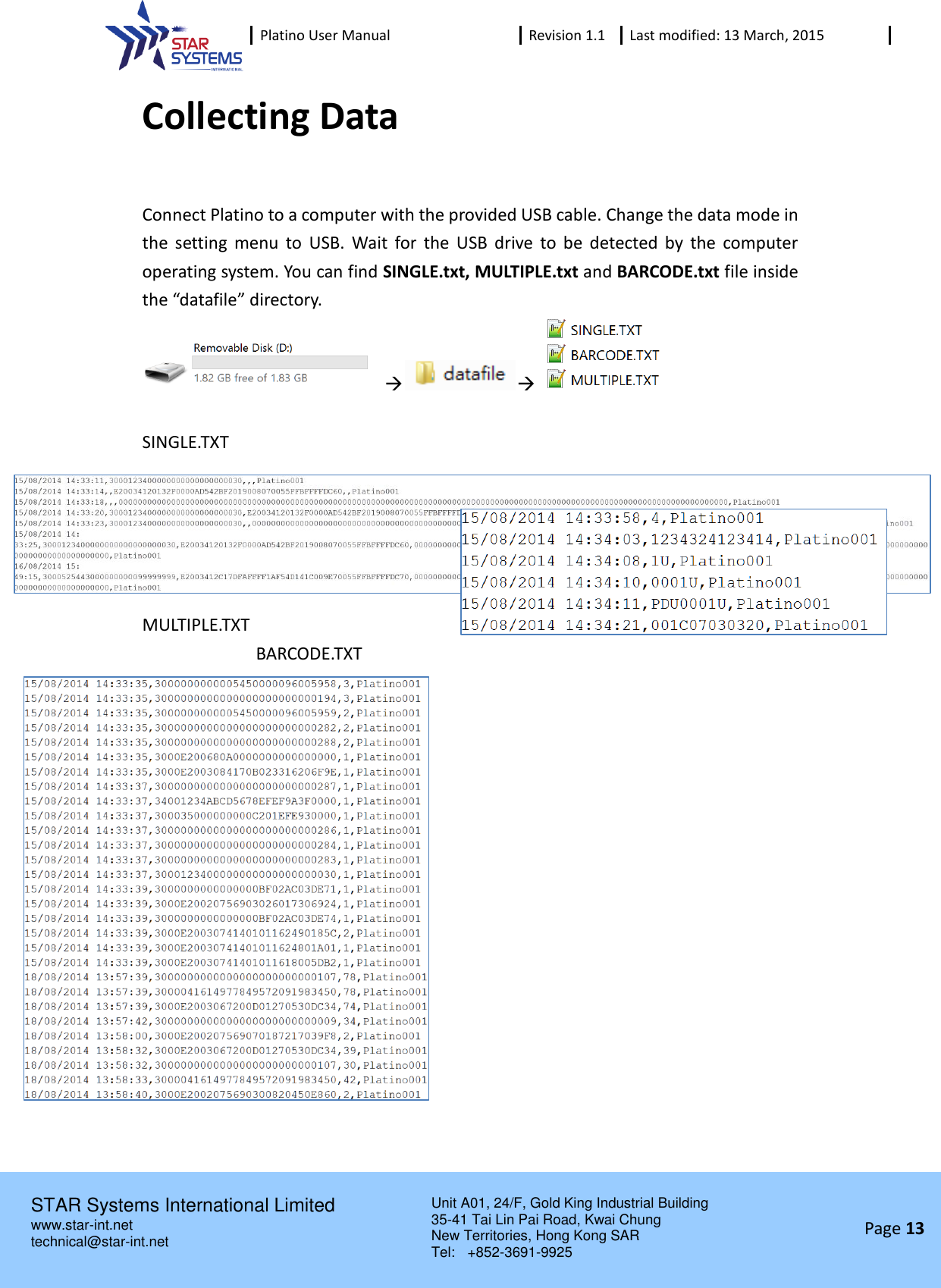
 Platino User Manual Revision 1.1 Last modified: 13 March, 2015    STAR Systems International Limited Unit A01, 24/F, Gold King Industrial Building 35-41 Tai Lin Pai Road, Kwai Chung New Territories, Hong Kong SAR Tel:    +852-3691-9925  www.star-int.net technical@star-int.net Page 13     Collecting Data  Connect Platino to a computer with the provided USB cable. Change the data mode in the  setting  menu  to  USB.  Wait  for  the  USB  drive  to  be  detected  by  the  computer operating system. You can find SINGLE.txt, MULTIPLE.txt and BARCODE.txt file inside the “datafile” directory.         SINGLE.TXT   MULTIPLE.TXT              BARCODE.TXT
 Platino User Manual Revision 1.1 Last modified: 13 March, 2015    STAR Systems International Limited Unit A01, 24/F, Gold King Industrial Building 35-41 Tai Lin Pai Road, Kwai Chung New Territories, Hong Kong SAR Tel:    +852-3691-9925  www.star-int.net technical@star-int.net Page 14     Collecting Data SINGLE.TXT Data Structure [Date] [Time], [EPC],[TID],[UserData],[SerialNo]  Examples: Reading EPC 15/08/2014 14:33:11,3000123400000000000000000030,,,Platino001  Reading TID 15/08/2014 14:33:14,,E20034120132F0000AD542BF2019008070055FFBFFFFDC60,,Platino001  Reading User Data 15/08/2014 14:33:18,,,00000000000000000000000000000000000000000000000000000000000000000000000000000000000000000000000000000000000000000000000000000000,Platino001  Reading EPC+TID 15/08/2014 14:33:20,3000123400000000000000000030,E20034120132F0000AD542BF2019008070055FFBFFFFDC60,,Platino001  Reading EPC+USER DATA 15/08/2014 14:33:23,3000123400000000000000000030,,00000000000000000000000000000000000000000000000000000000000000000000000000000000000000000000000000000000000000000000000000000000,Platino001  Reading All Data 15/08/2014 14:33:25,3000123400000000000000000030,E20034120132F0000AD542BF2019008070055FFBFFFFDC60,00000000000000000000000000000000000000000000000000000000000000000000000000000000000000000000000000000000000000000000000000000000,Platino001
 Platino User Manual Revision 1.1 Last modified: 13 March, 2015    STAR Systems International Limited Unit A01, 24/F, Gold King Industrial Building 35-41 Tai Lin Pai Road, Kwai Chung New Territories, Hong Kong SAR Tel:    +852-3691-9925  www.star-int.net technical@star-int.net Page 15     Collecting Data MULTIPLE.TXT Data Structure [Date] [Time],[EPC],[ReadCount],[SerialNo]  Examples: 15/08/2014 14:33:35,3000000000005450000096005958,3,Platino001  Tag 3000000000005450000096005958 is bring read for 3 times  BARCODE.TXT Data Structure [Date] [Time],[BARCODE],[SerialNo]  Examples: 15/08/2014 14:34:21,001C07030320,Platino001
 Platino User Manual Revision 1.1 Last modified: 13 March, 2015    STAR Systems International Limited Unit A01, 24/F, Gold King Industrial Building 35-41 Tai Lin Pai Road, Kwai Chung New Territories, Hong Kong SAR Tel:    +852-3691-9925  www.star-int.net technical@star-int.net Page 16     Parameter Configuration Through the USB port, you can also configure the following parameters of the reader by accessing SysPar.ini located in the Config folder     Sample content of SysPar.ini   Data Structure [SerialNo],[WiFi/BT Mode]  SerialNo defines the Serial Number attached at the end of every record. The default serial number is PlatinoXXXXXX, but you may change the serial number to your own needs.  WiFi/BT Mode defines if the unit is operating in WiFi or BT Mode 1 = BT Mode 2 = WiFi Mode  NOTE: After changing the parameters in SysPar.ini, please save the setting in the file and reboot the reader for the settings to take effect
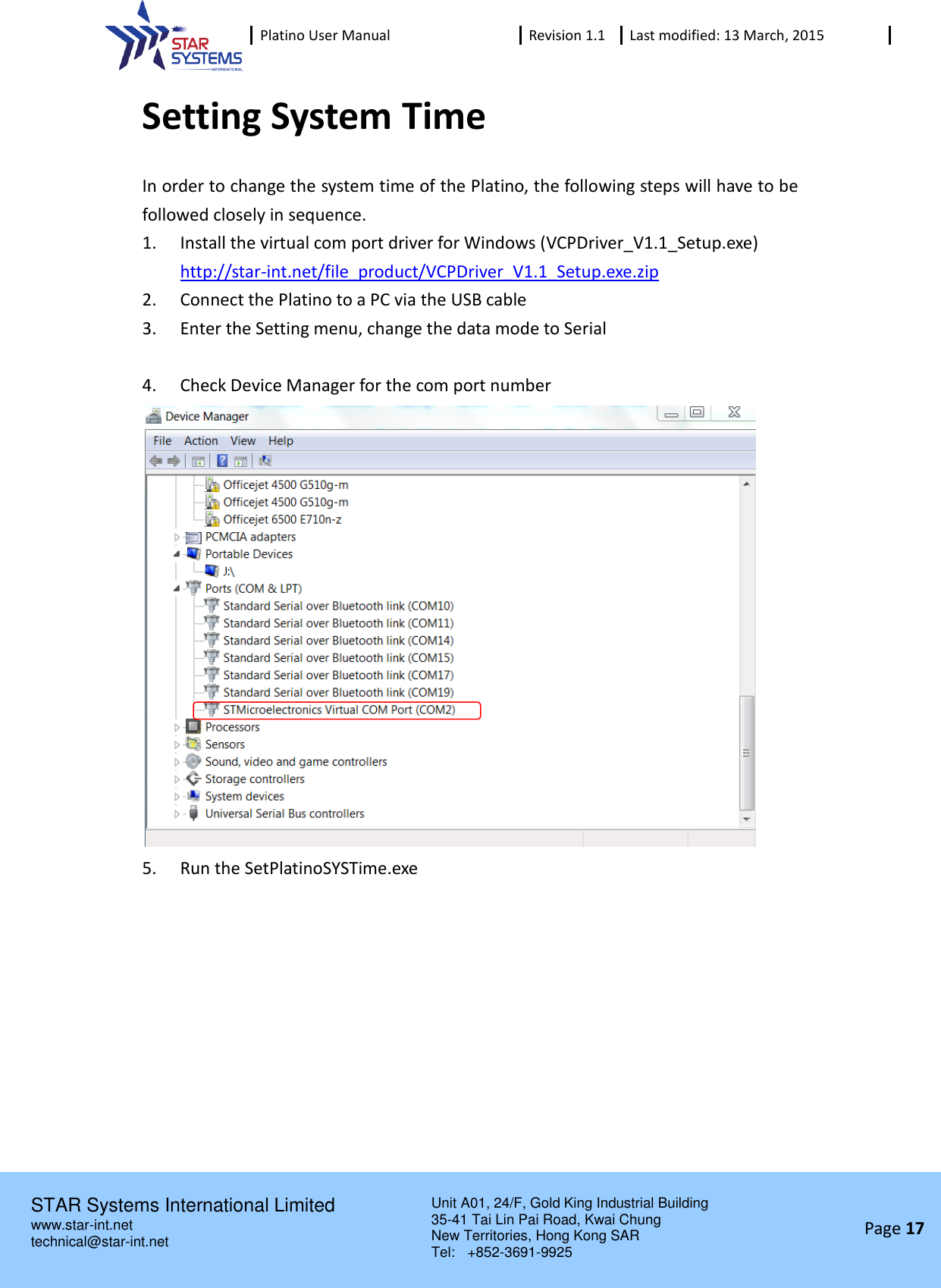
 Platino User Manual Revision 1.1 Last modified: 13 March, 2015    STAR Systems International Limited Unit A01, 24/F, Gold King Industrial Building 35-41 Tai Lin Pai Road, Kwai Chung New Territories, Hong Kong SAR Tel:    +852-3691-9925  www.star-int.net technical@star-int.net Page 17     Setting System Time In order to change the system time of the Platino, the following steps will have to be followed closely in sequence. 1. Install the virtual com port driver for Windows (VCPDriver_V1.1_Setup.exe) http://star-int.net/file_product/VCPDriver_V1.1_Setup.exe.zip 2. Connect the Platino to a PC via the USB cable 3. Enter the Setting menu, change the data mode to Serial  4. Check Device Manager for the com port number  5. Run the SetPlatinoSYSTime.exe
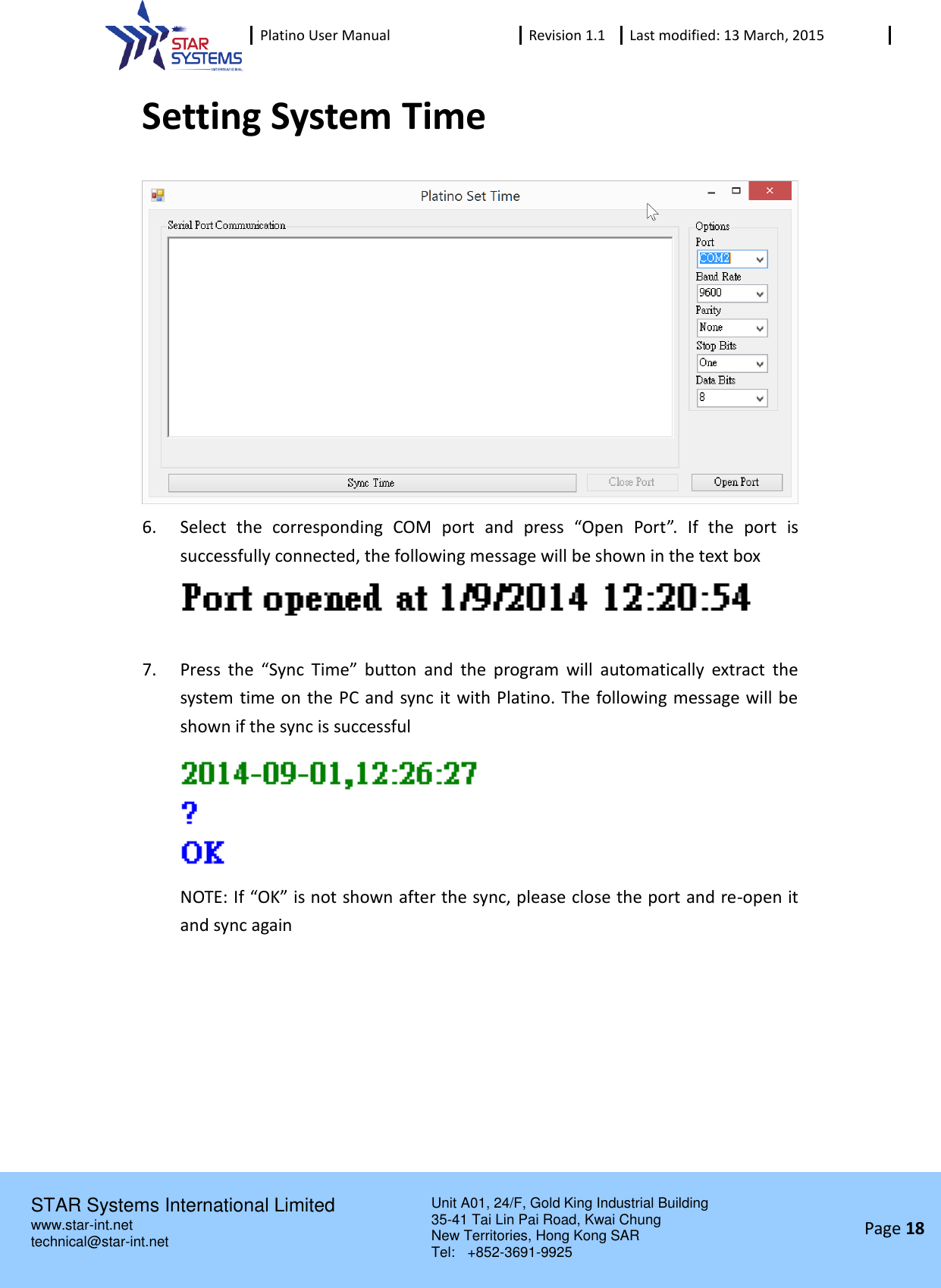
 Platino User Manual Revision 1.1 Last modified: 13 March, 2015    STAR Systems International Limited Unit A01, 24/F, Gold King Industrial Building 35-41 Tai Lin Pai Road, Kwai Chung New Territories, Hong Kong SAR Tel:    +852-3691-9925  www.star-int.net technical@star-int.net Page 18     Setting System Time  6. Select  the  corresponding  COM  port  and  press  “Open  Port”.  If  the  port  is successfully connected, the following message will be shown in the text box   7. Press  the “Sync  Time”  button  and  the  program  will  automatically  extract  the system time on the PC and sync it with Platino. The following message will be shown if the sync is successful  NOTE: If “OK” is not shown after the sync, please close the port and re-open it and sync again
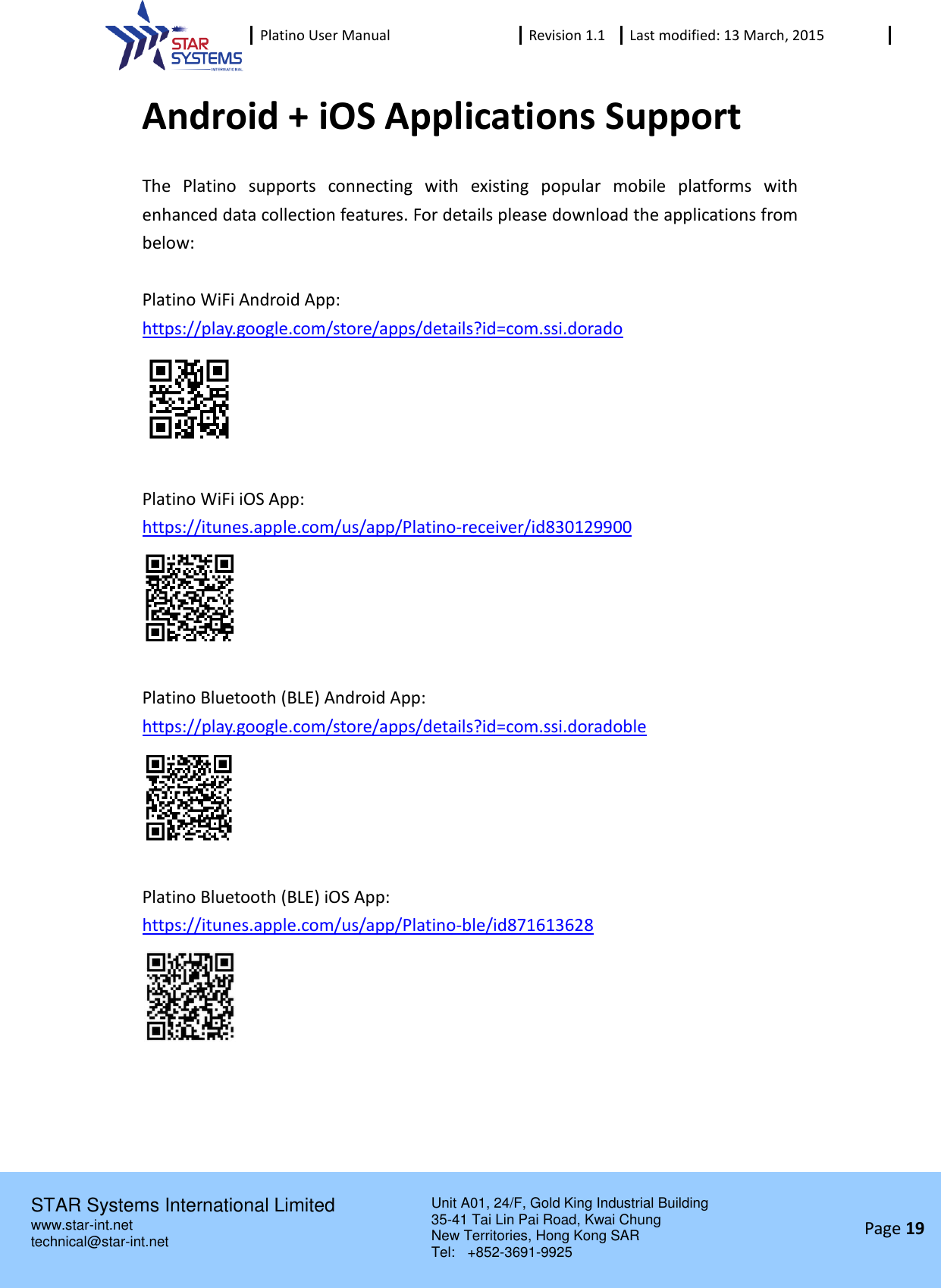
 Platino User Manual Revision 1.1 Last modified: 13 March, 2015    STAR Systems International Limited Unit A01, 24/F, Gold King Industrial Building 35-41 Tai Lin Pai Road, Kwai Chung New Territories, Hong Kong SAR Tel:    +852-3691-9925  www.star-int.net technical@star-int.net Page 19     Android + iOS Applications Support The  Platino  supports  connecting  with  existing  popular  mobile  platforms  with enhanced data collection features. For details please download the applications from below:  Platino WiFi Android App: https://play.google.com/store/apps/details?id=com.ssi.dorado   Platino WiFi iOS App:   https://itunes.apple.com/us/app/Platino-receiver/id830129900   Platino Bluetooth (BLE) Android App: https://play.google.com/store/apps/details?id=com.ssi.doradoble   Platino Bluetooth (BLE) iOS App: https://itunes.apple.com/us/app/Platino-ble/id871613628
 Platino User Manual Revision 1.1 Last modified: 13 March, 2015    STAR Systems International Limited Unit A01, 24/F, Gold King Industrial Building 35-41 Tai Lin Pai Road, Kwai Chung New Territories, Hong Kong SAR Tel:    +852-3691-9925  www.star-int.net technical@star-int.net Page 20      Warning:   Changes or modifications to this unit not expressly approved by the party responsible for compliance could void the user’s authority to operate the equipment. NOTE:   This equipment has been tested and found to comply with the limits for a Class B digital device, pursuant to Part 15 of the FCC Rules.   These limits are designed to provide  reasonable  protection  against  harmful  interference  in  a  residential installation.   This equipment generates, uses and can radiate radio frequency energy and, if not installed and used in accordance with the instructions, may cause harmful interference to radio communications.   However,  there  is  no  guarantee  that  interference  will  not  occur  in  a  particular installation.   If this equipment does cause harmful interference to radio or television reception, which can be determined by turning the equipment off and on, the user is encouraged to try to correct the interference by one or more of the following measures:   o      Reorient or relocate the receiving antenna. o      Increase the separation between the equipment and receiver. o      Connect the equipment into an outlet on a circuit different from that to which the receiver is connected. o      Consult the dealer or an experienced radio/TV technician for help. This  device  complies  with  Part  15  of  the  FCC  Rules.    Operation  is  subject  to  the following two conditions:                      (1) this device may not cause harmful interference, and                     (2) this device must accept any interference received,    including interference that may cause undesired operation.   Attached shielded USB cable with one ferrite core must be used.

Navigation menu