Surecom Technology 9610G-0503 802.11g Wireless LAN Broad Router User Manual T4829610ASGZ1 gu

Surecom Technology Corporation 802.11g Wireless LAN Broad Router T4829610ASGZ1 gu

Users Manual

             802.11g 54M WLAN  Internet Broadband Router     User Manual         #4829610ASGZ1
Content 1. Introduction................................................................................................................................................. 3 1.1Features ................................................................................................................................... 3 1.2 Specification............................................................................................................................. 4 1.3 Package Contents.................................................................................................................... 5 2. Hardware Installation .................................................................................................................................. 5 2.1 Product Description.................................................................................................................. 5 2.1.1 Front Panel and LEDs .....................................................................6 2.1.2 Rear Panel.......................................................................................6 2.2 Getting Started......................................................................................................................... 7 2.2.1 System Requirement .......................................................................7 2.2.2 Before Installation ............................................................................7 2.2.3 Setting Hardware Connection..........................................................8 2.2.4 Configure your computer .................................................................9 3. Using Configuration Menu ........................................................................................................................ 16 3.1 Setup Method ........................................................................................................................ 17 3.2 Basic Setup............................................................................................................................ 20 3.2.1 Setup Router..................................................................................20 3.2.2 Global Address ..............................................................................22 3.2.3 Wireless .........................................................................................23 3.2.4 Tools:..............................................................................................27 3.2.5 Status: ............................................................................................28 3.2.6 DHCP:............................................................................................29 3.2.7 Log: ................................................................................................30 3.2.8 Statistics:........................................................................................31 3.2.9 Printer: ...........................................................................................32 3.2.9.1.3 LPD Server setup ....................................................................46 3.2.9.2 Use LPD network print in window98/window ME .............................................................................. 47 3.3 Advanced Setup..................................................................................................................... 56 3.3.1 Virtual Servers ...............................................................................56 3.3.2 Filters .............................................................................................57 3.3.3 IP/URL Block..................................................................................58 3.3.4 Special Apps(Special Applications)................................................59 3.3.5 DMZ Host.......................................................................................60 3.3.6 MAC Clone.....................................................................................61 3.3.7 Dynamic DNS ................................................................................61 3.3.8 Proxy DNS .....................................................................................62 3.3.9 Routing...........................................................................................63 3.3.10 SNMP...........................................................................................64 4. Glossary ................................................................................................................................................... 65 5. TCP/IP Port List for Internet Service ......................................................................................................... 70
802.11g 4-Port Wireless LAN Broadband Router    3 1. Introduction  This 802.11g 54M Wireless LAN Broadband Router is an ideal solution for wireless/wired Internet surfing and office resources sharing. It provides the fast, robust and flexible features with high transmission rate up to 54Mbps bandwidth in the 2.4GHz frequency.   Not only connect with 802.11g devices, it is backward compatible with 802.11b products and can be worked under .11b and .11g mixed environments. It employs WEP encryption to ensure a more secure wireless connection. With web-based configure interface,   users can easily build up wire or wireless connection within minutes. Besides, with firewall function, the Wireless LAN Broadband Router can always protect your LAN from outsider's break-ins and yet expose your local servers such as Web Server, E-mail Server, FTP server, for remote access by Virtual Server or DMZ setting.  1.1   Features Wireless – Built in with IEEE 802.11g 54Mbps Access Point . Complies with 2.4GHz 802.11g Standard   . Backward compatible with 802.11b products   . Up to 54Mbps data rate, auto fallback under noisy environment . Support 802.1x Authentication feature and 64/128-bits WEP Encryption Router – Built in with 4 Port 10/100M Internet Broadband Router . 1 port 10/100M WAN and 4 ports 10/100M switch LAN (RJ-45) interface   . Quick Setup Wizard enable user to setup internet connection within 3 steps . Advanced Access control based on URL, IP, Service Port and MAC address   . ALG function for on-line gaming, MSN, conference and P2P software . Configurable through User-friendly web base management interface . (Optional) With reverse SMA Antenna connector increase flexibility . Intruder event log by packet inspection features . DMZ and Virtual Server Mapping support . UPnP function Supported
802.11g 4-Port Wireless LAN Broadband Router    41.2 Specification Model: 802.11g 4-Port Wireless LAN Broadband Router Radio: Complies with IEEE 802.11b/g Frequency Band: 2.412-2.462GHz (U.S.)   2.412-2.484GHz (Japan) 2.412-2.472GHz (ETSI) Modulation TYPE: BPSK, QPSK, CCK, 16-QAM, 64-QAM Operating Channels: 11 channels (US) 13 channels (ETSI) 14 channels (Japan) Data Rate: 1 / 2 / 5.5 / 6/9/11/12/24/36/48/54Mbps Output Power: 18dBm@11Mbps; 14dBm@54Mbps Receive sensitivity: Min.80dBm for 11Mbps (@BER 8%)   Min. -70dBm for 54 Mbps (@BER 10%) Current Consumption: 3.3V, TX mode 400 mA (Max.)   RX mode 250 mA (Max.)  Media  100BASE-TX: UTP/STP Cat. 5 No. Of Port  WAN: 1x 10/100M RJ-45 port, LAN: 4 x 10/100M RJ-45 portsReset: 1 x Reset Button , USB :1xPrinter Server Auto MDI/MDIX  Yes PPPoE/PPTP Client  Yes Static /Fixed IP  Yes DHCP Server/Client  Yes UPnP Yes DMZ Host  Multi-DMZ Host Routing  Static, RIP I/II, Transparent mode support Event Log  System / Security Log, Remote Security Log Firewall  DoS, URL Blocking, Mac Blocking, Service Port Blocking, IP Address Blocking, Deny/Allow Ping,   Service Time allocation VPN  PPTP, IP Sec pass through Management  Local Web-based configuration, Telnet LED Indicator  Power, Diag, WLAN, Link/Act.
802.11g 4-Port Wireless LAN Broadband Router    5Environmental Temperature Storage  -20°C to 60°C Operating  0°C to 45°C Humidity  10%~90%, non condensing Power Consumption  Input : 100V, 50/60Hz / 120V, 60Hz / 230V, 50Hz / 240V, 50Hz Output : DC7.5V / 1000mA Conformance  FCC class B, CE mark class B     1.3 Package Contents 1. One WLAN Broadband Router 2. One CD-ROM (User Manual on CD) 3. One Quick Installation Guide 4. One Power Adapter 5. (Optional)One Reverse SMA Antenna  2. Hardware Installation 2.1 Product Description You can place this Wireless LAN Broadband Router horizontally or hang it on the wall.              NE-9610/11AX-gu(Metel Housing)         NE-9610/11SX-gu(Plastic Housing)
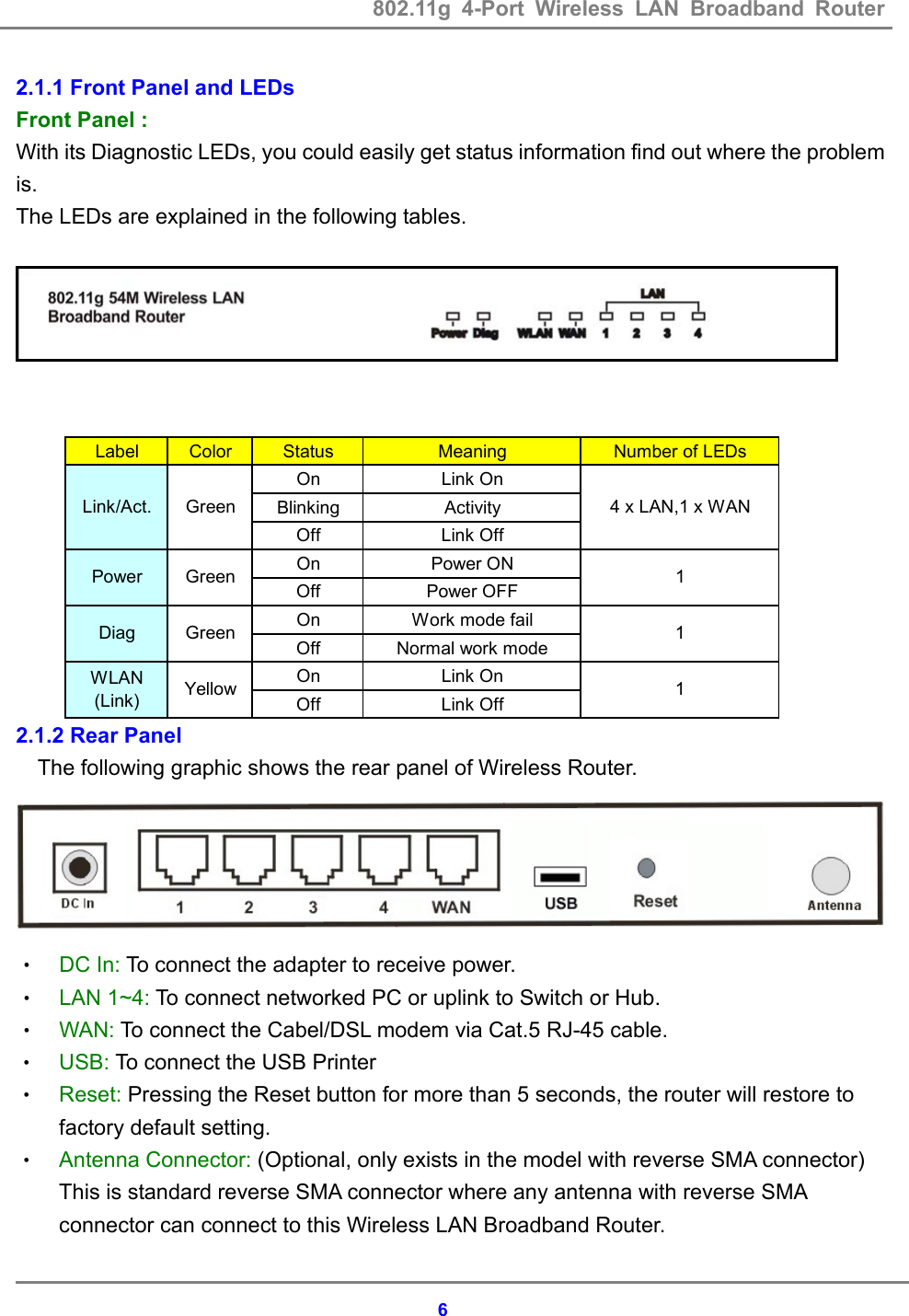
802.11g 4-Port Wireless LAN Broadband Router    62.1.1 Front Panel and LEDs Front Panel :   With its Diagnostic LEDs, you could easily get status information find out where the problem is.  The LEDs are explained in the following tables.     2.1.2 Rear Panel   The following graphic shows the rear panel of Wireless Router.  • DC In: To connect the adapter to receive power. • LAN 1~4: To connect networked PC or uplink to Switch or Hub. • WAN: To connect the Cabel/DSL modem via Cat.5 RJ-45 cable. • USB: To connect the USB Printer • Reset: Pressing the Reset button for more than 5 seconds, the router will restore to factory default setting. • Antenna Connector: (Optional, only exists in the model with reverse SMA connector) This is standard reverse SMA connector where any antenna with reverse SMA connector can connect to this Wireless LAN Broadband Router. Label Color Status Meaning Number of LEDsOn Link OnBlinking ActivityOff Link OffOn Power ONOff Power OFFOn Work mode failOff Normal work modeOn Link OnOff Link OffYellow 11Power GreenWLAN(Link)Diag Green 1Link/Act. Green 4 x LAN,1 x WAN
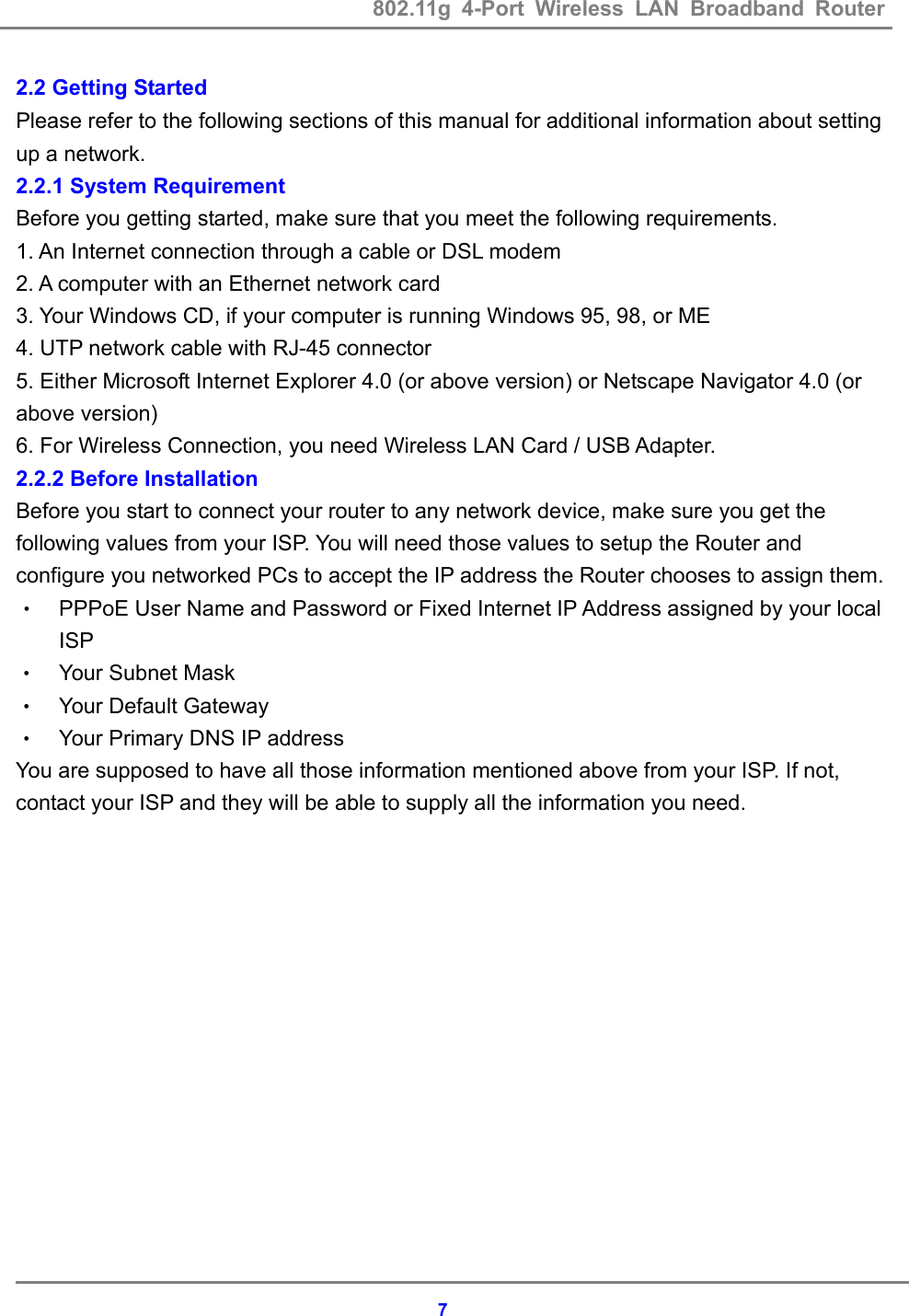
802.11g 4-Port Wireless LAN Broadband Router    72.2 Getting Started Please refer to the following sections of this manual for additional information about setting up a network. 2.2.1 System Requirement Before you getting started, make sure that you meet the following requirements. 1. An Internet connection through a cable or DSL modem 2. A computer with an Ethernet network card   3. Your Windows CD, if your computer is running Windows 95, 98, or ME 4. UTP network cable with RJ-45 connector 5. Either Microsoft Internet Explorer 4.0 (or above version) or Netscape Navigator 4.0 (or above version) 6. For Wireless Connection, you need Wireless LAN Card / USB Adapter. 2.2.2 Before Installation Before you start to connect your router to any network device, make sure you get the following values from your ISP. You will need those values to setup the Router and configure you networked PCs to accept the IP address the Router chooses to assign them. • PPPoE User Name and Password or Fixed Internet IP Address assigned by your local ISP • Your Subnet Mask • Your Default Gateway • Your Primary DNS IP address You are supposed to have all those information mentioned above from your ISP. If not,   contact your ISP and they will be able to supply all the information you need.
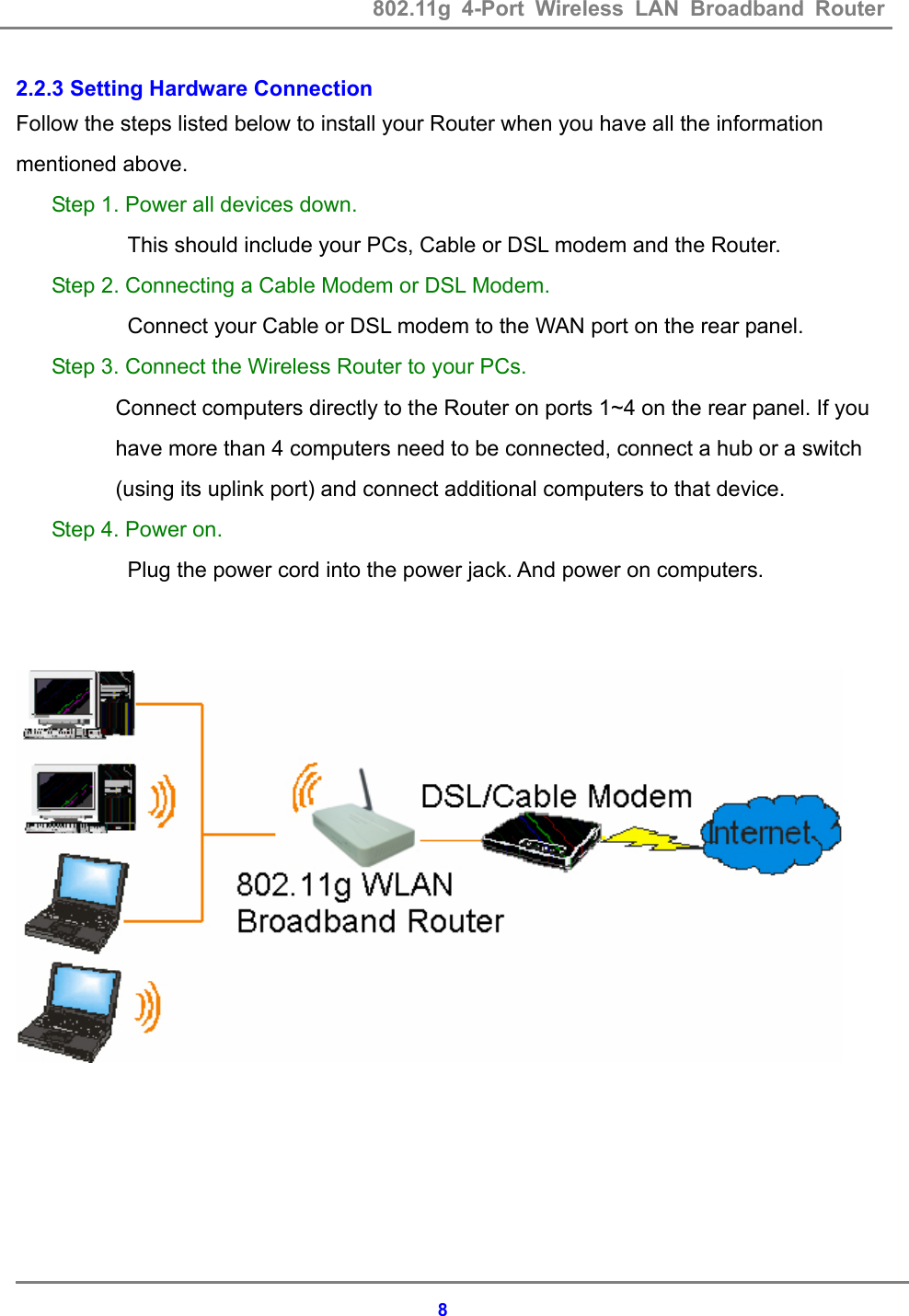
802.11g 4-Port Wireless LAN Broadband Router    82.2.3 Setting Hardware Connection Follow the steps listed below to install your Router when you have all the information   mentioned above. Step 1. Power all devices down.  This should include your PCs, Cable or DSL modem and the Router. Step 2. Connecting a Cable Modem or DSL Modem.  Connect your Cable or DSL modem to the WAN port on the rear panel. Step 3. Connect the Wireless Router to your PCs.  Connect computers directly to the Router on ports 1~4 on the rear panel. If you have more than 4 computers need to be connected, connect a hub or a switch (using its uplink port) and connect additional computers to that device. Step 4. Power on.  Plug the power cord into the power jack. And power on computers.
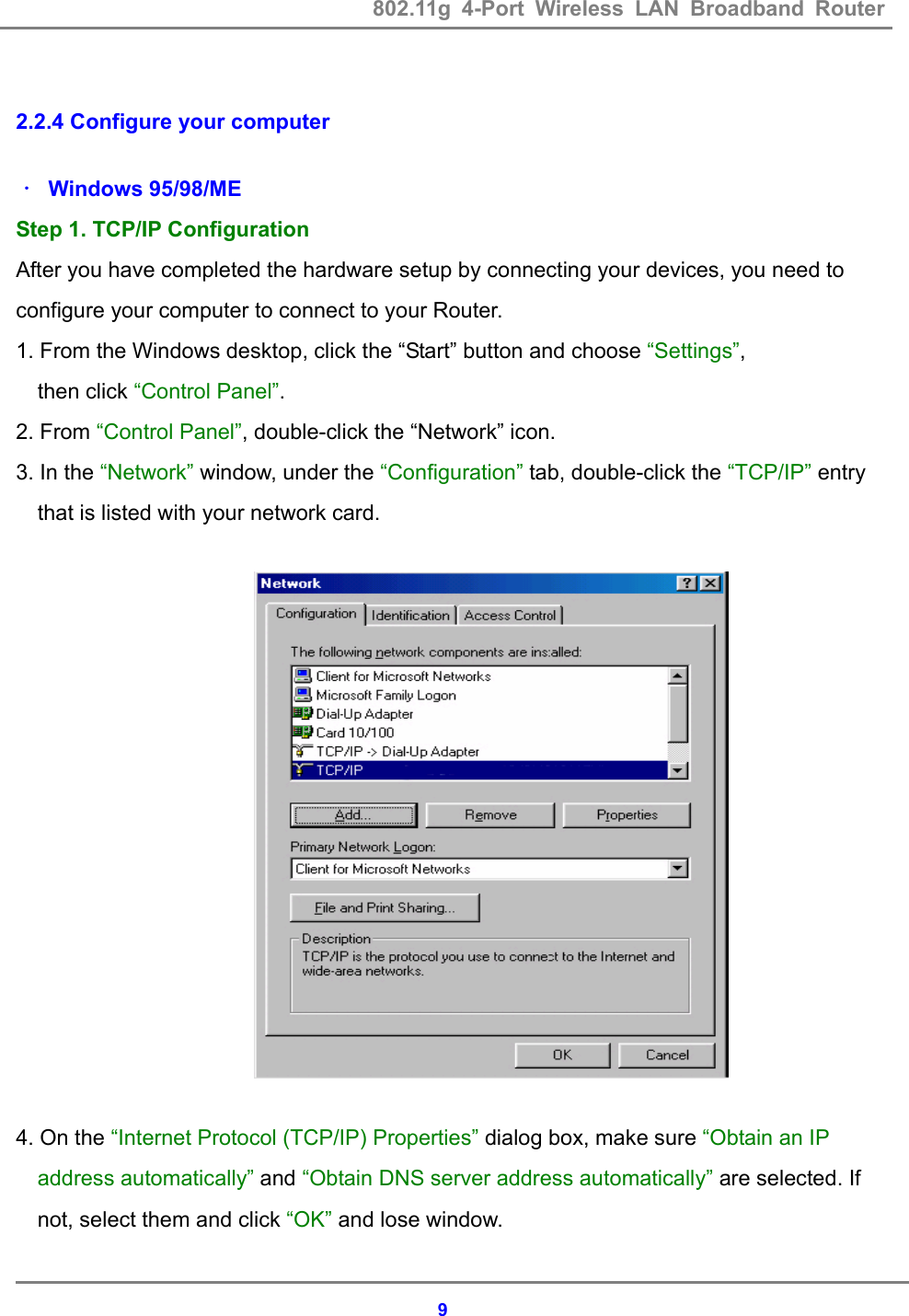
802.11g 4-Port Wireless LAN Broadband Router    9 2.2.4 Configure your computer  . Windows 95/98/ME Step 1. TCP/IP Configuration After you have completed the hardware setup by connecting your devices, you need to   configure your computer to connect to your Router. 1. From the Windows desktop, click the “Start” button and choose “Settings”,  then click “Control Panel”.         2. From “Control Panel”, double-click the “Network” icon. 3. In the “Network” window, under the “Configuration” tab, double-click the “TCP/IP” entry that is listed with your network card.      4. On the “Internet Protocol (TCP/IP) Properties” dialog box, make sure “Obtain an IP address automatically” and “Obtain DNS server address automatically” are selected. If not, select them and click “OK” and lose window.
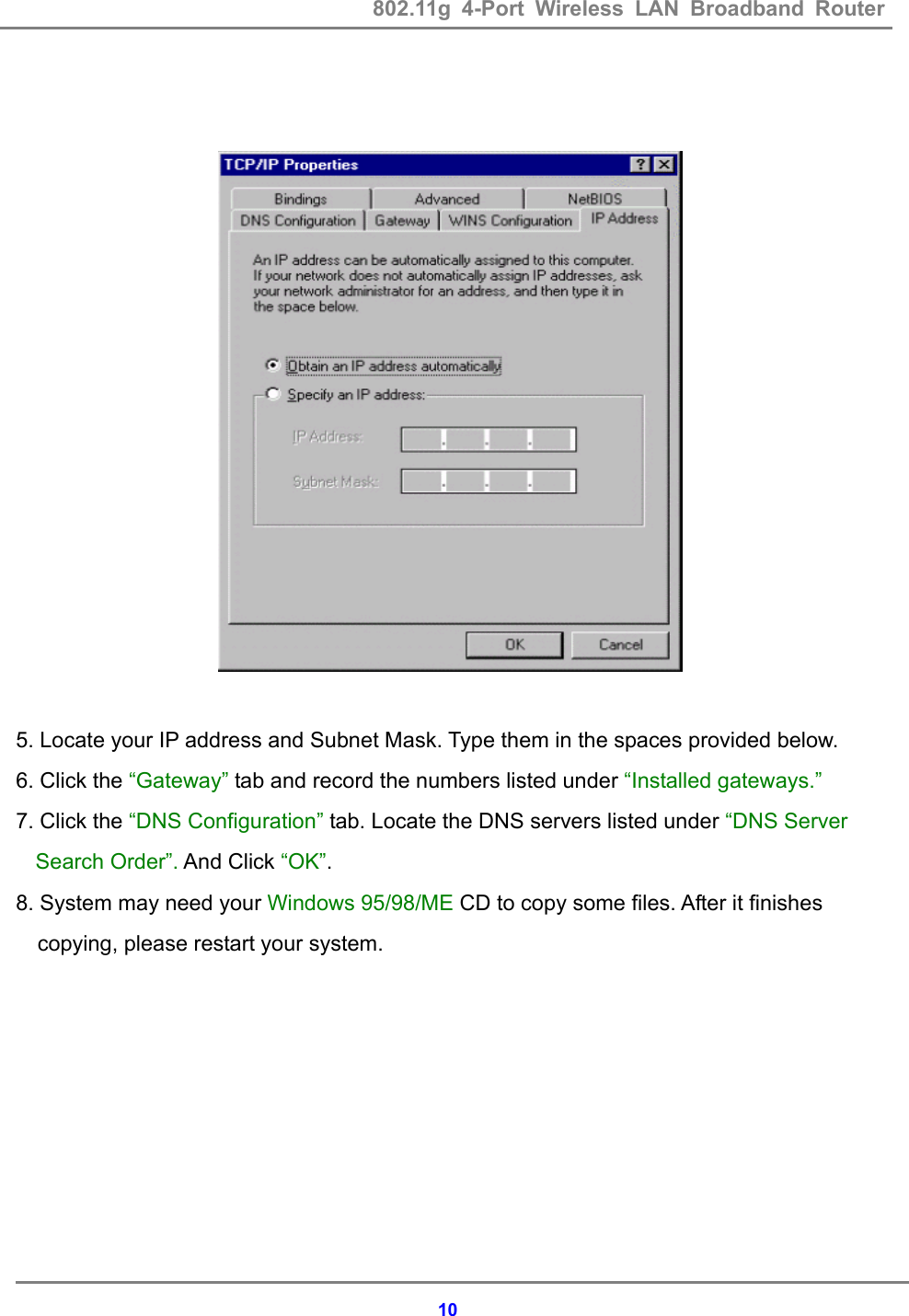
802.11g 4-Port Wireless LAN Broadband Router    10    5. Locate your IP address and Subnet Mask. Type them in the spaces provided below. 6. Click the “Gateway” tab and record the numbers listed under “Installed gateways.”  7. Click the “DNS Configuration” tab. Locate the DNS servers listed under “DNS Server Search Order”. And Click “OK”. 8. System may need your Windows 95/98/ME CD to copy some files. After it finishes copying, please restart your system.
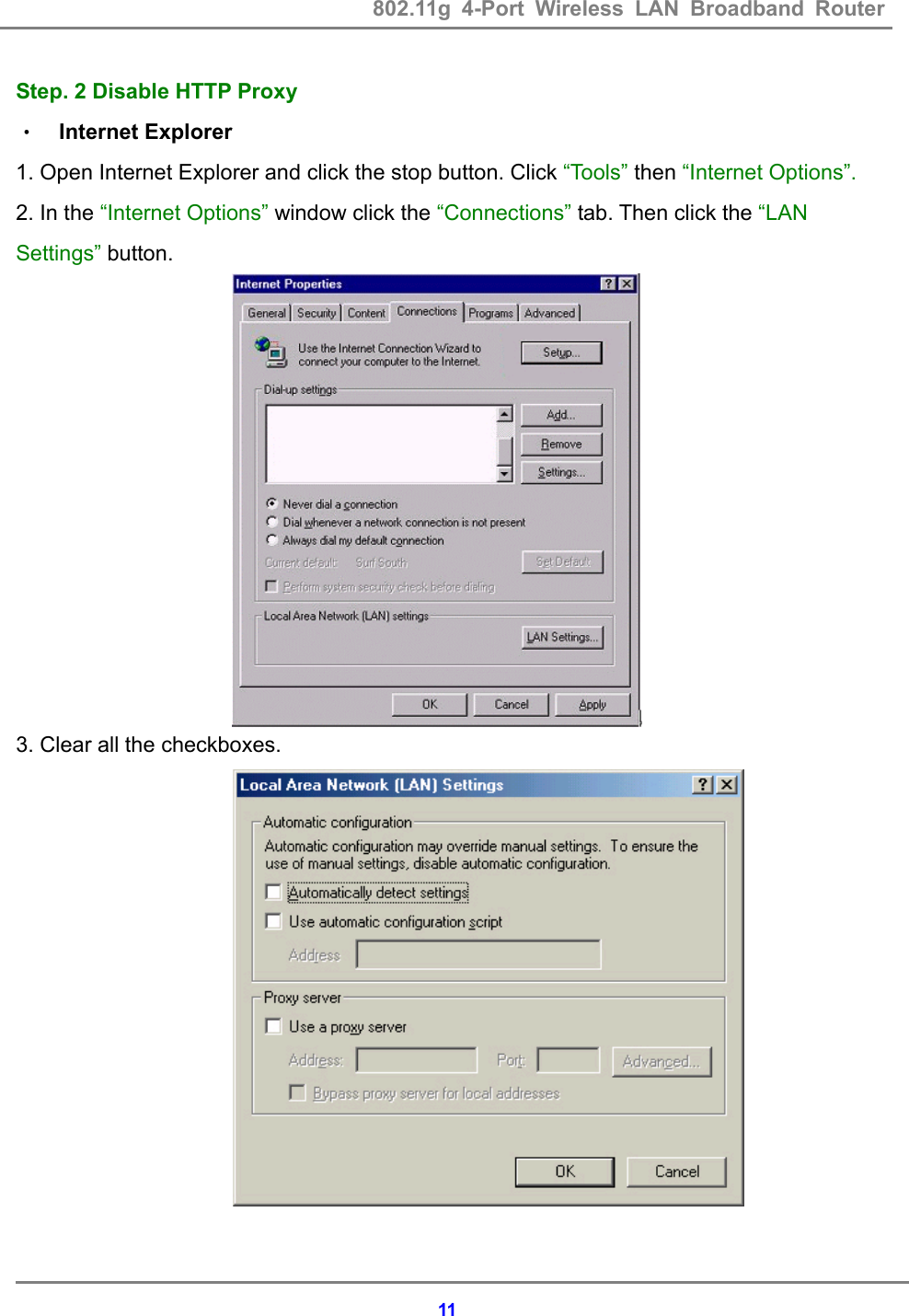
802.11g 4-Port Wireless LAN Broadband Router    11Step. 2 Disable HTTP Proxy • Internet Explorer 1. Open Internet Explorer and click the stop button. Click “Tools” then “Internet Options”. 2. In the “Internet Options” window click the “Connections” tab. Then click the “LAN Settings” button.  3. Clear all the checkboxes.
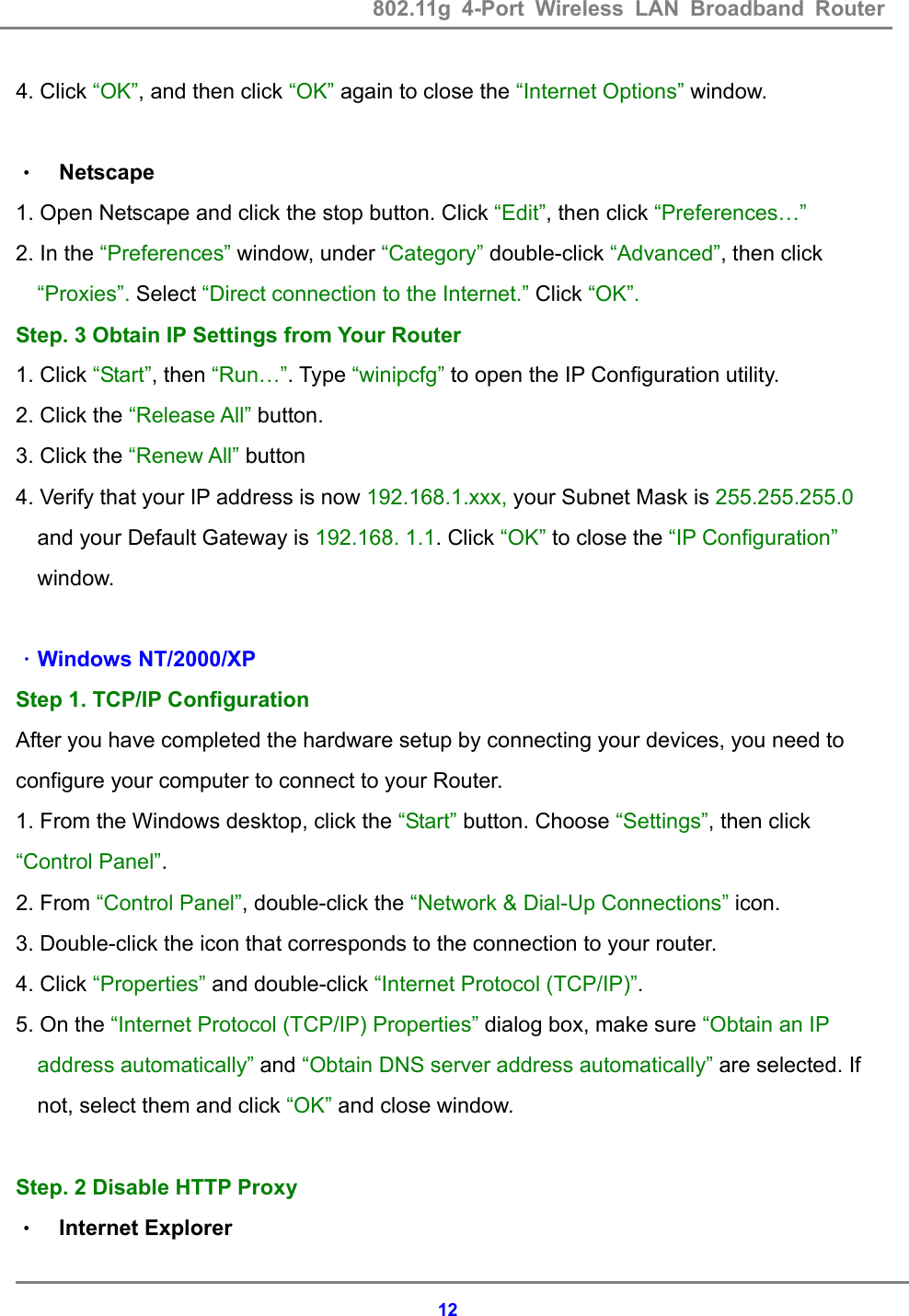
802.11g 4-Port Wireless LAN Broadband Router    124. Click “OK”, and then click “OK” again to close the “Internet Options” window.  • Netscape 1. Open Netscape and click the stop button. Click “Edit”, then click “Preferences…” 2. In the “Preferences” window, under “Category” double-click “Advanced”, then click “Proxies”. Select “Direct connection to the Internet.” Click “OK”. Step. 3 Obtain IP Settings from Your Router 1. Click “Start”, then “Run…”. Type “winipcfg” to open the IP Configuration utility. 2. Click the “Release All” button. 3. Click the “Renew All” button 4. Verify that your IP address is now 192.168.1.xxx, your Subnet Mask is 255.255.255.0 and your Default Gateway is 192.168. 1.1. Click “OK” to close the “IP Configuration” window.  .Windows NT/2000/XP Step 1. TCP/IP Configuration After you have completed the hardware setup by connecting your devices, you need to configure your computer to connect to your Router.                             1. From the Windows desktop, click the “Start” button. Choose “Settings”, then click “Control Panel”. 2. From “Control Panel”, double-click the “Network & Dial-Up Connections” icon. 3. Double-click the icon that corresponds to the connection to your router. 4. Click “Properties” and double-click “Internet Protocol (TCP/IP)”. 5. On the “Internet Protocol (TCP/IP) Properties” dialog box, make sure “Obtain an IP address automatically” and “Obtain DNS server address automatically” are selected. If not, select them and click “OK” and close window.  Step. 2 Disable HTTP Proxy • Internet Explorer
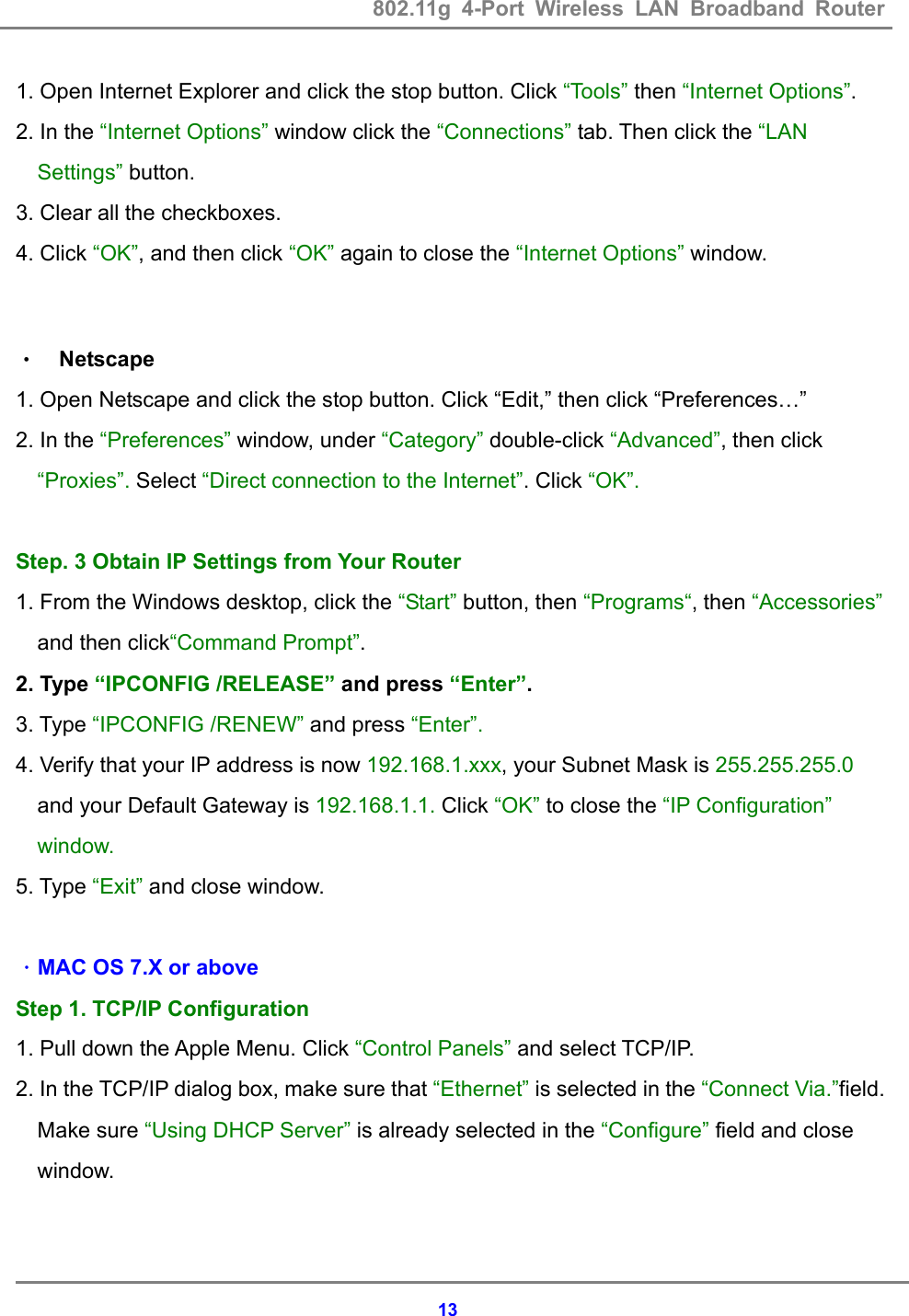
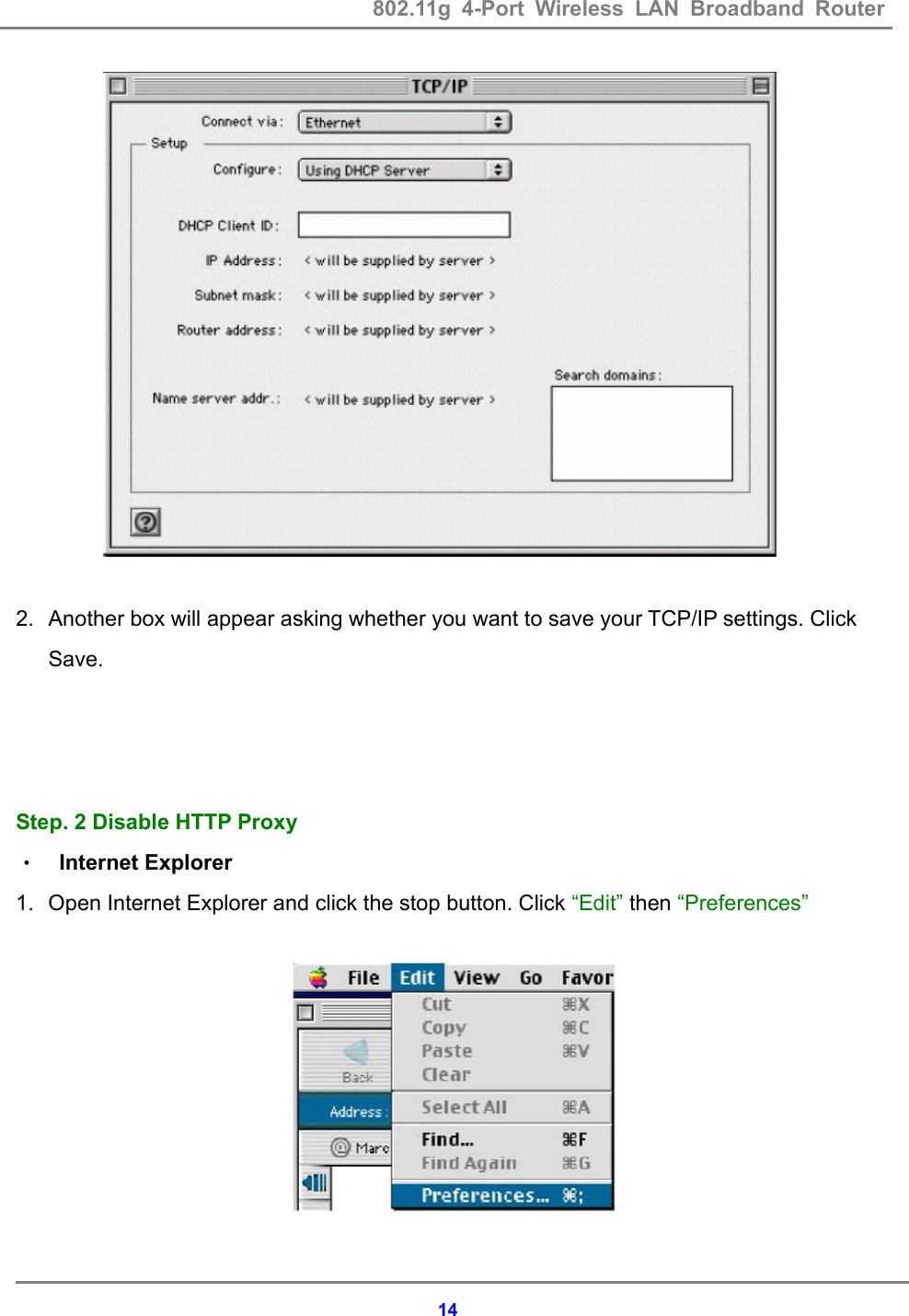
802.11g 4-Port Wireless LAN Broadband Router    131. Open Internet Explorer and click the stop button. Click “Tools” then “Internet Options”. 2. In the “Internet Options” window click the “Connections” tab. Then click the “LAN Settings” button. 3. Clear all the checkboxes.            4. Click “OK”, and then click “OK” again to close the “Internet Options” window.   • Netscape 1. Open Netscape and click the stop button. Click “Edit,” then click “Preferences…” 2. In the “Preferences” window, under “Category” double-click “Advanced”, then click “Proxies”. Select “Direct connection to the Internet”. Click “OK”.  Step. 3 Obtain IP Settings from Your Router 1. From the Windows desktop, click the “Start” button, then “Programs“, then “Accessories” and then click“Command Prompt”. 2. Type “IPCONFIG /RELEASE” and press “Enter”. 3. Type “IPCONFIG /RENEW” and press “Enter”. 4. Verify that your IP address is now 192.168.1.xxx, your Subnet Mask is 255.255.255.0 and your Default Gateway is 192.168.1.1. Click “OK” to close the “IP Configuration” window. 5. Type “Exit” and close window.  .MAC OS 7.X or above Step 1. TCP/IP Configuration 1. Pull down the Apple Menu. Click “Control Panels” and select TCP/IP. 2. In the TCP/IP dialog box, make sure that “Ethernet” is selected in the “Connect Via.”field. Make sure “Using DHCP Server” is already selected in the “Configure” field and close window.
802.11g 4-Port Wireless LAN Broadband Router    14  2.  Another box will appear asking whether you want to save your TCP/IP settings. Click Save.    Step. 2 Disable HTTP Proxy • Internet Explorer 1.  Open Internet Explorer and click the stop button. Click “Edit” then “Preferences”
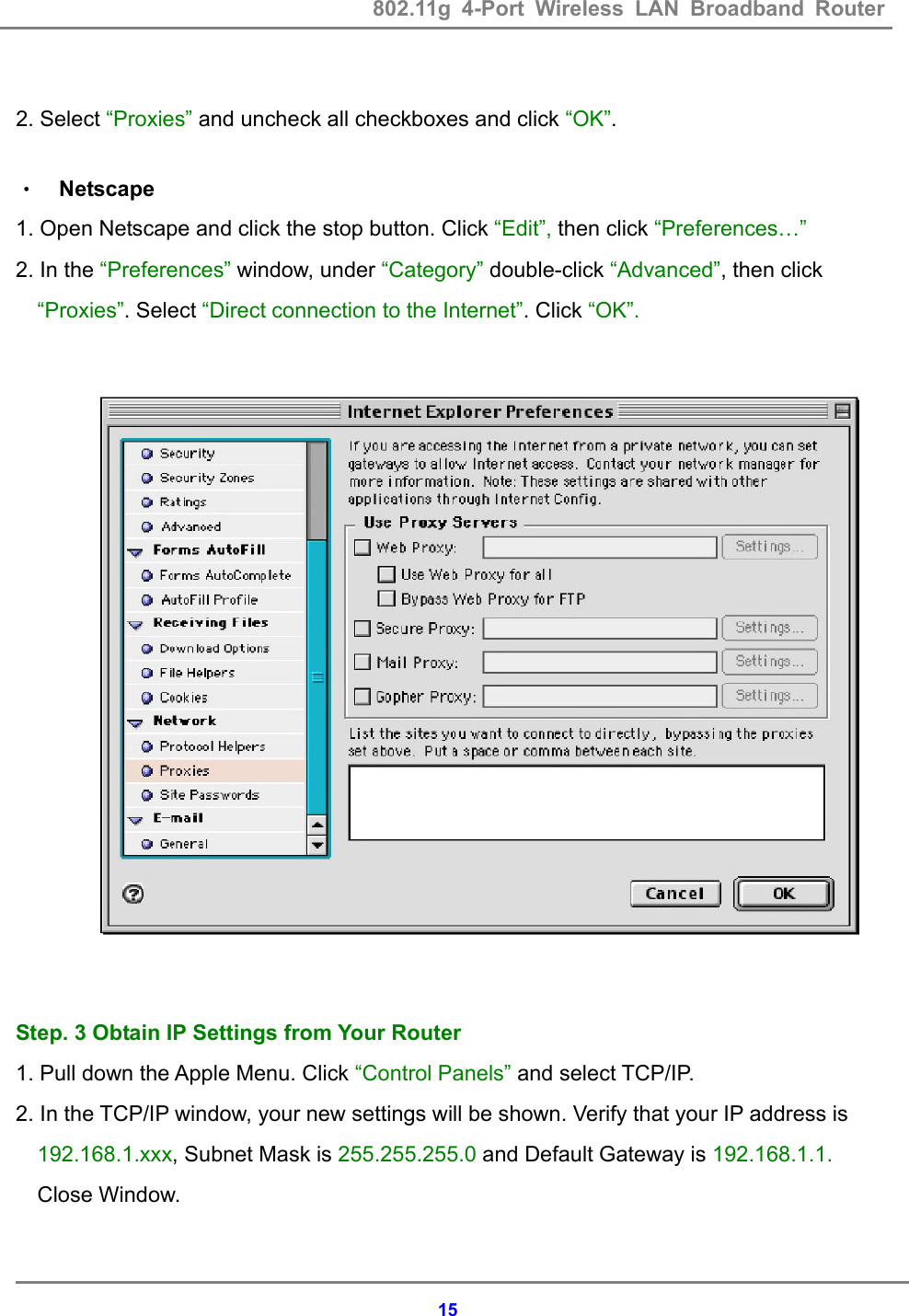
802.11g 4-Port Wireless LAN Broadband Router    15 2. Select “Proxies” and uncheck all checkboxes and click “OK”.  • Netscape 1. Open Netscape and click the stop button. Click “Edit”, then click “Preferences…” 2. In the “Preferences” window, under “Category” double-click “Advanced”, then click “Proxies”. Select “Direct connection to the Internet”. Click “OK”.                      Step. 3 Obtain IP Settings from Your Router 1. Pull down the Apple Menu. Click “Control Panels” and select TCP/IP. 2. In the TCP/IP window, your new settings will be shown. Verify that your IP address is 192.168.1.xxx, Subnet Mask is 255.255.255.0 and Default Gateway is 192.168.1.1. Close Window.
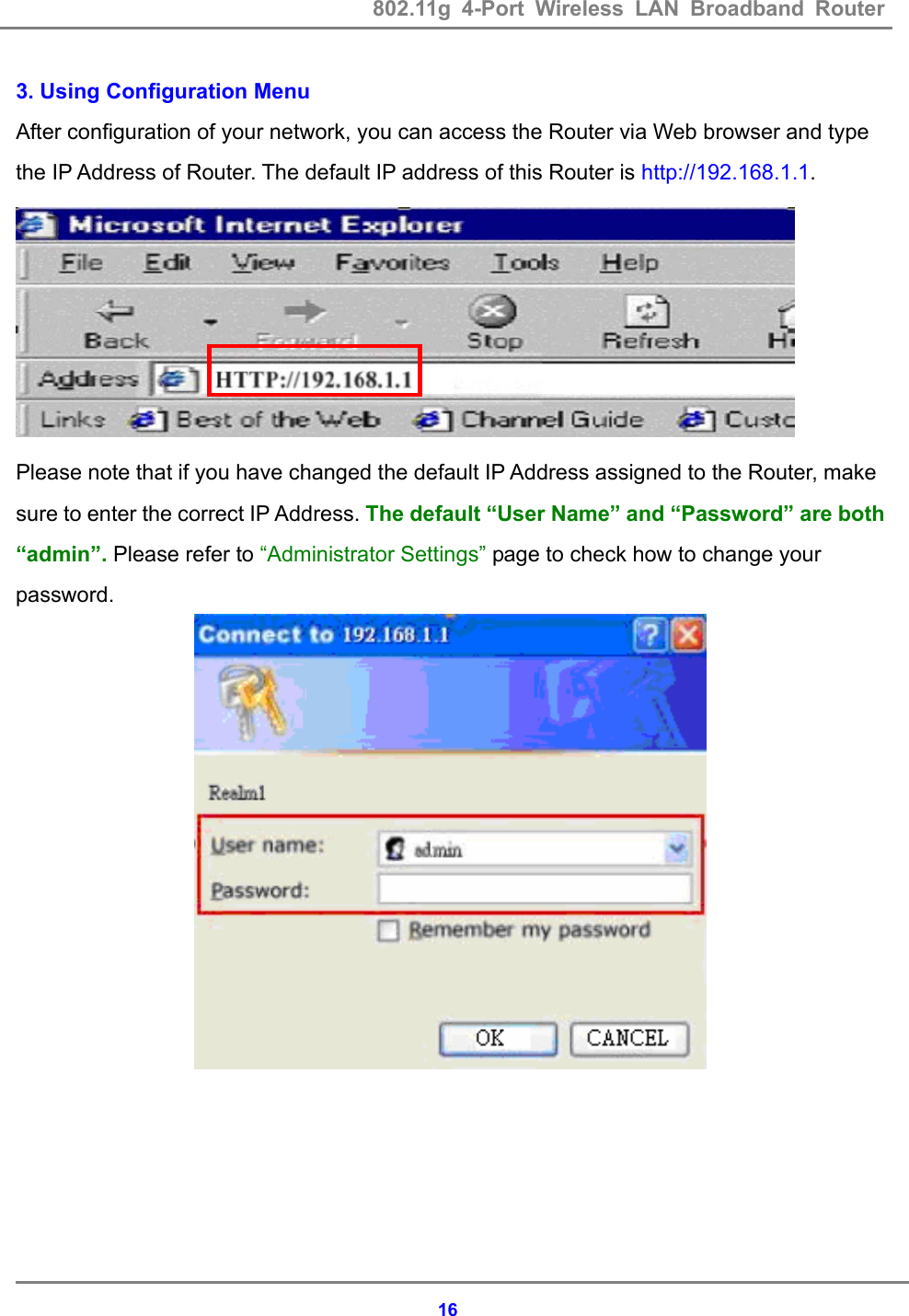
802.11g 4-Port Wireless LAN Broadband Router    163. Using Configuration Menu After configuration of your network, you can access the Router via Web browser and type the IP Address of Router. The default IP address of this Router is http://192.168.1.1.  Please note that if you have changed the default IP Address assigned to the Router, make sure to enter the correct IP Address. The default “User Name” and “Password” are both “admin”. Please refer to “Administrator Settings” page to check how to change your password.
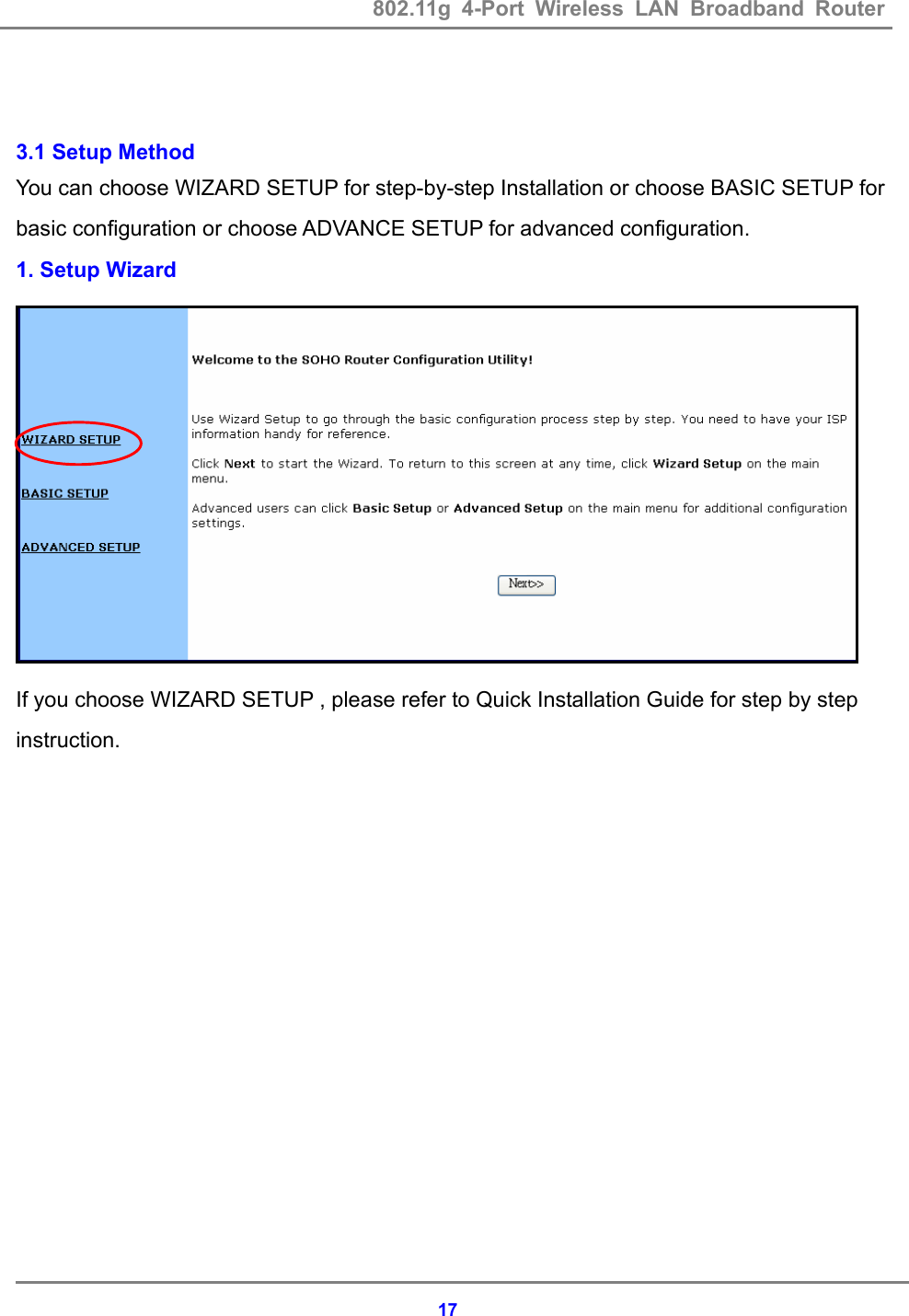
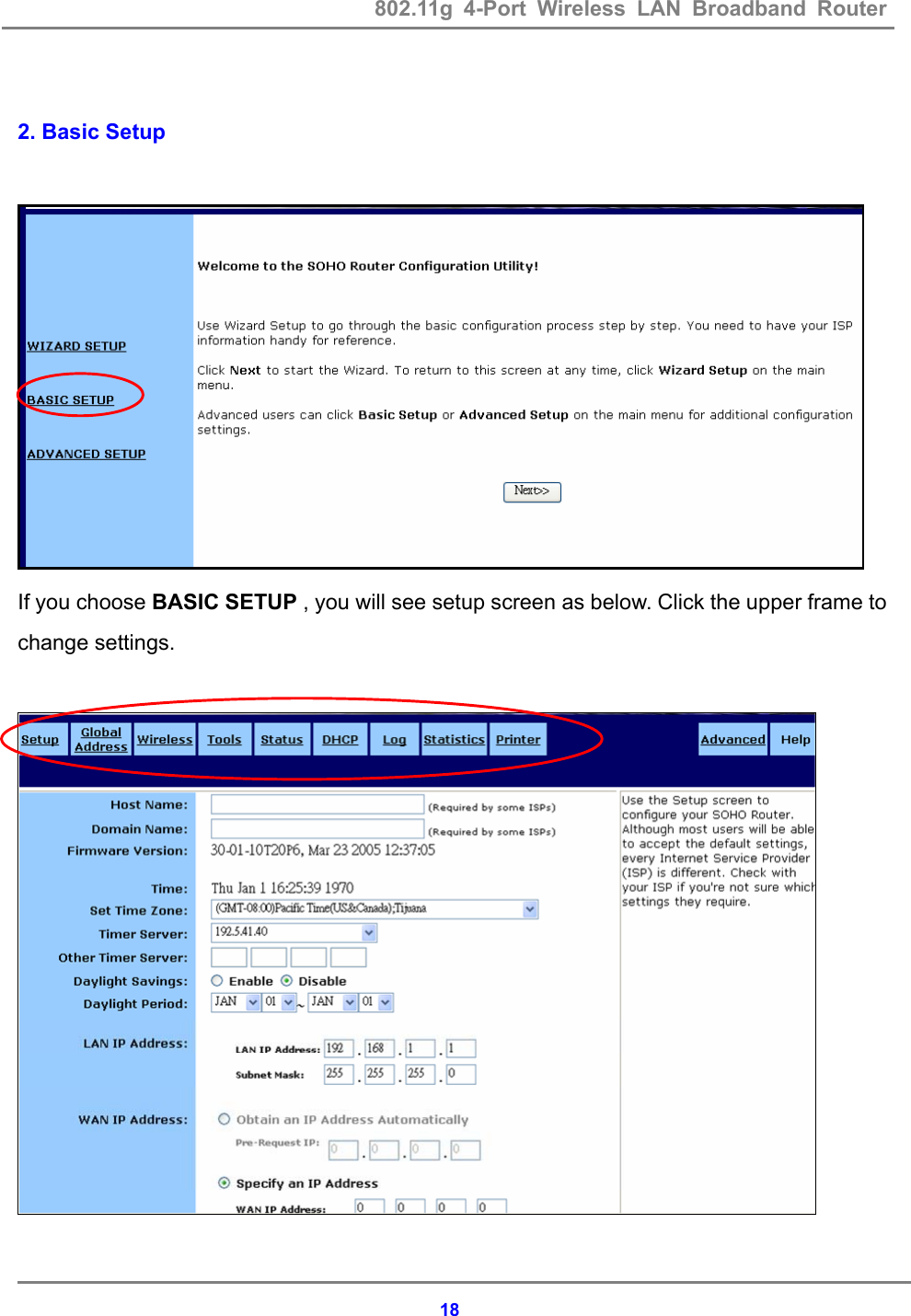
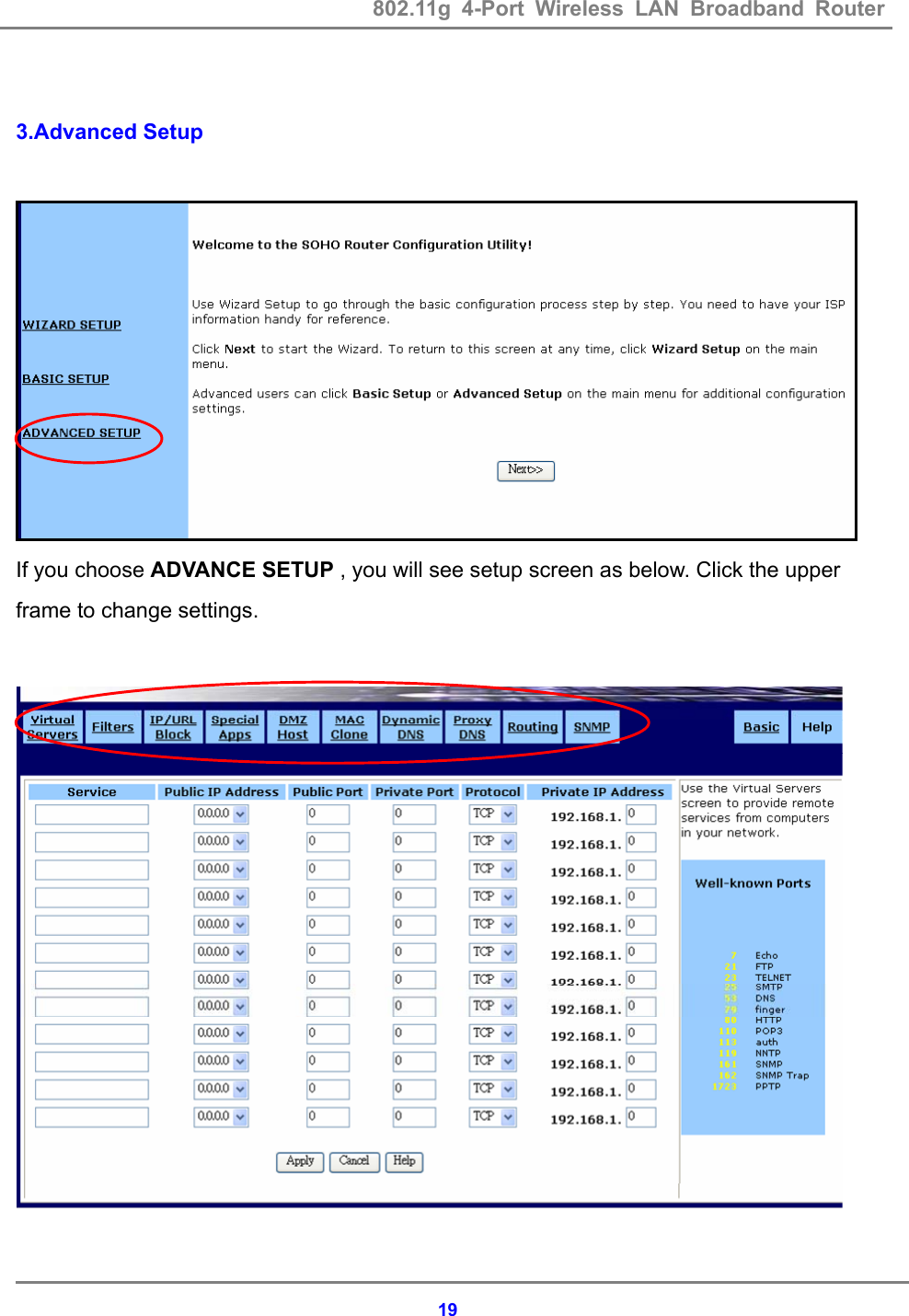
802.11g 4-Port Wireless LAN Broadband Router    17  3.1 Setup Method You can choose WIZARD SETUP for step-by-step Installation or choose BASIC SETUP for basic configuration or choose ADVANCE SETUP for advanced configuration. 1. Setup Wizard  If you choose WIZARD SETUP , please refer to Quick Installation Guide for step by step instruction.
802.11g 4-Port Wireless LAN Broadband Router    18 2. Basic Setup     If you choose BASIC SETUP , you will see setup screen as below. Click the upper frame to change settings.
802.11g 4-Port Wireless LAN Broadband Router    19 3.Advanced Setup   If you choose ADVANCE SETUP , you will see setup screen as below. Click the upper frame to change settings.
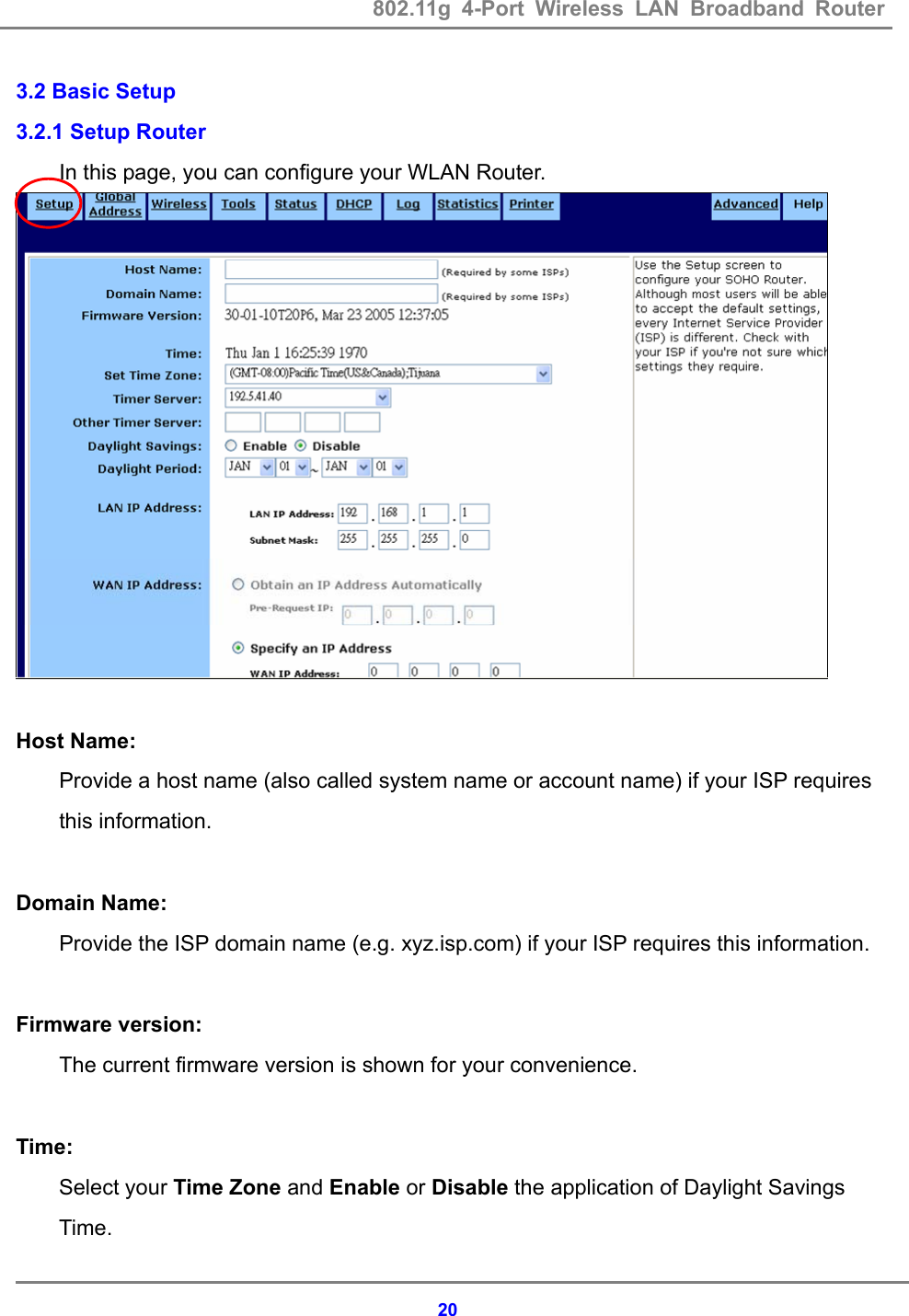
802.11g 4-Port Wireless LAN Broadband Router    203.2 Basic Setup 3.2.1 Setup Router In this page, you can configure your WLAN Router.   Host Name: Provide a host name (also called system name or account name) if your ISP requires this information.  Domain Name: Provide the ISP domain name (e.g. xyz.isp.com) if your ISP requires this information.  Firmware version: The current firmware version is shown for your convenience.  Time: Select your Time Zone and Enable or Disable the application of Daylight Savings Time.
802.11g 4-Port Wireless LAN Broadband Router    21 LAN IP Address: These fields show the LAN IP Address and the Subnet Mask as seen by others on your Local Area Network (LAN). Most users will not need to change these values.   If you change the LAN IP Address with the DHCP server running, you'll need to restart your client machines. If you change the LAN IP Address without the DHCP server running, you'll need to manually reconfigure your clients' IP addresses.  WAN IP Address: Choose either Obtain an IP Address Automatically (most users)(you can specify the IP you want to get by filling the Pre-Request IP) or Specify an IP Address (if your ISP assigns static IPs). If you choose the second option, type in the Wide Area Network (WAN) IP Address, Subnet Mask, ISP Gateway Address, and DNS values. You can obtain those information from your ISP.  PPPoE Login: If your ISP uses Point-to-Point Protocol over Ethernet (PPPoE), choose Enable; otherwise, choose Disable. PPPoE allows your ISP to authenticate your connection by requiring you to submit a username and password.   Type the User Name and Password provided by your ISP in the boxes. For PPPoE connection types, you can select either Connect on Demand or Connect Manually. And moreover, if you want to limit the idling minutes, select Max Idle Time and type a maximum number in minutes. Change MTU to specify the largest size for network transmission. It is recommendated to use default value 1492.  UPNP: Universal Plug and Play (UPnP) enable devices such as PCs, routers or other devices to be plugged into a network and automatically know about each other.
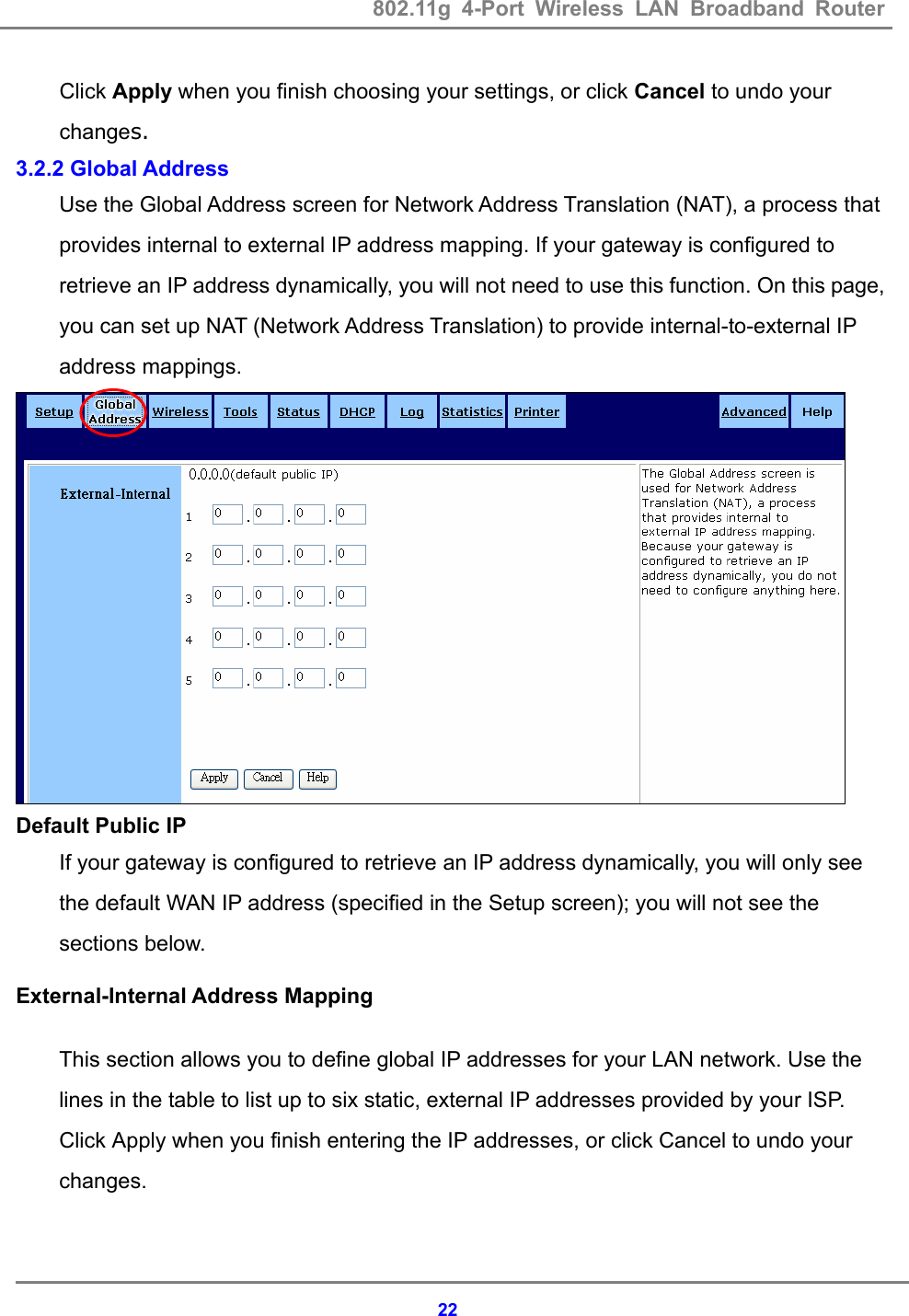
802.11g 4-Port Wireless LAN Broadband Router    22Click Apply when you finish choosing your settings, or click Cancel to undo your changes. 3.2.2 Global Address Use the Global Address screen for Network Address Translation (NAT), a process that provides internal to external IP address mapping. If your gateway is configured to retrieve an IP address dynamically, you will not need to use this function. On this page, you can set up NAT (Network Address Translation) to provide internal-to-external IP address mappings.    Default Public IP If your gateway is configured to retrieve an IP address dynamically, you will only see the default WAN IP address (specified in the Setup screen); you will not see the sections below. External-Internal Address Mapping This section allows you to define global IP addresses for your LAN network. Use the lines in the table to list up to six static, external IP addresses provided by your ISP.   Click Apply when you finish entering the IP addresses, or click Cancel to undo your changes.
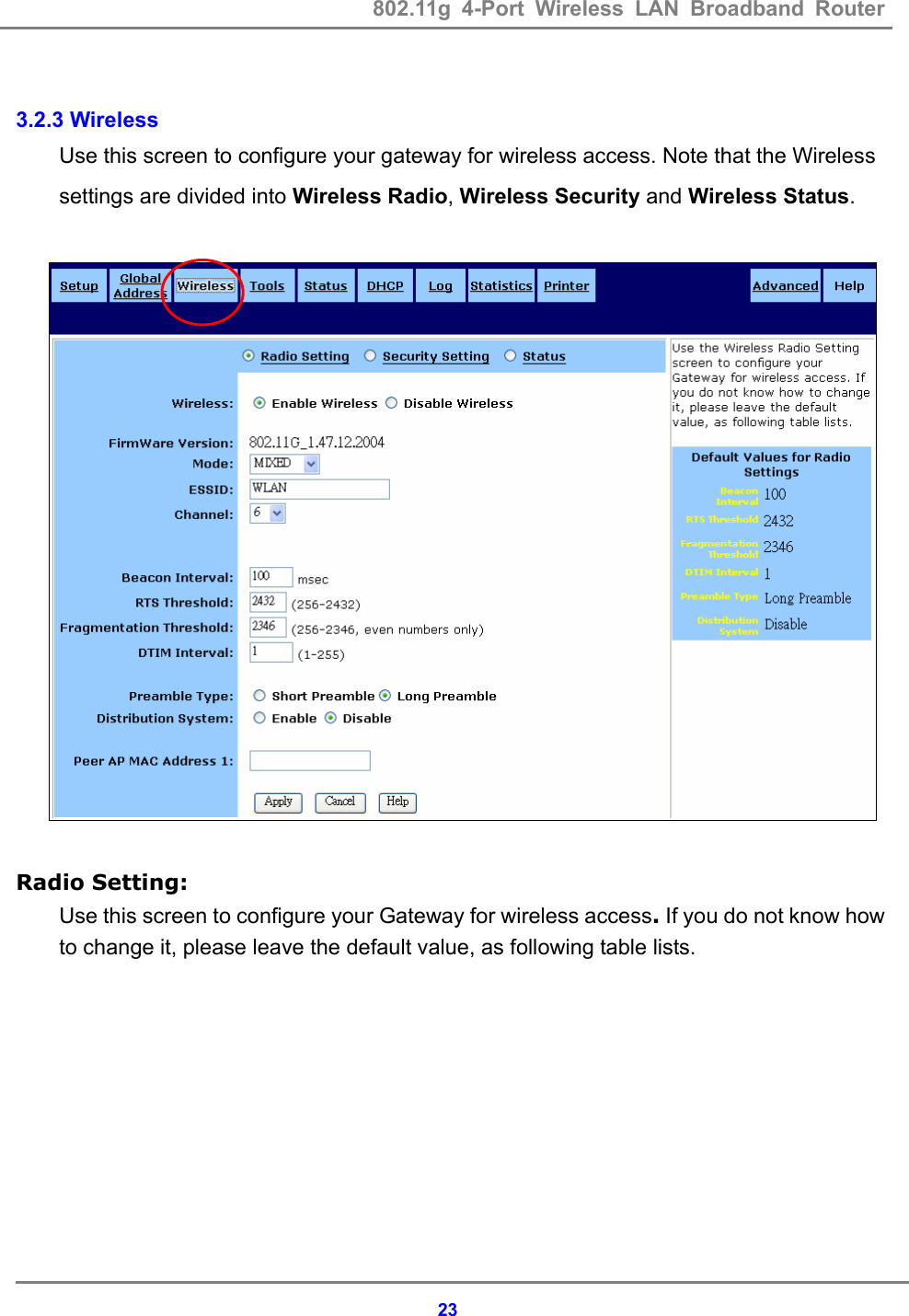
802.11g 4-Port Wireless LAN Broadband Router    23 3.2.3 Wireless Use this screen to configure your gateway for wireless access. Note that the Wireless settings are divided into Wireless Radio, Wireless Security and Wireless Status.    Radio Setting:   Use this screen to configure your Gateway for wireless access. If you do not know how to change it, please leave the default value, as following table lists.
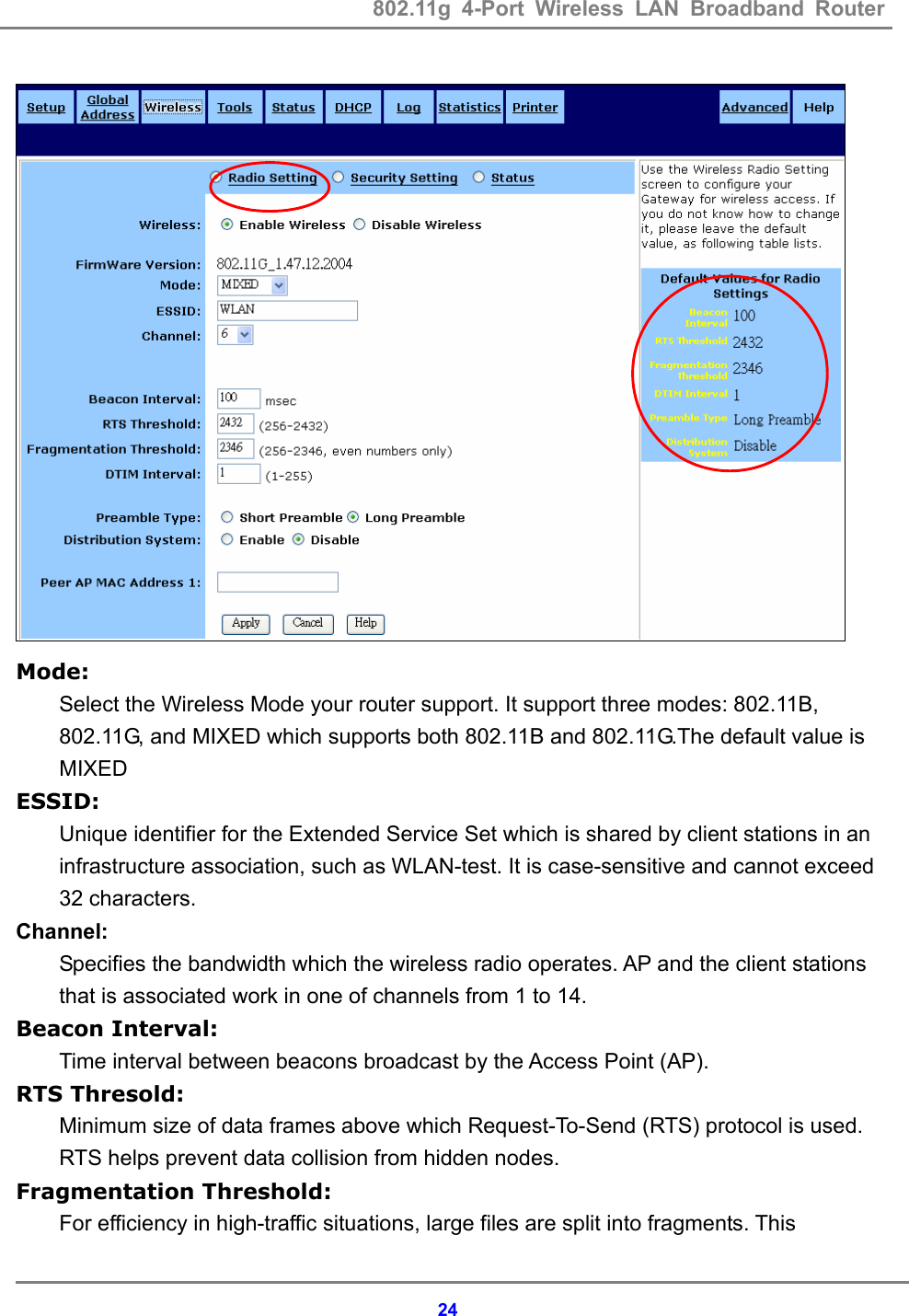
802.11g 4-Port Wireless LAN Broadband Router    24  Mode: Select the Wireless Mode your router support. It support three modes: 802.11B, 802.11G, and MIXED which supports both 802.11B and 802.11G.The default value is MIXED ESSID: Unique identifier for the Extended Service Set which is shared by client stations in an infrastructure association, such as WLAN-test. It is case-sensitive and cannot exceed 32 characters. Channel: Specifies the bandwidth which the wireless radio operates. AP and the client stations that is associated work in one of channels from 1 to 14. Beacon Interval: Time interval between beacons broadcast by the Access Point (AP). RTS Thresold: Minimum size of data frames above which Request-To-Send (RTS) protocol is used. RTS helps prevent data collision from hidden nodes. Fragmentation Threshold: For efficiency in high-traffic situations, large files are split into fragments. This
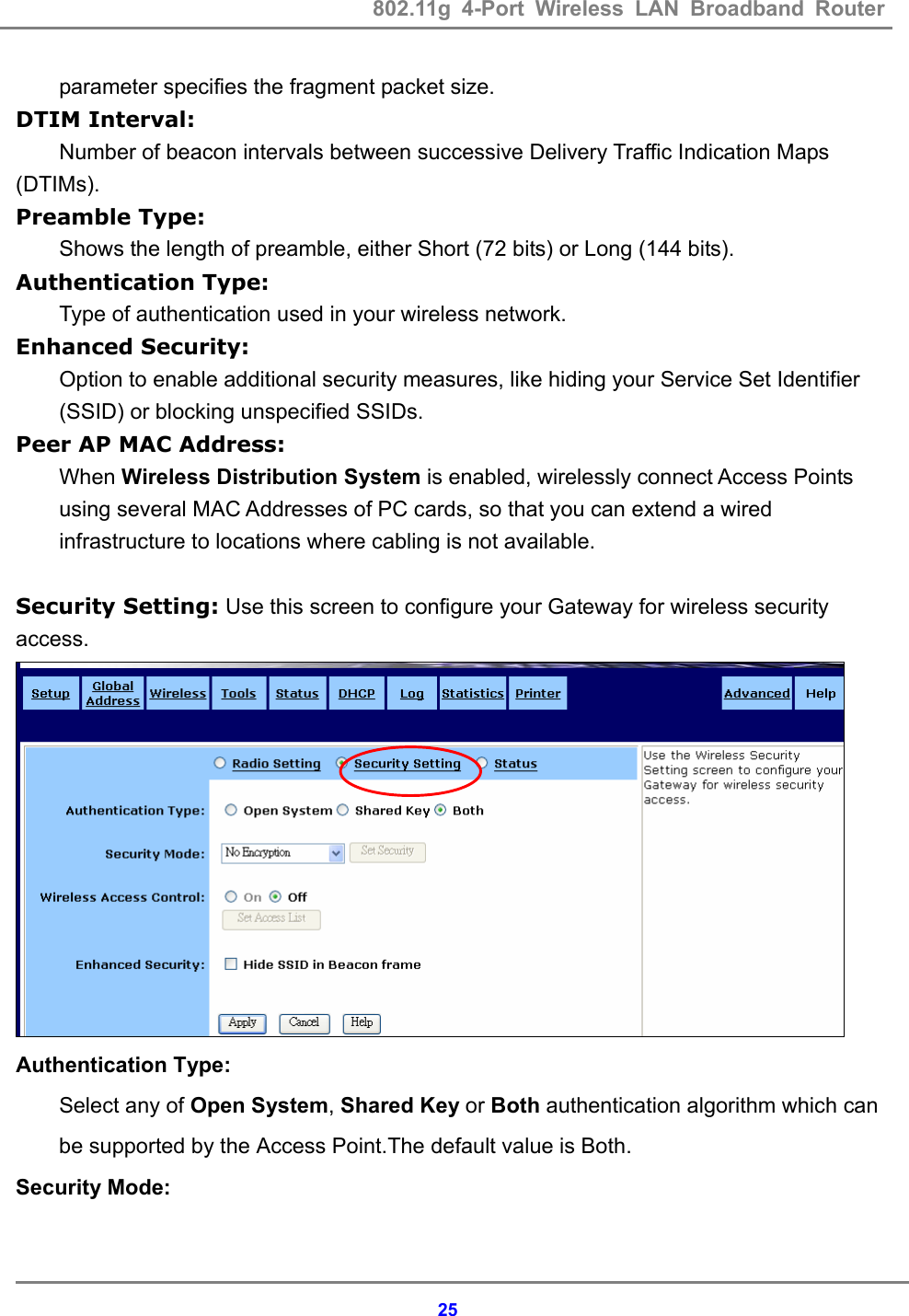
802.11g 4-Port Wireless LAN Broadband Router    25parameter specifies the fragment packet size. DTIM Interval: Number of beacon intervals between successive Delivery Traffic Indication Maps (DTIMs). Preamble Type: Shows the length of preamble, either Short (72 bits) or Long (144 bits). Authentication Type: Type of authentication used in your wireless network. Enhanced Security: Option to enable additional security measures, like hiding your Service Set Identifier (SSID) or blocking unspecified SSIDs. Peer AP MAC Address: When Wireless Distribution System is enabled, wirelessly connect Access Points using several MAC Addresses of PC cards, so that you can extend a wired infrastructure to locations where cabling is not available.  Security Setting: Use this screen to configure your Gateway for wireless security access.  Authentication Type: Select any of Open System, Shared Key or Both authentication algorithm which can be supported by the Access Point.The default value is Both. Security Mode:
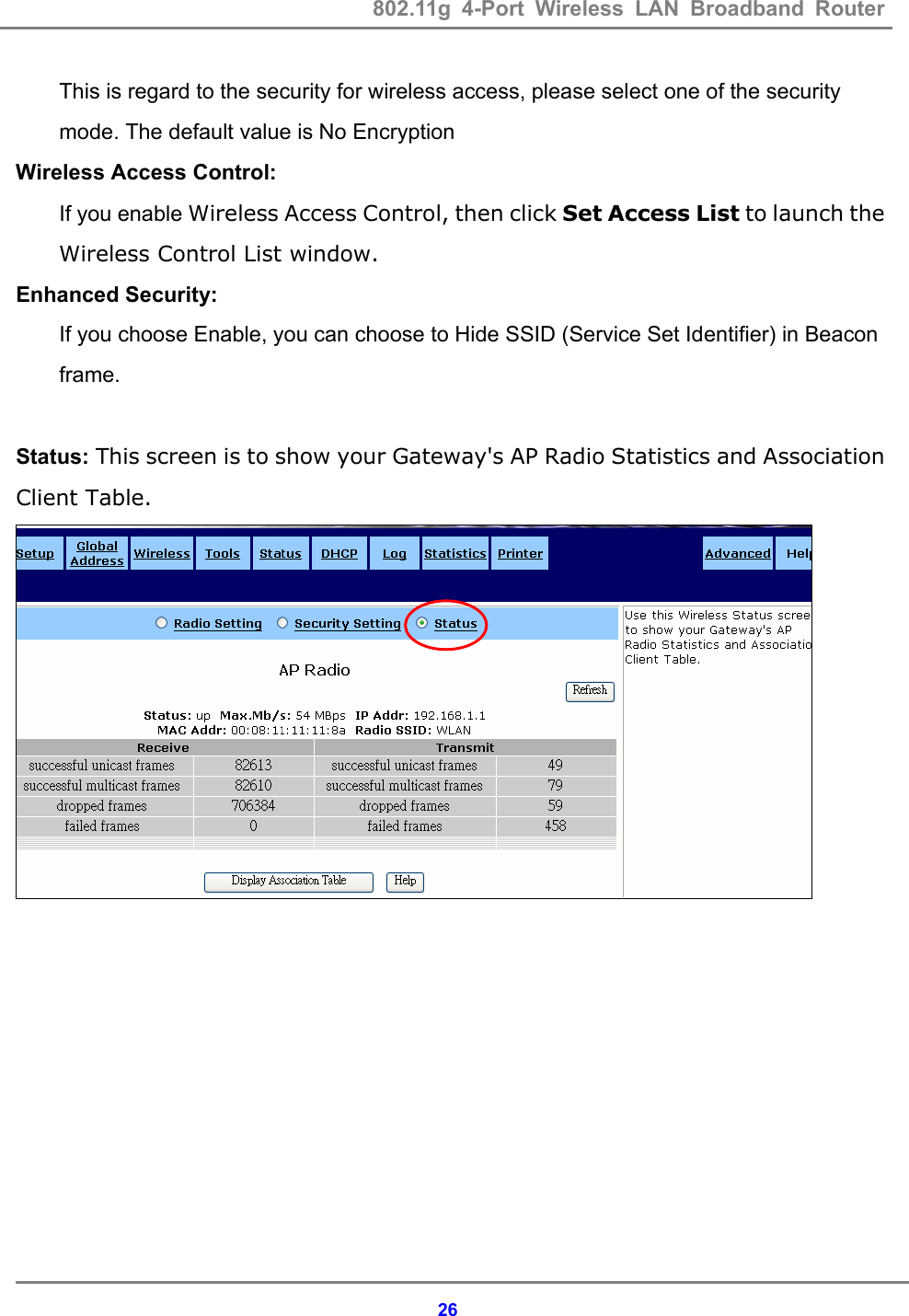
802.11g 4-Port Wireless LAN Broadband Router    26This is regard to the security for wireless access, please select one of the security mode. The default value is No Encryption Wireless Access Control: If you enable Wireless Access Control, then click Set Access List to launch the Wireless Control List window. Enhanced Security: If you choose Enable, you can choose to Hide SSID (Service Set Identifier) in Beacon frame.  Status: This screen is to show your Gateway's AP Radio Statistics and Association Client Table.
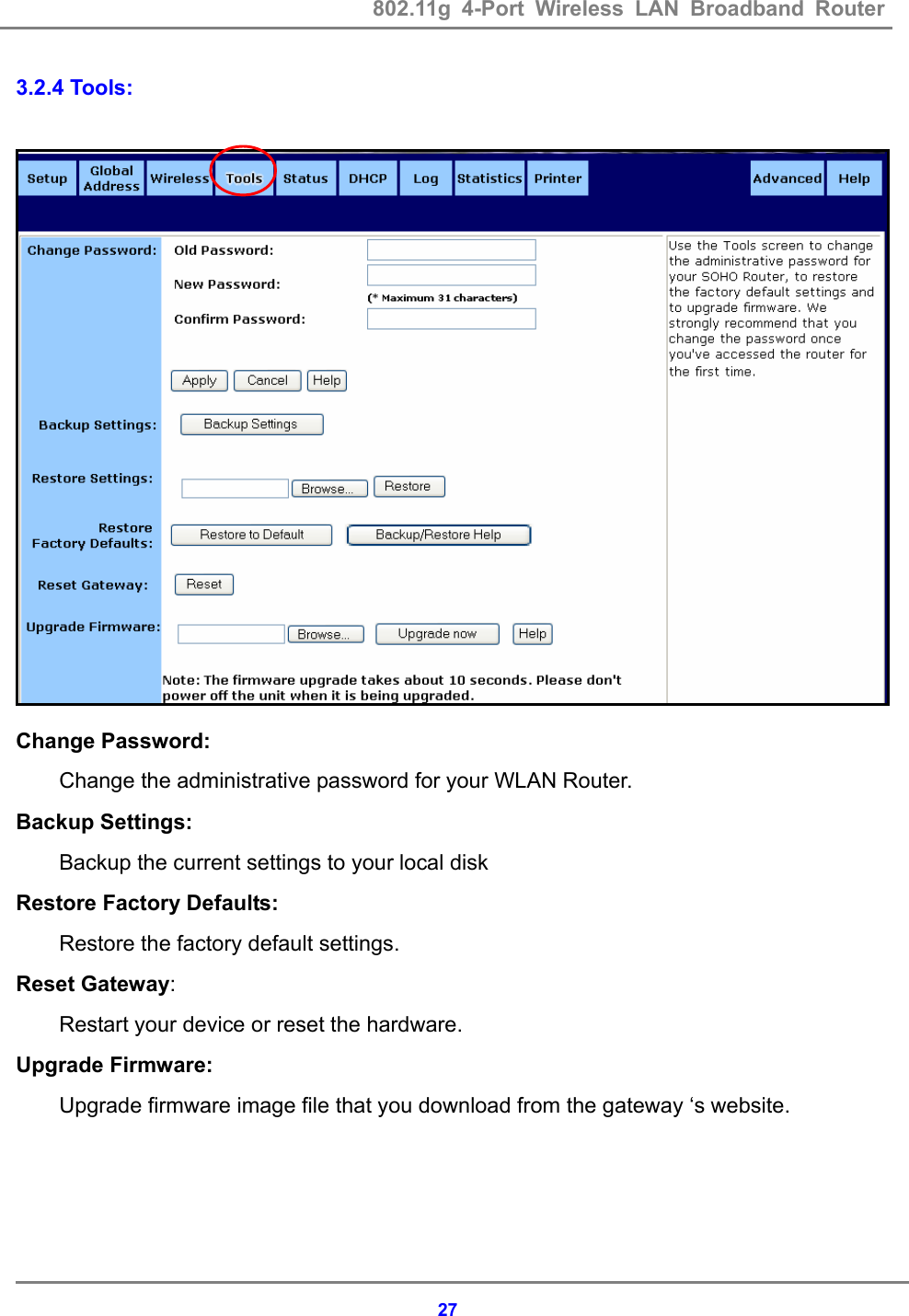
802.11g 4-Port Wireless LAN Broadband Router    273.2.4 Tools:   Change Password: Change the administrative password for your WLAN Router. Backup Settings: Backup the current settings to your local disk Restore Factory Defaults: Restore the factory default settings. Reset Gateway:   Restart your device or reset the hardware. Upgrade Firmware:  Upgrade firmware image file that you download from the gateway ‘s website.
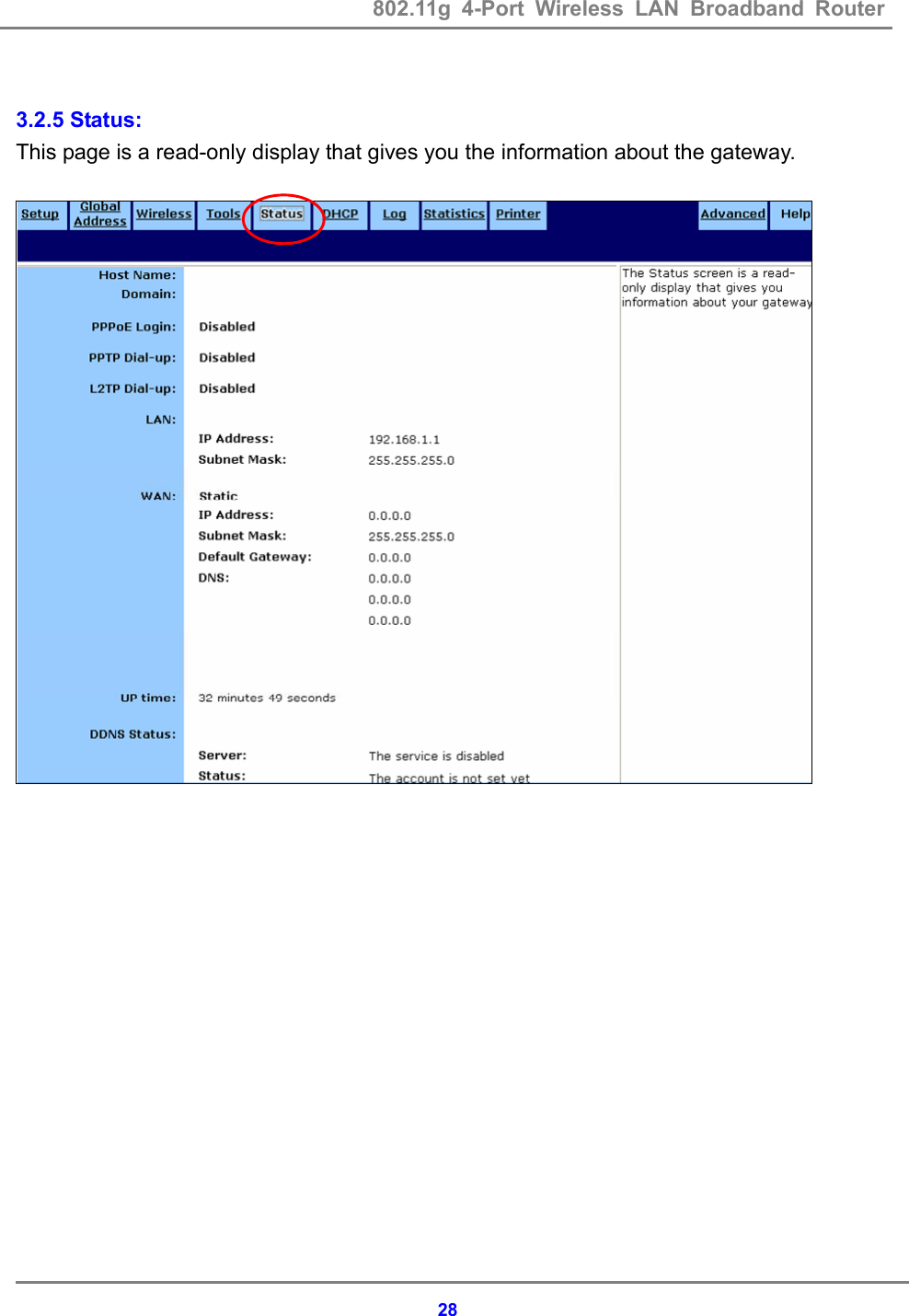
802.11g 4-Port Wireless LAN Broadband Router    28 3.2.5 Status: This page is a read-only display that gives you the information about the gateway.
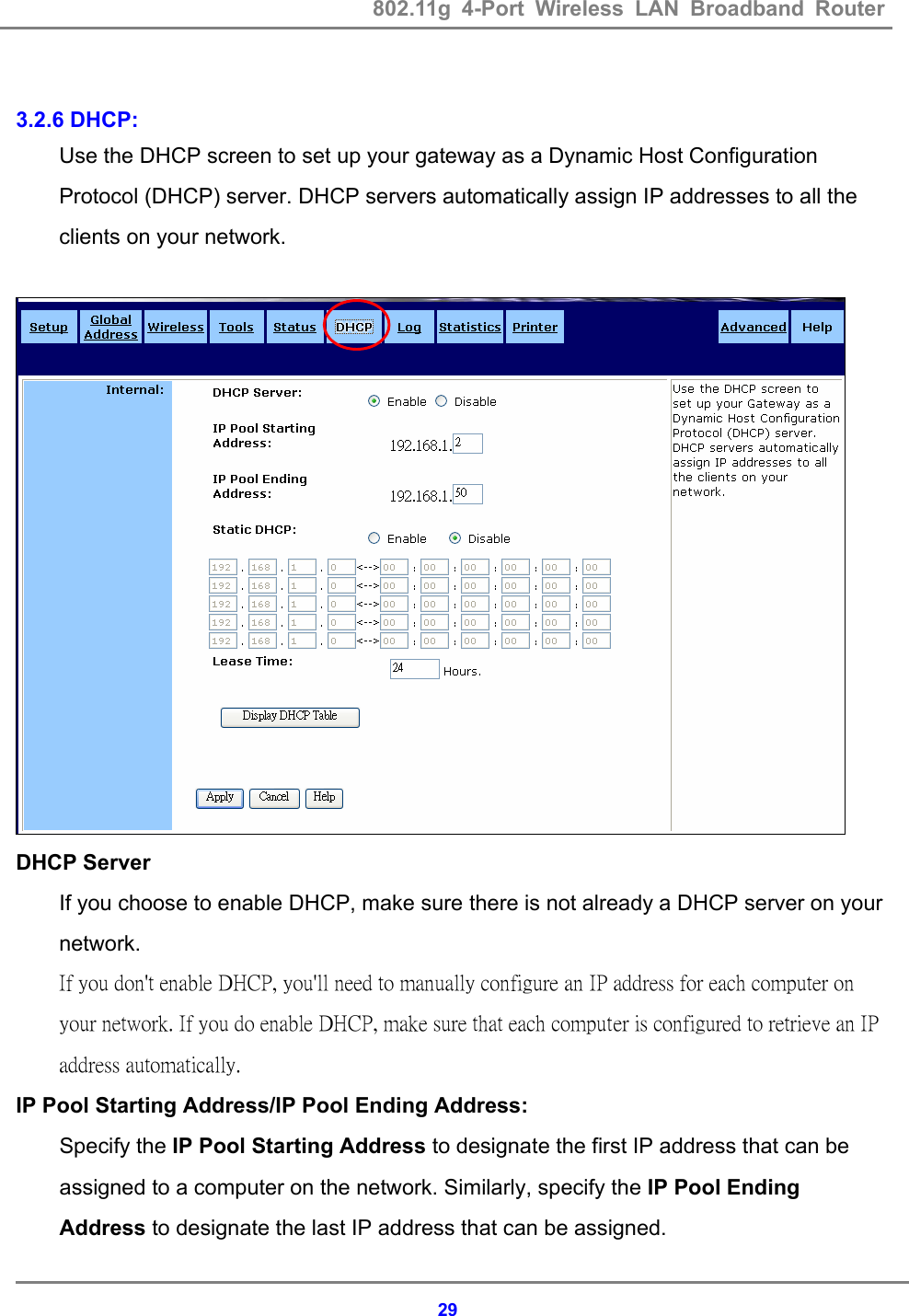
802.11g 4-Port Wireless LAN Broadband Router    29 3.2.6 DHCP: Use the DHCP screen to set up your gateway as a Dynamic Host Configuration Protocol (DHCP) server. DHCP servers automatically assign IP addresses to all the clients on your network.     DHCP Server   If you choose to enable DHCP, make sure there is not already a DHCP server on your network.  If you don't enable DHCP, you'll need to manually configure an IP address for each computer on your network. If you do enable DHCP, make sure that each computer is configured to retrieve an IP address automatically.   IP Pool Starting Address/IP Pool Ending Address: Specify the IP Pool Starting Address to designate the first IP address that can be assigned to a computer on the network. Similarly, specify the IP Pool Ending Address to designate the last IP address that can be assigned.
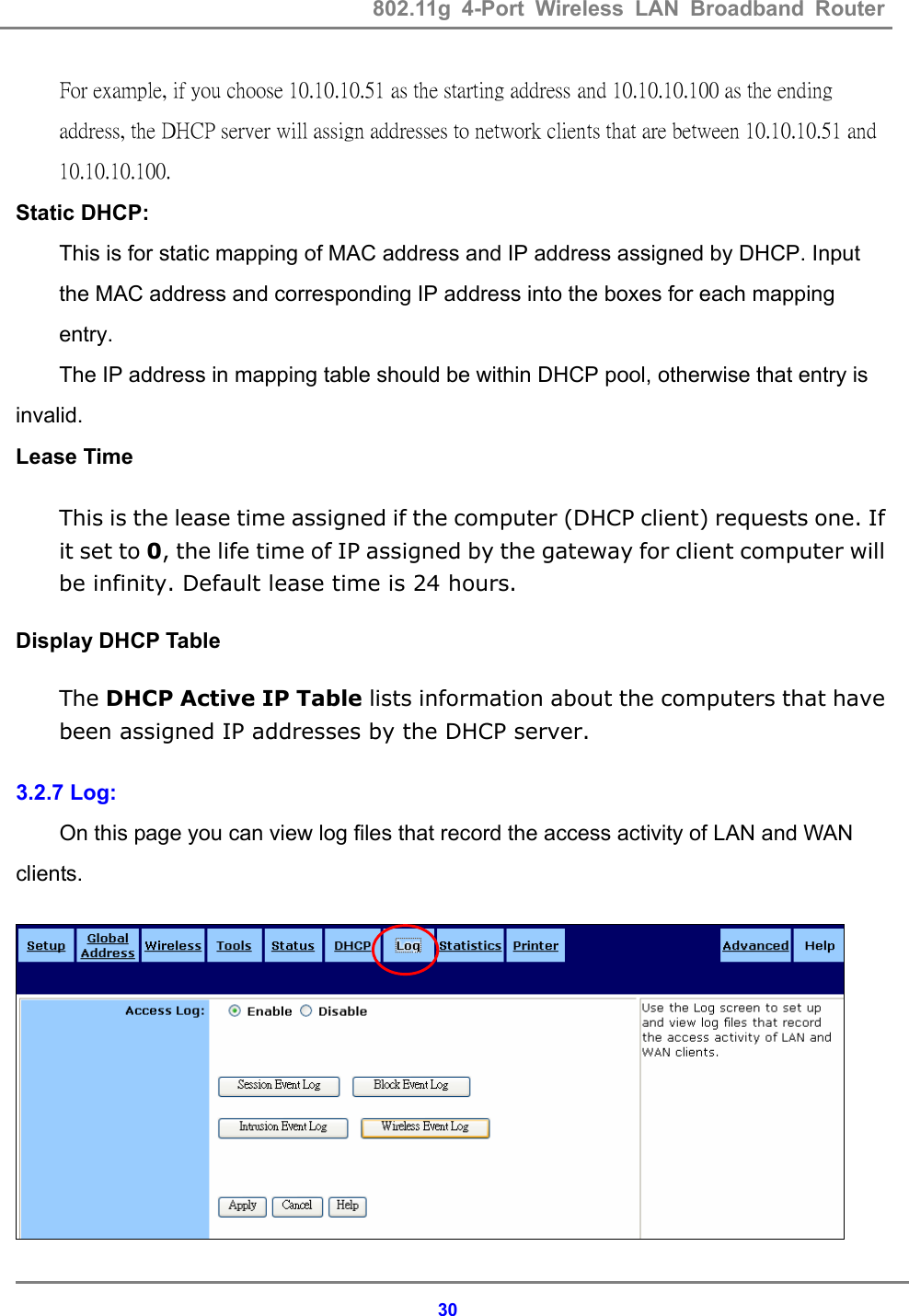
802.11g 4-Port Wireless LAN Broadband Router    30For example, if you choose 10.10.10.51 as the starting address and 10.10.10.100 as the ending address, the DHCP server will assign addresses to network clients that are between 10.10.10.51 and 10.10.10.100.  Static DHCP: This is for static mapping of MAC address and IP address assigned by DHCP. Input the MAC address and corresponding IP address into the boxes for each mapping entry. The IP address in mapping table should be within DHCP pool, otherwise that entry is invalid. Lease Time This is the lease time assigned if the computer (DHCP client) requests one. If it set to 0, the life time of IP assigned by the gateway for client computer will be infinity. Default lease time is 24 hours. Display DHCP Table   The DHCP Active IP Table lists information about the computers that have been assigned IP addresses by the DHCP server. 3.2.7 Log: On this page you can view log files that record the access activity of LAN and WAN clients.
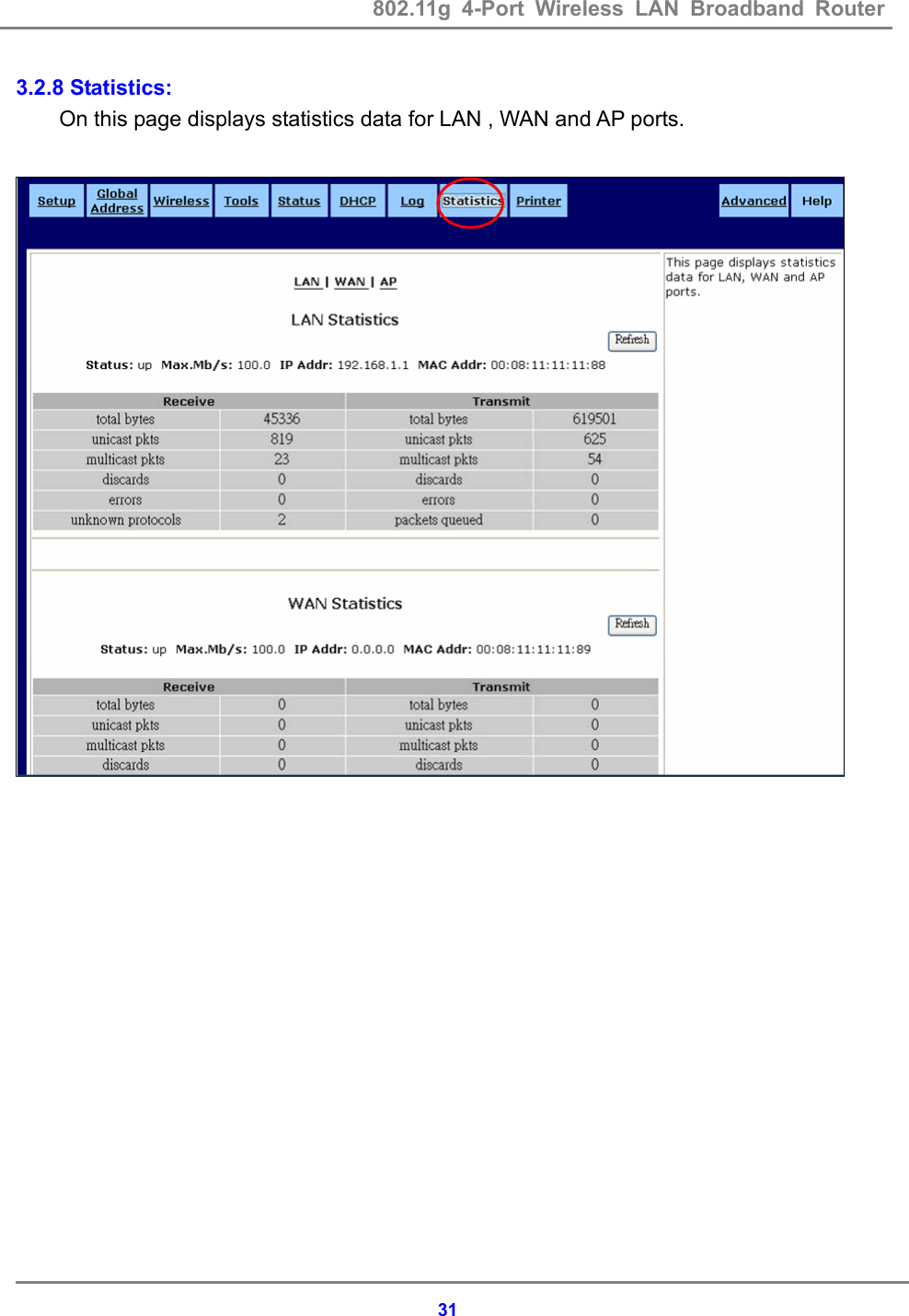
802.11g 4-Port Wireless LAN Broadband Router    313.2.8 Statistics: On this page displays statistics data for LAN , WAN and AP ports.
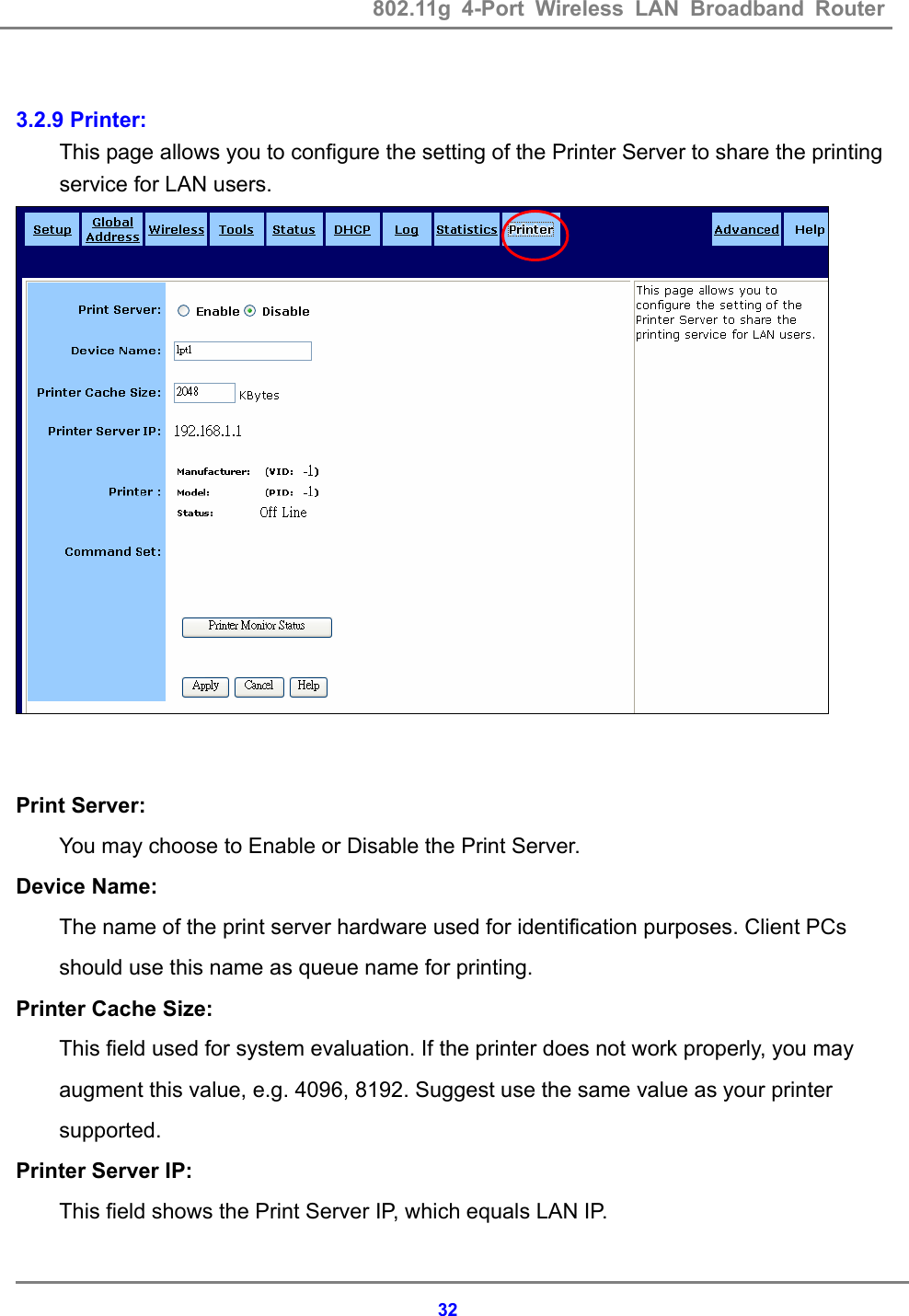
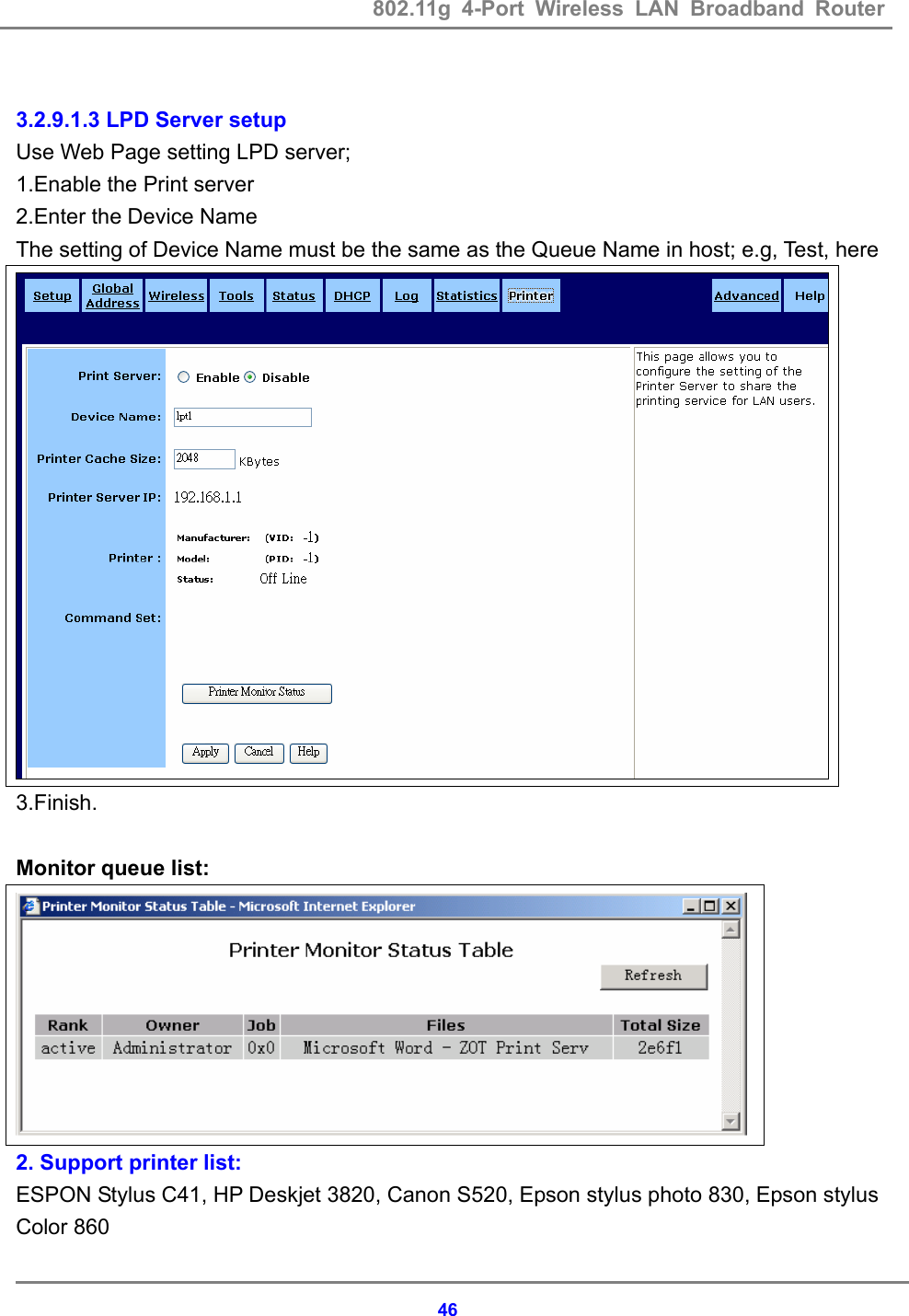
802.11g 4-Port Wireless LAN Broadband Router    32 3.2.9 Printer: This page allows you to configure the setting of the Printer Server to share the printing service for LAN users.    Print Server: You may choose to Enable or Disable the Print Server. Device Name: The name of the print server hardware used for identification purposes. Client PCs should use this name as queue name for printing. Printer Cache Size: This field used for system evaluation. If the printer does not work properly, you may augment this value, e.g. 4096, 8192. Suggest use the same value as your printer supported. Printer Server IP: This field shows the Print Server IP, which equals LAN IP.
802.11g 4-Port Wireless LAN Broadband Router    33Printer: This field shows the Manufacturer, VID(Vendor ID), Model, PID(Product ID), Status of current Printer, which connected to the device's USB port.   Command Set: This field shows you Command Set of the printer. When the printer connected with the print server, it will be shown on it. Printer Monitor Status: Click Printer Monitor Status to launch Printer Monitor Status Table window. In this screen the table lists all printing tasks queue. Each task has the information of Rank, Owner, Job, Files and Total Size.
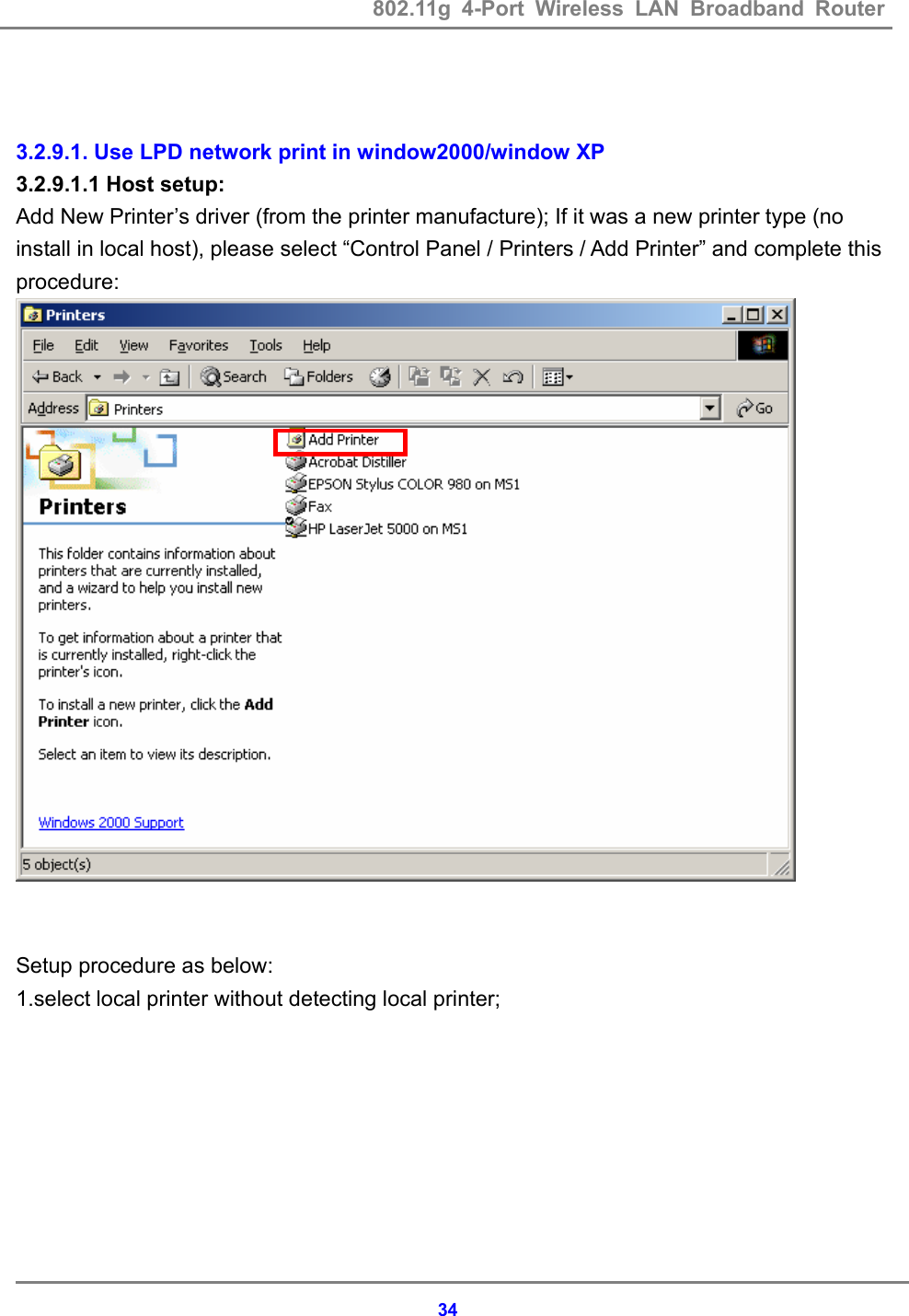
802.11g 4-Port Wireless LAN Broadband Router    34  3.2.9.1. Use LPD network print in window2000/window XP 3.2.9.1.1 Host setup:   Add New Printer’s driver (from the printer manufacture); If it was a new printer type (no install in local host), please select “Control Panel / Printers / Add Printer” and complete this procedure:   Setup procedure as below: 1.select local printer without detecting local printer;
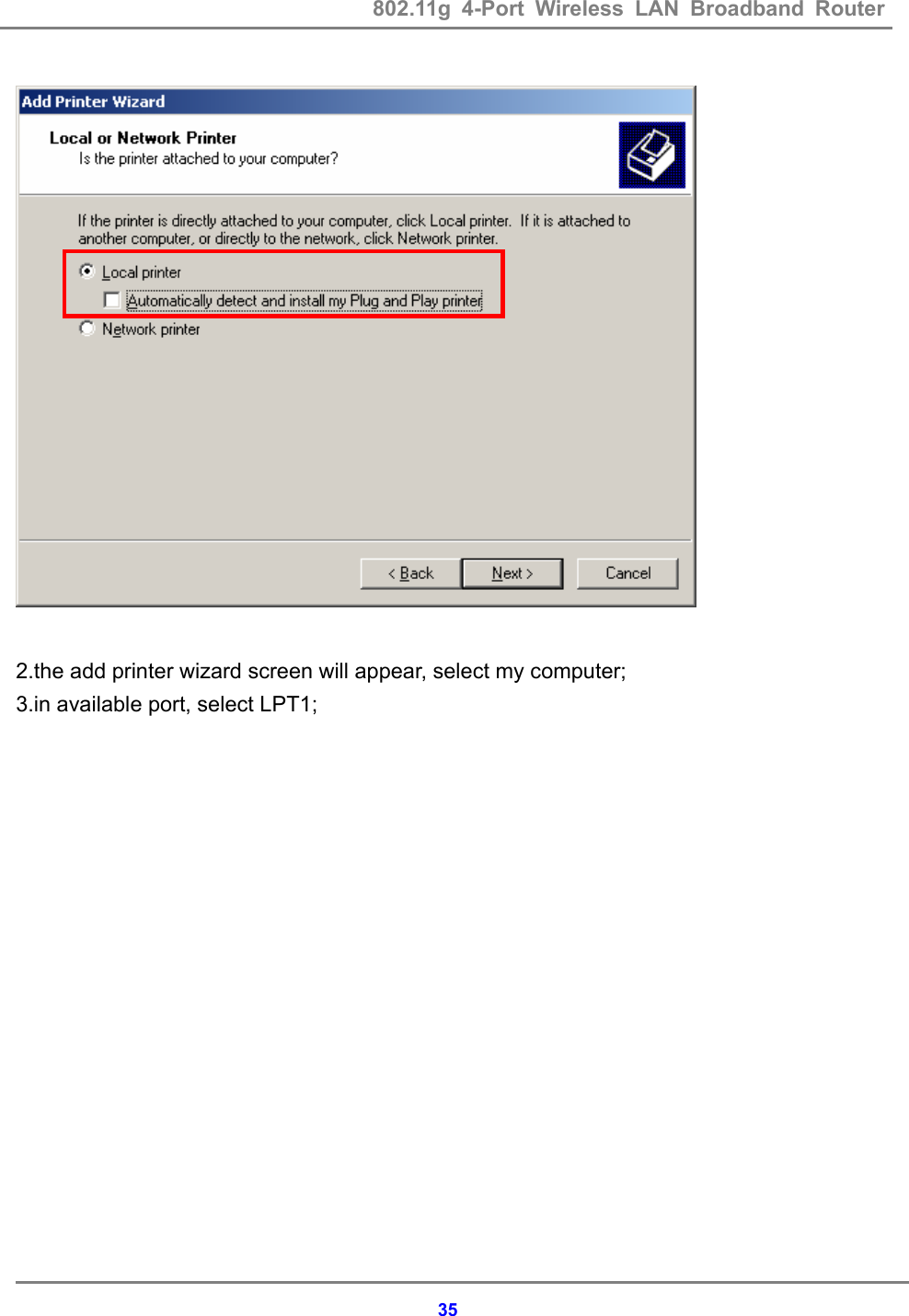
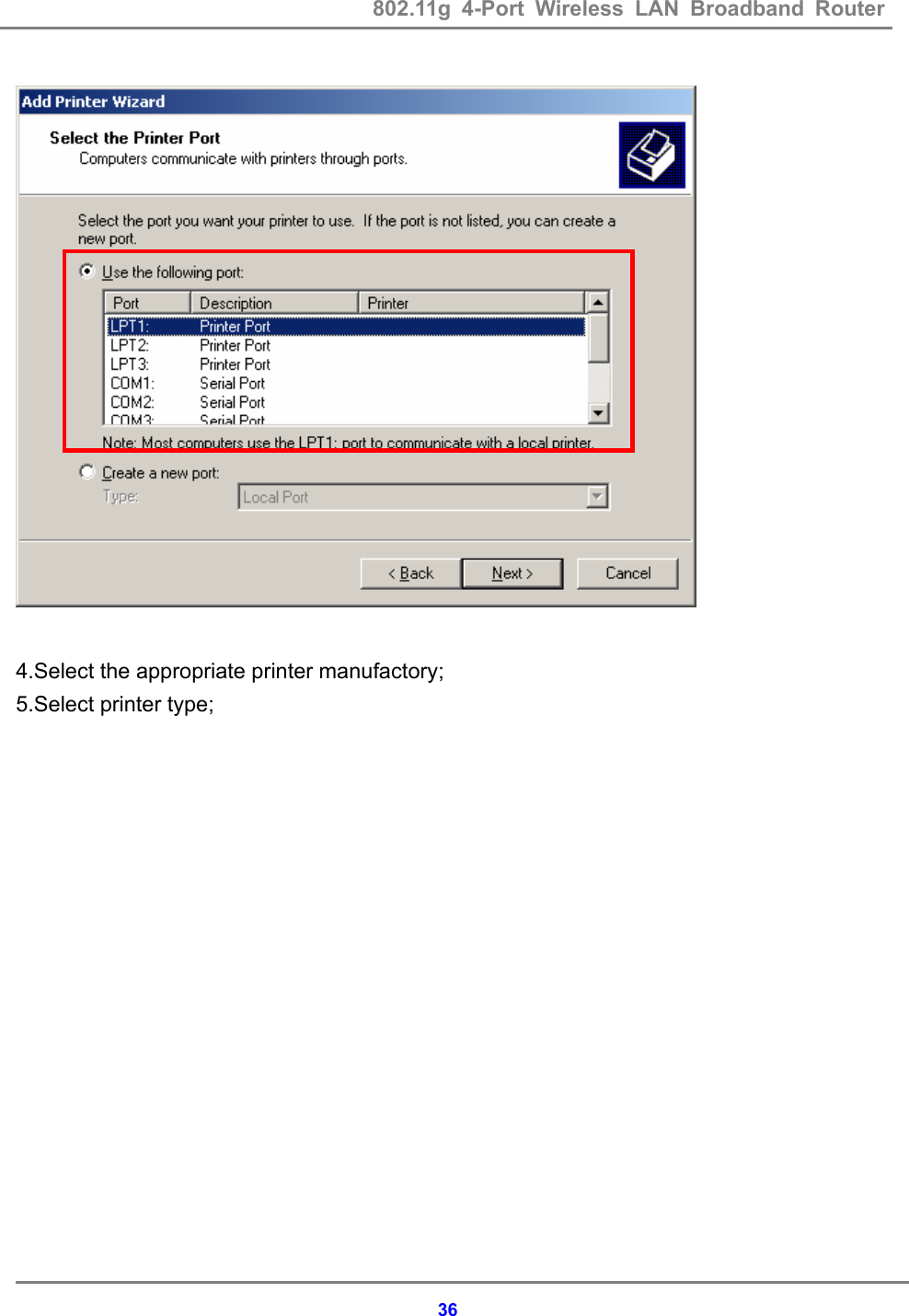
802.11g 4-Port Wireless LAN Broadband Router    35  2.the add printer wizard screen will appear, select my computer; 3.in available port, select LPT1;
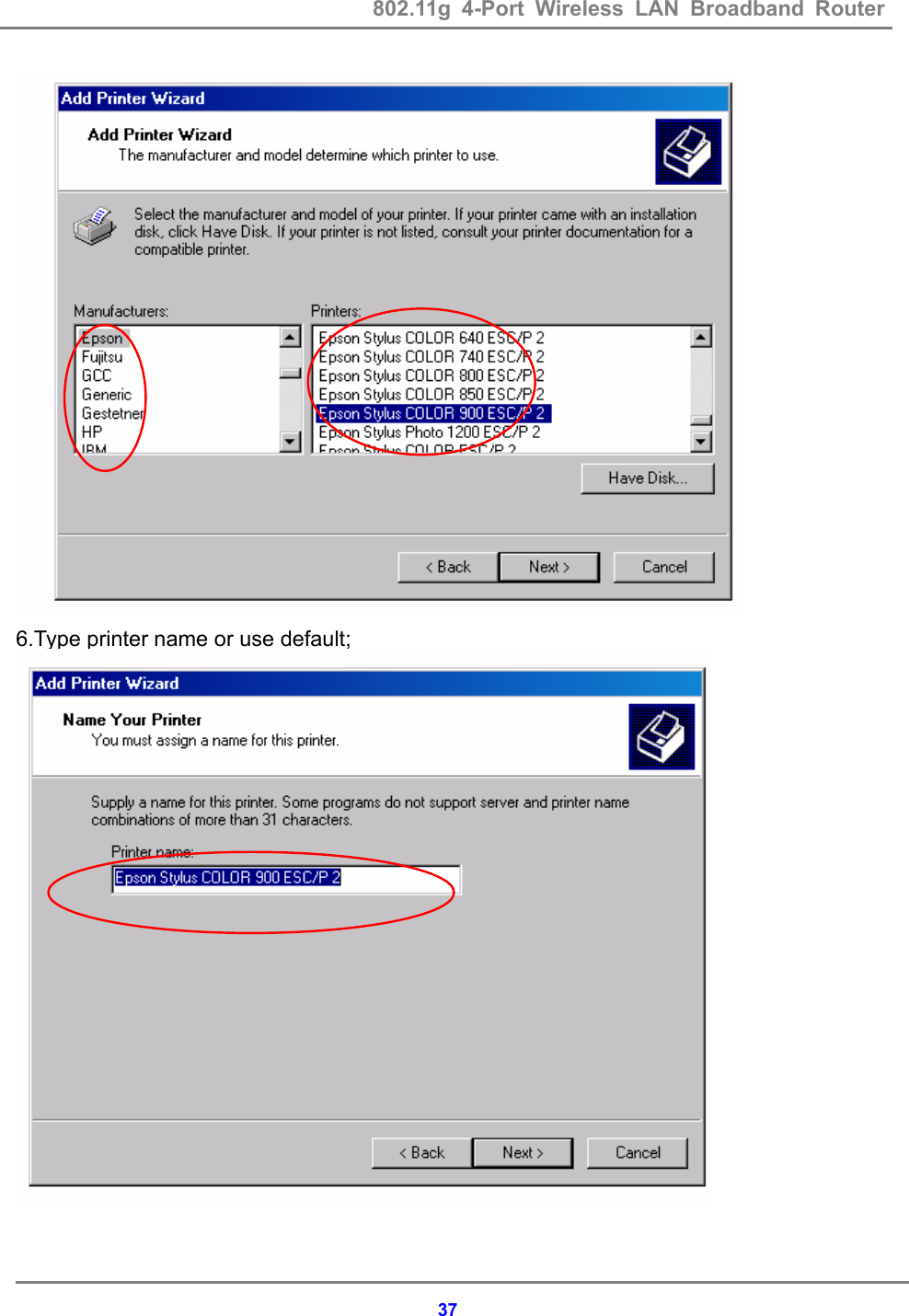
802.11g 4-Port Wireless LAN Broadband Router    36  4.Select the appropriate printer manufactory; 5.Select printer type;
802.11g 4-Port Wireless LAN Broadband Router    37 6.Type printer name or use default;
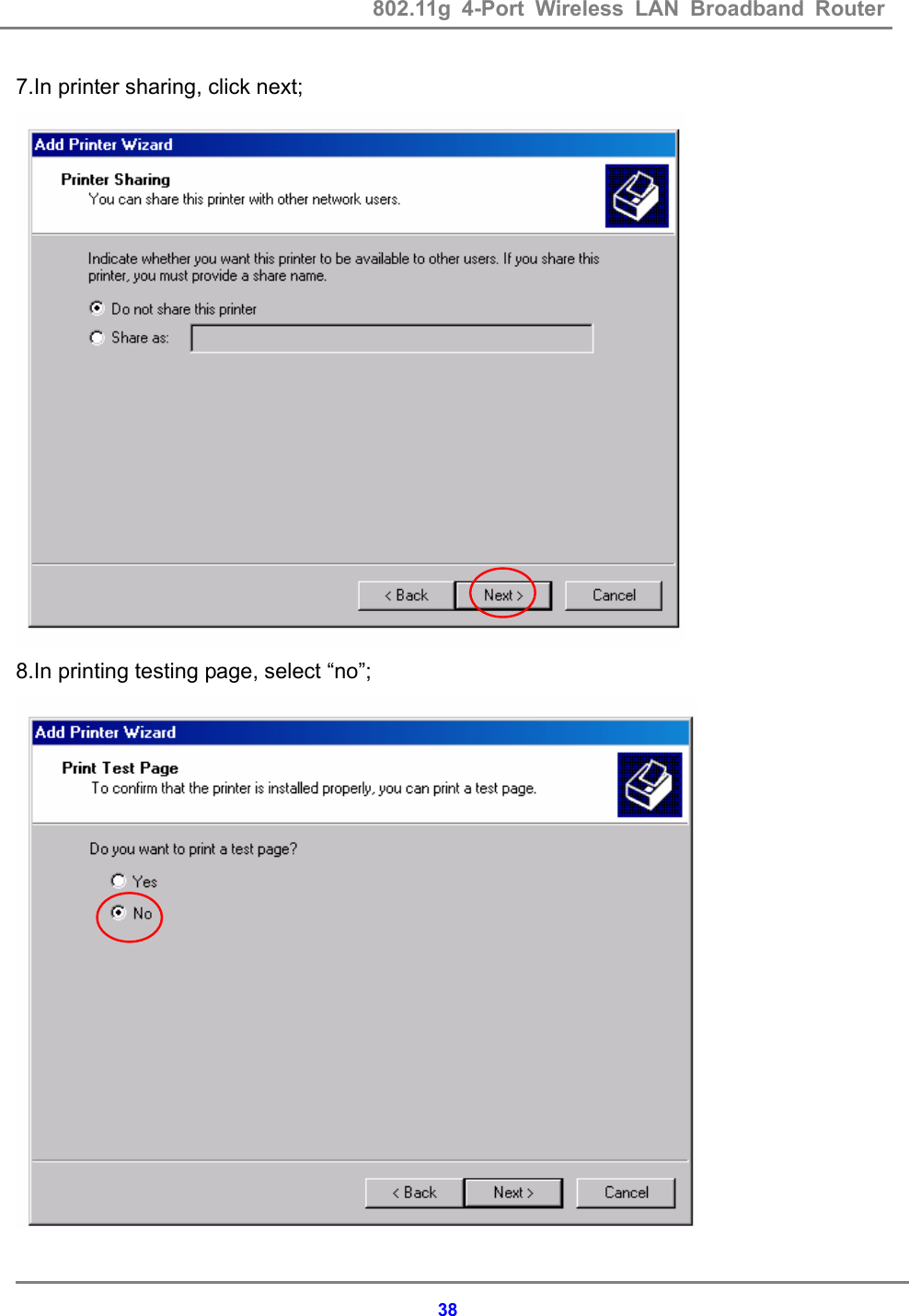
802.11g 4-Port Wireless LAN Broadband Router    387.In printer sharing, click next;  8.In printing testing page, select “no”;
802.11g 4-Port Wireless LAN Broadband Router    399.Done;
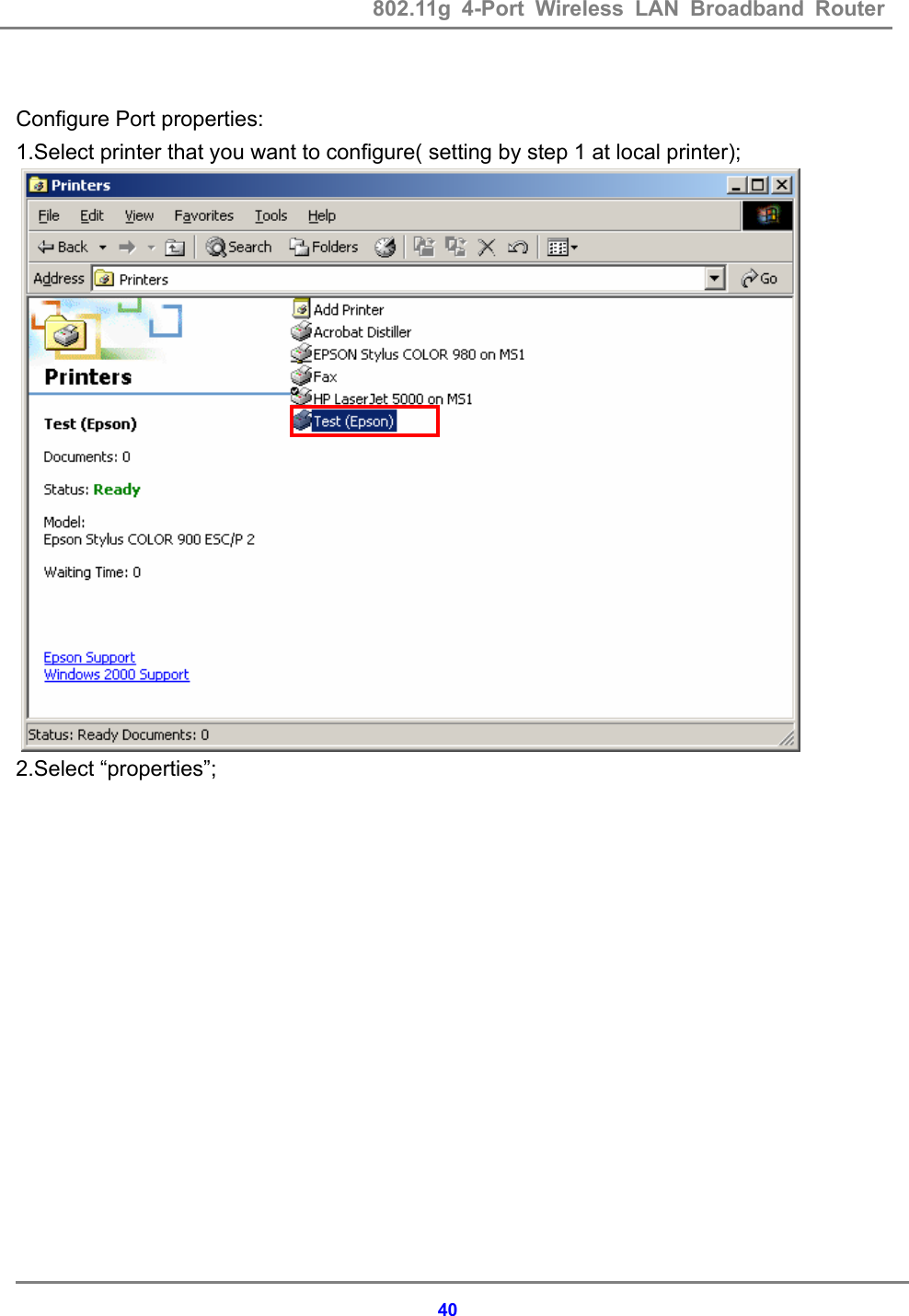
802.11g 4-Port Wireless LAN Broadband Router    40 Configure Port properties: 1.Select printer that you want to configure( setting by step 1 at local printer);  2.Select “properties”;
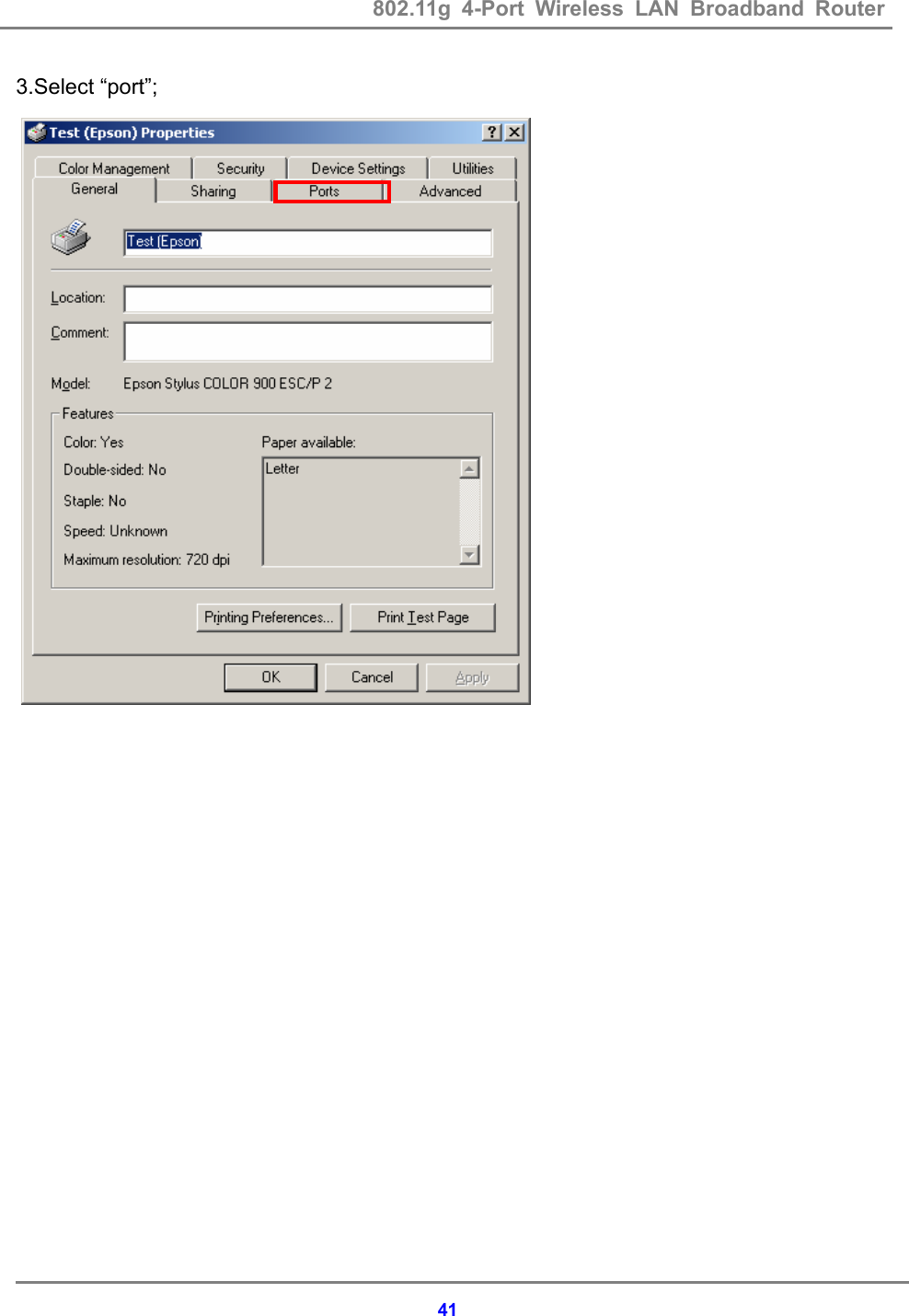
802.11g 4-Port Wireless LAN Broadband Router    413.Select “port”;
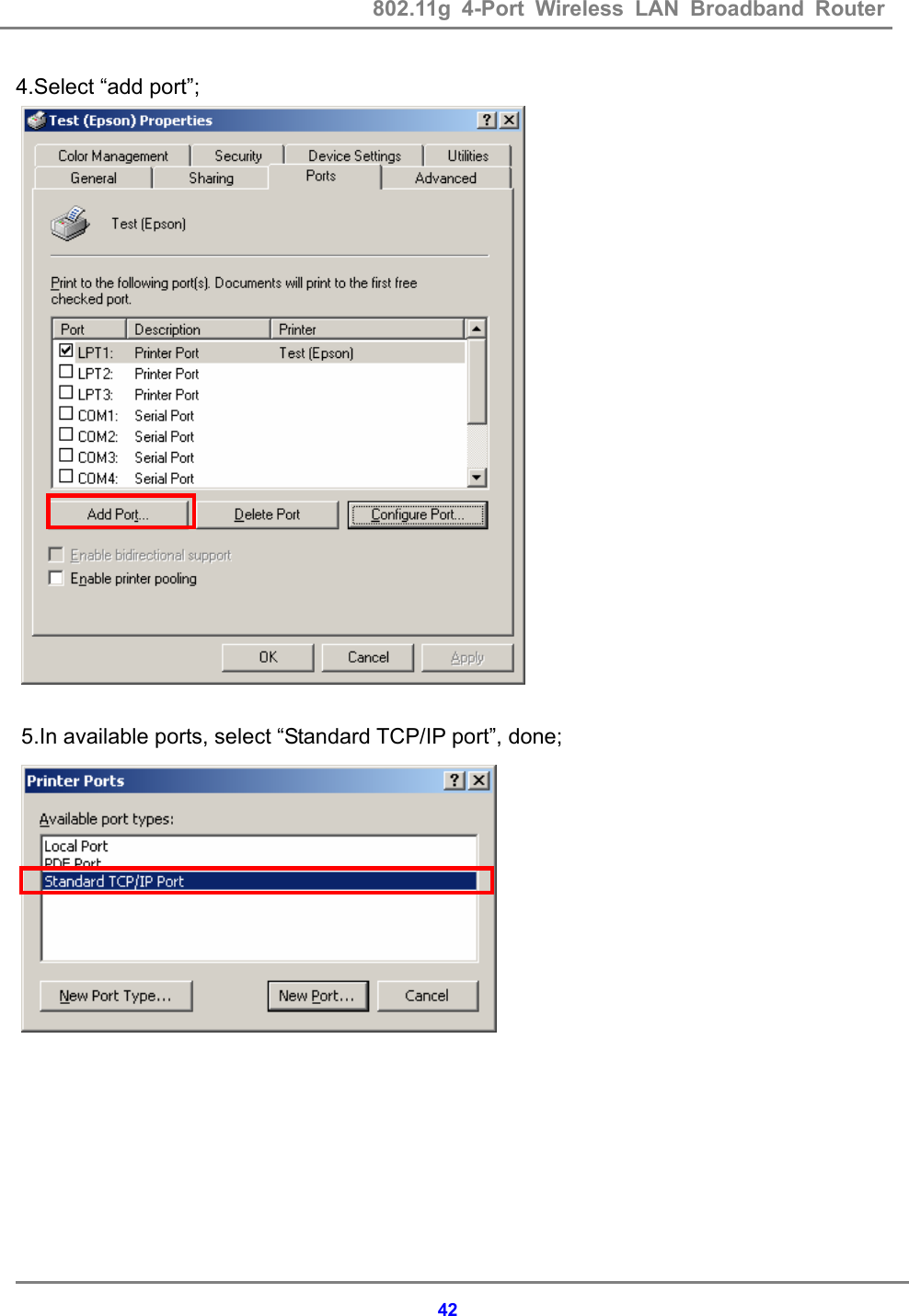
802.11g 4-Port Wireless LAN Broadband Router    424.Select “add port”;   5.In available ports, select “Standard TCP/IP port”, done;
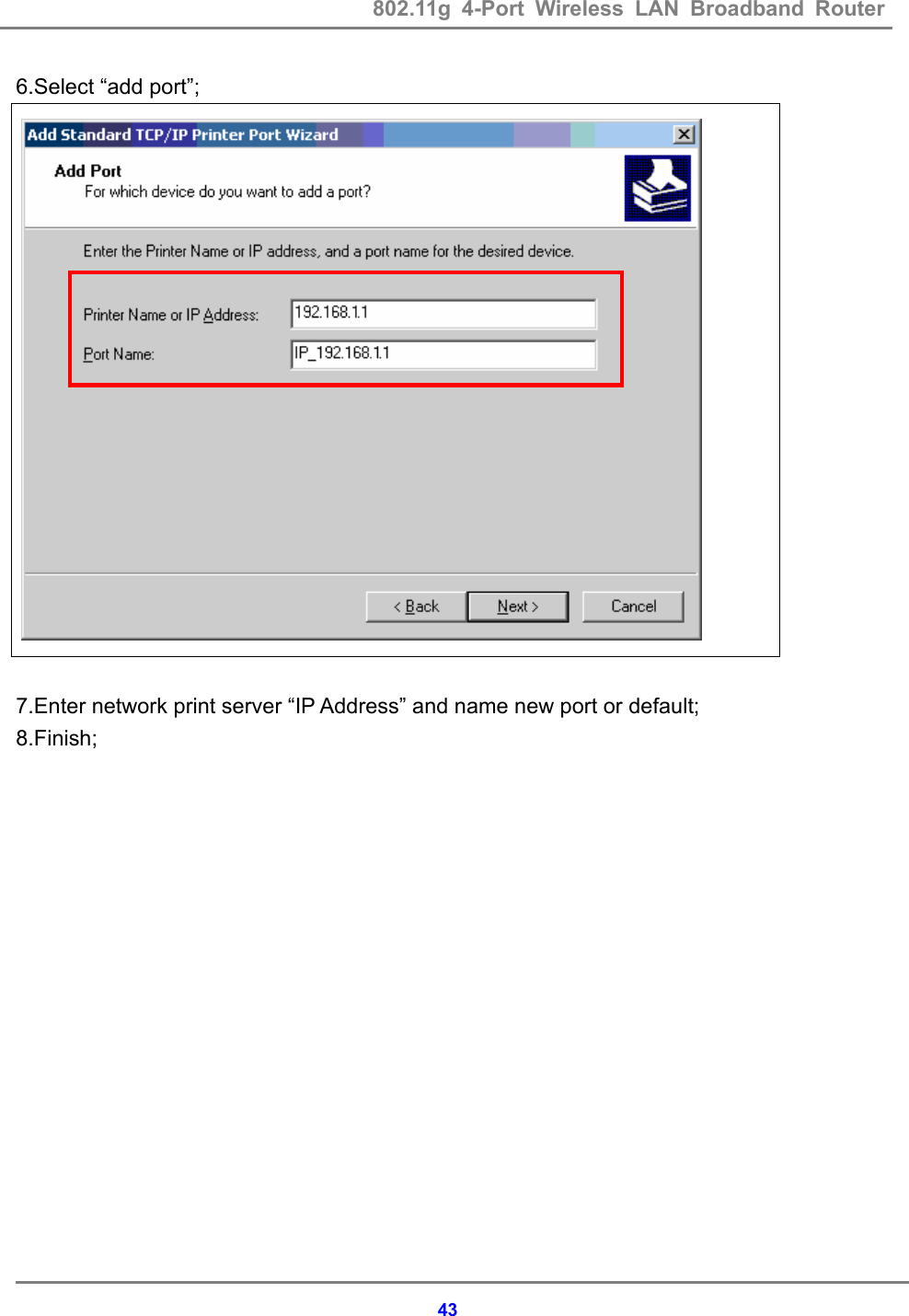
802.11g 4-Port Wireless LAN Broadband Router    436.Select “add port”;   7.Enter network print server “IP Address” and name new port or default; 8.Finish;
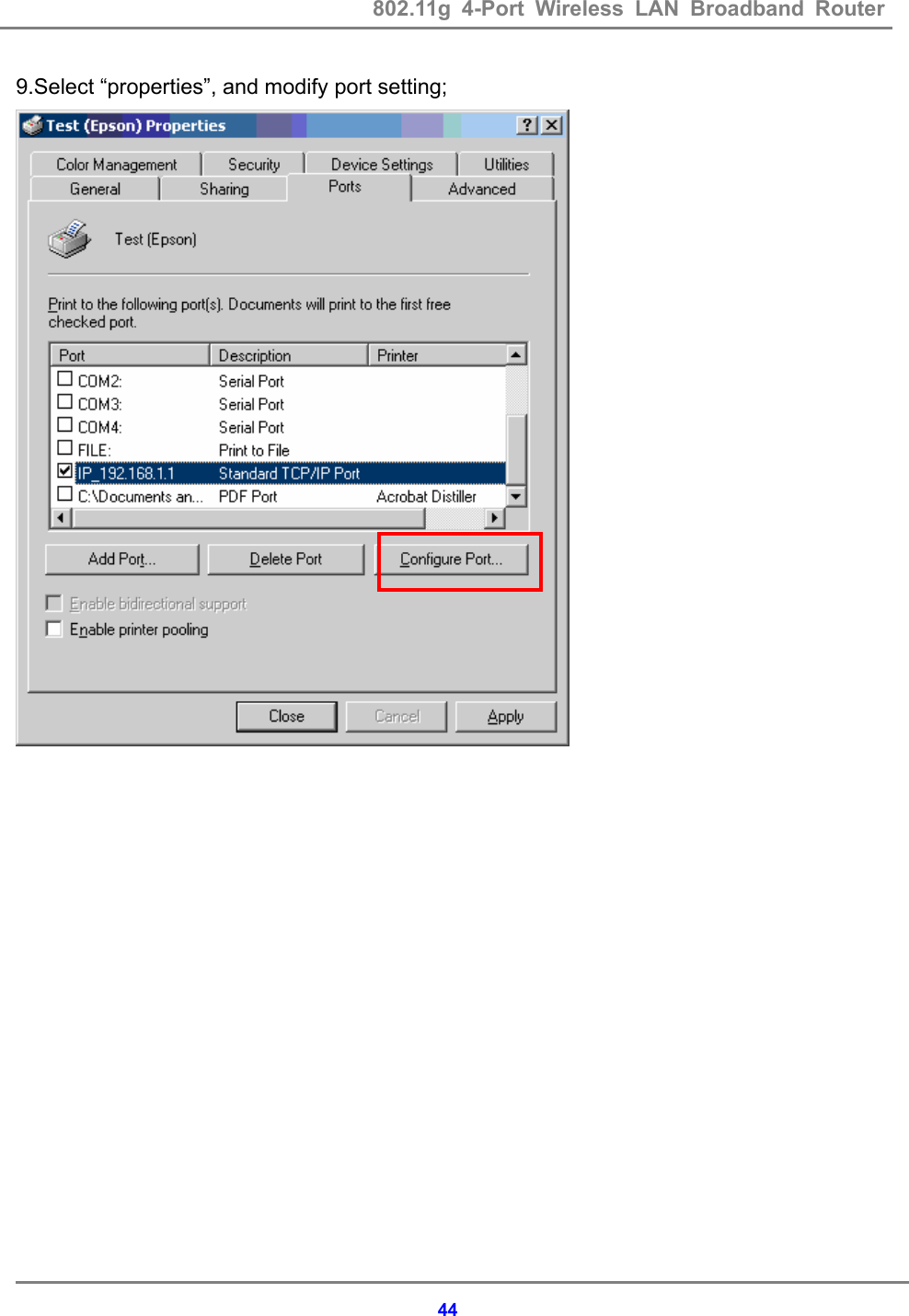
802.11g 4-Port Wireless LAN Broadband Router    449.Select “properties”, and modify port setting;
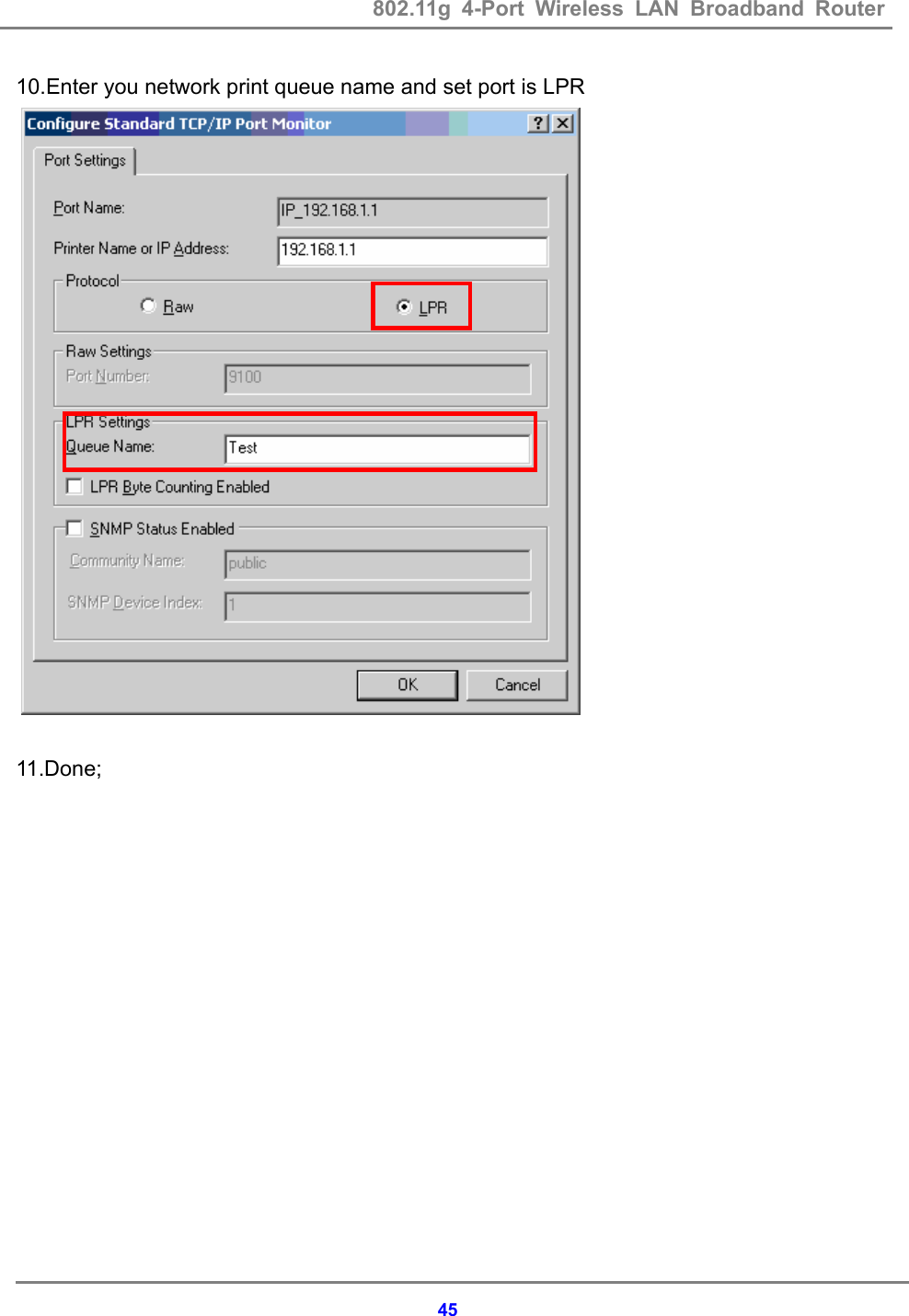
802.11g 4-Port Wireless LAN Broadband Router    4510.Enter you network print queue name and set port is LPR   11.Done;
802.11g 4-Port Wireless LAN Broadband Router    46 3.2.9.1.3 LPD Server setup   Use Web Page setting LPD server; 1.Enable the Print server 2.Enter the Device Name The setting of Device Name must be the same as the Queue Name in host; e.g, Test, here 3.Finish.  Monitor queue list:  2. Support printer list: ESPON Stylus C41, HP Deskjet 3820, Canon S520, Epson stylus photo 830, Epson stylus Color 860
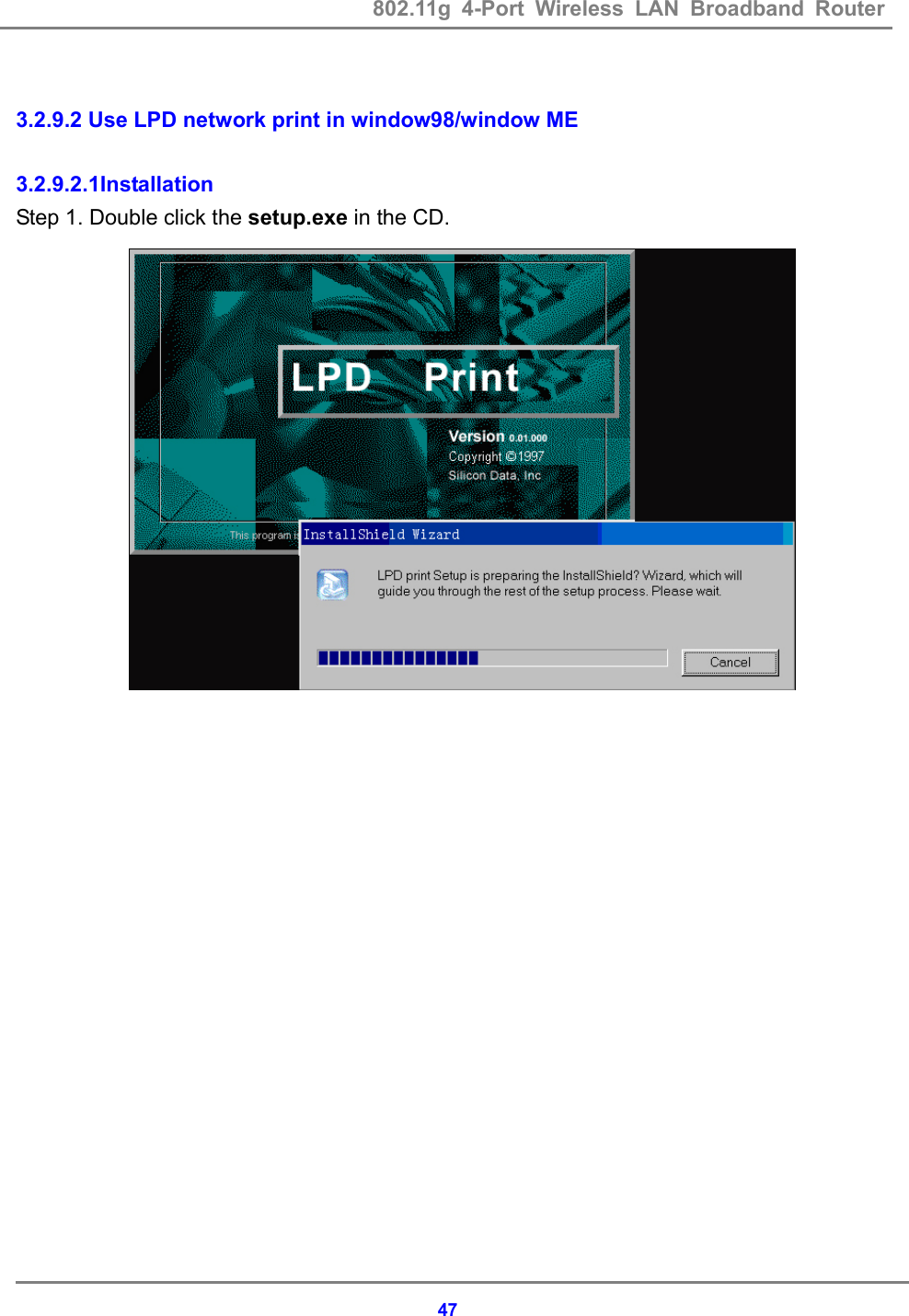
802.11g 4-Port Wireless LAN Broadband Router    47 3.2.9.2 Use LPD network print in window98/window ME  3.2.9.2.1Installation Step 1. Double click the setup.exe in the CD.
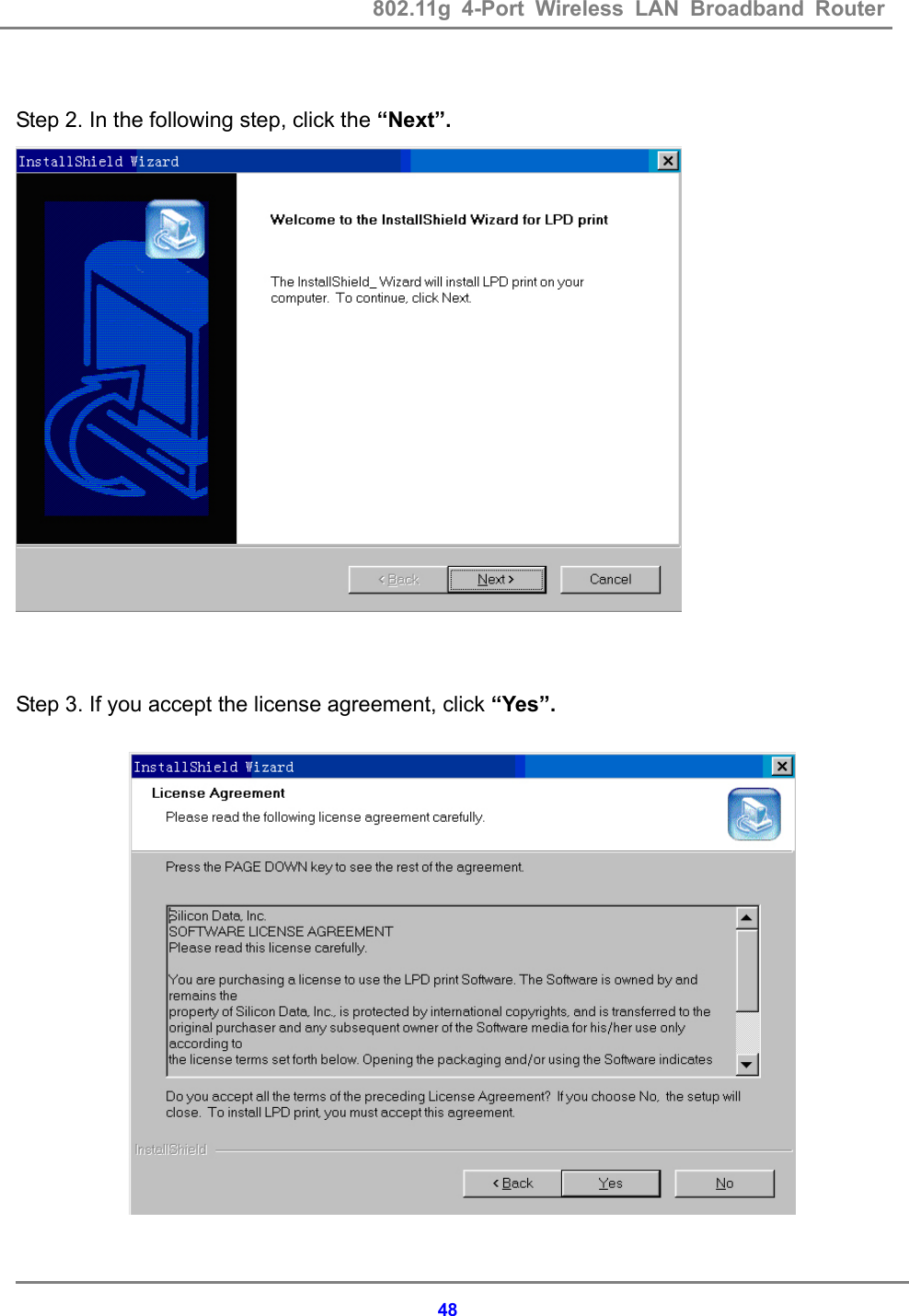
802.11g 4-Port Wireless LAN Broadband Router    48 Step 2. In the following step, click the “Next”.    Step 3. If you accept the license agreement, click “Yes”.
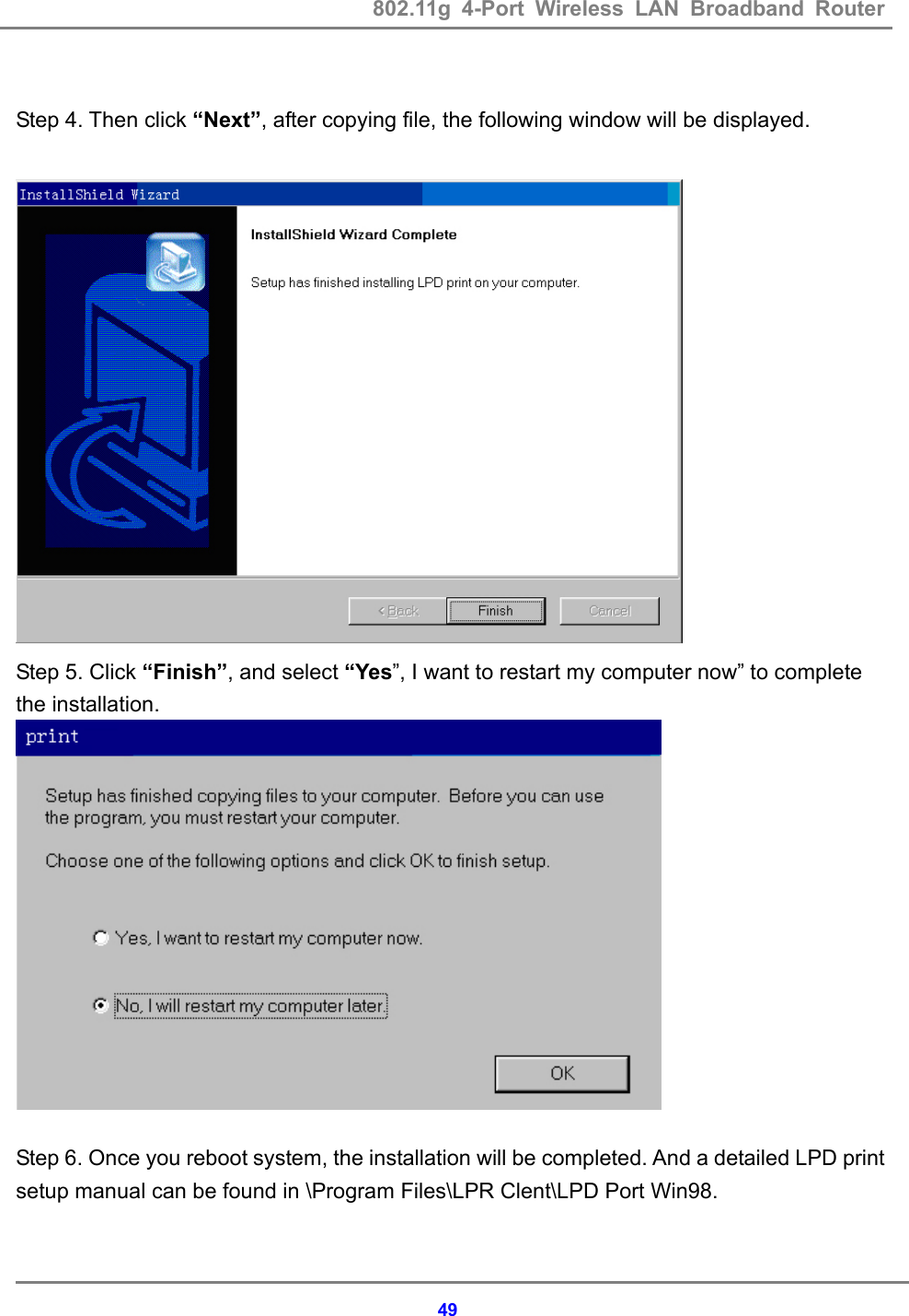
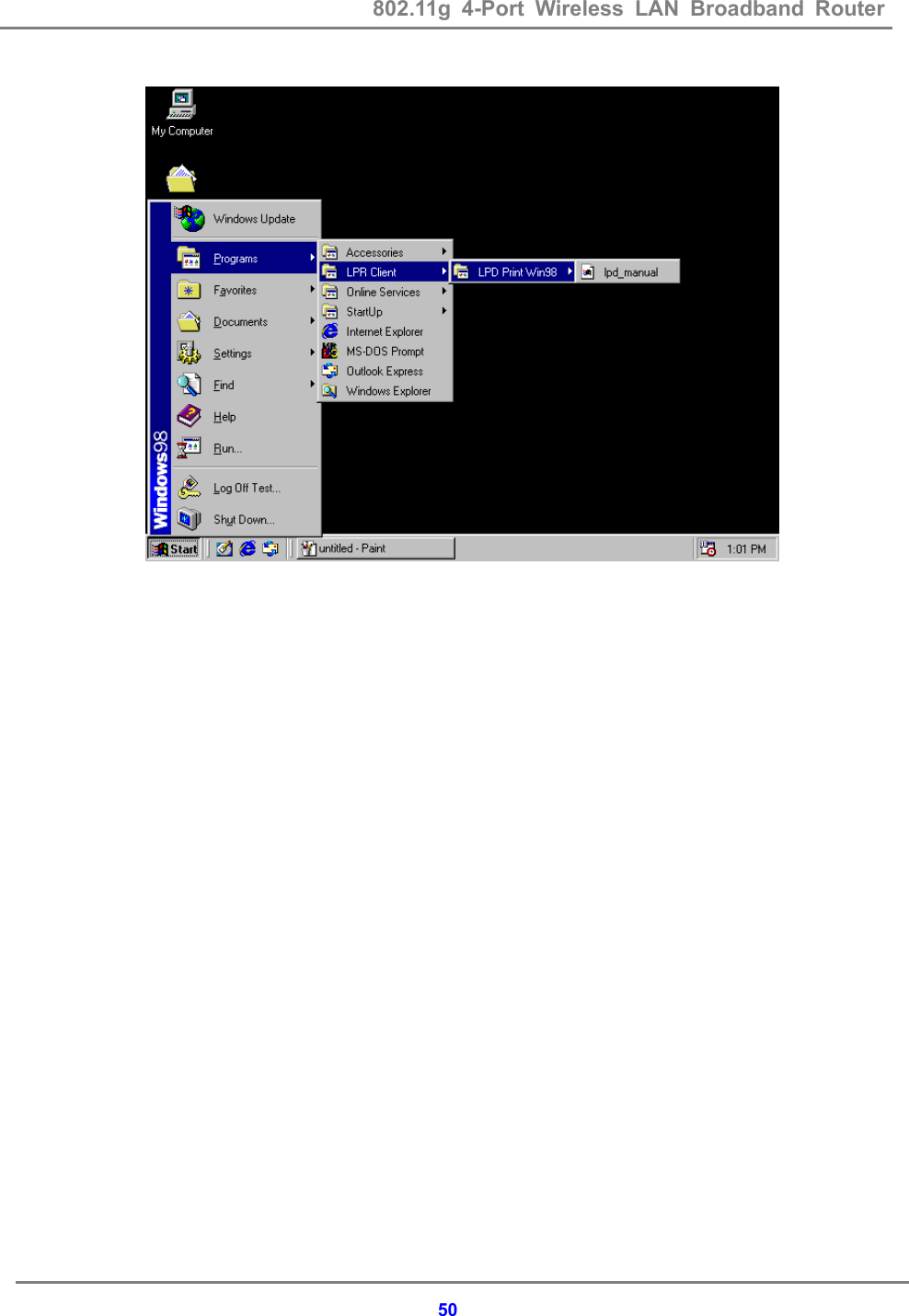
802.11g 4-Port Wireless LAN Broadband Router    49 Step 4. Then click “Next”, after copying file, the following window will be displayed.   Step 5. Click “Finish”, and select “Yes”, I want to restart my computer now” to complete the installation.   Step 6. Once you reboot system, the installation will be completed. And a detailed LPD print setup manual can be found in \Program Files\LPR Clent\LPD Port Win98.
802.11g 4-Port Wireless LAN Broadband Router    50
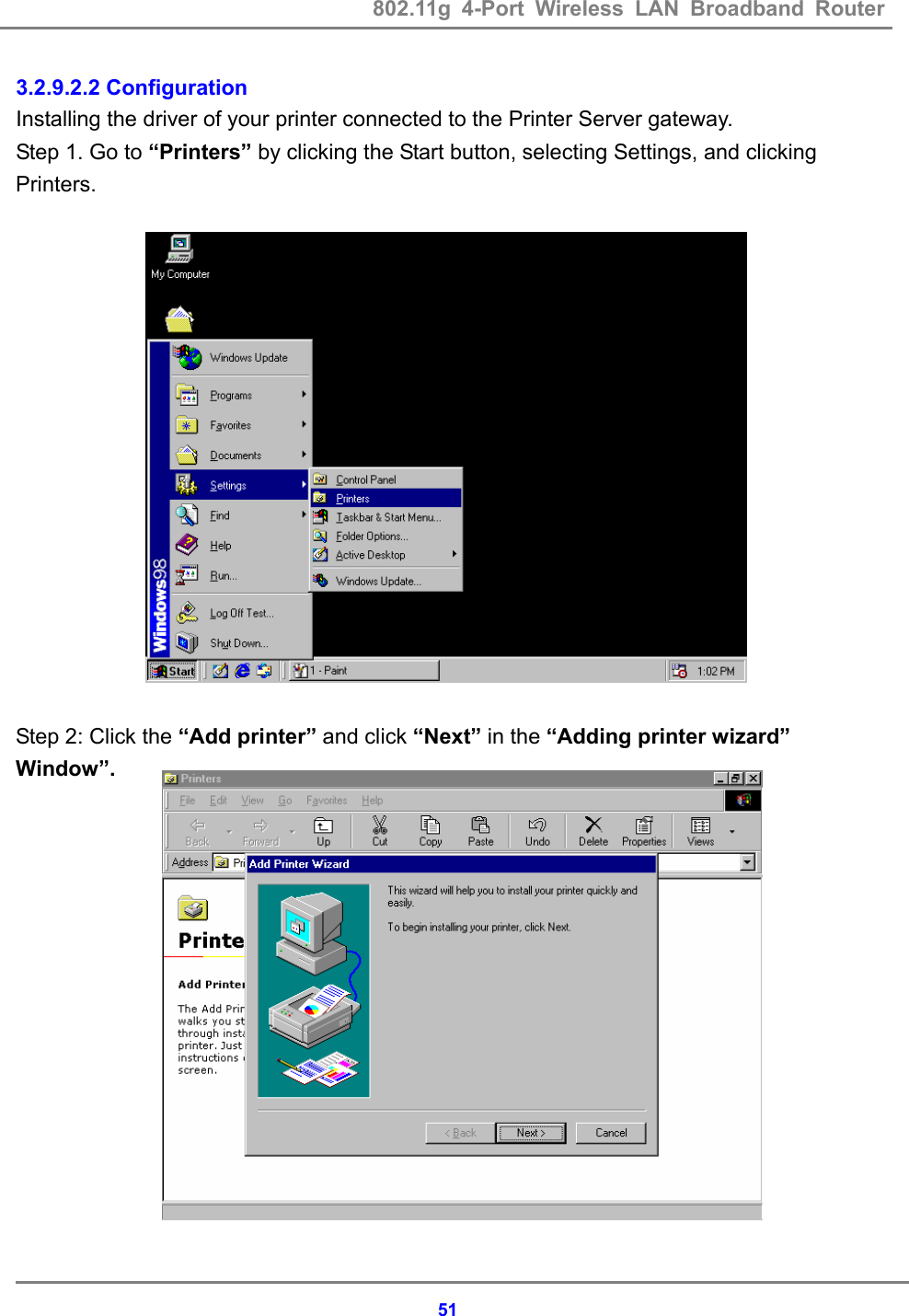
802.11g 4-Port Wireless LAN Broadband Router    513.2.9.2.2 Configuration Installing the driver of your printer connected to the Printer Server gateway. Step 1. Go to “Printers” by clicking the Start button, selecting Settings, and clicking Printers.                 Step 2: Click the “Add printer” and click “Next” in the “Adding printer wizard” Window”.
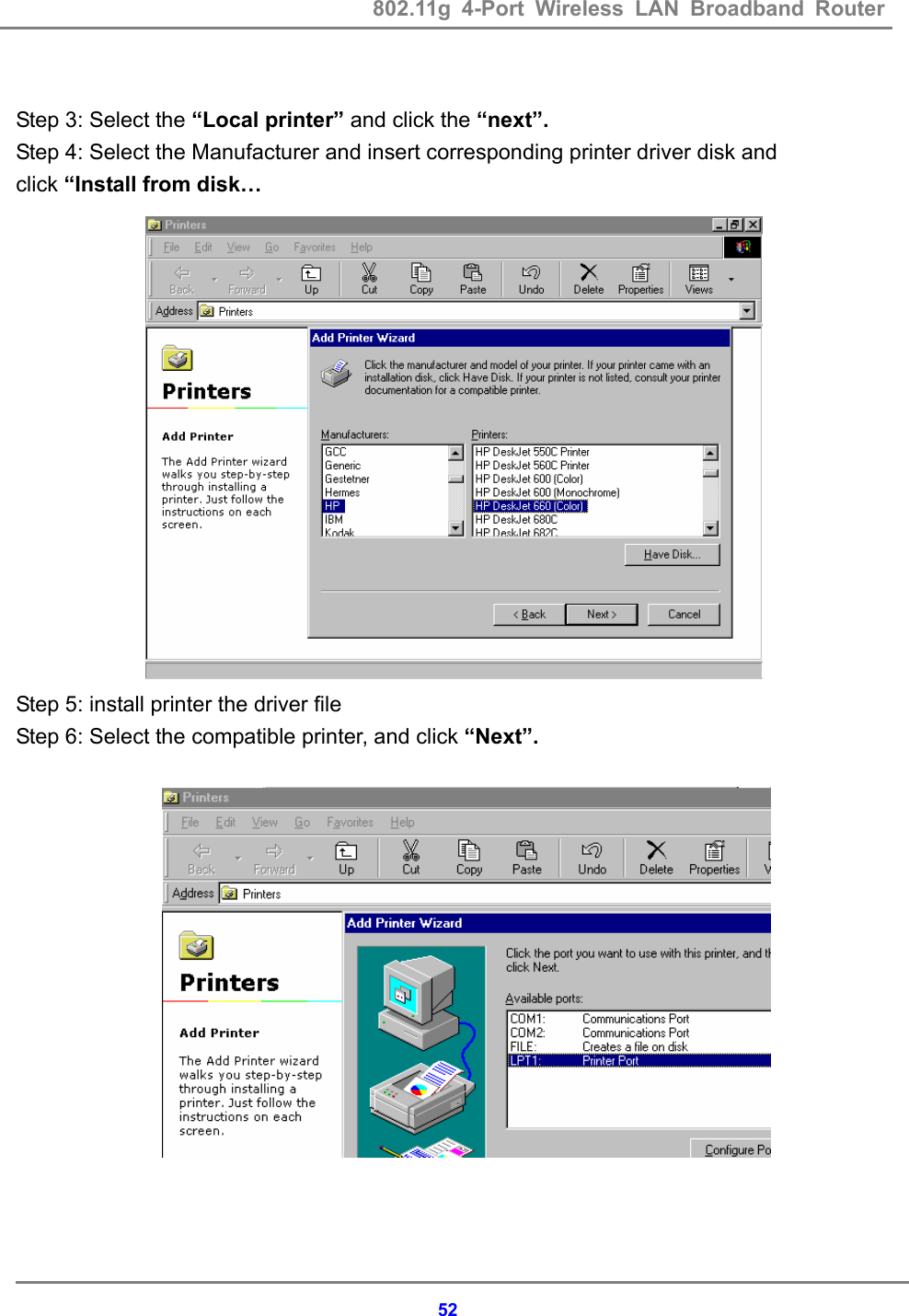
802.11g 4-Port Wireless LAN Broadband Router    52 Step 3: Select the “Local printer” and click the “next”. Step 4: Select the Manufacturer and insert corresponding printer driver disk and   click “Install from disk…                Step 5: install printer the driver file   Step 6: Select the compatible printer, and click “Next”.
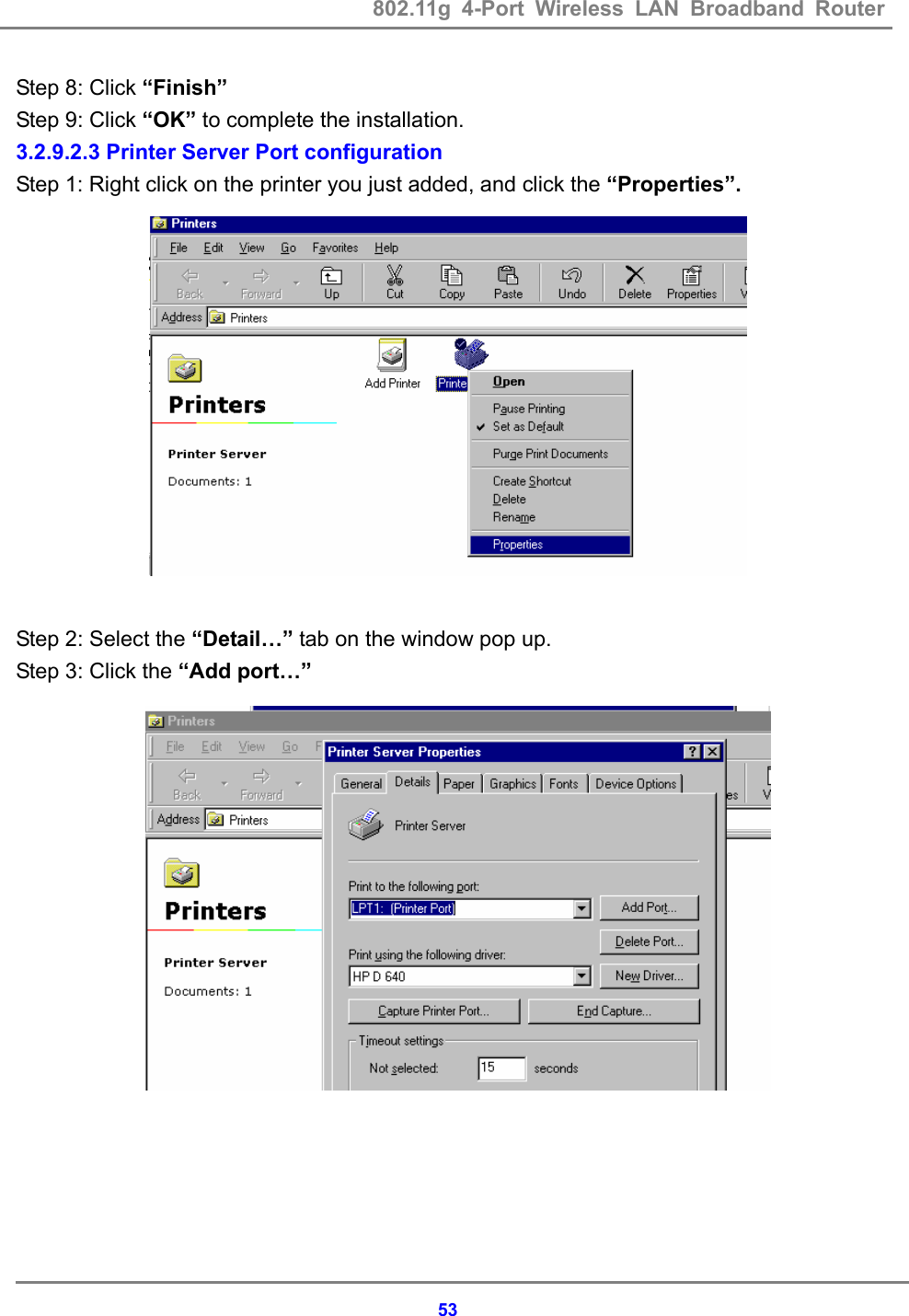
802.11g 4-Port Wireless LAN Broadband Router    53Step 8: Click “Finish” Step 9: Click “OK” to complete the installation. 3.2.9.2.3 Printer Server Port configuration Step 1: Right click on the printer you just added, and click the “Properties”.              Step 2: Select the “Detail…” tab on the window pop up. Step 3: Click the “Add port…”
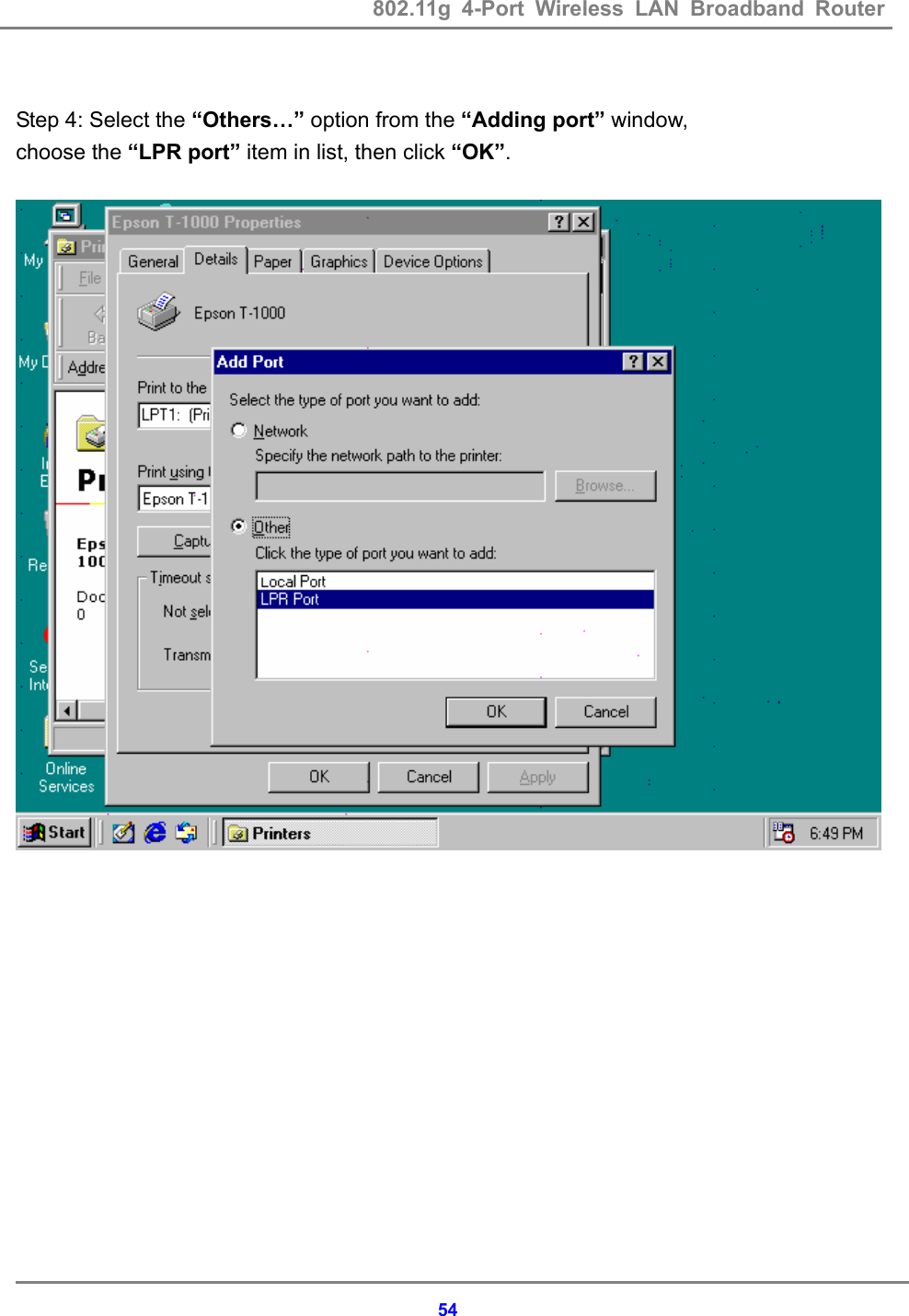
802.11g 4-Port Wireless LAN Broadband Router    54 Step 4: Select the “Others…” option from the “Adding port” window,  choose the “LPR port” item in list, then click “OK”.
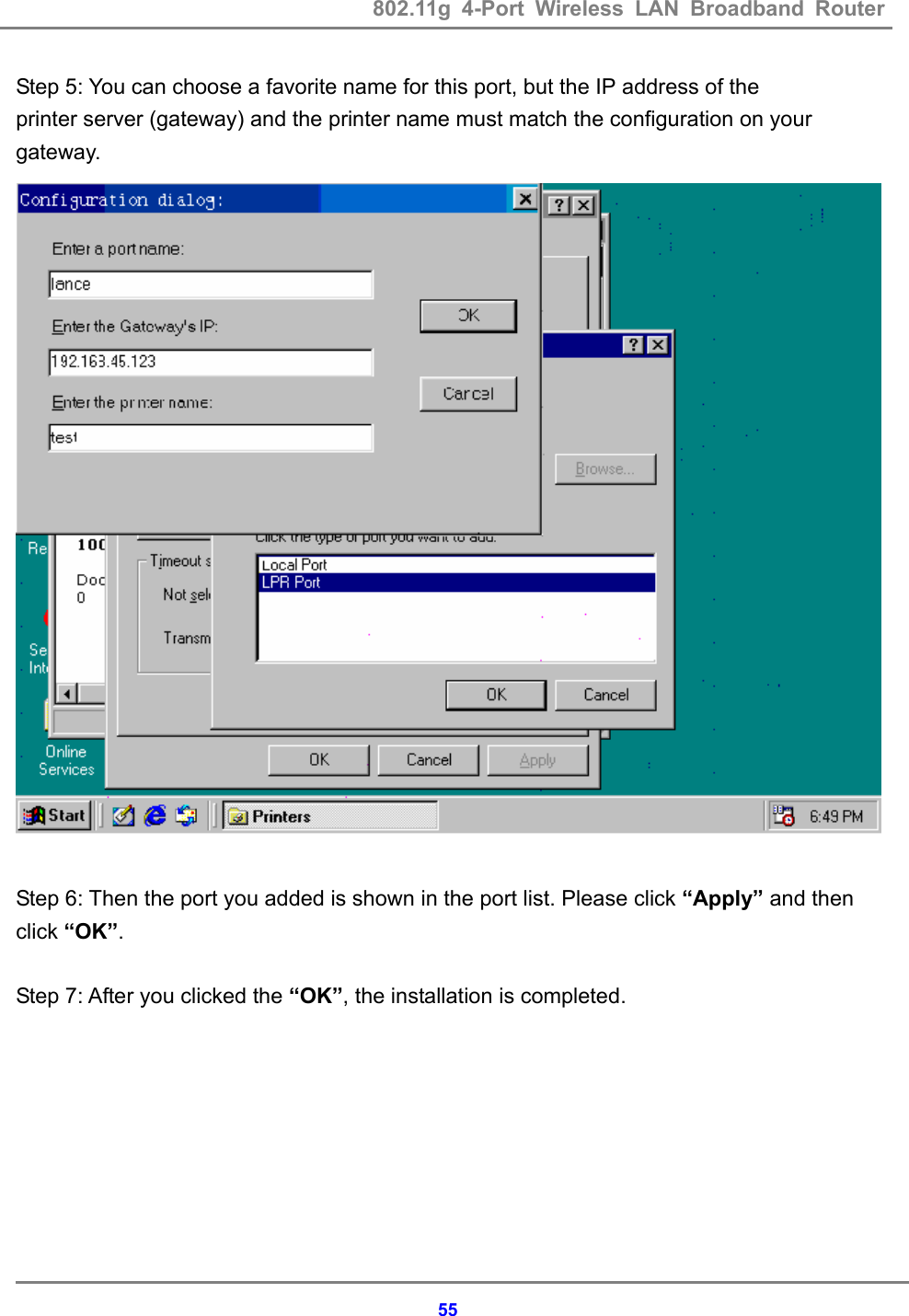
802.11g 4-Port Wireless LAN Broadband Router    55Step 5: You can choose a favorite name for this port, but the IP address of the   printer server (gateway) and the printer name must match the configuration on your gateway.   Step 6: Then the port you added is shown in the port list. Please click “Apply” and then click “OK”.  Step 7: After you clicked the “OK”, the installation is completed.
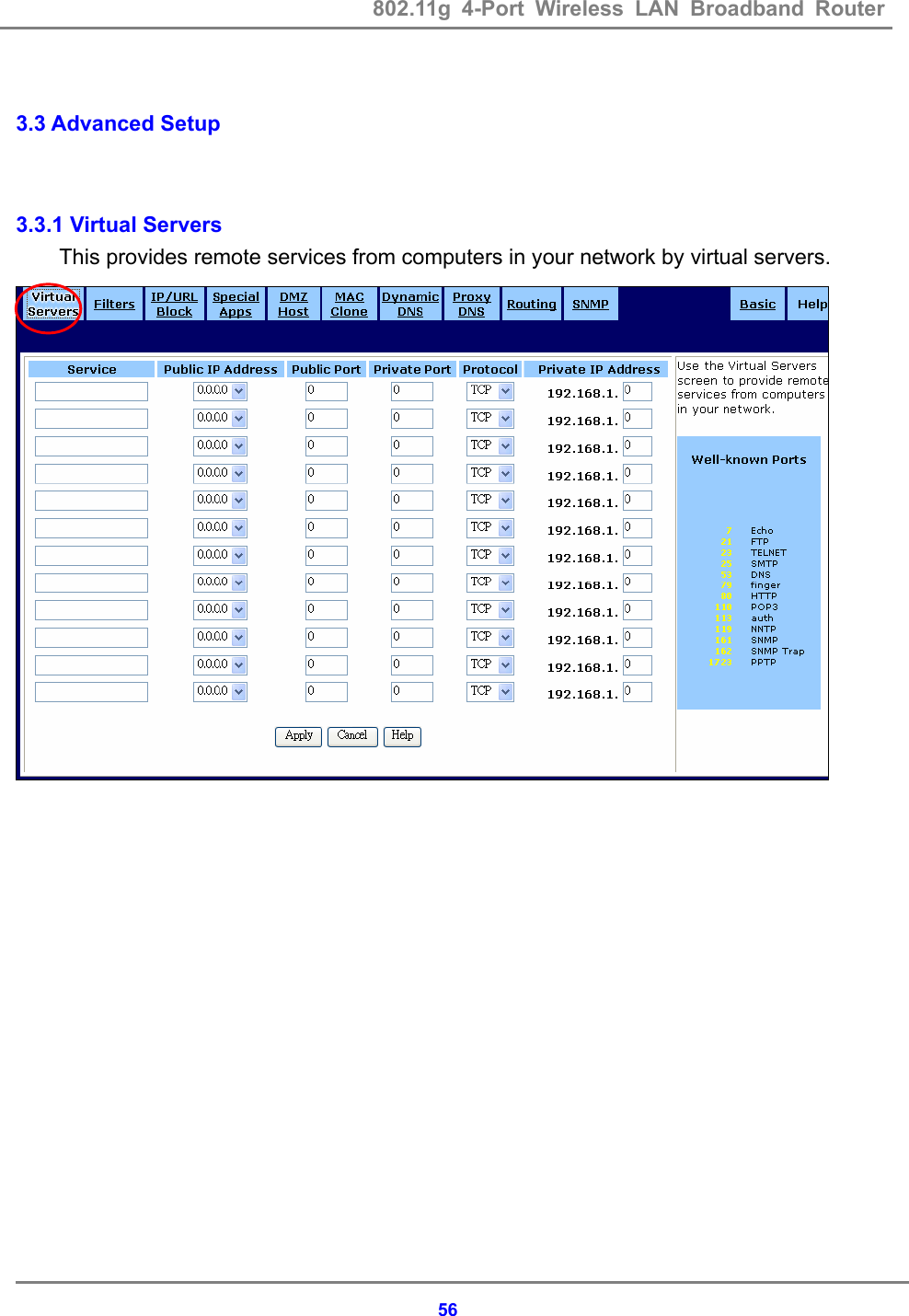
802.11g 4-Port Wireless LAN Broadband Router    56 3.3 Advanced Setup   3.3.1 Virtual Servers This provides remote services from computers in your network by virtual servers.
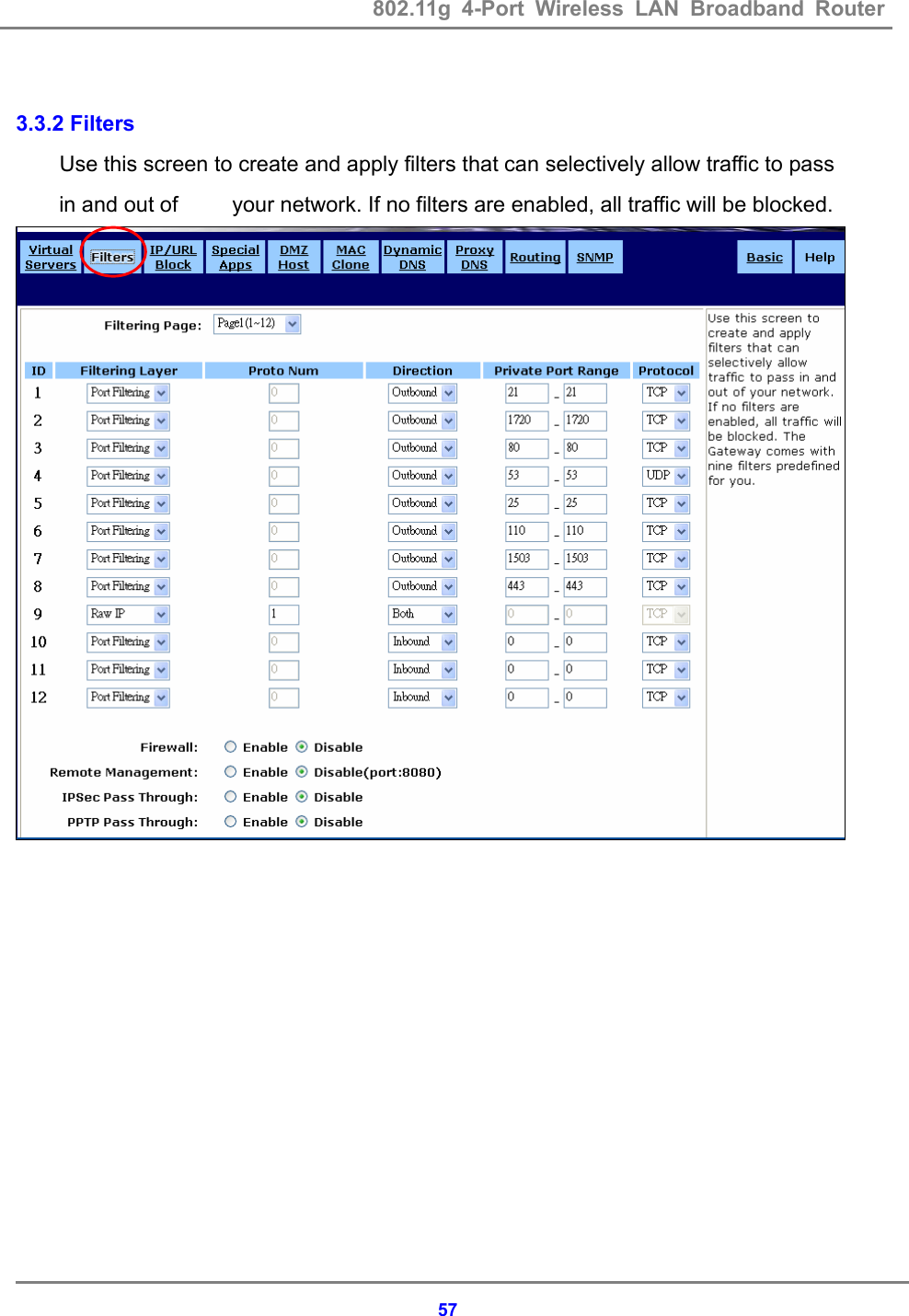
802.11g 4-Port Wireless LAN Broadband Router    57 3.3.2 Filters Use this screen to create and apply filters that can selectively allow traffic to pass   in and out of    your network. If no filters are enabled, all traffic will be blocked.
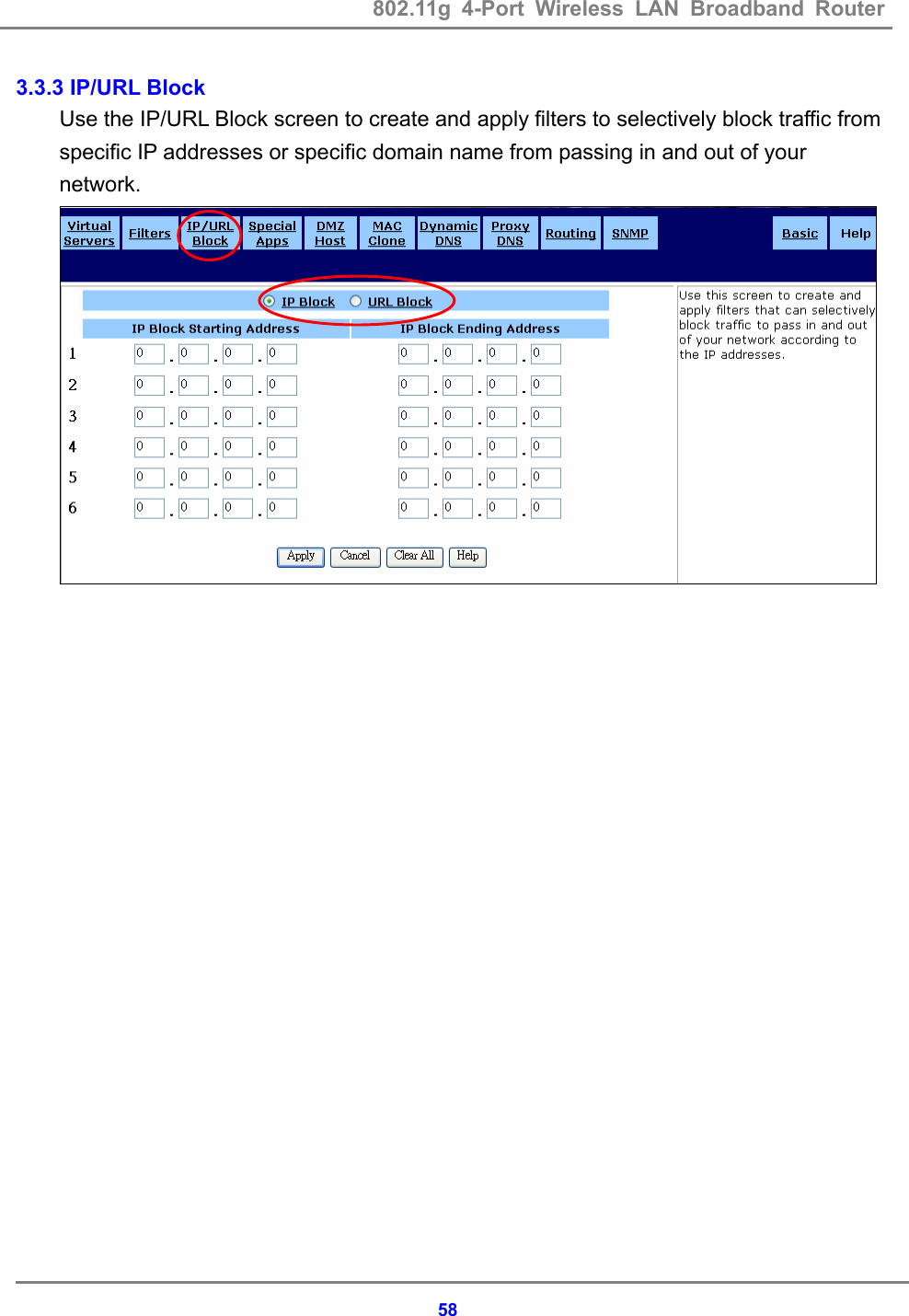
802.11g 4-Port Wireless LAN Broadband Router    583.3.3 IP/URL Block Use the IP/URL Block screen to create and apply filters to selectively block traffic from specific IP addresses or specific domain name from passing in and out of your network.
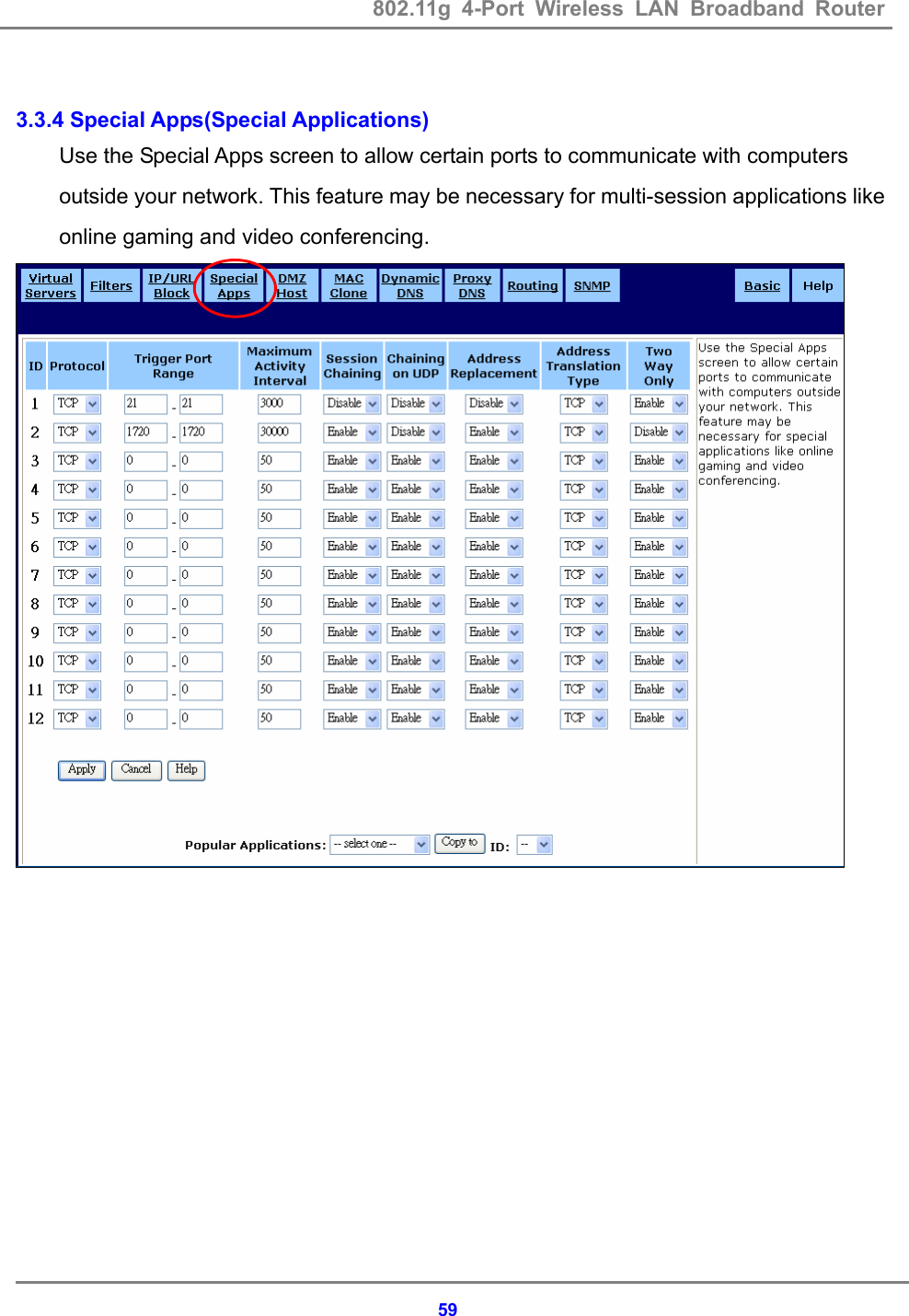
802.11g 4-Port Wireless LAN Broadband Router    59 3.3.4 Special Apps(Special Applications) Use the Special Apps screen to allow certain ports to communicate with computers outside your network. This feature may be necessary for multi-session applications like online gaming and video conferencing.
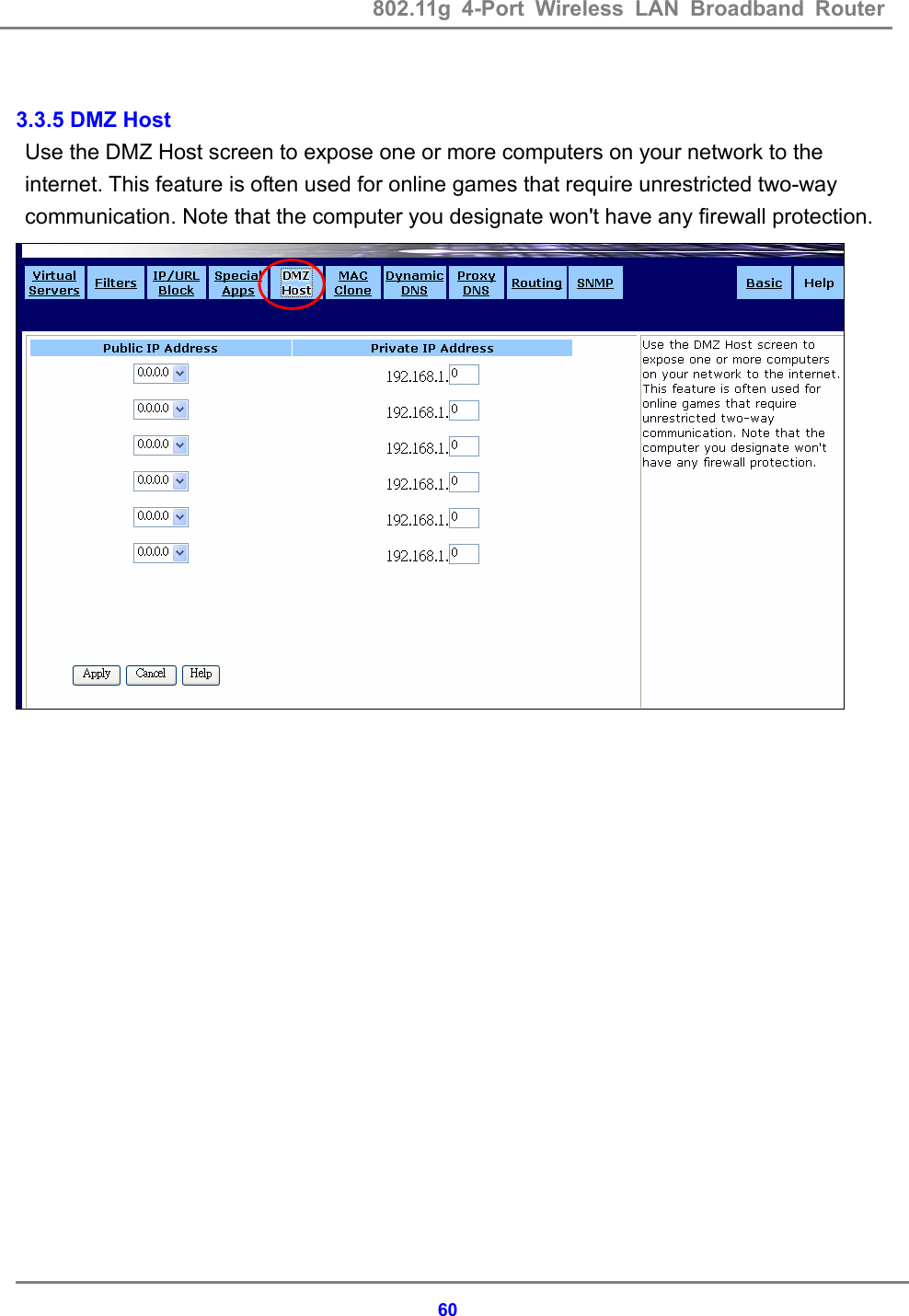
802.11g 4-Port Wireless LAN Broadband Router    60 3.3.5 DMZ Host Use the DMZ Host screen to expose one or more computers on your network to the internet. This feature is often used for online games that require unrestricted two-way communication. Note that the computer you designate won't have any firewall protection.
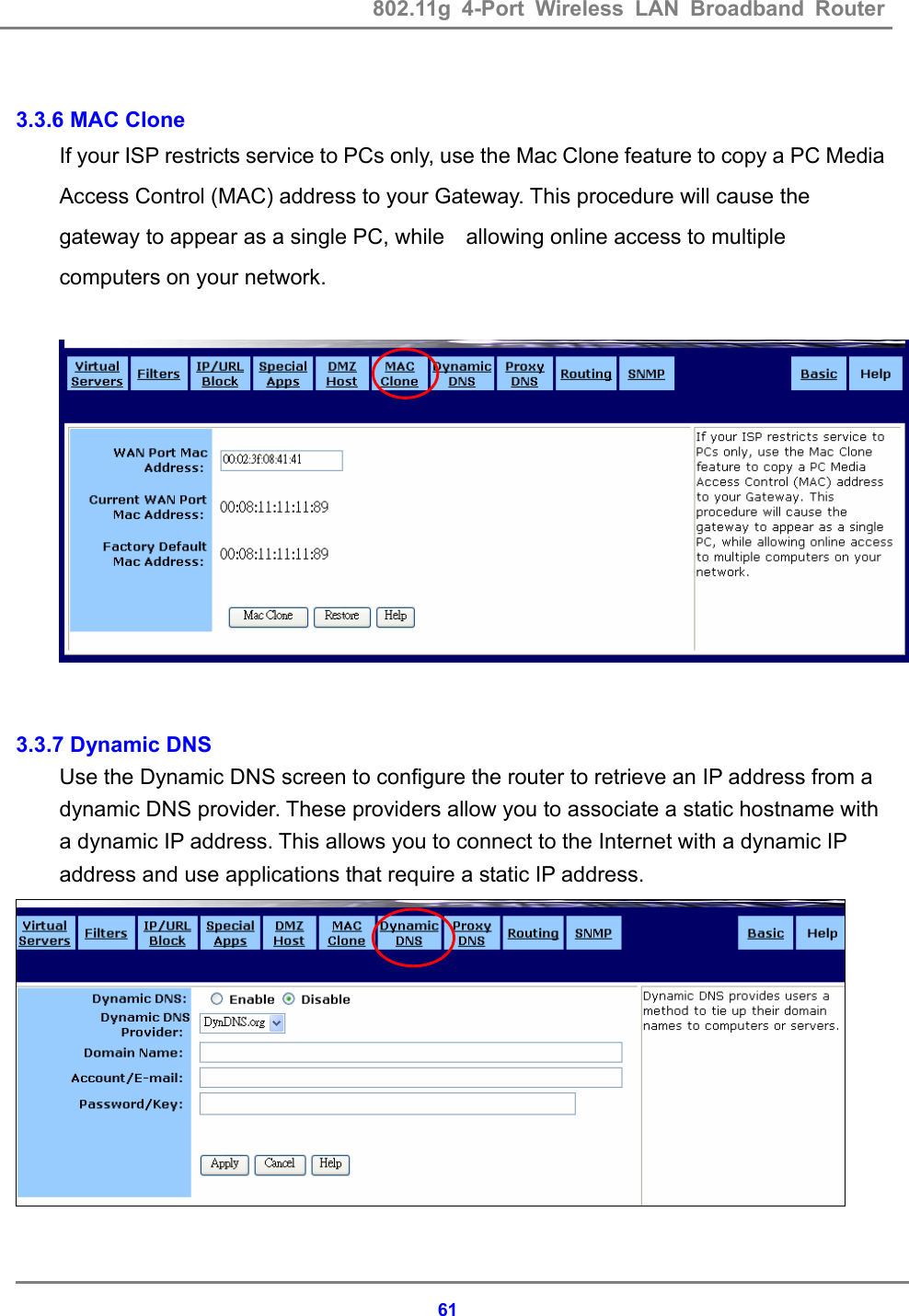
802.11g 4-Port Wireless LAN Broadband Router    61 3.3.6 MAC Clone If your ISP restricts service to PCs only, use the Mac Clone feature to copy a PC Media Access Control (MAC) address to your Gateway. This procedure will cause the gateway to appear as a single PC, while    allowing online access to multiple computers on your network.     3.3.7 Dynamic DNS   Use the Dynamic DNS screen to configure the router to retrieve an IP address from a dynamic DNS provider. These providers allow you to associate a static hostname with a dynamic IP address. This allows you to connect to the Internet with a dynamic IP address and use applications that require a static IP address.
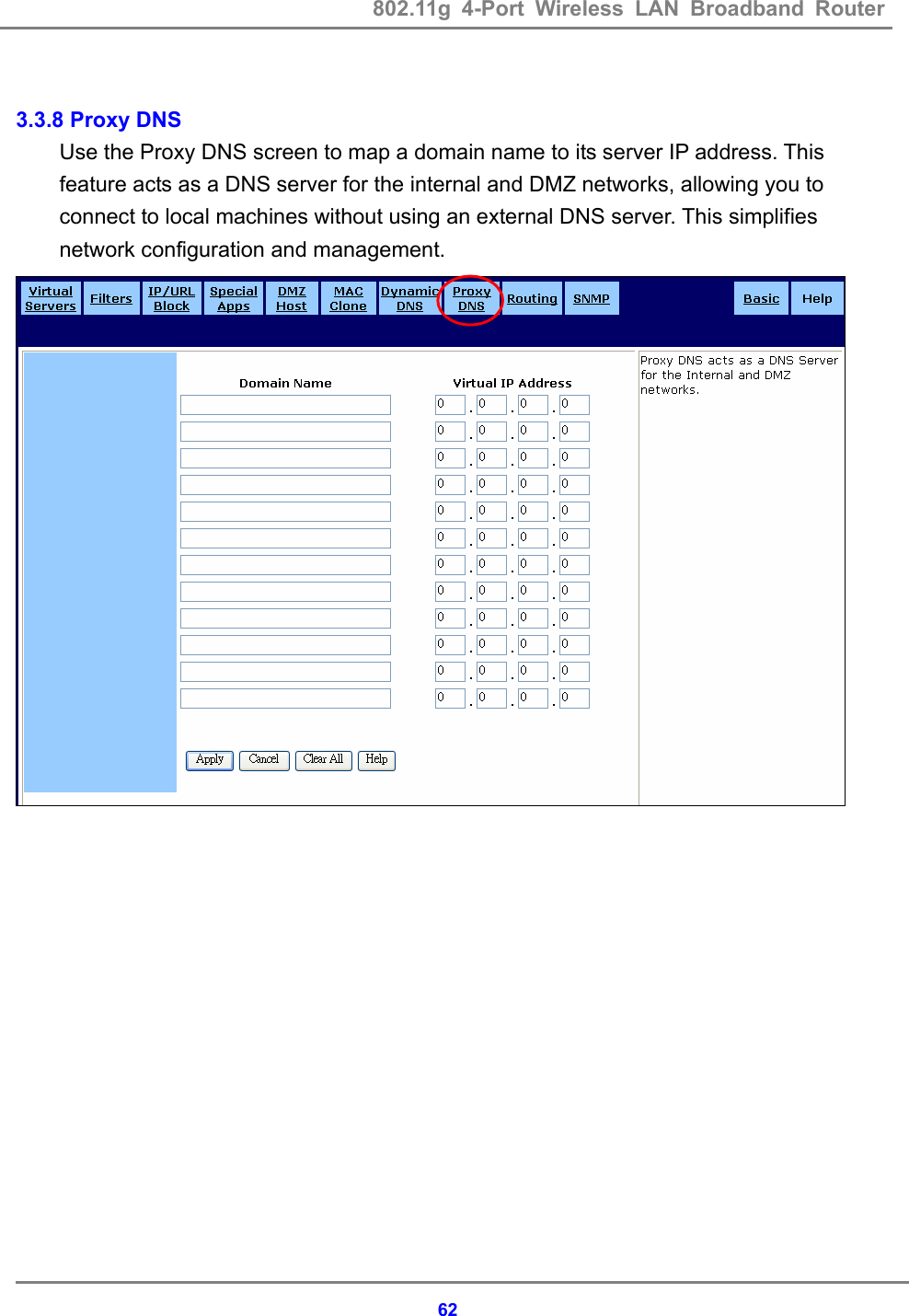
802.11g 4-Port Wireless LAN Broadband Router    62 3.3.8 Proxy DNS Use the Proxy DNS screen to map a domain name to its server IP address. This feature acts as a DNS server for the internal and DMZ networks, allowing you to connect to local machines without using an external DNS server. This simplifies network configuration and management.
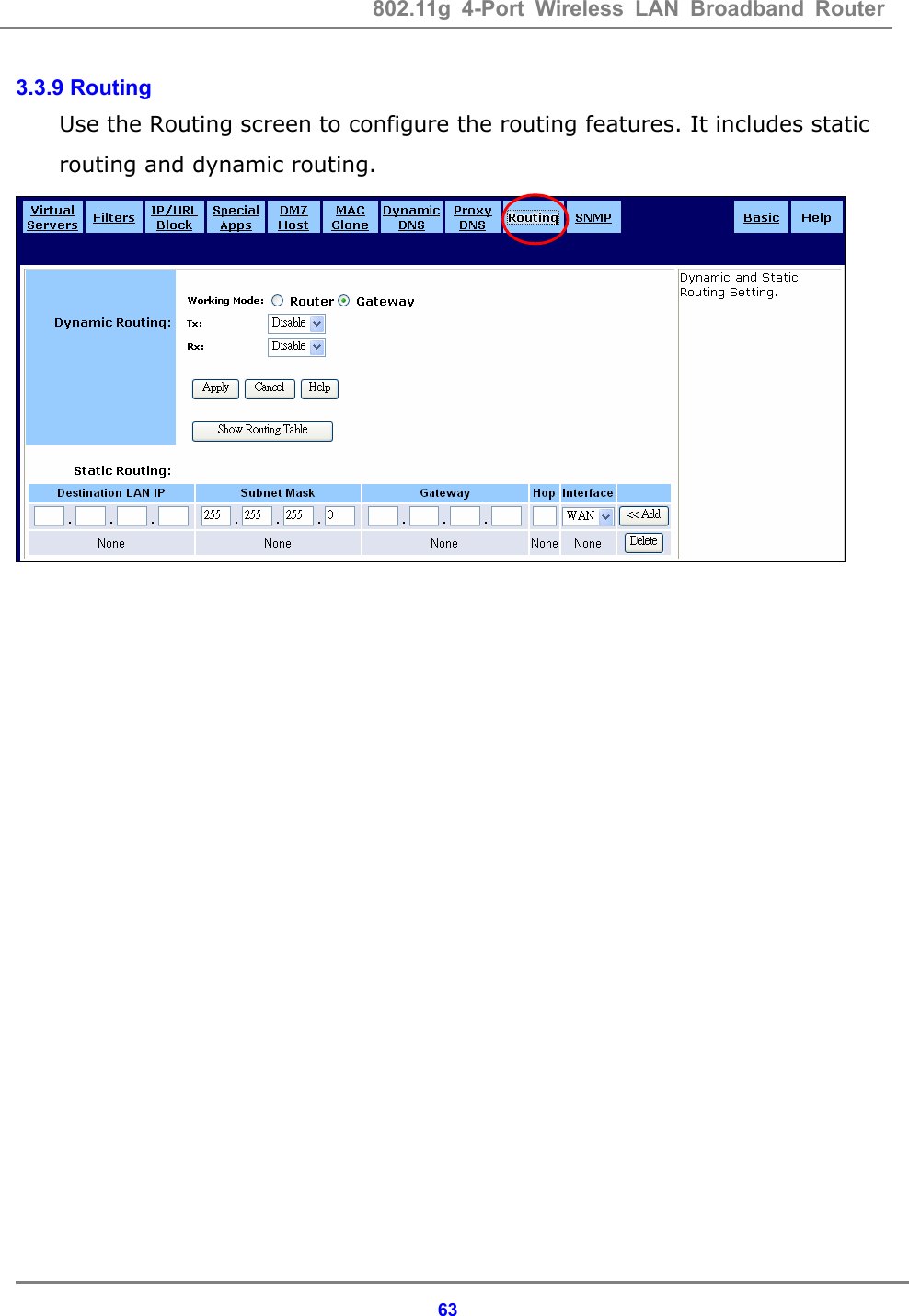
802.11g 4-Port Wireless LAN Broadband Router    633.3.9 Routing Use the Routing screen to configure the routing features. It includes static routing and dynamic routing.
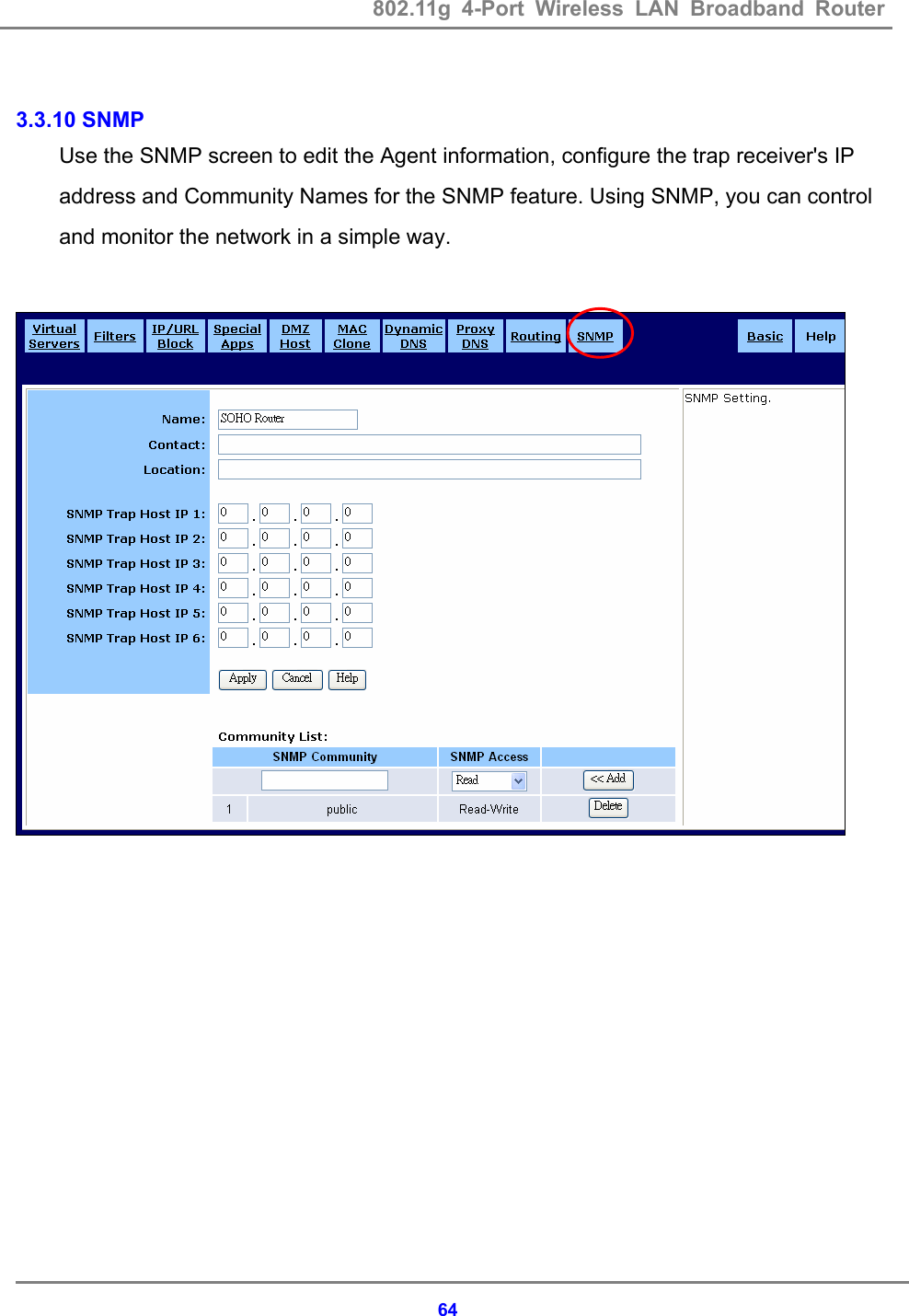
802.11g 4-Port Wireless LAN Broadband Router    64 3.3.10 SNMP Use the SNMP screen to edit the Agent information, configure the trap receiver's IP address and Community Names for the SNMP feature. Using SNMP, you can control and monitor the network in a simple way.
802.11g 4-Port Wireless LAN Broadband Router    65 4. Glossary   Ad-Hoc Mode   An Ad-hoc integrated wireless LAN is a group of computers, each has a Wireless LAN adapter, Connected as an independent wireless LAN. Ad hoc wireless LAN is applicable at a departmental scale for a branch or SOHO operation.   BSS ID   A specific Ad hoc LAN is called a Basic Service Set (BSS). Computers in a BSS must be configured with the same BSS ID. DHCP (Dynamic Host Configuration Protocol) DHCP is a protocol for dynamically assigning IP addresses to networked computers. With DHCP, a computer can automatically be given a unique IP address each time it connects to a network—making IP address management an easier task for network administrators. When a computer logs on to the network, the DHCP server selects an IP address from a master list and assigns it to the system. DMZ Host (De-Militarized Zone Host) DMZ is the portion of a private network that is visible through the network’s firewalls. DMZ Host allows a local computer exposed to the Internet. Therefore, an incoming packet will be checked by Firewall and NAT algorithms in the router then pass to the DMZ host when packet is not sent by hacker and is not limited by Virtual Server list. Besides, there are some IP protocols that do not have port number information. There is no way to use Virtual Server setting to forward incoming packet. Thus, DMZ host is the way to forward such kind of packets. If you try to enable DMZ host and setup Virtual Server, the precedence is Virtual Server and then DMZ. For example, the incoming packet will be checked with Firewall rules, Virtual Server rules and   then DMZ host.   DSSS (Direct-Sequencing Spread-Spectrum)   DSSS operate over the radio airwaves in the unlicensed ISM band (industrial, scientific, medical). DSSS uses a radio transmitter to spread data packets over a fixed range of frequency band. Encryption  It’s a security method that applies a specific algorithm to data in order to alter the data appearance and prevent other devices from reading the information.   Firewall A firewall is a device that sits between your computer and the Internet that prevents unauthorized access to or from your network. A firewall can be a computer using firewall
802.11g 4-Port Wireless LAN Broadband Router    66software or a special piece of hardware built specifically to act as a firewall. In most circumstances, a firewall is used to prevent unauthorized Internet users from accessing private networks or corporate LAN’s and Intranets. A firewall watches all of the information moving to and from your network and analyzes each piece of data. Each piece of data is checked against a set of criteria that the administrator configures. If any data does not meet the criteria, that data is blocked and discarded. If the data meets the criteria, the data is passed through. This method is called packet filtering.  A firewall can also run specific security functions based on the type of application or type of port that is being used. For example, a firewall can be configured to work with an FTP or Telnet server. Or a firewall can be configured to work with specific UDP or TCP ports to allow certain applications or games to work properly over the Internet. Firmware  Program that is inserted into programmable read-only memory (programmable read-only memory), thus becoming a permanent part of a computing device.   Fragmentation Threshold Value   Indicates how much of the network resources are devoted to recovering packet errors. The value should remain at its default setting of 2,432. If you experience high packet error rates, you can decrease this value but it will likely decrease overall network performance. Only minor modifications of this value are recommended.   Fragmentation  Breaking a packet into smaller units when transmitting over a network medium that cannot support the original size of the packet.   IEEE  The Institute of Electrical and Electronics Engineers   IEEE 802.11b/g standard   The IEEE 802.11b/g Wireless LAN standards subcommittee formulates standards for the industry. The objective is to enable wireless LAN hardware from different manufacturers to communicate. Infrastructure Mode   A client setting provides connectivity to an Access Point. As compared to Ad-Hoc mode where PCs communicate directly with each other, clients set in Infrastructure mode all pass data through a central Access Point. The Access Point not only mediates Wireless network traffic in the immediate neighborhood but also pro-vides communication with the wired network. An integrated wireless and wireless and wired LAN is called an Infrastructure
802.11g 4-Port Wireless LAN Broadband Router    67configuration. Infrastructure is applicable to enterprise scale for wireless access to central database, or wireless application for mobile workers.   LAN (Local Area Network) Local Area Networking (LAN) is the term used when connecting several computers together over a small area such as a building or group of buildings. LAN’s can be connected over large areas. A collection of LAN’s connected over a large area is called a Wide Area Network (WAN). A LAN consists of multiple computers connected to each other. There are many types of media that can connect computers together. The most common media is CAT.5 cable (UTP or STP twisted pair wire.) On the other hand, wireless networks do not use wires; instead they communicate over radio waves. Each computer must have a Network Interface Card (NIC), which communicates the data between computers. A NIC is usually a 10Mbps network card, or 10/100Mbps network card, or a wireless network card. Most networks use hardware devices such as hubs or switches that each cable can be connected to in order to continue the connection between computers. A hub    simply takes any data arriving through each port and forwards the data to all other ports. A switch is more sophisticated, in that a switch can determine the destination port for a specific piece of data.    A switch minimizes network traffic overhead and speeds up the communication over a network. NAT (Network Address Translation) For a computer to communicate with other computers on the Internet, it must have an IP address. An IP (Internet Protocol) address is a unique 32-bit number that identifies the location of your computer on a network. However, with the explosion of the Internet, the number of available IP addresses is simply not enough. This is where NAT comes to the rescue. Network Address Translation allows a single device, such as a router, to act as an agent between the Internet (or “public network”) and a local (or “private”) network. This means that only a single, unique IP address is required to represent an entire group of computers. Roaming  The ability to use a wireless device is able to move from one access point range to another without losing the connection. RTS/CTS Threshold Value   It should remain at its default setting of 2,347. A preamble is a signal used to synchronize the transmission timing between two or more systems. A series of transmission pulses is sent before the data to indicate that someone is about transmit data. This ensures that systems receiving the information correctly when the data transmission starts.
802.11g 4-Port Wireless LAN Broadband Router    68Shared Key   It’s when both the sender and recipient share a secret key. Both units use this key for an extended length of time, sometimes indefinitely. Any eavesdropper that discovers the key may decipher all packets until the key is changed.   Signal Strength   The signal level indicates the strength of the signal as received at the wireless network interface.  SSID (Service Set Identifier)   It’s the unique name shared among all points in a wireless network. The SSID must be identical for all points in the network. It is case sensitive and must not exceed 32 characters. TCP/IP Transmission Control Protocol (TCP) with Internet Protocol (IP). The main internetworking protocol used in the Internet. UDP (User Datagram Protocol) UDP provides a procedure for application programs to send messages to other programs with a minimum of protocol mechanism. The protocol is transaction oriented, and delivery and duplicate protection is not guaranteed. Applications requiring ordered reliable delivery of streams of data should use the TCP.    What is Router?   A router is a device that forwards data packets from a source to a destination. Routers forward data packets using IP addresses and not a MAC address. A router will forward data from the Internet to a particular computer on your LAN. A router also determines the best route that data packets should follow to ensure that the data packets are delivered properly. WEP (Wired Equivalent Privacy)   A data privacy mechanism based on a 40 bit shared key algorithm, as described in the IEEE 802 .11 standard. The optional cryptographic confidentiality algorithm specified by IEEE 802.11 used to provide data confidentiality that is subjectively equivalent to the confidentiality of a wired LAN medium that does not employ cryptographic techniques to enhance privacy. WPA (Wi-Fi Protected Access) Wi-Fi Protected Access, a specification to improve the security level of wireless networks. It uses 802.1x and EAP to control network access. Temporal Key Integrity Protocol (TKIP) is
802.11g 4-Port Wireless LAN Broadband Router    69used to secure data during transmission.
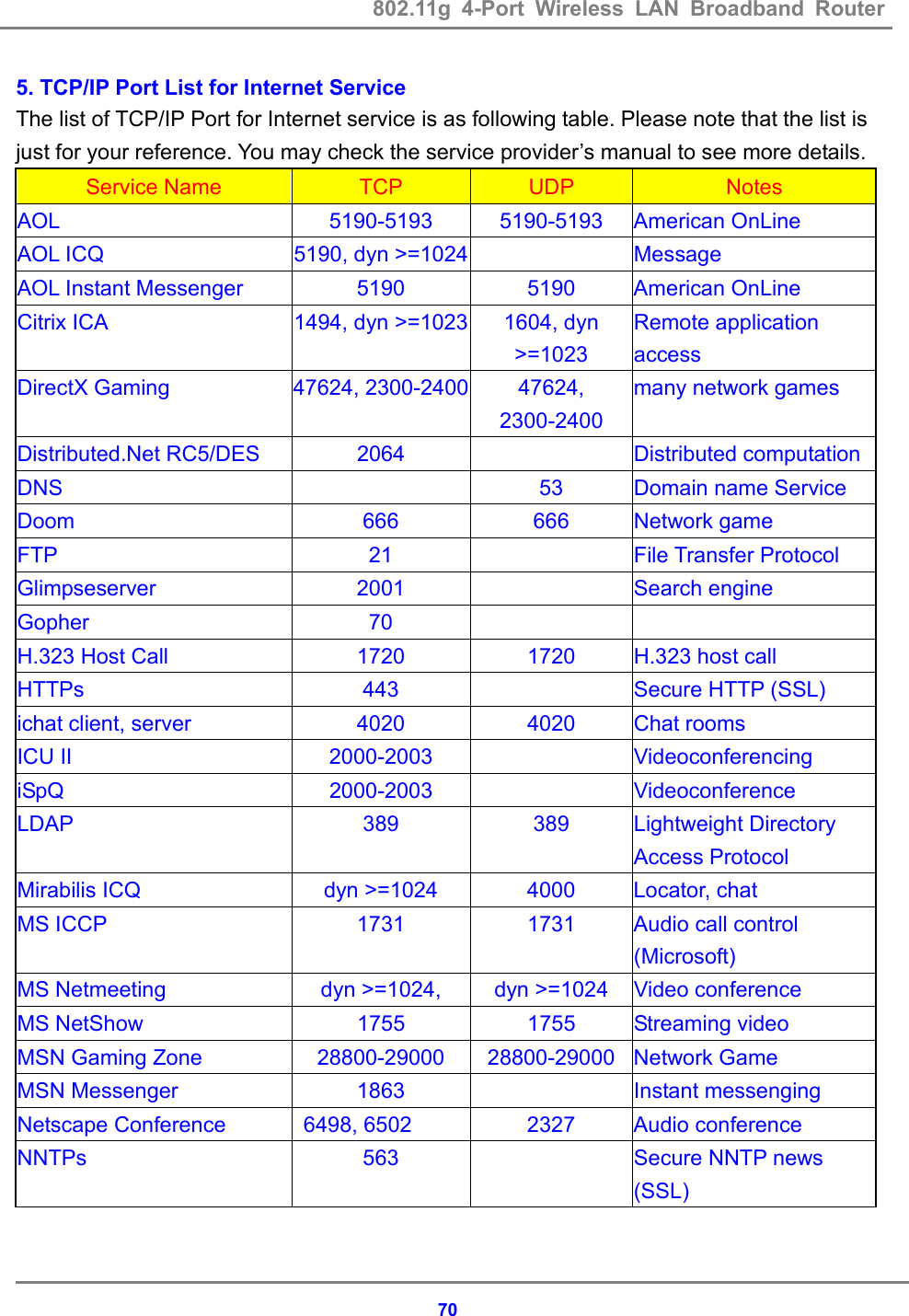
802.11g 4-Port Wireless LAN Broadband Router    705. TCP/IP Port List for Internet Service The list of TCP/IP Port for Internet service is as following table. Please note that the list is just for your reference. You may check the service provider’s manual to see more details. Service Name  TCP  UDP  Notes AOL 5190-5193 5190-5193 American OnLine AOL ICQ  5190, dyn >=1024   Message AOL Instant Messenger  5190  5190  American OnLine Citrix ICA  1494, dyn >=1023 1604, dyn >=1023 Remote application access DirectX Gaming  47624, 2300-2400 47624, 2300-2400 many network games Distributed.Net RC5/DES  2064    Distributed computation DNS     53  Domain name Service Doom 666 666 Network game FTP 21   File Transfer Protocol Glimpseserver 2001   Search engine Gopher 70     H.323 Host Call  1720  1720  H.323 host call HTTPs 443    Secure HTTP (SSL) ichat client, server  4020  4020  Chat rooms ICU II  2000-2003    Videoconferencing iSpQ 2000-2003   Videoconference LDAP 389 389 Lightweight Directory Access Protocol Mirabilis ICQ  dyn >=1024  4000  Locator, chat MS ICCP  1731  1731  Audio call control (Microsoft) MS Netmeeting  dyn >=1024,    dyn >=1024  Video conference MS NetShow  1755  1755  Streaming video MSN Gaming Zone  28800-29000  28800-29000  Network Game MSN Messenger  1863    Instant messenging Netscape Conference    6498, 6502  2327  Audio conference NNTPs 563   Secure NNTP news (SSL)
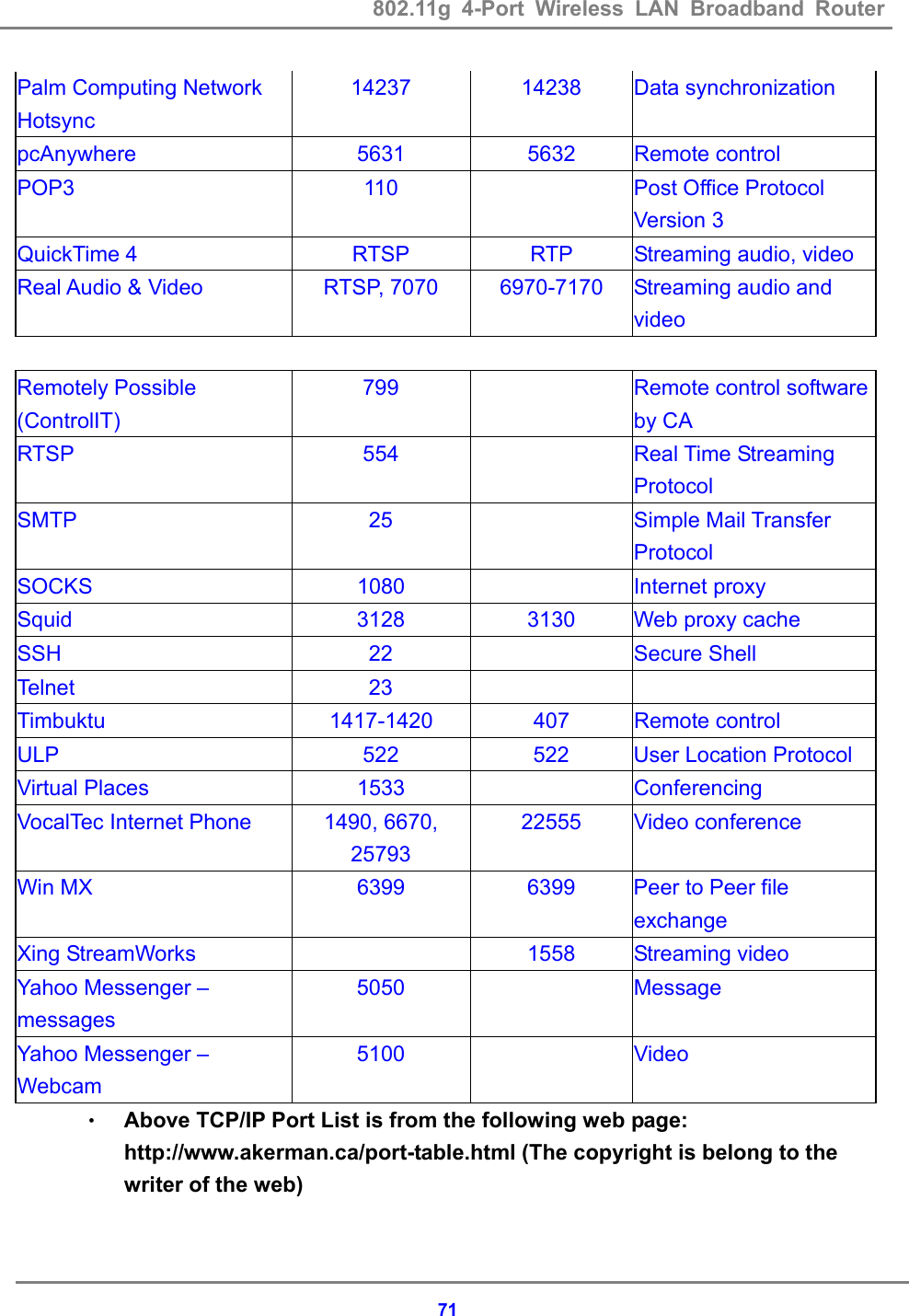
802.11g 4-Port Wireless LAN Broadband Router    71Palm Computing Network Hotsync 14237 14238 Data synchronization pcAnywhere 5631 5632 Remote control POP3 110    Post Office Protocol Version 3 QuickTime 4  RTSP  RTP  Streaming audio, video Real Audio & Video  RTSP, 7070  6970-7170  Streaming audio and video  Remotely Possible (ControlIT) 799    Remote control software by CA RTSP 554   Real Time Streaming Protocol SMTP 25   Simple Mail Transfer Protocol SOCKS 1080   Internet proxy Squid 3128 3130 Web proxy cache SSH 22   Secure Shell Telnet 23     Timbuktu 1417-1420 407 Remote control ULP  522  522  User Location Protocol Virtual Places  1533    Conferencing VocalTec Internet Phone  1490, 6670, 25793 22555 Video conference Win MX  6399  6399  Peer to Peer file exchange Xing StreamWorks    1558 Streaming video Yahoo Messenger – messages 5050    Message Yahoo Messenger – Webcam 5100    Video • Above TCP/IP Port List is from the following web page: http://www.akerman.ca/port-table.html (The copyright is belong to the writer of the web)
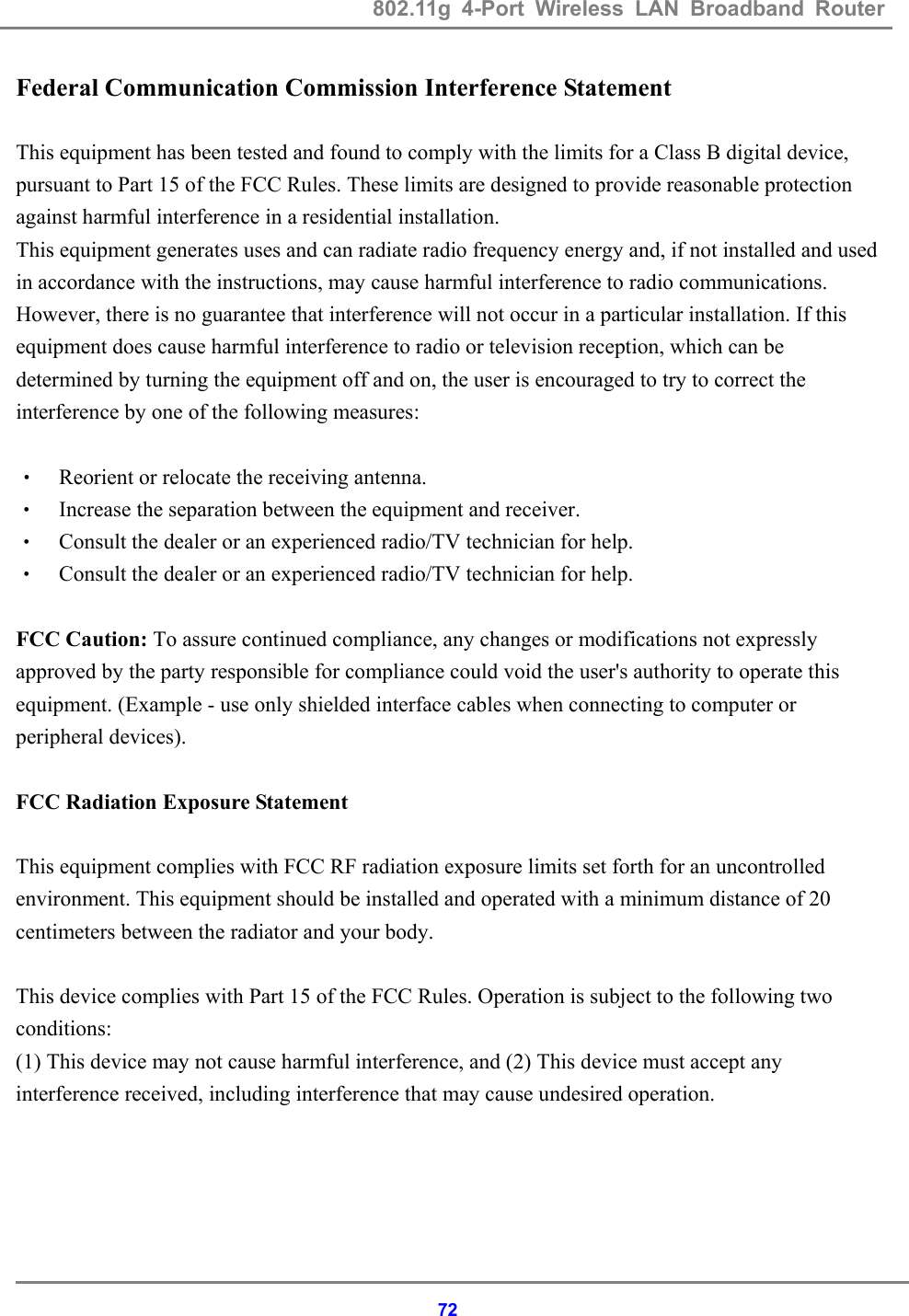
802.11g 4-Port Wireless LAN Broadband Router    72Federal Communication Commission Interference Statement  This equipment has been tested and found to comply with the limits for a Class B digital device, pursuant to Part 15 of the FCC Rules. These limits are designed to provide reasonable protection against harmful interference in a residential installation. This equipment generates uses and can radiate radio frequency energy and, if not installed and used in accordance with the instructions, may cause harmful interference to radio communications. However, there is no guarantee that interference will not occur in a particular installation. If this equipment does cause harmful interference to radio or television reception, which can be determined by turning the equipment off and on, the user is encouraged to try to correct the interference by one of the following measures:  • Reorient or relocate the receiving antenna. • Increase the separation between the equipment and receiver. • Consult the dealer or an experienced radio/TV technician for help. • Consult the dealer or an experienced radio/TV technician for help.  FCC Caution: To assure continued compliance, any changes or modifications not expressly approved by the party responsible for compliance could void the user's authority to operate this equipment. (Example - use only shielded interface cables when connecting to computer or peripheral devices).  FCC Radiation Exposure Statement  This equipment complies with FCC RF radiation exposure limits set forth for an uncontrolled environment. This equipment should be installed and operated with a minimum distance of 20 centimeters between the radiator and your body.  This device complies with Part 15 of the FCC Rules. Operation is subject to the following two conditions: (1) This device may not cause harmful interference, and (2) This device must accept any interference received, including interference that may cause undesired operation.
802.11g 4-Port Wireless LAN Broadband Router    73 CE Declaration of conformity This equipment complies with the requirements relating to electromagnetic compatibility, EN 55022 class B for ITE and EN 50082-1. This meets the essential protection requirements of the European Council Directive 89/336/EEC on the approximation of the laws of the Member States relating to electromagnetic compatibility.  Trademarks All company, brand and product names are trademarks or registered trademarks of their respective companies.

Navigation menu