TAIDOC TECHNOLOGY 4121001 Blood Glucose /Multi-Functional Monitoring System User Manual

TAIDOC TECHNOLOGY CORP. Blood Glucose /Multi-Functional Monitoring System

User Manual

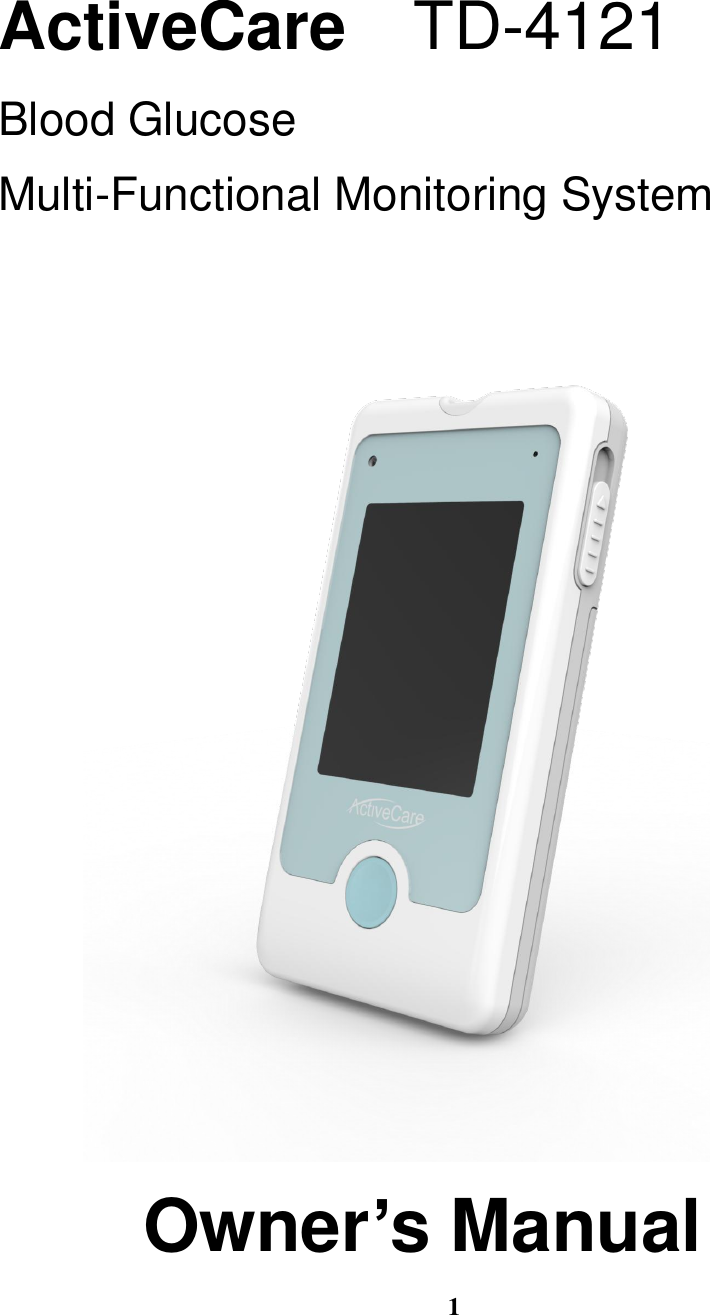
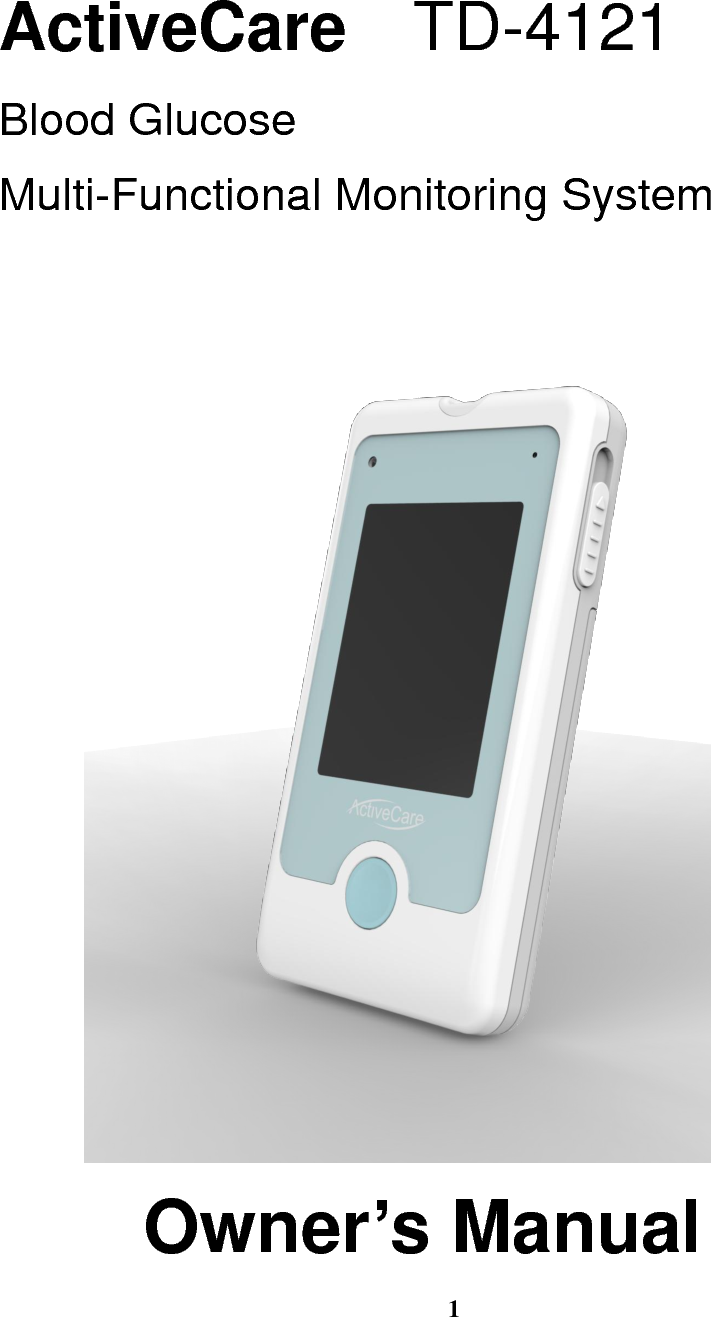
 1   ActiveCare  TD-4121 Blood Glucose Multi-Functional Monitoring System  Owner’s Manual
 2
 3  Dear Owner of ActiveCare TD-4121 Blood Glucose Monitoring System Owner:  Thank  you  for  purchasing  the ActiveCare  TD-4121  Blood  Glucose  Monitoring System. This manual provides important information to help you use the system properly.  Before  using  this  product,  please  read  the  following  instructions thoroughly and attentively.   Regular monitoring of your blood glucose levels can help you and your doctor gain  better  control  of  your  diabetes.  You  can  use  the  ActiveCare  TD-4121  to easily monitor your blood glucose levels by yourself anywhere and anytime.  If  you  have  other  questions  regarding  this  product,  please  contact  the  local customer service or place of purchase for assistance.
 4  IMPORTANT SAFETY PRECAUTIONS READ BEFORE USE    The meter and lancing device are for single patient use. Do not share them with anyone, including other family members! Do not use on multiple patients!   All parts of the kit are considered biohazardous and can potentially transmit infectious diseases, even after you have performed cleaning and disinfection.   Do NOT use this device to be close to your head since GPRS will be activated under two conditions to prevent any body damages.   Pressing phone call button, or   Uploading data after completion of measurement within 10 minutes  1.  Use this device ONLY for the intended use described in this manual. 2.  Do NOT use accessories which are not specified by the manufacturer.   3.  Do NOT use the device if it is not working properly or if it is damaged. 4.  Do NOT, under any circumstances, use the device on neonates or infants.   5.  This device does NOT serve as a cure for any symptoms or diseases. The data measured is for reference only.   6.  Before using this device to test blood glucose, read all instructions thoroughly. Carry out all the quality control checks as directed. 7.  Keep the device and testing equipment away from young children. Small items such as the test strips, lancets and vial caps are choking hazards.   8.  Use this device in a dry environment. Be aware of the presence of synthetic materials,  such  as  clothing,  carpets  and  so  on,  which  might  give  rise  to damaging static discharges that may produce incorrect results. 9.  Do  NOT  use  this  instrument  in  close  proximity  to  sources  of  strong electromagnetic radiation, as these may interfere with the accurate operation.
 5  10. Proper maintenance and periodically control solution test are essential to the durability  of  your  device.  If  you  are  concerned  about  its  accuracy,  please contact TaiDoc or place of purchase for help.    Action upon Delivery: Unpacking; checking delivery for completeness; checking for damage during transport.  KEEP THESE INSTRUCTIONS IN A SAFE PLACE
 6  TABLE OF CONTENTS  IMPORTANT SAFETY PRECAUTIONS .......................................................... 4 BEFORE YOU BEGIN ..................................................................................... 7 Important Information ............................................................................. 7 Intended Use ........................................................................................... 8 Test Principle .......................................................................................... 8 Contents of System ................................................................................ 9 Meter Overview ..................................................................................... 10 Display Screen ...................................................................................... 11 Test Strip ............................................................................................... 12 SETTING THE METER .................................................................................. 13 Meter Setting ......................................................................................... 13 Calling .................................................................................................... 19 Touchscreen Calibration ...................................................................... 22 BEFORE TESTING ....................................................................................... 23 Control Solution Testing ...................................................................... 23 Performing a Control Solution Test ..................................................... 23 TESTING WITH BLOOD SAMPLE ............................................................... 25 Preparing the Lancing Device for Blood Testing ............................... 25 Preparing the Puncture Site ................................................................. 25 Performing a Blood Glucose Test ....................................................... 29 Reviewing Memory Record .................................................................. 32 MAINTENANCE ............................................................................................ 33 Battery ................................................................................................... 33 Recharging the Battery ........................................................................ 33 Caring for Your Meter ........................................................................... 34 Caring for Your Test Strips ................................................................... 34 Important Control Solution Information .............................................. 36 SYSTEM TROUBLESHOOTING ................................................................... 37 Result Readings .................................................................................... 37 Error Messages ..................................................................................... 37 Troubleshooting .................................................................................... 39 DETAILED INFORMATION ........................................................................... 40 SPECIFICATIONS ......................................................................................... 40 SYMBOL INFORMATION .............................................................................. 42
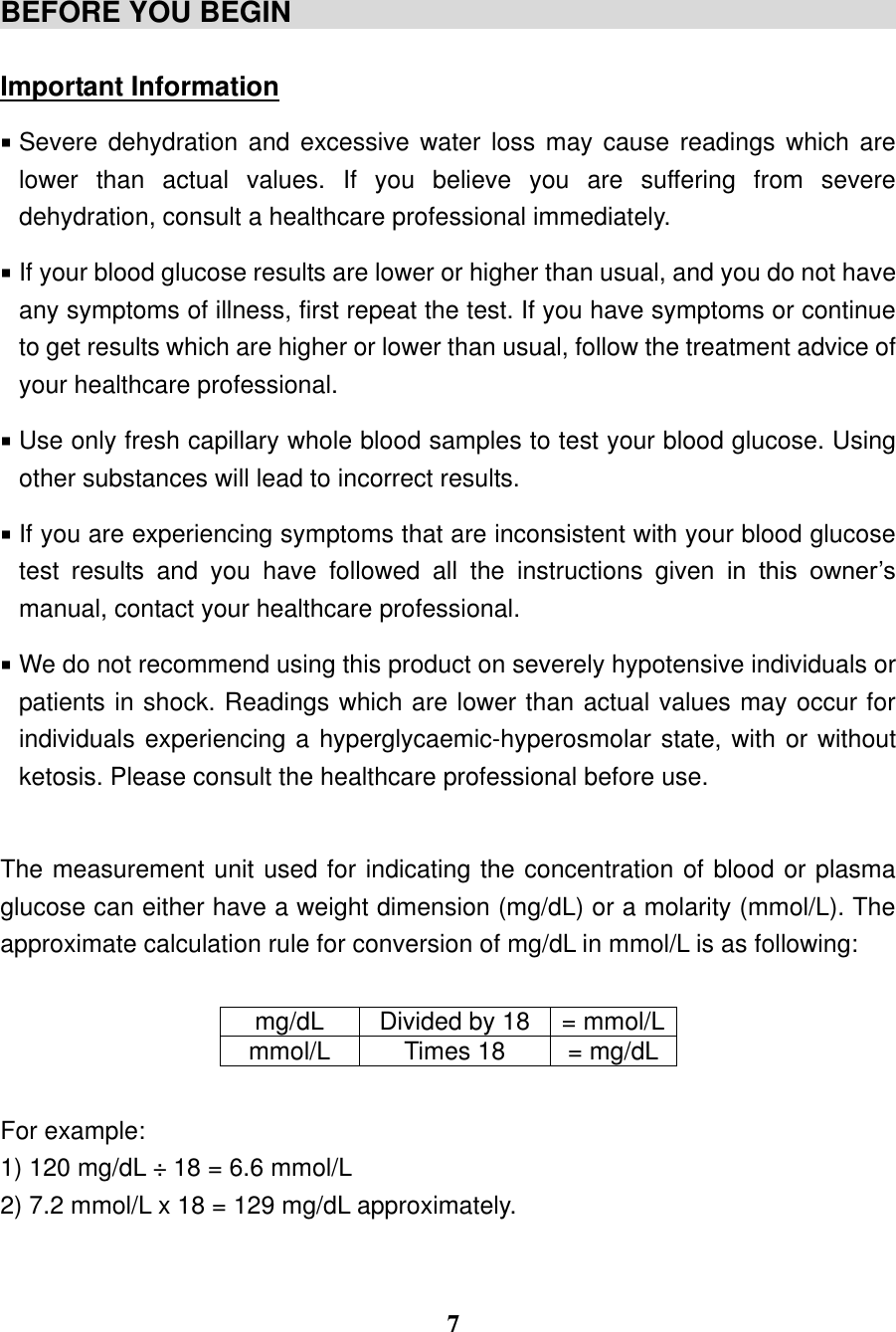
 7   BEFORE YOU BEGIN                                            Important Information  Severe dehydration and excessive  water  loss may cause readings which  are lower  than  actual  values.  If  you  believe  you  are  suffering  from  severe dehydration, consult a healthcare professional immediately.    If your blood glucose results are lower or higher than usual, and you do not have any symptoms of illness, first repeat the test. If you have symptoms or continue to get results which are higher or lower than usual, follow the treatment advice of your healthcare professional.    Use only fresh capillary whole blood samples to test your blood glucose. Using other substances will lead to incorrect results.    If you are experiencing symptoms that are inconsistent with your blood glucose test  results  and  you  have  followed  all  the  instructions  given  in  this  owner’s manual, contact your healthcare professional.    We do not recommend using this product on severely hypotensive individuals or patients in shock. Readings which are lower than actual values may occur for individuals experiencing a hyperglycaemic-hyperosmolar state, with or without ketosis. Please consult the healthcare professional before use.  The measurement unit used for indicating the concentration of blood or plasma glucose can either have a weight dimension (mg/dL) or a molarity (mmol/L). The approximate calculation rule for conversion of mg/dL in mmol/L is as following:       For example: 1) 120 mg/dL ÷ 18 = 6.6 mmol/L 2) 7.2 mmol/L x 18 = 129 mg/dL approximately.   mg/dL Divided by 18 = mmol/L mmol/L Times 18 = mg/dL
 8  Intended Use This  system  is  intended  for  use  outside  the  body  (in  vitro  diagnostic  use)  by people with diabetes. It is designed for home use and by health care professionals in clinical settings as an aid to monitoring the effectiveness of diabetes control. It is  intended  to  be  used  for  the  quantitative  measurement  of  glucose  (sugar)  in fresh capillary whole blood samples (from the finger, palm, forearm and upper arm) and from venous whole blood. This system is  intended to be used by a single person and should not be shared. It should not be used for the diagnosis of, or screening for diabetes, or testing on neonates. Professionals  may  test  with  capillary  and  venous  blood  sample;  home  use  is limited to capillary whole blood testing. Test Principle Your  system  measures  the  amount  of  sugar  (glucose)  in  whole  blood.  The glucose testing is based on the measurement of electrical current generated by the reaction of glucose with the reagent of the test strip. The meter measures the current, calculates the blood glucose level, and displays the result. The strength of the current produced by the reaction depends on the amount of glucose in the blood sample.
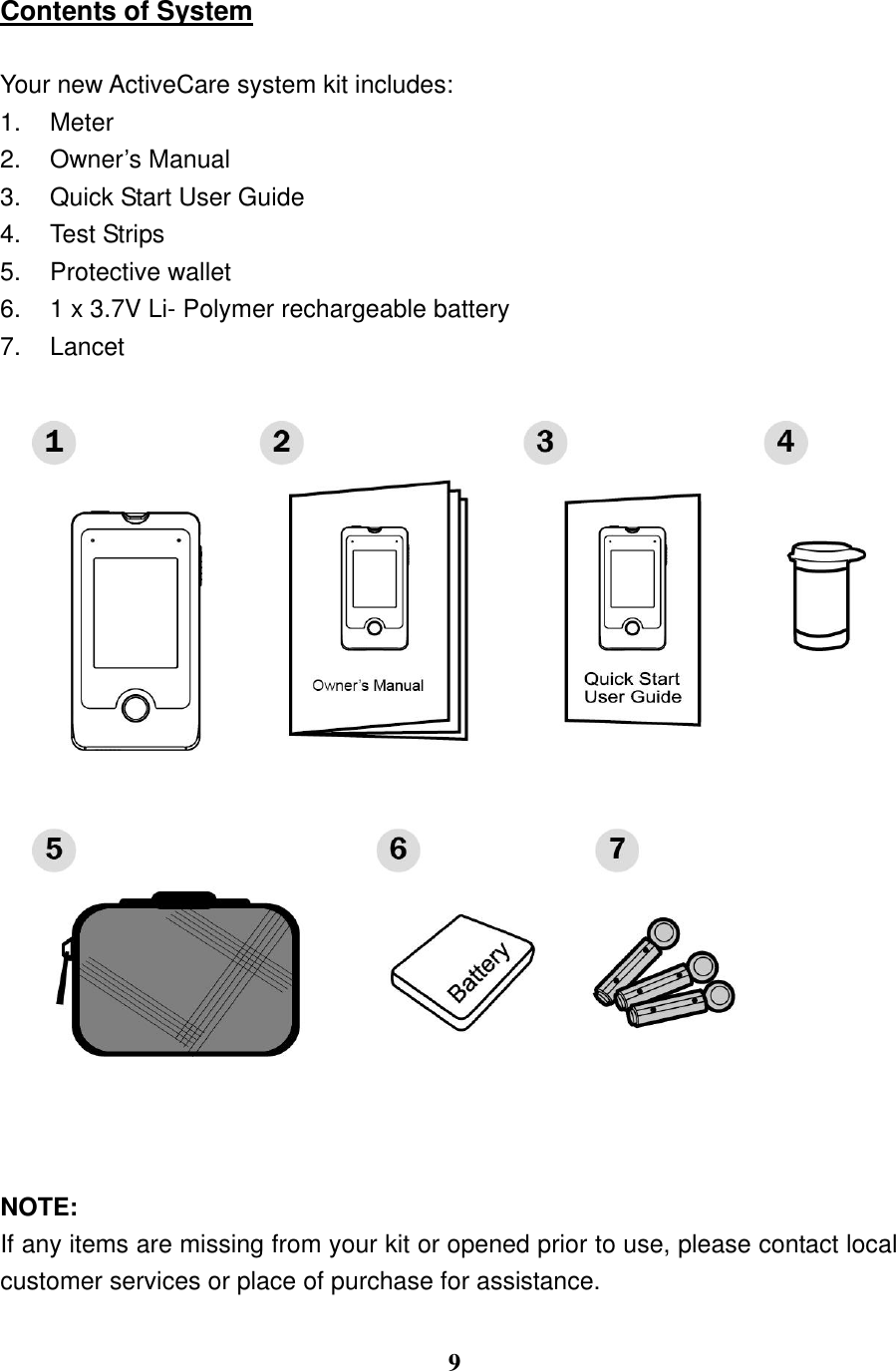
 9  Contents of System  Your new ActiveCare system kit includes: 1.  Meter 2.  Owner’s Manual 3.  Quick Start User Guide 4.  Test Strips 5.  Protective wallet 6. 1 x 3.7V Li- Polymer rechargeable battery 7.  Lancet                                        NOTE: If any items are missing from your kit or opened prior to use, please contact local customer services or place of purchase for assistance.
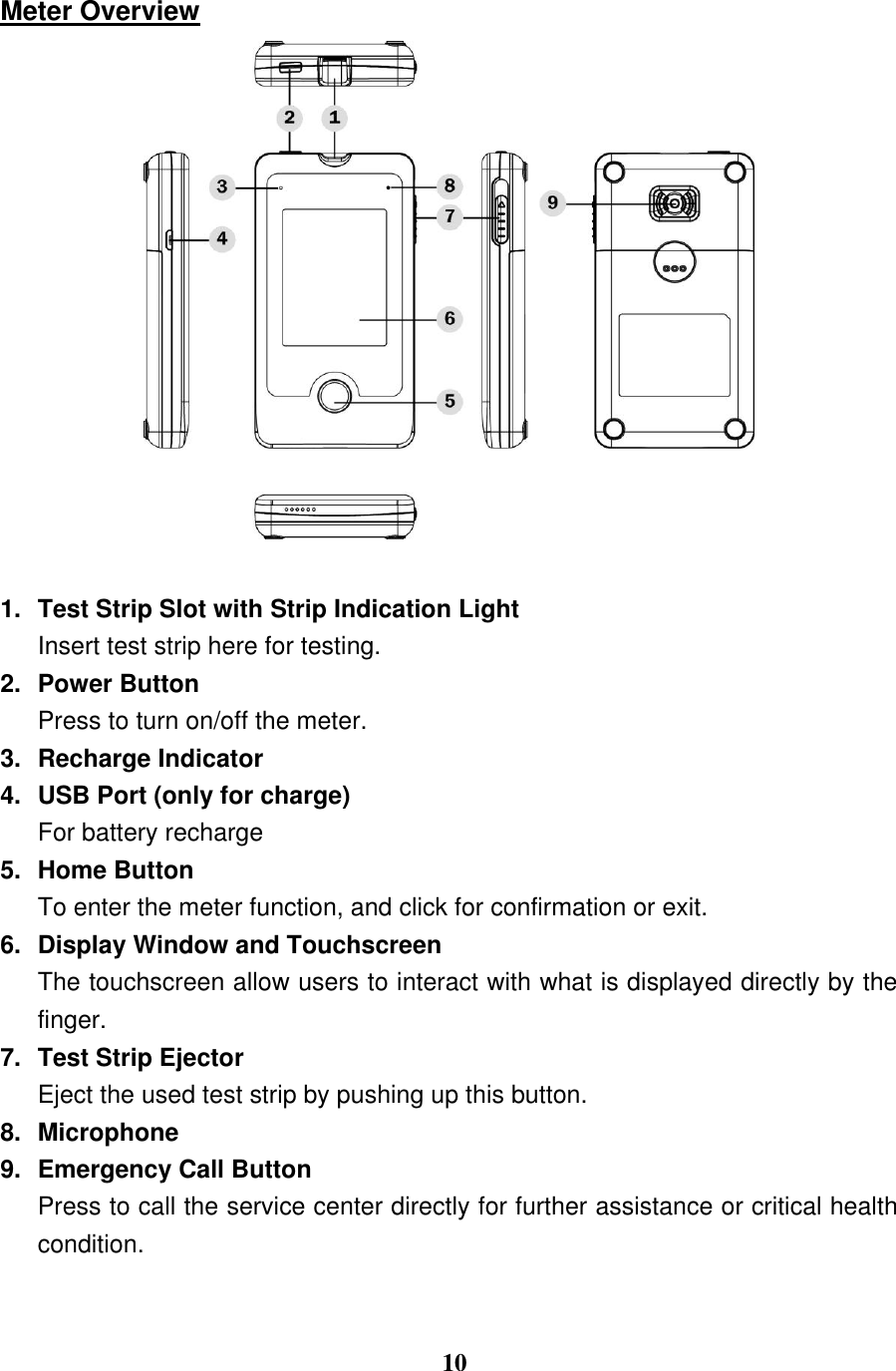
 10  Meter Overview   1.  Test Strip Slot with Strip Indication Light   Insert test strip here for testing. 2.  Power Button Press to turn on/off the meter. 3.  Recharge Indicator 4.  USB Port (only for charge) For battery recharge 5.  Home Button To enter the meter function, and click for confirmation or exit. 6.  Display Window and Touchscreen The touchscreen allow users to interact with what is displayed directly by the finger. 7.  Test Strip Ejector Eject the used test strip by pushing up this button. 8.  Microphone 9.  Emergency Call Button Press to call the service center directly for further assistance or critical health condition.
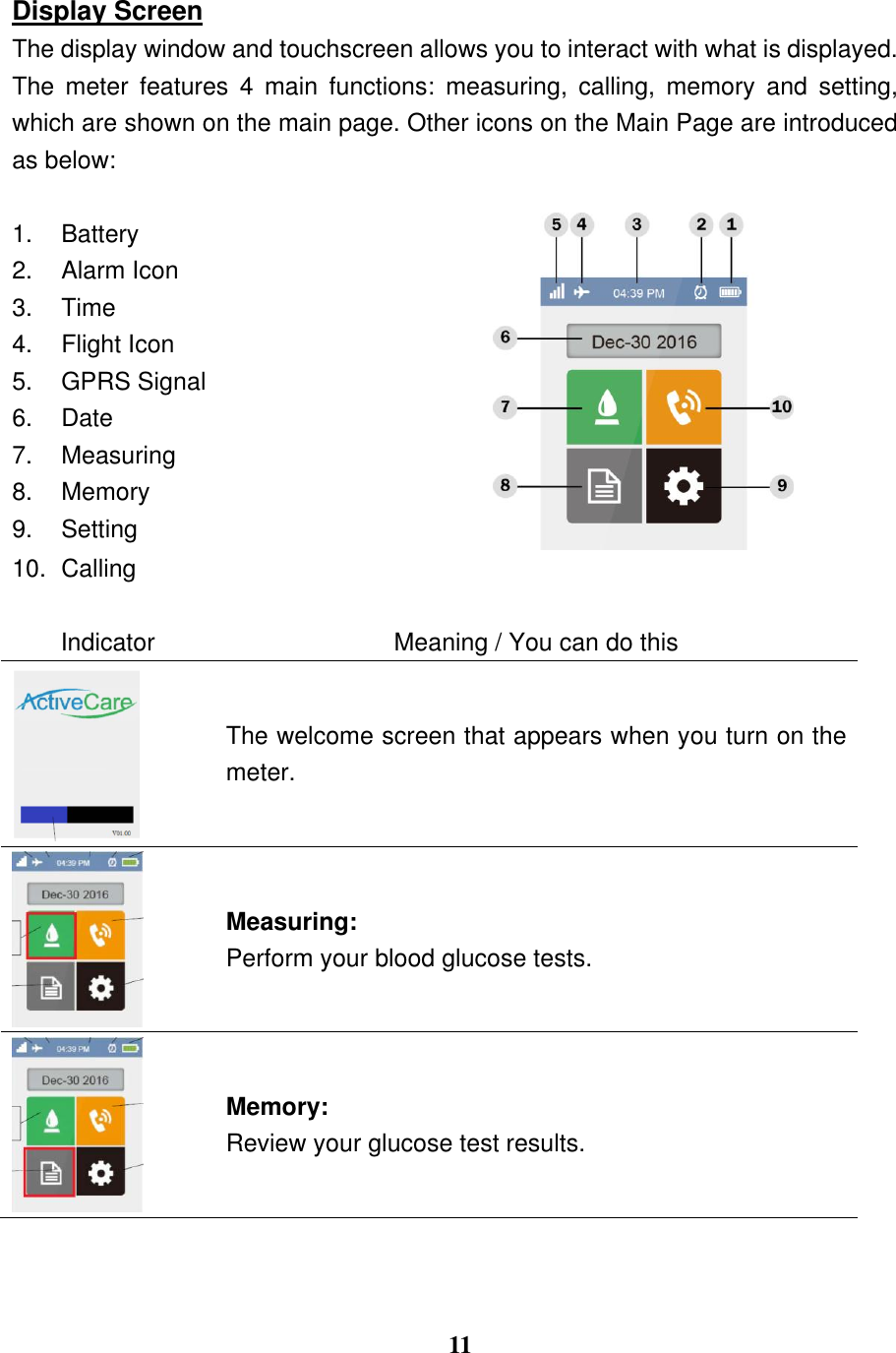
 11  Display Screen The display window and touchscreen allows you to interact with what is displayed. The  meter  features  4  main  functions:  measuring,  calling,  memory  and  setting, which are shown on the main page. Other icons on the Main Page are introduced as below:    1.  Battery    2.  Alarm Icon   3.  Time 4.  Flight Icon 5.  GPRS Signal 6.  Date 7.  Measuring 8.  Memory 9.  Setting 10.  Calling  Indicator Meaning / You can do this  The welcome screen that appears when you turn on the meter.  Measuring: Perform your blood glucose tests.  Memory: Review your glucose test results.
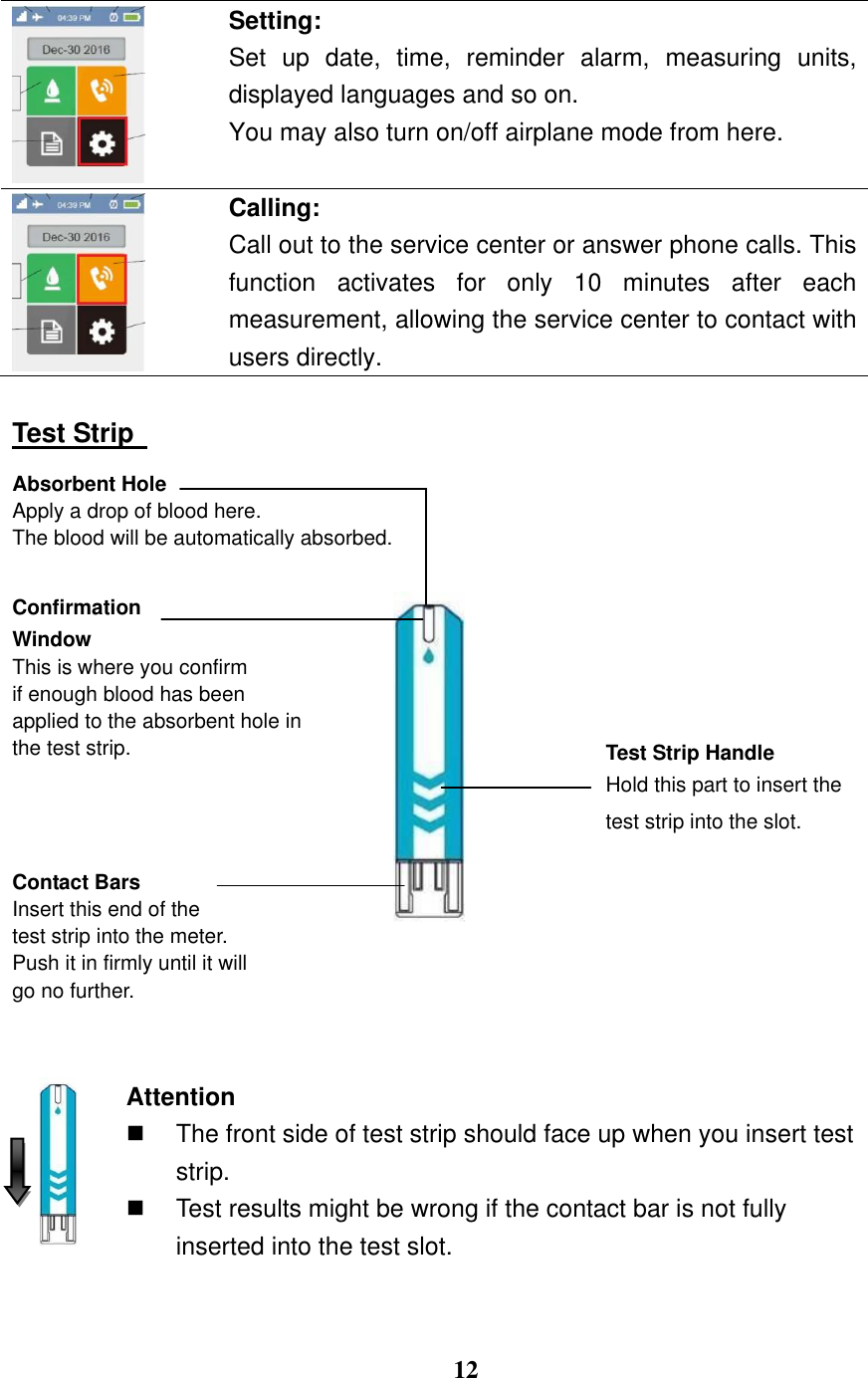
 12   Setting: Set  up  date,  time,  reminder  alarm,  measuring  units, displayed languages and so on.   You may also turn on/off airplane mode from here.   Calling:   Call out to the service center or answer phone calls. This function  activates  for  only  10  minutes  after  each measurement, allowing the service center to contact with users directly.  Test Strip   Absorbent Hole Apply a drop of blood here.   The blood will be automatically absorbed.  Confirmation   Window This is where you confirm   if enough blood has been   applied to the absorbent hole in the test strip.     Contact Bars Insert this end of the   test strip into the meter. Push it in firmly until it will go no further.    Attention   The front side of test strip should face up when you insert test strip.   Test results might be wrong if the contact bar is not fully inserted into the test slot.  Test Strip Handle Hold this part to insert the test strip into the slot.
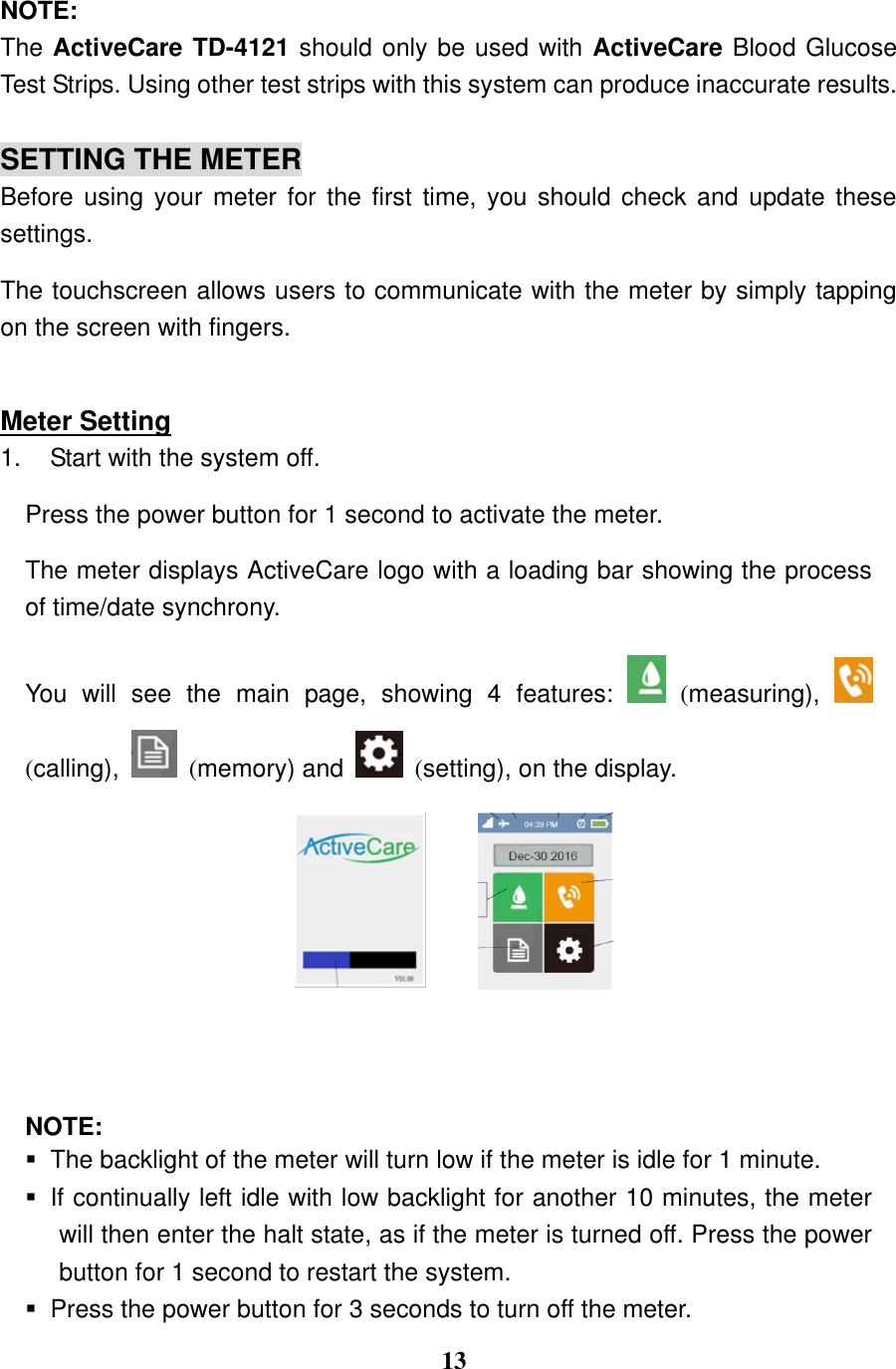
 13  NOTE: The ActiveCare TD-4121 should only be used with ActiveCare Blood Glucose Test Strips. Using other test strips with this system can produce inaccurate results.  SETTING THE METER Before using your meter for the first  time,  you  should check and update these settings.   The touchscreen allows users to communicate with the meter by simply tapping on the screen with fingers.  Meter Setting 1.  Start with the system off. Press the power button for 1 second to activate the meter. The meter displays ActiveCare logo with a loading bar showing the process of time/date synchrony.     You  will  see  the  main  page,  showing  4  features:    (measuring),   (calling),    (memory) and    (setting), on the display.      NOTE:   The backlight of the meter will turn low if the meter is idle for 1 minute.   If continually left idle with low backlight for another 10 minutes, the meter will then enter the halt state, as if the meter is turned off. Press the power button for 1 second to restart the system.     Press the power button for 3 seconds to turn off the meter.
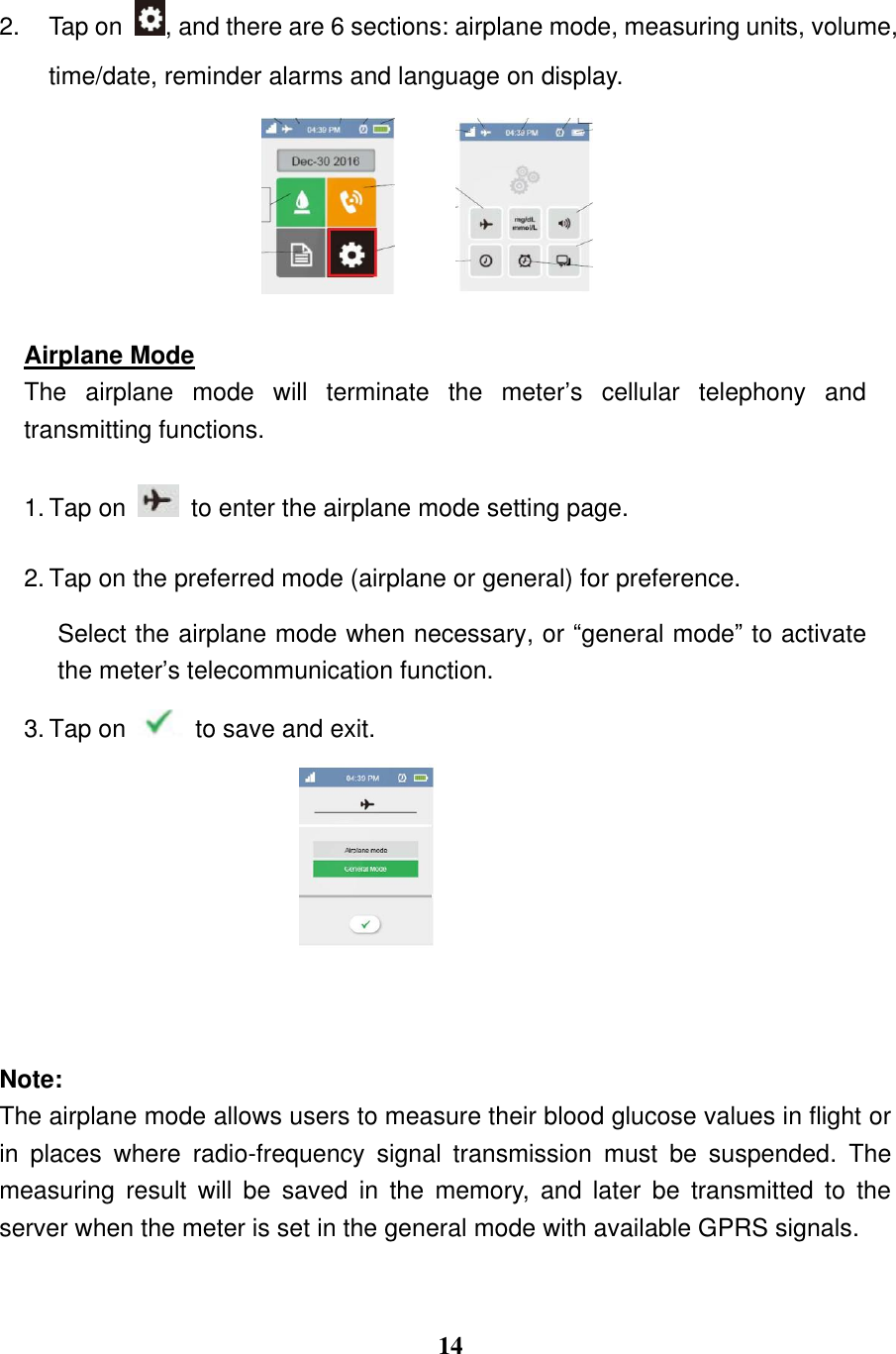
 14  2.  Tap on  , and there are 6 sections: airplane mode, measuring units, volume, time/date, reminder alarms and language on display.    Airplane Mode The  airplane  mode  will  terminate  the  meter’s  cellular  telephony  and transmitting functions. 1. Tap on    to enter the airplane mode setting page.   2. Tap on the preferred mode (airplane or general) for preference.   Select the airplane mode when necessary, or “general mode” to activate the meter’s telecommunication function. 3. Tap on    to save and exit.     Note:   The airplane mode allows users to measure their blood glucose values in flight or in  places  where  radio-frequency  signal  transmission  must  be  suspended.  The measuring  result  will  be  saved  in  the  memory,  and  later  be  transmitted  to  the server when the meter is set in the general mode with available GPRS signals.
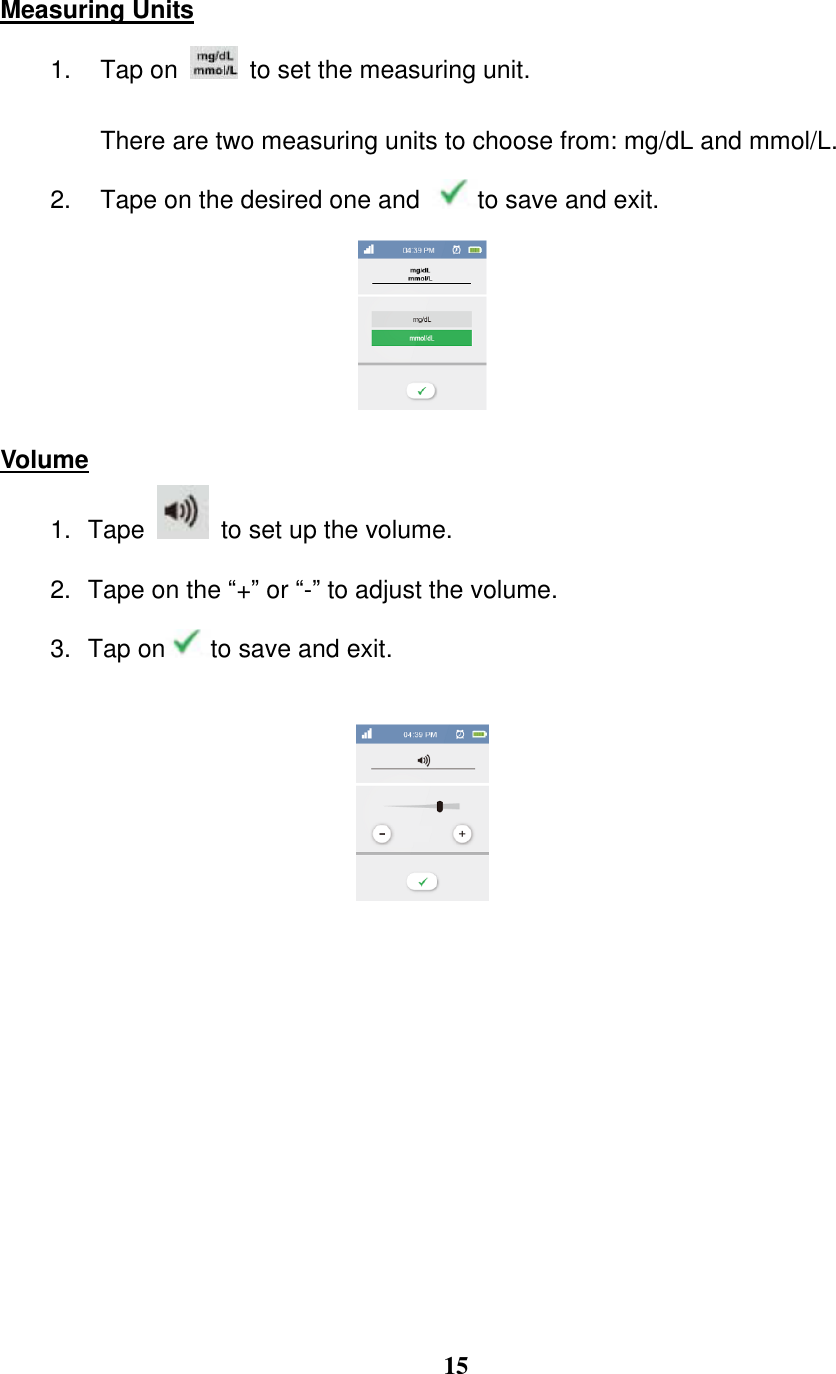
 15  Measuring Units 1.  Tap on   to set the measuring unit.   There are two measuring units to choose from: mg/dL and mmol/L.   2.  Tape on the desired one and  to save and exit.   Volume 1. Tape   to set up the volume.   2.  Tape on the “+” or “-” to adjust the volume. 3.  Tap on to save and exit.
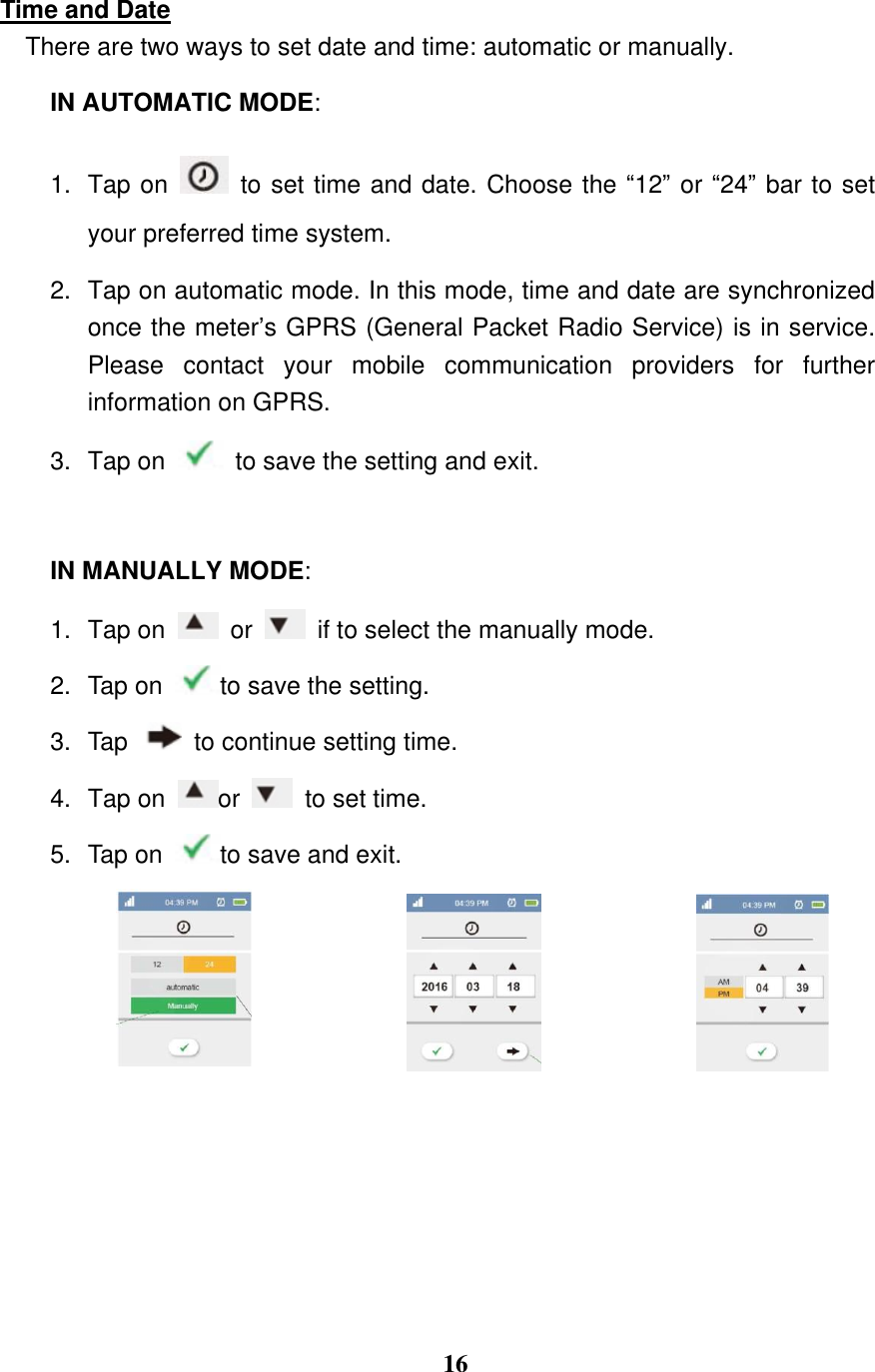
 16  Time and Date There are two ways to set date and time: automatic or manually. IN AUTOMATIC MODE:   1. Tap on    to set time and date. Choose the “12” or “24” bar to set your preferred time system. 2.  Tap on automatic mode. In this mode, time and date are synchronized once the meter’s GPRS (General Packet Radio Service) is in service. Please  contact  your  mobile  communication  providers  for  further information on GPRS. 3.  Tap on    to save the setting and exit.    IN MANUALLY MODE:   1.  Tap on    or    if to select the manually mode.   2.  Tap on  to save the setting.   3.  Tap    to continue setting time.   4. Tap on  or    to set time. 5.  Tap on  to save and exit.
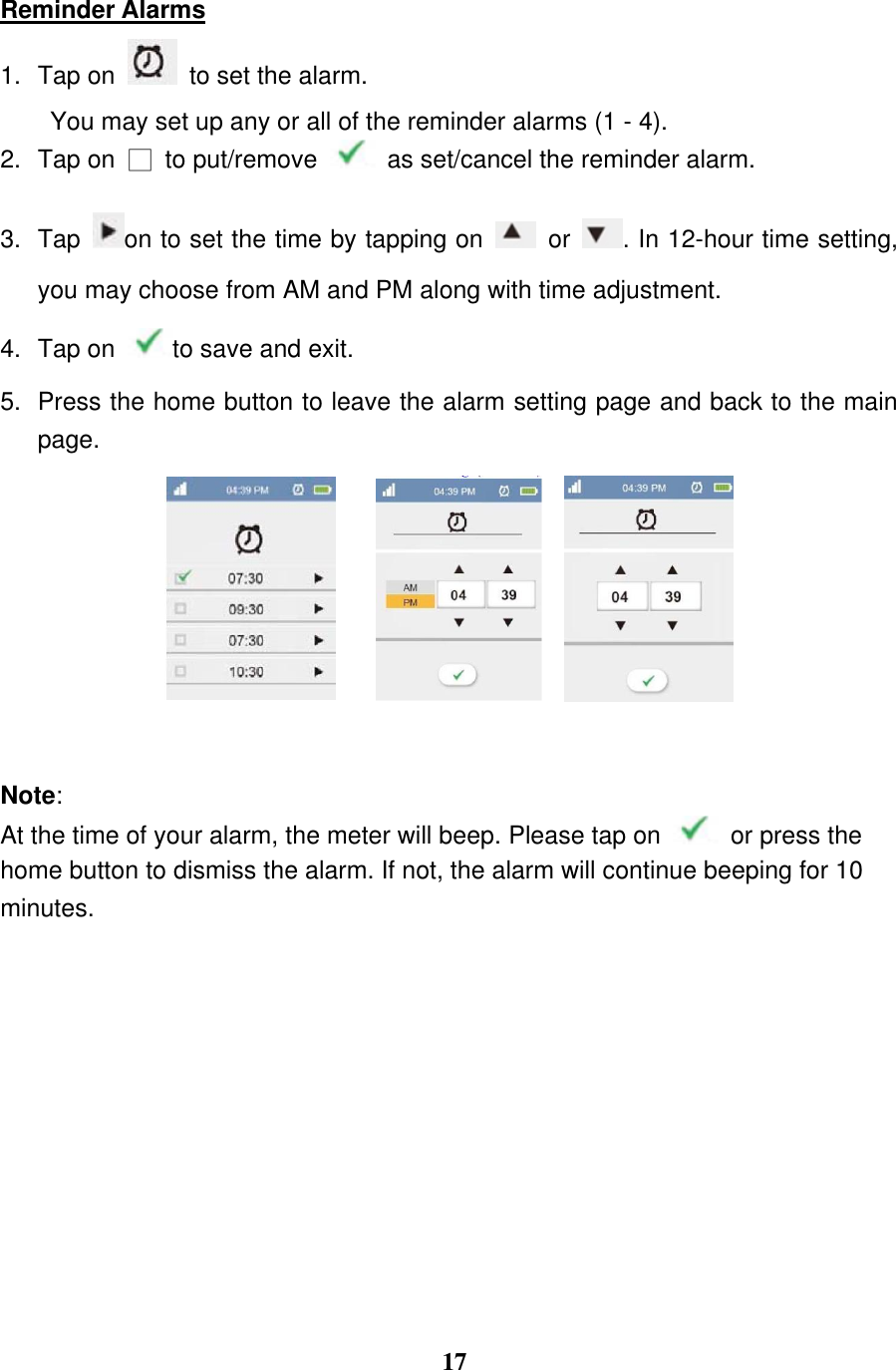
 17  Reminder Alarms 1.  Tap on    to set the alarm.   You may set up any or all of the reminder alarms (1 - 4). 2.  Tap on  □  to put/remove    as set/cancel the reminder alarm.   3.  Tap  on to set the time by tapping on    or  . In 12-hour time setting, you may choose from AM and PM along with time adjustment. 4.  Tap on  to save and exit.   5.  Press the home button to leave the alarm setting page and back to the main page.         Note:   At the time of your alarm, the meter will beep. Please tap on    or press the home button to dismiss the alarm. If not, the alarm will continue beeping for 10 minutes.
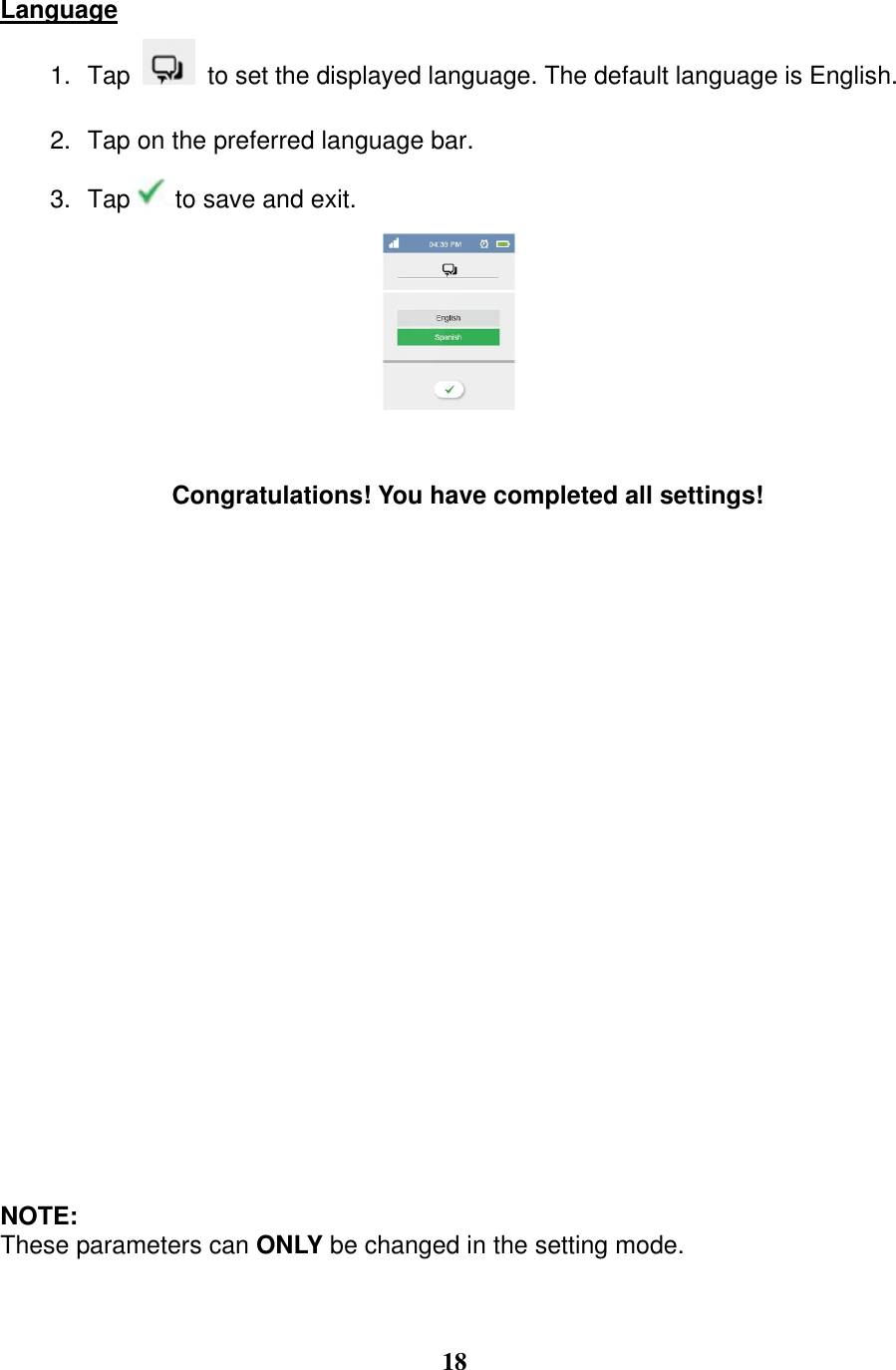
 18  Language 1. Tap    to set the displayed language. The default language is English.   2. Tap on the preferred language bar. 3. Tap to save and exit.     Congratulations! You have completed all settings!                         NOTE: These parameters can ONLY be changed in the setting mode.
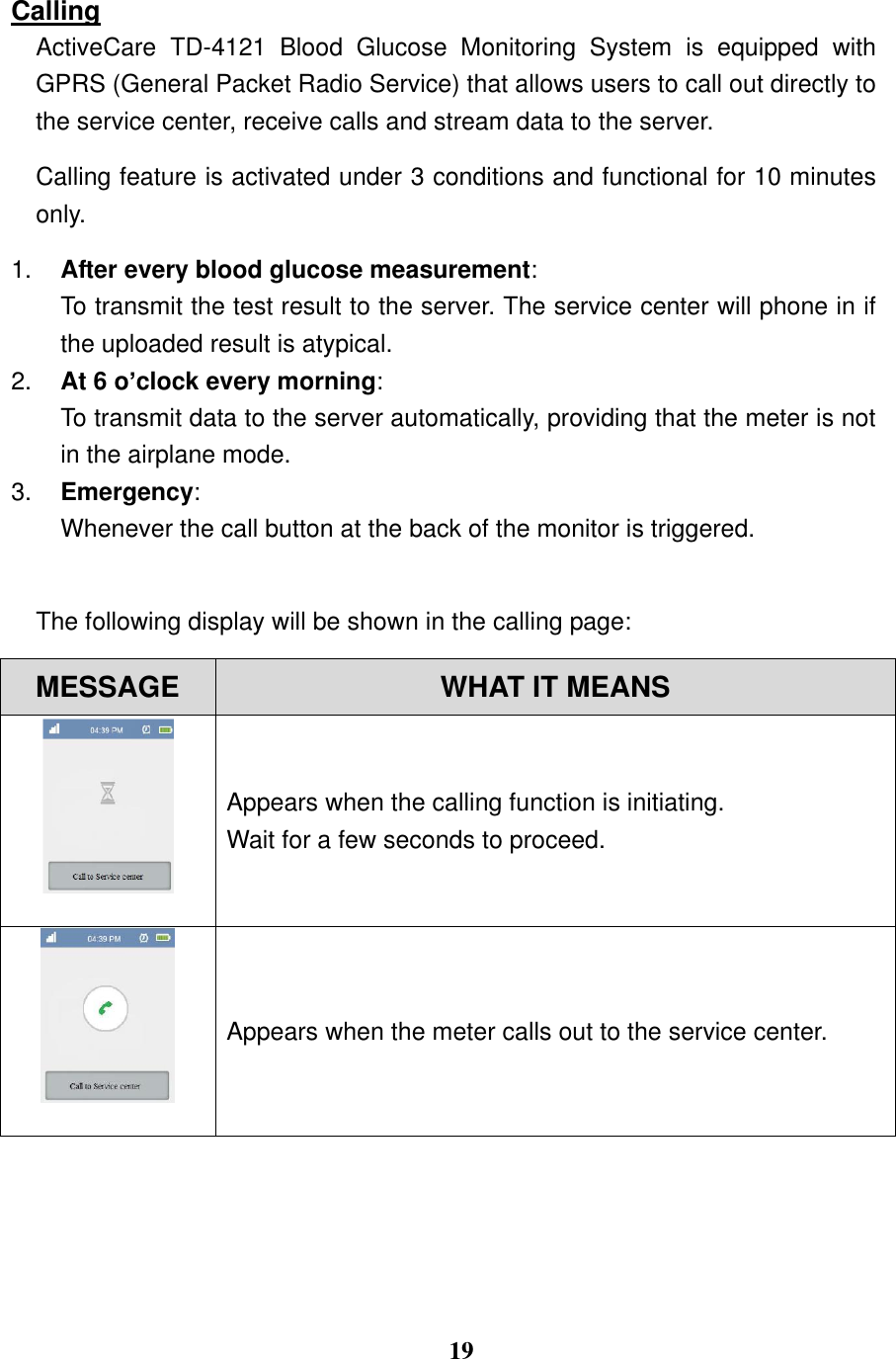
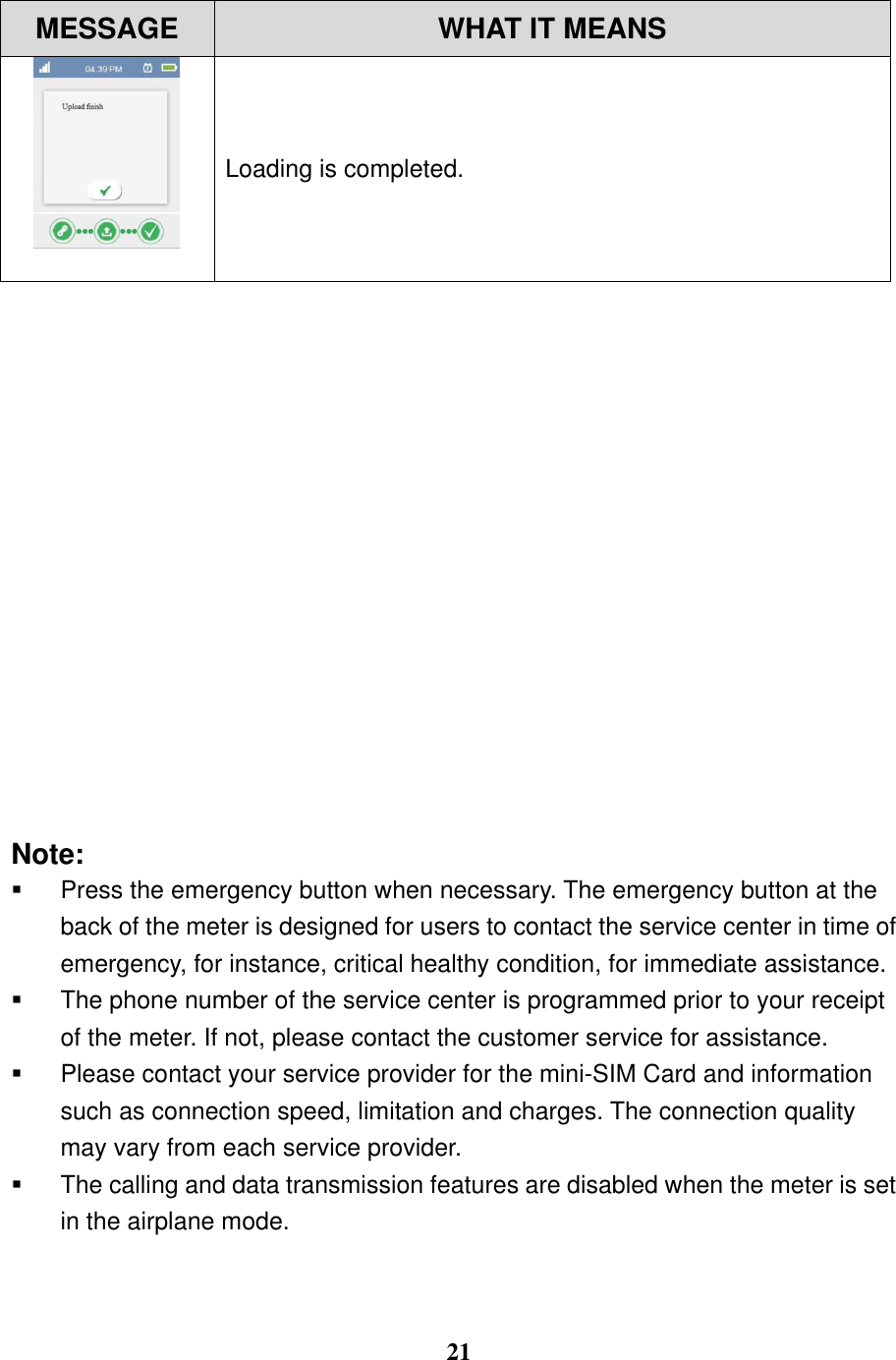
 19  Calling ActiveCare  TD-4121  Blood  Glucose  Monitoring  System  is  equipped  with GPRS (General Packet Radio Service) that allows users to call out directly to the service center, receive calls and stream data to the server.   Calling feature is activated under 3 conditions and functional for 10 minutes only. 1. After every blood glucose measurement:   To transmit the test result to the server. The service center will phone in if the uploaded result is atypical. 2. At 6 o’clock every morning:   To transmit data to the server automatically, providing that the meter is not in the airplane mode. 3. Emergency: Whenever the call button at the back of the monitor is triggered.    The following display will be shown in the calling page:   MESSAGE WHAT IT MEANS  Appears when the calling function is initiating.   Wait for a few seconds to proceed.    Appears when the meter calls out to the service center.
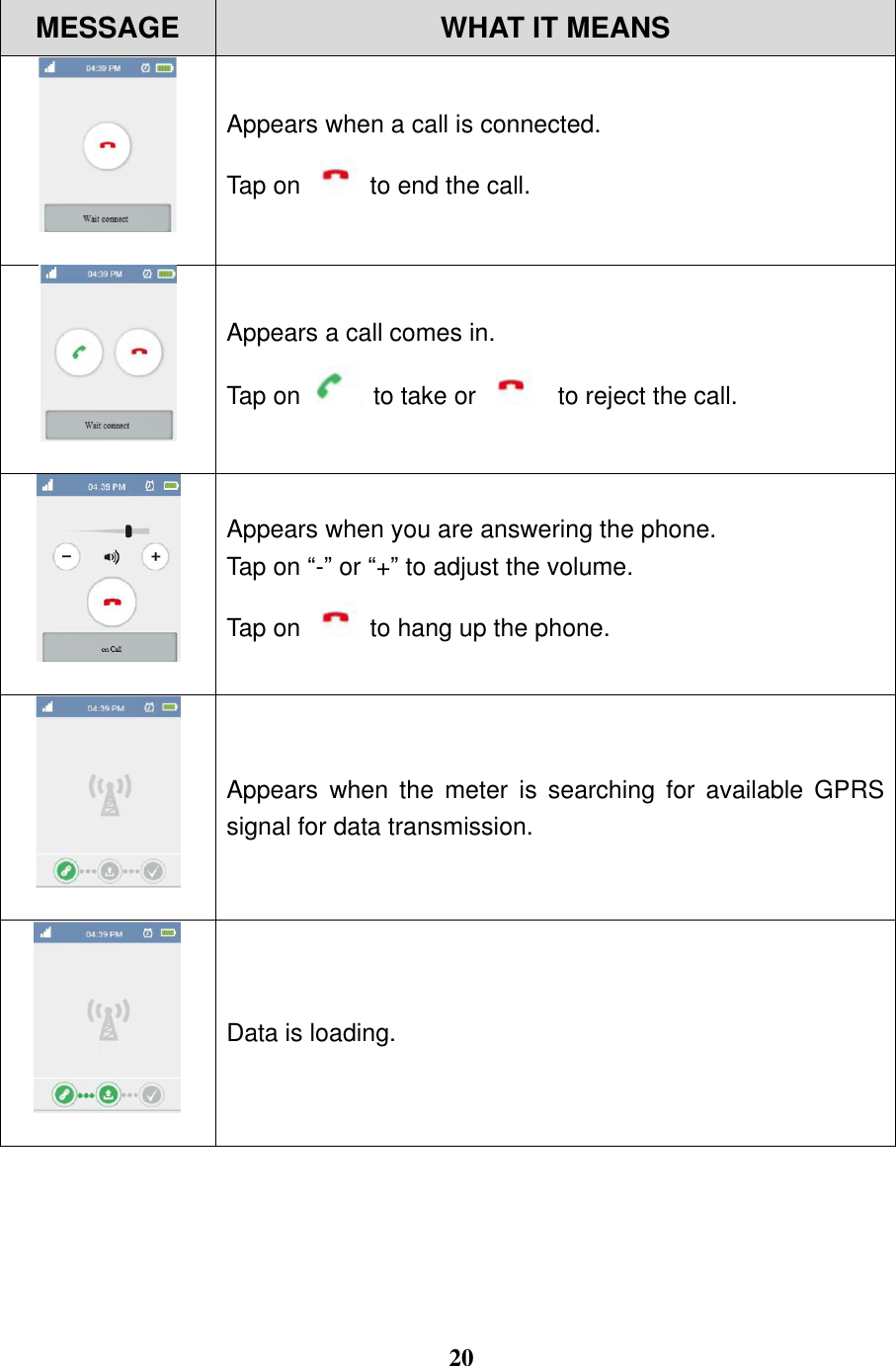
 20  MESSAGE WHAT IT MEANS  Appears when a call is connected.   Tap on    to end the call.  Appears a call comes in. Tap on    to take or    to reject the call.  Appears when you are answering the phone. Tap on “-” or “+” to adjust the volume. Tap on   to hang up the phone.  Appears  when  the  meter  is  searching  for  available  GPRS signal for data transmission.    Data is loading.
 21  MESSAGE WHAT IT MEANS  Loading is completed.                  Note:     Press the emergency button when necessary. The emergency button at the back of the meter is designed for users to contact the service center in time of emergency, for instance, critical healthy condition, for immediate assistance.     The phone number of the service center is programmed prior to your receipt of the meter. If not, please contact the customer service for assistance.     Please contact your service provider for the mini-SIM Card and information such as connection speed, limitation and charges. The connection quality may vary from each service provider.   The calling and data transmission features are disabled when the meter is set in the airplane mode.
 22  Touchscreen Calibration Perform  touchscreen  calibration  when  you  find  the  meter  fails  to  respond properly.   1.  Start with the meter off. Press the power button for 1 second to start the meter. Wait for the main page to appear.   2.  At the main page, press the power button for 1 second to put the meter into the halt state. 3.  At the halt state, press the home button. Then, keep on pressing the home button  with  another  finger  pressing  the  power  button  for  1  second.  Then release both fingers at the same time.   4.  Tap on the center of    accordingly. Frist one will be seen on the upper left corner. The next one will appear on the bottom left and so on. You will have to tap on 4 of them in total. 5.  If the main page comes up, that means your calibration is completed. If not, please repeat step 4 until you finish the calibration.
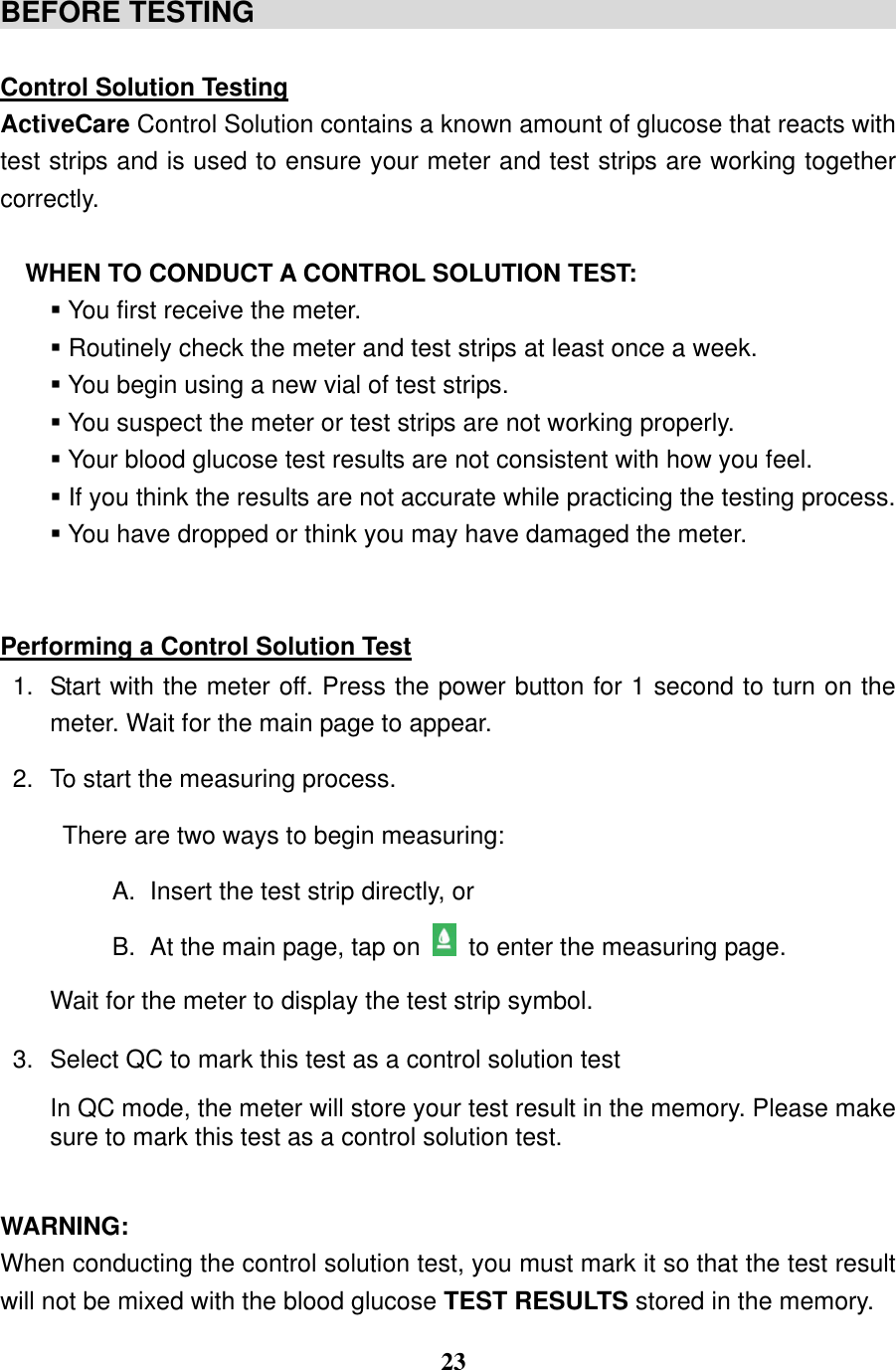
 23  BEFORE TESTING                                               Control Solution Testing ActiveCare Control Solution contains a known amount of glucose that reacts with test strips and is used to ensure your meter and test strips are working together correctly.    WHEN TO CONDUCT A CONTROL SOLUTION TEST:    You first receive the meter.  Routinely check the meter and test strips at least once a week.  You begin using a new vial of test strips.  You suspect the meter or test strips are not working properly.  Your blood glucose test results are not consistent with how you feel.  If you think the results are not accurate while practicing the testing process.  You have dropped or think you may have damaged the meter.   Performing a Control Solution Test 1.  Start with the meter off. Press the power button for 1 second to turn on the meter. Wait for the main page to appear. 2.  To start the measuring process.   There are two ways to begin measuring: A.  Insert the test strip directly, or B.  At the main page, tap on   to enter the measuring page. Wait for the meter to display the test strip symbol. 3.  Select QC to mark this test as a control solution test In QC mode, the meter will store your test result in the memory. Please make sure to mark this test as a control solution test.    WARNING: When conducting the control solution test, you must mark it so that the test result will not be mixed with the blood glucose TEST RESULTS stored in the memory.
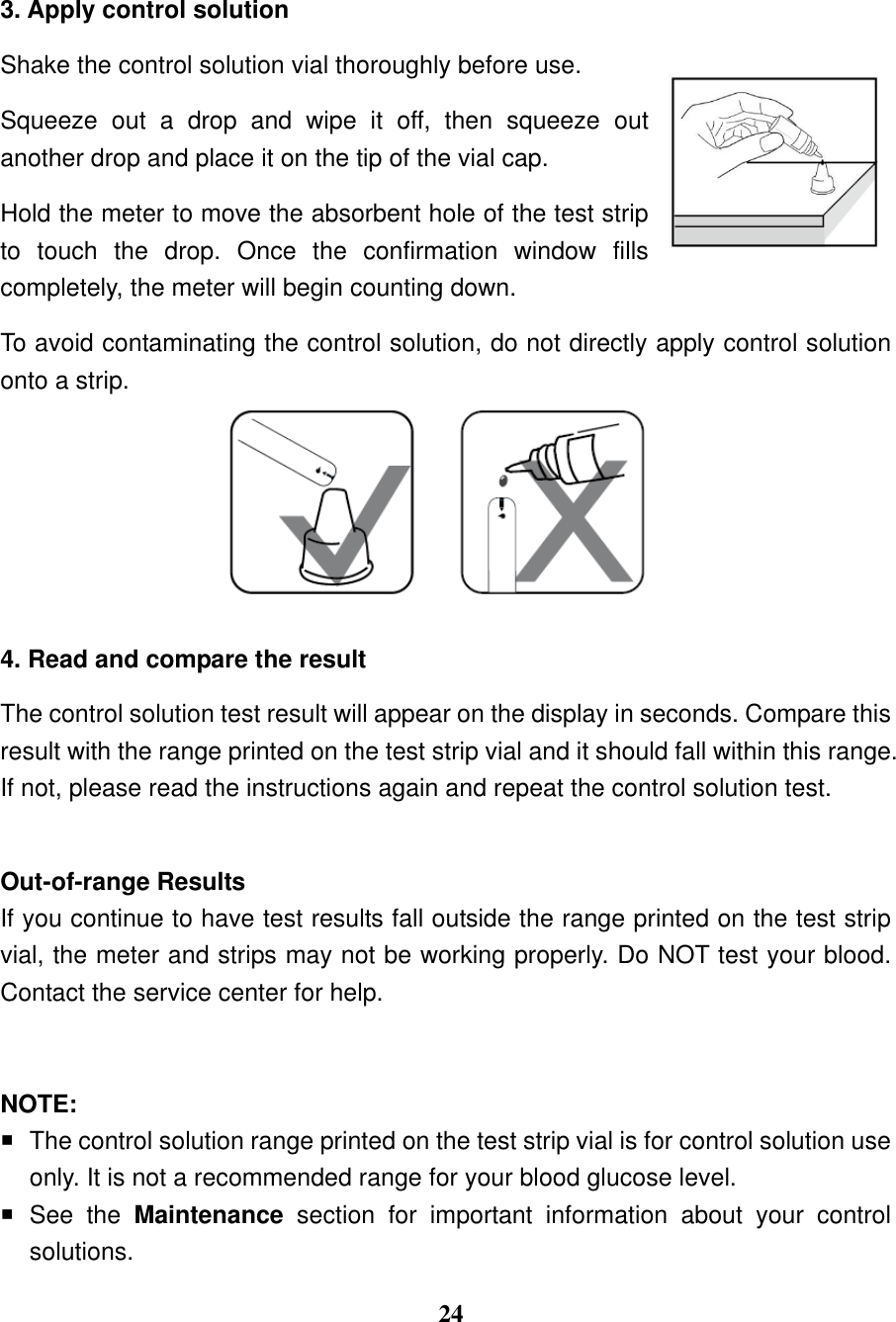
 24  3. Apply control solution   Shake the control solution vial thoroughly before use.   Squeeze  out  a  drop  and  wipe  it  off,  then  squeeze  out another drop and place it on the tip of the vial cap. Hold the meter to move the absorbent hole of the test strip to  touch  the  drop.  Once  the  confirmation  window  fills completely, the meter will begin counting down. To avoid contaminating the control solution, do not directly apply control solution onto a strip.                 4. Read and compare the result   The control solution test result will appear on the display in seconds. Compare this result with the range printed on the test strip vial and it should fall within this range. If not, please read the instructions again and repeat the control solution test.    Out-of-range Results If you continue to have test results fall outside the range printed on the test strip vial, the meter and strips may not be working properly. Do NOT test your blood. Contact the service center for help.   NOTE:   The control solution range printed on the test strip vial is for control solution use only. It is not a recommended range for your blood glucose level.   See  the  Maintenance  section  for  important  information  about  your  control solutions.
 25  TESTING WITH BLOOD SAMPLE                                                                WARNING: To Reduce the Chance of Infection   The meter and lancing device are for single use. Never share a lancet or the lancing device.   Always use a new, sterile lancet. Lancets are for single use only.     Avoid getting hand lotion, oils, dirt, or debris in or on the lancets and the lancing device.   Wash and dry your hands thoroughly after handling the meter, lancing device, and test strips to prevent infection. For more information, please refer to the “Cleaning and Disinfection” section.   If  the  meter  is  being  operated  by  a  second  person  who  is  providing  testing assistance to the user, the meter and lancing device should be decontaminated prior to use by the second person.   If patient is being assisted with glucose meter testing, the assistant should wear gloves throughout. Additionally, the assistant should clean and disinfect meter between each use.  Preparing the Lancing Device for Blood Testing Please follow the instructions in the lancing device insert for collecting a blood sample.  Preparing the Puncture Site Stimulating blood perfusion by rubbing the puncture site before blood extraction has a significant influence on the glucose value obtained.   Blood  from  a  site  that  has  not  been  rubbed  exhibits  a  measurably  different glucose  concentration  than  blood  from  the  finger.  When  the  puncture  site  was rubbed prior to blood extraction, the difference was significantly reduced. Please follow the suggestions below before obtaining a drop of blood:  Wash and dry your hands before beginning.   Select the puncture site either at fingertips or another body parts (please see section “Alternative Site Testing” (AST) on how to select the appropriate sites).
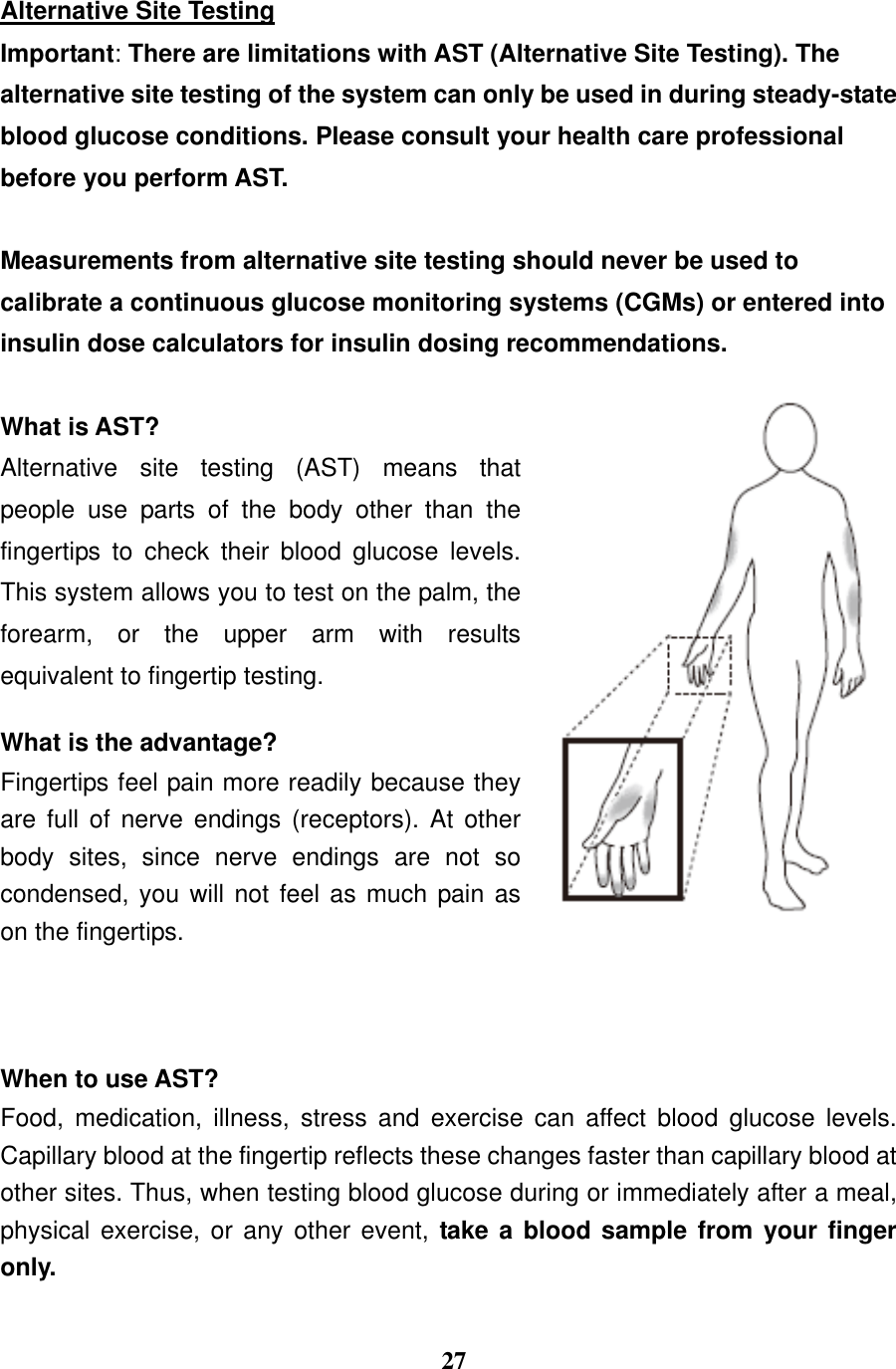
 26    Rub the puncture site for about 20 seconds before penetration.   Clean the puncture site using cotton moistened with 70% alcohol and let it air dry.   Fingertip testing Press the lancing device’s tip firmly against the lower side of your fingertip. Press the release button to prick your finger, then a click indicates that the puncture is complete.    Blood from sites other than the fingertip Replace the lancing device cap with the clear cap for AST. Pull the cocking control back until it clicks. When lancing the palm, the forearm, and the upper-arm, you must avoid lancing the areas with obvious veins because of excessive bleeding.    NOTE:  Choose a different spot each time you test. Repeated punctures at the same spot may cause soreness and calluses.  Please consult your health care professional before you begin AST.  It is recommended that you discard the first drop of blood as it might contain tissue fluid, which may affect the test result.
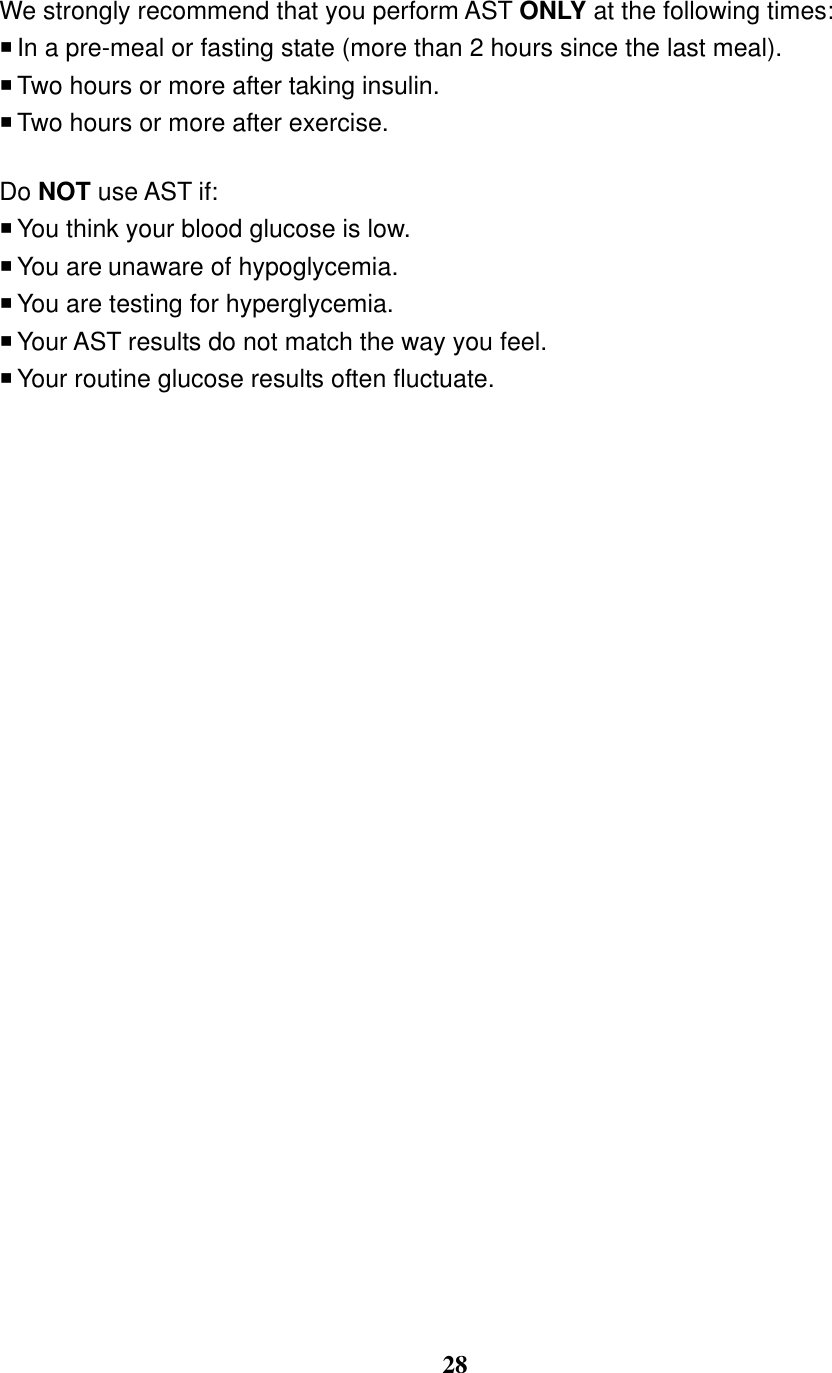
 27  Alternative Site Testing Important: There are limitations with AST (Alternative Site Testing). The alternative site testing of the system can only be used in during steady-state blood glucose conditions. Please consult your health care professional before you perform AST.  Measurements from alternative site testing should never be used to calibrate a continuous glucose monitoring systems (CGMs) or entered into insulin dose calculators for insulin dosing recommendations.  What is AST? Alternative  site  testing  (AST)  means  that people  use  parts  of  the  body  other  than  the fingertips  to  check  their  blood  glucose  levels. This system allows you to test on the palm, the forearm,  or  the  upper  arm  with  results equivalent to fingertip testing.    What is the advantage? Fingertips feel pain more readily because they are  full  of  nerve  endings  (receptors).  At  other body  sites,  since  nerve  endings  are  not  so condensed, you will not feel as much pain as on the fingertips.      When to use AST? Food,  medication,  illness,  stress  and  exercise  can  affect  blood  glucose  levels. Capillary blood at the fingertip reflects these changes faster than capillary blood at other sites. Thus, when testing blood glucose during or immediately after a meal, physical exercise, or any other  event,  take a  blood sample from your finger only.
 28  We strongly recommend that you perform AST ONLY at the following times:  In a pre-meal or fasting state (more than 2 hours since the last meal).    Two hours or more after taking insulin.    Two hours or more after exercise.  Do NOT use AST if:  You think your blood glucose is low.  You are unaware of hypoglycemia.    You are testing for hyperglycemia.  Your AST results do not match the way you feel.  Your routine glucose results often fluctuate.
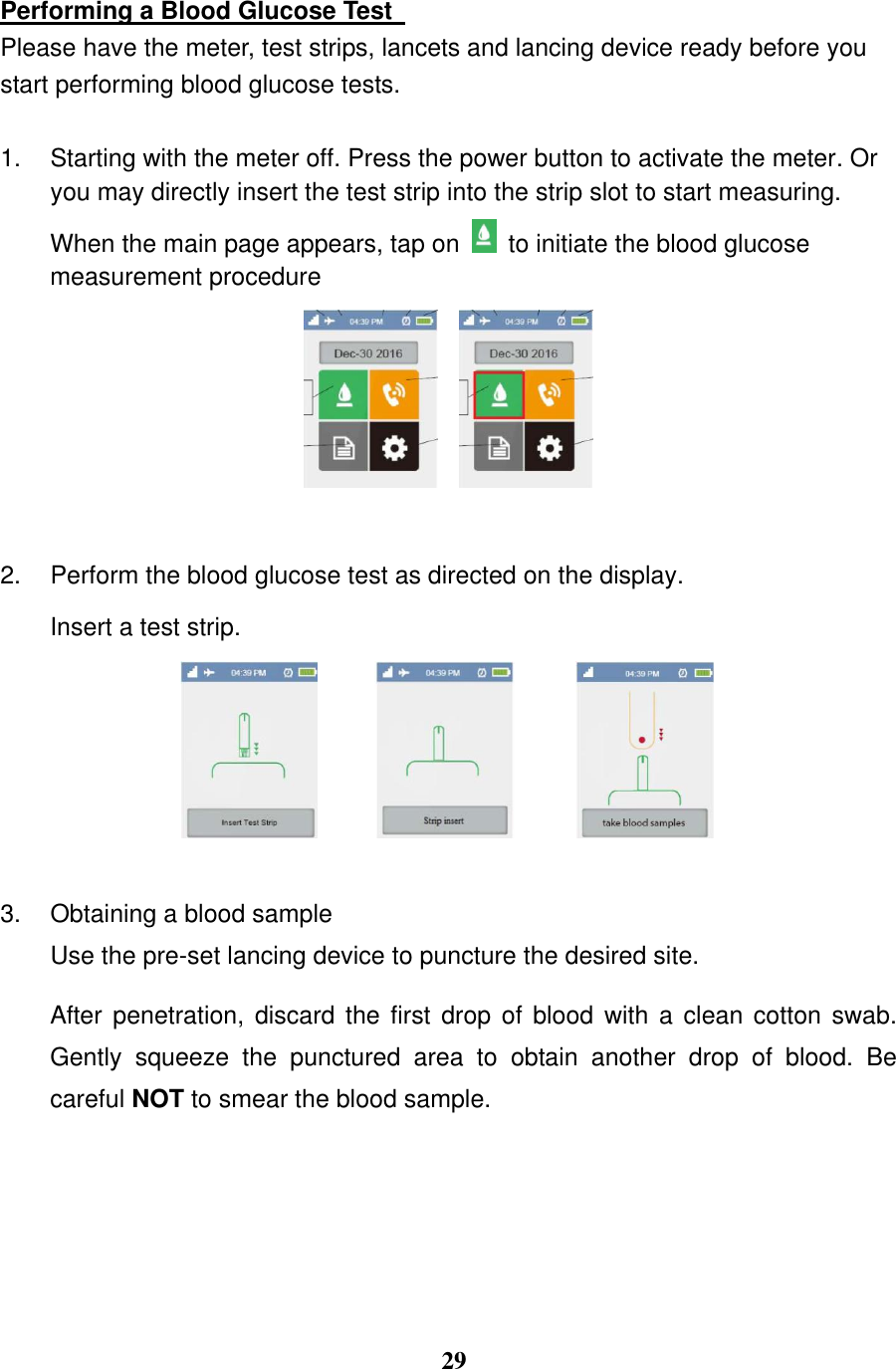
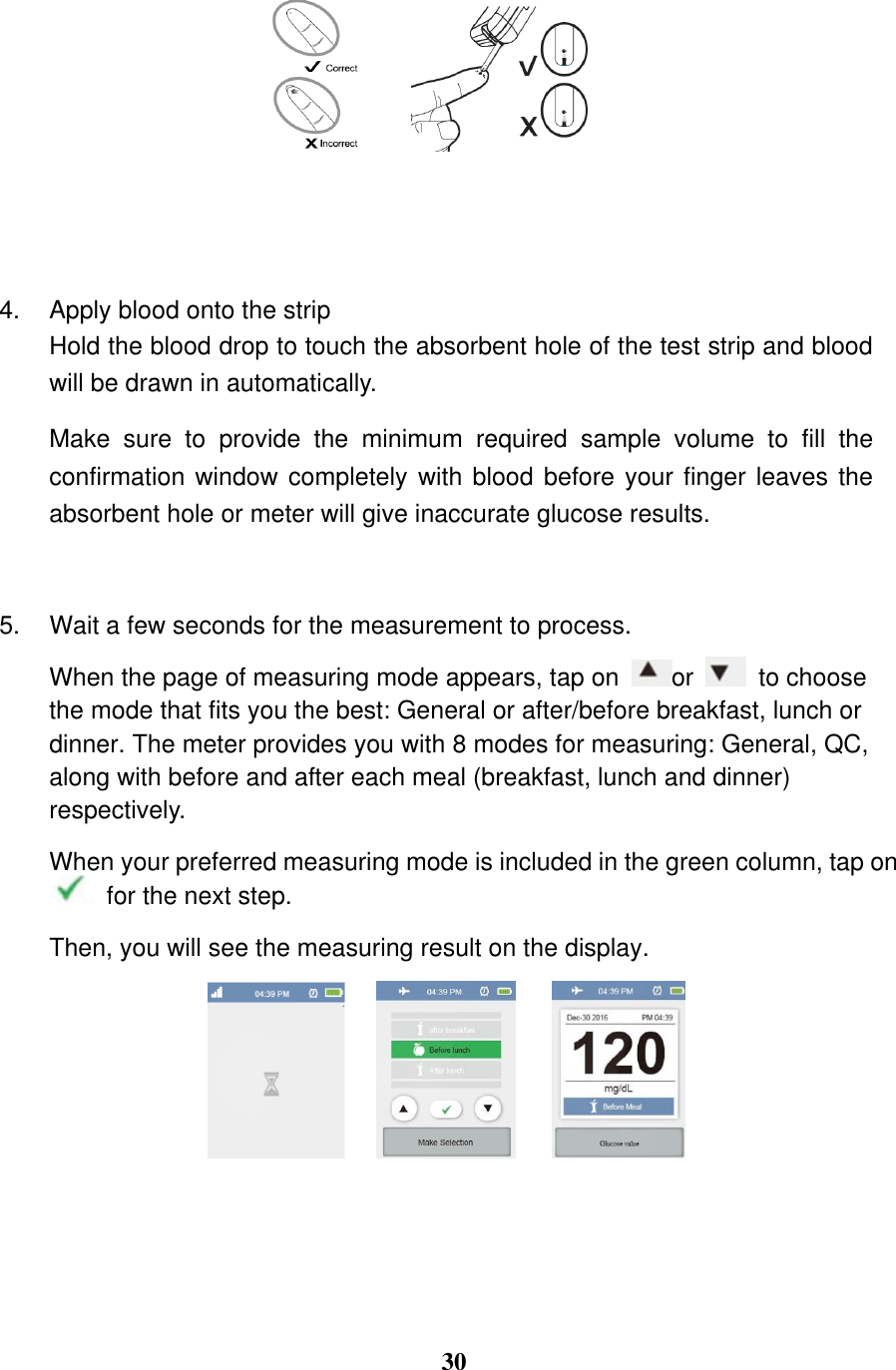
 29  Performing a Blood Glucose Test   Please have the meter, test strips, lancets and lancing device ready before you start performing blood glucose tests. 1.  Starting with the meter off. Press the power button to activate the meter. Or you may directly insert the test strip into the strip slot to start measuring. When the main page appears, tap on   to initiate the blood glucose measurement procedure    2.  Perform the blood glucose test as directed on the display. Insert a test strip.    3.  Obtaining a blood sample Use the pre-set lancing device to puncture the desired site.  After penetration, discard the first drop of blood with a clean cotton swab. Gently  squeeze  the  punctured  area  to  obtain  another  drop  of  blood.  Be careful NOT to smear the blood sample.
 30     4.  Apply blood onto the strip   Hold the blood drop to touch the absorbent hole of the test strip and blood will be drawn in automatically.   Make  sure  to  provide  the  minimum  required  sample  volume  to  fill  the confirmation window completely with blood before your finger leaves the absorbent hole or meter will give inaccurate glucose results.  5.  Wait a few seconds for the measurement to process.   When the page of measuring mode appears, tap on  or    to choose the mode that fits you the best: General or after/before breakfast, lunch or dinner. The meter provides you with 8 modes for measuring: General, QC, along with before and after each meal (breakfast, lunch and dinner) respectively. When your preferred measuring mode is included in the green column, tap on  for the next step. Then, you will see the measuring result on the display.
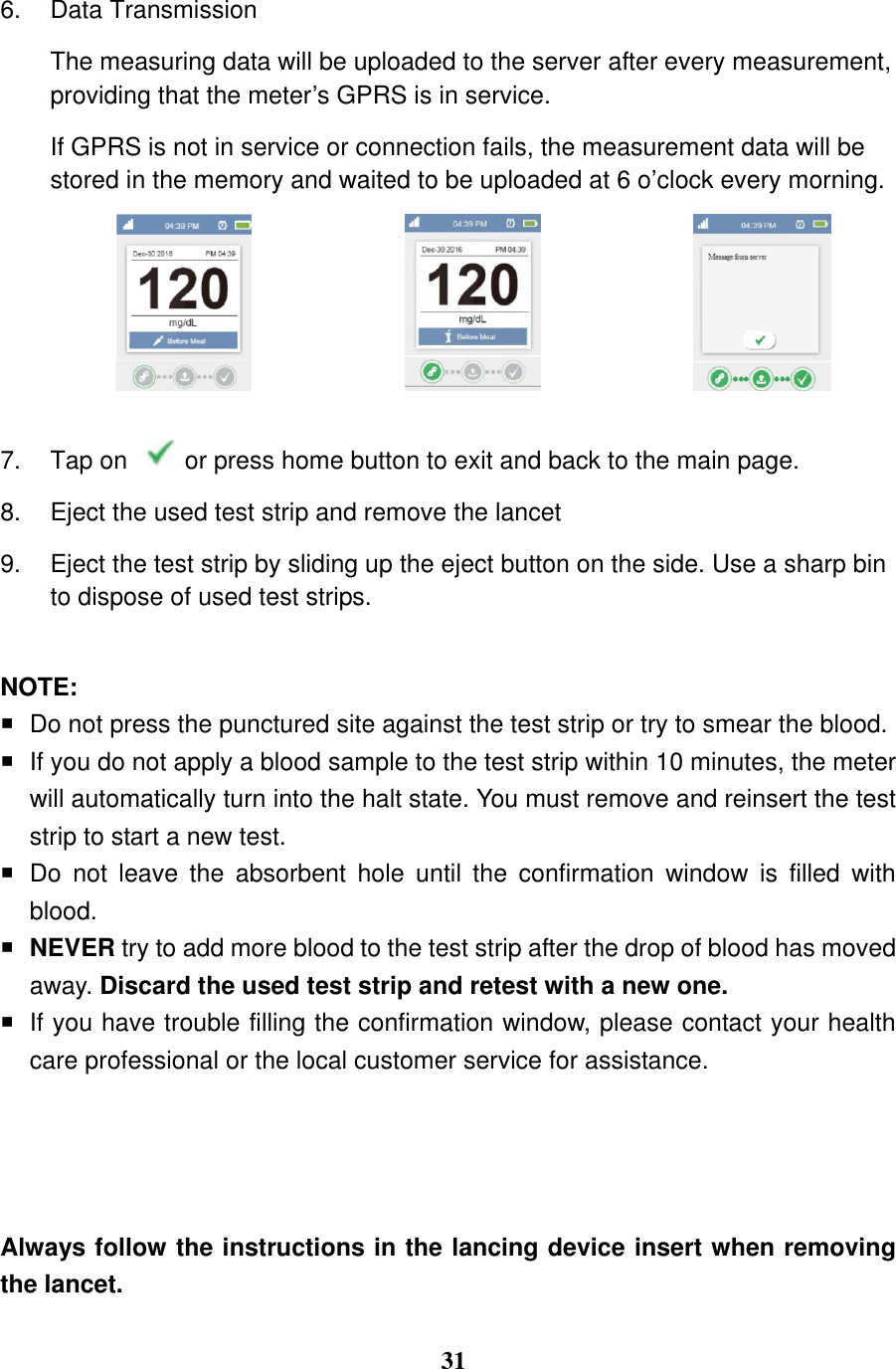
 31  6.  Data Transmission The measuring data will be uploaded to the server after every measurement, providing that the meter’s GPRS is in service.   If GPRS is not in service or connection fails, the measurement data will be stored in the memory and waited to be uploaded at 6 o’clock every morning.     7.  Tap on  or press home button to exit and back to the main page. 8.  Eject the used test strip and remove the lancet 9.  Eject the test strip by sliding up the eject button on the side. Use a sharp bin to dispose of used test strips.  NOTE:   Do not press the punctured site against the test strip or try to smear the blood.  If you do not apply a blood sample to the test strip within 10 minutes, the meter will automatically turn into the halt state. You must remove and reinsert the test strip to start a new test.   Do  not  leave  the  absorbent  hole  until  the  confirmation  window  is  filled  with blood.  NEVER try to add more blood to the test strip after the drop of blood has moved away. Discard the used test strip and retest with a new one.   If you have trouble filling the confirmation window, please contact your health care professional or the local customer service for assistance.     Always follow the instructions in the lancing device insert when removing the lancet.
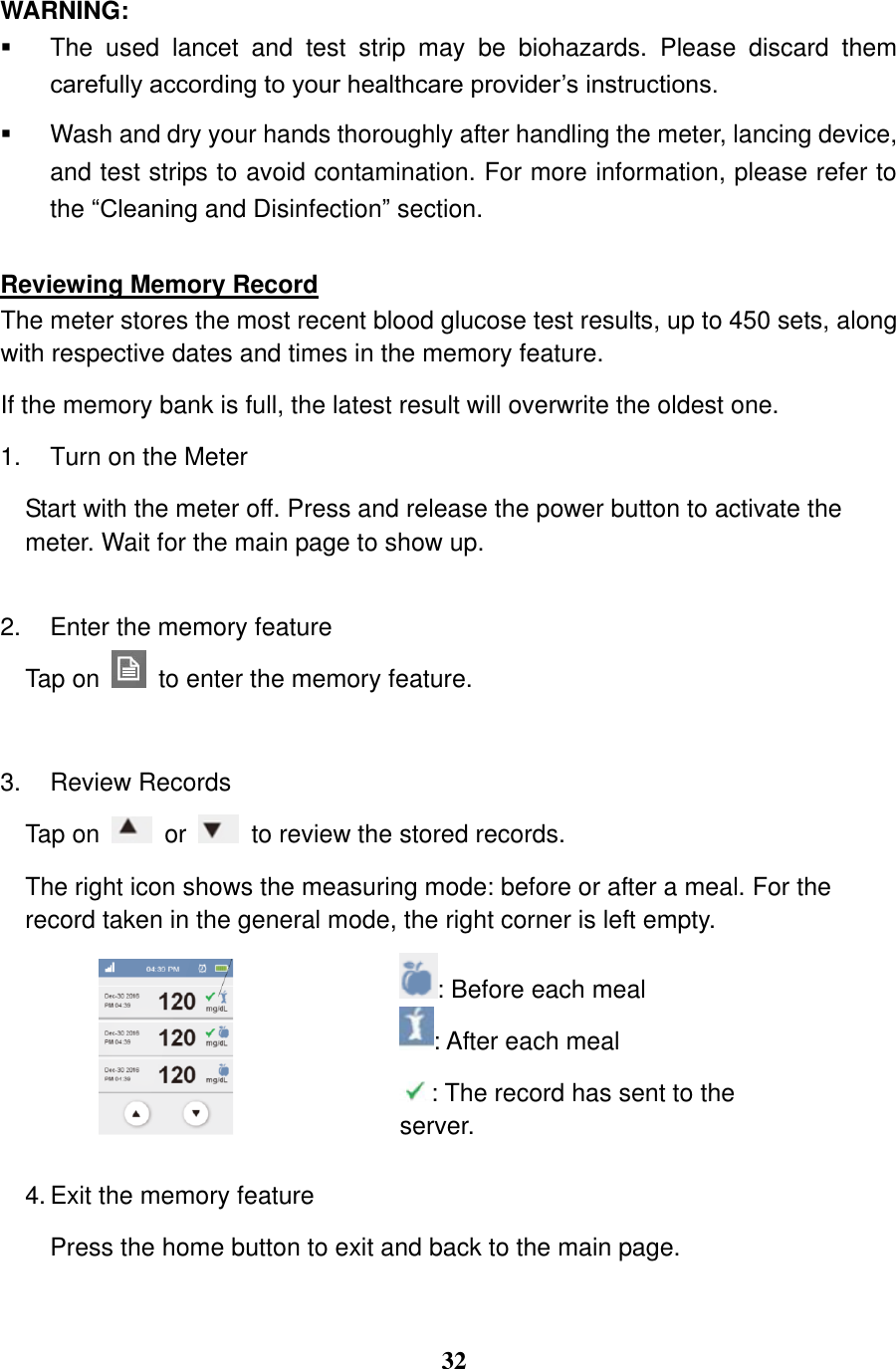
 32  WARNING:   The  used  lancet  and  test  strip  may  be  biohazards.  Please  discard  them carefully according to your healthcare provider’s instructions.   Wash and dry your hands thoroughly after handling the meter, lancing device, and test strips to avoid contamination. For more information, please refer to the “Cleaning and Disinfection” section.  Reviewing Memory Record The meter stores the most recent blood glucose test results, up to 450 sets, along with respective dates and times in the memory feature.   If the memory bank is full, the latest result will overwrite the oldest one.   1.  Turn on the Meter   Start with the meter off. Press and release the power button to activate the meter. Wait for the main page to show up.  2.  Enter the memory feature Tap on    to enter the memory feature.  3.  Review Records Tap on    or    to review the stored records.   The right icon shows the measuring mode: before or after a meal. For the record taken in the general mode, the right corner is left empty.   : Before each meal : After each meal : The record has sent to the server.   4. Exit the memory feature Press the home button to exit and back to the main page.
 33  NOTE: If using the meter for the first time, You will find “”Empty” showing on the display, indicating that there is no test result in the memory.                                          MAINTENANCE                                                 Battery  Your meter comes with one 3.7V Li-Polymer rechargeable battery.    Please recharge the meter if the battery icon on the upper right flickers. That means the battery is low.  The meter will shut down immediately once the battery is dead.  Recharging the Battery There are 2 ways to charge the internal battery in your meter:     Plug the meter into a powered-on computer or laptop with a Micro-USB cable.     Use an AC power adapter. Plug the  meter  into  a  wall  outlet  to  initiate the charging process. The battery charging indication will light red when charging is in process. When the indicator light green, it means the battery is full. You may now remove the USB cable.   You may also refer to the battery icon on the upper right for the capacity of the battery.                                                 NOTE:   Recharging the battery affects neither the test result stored in the memory, nor the functions other than glucose measuring.     Measuring during battery recharging is prohibited.    The AC power adapter and the micro-USB cable may not come with the kit. They may be purchased separately. It is recommended to use the AC adapter of  MEAN  WELL  (Model  No.:  GSM06E05-TD)  which  provides  6  Watts  of continuous output power. The wide operating voltage is 100 to 240 VAC, 47 to 63 Hz.
 34  Caring for Your Meter To  avoid  the  meter  and  test  strips  attracting  dirt,  dust  or  other  contaminants, please wash and dry your hands thoroughly before and after the measurement. Cleaning   1. To clean the meter exterior, wipe it with a cloth moistened with tap water or a mild cleaning agent, then dry the device with a soft dry cloth. Do NOT rinse with water. 2. Do NOT use organic solvents to clean the meter.  Meter Storage   Storage  conditions:  -20℃  to  60℃  (-4℉  to  140℉),  below  95%  relative humidity.   Always store or transport the meter in its original storage case.     Avoid dropping and heavy impact.   Avoid direct sunlight and high humidity.  Meter Disposal   The used meter should be treated as contaminated that may carry a risk of infection  during  measurement.  The  batteries  in  this  used  meter  should  be removed  and  the  meter  should  be  disposed  in  accordance  with  local regulations. The  meter  falls  outside  the  scope  of  the  European  Directive 2002/96/EC-Directive on waste electrical and electronic equipment (WEEE).  Caring for Your Test Strips   Storage  conditions:  2℃  to  30℃  (35.6℉  to  86℉)  and  below  85%  relative humidity. Do NOT freeze.   Store  your  test  strips  in  their  original  vial  only.  Do  not  transfer  to  another container.     Store test strip packages in a cool dry place. Keep away from direct sunlight and heat.   After removing a test strip from the vial, immediately close the vial cap tightly.     Touch the test strip with clean and dry hands. Use each test strip immediately after removing it from the vial.
 35    Do not use test strips beyond the expiration date. This may cause inaccurate results.   Do not bend, cut, or alter a test strip in any way.     Keep the strip vial away from children since the cap and the test strip may be a choking hazard. If swallowed, promptly see a doctor for help.                   For further information, please refer to the test strip package insert.
 36  Important Control Solution Information     Use only ActiveCare control solutions with your meter.   Do not use the control solution beyond the expiration date or 3 months after first opening. Write the opening date on the control solution vial and discard the remaining solution after 3 months.     It is recommended that the control solution test be done at room temperature 20°C to 25°C (68°F to 77°F). Make sure your control solution, meter, and test strips are at this specified temperature range before testing.     Shake the vial before use, discard the first drop of control solution, and wipe off the dispenser tip to ensure a pure sample and an accurate result.   Store the control solution tightly closed at temperatures between 2°C to 30°C (35.6°F to 86°F). Do NOT freeze.           NOTE:   Do NOT clean and disinfect the meter while performing tests.   If the meter  is being operated by a  second person, the meter and lancing device should be decontaminated prior to use by the second person.   Do NOT allow cleaning and disinfecting solution to get in the test slot, battery compartment, or strip-ejection button.   If  you  do  get  moisture  in  the  test  strip  slot,  wipe  it  away  with  a  corner  of tissue.   Always dry the meter thoroughly before using it.    Do  not  spray  the  meter  directly  with  cleaning  solutions  especially  those containing water (i.e. soapy water), as this could cause the solution to enter the case inside and damage the electronic components or circuitry.
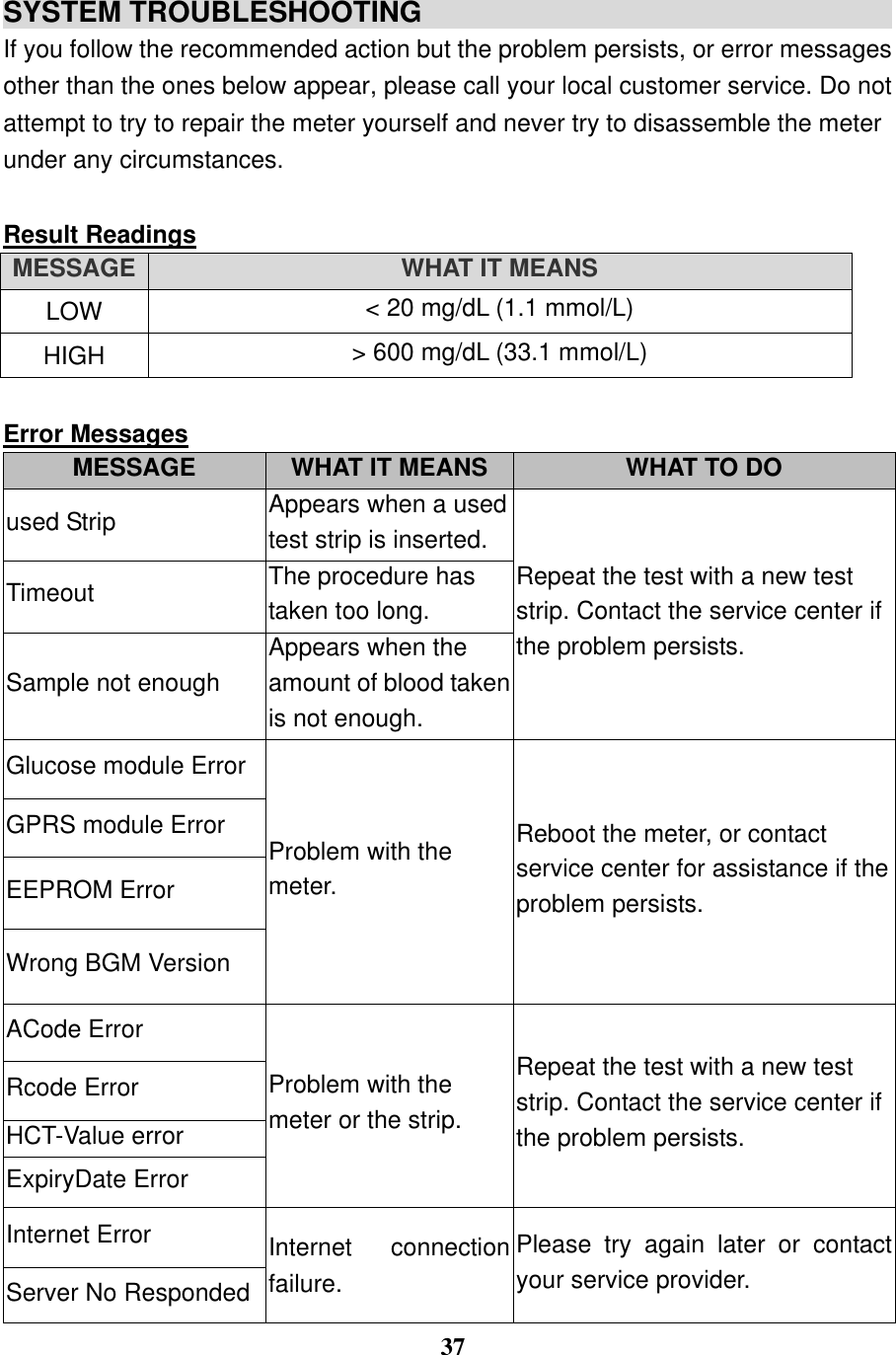
 37  SYSTEM TROUBLESHOOTING                                   If you follow the recommended action but the problem persists, or error messages other than the ones below appear, please call your local customer service. Do not attempt to try to repair the meter yourself and never try to disassemble the meter under any circumstances.  Result Readings MESSAGE WHAT IT MEANS LOW < 20 mg/dL (1.1 mmol/L) HIGH > 600 mg/dL (33.1 mmol/L)  Error Messages MESSAGE WHAT IT MEANS WHAT TO DO used Strip Appears when a used test strip is inserted. Repeat the test with a new test strip. Contact the service center if the problem persists. Timeout The procedure has taken too long. Sample not enough Appears when the amount of blood taken is not enough.   Glucose module Error Problem with the meter. Reboot the meter, or contact service center for assistance if the problem persists.   GPRS module Error EEPROM Error Wrong BGM Version ACode Error Problem with the meter or the strip. Repeat the test with a new test strip. Contact the service center if the problem persists. Rcode Error HCT-Value error ExpiryDate Error Internet Error Internet  connection failure.   Please  try  again  later  or  contact your service provider.   Server No Responded
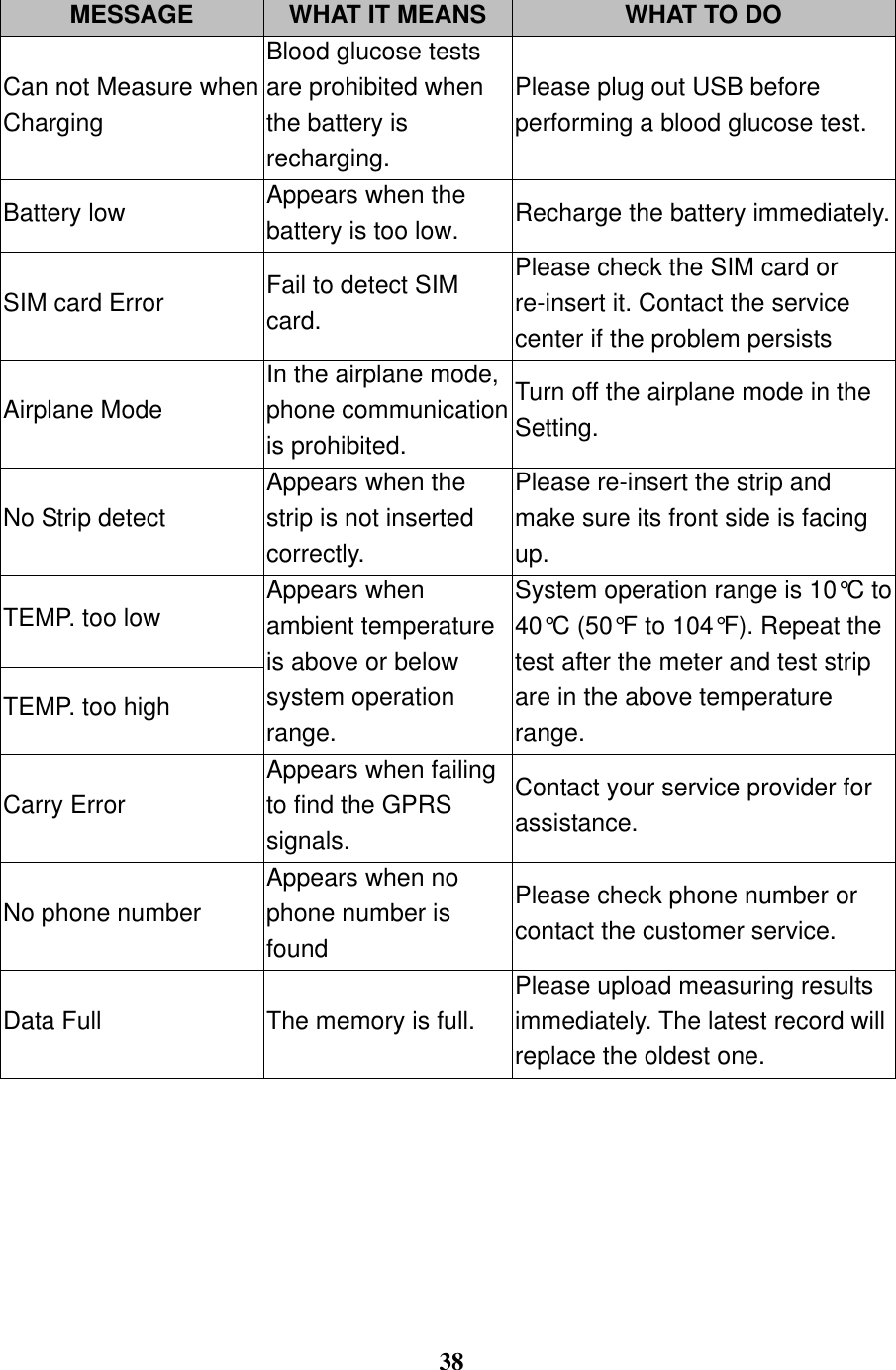
 38  MESSAGE WHAT IT MEANS WHAT TO DO Can not Measure when Charging Blood glucose tests are prohibited when the battery is recharging.   Please plug out USB before performing a blood glucose test. Battery low Appears when the battery is too low. Recharge the battery immediately. SIM card Error Fail to detect SIM card. Please check the SIM card or re-insert it. Contact the service center if the problem persists Airplane Mode In the airplane mode, phone communication is prohibited. Turn off the airplane mode in the Setting.   No Strip detect Appears when the strip is not inserted correctly.   Please re-insert the strip and make sure its front side is facing up. TEMP. too low Appears when ambient temperature is above or below system operation range. System operation range is 10°C to 40°C (50°F to 104°F). Repeat the test after the meter and test strip are in the above temperature range. TEMP. too high Carry Error Appears when failing to find the GPRS signals. Contact your service provider for assistance. No phone number Appears when no phone number is found Please check phone number or contact the customer service. Data Full The memory is full. Please upload measuring results immediately. The latest record will replace the oldest one.
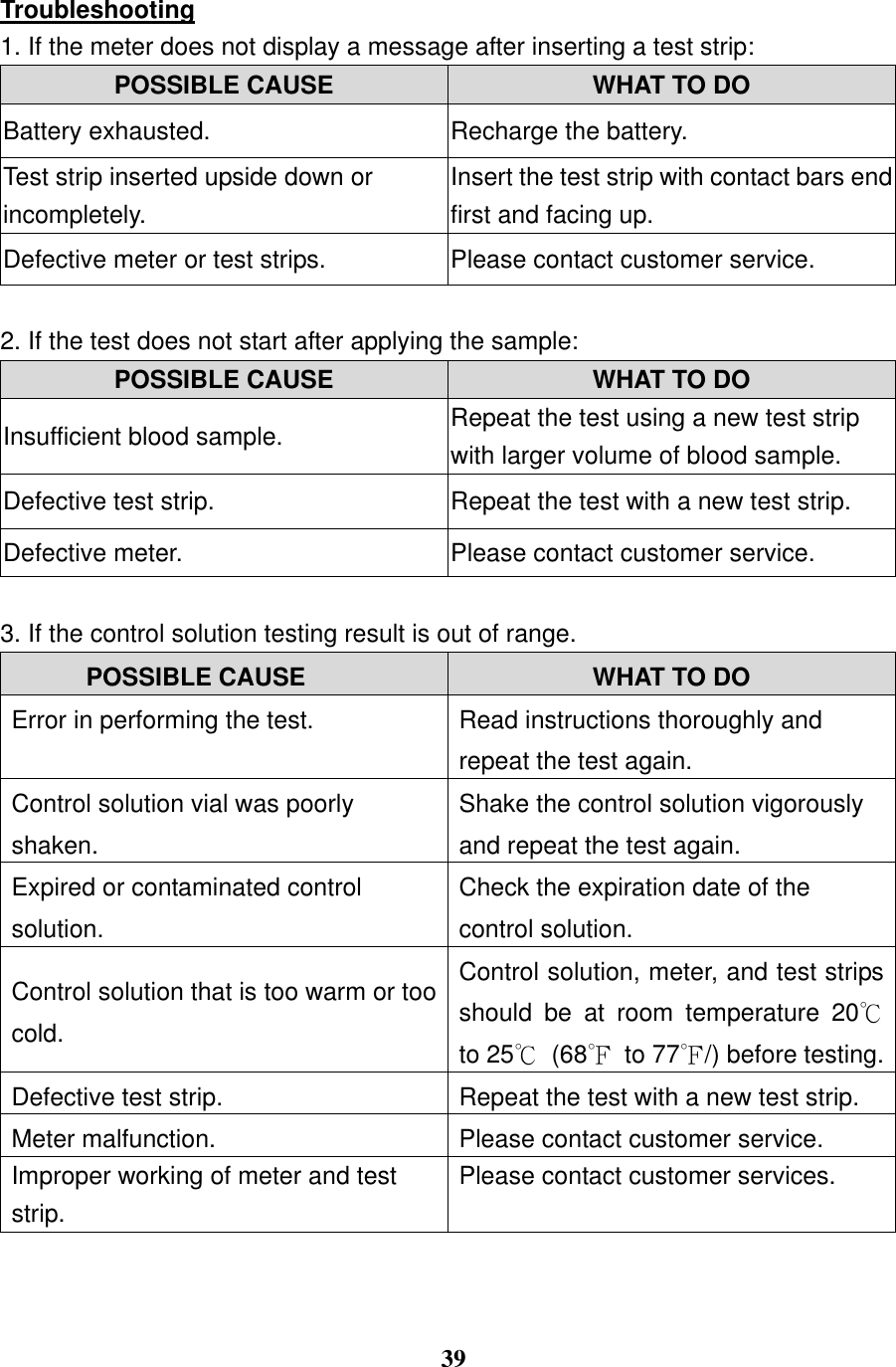
 39  Troubleshooting 1. If the meter does not display a message after inserting a test strip:   POSSIBLE CAUSE WHAT TO DO Battery exhausted.   Recharge the battery.   Test strip inserted upside down or incompletely.   Insert the test strip with contact bars end first and facing up.   Defective meter or test strips.   Please contact customer service.  2. If the test does not start after applying the sample:   POSSIBLE CAUSE WHAT TO DO Insufficient blood sample. Repeat the test using a new test strip with larger volume of blood sample. Defective test strip. Repeat the test with a new test strip. Defective meter. Please contact customer service.  3. If the control solution testing result is out of range.       POSSIBLE CAUSE WHAT TO DO Error in performing the test. Read instructions thoroughly and repeat the test again. Control solution vial was poorly shaken. Shake the control solution vigorously and repeat the test again. Expired or contaminated control solution. Check the expiration date of the control solution. Control solution that is too warm or too cold. Control solution, meter, and test strips should  be  at  room  temperature  20℃ to 25℃ (68℉  to 77℉/) before testing. Defective test strip. Repeat the test with a new test strip. Meter malfunction. Please contact customer service. Improper working of meter and test strip.   Please contact customer services.
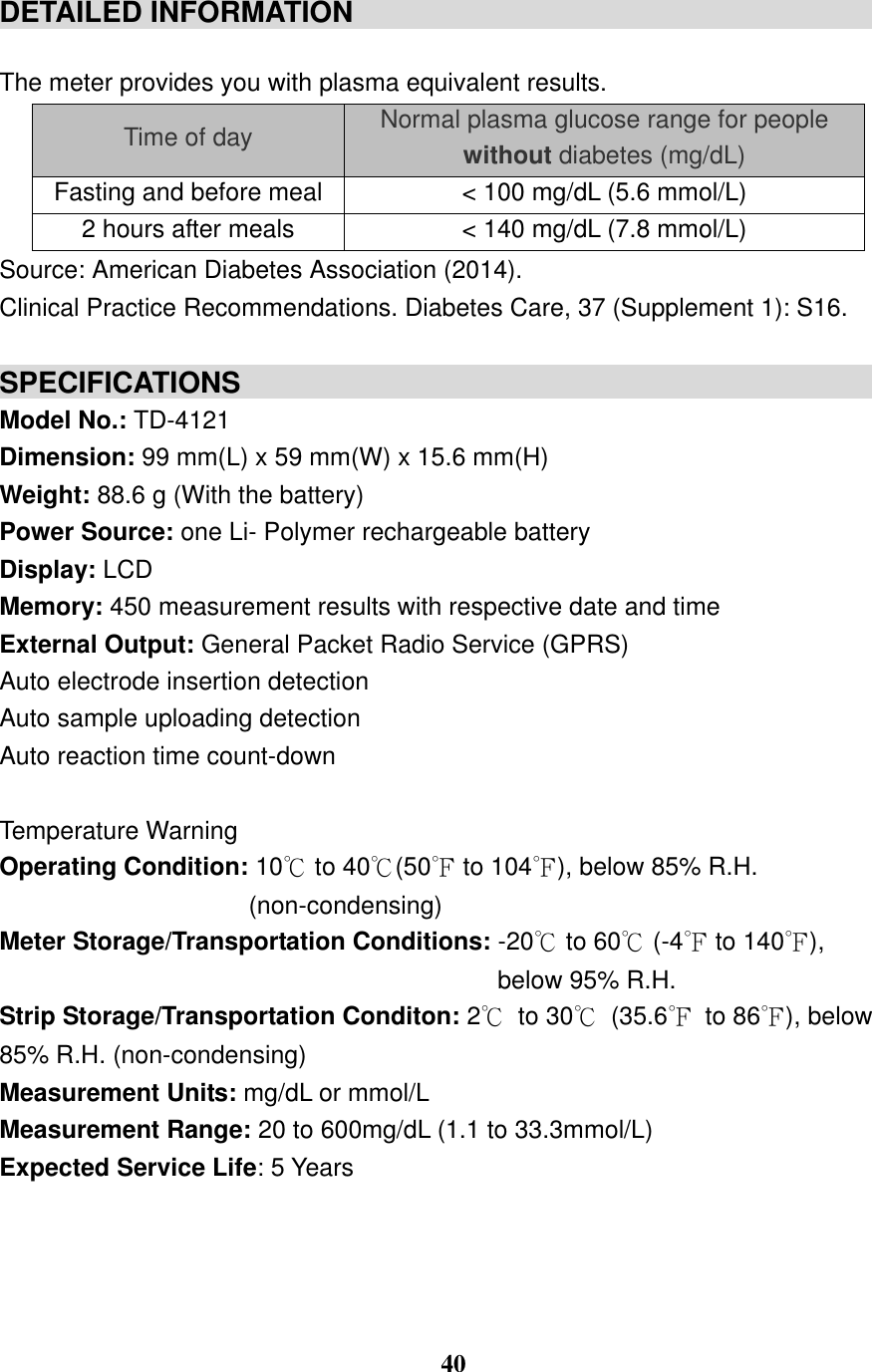
 40  DETAILED INFORMATION                                                                              The meter provides you with plasma equivalent results. Time of day Normal plasma glucose range for people without diabetes (mg/dL) Fasting and before meal < 100 mg/dL (5.6 mmol/L) 2 hours after meals < 140 mg/dL (7.8 mmol/L) Source: American Diabetes Association (2014).   Clinical Practice Recommendations. Diabetes Care, 37 (Supplement 1): S16.  SPECIFICATIONS                                                Model No.: TD-4121 Dimension: 99 mm(L) x 59 mm(W) x 15.6 mm(H) Weight: 88.6 g (With the battery) Power Source: one Li- Polymer rechargeable battery Display: LCD Memory: 450 measurement results with respective date and time   External Output: General Packet Radio Service (GPRS) Auto electrode insertion detection   Auto sample uploading detection   Auto reaction time count-down      Temperature Warning   Operating Condition: 10℃ to 40℃(50℉ to 104℉), below 85% R.H. (non-condensing) Meter Storage/Transportation Conditions: -20℃ to 60℃ (-4℉ to 140℉),   below 95% R.H. Strip Storage/Transportation Conditon: 2℃  to 30℃  (35.6℉  to 86℉), below 85% R.H. (non-condensing) Measurement Units: mg/dL or mmol/L Measurement Range: 20 to 600mg/dL (1.1 to 33.3mmol/L) Expected Service Life: 5 Years
 41  This device has been tested to meet the electrical and safety requirements of:   IEC/EN 61010-1, IEC/EN 61010-2-101, EN 61326-1, IEC/EN 61326-2-6. This device complies with the R&TTE Directive (1999/5/EC) issued by the Commission of the European Community. A minimum separation distance of 0.5 cm must be maintained between the user’s body and the device, including the antenna during body-worn operation to comply with the RF exposure requirements in Europe. To compliance with RF Exposure requirements in Europe, third-party belt-clips, holsters or similar accessories used by this device should not contain any metallic components. The use of accessories that do not satisfy these requirements may not comply with RF exposure requirements, and should be avoided.
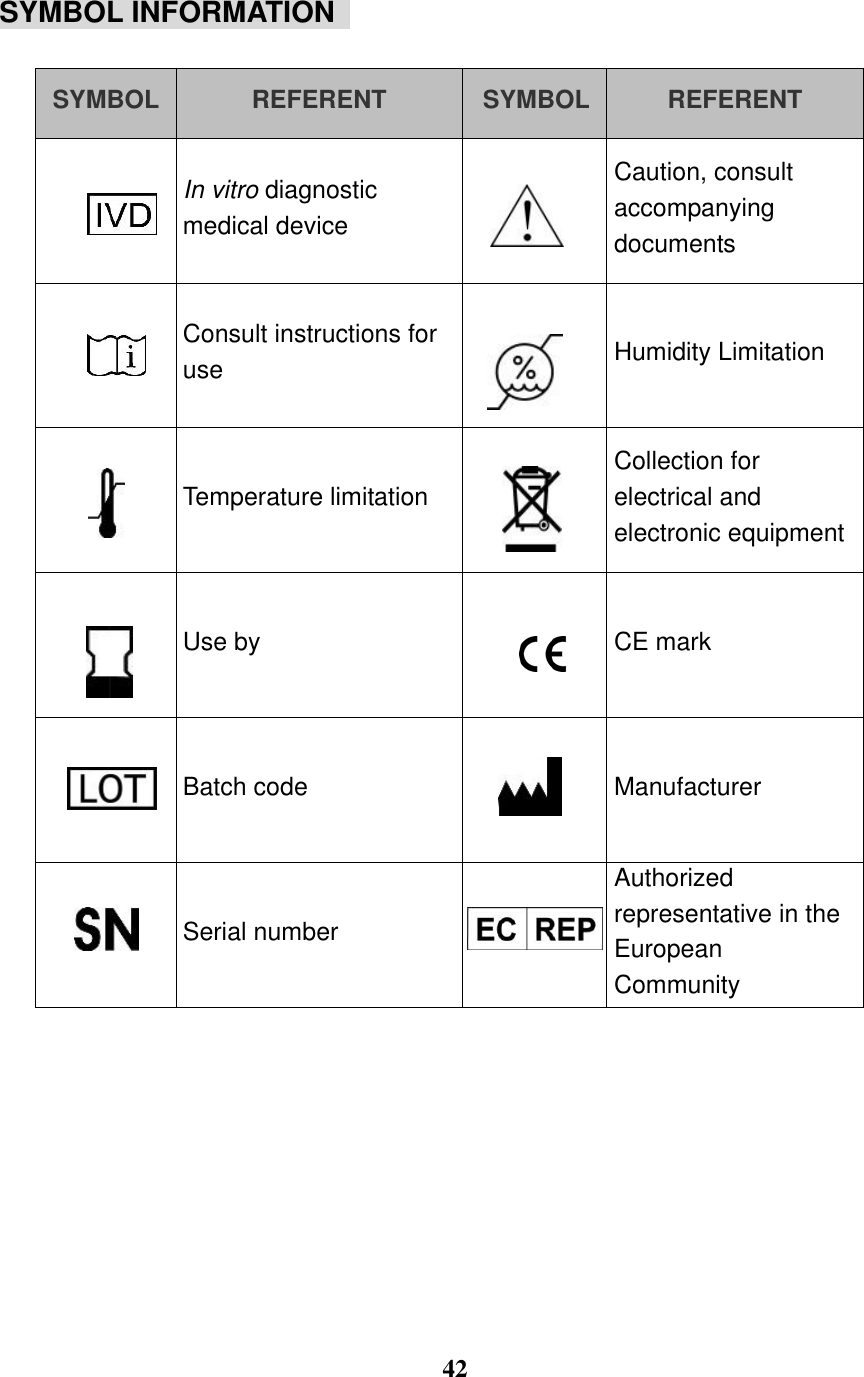
 42  SYMBOL INFORMATION    SYMBOL REFERENT SYMBOL REFERENT  In vitro diagnostic medical device  Caution, consult accompanying documents  Consult instructions for use  Humidity Limitation  Temperature limitation  Collection for electrical and electronic equipment  Use by  CE mark  Batch code  Manufacturer  Serial number  Authorized representative in the European Community
 43  Federal Communication Commission Interference Statement  This device complies with Part 15 of the FCC Rules. Operation is subject to the following two conditions: (1) This device may not cause harmful interference, and (2) this device must accept any interference received, including interference that may cause undesired operation.  This equipment has been tested and found to comply with the limits for a Class B digital device, pursua nt  to  Part  15  of  the  FCC  Rules.    These  limits  are  designed  to  provide  reasonable protection  against  harmful  interference  in  a  residential  installation.  This  equipment generates, uses and can radiate radio frequency energy and, if not installed and used in accordance  with  the  instructions,  may  cause  harmful  interference  to  radio communications.    However, there is no guarantee that interference will not occur in a particular  installation.    If  this  equipment  does  cause  harmful  interference  to  radio  or television reception, which can be determined by turning the equipment off and on, the user is encouraged to try to correct the interference by one of the following measures:   Reorient or relocate the receiving antenna.  Increase the separation between the equipment and receiver.  Connect the equipment into an outlet on a circuit different from that to which the receiver is connected.  Consult the dealer or an experienced radio/TV technician for help. FCC Caution: Any changes or modifications not expressly approved by the party responsible for compliance could void the user's authority to operate this equipment. This transmitter must not be co-located or operating in conjunction with any other antenna or transmitter. Radiation Exposure Statement: This device meets the government’s requirements for exposure to radio waves. This device is designed and manufactured not to exceed the emission limits for exposure to radio frequency (RF) energy set by the Federal Communications Commission of the U.S. Government.
 44  The exposure standard for wireless device employs a unit of measurement known as the Specific Absorption Rate, or SAR. The SAR limit set by the FCC is 1.6W/kg. *Tests for SAR are conducted using standard operating positions accepted by the FCC with the device transmitting at its highest certified power level in all tested frequency bands.
 45                            TaiDoc Technology Corporation B1-7F, No.127, Wugong 2nd Rd.,   Wugu Dist., 24888 New Taipei City, Taiwan www.taidoc.com For self-testing  MedNet GmbH   Borkstraβe 10, 48163 Mϋnster, Germany

Navigation menu