TECHVIEW D300 Adaptador inalambrico USB de 300 Mbps User Manual

TECHVIEW,INC Adaptador inalambrico USB de 300 Mbps Users Manual

Users Manual

                                                                         User Guide                                                                                                                                      User Guide  www.wilinklat.com
product as integration,  including its accessories  and software, belongs to TECHVIEW,INC. Without the permission of TECHVIEW,INC, any individual  or  party is not  allowed to copy, plagiarize,  reproduce, or is the registered trademark of TECHVIEW,INC All the products and product names mentioned                                                                          User Guide    Copyright Statement herein are the trademarks or registered trademarks of their respective holders. Copyright of the whole translate it into other languages. All the photos and product specifications mentioned in this guide are for references only. Upgrades of software and hardware may occur, and if there are changes, Wilink is not responsible for notifying in advance.  If  you  would  like  to  know more  about  our  product  information,  please  visit  our  website  at http://www.wilinklat.com.  Disclaimer   Pictures, images and product specifications herein are for references only. To improve internal design, operational function, and/or reliability, Wilink reserves the right to make changes to the products without obligation to notify any person or organization of such revisions or changes. Wilink does not assume any liability that may occur due  to the  use or  application of the product described herein. Every effort has been made in the preparation of this document to ensure accuracy of the contents, but all statements, information and recommendations in this document do not constitute the warranty of any kind, express or implied.
                                                                         User Guide  Contents Chapter 1 Introduction ............................................................................................................................. 1 1.1 Package Contents ............................................................................................................................. 1 1.2 LED Indicator Description ................................................................................................................. 1 1.3 Product Features ............................................................................................................................... 1 1.4 Product Usage................................................................................................................................... 2 1.5 Before Installation ............................................................................................................................. 2 1.6 Disable other manufacturer’s wireless network adapter ................................................................... 2 1.7 Product Maintenance ........................................................................................................................ 3 Chapter 2 Installation Guide.................................................................................................................... 4 2.1 Hardware Install ................................................................................................................................ 4 2.2 Software Install .................................................................................................................................. 4 Chapter 3 Wilink Wireless Utility ............................................................................................................ 8 3.1 Station mode (Client Mode) .............................................................................................................. 8 3.1.1 Available Networks ...................................................................................................................... 8 3.1.2 Link Information......................................................................................................................... 10 3.1.3 Profile Settings ........................................................................................................................... 11 3.1.4 Advanced .................................................................................................................................. 18 3.1.5 About ......................................................................................................................................... 19 3.2 AP Mode (in Windows 7 OS)........................................................................................................... 19 Appendix 1 Wi-Fi Connection ............................................................................................................... 21 Windows 8 .......................................................................................................................................... 21 Windows 7 .......................................................................................................................................... 22 Windows XP ....................................................................................................................................... 23 Appendix 2 How to Set WPS ................................................................................................................. 25 Appendix 3 FAQ ...................................................................................................................................... 30 Appendix 4 Safety and Emission Statement ....................................................................................... 32
                                                                         User Guide  -1-Chapter 1 Introduction Depending  on  the  model  you  purchased,  your  Wireless  USB  Adapter  has  a  150Mbps  or  300Mbps transmitting rate. It adopts the very latest wireless standard-IEEE802.11n, and is downward compatible with IEEE802.11g/b standards. It efficiently reduces the “dead spots” in your wireless area and widely multiplies your wireless coverage area. Your Wireless USB Adapter is suitable for both notebook and desktop computers. Its transmitting rate can reach up to 300Mbps (depending on the model) so its transmitting time in your LAN will be greatly reduced  when  connected  to  your  Wilink  11N  wireless  router.  Its  immediate  and  consistent  response keeps your Internet connection smooth when web page searching, downloading, gaming, or watching videos on-line. All-in-all, your Wireless USB Adapter is a cost effective wireless network adapter with a robust signal, broad transmitting distance, and stable performance.   1.1 Package Contents One Wireless network adapter (USB or PCI) One Software CD (includes user guide)       The above list is for your reference only, the actual contents may differ according to the product you purchased.   1.2 LED Indicator Description There is one status LED indicator on the wireless network adapter. The indicator will always remain ON when working correctly, and flashes when transferring data. 1.3 Product Features   Supports 150Mbps or 300Mbps wireless receiving and transmitting rate, depending on the model.   Supports soft AP feature   Complies with the latest 802.11n and 802.11b/g standards   Requires USB2.0     Supports 20MHz/40MHz frequency width   Detects wireless network and adjusts transmitting rate automatically                                                         Provides two working modes: Infrastructure and Ad-Hoc   Supports 64/128-bit WEP and WPA/WPA2 encryption methods   Supports WPS (Wi-Fi Protected Setup) encryption to secure wireless network strongly   Complies with Windows®7/ Vista /XP/ 2000/   Supports WMM to smooth out audio and video
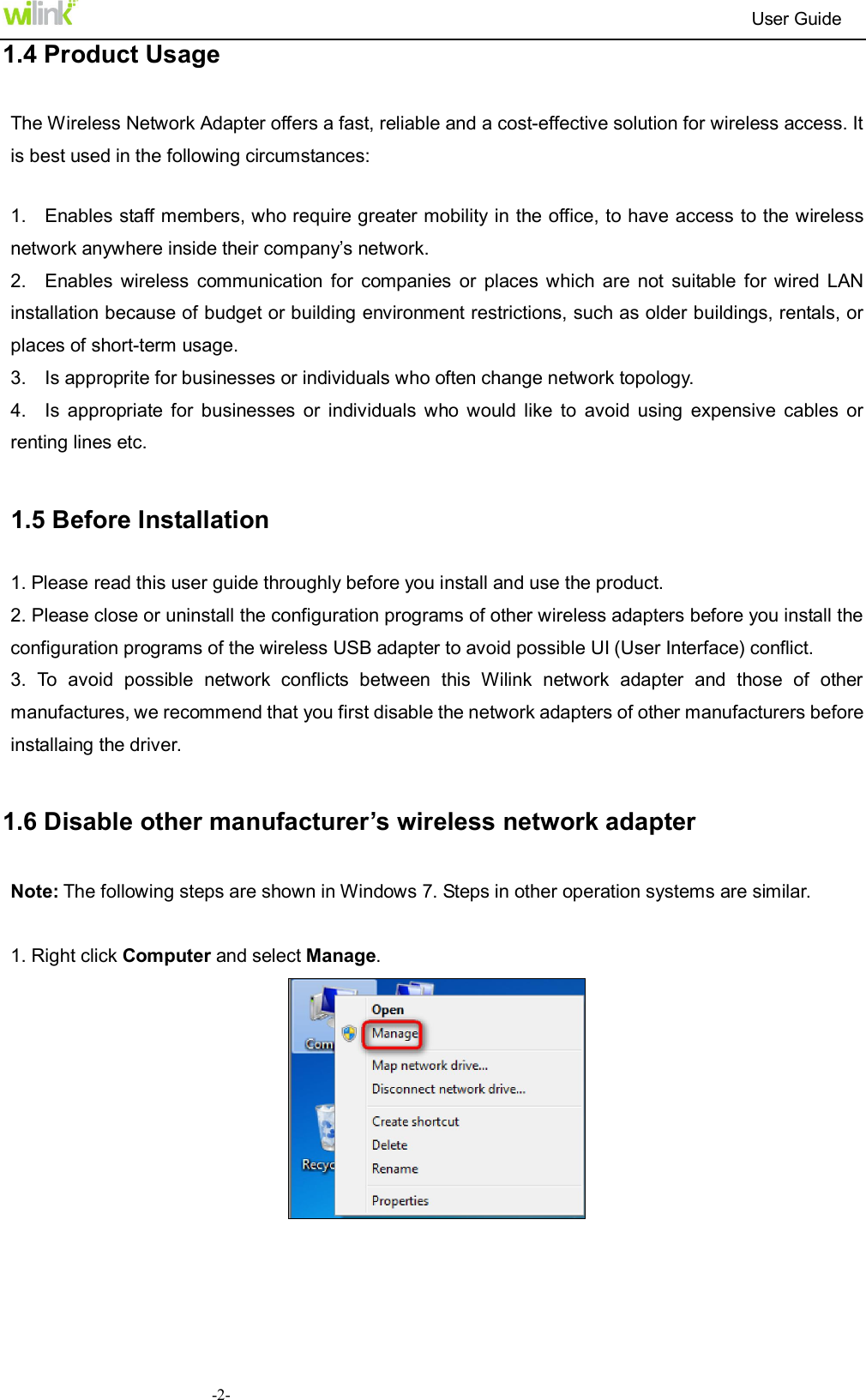
                                                                         User Guide  -2-1.4 Product Usage The Wireless Network Adapter offers a fast, reliable and a cost-effective solution for wireless access. It is best used in the following circumstances:  1.    Enables staff members, who require greater mobility in the office, to have access to the wireless network anywhere inside their company’s network. 2.    Enables  wireless  communication  for  companies  or  places which  are  not  suitable  for  wired  LAN installation because of budget or building environment restrictions, such as older buildings, rentals, or places of short-term usage. 3.    Is approprite for businesses or individuals who often change network topology. 4.    Is  appropriate  for  businesses  or  individuals  who  would  like  to  avoid  using  expensive  cables  or renting lines etc.  1.5 Before Installation 1. Please read this user guide throughly before you install and use the product. 2. Please close or uninstall the configuration programs of other wireless adapters before you install the configuration programs of the wireless USB adapter to avoid possible UI (User Interface) conflict.   3.  To  avoid  possible  network  conflicts  between  this  Wilink  network  adapter  and  those  of  other manufactures, we recommend that you first disable the network adapters of other manufacturers before installaing the driver.  1.6 Disable other manufacturer’s wireless network adapter   Note: The following steps are shown in Windows 7. Steps in other operation systems are similar.  1. Right click Computer and select Manage.
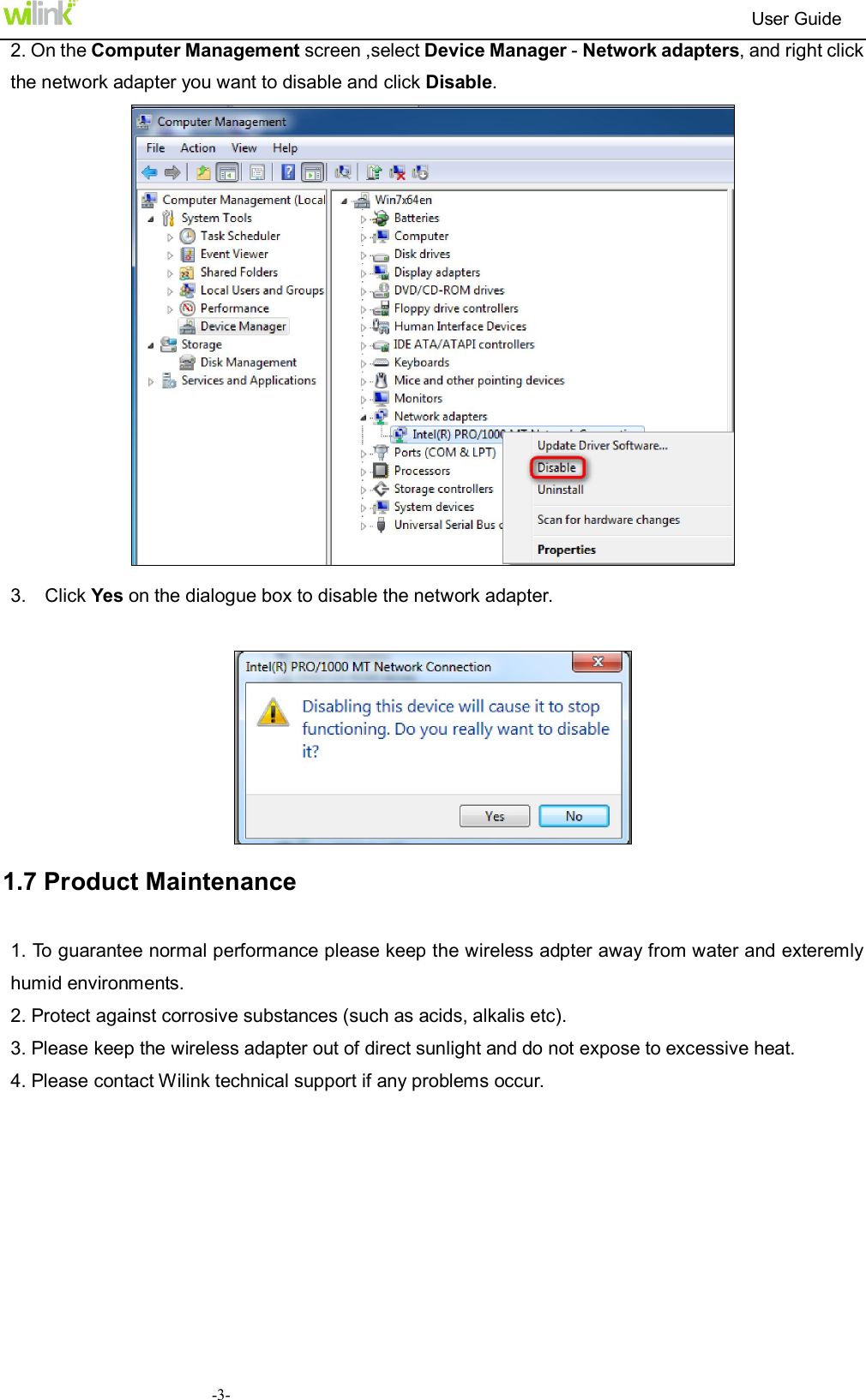
                                                                         User Guide  -3-2. On the Computer Management screen ,select Device Manager - Network adapters, and right click the network adapter you want to disable and click Disable.   3.    Click Yes on the dialogue box to disable the network adapter.   1.7 Product Maintenance 1. To guarantee normal performance please keep the wireless adpter away from water and exteremly humid environments.   2. Protect against corrosive substances (such as acids, alkalis etc). 3. Please keep the wireless adapter out of direct sunlight and do not expose to excessive heat. 4. Please contact Wilink technical support if any problems occur.
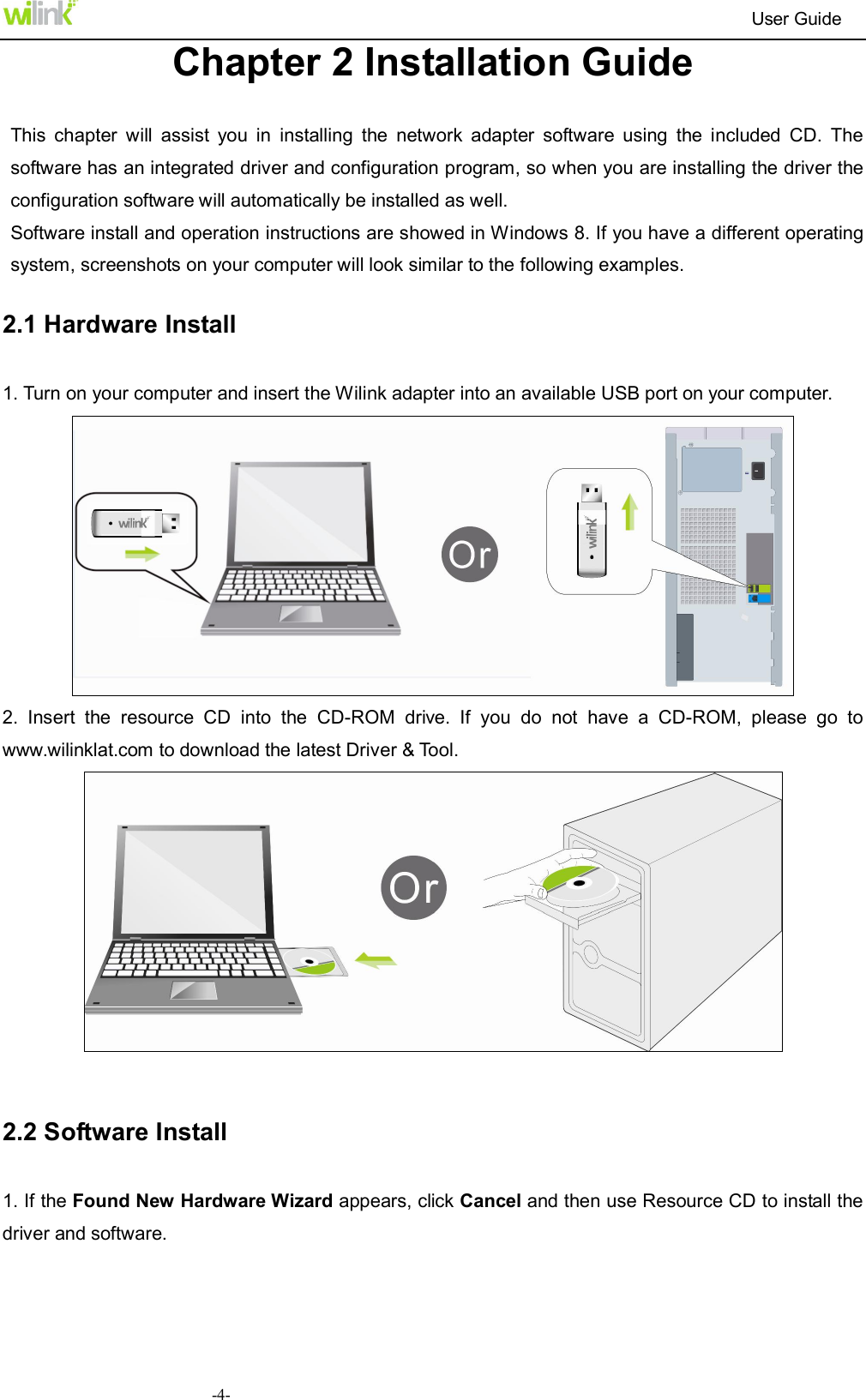
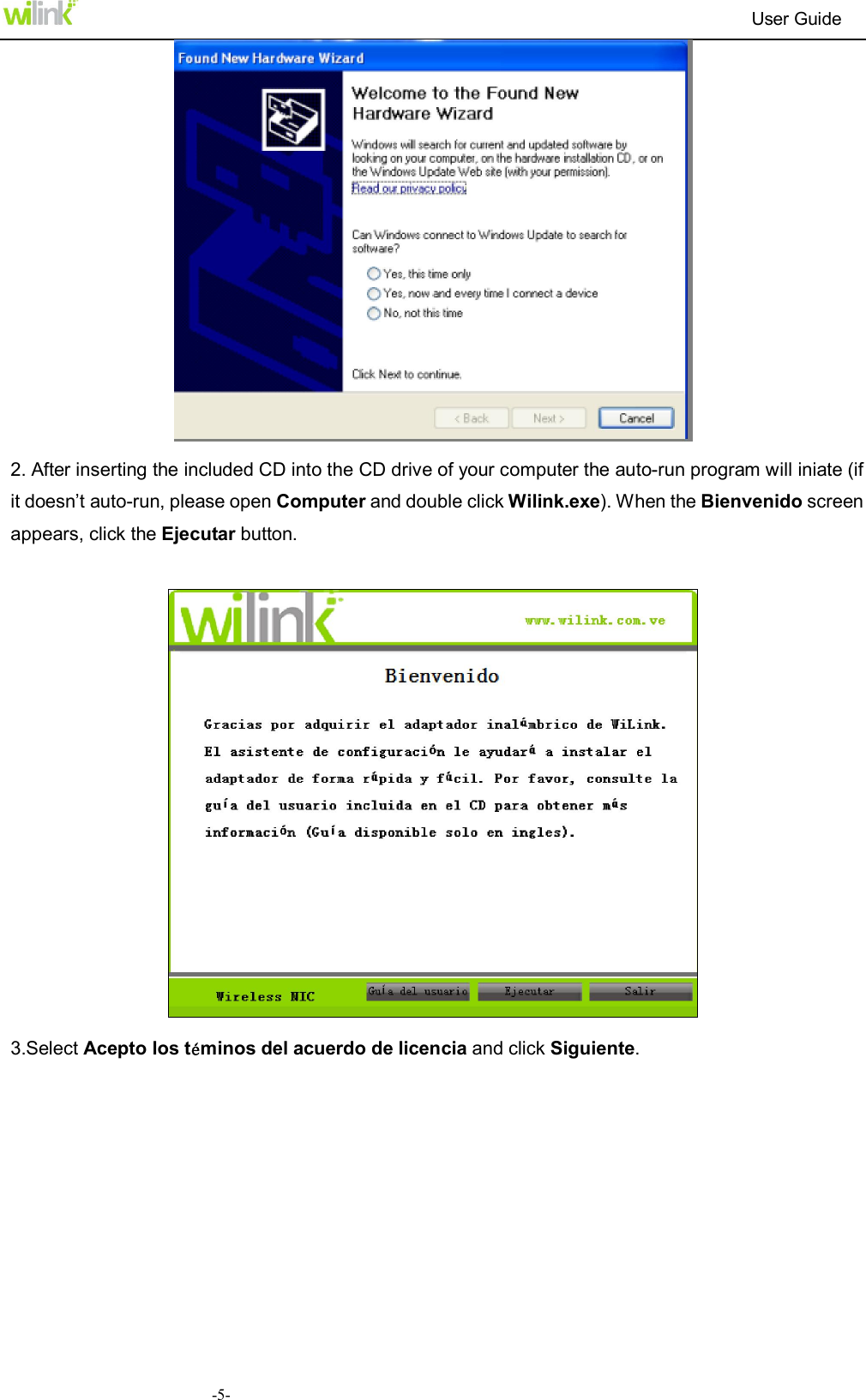
                                                                         User Guide  -4-Chapter 2 Installation Guide  This  chapter  will  assist  you  in  installing  the  network  adapter  software  using  the  included  CD.  The software has an integrated driver and configuration program, so when you are installing the driver the configuration software will automatically be installed as well. Software install and operation instructions are showed in Windows 8. If you have a different operating system, screenshots on your computer will look similar to the following examples. 2.1 Hardware Install 1. Turn on your computer and insert the Wilink adapter into an available USB port on your computer.  2.  Insert  the  resource  CD  into  the  CD-ROM  drive.  If  you  do  not  have  a  CD-ROM,  please  go  to www.wilinklat.com to download the latest Driver & Tool.   2.2 Software Install   1. If the Found New Hardware Wizard appears, click Cancel and then use Resource CD to install the driver and software.
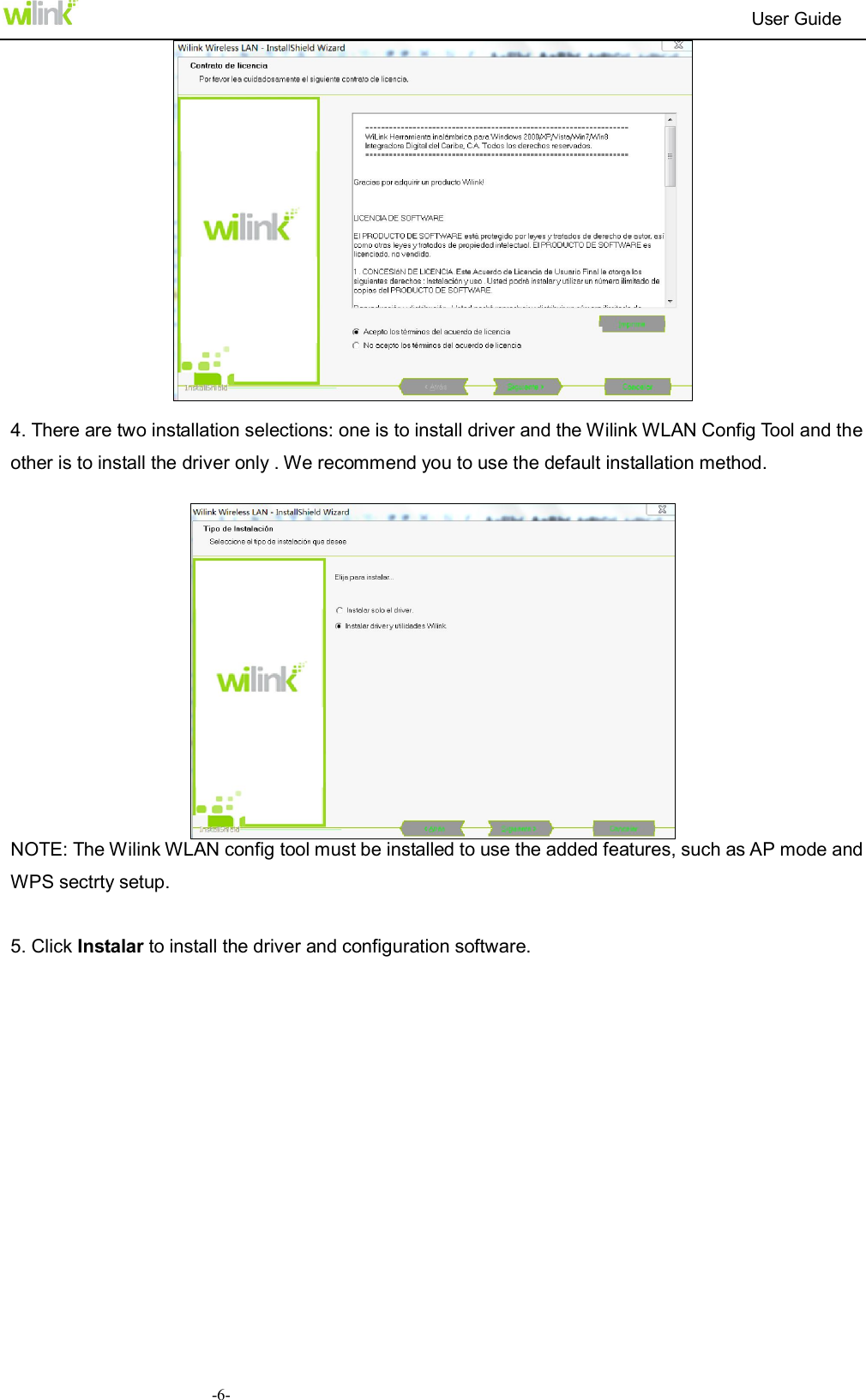
                                                                         User Guide  -5-  2. After inserting the included CD into the CD drive of your computer the auto-run program will iniate (if it doesn’t auto-run, please open Computer and double click Wilink.exe). When the Bienvenido screen appears, click the Ejecutar button.    3.Select Acepto los téminos del acuerdo de licencia and click Siguiente.
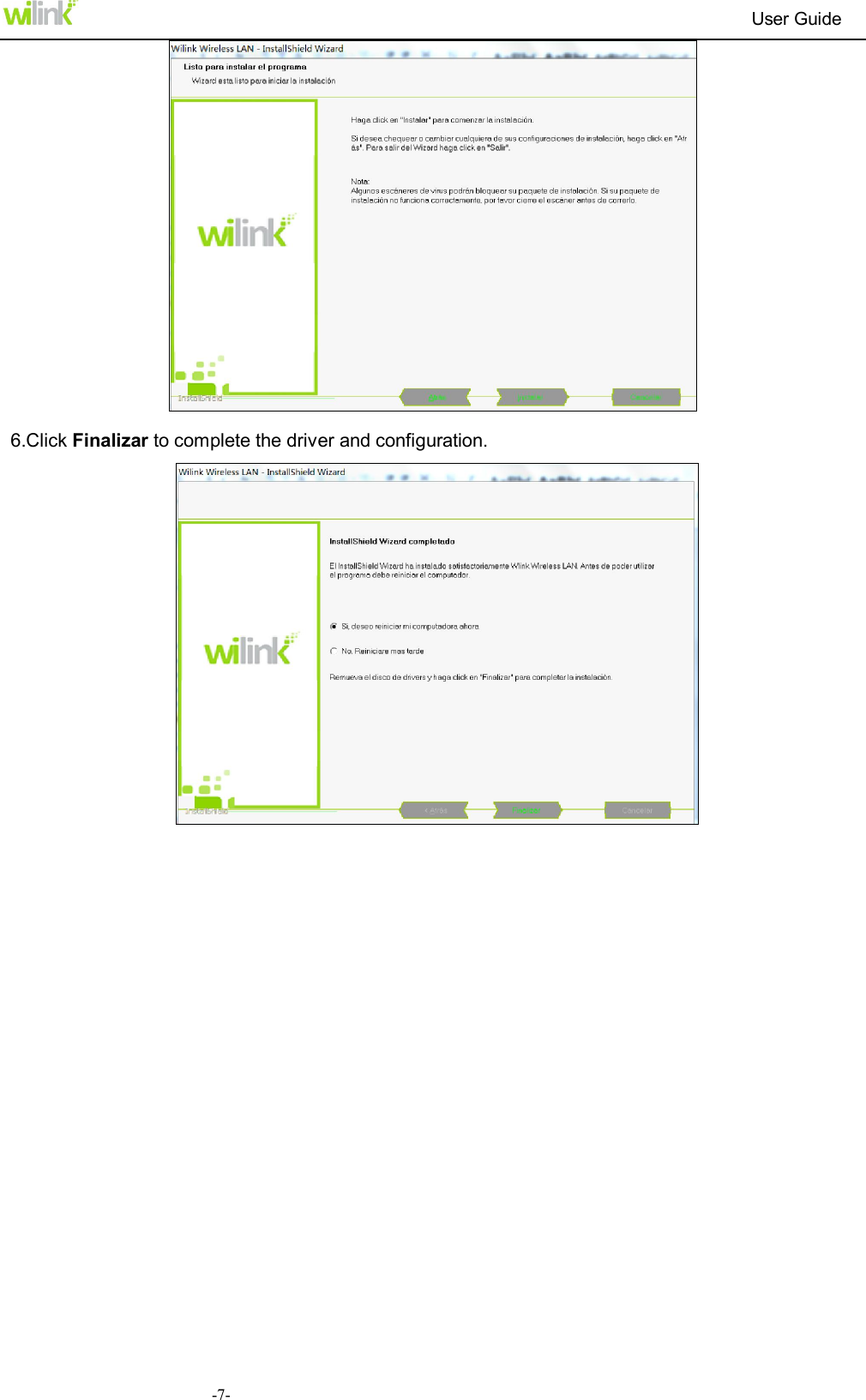
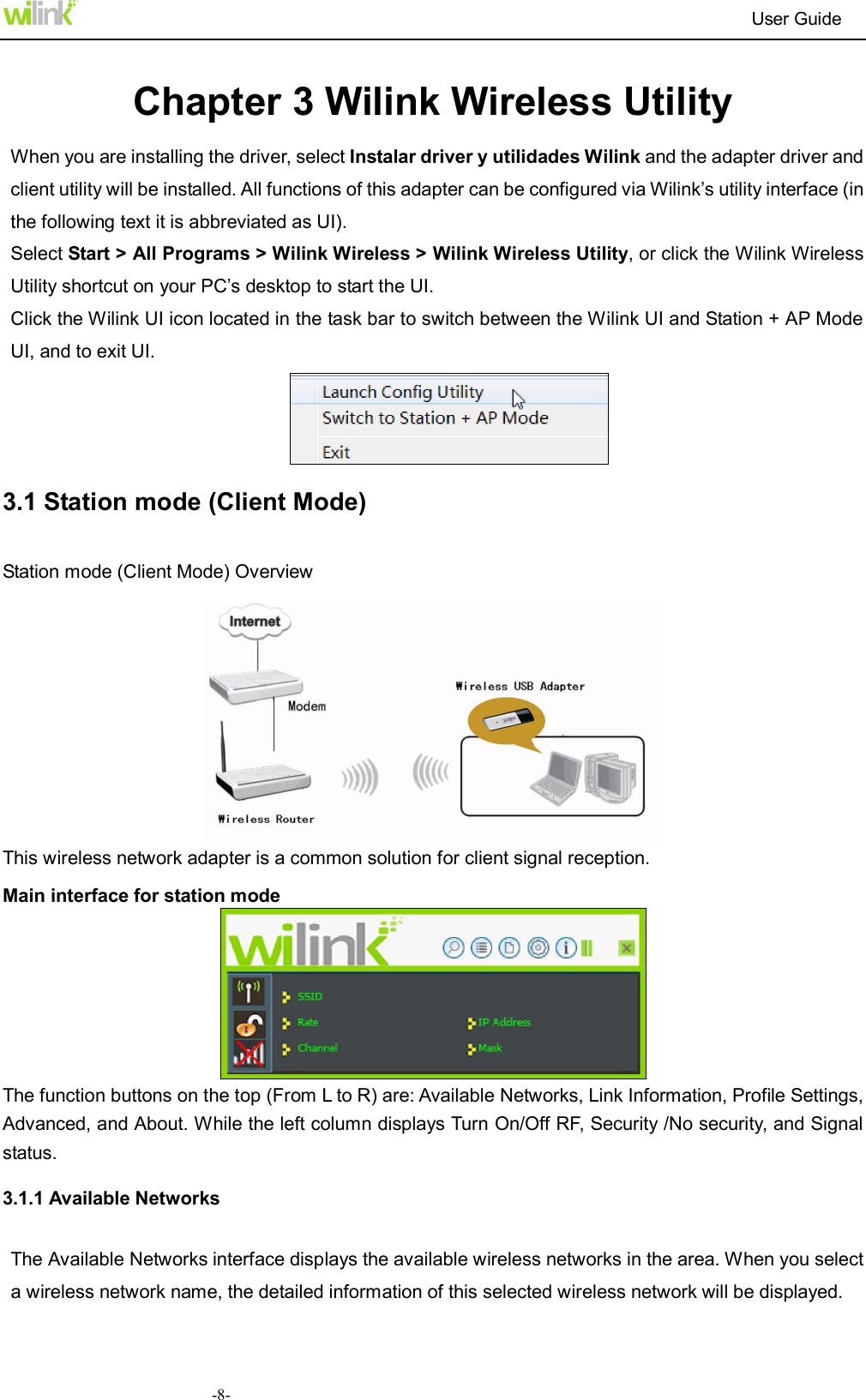
                                                                         User Guide  -6-  4. There are two installation selections: one is to install driver and the Wilink WLAN Config Tool and the other is to install the driver only . We recommend you to use the default installation method.     NOTE: The Wilink WLAN config tool must be installed to use the added features, such as AP mode and WPS sectrty setup.  5. Click Instalar to install the driver and configuration software.
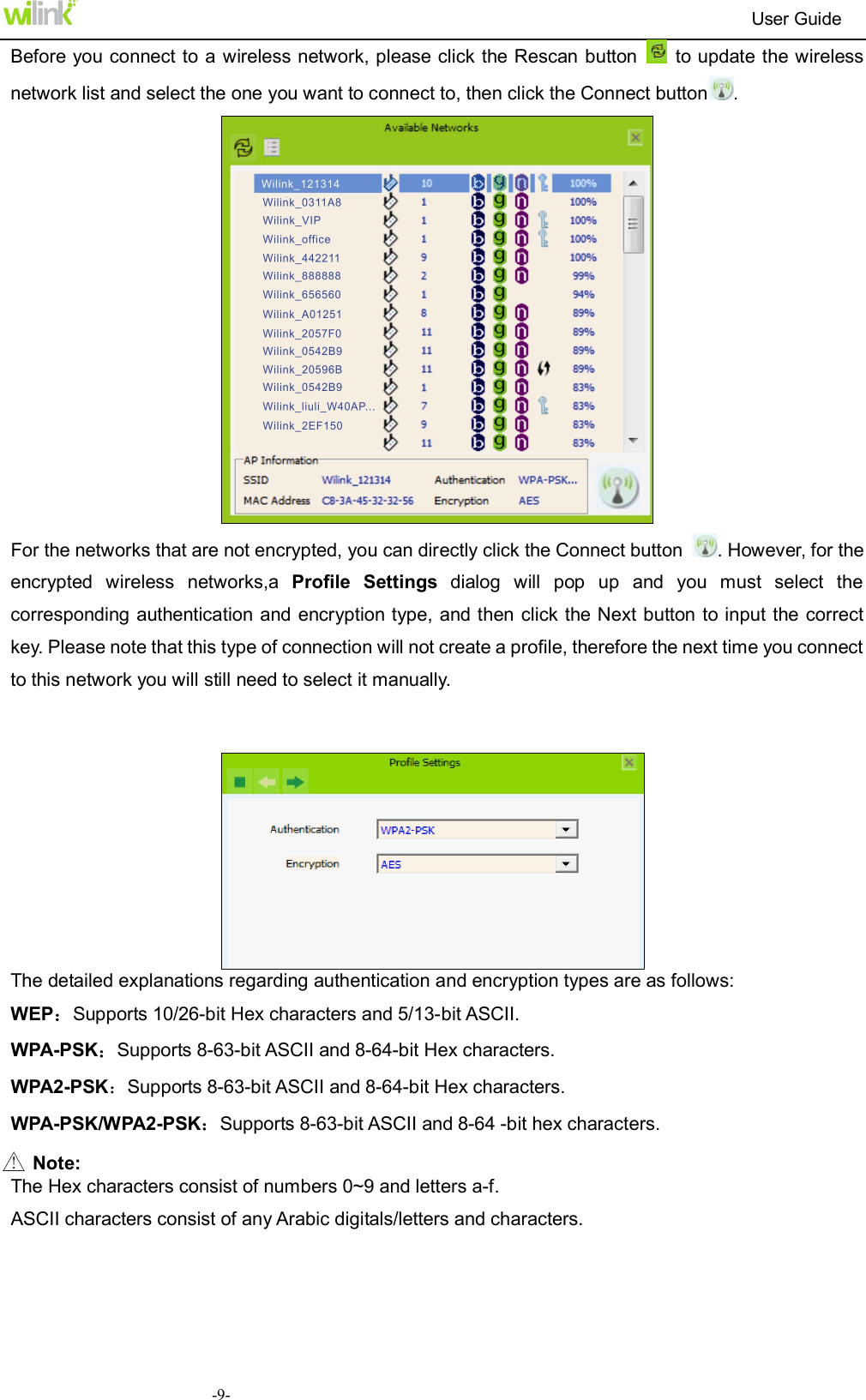
                                                                         User Guide  -7-  6.Click Finalizar to complete the driver and configuration.
                                                                         User Guide  -8- Chapter 3 Wilink Wireless Utility When you are installing the driver, select Instalar driver y utilidades Wilink and the adapter driver and client utility will be installed. All functions of this adapter can be configured via Wilink’s utility interface (in the following text it is abbreviated as UI).   Select Start > All Programs > Wilink Wireless > Wilink Wireless Utility, or click the Wilink Wireless Utility shortcut on your PC’s desktop to start the UI. Click the Wilink UI icon located in the task bar to switch between the Wilink UI and Station + AP Mode UI, and to exit UI.  3.1 Station mode (Client Mode) Station mode (Client Mode) Overview   This wireless network adapter is a common solution for client signal reception. Main interface for station mode  The function buttons on the top (From L to R) are: Available Networks, Link Information, Profile Settings, Advanced, and About. While the left column displays Turn On/Off RF, Security /No security, and Signal status. 3.1.1 Available Networks The Available Networks interface displays the available wireless networks in the area. When you select a wireless network name, the detailed information of this selected wireless network will be displayed.
                                                                         User Guide  -9-Before you connect to a wireless network, please click the Rescan button    to update the wireless network list and select the one you want to connect to, then click the Connect button .  For the networks that are not encrypted, you can directly click the Connect button  . However, for the encrypted  wireless  networks,a  Profile  Settings  dialog  will  pop  up  and  you  must  select  the corresponding authentication and encryption type,  and then click the Next button to input the correct key. Please note that this type of connection will not create a profile, therefore the next time you connect to this network you will still need to select it manually.    The detailed explanations regarding authentication and encryption types are as follows: WEP:Supports 10/26-bit Hex characters and 5/13-bit ASCII. WPA-PSK:Supports 8-63-bit ASCII and 8-64-bit Hex characters. WPA2-PSK:Supports 8-63-bit ASCII and 8-64-bit Hex characters.   WPA-PSK/WPA2-PSK:Supports 8-63-bit ASCII and 8-64 -bit hex characters.  Note: The Hex characters consist of numbers 0~9 and letters a-f. ASCII characters consist of any Arabic digitals/letters and characters.
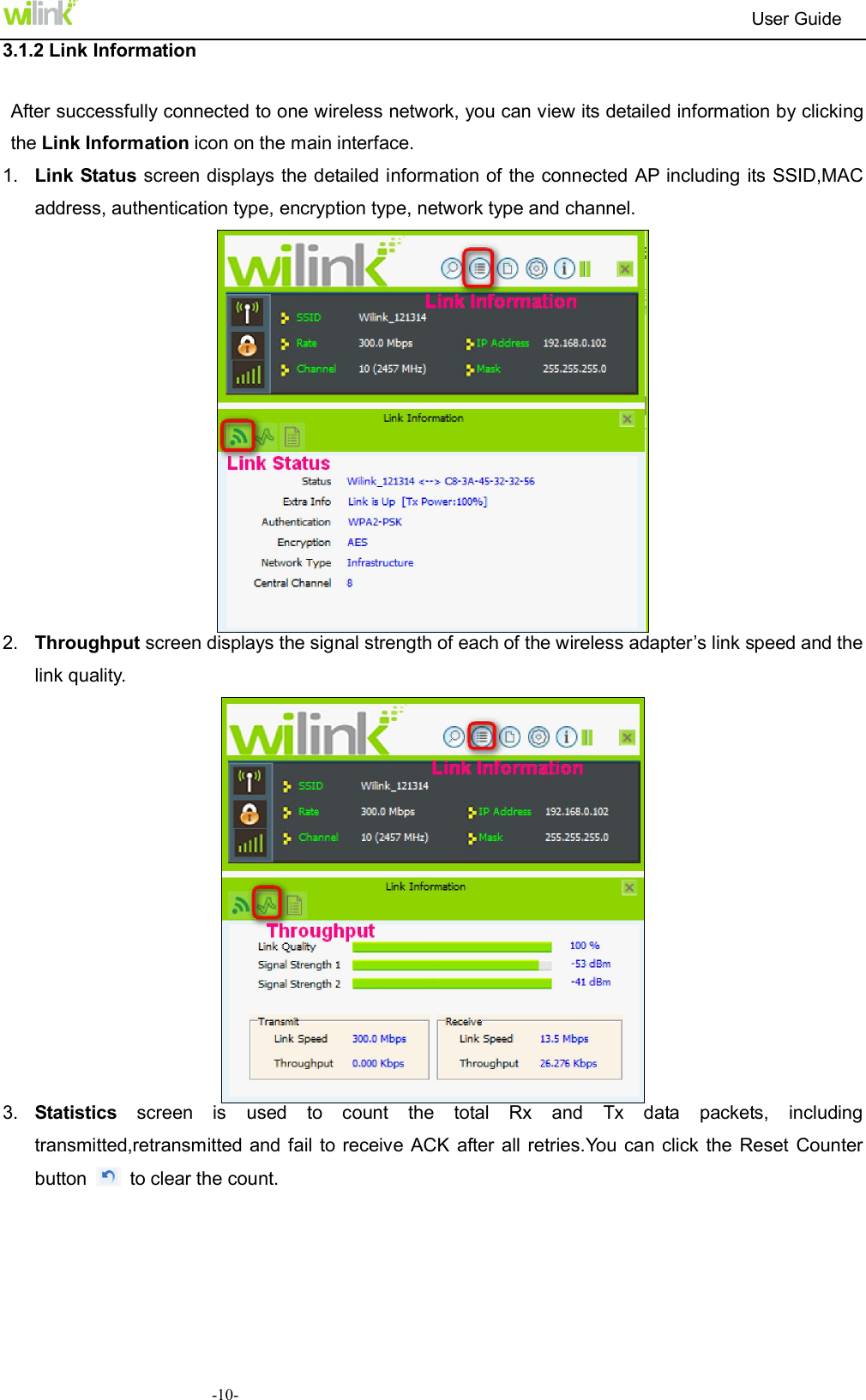
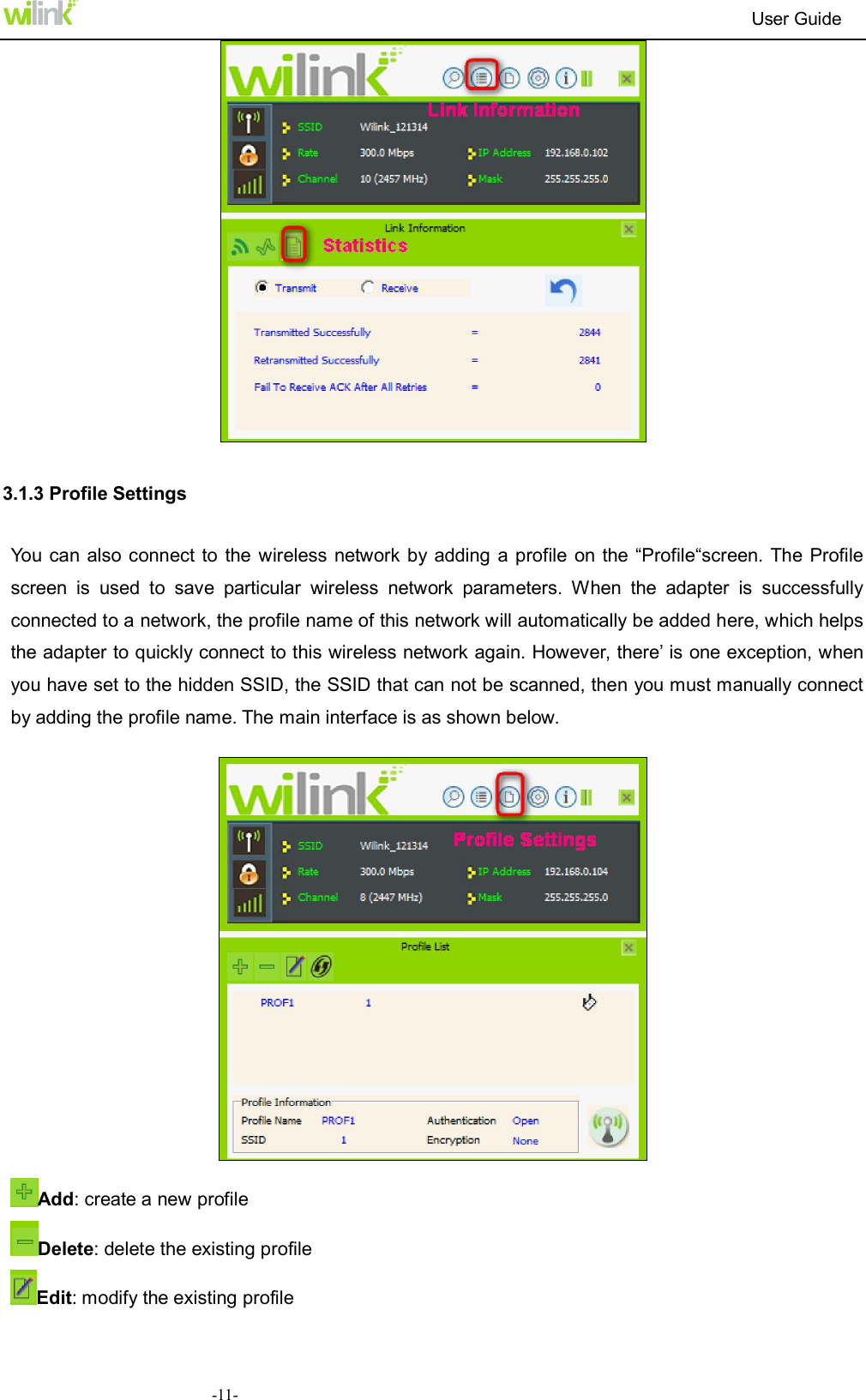
                                                                         User Guide  -10-3.1.2 Link Information After successfully connected to one wireless network, you can view its detailed information by clicking the Link Information icon on the main interface. 1.  Link Status screen displays the detailed information of the connected AP including its SSID,MAC address, authentication type, encryption type, network type and channel.  2.  Throughput screen displays the signal strength of each of the wireless adapter’s link speed and the link quality.  3.  Statistics  screen  is  used  to  count  the  total  Rx  and  Tx  data  packets,  including transmitted,retransmitted and fail to receive ACK  after all  retries.You can click the  Reset Counter button    to clear the count.
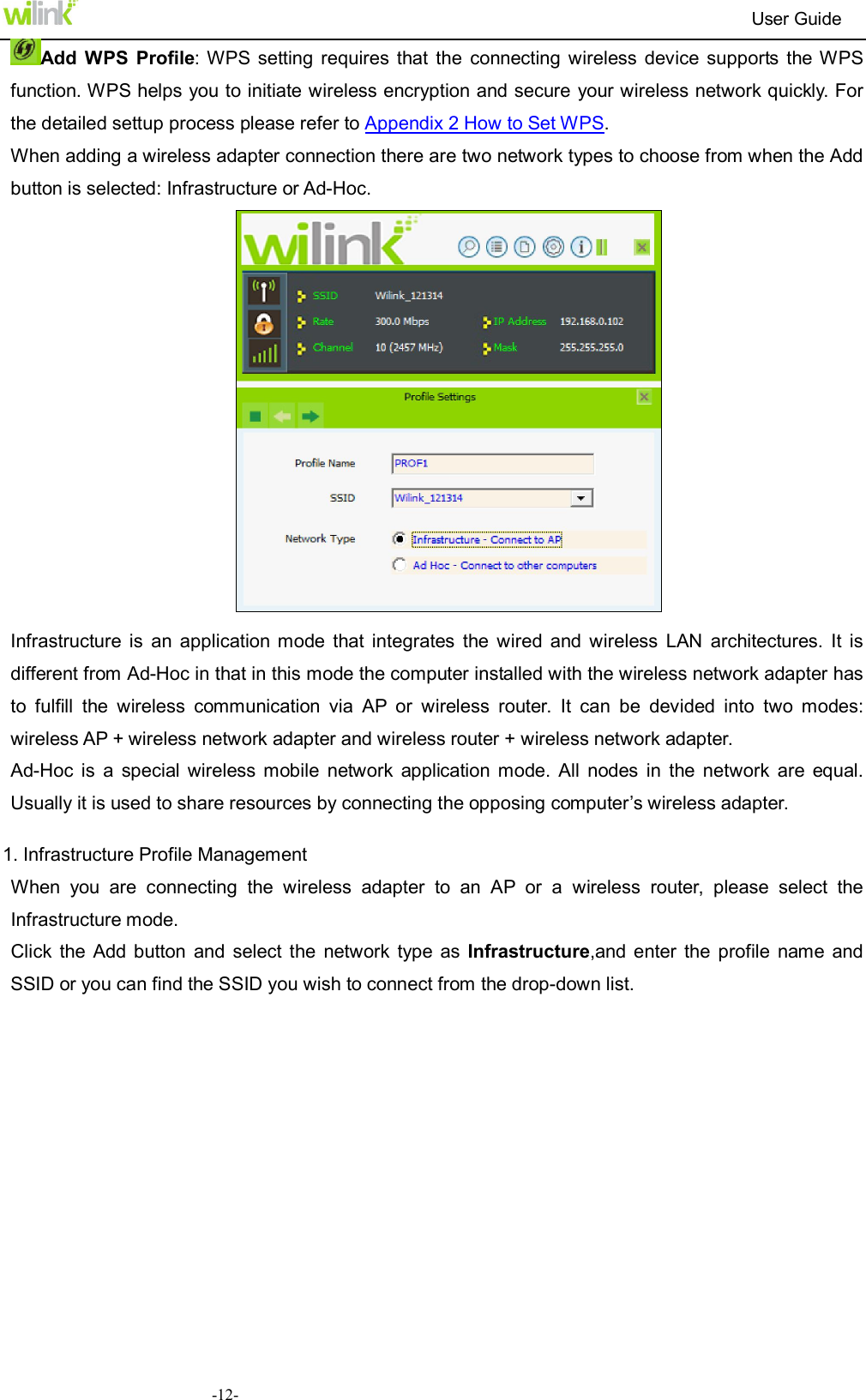
                                                                         User Guide  -11-    3.1.3 Profile Settings You can also connect  to the  wireless network by adding  a profile on the “Profile“screen. The Profile screen  is  used  to  save  particular  wireless  network  parameters.  When  the  adapter  is  successfully connected to a network, the profile name of this network will automatically be added here, which helps the adapter to quickly connect to this wireless network again. However, there’ is one exception, when you have set to the hidden SSID, the SSID that can not be scanned, then you must manually connect by adding the profile name. The main interface is as shown below.    Add: create a new profile   Delete: delete the existing profile Edit: modify the existing profile
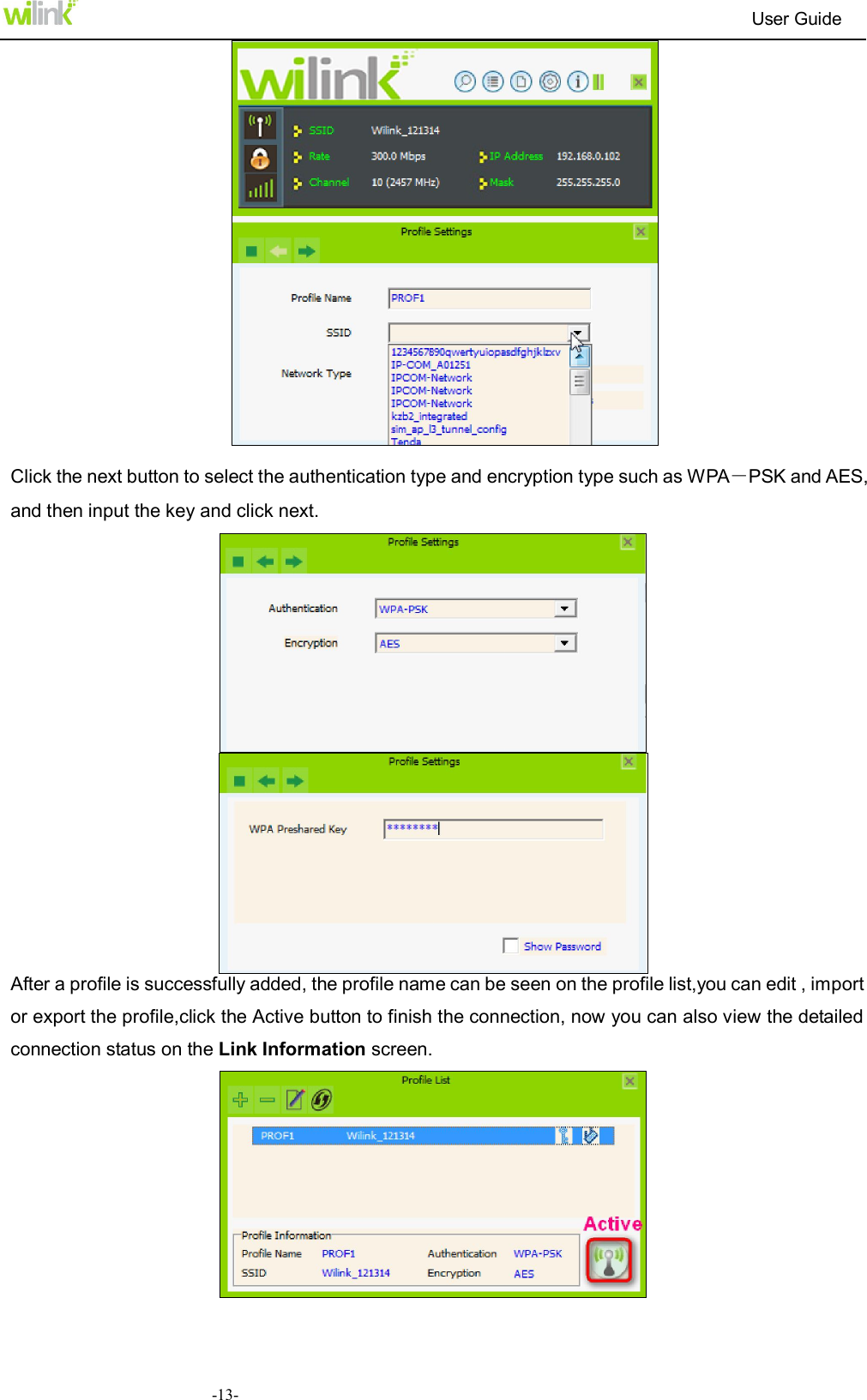
                                                                         User Guide  -12-Add  WPS  Profile: WPS setting  requires that  the  connecting  wireless  device  supports  the WPS function. WPS helps you to initiate wireless encryption and secure your wireless network quickly. For the detailed settup process please refer to Appendix 2 How to Set WPS. When adding a wireless adapter connection there are two network types to choose from when the Add button is selected: Infrastructure or Ad-Hoc.   Infrastructure  is  an  application  mode  that  integrates  the  wired  and  wireless  LAN  architectures.  It  is different from Ad-Hoc in that in this mode the computer installed with the wireless network adapter has to  fulfill  the  wireless  communication  via  AP  or  wireless  router.  It  can  be  devided  into  two  modes: wireless AP + wireless network adapter and wireless router + wireless network adapter. Ad-Hoc  is  a  special  wireless  mobile  network  application  mode.  All  nodes  in  the  network  are  equal. Usually it is used to share resources by connecting the opposing computer’s wireless adapter.  1. Infrastructure Profile Management When  you  are  connecting  the  wireless  adapter  to  an  AP  or  a  wireless  router,  please  select  the Infrastructure mode. Click  the Add button  and  select  the  network  type  as  Infrastructure,and enter  the  profile name  and SSID or you can find the SSID you wish to connect from the drop-down list.
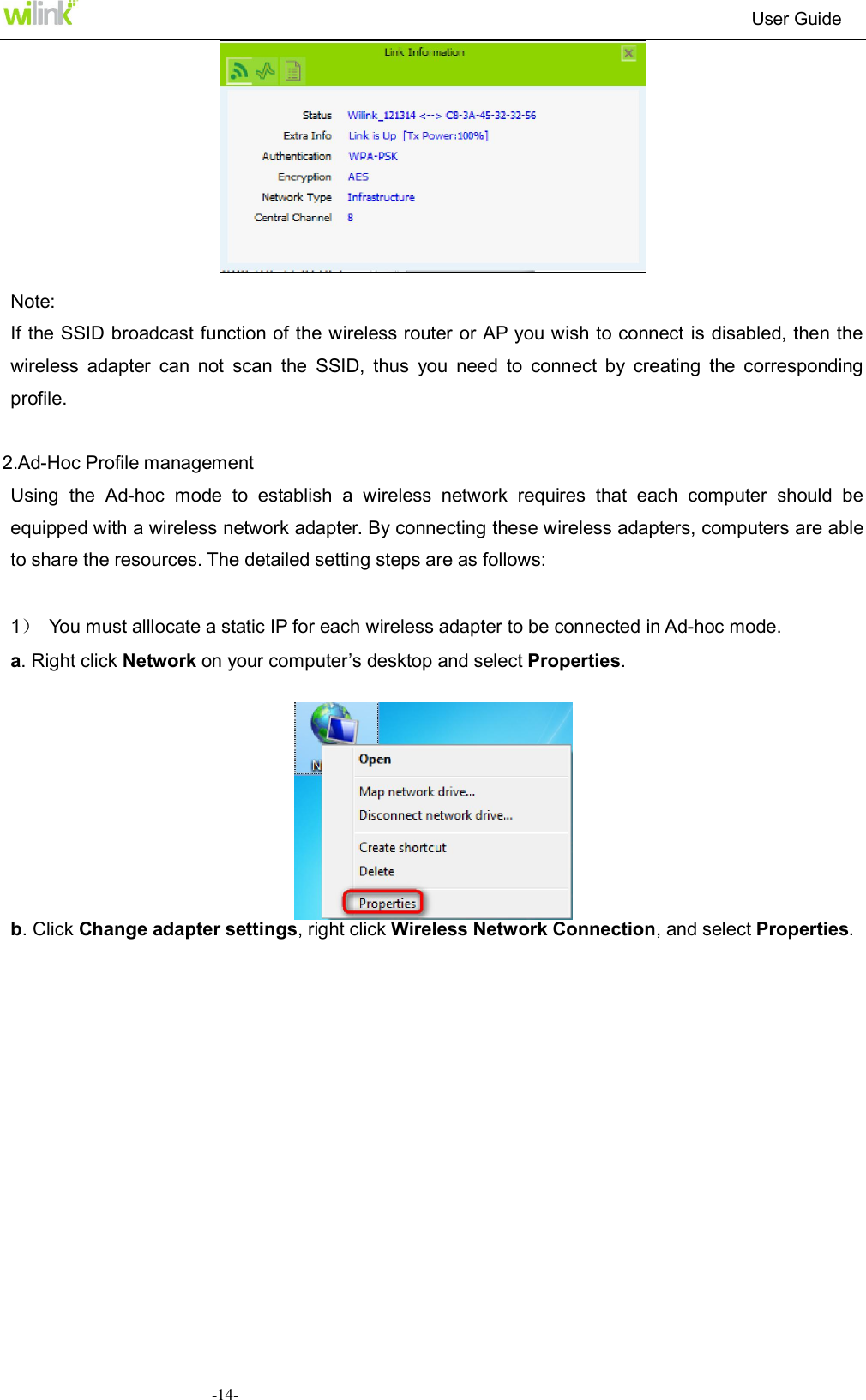
                                                                         User Guide  -13-  Click the next button to select the authentication type and encryption type such as WPA-PSK and AES, and then input the key and click next.   After a profile is successfully added, the profile name can be seen on the profile list,you can edit , import or export the profile,click the Active button to finish the connection, now you can also view the detailed connection status on the Link Information screen.
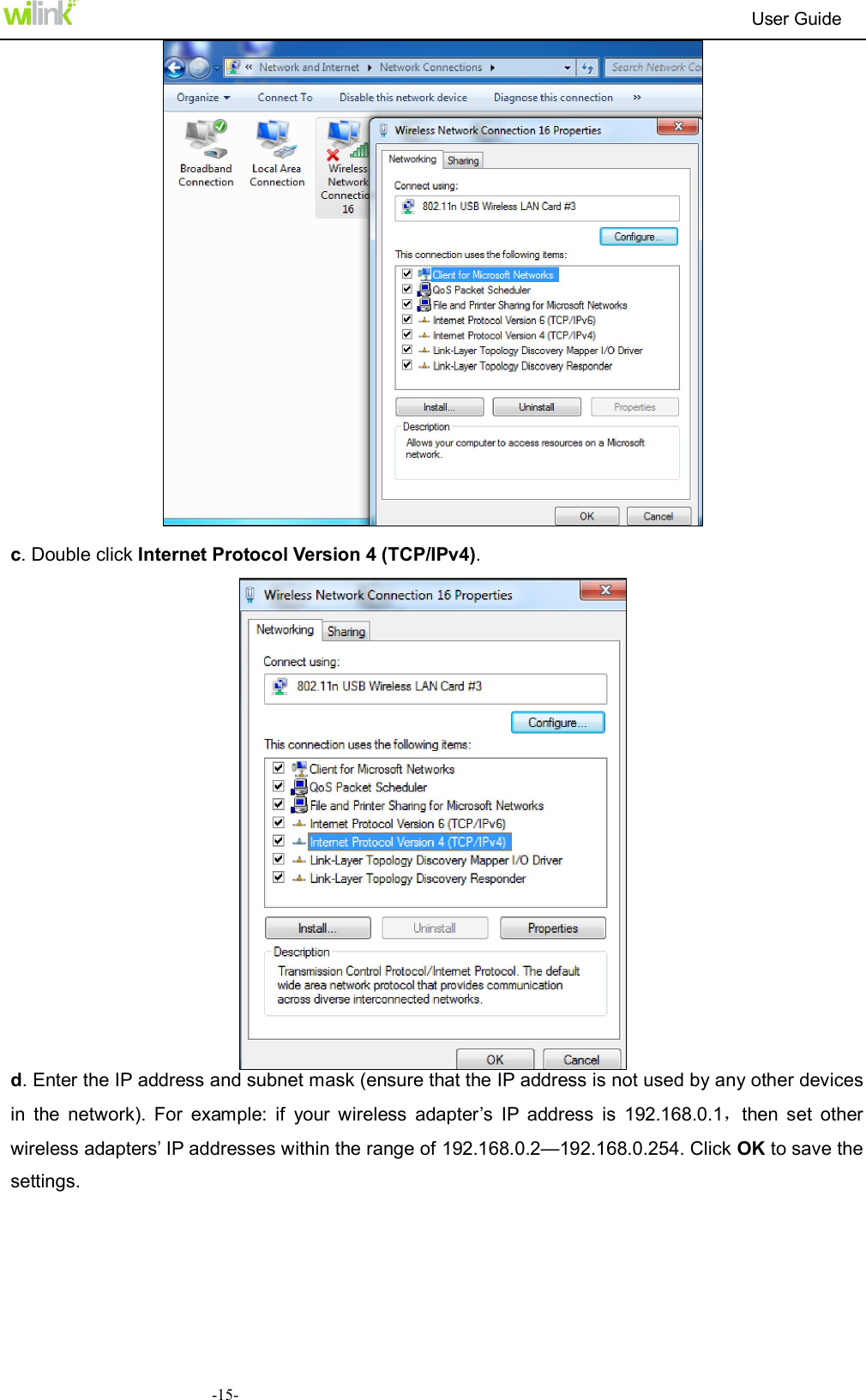
                                                                         User Guide  -14-  Note: If the SSID broadcast function of the wireless router or AP you wish to connect is disabled, then the wireless  adapter  can  not  scan  the  SSID,  thus  you  need  to  connect  by  creating  the  corresponding profile.  2.Ad-Hoc Profile management Using  the  Ad-hoc  mode  to  establish  a  wireless  network  requires  that  each  computer  should  be equipped with a wireless network adapter. By connecting these wireless adapters, computers are able to share the resources. The detailed setting steps are as follows:  1)  You must alllocate a static IP for each wireless adapter to be connected in Ad-hoc mode.   a. Right click Network on your computer’s desktop and select Properties.   b. Click Change adapter settings, right click Wireless Network Connection, and select Properties.
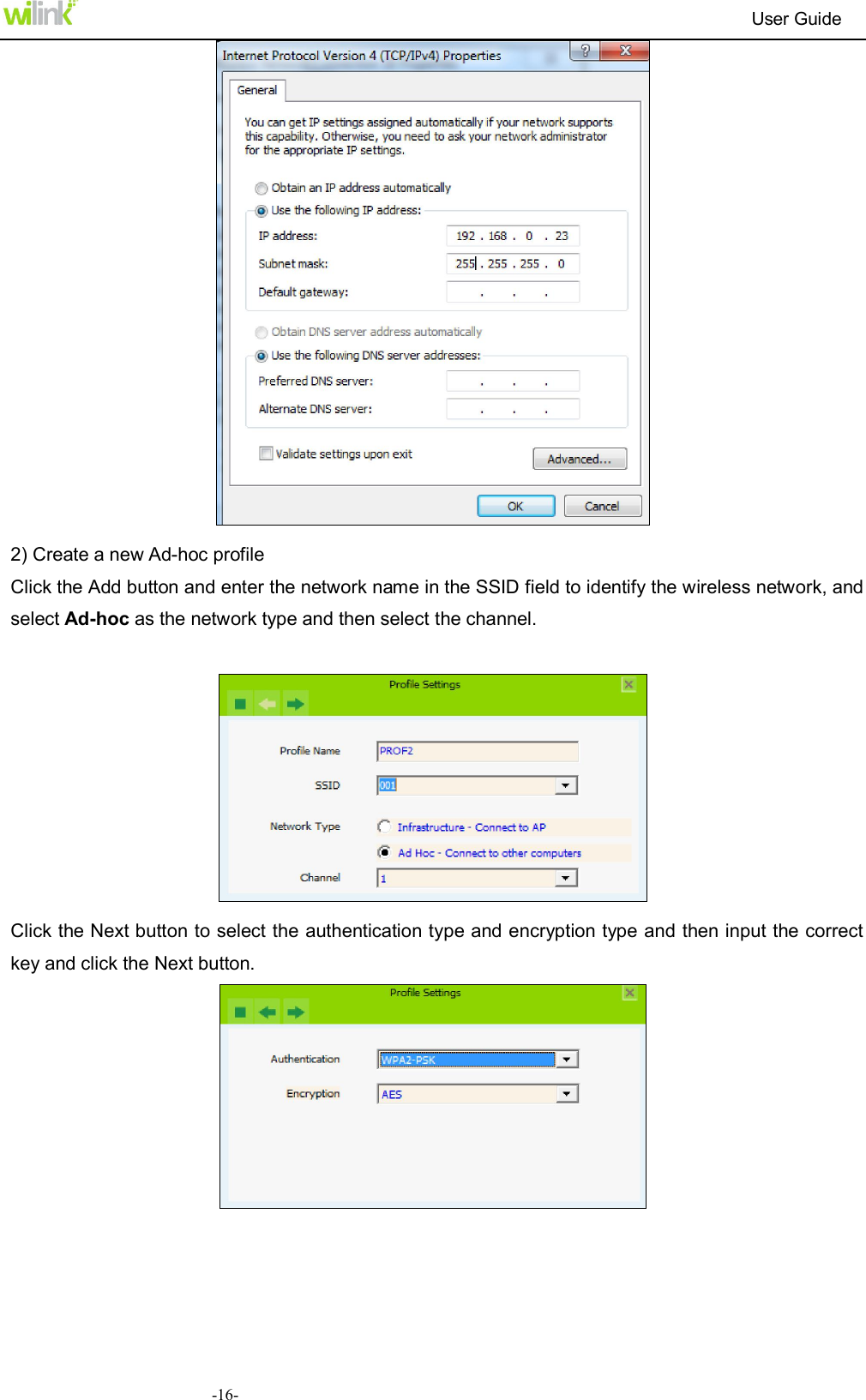
                                                                         User Guide  -15-  c. Double click Internet Protocol Version 4 (TCP/IPv4).  d. Enter the IP address and subnet mask (ensure that the IP address is not used by any other devices in  the  network).  For  example:  if  your  wireless  adapter’s  IP  address  is  192.168.0.1,then  set  other wireless adapters’ IP addresses within the range of 192.168.0.2—192.168.0.254. Click OK to save the settings.
                                                                         User Guide  -16-  2) Create a new Ad-hoc profile Click the Add button and enter the network name in the SSID field to identify the wireless network, and select Ad-hoc as the network type and then select the channel.    Click the Next button to select the authentication type and encryption type and then input the correct key and click the Next button.
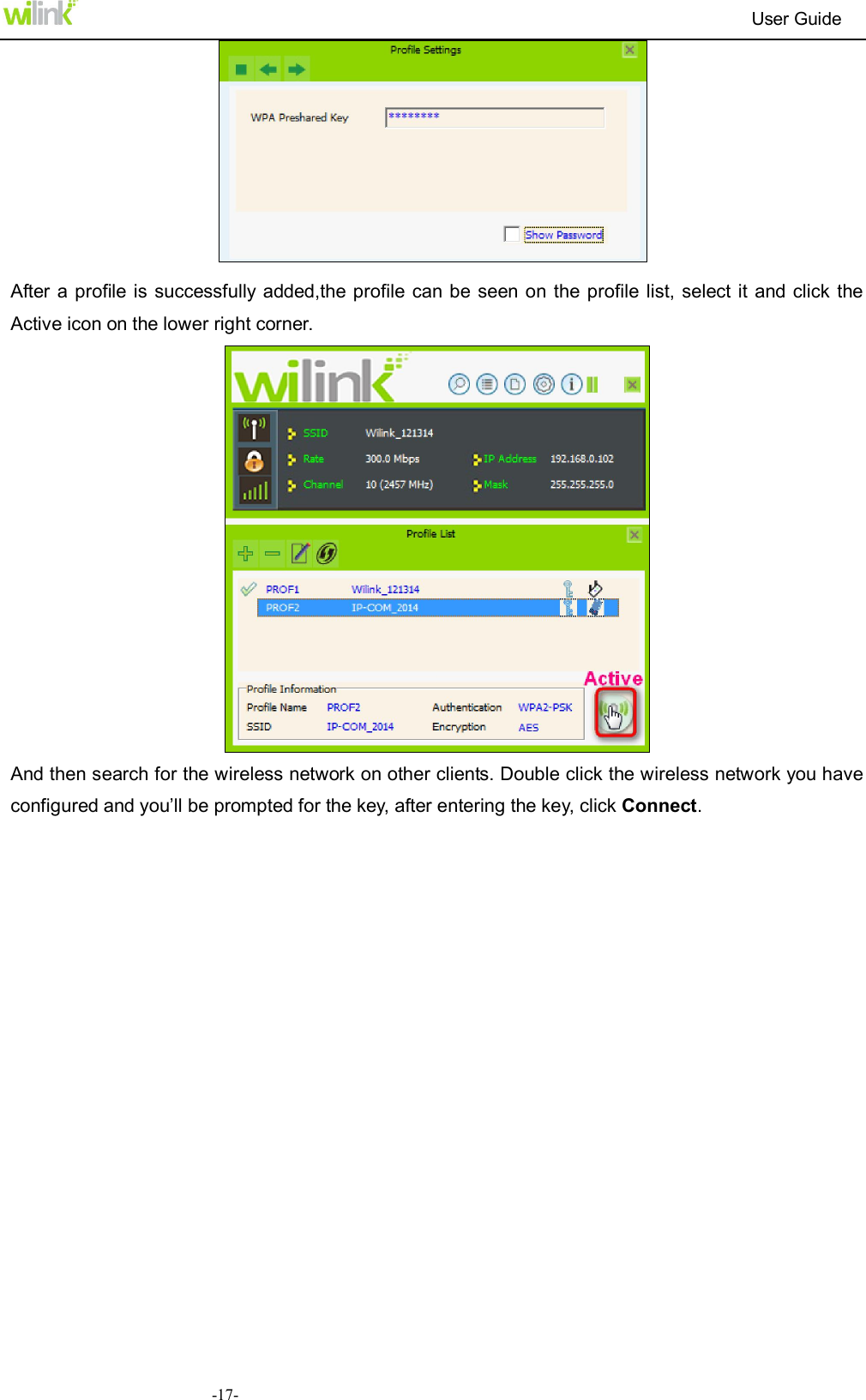
                                                                         User Guide  -17-  After  a profile is successfully added,the profile can be seen on the  profile list, select it  and click the Active icon on the lower right corner.  And then search for the wireless network on other clients. Double click the wireless network you have configured and you’ll be prompted for the key, after entering the key, click Connect.
                                                                         User Guide  -18- When the highlighted part shows Connected, the connection is successful.   3.1.4 Advanced   This section is used to set the wireless mode and country region code for the current wireless adapter.
                                                                         User Guide  -19- 3.1.5 About   This screen mainly displays the version  information of  the  UI’s different programs as well as Wilink’s copyright statement.   3.2 AP Mode (in Windows 7 OS) AP Mode Overview   Wireless network adapter can also serve as an access point to transmit wireless signals and create a wireless network, allowing other wireless clients to access the network.
                                                                         User Guide  -20-Please right click the UI icon on the taskbar of your computer desktop and select Switch to Station + AP Mode.  As  shown  in  the diagram  below:  The  PC  in  the left has  already  accessed  to the  Internet  by  using  a   wired network adapter, meanwhile, you install a Wilink wireless adapter (take a USB wireless adapter as an example) and its UI on this computer, and set the adapter to AP mode.   By using the wireless adapters to scan the AP’S SSID to connect, the computers in the right can also access to the Internet after successfully connected.     In this mode, the client utility differs from that in station mode, and the main interface is as shown below.   When  it  is  switched  to  AP  mode,  the  wireless  adapter  will  automatically  set  its  IP  address  as 192.168.123.1, and other clients that connected to this AP will automatically obtain the IP addresses of: 192.168.123.X  (X  is  any  integer  from  2  to  254).The  function  buttons  on  the  top  (From  L  to  R)  are respectively AP, Available Networks, Link Information, Profile Settings, Advanced, and About, while the left column displays Turn On/Off RF, Security /No security, and AP mode icon.  You can change SSID in AP setting option and control the number of the connected clients by modifying the max number of peers. AP mode has only WPA2-AES encryption method as default and cannot be modified.
                                                                         User Guide  -21- Appendix 1 Wi-Fi Connection This chapter  explains how to use Windows internal  configuration program to connect  to the wireless network for users who don’t install Wilink configuration program. You must enable Windows Wireless Zero Configuration when using the internal wireless configuration program. Windows 8 Step 1: Click the icon    on the bottom right corner of your desktop.  Step 2: Select your wireless network from the list, click Connect and then follow onscreen instructions.
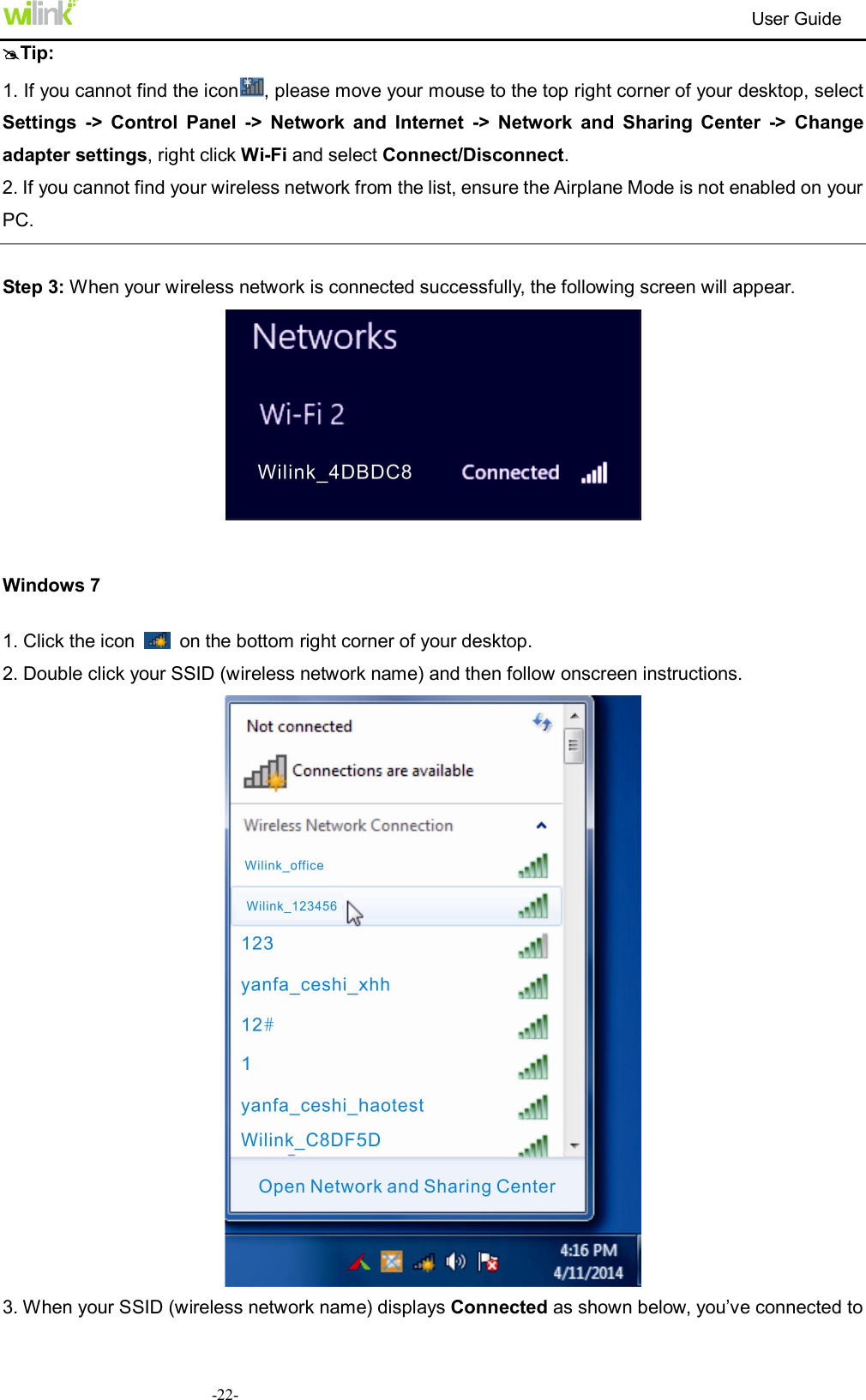
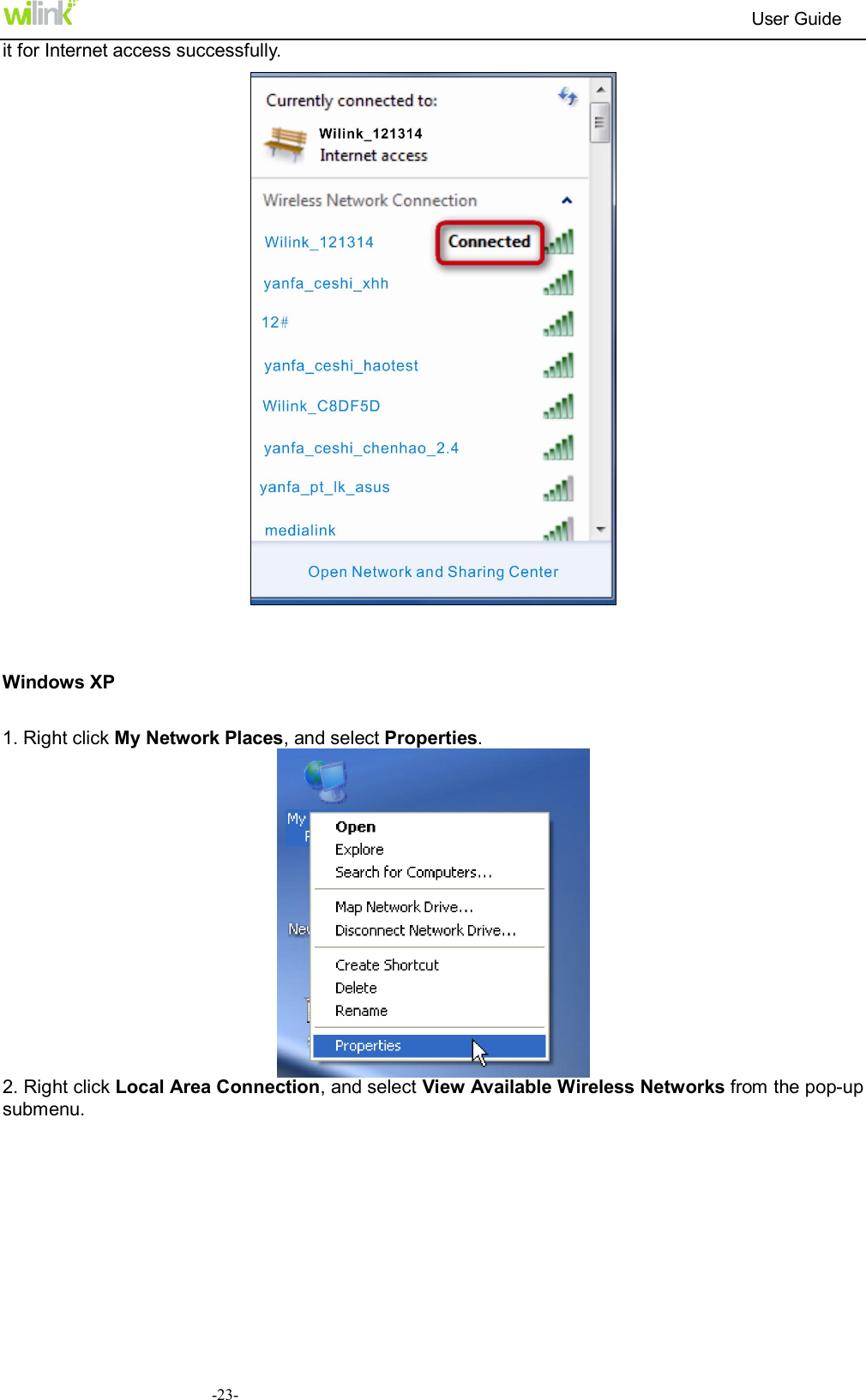
                                                                         User Guide  -22-Tip: 1. If you cannot find the icon , please move your mouse to the top right corner of your desktop, select Settings  ->  Control  Panel  ->  Network  and  Internet  ->  Network  and  Sharing  Center  ->  Change adapter settings, right click Wi-Fi and select Connect/Disconnect. 2. If you cannot find your wireless network from the list, ensure the Airplane Mode is not enabled on your PC.  Step 3: When your wireless network is connected successfully, the following screen will appear.   Windows 7 1. Click the icon    on the bottom right corner of your desktop. 2. Double click your SSID (wireless network name) and then follow onscreen instructions.  3. When your SSID (wireless network name) displays Connected as shown below, you’ve connected to
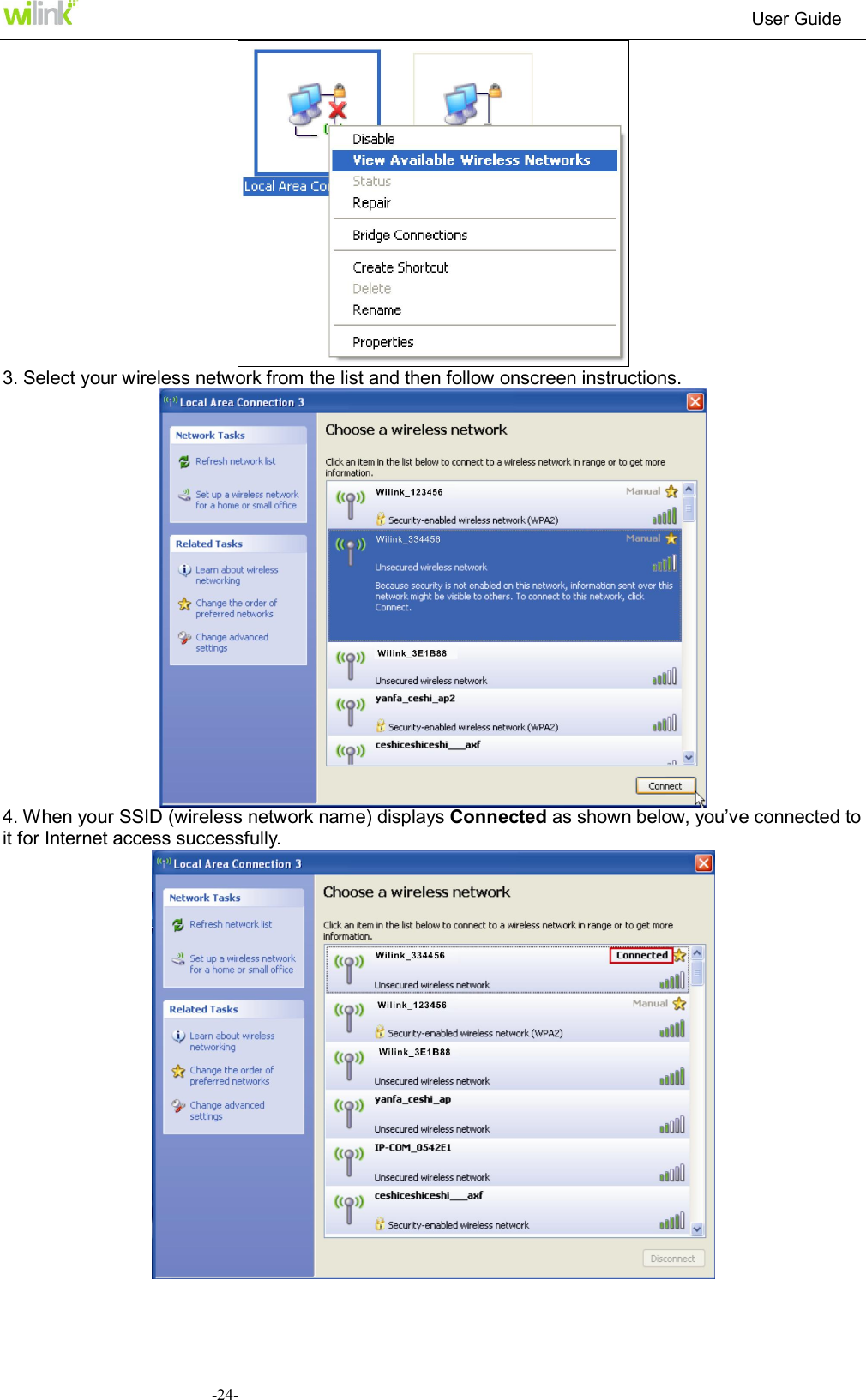
                                                                         User Guide  -23-it for Internet access successfully.   Windows XP 1. Right click My Network Places, and select Properties.  2. Right click Local Area Connection, and select View Available Wireless Networks from the pop-up submenu.
                                                                         User Guide  -24- 3. Select your wireless network from the list and then follow onscreen instructions.  4. When your SSID (wireless network name) displays Connected as shown below, you’ve connected to it for Internet access successfully.
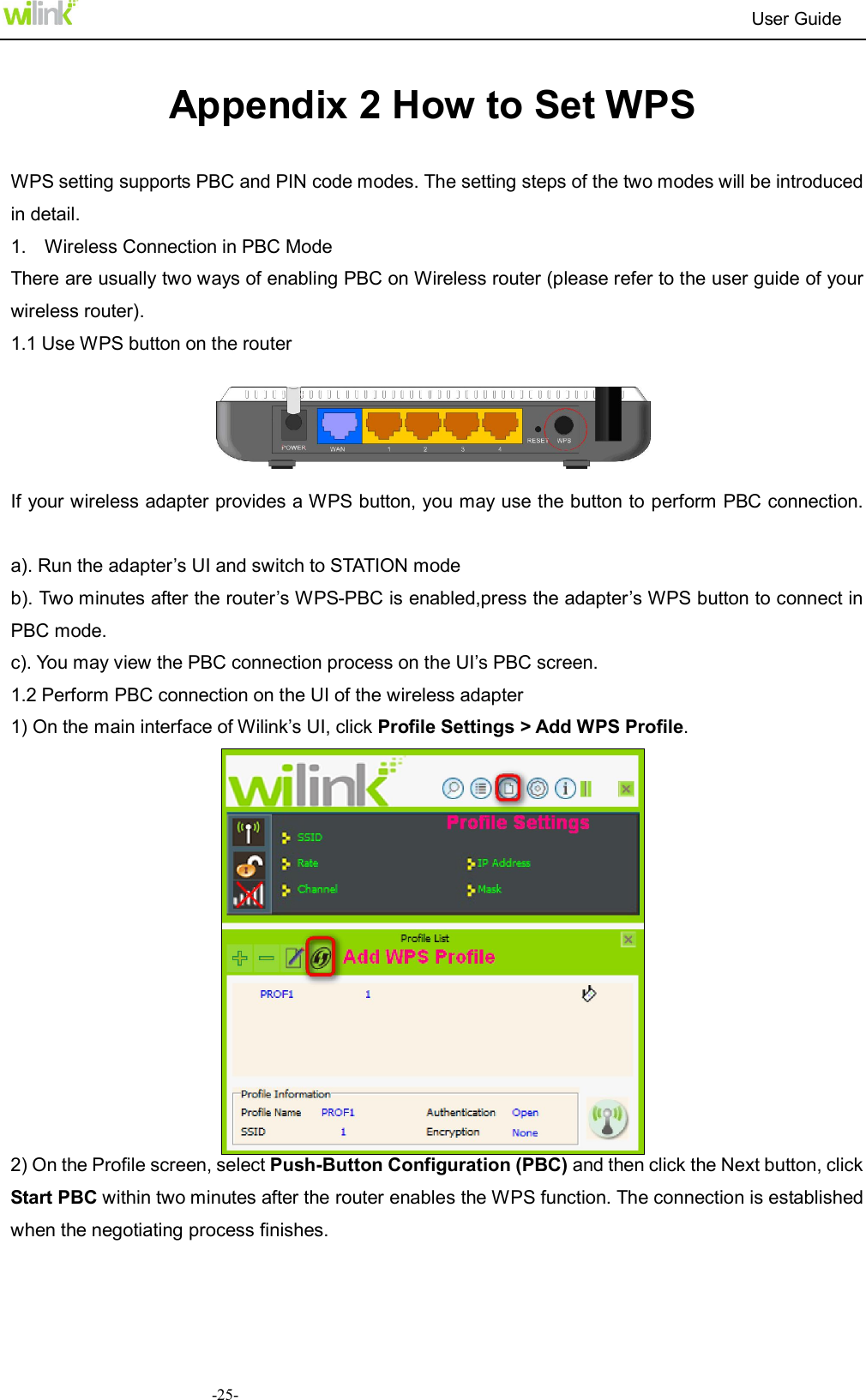
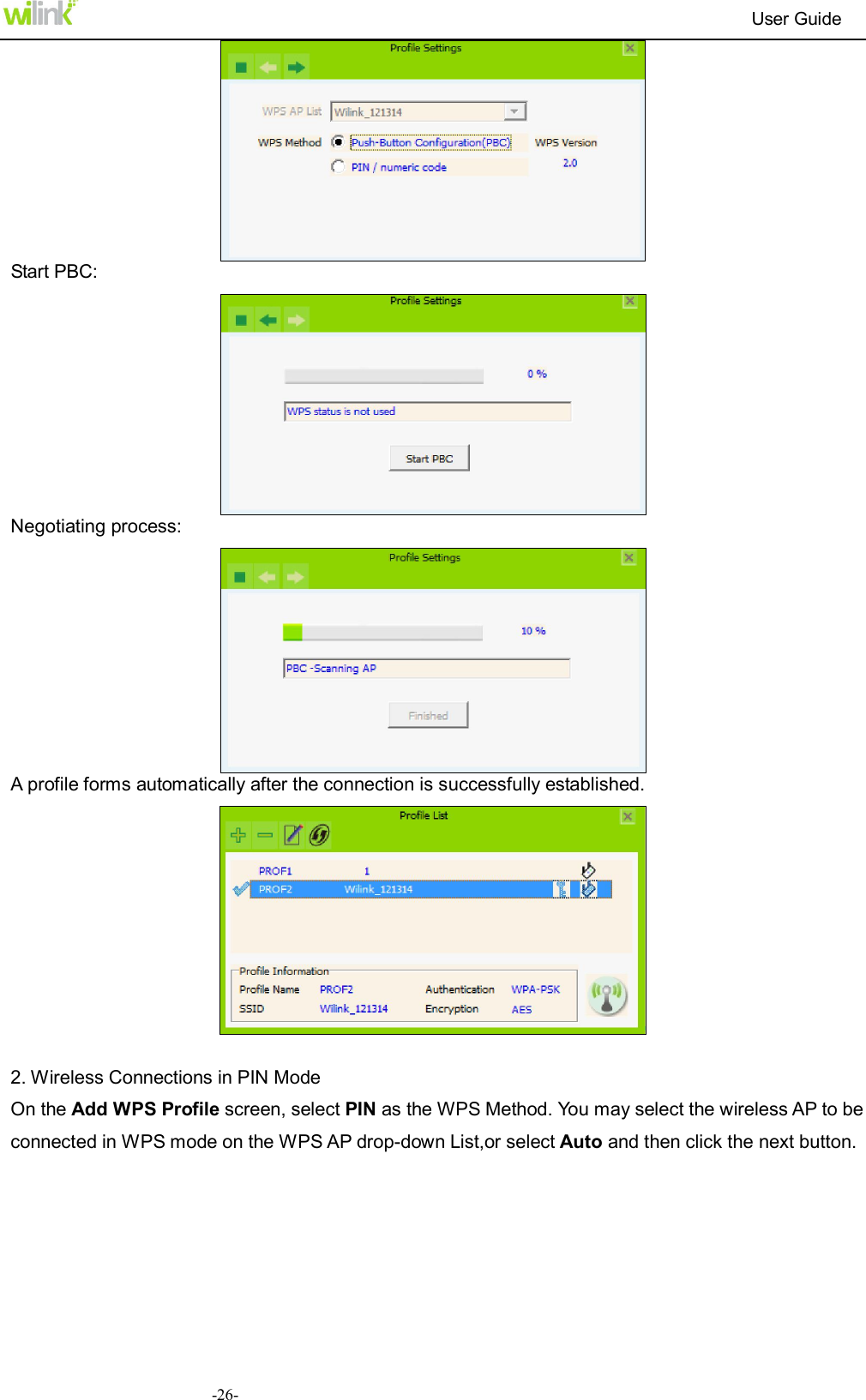
                                                                         User Guide  -25- Appendix 2 How to Set WPS    WPS setting supports PBC and PIN code modes. The setting steps of the two modes will be introduced in detail.   1.    Wireless Connection in PBC Mode   There are usually two ways of enabling PBC on Wireless router (please refer to the user guide of your wireless router).   1.1 Use WPS button on the router      If your wireless adapter provides a WPS button, you may use the button to perform PBC connection.   a). Run the adapter’s UI and switch to STATION mode   b). Two minutes after the router’s WPS-PBC is enabled,press the adapter’s WPS button to connect in PBC mode. c). You may view the PBC connection process on the UI’s PBC screen. 1.2 Perform PBC connection on the UI of the wireless adapter 1) On the main interface of Wilink’s UI, click Profile Settings > Add WPS Profile.  2) On the Profile screen, select Push-Button Configuration (PBC) and then click the Next button, click Start PBC within two minutes after the router enables the WPS function. The connection is established when the negotiating process finishes.
                                                                         User Guide  -26- Start PBC:  Negotiating process:  A profile forms automatically after the connection is successfully established.     2. Wireless Connections in PIN Mode   On the Add WPS Profile screen, select PIN as the WPS Method. You may select the wireless AP to be connected in WPS mode on the WPS AP drop-down List,or select Auto and then click the next button.
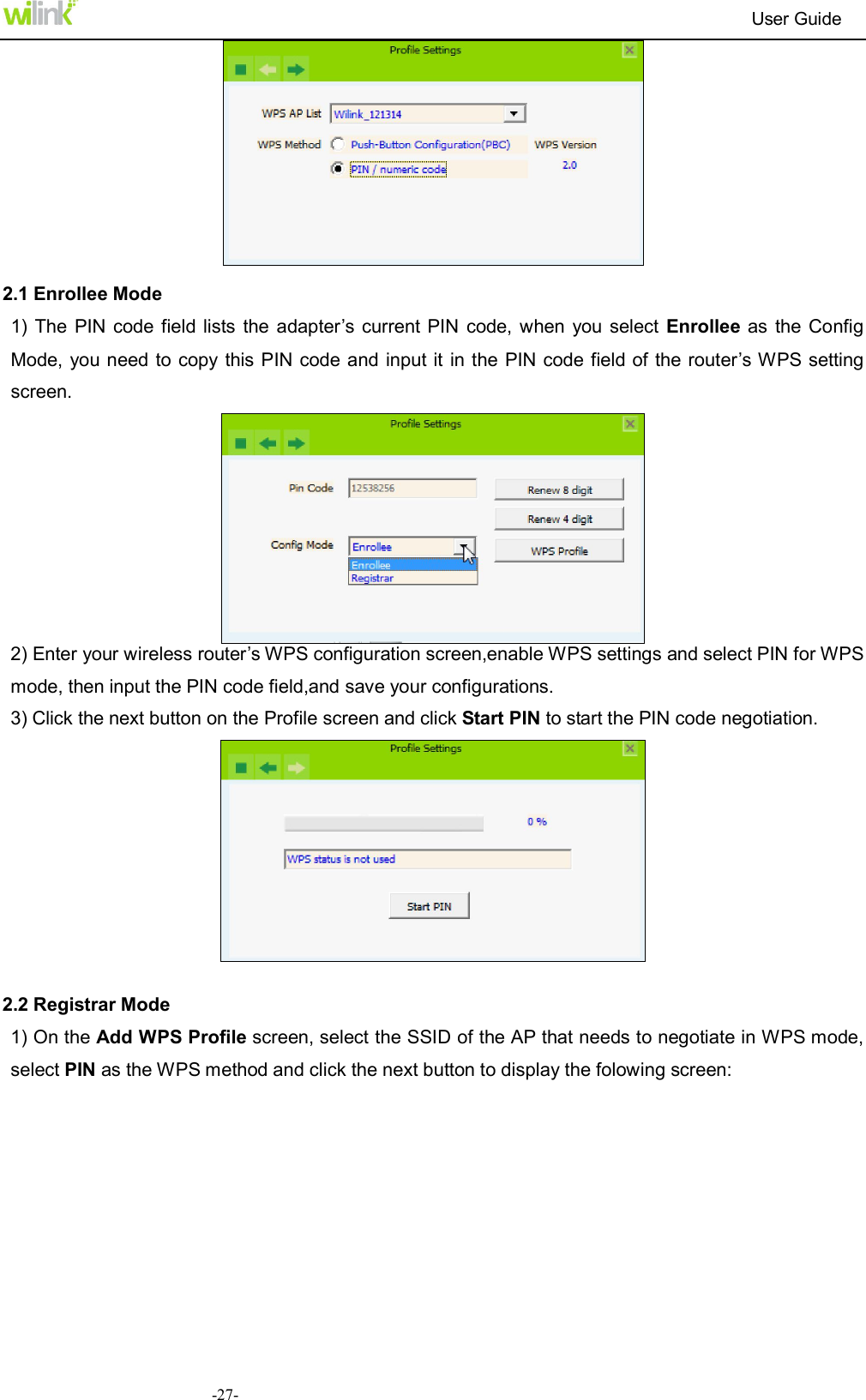
                                                                         User Guide  -27-  2.1 Enrollee Mode 1) The  PIN code field lists the  adapter’s current PIN  code,  when  you select  Enrollee as  the Config Mode,  you need to copy this PIN code and input it in the PIN code field of the router’s WPS setting screen.  2) Enter your wireless router’s WPS configuration screen,enable WPS settings and select PIN for WPS mode, then input the PIN code field,and save your configurations.   3) Click the next button on the Profile screen and click Start PIN to start the PIN code negotiation.   2.2 Registrar Mode 1) On the Add WPS Profile screen, select the SSID of the AP that needs to negotiate in WPS mode, select PIN as the WPS method and click the next button to display the folowing screen:
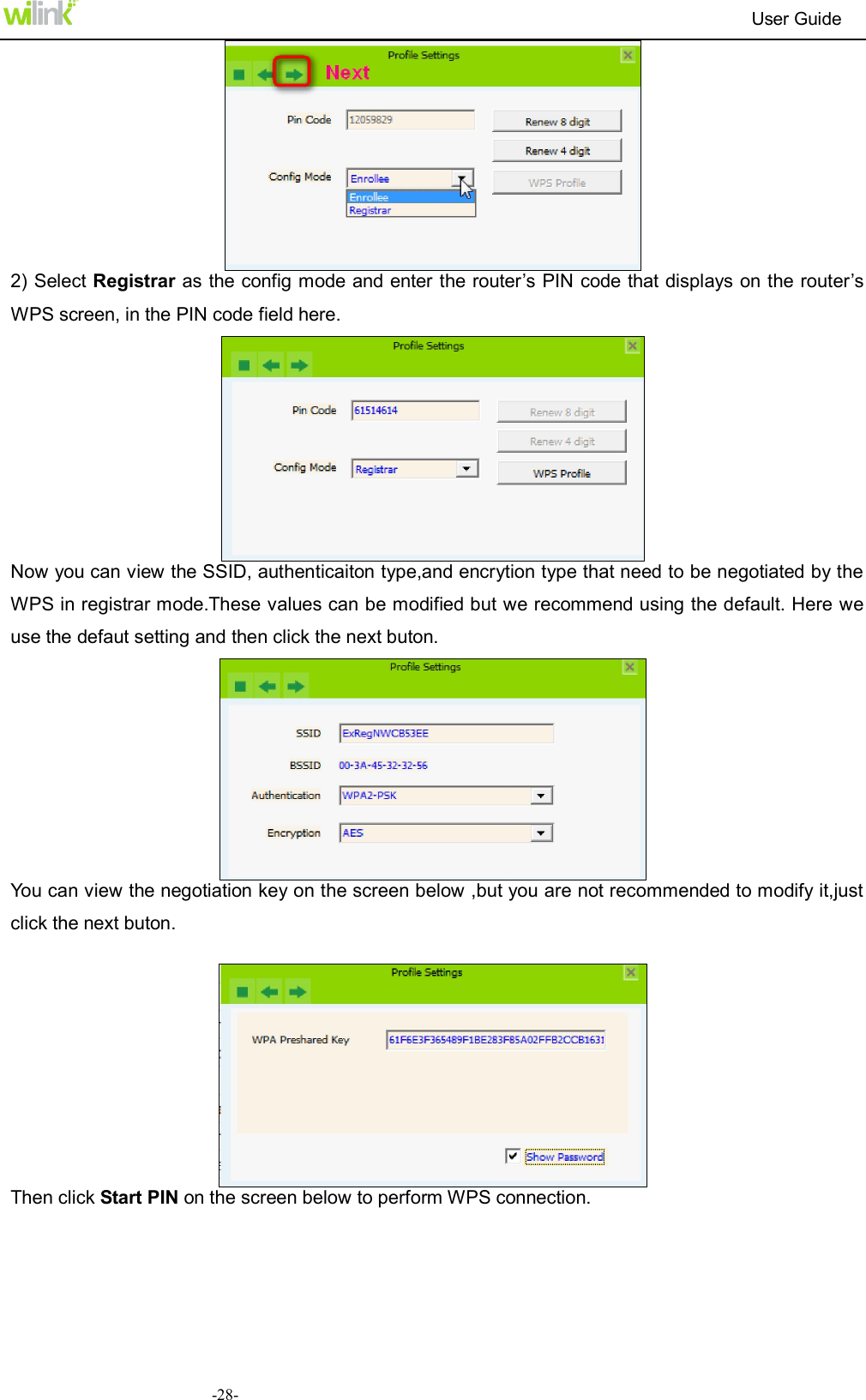
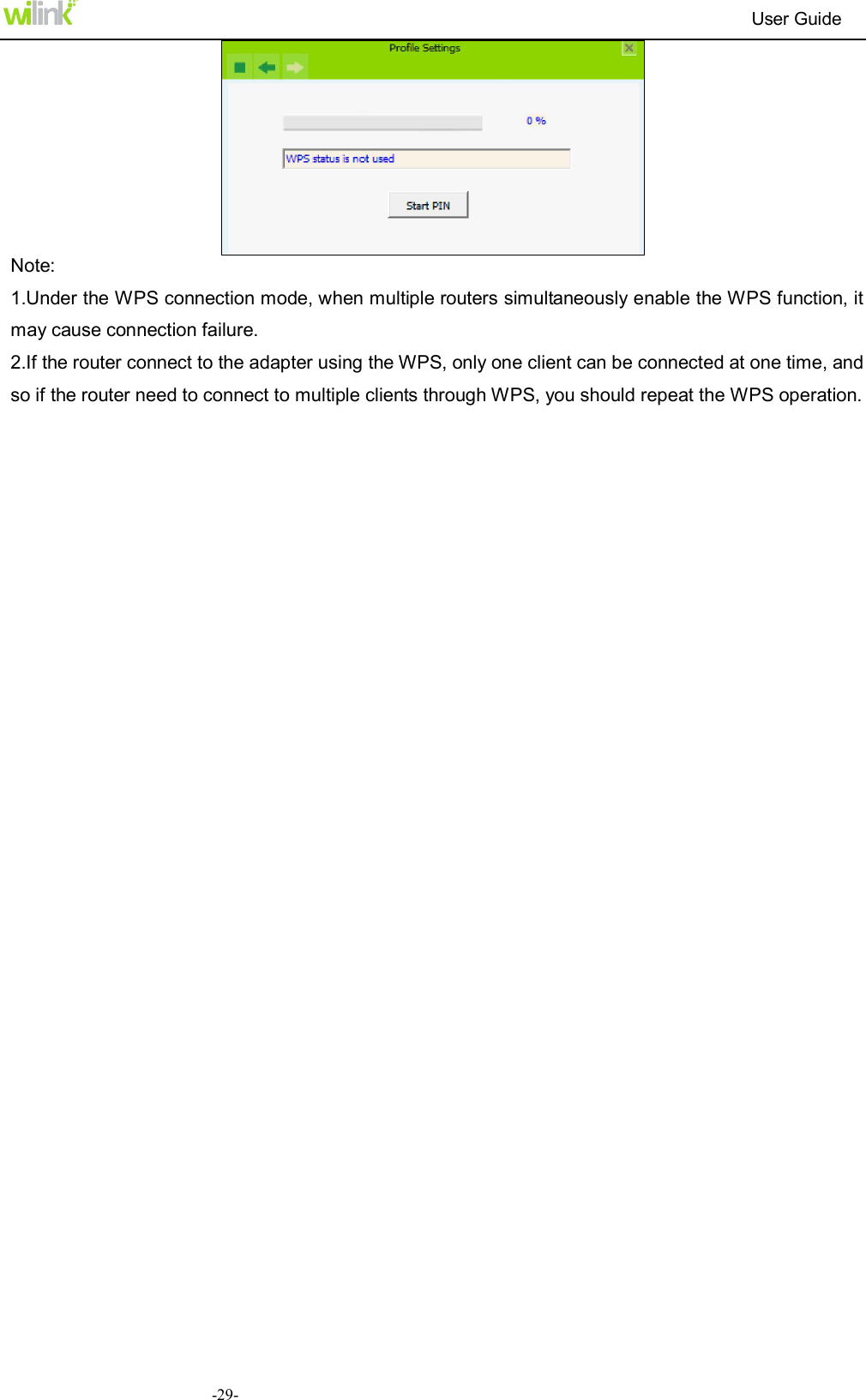
                                                                         User Guide  -28- 2) Select Registrar as the config mode and enter the router’s PIN code that displays on the router’s WPS screen, in the PIN code field here.    Now you can view the SSID, authenticaiton type,and encrytion type that need to be negotiated by the WPS in registrar mode.These values can be modified but we recommend using the default. Here we use the defaut setting and then click the next buton.  You can view the negotiation key on the screen below ,but you are not recommended to modify it,just click the next buton.   Then click Start PIN on the screen below to perform WPS connection.
                                                                         User Guide  -29- Note: 1.Under the WPS connection mode, when multiple routers simultaneously enable the WPS function, it may cause connection failure. 2.If the router connect to the adapter using the WPS, only one client can be connected at one time, and so if the router need to connect to multiple clients through WPS, you should repeat the WPS operation.
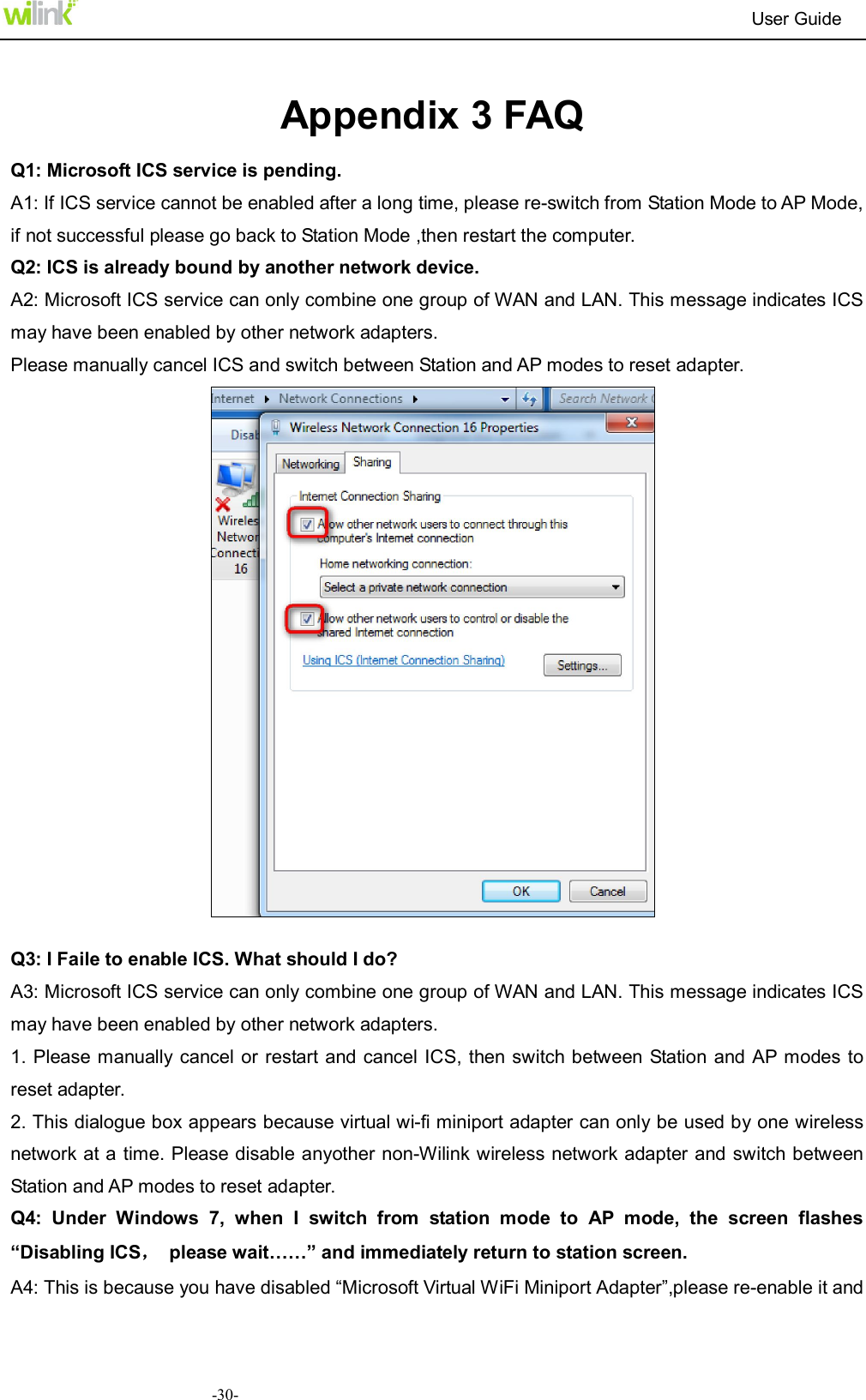
                                                                         User Guide  -30- Appendix 3 FAQ Q1: Microsoft ICS service is pending. A1: If ICS service cannot be enabled after a long time, please re-switch from Station Mode to AP Mode, if not successful please go back to Station Mode ,then restart the computer.   Q2: ICS is already bound by another network device. A2: Microsoft ICS service can only combine one group of WAN and LAN. This message indicates ICS may have been enabled by other network adapters.   Please manually cancel ICS and switch between Station and AP modes to reset adapter.   Q3: I Faile to enable ICS. What should I do? A3: Microsoft ICS service can only combine one group of WAN and LAN. This message indicates ICS may have been enabled by other network adapters.   1. Please  manually  cancel or restart and cancel ICS,  then  switch between Station and AP modes to reset adapter. 2. This dialogue box appears because virtual wi-fi miniport adapter can only be used by one wireless network at a time. Please disable anyother non-Wilink wireless network adapter and switch between Station and AP modes to reset adapter. Q4:  Under  Windows  7,  when  I  switch  from  station  mode  to  AP  mode,  the  screen  flashes “Disabling ICS,  please wait……” and immediately return to station screen. A4: This is because you have disabled “Microsoft Virtual WiFi Miniport Adapter”,please re-enable it and
                                                                         User Guide  -31-then switch to AP mode. Q5: Client cannot obtain IP when connected to soft AP of the wireless network adapter. A5: Manually  set  an  IP  address  at  the  same net segment  as  that  of  AP  and  the  gateway  at  the  IP address of AP. And communication can be achieved. Q6: Some function buttons on UI become grey and can not be used. A6: This is because you have switched to Zero config mode, please right click the Wilink UI ON the right-down corner of your desktop. Operations can be done after you have switched to Wilink UI.
                                                                         User Guide  -32- Appendix 4 Safety and Emission Statement    CE Mark Warning This is  a  Class  B  product. In  a  domestic environment,  this product may  cause  radio  interference, in which  case  the  user  may  be  required  to  take  adequate  measures.  This  device  complies  with  EU 1999/5/EC. NOTE: (1) The manufacturer is not responsible for any radio or TV interference caused by unauthorized modifications to this equipment. (2) To avoid unnecessary radiation interference, it is recommended to use a shielded RJ45 cable.          FCC Statement This device complies with Part 15 of the FCC Rules. Operation is subject to the following two conditions: (1) This device may not  cause harmful interference, and (2) this  device must accept any interference received, including interference that may cause undesired operation.  This equipment has been tested and found to comply with the limits for a Class B digital device, pursuant to Part 15 of the FCC Rules. These limits are designed to provide reasonable protection against harmful interference in a residential installation. This equipment generates, uses and can radiate radio frequency energy and, if not installed and used in accordance with the instructions, may cause harmful interference to radio communications. However, there is no guarantee that interference will not occur in a particular installation. If this equipment does cause harmful interference to radio or television reception, which can be  determined  by  turning  the  equipment  off  and  on,  the  user  is  encouraged  to  try  to  correct  the interference by one of the following measures: -  Reorient or relocate the receiving antenna. -  Increase the separation between the equipment and receiver. -  Connect  the  equipment  into  an  outlet  on  a  circuit  different  from  that  to  which  the  receiver  is connected. -  Consult the dealer or an experienced radio/TV technician for help. FCC  Caution:  Any  changes  or  modifications  not  expressly  approved  by  the  party  responsible  for compliance could void the user's authority to operate this equipment. This transmitter must not be co-located or operating in conjunction with any other antenna or transmitter. The  manufacturer  is  not  responsible  for  any  radio  or  TV  interference  caused  by  unauthorized modifications to this equipment. Radiation Exposure Statement This equipment complies with FCC radiation exposure limits set forth for an uncontrolled environment. This equipment should be installed and operated with minimum distance 20cm between the radiator & your body. NOTE: (1) The manufacturer is not responsible for any radio or TV interference caused by unauthorized modifications to this equipment. (2) To avoid unnecessary radiation interference, it is recommended to use a shielded RJ45 cable.

Navigation menu