TECHVIEW R300T Router inalambrico N300 User Manual Part One

TECHVIEW,INC Router inalambrico N300 Users Manual Part One

Contents

Users Manual Part One

                           User Guide  www.wilinklat.com
                     Copyright Statement is  the  registered  trademark  of  Techview  Inc.  All  the products and product names  mentioned herein are  the trademarks  or registered trademarks of their respective holders. Copyright of the whole product as integration, including its accessories and software, belongs to Techview Inc. Without prior expressed written permission from Techview Inc., any individual or party is not allowed to copy, plagiarize, reproduce, or translate it into other languages. All photos and product specifications mentioned in this manual are for  references  only.  Upgrades  of  software  and  hardware  may  occur; Wilink reserves the right to revise this publication and to make changes in the content hereof without obligation to notify any person or organization of such revisions or changes. If you would like to know more about our product  information,  please  visit  our  website  at http://www.wilinklat.com.
                    Table of Contents TABLE OF CONTENTS…………………………………………........................2 CHAPTER  1  PRODUCT  OVERVIEW……………………………………………………1 1.1 PACKAGE CONTENTS………………………………………………………………………………………………1 1.2 GETTING TO KNOW YOUR ROUTER……………………………………………………………………………1 CHAPTER 2 INSTALLATION AND QUICK SETUP GUIDE…………………………5 2.1 PREPARATION………………………………………………………………………………………………………5 2.2 PHYSICAL INSTALLATION…………………………………………………………………………………………5 2.3 INTERNET CONNECTION SETUP……………………………………………………………………………….7 2.3.1 Use Standard TCP/IP Properties for DHCP……………………………………………………7 2.3.2 Log in to Web Manager………………………………………………………………………………….7 2.3.3 Quick Internet Connection Setup………………………………………………………………….8 2.3.4 Verify Internet Connection Settings………………………………………………………………9 2.3.5 Wireless Settings…………………………………………………………………………………………11 2.3.6    Connect to Device Wirelessly……………………………………………………………………12 CHAPTER  3  ADVANCED  SETTINGS…………………………………………………20 3.1 STATUS……………………………………………………………………………………………………………20 3.2 INTERNET  CONNECTION  SETUP……………………………………………………………………………21 3.2.1 PPPoE……………………………………………………………………………………………………………21 3.2.2  Static  IP………………………………………………………………………………………………………22 3.2.3  DHCP……………………………………………………………………………………………………………23 3.2.4  PPTP……………………………………………………………………………………………………………24 3.2.5  L2TP……………………………………………………………………………………………………………25 3.3 MAC CLONE……………………………………………………………………………………………………….26 3.4 WAN SPEED………………………………………………………………………………………………………26 3.5 WAN MEDIUM TYPE……………………………………………………………………………………………27 3.6 LAN SETTINGS……………………………………………………………………………………………………30 3.7 DNS SETTINGS…………………………………………………………………………………………………30 3.8 DHCP……………………………………………………………………………………………………………….31 3.9 DHCP CLIENT  LIST……………………………………………………………………………………………31 CHAPTER 4 WIRELESS SETTINGS……………………………………………………33 4.1 WIRELESS BASIC SETTINGS………………………………………………………………………………….33 4.1.1 Wireless AP Mode…………………………………………………………………………………………33 4.1.2  WDS  Bridge  Mode………………………………………………………………………………………35 4.2 WIRELESS SECURITY……………………………………………………………………………………………43 4.3 WIRELESS  ACCESS  CONTROL………………………………………………………………………………46 4.4 WIRELESS CLIENT………………………………………………………………………………………………47 CHAPTER 5 BANDWIDTH CONTROL…………………………………………………49 5.1 BANDWIDTH CONTROL…………………………………………………………………………………………49 5.2 TRAFFIC STATISTICS……………………………………………………………………………………………50 CHAPTER 6 SPECIAL APPLICATIONS………………………………………………52
                    6.1 PORT  RANGE  FORWARDING…………………………………………………………………………………52 6.2 DMZ HOST………………………………………………………………………………………………………53 6.3 DDNS………………………………………………………………………………………………………………54 6.4 UPNP………………………………………………………………………………………………………………55 6.5 STATIC ROUTING…………………………………………………………………………………………………56 6.6 ROUTING  TABLE…………………………………………………………………………………………………57 CHAPTER  7  SECURITY…………………………………………………………………58 7.1 URL FILTER………………………………………………………………………………………………………58 7.2 MAC FILTER………………………………………………………………………………………………………59 7.3 CLIENT FILTER……………………………………………………………………………………………………61 CHAPTER  8  TOOLS………………………………………………………………………63 8.1 REBOOT……………………………………………………………………………………………………………63 8.2. RESTORE TO FACTORY DEFAULT  SETTINGS……………………………………………………………63 8.3 BACK/RESTORE…………………………………………………………………………………………………63 8.4 SYSLOG……………………………………………………………………………………………………………65 8.5 REMOTE WEB-BASED MANAGEMENT………………………………………………………………………65 8.6 TIME…………………………………………………………………………………………………………………66 8.7 LOGIN PASSWORD………………………………………………………………………………………………67 8.8 FIRMWARE UPGRADE……………………………………………………………………………………………67 APPENDIX 1 HOW TO CONFIGURE IP………………………………………………69 WIN7 OS CONFIGURATION……………………………………………………………………………………69 XP OS CONFIGURATION…………………………………………………………………………………………72 APPENDIX 2 GLOSSARY…………………………………………………………………76 APPENDIX  3  FAQS………………………………………………………………………80 APPENDIX 4    REMOVE WIRELESS NETWORK FROM YOUR PC……………82 APPENDIX 5 SAFETY AND EMISSION STATEMENT……………………………86
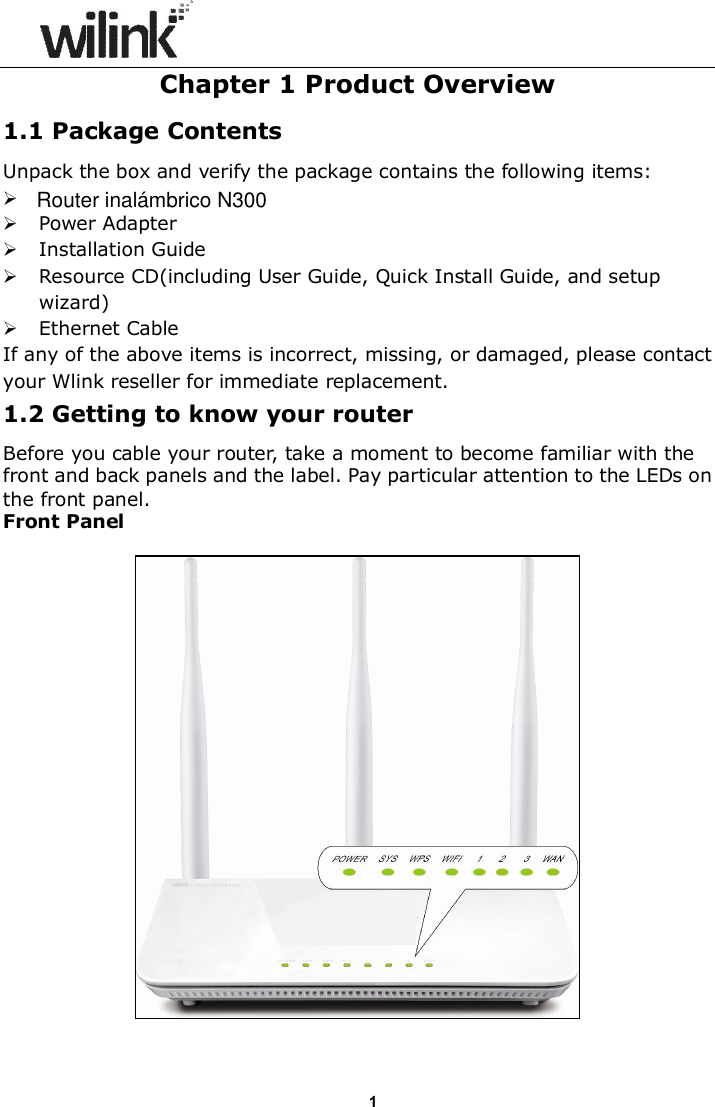
                     1Chapter 1 Product Overview 1.1 Package Contents Unpack the box and verify the package contains the following items:   Power Adapter  Installation Guide  Resource CD(including User Guide, Quick Install Guide, and setup wizard)  Ethernet Cable If any of the above items is incorrect, missing, or damaged, please contact your Wlink reseller for immediate replacement. 1.2 Getting to know your router Before you cable your router, take a moment to become familiar with the front and back panels and the label. Pay particular attention to the LEDs on the front panel. Front Panel    Router inalámbrico N300
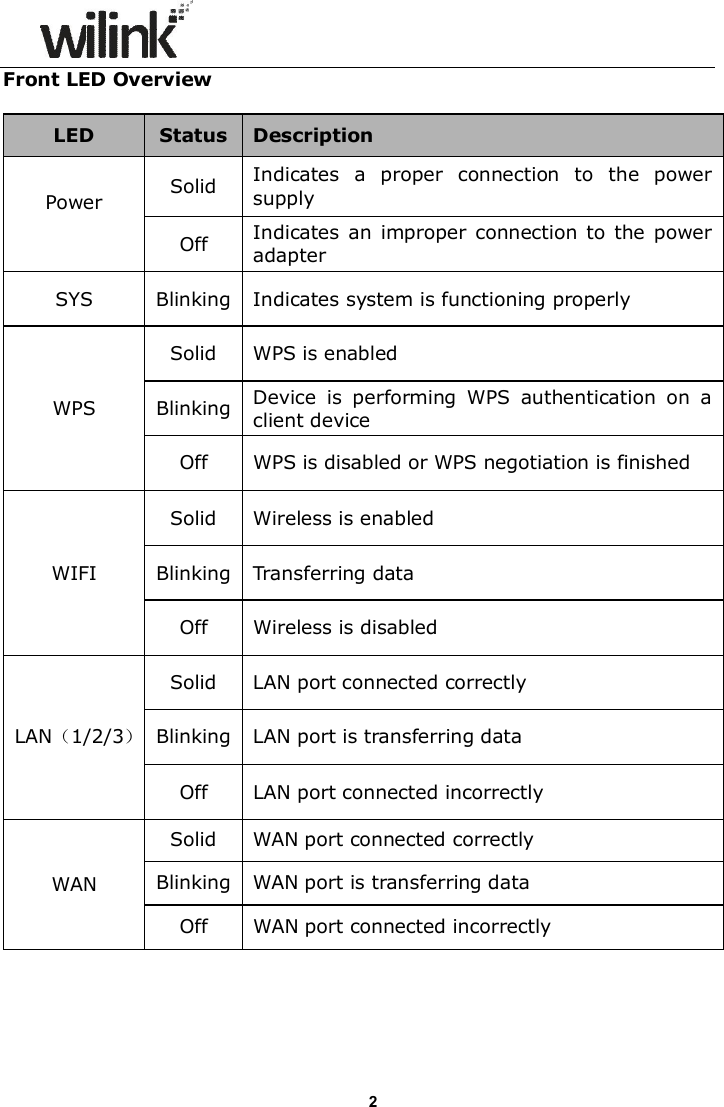
                     2Front LED Overview  LED  Status Description Power  Solid  Indicates  a  proper  connection  to  the  power supply Off    Indicates  an  improper  connection  to  the power adapter  SYS  Blinking Indicates system is functioning properly WPS Solid  WPS is enabled Blinking  Device  is  performing  WPS  authentication  on  a client device Off    WPS is disabled or WPS negotiation is finished   WIFI Solid  Wireless is enabled Blinking  Transferring data Off    Wireless is disabled LAN(1/2/3) Solid  LAN port connected correctly Blinking  LAN port is transferring data Off    LAN port connected incorrectly WAN Solid  WAN port connected correctly Blinking  WAN port is transferring data Off    WAN port connected incorrectly
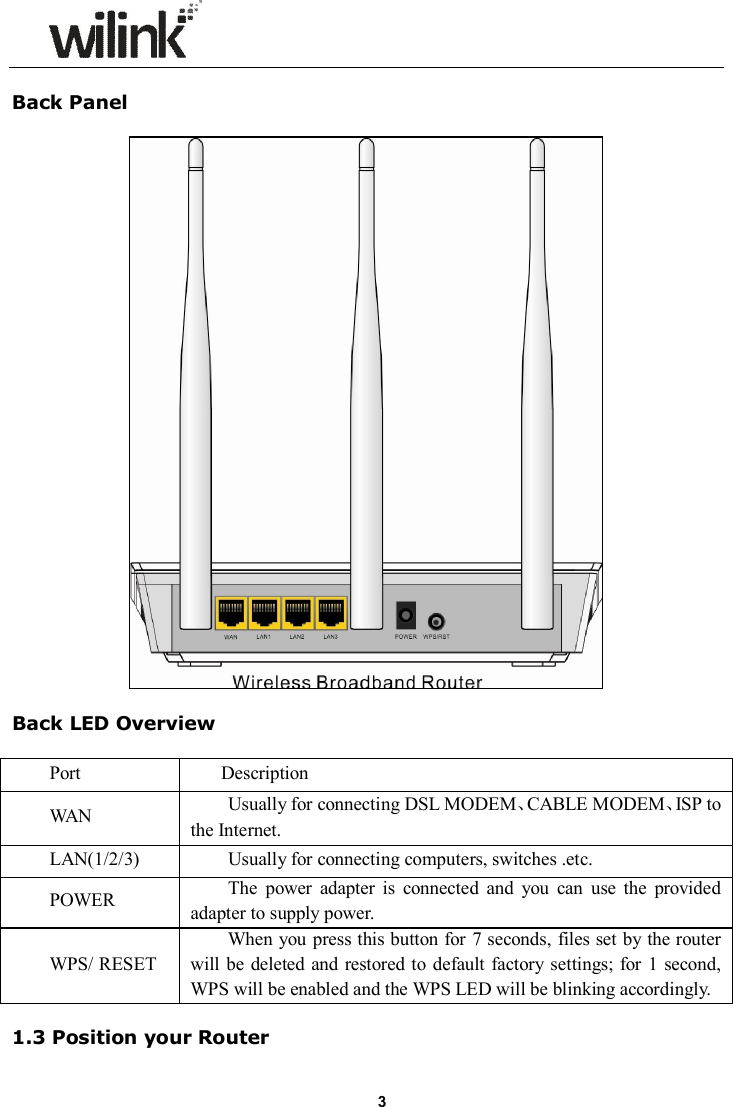
                     3 Back Panel    Back LED Overview  Port    Description WAN  Usually for connecting DSL MODEM、CABLE MODEM、ISP to the Internet. LAN(1/2/3)  Usually for connecting computers, switches .etc. POWER  The  power  adapter  is  connected  and  you  can  use  the  provided adapter to supply power. WPS/ RESET When you press this button for 7 seconds, files set by  the router will  be deleted  and  restored to  default factory settings;  for  1 second, WPS will be enabled and the WPS LED will be blinking accordingly.  1.3 Position your Router
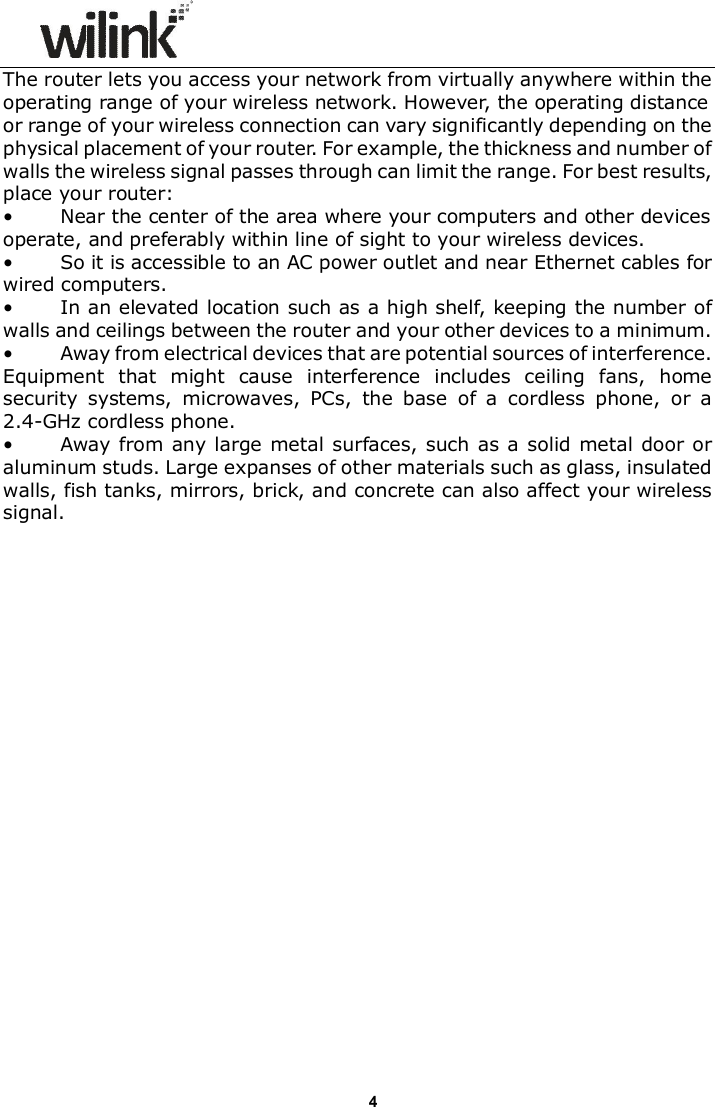
                     4The router lets you access your network from virtually anywhere within the operating range of your wireless network. However, the operating distance or range of your wireless connection can vary significantly depending on the physical placement of your router. For example, the thickness and number of walls the wireless signal passes through can limit the range. For best results, place your router:  •          Near the center of the area where your computers and other devices operate, and preferably within line of sight to your wireless devices. •          So it is accessible to an AC power outlet and near Ethernet cables for wired computers. •          In an elevated location such as a high shelf, keeping the number of walls and ceilings between the router and your other devices to a minimum. •          Away from electrical devices that are potential sources of interference. Equipment  that  might  cause  interference  includes  ceiling  fans,  home security  systems,  microwaves,  PCs,  the  base  of  a  cordless  phone,  or  a 2.4-GHz cordless phone.   •          Away from any large metal surfaces, such  as a  solid metal door or aluminum studs. Large expanses of other materials such as glass, insulated walls, fish tanks, mirrors, brick, and concrete can also affect your wireless signal.
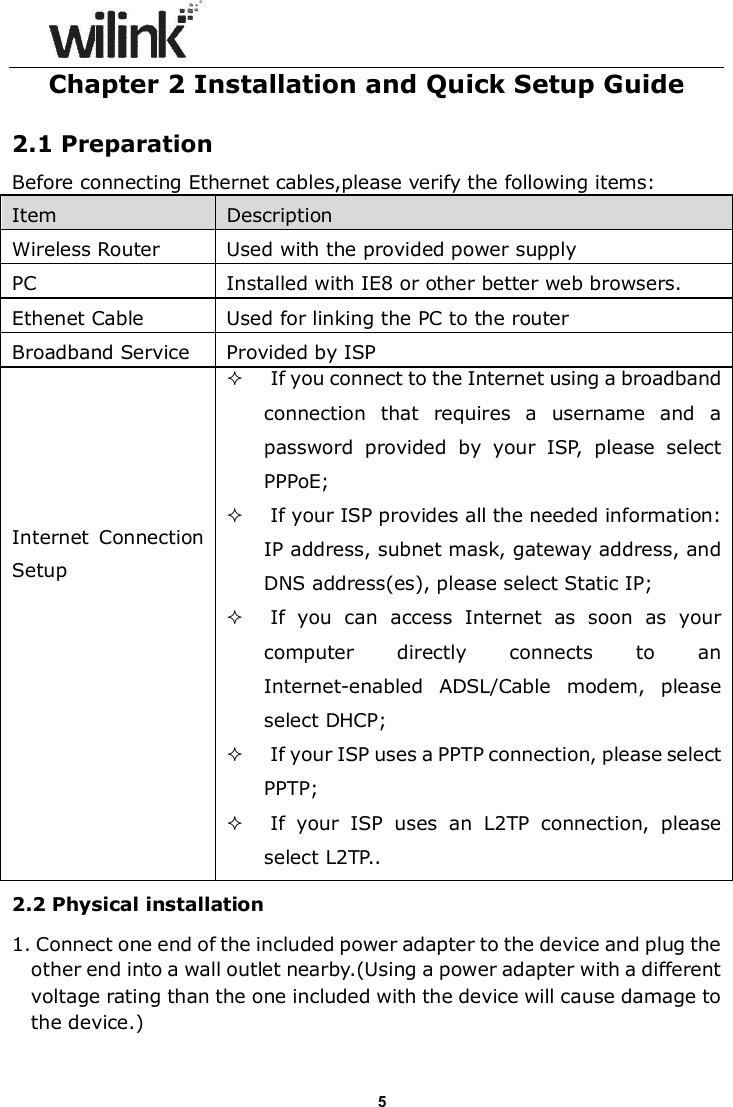
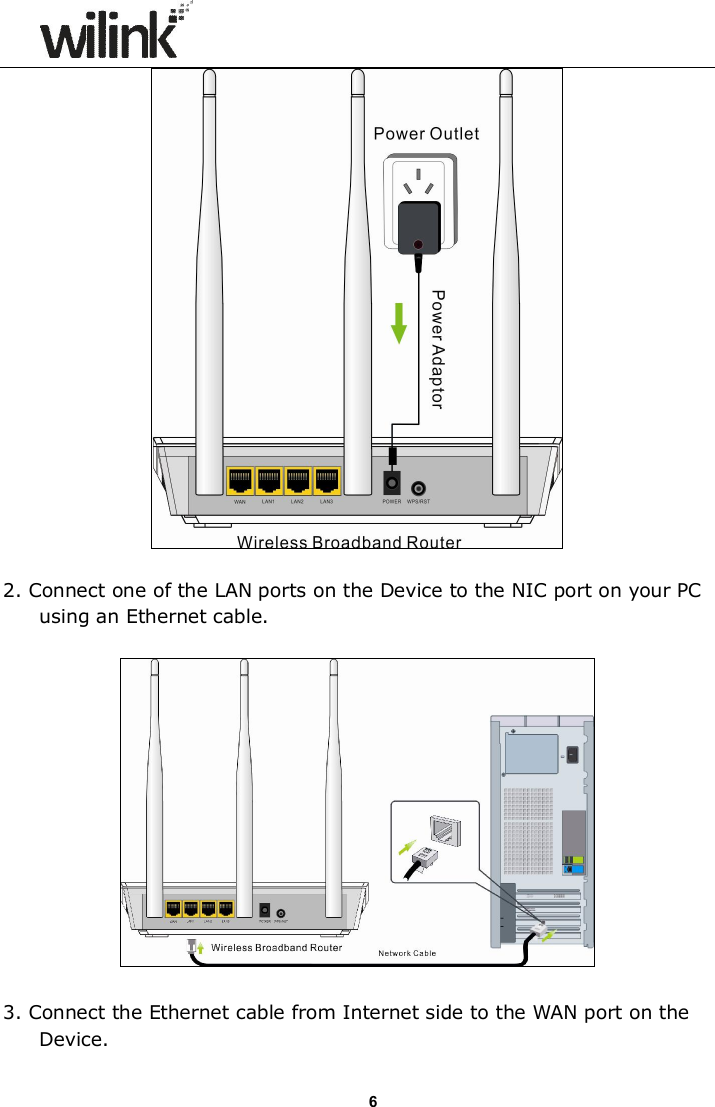
                     5Chapter 2 Installation and Quick Setup Guide  2.1 Preparation   Before connecting Ethernet cables,please verify the following items: Item      Description   Wireless Router  Used with the provided power supply PC  Installed with IE8 or other better web browsers. Ethenet Cable  Used for linking the PC to the router Broadband Service  Provided by ISP Internet  Connection Setup   If you connect to the Internet using a broadband connection  that  requires  a  username  and  a password  provided  by  your  ISP,  please  select PPPoE;  If your ISP provides all the needed information: IP address, subnet mask, gateway address, and DNS address(es), please select Static IP;  If  you  can  access  Internet  as  soon  as  your computer  directly  connects  to  an Internet-enabled  ADSL/Cable  modem,  please select DHCP;  If your ISP uses a PPTP connection, please select PPTP;  If  your  ISP  uses  an  L2TP  connection,  please select L2TP.. 2.2 Physical installation 1. Connect one end of the included power adapter to the device and plug the other end into a wall outlet nearby.(Using a power adapter with a different voltage rating than the one included with the device will cause damage to the device.)
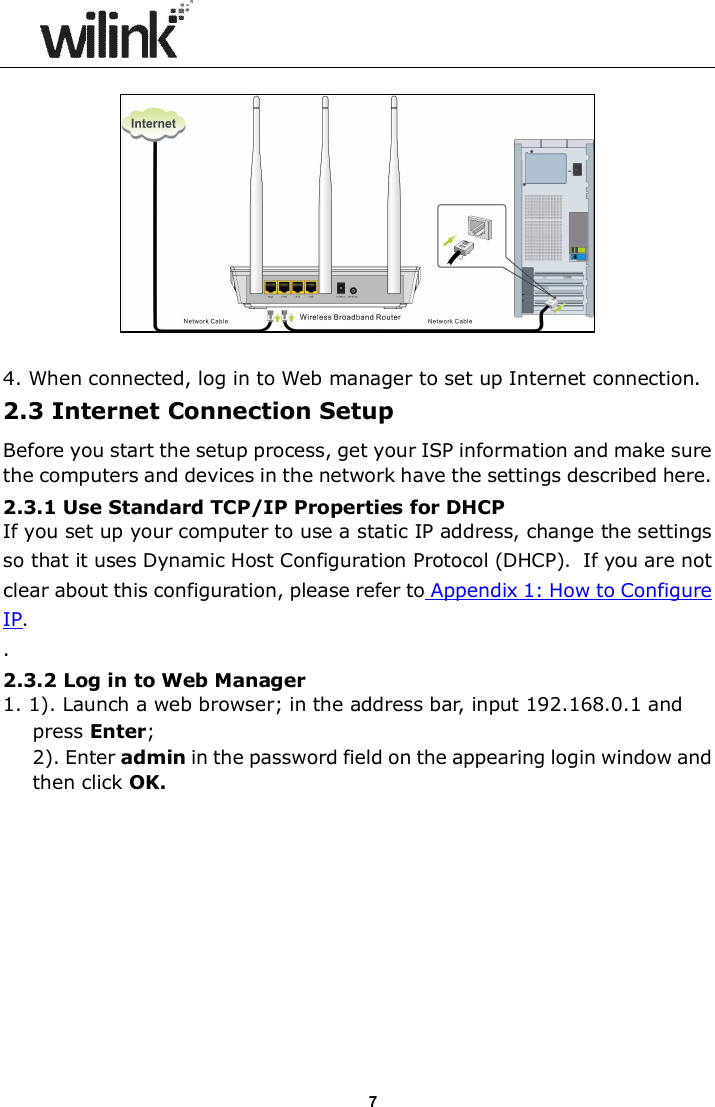
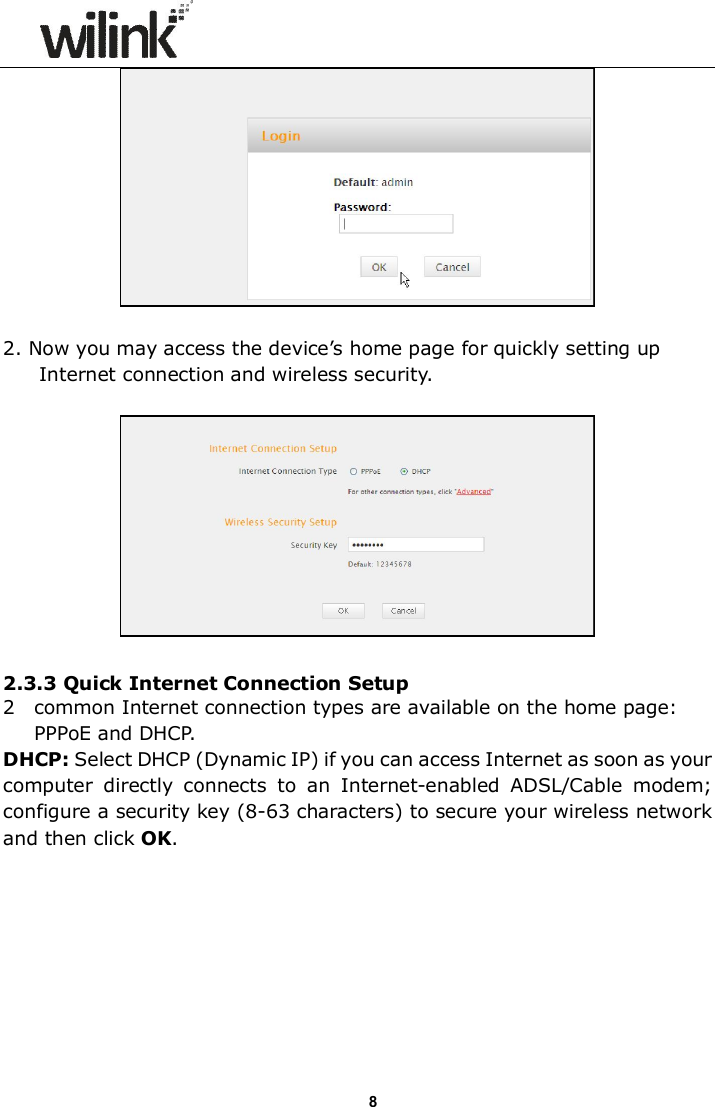
                     6  2. Connect one of the LAN ports on the Device to the NIC port on your PC using an Ethernet cable.    3. Connect the Ethernet cable from Internet side to the WAN port on the Device.
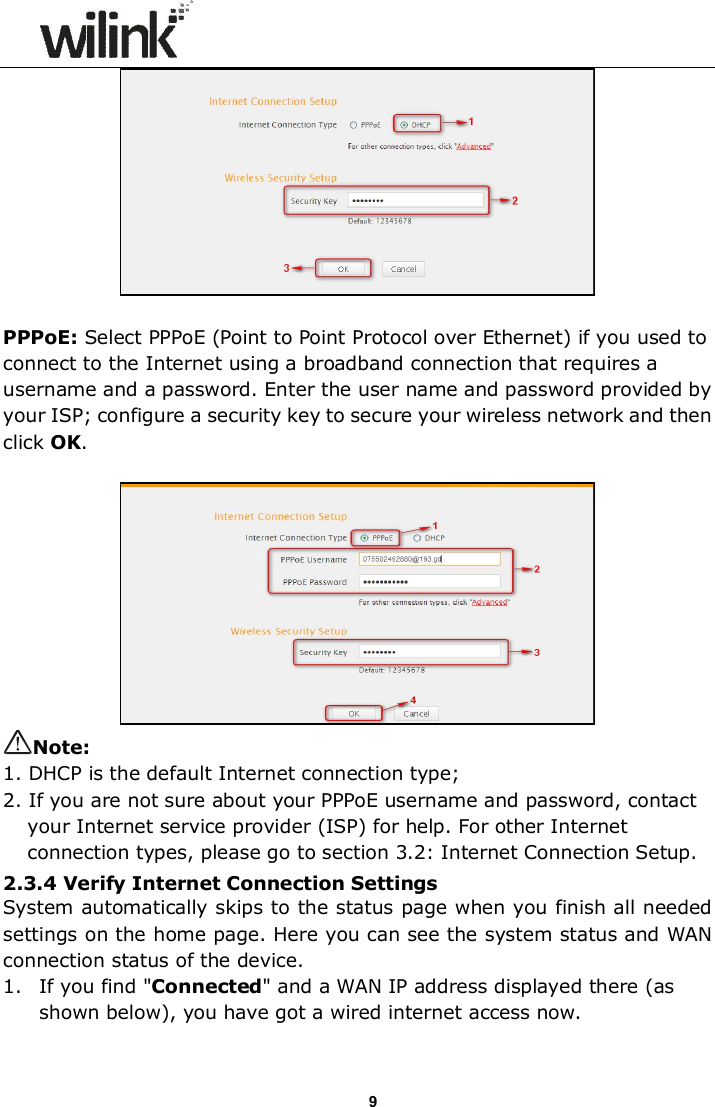
                     7   4. When connected, log in to Web manager to set up Internet connection. 2.3 Internet Connection Setup Before you start the setup process, get your ISP information and make sure the computers and devices in the network have the settings described here. 2.3.1 Use Standard TCP/IP Properties for DHCP If you set up your computer to use a static IP address, change the settings so that it uses Dynamic Host Configuration Protocol (DHCP). If you are not clear about this configuration, please refer to Appendix 1: How to Configure IP. . 2.3.2 Log in to Web Manager 1. 1). Launch a web browser; in the address bar, input 192.168.0.1 and press Enter; 2). Enter admin in the password field on the appearing login window and then click OK.
                     8  2. Now you may access the device’s home page for quickly setting up Internet connection and wireless security.    2.3.3 Quick Internet Connection Setup 2  common Internet connection types are available on the home page: PPPoE and DHCP. DHCP: Select DHCP (Dynamic IP) if you can access Internet as soon as your computer  directly  connects  to  an  Internet-enabled  ADSL/Cable  modem; configure a security key (8-63 characters) to secure your wireless network and then click OK.
                     9  PPPoE: Select PPPoE (Point to Point Protocol over Ethernet) if you used to connect to the Internet using a broadband connection that requires a username and a password. Enter the user name and password provided by your ISP; configure a security key to secure your wireless network and then click OK.   Note: 1. DHCP is the default Internet connection type; 2. If you are not sure about your PPPoE username and password, contact your Internet service provider (ISP) for help. For other Internet connection types, please go to section 3.2: Internet Connection Setup.   2.3.4 Verify Internet Connection Settings System automatically skips to the status page when you finish all needed settings on the home page. Here you can see the system status and WAN connection status of the device. 1. If you find "Connected" and a WAN IP address displayed there (as shown below), you have got a wired internet access now.
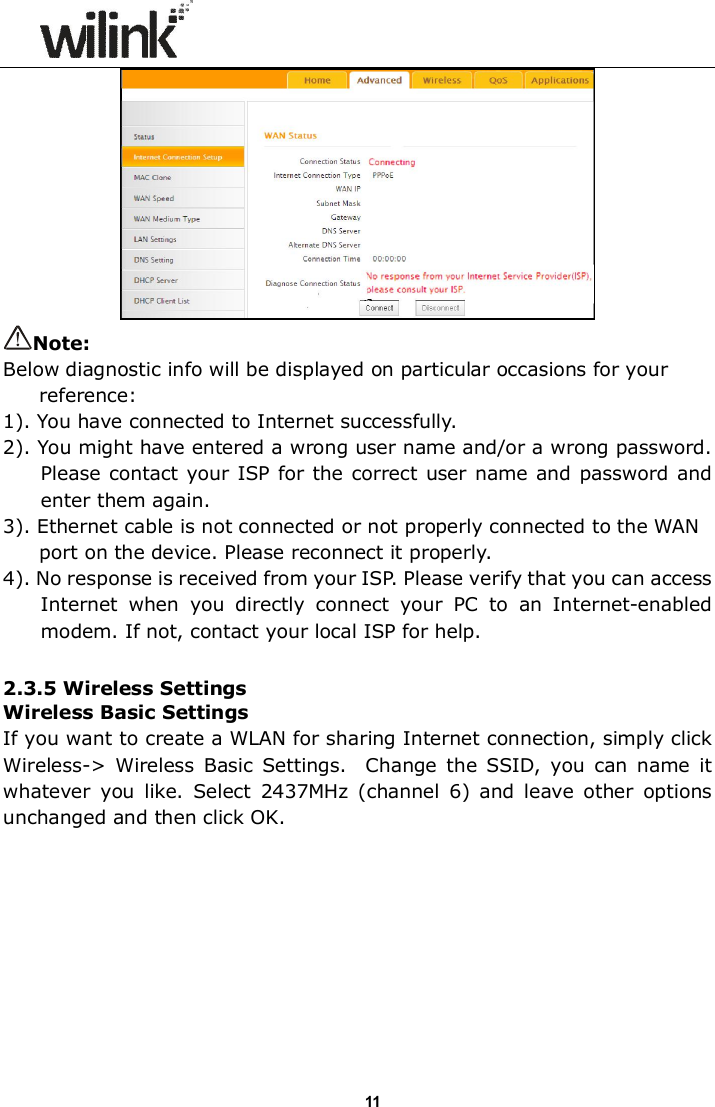
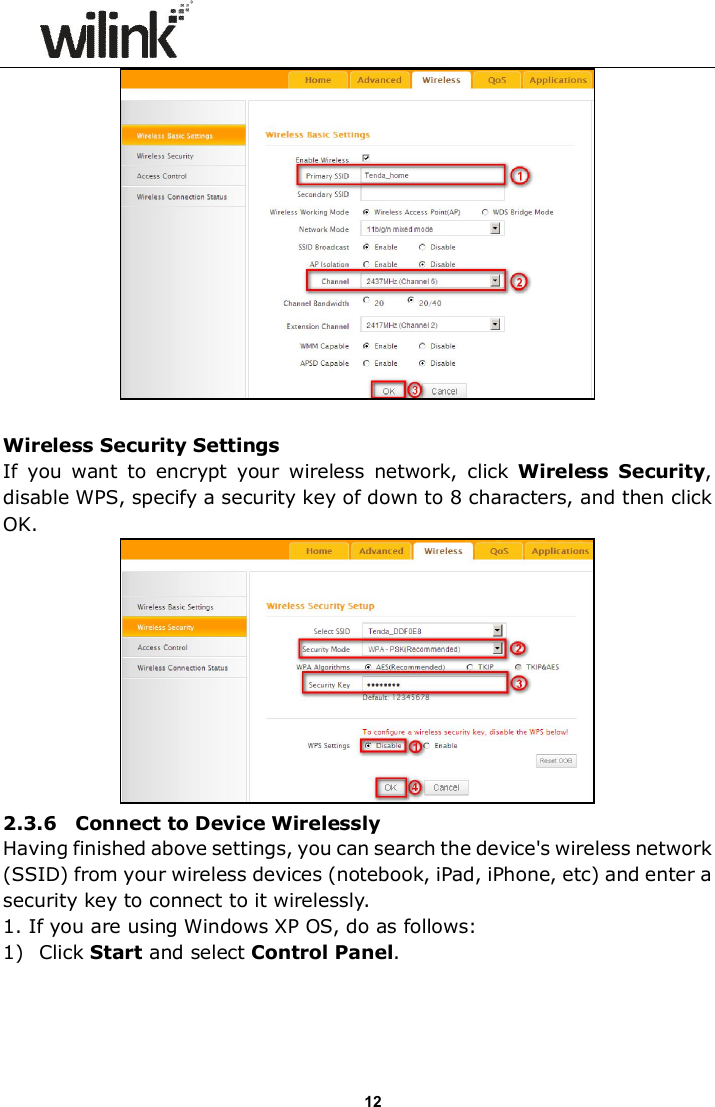
                     10   2. If connection status displays  "Disconnected"  and  there  is  no WAN  IP address  displayed  (as  seen  below),  connection  between  the Internet-enabled  modem  and  your  device  may  have  failed.  Please double check or re-connect all involved devices and cables properly and then refresh the page. If nothing is wrong, "Connecting" or "Connected" will be displayed.    3. If "Connecting" is displayed and no WAN IP address is seen, try refreshing the page five times. And if it still displays "Connecting" try steps below: 1). Contact your ISP for assistance if you are using the DHCP connection type. 2). Read the connection diagnostic info on WAN status.
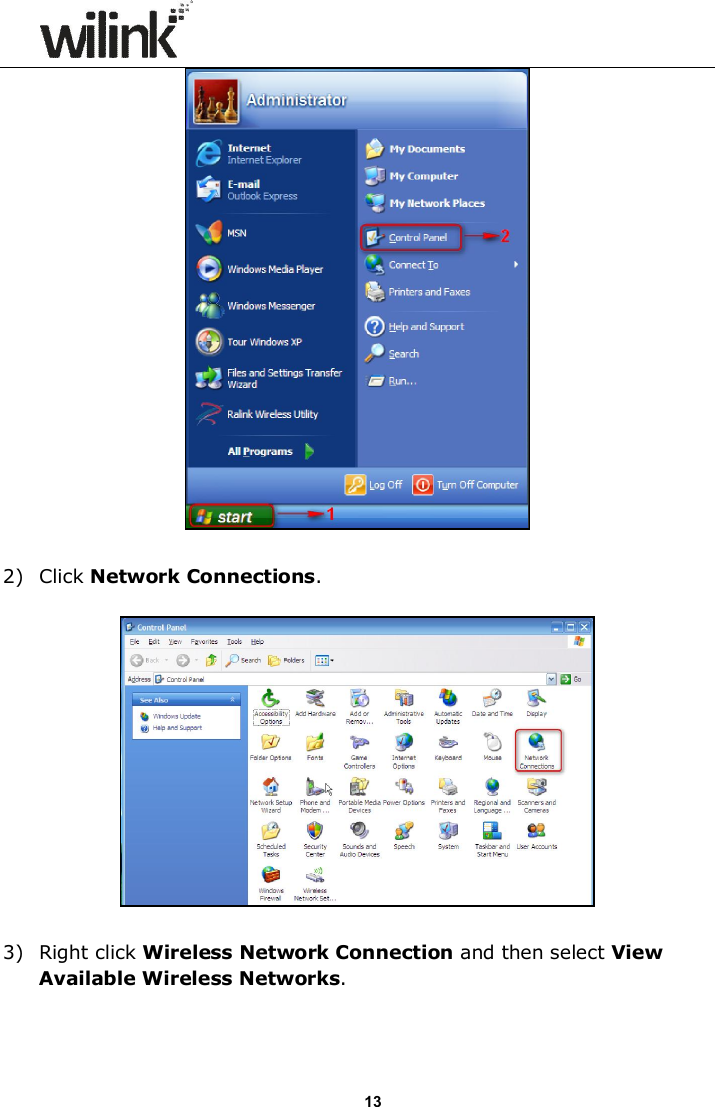
                     11 Note: Below diagnostic info will be displayed on particular occasions for your reference: 1). You have connected to Internet successfully. 2). You might have entered a wrong user name and/or a wrong password. Please contact your ISP for the correct user name and password and enter them again. 3). Ethernet cable is not connected or not properly connected to the WAN port on the device. Please reconnect it properly. 4). No response is received from your ISP. Please verify that you can access Internet  when  you  directly  connect  your  PC  to  an  Internet-enabled modem. If not, contact your local ISP for help.  2.3.5 Wireless Settings Wireless Basic Settings If you want to create a WLAN for sharing Internet connection, simply click Wireless->  Wireless  Basic  Settings.    Change  the  SSID,  you  can  name  it whatever  you  like.  Select  2437MHz  (channel  6)  and  leave  other  options unchanged and then click OK.
                     12   Wireless Security Settings If  you  want  to  encrypt  your  wireless  network,  click  Wireless  Security, disable WPS, specify a security key of down to 8 characters, and then click OK.      2.3.6    Connect to Device Wirelessly Having finished above settings, you can search the device's wireless network (SSID) from your wireless devices (notebook, iPad, iPhone, etc) and enter a security key to connect to it wirelessly. 1. If you are using Windows XP OS, do as follows: 1) Click Start and select Control Panel.
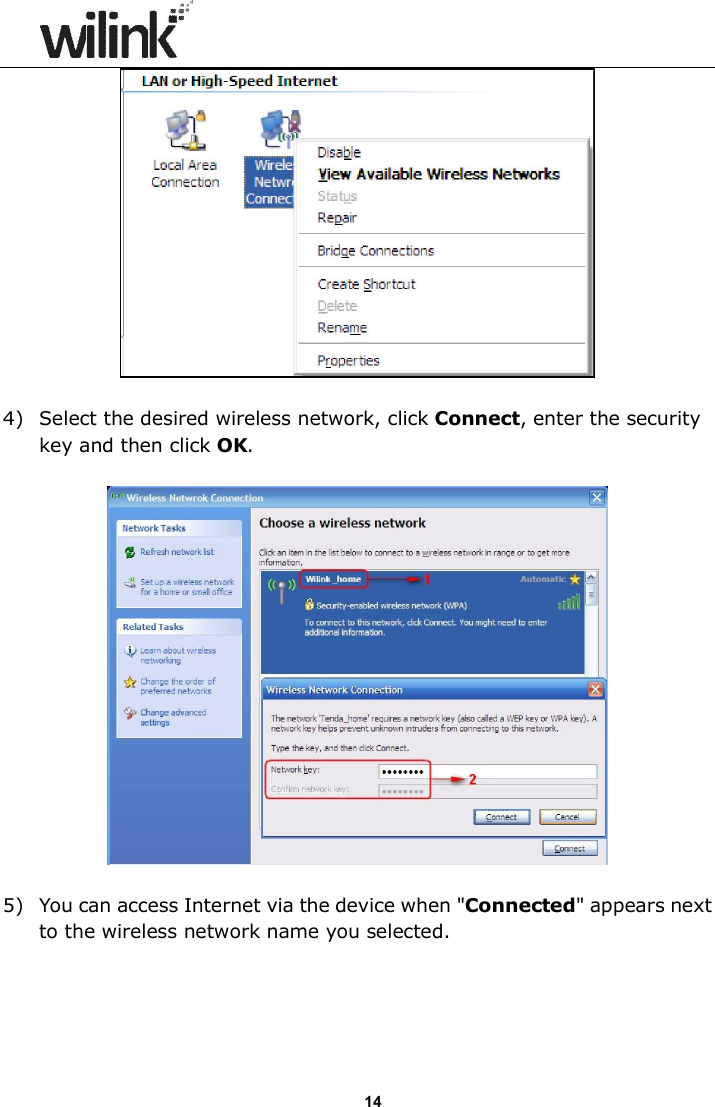
                     13   2) Click Network Connections.    3) Right click Wireless Network Connection and then select View Available Wireless Networks.
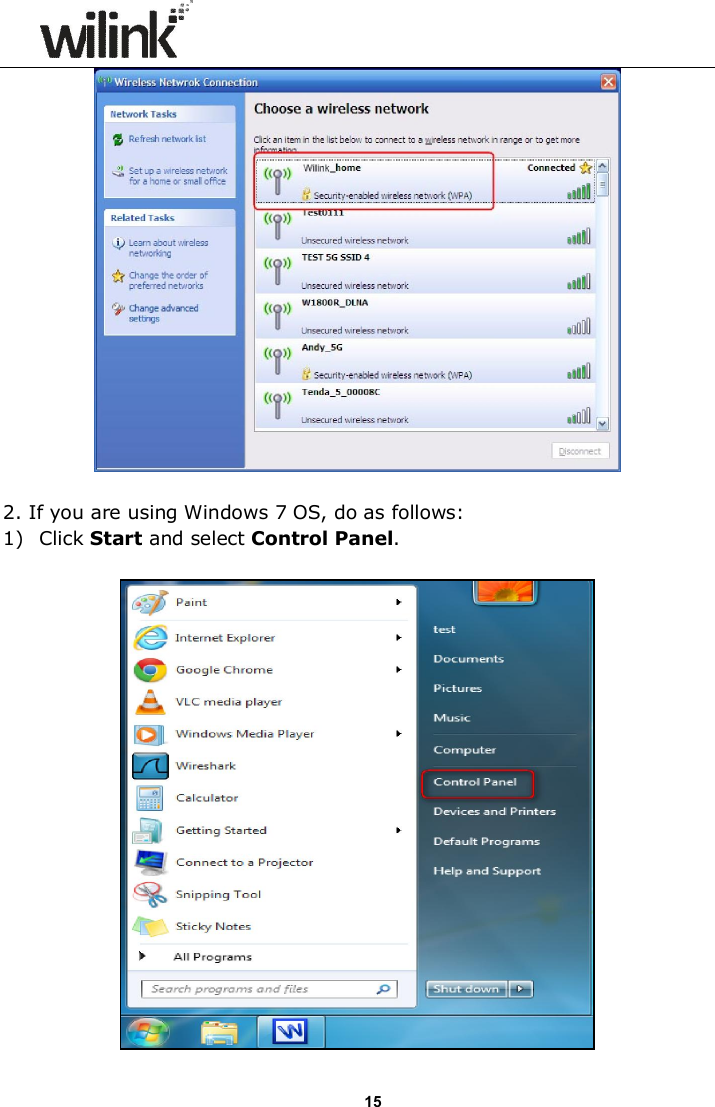
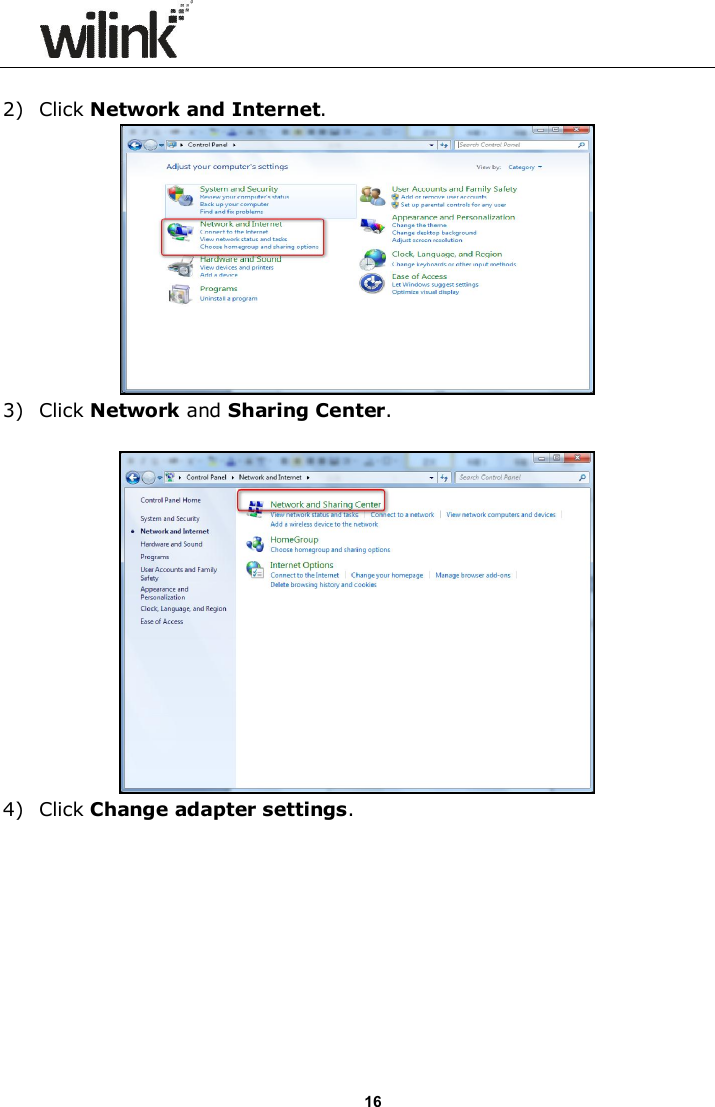
                     14   4) Select the desired wireless network, click Connect, enter the security key and then click OK.    5) You can access Internet via the device when "Connected" appears next to the wireless network name you selected.
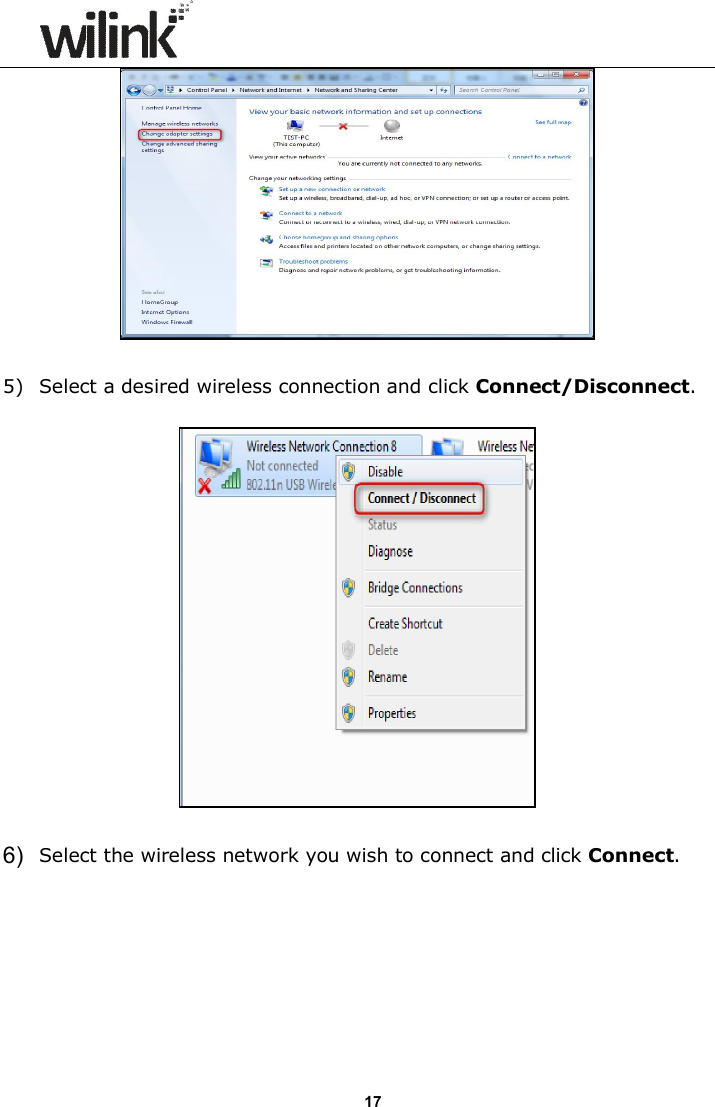
                     15   2. If you are using Windows 7 OS, do as follows: 1) Click Start and select Control Panel.
                     16  2) Click Network and Internet.  3) Click Network and Sharing Center.   4) Click Change adapter settings.
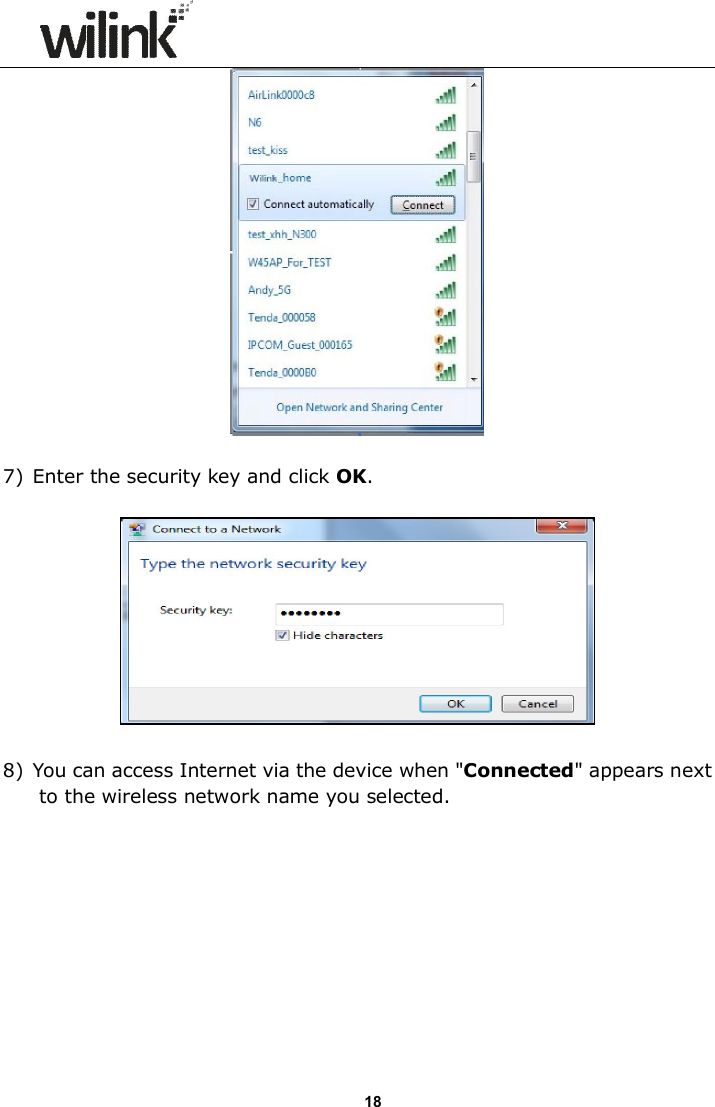
                     17   5) Select a desired wireless connection and click Connect/Disconnect.    6)  Select the wireless network you wish to connect and click Connect.
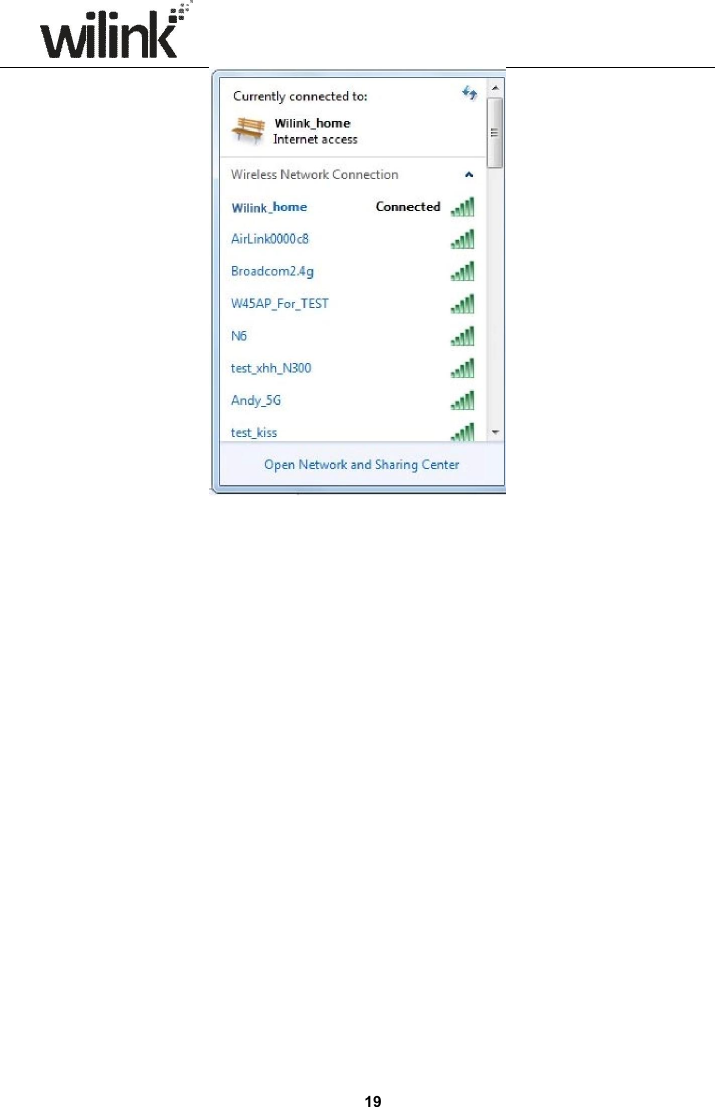
                     18   7) Enter the security key and click OK.      8) You can access Internet via the device when "Connected" appears next to the wireless network name you selected.
                     19
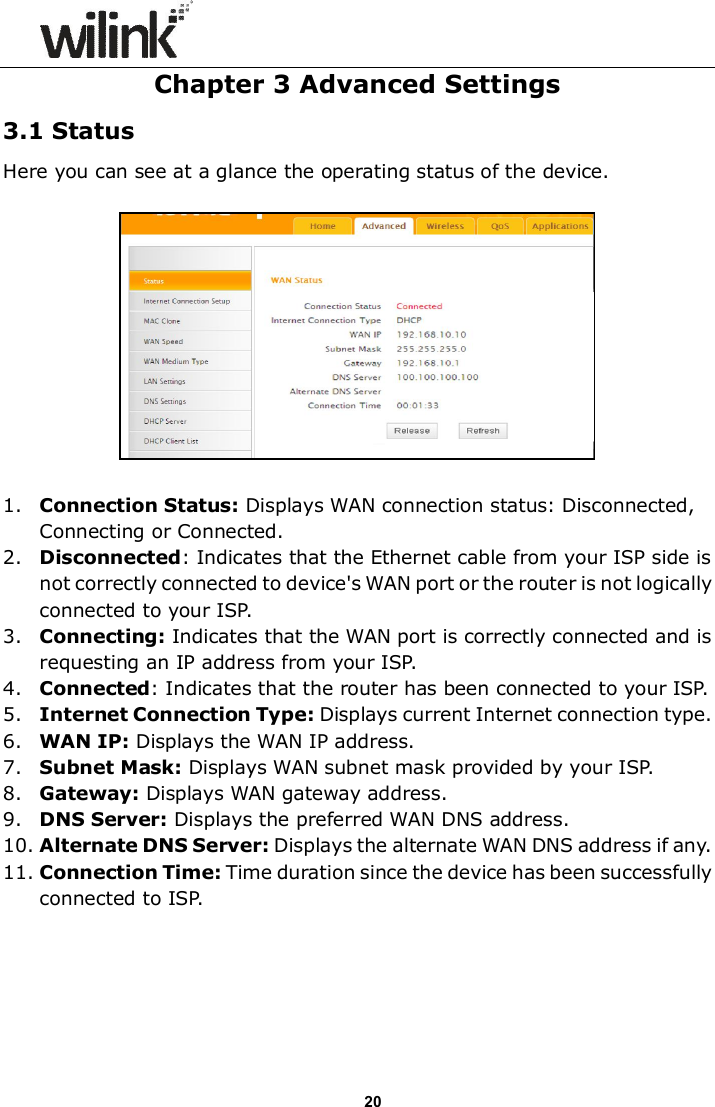
                     20 Chapter 3 Advanced Settings 3.1 Status Here you can see at a glance the operating status of the device.    1. Connection Status: Displays WAN connection status: Disconnected, Connecting or Connected. 2. Disconnected: Indicates that the Ethernet cable from your ISP side is not correctly connected to device's WAN port or the router is not logically connected to your ISP. 3. Connecting: Indicates that the WAN port is correctly connected and is requesting an IP address from your ISP. 4. Connected: Indicates that the router has been connected to your ISP. 5. Internet Connection Type: Displays current Internet connection type. 6. WAN IP: Displays the WAN IP address. 7. Subnet Mask: Displays WAN subnet mask provided by your ISP. 8. Gateway: Displays WAN gateway address. 9. DNS Server: Displays the preferred WAN DNS address. 10. Alternate DNS Server: Displays the alternate WAN DNS address if any. 11. Connection Time: Time duration since the device has been successfully connected to ISP.
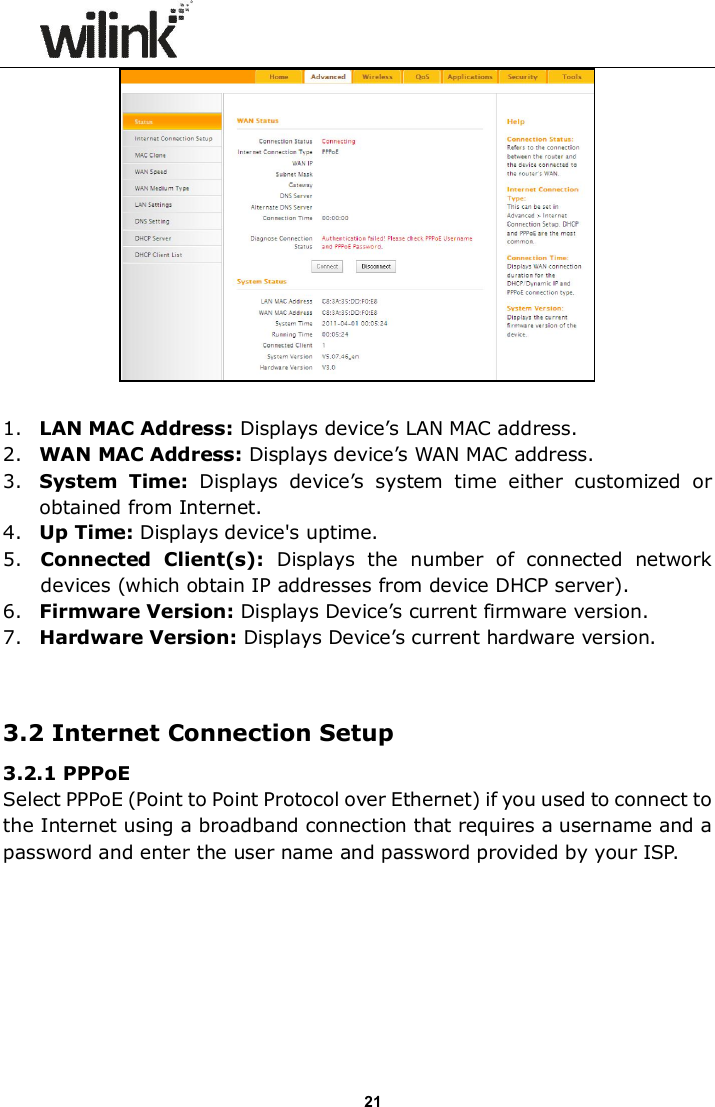
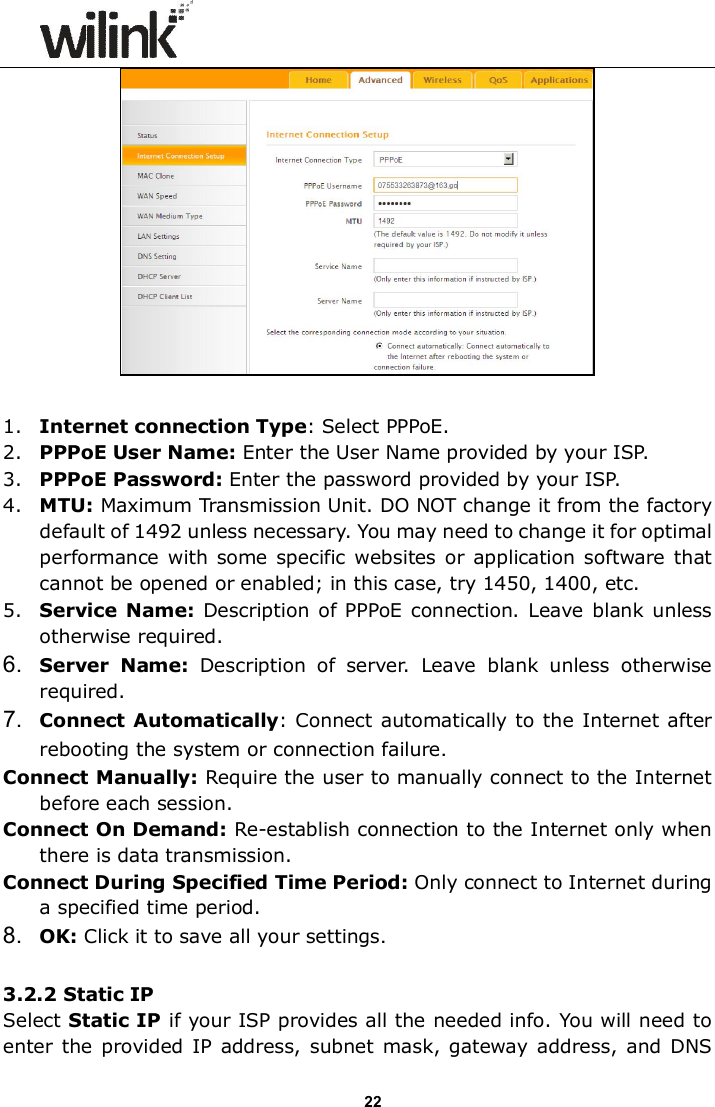
                     21   1. LAN MAC Address: Displays device’s LAN MAC address. 2. WAN MAC Address: Displays device’s WAN MAC address. 3. System  Time:  Displays  device’s  system  time  either  customized  or obtained from Internet. 4. Up Time: Displays device's uptime. 5. Connected  Client(s):  Displays  the  number  of  connected  network devices (which obtain IP addresses from device DHCP server). 6. Firmware Version: Displays Device’s current firmware version. 7. Hardware Version: Displays Device’s current hardware version.   3.2 Internet Connection Setup 3.2.1 PPPoE Select PPPoE (Point to Point Protocol over Ethernet) if you used to connect to the Internet using a broadband connection that requires a username and a password and enter the user name and password provided by your ISP.
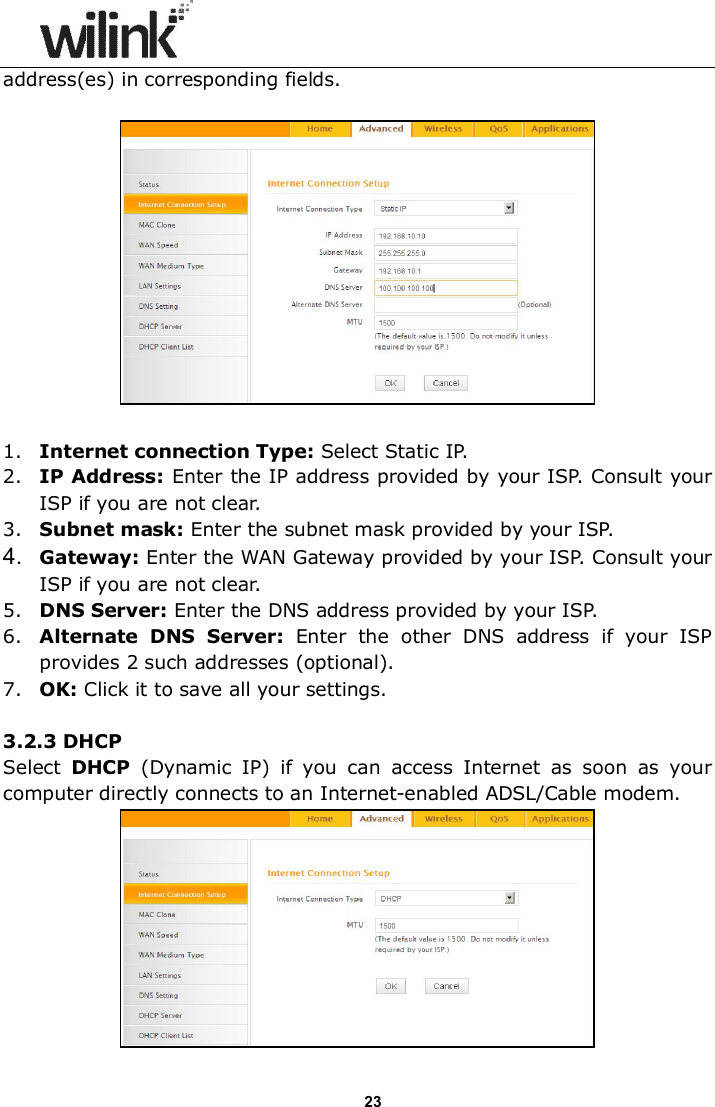
                     22   1. Internet connection Type: Select PPPoE.   2. PPPoE User Name: Enter the User Name provided by your ISP.   3. PPPoE Password: Enter the password provided by your ISP. 4. MTU: Maximum Transmission Unit. DO NOT change it from the factory default of 1492 unless necessary. You may need to change it for optimal performance with  some  specific  websites  or application software that cannot be opened or enabled; in this case, try 1450, 1400, etc. 5. Service  Name:  Description  of PPPoE connection.  Leave  blank unless otherwise required. 6.  Server  Name:  Description  of  server.  Leave  blank  unless  otherwise required. 7.  Connect Automatically: Connect  automatically to the Internet after rebooting the system or connection failure. Connect Manually: Require the user to manually connect to the Internet before each session. Connect On Demand: Re-establish connection to the Internet only when there is data transmission. Connect During Specified Time Period: Only connect to Internet during a specified time period. 8.  OK: Click it to save all your settings.  3.2.2 Static IP Select Static IP if your ISP provides all the needed info. You will need to enter the  provided IP address, subnet  mask, gateway address,  and  DNS
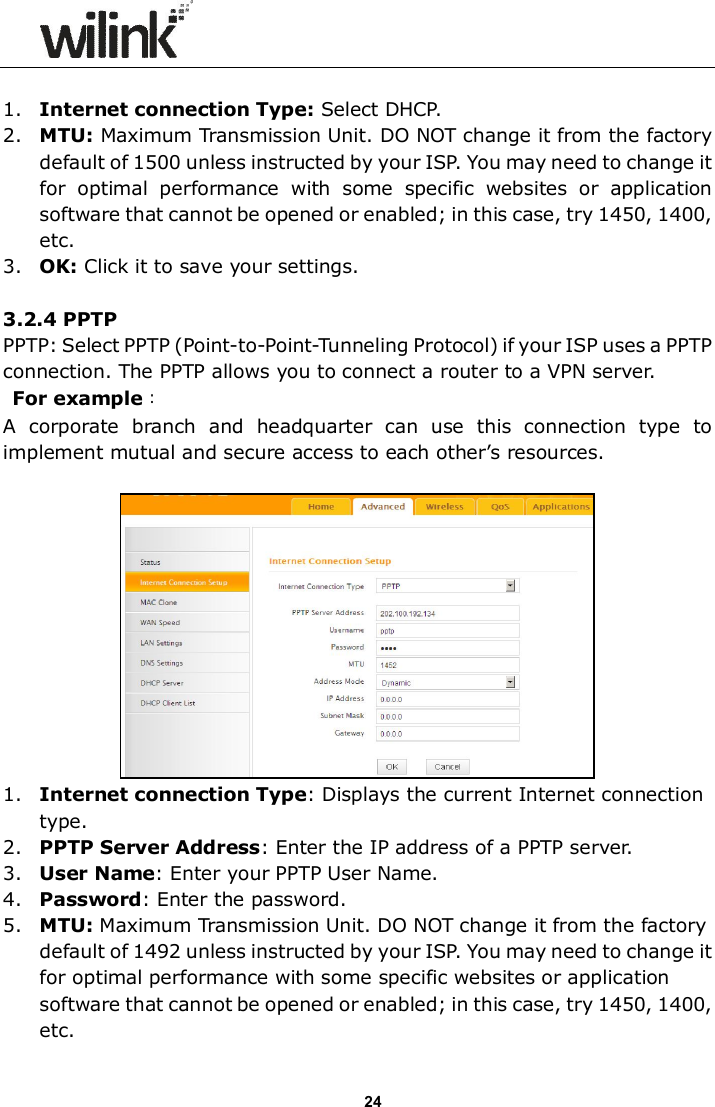
                     23 address(es) in corresponding fields.      1. Internet connection Type: Select Static IP. 2. IP Address: Enter the IP address provided by your ISP. Consult your ISP if you are not clear. 3. Subnet mask: Enter the subnet mask provided by your ISP. 4.  Gateway: Enter the WAN Gateway provided by your ISP. Consult your ISP if you are not clear. 5. DNS Server: Enter the DNS address provided by your ISP. 6. Alternate  DNS  Server:  Enter  the  other  DNS  address  if  your  ISP provides 2 such addresses (optional). 7. OK: Click it to save all your settings.    3.2.3 DHCP Select  DHCP  (Dynamic  IP)  if  you  can  access  Internet  as  soon  as  your computer directly connects to an Internet-enabled ADSL/Cable modem.
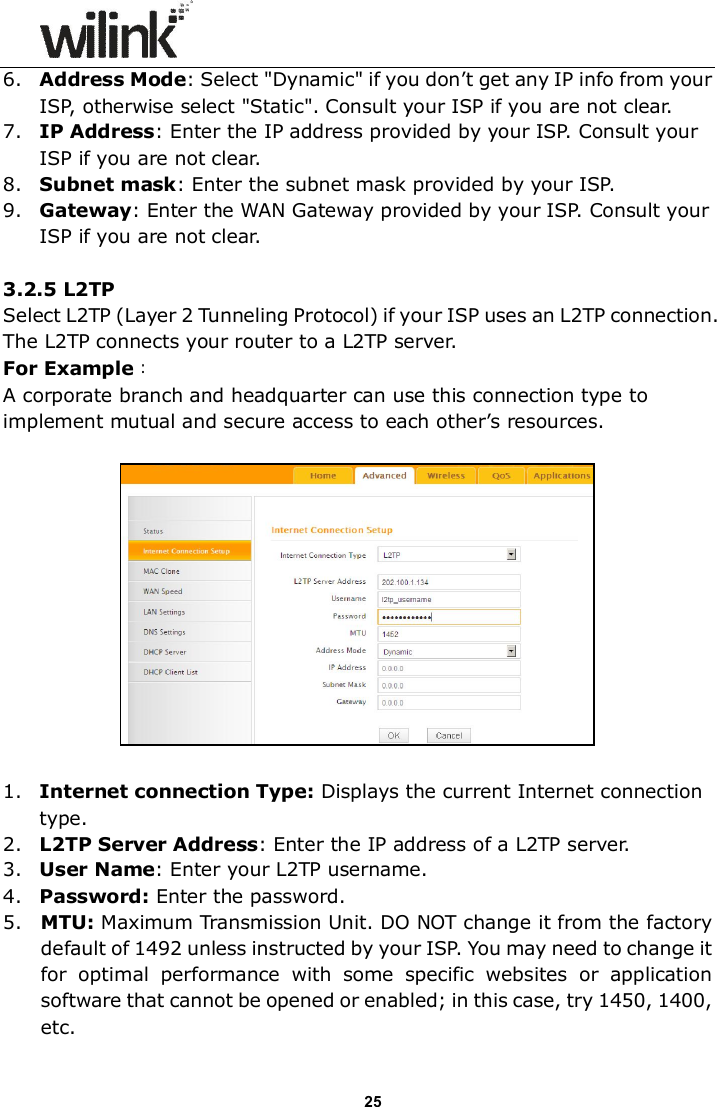
                     24  1. Internet connection Type: Select DHCP. 2. MTU: Maximum Transmission Unit. DO NOT change it from the factory default of 1500 unless instructed by your ISP. You may need to change it for  optimal  performance  with  some  specific  websites  or  application software that cannot be opened or enabled; in this case, try 1450, 1400, etc. 3. OK: Click it to save your settings.  3.2.4 PPTP   PPTP: Select PPTP (Point-to-Point-Tunneling Protocol) if your ISP uses a PPTP connection. The PPTP allows you to connect a router to a VPN server.  For example: A  corporate  branch  and  headquarter  can  use  this  connection  type  to implement mutual and secure access to each other’s resources.   1. Internet connection Type: Displays the current Internet connection type. 2. PPTP Server Address: Enter the IP address of a PPTP server. 3. User Name: Enter your PPTP User Name. 4. Password: Enter the password. 5. MTU: Maximum Transmission Unit. DO NOT change it from the factory default of 1492 unless instructed by your ISP. You may need to change it for optimal performance with some specific websites or application software that cannot be opened or enabled; in this case, try 1450, 1400, etc.
                     25 6. Address Mode: Select "Dynamic" if you don’t get any IP info from your ISP, otherwise select "Static". Consult your ISP if you are not clear. 7. IP Address: Enter the IP address provided by your ISP. Consult your ISP if you are not clear. 8. Subnet mask: Enter the subnet mask provided by your ISP. 9. Gateway: Enter the WAN Gateway provided by your ISP. Consult your ISP if you are not clear.  3.2.5 L2TP  Select L2TP (Layer 2 Tunneling Protocol) if your ISP uses an L2TP connection. The L2TP connects your router to a L2TP server.   For Example:   A corporate branch and headquarter can use this connection type to implement mutual and secure access to each other’s resources.    1. Internet connection Type: Displays the current Internet connection type. 2. L2TP Server Address: Enter the IP address of a L2TP server. 3. User Name: Enter your L2TP username. 4. Password: Enter the password. 5. MTU: Maximum Transmission Unit. DO NOT change it from the factory default of 1492 unless instructed by your ISP. You may need to change it for  optimal  performance  with  some  specific  websites  or  application software that cannot be opened or enabled; in this case, try 1450, 1400, etc.
                     26 6. Address Mode: Select "Dynamic" if you don’t get any IP info from your ISP, otherwise select "Static". Consult your ISP if you are not clear. 7. IP Address: Enter the IP address provided by your ISP. Consult your ISP if you are not clear. 8. Subnet mask: Enter the subnet mask provided by your ISP. 9. Gateway: Enter the WAN Gateway provided by your ISP. Consult your ISP if you are not clear.  Note:   1. PPPOE, PPTP and L2TP cannot be used simultaneously!   2. For PPTP and L2TP Internet connections, only Static IP or Dynamic IP is available. 3. Note that PPTP and L2TP may not be available on some products.   3.3 MAC Clone This section allows you to configure Device’s WAN MAC address.    1. MAC Address: Config device’s WAN MAC address. 2. Clone MAC Address: Click to copy your PC's MAC address to the device as a new WAN MAC address. 3. Restore Default MAC: Reset device’s WAN MAC to factory default.   3.4 WAN Speed Here you can set the speed and duplex mode for WAN port. It is advisable to
                     27 keep the default Auto setting to get the best speed.    3.5 WAN Medium Type The device  supports  two WAN medium types:  wired  and  wireless.  Select Wired WAN if you need to connect to your ISP via an Ethernet cable or select Wireless WAN if you directly connect to your WISP wirelessly. The default WAN Medium Type is Wired WAN, so no settings are required here if you connect to  your ISP  via  an  Ethernet  cable.  If  you connect to  your  WISP wirelessly, do as follows: 1. Select Wireless WAN and enable the scan feature.      2. Select the wireless network you wish to connect, say, Wilink_office, and click OK. Then close scan.
                     28   3.    1). Verify that SSID and channel on this page are exactly the same as they are on the uplink wireless network you just selected.   2). Configure the same security mode, security key, cipher type (or WPA Algorithm) as they are on the uplink wireless network you just selected. Click OK.    1. WAN Medium Type: Select the WAN medium type you are going to use. 2. Open Scan (or Scan): Click to search for available wireless networks in the area and select the one you wish to connect. 3. SSID: The wireless network name of the uplink wireless device. 4. Channel: The channel used by the uplink wireless device. 5. Security Mode: The security mode used by the uplink wireless device. 6. WPA Algorithms (or Cipher Type): The WPA Algorithm (or Cipher
                     29 Type) used by the uplink wireless device. 7. Key (or Security Key): The security key used by the uplink wireless device. 8. OK: Click this button and the router will restart to save your settings. Note: If you change the device’s LAN IP address, you must use the new one to log on to the web-based configuration utility. For example: If SSID, security mode, cipher type (WPA Algorithm), security key and channel your WISP AP are respectively Myhome, WPA2-PSK,AES, Wilink_router and 11, then simply enter them in corresponding fields as seen below.    Or you can use the Open Scan (or Scan) option to have the SSID and channel of the uplink wireless device automatically copied to this page. When you finish all these settings, go to Advanced-> Internet Connection Setup and select a proper Internet connection type (If your ISP is using a DHCP connection, simply select DHCP).
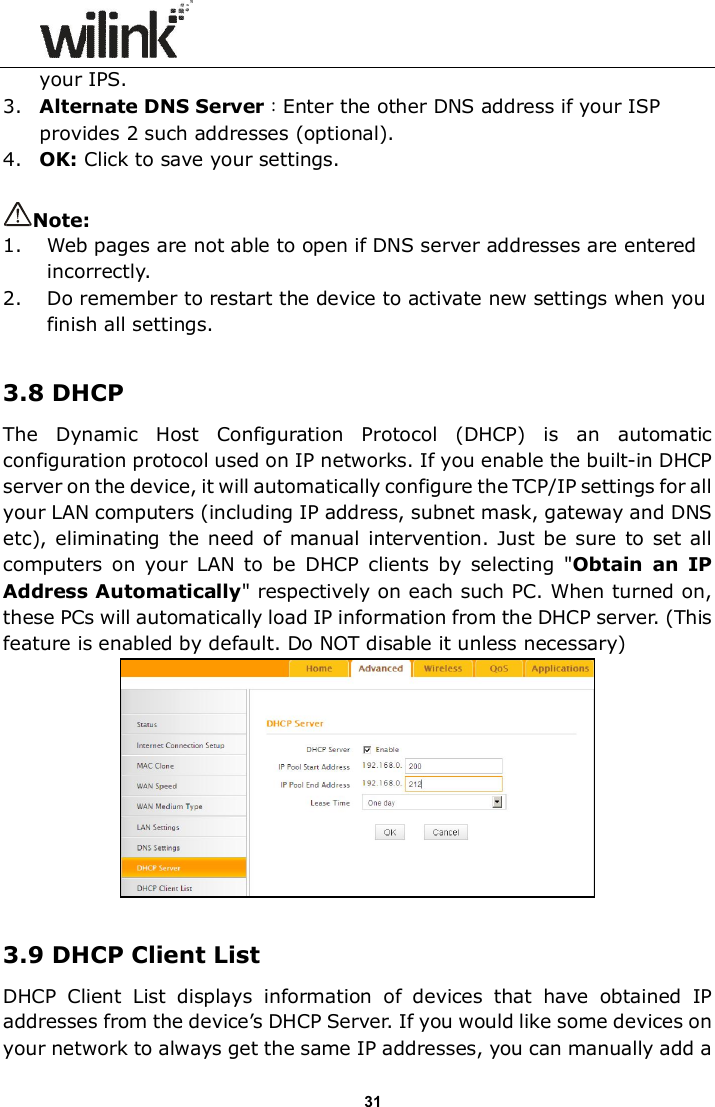
                     30 3.6 LAN Settings Click Advanced -> LAN Settings to enter the screen below.    1. LAN MAC Address: Displays device's LAN MAC address, which is NOT changeable. 2. IP Address: Device's LAN IP address. The default is 192.168.0.1. You can change it according to your need. 3. Subnet Mask: Device’s LAN subnet mask, 255.255.255.0 by default. 4. OK: Click to save your settings.  3.7 DNS Settings DNS is short for Domain Name System or Domain Name Service.     1. Enable Manual DNS Assignment: Check to activate DNS settings. 2. Primary DNS Server:Enter the primary DNS address provided by
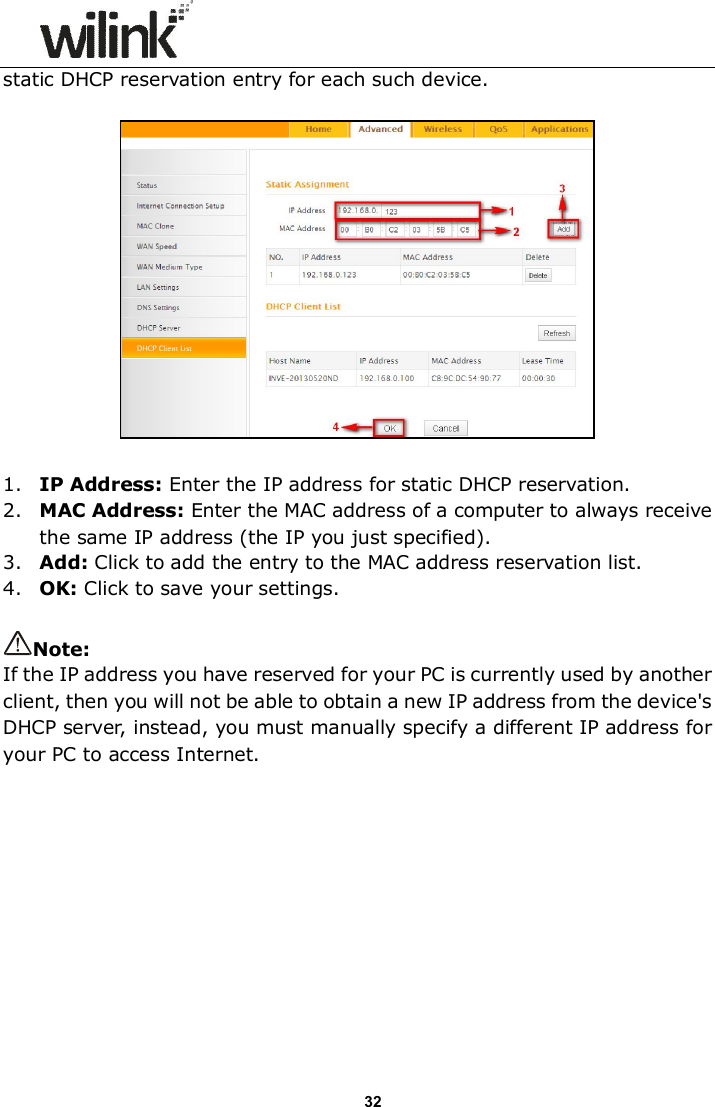
                     31 your IPS. 3. Alternate DNS Server:Enter the other DNS address if your ISP provides 2 such addresses (optional). 4. OK: Click to save your settings.  Note: 1. Web pages are not able to open if DNS server addresses are entered incorrectly.  2. Do remember to restart the device to activate new settings when you finish all settings.  3.8 DHCP The  Dynamic  Host  Configuration  Protocol  (DHCP)  is  an  automatic configuration protocol used on IP networks. If you enable the built-in DHCP server on the device, it will automatically configure the TCP/IP settings for all your LAN computers (including IP address, subnet mask, gateway and DNS etc), eliminating the  need of manual intervention.  Just be sure to  set all computers  on  your  LAN  to  be  DHCP  clients  by  selecting  "Obtain  an  IP Address Automatically" respectively on each such PC. When turned on, these PCs will automatically load IP information from the DHCP server. (This feature is enabled by default. Do NOT disable it unless necessary)   3.9 DHCP Client List DHCP  Client  List  displays  information  of  devices  that  have  obtained  IP addresses from the device’s DHCP Server. If you would like some devices on your network to always get the same IP addresses, you can manually add a
                     32 static DHCP reservation entry for each such device.    1. IP Address: Enter the IP address for static DHCP reservation. 2. MAC Address: Enter the MAC address of a computer to always receive the same IP address (the IP you just specified). 3. Add: Click to add the entry to the MAC address reservation list. 4. OK: Click to save your settings.  Note: If the IP address you have reserved for your PC is currently used by another client, then you will not be able to obtain a new IP address from the device's DHCP server, instead, you must manually specify a different IP address for your PC to access Internet.
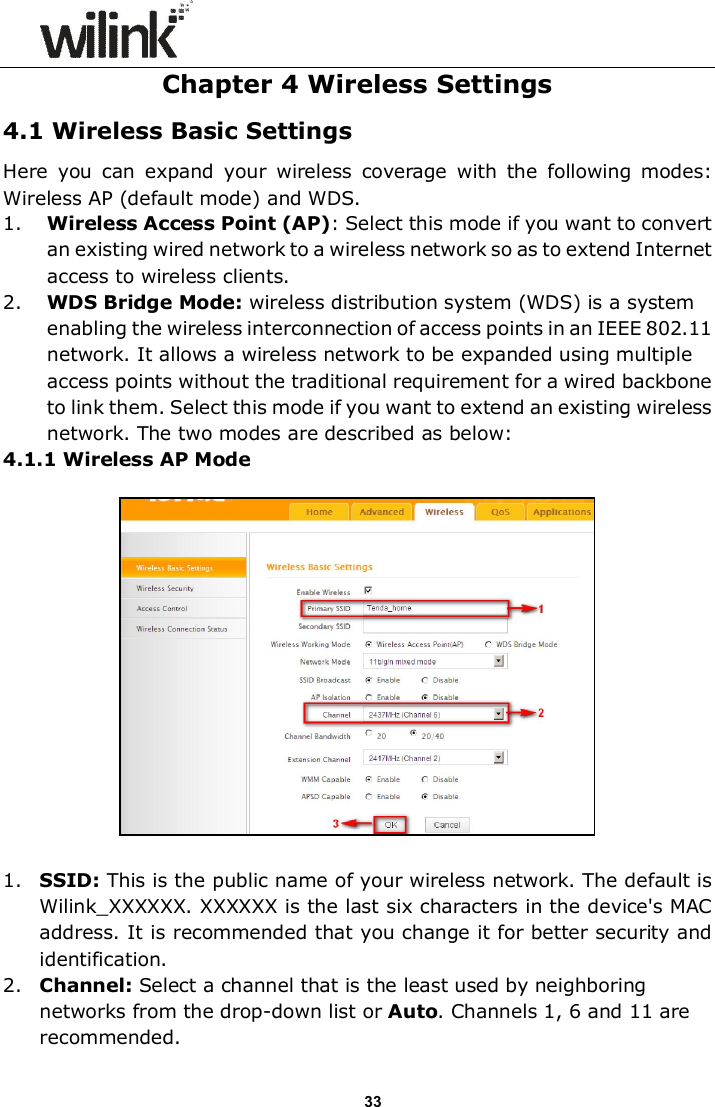
                     33 Chapter 4 Wireless Settings 4.1 Wireless Basic Settings Here  you  can  expand  your  wireless  coverage  with  the  following  modes: Wireless AP (default mode) and WDS.   1. Wireless Access Point (AP): Select this mode if you want to convert an existing wired network to a wireless network so as to extend Internet access to wireless clients. 2. WDS Bridge Mode: wireless distribution system (WDS) is a system enabling the wireless interconnection of access points in an IEEE 802.11 network. It allows a wireless network to be expanded using multiple access points without the traditional requirement for a wired backbone to link them. Select this mode if you want to extend an existing wireless network. The two modes are described as below: 4.1.1 Wireless AP Mode    1. SSID: This is the public name of your wireless network. The default is Wilink_XXXXXX. XXXXXX is the last six characters in the device's MAC address. It is recommended that you change it for better security and identification. 2. Channel: Select a channel that is the least used by neighboring networks from the drop-down list or Auto. Channels 1, 6 and 11 are recommended.
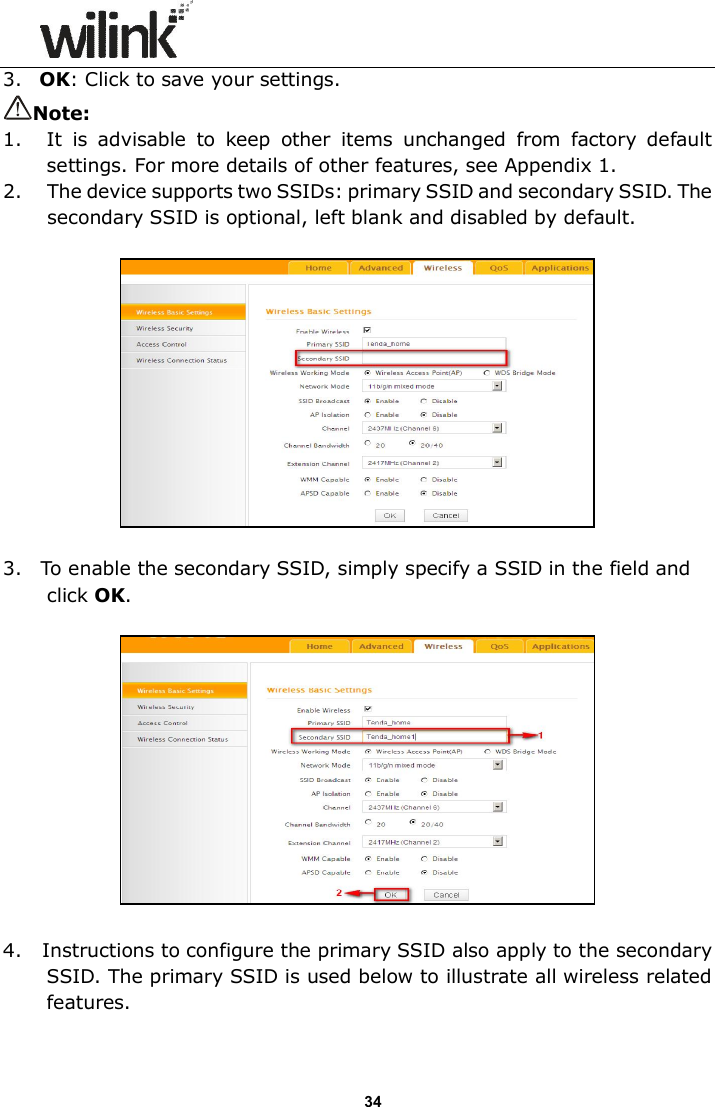
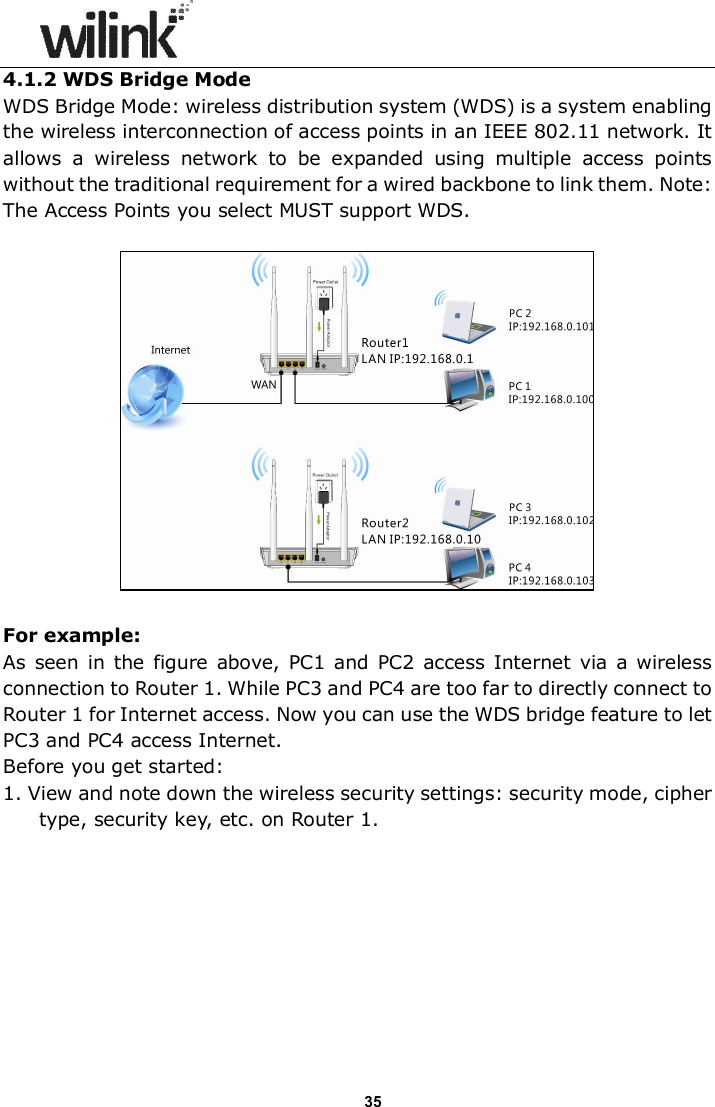
                     34 3. OK: Click to save your settings. Note: 1. It  is  advisable  to  keep  other  items  unchanged  from  factory  default settings. For more details of other features, see Appendix 1. 2. The device supports two SSIDs: primary SSID and secondary SSID. The secondary SSID is optional, left blank and disabled by default.    3. To enable the secondary SSID, simply specify a SSID in the field and click OK.      4.   Instructions to configure the primary SSID also apply to the secondary SSID. The primary SSID is used below to illustrate all wireless related features.
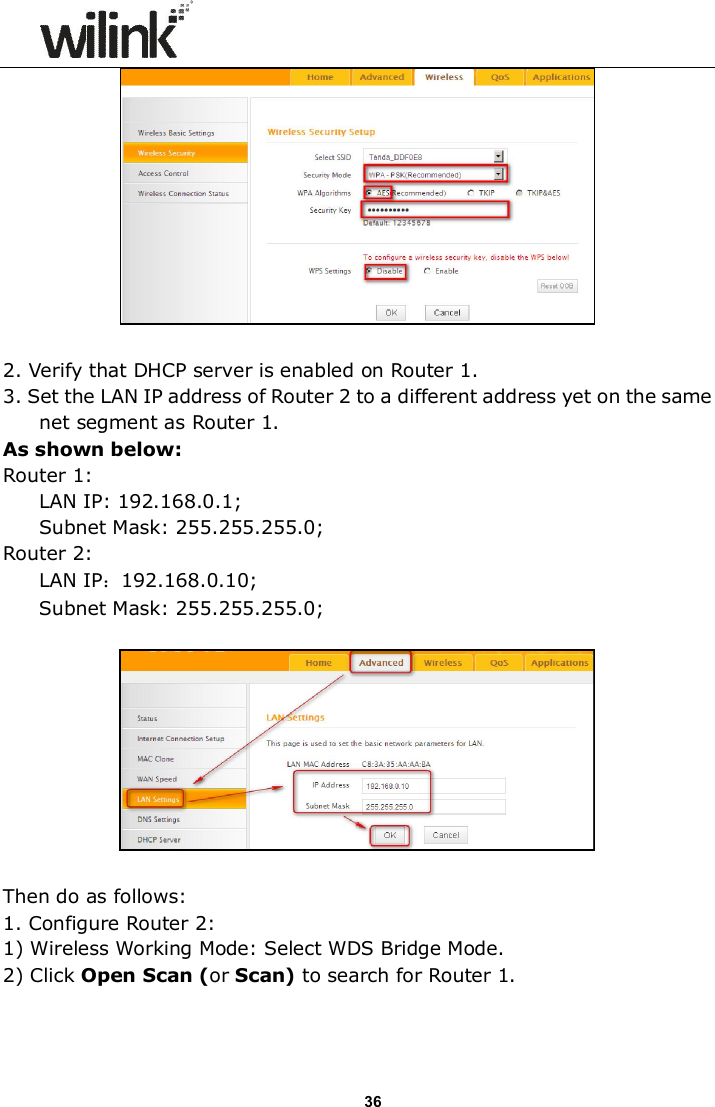
                     35 4.1.2 WDS Bridge Mode WDS Bridge Mode: wireless distribution system (WDS) is a system enabling the wireless interconnection of access points in an IEEE 802.11 network. It allows  a  wireless  network  to  be  expanded  using  multiple  access  points without the traditional requirement for a wired backbone to link them. Note: The Access Points you select MUST support WDS.    For example: As  seen  in  the figure  above, PC1 and PC2  access  Internet  via a  wireless connection to Router 1. While PC3 and PC4 are too far to directly connect to Router 1 for Internet access. Now you can use the WDS bridge feature to let PC3 and PC4 access Internet. Before you get started: 1. View and note down the wireless security settings: security mode, cipher type, security key, etc. on Router 1.
                     36   2. Verify that DHCP server is enabled on Router 1. 3. Set the LAN IP address of Router 2 to a different address yet on the same net segment as Router 1.   As shown below: Router 1:  LAN IP: 192.168.0.1; Subnet Mask: 255.255.255.0; Router 2:  LAN IP:192.168.0.10; Subnet Mask: 255.255.255.0;    Then do as follows: 1. Configure Router 2: 1) Wireless Working Mode: Select WDS Bridge Mode. 2) Click Open Scan (or Scan) to search for Router 1.

Navigation menu