TRANSTYLE TECHNOLOGY M10H Doorbell User Manual en 300328v020200a

TRANSTYLE TECHNOLOGY CO., LIMITED Doorbell en 300328v020200a

User Manual

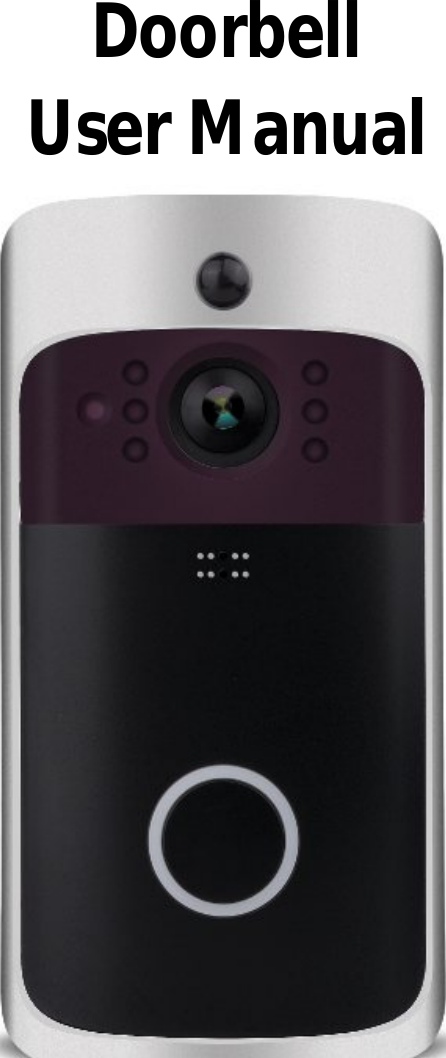
Doorbell User Manual
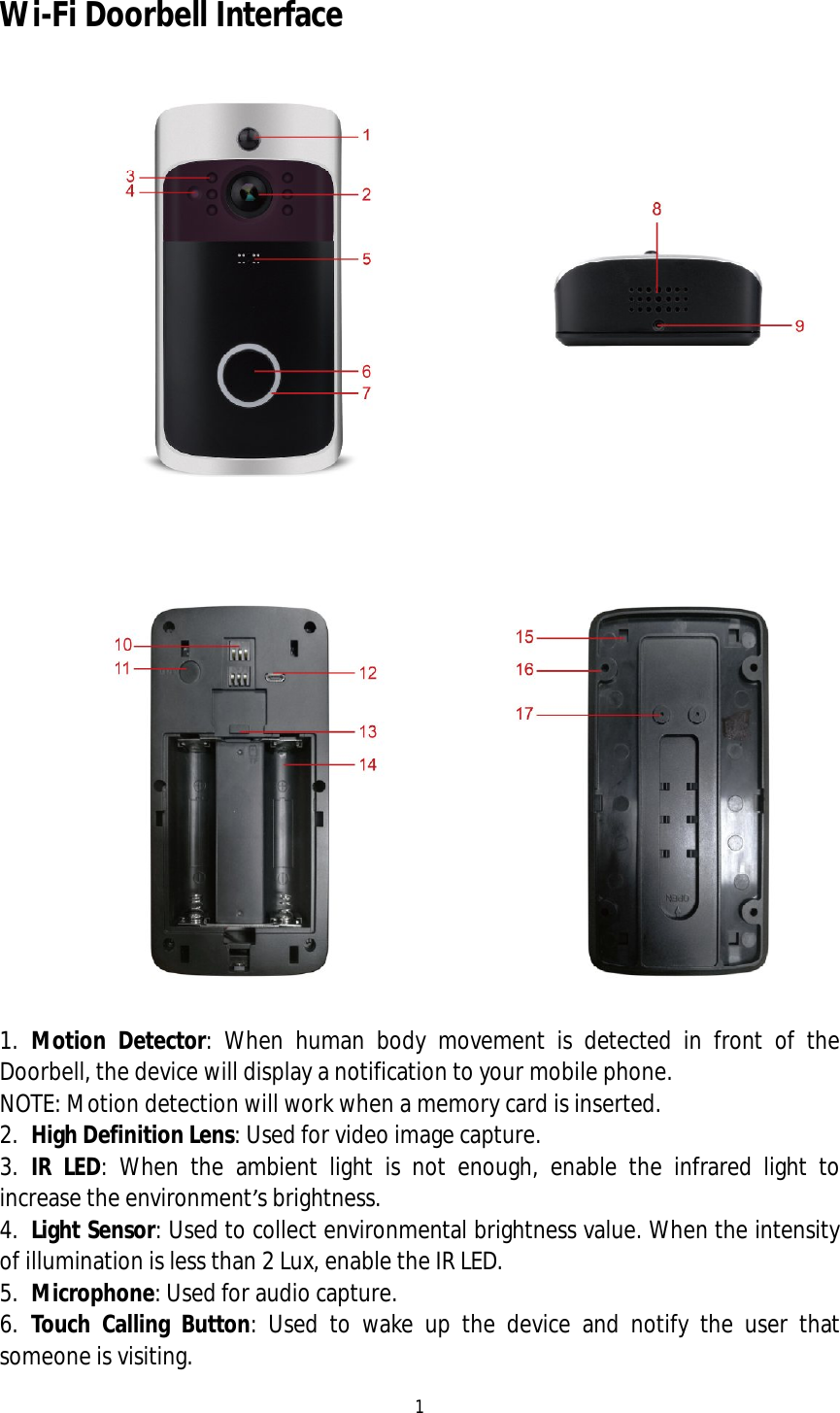
1  Wi-Fi Doorbell Interface  1. Motion Detector: When human body movement is detected in front of the Doorbell, the device will display a notification to your mobile phone. NOTE: Motion detection will work when a memory card is inserted. 2. High Definition Lens: Used for video image capture. 3. IR LED: When the ambient light is not enough, enable the infrared light to increase the environment’s brightness. 4. Light Sensor: Used to collect environmental brightness value. When the intensity of illumination is less than 2 Lux, enable the IR LED. 5. Microphone: Used for audio capture. 6. Touch Calling Button: Used to wake up the device and notify the user that someone is visiting.
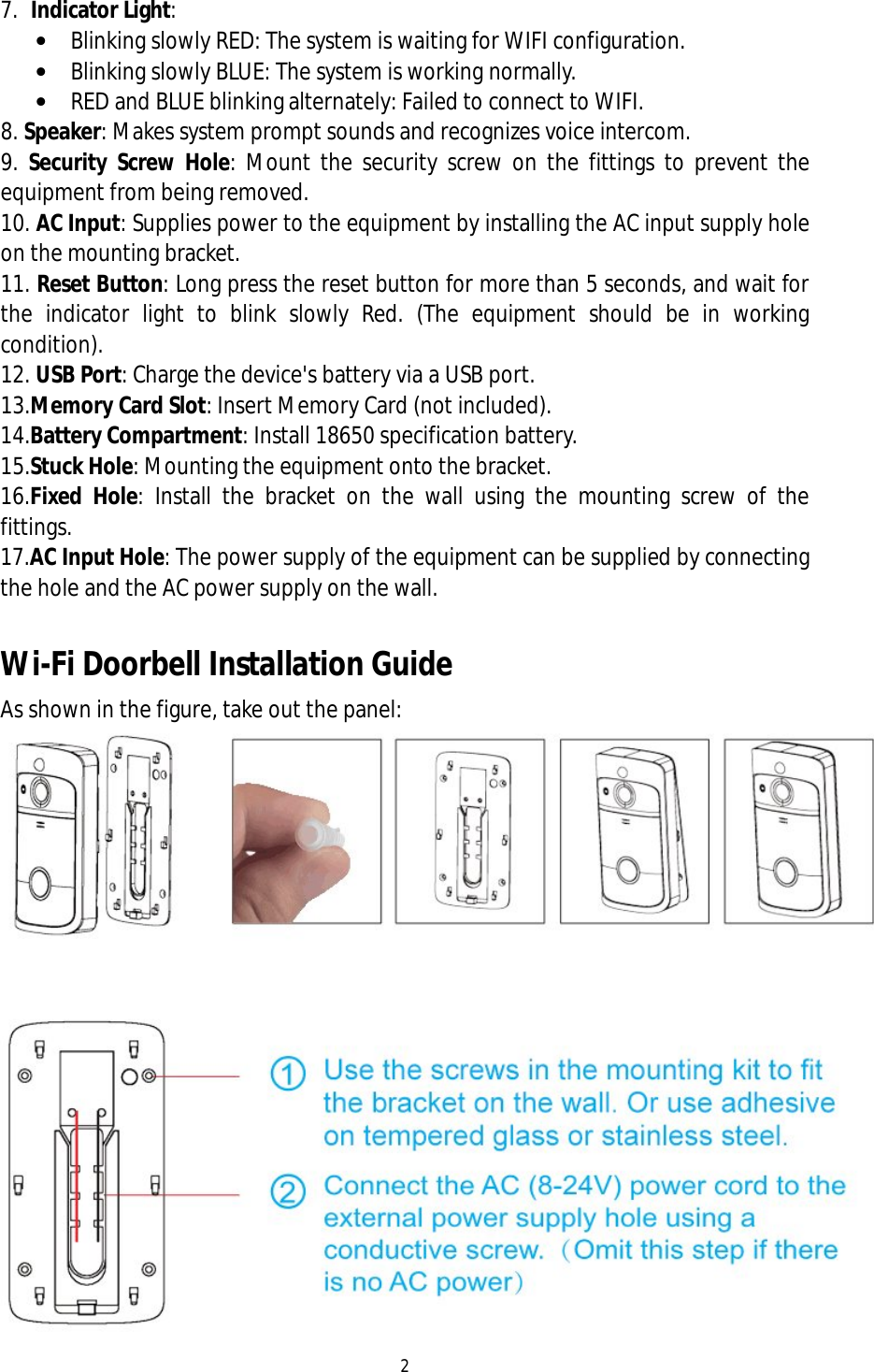
2  7. Indicator Light:  • Blinking slowly RED: The system is waiting for WIFI configuration. • Blinking slowly BLUE: The system is working normally. • RED and BLUE blinking alternately: Failed to connect to WIFI. 8. Speaker: Makes system prompt sounds and recognizes voice intercom. 9.  Security Screw Hole: Mount the security screw on the fittings to prevent the equipment from being removed. 10. AC Input: Supplies power to the equipment by installing the AC input supply hole on the mounting bracket. 11. Reset Button: Long press the reset button for more than 5 seconds, and wait for the indicator light to blink slowly Red. (The equipment should be in working condition). 12. USB Port: Charge the device's battery via a USB port. 13.Memory Card Slot: Insert Memory Card (not included). 14.Battery Compartment: Install 18650 specification battery. 15.Stuck Hole: Mounting the equipment onto the bracket. 16.Fixed Hole: Install the bracket on the wall using the mounting screw of the fittings. 17.AC Input Hole: The power supply of the equipment can be supplied by connecting the hole and the AC power supply on the wall.  Wi-Fi Doorbell Installation Guide As shown in the figure, take out the panel:
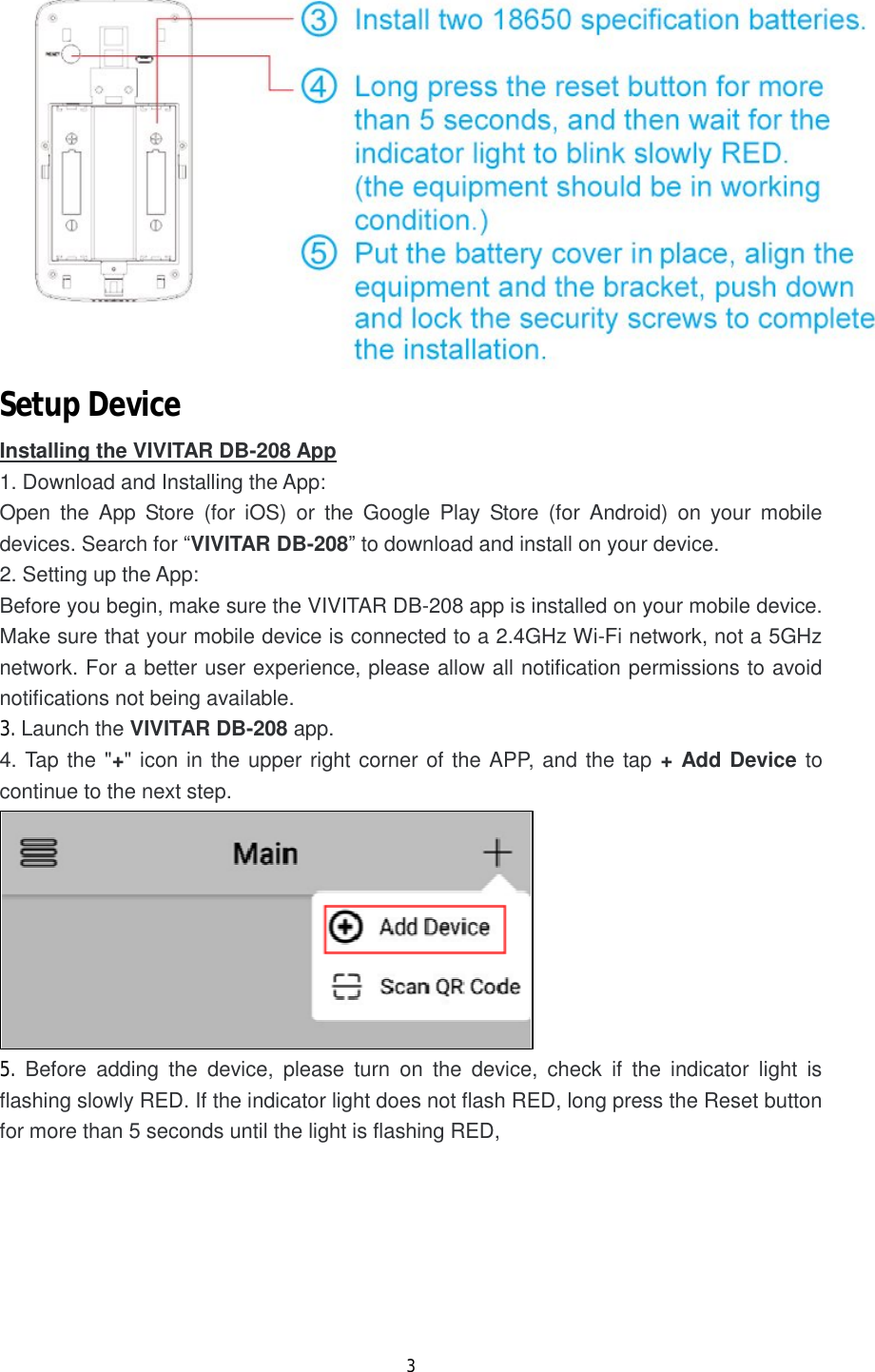
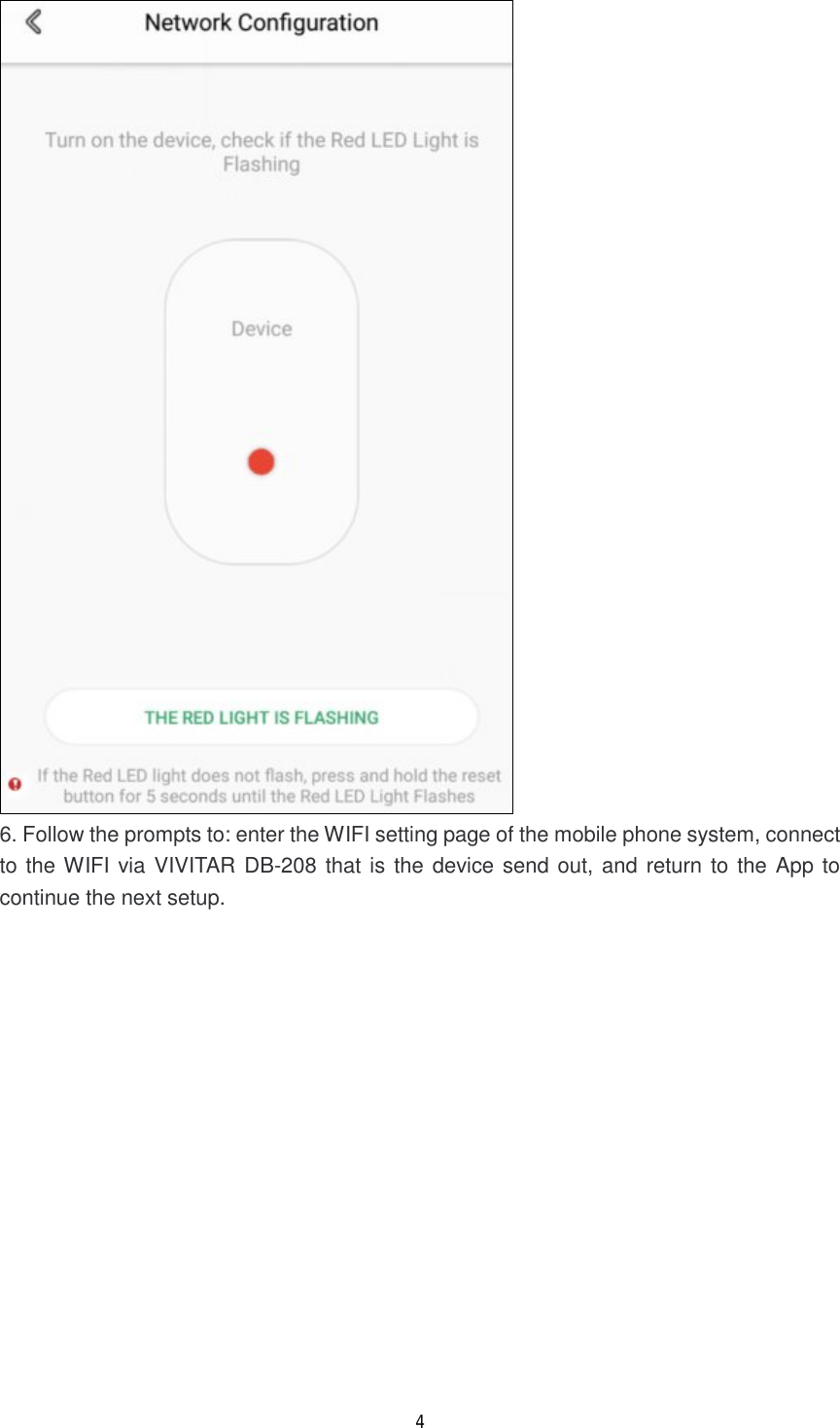
3   Setup Device Installing the VIVITAR DB-208 App 1. Download and Installing the App: Open the App Store (for iOS) or the Google Play Store (for Android) on your mobile devices. Search for “VIVITAR DB-208” to download and install on your device. 2. Setting up the App:  Before you begin, make sure the VIVITAR DB-208 app is installed on your mobile device. Make sure that your mobile device is connected to a 2.4GHz Wi-Fi network, not a 5GHz network. For a better user experience, please allow all notification permissions to avoid notifications not being available. 3. Launch the VIVITAR DB-208 app. 4. Tap the "+" icon in the upper right corner of the APP, and the tap + Add Device to continue to the next step.  5.  Before adding the device, please turn on the device, check if the indicator light is flashing slowly RED. If the indicator light does not flash RED, long press the Reset button for more than 5 seconds until the light is flashing RED,
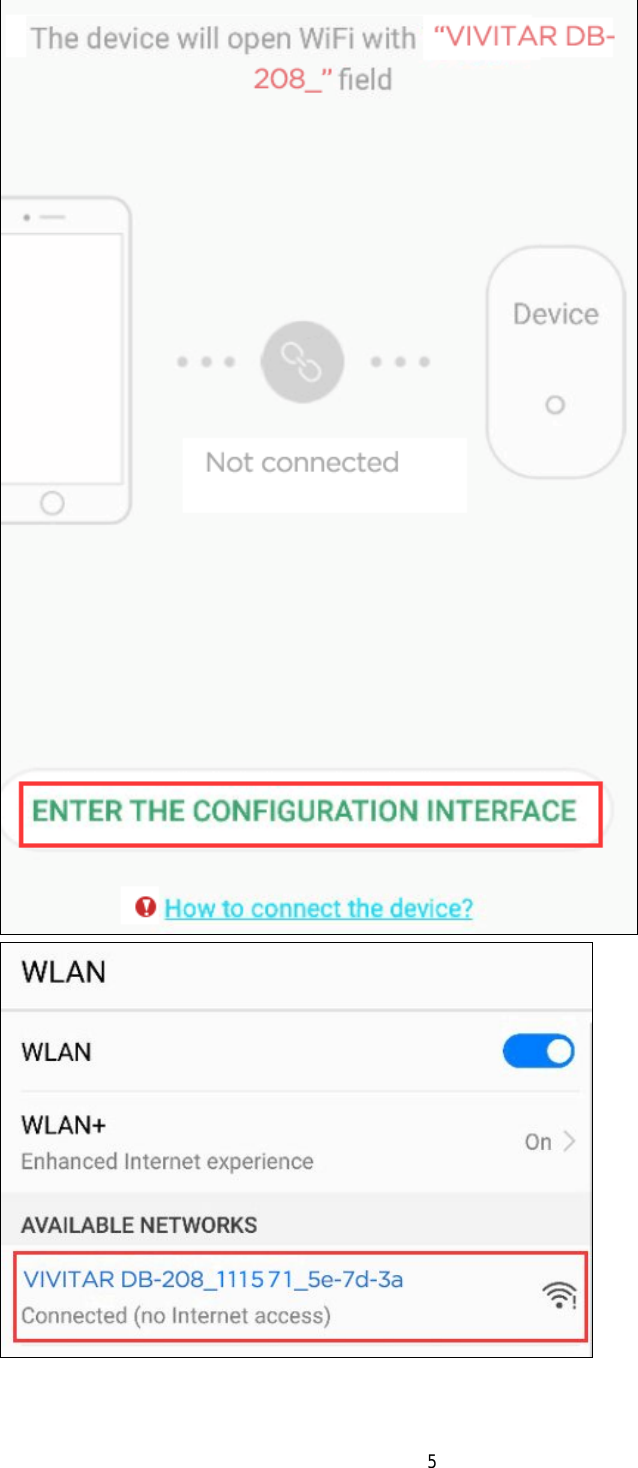
4   6. Follow the prompts to: enter the WIFI setting page of the mobile phone system, connect to the WIFI via VIVITAR DB-208 that is the device send out, and return to the App to continue the next setup.
5
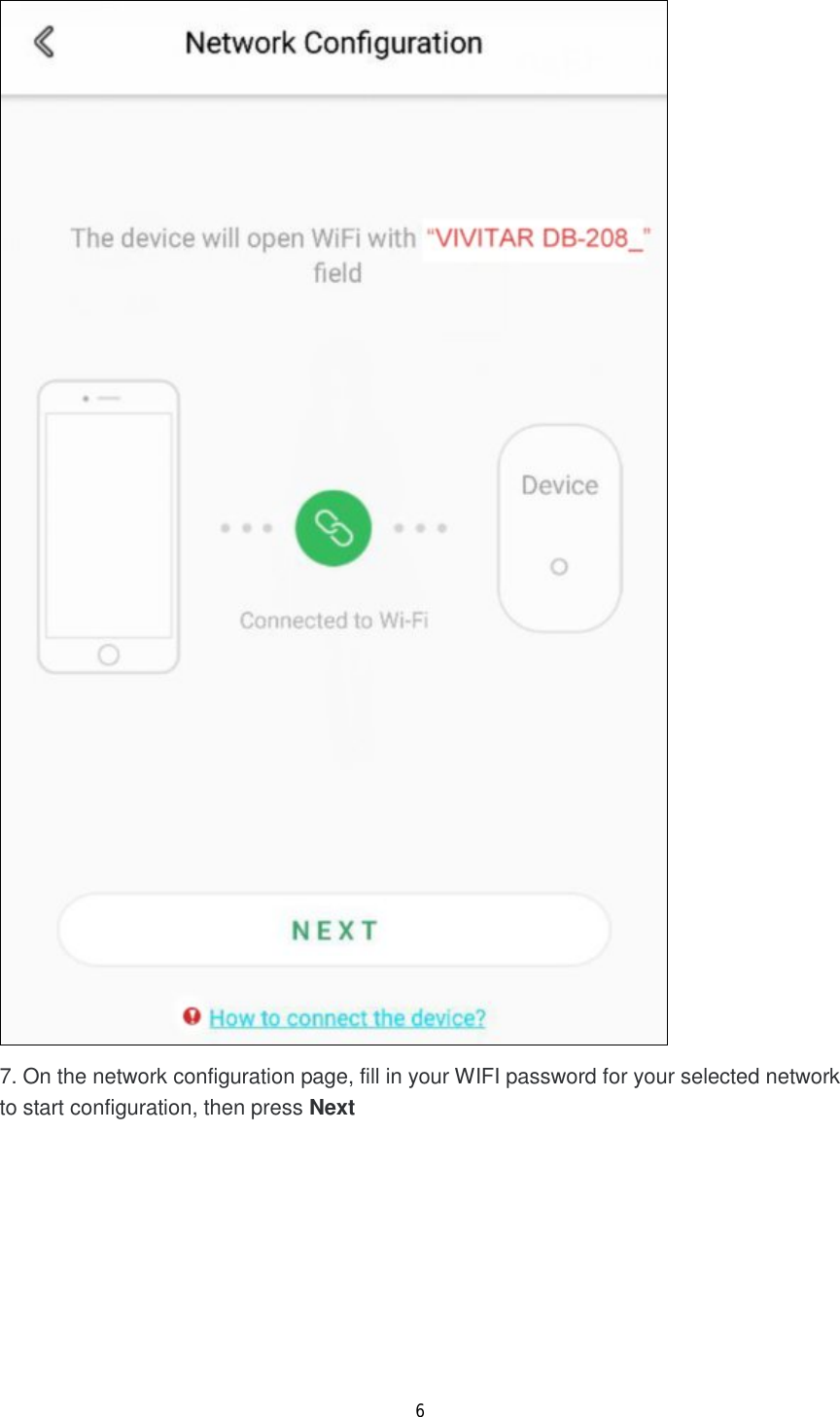
6   7. On the network configuration page, fill in your WIFI password for your selected network to start configuration, then press Next
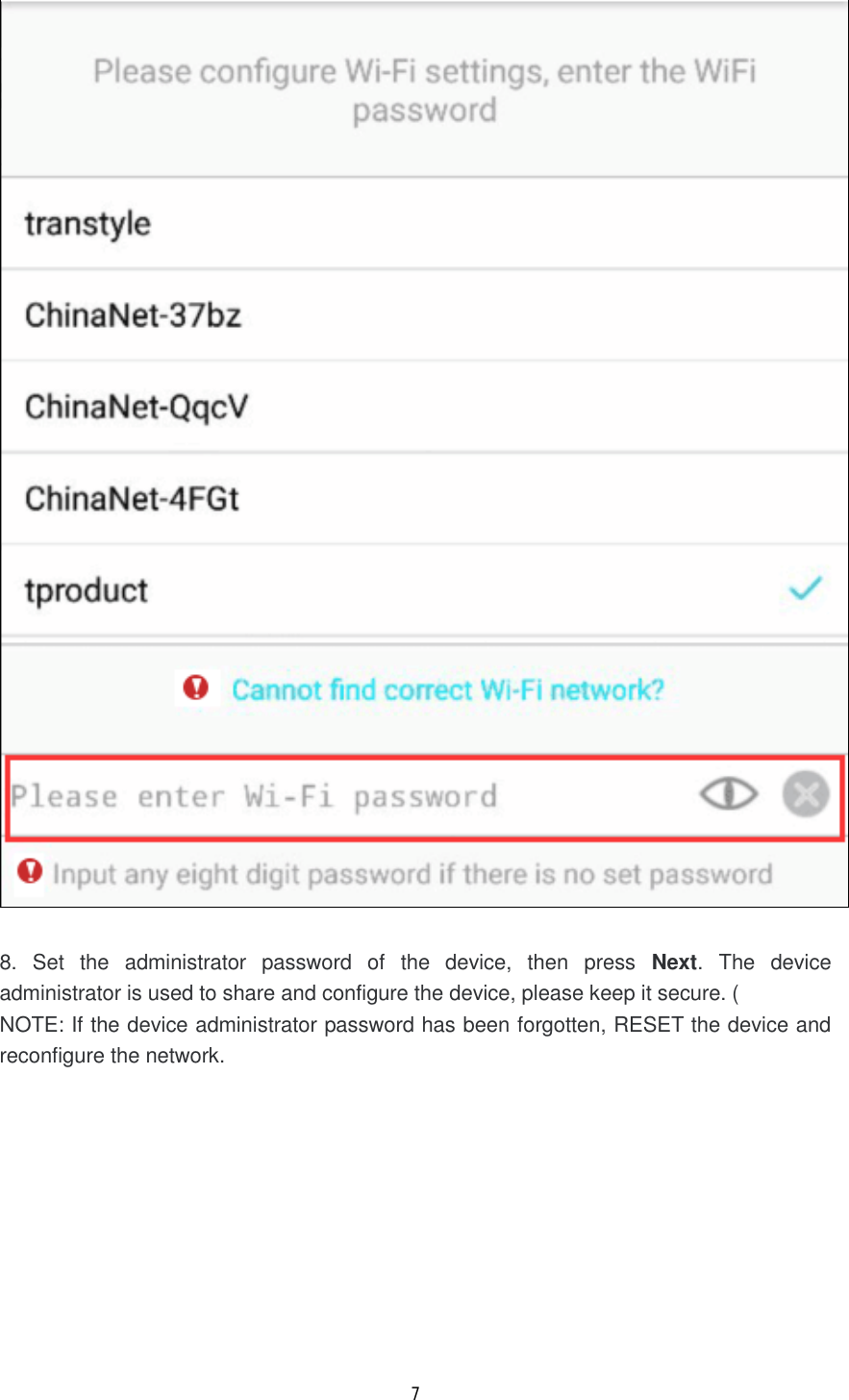
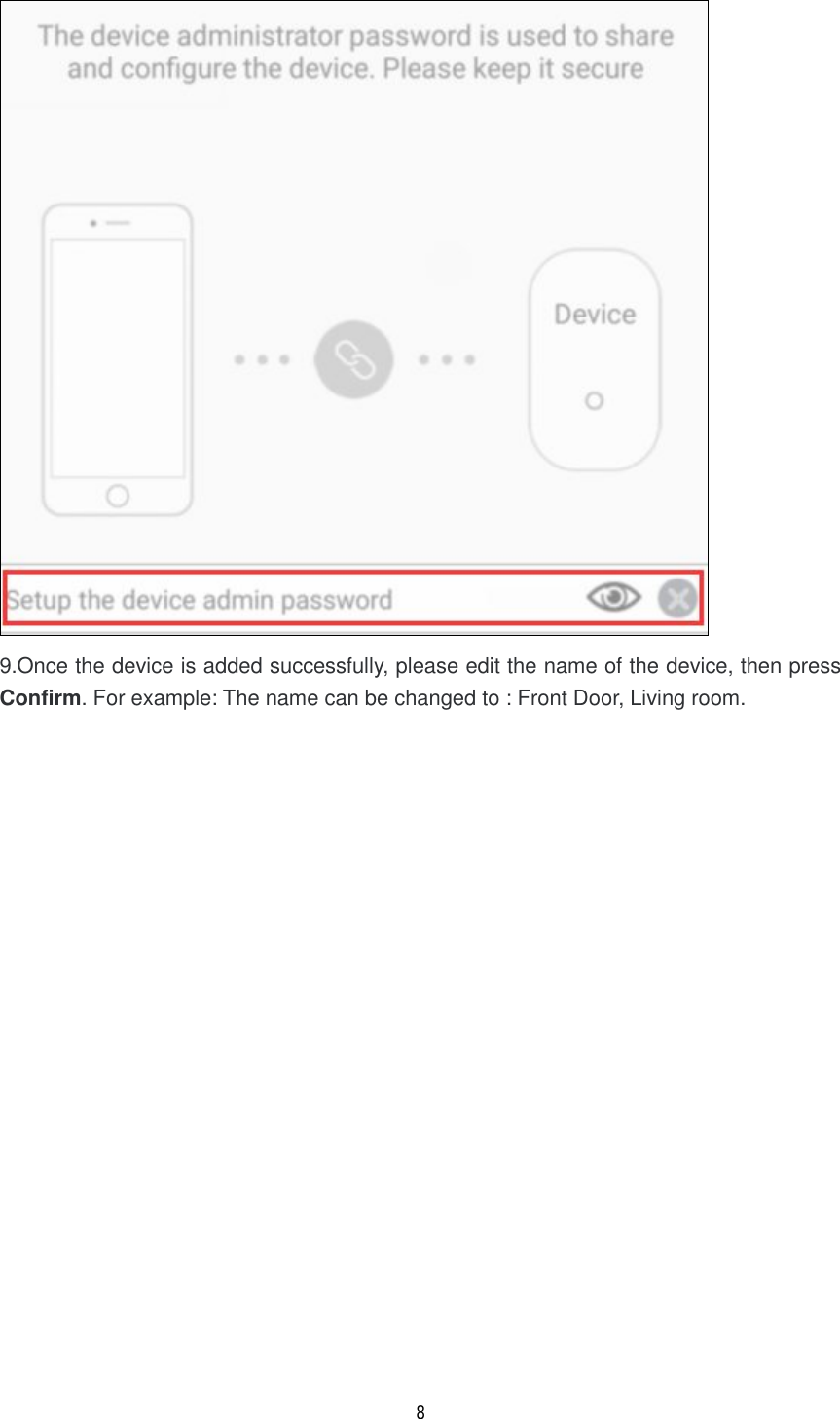
7   8. Set the administrator password of the device, then press  Next. The device administrator is used to share and configure the device, please keep it secure. ( NOTE: If the device administrator password has been forgotten, RESET the device and reconfigure the network.
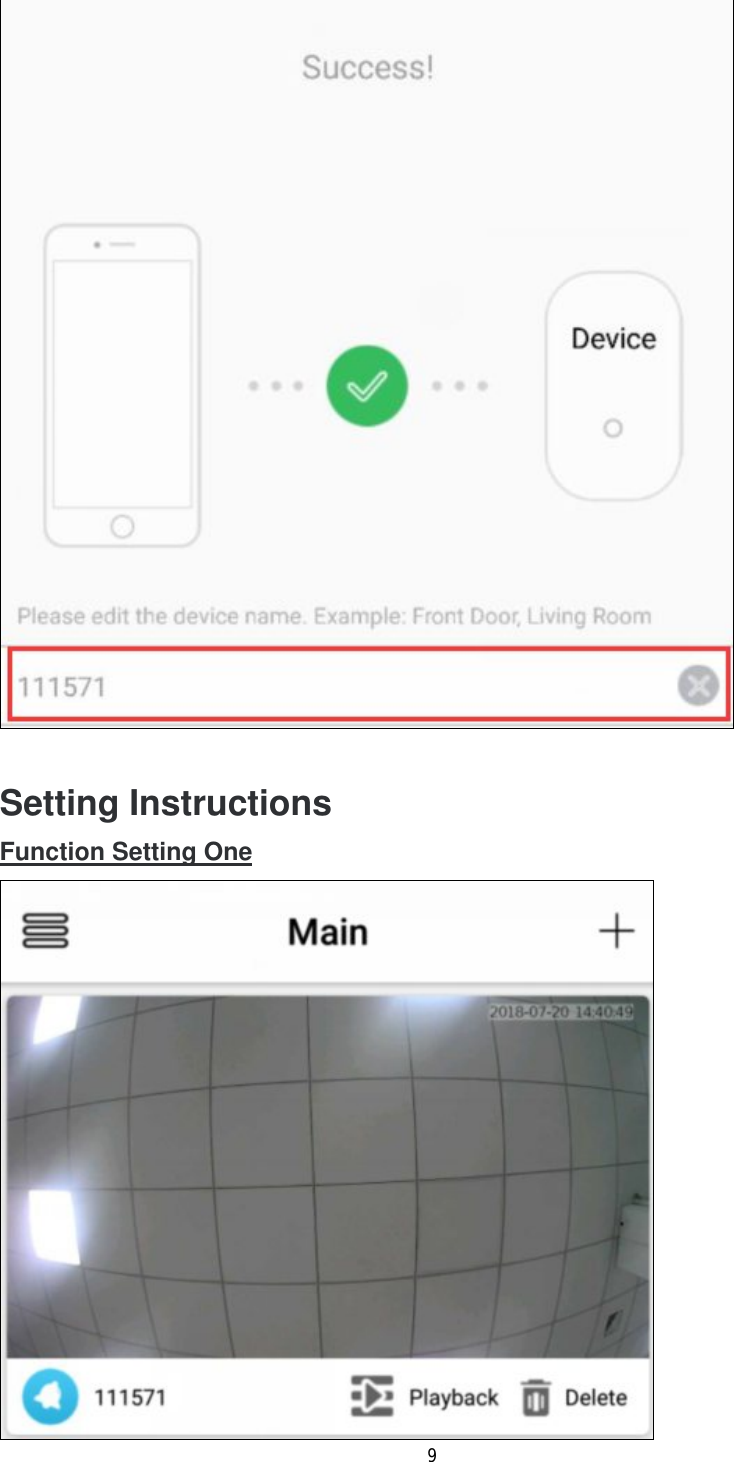
8   9.Once the device is added successfully, please edit the name of the device, then press Confirm. For example: The name can be changed to : Front Door, Living room.
9    Setting Instructions Function Setting One
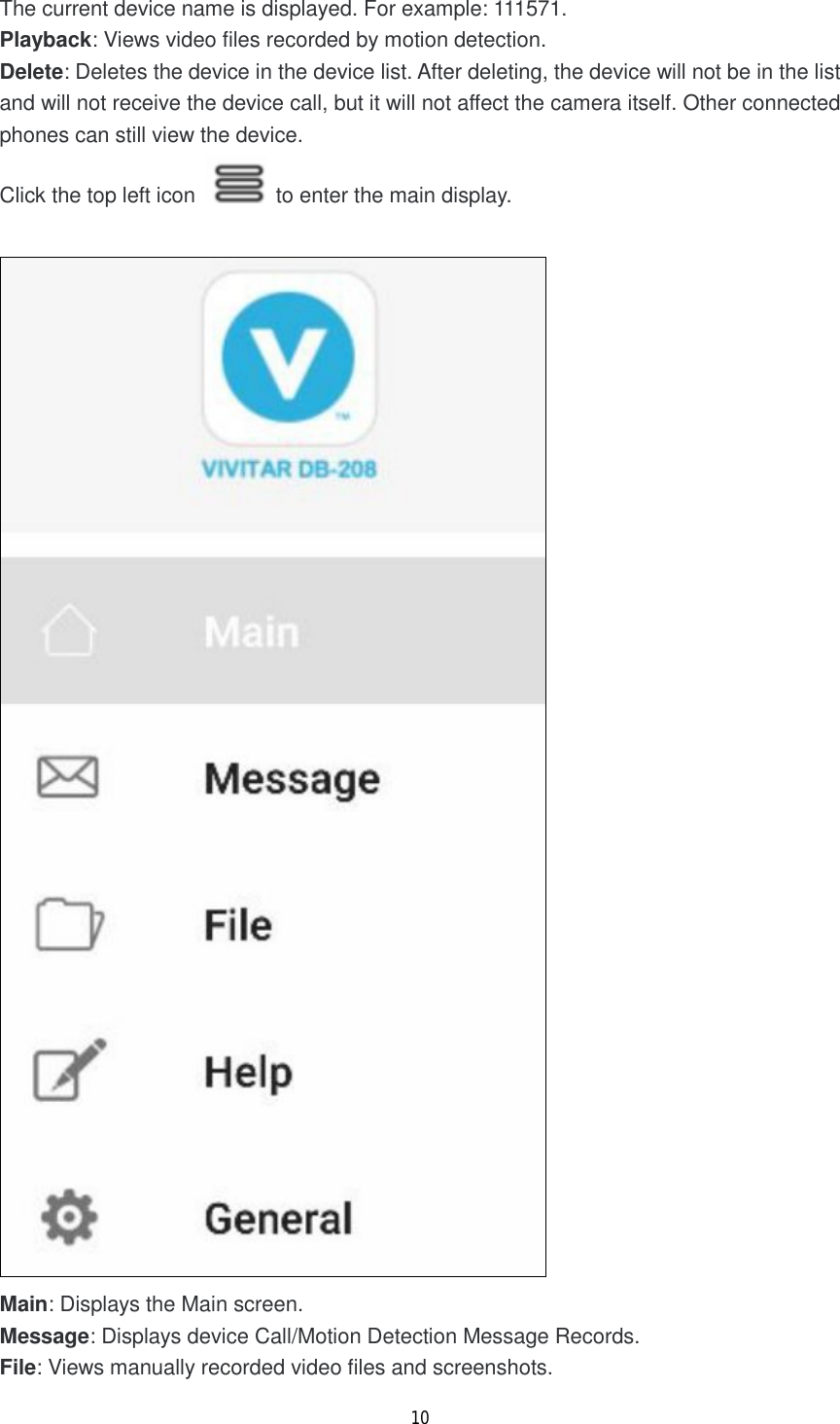
10  The current device name is displayed. For example: 111571. Playback: Views video files recorded by motion detection. Delete: Deletes the device in the device list. After deleting, the device will not be in the list and will not receive the device call, but it will not affect the camera itself. Other connected phones can still view the device. Click the top left icon   to enter the main display.   Main: Displays the Main screen. Message: Displays device Call/Motion Detection Message Records. File: Views manually recorded video files and screenshots.
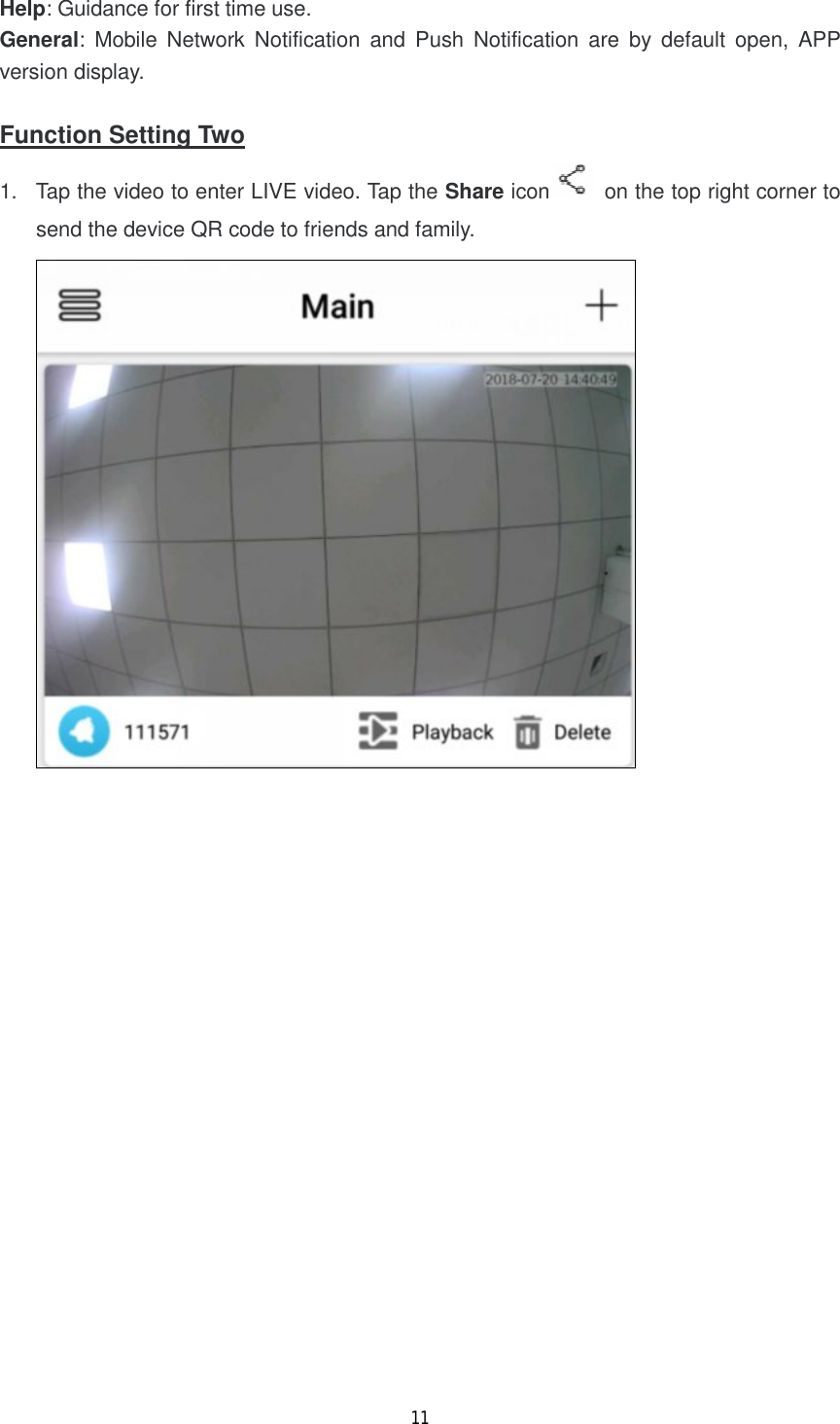
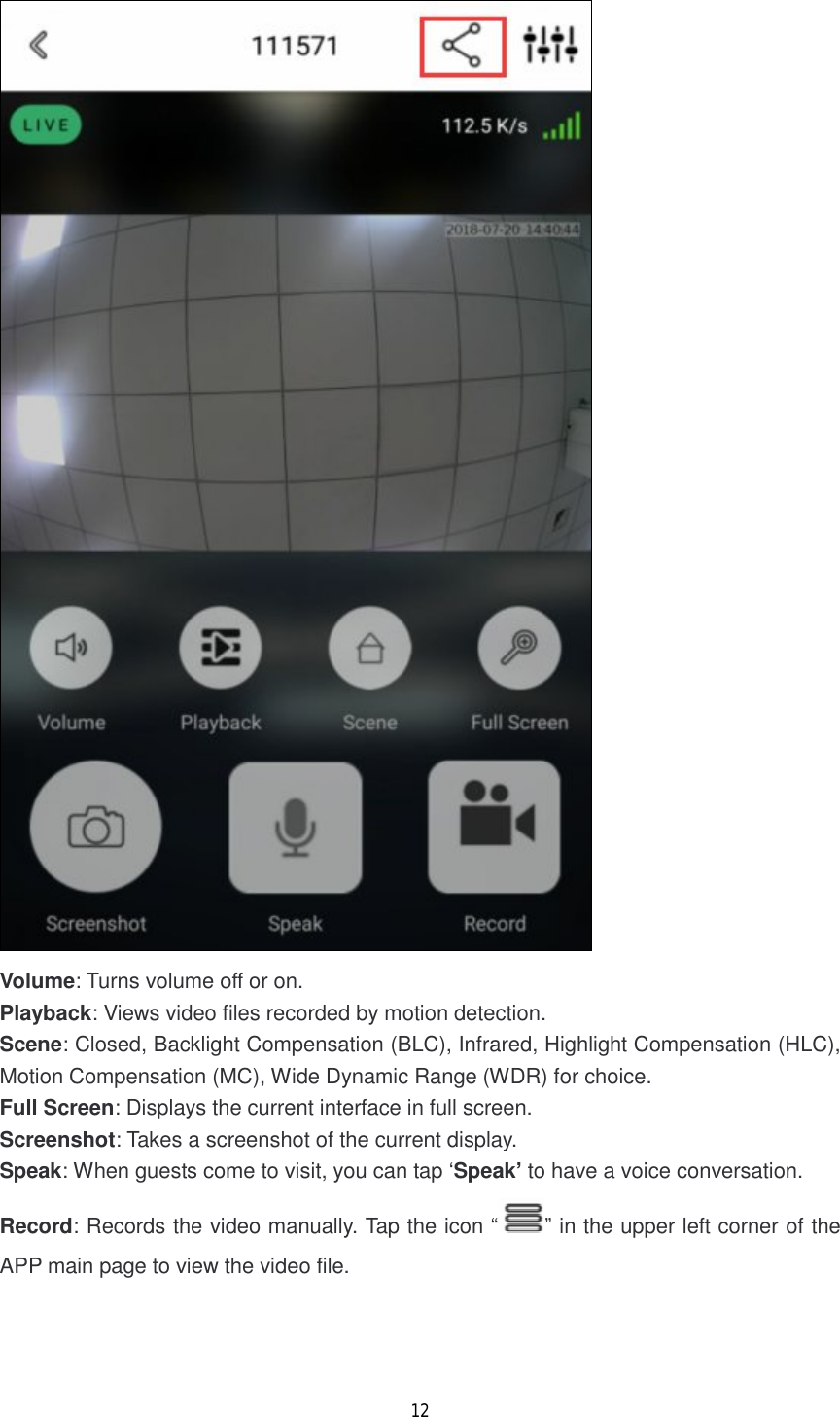
11  Help: Guidance for first time use. General: Mobile Network Notification and Push Notification are by default open, APP version display.  Function Setting Two 1. Tap the video to enter LIVE video. Tap the Share icon  on the top right corner to send the device QR code to friends and family.
12   Volume: Turns volume off or on. Playback: Views video files recorded by motion detection. Scene: Closed, Backlight Compensation (BLC), Infrared, Highlight Compensation (HLC), Motion Compensation (MC), Wide Dynamic Range (WDR) for choice. Full Screen: Displays the current interface in full screen. Screenshot: Takes a screenshot of the current display. Speak: When guests come to visit, you can tap ‘Speak’ to have a voice conversation. Record: Records the video manually. Tap the icon “ ” in the upper left corner of the APP main page to view the video file.
13  Function Setting Three Tap the icon  in the upper right corner of the LIVE page for setting options. Device Ultra-Low Power Consumption: Options include - On / Off (default – On). Device Indicator Light: Options include - On / Off (default – On). Night Vision Infrared Light: Options include - On / Off (default – On). Ring Volume: Options include - On / Off (default – On). Video Length: Sets the Video Length when the device wakes up automatically; Options include - Closed, 15s, 30s, 45s. Motion Detection Sensitivity: This feature is triggered when entering the detection range 5s; Options include - Off, Low, Medium, High (default – Low). Intercom Volume: Speak volume adjustment. Options include - 0.1.2.3.4.5.6.7.8.9.10 Total Storage: Display the storage of the memory card. Available Storage: Displays the current remaining storage of the memory card. Format SD Card: Formats all the files included. Device Information: Displays device related information.   Technical Specifications WIFI protocol  WIFI 2.4GHz, IEEE 802.11 b/g/n Storage  Support 8G/16G/32G SD card Motion detection   Motion detection, Sensitivity is adjustable at high/medium/low levels Microphone  Built-in  Speaker  Built-in  Battery  Two 18650 specification rechargeable batteries Support mobile phone remote monitoring iOS , Android IR LED  Supported  Q&A Q: The device cannot connect to WIFI. A: 1. Please confirm that the wireless network is connected to a 2.4G protocol. 2. Make sure the indicator light is blinking slowly red. 3. Please check whether the account password is correct, and whether there are any extra, unnecessary spaces.    Q:Equipment is online, and there is a trigger event, but the phone cannot receive push information.
14  A: Please close and relaunch the app, and then allow the app notifications in the smartphone  ‘Settings’ options. Also, please make sure the smartphone "power save mode" is set to OFF or close the setting of "end background applications when the screen is off"  NOTE: The mobile phone optimization mode may cause conflicts with the application, and due to different manufacturers or brands, the phone settings may be different, so please refer to the smartphone’s settings.  Q: What kind of power supply does the device support? A: 1. The device can work alone with 18650 batteries. 2. You can also use AC (8-24V) to charge the built-in battery to work. 3. You can charge the device via USB  FCCCaution This devicecomplieswithpart15ofthe FCCRules.Operationis subjecttothe followingtwoconditions:(1)This devicemaynotcauseharmfulinterference,and(2) thisdevicemustacceptanyinterference received,includinginterferencethatmay causeundesiredoperation. AnyChangesormodificationsnotexpresslyapprovedbythepartyresponsiblefor compliance couldvoidtheuser'sauthoritytooperate theequipment. Note: This equipmenthasbeentestedandfoundtocomplywiththe limitsforaClass Bdigitaldevice,pursuanttopart15oftheFCCRules.Theselimitsaredesignedto providereasonableprotectionagainstharmfulinterferenceinaresidentialinstallation. This equipmentgeneratesusesandcanradiateradiofrequencyenergyand, ifnot installedandusedinaccordance withthe instructions,maycauseharmfulinterference toradiocommunications. However,thereisnoguaranteethatinterferencewillnot occurinaparticularinstallation. Ifthisequipmentdoescauseharmfulinterferenceto radioortelevisionreception,whichcanbedeterminedbyturningtheequipmentoff andon, theuserisencouragedtotrytocorrecttheinterferencebyone ormoreofthe followingmeasures:  - Reorientorrelocatethereceivingantenna. - Increasethe separationbetweenthe equipmentandreceiver. - Connecttheequipmentintoanoutletona circuitdifferentfromthattowhichthe receiverisconnected. - Consultthedealeroranexperiencedradio/TVtechnicianforhelp.   This equipmentcomplieswithFCC radiationexposurelimits setforthforan uncontrolledenvironment.This equipmentshouldbeinstalledandoperatedwith minimumdistance20cmbetweentheradiator& yourbody.

Navigation menu