Techtuit KS01 Electronic Performance and Tracking System (EPTS) devices User Manual mtd200 manual ENx

Techtuit Co., Ltd. Electronic Performance and Tracking System (EPTS) devices mtd200 manual ENx

Users Manual

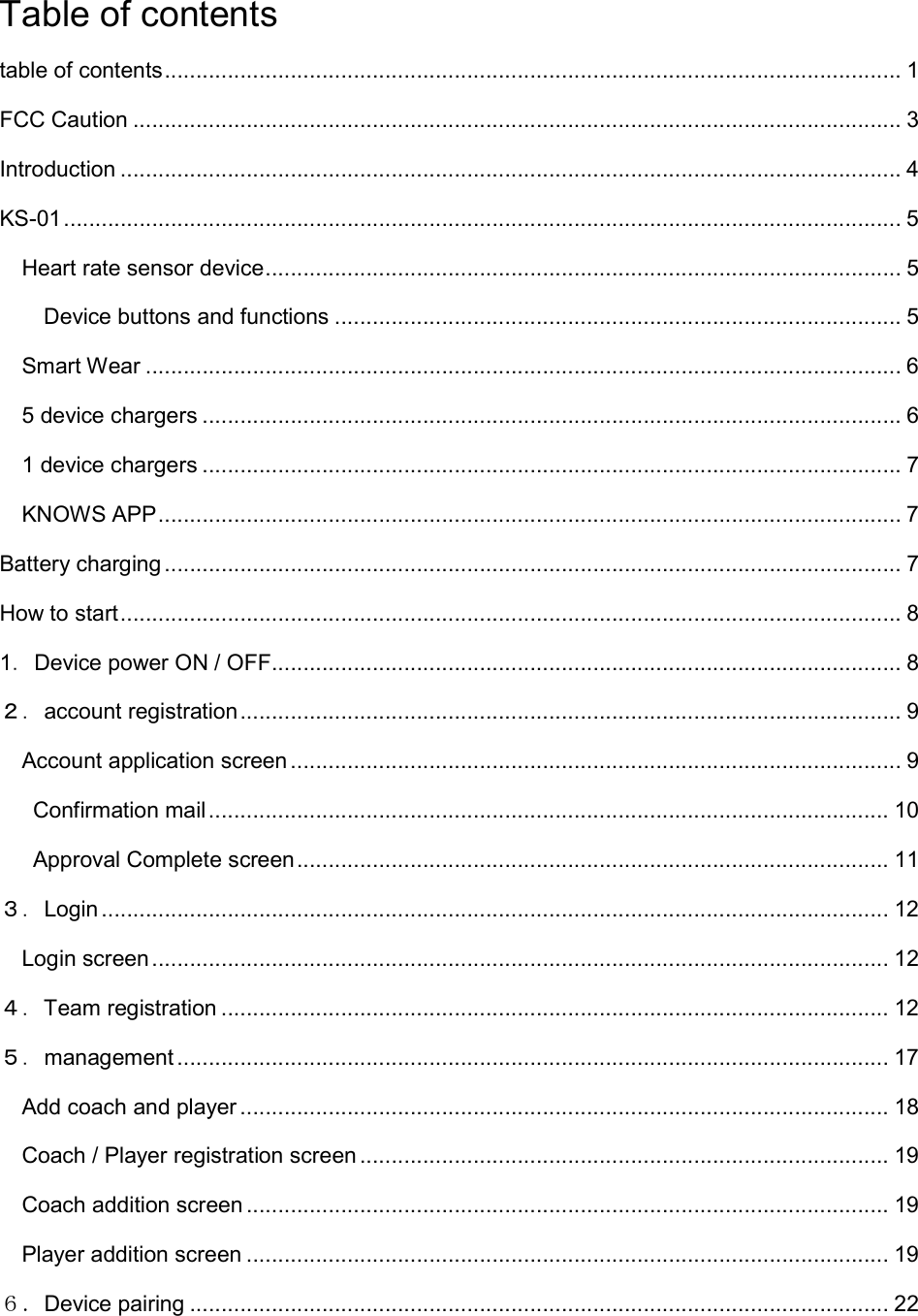
Table of contents table of contents ..................................................................................................................... 1 FCC Caution .......................................................................................................................... 3 Introduction ............................................................................................................................ 4 KS-01 ..................................................................................................................................... 5 Heart rate sensor device ..................................................................................................... 5 Device buttons and functions .......................................................................................... 5 Smart Wear ........................................................................................................................ 6 5 device chargers ............................................................................................................... 6 1 device chargers ............................................................................................................... 7 KNOWS APP ...................................................................................................................... 7 Battery charging ..................................................................................................................... 7 How to start ............................................................................................................................ 8 1.Device power ON / OFF .................................................................................................... 8 2.account registration ......................................................................................................... 9 Account application screen ................................................................................................. 9   Confirmation mail ............................................................................................................ 10   Approval Complete screen .............................................................................................. 11 3.Login ............................................................................................................................. 12 Login screen ..................................................................................................................... 12 4.Team registration .......................................................................................................... 12 5.management ................................................................................................................. 17 Add coach and player ....................................................................................................... 18 Coach / Player registration screen .................................................................................... 19 Coach addition screen ...................................................................................................... 19 Player addition screen ...................................................................................................... 19 6.Device pairing ............................................................................................................... 22
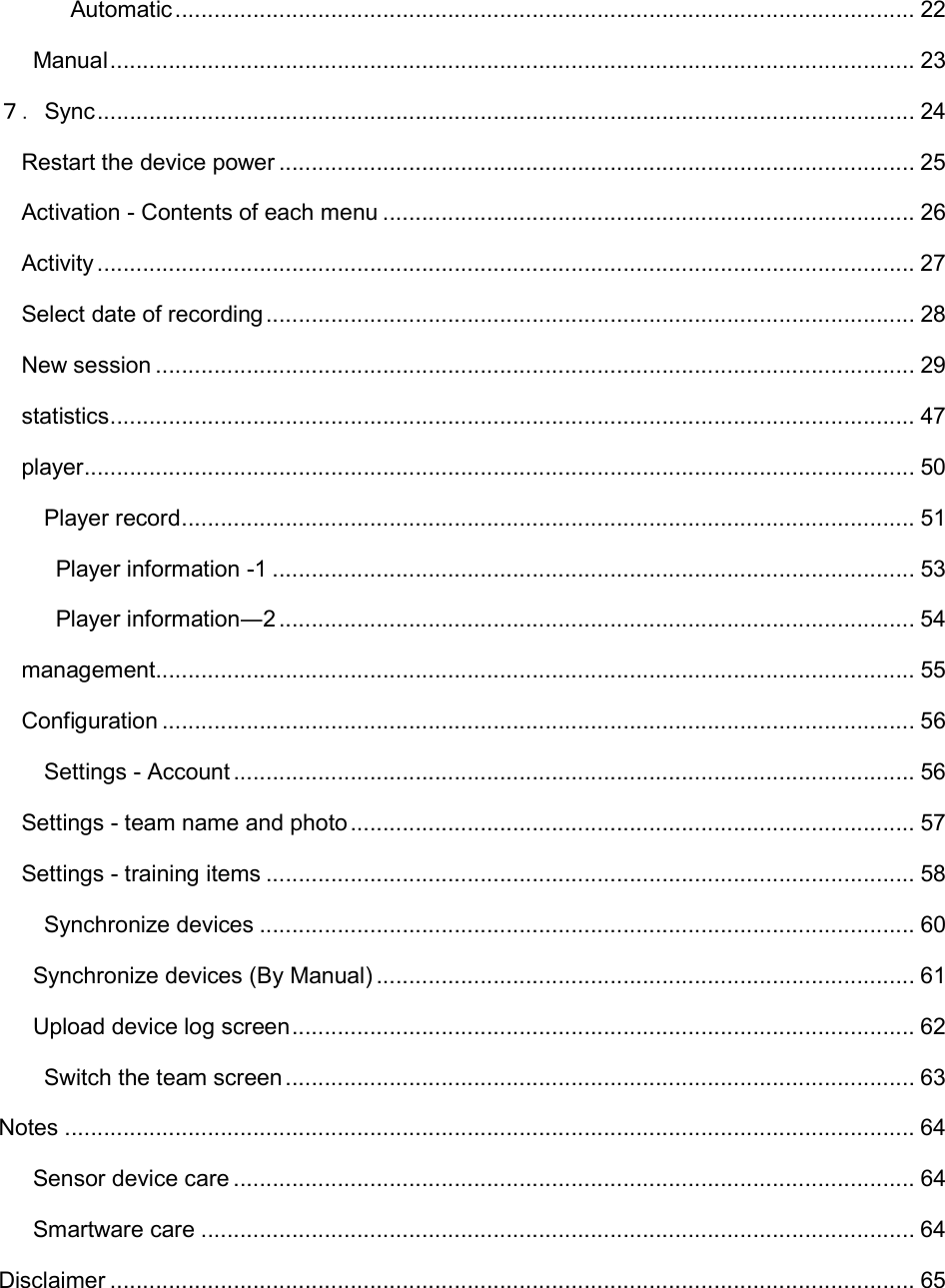
  Automatic .................................................................................................................. 22 Manual ............................................................................................................................ 23 7.Sync .............................................................................................................................. 24 Restart the device power .................................................................................................. 25 Activation - Contents of each menu .................................................................................. 26 Activity .............................................................................................................................. 27 Select date of recording .................................................................................................... 28 New session ..................................................................................................................... 29 statistics ............................................................................................................................ 47 player................................................................................................................................ 50 Player record ................................................................................................................. 51   Player information -1 ................................................................................................... 53   Player information―2 .................................................................................................. 54 management ..................................................................................................................... 55 Configuration .................................................................................................................... 56 Settings - Account ......................................................................................................... 56 Settings - team name and photo ....................................................................................... 57 Settings - training items .................................................................................................... 58 Synchronize devices ..................................................................................................... 60   Synchronize devices (By Manual) ................................................................................... 61   Upload device log screen ................................................................................................ 62 Switch the team screen ................................................................................................. 63 Notes ................................................................................................................................... 64   Sensor device care ......................................................................................................... 64   Smartware care .............................................................................................................. 64 Disclaimer ............................................................................................................................ 65
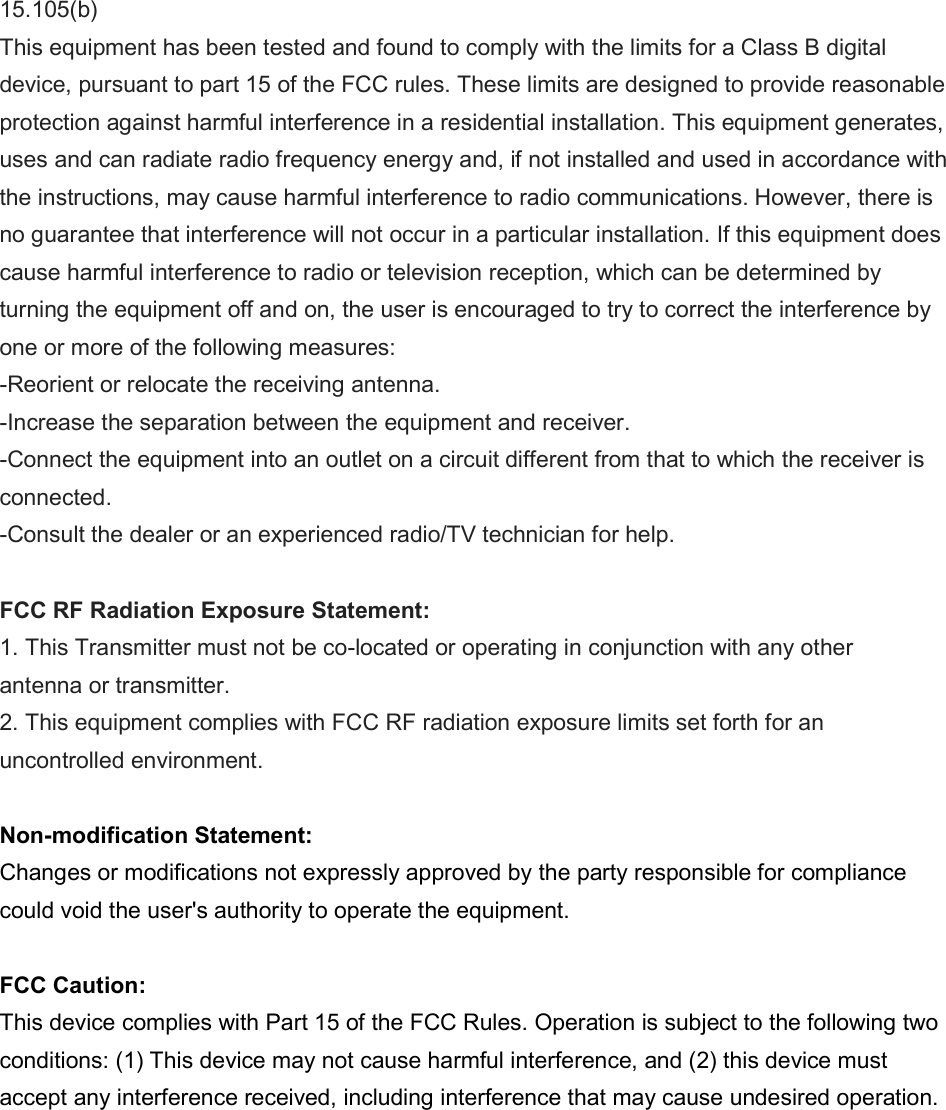
 15.105(b) This equipment has been tested and found to comply with the limits for a Class B digital device, pursuant to part 15 of the FCC rules. These limits are designed to provide reasonable protection against harmful interference in a residential installation. This equipment generates, uses and can radiate radio frequency energy and, if not installed and used in accordance with the instructions, may cause harmful interference to radio communications. However, there is no guarantee that interference will not occur in a particular installation. If this equipment does cause harmful interference to radio or television reception, which can be determined by turning the equipment off and on, the user is encouraged to try to correct the interference by one or more of the following measures: -Reorient or relocate the receiving antenna. -Increase the separation between the equipment and receiver. -Connect the equipment into an outlet on a circuit different from that to which the receiver is connected. -Consult the dealer or an experienced radio/TV technician for help.  FCC RF Radiation Exposure Statement: 1. This Transmitter must not be co-located or operating in conjunction with any other antenna or transmitter. 2. This equipment complies with FCC RF radiation exposure limits set forth for an uncontrolled environment.  Non-modification Statement: Changes or modifications not expressly approved by the party responsible for compliance could void the user's authority to operate the equipment.  FCC Caution: This device complies with Part 15 of the FCC Rules. Operation is subject to the following two conditions: (1) This device may not cause harmful interference, and (2) this device must accept any interference received, including interference that may cause undesired operation.
Introduction  Thank you very much for purchasing KS-01 this time.
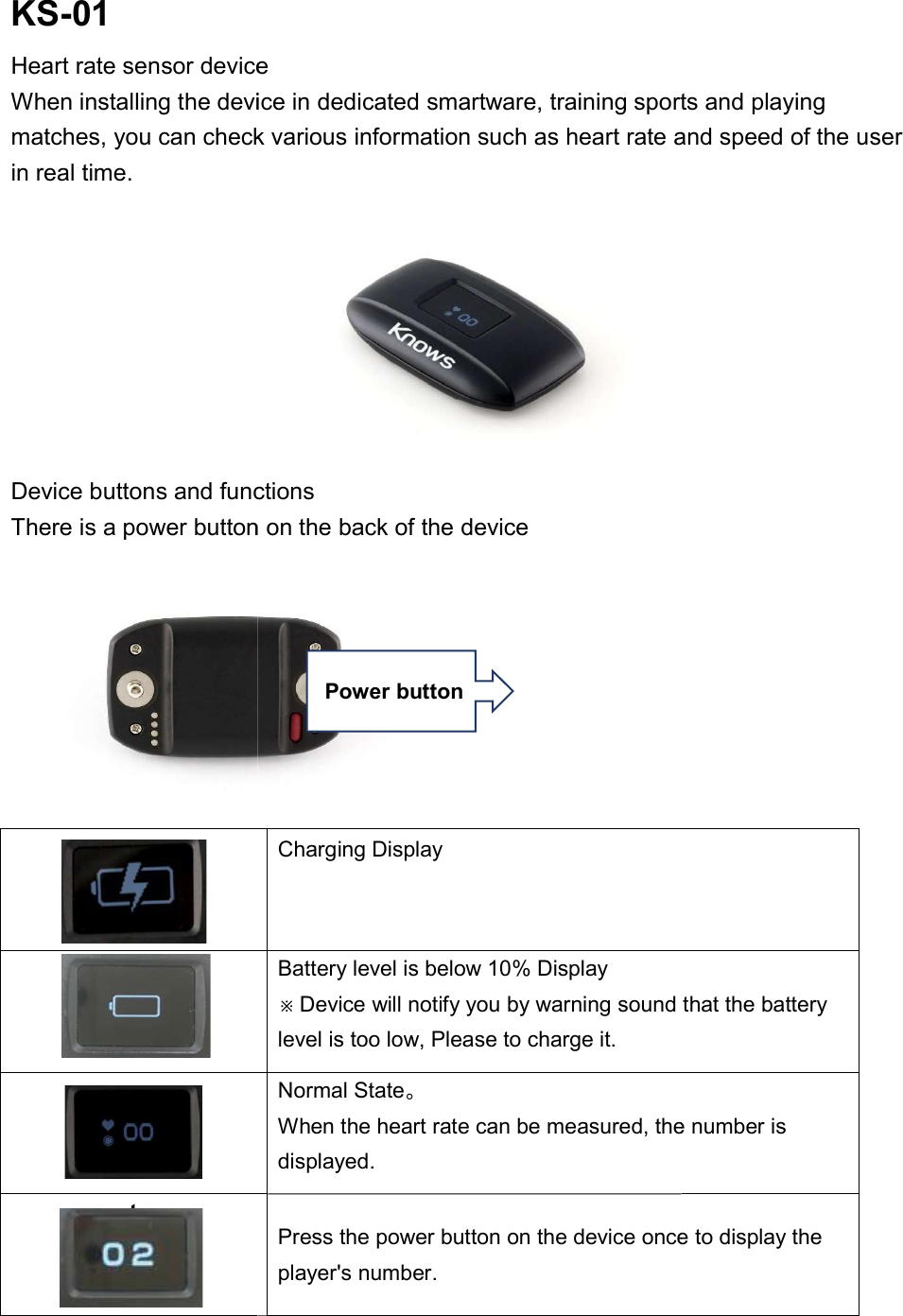
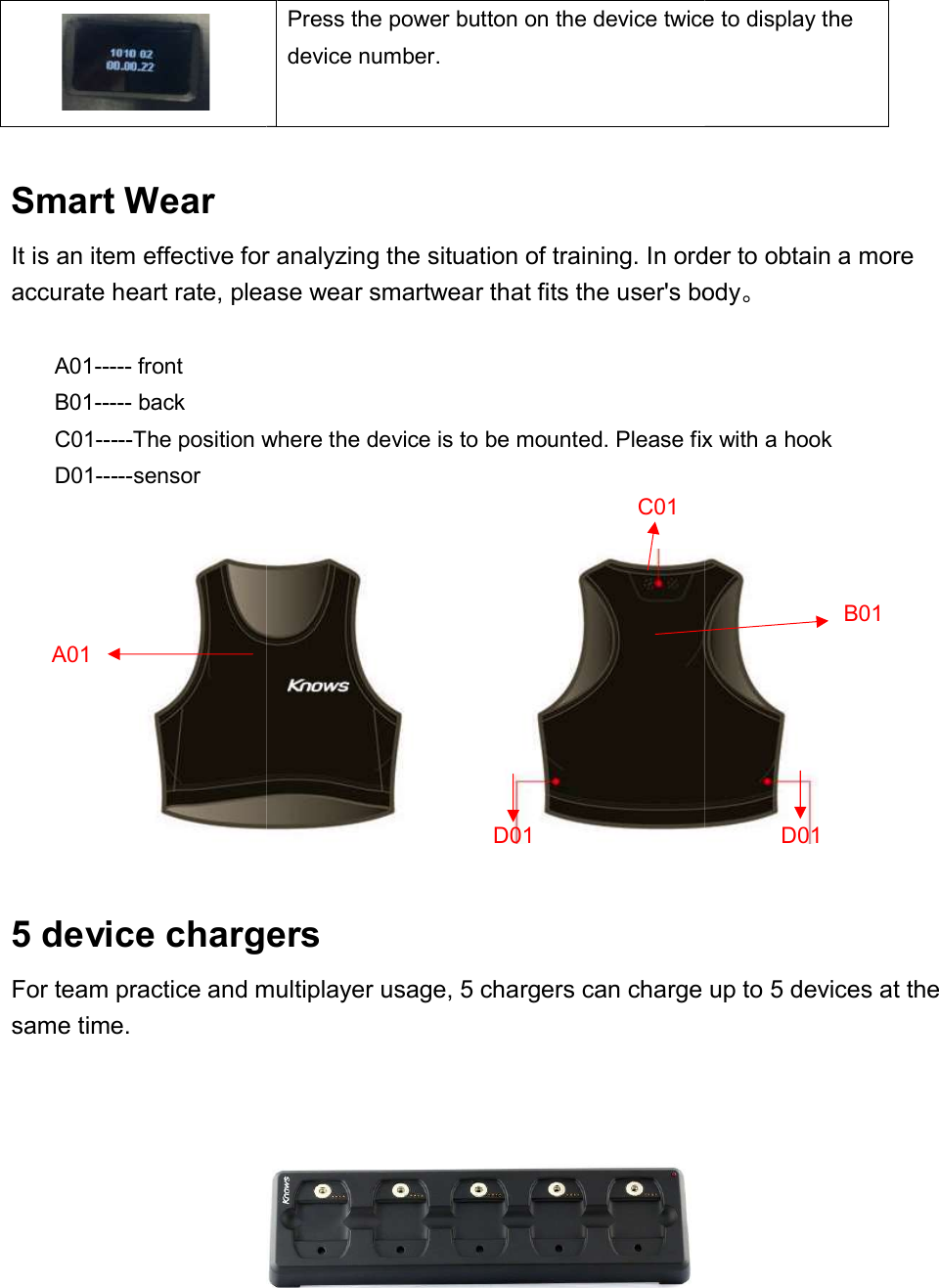
KS-01 Heart rate sensor deviceWhen installing the device in dedicated smartware, training sports and playing matches, you can check various information such as heart rate and speed of thin real time. Device buttons and functionsThere is a power button on the back of    t device When installing the device in dedicated smartware, training sports and playing matches, you can check various information such as heart rate and speed of th Device buttons and functions There is a power button on the back of the device Charging Display Battery level is below 10% Display ※Device will notify you by warning sound that the battery level is too low, Please to charge it. Normal State。 When the heart rate can be measured, the number is displayed. Press the power button on the device once to display the player's number. Power button When installing the device in dedicated smartware, training sports and playing matches, you can check various information such as heart rate and speed of the user    will notify you by warning sound that the battery When the heart rate can be measured, the number is Press the power button on the device once to display the
  Smart Wear It is an item effective for analyzing the situation of training. In order to accurate heart rate, please wear smartwear that fits the user's body A01----- front B01----- back C01-----The position where the device is to be mounted. Please fix with a hookD01-----sensor  5 device chargersFor team practice and multiplayer usage, 5 chargers can charge up to 5 devices at the same time. A01 Press the power button on the device twice to display the device number. It is an item effective for analyzing the situation of training. In order to accurate heart rate, please wear smartwear that fits the user's bodyThe position where the device is to be mounted. Please fix with a hook device chargers For team practice and multiplayer usage, 5 chargers can charge up to 5 devices at the C01 D01 Press the power button on the device twice to display the It is an item effective for analyzing the situation of training. In order to obtain a more accurate heart rate, please wear smartwear that fits the user's body。 The position where the device is to be mounted. Please fix with a hook  For team practice and multiplayer usage, 5 chargers can charge up to 5 devices at the  D01 B01
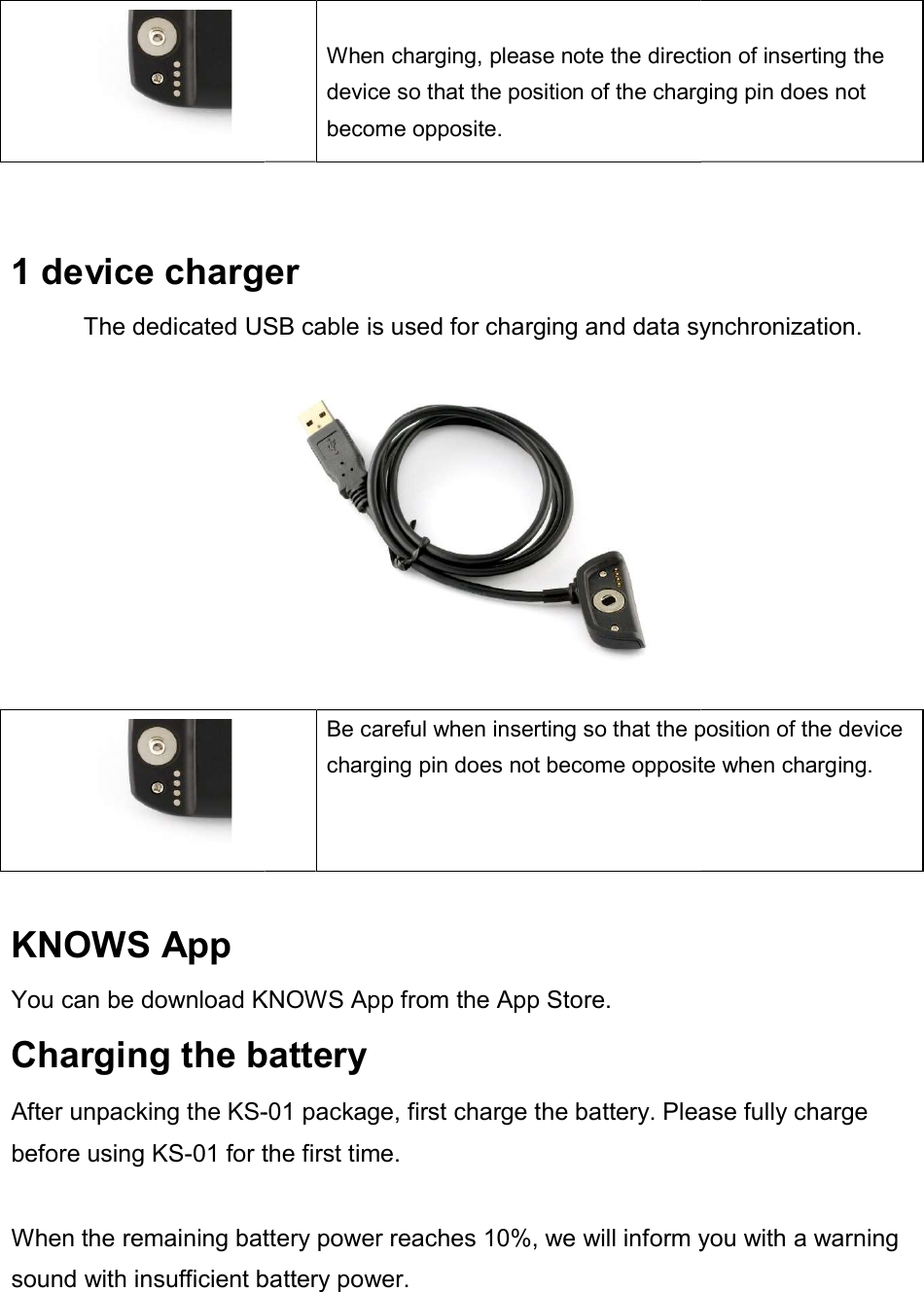
  1 device chargerThe dedicated USB cable is used for charging and data synchronization.   KNOWS App You can be download KNOWSCharging the batteryAfter unpacking the KS-before using KS-01 for the first time. When the remaining battery power reaches 10%, we will inform you with a warning sound with insufficient battery power.  When charging, please note the direction of inserting the device so that the position of the charging pin does not become opposite. device charger The dedicated USB cable is used for charging and data synchronization.Be careful when inserting so that the position of the device charging pin does not become opposite when charging.KNOWS App from the App Store. Charging the battery -01 package, first charge the battery. Please fully charge for the first time. When the remaining battery power reaches 10%, we will inform you with a warning with insufficient battery power.   When charging, please note the direction of inserting the device so that the position of the charging pin does not The dedicated USB cable is used for charging and data synchronization. Be careful when inserting so that the position of the device charging pin does not become opposite when charging. package, first charge the battery. Please fully charge When the remaining battery power reaches 10%, we will inform you with a warning
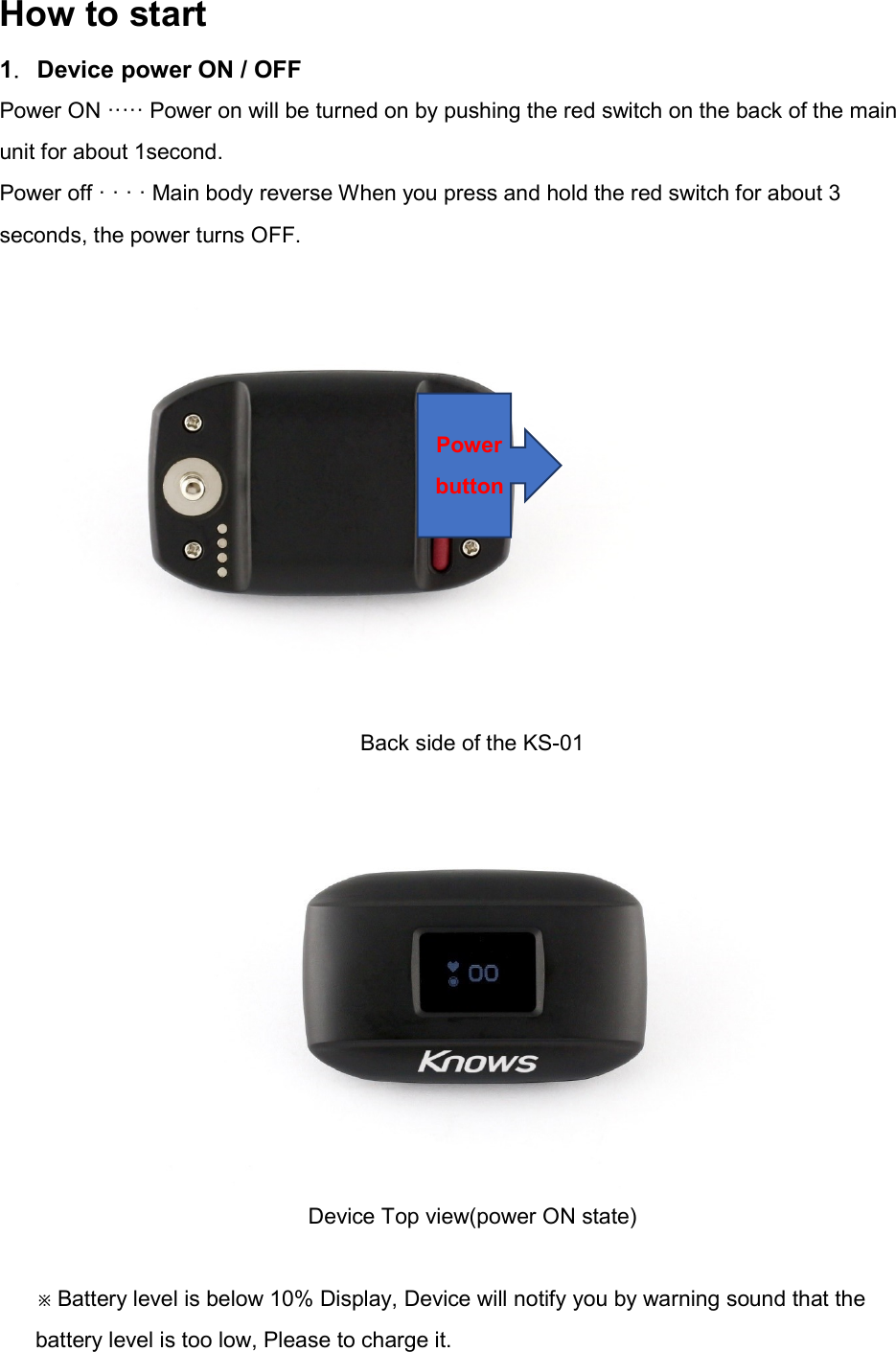
How to start 1.Device power ON / OFF Power ON ····· Power on will be turned on by pushing the red switch on the back of the main unit for about 1second. Power off · · · · Main body reverse When you press and hold the red switch for about 3 seconds, the power turns OFF. Back side of the KS-01  Device Top view(power ON state)  ※Battery level is below 10% Display, Device will notify you by warning sound that the battery level is too low, Please to charge it. Power button
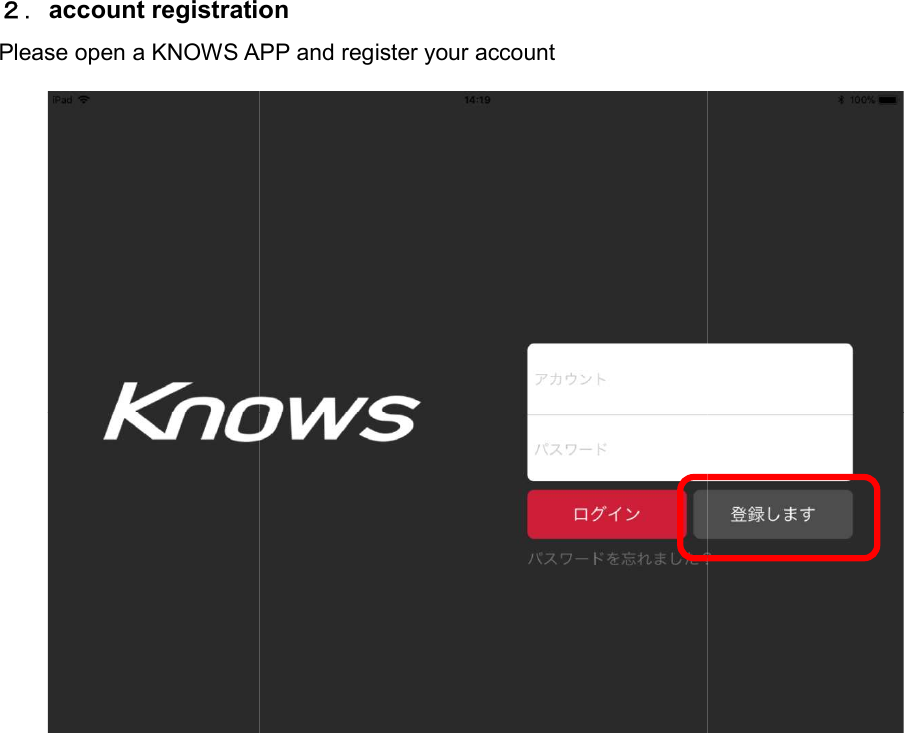
2.account registrationPlease open a KNOWS APPaccount registration APP and register your account
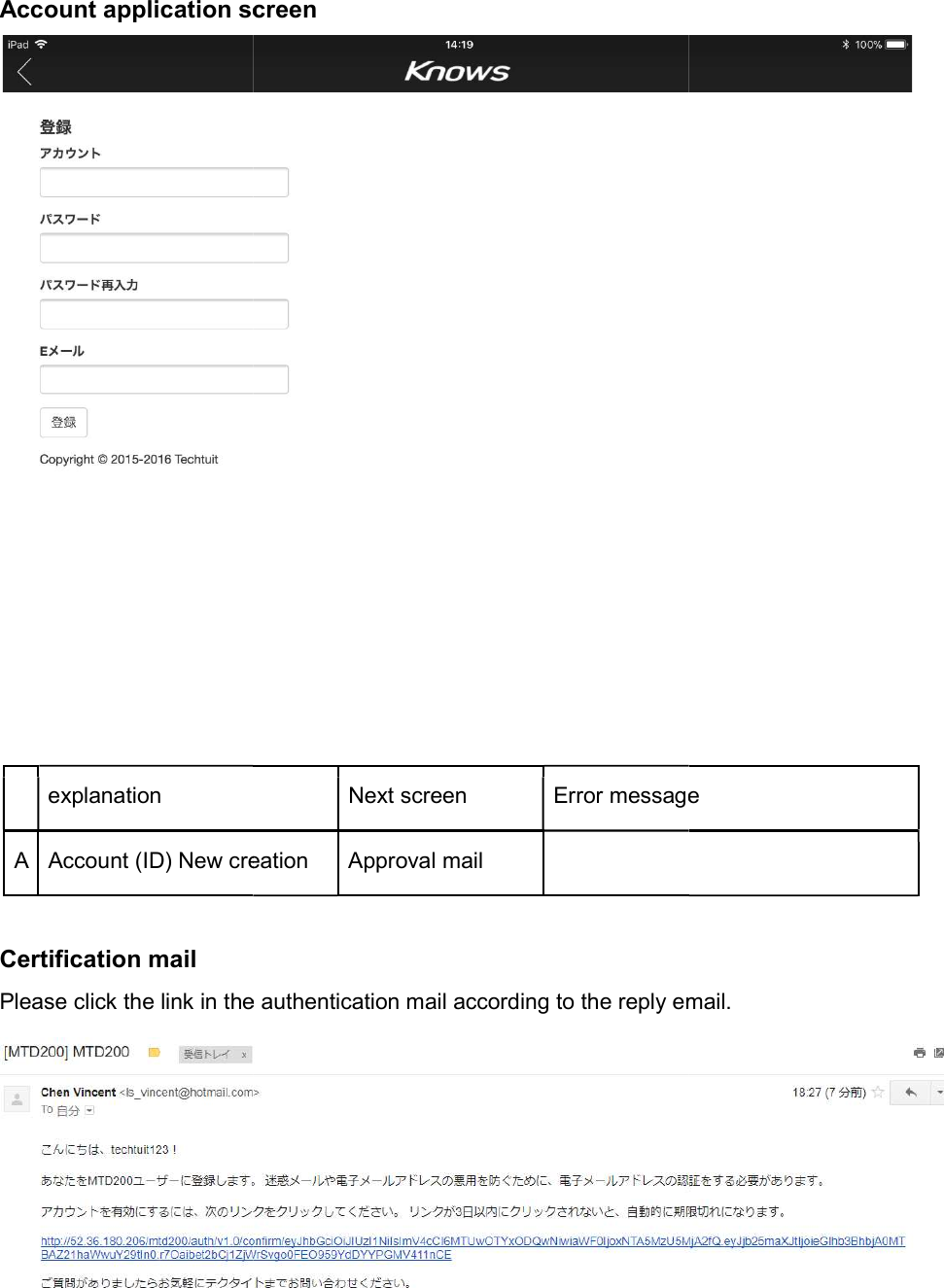
Account application screen  explanation A Account (ID) New creation Certification mail Please click the link in the authentication Account application screen Next screen Error messageAccount (ID) New creation  Approval mail   Please click the link in the authentication mail according to the reply email. Error message mail according to the reply email.
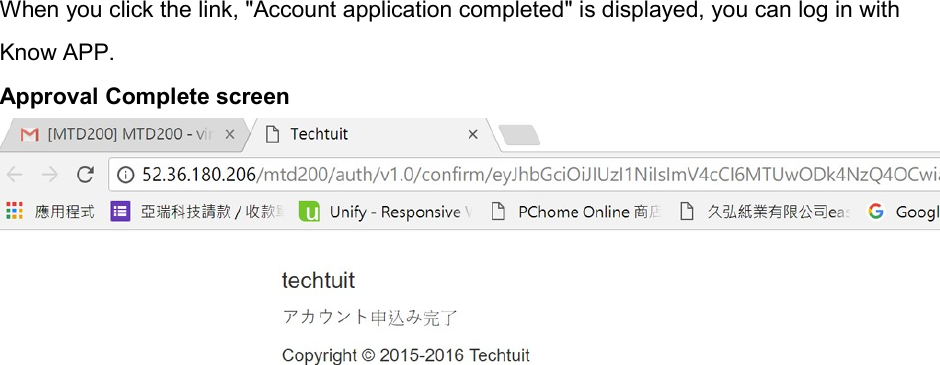
When you click the link, "Account application completed" is displayed, you can log in with Know APP. Approval Complete screen
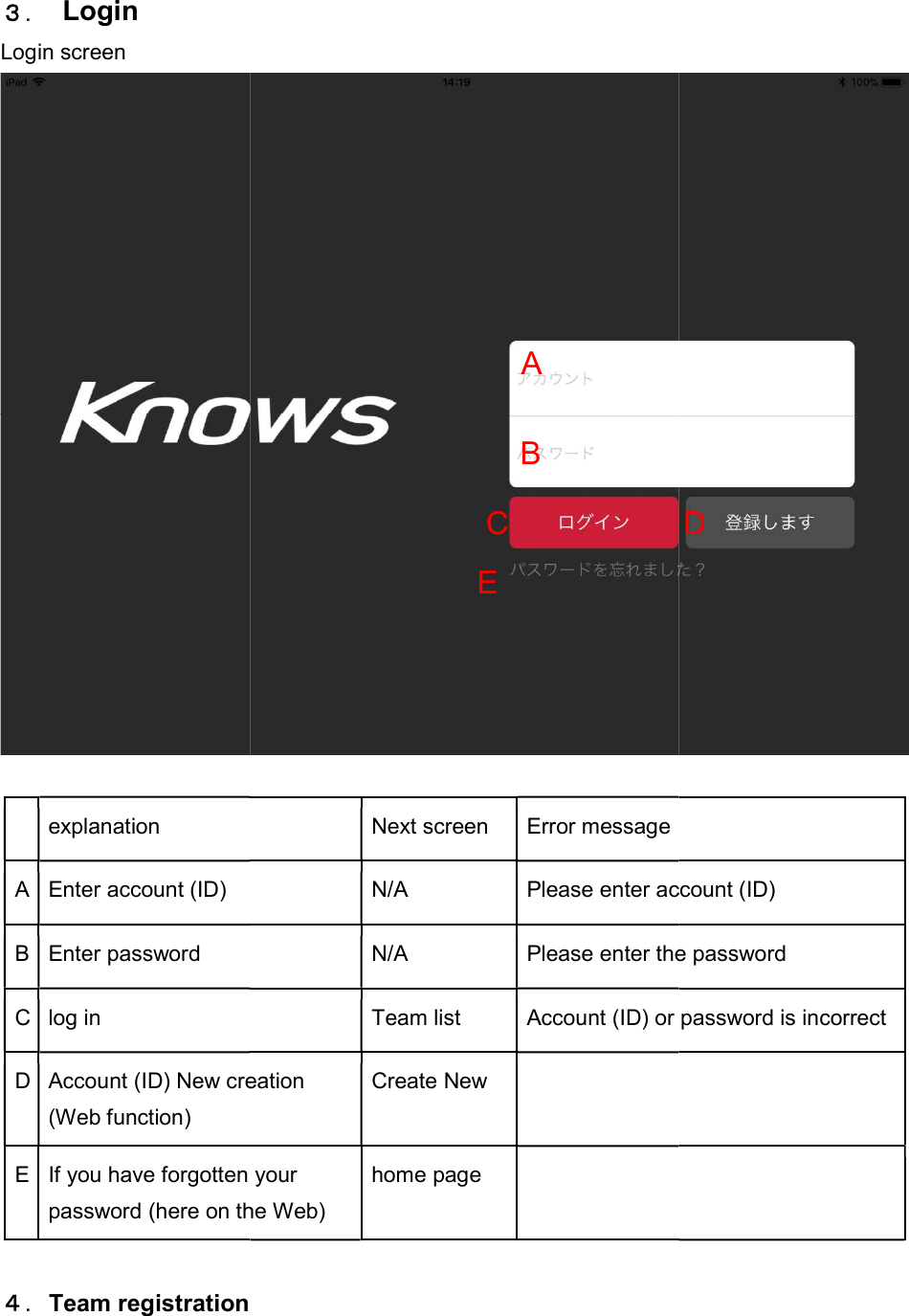
3.  Login Login screen  explanation A Enter account (ID) B Enter password C log in D Account (ID) New creation (Web function) E If you have forgotten your password (here on the Web) 4.Team registration  Next screen  Error message N/A Please enter account (ID)N/A Please enter the passwordTeam list Account (ID) or password is incorrectAccount (ID) New creation Create New  If you have forgotten your password (here on the Web) home page    A B C E  Please enter account (ID) Please enter the password Account (ID) or password is incorrect D
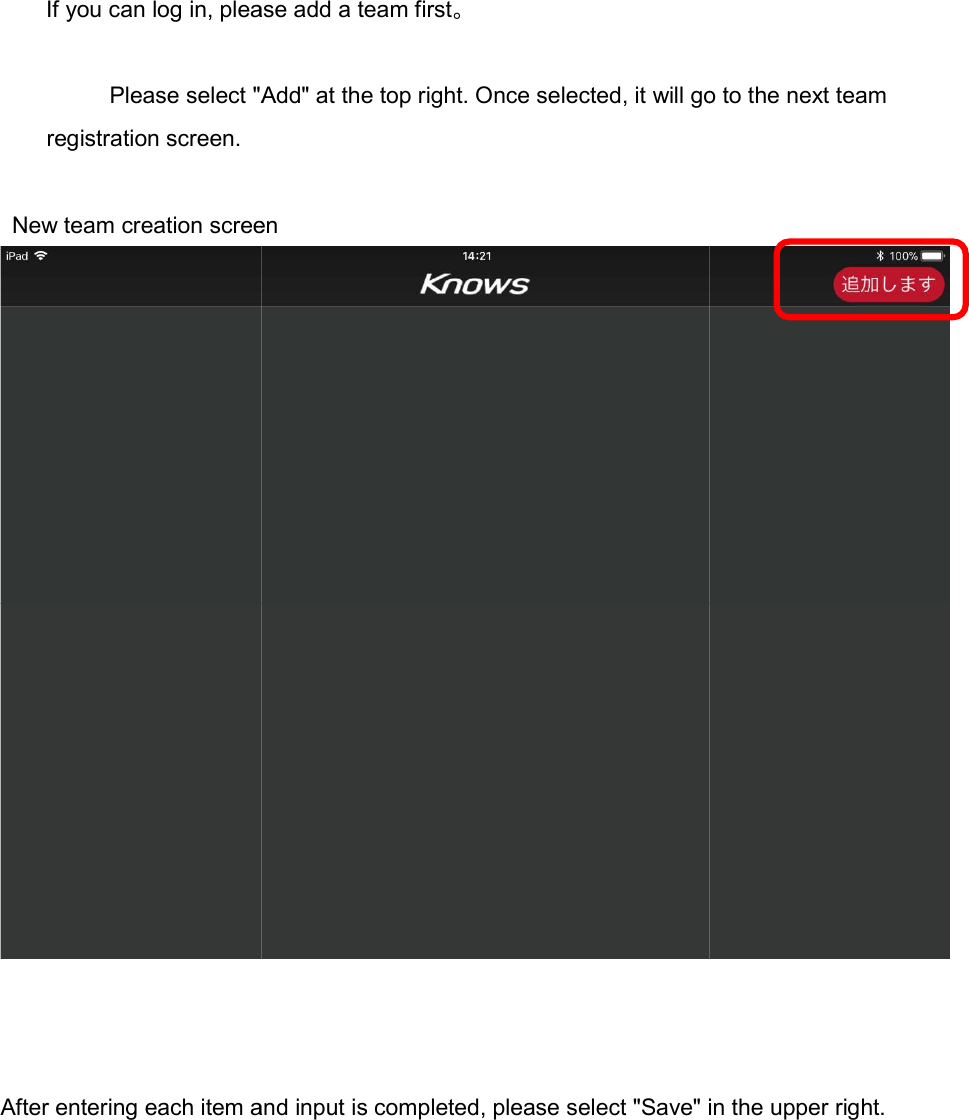
If you can log in, please add a team first     Please select "Add" at the top right. Once selected, it will go to the next team        registration screen.  New team creation screen    After entering each item and input is completed, please select "Save" in the upper right.If you can log in, please add a team first。 Please select "Add" at the top right. Once selected, it will go to the next team   New team creation screen entering each item and input is completed, please select "Save" in the upper right.Please select "Add" at the top right. Once selected, it will go to the next team  entering each item and input is completed, please select "Save" in the upper right.
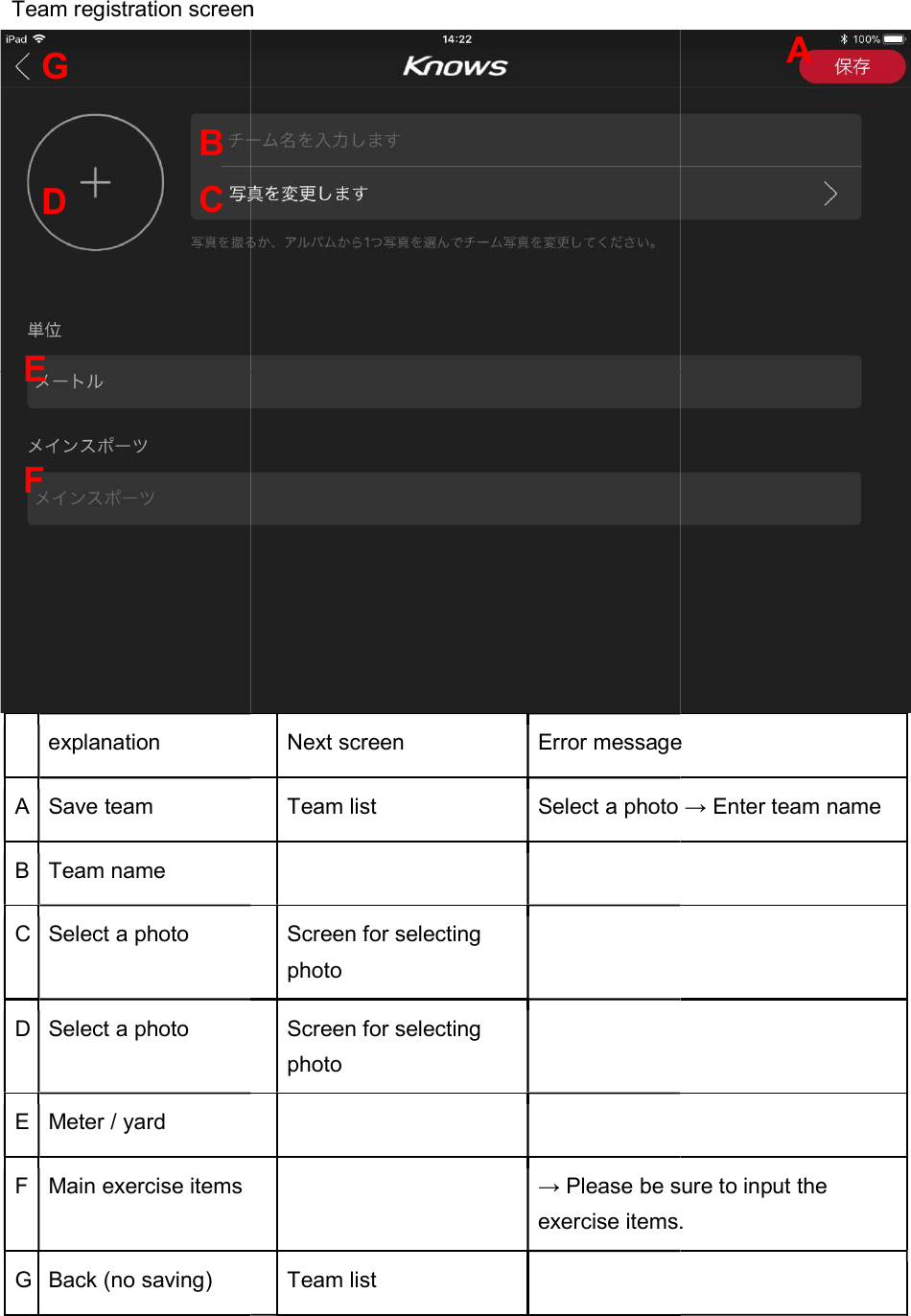
 Team registration screen  explanation A Save team B Team name C Select a photo D Select a photo E Meter / yard F Main exercise items G Back (no saving)  B C D G E F Team registration screen Next screen Error messageTeam list Select a photo → Enter team name   Screen for selecting photo  Screen for selecting photo       → Please be sure to input the exercise items.Team list    Error message Select a photo → Enter team name → Please be sure to input the exercise items. A
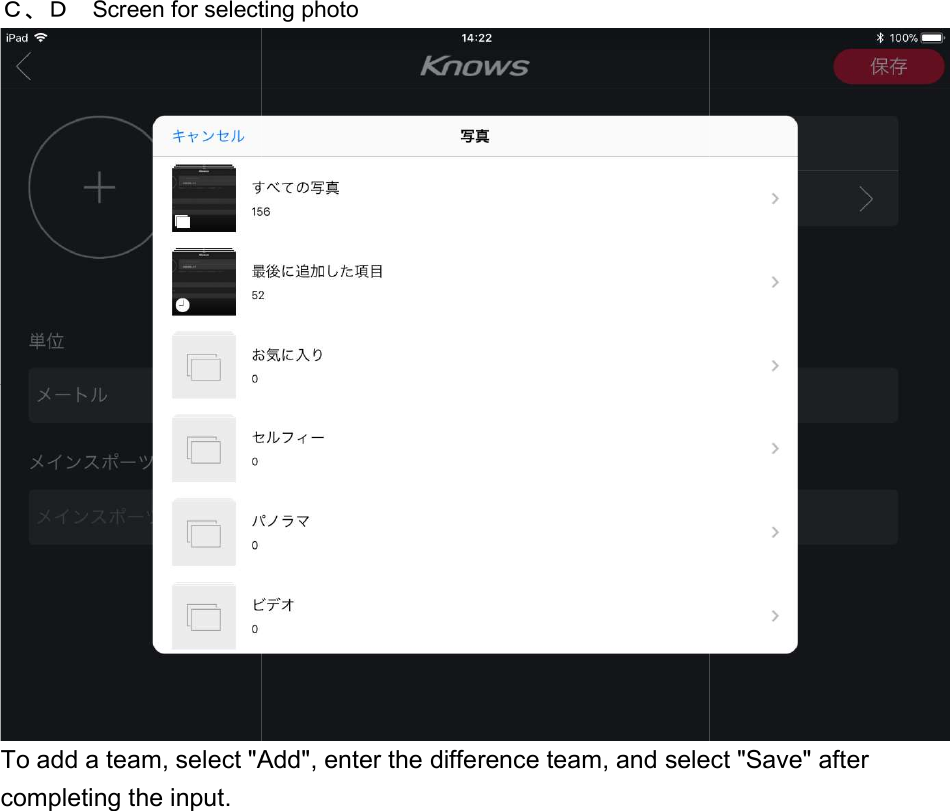
C、D Screen for selecting photoTo add a team, select "Add", enter the difference team, and select "Save" after completing the input. Screen for selecting photo team, select "Add", enter the difference team, and select "Save" after    team, select "Add", enter the difference team, and select "Save" after
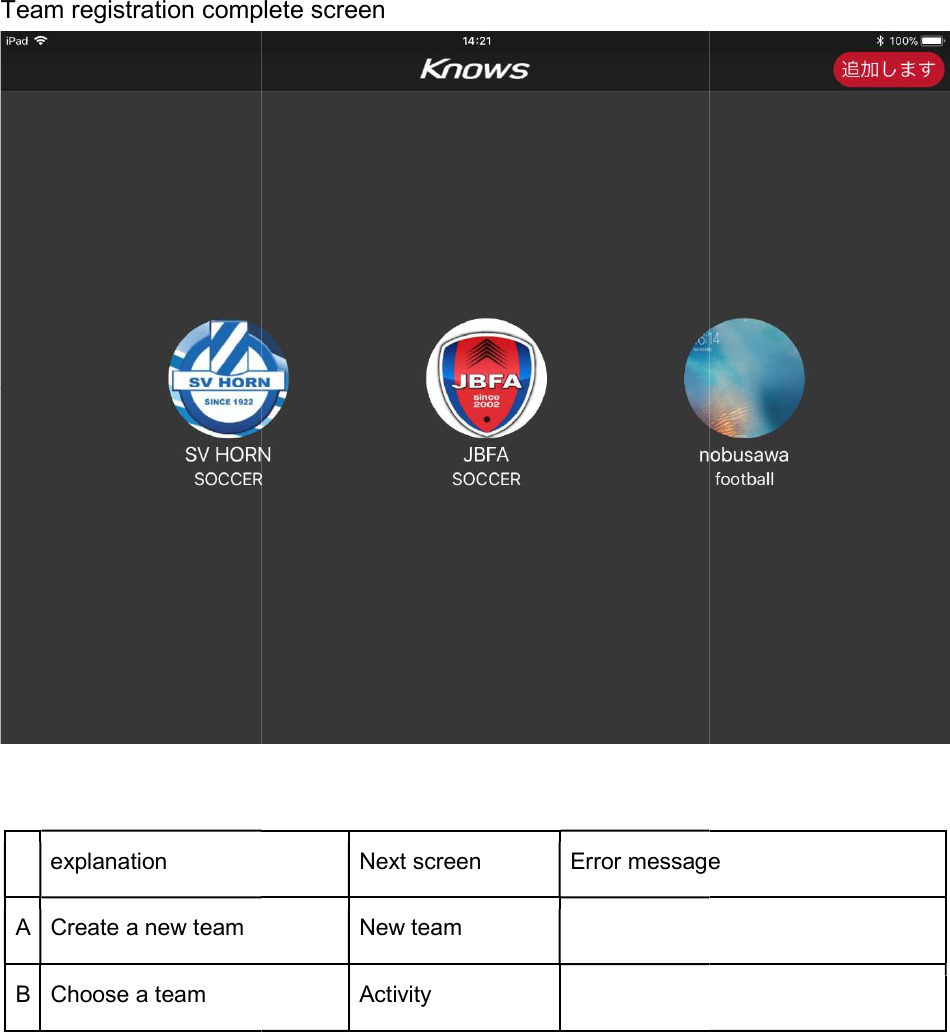
Team registration complete screen   explanation A Create a new team B Choose a team       Team registration complete screen Next screen Error message New team  Activity      Error message
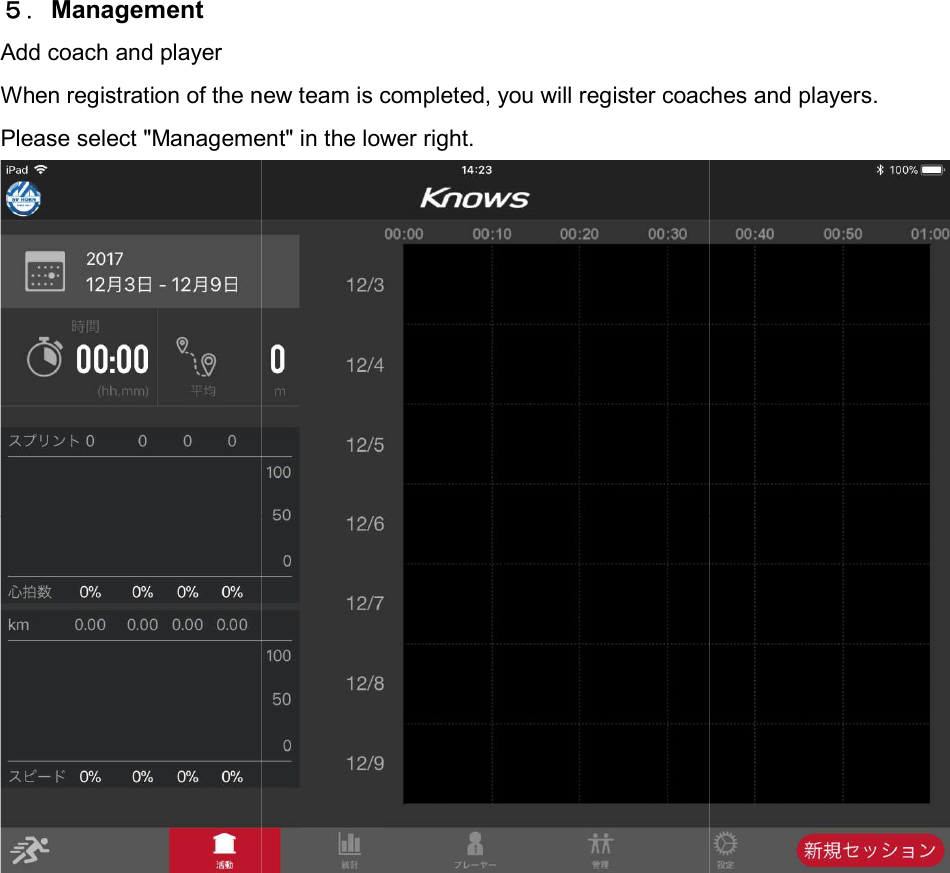
5.Management Add coach and player When registration of the new team is completed, you will register coaches and players.Please select "Management" in the lower right.   When registration of the new team is completed, you will register coaches and players.Please select "Management" in the lower right.   When registration of the new team is completed, you will register coaches and players.
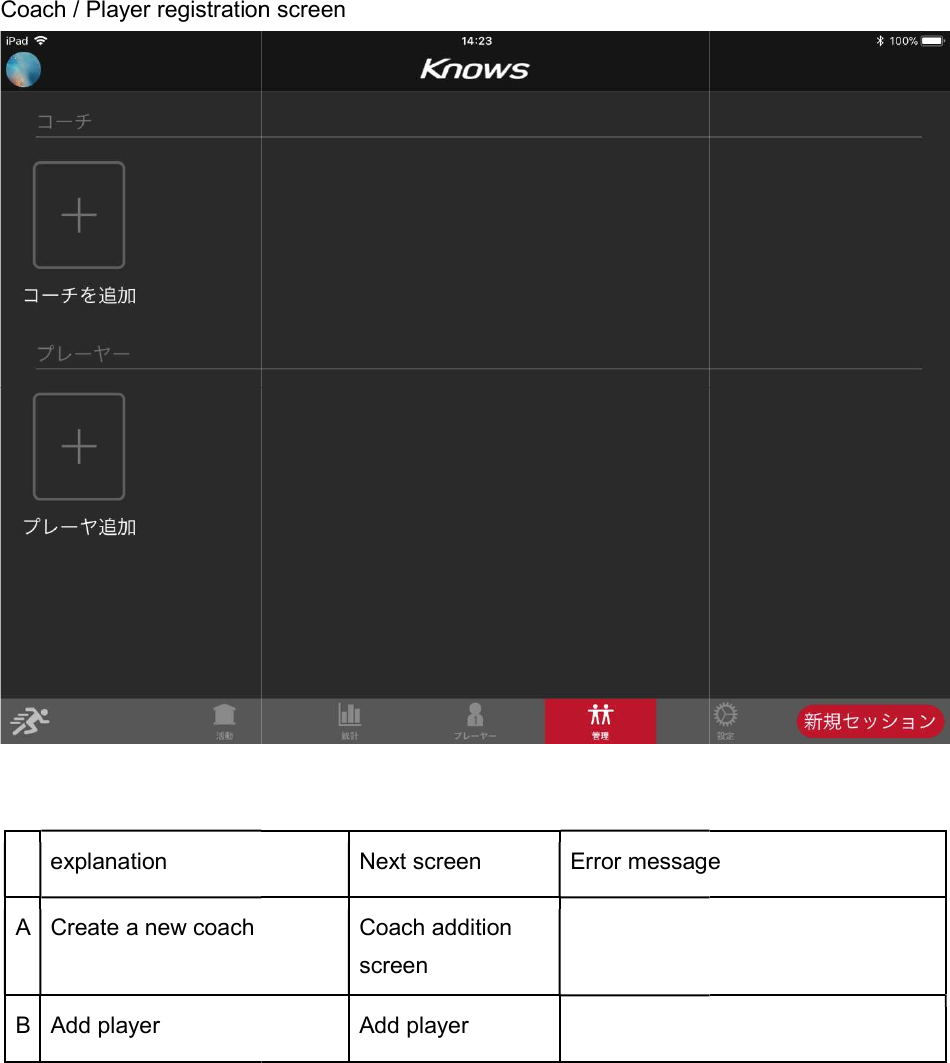
Coach / Player registration screen   explanation A Create a new coach B Add player   Coach / Player registration screen Next screen Error message Coach addition screen  Add player      Error message
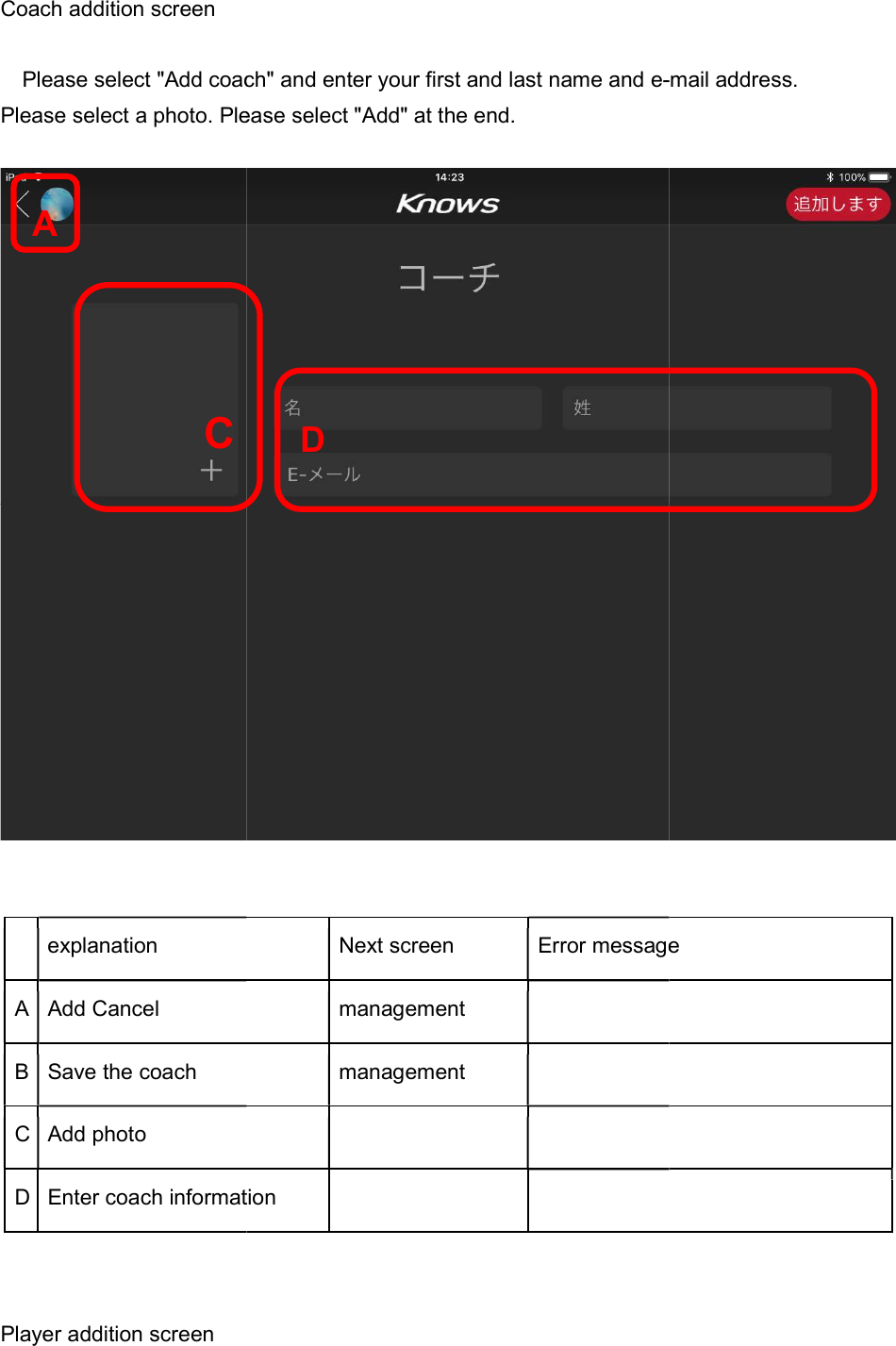
Coach addition screen   Please select "Add coach" and enter your first and last name and ePlease select a photo. Please select "Add" at the end.    explanation A Add Cancel B Save the coach C Add photo D Enter coach information  Player addition screen A  C Please select "Add coach" and enter your first and last name and e-Please select a photo. Please select "Add" at the end.  Next screen Error messagemanagement   management     Enter coach information     D -mail address.  Error message
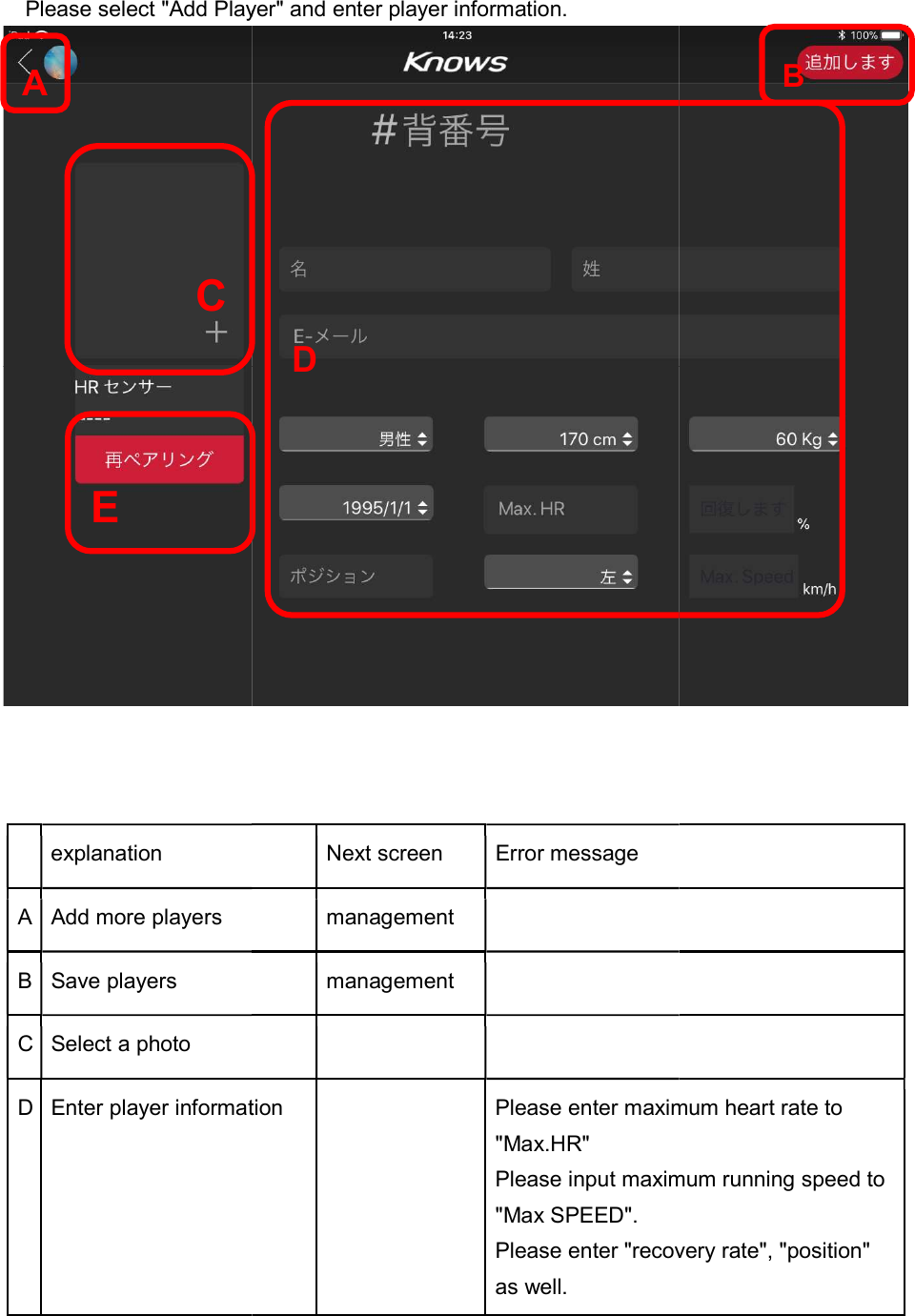
  Please select "Add Player" and enter player information.    explanation A Add more players B Save players C Select a photo D Enter player informationA  C  E Please select "Add Player" and enter player information.  Next screen  Error message management  management    Enter player information  Please enter maximum heart rate to "Max.HR" Please input maximum running speed to "Max SPEED". Please enter "recovery rate", as well. D  Please enter maximum heart rate to Please input maximum running speed to Please enter "recovery rate", "position" B
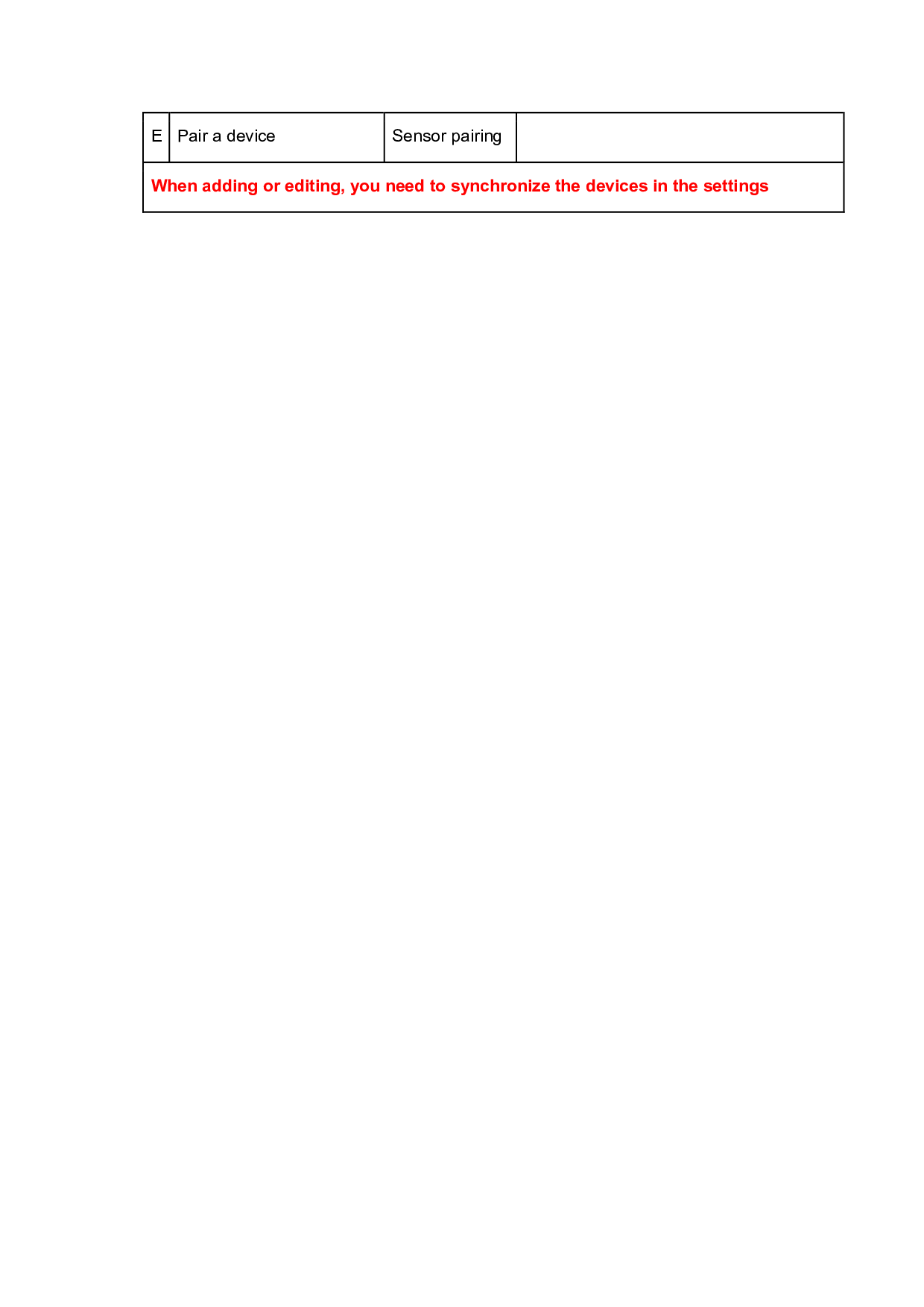
E Pair a device  Sensor pairing  When adding or editing, you need to synchronize the devices in the settings
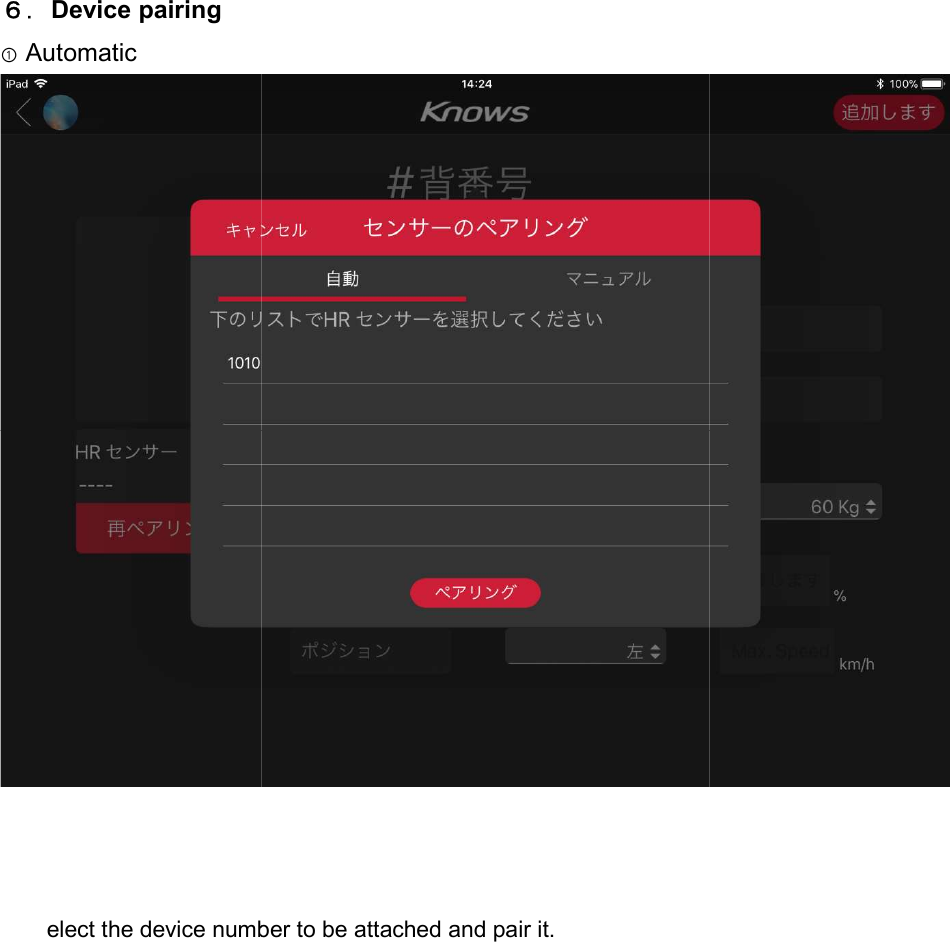
6.Device pairing ①Automatic      elect the device number to be attached and pair it. elect the device number to be attached and pair it.
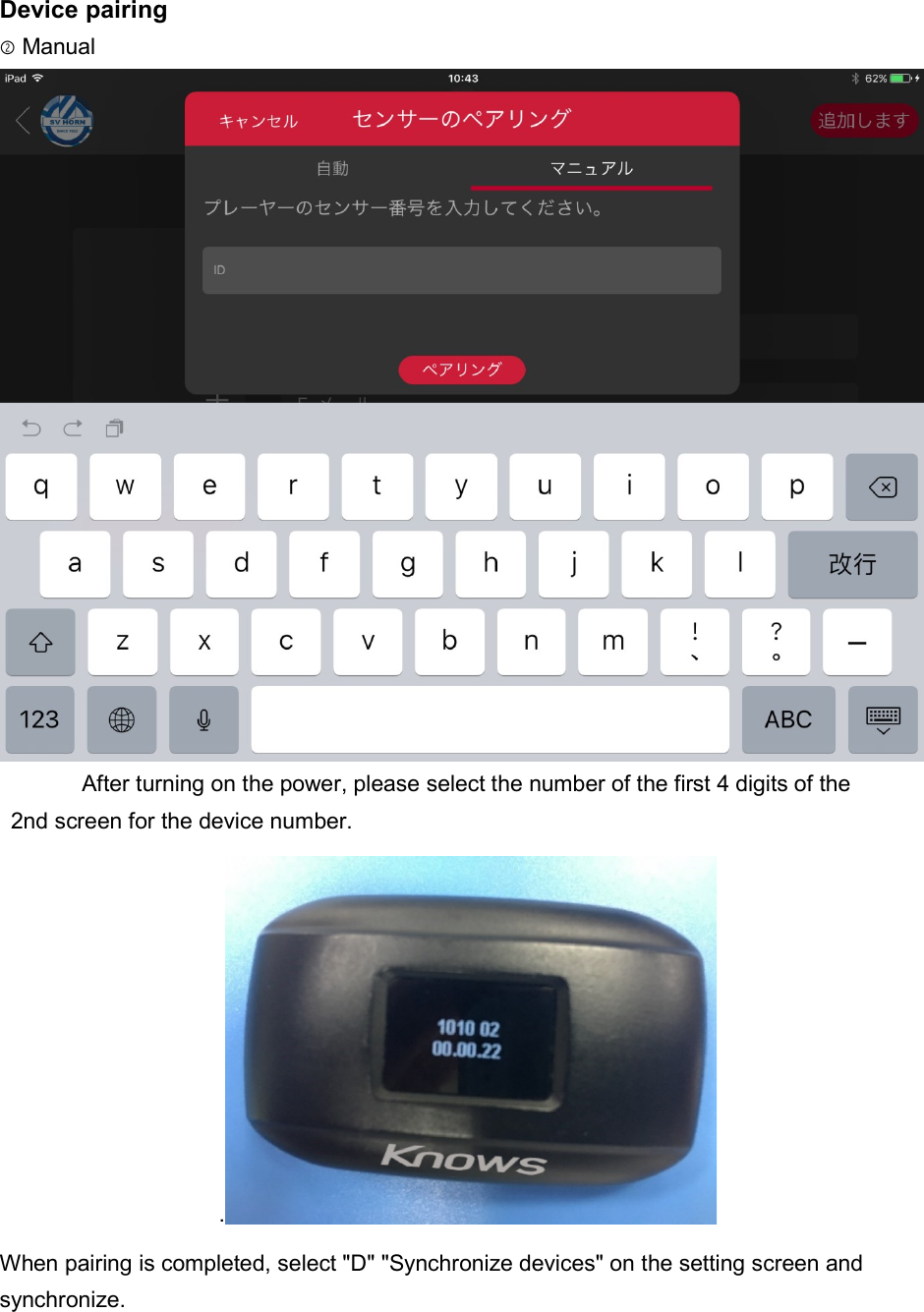
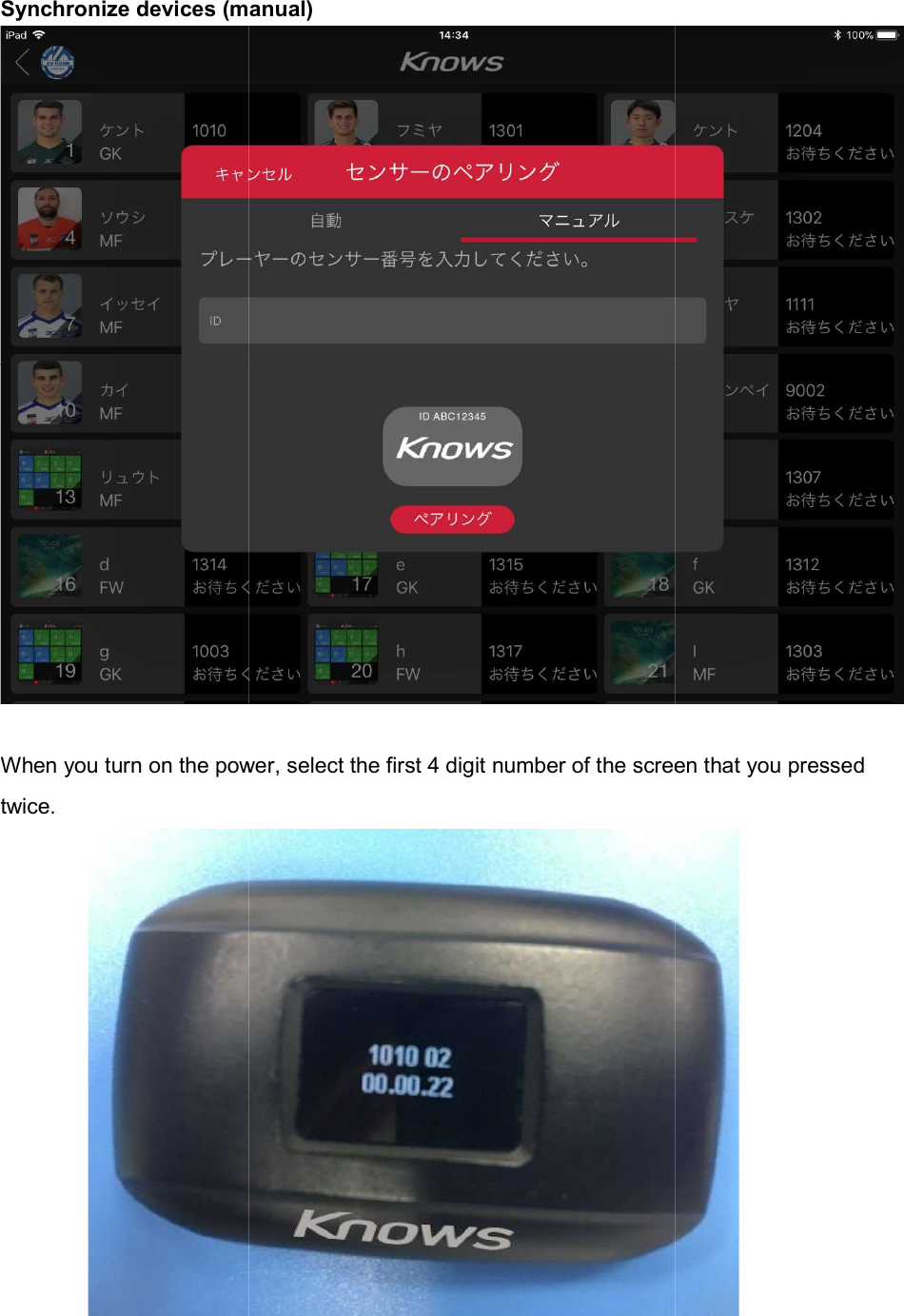
Device pairing ②Manual  After turning on the power, please select the number of the first 4 digits of the   2nd screen for the device number. . When pairing is completed, select "D" "Synchronize devices" on the setting screen and synchronize.
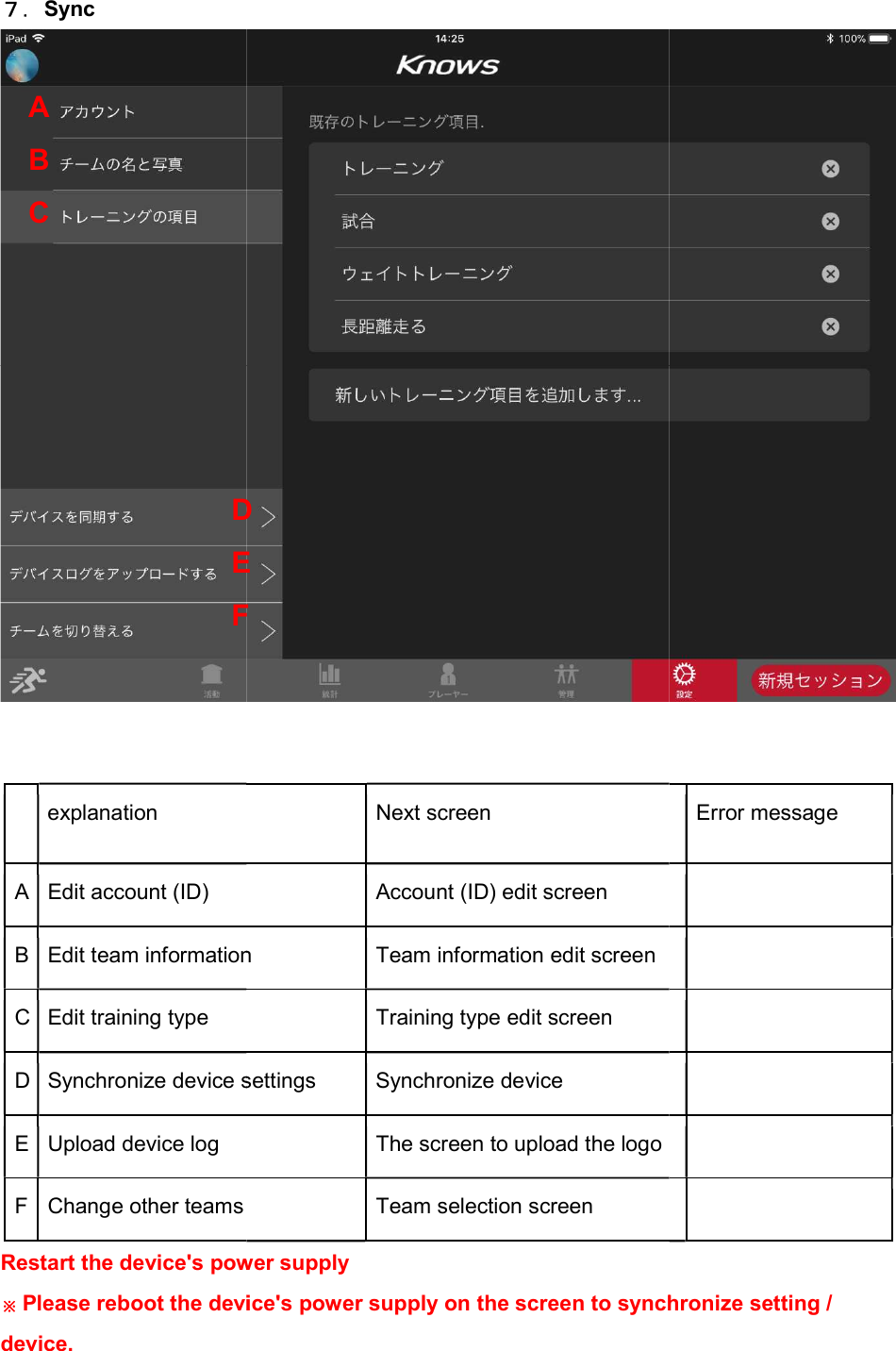
7.Sync     explanation A Edit account (ID) B Edit team informationC Edit training type D Synchronize device settingsE Upload device log F Change other teams Restart the device's power supply※Please reboot the device's power supply on the screen to synchronize setting / device. A B C DEFNext screen Account (ID) edit screen Edit team information  Team information edit screen Training type edit screen Synchronize device settings  Synchronize device The screen to upload the logo  Team selection screen Restart the device's power supply Please reboot the device's power supply on the screen to synchronize setting / D E F  Error message         Please reboot the device's power supply on the screen to synchronize setting /
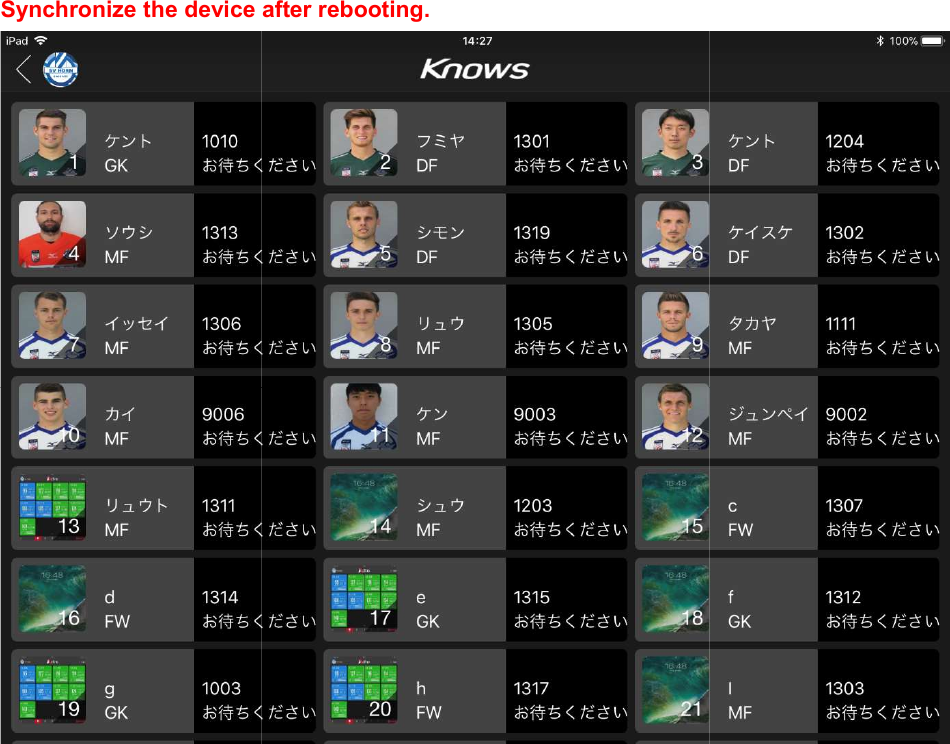
Synchronize the device after rebooting. Synchronize the device after rebooting.
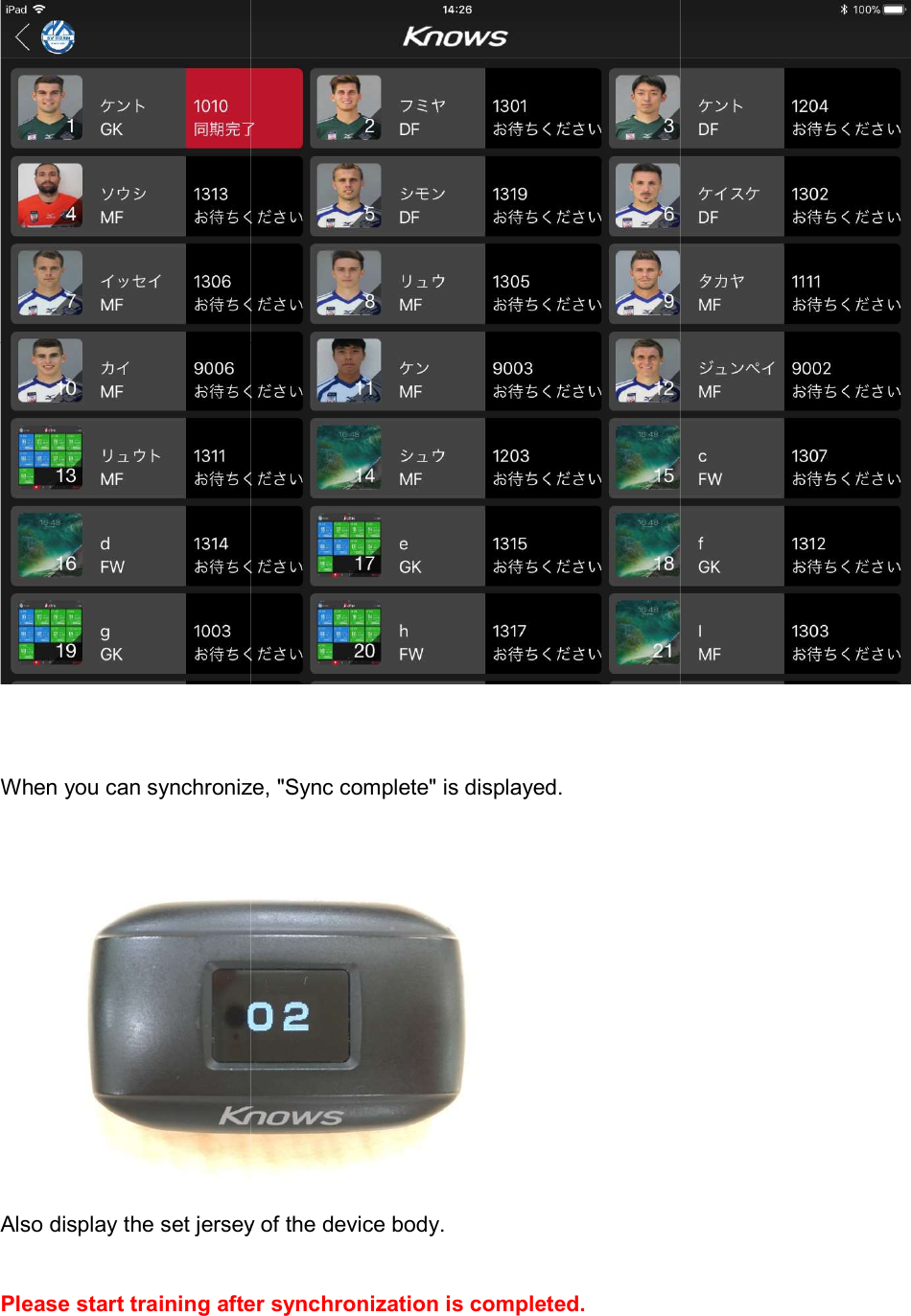
 When you can synchronize, "Sync complete" is displayed.Also display the set jersey of the device body. Please start training after synchronization is completed. synchronize, "Sync complete" is displayed.  Also display the set jersey of the device body. Please start training after synchronization is completed.
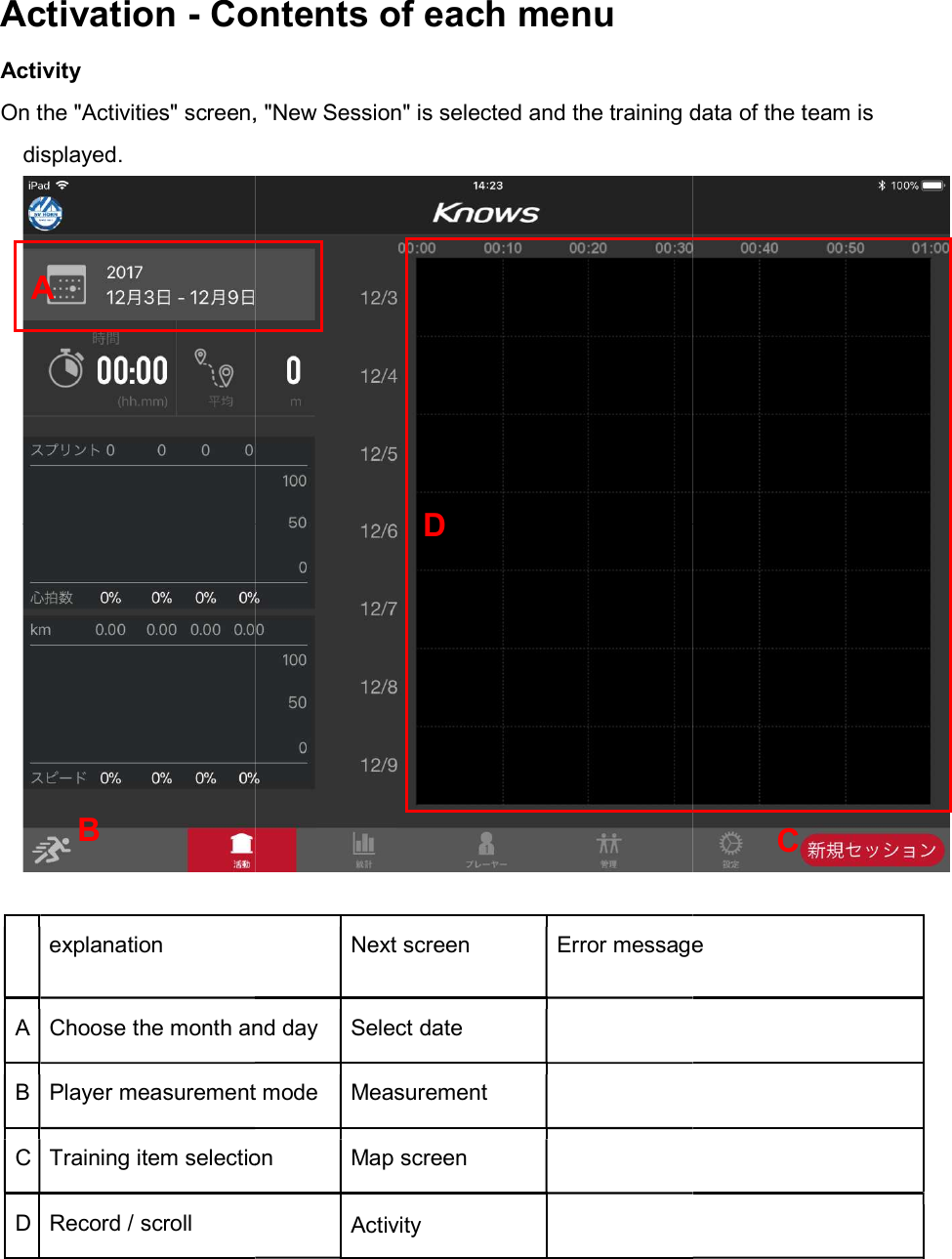
Activation - Contents of each menuActivity On the "Activities" screen, "New displayed.  explanation A Choose the month and dayB Player measurement modeC Training item selectionD Record / scroll    A B Contents of each menu On the "Activities" screen, "New Session" is selected and the training data of the team is  Next screen Error messageChoose the month and day  Select date   measurement mode Measurement   Training item selection  Map screen   Activity   D Session" is selected and the training data of the team is  Error message C
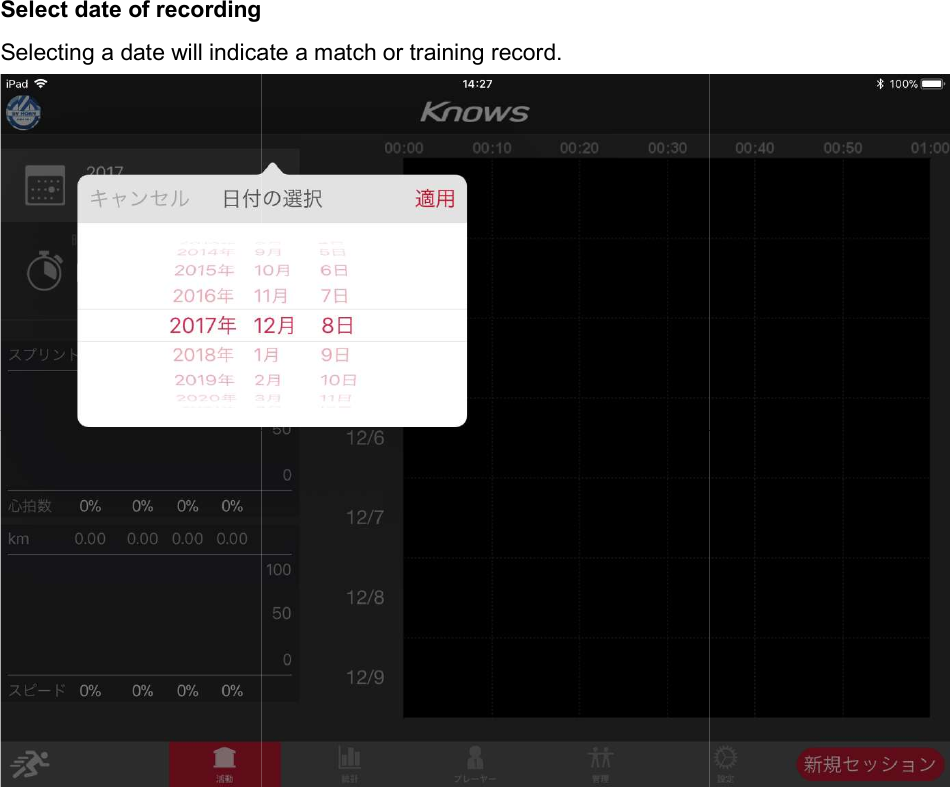
Select date of recordingSelecting a date will indicate a match or training record.  Select date of recording Selecting a date will indicate a match or training record.
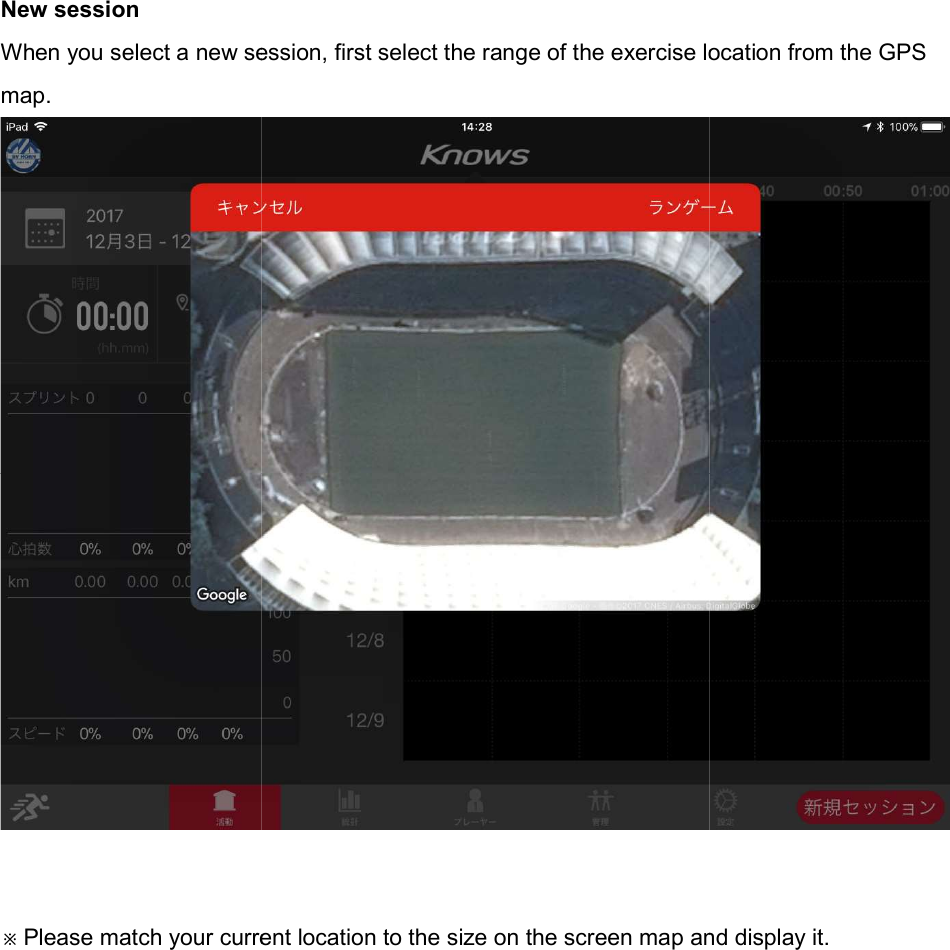
New session When you select a new session, first select the range of the exercise location from the GPS map.  ※Please match your current location to When you select a new session, first select the range of the exercise location from the GPS Please match your current location to the size on the screen map and display it.When you select a new session, first select the range of the exercise location from the GPS  the size on the screen map and display it.
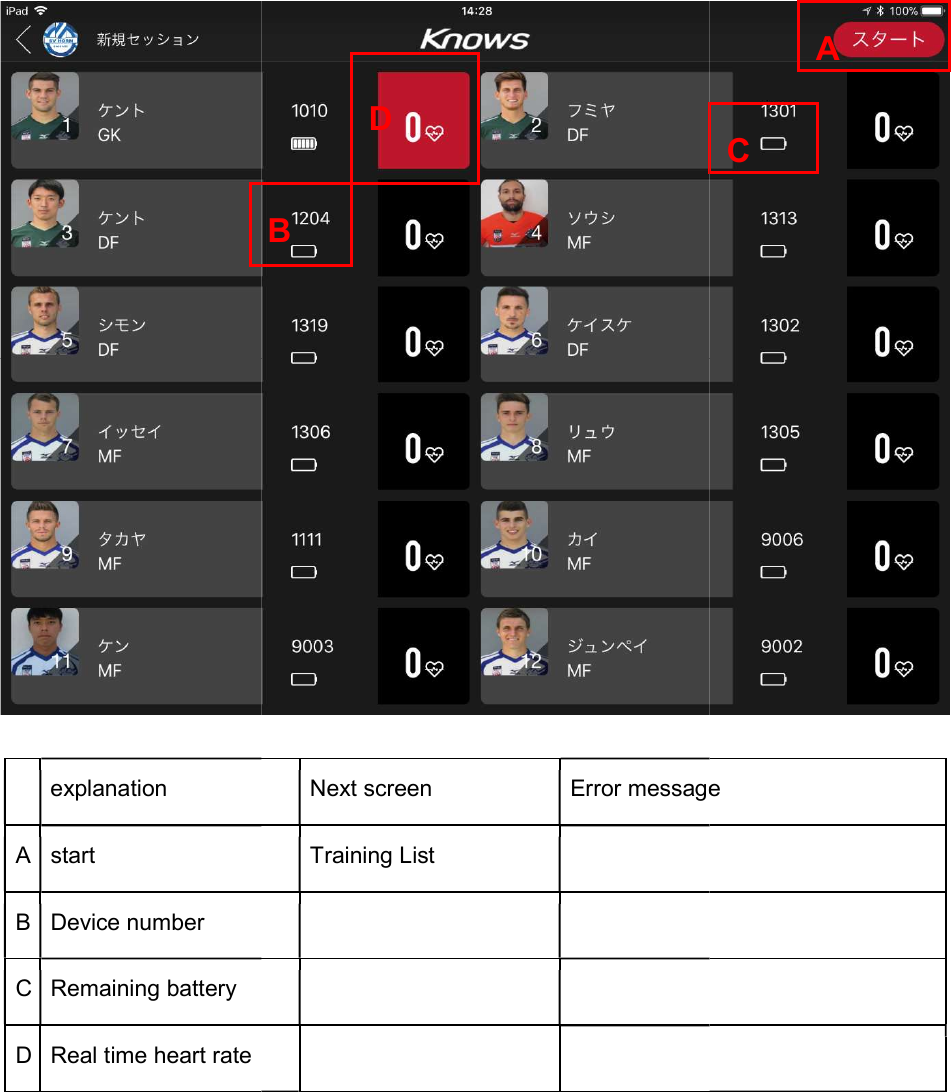
  explanation A start B Device number C Remaining battery D Real time heart rate    Next screen Error messageTraining List            BD  Error message C A
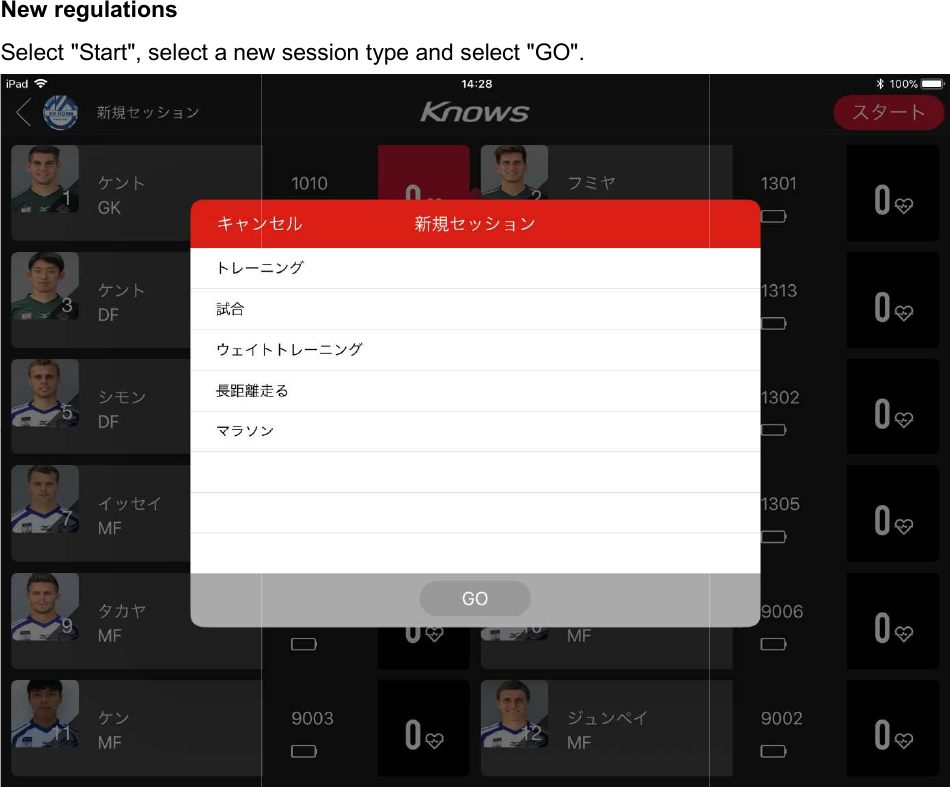
New regulations   Select "Start", select a new        Select "Start", select a new session type and select "GO".
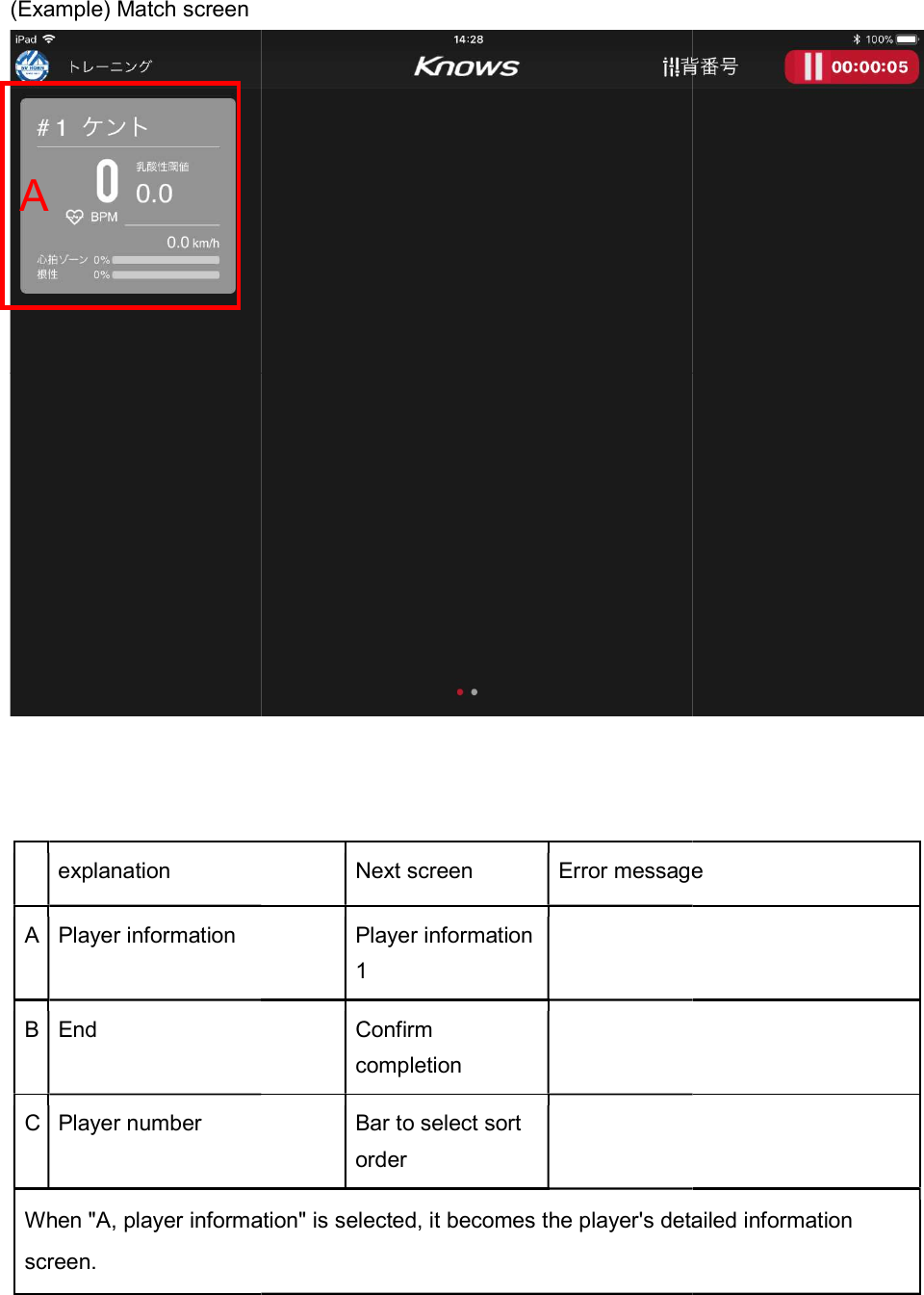
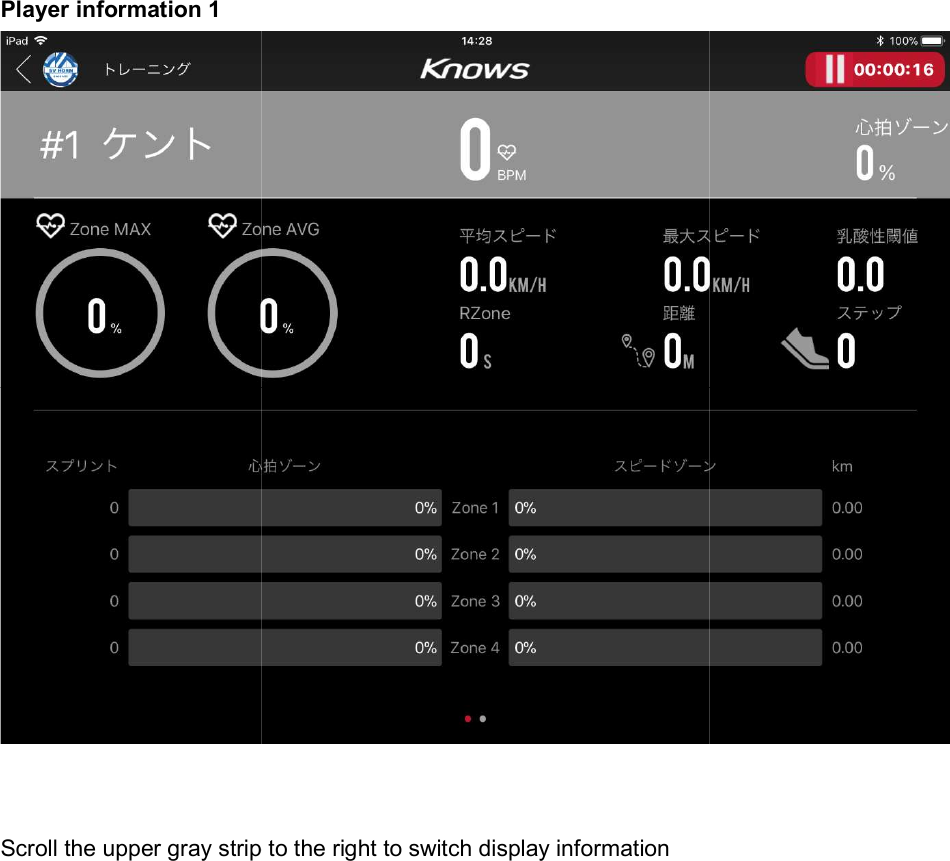
(Example) Match screen     explanation A Player information B End C Player number When "A, player information" is selected, it becomes the player's detailed information screen.   A   Next screen Error messagePlayer information 1  Confirm completion  Bar to select sort order  information" is selected, it becomes the player's detailed information    Error message information" is selected, it becomes the player's detailed information
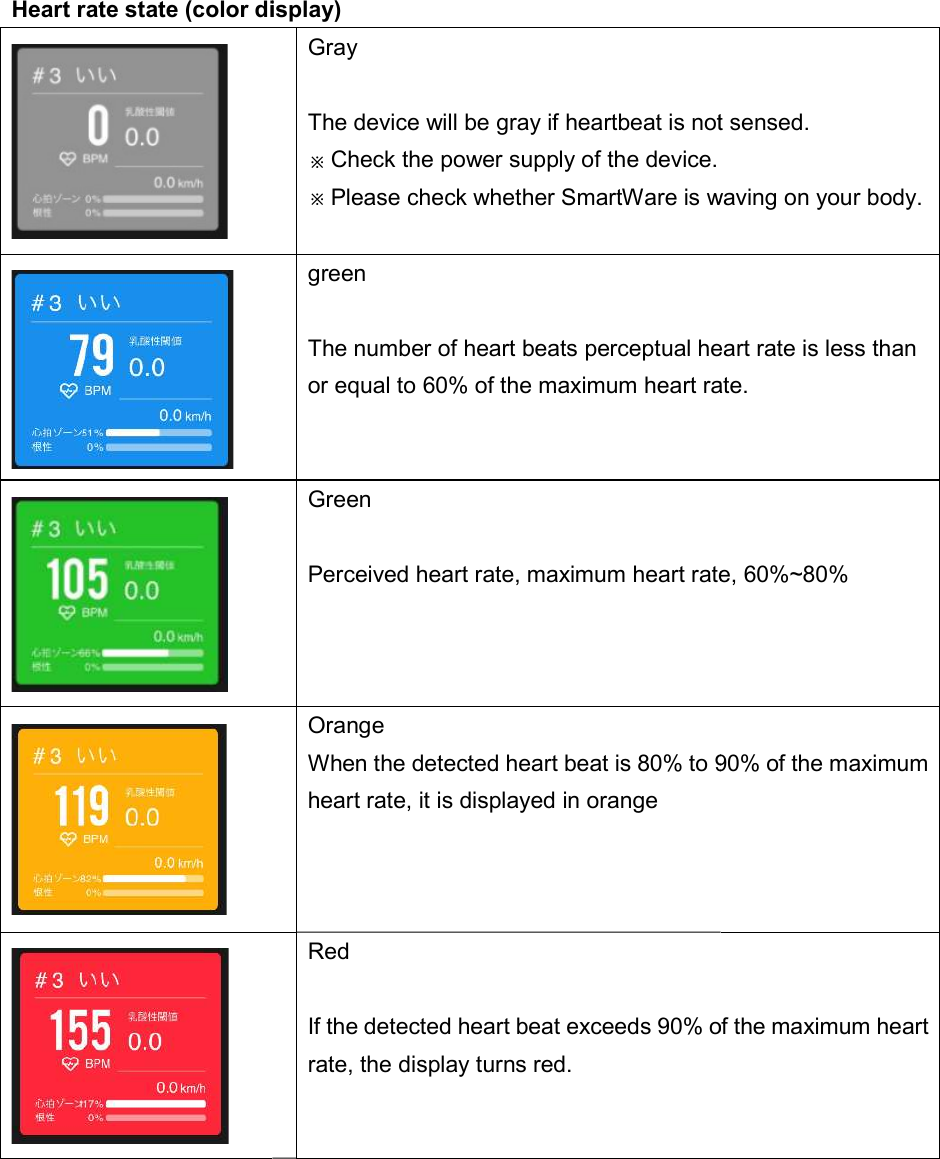
Heart rate state (color display)       Heart rate state (color display)  Gray  The device will be gray if heartbeat is not sensed.※Check the power supply of the device. ※Please check whether SmartWare is waving on your body.green  The number of heart beats perceptual heart rate is less than or equal to 60% of the maximum heart rate.Green  Perceived heart rate, maximum heart rate, 60%~80% Orange When the detected heart beat is 80% to 90% of the maximum heart rate, it is displayed in orange Red  If the detected heart beat exceeds 90% of the maximum heart rate, the display turns red. The device will be gray if heartbeat is not sensed.  waving on your body. The number of heart beats perceptual heart rate is less than or equal to 60% of the maximum heart rate. Perceived heart rate, maximum heart rate, 60%~80% When the detected heart beat is 80% to 90% of the maximum If the detected heart beat exceeds 90% of the maximum heart
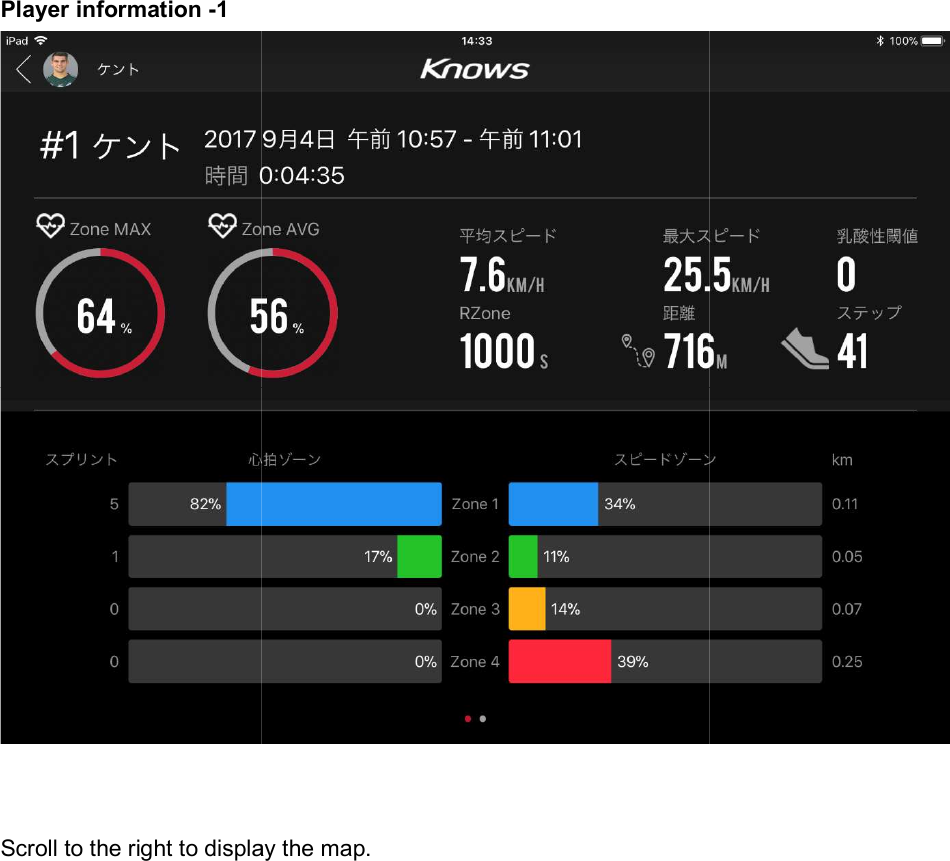
Player information 1 Scroll the upper gray strip to the  Scroll the upper gray strip to the right to switch display information
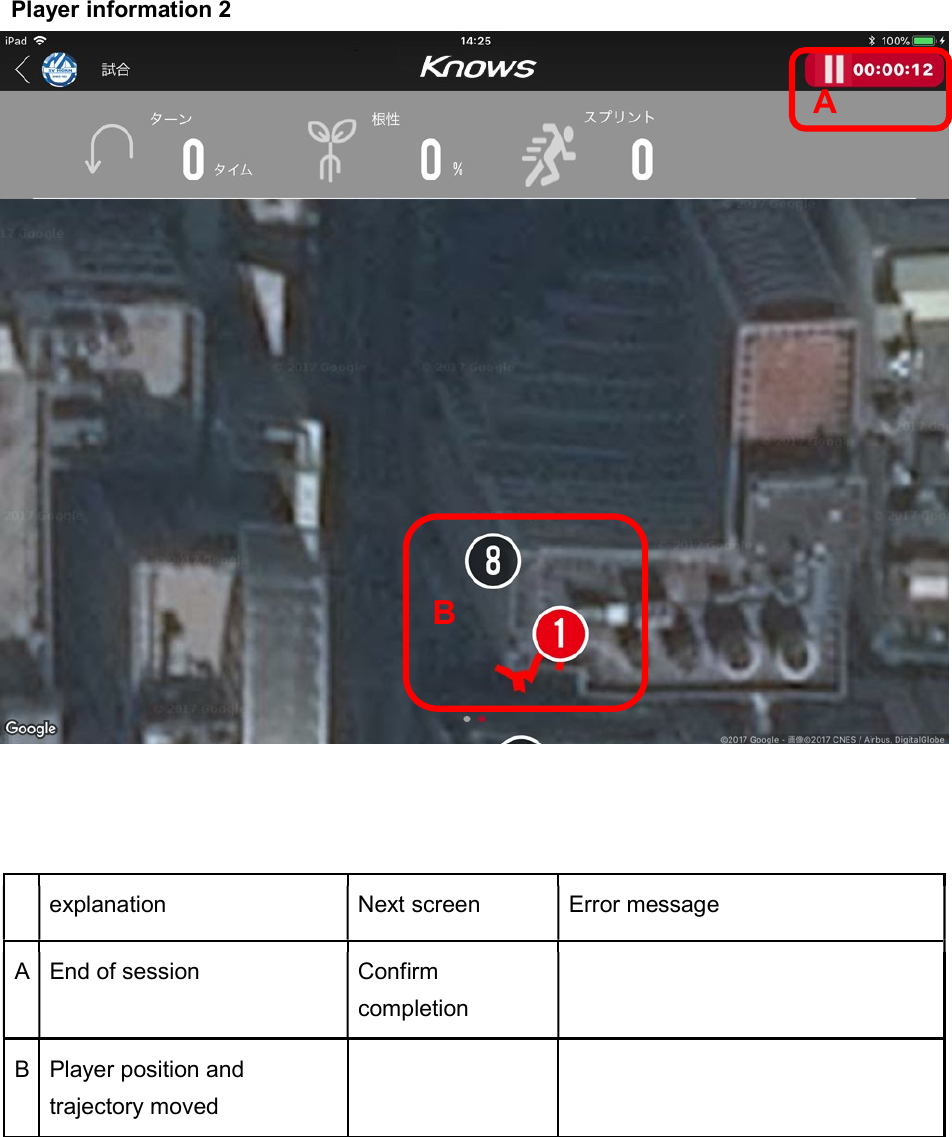
 Player information 2      explanation  Next screen  Error message A End of session  Confirm completion  B Player position and trajectory moved        A B
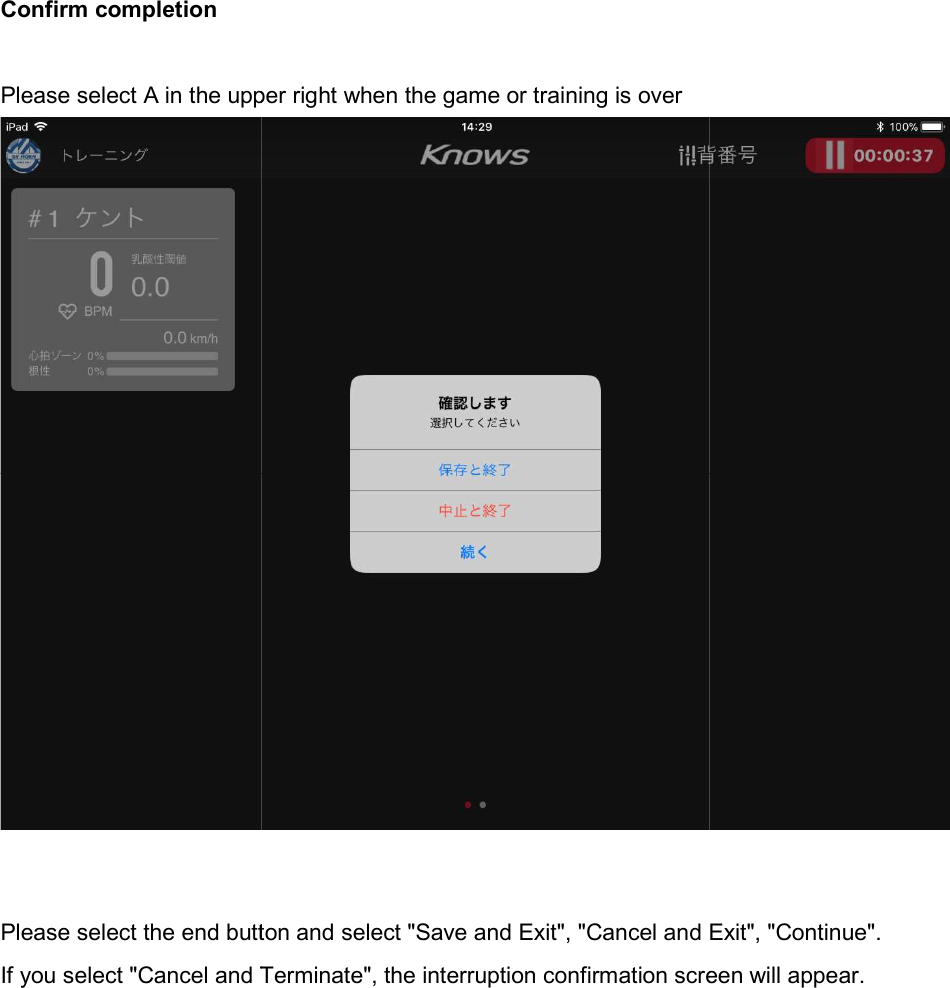
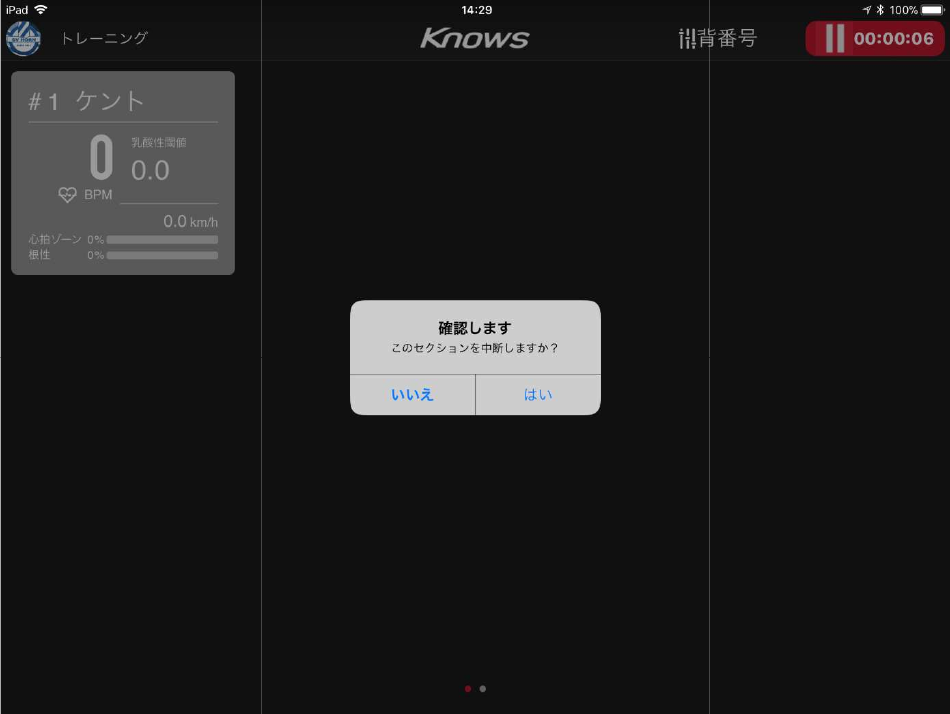
Confirm completion  Please select A in the upper right when   Please select the end button and select "Save and Exit", "Cancel and Exit", "Continue".If you select "Cancel and Terminate", the interruption confirmation screen will appear.Please select A in the upper right when the game or training is overPlease select the end button and select "Save and Exit", "Cancel and Exit", "Continue".If you select "Cancel and Terminate", the interruption confirmation screen will appear. Please select the end button and select "Save and Exit", "Cancel and Exit", "Continue". If you select "Cancel and Terminate", the interruption confirmation screen will appear.
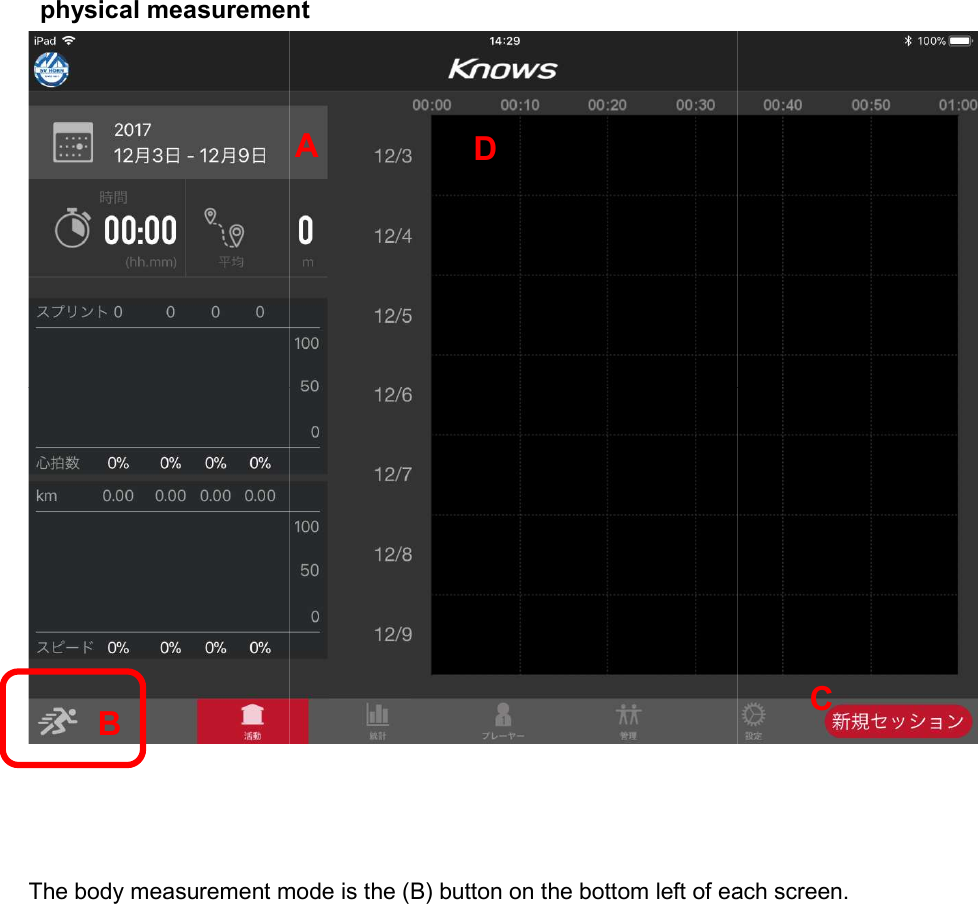
 physical measurement  The body measurement mode is the (B) button on the bottom left of each screen.B physical measurement    The body measurement mode is the (B) button on the bottom left of each screen.A D  The body measurement mode is the (B) button on the bottom left of each screen. C
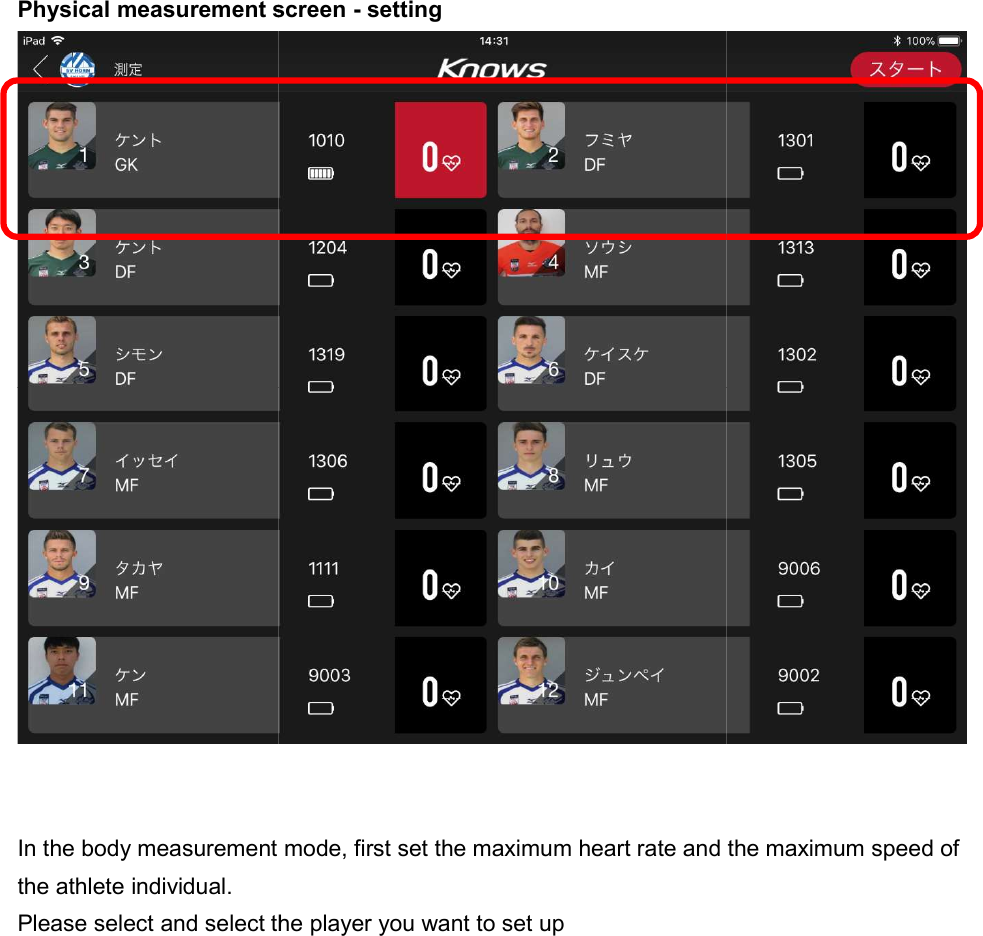
Physical measurement screen   In the body measurement mode, first set the maximum heart rate and the maximum speed of the athlete individual. Please select and select the player you want to set up Physical measurement screen - setting In the body measurement mode, first set the maximum heart rate and the maximum speed of and select the player you want to set up  In the body measurement mode, first set the maximum heart rate and the maximum speed of
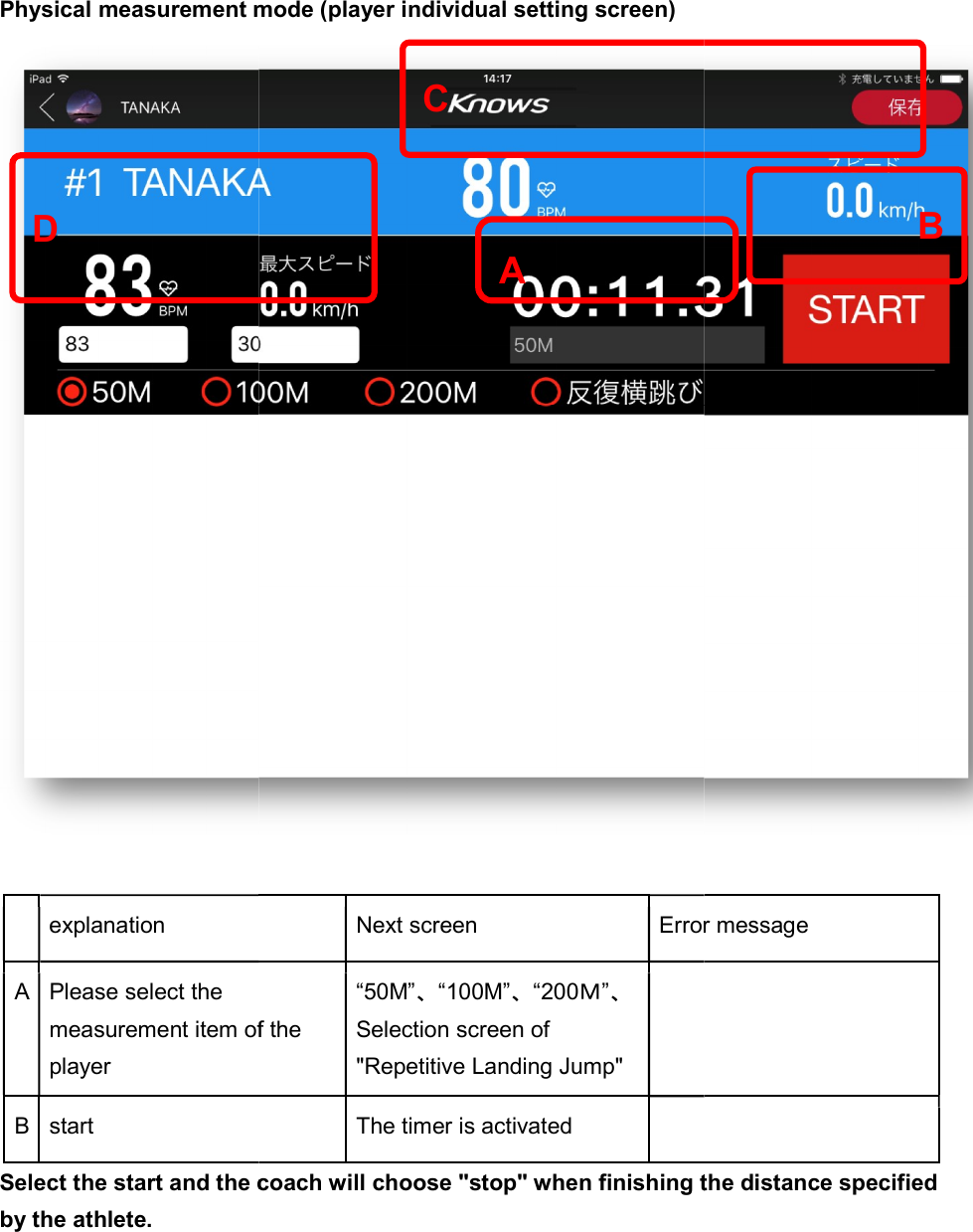
Physical measurement mode (player individual setting screen)   explanation A Please select the measurement item of the player B start Select the start and the coach will choose "stop" when finishing the distance specified by the athlete. D Physical measurement mode (player individual setting screen)Next screen Error messagemeasurement item of the “50M”、“100M”、“200M”、 Selection screen of "Repetitive Landing Jump"  The timer is activated   Select the start and the coach will choose "stop" when finishing the distance specified   A C  Error message Select the start and the coach will choose "stop" when finishing the distance specified B
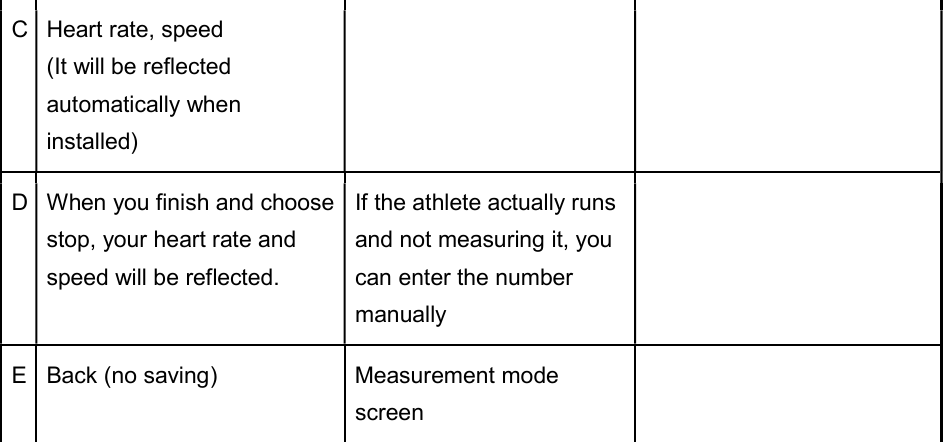
C Heart rate, speed (It will be reflected automatically when installed)    D When you finish and choose stop, your heart rate and speed will be reflected. If the athlete actually runs and not measuring it, you can enter the number manually  E Back (no saving)  Measurement mode screen
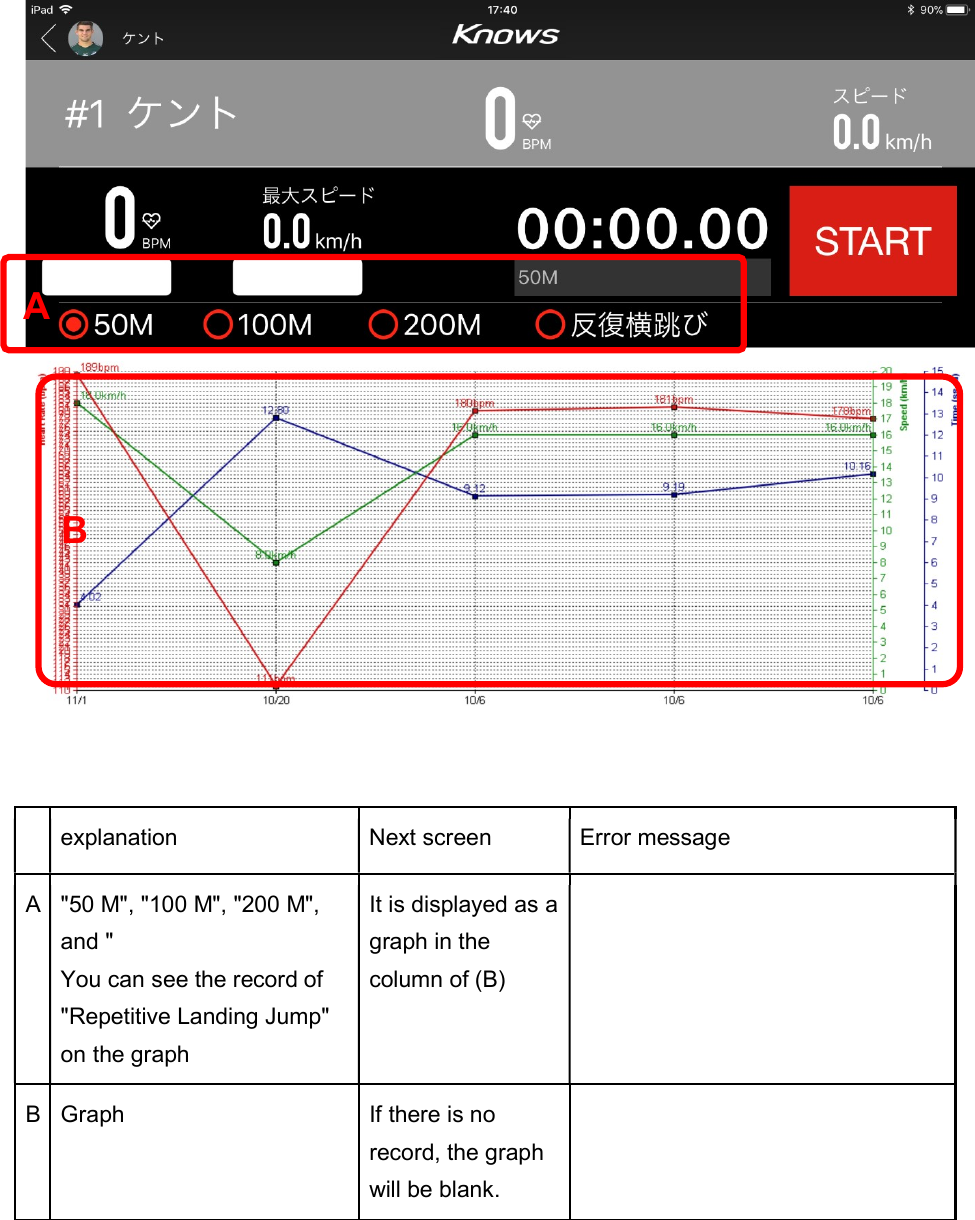
       explanation  Next screen  Error message A "50 M", "100 M", "200 M", and " You can see the record of "Repetitive Landing Jump" on the graph It is displayed as a graph in the column of (B)  B Graph  If there is no record, the graph will be blank.  A B
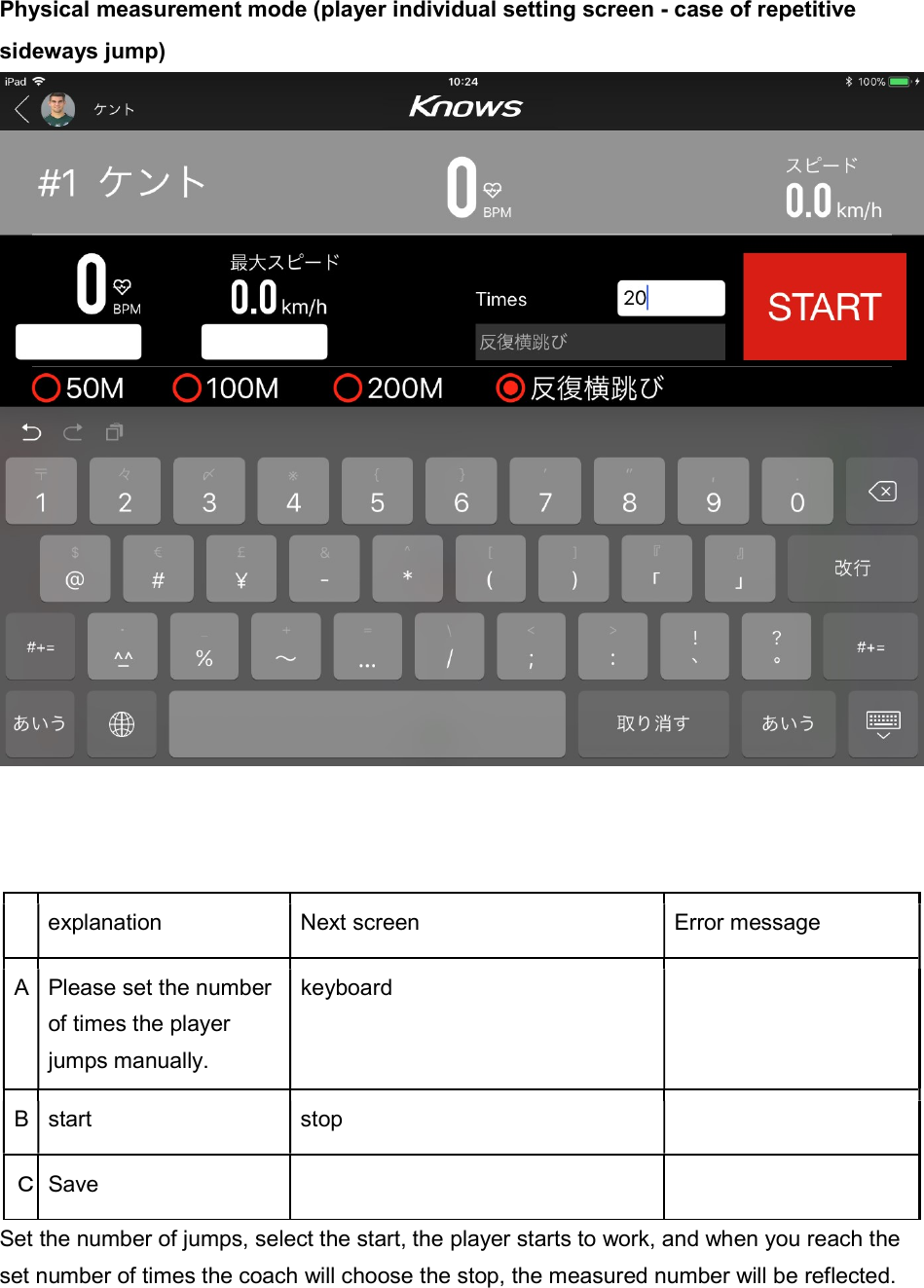
Physical measurement mode (player individual setting screen - case of repetitive sideways jump)      explanation  Next screen  Error message A Please set the number of times the player jumps manually. keyboard   B start  stop   C Save     Set the number of jumps, select the start, the player starts to work, and when you reach the set number of times the coach will choose the stop, the measured number will be reflected.
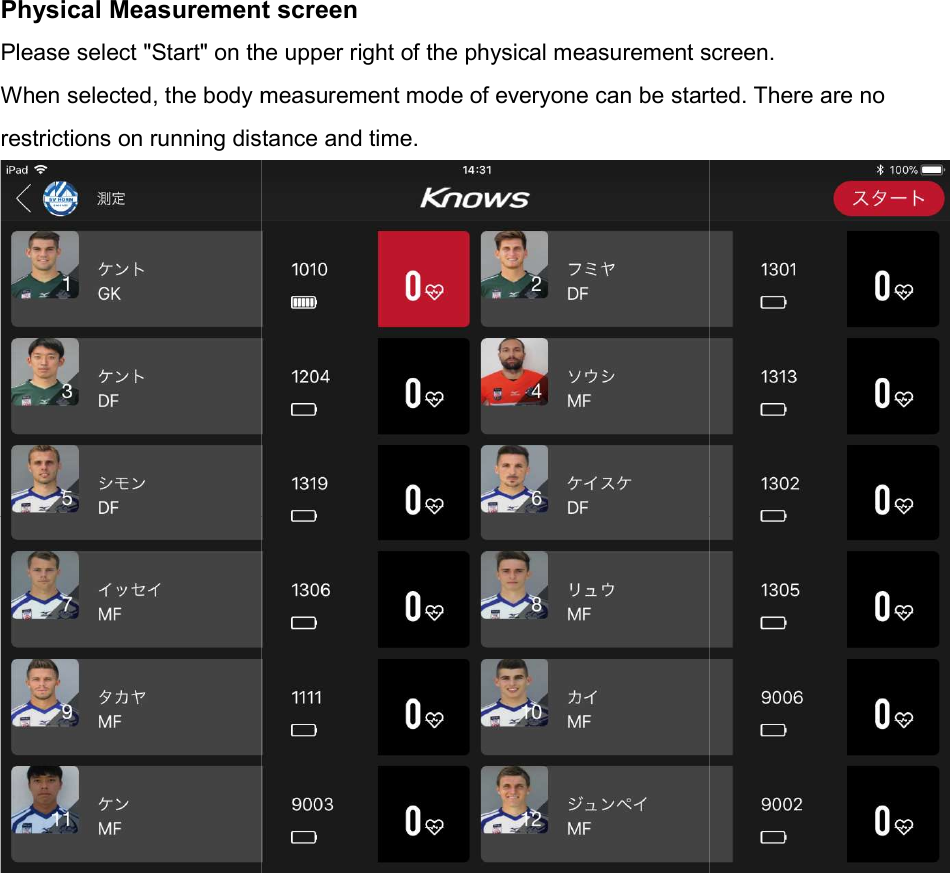
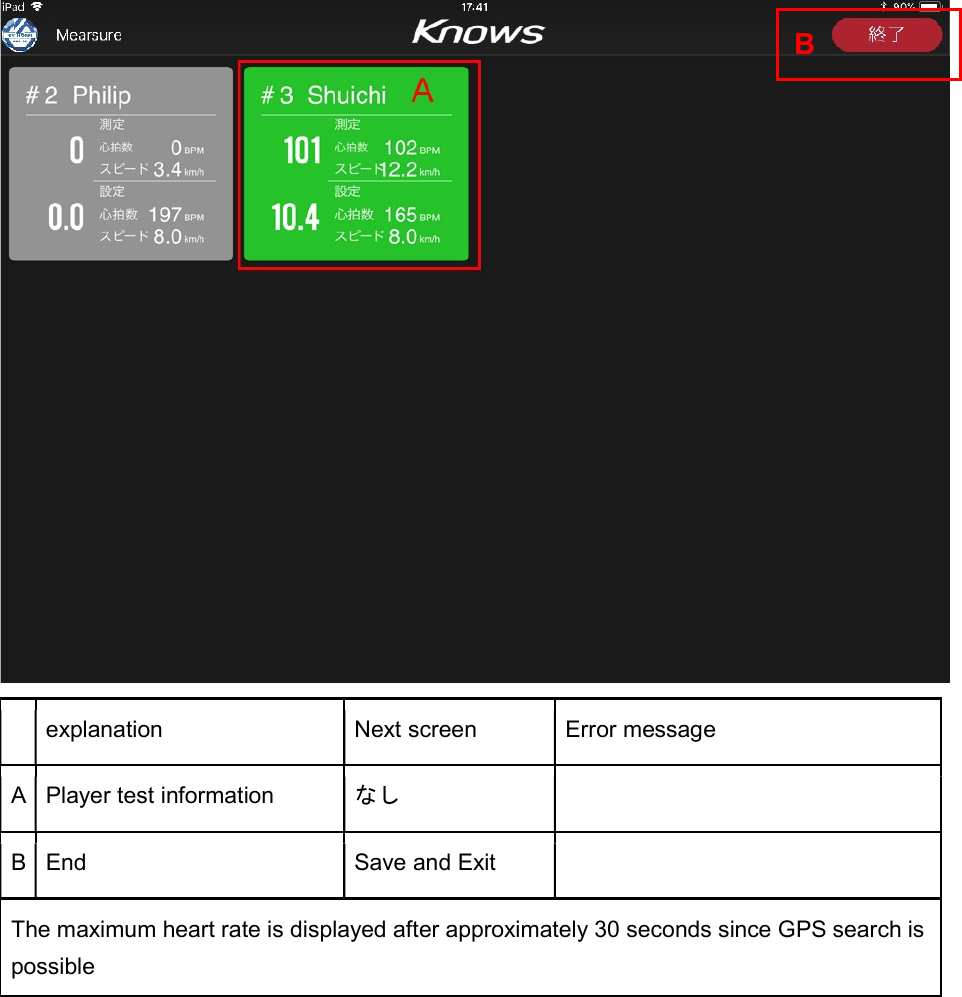
Physical Measurement screenPlease select "Start" on the upper right of the physical measurement screen.When selected, the body measurement mode of everyone can be started. There are no restrictions on running distance and time.  easurement screen Please select "Start" on the upper right of the physical measurement screen.measurement mode of everyone can be started. There are no restrictions on running distance and time. Please select "Start" on the upper right of the physical measurement screen. measurement mode of everyone can be started. There are no
   explanation  Next screen  Error message A Player test information  なし   B End  Save and Exit   The maximum heart rate is displayed after approximately 30 seconds since GPS search is possible     B
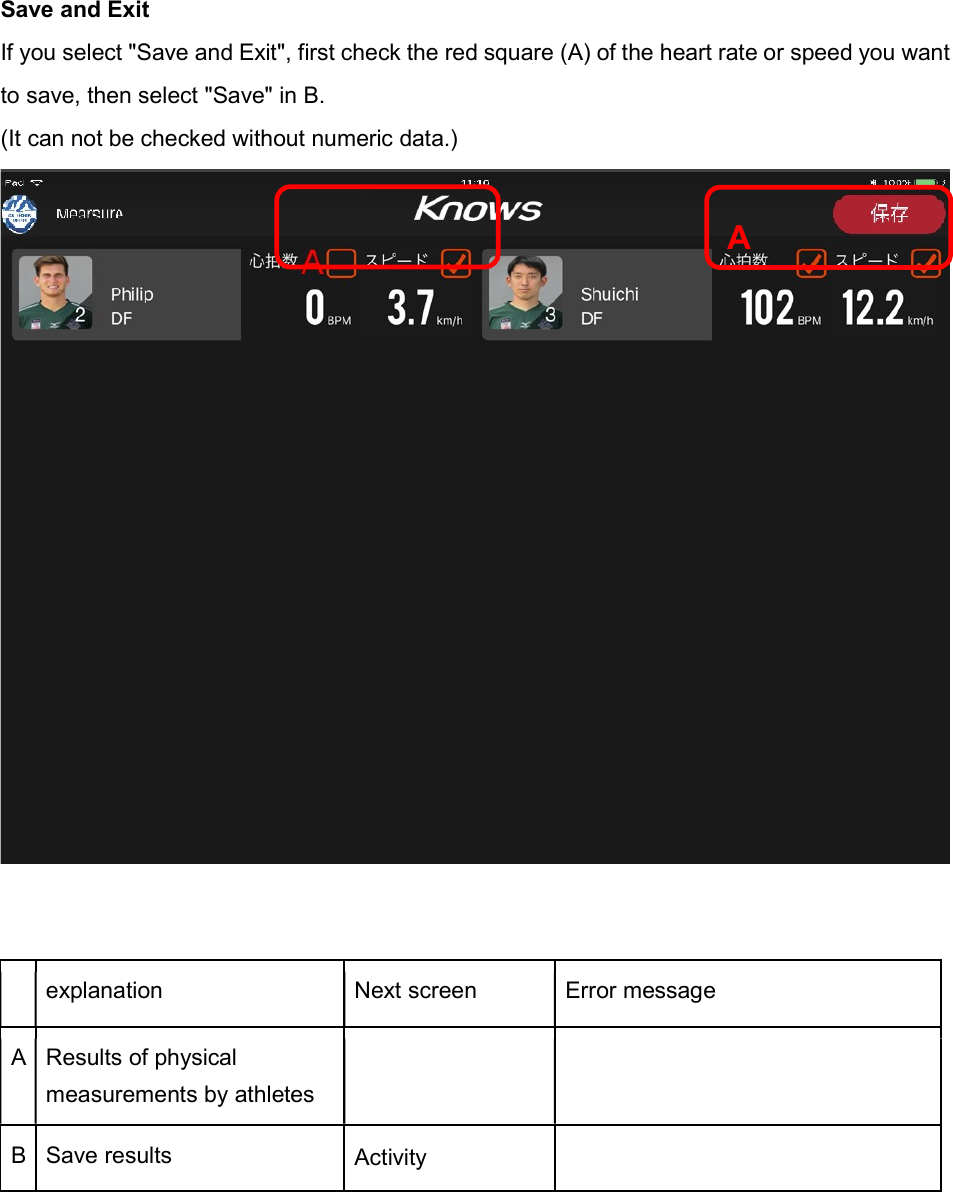
Save and Exit If you select "Save and Exit", first check the red square (A) of the heart rate or speed you want to save, then select "Save" in B. (It can not be checked without numeric data.)     explanation  Next screen  Error message A Results of physical measurements by athletes   B Save results  Activity       A
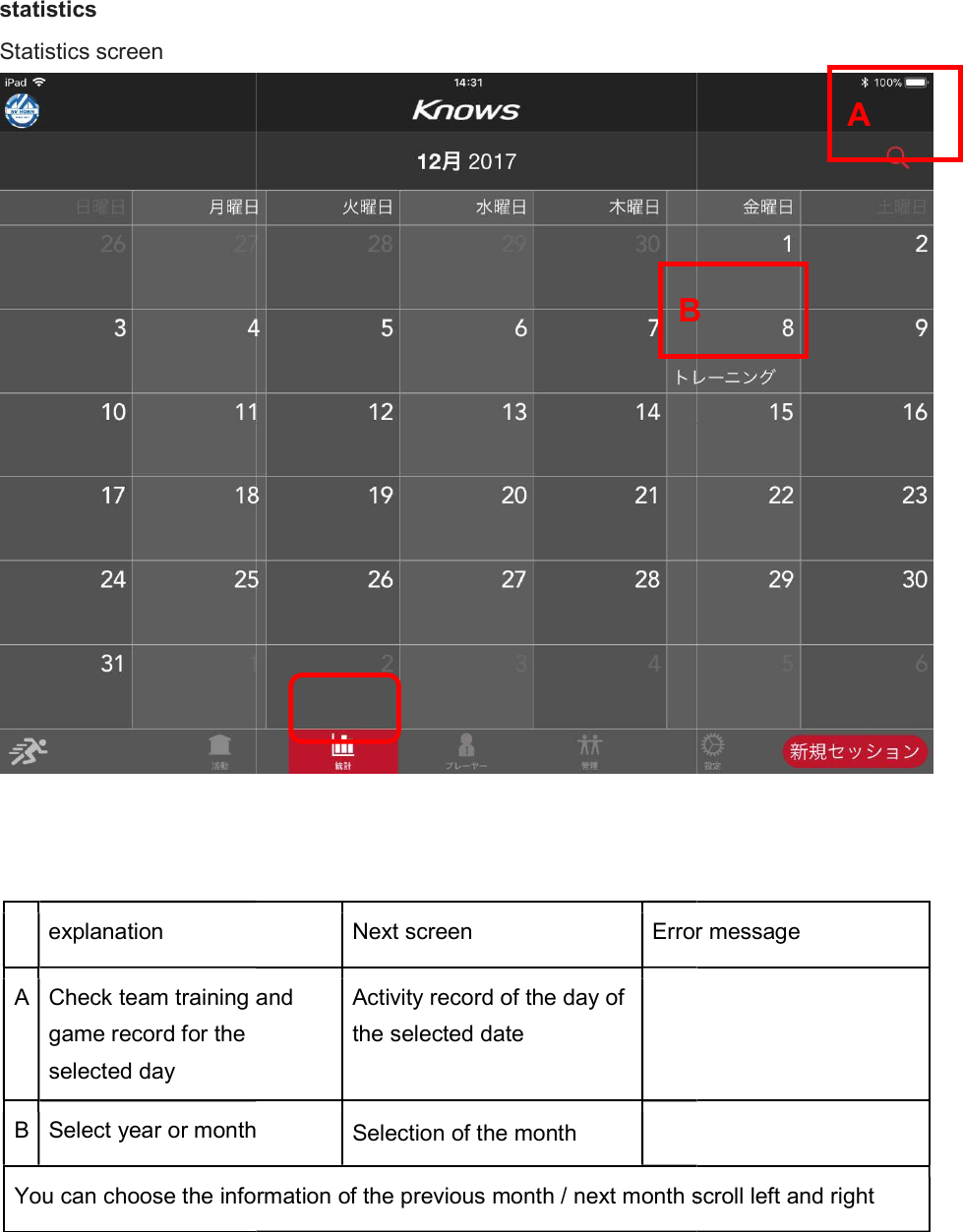
statistics Statistics screen   explanation A Check team training and game record for the selected day B Select year or monthYou can choose the information of the previous month / next month scroll left and right    Next screen Error messageCheck team training and Activity record of the day of the selected date  month Selection of the month   You can choose the information of the previous month / next month scroll left and right  B Error message You can choose the information of the previous month / next month scroll left and right A B
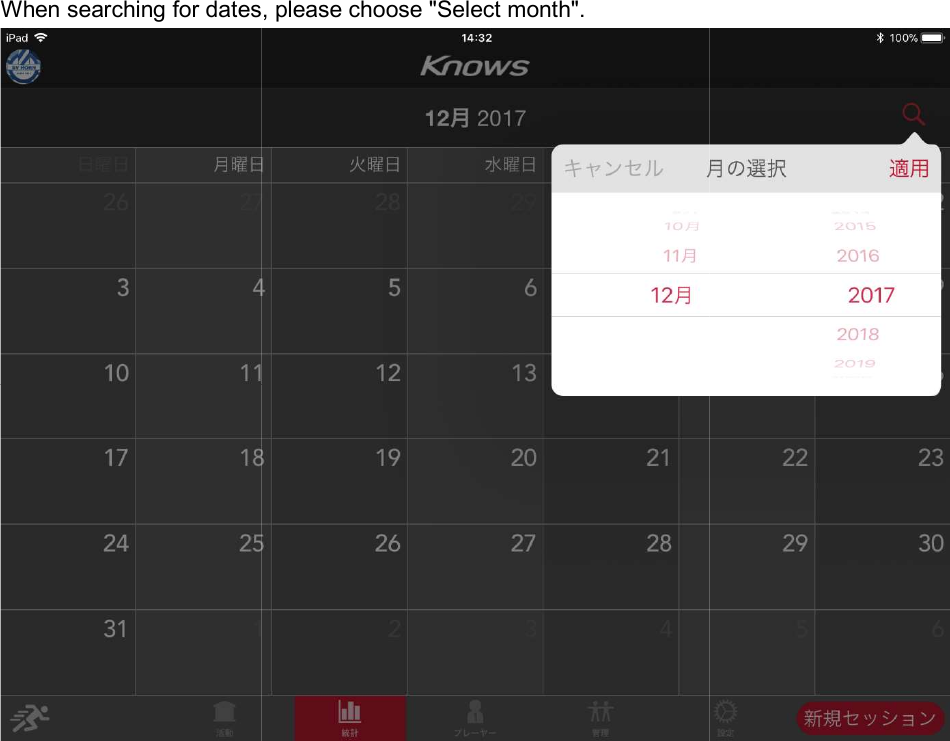
When searching for dates, please choose "Select   When searching for dates, please choose "Select month".
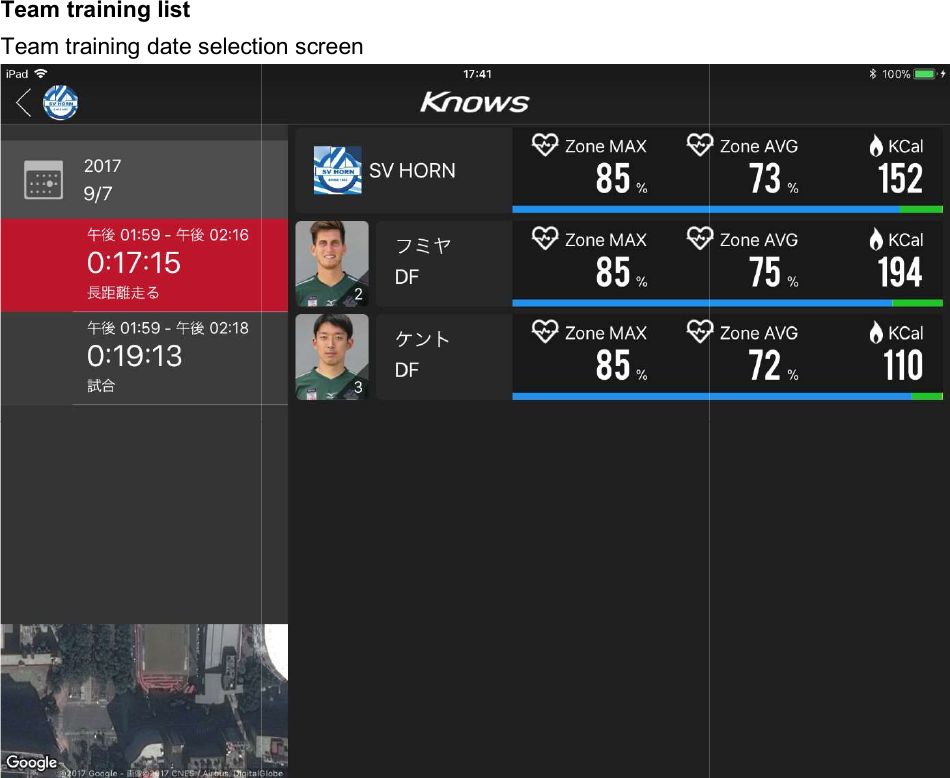
Team training list Team training date selection screen   Team training date selection screen
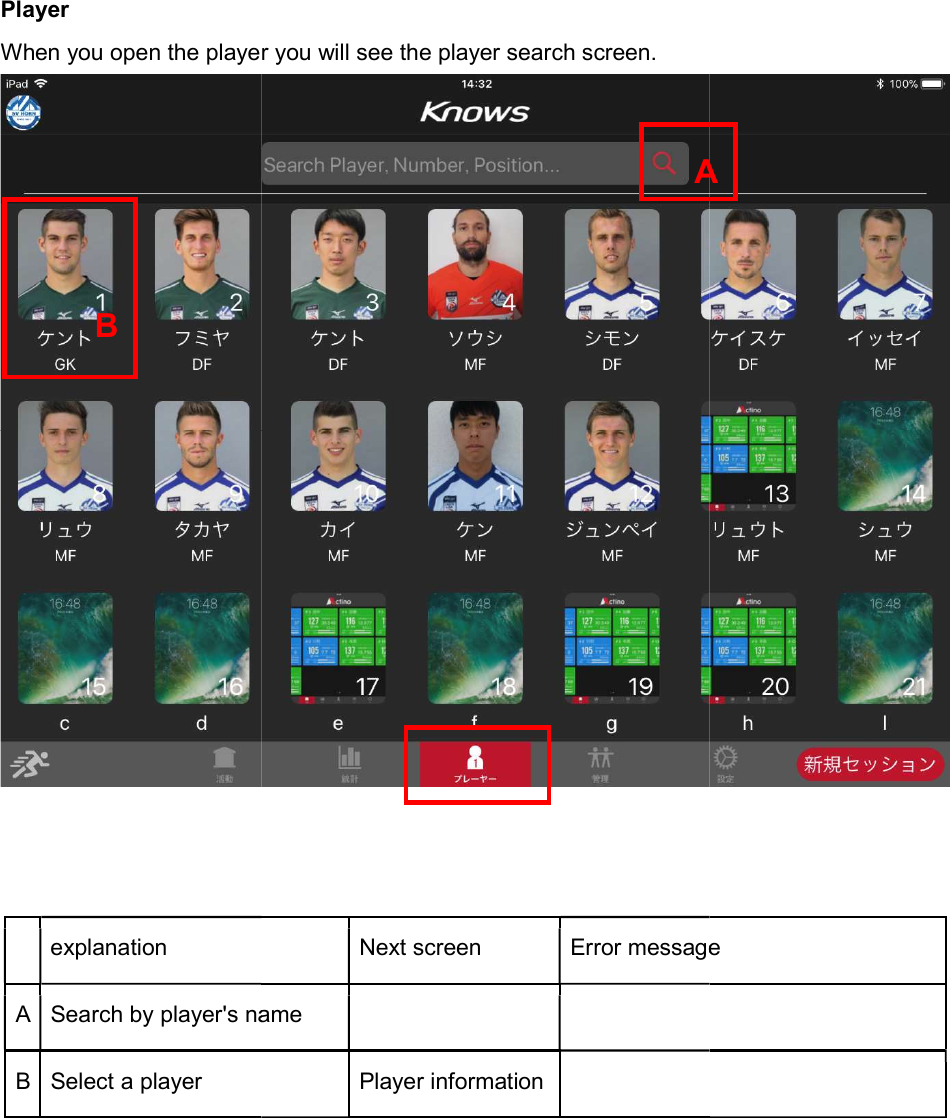
Player When you open the player you will see the player search screen   explanation A Search by player's nameB Select a player    B When you open the player you will see the player search screen.   Next screen Error messageSearch by player's name   Player information    A  Error message A
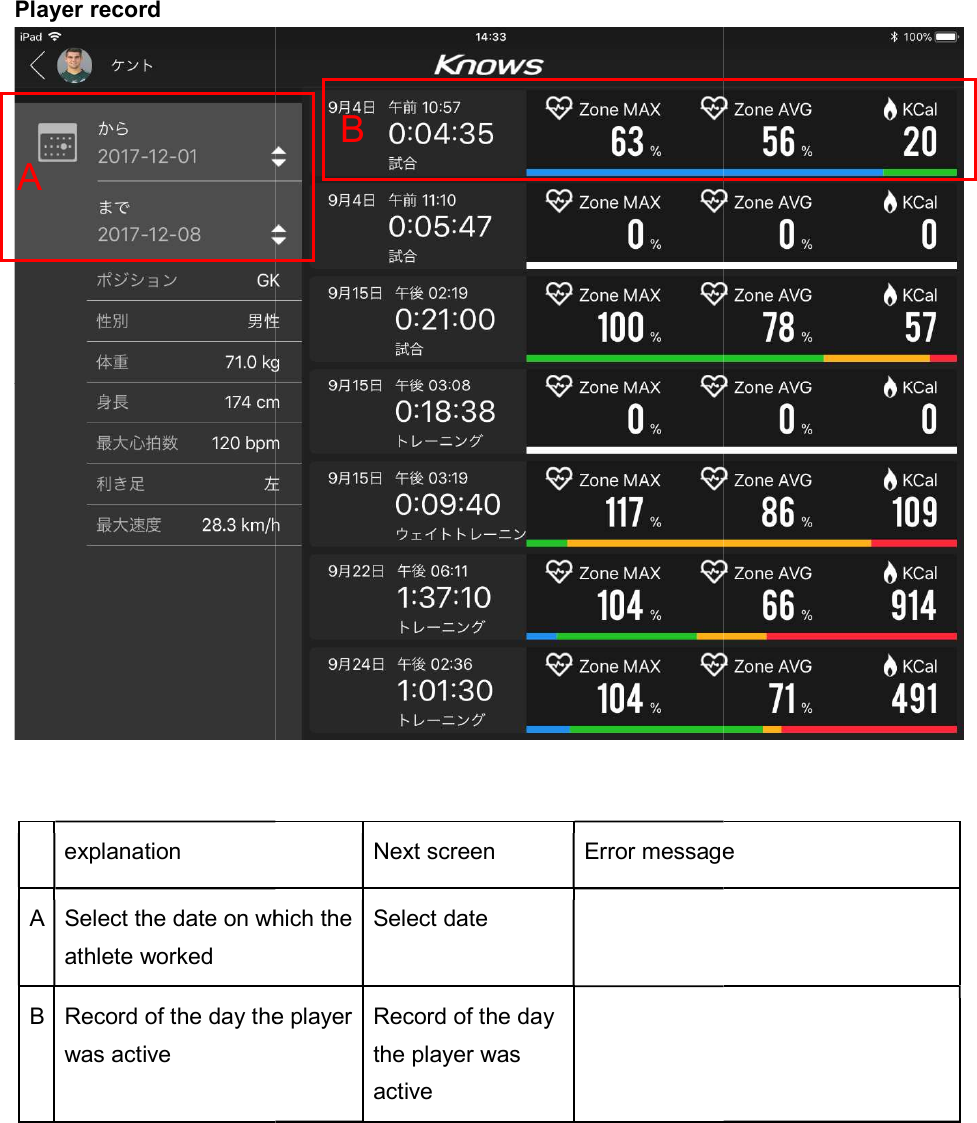
Player record    explanation A Select the date on which the athlete worked B Record of the day the player was active   A  Next screen Error messageSelect the date on which the Select date   Record of the day the player Record of the day the player was active    B  Error message
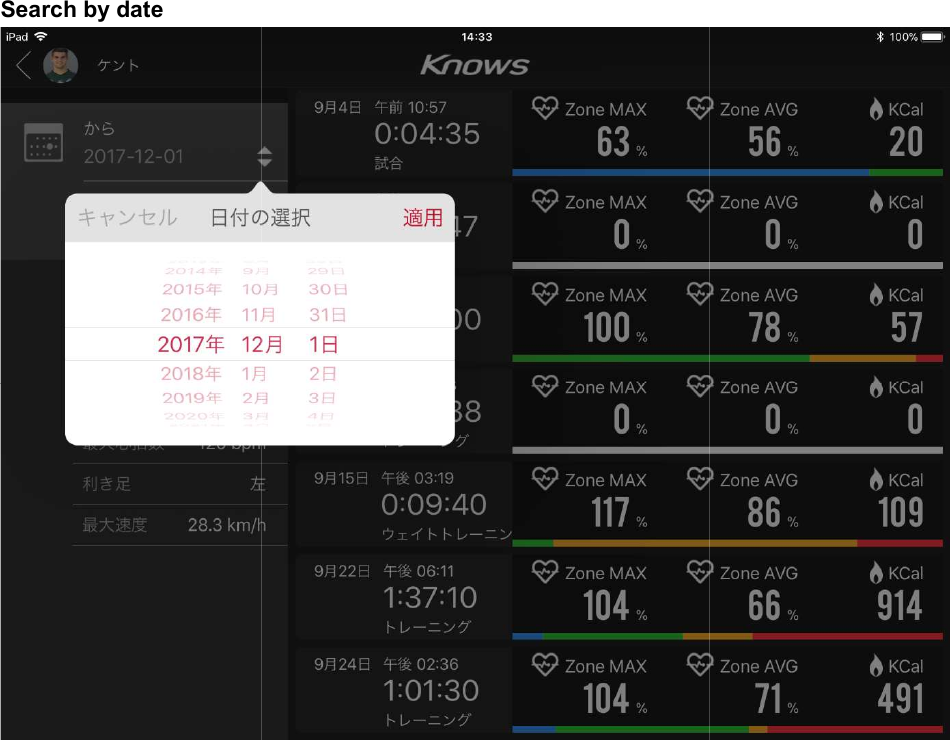
Search by date
Player information -1  Scroll to the right to display the map.  Scroll to the right to display the map.
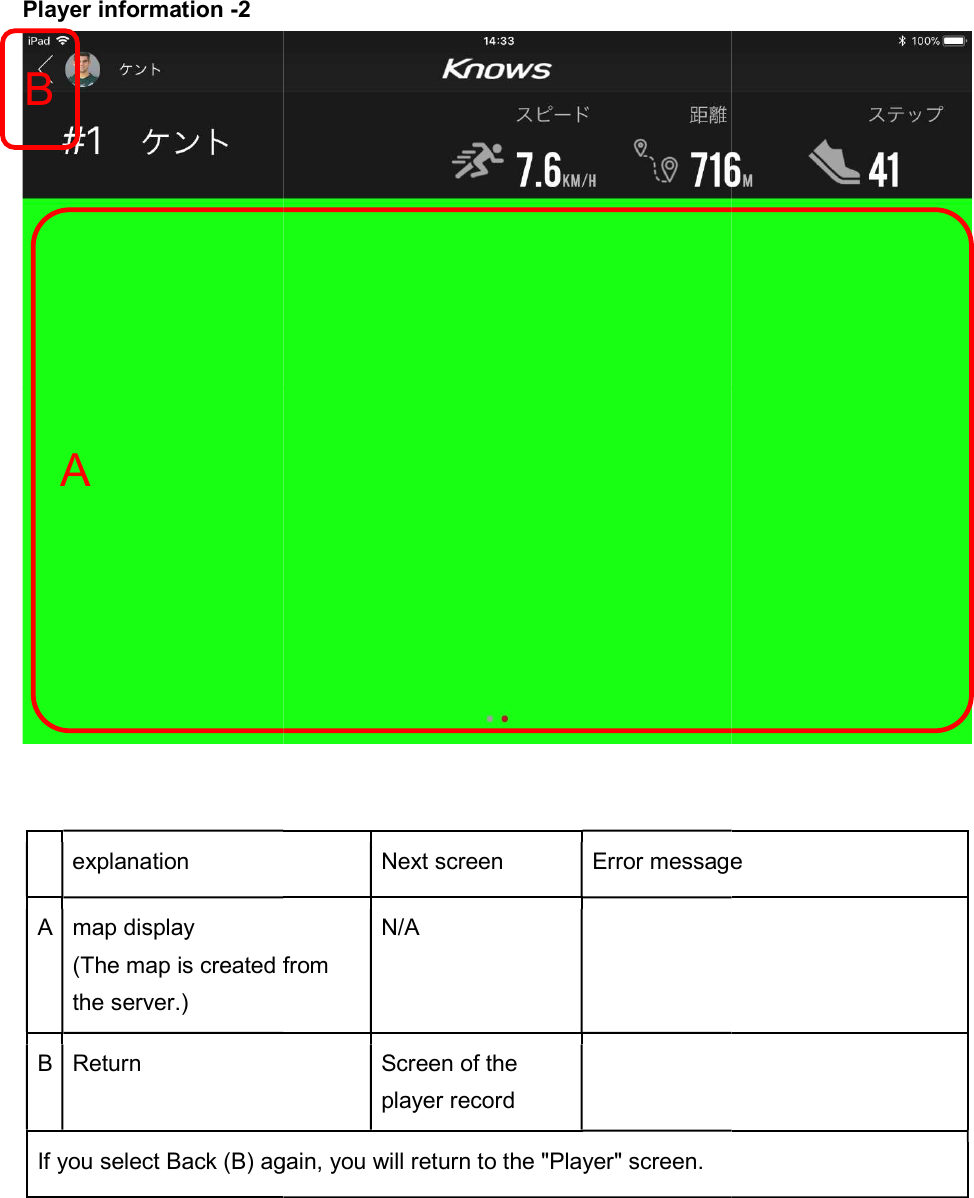
Player information -2    explanation A map display (The map is created from the server.) B Return If you select Back (B) again, you will return to the "Player" screen.  B A  Next screen Error message(The map is created from N/A   Screen of the player record  select Back (B) again, you will return to the "Player" screen.    Error message
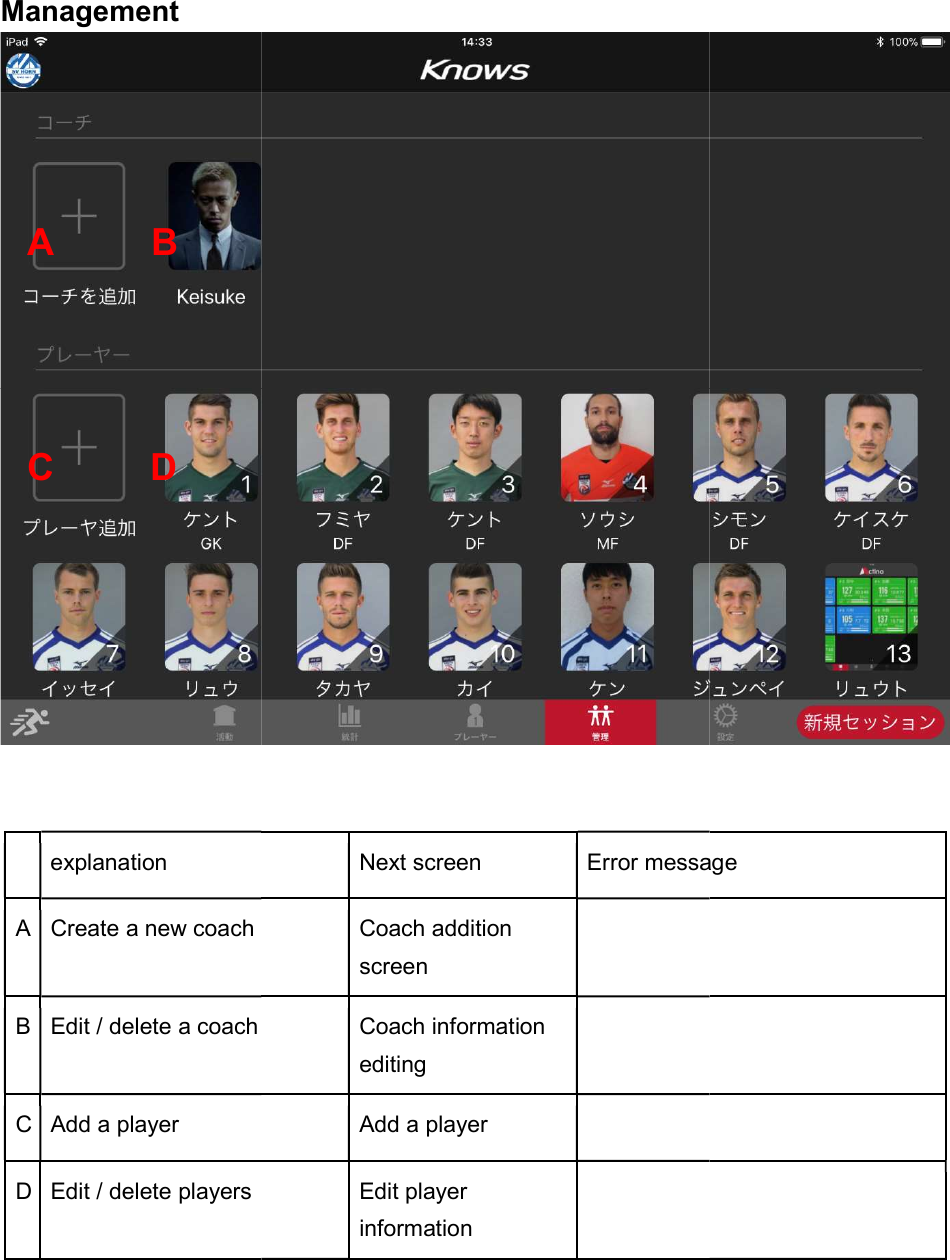
Management    explanation A Create a new coach B Edit / delete a coach C Add a player D Edit / delete players   A B C D  Next screen Error message Coach addition screen   Coach information editing  Add a player      Edit player information     Error message
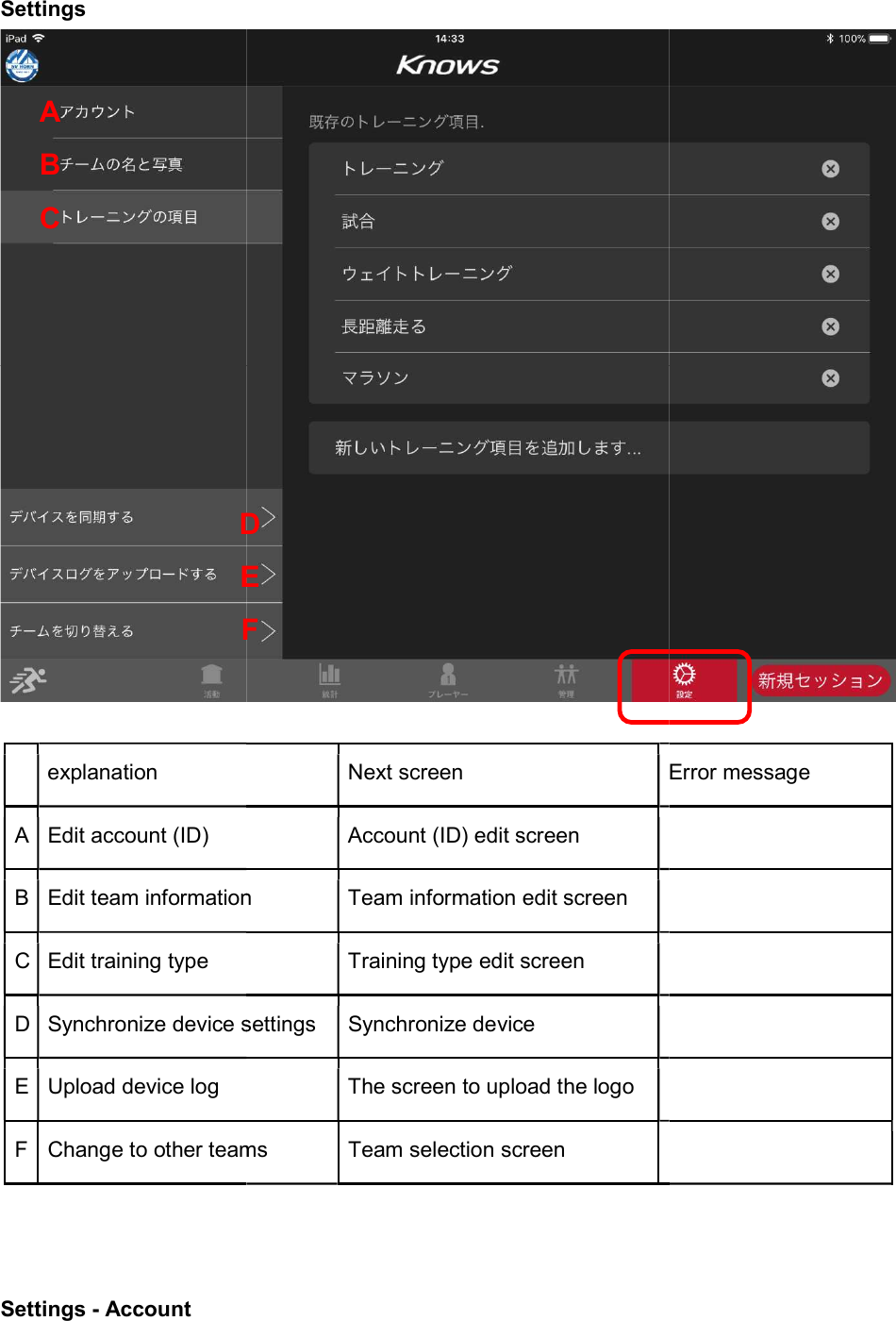
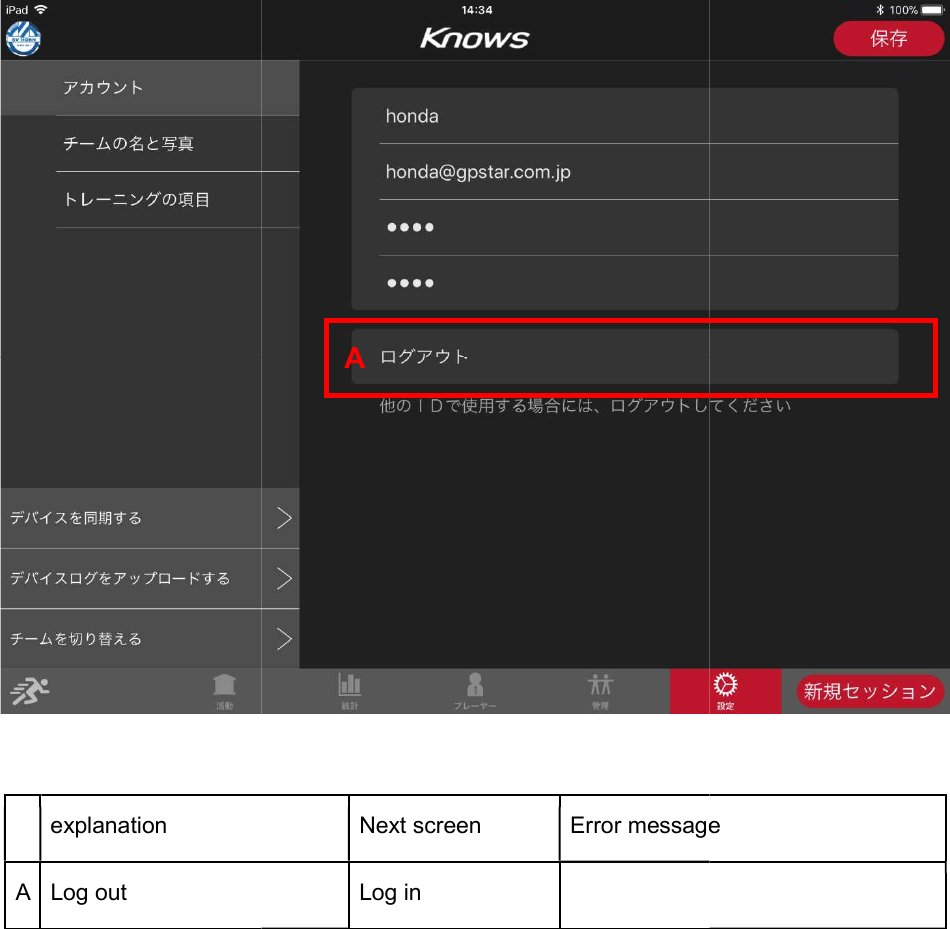
Settings      explanation A Edit account (ID) B Edit team informationC Edit training type D Synchronize device settingsE Upload device log F Change to other teams   Settings - Account A B C DEFNext screen Error messageAccount (ID) edit screen  Edit team information  Team information edit screen  Training type edit screen  Synchronize device settings  Synchronize device  The screen to upload the logo  other teams  Team selection screen  D E F  Error message
   explanation A Log out    Next screen  Error messageLog in     A  message
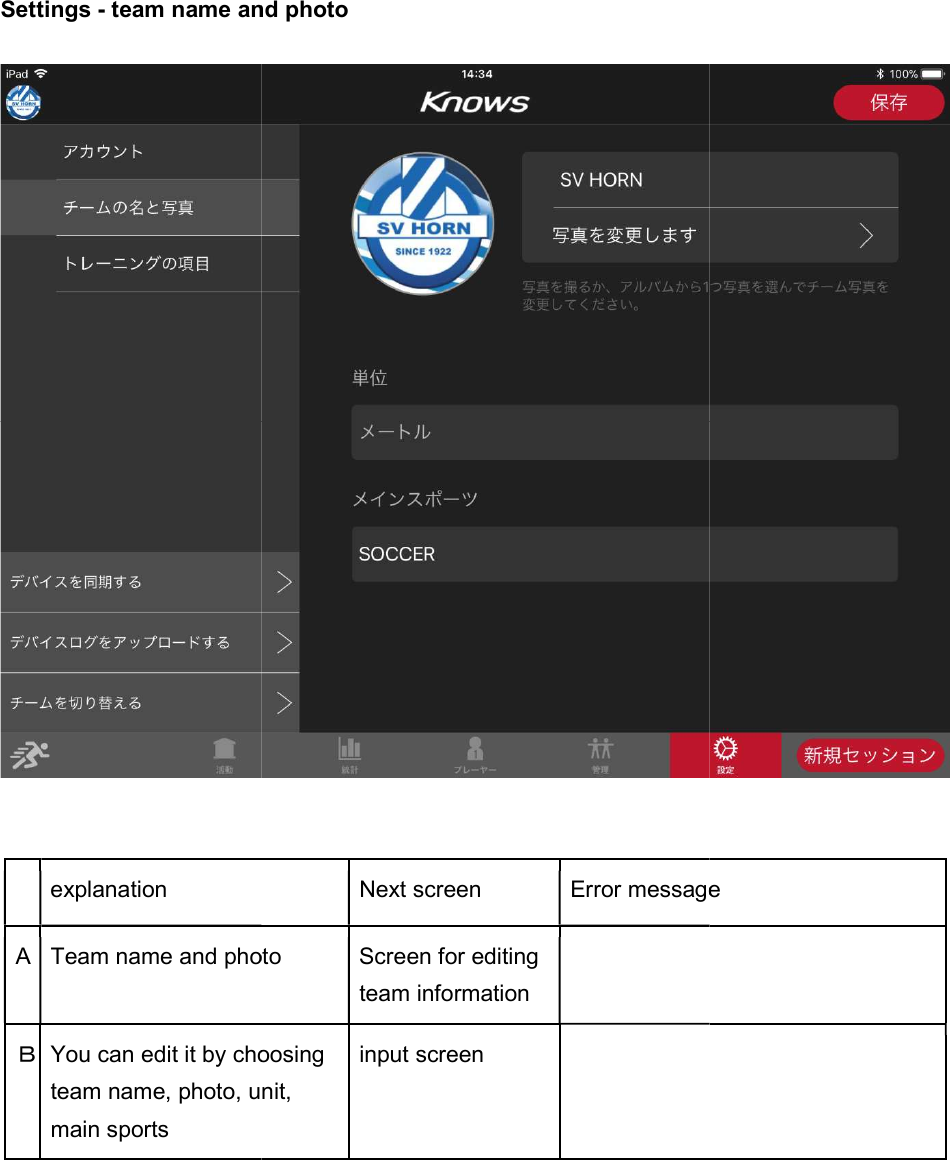
Settings - team name and photo    explanation A Team name and photoB You can edit it by choosing team name, photo, unit, main sports  team name and photo  Next screen Error messageTeam name and photo  Screen for editing team information  You can edit it by choosing team name, photo, unit, input screen       Error message
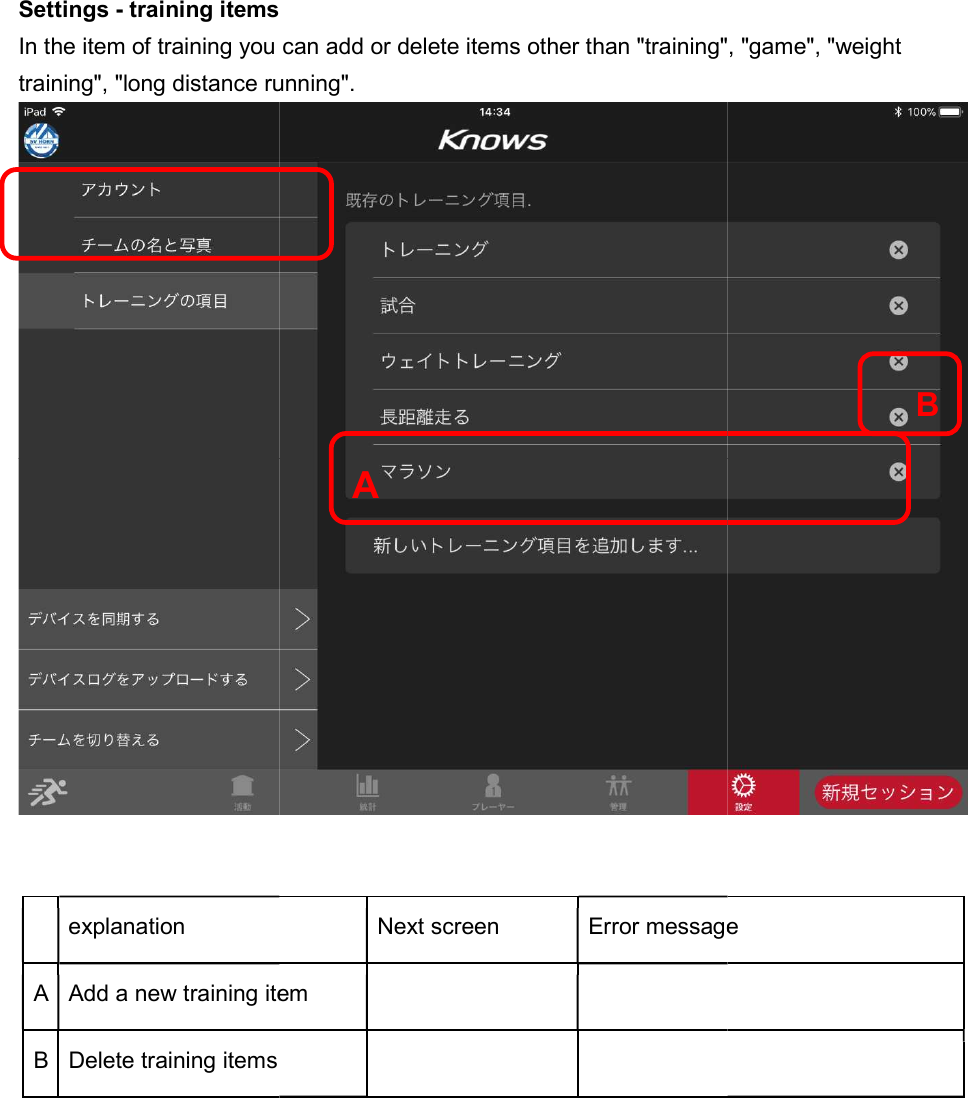
Settings - training itemsIn the item of training you can add or delete items other than "training", "game", "weight training", "long distance running".   explanation A Add a new training itemB Delete training items   training items In the item of training you can add or delete items other than "training", "game", "weight training", "long distance running". Next screen Error messageAdd a new training item        A In the item of training you can add or delete items other than "training", "game", "weight  Error message B
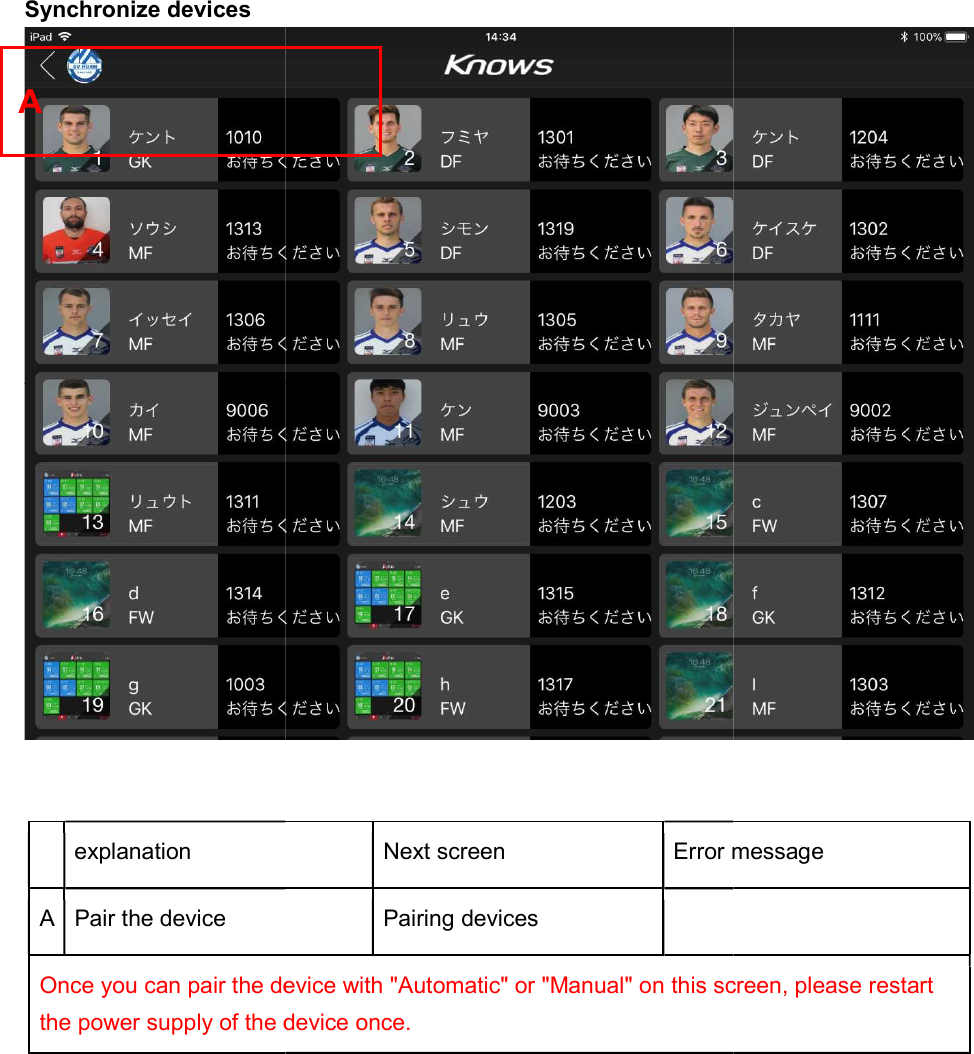
Synchronize devices   explanation A Pair the device Once you can pair the device with "Automatic" or "Manual" on this screen, please restart the power supply of the device once. A  Next screen Error messagePairing devices   Once you can pair the device with "Automatic" or "Manual" on this screen, please restart the power supply of the device once.       Error message Once you can pair the device with "Automatic" or "Manual" on this screen, please restart
Synchronize devices (manual) When you turn on the power, select the first 4 digit number of the screen that you pressed twice. Synchronize devices (manual)When you turn on the power, select the first 4 digit number of the screen that you pressed  When you turn on the power, select the first 4 digit number of the screen that you pressed
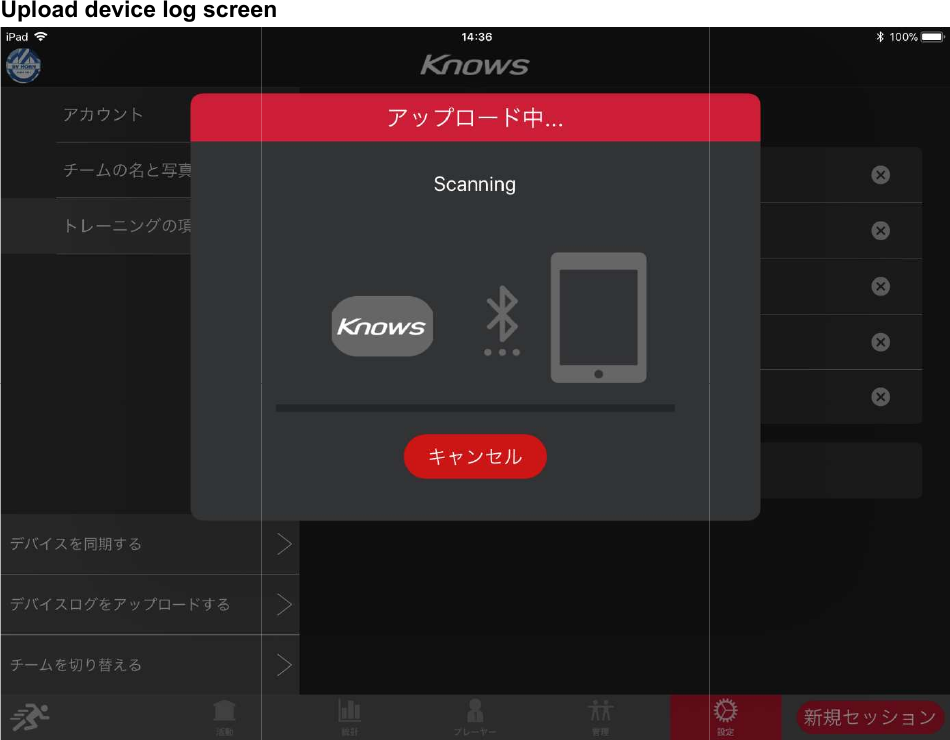
Upload device log screen  Upload device log screen
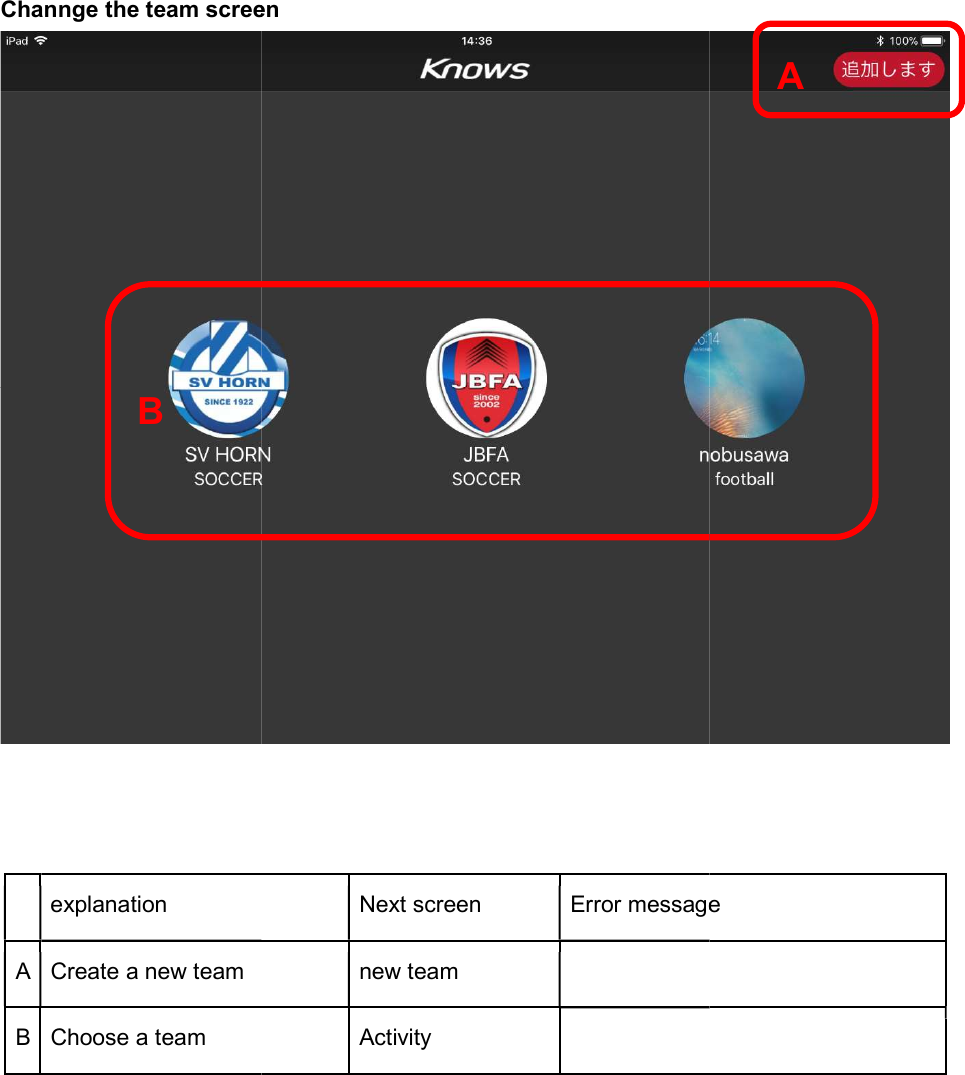
Channge the team screen    explanation A Create a new team B Choose a team   B the team screen  Next screen Error message new team  Activity      Error message A
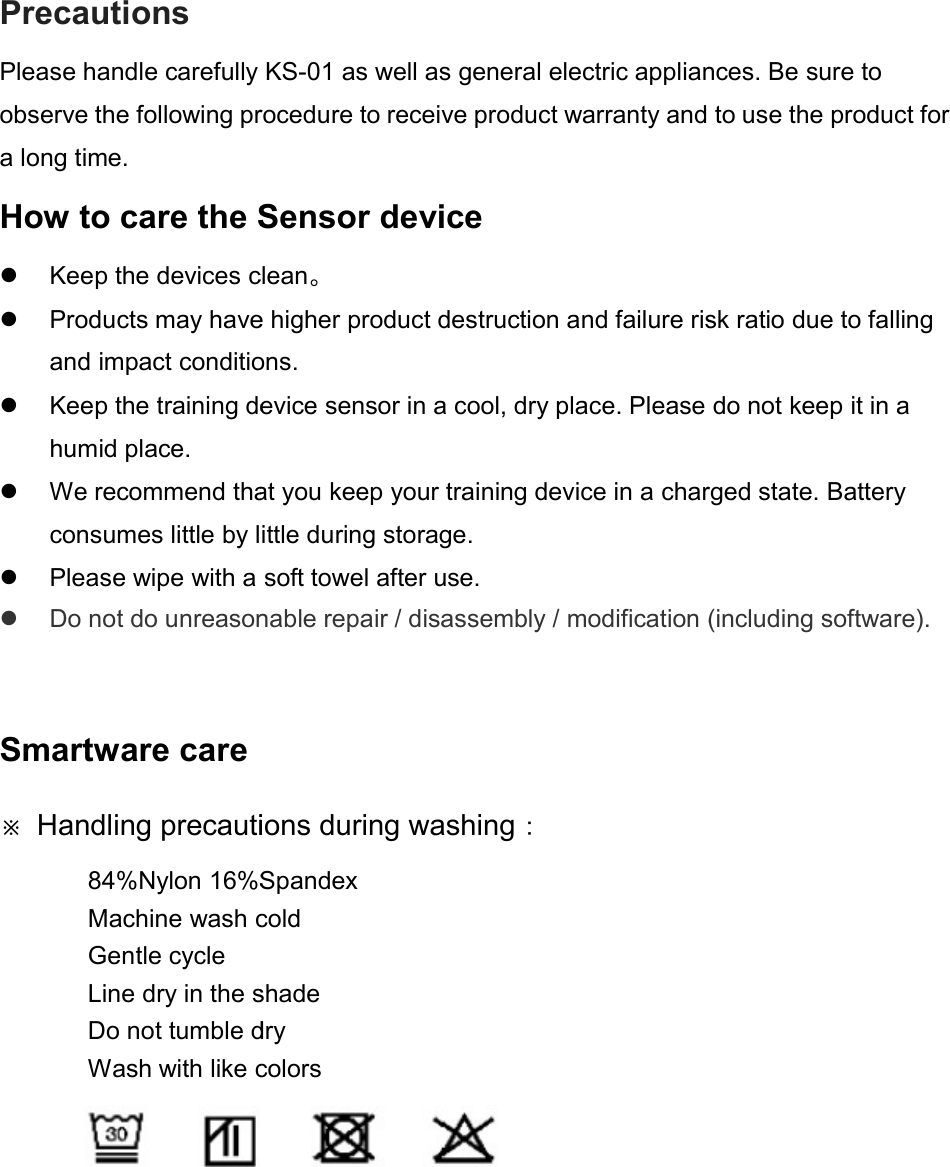
Precautions Please handle carefully observe the following procedure to receive product warranty and to use the product for a long time. How to care the Sensor device  Keep the devices clean Products may have higher product destruction and failure risk ratio due to falling and impact conditions Keep the training device sensor in a cool, dry place. Please do not keep it in a humid place.  We recommend thatconsumes little by little during storage Please wipe with a soft towel after use Do not do unreasonable repair / disassembly / modification (including software). Smartware care ※ Handling precautions during washing84%Nylon 16%SpandexMachine wash coldGentle cycle Line dry in the shadeDo not tumble dryWash with like colors Please handle carefully KS-01 as well as general electric appliances. Be sure to observe the following procedure to receive product warranty and to use the product for Sensor device devices clean。   Products may have higher product destruction and failure risk ratio due to falling and impact conditions. Keep the training device sensor in a cool, dry place. Please do not keep it in a We recommend that you keep your training device in a charged state. Battery consumes little by little during storage. Please wipe with a soft towel after use. Do not do unreasonable repair / disassembly / modification (including software). precautions during washing: ylon 16%Spandex Machine wash cold Line dry in the shade Do not tumble dry Wash with like colors    as well as general electric appliances. Be sure to observe the following procedure to receive product warranty and to use the product for Products may have higher product destruction and failure risk ratio due to falling Keep the training device sensor in a cool, dry place. Please do not keep it in a you keep your training device in a charged state. Battery Do not do unreasonable repair / disassembly / modification (including software).
Disclaimer items    The contents of this manual are for the purpose of providing information only. Details of the products described in this manual may be changed without notice to the customer due to product development by the manufacturer.    KS-01 does not constitute warranties or warranties regarding the contents of this manual or the contents and products described in this document.    KS-01 does not guarantee losses or failures resulting from direct, indirect or accidental consequential or special actions according to the specifications of this manual or the products described in this document。

Navigation menu