Telian FGD6280 GSM850/PCS1900 Dual Band WLL Terminal User Manual

Telian Corporation GSM850/PCS1900 Dual Band WLL Terminal Users Manual

Users Manual

               VERY KOOL   Dual Band GSM Fixed Wireless Phone           REV.1
WELCOME   Congratulations on your purchase of an VERY COOL product!   1. SAFETY INFORMATION  SAFETY INFORMATION FOR FIXED PHONES  IMPORTANT INFORMATION ON SAFE AND EFFICIENT OPERATION. READ THIS INFORMATION BEFORE USING YOUR PHONE.  EXPOSURE TO RADIO FREQUENCY (RF) ENERGY Your phone contains a transmitter and a receiver.  When it is ON, it receives and also sends out radio frequency (RF) signals.  When you communicate with your phone, the system handling your call controls the power level at which your phone transmits. Your Motorola phone is designed to comply with local regulatory requirements in your country concerning exposure of human beings to RF energy. OPERATIONAL PRECAUTIONS  To assure optimal phone performance and make sure human exposure to RF energy is within the guidelines set forth in the relevant standards; always adhere to the following procedures.  EXTERNAL ANTENNA CARE   Use only the supplied BRIGHSTAR approved antenna. Unauthorized antennas, modifications, or attachments could damage the phone.  Do NOT hold the antenna when the phone is IN USE. Holding the antenna affects call quality and may cause the phone to operate at a higher power level than needed. In addition, use of unauthorized antennas may result in non-compliance with the local regulatory requirements in your country.   PHONE OPERATION
    1When placing or receiving a phone call, hold your phone as you would a wireline telephone. To maintain compliance with RF energy exposure guidelines, ensure the phone and its antenna is at least 1 inch (2.5 centimeters) from your body when transmitting. DATA OPERATION When using any data feature of the phone, with or without an accessory cable, position the phone and its antenna at least 1 inch (2.5 centimeters) from your body.  APPROVED ACCESSORIES Use of accessories not approved by BRIGHTSTAR, including but not limited to batteries and antennas, may cause your phone to exceed RF energy exposure guidelines.     RF ENERGY INTERFERENCE / COMPATIBILITIES Note: Nearly every electronic device is susceptible to RF energy interference from external sources if in adequately shielded, designed, or otherwise configured for RF energy compatibility. In some circumstances your phone may cause interference.  MEDICAL DEVICE Pacemakers Pacemaker manufacturers recommend that a minimum separation of 6 inches (15 centimeters) be maintained between a handheld wireless phone and a pacemaker.   Persons with pacemakers should:  • Always keep the phone more than 6 inches (15 centimeters) from your pacemaker when the phone is turned ON. • Not carry the phone in the breast pocket • Use the ear opposite the pacemaker to minimize the potential for interference. • Turn OFF the phone immediately if you have any reason to suspect that interference is taking place.  Hearing Aids Some digital wireless phones may interfere with some hearing aids. In the event of such
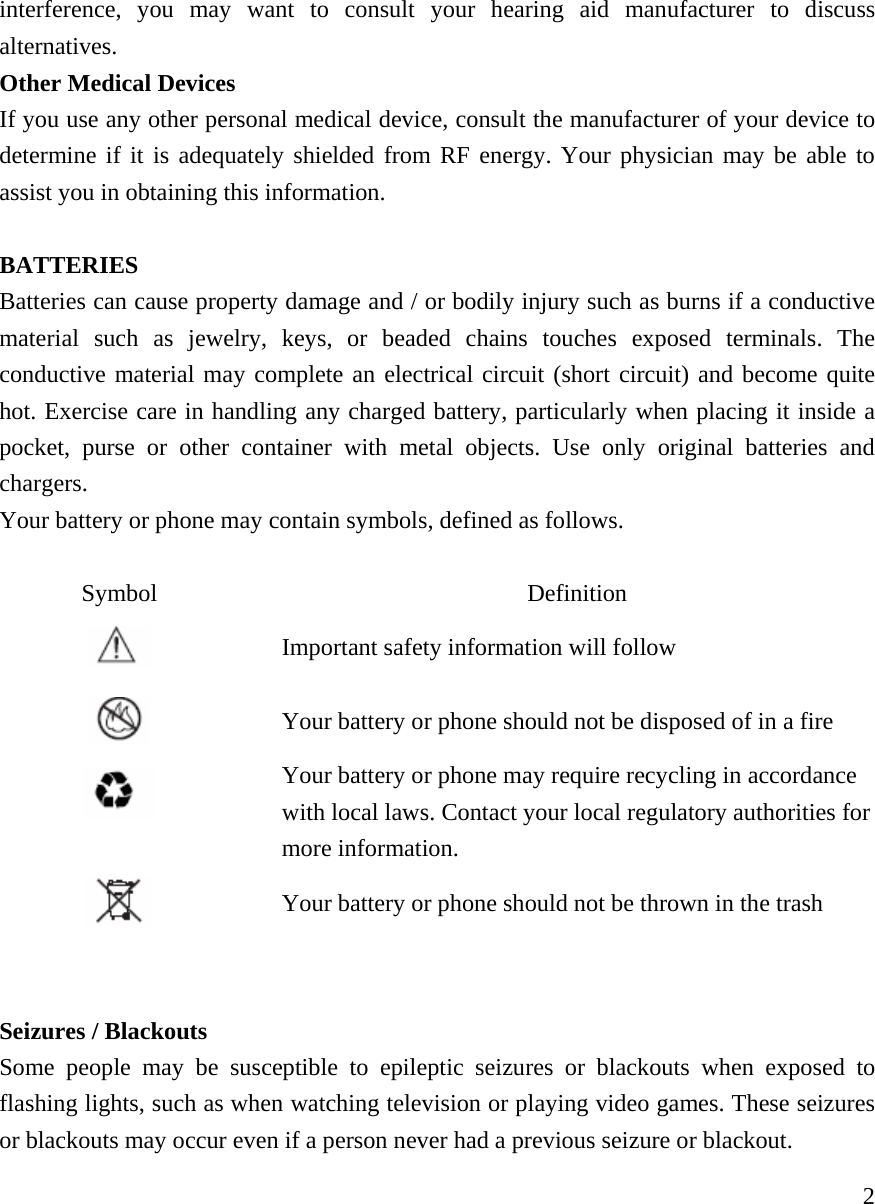
    2interference, you may want to consult your hearing aid manufacturer to discuss alternatives.  Other Medical Devices If you use any other personal medical device, consult the manufacturer of your device to determine if it is adequately shielded from RF energy. Your physician may be able to assist you in obtaining this information.   BATTERIES Batteries can cause property damage and / or bodily injury such as burns if a conductive material such as jewelry, keys, or beaded chains touches exposed terminals. The conductive material may complete an electrical circuit (short circuit) and become quite hot. Exercise care in handling any charged battery, particularly when placing it inside a pocket, purse or other container with metal objects. Use only original batteries and chargers. Your battery or phone may contain symbols, defined as follows.  Symbol Definition  Important safety information will follow  Your battery or phone should not be disposed of in a fire  Your battery or phone may require recycling in accordance with local laws. Contact your local regulatory authorities for more information.   Your battery or phone should not be thrown in the trash   Seizures / Blackouts Some people may be susceptible to epileptic seizures or blackouts when exposed to flashing lights, such as when watching television or playing video games. These seizures or blackouts may occur even if a person never had a previous seizure or blackout.
    3If you experienced seizures or blackouts, or if you have a family history of such occurrences, please consult with your doctor.     2. PREPARING YOUR PHONE FOR USE  2.1. Installing the coiled cord.   • Connect the coiled cord to both the handset and the base.    2.2. Plugging the AC/DC adaptor   z Connect the adaptor to the AC Wall outlet.   (Picture added)  2.3 Back up Battery   • Remove the battery door • Insert the rechargeable battery pack into the battery compartment.   • Place the battery door (Picture added) Note: Battery pack is a backup for emergency case of power failure. Do not operate the phone without the AC/DC Adaptor connected.   Be sure to carefully match the positive and negative terminals as shown in the battery.   Caution:   • SIM card for this Fixed Wireless Phone is prohibited to use in other GSM mobile phones. Once SIM pin number is entered, SIM pin is automatically changed so initial PIN is no longer valid. Therefore, it is highly recommended NOT to take out the SIM card once it is installed in this product. • DO NOT bend or scratch your SIM card, and avoid exposing it to static electricity, water, or dirt.
    4 3. FEATURE HIGHLIGHTS  z Dial tone generation z Desktop Form factor z Auto Dialing   z Voice mail   z Short Message Service z Long Message Service up to 450 characters z Emergency call z Call logs z Call restriction  z Caller ID z Clock with alarm z Calculator z Graphic bigger display z Blue back light for LCD and keypad z Multi ring tone z Speakerphone z Multi language (English, Spanish, Portuguese)  z 200 phone book memory (100 phone book in the phone, 100 in SIM card) z Rechargeable battery z TNC antenna connector (50ohms) for charging external antenna z Wall mount (Optional)    4. ABOUT THE PHONE  This phone operates in a different band. It supports dual band (850MHz / 1900MHz) or dual band (900MHz / 1800MHz)
    54.1 Key functions   4.1.1    Name key / Menu / Selection • Press the right key to perform the function (menu) indicated by the text on the screen above the key.  • Press the left key (name) to directly enter to the phone book list.  4.1.2   Send key • Press to make a call to a name / number shown on the screen.  • Press to answer a call.  • Press and hold for 2 seconds to enter to the list of recently dialed numbers.  4.1.3    End key • Press to end a call.  • Press once to exit a function and to return to the start screen.  4.1.4  ~ ,  • Use for entering numbers and letters.   • Press and hold   to call the voice mailbox. • Press     to toggle between upper case, lower case and numeric modes.  • Press   to toggle between letters and symbols.  4.1.5   Scroll keys • Press to increase the earpiece and ring volume.  • Press to decrease the earpiece and ring volume.   4.1.6 Using the selection keys  The functions of the selection keys depend on the guiding texts shown above the keys.
    6For example, when the text MENU is above the left selection key, press    left key enters the menu functions. Similarly, pressing the right selection right key   under the text NAME accesses the phone book functions.     4.1.7 Using the scroll keys   The phone has two scroll keys,   located just below the screen.   The scroll keys have up and down arrows on them; press these to scroll through the phone’s menus.    4.1.8  Speaker button z Turn on and off the speaker in the conversation mode.     4.3 About display indicators and icons   The display indicators and icons inform about the operation of the phone.   4.2.1 Start screen   The start screen displays when the phone is turned on. Several features can be used only when the phone is at the Start Screen.   4.2.2 Scroll bar   When you access the phone’s menu, there is a scroll bar at the far right of the screen. This bar indicates user’s location in the menu: each “tab” on the bar represents a different menu item.    4.3 Indicators and icons   On your phone, you have two types of identifiers: indicators and icons. Icons are graphical representations of a specific item or situation. For example, an icon appears
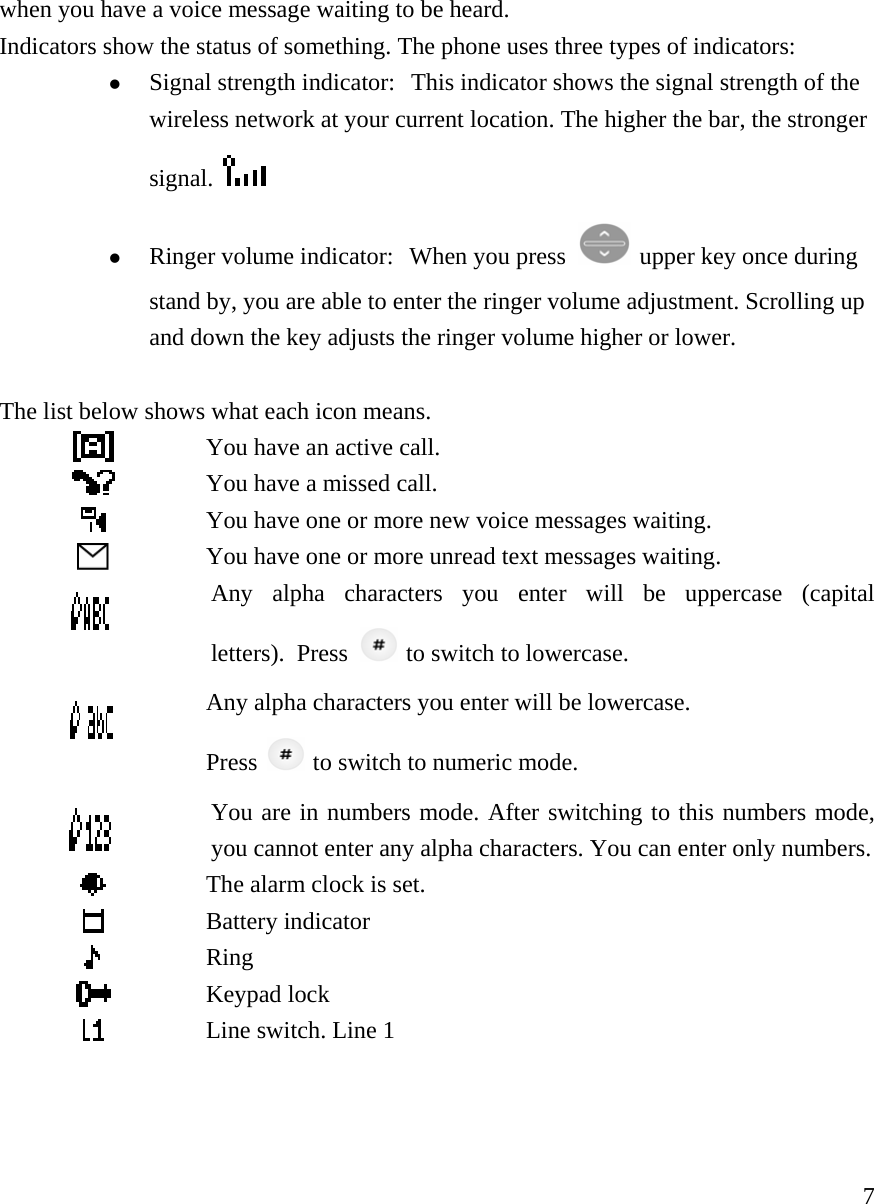
    7when you have a voice message waiting to be heard.  Indicators show the status of something. The phone uses three types of indicators:   z Signal strength indicator:  This indicator shows the signal strength of the wireless network at your current location. The higher the bar, the stronger signal.   z Ringer volume indicator:  When you press   upper key once during stand by, you are able to enter the ringer volume adjustment. Scrolling up and down the key adjusts the ringer volume higher or lower.  The list below shows what each icon means.   You have an active call.  You have a missed call.  You have one or more new voice messages waiting.  You have one or more unread text messages waiting.  Any alpha characters you enter will be uppercase (capitalletters).  Press   to switch to lowercase.  Any alpha characters you enter will be lowercase.   Press    to switch to numeric mode.  You are in numbers mode. After switching to this numbers mode,you cannot enter any alpha characters. You can enter only numbers. The alarm clock is set.    Battery indicator  Ring  Keypad lock  Line switch. Line 1
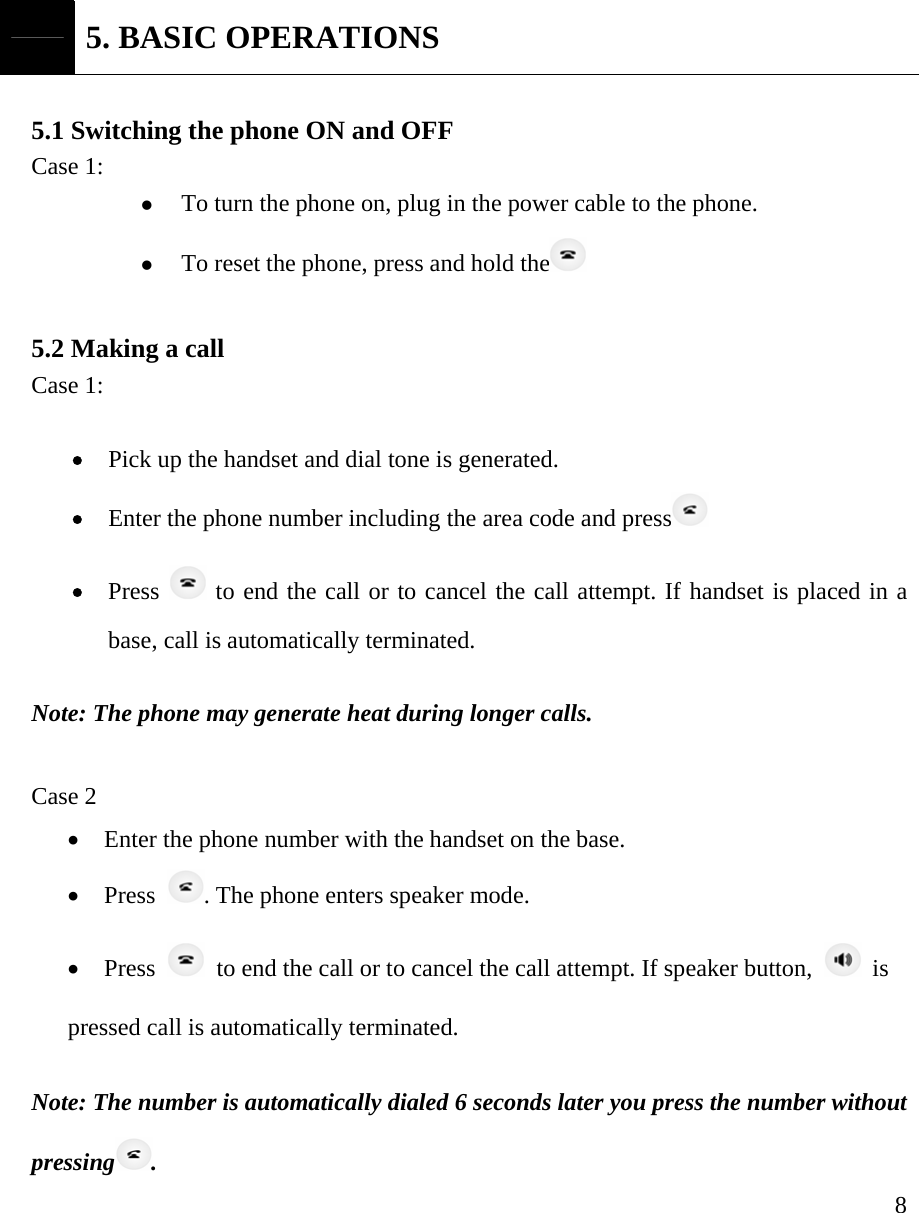
    8 5. BASIC OPERATIONS  5.1 Switching the phone ON and OFF Case 1:   z To turn the phone on, plug in the power cable to the phone. z To reset the phone, press and hold the   5.2 Making a call   Case 1:  • Pick up the handset and dial tone is generated. • Enter the phone number including the area code and press  • Press   to end the call or to cancel the call attempt. If handset is placed in a base, call is automatically terminated.   Note: The phone may generate heat during longer calls.  Case 2 • Enter the phone number with the handset on the base. • Press  . The phone enters speaker mode. • Press    to end the call or to cancel the call attempt. If speaker button,   is  pressed call is automatically terminated.      Note: The number is automatically dialed 6 seconds later you press the number without pressing .
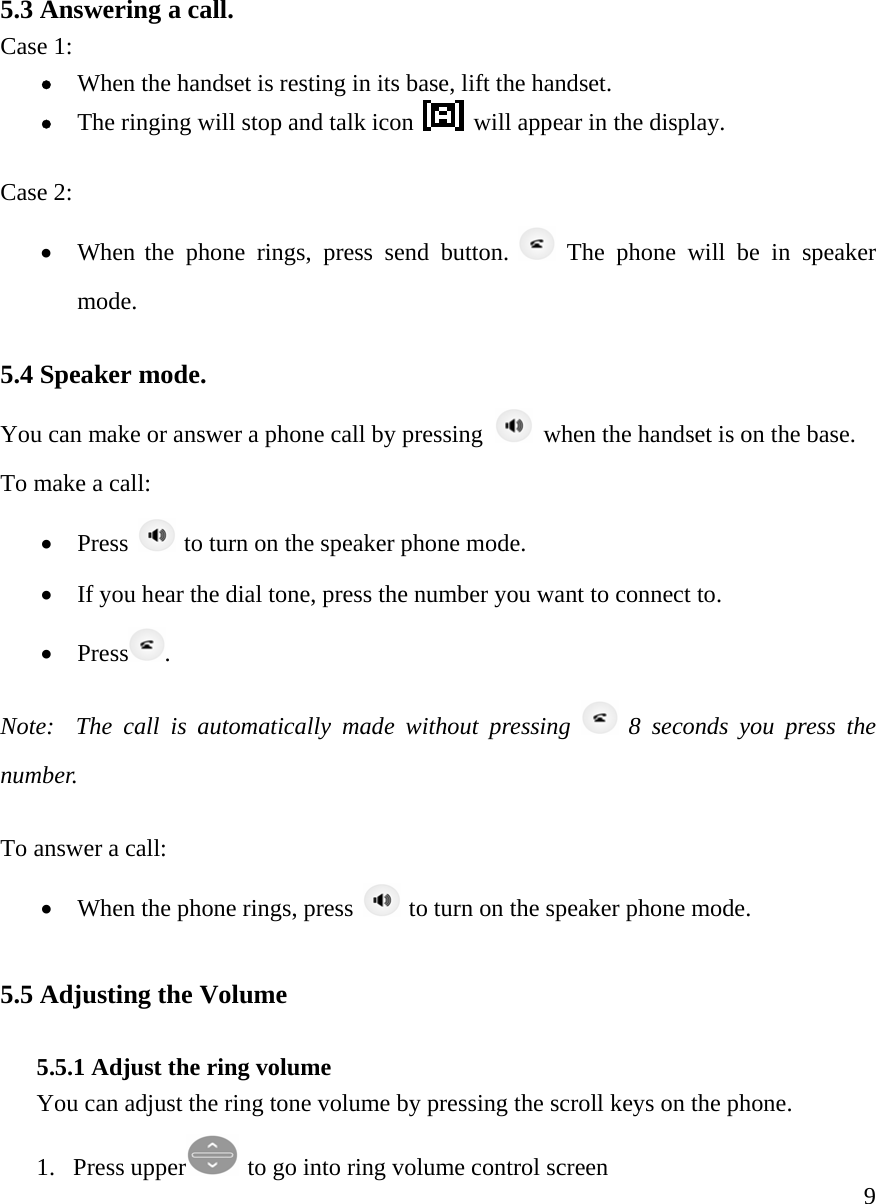
    95.3 Answering a call. Case 1:  • When the handset is resting in its base, lift the handset. • The ringing will stop and talk icon   will appear in the display.   Case 2: • When the phone rings, press send button.   The phone will be in speaker mode.   5.4 Speaker mode.    You can make or answer a phone call by pressing    when the handset is on the base.   To make a call:   • Press   to turn on the speaker phone mode.  • If you hear the dial tone, press the number you want to connect to. • Press . Note:  The call is automatically made without pressing   8 seconds you press the number.  To answer a call:   • When the phone rings, press   to turn on the speaker phone mode.   5.5 Adjusting the Volume  5.5.1 Adjust the ring volume You can adjust the ring tone volume by pressing the scroll keys on the phone.  1. Press upper  to go into ring volume control screen
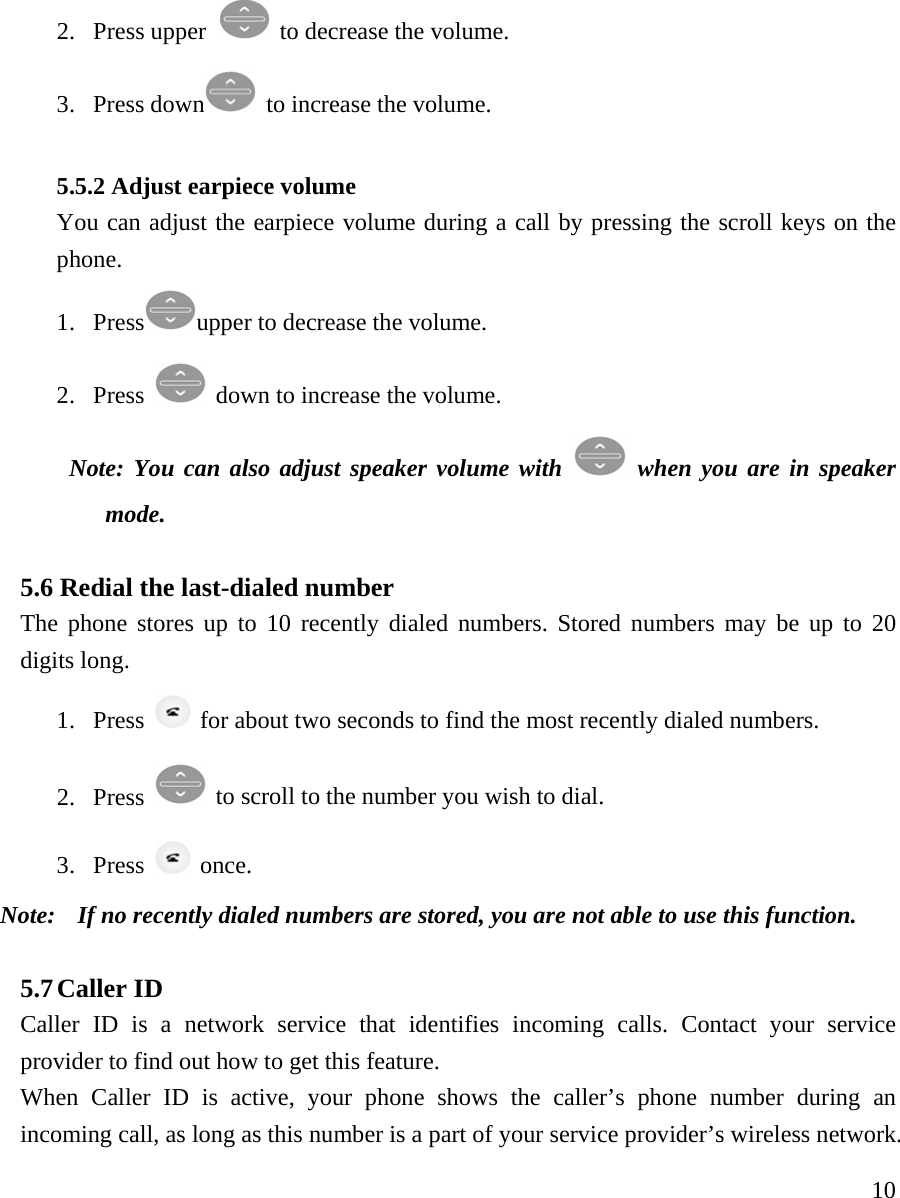
    102. Press upper   to decrease the volume. 3. Press down   to increase the volume.   5.5.2 Adjust earpiece volume You can adjust the earpiece volume during a call by pressing the scroll keys on the phone.  1. Press upper to decrease the volume.   2. Press   down to increase the volume.  Note: You can also adjust speaker volume with   when you are in speaker mode.  5.6 Redial the last-dialed number  The phone stores up to 10 recently dialed numbers. Stored numbers may be up to 20 digits long.   1. Press    for about two seconds to find the most recently dialed numbers. 2. Press   to scroll to the number you wish to dial. 3. Press   once.  Note:    If no recently dialed numbers are stored, you are not able to use this function.   5.7 Caller ID   Caller ID is a network service that identifies incoming calls. Contact your service provider to find out how to get this feature.  When Caller ID is active, your phone shows the caller’s phone number during an incoming call, as long as this number is a part of your service provider’s wireless network.
    11The wireless network lets you know if it does not recognize the caller’s phone number. The wireless network will also let you know if the calling party has blocked the Caller ID feature.  If you have stored the name and number of the calling party in your phone book and that number are supported by the wireless network, the caller’s name can also appear.   5.8 SMS and Voice Mail A new SMS or Voice mail arrives,    • The back light of keypad is ON and the displays show “New Message(s)” on the screen. • The backlight is off if you lift up the handset from the base.   6. USING PHONE MENUS  6.1 Navigate menus   A menu is a list of choices you can make. Your phone menu has 8 sub menus. Each sub menu contains options that allow you to use the phone book, change the ringing tone, and so on. You can use menus and submenus in two ways: by scrolling or by using shortcuts.   6.1.1 Scroll through menus   • From the Start screen, press MENU, and then scroll through the menus using the  • Use the scroll and selection keys to navigate the submenus and to return to the Start screen.    6.1.2 Use a shortcut   • From the Start screen, press the down arrow in the arrow keys   and scroll through the shortcuts.  You can use a shortcut to get to options directly without scrolling through lists.
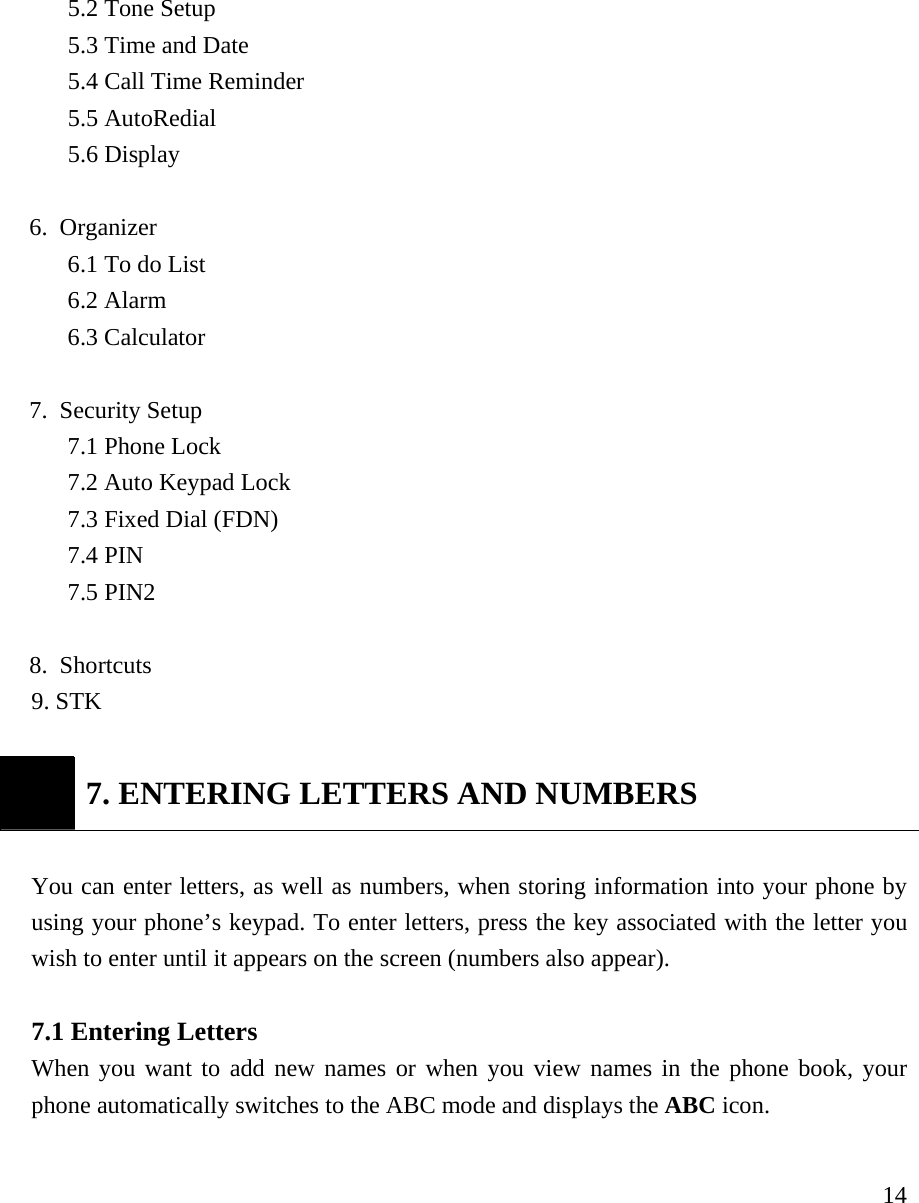
    12To change one of the shortcuts, press the left soft key and select from a list of different options, once you select the option desired, press the left soft key (OK) to assign the new shortcut.  6.1.3 Exit menu levels  • To return to the previous menu level, press CANCEL.  • To return to the Start screen, press . No menu setting changes are saved.   6.2 List of Menus   Your phone’s menu may differ from the following list, depending on the network services to which you have subscribed and the accessories you are using. If you have any questions, call your service provider.   1. Message  1.1. Inbox (Read) 1.2. Outbox 1.3. Write Message 1.3.1 Save 1.3.2 Send 1.3.3 Save & Send 1.3.4 Send to Many 1.4. Message Settings 1.4.1 Profile Settings 1.4.2 Memory Status   1.4.3 Template   1.5. Broadcast Message 1.5.1 Receive Mode 1.5.2 Read 1.5.3 New Broadcast   1.5.4 Channels
    131.6. Voicemail  1.6.1 Connect to Voice Mail   1.6.2 Set Voice Mail    2. Phonebook  2.1. Search Entry 2.2. Add New Entry 2.2.1. Save To SIM 2.2.2. Save To Phone 2.3. Delete All 2.3.1. From SIM 2.3.2. From Phone 2.4. Owner Number 2.5. Memory Status    3. Call History   3.1. Missed Calls  3.2. Received Calls 3.3. Dialed Calls   3.4. Call Timers  4. Call Setup 4.1 Call Forward 4.2 Call Waiting 4.3 Call Barring 4.4 Caller ID 4.5 Network Selection 4.6 GPRS  5. Call Setup 5.1 Language
    145.2 Tone Setup 5.3 Time and Date 5.4 Call Time Reminder 5.5 AutoRedial 5.6 Display  6. Organizer 6.1 To do List   6.2 Alarm 6.3 Calculator  7. Security Setup 7.1 Phone Lock 7.2 Auto Keypad Lock 7.3 Fixed Dial (FDN) 7.4 PIN 7.5 PIN2  8. Shortcuts 9. STK     7. ENTERING LETTERS AND NUMBERS  You can enter letters, as well as numbers, when storing information into your phone by using your phone’s keypad. To enter letters, press the key associated with the letter you wish to enter until it appears on the screen (numbers also appear).   7.1 Entering Letters   When you want to add new names or when you view names in the phone book, your phone automatically switches to the ABC mode and displays the ABC icon.
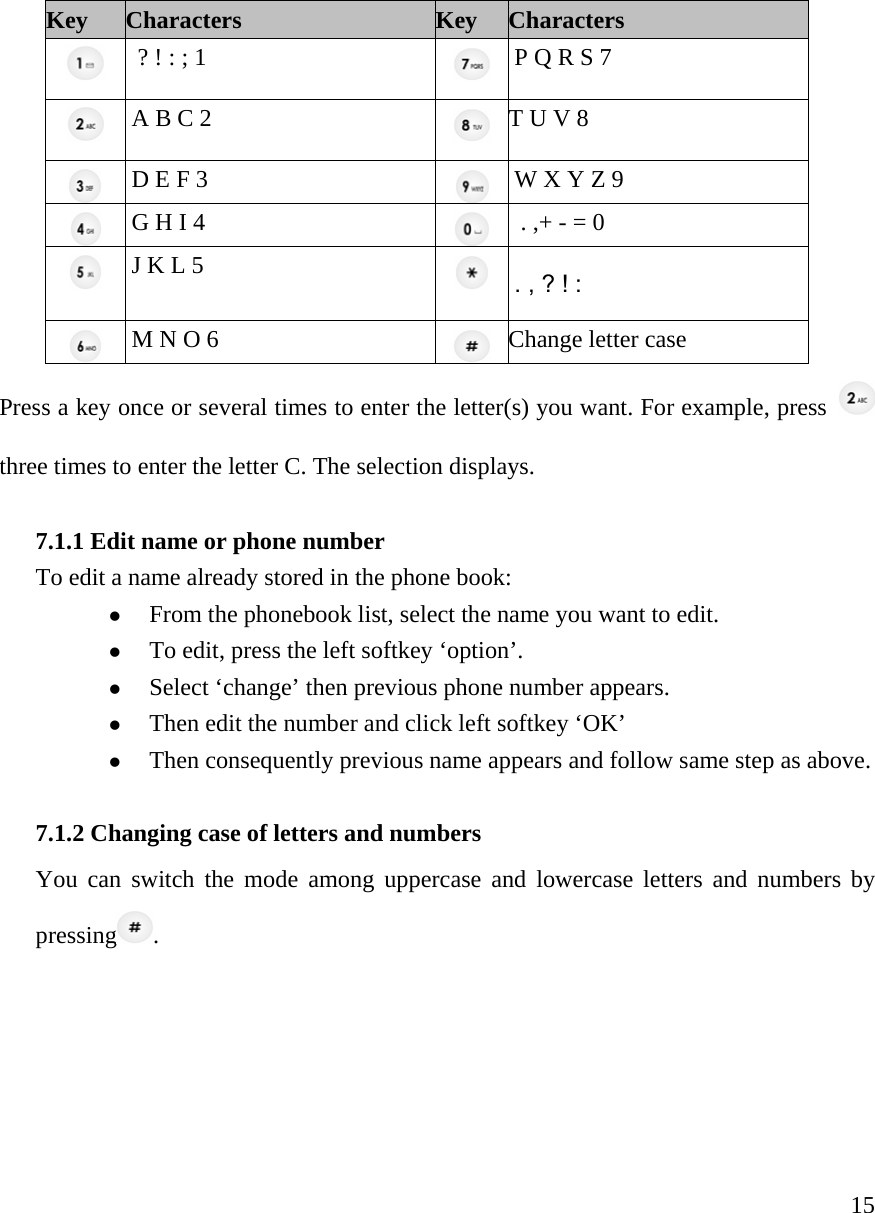
    15Key Characters Key Characters  ? ! : ; 1   P Q R S 7   A B C 2    T U V 8     D E F 3      W X Y Z 9   G H I 4     . ,+ - = 0     J K L 5      . , ? ! :     M N O 6    Change letter case Press a key once or several times to enter the letter(s) you want. For example, press   three times to enter the letter C. The selection displays.    7.1.1 Edit name or phone number To edit a name already stored in the phone book: z From the phonebook list, select the name you want to edit. z To edit, press the left softkey ‘option’. z Select ‘change’ then previous phone number appears. z Then edit the number and click left softkey ‘OK’ z Then consequently previous name appears and follow same step as above.  7.1.2 Changing case of letters and numbers   You can switch the mode among uppercase and lowercase letters and numbers by pressing .
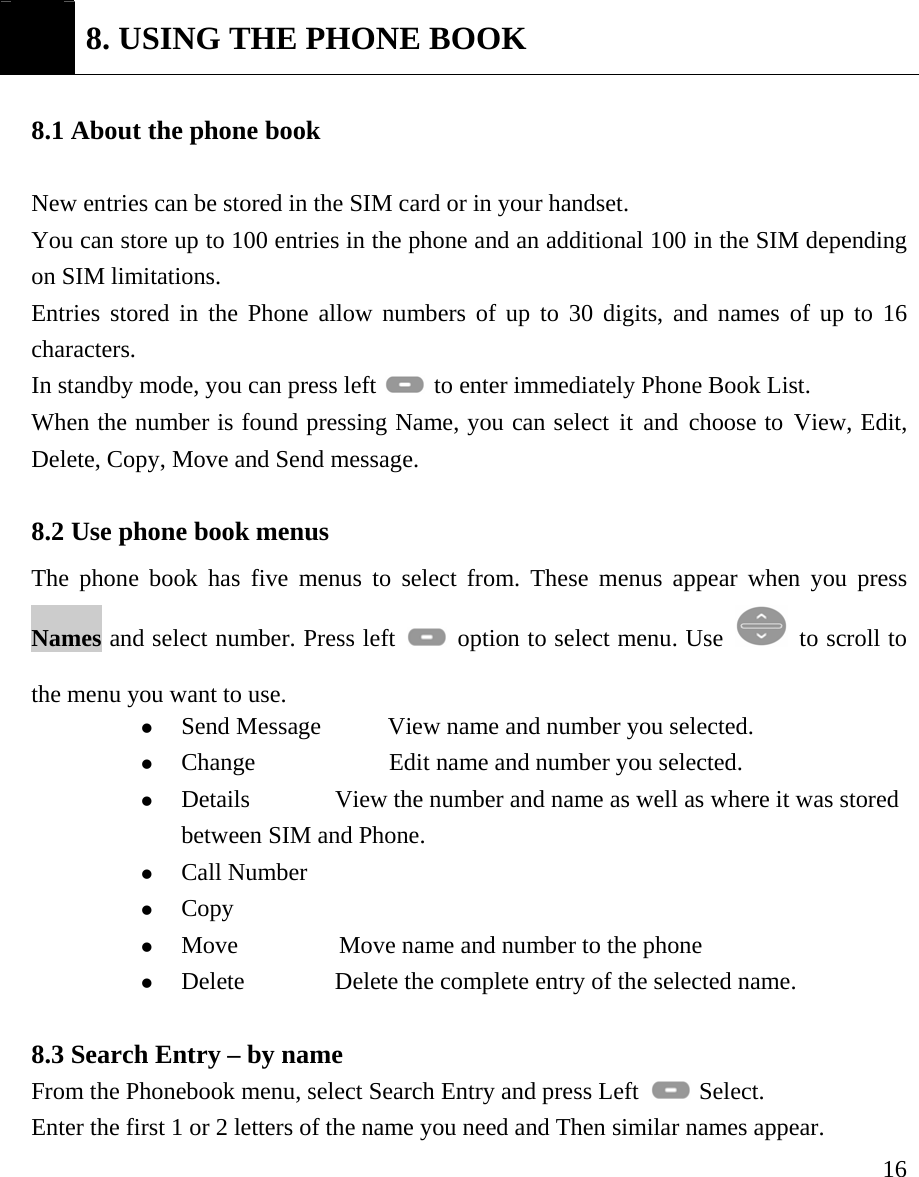
    16  8. USING THE PHONE BOOK  8.1 About the phone book    New entries can be stored in the SIM card or in your handset.  You can store up to 100 entries in the phone and an additional 100 in the SIM depending on SIM limitations. Entries stored in the Phone allow numbers of up to 30 digits, and names of up to 16 characters. In standby mode, you can press left   to enter immediately Phone Book List.   When the number is found pressing Name, you can select it and choose to View, Edit, Delete, Copy, Move and Send message.  8.2 Use phone book menus  The phone book has five menus to select from. These menus appear when you press Names and select number. Press left    option to select menu. Use    to scroll to the menu you want to use.   z Send Message           View name and number you selected.   z Change              Edit name and number you selected.  z Details              View the number and name as well as where it was stored between SIM and Phone.   z Call Number         z Copy z Move        Move name and number to the phone  z Delete    Delete the complete entry of the selected name.  8.3 Search Entry – by name From the Phonebook menu, select Search Entry and press Left   Select. Enter the first 1 or 2 letters of the name you need and Then similar names appear.
    17Select name using    to scroll and press Left  option to select Options.    8.4 Add a new phone book Entry   To create a phonebook entry: 1. Press Menu > Phonebook. 2. Scroll to [Add New Entry] and press Select.  3. Press Save to SIM or Save to phone depending on where you want to store the phone entry. 4. Press left   Edit to chose Name and Number 5. Add Name and Number 6. Press left   Ok to complete input  8.5 Delete All    You can delete all phonebook entries:  1. Press Menu > Phonebook  2. Scroll to [Delete all] and press Ok. 3. Press SIM or Phone where you want to delete all phone book entries.  4. Press Ok to confirm the delete of all phone book entries.  Caution: Note that this action cannot be undone once you perform this feature; all the stored information in your phonebook is deleted.  8.6 Owner Number You can check, edit, erase and save your Owner Number: 1. Press Menu > Phonebook  2. Scroll to Owner number and press Select.  3. Scroll    and choose Consult or Add new entry. 4. Press option to chose Edit   or Erase  8.8 Check Memory Status
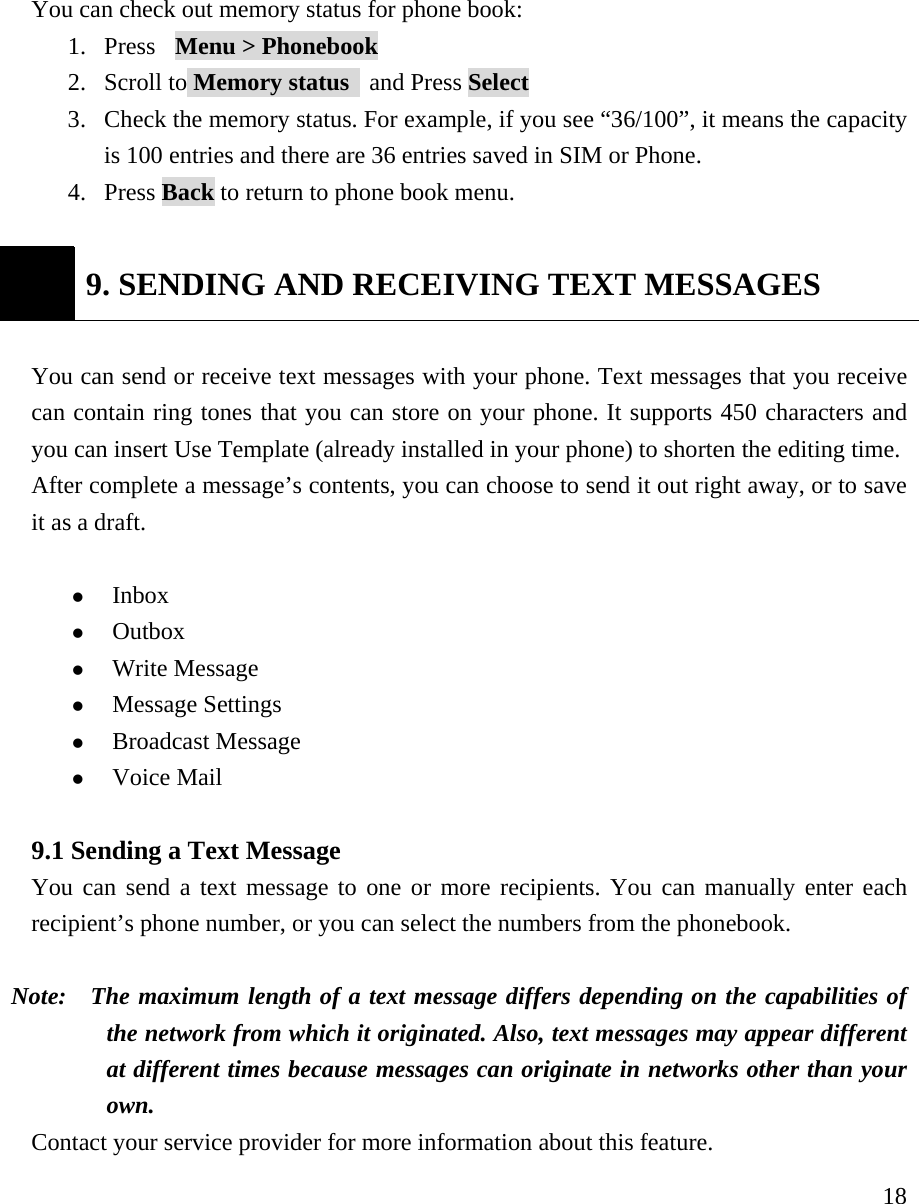
    18You can check out memory status for phone book:  1. Press  Menu > Phonebook  2. Scroll to Memory status   and Press Select  3. Check the memory status. For example, if you see “36/100”, it means the capacity is 100 entries and there are 36 entries saved in SIM or Phone. 4. Press Back to return to phone book menu.   9. SENDING AND RECEIVING TEXT MESSAGES  You can send or receive text messages with your phone. Text messages that you receive can contain ring tones that you can store on your phone. It supports 450 characters and you can insert Use Template (already installed in your phone) to shorten the editing time. After complete a message’s contents, you can choose to send it out right away, or to save it as a draft.    z Inbox  z Outbox  z Write Message z Message Settings z Broadcast Message  z Voice Mail  9.1 Sending a Text Message   You can send a text message to one or more recipients. You can manually enter each recipient’s phone number, or you can select the numbers from the phonebook.   Note:   The maximum length of a text message differs depending on the capabilities of the network from which it originated. Also, text messages may appear different at different times because messages can originate in networks other than your own.  Contact your service provider for more information about this feature.
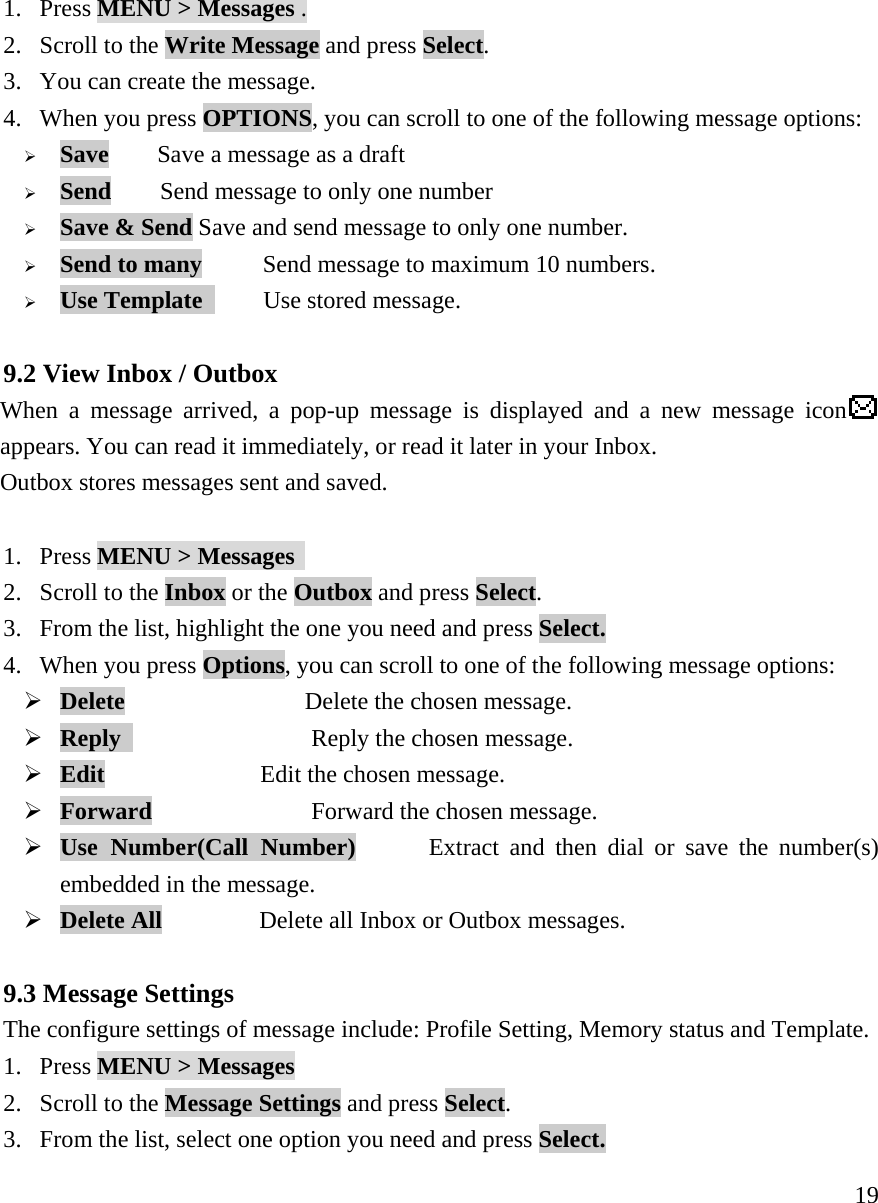
    191. Press MENU > Messages . 2. Scroll to the Write Message and press Select.    3. You can create the message.   4. When you press OPTIONS, you can scroll to one of the following message options:   ¾ Save    Save a message as a draft ¾ Send        Send message to only one number ¾ Save & Send Save and send message to only one number. ¾ Send to many     Send message to maximum 10 numbers. ¾ Use Template      Use stored message.  9.2 View Inbox / Outbox  When a message arrived, a pop-up message is displayed and a new message icon  appears. You can read it immediately, or read it later in your Inbox.     Outbox stores messages sent and saved.  1. Press MENU > Messages  2. Scroll to the Inbox or the Outbox and press Select.   3. From the list, highlight the one you need and press Select. 4. When you press Options, you can scroll to one of the following message options:  ¾ Delete               Delete the chosen message. ¾ Reply     Reply the chosen message. ¾ Edit                Edit the chosen message. ¾ Forward     Forward the chosen message. ¾ Use Number(Call Number)       Extract and then dial or save the number(s) embedded in the message. ¾ Delete All          Delete all Inbox or Outbox messages.  9.3 Message Settings  The configure settings of message include: Profile Setting, Memory status and Template. 1. Press MENU > Messages  2. Scroll to the Message Settings and press Select.   3. From the list, select one option you need and press Select.
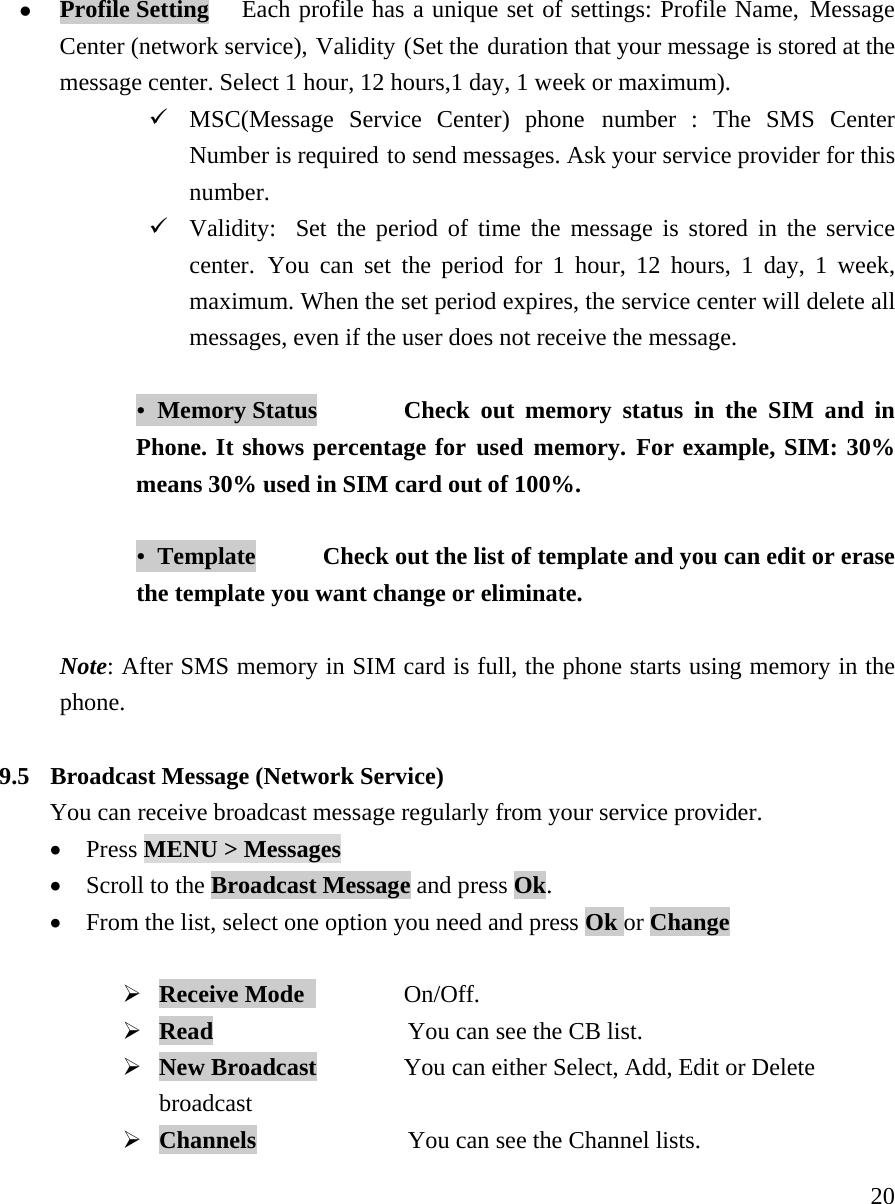
    20z Profile Setting   Each profile has a unique set of settings: Profile Name, Message Center (network service), Validity (Set the duration that your message is stored at the message center. Select 1 hour, 12 hours,1 day, 1 week or maximum). 9 MSC(Message Service Center) phone number : The SMS Center Number is required to send messages. Ask your service provider for this number.  9 Validity:  Set the period of time the message is stored in the service center. You can set the period for 1 hour, 12 hours, 1 day, 1 week, maximum. When the set period expires, the service center will delete all messages, even if the user does not receive the message.   •  Memory Status    Check out memory status in the SIM and in Phone. It shows percentage for used memory. For example, SIM: 30% means 30% used in SIM card out of 100%.    •  Template    Check out the list of template and you can edit or erase the template you want change or eliminate.    Note: After SMS memory in SIM card is full, the phone starts using memory in the phone.   9.5  Broadcast Message (Network Service) You can receive broadcast message regularly from your service provider. • Press MENU > Messages  • Scroll to the Broadcast Message and press Ok.   • From the list, select one option you need and press Ok or Change  ¾ Receive Mode    On/Off. ¾ Read              You can see the CB list. ¾ New Broadcast        You can either Select, Add, Edit or Delete broadcast  ¾ Channels              You can see the Channel lists.
    21  9.6 Use Voicemail (Network Service) You can listen to your voicemail messages by calling your network voicemail phone number. Voicemail messages are stored on the network voicemail box, not on your phone.   1.Press MENU > Messages  2.Scroll to the [Voice mail] and press Select.   3.From the list, select one option you need and press Ok  z Connect to Voice Mail Dial the network service number and connects you to the  voice mail service. z Set Voicemail            Enter or modify the network service number. z   Note: Press and hold    to call the voice mailbox. If there is no voice mail, “No Number to dial” message pops up.   10. USING CALL HISTORY  The Call History keeps track of:  z Missed Calls z Received Calls   z Dialed Calls   z Call Timers  Note:  Your phone can store up to 30 call numbers including missed, received and dialed call.   When you miss a call(s), the message Missed calls   icon appears on your phone’s screen. You can press Read to view Missed Calls list or press Back to ignore the message and go back to Standby. The records will be stored in Call History. You are notified of missed calls only when your phone is turned on in the service area from which the missed call originated.
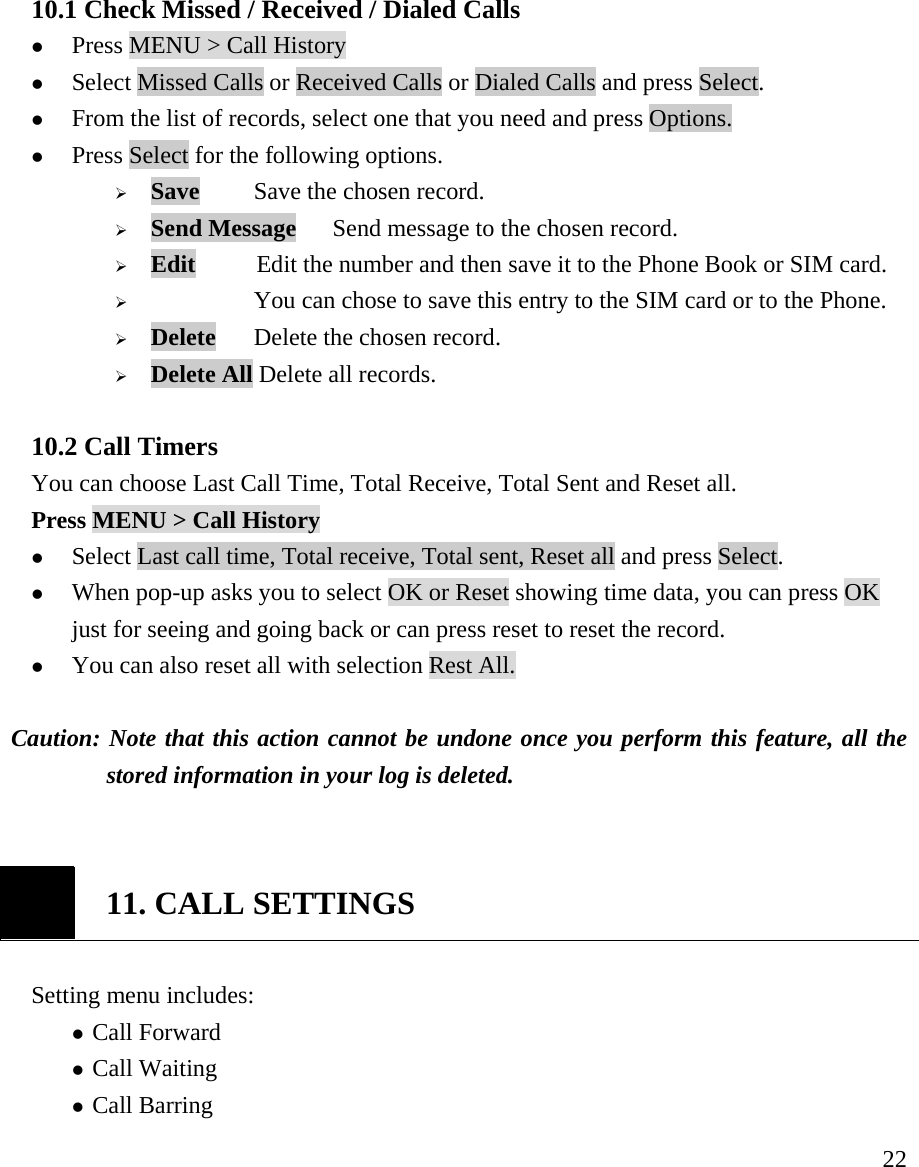
    22 10.1 Check Missed / Received / Dialed Calls   z Press MENU > Call History  z Select Missed Calls or Received Calls or Dialed Calls and press Select.   z From the list of records, select one that you need and press Options. z Press Select for the following options.  ¾ Save    Save the chosen record. ¾ Send Message   Send message to the chosen record. ¾ Edit          Edit the number and then save it to the Phone Book or SIM card. ¾      You can chose to save this entry to the SIM card or to the Phone. ¾ Delete    Delete the chosen record. ¾ Delete All Delete all records.  10.2 Call Timers You can choose Last Call Time, Total Receive, Total Sent and Reset all. Press MENU > Call History   z Select Last call time, Total receive, Total sent, Reset all and press Select.   z When pop-up asks you to select OK or Reset showing time data, you can press OK just for seeing and going back or can press reset to reset the record.  z You can also reset all with selection Rest All.  Caution: Note that this action cannot be undone once you perform this feature, all the stored information in your log is deleted.    11. CALL SETTINGS  Setting menu includes:                z Call Forward  z Call Waiting z Call Barring
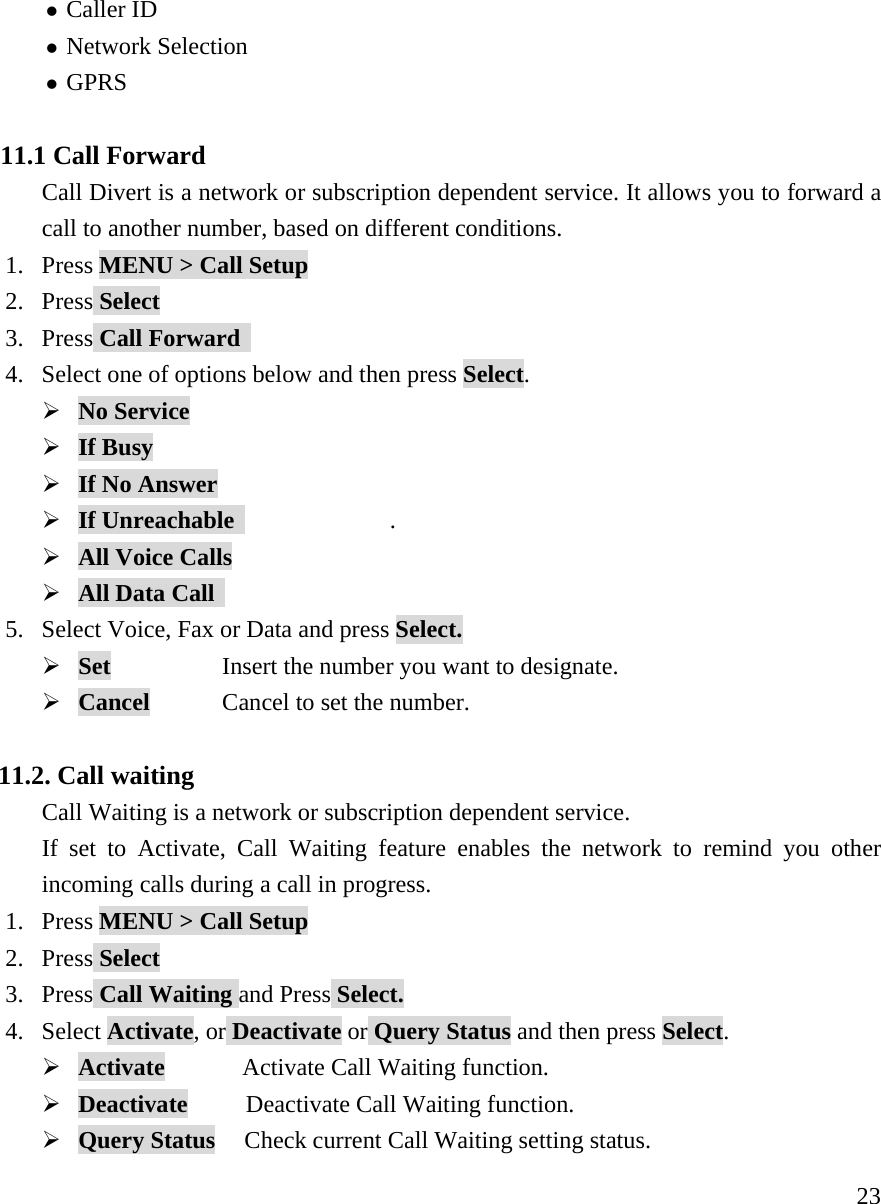
    23z Caller ID  z Network Selection z GPRS   11.1 Call Forward Call Divert is a network or subscription dependent service. It allows you to forward a call to another number, based on different conditions. 1. Press MENU > Call Setup 2. Press Select 3. Press Call Forward   4. Select one of options below and then press Select. ¾ No Service        ¾ If Busy       ¾ If No Answer        ¾ If Unreachable                . ¾ All Voice Calls        ¾ All Data Call      5. Select Voice, Fax or Data and press Select. ¾ Set        Insert the number you want to designate. ¾ Cancel    Cancel to set the number.  11.2. Call waiting   Call Waiting is a network or subscription dependent service. If set to Activate, Call Waiting feature enables the network to remind you other incoming calls during a call in progress. 1. Press MENU > Call Setup 2. Press Select 3. Press Call Waiting and Press Select. 4. Select Activate, or Deactivate or Query Status and then press Select. ¾ Activate        Activate Call Waiting function. ¾ Deactivate      Deactivate Call Waiting function. ¾ Query Status   Check current Call Waiting setting status.
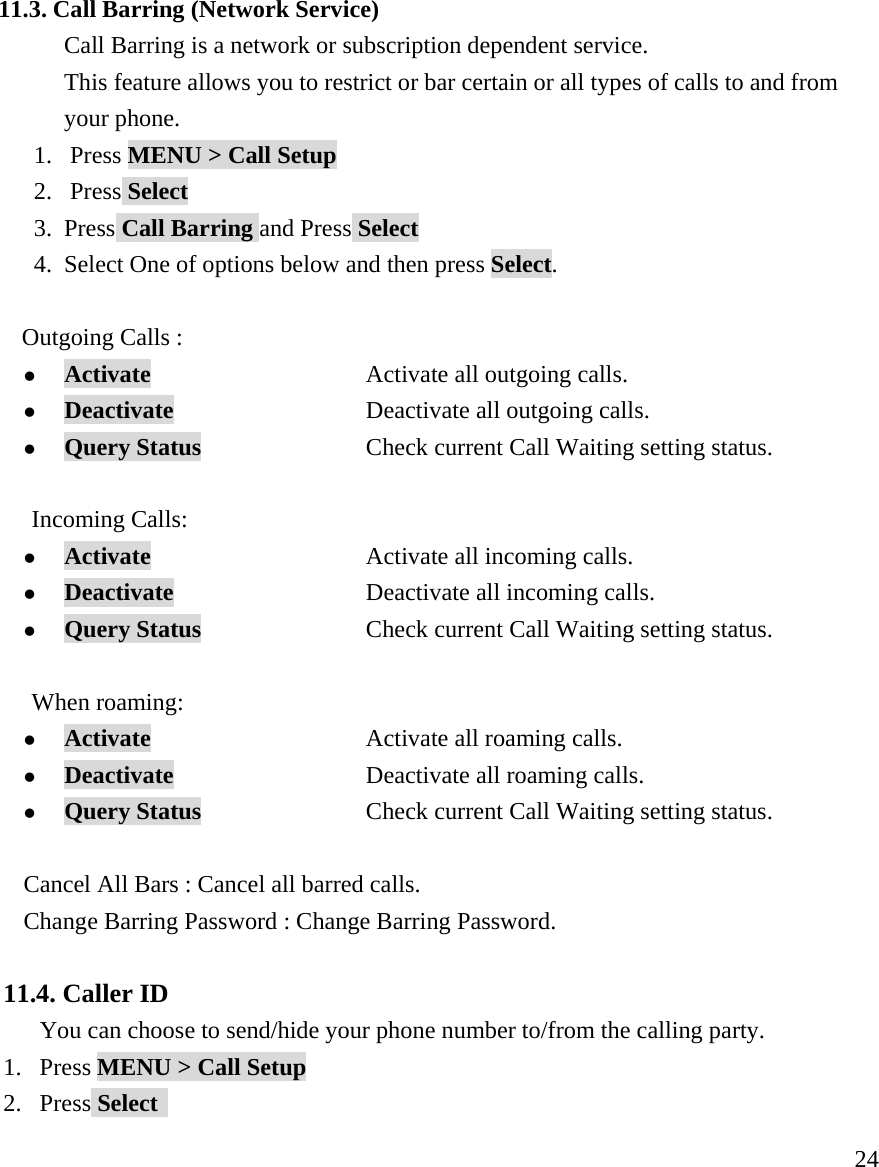
    24 11.3. Call Barring (Network Service) Call Barring is a network or subscription dependent service. This feature allows you to restrict or bar certain or all types of calls to and from your phone. 1. Press MENU > Call Setup 2. Press Select 3. Press Call Barring and Press Select 4. Select One of options below and then press Select.      Outgoing Calls :  z Activate                   Activate all outgoing calls. z Deactivate           Deactivate all outgoing calls. z Query Status   Check current Call Waiting setting status.  Incoming Calls: z Activate                   Activate all incoming calls. z Deactivate           Deactivate all incoming calls. z Query Status   Check current Call Waiting setting status.  When roaming: z Activate                   Activate all roaming calls. z Deactivate           Deactivate all roaming calls. z Query Status   Check current Call Waiting setting status.  Cancel All Bars : Cancel all barred calls. Change Barring Password : Change Barring Password.  11.4. Caller ID You can choose to send/hide your phone number to/from the calling party. 1. Press MENU > Call Setup 2. Press Select
    253. Press Caller ID and Press Select 4. Toggle Set by Network or Hide Id or Send Id and then press Select. 5. Toggle On or Off. ¾ Set By Network      Accept the default value set by Network. ¾ Hide Id             Not to show your phone number to the calling party. ¾ Send Id           Show your phone number to the calling party.  11.5. Network Selection   Line Switching is a network or subscription dependent service This feature allows you to switch different lines base on your needs. 1. Press MENU > Call Setup 2. Press Select 3. Press Network Selection and Press Select 4. Select Automatic or Manual 5. Toggle Line 1 , Line 2 or etc. and press Select to switch different lines.  11.6 GPRS 1. Press MENU > Call Setup 2. Press Select 3. Press GPRS and Press Select 4. Toggle one of options like Attach, Detach, Data Count and SMS and then press Select.   12. PHONE SETTINGS  12.1. Language You can select the language you need. The phones currently support three languages (English, Spanish, and Portuguese) 1. Press MENU > Phone Settings  2. Press Language and Press Select 3. Select Language and then press Select.
    26 12.2. Tone Setup You can select the language you need. The phones currently support three languages (English, Spanish, and Portuguese) 1. Press MENU > Phone Settings  2. Press Tone Setup and Press Select 3. Select One of options below and then press Select.  Ringer  z Melody                   Choose desired melody in the list  z Volume           Choose the volume from 0 to 7  SMS Tone     z Melody                   Choose desired melody in the list  z Volume           Choose the volume from 0 to 7  Alarm  z Melody                   Choose desired melody in the list  z Volume           Choose the volume from 0 to 7  Keypad Tones   z Click                   Press Click to set keypad tones.  z DTMF           Press DTMF to set DTMF tone.  Volume : Choose the volume from 0 to 7.  12.3. Set Time and Date   This menu guides you to set Time/Date. • Time and Date    Set the correct date and time to ensure the Alarm is working     correctly. • Time Format   Set time format as 12hours or 24hours. 12.4. Call Time Reminder
    27This menu guides you the method of Call time reminding. • Single   • Periodic    • Off  12.5. AutoRedial You can set AutoRedial function by on/off menu.  12.6. Display In Display menu, you can set your favorite Display Characteristic to show Date and time or Owner Number.  Show Time and Date:   You can choose whether to display date and time in Standby screen or not. 1. Press MENU > Phone Settings  2. Press Select 3. Select  Display and then press Select. Toggle Show Date and Time and press Select.  Show Owner Number : You can choose whether to display your phone number (or name) in Standby screen or not. 1. Press MENU > Phone Settings 2. Press Select 3. Select Display and then press Select. 4. Toggle Show Owner Number and press Select  Greeting Text : You can choose whether to display your phone number (or name) in Standby screen or not.
    28 13. ORGANIZER  13.1. To Do List   1. Press MENU > Organizer 2. Press Select 3. Select Task 1,2 and 3 and then press Select. 4. Toggle Add, Edit, Delete and Delete All for adding task, editing task, deleting task and deleting all task.    13.2. Alarm 1. Press MENU > Organizer 2. Press Select 3. Select Status and then press Select. 4. Toggle Off, Once and Everyday for setting alarm option.   13.3. Calculator 1. Press MENU > Organizer 2. Press Select 3. Select Calculator and then press Select.    14. SECURITY SETUP  There are 4 options available:  z Phone Lock        Prevent unauthorized use of the phone. z Auto Keypad Lock   Prevent accidentally pressing the   keypad in Standby.  z Fixed Dial          The phone can dial out and send message only to those                               numbers set in Fixed Dial list.  Caution: You should know PIN2 to use the Fixed Dial function. If pIN2 is entered
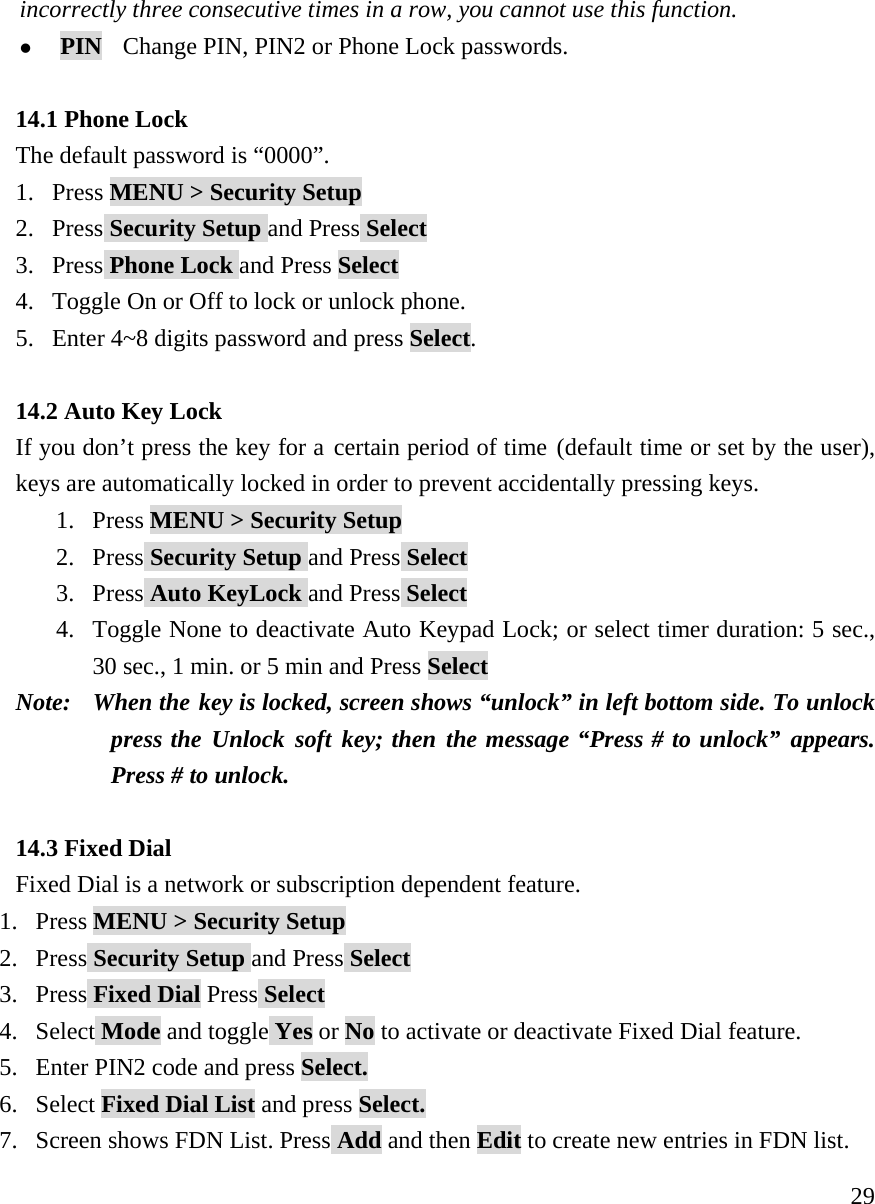
    29incorrectly three consecutive times in a row, you cannot use this function.   z PIN  Change PIN, PIN2 or Phone Lock passwords.  14.1 Phone Lock The default password is “0000”. 1. Press MENU > Security Setup 2. Press Security Setup and Press Select 3. Press Phone Lock and Press Select 4. Toggle On or Off to lock or unlock phone.  5. Enter 4~8 digits password and press Select.  14.2 Auto Key Lock If you don’t press the key for a certain period of time (default time or set by the user), keys are automatically locked in order to prevent accidentally pressing keys.  1. Press MENU > Security Setup 2. Press Security Setup and Press Select 3. Press Auto KeyLock and Press Select 4. Toggle None to deactivate Auto Keypad Lock; or select timer duration: 5 sec., 30 sec., 1 min. or 5 min and Press Select Note:   When the key is locked, screen shows “unlock” in left bottom side. To unlock press the Unlock soft key; then the message “Press # to unlock” appears. Press # to unlock.      14.3 Fixed Dial Fixed Dial is a network or subscription dependent feature. 1. Press MENU > Security Setup 2. Press Security Setup and Press Select 3. Press Fixed Dial Press Select 4. Select Mode and toggle Yes or No to activate or deactivate Fixed Dial feature. 5. Enter PIN2 code and press Select. 6. Select Fixed Dial List and press Select. 7. Screen shows FDN List. Press Add and then Edit to create new entries in FDN list.
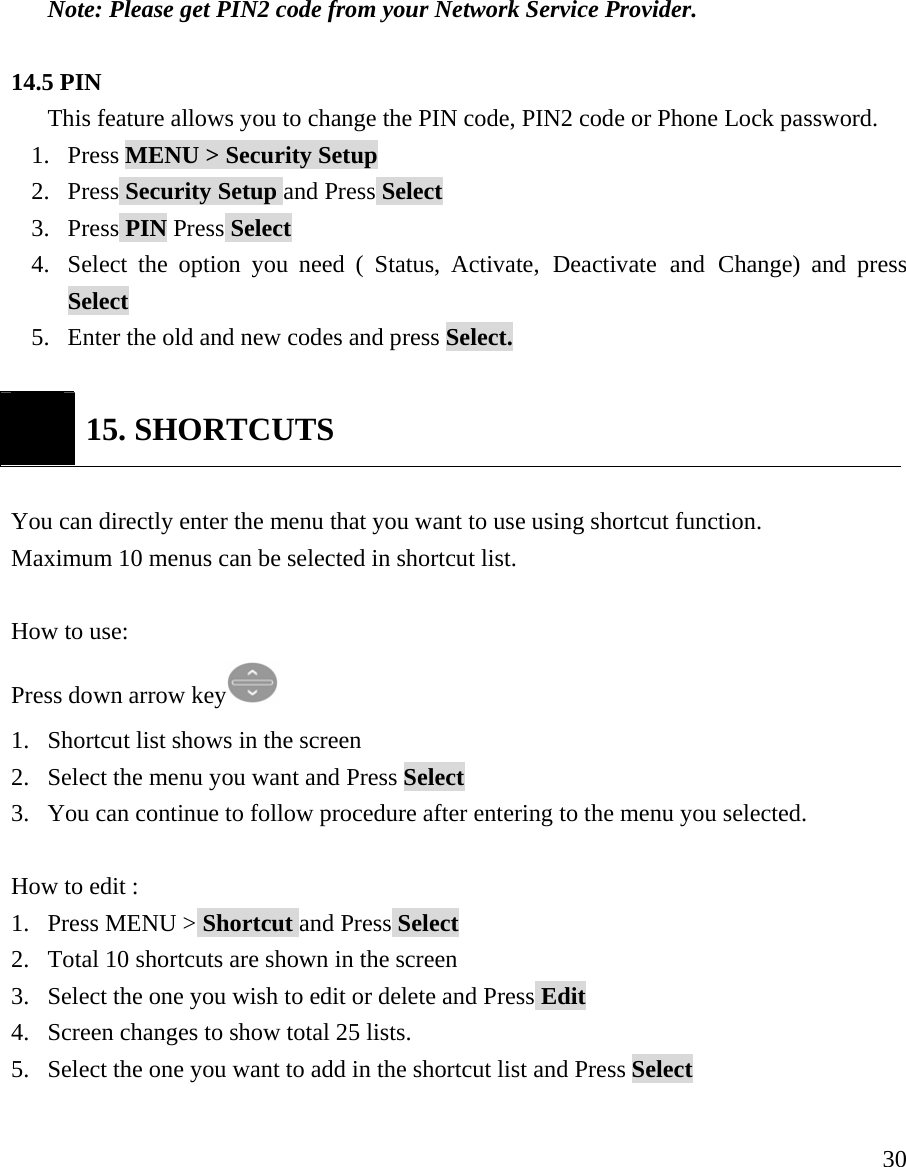
    30 Note: Please get PIN2 code from your Network Service Provider.  14.5 PIN This feature allows you to change the PIN code, PIN2 code or Phone Lock password. 1. Press MENU > Security Setup 2. Press Security Setup and Press Select 3. Press PIN Press Select 4. Select the option you need ( Status, Activate, Deactivate and Change) and press Select 5. Enter the old and new codes and press Select.    15. SHORTCUTS  You can directly enter the menu that you want to use using shortcut function.  Maximum 10 menus can be selected in shortcut list.   How to use:  Press down arrow key  1. Shortcut list shows in the screen 2. Select the menu you want and Press Select  3. You can continue to follow procedure after entering to the menu you selected.  How to edit : 1. Press MENU > Shortcut and Press Select 2. Total 10 shortcuts are shown in the screen 3. Select the one you wish to edit or delete and Press Edit 4. Screen changes to show total 25 lists.  5. Select the one you want to add in the shortcut list and Press Select
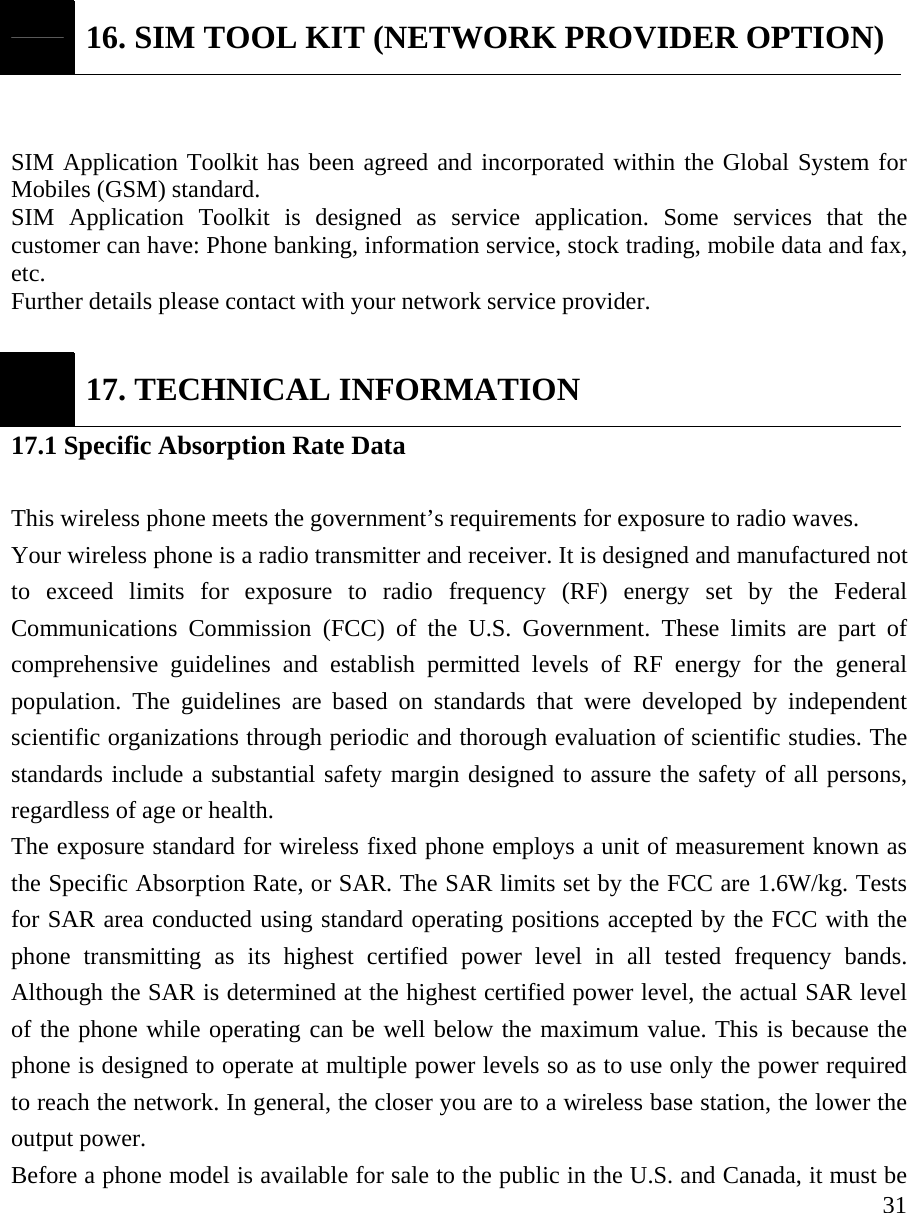
    31 16. SIM TOOL KIT (NETWORK PROVIDER OPTION)  SIM Application Toolkit has been agreed and incorporated within the Global System for Mobiles (GSM) standard. SIM Application Toolkit is designed as service application. Some services that the customer can have: Phone banking, information service, stock trading, mobile data and fax, etc.  Further details please contact with your network service provider.   17. TECHNICAL INFORMATION 17.1 Specific Absorption Rate Data  This wireless phone meets the government’s requirements for exposure to radio waves.   Your wireless phone is a radio transmitter and receiver. It is designed and manufactured not to exceed limits for exposure to radio frequency (RF) energy set by the Federal Communications Commission (FCC) of the U.S. Government. These limits are part of comprehensive guidelines and establish permitted levels of RF energy for the general population. The guidelines are based on standards that were developed by independent scientific organizations through periodic and thorough evaluation of scientific studies. The standards include a substantial safety margin designed to assure the safety of all persons, regardless of age or health.   The exposure standard for wireless fixed phone employs a unit of measurement known as the Specific Absorption Rate, or SAR. The SAR limits set by the FCC are 1.6W/kg. Tests for SAR area conducted using standard operating positions accepted by the FCC with the phone transmitting as its highest certified power level in all tested frequency bands. Although the SAR is determined at the highest certified power level, the actual SAR level of the phone while operating can be well below the maximum value. This is because the phone is designed to operate at multiple power levels so as to use only the power required to reach the network. In general, the closer you are to a wireless base station, the lower the output power.   Before a phone model is available for sale to the public in the U.S. and Canada, it must be
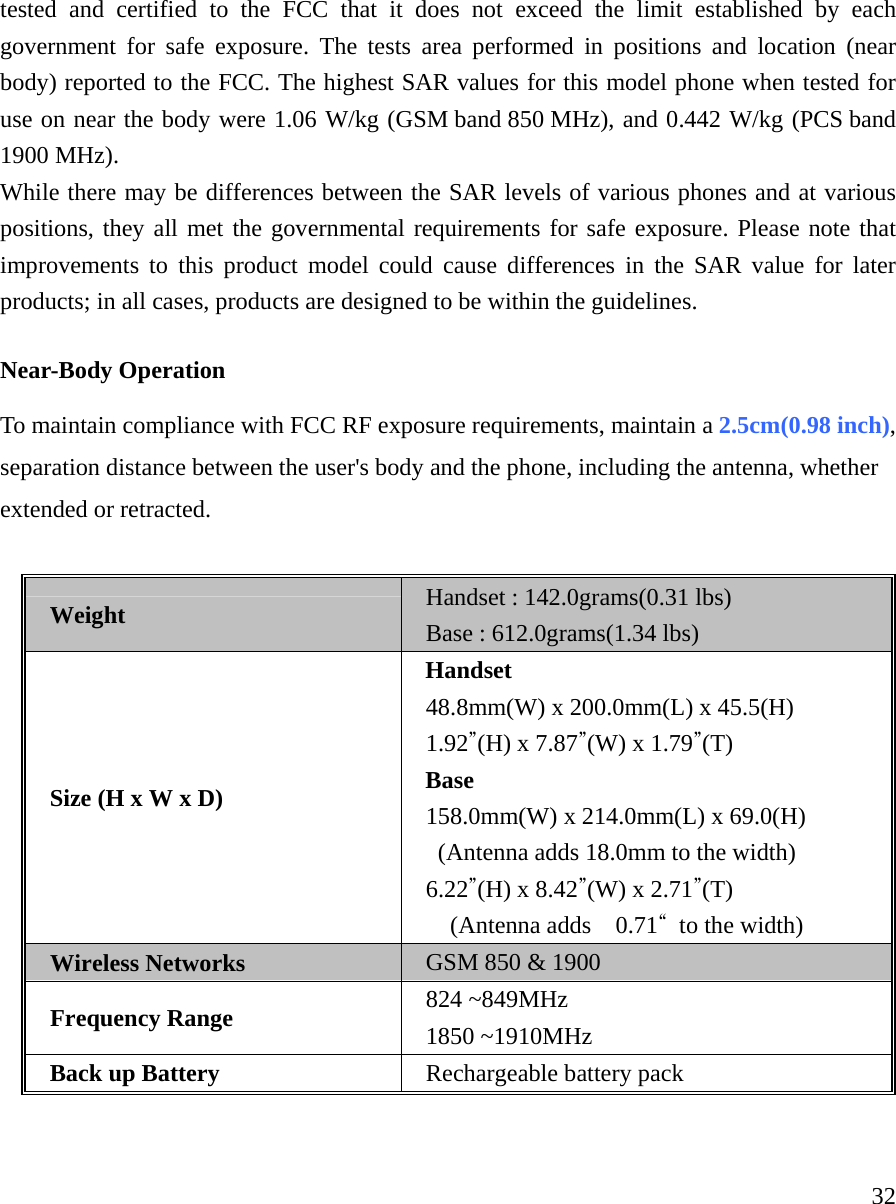
    32tested and certified to the FCC that it does not exceed the limit established by each government for safe exposure. The tests area performed in positions and location (near body) reported to the FCC. The highest SAR values for this model phone when tested for use on near the body were 1.06 W/kg (GSM band 850 MHz), and 0.442 W/kg (PCS band 1900 MHz). While there may be differences between the SAR levels of various phones and at various positions, they all met the governmental requirements for safe exposure. Please note that improvements to this product model could cause differences in the SAR value for later products; in all cases, products are designed to be within the guidelines.    Near-Body Operation  To maintain compliance with FCC RF exposure requirements, maintain a 2.5cm(0.98 inch), separation distance between the user's body and the phone, including the antenna, whether extended or retracted.  Weight Handset : 142.0grams(0.31 lbs) Base : 612.0grams(1.34 lbs) Size (H x W x D) Handset 48.8mm(W) x 200.0mm(L) x 45.5(H)   1.92”(H) x 7.87”(W) x 1.79”(T) Base 158.0mm(W) x 214.0mm(L) x 69.0(H)   (Antenna adds 18.0mm to the width) 6.22”(H) x 8.42”(W) x 2.71”(T)   (Antenna adds  0.71“  to the width) Wireless Networks GSM 850 & 1900 Frequency Range 824 ~849MHz 1850 ~1910MHz Back up Battery  Rechargeable battery pack

Navigation menu