Telian FTD8800 Dual mode TDMA Desktop Phone User Manual

Telian Corporation Dual mode TDMA Desktop Phone Users Manual

Users Manual

    FTD-8800/CRX-1000  2005. 1. 28
  CONTENTS   1.   SAFETY INFORMATION  2.  PREPARING YOUR PHONE FOR USE 2.1   Install the coiled cord 2.2  Plug AC/DC Adaptor 2.3    Back up Battery  3.  FEATURE HIGHLIGHTS  4.    ABOUT THE PHONE 4.1  Name and function 4.2   Key functions 4.2.1  Selection keys / Mute key (RSK) 4.2.2    Send key 4.2.3    End key 4.2.4    ~ Number keys 4.2.5    Scroll keys 4.2.6  Speaker button 4.2.7    Using the selection keys 4.2.8   Using the scroll keys 4.3   About display indicators and icons 4.3.1  Start Screen 4.3.2   Scroll Bar 4.4   Indicators and icons  5.   BASIC OPERATIONS 5.1   Make a call 5.2   Answer a call 5.3   Speaker phone mode
5.4   Adjust the earpiece volume 5.5   Redial the last-dialed number   5.6   Use Caller ID    6.   USE PHONE MENUS     6.1   Navigate menus  6.1.1   Scroll through menus          6.1.2   Use a shortcut          6.1.3   Exit menu levels       6.2   List of Menus  7.   ENTER LETTERS AND NUMBERS 7.1   Enter Letters     7.1.1  Edit name         7.1.2  Change case of letters and numbers       8.   USE THE PHONE BOOK 8.1  About the phone book 8.2   Use phone book menus 8.3   Create a phone book Entry 8.4   Edit a Phonebook Entry 8.5   Delete Phonebook Entry 8.6   Delete All phonebook Entries 8.7   Send Message 8.8   Monitor Phonebook Capacity 8.9   Sort Phonebook Entry  9.   USE THE RECENT CALL 9.1   View Recent Calls 9.2   View Notepad 9.3 View Call Times 9.4  Delete All Call Log
10.   SEND AND RECEIVE TEXT MESSAGES 10.1   Send a Text Message 10.2   Set a Quick Note 10.3   Receive a Text Message 10.4   Use Voicemail  10.4.1    Receive a Voicemail Message 10.4.2    Listen to a Voicemail Message 10.5   Use Outbox 10.6  Use Drafts 10.7  Cleanup Messages 10.8  Monitor Memory Meter 10.9    Set Up the Message 10.9.1   Set Inbox setup 10.9.2   Store your voicemail number  11. CUSTOMIZE YOUR PHONE 11.1  Personalize          11.1.1   Change Greeting Text           11.1.2   Change Shortcuts 11.2   In call Setup           11.2.1  Set In Call Timer 11.2.2    Set Answer Options 11.2.3    Set the Easy Prefix 11.2.3.1  Auto Change 11.2.3.2  Pref. Opr.(Preferred Operator) 11.2.3.3  Override 11.3   Initial Setup 11.3.1    Set Time and Data 11.3.1.1  Set Time 11.3.1.2  Set Data  11.3.1.3  Auto update           11.3.2   Set the Backlight 11.3.3   Set TTY Operation
11.3.4  Set Language 11.3.5  Set Contrast 11.3.6  Use DTMF Tone 11.3.7   Reset All Options 11.3.8    Clear All Stored Information 11.4   Phone Status 11.4.1  View Your Phone Number 11.4.2   View the phone Specifications 11.5  Network Setup 11.5.1   View Currently Registered Network 11.5.2   Set Service Tones 11.5.3  Set Call Drop Alert 11.5.4   Set Network Scan 11.5.5  Set Network Service 11.5.5.1    Store the Feature Code 11.5.5.2   Call Forwarding 11.5.5.3   Call Waiting 11.5.5.4   Caller ID 11.6  SECURITY 11.6.1 Talk Security (Voice Privacy) 11.6.2 Restrict Calls 11.6.3 Set Password 12.  RING STYLES   12.1  Set Ring Styles 12.1.1 Change Style 12.1.2 Set Style Details 12.1.3 Set Reminders 13.  ALARM 13.1   Set Alarm 13.2   Edit, Enable or Delete Alarm 13.3   Respond to Alarm
14.   REFERENCE INFORMATION 14.1   Emergency Calls 14.1.1 Make an emergency call 14.2  Troubleshooting 14.2.1 No Service 14.2.2 What if the call does not go through?  15. TECHNICAL INFORMATION
1   SAFETY INFORMATION  SAFETY INFORMATION FOR FIXED PHONES   For the safe and efficient operation of your phone, observe the following guidelines:    EXPOSURE TO RADIO FREQUENCY SIGNALS   Your wireless handheld portable telephone is a low power radio transmitter and receiver. When it is ON, it receives and also sends out radio frequency (RF) signals.   In August 1996, the Federal Communications Commissions (FCC) adopted RF exposure guidelines with safety levels for handheld wireless phones. Those guidelines are consistent with the safety standards previously set by both U.S. and international standards bodies:   ANSI C95.1 (1992)*   NCRP Report 86 (1986)*   ICNIRP (1996)*   ★ American National Standards Institute; National Council on Radiation Protection and Measurements; International Commission on Non-Ionizing Radiation Protection   Those standards were based on comprehensive and periodic evaluations of the relevant scientific literature. For example, over 120 scientists, engineers, and physicians from universities, government health agencies, and industry reviewed the available body of research to develop the ANSI Standard (C95.1)   The design of your phone complies with the FCC guidelines (and those standards).   Near-Body OperationCAUTION!   To comply with FCC radio-frequency exposure requirements, the antenna for this device must be placed 2 inches(5cm) or more from the body while it is in operation.   ANTENNA CARE   Use only the supplied or an approved replacement antenna. Unauthorized antennas, modifications, or attachments could damage the phone and may violate FCC regulations.   PHONE OPERATION   This device complies with Part 15 of the FCC Rules. Operation is subject to the following two conditions:   1) This device may not cause harmful interference.
2) This device must accept any interference received, including interference that may cause undesired operation.   Note: Hold the phone as you would any other telephone with the antenna pointed up and over your shoulder.   TIPS ON EFFICIENT OPERATION   For your phone to operate most efficiently:   z Do not touch the antenna unnecessarily when the phone is in use. Contact with the antenna affects call quality and may cause the phone to operate at a higher power level than otherwise needed.    ELECTRONIC DEVICES   Most modern electronic equipment is shielded from RF signals. However, certain electronic equipment may not be shielded against the RF signals from your wireless phone.   Pacemakers  The Health Industry Manufacturers Association recommends that a minimum separation of six inches (6”) be maintained between the bast and a pacemaker to avoid potential interference with the pacemaker. These recommendations are consistent with the independent research by and recommendations of Wireless Technology Research.   Persons with pacemakers:   z Should ALWAYS keep the phone more than six inches (6”) from their pacemaker.   z Should use the ear opposite the pacemaker to minimize the potential for interference.   Other Medical Devices   If you use any other personal medical device, consult the manufacturer of your device to determine if they are adequately shielded from external RF energy. Your physician may be able to assist you in obtaining this information.   Turn your phone OFF in health care facilities when any regulations posted in these areas instruct you to do so. Hospitals or health care facilities may be using equipment that could be sensitive to external RF energy.    Posted Facilities   Turn your phone OFF in any facility where posted notices so require.
2   PREPARE YOUR PHONE FOR USE  Before using your phone, phone must be setup as the following instruction.   2.1  Install the coiled cord   z Connect the coiled cord to both the handset and the base.   2.2 Plug the AC/DC Adaptor  z Connect the adaptor to the AC Wall outlet.   2.3 Back up Battery  ① Remove the battery door.   ② Insert four AA batteries into battery comportment.   ③ Place the battery door on.   Note: Batteries are backup for emergency case of power failure, Do not operate unit without the AC/DC Adaptor connected.   Note:  Be sure to carefully match the positive and negative terminals as shown in the battery.
3   FEATURE HIGHLIGHTS    z Easy to read graphical display   z Phone book (up to 500 names and 4 numbers per name)   z Easy to use keypad layout   z 14 Ring tones and 3 Ring style selections   z Adjustable ring volume   z Quick access to the last 10 numbers dialed   z Caller ID   z Auto redial   z Clock with alarm   z Dialed, received, missed calls   z Call restriction   z Keypad lock   z Call timer   z Text message service   z Voice mail capability   z 2 different NAM   z Multi-languages (English, Spanish and Portuguese)   z Speaker phone
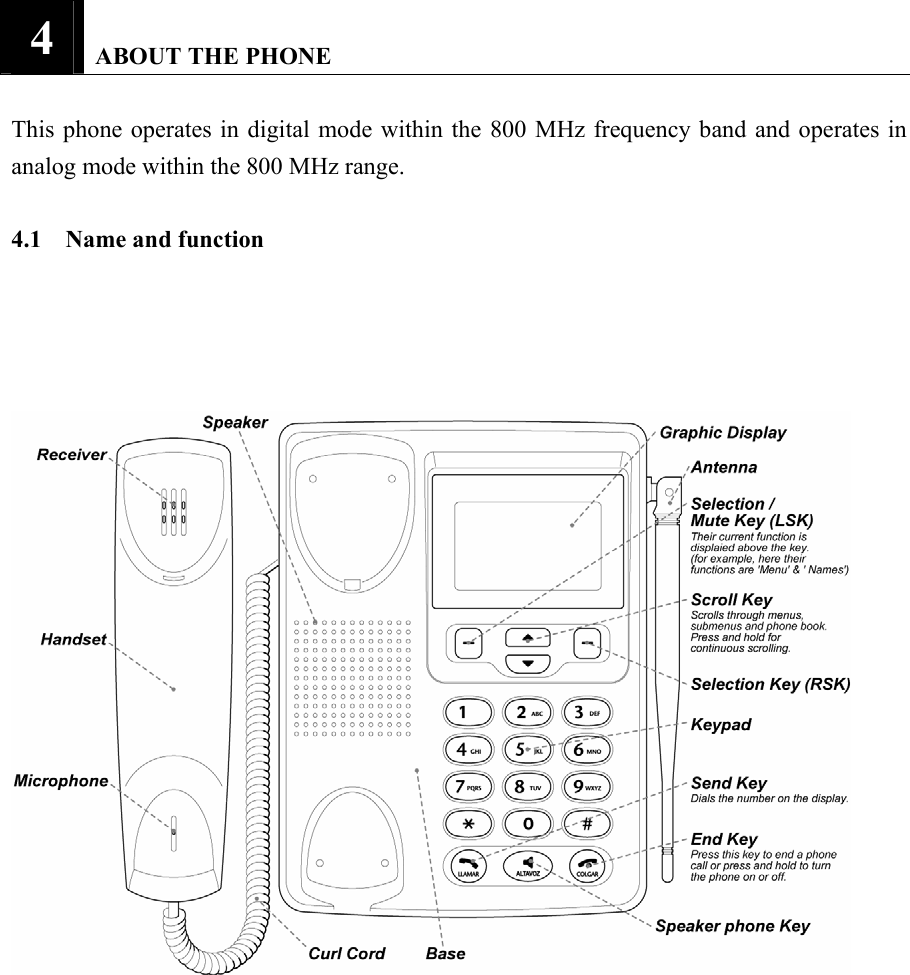
4   ABOUT THE PHONE  This phone operates in digital mode within the 800 MHz frequency band and operates in analog mode within the 800 MHz range.    4.1    Name and function
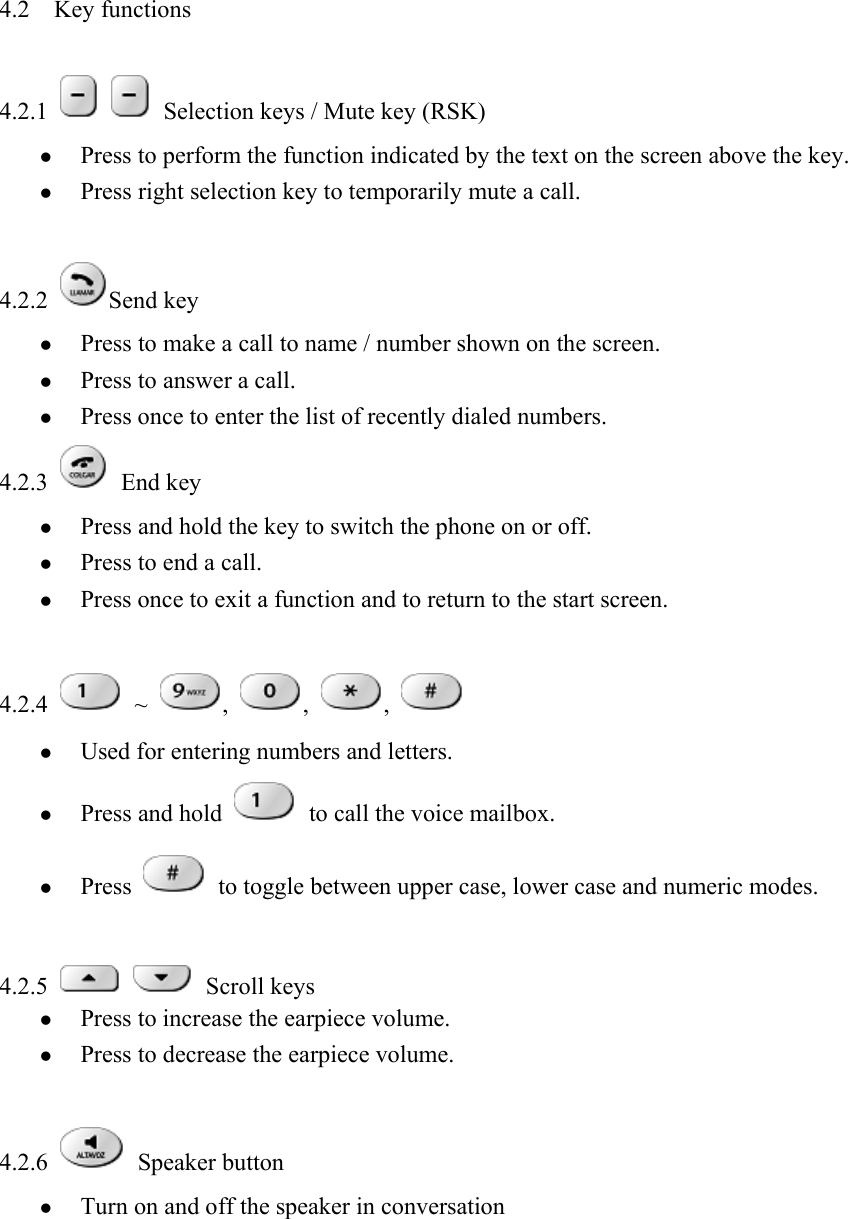
4.2  Key functions    4.2.1     Selection keys / Mute key (RSK)   z Press to perform the function indicated by the text on the screen above the key.   z Press right selection key to temporarily mute a call.    4.2.2  Send key   z Press to make a call to name / number shown on the screen.   z Press to answer a call.   z Press once to enter the list of recently dialed numbers.   4.2.3   End key  z Press and hold the key to switch the phone on or off.   z Press to end a call.   z Press once to exit a function and to return to the start screen.    4.2.4   ~  ,  ,  ,   z Used for entering numbers and letters.   z Press and hold   to call the voice mailbox. z Press   to toggle between upper case, lower case and numeric modes.    4.2.5    Scroll keys  z Press to increase the earpiece volume.   z Press to decrease the earpiece volume.    4.2.6   Speaker button  z Turn on and off the speaker in conversation
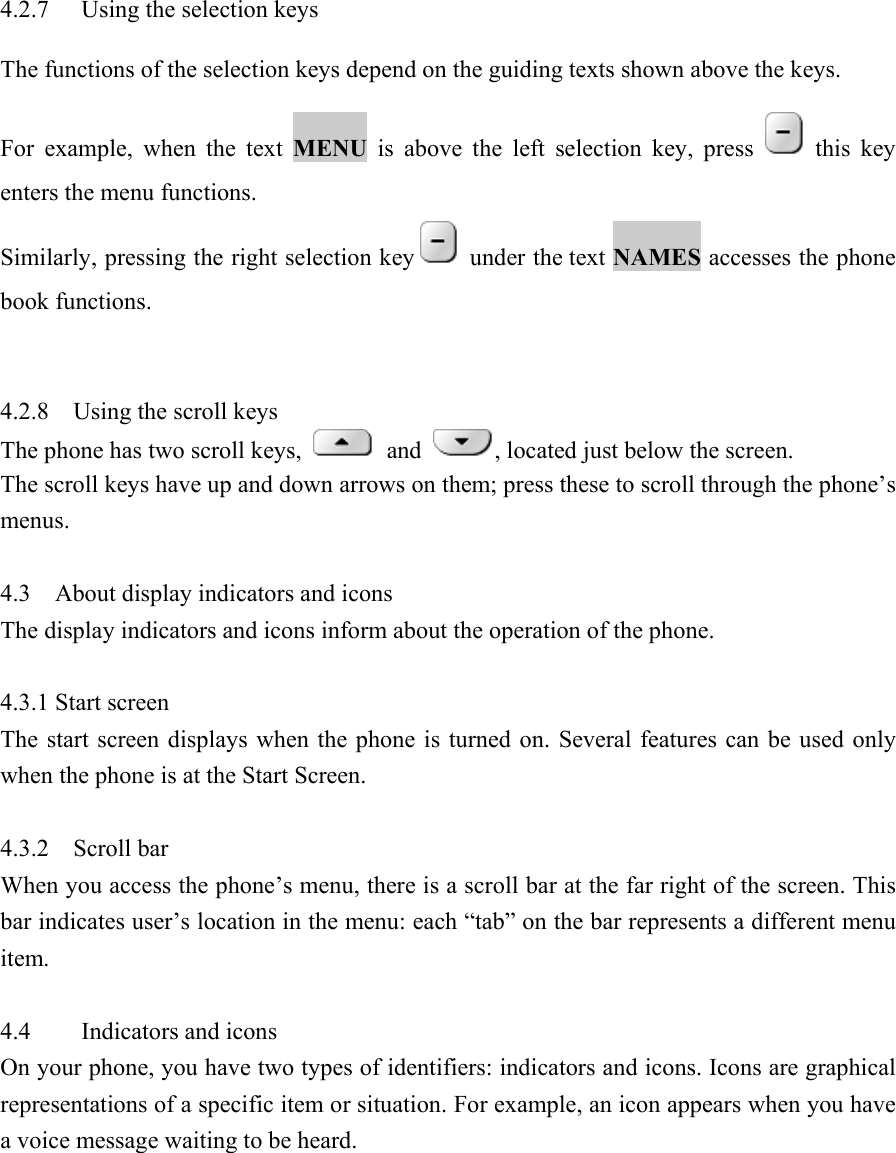
 4.2.7  Using the selection keys   The functions of the selection keys depend on the guiding texts shown above the keys.   For example, when the text MENU is above the left selection key, press   this key enters the menu functions.   Similarly, pressing the right selection key   under the text NAMES accesses the phone book functions.     4.2.8  Using the scroll keys  The phone has two scroll keys,   and  , located just below the screen.   The scroll keys have up and down arrows on them; press these to scroll through the phone’s menus.   4.3  About display indicators and icons  The display indicators and icons inform about the operation of the phone.    4.3.1 Start screen    The start screen displays when the phone is turned on. Several features can be used only when the phone is at the Start Screen.    4.3.2    Scroll bar   When you access the phone’s menu, there is a scroll bar at the far right of the screen. This bar indicates user’s location in the menu: each “tab” on the bar represents a different menu item.   4.4 Indicators and icons  On your phone, you have two types of identifiers: indicators and icons. Icons are graphical representations of a specific item or situation. For example, an icon appears when you have a voice message waiting to be heard.
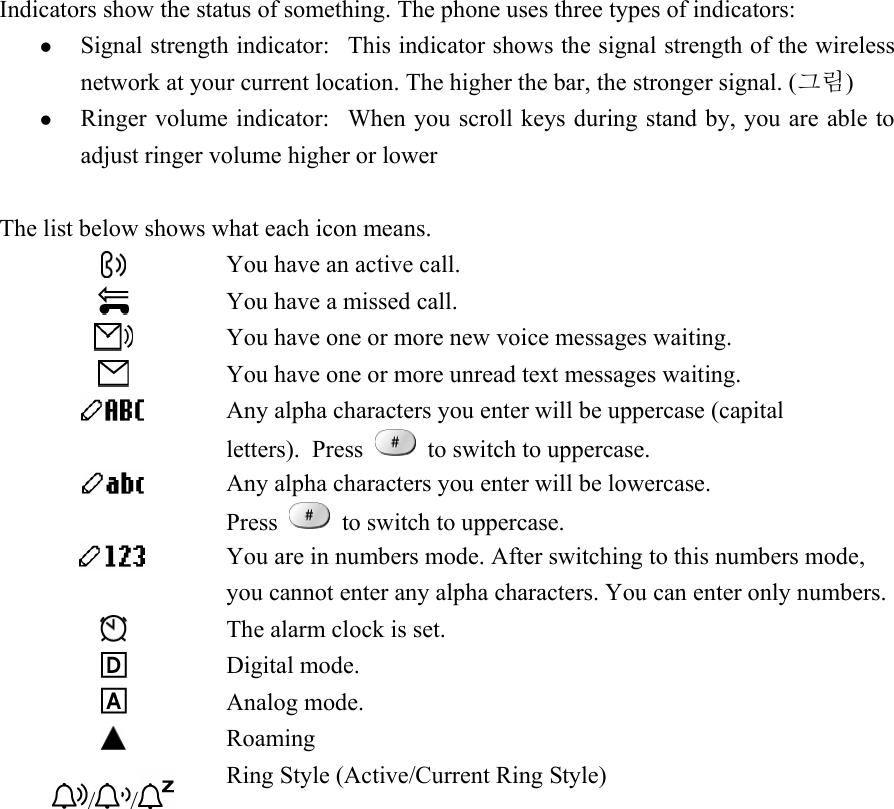
Indicators show the status of something. The phone uses three types of indicators:   z Signal strength indicator:   This indicator shows the signal strength of the wireless network at your current location. The higher the bar, the stronger signal. (그림)  z Ringer volume indicator:   When you scroll keys during stand by, you are able to adjust ringer volume higher or lower    The list below shows what each icon means.    You have an active call.  You have a missed call.  You have one or more new voice messages waiting.  You have one or more unread text messages waiting.  Any alpha characters you enter will be uppercase (capital letters).  Press   to switch to uppercase.  Any alpha characters you enter will be lowercase.   Press   to switch to uppercase.  You are in numbers mode. After switching to this numbers mode, you cannot enter any alpha characters. You can enter only numbers. The alarm clock is set.    Digital mode.  Analog mode.  Roaming / /  Ring Style (Active/Current Ring Style)
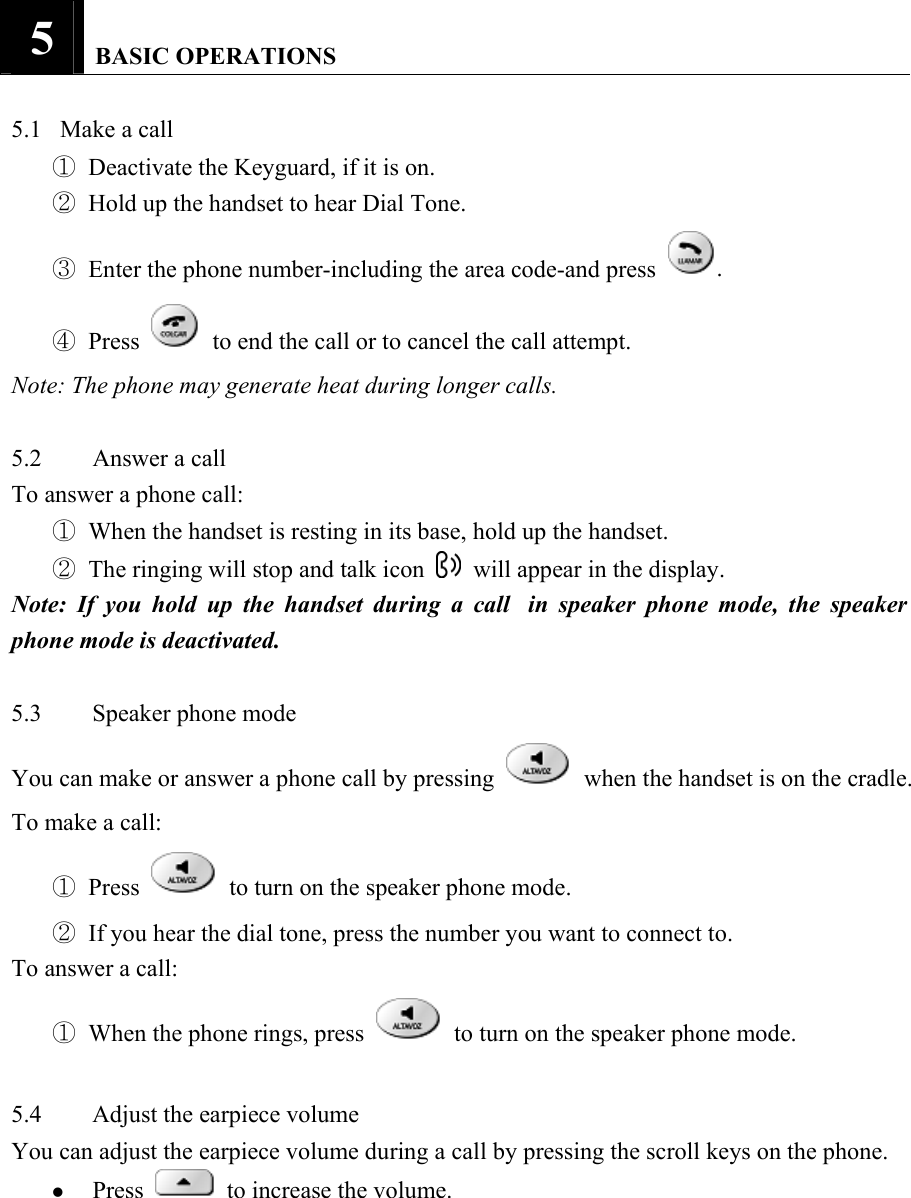
5   BASIC OPERATIONS   5.1   Make a call   ① Deactivate the Keyguard, if it is on.   ② Hold up the handset to hear Dial Tone.   ③ Enter the phone number-including the area code-and press .   ④ Press   to end the call or to cancel the call attempt.   Note: The phone may generate heat during longer calls.    5.2  Answer a call   To answer a phone call:   ① When the handset is resting in its base, hold up the handset.   ② The ringing will stop and talk icon    will appear in the display.   Note: If you hold up the handset during a call  in speaker phone mode, the speaker phone mode is deactivated.    5.3 Speaker phone mode  You can make or answer a phone call by pressing    when the handset is on the cradle.   To make a call:   ① Press    to turn on the speaker phone mode.   ② If you hear the dial tone, press the number you want to connect to.   To answer a call:   ① When the phone rings, press    to turn on the speaker phone mode.    5.4  Adjust the earpiece volume   You can adjust the earpiece volume during a call by pressing the scroll keys on the phone.   z Press   to increase the volume.
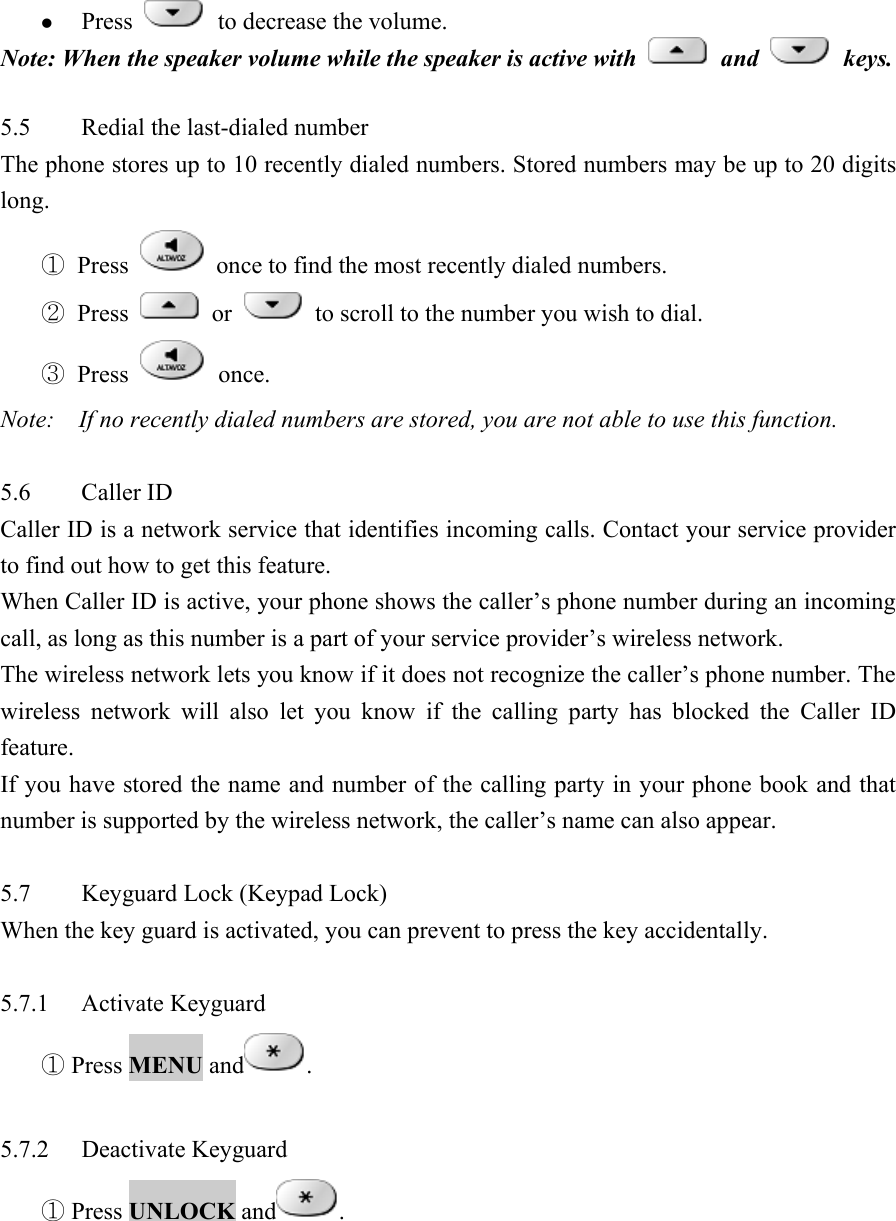
z Press   to decrease the volume.  Note: When the speaker volume while the speaker is active with   and   keys.   5.5  Redial the last-dialed number   The phone stores up to 10 recently dialed numbers. Stored numbers may be up to 20 digits long.  ① Press   once to find the most recently dialed numbers.   ② Press   or   to scroll to the number you wish to dial.   ③ Press   once.  Note:    If no recently dialed numbers are stored, you are not able to use this function.    5.6 Caller ID  Caller ID is a network service that identifies incoming calls. Contact your service provider to find out how to get this feature.   When Caller ID is active, your phone shows the caller’s phone number during an incoming call, as long as this number is a part of your service provider’s wireless network.   The wireless network lets you know if it does not recognize the caller’s phone number. The wireless network will also let you know if the calling party has blocked the Caller ID feature.  If you have stored the name and number of the calling party in your phone book and that number is supported by the wireless network, the caller’s name can also appear.    5.7  Keyguard Lock (Keypad Lock)   When the key guard is activated, you can prevent to press the key accidentally.    5.7.1 Activate Keyguard  ① Press MENU and .    5.7.2 Deactivate Keyguard  ① Press UNLOCK and .
Note: If you lift up the handset or press    to answer a call when key guard is on, the key pad is automatically unlocked.  When you end the call, key guard automatically becomes activated again.
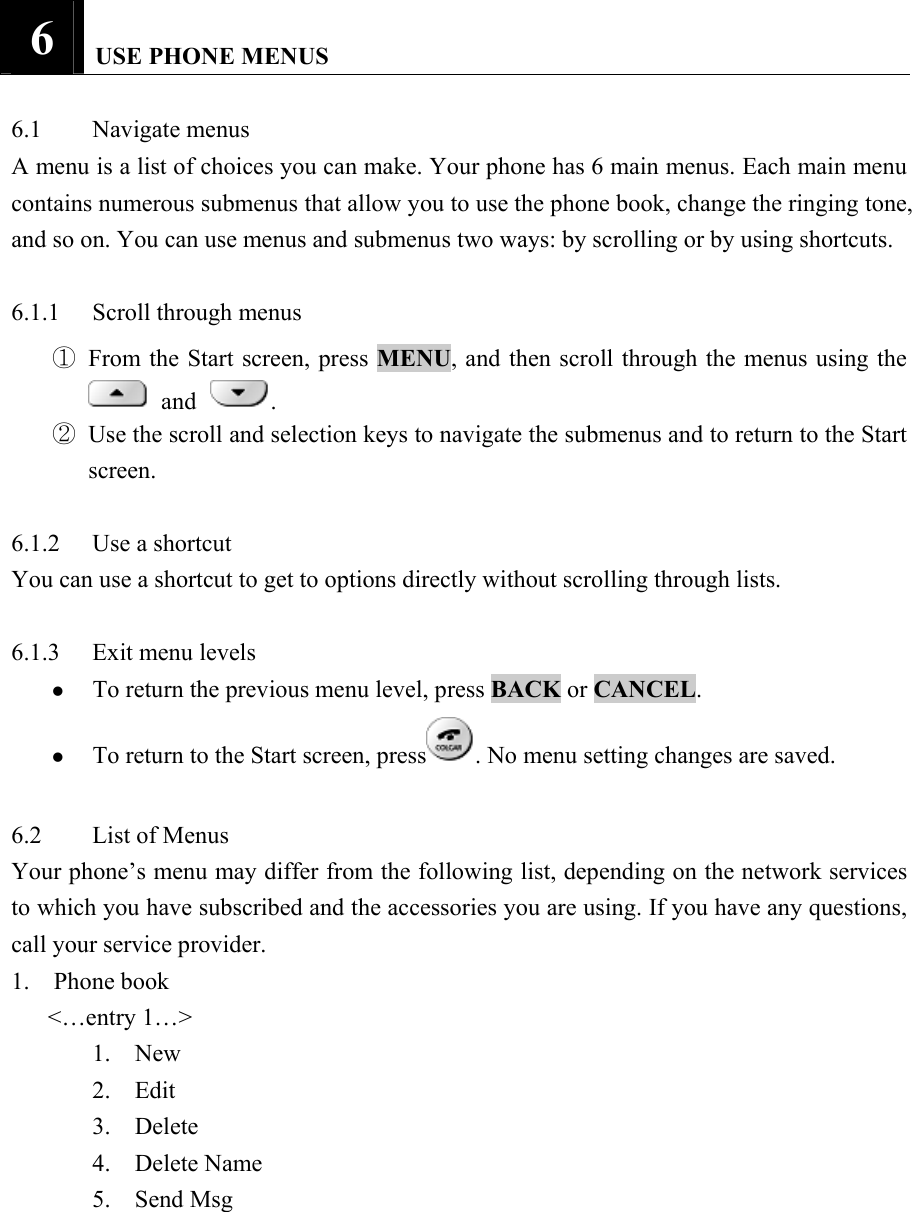
6   USE PHONE MENUS   6.1 Navigate menus  A menu is a list of choices you can make. Your phone has 6 main menus. Each main menu contains numerous submenus that allow you to use the phone book, change the ringing tone, and so on. You can use menus and submenus two ways: by scrolling or by using shortcuts.    6.1.1 Scroll through menus  ① From the Start screen, press MENU, and then scroll through the menus using the  and .   ② Use the scroll and selection keys to navigate the submenus and to return to the Start screen.   6.1.2  Use a shortcut   You can use a shortcut to get to options directly without scrolling through lists.    6.1.3  Exit menu levels   z To return the previous menu level, press BACK or CANCEL.  z To return to the Start screen, press . No menu setting changes are saved.    6.2 List of Menus  Your phone’s menu may differ from the following list, depending on the network services to which you have subscribed and the accessories you are using. If you have any questions, call your service provider.   1.  Phone book     <…entry 1…> 1.  New  2.  Edit  3.  Delete  4.  Delete Name  5.  Send Msg
6.  Ph Book Capacity  7.  Delete All  8.  Sort By  <…entry 2…> <…entry N…> [New Entry] [Delete All] 2.  Recent Calls  1.  Missed Calls  2.  Received Calls  3.  Dialed Calls  4.  Notepad  5.  Call times  1.  Last Call  2.  Dialed Calls  3.  Received Calls  4.  All Calls  6.  Life Time  7.  Delete all call log  3.  Messages  1.  Create Message  2.  Voice mail  3.  Inbox  <…message 1…> 1.  Create Message  2.  Delete  3.  Call back  4.  Reply  5.  Forward  6.  Lock  7.  Store Number <…message 2…> <…message N…>
[Create Message] [Delete All]      4.  Quick Notes  <…Quicknote 1…>  1.  New  2.  Edit  3.  Delete  4.  Send  <…Quicknote 2…>  <…Quicknote N…>  [New Quick Note]  [Delete All]  5.  Outbox   <…message 1…> 1.  Create Message  2.  Delete  3.  Re-send  4.  Forward  5.  Message Status  6.  Cleanup Message  <…message 2…>  <…message N…>  [Create Message]  [Delete All]  6.  Drafts   <…message 1…>    1.  Create    2.  Send    3.  Cleanup Message  <…message 2…>  <…message N…>  [Create Message]  [Delete All]
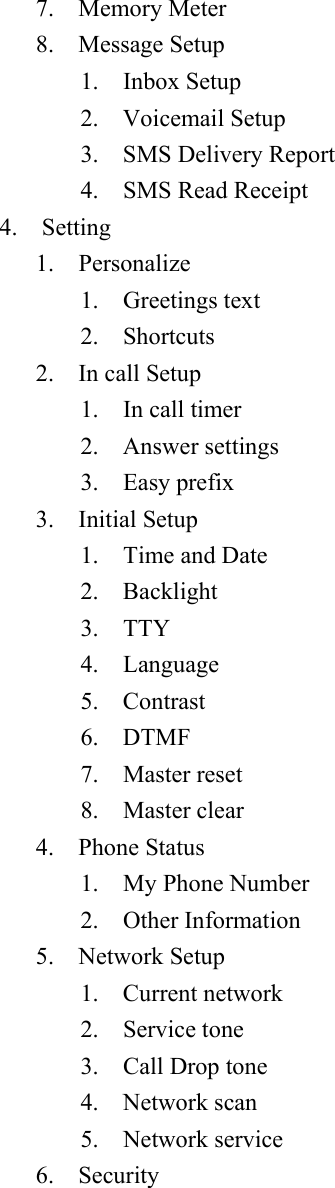
7.  Memory Meter  8.  Message Setup   1.  Inbox Setup  2.  Voicemail Setup   3.  SMS Delivery Report   4.  SMS Read Receipt  4.  Setting  1.  Personalize  1.  Greetings text  2.  Shortcuts  2.  In call Setup  1.  In call timer  2.  Answer settings  3.  Easy prefix  3.  Initial Setup  1.  Time and Date  2.  Backlight  3.  TTY  4.  Language  5.  Contrast  6.  DTMF  7.  Master reset  8.  Master clear  4.  Phone Status   1.  My Phone Number   2.  Other Information  5.  Network Setup  1.  Current network  2.  Service tone  3.    Call Drop tone   4.  Network scan  5.  Network service  6.  Security
1.  Talk security  2.  Restrict call  3.  New password  5.  Ring Styles  1.  Style   1.  Loud   2.  Soft   3.  Silent  2.  Style Details  1.  Ring Volume  2.  Calls  3.  Text Messages  4.  Voicemail  5.  Alarms  6.  Reminders  6.  Alarms     <…Alarm 1…> 1. Disable/Enable 2. New 3. Edit 4. Delete 5. Delete All    <…Alarm 2…>    <…Alarm N…>    [New Alarm]    [Delete All]
7   ENTER LETTERS AND NUMBERS   You can enter letters, as well as numbers, when storing information into your phone by using your phone’s keypad. To enter letters, press the key associated with the letter you wish to enter until it appears on the screen (numbers also appear).    7.1 Enter Letters  When you want to add new names or when you view names in the phone book, your phone automatically switches to the ABC mode and displays the ABC icon.   Key    Characters Key Characters   space . 1 @ ? ! , & : ; ( ) ‘ % $ _  P Q R S 7   A B C 2 À Á Â Ã ç  T U V 8 Ú Ù Ü   D E F 3È É Ê   W X Y Z 9   G H I 4 Í  + - 0 * / = > < # [ ]   J K L 5     ?   M N O 6 Ň ò ó ô ŏ Change letter case Press a key once or several times to enter the letter(s) you want. For example, press three times to enter the letter C.    7.1.1 Edit name  To edit a name in the phone book:   z Use   to scroll the cursor to the left.   z Use   to scroll the cursor to the right.   z Press Delete to correct any mistakes.
 7.1.2  Change case of letters and numbers   You can switch the mode among uppercase and lowercase letters and numbers by pressing .   Note: You cannot enter special characters in 123 mode.
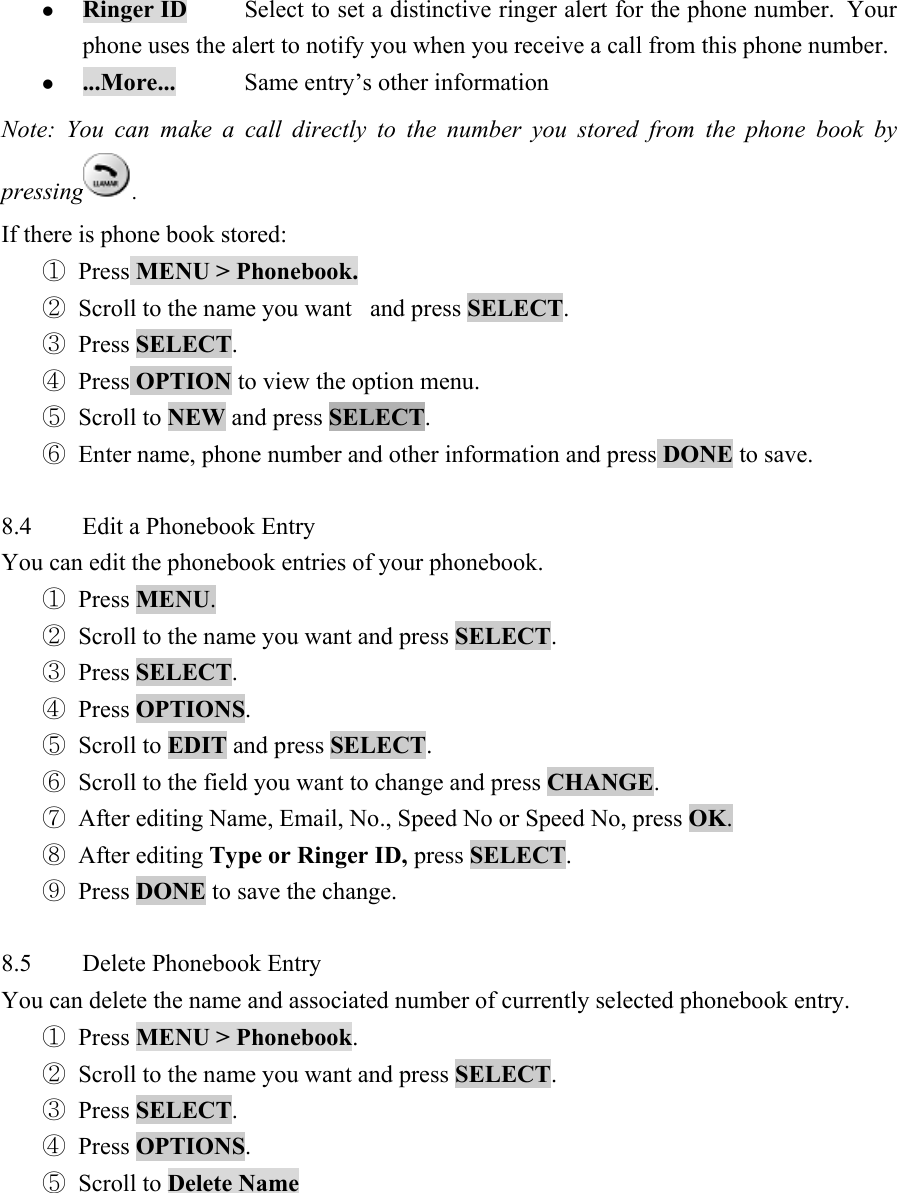
8   USE THE PHONE BOOK    8.1  About the phone book   You can store up to 500 names and 4 numbers per name.   You can sort the entries of phone book by name or speed dial number.    8.2  Use phone book menus   The phone book has several menus to select from. These menus appear when you press NAMES or [NEW ENTRY].   Use   to scroll to the menu you want to use.   z NEW                      Enter new name, e-mail and number   z EDIT                      Edit an entry   z DELETE          Delete single entry   z DELETE NAME Delete the complete entry of the selected name.   z SEND Msg             Send a SMS message.   z Ph book Capacity Show the memory meter which fills up as entries are made.   z Delete All              Delete all phone book entries   z Sort By            Sort entries by name or speed dial number.    8.3  Create a phone book Entry   To create a phonebook entry:   ① Press MENU > Phonebook.  ② Scroll to [New Entry] and press SELECT.  ③ Press CHANGE and enter a name, an email and phone number you want to store.   ④ Press OK to save the change.   ⑤ Set Type, Speed No. and Ringer ID if you want to.   ⑥ Press DONE to save the change.    z NAME   Entry’s name (Maximum 32 characters).   z E-MAIL  Entry’s e-mail address (Maximum 48 characters).   z NO.    Entry’s phone number (Maximum 40 characters).   z TYPE   Work / Home / Main / Mobile  z Speed No.  Entry’s default speed dial number.
z Ringer ID  Select to set a distinctive ringer alert for the phone number.  Your phone uses the alert to notify you when you receive a call from this phone number.   z ...More...  Same entry’s other information   Note: You can make a call directly to the number you stored from the phone book by pressing .   If there is phone book stored:   ① Press MENU > Phonebook.  ② Scroll to the name you want   and press SELECT.  ③ Press SELECT.  ④ Press OPTION to view the option menu.   ⑤ Scroll to NEW and press SELECT.  ⑥ Enter name, phone number and other information and press DONE to save.    8.4  Edit a Phonebook Entry   You can edit the phonebook entries of your phonebook.   ① Press MENU.  ② Scroll to the name you want and press SELECT.  ③ Press SELECT.  ④ Press OPTIONS.  ⑤ Scroll to EDIT and press SELECT.  ⑥ Scroll to the field you want to change and press CHANGE.  ⑦ After editing Name, Email, No., Speed No or Speed No, press OK.  ⑧ After editing Type or Ringer ID, press SELECT.  ⑨ Press DONE to save the change.    8.5  Delete Phonebook Entry   You can delete the name and associated number of currently selected phonebook entry.   ① Press MENU > Phonebook.  ② Scroll to the name you want and press SELECT.  ③ Press SELECT.  ④ Press OPTIONS.  ⑤ Scroll to Delete Name
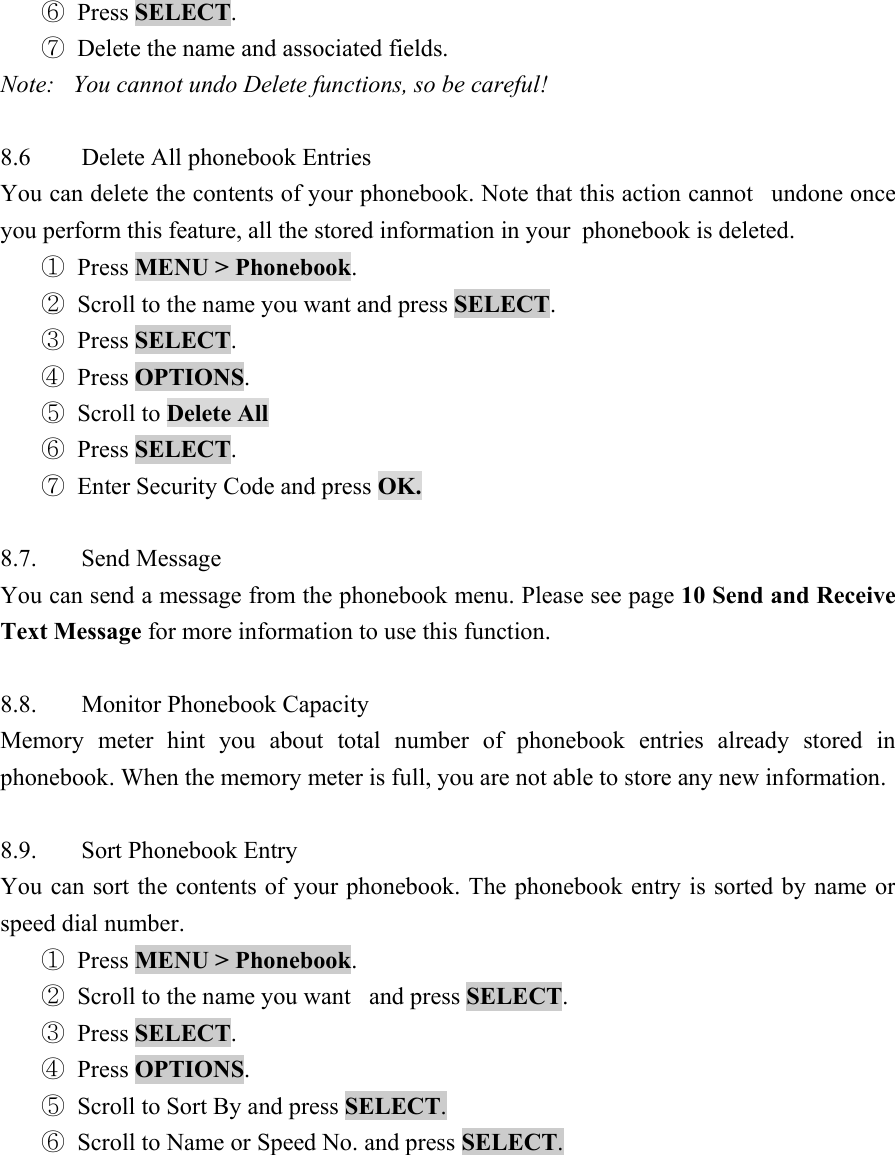
⑥ Press SELECT.  ⑦ Delete the name and associated fields.   Note:   You cannot undo Delete functions, so be careful!    8.6  Delete All phonebook Entries   You can delete the contents of your phonebook. Note that this action cannot   undone once you perform this feature, all the stored information in your  phonebook is deleted.   ① Press MENU > Phonebook.  ② Scroll to the name you want and press SELECT.  ③ Press SELECT.  ④ Press OPTIONS.  ⑤ Scroll to Delete All  ⑥ Press SELECT.  ⑦ Enter Security Code and press OK.   8.7. Send Message  You can send a message from the phonebook menu. Please see page 10 Send and Receive Text Message for more information to use this function.    8.8. Monitor Phonebook Capacity  Memory meter hint you about total number of phonebook entries already stored in phonebook. When the memory meter is full, you are not able to store any new information.    8.9. Sort Phonebook Entry  You can sort the contents of your phonebook. The phonebook entry is sorted by name or speed dial number.   ① Press MENU > Phonebook.  ② Scroll to the name you want   and press SELECT.  ③ Press SELECT.  ④ Press OPTIONS.  ⑤ Scroll to Sort By and press SELECT.  ⑥ Scroll to Name or Speed No. and press SELECT.
9   USE THE RECENT CALL    The call log keeps track of:     z Missed calls   z Received calls   z Dialed calls   z Notepad  z Call times (Recent Calls)   z Delete All Call Log    9.1 View Recent Calls  Your phone keeps lists of the calls you recently received and dialed and even the calls you failed to connect. The lists are sorted from the newest to the oldest entries. The oldest entries are deleted as new ones are added.   ① Press MENU > Recent Calls.  ② Scroll to Missed call, Received calls, or Dialed Calls and press SELECT  ③ Press OPTION  ④ Use   or  to scroll to one of the options and press SELECT.  z View    View the date and call time and call number you missed, received or dialed.   z Save    Save the number in the phonebook   z Delete    Delete the call number you missed, received or dialed.   z Delete All  Delete all the calls you missed, received and dialed.   z Send Msg  Send a message to the number you missed, received or dialed.      ⑤ Press SELECT.  ⑥ When VIEW is selected, Call Info Options screen is displayed.   ⑦ Scroll to the option menu you want.   z Delete    z Save  z Send Message   ⑧ Press SELECT.
9.2 View Notepad  Your phone stores the most recent string of digits entered on the keypad in a temporary memory location called the notepad. This can be a phone number that you called, or a number that you entered but did not call.   To retrieve the number stored in the notepad:   ① Press MENU > Recent Calls.  ② Scroll to Notepad and press SELECT.  ③ View the Calling Status screen and press OPTION.  ④ Scroll to the item you want:   z Save  z Insert Wait  Insert a ‘w’ (wait) character. Your phone dials the preceding digits, waits for the call to connect, then prompts you for confirmation before it sends the remaining digit(s).   z Insert Pause  Insert  a ‘p’ (pause) character. Your phone dials the preceding digits, waits for the call to connect, then sends the remaining digit(s).   z Insert ‘n’  Insert  an  ‘n’ (number) character. Your phone prompts you for a number before dialing the call. The number you enter is inserted into the dialing sequence in place of the n character.   z Send message   ⑤ Press SELECT.   9.3 View Call Times  Network connection time is counted from the moment you connect to your service provider’s network to the moment you end the call by pressing  . This time includes busy signals and ringing. The time record of your resettable timer may not be equal to the time for which you are billed by your service provider.   ① Press MENU > Recent Calls.  ② Scroll to Call Times and press SELECT.  ③ Scroll to the item you want   z Last Call  Approximate time spent on the last dialed or received call. You cannot reset this timer.   z Dialed Calls  Approximate total time spent on dialed calls since the last time
you reset this timer.   z Received Calls  Approximate total time spent on calls received since the last time you reset this timer.   z All Calls  Approximate total time spent on dialed and received calls since the last time you reset this timer.   z Life Time  Approximate total time spent on all calls on this phone.  You cannot reset this timer.   ④ Press RESET to delete dialed call times.   ⑤ Select YES or NO.     9.4  Delete All Call Log   This feature will clear all dialed numbers, as well as numbers of answered calls and missed calls. You can not undo this operation, so be careful.   ① Press MENU > Recent Calls.  ② Scroll to Delete All Call Log and press SELECT.  ③ View the confirmation message: Delete All Call Logs?   ④ Select YES or NO.
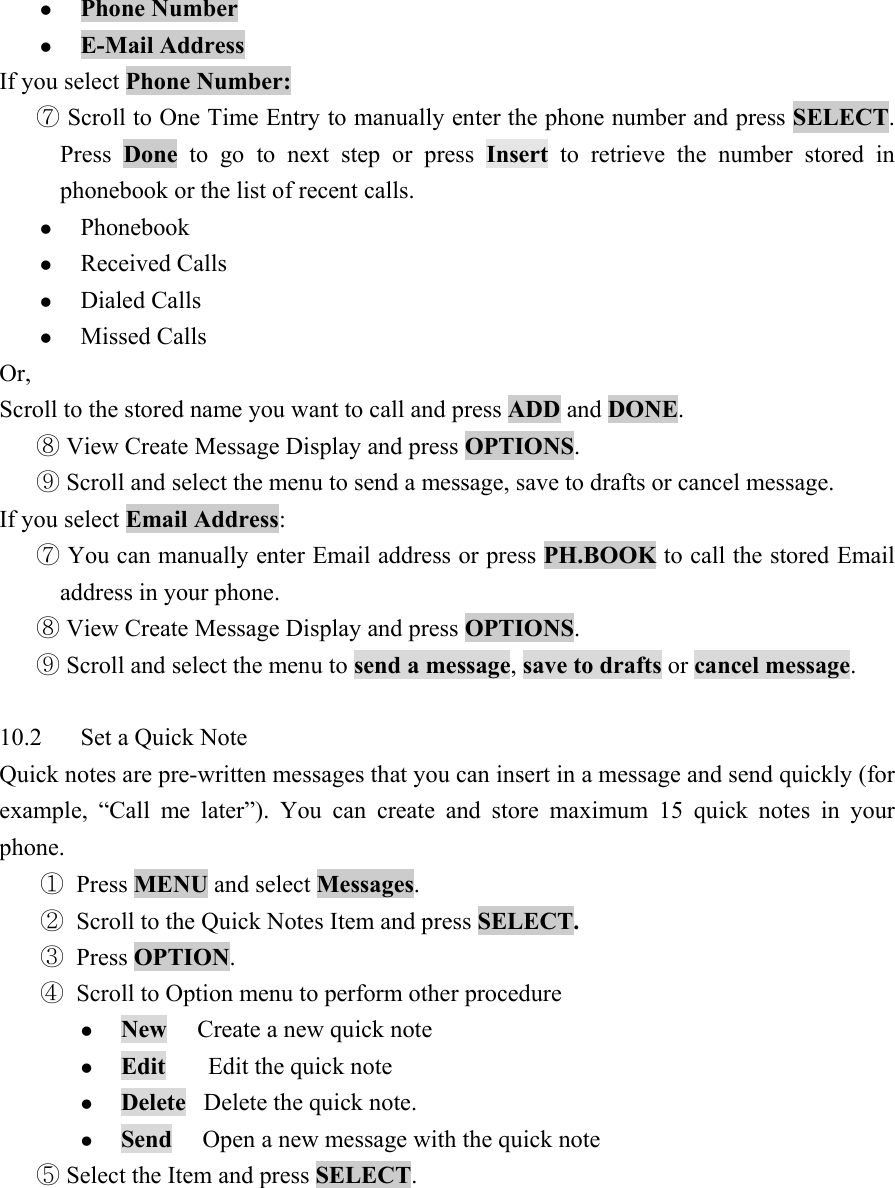
10   SEND AND RECEIVE TEXT MESSAGES    You can send or receive text messages with your phone. Text messages that you receive can contain ring tones that you can store on your phone.   z Create Message   z Voicemail  z Inbox  z Quick Notes   z Outbox  z Drafts  z Memory Meter   z Message Setup    10.1  Send a Text Message   You can send a text message to one or more recipients. You can manually enter each recipient’s phone number, email address or you can select the numbers from the phonebook or the list of recent calls.   Note:    The maximum length of a text message differs depending on the capabilities of the network from which it originated. Also, text messages may appear different at different times because messages can originate in networks other than your own.   Contact your service provider for more information about this feature.   ① Press MENU > Messages.   > Create Message  ② Scroll to the Create Message and press SELECT.    ③ You can create the message.   ④ When you press OPTIONS, you can scroll to one of the message options:   z Done    Finish creating a message.   z Quick   Notes  Retrieve stored message, or create or delete the message.   z Numeric   Change edit mode to number.   z Alpha     Change edit mode to alphabet.   ⑤ Press DONE when you finish creating a message.   ⑥ Scroll to the sending method you want and press SELECT.
z Phone Number   z E-Mail Address  If you select Phone Number:  ⑦ Scroll to One Time Entry to manually enter the phone number and press SELECT. Press  Done to go to next step or press Insert to retrieve the number stored in phonebook or the list of recent calls.   z Phonebook  z Received Calls   z Dialed Calls   z Missed Calls   Or,  Scroll to the stored name you want to call and press ADD and DONE.   View Create Message Display and press ⑧OPTIONS.   Scroll and select the menu to send a message, save to drafts or cancel message. ⑨ If you select Email Address:   You can manually ent⑦er Email address or press PH.BOOK to call the stored Email address in your phone.    View Create Message Display and press ⑧OPTIONS.   Scroll and se⑨lect the menu to send a message, save to drafts or cancel message.   10.2  Set a Quick Note   Quick notes are pre-written messages that you can insert in a message and send quickly (for example, “Call me later”). You can create and store maximum 15 quick notes in your phone.  ① Press MENU and select Messages.  ② Scroll to the Quick Notes Item and press SELECT.  ③ Press OPTION.  ④ Scroll to Option menu to perform other procedure   z New     Create a new quick note   z Edit       Edit the quick note   z Delete   Delete the quick note.   z Send     Open a new message with the quick note    Select the Item and press ⑤SELECT.
10.3  Receive a Text Message   When you receive a text message, your phone displays the  (message waiting) indicator with “New Message” notice, and plays an alert.    Press ①READ.   Press ②OPTION.   Scroll to the option menu you want③ and press SELECT.   z Create Message Open the Create Message screen  z Delete   Delete the message  z Callback   Call the number in the message header or embedded in the message  z Reply     Open a new text message, with the sender’s number or email address in the To field.   z Forward   Open a copy of the text message, with an empty    To field.   z Lock      Lock or unlock the message.   z Store Number    Display a list of items that can be stored, including the sender’s number   z Cleanup Message  Delete the contents of your messages   z Inbox Setup    Open the text message inbox setup menu visual confirmation.   10.4 Use Voicemail  You can listen to your voicemail messages by calling your network voicemail phone number. Voicemail messages are stored on the network voicemail box, not on your phone.    10.4.1  Receive a Voicemail Message   When you receive a voicemail message, your phone displays the  (voice message waiting) indicator and a “New Voicemail” notification.    10.4.2  Listen to a Voicemail Message   The phone calls your voicemail number. If no voicemail number is stored, your phone prompts you to store one.
Shortcut: If your voicemail number is also stored as phonebook entry number 1, you can press and hold  to listen to your voicemail message(s).   Your service provider may additionally store your voicemail number as phonebook entry number 1, so you can use one-touch dial to listen to your voicemail messages.    10.5 Use Outbox  Outbox is consisted of mobile originated SMS messages (both sent and unsent) stored in phone, sorted in descending time order.   ① Press MENU> Messages > Outbox  ② Scroll to the message and press SELECT  ③ Scroll to the and press OPTION.  ④ Scroll to one of message option   z Create Message  Create a new message.   z Delete   Delete the message.  z RE-send    Resend the message to the same destination address   z Forward    Forward the message to the other destination address   z Message Status  Shows the particular message number along with the error number   z Cleanup Message  Delete the contents of your messages    Select the option and press ⑤SELECT.   10.6 Use Drafts  This provides the capability to store the unsent messages. Whether you select the saved message or press SELECT, phones display the contents of the message. If you want to save a message to draft, select save to draft menu, then the message will be saved in draft menu.  ① Press MENU > Messages > Drafts  ② Scroll to the message and press SELECT.  ③ Press OPTION.  ④ Scroll to the option you want   z Delete    Delete the draft message   z Send   Send the draft message
z Cleanup Messages    Delete all the stored information in your messages    Scroll to the option you want and press ⑤SELECT.   10.7 Cleanup Messages  You can delete the contents of your message folder. Note that this action cannot be undone. Once you have performed this procedure, all the stored information in your messages is deleted.  Warning:       This feature will erase your entire messages, which can not be undone!   ① Press MENU > Messages > Inbox or Outbox or Drafts > Cleanup Messages   Scroll to the Cleanup Messages you want ② z All  z Inbox  z Outbox  z Draft   View the confirma③tion message and press YES.   10.8 Monitor Memory Meter  Memory meter hint you about total number of messages already stored in the inbox, outbox and drafts folder. When the memory meter is full, user is not able to create any new text message.   10.9 Setup Message  Message Setup is to configure Inbox, Voicemail, SMS Delivery Report and SMS Read Receipt. The case of Inbox set up, you can set message alert duration.    In other words, this is message reminder function. If you set 5 seconds, it will alert every 5 minutes. The case of voicemail setup, you can save voicemail number.    10.9.1 Set Inbox Setup  You must set up your message inbox if you want incoming message alerts while you are on a voice call.    Press① MENU > Messages > Message Setup > Inbox Setup    Scroll to the Message Setup you want and press ②SELECT.
10.9.2   Store Your Voicemail Number   Storing your voicemail number on your phone makes it easy for you to listen to new voicemail messages. In many cases, your service provider has already done this for you.    Press ①MENU  > Messages > Message Setup > Voicemail Setup    Enter your voicemail number and press ②OK.
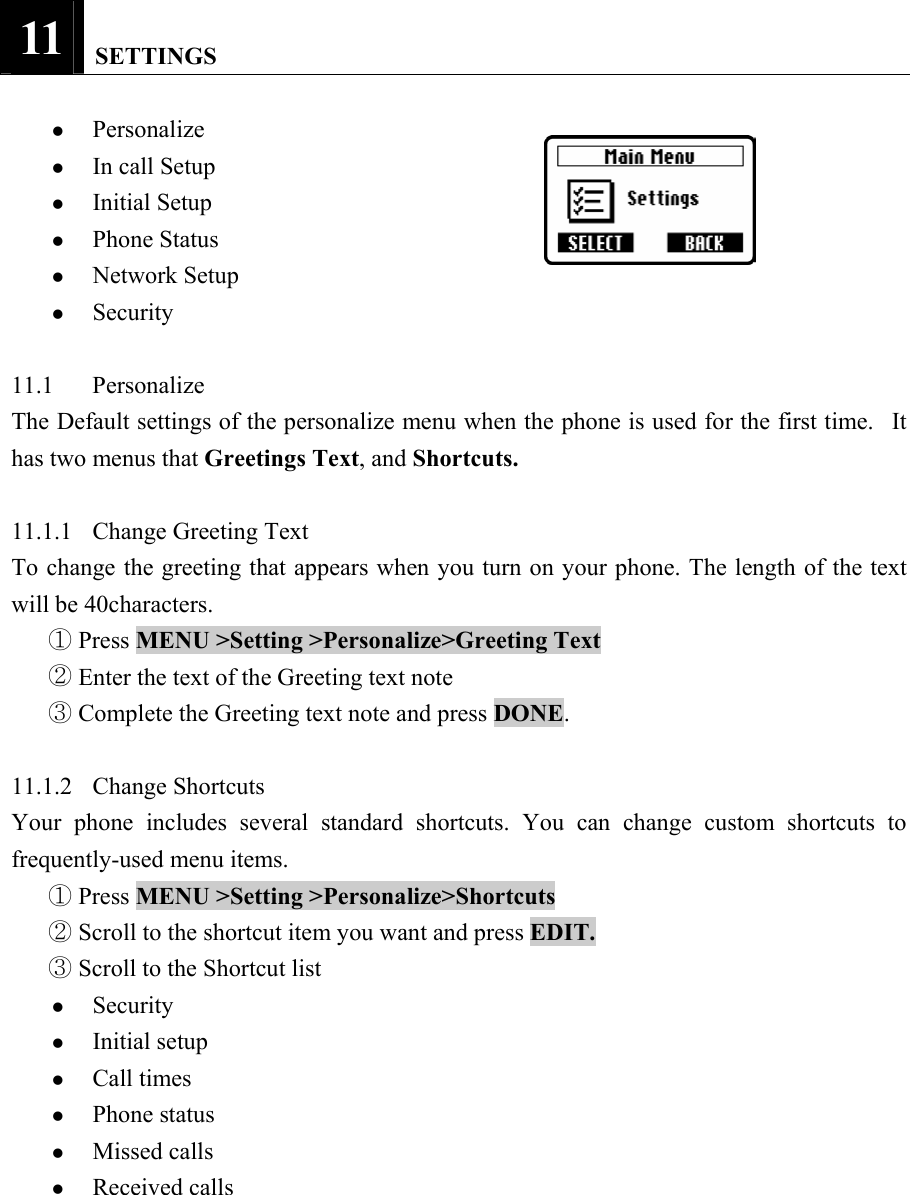
11   SETTINGS  z Personalize  z In call Setup   z Initial Setup   z Phone Status   z Network Setup   z Security   11.1 Personalize  The Default settings of the personalize menu when the phone is used for the first time.   It has two menus that Greetings Text, and Shortcuts.   11.1.1 Change Greeting Text  To change the greeting that appears when you turn on your phone. The length of the text will be 40characters.    Press ①MENU >Setting >Personalize>Greeting Text    Enter the text of the Greeting text note ②  Complete the Greeting text note and press ③DONE.   11.1.2 Change Shortcuts  Your phone includes several standard shortcuts. You can change custom shortcuts to frequently-used menu items.    Press ①MENU >Setting >Personalize>Shortcuts    Scroll to the shortcut item you want and press ②EDIT.   Scroll to the Shortcut list ③ z Security  z Initial setup   z Call times   z Phone status   z Missed calls   z Received calls
z Dialed calls   z Language  z Personalize  z Network setup    View the confirmation message ④“Replace Shortcut:<old item> -> <new item>?” and press OK.   Change the shortcut and press ⑤YES.   11.2  In call Setup   The In Call Setup contains info for the settings when the user is in call.      11.2.1  Set In Call Timer    Press ①Menu > Settings > In Call Setup >In Call Timer   Select one the following Display option   z ON Display in call timer  z OFF  Do not display in call timer    Select one the following Beep option   z OFF        Do not beep during a call   z 1 Minute    Beep at 1-minute intervals during a call   z 2 Minute    Beep at 2-minute intervals during a call   z 5 Minute    Beep at 5-minute intervals during a call    11.2.2  Set Answer Options   You can answer incoming calls by pressing any key.    Press ①Menu > Settings > In Call Setup >Answer Settings > Multikey   Select one of the following Multikey option   z ON Activate the Multikey  z OFF  Do not activate the Multikey    11.2.3  Set the Easy Prefix   You can choose your operator for long distance calls using easy prefix feature. Easy prefix feature sets your operator for long-distance calls automatically whenever you dial a long
distance call.    11.2.3.1 Auto  Change   Your phone can be automatically inserted the operator code in the dial number (only when you dial a long-distance call).   ① Press MENU >Settings > In call Setup >Easy Prefix >Auto Change   ② Scroll to ON or OFF.  ③ Select the item and press SELECT.   11.2.3.2 Pref.  Opr.(Preferred  Operator)   You can view and choose a particular operator as your preferred operator for long distance calls.   Press① MENU > Setting >In call Setup >Easy Prefix >Pref. Opr.    Scroll to operator list for long distance calls you want and press ②OPTION.   Scroll to the option items you want ③ z Select  Select a particular operator   z New Add a particular operator.  z Edit  Edit operator information   z Delete Delete a particular operator   Select the item and ④press SELECT.   11.2.3.3 Override   Your phone can automatically replace the operator code (if entered by you) with the set operator code (preferred operator).    Press① MENU >Settings>In call Setup >Easy Prefix>Override    Scroll to ②ON or OFF and press SELECT.   11.3 Initial Setup  You can use the Initial Setup menu to view or adjust personal options, the initial setup of your phone, the way your phone connects to your service provider’s network, and the setup of optional equipment needed for hands-free use.   z Time and Date    Set the phone’s time and date   z Backlight             Set the amount of time that the display backlight remains on, or
turn off the backlight to conserve battery power   z TTY     Set the TTY option.   z Language   Set the language for phone menus   z Contrast   Adjust the contrast setting for your display   z DTMF     Switch DTMF tones to be long, short, or off.   z Master Reset      Reset all options back to their original factory settings except for the unlock code, security code, and lifetime timer.   z Master Clear  Reset all options back to their original factory settings except for the unlock code, security code, and lifetime timer, and clear all user settings and entries.  Note: This option deletes all user-entered information stored in your phone’s memory, including phonebook entries. Once you delete the information, it cannot be recovered.    11.3.1  Set Time and Date You must set the correct time and date on your phone to use the datebook application    11.3.1.2  Set Time   Press ①MENU >Settings >Initial Setup>Time and Date   Scroll to time item and press ②CHANGE..   Scroll to time format you want③.  z AM  z PM  z 24 Hrs    Select the time format you want and press ④SELECT.   Enter ⑤the time using HH:MM format.    Save the time and press ⑥OK.   11.3.1.1 Set  Data    Press ①MENU >Settings >Initial Setup>Time and Date    Scroll to dat②e item and press CHANGE.   Scroll to dat③e   Enter the time using DD:MM:YYYY format ④  Save the dat⑤e and press OK.
 Scroll to⑥ Format and press CHANGE.   Scroll to one these dat⑦e format   z DD/MM/YYYY  z MM/DD/YYYY  z DD-Mon-YYYY   Press ⑧SELECT.   11.3.1.3 Auto  update   If you set Auto update on, time and date information is updated automatically by network.   Note: This menu item will not be available for some phones.   Select one of the following Auto update option    11.3.2 Set Backlight  Set the amount of time that the display backlight remains on, or turn off the backlight to conserve battery power. If you set backlight time to 5 seconds, the backlight will be off after 5 seconds from you don’t do anything with phone.    Press ①MENU >Settings>Initial Setup>Initial Setup>Backlight    Scroll to one of these ② z Always on   z 5 seconds   z 10 seconds   z 20 seconds   Press ③SELECT.   11.3.3  Set TTY Operation   You can use an optional TTY device with your phone to send and receive calls. You must plug the TTY device into the phone’s headset jack and set the phone to operate in one of three TTY modes.   Notes: Use a TSB-121 compliant cable (provided by the TTY manufacturer) to connect the TTY device to your phone. For optimal performance, your phone should be at least 12 inches (30 centimeters) away from the TTY device. Placing the phone too close to the TTY device may cause high error rates.    Press ①MENU >Settings>Initial Setup>Initial Setup>TTY
 11.3.4 Set Language  Set the language in which your phone displays menu. The phone has three languages that English,  Español, and Portuguese. If you select Portuguese, all of character will be changed to Portuguese and you can use menu with Portuguese.   Press① MENU >Settings>Initial Setup>Initial Setup>Language   Scroll to the language you want ② z English  z Espanol  z Portugues   ③Select the language and press OK.  11.3.5 Set Contrast  You can adjust the backlight level with this function. When you want a brighter contrast on display, you should press the up button in the keypad. And if you want a darker contrast, press the down button in the keypad. Further, even if the value is zero, this should be visible.   Press① MENU >Settings>Initial Setup>Initial Setup>Contrast    Scroll to the desired setting and press ②OK.   11.3.6  Use DTMF Tones   Switch DTMF tones to be long, short, or off. This function is being for notification of number inform in network. So if you set off the tone, it will be changed to silent.    Press ①MENU >Settings>Initial Setup>Initial Setup>DTMF   Scr②oll to the desired setting   z Short  z Long  z Off   Press ③SELECT   11.3.7 Reset All Options  Reset all options to their original factory settings, except the unlock code, security code, and lifetime timer.
 Press① MENU >Settings>Initial Setup>Initial Setup>Master Reset    Enter the security code ②  View the confirmation message ③“Reset All Phone Settings?” and press OK   Press ④YES   11.3.8  Clear All Stored Information   To reset all options to their original factory settings except the unlock code, security code, and lifetime timer, and clear all user settings and entries.   Caution: Master Clear erases all user-downloaded content and user-entered information stored in your phone’s memory, including phonebook and datebook entries. Once you erase the information, it cannot be recovered.    Press ①MENU >Settings>Initial Setup>Initial Setup>Master Clear    Enter the security code ②  view the confirmation message③ “Call All Phone Data ?” and press YES.   11.4 Phone status   11.4.1  View Your Phone Number   You can view the name/number of currently active NAM. If the name is not entered in the subsequent menus then number will be displayed.   If there is no name set, you can edit the name. But, you can only view the number, number is not editable.    Press ①MENU >Settings>Phone Status>My Phone Number   Press ②View.   If you want to change the name, press ③EDIT and CHANGE.   Enter the number④’s name (Maximum of 40 characters)    Press ⑤DONE.   11.4.2  View Phone Specifications   To view your phone’s feature specifications (if available from the service provider)    Press ①MENU >Settings>Phone Status>Other Information   Scroll to the other i②nformation menu you want   z MMI Dev Build
z Flex Version   z Technology  z ESN  z H/W Version   z S/W Version   z IRDB Version    Press③ SELECT   11.5 Network Setup  Your service provider registers your phone to a network. You can view information about the current network, change how your phone searches for a network, specify your preferred networks, and activate alerts that indicate when a call is dropped or network registration changes.   11.5.1  View Currently Registered Network   Current network menu will show you current band which your phone is supporting.    Press① MENU >Settings>Network Setup>Current Network  Your phone displays the network ID.    11.5.2 Set Service Tones  You can set your phone to beep each time the network registration status changes.   ① Press MENU >Settings>Network Setup>Service Tone    Se②lect one of the following Service Tone option    11.5.3  Set Call Drop Alert   You can set your phone to sound an alert tone whenever the network drops a call. Because digital networks are so quiet, the call drop alert may be your only indication that a call has been dropped.    Press ①MENU >Settings>Network Setup>Call Drop Tone    Select one of the following Call Drop Tone option ②  11.5.4 Set Network Scan  You may decide to switch to another network to improve the calling conditions, because of
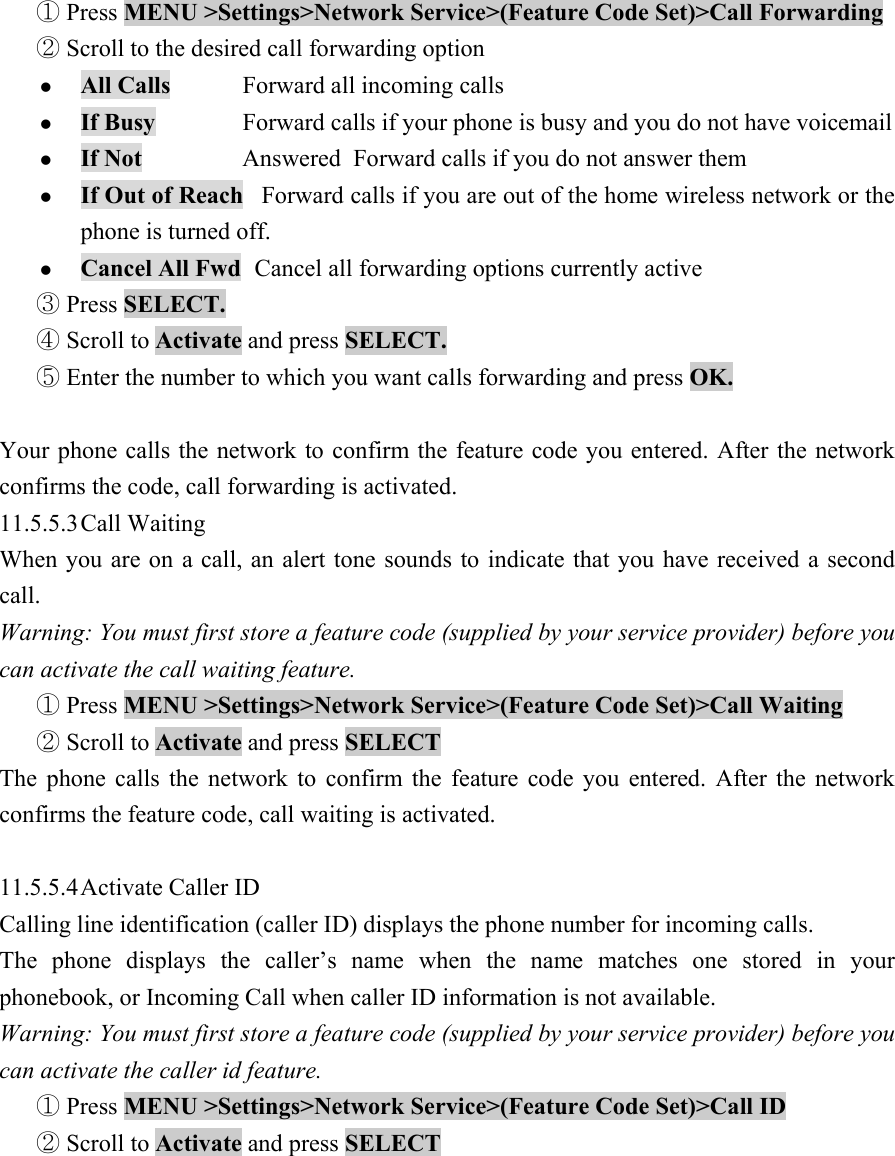
network coverage or roaming conditions.   To view your phone’s feature specifications (if available from the service provider):   Note: This menu item will not be available for some phones.    Press ①MENU >Settings>Network Setup>Network Scan   Scroll to the network option you want ② z IRDB  z Home Only   z Standard  z Reverse  z A Systems Only   z B Systems Only   Confirm the entry and press ③SELECT   11.5.5 Set Network Service  Call forwarding, Call waiting and Caller id are network services available through your service provider or dealer.   When you subscribe to any of these services, your service provider or dealer gives you a separate feature code to activate each service. Deactivation codes are used to deactivate each service.   Once you store the appropriate code in your phone, the service appears as a menu item. You can then use the menu to activate and deactivate these services.   Each time you use a feature that requires a feature code, that code is sent to the network to verify you’re using the correct feature code.   Note: This menu item will not be available for some phones.    11.5.5.1 Store Feature Code    Press① MENU >Settings>Network Service>Feature Code Set    Enter the feature code your service provider gave you and press ②OK   11.5.5.2 Call  Forwarding   Call forwarding sends your phone’s incoming calls directly to another phone number.   Warning: You must first store a feature code (supplied by your service provider) before you can activate the call forwarding feature.
 Press ①MENU >Settings>Network Service>(Feature Code Set)>Call Forwarding   Scr②oll to the desired call forwarding option   z All Calls  Forward all incoming calls   z If Busy   Forward calls if your phone is busy and you do not have voicemail   z If Not    Answered  Forward calls if you do not answer them   z If Out of Reach   Forward calls if you are out of the home wireless network or the phone is turned off.   z Cancel All Fwd   Cancel all forwarding options currently active   ③ Press SELECT.   Scroll to ④Activate and press SELECT.   Enter the number to which you want calls forwarding and press ⑤OK.   Your phone calls the network to confirm the feature code you entered. After the network confirms the code, call forwarding is activated. 11.5.5.3 Call  Waiting   When you are on a call, an alert tone sounds to indicate that you have received a second call.  Warning: You must first store a feature code (supplied by your service provider) before you can activate the call waiting feature.    Press① MENU >Settings>Network Service>(Feature Code Set)>Call Waiting    Scroll to ②Activate and press SELECT  The phone calls the network to confirm the feature code you entered. After the network confirms the feature code, call waiting is activated.    11.5.5.4 Activate Caller ID   Calling line identification (caller ID) displays the phone number for incoming calls.   The phone displays the caller’s name when the name matches one stored in your phonebook, or Incoming Call when caller ID information is not available.   Warning: You must first store a feature code (supplied by your service provider) before you can activate the caller id feature.    Press ①MENU >Settings>Network Service>(Feature Code Set)>Call ID    Scroll to ②Activate and press SELECT
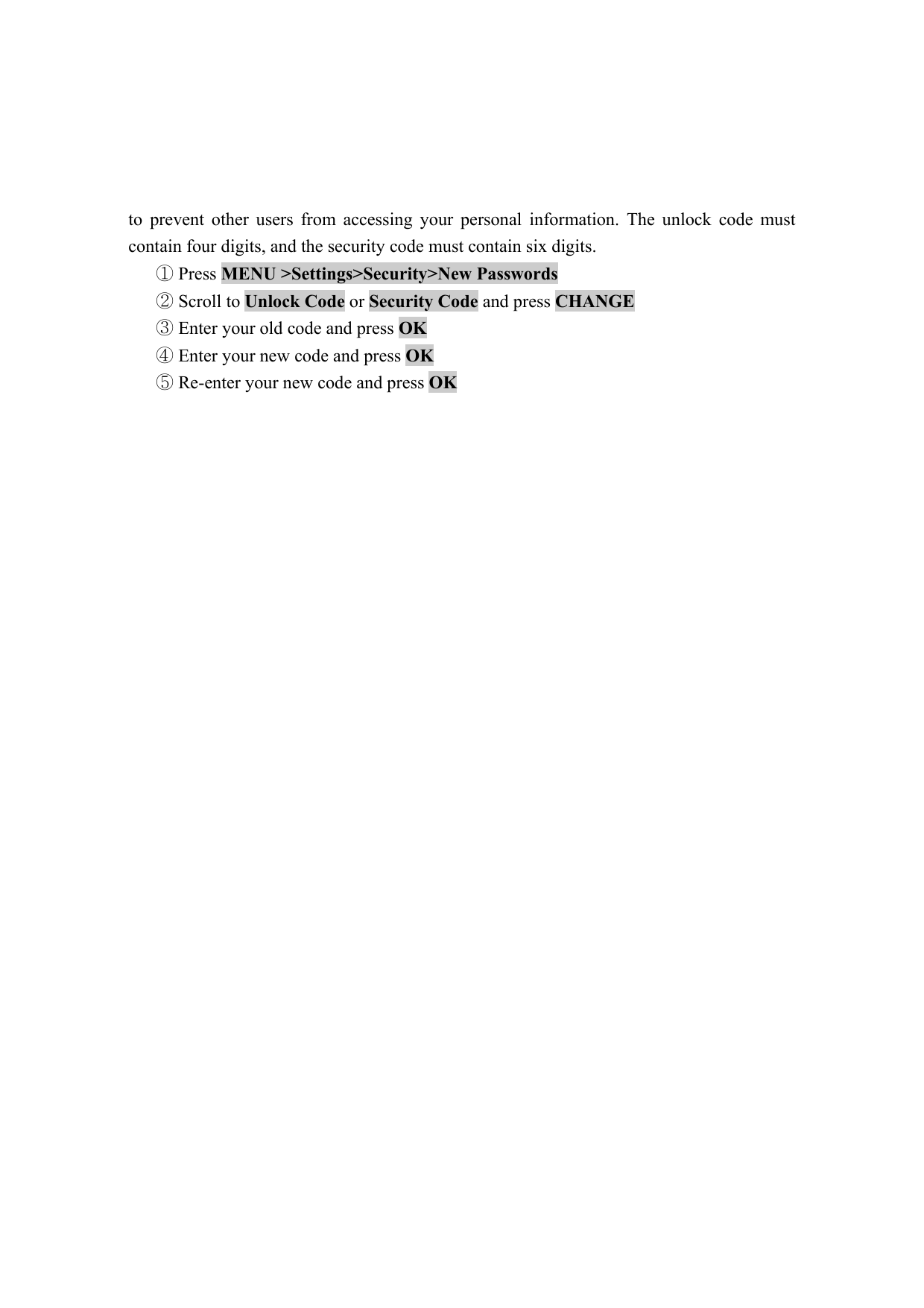
11.6 Security   11.6.1  Talk Security (Voice Privacy)   Your phone can attempt to send your calls using a high-security connection, to prevent others from intercepting them.    Press ①MENU >Settings>Security>Talk Secure   Select one of the following Talk Security option ② z ON  z OFF   11.6.2 Restrict Calls  You can stop all incoming and/or outgoing calls, or you can restrict incoming/outgoing calls to the numbers stored in your phonebook.    z You can make emergency calls when outgoing calls are restricted.   z Your phone still receives incoming text messages when incoming calls are restricted.  z When you restrict incoming calls to numbers in the phonebook, a valid incoming call may be restricted if caller ID information is not available from the network.   ① Press MENU >Settings>Security>Restrict Calls  ② Enter your unlock code and press OK.  ③ Scroll to Outgoing or Incoming and press CHANGE.  ④ Scroll to the restrict calls menu you want   z All             Restrict All call.  z None              Restrict no call.   z Phonebook  Restrict on phonebook   ⑤Press SELECT   11.6.3 Set Password  Your phone’s four-digit unlock code is originally set to 1234, and the six-digit security code is originally set to 000000 at the factory. Your service provider may reset these numbers before you receive your phone.   If your service provider has not reset these numbers, we recommend that you change them
to prevent other users from accessing your personal information. The unlock code must contain four digits, and the security code must contain six digits.    Press ①MENU >Settings>Security>New Passwords   Scroll to ②Unlock Code or Security Code and press CHANGE   Enter your old code and press ③OK   Enter your new code and press ④OK   Re⑤-enter your new code and press OK
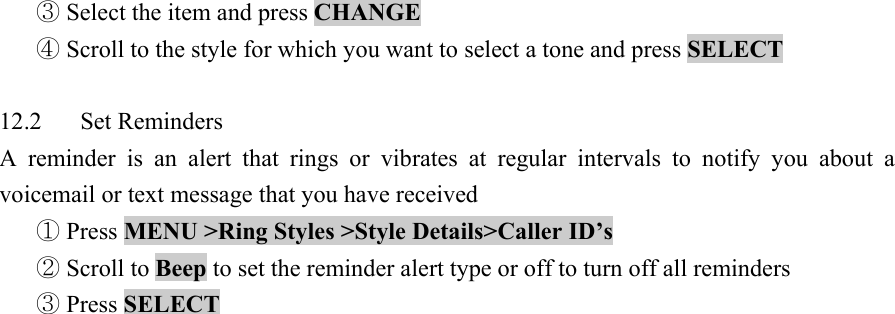
12   RING STYLES  You can change the alerts that notify you of incoming calls, text messages, voicemail messages, data calls, alarms, and reminders. Any changes you make are saved to the current ring style.  z Style    Which shows the current setting of the ring style and it will appear as hint of the style caption.   z Style Details  Which provides the facility to mobile user to display the various current settings of the ring style    12.1 Change Style  Style provides the facility of changing the mode of playing of ring style. There would be three modes loud, soft, and silent    Press① MENU >Ring Styles >Style    Scroll through options until you here the one you want and press ②SELECT   12.2  Set Style Details   This screen have the various ring styles attributes Ring Volume,  Calls ,Text Messages, Voicemail, Alarms, and Reminders  z Ring Volume  Ring Volume has value from 0 to 7.   z Calls    List of tones for call shall be displayed including the downloaded tones   z Text Messages List of tones for text messages shall be displayed including the downloaded tones.   z Voicemail  List of tones for voicemail shall be displayed including the downloaded tones.   z Alarms   List of tones for alarms shall be displayed including the downloaded tones.   z Reminders  Reminders can take three values Off and beep    Press① MENU >Ring Styles >Style Details    Scroll to② Calls, Text Messages, Voicemail or Alarms
 Select the item and press ③CHANGE   Scroll to the style for which you want to select a tone and press ④SELECT   12.2 Set Reminders  A reminder is an alert that rings or vibrates at regular intervals to notify you about a voicemail or text message that you have received    Press ①MENU >Ring Styles >Style Details>Caller ID’s    Scroll to ②Beep to set the reminder alert type or off to turn off all reminders    Press③ SELECT
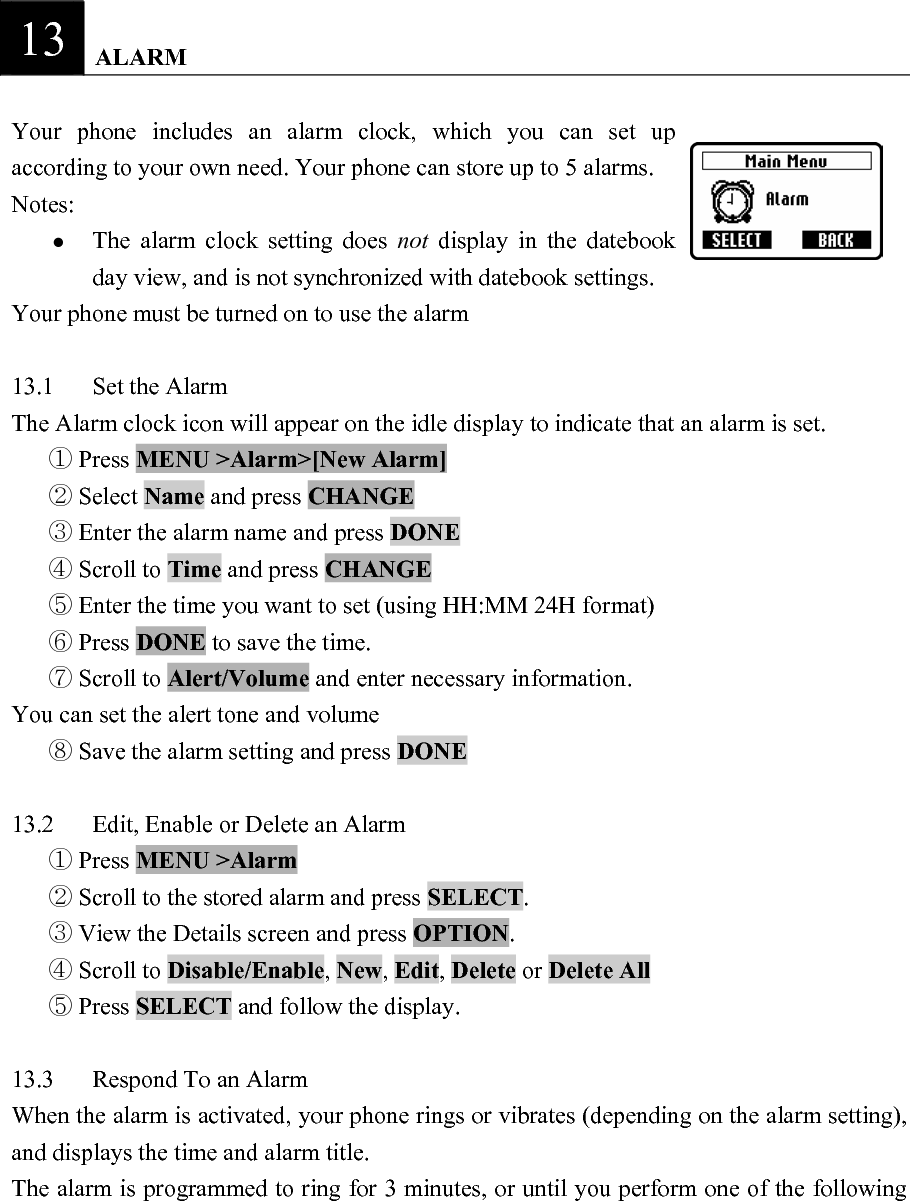
13   ALARM  Your phone includes an alarm clock, which you can set up according to your own need. Your phone can store up to 5 alarms.   Notes:  z The alarm clock setting does not  display in the datebook day view, and is not synchronized with datebook settings.   Your phone must be turned on to use the alarm    13.1 Set the Alarm  The Alarm clock icon will appear on the idle display to indicate that an alarm is set.    Press ①MENU >Alarm>[New Alarm]    Select ②Name and press CHANGE   Enter the alarm name and press ③DONE   Scroll to ④Time and press CHANGE   Enter the time you want to set (using HH:MM 24H format) ⑤  Press ⑥DONE to save the time.    Scroll to ⑦Alert/Volume and enter necessary information.   You can set the alert tone and volume    Save the alarm setting and press ⑧DONE   13.2  Edit, Enable or Delete an Alarm    Press ①MENU >Alarm   Scroll to the stored alarm and press ②SELECT.   View the Details screen and press③ OPTION.   Scroll to ④Disable/Enable, New, Edit, Delete or Delete All    Press ⑤SELECT and follow the display.    13.3  Respond To an Alarm   When the alarm is activated, your phone rings or vibrates (depending on the alarm setting), and displays the time and alarm title.   The alarm is programmed to ring for 3 minutes, or until you perform one of the following
operations. This cycle continues till maximum 90 minutes.   z DISABLE  Press LSK Turn off the alarm   z SNOOZE  Press RSK to turn off the alarm for 8 minutes. The alarm reactivates after 8 minutes
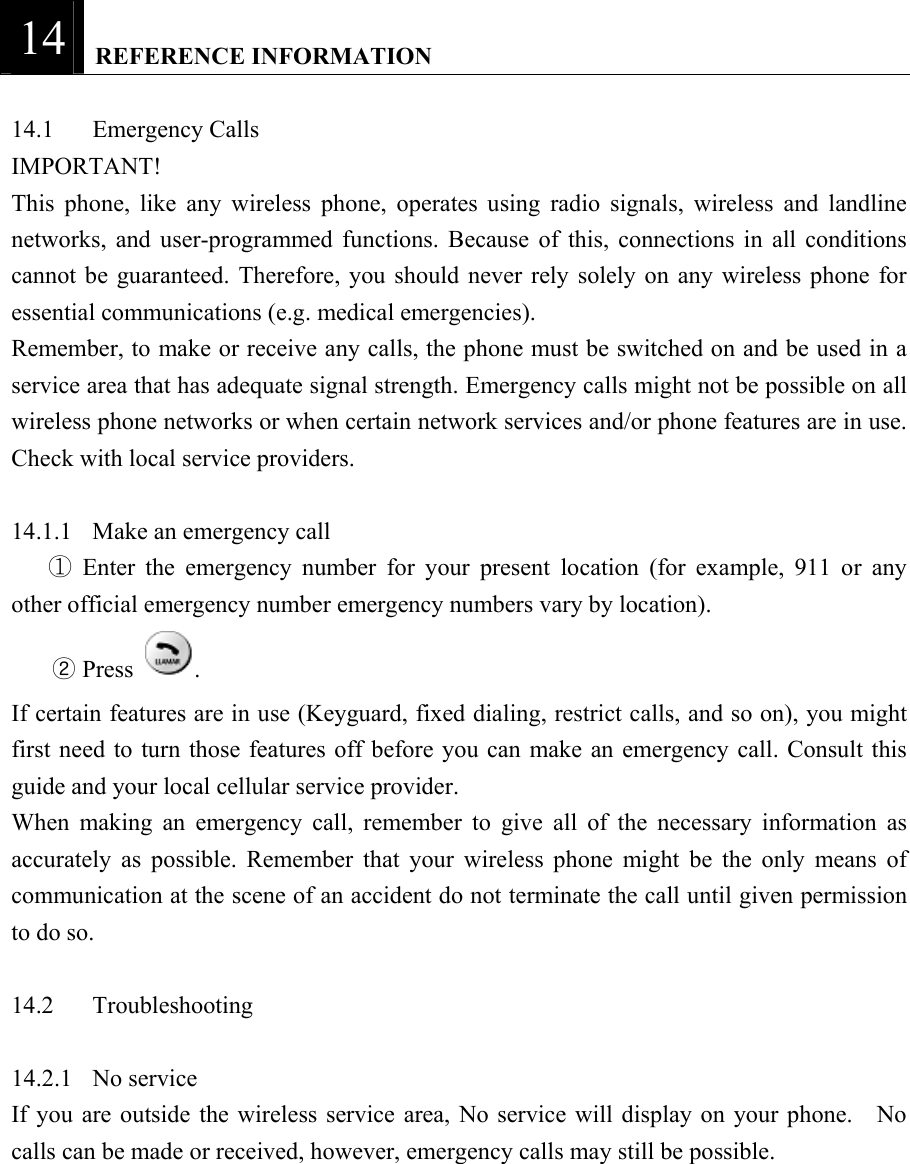
14   REFERENCE INFORMATION  14.1 Emergency Calls  IMPORTANT!  This phone, like any wireless phone, operates using radio signals, wireless and landline networks, and user-programmed functions. Because of this, connections in all conditions cannot be guaranteed. Therefore, you should never rely solely on any wireless phone for essential communications (e.g. medical emergencies).   Remember, to make or receive any calls, the phone must be switched on and be used in a service area that has adequate signal strength. Emergency calls might not be possible on all wireless phone networks or when certain network services and/or phone features are in use. Check with local service providers.    14.1.1  Make an emergency call    Enter the emergency number for your present location (for example, 911 or any ①other official emergency number emergency numbers vary by location).   ② Press  .   If certain features are in use (Keyguard, fixed dialing, restrict calls, and so on), you might first need to turn those features off before you can make an emergency call. Consult this guide and your local cellular service provider.   When making an emergency call, remember to give all of the necessary information as accurately as possible. Remember that your wireless phone might be the only means of communication at the scene of an accident do not terminate the call until given permission to do so.    14.2 Troubleshooting   14.2.1 No service  If you are outside the wireless service area, No service will display on your phone.  No calls can be made or received, however, emergency calls may still be possible.
14.2.2  What if the call does not go through?   Your phone can make and receive calls only when it is switched on and in the wireless network’s service area.   No service means that you are probably outside the wireless service area. No calls can be made or received.   This number is restricted means calls to the phone number you tried to call are restricted (see 11.6.2).
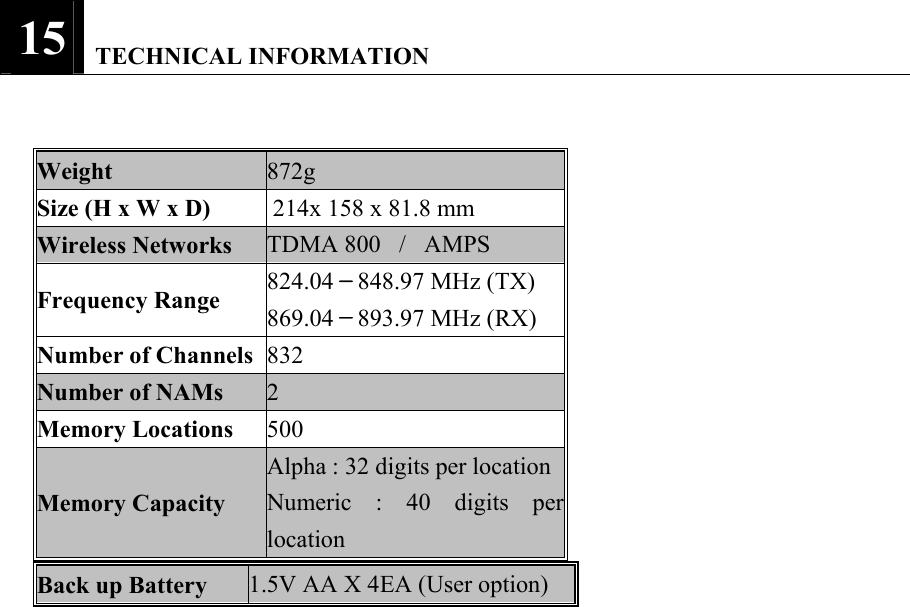
15   TECHNICAL INFORMATION   Weight 872g Size (H x W x D)  214x 158 x 81.8 mm Wireless Networks TDMA 800   /   AMPS Frequency Range 824.04-848.97 MHz (TX) 869.04-893.97 MHz (RX) Number of Channels 832 Number of NAMs 2 Memory Locations 500 Memory Capacity Alpha : 32 digits per locationNumeric : 40 digits perlocation Back up Battery     1.5V AA X 4EA (User option)

Navigation menu