Telian MTD-3500 Dual-Mode Cellular Telephone User Manual 305558

Telian Corporation Dual-Mode Cellular Telephone 305558

Contents

Manual part 2

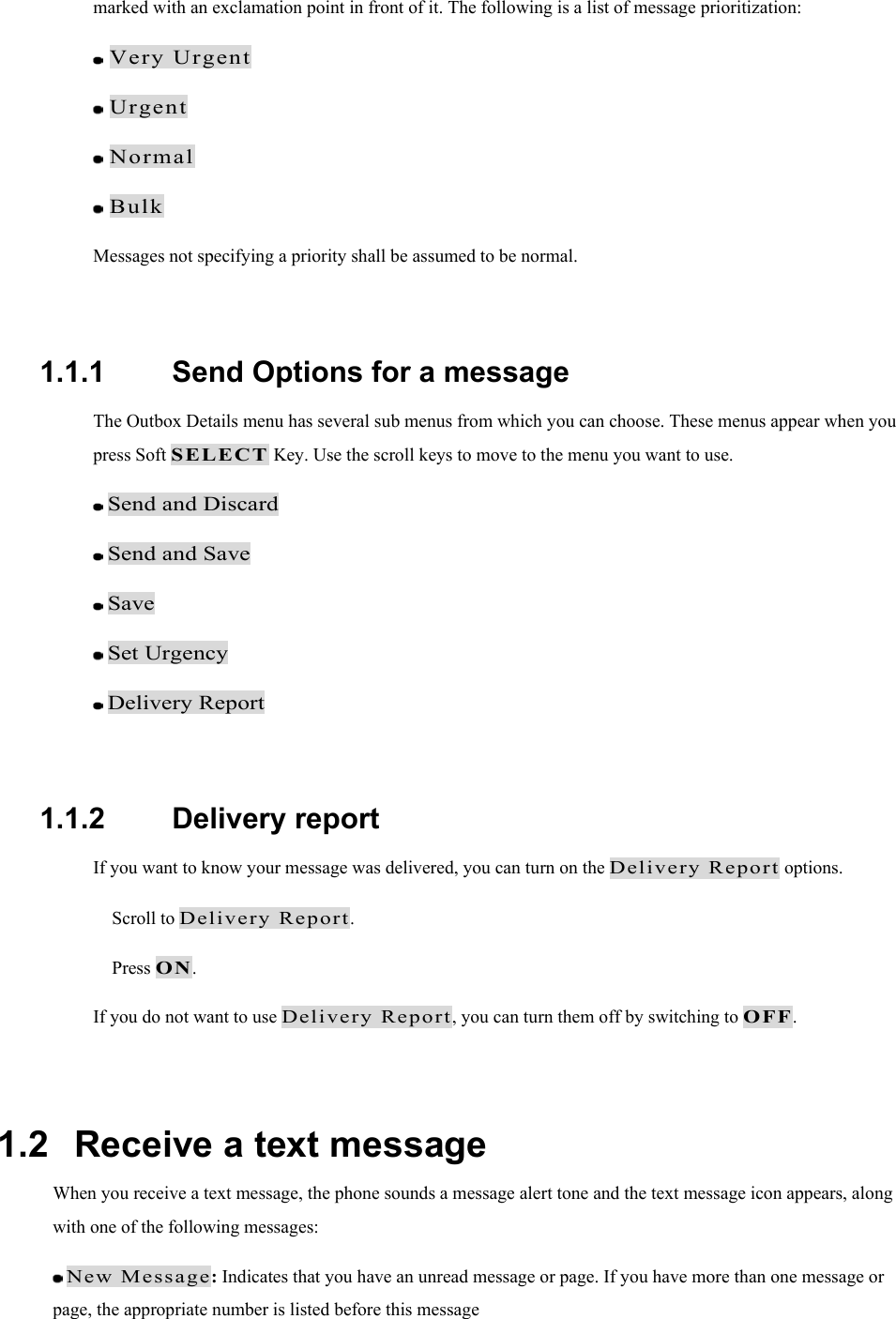
marked with an exclamation point in front of it. The following is a list of message prioritization:  Very Urgent   Urgent   Normal   Bulk  Messages not specifying a priority shall be assumed to be normal.  1.1.1   Send Options for a message The Outbox Details menu has several sub menus from which you can choose. These menus appear when you press Soft SELECT Key. Use the scroll keys to move to the menu you want to use.  Send and Discard  Send and Save  Save  Set Urgency  Delivery Report  1.1.2   Delivery report If you want to know your message was delivered, you can turn on the Delivery Report options.   Scroll to Delivery Report.  Press ON. If you do not want to use Delivery Report, you can turn them off by switching to OFF.  1.2   Receive a text message When you receive a text message, the phone sounds a message alert tone and the text message icon appears, along with one of the following messages:  New Message: Indicates that you have an unread message or page. If you have more than one message or page, the appropriate number is listed before this message
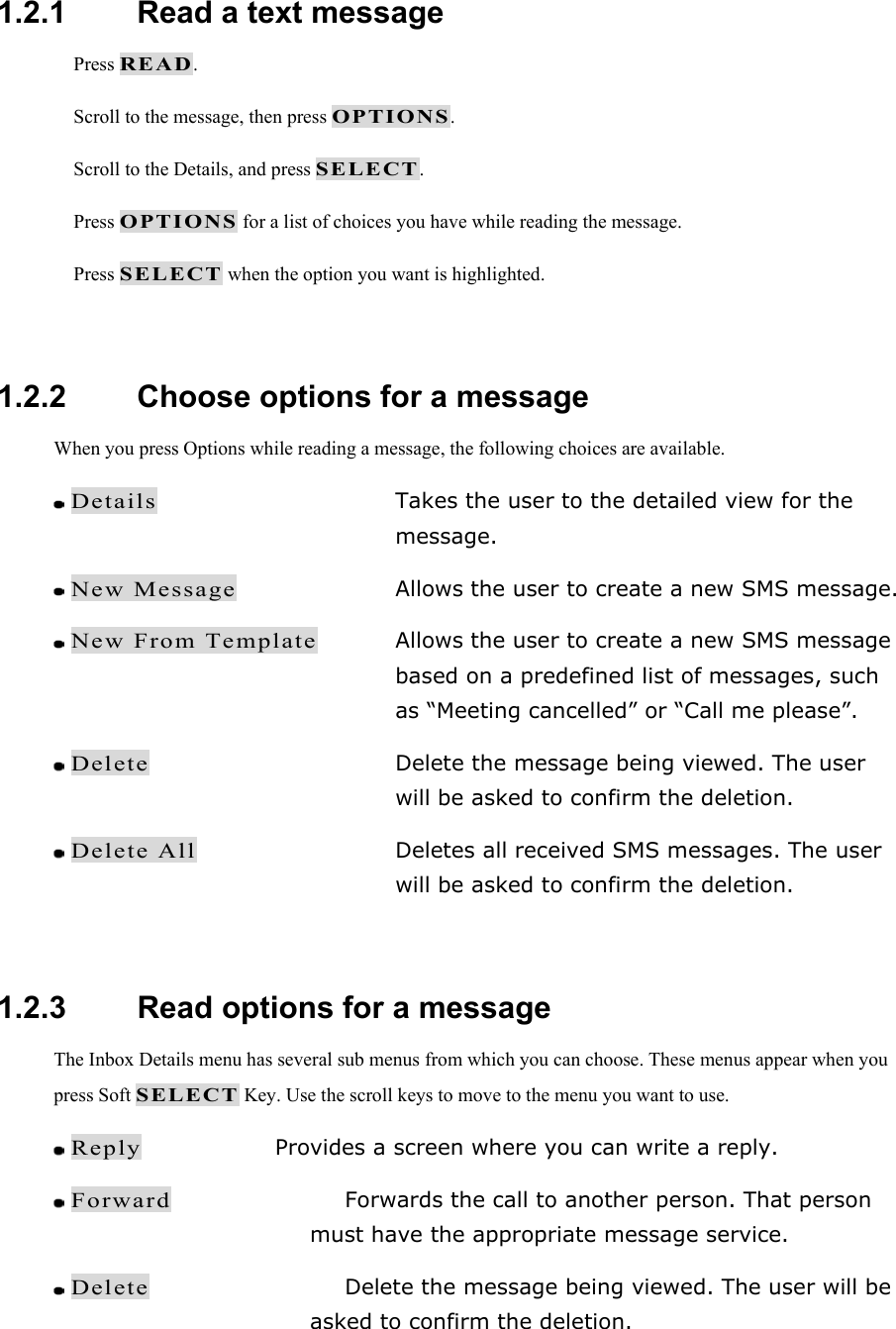
 1.2.1   Read a text message  Press READ.  Scroll to the message, then press OPTIONS.  Scroll to the Details, and press SELECT.  Press OPTIONS for a list of choices you have while reading the message.  Press SELECT when the option you want is highlighted.  1.2.2   Choose options for a message When you press Options while reading a message, the following choices are available.  Details  Takes the user to the detailed view for the message.  New Message  Allows the user to create a new SMS message.  New From Template  Allows the user to create a new SMS message based on a predefined list of messages, such as “Meeting cancelled” or “Call me please”.  Delete  Delete the message being viewed. The user will be asked to confirm the deletion.  Delete All  Deletes all received SMS messages. The user will be asked to confirm the deletion.  1.2.3   Read options for a message The Inbox Details menu has several sub menus from which you can choose. These menus appear when you press Soft SELECT Key. Use the scroll keys to move to the menu you want to use.  Reply  Provides a screen where you can write a reply.  Forward  Forwards the call to another person. That person must have the appropriate message service.  Delete  Delete the message being viewed. The user will be asked to confirm the deletion.
 Lock    Lets you lock your received messages to phone.  Call Number Calls the person who sent you the text message, if their phone number is included in the message.  1.2.4   Call Number Calls the person who sent you the text message, if their phone number is included in the message. You can also press   while the message is displayed to dial the number. If more than one number is on the screen, the numbers appear in a list. Scroll to the phone number you want to call and press .  1.3   When your phone’s memory is full When your phone’s message memory is full, one or more messages of the lowest priority are automatically deleted. These messages are usually deleted from your phone’s outbox. If after deleting messages the memory is still full, your phone shows the message error “No space: Message waiting” appear.  1.4   Delete a message  While reading a message, press OPTIONS.  Scroll Delete, then press SELECT. Your phone asks you to confirm that you want to delete the message.  Press OK.  1.5   USE VOICE MAIL Voice mail is a network services feature. Colleagues who miss you when they call can leave a voice message, which you can retrieve later.  1.5.1   When you have a message
 Your phone beeps when you receive a voice message. Also, the message New voice message appears on your phone’s screen, along with the   icon. Note: To use voice mail, you need to learn the voice mail system’s various greetings, passwords, and prompts. Your service provider can provide instructions.  1.5.2   Set up your voice mailbox As part of your network’s voice mail feature, your service provider gives you a voice mailbox phone number. Save this number in your phone to make getting your voice messages quick and convenient.  Press MENU 3 > 6 > 2 (Messages > Voice Mail > Voice mail Num).  Enter your mailbox phone number.  Press ENTER. Your voice mailbox number can be up to 20 digits long and is used until it’s changed. Therefore, if your phone number changes, you may need to change your voice mailbox number along with it.  1.5.3   Listen to your voice messages Note: The way you listen to your voice messages may vary depending upon your service provider. Call your service provider if you have any questions.  When your phone alerts you to new voice messages, press LISTEN and follow the instructions given on the phone.  If you’d rather listen to your messages later, press EXIT.  To Listen to your voice messages at a later time: Press and hold the 1 key. OR Press MENU 3 > 6 > 1 (Messages > Voice Mail > Call Voicemail).
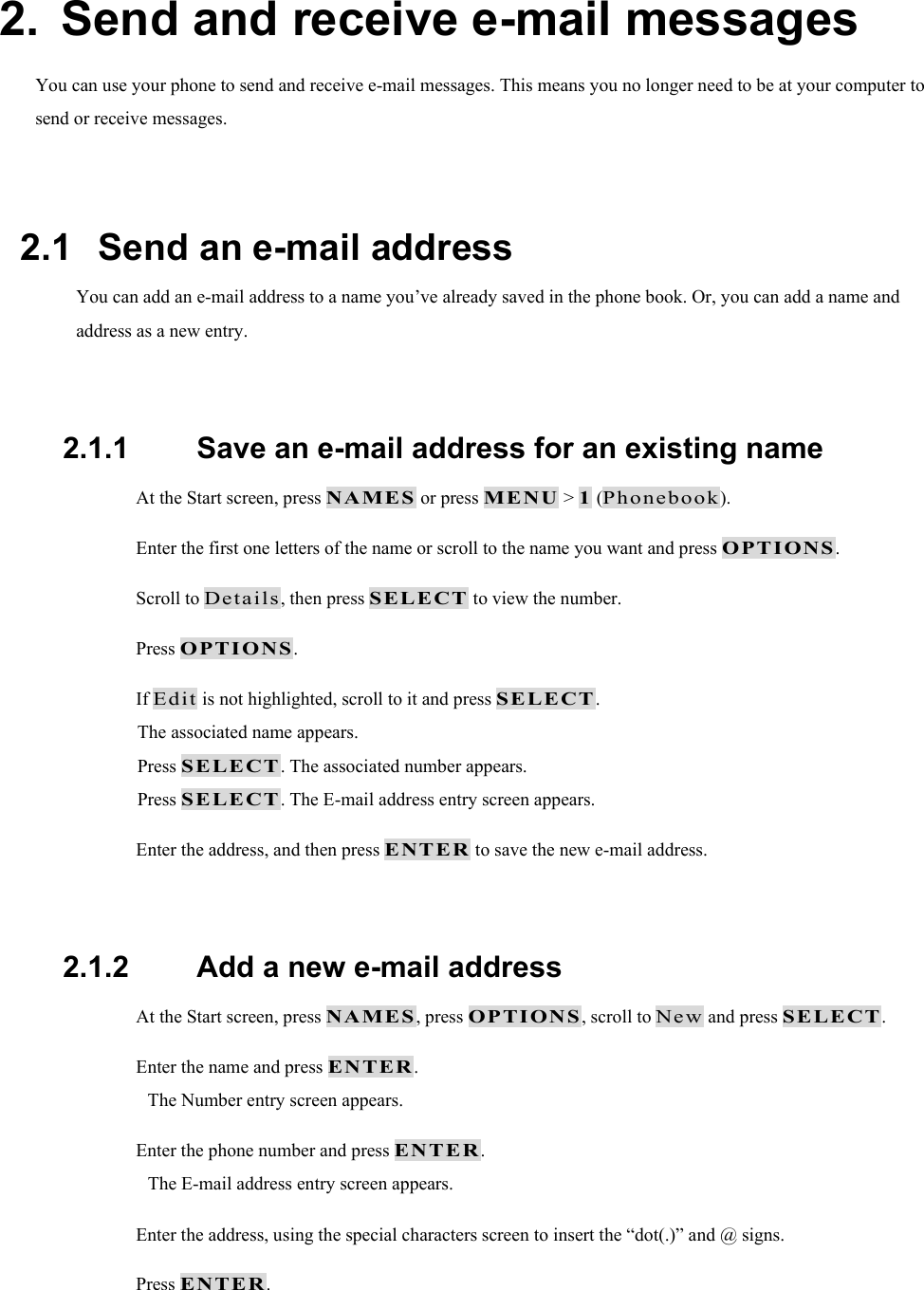
2.  Send and receive e-mail messages You can use your phone to send and receive e-mail messages. This means you no longer need to be at your computer to send or receive messages.  2.1   Send an e-mail address You can add an e-mail address to a name you’ve already saved in the phone book. Or, you can add a name and address as a new entry.  2.1.1   Save an e-mail address for an existing name  At the Start screen, press NAMES or press MENU > 1 (Phonebook).  Enter the first one letters of the name or scroll to the name you want and press OPTIONS.  Scroll to Details, then press SELECT to view the number.  Press OPTIONS.  If Edit is not highlighted, scroll to it and press SELECT. The associated name appears. Press SELECT. The associated number appears. Press SELECT. The E-mail address entry screen appears.  Enter the address, and then press ENTER to save the new e-mail address.  2.1.2   Add a new e-mail address  At the Start screen, press NAMES, press OPTIONS, scroll to New and press SELECT.  Enter the name and press ENTER. The Number entry screen appears.  Enter the phone number and press ENTER. The E-mail address entry screen appears.  Enter the address, using the special characters screen to insert the “dot(.)” and @ signs.  Press ENTER.
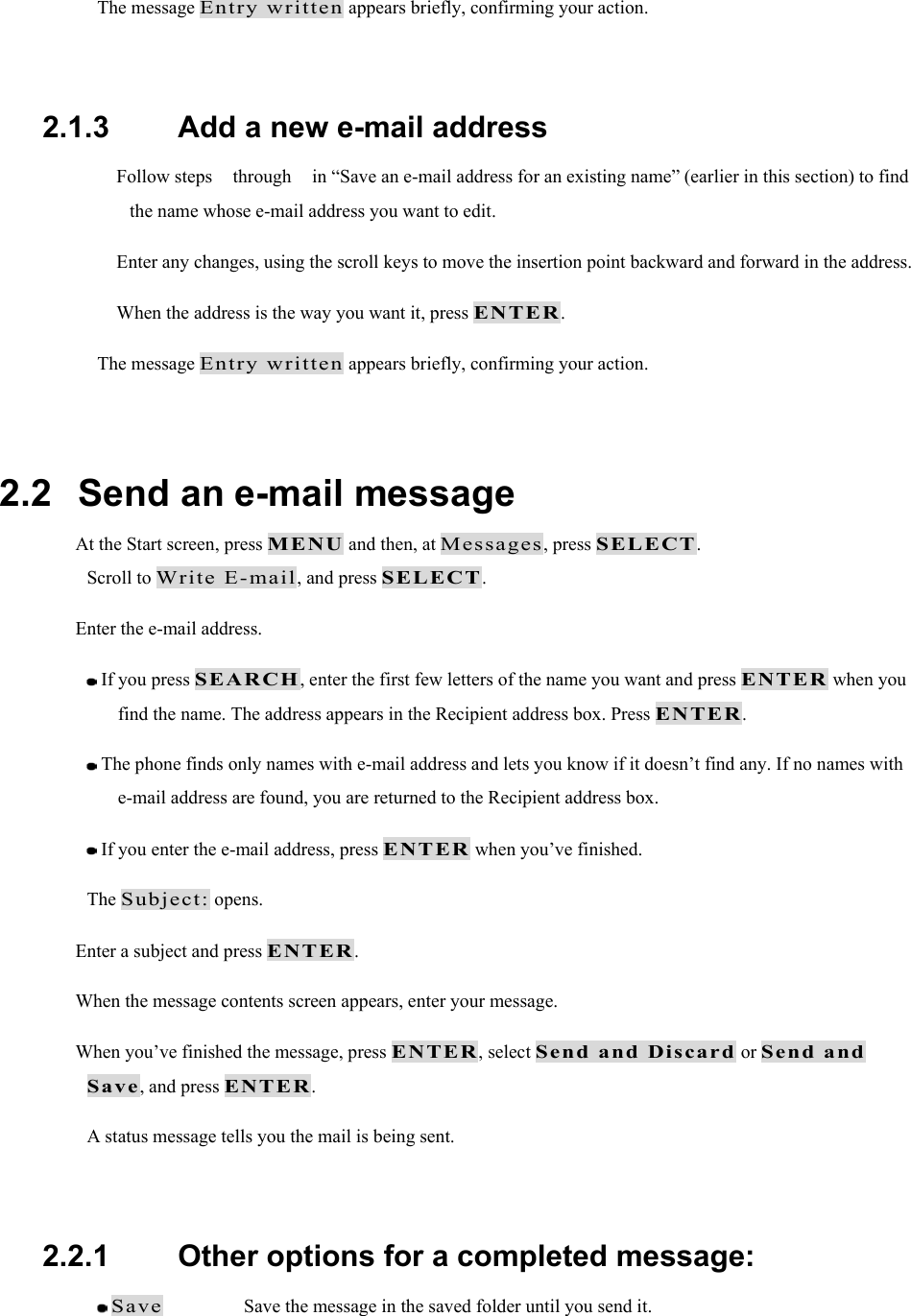
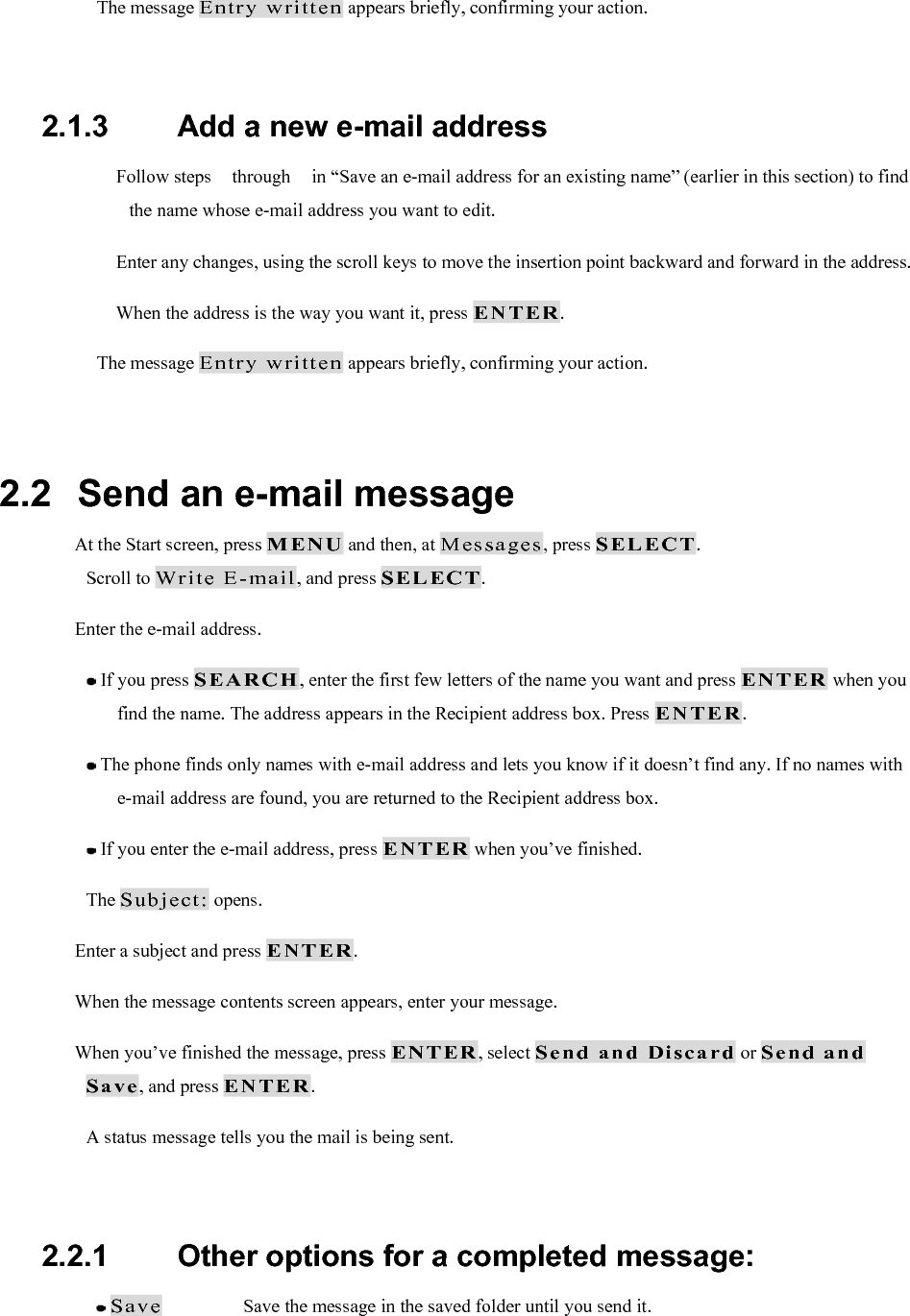
The message Entry written appears briefly, confirming your action.  2.1.3   Add a new e-mail address  Follow steps  through  in “Save an e-mail address for an existing name” (earlier in this section) to find the name whose e-mail address you want to edit.  Enter any changes, using the scroll keys to move the insertion point backward and forward in the address.  When the address is the way you want it, press ENTER. The message Entry written appears briefly, confirming your action.  2.2   Send an e-mail message  At the Start screen, press MENU and then, at Messages, press SELECT. Scroll to Write E-mail, and press SELECT.  Enter the e-mail address.  If you press SEARCH, enter the first few letters of the name you want and press ENTER when you find the name. The address appears in the Recipient address box. Press ENTER.  The phone finds only names with e-mail address and lets you know if it doesn’t find any. If no names with e-mail address are found, you are returned to the Recipient address box.  If you enter the e-mail address, press ENTER when you’ve finished. The Subject: opens.  Enter a subject and press ENTER.  When the message contents screen appears, enter your message.  When you’ve finished the message, press ENTER, select Send and Discard or Send and Save, and press ENTER. A status message tells you the mail is being sent.  2.2.1   Other options for a completed message:  Save    Save the message in the saved folder until you send it.
 Quit    Erase the message and returns you to the Recipient address box.
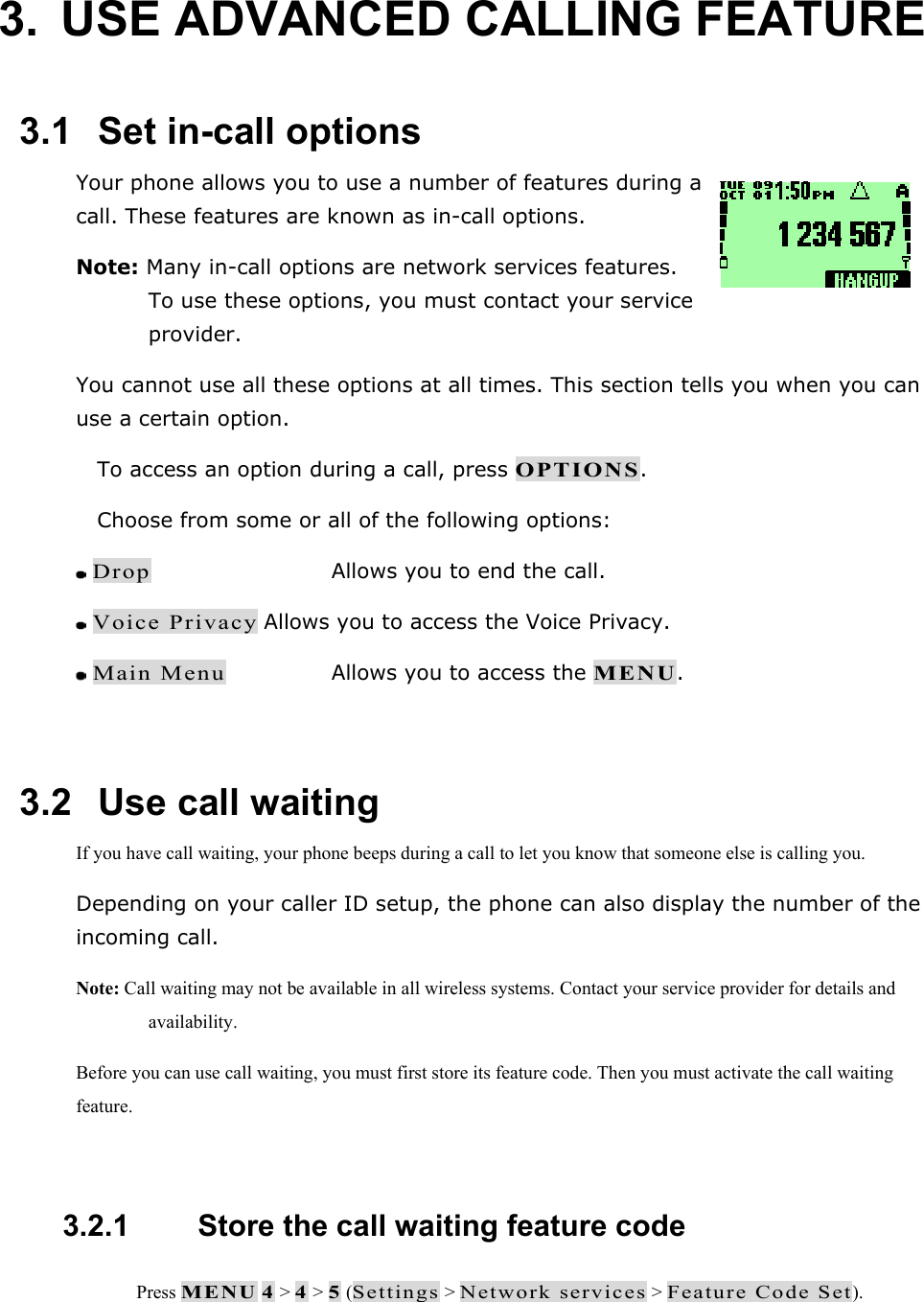
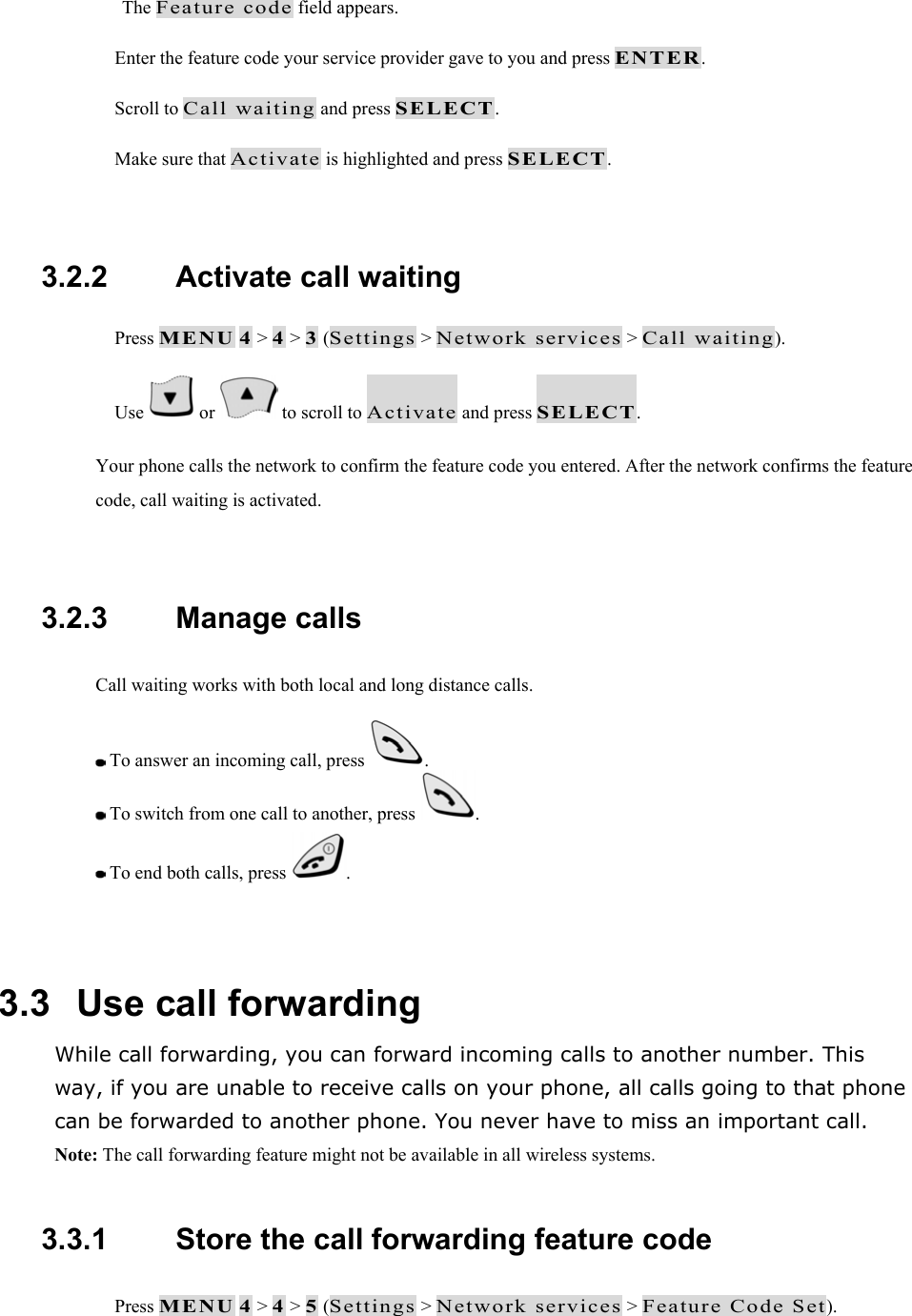
3.  USE ADVANCED CALLING FEATURE  3.1   Set in-call options Your phone allows you to use a number of features during a call. These features are known as in-call options.  Note: Many in-call options are network services features. To use these options, you must contact your service provider. You cannot use all these options at all times. This section tells you when you can use a certain option.  To access an option during a call, press OPTIONS.  Choose from some or all of the following options:  Drop      Allows you to end the call.  Voice Privacy Allows you to access the Voice Privacy.  Main Menu    Allows you to access the MENU.  3.2   Use call waiting If you have call waiting, your phone beeps during a call to let you know that someone else is calling you. Depending on your caller ID setup, the phone can also display the number of the incoming call. Note: Call waiting may not be available in all wireless systems. Contact your service provider for details and availability. Before you can use call waiting, you must first store its feature code. Then you must activate the call waiting feature.  3.2.1   Store the call waiting feature code  Press MENU 4 > 4 > 5 (Settings > Network services > Feature Code Set).
The Feature code field appears.  Enter the feature code your service provider gave to you and press ENTER.  Scroll to Call waiting and press SELECT.  Make sure that Activate is highlighted and press SELECT.  3.2.2   Activate call waiting  Press MENU 4 > 4 > 3 (Settings > Network services > Call waiting).  Use   or   to scroll to Activate and press SELECT. Your phone calls the network to confirm the feature code you entered. After the network confirms the feature code, call waiting is activated.  3.2.3   Manage calls Call waiting works with both local and long distance calls.  To answer an incoming call, press  .  To switch from one call to another, press  .  To end both calls, press  .  3.3   Use call forwarding While call forwarding, you can forward incoming calls to another number. This way, if you are unable to receive calls on your phone, all calls going to that phone can be forwarded to another phone. You never have to miss an important call. Note: The call forwarding feature might not be available in all wireless systems.  3.3.1   Store the call forwarding feature code  Press MENU 4 > 4 > 5 (Settings > Network services > Feature Code Set).
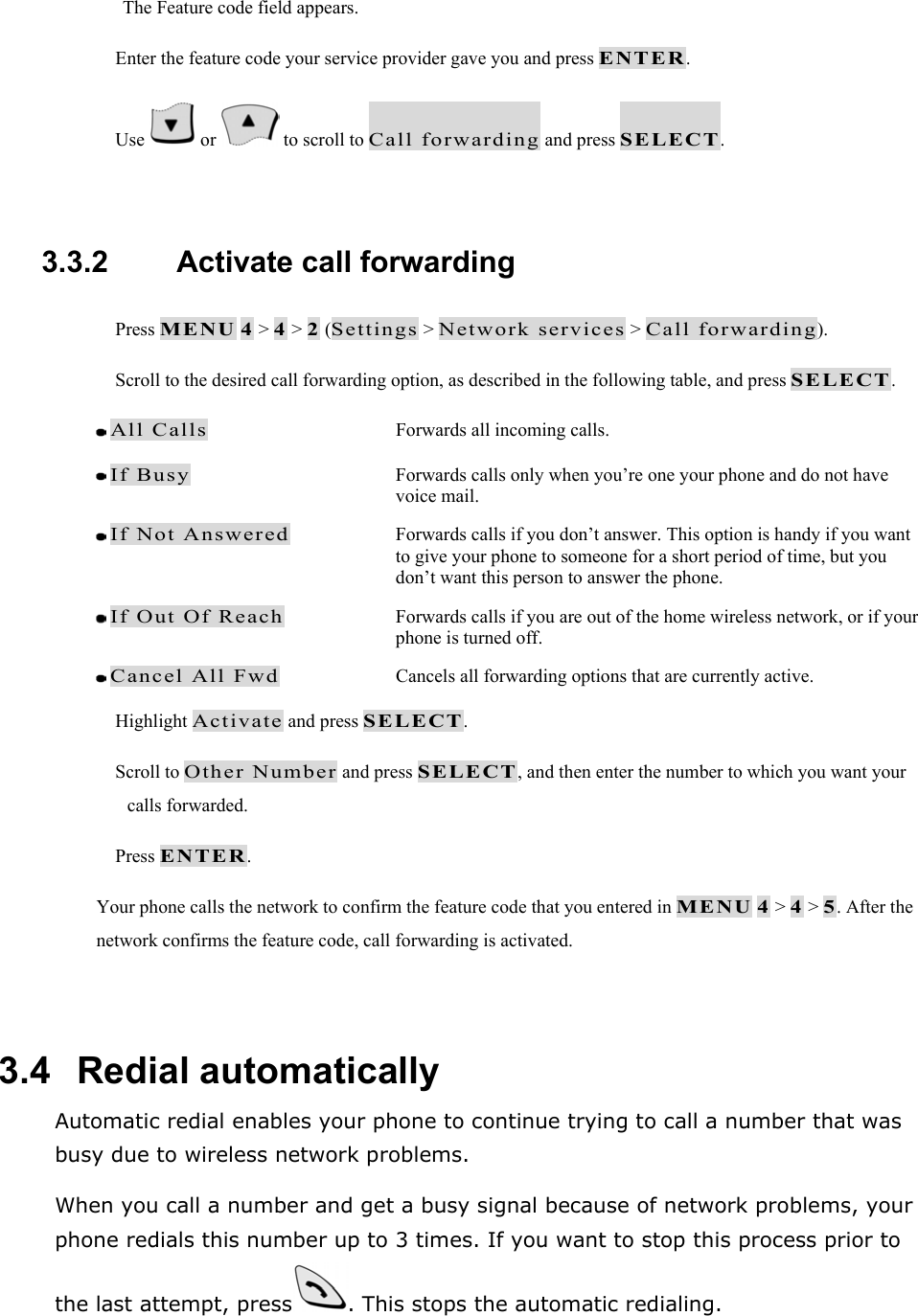
The Feature code field appears.  Enter the feature code your service provider gave you and press ENTER.  Use   or   to scroll to Call forwarding and press SELECT.  3.3.2   Activate call forwarding  Press MENU 4 > 4 > 2 (Settings > Network services > Call forwarding).  Scroll to the desired call forwarding option, as described in the following table, and press SELECT.  All Calls  Forwards all incoming calls.  If Busy  Forwards calls only when you’re one your phone and do not have voice mail.  If Not Answered  Forwards calls if you don’t answer. This option is handy if you want to give your phone to someone for a short period of time, but you don’t want this person to answer the phone.  If Out Of Reach  Forwards calls if you are out of the home wireless network, or if your phone is turned off.  Cancel All Fwd  Cancels all forwarding options that are currently active.  Highlight Activate and press SELECT.  Scroll to Other Number and press SELECT, and then enter the number to which you want your calls forwarded.  Press ENTER. Your phone calls the network to confirm the feature code that you entered in MENU 4 > 4 > 5. After the network confirms the feature code, call forwarding is activated.  3.4   Redial automatically Automatic redial enables your phone to continue trying to call a number that was busy due to wireless network problems. When you call a number and get a busy signal because of network problems, your phone redials this number up to 3 times. If you want to stop this process prior to the last attempt, press . This stops the automatic redialing.
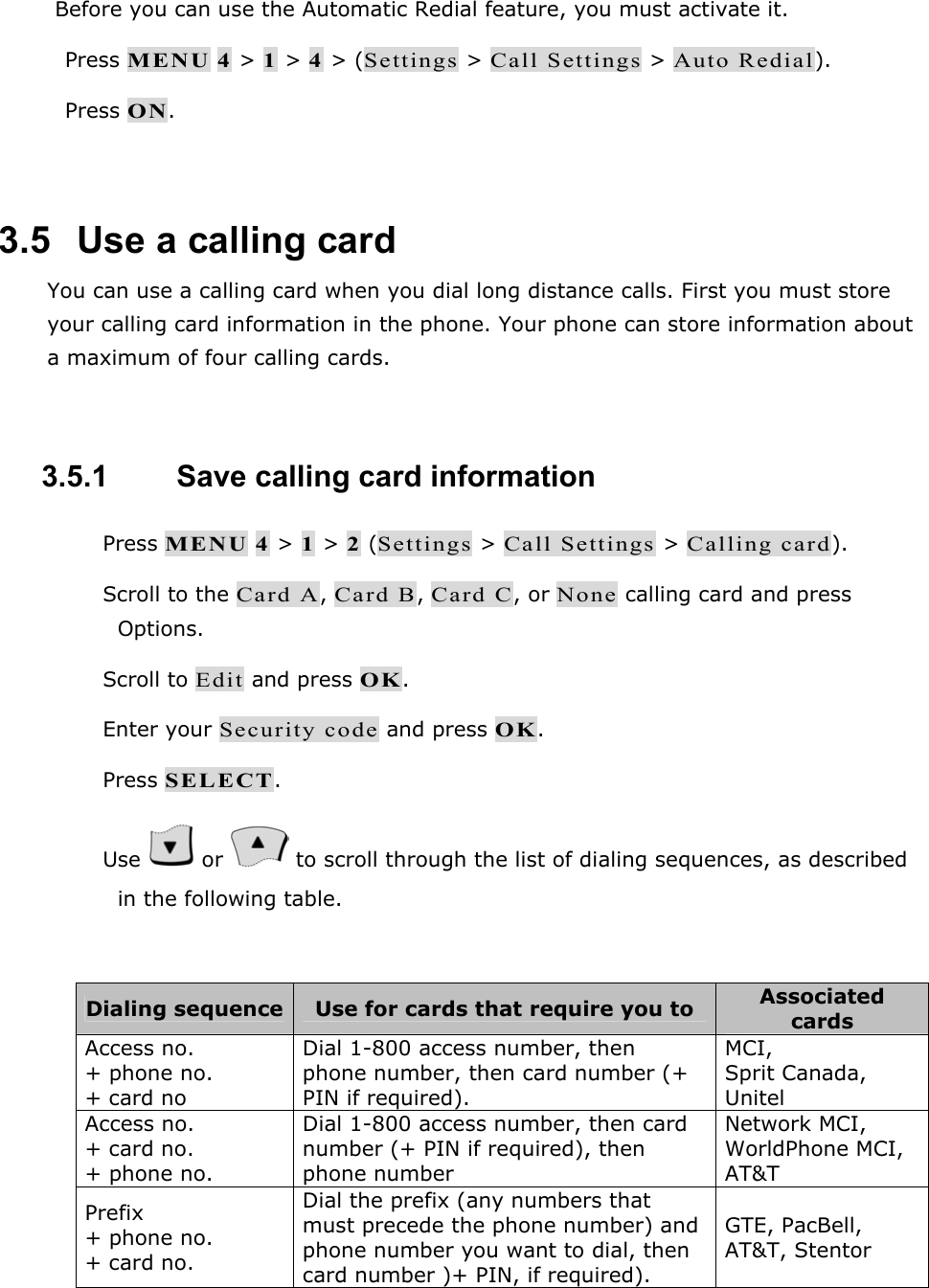
Before you can use the Automatic Redial feature, you must activate it.  Press MENU 4 > 1 > 4 > (Settings > Call Settings > Auto Redial).  Press ON.  3.5   Use a calling card You can use a calling card when you dial long distance calls. First you must store your calling card information in the phone. Your phone can store information about a maximum of four calling cards.  3.5.1   Save calling card information  Press MENU 4 > 1 > 2 (Settings > Call Settings > Calling card).  Scroll to the Card A, Card B, Card C, or None calling card and press Options.  Scroll to Edit and press OK.  Enter your Security code and press OK.  Press SELECT.  Use   or   to scroll through the list of dialing sequences, as described in the following table.  Dialing sequence  Use for cards that require you to  Associated cards Access no. + phone no. + card no Dial 1-800 access number, then phone number, then card number (+ PIN if required). MCI,  Sprit Canada, Unitel Access no. + card no. + phone no. Dial 1-800 access number, then card number (+ PIN if required), then phone number Network MCI, WorldPhone MCI, AT&T Prefix + phone no. + card no. Dial the prefix (any numbers that must precede the phone number) and phone number you want to dial, then card number )+ PIN, if required). GTE, PacBell, AT&T, Stentor
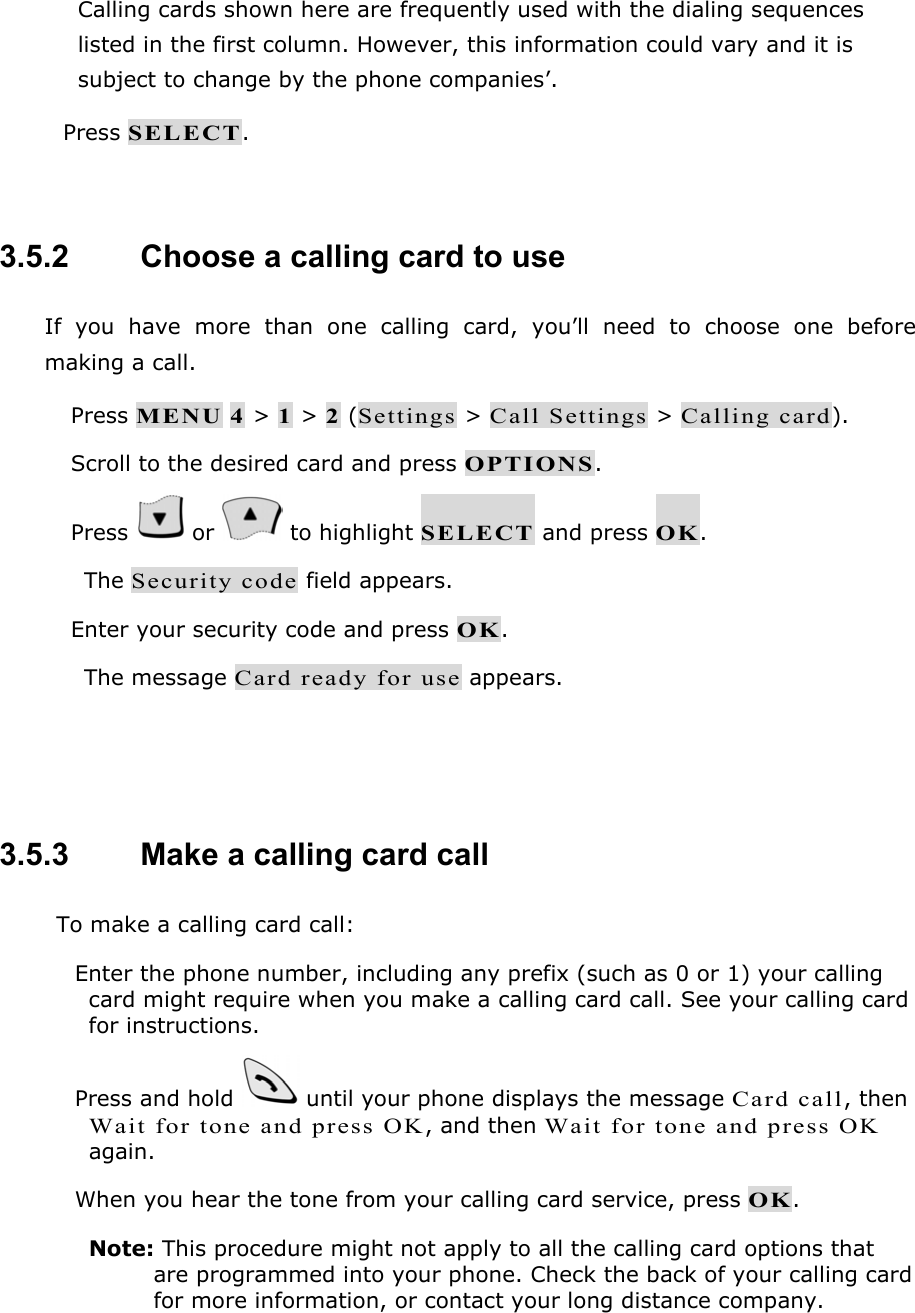
Calling cards shown here are frequently used with the dialing sequences listed in the first column. However, this information could vary and it is subject to change by the phone companies’.  Press SELECT.  3.5.2   Choose a calling card to use If you have more than one calling card, you’ll need to choose one before making a call.  Press MENU 4 > 1 > 2 (Settings > Call Settings > Calling card).  Scroll to the desired card and press OPTIONS.  Press   or   to highlight SELECT and press OK. The Security code field appears.  Enter your security code and press OK. The message Card ready for use appears.   3.5.3   Make a calling card call To make a calling card call:  Enter the phone number, including any prefix (such as 0 or 1) your calling card might require when you make a calling card call. See your calling card for instructions.  Press and hold   until your phone displays the message Card call, then Wait for tone and press OK, and then Wait for tone and press OK again.  When you hear the tone from your calling card service, press OK. Note: This procedure might not apply to all the calling card options that are programmed into your phone. Check the back of your calling card for more information, or contact your long distance company.
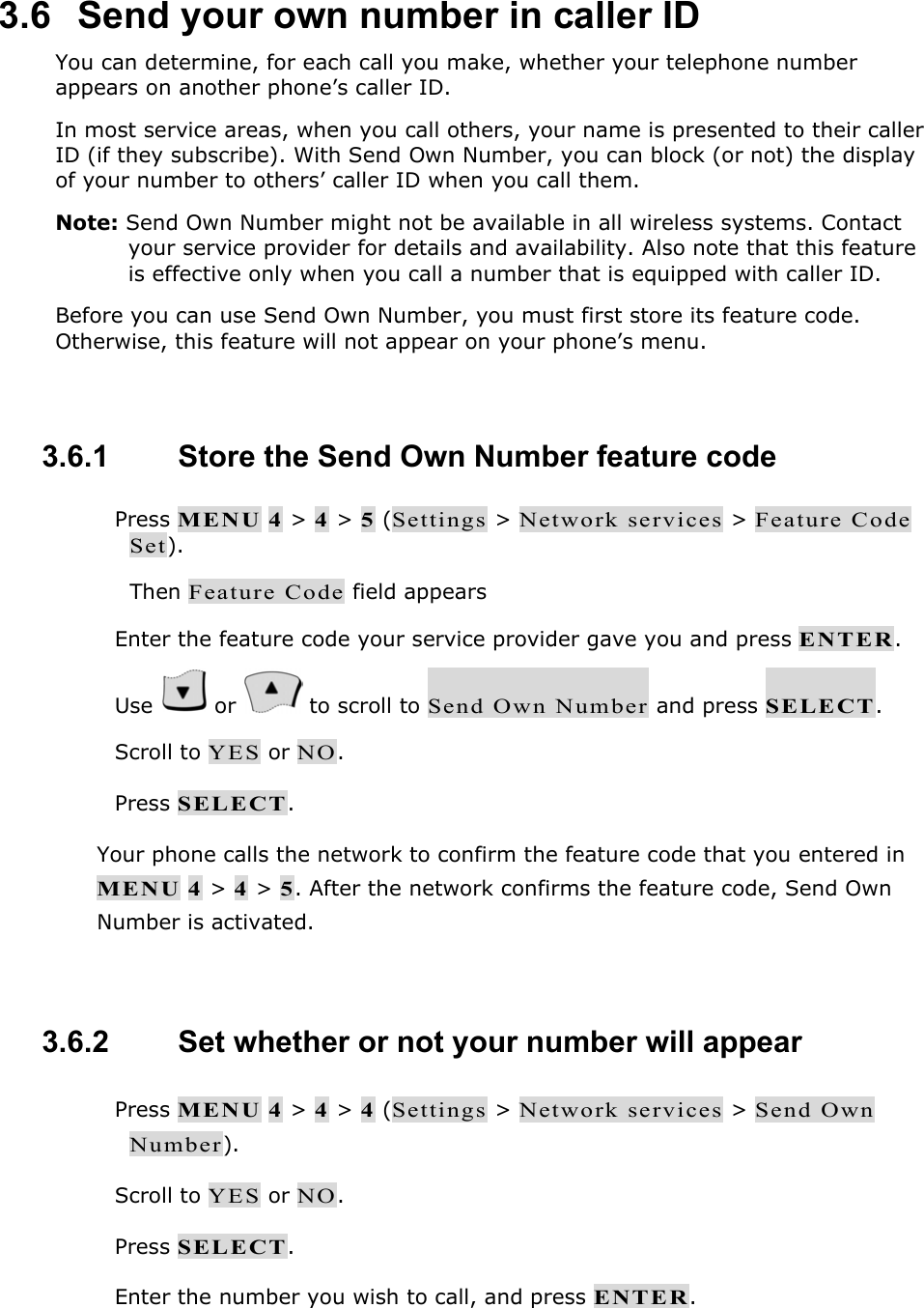
3.6   Send your own number in caller ID You can determine, for each call you make, whether your telephone number appears on another phone’s caller ID. In most service areas, when you call others, your name is presented to their caller ID (if they subscribe). With Send Own Number, you can block (or not) the display of your number to others’ caller ID when you call them. Note: Send Own Number might not be available in all wireless systems. Contact your service provider for details and availability. Also note that this feature is effective only when you call a number that is equipped with caller ID. Before you can use Send Own Number, you must first store its feature code. Otherwise, this feature will not appear on your phone’s menu.  3.6.1   Store the Send Own Number feature code  Press MENU 4 > 4 > 5 (Settings > Network services > Feature Code Set). Then Feature Code field appears  Enter the feature code your service provider gave you and press ENTER.  Use   or   to scroll to Send Own Number and press SELECT.  Scroll to YES or NO.  Press SELECT. Your phone calls the network to confirm the feature code that you entered in MENU 4 > 4 > 5. After the network confirms the feature code, Send Own Number is activated.  3.6.2   Set whether or not your number will appear  Press MENU 4 > 4 > 4 (Settings > Network services > Send Own Number).  Scroll to YES or NO.  Press SELECT.  Enter the number you wish to call, and press ENTER.
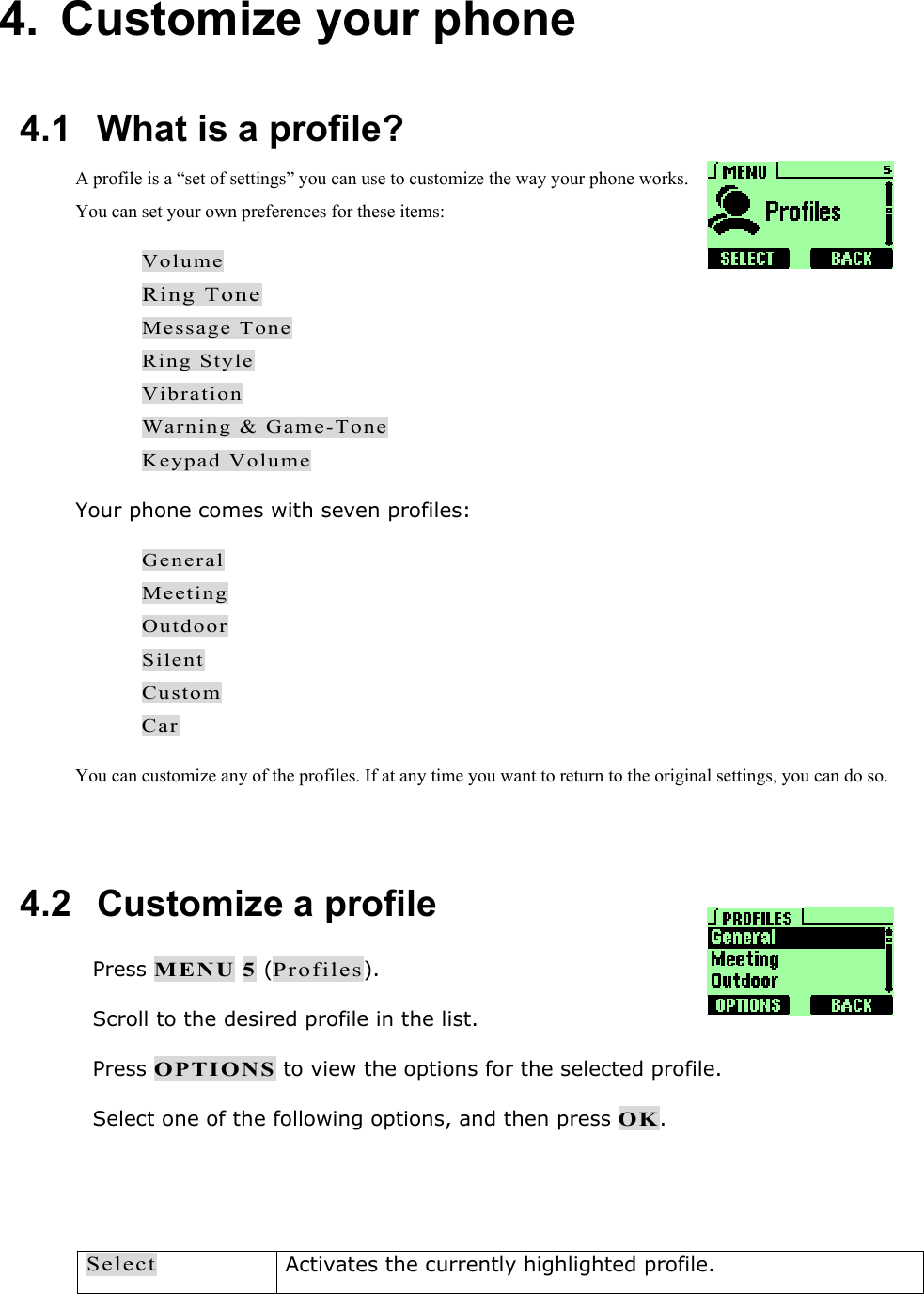
4. Customize your phone  4.1   What is a profile?  A profile is a “set of settings” you can use to customize the way your phone works. You can set your own preferences for these items: Volume Ring Tone Message Tone Ring Style Vibration Warning & Game-Tone Keypad Volume Your phone comes with seven profiles: General Meeting Outdoor Silent Custom Car You can customize any of the profiles. If at any time you want to return to the original settings, you can do so.  4.2   Customize a profile  Press MENU 5 (Profiles).  Scroll to the desired profile in the list.  Press OPTIONS to view the options for the selected profile.  Select one of the following options, and then press OK.   Select Activates the currently highlighted profile.
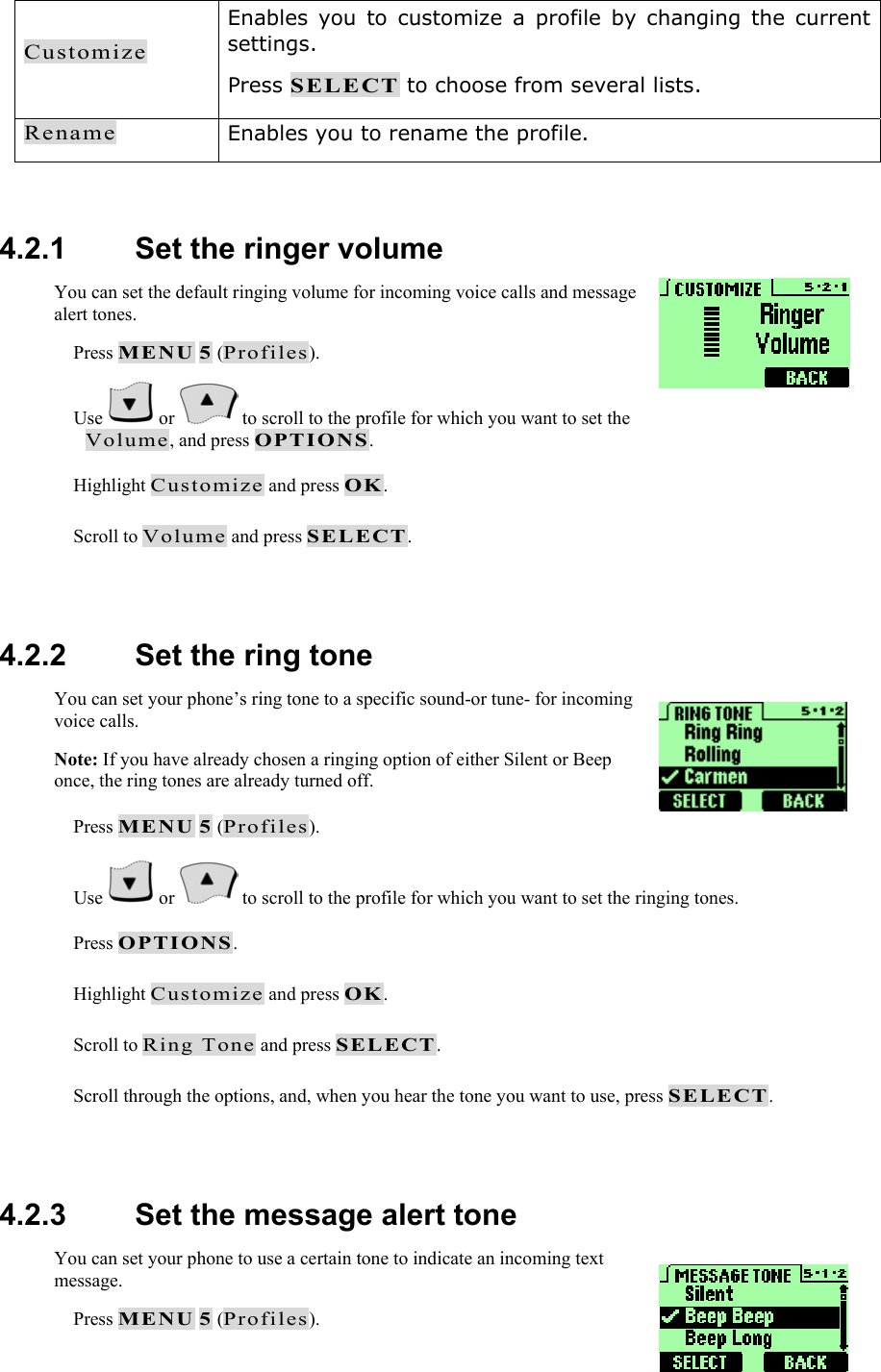
Customize Enables you to customize a profile by changing the current settings. Press SELECT to choose from several lists. Rename Enables you to rename the profile.  4.2.1   Set the ringer volume You can set the default ringing volume for incoming voice calls and message alert tones.  Press MENU 5 (Profiles).  Use   or   to scroll to the profile for which you want to set the Volume, and press OPTIONS.  Highlight Customize and press OK.  Scroll to Volume and press SELECT.  4.2.2   Set the ring tone You can set your phone’s ring tone to a specific sound-or tune- for incoming voice calls. Note: If you have already chosen a ringing option of either Silent or Beep once, the ring tones are already turned off.  Press MENU 5 (Profiles).  Use   or   to scroll to the profile for which you want to set the ringing tones.  Press OPTIONS.  Highlight Customize and press OK.  Scroll to Ring Tone and press SELECT.  Scroll through the options, and, when you hear the tone you want to use, press SELECT.  4.2.3   Set the message alert tone You can set your phone to use a certain tone to indicate an incoming text message.   Press MENU 5 (Profiles).
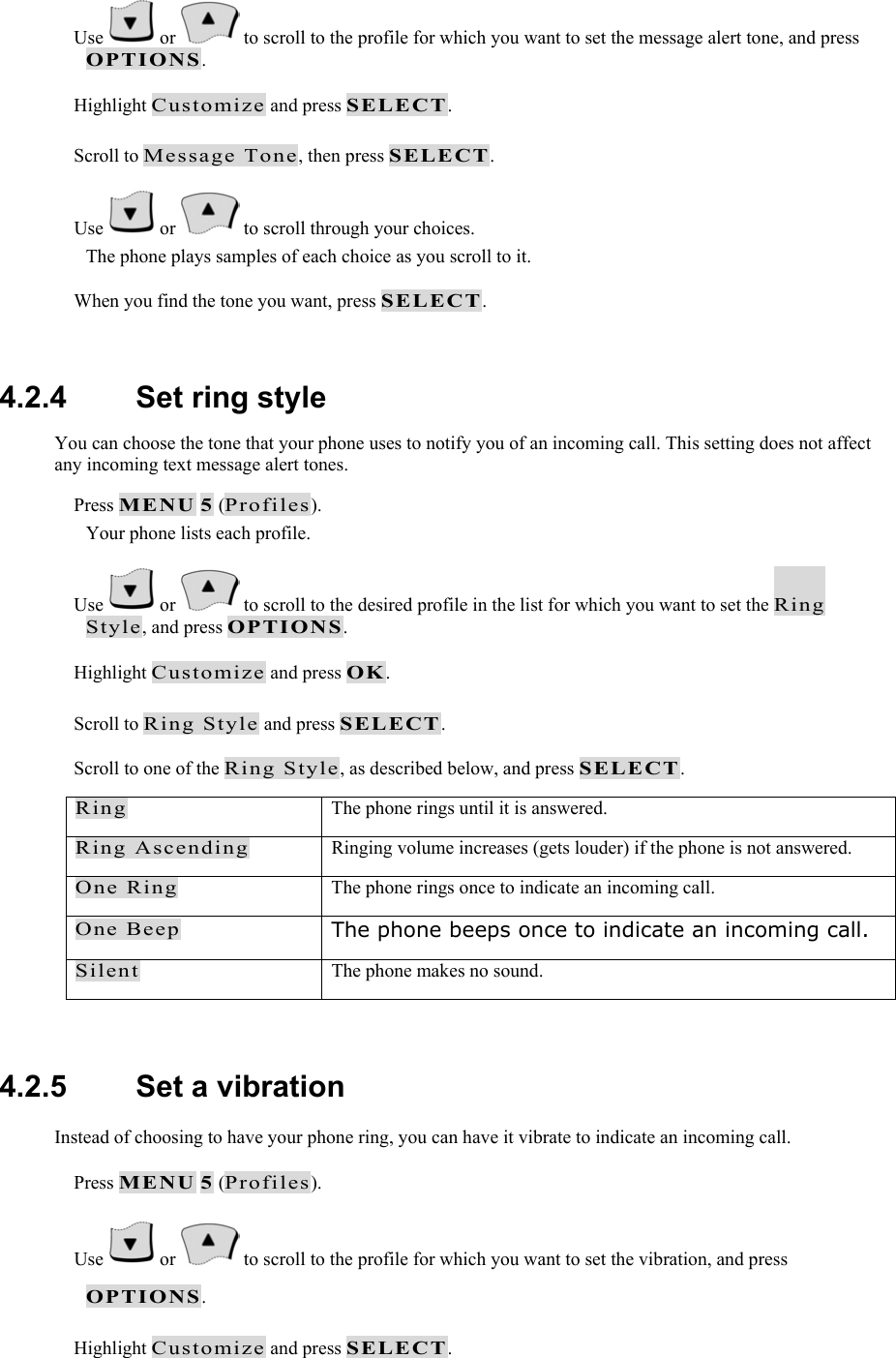
 Use   or   to scroll to the profile for which you want to set the message alert tone, and press OPTIONS.  Highlight Customize and press SELECT.  Scroll to Message Tone, then press SELECT.  Use   or   to scroll through your choices. The phone plays samples of each choice as you scroll to it.  When you find the tone you want, press SELECT.   4.2.4   Set ring style You can choose the tone that your phone uses to notify you of an incoming call. This setting does not affect any incoming text message alert tones.  Press MENU 5 (Profiles). Your phone lists each profile.  Use   or   to scroll to the desired profile in the list for which you want to set the Ring Style, and press OPTIONS.  Highlight Customize and press OK.  Scroll to Ring Style and press SELECT.  Scroll to one of the Ring Style, as described below, and press SELECT. Ring  The phone rings until it is answered. Ring Ascending  Ringing volume increases (gets louder) if the phone is not answered. One Ring  The phone rings once to indicate an incoming call. One Beep The phone beeps once to indicate an incoming call. Silent  The phone makes no sound.  4.2.5   Set a vibration Instead of choosing to have your phone ring, you can have it vibrate to indicate an incoming call.  Press MENU 5 (Profiles).  Use   or   to scroll to the profile for which you want to set the vibration, and press OPTIONS.  Highlight Customize and press SELECT.
 Scroll to Vibration and press SELECT again.  Press the SELECT key to switch the ON or OFF. The phone does not vibrate when it is connected to or placed in any changing device.  4.2.6   Set warning and game tones You can set warning tones and the tones used for the games in your phone. Warning tones include the sounds your phone makes during error conditions, during confirmations, when a battery is low, and when you need to recharge the battery.  Press MENU 5 (Profiles).  Use   or   to scroll to the profile for which you want to set the warning tone, and press OPTIONS.  Highlight Customize and press SELECT.  Scroll to Warn&GameTon, then press SELECT.  Press the SELECT key to switch the ON or OFF. If you do not want to use warning or game tones, you can turn them off by switching to OFF.    4.2.7   Set keypad volume Keypad volume set the volume of the tone you hear when you press your phone’s keys.  Press MENU 5 (Profiles).  Use   or   to scroll to the profile for which you want to set the keypad volume, and press OPTIONS.  Highlight Customize and press SELECT.  Scroll to Keypad Volume and press SELECT.  Use   or   to scroll to one of the levels and press SELECT. If you chose the Silent profile in step , the keypad volume is turned off.
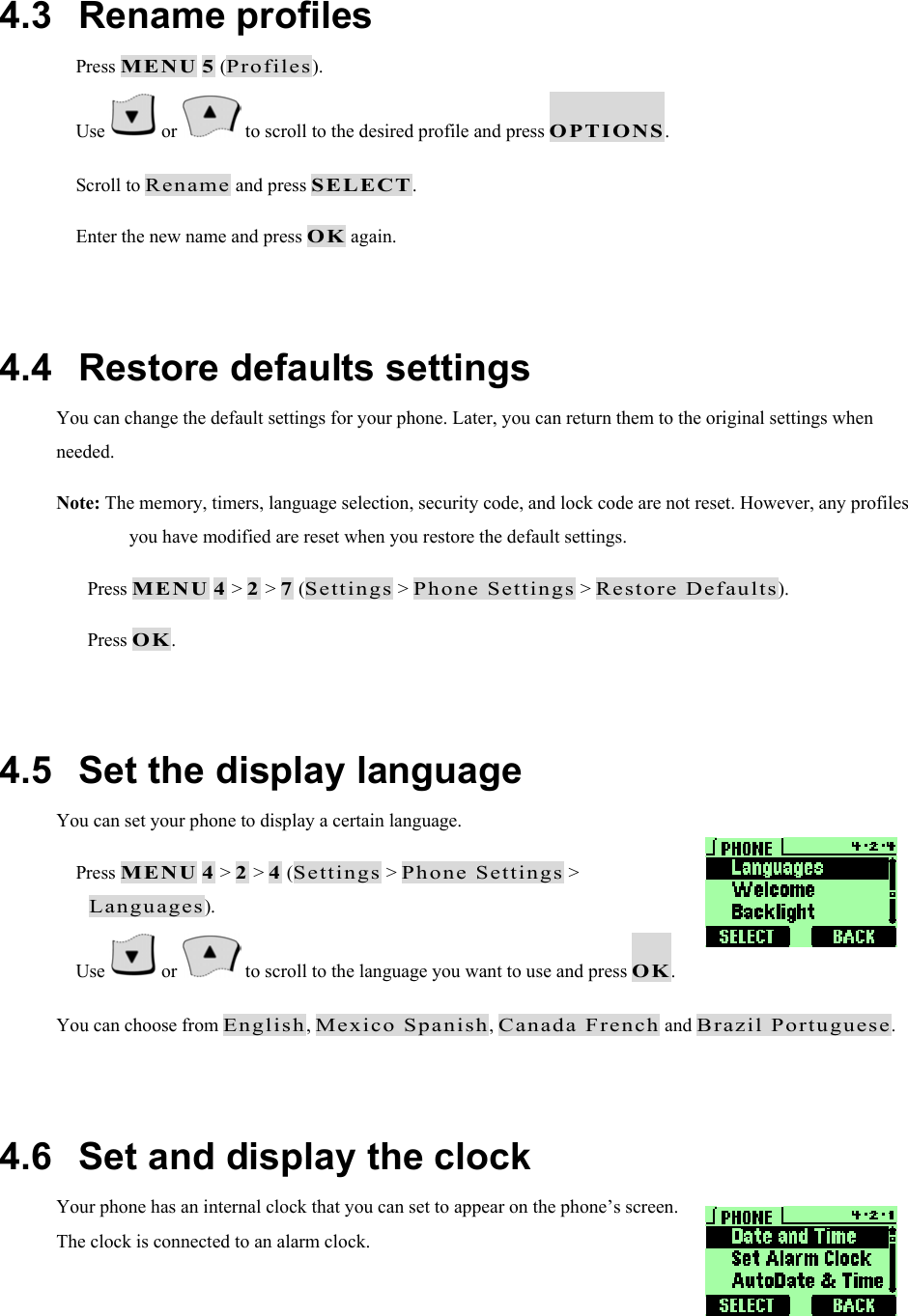
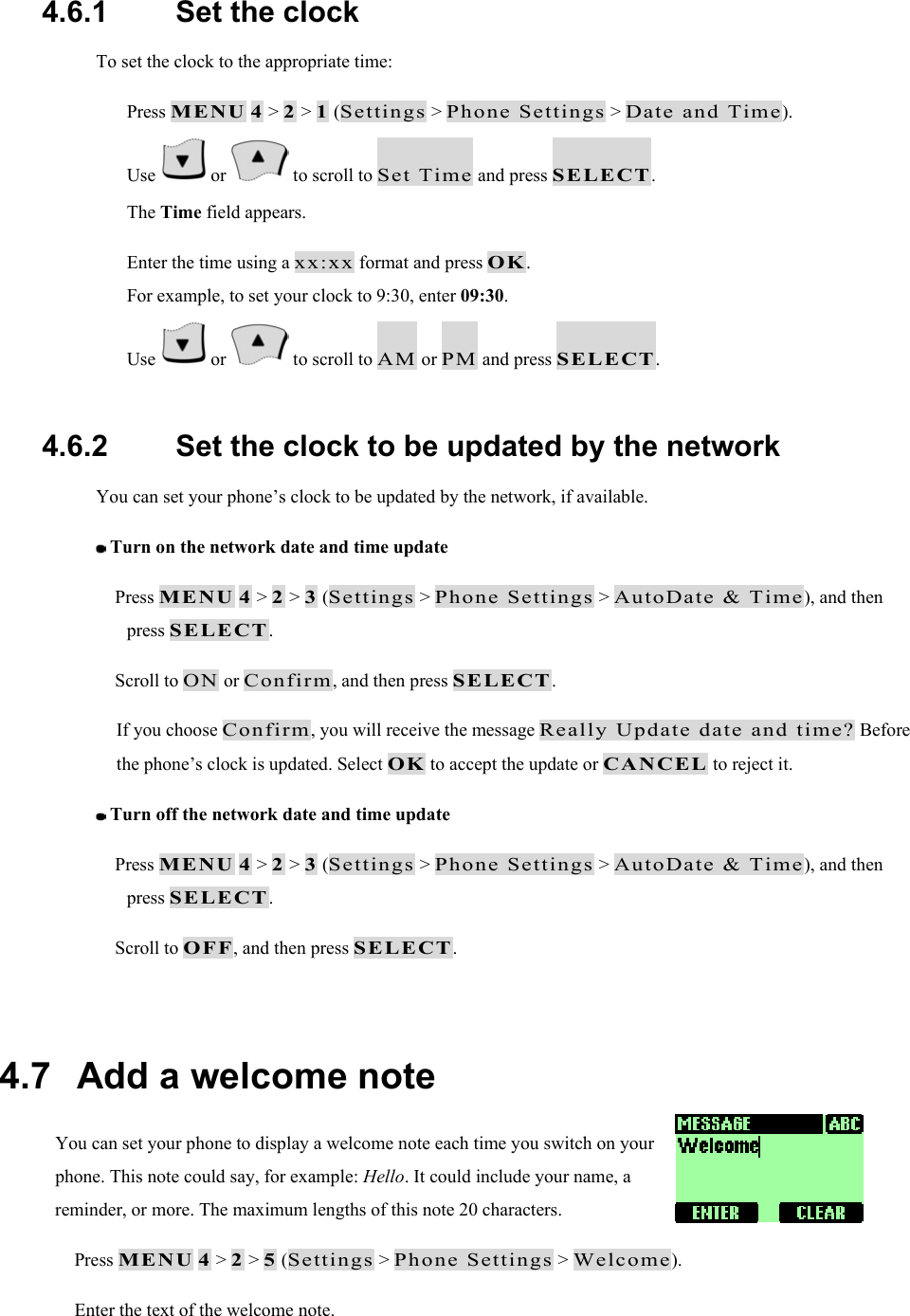
 4.3   Rename profiles  Press MENU 5 (Profiles).  Use   or   to scroll to the desired profile and press OPTIONS.  Scroll to Rename and press SELECT.  Enter the new name and press OK again.  4.4   Restore defaults settings You can change the default settings for your phone. Later, you can return them to the original settings when needed. Note: The memory, timers, language selection, security code, and lock code are not reset. However, any profiles you have modified are reset when you restore the default settings.   Press MENU 4 > 2 > 7 (Settings > Phone Settings > Restore Defaults).   Press OK.  4.5   Set the display language You can set your phone to display a certain language.   Press MENU 4 > 2 > 4 (Settings > Phone Settings > Languages).  Use   or   to scroll to the language you want to use and press OK. You can choose from English, Mexico Spanish, Canada French and Brazil Portuguese.  4.6   Set and display the clock Your phone has an internal clock that you can set to appear on the phone’s screen. The clock is connected to an alarm clock.
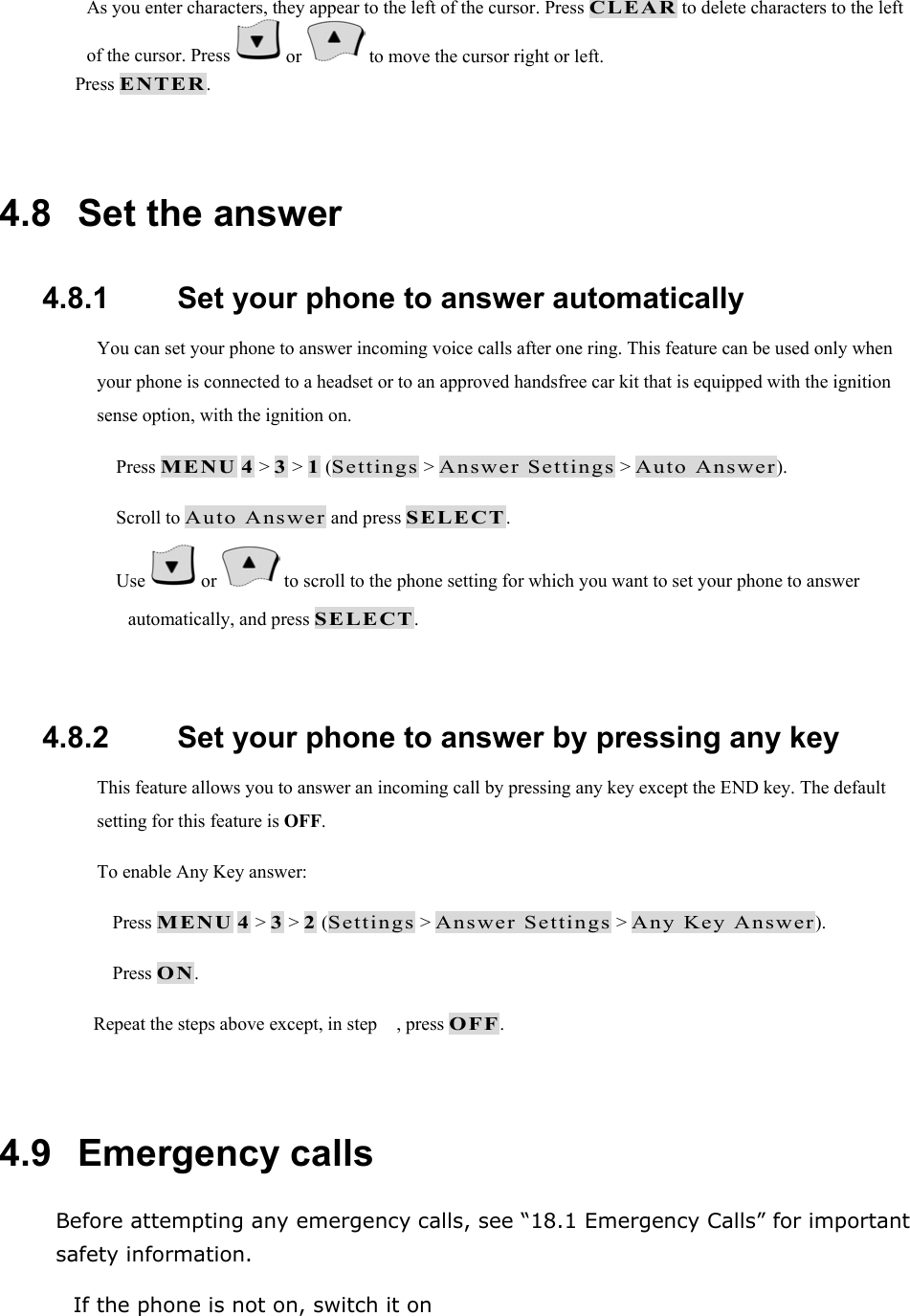
4.6.1   Set the clock To set the clock to the appropriate time:   Press MENU 4 > 2 > 1 (Settings > Phone Settings > Date and Time).   Use   or   to scroll to Set Time and press SELECT. The Time field appears.   Enter the time using a xx:xx format and press OK. For example, to set your clock to 9:30, enter 09:30.   Use   or   to scroll to AM or PM and press SELECT.  4.6.2   Set the clock to be updated by the network You can set your phone’s clock to be updated by the network, if available.  Turn on the network date and time update  Press MENU 4 > 2 > 3 (Settings > Phone Settings > AutoDate & Time), and then press SELECT.  Scroll to ON or Confirm, and then press SELECT. If you choose Confirm, you will receive the message Really Update date and time? Before the phone’s clock is updated. Select OK to accept the update or CANCEL to reject it.  Turn off the network date and time update  Press MENU 4 > 2 > 3 (Settings > Phone Settings > AutoDate & Time), and then press SELECT.  Scroll to OFF, and then press SELECT.  4.7   Add a welcome note You can set your phone to display a welcome note each time you switch on your phone. This note could say, for example: Hello. It could include your name, a reminder, or more. The maximum lengths of this note 20 characters.  Press MENU 4 > 2 > 5 (Settings > Phone Settings > Welcome).  Enter the text of the welcome note.
As you enter characters, they appear to the left of the cursor. Press CLEAR to delete characters to the left of the cursor. Press   or   to move the cursor right or left.  Press ENTER.  4.8   Set the answer 4.8.1   Set your phone to answer automatically You can set your phone to answer incoming voice calls after one ring. This feature can be used only when your phone is connected to a headset or to an approved handsfree car kit that is equipped with the ignition sense option, with the ignition on.  Press MENU 4 > 3 > 1 (Settings > Answer Settings > Auto Answer).  Scroll to Auto Answer and press SELECT.  Use   or   to scroll to the phone setting for which you want to set your phone to answer automatically, and press SELECT.  4.8.2   Set your phone to answer by pressing any key This feature allows you to answer an incoming call by pressing any key except the END key. The default setting for this feature is OFF. To enable Any Key answer:  Press MENU 4 > 3 > 2 (Settings > Answer Settings > Any Key Answer).  Press ON. Repeat the steps above except, in step , press OFF.  4.9   Emergency calls Before attempting any emergency calls, see “18.1 Emergency Calls” for important safety information.  If the phone is not on, switch it on
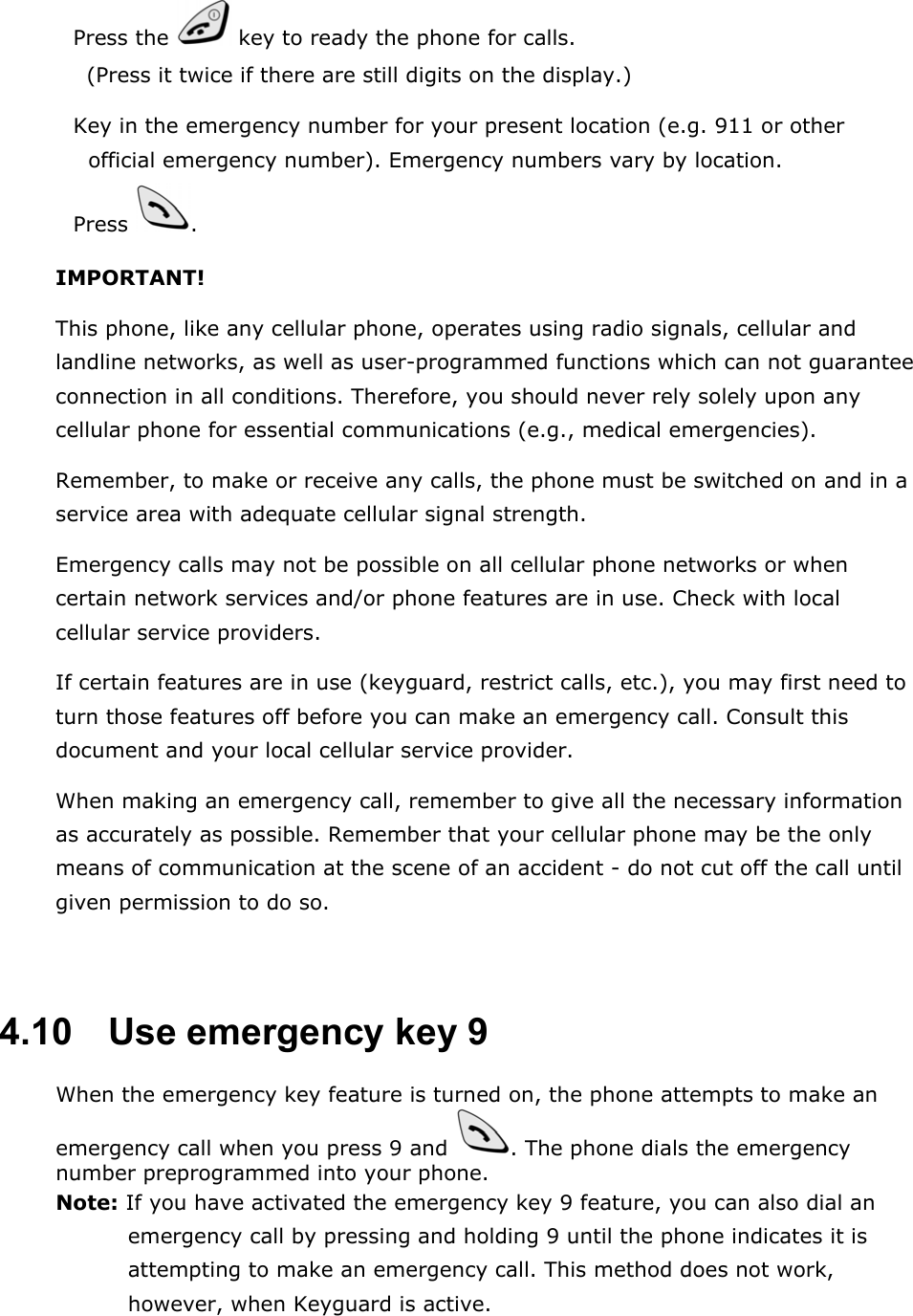
 Press the   key to ready the phone for calls. (Press it twice if there are still digits on the display.)  Key in the emergency number for your present location (e.g. 911 or other official emergency number). Emergency numbers vary by location.  Press  . IMPORTANT! This phone, like any cellular phone, operates using radio signals, cellular and landline networks, as well as user-programmed functions which can not guarantee connection in all conditions. Therefore, you should never rely solely upon any cellular phone for essential communications (e.g., medical emergencies). Remember, to make or receive any calls, the phone must be switched on and in a service area with adequate cellular signal strength. Emergency calls may not be possible on all cellular phone networks or when certain network services and/or phone features are in use. Check with local cellular service providers. If certain features are in use (keyguard, restrict calls, etc.), you may first need to turn those features off before you can make an emergency call. Consult this document and your local cellular service provider. When making an emergency call, remember to give all the necessary information as accurately as possible. Remember that your cellular phone may be the only means of communication at the scene of an accident - do not cut off the call until given permission to do so.  4.10   Use emergency key 9 When the emergency key feature is turned on, the phone attempts to make an emergency call when you press 9 and  . The phone dials the emergency number preprogrammed into your phone. Note: If you have activated the emergency key 9 feature, you can also dial an emergency call by pressing and holding 9 until the phone indicates it is attempting to make an emergency call. This method does not work, however, when Keyguard is active.
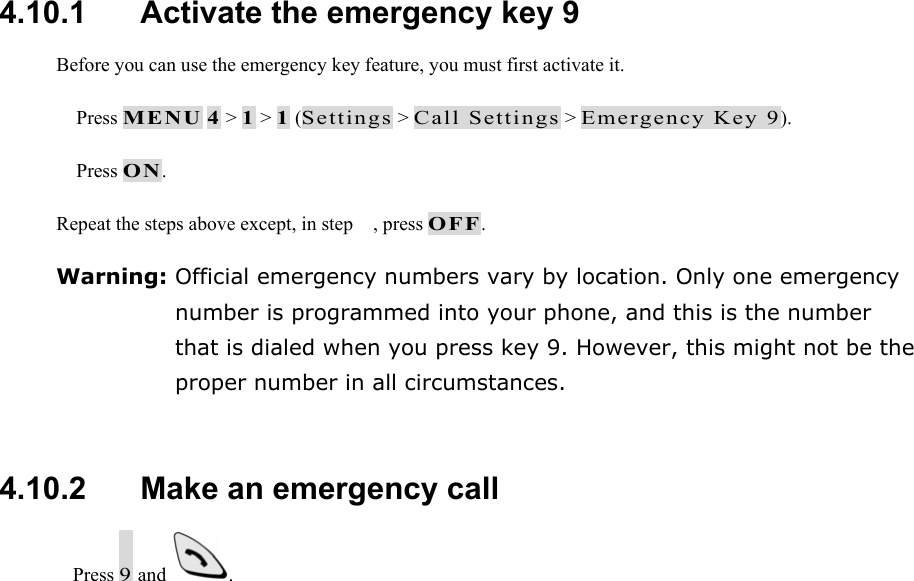
 4.10.1   Activate the emergency key 9 Before you can use the emergency key feature, you must first activate it.  Press MENU 4 > 1 > 1 (Settings > Call Settings > Emergency Key 9).  Press ON. Repeat the steps above except, in step , press OFF. Warning: Official emergency numbers vary by location. Only one emergency number is programmed into your phone, and this is the number that is dialed when you press key 9. However, this might not be the proper number in all circumstances.  4.10.2   Make an emergency call  Press 9 and  .
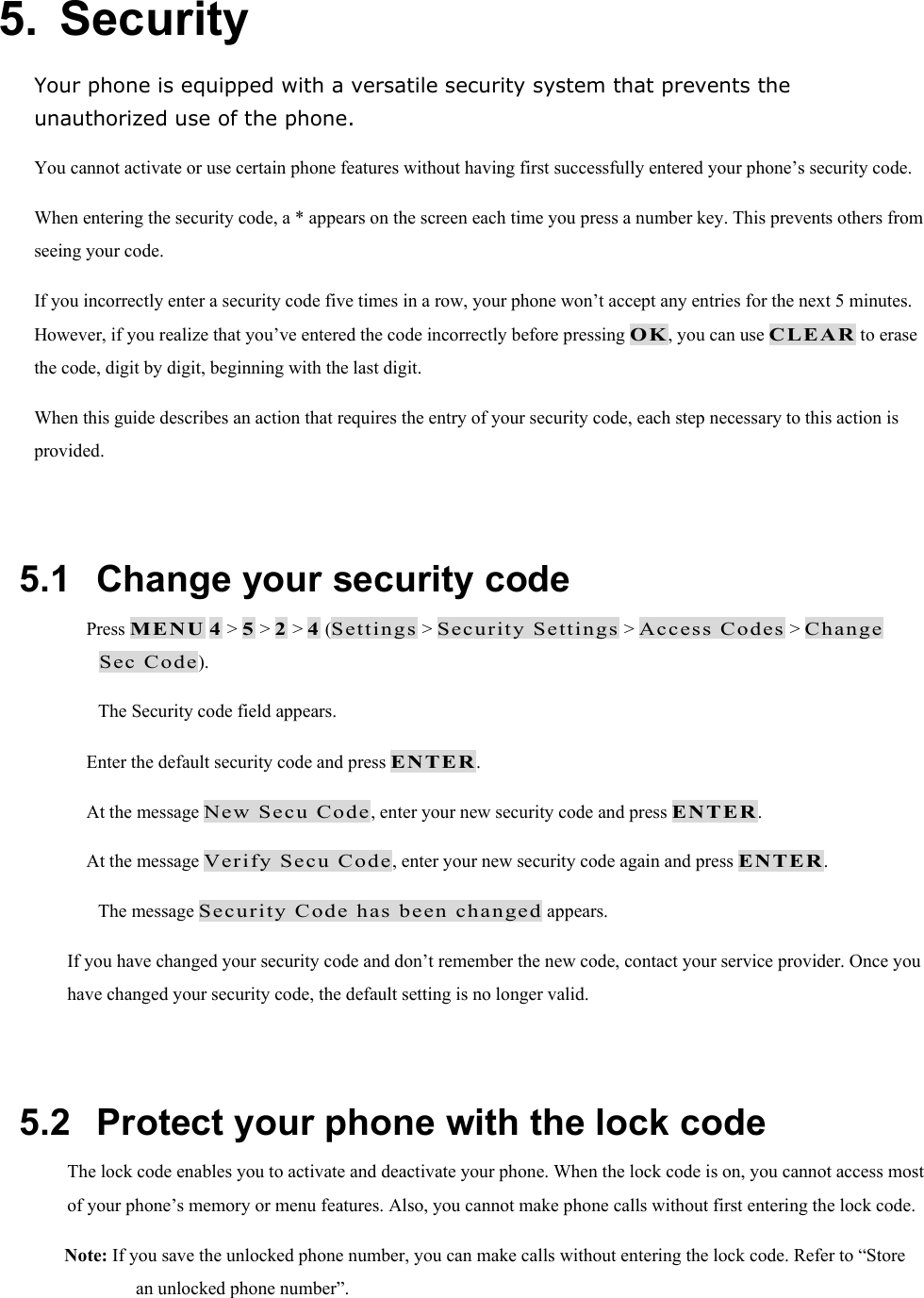
5. Security Your phone is equipped with a versatile security system that prevents the unauthorized use of the phone. You cannot activate or use certain phone features without having first successfully entered your phone’s security code. When entering the security code, a * appears on the screen each time you press a number key. This prevents others from seeing your code. If you incorrectly enter a security code five times in a row, your phone won’t accept any entries for the next 5 minutes. However, if you realize that you’ve entered the code incorrectly before pressing OK, you can use CLEAR to erase the code, digit by digit, beginning with the last digit. When this guide describes an action that requires the entry of your security code, each step necessary to this action is provided.  5.1   Change your security code  Press MENU 4 > 5 > 2 > 4 (Settings > Security Settings > Access Codes > Change Sec Code). The Security code field appears.  Enter the default security code and press ENTER.  At the message New Secu Code, enter your new security code and press ENTER.  At the message Verify Secu Code, enter your new security code again and press ENTER. The message Security Code has been changed appears. If you have changed your security code and don’t remember the new code, contact your service provider. Once you have changed your security code, the default setting is no longer valid.  5.2   Protect your phone with the lock code The lock code enables you to activate and deactivate your phone. When the lock code is on, you cannot access most of your phone’s memory or menu features. Also, you cannot make phone calls without first entering the lock code. Note: If you save the unlocked phone number, you can make calls without entering the lock code. Refer to “Store an unlocked phone number”.
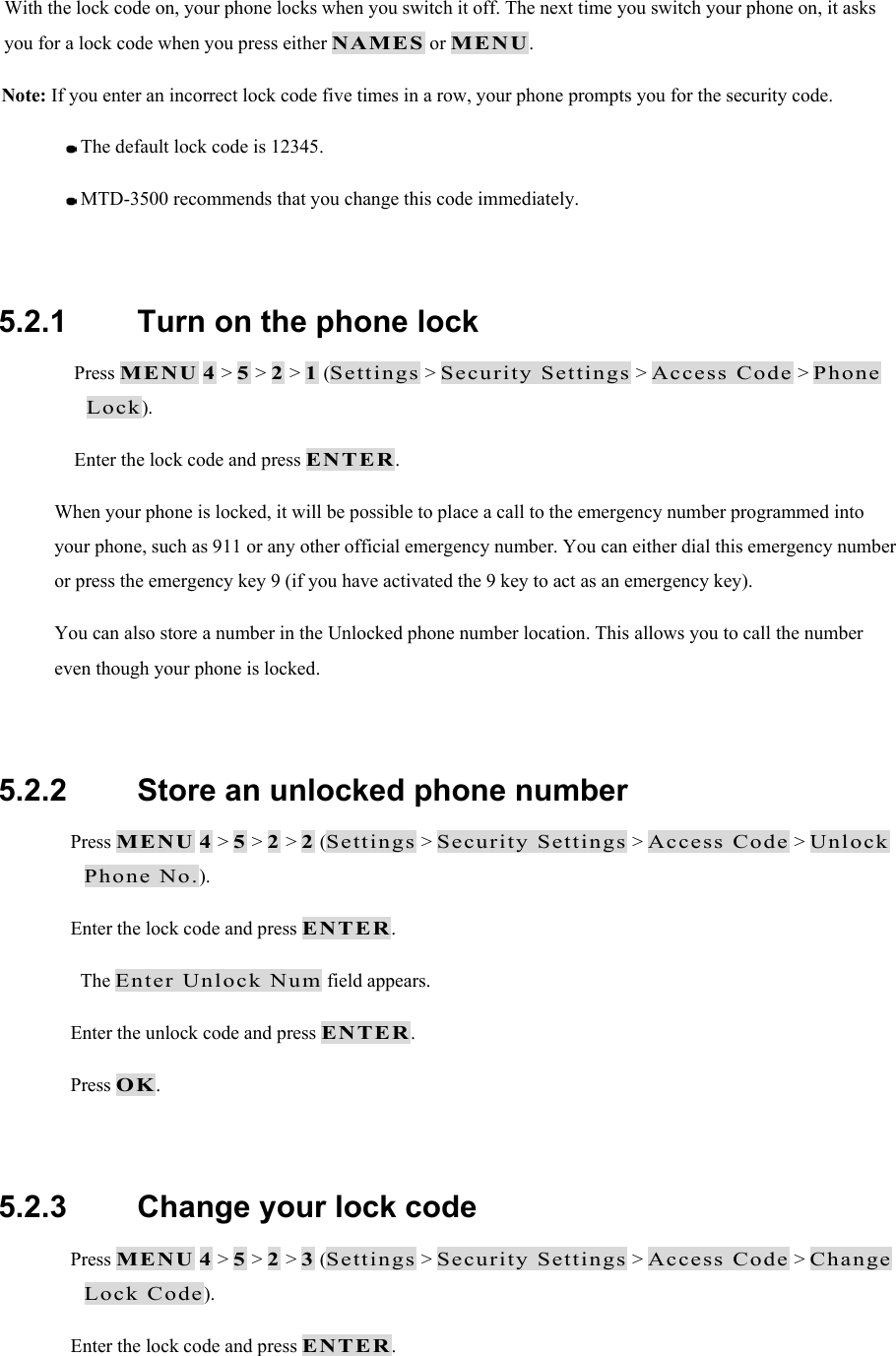
With the lock code on, your phone locks when you switch it off. The next time you switch your phone on, it asks you for a lock code when you press either NAMES or MENU. Note: If you enter an incorrect lock code five times in a row, your phone prompts you for the security code.   The default lock code is 12345.   MTD-3500 recommends that you change this code immediately.  5.2.1   Turn on the phone lock  Press MENU 4 > 5 > 2 > 1 (Settings > Security Settings > Access Code > Phone Lock).  Enter the lock code and press ENTER. When your phone is locked, it will be possible to place a call to the emergency number programmed into your phone, such as 911 or any other official emergency number. You can either dial this emergency number or press the emergency key 9 (if you have activated the 9 key to act as an emergency key). You can also store a number in the Unlocked phone number location. This allows you to call the number even though your phone is locked.  5.2.2   Store an unlocked phone number  Press MENU 4 > 5 > 2 > 2 (Settings > Security Settings > Access Code > Unlock Phone No.).  Enter the lock code and press ENTER. The Enter Unlock Num field appears.  Enter the unlock code and press ENTER.  Press OK.   5.2.3   Change your lock code  Press MENU 4 > 5 > 2 > 3 (Settings > Security Settings > Access Code > Change Lock Code).  Enter the lock code and press ENTER.
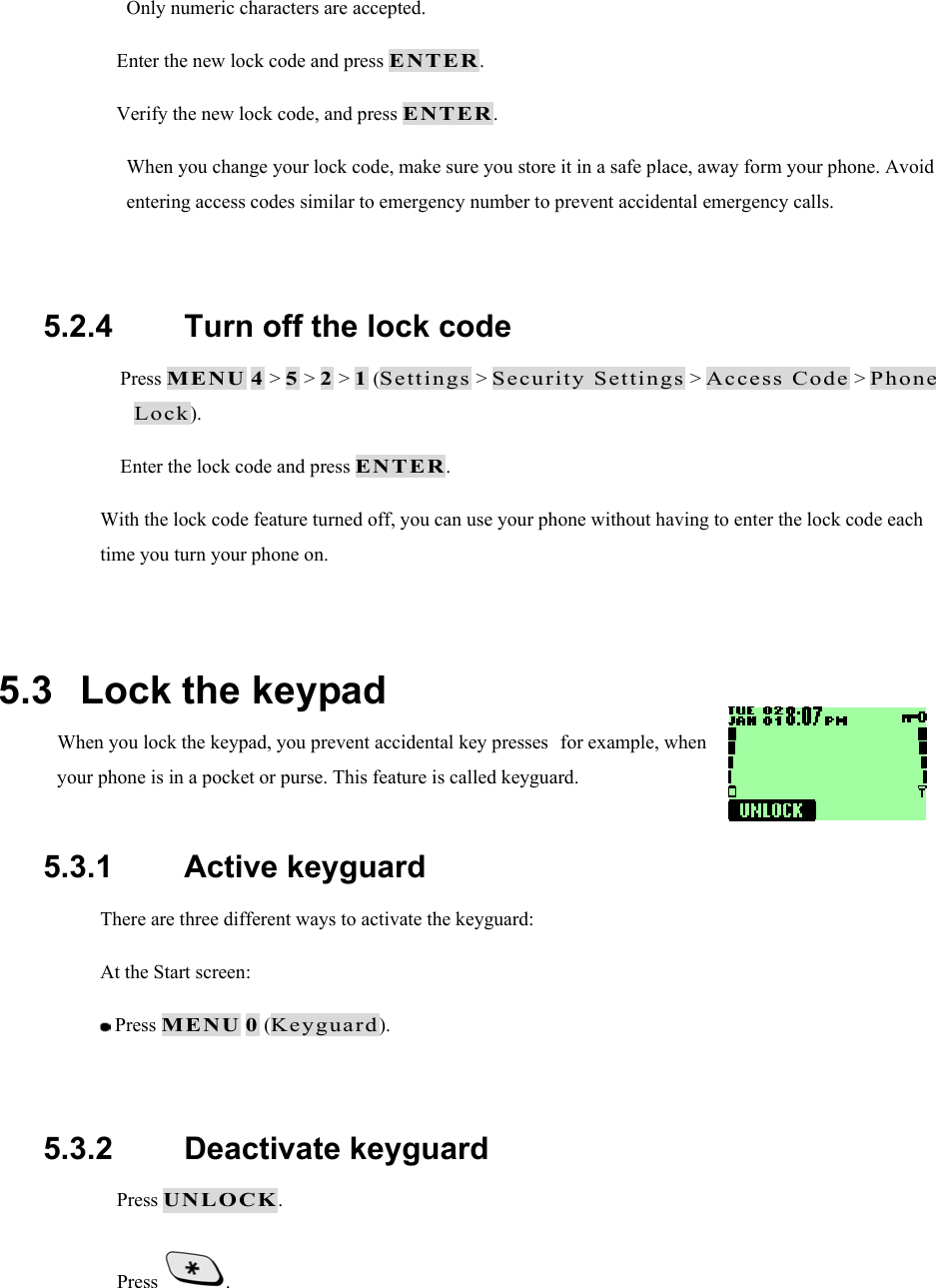
Only numeric characters are accepted.  Enter the new lock code and press ENTER.  Verify the new lock code, and press ENTER. When you change your lock code, make sure you store it in a safe place, away form your phone. Avoid entering access codes similar to emergency number to prevent accidental emergency calls.  5.2.4   Turn off the lock code  Press MENU 4 > 5 > 2 > 1 (Settings > Security Settings > Access Code > Phone Lock).  Enter the lock code and press ENTER. With the lock code feature turned off, you can use your phone without having to enter the lock code each time you turn your phone on.  5.3   Lock the keypad When you lock the keypad, you prevent accidental key pressesfor example, when your phone is in a pocket or purse. This feature is called keyguard.  5.3.1   Active keyguard There are three different ways to activate the keyguard: At the Start screen:  Press MENU 0 (Keyguard).  5.3.2   Deactivate keyguard  Press UNLOCK.  Press  .
5.3.3   Answer a call while keyguard is active During an incoming call, the keypad automatically unlocks.  Press any key to answer the call. After you end the call, keyguard automatically becomes active again.  5.4   Restrict calls You can restrict incoming and outgoing calls. To restrict outgoing calls, you create a list of restrictions and apply the appropriate restriction. Before you define restrictions for outgoing calls, only one restriction option is available:  Add restriction, which enables you to create your own list of outgoing call restrictions. The maximum number of call restrictions you can define is ten.  Delete    Delete any existing outgoing call restriction.  Delete All  Delete all existing outgoing call restriction.  Edit    Allows you to edit an existing outgoing call restriction.  Restrict All  Allows you to activate all outgoing call restrictions.   When calls are restricted, you will be able to make calls to the emergency number that is programmed into your phone. For example, you could dial 911 and press . However, emergency key 9 might not work, depending on the type of restriction you choose.  5.4.1   Restrict incoming calls To restrict incoming calls:   Press MENU 4 > 5 > 1 (Settings > Security Settings > Call Restriction).   Use   or   to scroll to Incoming and press SELECT.   Enter your security code and press ENTER.   Scroll to Restrict All and press ON. Press OFF to remove an already-set restriction.
 5.4.2   Restrict outgoing calls   Press MENU 4 > 5 > 1 (Settings > Security Settings > Call Restriction).   Use   or   to scroll to Outgoing and press SELECT.   Enter your security code and press SELECT.   Press OPTIONS.   Scroll to Add Restriction and press SELECT.   Enter the number you want to restrict and press ENTER.
6.  Set network services features The following network services can be obtained from your service provider:  Voice Privacy  Call Forwarding  Call Waiting  Send Own Number When you subscribe to any of these services, your service provider gives you a feature code that activates each service. Deactivation codes are used to deactivate each service. After you store the appropriate code in your phone, the code is sent to the network to verify that you’re using the correct feature code. The voice privacy feature does not require you to store a feature code before using it. After you store a feature code, the respective service appears as a menu option on your phone’s screen. You can use these menus to activate and deactivate the network services.  6.1   Set up how your phone selects a system Your phone is capable of working in residential, private, and public systems (such as your home system). You can choose how your phone selects a network to use.  Press MENU 6. You see the following three options:  Automatic: Your phone automatically searches for available networks and chooses the appropriate one. Every time you turn on your phone, it resets to Automatic.  Manual: The phone searches for networks and then displays a listing of all of the possible networks on your phone’s screen. Next to each network, one of the following appears: Available or Not available. If a network is designated as Not available, you cannot use it.  New Search: Your phone begins a new search for both private and residential systems. When it finds the best system available, your phone displays it on its screen. You can then select this system or start another search by pressing NEXT.
 Use   or   to scroll through the choices, and press SELECT when you see the one you want.  6.2   Roaming The term roaming is used to indicate when your phone is not in its home area. Calls made or received while you are roaming are usually more expensive than calls made in your home area. While roaming in some systems outside your home area, your phone may not be recognized by the host system, which is the system in which you’re traveling. You may not be able to place a call. Contact your service provider for more specific information on how roaming works with your phone and for information about coverage limitations.  6.3   NAM selection The service provider programs your phone with the phone number and system information into your phone’s memory when your phone is first activated. This is called a Number Assignment Module (NAM). For example, your phone can be activated in up to 2 different service areas (e.g. one in Chicago or New York, and maybe one more in New York), each giving your phone a different phone number or account. Only one number can be active at a time. When you select a phone number, you’re also selecting which system you’re using as your home system. The first phone number displayed with this menu is the currently selected number. Note: It may not be necessary to have three NAMs for your phone if your service provider has service or roaming agreements for each area in which you wish to use your phone. Contact your service provider for details.  6.3.1   Selecting the NAM for your phone  Press MENU 4 > 4 > 6 (Settings > Network Services > NAM Selection)  Highlight the phone number you want to use and press OK. Note: You need at least one active number to make calls. You cannot change from one NAM to another during a call.
7.  USE YOUR PERSONAL ASSISTANT Your phone can be your personal assistant. It can wake you up in the morning and remind you of meetings, birthdays, and tasks. You can check the current time, calculate a tip at dinner, and convert currencies. With a calendar, clock, alarm clock, and phone book, you have everything you need to keep track of your life.  7.1   Use the calendar The calendar application allows you to enter appointments and reminders into the phone. Your phone must be switched on for the calendar to work. Do not switch on the phone, however, where wireless phone use is prohibited or where the use of the phone could cause interference or danger.  7.1.1   View the calendar  Press MENU > 7 (Calendar).  Press SELECT. Today’s day and date appear.  Press SELECT. You can select the Current day’s notes or all notes list. If you select the Current Day Select, you can view the notes of the day currently on display. If you select the All List View, you can view the all notes of the entire calendar.  7.1.2   Move from day to day After you set the date, whenever you press Menu 7, your phone displays the current date and day.  To move forward or backward through the calendar, use   or  .
 When you reach the date you want, press SELECT and scroll to highlight the select you want.  7.1.3   Add a calendar note This option enables you to add a note. You can also set an alarm for any calendar note.  Go to the day you want, then press SELECT. The list of note appears.  Press ADD. The NOTE: field appears.  Enter the information and press ENTER. The current date appears.  If you do not want to change the date, just press OK. The Time: field appears.  If you want to change the date for this note, do so and press OK.  Enter the time when you need to make this call using the hh:mm format and press OK. Select AM or PM and press SELECT.  Select either No Alarm or Set Alarm and press SELECT.  If you don’t want to set an alarm, select No Alarm.  If you select Set Alarm, the alarm date field appears.  Enter the date on which you want the alarm to sound and press OK. The alarm time field appears.  Enter the time at which you want the alarm to sound using the hh:mm format and press OK.  Select either AM or PM and press SELECT.  7.1.4   View the day’s notes You can review notes you’ve written for certain days.  To review notes for a certain day, open the calendar and scroll to the day you want.  Press SELECT, scroll to note list and press SELECT.
The following options are available:  Details  Add Entry  Edit Entry  Delete Entry  Delete All For Day  Delete All Entries   7.2   Alarm clock You can set the alarm clock to ring at any time. The alarm clock’s volume is determined by the current ringing volume and tone settings.  If you have selected the Silent or One Beep ringing tone, then your alarm clock quietly beeps once.  7.2.1   Set the alarm clock   Press MENU 4 > 2 > 2 (Settings > Phone settings > Set Alarm Clock). The Set alarm clock message appears.   Enter the time for which you want to set the alarm using the hh:mm format and press OK. Any existing numbers are replaced with the newly entered numbers.   Select either AM or PM and press SELECT.  7.2.2   Turn off the alarm clock when it rings  When the alarm clock rings:  Press OK to turn it off.  Press SNOOZE to set the alarm to go off again in 5 minutes.
If you let the alarm ring for 1 minute or more without pressing a key, it stops ringing, waits 5 minutes, and then rings again. This continues until you press Stop.  7.2.3   Turn off the alarm clock altogether If you decide that you don’t want the alarm to ever go off, you can turn it completely off.   Press MENU 4 > 2 > 2 (Settings > Phone settings > Set Alarm Clock).   Press OFF. If you have selected the Silent or Meeting profile, your alarm beeps only once. The best profile to use when using the alarm clock is General or Outdoor, unless these profiles have been modified from their original settings.  7.3   Calculator Your phone’s calculator adds, subtracts, multiplies, divides, and converts currencies.  7.3.1   Use the calculator  Press MENU 8 (Calculator).  Enter the first number in the calculation. If you need to enter a number with a decimal point, press   to indicate it.  Then, based on the type of calculation that you need to perform, use one of the following actions: If you want to…  Then… Add  Press * (for + symbol) Subtract  Press ** twice (for – symbol) Multiply Press *** (for * symbol) Divide  Press **** (for / symbol)
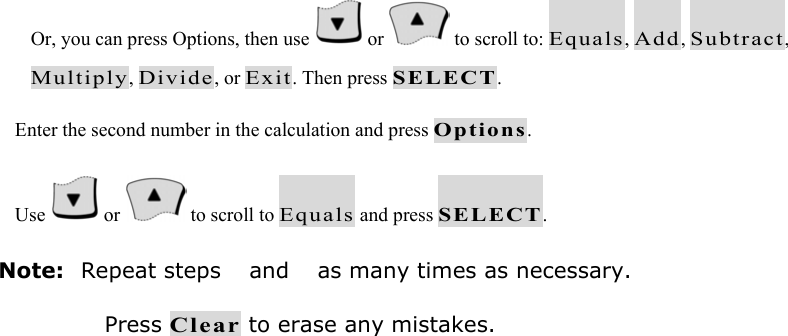
Or, you can press Options, then use   or   to scroll to: Equals, Add, Subtract, Multiply, Divide, or Exit. Then press SELECT.  Enter the second number in the calculation and press Options.  Use   or   to scroll to Equals and press SELECT. Note: Repeat steps  and  as many times as necessary. Press Clear to erase any mistakes.
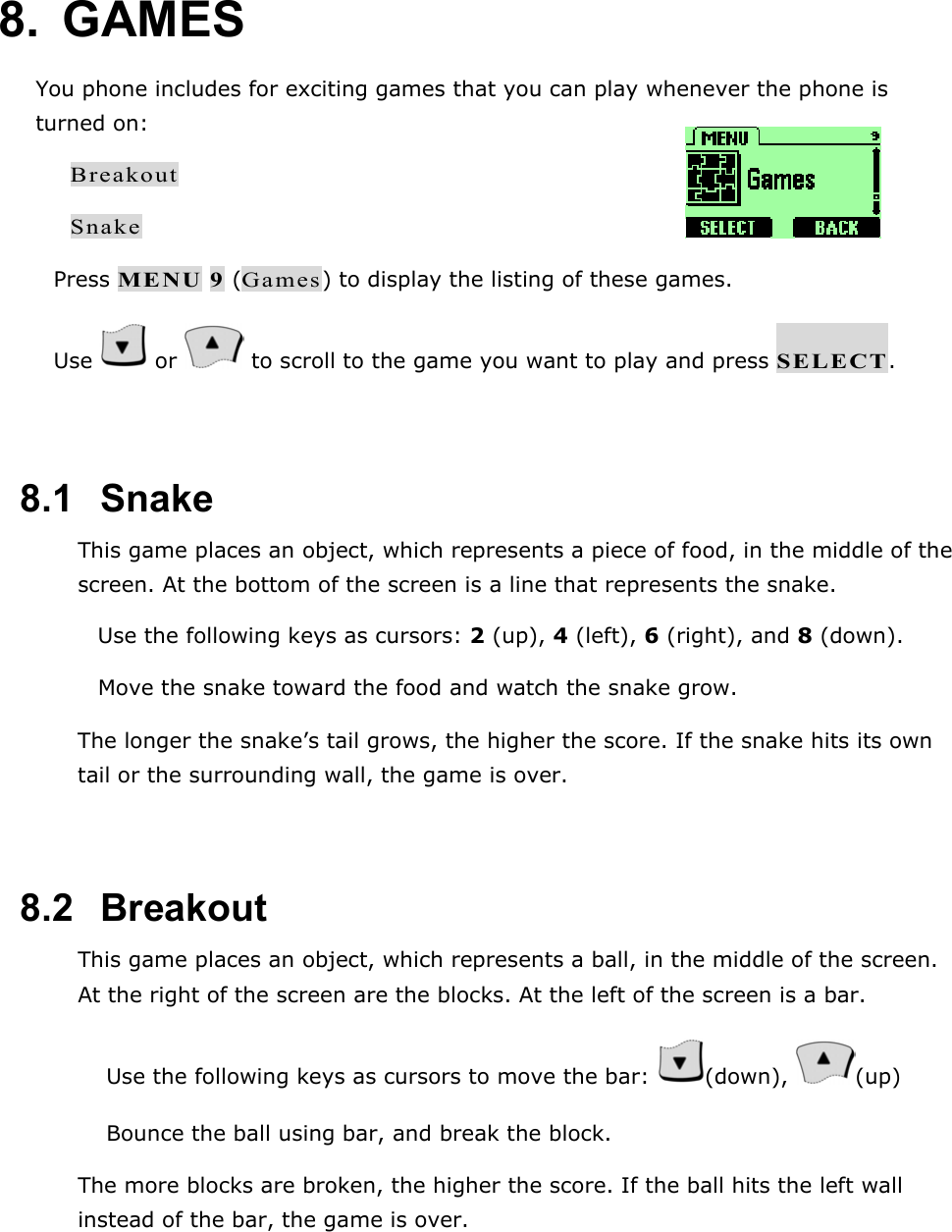
8. GAMES You phone includes for exciting games that you can play whenever the phone is turned on: Breakout Snake  Press MENU 9 (Games) to display the listing of these games.  Use   or   to scroll to the game you want to play and press SELECT.  8.1   Snake This game places an object, which represents a piece of food, in the middle of the screen. At the bottom of the screen is a line that represents the snake.  Use the following keys as cursors: 2 (up), 4 (left), 6 (right), and 8 (down).  Move the snake toward the food and watch the snake grow. The longer the snake’s tail grows, the higher the score. If the snake hits its own tail or the surrounding wall, the game is over.  8.2   Breakout This game places an object, which represents a ball, in the middle of the screen. At the right of the screen are the blocks. At the left of the screen is a bar.   Use the following keys as cursors to move the bar:  (down),  (up)   Bounce the ball using bar, and break the block. The more blocks are broken, the higher the score. If the ball hits the left wall instead of the bar, the game is over.
9. REFERENCE INFORMATION  9.1   Emergency Calls IMPORTANT! This phone, like any wireless phone, operates using radio signals, wireless and landline networks, and user-programmed functions. Because of this, connections in all conditions cannot be guaranteed. Therefore, you should never rely solely on any wireless phone for essential communications (e.g. medical emergencies). Remember, to make or receive any calls, the phone must be switched on and be used in a service area that has adequate signal strength. Emergency calls might not be possible on all wireless phone networks or when certain network services and/or phone features are in use. Check with local service providers. Always ensure that your phone is properly charged before attempting any emergency calls. If you allow your battery to become empty, you will be unable to receive or make calls, including emergency calls. You must then wait a few minutes after the charging begins to place any emergency calls.   9.1.1   Make an emergency call  If the phone is not on, switch it on.  Enter the emergency number for your present location (for example, 911 or any other official emergency number—emergency numbers vary by location).  Press . If certain features are in use (Keyguard, fixed dialing, restrict calls, and so on), you might first need to turn those features off before you can make an emergency call. Consult this guide and your local cellular service provider. When making an emergency call, remember to give all of the necessary information as accurately as possible. Remember that your wireless phone might be the only means of communication at the scene of an accident—do not terminate the call until given permission to do so.
 9.2   Troubleshooting 9.2.1   No service If you’re outside the wireless service area, No service will display on your phone. No calls can be made or received, however, emergency 911 calls may still be possible.  9.2.2   What if the call doesn’t go through? Your phone can make and receive calls only when it’s switched on and in the wireless network’s service area. No service means that you’re probably outside the wireless service area. No calls can be made or received. This number is restricted. means calls to the phone number you tried to call are restricted (see “Restrict calls”).
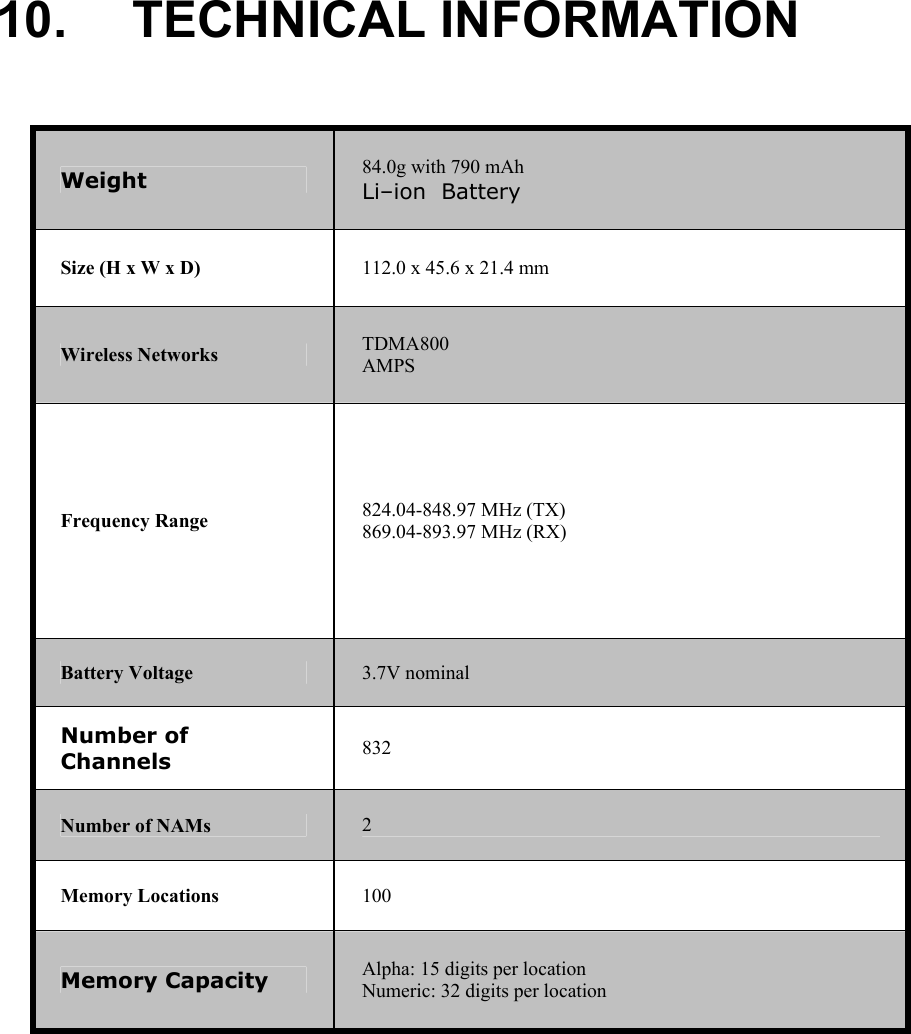
10. TECHNICAL INFORMATION  Weight  84.0g with 790 mAh Li–ion  Battery Size (H x W x D)  112.0 x 45.6 x 21.4 mm Wireless Networks  TDMA800 AMPS Frequency Range  824.04-848.97 MHz (TX) 869.04-893.97 MHz (RX) Battery Voltage  3.7V nominal Number of Channels  832 Number of NAMs  2 Memory Locations  100 Memory Capacity  Alpha: 15 digits per location Numeric: 32 digits per location

Navigation menu