Telian TDM-3100 TDMA/AMPS Cellular & PCS Telephone User Manual revised manual

Telian Corporation TDMA/AMPS Cellular & PCS Telephone revised manual

Contents

revised manual

- 1 -TTRRII--MMOODDEE  TTDDMMAA  PPHHOONNEEMODEL: TDM-3100PRELIMINARYRev : 1.11Date: February 27, 2001Telian Corporation
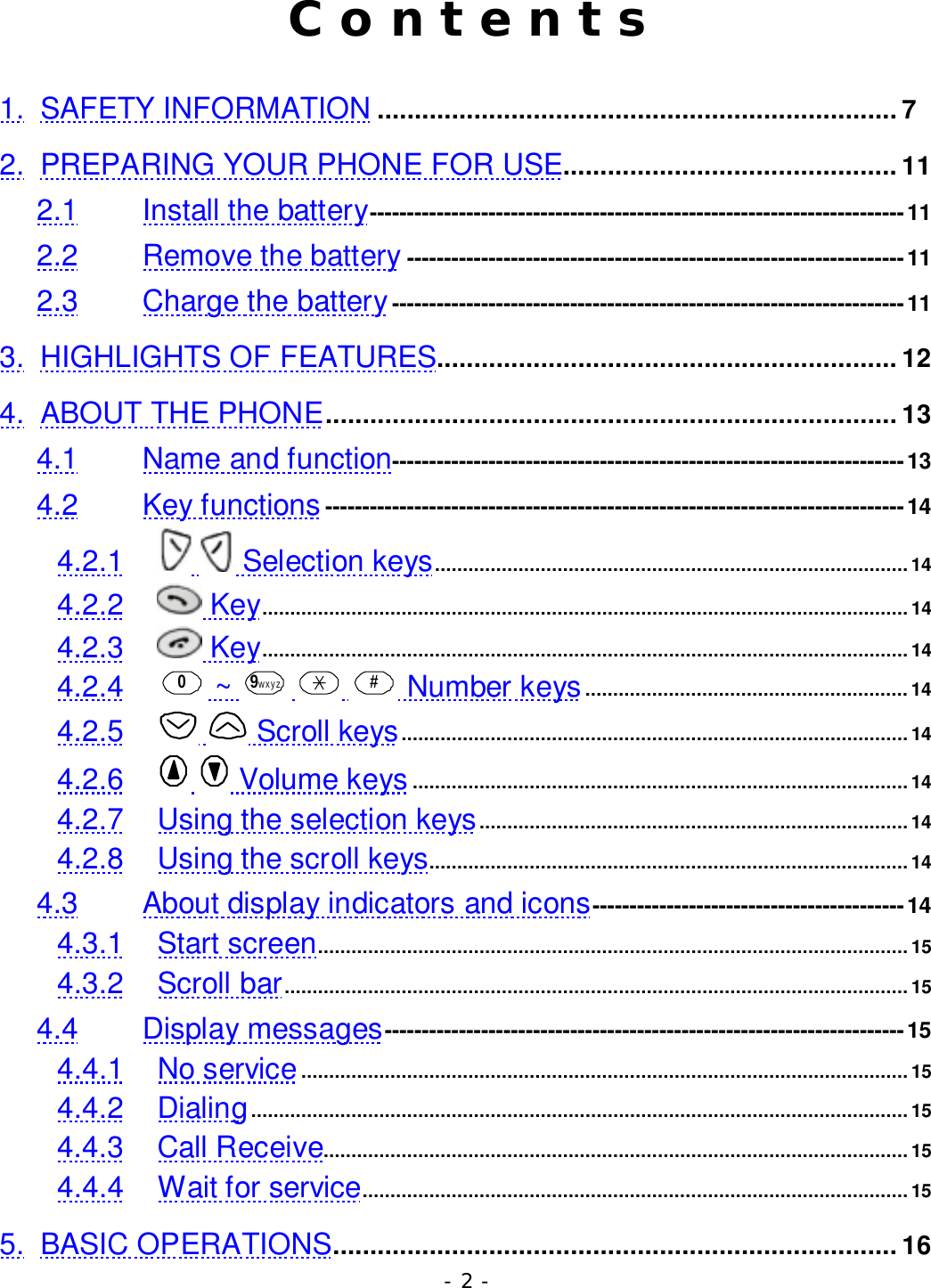
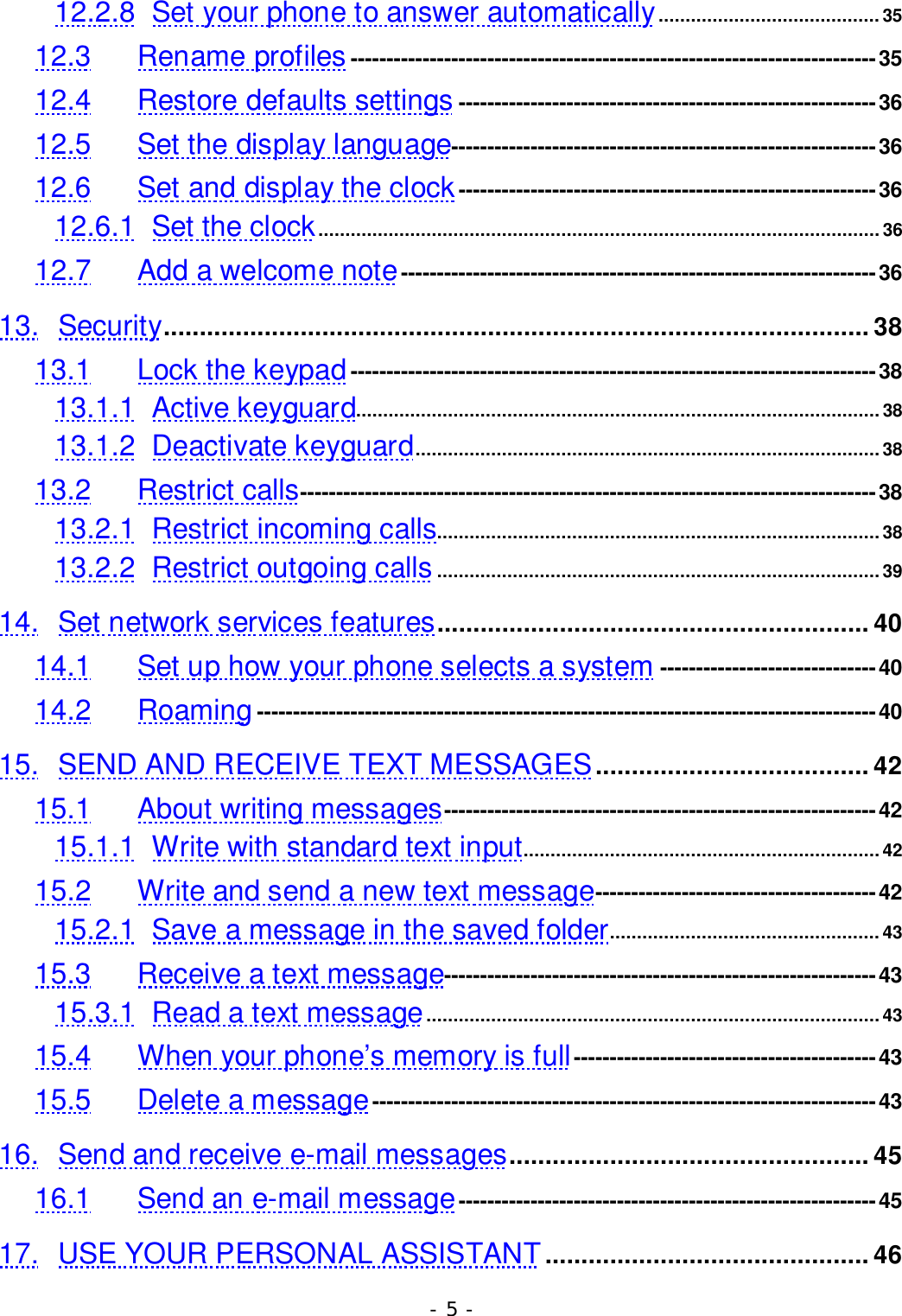
- 2 -C o n t e n t s1. SAFETY INFORMATION ...................................................................... 72. PREPARING YOUR PHONE FOR USE............................................. 112.1 Install the battery------------------------------------------------------------------------112.2 Remove the battery -------------------------------------------------------------------112.3 Charge the battery---------------------------------------------------------------------113. HIGHLIGHTS OF FEATURES.............................................................. 124. ABOUT THE PHONE............................................................................. 134.1 Name and function---------------------------------------------------------------------134.2 Key functions ------------------------------------------------------------------------------144.2.1   Selection keys..................................................................................... 144.2.2  Key.................................................................................................................... 144.2.3  Key.................................................................................................................... 144.2.4 0 ~  9wxyz    # Number keys ..........................................................144.2.5   Scroll keys...........................................................................................144.2.6   Volume keys .........................................................................................144.2.7 Using the selection keys.............................................................................144.2.8 Using the scroll keys...................................................................................... 144.3 About display indicators and icons------------------------------------------144.3.1 Start screen.......................................................................................................... 154.3.2 Scroll bar................................................................................................................ 154.4 Display messages----------------------------------------------------------------------154.4.1 No service.............................................................................................................154.4.2 Dialing......................................................................................................................154.4.3 Call Receive.........................................................................................................154.4.4 Wait for service.................................................................................................. 155. BASIC OPERATIONS............................................................................ 16
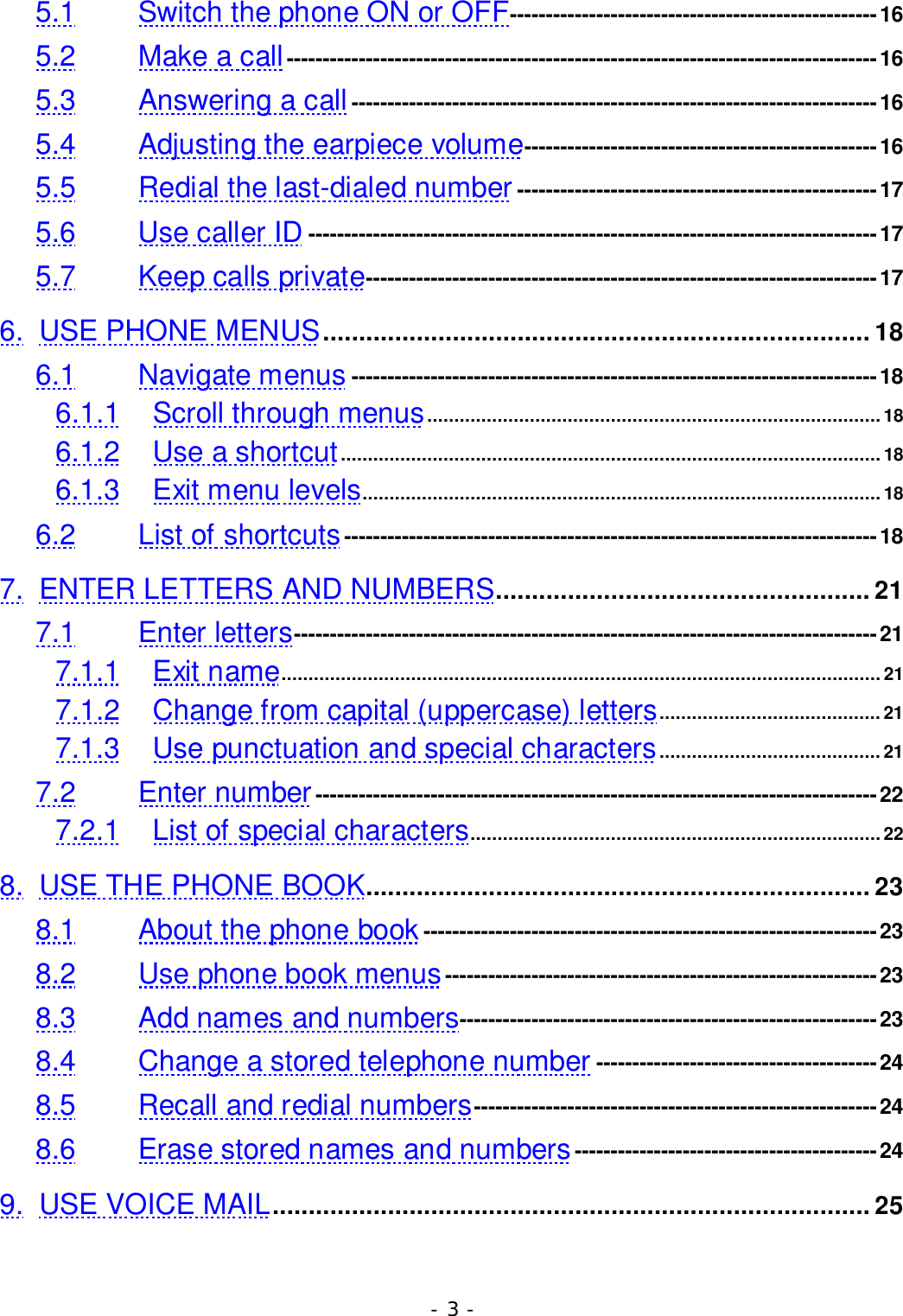
- 3 -5.1 Switch the phone ON or OFF---------------------------------------------------165.2 Make a call ----------------------------------------------------------------------------------165.3 Answering a call-------------------------------------------------------------------------165.4 Adjusting the earpiece volume-------------------------------------------------165.5 Redial the last-dialed number --------------------------------------------------175.6 Use caller ID -------------------------------------------------------------------------------175.7 Keep calls private-----------------------------------------------------------------------176. USE PHONE MENUS............................................................................ 186.1 Navigate menus -------------------------------------------------------------------------186.1.1 Scroll through menus....................................................................................186.1.2 Use a shortcut....................................................................................................186.1.3 Exit menu levels................................................................................................186.2 List of shortcuts--------------------------------------------------------------------------187. ENTER LETTERS AND NUMBERS.................................................... 217.1 Enter letters---------------------------------------------------------------------------------217.1.1 Exit name...............................................................................................................217.1.2 Change from capital (uppercase) letters.........................................217.1.3 Use punctuation and special characters......................................... 217.2 Enter number------------------------------------------------------------------------------227.2.1 List of special characters............................................................................228. USE THE PHONE BOOK...................................................................... 238.1 About the phone book ---------------------------------------------------------------238.2 Use phone book menus------------------------------------------------------------238.3 Add names and numbers----------------------------------------------------------238.4 Change a stored telephone number ---------------------------------------248.5 Recall and redial numbers--------------------------------------------------------248.6 Erase stored names and numbers ------------------------------------------249. USE VOICE MAIL................................................................................... 25
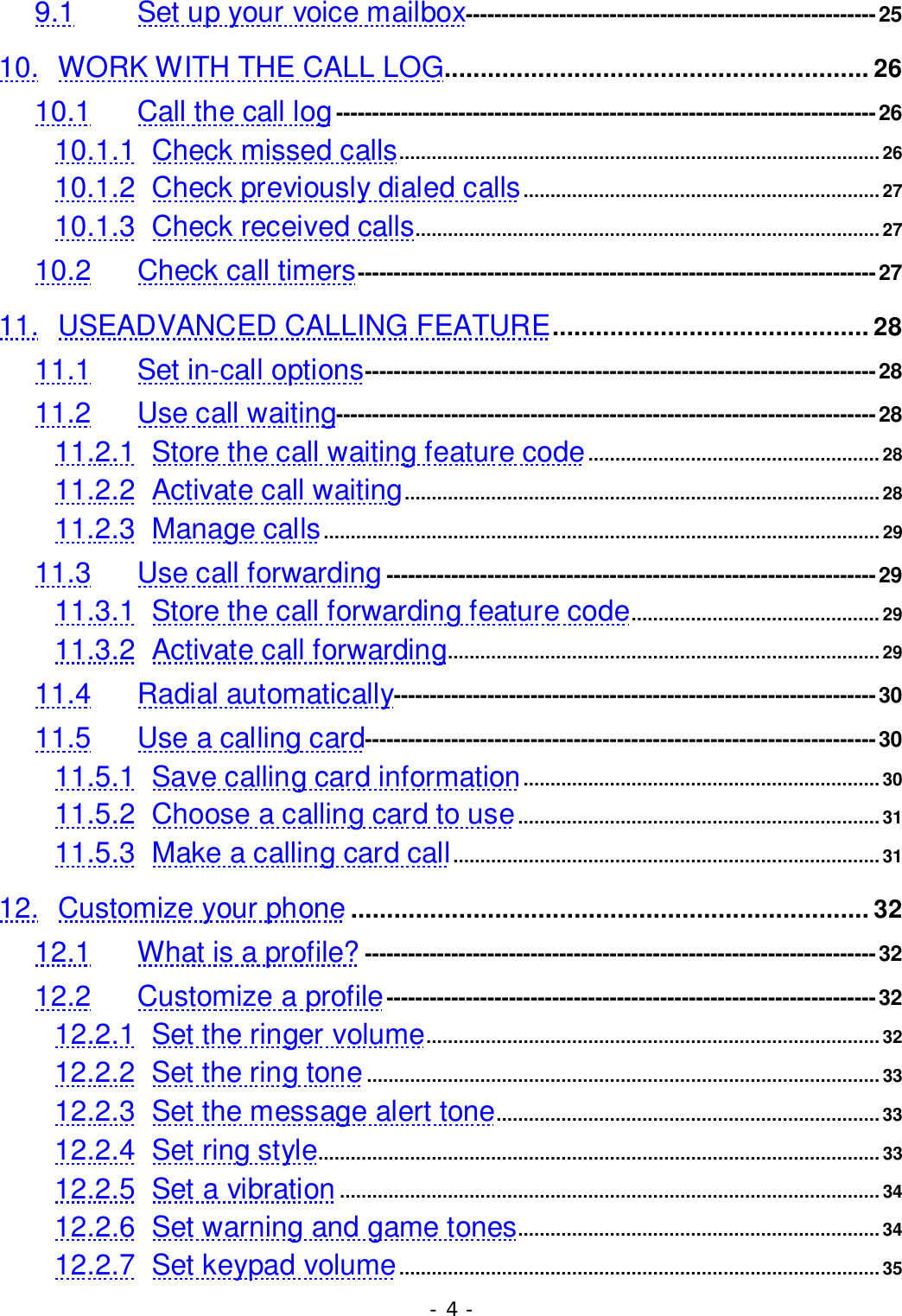
- 4 -9.1 Set up your voice mailbox---------------------------------------------------------2510. WORK WITH THE CALL LOG........................................................... 2610.1 Call the call log---------------------------------------------------------------------------2610.1.1 Check missed calls......................................................................................... 2610.1.2 Check previously dialed calls.................................................................. 2710.1.3 Check received calls......................................................................................2710.2 Check call timers------------------------------------------------------------------------2711. USEADVANCED CALLING FEATURE............................................ 2811.1 Set in-call options-----------------------------------------------------------------------2811.2 Use call waiting---------------------------------------------------------------------------2811.2.1 Store the call waiting feature code......................................................2811.2.2 Activate call waiting........................................................................................2811.2.3 Manage calls.......................................................................................................2911.3 Use call forwarding--------------------------------------------------------------------2911.3.1 Store the call forwarding feature code.............................................. 2911.3.2 Activate call forwarding................................................................................2911.4 Radial automatically-------------------------------------------------------------------3011.5 Use a calling card-----------------------------------------------------------------------3011.5.1 Save calling card information..................................................................3011.5.2 Choose a calling card to use................................................................... 3111.5.3 Make a calling card call...............................................................................3112. Customize your phone ........................................................................ 3212.1 What is a profile? -----------------------------------------------------------------------3212.2 Customize a profile--------------------------------------------------------------------3212.2.1 Set the ringer volume....................................................................................3212.2.2 Set the ring tone...............................................................................................3312.2.3 Set the message alert tone....................................................................... 3312.2.4 Set ring style........................................................................................................3312.2.5 Set a vibration ....................................................................................................3412.2.6 Set warning and game tones................................................................... 3412.2.7 Set keypad volume......................................................................................... 35
- 5 -12.2.8 Set your phone to answer automatically.........................................3512.3 Rename profiles -------------------------------------------------------------------------3512.4 Restore defaults settings ----------------------------------------------------------3612.5 Set the display language-----------------------------------------------------------3612.6 Set and display the clock ----------------------------------------------------------3612.6.1 Set the clock........................................................................................................3612.7 Add a welcome note------------------------------------------------------------------3613. Security.................................................................................................. 3813.1 Lock the keypad-------------------------------------------------------------------------3813.1.1 Active keyguard.................................................................................................3813.1.2 Deactivate keyguard...................................................................................... 3813.2 Restrict calls--------------------------------------------------------------------------------3813.2.1 Restrict incoming calls..................................................................................3813.2.2 Restrict outgoing calls..................................................................................3914. Set network services features............................................................ 4014.1 Set up how your phone selects a system ------------------------------4014.2 Roaming--------------------------------------------------------------------------------------4015. SEND AND RECEIVE TEXT MESSAGES...................................... 4215.1 About writing messages------------------------------------------------------------4215.1.1 Write with standard text input..................................................................4215.2 Write and send a new text message---------------------------------------4215.2.1 Save a message in the saved folder.................................................. 4315.3 Receive a text message------------------------------------------------------------4315.3.1 Read a text message....................................................................................4315.4 When your phone’s memory is full------------------------------------------4315.5 Delete a message----------------------------------------------------------------------4316. Send and receive e-mail messages.................................................. 4516.1 Send an e-mail message----------------------------------------------------------4517. USE YOUR PERSONAL ASSISTANT ............................................. 46
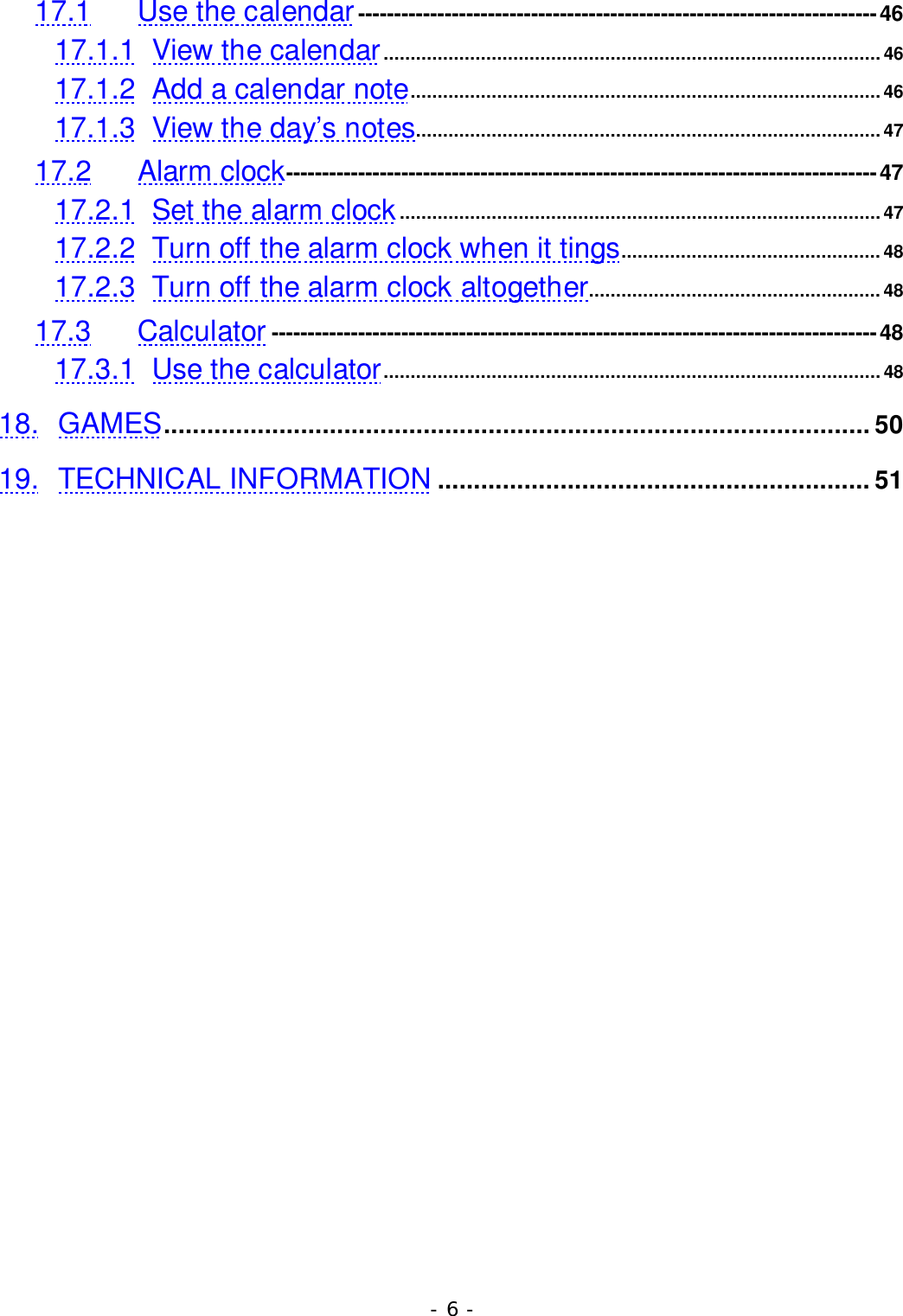
- 6 -17.1 Use the calendar------------------------------------------------------------------------4617.1.1 View the calendar............................................................................................4617.1.2 Add a calendar note....................................................................................... 4617.1.3 View the day’s notes......................................................................................4717.2 Alarm clock----------------------------------------------------------------------------------4717.2.1 Set the alarm clock......................................................................................... 4717.2.2 Turn off the alarm clock when it tings................................................4817.2.3 Turn off the alarm clock altogether...................................................... 4817.3 Calculator ------------------------------------------------------------------------------------4817.3.1 Use the calculator............................................................................................ 4818. GAMES.................................................................................................. 5019. TECHNICAL INFORMATION ............................................................ 51
- 7 -1. SAFETY INFORMATIONSAFETY INFORMATION FOR WIRELESS HANDHELD PHONESWARNING!  Please do not use your Audiovox wireless telephone if you may bedistracted from another activity (such as driving a motor vehicle or walking acrossthe street) and create a safety hazard to yourself and others.  Use your wirelesstelephone responsibly.  Be alert to your surroundings whenever you operate yourwireless telephone.For the safe and efficient operation of your phone, observe the followingguidelines:EXPOSURE TO RADIO FREQUENCY SIGNALSYour wireless handheld portable telephone is a low power radio transmitter andreceiver. When it is ON, it receives and also sends out radio frequency (RF)signals.In August 1996, the Federal Communications Commissions (FCC) adopted RFexposure quidelines with safety levels for handheld wireless phones. Thoseguidelines are consistent with the safety standards previously set by both U.S. andinternational standards bodies:ANSI C95.1 (1992)*NCRP Report 86 (1986)*ICNIRP (1996)**American National Standards Institute; National Council on Radiation Protectionand Measurements; International Commission on Non-Ionizing RadiationProtectionThose standards were based on comprehensive and periodic evaluations of therelevant scientific literature. For example, over 120 scientists, engineers, andphysicians from universities, government health agencies, and industry reviewedthe available body of research to develop the ANSI Standard (C95.1)The design of your phone complies with the FCC guidelines ( and thosestandards).CAUTION!  To comply FCC radio-frequency exposure requirements, this phonemust worn with the belt clip provided with the device. Use ofaccessories/configurations not approved by the company may result in non-compliance with FCC RF exposure limit, therefore should be avoided.ANTENNA CAREUse only the supplied or an approved replacement antenna. Unauthorized
- 8 -antennas, modifications, or attachments could damage the phone and may violateFCC regulations.PHONE OPERATIONNORMAL POSITION:  Hold the phone as you would any other telephone with theantenna pointed up and over your shoulder.TIPS ON EFFICIENT OPERATION:For your phone to operate most efficiently:• Extend your antenna fully.• Do not touch the antenna unnecessarily when the phone is in use. Contact withthe antenna affects call quality and may cause the phone to operate at a higherpower level than otherwise needed.DRIVINGCheck the laws and regulations on the use of wireless telephones in the areaswhere you drive.  Always obey them. Also, if using your phone while driving,please:• Give full attention to driving—driving safely is your first responsibility;• Use hands-free operation, if available;• Pull off the road and park before making or answering a call if driving conditionsso require.ELECTRONIC DEVICESMost modern electronic equipment is shielded from RF signals. However, certainelectronic equipment may not be shielded against the RF signals from yourwireless phone.PacemakersThe Health Industry Manufacturers Association recommends that a minimumseparation of six (6”) inches be maintained between a handheld wireless phoneand a pacemaker to avoid potential interference with the pacemaker. Theserecommendations are consistent with the independent research by andrecommendations of Wireless Technology Research.Persons with pacemakers:• Should ALWAYS keep the phone more than six inches from their pacemakerwhen the phone is turned ON• Should not carry the phone in a breast pocket
- 9 -• Should use the ear opposite the pacemaker to minimize the potential forinterference• If you have any reason to suspect that interference is taking place, turn yourphone OFF immediately.Hearing AidsSome digital wireless phone may interfere with some hearing aids. In the event ofsuch interference, you may want to consult your service provider (or call thecustomer service line to discuss alternatives).Other Medical DevicesIf you use any other personal medical device, consult the manufacturer of yourdevice to determine if they are adequately shielded from external RF energy. Yourphysician may be able to assist you in obtaining this information.Turn your phone OFF in health care facilities when any regulations posted in theseareas instruct you to do so. Hospitals or health care facilities may be usingequipment that could be sensitive to external RF energy.VehiclesRF signals may affect improperly installed or inadequately shielded electronicsystems in motor vehicles. Check with the manufacturer or its representativeregarding your vehicle. You should also consult the manufacturer of anyequipment that has been added to your vehicle.Posted FacilitiesTurn your phone OFF in any facility where posted notices so require.AIRCRAFTFCC regulations prohibit using your phone while in the air.Switch OFF your phone before boarding an aircraft.BLASTING AREASTo avoid interfering with blasting operations, turn your phone OFF when in a
- 10 -“blasting area” or in areas posted: “Turn off two-way radio.” Obey all signs andinstructions.POTENTIALLY EXPLOSIVE ATMOSPHERESTurn your phone OFF when in any area with a potentially explosive atmosphereand obey all signs and instructions. Sparks in such areas could cause an explosionor fire resulting in bodily injury or even death.Areas with a potentially explosive atmosphere are often but not always clearlymarked. They include fueling areas such as gasoline stations; below deck onboats; fuel or chemical transfer or storage facilities; vehicles using liquefiedpetroleum gas (such as propane or butane); areas where the air containschemicals or particles, such as grain, dust, or metal powders; and any other areawhere you would normally be advised to turn off your vehicle engine.FOR VEHICLES EQUIPPED WITH AN AIR BAGAn air bag inflates with great force. DO NOT place objects, including both installedor portable wireless equipment, in the area over the air bag or in the air bagdeployment area. If in-vehicle wireless equipment is improperly installed and theair bag inflates, serious injury could result.
- 11 -2.  PREPARING YOUR PHONE FOR USE2.1   Install the batterySimply place the battery in the grooves on the back of the phone. Then slide thebattery upward until clicks.2.2   Remove the batteryNote: Switch the phone off before removing the battery!Press and hold the button at the top of the battery.Slide the battery toward the bottom of the phone.Lift the battery off the phone.2.3   Charge the battery• Connect the lead from the charger to the bottom of the phone.• Connect the charger to an AC wall outlet.  The battery indicator bar starts toscroll.Note: If the battery is totally empty, it may take a few minutes before thecharging indication appears on the screen.Tip: The phone can be used while charging if the phone is switched on.Note: Disconnect your phone from the charger if the phone becomes hot during acall.• The battery is fully charged when the battery indicator bar stops scrolling, andthe Battery full text is briefly displayed if the phone is switched on. Chargingtime depends on the charger and battery used.• Disconnect the charger from the AC outlet and the phone.
- 12 -3.  HIGHLIGHTS OF FEATURESEasy to read graphical displayPhone book (up to 200 names and numbers)Easy to use keypad layoutSide keys for ringer mute and volume control3 Ring tones and 5 Ring style selectionsAdjustable ring volumeVibrating alert (optional)Quick access to the last 10 numbers dialedCaller ID (last 50 numbers)GamesAuto redialCalculatorClock with AlarmDialed, received, missed callsCall restrictionKeypad lockCall timerProfile settingsSecurity PIN codeShort message serviceVoice mail capability2 different NAMMulti-Languages (English, French, Spanish and Portuguese)Earphone / microphone jack
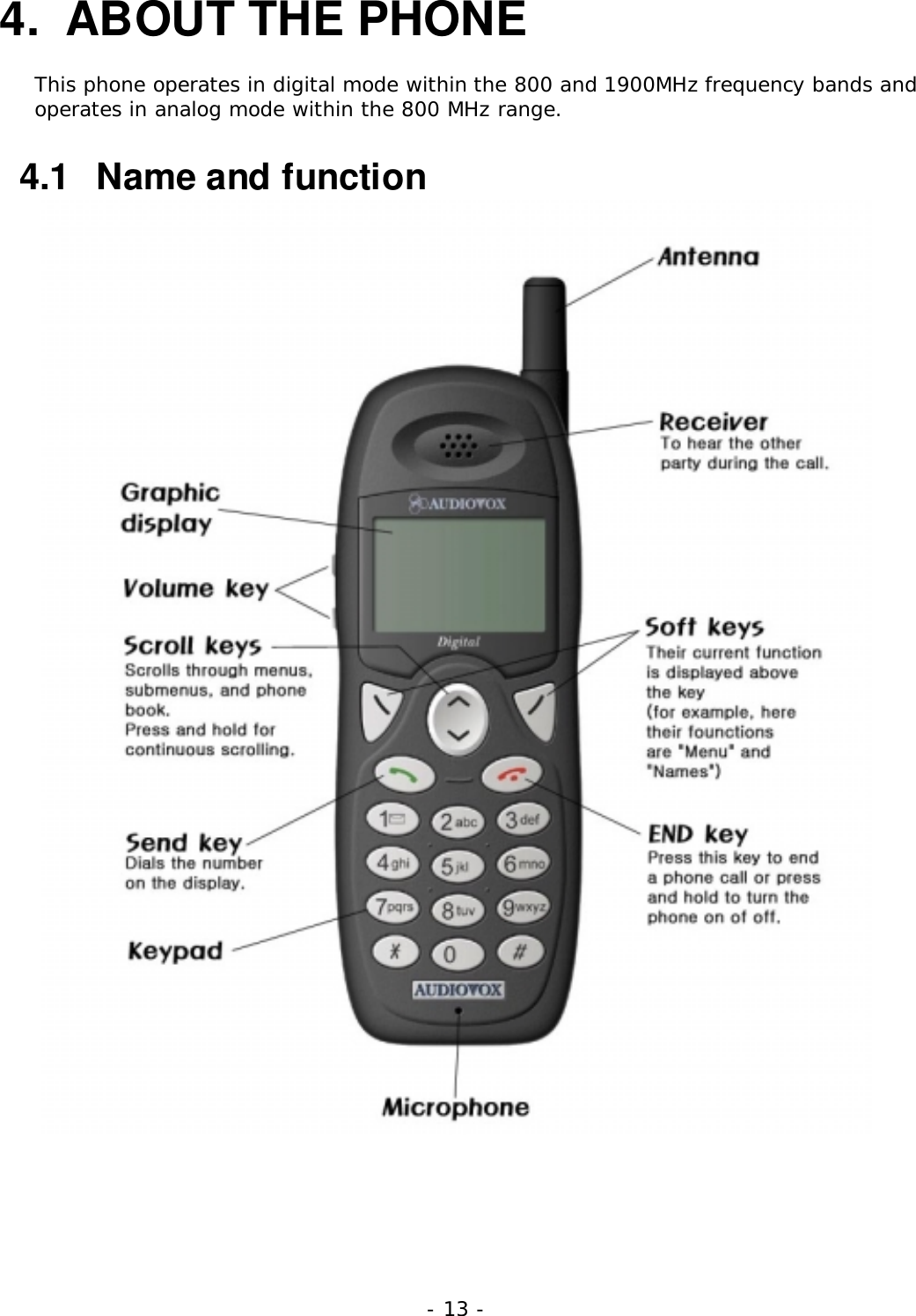
- 13 -4.  ABOUT THE PHONEThis phone operates in digital mode within the 800 and 1900MHz frequency bands andoperates in analog mode within the 800 MHz range.4.1   Name and function
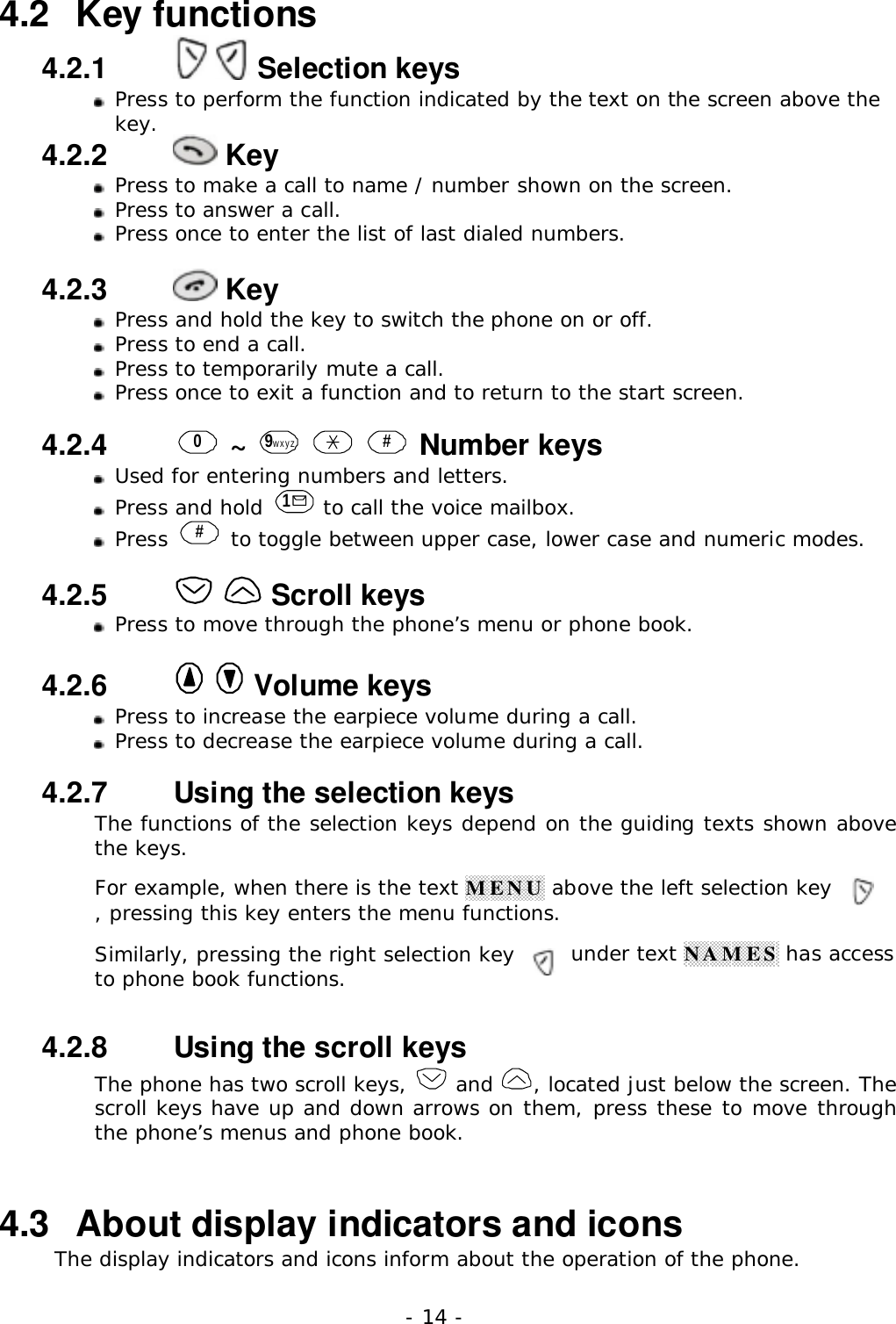
- 14 -4.2   Key functions4.2.1     Selection keys Press to perform the function indicated by the text on the screen above thekey.4.2.2    Key Press to make a call to name / number shown on the screen. Press to answer a call.Press once to enter the list of last dialed numbers.4.2.3    KeyPress and hold the key to switch the phone on or off.Press to end a call.Press to temporarily mute a call.Press once to exit a function and to return to the start screen.4.2.4   0 ~  9wxyz    # Number keysUsed for entering numbers and letters.Press and hold  1 to call the voice mailbox.Press  # to toggle between upper case, lower case and numeric modes.4.2.5     Scroll keysPress to move through the phone’s menu or phone book.4.2.6     Volume keysPress to increase the earpiece volume during a call.Press to decrease the earpiece volume during a call.4.2.7   Using the selection keysThe functions of the selection keys depend on the guiding texts shown abovethe keys.For example, when there is the text MENU above the left selection key, pressing this key enters the menu functions.Similarly, pressing the right selection key under text NAMES has accessto phone book functions.4.2.8   Using the scroll keysThe phone has two scroll keys,   and  , located just below the screen. Thescroll keys have up and down arrows on them, press these to move throughthe phone’s menus and phone book.4.3   About display indicators and iconsThe display indicators and icons inform about the operation of the phone.
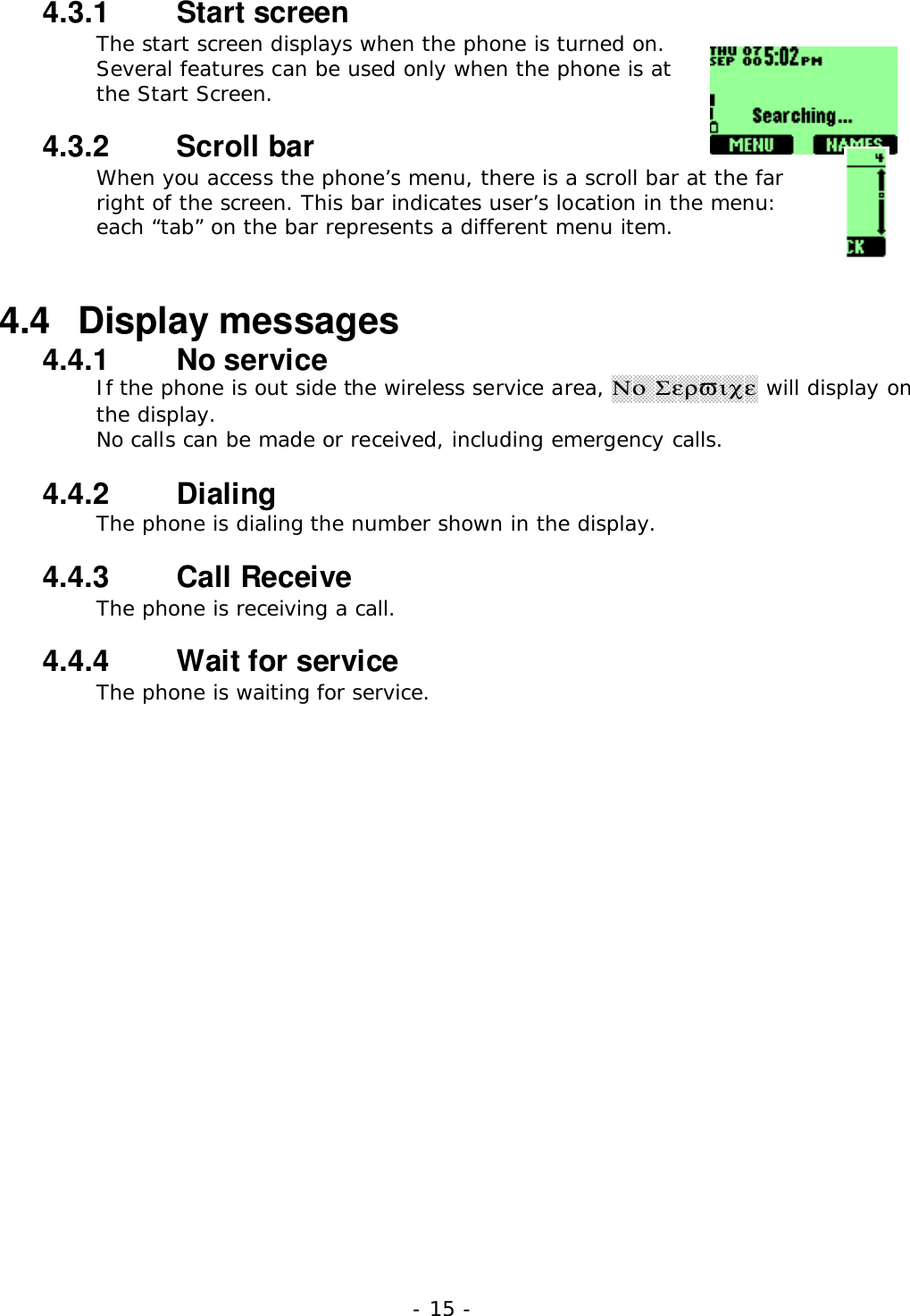
- 15 -4.3.1   Start screenThe start screen displays when the phone is turned on.Several features can be used only when the phone is atthe Start Screen.4.3.2   Scroll barWhen you access the phone’s menu, there is a scroll bar at the farright of the screen. This bar indicates user’s location in the menu:each “tab” on the bar represents a different menu item.4.4   Display messages4.4.1   No serviceIf the phone is out side the wireless service area, Νο Σερϖιχε will display onthe display.No calls can be made or received, including emergency calls.4.4.2   DialingThe phone is dialing the number shown in the display.4.4.3   Call ReceiveThe phone is receiving a call.4.4.4   Wait for serviceThe phone is waiting for service.
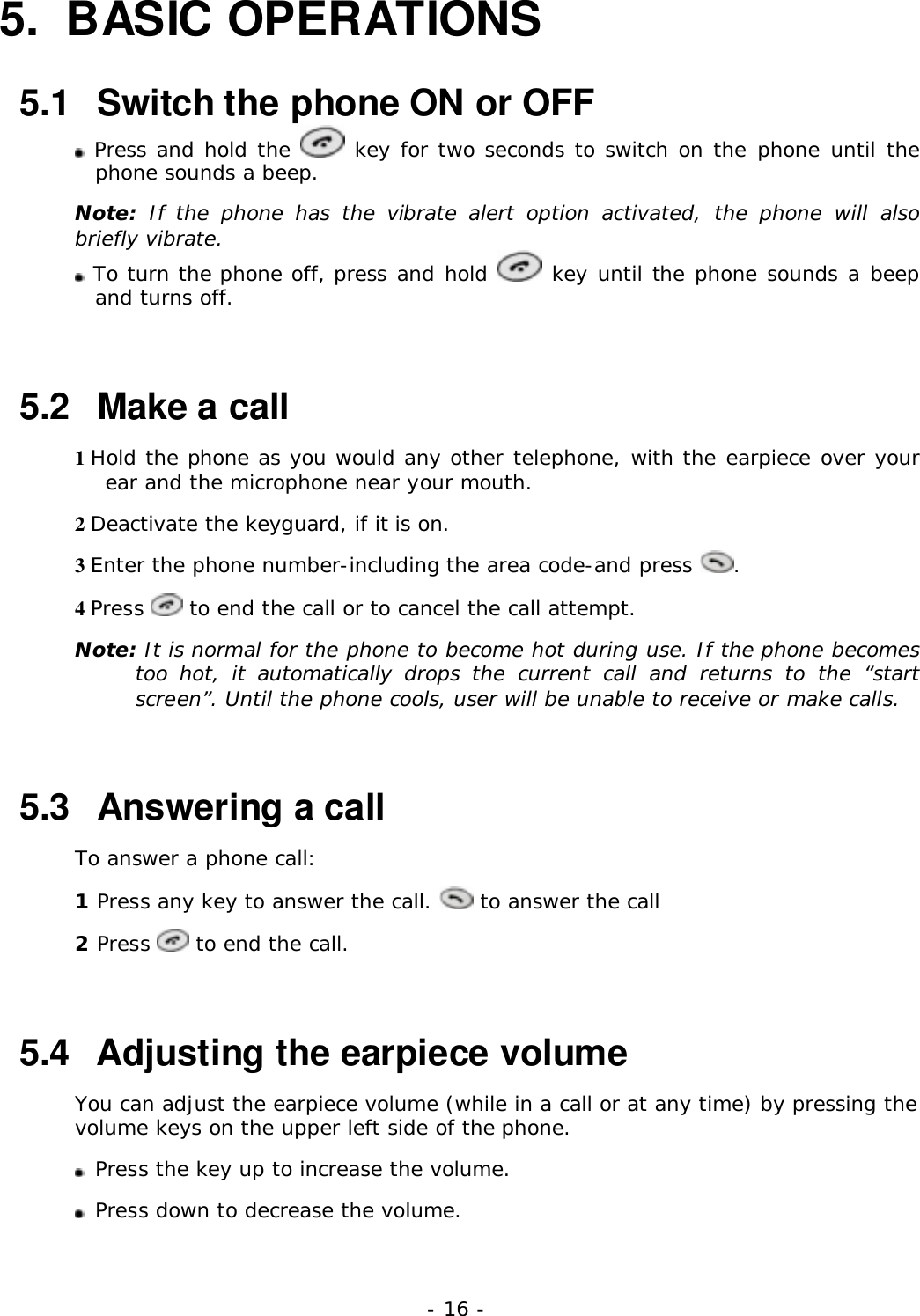
- 16 -5. BASIC OPERATIONS5.1   Switch the phone ON or OFF Press and hold the   key for two seconds to switch on the phone until thephone sounds a beep.Note: If the phone has the vibrate alert option activated, the phone will alsobriefly vibrate. To turn the phone off, press and hold   key until the phone sounds a beepand turns off.5.2   Make a call1 Hold the phone as you would any other telephone, with the earpiece over yourear and the microphone near your mouth.2 Deactivate the keyguard, if it is on.3 Enter the phone number-including the area code-and press  .4 Press   to end the call or to cancel the call attempt.Note: It is normal for the phone to become hot during use. If the phone becomestoo hot, it automatically drops the current call and returns to the “startscreen”. Until the phone cools, user will be unable to receive or make calls.5.3   Answering a callTo answer a phone call:1 Press any key to answer the call.   to answer the call2 Press   to end the call.5.4   Adjusting the earpiece volumeYou can adjust the earpiece volume (while in a call or at any time) by pressing thevolume keys on the upper left side of the phone.Press the key up to increase the volume.Press down to decrease the volume.
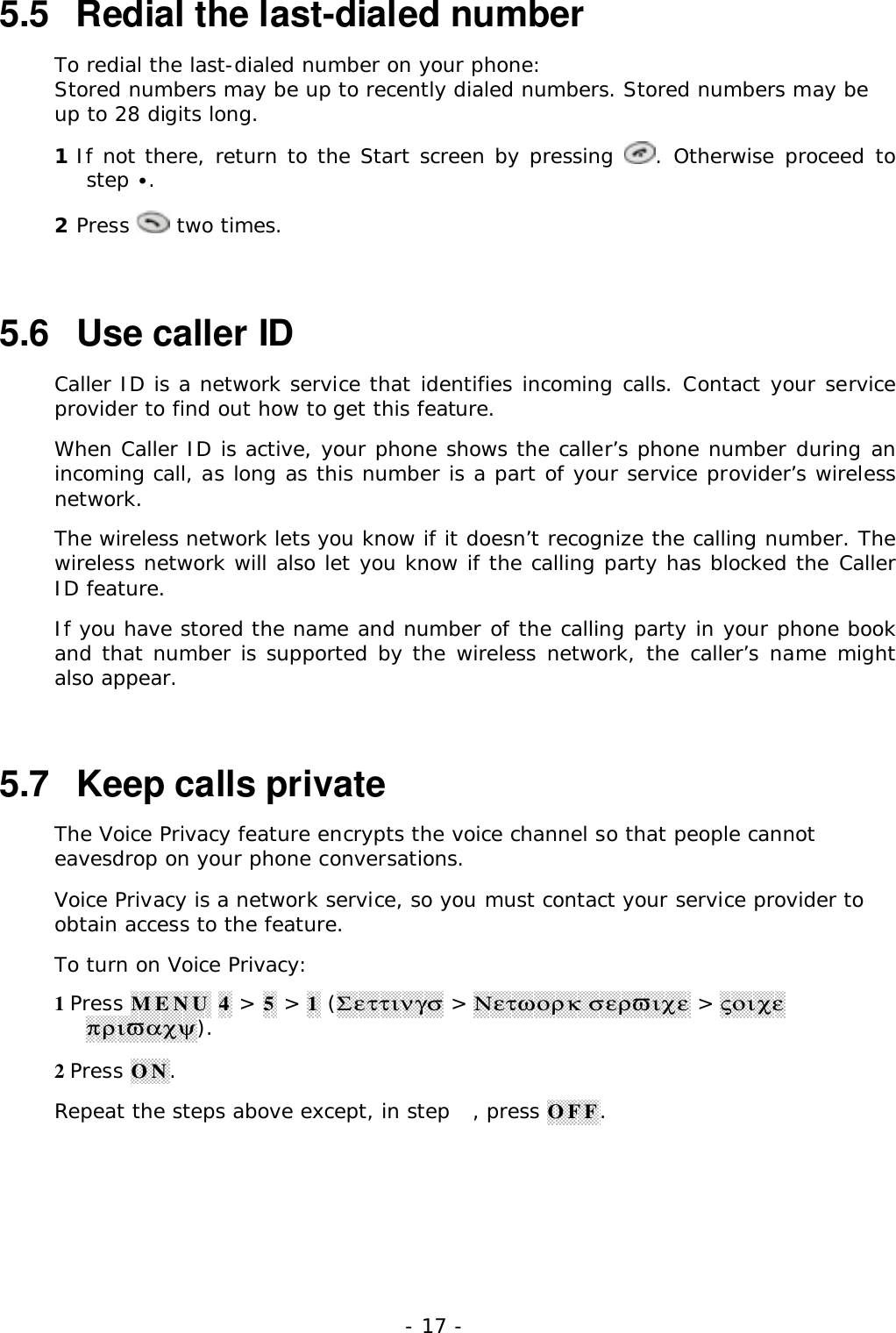
- 17 -5.5   Redial the last-dialed numberTo redial the last-dialed number on your phone:Stored numbers may be up to recently dialed numbers. Stored numbers may beup to 28 digits long.1 If not there, return to the Start screen by pressing  . Otherwise proceed tostep •.2 Press   two times.5.6   Use caller IDCaller ID is a network service that identifies incoming calls. Contact your serviceprovider to find out how to get this feature.When Caller ID is active, your phone shows the caller’s phone number during anincoming call, as long as this number is a part of your service provider’s wirelessnetwork.The wireless network lets you know if it doesn’t recognize the calling number. Thewireless network will also let you know if the calling party has blocked the CallerID feature.If you have stored the name and number of the calling party in your phone bookand that number is supported by the wireless network, the caller’s name mightalso appear.5.7   Keep calls privateThe Voice Privacy feature encrypts the voice channel so that people cannoteavesdrop on your phone conversations.Voice Privacy is a network service, so you must contact your service provider toobtain access to the feature.To turn on Voice Privacy:1 Press MENU 4 > 5 > 1 (Σεττινγσ > Νετωορκ σερϖιχε > ςοιχεπριϖαχψ).2 Press ON.Repeat the steps above except, in step , press OFF.
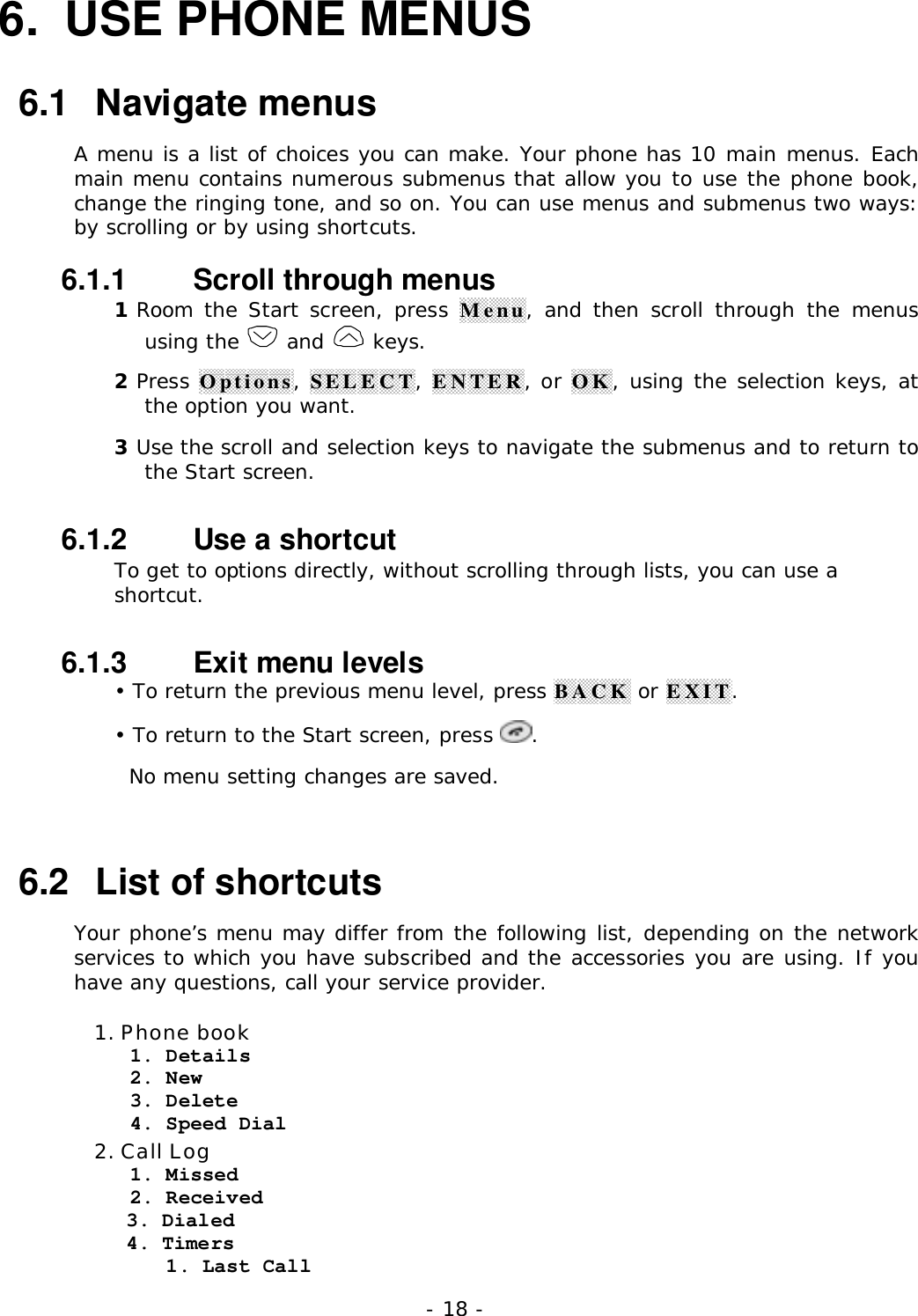
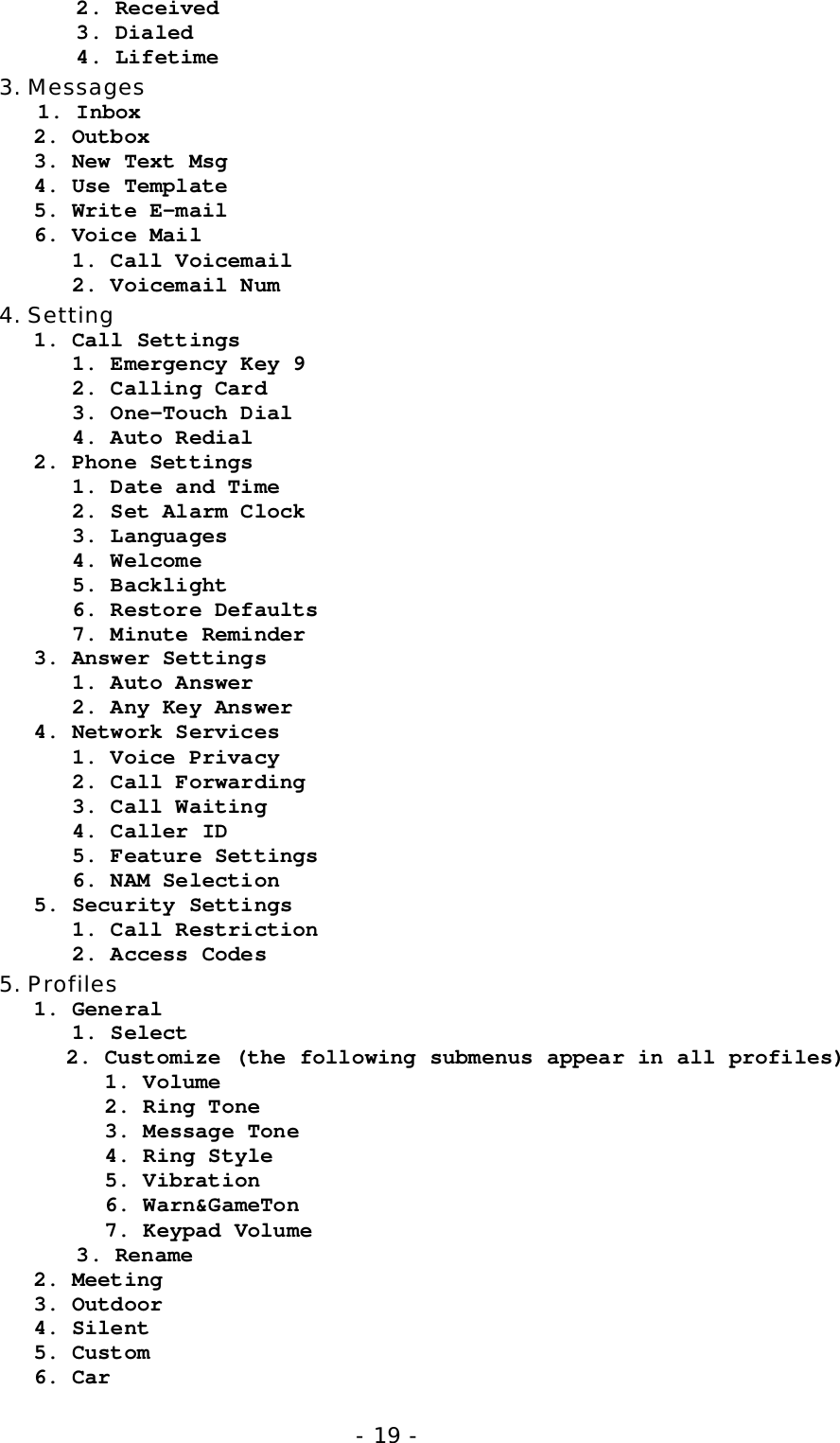
- 18 -6.  USE PHONE MENUS6.1   Navigate menusA menu is a list of choices you can make. Your phone has 10 main menus. Eachmain menu contains numerous submenus that allow you to use the phone book,change the ringing tone, and so on. You can use menus and submenus two ways:by scrolling or by using shortcuts.6.1.1   Scroll through menus1 Room the Start screen, press Menu, and then scroll through the menususing the   and   keys.2 Press Options, SELECT, ENTER, or OK, using the selection keys, atthe option you want.3 Use the scroll and selection keys to navigate the submenus and to return tothe Start screen.6.1.2   Use a shortcutTo get to options directly, without scrolling through lists, you can use ashortcut.6.1.3   Exit menu levels• To return the previous menu level, press BACK or EXIT.• To return to the Start screen, press  .  No menu setting changes are saved.6.2   List of shortcutsYour phone’s menu may differ from the following list, depending on the networkservices to which you have subscribed and the accessories you are using. If youhave any questions, call your service provider.1. Phone book   1. Details   2. New   3. Delete   4. Speed Dial2. Call Log   1. Missed   2. Received3. Dialed4. Timers      1. Last Call
- 19 -      2. Received      3. Dialed      4. Lifetime3. Messages   1. Inbox2. Outbox3. New Text Msg4. Use Template5. Write E-mail6. Voice Mail   1. Call Voicemail   2. Voicemail Num4. Setting1. Call Settings   1. Emergency Key 9   2. Calling Card   3. One-Touch Dial   4. Auto Redial2. Phone Settings   1. Date and Time   2. Set Alarm Clock   3. Languages   4. Welcome   5. Backlight   6. Restore Defaults   7. Minute Reminder3. Answer Settings   1. Auto Answer   2. Any Key Answer4. Network Services   1. Voice Privacy   2. Call Forwarding   3. Call Waiting   4. Caller ID   5. Feature Settings   6. NAM Selection5. Security Settings   1. Call Restriction   2. Access Codes5. Profiles1. General   1. Select2. Customize (the following submenus appear in all profiles)   1. Volume   2. Ring Tone   3. Message Tone   4. Ring Style   5. Vibration   6. Warn&GameTon   7. Keypad Volume      3. Rename2. Meeting3. Outdoor4. Silent5. Custom6. Car
- 20 -6. System1. Automatic2. Manual3. New Search7. Calendar8. Calculator9. Games1. Breakout2. Snake0. Keyguard
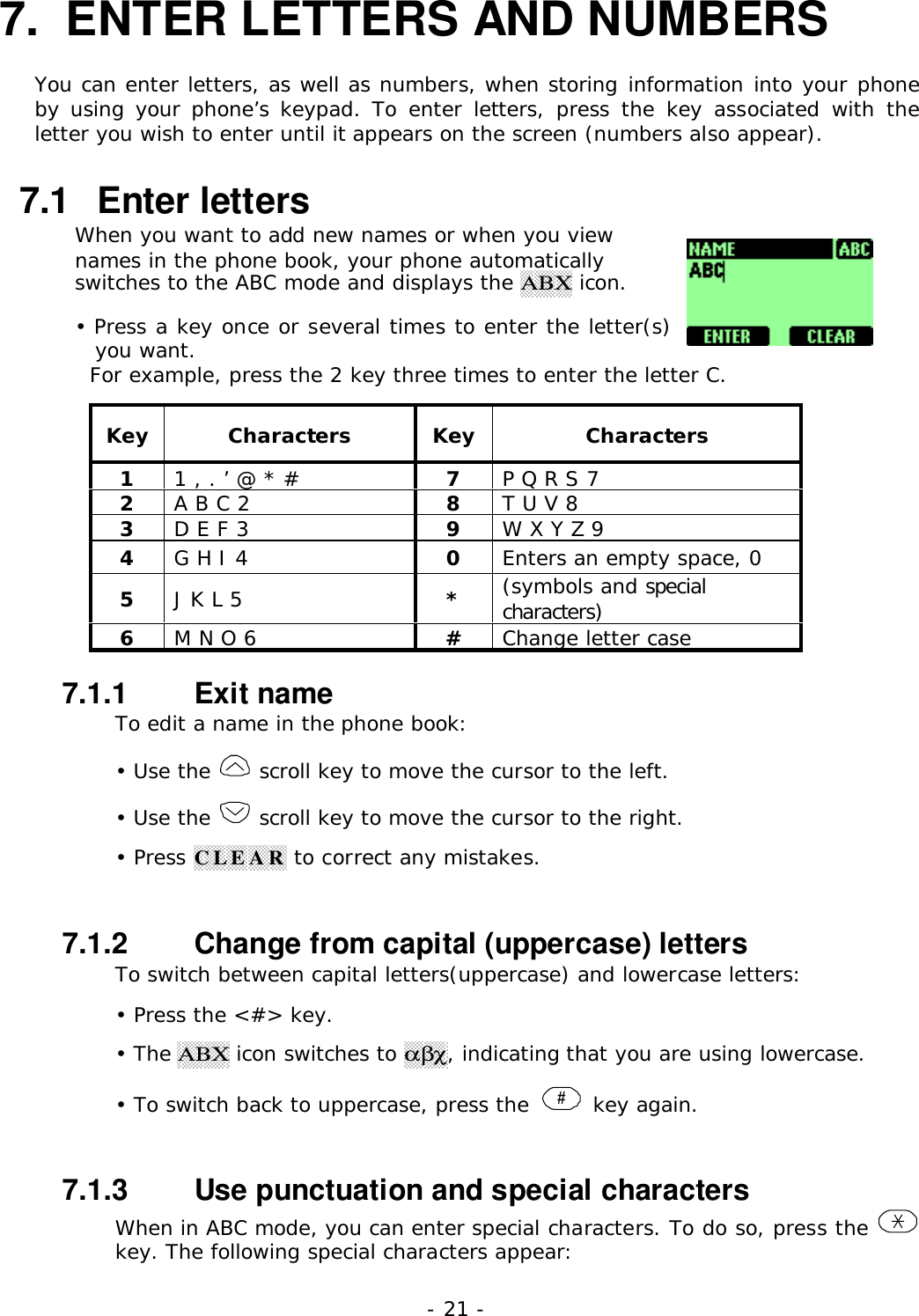
- 21 -7.  ENTER LETTERS AND NUMBERSYou can enter letters, as well as numbers, when storing information into your phoneby using your phone’s keypad. To enter letters, press the key associated with theletter you wish to enter until it appears on the screen (numbers also appear).7.1   Enter lettersWhen you want to add new names or when you viewnames in the phone book, your phone automaticallyswitches to the ABC mode and displays the ΑΒΧ icon.• Press a key once or several times to enter the letter(s)you want.  For example, press the 2 key three times to enter the letter C.Key Characters Key Characters11 , . ’ @ * # 7P Q R S 72A B C 2 8T U V 83D E F 3 9W X Y Z 94G H I 4 0Enters an empty space, 05J K L 5 *(symbols and specialcharacters)6M N O 6 #Change letter case7.1.1   Exit nameTo edit a name in the phone book:• Use the   scroll key to move the cursor to the left.• Use the   scroll key to move the cursor to the right.• Press CLEAR to correct any mistakes.7.1.2   Change from capital (uppercase) lettersTo switch between capital letters(uppercase) and lowercase letters:• Press the <#> key.• The ΑΒΧ icon switches to αβχ, indicating that you are using lowercase.• To switch back to uppercase, press the  # key again.7.1.3   Use punctuation and special charactersWhen in ABC mode, you can enter special characters. To do so, press the key. The following special characters appear:
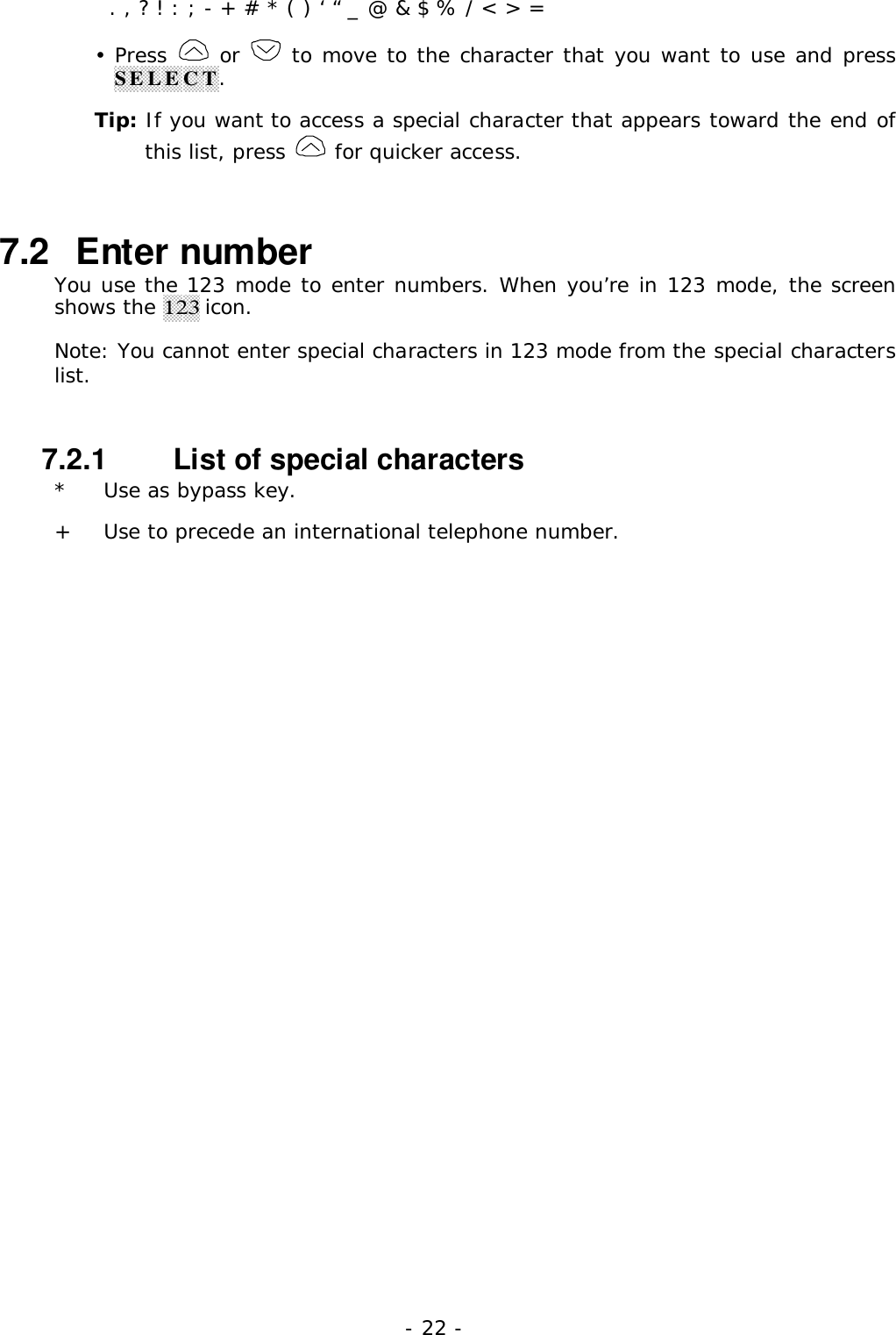
- 22 -  . , ? ! : ; - + # * ( ) ‘ “ _ @ & $ % / < > =• Press   or   to move to the character that you want to use and pressSELECT.Tip: If you want to access a special character that appears toward the end ofthis list, press   for quicker access.7.2   Enter numberYou use the 123 mode to enter numbers. When you’re in 123 mode, the screenshows the 123 icon.Note: You cannot enter special characters in 123 mode from the special characterslist.7.2.1   List of special characters* Use as bypass key.+ Use to precede an international telephone number.
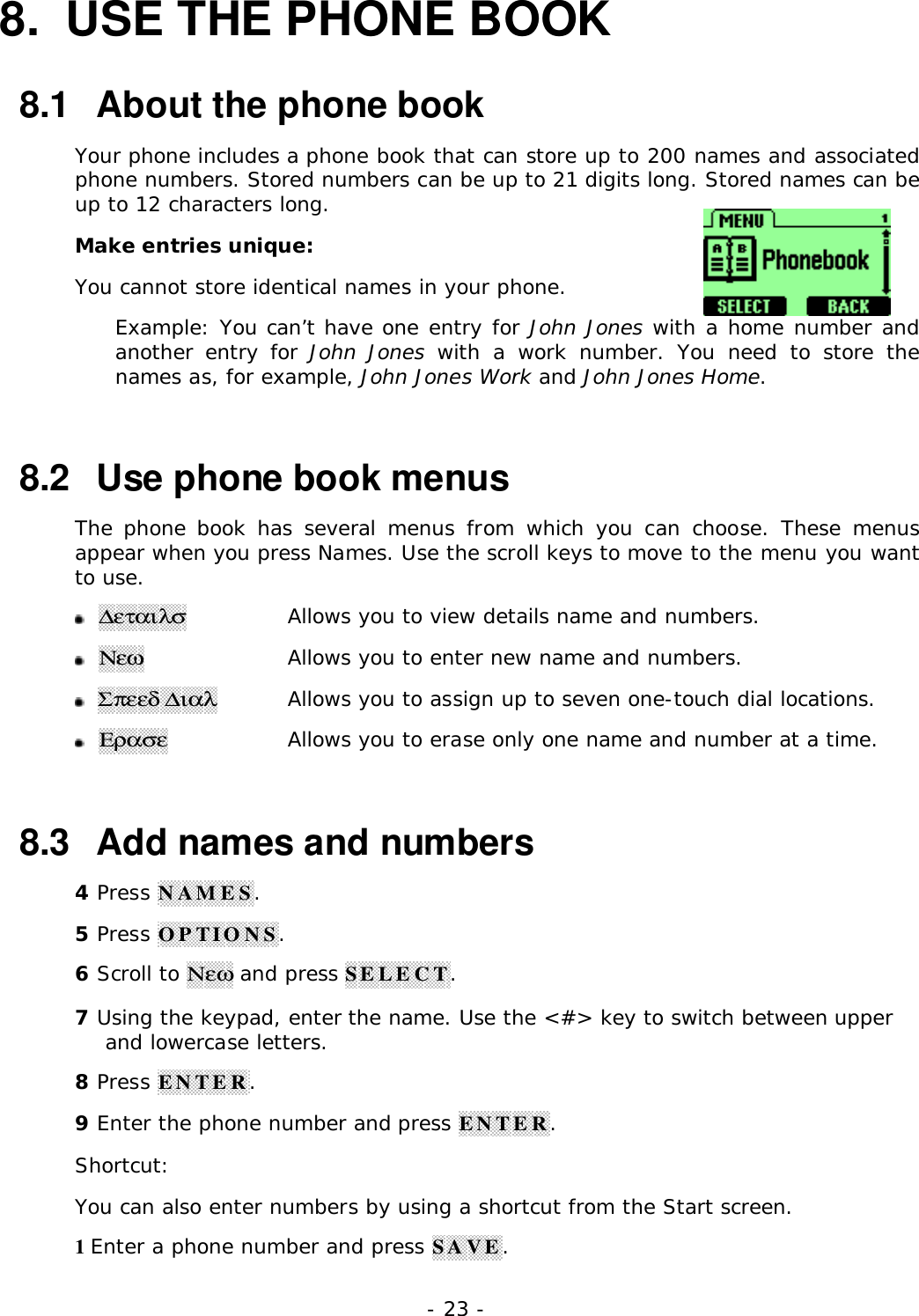
- 23 -8.  USE THE PHONE BOOK8.1   About the phone bookYour phone includes a phone book that can store up to 200 names and associatedphone numbers. Stored numbers can be up to 21 digits long. Stored names can beup to 12 characters long.Make entries unique:You cannot store identical names in your phone.Example: You can’t have one entry for John Jones with a home number andanother entry for John Jones with a work number. You need to store thenames as, for example, John Jones Work and John Jones Home.8.2   Use phone book menusThe phone book has several menus from which you can choose. These menusappear when you press Names. Use the scroll keys to move to the menu you wantto use.  ∆εταιλσ  Allows you to view details name and numbers.  Νεω  Allows you to enter new name and numbers.  Σπεεδ ∆ιαλ  Allows you to assign up to seven one-touch dial locations.  Ερασε  Allows you to erase only one name and number at a time.8.3   Add names and numbers4 Press NAMES.5 Press OPTIONS.6 Scroll to Νεω and press SELECT.7 Using the keypad, enter the name. Use the <#> key to switch between upperand lowercase letters.8 Press ENTER.9 Enter the phone number and press ENTER.Shortcut:You can also enter numbers by using a shortcut from the Start screen.1 Enter a phone number and press SAVE.
- 24 -2 Enter a name at ΝΑΜΕ.3 Press ENTER.8.4   Change a stored telephone numberYou can change a number without changing its associated name.1 Press Names.2 Scroll to the name you want and press OPTIONS.3 Scroll to ∆εταιλσ, then press SELECT to view the number.4 Press OPTIONS.5 If Εδιτ is not highlighted, scroll to it and press SELECT.6 Press SELECT.The associated number appears.7 Press CLEAR to erase one number at a time, or press and hold CLEAR toerase all the numbers on the screen.8 Enter the new number9 Press ENTER to save the new number.8.5   Recall and redial numbersTo recall and dial a number:1 At the Start screen, press   or   to display the names and associatednumbers that are stored in your phone book.2 Scroll to the appropriate name and press   to dial the associatednumber.8.6  Erase stored names and numbersNote: You cannot undo Erase functions, so be careful!1 Recall the stored name.2 Press Options.3 Scroll to ∆ελετε, then press SELECT.The ΧΟΝΦΙΡΜ message appears.4 Press OK to erase this name and associated number.
- 25 -9.  USE VOICE MAILVoice mail is a network services feature. Colleagues who miss you when they callleave a voice message, which you can retrieve later.9.1  Set up your voice mailboxAs part of your network’s voice mail feature, your service provider gives you avoice mailbox phone number. Save this number in your phone to make getting ourvoice messages quick and convenient.1 Press MENU 3 > 7 (Messages > Voice mail Num).2 Enter your mailbox phone number.
- 26 -10. WORK WITH THE CALL LOGThe call log keeps track of: Missed calls Numbers from which you’ve received calls Numbers you’ve dialed The amount of time you’ve spent on calls10.1   Call the call logPress MENU 2 to access Χαλλ Λογ, then press SELECT.The following submenus are available:MissedReceivedDialedTimersTo select any of these options, press the SELECT key while the option isdisplayed on the screen. The Μισσεδ, ∆ιαλεδ, and Ρεχειϖεδ menu include thefollowing options (available when you press the OPTIONS key): Χαλλ Νυµβερ  Allows you to view a number when an associated nameappears on the screen. Σαϖε Νυµβερ Allows you to save the displayed number into your phone book. ∆ελετε  Allows you to delete the displayed number from the call log.10.1.1   Check missed callsYour phone stores up to the last 23 numbers associated with calls you havemissed. When you miss a call(s), the message Missed calls appears on yourphone’s screen, along with the number of calls missed.You are notified of missed calls only if your phone was turned on in the servicearea from which the missed call originated.To check missed calls:1 Press SELECT.The phone shows the numbers of the calls you missed.2 Either scroll through the list using the   or   keys until you reach anumber that you want to dial and press  , or press BACK to return tothe Start screen.
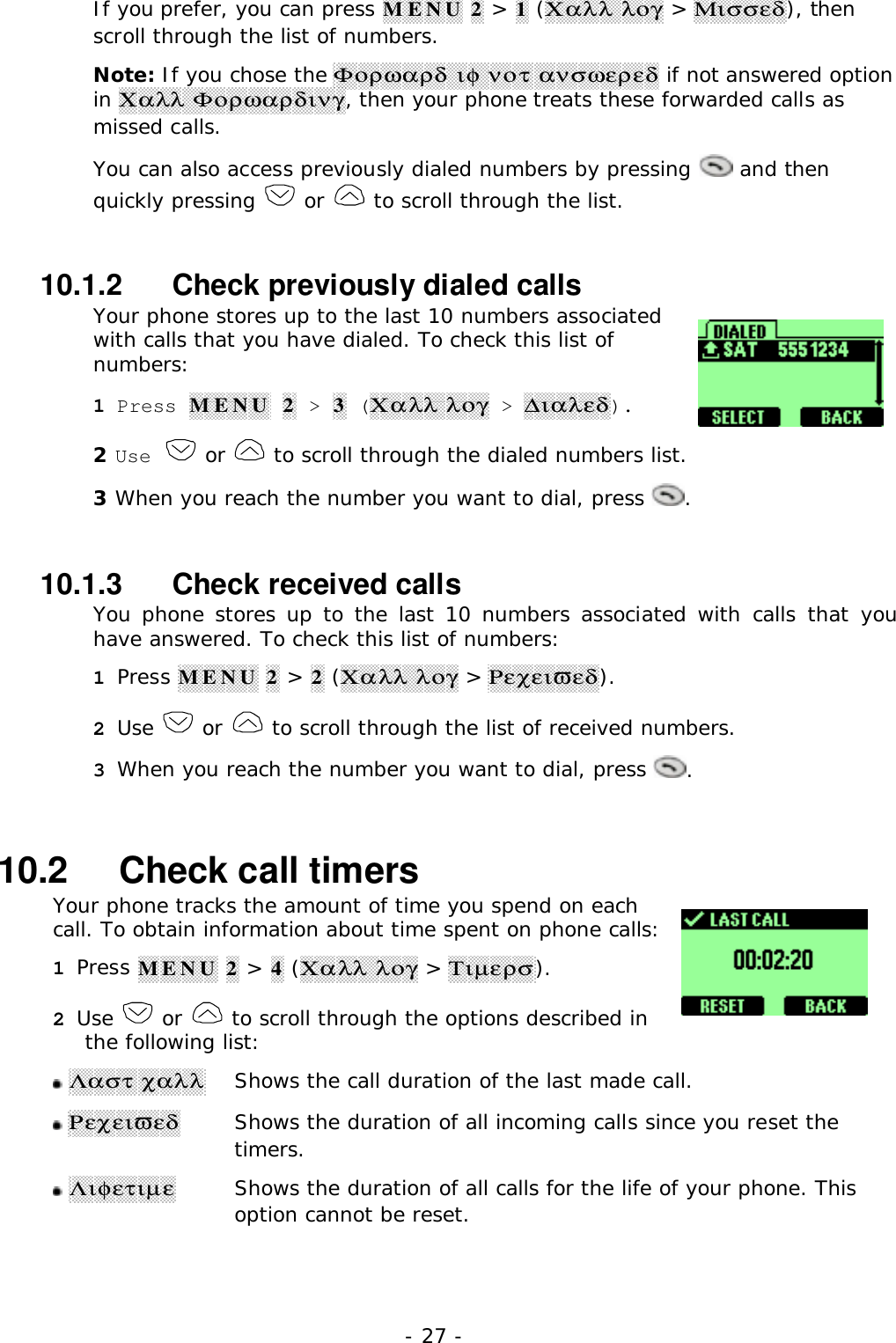
- 27 -If you prefer, you can press MENU 2 > 1 (Χαλλ λογ > Μισσεδ), thenscroll through the list of numbers.Note: If you chose the Φορωαρδ ιφ νοτ ανσωερεδ if not answered optionin Χαλλ Φορωαρδινγ, then your phone treats these forwarded calls asmissed calls.You can also access previously dialed numbers by pressing   and thenquickly pressing   or   to scroll through the list.10.1.2   Check previously dialed callsYour phone stores up to the last 10 numbers associatedwith calls that you have dialed. To check this list ofnumbers:1 Press MENU 2 > 3 (Χαλλ λογ > ∆ιαλεδ).2 Use   or   to scroll through the dialed numbers list.3 When you reach the number you want to dial, press  .10.1.3   Check received callsYou phone stores up to the last 10 numbers associated with calls that youhave answered. To check this list of numbers:1 Press MENU 2 > 2 (Χαλλ λογ > Ρεχειϖεδ).2 Use   or   to scroll through the list of received numbers.3 When you reach the number you want to dial, press  .10.2   Check call timersYour phone tracks the amount of time you spend on eachcall. To obtain information about time spent on phone calls:1 Press MENU 2 > 4 (Χαλλ λογ > Τιµερσ).2 Use   or   to scroll through the options described inthe following list: Λαστ χαλλShows the call duration of the last made call. ΡεχειϖεδShows the duration of all incoming calls since you reset thetimers. ΛιφετιµεShows the duration of all calls for the life of your phone. Thisoption cannot be reset.
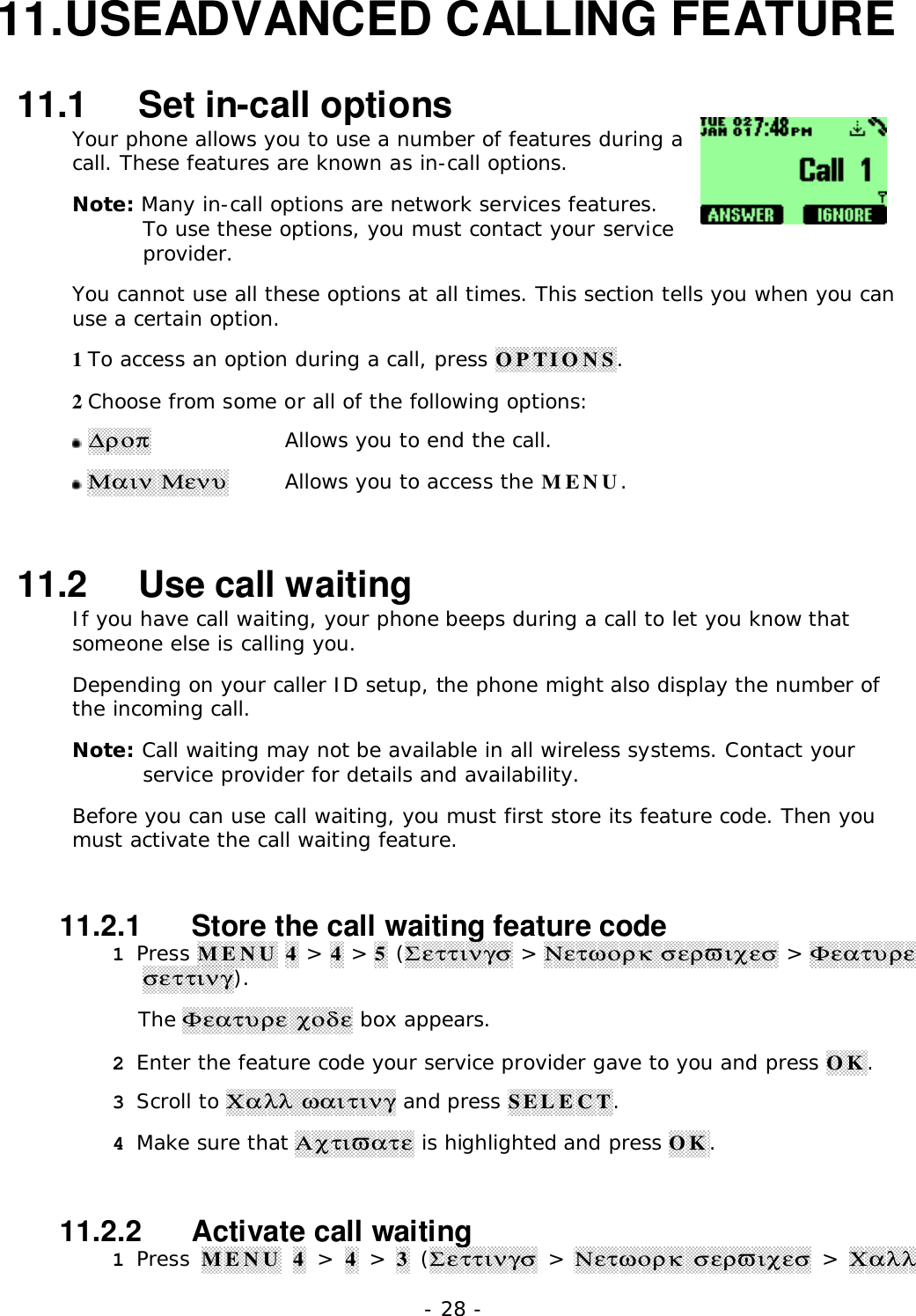
- 28 -11. USEADVANCED CALLING FEATURE11.1   Set in-call optionsYour phone allows you to use a number of features during acall. These features are known as in-call options.Note: Many in-call options are network services features.To use these options, you must contact your serviceprovider.You cannot use all these options at all times. This section tells you when you canuse a certain option.1 To access an option during a call, press OPTIONS.2 Choose from some or all of the following options: ∆ροπAllows you to end the call. Μαιν ΜενυAllows you to access the MENU.11.2   Use call waitingIf you have call waiting, your phone beeps during a call to let you know thatsomeone else is calling you.Depending on your caller ID setup, the phone might also display the number ofthe incoming call.Note: Call waiting may not be available in all wireless systems. Contact yourservice provider for details and availability.Before you can use call waiting, you must first store its feature code. Then youmust activate the call waiting feature.11.2.1   Store the call waiting feature code1 Press MENU 4 > 4 > 5 (Σεττινγσ > Νετωορκ σερϖιχεσ > Φεατυρεσεττινγ).The Φεατυρε χοδε box appears.2 Enter the feature code your service provider gave to you and press OK.3 Scroll to Χαλλ ωαιτινγ and press SELECT.4 Make sure that Αχτιϖατε is highlighted and press OK.11.2.2   Activate call waiting1 Press MENU 4 > 4 > 3 (Σεττινγσ > Νετωορκ  σερϖιχεσ > Χαλλ
- 29 -ωαιτινγ).2 Use   or   to scroll to Αχτιϖατε and press SELECT.Your phone calls the network to confirm the feature code you entered. Afterthe network confirms the feature code, call waiting is activated.11.2.3   Manage callsCall waiting works with both local and long distance calls. To answer an incoming call, press  . To switch from one call to another, press  . To end both calls, press  .11.3   Use call forwardingWhit call forwarding, you can forward incoming calls to another number. This way,if you are unable to receive calls on your phone, all calls going to that phone canbe forwarded to another phone. You never have to miss an important call.Note: The call forwarding feature might not be available in all wireless.11.3.1   Store the call forwarding feature code1 Press MENU 4 > 4 > 5 (Σεττινγσ > Νετωορκ  σερϖιχεσ > Χαλλφορωαρδινγ).The Feature code field appears.2 Enter the feature code your service provider gave you and press OK.3 Use   or   to scroll to Χαλλ φορωαρδινγ and press SELECT.11.3.2   Activate call forwarding1 Press MENU 4 > 4 > 2 (Σεττινγσ > Νετωορκ σερϖιχεσ > Χαλλφορωαρδινγ).2 Scroll to the desired call forwarding option, as described in the followingtable, and press SELECT. Αλλ ΧαλλσForwards all incoming calls. Ιφ ΒυσψForwards calls only when you’re one your phoneand do not have voice mail. Ιφ Νοτ ΑνσωερεδForwards calls if you don’t answer. This option ishandy if you want to give your phone to someonefor a short period of time, but you don’t wantthem to answer the phone. Χανχελ Αλλ ΦωδCancels all forwarding options that are currentlyactive.
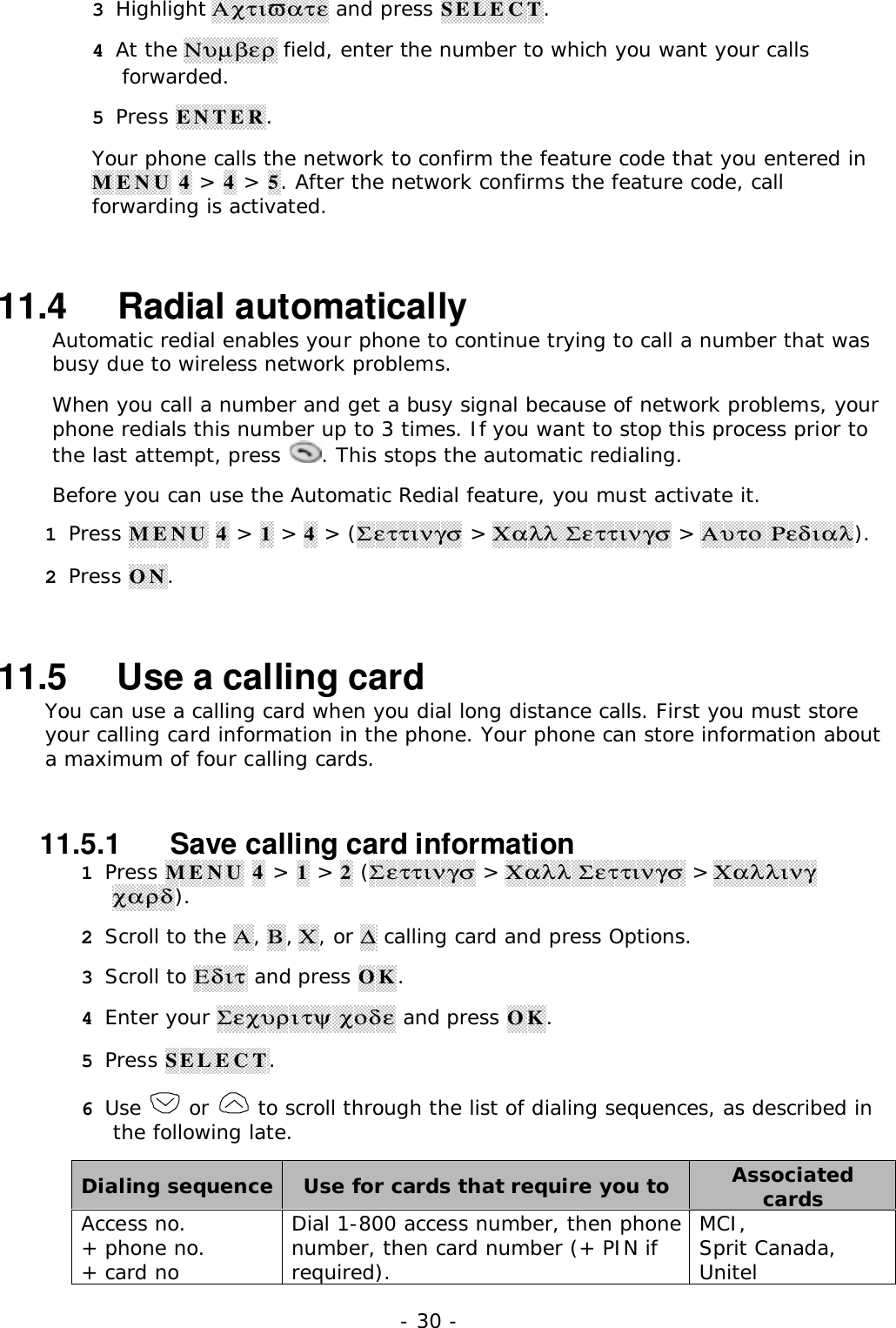
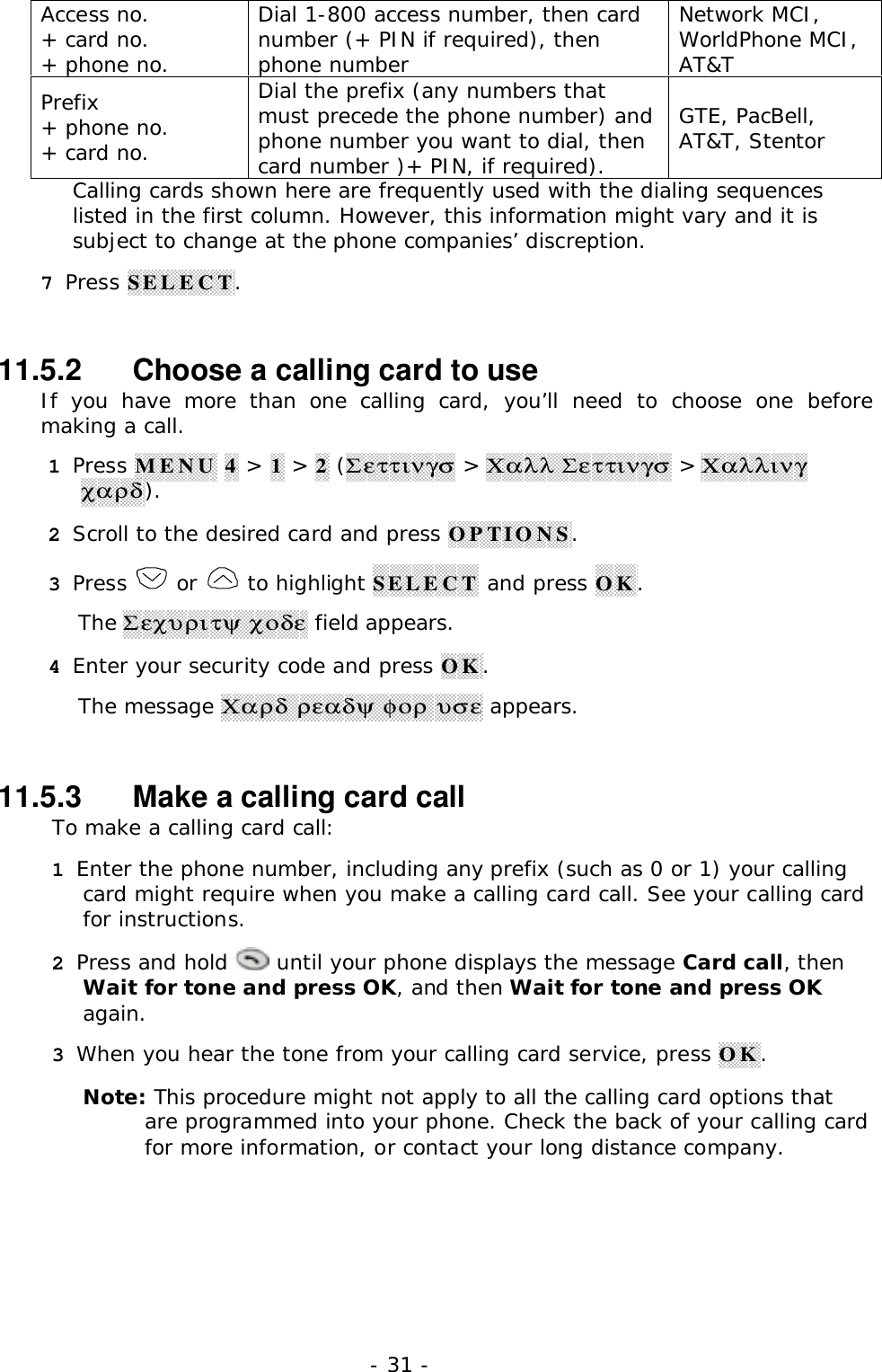
- 30 -3 Highlight Αχτιϖατε and press SELECT.4 At the Νυµβερ field, enter the number to which you want your callsforwarded.5 Press ENTER.Your phone calls the network to confirm the feature code that you entered inMENU 4 > 4 > 5. After the network confirms the feature code, callforwarding is activated.11.4   Radial automaticallyAutomatic redial enables your phone to continue trying to call a number that wasbusy due to wireless network problems.When you call a number and get a busy signal because of network problems, yourphone redials this number up to 3 times. If you want to stop this process prior tothe last attempt, press  . This stops the automatic redialing.Before you can use the Automatic Redial feature, you must activate it.1 Press MENU 4 > 1 > 4 > (Σεττινγσ > Χαλλ Σεττινγσ > Αυτο Ρεδιαλ).2 Press ON.11.5   Use a calling cardYou can use a calling card when you dial long distance calls. First you must storeyour calling card information in the phone. Your phone can store information abouta maximum of four calling cards.11.5.1   Save calling card information1 Press MENU 4 > 1 > 2 (Σεττινγσ > Χαλλ Σεττινγσ > Χαλλινγχαρδ).2 Scroll to the Α, Β, Χ, or ∆ calling card and press Options.3 Scroll to Εδιτ and press OK.4 Enter your Σεχυριτψ χοδε and press OK.5 Press SELECT.6 Use   or   to scroll through the list of dialing sequences, as described inthe following late.Dialing sequence Use for cards that require you to AssociatedcardsAccess no.+ phone no.+ card noDial 1-800 access number, then phonenumber, then card number (+ PIN ifrequired).MCI,Sprit Canada,Unitel
- 31 -Access no.+ card no.+ phone no.Dial 1-800 access number, then cardnumber (+ PIN if required), thenphone numberNetwork MCI,WorldPhone MCI,AT&TPrefix+ phone no.+ card no.Dial the prefix (any numbers thatmust precede the phone number) andphone number you want to dial, thencard number )+ PIN, if required).GTE, PacBell,AT&T, StentorCalling cards shown here are frequently used with the dialing sequenceslisted in the first column. However, this information might vary and it issubject to change at the phone companies’ discreption.7 Press SELECT.11.5.2   Choose a calling card to useIf you have more than one calling card, you’ll need to choose one beforemaking a call.1 Press MENU 4 > 1 > 2 (Σεττινγσ > Χαλλ Σεττινγσ > Χαλλινγχαρδ).2 Scroll to the desired card and press OPTIONS.3 Press   or   to highlight SELECT and press OK.The Σεχυριτψ χοδε field appears.4 Enter your security code and press OK.The message Χαρδ ρεαδψ φορ υσε appears.11.5.3   Make a calling card callTo make a calling card call:1 Enter the phone number, including any prefix (such as 0 or 1) your callingcard might require when you make a calling card call. See your calling cardfor instructions.2 Press and hold   until your phone displays the message Card call, thenWait for tone and press OK, and then Wait for tone and press OKagain.3 When you hear the tone from your calling card service, press OK.Note: This procedure might not apply to all the calling card options thatare programmed into your phone. Check the back of your calling cardfor more information, or contact your long distance company.
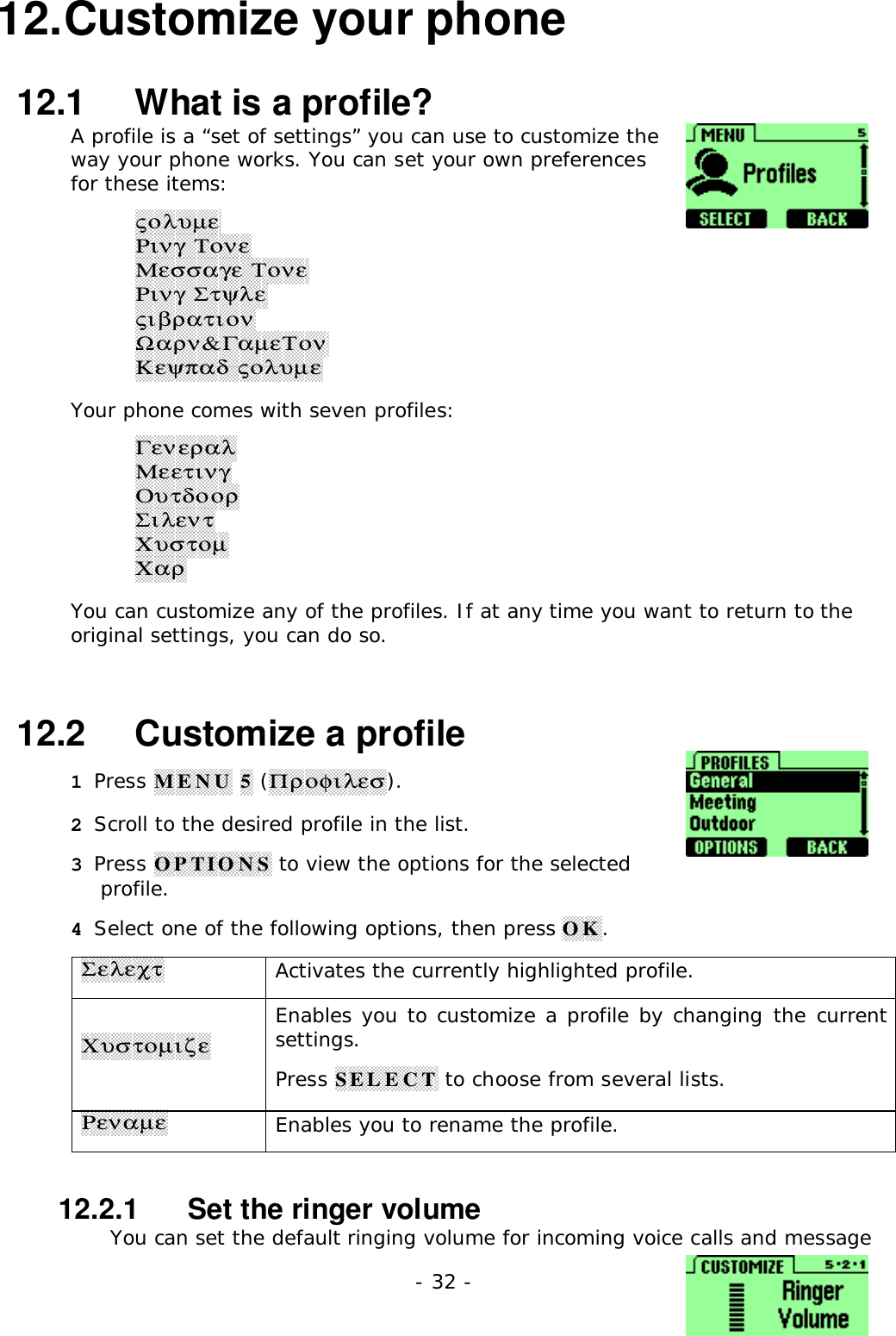
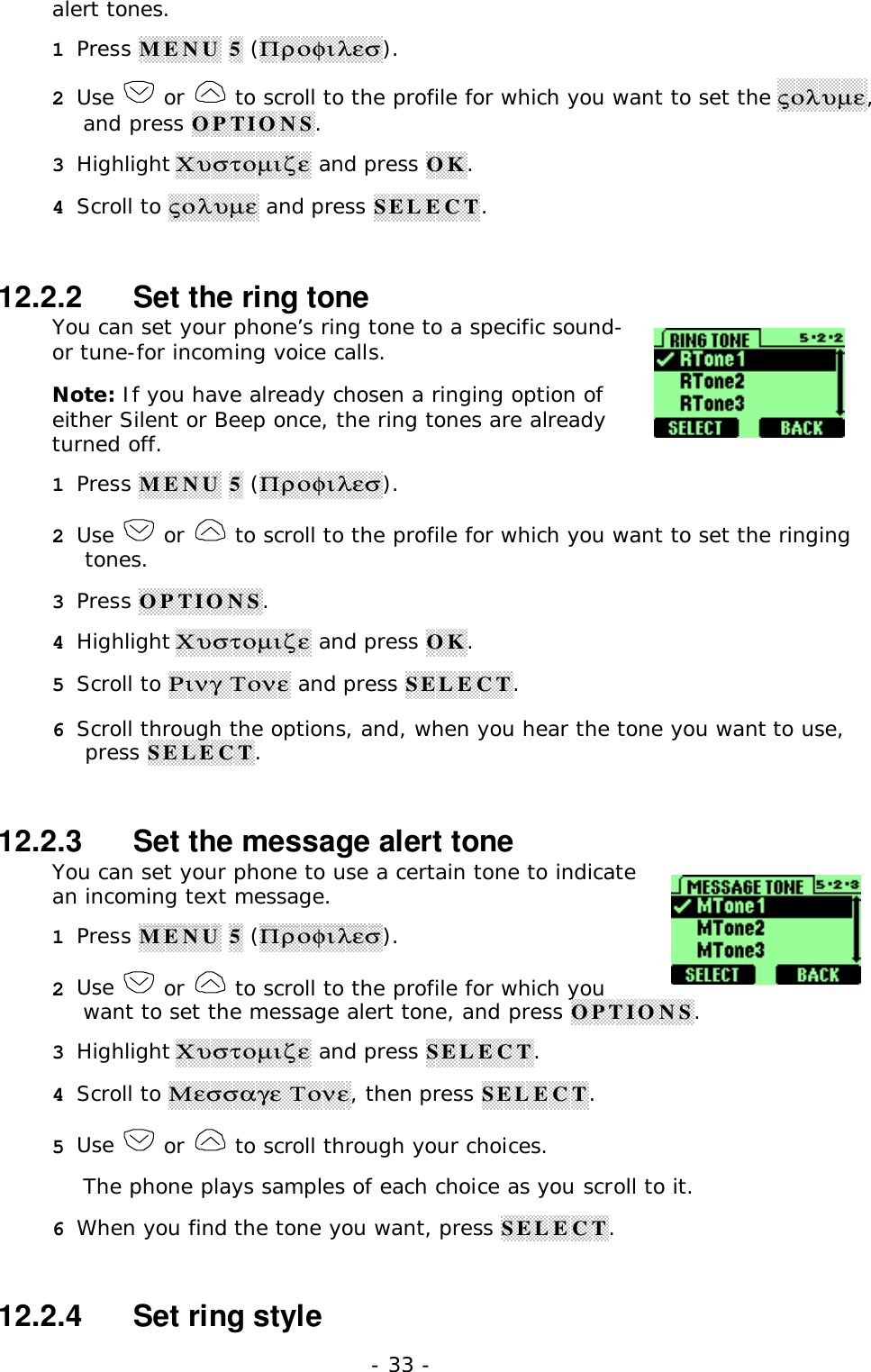
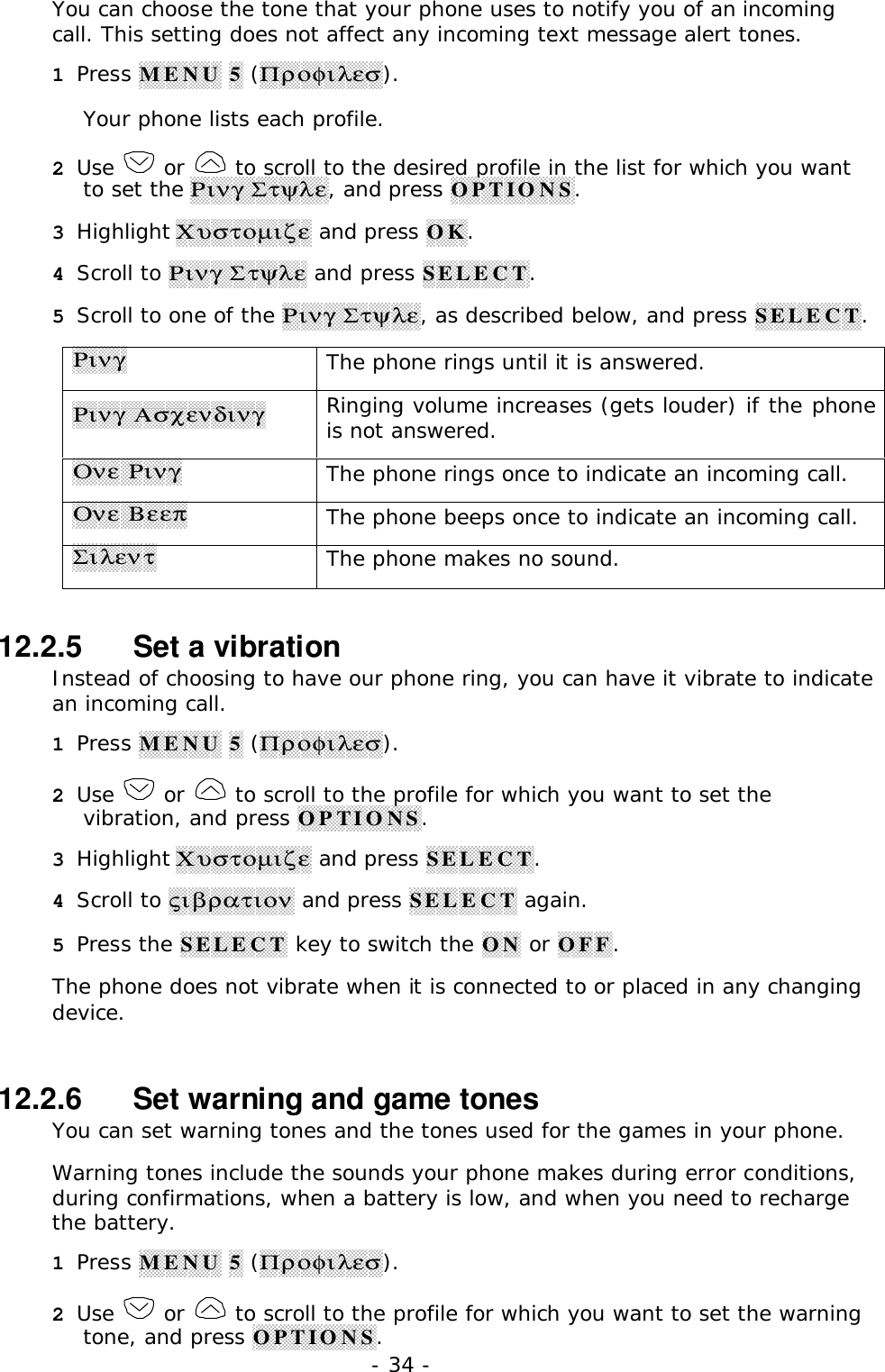
- 32 -12. Customize your phone12.1   What is a profile?A profile is a “set of settings” you can use to customize theway your phone works. You can set your own preferencesfor these items:ςολυµεΡινγ ΤονεΜεσσαγε ΤονεΡινγ ΣτψλεςιβρατιονΩαρν&ΓαµεΤονΚεψπαδ ςολυµεYour phone comes with seven profiles:ΓενεραλΜεετινγΟυτδοορΣιλεντΧυστοµΧαρYou can customize any of the profiles. If at any time you want to return to theoriginal settings, you can do so.12.2   Customize a profile1 Press MENU 5 (Προφιλεσ).2 Scroll to the desired profile in the list.3 Press OPTIONS to view the options for the selectedprofile.4 Select one of the following options, then press OK.ΣελεχτActivates the currently highlighted profile.ΧυστοµιζεEnables you to customize a profile by changing the currentsettings.Press SELECT to choose from several lists.ΡεναµεEnables you to rename the profile.12.2.1   Set the ringer volumeYou can set the default ringing volume for incoming voice calls and message
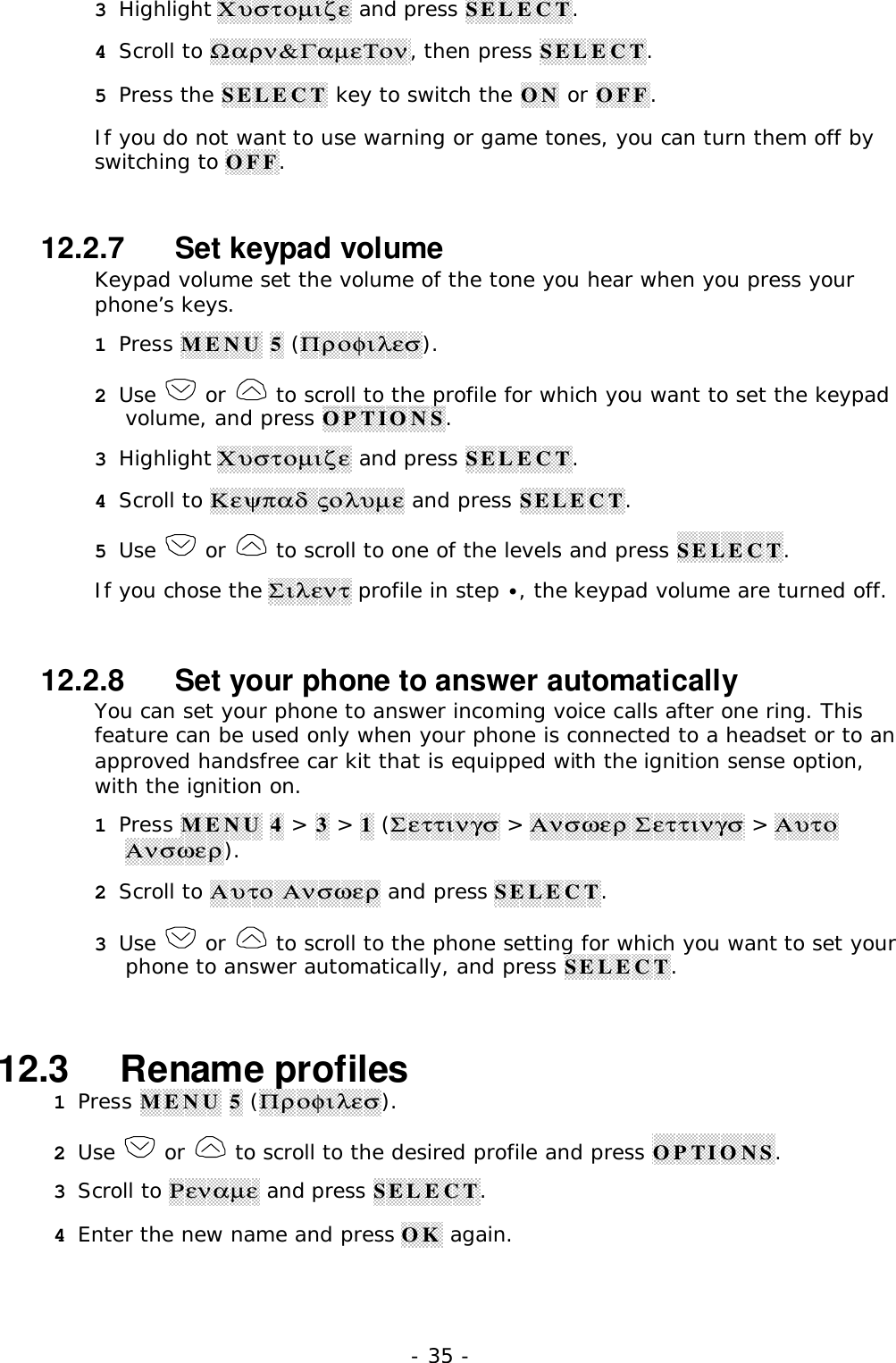
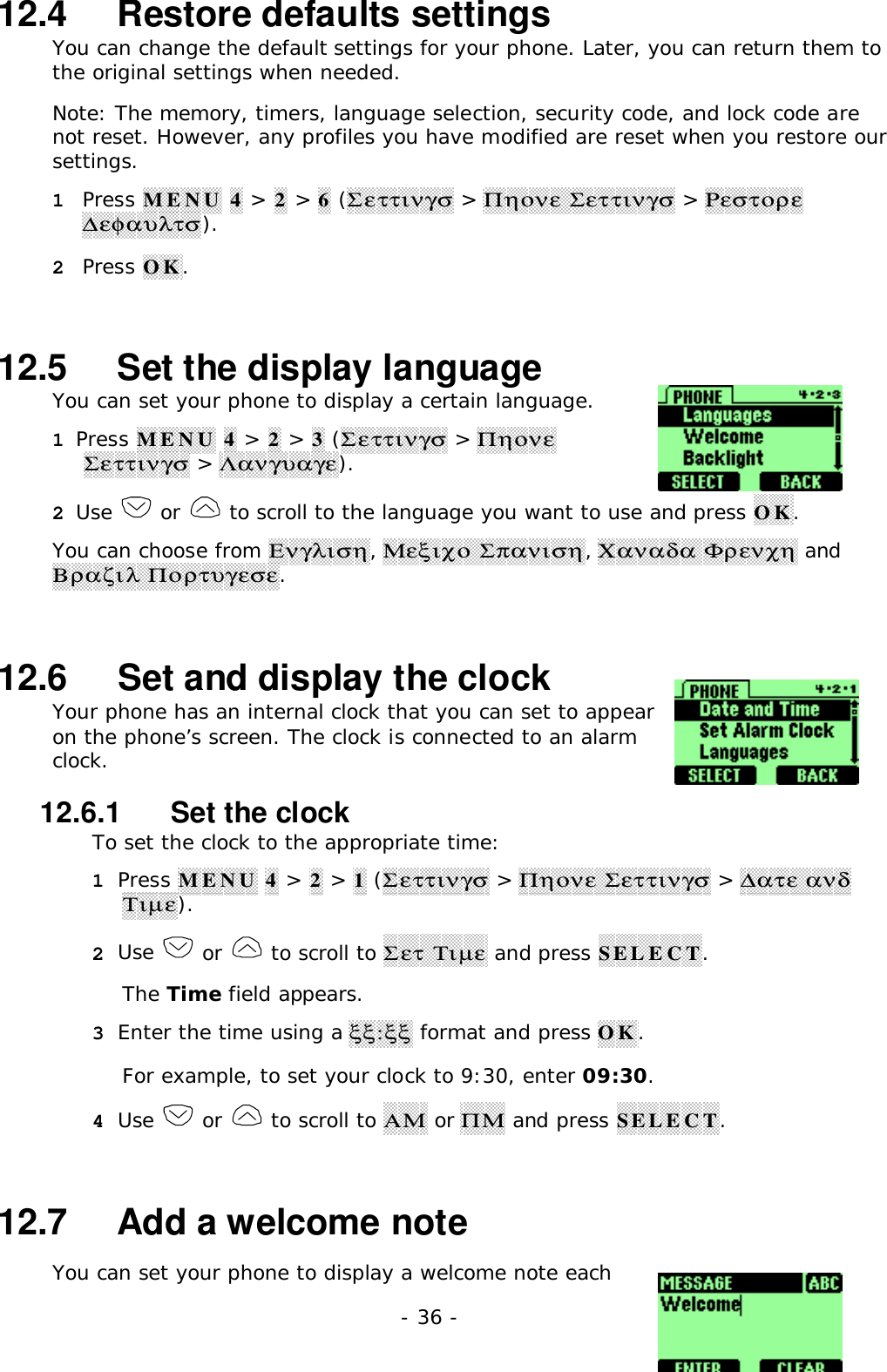
- 33 -alert tones.1 Press MENU 5 (Προφιλεσ).2 Use   or   to scroll to the profile for which you want to set the ςολυµε,and press OPTIONS.3 Highlight Χυστοµιζε and press OK.4 Scroll to ςολυµε and press SELECT.12.2.2   Set the ring toneYou can set your phone’s ring tone to a specific sound-or tune-for incoming voice calls.Note: If you have already chosen a ringing option ofeither Silent or Beep once, the ring tones are alreadyturned off.1 Press MENU 5 (Προφιλεσ).2 Use   or   to scroll to the profile for which you want to set the ringingtones.3 Press OPTIONS.4 Highlight Χυστοµιζε and press OK.5 Scroll to Ρινγ Τονε and press SELECT.6 Scroll through the options, and, when you hear the tone you want to use,press SELECT.12.2.3   Set the message alert toneYou can set your phone to use a certain tone to indicatean incoming text message.1 Press MENU 5 (Προφιλεσ).2 Use   or   to scroll to the profile for which youwant to set the message alert tone, and press OPTIONS.3 Highlight Χυστοµιζε and press SELECT.4 Scroll to Μεσσαγε Τονε, then press SELECT.5 Use   or   to scroll through your choices.The phone plays samples of each choice as you scroll to it.6 When you find the tone you want, press SELECT.12.2.4   Set ring style
- 34 -You can choose the tone that your phone uses to notify you of an incomingcall. This setting does not affect any incoming text message alert tones.1 Press MENU 5 (Προφιλεσ).Your phone lists each profile.2 Use   or   to scroll to the desired profile in the list for which you wantto set the Ρινγ Στψλε, and press OPTIONS.3 Highlight Χυστοµιζε and press OK.4 Scroll to Ρινγ Στψλε and press SELECT.5 Scroll to one of the Ρινγ Στψλε, as described below, and press SELECT.ΡινγThe phone rings until it is answered.Ρινγ ΑσχενδινγRinging volume increases (gets louder) if the phoneis not answered.Ονε ΡινγThe phone rings once to indicate an incoming call.Ονε ΒεεπThe phone beeps once to indicate an incoming call.ΣιλεντThe phone makes no sound.12.2.5   Set a vibrationInstead of choosing to have our phone ring, you can have it vibrate to indicatean incoming call.1 Press MENU 5 (Προφιλεσ).2 Use   or   to scroll to the profile for which you want to set thevibration, and press OPTIONS.3 Highlight Χυστοµιζε and press SELECT.4 Scroll to ςιβρατιον and press SELECT again.5 Press the SELECT key to switch the ON or OFF.The phone does not vibrate when it is connected to or placed in any changingdevice.12.2.6   Set warning and game tonesYou can set warning tones and the tones used for the games in your phone.Warning tones include the sounds your phone makes during error conditions,during confirmations, when a battery is low, and when you need to rechargethe battery.1 Press MENU 5 (Προφιλεσ).2 Use   or   to scroll to the profile for which you want to set the warningtone, and press OPTIONS.
- 35 -3 Highlight Χυστοµιζε and press SELECT.4 Scroll to Ωαρν&ΓαµεΤον, then press SELECT.5 Press the SELECT key to switch the ON or OFF.If you do not want to use warning or game tones, you can turn them off byswitching to OFF.12.2.7   Set keypad volumeKeypad volume set the volume of the tone you hear when you press yourphone’s keys.1 Press MENU 5 (Προφιλεσ).2 Use   or   to scroll to the profile for which you want to set the keypadvolume, and press OPTIONS.3 Highlight Χυστοµιζε and press SELECT.4 Scroll to Κεψπαδ ςολυµε and press SELECT.5 Use   or   to scroll to one of the levels and press SELECT.If you chose the Σιλεντ profile in step •, the keypad volume are turned off.12.2.8   Set your phone to answer automaticallyYou can set your phone to answer incoming voice calls after one ring. Thisfeature can be used only when your phone is connected to a headset or to anapproved handsfree car kit that is equipped with the ignition sense option,with the ignition on.1 Press MENU 4 > 3 > 1 (Σεττινγσ > Ανσωερ Σεττινγσ > ΑυτοΑνσωερ).2 Scroll to Αυτο Ανσωερ and press SELECT.3 Use   or   to scroll to the phone setting for which you want to set yourphone to answer automatically, and press SELECT.12.3   Rename profiles1 Press MENU 5 (Προφιλεσ).2 Use   or   to scroll to the desired profile and press OPTIONS.3 Scroll to Ρεναµε and press SELECT.4 Enter the new name and press OK again.
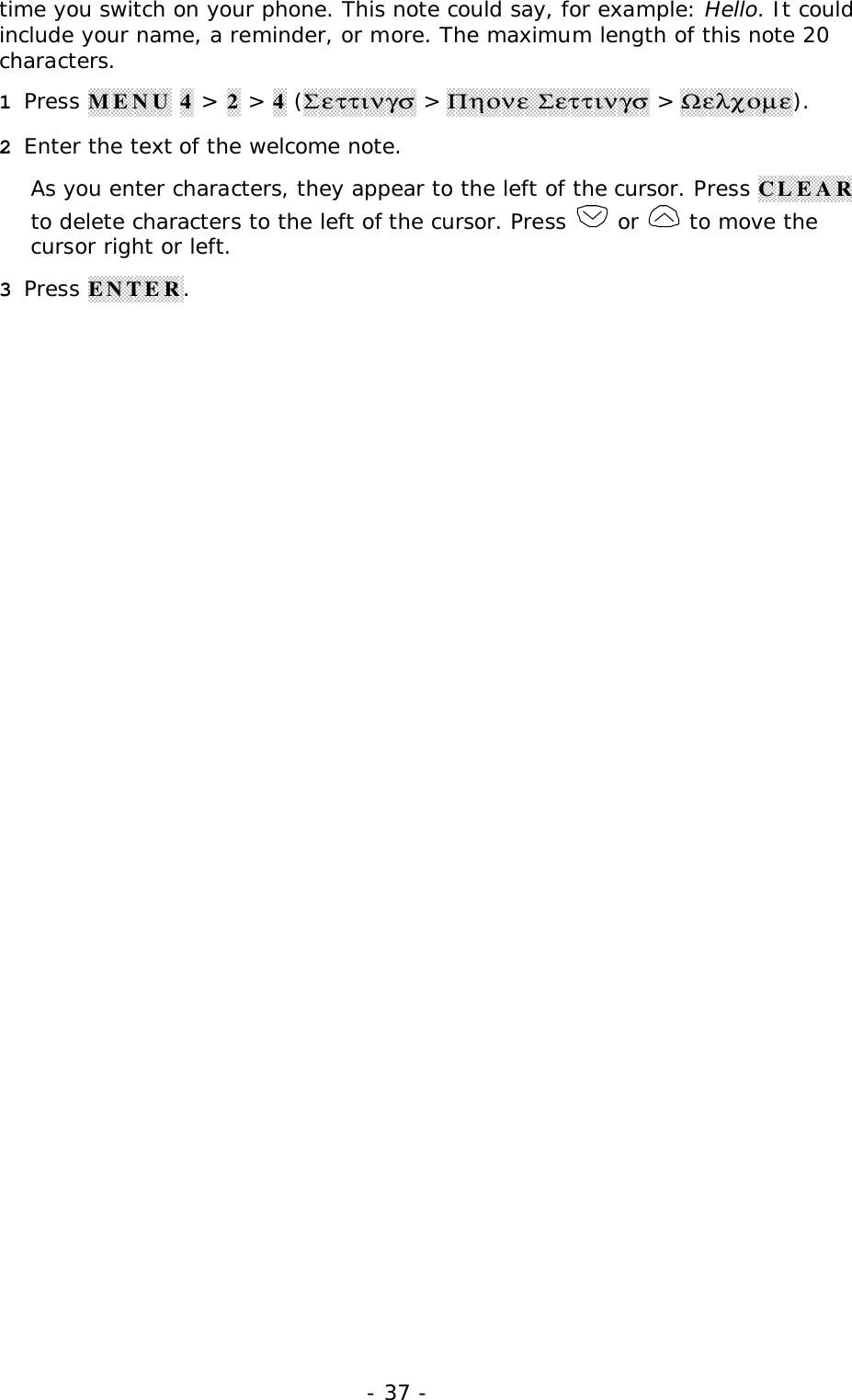
- 36 -12.4   Restore defaults settingsYou can change the default settings for your phone. Later, you can return them tothe original settings when needed.Note: The memory, timers, language selection, security code, and lock code arenot reset. However, any profiles you have modified are reset when you restore oursettings.1 Press MENU 4 > 2 > 6 (Σεττινγσ > Πηονε Σεττινγσ > Ρεστορε∆εφαυλτσ).2 Press OK.12.5   Set the display languageYou can set your phone to display a certain language.1 Press MENU 4 > 2 > 3 (Σεττινγσ > ΠηονεΣεττινγσ > Λανγυαγε).2 Use   or   to scroll to the language you want to use and press OK.You can choose from Ενγλιση, Μεξιχο Σπανιση, Χαναδα Φρενχη andΒραζιλ Πορτυγεσε.12.6   Set and display the clockYour phone has an internal clock that you can set to appearon the phone’s screen. The clock is connected to an alarmclock.12.6.1   Set the clockTo set the clock to the appropriate time:1 Press MENU 4 > 2 > 1 (Σεττινγσ > Πηονε Σεττινγσ > ∆ατε ανδΤιµε).2 Use   or   to scroll to Σετ Τιµε and press SELECT.The Time field appears.3 Enter the time using a ξξ:ξξ format and press OK.For example, to set your clock to 9:30, enter 09:30.4 Use   or   to scroll to ΑΜ or ΠΜ and press SELECT.12.7   Add a welcome noteYou can set your phone to display a welcome note each
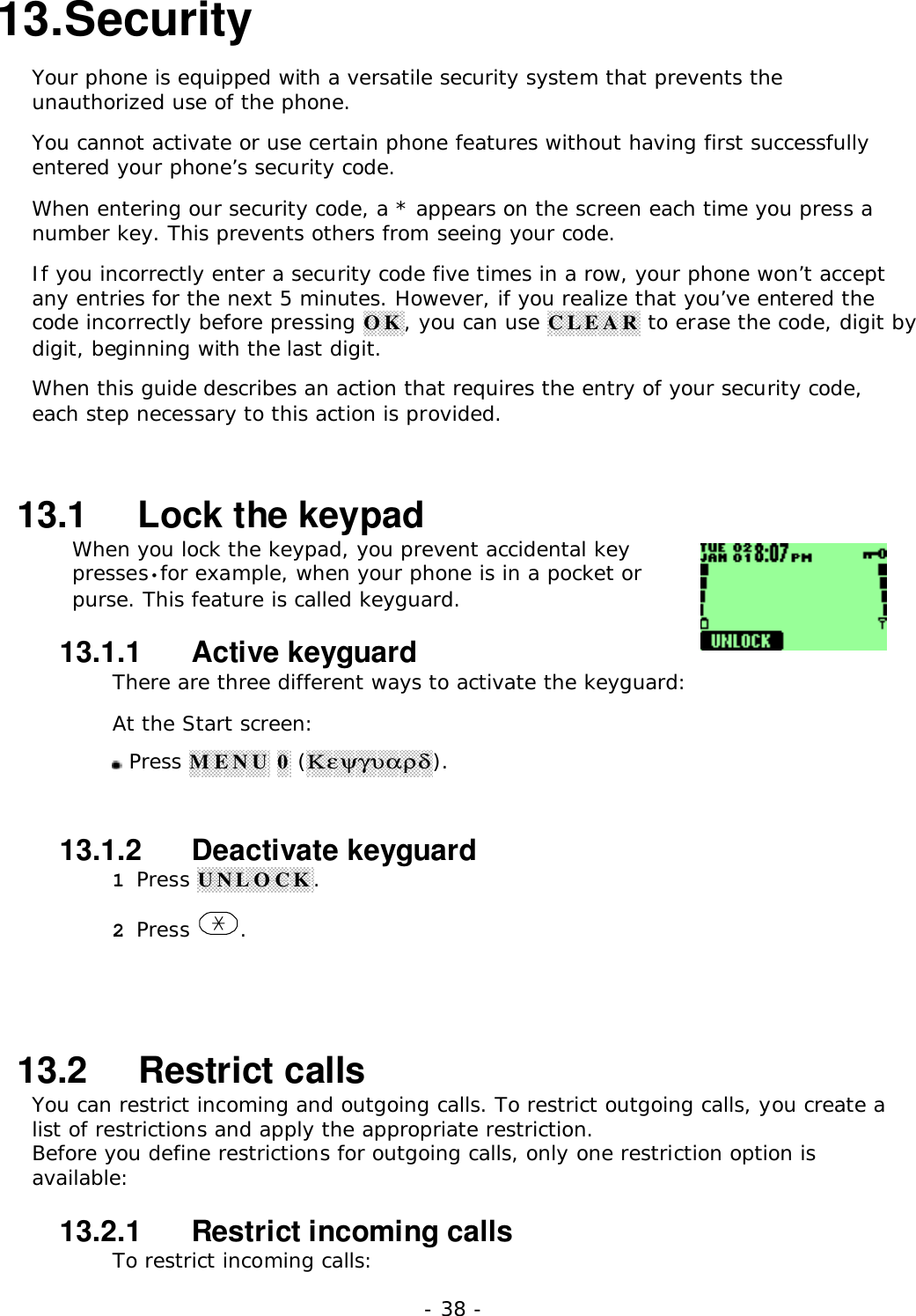
- 37 -time you switch on your phone. This note could say, for example: Hello. It couldinclude your name, a reminder, or more. The maximum length of this note 20characters.1 Press MENU 4 > 2 > 4 (Σεττινγσ > Πηονε Σεττινγσ > Ωελχοµε).2 Enter the text of the welcome note.As you enter characters, they appear to the left of the cursor. Press CLEARto delete characters to the left of the cursor. Press   or   to move thecursor right or left.3 Press ENTER.
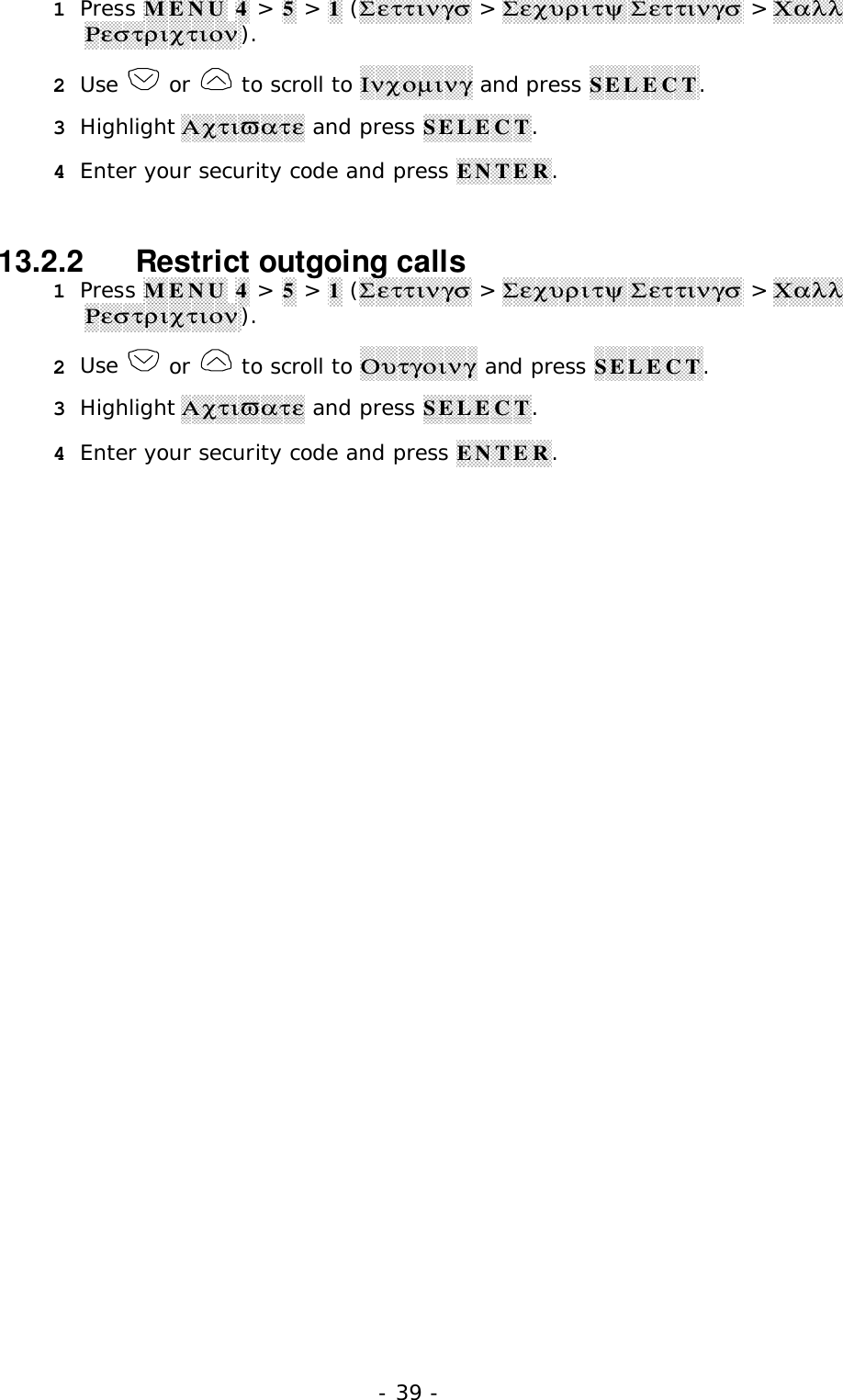
- 38 -13. SecurityYour phone is equipped with a versatile security system that prevents theunauthorized use of the phone.You cannot activate or use certain phone features without having first successfullyentered your phone’s security code.When entering our security code, a * appears on the screen each time you press anumber key. This prevents others from seeing your code.If you incorrectly enter a security code five times in a row, your phone won’t acceptany entries for the next 5 minutes. However, if you realize that you’ve entered thecode incorrectly before pressing OK, you can use CLEAR to erase the code, digit bydigit, beginning with the last digit.When this guide describes an action that requires the entry of your security code,each step necessary to this action is provided.13.1   Lock the keypadWhen you lock the keypad, you prevent accidental keypresses•for example, when your phone is in a pocket orpurse. This feature is called keyguard.13.1.1   Active keyguardThere are three different ways to activate the keyguard:At the Start screen: Press MENU 0 (Κεψγυαρδ).13.1.2   Deactivate keyguard1 Press UNLOCK.2 Press  .13.2   Restrict callsYou can restrict incoming and outgoing calls. To restrict outgoing calls, you create alist of restrictions and apply the appropriate restriction.Before you define restrictions for outgoing calls, only one restriction option isavailable:13.2.1   Restrict incoming callsTo restrict incoming calls:
- 39 -1 Press MENU 4 > 5 > 1 (Σεττινγσ > Σεχυριτψ Σεττινγσ > ΧαλλΡεστριχτιον).2 Use   or   to scroll to Ινχοµινγ and press SELECT.3 Highlight Αχτιϖατε and press SELECT.4 Enter your security code and press ENTER.13.2.2   Restrict outgoing calls1 Press MENU 4 > 5 > 1 (Σεττινγσ > Σεχυριτψ Σεττινγσ > ΧαλλΡεστριχτιον).2 Use   or   to scroll to Ουτγοινγ and press SELECT.3 Highlight Αχτιϖατε and press SELECT.4 Enter your security code and press ENTER.
- 40 -14. Set network services featuresThe following network services can be obtained from your service provider: Voice privacy Call waiting Call forwardingWhen you subscribe to any of these services, your service provider gives you a featurecode that activates each service. Deactivation codes are used to deactivate eachservice.After you store the appropriate code in your phone, the code is sent to the network toverify that you’re using the correct feature code. The voice privacy feature does notrequire you to store a feature code before using it.After you store a feature code, the respective service appears as a menu option onyour phone’s screen. You can use these menus to activate and deactivate the networkservices.14.1   Set up how your phone selects a systemYour phone is capable of working in residential, private, and public systems (suchas your home system). You can choose how your phone selects a network to use.1 Press MENU 6.You see the following three options: Αυτοµατιχ: Your phone automatically searches for available networks andchooses the appropriate one. Every time you turn on your phone, it resets toΑυτοµατιχ. Μανυαλ: The phone searches for networks and then displays a listing of allof the possible networks on your phone’s screen. Next to each network, one ofthe following appears: Αϖαιλαβλε or Νοτ αϖαιλαβλε. If a network isdesignated as Νοτ αϖαιλαβλε, you cannot use it. Νεω Σεαρχη: Your phone begins a new search for both private andresidential systems. When it finds the best system available, your phonedisplays it on its screen. You can then select this system or start anothersearch by pressing Νεξτ.2 Use   or   to scroll through the choices, and press SELECT when you seethe one you want.14.2   RoamingThe term roaming is used to indicate when your phone is not in its home area.Calls made or received while you are roaming are usually more expensive thancalls made in your home area.
- 41 -While roaming in some systems outside your home area, your phone may not berecognized by the host system, which is the system in which you’re traveling. Youmay not be able to place a call.Contact your service provider for more specific information on how roaming workswith your phone and for information about coverage limitations.
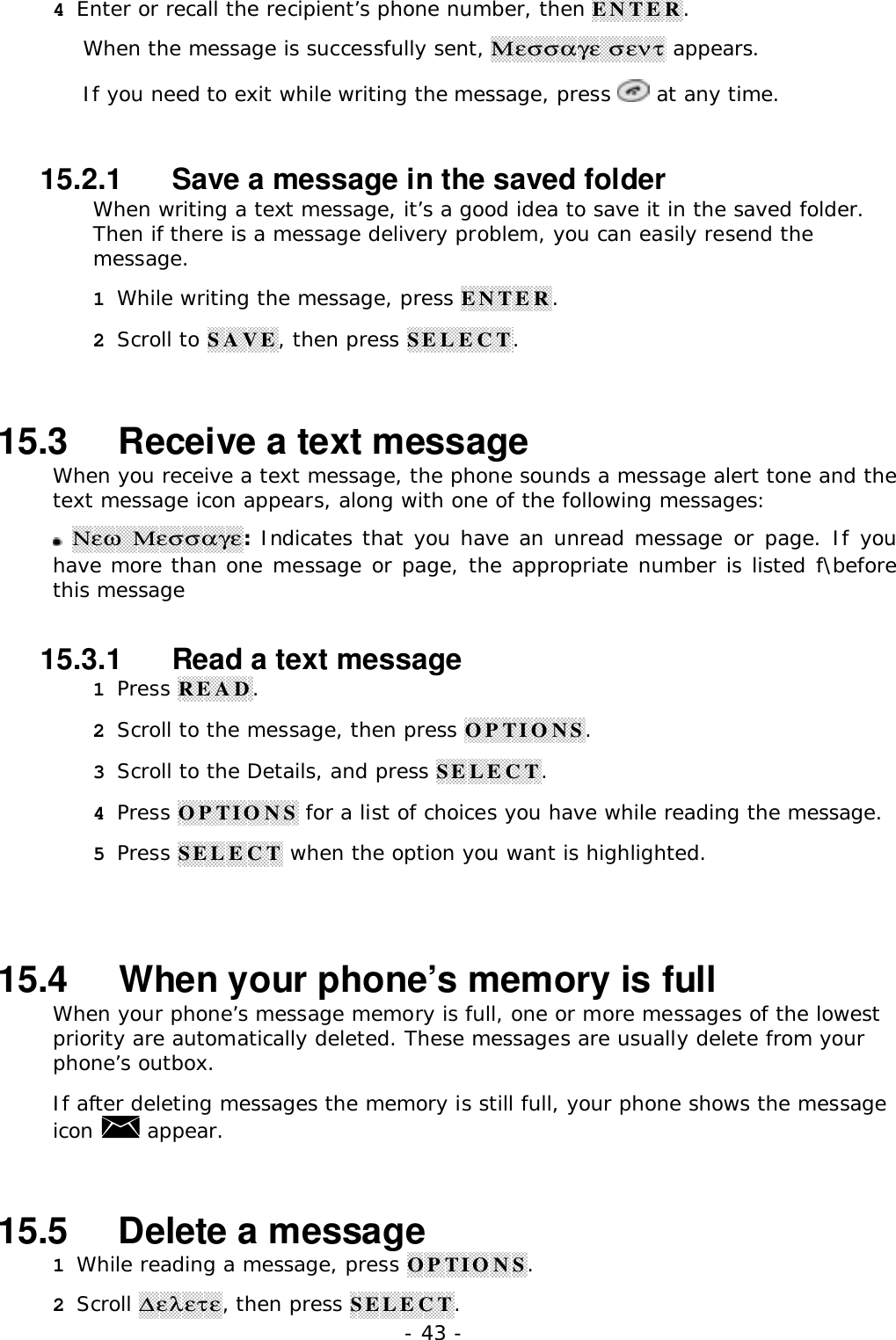
- 42 -15. SEND AND RECEIVE TEXTMESSAGESWith the text message network service, you can send andreceive short text message. You can also send and receivemessages that contain a person’s name and/or number (a“business card”).To get your messages, other phones must have text messagecapability. Or, you can ask the service provider to convert the message to otherformats, such as e-mail.The maximum length of a received text message is 160 characters. Your phone hasspace for up to 80 text messages, depending on the length of each message.Note: The maximum length of a text message differs, depending on the capabilities ofthe network from which it originated. Also, text messages may appear different atdifferent times because messages can originate in networks other than your own.Contact your service provider for more information about this feature.15.1   About writing messages15.1.1   Write with standard text inputStandard text input is the default mode for text entry. The ABC icon ABC appearsas visual confirmation.1 Find the key that is below the letter you want to enter.2 Press it as many times as needed for letter to appear on the screen.For example, to enter the name John:Press  5jkl JPress  6mno  6mno  6mno OPress  4ghi  4ghi HPress  6mno  6mno N15.2   Write and send a new text message1 Press MENU 3 > 3 (Μεσσαγεσ > Νεω Τεξτ Μσγ).2 Enter a message of up to 160 characters.3 When you’ve finished writing, press ENTER.
- 43 -4 Enter or recall the recipient’s phone number, then ENTER.When the message is successfully sent, Μεσσαγε σεντ appears.If you need to exit while writing the message, press   at any time.15.2.1   Save a message in the saved folderWhen writing a text message, it’s a good idea to save it in the saved folder.Then if there is a message delivery problem, you can easily resend themessage.1 While writing the message, press ENTER.2 Scroll to SAVE, then press SELECT.15.3   Receive a text messageWhen you receive a text message, the phone sounds a message alert tone and thetext message icon appears, along with one of the following messages: Νεω Μεσσαγε: Indicates that you have an unread message or page. If youhave more than one message or page, the appropriate number is listed f\beforethis message15.3.1   Read a text message1 Press READ.2 Scroll to the message, then press OPTIONS.3 Scroll to the Details, and press SELECT.4 Press OPTIONS for a list of choices you have while reading the message.5 Press SELECT when the option you want is highlighted.15.4   When your phone’s memory is fullWhen your phone’s message memory is full, one or more messages of the lowestpriority are automatically deleted. These messages are usually delete from yourphone’s outbox.If after deleting messages the memory is still full, your phone shows the messageicon   appear.15.5   Delete a message1 While reading a message, press OPTIONS.2 Scroll ∆ελετε, then press SELECT.
- 44 -Your phone asks you to confirm that you want to delete the message.3 Press OK.
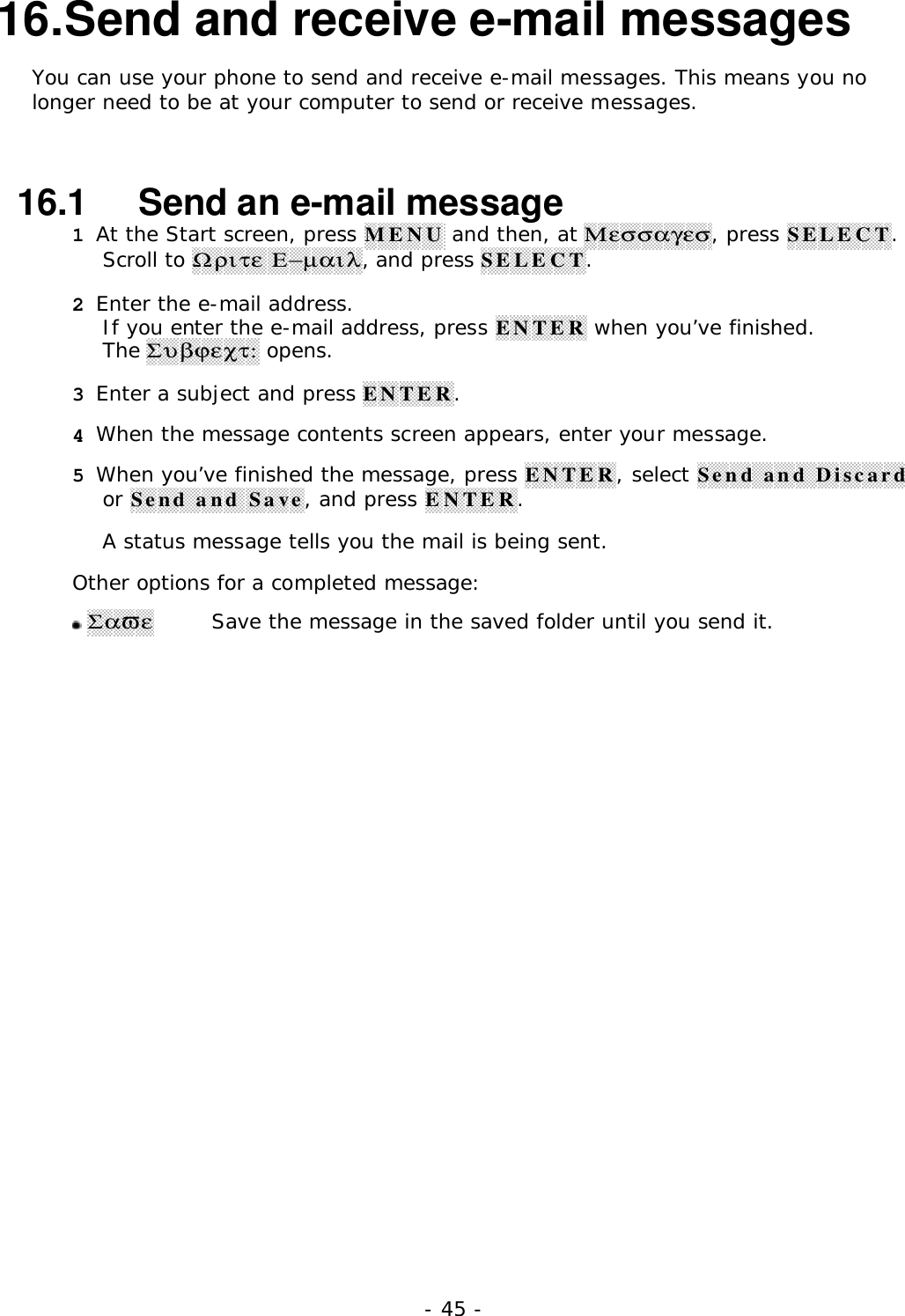
- 45 -16. Send and receive e-mail messagesYou can use your phone to send and receive e-mail messages. This means you nolonger need to be at your computer to send or receive messages.16.1   Send an e-mail message1 At the Start screen, press MENU and then, at Μεσσαγεσ, press SELECT.Scroll to Ωριτε Ε−µαιλ, and press SELECT.2 Enter the e-mail address.If you enter the e-mail address, press ENTER when you’ve finished.The Συβϕεχτ: opens.3 Enter a subject and press ENTER.4 When the message contents screen appears, enter your message.5 When you’ve finished the message, press ENTER, select Send and Discardor Send and Save, and press ENTER.A status message tells you the mail is being sent.Other options for a completed message: ΣαϖεSave the message in the saved folder until you send it.
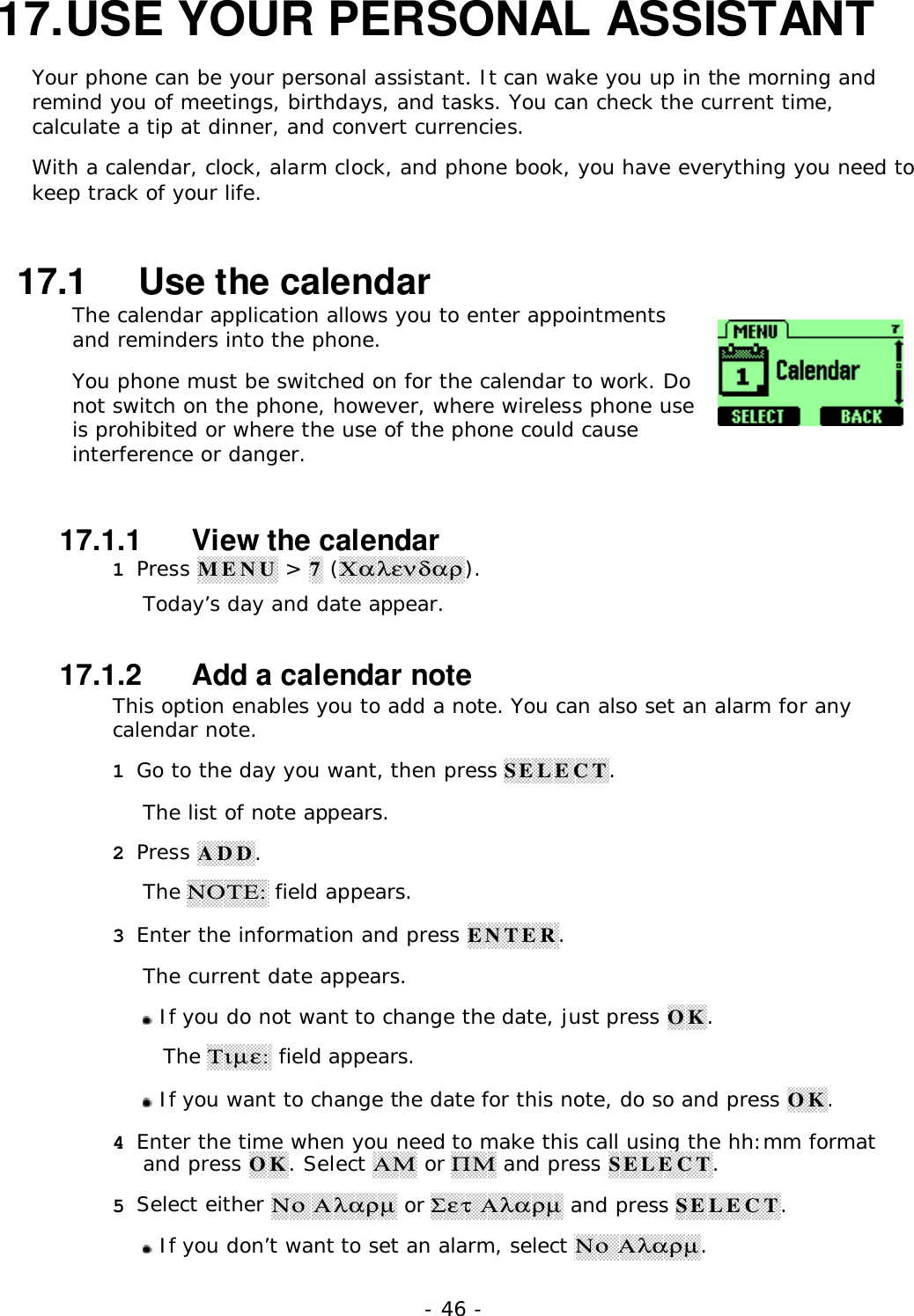
- 46 -17. USE YOUR PERSONAL ASSISTANTYour phone can be your personal assistant. It can wake you up in the morning andremind you of meetings, birthdays, and tasks. You can check the current time,calculate a tip at dinner, and convert currencies.With a calendar, clock, alarm clock, and phone book, you have everything you need tokeep track of your life.17.1   Use the calendarThe calendar application allows you to enter appointmentsand reminders into the phone.You phone must be switched on for the calendar to work. Donot switch on the phone, however, where wireless phone useis prohibited or where the use of the phone could causeinterference or danger.17.1.1   View the calendar1 Press MENU > 7 (Χαλενδαρ).Today’s day and date appear.17.1.2   Add a calendar noteThis option enables you to add a note. You can also set an alarm for anycalendar note.1 Go to the day you want, then press SELECT.The list of note appears.2 Press ADD.The ΝΟΤΕ: field appears.3 Enter the information and press ENTER.The current date appears. If you do not want to change the date, just press OK.The Τιµε: field appears. If you want to change the date for this note, do so and press OK.4 Enter the time when you need to make this call using the hh:mm formatand press OK. Select ΑΜ or ΠΜ and press SELECT.5 Select either Νο Αλαρµ or Σετ Αλαρµ and press SELECT. If you don’t want to set an alarm, select Νο Αλαρµ.
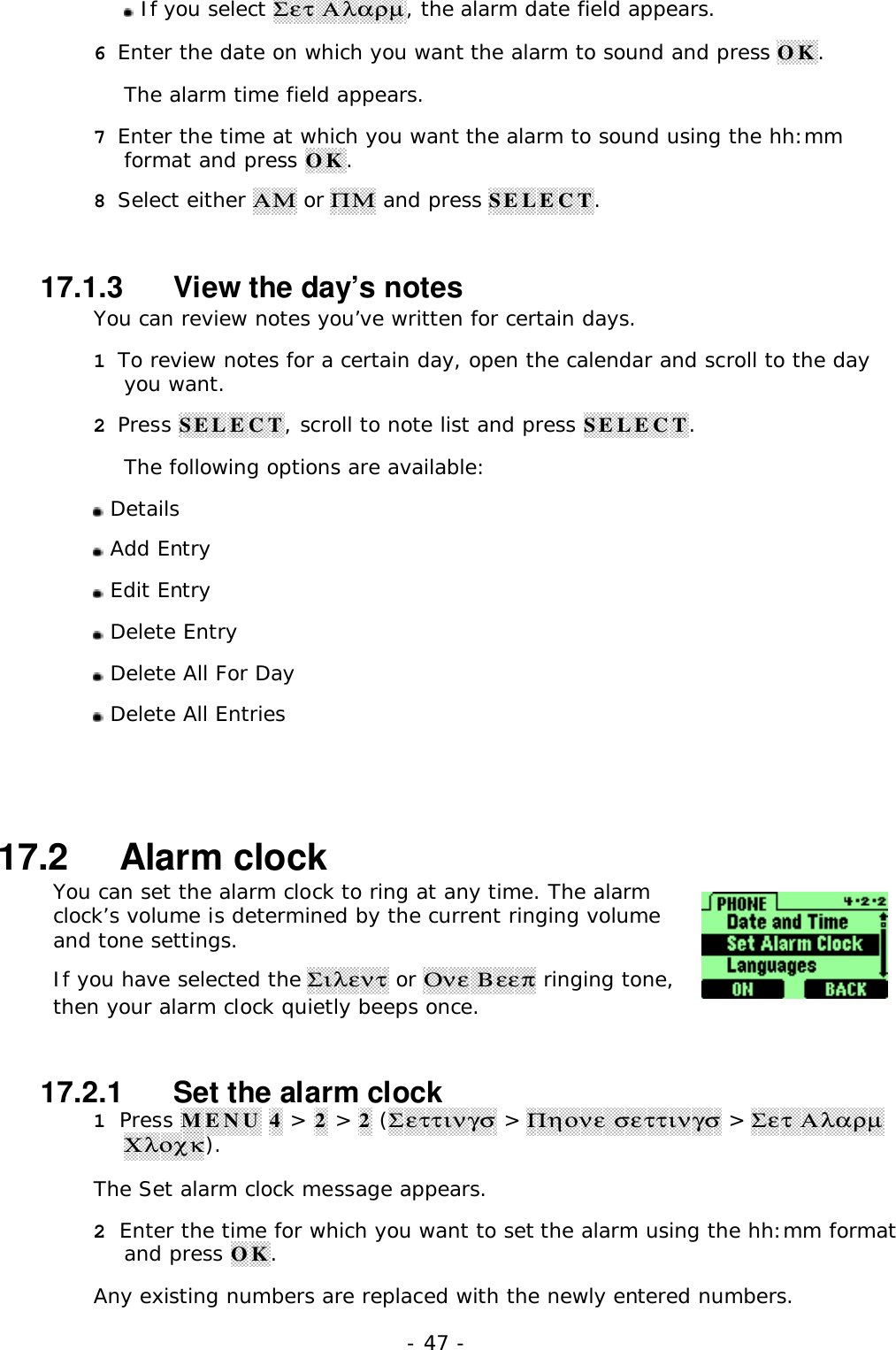
- 47 - If you select Σετ Αλαρµ, the alarm date field appears.6 Enter the date on which you want the alarm to sound and press OK.The alarm time field appears.7 Enter the time at which you want the alarm to sound using the hh:mmformat and press OK.8 Select either ΑΜ or ΠΜ and press SELECT.17.1.3   View the day’s notesYou can review notes you’ve written for certain days.1 To review notes for a certain day, open the calendar and scroll to the dayyou want.2 Press SELECT, scroll to note list and press SELECT.The following options are available: Details Add Entry Edit Entry Delete Entry Delete All For Day Delete All Entries17.2   Alarm clockYou can set the alarm clock to ring at any time. The alarmclock’s volume is determined by the current ringing volumeand tone settings.If you have selected the Σιλεντ or Ονε Βεεπ ringing tone,then your alarm clock quietly beeps once.17.2.1   Set the alarm clock1 Press MENU 4 > 2 > 2 (Σεττινγσ > Πηονε σεττινγσ > Σετ ΑλαρµΧλοχκ).The Set alarm clock message appears.2 Enter the time for which you want to set the alarm using the hh:mm formatand press OK.Any existing numbers are replaced with the newly entered numbers.
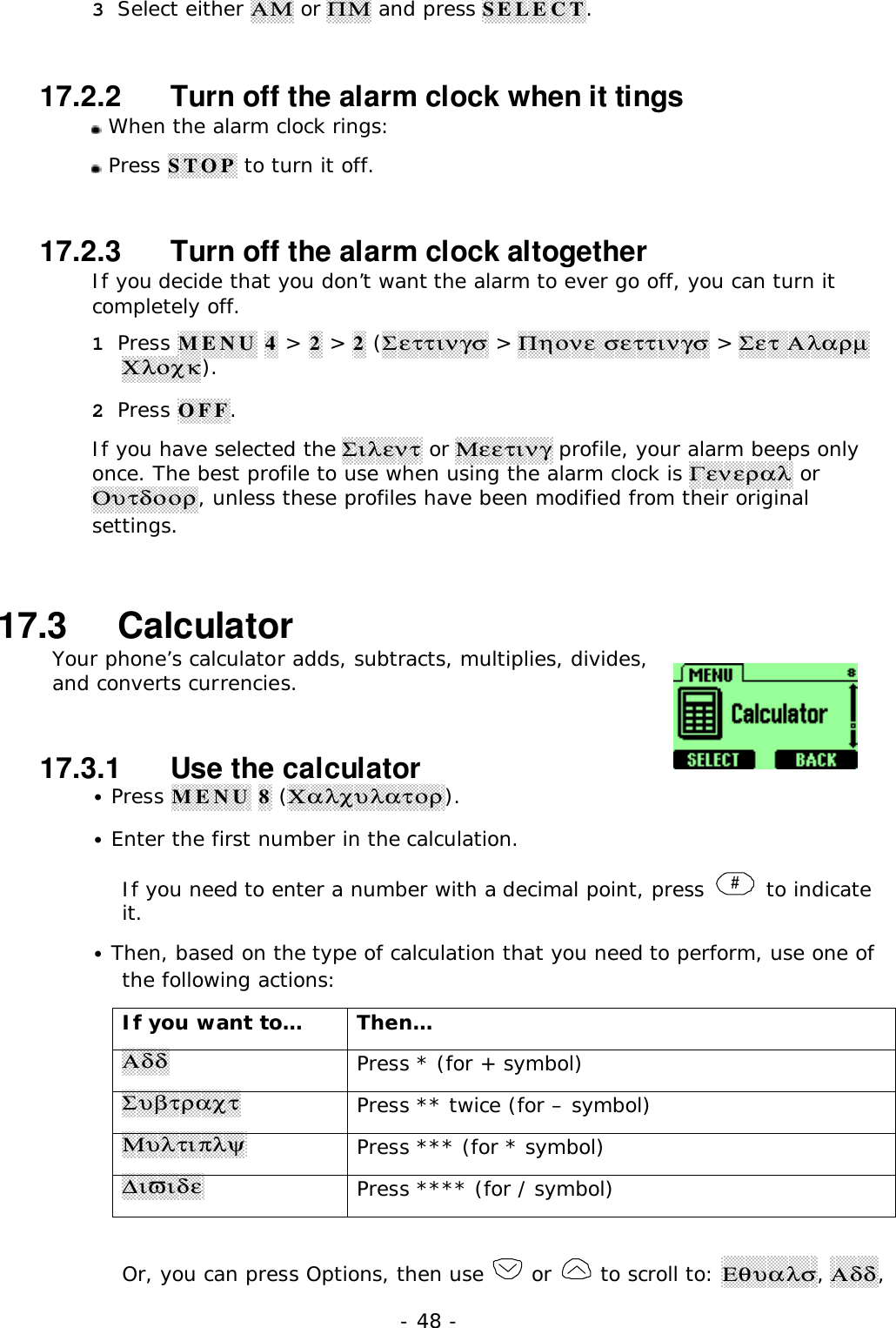
- 48 -3 Select either ΑΜ or ΠΜ and press SELECT.17.2.2   Turn off the alarm clock when it tings When the alarm clock rings: Press STOP to turn it off.17.2.3   Turn off the alarm clock altogetherIf you decide that you don’t want the alarm to ever go off, you can turn itcompletely off.1 Press MENU 4 > 2 > 2 (Σεττινγσ > Πηονε σεττινγσ > Σετ ΑλαρµΧλοχκ).2 Press OFF.If you have selected the Σιλεντ or Μεετινγ profile, your alarm beeps onlyonce. The best profile to use when using the alarm clock is Γενεραλ orΟυτδοορ, unless these profiles have been modified from their originalsettings.17.3   CalculatorYour phone’s calculator adds, subtracts, multiplies, divides,and converts currencies.17.3.1   Use the calculator• Press MENU 8 (Χαλχυλατορ).• Enter the first number in the calculation.If you need to enter a number with a decimal point, press  # to indicateit.• Then, based on the type of calculation that you need to perform, use one ofthe following actions:If you want to… Then…ΑδδPress * (for + symbol)ΣυβτραχτPress ** twice (for – symbol)ΜυλτιπλψPress *** (for * symbol)∆ιϖιδεPress **** (for / symbol)Or, you can press Options, then use   or   to scroll to: Εθυαλσ, Αδδ,
- 49 -Συβτραχτ, Μυλτιπλψ, ∆ιϖιδε, or Εξιτ. Then press SELECT.• Enter the second number in the calculation and press Options.• Use   or   to scroll to Εθυαλσ and press SELECT.Note: Repeat steps • and • as many times as necessary.Press Clear to erase any mistakes.
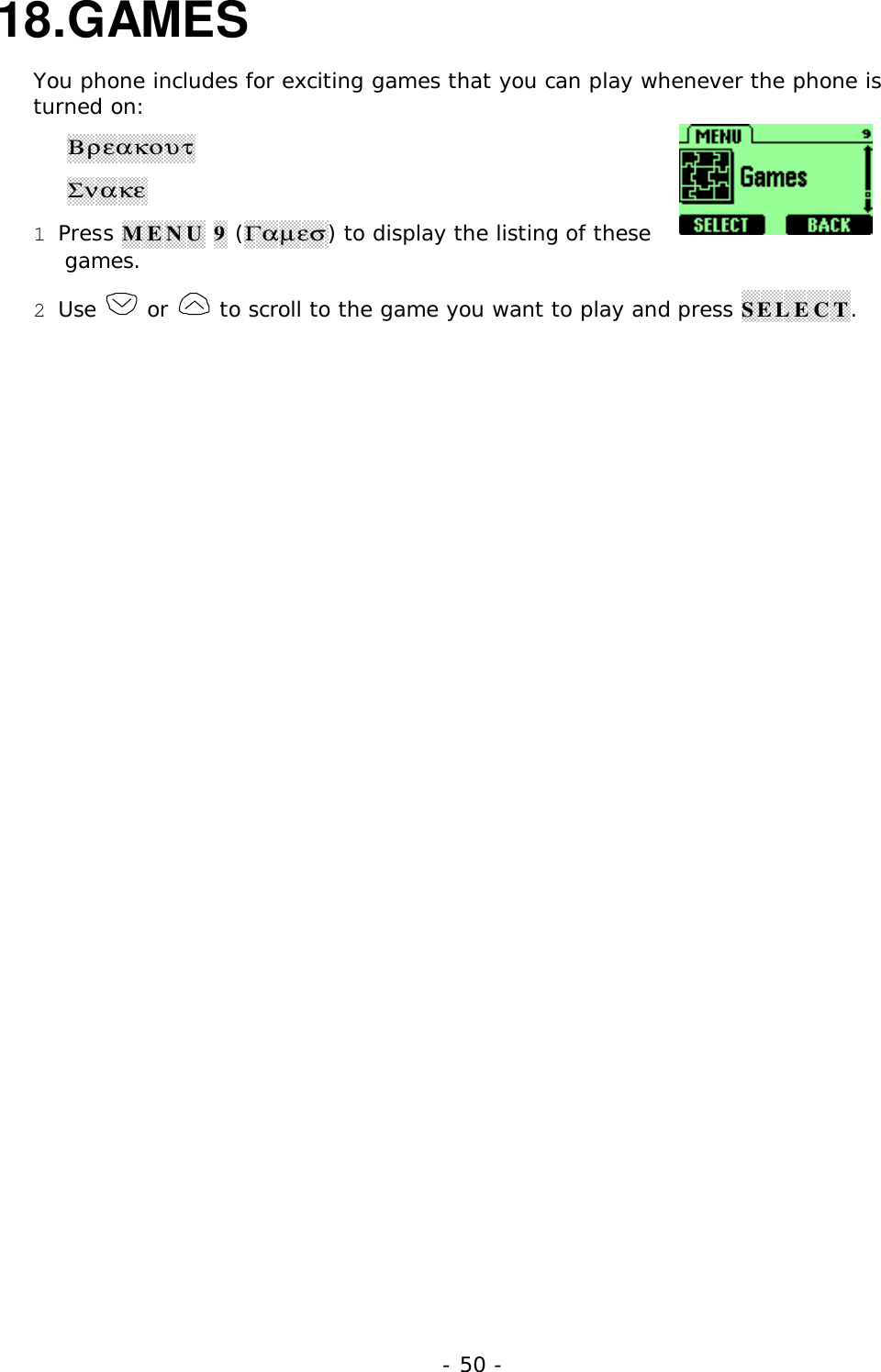
- 50 -18. GAMESYou phone includes for exciting games that you can play whenever the phone isturned on:ΒρεακουτΣνακε1 Press MENU 9 (Γαµεσ) to display the listing of thesegames.2 Use   or   to scroll to the game you want to play and press SELECT.
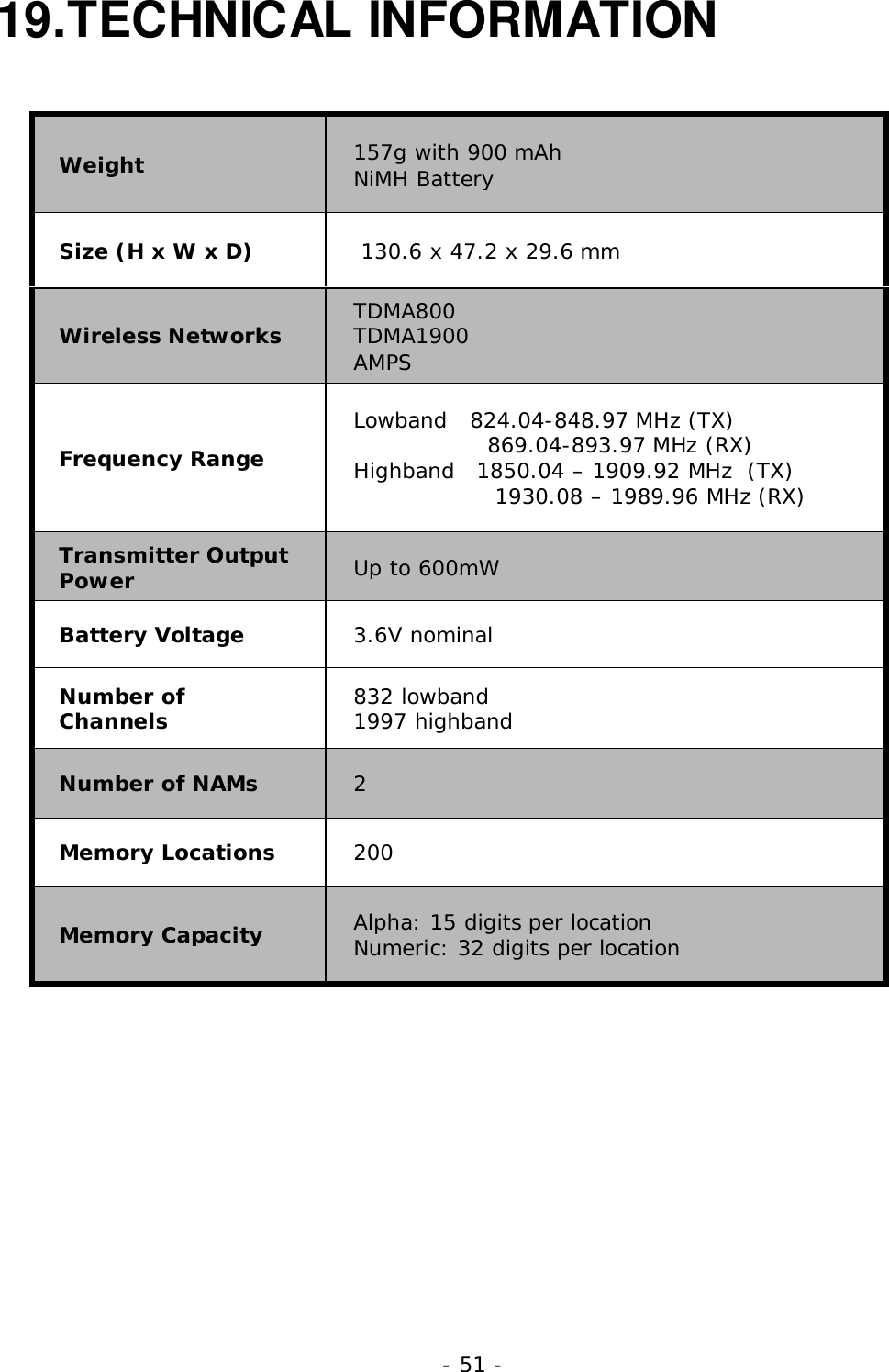
- 51 -19. TECHNIC AL  INFORM ATIONWeight 157g with 900 mAhNiMH BatterySize (H x W x D)  130.6 x 47.2 x 29.6 mmWireless Networks TDMA800TDMA1900AMPSFrequency RangeLowband   824.04-848.97 MHz (TX)                  869.04-893.97 MHz (RX)Highband   1850.04 – 1909.92 MHz  (TX)                   1930.08 – 1989.96 MHz (RX)Transmitter OutputPower Up to 600mWBattery Voltage 3.6V nominalNumber ofChannels 832 lowband1997 highbandNumber of NAMs 2Memory Locations 200Memory Capacity Alpha: 15 digits per locationNumeric: 32 digits per location

Navigation menu