Telxon 24-LP Bar Code Scanner Transmitter User Manual Corel Ventura chp

Telxon Corporation Bar Code Scanner Transmitter Corel Ventura chp

Operational Description and Users Manual

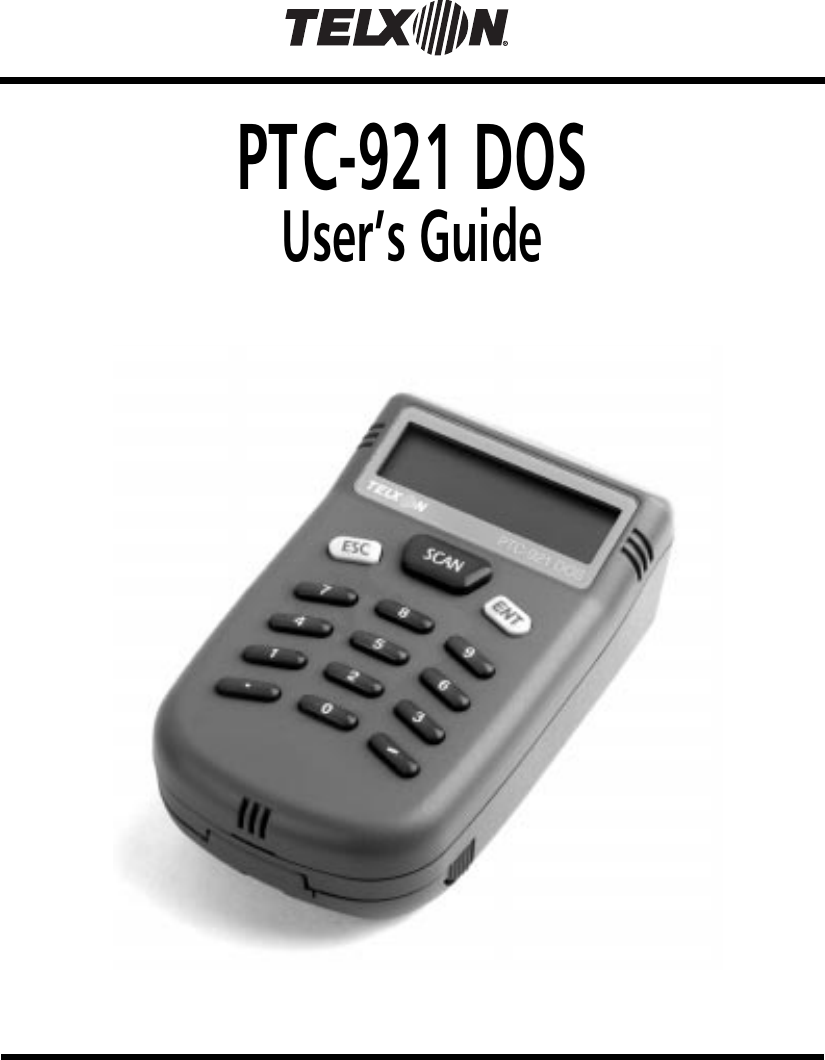
PTC-921 DOSUser’s Guide
PTC-921 DOSUser’s GuidePart Number: 23451-000-02Release Date: 5/27/98
Telxon is a registered trademark of TelxonCorporation.MS-DOS is a registered trademark of MicrosoftCorporation.The information contained in this manual is subjectto change without notice.Telxon Corporation shall not be liable for technical oreditorial omissions or mistakes in this manual norshall it be liable for incidental or consequentialdamages resulting from your use of the informationcontained in this manual.This manual is copyrighted. All rights are reserved.No part of this manual may be photocopied orreproduced in any form without the prior writtenconsent of Telxon.© Copyright 1998 Telxon CorporationAll Rights Reserved.
ContentsRegulations  .  .  .  .  .  .  .  .  .  .  .  .  .  .  .  .  .  .  .  .  .  .  .  .  .  .  .  .  .  .  1General regulations  .  .  .  .  .  .  .  .  .  .  .  .  .  .  .  .  .  .  .  .  .  1FCC statement  .  .  .  .  .  .  .  .  .  .  .  .  .  .  .  .  .  .  .  .  .  1DOC statement  .  .  .  .  .  .  .  .  .  .  .  .  .  .  .  .  .  .  .  .  .  1CE statement  .  .  .  .  .  .  .  .  .  .  .  .  .  .  .  .  .  .  .  .  .  .  2If your PTC contains an Air-I/O 500 radio module .  .  .  .  .  2FCC statement  .  .  .  .  .  .  .  .  .  .  .  .  .  .  .  .  .  .  .  .  .  2FCC regulations  .  .  .  .  .  .  .  .  .  .  .  .  .  .  .  .  .  .  .  .  .  2DOC statement  .  .  .  .  .  .  .  .  .  .  .  .  .  .  .  .  .  .  .  .  .  2Safety information  .  .  .  .  .  .  .  .  .  .  .  .  .  .  .  .  .  .  .  .  .  .  .  .  .  .  .  3Using and disposing of lithium-ion batteries .  .  .  .  .  .  .  .  3If your PTC contains a radio  .  .  .  .  .  .  .  .  .  .  .  .  .  .  .  .  3Using the internal laser scanner  .  .  .  .  .  .  .  .  .  .  .  .  .  .  4Scope of the manual  .  .  .  .  .  .  .  .  .  .  .  .  .  .  .  .  .  .  .  .  .  .  .  .  .  .  5Document conventions  .  .  .  .  .  .  .  .  .  .  .  .  .  .  .  .  .  .  .  5Warnings  .  .  .  .  .  .  .  .  .  .  .  .  .  .  .  .  .  .  .  .  .  .  .  .  5Cautions  .  .  .  .  .  .  .  .  .  .  .  .  .  .  .  .  .  .  .  .  .  .  .  .  .  5Notes .  .  .  .  .  .  .  .  .  .  .  .  .  .  .  .  .  .  .  .  .  .  .  .  .  .  .  5Overview of the PTC-921 DOS  .  .  .  .  .  .  .  .  .  .  .  .  .  .  .  .  .  .  .  .  .  .  6Entering data  .  .  .  .  .  .  .  .  .  .  .  .  .  .  .  .  .  .  .  .  .  .  .  .  6Through the keyboard  .  .  .  .  .  .  .  .  .  .  .  .  .  .  .  .  .  6With the internal laser scanner  .  .  .  .  .  .  .  .  .  .  .  .  7Via the radio .  .  .  .  .  .  .  .  .  .  .  .  .  .  .  .  .  .  .  .  .  .  .  7Storing data  .  .  .  .  .  .  .  .  .  .  .  .  .  .  .  .  .  .  .  .  .  .  .  .  .  7Communicating data  .  .  .  .  .  .  .  .  .  .  .  .  .  .  .  .  .  .  .  .  7Getting started  .  .  .  .  .  .  .  .  .  .  .  .  .  .  .  .  .  .  .  .  .  .  .  .  .  .  .  .  8Unpacking the PTC-921 DOS .  .  .  .  .  .  .  .  .  .  .  .  .  .  .  .  8Installing the battery pack  .  .  .  .  .  .  .  .  .  .  .  .  .  .  .  .  .  8i
Charging the battery pack .  .  .  .  .  .  .  .  .  .  .  .  .  .  .  .  .  .  9Turning on the PTC  .  .  .  .  .  .  .  .  .  .  .  .  .  .  .  .  .  .  .  .  .  9Checking the PTC  .  .  .  .  .  .  .  .  .  .  .  .  .  .  .  .  .  .  .  .  .  .  9Parts  .  .  .  .  .  .  .  .  .  .  .  .  .  .  .  .  .  .  .  .  .  .  .  .  .  .  .  .  .  .  .  .  . 10Radio (optional)  .  .  .  .  .  .  .  .  .  .  .  .  .  .  .  .  .  .  .  .  .  .  . 10Features  .  .  .  .  .  .  .  .  .  .  .  .  .  .  .  .  .  .  .  .  .  .  .  .  .  .  .  .  .  .  . 13Autodiscrimination between bar codes  .  .  .  .  .  .  .  .  .  .  . 13Automatic off  .  .  .  .  .  .  .  .  .  .  .  .  .  .  .  .  .  .  .  .  .  .  .  .  . 13Automatic return at on  .  .  .  .  .  .  .  .  .  .  .  .  .  .  .  .  .  .  . 13Backup system  .  .  .  .  .  .  .  .  .  .  .  .  .  .  .  .  .  .  .  .  .  .  .  . 13Beeper  .  .  .  .  .  .  .  .  .  .  .  .  .  .  .  .  .  .  .  .  .  .  .  .  .  .  .  . 14Clock  .  .  .  .  .  .  .  .  .  .  .  .  .  .  .  .  .  .  .  .  .  .  .  .  .  .  .  .  . 14Communication  .  .  .  .  .  .  .  .  .  .  .  .  .  .  .  .  .  .  .  .  .  .  . 14Memory .  .  .  .  .  .  .  .  .  .  .  .  .  .  .  .  .  .  .  .  .  .  .  .  .  .  .  . 14Scanning bar-code labels  .  .  .  .  .  .  .  .  .  .  .  .  .  .  .  .  .  .  .  .  .  .  .  . 16Communicating data  .  .  .  .  .  .  .  .  .  .  .  .  .  .  .  .  .  .  .  .  .  .  .  .  .  . 17Using a communication cradle  .  .  .  .  .  .  .  .  .  .  .  .  .  .  . 17Using the radio .  .  .  .  .  .  .  .  .  .  .  .  .  .  .  .  .  .  .  .  .  .  .  . 17Replacing the battery pack  .  .  .  .  .  .  .  .  .  .  .  .  .  .  .  .  .  .  .  .  .  .  .  . 18Removing the battery pack  .  .  .  .  .  .  .  .  .  .  .  .  .  .  .  .  . 18Installing a new battery pack  .  .  .  .  .  .  .  .  .  .  .  .  .  .  .  . 18Maintaining the PTC-921 DOS  .  .  .  .  .  .  .  .  .  .  .  .  .  .  .  .  .  .  .  .  .  . 19Operating conditions .  .  .  .  .  .  .  .  .  .  .  .  .  .  .  .  .  .  .  .  . 19Handling the PTC  .  .  .  .  .  .  .  .  .  .  .  .  .  .  .  .  .  .  .  .  .  . 19Storing the PTC  .  .  .  .  .  .  .  .  .  .  .  .  .  .  .  .  .  .  .  .  .  .  . 20Cleaning the PTC  .  .  .  .  .  .  .  .  .  .  .  .  .  .  .  .  .  .  .  .  .  . 20Servicing the PTC  .  .  .  .  .  .  .  .  .  .  .  .  .  .  .  .  .  .  .  .  .  . 21Troubleshooting  .  .  .  .  .  .  .  .  .  .  .  .  .  .  .  .  .  .  .  .  .  .  .  .  .  .  .  . 22The PTC does not turn on  .  .  .  .  .  .  .  .  .  .  .  .  .  .  .  .  .  . 22The laser scanner fails to read a label  .  .  .  .  .  .  .  .  .  .  . 22Your radio fails to establish contact  .  .  .  .  .  .  .  .  .  .  .  . 23Other problems  .  .  .  .  .  .  .  .  .  .  .  .  .  .  .  .  .  .  .  .  .  .  . 23ii
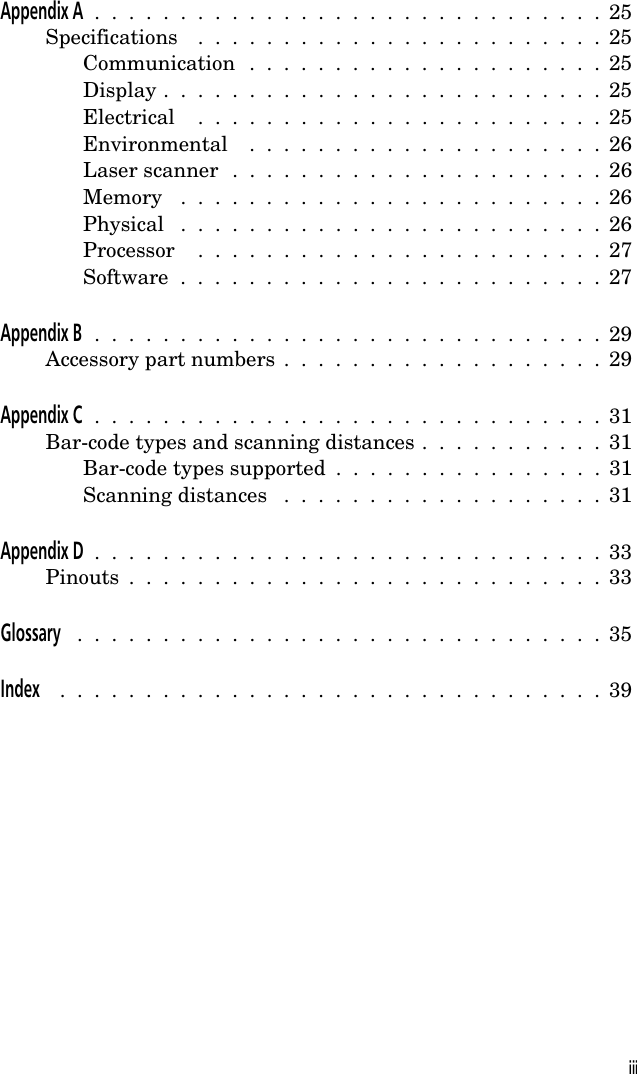
Appendix A  .  .  .  .  .  .  .  .  .  .  .  .  .  .  .  .  .  .  .  .  .  .  .  .  .  .  .  .  .  .  25Specifications  .  .  .  .  .  .  .  .  .  .  .  .  .  .  .  .  .  .  .  .  .  .  .  .  25Communication  .  .  .  .  .  .  .  .  .  .  .  .  .  .  .  .  .  .  .  .  .  25Display .  .  .  .  .  .  .  .  .  .  .  .  .  .  .  .  .  .  .  .  .  .  .  .  .  .  25Electrical  .  .  .  .  .  .  .  .  .  .  .  .  .  .  .  .  .  .  .  .  .  .  .  .  25Environmental  .  .  .  .  .  .  .  .  .  .  .  .  .  .  .  .  .  .  .  .  .  26Laser scanner  .  .  .  .  .  .  .  .  .  .  .  .  .  .  .  .  .  .  .  .  .  .  26Memory  .  .  .  .  .  .  .  .  .  .  .  .  .  .  .  .  .  .  .  .  .  .  .  .  .  26Physical  .  .  .  .  .  .  .  .  .  .  .  .  .  .  .  .  .  .  .  .  .  .  .  .  .  26Processor  .  .  .  .  .  .  .  .  .  .  .  .  .  .  .  .  .  .  .  .  .  .  .  .  27Software  .  .  .  .  .  .  .  .  .  .  .  .  .  .  .  .  .  .  .  .  .  .  .  .  .  27Appendix B  .  .  .  .  .  .  .  .  .  .  .  .  .  .  .  .  .  .  .  .  .  .  .  .  .  .  .  .  .  .  29Accessory part numbers  .  .  .  .  .  .  .  .  .  .  .  .  .  .  .  .  .  .  .  29Appendix C  .  .  .  .  .  .  .  .  .  .  .  .  .  .  .  .  .  .  .  .  .  .  .  .  .  .  .  .  .  .  31Bar-code types and scanning distances .  .  .  .  .  .  .  .  .  .  .  31Bar-code types supported  .  .  .  .  .  .  .  .  .  .  .  .  .  .  .  .  31Scanning distances  .  .  .  .  .  .  .  .  .  .  .  .  .  .  .  .  .  .  .  31Appendix D  .  .  .  .  .  .  .  .  .  .  .  .  .  .  .  .  .  .  .  .  .  .  .  .  .  .  .  .  .  .  33Pinouts  .  .  .  .  .  .  .  .  .  .  .  .  .  .  .  .  .  .  .  .  .  .  .  .  .  .  .  .  33Glossary  .  .  .  .  .  .  .  .  .  .  .  .  .  .  .  .  .  .  .  .  .  .  .  .  .  .  .  .  .  .  .  35Index  .  .  .  .  .  .  .  .  .  .  .  .  .  .  .  .  .  .  .  .  .  .  .  .  .  .  .  .  .  .  .  .  39iii
iv
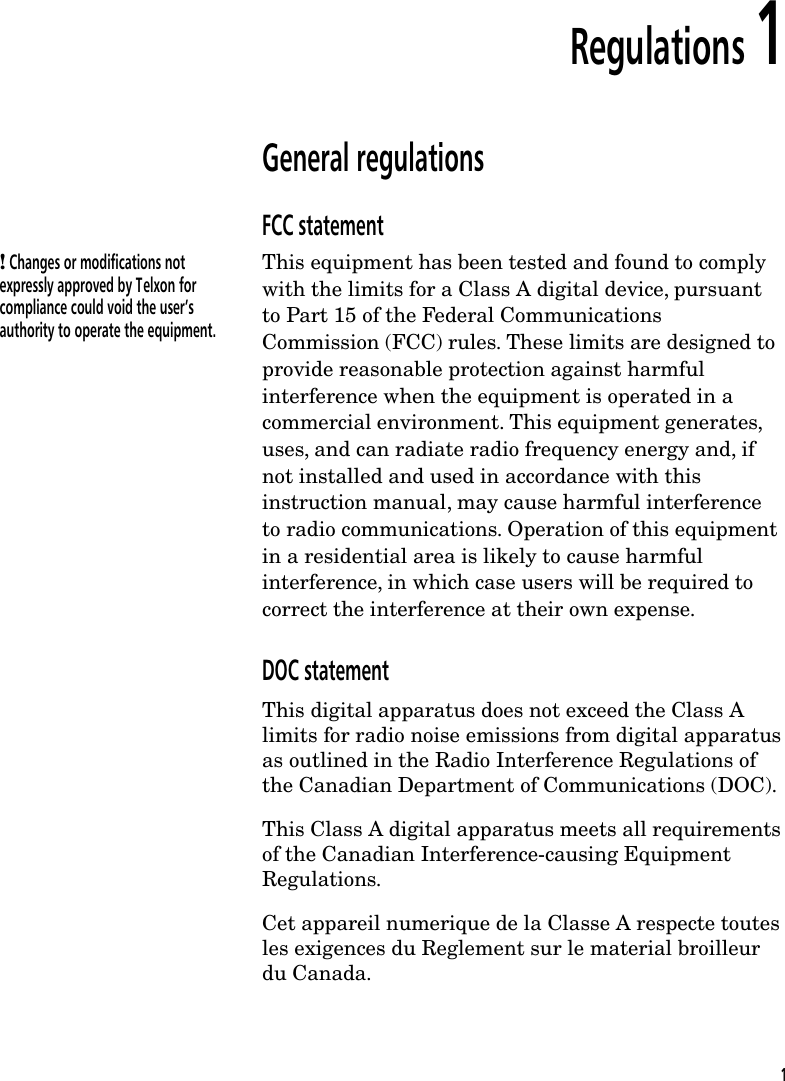
Regulations 1General regulationsFCC statement! Changes or modifications notexpressly approved by Telxon forcompliance could void the user’sauthority to operate the equipment.This equipment has been tested and found to complywith the limits for a Class A digital device, pursuantto Part 15 of the Federal CommunicationsCommission (FCC) rules. These limits are designed toprovide reasonable protection against harmfulinterference when the equipment is operated in acommercial environment. This equipment generates,uses, and can radiate radio frequency energy and, ifnot installed and used in accordance with thisinstruction manual, may cause harmful interferenceto radio communications. Operation of this equipmentin a residential area is likely to cause harmfulinterference, in which case users will be required tocorrect the interference at their own expense.DOC statementThis digital apparatus does not exceed the Class Alimits for radio noise emissions from digital apparatusas outlined in the Radio Interference Regulations ofthe Canadian Department of Communications (DOC).This Class A digital apparatus meets all requirementsof the Canadian Interference-causing EquipmentRegulations.Cet appareil numerique de la Classe A respecte toutesles exigences du Reglement sur le material broilleurdu Canada.1
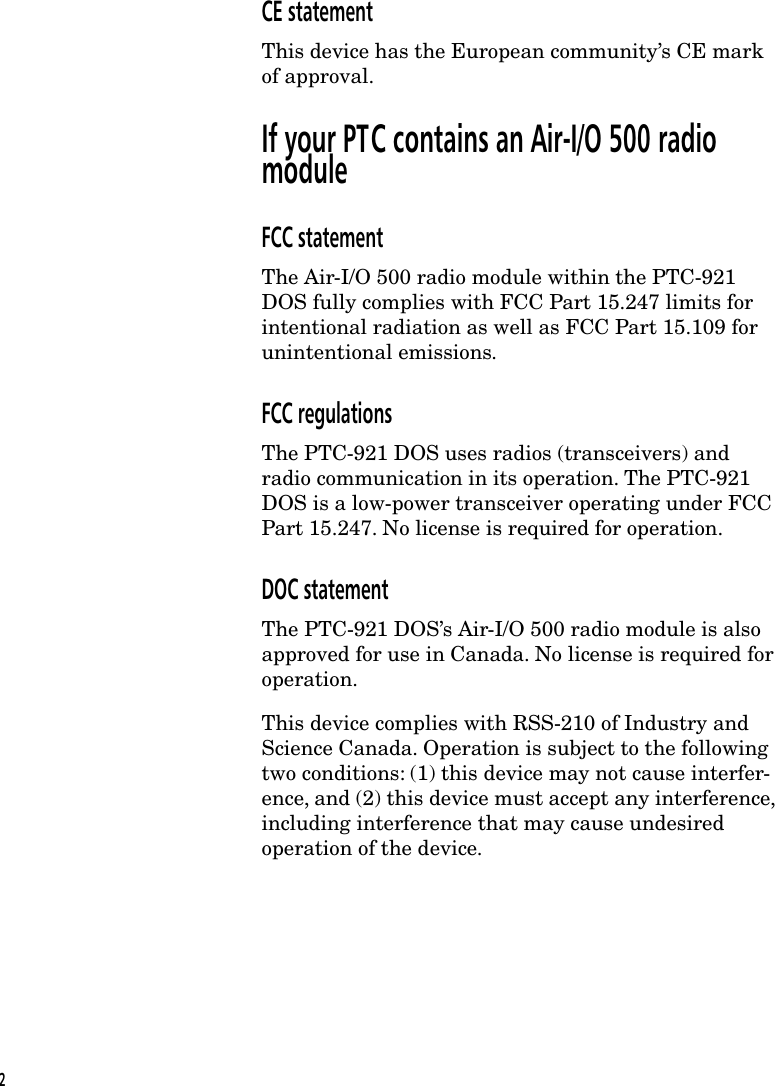
CE statementThis device has the European community’s CE markof approval.If your PTC contains an Air-I/O 500 radiomoduleFCC statementThe Air-I/O 500 radio module within the PTC-921DOS fully complies with FCC Part 15.247 limits forintentional radiation as well as FCC Part 15.109 forunintentional emissions.FCC regulationsThe PTC-921 DOS uses radios (transceivers) andradio communication in its operation. The PTC-921DOS is a low-power transceiver operating under FCCPart 15.247. No license is required for operation.DOC statementThe PTC-921 DOS’s Air-I/O 500 radio module is alsoapproved for use in Canada. No license is required foroperation.This device complies with RSS-210 of Industry andScience Canada. Operation is subject to the followingtwo conditions: (1) this device may not cause interfer-ence, and (2) this device must accept any interference,including interference that may cause undesiredoperation of the device.2
Safety information 2Using and disposing of lithium-ion batteriesFollow these guidelines when handling the PTC’slithium-ion battery pack:•Do not expose the battery pack to water, metalobjects, direct sunlight, extreme heat, or fire.•Do not attempt to disassemble the battery pack.•Do not handle a damaged or leaking battery pack.Lithium-ion batteries contain chemically activematerials that are hazardous to the environment;therefore, they must be disposed of properly. Neverattempt to incinerate a lithium-ion battery; doingso could cause it to explode. Telxon urges you tocontact the Environmental Protection Agency, theDepartment of Natural Resources, a local hazardouswaste disposal agency, or the Telxon CustomerSupport Center at 1-800-800-8010 for assistanceprior to disposing of your lithium-ion batteries.If your PTC contains a radioThis device is compliant to the ANSI C95.1 (1992)Standard for Safety Levels with Respect to HumanExposure to Radio Frequency Electromagnetic Fieldsper FCC Docket 93-62.3
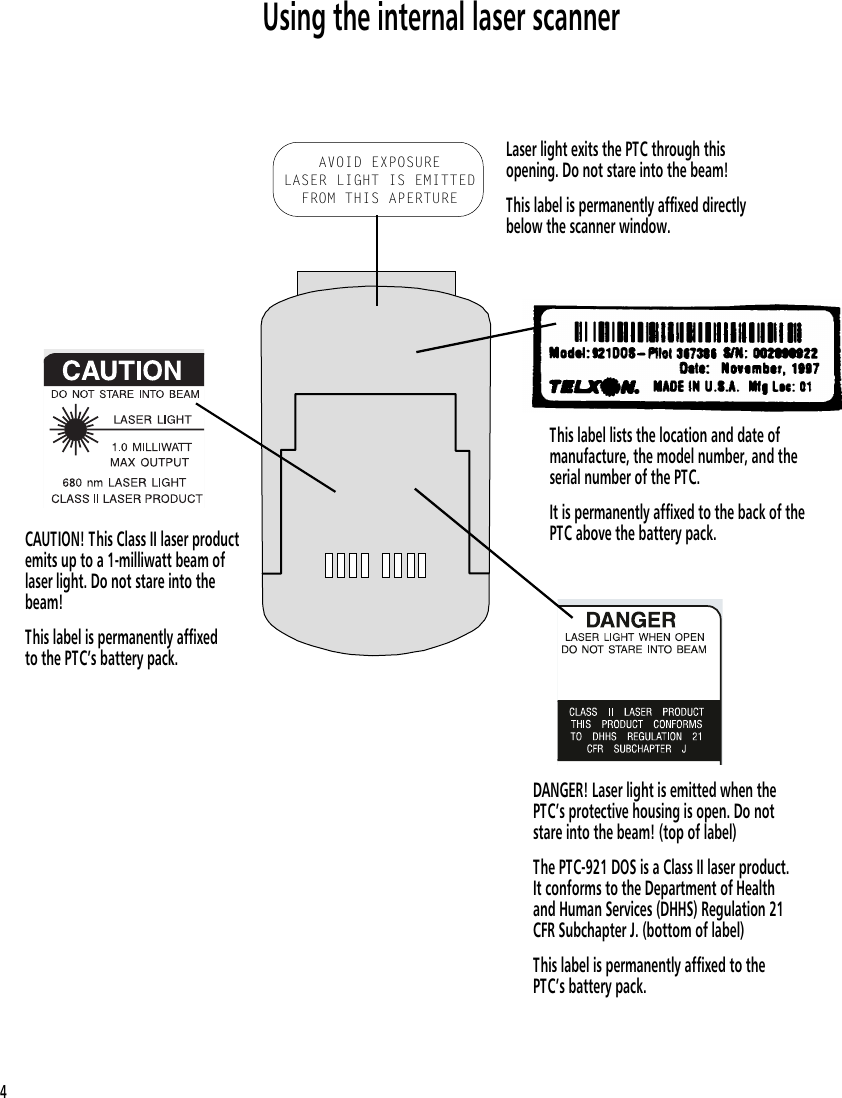
Using the internal laser scannerDANGER! Laser light is emitted when thePTC’s protective housing is open. Do notstare into the beam! (top of label)The PTC-921 DOS is a Class II laser product.It conforms to the Department of Healthand Human Services (DHHS) Regulation 21CFR Subchapter J. (bottom of label)This label is permanently affixed to thePTC’s battery pack.CAUTION! This Class II laser productemits up to a 1-milliwatt beam oflaser light. Do not stare into thebeam!This label is permanently affixedto the PTC’s battery pack.This label lists the location and date ofmanufacture, the model number, and theserial number of the PTC.It is permanently affixed to the back of thePTC above the battery pack.AVOID EXPOSURELASER LIGHT IS EMITTEDFROM THIS APERTURELaser light exits the PTC through thisopening. Do not stare into the beam!This label is permanently affixed directlybelow the scanner window.4
Scope of the manual 3This manual provides general information on thePTC-921 DOS’s parts, features, and accessories. Italso explains how to operate and maintain the PTC.This manual does not include the specific operatinginstructions for your organization’s unique datacollection program. Operating instructions andtraining should be available from your organization.Document conventionsThe following conventions are used throughout thismanual.WarningsWarnings indicate potential bodily injury or death.They are set off in the left-hand columns of thismanual by the following symbol: $.CautionsCautions indicate potential damage to equipment.They are set off in the left-hand columns of thismanual by the following symbol: !.NotesNotes provide supplementary information. They areset off in the left-hand columns of this manual andare not preceded by a symbol.5
Overview of the PTC-921 DOS 4The Telxon PTC-921 DOS is a battery-powered, hand-held computer used to collect, store, and transmitdata. It has a built-in laser scanner and may containan Air-I/O 500 frequency-hopping radio module.The PTC-921 DOS automates your data collectionprocedures and is custom programmed to efficientlyhandle your organization’s unique data collection jobs. The PTC runs a program specially designed to collectdata for your organization. This program leads youthrough the data collection procedure with a series ofdisplay messages, prompts, and beeps. Messages tellyou when you make an error and provide informationon the program or the PTC’s status. Prompts andbeeps tell you when to enter data, what type of data toenter, and when you complete certain operations.Entering dataEntering data into the PTC-921 DOS is easy. You cankey in data through the keyboard or scan bar codeswith the internal laser scanner. Additionally, data canbe received through an optional internal frequency-hopping radio.Through the keyboardEntering data through the keyboard is similar tooperating a calculator. As you press the numeric keys,the corresponding number appears on the screen.Pressing the ENT key stores data in the PTC’smemory.6
With the internal laser scannerA bar code is a series of verticalbars and spaces used to encodeinformation in a machine-readableform. They are used on nearly everyitem in business today.A second method of entering data is with the PTC’sinternal laser scanner. When you scan a bar code thePTC is programmed to read, the PTC and scannerinterpret the data and store it in the PTC’s memory.Via the radioRefer to pages 10 and 17 for information on radiocommunication.Storing dataData entered into the PTC can be stored in files in thePTC’s memory.Each file holds a separate group of application-relateddata. For example, a PTC used to collect many typesof data (sales orders, inventory changes, and employeehours) would store all data relating to sales orders inone file, all data relating to inventory changes inanother, and all data relating to employee hours instill another.Communicating dataAfter collecting the data, the PTC must transmit itto a host computer for processing to make it usefulto you and your organization. The PTC-921 DOScan transmit data via an optional communicationcradle or through its optional internal radio.Once the host computer receives the data from thePTC, it uses that data to update its master files andrecords. In some cases, the host computer may eventransmit data back to the PTC, asking you, as thePTC’s operator, to perform a new task.7
Getting started 5Unpacking the PTC-921 DOSAny additional accessories areshipped separately.The PTC-921 DOS is shipped in a single boxcontaining•a PTC-921 DOS,•a 950-mAhr lithium-ion battery pack,•a Guide to Maintaining Nickel-cadmium andLithium-ion Batteries,•a PTC-921 DOS Read-Me-First Sheet, and•a PTC-921 DOS User’s Guide.1. Remove the PTC from the box.2. Remove all packing material from the PTC. Savethe packaging in case the PTC is ever stored orshipped to Telxon for service.3. Check the contents of the package to make sureyou have received everything ordered.If anything is missing ordamaged, notify your Telxonsales representative.4. Check the PTC for shipping damage. Payparticular attention to the PTC’s case, displayscreen, and scanner lens.Installing the battery packIf your PTC was not shipped with the battery packinstalled, follow the instructions in Chapter 10 toinsert the battery pack.8
Charging the battery packCharge the PTC-921 DOS’s lithium-ion battery packfor 3 to 4 hours when you first receive the PTC andwhenever the battery pack becomes weak. A low-battery message displays on the PTC’s screen whenthe battery pack is running low. Refer to the SC-921DOS User’s Guide for charging instructions.Turning on the PTCPress one of the top three keys (ESC, SCAN, or ENT)to turn on the PTC-921 DOS.Checking the PTC1. Make sure the PTC is turned on.2. Look at the PTC’s display screen. What appearson the screen depends on the program yourorganization uses.If the PTC is operating correctly, you should notsee or hear any of the following:•A low-battery warning•A blank display screen•Any warning beepsRepeat the steps in this section if the PTC-921DOS is not operating properly. If the problempersists, refer to the “Troubleshooting” sectionon page 22.9
Parts 6Figures 1 and 2 on the following pages show anddescribe the external parts of the PTC-921 DOS. Thepart listed below is not shown in either figure.Radio (optional)Your PTC’s application programcontrols the radio. Refer to yourapplication’s manual for details.Your PTC-921 DOS may contain a 2.4-GHz Air-I/O500 frequency-hopping radio module. This radioallows the PTC to interactively communicate inreal-time with a host computer on a radio-based localarea network. It provides secure, interference-freecommunication and does not require a license foroperation.10
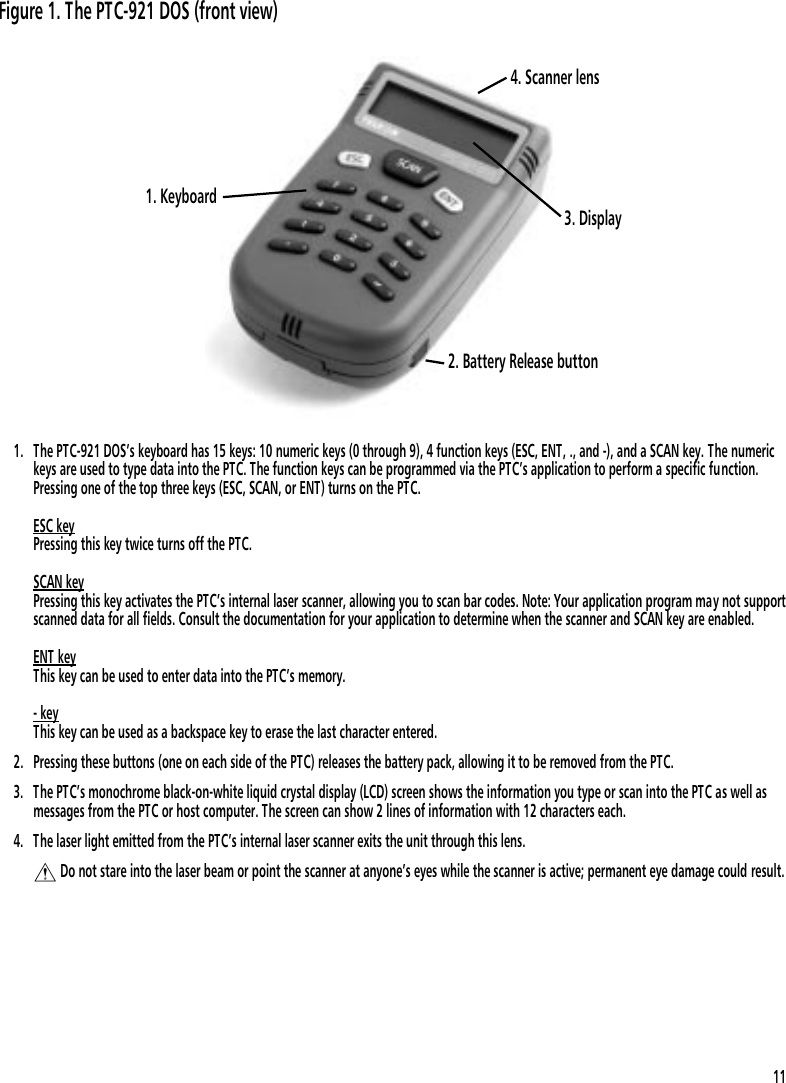
1. The PTC-921 DOS’s keyboard has 15 keys: 10 numeric keys (0 through 9), 4 function keys (ESC, ENT, ., and -), and a SCAN key. The numerickeys are used to type data into the PTC. The function keys can be programmed via the PTC’s application to perform a specific function.Pressing one of the top three keys (ESC, SCAN, or ENT) turns on the PTC.ESC keyPressing this key twice turns off the PTC. SCAN keyPressing this key activates the PTC’s internal laser scanner, allowing you to scan bar codes. Note: Your application program may not supportscanned data for all fields. Consult the documentation for your application to determine when the scanner and SCAN key are enabled.ENT keyThis key can be used to enter data into the PTC’s memory.- keyThis key can be used as a backspace key to erase the last character entered.2. Pressing these buttons (one on each side of the PTC) releases the battery pack, allowing it to be removed from the PTC.3. The PTC’s monochrome black-on-white liquid crystal display (LCD) screen shows the information you type or scan into the PTC as well asmessages from the PTC or host computer. The screen can show 2 lines of information with 12 characters each.4. The laser light emitted from the PTC’s internal laser scanner exits the unit through this lens.$ Do not stare into the laser beam or point the scanner at anyone’s eyes while the scanner is active; permanent eye damage could result.3. Display1. Keyboard4. Scanner lens2. Battery Release buttonFigure 1. The PTC-921 DOS (front view)11
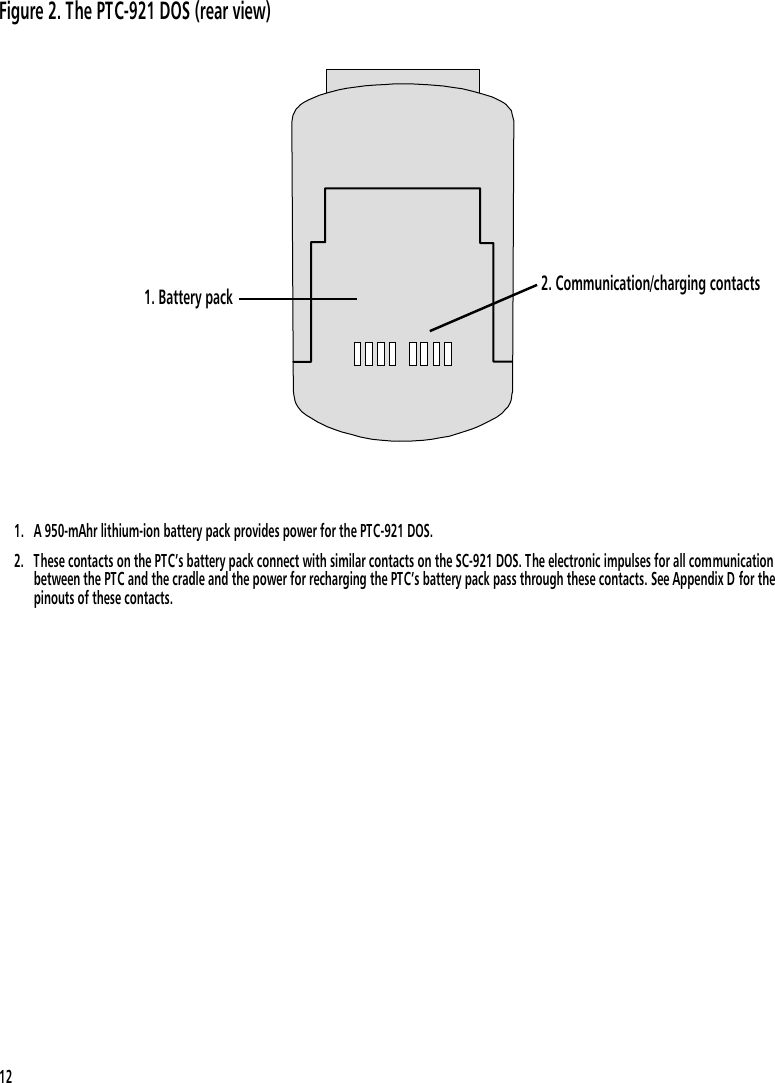
1. A 950-mAhr lithium-ion battery pack provides power for the PTC-921 DOS.2. These contacts on the PTC’s battery pack connect with similar contacts on the SC-921 DOS. The electronic impulses for all communicationbetween the PTC and the cradle and the power for recharging the PTC’s battery pack pass through these contacts. See Appendix D for thepinouts of these contacts.1. Battery pack 2. Communication/charging contactsFigure 2. The PTC-921 DOS (rear view)12
Features 7Autodiscrimination between bar codesSee Appendix C for a list ofthe bar-code types your PTCis programmed to read.Your PTC-921 DOS’s application program can readand automatically discriminate between up to sixdifferent bar-code types.Automatic offRefer to the RAMSaver ApplicationDevelopment Manual for program-ming instructions.To conserve battery power, the PTC-921 DOS auto-matically turns itself off after approximately 1 minuteof inactivity. The exact length of time depends on howyour application program has been configured.Automatic return at onWhen you turn off the PTC-921 DOS (or when thePTC turns itself off), it remembers where it was in theapplication. Then when you turn the PTC back on, itreturns to that same point in the application. You donot need to review what you have done or performany other start-up function to find your place.Backup system! Do not store the PTC for overtwo months without charging orreplacing the battery pack. Boththe main battery and the supercapacitor will drain, and any dataor programs in the PTC’s memorywill be lost.The PTC’s super capacitor provides enough power toprotect data stored in the PTC’s memory when thebattery pack is being replaced or if it runs out ofpower. This backup system provides approximately20 minutes of protection when the battery pack isremoved.13
BeeperThe PTC’s beeper is used by the PTC and yourapplication to warn you of problems or to prompt youto take an action. For example, if your applicationprogram has temporarily turned off a key, the PTCwill beep if you press that key.ClockThe PTC’s clock can be set using theMS-DOS TIME and DATE commands.The PTC-921 DOS has a built-in clock that keepstrack of the date (month, day, year, and day of theweek) and the time (hours, minutes, seconds, andtenths of seconds). The clock operates continuously.How the clock is used depends on your applicationprogram. For example, the PTC can use the clock toshow the date and time on its screen or to time-stampa file.CommunicationThe PTC-921 DOS is capable of communicating witha host computer via its internal radio or through anoptional communication cradle. See the manual orinstructions provided by your organization for theproper communication procedure for your application.MemoryThe PTC-921 DOS has two types of memory: read-onlymemory (ROM) and random access memory (RAM).Refer to the manual shipped withthe cradle for flashing instructions.The PTC’s ROM is contained on an electronic chipcalled a flash EPROM, which can be reprogrammedwhile inside the PTC (via an optional communicationcradle). It is used to store the PTC’s operating systemand application program.14
RAM is used to store data entered into the PTC andapplication configuration settings. Data stored inRAM can be easily read, written, and changed. It isalso volatile. All data in RAM will be lost if the PTC’sbattery pack and backup system run out of power.The amount of memory in your PTC determines howmuch data you can enter before you have to send itto a host computer or print it. Various amounts ofmemory are available from Telxon, and the amountactually installed in your PTC has been determinedby your organization’s needs.15
Scanning bar-code labels 8The PTC-921 DOS is programmed to automaticallyrecognize, read, and discriminate between up to sixbar-code types. See the information provided by yourorganization and Appendix C for a list of the bar-codetypes your PTC is programmed to read.Follow this procedure to scan bar-code labels with thePTC-921 DOS’s built-in laser scanner.$ Do not stare into the PTC’slaser beam or point the scanner atanyone’s eyes. Eye damage couldresult.1. Place the PTC-921 DOS in the palm of your hand.Hold it in a comfortable position with the scannerlens facing the label to be scanned. The scannercan be at an angle to the label.The maximum distance from the scanner lens tothe label depends on the size of the label beingscanned. See Appendix C for the recommendedscanning distance.Your application program may notsupport scanned data for all fields.Consult the documentation for yourapplication to determine when thescanner and SCAN key are enabled.2. Press and hold down the SCAN key to startscanning.3. Watch the line of light made by the scanner as itscans the bar code.4. Hold the PTC so that the scanning line isperpendicular to the bars in the bar-code label.Also, make sure that the line passes over all ofthe bars.If the PTC-921 DOS fails to read alabel, refer to the “Troubleshooting”section on page 22.The PTC beeps each time it decodes a bar-codelabel.16
Communicating data 9The PTC-921 DOS is able to communicate with otherPTCs and host computers. It can both send andreceive data and instructions. Communication iscontrolled by your organization’s application program.See the manual or instructions provided by yourorganization for details on conducting communicationsessions.The PTC-921 DOS is designed to use a communicationcradle as its primary means of communicating with ahost computer, but it can also communicate via itsinternal radio.Using a communication cradleSee the manual provided with thecradle for instructions on how toinstall the PTC and operate thecradle.The PTC-921 DOS can be installed in an optionalSC-921 DOS Single-bay Communication Cradle, whichprovides battery pack charging and a communicationinterface to a host computer. The communication/charging contacts on the PTC’s battery pack connectwith similar contacts in the SC-921 DOS to enable thetransfer of electronic impulses between the two units.Using the radioAll radio communication is controlled by your organ-ization’s application program. See the instructionsprovided with the program for information.17
Replacing the battery pack 10Use the procedures in this section to remove a weaklithium-ion battery pack from the PTC-921 DOS andreplace it with a new one. A low-battery messagedisplays on the PTC’s screen when the battery pack isrunning low on power.Removing the battery pack1. Turn off the PTC.! Do not leave the PTC without abattery pack for longer than 20minutes; all data and programs inthe PTC’s memory will be lost.2. Press the Battery Release buttons on the sides ofthe PTC while sliding the battery pack off of theunit.3. Refer to the “Safety information” section on page3 for instructions on properly disposing of yourlithium-ion battery pack.Installing a new battery pack1. Make sure the PTC is off.2. Line up the battery pack with the opening in theback of the PTC. Make sure the flat side of thebattery pack is facing the PTC and the roundededge is on the bottom.3. Slide the battery pack onto the back of the PTCuntil it clicks into place.18
Maintaining the PTC-921 DOS 11Operating conditionsThe PTC-921 DOS is designed to minimize theintrusion of dust, dirt, and moisture. An optionalholster, listed in Appendix B, is recommended whenusing the PTC in exceptionally harsh environments.The PTC-921 DOS can be operated at temperaturesbetween 32 degrees F (0 degrees C) and 122 degrees F(50 degrees C).Handling the PTCThe following information will help to ensure youreceive safe, reliable, and trouble-free service fromyour PTC-921 DOS.•Do not point the PTC’s scanner at anyone’s eyes,and do not stare into the laser beam. Permanenteye damage could result.•Do not open the PTC’s case. Only a trainedtechnician can service the parts inside the PTC.•Make sure the PTC is off before you replace thebattery pack.•Use only a Telxon-approved battery pack. Do notattempt to connect any electrical device that is notpart of your PTC-921 DOS system to the PTC.•If you store a PTC containing a lithium-ion batterypack in below-freezing temperatures for more than1 hour, do not charge the battery pack until itwarms up to room temperature.•Protect the PTC from excessive heat, cold, andmoisture and from harsh, dirty environments.19
Storing the PTC! Do not store the PTC for overtwo months without charging thebattery pack. Any data in the PTC’smemory will be lost.•Do not store the PTC-921 DOS in temperaturesbelow –22 degrees F (–30 degrees C) or above 158degrees F (70 degrees C).•Do not store the PTC in a damp or humidenvironment.1. Transfer any data stored in the PTC to a hostcomputer. See the manual or instructions for yourorganization’s application program for directions.2. Make sure you have a copy of any programsstored in the PTC.3. Recharge the PTC’s battery pack or replace itwith a charged pack.4. Pack the PTC in the original packing material orin a padded box and put it in a safe place, awayfrom dust, dirt, humidity, and excessive cold.5. Charge the PTC’s battery pack every two months.Cleaning the PTCEquipment required:•A soft, lint-free cloth•A nonabrasive liquid cleaner such as Windex•Isopropyl alcohol or a battery contact cleaner! Do not soak the cloth and donot spray or pour cleaning liquidsdirectly onto the PTC.To clean the PTC, slightly moisten a soft, clean,lint-free cloth with a mild, nonabrasive cleaner andwipe the outside surfaces.! Be careful not to scratch thescanner lens when you clean it.Scratches can reduce the scanner’seffectiveness.To clean the PTC’s display and scanner lens, slightlymoisten a soft, clean, lint-free cloth with a mild glasscleaner and wipe. Do not use a paper towel on anypart of the PTC, including the display and scannerlens.20
Telxon recommends cleaning thecontacts at least once a week andmore often if necessary.To clean the battery pack’s communication/chargingcontacts, use a cloth moistened with isopropyl alcoholor a battery contact cleaner.If the PTC becomes extremely dirty or if liquids, dirt,or other foreign materials get inside the case, contactyour Telxon service representative.Servicing the PTCDo not attempt to service the PTC. Only a trainedTelxon technician may service the PTC. Follow theprocedure set up by your organization to have thePTC serviced properly.21
Troubleshooting 12If you experience any of the problems in this section,follow the instructions provided.The PTC does not turn on•Charge or replace the PTC’s lithium-ion batterypack.•Contact your Telxon service representative.The laser scanner fails to read a labelSee Appendix C for a list ofsupported bar-code types.•Make sure the bar-code label you are trying toscan is one of the bar-code types your PTC isprogrammed to recognize.See Appendix C for recommendedscanning distances.•Move the laser scanner closer to or farther awayfrom the bar-code label. You may not be scanning atthe correct distance.•Change the angle of the laser scanner to thebar-code label. You may be too far above or belowthe bar-code label or too far to the side to scanproperly.See page 20 for instructions. •Clean the scanner lens.•The PTC’s application program may not supportscanned data at this particular field. Consult thedocumentation for the PTC’s application programto determine when the scanner and SCAN key areenabled.•Point the scanner at a blank surface and pressthe SCAN key. Look for the scanning line thatappears on the blank surface when the scanner isoperating. If no scanning line appears, follow yourorganization’s procedure to have the scannerserviced.22
Your radio fails to establish contact•Change your location by a few feet and transmitagain.•Recharge or replace the PTC’s lithium-ion batterypack.•Make sure the receiving equipment is turned onand is properly connected to the host computer.•If the PTC still does not establish contact, followyour organization’s procedure to have the PTCserviced.Other problemsIf you experience any other problems with yourPTC-921 DOS that you cannot solve, notify yourTelxon service representative or contact the TelxonCustomer Support Center at 1-800-800-8010.23
24
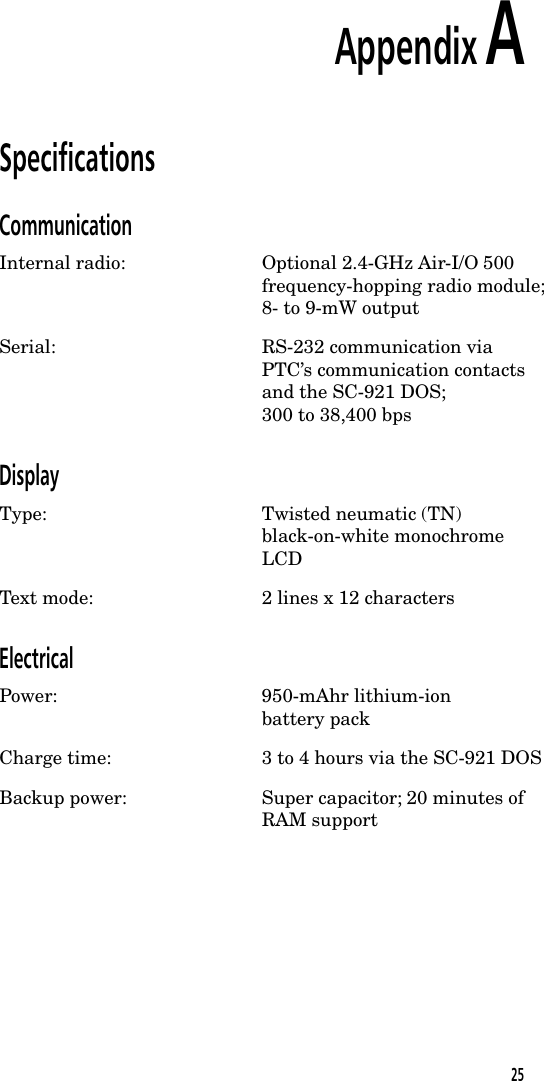
Appendix ASpecificationsCommunicationInternal radio: Optional 2.4-GHz Air-I/O 500frequency-hopping radio module;8- to 9-mW outputSerial: RS-232 communication viaPTC’s communication contactsand the SC-921 DOS;300 to 38,400 bpsDisplayType: Twisted neumatic (TN)black-on-white monochromeLCDText mode: 2 lines x 12 charactersElectricalPower: 950-mAhr lithium-ionbattery packCharge time: 3 to 4 hours via the SC-921 DOSBackup power: Super capacitor; 20 minutes ofRAM support25
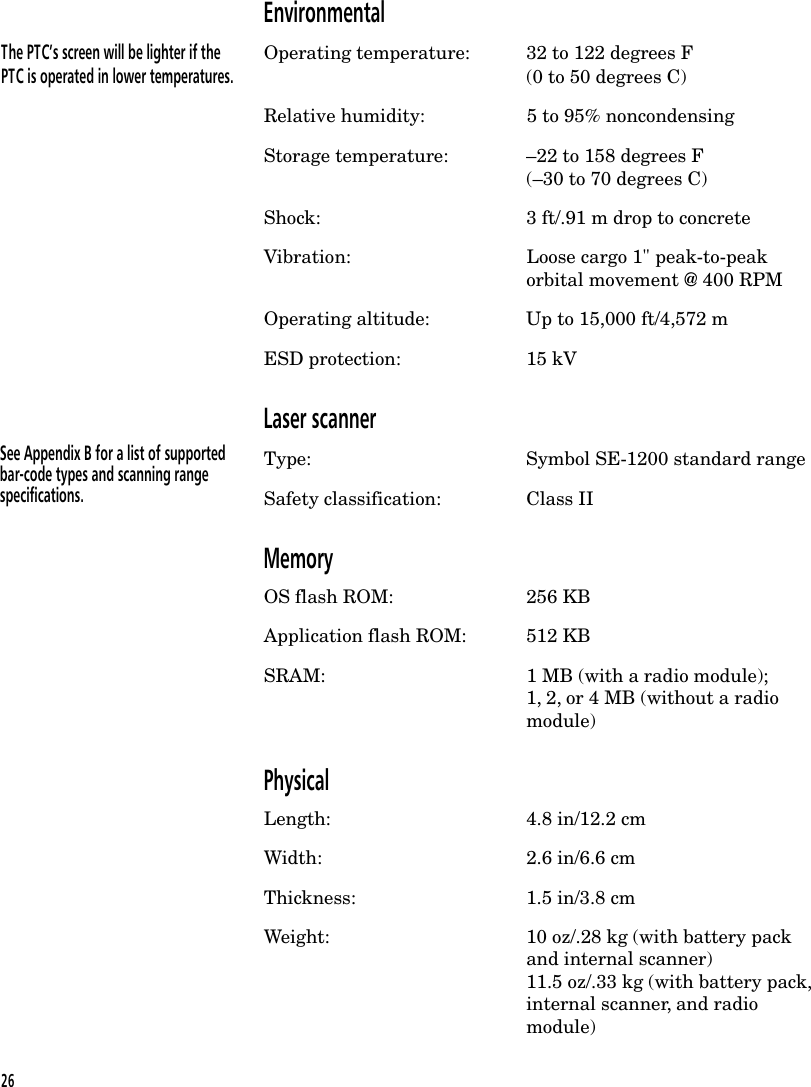
EnvironmentalThe PTC’s screen will be lighter if the Operating temperature: 32 to 122 degrees FPTC is operated in lower temperatures. (0 to 50 degrees C)Relative humidity: 5 to 95% noncondensingStorage temperature: –22 to 158 degrees F(–30 to 70 degrees C)Shock: 3 ft/.91 m drop to concreteVibration: Loose cargo 1" peak-to-peakorbital movement @ 400 RPMOperating altitude: Up to 15,000 ft/4,572 mESD protection: 15 kVLaser scannerType: Symbol SE-1200 standard rangeSafety classification: Class IIMemoryOS flash ROM: 256 KBApplication flash ROM: 512 KBSRAM: 1 MB (with a radio module);1, 2, or 4 MB (without a radiomodule)PhysicalLength: 4.8 in/12.2 cmWidth: 2.6 in/6.6 cmThickness: 1.5 in/3.8 cmWeight: 10 oz/.28 kg (with battery packand internal scanner)11.5 oz/.33 kg (with battery pack,internal scanner, and radiomodule)See Appendix B for a list of supportedbar-code types and scanning rangespecifications.26
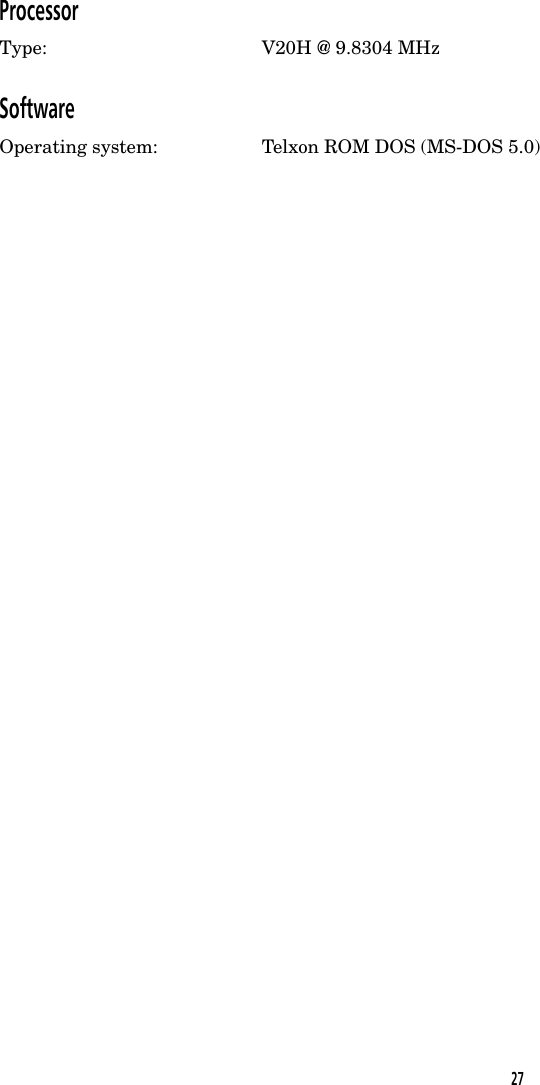
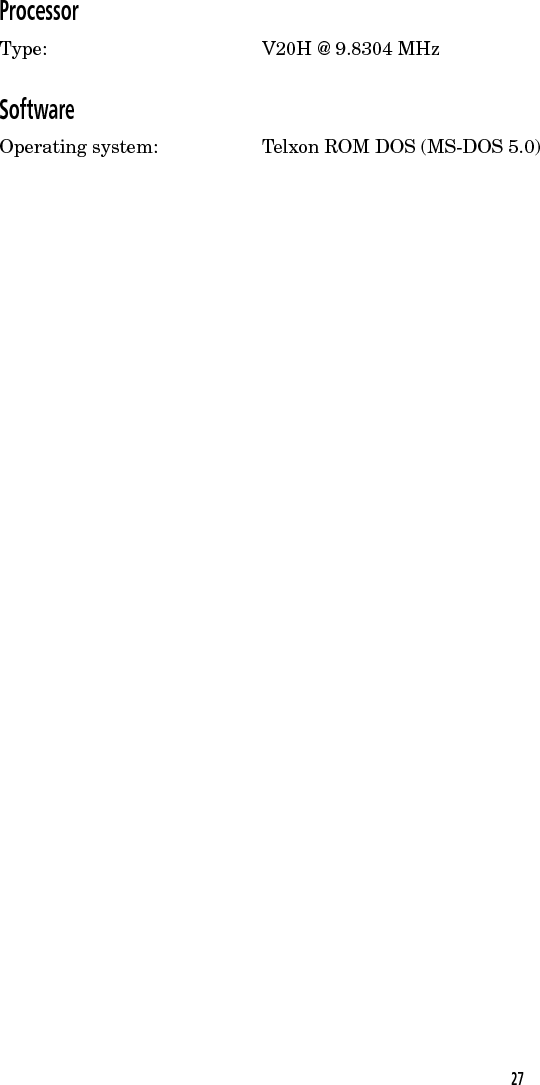
ProcessorType: V20H @ 9.8304 MHzSoftwareOperating system: Telxon ROM DOS (MS-DOS 5.0)27
28
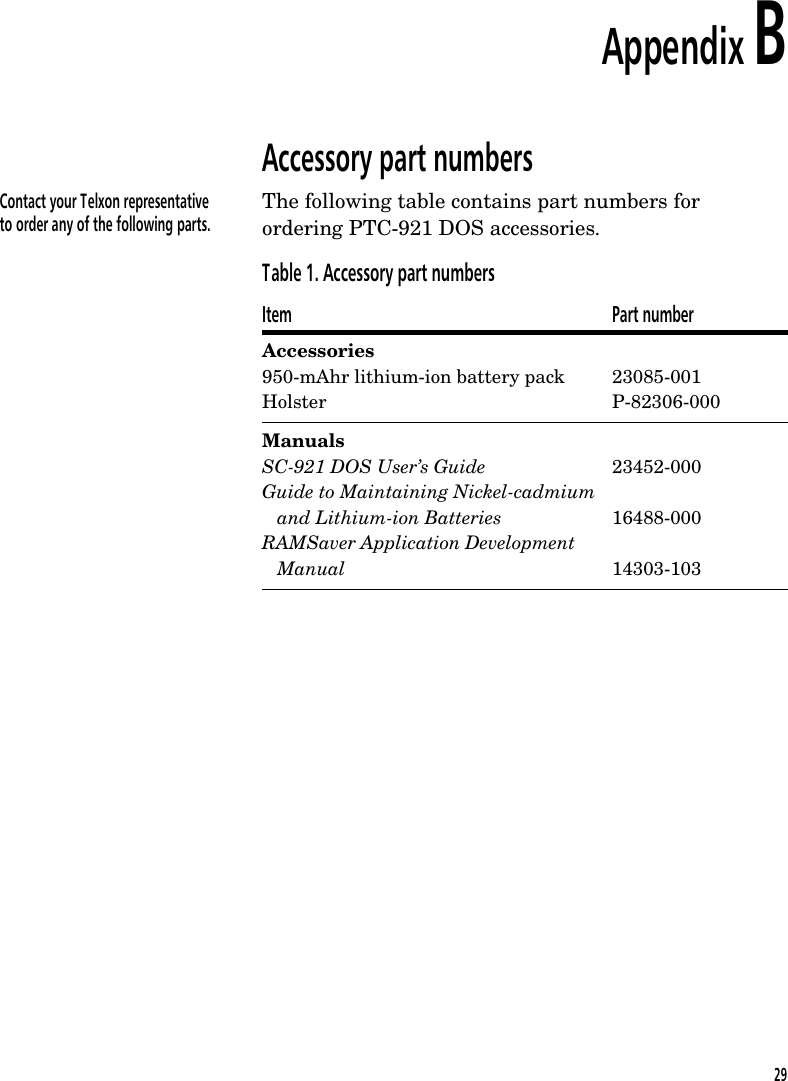
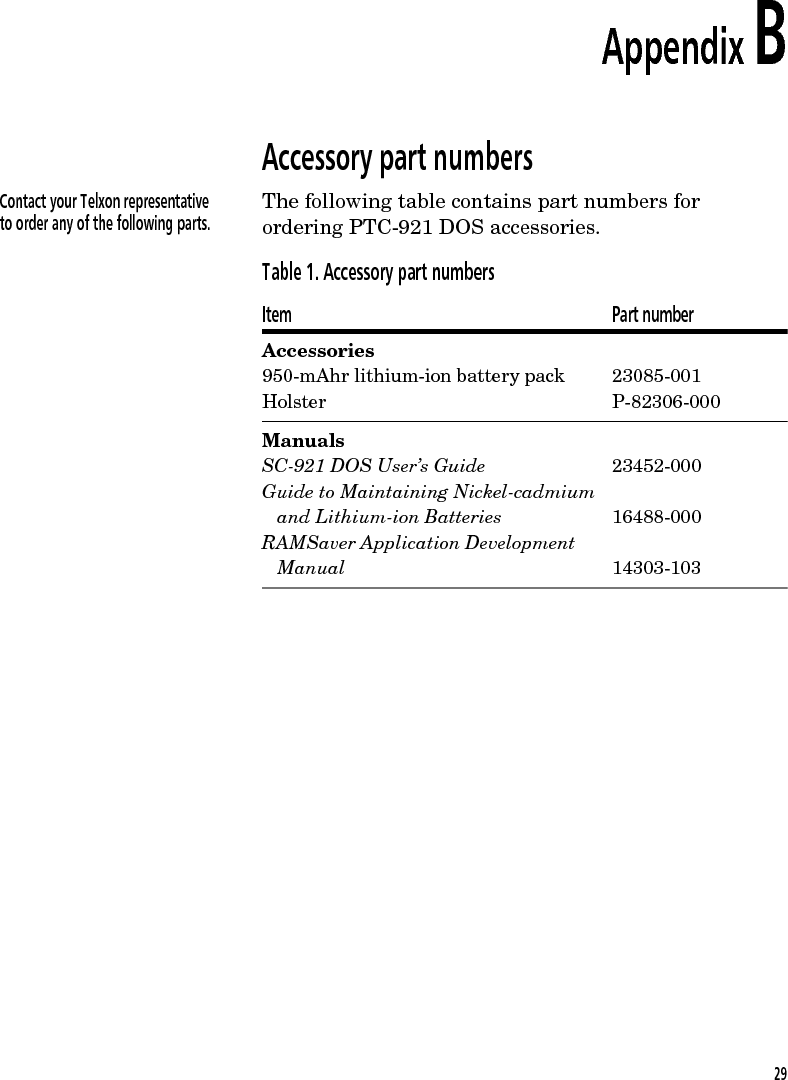
Appendix BAccessory part numbersContact your Telxon representativeto order any of the following parts.The following table contains part numbers forordering PTC-921 DOS accessories.Table 1. Accessory part numbersItem Part numberAccessories950-mAhr lithium-ion battery packHolster23085-001P-82306-000ManualsSC-921 DOS User’s GuideGuide to Maintaining Nickel-cadmiumand Lithium-ion BatteriesRAMSaver Application DevelopmentManual23452-00016488-00014303-10329
30
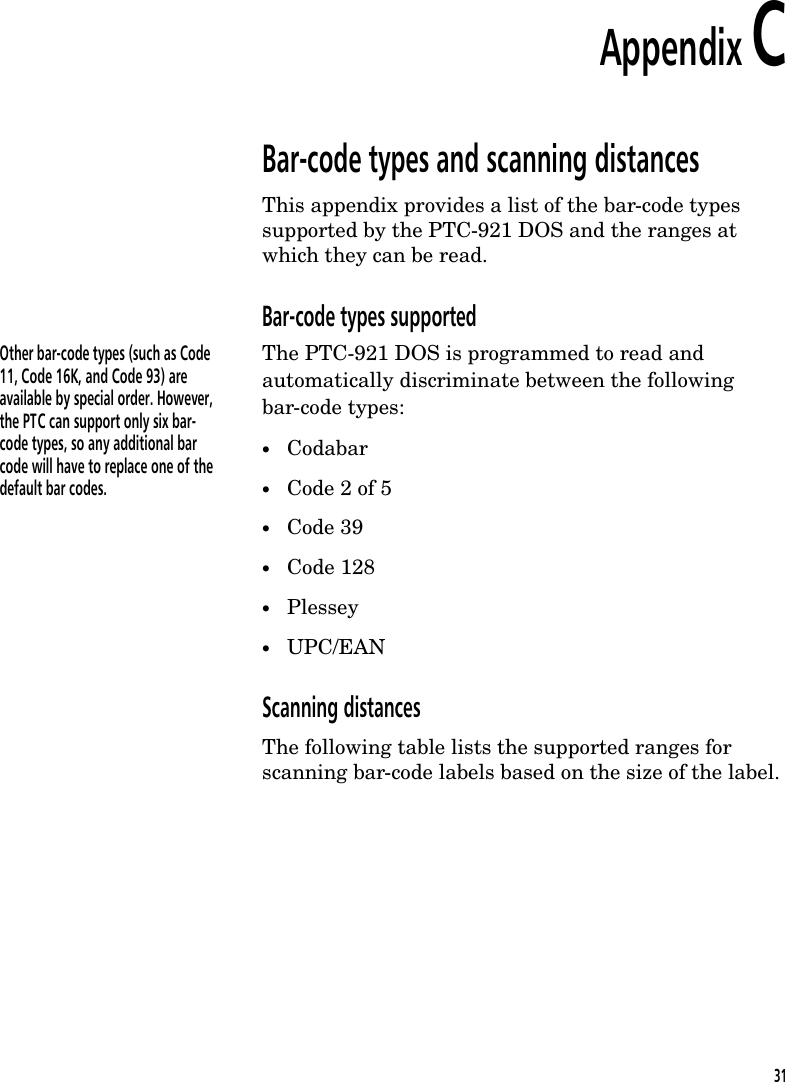
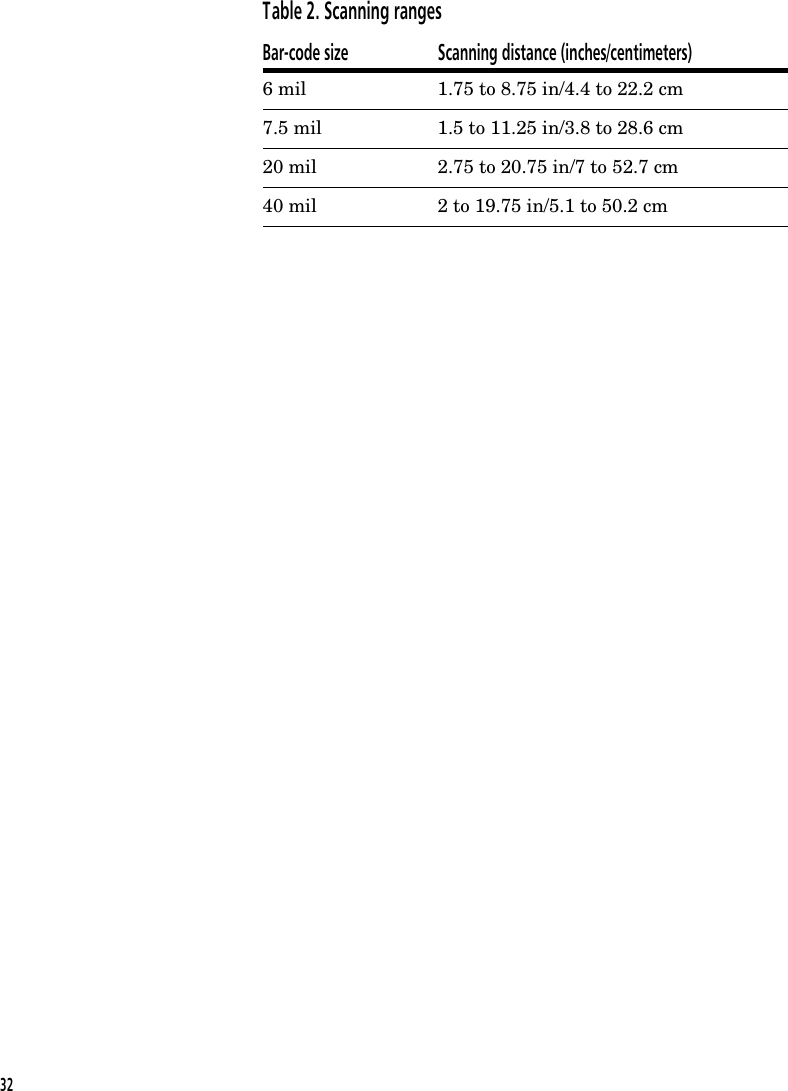
Appendix CBar-code types and scanning distancesThis appendix provides a list of the bar-code typessupported by the PTC-921 DOS and the ranges atwhich they can be read.Bar-code types supportedOther bar-code types (such as Code11, Code 16K, and Code 93) areavailable by special order. However,the PTC can support only six bar-code types, so any additional barcode will have to replace one of thedefault bar codes.The PTC-921 DOS is programmed to read andautomatically discriminate between the followingbar-code types:•Codabar•Code 2 of 5•Code 39•Code 128•Plessey•UPC/EANScanning distancesThe following table lists the supported ranges forscanning bar-code labels based on the size of the label.31
Table 2. Scanning rangesBar-code size Scanning distance (inches/centimeters)6 mil 1.75 to 8.75 in/4.4 to 22.2 cm7.5 mil 1.5 to 11.25 in/3.8 to 28.6 cm20 mil 2.75 to 20.75 in/7 to 52.7 cm40 mil 2 to 19.75 in/5.1 to 50.2 cm32
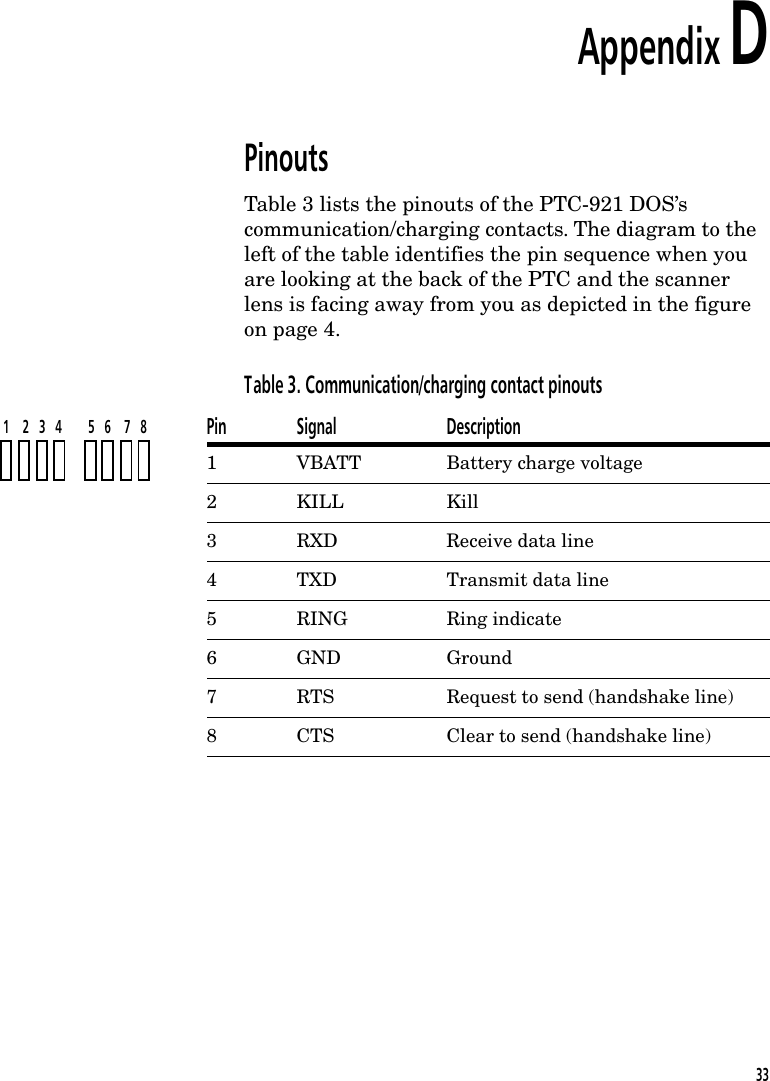
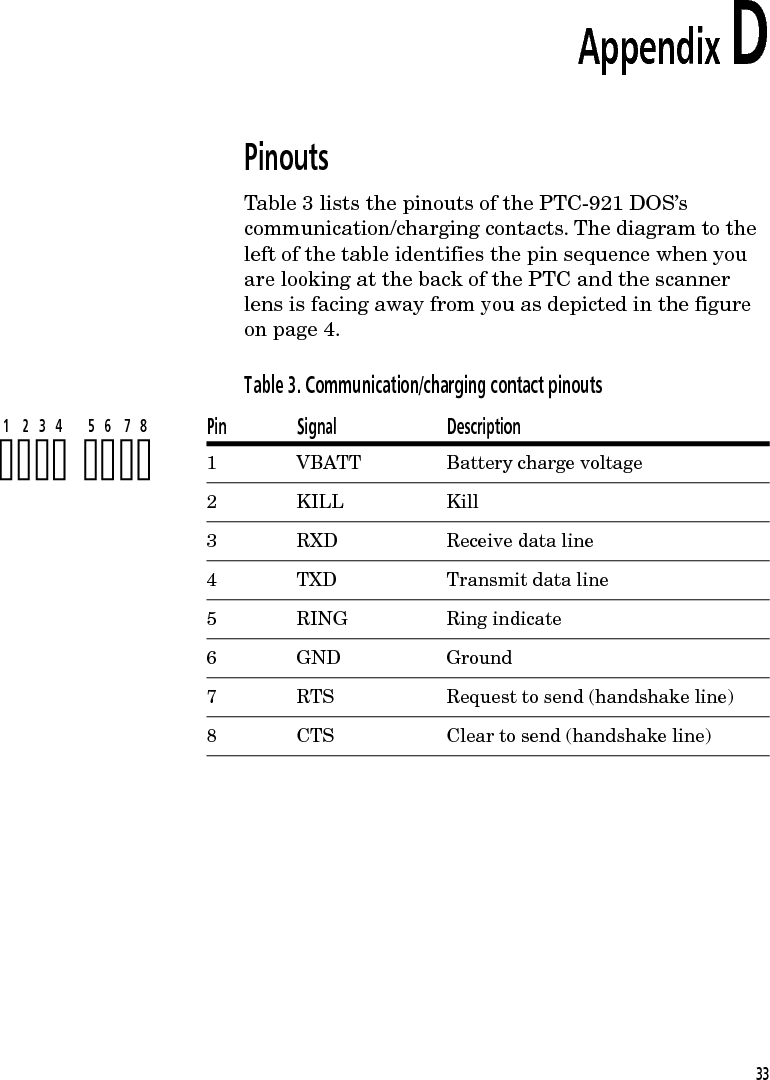
Appendix DPinoutsTable 3 lists the pinouts of the PTC-921 DOS’scommunication/charging contacts. The diagram to theleft of the table identifies the pin sequence when youare looking at the back of the PTC and the scannerlens is facing away from you as depicted in the figureon page 4.Table 3. Communication/charging contact pinoutsPin Signal Description1 VBATT Battery charge voltage2KILL Kill3 RXD Receive data line4 TXD Transmit data line5 RING Ring indicate6GND Ground7 RTS Request to send (handshake line)8 CTS Clear to send (handshake line)1    2   3   4        5   6    7   833
34
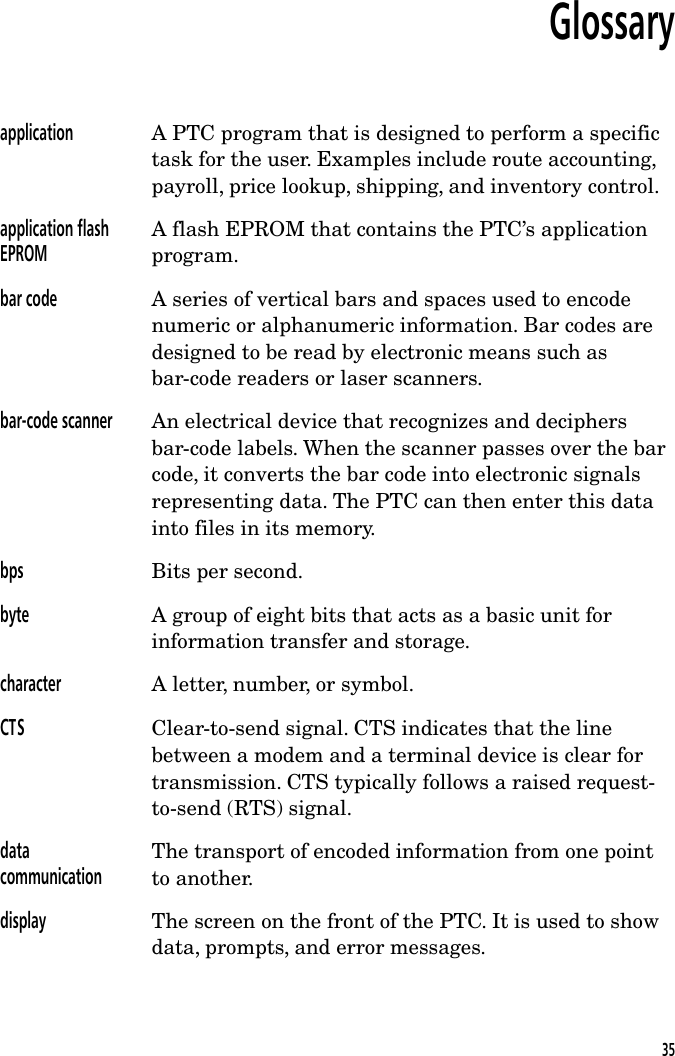
Glossaryapplication A PTC program that is designed to perform a specifictask for the user. Examples include route accounting,payroll, price lookup, shipping, and inventory control.application flashEPROMA flash EPROM that contains the PTC’s applicationprogram.bar code A series of vertical bars and spaces used to encodenumeric or alphanumeric information. Bar codes aredesigned to be read by electronic means such asbar-code readers or laser scanners.bar-code scanner An electrical device that recognizes and deciphersbar-code labels. When the scanner passes over the barcode, it converts the bar code into electronic signalsrepresenting data. The PTC can then enter this datainto files in its memory.bps Bits per second.byte A group of eight bits that acts as a basic unit forinformation transfer and storage.character A letter, number, or symbol.CTS Clear-to-send signal. CTS indicates that the linebetween a modem and a terminal device is clear fortransmission. CTS typically follows a raised request-to-send (RTS) signal.datacommunicationThe transport of encoded information from one pointto another.display The screen on the front of the PTC. It is used to showdata, prompts, and error messages.35
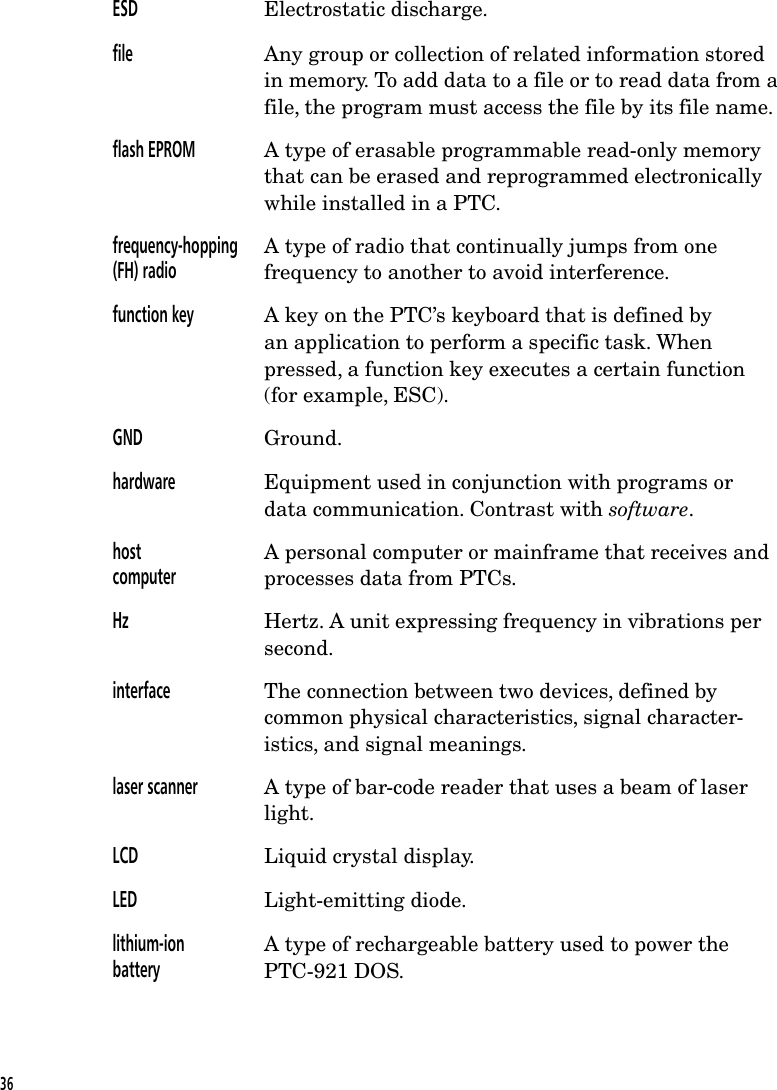
ESD Electrostatic discharge.file Any group or collection of related information storedin memory. To add data to a file or to read data from afile, the program must access the file by its file name.flash EPROM A type of erasable programmable read-only memorythat can be erased and reprogrammed electronicallywhile installed in a PTC.frequency-hopping(FH) radioA type of radio that continually jumps from onefrequency to another to avoid interference.function key A key on the PTC’s keyboard that is defined byan application to perform a specific task. Whenpressed, a function key executes a certain function(for example, ESC).GND Ground.hardware Equipment used in conjunction with programs ordata communication. Contrast with software.hostcomputerA personal computer or mainframe that receives andprocesses data from PTCs.Hz Hertz. A unit expressing frequency in vibrations persecond.interface The connection between two devices, defined bycommon physical characteristics, signal character-istics, and signal meanings.laser scanner A type of bar-code reader that uses a beam of laserlight.LCD Liquid crystal display.LED Light-emitting diode.lithium-ionbatteryA type of rechargeable battery used to power thePTC-921 DOS.36
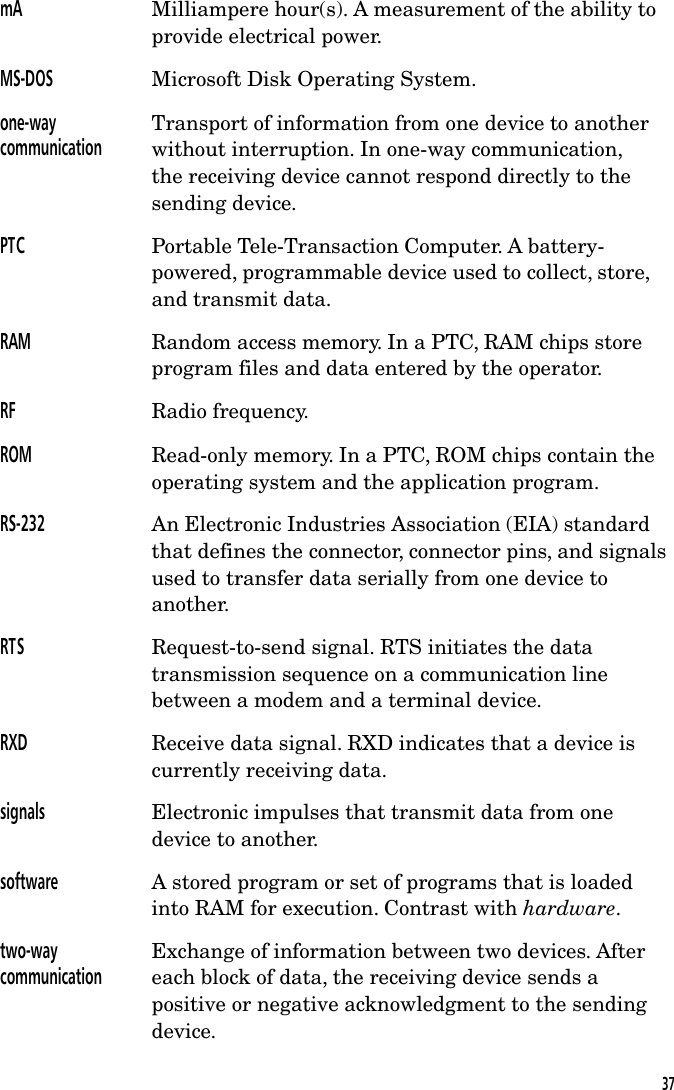
mA Milliampere hour(s). A measurement of the ability toprovide electrical power.MS-DOS Microsoft Disk Operating System.one-waycommunicationTransport of information from one device to anotherwithout interruption. In one-way communication,the receiving device cannot respond directly to thesending device.PTC Portable Tele-Transaction Computer. A battery-powered, programmable device used to collect, store,and transmit data.RAM Random access memory. In a PTC, RAM chips storeprogram files and data entered by the operator.RF Radio frequency.ROM Read-only memory. In a PTC, ROM chips contain theoperating system and the application program.RS-232 An Electronic Industries Association (EIA) standardthat defines the connector, connector pins, and signalsused to transfer data serially from one device toanother.RTS Request-to-send signal. RTS initiates the datatransmission sequence on a communication linebetween a modem and a terminal device.RXD Receive data signal. RXD indicates that a device iscurrently receiving data.signals Electronic impulses that transmit data from onedevice to another.software A stored program or set of programs that is loadedinto RAM for execution. Contrast with hardware.two-waycommunicationExchange of information between two devices. Aftereach block of data, the receiving device sends apositive or negative acknowledgment to the sendingdevice.37
TXD Transmit data signal. TXD indicates that a device iscurrently transmitting data.38
IndexAAccessory part numbers, 29Air-I/O 500 radio module, 10entering data, 7fails to establish contact, 23regulations, 2safety information, 3specifications, 25using, 17Autodiscrimination between bar  codes, 13Automatic off, 13Automatic return at on, 13BBar codes, 31scanning, 7, 16Battery pack, 12charging, 9disposing of, 3installing, 18removing, 18safety information, 3specifications, 25Battery Release buttons, 11, 18Beeper, 14CCharging the battery pack, 9Checking the PTC-921 DOS, 9Cleaning the PTC-921 DOS, 20-21Clock, 14Communicating data, 7, 14, 17Communication/charging contacts, 12,  17pinouts, 33Customer Support Centercontacting, 23DDatacommunicating, 7, 14, 17entering, 6-7storing, 7Display, 11specifications, 25Document conventions, 5cautions, 5notes, 5warnings, 5EEntering data, 6-7FFeatures, 13-15Flash EPROM, 14HHandling the PTC-921 DOS, 1939
KKeyboard, 11entering data, 6- key, 11ENT key, 11ESC key, 11SCAN key, 11, 16LLaser scannerentering data, 7fails to read a bar-code label, 22safety information, 4scanner lens, 11scanning bar-code labels, 7, 16specifications, 26Lithium-ion batteriesSee Battery packMMaintaining the PTC-921 DOS, 19-21Memory, 14-15specifications, 26OOperating conditions, 19Operating temperature, 19, 26Overview of the PTC-921 DOS, 6-7PParts of the PTC-921 DOS, 10-12PTC-921 DOSchecking, 9cleaning, 20-21features, 13-15handling, 19maintaining, 19-21operating conditions, 19overview, 6-7parts, 10-12servicing, 21specifications, 25-27storing, 20troubleshooting, 22-23turning on, 9unpacking, 8RRadioSee Air-I/O 500 radio moduleRAM, 14-15, 26Regulations, 1-2general, 1-2if your PTC contains an Air-I/O 500  radio module, 2ROM, 14, 26SSafety information, 3-4using and disposing of lithium-ion  batteries, 3using the laser scanner, 4using the radio, 3SC-921 DOSusing, 17ScannerSee Laser scannerScanning bar-code labels, 7, 16Scope of the manual, 5Servicing the PTC-921 DOS, 21Shipping damage, 8Specifications, 25-27communication, 25display, 2540
electrical, 25environmental, 26laser scanner, 26memory, 26physical, 26processor, 27software, 27Storage temperature, 20, 26Storing data, 7Storing the PTC-921 DOS, 20Super capacitor, 13TTroubleshooting, 22-23Turning on the PTC-921 DOS, 9UUnpacking the PTC-921 DOS, 841
42
Telxon Corporation/3330 West Market Street, Akron, Ohio 44334/330-664-1000/800-800-8001Part No. 23451-000-02 Printed in U.S.A.!23451-000-02!

Navigation menu