Telxon CM-AER WLAN Transmitter Module User Manual Connection Manager User s Guide

Telxon Corporation WLAN Transmitter Module Connection Manager User s Guide

User manual

Connection ManagerUser’s Guide
Connection ManagerUser’s GuidePart Number: 23547-701-01Release Date: 6/23/98
Telxon is a registered trademark of TelxonCorporation.The information contained in this manual is subjectto change without notice.Telxon Corporation shall not be liable for technical oreditorial omissions or mistakes in this manual norshall it be liable for incidental or consequentialdamages resulting from your use of the informationcontained in this manual.This manual is copyrighted. All rights are reserved.No part of this manual may be photocopied orreproduced in any form without the prior writtenconsent of Telxon.© Copyright 1998 Telxon CorporationAll Rights Reserved.
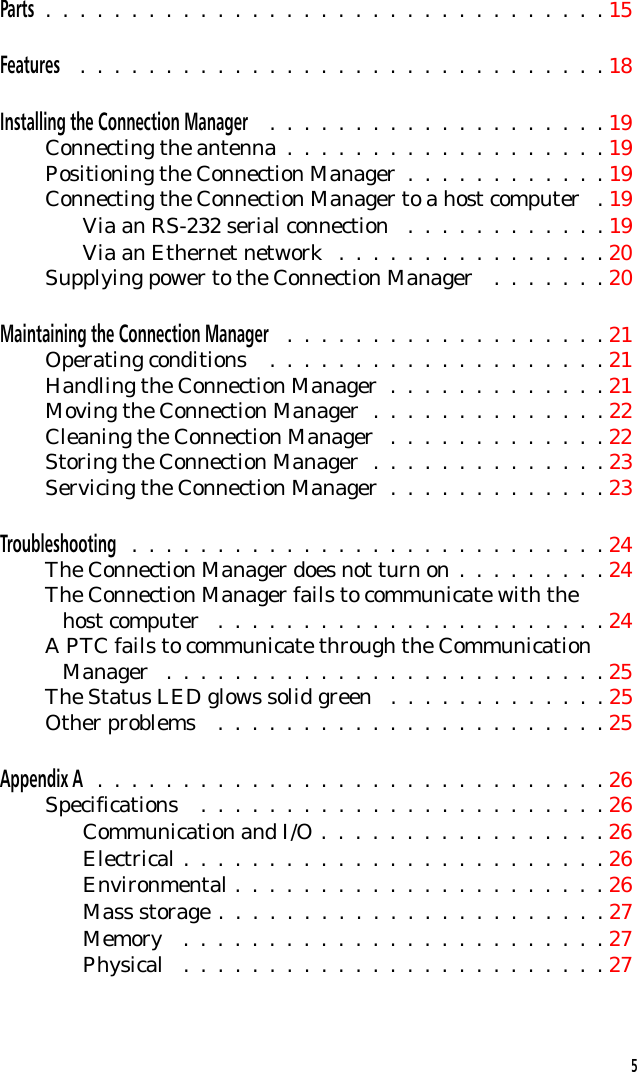
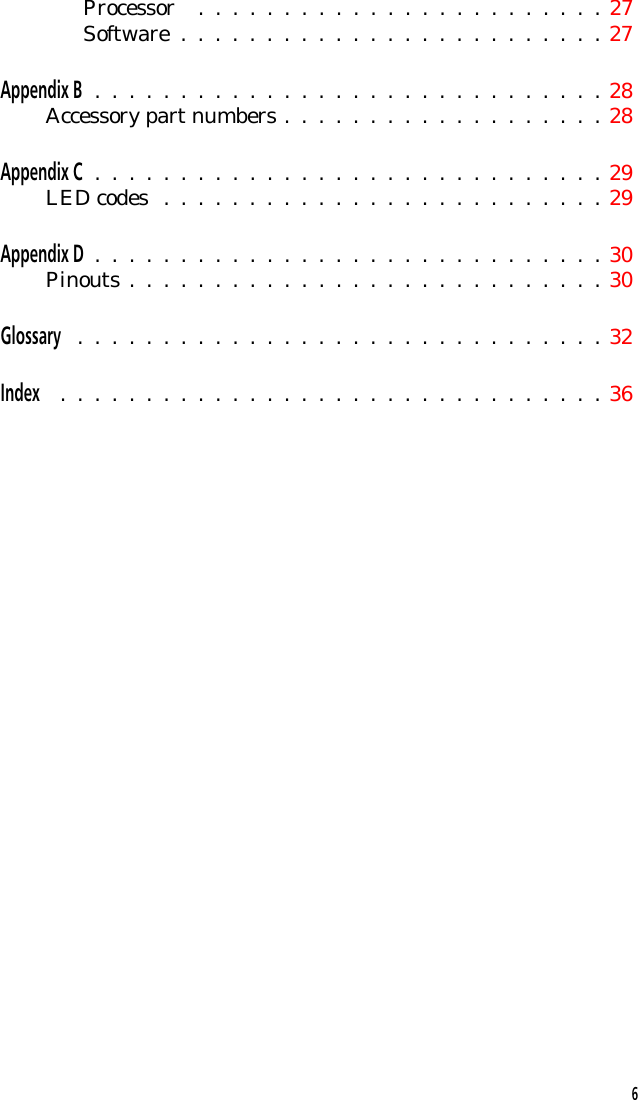
ContentsRegulations  .  .  .  .  .  .  .  .  .  .  .  .  .  .  .  .  .  .  .  .  .  .  .  .  .  .  .  .  .  . 7FCC statement  .  .  .  .  .  .  .  .  .  .  .  .  .  .  .  .  .  .  .  .  .  .  . 7DOC statement  .  .  .  .  .  .  .  .  .  .  .  .  .  .  .  .  .  .  .  .  .  .  . 7CE statement  .  .  .  .  .  .  .  .  .  .  .  .  .  .  .  .  .  .  .  .  .  .  .  . 8MiniNet 2.4 radio regulations  .  .  .  .  .  .  .  .  .  .  .  .  .  .  . 8FCC statement  .  .  .  .  .  .  .  .  .  .  .  .  .  .  .  .  .  .  .  .  . 8FCC regulations .  .  .  .  .  .  .  .  .  .  .  .  .  .  .  .  .  .  .  .  . 8DOC statement  .  .  .  .  .  .  .  .  .  .  .  .  .  .  .  .  .  .  .  .  . 8Safety information  .  .  .  .  .  .  .  .  .  .  .  .  .  .  .  .  .  .  .  .  .  .  .  .  .  .  . 9Scope of the manual  .  .  .  .  .  .  .  .  .  .  .  .  .  .  .  .  .  .  .  .  .  .  .  .  .  . 10Document conventions  .  .  .  .  .  .  .  .  .  .  .  .  .  .  .  .  .  .  . 10Cautions  .  .  .  .  .  .  .  .  .  .  .  .  .  .  .  .  .  .  .  .  .  .  .  .  . 10Notes .  .  .  .  .  .  .  .  .  .  .  .  .  .  .  .  .  .  .  .  .  .  .  .  .  .  . 10Overview of the Connection Manager  .  .  .  .  .  .  .  .  .  .  .  .  .  .  .  .  .  .  . 11Processor .  .  .  .  .  .  .  .  .  .  .  .  .  .  .  .  .  .  .  .  .  .  .  .  .  .  . 11Operating system  .  .  .  .  .  .  .  .  .  .  .  .  .  .  .  .  .  .  .  .  .  . 11Memory  .  .  .  .  .  .  .  .  .  .  .  .  .  .  .  .  .  .  .  .  .  .  .  .  .  .  . 12ROM  .  .  .  .  .  .  .  .  .  .  .  .  .  .  .  .  .  .  .  .  .  .  .  .  .  .  . 12RAM  .  .  .  .  .  .  .  .  .  .  .  .  .  .  .  .  .  .  .  .  .  .  .  .  .  .  . 12Radio  .  .  .  .  .  .  .  .  .  .  .  .  .  .  .  .  .  .  .  .  .  .  .  .  .  .  .  .  . 12Entering data  .  .  .  .  .  .  .  .  .  .  .  .  .  .  .  .  .  .  .  .  .  .  .  . 13Storing data  .  .  .  .  .  .  .  .  .  .  .  .  .  .  .  .  .  .  .  .  .  .  .  .  . 13Getting started  .  .  .  .  .  .  .  .  .  .  .  .  .  .  .  .  .  .  .  .  .  .  .  .  .  .  .  . 14Unpacking the Connection Manager  .  .  .  .  .  .  .  .  .  .  .  . 144
Parts .  .  .  .  .  .  .  .  .  .  .  .  .  .  .  .  .  .  .  .  .  .  .  .  .  .  .  .  .  .  .  .  . 15Features .  .  .  .  .  .  .  .  .  .  .  .  .  .  .  .  .  .  .  .  .  .  .  .  .  .  .  .  .  .  . 18Installing the Connection Manager  .  .  .  .  .  .  .  .  .  .  .  .  .  .  .  .  .  .  .  . 19Connecting the antenna  .  .  .  .  .  .  .  .  .  .  .  .  .  .  .  .  .  .  . 19Positioning the Connection Manager  .  .  .  .  .  .  .  .  .  .  .  . 19Connecting the Connection Manager to a host computer  . 19Via an RS-232 serial connection  .  .  .  .  .  .  .  .  .  .  .  . 19Via an Ethernet network  .  .  .  .  .  .  .  .  .  .  .  .  .  .  .  . 20Supplying power to the Connection Manager  .  .  .  .  .  .  . 20Maintaining the Connection Manager  .  .  .  .  .  .  .  .  .  .  .  .  .  .  .  .  .  .  . 21Operating conditions  .  .  .  .  .  .  .  .  .  .  .  .  .  .  .  .  .  .  .  . 21Handling the Connection Manager  .  .  .  .  .  .  .  .  .  .  .  .  . 21Moving the Connection Manager  .  .  .  .  .  .  .  .  .  .  .  .  .  . 22Cleaning the Connection Manager  .  .  .  .  .  .  .  .  .  .  .  .  . 22Storing the Connection Manager  .  .  .  .  .  .  .  .  .  .  .  .  .  . 23Servicing the Connection Manager  .  .  .  .  .  .  .  .  .  .  .  .  . 23Troubleshooting  .  .  .  .  .  .  .  .  .  .  .  .  .  .  .  .  .  .  .  .  .  .  .  .  .  .  .  . 24The Connection Manager does not turn on .  .  .  .  .  .  .  .  . 24The Connection Manager fails to communicate with the   host computer  .  .  .  .  .  .  .  .  .  .  .  .  .  .  .  .  .  .  .  .  .  .  . 24A PTC fails to communicate through the Communication   Manager  .  .  .  .  .  .  .  .  .  .  .  .  .  .  .  .  .  .  .  .  .  .  .  .  .  . 25The Status LED glows solid green  .  .  .  .  .  .  .  .  .  .  .  .  . 25Other problems  .  .  .  .  .  .  .  .  .  .  .  .  .  .  .  .  .  .  .  .  .  .  . 25Appendix A  .  .  .  .  .  .  .  .  .  .  .  .  .  .  .  .  .  .  .  .  .  .  .  .  .  .  .  .  .  . 26Specifications  .  .  .  .  .  .  .  .  .  .  .  .  .  .  .  .  .  .  .  .  .  .  .  . 26Communication and I/O .  .  .  .  .  .  .  .  .  .  .  .  .  .  .  .  . 26Electrical .  .  .  .  .  .  .  .  .  .  .  .  .  .  .  .  .  .  .  .  .  .  .  .  . 26Environmental .  .  .  .  .  .  .  .  .  .  .  .  .  .  .  .  .  .  .  .  .  . 26Mass storage .  .  .  .  .  .  .  .  .  .  .  .  .  .  .  .  .  .  .  .  .  .  . 27Memory  .  .  .  .  .  .  .  .  .  .  .  .  .  .  .  .  .  .  .  .  .  .  .  .  . 27Physical  .  .  .  .  .  .  .  .  .  .  .  .  .  .  .  .  .  .  .  .  .  .  .  .  . 275
Processor  .  .  .  .  .  .  .  .  .  .  .  .  .  .  .  .  .  .  .  .  .  .  .  . 27Software  .  .  .  .  .  .  .  .  .  .  .  .  .  .  .  .  .  .  .  .  .  .  .  .  . 27Appendix B  .  .  .  .  .  .  .  .  .  .  .  .  .  .  .  .  .  .  .  .  .  .  .  .  .  .  .  .  .  . 28Accessory part numbers .  .  .  .  .  .  .  .  .  .  .  .  .  .  .  .  .  .  . 28Appendix C  .  .  .  .  .  .  .  .  .  .  .  .  .  .  .  .  .  .  .  .  .  .  .  .  .  .  .  .  .  . 29LED codes  .  .  .  .  .  .  .  .  .  .  .  .  .  .  .  .  .  .  .  .  .  .  .  .  .  . 29Appendix D  .  .  .  .  .  .  .  .  .  .  .  .  .  .  .  .  .  .  .  .  .  .  .  .  .  .  .  .  .  . 30Pinouts .  .  .  .  .  .  .  .  .  .  .  .  .  .  .  .  .  .  .  .  .  .  .  .  .  .  .  . 30Glossary  .  .  .  .  .  .  .  .  .  .  .  .  .  .  .  .  .  .  .  .  .  .  .  .  .  .  .  .  .  .  . 32Index  .  .  .  .  .  .  .  .  .  .  .  .  .  .  .  .  .  .  .  .  .  .  .  .  .  .  .  .  .  .  .  . 366
Regulations 1FCC statement! Changes or modifications notexpressly approved by Telxon forcompliance could void the user’sauthority to operate the equipment.This equipment has been tested and found to complywith the limits for a Class A digital device, pursuant toPart 15 of the Federal Communications Commission(FCC) rules. These limits are designed to providereasonable protection against harmful interferencewhen the equipment is operated in a commercialenvironment. This equipment generates, uses, andcan radiate radio frequency energy and, if notinstalled and used in accordance with this user’sguide, may cause harmful interference to radiocommunications. Operation of this equipment in aresidential area is likely to cause harmful interfer-ence, in which case users will be required to correctthe interference at their own expense.DOC statementThis digital apparatus does not exceed the Class Alimits for radio noise emissions from digital apparatusas outlined in the Radio Interference Regulations ofthe Canadian Department of Communications (DOC).This Class A digital apparatus meets all requirementsof the Canadian Interference-causing EquipmentRegulations.Cet appareil numerique de la Classe A respecte toutesles exigences du Reglement sur le material broilleurdu Canada.7
CE statementThis device has the European community’s CE markof approval.MiniNet 2.4 radio regulationsFCC statementThe radio module within the Telxon ConnectionManager fully complies with FCC Part 15.247 limitsfor intentional radiation as well as FCC Part 15.109for unintentional emissions.FCC regulationsThe Connection Manager uses radios (transceivers)and radio communication in its operation. TheConnection Manager is a low-power transceiveroperating under FCC Part 15.247. No license isrequired for operation.DOC statementThe Connection Manager’s radio module is alsoapproved for use in Canada. No license is required foroperation.This device complies with RSS-210 of Industry andScience Canada. Operation is subject to the followingtwo conditions: (1) this device may not cause interfer-ence, and (2) this device must accept any interference,including interference that may cause undesiredoperation of the device.8
Safety information 2The Telxon Connection Manager is compliant to theANSI C95.1 (1992) Standard for Safety Levels withRespect to Human Exposure to Radio FrequencyElectromagnetic Fields per FCC Docket 93-62.9
Scope of the manual 3This manual provides general information on theConnection Manager’s parts and features. It alsoexplains how to install and maintain the unit.Document conventionsCautionsCautions indicate potential damage to equipment.They are set off in the left-hand columns of thismanual by the following symbol: !.NotesNotes provide supplementary information. They areset off in the left-hand columns of this manual andare not preceded by a symbol.10
Overview of the Connection Manager 4The Telxon Connection Manager is designed primarilyfor use in small stores with less than 12,000 squarefeet. It acts as a communication link between thestore’s host computer and one or more Portable Tele-Transaction Computers (PTCs). The ConnectionManager can send data to and receive data from thehost and the PTCs.The Connection Manager is wired to the host com-puter via an RS-232 serial cable or can be connectedto an Ethernet network to which the host is connected.The Connection Manager establishes wirelesscommunication links with PTCs used throughout thestore. The PTCs, which can consist of any combinationof up to eight PTC-921 DOS and/or PTC-960LE units,and the Connection Manager communicate with eachother via their internal MiniNet 2.4 radio modules.Light-emitting diodes (LEDs) on the ConnectionManager’s front panel indicate the status of powerinput, error conditions, and communicationconnections.ProcessorThe Connection Manager’s 66-MHz AMD Elan SC400processor is fully IBM PC compatible. It providesexceptional processing speed and is designed for lowpower consumption.Operating systemThe Connection Manager uses the MS-DOS 6.22operating system (ROM version).11
MemoryThe Connection Manager has two types of memory:read-only memory (ROM) and random access memory(RAM).ROMThe Connection Manager comes with 256 kilobytes(KB) of flash BIOS programmable read-only memory.It is used to store the operating system, BIOS, andflashing kernel.RAMThe Connection Manager has 4 MB of random accessmemory. RAM is used to store data the ConnectionManager needs while it is running. One MB of RAMis reserved for running the operating system and yourapplication.Data stored in RAM can be easily read, written, andchanged. It is also volatile. All data in RAM will belost if power to the Connection Manager is terminated.RadioThe Connection Manager contains a MiniNet 2.4low-power frequency-hopping radio module. Thisradio allows the Connection Manager to interactivelycommunicate in real-time with PTCs on a radio-basedlocal area network. It provides secure, interference-free communication and does not require a license foroperation.12
Entering dataData can be entered into the Connection Manager viaits MiniNet 2.4 low-power frequency-hopping radiomodule or through its RS-232 COM1 and COM2serial ports or Ethernet port.Storing dataData entered into the Connection Manager can bestored in the PTC’s RAM, on the internal 4-MBIDE-compatible solid-state hard drive, or on 3.5-inch,1.44-MB, high-density floppy diskettes (if yourConnection Manager was ordered with the optionalfloppy drive).13
Getting started 5Unpacking the Connection ManagerAny additional accessories areshipped separately. Each shipping box contains•a Connection Manager,•a 15-VDC, 2.7-A AC adapter,•a 2.4-GHz antenna,•a Connection Manager Read-Me-First Sheet,and•a Connection Manager User’s Guide.1. Remove the Connection Manager from the box.2. Remove all packing material from the ConnectionManager. Save the packaging in case the unit isever stored or shipped to Telxon for service.3. Check the contents of the package to make sureyou have received everything ordered.If anything is missing ordamaged, notify your Telxonsales representative. 4. Check the Connection Manager for shippingdamage.14
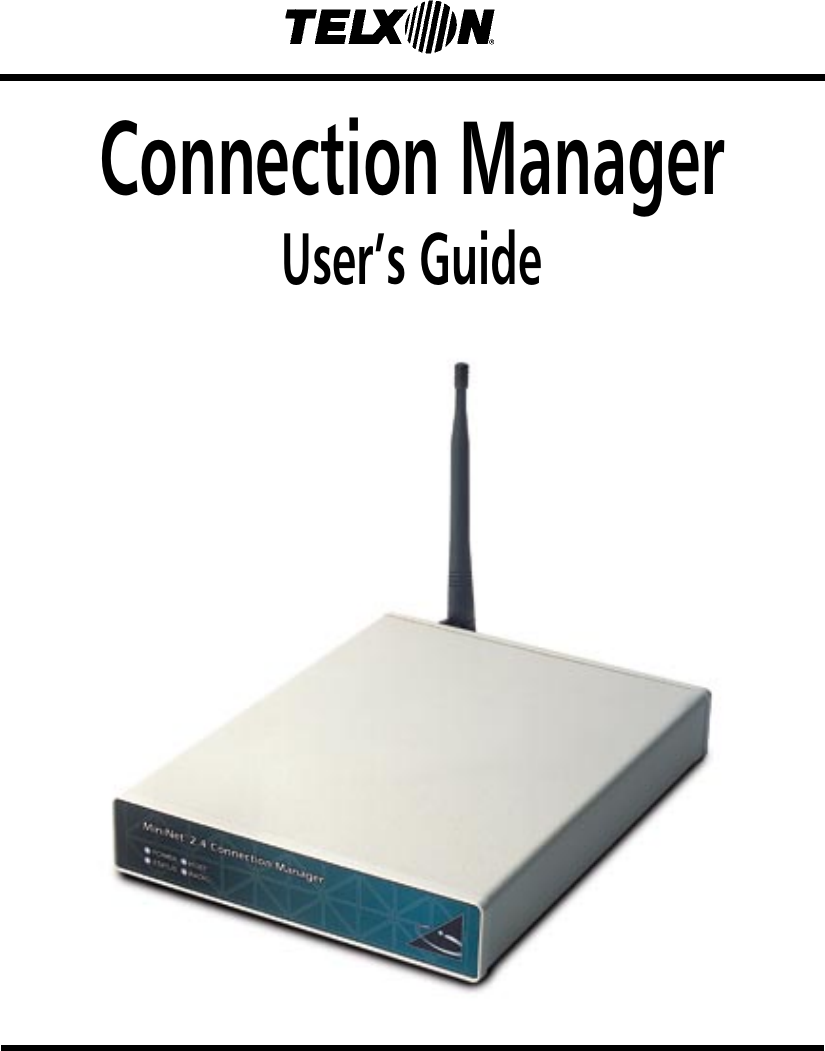
Parts 6Figures 1 and 2 on the following pages show anddescribe the external parts of the ConnectionManager.15
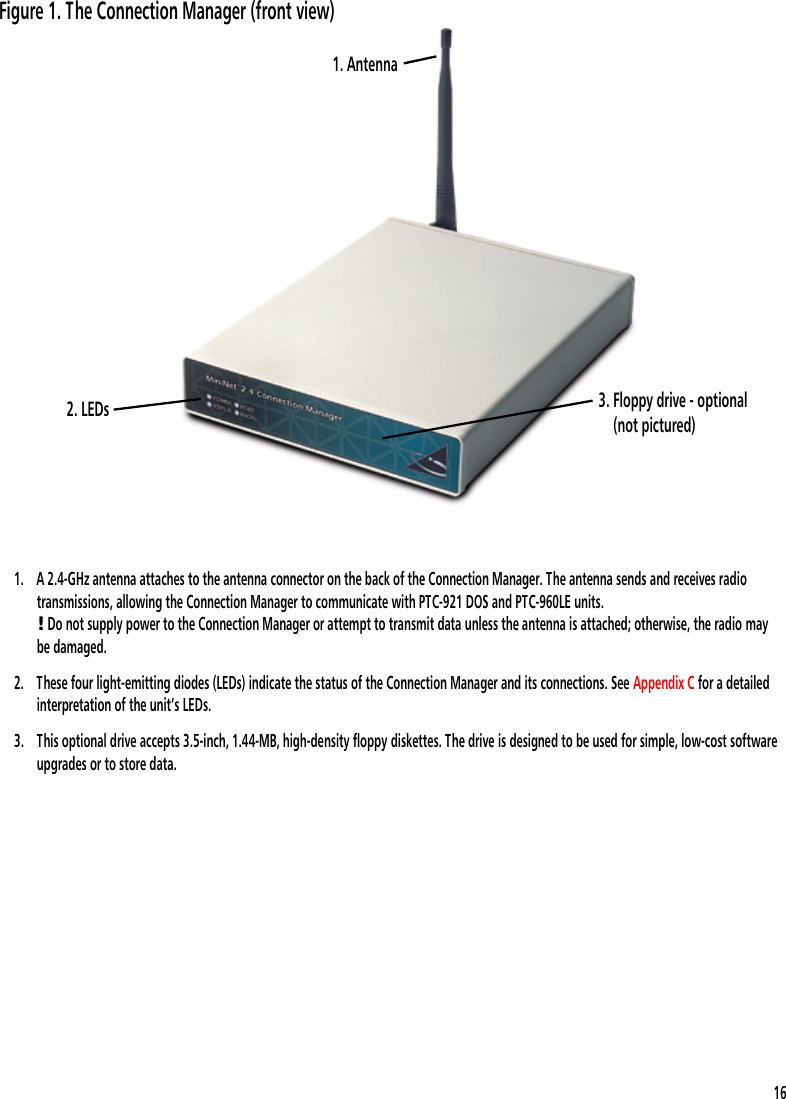
1. A 2.4-GHz antenna attaches to the antenna connector on the back of the Connection Manager. The antenna sends and receives radiotransmissions, allowing the Connection Manager to communicate with PTC-921 DOS and PTC-960LE units.! Do not supply power to the Connection Manager or attempt to transmit data unless the antenna is attached; otherwise, the radio maybe damaged.2. These four light-emitting diodes (LEDs) indicate the status of the Connection Manager and its connections. See Appendix C for a detailedinterpretation of the unit’s LEDs.3. This optional drive accepts 3.5-inch, 1.44-MB, high-density floppy diskettes. The drive is designed to be used for simple, low-cost softwareupgrades or to store data.3. Floppy drive - optional    (not pictured)1. Antenna2. LEDsFigure 1. The Connection Manager (front view)16
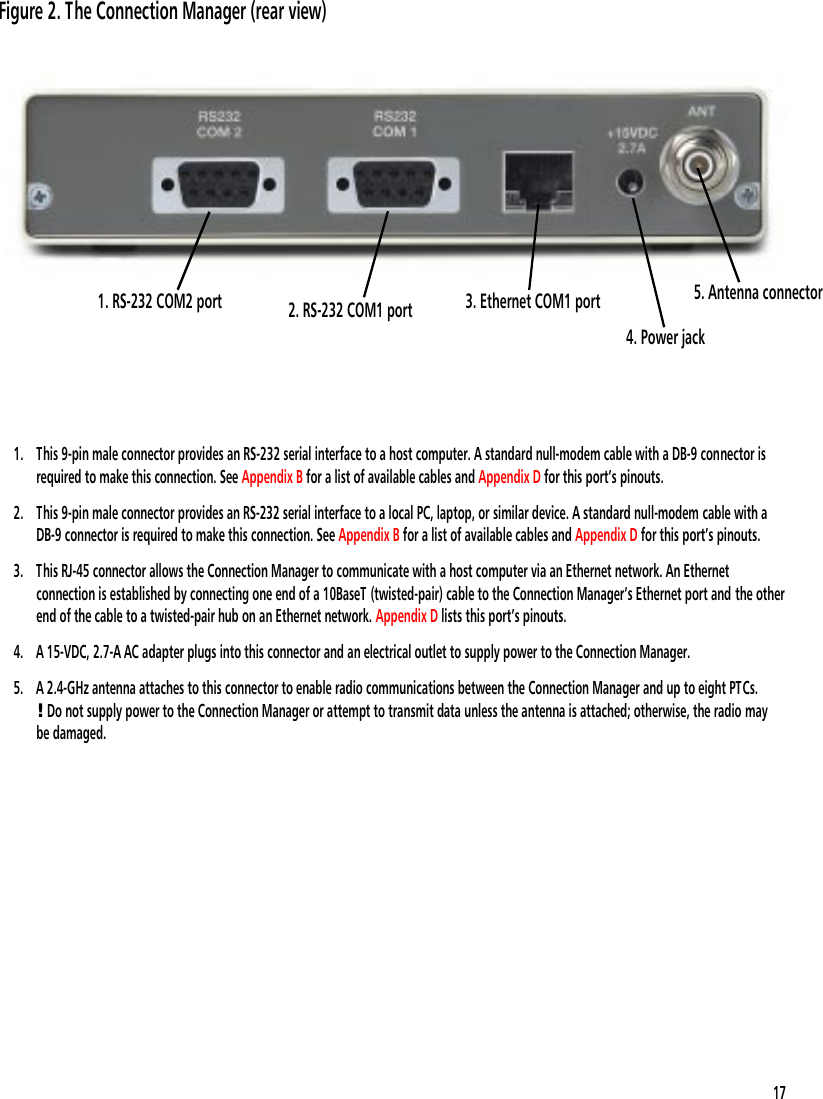
1. This 9-pin male connector provides an RS-232 serial interface to a host computer. A standard null-modem cable with a DB-9 connector isrequired to make this connection. See Appendix B for a list of available cables and Appendix D for this port’s pinouts.2. This 9-pin male connector provides an RS-232 serial interface to a local PC, laptop, or similar device. A standard null-modem cable with aDB-9 connector is required to make this connection. See Appendix B for a list of available cables and Appendix D for this port’s pinouts.3. This RJ-45 connector allows the Connection Manager to communicate with a host computer via an Ethernet network. An Ethernetconnection is established by connecting one end of a 10BaseT (twisted-pair) cable to the Connection Manager’s Ethernet port and the otherend of the cable to a twisted-pair hub on an Ethernet network. Appendix D lists this port’s pinouts.4. A 15-VDC, 2.7-A AC adapter plugs into this connector and an electrical outlet to supply power to the Connection Manager.5. A 2.4-GHz antenna attaches to this connector to enable radio communications between the Connection Manager and up to eight PTCs.! Do not supply power to the Connection Manager or attempt to transmit data unless the antenna is attached; otherwise, the radio maybe damaged.4. Power jack3. Ethernet COM1 port2. RS-232 COM1 port1. RS-232 COM2 port 5. Antenna connectorFigure 2. The Connection Manager (rear view)17
Features 7The Telxon Connection Manager performs thefollowing functions:•Incorporates a PC 486-compatible processoroperating at 66 MHz for high-speed performance•Links PTC-921 DOS and PTC-960LE units to ahost computer•Communicates with PTC-921 DOS and PTC-960LEunits via an internal MiniNet 2.4 low-powerfrequency-hopping radio module•Provides a standard RS-232 serial interface to thehost computer or communicates with the host overan Ethernet network•Displays the status of power input, error conditions,and communication connections via four LEDs•Provides an optional 3.5-inch floppy drive forsimple, low-cost software upgrades or for storingdata18
Installing the Connection Manager 8Follow the instructions in this chapter (in the orderprovided) to install the Connection Manager andprepare it for operation.Connecting the antenna! Do not supply power to theConnection Manager or attempt totransmit data unless the antenna isattached; otherwise, the radio maybe damaged.Screw the supplied 2.4-GHz antenna into the antennaconnector on the back of the Connection Manager.Note: Other available antennas are listed inAppendix B.Positioning the Connection ManagerThe Connection Manager is designed to rest on a flathorizontal surface such as a table or shelf. Try toposition the unit in an open, uncluttered area awayfrom much activity.Connecting the Connection Manager to ahost computerYour Connection Manager can communicate with ahost computer via an RS-232 serial connection orthrough an Ethernet network.Via an RS-232 serial connectionEquipment required:See Appendix B for a list of availablecables.•A standard null-modem cable with a DB-9connector19
1. Make sure the Connection Manager is notconnected to an electrical outlet.If the connectors do not connecteasily, make sure they are lined upcorrectly, no pins are bent, andnothing is obstructing eitherconnector.2. Connect the DB-9 connector on the null-modemcable to the Connection Manager’s RS-232 COM2port (if connecting to the store’s host computer) orto the RS-232 COM1 port (if connecting to a localPC, laptop, etc.).3. Connect the other end of the cable to the hostcomputer or other device.Via an Ethernet networkEquipment required:•A 10BaseT (twisted-pair) cable1. Make sure the Connection Manager is notconnected to an electrical outlet.2. Plug the RJ-45 connector on the 10BaseT cableinto the Connection Manager’s Ethernet port.3. Connect the other end of the cable to a twisted-pair hub or concentrator on the Ethernet networkto which the host computer is already attached.Supplying power to the Connection ManagerEquipment required:•A 15-VDC, 2.7-A AC adapterTo use the Connection Manageroutside of the U.S. or Canada, youneed an AC adapter designed forthe country’s AC voltage supply(e.g., 220 volts).•An electrical outlet providing 110 volts AC inthe U.S. or CanadaConnect the AC adapter to the Connection Manager’spower jack and an electrical outlet. The Power LEDglows solid green when the Connection Manager isreceiving power.20
Maintaining the Connection Manager 9The Telxon Connection Manager is well constructedand durable; however, it is a precision electronicdevice and must be treated as such. Follow theguidelines in this chapter to ensure reliable service.Operating conditionsAlthough the Connection Manager is designed toresist dust, dirt, and moisture, it should not be usedin excessively dirty or moist conditions. Operate theConnection Manager only in temperatures between32 degrees F (0 degrees C) and 122 degrees F (50degrees C).Handling the Connection Manager•Do not open the Connection Manager. No user-serviceable parts are inside.•Do not supply power to the Connection Manager orattempt to transmit data unless the antenna isconnected.•Make sure the Connection Manager is disconnectedfrom power before connecting or disconnecting anycables.•Make sure the correct cables are used whenmaking connections.•Protect the Connection Manager from excessiveheat, cold, moisture, and harsh, dirty environments.•Do not leave the Connection Manager wheremoisture can condense on it.21
Moving the Connection ManagerFollow these steps if you need to move the ConnectionManager or prepare it for shipment.1. Disconnect the AC adapter from the electricaloutlet and the Connection Manager.2. Disconnect the antenna.3. Disconnect all other cables.If you are moving the Connection Manager a shortdistance (to a new location in the same building forexample), you do not need to use a packing box.Exercise care as you move the Connection Managerto its new location; then follow the procedures inChapter 8 to reinstall the unit.If you are shipping the Connection Manager, use theoriginal packing material and container, if available.Otherwise, use a sturdy carton and adequate packingmaterial to protect the unit during shipment.Cleaning the Connection ManagerClean the outside of the Connection Managerperiodically with a soft cloth moistened with a mild,non-abrasive cleaner, such as Windex. Do not usesolvents or abrasive cleaners. Allow the unit to drythoroughly before reconnecting power.If the Connection Manager becomes extremely dirtyor if liquids, dirt, or other foreign materials get insidethe case, contact your Telxon service representative.22
Storing the Connection Manager•Do not store the Connection Manager in tempera-tures below –22 degrees F (–30 degrees C) or above140 degrees F (60 degrees C).•Do not store the Connection Manager in a damp orhumid environment (over 95% noncondensing).Pack the Connection Manager in the original packingmaterial or in a padded box and put it in a safe placeaway from dust, dirt, humidity, and excessive heat orcold.Servicing the Connection ManagerDo not attempt to service the Connection Manager.Only a trained Telxon technician may service the unit.23
Troubleshooting 10The Connection Manager does not turn on•Make sure the AC adapter is properly connectedto the Connection Manager’s power jack and to afunctioning electrical outlet.•If the unit still does not turn on (indicated bythe Power LED), contact your Telxon servicerepresentative.The Connection Manager fails tocommunicate with the host computer•Make sure you are using the correct connectingcable.•Make sure the cable is connected to the correct porton both the Connection Manager and the host.•Make sure the AC adapter is connected to theConnection Manager’s power jack and is pluggedinto a functioning electrical outlet.•Make sure the host computer has been turned on.•If the unit still fails to communicate, contact yourTelxon service representative.24
A PTC fails to communicate through theCommunication Manager•Make sure the PTC is on.•Make sure the Connection Manager is receivingpower. Check the AC adapter connections at theConnection Manager and the electrical outlet.•If the PTC still fails to communicate, contact yourTelxon service representative.The Status LED glows solid greenIf the Connection Manager’s Status LED glows solidgreen, an error has occurred. Contact your Telxonservice representative.Other problemsIf you experience any other problems or difficultieswith your Connection Manager that you cannotsolve, notify your Telxon service representative orcontact the Telxon Customer Support Center at1-800-800-8010. 25
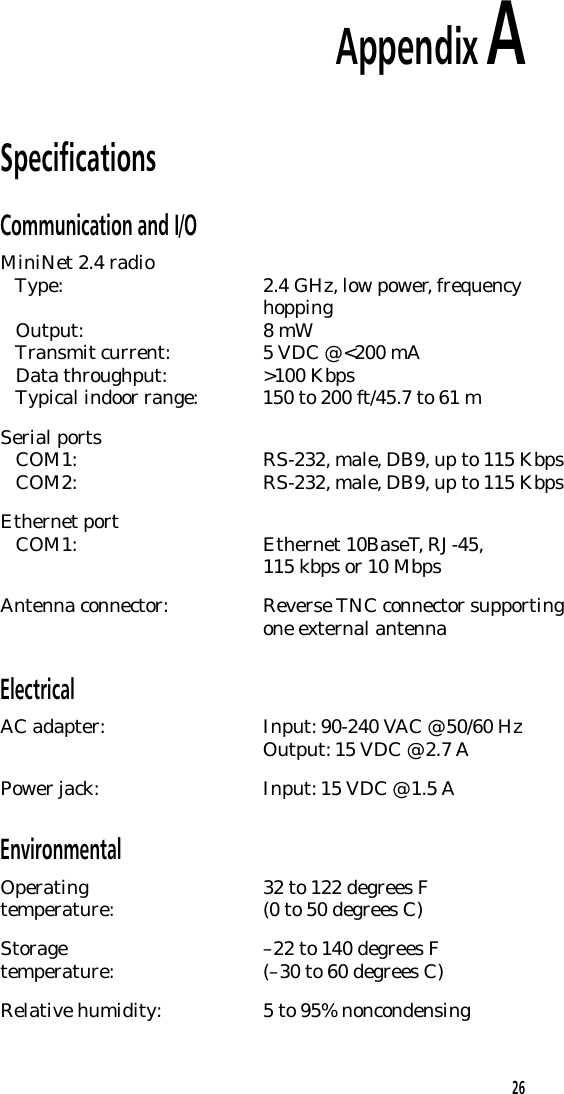
Appendix ASpecificationsCommunication and I/OMiniNet 2.4 radio   Type: 2.4 GHz, low power, frequencyhopping   Output: 8 mW   Transmit current: 5 VDC @ <200 mA   Data throughput: >100 Kbps   Typical indoor range: 150 to 200 ft/45.7 to 61 mSerial ports   COM1: RS-232, male, DB9, up to 115 Kbps   COM2: RS-232, male, DB9, up to 115 KbpsEthernet port   COM1: Ethernet 10BaseT, RJ-45,115 kbps or 10 MbpsAntenna connector: Reverse TNC connector supportingone external antennaElectricalAC adapter: Input: 90-240 VAC @ 50/60 HzOutput: 15 VDC @ 2.7 APower jack: Input: 15 VDC @ 1.5 AEnvironmentalOperating 32 to 122 degrees Ftemperature: (0 to 50 degrees C)Storage –22 to 140 degrees Ftemperature: (–30 to 60 degrees C)Relative humidity: 5 to 95% noncondensing26
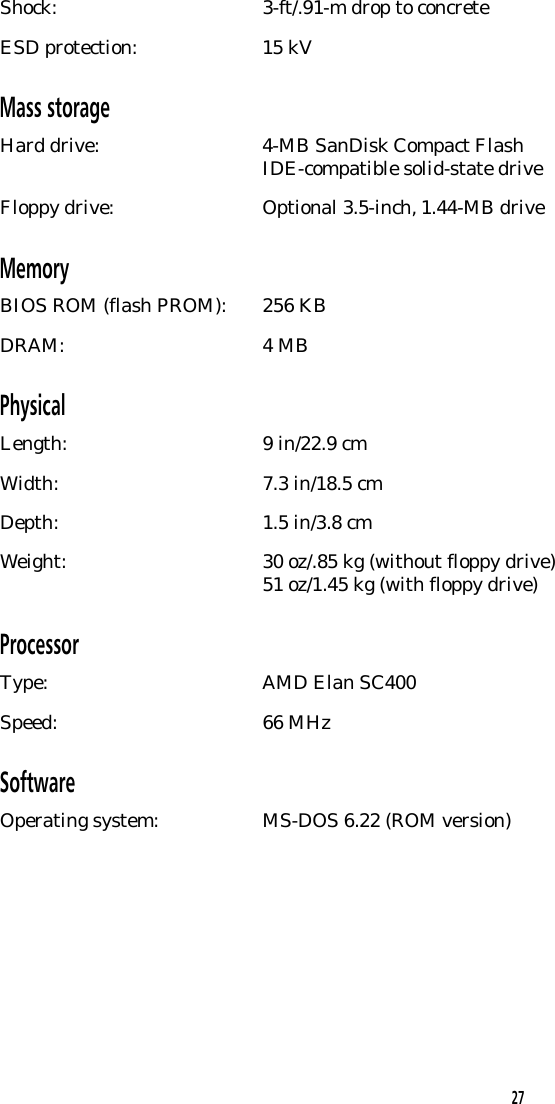
Shock: 3-ft/.91-m drop to concreteESD protection: 15 kVMass storageHard drive: 4-MB SanDisk Compact FlashIDE-compatible solid-state driveFloppy drive: Optional 3.5-inch, 1.44-MB driveMemoryBIOS ROM (flash PROM): 256 KBDRAM: 4 MBPhysicalLength: 9 in/22.9 cmWidth: 7.3 in/18.5 cmDepth: 1.5 in/3.8 cmWeight: 30 oz/.85 kg (without floppy drive)51 oz/1.45 kg (with floppy drive)ProcessorType: AMD Elan SC400Speed: 66 MHzSoftwareOperating system: MS-DOS 6.22 (ROM version)27
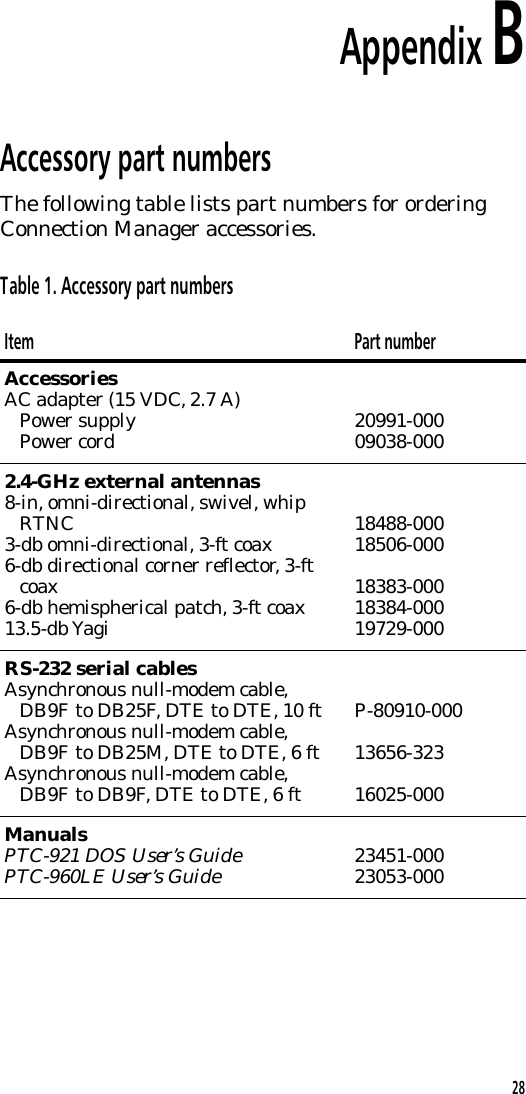
Appendix BAccessory part numbersThe following table lists part numbers for orderingConnection Manager accessories.Table 1. Accessory part numbersItem Part numberAccessoriesAC adapter (15 VDC, 2.7 A)Power supplyPower cord 20991-00009038-0002.4-GHz external antennas8-in, omni-directional, swivel, whipRTNC3-db omni-directional, 3-ft coax6-db directional corner reflector, 3-ftcoax6-db hemispherical patch, 3-ft coax13.5-db Yagi18488-00018506-00018383-00018384-00019729-000RS-232 serial cablesAsynchronous null-modem cable,DB9F to DB25F, DTE to DTE, 10 ftAsynchronous null-modem cable,DB9F to DB25M, DTE to DTE, 6 ftAsynchronous null-modem cable,DB9F to DB9F, DTE to DTE, 6 ftP-80910-00013656-32316025-000ManualsPTC-921 DOS User’s GuidePTC-960LE User’s Guide 23451-00023053-00028
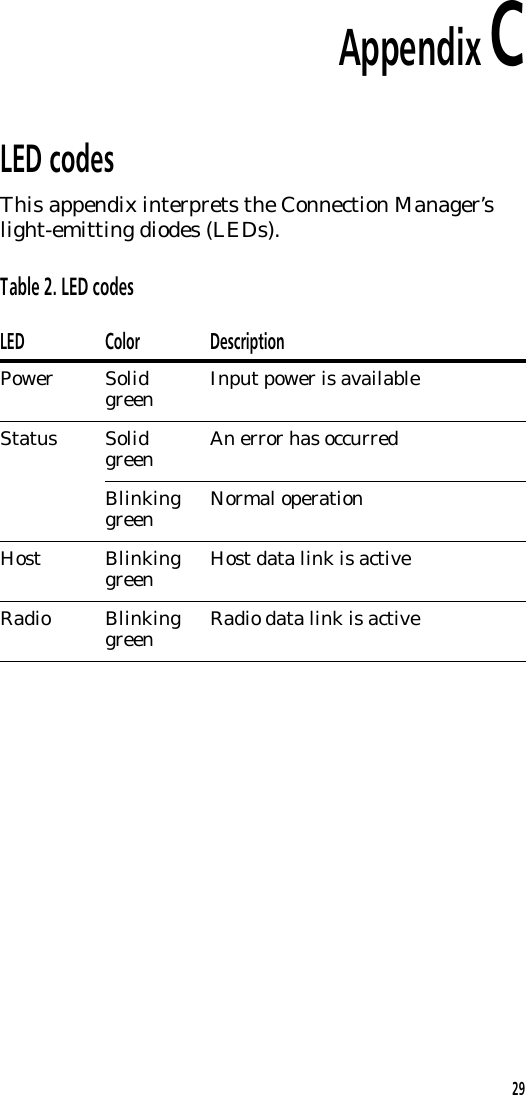
Appendix CLED codesThis appendix interprets the Connection Manager’slight-emitting diodes (LEDs).Table 2. LED codesLED Color DescriptionPower Solid green Input power is availableStatus Solid green An error has occurredBlinkinggreen Normal operationHost Blinkinggreen Host data link is activeRadio Blinkinggreen Radio data link is active29
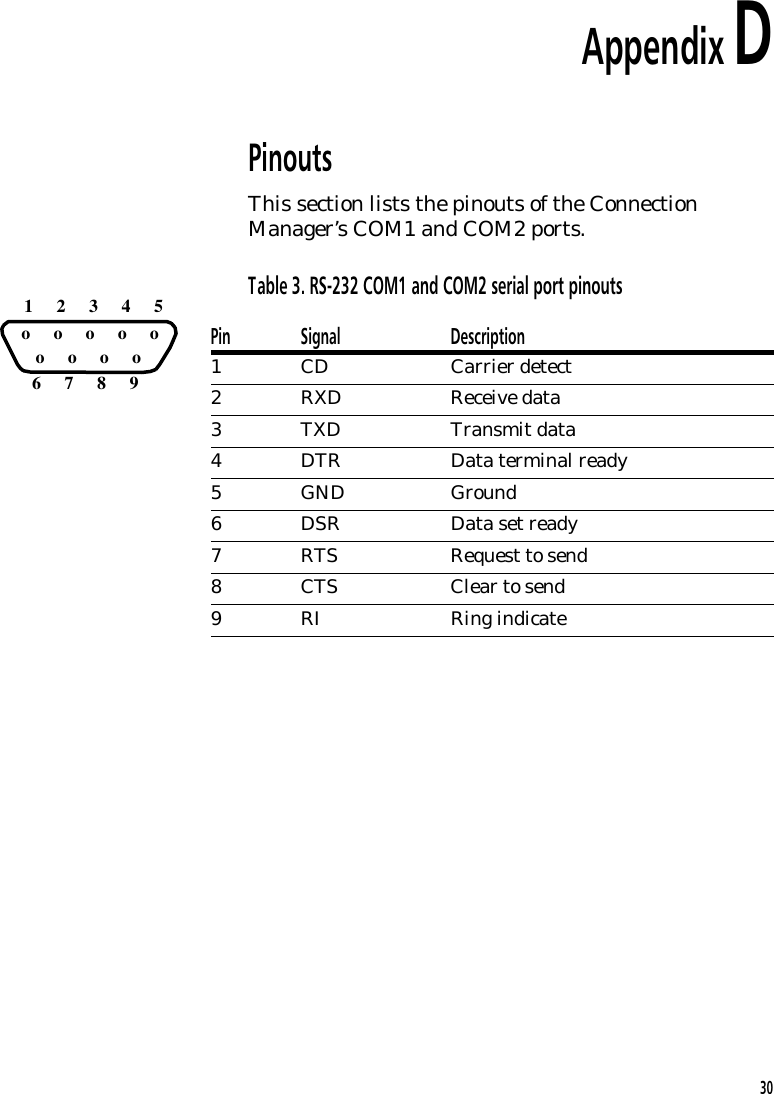
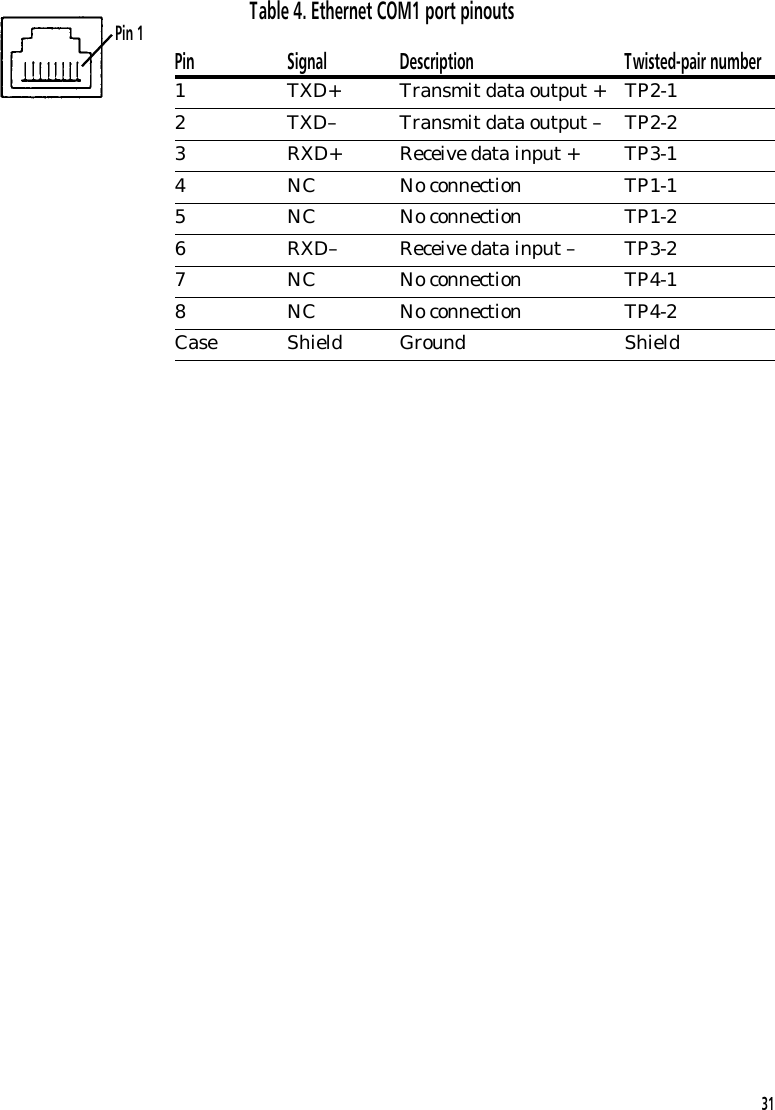
Appendix DPinoutsThis section lists the pinouts of the ConnectionManager’s COM1 and COM2 ports.Table 3. RS-232 COM1 and COM2 serial port pinoutsPin Signal Description1 CD Carrier detect2 RXD Receive data3 TXD Transmit data4 DTR Data terminal ready5GND Ground6 DSR Data set ready7 RTS Request to send8 CTS Clear to send9 RI Ring indicate   o     o     o     o     o   o     o     o     o      1     2     3     4     5     6     7     8     930
Table 4. Ethernet COM1 port pinoutsPin Signal Description Twisted-pair number1 TXD+ Transmit data output + TP2-12 TXD– Transmit data output – TP2-23 RXD+ Receive data input + TP3-14 NC No connection TP1-15 NC No connection TP1-26 RXD– Receive data input – TP3-27 NC No connection TP4-18 NC No connection TP4-2Case Shield Ground ShieldPin 131
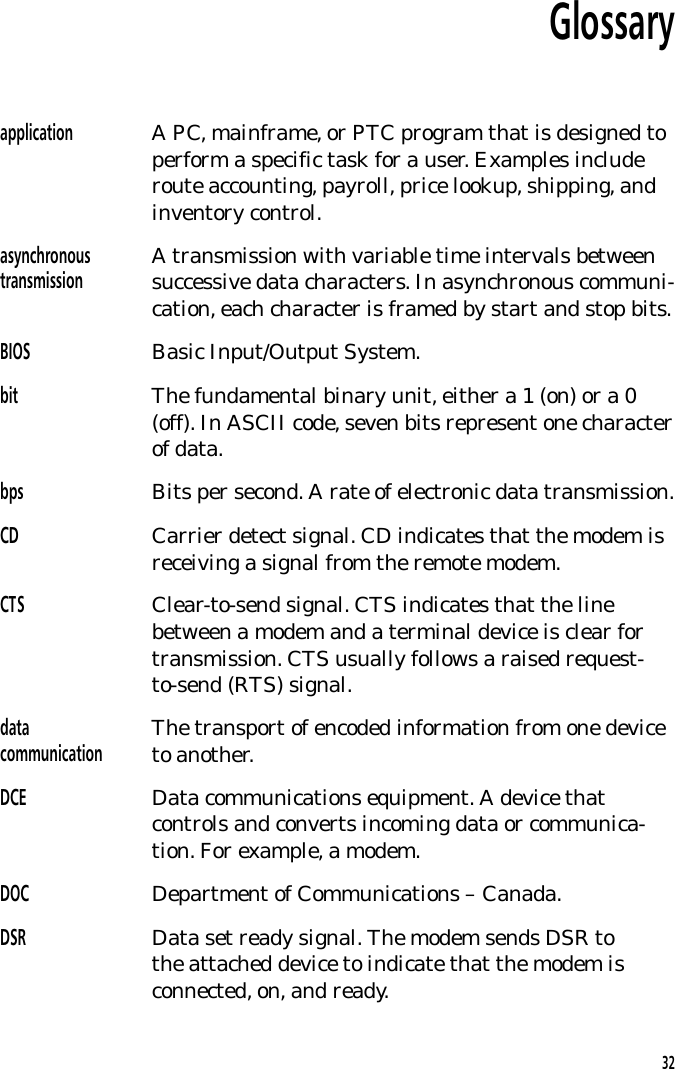
Glossaryapplication A PC, mainframe, or PTC program that is designed toperform a specific task for a user. Examples includeroute accounting, payroll, price lookup, shipping, andinventory control.asynchronoustransmission A transmission with variable time intervals betweensuccessive data characters. In asynchronous communi-cation, each character is framed by start and stop bits.BIOS Basic Input/Output System.bit The fundamental binary unit, either a 1 (on) or a 0(off). In ASCII code, seven bits represent one characterof data.bps Bits per second. A rate of electronic data transmission.CD Carrier detect signal. CD indicates that the modem isreceiving a signal from the remote modem.CTS Clear-to-send signal. CTS indicates that the linebetween a modem and a terminal device is clear fortransmission. CTS usually follows a raised request-to-send (RTS) signal.datacommunication The transport of encoded information from one deviceto another.DCE Data communications equipment. A device thatcontrols and converts incoming data or communica-tion. For example, a modem.DOC Department of Communications – Canada.DSR Data set ready signal. The modem sends DSR tothe attached device to indicate that the modem isconnected, on, and ready.32
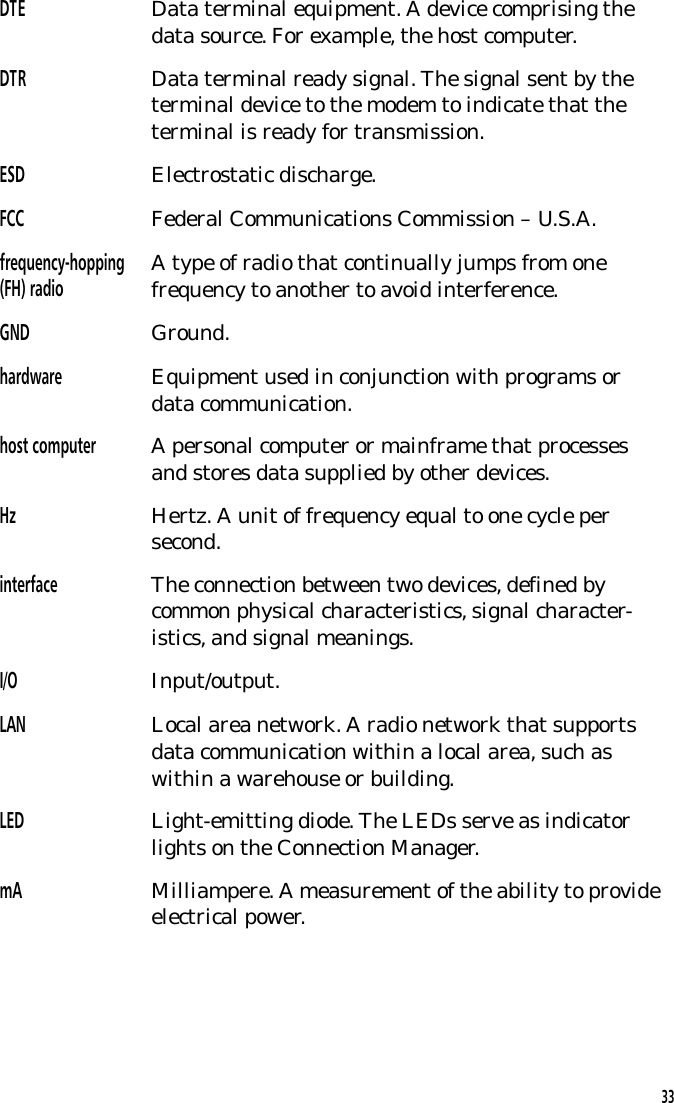
DTE Data terminal equipment. A device comprising thedata source. For example, the host computer.DTR Data terminal ready signal. The signal sent by theterminal device to the modem to indicate that theterminal is ready for transmission.ESD Electrostatic discharge.FCC Federal Communications Commission – U.S.A.frequency-hopping(FH) radio A type of radio that continually jumps from onefrequency to another to avoid interference.GND Ground.hardware Equipment used in conjunction with programs ordata communication.host computer A personal computer or mainframe that processesand stores data supplied by other devices.Hz Hertz. A unit of frequency equal to one cycle persecond.interface The connection between two devices, defined bycommon physical characteristics, signal character-istics, and signal meanings.I/O Input/output.LAN Local area network. A radio network that supportsdata communication within a local area, such aswithin a warehouse or building.LED Light-emitting diode. The LEDs serve as indicatorlights on the Connection Manager.mA Milliampere. A measurement of the ability to provideelectrical power.33
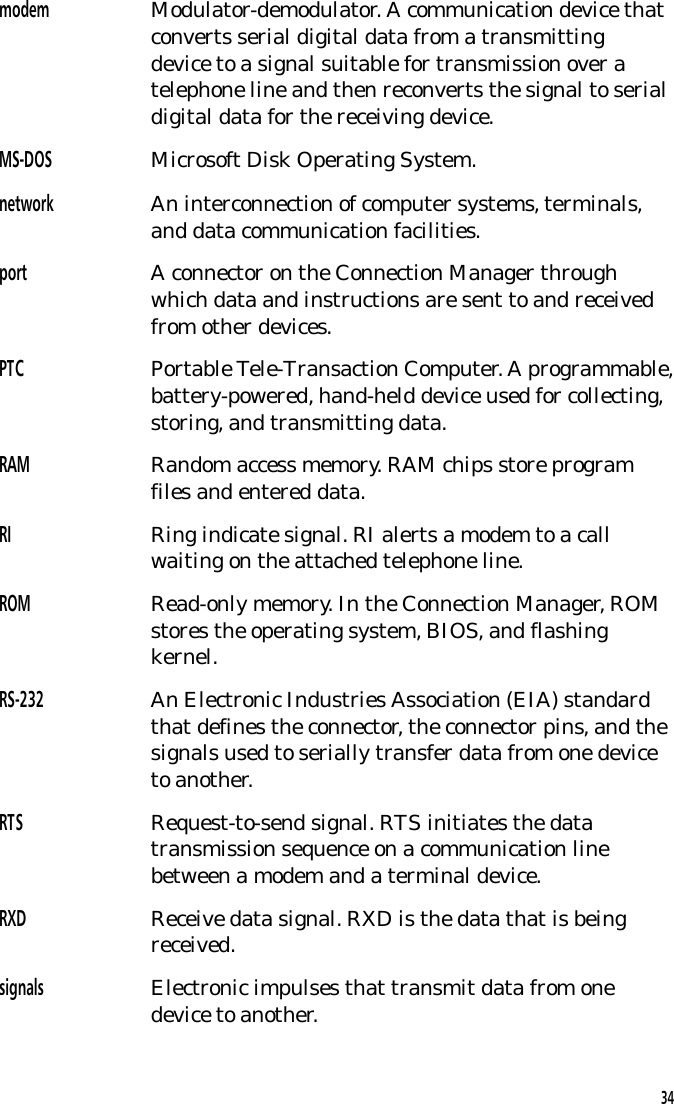
modem Modulator-demodulator. A communication device thatconverts serial digital data from a transmittingdevice to a signal suitable for transmission over atelephone line and then reconverts the signal to serialdigital data for the receiving device.MS-DOS Microsoft Disk Operating System.network An interconnection of computer systems, terminals,and data communication facilities.port A connector on the Connection Manager throughwhich data and instructions are sent to and receivedfrom other devices.PTC Portable Tele-Transaction Computer. A programmable,battery-powered, hand-held device used for collecting,storing, and transmitting data.RAM Random access memory. RAM chips store programfiles and entered data.RI Ring indicate signal. RI alerts a modem to a callwaiting on the attached telephone line.ROM Read-only memory. In the Connection Manager, ROMstores the operating system, BIOS, and flashingkernel.RS-232 An Electronic Industries Association (EIA) standardthat defines the connector, the connector pins, and thesignals used to serially transfer data from one deviceto another.RTS Request-to-send signal. RTS initiates the datatransmission sequence on a communication linebetween a modem and a terminal device.RXD Receive data signal. RXD is the data that is beingreceived.signals  Electronic impulses that transmit data from onedevice to another.34
software A stored program or set of programs that is loadedinto RAM for execution.two-waycommunication The exchange of information between two devices.After each block of data, the receiving device sends apositive or negative acknowledgment to the sendingdevice.TXD Transmit data signal. TXD is the data that is beingtransmitted.VAC Volts alternating current. A unit of measure ofelectric potential or potential difference in abidirectional electrical current.VDC Volts direct current. A unit of measure of electricpotential or potential difference in a unidirectionalelectrical current.35
IndexAAC adapter, 17, 20specifications, 26Accessories, 14part numbers, 28Antenna, 16connecting, 19part numbers, 28Antenna connector, 17, 26BBIOS, 12CCables, 17, 19-20part numbers, 28CE statement, 8Cleaning the Connection Manager, 22COM1 portSee Serial portsCOM2 portSee Serial portsCommunication, 11Communication and I/O  specifications, 26Communication problems, 24-25Connecting to a host computer, 19-20Connection Managercleaning, 22handling, 21installing, 19-20maintaining, 21-23moving, 22operating conditions, 21overview, 11-13parts, 15-17positioning, 19servicing, 23specifications, 26-27storing, 23supplying power to, 20unpacking, 14Customer Support Centercontacting, 25DDOC statement, 7, 8Document conventionscautions, 10notes, 10EElectrical specifications, 26Entering data, 13Environmental specifications, 26-27Ethernet connection, 20Ethernet port, 13, 17, 26pinouts, 31FFCC regulations, 8FCC statement, 7, 836
Features, 18Floppy drive, 13, 16, 18, 27HHandling the Connection Manager, 21Hard drive, 13, 27Host computer, 17communication, 11, 18connecting to the Connection  Manager, 19-20Host LED, 29IInstalling the Connection Manager,  19-20LLEDs, 11, 16, 18Host, 29Power, 20, 24, 29Radio, 29Status, 25, 29MMaintaining the Connection Manager,  21-23Memory, 12, 27MiniNet 2.4 radio, 12, 13, 18regulations, 8specifications, 26Moving the Connection Manager, 22OOperating conditions, 21Operating system, 27Operating temperature, 21, 26Overview of the Connection Manager,  11-13PPacking materialsaving, 14Part numbers, 28Parts of the Connection Manager 15-17Physical specifications, 27Pinouts, 30-31Power jack, 17, 26Power LED, 20, 24, 29Processor, 11, 18specifications, 27PTCscommunication problems, 25types supported, 11, 16, 18RRadio LED, 29RAM, 12, 13, 27RegulationsCE, 8DOC, 7FCC, 7MiniNet 2.4 radio, 8ROM, 12, 27RS-232 serial connection, 19-20SSafety information, 9Scope of manual, 10Serial ports, 26COM1, 13, 17, 20COM2, 13, 17, 20pinouts, 3037
Servicing the Connection Manager, 23Shipping damage, 14Specifications, 26-27Status LED, 25, 29Storage temperature, 23, 26Storing the Connection Manager, 23Storing data, 13Supplying power to the Connection  Manager, 20TTroubleshooting, 24-25UUnpacking the Connection Manager, 1438
Telxon Corporation/3330 West Market Street, Akron, Ohio 44334/330-664-1000/800-800-8001Part No. 23547-701-01 Printed in U.S.A.!23547-701-01!

Navigation menu