TiVo Solutions d b a TiVo AN0100 Wireless 11n AP User Manual NADA installation guide 097 indd

TiVo Inc. Wireless 11n AP NADA installation guide 097 indd

user manual

20  SDOC-00118-000InstallationInstructionsWireless NNetwork AdapterNADA_installation_guide_097.indd   Spread 1 of 10 - Pages(20, 1)NADA_installation_guide_097.indd   Spread 1 of 10 - Pages(20, 1) 10/9/2009   11:54:14 AM10/9/2009   11:54:14 AMIn order to avoid the possibility of exceeding the FCC radio frequency exposure limits, human proximity to the antenna shall not be less than 20cm (8 inches) during normal operation.
2  © 2009 TiVo Inc. Reproduction in whole or in part without written permission is prohibited. All rights reserved.TiVo and the TiVo logo are trademarks or registered trademarks of TiVo Inc. or its subsidiaries worldwide.2160 Gold Street, P.O. Box 2160, Alviso, CA 95002-2160. Printed in China.Regulatory InformationFCC Statement This equipment has been tested and found to comply with the limits for a Class B digital device, pursuant to Part 15 of the FCC Rules. These limits are designed to provide reasonable protection against harmful interference in a residential installation. This equipment generates, uses and can radiate radio frequency energy and, if not installed and used in accordance with the instructions, may cause harmful interference to radio communications. However, there is no guarantee that interference will not occur in a particular installation. If this equipment does cause harmful interference to radio or television reception, which can be determined by turning the equipment off and on, the user is encouraged to try to correct the interference by one of the following measures: •  Reorient or relocate the receiving antenna. •  Increase the separation between the equipment and receiver. •  Connect the equipment into an outlet on a circuit different from that to which the receiver is connected. •  Consult the dealer or an experienced radio/TV technician for help.  FCC Caution: Any changes or modifi cations not expressly approved by the party responsible for compliance could void the user’s authority to operate this equipment. This device complies with Part 15 of the FCC Rules. Operation is subject to the following two conditions: (1) This device may not cause harmful interference, and (2) this device must accept any interference received, including interference that may cause undesired operation. FCC Radiation Exposure Statement This equipment complies with FCC radiation exposure limits set forth for an uncontrolled environment. End users must follow the specifi c operating instructions for satisfying RF exposure compliance. To maintain compliance with FCC RF exposure compliance requirements, please follow operation instructions as documented in this manual. This transmitter must not be co-located or operating in conjunction with any other antenna or transmitter. SAR compliance has been established in typical laptop computer(s) with USB slot, and this product could be used in typical laptop computer(s) with USB slot. Other applications like handheld PC or similar device have not been verifi ed and may not be in compliance with related RF exposure rule and such use shall be prohibited. The availability of some specifi c channels and/or operational frequency bands are country dependent and are fi rmware programmed at the factory to match the intended destination. The fi rmware setting is not accessible by the end user. Safety Notices •  Caution: To reduce the risk of fi re, use only No.26 AWG or larger telecommunication line cord. •  Do not use this product near water, for example, in a wet basement or near a swimming pool. •  Avoid using this product during an electrical storm. There may be a remote risk of electric shock from lightning. Industry Canada Statement This Class B digital apparatus complies with Canadian ICES-003. Cet appareil numérique de la classe B est conforme à la norme NMB-003 du Canada. This device complies with RSS-210 of the Industry Canada Rules. Operation is subject to the following two conditions: (1) This device may not cause harmful interference, and (2) this device must accept any interference received, including interference that may cause undesired operation. Règlement d’Industry Canada Les conditions de fonctionnement sont sujettes à deux conditions: 1   Ce périphérique ne doit pas causer d’interférence et. 2   Ce périphérique doit accepter toute interférence, y compris les interférences pouvant perturber le bon fonctionnement de ce périphérique. IMPORTANT NOTE Radiation Exposure Statement: This equipment complies with IC radiation exposure limits set forth for an uncontrolled environment. End users must follow the specifi c operating instructions for satisfying RF exposure compliance. To maintain compliance with IC RF exposure compliance requirements, please follow operation instruction as documented in this manual. REMARQUE IMPORTANTE Exposition aux radiofréquences: Ce matériel est conforme aux limites d’exposition aux radiofréquences établies pour un environnement non contrôlé. Pour assurer le maintien de cette conformité, l’utilisateur doit suivre les consignes d’utilisation décrites dans le présent manuel. Wireless Disclaimer The maximum performance for wireless is derived from IEEE Standard 802.11 specifi cations. Actual performance can vary, including lower wireless network capacity, data throughput rate, range and coverage. Performance depends on many factors, conditions and variables, including distance from the access point, volume of network traffi c, building materials and construction, operating system used, mix of wireless products used, interference and other adverse conditions. Avis de non-responsabilité concernant les appareils sans fi l Les performances maximales pour les réseaux sans fi l sont tirées des spécifi cations de la norme IEEE 802.11. Les performances réelles peuvent varier, notamment en fonction de la capacité du réseau sans fi l, du débit de la transmission de données, de la portée et de la couverture. Les performances dépendent de facteurs, conditions et variables multiples, en particulier de la distance par rapport au point d’accès, du volume du trafi c réseau, des matériaux utilisés dans le bâtiment et du type de construction, du système d’exploitation et de la combinaison de produits sans fi l utilisés, des interférences et de toute autre condition défavorable. 19TiVo Wireless N Network Adapter Limited Warranty:Limited WarrantyTiVo Wireless adapter90 Days Free Parts and LaborWHO IS COVERED?You must have proof of purchase to receive warranty service. A sales receipt or other document showing that you purchased the product is considered proof of purchase.WHAT IS COVERED?TiVo warrants that the Wireless adapter will be free from defects in materials and workmanship during the limited warranty period described herein. The limited warranty coverage begins the day you purchase the product. For 90 days from the purchase date, the Wireless adapter will be replaced with a repaired, renewed or comparable product (at TiVo’s discretion) if it becomes defective or inoperable. This exchange is done without charge to you for parts and labor (except applicable taxes, if any). You will be responsible for the cost of shipping. Contact Customer Support at 1-877-367-8486 for exchange. All products, including replacement products, are covered only for the original warranty period. When the warranty on the original product expires, the warranty on the replacement product also expires.WHAT IS EXCLUDED?Your warranty does not cover:• Any taxes imposed on TiVo for units replaced or repaired under this warranty.• Product replacement because of misuse, accident, unauthorized repair, or other cause not within TiVo’s control.• Incidental or consequential damages resulting from the use of the product. (Some states do not allow the exclusion of incidental or consequential damages, so the above exclusion may not apply to you.)• A product that has been modifi ed or adapted to enable it to operate in any country other than the country for which it was designed.• A product used for commercial or institutional purposes.MAKE SURE YOU KEEP...Please keep your sales receipt or other document showing proof of purchase. Also keep the original box and packing material in case you need to return your product.TO GET WARRANTY SERVICE...If you believe the product is defective, contact Customer Support at 1-877-367-8486. A representative will go through a diagnostic checklist with you. If it is determined that the product needs to be exchanged, the representative will give you complete shipping details. All implied warranties, including implied warranties of merchantability and fi tness for a particular purpose, are limited in duration to the duration of this express warranty. Some states (or jurisdictions) do not allow limitations on how long an implied warranty lasts, so the above limitation may not apply to you.This warranty gives you specifi c legal rights. You may have other rights which vary from stateto state (or jurisdiction to jurisdiction). TIVO’S RESPONSIBILITY FOR MALFUNCTIONS AND DEFECTS IN WIRELESS ADAPTERS IS LIMITED TO REPAIR AND REPLACEMENT AS SET FORTH IN THIS LIMITED WARRANTY. ALL EXPRESS AND IMPLIED WARRANTIES FOR THE WIRELESS ADAPTER, INCLUDING BUT NOT LIMITED TO ANY IMPLIED WARRANTIES OF AND ALL CONDITIONS OF MERCHANTABILITY AND FITNESS FOR A PARTICULAR PURPOSE, ARE LIMITED IN DURATION TO THE LIMITED WARRANTY PERIOD SET FORTH ABOVE AND NO WARRANTIES, WHETHER EXPRESS OR IMPLIED, WILL APPLY AFTER SUCH PERIOD. Some states (or jurisdictions) do not allow limitations on how long an implied warranty lasts, so the above limitation may not apply to you. TIVO DOES NOT ACCEPT LIABILITY BEYOND THE REMEDIES SET FORTH IN THIS LIMITED WARRANTY OR LIABILITY FOR INCIDENTAL OR CONSEQUENTIAL DAMAGES, INCLUDING WITHOUT LIMITATION ANY LIABILITY FOR PRODUCTS NOT BEING AVAILABLE FOR USE OR FOR LOST DATA. Some states (or jurisdictions) do not allow limitations on how long an implied warranty lasts, so the above limitation may not apply to you.NADA_installation_guide_097.indd   Spread 2 of 10 - Pages(2, 19)NADA_installation_guide_097.indd   Spread 2 of 10 - Pages(2, 19) 10/9/2009   11:54:17 AM10/9/2009   11:54:17 AMIn order to avoid the possibility of exceeding the FCC radio frequency exposure limits, human proximity to the antenna shall not be less than 20cm (8 inches) during normal operation.
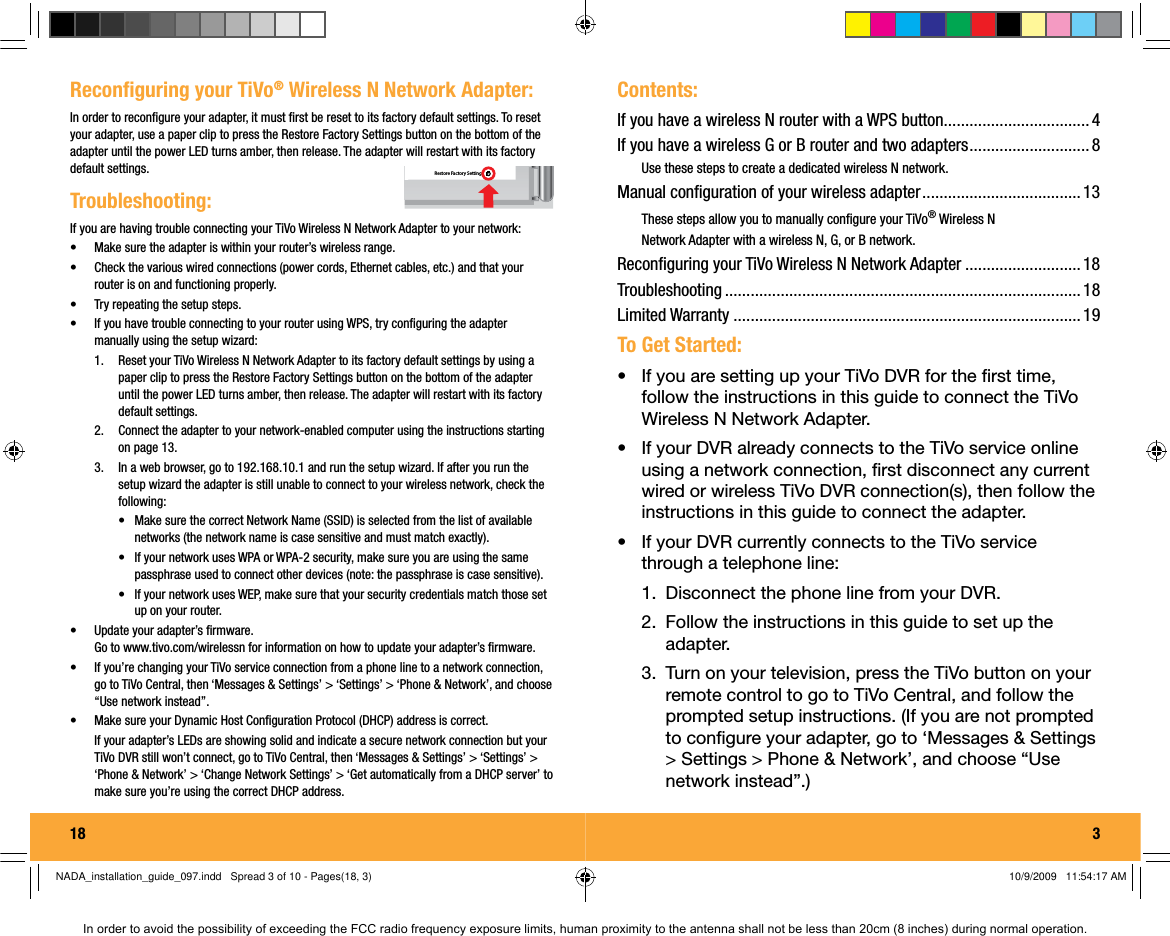
18  Troubleshooting:If you are having trouble connecting your TiVo Wireless N Network Adapter to your network:•  Make sure the adapter is within your router’s wireless range.•  Check the various wired connections (power cords, Ethernet cables, etc.) and that your router is on and functioning properly.•  Try repeating the setup steps.•  If you have trouble connecting to your router using WPS, try confi guring the adapter manually using the setup wizard:1.  Reset your TiVo Wireless N Network Adapter to its factory default settings by using a paper clip to press the Restore Factory Settings button on the bottom of the adapter until the power LED turns amber, then release. The adapter will restart with its factory default settings.2.  Connect the adapter to your network-enabled computer using the instructions starting on page 13.3.  In a web browser, go to 192.168.10.1 and run the setup wizard. If after you run the setup wizard the adapter is still unable to connect to your wireless network, check the following:•  Make sure the correct Network Name (SSID) is selected from the list of available networks (the network name is case sensitive and must match exactly).•  If your network uses WPA or WPA-2 security, make sure you are using the same passphrase used to connect other devices (note: the passphrase is case sensitive). •  If your network uses WEP, make sure that your security credentials match those set up on your router.•  Update your adapter’s fi rmware.Go to www.tivo.com/wirelessn for information on how to update your adapter’s fi rmware.•  If you’re changing your TiVo service connection from a phone line to a network connection, go to TiVo Central, then ‘Messages & Settings’ > ‘Settings’ > ‘Phone & Network’, and choose “Use network instead”.•  Make sure your Dynamic Host Confi guration Protocol (DHCP) address is correct.If your adapter’s LEDs are showing solid and indicate a secure network connection but your TiVo DVR still won’t connect, go to TiVo Central, then ‘Messages & Settings’ > ‘Settings’ > ‘Phone & Network’ > ‘Change Network Settings’ > ‘Get automatically from a DHCP server’ to make sure you’re using the correct DHCP address.Reconfi guring your TiVo® Wireless N Network Adapter:In order to reconfi gure your adapter, it must fi rst be reset to its factory default settings. To reset your adapter, use a paper clip to press the Restore Fac tory Settings button on the bottom of the adapter until the power LED turns amber, then release. The adapter will restart with its factory default settings. Restore Factory Settingsg3Contents:If you have a wireless N router with a WPS button .................................. 4If you have a wireless G or B router and two adapters ............................ 8Use these steps to create a dedicated wireless N network.Manual confi guration of your wireless adapter ..................................... 13These steps allow you to manually confi gure your TiVo® Wireless N Network Adapter with a wireless N, G, or B network.Reconfi guring your TiVo Wireless N Network Adapter ........................... 18Troubleshooting ................................................................................... 18Limited Warranty ................................................................................. 19To Get Started:•  If you are setting up your TiVo DVR for the fi rst time, follow the instructions in this guide to connect the TiVo Wireless N Network Adapter. •  If your DVR already connects to the TiVo service online using a network connection, fi rst disconnect any current wired or wireless TiVo DVR connection(s), then follow the instructions in this guide to connect the adapter. •  If your DVR currently connects to the TiVo service through a telephone line:1.  Disconnect the phone line from your DVR. 2.  Follow the instructions in this guide to set up the adapter. 3.  Turn on your television, press the TiVo button on your remote control to go to TiVo Central, and follow the prompted setup instructions. (If you are not prompted to confi gure your adapter, go to ‘Messages & Settings > Settings > Phone & Network’, and choose “Use network instead”.)NADA_installation_guide_097.indd   Spread 3 of 10 - Pages(18, 3)NADA_installation_guide_097.indd   Spread 3 of 10 - Pages(18, 3) 10/9/2009   11:54:17 AM10/9/2009   11:54:17 AMIn order to avoid the possibility of exceeding the FCC radio frequency exposure limits, human proximity to the antenna shall not be less than 20cm (8 inches) during normal operation.
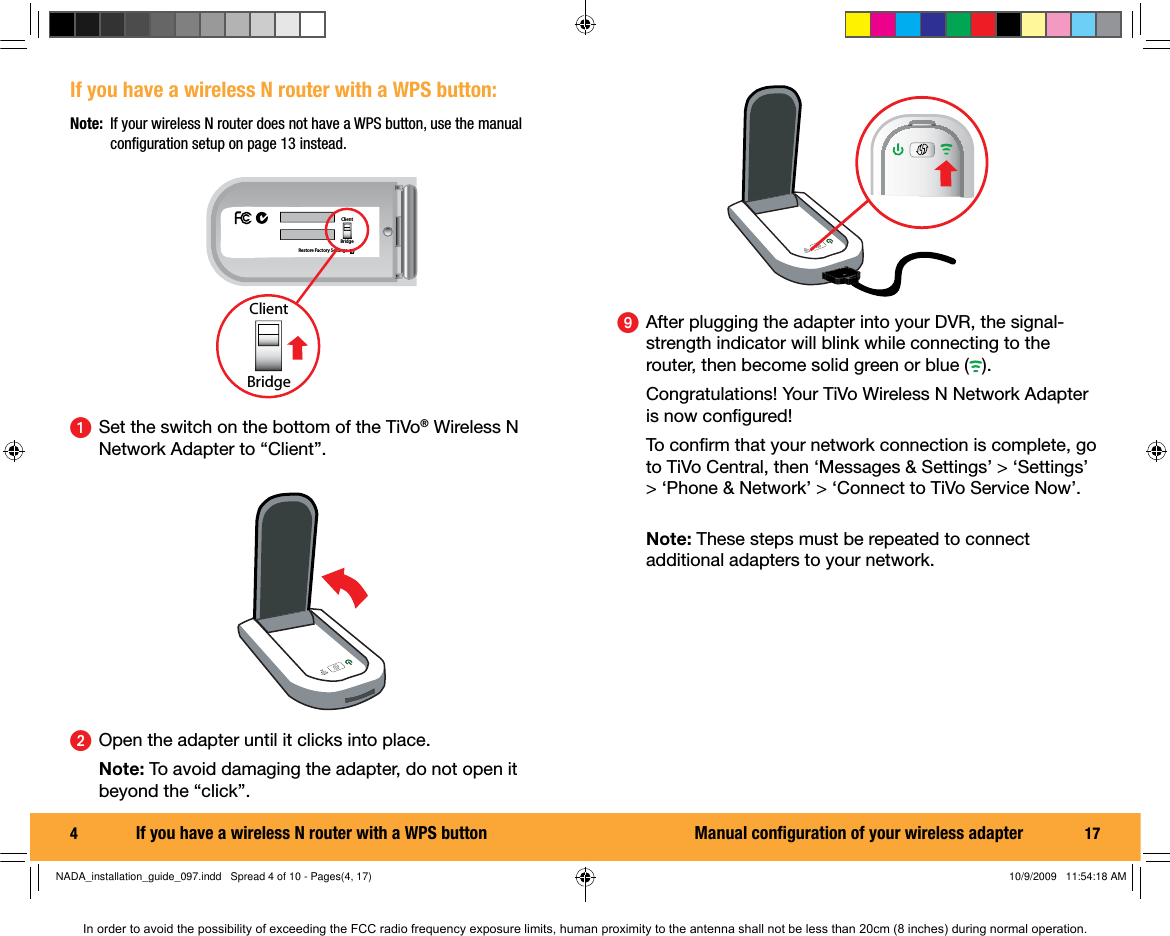
4  If you have a wireless N router with a WPS button:ᕡ  Set the switch on the bottom of the TiVo® Wireless N Network Adapter to “Client”.Restore Factory SettingsClientBridgeClientBridgeᕢ  Open the adapter until it clicks into place. Note: To avoid damaging the adapter, do not open it beyond the “click”.Note:  If your wireless N router does not have a WPS button, use the manual confi guration setup on page 13 instead.If you have a wireless N router with a WPS button 17ᕩ  After plugging the adapter into your DVR, the signal-strength indicator will blink while connecting to the router, then become solid green or blue ( ).   Congratulations! Your TiVo Wireless N Network Adapter is now confi gured! To confi rm that your network connection is complete, go to TiVo Central, then ‘Messages & Settings’ > ‘Settings’ > ‘Phone & Network’ > ‘Connect to TiVo Service Now’. Note: These steps must be repeated to connect additional adapters to your network.Manual confi guration of your wireless adapterNADA_installation_guide_097.indd   Spread 4 of 10 - Pages(4, 17)NADA_installation_guide_097.indd   Spread 4 of 10 - Pages(4, 17) 10/9/2009   11:54:18 AM10/9/2009   11:54:18 AMIn order to avoid the possibility of exceeding the FCC radio frequency exposure limits, human proximity to the antenna shall not be less than 20cm (8 inches) during normal operation.
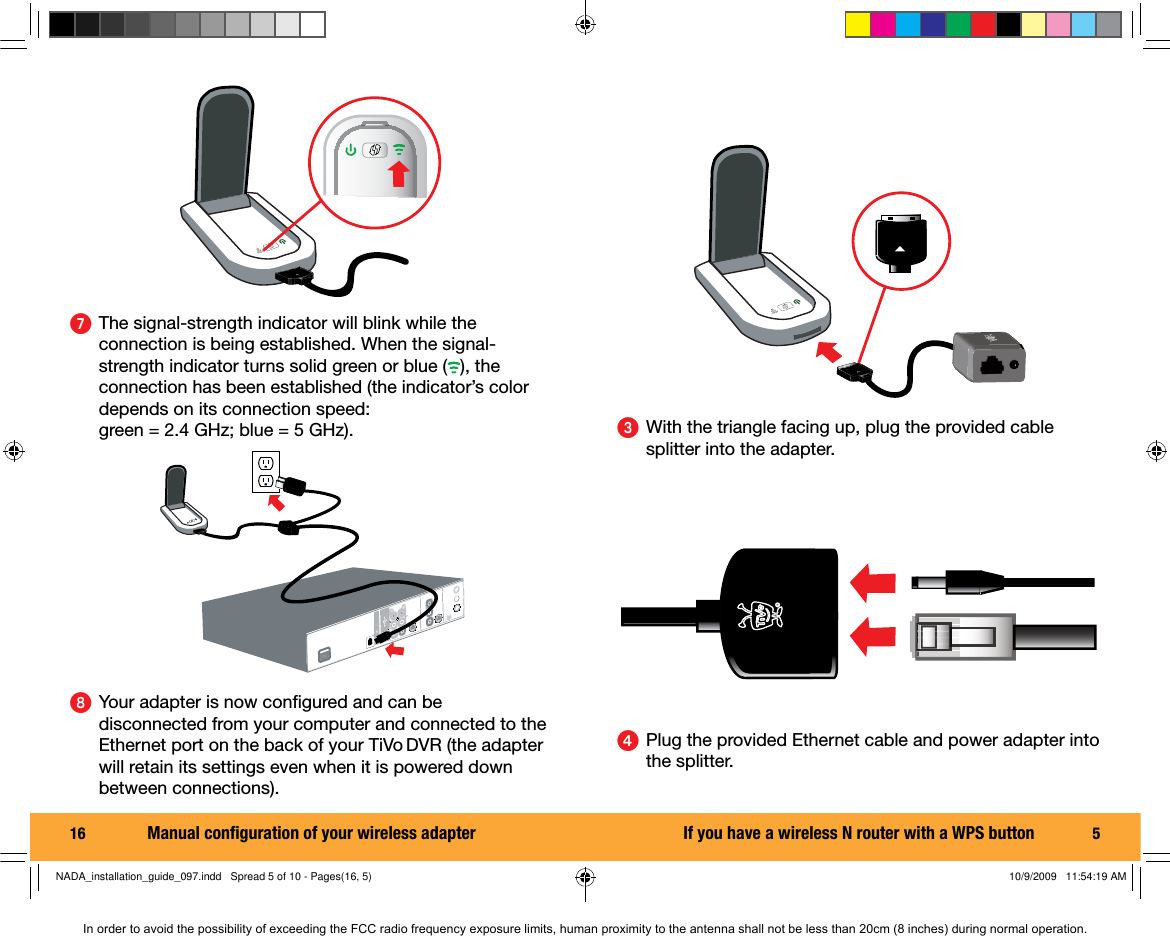
16  ᕧ  The signal-strength indicator will blink while the connection is being established. When the signal-strength indicator turns solid green or blue ( ), the connection has been established (the indicator’s color depends on its connection speed: green = 2.4 GHz; blue = 5 GHz).ᕨ  Your adapter is now confi gured and can be disconnected from your computer and connected to the Ethernet port on the back of your TiVo DVR (the adapter will retain its settings even when it is powered down between connections).Manual confi guration of your wireless adapter 5ᕤ  Plug the provided Ethernet cable and power adapter into the splitter.ᕣ  With the triangle facing up, plug the provided cable splitter into the adapter.If you have a wireless N router with a WPS buttonNADA_installation_guide_097.indd   Spread 5 of 10 - Pages(16, 5)NADA_installation_guide_097.indd   Spread 5 of 10 - Pages(16, 5) 10/9/2009   11:54:19 AM10/9/2009   11:54:19 AMIn order to avoid the possibility of exceeding the FCC radio frequency exposure limits, human proximity to the antenna shall not be less than 20cm (8 inches) during normal operation.
6  ᕥ  Plug the adapter’s power cord into an AC outlet, then connect the Ethernet cable to the back of your TiVo DVR (wait until the power indicator LED [] is solid green before continuing).ᕦ  Press and hold down the WPS button on your wireless N router until it starts blinking. Wireless - NPress your router’s WPS button until it starts blinkingIf you have a wireless N router with a WPS button 15ᕥ  Plug the power cord from the splitter into an AC outlet, wait until the adapter’s power indicator LED is solid green [] then connect the Ethernet cable to your computer. Note: You may need to disable your computer’s  wireless connection before proceeding.ᕦ  In a web browser, go to 192.168.10.1 where the setup wizard will guide you through a series of confi guration steps.TiVo Network AdapterSetup WizardManual confi guration of your wireless adapterNADA_installation_guide_097.indd   Spread 6 of 10 - Pages(6, 15)NADA_installation_guide_097.indd   Spread 6 of 10 - Pages(6, 15) 10/9/2009   11:54:20 AM10/9/2009   11:54:20 AMIn order to avoid the possibility of exceeding the FCC radio frequency exposure limits, human proximity to the antenna shall not be less than 20cm (8 inches) during normal operation.
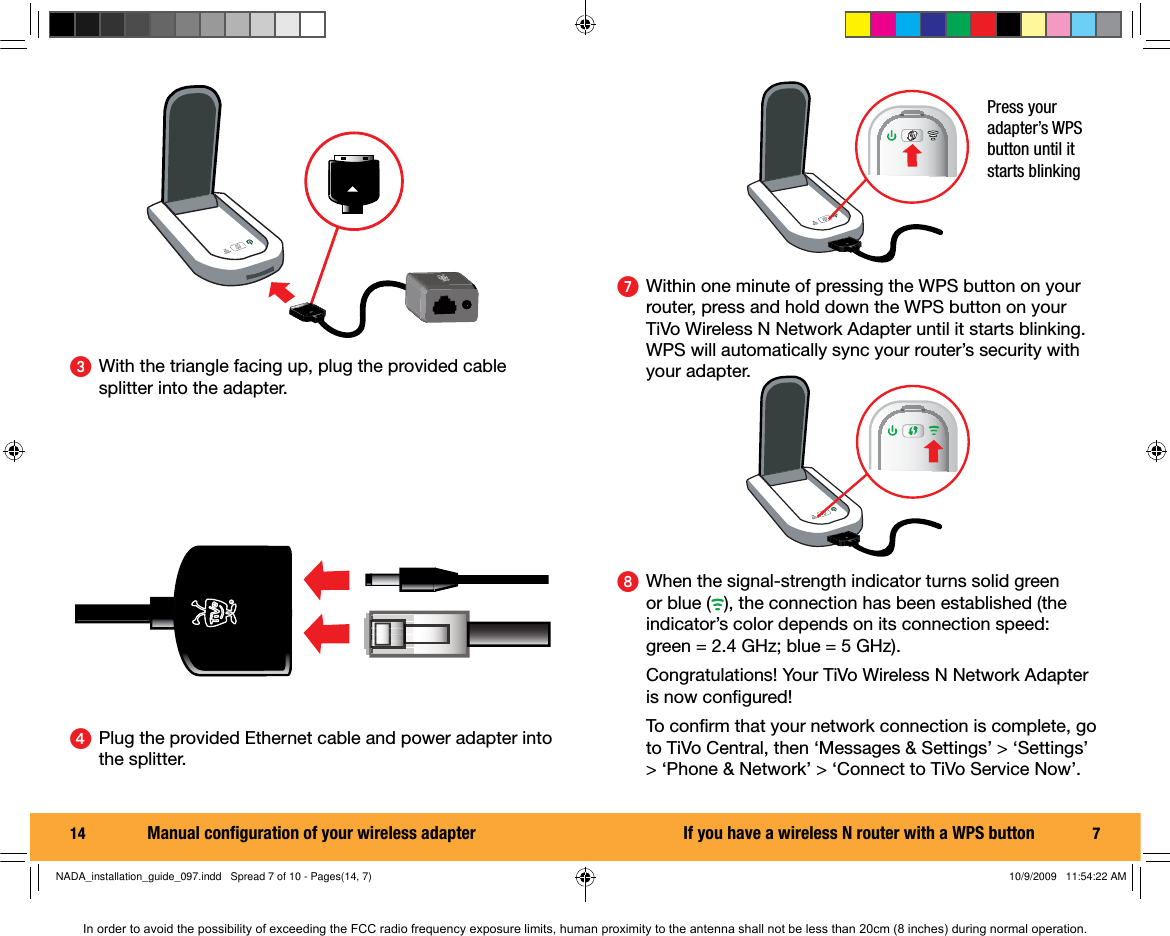
14  ᕣ  With the triangle facing up, plug the provided cable splitter into the adapter.ᕤ  Plug the provided Ethernet cable and power adapter into the splitter.Manual confi guration of your wireless adapter 7ᕧ  Within one minute of pressing the WPS button on your router, press and hold down the WPS button on your TiVo Wireless N Network Adapter until it starts blinking. WPS will automatically sync your router’s security with your adapter.ᕨ  When the signal-strength indicator turns solid green or blue ( ), the connection has been established (the indicator’s color depends on its connection speed: green = 2.4 GHz; blue = 5 GHz).   Congratulations! Your TiVo Wireless N Network Adapter is now confi gured! To confi rm that your network connection is complete, go to TiVo Central, then ‘Messages & Settings’ > ‘Settings’ > ‘Phone & Network’ > ‘Connect to TiVo Service Now’.Press your adapter’s WPS button until it starts blinkingIf you have a wireless N router with a WPS buttonNADA_installation_guide_097.indd   Spread 7 of 10 - Pages(14, 7)NADA_installation_guide_097.indd   Spread 7 of 10 - Pages(14, 7) 10/9/2009   11:54:22 AM10/9/2009   11:54:22 AMIn order to avoid the possibility of exceeding the FCC radio frequency exposure limits, human proximity to the antenna shall not be less than 20cm (8 inches) during normal operation.
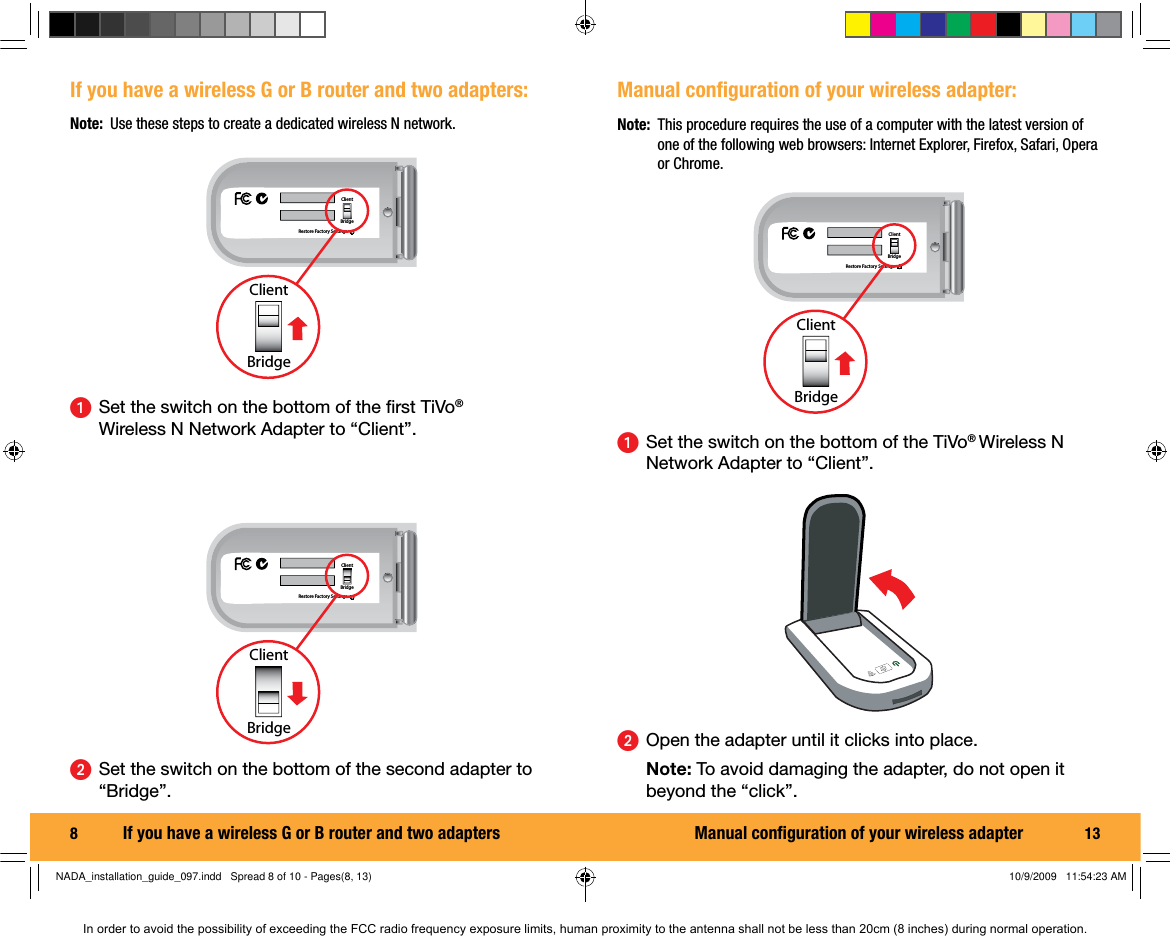
8  If you have a wireless G or B router and two adapters:ᕡ  Set the switch on the bottom of the fi rst TiVo® Wireless N Network Adapter to “Client”.Restore Factory SettingsClientBridgeClientBridgeᕢ  Set the switch on the bottom of the second adapter to “Bridge”.Restore Factory SettingsClientBridgeClientBridgeIf you have a wireless G or B router and two adaptersNote:  Use these steps to create a dedicated wireless N network.13Manual confi guration of your wireless adapter:ᕡ  Set the switch on the bottom of the TiVo® Wireless N Network Adapter to “Client”.Restore Factory SettingsClientBridgeClientBridgeᕢ  Open the adapter until it clicks into place.  Note: To avoid damaging the adapter, do not open it beyond the “click”.Note:  This procedure requires the use of a computer with the latest version of one of the following web browsers: Internet Explorer, Firefox, Safari, Opera or Chrome.Manual confi guration of your wireless adapterNADA_installation_guide_097.indd   Spread 8 of 10 - Pages(8, 13)NADA_installation_guide_097.indd   Spread 8 of 10 - Pages(8, 13) 10/9/2009   11:54:23 AM10/9/2009   11:54:23 AMIn order to avoid the possibility of exceeding the FCC radio frequency exposure limits, human proximity to the antenna shall not be less than 20cm (8 inches) during normal operation.
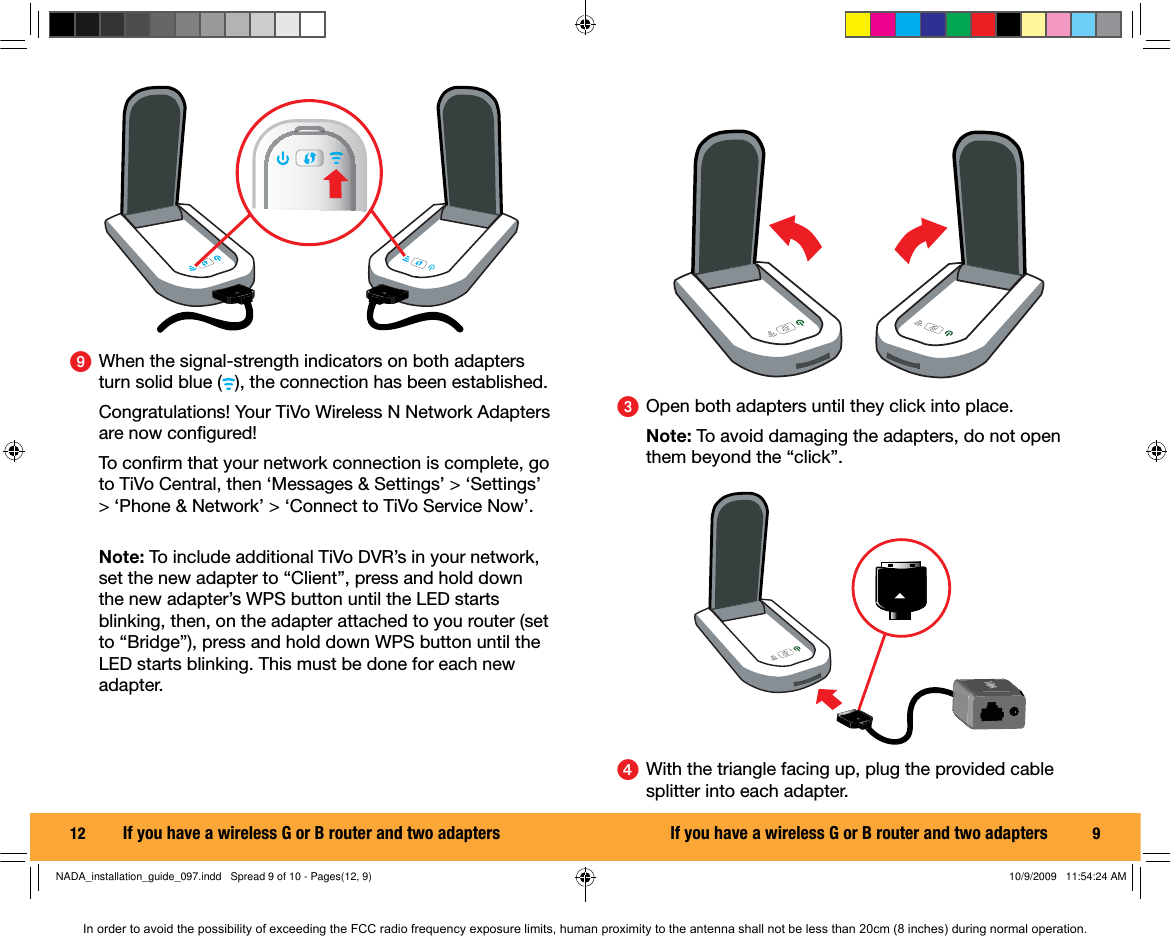
12  ᕩ  When the signal-strength indicators on both adapters turn solid blue ( ), the connection has been established.   Congratulations! Your TiVo Wireless N Network Adapters are now confi gured! To confi rm that your network connection is complete, go to TiVo Central, then ‘Messages & Settings’ > ‘Settings’ > ‘Phone & Network’ > ‘Connect to TiVo Service Now’. Note: To include additional TiVo DVR’s in your network, set the new adapter to “Client”, press and hold down the new adapter’s WPS button until the LED starts blinking, then, on the adapter attached to you router (set to “Bridge”), press and hold down WPS button until the LED starts blinking. This must be done for each new adapter.If you have a wireless G or B router and two adapters 9ᕣ  Open both adapters until they click into place.  Note: To avoid damaging the adapters, do not open them beyond the “click”.ᕤ  With the triangle facing up, plug the provided cable splitter into each adapter.If you have a wireless G or B router and two adaptersNADA_installation_guide_097.indd   Spread 9 of 10 - Pages(12, 9)NADA_installation_guide_097.indd   Spread 9 of 10 - Pages(12, 9) 10/9/2009   11:54:24 AM10/9/2009   11:54:24 AMIn order to avoid the possibility of exceeding the FCC radio frequency exposure limits, human proximity to the antenna shall not be less than 20cm (8 inches) during normal operation.
10  ᕦ  Plug the power cord from the fi rst adapter (set to “Client”) into an AC outlet, then connect the Ethernet cable to the back of your TiVo DVR (wait until the power indicator LED [] is solid green before continuing).ᕥ  Plug the provided Ethernet cable and power adapter into each splitter.If you have a wireless G or B router and two adapters 11ᕧ Plug the power cord from the second adapter (set to “Bridge”) into an AC outlet, then connect the Ethernet cable to your router (the adapter is ready when the power indicator LED [] is solid blue).Wireless - Nᕨ  On the fi rst adapter, press and hold down the WPS button until it starts blinking, then, within one minute, press and hold down the WPS button on the second adapter until it starts blinking. Press your adapter’s WPS button until it starts blinkingIf you have a wireless G or B router and two adaptersNADA_installation_guide_097.indd   Spread 10 of 10 - Pages(10, 11)NADA_installation_guide_097.indd   Spread 10 of 10 - Pages(10, 11) 10/9/2009   11:54:25 AM10/9/2009   11:54:25 AMIn order to avoid the possibility of exceeding the FCC radio frequency exposure limits, human proximity to the antenna shall not be less than 20cm (8 inches) during normal operation.

Navigation menu