TiVo Solutions d b a TiVo C00240A TiVo User Manual Qbert rectangle Inside FINAL A3

TiVo Inc. TiVoSlide Qbert rectangle Inside FINAL A3

Contents

Updated user manual 1 of 2

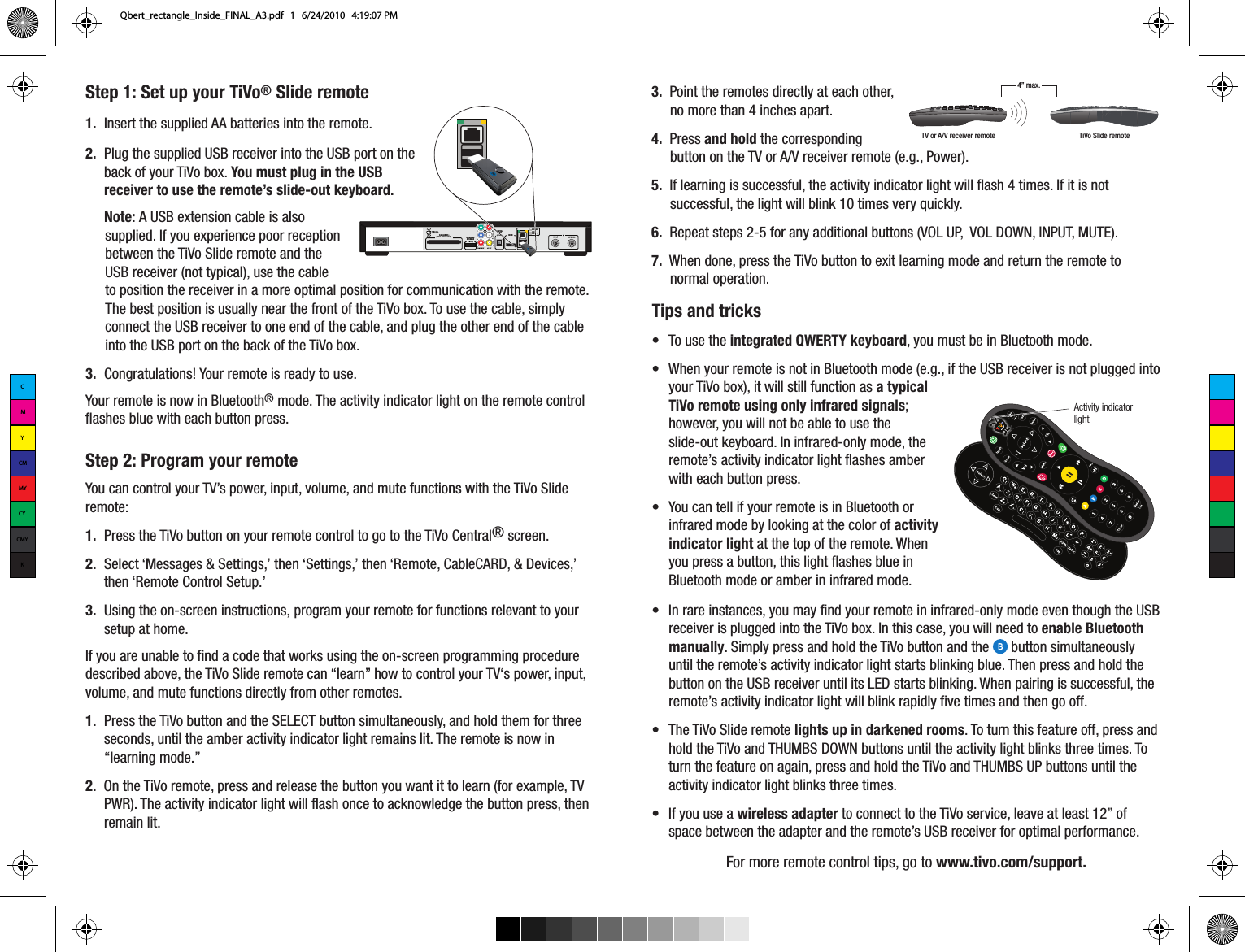
Step 1: Set up your TiVo® Slide remote1.  Insert the supplied AA batteries into the remote.2.  Plug the supplied USB receiver into the USB port on the back of your TiVo box. You must plug in the USB receiver to use the remote’s slide-out keyboard.Note: A USB extension cable is also supplied. If you experience poor reception between the TiVo Slide remote and the USB receiver (not typical), use the cable to position the receiver in a more optimal position for communication with the remote. The best position is usually near the front of the TiVo box. To use the cable, simply connect the USB receiver to one end of the cable, and plug the other end of the cable into the USB port on the back of the TiVo box. 3.  Congratulations! Your remote is ready to use.Your remote is now in Bluetooth® mode. The activity indicator light on the remote control flashes blue with each button press. Step 2: Program your remoteYou can control your TV’s power, input, volume, and mute functions with the TiVo Slide remote:1.  Press the TiVo button on your remote control to go to the TiVo Central® screen. 2.  Select ‘Messages & Settings,’ then ‘Settings,’ then ‘Remote, CableCARD, & Devices,’ then ‘Remote Control Setup.’ 3.  Using the on-screen instructions, program your remote for functions relevant to your setup at home.  If you are unable to find a code that works using the on-screen programming procedure described above, the TiVo Slide remote can “learn” how to control your TV‘s power, input, volume, and mute functions directly from other remotes. 1.  Press the TiVo button and the SELECT button simultaneously, and hold them for three seconds, until the amber activity indicator light remains lit. The remote is now in “learning mode.”2.  On the TiVo remote, press and release the button you want it to learn (for example, TV PWR). The activity indicator light will flash once to acknowledge the button press, then remain lit.3.  Point the remotes directly at each other, no more than 4 inches apart. 4.  Press and hold the corresponding button on the TV or A/V receiver remote (e.g., Power). 5.  If learning is successful, the activity indicator light will flash 4 times. If it is not successful, the light will blink 10 times very quickly.6.  Repeat steps 2-5 for any additional buttons (VOL UP,  VOL DOWN, INPUT, MUTE). 7.  When done, press the TiVo button to exit learning mode and return the remote to normal operation.TV or A/V receiver remote TiVo Slide remote4” max.Tips and tricks•  To use the integrated QWERTY keyboard, you must be in Bluetooth mode. •  When your remote is not in Bluetooth mode (e.g., if the USB receiver is not plugged into your TiVo box), it will still function as a typical TiVo remote using only infrared signals; however, you will not be able to use the slide-out keyboard. In infrared-only mode, the remote’s activity indicator light flashes amber with each button press.•  You can tell if your remote is in Bluetooth or infrared mode by looking at the color of activity indicator light at the top of the remote. When you press a button, this light flashes blue in Bluetooth mode or amber in infrared mode.•  In rare instances, you may find your remote in infrared-only mode even though the USB receiver is plugged into the TiVo box. In this case, you will need to enable Bluetooth manually. Simply press and hold the TiVo button and the      button simultaneously until the remote’s activity indicator light starts blinking blue. Then press and hold the button on the USB receiver until its LED starts blinking. When pairing is successful, the remote’s activity indicator light will blink rapidly five times and then go off.  •  The TiVo Slide remote lights up in darkened rooms. To turn this feature off, press and hold the TiVo and THUMBS DOWN buttons until the activity light blinks three times. To turn the feature on again, press and hold the TiVo and THUMBS UP buttons until the activity indicator light blinks three times. •  If you use a wireless adapter to connect to the TiVo service, leave at least 12” of space between the adapter and the remote’s USB receiver for optimal performance.For more remote control tips, go to www.tivo.com/support. Activity indicatorlightETHERNETUSB 1USB 2HDMITiVo Inc.EXTERNALSTORAGEDIGITAL AUDIO(OPTICAL)COMPONENTLVRVIDEOA/V OUTAUDIOCableCARD™(MULTI-STREAM ONLY)   CMYCMMYCYCMYKQbert_rectangle_Inside_FINAL_A3.pdf   1   6/24/2010   4:19:07 PM

Navigation menu