TiVo Solutions d b a TiVo C00260 IR & RF Remote Control User Manual Q2Remote

TiVo Inc. IR & RF Remote Control Q2Remote

User Manual

TO GET OUT-OF-WARRANTY SERVICE...Out-of-warranty service can be obtained at a nominal cost for replacement and handling. To obtain out-of-warranty service contact Customer Support at 1-877-367-8486 to obtain the cost of out-of-warranty exchange for your product.All implied warranties, including implied warranties of merchantability and tness for a particular purpose, are limited in duration to the duration of this express warranty. Some states do not allow limitations on how long an implied warranty lasts, so the above limitation may not apply to you.This warranty gives you specic legal rights. You may have other rights which vary from state to state (or jurisdiction to jurisdiction). TIVO’S RESPONSIBILITY FOR MALFUNCTIONS AND DEFECTS IN THE TIVO SLIDE PRO IS LIMITED TO REPAIR AND REPLACEMENT AS SET FORTH IN THIS LIMITED WARRANTY. ALL EXPRESS AND IMPLIED WARRANTIES FOR THE SLIDE PRO, INCLUDING BUT NOT LIMITED TO ANY IMPLIED WARRANTIES OF AND ALL CONDITIONS OF MERCHANTABILITY AND FITNESS FOR A PARTICULAR PURPOSE, ARE LIMITED IN DURATION TO THE LIMITED WARRANTY PERIOD SET FORTH ABOVE AND NO WARRANTIES, WHETHER EXPRESS OR IMPLIED, WILL APPLY AFTER SUCH PERIOD. Some states (or jurisdictions) do not allow limitations on how long an implied warranty lasts, so the above limitation may not apply to you.TIVO DOES NOT ACCEPT LIABILITY BEYOND THE REMEDIES SET FORTH IN THIS LIMITED WARRANTY OR LIABILITY FOR INCIDENTAL OR CONSEQUENTIAL DAMAGES, INCLUDING WITHOUT LIMITATION ANY LIABILITY FOR PRODUCTS NOT BEING AVAILABLE FOR USE OR FOR LOST DATA. Some states do not allow the exclusion of incidental or consequential damages, so the above exclusion may not apply to you.Safety Notices Do not use this product near water, for example, in a wet basement or near a swimming pool.Do not disassemble this product or expose it to liquid, humidity, or moisture.FCC Statement This equipment has been tested and found to comply with the limits for a Class B digital device, pursuant to Part 15 of the FCC Rules. These limits are designed to provide reasonable protection against harmful interference in a residential installation. This equipment generates, uses and can radiate radio frequency energy and, if not installed and used in accordance with the instructions, may cause harmful interference to radio communications. However, there is no guarantee that interference will not occur in a particular installation. If this equipment does cause harmful interference to radio or television reception, which can be determined by turning the equipment off and on, the user is encouraged to try to correct the interference by one of the following measures:t Reorient or relocate the receiving antenna.t Increase the separation between the equipment and receiver.t Connect the equipment into an outlet on a circuit different from that to which the receiver is connected.t Consult the dealer or an experienced radio/TV technician for help.FCC Caution: Any changes or modications not expressly approved by the party responsible for compliance could void the user’s authority to operate this equipment. This device complies with Part 15 of the FCC Rules. Operation is subject to the following two conditions: (1) This device may not cause harmful interference, and (2) this device must accept any interference received, including interference that may cause undesired operation.FCC Radiation Exposure StatementThis equipment complies with FCC radiation exposure limits set forth for an uncontrolled environment. End users must follow the specic operating instructions for satisfying RF exposure compliance. To maintain compliance with FCC RF exposure compliance requirements, please follow operation instructions as documented in this manual.This transmitter must not be co-located or operating in conjunction with any other antenna or transmitter.The availability of some specic channels and/or operational frequency bands are country dependent and are rmware programmed at the factory to match the intended destination. The rmware setting is not accessible by the end user.Compliance InformationModel numbers: C00260 (remote); A00913 (USB receiver and cable)FCC ID: TGN-C00260 (remote); TGN-A00913 (USB receiver)Legal NoticesThis product contains software copyright © 2013 TiVo Inc. All rights reserved.Your use of this product is subject to TiVo's User Agreement and Privacy Policy, visit www.tivo.com/legal for the latest versions.© 2013 TiVo Inc. All rights reserved. TiVo, TiVo Roamio, the TiVo logo, the Thumbs Up and Thumbs Down logos, the Instant Replay and Jump logos are trademarks or registered trademarks of TiVo Inc. and its subsidiaries worldwide. The TiVo® Slide Pro remote is made in Korea.Patented. U.S. pat. nos. at www.tivo.com/patents. SDOC-00151-000 A1TiVo Remote Limited Warranty90 Days Free Parts and LaborWHO IS COVERED?You must have proof of purchase to receive warranty service. A sales receipt or other document showing that you purchased the product is considered proof of purchase.WHAT IS COVERED?The TiVo Slide Pro remote (including the USB receiver, if any, provided with the remote) is manufactured from parts and components that are new or equivalent to new in accordance with industry-standard practices. TiVo warrants that the Slide Pro will be free from defects in materials and workmanship during the limited warranty period described herein. The limited warranty coverage begins the day you purchase the product as further described in the following text. For 90 days from the purchase date, the Slide Pro will be replaced with a repaired, renewed or comparable product (whichever is deemed necessary by TiVo) if it becomes defective or inoperative. This exchange is done without charge to you for parts and labor (except applicable taxes, if any). You will be responsible for the cost of shipping (both ways).  Contact Customer Support at 1-877-367-8486 (1-877-FOR-TIVO) to obtain your cost (shipping costs and applicable taxes, if any) for exchange. All products, including replacement products, are covered only for the original warranty period. When the warranty on the original product expires, the warranty on the replacement product also expires.WHAT IS EXCLUDED?Your warranty does not cover:t -BCPSDIBSHFTGPSJOTUBMMBUJPOPSTFUVQPGUIFQSPEVDUt "OZTIJQQJOHDIBSHFTBOEPSUBYFTJNQPTFEPO5J7PGPSVOJUTSFQMBDFEPSrepaired under this warranty. t *OTUBMMBUJPOQFSGPSNBODFPGPSSFQBJSPGBVEJPWJEFPDBCMJOHUFMFQIPOFMJOFor accessory attachments used with the product. t 1SPEVDUEBNBHFCFDBVTFPGNJTVTFBDDJEFOUMJHIUOJOHEBNBHFVOBVUIPSJ[FErepair, or other cause not within the control of TiVo Inc. t 3FDFQUJPOSBOHFPSJOUFSGFSFODFQSPCMFNTDBVTFECZTJHOBMDPOEJUJPOTtelephone line, or cable, antenna, or wireless systems outside the unit. t %BNBHFTUPPSWJSVTFTUIBUNBZJOGFDUZPVS4MJEF1SPPSPUIFSEFWJDFTBSJTJOHGSPNUIFVTFPGVOBVUIPSJ[FEUIJSEQBSUZEFWJDFTJODPOOFDUJPOXJUIZPVS4MJEFPro. t *ODJEFOUBMPSDPOTFRVFOUJBMEBNBHFTSFTVMUJOHGSPNUIFQSPEVDU4PNFTUBUFTdo not allow the  exclusion of incidental or consequential damages, so the above exclusion may not apply to you.) t "QSPEVDUUIBUIBTCFFONPEJåFEPSBEBQUFEUPFOBCMFJUUPPQFSBUFJOBOZcountry other than the country for which it was designed, and has been damaged by these modications. t "QSPEVDUVTFEGPSDPNNFSDJBMPSJOTUJUVUJPOBMQVSQPTFTt "DDFTTDPOOFDUJPOTUFMFQIPOFPSCSPBECBOEJODMVEJOHDIBSHFTGSPNZPVScommunications provider.MAKE SURE YOU KEEP...Please keep your sales receipt or other document showing proof of purchase. Attach it to this guide and keep both nearby. Also keep the original box and packing material in case you need to return your product. BEFORE YOU REQUEST WARRANTY SERVICEPlease follow the troubleshooting advice on tivo.com/support before calling Customer Support. Following the troubleshooting tips contained therein may save you a call to Customer Support.TO GET WARRANTY SERVICE...If you believe the product is defective, contact Customer Support at 1-877-367-8486. A representative will go through a diagnostic checklist with you. If it is determined that UIFQSPEVDUOFFETUPCFFYDIBOHFEZPVXJMMSFDFJWFBSFUVSOBVUIPSJ[BUJPOOVNCFSThe representative will give you complete shipping details.Tested to comply with FCC Standards for Home or Office useSlide ProInstallation& SetupCMYCMMYCYCMYKQ2SlideRemote.pdf   1   9/24/2013   1:24:20 PM
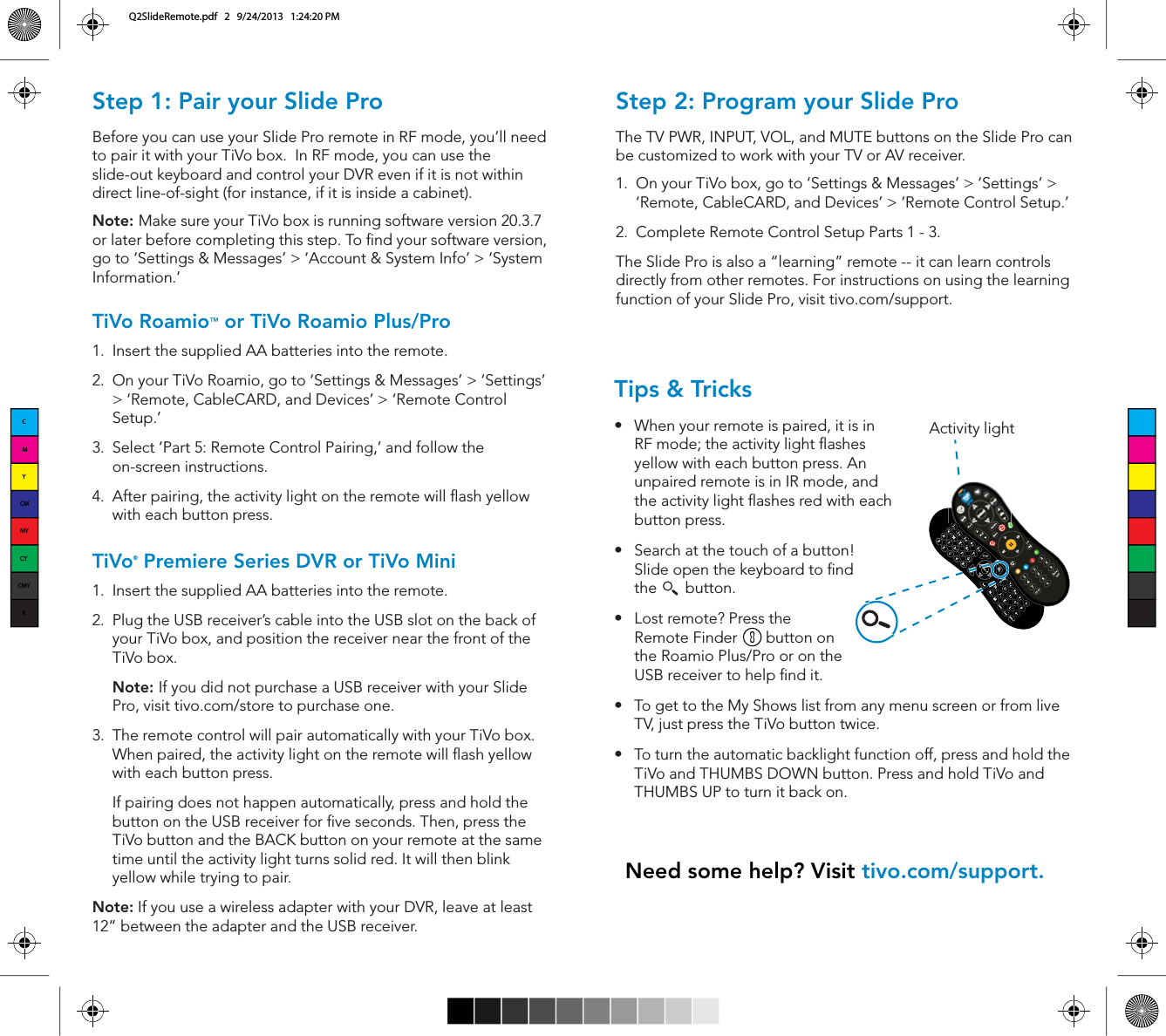
Step 1: Pair your Slide ProBefore you can use your Slide Pro remote in RF mode, you’ll need to pair it with your TiVo box.  In RF mode, you can use the slide-out keyboard and control your DVR even if it is not within direct line-of-sight (for instance, if it is inside a cabinet).Note: Make sure your TiVo box is running software version 20.3.7 or later before completing this step. To nd your software version, go to ‘Settings & Messages’ > ‘Account & System Info’ > ‘System Information.’TiVo Roamio™ or TiVo Roamio Plus/Pro 1.  Insert the supplied AA batteries into the remote.2.  On your TiVo Roamio, go to ‘Settings & Messages’ > ‘Settings’ > ‘Remote, CableCARD, and Devices’ > ‘Remote Control Setup.’3.  Select ‘Part 5: Remote Control Pairing,’ and follow the on-screen instructions.4.  After pairing, the activity light on the remote will ash yellow with each button press. TiVo® Premiere Series DVR or TiVo Mini 1.  Insert the supplied AA batteries into the remote.2.  Plug the USB receiver’s cable into the USB slot on the back of your TiVo box, and position the receiver near the front of the TiVo box.Note: If you did not purchase a USB receiver with your Slide Pro, visit tivo.com/store to purchase one.3.  The remote control will pair automatically with your TiVo box. When paired, the activity light on the remote will ash yellow with each button press.   If pairing does not happen automatically, press and hold the button on the USB receiver for ve seconds. Then, press the TiVo button and the BACK button on your remote at the same time until the activity light turns solid red. It will then blink yellow while trying to pair.Note: If you use a wireless adapter with your DVR, leave at least 12” between the adapter and the USB receiver.Tips & Trickss When your remote is paired, it is in RF mode; the activity light ashes yellow with each button press. An unpaired remote is in IR mode, and the activity light ashes red with each button press.s Search at the touch of a button! Slide open the keyboard to nd the       button.s Lost remote? Press the        Remote Finder       button on the Roamio Plus/Pro or on the USB receiver to help nd it.s To get to the My Shows list from any menu screen or from live TV, just press the TiVo button twice.s To turn the automatic backlight function off, press and hold the TiVo and THUMBS DOWN button. Press and hold TiVo and THUMBS UP to turn it back on.Need some help? Visit tivo.com/support.Step 2: Program your Slide ProThe TV PWR, INPUT, VOL, and MUTE buttons on the Slide Pro can CFDVTUPNJ[FEUPXPSLXJUIZPVS57PS"7SFDFJWFS1.  On your TiVo box, go to ‘Settings & Messages’ > ‘Settings’ > ‘Remote, CableCARD, and Devices’ > ‘Remote Control Setup.’2.  Complete Remote Control Setup Parts 1 - 3.The Slide Pro is also a “learning” remote -- it can learn controls directly from other remotes. For instructions on using the learning function of your Slide Pro, visit tivo.com/support.LastActivity lightCMYCMMYCYCMYKQ2SlideRemote.pdf   2   9/24/2013   1:24:20 PM

Navigation menu