Topscan SCANAIR Highlighter, Scanmarker Air, 2.0 User Manual

Topscan Ltd. Highlighter, Scanmarker Air, 2.0

User Manual

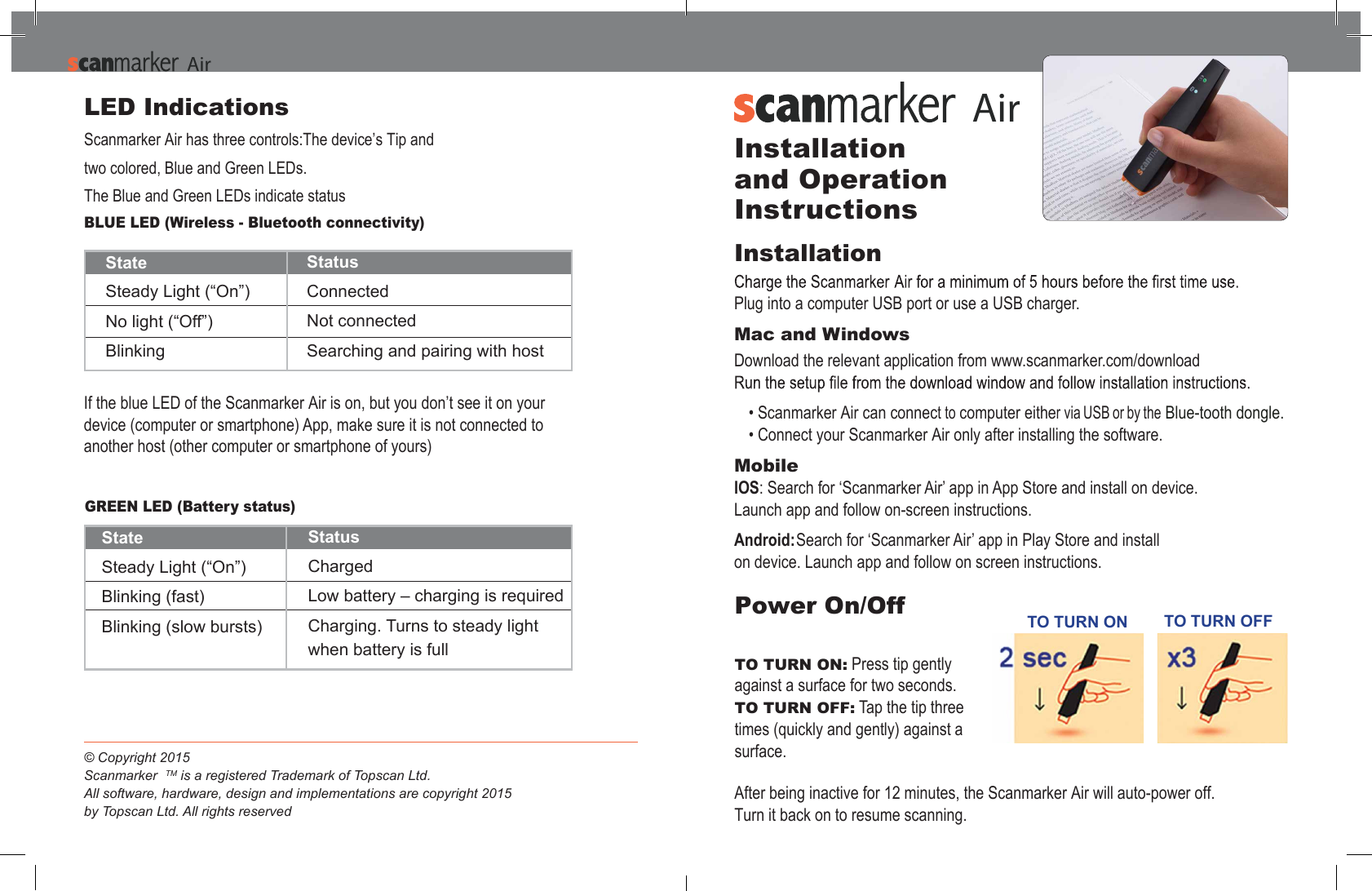
StateSteady Light (“On”)No light (“Off”)Blinking StatusConnectedNot connectedSearching and pairing with hostIf the blue LED of the Scanmarker Air is on, but you don’t see it on your device (computer or smartphone) App, make sure it is not connected to another host (other computer or smartphone of yours)GREEN LED (Battery status)StateSteady Light (“On”)Blinking (fast)Blinking (slow bursts)StatusChargedLow battery – charging is requiredCharging. Turns to steady light when battery is fullLED IndicationsScanmarker Air has three controls:The device’s Tip and two colored, Blue and Green LEDs.The Blue and Green LEDs indicate statusBLUE LED (Wireless - Bluetooth connectivity) © Copyright 2015Scanmarker  TM is a registered Trademark of Topscan Ltd.All software, hardware, design and implementations are copyright 2015by Topscan Ltd. All rights reserved AAirPower On/OffTO TURN ON: Press tip gently  against a surface for two seconds.TO TURN OFF: Tap the tip three  times (quickly and gently) against a surface.After being inactive for 12 minutes, the Scanmarker Air will auto-power off. Turn it back on to resume scanning. Installation and Operation InstructionsInstallation Plug into a computer USB port or use a USB charger.Mac and Windows Download the relevant application from www.scanmarker.com/download Blue-tooth dongle.• Scanmarker Air can connect to computer either via USB or by the• Connect your Scanmarker Air only after installing the software.MobileIOS: Search for ‘Scanmarker Air’ app in App Store and install on device. Launch app and follow on-screen instructions.Android: Search for ‘Scanmarker Air’ app in Play Store and install on device. Launch app and follow on screen instructions.TO TURN ON TO TURN OFFAAir
Operation Activation You have up to 30 days to activate your Scanmarker Air application. Please make sure your device is connected to the internet and enter the code  that appears on  the Warranty Card.Pairing Internet connection is required for every new pairing between Scanmarker Air and mobile devices.Functions The three main functions of the Scanmarker Air application (either on PC, Mac or mobile device) are:1. Text scanning , transferring it to a digital format2. Reading aloud (the scanned text)3. Translation of single word or entire paragraphWindows/ Mac The application allows the user to choose whether to scan  to Scanmarker Air application or directly to external application  (e.g.  MS-Word, Chrome or others). Scanning Tips • Hold the device as shown.• Press down gently until red light appears.•Scanmarker Air fluid• Scan one line of text at a time. Keep the line of text between the edges of the tip.• Avoid applying excessive pressure while scanning.• When scanning a single word, start well before the word begins and continue the scan well beyond it (but don’t scan multiple words).•For iOS/Android devices it is recommended to set “Connect to cloud” to “on” for faster scanning speed. Turning cloud scanning off may slow down scanning speed on older models mobile phones. Turn off when internet connection is slow or unavailable.• We recommend watching the video tutorial to help you perfect yourscanning technique. Having trouble scanning? • Check your settings to ensure that the following selections are correct;Input Language, Scan mode, Scanning hand.• Practice scanning in the ‘Test Device’ (Practice) screen.• If this doesn’t resolve the issue please contact support@scanmarker.comOn “Scan text” mode (under settings), the computer application enables the user to choose scan type to optimize text capture.  The available scan types are: Text (default); Single word; Image; Numbers; Table; and Barcode.IOS/ Android The application collects can be read by any text application.Notepad when using Windows. In order to open with MS Word (or other program), with’ to choose MS Word.]AiAir
FCC Compliance StatementThis device has been tested and found to comply with  the limits for a Class B digital device, pursuant to Part 15 of theFCC  Rules.  These  limits  are  designed  to  provide  reasonable  protection  against  harmful  interference  in residentialinstallations.  This  equipment  generates  uses  and  can  radiate  radio  frequency  energy  and,  if  not  installed  and  used  inaccordance with the instructions, may cause harmful interference to radio and television reception.However, there is no guarantee that interference will not occur in a particular installation. If this device does cause suchinterference, which can be verified by turning the device off and on, the user is encouraged to eliminate the interferenceby one or more of the following measures:– Re-orient or re-locate the receiving antenna.– Increase the distance between the device and the receiver.– Connect the device to an outlet on a circuit different from the one that supplies power to the receiver.– Consult the dealer or an experienced radio/TV technician.WARNING! Changes or modifications to this unit not expressly approved by the party responsible for compliance couldvoid the user’s authority to operate the equipment.This device complies with FCC Rules Part 15). Operation is subject to two conditions: (1) This device may not causeharmful interference, and (2) this device must accept any interference that may be received or that may cause undesiredoperation.To comply with FCC Section 1.310 for human exposure to radio frequency electromagnetic fields and IC requirements,implement the following instruction:A distance of at least 0.25 cm between the equipment and all persons should be maintained during the operation of theequipment.

Navigation menu