Viatom Technology 1651 SleepO2 User Manual

Shenzhen Viatom Technology Co., Ltd. SleepO2

User Manual

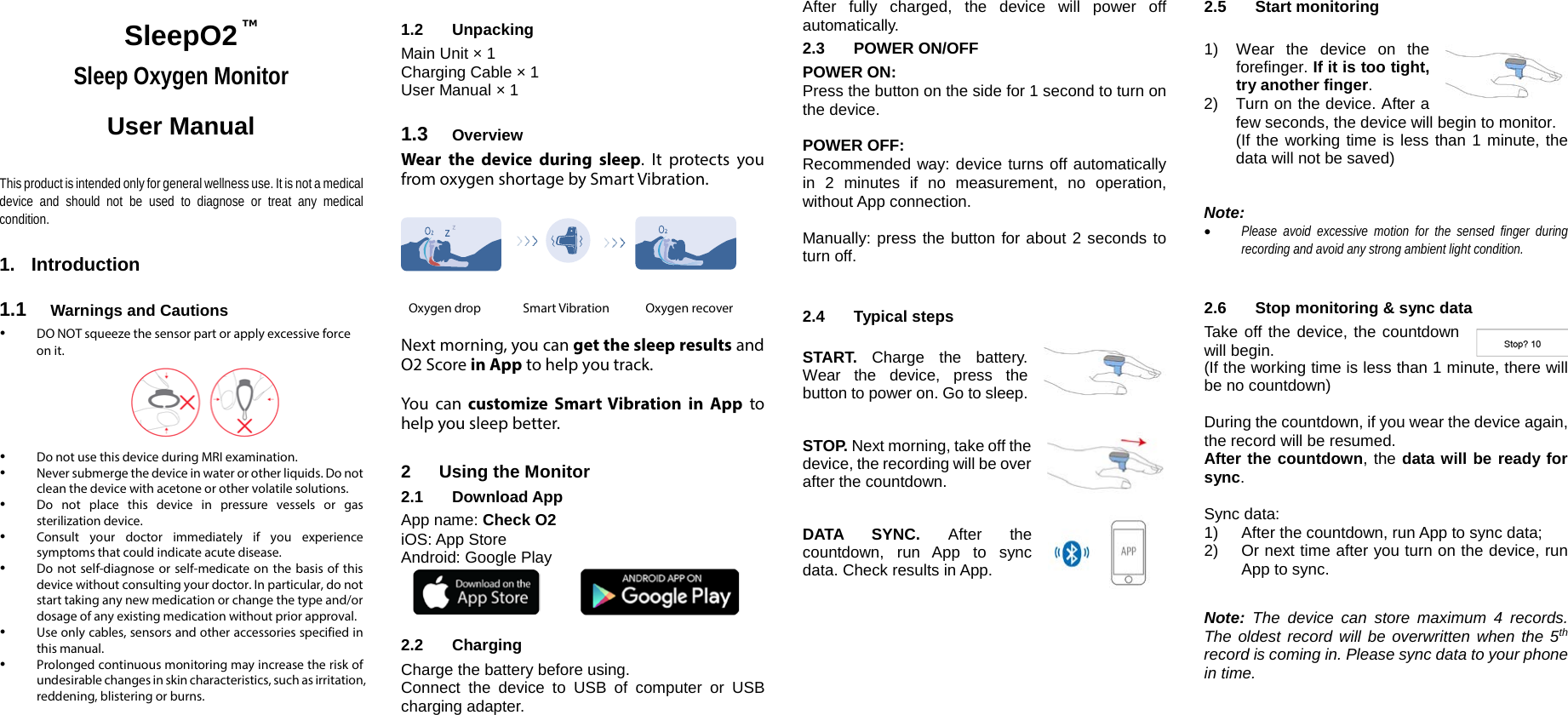
SleepO2 Sleep Oxygen Monitor User Manual   This product is intended only for general wellness use. It is not a medical device and should not be used to diagnose or treat any medical condition.  1. Introduction  1.1 Warnings and Cautions  DO NOT squeeze the sensor part or apply excessive force on it.        Do not use this device during MRI examination.  Never submerge the device in water or other liquids. Do not clean the device with acetone or other volatile solutions.   Do not place this device in pressure vessels or gas sterilization device.  Consult your doctor immediately if you experience symptoms that could indicate acute disease.   Do not self-diagnose or self-medicate on the basis of this device without consulting your doctor. In particular, do not start taking any new medication or change the type and/or dosage of any existing medication without prior approval.   Use only cables, sensors and other accessories specified in this manual.   Prolonged continuous monitoring may increase the risk of undesirable changes in skin characteristics, such as irritation, reddening, blistering or burns.   1.2 Unpacking Main Unit × 1 Charging Cable × 1 User Manual × 1  1.3 Overview Wear the device during sleep. It protects you from oxygen shortage by Smart Vibration.       Oxygen drop               Smart Vibration             Oxygen recover  Next morning, you can get the sleep results and O2 Score in App to help you track.  You can customize Smart Vibration in App to help you sleep better.  2  Using the Monitor 2.1 Download App App name: Check O2 iOS: App Store Android: Google Play  2.2 Charging Charge the battery before using. Connect the device to USB of computer or USB charging adapter.  After fully charged, the device will power off automatically. 2.3  POWER ON/OFF POWER ON: Press the button on the side for 1 second to turn on the device.   POWER OFF: Recommended way: device turns off automatically in 2 minutes if no measurement, no operation, without App connection.  Manually: press the button for about 2 seconds to turn off.   2.4 Typical steps   START. Charge the battery. Wear the device, press the button to power on. Go to sleep.   STOP. Next morning, take off the  device, the recording will be over after the countdown.   DATA SYNC. After the countdown, run App to sync data. Check results in App.       2.5 Start monitoring   1) Wear the device on  the forefinger. If it is too tight, try another finger.  2) Turn on the device. After a few seconds, the device will begin to monitor.  (If the working time is less than 1 minute, the data will not be saved)   Note:  • Please avoid excessive motion for the sensed finger during recording and avoid any strong ambient light condition.   2.6  Stop monitoring & sync data Take off the device, the countdown will begin. (If the working time is less than 1 minute, there will be no countdown)  During the countdown, if you wear the device again, the record will be resumed.  After the countdown, the data will be ready for sync.  Sync data: 1) After the countdown, run App to sync data; 2) Or next time after you turn on the device, run App to sync.  Note: The device can store maximum 4 records. The oldest record will be overwritten when the 5th record is coming in. Please sync data to your phone in time.  TM
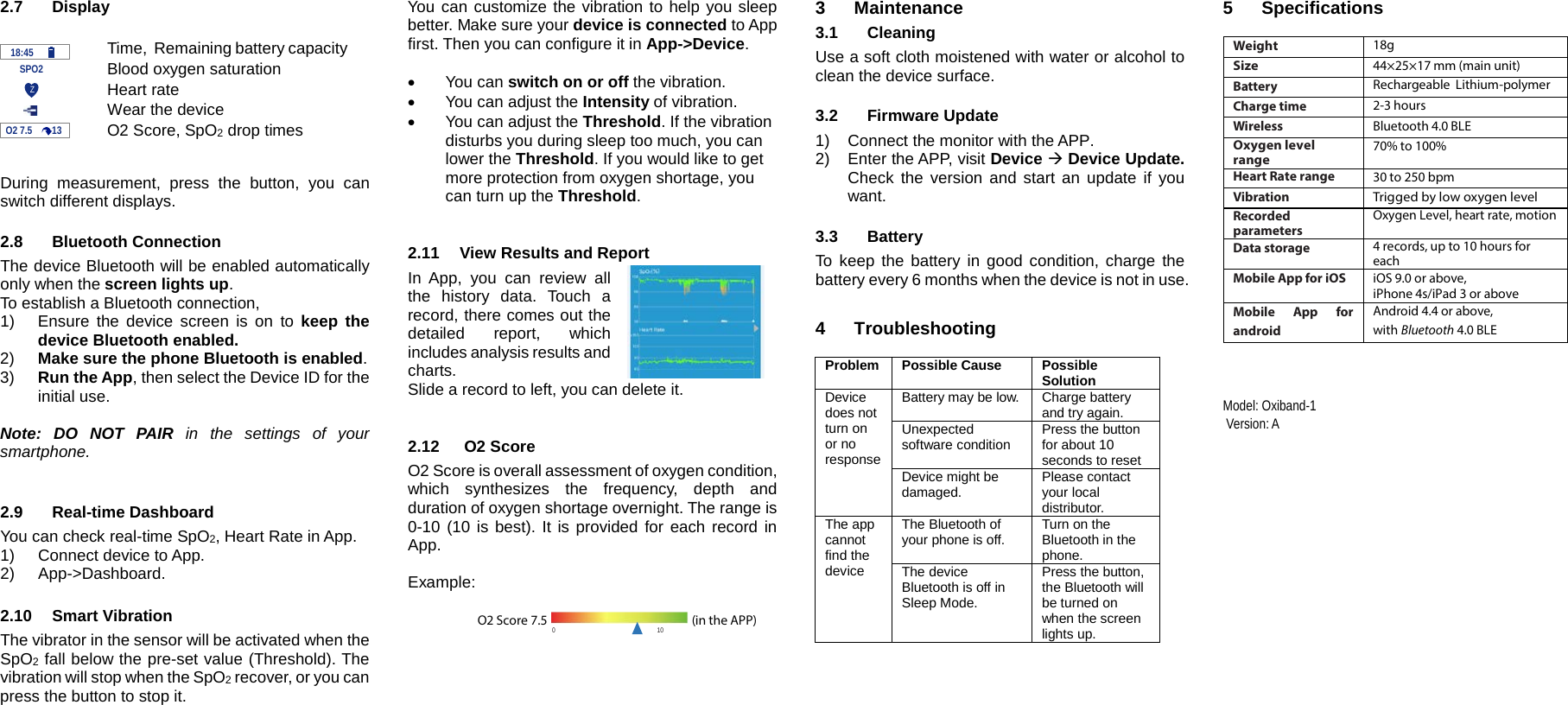
2.7 Display   Time,  Remaining battery capacity     SPO2 Blood oxygen saturation  Heart rate  Wear the device  O2 Score, SpO2 drop times   During measurement, press the button, you can switch different displays.  2.8 Bluetooth Connection The device Bluetooth will be enabled automatically only when the screen lights up. To establish a Bluetooth connection,  1) Ensure the device screen is on to keep the device Bluetooth enabled.   2) Make sure the phone Bluetooth is enabled. 3) Run the App, then select the Device ID for the initial use.  Note: DO NOT PAIR in the settings of your smartphone.    2.9 Real-time Dashboard You can check real-time SpO2, Heart Rate in App. 1) Connect device to App. 2)  App->Dashboard.  2.10 Smart Vibration The vibrator in the sensor will be activated when the SpO2 fall below the pre-set value (Threshold). The vibration will stop when the SpO2 recover, or you can press the button to stop it.  You can customize the vibration to help you sleep better. Make sure your device is connected to App first. Then you can configure it in App->Device.  • You can switch on or off the vibration. • You can adjust the Intensity of vibration. • You can adjust the Threshold. If the vibration disturbs you during sleep too much, you can lower the Threshold. If you would like to get more protection from oxygen shortage, you can turn up the Threshold.   2.11 View Results and Report In App, you can review all the history data. Touch a record, there comes out the detailed report, which includes analysis results and charts.   Slide a record to left, you can delete it.   2.12   O2 Score O2 Score is overall assessment of oxygen condition, which  synthesizes the frequency, depth and duration of oxygen shortage overnight. The range is 0-10 (10 is best). It is provided for each record in App.  Example:      3  Maintenance 3.1 Cleaning Use a soft cloth moistened with water or alcohol to clean the device surface.  3.2 Firmware Update 1) Connect the monitor with the APP.  2) Enter the APP, visit Device  Device Update. Check the version and start an update if you want.  3.3  Battery To keep the battery in good condition, charge the battery every 6 months when the device is not in use.  4  Troubleshooting  Problem Possible Cause Possible Solution Device does not turn on or no response Battery may be low. Charge battery and try again. Unexpected software condition Press the button for about 10 seconds to reset Device might be damaged. Please contact your local distributor. The app cannot find the device The Bluetooth of your phone is off. Turn on the Bluetooth in the phone. The device Bluetooth is off in Sleep Mode. Press the button, the Bluetooth will be turned on when the screen lights up.    5  Specifications  Weight 18g Size 44×25×17 mm (main unit) Battery Rechargeable  Lithium-polymer Charge time 2-3 hours  Wireless Bluetooth 4.0 BLE Oxygen level range 70% to 100% Heart Rate range 30 to 250 bpm Vibration Trigged by low oxygen level Recorded parameters Oxygen Level, heart rate, motion Data storage 4 records, up to 10 hours for each Mobile App for iOS iOS 9.0 or above,  iPhone 4s/iPad 3 or above Mobile App for android Android 4.4 or above,  with Bluetooth 4.0 BLE                                                                                         Model: Oxiband-1  Version: A  O2 7.5        13    18:45 Z  0                                                              10 O2 Score 7.5                                                             (in the APP)
FCC Statement15.191. This device complies with Part 15 of the FCC Rules. Operation is subject to the following twoconditions:(1) This device may not cause harmful interference.(2) This device must accept any interference received, including interference that may causeundesired operation.15.21Note: The grantee is not responsible for any changes or modifications not expressly approved bythe party responsible for compliance. Such modifications could void the user’s authority to operatethe equipment.15.105(b)NOTE: This equipment has been tested and found to comply with the limits for a Class B digitaldevice, pursuant to part 15 of the FCC Rules. These limits are designed to provide reasonableprotection against harmful interference in a residential installation.This equipment generates uses and can radiate radio frequency energy and, if not installed andused in accordance with the instructions, may cause harmful interference to radio communications.However, there is no guarantee that interference will not occur in a particular installation. If thisequipment does cause harmful interference to radio or television reception, which can bedetermined by turning the equipment off and on, the user is encouraged to try to correct theinterference by one or more of the following measures:- Reorient or relocate the receiving antenna.- Increase the separation between the equipment and receiver.-Connect the equipment into an outlet on a circuit different from that to which the receiver isconnected.-Consult the dealer or an experienced radio/TV technician for help

Navigation menu