Vitelcom Mobile Technology SP-100 TRI-BAND GSM 850/1800/1900 MHz MOBILE PHONE User Manual 6p 70p

Vitelcom Mobile Technology, S.A. TRI-BAND GSM 850/1800/1900 MHz MOBILE PHONE 6p 70p

Contents

Users Manual 2 of 2
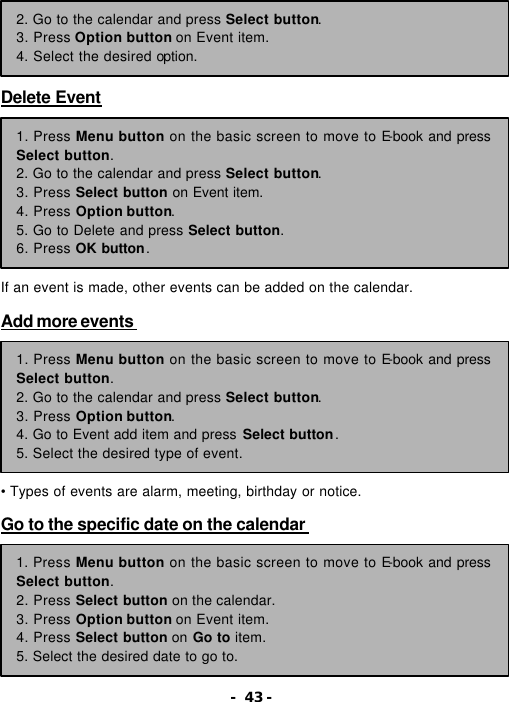
- 43 -      Delete Event           If an event is made, other events can be added on the calendar.  Add more events          • Types of events are alarm, meeting, birthday or notice.  Go to the specific date on the calendar          2. Go to the calendar and press Select button. 3. Press Option button on Event item. 4. Select the desired option. 1. Press Menu button on the basic screen to move to E-book and press Select button. 2. Go to the calendar and press Select button.   3. Press Select button on Event item. 4. Press Option button. 5. Go to Delete and press Select button. 6. Press OK button. 1. Press Menu button on the basic screen to move to E-book and press Select button. 2. Go to the calendar and press Select button.   3. Press Option button. 4. Go to Event add item and press Select button. 5. Select the desired type of event. 1. Press Menu button on the basic screen to move to E-book and press Select button. 2. Press Select button on the calendar. 3. Press Option button on Event item. 4. Press Select button on Go to item. 5. Select the desired date to go to.
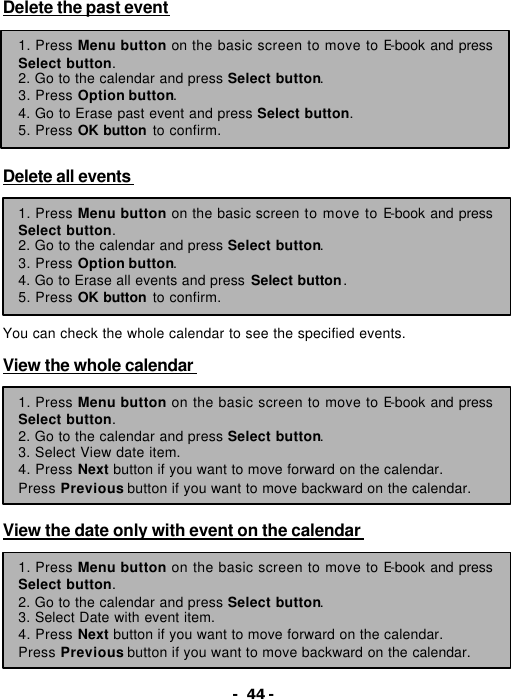
- 44 - Delete the past event         Delete all events          You can check the whole calendar to see the specified events.  View the whole calendar          View the date only with event on the calendar         1. Press Menu button on the basic screen to move to E-book and press Select button. 2. Go to the calendar and press Select button.   3. Press Option button. 4. Go to Erase past event and press Select button. 5. Press OK button to confirm. 1. Press Menu button on the basic screen to move to E-book and press Select button. 2. Go to the calendar and press Select button.   3. Press Option button. 4. Go to Erase all events and press Select button. 5. Press OK button to confirm. 1. Press Menu button on the basic screen to move to E-book and press Select button. 2. Go to the calendar and press Select button.   3. Select View date item. 4. Press Next button if you want to move forward on the calendar. Press Previous button if you want to move backward on the calendar. 1. Press Menu button on the basic screen to move to E-book and press Select button. 2. Go to the calendar and press Select button.   3. Select Date with event item. 4. Press Next button if you want to move forward on the calendar. Press Previous button if you want to move backward on the calendar.
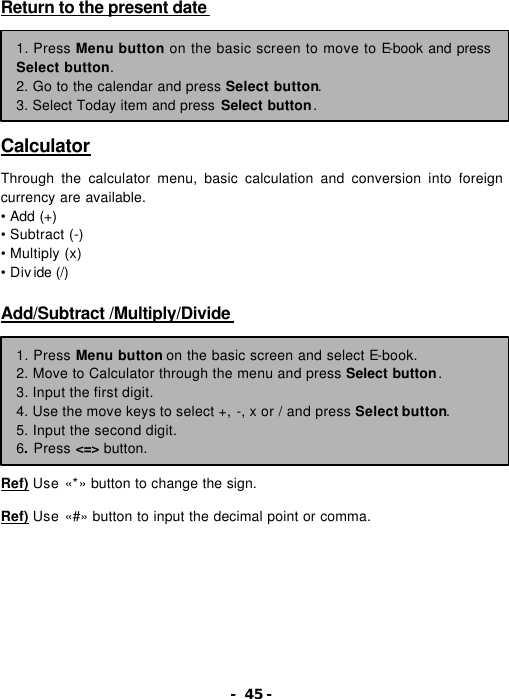
- 45 - Return to the present date         Calculator  Through the calculator menu, basic calculation and conversion into foreign currency are available. • Add (+)   • Subtract (-)   • Multiply (x)   • Divide (/)    Add/Subtract /Multiply/Divide          Ref) Use «*» button to change the sign.  Ref) Use «#» button to input the decimal point or comma. 1. Press Menu button on the basic screen to move to E-book and press Select button. 2. Go to the calendar and press Select button.   3. Select Today item and press Select button. 1. Press Menu button on the basic screen and select E-book. 2. Move to Calculator through the menu and press Select button. 3. Input the first digit. 4. Use the move keys to select +, -, x or / and press Select button. 5. Input the second digit. 6. Press <=> button.
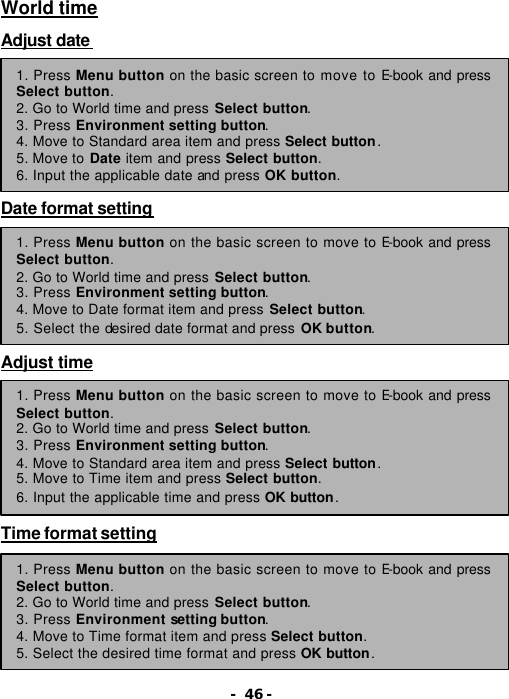
- 46 - World time  Adjust date          Date format setting         Adjust time          Time format setting        1. Press Menu button on the basic screen to move to E-book and press Select button. 2. Go to World time and press Select button.   3. Press Environment setting button. 4. Move to Standard area item and press Select button. 5. Move to Date item and press Select button. 6. Input the applicable date and press OK button. 1. Press Menu button on the basic screen to move to E-book and press Select button. 2. Go to World time and press Select button.   3. Press Environment setting button. 4. Move to Date format item and press Select button. 5. Select the desired date format and press OK button. 1. Press Menu button on the basic screen to move to E-book and press Select button. 2. Go to World time and press Select button.   3. Press Environment setting button. 4. Move to Standard area item and press Select button. 5. Move to Time item and press Select button. 6. Input the applicable time and press OK button. 1. Press Menu button on the basic screen to move to E-book and press Select button. 2. Go to World time and press Select button.   3. Press Environment setting button. 4. Move to Time format item and press Select button. 5. Select the desired time format and press OK button.
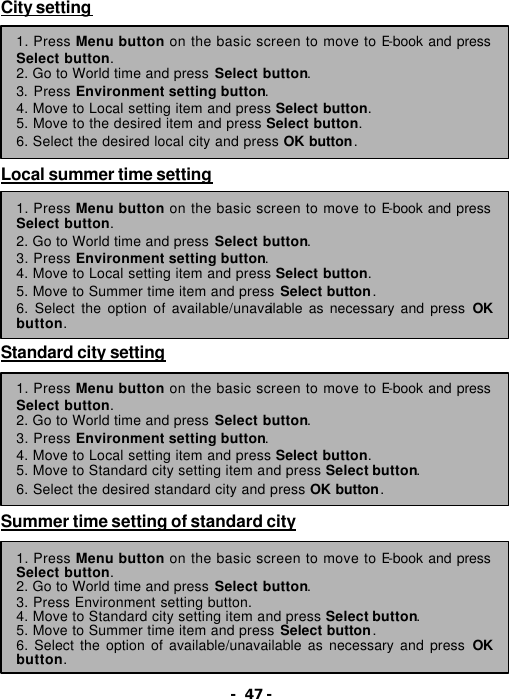
- 47 - City setting         Local summer time setting          Standard city setting         Summer time setting of standard city         1. Press Menu button on the basic screen to move to E-book and press Select button. 2. Go to World time and press Select button.   3. Press Environment setting button. 4. Move to Local setting item and press Select button. 5. Move to the desired item and press Select button. 6. Select the desired local city and press OK button. 1. Press Menu button on the basic screen to move to E-book and press Select button. 2. Go to World time and press Select button.   3. Press Environment setting button. 4. Move to Local setting item and press Select button. 5. Move to Summer time item and press Select button. 6. Select the option of available/unavailable as necessary and press OK button. 1. Press Menu button on the basic screen to move to E-book and press Select button. 2. Go to World time and press Select button.   3. Press Environment setting button. 4. Move to Local setting item and press Select button. 5. Move to Standard city setting item and press Select button. 6. Select the desired standard city and press OK button. 1. Press Menu button on the basic screen to move to E-book and press Select button. 2. Go to World time and press Select button.   3. Press Environment setting button. 4. Move to Standard city setting item and press Select button. 5. Move to Summer time item and press Select button. 6. Select the option of available/unavailable as necessary and press OK button.
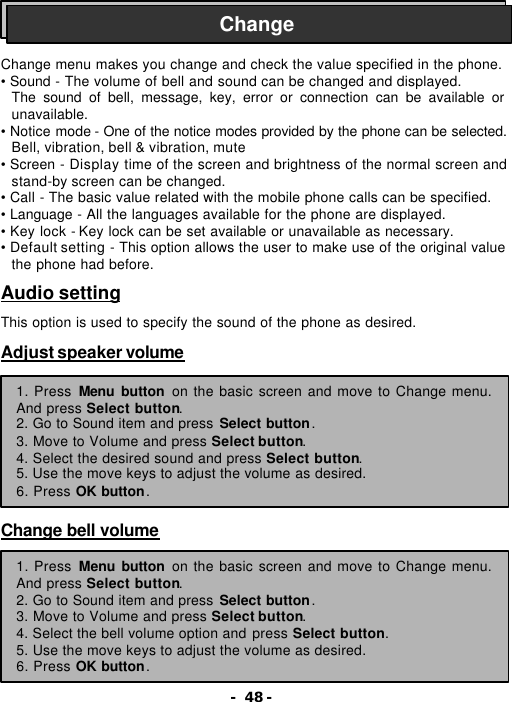
- 48 -    Change menu makes you change and check the value specified in the phone. • Sound - The volume of bell and sound can be changed and displayed. The sound of bell, message, key, error or connection can be available or unavailable. • Notice mode - One of the notice modes provided by the phone can be selected. Bell, vibration, bell & vibration, mute • Screen - Display time of the screen and brightness of the normal screen and stand-by screen can be changed. • Call - The basic value related with the mobile phone calls can be specified. • Language - All the languages available for the phone are displayed. • Key lock - Key lock can be set available or unavailable as necessary. • Default setting - This option allows the user to make use of the original value the phone had before.  Audio setting  This option is used to specify the sound of the phone as desired.  Adjust speaker volume          Change bell volume       Change 1. Press Menu button on the basic screen and move to Change menu. And press Select button. 2. Go to Sound item and press Select button. 3. Move to Volume and press Select button. 4. Select the desired sound and press Select button. 5. Use the move keys to adjust the volume as desired. 6. Press OK button. 1. Press Menu button on the basic screen and move to Change menu. And press Select button. 2. Go to Sound item and press Select button. 3. Move to Volume and press Select button. 4. Select the bell volume option and press Select button. 5. Use the move keys to adjust the volume as desired. 6. Press OK button.
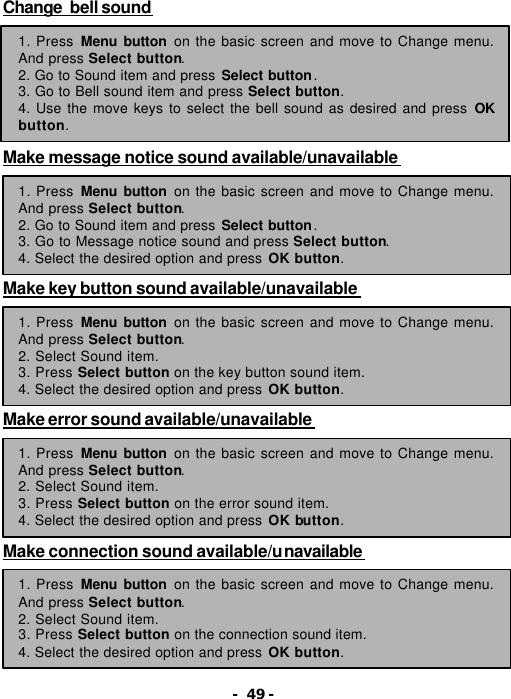
- 49 - Change  bell sound        Make message notice sound available/unavailable        Make key button sound available/unavailable        Make error sound available/unavailable        Make connection sound available/unavailable        1. Press Menu button on the basic screen and move to Change menu. And press Select button. 2. Go to Sound item and press Select button. 3. Go to Bell sound item and press Select button. 4. Use the move keys to select the bell sound as desired and press OK button. 1. Press Menu button on the basic screen and move to Change menu. And press Select button. 2. Go to Sound item and press Select button. 3. Go to Message notice sound and press Select button. 4. Select the desired option and press OK button. 1. Press Menu button on the basic screen and move to Change menu. And press Select button. 2. Select Sound item. 3. Press Select button on the key button sound item. 4. Select the desired option and press OK button. 1. Press Menu button on the basic screen and move to Change menu. And press Select button. 2. Select Sound item. 3. Press Select button on the error sound item. 4. Select the desired option and press OK button. 1. Press Menu button on the basic screen and move to Change menu. And press Select button. 2. Select Sound item. 3. Press Select button on the connection sound item. 4. Select the desired option and press OK button.
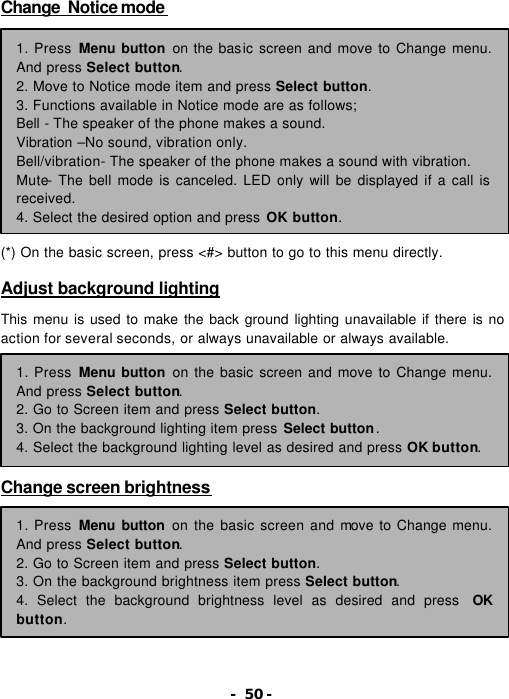
- 50 - Change  Notice mode              (*) On the basic screen, press <#> button to go to this menu directly.  Adjust background lighting  This menu is used to make the back ground lighting unavailable if there is no action for several seconds, or always unavailable or always available.        Change screen brightness          1. Press Menu button on the basic screen and move to Change menu. And press Select button. 2. Move to Notice mode item and press Select button. 3. Functions available in Notice mode are as follows; Bell - The speaker of the phone makes a sound. Vibration –No sound, vibration only. Bell/vibration- The speaker of the phone makes a sound with vibration. Mute- The bell mode is canceled. LED only will be displayed if a call is received. 4. Select the desired option and press OK button. 1. Press Menu button on the basic screen and move to Change menu. And press Select button. 2. Go to Screen item and press Select button. 3. On the background lighting item press Select button. 4. Select the background lighting level as desired and press OK button. 1. Press Menu button on the basic screen and move to Change menu. And press Select button. 2. Go to Screen item and press Select button. 3. On the background brightness item press Select button. 4. Select the background brightness level as desired and press  OK button.
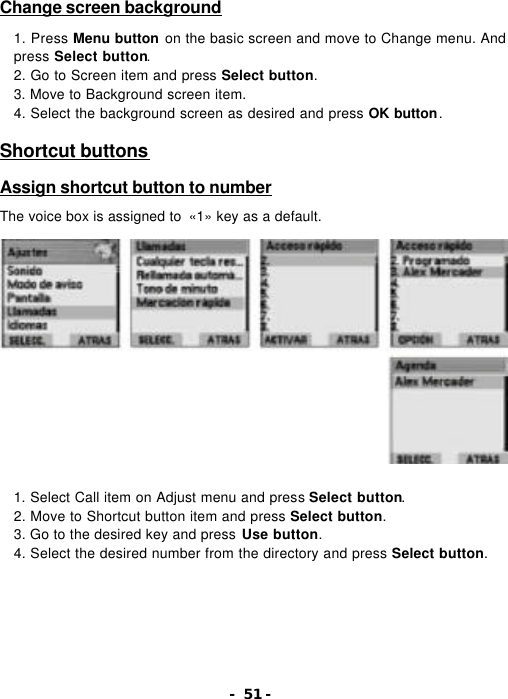
- 51 - Change screen background  1. Press Menu button on the basic screen and move to Change menu. And press Select button. 2. Go to Screen item and press Select button. 3. Move to Background screen item. 4. Select the background screen as desired and press OK button.  Shortcut buttons  Assign shortcut button to number  The voice box is assigned to  «1» key as a default.                 1. Select Call item on Adjust menu and press Select button. 2. Move to Shortcut button item and press Select button. 3. Go to the desired key and press Use button. 4. Select the desired number from the directory and press Select button.
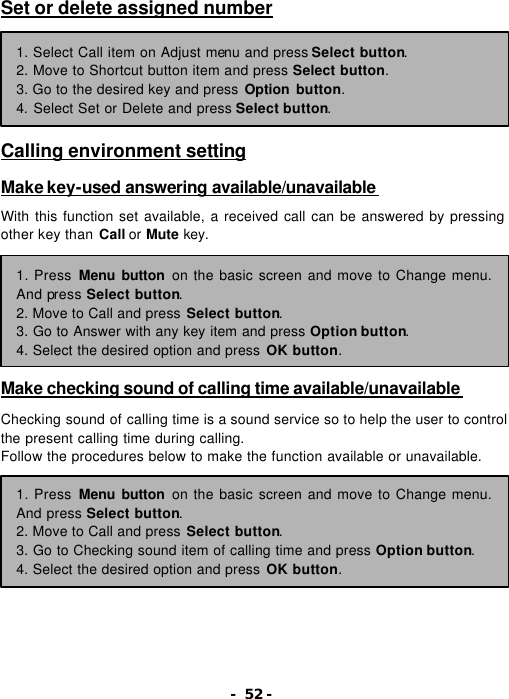
- 52 - Set or delete assigned number        Calling environment setting  Make key-used answering available/unavailable   With this function set available, a received call can be answered by pressing other key than Call or Mute key.        Make checking sound of calling time available/unavailable   Checking sound of calling time is a sound service so to help the user to control the present calling time during calling. Follow the procedures below to make the function available or unavailable.         1. Select Call item on Adjust menu and press Select button. 2. Move to Shortcut button item and press Select button. 3. Go to the desired key and press Option button. 4. Select Set or Delete and press Select button. 1. Press Menu button on the basic screen and move to Change menu. And press Select button. 2. Move to Call and press Select button. 3. Go to Answer with any key item and press Option button. 4. Select the desired option and press OK button. 1. Press Menu button on the basic screen and move to Change menu. And press Select button. 2. Move to Call and press Select button. 3. Go to Checking sound item of calling time and press Option button. 4. Select the desired option and press OK button.
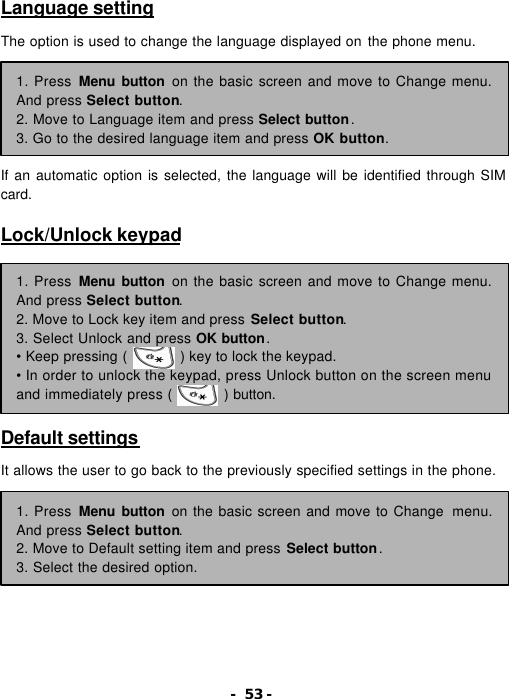
- 53 - Language setting  The option is used to change the language displayed on the phone menu.       If an automatic option is selected, the language will be identified through SIM card.  Lock/Unlock keypad           Default settings  It allows the user to go back to the previously specified settings in the phone.  1. Press Menu button on the basic screen and move to Change menu. And press Select button. 2. Move to Language item and press Select button. 3. Go to the desired language item and press OK button. 1. Press Menu button on the basic screen and move to Change menu. And press Select button. 2. Move to Lock key item and press Select button. 3. Select Unlock and press OK button. • Keep pressing (       ) key to lock the keypad. • In order to unlock the keypad, press Unlock button on the screen menu and immediately press (       ) button. 1. Press Menu button on the basic screen and move to Change  menu. And press Select button. 2. Move to Default setting item and press Select button. 3. Select the desired option.
- 54 -    This dev ice has a sensitive tool built in to keep an unauthorized person from using the phone or SIM card. The security menu helps you to see and change the security option of the phone.  PIN (Personal Identification Number)  - PIN code is used to protect the SIM card from being used by an unauthorized person. PIN2 (Personal Identification Number) - PIN2 code is used to access specific call functions such as shortcut dial number. PUK (PIN cancel code) - used to cancel PIN code. PUK2 (PIN2 cancel code) - used to cancel PIN2 code. If PIN has been set, the phone will ask you to input the number wherever it is turned on.  Ref) If the PIN1 code is incorrectly input 3 times continuously, PIN 1 will be locked. You need to use PUK code to cancel the lock in such a case. If the PIN2 code is incorrectly input 3 times continuously, PIN2 will be locked. You need to use PUK2 code to cancel the lock in such a case. If PIN2 is locked, the functions which need PIN2 only will be locked.  Lock/Unlock PIN1        Change PIN1 code  Security 1. Press Menu button on the basic screen and move to Security. And press Select button. 2. Go to PIN1 lock item and press Select button. 3. Select the desired option and press OK button. 4. Input PIN1 code and press OK button. 1. Press Menu button on the basic screen and move to Security. And press Select button. 2. Go to PIN1 change item and press Select button. 3. Input the existing PIN1 code and press OK button. 4. Input a new PIN1code and press OK button. 5. Input the PIN1 code again to make sure and press OK button.
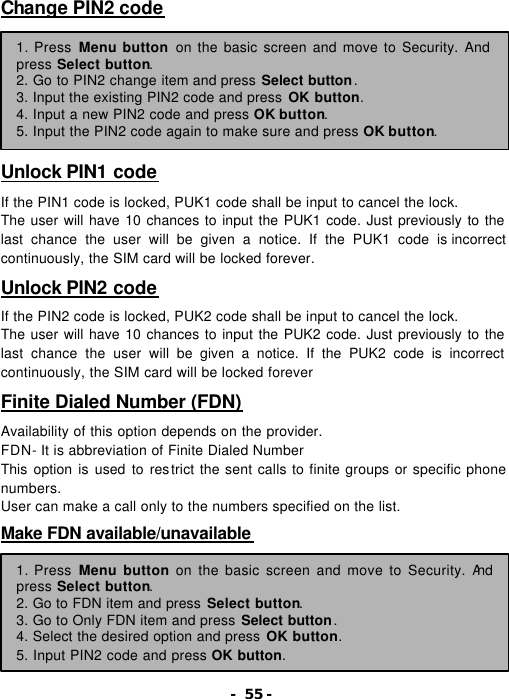
- 55 - Change PIN2 code         Unlock PIN1 code  If the PIN1 code is locked, PUK1 code shall be input to cancel the lock. The user will have 10 chances to input the PUK1 code. Just previously to the last chance the user will be given a notice. If the PUK1 code is incorrect continuously, the SIM card will be locked forever.  Unlock PIN2 code  If the PIN2 code is locked, PUK2 code shall be input to cancel the lock. The user will have 10 chances to input the PUK2 code. Just previously to the last chance the user will be given a notice. If the PUK2 code is incorrect continuously, the SIM card will be locked forever  Finite Dialed Number (FDN)  Availability of this option depends on the provider. FDN- It is abbreviation of Finite Dialed Number This option is used to restrict the sent calls to finite groups or specific phone numbers. User can make a call only to the numbers specified on the list.  Make FDN available/unavailable         1. Press Menu button on the basic screen and move to Security. And press Select button. 2. Go to PIN2 change item and press Select button. 3. Input the existing PIN2 code and press OK button. 4. Input a new PIN2 code and press OK button. 5. Input the PIN2 code again to make sure and press OK button. 1. Press Menu button on the basic screen and move to Security. And press Select button. 2. Go to FDN item and press Select button. 3. Go to Only FDN item and press Select button. 4. Select the desired option and press OK button. 5. Input PIN2 code and press OK button.
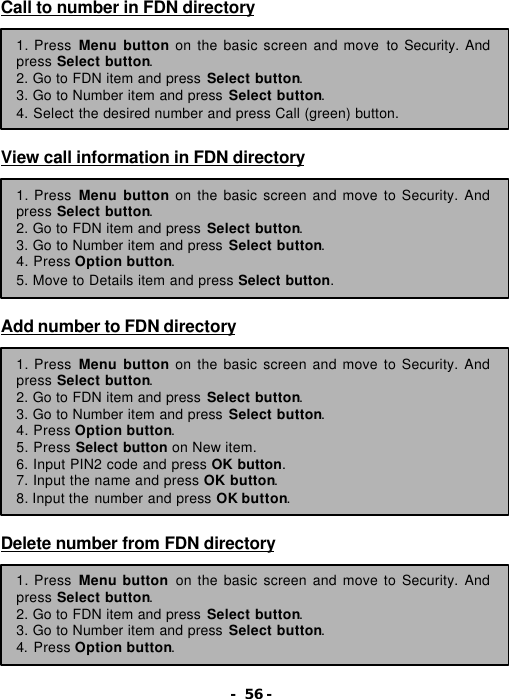
- 56 - Call to number in FDN directory        View call information in FDN directory         Add number to FDN directory           Delete number from FDN directory        1. Press Menu button on the basic screen and move to Security. And press Select button. 2. Go to FDN item and press Select button. 3. Go to Number item and press Select button. 4. Select the desired number and press Call (green) button. 1. Press Menu button on the basic screen and move to Security. And press Select button. 2. Go to FDN item and press Select button. 3. Go to Number item and press Select button. 4. Press Option button. 5. Move to Details item and press Select button. 1. Press Menu button on the basic screen and move to Security. And press Select button. 2. Go to FDN item and press Select button. 3. Go to Number item and press Select button. 4. Press Option button. 5. Press Select button on New item. 6. Input PIN2 code and press OK button. 7. Input the name and press OK button. 8. Input the number and press OK button. 1. Press Menu button on the basic screen and move to Security. And press Select button. 2. Go to FDN item and press Select button. 3. Go to Number item and press Select button. 4. Press Option button.
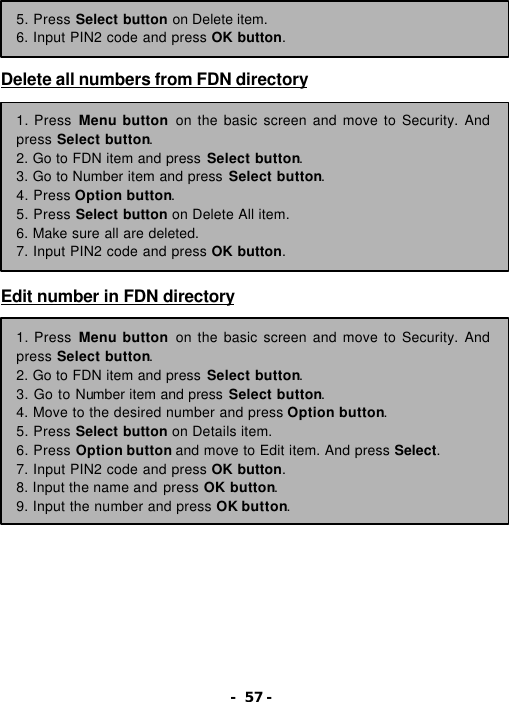
- 57 -     Delete all numbers from FDN directory            Edit number in FDN directory            5. Press Select button on Delete item. 6. Input PIN2 code and press OK button. 1. Press Menu button on the basic screen and move to Security. And press Select button. 2. Go to FDN item and press Select button. 3. Go to Number item and press Select button. 4. Press Option button. 5. Press Select button on Delete All item. 6. Make sure all are deleted. 7. Input PIN2 code and press OK button. 1. Press Menu button on the basic screen and move to Security. And press Select button. 2. Go to FDN item and press Select button. 3. Go to Number item and press Select button. 4. Move to the desired number and press Option button. 5. Press Select button on Details item. 6. Press Option button and move to Edit item. And press Select. 7. Input PIN2 code and press OK button. 8. Input the name and press OK button. 9. Input the number and press OK button.
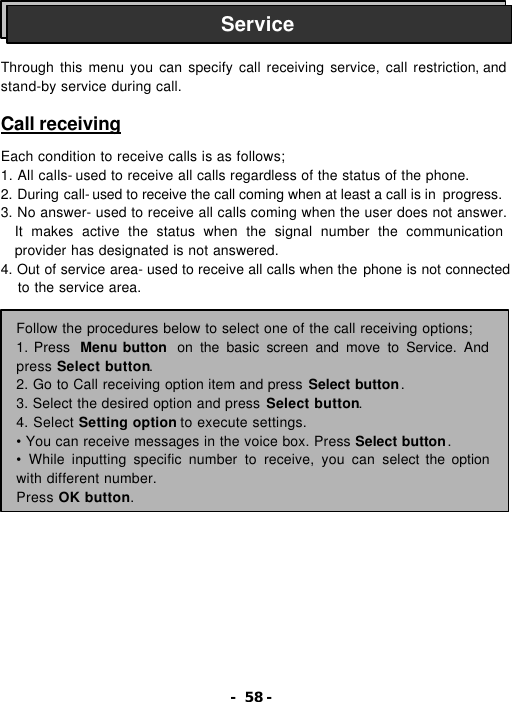
- 58 -    Through this menu you can specify call receiving service, call restriction, and stand-by service during call.  Call receiving  Each condition to receive calls is as follows; 1. All calls- used to receive all calls regardless of the status of the phone. 2. During call- used to receive the call coming when at least a call is in  progress. 3. No answer- used to receive all calls coming when the user does not answer. It makes active the status when the signal number the communication provider has designated is not answered. 4. Out of service area- used to receive all calls when the phone is not connected to the service area.             Service Follow the procedures below to select one of the call receiving options; 1. Press  Menu button  on the basic screen and move to Service. And press Select button. 2. Go to Call receiving option item and press Select button. 3. Select the desired option and press Select button. 4. Select Setting option to execute settings. • You can receive messages in the voice box. Press Select button. • While inputting specific number to receive, you can select the option with different number. Press OK button.
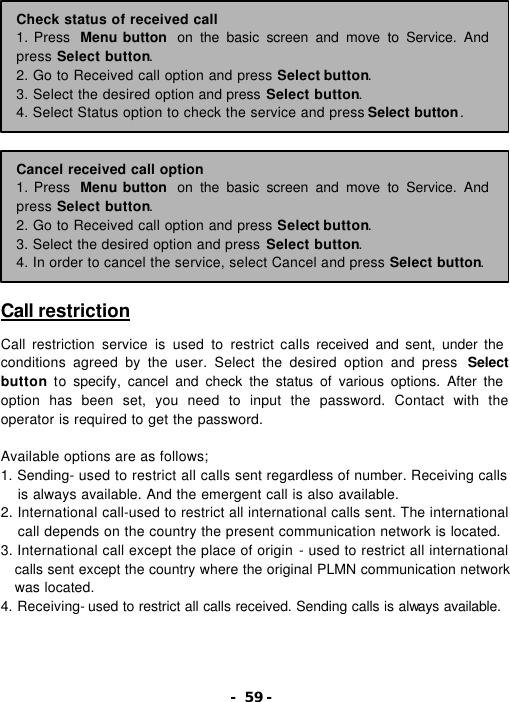
- 59 -                 Call restriction  Call restriction service is used to restrict calls received and sent, under the conditions agreed by the user. Select the desired option and press  Select button to specify, cancel and check the status of various options. After the option has been set, you need to input the password. Contact with the operator is required to get the password.    Available options are as follows; 1. Sending- used to restrict all calls sent regardless of number. Receiving calls is always available. And the emergent call is also available. 2. International call-used to restrict all international calls sent. The international call depends on the country the present communication network is located. 3. International call except the place of origin - used to restrict all international calls sent except the country where the original PLMN communication network was located. 4. Receiving- used to restrict all calls received. Sending calls is always available.  Check status of received call 1. Press  Menu button  on the basic screen and move to Service. And press Select button. 2. Go to Received call option and press Select button. 3. Select the desired option and press Select button. 4. Select Status option to check the service and press Select button. Cancel received call option 1. Press  Menu button  on the basic screen and move to Service. And press Select button. 2. Go to Received call option and press Select button. 3. Select the desired option and press Select button. 4. In order to cancel the service, select Cancel and press Select button.
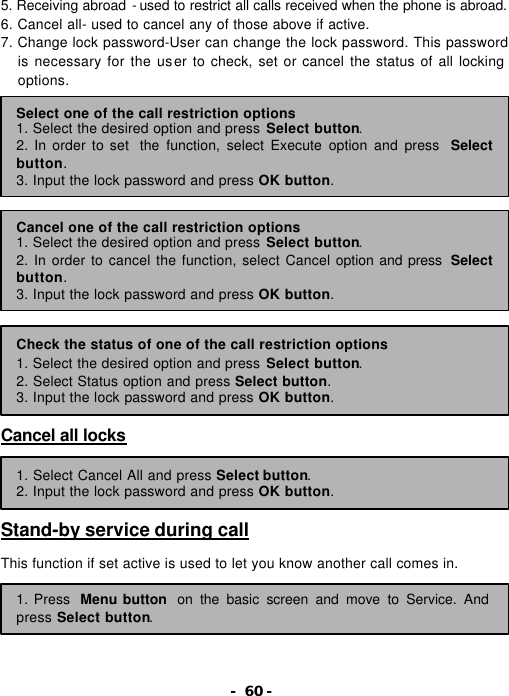
- 60 - 5. Receiving abroad - used to restrict all calls received when the phone is abroad. 6. Cancel all- used to cancel any of those above if active. 7. Change lock password-User can change the lock password. This password is necessary for the user to check, set or cancel the status of all locking options.                    Cancel all locks     Stand-by service during call  This function if set active is used to let you know another call comes in.      Select one of the call restriction options 1. Select the desired option and press Select button. 2. In order to set  the function, select Execute option and press  Select button. 3. Input the lock password and press OK button. Cancel one of the call restriction options 1. Select the desired option and press Select button. 2. In order to cancel the function, select Cancel option and press  Select button. 3. Input the lock password and press OK button. Check the status of one of the call restriction options   1. Select the desired option and press Select button. 2. Select Status option and press Select button. 3. Input the lock password and press OK button. 1. Select Cancel All and press Select button. 2. Input the lock password and press OK button. 1. Press Menu button on the basic screen and move to Service. And press Select button.
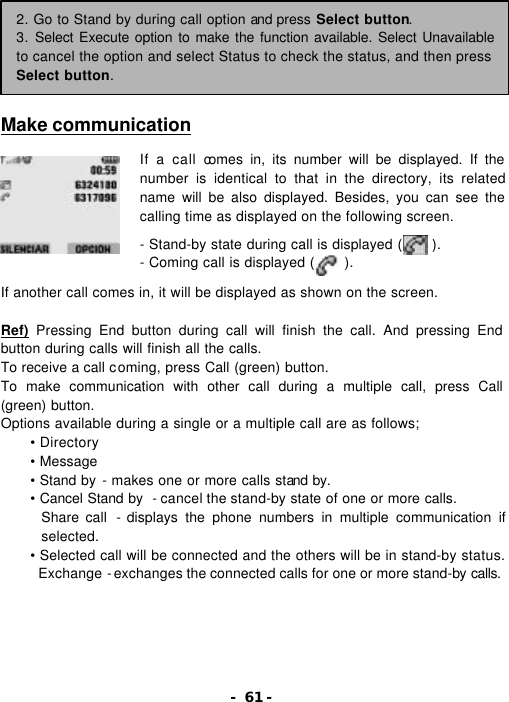
- 61 -      Make communication  If a call comes in, its number will be displayed. If the number is identical to that in the directory, its related name will be also displayed. Besides, you can see the calling time as displayed on the following screen.  - Stand-by state during call is displayed (    ). - Coming call is displayed (    ).  If another call comes in, it will be displayed as shown on the screen.  Ref) Pressing End button during call will finish the call. And pressing End button during calls will finish all the calls. To receive a call coming, press Call (green) button. To make communication with other call during a multiple call, press Call (green) button. Options available during a single or a multiple call are as follows; • Directory   • Message   • Stand by - makes one or more calls stand by. • Cancel Stand by  - cancel the stand-by state of one or more calls. Share call  - displays the phone numbers in multiple communication if selected. • Selected call will be connected and the others will be in stand-by status. Exchange - exchanges the connected calls for one or more stand-by calls. 2. Go to Stand by during call option and press Select button. 3. Select Execute option to make the function available. Select Unavailable to cancel the option and select Status to check the status, and then press Select button.
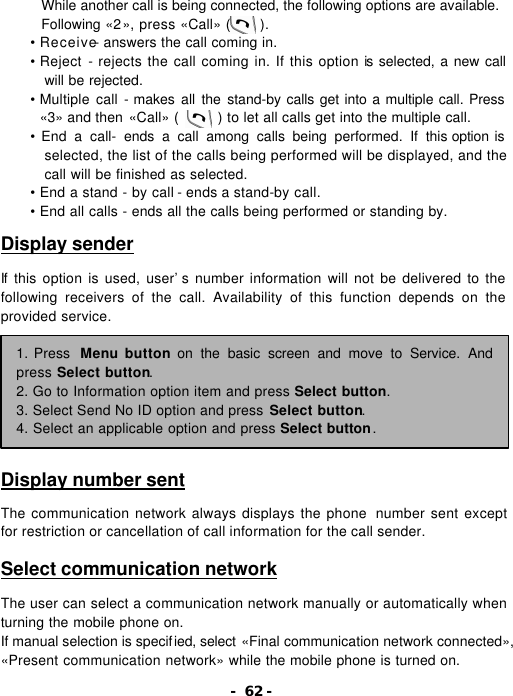
- 62 - While another call is being connected, the following options are available. Following «2», press «Call» (    ). • Receive- answers the call coming in. • Reject - rejects the call coming in. If this option is selected, a new call will be rejected. • Multiple call - makes all the stand-by calls get into a multiple call. Press «3» and then «Call» (     ) to let all calls get into the multiple call. • End a call- ends a call among calls being performed. If this option is selected, the list of the calls being performed will be displayed, and the call will be finished as selected. • End a stand - by call - ends a stand-by call. • End all calls - ends all the calls being performed or standing by.  Display sender  If this option is used, user’s number information will not be delivered to the following receivers of the call. Availability of this function depends on the provided service.         Display number sent  The communication network always displays the phone  number sent except for restriction or cancellation of call information for the call sender.  Select communication network  The user can select a communication network manually or automatically when turning the mobile phone on. If manual selection is specified, select «Final communication network connected», «Present communication network» while the mobile phone is turned on. 1. Press  Menu button on the basic screen and move to Service. And press Select button. 2. Go to Information option item and press Select button. 3. Select Send No ID option and press Select button. 4. Select an applicable option and press Select button.
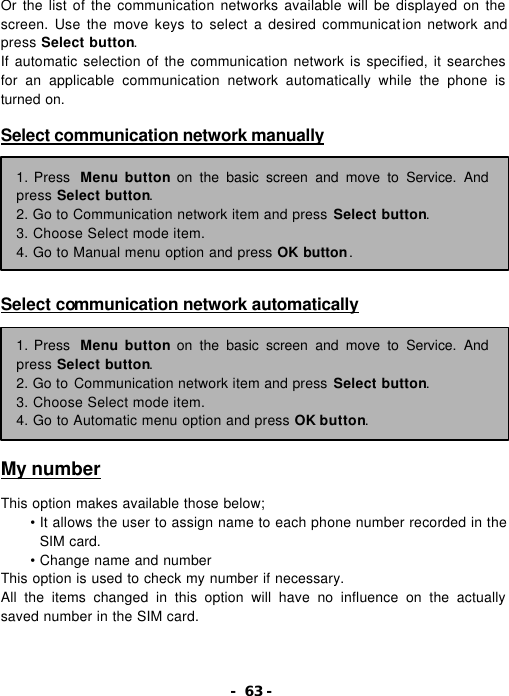
- 63 - Or the list of the communication networks available will be displayed on the screen. Use the move keys to select a desired communication network and press Select button. If automatic selection of the communication network is specified, it searches for an applicable communication network automatically while the phone is turned on.  Select communication network manually         Select communication network automatically         My number  This option makes available those below; • It allows the user to assign name to each phone number recorded in the SIM card. • Change name and number This option is used to check my number if necessary. All the items changed in this option will have no influence on the actually saved number in the SIM card. 1. Press  Menu button on the basic screen and move to Service. And press Select button. 2. Go to Communication network item and press Select button. 3. Choose Select mode item. 4. Go to Manual menu option and press OK button. 1. Press  Menu button on the basic screen and move to Service. And press Select button. 2. Go to Communication network item and press Select button. 3. Choose Select mode item. 4. Go to Automatic menu option and press OK button.
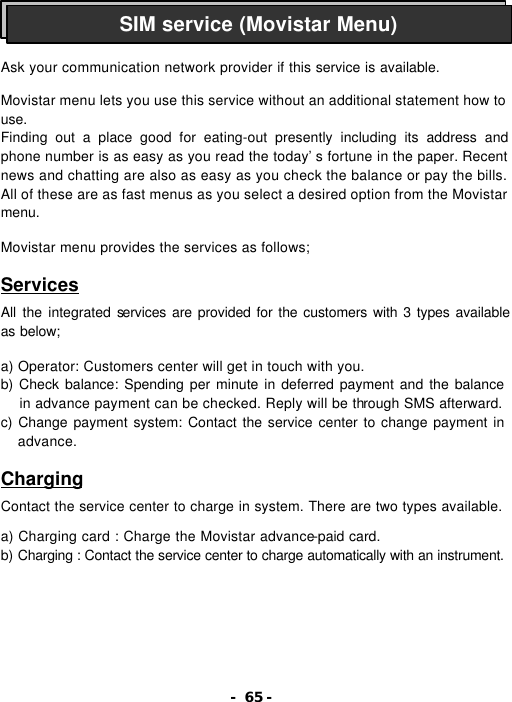
- 64 -    3 games of Snake, Memorice and Video Poker are available through this menu.       How to enjoy games  Snake:  Use the numbers 2, 8, 4 and 6 to move the snake up and down, to the left and right. Guide him to eat the food. Be careful not to hit the wall or the snake itself.   Memorice:  Follow and repeat a series of keys specified by the phone. Repeating the sequence following the progress of the game will not be as easy as you think. If the sequence is input incorrectly, the game will be over.   Video Poker:  Obtain the card needed to win the game. Stake the gambling money before dividing cards (1 to 5). Game 1. Move to E-book (tool) menu to go to the game menu. 2. Go to Game and press Select button.
- 65 -    Ask your communication network provider if this service is available.  Movistar menu lets you use this service without an additional statement how to use. Finding out a place good for eating-out presently including its address and phone number is as easy as you read the today’s fortune in the paper. Recent news and chatting are also as easy as you check the balance or pay the bills. All of these are as fast menus as you select a desired option from the Movistar menu.  Movistar menu provides the services as follows;  Services  All the integrated services are provided for the customers with 3 types available as below;  a) Operator: Customers center will get in touch with you. b) Check balance: Spending per minute in deferred payment and the balance in advance payment can be checked. Reply will be through SMS afterward. c) Change payment system: Contact the service center to change payment in advance.  Charging  Contact the service center to charge in system. There are two types available.  a) Charging card : Charge the Movistar advance-paid card. b) Charging : Contact the service center to charge automatically with an instrument. SIM service (Movistar Menu)
- 66 - 2424 services  This option provides all the personnel services as described below; * Secretary  * Commercial information, RUT consultation   * Check distance & position   * Consultation on the phone   * Movies billboard   * Check location of (applicable) drugstores * Check location of ATM   * Check flight time   * Tractors   * Check location of gas stations *Restaurants  Leisure  You can check all other function services updated daily. * Fortune   * Movies, TV   * Humor   * Daily Bible   * Self therapy   News  With this function available the user can subscribe to all kinds of news in text messages. * Domestic news   * International news * Soccer   * Sports   * Financial economics (News & Price index of stocks)   * Technology news   * Vehicle restriction
- 67 - Chatting  It lets you get information on services and connect directly to the channel desired.  On-line game  It lets you directly enjoy the game through the message service.  Emergency  It lets you directly connect to ambulance service, fire station or police station.
- 68 -                     Movistar 210-en.05                  Ref) The details of this manual are regarded as correct at the moment when printed. However, its provider reserves the right to change its specific details and functions without prior notice. Some functions and details described in this manual can be modified, based on the communication network environment or on the functions of the software installed on SIM card phone.
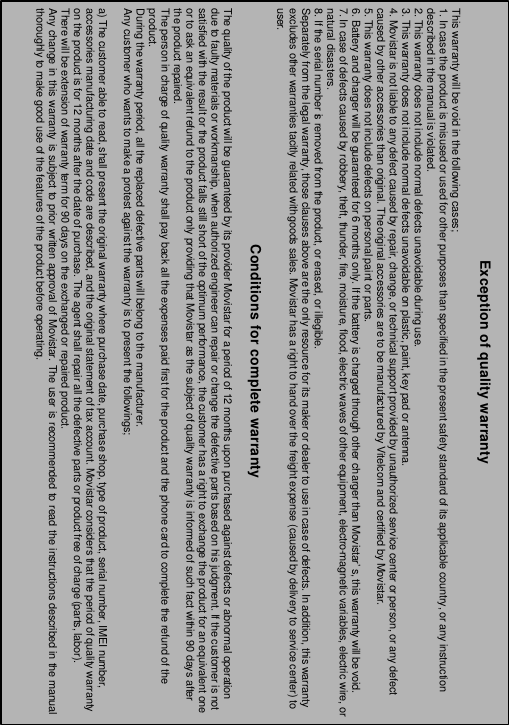
- 69 -  Exception of quality warranty  This warranty will be void in the following cases; 1. In case the product is misused or used for other purposes than specified in the present safety standard of its applicable country, or any instruction described in the manual is violated. 2. This warranty does not include normal defects unavoidable during use. 3. This warranty does not include normal defects unavoidable on plastic, paint, key pad or antenna. 4. Movistar is not liable to any defect caused by repair, change, or technical support provided by unauthorized service center or person, or any defect caused by other accessories than original. The original accessories are to be manufactured by Vitelcom and certified by Movistar. 5. This warranty does not include defects on personal paint or parts. 6. Battery and charger will be guaranteed for 6 months only. If the battery is charged through other charger than Movistar’s, this warranty will be void. 7. In case of defects caused by robbery, theft, thunder, fire, moisture, flood, electric waves of other equipment, electro-magnetic variables, electric wire, or natural disasters. 8. If the serial number is removed from the product, or erased, or illegible. Separately from the legal warranty, those clauses above are the only resource for its maker or dealer to use in case of defects. In addition, this warranty excludes other warranties tacitly related with goods sales. Movistar has a right to hand over the freight expense (caused by delivery to service center) to user.  Conditions for complete warranty  The quality of the product will be guaranteed by its provider Movistar for a period of 12 months upon purchased against defects or abnormal operation due to faulty materials or workmanship, when authorized engineer can repair or change the defective parts based on his judgment. If the customer is not satisfied with the result or the product falls still short of the optimum performance, the customer has a right to exchange the product for an equivalent one or to ask an equivalent refund to the product only providing that Movistar as the subject of quality warranty is informed of such fact within 90 days after the product repaired. The person in charge of quality warranty shall pay back all the expenses paid first for the product and the phone card to complete the refund of the product. During the warranty period, all the replaced defective parts will belong to the manufacturer. Any customer who wants to make a protest against the warranty is to present the followings;  a) The customer able to read, shall present the original warranty where purchase date, purchase shop, type of product, serial number, IMEI number, accessories manufacturing date and code are described, and the original statement of tax account. Movistar considers that the period of quality warranty on the product is for 12 months after the date of purchase. The agent shall repair all the defective parts or product free of charge (parts, labor). There will be extension of warranty term for 90 days on the exchanged or repaired product. Any change in this warranty is subject to prior written approval of Movistar. The user is recommended to read the instructions described in the manual thoroughly to make good use of the features of the product before operating.
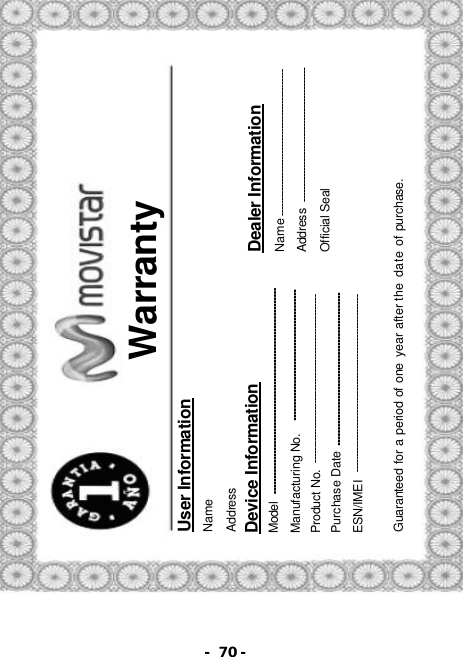
- 70 -  Warranty User Information Name   Address Device Information Model Manufacturing No. Product No.   Purchase Date ESN/IMEI Dealer Information Name Address Official Seal   Guaranteed for a period of one year after the date of purchase.
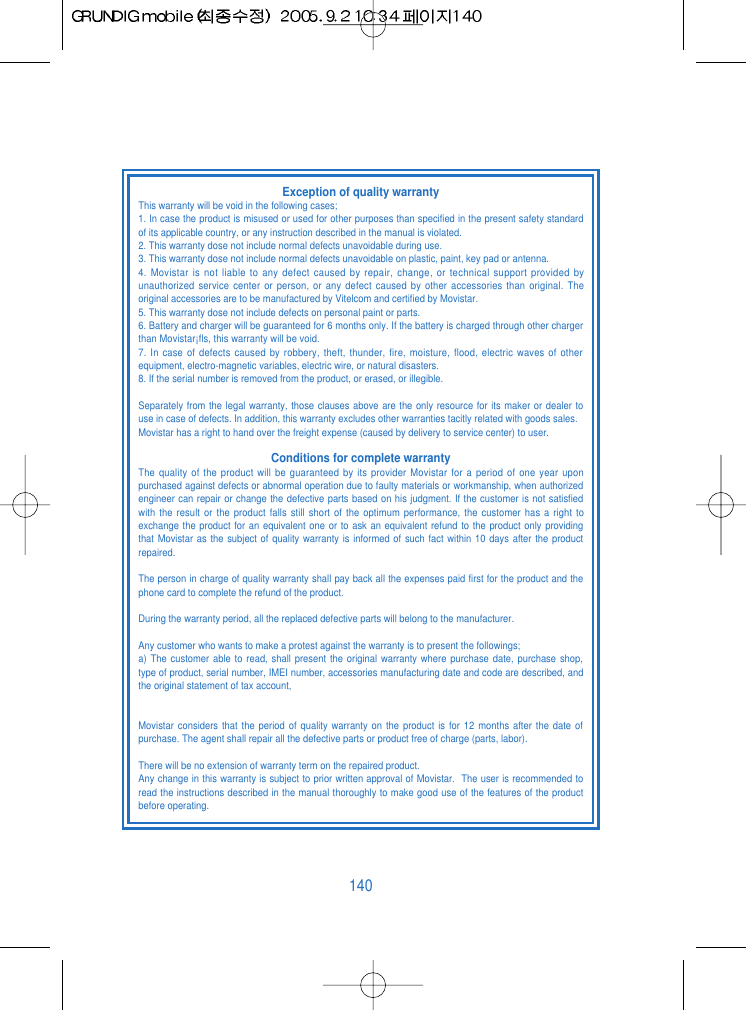
140Exception of quality warrantyThis warranty will be void in the following cases;1. In case the product is misused or used for other purposes than specified in the present safety standardof its applicable country, or any instruction described in the manual is violated.2. This warranty dose not include normal defects unavoidable during use.3. This warranty dose not include normal defects unavoidable on plastic, paint, key pad or antenna.4. Movistar is not liable to any defect caused by repair, change, or technical support provided byunauthorized service center or person, or any defect caused by other accessories than original. Theoriginal accessories are to be manufactured by Vitelcom and certified by Movistar.5. This warranty dose not include defects on personal paint or parts.6. Battery and charger will be guaranteed for 6 months only. If the battery is charged through other chargerthan Movistar¡fls, this warranty will be void.7. In case of defects caused by robbery, theft, thunder, fire, moisture, flood, electric waves of otherequipment, electro-magnetic variables, electric wire, or natural disasters.8. If the serial number is removed from the product, or erased, or illegible.Separately from the legal warranty, those clauses above are the only resource for its maker or dealer touse in case of defects. In addition, this warranty excludes other warranties tacitly related with goods sales.Movistar has a right to hand over the freight expense (caused by delivery to service center) to user.Conditions for complete warrantyThe quality of the product will be guaranteed by its provider Movistar for a period of one year uponpurchased against defects or abnormal operation due to faulty materials or workmanship, when authorizedengineer can repair or change the defective parts based on his judgment. If the customer is not satisfiedwith the result or the product falls still short of the optimum performance, the customer has a right toexchange the product for an equivalent one or to ask an equivalent refund to the product only providingthat Movistar as the subject of quality warranty is informed of such fact within 10 days after the productrepaired.The person in charge of quality warranty shall pay back all the expenses paid first for the product and thephone card to complete the refund of the product.During the warranty period, all the replaced defective parts will belong to the manufacturer.Any customer who wants to make a protest against the warranty is to present the followings;a) The customer able to read, shall present the original warranty where purchase date, purchase shop,type of product, serial number, IMEI number, accessories manufacturing date and code are described, andthe original statement of tax account,Movistar considers that the period of quality warranty on the product is for 12 months after the date ofpurchase. The agent shall repair all the defective parts or product free of charge (parts, labor).There will be no extension of warranty term on the repaired product.Any change in this warranty is subject to prior written approval of Movistar.  The user is recommended toread the instructions described in the manual thoroughly to make good use of the features of the productbefore operating.
 Safety Information  1 . SAFETY INFORMATION FOR FIXED WIRELESS TERMINALS .POTE NTIALLY EXPLOSIVE ATMOSPHERES Turn your phone OFF when in any area with a potentially explosive atmosphere and obey all signs and instructions. Sparks in such areas could cauls e an explosion or fire resulting in bodily injury or even death.  INTERFERENCE TO MEDICAL DIVICES Certain electronic equipment may be shielded against RF signal from you wireless phone. (pacemakers, Hearing Aids, and so on) Turn your phone OFF in health c are facilities when any regulations posted in these areas instruct you to do so. RF signals may affect improperly installed or inadequately shielded electronic system in motor vehicles.  .EXPOSURE TO RF ENERGY Use only the supplied or an approved replacement antenna. Do not touch the antenna unnecessarily when the phone is in use. Do not move the antenna close to, or couching any exposed part of the body when making a call.     SAFETY INFORMATION FOR RF EXPOSURE  Body worn operation  This device was tested for typical body-worn operations with the back of the phone kept 15 mm. from the body. To maintain compliance with FCC RF exposure requirements, use only belt-clips, holsters or similar accessories that maintain a 15 mm. separation distance between the user’s body and the back of the phone, including the antenna. The use of belt-clips, holsters and similar accessories should not contain metallic components in its assembly. The use of accessories that do not satisfy these requirements may not comply with FCC RF exposure requirements, and should be avoided.
SAR INFORMATION  THIS MODEL PHONE MEETS THE GOVERNMENT’S REQUIREMENTS FOR EXPOSURE TO RADIO WAVES.  Your wireless phone is a radio transmitter and receiver. It is designed and manufactured not to exceed the emission limits for exposure to radiofrequency (RF) energy set by the Federal Communications Commission of the U.S. Government. These limits are part of comprehensive guidelines and establish permitted levels of RF energy for the general population. The guidelines are based on standards that were developed by independent scientific organizations through periodic and thorough evaluation of scientific studies. The standards include a substantial safety margin designed to assure the safety of all persons, regardless of age and health. The exposure standard for wireless mobile phones employs a unit of measurement known as the Specific Absorption Rate, or SAR. The SAR limit set by the FCC is 1.6 W/kg. * Tests for SAR are conducted with the phone transmitting at its highest certified power level in all tested frequency bands. Although the SAR is determined at the highest certified power level, the actual SAR level of the phone while operating can be well below the maximum value. This is because the phone is designed to operate at multiple power levels so as to use only the power required to reach the network. In general, the closer you are to a wireless base station antenna, the lower the power output. Before a phone model is available for sale to the public, it must be tested and certified to the FCC that it does not exceed the limit established by the government adopted requirement for safe exposure. The tests are performed in positions and locations (e.g., at the ear and worn on the body) as required by the FCC for each model. The highest SAR value for this model phone when tested for use at the ear is 1.37 W/Kg and when worn on the body , as described in this user guide, is 0.518 W/Kg . (Body-worn measurements differ among phone models, depending upon available accessories and FCC requirements). While there may be differences between the SAR levels of various phones and at various positions, they all meet the government requirement for safe exposure. The FCC has granted an Equipment Authorization for this model phone with all reported SAR levels evaluated as in compliance with the FCC RF exposure guidelines. SAR information on this model phone is on file with the FCC and can be found under the Display Grant section of http://www.fcc.gov/ oet/fccid after searching on FCC ID: TKHSP-100.   Additional information on Specific Absorption Rates (SAR) can be found on the Cellular Telecommunications Industry Asso-ciation (CTIA) web-site at http://www.wow-com.com. * In the United States and Canada, the SAR limit for mobile phones used by the public is 1.6 watts/kg (W/kg) averaged over one gram of tissue. The standard incorporates a sub-stantial margin of safety to give additional protection for the public and to account for any variations in measurements.
U.S.A.  U.S.FEDERAL COMMUNICATIONS COMMISSION RADIO FREQUENCY INTERFERENCE STATEMENT  INFORMATION TO THE USER  NOTE : This equipment has been tested and found to comply with the limits for a Class B digital device pursuant to Part 15 of the FCC Rules. These limits are designed to provide reasonable protection against harmful Interference in a residential installation This equipment generates, uses, and can radiate radio frequency energy and, if Not installed and used in accordance with the instructions, may cause harmful Interference to radio communications. However, there is no guarantee that interference will not occur in a particular Installation. If this equipment does cause harmful interference to radio or television reception, which can be determined by turning the equipment off and on, the user is encouraged to try to correct the interference by one or more of the following measures: *- Reorient or relocate the receiving antenna. Increase the separation between the equipment and receiver.  *- Connect the equipment into an outlet of a circuit different from that to which the receiver is   connected. *- Consult the dealer or an experienced radio/TV technician for assistance.  Changes or modification not expressly approved by the party responsible for Compliance  could void the user’s authority to operate the equipment. Connecting of peripherals requires   the use of grounded shielded signal cables.      FCC Compliance Information  This device complies with Part 15 of FCC Rules. Operation is subject to the following two conditions:  (1) This device may not cause harmful interference, and (2) This device must accept any interference received.       Including interference that may cause undesired operation.

Navigation menu