WJ Communications SR320 RFID Tag Reader User Manual MPR5000 User s Manual Draft

WJ Communications, Inc. RFID Tag Reader MPR5000 User s Manual Draft

Users Manual

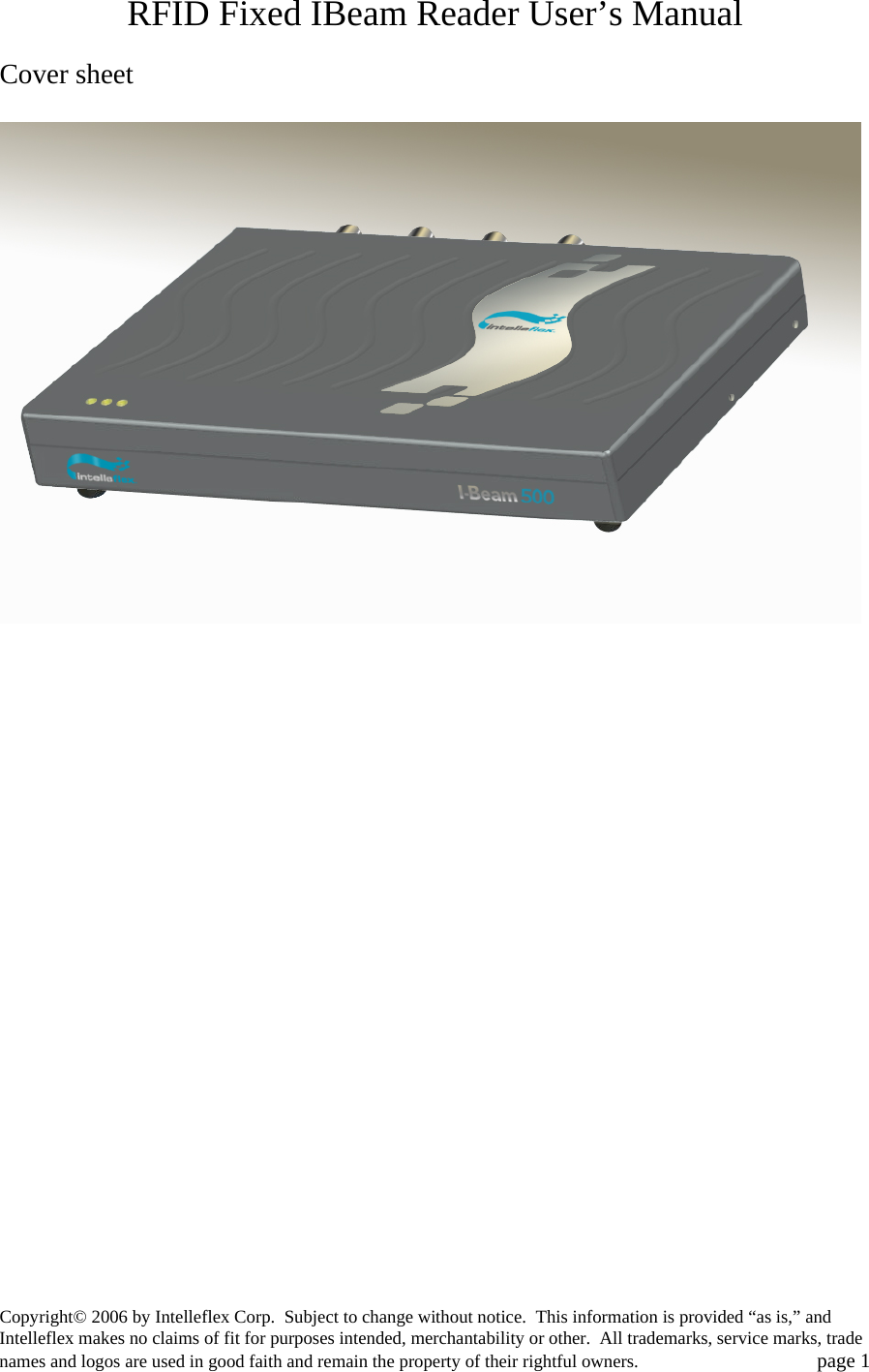
RFID Fixed IBeam Reader User’s Manual  Cover sheet  Copyright© 2006 by Intelleflex Corp.  Subject to change without notice.  This information is provided “as is,” and Intelleflex makes no claims of fit for purposes intended, merchantability or other.  All trademarks, service marks, trade names and logos are used in good faith and remain the property of their rightful owners.   page 1
Table of Contents  1.1 Introduction ...................................................................................................................................... 3 1.1.1 Contents of this Document ......................................................................................................... 3 1.1.2 Audience..................................................................................................................................... 3 1.1.3 Product Description.................................................................................................................... 3 1.1.4 Unpacking and Inspection .......................................................................................................... 3 1.1.5 Product Installation..................................................................................................................... 4 1.2 Installation and Operation of demonstration Graphical User Interface..................................... 4 1.2.1 Minimum System Requirements ................................................................................................ 4 1.2.2 Software Installation................................................................................................................... 5 1.2.3 Starting the Apache server.......................................................................................................... 6 1.2.4 Reader Administrator Console (TagHunterTM)......................................................................... 6 1. Find Tags (Button) ............................................................................................................................. 8 2. Air Protocol (Radio Button) ............................................................................................................... 8 3. Setting a Configuration (drop down list box)..................................................................................... 9 4. Antenna selection (checkboxes)......................................................................................................... 9 5. Tag Inventory (operation)................................................................................................................... 9 6. Refresh (Button)................................................................................................................................. 9 1. Manage Tag Memory ....................................................................................................................... 11 2. Raw Memory Read Write................................................................................................................. 12 3. EM_Data .......................................................................................................................................... 13 1. New config ....................................................................................................................................... 20 1.3 Host-Reader Interface.................................................................................................................... 22 1.4 Troubleshooting / technical support ............................................................................................. 22 1.5 Technical specifications.................................................................................................................. 22 1.6 Notices.............................................................................................................................................. 22 1.6.1 RFID limitations....................................................................................................................... 22 1.6.2 Safety........................................................................................................................................ 22 1.6.3 Limitation of liability................................................................................................................ 23 1.6.4 Patents....................................................................................................................................... 23 1.6.5 Copyright notice ....................................................................................................................... 23 1.6.6 Comments and feedback........................................................................................................... 23 1.7 Regulatory Compliance.................................................................................................................. 23 1.7.1 FCC Statement.......................................................................................................................... 23 Copyright© 2006 by Intelleflex Corp.  Subject to change without notice.  This information is provided “as is,” and Intelleflex makes no claims of fit for purposes intended, merchantability or other.  All trademarks, service marks, trade names and logos are used in good faith and remain the property of their rightful owners.   page 2
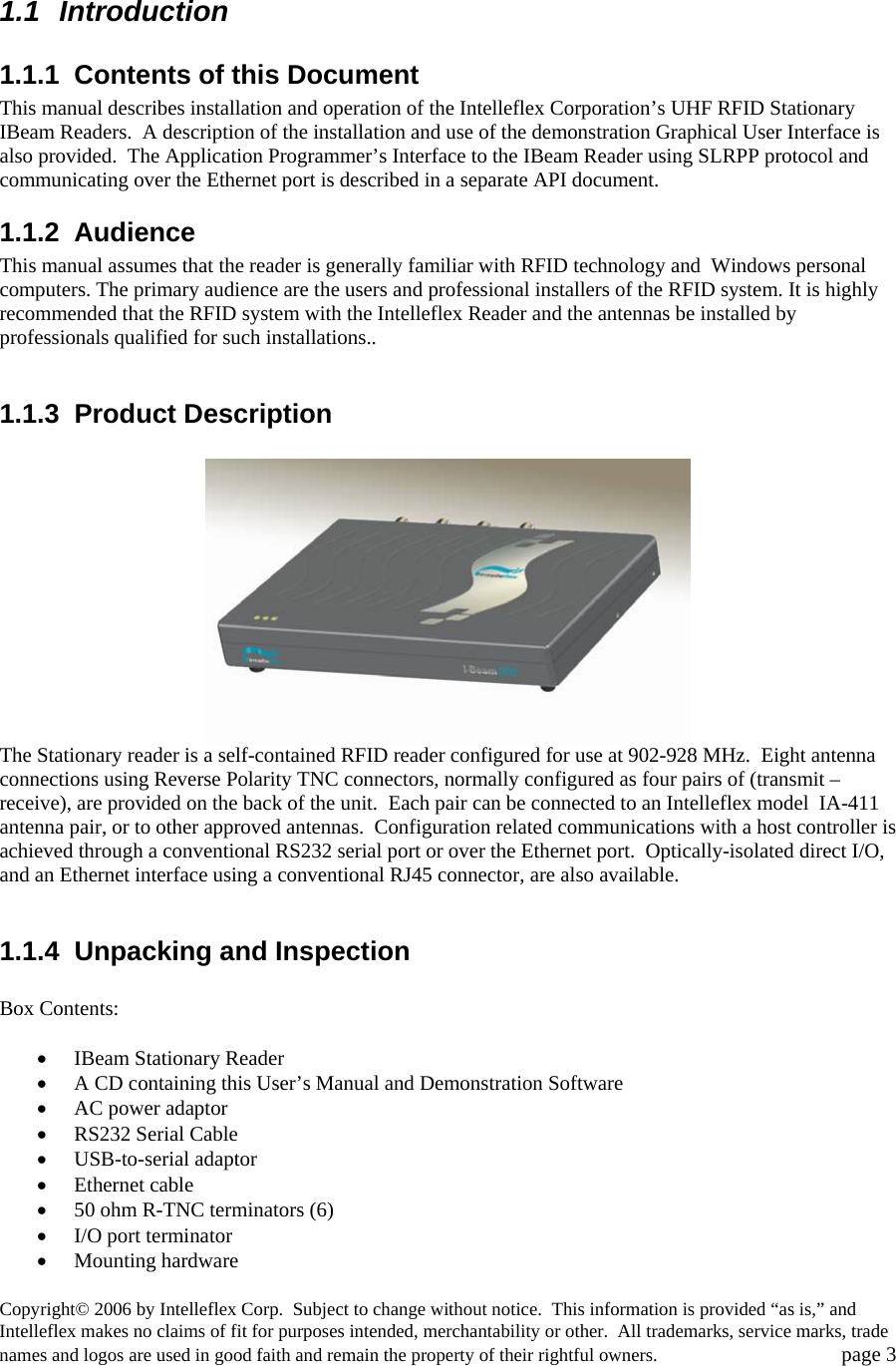
 1.1 Introduction 1.1.1  Contents of this Document This manual describes installation and operation of the Intelleflex Corporation’s UHF RFID Stationary IBeam Readers.  A description of the installation and use of the demonstration Graphical User Interface is also provided.  The Application Programmer’s Interface to the IBeam Reader using SLRPP protocol and communicating over the Ethernet port is described in a separate API document. 1.1.2 Audience This manual assumes that the reader is generally familiar with RFID technology and  Windows personal computers. The primary audience are the users and professional installers of the RFID system. It is highly recommended that the RFID system with the Intelleflex Reader and the antennas be installed by professionals qualified for such installations..  1.1.3 Product Description   The Stationary reader is a self-contained RFID reader configured for use at 902-928 MHz.  Eight antenna connections using Reverse Polarity TNC connectors, normally configured as four pairs of (transmit – receive), are provided on the back of the unit.  Each pair can be connected to an Intelleflex model  IA-411 antenna pair, or to other approved antennas.  Configuration related communications with a host controller is achieved through a conventional RS232 serial port or over the Ethernet port.  Optically-isolated direct I/O, and an Ethernet interface using a conventional RJ45 connector, are also available.     1.1.4  Unpacking and Inspection  Box Contents:  • IBeam Stationary Reader  • A CD containing this User’s Manual and Demonstration Software • AC power adaptor • RS232 Serial Cable • USB-to-serial adaptor • Ethernet cable • 50 ohm R-TNC terminators (6) • I/O port terminator  • Mounting hardware Copyright© 2006 by Intelleflex Corp.  Subject to change without notice.  This information is provided “as is,” and Intelleflex makes no claims of fit for purposes intended, merchantability or other.  All trademarks, service marks, trade names and logos are used in good faith and remain the property of their rightful owners.   page 3
• Cross-over cable  Contents may vary slightly depending on the model number and options purchased.   1.1.5 Product Installation  The Stationary reader should be installed in a location protected from physical impact.  The reader may support up to 4 transmit-receive antenna pairs.  The antennas should not be located more than 5 meters (15 feet) from the reader.  The reader should be securely mounted using the four mounting holes provided, preferably in a vertical orientation allowing air to flow along the length of the cooling fins.  At least 12 cm (5 inches) of clearance should be provided in all directions from the reader.  The reader and antennas should not be located close to a strong source of RF interference such as a cordless telephone or 900-MHz wireless local area network (WLAN) base station.  The antennas should not have any conductive (metallic) obstructions within 50 cm in the direction in which tag reading is to be performed.  A possible installation sequence is as follows: 1. Mount the reader to a secure, stable surface, with adequate clearance and air flow. 2. Attach the antenna cables to the relevant R-TNC connectors at the reader, and N-type connectors at the antenna.  Terminate unused R-TNC connectors with 50 ohm loads. 3. Connect the 24 VDC power supply cable to the reader.   4. Place one or more C1G2 RFID tags in front of one of the antenna pairs, within 1-2 meters. If using C3 tags, the recommended distance is 3-5 meters.  It is important to note that transmit and receive antennas must be connected in pairs to corresponding connectors.  Thus, if only one antenna pair is employed, the transmit antenna may be connected to any of the transmit connectors (e.g. TX1), but the receiving antenna must then be connected to the corresponding receive connection (RX1 in this case).  Antenna ports not used should be terminated with the 50 ohm terminations provided.  If separate transmit and receive antennas are employed, it is important that they be oriented so as to view the same illuminated area, and preferably be coplanar so as to minimize coupling between the antennas.    At this point the reader should be ready for operation using the demonstration graphical interface software, or other custom control software.   1.2  Installation and Operation of demonstration Graphical User Interface  The following description assumes the host computer is operating under Microsoft Windows XP Professional; slightly different screens will be visible if another operating system is employed.    1.2.1 Minimum System Requirements This software requires a host computer, with the following requirements:  o PC running Windows 2000 or Windows XP Professional o 128 MB of RAM o 50MB of hard disk space o Ethernet port o RS232 port desirable but not essential o CD-ROM  Note that if the host computer is connected directly to the Reader Ethernet/RS232 interface, the associated Ethernet cable must be of the crossover type. Copyright© 2006 by Intelleflex Corp.  Subject to change without notice.  This information is provided “as is,” and Intelleflex makes no claims of fit for purposes intended, merchantability or other.  All trademarks, service marks, trade names and logos are used in good faith and remain the property of their rightful owners.   page 4
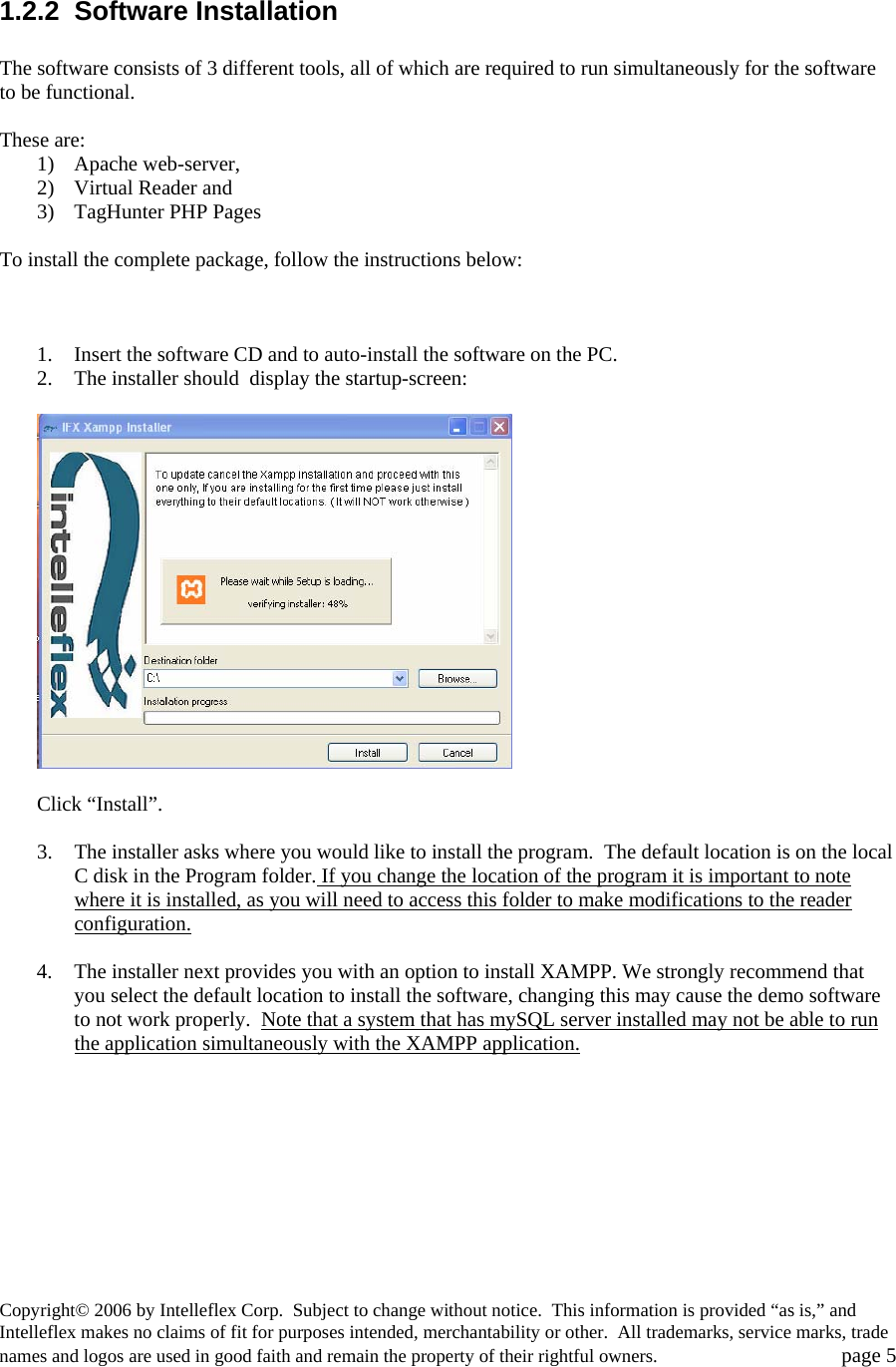
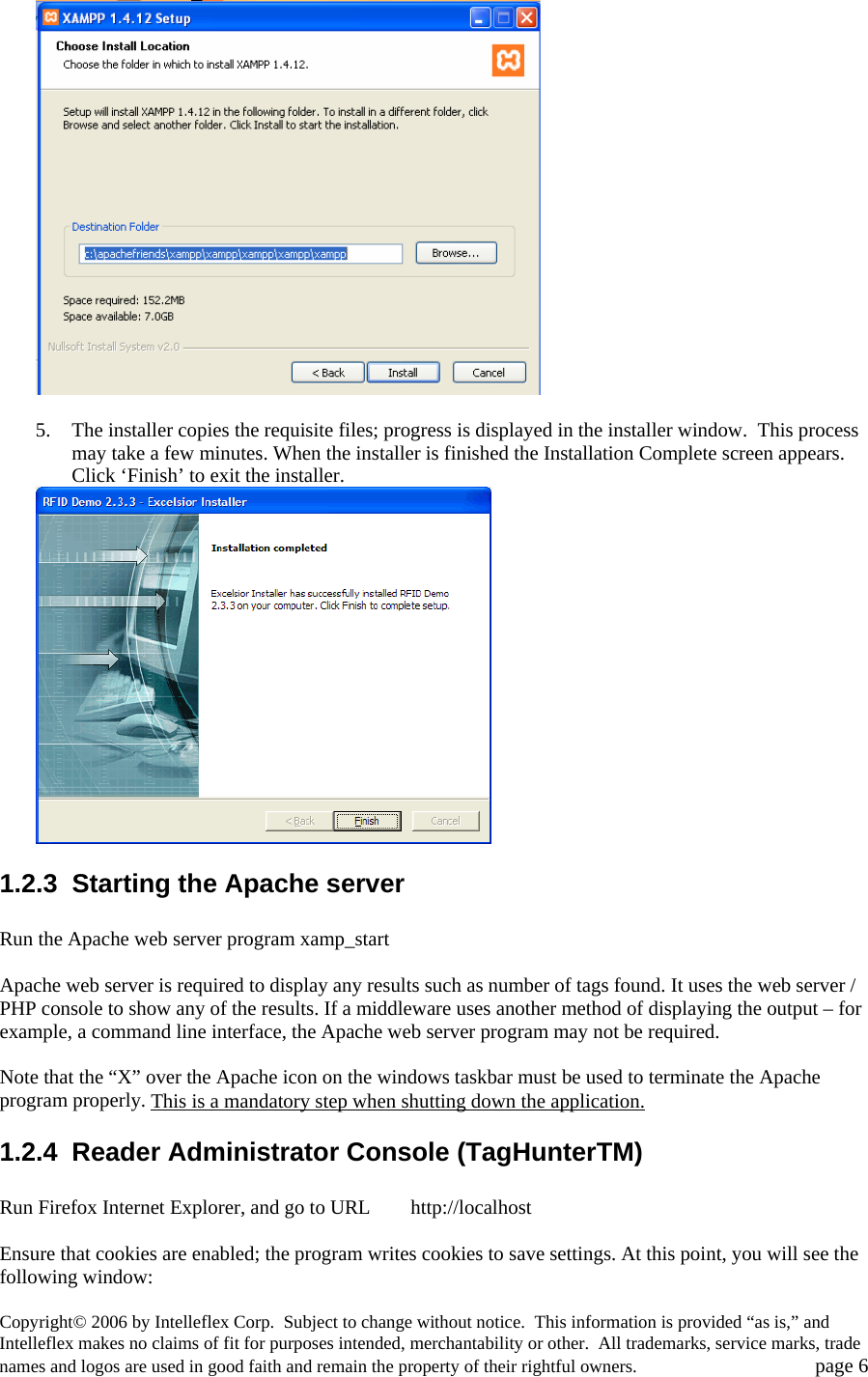
 1.2.2 Software Installation  The software consists of 3 different tools, all of which are required to run simultaneously for the software to be functional.  These are: 1) Apache web-server,  2) Virtual Reader and 3) TagHunter PHP Pages  To install the complete package, follow the instructions below:    1. Insert the software CD and to auto-install the software on the PC.   2. The installer should  display the startup-screen:    Click “Install”.    3. The installer asks where you would like to install the program.  The default location is on the local C disk in the Program folder. If you change the location of the program it is important to note where it is installed, as you will need to access this folder to make modifications to the reader configuration.   4. The installer next provides you with an option to install XAMPP. We strongly recommend that you select the default location to install the software, changing this may cause the demo software to not work properly.  Note that a system that has mySQL server installed may not be able to run the application simultaneously with the XAMPP application.  Copyright© 2006 by Intelleflex Corp.  Subject to change without notice.  This information is provided “as is,” and Intelleflex makes no claims of fit for purposes intended, merchantability or other.  All trademarks, service marks, trade names and logos are used in good faith and remain the property of their rightful owners.   page 5
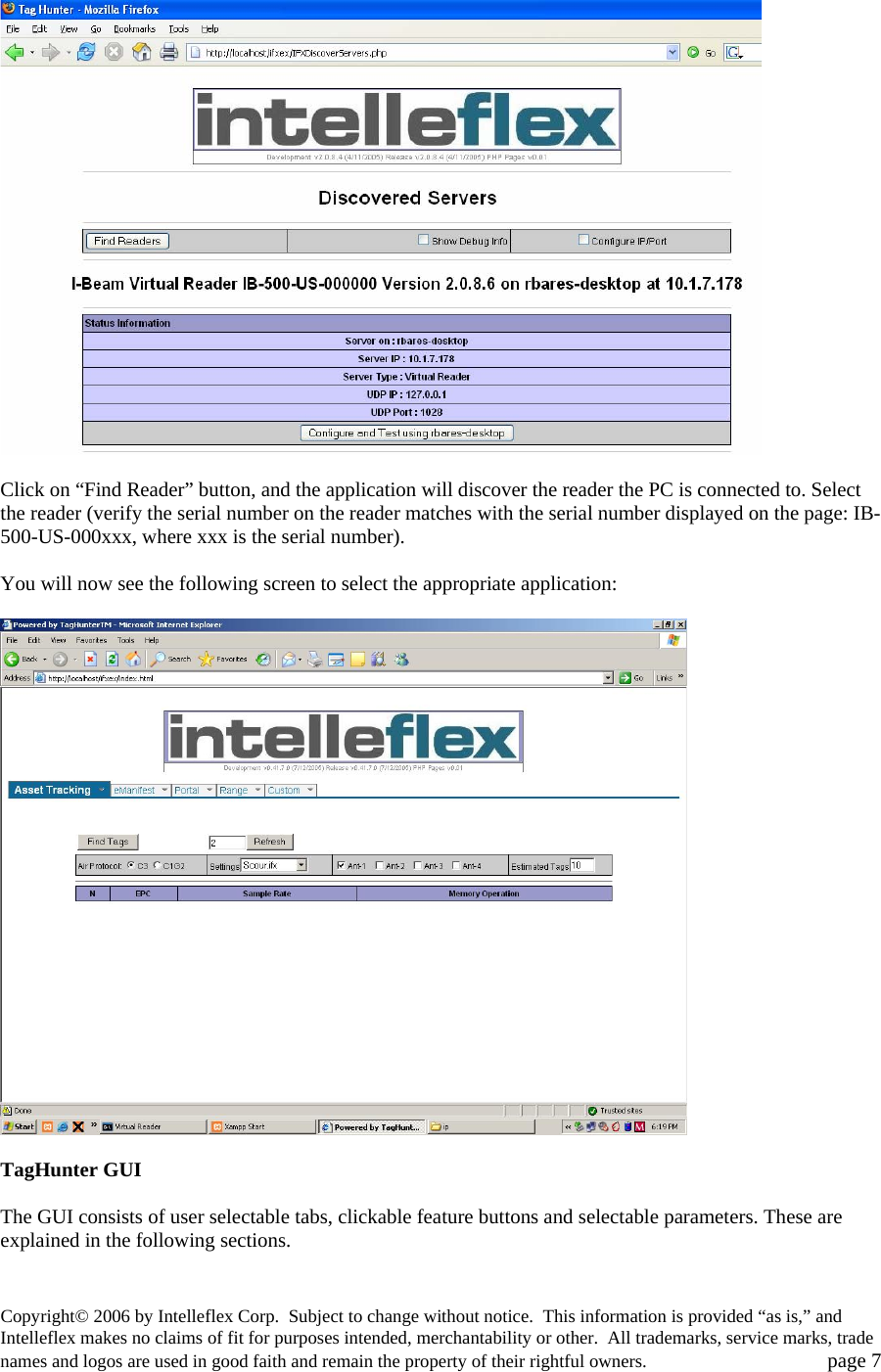
  5. The installer copies the requisite files; progress is displayed in the installer window.  This process may take a few minutes. When the installer is finished the Installation Complete screen appears.  Click ‘Finish’ to exit the installer.  1.2.3  Starting the Apache server  Run the Apache web server program xamp_start   Apache web server is required to display any results such as number of tags found. It uses the web server / PHP console to show any of the results. If a middleware uses another method of displaying the output – for example, a command line interface, the Apache web server program may not be required.  Note that the “X” over the Apache icon on the windows taskbar must be used to terminate the Apache program properly. This is a mandatory step when shutting down the application.1.2.4 Reader Administrator Console (TagHunterTM)  Run Firefox Internet Explorer, and go to URL        http://localhost  Ensure that cookies are enabled; the program writes cookies to save settings. At this point, you will see the following window: Copyright© 2006 by Intelleflex Corp.  Subject to change without notice.  This information is provided “as is,” and Intelleflex makes no claims of fit for purposes intended, merchantability or other.  All trademarks, service marks, trade names and logos are used in good faith and remain the property of their rightful owners.   page 6
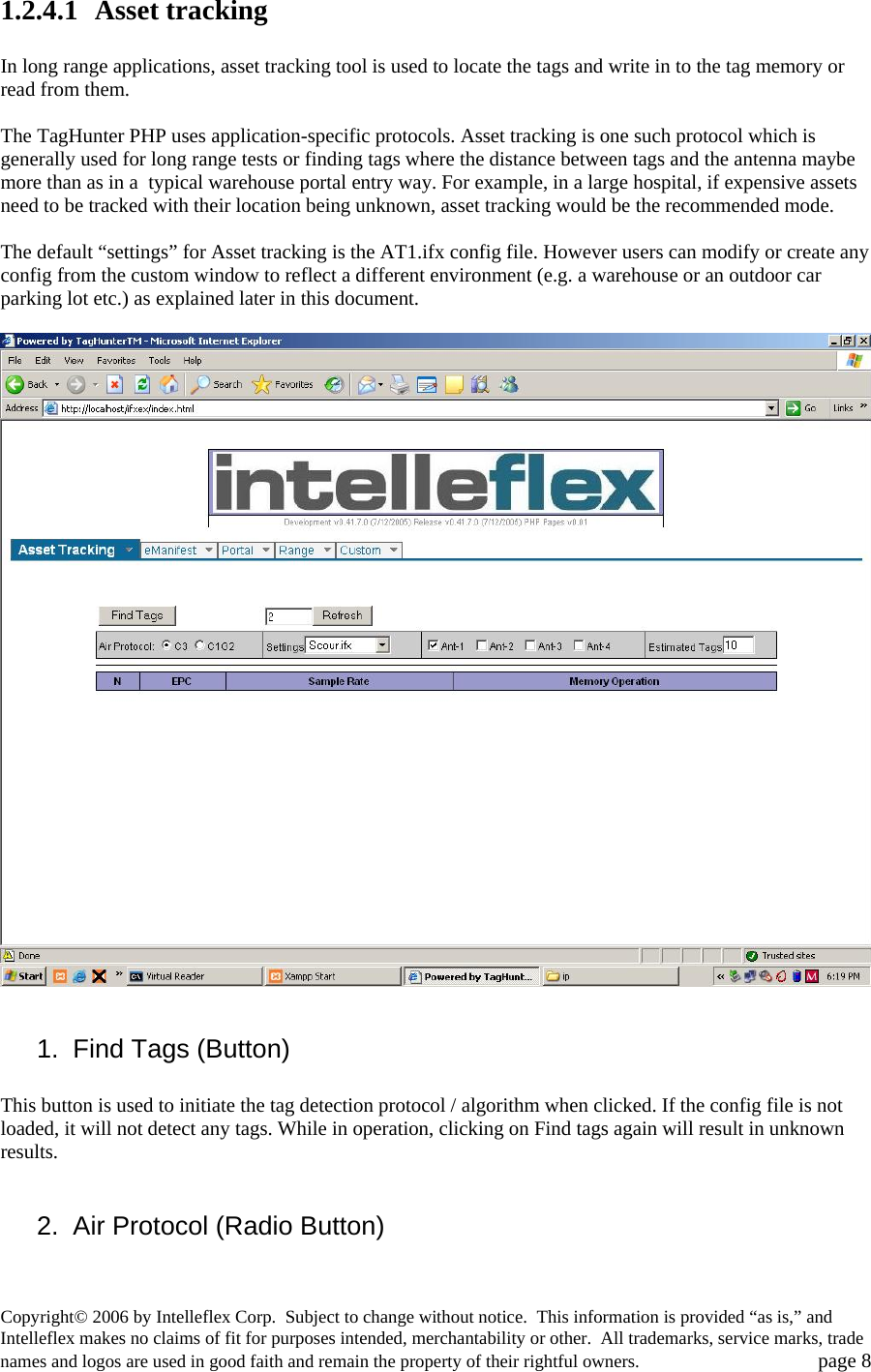
   Click on “Find Reader” button, and the application will discover the reader the PC is connected to. Select the reader (verify the serial number on the reader matches with the serial number displayed on the page: IB-500-US-000xxx, where xxx is the serial number).  You will now see the following screen to select the appropriate application:    TagHunter GUI   The GUI consists of user selectable tabs, clickable feature buttons and selectable parameters. These are explained in the following sections.  Copyright© 2006 by Intelleflex Corp.  Subject to change without notice.  This information is provided “as is,” and Intelleflex makes no claims of fit for purposes intended, merchantability or other.  All trademarks, service marks, trade names and logos are used in good faith and remain the property of their rightful owners.   page 7
1.2.4.1  Asset tracking  In long range applications, asset tracking tool is used to locate the tags and write in to the tag memory or read from them.   The TagHunter PHP uses application-specific protocols. Asset tracking is one such protocol which is generally used for long range tests or finding tags where the distance between tags and the antenna maybe more than as in a  typical warehouse portal entry way. For example, in a large hospital, if expensive assets need to be tracked with their location being unknown, asset tracking would be the recommended mode.  The default “settings” for Asset tracking is the AT1.ifx config file. However users can modify or create any config from the custom window to reflect a different environment (e.g. a warehouse or an outdoor car parking lot etc.) as explained later in this document.    1.  Find Tags (Button)  This button is used to initiate the tag detection protocol / algorithm when clicked. If the config file is not loaded, it will not detect any tags. While in operation, clicking on Find tags again will result in unknown results.   2.  Air Protocol (Radio Button)  Copyright© 2006 by Intelleflex Corp.  Subject to change without notice.  This information is provided “as is,” and Intelleflex makes no claims of fit for purposes intended, merchantability or other.  All trademarks, service marks, trade names and logos are used in good faith and remain the property of their rightful owners.   page 8
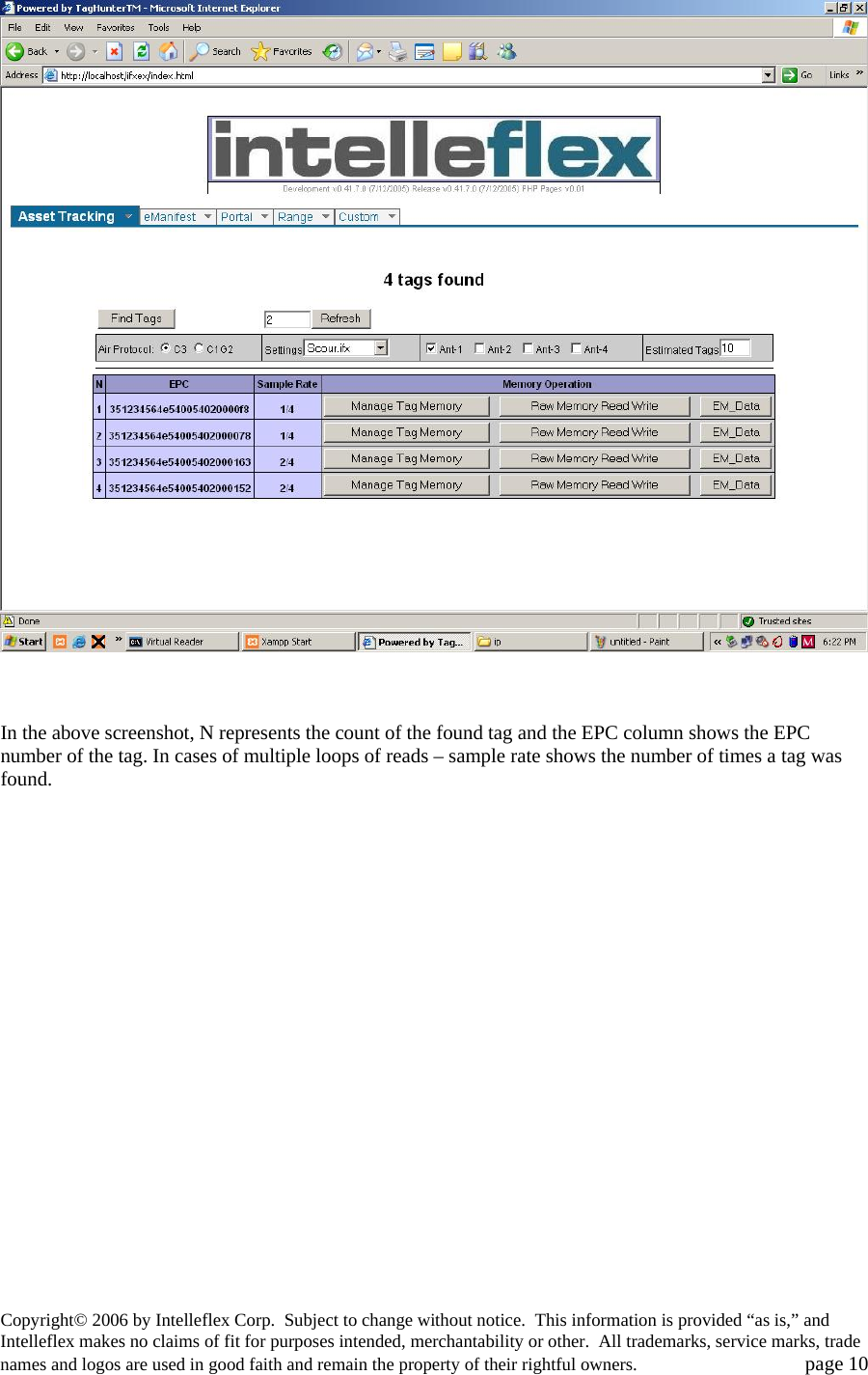
Air protocol selection defines the type of tags that the reader can expect to see. "C3" type tags is the default value.   At any given time, C1G2 tags or only C3 tags can be read, or the user can . select both types for a single round of reads.  Note that in E-Manifest application, this function is inoperative, and C1G2 and C3 are both employed. 3.  Setting a Configuration (drop down list box)  A facility to load pre-determined config files is available via the drop-down menu under settings.  There, you will find the configuration(s) that you have set up in the Custom window and saved.    All files when created or modified are padded with the .ifx suffix. 4. Antenna selection (checkboxes)  The user interface supports up to four antennas. By default, at least one antenna i.e.  Ant-1 is selected. Check / un-check the Ant -1, -2, -3, -4 boxes according to the number of antennas connected to the associated ports on the reader.    Be sure to connect 50 ohm loads to unused antenna ports on the Transmit connectors. 5.   Tag Inventory (operation)  Select “Find Tags” and a screen will be displayed listing tags found with EPC numbers, and the options of “Manage Tag Memory” and “Raw Memory Read/Write”. The number of tags found is also shown at the top of the screen.  6.    Refresh (Button) This provides the ability to put the reader in an automated read mode, the box to the left of the button indicates the interval (in seconds) of time passing between two consecutive read commands issued by the reader.  1.2.4.2 Sequence of events after triggering “Find tags”  Although the actual algorithm and the code that runs in the background is highly sophisticated, in very general terms the following is the high level protocol used to detect tags: 1) The reader sends out a “query” command via RF link between the antenna/s and the tags 2) Tags that respond by a issuing a query reply are flagged as such or singulated.  3) Depending upon the config file, this procedure may repeat itself several times or until the internal state machine completes its execution.   Once the tags are found, the output is shown as follows:  Copyright© 2006 by Intelleflex Corp.  Subject to change without notice.  This information is provided “as is,” and Intelleflex makes no claims of fit for purposes intended, merchantability or other.  All trademarks, service marks, trade names and logos are used in good faith and remain the property of their rightful owners.   page 9
    In the above screenshot, N represents the count of the found tag and the EPC column shows the EPC number of the tag. In cases of multiple loops of reads – sample rate shows the number of times a tag was found.  Copyright© 2006 by Intelleflex Corp.  Subject to change without notice.  This information is provided “as is,” and Intelleflex makes no claims of fit for purposes intended, merchantability or other.  All trademarks, service marks, trade names and logos are used in good faith and remain the property of their rightful owners.   page 10
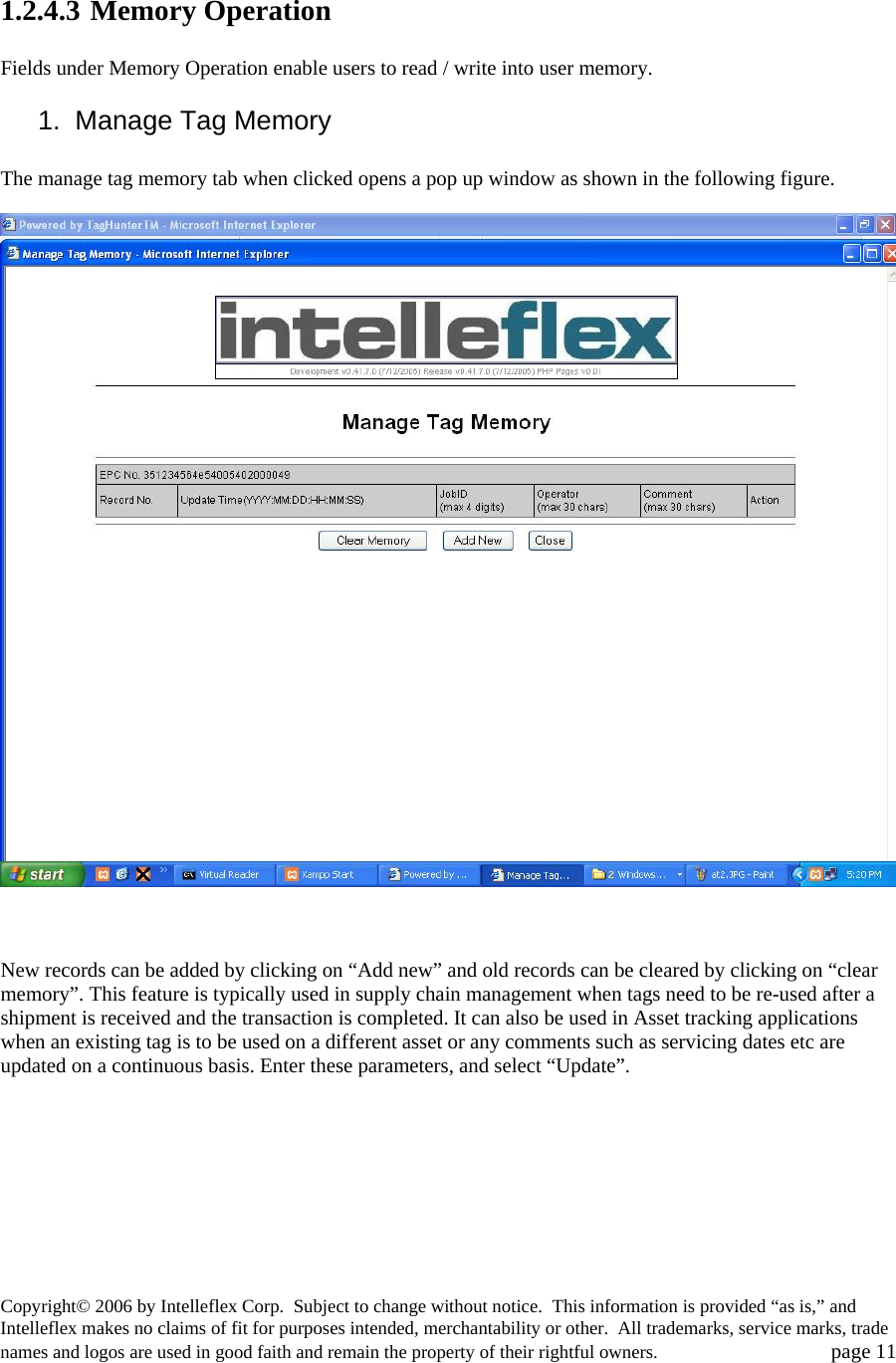
 1.2.4.3 Memory Operation  Fields under Memory Operation enable users to read / write into user memory.  1. Manage Tag Memory  The manage tag memory tab when clicked opens a pop up window as shown in the following figure.      New records can be added by clicking on “Add new” and old records can be cleared by clicking on “clear memory”. This feature is typically used in supply chain management when tags need to be re-used after a shipment is received and the transaction is completed. It can also be used in Asset tracking applications when an existing tag is to be used on a different asset or any comments such as servicing dates etc are updated on a continuous basis. Enter these parameters, and select “Update”.    Copyright© 2006 by Intelleflex Corp.  Subject to change without notice.  This information is provided “as is,” and Intelleflex makes no claims of fit for purposes intended, merchantability or other.  All trademarks, service marks, trade names and logos are used in good faith and remain the property of their rightful owners.   page 11
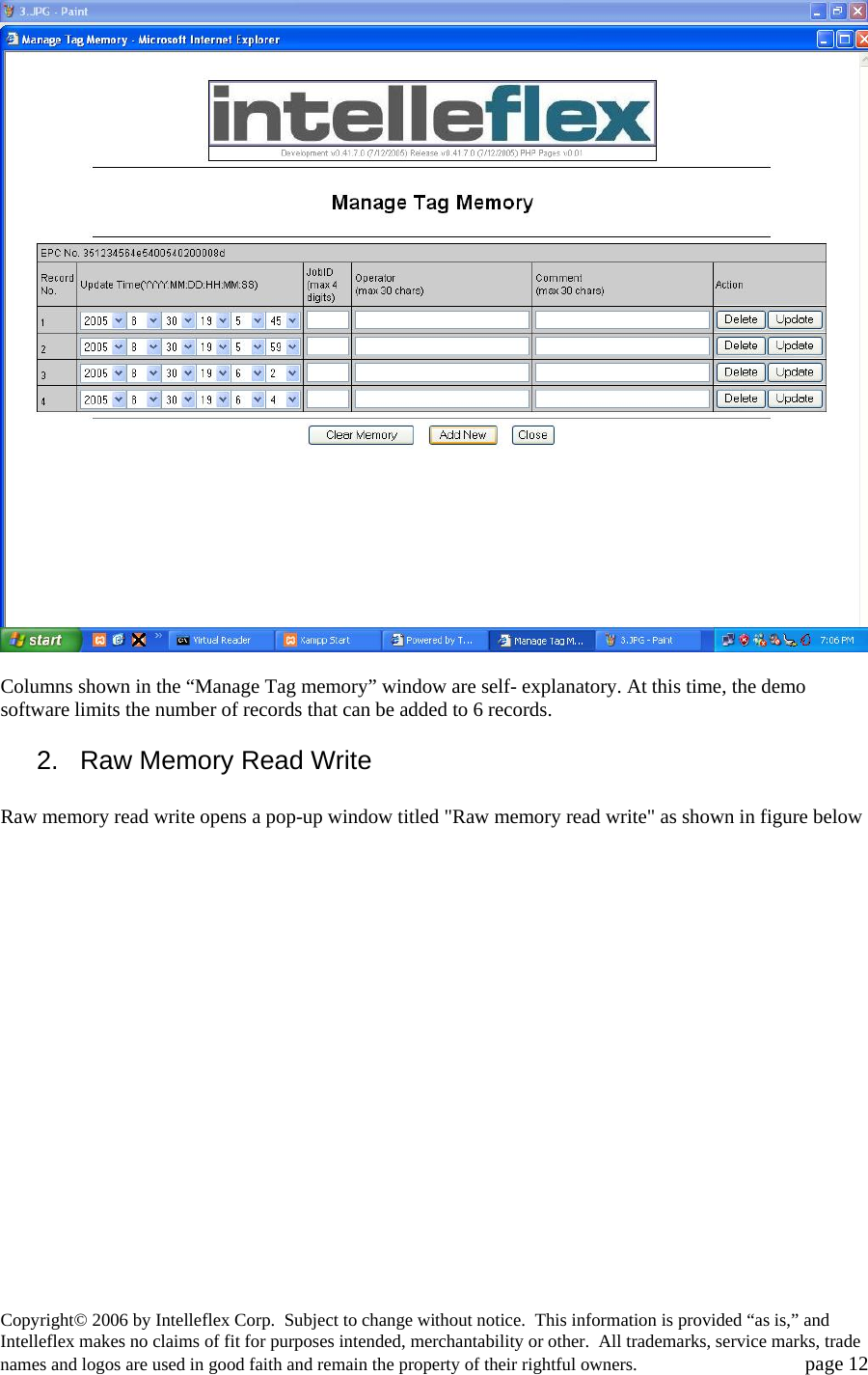
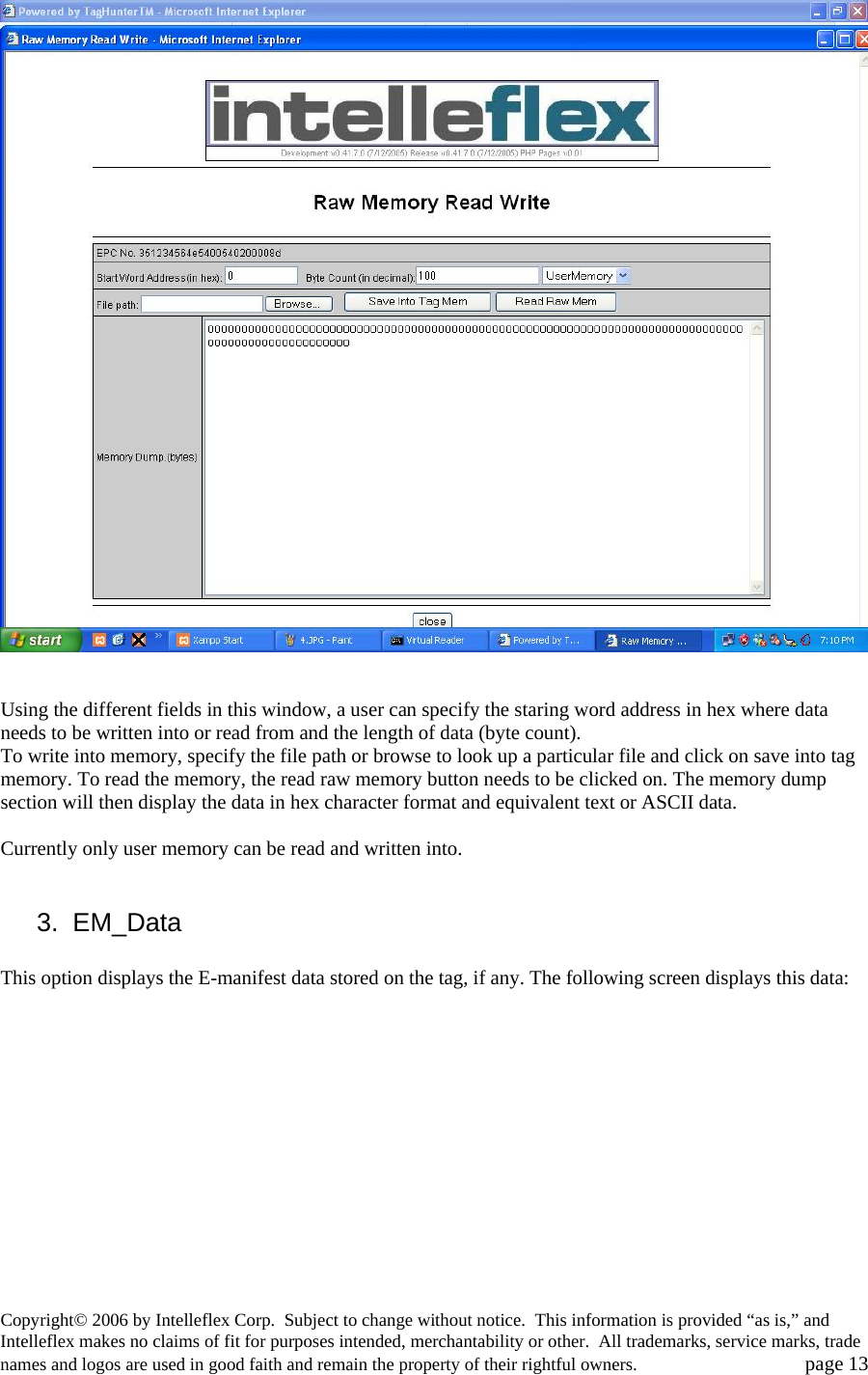
  Columns shown in the “Manage Tag memory” window are self- explanatory. At this time, the demo software limits the number of records that can be added to 6 records. 2.   Raw Memory Read Write  Raw memory read write opens a pop-up window titled "Raw memory read write" as shown in figure below  Copyright© 2006 by Intelleflex Corp.  Subject to change without notice.  This information is provided “as is,” and Intelleflex makes no claims of fit for purposes intended, merchantability or other.  All trademarks, service marks, trade names and logos are used in good faith and remain the property of their rightful owners.   page 12
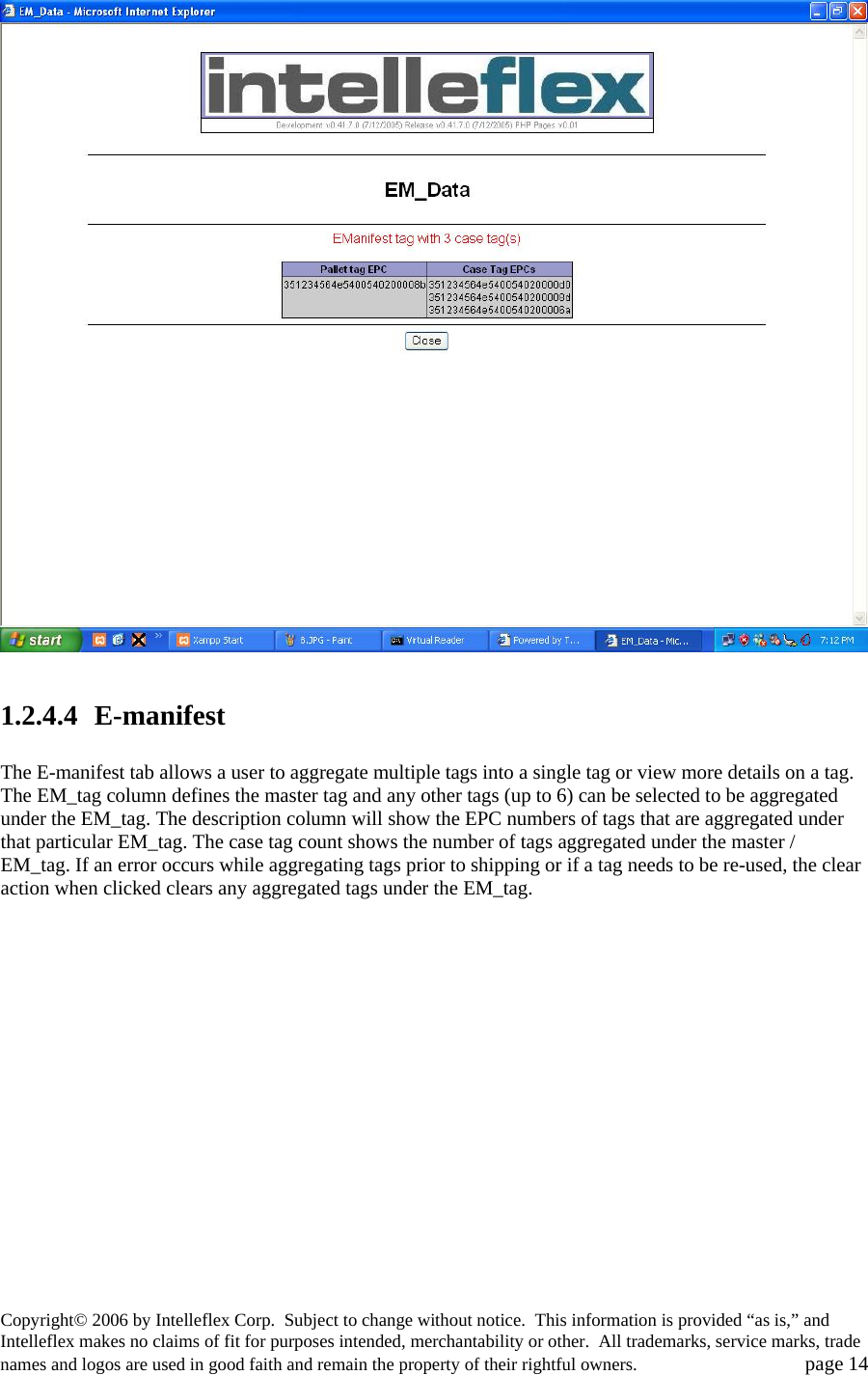
   Using the different fields in this window, a user can specify the staring word address in hex where data needs to be written into or read from and the length of data (byte count).  To write into memory, specify the file path or browse to look up a particular file and click on save into tag memory. To read the memory, the read raw memory button needs to be clicked on. The memory dump section will then display the data in hex character format and equivalent text or ASCII data.  Currently only user memory can be read and written into.   3. EM_Data  This option displays the E-manifest data stored on the tag, if any. The following screen displays this data:  Copyright© 2006 by Intelleflex Corp.  Subject to change without notice.  This information is provided “as is,” and Intelleflex makes no claims of fit for purposes intended, merchantability or other.  All trademarks, service marks, trade names and logos are used in good faith and remain the property of their rightful owners.   page 13
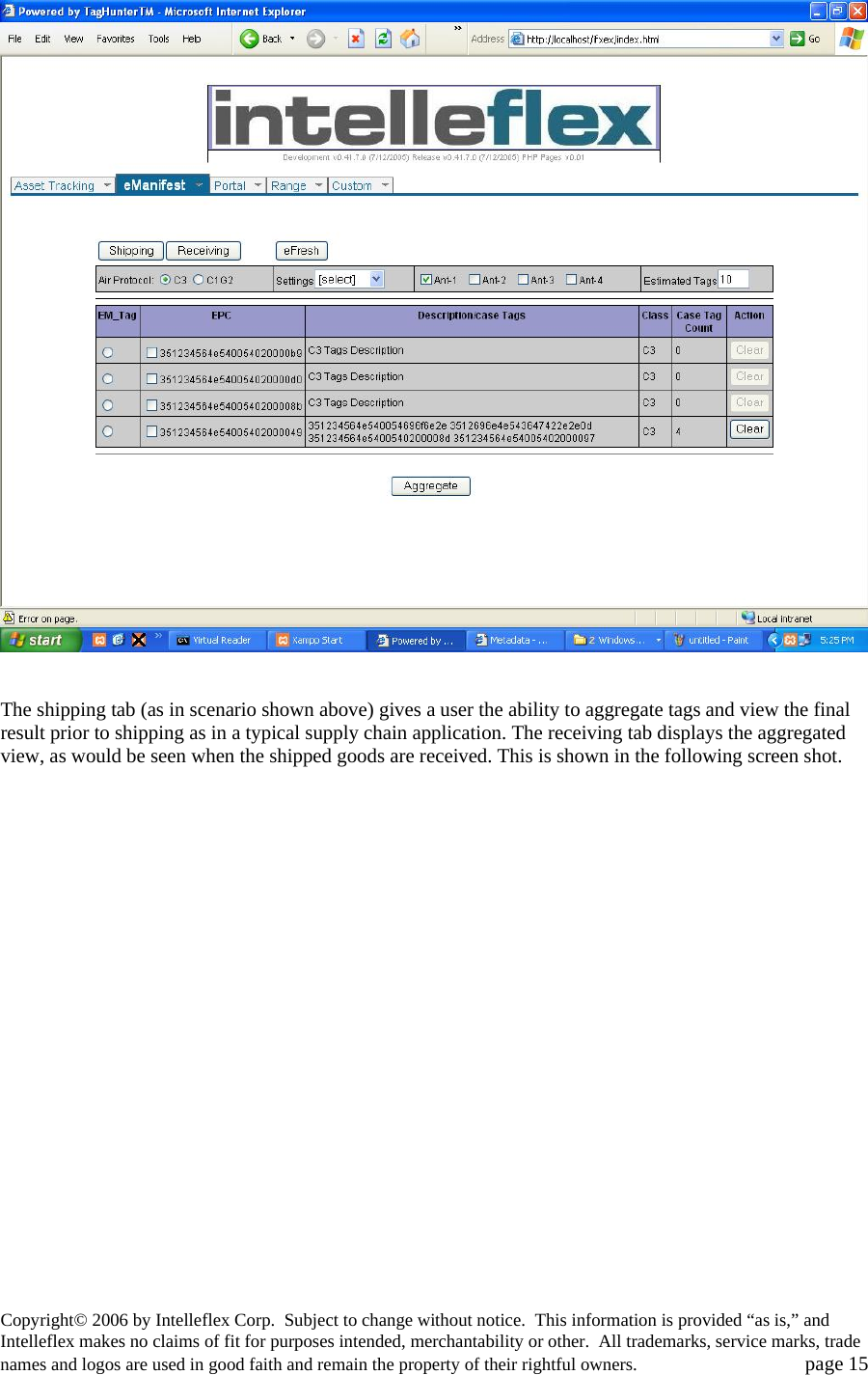
  1.2.4.4  E-manifest   The E-manifest tab allows a user to aggregate multiple tags into a single tag or view more details on a tag. The EM_tag column defines the master tag and any other tags (up to 6) can be selected to be aggregated under the EM_tag. The description column will show the EPC numbers of tags that are aggregated under that particular EM_tag. The case tag count shows the number of tags aggregated under the master / EM_tag. If an error occurs while aggregating tags prior to shipping or if a tag needs to be re-used, the clear action when clicked clears any aggregated tags under the EM_tag.    Copyright© 2006 by Intelleflex Corp.  Subject to change without notice.  This information is provided “as is,” and Intelleflex makes no claims of fit for purposes intended, merchantability or other.  All trademarks, service marks, trade names and logos are used in good faith and remain the property of their rightful owners.   page 14
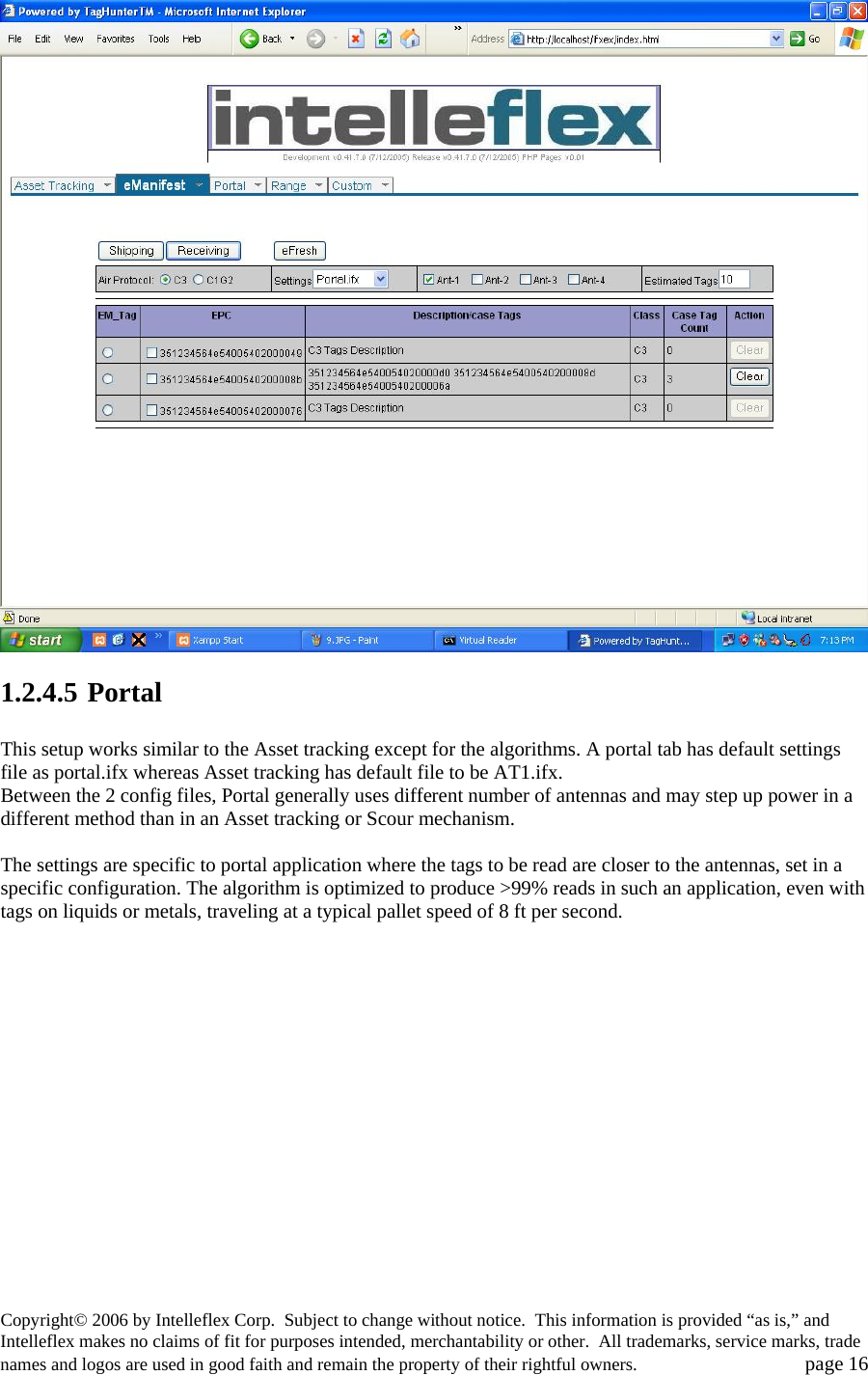
   The shipping tab (as in scenario shown above) gives a user the ability to aggregate tags and view the final result prior to shipping as in a typical supply chain application. The receiving tab displays the aggregated view, as would be seen when the shipped goods are received. This is shown in the following screen shot.  Copyright© 2006 by Intelleflex Corp.  Subject to change without notice.  This information is provided “as is,” and Intelleflex makes no claims of fit for purposes intended, merchantability or other.  All trademarks, service marks, trade names and logos are used in good faith and remain the property of their rightful owners.   page 15
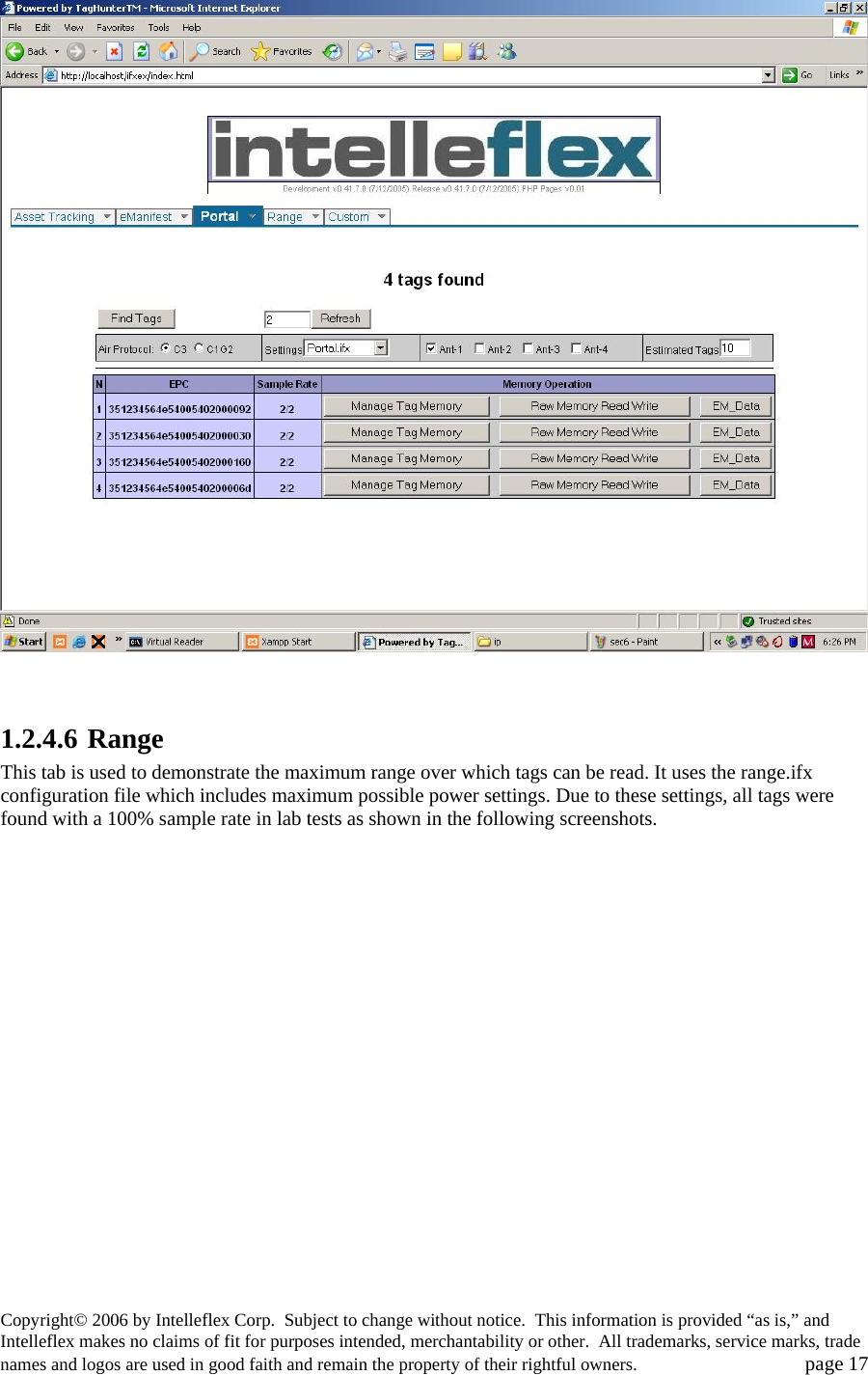
 1.2.4.5 Portal  This setup works similar to the Asset tracking except for the algorithms. A portal tab has default settings file as portal.ifx whereas Asset tracking has default file to be AT1.ifx. Between the 2 config files, Portal generally uses different number of antennas and may step up power in a different method than in an Asset tracking or Scour mechanism.  The settings are specific to portal application where the tags to be read are closer to the antennas, set in a specific configuration. The algorithm is optimized to produce >99% reads in such an application, even with tags on liquids or metals, traveling at a typical pallet speed of 8 ft per second.   Copyright© 2006 by Intelleflex Corp.  Subject to change without notice.  This information is provided “as is,” and Intelleflex makes no claims of fit for purposes intended, merchantability or other.  All trademarks, service marks, trade names and logos are used in good faith and remain the property of their rightful owners.   page 16
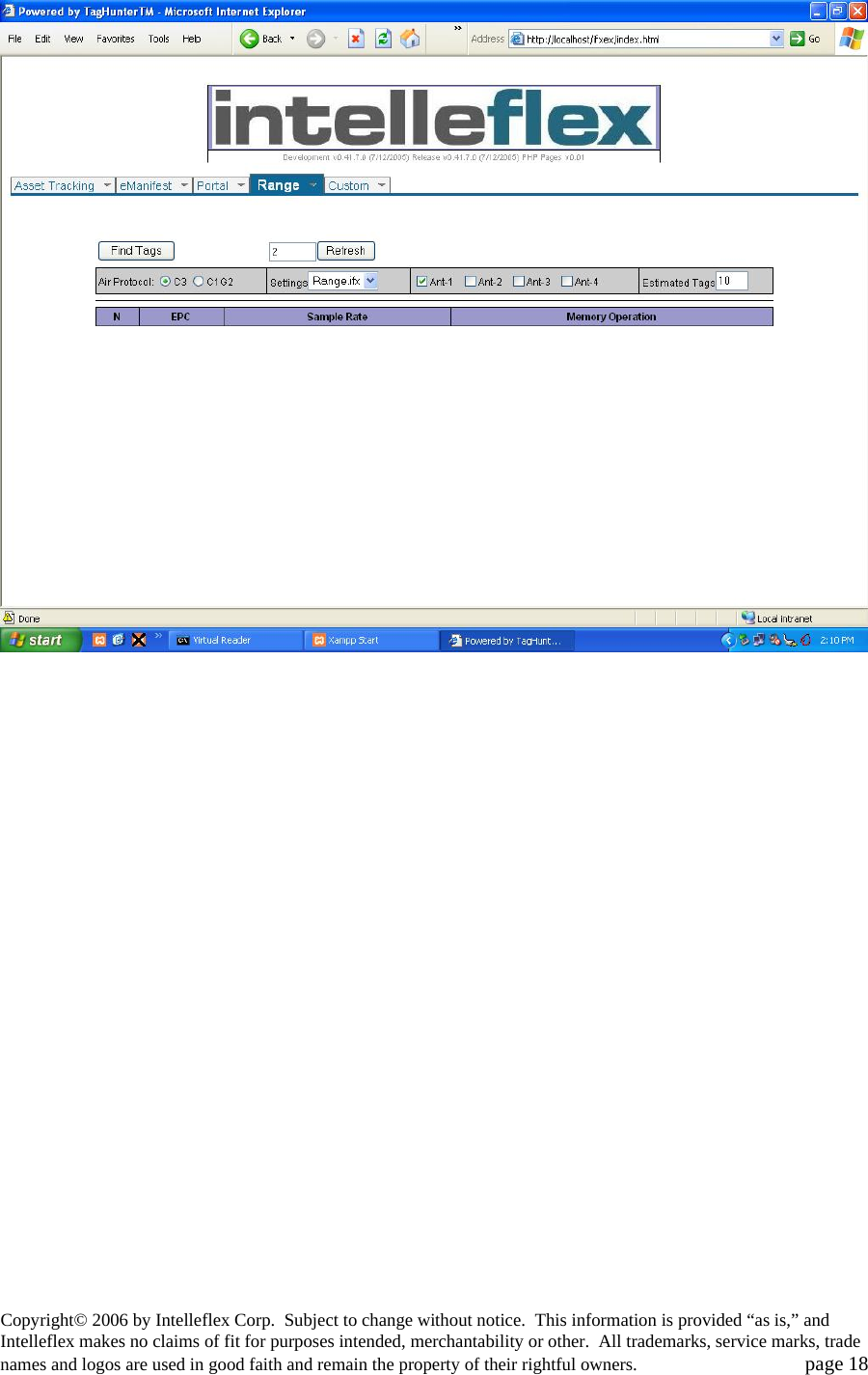
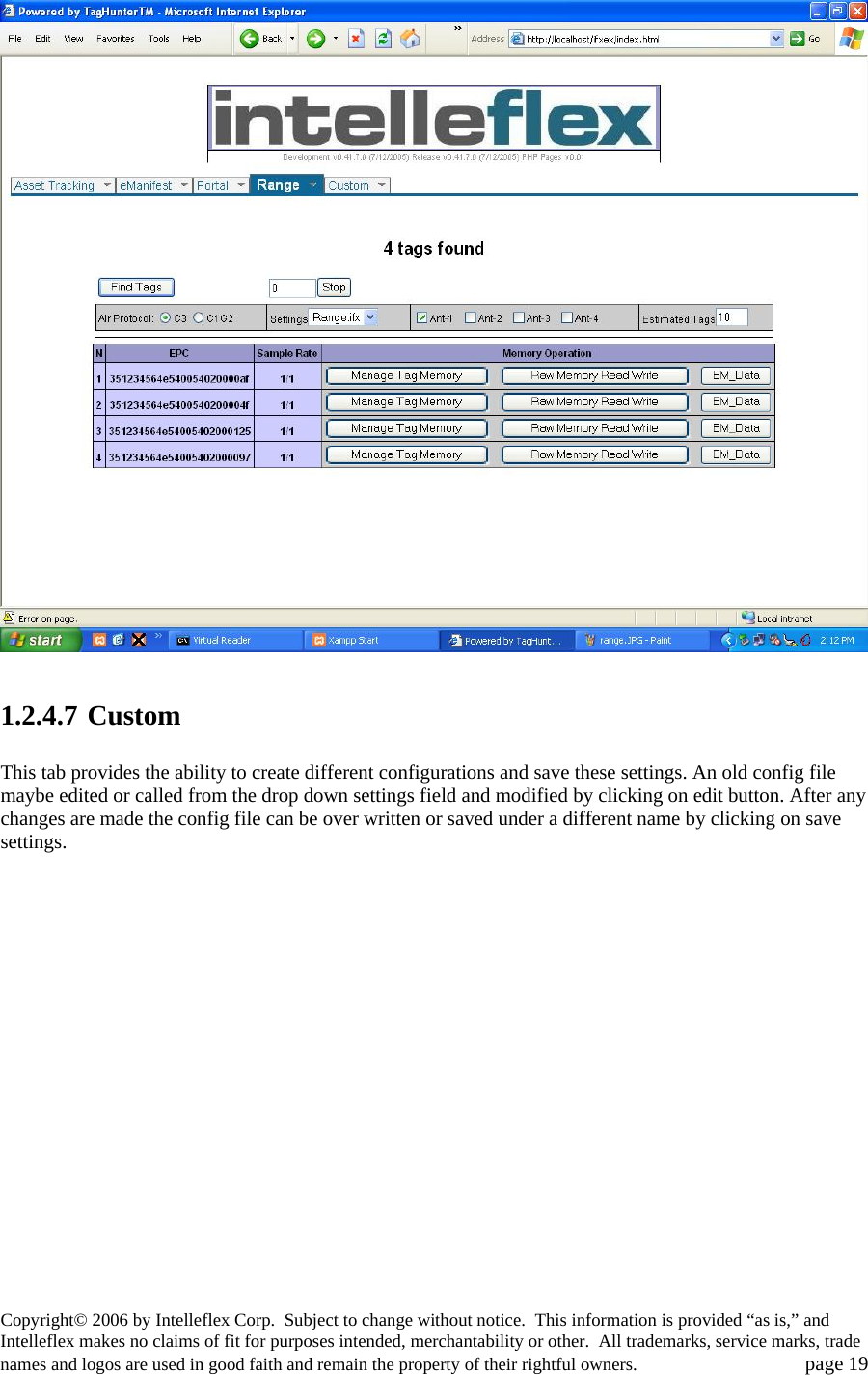
   1.2.4.6 Range  This tab is used to demonstrate the maximum range over which tags can be read. It uses the range.ifx configuration file which includes maximum possible power settings. Due to these settings, all tags were found with a 100% sample rate in lab tests as shown in the following screenshots.  Copyright© 2006 by Intelleflex Corp.  Subject to change without notice.  This information is provided “as is,” and Intelleflex makes no claims of fit for purposes intended, merchantability or other.  All trademarks, service marks, trade names and logos are used in good faith and remain the property of their rightful owners.   page 17
  Copyright© 2006 by Intelleflex Corp.  Subject to change without notice.  This information is provided “as is,” and Intelleflex makes no claims of fit for purposes intended, merchantability or other.  All trademarks, service marks, trade names and logos are used in good faith and remain the property of their rightful owners.   page 18
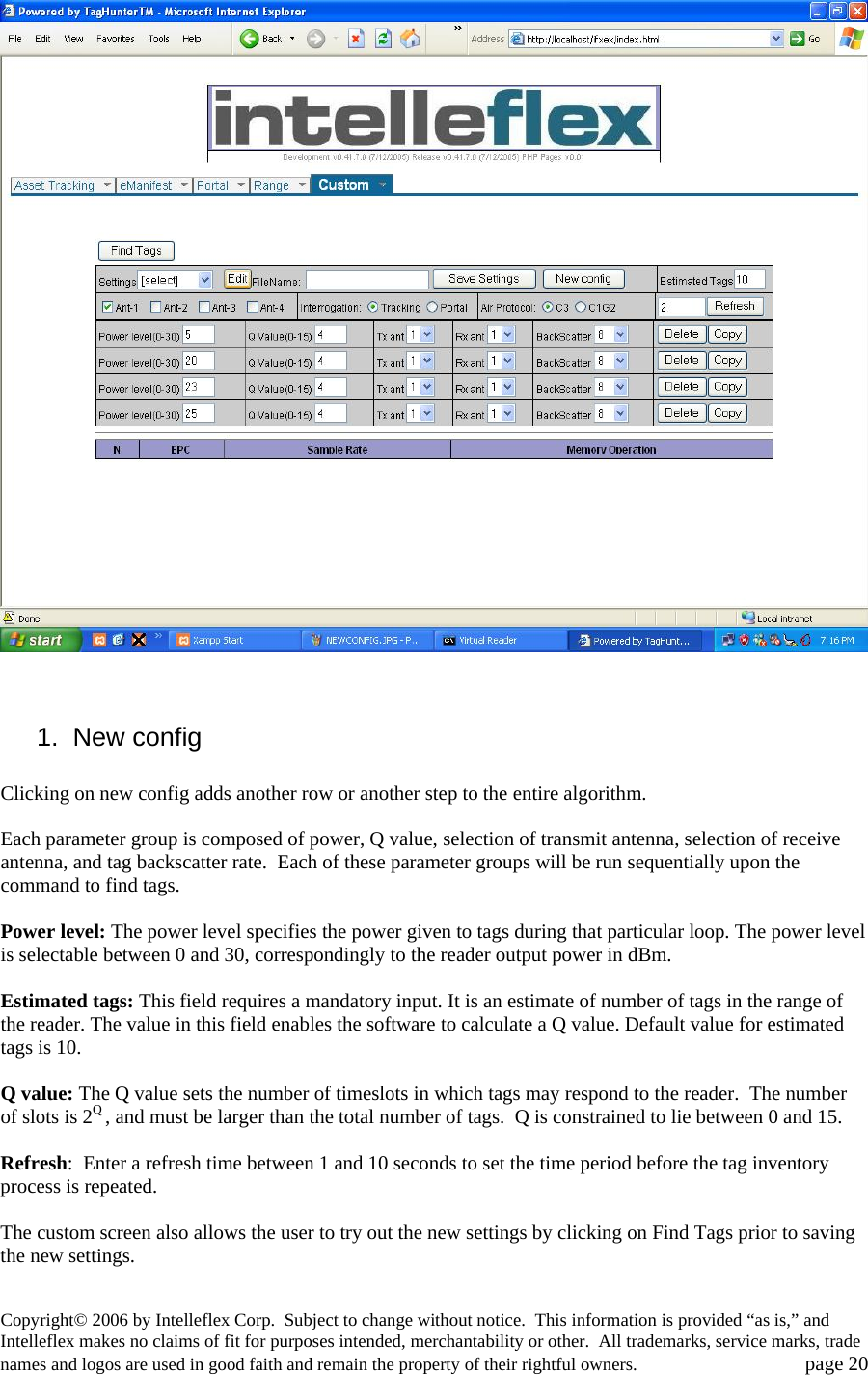
  1.2.4.7 Custom   This tab provides the ability to create different configurations and save these settings. An old config file maybe edited or called from the drop down settings field and modified by clicking on edit button. After any changes are made the config file can be over written or saved under a different name by clicking on save settings. Copyright© 2006 by Intelleflex Corp.  Subject to change without notice.  This information is provided “as is,” and Intelleflex makes no claims of fit for purposes intended, merchantability or other.  All trademarks, service marks, trade names and logos are used in good faith and remain the property of their rightful owners.   page 19
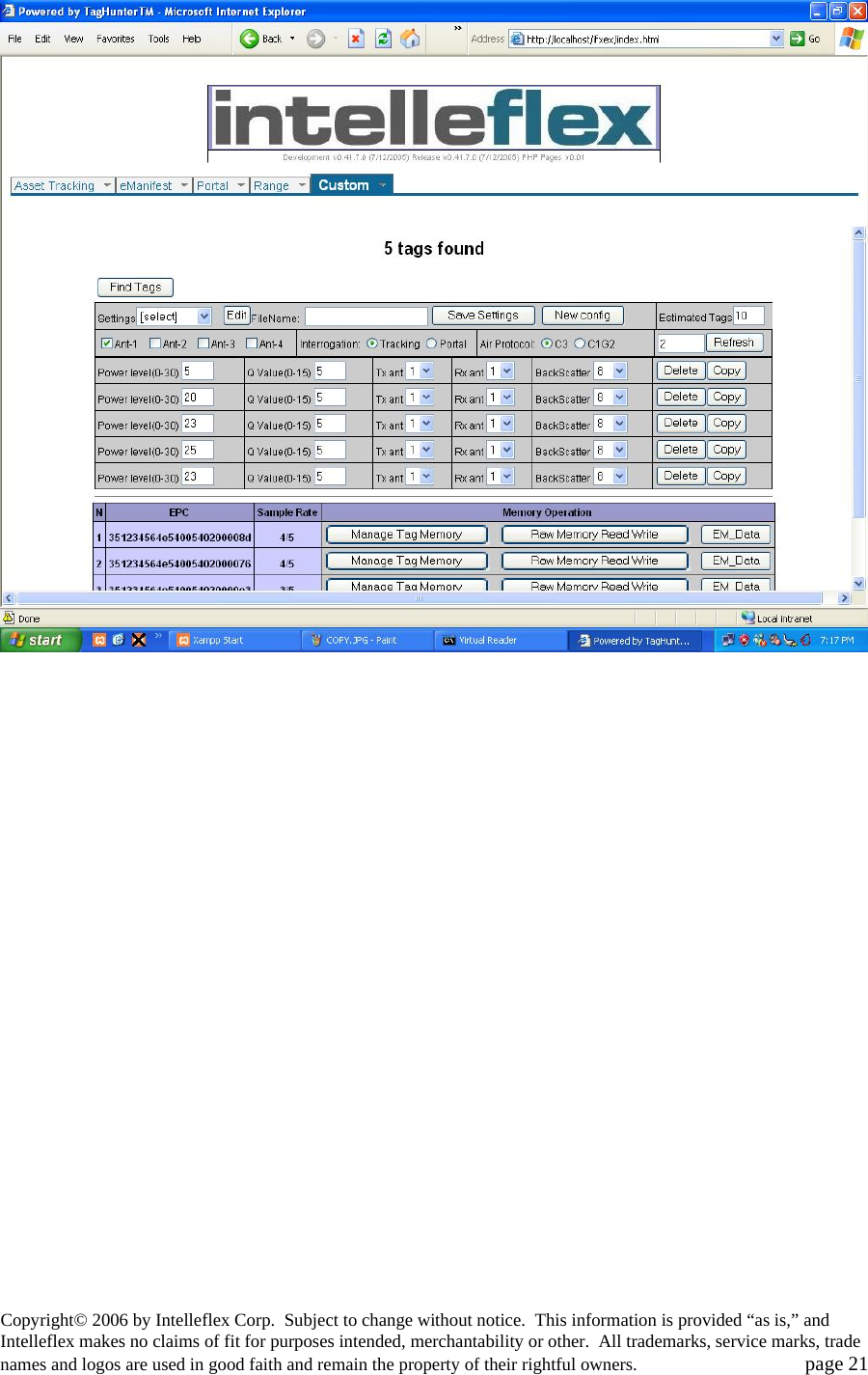
   1. New config  Clicking on new config adds another row or another step to the entire algorithm.   Each parameter group is composed of power, Q value, selection of transmit antenna, selection of receive antenna, and tag backscatter rate.  Each of these parameter groups will be run sequentially upon the command to find tags.   Power level: The power level specifies the power given to tags during that particular loop. The power level is selectable between 0 and 30, correspondingly to the reader output power in dBm.    Estimated tags: This field requires a mandatory input. It is an estimate of number of tags in the range of the reader. The value in this field enables the software to calculate a Q value. Default value for estimated tags is 10.  Q value: The Q value sets the number of timeslots in which tags may respond to the reader.  The number of slots is 2Q , and must be larger than the total number of tags.  Q is constrained to lie between 0 and 15.  Refresh:  Enter a refresh time between 1 and 10 seconds to set the time period before the tag inventory process is repeated.  The custom screen also allows the user to try out the new settings by clicking on Find Tags prior to saving the new settings.   Copyright© 2006 by Intelleflex Corp.  Subject to change without notice.  This information is provided “as is,” and Intelleflex makes no claims of fit for purposes intended, merchantability or other.  All trademarks, service marks, trade names and logos are used in good faith and remain the property of their rightful owners.   page 20
 Copyright© 2006 by Intelleflex Corp.  Subject to change without notice.  This information is provided “as is,” and Intelleflex makes no claims of fit for purposes intended, merchantability or other.  All trademarks, service marks, trade names and logos are used in good faith and remain the property of their rightful owners.   page 21
    1.3 Host-Reader Interface  If you want to create your own software to communicate with and control stationary  readers, see the document “Intelleflex Middleware Application Programming Interface” for communication with the reader using SLRRP based protocol over the Ethernet port.    1.4  Troubleshooting / technical support 1.5 Technical specifications  Parameter  Specification Operating Frequency  US ISM band (902-928 MHz); frequency-hopping Protocol support  EPCGlobal Class 1 Gen 2, Intelleflex Class 3 RF Transmit Power  1 Watt Tag Read Range  6 meters [20 feet] typical for C1G2, up to 100 m for C3 Antenna ports  Up to 4 pairs of (Transmit/Receive); RP-TNC connectors Antenna Specifications  cable attenuation higher than 1 dB Linear polarization antenna gain less than 7 dBil Reader modes  Host initiation mode or autonomous operation based on timer or external trigger Host interface  Serial control over RS232, or TCP/IP over Ethernet; SLRRP based API Operating temperature  0 to 50°C  (32 to 122°F) Storage temperature  -20 to 70°C  (-4 to 158°F) Power supply  24 VDC, 2.7 A FCC certification  FCC part 15 unlicensed operation [PENDING AT TIME OF WRITING]   1.6  Notices 1.6.1 RFID limitations  Communication between tags and readers at UHF frequencies is a complex phenomenon depending on details of the environment surrounding the tags and reader(s) as well as the equipment being used.  Some environmental aspects (such as tag placement and orientation) may be controllable by the user; others (such as reflections of the RF radiation by ambient objects) are generally not.  Careful installation and testing, and development and adherence to appropriate operating procedures, are indispensable for successful implementation of RFID.  Intelleflex. makes no representation or warrantee that any specific configuration of RFID tags and readers will provide any given performance characteristics.   1.6.2  Safety   Any use of this equipment with antennas or cabling installed outdoors or otherwise exposed to inclement weather must avoid proximity with power lines or other high-voltage conductors, and provide for proper grounding and lightning arresting devices to protect the equipment user in the event of a lightning strike.  See National Electrical Code (NEC) requirements articles 725, 800, and 810 for further information.     Copyright© 2006 by Intelleflex Corp.  Subject to change without notice.  This information is provided “as is,” and Intelleflex makes no claims of fit for purposes intended, merchantability or other.  All trademarks, service marks, trade names and logos are used in good faith and remain the property of their rightful owners.   page 22
Do not operate the stationary  readers in any area where critical safety equipment may be sensitive to RF interference, such as medical or life support equipment.    Do not operate the stationary  readers on board any aircraft in flight, or at any other time when operation of radio devices such as cellular phones is prohibited.    Personnel should not be closer than 23 cm (9 inches) from any Stationary  reader antenna for prolonged periods of time.  See FCC bulletins 56 and 65 for further information on electromagnetic field exposure.   1.6.3  Limitation of liability The information in this manual is subject to change without notice and does not represent a commitment on the part of Intelleflex.   Intelleflex specifically disclaims liability for any and all direct, indirect, special, general, incidental, consequential, punitive or exemplary damages, including but not limited to loss of profits, revenue, or anticipated loss of profits or revenue, arising out of the use or inability to use any Intelleflex. product, even if Intelleflex has been advised or the possibility of such damages or they are foreseeable, or for claims by any third party.   1.6.4 Patents  Portions of the products described in this manual may be covered by granted or currently-pending US and foreign patents.    1.6.5 Copyright notice The contents of this document are the property of Intelleflex, except where otherwise noted.  Individuals who have purchased or otherwise legally acquired the stationary  reader hardware units described in this document are expressly permitted to make copies of the document, in electronic or paper form, for personal, backup, and archival use.  Brief segments may be excerpted and used with attribution for descriptive purposes in commentaries, reviews, or other informational documents.  All other reproduction in whole or in part is expressly prohibited without the consent of the copyright owner.    Copyright 2006 by Intelleflex.   1.6.6  Comments and feedback  Comments and feedback on this manual or the stationary  readers are welcomed:  By phone:    1-408-350-6101 By email:  info@intelleflex.comBy physical mail:  Intelleflex Corp.     1075 E. Brokaw Road, Suite 200     San Jose, CA 95131. USA  1.7 Regulatory Compliance 1.7.1 FCC Statement  This equipment has been tested [PENDING AT THE TIME OF THIS WRITING!] and found to comply with Part 15 of the FCC Rules. These limits are designed to provide reasonable protection against harmful interference in a residential installation. This equipment generates, uses and can radiate radio frequency energy and, if not installed and used in accordance with the instructions, may cause harmful interference to radio communications. However, there is no guarantee that Copyright© 2006 by Intelleflex Corp.  Subject to change without notice.  This information is provided “as is,” and Intelleflex makes no claims of fit for purposes intended, merchantability or other.  All trademarks, service marks, trade names and logos are used in good faith and remain the property of their rightful owners.   page 23
interference will not occur in a particular installation. If this equipment does cause harmful interference to radio or television reception, which can be determined by turning the equipment off and on, the user is encouraged to try to correct the interference by one or more of the following measures: -- Reorient or relocate the receiving antenna. -- Increase the separation between the equipment and receiver. -- Connect the equipment into an outlet on a circuit different from that to which the receiver    is connected. -- Consult the dealer or an experienced radio/TV technician for help.   NOTE: Changes or modifications not expressly approved by Intelleflex could void the user's authority to operate the equipment described in this manual.  This product must be professionally installed.    1.7.1.1 RF Radiation Exposure Statement  To meet RF exposure requirments in FCC Rule section 1.1307, antennas must be installed iso that a distance of at least 22 cm (9 inches) is maintained between antenna and all .persons during normal operation. Copyright© 2006 by Intelleflex Corp.  Subject to change without notice.  This information is provided “as is,” and Intelleflex makes no claims of fit for purposes intended, merchantability or other.  All trademarks, service marks, trade names and logos are used in good faith and remain the property of their rightful owners.   page 24

Navigation menu