Wavesystec DP-1300 MP3 Player User Manual mp3 English

Wavesystec Co., Ltd. MP3 Player mp3 English

User Manual

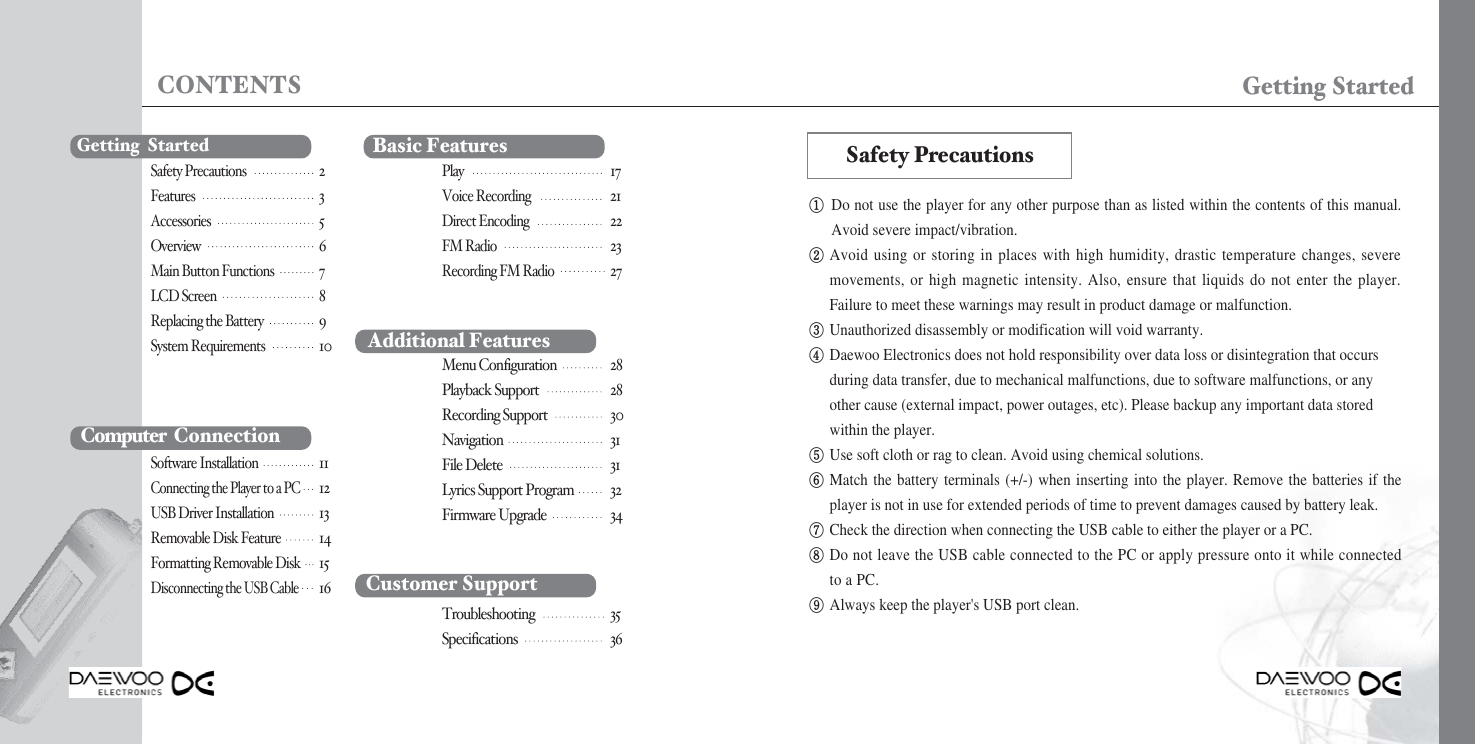
CONTENTS Getting Started①Do not use the player for any other purpose than as listed within the contents of this manual.Avoid severe impact/vibration. ②Avoid using or storing in places with high humidity, drastic temperature changes, severemovements, or high magnetic intensity. Also, ensure that liquids do not enter the player.Failure to meet these warnings may result in product damage or malfunction.③Unauthorized disassembly or modification will void warranty.④Daewoo Electronics does not hold responsibility over data loss or disintegration that occurs during data transfer, due to mechanical malfunctions, due to software malfunctions, or any other cause (external impact, power outages, etc). Please backup any important data stored within the player.⑤Use soft cloth or rag to clean. Avoid using chemical solutions.⑥Match the battery terminals (+/-) when inserting into the player. Remove the batteries if theplayer is not in use for extended periods of time to prevent damages caused by battery leak.⑦Check the direction when connecting the USB cable to either the player or a PC.⑧Do not leave the USB cable connected to the PC or apply pressure onto it while connectedto a PC.⑨Always keep the player's USB port clean.Safety PrecautionsGetting  StartedComputer ConnectionSoftware Installation11Connecting the Player to a PC12USB Driver Installation13Removable Disk Feature14Formatting Removable Disk15Disconnecting the USB Cable16 Customer SupportTroubleshooting 35Specifications 36Basic FeaturesPlay17Voice Recording21Direct Encoding22FM Radio23Recording FM Radio27Additional FeaturesMenu Configuration 28Playback Support 28Recording Support 30Navigation 31File Delete 31Lyrics Support Program 32Firmware Upgrade 34Safety Precautions2Features3Accessories5Overview6Main Button Functions7LCD Screen8Replacing the Battery9System Requirements10
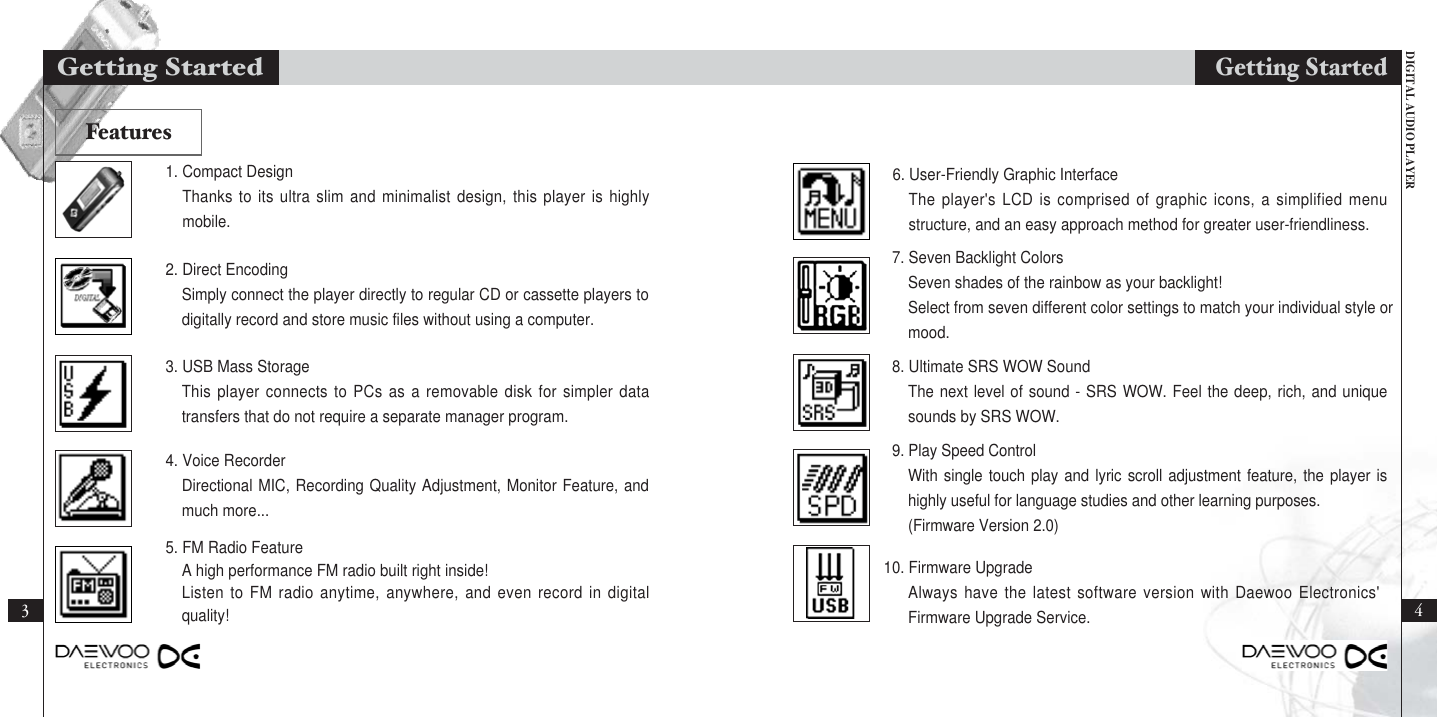
DIGITAL AUDIO PLAYER31. Compact DesignThanks to its ultra slim and minimalist design, this player is highlymobile.2. Direct EncodingSimply connect the player directly to regular CD or cassette players todigitally record and store music files without using a computer.3. USB Mass StorageThis player connects to PCs as a removable disk for simpler datatransfers that do not require a separate manager program.4. Voice RecorderDirectional MIC, Recording Quality Adjustment, Monitor Feature, andmuch more...5. FM Radio FeatureA high performance FM radio built right inside!Listen to FM radio anytime, anywhere, and even record in digitalquality!6. User-Friendly Graphic InterfaceThe player's LCD is comprised of graphic icons, a simplified menustructure, and an easy approach method for greater user-friendliness.7. Seven Backlight ColorsSeven shades of the rainbow as your backlight!Select from seven different color settings to match your individual style or mood.8. Ultimate SRS WOW SoundThe next level of sound - SRS WOW. Feel the deep, rich, and uniquesounds by SRS WOW.9. Play Speed ControlWith single touch play and lyric scroll adjustment feature, the player ishighly useful for language studies and other learning purposes.(Firmware Version 2.0)10. Firmware UpgradeAlways have the latest software version with Daewoo Electronics'Firmware Upgrade Service.Getting Started4Getting StartedFeatures
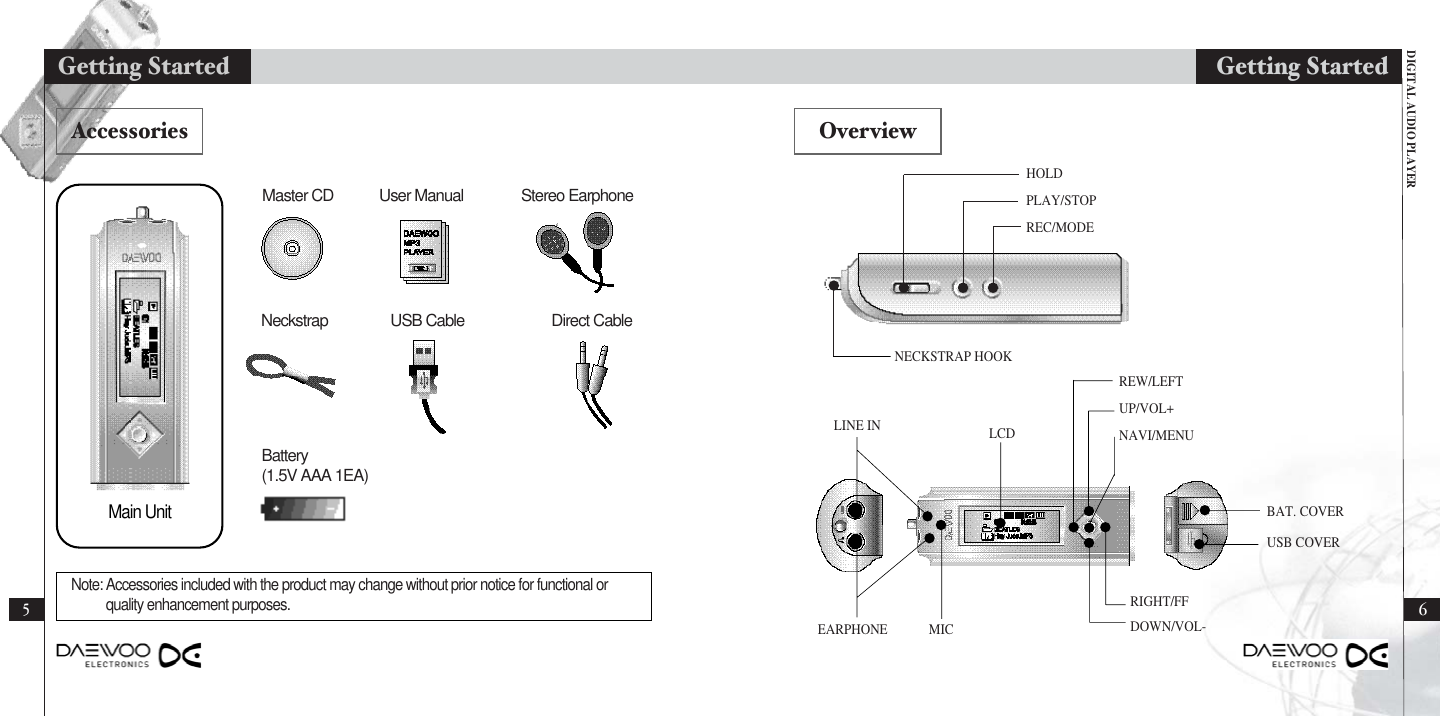
HOLDPLAY/STOPREC/MODENECKSTRAP HOOK65Getting Started Getting StartedNote: Accessories included with the product may change without prior notice for functional orquality enhancement purposes.DIGITAL AUDIO PLAYERREW/LEFTUP/VOL+NAVI/MENURIGHT/FFDOWN/VOL-EARPHONE MICLCDLINE INBAT. COVERUSB COVERBattery(1.5V AAA 1EA)Main UnitAccessories OverviewNeckstrap USB CableStereo EarphoneUser ManualDirect CableMaster CD
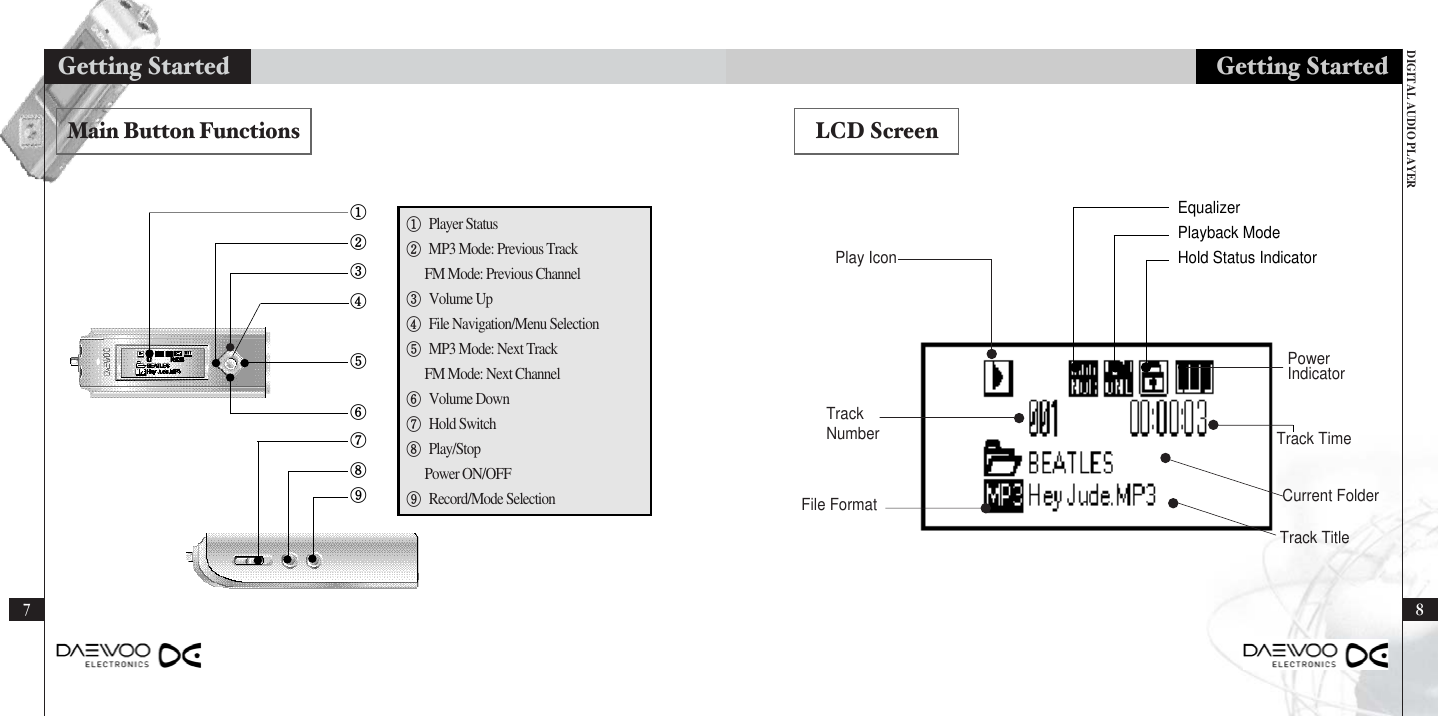
87Getting StartedLCD ScreenDIGITAL AUDIO PLAYEREqualizerPlayback ModeHold Status IndicatorPlay IconTrack NumberFile FormatTrack TitleCurrent FolderTrack TimePowerIndicatorMain Button Functions①Player Status②MP3 Mode: Previous TrackFM Mode: Previous Channel③Volume Up④File Navigation/Menu Selection⑤MP3 Mode: Next TrackFM Mode: Next Channel⑥Volume Down⑦Hold Switch⑧Play/StopPower ON/OFF⑨Record/Mode Selection①②③④⑤⑥⑦⑧⑨Getting Started
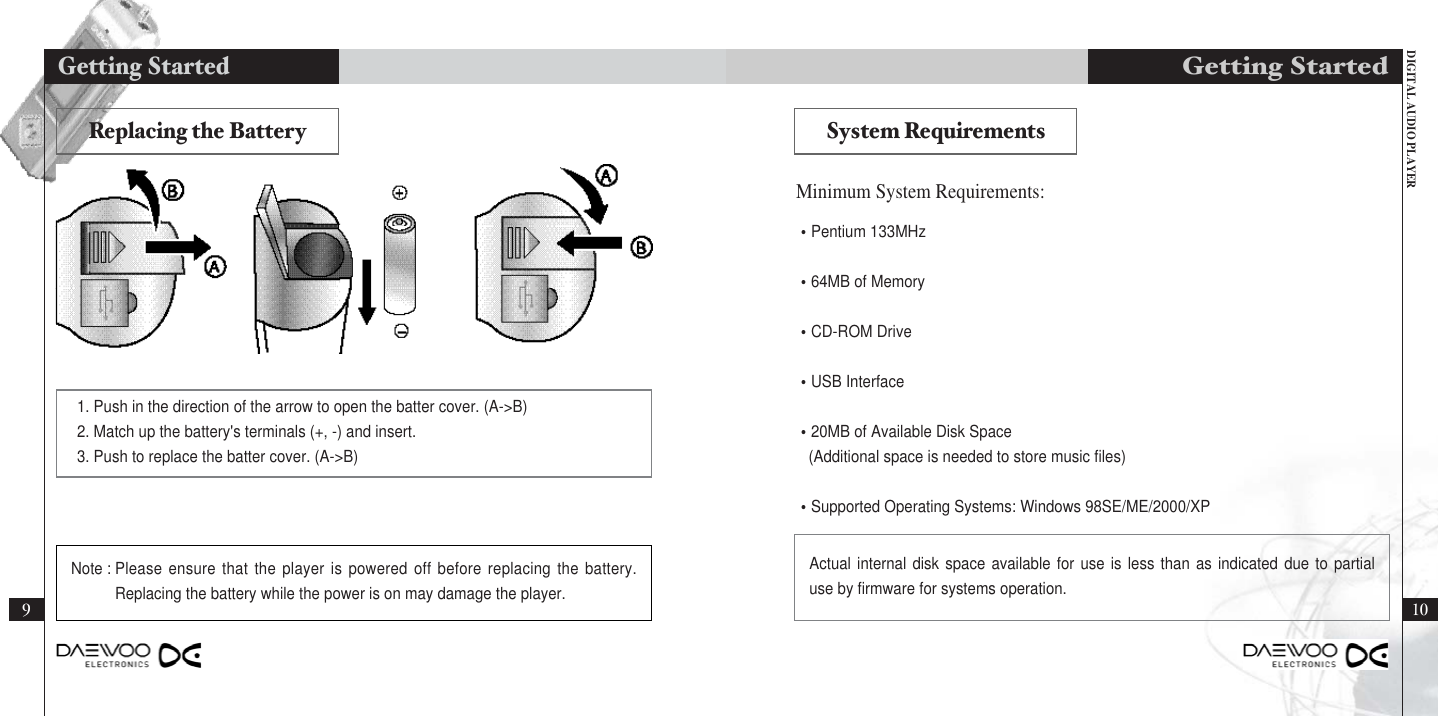
DIGITAL AUDIO PLAYER10Getting Started•Pentium 133MHz•64MB of Memory•CD-ROM Drive•USB Interface•20MB of Available Disk Space(Additional space is needed to store music files)•Supported Operating Systems: Windows 98SE/ME/2000/XPMinimum System Requirements:Actual internal disk space available for use is less than as indicated due to partialuse by firmware for systems operation.Replacing the Battery System Requirements1. Push in the direction of the arrow to open the batter cover. (A->B)2. Match up the battery's terminals (+, -) and insert.3. Push to replace the batter cover. (A->B)건전지 교체하기9Getting StartedNote : Please ensure that the player is powered off before replacing the battery.Replacing the battery while the power is on may damage the player.
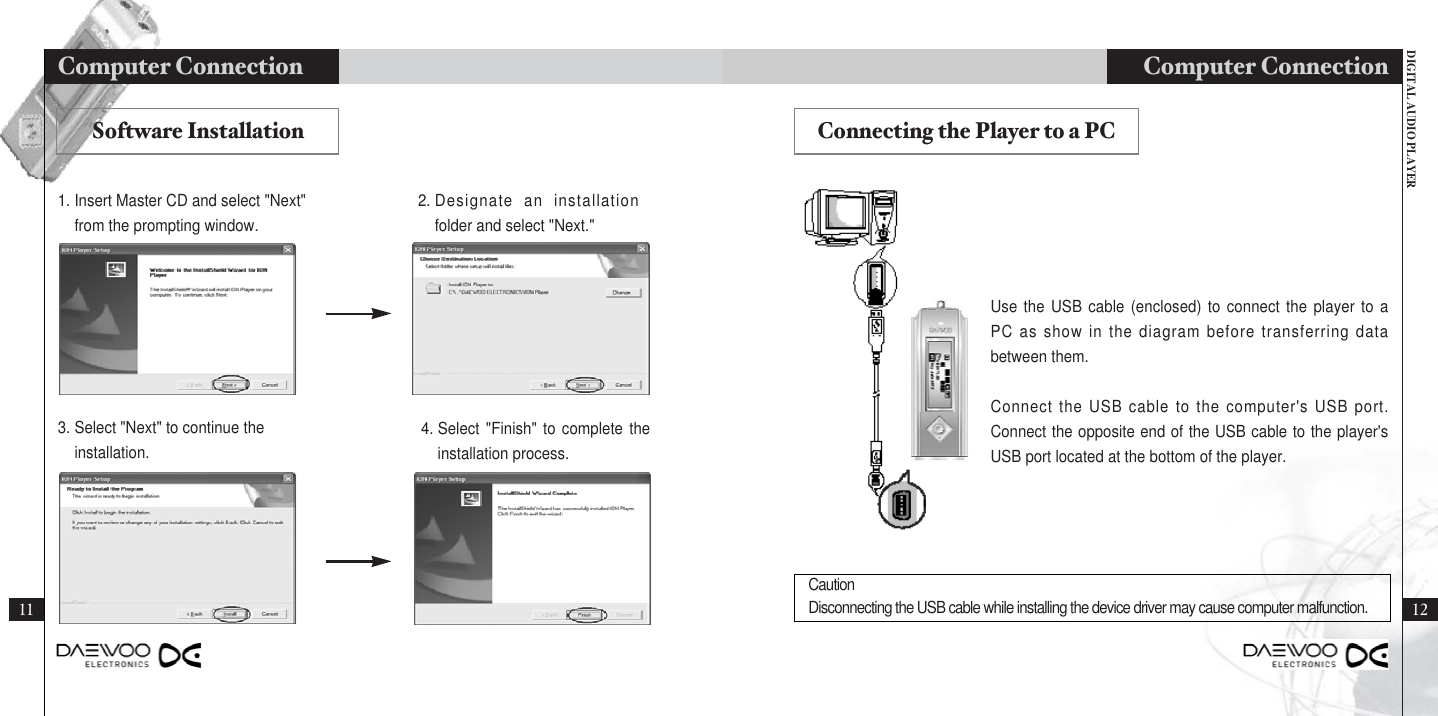
DIGITAL AUDIO PLAYERComputer Connection 12111. Insert Master CD and select "Next"from the prompting window.2. Designate an installationfolder and select "Next."Use the USB cable (enclosed) to connect the player to aPC as show in the diagram before transferring databetween them.Connect the USB cable to the computer's USB port.Connect the opposite end of the USB cable to the player'sUSB port located at the bottom of the player.Software Installation Connecting the Player to a PC3. Select "Next" to continue theinstallation.4. Select "Finish" to complete theinstallation process.Computer Connection CautionDisconnecting the USB cable while installing the device driver may cause computer malfunction.
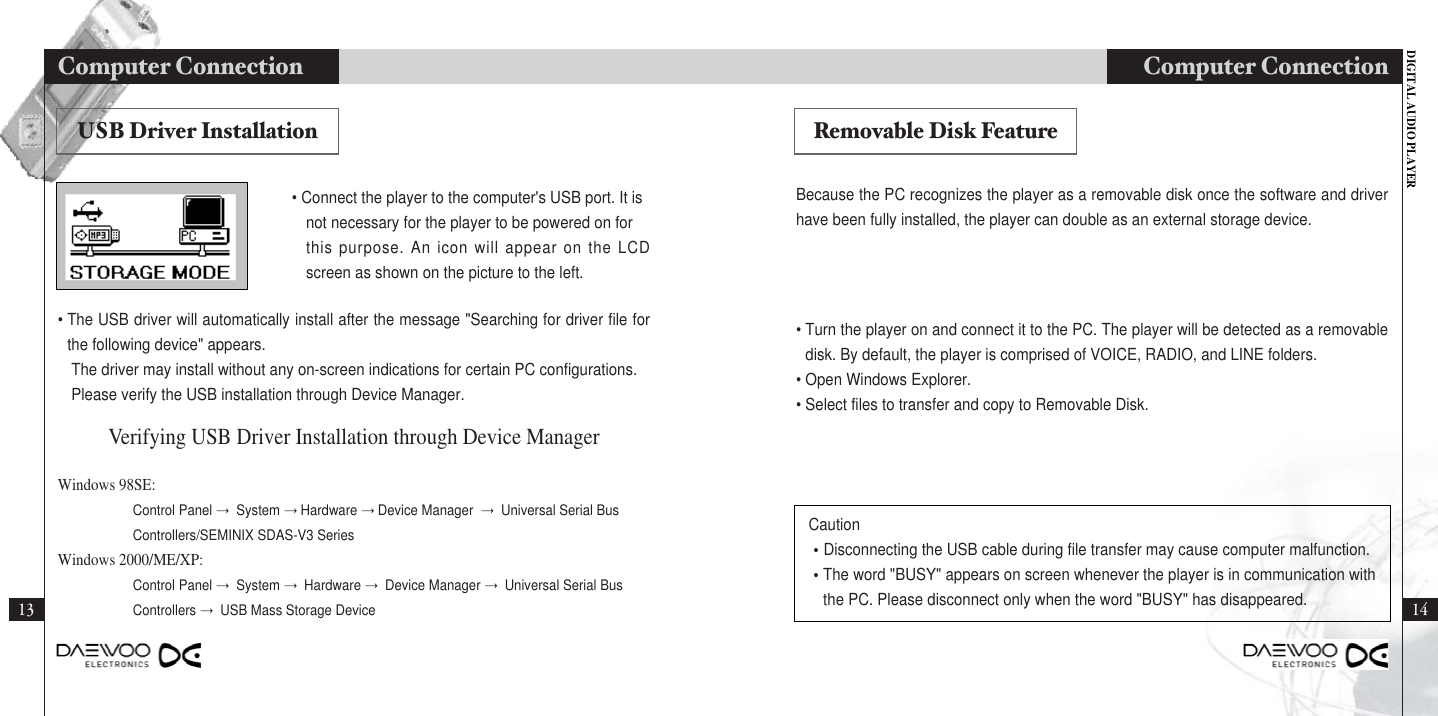
DIGITAL AUDIO PLAYERComputer Connection 1413Computer Connection Because the PC recognizes the player as a removable disk once the software and driverhave been fully installed, the player can double as an external storage device.• Turn the player on and connect it to the PC. The player will be detected as a removabledisk. By default, the player is comprised of VOICE, RADIO, and LINE folders. • Open Windows Explorer.• Select files to transfer and copy to Removable Disk.Caution•Disconnecting the USB cable during file transfer may cause computer malfunction.•The word "BUSY" appears on screen whenever the player is in communication withthe PC. Please disconnect only when the word "BUSY" has disappeared.• Connect the player to the computer's USB port. It is not necessary for the player to be powered on for this purpose. An icon will appear on the LCDscreen as shown on the picture to the left.• The USB driver will automatically install after the message "Searching for driver file forthe following device" appears. The driver may install without any on-screen indications for certain PC configurations.Please verify the USB installation through Device Manager.Windows 98SE: Control Panel →System →Hardware →Device Manager  →Universal Serial Bus Controllers/SEMINIX SDAS-V3 SeriesWindows 2000/ME/XP:Control Panel →System →Hardware →Device Manager →Universal Serial Bus  Controllers →USB Mass Storage DeviceVerifying USB Driver Installation through Device ManagerUSB Driver Installation Removable Disk Feature
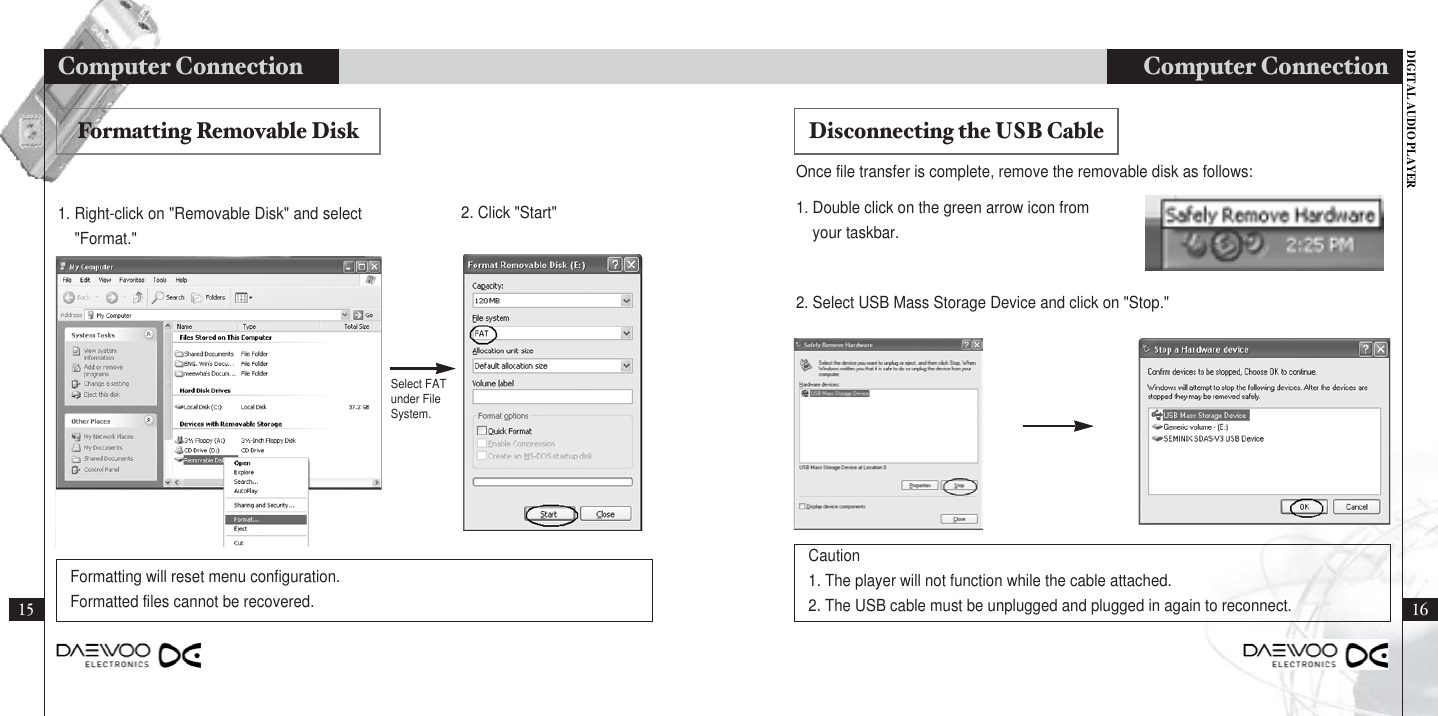
DIGITAL AUDIO PLAYERComputer Connection1615Computer Connection 1. Right-click on "Removable Disk" and select"Format."1. Double click on the green arrow icon fromyour taskbar.Once file transfer is complete, remove the removable disk as follows:2. Select USB Mass Storage Device and click on "Stop."2. Click "Start"Formatting will reset menu configuration.Formatted files cannot be recovered.Caution 1. The player will not function while the cable attached.2. The USB cable must be unplugged and plugged in again to reconnect.Formatting Removable Disk Disconnecting the USB CableSelect FATunder FileSystem.
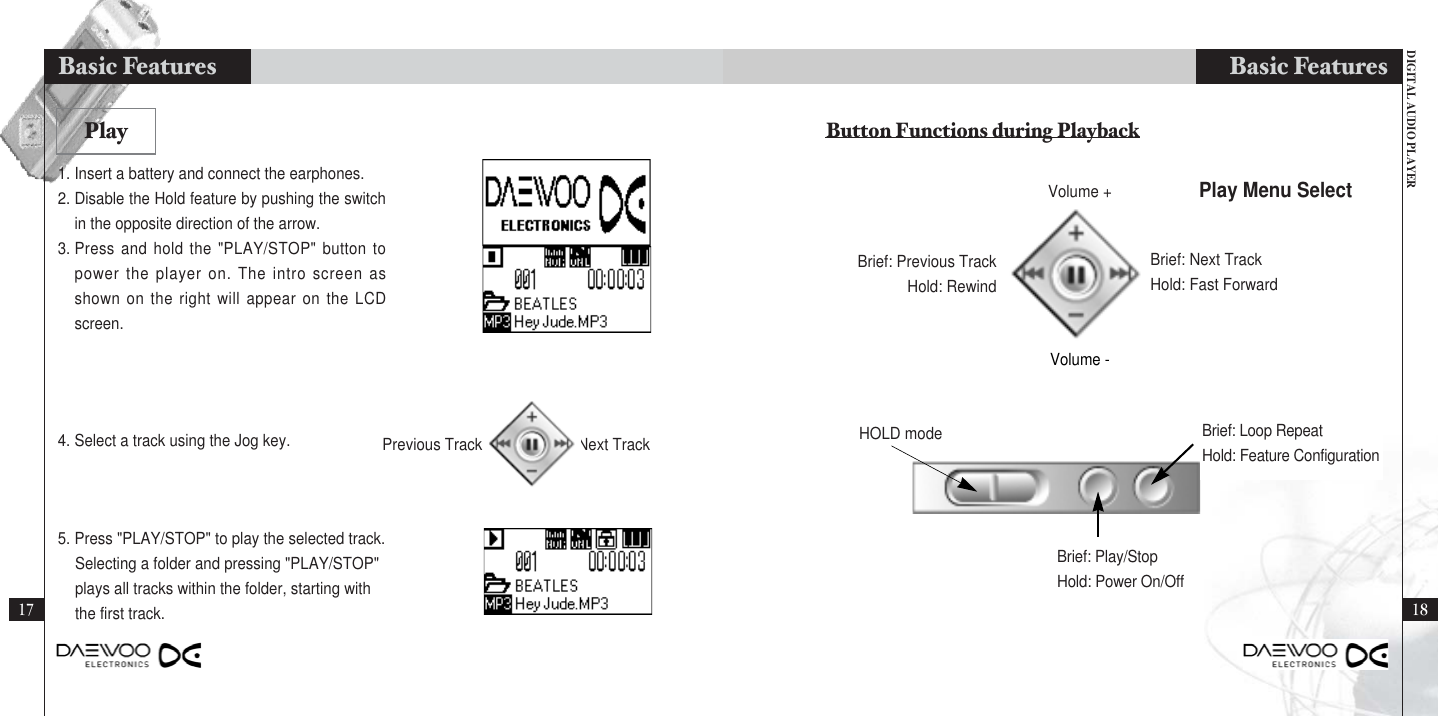
DIGITAL AUDIO PLAYERBasic Features1817Basic Features1. Insert a battery and connect the earphones.2. Disable the Hold feature by pushing the switchin the opposite direction of the arrow.3. Press and hold the "PLAY/STOP" button topower the player on. The intro screen asshown on the right will appear on the LCDscreen.4. Select a track using the Jog key.5. Press "PLAY/STOP" to play the selected track.Selecting a folder and pressing "PLAY/STOP" plays all tracks within the folder, starting withthe first track.PlayHOLD modeBrief: Play/StopHold: Power On/OffBrief: Previous TrackHold: RewindBrief: Next TrackHold: Fast ForwardPlay Menu SelectButton Functions during PlaybackBrief: Loop RepeatHold: Feature ConfigurationPrevious Track Next TrackVolume +Volume -
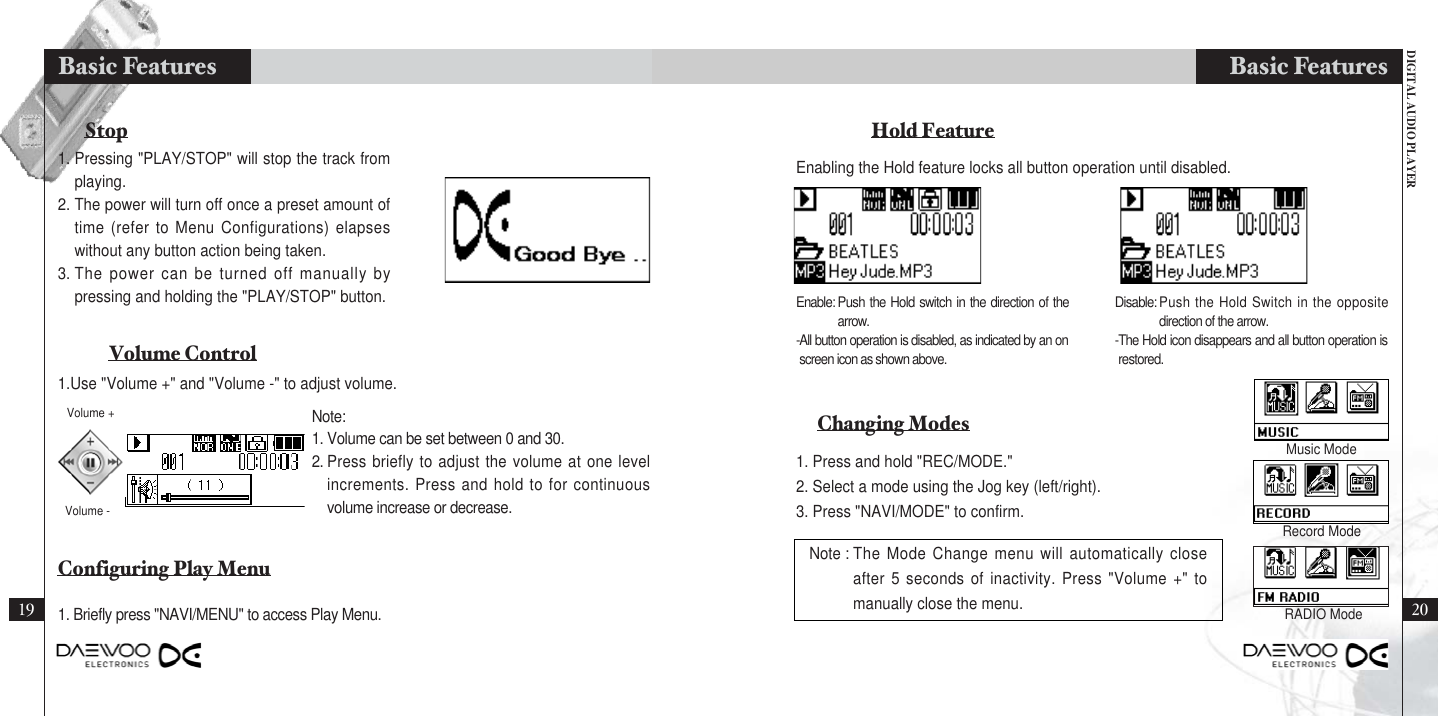
DIGITAL AUDIO PLAYERBasic Features2019Basic FeaturesEnabling the Hold feature locks all button operation until disabled.Enable: Push the Hold switch in the direction of thearrow.-All button operation is disabled, as indicated by an onscreen icon as shown above.Hold FeatureChanging ModesDisable: Push the Hold Switch in the oppositedirection of the arrow.-The Hold icon disappears and all button operation isrestored.1. Press and hold "REC/MODE."2. Select a mode using the Jog key (left/right).3. Press "NAVI/MODE" to confirm.Note : The Mode Change menu will automatically closeafter 5 seconds of inactivity. Press "Volume +" tomanually close the menu.StopVolume ControlConfiguring Play Menu1. Pressing "PLAY/STOP" will stop the track fromplaying.2. The power will turn off once a preset amount oftime (refer to Menu Configurations) elapseswithout any button action being taken.3. The power can be turned off manually bypressing and holding the "PLAY/STOP" button.Note:1. Volume can be set between 0 and 30.2. Press briefly to adjust the volume at one levelincrements. Press and hold to for continuousvolume increase or decrease.1. Briefly press "NAVI/MENU" to access Play Menu.Volume -1.Use "Volume +" and "Volume -" to adjust volume.Volume +Music ModeRecord ModeRADIO Mode
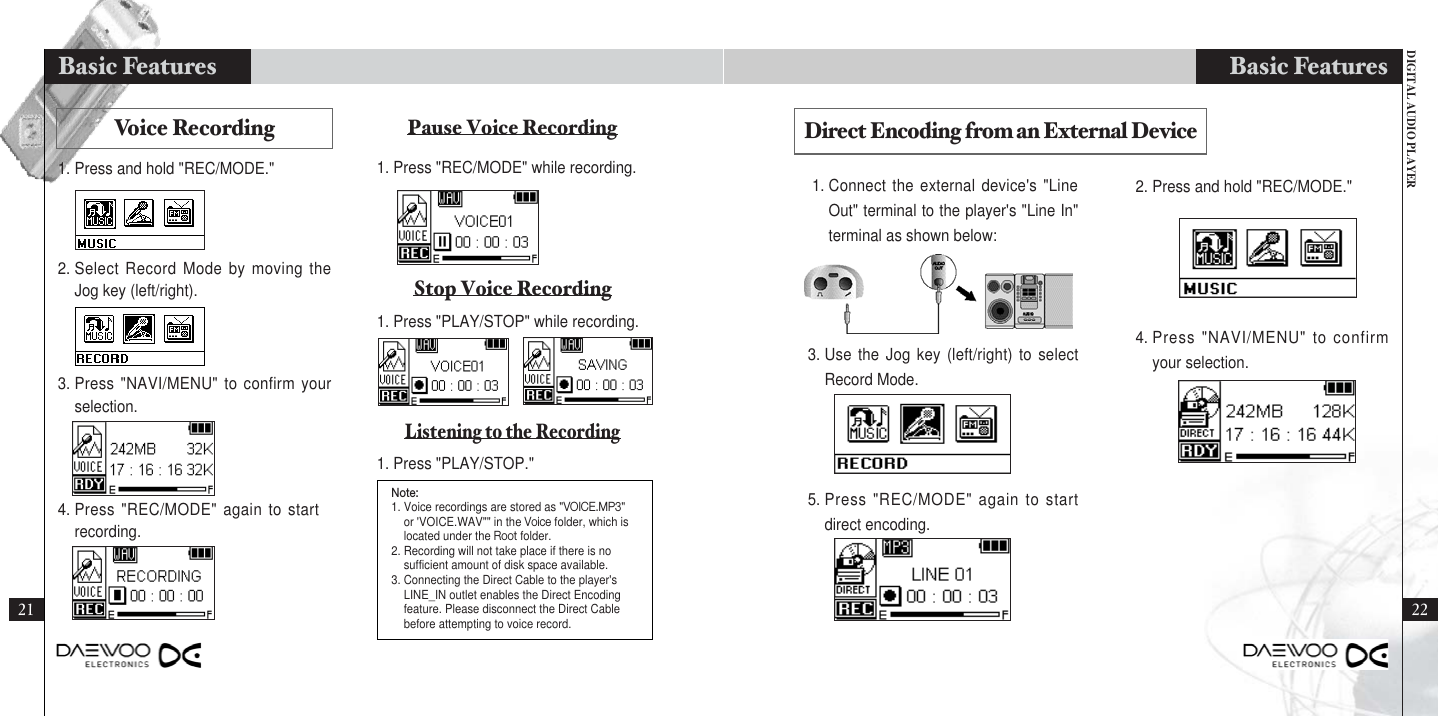
DIGITAL AUDIO PLAYERBasic Features21Basic Features1. Connect the external device's "LineOut" terminal to the player's "Line In"terminal as shown below:2. Press and hold "REC/MODE."3. Use the Jog key (left/right) to selectRecord Mode.Direct Encoding from an External Device5. Press "REC/MODE" again to startdirect encoding.4. Press "NAVI/MENU" to confirmyour selection.Voice Recording Pause Voice RecordingStop Voice RecordingListening to the Recording1. Press and hold "REC/MODE." 1. Press "REC/MODE" while recording.2. Select Record Mode by moving theJog key (left/right).1. Press "PLAY/STOP" while recording.1. Press "PLAY/STOP."3. Press "NAVI/MENU" to confirm yourselection.4. Press "REC/MODE" again to startrecording.Note:1. Voice recordings are stored as "VOICE.MP3"or 'VOICE.WAV"" in the Voice folder, which islocated under the Root folder.2. Recording will not take place if there is nosufficient amount of disk space available.3. Connecting the Direct Cable to the player'sLINE_IN outlet enables the Direct Encodingfeature. Please disconnect the Direct Cablebefore attempting to voice record. 22
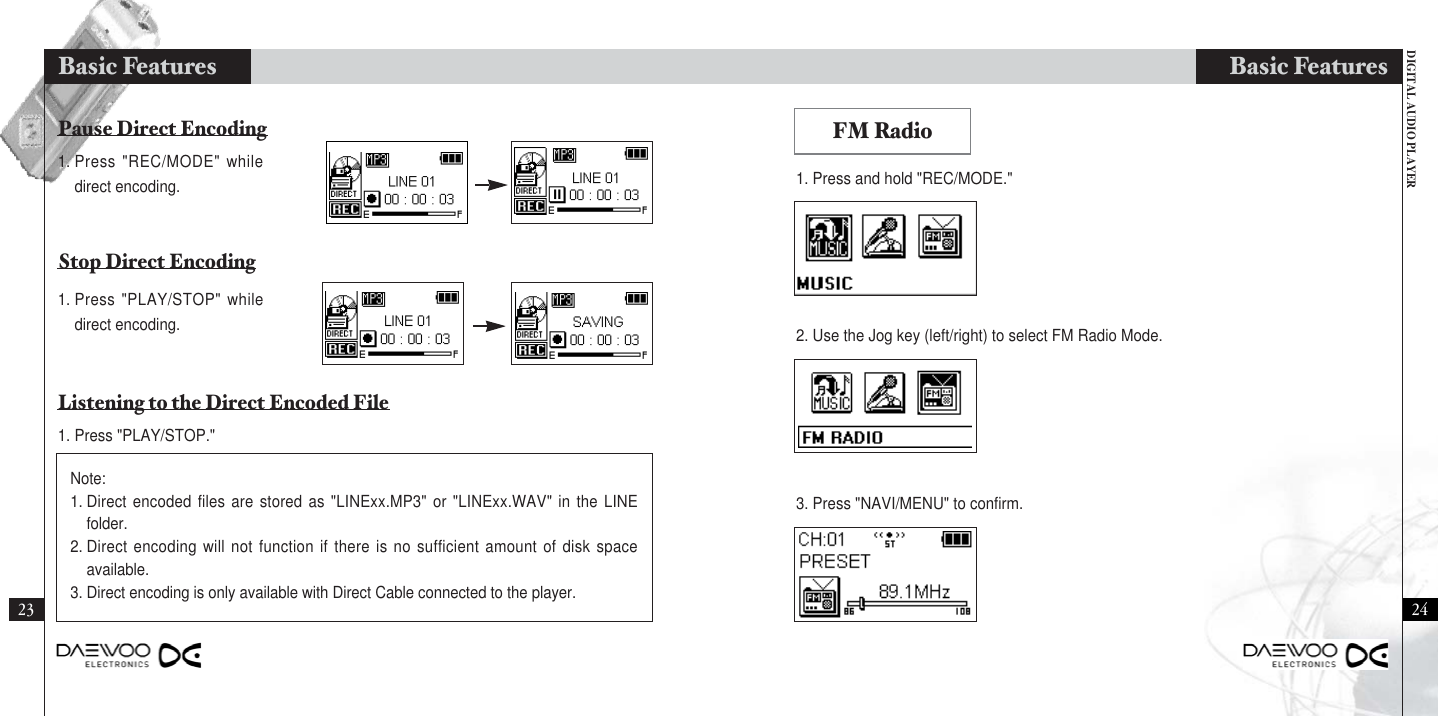
DIGITAL AUDIO PLAYERBasic Features2423FM Radio2. Use the Jog key (left/right) to select FM Radio Mode.3. Press "NAVI/MENU" to confirm.1. Press and hold "REC/MODE."1. Press "REC/MODE" whiledirect encoding.1. Press "PLAY/STOP" whiledirect encoding.1. Press "PLAY/STOP."Note:1. Direct encoded files are stored as "LINExx.MP3" or "LINExx.WAV" in the LINEfolder.2. Direct encoding will not function if there is no sufficient amount of disk spaceavailable. 3. Direct encoding is only available with Direct Cable connected to the player.Pause Direct EncodingStop Direct EncodingListening to the Direct Encoded FileBasic Features
DIGITAL AUDIO PLAYERBasic FeaturesBasic FeaturesAuto Seek Channel StoringThis feature automatically detects thenext or previously available channel.Save your favorite channels for quickaccess in the future.1. Press "PLAY/STOP" to accessFrequency Mode.2. Use the Jog key (left/right) to selecta channel to store.3. Press "NAVI/MENU."4. Use the Jog key to find anotherchannel to store..5. Press "NAVI/MENU" to terminatechannel storing.6. Up to 20 channels can be saved.1. After setting to Frequency mode bypressing the PLAY/STOP button, Pushand hold the Jog key to the left orright.2. Auto Seek will automatically stop atthe next available channel.[Manual Setting]Radio Modes (PRESET, FREQUENCY)[PRESET MODE][FREQUENCY MODE]1. Use the Jog key (left/right) to scan radio frequency.Frequency Scan25 261. Toggle between Preset and Frequency Modes by pressing "PLAY/STOP."
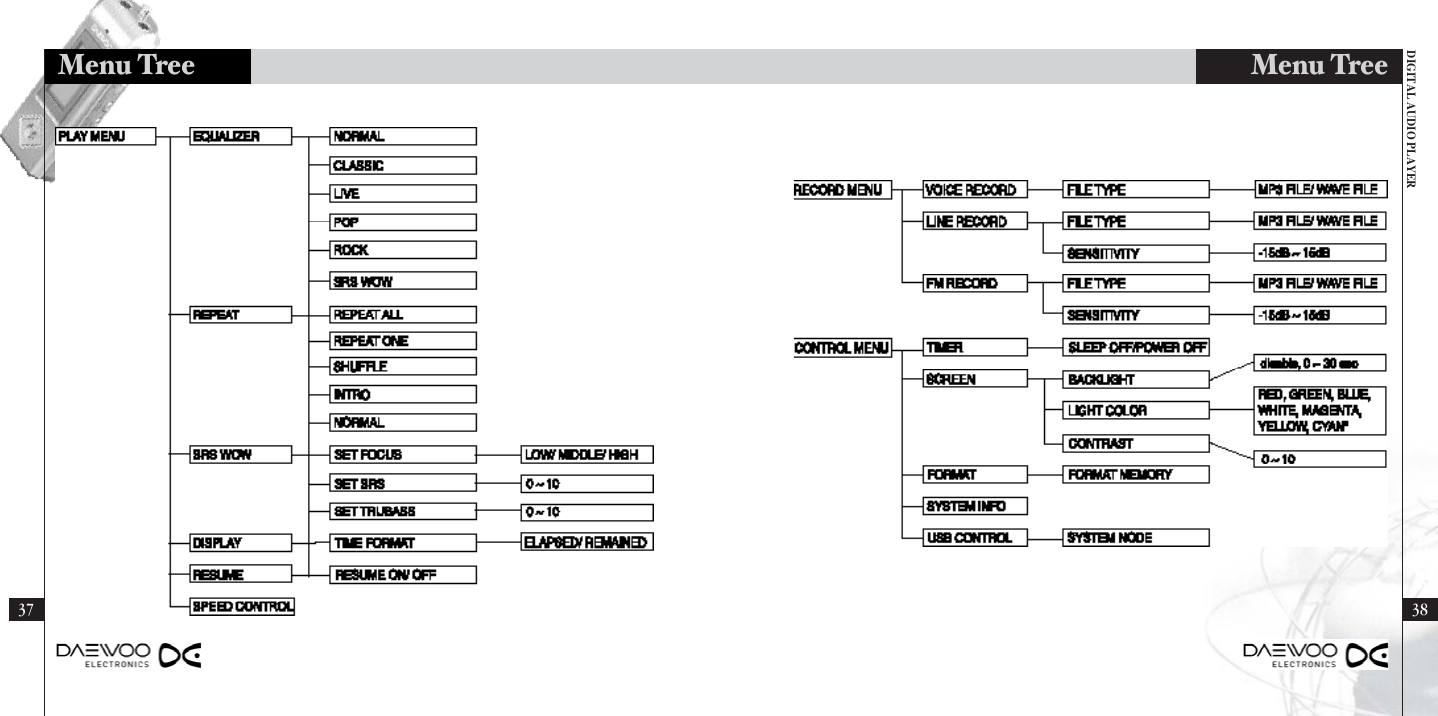
DIGITAL AUDIO PLAYERAdditional Features2827Basic FeaturesMenu Configuration Playback SupportPress and hold "NAVI/MENU" to accessMenu Selection Mode.1. Play Menu →Additional Features2. Equalizer: Normal, Classic, Live, Pop, andRock3. Repeat: Normal, Repeat All, Repeat One,Shuffle, and IntroChannel Storing Recording FM RadioSave your favorite channels for quickaccess in the future.Use this feature to automatically seekchannels and store their frequencies inmemory.1. Press "REC/MODE" to startrecording.1. Press "PLAY/STOP" to accessPreset Mode.2. Press and hold the Jog key(left/right).The player will automaticallyseek for signals and store thefrequencies.2. Press "REC/MODE" again to pauserecording. Press once more toresume.3. Pressing "PLAY/STOP" stops therecording process and reverts theplayer back to Radio Mode.4. Recorded files are stored as"RADIOxx.MP3" or "RADIOxx.WAV"in the RADIO folder.3. Certain channels may not bedetected and stored in areas withweak signal strength.[Automatic Setting] 1. Press and hold "NAVI/MENU" toaccess the following menu:2. Menu Selection: Move the Jog key(left/right) to scroll through the options.3. Menu Confirm: Press "NAVI/MENU" toconfirm your selection.4. Previous Menu: Push the Jog key up.
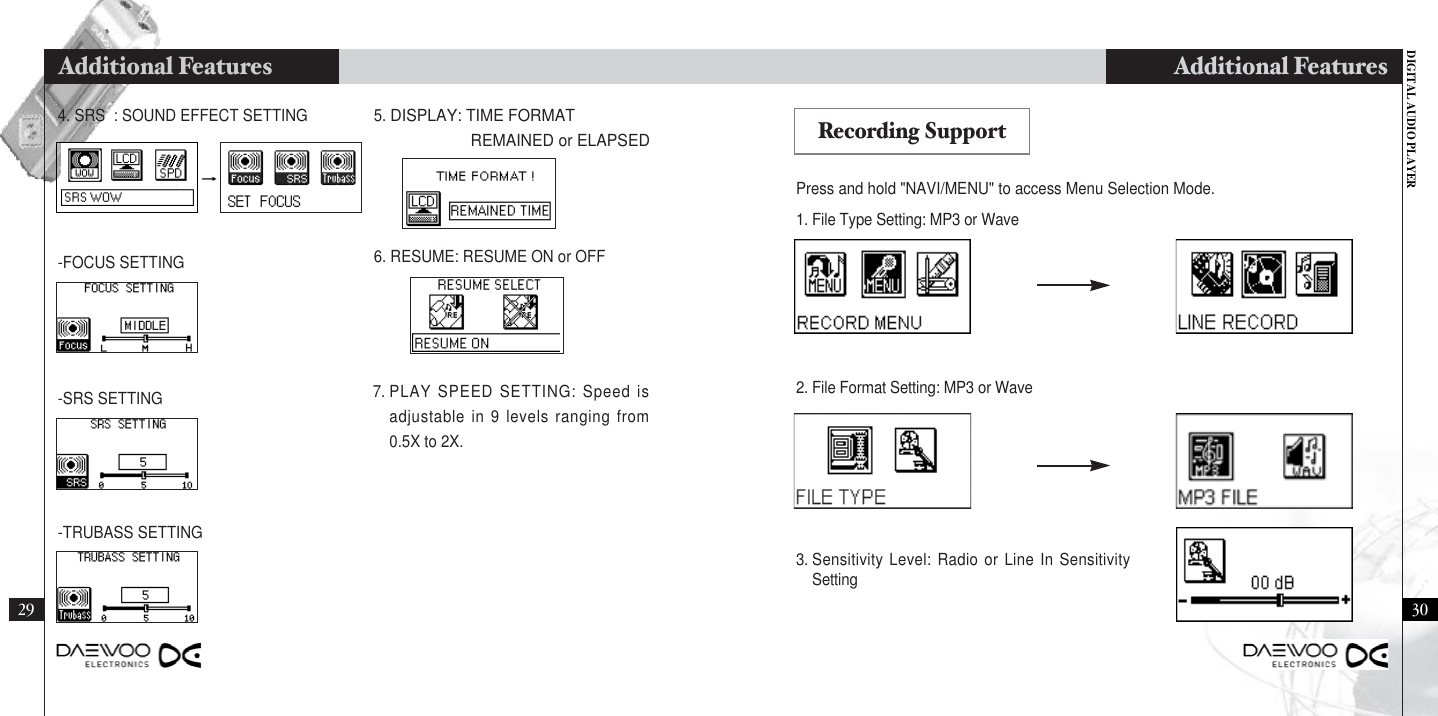
DIGITAL AUDIO PLAYERAdditional Features3029Additional FeaturesPress and hold "NAVI/MENU" to access Menu Selection Mode.3. Sensitivity Level: Radio or Line In SensitivitySetting2. File Format Setting: MP3 or Wave 1. File Type Setting: MP3 or Wave5. DISPLAY: TIME FORMATREMAINED or ELAPSED-FOCUS SETTING 6. RESUME: RESUME ON or OFF-SRS SETTING 7. PLAY SPEED SETTING: Speed isadjustable in 9 levels ranging from0.5X to 2X.-TRUBASS SETTING4. SRS  : SOUND EFFECT SETTING Recording Support
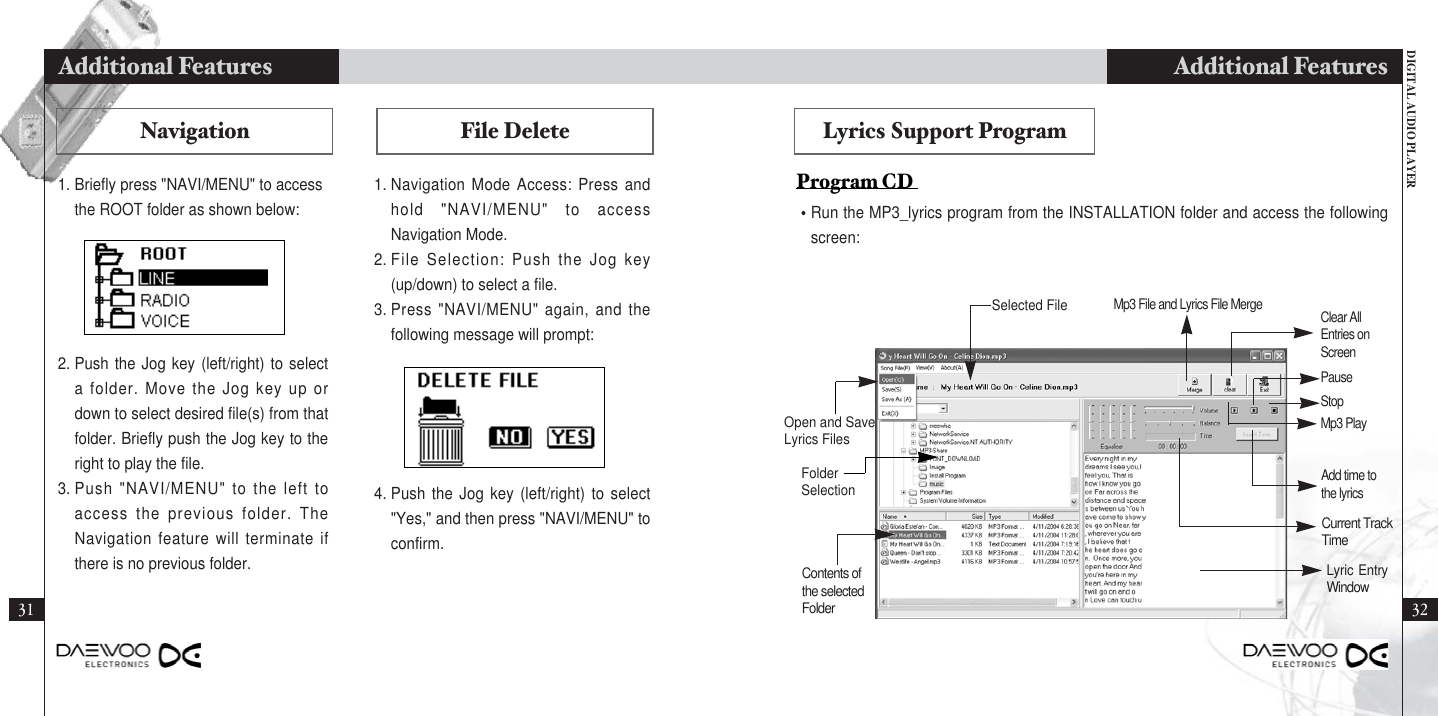
DIGITAL AUDIO PLAYERAdditional Features3231Additional FeaturesLyrics Support Program•Run the MP3_lyrics program from the INSTALLATION folder and access the followingscreen:Program CD NavigationSelected FileOpen and SaveLyrics FilesFolderSelectionContents ofthe selectedFolderMp3 File and Lyrics File Merge Clear AllEntries onScreenMp3 PlayStopPauseCurrent TrackTimeAdd time tothe lyricsLyric EntryWindowFile Delete1. Navigation Mode Access: Press andhold "NAVI/MENU" to accessNavigation Mode.2. File Selection: Push the Jog key(up/down) to select a file.3. Press "NAVI/MENU" again, and thefollowing message will prompt:4. Push the Jog key (left/right) to select"Yes," and then press "NAVI/MENU" toconfirm.2. Push the Jog key (left/right) to selecta folder. Move the Jog key up ordown to select desired file(s) from thatfolder. Briefly push the Jog key to theright to play the file.3. Push "NAVI/MENU" to the left toaccess the previous folder. TheNavigation feature will terminate ifthere is no previous folder.1. Briefly press "NAVI/MENU" to accessthe ROOT folder as shown below:
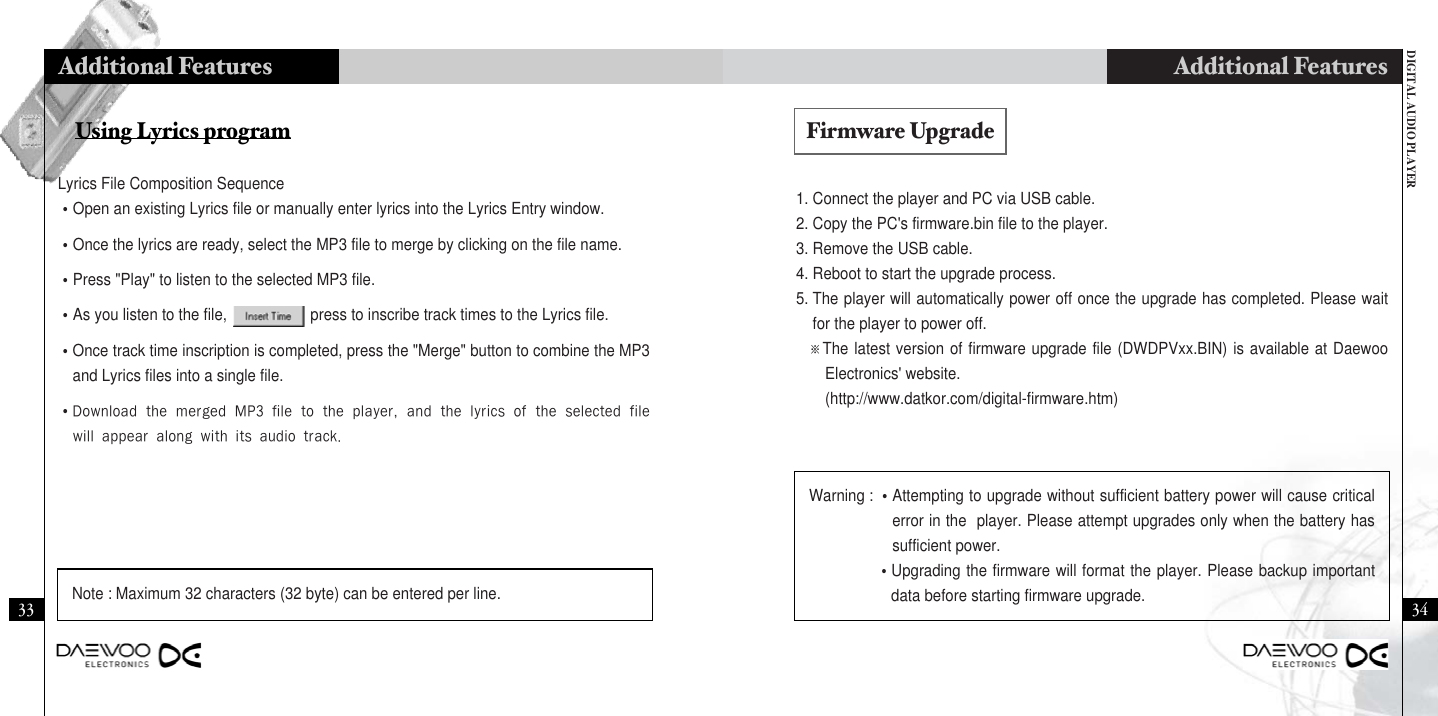
DIGITAL AUDIO PLAYERAdditional Features3433Additional Features1. Connect the player and PC via USB cable.2. Copy the PC's firmware.bin file to the player.3. Remove the USB cable.4. Reboot to start the upgrade process.5. The player will automatically power off once the upgrade has completed. Please waitfor the player to power off.※The latest version of firmware upgrade file (DWDPVxx.BIN) is available at DaewooElectronics' website.(http://www.datkor.com/digital-firmware.htm)Using Lyrics programLyrics File Composition Sequence•Open an existing Lyrics file or manually enter lyrics into the Lyrics Entry window.•Once the lyrics are ready, select the MP3 file to merge by clicking on the file name.•Press "Play" to listen to the selected MP3 file.•As you listen to the file,                    press to inscribe track times to the Lyrics file.•Once track time inscription is completed, press the "Merge" button to combine the MP3and Lyrics files into a single file.•DownloadthemergedMP3filetotheplayer,andthelyricsoftheselectedfilewillappearalongwithitsaudiotrack.Note : Maximum 32 characters (32 byte) can be entered per line.Warning : •Attempting to upgrade without sufficient battery power will cause criticalerror in the  player. Please attempt upgrades only when the battery hassufficient power.    •Upgrading the firmware will format the player. Please backup importantdata before starting firmware upgrade.Firmware Upgrade
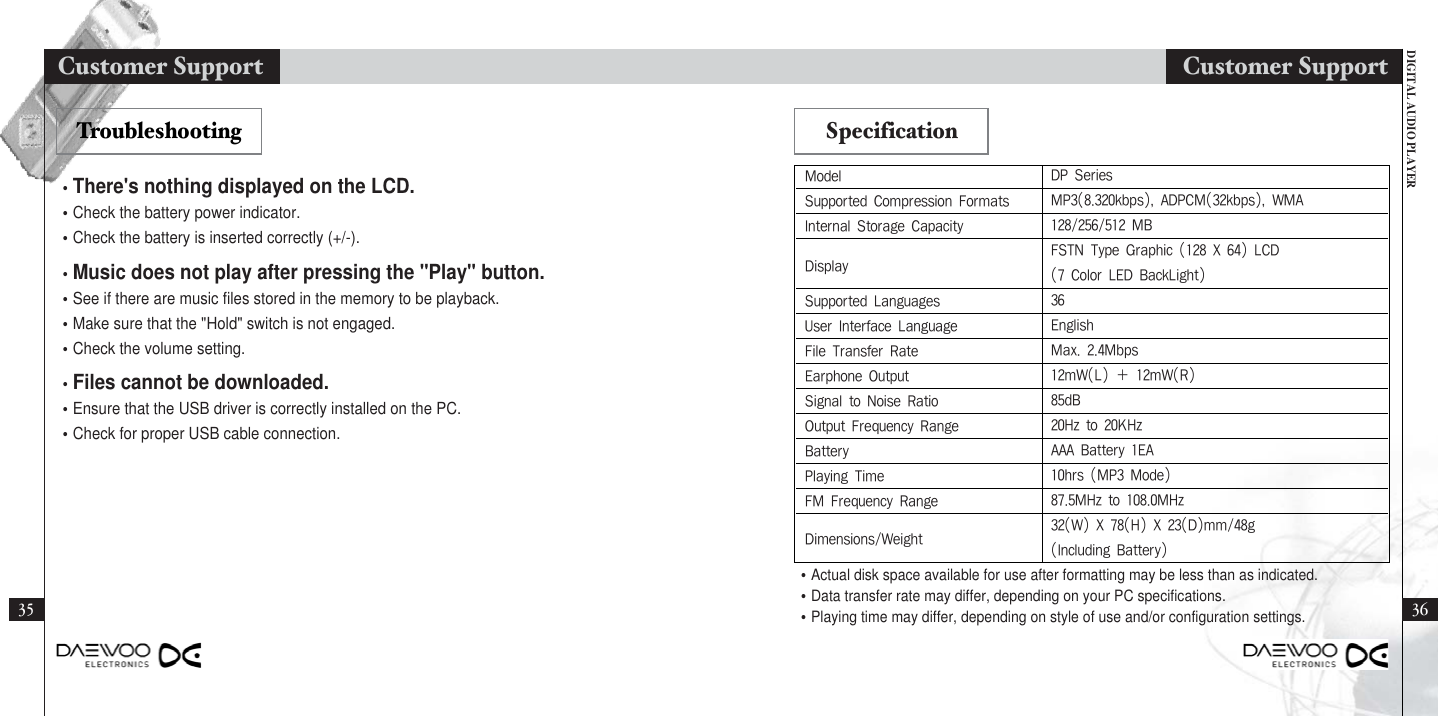
DIGITAL AUDIO PLAYERCustomer Support3635Customer Support•Actual disk space available for use after formatting may be less than as indicated.•Data transfer rate may differ, depending on your PC specifications.•Playing time may differ, depending on style of use and/or configuration settings.ModelSupportedCompressionFormatsInternalStorageCapacityDisplaySupportedLanguagesUserInterfaceLanguageFileTransferRateEarphoneOutputSignaltoNoiseRatioOutputFrequencyRangeBatteryPlayingTimeFMFrequencyRangeDimensions/WeightDPSeriesMP3(8.320kbps),ADPCM(32kbps),WMA128/256/512MBFSTNTypeGraphic(128X64)LCD(7ColorLEDBackLight)36EnglishMax.2.4Mbps12mW(L)+12mW(R)85dB20Hzto20KHzAAABattery1EA10hrs(MP3Mode)87.5MHzto108.0MHz32(W)X78(H)X23(D)mm/48g(IncludingBattery)•There's nothing displayed on the LCD.•Check the battery power indicator.•Check the battery is inserted correctly (+/-).•Music does not play after pressing the "Play" button.•See if there are music files stored in the memory to be playback.•Make sure that the "Hold" switch is not engaged.•Check the volume setting.•Files cannot be downloaded.•Ensure that the USB driver is correctly installed on the PC.•Check for proper USB cable connection.Troubleshooting Specification
DIGITAL AUDIO PLAYERMenu Tree3837Menu Tree
DIGITAL AUDIO PLAYERMemo4039NOTENOTE: This equipment has been tested and found to comply with the limits for a Class B digitaldevice, pursuant to Part 15 of the FCC Rules. These limits are designed to provide reasonableprotection against harmful interference in a residential installation. This equipment generates, usesand can radiate radio frequency energy and, if not installed and used in accordance with theinstructions, may cause harmful interference to radio communications. However, there is noguarantee that interference will not occur in a particular installation. If this equipment does causeharmful interference to radio or television reception, which can be determined by turning theequipment off and on, the user is encouraged to try to correct the interference by one or more ofthe following measures: - Reorient or relocate the receiving antenna.- Increase the separation between the equipment and receiver.- Connect the equipment into an outlet on a circuit different from that to which the receiver isconnected.- Consult the dealer or an experienced radio/TV technician for help.- Changes or modifications not expressly approved by the party responsible for compliance couldvoid the user's authority to operate the equipment."

Navigation menu