Waysion Technology M7R-N7R 7 inch Mobile Data Terminal User Manual

Waysion Technology (Xiamen) Co., LTD 7 inch Mobile Data Terminal

User Manual

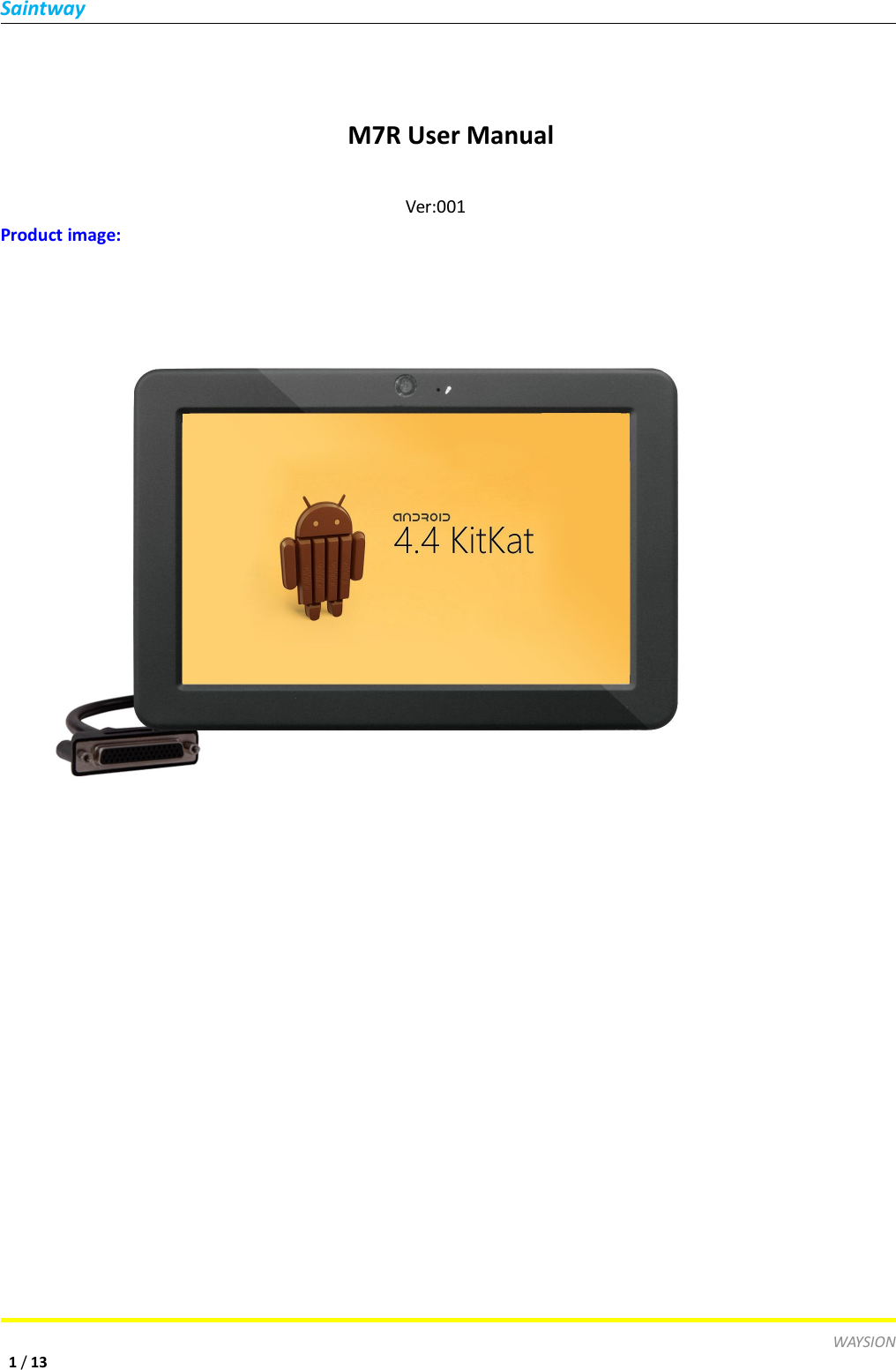
SaintwayWAYSION1/13M7R User ManualVer:001Product image:
SaintwayWAYSION2/13Catalogue1、 Description:―――――――――――――――――――――――――――― 32、 Specifications:―――――――――――――――――――――――――――― 33、 Description of Components――――――――――――――――――――――― 4-54、 Basic Operation and Setup:――――――――——————————— 6-12
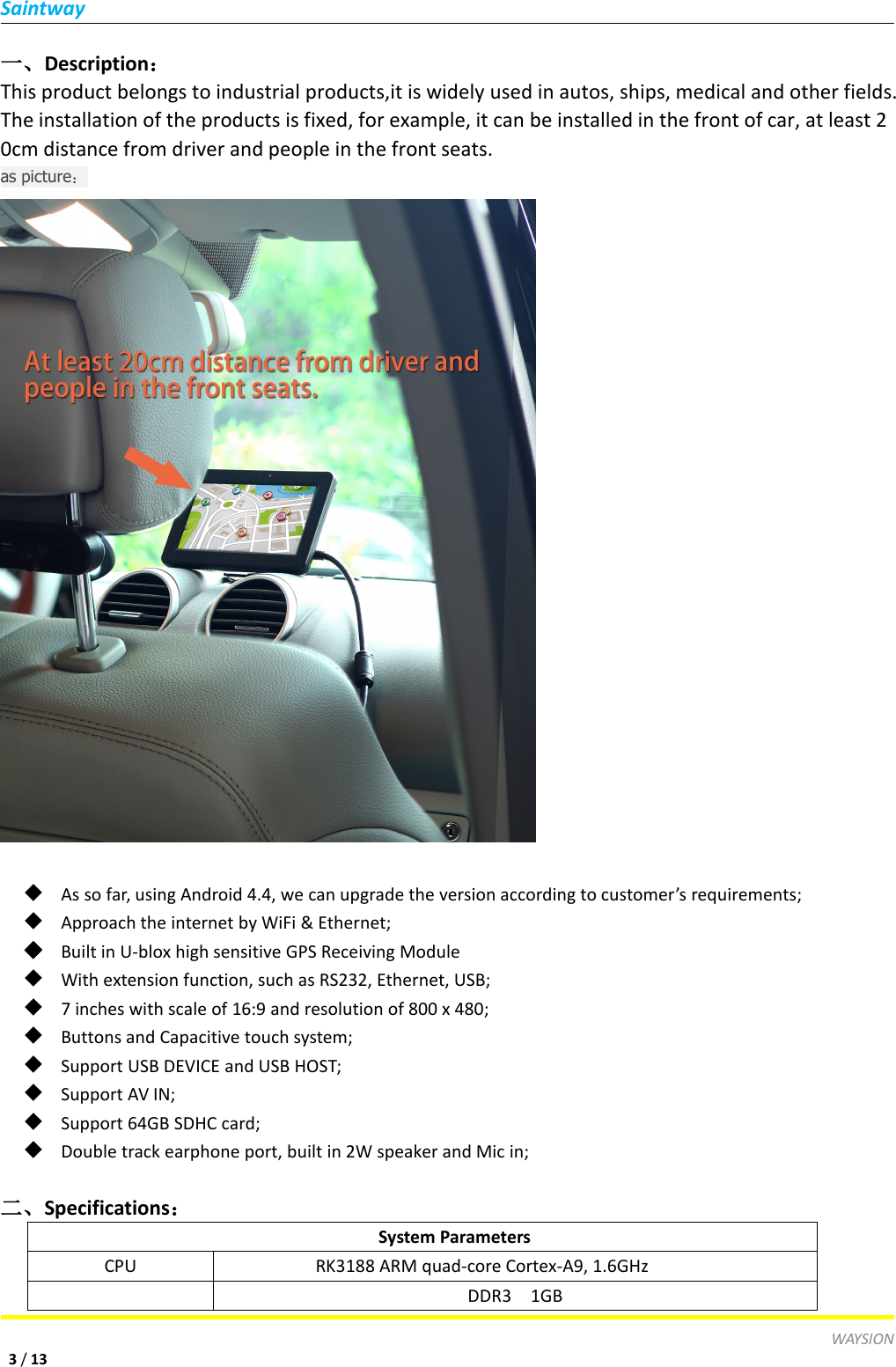
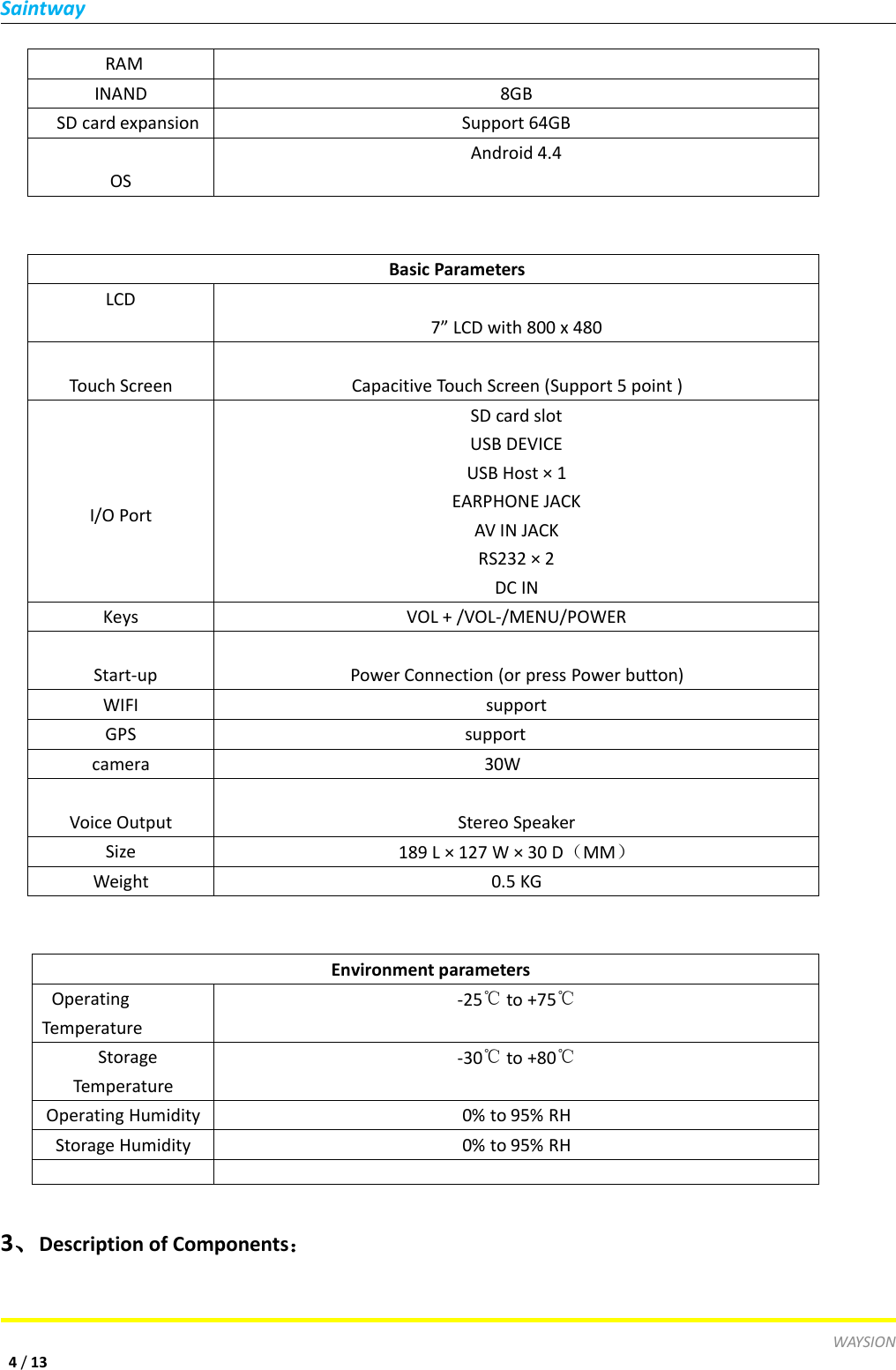
SaintwayWAYSION3/13一、Description:This product belongs to industrial products,it is widely used in autos, ships, medical and other fields.The installation of the products is fixed, for example, it can be installed in the front of car, at least 20cm distance from driver and people in the front seats.as picture:◆As so far, using Android 4.4, we can upgrade the version according to customer’s requirements;◆Approach the internet by WiFi & Ethernet;◆Built in U-blox high sensitive GPS Receiving Module◆With extension function, such as RS232, Ethernet, USB;◆7 inches with scale of 16:9 and resolution of 800 x 480;◆Buttons and Capacitive touch system;◆Support USB DEVICE and USB HOST;◆Support AV IN;◆Support 64GB SDHC card;◆Double track earphone port, built in 2W speaker and Mic in;二、Specifications:System ParametersCPURK3188 ARM quad-core Cortex-A9, 1.6GHzDDR3 1GB
SaintwayWAYSION4/13RAMINAND8GBSD card expansionSupport 64GBOSAndroid 4.4Basic ParametersLCD7” LCD with 800 x 480Touch ScreenCapacitive Touch Screen (Support 5 point )I/O PortSD card slotUSB DEVICEUSB Host × 1EARPHONE JACKAV IN JACKRS232 × 2DC INKeysVOL + /VOL-/MENU/POWERStart-upPower Connection (or press Power button)WIFIsupportGPSsupportcamera30WVoice OutputStereo SpeakerSize189 L × 127 W × 30 D(MM)Weight0.5 KGEnvironment parametersOperatingTemperature-25℃to +75℃StorageTemperature-30℃to +80℃Operating Humidity0% to 95% RHStorage Humidity0% to 95% RH3、Description of Components:
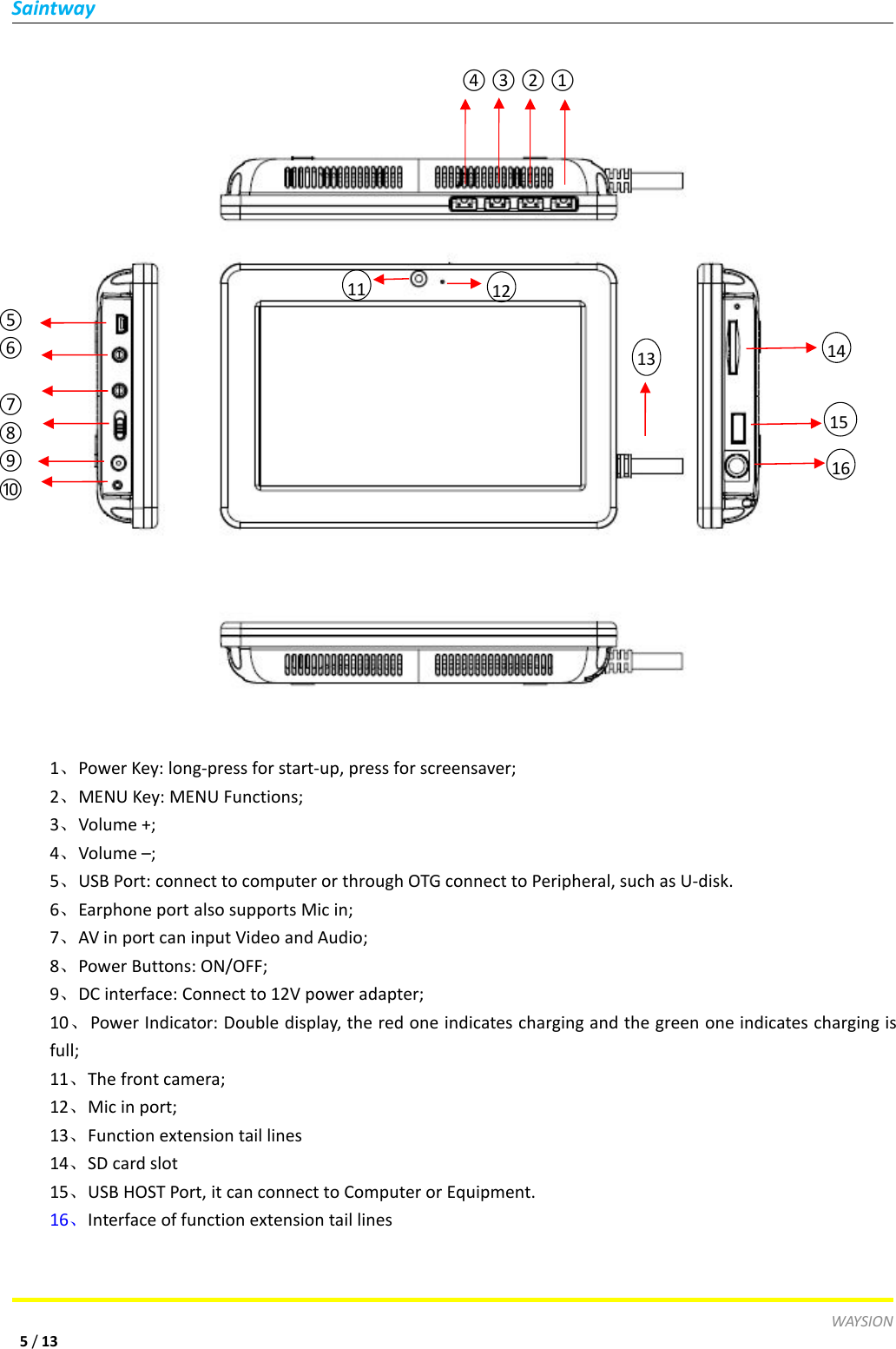
SaintwayWAYSION5/131、Power Key: long-press for start-up, press for screensaver;2、MENU Key: MENU Functions;3、Volume +;4、Volume –;5、USB Port: connect to computer or through OTG connect to Peripheral, such as U-disk.6、Earphone port also supports Mic in;7、AV in port can input Video and Audio;8、Power Buttons: ON/OFF;9、DC interface: Connect to 12V power adapter;10、Power Indicator: Double display, the red one indicates charging and the green one indicates charging isfull;11、The front camera;12、Mic in port;13、Function extension tail lines14、SD card slot15、USB HOST Port, it can connect to Computer or Equipment.16、Interface of function extension tail lines④③②①⑤⑥⑦⑧⑨⑩111213141516
SaintwayWAYSION6/13Instructions of the Function Extension Cords:1、RS232, it can connect to other equipment for data communication;2、DC in, it can connect to 12V Adapter;3、RJ45, it can connect to Ethernet4、RS232, it can connect to other equipment for data communication.5、USB, it can connect to other Peripherals,for example U-disk, mouse.6、25PIN IDEAndriod System Operation一、Two ways of “POWER ON”, one is Power connection and the other is battery connection please see asbelow:1、Power connection on, when switch on the OFF position, the device is OFF.2、When built in battery, the device can power ON/OFF by keys, see as below:A、POWER ON: Long-press Power Button“ ”until the screen display.(It takes time to initialize, please be patient)B、POWER OFF: Long-press Power Button“ ”, there pop up a dialog box, click “shutdown”.[Notice] Improper shutdown will cause scanning and disk repairing when restart, Please be patient.二、 Standby and Unlock1、standby: In the default or within the time without any operation, the device will close the screen then enter toStandby mode automatically123456
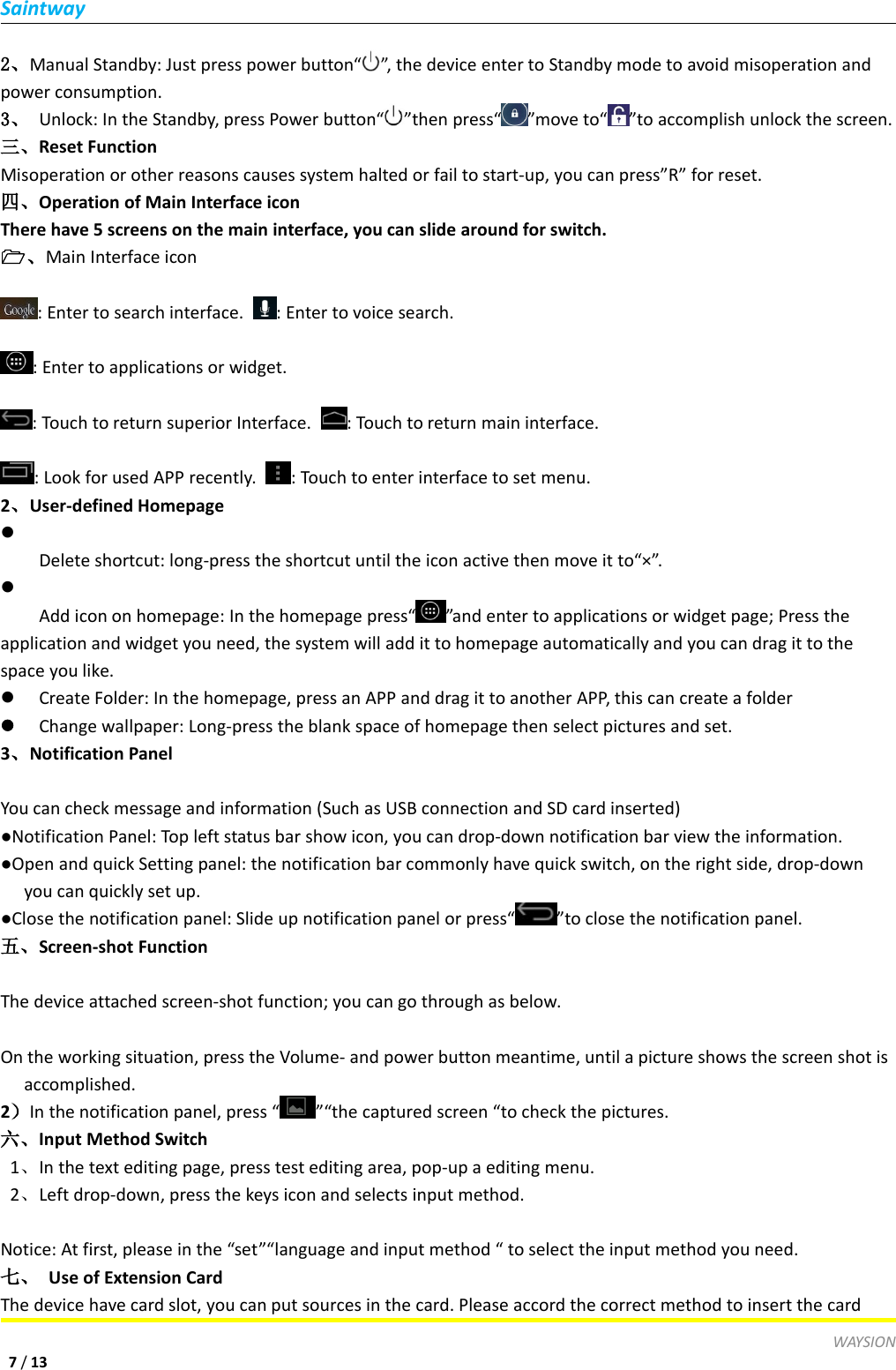
SaintwayWAYSION7/132、Manual Standby: Just press power button“ ”, the device enter to Standby mode to avoid misoperation andpower consumption.3、 Unlock: In the Standby, press Power button“ ”then press“ ”move to“ ”to accomplish unlock the screen.三、Reset FunctionMisoperation or other reasons causes system halted or fail to start-up, you can press”R” for reset.四、Operation of Main Interface iconThere have 5 screens on the main interface, you can slide around for switch.、Main Interface icon: Enter to search interface. : Enter to voice search.: Enter to applications or widget.: Touch to return superior Interface. : Touch to return main interface.: Look for used APP recently. : Touch to enter interface to set menu.2、User-defined HomepageDelete shortcut: long-press the shortcut until the icon active then move it to“×”.Add icon on homepage: In the homepage press“ ”and enter to applications or widget page; Press theapplication and widget you need, the system will add it to homepage automatically and you can drag it to thespace you like.Create Folder: In the homepage, press an APP and drag it to another APP, this can create a folderChange wallpaper: Long-press the blank space of homepage then select pictures and set.3、Notification PanelYou can check message and information (Such as USB connection and SD card inserted)●Notification Panel: Top left status bar show icon, you can drop-down notification bar view the information.●Open and quick Setting panel: the notification bar commonly have quick switch, on the right side, drop-downyou can quickly set up.●Close the notification panel: Slide up notification panel or press“ ”to close the notification panel.五、Screen-shot FunctionThe device attached screen-shot function; you can go through as below.On the working situation, press the Volume- and power button meantime, until a picture shows the screen shot isaccomplished.2)In the notification panel, press “ ”“the captured screen “to check the pictures.六、Input Method Switch1、In the text editing page, press test editing area, pop-up a editing menu.2、Left drop-down, press the keys icon and selects input method.Notice: At first, please in the “set”“language and input method “ to select the input method you need.七、 Use of Extension CardThe device have card slot, you can put sources in the card. Please accord the correct method to insert the card
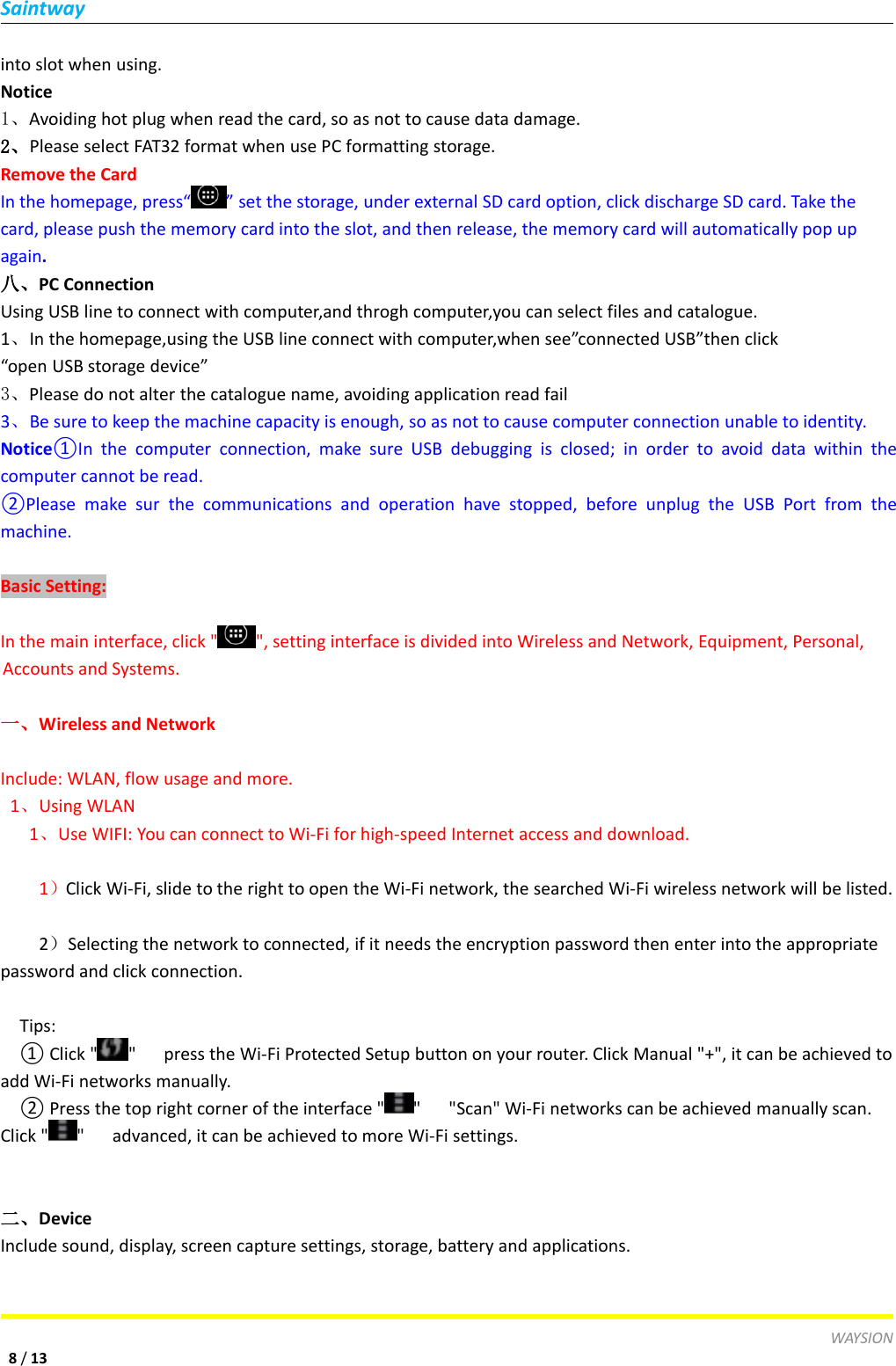
SaintwayWAYSION8/13into slot when using.Notice1、Avoiding hot plug when read the card, so as not to cause data damage.2、Please select FAT32 format when use PC formatting storage.Remove the CardIn the homepage, press“ ” set the storage, under external SD card option, click discharge SD card. Take thecard, please push the memory card into the slot, and then release, the memory card will automatically pop upagain.八、PC ConnectionUsing USB line to connect with computer,and throgh computer,you can select files and catalogue.1、In the homepage,using the USB line connect with computer,when see”connected USB”then click“open USB storage device”3、Please do not alter the catalogue name, avoiding application read fail3、Be sure to keep the machine capacity is enough, so as not to cause computer connection unable to identity.Notice①In the computer connection, make sure USB debugging is closed; in order to avoid data within thecomputer cannot be read.②Please make sur the communications and operation have stopped, before unplug the USB Port from themachine.Basic Setting:In the main interface, click " ", setting interface is divided into Wireless and Network, Equipment, Personal,Accounts and Systems.一、Wireless and NetworkInclude: WLAN, flow usage and more.1、Using WLAN1、Use WIFI: You can connect to Wi-Fi for high-speed Internet access and download.1)Click Wi-Fi, slide to the right to open the Wi-Fi network, the searched Wi-Fi wireless network will be listed.2)Selecting the network to connected, if it needs the encryption password then enter into the appropriatepassword and click connection.Tips:① Click " " press the Wi-Fi Protected Setup button on your router. Click Manual "+", it can be achieved toadd Wi-Fi networks manually.② Press the top right corner of the interface " " "Scan" Wi-Fi networks can be achieved manually scan.Click " " advanced, it can be achieved to more Wi-Fi settings.二、DeviceInclude sound, display, screen capture settings, storage, battery and applications.
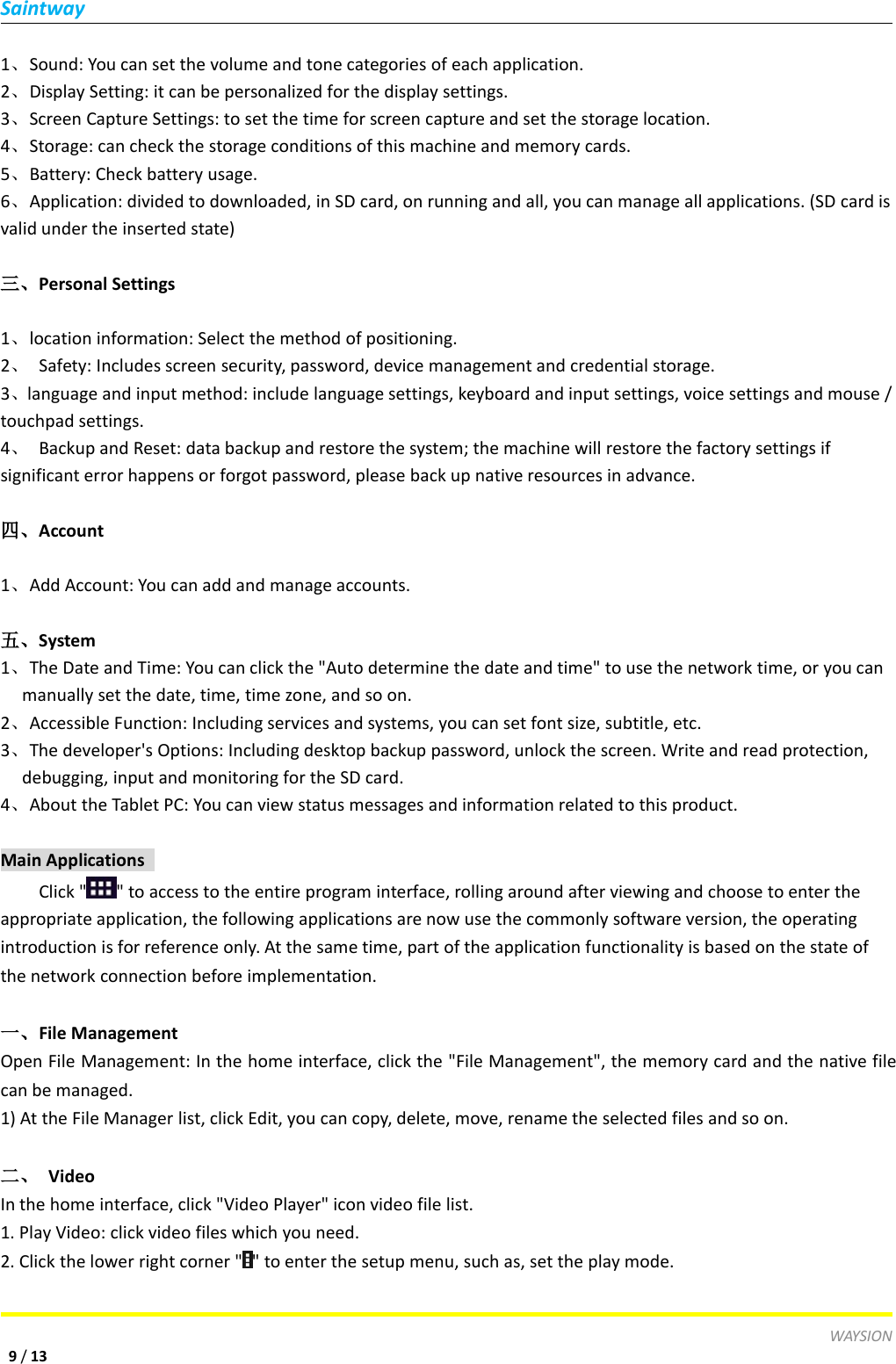
SaintwayWAYSION9/131、Sound: You can set the volume and tone categories of each application.2、Display Setting: it can be personalized for the display settings.3、Screen Capture Settings: to set the time for screen capture and set the storage location.4、Storage: can check the storage conditions of this machine and memory cards.5、Battery: Check battery usage.6、Application: divided to downloaded, in SD card, on running and all, you can manage all applications. (SD card isvalid under the inserted state)三、Personal Settings1、location information: Select the method of positioning.2、Safety: Includes screen security, password, device management and credential storage.3、language and input method: include language settings, keyboard and input settings, voice settings and mouse /touchpad settings.4、Backup and Reset: data backup and restore the system; the machine will restore the factory settings ifsignificant error happens or forgot password, please back up native resources in advance.四、Account1、Add Account: You can add and manage accounts.五、System1、The Date and Time: You can click the "Auto determine the date and time" to use the network time, or you canmanually set the date, time, time zone, and so on.2、Accessible Function: Including services and systems, you can set font size, subtitle, etc.3、The developer's Options: Including desktop backup password, unlock the screen. Write and read protection,debugging, input and monitoring for the SD card.4、About the Tablet PC: You can view status messages and information related to this product.Main ApplicationsClick " " to access to the entire program interface, rolling around after viewing and choose to enter theappropriate application, the following applications are now use the commonly software version, the operatingintroduction is for reference only. At the same time, part of the application functionality is based on the state ofthe network connection before implementation.一、File ManagementOpen File Management: In the home interface, click the "File Management", the memory card and the native filecan be managed.1) At the File Manager list, click Edit, you can copy, delete, move, rename the selected files and so on.二、 VideoIn the home interface, click "Video Player" icon video file list.1. Play Video: click video files which you need.2. Click the lower right corner " " to enter the setup menu, such as, set the play mode.
SaintwayWAYSION10 /13三、 Music1. Music Playing: in main interface, click "Music" icon to enter the music list, music has been divided into fourcategories: music,albums, songs, playlists. Click the favorite songs into the music player interface.Music PlayerbuttonsPlay / PauseClick /front / nextClick /Rewind / Fast ForwardLong press/Display playlistsClickRepeat / Random playClick /Switch to the music library / switch toParty random play / Add to playlist /delete / AudioClick Selectmenu2、Creat New PlaylistClick music song, long press the songs you want to add to the playlist it will pop out music settings menu,add to playlist. Creat new playlist, enter a name for the playlist, click to save.[Tips] when playing music , press the return key to the main screen,it can be palyed in background.四、BROWSE1、Open the page: Click "browser”, in the address bar, enters the URL. You can input on the soft keyboard.2、Visit the website: Open the page, slide your finger on the screen to navigate and view other parts of the page.3、Zoom in / out pages: When browsing the Web, tap the screen twice quickly to zoom in, and then do the same tozoom out. Or hold the screen with two fingers, expand or merge to zoom in and zoom out.4、More Actions: When browsing page, click " " to open the browser menu options, you can do moreoperations.五、 CAMERAYou can click the "camera" button, take photos and video with sound; or in state of lock screen, direct hold downthe " " icon, drag it to the aperture " " icon to open the camera program quickly.1、Shooting ModeEquipment has been built into the camera, video and panoramic camera mode. The default shooting mode is the
SaintwayWAYSION11 /13camera. Click "" to switch to video mode; click "" to switch to the panoramic camera mode.2. Shooting action1) In Photo mode, click "" to take pictures.2) In the video mode, press "" start shooting video, press again to stop recording.3) In the panoramic camera mode, press "" to start, move the machine to scan, press again to stop the scan, themachine automatically generating panoramic photos.3. Browse Photographs or VideosClick photograph gallery to browse, or slide the screen with your finger to the left directly in the shootinginterface to browse.In the video playback application, you can tap to play video you have taken.六、Set E-mailE-mail application enclosed with e-mail setup wizard, you can add external POP3 or IMAP e-mail accounts fromcommonly Web e-mail service providers (such as Yahoo, Gmail, Hotmail and other manufacturers).a) Click "E-mail”, the mailbox wizard will help you to set up.b) Enter your e-mail account and password. Click the Next button; select your mailbox type to be POP3, IMAP orExchange. Click the Next button to check the mail messaging server is available.Tip: Some email service providers, such as Gmail, it does not need to select the mailbox type and other settings.c) Enter the account and the name, then tap done.d) If the mailbox is available, it will automatically go to your inbox.2、Send E-mailYou can send email to one or more recipients. Please manually add the email address of recipient before sendinge-mail.a) Click "", enter the recipient's e-mail address. If necessary, click the Cc / Bcc; enter the recipient's e-mailaddress.b) Click the Subject bar, enter a subject, then enter and compose e-mail.c) Click the paper clip icon, add attachments, insert the desired file, and then send the message.3、Receiving mail:E-mail messages is stored in the network service provider before downloaded to the machine. Click "" torefresh. Machine will be connected to the server and download messages, then it will saved in the inbox.七、View Images:1. In home interface, click "Gallery" icon, the machine automatically scan image file stored in the memory card.2. Select the folder, click the picture you want to see, the system will automatically view in full-screen mode.3, you can expand or merge two fingers to zoom in or zoom out the picture.4, click "" to edit the picture.5, sliding around to swith to the front or next picture.
SaintwayWAYSION12 /13Spare Parts Listspare partsSpecificationQuantityHostsset1extended cordset1chargerset1manualbook1Certificatepiece1Note: This product is under the lead-free process, compliant with environmental requirements.Disclaim1. This device can be used by all content and services belong to third parties and are protected by copyright,patent, trademark and other intellectual property laws. Such contents and services are solely for your personal,non-commercial use. In the absence of obtaining content license owner or service provider, you may not use anycontent or services. Third-party content and services (including but not limited to the built-in applications, etc.) isprovided 'as is'. Whether for any purpose, the Company provided content or service does not provide any expressor implied.2. Third-party service may be stopped or interrupted at any time, the Company expressly does not undertake anyinterruption or delay of the equipment is suitable for any content or service of any liability or obligation.3. As customers or third-party content on their own network and service (including APK applications, etc.) are notcompatible with the machine and cause of any failure case, the company does not assume any responsibility orobligation.Note: This equipment has been tested and found to comply with the limits for a Class B digital device, pursuant to Part 15 of the FCC Rules. These limits are designed to provide reasonable protectionagainst harmful interference in a residential installation. This equipment generates, uses, and can radiate radio frequency energy, and if not installed and used in accordance with the instructions, maycause harmful interference to radio communications. However, there is no guarantee that interference will not occur in a particular installation. If this equipment does cause harmful interference toradio or television reception, which can be determined by turning the equipment off and on, the user is encouraged to try to correct the interference by one or more of the following measures:– Reorient or relocate the receiving antenna.– Increase the separation between the equipment and receiver.– Connect the equipment into an outlet on a circuit different from that to which the receiver is connected.– Consult the dealer or an experienced radio/TV technician for help.You are cautioned that changes or modifications not expressly approved by the party responsible for compliance could void your authority to operate the equipment.This device complies with Part 15 of the FCC Rules. Operation is subject to the following two conditions:(1) this device may not cause harmful interference, and
SaintwayWAYSION13 /13(2) this device must accept any interference received, including interference that may cause undesired operation. The distance between user and products should be no less than 20cm

Navigation menu