Williams Sound T35 AUDITORY ASSISTANCE DEVICE User Manual Unknown

Williams Sound, LLC AUDITORY ASSISTANCE DEVICE Unknown

Contents

USERS MANUAL

PERSONAL PA™T35 TransmitterWireless FM Listening SystemTransmitter Model PPA T35Optional Receiver Models R35, R35-8MANUAL AND USER GUIDEMAN 110K
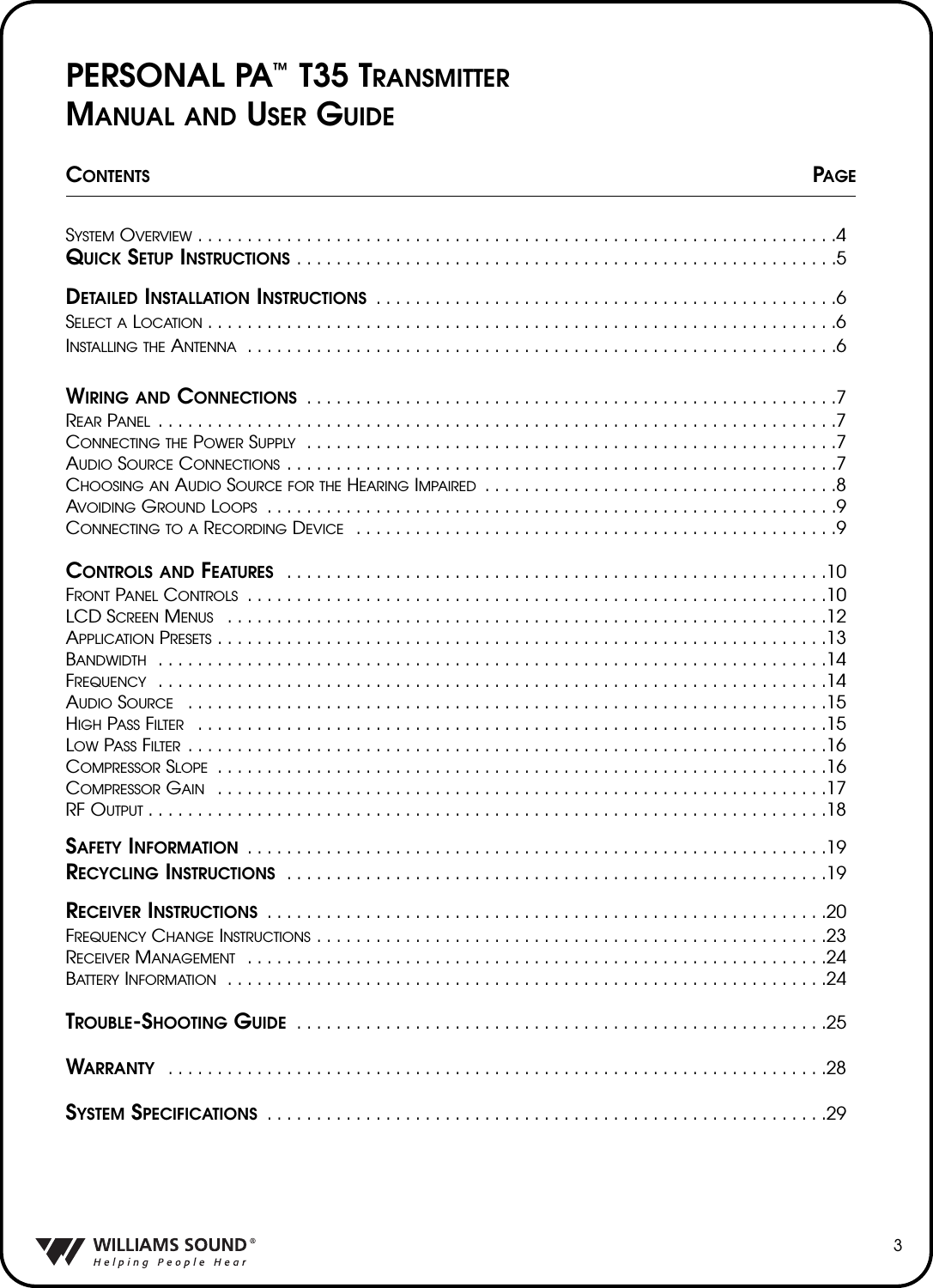
PERSONAL PA™T35 TRANSMITTERMANUAL AND USER GUIDECONTENTS PAGESYSTEM OVERVIEW . . . . . . . . . . . . . . . . . . . . . . . . . . . . . . . . . . . . . . . . . . . . . . . . . . . . . . . . . . . . . . . . .4QUICK SETUP INSTRUCTIONS . . . . . . . . . . . . . . . . . . . . . . . . . . . . . . . . . . . . . . . . . . . . . . . . . . . . . . .5DETAILED INSTALLATION INSTRUCTIONS  . . . . . . . . . . . . . . . . . . . . . . . . . . . . . . . . . . . . . . . . . . . . . . .6SELECT A LOCATION . . . . . . . . . . . . . . . . . . . . . . . . . . . . . . . . . . . . . . . . . . . . . . . . . . . . . . . . . . . . . . . .6INSTALLING THE ANTENNA  . . . . . . . . . . . . . . . . . . . . . . . . . . . . . . . . . . . . . . . . . . . . . . . . . . . . . . . . . . . .6WIRING AND CONNECTIONS  . . . . . . . . . . . . . . . . . . . . . . . . . . . . . . . . . . . . . . . . . . . . . . . . . . . . . .7REAR PANEL  . . . . . . . . . . . . . . . . . . . . . . . . . . . . . . . . . . . . . . . . . . . . . . . . . . . . . . . . . . . . . . . . . . . . .7CONNECTING THE POWER SUPPLY  . . . . . . . . . . . . . . . . . . . . . . . . . . . . . . . . . . . . . . . . . . . . . . . . . . . . . .7AUDIO SOURCE CONNECTIONS  . . . . . . . . . . . . . . . . . . . . . . . . . . . . . . . . . . . . . . . . . . . . . . . . . . . . . . . .7CHOOSING AN AUDIO SOURCE FOR THE HEARING IMPAIRED  . . . . . . . . . . . . . . . . . . . . . . . . . . . . . . . . . . . .8AVOIDING GROUND LOOPS  . . . . . . . . . . . . . . . . . . . . . . . . . . . . . . . . . . . . . . . . . . . . . . . . . . . . . . . . . .9CONNECTING TO A RECORDING DEVICE  . . . . . . . . . . . . . . . . . . . . . . . . . . . . . . . . . . . . . . . . . . . . . . . . .9CONTROLS AND FEATURES  . . . . . . . . . . . . . . . . . . . . . . . . . . . . . . . . . . . . . . . . . . . . . . . . . . . . . . .10FRONT PANEL CONTROLS  . . . . . . . . . . . . . . . . . . . . . . . . . . . . . . . . . . . . . . . . . . . . . . . . . . . . . . . . . . .10LCD SCREEN MENUS  . . . . . . . . . . . . . . . . . . . . . . . . . . . . . . . . . . . . . . . . . . . . . . . . . . . . . . . . . . . . .12APPLICATION PRESETS . . . . . . . . . . . . . . . . . . . . . . . . . . . . . . . . . . . . . . . . . . . . . . . . . . . . . . . . . . . . . .13BANDWIDTH  . . . . . . . . . . . . . . . . . . . . . . . . . . . . . . . . . . . . . . . . . . . . . . . . . . . . . . . . . . . . . . . . . . . .14FREQUENCY  . . . . . . . . . . . . . . . . . . . . . . . . . . . . . . . . . . . . . . . . . . . . . . . . . . . . . . . . . . . . . . . . . . . .14AUDIO SOURCE  . . . . . . . . . . . . . . . . . . . . . . . . . . . . . . . . . . . . . . . . . . . . . . . . . . . . . . . . . . . . . . . . .15HIGH PASS FILTER  . . . . . . . . . . . . . . . . . . . . . . . . . . . . . . . . . . . . . . . . . . . . . . . . . . . . . . . . . . . . . . . .15LOW PASS FILTER  . . . . . . . . . . . . . . . . . . . . . . . . . . . . . . . . . . . . . . . . . . . . . . . . . . . . . . . . . . . . . . . . .16COMPRESSOR SLOPE  . . . . . . . . . . . . . . . . . . . . . . . . . . . . . . . . . . . . . . . . . . . . . . . . . . . . . . . . . . . . . .16COMPRESSOR GAIN  . . . . . . . . . . . . . . . . . . . . . . . . . . . . . . . . . . . . . . . . . . . . . . . . . . . . . . . . . . . . . .17RF OUTPUT . . . . . . . . . . . . . . . . . . . . . . . . . . . . . . . . . . . . . . . . . . . . . . . . . . . . . . . . . . . . . . . . . . . . .18SAFETY INFORMATION  . . . . . . . . . . . . . . . . . . . . . . . . . . . . . . . . . . . . . . . . . . . . . . . . . . . . . . . . . . .19RECYCLING INSTRUCTIONS  . . . . . . . . . . . . . . . . . . . . . . . . . . . . . . . . . . . . . . . . . . . . . . . . . . . . . . .19RECEIVER INSTRUCTIONS  . . . . . . . . . . . . . . . . . . . . . . . . . . . . . . . . . . . . . . . . . . . . . . . . . . . . . . . . .20FREQUENCY CHANGE INSTRUCTIONS . . . . . . . . . . . . . . . . . . . . . . . . . . . . . . . . . . . . . . . . . . . . . . . . . . . .23RECEIVER MANAGEMENT  . . . . . . . . . . . . . . . . . . . . . . . . . . . . . . . . . . . . . . . . . . . . . . . . . . . . . . . . . . .24BATTERY INFORMATION  . . . . . . . . . . . . . . . . . . . . . . . . . . . . . . . . . . . . . . . . . . . . . . . . . . . . . . . . . . . . .24TROUBLE-SHOOTING GUIDE  . . . . . . . . . . . . . . . . . . . . . . . . . . . . . . . . . . . . . . . . . . . . . . . . . . . . . .25WARRANTY  . . . . . . . . . . . . . . . . . . . . . . . . . . . . . . . . . . . . . . . . . . . . . . . . . . . . . . . . . . . . . . . . . . .28SYSTEM SPECIFICATIONS  . . . . . . . . . . . . . . . . . . . . . . . . . . . . . . . . . . . . . . . . . . . . . . . . . . . . . . . . .293
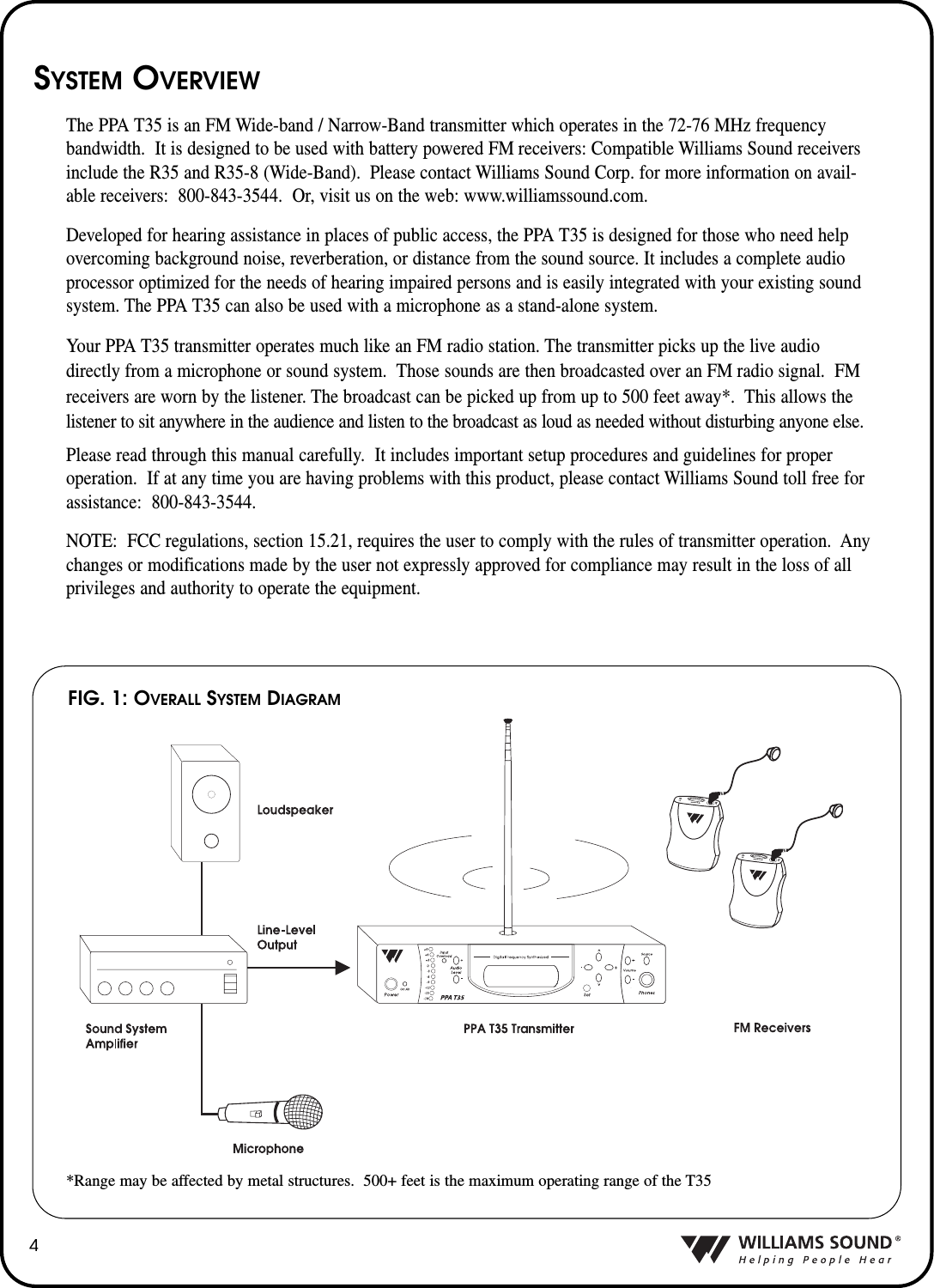
4SYSTEM OVERVIEWThe PPA T35 is an FM Wide-band / Narrow-Band transmitter which operates in the 72-76 MHz frequencybandwidth.  It is designed to be used with battery powered FM receivers: Compatible Williams Sound receiversinclude the R35 and R35-8 (Wide-Band).  Please contact Williams Sound Corp. for more information on avail-able receivers: 800-843-3544.  Or, visit us on the web: www.williamssound.com.Developed for hearing assistance in places of public access, the PPA T35 is designed for those who need helpovercoming background noise, reverberation, or distance from the sound source. It includes a complete audioprocessor optimized for the needs of hearing impaired persons and is easily integrated with your existing soundsystem. The PPA T35 can also be used with a microphone as a stand-alone system. Your PPA T35 transmitter operates much like an FM radio station. The transmitter picks up the live audiodirectly from a microphone or sound system.  Those sounds are then broadcasted over an FM radio signal.  FMreceivers are worn by the listener. The broadcast can be picked up from up to 500 feet away*.  This allows thelistener to sit anywhere in the audience and listen to the broadcast as loud as needed without disturbing anyone else.Please read through this manual carefully.  It includes important setup procedures and guidelines for properoperation.  If at any time you are having problems with this product, please contact Williams Sound toll free forassistance: 800-843-3544.NOTE: FCC regulations, section 15.21, requires the user to comply with the rules of transmitter operation.  Anychanges or modifications made by the user not expressly approved for compliance may result in the loss of allprivileges and authority to operate the equipment.FIG. 1: OVERALL SYSTEM DIAGRAM*Range may be affected by metal structures.  500+ feet is the maximum operating range of the T35
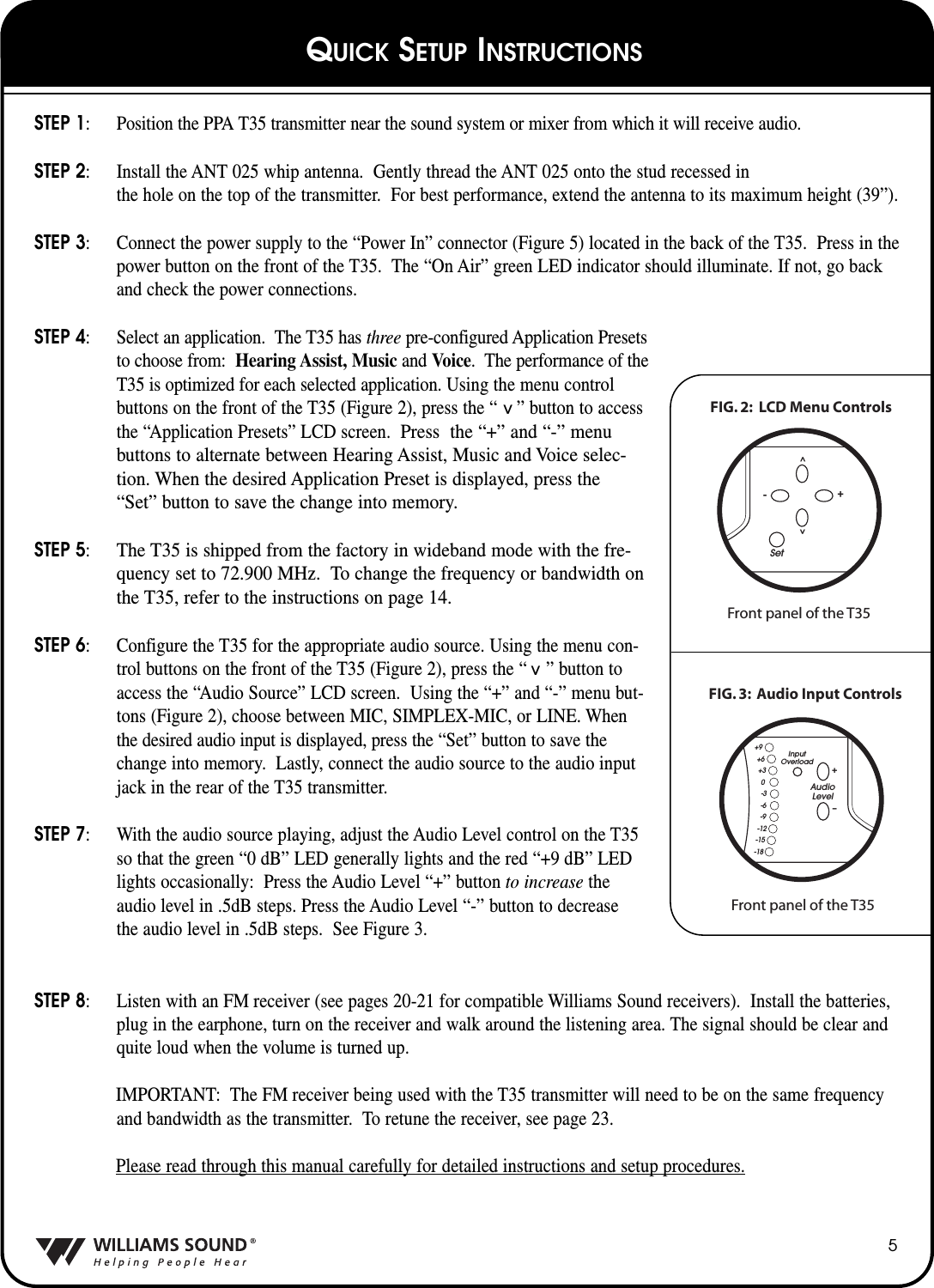
STEP 1: Position the PPA T35 transmitter near the sound system or mixer from which it will receive audio.STEP 2: Install the ANT 025 whip antenna.  Gently thread the ANT 025 onto the stud recessed in the hole on the top of the transmitter.  For best performance, extend the antenna to its maximum height (39”).STEP 3: Connect the power supply to the “Power In” connector (Figure 5) located in the back of the T35.  Press in thepower button on the front of the T35.  The “On Air” green LED indicator should illuminate. If not, go backand check the power connections.STEP 4: Select an application.  The T35 has three pre-configured Application Presets to choose from: Hearing Assist, Music and Voice.  The performance of the T35 is optimized for each selected application. Using the menu controlbuttons on the front of the T35 (Figure 2), press the “    ” button to accessthe “Application Presets” LCD screen.  Press  the “+” and “-” menubuttons to alternate between Hearing Assist, Music and Voice selec-tion. When the desired Application Preset is displayed, press the“Set” button to save the change into memory.STEP 5:The T35 is shipped from the factory in wideband mode with the fre-quency set to 72.900 MHz.  To change the frequency or bandwidth onthe T35, refer to the instructions on page 14.STEP 6: Configure the T35 for the appropriate audio source. Using the menu con-trol buttons on the front of the T35 (Figure 2), press the “    ” button toaccess the “Audio Source” LCD screen.  Using the “+” and “-” menu but-tons (Figure 2), choose between MIC, SIMPLEX-MIC, or LINE. Whenthe desired audio input is displayed, press the “Set” button to save thechange into memory.  Lastly, connect the audio source to the audio inputjack in the rear of the T35 transmitter.  STEP 7: With the audio source playing, adjust the Audio Level control on the T35so that the green “0 dB” LED generally lights and the red “+9 dB” LEDlights occasionally: Press the Audio Level “+” button to increase theaudio level in .5dB steps. Press the Audio Level “-” button to decreasethe audio level in .5dB steps.  See Figure 3.STEP 8: Listen with an FM receiver (see pages 20-21 for compatible Williams Sound receivers).  Install the batteries,plug in the earphone, turn on the receiver and walk around the listening area. The signal should be clear andquite loud when the volume is turned up. IMPORTANT: The FM receiver being used with the T35 transmitter will need to be on the same frequencyand bandwidth as the transmitter.  To retune the receiver, see page 23.Please read through this manual carefully for detailed instructions and setup procedures.5^^FIG. 2:  LCD Menu ControlsFront panel of the T35Set^^-+FIG. 3:  Audio Input ControlsFront panel of the T35AudioLevelInputOverloadir+–+9+6+30-3-6-9-12-15-18QUICK SETUP INSTRUCTIONS
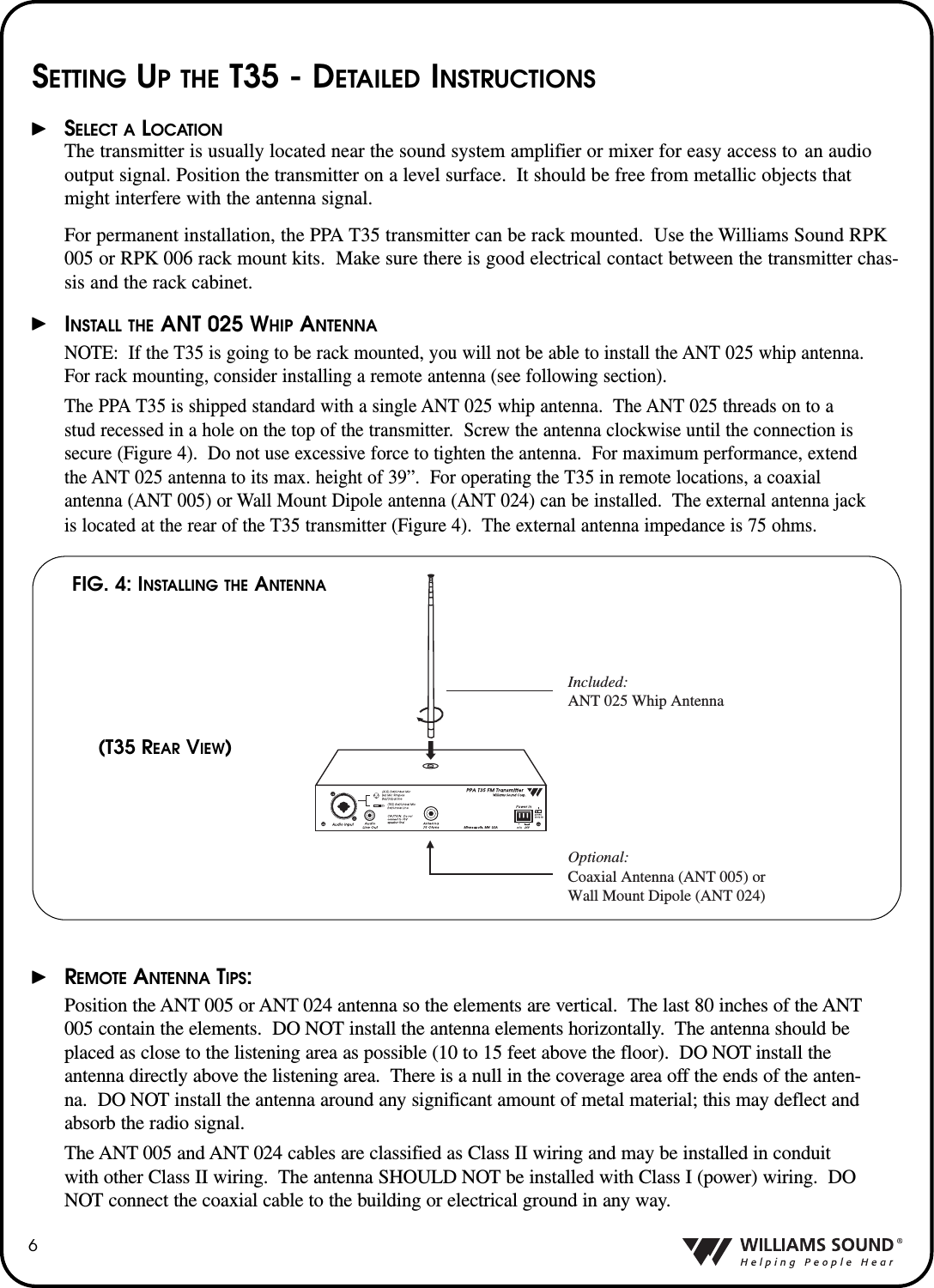
6SETTING UP THE T35 - DETAILED INSTRUCTIONSSELECT A LOCATIONThe transmitter is usually located near the sound system amplifier or mixer for easy access to  an audiooutput signal. Position the transmitter on a level surface.  It should be free from metallic objects thatmight interfere with the antenna signal.For permanent installation, the PPA T35 transmitter can be rack mounted.  Use the Williams Sound RPK005 or RPK 006 rack mount kits.  Make sure there is good electrical contact between the transmitter chas-sis and the rack cabinet.INSTALL THE ANT 025 WHIP ANTENNANOTE: If the T35 is going to be rack mounted, you will not be able to install the ANT 025 whip antenna.For rack mounting, consider installing a remote antenna (see following section).  The PPA T35 is shipped standard with a single ANT 025 whip antenna.  The ANT 025 threads on to a stud recessed in a hole on the top of the transmitter.  Screw the antenna clockwise until the connection is secure (Figure 4).  Do not use excessive force to tighten the antenna.  For maximum performance, extend the ANT 025 antenna to its max. height of 39”.  For operating the T35 in remote locations, a coaxial antenna (ANT 005) or Wall Mount Dipole antenna (ANT 024) can be installed.  The external antenna jackis located at the rear of the T35 transmitter (Figure 4).  The external antenna impedance is 75 ohms.REMOTE ANTENNA TIPS:Position the ANT 005 or ANT 024 antenna so the elements are vertical.  The last 80 inches of the ANT005 contain the elements.  DO NOT install the antenna elements horizontally.  The antenna should beplaced as close to the listening area as possible (10 to 15 feet above the floor).  DO NOT install theantenna directly above the listening area.  There is a null in the coverage area off the ends of the anten-na.  DO NOT install the antenna around any significant amount of metal material; this may deflect andabsorb the radio signal.The ANT 005 and ANT 024 cables are classified as Class II wiring and may be installed in conduitwith other Class II wiring.  The antenna SHOULD NOT be installed with Class I (power) wiring.  DONOT connect the coaxial cable to the building or electrical ground in any way.Included:ANT 025 Whip AntennaOptional:Coaxial Antenna (ANT 005) or Wall Mount Dipole (ANT 024)FIG. 4: INSTALLING THE ANTENNA(T35 REAR VIEW)
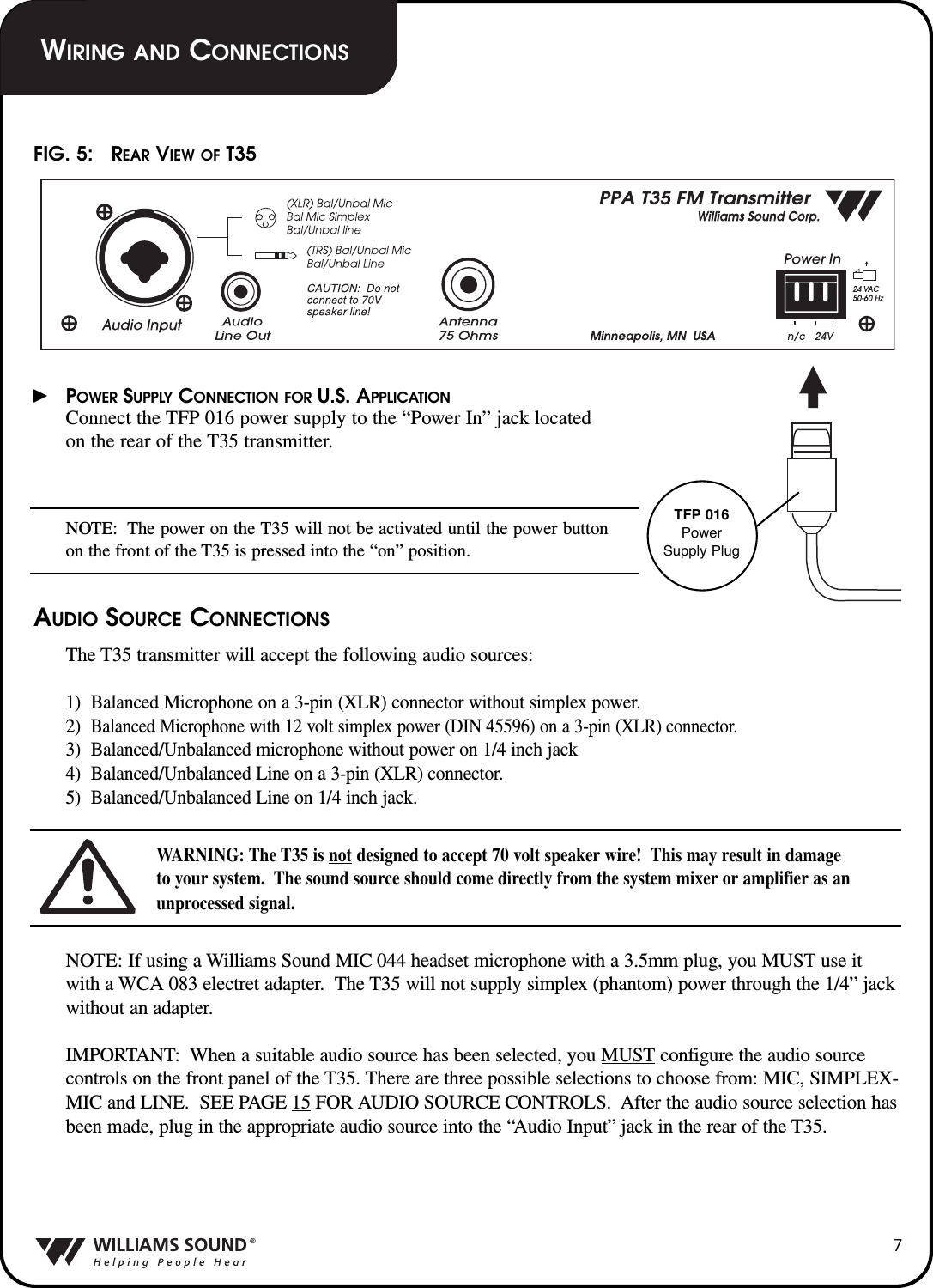
7POWER SUPPLY CONNECTION FOR U.S. APPLICATIONConnect the TFP 016 power supply to the “Power In” jack locatedon the rear of the T35 transmitter.NOTE: The power on the T35 will not be activated until the power buttonon the front of the T35 is pressed into the “on” position.AUDIO SOURCE CONNECTIONSThe T35 transmitter will accept the following audio sources:1)  Balanced Microphone on a 3-pin (XLR) connector without simplex power.2)  Balanced Microphone with 12 volt simplex power (DIN 45596) on a 3-pin (XLR) connector.3)  Balanced/Unbalanced microphone without power on 1/4 inch jack4)  Balanced/Unbalanced Line on a 3-pin (XLR) connector.5)  Balanced/Unbalanced Line on 1/4 inch jack.WARNING: The T35 is not designed to accept 70 volt speaker wire!  This may result in damage to your system.  The sound source should come directly from the system mixer or amplifier as anunprocessed signal.NOTE: If using a Williams Sound MIC 044 headset microphone with a 3.5mm plug, you MUST use itwith a WCA 083 electret adapter.  The T35 will not supply simplex (phantom) power through the 1/4” jackwithout an adapter.IMPORTANT: When a suitable audio source has been selected, you MUST configure the audio sourcecontrols on the front panel of the T35. There are three possible selections to choose from: MIC, SIMPLEX-MIC and LINE.  SEE PAGE 15 FOR AUDIO SOURCE CONTROLS.  After the audio source selection hasbeen made, plug in the appropriate audio source into the “Audio Input” jack in the rear of the T35.FIG. 5:   REAR VIEW OF T35TFP 016PowerSupply PlugWIRING AND CONNECTIONS
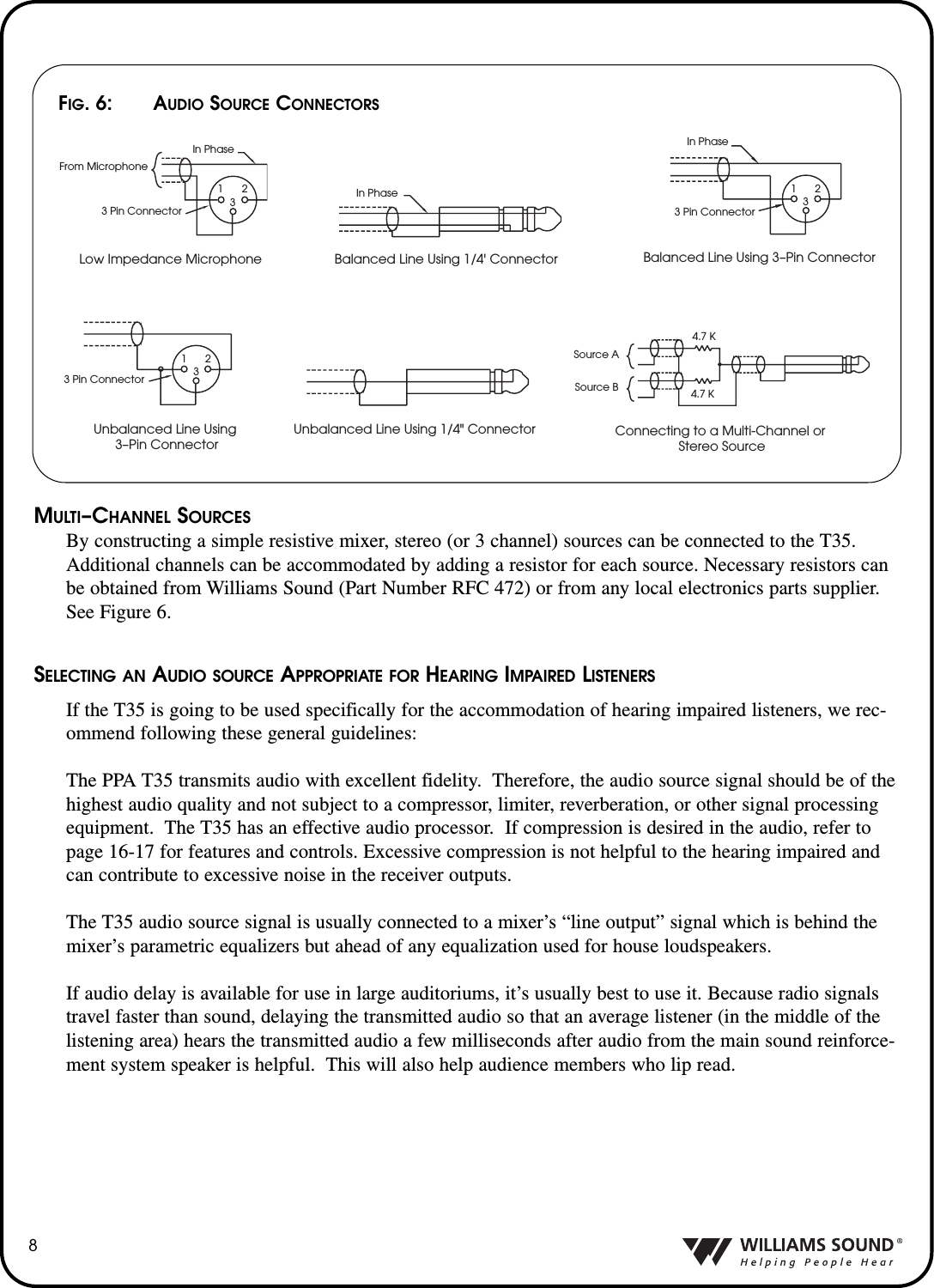
8In PhaseBalanced Line Using 1/4' ConnectorUnbalanced Line Using 1/4" Connector4.7 K4.7 KSource ASource BConnecting to a Multi-Channel or Stereo SourceIn PhaseFrom Microphone1233 Pin ConnectorLow Impedance MicrophoneIn Phase3 Pin Connector123Balanced Line Using 3–Pin Connector3 Pin Connector123Unbalanced Line Using 3–Pin ConnectorFIG. 6:  AUDIO SOURCE CONNECTORSSELECTING AN AUDIO SOURCE APPROPRIATE FOR HEARING IMPAIRED LISTENERSIf the T35 is going to be used specifically for the accommodation of hearing impaired listeners, we rec-ommend following these general guidelines:The PPA T35 transmits audio with excellent fidelity.  Therefore, the audio source signal should be of thehighest audio quality and not subject to a compressor, limiter, reverberation, or other signal processingequipment.  The T35 has an effective audio processor.  If compression is desired in the audio, refer topage 16-17 for features and controls. Excessive compression is not helpful to the hearing impaired andcan contribute to excessive noise in the receiver outputs.The T35 audio source signal is usually connected to a mixer’s “line output” signal which is behind themixer’s parametric equalizers but ahead of any equalization used for house loudspeakers.If audio delay is available for use in large auditoriums, it’s usually best to use it. Because radio signalstravel faster than sound, delaying the transmitted audio so that an average listener (in the middle of thelistening area) hears the transmitted audio a few milliseconds after audio from the main sound reinforce-ment system speaker is helpful.  This will also help audience members who lip read.MULTI–CHANNEL SOURCESBy constructing a simple resistive mixer, stereo (or 3 channel) sources can be connected to the T35.Additional channels can be accommodated by adding a resistor for each source. Necessary resistors canbe obtained from Williams Sound (Part Number RFC 472) or from any local electronics parts supplier.See Figure 6.
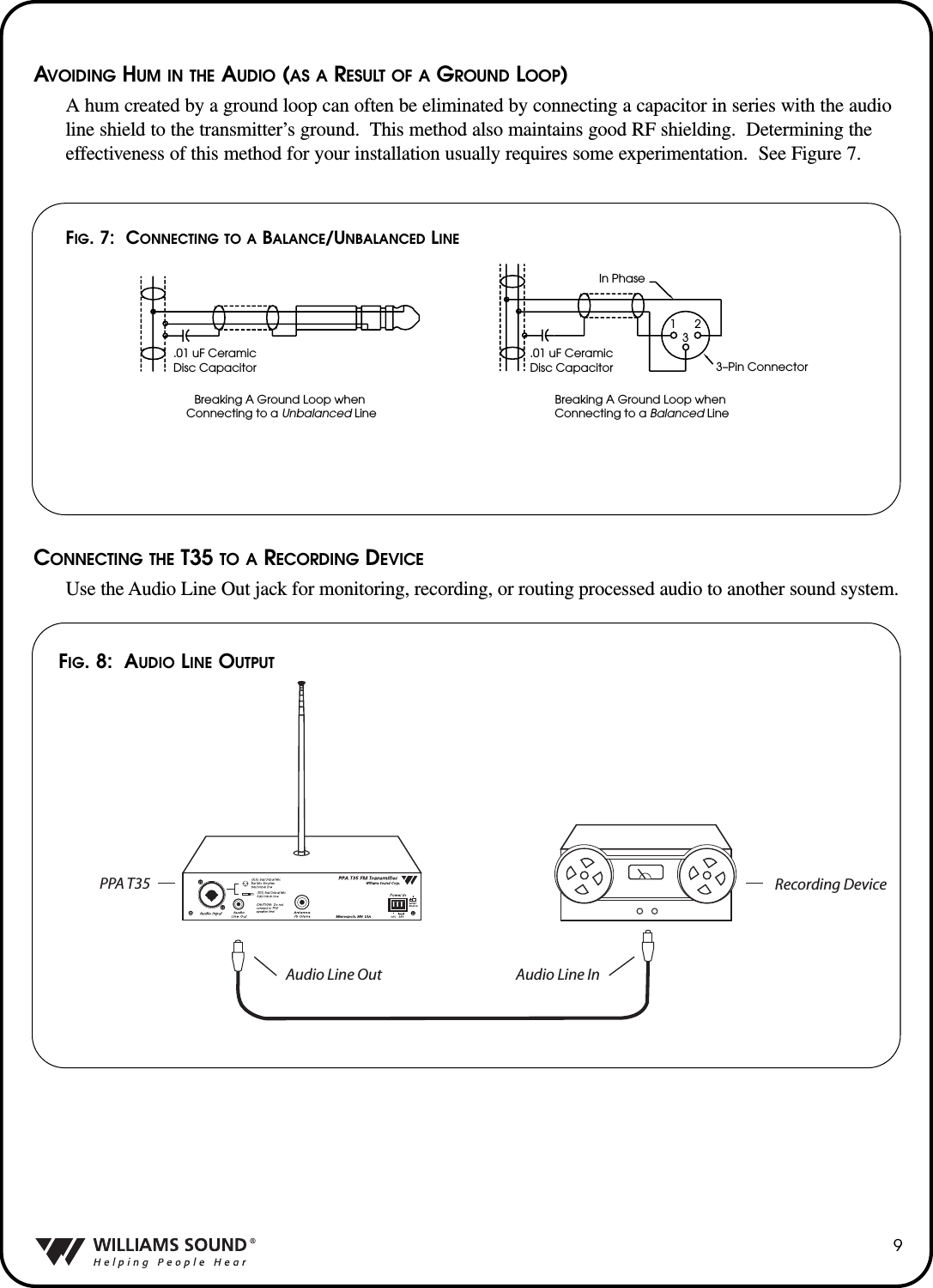
AVOIDING HUM IN THE AUDIO (AS A RESULT OF A GROUND LOOP)A hum created by a ground loop can often be eliminated by connecting a capacitor in series with the audioline shield to the transmitter’s ground.  This method also maintains good RF shielding.  Determining theeffectiveness of this method for your installation usually requires some experimentation.  See Figure 7.CONNECTING THE T35 TO A RECORDING DEVICEUse the Audio Line Out jack for monitoring, recording, or routing processed audio to another sound system.9.01 uF CeramicDisc CapacitorIn Phase3–Pin Connector.01 uF CeramicDisc Capacitor123Breaking A Ground Loop when Connecting to a Unbalanced LineBreaking A Ground Loop when Connecting to a Balanced LineFIG. 7:  CONNECTING TO A BALANCE/UNBALANCED LINEFIG. 8: AUDIO LINE OUTPUTAudio Line Out Audio Line InRecording DevicePPA T35
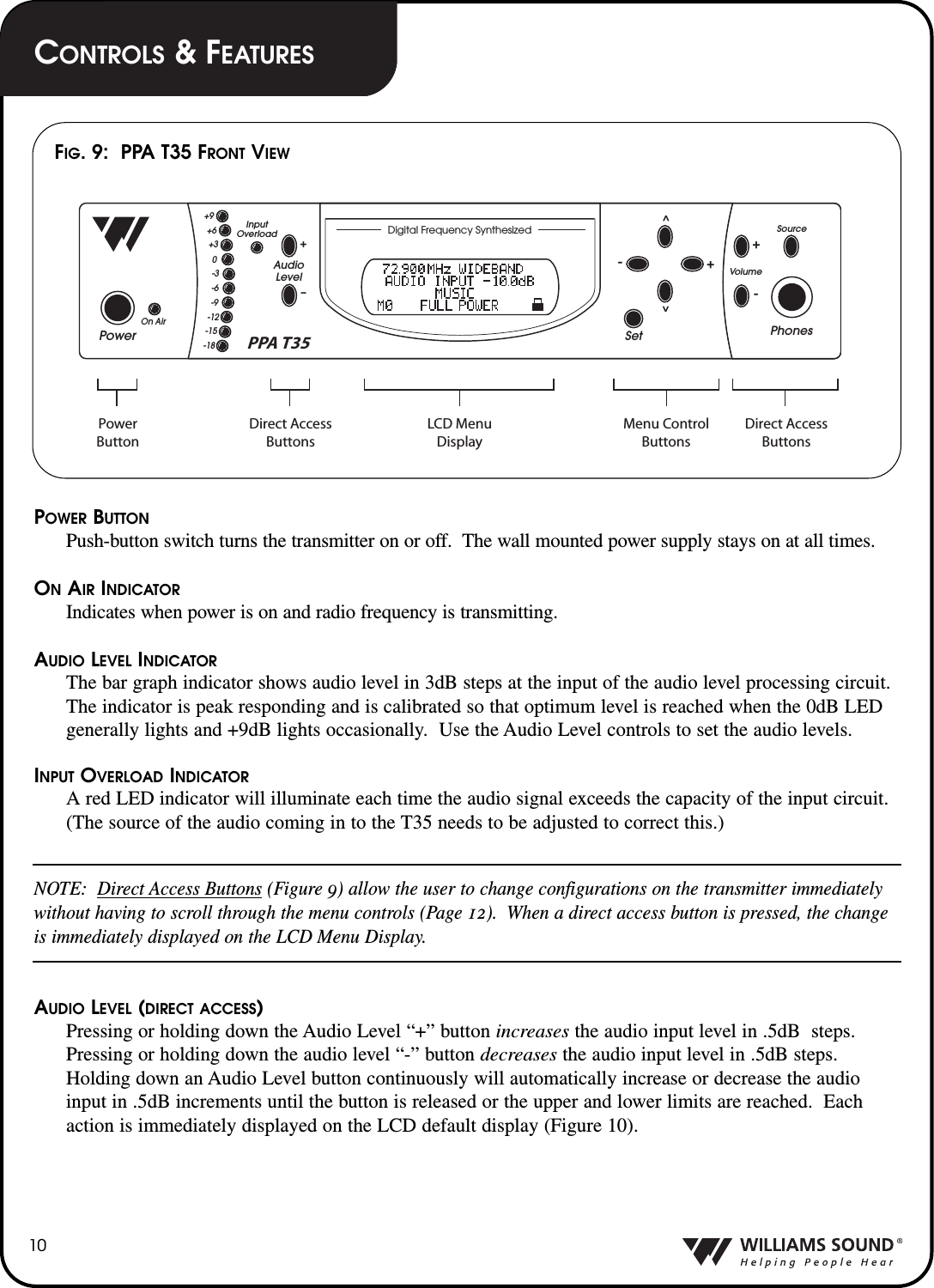
POWER BUTTONPush-button switch turns the transmitter on or off.  The wall mounted power supply stays on at all times.ONAIR INDICATORIndicates when power is on and radio frequency is transmitting.AUDIO LEVEL INDICATORThe bar graph indicator shows audio level in 3dB steps at the input of the audio level processing circuit.The indicator is peak responding and is calibrated so that optimum level is reached when the 0dB LEDgenerally lights and +9dB lights occasionally.  Use the Audio Level controls to set the audio levels.INPUT OVERLOAD INDICATORA red LED indicator will illuminate each time the audio signal exceeds the capacity of the input circuit.(The source of the audio coming in to the T35 needs to be adjusted to correct this.)NOTE:  Direct Access Buttons (Figure 9) allow the user to change configurations on the transmitter immediatelywithout having to scroll through the menu controls (Page 12).  When a direct access button is pressed, the changeis immediately displayed on the LCD Menu Display. AUDIO LEVEL (DIRECT ACCESS)Pressing or holding down the Audio Level “+” button increases the audio input level in .5dB  steps.Pressing or holding down the audio level “-” button decreases the audio input level in .5dB steps.Holding down an Audio Level button continuously will automatically increase or decrease the audioinput in .5dB increments until the button is released or the upper and lower limits are reached.  Eachaction is immediately displayed on the LCD default display (Figure 10).10PowerPhonesSetSourceVolumeAudioLevelInputOverloadOn Air+–+9+6+30-3-6-9-12-15-18^^+--+PPA T35 Direct AccessButtonsDirect AccessButtonsPowerButtonMenu ControlButtonsLCD MenuDisplayDigital Frequency SynthesizedFIG. 9:  PPA T35 FRONT VIEWCONTROLS &FEATURES
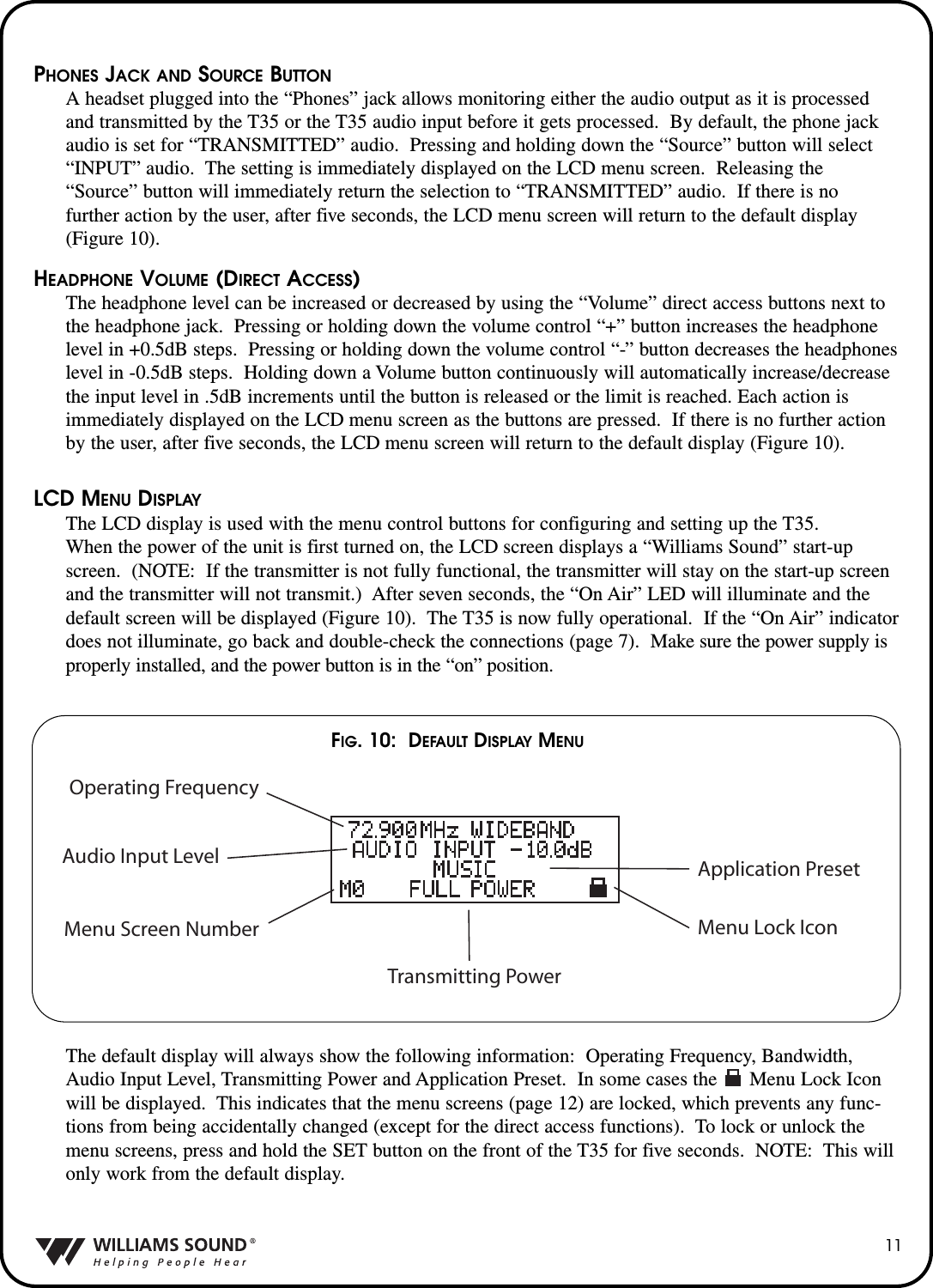
PHONES JACK AND SOURCE BUTTONA headset plugged into the “Phones” jack allows monitoring either the audio output as it is processedand transmitted by the T35 or the T35 audio input before it gets processed.  By default, the phone jackaudio is set for “TRANSMITTED” audio.  Pressing and holding down the “Source” button will select“INPUT” audio.  The setting is immediately displayed on the LCD menu screen.  Releasing the“Source” button will immediately return the selection to “TRANSMITTED” audio.  If there is no further action by the user, after five seconds, the LCD menu screen will return to the default display(Figure 10).HEADPHONE VOLUME (DIRECT ACCESS)The headphone level can be increased or decreased by using the “Volume” direct access buttons next tothe headphone jack.  Pressing or holding down the volume control “+” button increases the headphonelevel in +0.5dB steps.  Pressing or holding down the volume control “-” button decreases the headphoneslevel in -0.5dB steps.  Holding down a Volume button continuously will automatically increase/decreasethe input level in .5dB increments until the button is released or the limit is reached. Each action isimmediately displayed on the LCD menu screen as the buttons are pressed.  If there is no further actionby the user, after five seconds, the LCD menu screen will return to the default display (Figure 10).LCD MENU DISPLAYThe LCD display is used with the menu control buttons for configuring and setting up the T35.When the power of the unit is first turned on, the LCD screen displays a “Williams Sound” start-upscreen.  (NOTE: If the transmitter is not fully functional, the transmitter will stay on the start-up screenand the transmitter will not transmit.)  After seven seconds, the “On Air” LED will illuminate and thedefault screen will be displayed (Figure 10).  The T35 is now fully operational.  If the “On Air” indicatordoes not illuminate, go back and double-check the connections (page 7).  Make sure the power supply isproperly installed, and the power button is in the “on” position.The default display will always show the following information: Operating Frequency, Bandwidth,Audio Input Level, Transmitting Power and Application Preset.  In some cases the      Menu Lock Iconwill be displayed.  This indicates that the menu screens (page 12) are locked, which prevents any func-tions from being accidentally changed (except for the direct access functions).  To lock or unlock themenu screens, press and hold the SET button on the front of the T35 for five seconds.  NOTE: This willonly work from the default display.Operating FrequencyAudio Input LevelMenu Screen NumberTransmitting PowerMenu Lock IconApplication Preset11FIG. 10:  DEFAULT DISPLAY MENU
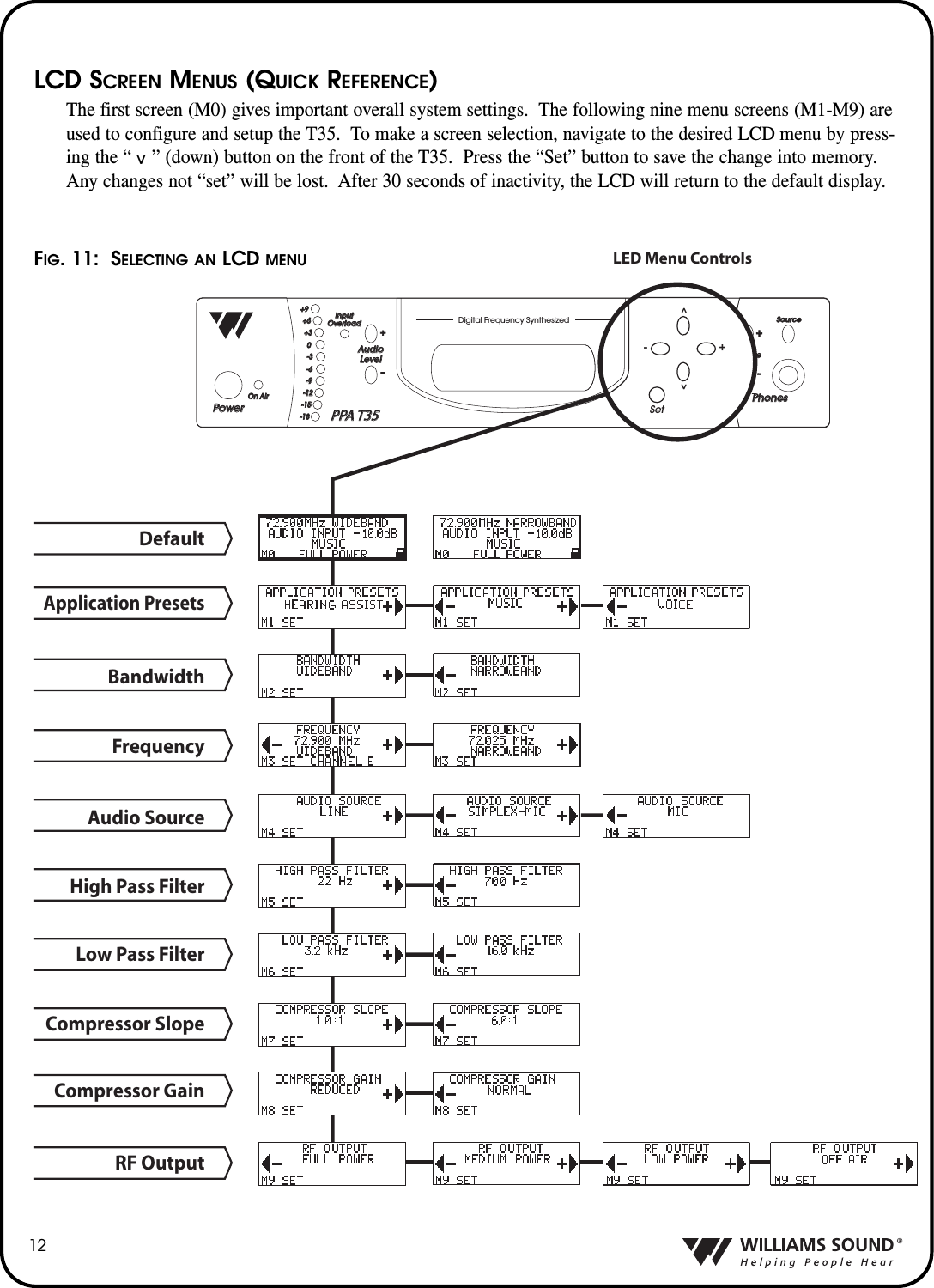
12LCD SCREEN MENUS (QUICK REFERENCE)The first screen (M0) gives important overall system settings.  The following nine menu screens (M1-M9) areused to configure and setup the T35.  To make a screen selection, navigate to the desired LCD menu by press-ing the “    ” (down) button on the front of the T35.  Press the “Set” button to save the change into memory.Any changes not “set” will be lost.  After 30 seconds of inactivity, the LCD will return to the default display.Digital Frequency SynthesizedPowerPowerPhonesPhonesSourceSourceVolumeVolumeAudioAudioLevelLevelInputInputOverloadOverloadOn AirOn Air+–+9+9+6+6+3+30-3-3-6-6-9-9-12-12-15-15-18-18-+PPA T35 PPA T35 Set^^-+DefaultAudio SourceHigh Pass FilterLow Pass FilterCompressor SlopeCompressor GainRF OutputLED Menu ControlsFrequencyBandwidthApplication PresetsFIG. 11:  SELECTING AN LCD MENU^
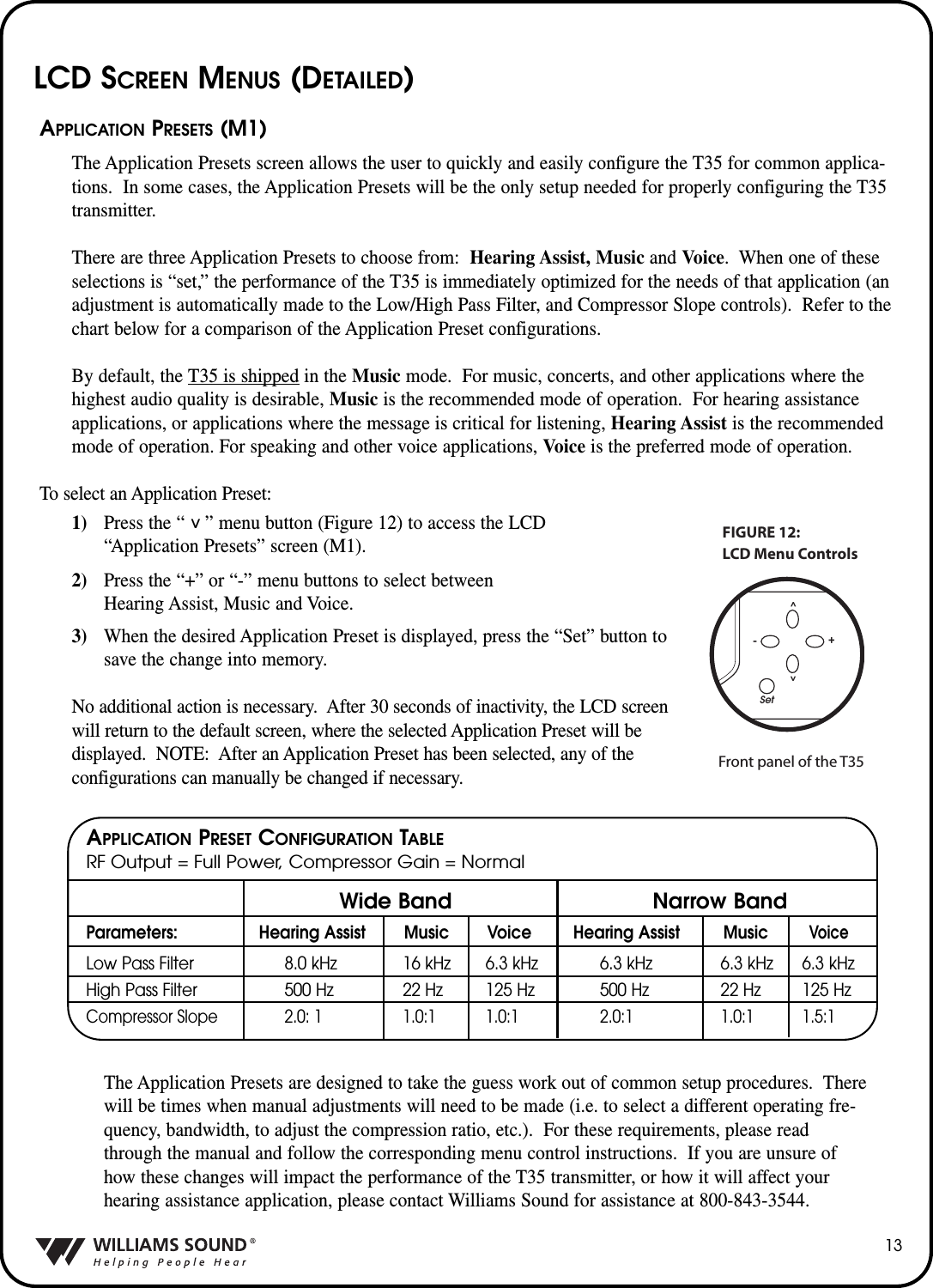
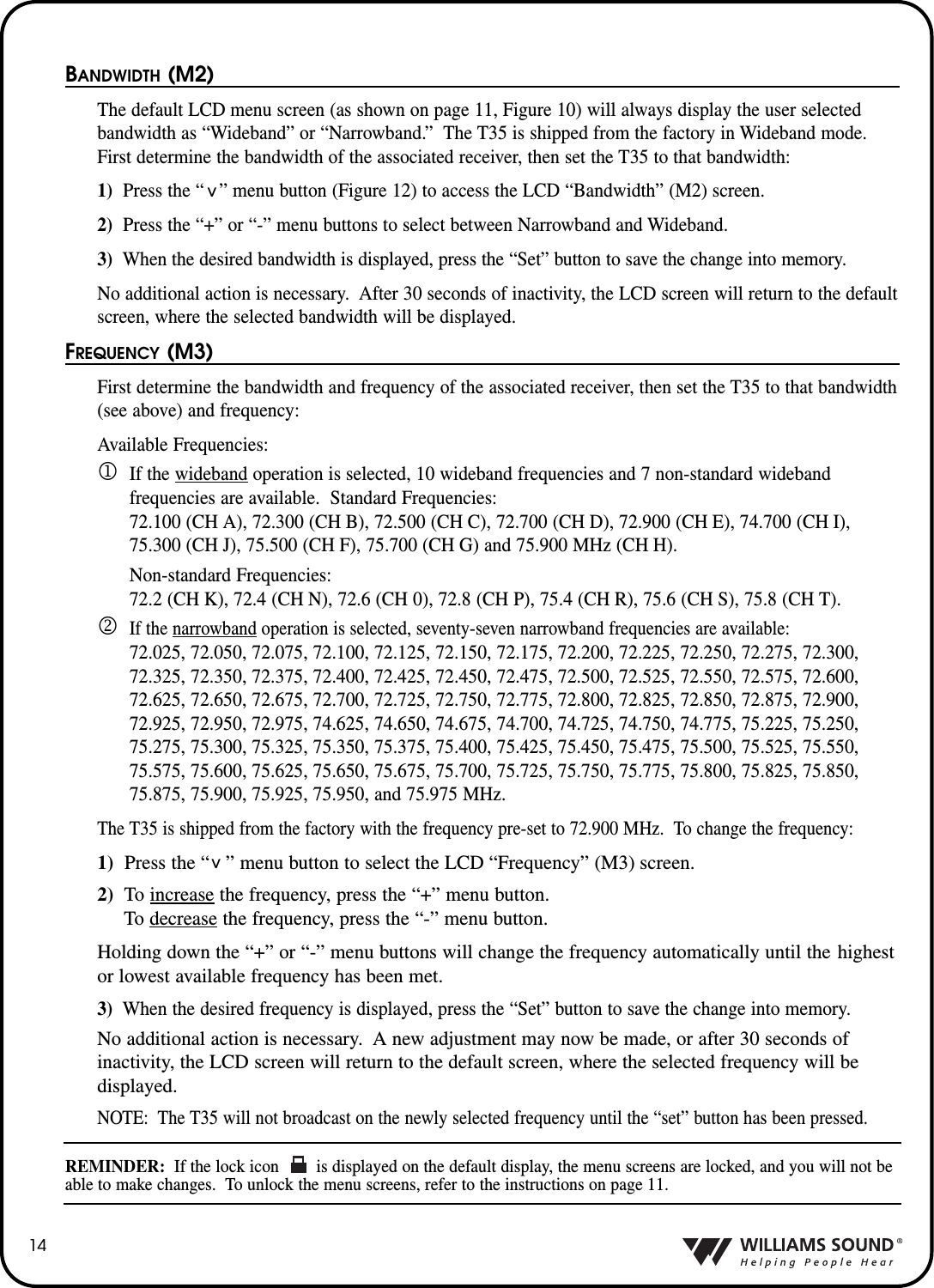
13APPLICATION PRESETS (M1)The Application Presets screen allows the user to quickly and easily configure the T35 for common applica-tions.  In some cases, the Application Presets will be the only setup needed for properly configuring the T35transmitter.  There are three Application Presets to choose from: Hearing Assist, Music and Voice.  When one of theseselections is “set,” the performance of the T35 is immediately optimized for the needs of that application (anadjustment is automatically made to the Low/High Pass Filter, and Compressor Slope controls).  Refer to thechart below for a comparison of the Application Preset configurations.By default, the T35 is shipped in the Music mode.  For music, concerts, and other applications where thehighest audio quality is desirable, Music is the recommended mode of operation.  For hearing assistanceapplications, or applications where the message is critical for listening, Hearing Assist is the recommendedmode of operation. For speaking and other voice applications, Voice is the preferred mode of operation.  To select an Application Preset:1) Press the “    ” menu button (Figure 12) to access the LCD “Application Presets” screen (M1).2) Press the “+” or “-” menu buttons to select between Hearing Assist, Music and Voice.3) When the desired Application Preset is displayed, press the “Set” button to save the change into memory.No additional action is necessary.  After 30 seconds of inactivity, the LCD screenwill return to the default screen, where the selected Application Preset will be displayed.  NOTE: After an Application Preset has been selected, any of the configurations can manually be changed if necessary.The Application Presets are designed to take the guess work out of common setup procedures.  Therewill be times when manual adjustments will need to be made (i.e. to select a different operating fre-quency, bandwidth, to adjust the compression ratio, etc.).  For these requirements, please readthrough the manual and follow the corresponding menu control instructions.  If you are unsure ofhow these changes will impact the performance of the T35 transmitter, or how it will affect yourhearing assistance application, please contact Williams Sound for assistance at 800-843-3544.Parameters: Hearing Assist Music Voice Hearing Assist MusicVoiceLow Pass Filter 8.0 kHz 16 kHz 6.3 kHz 6.3 kHz 6.3 kHz 6.3 kHzHigh Pass Filter 500 Hz 22 Hz 125 Hz 500 Hz 22 Hz 125 HzCompressor Slope 2.0: 1 1.0:1 1.0:1 2.0:1 1.0:1 1.5:1Set^^-+LCD Menu ControlsFIGURE 12:Front panel of the T35^Wide Band Narrow BandAPPLICATION PRESET CONFIGURATION TABLERF Output = Full Power, Compressor Gain = NormalLCD SCREEN MENUS (DETAILED)
14BANDWIDTH (M2)The default LCD menu screen (as shown on page 11, Figure 10) will always display the user selectedbandwidth as “Wideband” or “Narrowband.” The T35 is shipped from the factory in Wideband mode.First determine the bandwidth of the associated receiver, then set the T35 to that bandwidth:1) Press the “   ” menu button (Figure 12) to access the LCD “Bandwidth” (M2) screen.  2)  Press the “+” or “-” menu buttons to select between Narrowband and Wideband.  3) When the desired bandwidth is displayed, press the “Set” button to save the change into memory.No additional action is necessary.  After 30 seconds of inactivity, the LCD screen will return to the defaultscreen, where the selected bandwidth will be displayed.FREQUENCY (M3)First determine the bandwidth and frequency of the associated receiver, then set the T35 to that bandwidth(see above) and frequency:Available Frequencies:1If the wideband operation is selected, 10 wideband frequencies and 7 non-standard wideband frequencies are available.  Standard Frequencies:72.100 (CH A), 72.300 (CH B), 72.500 (CH C), 72.700 (CH D), 72.900 (CH E), 74.700 (CH I),75.300 (CH J), 75.500 (CH F), 75.700 (CH G) and 75.900 MHz (CH H).Non-standard Frequencies:72.2 (CH K), 72.4 (CH N), 72.6 (CH 0), 72.8 (CH P), 75.4 (CH R), 75.6 (CH S), 75.8 (CH T).2If the narrowband operation is selected, seventy-seven narrowband frequencies are available:72.025, 72.050, 72.075, 72.100, 72.125, 72.150, 72.175, 72.200, 72.225, 72.250, 72.275, 72.300,72.325, 72.350, 72.375, 72.400, 72.425, 72.450, 72.475, 72.500, 72.525, 72.550, 72.575, 72.600,72.625, 72.650, 72.675, 72.700, 72.725, 72.750, 72.775, 72.800, 72.825, 72.850, 72.875, 72.900,72.925, 72.950, 72.975, 74.625, 74.650, 74.675, 74.700, 74.725, 74.750, 74.775, 75.225, 75.250,75.275, 75.300, 75.325, 75.350, 75.375, 75.400, 75.425, 75.450, 75.475, 75.500, 75.525, 75.550,75.575, 75.600, 75.625, 75.650, 75.675, 75.700, 75.725, 75.750, 75.775, 75.800, 75.825, 75.850,75.875, 75.900, 75.925, 75.950, and 75.975 MHz.The T35 is shipped from the factory with the frequency pre-set to 72.900 MHz.  To change the frequency:1) Press the “   ” menu button to select the LCD “Frequency” (M3) screen.2) To increase the frequency, press the “+” menu button. To decrease the frequency, press the “-” menu button.Holding down the “+” or “-” menu buttons will change the frequency automatically until the highestor lowest available frequency has been met.3) When the desired frequency is displayed, press the “Set” button to save the change into memory.No additional action is necessary.  A new adjustment may now be made, or after 30 seconds of inactivity, the LCD screen will return to the default screen, where the selected frequency will be displayed.NOTE: The T35 will not broadcast on the newly selected frequency until the “set” button has been pressed.REMINDER: If the lock icon        is displayed on the default display, the menu screens are locked, and you will not beable to make changes.  To unlock the menu screens, refer to the instructions on page 11.^^
15AUDIO SOURCE (M4)The Audio Source control menu is used to configure the T35 for a proper audio source connection. Thetransmitter will accept the following audio sources:1)  Balanced Microphone on a 3-pin (XLR) connector without simplex power.2)  Balanced Microphone with 12 volt simplex power (DIN 45596) on a 3-pin (XLR) connector.3)  Balanced/Unbalanced microphone without power on 1/4 inch jack4)  Balanced/Unbalanced Line on a 3-pin (XLR) connector.5)  Balanced/Unbalanced Line on 1/4 inch jack.The Audio Source menu has three possible selections to choose from: MIC, SIMPLEX-MIC, or LINE.  To select the audio input:1) Press the “    ” menu button (Figure 12) to access the LCD “Audio Source” (M4) screen.  2) Press  the “+” or “-” menu buttons to select between MIC, SIMPLEX-MIC, or LINE.3) When the desired audio input is displayed, press the “Set” button to save the change into memory.No additional action is necessary.  After 30 seconds of inactivity, the LCD screen will return to the defaultdisplay.HIGH PASS FILTER (M5)The high pass filter will help to remove low frequency “noise” from the transmitted audio signal.  This istypically used when there is room noise, a line hum, or breath accents picked up from an improperlyinstalled microphone.To select a High Pass Filter cutoff frequency:1) Press the down “    ” menu button (Figure 12) to select the LCD “High Pass Filter” (M5) screen.  2) Press the “+” menu button to increase the cutoff frequency. Each time the “+” button is pressed, the cutoff frequency will be raised by 1/2 octave.  This can berepeated until the cutoff frequency reaches the maximum 700 Hz.Press the “-” menu button to decrease the cutoff frequency.  Each time the “-” button is pressed, thecutoff frequency will be lowered by 1/2 octave.  This can be repeated until the cutoff frequency reaches the minimum 22 Hz.3) When the desired cutoff frequency is displayed, press the “Set” button to save the change into memory.No additional action is necessary.  After 30 seconds of inactivity, the LCD screen will return to the default display.^^IMPORTANT: Listen to the transmitted audio through the headphone jack, especially when decid-ing on an appropriate high pass filter.  This is a good way to ensure the listening audience is going toreceive the highest audio quality.
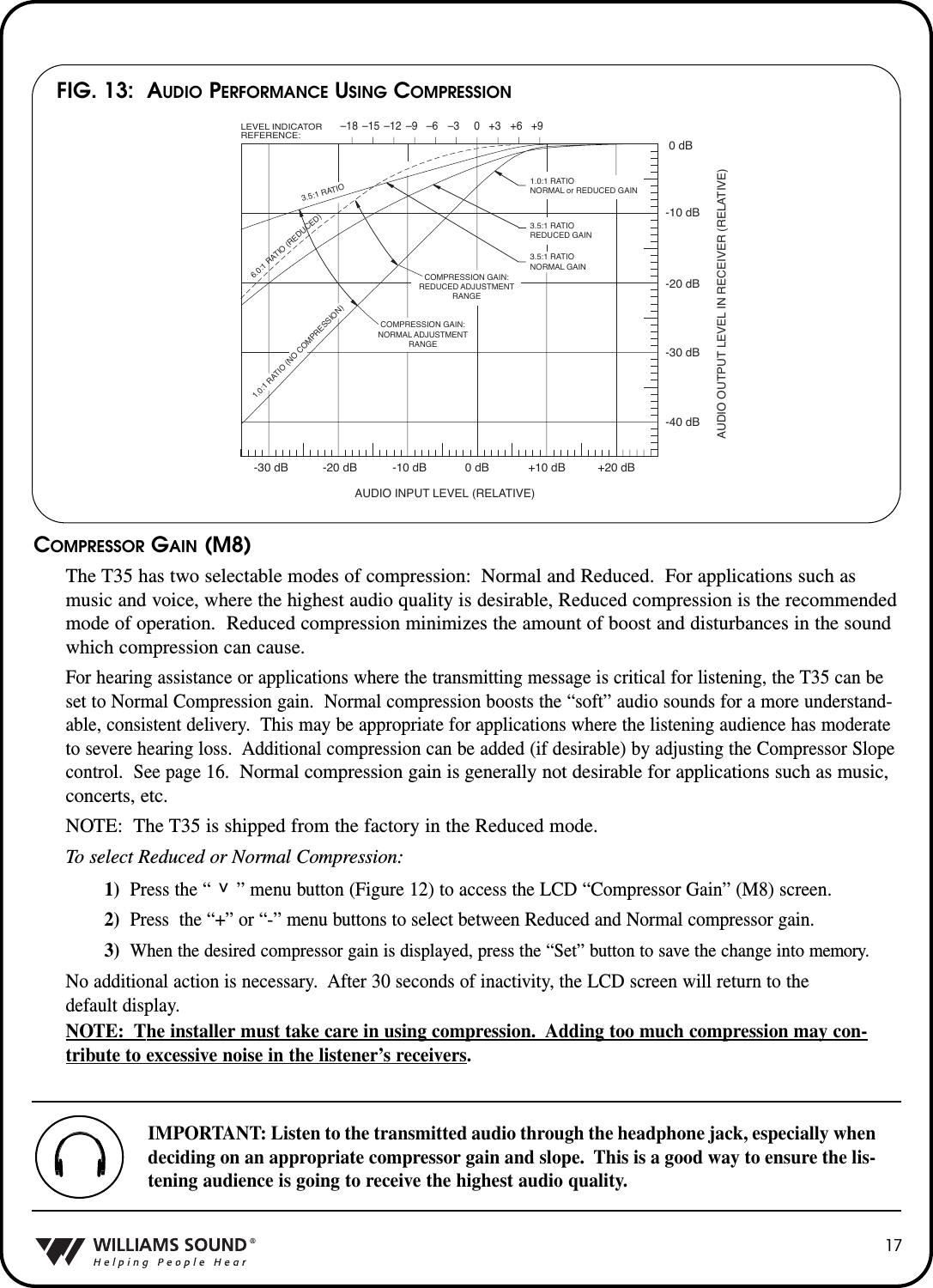
16LOW PASS FILTER (M6)The low pass filter will help to remove high frequency “noise” from the transmitted audio signal.  This is typ-ically used when there is a hiss is the audio line as a result of room noise, speech sibilants, or other high fre-quency unpleasantries.To select a Low Pass Filter cutoff frequency:1)  Press the down “    ” menu button (Figure 12) to select the LCD “Low Pass Filter” (M6) screen.  2) Press  the “+” menu button to increase the cutoff frequency selection. The cutoff frequency can be increased to a maximum of 16.0 kHz.Press the “-” menu button to decrease the cutoff frequency selection.  The cutoff frequency can be decreased to a minimum of 3.2 kHz.3) When the desired cutoff frequency is displayed, press the “Set” button to save the change into memory.No additional action is necessary.  After 30 seconds of inactivity, the LCD screen will return to the default display.COMPRESSOR SLOPE (M7)Compression is typically used for voice and hearing assistance applications.  It reduces the dynamicrange: For a listener who has difficulty hearing the quiet sounds of an audio broadcast, compression willboost the quiet sounds to louder listening levels. For listening to music programs, concerts, etc., lowercompression ratios or no compression is generally used.  The Compressor Slope has the following selectable compression ratios:1.0:1, 1.1:1, 1.2:1, 1.3:1, 1.4:1, 1.5:1, 1.6:1, 1.8:1, 2.0:1, 2.2:1, 2.5:1, 3.0:1, 3.5:1, 4.0:1, 4.5:1, 5.0:1, 5.5:1, 6.0:1.NOTE: The T35 is shipped from the factory at a 1.0:1 compression ratio (no compression).To select a compression ratio:1) Press the “    ” menu button (Figure 12) to select the LCD “Compressor Slope” (M7) screen.2) Press the “+” menu button to increase the steps of compression.  The compression ratio can increase to a maximum of 6:1, which produces generally loud output, even at very low audio level signals.Press the left “-” menu button to decrease the steps of compression.  The compression can belowered to a minimum ratio of 1.0:1, which is no compression.3) When the desired compression ratio is displayed, press the “Set” button to save the change into memory.  No additional action is necessary.NOTE: The installer of the T35 needs to take care in using compression, because some hearingimpaired people cannot tolerate as loud of a sound as those with normal hearing.^^IMPORTANT: Listen to the transmitted audio through the headphone jack, especially whendeciding on an appropriate low pass filter.  This is a good way to ensure the listening audi-ence is going to receive the highest audio quality.
COMPRESSOR GAIN (M8)The T35 has two selectable modes of compression: Normal and Reduced.  For applications such asmusic and voice, where the highest audio quality is desirable, Reduced compression is the recommendedmode of operation.  Reduced compression minimizes the amount of boost and disturbances in the soundwhich compression can cause.  For hearing assistance or applications where the transmitting message is critical for listening, the T35 can beset to Normal Compression gain.  Normal compression boosts the “soft” audio sounds for a more understand-able, consistent delivery.  This may be appropriate for applications where the listening audience has moderateto severe hearing loss.  Additional compression can be added (if desirable) by adjusting the Compressor Slopecontrol.  See page 16.  Normal compression gain is generally not desirable for applications such as music,concerts, etc.NOTE: The T35 is shipped from the factory in the Reduced mode.  To select Reduced or Normal Compression:1)  Press the “     ” menu button (Figure 12) to access the LCD “Compressor Gain” (M8) screen.2) Press  the “+” or “-” menu buttons to select between Reduced and Normal compressor gain.3) When the desired compressor gain is displayed, press the “Set” button to save the change into memory.No additional action is necessary.  After 30 seconds of inactivity, the LCD screen will return to the default display.NOTE: The installer must take care in using compression.  Adding too much compression may con-tribute to excessive noise in the listener’s receivers.171.0:1 RATIO (NO COMPRESSION)3.5:1 RATIO6.0:1 RATIO (REDUCED)1.0:1 RATIONORMAL or REDUCED GAIN3.5:1 RATIOREDUCED GAIN3.5:1 RATIONORMAL GAINCOMPRESSION GAIN:REDUCED ADJUSTMENTRANGEAUDIO INPUT LEVEL (RELATIVE)LEVEL INDICATORREFERENCE:AUDIO OUTPUT LEVEL IN RECEIVER (RELATIVE)COMPRESSION GAIN:NORMAL ADJUSTMENTRANGE+20 dB-40 dB-30 dB-20 dB-10 dB0 dB+9+6+30–3–6–9–12–15–18+10 dB0 dB-10 dB-20 dB-30 dBFIG. 13:  AUDIO PERFORMANCE USING COMPRESSIONIMPORTANT: Listen to the transmitted audio through the headphone jack, especially whendeciding on an appropriate compressor gain and slope.  This is a good way to ensure the lis-tening audience is going to receive the highest audio quality.^
18RF OUTPUT (M9)The T35 has three selectable transmitter power levels: FULL, MEDIUM, LOW POWER, or OFF AIR. By default the T35 is set to “Full” power mode.  For general listening applications, FULL power is thepreferred mode of operation.  “Full power” provides the T35 with an operating range of up to 500 ft.  Forspecial listening applications, it may be desirable to reduce the overall operating range on the T35 if:1)  The audio transmission is to be contained to a “smaller” listening area;  2)  The signal is too strongand it is overloading the receiver; or 3) Multiple T35 transmitters are used in adjacent classrooms wherethe FM signals overlap each other.  In these cases, the power level on the T35 can be reduced to MEDI-UM or LOW.  The RF output may be set to OFF AIR (no power) to help troubleshoot interfering oroverlapping RF signals.To select a power level:1)  Press the “    ” menu button (Figure 12) to access the “RF Output” (M9) screen.  2) Press  the “+” and “-” menu button to select between: FULL POWER, MEDIUM POWER,LOW POWER and OFF AIR.3) When the desired power level is displayed, press the “Set” button to save the change  into memory.No additional action is necessary.  After 30 seconds of inactivity, the LCD screen will return to the defaultdisplay, where the selected power level will be displayed.^
19CAUTION!CAUTION!CAUTION!RECEIVER SAFETY INFORMATIONHEARING SAFETYThis product is designed to amplify sounds to a high volume level which could poten-tially cause hearing damage if used improperly. To protect your hearing and the hearing of others:Make sure the volume is turned down before putting on the earphone or headphone beforeadjusting the volume to a comfortable level.Set the volume level at the minimum setting that you need to hear.If you experience feedback (a squealing or howling sound), reduce the volume setting andmove the microphone away from the earphone or headphone.Do not allow children or other unauthorized persons to have access to this product.1.2.3.4.BATTERY SAFETY AND DISPOSALThis product is supplied with disposable Alkaline batteries. Do not attempt to rechargedisposable batteries, which may explode, release dangerous chemicals, cause burns, orother serious harm to the user or product.PACEMAKER SAFETY:                 Beforeusing this product with a pacemaker or other medical device, consult your physicianor the manufacturer of your pacemaker or other medical device.If you have a pacemaker or other medical device, make sure that you are using thisproduct  in accordance with safety guidelines established by your physician or the pacemaker manufacturer.1.2.BATTERY SAFETY AND DISPOSALHelp Williams Sound protect the environment! Please take the time to dispose of yourequipment properly.Product Recycling for Customers in the European Union:Please do NOT dispose of your Williams Sound equipment in the household trash. Pleasetake the equipment to a electronics recycling center; OR return the product to the factory forproper disposal.Battery Recycling for Customers in the European Union:Please do NOT dispose of used batteries in the household trash. Please take the batteries to aretail or community collection point for recycling.RECYCLING INSTRUCTIONS4/3/07
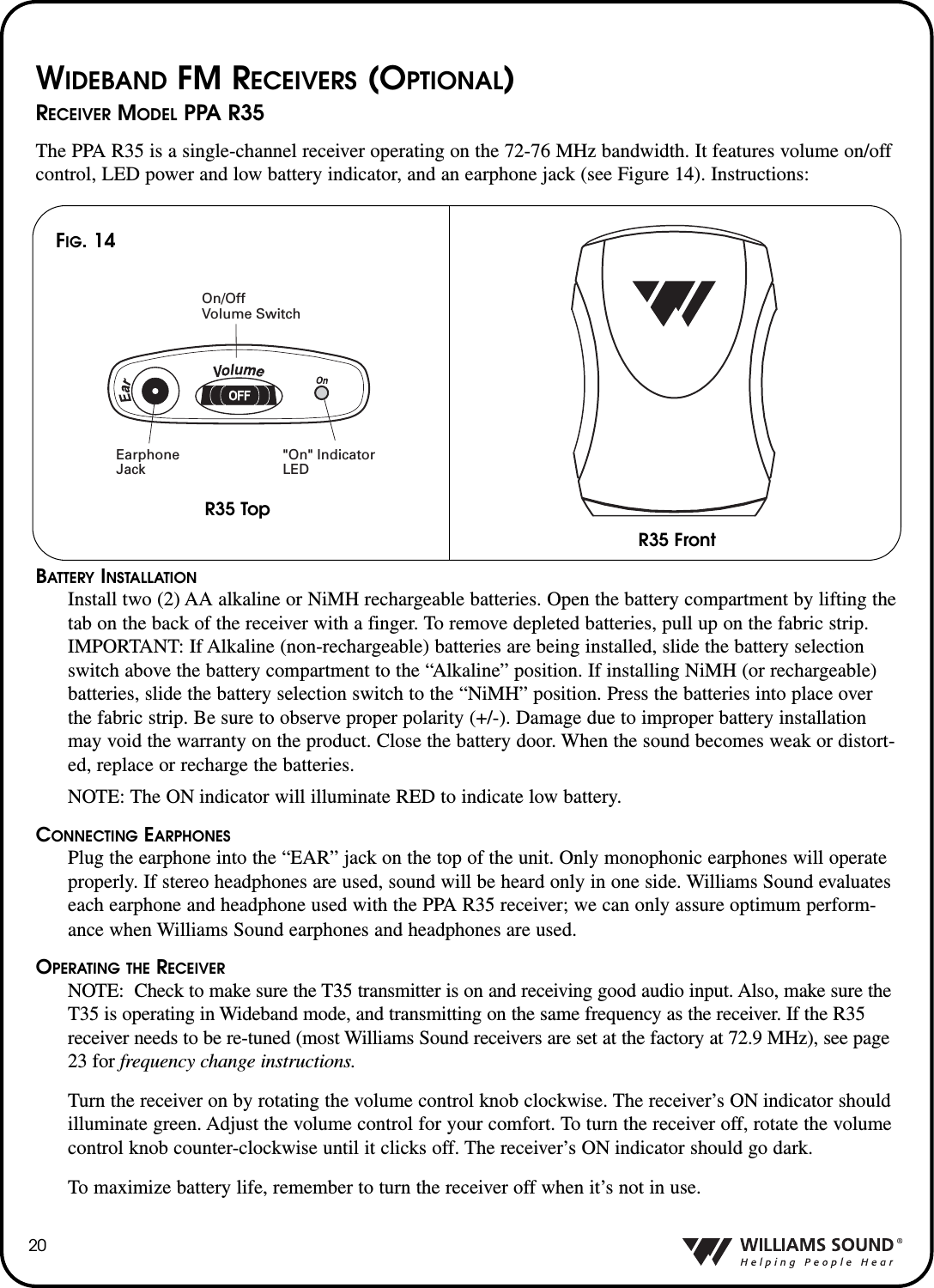
20WIDEBAND FM RECEIVERS (OPTIONAL)RECEIVER MODEL PPA R35The PPA R35 is a single-channel receiver operating on the 72-76 MHz bandwidth. It features volume on/offcontrol, LED power and low battery indicator, and an earphone jack (see Figure 14). Instructions:BATTERY INSTALLATIONInstall two (2) AA alkaline or NiMH rechargeable batteries. Open the battery compartment by lifting thetab on the back of the receiver with a finger. To remove depleted batteries, pull up on the fabric strip.IMPORTANT: If Alkaline (non-rechargeable) batteries are being installed, slide the battery selectionswitch above the battery compartment to the “Alkaline” position. If installing NiMH (or rechargeable)batteries, slide the battery selection switch to the “NiMH” position. Press the batteries into place overthe fabric strip. Be sure to observe proper polarity (+/-). Damage due to improper battery installationmay void the warranty on the product. Close the battery door. When the sound becomes weak or distort-ed, replace or recharge the batteries.NOTE: The ON indicator will illuminate RED to indicate low battery.CONNECTING EARPHONESPlug the earphone into the “EAR” jack on the top of the unit. Only monophonic earphones will operateproperly. If stereo headphones are used, sound will be heard only in one side. Williams Sound evaluateseach earphone and headphone used with the PPA R35 receiver; we can only assure optimum perform-ance when Williams Sound earphones and headphones are used.OPERATING THE RECEIVERNOTE: Check to make sure the T35 transmitter is on and receiving good audio input. Also, make sure theT35 is operating in Wideband mode, and transmitting on the same frequency as the receiver. If the R35receiver needs to be re-tuned (most Williams Sound receivers are set at the factory at 72.9 MHz), see page23 for frequency change instructions.Turn the receiver on by rotating the volume control knob clockwise. The receiver’s ON indicator shouldilluminate green. Adjust the volume control for your comfort. To turn the receiver off, rotate the volumecontrol knob counter-clockwise until it clicks off. The receiver’s ON indicator should go dark. To maximize battery life, remember to turn the receiver off when it’s not in use.On/Off Volume SwitchEarphoneJack"On" IndicatorLEDFIG. 14R35 TopR35 Front
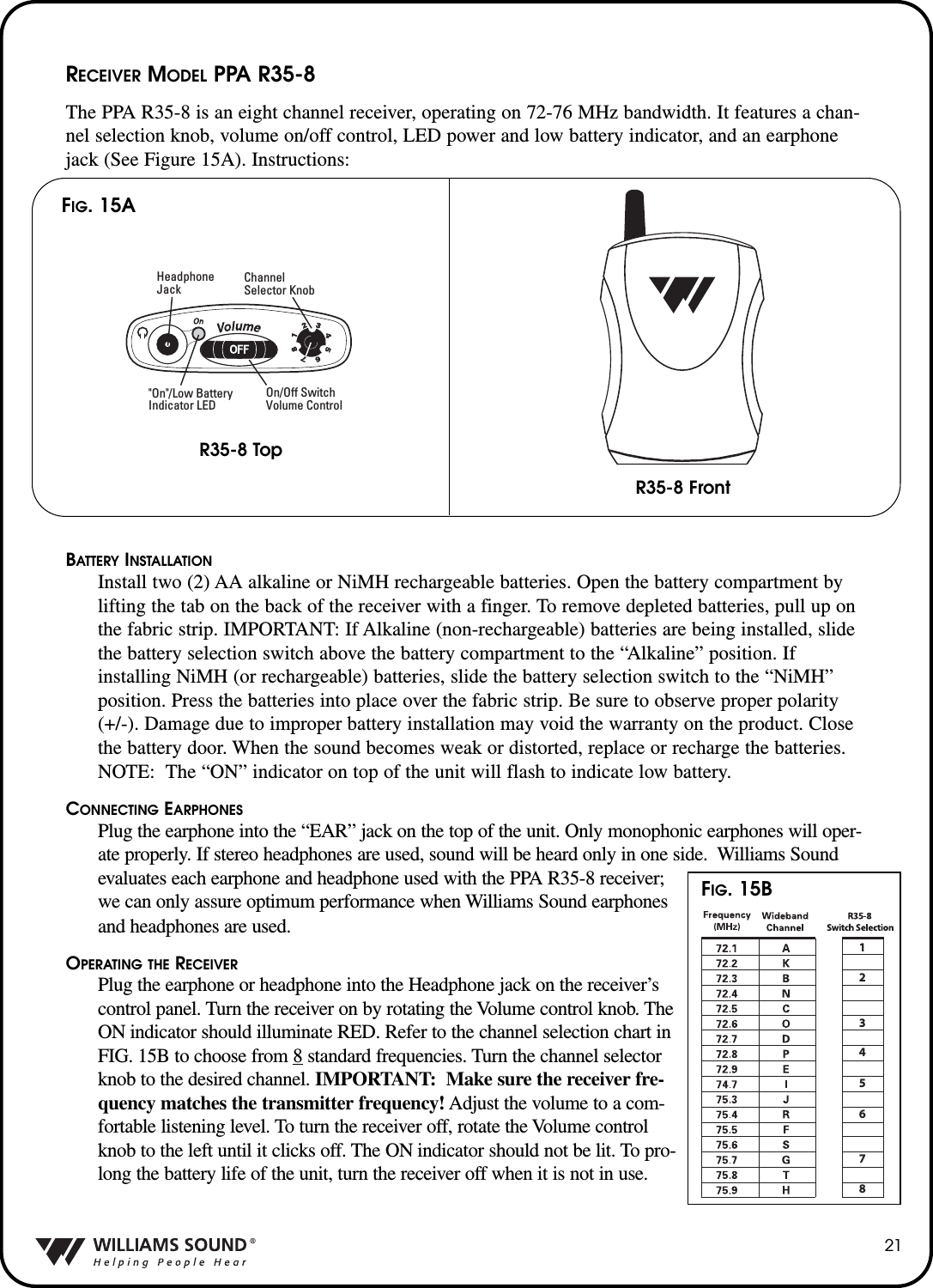
21RECEIVER MODEL PPA R35-8The PPA R35-8 is an eight channel receiver, operating on 72-76 MHz bandwidth. It features a chan-nel selection knob, volume on/off control, LED power and low battery indicator, and an earphonejack (See Figure 15A). Instructions:BATTERY INSTALLATIONInstall two (2) AA alkaline or NiMH rechargeable batteries. Open the battery compartment bylifting the tab on the back of the receiver with a finger. To remove depleted batteries, pull up onthe fabric strip. IMPORTANT: If Alkaline (non-rechargeable) batteries are being installed, slidethe battery selection switch above the battery compartment to the “Alkaline” position. Ifinstalling NiMH (or rechargeable) batteries, slide the battery selection switch to the “NiMH”position. Press the batteries into place over the fabric strip. Be sure to observe proper polarity(+/-). Damage due to improper battery installation may void the warranty on the product. Closethe battery door. When the sound becomes weak or distorted, replace or recharge the batteries.NOTE: The “ON” indicator on top of the unit will flash to indicate low battery.CONNECTING EARPHONESPlug the earphone into the “EAR” jack on the top of the unit. Only monophonic earphones will oper-ate properly. If stereo headphones are used, sound will be heard only in one side.  Williams Soundevaluates each earphone and headphone used with the PPA R35-8 receiver;we can only assure optimum performance when Williams Sound earphonesand headphones are used.OPERATING THE RECEIVERPlug the earphone or headphone into the Headphone jack on the receiver’scontrol panel. Turn the receiver on by rotating the Volume control knob. TheON indicator should illuminate RED. Refer to the channel selection chart inFIG. 15B to choose from 8 standard frequencies. Turn the channel selectorknob to the desired channel. IMPORTANT: Make sure the receiver fre-quency matches the transmitter frequency! Adjust the volume to a com-fortable listening level. To turn the receiver off, rotate the Volume controlknob to the left until it clicks off. The ON indicator should not be lit. To pro-long the battery life of the unit, turn the receiver off when it is not in use.On/Off Switch Volume ControlHeadphoneJack"On"/Low BatteryIndicator LEDChannelSelector KnobFIG. 15AR35-8 TopR35-8 Front12345678FIG. 15B
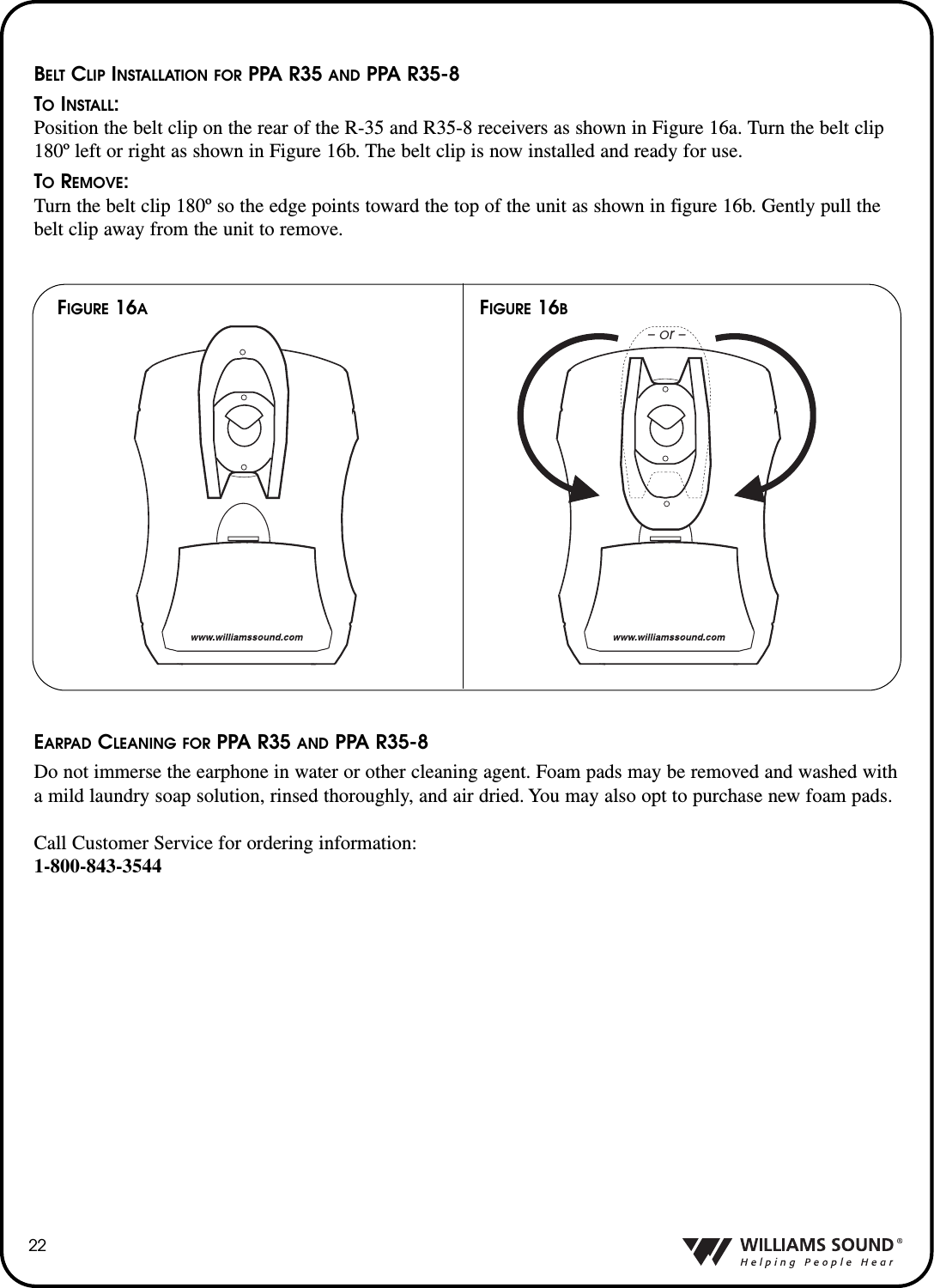
22BELT CLIP INSTALLATION FOR PPA R35 AND PPA R35-8TOINSTALL:Position the belt clip on the rear of the R-35 and R35-8 receivers as shown in Figure 16a. Turn the belt clip180º left or right as shown in Figure 16b. The belt clip is now installed and ready for use.TOREMOVE:Turn the belt clip 180º so the edge points toward the top of the unit as shown in figure 16b. Gently pull thebelt clip away from the unit to remove.FIGURE 16BFIGURE 16A– or –EARPAD CLEANING FOR PPA R35 AND PPA R35-8Do not immerse the earphone in water or other cleaning agent. Foam pads may be removed and washed witha mild laundry soap solution, rinsed thoroughly, and air dried. You may also opt to purchase new foam pads.Call Customer Service for ordering information:1-800-843-3544
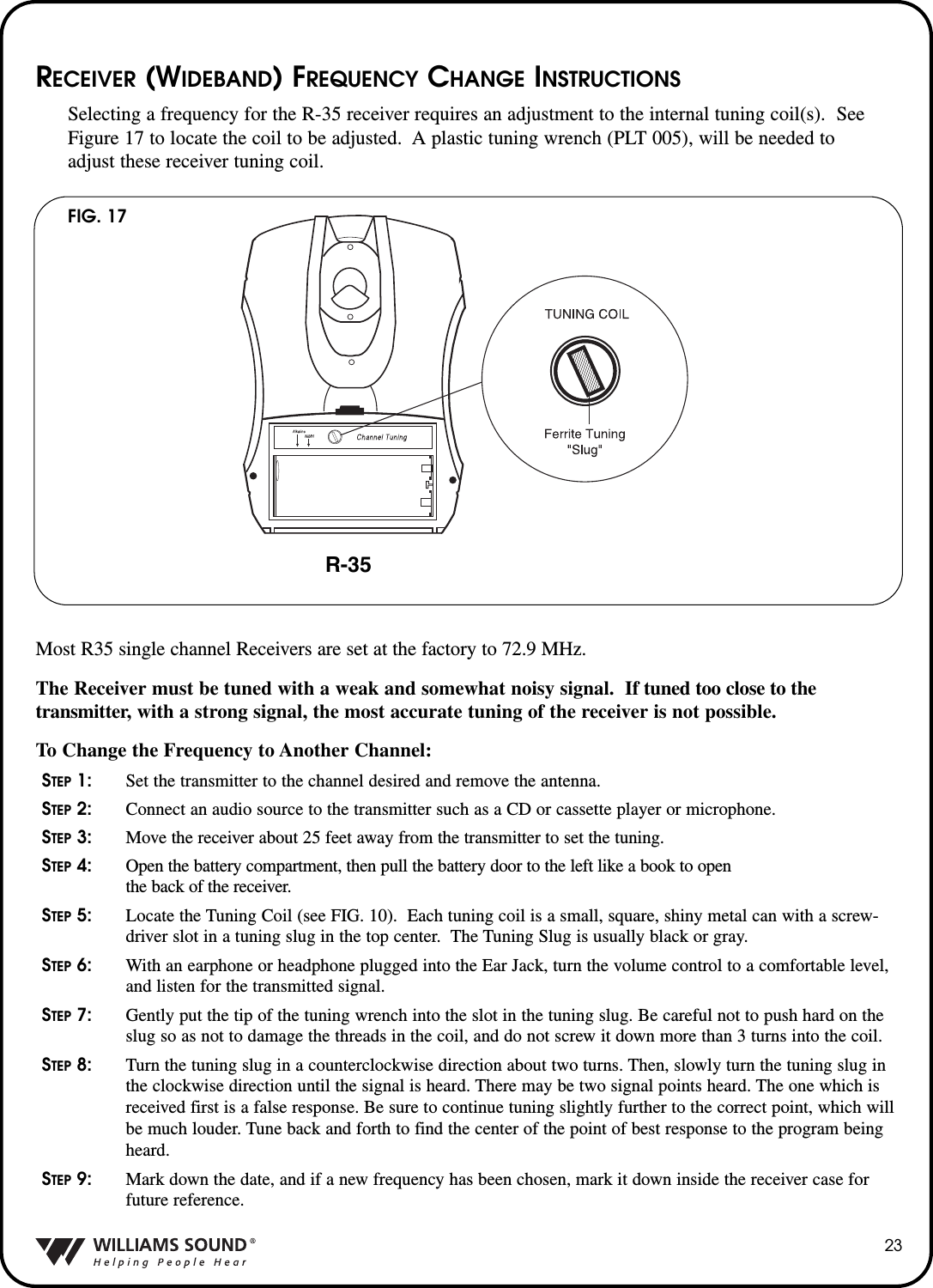
23RECEIVER (WIDEBAND) FREQUENCY CHANGE INSTRUCTIONSSelecting a frequency for the R-35 receiver requires an adjustment to the internal tuning coil(s).  SeeFigure 17 to locate the coil to be adjusted.  A plastic tuning wrench (PLT 005), will be needed toadjust these receiver tuning coil.Most R35 single channel Receivers are set at the factory to 72.9 MHz.    The Receiver must be tuned with a weak and somewhat noisy signal.  If tuned too close to thetransmitter, with a strong signal, the most accurate tuning of the receiver is not possible.To Change the Frequency to Another Channel:STEP 1: Set the transmitter to the channel desired and remove the antenna.STEP 2: Connect an audio source to the transmitter such as a CD or cassette player or microphone.STEP 3: Move the receiver about 25 feet away from the transmitter to set the tuning.STEP 4: Open the battery compartment, then pull the battery door to the left like a book to open the back of the receiver.STEP 5: Locate the Tuning Coil (see FIG. 10).  Each tuning coil is a small, square, shiny metal can with a screw-driver slot in a tuning slug in the top center.  The Tuning Slug is usually black or gray.STEP 6: With an earphone or headphone plugged into the Ear Jack, turn the volume control to a comfortable level,and listen for the transmitted signal.STEP 7: Gently put the tip of the tuning wrench into the slot in the tuning slug. Be careful not to push hard on theslug so as not to damage the threads in the coil, and do not screw it down more than 3 turns into the coil.STEP 8: Turn the tuning slug in a counterclockwise direction about two turns. Then, slowly turn the tuning slug inthe clockwise direction until the signal is heard. There may be two signal points heard. The one which isreceived first is a false response. Be sure to continue tuning slightly further to the correct point, which willbe much louder. Tune back and forth to find the center of the point of best response to the program beingheard.STEP 9: Mark down the date, and if a new frequency has been chosen, mark it down inside the receiver case forfuture reference.FIG. 17R-35
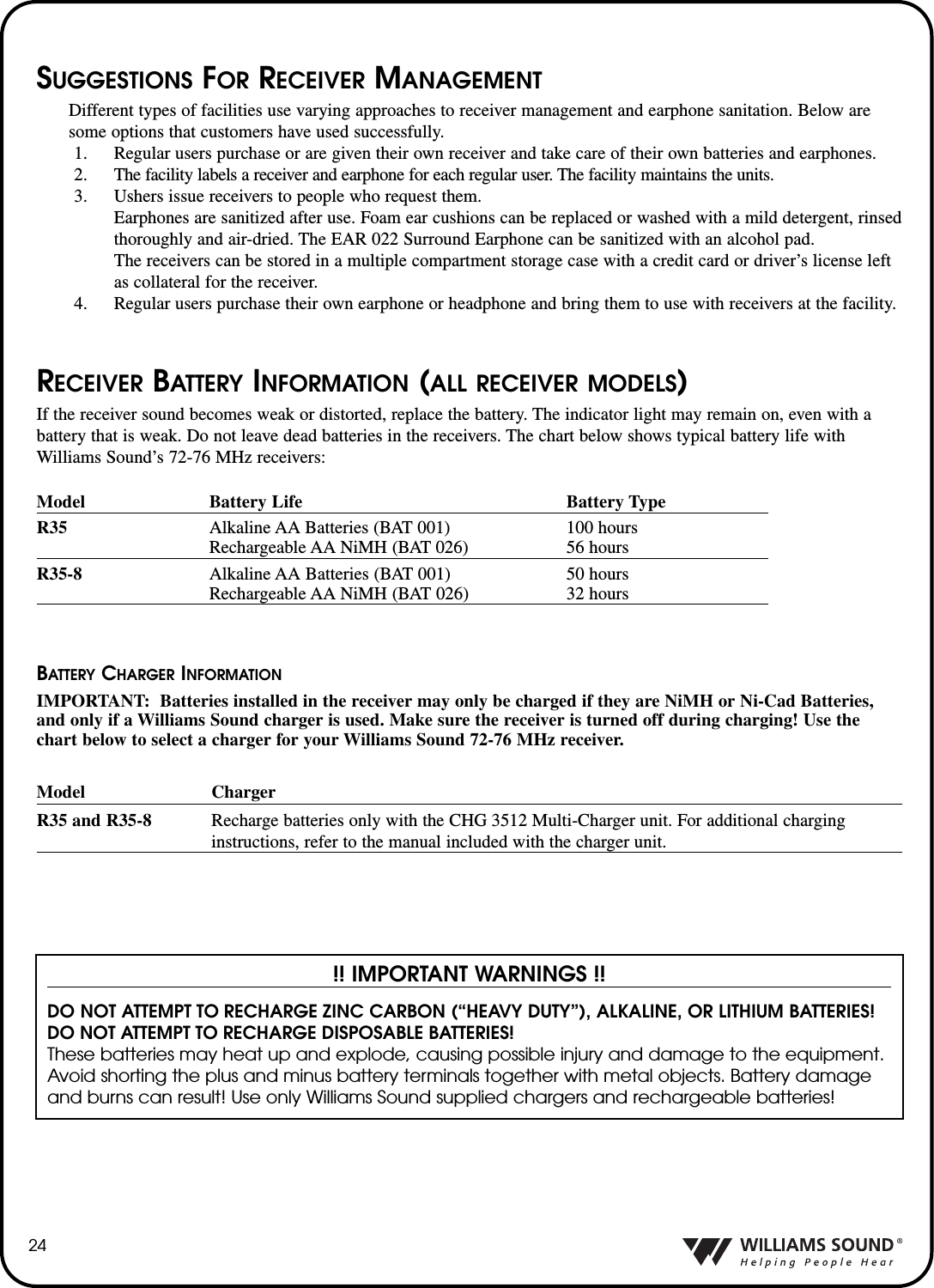
24SUGGESTIONS FOR RECEIVER MANAGEMENTDifferent types of facilities use varying approaches to receiver management and earphone sanitation. Below aresome options that customers have used successfully.1. Regular users purchase or are given their own receiver and take care of their own batteries and earphones.2.  The facility labels a receiver and earphone for each regular user. The facility maintains the units.3. Ushers issue receivers to people who request them. Earphones are sanitized after use. Foam ear cushions can be replaced or washed with a mild detergent, rinsedthoroughly and air-dried. The EAR 022 Surround Earphone can be sanitized with an alcohol pad.The receivers can be stored in a multiple compartment storage case with a credit card or driver’s license leftas collateral for the receiver.4. Regular users purchase their own earphone or headphone and bring them to use with receivers at the facility.RECEIVER BATTERY INFORMATION (ALL RECEIVER MODELS)If the receiver sound becomes weak or distorted, replace the battery. The indicator light may remain on, even with abattery that is weak. Do not leave dead batteries in the receivers. The chart below shows typical battery life withWilliams Sound’s 72-76 MHz receivers:!! IMPORTANT WARNINGS !!DO NOT ATTEMPT TO RECHARGE ZINC CARBON (“HEAVY DUTY”), ALKALINE, OR LITHIUM BATTERIES! DO NOT ATTEMPT TO RECHARGE DISPOSABLE BATTERIES! These batteries may heat up and explode, causing possible injury and damage to the equipment.Avoid shorting the plus and minus battery terminals together with metal objects. Battery damageand burns can result! Use only Williams Sound supplied chargers and rechargeable batteries!Model Battery Life Battery TypeR35 Alkaline AA Batteries (BAT 001) 100 hoursRechargeable AA NiMH (BAT 026) 56 hoursR35-8 Alkaline AA Batteries (BAT 001) 50 hoursRechargeable AA NiMH (BAT 026) 32 hoursBATTERY CHARGER INFORMATIONIMPORTANT: Batteries installed in the receiver may only be charged if they are NiMH or Ni-Cad Batteries,and only if a Williams Sound charger is used. Make sure the receiver is turned off during charging! Use thechart below to select a charger for your Williams Sound 72-76 MHz receiver.Model ChargerR35 and R35-8 Recharge batteries only with the CHG 3512 Multi-Charger unit. For additional charging instructions, refer to the manual included with the charger unit.
25TROUBLE SHOOTINGTHE T35 “ONAIR” INDICATOR IS NOT ONMake sure the transformer (TFP 016) is plugged into the transmitter and any remote power switch is on.Make sure the electrical outlet is on.Make sure the power button on the front of the T35 is pressed to the “on” position.Make sure the 24 VAC power supply is working.Make sure the RF output is not set to “OFF AIR.”NOAUDIO HEARD IN PHONES JACKCheck to see if there is a signal coming from your audio source. Check and correct your  audio source if necessary.Check to see if the Headphone Volume Level has been turned all the way down. If so, increase it.Check to see if there is an incorrect or defective connection from your audio source. See page 7 for detailed connection instructions.NOISE OR DISTORTION IN THE AUDIOCheck to see if there is noise in the audio source. To find out, disconnect the audio cable. If the noise disappears your noise problem is in the source. Correct or repair your audio source.Perhaps the Audio Source control is not set to match your audio source input device. See page 15 to properly configure the Audio Source control menu.Check to see if the Audio Input level is set too high. If the “input overload” is illuminated, then the audio level needs to be adjusted.  See page 10.Check for ground loops or noise on the input signal.  See page 9 for more information. Call your Authorized Williams Sound dealer or representative.NOISE IN AUDIO “GROWS” WHEN PROGRAM IS SILENTThe Audio Level Control may be set too high. You’re probably also seeing the +6 level indicator lighting all the time. To correct, adjust the Audio Level control on the front of the T35. See page 10.It could be that the T35 Audio Processor is set for Normal Compression, which may be inappropriatefor the type of program being transmitted. Reset the Compressor Gain control to Reduced. See page 17.It could be that the T35 Compressor Slope ratio is set too high, which may be inappropriate for the type of program being transmitted.  Reset the Compression Slope control to 1.0:1. See page 16.RECEPTION (AT RECEIVER) DIFFICULTIESNOTE: Be sure to listen to the audio transmission on the T35 phone jack prior to checking the receiver reception.NORECEPTIONCheck to see if the antenna on the T35 has been disconnected. If so, attach the antenna correctly.Check to see if the RF output power on the T35 is set to “OFF.” If so, reset the RF Output control to FULL, MEDIUM or LOW power.  See page 18.
26Make sure the FM receiver is ON.  Make sure the batteries are properly installed (observing proper polarity).  If the batteries are rechargeable, it may be necessary to charge the batteries overnight.Make sure the FM receiver is operating on the same frequency as the T35.  Make sure the receiver is operating on the same bandwidth as the T35: Wideband or Narrowband.  Follow tuning instruction for the receiver and adjust accordingly.INSUFFICIENT RANGE, GOOD RECEPTION NEAR TRANSMITTER, POOR AT A DISTANCECheck to see if the transmitting antenna was installed incorrectly. If so, correct or replace the antenna. The signal should be clearly audible at a 300 foot distance with the ANT 025 and a 500 foot distance with the ANT 005.Make sure the transmitting antenna is not in an unsuitable location. Perhaps the transmitting antenna wasinstalled inside a metal enclosure or is separated from the reception area by electrically conducting objects. (i.e., steel stud walls, heating ducts, substantial structural steel, or 2x2 or 2x4 ceiling grid.) In either case, reinstall the antenna according to installation instructions, locating it outside metal enclosures and away from electrically conducting objects.Perhaps there is a strong interfering signal. If so, make sure the transmitter and antenna are correctly installed. Set the transmitter to FULL power output. If this does not solve the problem, try operating the transmitter on a different frequency.  If operating the T35 in wideband mode, try switching to narrow band operation (see page 14).  Narrowband operation is more resistant to outside interference. USERS MUST TURN RECEIVER VOLUME CONTROLS WAY UP (TO 4 OR 5) TO GET ENOUGH VOLUMEPerhaps there is insufficient audio level. If so, the audio level indicator will read too low because the audio level control is set incorrectly on the transmitter. Correct the Audio Level control setting.  See page 10.It could be that the audio input is not configured for the audio source being used. If not, correct the settingof the Audio Source control menu.  See page 15.Some users may not be helped by this system. Severe hearing loss may require using the system with a telecoil coupler (i.e., Neckloop) and personal hearing aid.Check your batteries.  For non-rechargeable (alkaline) batteries, they may need replaced.  If you are using rechargeable batteries, make sure the batteries are fully charged prior to use.  USERS COMPLAIN OF TOO MUCH NOISE DURING SOFT AUDIO. DYNAMIC RANGE OF MUSIC REDUCED TOO GREATLY.Check to see if the Audio Level control is set too high. This problem is more likely to occur in Normal Compression mode, but can also occur in Reduced Compression mode. To reduce this noise, adjust the Audio Level, carefully noting the Level Indicator. The +6 LED should light occasionally.Perhaps the transmitter is set for Normal Compression when Reduced Compression would be more suitable,given the program material. If so, set the Compressor Gain control to Reduced Compression.  See page 17.
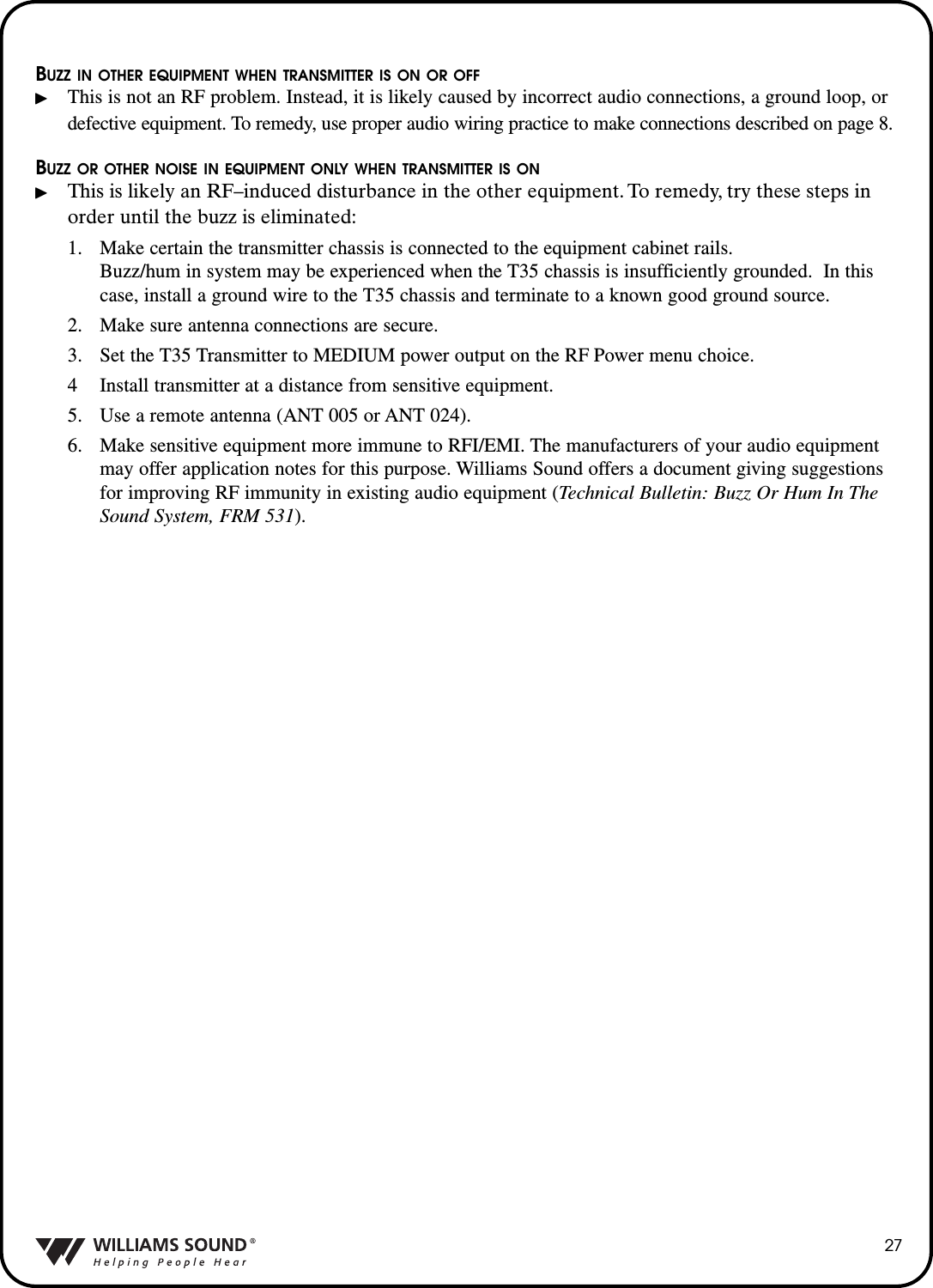
27BUZZ IN OTHER EQUIPMENT WHEN TRANSMITTER IS ON OR OFFThis is not an RF problem. Instead, it is likely caused by incorrect audio connections, a ground loop, or defective equipment. To remedy, use proper audio wiring practice to make connections described on page 8.BUZZ OR OTHER NOISE IN EQUIPMENT ONLY WHEN TRANSMITTER IS ONThis is likely an RF–induced disturbance in the other equipment. To remedy, try these steps inorder until the buzz is eliminated:1. Make certain the transmitter chassis is connected to the equipment cabinet rails.  Buzz/hum in system may be experienced when the T35 chassis is insufficiently grounded.  In this case, install a ground wire to the T35 chassis and terminate to a known good ground source.2. Make sure antenna connections are secure.  3. Set the T35 Transmitter to MEDIUM power output on the RF Power menu choice.4 Install transmitter at a distance from sensitive equipment.5. Use a remote antenna (ANT 005 or ANT 024).6. Make sensitive equipment more immune to RFI/EMI. The manufacturers of your audio equipment may offer application notes for this purpose. Williams Sound offers a document giving suggestions for improving RF immunity in existing audio equipment (Technical Bulletin: Buzz Or Hum In The Sound System, FRM 531).
28LIMITED WARRANTYWilliams Sound products are engineered, designed, and manufactured under carefully controlled conditionsto provide you with many years of reliable service.  Williams Sound warrants the Personal PA™Transmitteragainst defects in materials and workmanship for FIVE (5) years. During the first five years from the pur-chase date, we will promptly repair or replace the Personal PA™Transmitter.Microphones, earphones, headphones, batteries, cables, carry cases, and all other accessory products carry a 90-day warranty. Chargerscarry a one year warranty.WILLIAMS SOUND HAS NO CONTROL OVER THE CONDITIONS UNDER WHICH THIS PRODUCTIS USED. WILLIAMS SOUND, THEREFORE, DISCLAIMS ALL WARRANTIES NOT SET FORTHABOVE, BOTH EXPRESS AND IMPLIED, WITH RESPECT TO THE PERSONAL PA™TRANSMITTER, INCLUDING BUT NOT LIMITED TO, ANY IMPLIED WARRANTY OF MER-CHANTABILITY OR FITNESS FOR A PARTICULAR PURPOSE. WILLIAMS SOUND SHALL NOTBE LIABLE TO ANY PERSON OR ENTITY FOR ANY MEDICAL EXPENSES OR ANY DIRECT,INCIDENTAL OR CONSEQUENTIAL DAMAGES CAUSED BY ANY USE, DEFECT, FAILURE ORMALFUNCTIONING OF THE PRODUCT, WHETHER A CLAIM FOR SUCH DAMAGES IS BASEDUPON WARRANTY, CONTRACT, TORT OR OTHERWISE. THE SOLE REMEDY FOR ANY DEFECT,FAILURE OR MALFUNCTION OF THE PRODUCT IS REPLACEMENT OF THE PRODUCT. NO PER-SON HAS ANY AUTHORITY TO BIND WILLIAMS SOUND TO ANY REPRESENTATION OR WAR-RANTY WITH RESPECT TO THE PERSONAL PA™TRANSMITTER. UNAUTHORIZED REPAIRS ORMODIFICATIONS WILL VOID THE WARRANTY.The exclusions and limitations set out above are not intended to, and should not be construed so as to contra-vene mandatory provisions of applicable law. If any part or term of this Disclaimer of Warranty is held to beillegal, unenforceable, or in conflict with applicable law by a court of competent jurisdiction, the validity ofthe remaining portions of this Disclaimer of Warranty shall not be affected, and all rights and obligationsshall be construed and enforced as if this Limited Warranty did not contain the particular part or term held tobe invalid.If you experience difficulty with your system, call Toll-Free for customer Assistance:1-800-843-3544 (U.S.A.) or +1 952 943 2252 (World)If it is necessary to return the system for service, your Customer Service Representative will give you aReturn Authorization Number (RA) and shipping instruction.Pack the system carefully and send it to:Williams Sound Corp.Attn: Repair Dept.10321 West 70th StreetEden Prairie, MN 55344 USAYour warranty becomes effective the date you purchase your system. Your returned warranty card is our wayof knowing when your warranty begins. It also gives us important information about your system includingthe serial number. This information will help us serve you better in the future. Please take a moment to com-plete and mail the attached card. Thank you.
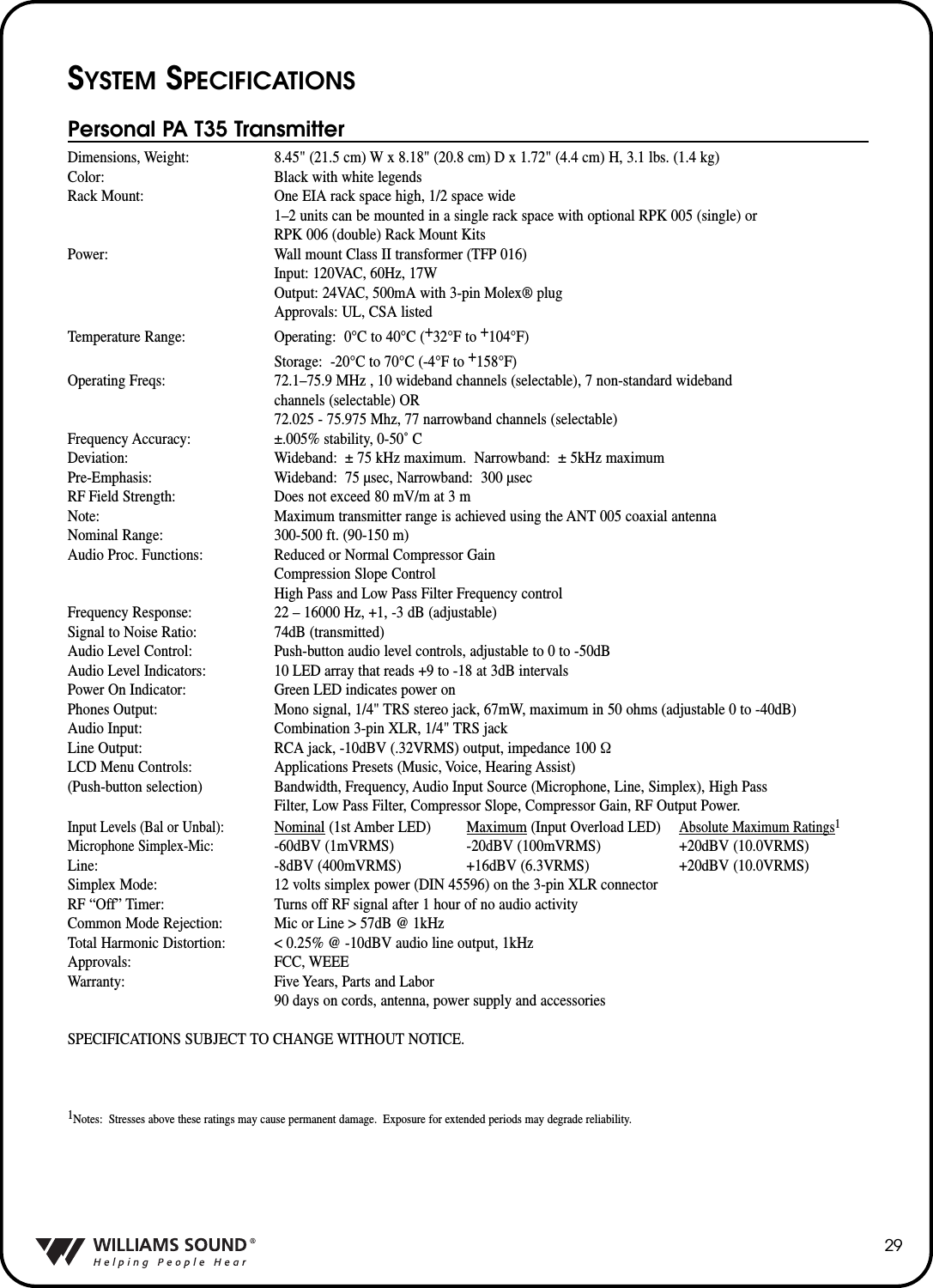
29SYSTEM SPECIFICATIONSPersonal PA T35 TransmitterDimensions, Weight: 8.45" (21.5 cm) W x 8.18" (20.8 cm) D x 1.72" (4.4 cm) H, 3.1 lbs. (1.4 kg)Color: Black with white legendsRack Mount: One EIA rack space high, 1/2 space wide1–2 units can be mounted in a single rack space with optional RPK 005 (single) or RPK 006 (double) Rack Mount KitsPower: Wall mount Class II transformer (TFP 016)Input: 120VAC, 60Hz, 17WOutput: 24VAC, 500mA with 3-pin Molex® plugApprovals: UL, CSA listedTemperature Range: Operating: 0°C to 40°C (+32°F to +104°F)Storage: -20°C to 70°C (-4°F to +158°F)Operating Freqs: 72.1–75.9 MHz , 10 wideband channels (selectable), 7 non-standard wideband channels (selectable) OR 72.025 - 75.975 Mhz, 77 narrowband channels (selectable)Frequency Accuracy: ±.005% stability, 0-50˚ CDeviation: Wideband: ± 75 kHz maximum.  Narrowband: ± 5kHz maximumPre-Emphasis: Wideband: 75 µsec, Narrowband: 300 µsecRF Field Strength: Does not exceed 80 mV/m at 3 m Note: Maximum transmitter range is achieved using the ANT 005 coaxial antennaNominal Range: 300-500 ft. (90-150 m)Audio Proc. Functions: Reduced or Normal Compressor GainCompression Slope ControlHigh Pass and Low Pass Filter Frequency controlFrequency Response: 22 – 16000 Hz, +1, -3 dB (adjustable)Signal to Noise Ratio: 74dB (transmitted)Audio Level Control: Push-button audio level controls, adjustable to 0 to -50dBAudio Level Indicators: 10 LED array that reads +9 to -18 at 3dB intervalsPower On Indicator: Green LED indicates power onPhones Output: Mono signal, 1/4" TRS stereo jack, 67mW, maximum in 50 ohms (adjustable 0 to -40dB)Audio Input: Combination 3-pin XLR, 1/4" TRS jackLine Output: RCA jack, -10dBV (.32VRMS) output, impedance 100 ΩLCD Menu Controls: Applications Presets (Music, Voice, Hearing Assist) (Push-button selection) Bandwidth, Frequency, Audio Input Source (Microphone, Line, Simplex), High Pass Filter, Low Pass Filter, Compressor Slope, Compressor Gain, RF Output Power.Input Levels (Bal or Unbal):Nominal (1st Amber LED) Maximum (Input Overload LED)Absolute Maximum Ratings1Microphone Simplex-Mic:-60dBV (1mVRMS) -20dBV (100mVRMS) +20dBV (10.0VRMS) Line: -8dBV (400mVRMS) +16dBV (6.3VRMS) +20dBV (10.0VRMS)Simplex Mode: 12 volts simplex power (DIN 45596) on the 3-pin XLR connectorRF “Off” Timer: Turns off RF signal after 1 hour of no audio activityCommon Mode Rejection: Mic or Line > 57dB @ 1kHzTotal Harmonic Distortion: < 0.25% @ -10dBV audio line output, 1kHzApprovals: FCC, WEEEWarranty: Five Years, Parts and Labor90 days on cords, antenna, power supply and accessoriesSPECIFICATIONS SUBJECT TO CHANGE WITHOUT NOTICE.1Notes: Stresses above these ratings may cause permanent damage.  Exposure for extended periods may degrade reliability.
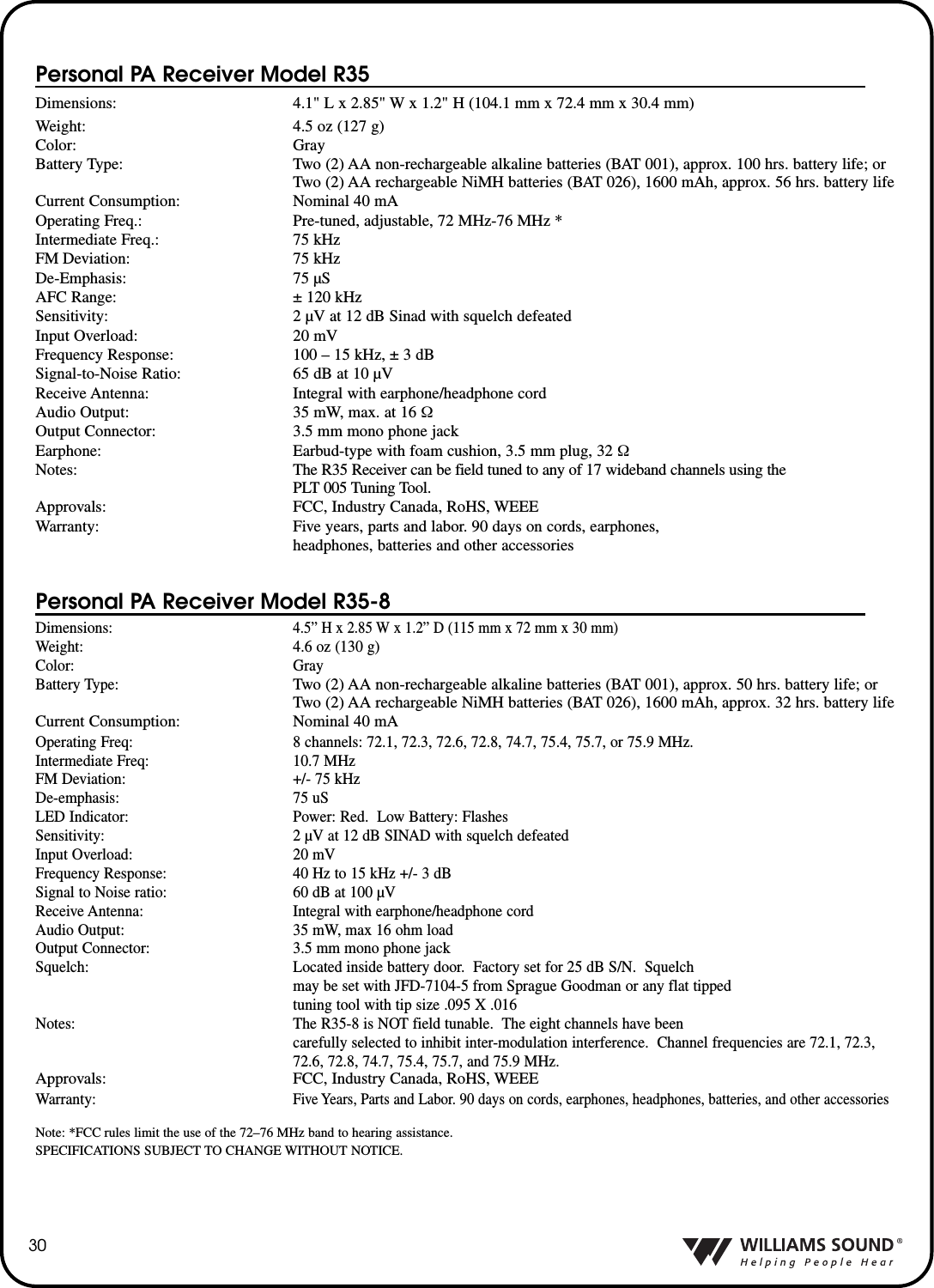
Personal PA Receiver Model R35Dimensions: 4.1" L x 2.85" W x 1.2" H (104.1 mm x 72.4 mm x 30.4 mm)Weight: 4.5 oz (127 g)Color: GrayBattery Type: Two (2) AA non-rechargeable alkaline batteries (BAT 001), approx. 100 hrs. battery life; orTwo (2) AA rechargeable NiMH batteries (BAT 026), 1600 mAh, approx. 56 hrs. battery lifeCurrent Consumption: Nominal 40 mAOperating Freq.: Pre-tuned, adjustable, 72 MHz-76 MHz *Intermediate Freq.: 75 kHzFM Deviation: 75 kHzDe-Emphasis: 75 µSAFC Range: ± 120 kHzSensitivity: 2 µV at 12 dB Sinad with squelch defeatedInput Overload: 20 mVFrequency Response: 100 – 15 kHz, ± 3 dBSignal-to-Noise Ratio: 65 dB at 10 µVReceive Antenna: Integral with earphone/headphone cordAudio Output: 35 mW, max. at 16 ΩOutput Connector: 3.5 mm mono phone jackEarphone: Earbud-type with foam cushion, 3.5 mm plug, 32 ΩNotes: The R35 Receiver can be field tuned to any of 17 wideband channels using the PLT 005 Tuning Tool.Approvals: FCC, Industry Canada, RoHS, WEEEWarranty: Five years, parts and labor. 90 days on cords, earphones,headphones, batteries and other accessoriesPersonal PA Receiver Model R35-8Dimensions:4.5” H x 2.85 W x 1.2” D (115 mm x 72 mm x 30 mm)Weight: 4.6 oz (130 g)Color: GrayBattery Type:Two (2) AA non-rechargeable alkaline batteries (BAT 001), approx. 50 hrs. battery life; orTwo (2) AA rechargeable NiMH batteries (BAT 026), 1600 mAh, approx. 32 hrs. battery lifeCurrent Consumption: Nominal 40 mAOperating Freq: 8 channels: 72.1, 72.3, 72.6, 72.8, 74.7, 75.4, 75.7, or 75.9 MHz.Intermediate Freq: 10.7 MHzFM Deviation: +/- 75 kHzDe-emphasis: 75 uSLED Indicator: Power: Red.  Low Battery: FlashesSensitivity: 2 µV at 12 dB SINAD with squelch defeatedInput Overload: 20 mVFrequency Response: 40 Hz to 15 kHz +/- 3 dBSignal to Noise ratio: 60 dB at 100 µV Receive Antenna: Integral with earphone/headphone cordAudio Output: 35 mW, max 16 ohm loadOutput Connector: 3.5 mm mono phone jackSquelch: Located inside battery door.  Factory set for 25 dB S/N.  Squelch may be set with JFD-7104-5 from Sprague Goodman or any flat tipped tuning tool with tip size .095 X .016Notes: The R35-8 is NOT field tunable.  The eight channels have been carefully selected to inhibit inter-modulation interference.  Channel frequencies are 72.1, 72.3,72.6, 72.8, 74.7, 75.4, 75.7, and 75.9 MHz.Approvals: FCC, Industry Canada, RoHS, WEEEWarranty:Five Years, Parts and Labor. 90 days on cords, earphones, headphones, batteries, and other accessoriesNote: *FCC rules limit the use of the 72–76 MHz band to hearing assistance.SPECIFICATIONS SUBJECT TO CHANGE WITHOUT NOTICE.30
MAN 110K        ©2007 Williams Sound Corp.®10321 West 70th St., Eden Prairie, MN 55344 U.S.A.  800.843.3544 | 952.943.2252 | FAX:  952.943.2174www.williamssound.com

Navigation menu