Win Accord 6222-104 Digital Photo Frame User Manual part 2

WIN ACCORD LTD., Digital Photo Frame part 2

Contents

user manual part 2

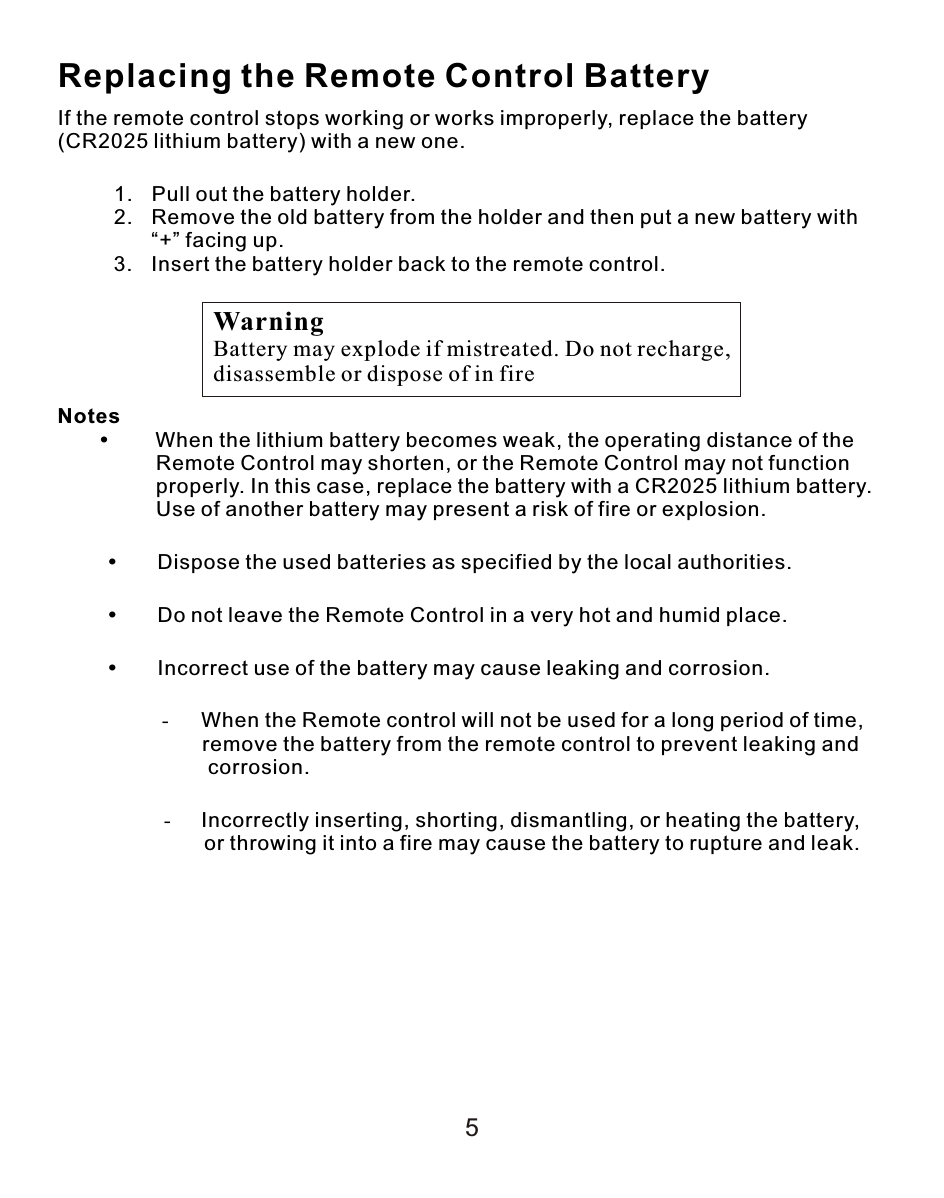
5Replacing the Remote Control BatteryIf the remote control stops working or works improperly, replace the battery (CR2025 lithium battery) with a new one.               1. Pull out the battery holder.2. Remove the old battery from the holder and then put a new battery with “+” facing up.3. Insert the battery holder back to the remote control.Notes     When the lithium battery becomes weak, the operating distance of the                 Remote Control may shorten, or the Remote Control may not function                  properly. In this case, replace the battery with a CR2025 lithium battery.                  Use of another battery may present a risk of fire or explosion.Dispose the used batteries as specified by the local authorities.Do not leave the Remote Control in a very hot and humid place.Incorrect use of the battery may cause leaking and corrosion.                    - When the Remote control will not be used for a long period of time,                           remove the battery from the remote control to prevent leaking and                          corrosion.-Incorrectly inserting, shorting, dismantling, or heating the battery,         or throwing it into a fire may cause the battery to rupture and leak.WarningBattery may explode if mistreated. Do not recharge, disassemble or dispose of in fire
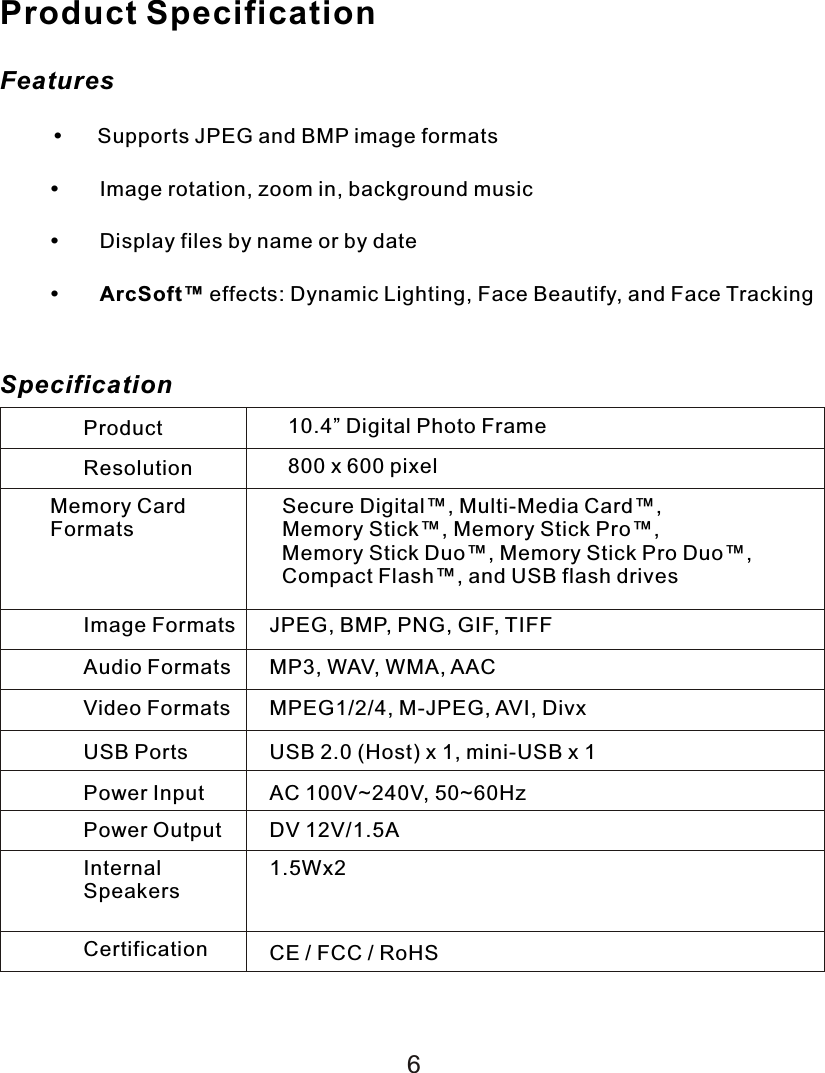
Product SpecificationFeatures     Supports JPEG and BMP image formatsImage rotation, zoom in, background musicDisplay files by name or by dateArcSoft™ effects: Dynamic Lighting, Face Beautify, and Face TrackingSpecificationProduct 10.4” Digital Photo FrameResolution 800 x 600 pixelMemory CardFormatsSecure Digital™, Multi-Media Card™, Memory Stick™, Memory Stick Pro™, Memory Stick Duo™, Memory Stick Pro Duo™, Compact Flash™, and USB flash drivesImage Formats JPEG, BMP, PNG, GIF, TIFFAudio Formats MP3, WAV, WMA, AACVideo Formats MPEG1/2/4, M-JPEG, AVI, DivxUSB Ports USB 2.0 (Host) x 1, mini-USB x 1Power Input AC 100V~240V, 50~60HzPower Output DV 12V/1.5AInternalSpeakers1.5Wx2Certification CE / FCC / RoHS6
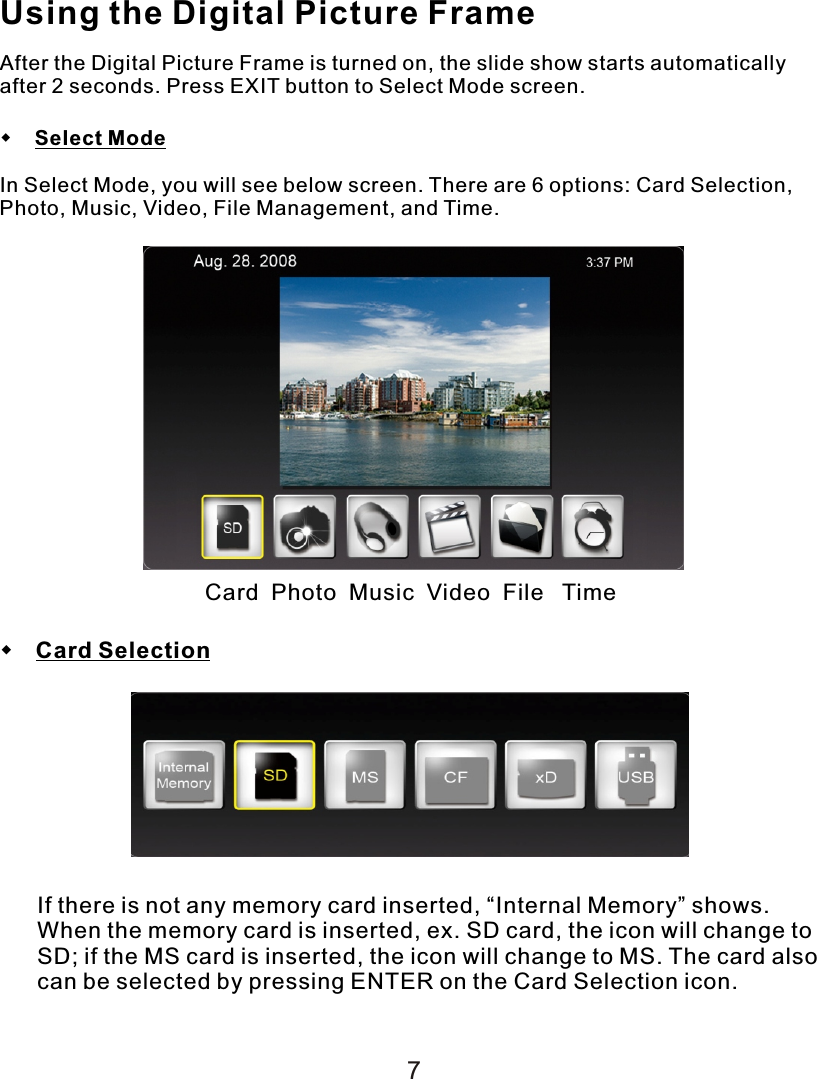
Using the Digital Picture FrameAfter the Digital Picture Frame is turned on, the slide show starts automatically after 2 seconds. Press EXIT button to Select Mode screen.    Select ModeIn Select Mode, you will see below screen. There are 6 options: Card Selection, Photo, Music, Video, File Management, and Time. Card  Photo  Music  Video  File   Time Card SelectionIf there is not any memory card inserted, “Internal Memory” shows. When the memory card is inserted, ex. SD card, the icon will change to SD; if the MS card is inserted, the icon will change to MS. The card also can be selected by pressing ENTER on the Card Selection icon.7
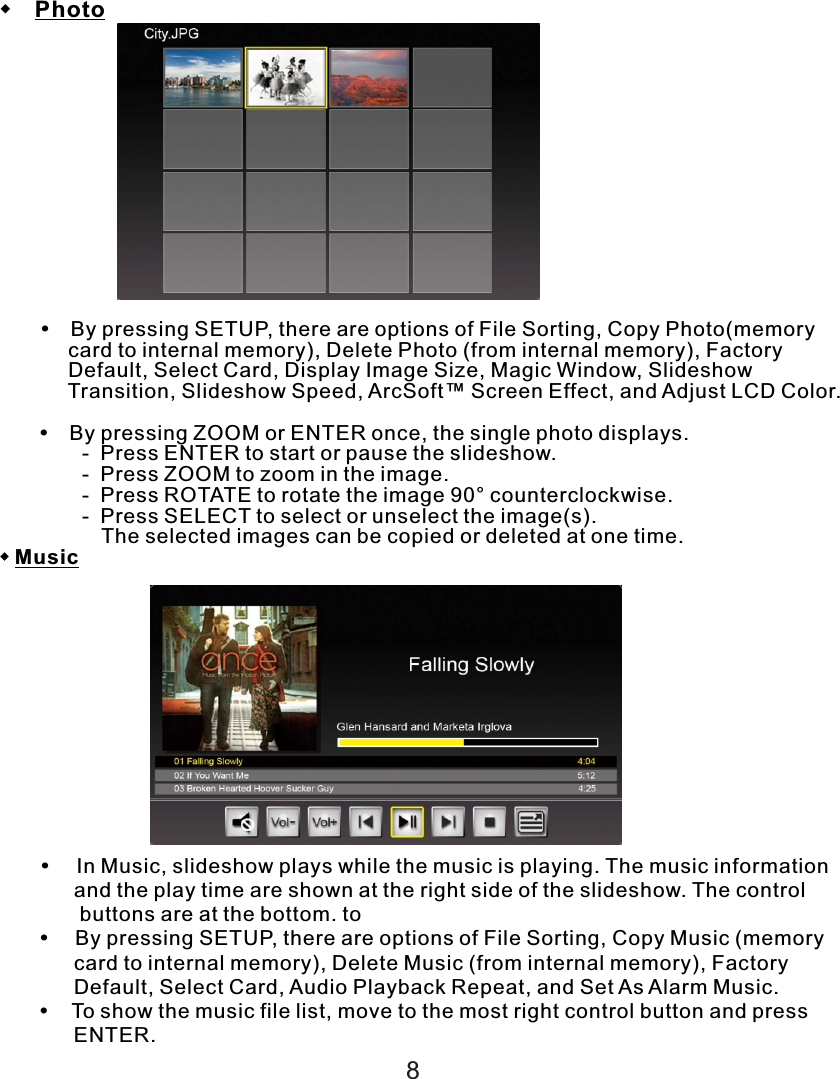
 Photo   By pressing SETUP, there are options of File Sorting, Copy Photo(memory             card to internal memory), Delete Photo (from internal memory), Factory             Default, Select Card, Display Image Size, Magic Window, Slideshow             Transition, Slideshow Speed, ArcSoft™ Screen Effect, and Adjust LCD Color.        By pressing ZOOM or ENTER once, the single photo displays.    -  Press ENTER to start or pause the slideshow.    -  Press ZOOM to zoom in the image.    -  Press ROTATE to rotate the image 90° counterclockwise.    -  Press SELECT to select or unselect the image(s).           The selected images can be copied or deleted at one time.Music    In Music, slideshow plays while the music is playing. The music information             and the play time are shown at the right side of the slideshow. The control               buttons are at the bottom. to         By pressing SETUP, there are options of File Sorting, Copy Music (memory             card to internal memory), Delete Music (from internal memory), Factory              Default, Select Card, Audio Playback Repeat, and Set As Alarm Music.           To show the music file list, move to the most right control button and press              ENTER.8
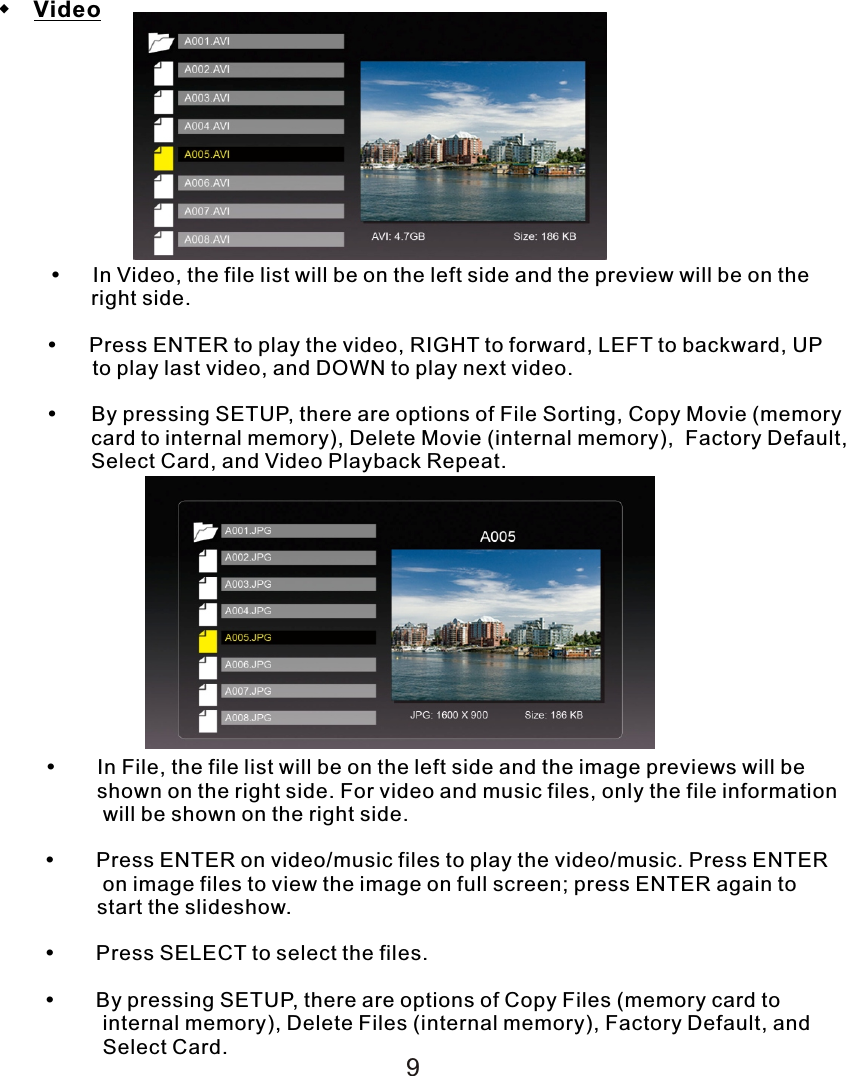
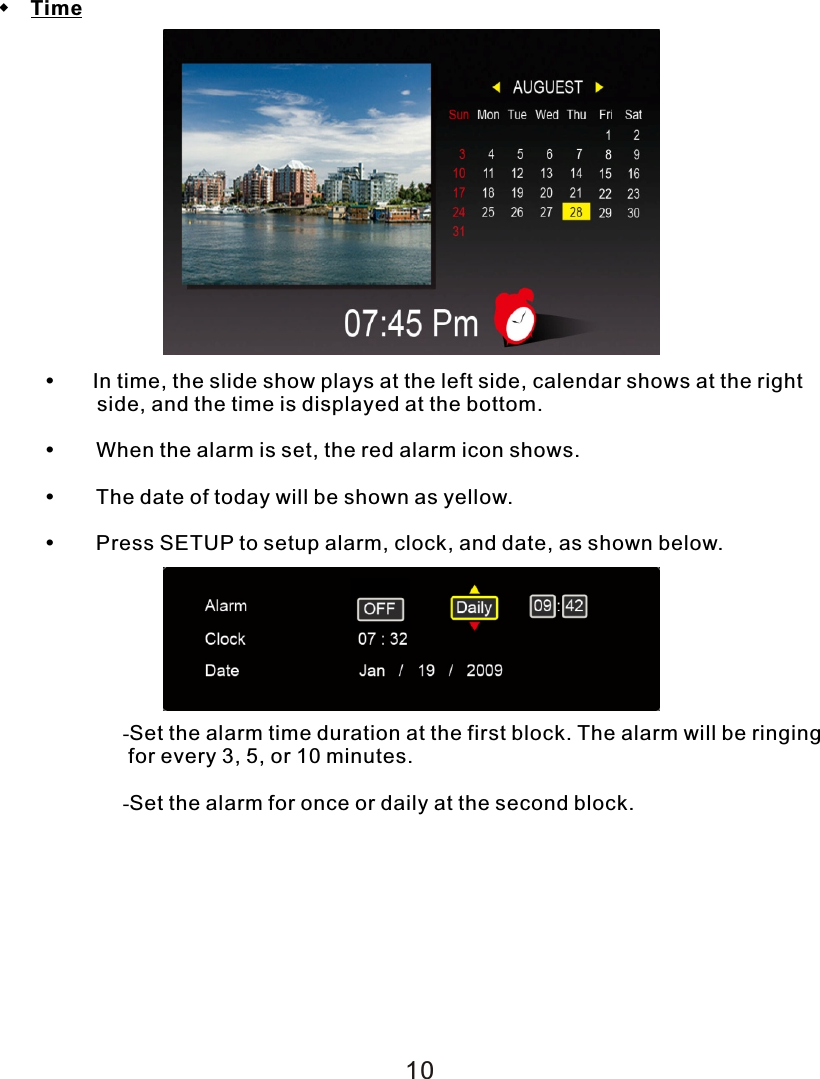
 Video            In Video, the file list will be on the left side and the preview will be on the                right side.          Press ENTER to play the video, RIGHT to forward, LEFT to backward, UP           to play last video, and DOWN to play next video.             By pressing SETUP, there are options of File Sorting, Copy Movie (memory                 card to internal memory), Delete Movie (internal memory),  Factory Default,                 Select Card, and Video Playback Repeat.     In File, the file list will be on the left side and the image previews will be                 shown on the right side. For video and music files, only the file information                   will be shown on the right side.          Press ENTER on video/music files to play the video/music. Press ENTER      on image files to view the image on full screen; press ENTER again to                  start the slideshow.          Press SELECT to select the files.          By pressing SETUP, there are options of Copy Files (memory card to      internal memory), Delete Files (internal memory), Factory Default, and      Select Card. 9
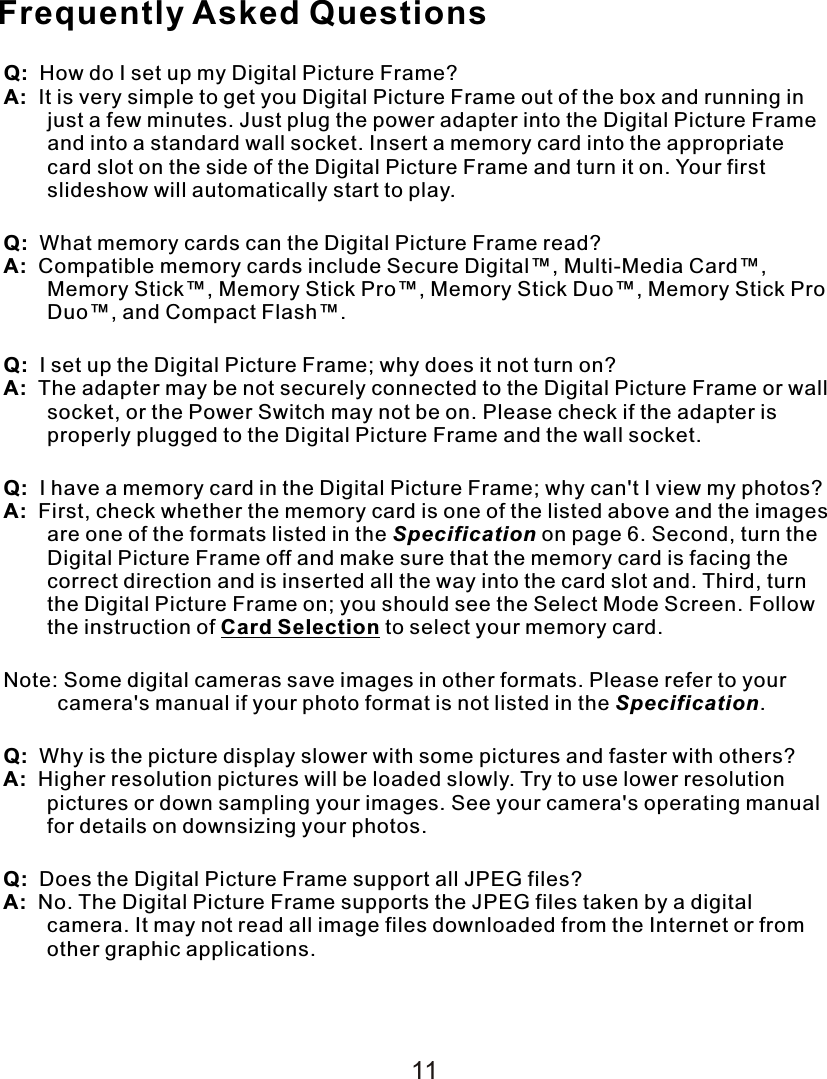
 Time    In time, the slide show plays at the left side, calendar shows at the right         side, and the time is displayed at the bottom.  When the alarm is set, the red alarm icon shows.  The date of today will be shown as yellow.  Press SETUP to setup alarm, clock, and date, as shown below.-Set the alarm time duration at the first block. The alarm will be ringing  for every 3, 5, or 10 minutes.-Set the alarm for once or daily at the second block.10
Frequently Asked QuestionsQ:  How do I set up my Digital Picture Frame?A:  It is very simple to get you Digital Picture Frame out of the box and running in just a few minutes. Just plug the power adapter into the Digital Picture Frame and into a standard wall socket. Insert a memory card into the appropriate card slot on the side of the Digital Picture Frame and turn it on. Your first slideshow will automatically start to play.Q:  What memory cards can the Digital Picture Frame read?A:  Compatible memory cards include Secure Digital™, Multi-Media Card™, Memory Stick™, Memory Stick Pro™, Memory Stick Duo™, Memory Stick Pro Duo™, and Compact Flash™.Q:  I set up the Digital Picture Frame; why does it not turn on?A:  The adapter may be not securely connected to the Digital Picture Frame or wall socket, or the Power Switch may not be on. Please check if the adapter is properly plugged to the Digital Picture Frame and the wall socket.Q:  I have a memory card in the Digital Picture Frame; why can't I view my photos?A:  First, check whether the memory card is one of the listed above and the images are one of the formats listed in the Specification on page 6. Second, turn the Digital Picture Frame off and make sure that the memory card is facing the correct direction and is inserted all the way into the card slot and. Third, turn the Digital Picture Frame on; you should see the Select Mode Screen. Follow the instruction of Card Selection to select your memory card.Note: Some digital cameras save images in other formats. Please refer to your camera's manual if your photo format is not listed in the Specification.Q:  Why is the picture display slower with some pictures and faster with others?A:  Higher resolution pictures will be loaded slowly. Try to use lower resolution pictures or down sampling your images. See your camera's operating manual for details on downsizing your photos.Q:  Does the Digital Picture Frame support all JPEG files?A:  No. The Digital Picture Frame supports the JPEG files taken by a digital camera. It may not read all image files downloaded from the Internet or from other graphic applications.11
Changes or modifications not expressly approved by the party responsible for compliance could void the user's authority to operate the equipment. This equipment has been tested and found to comply with the limits for a Class B digital device, pursuant to Part 15 of the FCC Rules.  These limits are designed to provide reasonable protection against harmful interference in a residential installation. This equipment generates uses and can radiate radio frequency energy and, if not installed and used in accordance with the instructions, may cause harmful interference to radio communications.  However, there is no guarantee that interference will not occur in a particular installation.  If this equipment does cause harmful interference to radio or television reception, which can be determined by turning the equipment off and on, the user is encouraged to try to correct the interference by one or more of the following measures:-- Reorient or relocate the receiving antenna.   -- Increase the separation between the equipment and receiver.     -- Connect the equipment into an outlet on a circuit different from that to which the receiver is connected.   -- Consult the dealer or an experienced radio/TV technician for help

Navigation menu