Win Accord CD6210A7-169 Digital Photo Frame User Manual

WIN ACCORD LTD., Digital Photo Frame

User manual

2Table of Contents............................................................................................2Important Safety Precautions...........................................................................3       Cleaning the LCD Screen...........................................................................3       Cleaning the Digital Picture Frame..............................................................3Introduction....................................................................................................4What’s in the Box............................................................................................5       Identifying the Parts..................................................................................5        Replacing Remote Control Battery..............................................................6        Setting Up the Digital Picture Frame...........................................................7Locating the Digital Picture Frame’s Features....................................................7Setting Up the Slideshow.................................................................................8        Card Selection Screen..............................................................................8        Connect a USB Flash Drive.......................................................................8        Mode Selection Screen.............................................................................9        Thumbnail Screen....................................................................................9        Displaying a Single Photo on the Full Screen.............................................10Controlling the Slide Show and Photo..............................................................10        Rotate the Photo.....................................................................................10        Enlarge the Photo...................................................................................10        Copy/Delete Files...................................................................................10              Copy Files from Flash Card into Built-in Memory...................................10              Delete Files from Built-in Memory........................................................11        Slide Show Selected...............................................................................11        Adjust the LCD Color...............................................................................12        Add Music to the Slide Show....................................................................12        Setting Viewing Options...........................................................................12        Listening to Music...................................................................................14              Control the Volume............................................................................14        Watching a Video....................................................................................14Advanced Operations....................................................................................15        Setting Clock and Calendar.....................................................................15        Connect to a Windows Computer.............................................................16        Disconnect the Digital Picture Frame from the Computer............................17Frequently Asked Questions..........................................................................18Technical Specifications................................................................................19
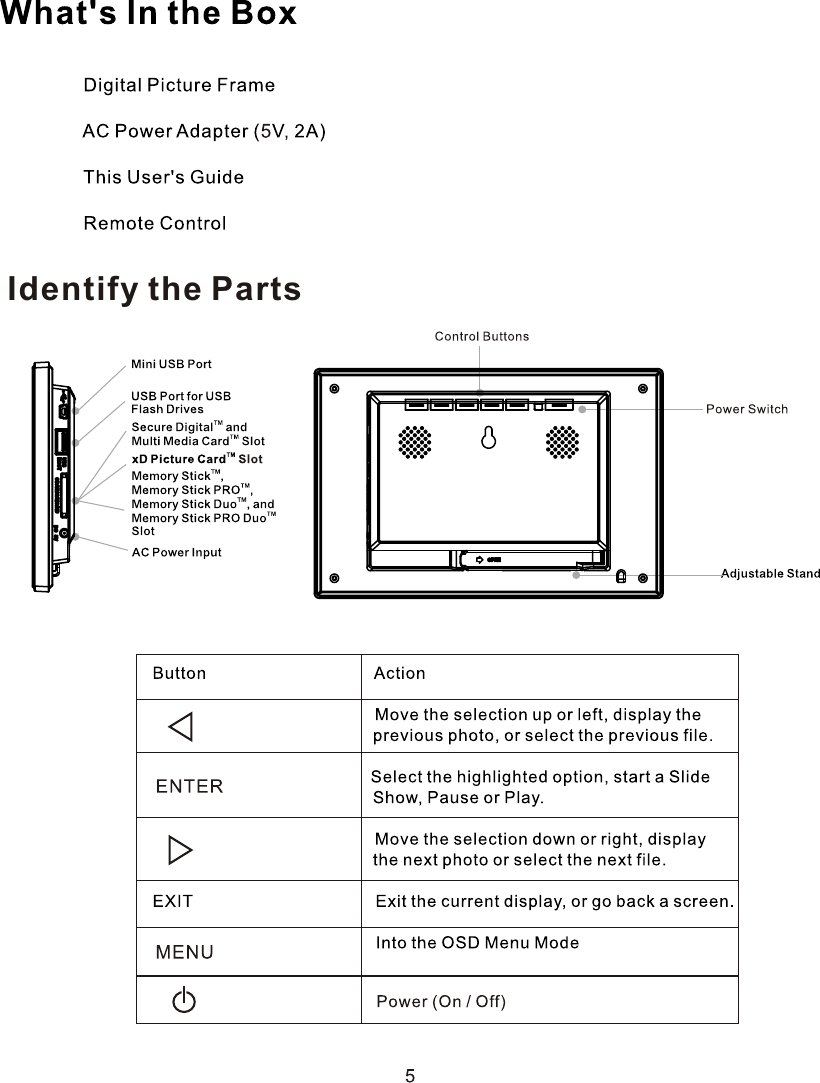
Identify the Parts
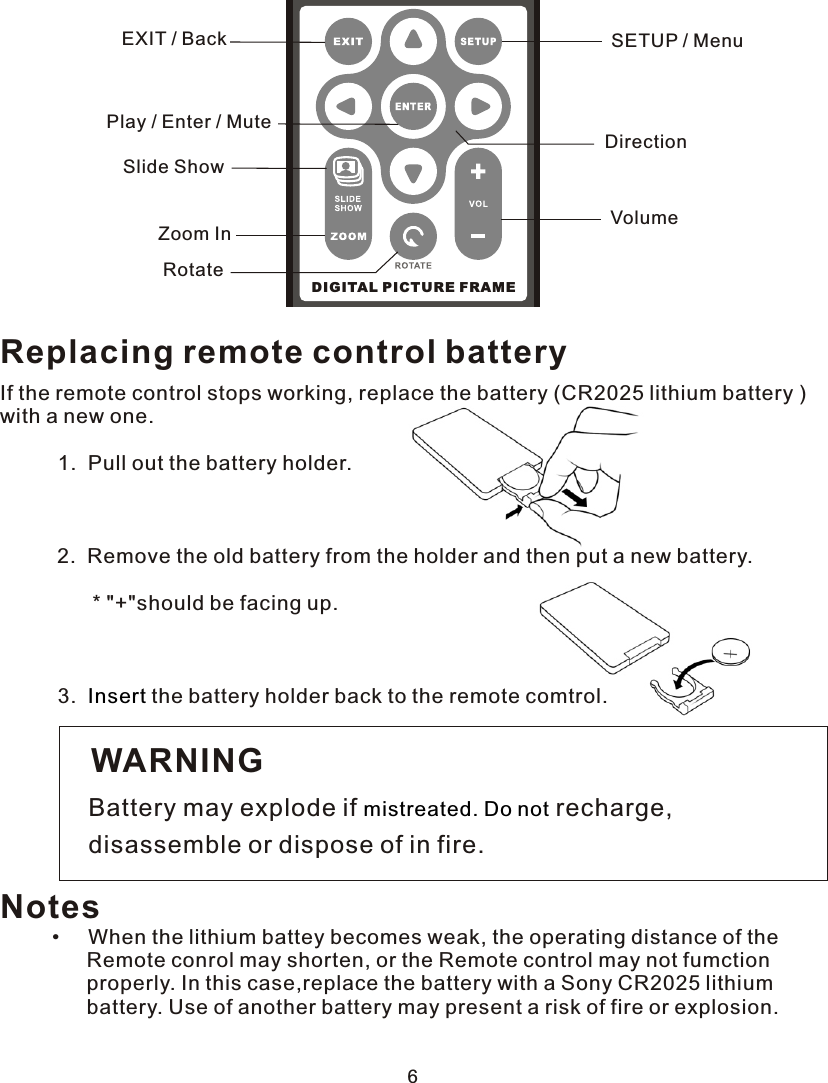
6DIGITAL PICTURE FRAMEEXIT / BackZoom InSETUP / MenuRotateVolumePlay / Enter / MuteSlide ShowDirectionReplacing remote control batteryIf the remote control stops working, replace the battery (CR2025 lithium battery )with a new one.          1.  Pull out the battery holder.    2.  Remove the old battery from the holder and then put a new battery.                * "+"should be facing up.          3.    the battery holder back to the remote comtrol. InsertWARNINGBattery may explode if   recharge,disassemble or dispose of in fire.mistreated. Do notNotes         •     When the lithium battey becomes weak, the operating distance of the                Remote conrol may shorten, or the Remote control may not fumction                properly. In this case,replace the battery with a Sony CR2025 lithium                battery. Use of another battery may present a risk of fire or explosion.
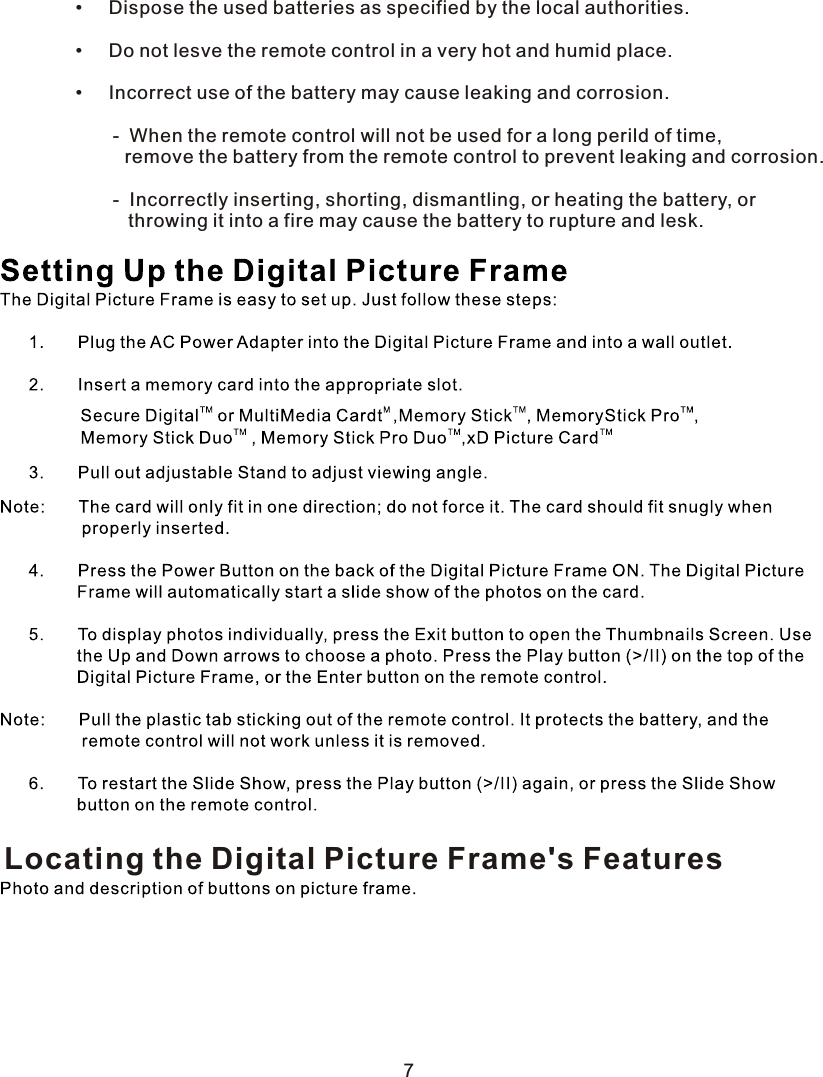
        •     Dispose the used batteries as specified by the local authorities.        •     Do not lesve the remote control in a very hot and humid place.        •     Incorrect use of the battery may cause leaking and corrosion.               -  When the remote control will not be used for a long perild of time,    remove the battery from the remote control to prevent leaking and corrosion.               -  Incorrectly inserting, shorting, dismantling, or heating the battery, or        throwing it into a fire may cause the battery to rupture and lesk.  Locating the Digital Picture Frame's Features7
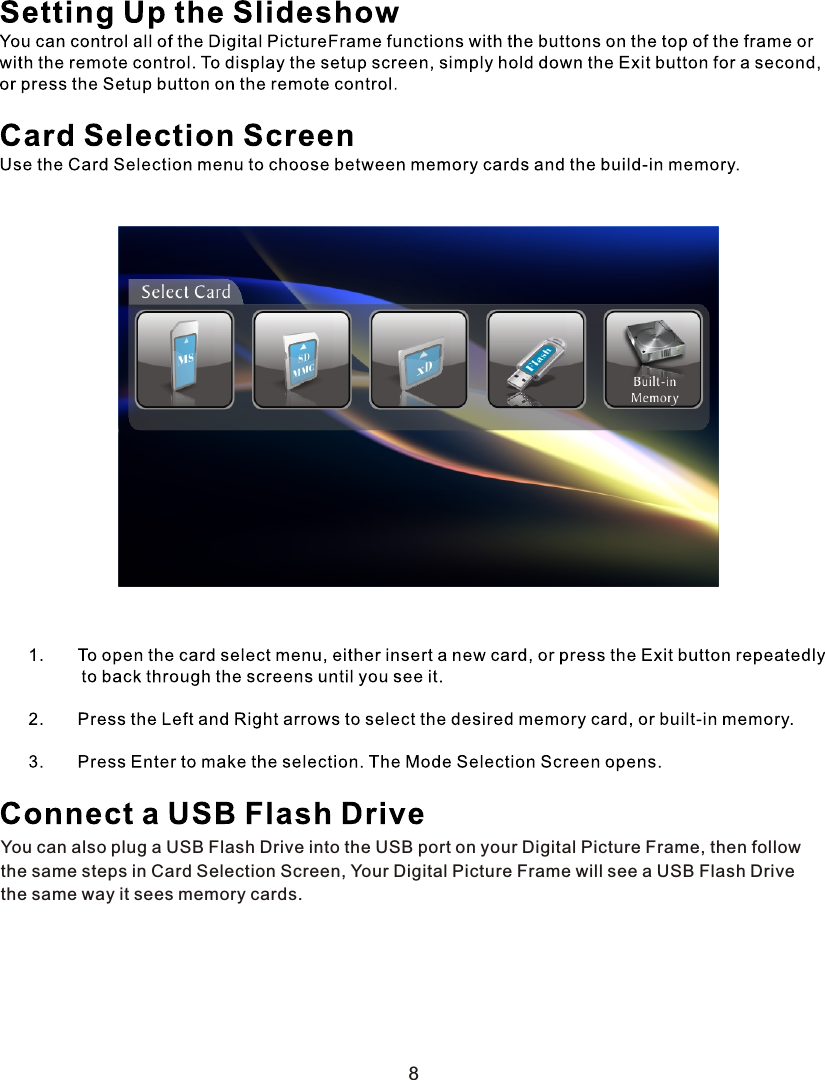
You can also plug a USB Flash Drive into the USB port on your Digital Picture Frame, then followthe same steps in Card Selection Screen, Your Digital Picture Frame will see a USB Flash Drivethe same way it sees memory cards.8
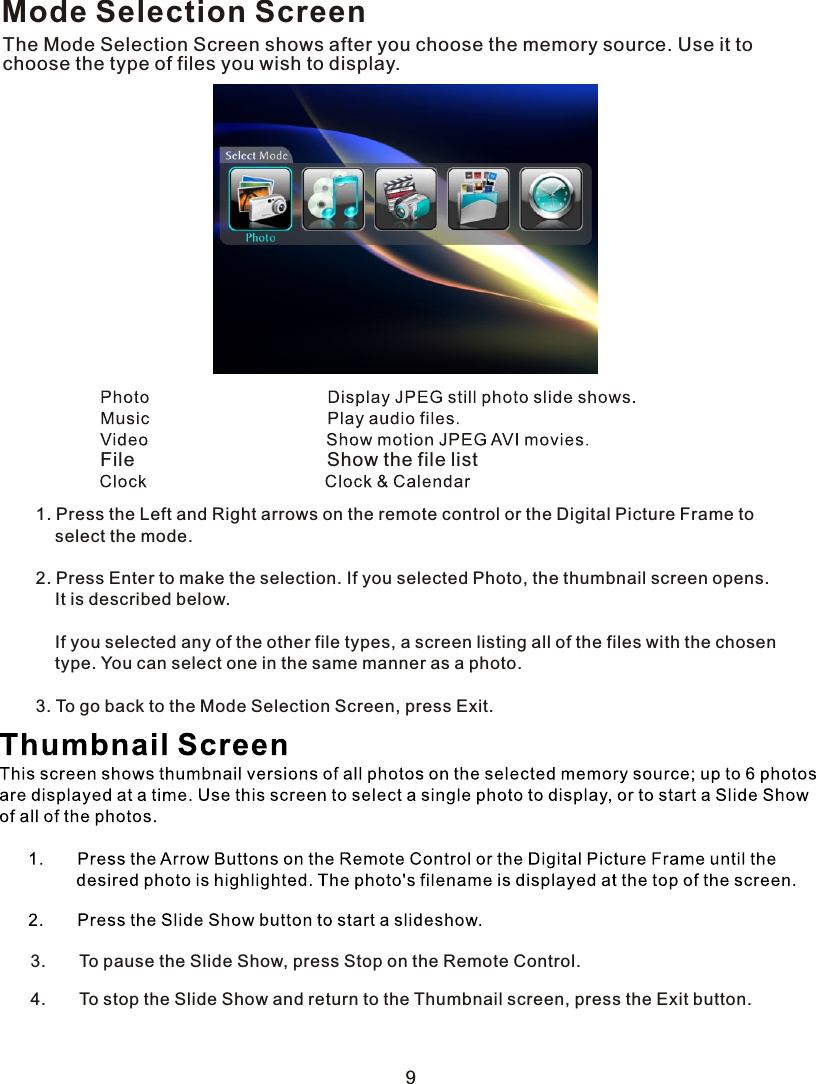
Mode Selection ScreenThe Mode Selection Screen shows after you choose the memory source. Use it to choose the type of files you wish to display.  File                                    Show the file list1. Press the Left and Right arrows on the remote control or the Digital Picture Frame to    select the mode.2. Press Enter to make the selection. If you selected Photo, the thumbnail screen opens.    It is described below.        If you selected any of the other file types, a screen listing all of the files with the chosen    type. You can select one in the same manner as a photo.3. To go back to the Mode Selection Screen, press Exit.93.       To pause the Slide Show, press Stop on the Remote Control.4.       To stop the Slide Show and return to the Thumbnail screen, press the Exit button.
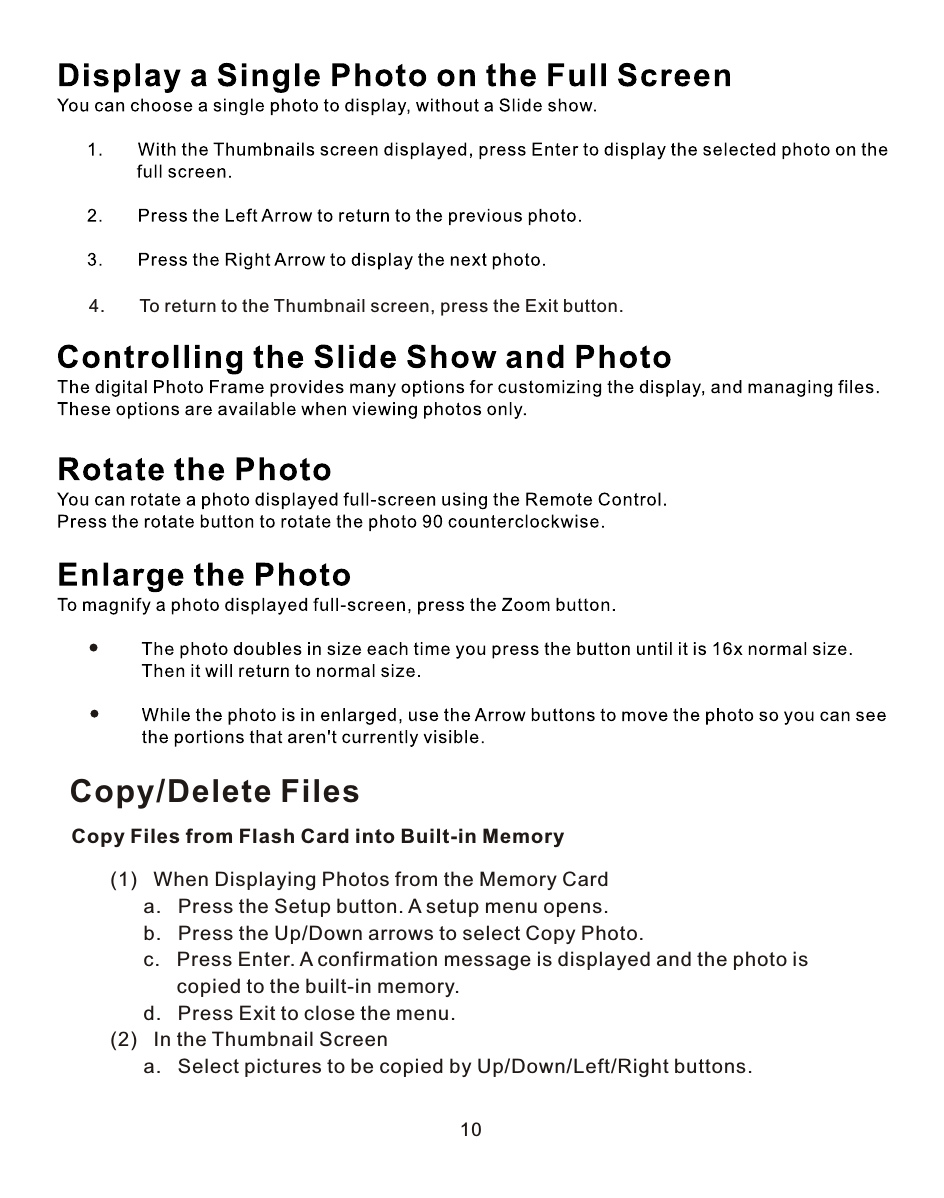
4.       To return to the Thumbnail screen, press the Exit button.10Copy/Delete FilesCopy Files from Flash Card into Built-in Memory       (1)   When Displaying Photos from the Memory Card             a.   Press the Setup button. A setup menu opens.             b.   Press the Up/Down arrows to select Copy Photo.             c.   Press Enter. A confirmation message is displayed and the photo is                    copied to the built-in memory.             d.   Press Exit to close the menu.       (2)   In the Thumbnail Screen             a.   Select pictures to be copied by Up/Down/Left/Right buttons.
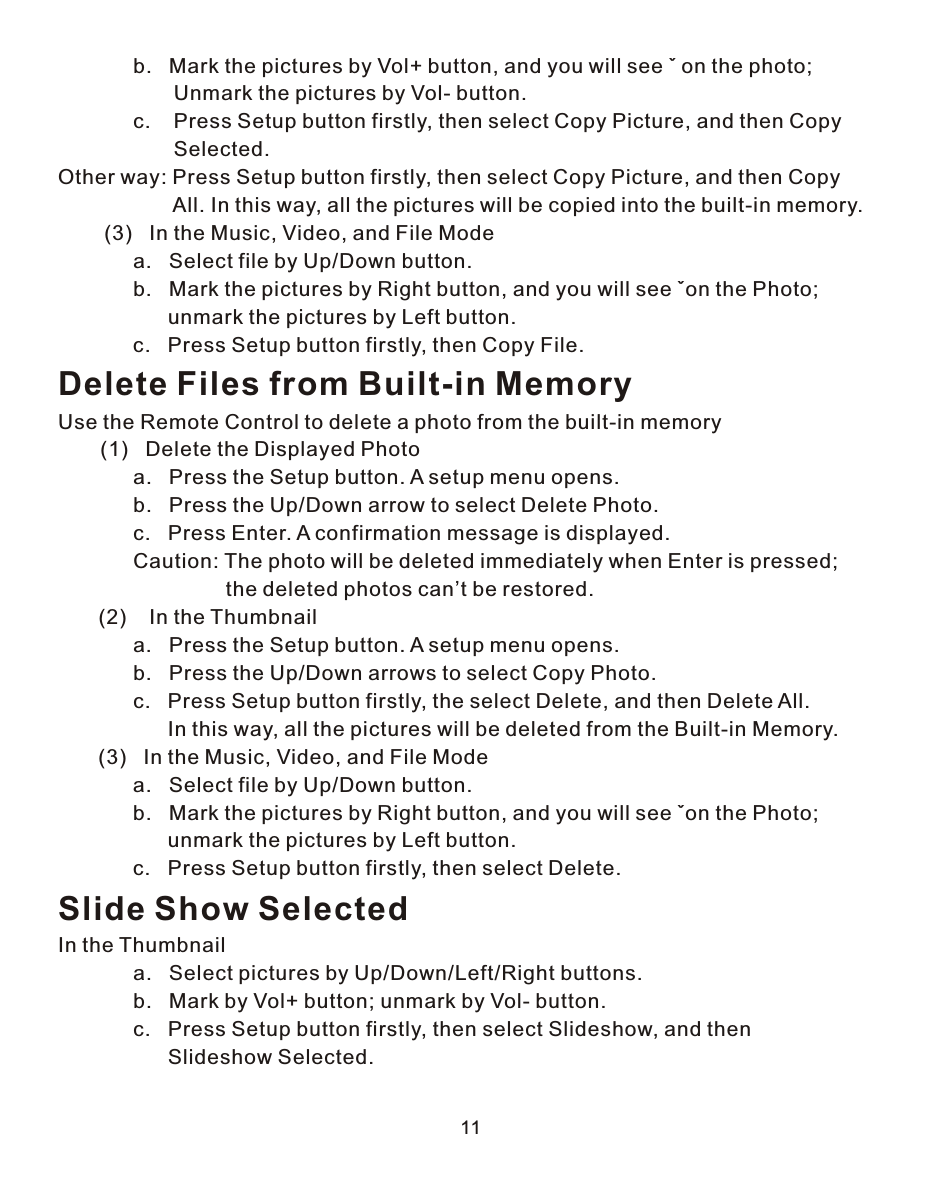
11             b.   Mark the pictures by Vol+ button, and you will see ˇ on the photo;                     Unmark the pictures by Vol- button.             c.    Press Setup button firstly, then select Copy Picture, and then Copy                     Selected.Other way: Press Setup button firstly, then select Copy Picture, and then Copy                     All. In this way, all the pictures will be copied into the built-in memory.        (3)   In the Music, Video, and File Mode             a.   Select file by Up/Down button.             b.   Mark the pictures by Right button, and you will see ˇon the Photo;                    unmark the pictures by Left button.             c.   Press Setup button firstly, then Copy File.Delete Files from Built-in MemoryUse the Remote Control to delete a photo from the built-in memory    (1)   Delete the Displayed Photo             a.   Press the Setup button. A setup menu opens.             b.   Press the Up/Down arrow to select Delete Photo.             c.   Press Enter. A confirmation message is displayed.             Caution: The photo will be deleted immediately when Enter is pressed;                              the deleted photos can’t be restored.       (2)    In the Thumbnail             a.   Press the Setup button. A setup menu opens.             b.   Press the Up/Down arrows to select Copy Photo.             c.   Press Setup button firstly, the select Delete, and then Delete All.                    In this way, all the pictures will be deleted from the Built-in Memory.       (3)   In the Music, Video, and File Mode             a.   Select file by Up/Down button.             b.   Mark the pictures by Right button, and you will see ˇon the Photo;                    unmark the pictures by Left button.             c.   Press Setup button firstly, then select Delete.Slide Show SelectedIn the Thumbnail             a.   Select pictures by Up/Down/Left/Right buttons.             b.   Mark by Vol+ button; unmark by Vol- button.             c.   Press Setup button firstly, then select Slideshow, and then                    Slideshow Selected.
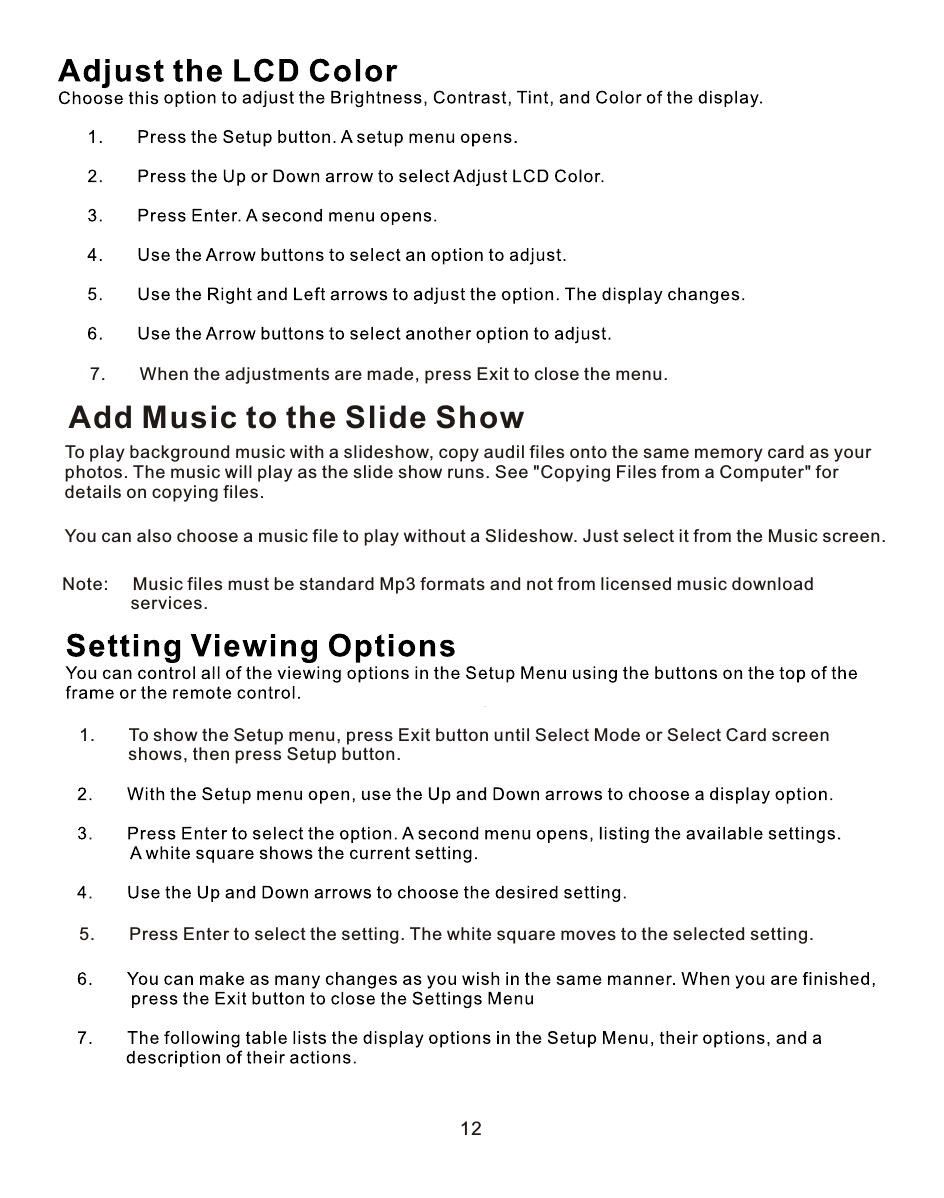
1.       To show the Setup menu, press Exit button until Select Mode or Select Card screen          shows, then press Setup button.5.       Press Enter to select the setting. The white square moves to the selected setting.12Add Music to the Slide ShowTo play background music with a slideshow, copy audil files onto the same memory card as your photos. The music will play as the slide show runs. See "Copying Files from a Computer" for details on copying files.You can also choose a music file to play without a Slideshow. Just select it from the Music screen.7.       When the adjustments are made, press Exit to close the menu.Note:     Music files must be standard Mp3 formats and not from licensed music download               services.
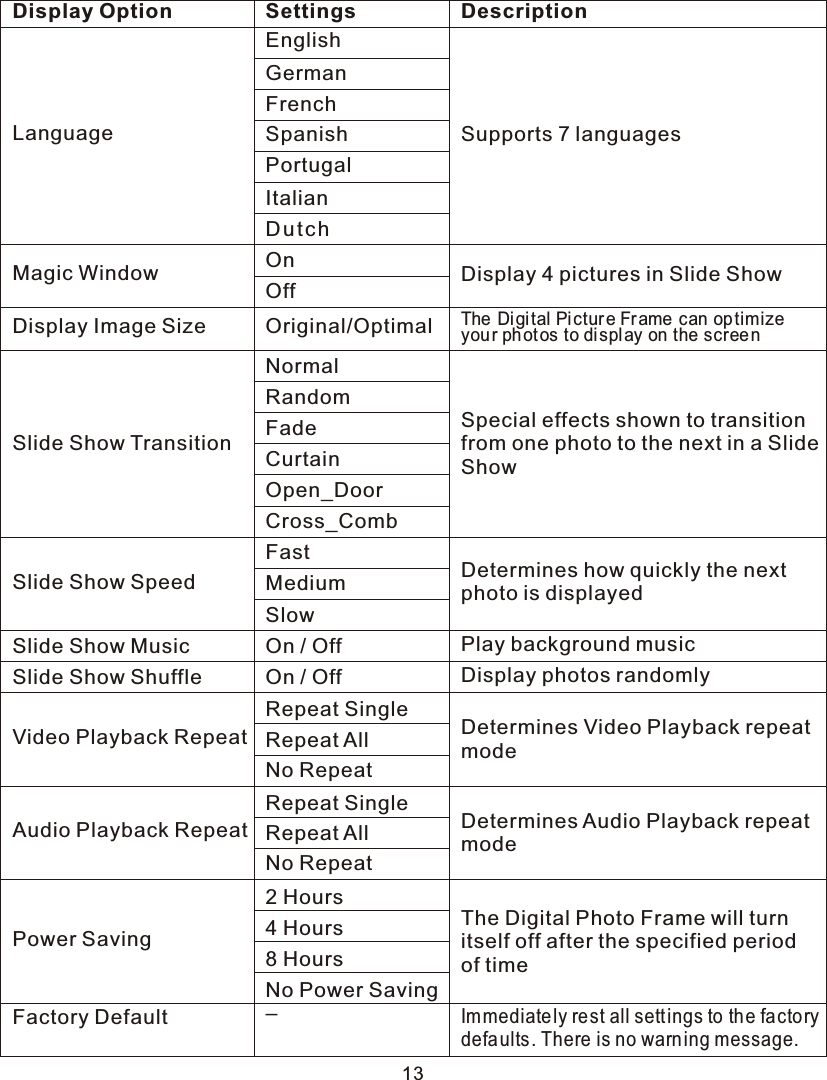
13Display Option Settings DescriptionLanguageMagic Window Off Display 4 pictures in Slide ShowDisplay Image Size Original/OptimalThe Di gi tal Pi cture Fr ame can op timizeyou r phot os to di spl ay on the screenSlide Show TransitionSlide Show SpeedSlide Show MusicSlide Show ShuffleVideo Playback RepeatAudio Playback RepeatPower SavingFactory DefaultNormalRandomFadeCurtainOpen_DoorCross_CombSpecial effects shown to transition from one photo to the next in a Slide ShowMedium Determines how quickly the next photo is displayedOn / Off Play background musicOn / Off Display photos randomlyRepeat SingleRepeat AllNo RepeatDetermines Video Playback repeatmodeRepeat SingleRepeat AllNo RepeatDetermines Audio Playback repeat mode2 Hours4 Hours8 HoursNo Power SavingThe Digital Photo Frame will turn itself off after the specified period of time–Immediate ly re st all sett ings to th e facto rydefaults . There is no warn ing message.Du t chEnglishGermanFrenchSpanishPortugalItalianSupports 7 languagesOnFastSlow
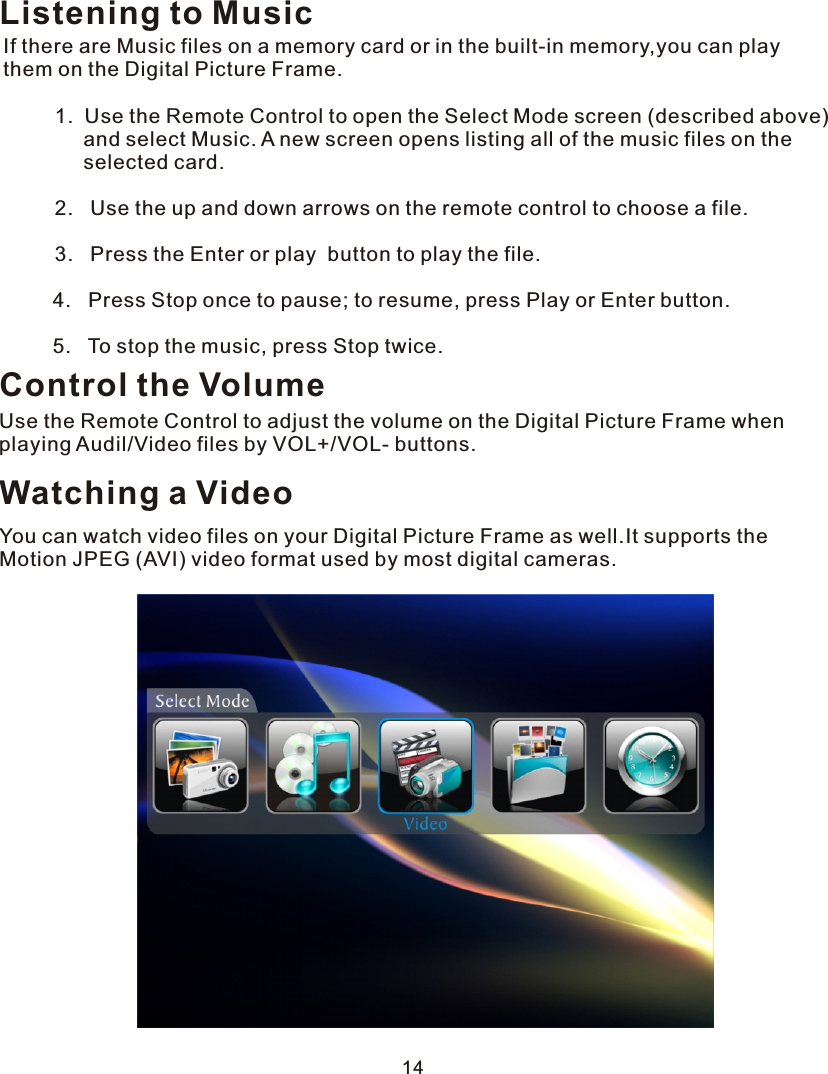
Listening to MusicIf there are Music files on a memory card or in the built-in memory,you can play them on the Digital Picture Frame.         1.  Use the Remote Control to open the Select Mode screen (described above)              and select Music. A new screen opens listing all of the music files on the               selected card.         2.   Use the up and down arrows on the remote control to choose a file.         3.   Press the Enter or play  button to play the file.  4.   Press Stop once to pause; to resume, press Play or Enter button.  5.   To stop the music, press Stop twice.Control the VolumeUse the Remote Control to adjust the volume on the Digital Picture Frame when playing Audil/Video files by VOL+/VOL- buttons.Watching a VideoYou can watch video files on your Digital Picture Frame as well.It supports the Motion JPEG (AVI) video format used by most digital cameras. 14
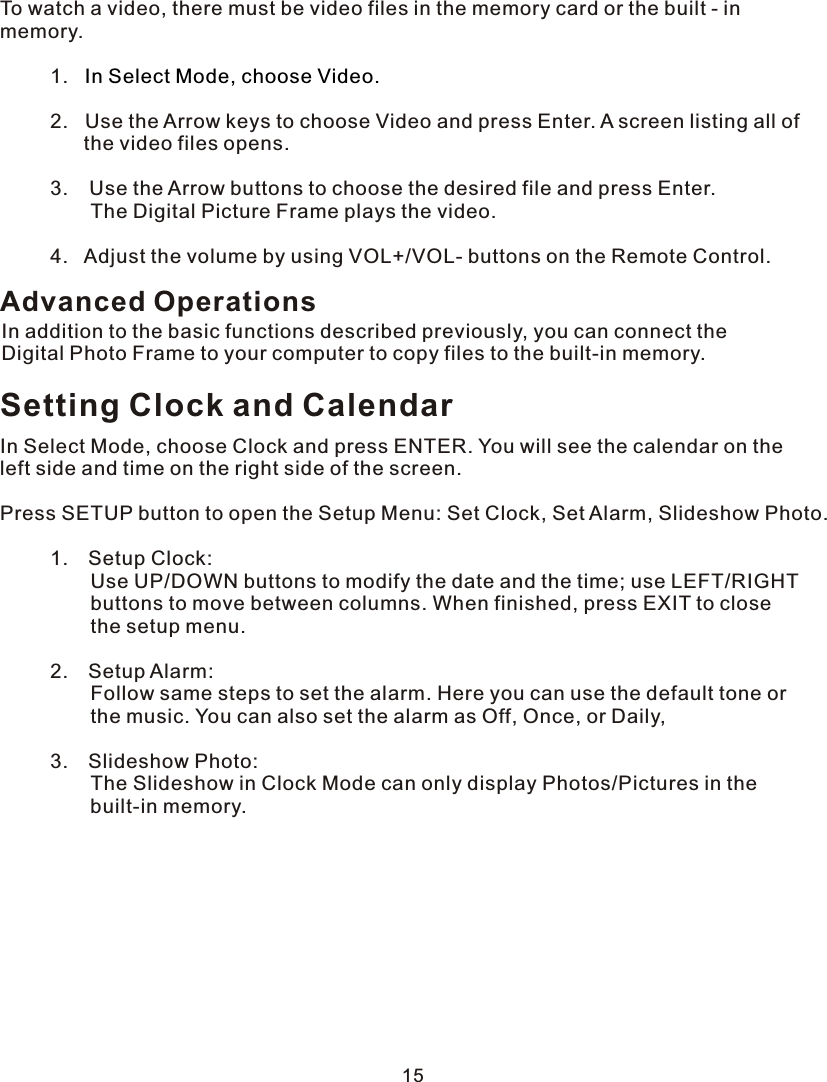
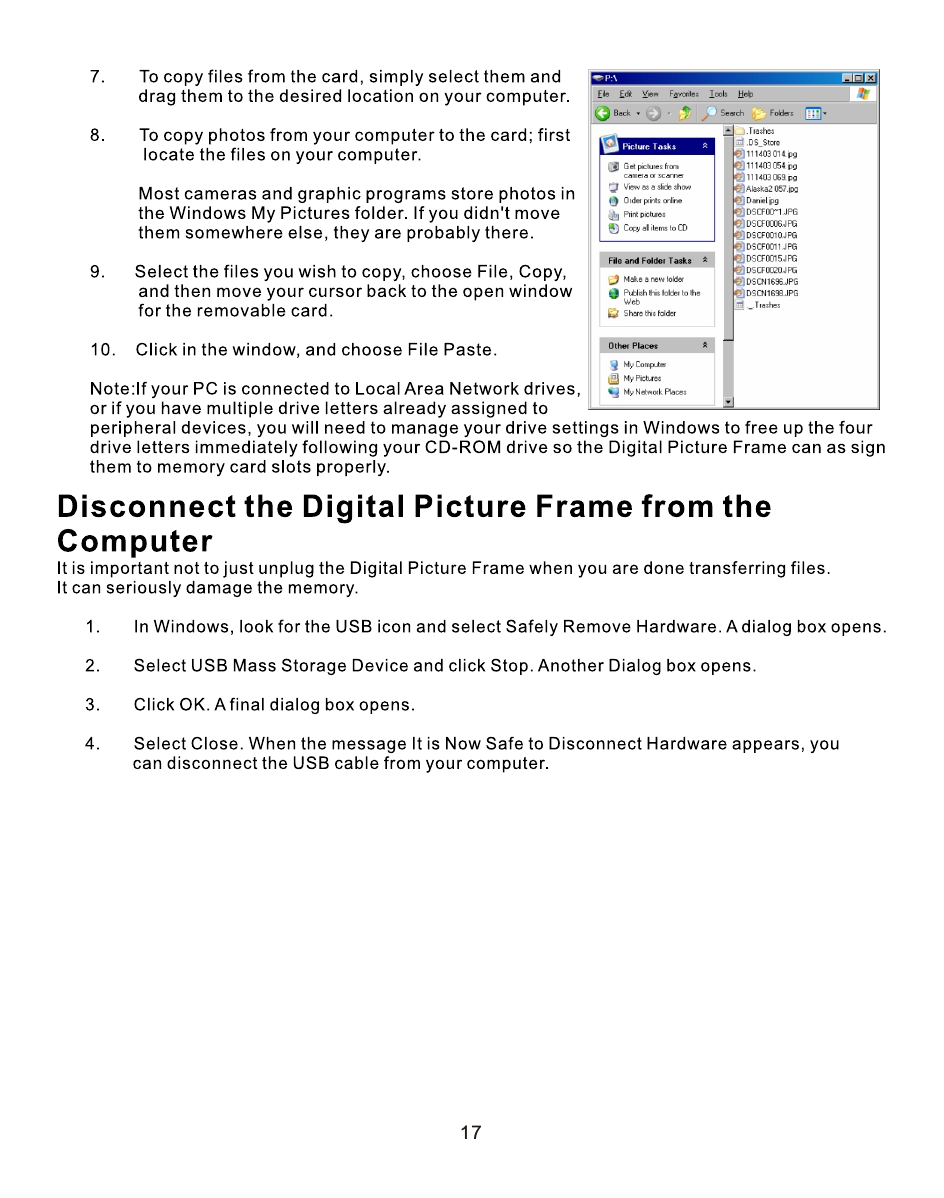
To watch a video, there must be video files in the memory card or the built - in memory.         1.            2.   Use the Arrow keys to choose Video and press Enter. A screen listing all of               the video files opens.         3.   Use the Arrow buttons to choose the desired file and press Enter.          The Digital Picture Frame plays the video.     4.   Adjust the volume by using VOL+/VOL- buttons on the Remote Control.In Select Mode, choose Video.Setting Clock and CalendarIn Select Mode, choose Clock and press ENTER. You will see the calendar on the left side and time on the right side of the screen.Press SETUP button to open the Setup Menu: Set Clock, Set Alarm, Slideshow Photo.     1.  Setup Clock:         Use UP/DOWN buttons to modify the date and the time; use LEFT/RIGHT          buttons to move between columns. When finished, press EXIT to close          the setup menu.     2.  Setup Alarm:          Follow same steps to set the alarm. Here you can use the default tone or          the music. You can also set the alarm as Off, Once, or Daily,      3.  Slideshow Photo:         The Slideshow in Clock Mode can only display Photos/Pictures in the          built-in memory.Advanced OperationsIn addition to the basic functions described previously, you can connect the Digital Photo Frame to your computer to copy files to the built-in memory.15
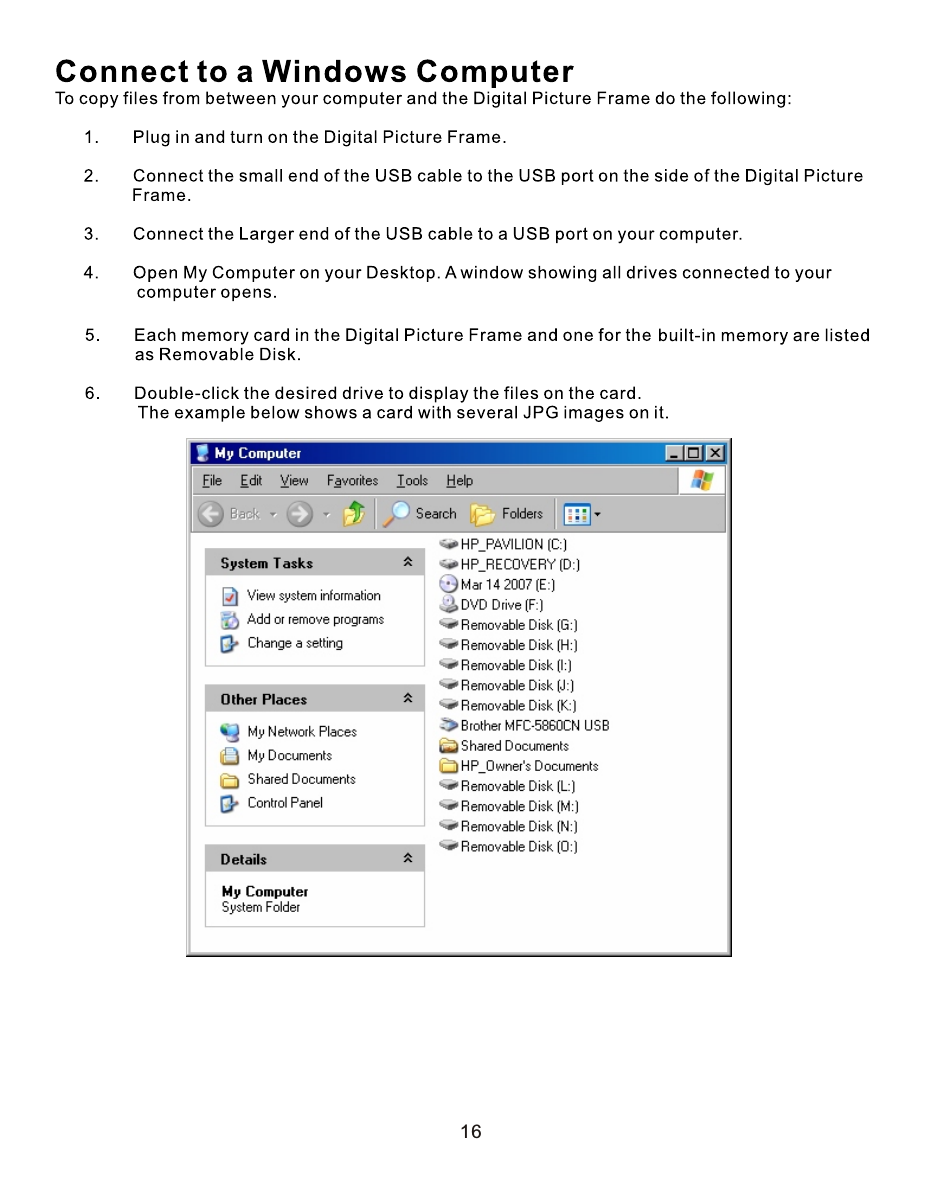
16
17
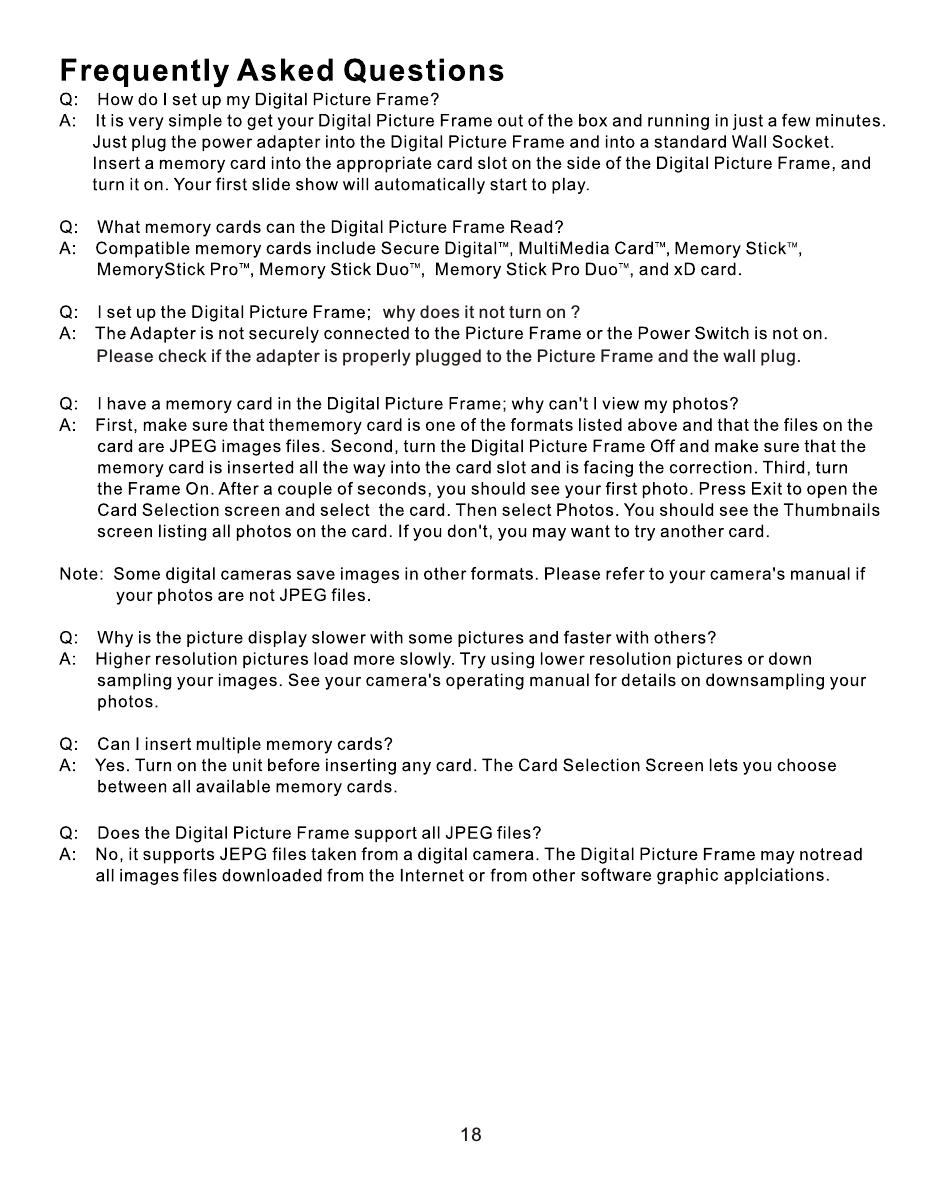
why does it not turn on ?Please check if the adapter is properly plugged to the Picture Frame and the wall plug.18
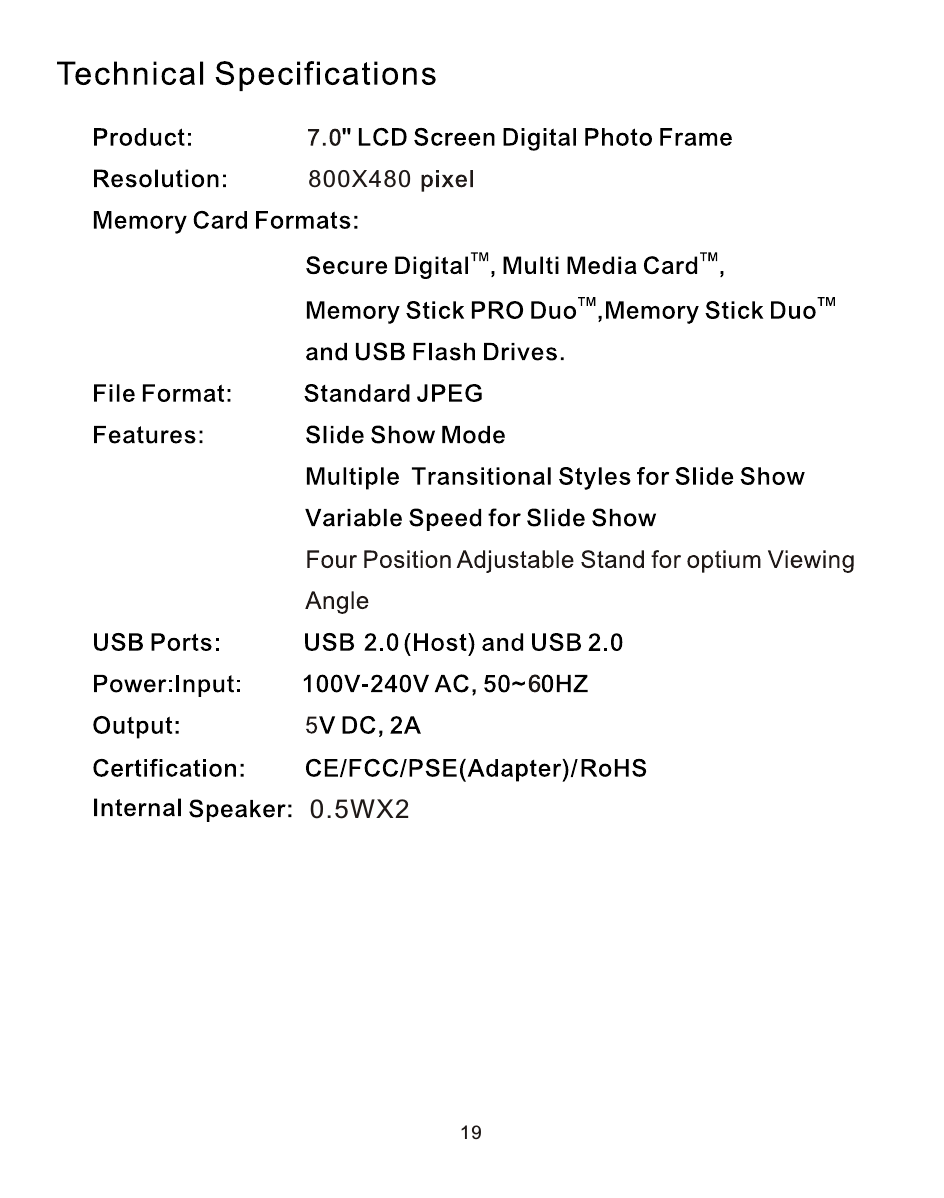
19800X480 0.5WX2
Changes or modifications not expressly approved by the party responsible for compliance could void the user's authority to operate the equipment.    This equipment has been tested and found to comply with the limits for a ClassB digital device, pursuant to Part 15 of the FCC Rules.    These limits are designed to provide reasonable protection against harmful interference in a residential installation. This equipment generates uses and can radiate radio frequency energy and, if not installed and used in accordance with the instructions, may cause harmful interference to radio communications.However, there is no guarantee that interference will not occur in a particular installation. If this equipment does cause harmful interference to radio or television reception, which can be determined by turning the equipment off and on, the user is encouraged to try to correct the interference by one or more of the following measures: -- Reorient or relocate the receiving antenna. -- Increase the separation between the equipment and receiver. -- Connect the equipment into an outlet on a circuit different from that to which   the receiver is connected. -- Consult the dealer or an experienced radio/TV technician for help

Navigation menu