Winner Wave EPD01 EZCast Pro User Manual

Winner Wave Limited EZCast Pro Users Manual

Users Manual

Quick Start GuideRev. 1.00
IntroductionThanks for choosing EZCast Pro products, it isbased on popular EZCast app and enhances morefeatures like Split Screens Display, Host ControlSystem, and Content Broadcast features. With allthese new functions, it is a powerful tool foreducational or presentation purpose. Pleasedownload EZCast Pro app and enjoy all these newfeatures now!!Learn moreVisit http://www.iezcast.com/os_help.php?l=enfor more information about our user’s guide, findanswers for frequently asked questions and morefinger tips for your EZCast Pro product.
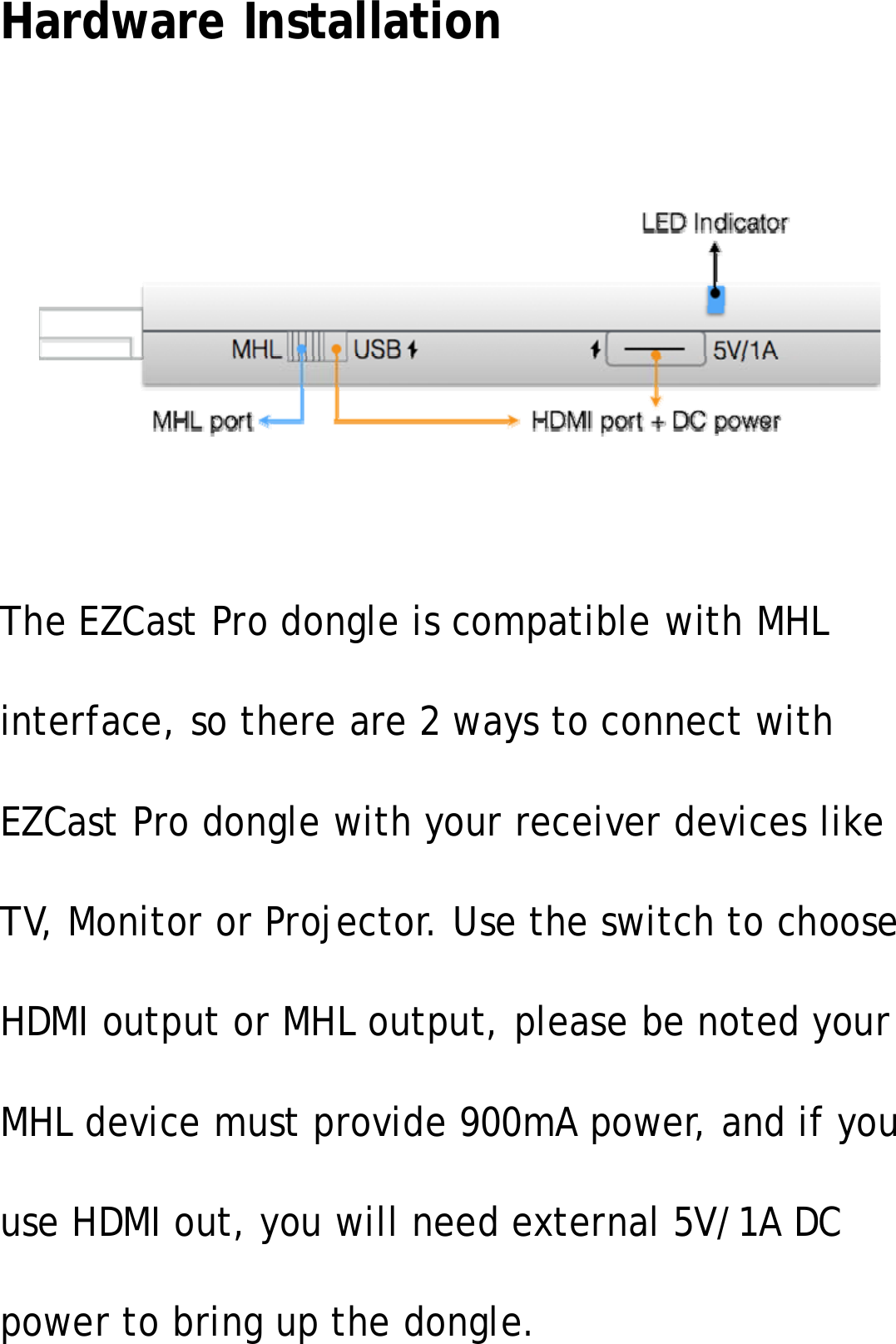
Hardware InstallationThe EZCast Pro dongle is compatible with MHLinterface, so there are 2 ways to connect withEZCast Pro dongle with your receiver devices likeTV, Monitor or Projector. Use the switch to chooseHDMI output or MHL output, please be noted yourMHL device must provide 900mA power, and if youuse HDMI out, you will need external 5V/1A DCpower to bring up the dongle.
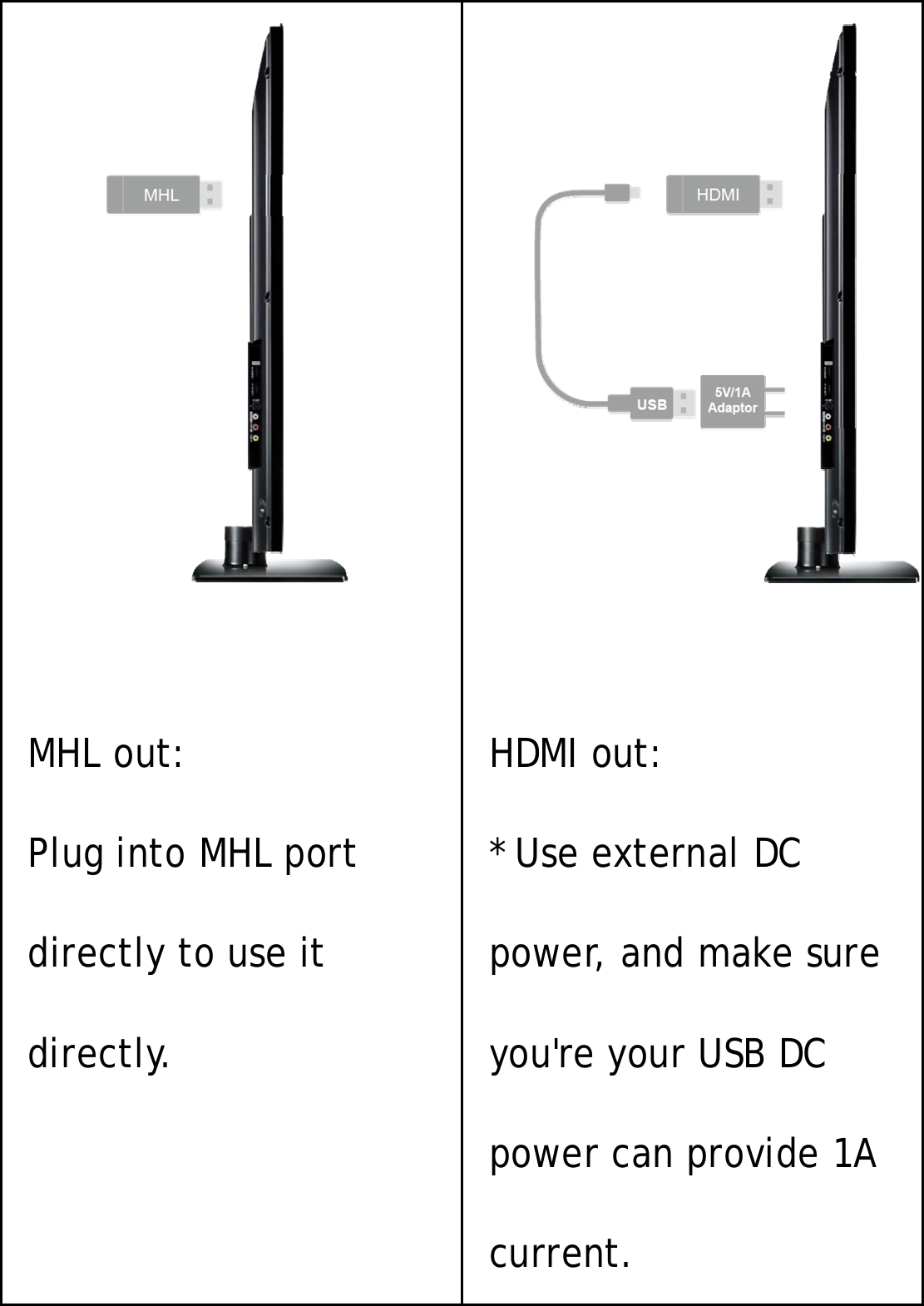
MHL out:Plug into MHL portdirectly to use itdirectly.HDMI out:*UseexternalDCpower, and make sureyou're your USB DCpower can provide 1Acurrent.
App InstallationIOS and Android users:Please search “EZCast Pro” in Apple’sApp Store or Google Play and installit.Or Use the QR scanner app to scan theQR code on EZCast Pro dongle’s mainpage.*Supports iOS7 and Android 4.0 aboveWindows and Mac OS users:Please download it from our officialwebsite: www.iezcast.com orwww.iezvu.com*Supports from WinXP/Vista/7/8.1, and MacOS 10.9 and after.
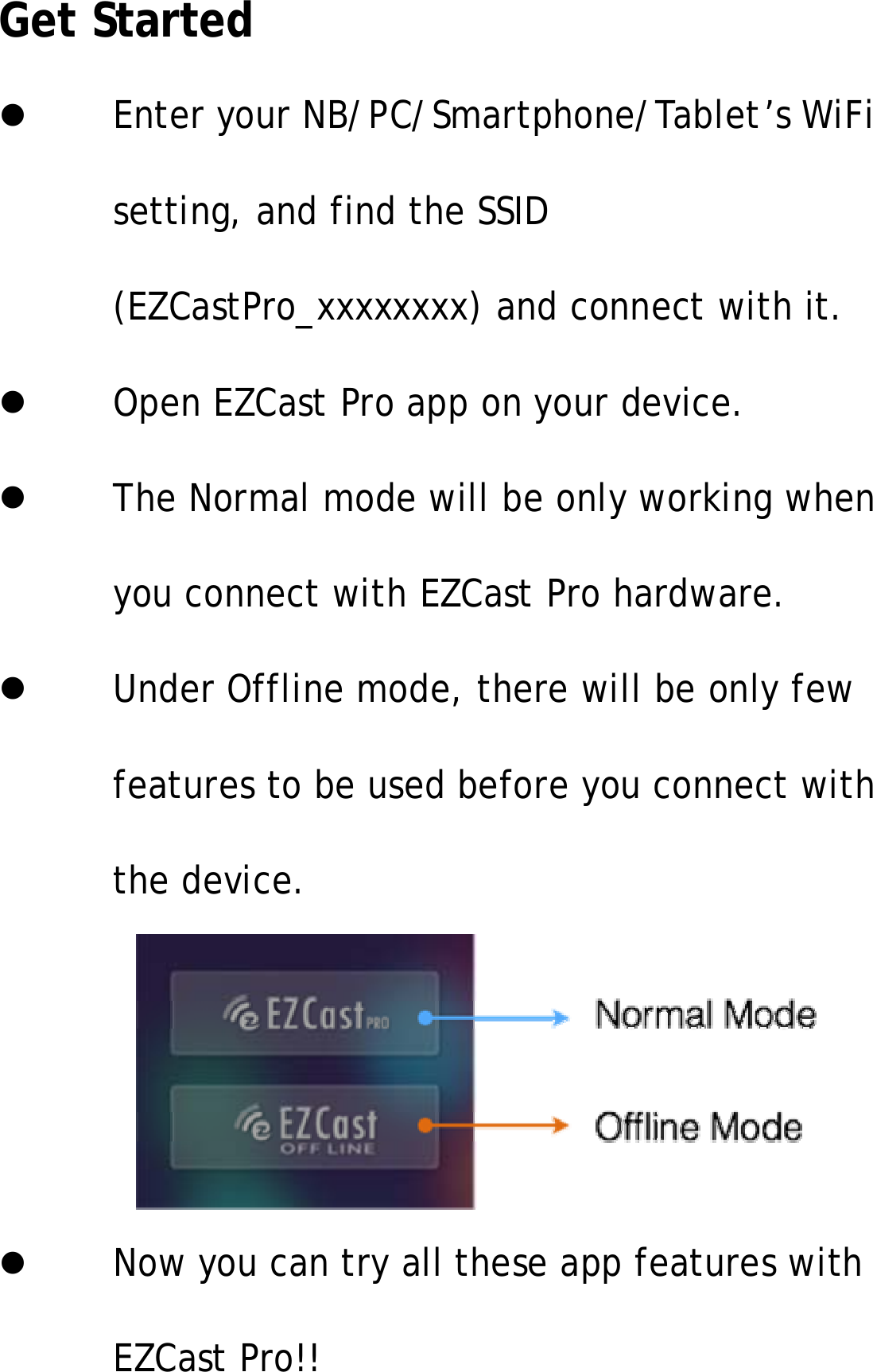
Get StartedEnter your NB/PC/Smartphone/Tablet’s WiFisetting, and find the SSID(EZCastPro_xxxxxxxx) and connect with it.Open EZCast Pro app on your device.The Normal mode will be only working whenyou connect with EZCast Pro hardware.UnderOfflinemode,therewillbeonlyfewfeatures to be used before you connect withthe device.Now you can try all these app features withEZCast Pro!!
©2014 Actions Microelectronics Co., Ltd. All right reserved. EZCast,and EZCast Pro are trademarks of Actions Microelectronic Co., Ltd.,registered in China and other countries. Other product and companynames mentioned herein may be trademarks oftheir respectivecompanies.FCC STATEMENT1. This device complies with Part 15 of the FCC Rules.Operation is subject to the following two conditions:(1) This device may not cause harmful interference.(2) This device must accept any interference received,including interference that may cause undesiredoperation.2. Changes or modifications not expressly approved bythe party responsible for compliance could void theuser's authority to operate the equipment.
NOTE: This equipment has been tested and found tocomply with the limits for a Class B digital device,pursuant to Part 15 of the FCC Rules. These limits aredesigned to provide reasonable protection againstharmful interference in a residential installation.This equipment generates uses and can radiate radiofrequency energy and, if not installed and used inaccordance with the instructions, may cause harmfulinterference to radio communications. However, there isno guarantee that interference will not occur in aparticular installation. If this equipment does causeharmful interference to radio or television reception,which can be determined by turning the equipment offand on, the user is encouraged to try to correct theinterference by one or more of the following measures:
Reorient or relocate the receiving antenna.Increase the separation between the equipment andreceiver.Connect the equipment into an outlet on a circuitdifferent from that to which the receiver isconnected.Consult the dealer or an experienced radio/TVtechnician for help.FCC Radiation Exposure StatementThis equipment complies with FCC radiationexposure limits set forth for an uncontrolledenvironment. This equipment should be installedand operated with minimum distance 20cmbetweentheradiator&yourbody

Navigation menu