WolfVision AM003 RC for Presentation Device User Manual

WolfVision GmbH RC for Presentation Device Users Manual

user manual

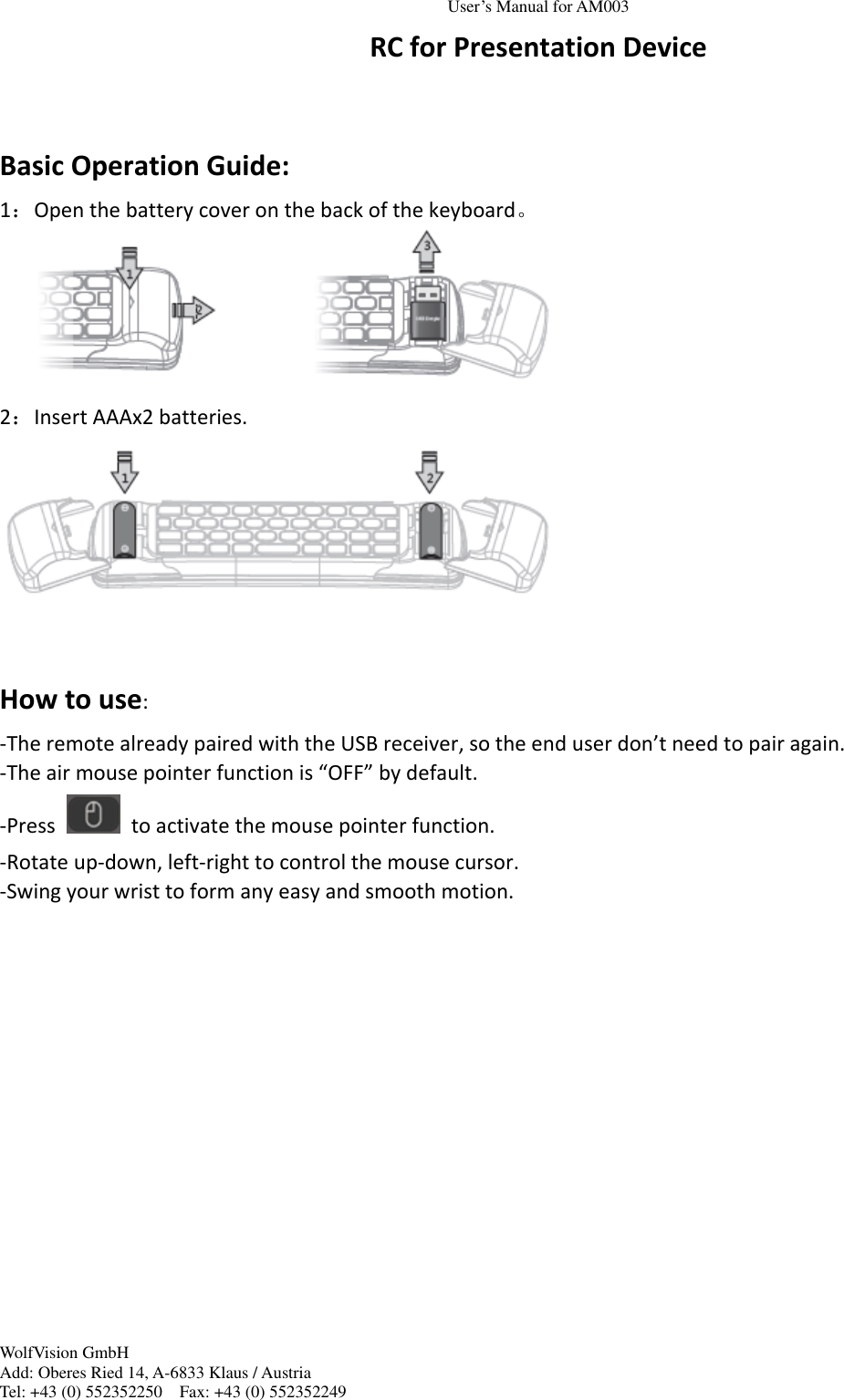
User’s Manual for AM003 WolfVision GmbH Add: Oberes Ried 14, A-6833 Klaus / Austria Tel: +43 (0) 552352250    Fax: +43 (0) 552352249  RC for Presentation Device  Basic Operation Guide: 1:Open the battery cover on the back of the keyboard。  2:Insert AAAx2 batteries.   How to use: -The remote already paired with the USB receiver, so the end user don’t need to pair again. -The air mouse pointer function is “OFF” by default. -Press    to activate the mouse pointer function. -Rotate up-down, left-right to control the mouse cursor. -Swing your wrist to form any easy and smooth motion.
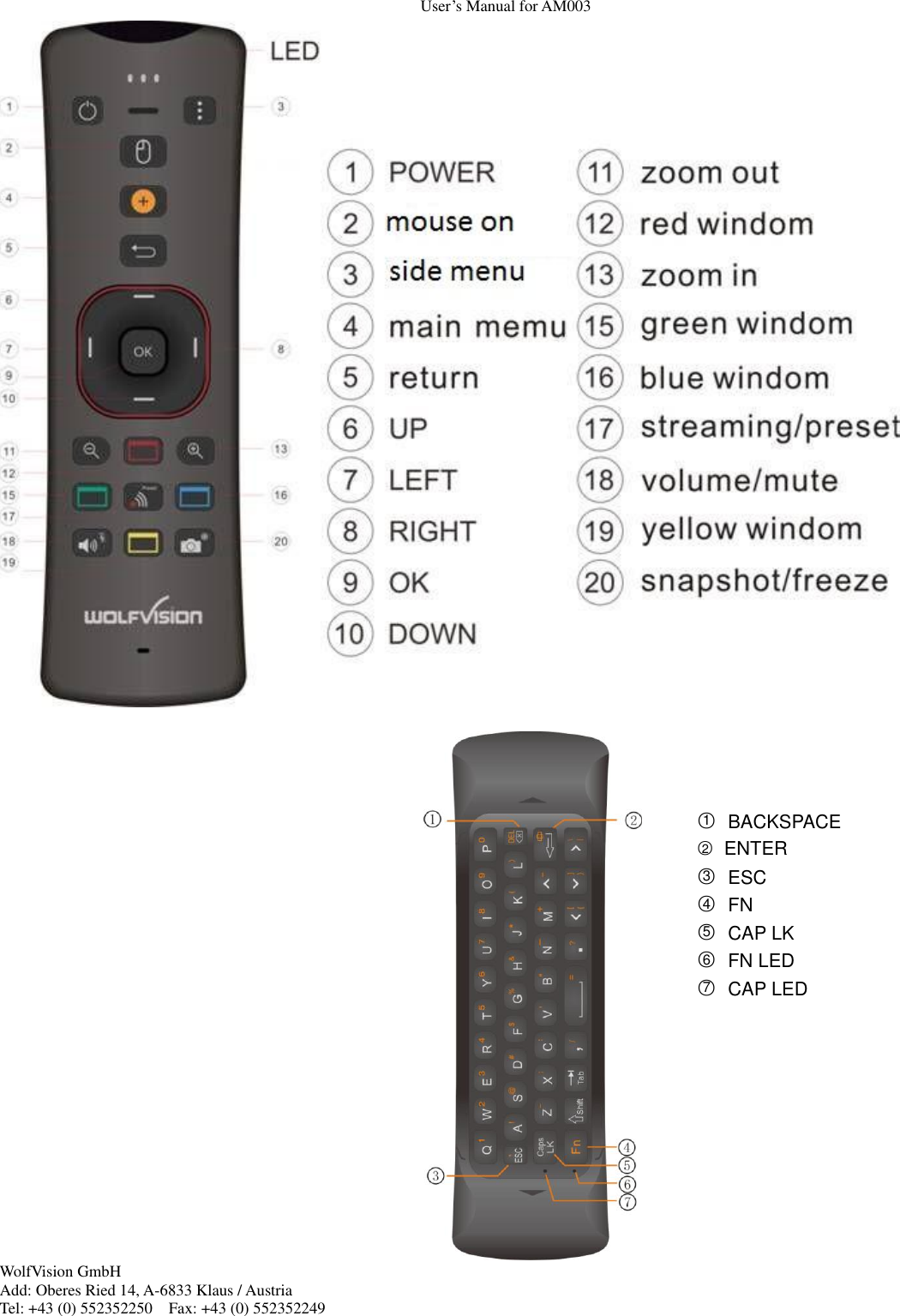
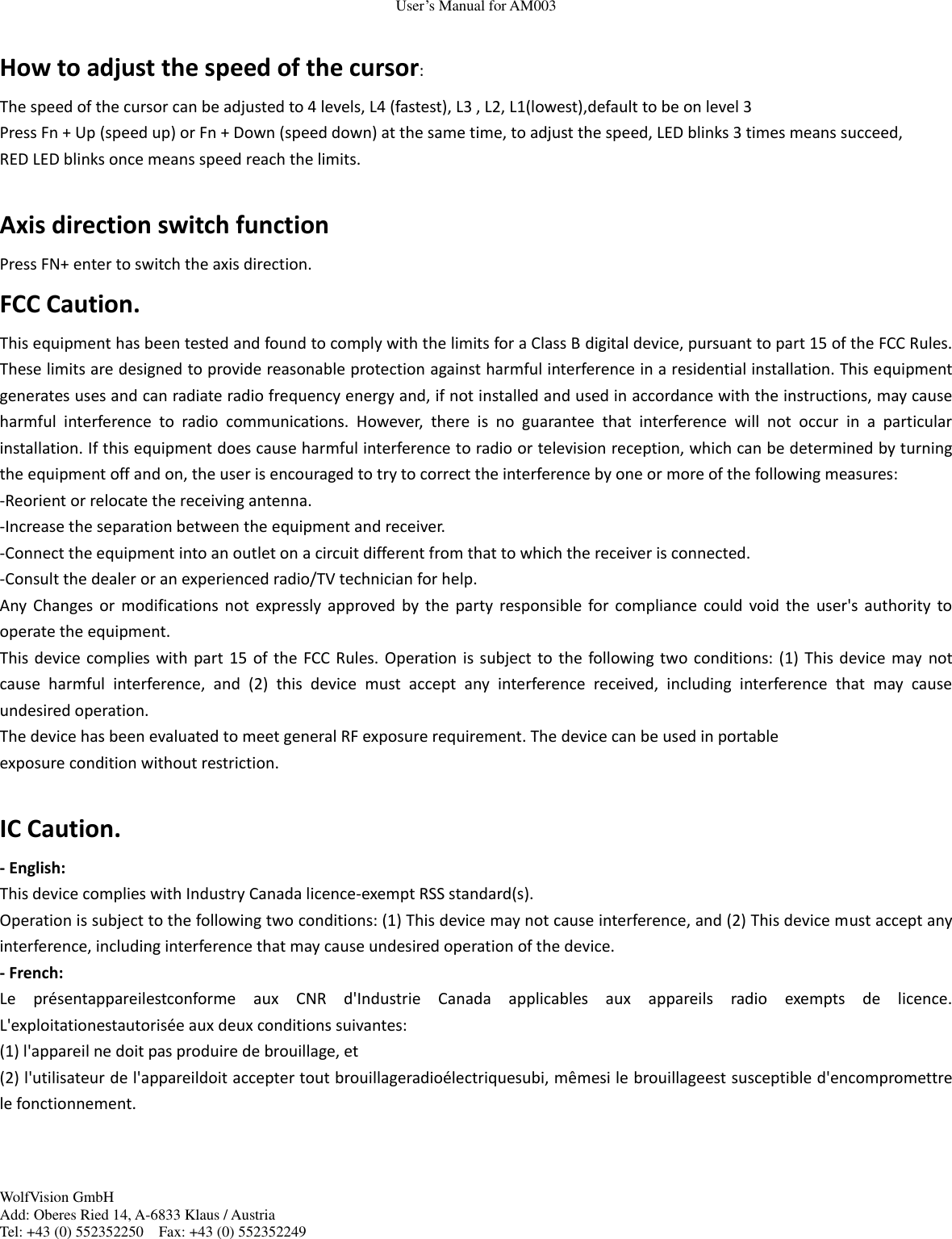
User’s Manual for AM003 WolfVision GmbH Add: Oberes Ried 14, A-6833 Klaus / Austria Tel: +43 (0) 552352250    Fax: +43 (0) 552352249                                                                                           ○1 BACKSPACE ○2  ENTER ○3 ESC ○4 FN ○5 CAP LK ○6 FN LED ○7 CAP LED
User’s Manual for AM003 WolfVision GmbH Add: Oberes Ried 14, A-6833 Klaus / Austria Tel: +43 (0) 552352250    Fax: +43 (0) 552352249    LED indicator: 1:If pairing succeed, blue LED blinks. 2:If pairing failed, pink LED blinks. How to pair: 1:Plug the USB dongle into your device. 2:Insert two batteries into the REMOTE control and press any key one time, then re-insert the battery. 3:Within 1 minute after batteries inserted, press  +   on keyboard till FN LED turns on. 4:Re-insert the USB dongle into your device. 5:    Fn LED blinks 5 times means pairing succeed.   6:If LED does not blinks within 10 seconds, means pairing failed. 7:If pairing fails, repeat step 1 to step 4.   How to recalibrate -If the cursor begins to drift please follow these instructions. 1. Press and hold +   till Fn button light up. 2. Lay the remote on a flat surface, Fn LED blinks 8 times then turn off means recalibration is now completed.  How to change air mouse axial: Press and hold  +   together,  Air mouse function and NAVI button function: 1. Mouse function is default OFF   2. When remote turn to sleep mode, mouse function will be OFF, user need to activate the mouse ON by themselves. 3.When mouse function are on, NAVI keys, OK button [S30] and Return button[S22] work as mouse LEFT and mouse RIGHT buttons. 4:When any NAVI buttons are pressed, mouse function will be turned off, NAVI buttons turn to keyboard mode,    OK button [S30] and Return button[S22] equal to ENTER and BACK function.  Auto Flipping Detection This function default to be off, user need to activate by themselves when first use by following below instruction: Keep pressing on mouse on button  [S10] for 3 seconds, Auto Flipping Detection function will be turned on.
User’s Manual for AM003 WolfVision GmbH Add: Oberes Ried 14, A-6833 Klaus / Austria Tel: +43 (0) 552352250    Fax: +43 (0) 552352249   How to adjust the speed of the cursor: The speed of the cursor can be adjusted to 4 levels, L4 (fastest), L3 , L2, L1(lowest),default to be on level 3 Press Fn + Up (speed up) or Fn + Down (speed down) at the same time, to adjust the speed, LED blinks 3 times means succeed, RED LED blinks once means speed reach the limits.  Axis direction switch function Press FN+ enter to switch the axis direction. FCC Caution. This equipment has been tested and found to comply with the limits for a Class B digital device, pursuant to part 15 of the FCC Rules. These limits are designed to provide reasonable protection against harmful interference in a residential installation. This equipment generates uses and can radiate radio frequency energy and, if not installed and used in accordance with the instructions, may cause harmful  interference  to  radio  communications.  However,  there  is  no  guarantee  that  interference  will  not  occur  in  a  particular installation. If this equipment does cause harmful interference to radio or television reception, which can be determined by turning the equipment off and on, the user is encouraged to try to correct the interference by one or more of the following measures: -Reorient or relocate the receiving antenna. -Increase the separation between the equipment and receiver. -Connect the equipment into an outlet on a circuit different from that to which the receiver is connected. -Consult the dealer or an experienced radio/TV technician for help. Any Changes or  modifications  not  expressly  approved  by  the  party  responsible  for compliance  could  void the  user's authority  to operate the equipment. This device complies with part 15  of the FCC Rules. Operation is subject to the following two  conditions: (1) This device may  not cause  harmful  interference,  and  (2)  this  device  must  accept  any  interference  received,  including  interference  that  may  cause undesired operation. The device has been evaluated to meet general RF exposure requirement. The device can be used in portable exposure condition without restriction.    IC Caution. - English:   This device complies with Industry Canada licence-exempt RSS standard(s).   Operation is subject to the following two conditions: (1) This device may not cause interference, and (2) This device must accept any interference, including interference that may cause undesired operation of the device. - French: Le  présentappareilestconforme  aux  CNR  d'Industrie  Canada  applicables  aux  appareils  radio  exempts  de  licence. L'exploitationestautorisée aux deux conditions suivantes:   (1) l'appareil ne doit pas produire de brouillage, et   (2) l'utilisateur de l'appareildoit accepter tout brouillageradioélectriquesubi, mêmesi le brouillageest susceptible d'encompromettre le fonctionnement.

Navigation menu